iPhone
Development
   Tools
  Ing. Omar Cafini
   http://www.omarcafini.info


    www.mitapp.com
Development Tools
     •   Xcode: the IDE that includes source code editor, tools,
         documentation and the frontend for the compiler i.e. with
         Xcode you can enter, build and debug your application.

     •   Interface Builder: an editor program for dragging
         controls into your applications's views and editing them
         visually

     •   Cocoa Touch: a framework of code for you to use. Cocoa
         Touch contains controls and other useful stuff for your
         iPhone applications


www.mitapp.com              http://www.omarcafini.info     http://twitter.com/MitAPP
Xcode IDE
   •   Developing with Xcode is all about keeping you focused. Simply
       click the green Build and Go button to start the build, debug, and
       test cycle. Build errors are displayed within your source code as
       Message Bubbles. Once your project is built, the debugger bar
       appears in the editor window, and hovering your mouse reveals
       variable values as Data Tips.

   •   If you are developing for iPhone, Xcode automatically
       installs your application on the device and attaches the
       debugger over USB. Throughout, Xcode keeps your code front
       and center.

       [Source: Apple Dev Tools]


www.mitapp.com               http://www.omarcafini.info      http://twitter.com/MitAPP
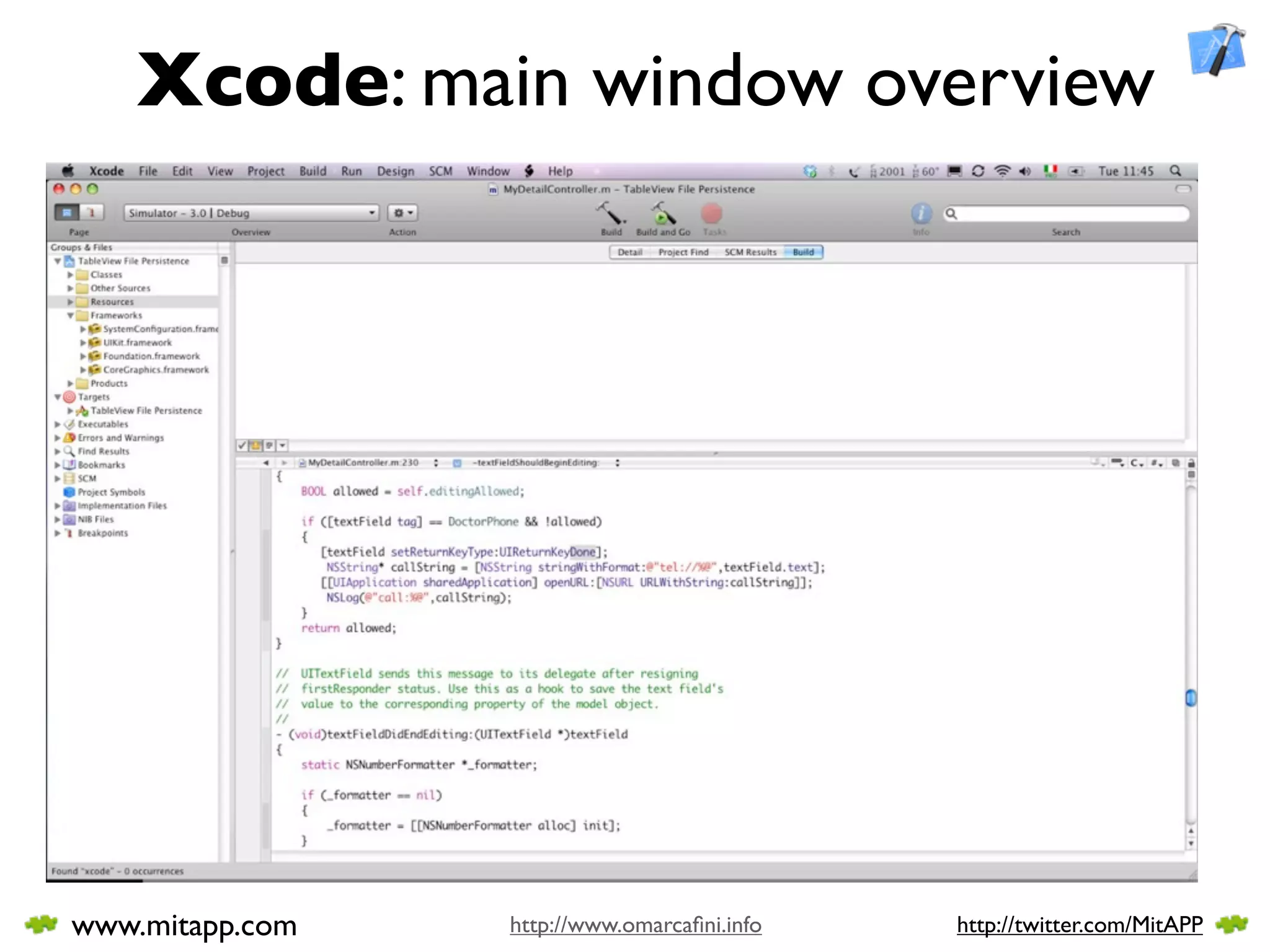
Xcode: main window overview


www.mitapp.com   http://www.omarcafini.info   http://twitter.com/MitAPP
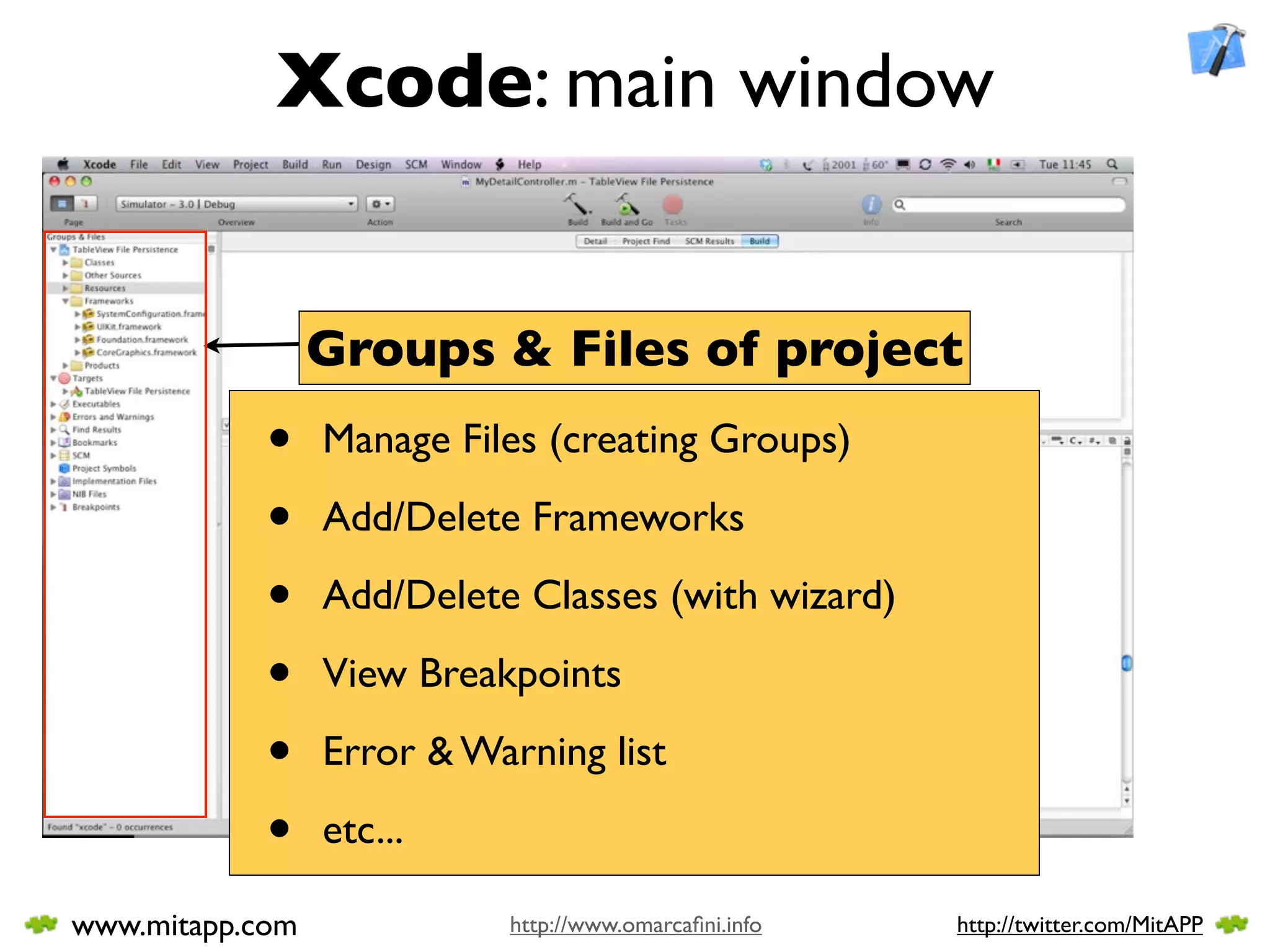
Xcode: main window


                 Groups & Files of project
            •    Manage Files (creating Groups)

            •    Add/Delete Frameworks

            •    Add/Delete Classes (with wizard)

            •    View Breakpoints

            •    Error & Warning list

            •    etc...

www.mitapp.com             http://www.omarcafini.info   http://twitter.com/MitAPP
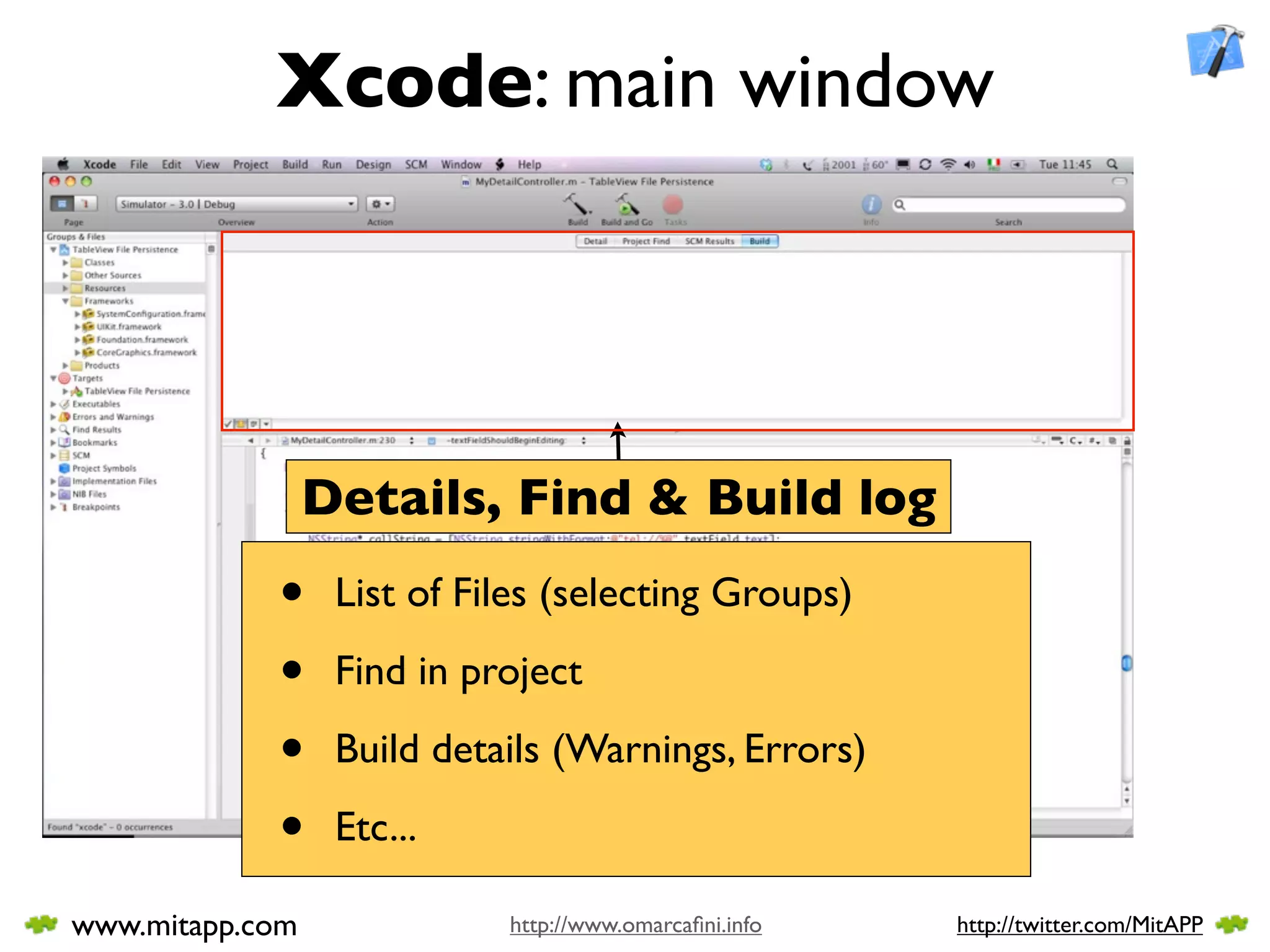
Xcode: main window


                 Details, Find & Build log
            •     List of Files (selecting Groups)

            •     Find in project

            •     Build details (Warnings, Errors)

            •     Etc...

www.mitapp.com              http://www.omarcafini.info   http://twitter.com/MitAPP
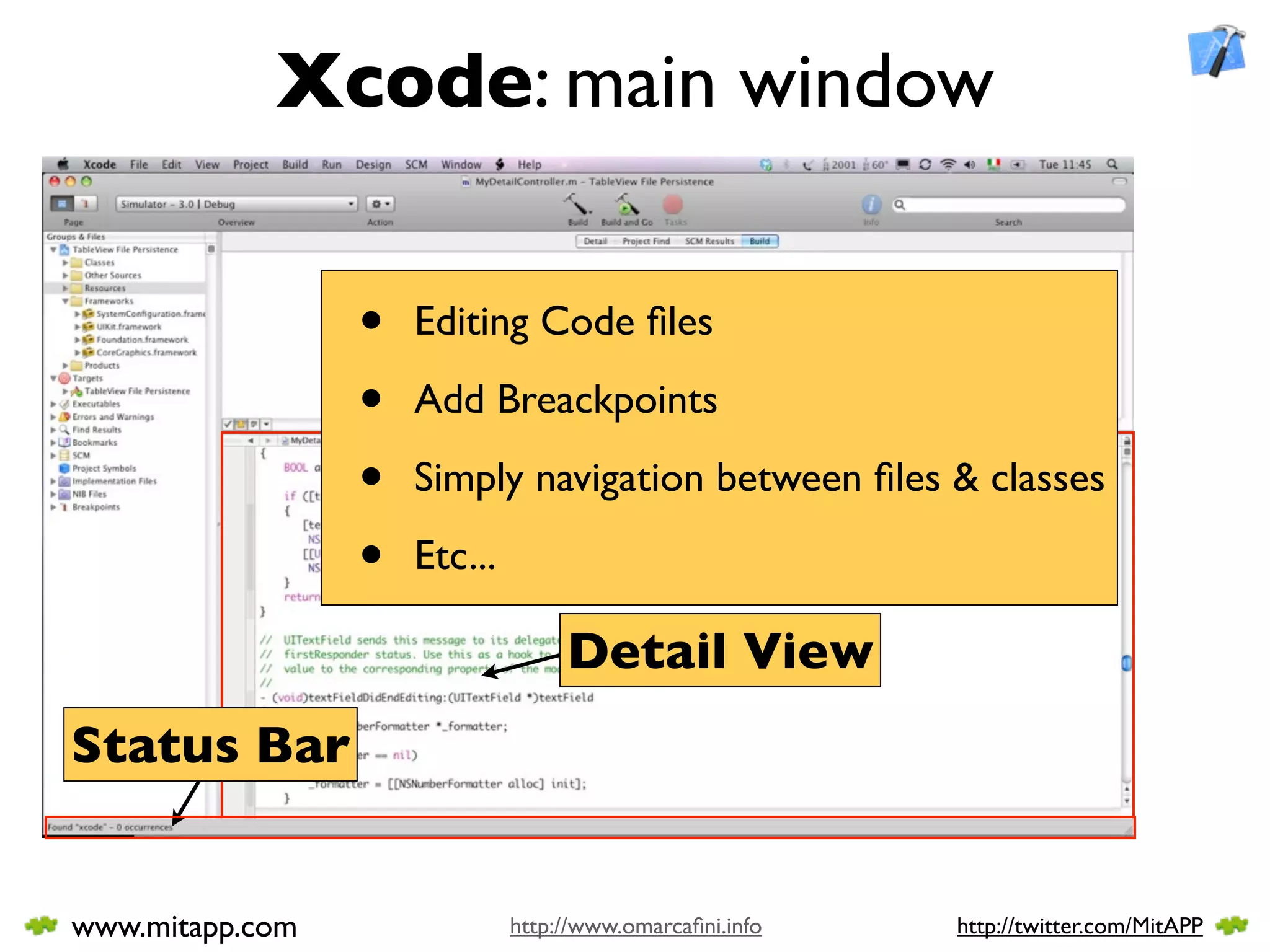
Xcode: main window

                 •   Editing Code files

                 •   Add Breackpoints

                 •   Simply navigation between files & classes

                 •   Etc...

                                   Detail View
Status Bar


www.mitapp.com                http://www.omarcafini.info   http://twitter.com/MitAPP
Xcode: main window

     •   Groups & Files list. Provides an outline view of your project’
         contents. You can move files and folders around and organize your project
         contents in this list. The current selection in the Groups & Files list
         controls the contents displayed in the detail view.

     •   Detail view. Shows the item or items selected in the Groups & Files
         list. You can browse your project’s contents in the detail view, search them
         using the search field, or sort them according to column. The detail view
         helps you rapidly find and access your project’s contents.

     •   Toolbar. Provides quick access to the most common Xcode commands.

     •   Favorites bar. Lets you store and quickly return to commonly accessed
         locations in your project. The favorites bar is not displayed by default. To
         display the favorites bar, choose View > Layout > Show Favorites Bar.

     •   Status bar. Displays status messages for the project. During an
         operation—such as building or indexing—Xcode displays a progress
         indicator in the status bar to show the progress of the current task.

www.mitapp.com                   http://www.omarcafini.info           http://twitter.com/MitAPP
Editing Code
     •   Header-file lookup. By Command–double-clicking a symbol,
         you can view the header file that declares the symbol.

     •   API reference lookup. By Option–double-clicking a symbol, you
         get access to API reference that provides information about the
         symbol’s usage.

     •   Code completion. As you type code, you can have the editor
         help out by inserting text for you that completes the name of the
         symbol Xcode thinks you’re going to enter. Xcode does this in an
         unobtrusive and overridable manner.

     •   Code folding. With code folding, you can collapse code that
         you’re not working on and display only the code that requires your
         attention.


www.mitapp.com                http://www.omarcafini.info        http://twitter.com/MitAPP
Code Completion
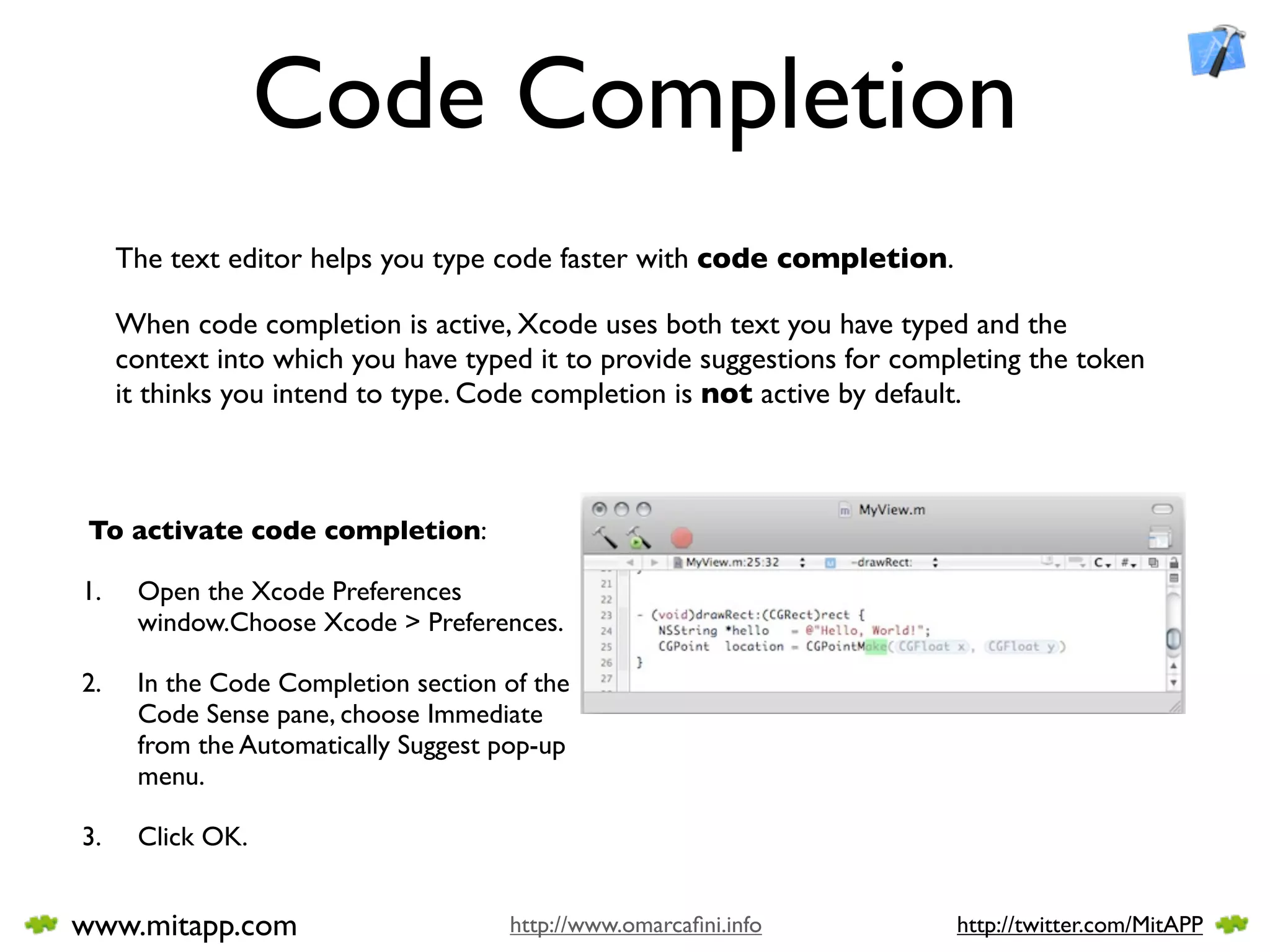
     The text editor helps you type code faster with code completion.

     When code completion is active, Xcode uses both text you have typed and the
     context into which you have typed it to provide suggestions for completing the token
     it thinks you intend to type. Code completion is not active by default.


 To activate code completion:

1.    Open the Xcode Preferences
      window.Choose Xcode > Preferences.

2.    In the Code Completion section of the
      Code Sense pane, choose Immediate
      from the Automatically Suggest pop-up
      menu.

3.    Click OK.


www.mitapp.com                       http://www.omarcafini.info           http://twitter.com/MitAPP
Accessing Documentation
   During development, you may need fast access to reference for a particular
   symbol or high-level documentation about API usage or an iPhone OS technology.
   Xcode gives you easy access to such resources through the Research
   Assistant and the Documentation window.


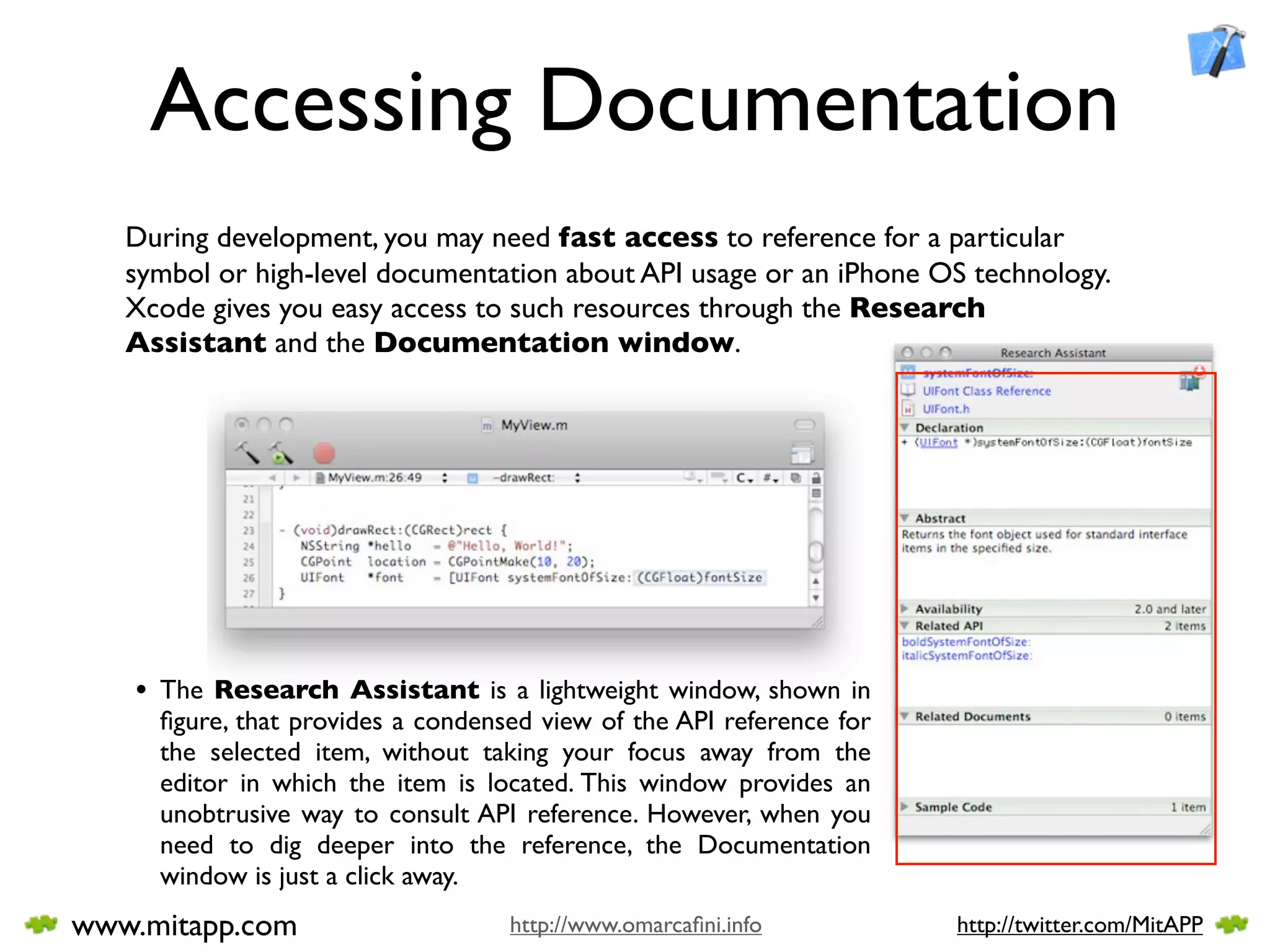
   • The Research Assistant is a lightweight window, shown in
     figure, that provides a condensed view of the API reference for
     the selected item, without taking your focus away from the
     editor in which the item is located. This window provides an
     unobtrusive way to consult API reference. However, when you
     need to dig deeper into the reference, the Documentation
     window is just a click away.
www.mitapp.com                     http://www.omarcafini.info          http://twitter.com/MitAPP
Accessing Documentation
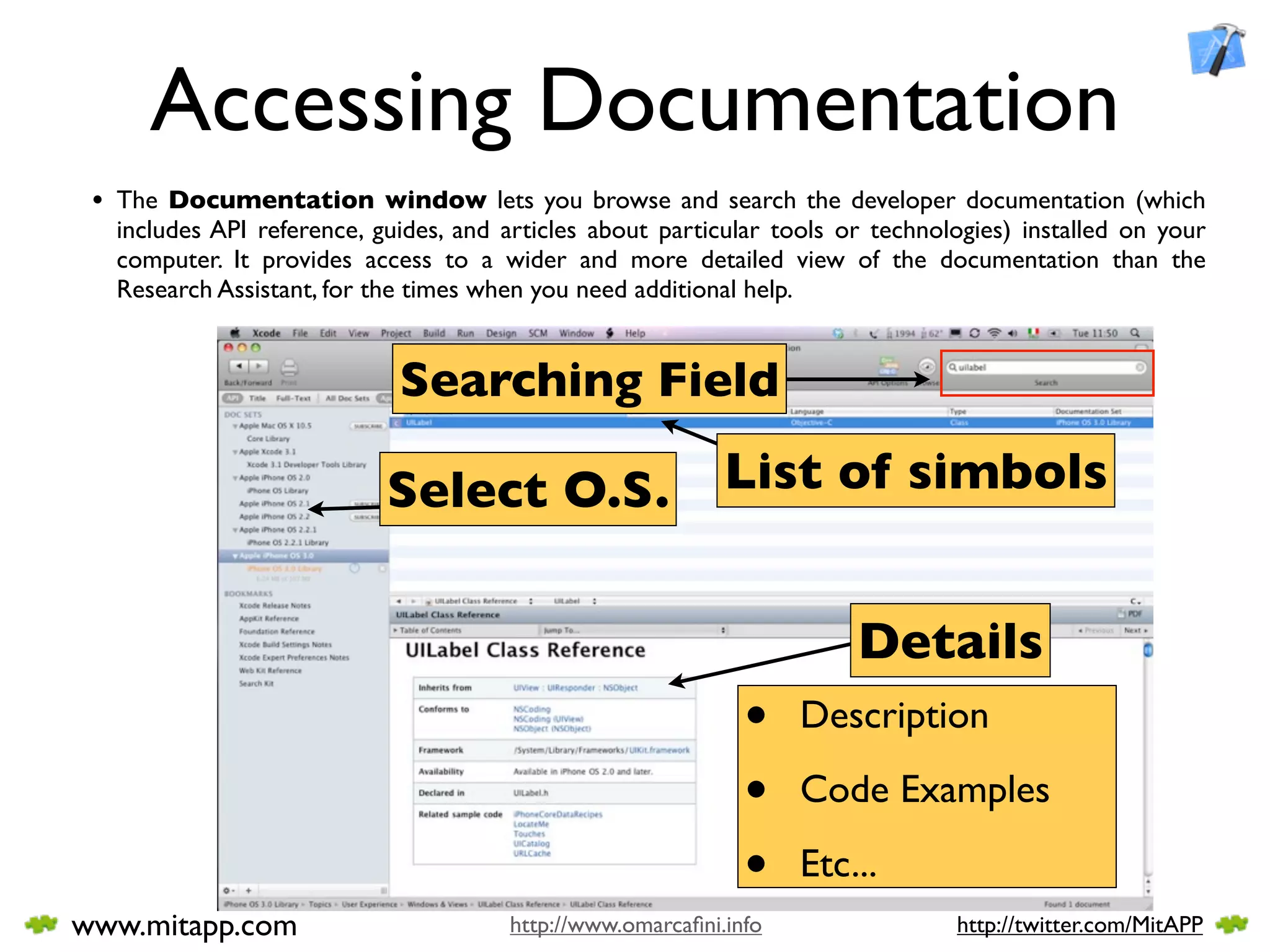
 • The Documentation window lets you browse and search the developer documentation (which
  includes API reference, guides, and articles about particular tools or technologies) installed on your
  computer. It provides access to a wider and more detailed view of the documentation than the
  Research Assistant, for the times when you need additional help.


                            Searching Field

                           Select O.S.                     List of simbols


                                                                       Details
                                                             •    Description

                                                             •    Code Examples

                                                             •    Etc...
www.mitapp.com                        http://www.omarcafini.info                 http://twitter.com/MitAPP
Xcode: main window
     • DEMO      (10-15’):

     Main Window overview

     Manage Files (Creating Groups)

     Code Completion (Fn+F5)

     GoToHelp (ALT + doubleClick)

     GoToDefinition (cmd + doubleClick)


www.mitapp.com               http://www.omarcafini.info   http://twitter.com/MitAPP
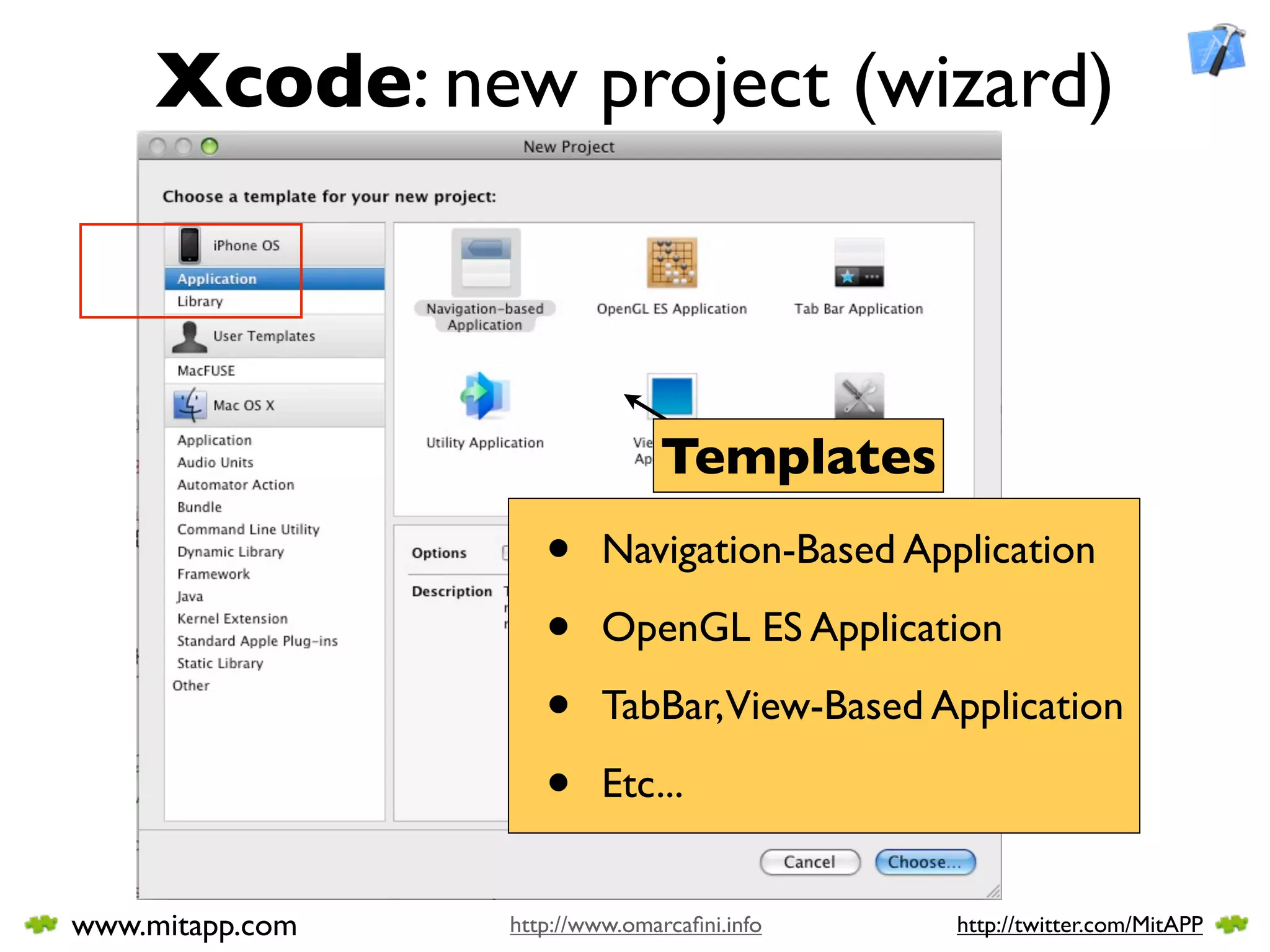
Xcode: new project (wizard)


                               Templates
                    •     Navigation-Based Application

                    •     OpenGL ES Application

                    •     TabBar,View-Based Application

                    •     Etc...


www.mitapp.com   http://www.omarcafini.info    http://twitter.com/MitAPP
Xcode: new project (wizard)
    The iPhone SDK provides several project templates to get you up and
    running developing your application. You can choose from these types of
    application:
    ■ Navigation-Based Application. An application that presents data hierarchically, using
      multiple screens. The Contacts application is an example of a navigation-based application.

    ■ OpenGL ES Application. An application that uses an OpenGL ES–based view to present
      images or animation.

    ■ Tab Bar Application. An application that presents a radio interface that lets the user
      choose from several screens. The Clock application is an example of a tab bar application.

    ■ Utility Application. An application that implements a main view and lets the user access
      a flipside view to perform simple customizations. The Stocks application is an example of a
      utility application.

    ■ View-Based Application. An application that uses a single view to implement its user
      interface.

    ■ Window-Based Application. This template serves as a starting point for any
      application, containing an application delegate and a window. Use this template when you
      want to implement your own view hierarchy.

www.mitapp.com                        http://www.omarcafini.info                http://twitter.com/MitAPP
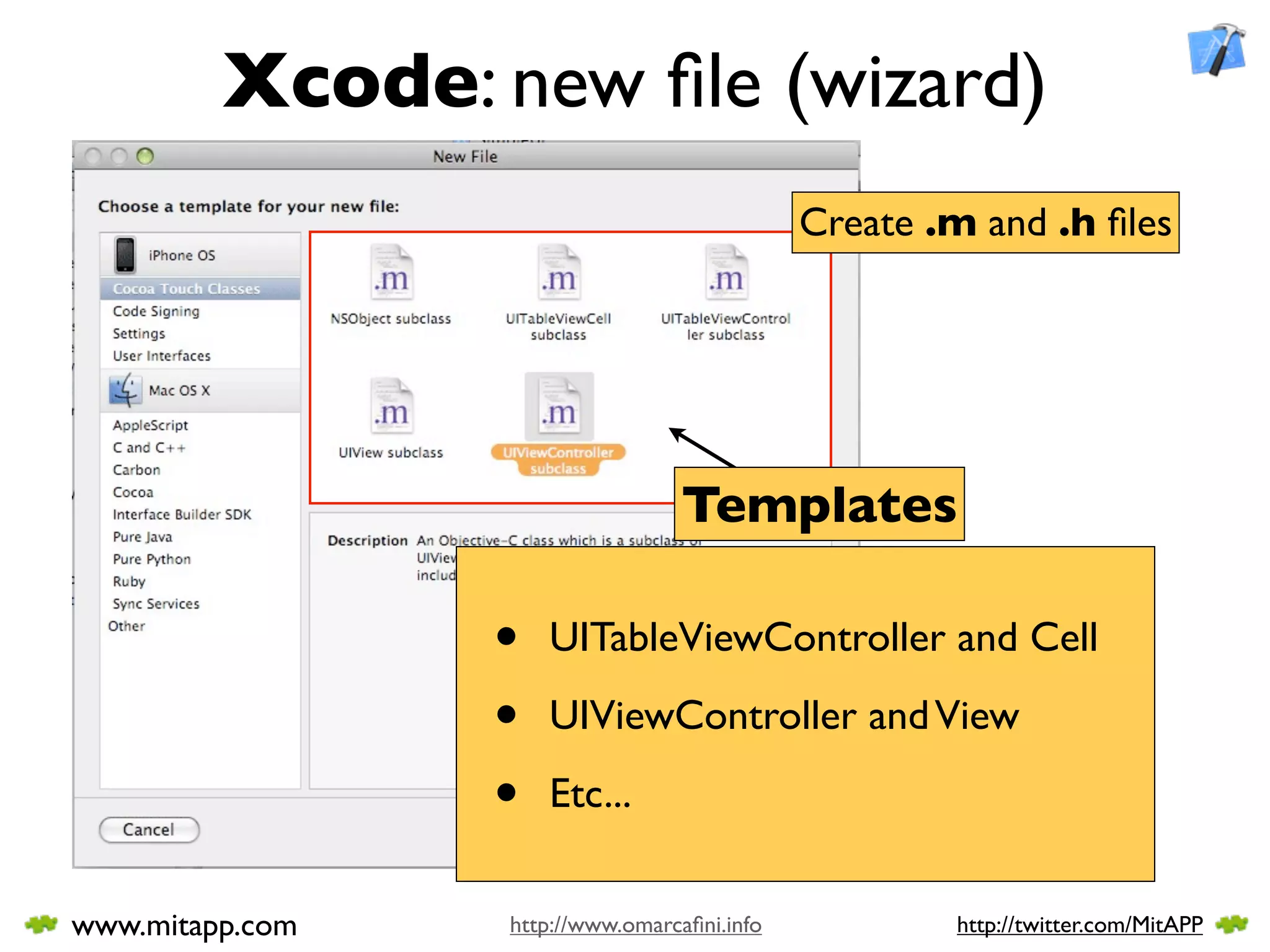
Xcode: new file (wizard)
                                             Create .m and .h files


                                  Templates

                 •   UITableViewController and Cell

                 •   UIViewController and View

                 •   Etc...


www.mitapp.com   http://www.omarcafini.info           http://twitter.com/MitAPP
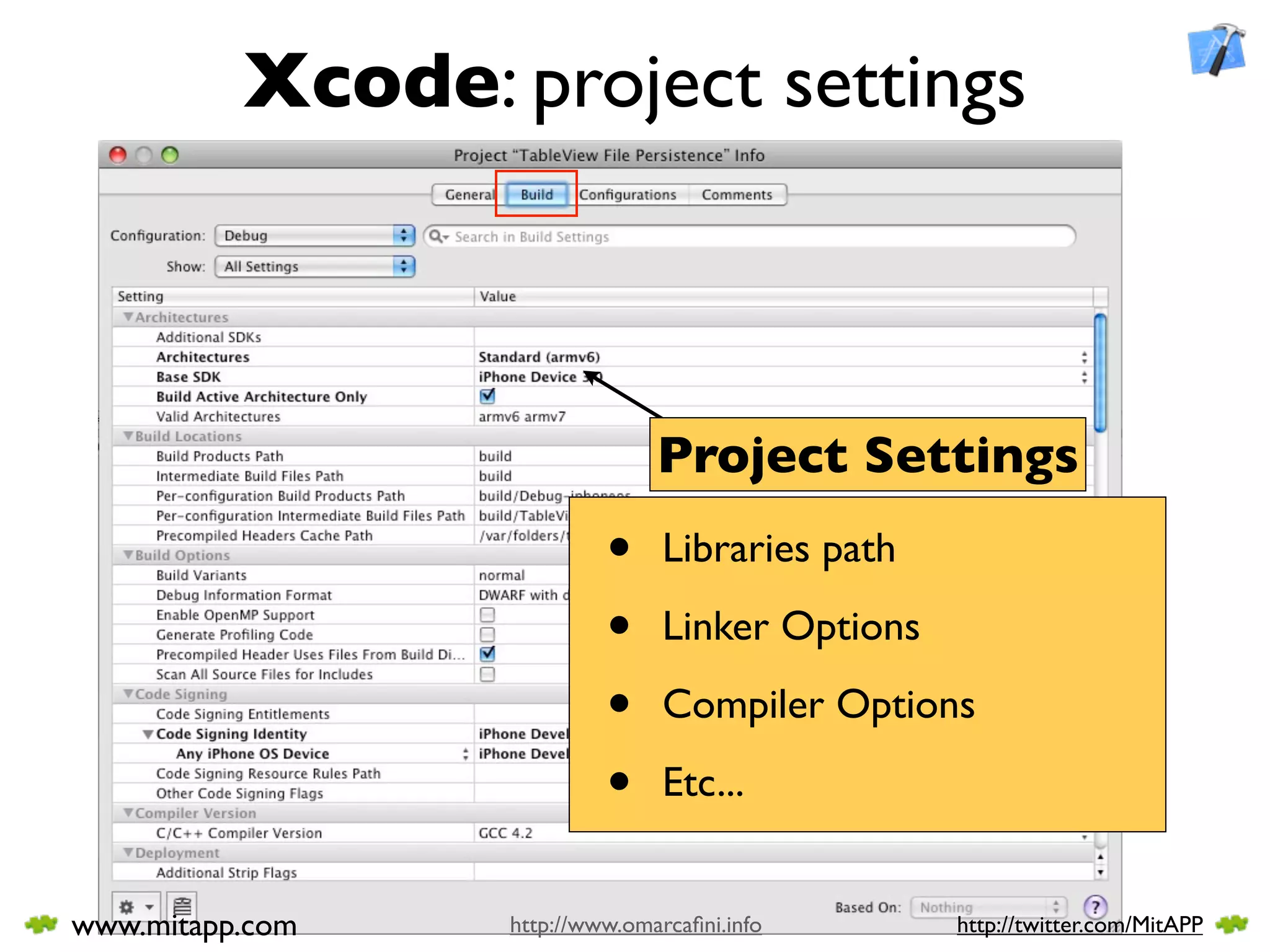
Xcode: project settings


                               Project Settings
                          •     Libraries path

                          •     Linker Options

                          •     Compiler Options

                          •     Etc...


www.mitapp.com   http://www.omarcafini.info       http://twitter.com/MitAPP
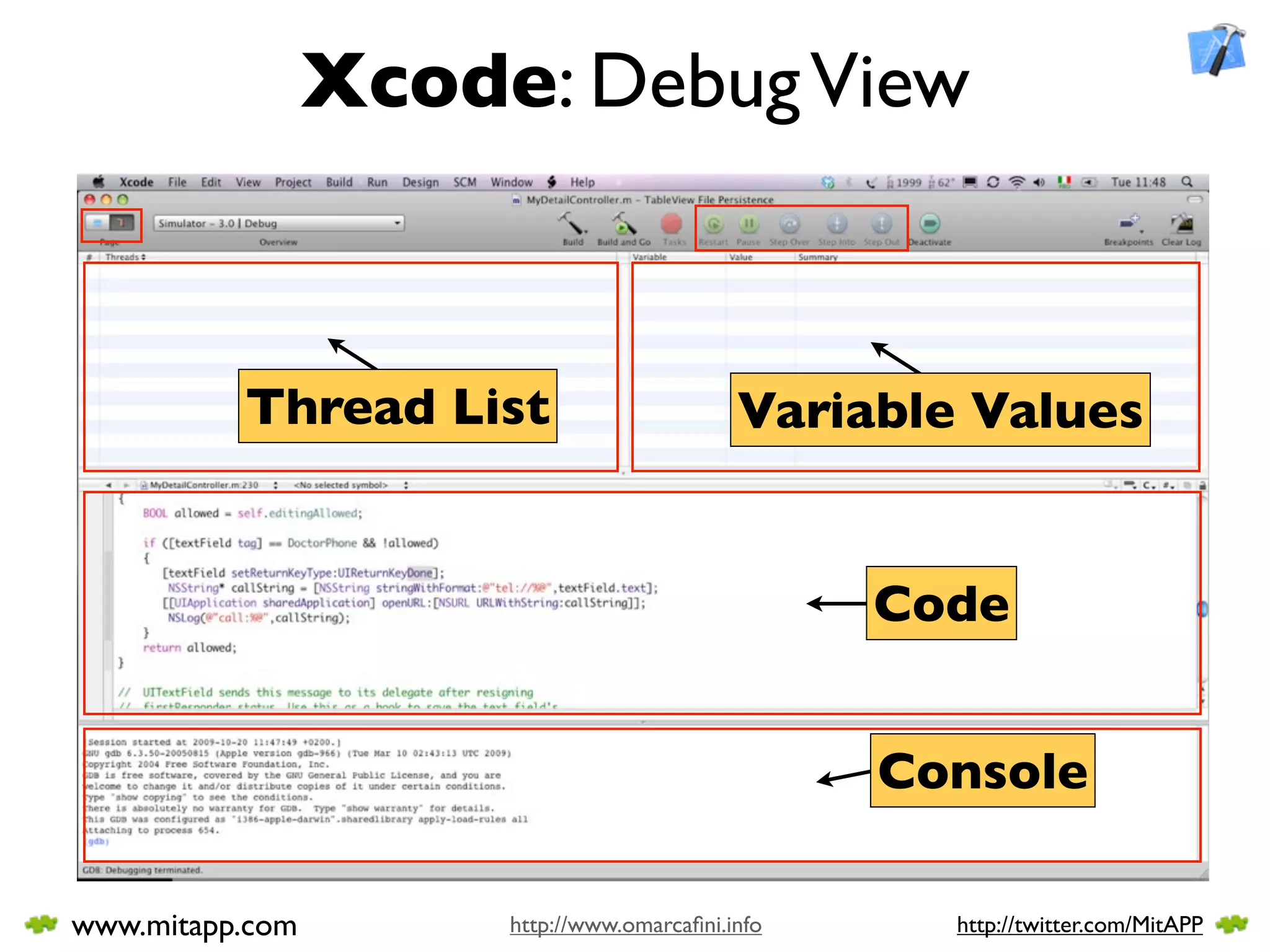
Xcode: Debug View


          Thread List                       Variable Values


                                                  Code


                                                  Console

www.mitapp.com        http://www.omarcafini.info     http://twitter.com/MitAPP
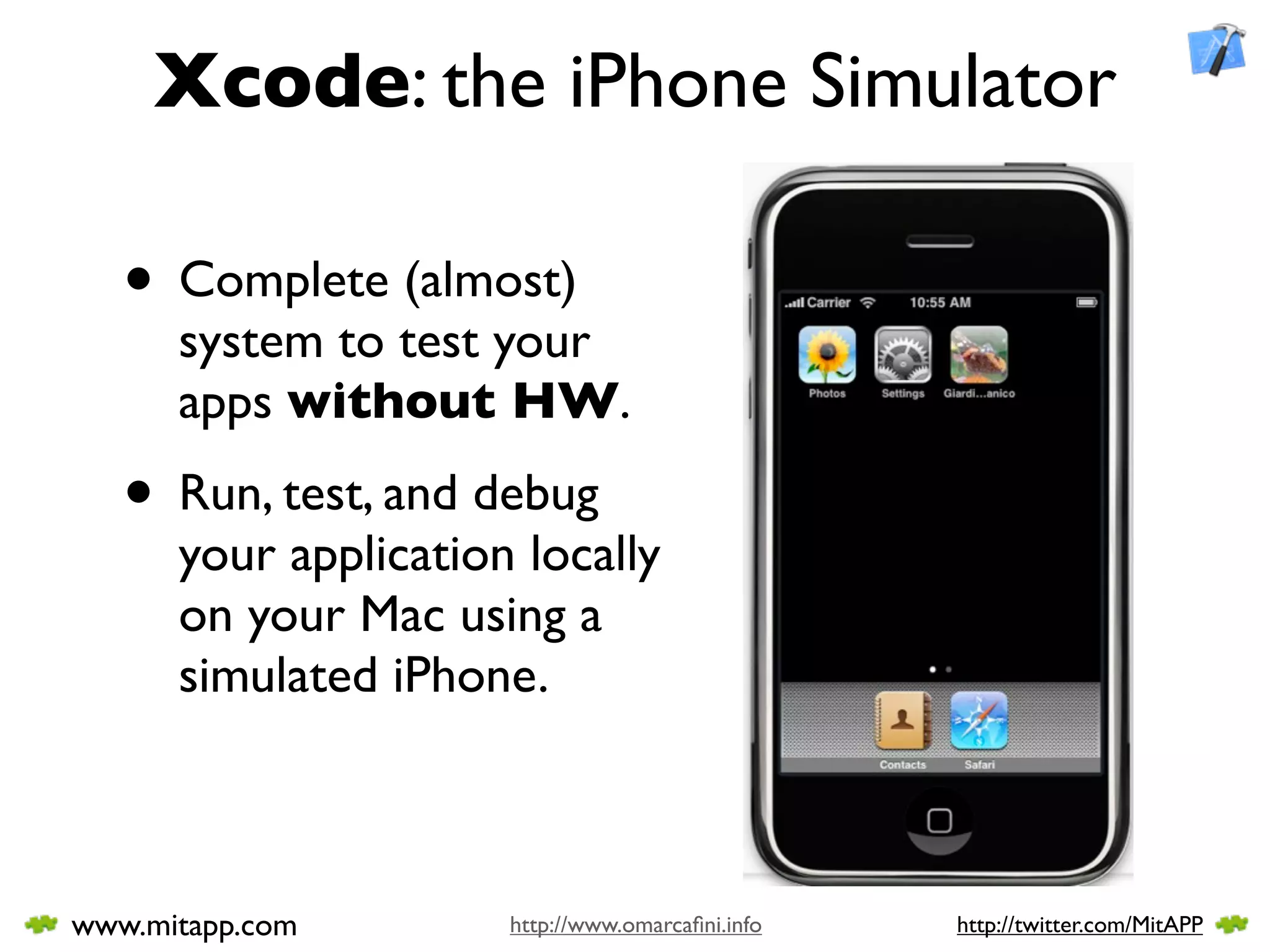
Xcode: the iPhone Simulator

   • Complete (almost)
      system to test your
      apps without HW.

   • Run, test, and debug
      your application locally
      on your Mac using a
      simulated iPhone.


www.mitapp.com        http://www.omarcafini.info   http://twitter.com/MitAPP
Xcode: the iPhone Simulator
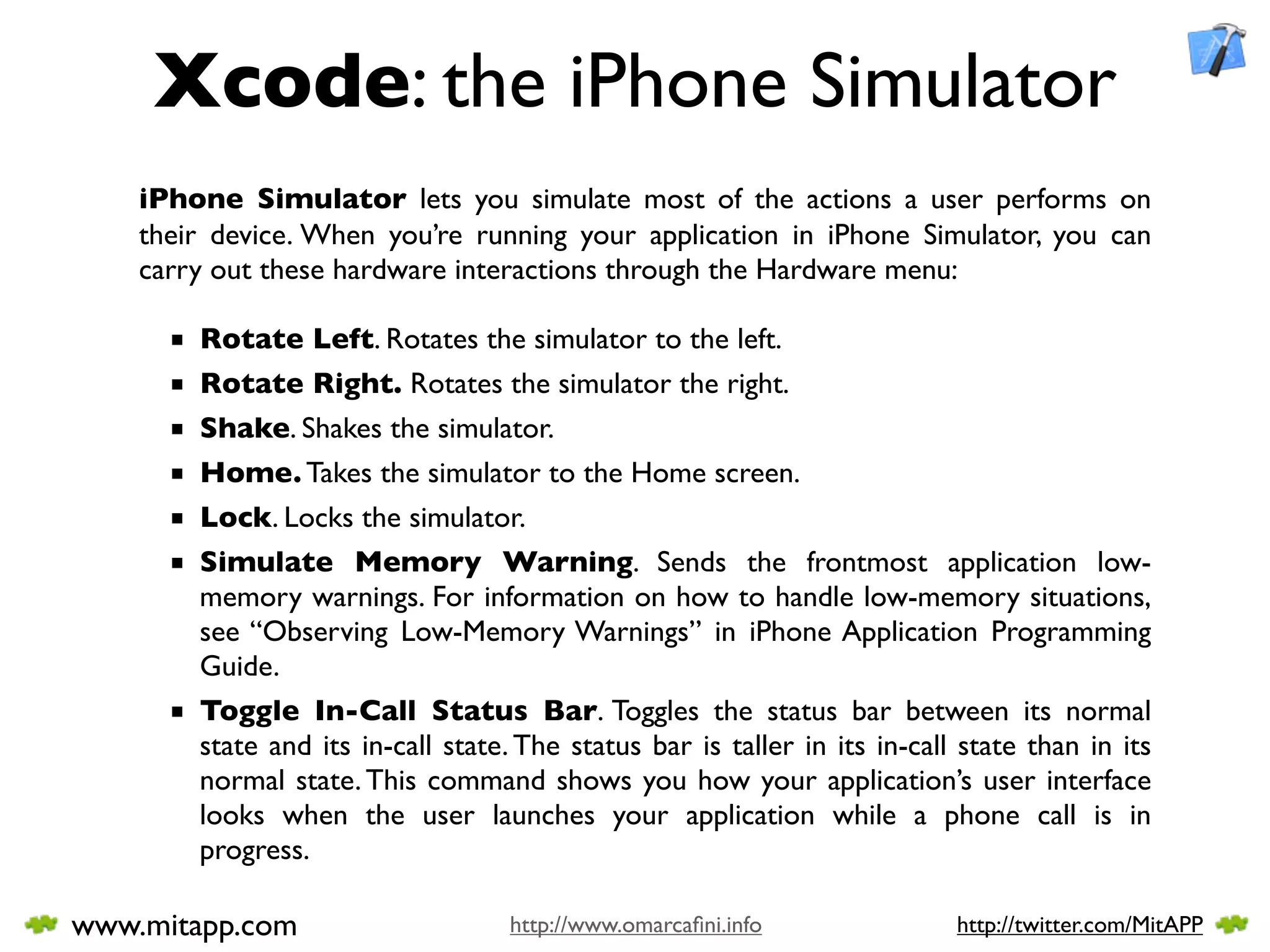
    iPhone Simulator lets you simulate most of the actions a user performs on
    their device. When you’re running your application in iPhone Simulator, you can
    carry out these hardware interactions through the Hardware menu:

      ■ Rotate Left. Rotates the simulator to the left.
      ■ Rotate Right. Rotates the simulator the right.
      ■ Shake. Shakes the simulator.
      ■ Home. Takes the simulator to the Home screen.
      ■ Lock. Locks the simulator.
      ■ Simulate Memory Warning. Sends the frontmost application low-
        memory warnings. For information on how to handle low-memory situations,
        see “Observing Low-Memory Warnings” in iPhone Application Programming
        Guide.
      ■ Toggle In-Call Status Bar. Toggles the status bar between its normal
        state and its in-call state. The status bar is taller in its in-call state than in its
        normal state. This command shows you how your application’s user interface
        looks when the user launches your application while a phone call is in
        progress.

www.mitapp.com                      http://www.omarcafini.info               http://twitter.com/MitAPP
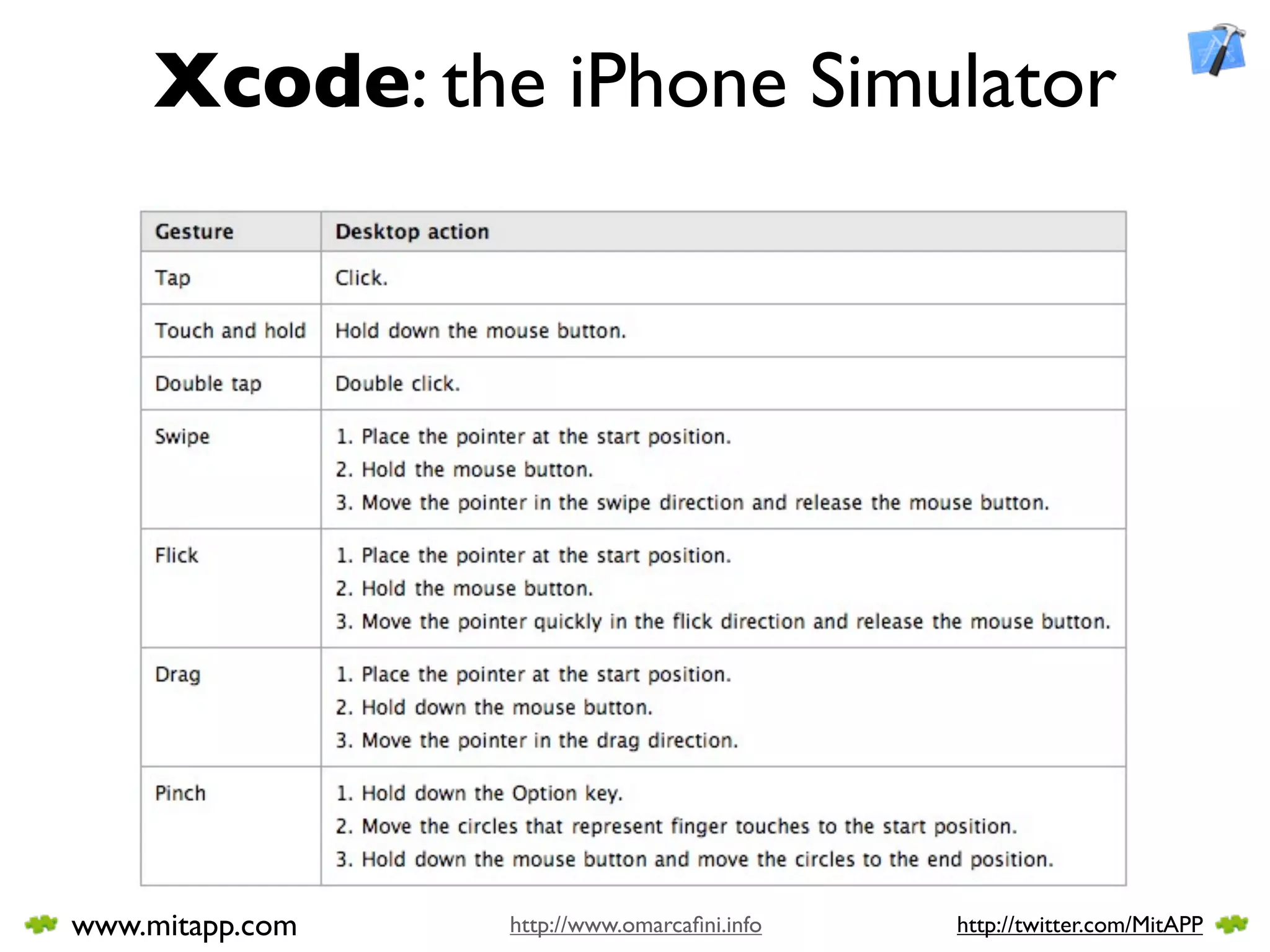
Xcode: the iPhone Simulator


www.mitapp.com   http://www.omarcafini.info   http://twitter.com/MitAPP
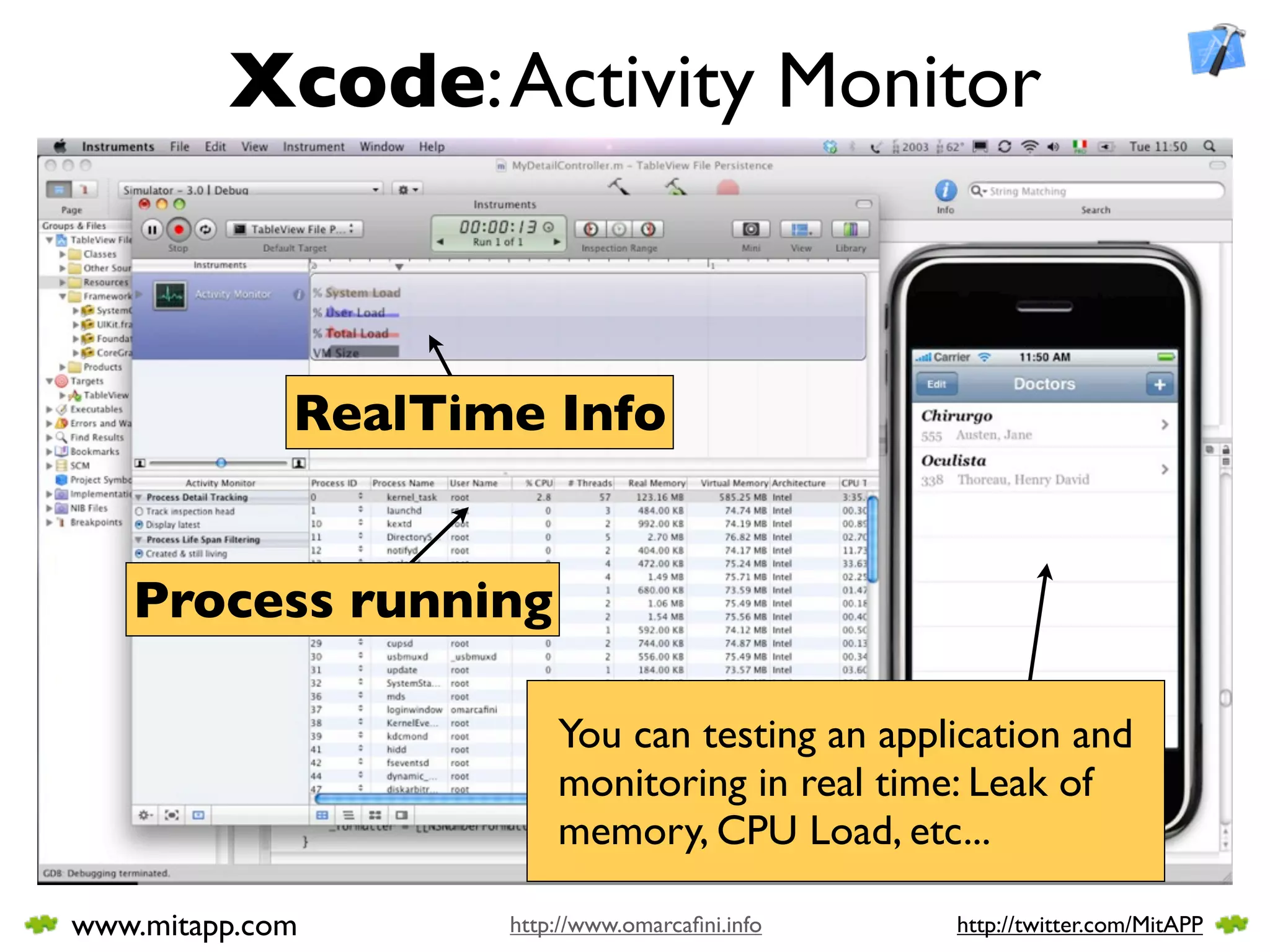
Xcode: Activity Monitor


             RealTime Info


   Process running

                        You can testing an application and
                        monitoring in real time: Leak of
                        memory, CPU Load, etc...

www.mitapp.com      http://www.omarcafini.info   http://twitter.com/MitAPP
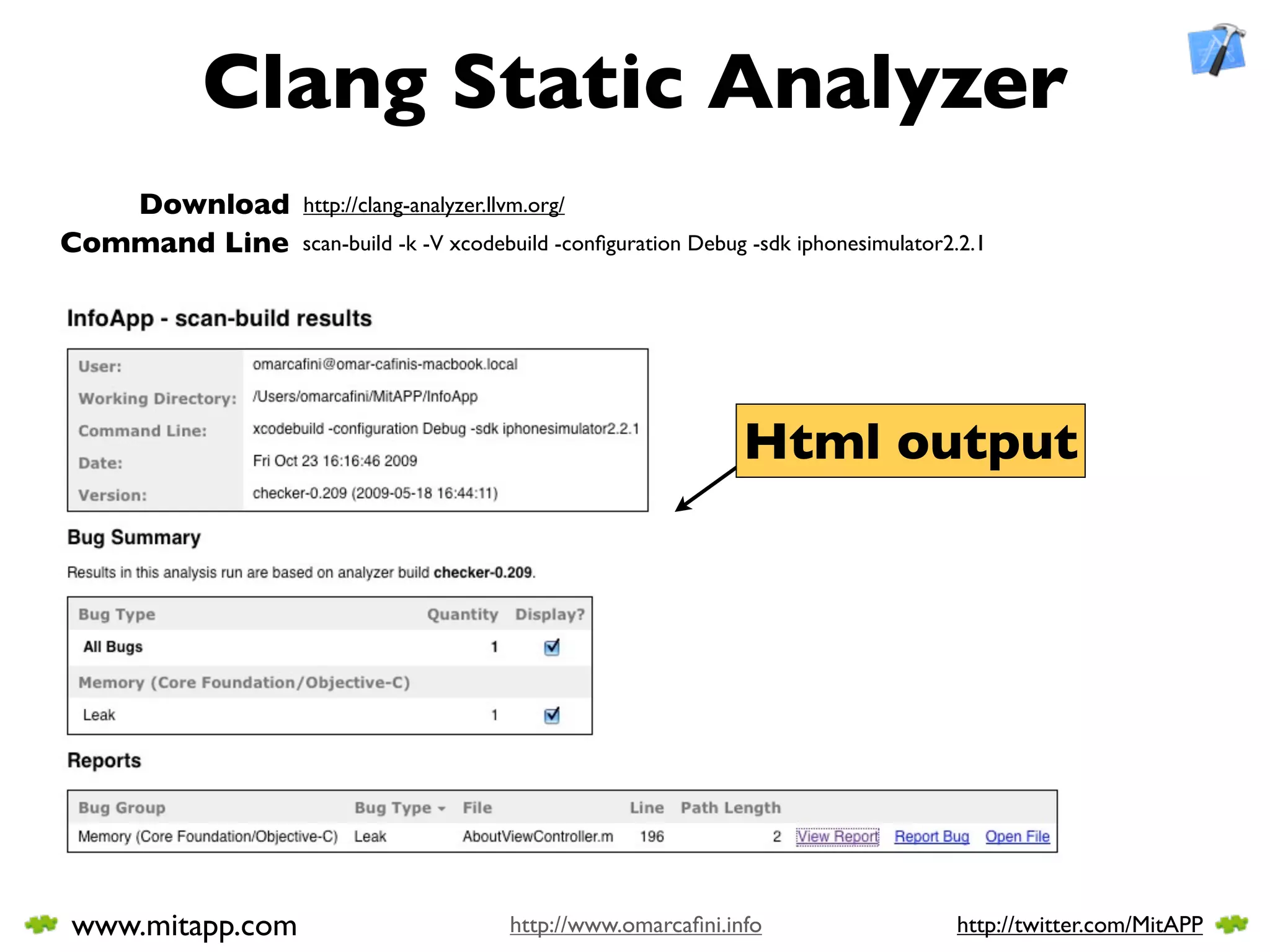
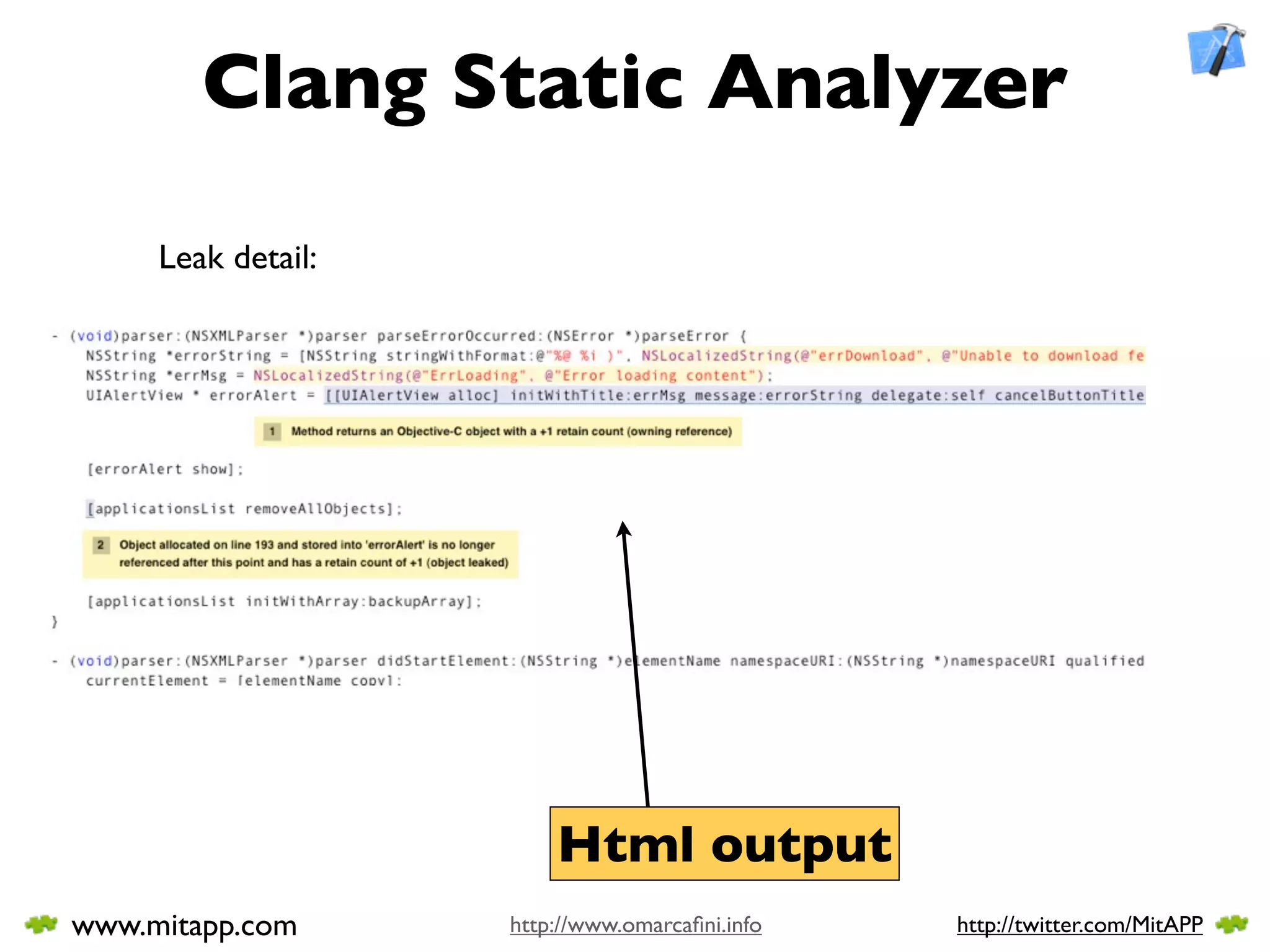
Clang Static Analyzer
   Download      http://clang-analyzer.llvm.org/
Command Line     scan-build -k -V xcodebuild -configuration Debug -sdk iphonesimulator2.2.1


                                                                Html output


www.mitapp.com                           http://www.omarcafini.info                    http://twitter.com/MitAPP
Clang Static Analyzer

     Leak detail:


                        Html output
www.mitapp.com      http://www.omarcafini.info   http://twitter.com/MitAPP
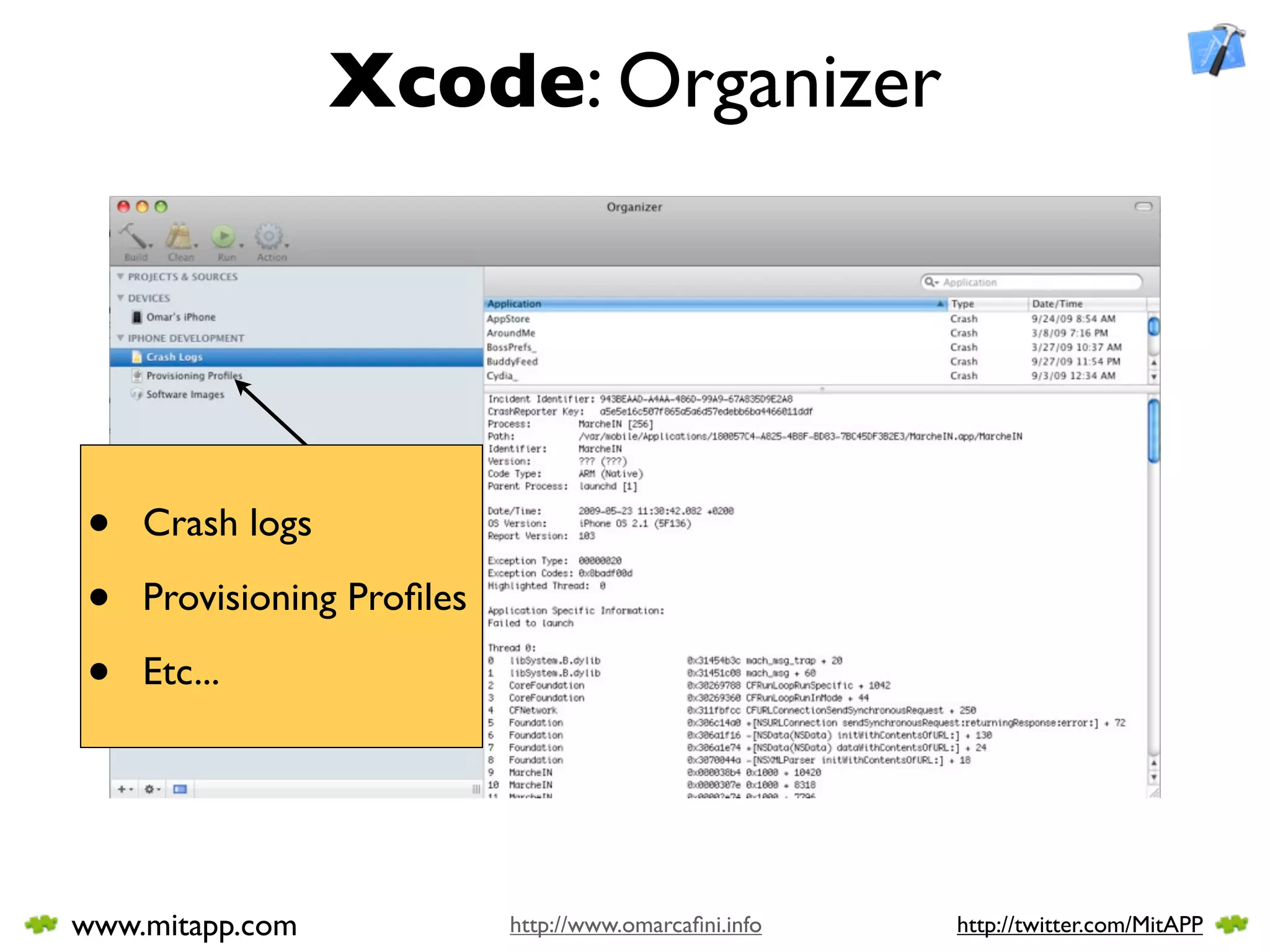
Xcode: Organizer


•   Crash logs

•   Provisioning Profiles

•   Etc...


www.mitapp.com             http://www.omarcafini.info   http://twitter.com/MitAPP
Xcode: debugging

     • DEMO      (10-15’):

     Insert a Breakpoint

     Build & Go

     Using the console

     Simulator Overview


www.mitapp.com               http://www.omarcafini.info   http://twitter.com/MitAPP
Interface Builder
   •   Interface Builder makes it simple to prototype a full user
       interface without writing any code. Laying out windows,
       buttons, sliders, and other controls will create a fully-functioning Mac or
       iPhone user interface.You can then turn that prototype into a real
       application, keeping all the interface objects and adding features to them.
       Xcode works with Interface Builder in real time so you
       simply wire up the code you write in Xcode to the graphical controls
       within Interface Builder.

   •   Changes to the user interface do not require you to recompile your
       code, and changes to your code do not require you to recompile the
       user interface.

       [Source: Apple Dev Tools]


www.mitapp.com                  http://www.omarcafini.info           http://twitter.com/MitAPP
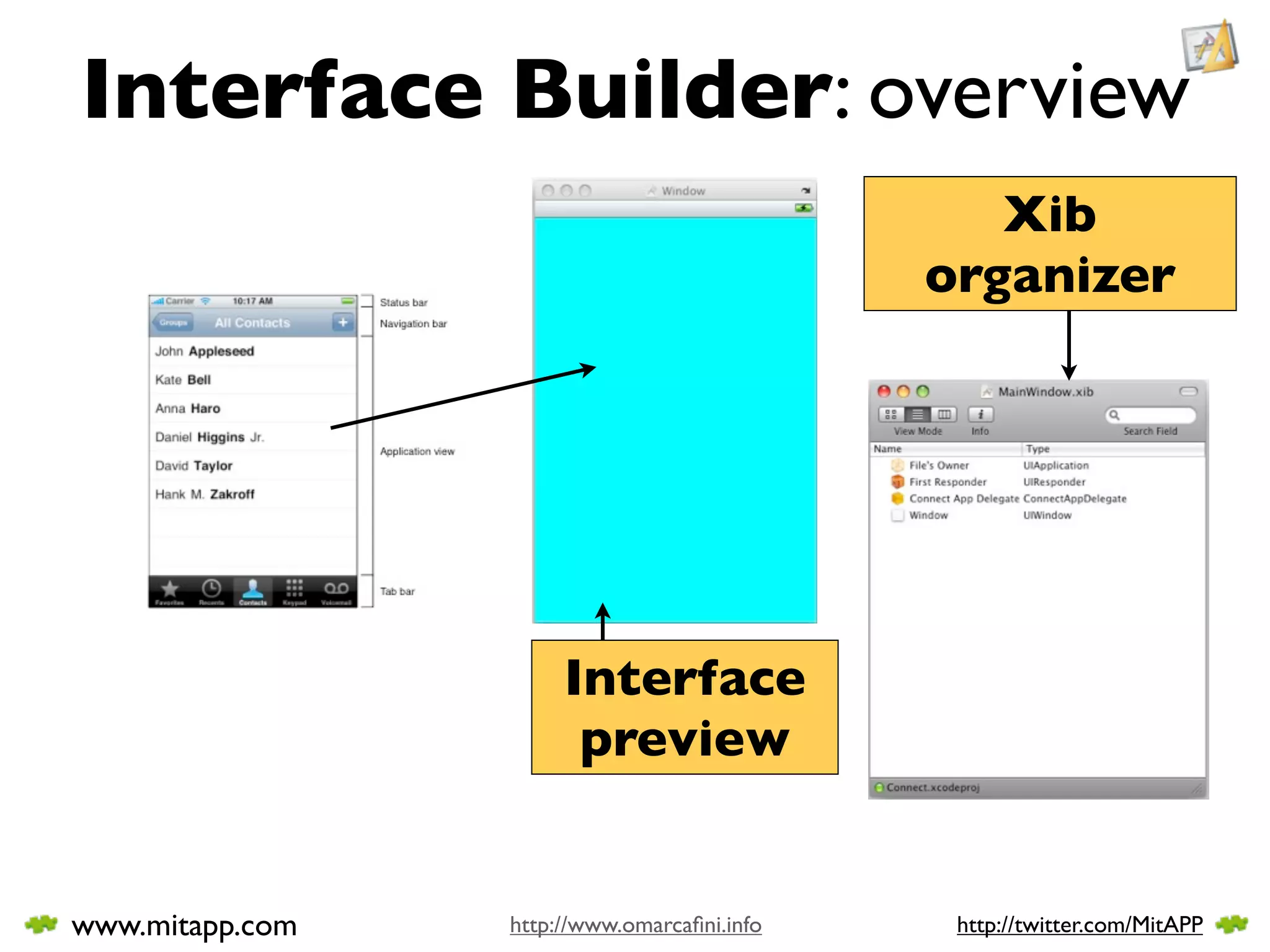
Interface Builder: overview
                                                Xib
                                             organizer


                      Interface
                       preview


www.mitapp.com   http://www.omarcafini.info    http://twitter.com/MitAPP
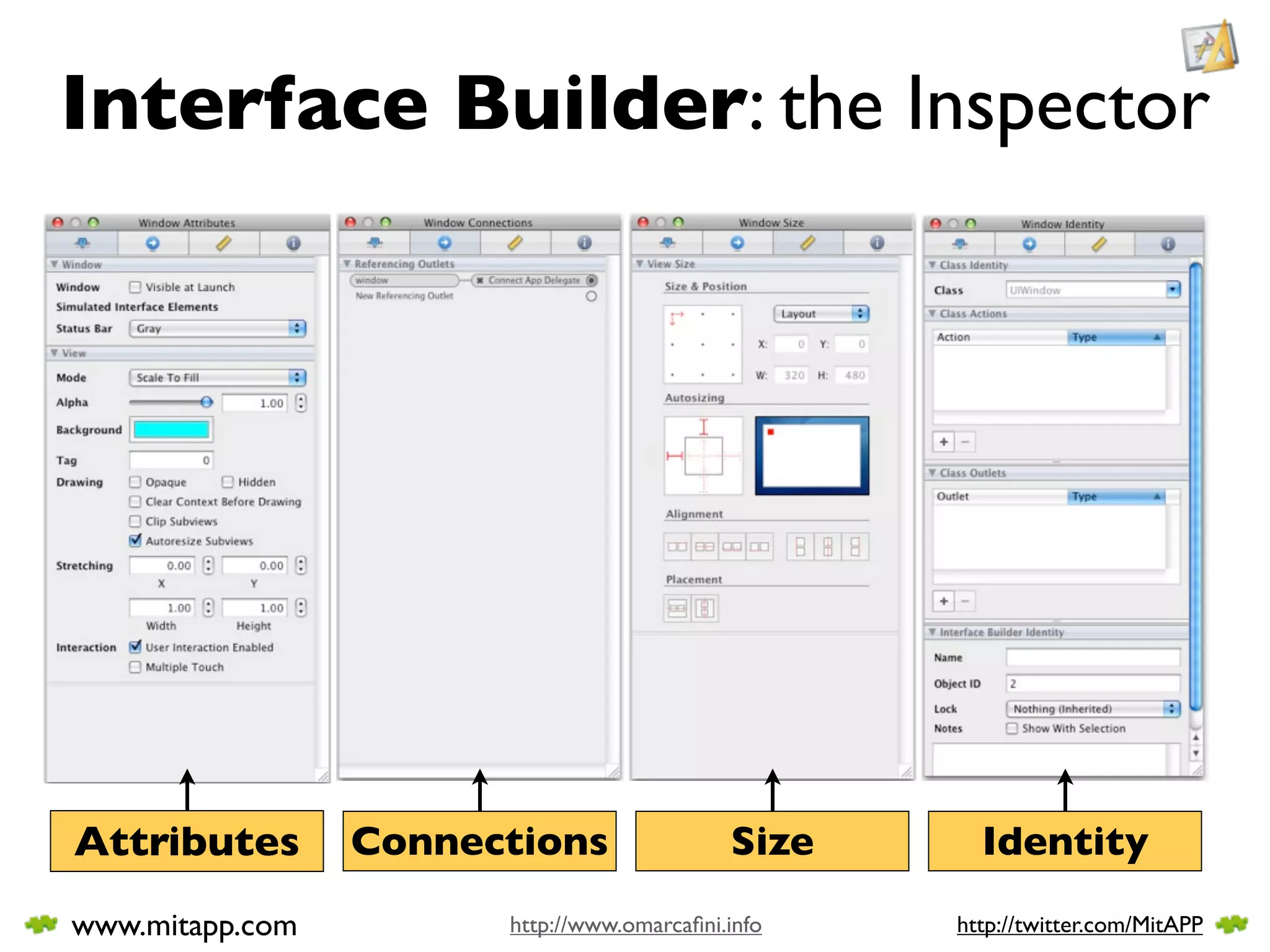
Interface Builder: the Inspector


Attributes       Connections                Size     Identity
www.mitapp.com         http://www.omarcafini.info   http://twitter.com/MitAPP
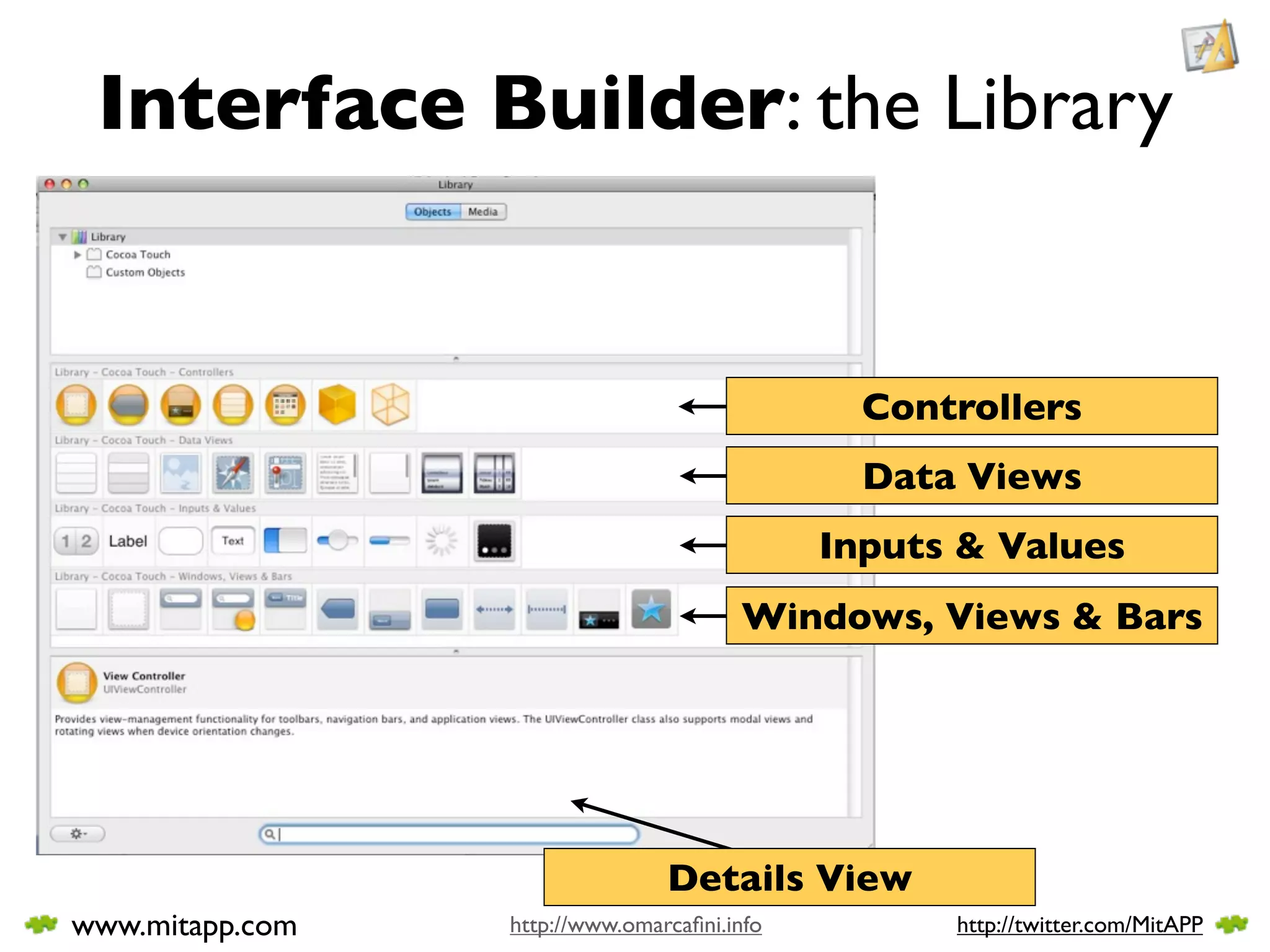
Interface Builder: the Library


                                               Controllers
                                               Data Views
                                             Inputs & Values
                                       Windows, Views & Bars


                                Details View
www.mitapp.com   http://www.omarcafini.info         http://twitter.com/MitAPP
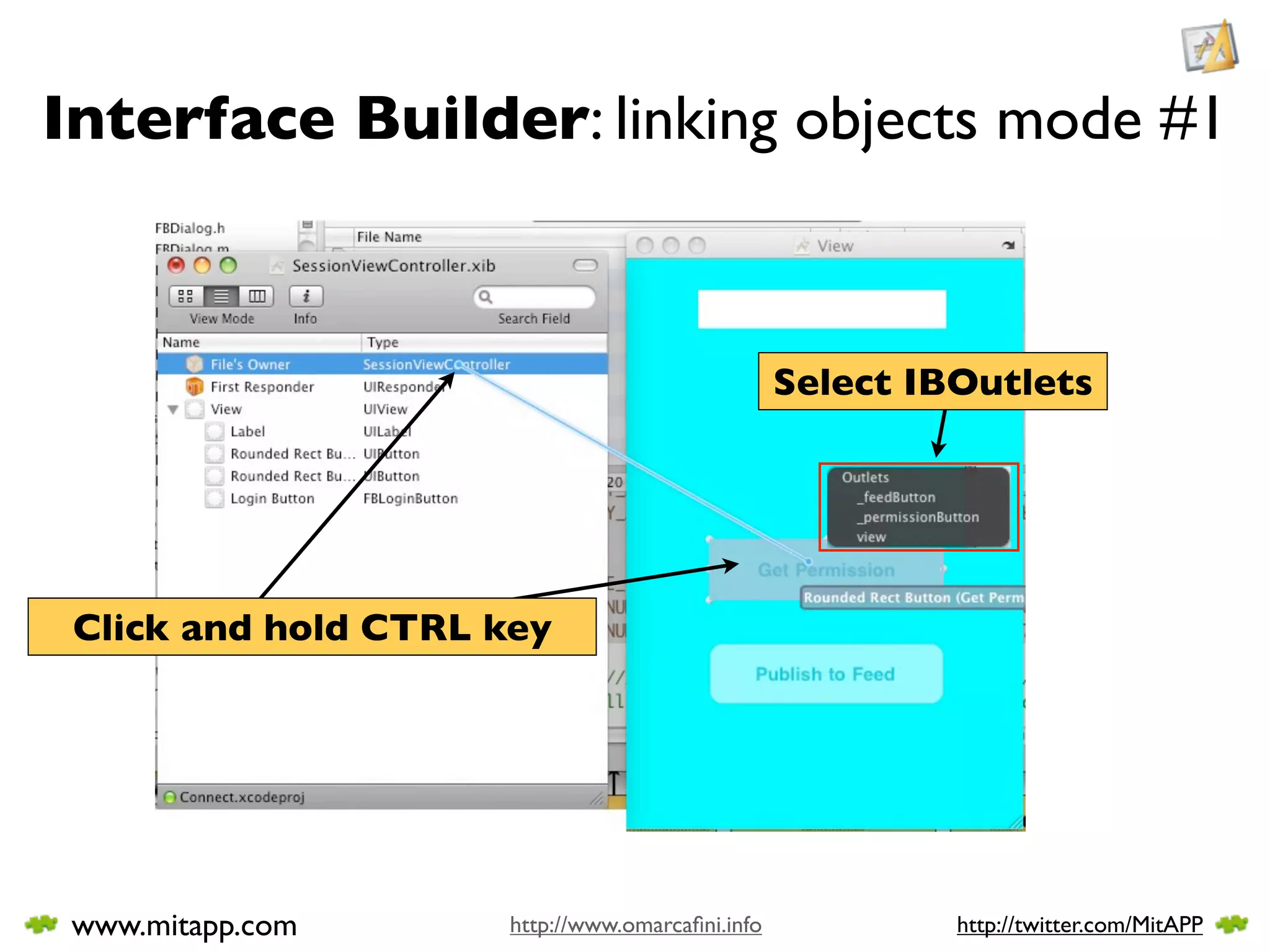
Interface Builder: linking objects mode #1


                                                 Select IBOutlets


 Click and hold CTRL key


 www.mitapp.com      http://www.omarcafini.info            http://twitter.com/MitAPP
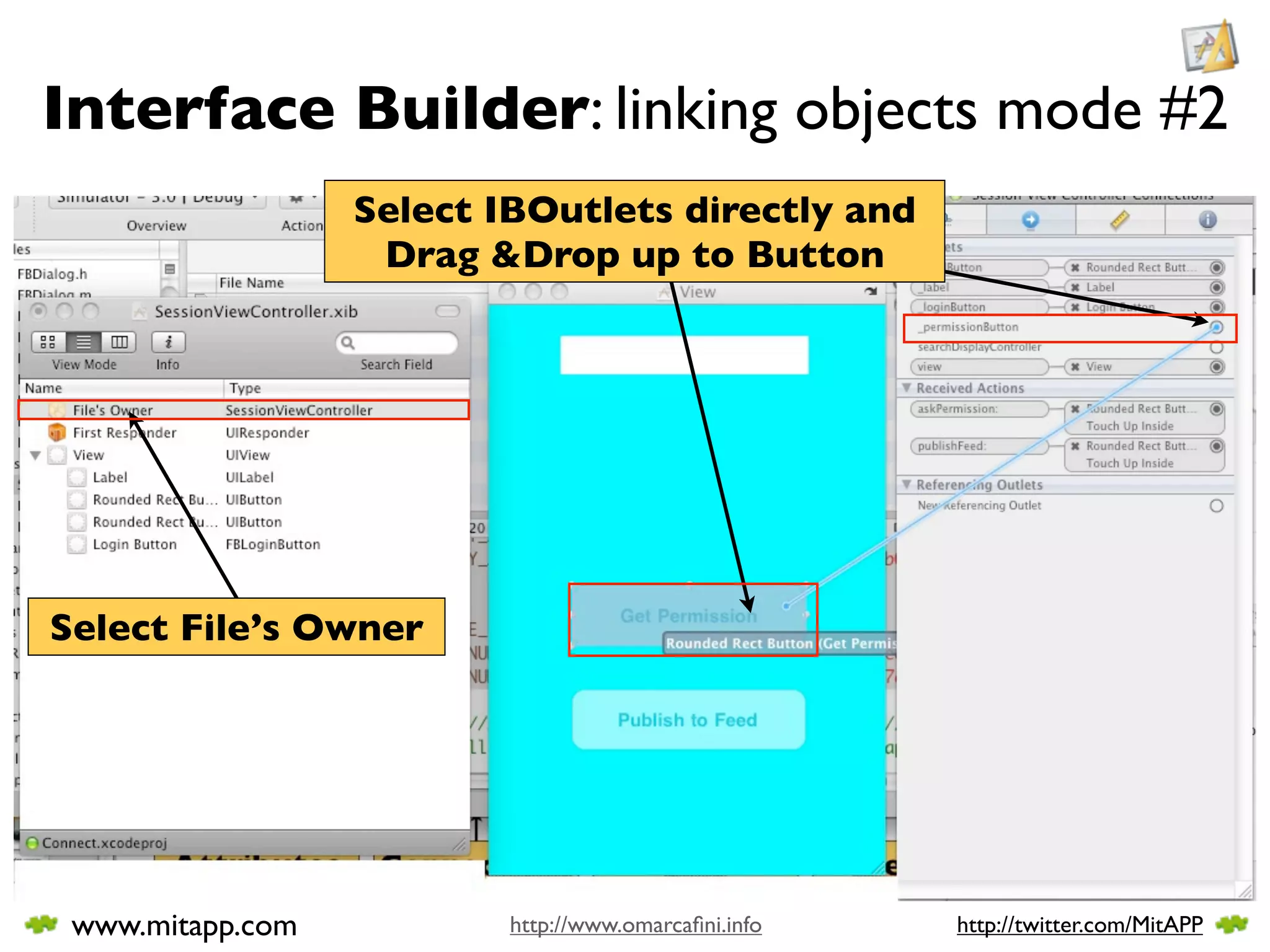
Interface Builder: linking objects mode #2
                  Select IBOutlets directly and
                   Drag &Drop up to Button


Select File’s Owner


 www.mitapp.com           http://www.omarcafini.info   http://twitter.com/MitAPP
Interface Builder: overview

     • DEMO      (10-15’):

     Create a simple interface

     Customize view and objects


www.mitapp.com               http://www.omarcafini.info   http://twitter.com/MitAPP
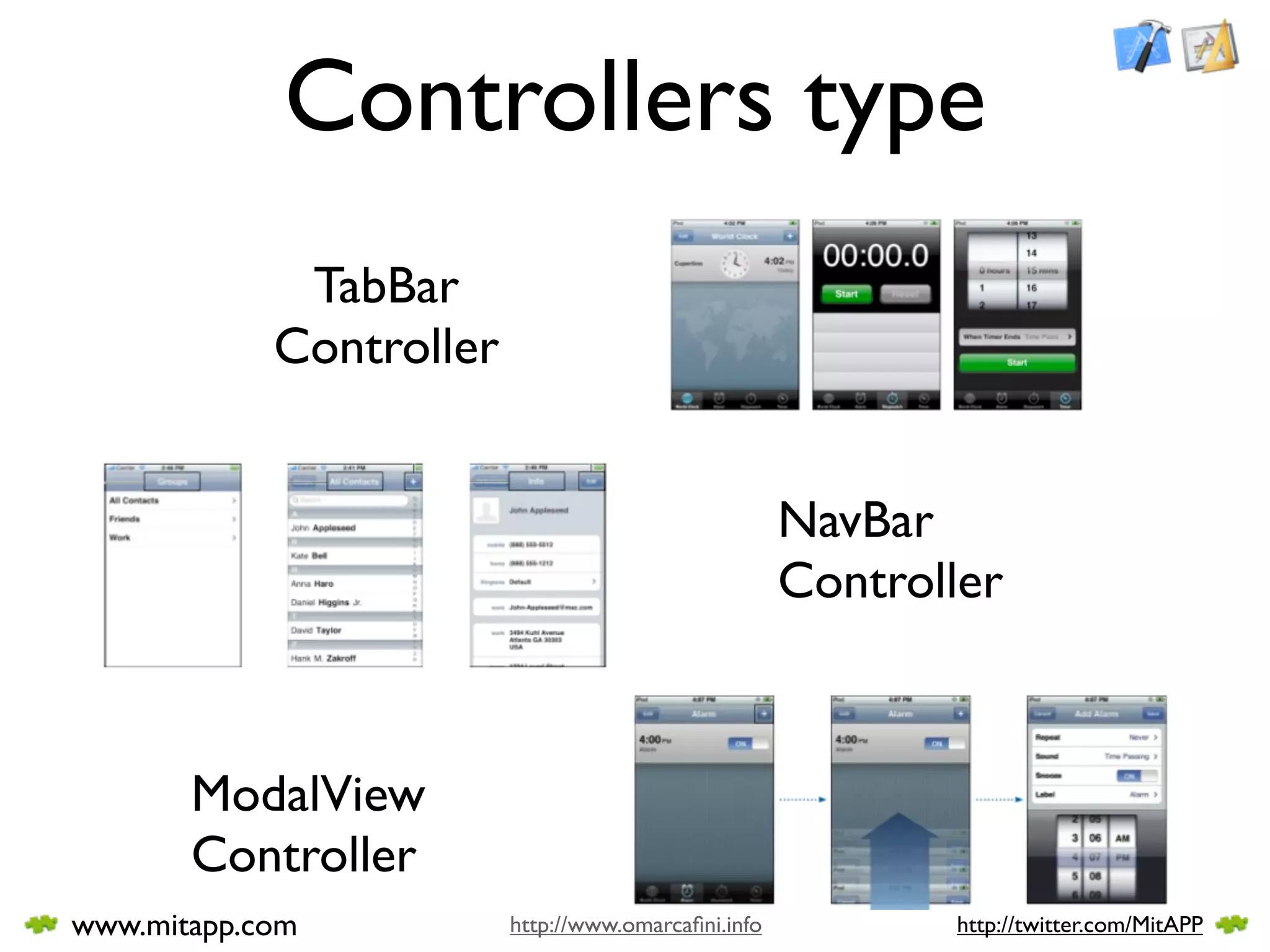
Controllers type
             TabBar
            Controller


                                                     NavBar
                                                     Controller


       ModalView
       Controller
www.mitapp.com           http://www.omarcafini.info          http://twitter.com/MitAPP
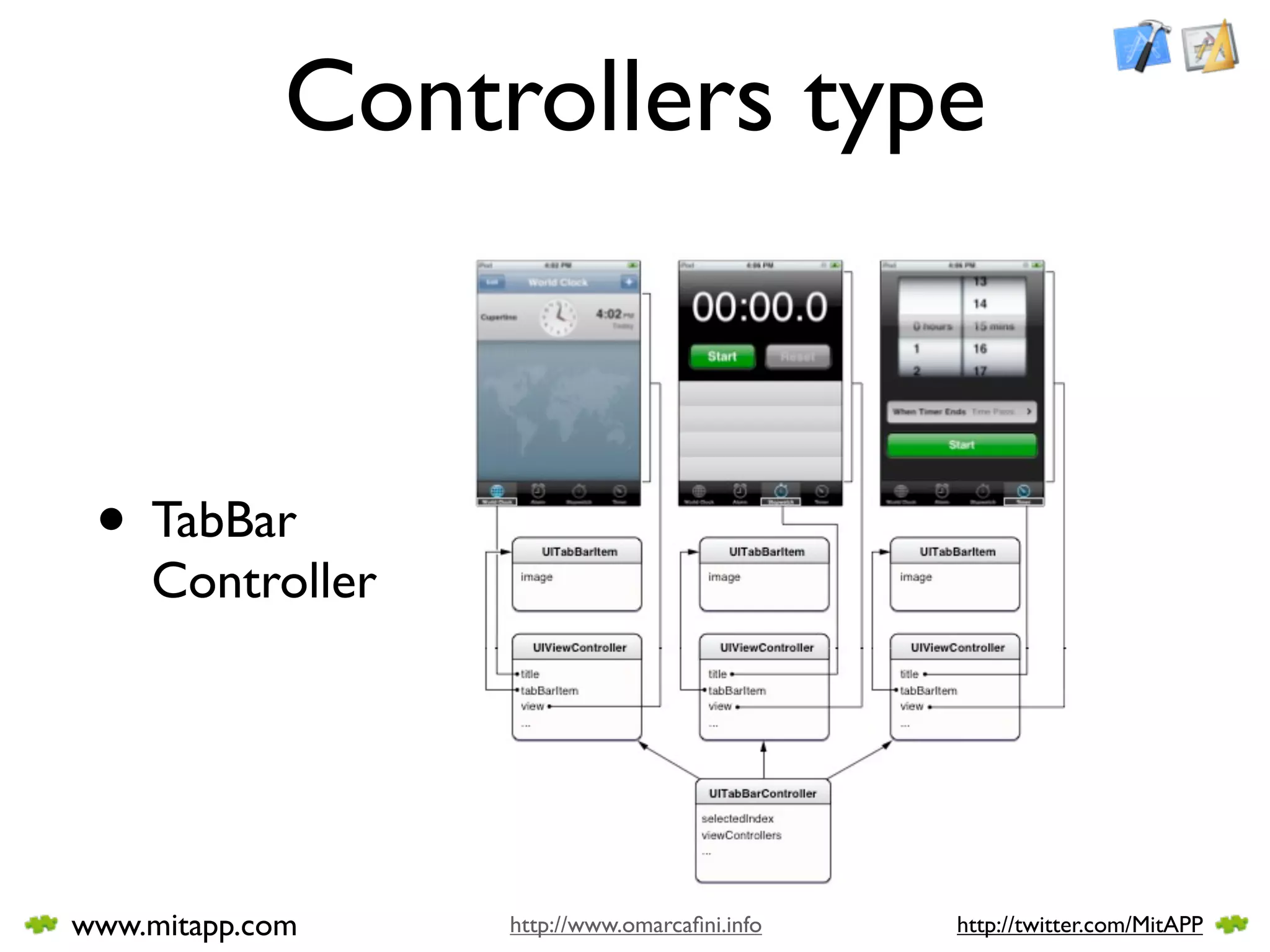
Controllers type


 • TabBar
    Controller


www.mitapp.com    http://www.omarcafini.info   http://twitter.com/MitAPP
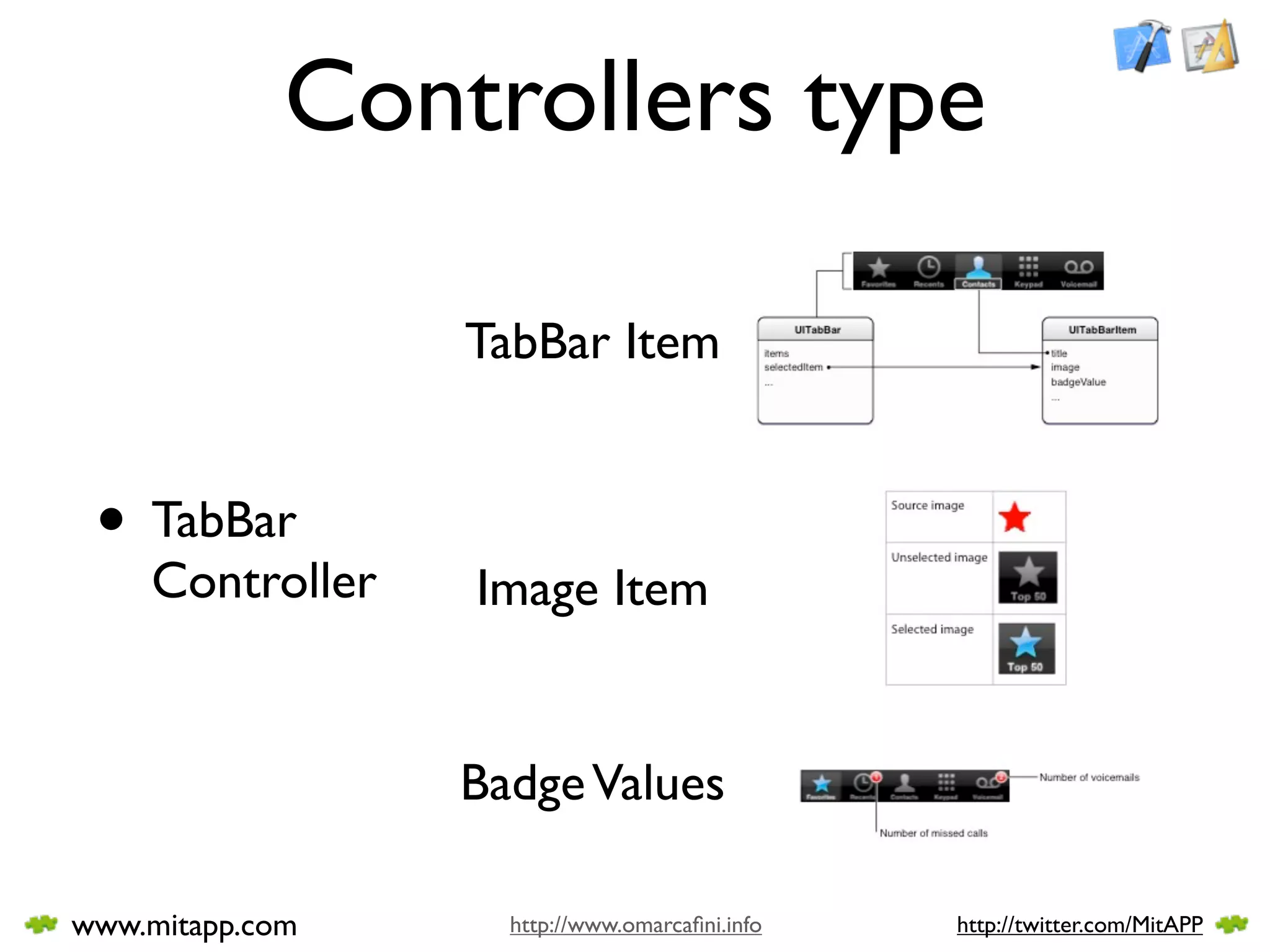
Controllers type

                 TabBar Item


 • TabBar
    Controller   Image Item


                 Badge Values

www.mitapp.com     http://www.omarcafini.info   http://twitter.com/MitAPP
Controllers type

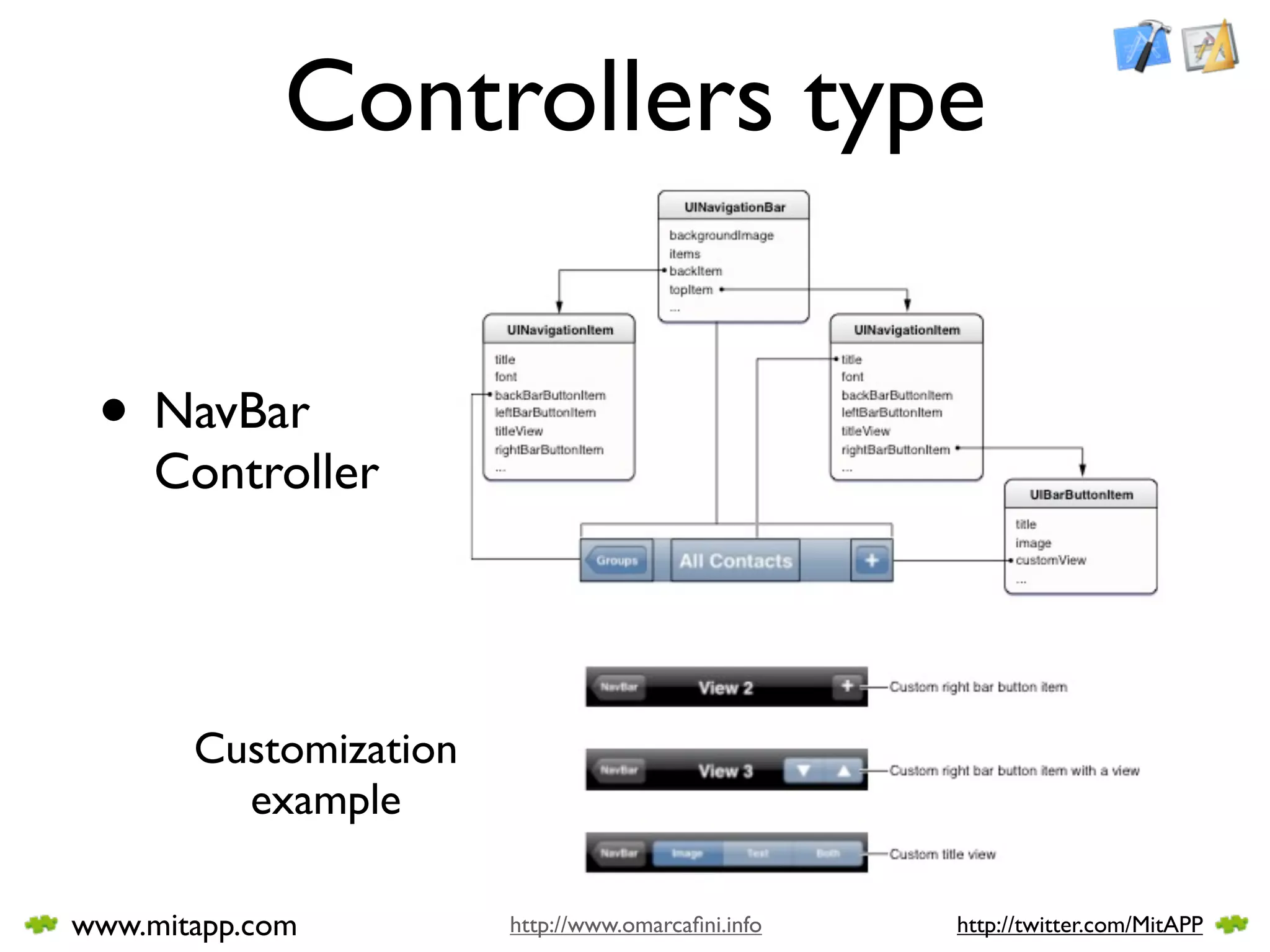
 • NavBar
     Controller


       Customization
         example

www.mitapp.com         http://www.omarcafini.info   http://twitter.com/MitAPP
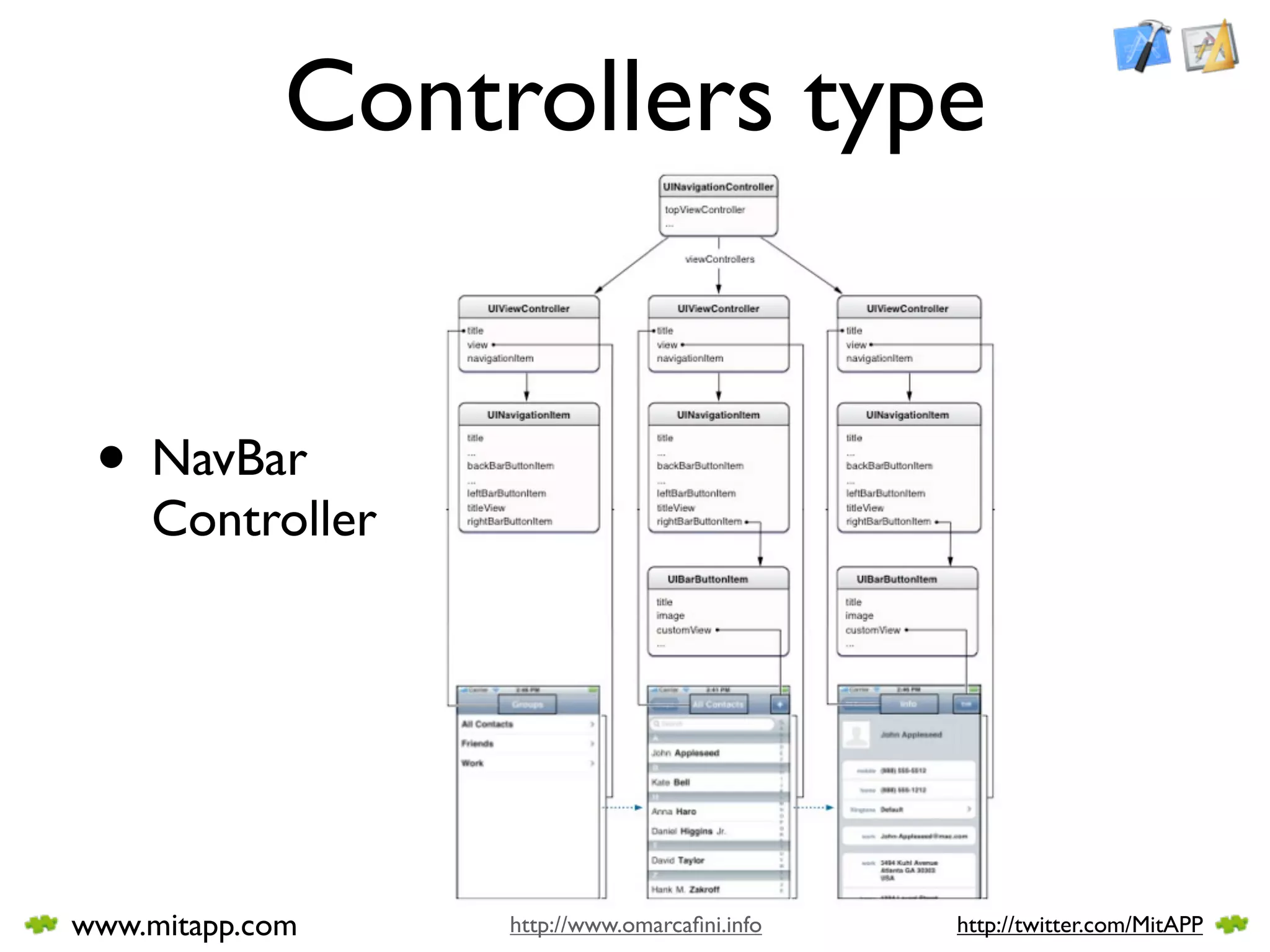
Controllers type


 • NavBar
    Controller


www.mitapp.com    http://www.omarcafini.info   http://twitter.com/MitAPP
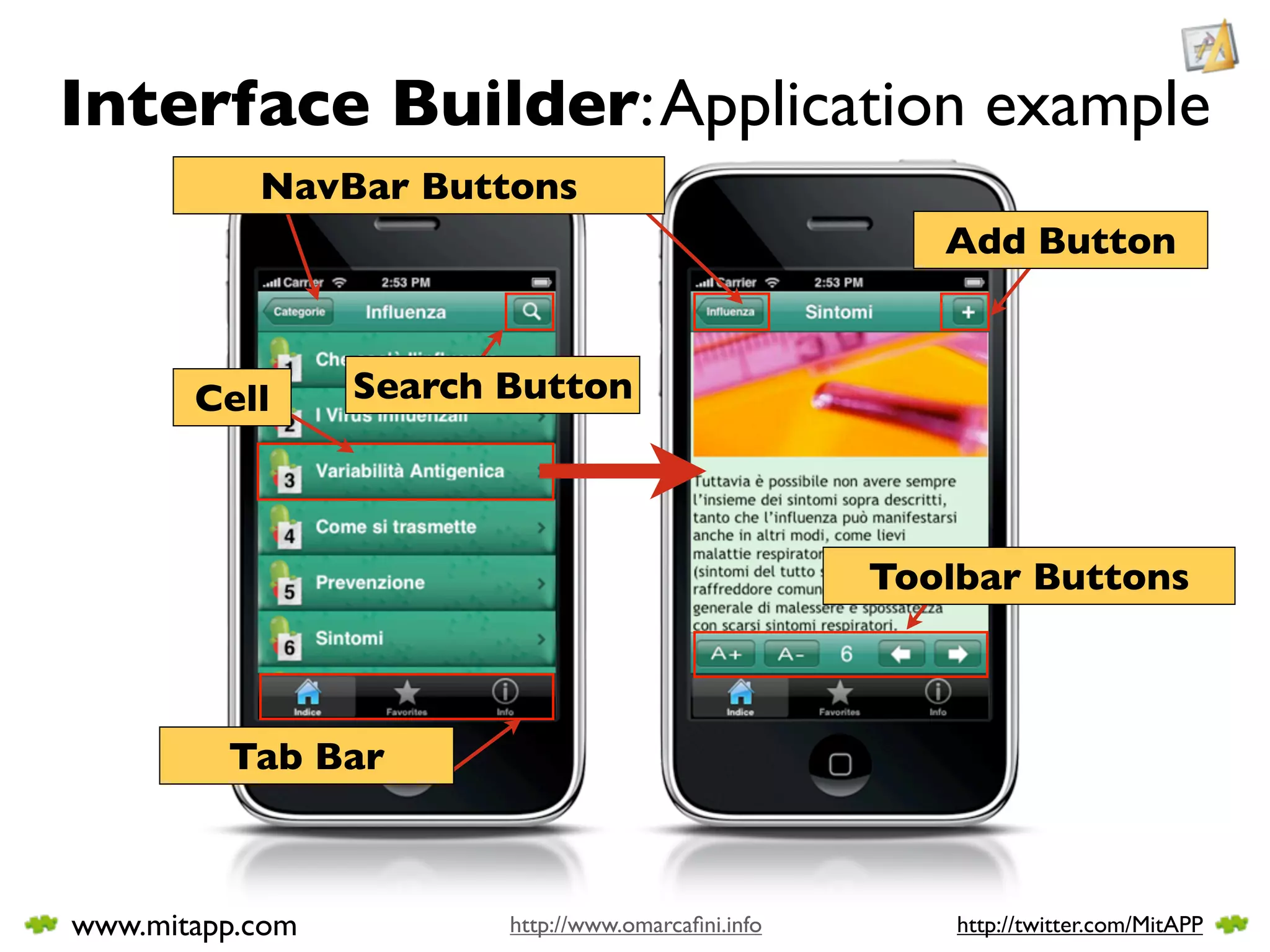
Interface Builder: Application example
           NavBar Buttons
                                                       Add Button


       Cell      Search Button


                                                    Toolbar Buttons


         Tab Bar


www.mitapp.com          http://www.omarcafini.info       http://twitter.com/MitAPP
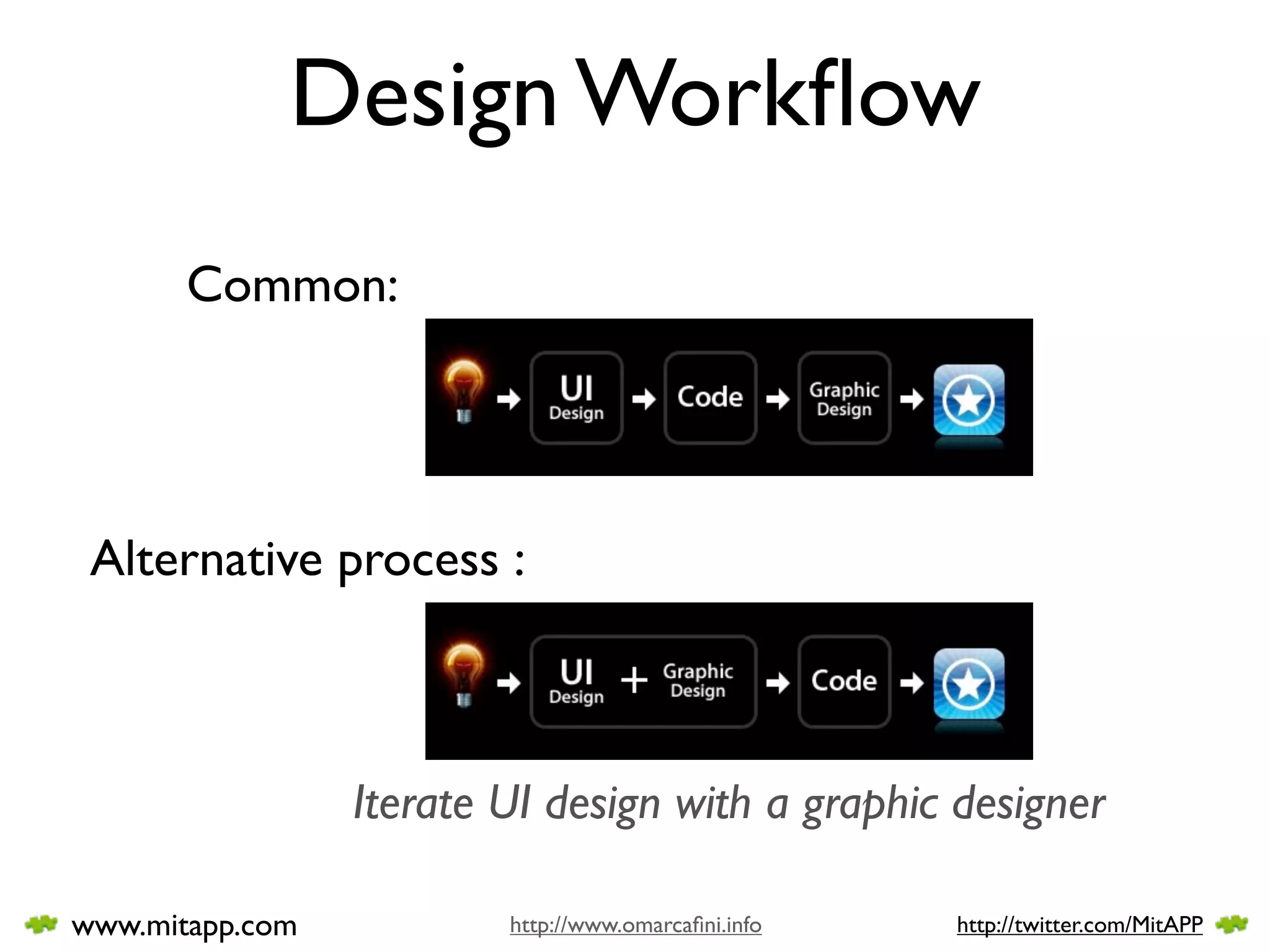
Design Workflow
       Common:


 Alternative process :


                 Iterate UI design with a graphic designer

www.mitapp.com           http://www.omarcafini.info   http://twitter.com/MitAPP
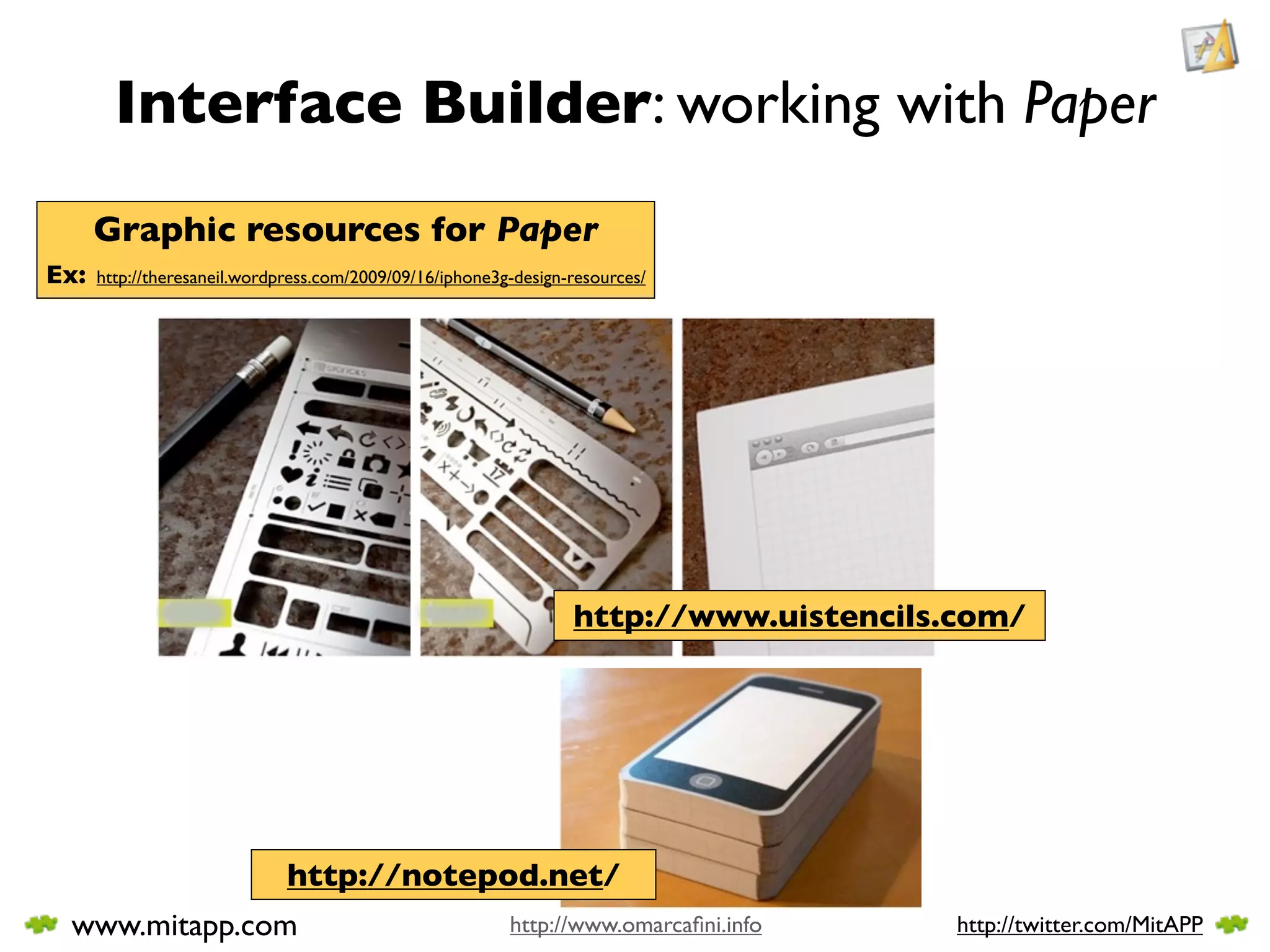
Interface Builder: working with Paper
      Graphic resources for Paper
Ex:   http://theresaneil.wordpress.com/2009/09/16/iphone3g-design-resources/


                                                                  http://www.uistencils.com/


                              http://notepod.net/
 www.mitapp.com                                           http://www.omarcafini.info     http://twitter.com/MitAPP
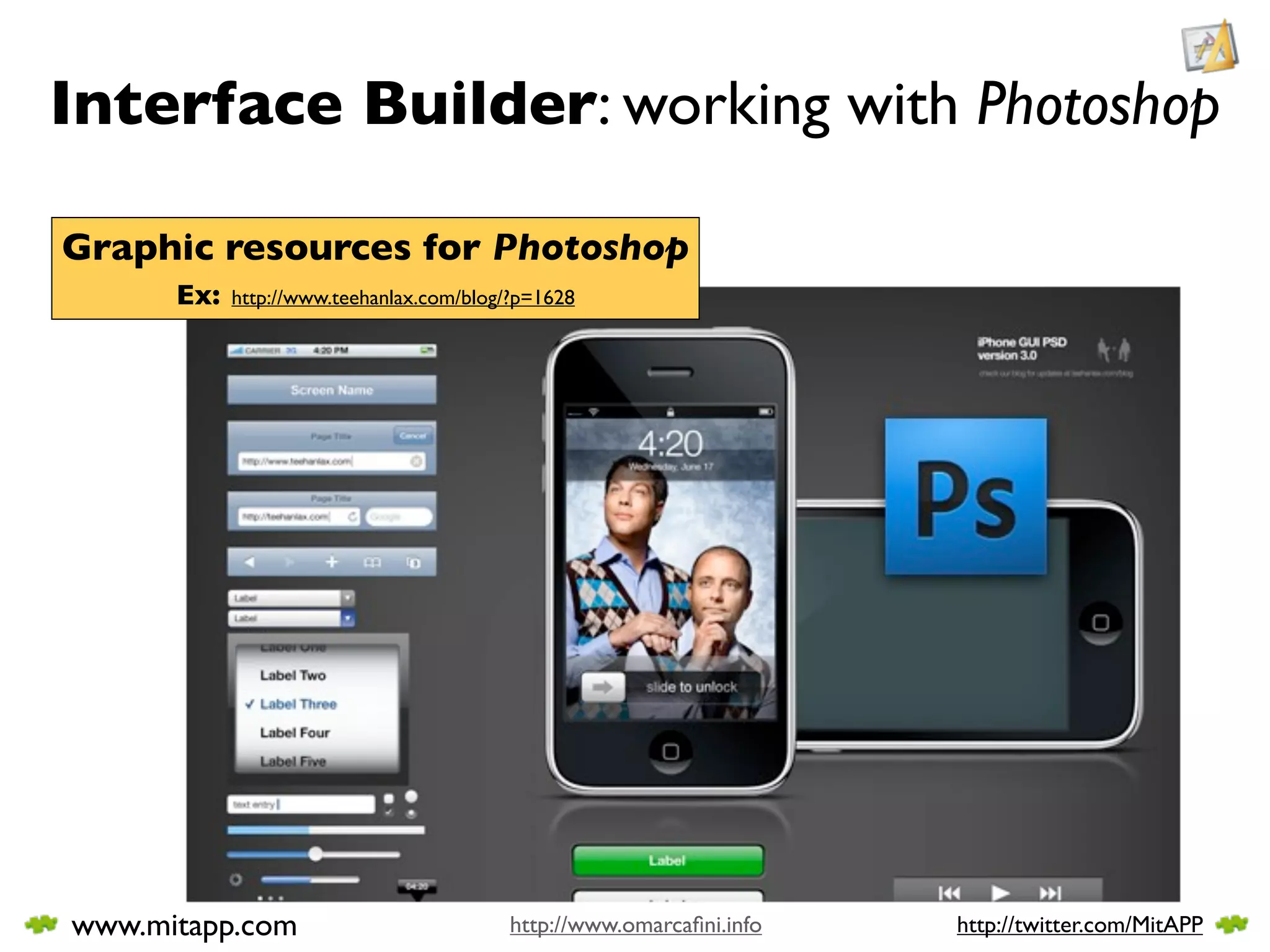
Interface Builder: working with Photoshop

Graphic resources for Photoshop
      Ex:   http://www.teehanlax.com/blog/?p=1628


www.mitapp.com                           http://www.omarcafini.info   http://twitter.com/MitAPP
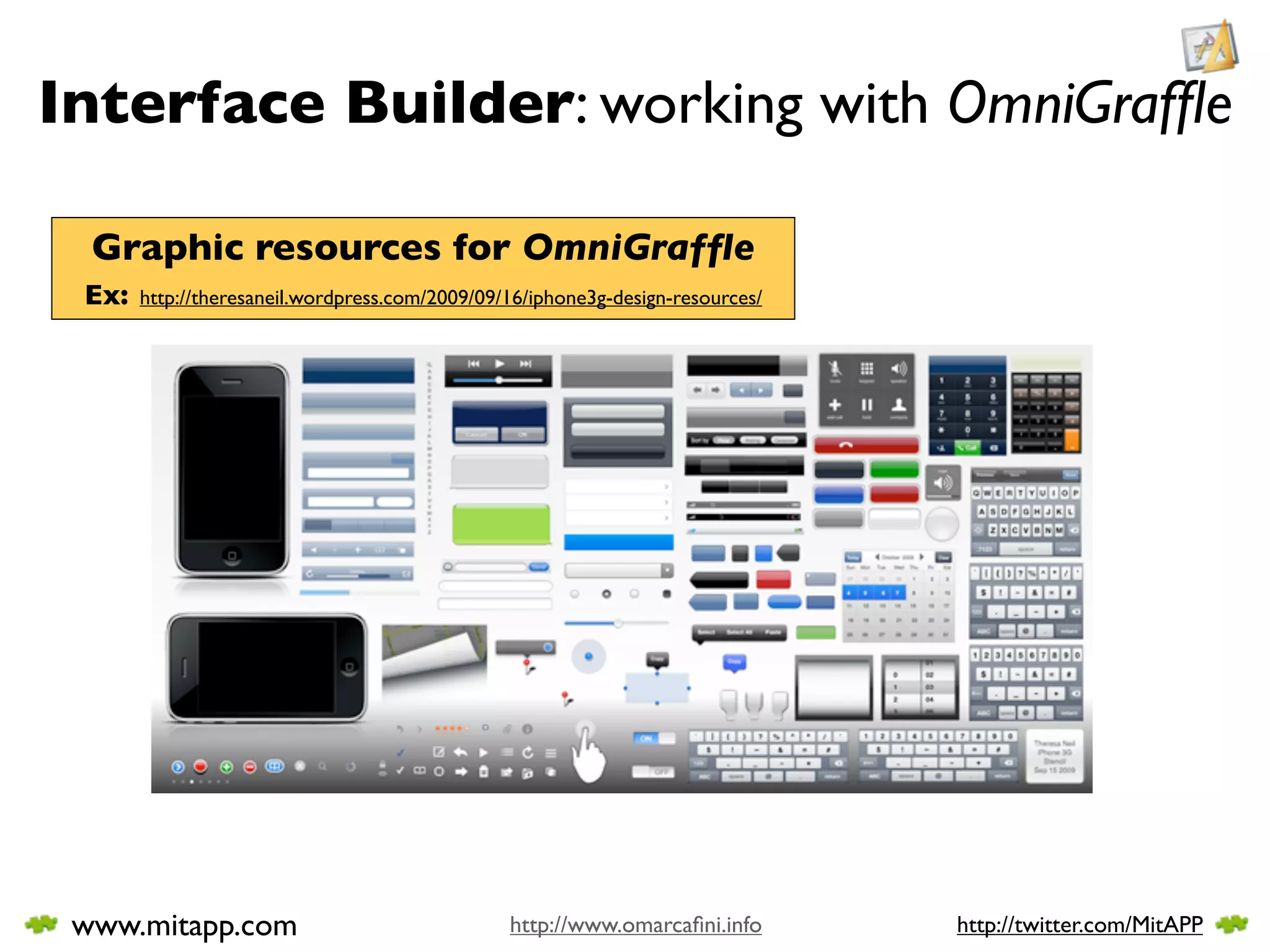
Interface Builder: working with OmniGraffle

  Graphic resources for OmniGraffle
 Ex:   http://theresaneil.wordpress.com/2009/09/16/iphone3g-design-resources/


 www.mitapp.com                                 http://www.omarcafini.info       http://twitter.com/MitAPP
An application design evolution: Convert


• Video (2’)


Source: http://www.taptaptap.com/blog/convert-design-evolution/


www.mitapp.com                                  http://www.omarcafini.info   http://twitter.com/MitAPP
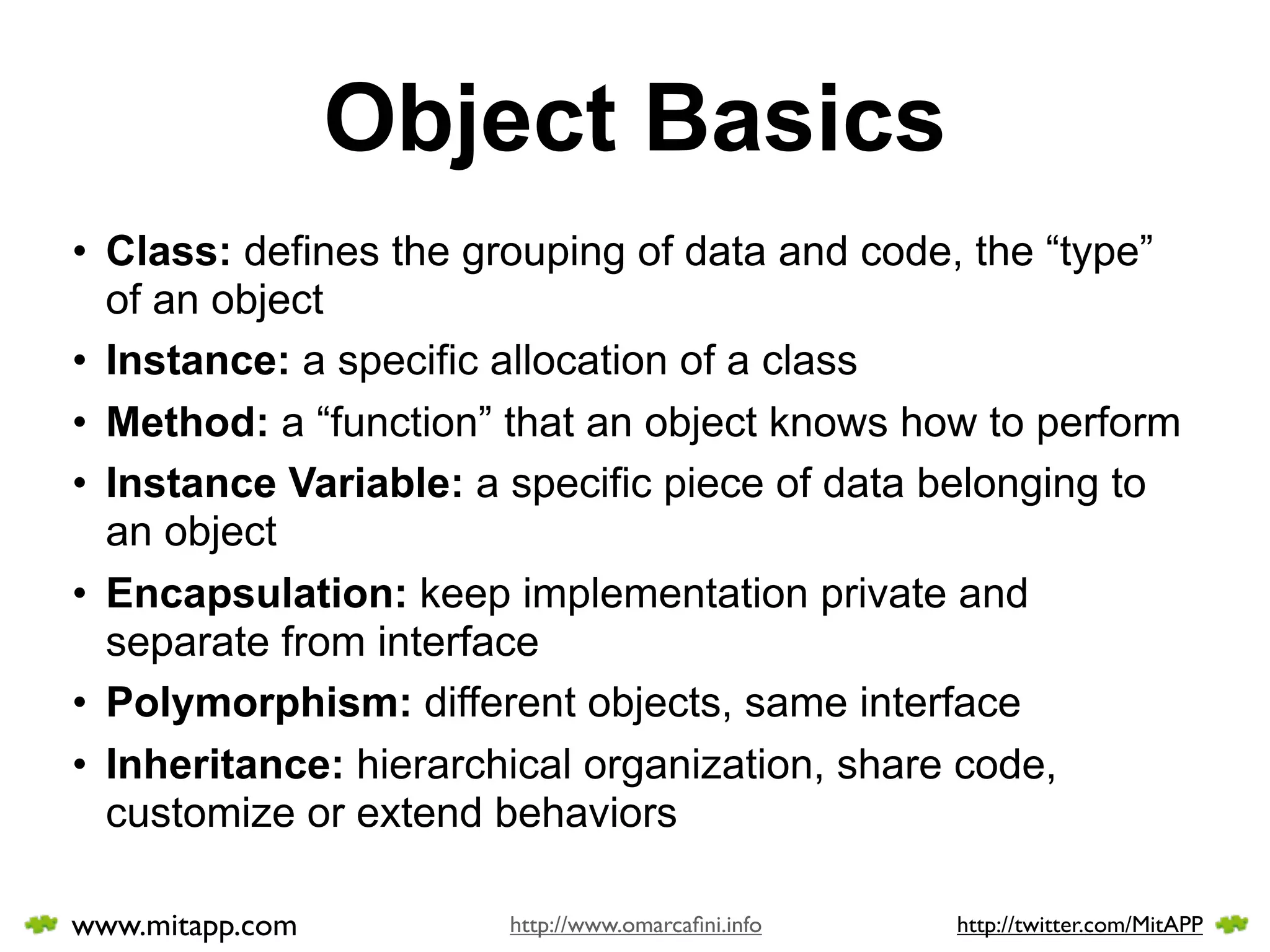
Object Basics
• Class: defines the grouping of data and code, the “type”
  of an object
• Instance: a specific allocation of a class
• Method: a “function” that an object knows how to perform
• Instance Variable: a specific piece of data belonging to
  an object
• Encapsulation: keep implementation private and
  separate from interface
• Polymorphism: different objects, same interface
• Inheritance: hierarchical organization, share code,
  customize or extend behaviors

www.mitapp.com        http://www.omarcafini.info   http://twitter.com/MitAPP
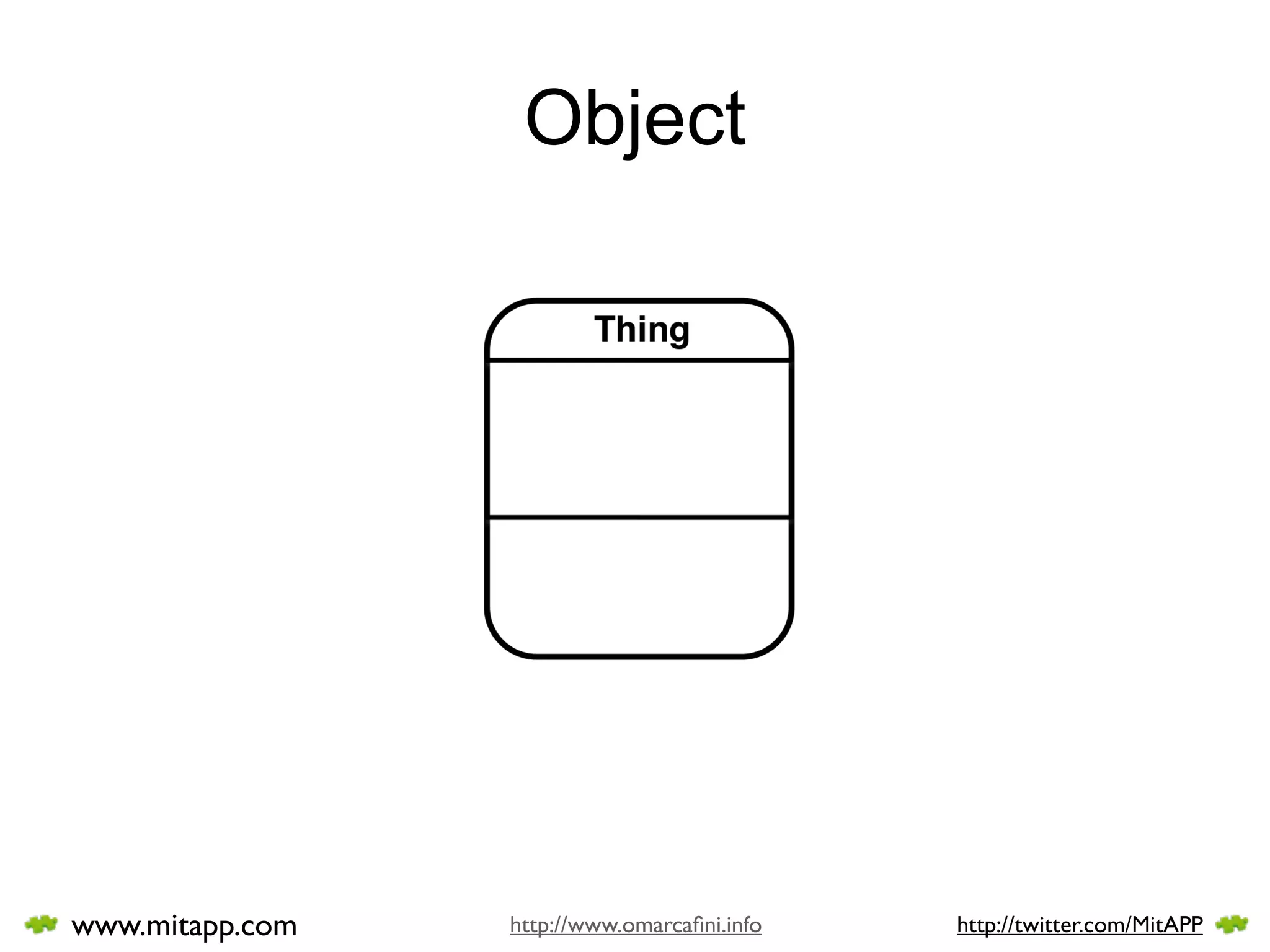
Object


www.mitapp.com   http://www.omarcafini.info   http://twitter.com/MitAPP
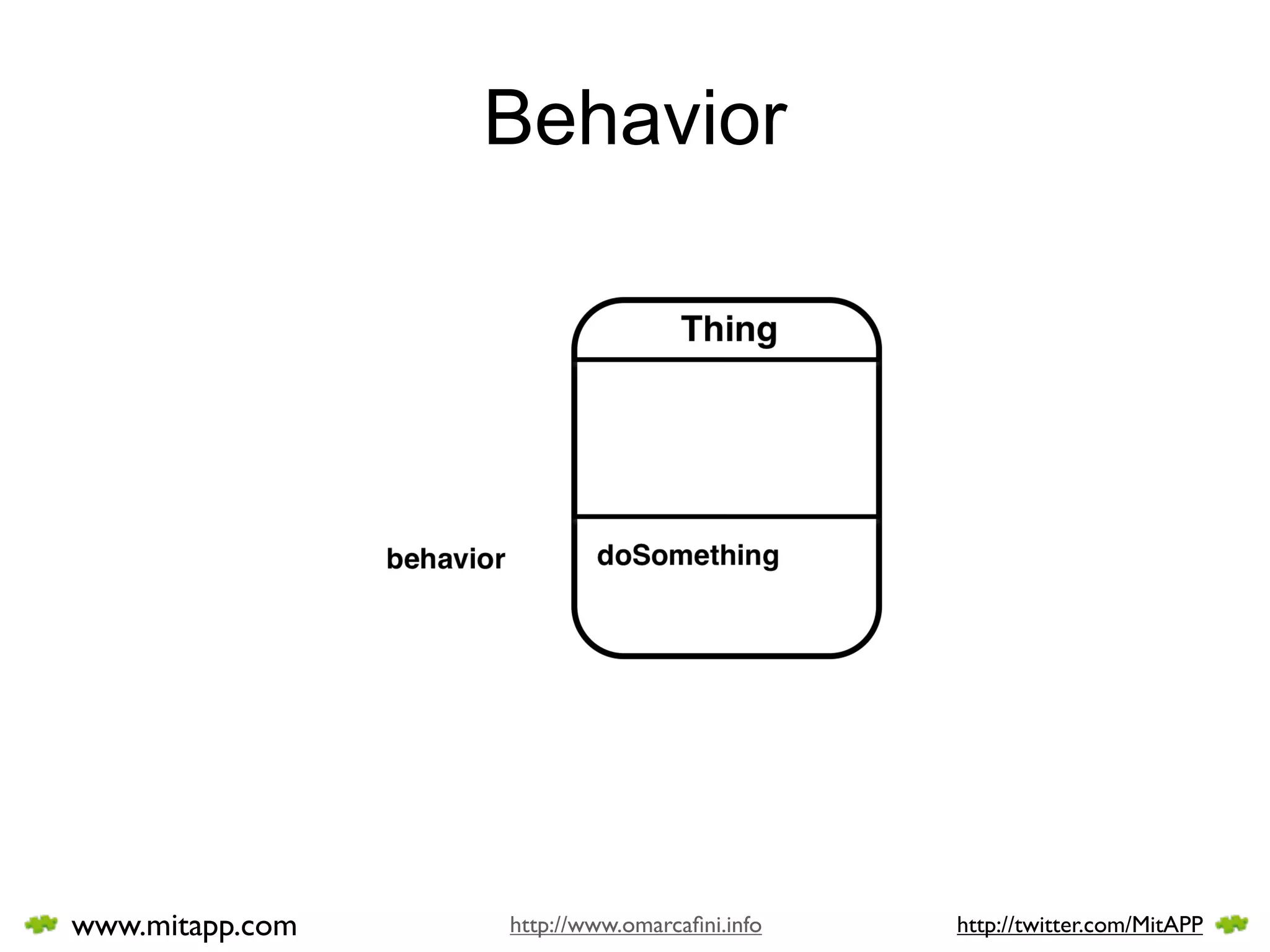
Behavior


www.mitapp.com   http://www.omarcafini.info   http://twitter.com/MitAPP
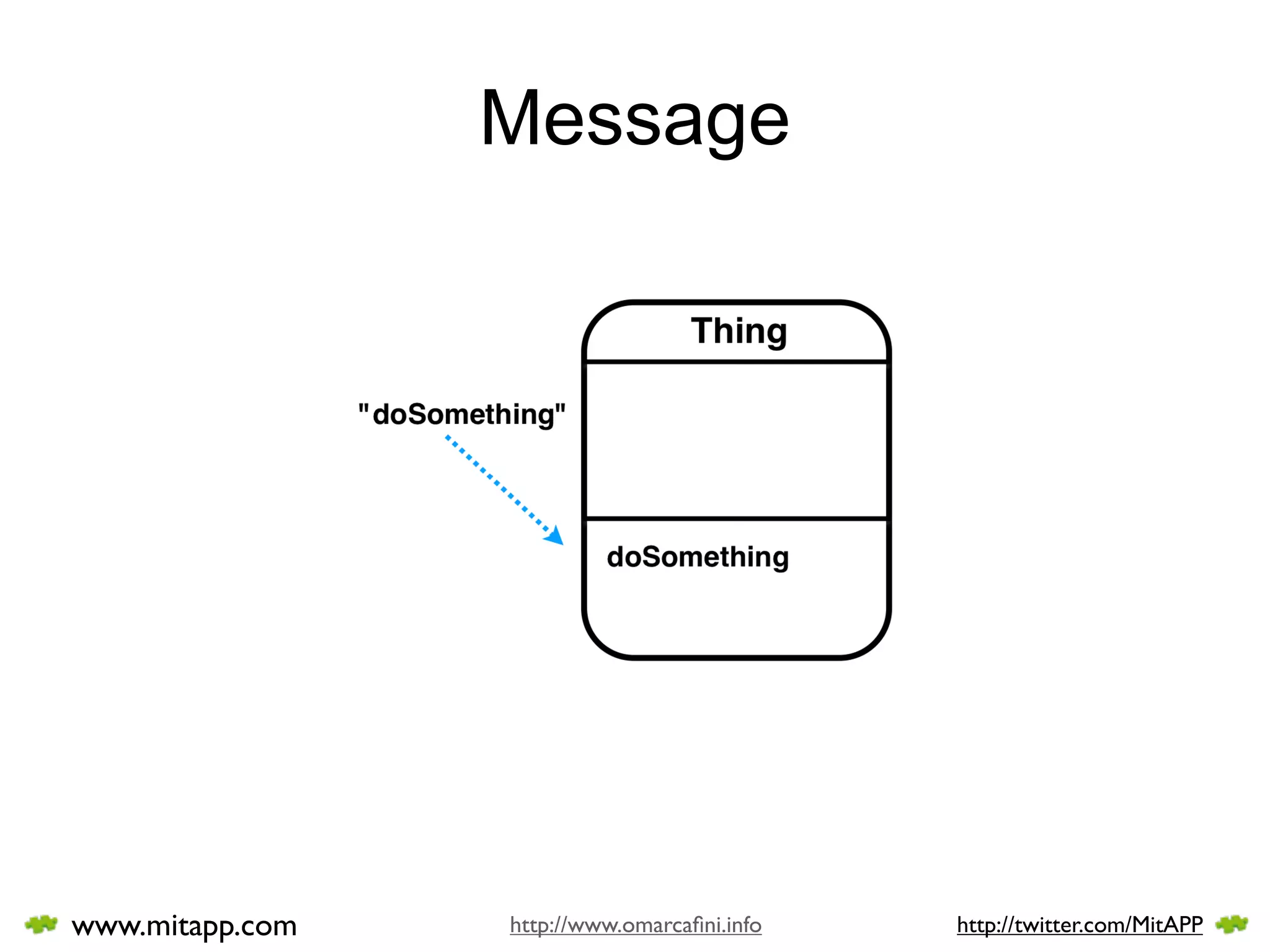
Message


www.mitapp.com   http://www.omarcafini.info   http://twitter.com/MitAPP
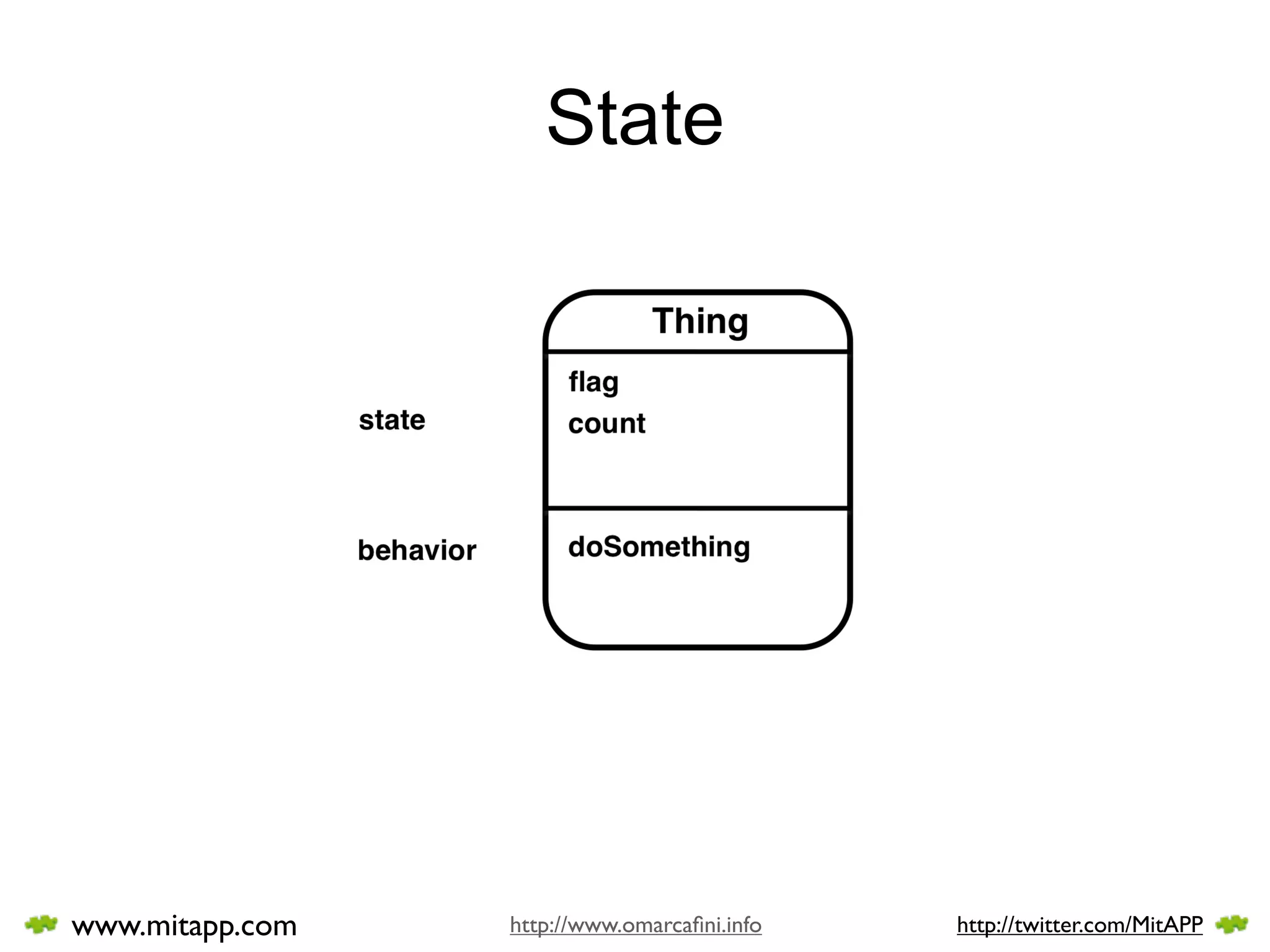
State


www.mitapp.com   http://www.omarcafini.info   http://twitter.com/MitAPP
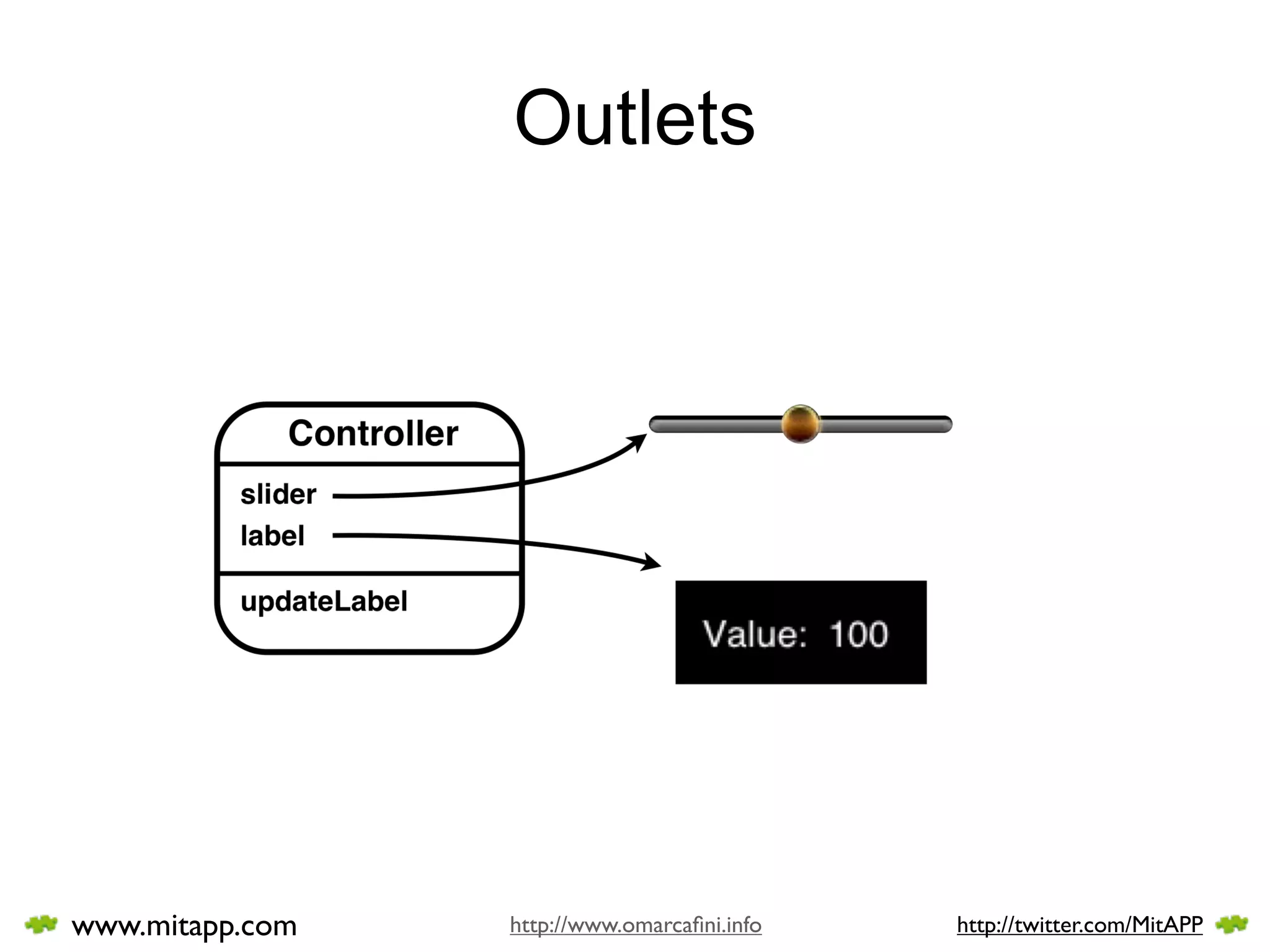
Outlets


www.mitapp.com   http://www.omarcafini.info   http://twitter.com/MitAPP
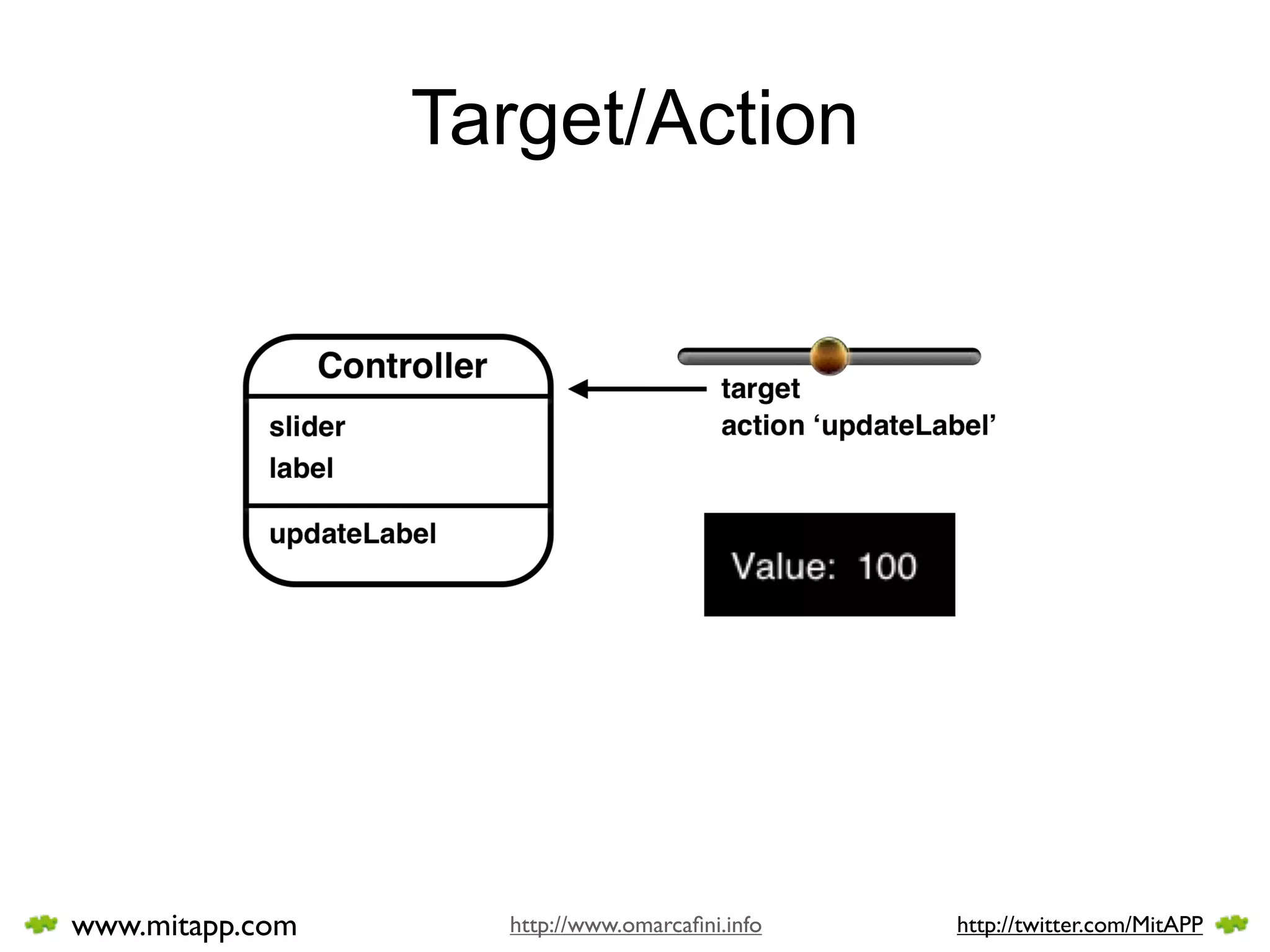
Target/Action


www.mitapp.com     http://www.omarcafini.info   http://twitter.com/MitAPP
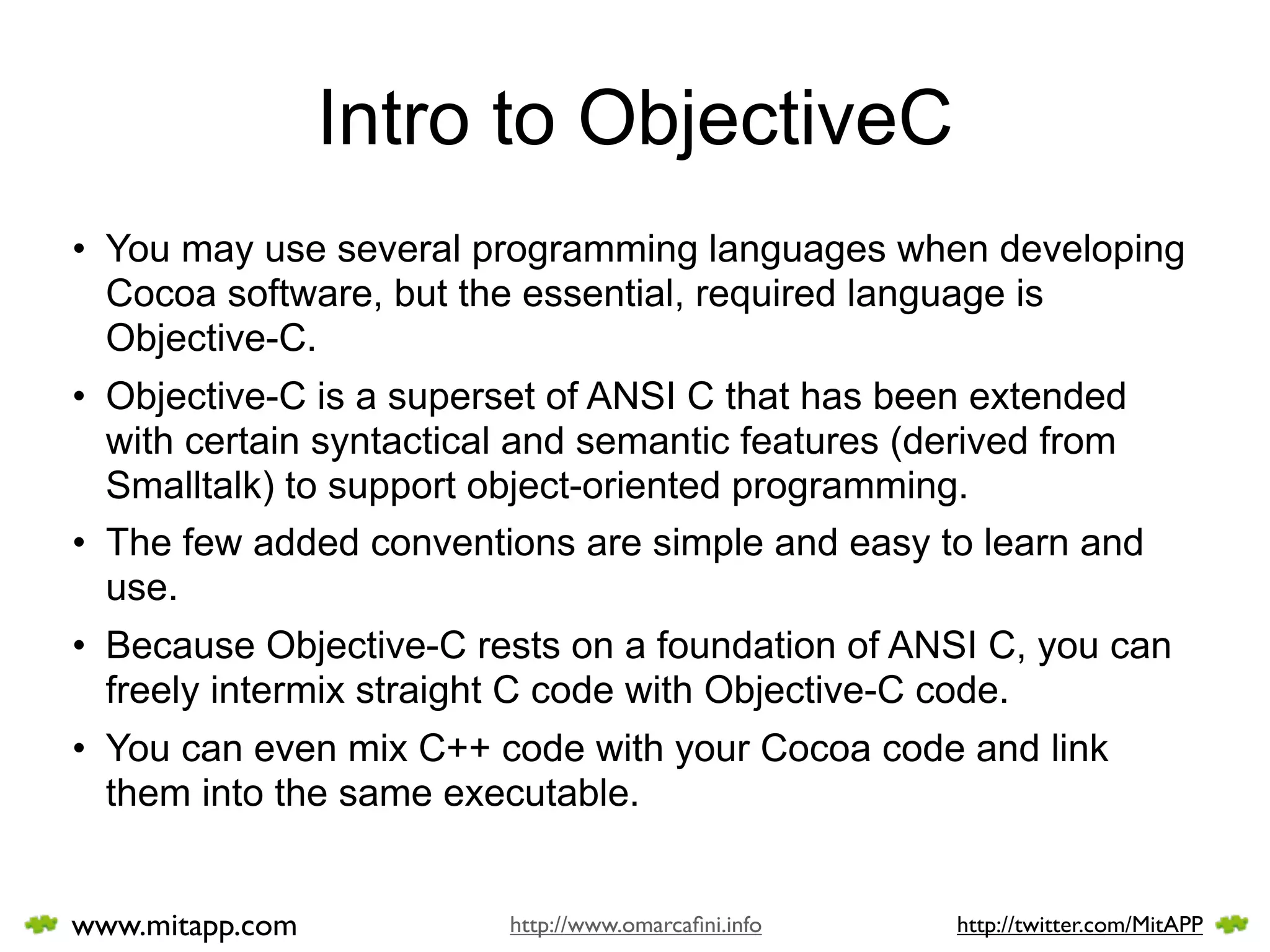
Intro to ObjectiveC
• You may use several programming languages when developing
  Cocoa software, but the essential, required language is
  Objective-C.
• Objective-C is a superset of ANSI C that has been extended
  with certain syntactical and semantic features (derived from
  Smalltalk) to support object-oriented programming.
• The few added conventions are simple and easy to learn and
  use.
• Because Objective-C rests on a foundation of ANSI C, you can
  freely intermix straight C code with Objective-C code.
• You can even mix C++ code with your Cocoa code and link
  them into the same executable.


www.mitapp.com           http://www.omarcafini.info   http://twitter.com/MitAPP
Dynamic Language
• Almost everything is done at runtime
• Uses dynamic typing, linking, and binding
• This allows for greater flexibility
• Minimizes RAM and CPU usage


www.mitapp.com       http://www.omarcafini.info   http://twitter.com/MitAPP
ObjectiveC
• C with some keywords to add classes
  –(i.e., @interface and @class)
• Lots of square brackets.
• You do not call a method. Instead you send a
  message to an object (i.e., dynamic runtime)
• No memory management (reference
  counting)


www.mitapp.com      http://www.omarcafini.info   http://twitter.com/MitAPP
Objective C Methods
• C# / Java
  –objInstance.methodName(param1, param2);

• Objective-C (named parameters)
  –[objInstance methodName:param1
   paramName:param2];


www.mitapp.com    http://www.omarcafini.info   http://twitter.com/MitAPP
Memory management
• Reference counting model
  –alloc sets count to 1.
  –retain increases count, release decreases.
  –autorelease adds object to the autorelease pool
     • Usually lasts the duration of the event being
       processed.


www.mitapp.com          http://www.omarcafini.info   http://twitter.com/MitAPP
Properties
• Syntatic sugar that enables “dot property”
  syntax.
• Use @property in header file.
• foo.bar = 10; OR [foo setBar:10];
• int var = foo.bar; OR int var = [foo bar];


www.mitapp.com    http://www.omarcafini.info   http://twitter.com/MitAPP

iPhone Development Tools

  • 1.
    iPhone Development Tools Ing. Omar Cafini http://www.omarcafini.info www.mitapp.com
  • 2.
    Development Tools • Xcode: the IDE that includes source code editor, tools, documentation and the frontend for the compiler i.e. with Xcode you can enter, build and debug your application. • Interface Builder: an editor program for dragging controls into your applications's views and editing them visually • Cocoa Touch: a framework of code for you to use. Cocoa Touch contains controls and other useful stuff for your iPhone applications www.mitapp.com http://www.omarcafini.info http://twitter.com/MitAPP
  • 3.
    Xcode IDE • Developing with Xcode is all about keeping you focused. Simply click the green Build and Go button to start the build, debug, and test cycle. Build errors are displayed within your source code as Message Bubbles. Once your project is built, the debugger bar appears in the editor window, and hovering your mouse reveals variable values as Data Tips. • If you are developing for iPhone, Xcode automatically installs your application on the device and attaches the debugger over USB. Throughout, Xcode keeps your code front and center. [Source: Apple Dev Tools] www.mitapp.com http://www.omarcafini.info http://twitter.com/MitAPP
  • 4.
    Xcode: main windowoverview www.mitapp.com http://www.omarcafini.info http://twitter.com/MitAPP
  • 5.
    Xcode: main window Groups & Files of project • Manage Files (creating Groups) • Add/Delete Frameworks • Add/Delete Classes (with wizard) • View Breakpoints • Error & Warning list • etc... www.mitapp.com http://www.omarcafini.info http://twitter.com/MitAPP
  • 6.
    Xcode: main window Details, Find & Build log • List of Files (selecting Groups) • Find in project • Build details (Warnings, Errors) • Etc... www.mitapp.com http://www.omarcafini.info http://twitter.com/MitAPP
  • 7.
    Xcode: main window • Editing Code files • Add Breackpoints • Simply navigation between files & classes • Etc... Detail View Status Bar www.mitapp.com http://www.omarcafini.info http://twitter.com/MitAPP
  • 8.
    Xcode: main window • Groups & Files list. Provides an outline view of your project’ contents. You can move files and folders around and organize your project contents in this list. The current selection in the Groups & Files list controls the contents displayed in the detail view. • Detail view. Shows the item or items selected in the Groups & Files list. You can browse your project’s contents in the detail view, search them using the search field, or sort them according to column. The detail view helps you rapidly find and access your project’s contents. • Toolbar. Provides quick access to the most common Xcode commands. • Favorites bar. Lets you store and quickly return to commonly accessed locations in your project. The favorites bar is not displayed by default. To display the favorites bar, choose View > Layout > Show Favorites Bar. • Status bar. Displays status messages for the project. During an operation—such as building or indexing—Xcode displays a progress indicator in the status bar to show the progress of the current task. www.mitapp.com http://www.omarcafini.info http://twitter.com/MitAPP
  • 9.
    Editing Code • Header-file lookup. By Command–double-clicking a symbol, you can view the header file that declares the symbol. • API reference lookup. By Option–double-clicking a symbol, you get access to API reference that provides information about the symbol’s usage. • Code completion. As you type code, you can have the editor help out by inserting text for you that completes the name of the symbol Xcode thinks you’re going to enter. Xcode does this in an unobtrusive and overridable manner. • Code folding. With code folding, you can collapse code that you’re not working on and display only the code that requires your attention. www.mitapp.com http://www.omarcafini.info http://twitter.com/MitAPP
  • 10.
    Code Completion The text editor helps you type code faster with code completion. When code completion is active, Xcode uses both text you have typed and the context into which you have typed it to provide suggestions for completing the token it thinks you intend to type. Code completion is not active by default. To activate code completion: 1. Open the Xcode Preferences window.Choose Xcode > Preferences. 2. In the Code Completion section of the Code Sense pane, choose Immediate from the Automatically Suggest pop-up menu. 3. Click OK. www.mitapp.com http://www.omarcafini.info http://twitter.com/MitAPP
  • 11.
    Accessing Documentation During development, you may need fast access to reference for a particular symbol or high-level documentation about API usage or an iPhone OS technology. Xcode gives you easy access to such resources through the Research Assistant and the Documentation window. • The Research Assistant is a lightweight window, shown in figure, that provides a condensed view of the API reference for the selected item, without taking your focus away from the editor in which the item is located. This window provides an unobtrusive way to consult API reference. However, when you need to dig deeper into the reference, the Documentation window is just a click away. www.mitapp.com http://www.omarcafini.info http://twitter.com/MitAPP
  • 12.
    Accessing Documentation •The Documentation window lets you browse and search the developer documentation (which includes API reference, guides, and articles about particular tools or technologies) installed on your computer. It provides access to a wider and more detailed view of the documentation than the Research Assistant, for the times when you need additional help. Searching Field Select O.S. List of simbols Details • Description • Code Examples • Etc... www.mitapp.com http://www.omarcafini.info http://twitter.com/MitAPP
  • 13.
    Xcode: main window • DEMO (10-15’): Main Window overview Manage Files (Creating Groups) Code Completion (Fn+F5) GoToHelp (ALT + doubleClick) GoToDefinition (cmd + doubleClick) www.mitapp.com http://www.omarcafini.info http://twitter.com/MitAPP
  • 14.
    Xcode: new project(wizard) Templates • Navigation-Based Application • OpenGL ES Application • TabBar,View-Based Application • Etc... www.mitapp.com http://www.omarcafini.info http://twitter.com/MitAPP
  • 15.
    Xcode: new project(wizard) The iPhone SDK provides several project templates to get you up and running developing your application. You can choose from these types of application: ■ Navigation-Based Application. An application that presents data hierarchically, using multiple screens. The Contacts application is an example of a navigation-based application. ■ OpenGL ES Application. An application that uses an OpenGL ES–based view to present images or animation. ■ Tab Bar Application. An application that presents a radio interface that lets the user choose from several screens. The Clock application is an example of a tab bar application. ■ Utility Application. An application that implements a main view and lets the user access a flipside view to perform simple customizations. The Stocks application is an example of a utility application. ■ View-Based Application. An application that uses a single view to implement its user interface. ■ Window-Based Application. This template serves as a starting point for any application, containing an application delegate and a window. Use this template when you want to implement your own view hierarchy. www.mitapp.com http://www.omarcafini.info http://twitter.com/MitAPP
  • 16.
    Xcode: new file(wizard) Create .m and .h files Templates • UITableViewController and Cell • UIViewController and View • Etc... www.mitapp.com http://www.omarcafini.info http://twitter.com/MitAPP
  • 17.
    Xcode: project settings Project Settings • Libraries path • Linker Options • Compiler Options • Etc... www.mitapp.com http://www.omarcafini.info http://twitter.com/MitAPP
  • 18.
    Xcode: Debug View Thread List Variable Values Code Console www.mitapp.com http://www.omarcafini.info http://twitter.com/MitAPP
  • 19.
    Xcode: the iPhoneSimulator • Complete (almost) system to test your apps without HW. • Run, test, and debug your application locally on your Mac using a simulated iPhone. www.mitapp.com http://www.omarcafini.info http://twitter.com/MitAPP
  • 20.
    Xcode: the iPhoneSimulator iPhone Simulator lets you simulate most of the actions a user performs on their device. When you’re running your application in iPhone Simulator, you can carry out these hardware interactions through the Hardware menu: ■ Rotate Left. Rotates the simulator to the left. ■ Rotate Right. Rotates the simulator the right. ■ Shake. Shakes the simulator. ■ Home. Takes the simulator to the Home screen. ■ Lock. Locks the simulator. ■ Simulate Memory Warning. Sends the frontmost application low- memory warnings. For information on how to handle low-memory situations, see “Observing Low-Memory Warnings” in iPhone Application Programming Guide. ■ Toggle In-Call Status Bar. Toggles the status bar between its normal state and its in-call state. The status bar is taller in its in-call state than in its normal state. This command shows you how your application’s user interface looks when the user launches your application while a phone call is in progress. www.mitapp.com http://www.omarcafini.info http://twitter.com/MitAPP
  • 21.
    Xcode: the iPhoneSimulator www.mitapp.com http://www.omarcafini.info http://twitter.com/MitAPP
  • 22.
    Xcode: Activity Monitor RealTime Info Process running You can testing an application and monitoring in real time: Leak of memory, CPU Load, etc... www.mitapp.com http://www.omarcafini.info http://twitter.com/MitAPP
  • 23.
    Clang Static Analyzer Download http://clang-analyzer.llvm.org/ Command Line scan-build -k -V xcodebuild -configuration Debug -sdk iphonesimulator2.2.1 Html output www.mitapp.com http://www.omarcafini.info http://twitter.com/MitAPP
  • 24.
    Clang Static Analyzer Leak detail: Html output www.mitapp.com http://www.omarcafini.info http://twitter.com/MitAPP
  • 25.
    Xcode: Organizer • Crash logs • Provisioning Profiles • Etc... www.mitapp.com http://www.omarcafini.info http://twitter.com/MitAPP
  • 26.
    Xcode: debugging • DEMO (10-15’): Insert a Breakpoint Build & Go Using the console Simulator Overview www.mitapp.com http://www.omarcafini.info http://twitter.com/MitAPP
  • 27.
    Interface Builder • Interface Builder makes it simple to prototype a full user interface without writing any code. Laying out windows, buttons, sliders, and other controls will create a fully-functioning Mac or iPhone user interface.You can then turn that prototype into a real application, keeping all the interface objects and adding features to them. Xcode works with Interface Builder in real time so you simply wire up the code you write in Xcode to the graphical controls within Interface Builder. • Changes to the user interface do not require you to recompile your code, and changes to your code do not require you to recompile the user interface. [Source: Apple Dev Tools] www.mitapp.com http://www.omarcafini.info http://twitter.com/MitAPP
  • 28.
    Interface Builder: overview Xib organizer Interface preview www.mitapp.com http://www.omarcafini.info http://twitter.com/MitAPP
  • 29.
    Interface Builder: theInspector Attributes Connections Size Identity www.mitapp.com http://www.omarcafini.info http://twitter.com/MitAPP
  • 30.
    Interface Builder: theLibrary Controllers Data Views Inputs & Values Windows, Views & Bars Details View www.mitapp.com http://www.omarcafini.info http://twitter.com/MitAPP
  • 31.
    Interface Builder: linkingobjects mode #1 Select IBOutlets Click and hold CTRL key www.mitapp.com http://www.omarcafini.info http://twitter.com/MitAPP
  • 32.
    Interface Builder: linkingobjects mode #2 Select IBOutlets directly and Drag &Drop up to Button Select File’s Owner www.mitapp.com http://www.omarcafini.info http://twitter.com/MitAPP
  • 33.
    Interface Builder: overview • DEMO (10-15’): Create a simple interface Customize view and objects www.mitapp.com http://www.omarcafini.info http://twitter.com/MitAPP
  • 34.
    Controllers type TabBar Controller NavBar Controller ModalView Controller www.mitapp.com http://www.omarcafini.info http://twitter.com/MitAPP
  • 35.
    Controllers type •TabBar Controller www.mitapp.com http://www.omarcafini.info http://twitter.com/MitAPP
  • 36.
    Controllers type TabBar Item • TabBar Controller Image Item Badge Values www.mitapp.com http://www.omarcafini.info http://twitter.com/MitAPP
  • 37.
    Controllers type •NavBar Controller Customization example www.mitapp.com http://www.omarcafini.info http://twitter.com/MitAPP
  • 38.
    Controllers type •NavBar Controller www.mitapp.com http://www.omarcafini.info http://twitter.com/MitAPP
  • 39.
    Interface Builder: Applicationexample NavBar Buttons Add Button Cell Search Button Toolbar Buttons Tab Bar www.mitapp.com http://www.omarcafini.info http://twitter.com/MitAPP
  • 40.
    Design Workflow Common: Alternative process : Iterate UI design with a graphic designer www.mitapp.com http://www.omarcafini.info http://twitter.com/MitAPP
  • 41.
    Interface Builder: workingwith Paper Graphic resources for Paper Ex: http://theresaneil.wordpress.com/2009/09/16/iphone3g-design-resources/ http://www.uistencils.com/ http://notepod.net/ www.mitapp.com http://www.omarcafini.info http://twitter.com/MitAPP
  • 42.
    Interface Builder: workingwith Photoshop Graphic resources for Photoshop Ex: http://www.teehanlax.com/blog/?p=1628 www.mitapp.com http://www.omarcafini.info http://twitter.com/MitAPP
  • 43.
    Interface Builder: workingwith OmniGraffle Graphic resources for OmniGraffle Ex: http://theresaneil.wordpress.com/2009/09/16/iphone3g-design-resources/ www.mitapp.com http://www.omarcafini.info http://twitter.com/MitAPP
  • 44.
    An application designevolution: Convert • Video (2’) Source: http://www.taptaptap.com/blog/convert-design-evolution/ www.mitapp.com http://www.omarcafini.info http://twitter.com/MitAPP
  • 45.
    Object Basics • Class:defines the grouping of data and code, the “type” of an object • Instance: a specific allocation of a class • Method: a “function” that an object knows how to perform • Instance Variable: a specific piece of data belonging to an object • Encapsulation: keep implementation private and separate from interface • Polymorphism: different objects, same interface • Inheritance: hierarchical organization, share code, customize or extend behaviors www.mitapp.com http://www.omarcafini.info http://twitter.com/MitAPP
  • 46.
    Object www.mitapp.com http://www.omarcafini.info http://twitter.com/MitAPP
  • 47.
    Behavior www.mitapp.com http://www.omarcafini.info http://twitter.com/MitAPP
  • 48.
    Message www.mitapp.com http://www.omarcafini.info http://twitter.com/MitAPP
  • 49.
    State www.mitapp.com http://www.omarcafini.info http://twitter.com/MitAPP
  • 50.
    Outlets www.mitapp.com http://www.omarcafini.info http://twitter.com/MitAPP
  • 51.
    Target/Action www.mitapp.com http://www.omarcafini.info http://twitter.com/MitAPP
  • 52.
    Intro to ObjectiveC •You may use several programming languages when developing Cocoa software, but the essential, required language is Objective-C. • Objective-C is a superset of ANSI C that has been extended with certain syntactical and semantic features (derived from Smalltalk) to support object-oriented programming. • The few added conventions are simple and easy to learn and use. • Because Objective-C rests on a foundation of ANSI C, you can freely intermix straight C code with Objective-C code. • You can even mix C++ code with your Cocoa code and link them into the same executable. www.mitapp.com http://www.omarcafini.info http://twitter.com/MitAPP
  • 53.
    Dynamic Language • Almosteverything is done at runtime • Uses dynamic typing, linking, and binding • This allows for greater flexibility • Minimizes RAM and CPU usage www.mitapp.com http://www.omarcafini.info http://twitter.com/MitAPP
  • 54.
    ObjectiveC • C withsome keywords to add classes –(i.e., @interface and @class) • Lots of square brackets. • You do not call a method. Instead you send a message to an object (i.e., dynamic runtime) • No memory management (reference counting) www.mitapp.com http://www.omarcafini.info http://twitter.com/MitAPP
  • 55.
    Objective C Methods •C# / Java –objInstance.methodName(param1, param2); • Objective-C (named parameters) –[objInstance methodName:param1 paramName:param2]; www.mitapp.com http://www.omarcafini.info http://twitter.com/MitAPP
  • 56.
    Memory management • Referencecounting model –alloc sets count to 1. –retain increases count, release decreases. –autorelease adds object to the autorelease pool • Usually lasts the duration of the event being processed. www.mitapp.com http://www.omarcafini.info http://twitter.com/MitAPP
  • 57.
    Properties • Syntatic sugarthat enables “dot property” syntax. • Use @property in header file. • foo.bar = 10; OR [foo setBar:10]; • int var = foo.bar; OR int var = [foo bar]; www.mitapp.com http://www.omarcafini.info http://twitter.com/MitAPP