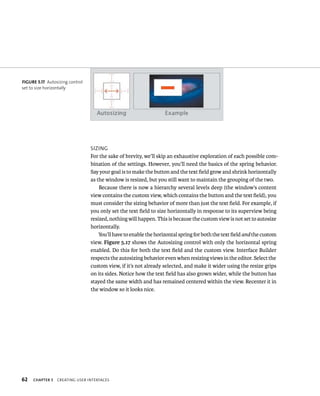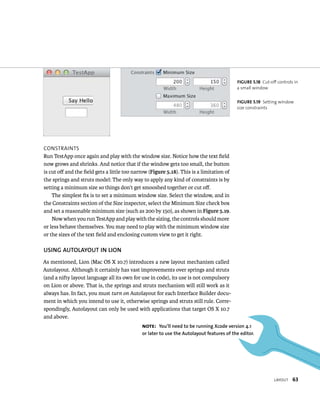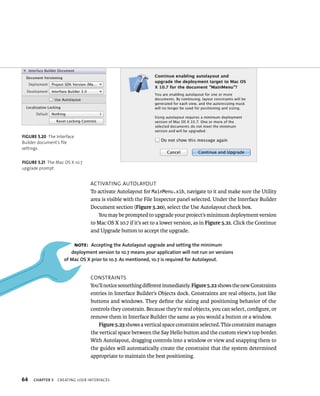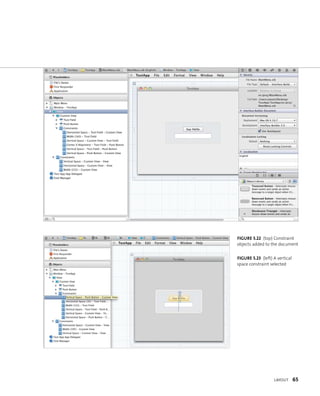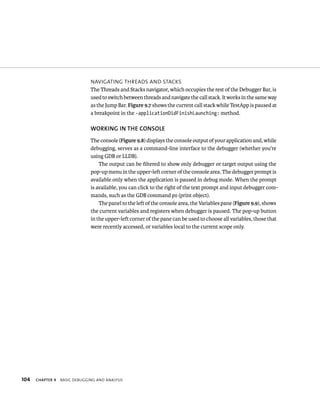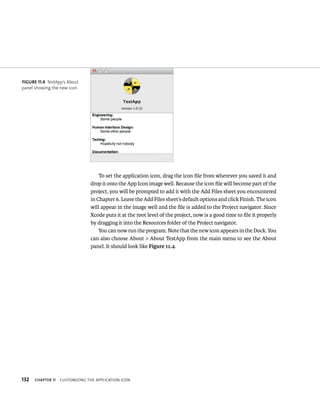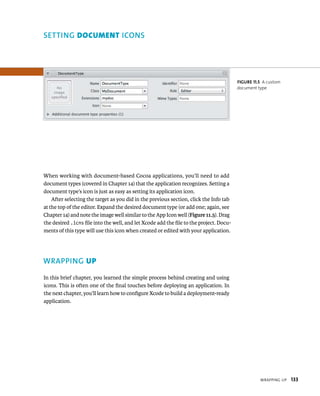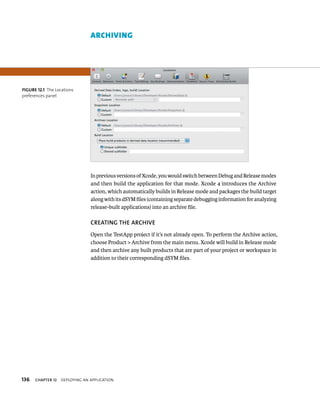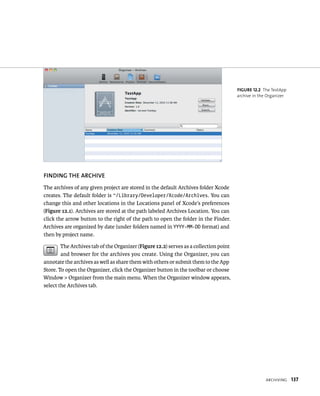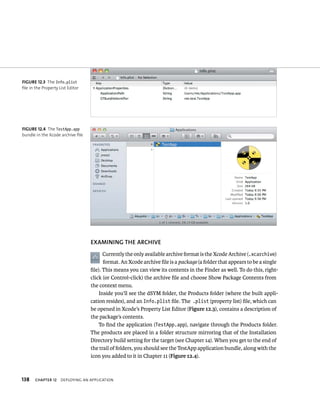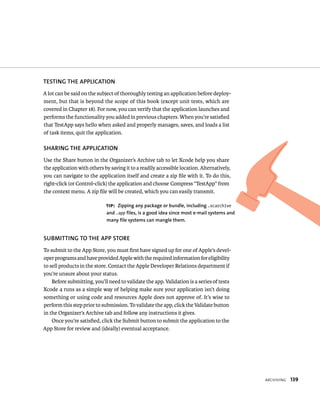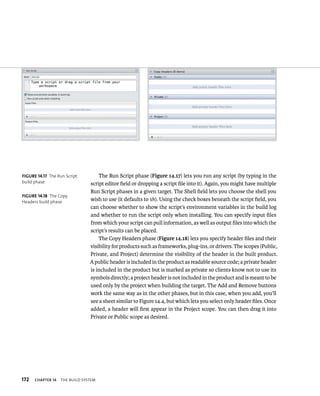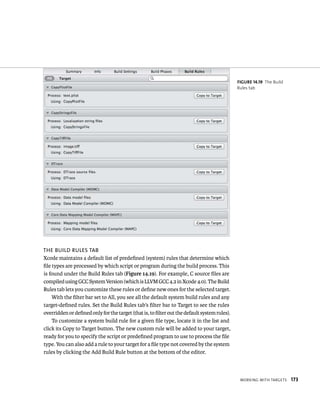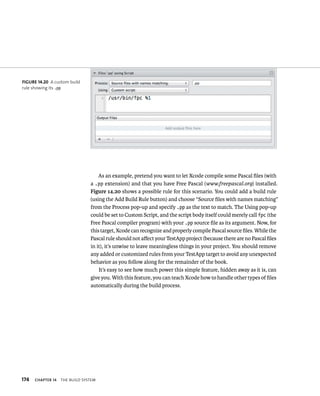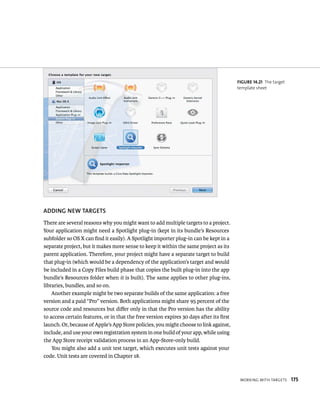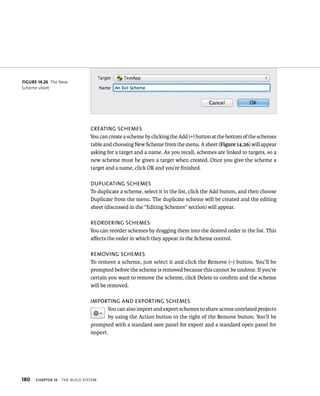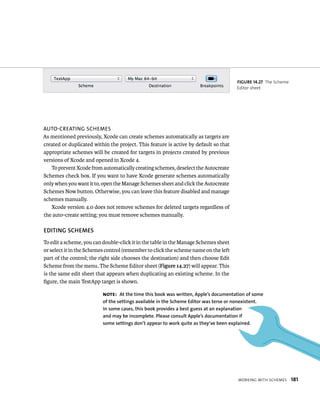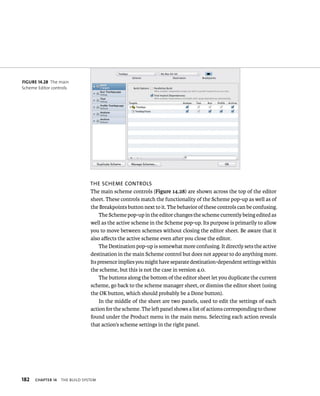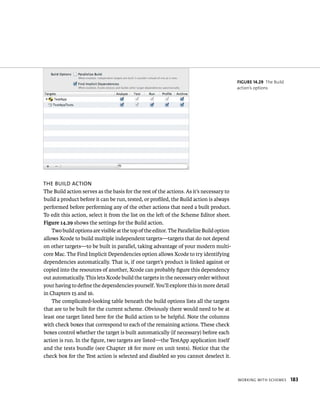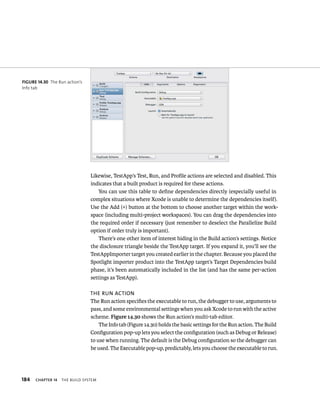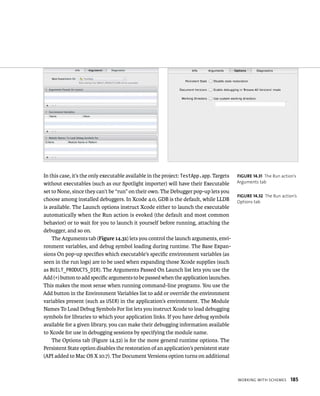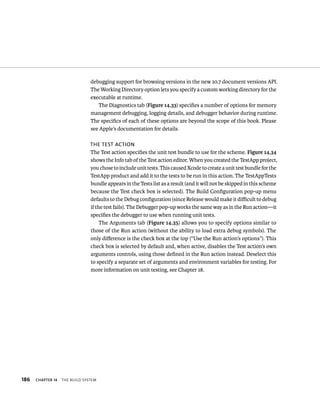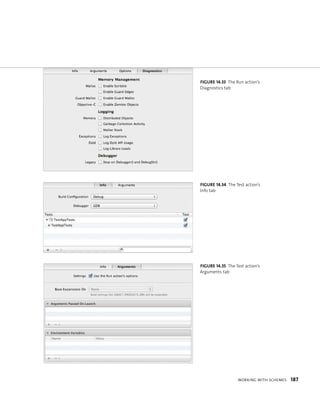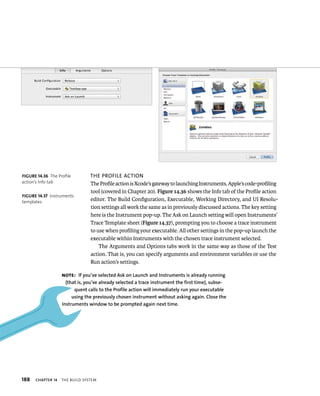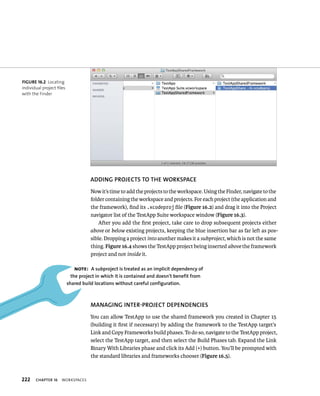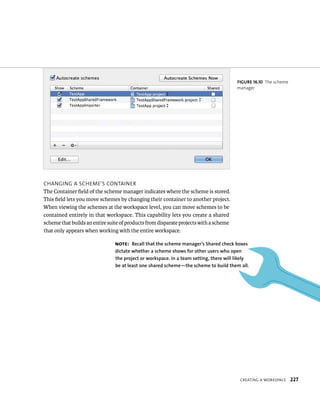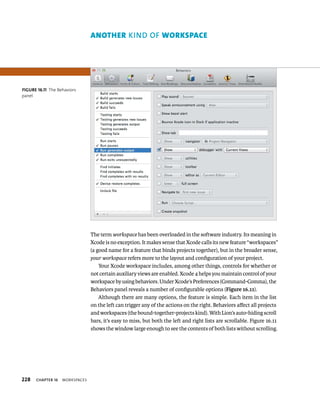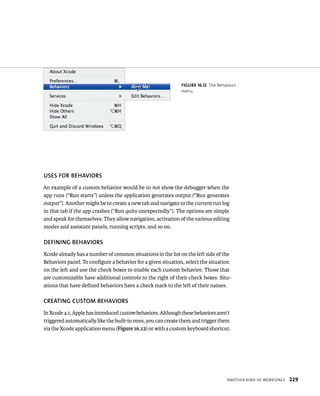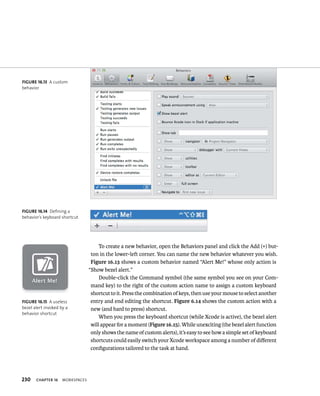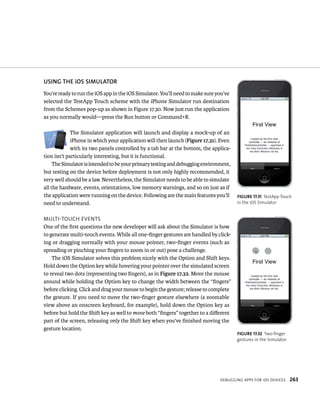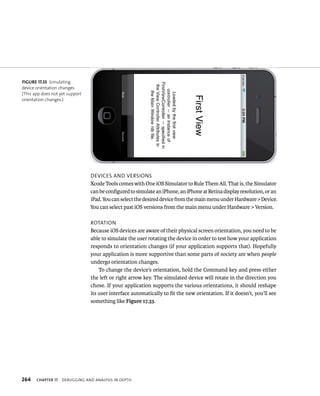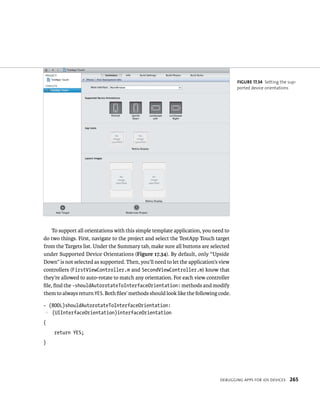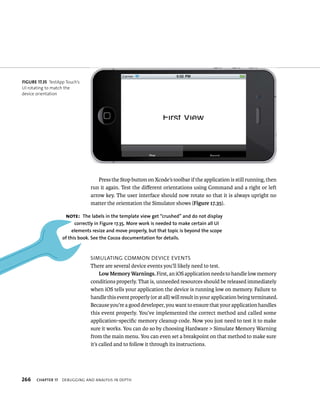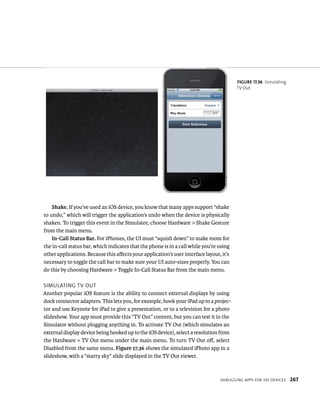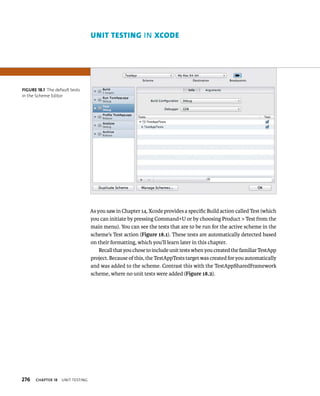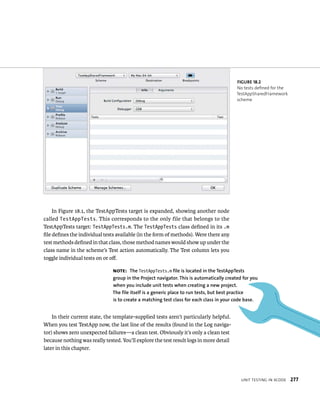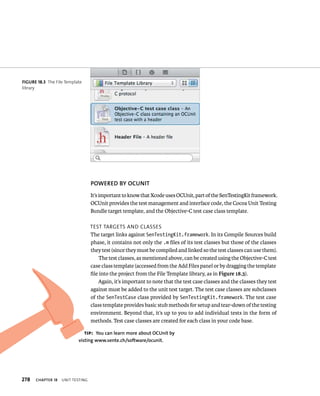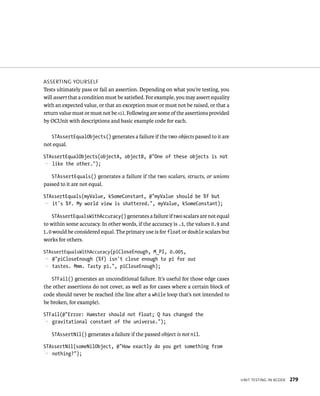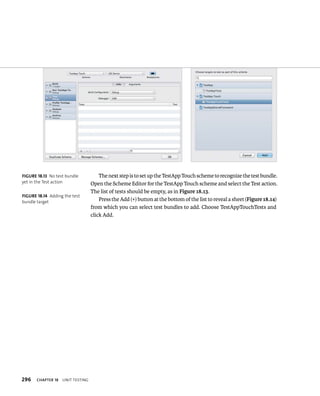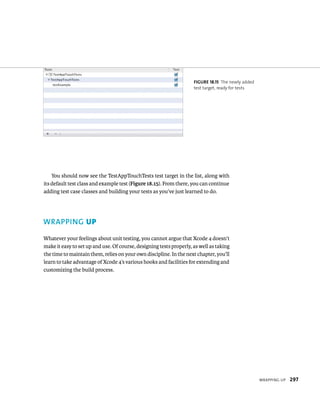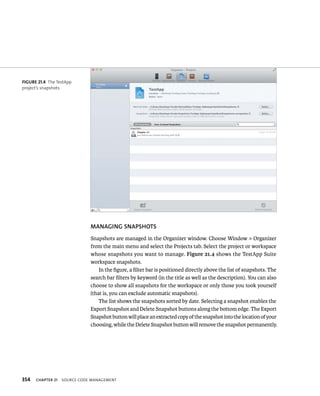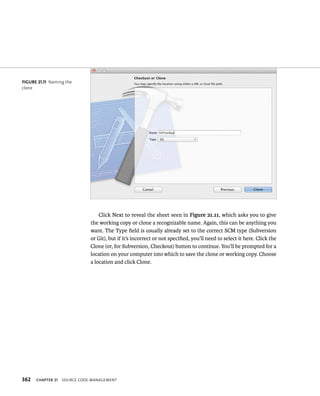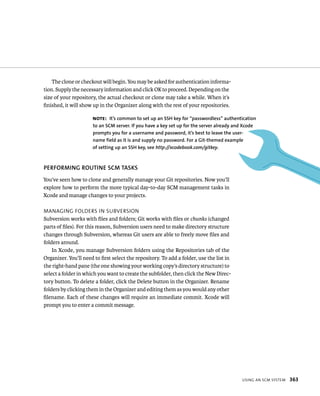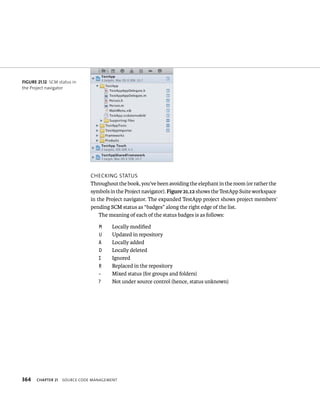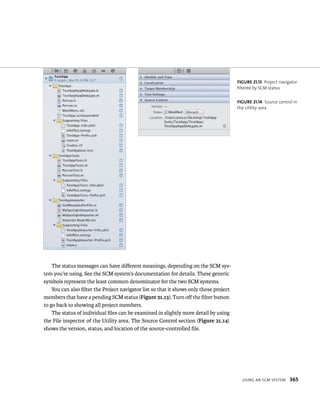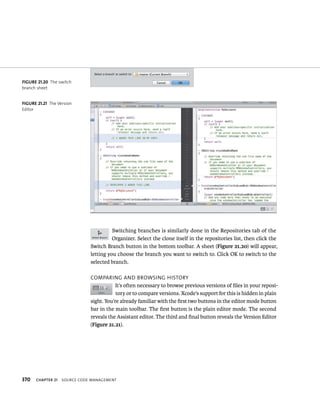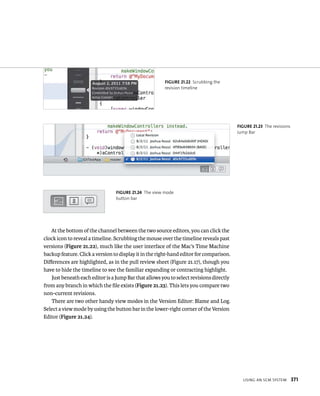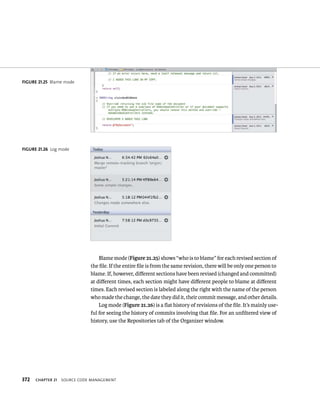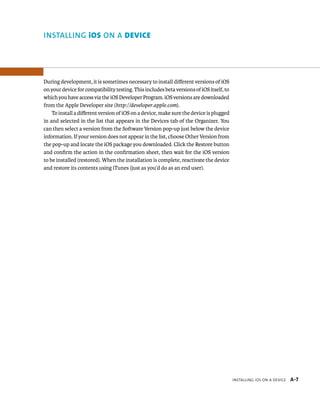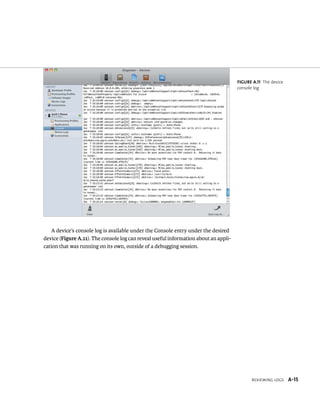





Mastering 
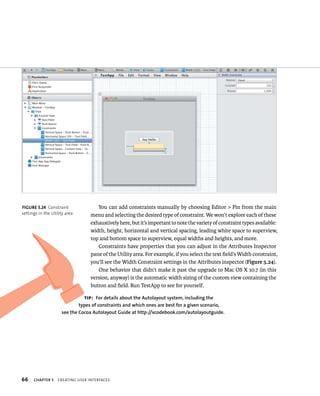
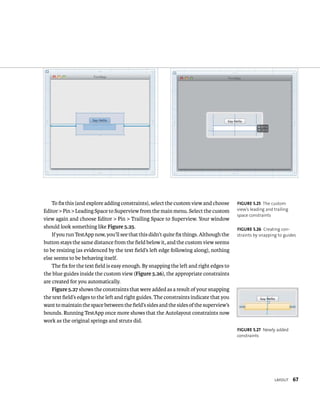
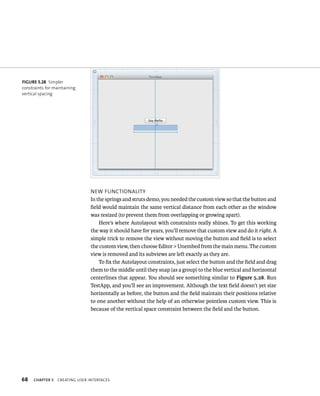
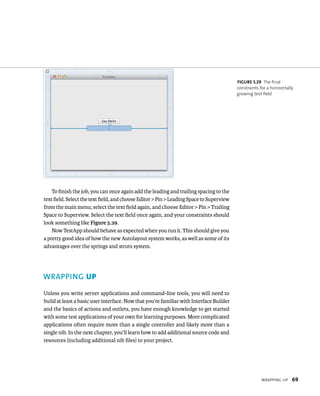
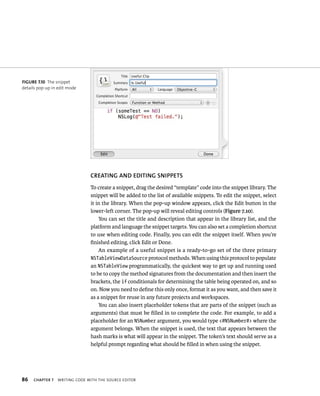
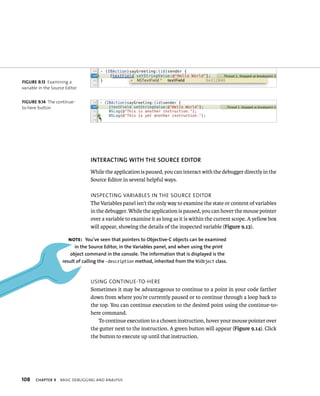
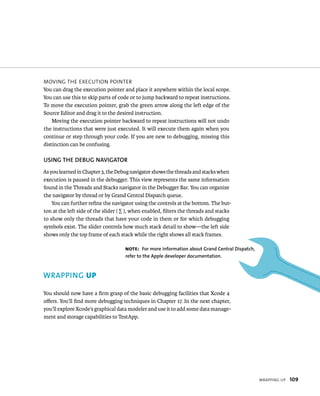
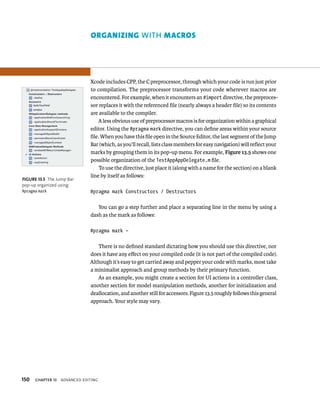
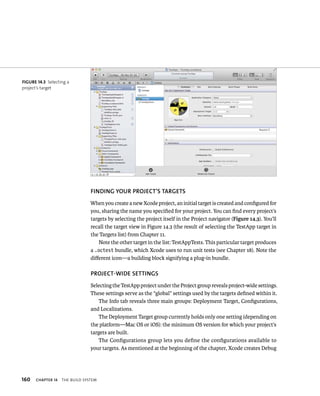
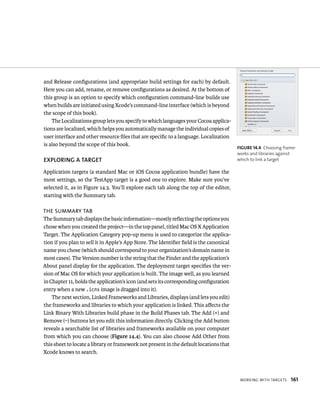
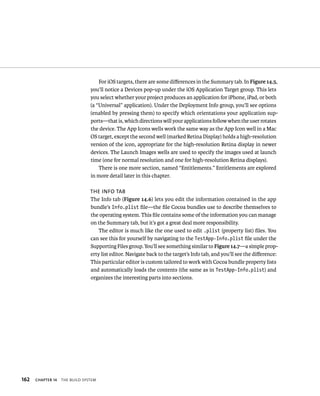
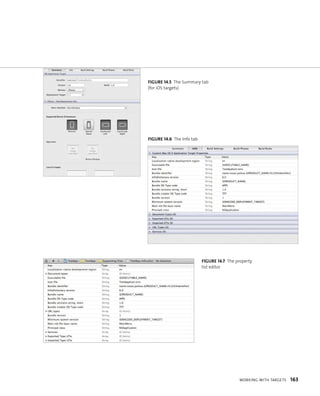
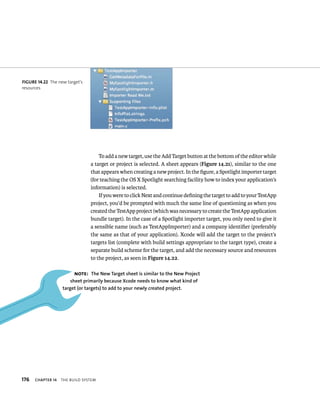
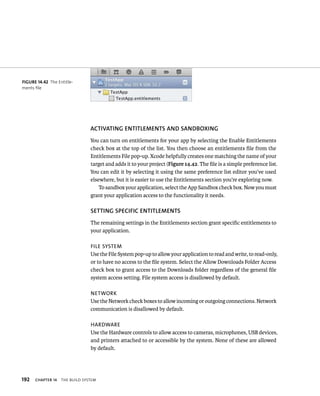
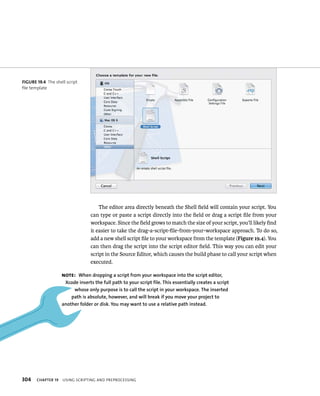
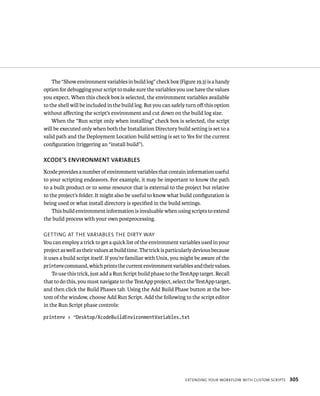
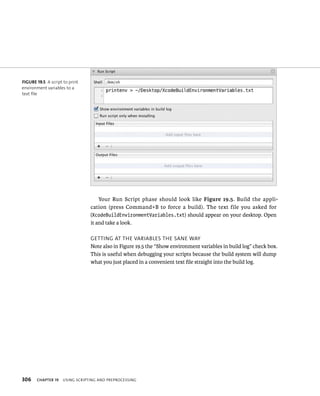
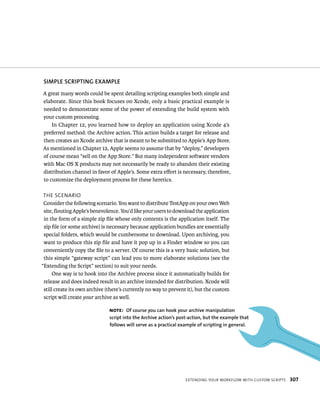
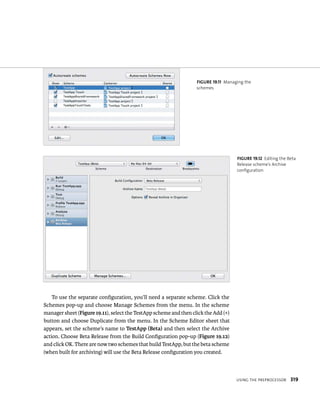
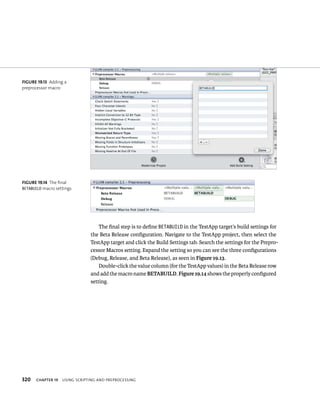
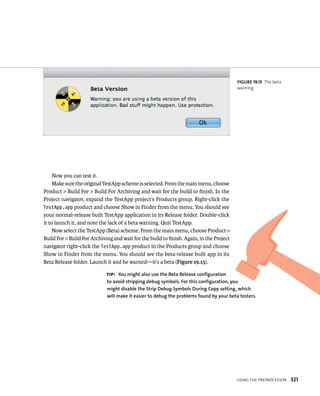
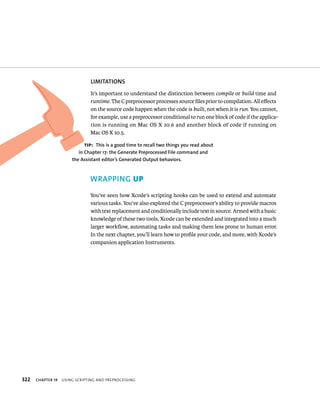
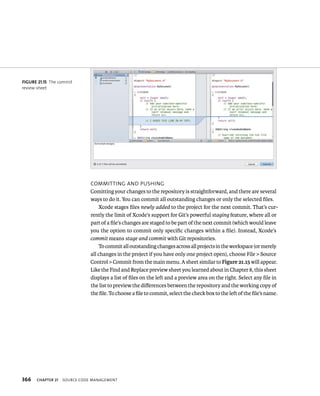
Xcode 4 
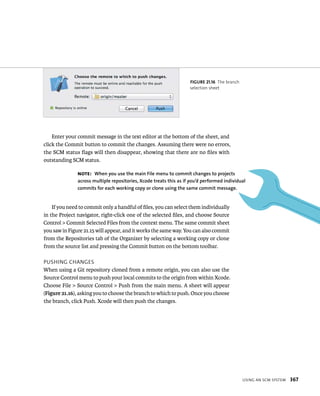
Develop and Design 
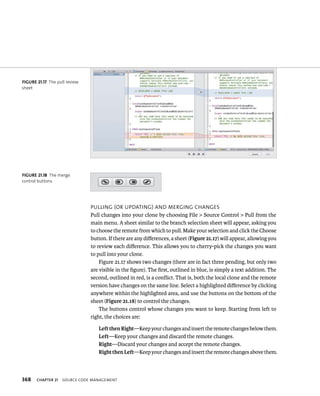
Joshua Nozzi
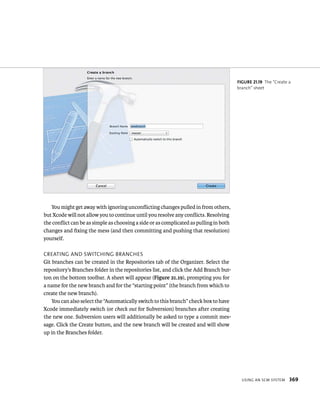
Mastering 
Xcode 4 
Develop and Design 
Joshua Nozzi
Mastering Xcode 4: Develop and Design 
Joshua Nozzi 
Peachpit Press 
1249 Eighth Street 
Berkeley, CA 94710 
510/524-2178 
510/524-2221 (fax) 
Find us on the Web at: www.peachpit.com 
To report errors, please send a note to errata@peachpit.com 
Peachpit Press is a division of Pearson Education 
Copyright © 2012 by Joshua Nozzi 
Editor: Cliff Colby 
Production editor: Myrna Vladic 
Development editor: Kim Wimpsett and Robyn G. Thomas 
Copyeditor: Scout Festa 
Technical Editor: Duncan Campbell 
Cover design: Aren Howell Straiger 
Interior design: Mimi Heft 
Compositor: David Van Ness 
Indexer: Ann Rogers 
Notice of Rights 
All rights reserved. No part of this book may be reproduced or transmitted in any form by any means, elec-tronic, 
mechanical, photocopying, recording, or otherwise, without the prior written permission of the pub-lisher. 
For information on getting permission for reprints and excerpts, contact permissions@peachpit.com. 
Notice of Liability 
The information in this book is distributed on an “As Is” basis, without warranty. While every precaution has 
been taken in the preparation of the book, neither the author nor Peachpit Press shall have any liability to any 
person or entity with respect to any loss or damage caused or alleged to be caused directly or indirectly by the 
instructions contained in this book or by the computer software and hardware products described in it. 
Trademarks 
Xcode is a trademark of Apple Inc., registered in the United States and other countries. Many of the designa-tions 
used by manufacturers and sellers to distinguish their products are claimed as trademarks. Where 
those designations appear in this book, and Peachpit Press was aware of a trademark claim, the designa-tions 
appear as requested by the owner of the trademark. All other product names and services identified 
throughout this book are used in editorial fashion only and for the benefit of such companies with no 
intention of infringement of the trademark. No such use, or the use of any trade name, is intended to convey 
endorsement or other affiliation with this book. 
ISBN 13: 978-0-321-76752-3 
ISBN 10: 0-321-76752-7 
9 8 7 6 5 4 3 2 1 
Printed and bound in the United States of America
Thanks to all my peers, friends, and family for their enthusiastic support, 
to a great team of professionals for helping me reach this goal, 
and to Matt for putting up with yet another of 
my time-consuming projects.
iv MASTERING XCODE 4 
Acknowledgments 
I wish to thank the following people whose work I used while writing this book. 
CyRIl GODEfROy 
Cyril’s masterfully broken code examples demonstrated some nice highlights of 
the Clang Static Analyzer. You can find them at http://xcodebook.com/cgodefroy. 
COlIN WhEElER 
Colin’s Xcode shortcut cheat sheet saved me loads of tedium when creating 
Appendix B. You can find the original, downloadable version that Colin maintains 
at http://xcodebook.com/cwheeler.
Contents v 
contents 
Introduction . . . . . . . . . . . . . . . . . . . . . . . . . . . . . . . . . . . . . . . . . . . . . . . . . . . . . . . . . . x 
Welcome to Xcode . . . . . . . . . . . . . . . . . . . . . . . . . . . . . . . . . . . . . . . . . . . . . . . . . . . xii 
PART I The Basics: GeTTiNG sTaRTeD wiTh XcoDe 4 
chapter 1 DiscoveRiNG XcoDe TooLs 2 
Downloading . . . . . . . . . . . . . . . . . . . . . . . . . . . . . . . . . . . . . . . . . . . . . . . . . . . . . . . . . . 4 
Installing . . . . . . . . . . . . . . . . . . . . . . . . . . . . . . . . . . . . . . . . . . . . . . . . . . . . . . . . . . . . . . 4 
Exploring . . . . . . . . . . . . . . . . . . . . . . . . . . . . . . . . . . . . . . . . . . . . . . . . . . . . . . . . . . . . . . 5 
Wrapping Up . . . . . . . . . . . . . . . . . . . . . . . . . . . . . . . . . . . . . . . . . . . . . . . . . . . . . . . . . . . 7 
chapter 2 sTaRTiNG a PRoJecT 8 
Welcome to Xcode! . . . . . . . . . . . . . . . . . . . . . . . . . . . . . . . . . . . . . . . . . . . . . . . . . . 10 
Creating a New Project . . . . . . . . . . . . . . . . . . . . . . . . . . . . . . . . . . . . . . . . . . . . . . . . 11 
Project Modernization . . . . . . . . . . . . . . . . . . . . . . . . . . . . . . . . . . . . . . . . . . . . . . . 15 
Building and Running an Application . . . . . . . . . . . . . . . . . . . . . . . . . . . . . . . . 17 
Wrapping Up . . . . . . . . . . . . . . . . . . . . . . . . . . . . . . . . . . . . . . . . . . . . . . . . . . . . . . . . . . 17 
chapter 3 NaviGaTiNG a PRoJecT 18 
The Workspace Window . . . . . . . . . . . . . . . . . . . . . . . . . . . . . . . . . . . . . . . . . . . . . 20 
The Navigator Area . . . . . . . . . . . . . . . . . . . . . . . . . . . . . . . . . . . . . . . . . . . . . . . . . . 21 
The Jump Bar . . . . . . . . . . . . . . . . . . . . . . . . . . . . . . . . . . . . . . . . . . . . . . . . . . . . . . . . . 26 
The Editor Area . . . . . . . . . . . . . . . . . . . . . . . . . . . . . . . . . . . . . . . . . . . . . . . . . . . . . . 27 
The Utility Area . . . . . . . . . . . . . . . . . . . . . . . . . . . . . . . . . . . . . . . . . . . . . . . . . . . . . . . 31 
The Debug Area . . . . . . . . . . . . . . . . . . . . . . . . . . . . . . . . . . . . . . . . . . . . . . . . . . . . . . 32 
The Activity Viewer . . . . . . . . . . . . . . . . . . . . . . . . . . . . . . . . . . . . . . . . . . . . . . . . . . 33 
The Tabs . . . . . . . . . . . . . . . . . . . . . . . . . . . . . . . . . . . . . . . . . . . . . . . . . . . . . . . . . . . . . 34 
The Organizer Window . . . . . . . . . . . . . . . . . . . . . . . . . . . . . . . . . . . . . . . . . . . . . . 35 
Wrapping Up . . . . . . . . . . . . . . . . . . . . . . . . . . . . . . . . . . . . . . . . . . . . . . . . . . . . . . . . . 35 
chapter 4 GeTTiNG heLP 36 
The Help Menu . . . . . . . . . . . . . . . . . . . . . . . . . . . . . . . . . . . . . . . . . . . . . . . . . . . . . . 38 
The Organizer’s Documentation Tab . . . . . . . . . . . . . . . . . . . . . . . . . . . . . . . . 39 
The Source Editor . . . . . . . . . . . . . . . . . . . . . . . . . . . . . . . . . . . . . . . . . . . . . . . . . . . . 41 
Community Help and Feedback . . . . . . . . . . . . . . . . . . . . . . . . . . . . . . . . . . . . . 42 
Wrapping Up . . . . . . . . . . . . . . . . . . . . . . . . . . . . . . . . . . . . . . . . . . . . . . . . . . . . . . . . . 43
vi MASTERING XCODE 4 
PART II woRkiNG wiTh cocoa aPPLicaTioNs 
chapter 5 cReaTiNG UseR iNTeRfaces 46 
Understanding Nibs . . . . . . . . . . . . . . . . . . . . . . . . . . . . . . . . . . . . . . . . . . . . . . . . . 48 
Getting Familiar with Interface Builder . . . . . . . . . . . . . . . . . . . . . . . . . . . . . . 50 
Adding User Interface Elements . . . . . . . . . . . . . . . . . . . . . . . . . . . . . . . . . . . . . 55 
Layout . . . . . . . . . . . . . . . . . . . . . . . . . . . . . . . . . . . . . . . . . . . . . . . . . . . . . . . . . . . . . . . . 58 
Wrapping Up . . . . . . . . . . . . . . . . . . . . . . . . . . . . . . . . . . . . . . . . . . . . . . . . . . . . . . . . . 69 
chapter 6 aDDiNG fiLes To a PRoJecT 70 
Adding Existing Files . . . . . . . . . . . . . . . . . . . . . . . . . . . . . . . . . . . . . . . . . . . . . . . . . 72 
Creating New Files . . . . . . . . . . . . . . . . . . . . . . . . . . . . . . . . . . . . . . . . . . . . . . . . . . . 74 
Using the File Template Library . . . . . . . . . . . . . . . . . . . . . . . . . . . . . . . . . . . . . 76 
Removing Files from the Project . . . . . . . . . . . . . . . . . . . . . . . . . . . . . . . . . . . . . 77 
Wrapping Up . . . . . . . . . . . . . . . . . . . . . . . . . . . . . . . . . . . . . . . . . . . . . . . . . . . . . . . . . 77 
chapter 7 wRiTiNG coDe wiTh The soURce eDiToR 78 
Exploring the Source Editor Interface . . . . . . . . . . . . . . . . . . . . . . . . . . . . . . . 80 
Navigating Source Code . . . . . . . . . . . . . . . . . . . . . . . . . . . . . . . . . . . . . . . . . . . . . . 81 
Using Code Completion . . . . . . . . . . . . . . . . . . . . . . . . . . . . . . . . . . . . . . . . . . . . . . 84 
Exploring the Code Snippet Library . . . . . . . . . . . . . . . . . . . . . . . . . . . . . . . . . 85 
The Assistant . . . . . . . . . . . . . . . . . . . . . . . . . . . . . . . . . . . . . . . . . . . . . . . . . . . . . . . . . 87 
Wrapping Up . . . . . . . . . . . . . . . . . . . . . . . . . . . . . . . . . . . . . . . . . . . . . . . . . . . . . . . . . 87 
chapter 8 seaRchiNG aND RePLaciNG 88 
Using the Search Navigator . . . . . . . . . . . . . . . . . . . . . . . . . . . . . . . . . . . . . . . . . . 90 
Searching within Files . . . . . . . . . . . . . . . . . . . . . . . . . . . . . . . . . . . . . . . . . . . . . . . 97 
Wrapping Up . . . . . . . . . . . . . . . . . . . . . . . . . . . . . . . . . . . . . . . . . . . . . . . . . . . . . . . . . 97 
chapter 9 Basic DeBUGGiNG aND aNaLysis 98 
Compile-Time Debugging . . . . . . . . . . . . . . . . . . . . . . . . . . . . . . . . . . . . . . . . . . . 100 
Runtime Debugging . . . . . . . . . . . . . . . . . . . . . . . . . . . . . . . . . . . . . . . . . . . . . . . . . 102 
Wrapping Up . . . . . . . . . . . . . . . . . . . . . . . . . . . . . . . . . . . . . . . . . . . . . . . . . . . . . . . . 109 
chapter 10 UsiNG The DaTa MoDeL eDiToR 110 
Introducing Core Data . . . . . . . . . . . . . . . . . . . . . . . . . . . . . . . . . . . . . . . . . . . . . . 112 
Using the Data Model Editor . . . . . . . . . . . . . . . . . . . . . . . . . . . . . . . . . . . . . . . . 115
Contents vii 
Creating a Basic Data Model . . . . . . . . . . . . . . . . . . . . . . . . . . . . . . . . . . . . . . . . 117 
Creating a UI for the Model . . . . . . . . . . . . . . . . . . . . . . . . . . . . . . . . . . . . . . . . . 118 
Using the Assistant . . . . . . . . . . . . . . . . . . . . . . . . . . . . . . . . . . . . . . . . . . . . . . . . . 125 
Wrapping Up . . . . . . . . . . . . . . . . . . . . . . . . . . . . . . . . . . . . . . . . . . . . . . . . . . . . . . . . 125 
chapter 11 cUsToMiziNG The aPPLicaTioN icoN 126 
Picking the Ideal Artwork . . . . . . . . . . . . . . . . . . . . . . . . . . . . . . . . . . . . . . . . . . . 128 
Creating Icons . . . . . . . . . . . . . . . . . . . . . . . . . . . . . . . . . . . . . . . . . . . . . . . . . . . . . . . 129 
Setting the Application Icon . . . . . . . . . . . . . . . . . . . . . . . . . . . . . . . . . . . . . . . . . 131 
Setting Document Icons . . . . . . . . . . . . . . . . . . . . . . . . . . . . . . . . . . . . . . . . . . . . 133 
Wrapping Up . . . . . . . . . . . . . . . . . . . . . . . . . . . . . . . . . . . . . . . . . . . . . . . . . . . . . . . . 133 
chapter 12 DePLoyiNG aN aPPLicaTioN 134 
Archiving . . . . . . . . . . . . . . . . . . . . . . . . . . . . . . . . . . . . . . . . . . . . . . . . . . . . . . . . . . . . 136 
Alternatives to Archiving . . . . . . . . . . . . . . . . . . . . . . . . . . . . . . . . . . . . . . . . . . . 140 
Wrapping Up . . . . . . . . . . . . . . . . . . . . . . . . . . . . . . . . . . . . . . . . . . . . . . . . . . . . . . . . 141 
PART III GoiNG BeyoND The Basics 
chapter 13 aDvaNceD eDiTiNG 144 
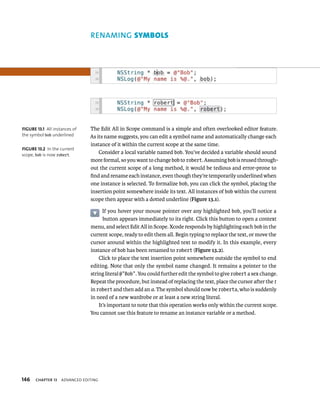
Renaming Symbols . . . . . . . . . . . . . . . . . . . . . . . . . . . . . . . . . . . . . . . . . . . . . . . . . . 146 
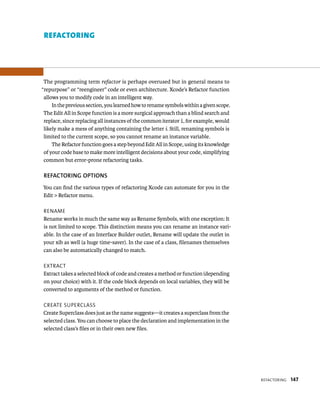
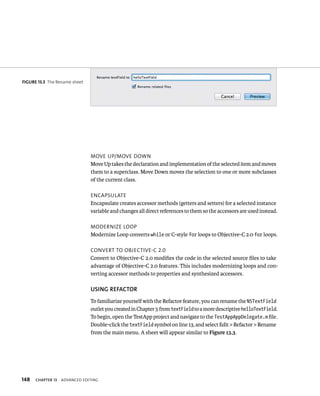
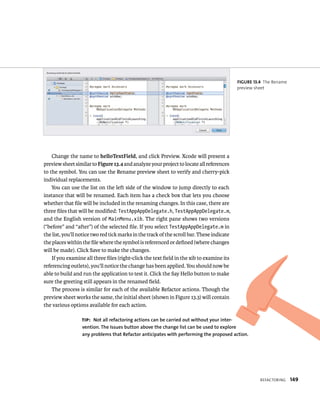
Refactoring . . . . . . . . . . . . . . . . . . . . . . . . . . . . . . . . . . . . . . . . . . . . . . . . . . . . . . . . . . 147 
Organizing with Macros . . . . . . . . . . . . . . . . . . . . . . . . . . . . . . . . . . . . . . . . . . . . 150 
Changing Editor Key Bindings . . . . . . . . . . . . . . . . . . . . . . . . . . . . . . . . . . . . . . 151 
Jump to Definition . . . . . . . . . . . . . . . . . . . . . . . . . . . . . . . . . . . . . . . . . . . . . . . . . . 152 
My Company Name . . . . . . . . . . . . . . . . . . . . . . . . . . . . . . . . . . . . . . . . . . . . . . . . . 153 
Wrapping Up . . . . . . . . . . . . . . . . . . . . . . . . . . . . . . . . . . . . . . . . . . . . . . . . . . . . . . . . 153 
chapter 14 The BUiLD sysTeM 154 
An Overview . . . . . . . . . . . . . . . . . . . . . . . . . . . . . . . . . . . . . . . . . . . . . . . . . . . . . . . . 156 
Working with Targets . . . . . . . . . . . . . . . . . . . . . . . . . . . . . . . . . . . . . . . . . . . . . . . 159 
Working with Schemes . . . . . . . . . . . . . . . . . . . . . . . . . . . . . . . . . . . . . . . . . . . . . 178 
Entitlements (Sandboxing) . . . . . . . . . . . . . . . . . . . . . . . . . . . . . . . . . . . . . . . . . 191 
Wrapping Up . . . . . . . . . . . . . . . . . . . . . . . . . . . . . . . . . . . . . . . . . . . . . . . . . . . . . . . . 193
viii MASTERING XCODE 4 
chapter 15 LiBRaRies, fRaMewoRks, aND LoaDaBLe BUNDLes 194 
What are Libraries, Frameworks, and Bundles? . . . . . . . . . . . . . . . . . . . . 196 
Using Existing Libraries and Frameworks . . . . . . . . . . . . . . . . . . . . . . . . . . 199 
Creating a Framework . . . . . . . . . . . . . . . . . . . . . . . . . . . . . . . . . . . . . . . . . . . . . . 208 
Wrapping Up . . . . . . . . . . . . . . . . . . . . . . . . . . . . . . . . . . . . . . . . . . . . . . . . . . . . . . . . 215 
chapter 16 woRksPaces 216 
What Is a Workspace? . . . . . . . . . . . . . . . . . . . . . . . . . . . . . . . . . . . . . . . . . . . . . . 218 
When to Use a Workspace . . . . . . . . . . . . . . . . . . . . . . . . . . . . . . . . . . . . . . . . . . 220 
Creating a Workspace . . . . . . . . . . . . . . . . . . . . . . . . . . . . . . . . . . . . . . . . . . . . . . . 221 
Another Kind of Workspace . . . . . . . . . . . . . . . . . . . . . . . . . . . . . . . . . . . . . . . . 228 
Wrapping Up . . . . . . . . . . . . . . . . . . . . . . . . . . . . . . . . . . . . . . . . . . . . . . . . . . . . . . . . 231 
chapter 17 DeBUGGiNG aND aNaLysis iN DePTh 232 
Using the Clang Static Analyzer . . . . . . . . . . . . . . . . . . . . . . . . . . . . . . . . . . . . 234 
Exploring Analyzer Results . . . . . . . . . . . . . . . . . . . . . . . . . . . . . . . . . . . . . . . . . 236 
Threads and Stacks . . . . . . . . . . . . . . . . . . . . . . . . . . . . . . . . . . . . . . . . . . . . . . . . . 242 
Inspecting Memory . . . . . . . . . . . . . . . . . . . . . . . . . . . . . . . . . . . . . . . . . . . . . . . . . 246 
Conferring with the Console . . . . . . . . . . . . . . . . . . . . . . . . . . . . . . . . . . . . . . . . 250 
Viewing Generated Output . . . . . . . . . . . . . . . . . . . . . . . . . . . . . . . . . . . . . . . . . 258 
Debugging Apps for iOS Devices . . . . . . . . . . . . . . . . . . . . . . . . . . . . . . . . . . . . 260 
Wrapping Up . . . . . . . . . . . . . . . . . . . . . . . . . . . . . . . . . . . . . . . . . . . . . . . . . . . . . . . . 269 
chapter 18 UNiT TesTiNG 270 
What is Unit Testing? . . . . . . . . . . . . . . . . . . . . . . . . . . . . . . . . . . . . . . . . . . . . . . . 272 
Unit Testing in Xcode . . . . . . . . . . . . . . . . . . . . . . . . . . . . . . . . . . . . . . . . . . . . . . . 276 
Writing a Unit Test . . . . . . . . . . . . . . . . . . . . . . . . . . . . . . . . . . . . . . . . . . . . . . . . . . 284 
Adding Unit Tests to Existing Projects . . . . . . . . . . . . . . . . . . . . . . . . . . . . . 295 
Wrapping Up . . . . . . . . . . . . . . . . . . . . . . . . . . . . . . . . . . . . . . . . . . . . . . . . . . . . . . . . 297 
chapter 19 UsiNG scRiPTiNG aND PRePRocessiNG 298 
Extending Your Workflow with Custom Scripts . . . . . . . . . . . . . . . . . . . . 300 
Using the Preprocessor . . . . . . . . . . . . . . . . . . . . . . . . . . . . . . . . . . . . . . . . . . . . . 313 
Wrapping Up . . . . . . . . . . . . . . . . . . . . . . . . . . . . . . . . . . . . . . . . . . . . . . . . . . . . . . . . 322
x 
chapter 20 UsiNG iNsTRUMeNTs 324 
An Overview of DTrace . . . . . . . . . . . . . . . . . . . . . . . . . . . . . . . . . . . . . . . . . . . . . 326 
A Tour of Instruments . . . . . . . . . . . . . . . . . . . . . . . . . . . . . . . . . . . . . . . . . . . . . . 327 
Using Instruments for Common Tasks . . . . . . . . . . . . . . . . . . . . . . . . . . . . . 339 
Wrapping Up . . . . . . . . . . . . . . . . . . . . . . . . . . . . . . . . . . . . . . . . . . . . . . . . . . . . . . . . 348 
chapter 21 soURce coDe MaNaGeMeNT 350 
Xcode Snapshots . . . . . . . . . . . . . . . . . . . . . . . . . . . . . . . . . . . . . . . . . . . . . . . . . . . . 352 
Using an SCM System . . . . . . . . . . . . . . . . . . . . . . . . . . . . . . . . . . . . . . . . . . . . . . . 356 
Wrapping Up . . . . . . . . . . . . . . . . . . . . . . . . . . . . . . . . . . . . . . . . . . . . . . . . . . . . . . . . 373 
Index . . . . . . . . . . . . . . . . . . . . . . . . . . . . . . . . . . . . . . . . . . . . . . . . . . . . . . . . . . . . . . . . 374 
aPPeNDiXes 
appendix a MaNaGiNG yoUR ios Devices a-1 
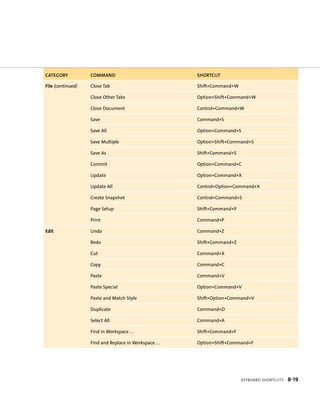
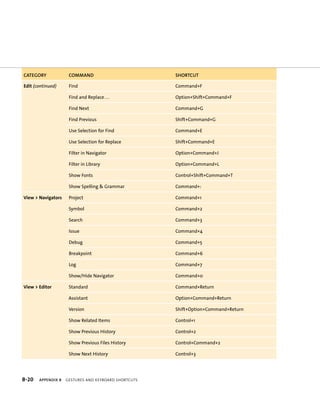
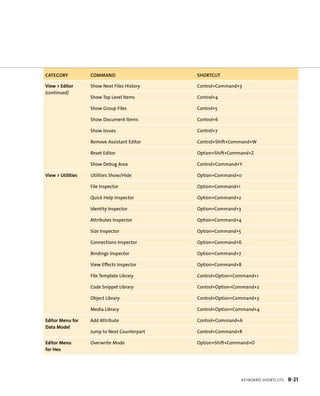
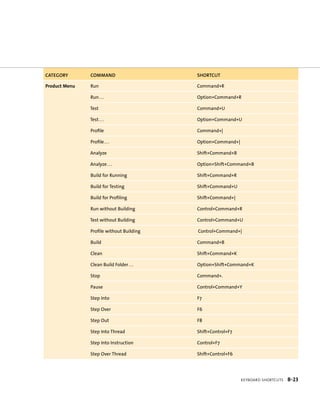
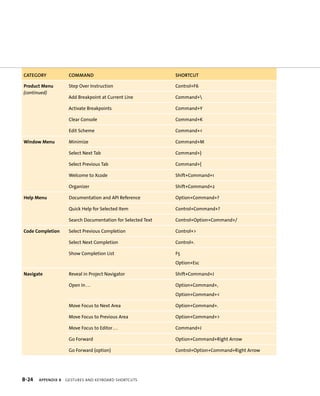
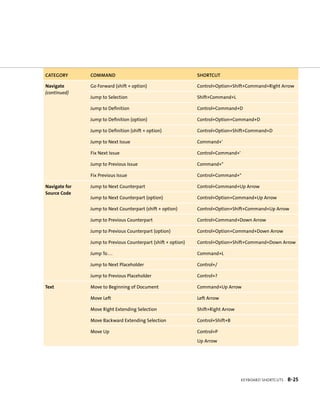
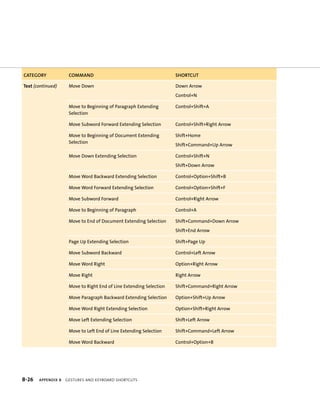
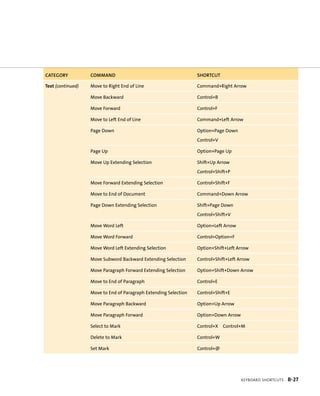
appendix B GesTURes aND keyBoaRD shoRTcUTs B-17 
appendix c DocUMeNTaTioN UPDaTes c-32 
appendix d oTheR ResoURces D-36
X MASTERING XCODE 4 
IntroductIon 
This book is an intermediate-level introduction to Xcode 4, Apple’s integrated 
development environment. It assumes you have some development experience 
and are familiar with the Cocoa API. It won’t teach you how to write code or much 
at all about Cocoa. There are other books for that. This one is strictly focused on 
how to use Xcode itself, whatever your development endeavors. 
Of course, since Xcode is most often used with the Cocoa API and Objective-C, 
there are basic introductions to Cocoa concepts and a few trivial code samples 
sprinkled here and there to illustrate various points. In these cases, I point to the 
documentation that Apple provides (to save you some trouble looking it up), but 
I only had a limited number of pages in which to show you Xcode stuff, so please 
keep this in mind when writing your scathing Amazon reviews. 
Also, I’ve formed the opinion that Apple is crafty when it comes to software 
releases. Not only are they ultra-secretive, but they appear to know my precise 
schedule and plans (I blame iCloud). They seem to use this knowledge to wait until 
I’m almost finished and then change a bunch of stuff in a single release, neces-sitating 
the tracking down and editing of many fine details. I imagine an Apple 
overseer watching me through my Mac’s camera, stroking a wrinkly, hairless cat 
and waiting until I’m almost finished. He then orders his henchmen to release the 
next set of random changes and leans toward the screen expectantly, muttering 
“Yeeesssss . . .” as I shake my fist at the sky and shout his name in dramatic fashion. 
The cat, of course, is hairless to avoid messing up his black turtleneck. 
Whatever the case, I may say things that no longer apply to some future ver-sion 
or mention menus that no longer exist as such. Sorry. Blame Apple. Then buy 
my next edition.
IntroduCtIon Xi 
WhAT yOu WIll lEARN 
This book is divided into three major parts and includes four appendixes on the 
book’s companion Web site. 
Part I: The Basics: Getting Started with Xcode 4 
In very short order, you’ll install Xcode and get down to business building a useless 
application. Nobody but perhaps your mother would buy it, but it very neatly dem-onstrates 
the Xcode 4 project workflow and how to find your way around a project. 
Part II: Working with Cocoa Applications 
Next, you’ll learn how to build and edit user interfaces, add resources, and customize 
the application. You’ll explore all major aspects of the Xcode user interface and its 
primary editors. You’ll learn to refactor code, to use the debugger and the Core Data 
modeler, and to archive builds for deployment (independently or via the App Store). 
Part III: Going Beyond the Basics 
Then you’ll dive a little deeper and explore Xcode’s build system (including the new 
schemes system). You’ll learn how to create and use libraries and frameworks and 
how to combine multiple projects into a single workspace. You’ll create and run 
unit tests and use custom scripts with the build process. 
Finally, you’ll take a solid tour of Instruments (Apple’s profiling tool) and expe-rience 
its uncanny ability to point out your mistakes and make you feel stupid. 
Thoroughly abashed, you’ll wrap up with an overview of Xcode’s integrated source 
code management support. 
Appendixes 
You’ll find four appendixes on the book’s companion Web site (http://xcodebook.com/ 
extracontent). Appendix A helps you manage your iOS devices. Appendix B includes 
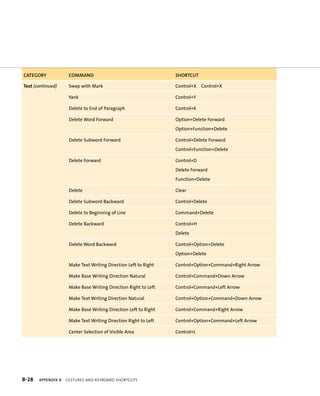
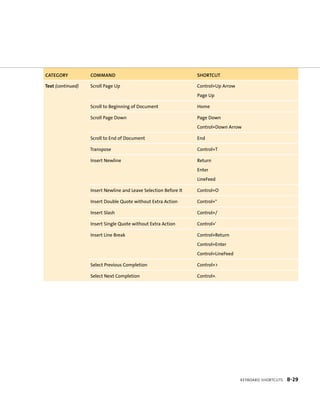
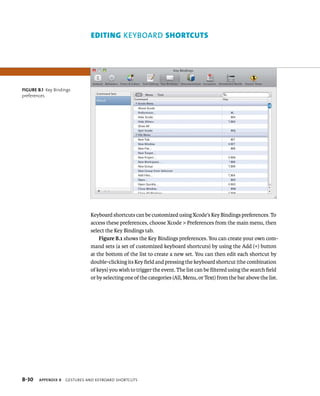
tables of gestures and keyboard shortcuts for frequently used tasks. Appendix C 
shows you how to manage Xcode documentation updates. Appendix D provides 
you with Apple and third-party resources for additional information.
welcome TO Xcode 
Upstart newbies. Always strolling in and making short work of stuff that used to 
take you hours. In your day, you typed all your build commands and liked it. Uphill. 
Both ways. In the snow. Then again, why let those newbies outpace you? Xcode 
puts the same powerful tools you know (and some new ones you may not) in your 
hands. Despite its shiny, easy-to-use interface, a lot of power lurks just under the 
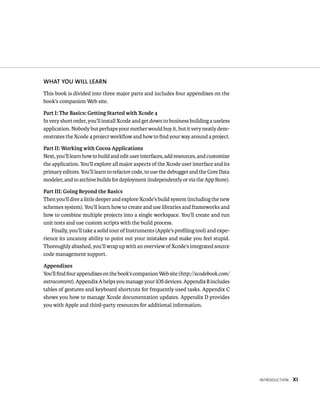
INTERfACE BuIlDER 
Build and edit rich user interfaces with Interface Builder. 
Drag and drop outlets and actions directly into your 
code using the Assistant editor. 
 
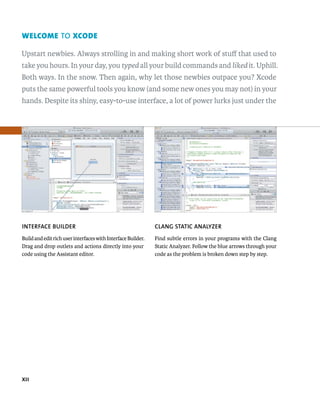
ClANG STATIC ANAlyzER 
Find subtle errors in your programs with the Clang 
Static Analyzer. Follow the blue arrows through your 
code as the problem is broken down step by step.
surface. Xcode 4 lets you write and manage your code, design and build user inter-faces, 
analyze and debug your apps, and more. So what if it takes you less time? 
Xiii 
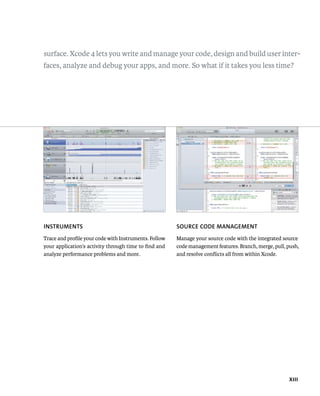
INSTRuMENTS 
Trace and profile your code with Instruments. Follow 
your application’s activity through time to find and 
analyze performance problems and more. 
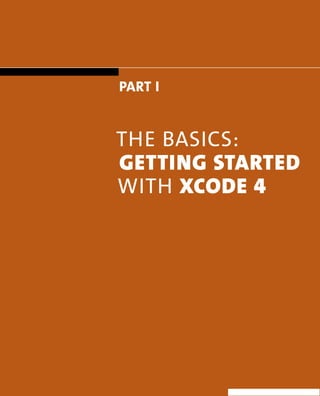
SOuRCE CODE MANAGEMENT 
Manage your source code with the integrated source 
code management features. Branch, merge, pull, push, 
and resolve conflicts all from within Xcode.
This page intentionally left blank
1 
Part I 
The Basics: 
gettIng stArted 
wiTh Xcode 4
1 
Discovering 
Xcode tools
3 
Xcode 4 is the flagship application of Xcode 
Tools, Apple’s suite of developer tools. It is 
aimed squarely at developing, testing, and 
packaging Mac OS and iOS applications, utilities, and plug-ins 
written with the Cocoa frameworks in Objective-C, though it’s 
perfectly suited for C/C++ development. 
In this chapter, you’ll learn how to download and install Xcode 
Tools. You’ll also take a brief tour of some of the powerful tools 
that accompany Xcode.
4 downloAdIng 
The latest stable release of Xcode 4 is obtained through the Mac App Store. To 
download the installer, launch the App Store application from your Applications 
folder and search the store for Xcode. Click Install and log in if requested. 
As with any application purchased through the App Store, the installer (called 
“Install Xcode”) will appear on your dock with a progress bar tattooed on its icon. 
Go get some coffee because the installer is several gigabytes in size. 
InstAllIng 
Once the download is complete, just launch the installer by clicking it in the Dock. 
If the Dock shortcut has gone away, you can find the installer in your Applications 
folder (again, it’s called “Install Xcode”). Just follow the on-screen instructions. 
The installer is very basic as the options you might know of from previous versions 
have gone away. Xcode 4 overwrites any existing versions in your system’s /Developer 
folder. This is the default (and now, unchangeable) install location for the Xcode 
Tools suite. Once the installation is complete, you’ll have a very powerful software 
development suite at your fingertips. Just look in the /Developer/Applications 
folder of your system disk. Xcode and its friends live there. 
Note: The file you downloaded contains the tools and relevant SDKs. It 
does not contain the documentation for those SDKs, however. When you 
launch Xcode, it will check for the latest version of this documentation and 
download it in the background. These files are large as well. The proces-sor, 
disk, and network activity this causes can be alarming, given that 
Xcode seems to be peacefully awaiting orders. you can turn off this 
automatic updating in the Documentation panel of Xcode’s preferences. 
ChAPTER 1 dIsCoverIng XCode tools
eXplorIng 5 
eXplorIng 
Now that you’ve installed Xcode Tools, you can find it on your system disk under the 
/Developer folder unless you’ve chosen to install elsewhere. You’ll find Xcode and 
a number of other applications in the /Developer/Applications folder. Although 
this book concentrates on the Xcode 4 application, there are other important tools 
with which you should become familiar. 
Let’s explore some of the tools included in the suite. 
ThE BIG TOOlS 
There are three important applications in which you’ll spend most of your time. 
XCode 
The Xcode integrated development environment (IDE) is the star of the 
suite. With Xcode, you create and manage projects, write and debug 
your code, design your UI, build your data models, write and run unit 
tests, and build and package your apps and plug-ins. You’ll spend most of your 
development time in Xcode. Some of these tools can be launched automatically 
from within Xcode (Instruments and the iOS Simulator, for example). This will be 
covered in later chapters. 
Instruments 
Instruments is Apple’s profiling and analysis tool. We’ll briefly visit 
Instruments in Part III, but this application could easily justify a book 
of its own. It could be loosely described as a luxury wrapper around 
DTrace (a performance measuring tool), but that would be understating its power. 
We’ll explore its most common uses for application development, which are profil-ing 
and memory management debugging. 
Ios sImulator 
Not all iOS developers can afford every iOS device on the market. Debug-ging 
an application directly on the device has some limitations as well. 
The iOS Simulator (previously named iPhone Simulator) provides a 
solution to both of these problems. We’ll explore the iOS Simulator in Chapter 17.
6 OThER hElPful TOOlS 
The following are some additional tools you are likely to use in a typical Mac or 
iOS project. These tools are also installed with the Xcode Tools suite. 
Help IndeXer 
ChAPTER 1 dIsCoverIng XCode tools 
Mac OS users expect applications to come with the customary built-in 
manual, called a Help Book. This is a simple collection of HTML docu-ments 
accompanied by a special—and required—index file for the OS X 
Help Viewer. The Help Indexer application processes your Help Book files and 
builds this index for you. 
ICon Composer 
Mac OS and iOS applications use the .icns format. The Icon Composer 
application allows you to drop your appropriately sized artwork into 
the image wells and test your icon against various backdrops. 
paCkagemaker 
PackageMaker is used to build Mac OS Installer packages. The Installer 
packages let you tell OS X where to install your application and other 
resources, as well as run various pre- and post-flight scripts (scripts 
that are run before and after the main installation) with administrative privileges 
if desired. 
Quartz Composer 
Quartz Composer lets you create stunning visualizations for screen 
savers, interactive menu screens à la Front Row and Cover Flow, and 
more. The compositions can be self-contained or accept input from 
your application to affect various properties. Even non-developers can enjoy Quartz 
Composer, because it does not require writing a single line of code.
WrappIng up 7 
Plenty of other helpful utilities (both GUI and command-line) exist in addition to 
those covered here. Consult the Xcode user guide (found under Xcode’s Help menu) 
for details. 
Note: In the Cocoa developer community, you’ll hear 
people refer to Interface Builder as a separate appli-cation. 
Prior to Xcode 4, Interface Builder was indeed 
a separate application. It is now integrated into Xcode. 
WRAPPING up
t
9 
Xcode comes with a number of template 
projects to make it easier for developers to 
get started. Beyond templates for Mac OS and 
iOS applications, there are templates for command-line tools, 
AppleScript applications, frameworks, bundles, plug-ins, Spotlight 
plug-ins, IOKit drivers, and more. 
In this chapter, you’ll create a basic Cocoa application, which you’ll 
use throughout this book to explore Xcode.
10 welcome TO Xcode! 
You can find Xcode in the /Developer/Applications folder (assuming you chose this 
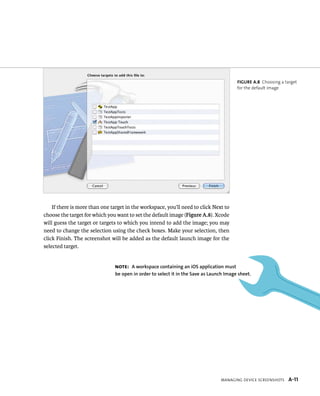
default location when you installed Xcode Tools). When you launch the application, 
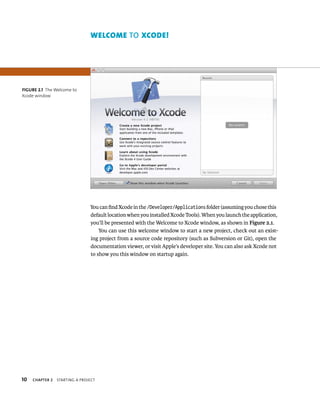
you’ll be presented with the Welcome to Xcode window, as shown in Figure 2.1. 
ChAPTER 2 startIng a projeCt 
You can use this welcome window to start a new project, check out an exist-ing 
project from a source code repository (such as Subversion or Git), open the 
documentation viewer, or visit Apple’s developer site. You can also ask Xcode not 
to show you this window on startup again. 
fiGURe 2 1 The Welcome to 
Xcode window
CreatIng a neW projeCt 11 
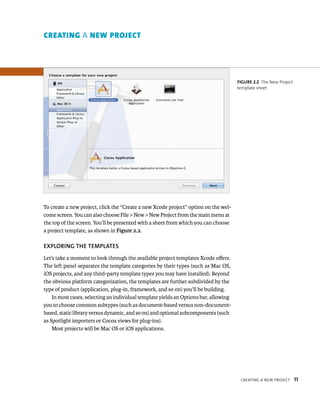
To create a new project, click the “Create a new Xcode project” option on the wel-come 
screen. You can also choose File > New > New Project from the main menu at 
the top of the screen. You’ll be presented with a sheet from which you can choose 
a project template, as shown in Figure 2.2. 
EXPlORING ThE TEMPlATES 
Let’s take a moment to look through the available project templates Xcode offers. 
The left panel separates the template categories by their types (such as Mac OS, 
iOS projects, and any third-party template types you may have installed). Beyond 
the obvious platform categorization, the templates are further subdivided by the 
type of product (application, plug-in, framework, and so on) you’ll be building. 
In most cases, selecting an individual template yields an Options bar, allowing 
you to choose common subtypes (such as document-based versus non-document-based, 
static library versus dynamic, and so on) and optional subcomponents (such 
as Spotlight importers or Cocoa views for plug-ins). 
Most projects will be Mac OS or iOS applications. 
fiGURe 2 2 The New Project 
template sheet 
creAtIng a new project
12 CREATING A TEST PROjECT 
Let’s create a test project with which to explore. To do this, choose the Application 
category under the Mac OS X type and then click the Cocoa Application template. 
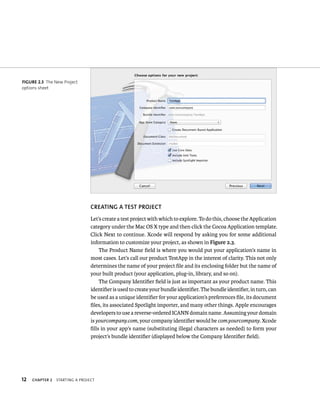
Click Next to continue. Xcode will respond by asking you for some additional 
information to customize your project, as shown in Figure 2.3. 
ChAPTER 2 startIng a projeCt 
The Product Name field is where you would put your application’s name in 
most cases. Let’s call our product TestApp in the interest of clarity. This not only 
determines the name of your project file and its enclosing folder but the name of 
your built product (your application, plug-in, library, and so on). 
The Company Identifier field is just as important as your product name. This 
identifier is used to create your bundle identifier. The bundle identifier, in turn, can 
be used as a unique identifier for your application’s preferences file, its document 
files, its associated Spotlight importer, and many other things. Apple encourages 
developers to use a reverse-ordered ICANN domain name. Assuming your domain 
is yourcompany.com, your company identifier would be com.yourcompany. Xcode 
fills in your app’s name (substituting illegal characters as needed) to form your 
project’s bundle identifier (displayed below the Company Identifier field). 
fiGURe 2 3 The New Project 
options sheet
CreatIng a neW projeCt 13 
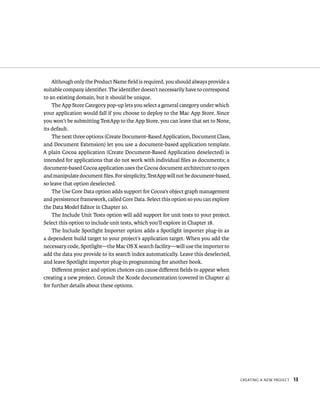
Although only the Product Name field is required, you should always provide a 
suitable company identifier. The identifier doesn’t necessarily have to correspond 
to an existing domain, but it should be unique. 
The App Store Category pop-up lets you select a general category under which 
your application would fall if you choose to deploy to the Mac App Store. Since 
you won’t be submitting TestApp to the App Store, you can leave that set to None, 
its default. 
The next three options (Create Document-Based Application, Document Class, 
and Document Extension) let you use a document-based application template. 
A plain Cocoa application (Create Document-Based Application deselected) is 
intended for applications that do not work with individual files as documents; a 
document-based Cocoa application uses the Cocoa document architecture to open 
and manipulate document files. For simplicity, TestApp will not be document-based, 
so leave that option deselected. 
The Use Core Data option adds support for Cocoa’s object graph management 
and persistence framework, called Core Data. Select this option so you can explore 
the Data Model Editor in Chapter 10. 
The Include Unit Tests option will add support for unit tests to your project. 
Select this option to include unit tests, which you’ll explore in Chapter 18. 
The Include Spotlight Importer option adds a Spotlight importer plug-in as 
a dependent build target to your project’s application target. When you add the 
necessary code, Spotlight—the Mac OS X search facility—will use the importer to 
add the data you provide to its search index automatically. Leave this deselected, 
and leave Spotlight importer plug-in programming for another book. 
Different project and option choices can cause different fields to appear when 
creating a new project. Consult the Xcode documentation (covered in Chapter 4) 
for further details about these options.
14 ChAPTER 2 startIng a projeCt 
Once you’ve filled in the requested information, click Next to continue. Xcode 
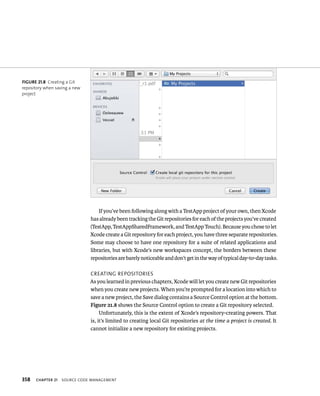
will present a Save As dialog box. Select the option to create a local Git repository 
for this project. You’ll explore Xcode’s Git (and Subversion) support in Chapter 21. 
Choose a convenient location (such as your desktop), and click Save. 
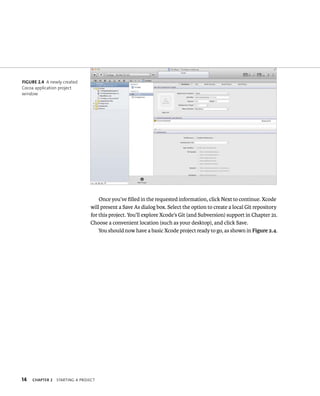
You should now have a basic Xcode project ready to go, as shown in Figure 2.4. 
fiGURe 2 4 A newly created 
Cocoa application project 
window
projeCt modernIzatIon 15 
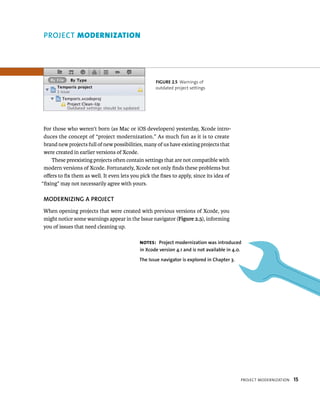
fiGURe 2 5 Warnings of 
outdated project settings 
PROjECT modernIzAtIon 
For those who weren’t born (as Mac or iOS developers) yesterday, Xcode intro-duces 
the concept of “project modernization.” As much fun as it is to create 
brand new projects full of new possibilities, many of us have existing projects that 
were created in earlier versions of Xcode. 
These preexisting projects often contain settings that are not compatible with 
modern versions of Xcode. Fortunately, Xcode not only finds these problems but 
offers to fix them as well. It even lets you pick the fixes to apply, since its idea of 
“fixing” may not necessarily agree with yours. 
MODERNIzING A PROjECT 
When opening projects that were created with previous versions of Xcode, you 
might notice some warnings appear in the Issue navigator (Figure 2.5), informing 
you of issues that need cleaning up. 
Notes: Project modernization was introduced 
in Xcode version 4.1 and is not available in 4.0. 
The Issue navigator is explored in Chapter 3.
16 ChAPTER 2 startIng a projeCt 
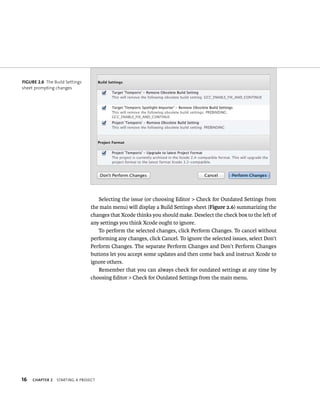
Selecting the issue (or choosing Editor > Check for Outdated Settings from 
the main menu) will display a Build Settings sheet (Figure 2.6) summarizing the 
changes that Xcode thinks you should make. Deselect the check box to the left of 
any settings you think Xcode ought to ignore. 
To perform the selected changes, click Perform Changes. To cancel without 
performing any changes, click Cancel. To ignore the selected issues, select Don’t 
Perform Changes. The separate Perform Changes and Don’t Perform Changes 
buttons let you accept some updates and then come back and instruct Xcode to 
ignore others. 
Remember that you can always check for outdated settings at any time by 
choosing Editor > Check for Outdated Settings from the main menu. 
fiGURe 2 6 The Build Settings 
sheet prompting changes
WrappIng up 17 
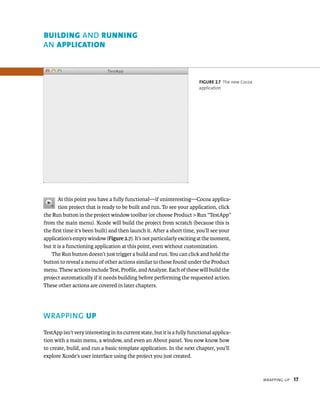
fiGURe 2 7 The new Cocoa 
application 
BuIldIng AND runnIng 
AN ApplIcAtIon 
At this point you have a fully functional—if uninteresting—Cocoa applica-tion 
project that is ready to be built and run. To see your application, click 
the Run button in the project window toolbar (or choose Product > Run “TestApp” 
from the main menu). Xcode will build the project from scratch (because this is 
the first time it’s been built) and then launch it. After a short time, you’ll see your 
application’s empty window (Figure 2.7). It’s not particularly exciting at the moment, 
but it is a functioning application at this point, even without customization. 
The Run button doesn’t just trigger a build and run. You can click and hold the 
button to reveal a menu of other actions similar to those found under the Product 
menu. These actions include Test, Profile, and Analyze. Each of these will build the 
project automatically if it needs building before performing the requested action. 
These other actions are covered in later chapters. 
WRAPPING up 
TestApp isn’t very interesting in its current state, but it is a fully functional applica-tion 
with a main menu, a window, and even an About panel. You now know how 
to create, build, and run a basic template application. In the next chapter, you’ll 
explore Xcode’s user interface using the project you just created.
t
19 
In the previous chapter, you created a Cocoa 
application project called TestApp. In this 
chapter, you’ll explore the anatomy of this 
project and familiarize yourself with Xcode’s user interface. 
Earlier versions of Xcode allowed users to select a multiple-window 
interface, but the default was single-window (where most views 
related to the open project were contained within the same window). 
Single-window mode wasn’t quite single-window mode, however; 
a number of auxiliary windows could appear. In Xcode 4, Apple 
has taken the all-in-one-window design approach much further. 
If it’s not open already, open the TestApp project you created in 
Chapter 2.
20 indow 
Inspector 
Debugger Bar Libraries 
An Xcode project consists of a collection of source files (such as Objective-C files, 
Interface Builder nibs, and Core Data managed object models), resources (such 
as images and rich text files), and the Xcode project file, in which the various 
settings and build rules are maintained. It is helpful to think of an Xcode project 
as a collection of sources and resources with a project file to bind them together. 
Xcode 4 goes a step further and allows you to combine multiple related projects 
into a single workspace (see Chapter 16). The main window for a given project or 
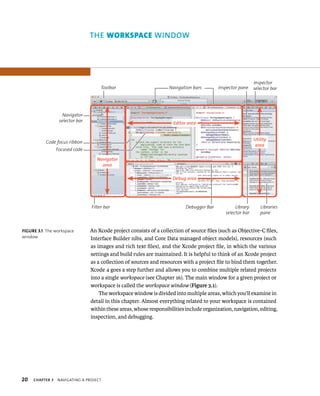
workspace is called the workspace window (Figure 3.1). 
The workspace window is divided into multiple areas, which you’ll examine in 
detail in this chapter. Almost everything related to your workspace is contained 
within these areas, whose responsibilities include organization, navigation, editing, 
inspection, and debugging. 
Code focus ribbon 
ChAPTER 3 navIgatIng a projeCt 
selector bar 
Inspector pane 
Editor area 
Debug area 
Utility 
area 
Navigator 
area 
Navigation bars 
Library 
selector bar 
pane 
Filter bar 
Navigator 
selector bar 
Focused code 
Toolbar 
fiGURe 3 1 The workspace 
window
tHe navIgator area 21 
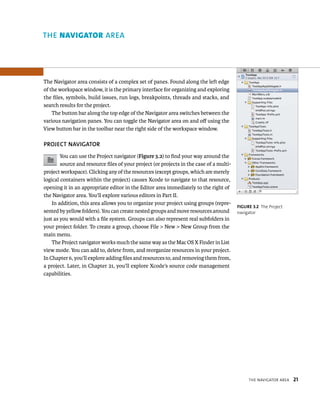
The Navigator area consists of a complex set of panes. Found along the left edge 
of the workspace window, it is the primary interface for organizing and exploring 
the files, symbols, build issues, run logs, breakpoints, threads and stacks, and 
search results for the project. 
The button bar along the top edge of the Navigator area switches between the 
various navigation panes. You can toggle the Navigator area on and off using the 
View button bar in the toolbar near the right side of the workspace window. 
PROjECT NAvIGATOR 
You can use the Project navigator (Figure 3.2) to find your way around the 
source and resource files of your project (or projects in the case of a multi-project 
workspace). Clicking any of the resources (except groups, which are merely 
logical containers within the project) causes Xcode to navigate to that resource, 
opening it in an appropriate editor in the Editor area immediately to the right of 
the Navigator area. You’ll explore various editors in Part II. 
In addition, this area allows you to organize your project using groups (repre-sented 
by yellow folders). You can create nested groups and move resources around 
just as you would with a file system. Groups can also represent real subfolders in 
your project folder. To create a group, choose File > New > New Group from the 
main menu. 
The Project navigator works much the same way as the Mac OS X Finder in List 
view mode. You can add to, delete from, and reorganize resources in your project. 
In Chapter 6, you’ll explore adding files and resources to, and removing them from, 
a project. Later, in Chapter 21, you’ll explore Xcode’s source code management 
capabilities. 
fiGURe 3 2 The Project 
navigator 
rea
22 SyMBOl NAvIGATOR 
ChAPTER 3 navIgatIng a projeCt 
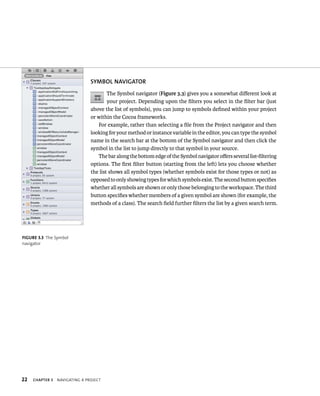
The Symbol navigator (Figure 3.3) gives you a somewhat different look at 
your project. Depending upon the filters you select in the filter bar (just 
above the list of symbols), you can jump to symbols defined within your project 
or within the Cocoa frameworks. 
For example, rather than selecting a file from the Project navigator and then 
looking for your method or instance variable in the editor, you can type the symbol 
name in the search bar at the bottom of the Symbol navigator and then click the 
symbol in the list to jump directly to that symbol in your source. 
The bar along the bottom edge of the Symbol navigator offers several list-filtering 
options. The first filter button (starting from the left) lets you choose whether 
the list shows all symbol types (whether symbols exist for those types or not) as 
opposed to only showing types for which symbols exist. The second button specifies 
whether all symbols are shown or only those belonging to the workspace. The third 
button specifies whether members of a given symbol are shown (for example, the 
methods of a class). The search field further filters the list by a given search term. 
fiGURe 3 3 The Symbol 
navigator
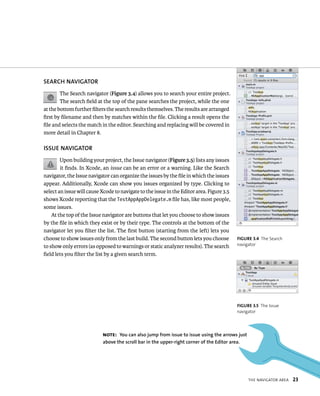
fiGURe 3 4 The Search 
navigator 
tHe navIgator area 23 
SEARCh NAvIGATOR 
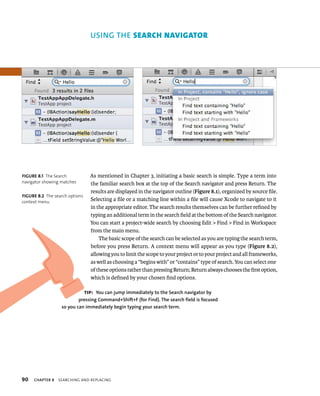
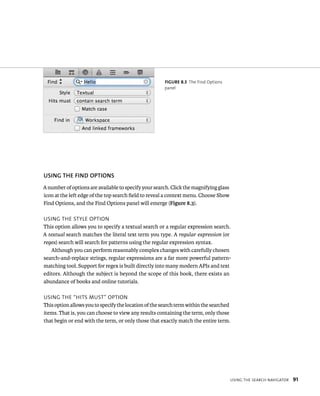
The Search navigator (Figure 3.4) allows you to search your entire project. 
The search field at the top of the pane searches the project, while the one 
at the bottom further filters the search results themselves. The results are arranged 
first by filename and then by matches within the file. Clicking a result opens the 
file and selects the match in the editor. Searching and replacing will be covered in 
more detail in Chapter 8. 
ISSuE NAvIGATOR 
Upon building your project, the Issue navigator (Figure 3.5) lists any issues 
it finds. In Xcode, an issue can be an error or a warning. Like the Search 
navigator, the Issue navigator can organize the issues by the file in which the issues 
appear. Additionally, Xcode can show you issues organized by type. Clicking to 
select an issue will cause Xcode to navigate to the issue in the Editor area. Figure 3.5 
shows Xcode reporting that the TestAppAppDelegate.m file has, like most people, 
some issues. 
At the top of the Issue navigator are buttons that let you choose to show issues 
by the file in which they exist or by their type. The controls at the bottom of the 
navigator let you filter the list. The first button (starting from the left) lets you 
choose to show issues only from the last build. The second button lets you choose 
to show only errors (as opposed to warnings or static analyzer results). The search 
field lets you filter the list by a given search term. 
fiGURe 3 5 The Issue 
navigator 
Note: you can also jump from issue to issue using the arrows just 
above the scroll bar in the upper-right corner of the Editor area.
24 DEBuG NAvIGATOR 
ChAPTER 3 navIgatIng a projeCt 
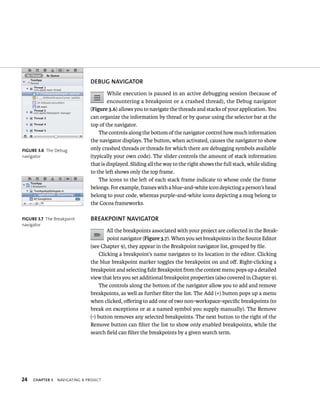
While execution is paused in an active debugging session (because of 
encountering a breakpoint or a crashed thread), the Debug navigator 
(Figure 3.6) allows you to navigate the threads and stacks of your application. You 
can organize the information by thread or by queue using the selector bar at the 
top of the navigator. 
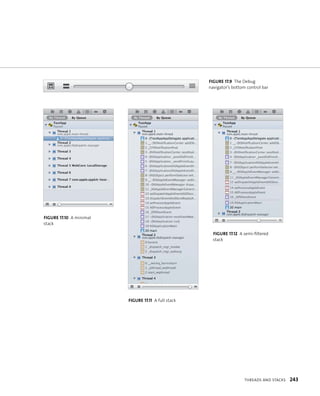
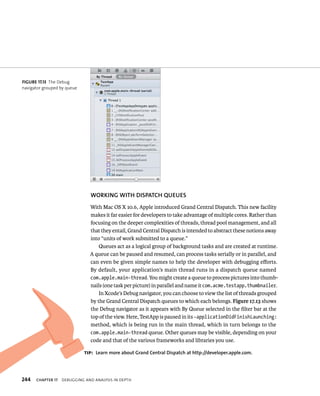
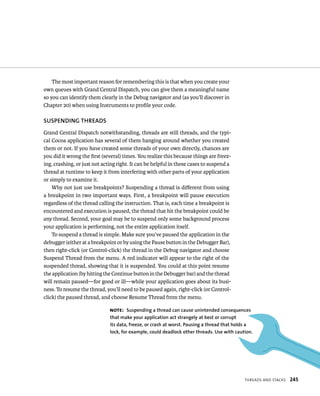
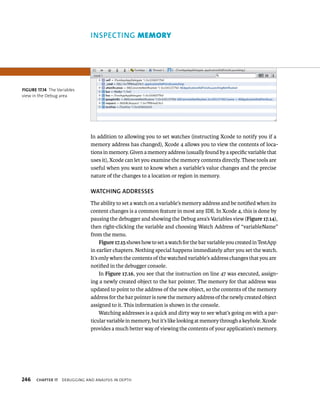
The controls along the bottom of the navigator control how much information 
the navigator displays. The button, when activated, causes the navigator to show 
only crashed threads or threads for which there are debugging symbols available 
(typically your own code). The slider controls the amount of stack information 
that is displayed. Sliding all the way to the right shows the full stack, while sliding 
to the left shows only the top frame. 
The icons to the left of each stack frame indicate to whose code the frame 
belongs. For example, frames with a blue-and-white icon depicting a person’s head 
belong to your code, whereas purple-and-white icons depicting a mug belong to 
the Cocoa frameworks. 
BREAKPOINT NAvIGATOR 
All the breakpoints associated with your project are collected in the Break-point 
navigator (Figure 3.7). When you set breakpoints in the Source Editor 
(see Chapter 9), they appear in the Breakpoint navigator list, grouped by file. 
Clicking a breakpoint’s name navigates to its location in the editor. Clicking 
the blue breakpoint marker toggles the breakpoint on and off. Right-clicking a 
breakpoint and selecting Edit Breakpoint from the context menu pops up a detailed 
view that lets you set additional breakpoint properties (also covered in Chapter 9). 
The controls along the bottom of the navigator allow you to add and remove 
breakpoints, as well as further filter the list. The Add (+) button pops up a menu 
when clicked, offering to add one of two non-workspace-specific breakpoints (to 
break on exceptions or at a named symbol you supply manually). The Remove 
(-) button removes any selected breakpoints. The next button to the right of the 
Remove button can filter the list to show only enabled breakpoints, while the 
search field can filter the breakpoints by a given search term. 
fiGURe 3 6 The Debug 
navigator 
fiGURe 3 7 The Breakpoint 
navigator
tHe navIgator area 25 
lOG NAvIGATOR 
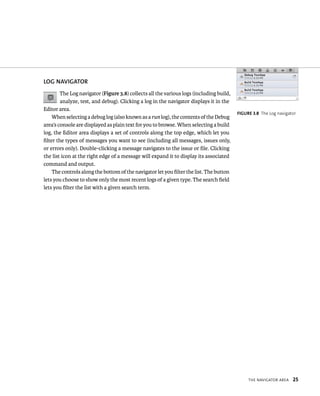
The Log navigator (Figure 3.8) collects all the various logs (including build, 
analyze, test, and debug). Clicking a log in the navigator displays it in the 
Editor area. 
When selecting a debug log (also known as a run log), the contents of the Debug 
area’s console are displayed as plain text for you to browse. When selecting a build 
log, the Editor area displays a set of controls along the top edge, which let you 
filter the types of messages you want to see (including all messages, issues only, 
or errors only). Double-clicking a message navigates to the issue or file. Clicking 
the list icon at the right edge of a message will expand it to display its associated 
command and output. 
The controls along the bottom of the navigator let you filter the list. The button 
lets you choose to show only the most recent logs of a given type. The search field 
lets you filter the list with a given search term. 
fiGURe 3 8 The Log navigator
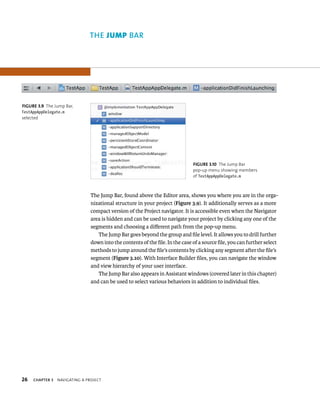
26 The Jump Bar, found above the Editor area, shows you where you are in the orga-nizational 
ChAPTER 3 navIgatIng a projeCt 
structure in your project (Figure 3.9). It additionally serves as a more 
compact version of the Project navigator. It is accessible even when the Navigator 
area is hidden and can be used to navigate your project by clicking any one of the 
segments and choosing a different path from the pop-up menu. 
The Jump Bar goes beyond the group and file level. It allows you to drill further 
down into the contents of the file. In the case of a source file, you can further select 
methods to jump around the file’s contents by clicking any segment after the file’s 
segment (Figure 3.10). With Interface Builder files, you can navigate the window 
and view hierarchy of your user interface. 
The Jump Bar also appears in Assistant windows (covered later in this chapter) 
and can be used to select various behaviors in addition to individual files. 
fiGURe 3 9 The Jump Bar, 
TestAppAppDelegate.m 
selected 
fiGURe 3 10 The Jump Bar 
pop-up menu showing members 
of TestAppAppDelegate.m 
ar
tHe edItor area 27 
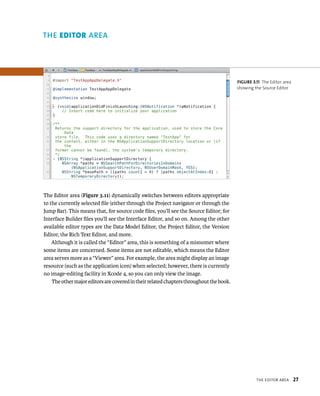
The Editor area (Figure 3.11) dynamically switches between editors appropriate 
to the currently selected file (either through the Project navigator or through the 
Jump Bar). This means that, for source code files, you’ll see the Source Editor; for 
Interface Builder files you’ll see the Interface Editor, and so on. Among the other 
available editor types are the Data Model Editor, the Project Editor, the Version 
Editor, the Rich Text Editor, and more. 
Although it is called the “Editor” area, this is something of a misnomer where 
some items are concerned. Some items are not editable, which means the Editor 
area serves more as a “Viewer” area. For example, the area might display an image 
resource (such as the application icon) when selected; however, there is currently 
no image-editing facility in Xcode 4, so you can only view the image. 
The other major editors are covered in their related chapters throughout the book. 
fiGURe 3 11 The Editor area 
showing the Source Editor 
rea
28 ThE ASSISTANT 
ChAPTER 3 navIgatIng a projeCt 
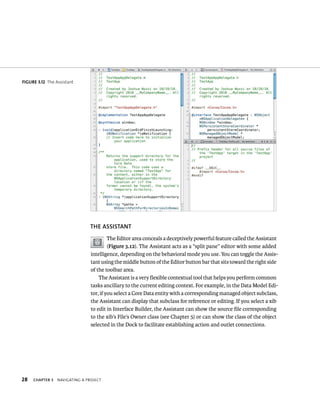
The Editor area conceals a deceptively powerful feature called the Assistant 
(Figure 3.12). The Assistant acts as a “split pane” editor with some added 
intelligence, depending on the behavioral mode you use. You can toggle the Assis-tant 
using the middle button of the Editor button bar that sits toward the right side 
of the toolbar area. 
The Assistant is a very flexible contextual tool that helps you perform common 
tasks ancillary to the current editing context. For example, in the Data Model Edi-tor, 
if you select a Core Data entity with a corresponding managed object subclass, 
the Assistant can display that subclass for reference or editing. If you select a xib 
to edit in Interface Builder, the Assistant can show the source file corresponding 
to the xib’s File’s Owner class (see Chapter 5) or can show the class of the object 
selected in the Dock to facilitate establishing action and outlet connections. 
fiGURe 3 12 The Assistant
tHe edItor area 29 
openIng FIles In tHe assIstant 
When you turn on the Assistant using the toolbar, it displays the selected source 
file’s counterpart in a single pane in Manual behavior mode (where you choose 
what is displayed in the Assistant pane yourself using its Jump Bar). You can use the 
Assistant’s Jump Bar to view or edit any file in your workspace. There will always 
be at least one Assistant pane visible while the Assistant is active. 
addIng and removIng assIstant panes 
You can add or remove additional Assistant windows using 
the Add (+) and Remove (x) buttons in the upper-right corner 
of the existing Assistant pane (at the right edge of the panel’s Jump Bar). 
To add a new pane, click the Add button on any existing pane. The new pane 
will have its own Jump Bar and will be added after the pane whose Add button you 
clicked. That is, if you clicked the Add button of the last pane, the new pane will 
appear after the last one; if you clicked Add for the first of several panes, the new 
pane will appear after the first one. To remove a pane, click the Remove button 
on the desired pane. 
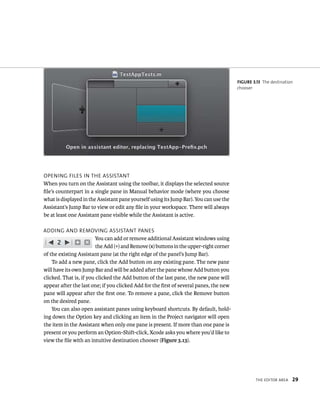
You can also open assistant panes using keyboard shortcuts. By default, hold-ing 
down the Option key and clicking an item in the Project navigator will open 
the item in the Assistant when only one pane is present. If more than one pane is 
present or you perform an Option-Shift-click, Xcode asks you where you’d like to 
view the file with an intuitive destination chooser (Figure 3.13). 
fiGURe 3 13 The destination 
chooser
fiGURe 3 14 The Assistant 
30 CHangIng layout BeHavIor 
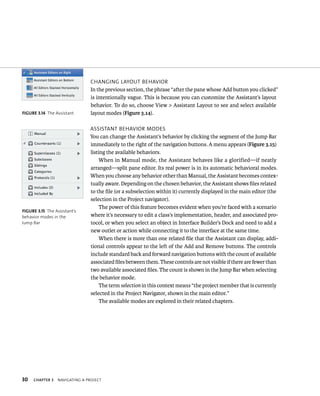
In the previous section, the phrase “after the pane whose Add button you clicked” 
is intentionally vague. This is because you can customize the Assistant’s layout 
behavior. To do so, choose View > Assistant Layout to see and select available 
layout modes (Figure 3.14). 
assIstant BeHavIor modes 
You can change the Assistant’s behavior by clicking the segment of the Jump Bar 
immediately to the right of the navigation buttons. A menu appears (Figure 3.15) 
listing the available behaviors. 
When in Manual mode, the Assistant behaves like a glorified—if neatly 
arranged—split pane editor. Its real power is in its automatic behavioral modes. 
When you choose any behavior other than Manual, the Assistant becomes contex-tually 
ChAPTER 3 navIgatIng a projeCt 
aware. Depending on the chosen behavior, the Assistant shows files related 
to the file (or a subselection within it) currently displayed in the main editor (the 
selection in the Project navigator). 
The power of this feature becomes evident when you’re faced with a scenario 
where it’s necessary to edit a class’s implementation, header, and associated pro-tocol, 
or when you select an object in Interface Builder’s Dock and need to add a 
new outlet or action while connecting it to the interface at the same time. 
When there is more than one related file that the Assistant can display, addi-tional 
controls appear to the left of the Add and Remove buttons. The controls 
include standard back and forward navigation buttons with the count of available 
associated files between them. These controls are not visible if there are fewer than 
two available associated files. The count is shown in the Jump Bar when selecting 
the behavior mode. 
The term selection in this context means “the project member that is currently 
selected in the Project Navigator, shown in the main editor.” 
The available modes are explored in their related chapters. 
fiGURe 3 15 The Assistant’s 
behavior modes in the 
Jump Bar
tHe utIlIty area 31 
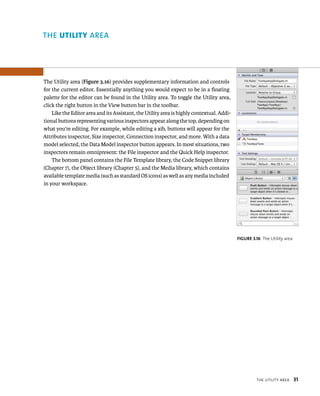
The Utility area (Figure 3.16) provides supplementary information and controls 
for the current editor. Essentially anything you would expect to be in a floating 
palette for the editor can be found in the Utility area. To toggle the Utility area, 
click the right button in the View button bar in the toolbar. 
Like the Editor area and its Assistant, the Utility area is highly contextual. Addi-tional 
buttons representing various inspectors appear along the top, depending on 
what you’re editing. For example, while editing a xib, buttons will appear for the 
Attributes inspector, Size inspector, Connection inspector, and more. With a data 
model selected, the Data Model inspector button appears. In most situations, two 
inspectors remain omnipresent: the File inspector and the Quick Help inspector. 
The bottom panel contains the File Template library, the Code Snippet library 
(Chapter 7), the Object library (Chapter 5), and the Media library, which contains 
available template media (such as standard OS icons) as well as any media included 
in your workspace. 
fiGURe 3 16 The Utility area 
rea
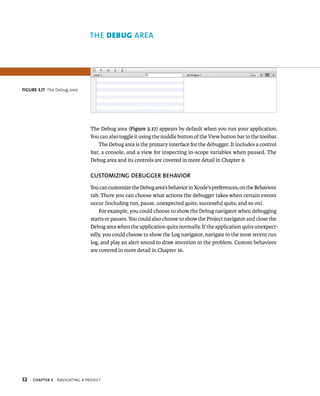
32 The Debug area (Figure 3.17) appears by default when you run your application. 
You can also toggle it using the middle button of the View button bar in the toolbar. 
The Debug area is the primary interface for the debugger. It includes a control 
bar, a console, and a view for inspecting in-scope variables when paused. The 
Debug area and its controls are covered in more detail in Chapter 9. 
CuSTOMIzING DEBuGGER BEhAvIOR 
You can customize the Debug area’s behavior in Xcode’s preferences, on the Behaviors 
tab. There you can choose what actions the debugger takes when certain events 
occur (including run, pause, unexpected quits, successful quits, and so on). 
For example, you could choose to show the Debug navigator when debugging 
starts or pauses. You could also choose to show the Project navigator and close the 
Debug area when the application quits normally. If the application quits unexpect-edly, 
ChAPTER 3 navIgatIng a projeCt 
you could choose to show the Log navigator, navigate to the most recent run 
log, and play an alert sound to draw attention to the problem. Custom behaviors 
are covered in more detail in Chapter 16. 
fiGURe 3 17 The Debug area 
rea
tHe aCtIvIty vIeWer 33 
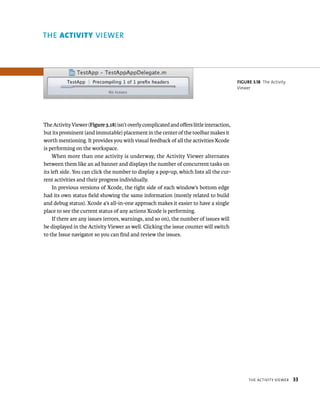
The Activity Viewer (Figure 3.18) isn’t overly complicated and offers little interaction, 
but its prominent (and immutable) placement in the center of the toolbar makes it 
worth mentioning. It provides you with visual feedback of all the activities Xcode 
is performing on the workspace. 
When more than one activity is underway, the Activity Viewer alternates 
between them like an ad banner and displays the number of concurrent tasks on 
its left side. You can click the number to display a pop-up, which lists all the cur-rent 
activities and their progress individually. 
In previous versions of Xcode, the right side of each window’s bottom edge 
had its own status field showing the same information (mostly related to build 
and debug status). Xcode 4’s all-in-one approach makes it easier to have a single 
place to see the current status of any actions Xcode is performing. 
If there are any issues (errors, warnings, and so on), the number of issues will 
be displayed in the Activity Viewer as well. Clicking the issue counter will switch 
to the Issue navigator so you can find and review the issues. 
fiGURe 3 18 The Activity 
Viewer 
Viewer
34 ThE tABs 
Another new feature in Xcode 4 is the introduction of tabs. Similar to the Safari 
browser, you can create tabs within the same workspace window for various project 
members in the workspace. For example, Figure 3.19 shows a source file open in 
one tab and a user interface file open (in the Interface Editor) in another. 
To create a new tab, choose File > New > New Tab from the main menu. Click 
any tab to switch to it and navigate to the project member you’d like the tab to 
represent. You can reorder tabs by dragging and dropping. To rename a tab, double-click 
ChAPTER 3 navIgatIng a projeCt 
the title, type a new name, and then press Return. To close a tab, click the X 
icon that appears when you mouse over the tab or choose File > Close Tab from 
the main menu. 
fiGURe 3 19 Two tabs showing 
TestAppAppDelegate.m and 
MainMenu.xib 
tip: Keyboard shortcuts are handy ways to speed up tab use. 
Pressing Command+T creates a new tab, while Command+W 
closes the currently selected tab. Press Command+} and Command+{ 
to switch between the next and previous tabs.
WrappIng up 35 
The Organizer window (Figure 3.20) stands apart from workspace windows as 
a collection point for project and device management, including repositories, 
archives, snapshots, and more. The various aspects of the Organizer will be explored 
throughout the book. To open the Organizer, choose Window > Organizer from 
the main menu. 
WRAPPING up 
This chapter gave you a taste of the most obvious user interface elements in the 
workspace window. You’ll explore more of the user interface in later chapters, but 
there’s far more to Xcode than can fit in a book this size. In the next chapter, you’ll 
learn how to use Xcode’s built-in documentation browser and help facilities to get 
help with your coding and with using Xcode itself. 
fiGURe 3 20 The Organizer 
window 
indow
4 
geTTing Help
37 
You can get help in Xcode 4 for the IDE as 
well as the Cocoa frameworks in a number 
of ways. In this chapter, you’ll learn how to 
find the answers you need.
38 ChAPTER 4 gettIng Help 
ThE Help MENu 
You’ll start with the most obvious place first. If you’re familiar with Mac OS X, you 
should be familiar with the Help menu. Starting with Mac OS X 10.5, the Help menu 
(Figure 4.1) features a standard Search field, which shows you not only help topics 
but main menu items that match your search term. 
Beneath the Search field are menu choices to open some of the more important 
help libraries with which you should familiarize yourself. A link to Xcode’s release 
notes is also listed there. Most of these will open the Organizer window, which 
you saw in Chapter 3. 
XCODE hElP 
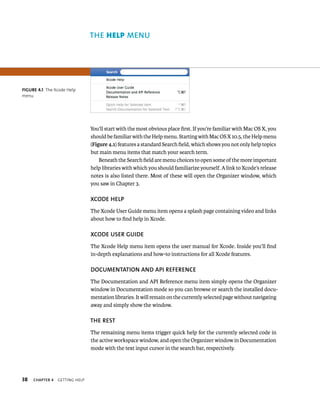
The Xcode User Guide menu item opens a splash page containing video and links 
about how to find help in Xcode. 
XCODE uSER GuIDE 
The Xcode Help menu item opens the user manual for Xcode. Inside you’ll find 
in-depth explanations and how-to instructions for all Xcode features. 
DOCuMENTATION AND API REfERENCE 
The Documentation and API Reference menu item simply opens the Organizer 
window in Documentation mode so you can browse or search the installed docu-mentation 
libraries. It will remain on the currently selected page without navigating 
away and simply show the window. 
ThE REST 
The remaining menu items trigger quick help for the currently selected code in 
the active workspace window, and open the Organizer window in Documentation 
mode with the text input cursor in the search bar, respectively. 
fiGURe 4 1 The Xcode Help 
menu
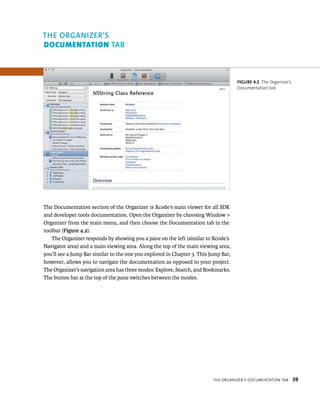
The Documentation section of the Organizer is Xcode’s main viewer for all SDK 
and developer tools documentation. Open the Organizer by choosing Window > 
Organizer from the main menu, and then choose the Documentation tab in the 
toolbar (Figure 4.2). 
The Organizer responds by showing you a pane on the left (similar to Xcode’s 
Navigator area) and a main viewing area. Along the top of the main viewing area, 
you’ll see a Jump Bar similar to the one you explored in Chapter 3. This Jump Bar, 
however, allows you to navigate the documentation as opposed to your project. 
The Organizer’s navigation area has three modes: Explore, Search, and Bookmarks. 
The button bar at the top of the pane switches between the modes. 
fiGURe 4 2 The Organizer’s 
Documentation tab 
tHe organIzer’s doCumentatIon taB 39 
ab
40 ChAPTER 4 gettIng Help 
ore 
In Explore mode, an outline of each of the documentation sets and their 
sections displays. You can drill down by topic through the guides and API 
reference documents. 
SEARCh 
In Search mode, a search field appears, allowing you to search all installed 
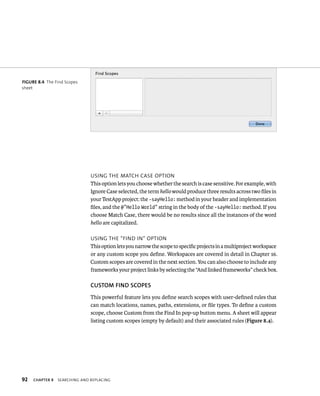
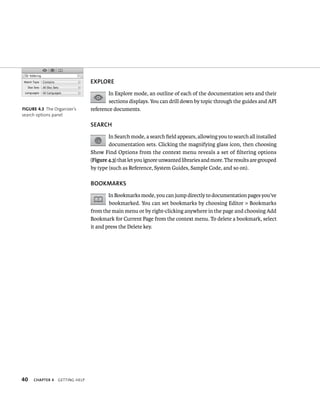
documentation sets. Clicking the magnifying glass icon, then choosing 
Show Find Options from the context menu reveals a set of filtering options 
(Figure 4.3) that let you ignore unwanted libraries and more. The results are grouped 
by type (such as Reference, System Guides, Sample Code, and so on). 
BOOKMARKS 
In Bookmarks mode, you can jump directly to documentation pages you’ve 
bookmarked. You can set bookmarks by choosing Editor > Bookmarks 
from the main menu or by right-clicking anywhere in the page and choosing Add 
Bookmark for Current Page from the context menu. To delete a bookmark, select 
it and press the Delete key. 
fiGURe 4 3 The Organizer’s 
search options panel
tHe sourCe edItor 41 
Although you’ll explore the depths of the Source Editor in Part II, there are a couple 
of useful ways to find contextual help from within your code. 
QuICK hElP IN ThE uTIlITy AREA 
As you saw in Chapter 3, Xcode’s Utility area gives you access to various 
properties, code snippets, user interface elements for Interface Builder, 
and Quick Help. The Quick Help utility continuously updates its content depending 
on what you’ve selected in the Source Editor. 
To get a feel for this utility, make sure your TestApp project is open and then 
select the TestAppAppDelegate.m source file from the Classes group in the Project 
navigator. Open the Utility area, and select the Quick Help utility. In the Source 
Editor, click window in the @synthesize window; statement. Quick Help responds 
by showing you the name of the symbol (window) and the header file in which it is 
declared (the TestApp project’s TestAppAppDelegate.h file). 
For a more interesting example, scroll down a bit until you find the – (NSString *) 
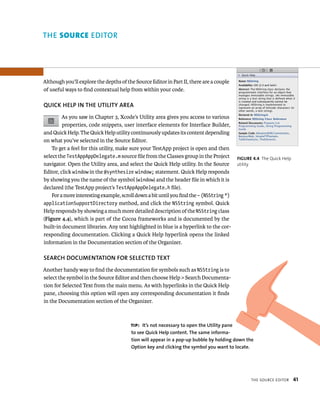
applicationSupportDirectory method, and click the NSString symbol. Quick 
Help responds by showing a much more detailed description of the NSString class 
(Figure 4.4), which is part of the Cocoa frameworks and is documented by the 
built-in document libraries. Any text highlighted in blue is a hyperlink to the cor-responding 
documentation. Clicking a Quick Help hyperlink opens the linked 
information in the Documentation section of the Organizer. 
SEARCh DOCuMENTATION fOR SElECTED TEXT 
Another handy way to find the documentation for symbols such as NSString is to 
select the symbol in the Source Editor and then choose Help > Search Documenta-tion 
for Selected Text from the main menu. As with hyperlinks in the Quick Help 
pane, choosing this option will open any corresponding documentation it finds 
in the Documentation section of the Organizer. 
fiGURe 4 4 The Quick Help 
utility 
tip: It’s not necessary to open the utility pane 
to see Quick help content. The same informa-tion 
will appear in a pop-up bubble by holding down the 
Option key and clicking the symbol you want to locate. 
ditor
42 ChAPTER 4 gettIng Help 
COMMuNITy Help 
AND FeedBAck 
There are a number of community Web sites for finding more help than is available 
in the documentation, including Apple’s own developer forums. See Appendix D 
for more information. 
APPlE’S DEvElOPER fORuMS 
Apple’s developer forums are accessible to ADC members (http://devforums.apple. 
com). There you can receive help and advice from the Cocoa developer commu-nity 
as well as the occasional Apple engineer. Because this is a public forum, it’s 
important to keep in mind that most people there are developers like you and 
are volunteering their time. Take extra care to search for similar questions before 
posting, ask detailed and clearly written questions, and be civil. As with any com-munity, 
anything less than civility and courtesy will make the community less 
likely to help you in the future. 
DOCuMENTATION ERRORS 
If there is anything about Apple’s documentation that is unclear, incorrect, or 
lacking in any way in Xcode, you are encouraged to submit feedback to Apple. At 
the bottom of every page of the documentation are hyperlinks that allow you to 
submit feedback—good, sort-of-good, and bad—to the Apple documentation team. 
Constructive, detailed feedback helps Apple provide better documentation, and 
improvements are released often.
WrappIng up 43 
WRAPPING up 
Xcode offers many ways to find help. Most of those ways point to the same docu-mentation 
set, but even the documentation pages help you submit suggestions for 
improvement. In addition, you will find a number of community Web sites (one of 
which is Apple-hosted) and blogs a quick Google search away. Even if the built-in 
documentation doesn’t help, the chances are quite good you’ll find your answer 
on the World Wide Web. 
You should now have your bearings in the Xcode IDE. In Part II, you’ll use 
Xcode to expand on the TestApp project by adding some user interface elements, 
writing some code, defining a data model, and more. From there, you’ll delve into 
the debugger and building the application for deployment.
This page intentionally left blank
45 
Part II 
working 
wiTh cocoA 
ApplIcAtIons
5 
creaTing 
user InterFAces
47 
In previous versions of Xcode Tools, Inter-face 
Builder was a separate application. In 
this chapter, you’ll learn how to use Xcode 4’s 
newly integrated user interface tools. 
The contents of this chapter require some familiarity with Cocoa 
development, which is beyond the scope of this book. Basic back-ground 
is given where necessary; however, you are encouraged 
to read the Cocoa Fundamentals Guide provided by Apple to 
understand the design concepts behind user interfaces in Cocoa 
applications.
48 uNDERSTANDING nIBs 
Cocoa applications load their graphic user interfaces from Interface Builder files 
(called nibs, or xibs if using XML format, which is the new default). The files are 
essentially “freeze-dried” object graphs representing the user interface you’ve 
constructed and the connections between the UI elements and one or more con-troller 
objects. Several key concepts are important to grasp when designing and 
working with a Mac OS or iOS application. 
fIlE’S OWNER AND CONTROllER OBjECTS 
A nib and its content always have an owner. Whether it’s an instance of 
NSWindowController, NSViewController, NSDocument, or any other object, the 
owner serves as the top-level object that serves as the primary point to which to 
wire the user interface elements found in the nib. 
Generally speaking, File’s Owner is intended to be a controller object (or, in 
the case of NSDocument, a model-controller). There can be and often are multiple 
controller objects within a single nib, any of which can provide outlets or actions. 
ACTIONS AND OuTlETS 
Two types of connections exist between your code and a nib’s contents: actions 
and outlets. Both types of connection are established by drag and drop. 
An action is a method that is called by a control. That is, depending on the type 
of control, some form of user input has triggered the control to perform its function. 
In the case of a button, a mouse click would trigger the button’s action. Any given 
control’s action requires two elements: the action itself and a target. Actions are 
defined in source code as follows: 
- (IBAction)performSomeAction:(id)sender; 
- (IBAction)performSomeOtherAction:(id)sender; 
An outlet is an instance variable of an object (typically a controller or view object) 
that serves as a pointer to an element in a nib. Outlets are used to communicate 
Note: The file extension .nib stands for NextStep Interface Builder, 
which is a holdover from the original creators of these tools—Next, Inc. 
The newer file extension .xib stands for XMl Interface Builder. 
ChAPTER 5 CreatIng user InterFaCes
understandIng nIBs 49 
with these objects. An example would be an outlet named tableView that points 
to an NSTableView instance that exists within a nib. The outlet could be used to 
ask the table view to refresh after some change to its underlying contents. Outlets 
are defined in source code as instance variables of a controller as follows: 
IBOutlet NSTextField * titleField; 
IBOutlet NSTableView * userListTable; 
COMPARTMENTAlIzATION 
It’s common for an application to have multiple xib files that contain portions of the 
UI. In all but the simplest applications, there are usually some parts of the applica-tion 
that the user won’t access in every session, so it’s not necessary to load every 
part of the UI every time the application is executed. Loading only those portions 
of the UI that are needed can make the application more responsive and can give 
it a smaller memory footprint. 
An example of this would be the preferences window of a Mac OS application 
or the user account view of an iOS application. These are user interface elements 
that should be kept in their own separate nibs and their associated controllers 
only created as needed. 
The first advantage of this approach is performance. Your application will save 
memory by loading only the parts of the interface the user needs when they need it, 
which is a necessity on an iOS device. Since your application is creating controllers 
and their associated UI on demand, it takes less time to launch the application and 
reach a ready state for the user. 
The second advantage is maintainability for the developer. By separating the 
user interface into distinct areas of responsibility (the preferences, the user login 
window, the export sheet, the map view), your application’s architecture is clearer 
and more easily managed and navigable. 
Note: The details of the target/action mechanism and its various 
forms are beyond the scope of this book. Consult the Cocoa fun-damentals 
Guide in Apple’s Cocoa documentation (found in Xcode’s 
documentation browser or on the ADC Web site) for more information.
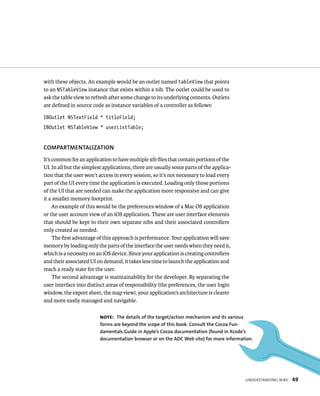
fiGURe 5 1 Interface Builder 
showing a nib 
50 GETTING fAMIlIAR 
WITh InterFAce BuIlder 
The Interface Builder tools in Xcode 4 consist of the Editor, the Utility area (which 
includes a library of user interface elements and inspectors with which to config-ure 
them), and the Assistant for defining actions and outlets. Figure 5.1 shows a 
project nib ready to edit in the Interface Builder Editor. The Assistant, whose role 
in the Interface Builder Editor we’ll explore later in this chapter, is also shown in 
Figure 5.1. 
ChAPTER 5 CreatIng user InterFaCes
ThE EDITOR AREA 
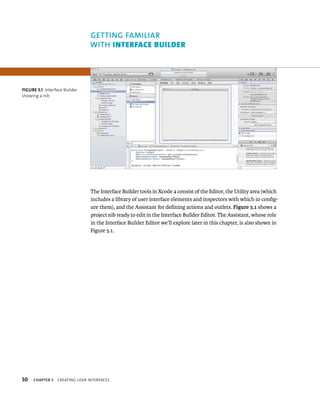
The Editor area (Figure 5.2) is where you construct the interface. This involves 
dragging interface elements from the Utility area’s object library into the canvas 
(the grid area) of the Editor and sizing and positioning them as needed. You can 
also create interface elements and controller objects by dragging them into the 
Dock, immediately to the left of the canvas. 
The dock bar along the left side of the Editor (to the left of the grid) in 
Figure 5.2 is expanded to show more detail about the objects contained in 
the xib. Use the button at the bottom of the dock to expand or collapse the dock. 
Only user interface elements (such as buttons and windows) can be dragged 
into the canvas. Instances of controllers aren’t part of the user interface but are 
created or represented in the nib to serve as a connection point between the UI 
and your code; therefore, they exist only in the Dock. 
You can make connections to outlets by holding down the Control key and 
dragging from the controller in which the outlet is defined to the desired interface 
element. The controller could be File’s Owner (the controller to which the contents 
of the nib belong) or some other controller object that you’ve instantiated in your nib. 
fiGURe 5 2 The Interface 
Builder Editor area 
gettIng FamIlIar WItH InterFaCe BuIlder 51
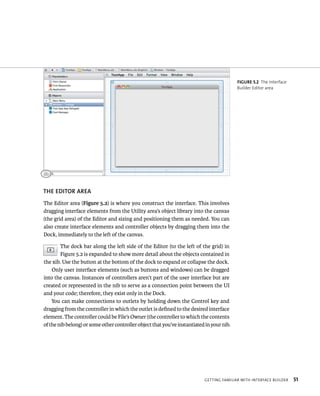
fiGURe 5 3 The connections 
window 
52 You can make connections to actions by holding down the Control key and 
dragging from the interface element to the controller that defines the desired 
action. For example, a button could be connected to a Create User action. More 
than one user interface element (such as a menu item) can be connected to a given 
action. The sender of the action is always passed along to the action, allowing you 
to respond differently depending on the sender or to query the sender for its state, 
such as whether a check box is selected or deselected. 
Right-clicking an object in the Editor displays a semitransparent window that 
contains a list of the object’s outlets, the outlets of other objects that reference it, 
and actions the object can receive (Figure 5.3). Connections can be formed from 
this window by dragging a connection from the circle that is to the right of a given 
outlet or action to the target. To disconnect an outlet or action, click the X in the 
middle of the connection. 
The Jump Bar follows the same hierarchy as the windows and views in the nib 
and represents the currently selected object. For example, the selected object could 
be a button within a tab view within a window within the nib. 
ChAPTER 5 CreatIng user InterFaCes
ThE uTIlITy AREA 
When a nib is selected in the navigator, the Utility area (Figure 5.4) adds additional 
inspectors to the File and Quick Help panes, such as the control’s style, auto-sizing 
settings, and animation settings. Select any element or controller object in the 
canvas or the Dock to view or adjust its properties using the inspectors. 
Connections can also be formed with the Utility area, using the Connections 
inspector (Figure 5.5). This inspector is similar to the window that appears when 
right-clicking an object in the Editor, and it behaves in the same way. 
Below the inspectors is the Libraries pane mentioned in Chapter 3. The Object 
library (Figure 5.6) contains a list of standard Cocoa objects as well as objects 
belonging to other frameworks and code libraries (such as QTKit or WebKit). 
The pop-up at the top filters the list by library while the search field at the bot-tom 
filters by search term. Hovering the mouse pointer over an object provides 
a description of the object if one exists. Drag an object from the library to the 
canvas or the Dock to add it to the nib (or to a specific view or window). You can 
also double-click an object to add it. 
fiGURe 5 4 The Utility area 
showing available Interface 
Builder inspectors 
fiGURe 5 5 The Connections 
inspector 
fiGURe 5 6 The Interface 
Builder Object library 
gettIng FamIlIar WItH InterFaCe BuIlder 53
54 ThE ASSISTANT 
As you learned in Chapter 3, the Assistant acts as a secondary editor that can display 
“counterparts” to the selected project member. In the case of a nib, the counterpart 
is the interface (usually in a separate header file) of the class represented by the 
File’s Owner placeholder or that of a selected controller object. 
Using the Assistant with Interface Builder goes a step beyond simply allowing 
you to add outlets and actions by typing them yourself. You can add actions and 
outlets by dragging a connection from a control directly into class interface source 
code in the Assistant area. Xcode responds by inserting the appropriate source 
code for the action or outlet. 
avaIlaBle assIstant BeHavIors 
Automatic behavior shows the files Xcode considers to be the best choice for the 
selected item or view in the xib. 
Top Level Objects behavior shows the objects at the “top” of the xib’s object 
hierarchy. This can include the windows and views as well as any instantiated 
objects (such as custom classes and ready-made object controllers). 
Sent Actions behavior shows any files containing actions called by the selected item. 
Outlets and Referencing Outlets behaviors show any files containing outlets for 
the selected item or referenced by its outlets. 
Class behavior shows any file containing the class of the selected item. 
ChAPTER 5 CreatIng user InterFaCes
Now that you’re familiar with Interface Builder, you’re ready to add some actions 
and outlets to TestApp. You’ll start by adding a button that displays the traditional 
“Hello World” in a dialog box. You’ll then add a text field with corresponding outlet 
in which to display the greeting. 
To prepare, locate and select the MainMenu.nib file in the Project navigator. 
Click the window icon in the Dock to open the application’s main window in the 
canvas. Click the Assistant button so the Assistant area is visible, and make sure 
the Assistant is showing the TestAppAppDelegate.h file (the interface for the class 
represented by the File’s Owner placeholder of this nib). The project window should 
look similar to Figure 5.1. 
ADDING AN ACTION BuTTON 
To add the Hello World action, you’ll need a button. Find the Push Button control 
in the Object library, and drag it into the window. Double-click the button, set 
its title to Say Hello, and then press Return. Control-drag a connection from the 
button to the source code in the Assistant. For best results, place the action after 
the – (IBAction)saveAction:sender; line and before the @end directive, as in 
Figure 5.7. 
A pop-up will appear (Figure 5.8). Make sure the Action connection type is 
selected, and then type sayHello in the Name field. The method name is actually 
sayHello: (with a colon), but Xcode will add this for you automatically. Press Return 
or click Connect to add the action. 
fiGURe 5 7 Dragging a con-nection 
into the Assistant 
fiGURe 5 8 The connection 
creator pop-up window 
addIng user InterFaCe elements 55 
ADDING user InterFAce 
elements
56 You’ll need to add some code to make the action do something interesting. 
Navigate to the TestAppAppDelegate.m file (the implementation file for the 
TestAppAppDelegate class), and scroll down to find the -sayHello: method. Edit 
it to look like the following: 
- (IBAction)sayHello:(id)sender { 
[[NSAlert alertWithMessageText:@”Important Message” 
ChAPTER 5 CreatIng user InterFaCes 
defaultButton:@”Hello Yourself” 
alternateButton:nil 
otherButton:nil 
informativeTextWithFormat:@”Hello World”] runModal]; 
} 
Click the Run button to build and run the application. Give your Say Hello 
button a test click to make sure it’s working. You should see something similar to 
Figure 5.9. When you’re satisfied, quit the application and navigate back to the 
MainMenu.nib file. 
fiGURe 5 9 TestApp displaying 
its Hello World dialog box
ADDING A TEXT fIElD 
Perhaps you believe modal dialog boxes are overused, so you’ll want to put that 
text into a text field in the application’s window. Find the Text Field control in the 
Object library, and drag it into your window. To communicate with the text field 
and set its string value to Hello World, you’ll need to create an outlet for it. 
To add the outlet, drag a connection from the text field to the source code in 
the Assistant. This time, place the connection within the curly braces (because 
outlets are instance variables of a class). Choose the Outlet connection type, name 
it textField, and then press Return to finish adding the outlet. 
Now that your code has a reference to the text field, you can change the action 
to display the message there rather than in a modal dialog box. Navigate back to 
the –sayHello: action in the TestAppAppDelegate.m file, and change it to look 
like the following: 
- (IBAction)sayHello:(id)sender { 
[textField setStringValue:@”Hello World”]; 
} 
Build and run the application, and verify everything is working. Your applica-tion 
should look something like Figure 5.10. 
fiGURe 5 10 TestApp showing 
its Hello World message in a 
text field 
addIng user InterFaCe elements 57
fiGURe 5 11 Improperly 
behaving layout 
58 lAyout 
You’ve learned the basics of creating and wiring up a simple user interface. There’s 
one small problem, however. Run TestApp again if it isn’t running already, and try 
resizing the window. The controls stubbornly stay where they are, refusing to do 
something smart (Figure 5.11). 
There are, as of the release of Mac OS X 10.7 Lion, two mechanisms through 
which you can define the sizing and positioning behavior of views: the original 
“springs and struts” and the new Autolayout feature. 
Note: Each of the two layout mechanisms has a well-defined API that 
allows you to use code to control layout behavior. Because this book focuses 
on Xcode and not Cocoa development, the coding topic will not be covered. 
ChAPTER 5 CreatIng user InterFaCes
layout 59 
fiGURe 5 12 The Autosizing 
control 
uSING SPRINGS AND STRuTS 
The “springs and struts” concept has been around since the earliest days of Cocoa. 
It’s not without its frustrations, but for iOS and pre-Mac OS X 10.7 applications, 
it still reigns. 
The concept is simple: Views (custom views, tables, buttons, and so on) are 
contained within a “superview” and may be resized or moved around if the super-view 
is resized. Springs dictate whether the view will be stretched or compressed 
vertically and horizontally relative to the superview. Struts dictate whether the 
left, right, top, and bottom edges of the view maintain a certain distance from the 
bounds of the superview or are free to float around. 
Figure 5.12 shows the Autosizing control, found in the Utility area under the 
Size Inspector panel. The Say Hello button is selected in this case. The springs are 
shown in the inner box (the vertical and horizontal red lines with arrows on their 
ends); the struts are the outer red lines. The selected (active) springs and struts are 
a solid, brighter red; the inactive ones are lightly shaded. Clicking any spring or 
strut will toggle it active or inactive. The Example control, on the right, animates 
and shows how the view (the red rectangle) would behave relative to its superview 
(the enclosing white rectangle). 
WHat’s Wrong? 
Note the settings for the Say Hello button. Only the top and left struts are active, 
indicating that the button will maintain the same distance on its top and left edges 
from the bounds of its superview (the window’s content view) and will not resize 
vertically or horizontally. This is exactly the case in Figure 5.11; the button (and 
the text field below it) will remain stubbornly stationary even when the window 
is too small to show it.
60 posItIonIng 
In this case, the fix may seem simple. For both the button and the text field, none 
of the springs or struts should be active. This means they won’t resize, and they’ll 
float freely within the superview as it’s resized (in response to the window being 
resized). Because both controls are more or less in the middle of the window, they 
will (more or less) stay that way as the window is resized. 
Figure 5.13 shows the Autosizing control with all springs and struts deactivated. 
Note that the Example view shows the view (the red rectangle) remaining centered 
in the superview (the white rectangle). Do this for both the button and the text field. 
Select each view, one at a time, and click the top and left struts in the Autosizing 
control to turn them off. 
Figure 5.14 shows that a problem remains. Although the button and the text 
field are “more or less” centered, they’re moving relative to one another as well, 
which causes them to overlap (and when the window is made larger, they move 
farther apart). A common trick for controls you want to group together is to enclose 
them in a box (which has a nice bounding line to group its contents visually) or a 
plain custom view (which is invisible). 
To employ this trick, drag a selection around the button and text view to select 
both at the same time (Figure 5.15). Choose Editor > Embed > Custom View from 
the main menu. The controls are now subviews of a new custom view, which is, in 
turn, a subview of the window’s content view. The custom view is selected. Now 
deselect, as in Figure 5.13, all springs and struts in the Autosizing control so the 
custom view floats freely. Since the custom view won’t be resized, its subviews 
(the button and the text field) won’t move at all. 
Run TestApp and play with the window size once again. Figure 5.16 shows 
that the controls now maintain the same distance from one another and remain 
properly centered. 
ChAPTER 5 CreatIng user InterFaCes
layout 61 
fiGURe 5 13 Springs and struts deactivated in the Autosizing 
control 
fiGURe 5 15 Selecting multiple 
controls 
fiGURe 5 14 Overlapping 
controls 
fiGURe 5 16 Centered controls
62 sIzIng 
For the sake of brevity, we’ll skip an exhaustive exploration of each possible com-bination 
ChAPTER 5 CreatIng user InterFaCes 
of the settings. However, you’ll need the basics of the spring behavior. 
Say your goal is to make the button and the text field grow and shrink horizontally 
as the window is resized, but you still want to maintain the grouping of the two. 
Because there is now a hierarchy several levels deep (the window’s content 
view contains the custom view, which contains the button and the text field), you 
must consider the sizing behavior of more than just the text field. For example, if 
you only set the text field to size horizontally in response to its superview being 
resized, nothing will happen. This is because the custom view is not set to autosize 
horizontally. 
You’ll have to enable the horizontal spring for both the text field and the custom 
view. Figure 5.17 shows the Autosizing control with only the horizontal spring 
enabled. Do this for both the text field and the custom view. Interface Builder 
respects the autosizing behavior even when resizing views in the editor. Select the 
custom view, if it’s not already selected, and make it wider using the resize grips 
on its sides. Notice how the text field has also grown wider, while the button has 
stayed the same width and has remained centered within the view. Recenter it in 
the window so it looks nice. 
fiGURe 5 17 Autosizing control 
set to size horizontally
layout 63 
ConstraInts 
Run TestApp once again and play with the window size. Notice how the text field 
now grows and shrinks. And notice that if the window gets too small, the button 
is cut off and the field gets a little too narrow (Figure 5.18). This is a limitation of 
the springs and struts model: The only way to apply any kind of constraints is by 
setting a minimum size so things don’t get smooshed together or cut off. 
The simplest fix is to set a minimum window size. Select the window, and in 
the Constraints section of the Size inspector, select the Minimum Size check box 
and set a reasonable minimum size (such as 200 by 150), as shown in Figure 5.19. 
Now when you run TestApp and play with the sizing, the controls should more 
or less behave themselves. You may need to play with the minimum window size 
or the sizes of the text field and enclosing custom view to get it right. 
uSING AuTOlAyOuT IN lION 
As mentioned, Lion (Mac OS X 10.7) introduces a new layout mechanism called 
Autolayout. Although it certainly has vast improvements over springs and struts 
(and a nifty layout language all its own for use in code), its use is not compulsory 
on Lion or above. That is, the springs and struts mechanism will still work as it 
always has. In fact, you must turn on Autolayout for each Interface Builder docu-ment 
in which you intend to use it, otherwise springs and struts still rule. Corre-spondingly, 
Autolayout can only be used with applications that target OS X 10.7 
and above. 
fiGURe 5 18 Cut-off controls in 
a small window 
fiGURe 5 19 Setting window 
size constraints 
Note: you’ll need to be running Xcode version 4.1 
or later to use the Autolayout features of the editor.
fiGURe 5 20 The Interface 
Builder document’s file 
settings 
fiGURe 5 21 The Mac OS X 10.7 
upgrade prompt 
64 aCtIvatIng autolayout 
To activate Autolayout for MainMenu.xib, navigate to it and make sure the Utility 
area is visible with the File Inspector panel selected. Under the Interface Builder 
Document section (Figure 5.20), select the Use Autolayout check box. 
You may be prompted to upgrade your project’s minimum deployment version 
to Mac OS X 10.7 if it’s set to a lower version, as in Figure 5.21. Click the Continue 
and Upgrade button to accept the upgrade. 
Note: Accepting the Autolayout upgrade and setting the minimum 
deployment version to 10.7 means your application will not run on versions 
of Mac OS X prior to 10.7. As mentioned, 10.7 is required for Autolayout. 
ConstraInts 
You’ll notice something different immediately. Figure 5.22 shows the new Constraints 
entries in Interface Builder’s Objects dock. Constraints are real objects, just like 
buttons and windows. They define the sizing and positioning behavior of the 
controls they constrain. Because they’re real objects, you can select, configure, or 
remove them in Interface Builder the same as you would a button or a window. 
Figure 5.23 shows a vertical space constraint selected. This constraint manages 
the vertical space between the Say Hello button and the custom view’s top border. 
With Autolayout, dragging controls into a window or view and snapping them to 
the guides will automatically create the constraint that the system determined 
appropriate to maintain the best positioning. 
ChAPTER 5 CreatIng user InterFaCes
fiGURe 5 22 (top) Constraint 
objects added to the document 
layout 65 
fiGURe 5 23 (left) A vertical 
space constraint selected
fiGURe 5 24 Constraint 
settings in the Utility area 
66 You can add constraints manually by choosing Editor > Pin from the main 
menu and selecting the desired type of constraint. We won’t explore each of these 
exhaustively here, but it’s important to note the variety of constraint types available: 
width, height, horizontal and vertical spacing, leading white space to superview, 
top and bottom space to superview, equal widths and heights, and more. 
Constraints have properties that you can adjust in the Attributes Inspector 
pane of the Utility area. For example, if you select the text field’s Width constraint, 
you’ll see the Width Constraint settings in the Attributes inspector (Figure 5.24). 
One behavior that didn’t make it past the upgrade to Mac OS X 10.7 (in this 
version, anyway) is the automatic width sizing of the custom view containing the 
button and field. Run TestApp to see for yourself. 
tip: for details about the Autolayout system, including the 
types of constraints and which ones are best for a given scenario, 
see the Cocoa Autolayout Guide at http://xcodebook.com/autolayoutguide. 
ChAPTER 5 CreatIng user InterFaCes
layout 67 
To fix this (and explore adding constraints), select the custom view and choose 
Editor > Pin > Leading Space to Superview from the main menu. Select the custom 
view again and choose Editor > Pin > Trailing Space to Superview. Your window 
should look something like Figure 5.25. 
If you run TestApp now, you’ll see that this didn’t quite fix things. Although the 
button stays the same distance from the field below it, and the custom view seems 
to be resizing (as evidenced by the text field’s left edge following along), nothing 
else seems to be behaving itself. 
The fix for the text field is easy enough. By snapping the left and right edges to 
the blue guides inside the custom view (Figure 5.26), the appropriate constraints 
are created for you automatically. 
Figure 5.27 shows the constraints that were added as a result of your snapping 
the text field’s edges to the left and right guides. The constraints indicate that you 
want to maintain the space between the field’s sides and the sides of the superview’s 
bounds. Running TestApp once more shows that the Autolayout constraints now 
work as the original springs and struts did. 
fiGURe 5 25 The custom 
view’s leading and trailing 
space constraints 
fiGURe 5 26 Creating con-straints 
by snapping to guides 
fiGURe 5 27 Newly added 
constraints
fiGURe 5 28 Simpler 
constraints for maintaining 
vertical spacing 
68 neW FunCtIonalIty 
In the springs and struts demo, you needed the custom view so that the button and 
field would maintain the same vertical distance from each other as the window 
was resized (to prevent them from overlapping or growing apart). 
Here’s where Autolayout with constraints really shines. To get this working 
the way it should have for years, you’ll remove that custom view and do it right. A 
simple trick to remove the view without moving the button and field is to select 
the custom view, then choose Editor > Unembed from the main menu. The custom 
view is removed and its subviews are left exactly as they are. 
To fix the Autolayout constraints, just select the button and the field and drag 
them to the middle until they snap (as a group) to the blue vertical and horizontal 
centerlines that appear. You should see something similar to Figure 5.28. Run 
TestApp, and you’ll see an improvement. Although the text field doesn’t yet size 
horizontally as before, the button and the field maintain their positions relative 
to one another without the help of an otherwise pointless custom view. This is 
because of the vertical space constraint between the field and the button. 
ChAPTER 5 CreatIng user InterFaCes
WrappIng up 69 
To finish the job, you can once again add the leading and trailing spacing to the 
text field. Select the text field, and choose Editor > Pin > Leading Space to Superview 
from the main menu; select the text field again, and choose Editor > Pin > Trailing 
Space to Superview. Select the text field once again, and your constraints should 
look something like Figure 5.29. 
Now TestApp should behave as expected when you run it. This should give you 
a pretty good idea of how the new Autolayout system works, as well as some of its 
advantages over the springs and struts system. 
WRAPPING up 
Unless you write server applications and command-line tools, you will need to 
build at least a basic user interface. Now that you’re familiar with Interface Builder 
and the basics of actions and outlets, you have enough knowledge to get started 
with some test applications of your own for learning purposes. More complicated 
applications often require more than a single controller and likely more than a 
single nib. In the next chapter, you’ll learn how to add additional source code and 
resources (including additional nib files) to your project. 
fiGURe 5 29 The final 
constraints for a horizontally 
growing text field
6 
aDDing FIles 
To a project
71 
All but the simplest applications will likely 
need additional source code files, multiple 
nibs, artwork, HTML-based help files, and 
frameworks or libraries. There are two basic categories of files you 
might add to a project: source code and resources. In this chapter, 
you will learn how to add new or existing source and resource files 
to your project as well as how to remove them.
fiGURe 6 1 The Add Files sheet 
72 ADDING eXIstIng FIles 
There are two ways to add existing files to an Xcode project: You can use the Add 
Files sheet, or you can use drag and drop. 
uSING ThE ADD fIlES ShEET 
You can choose files to add to your project by using the Add Files sheet, which you 
can access by choosing File > Add Files To “TestApp” from the main menu. 
The sheet (Figure 6.1) is a standard Open File sheet with additional options 
at the bottom. These options tell Xcode what do with the files when you click the 
Add button. 
destInatIon 
The Destination check box instructs Xcode to copy the selected files into the physi-cal 
disk folder represented by the group that is currently selected in the Project 
navigator. Leaving this option deselected will cause Xcode to add a reference to 
the file without actually copying the file into the project. 
Note: In most cases, it’s best to allow files to be copied into the project 
folder. This ensures all the parts of your project are kept together. how-ever, 
referencing files outside the project folder has its advantages. 
One reason would be when using resources stored on a shared net-work 
volume for team development. 
ChAPTER 6 addIng FIles to a projeCt
fiGURe 6 2 The Add Files drag 
and drop options sheet 
addIng eXIstIng FIles 73 
Folders 
The Folders option lets you choose what Xcode will do when adding file system 
folders to the project. The first option creates groups of the same name as the 
folder and then adds the folder’s contents under that group. The second option 
creates folder references. These are similar to groups but represent the physical 
folder itself, preserving its file system hierarchy. 
add to targets 
The Add to Targets option instructs Xcode to add the files to the appropriate build 
phases for the selected targets within your project, depending on the file type. Xcode 
automatically adds source files to the Compile Sources build phase of the selected 
targets. Most other file types are added to the Copy Bundle Resources build phase. 
Targets and build phases are discussed in more detail in Part III. 
uSING DRAG AND DROP 
In addition to using the Add Files sheet, you can add files to your project by drop-ping 
them into the Project navigator. A sheet (Figure 6.2) will appear, offering the 
same options shown in the Add Files sheet. Choose your options, and click Finish 
to add the files to the project. 
Note: It is common to add additional libraries and frameworks to a 
project. Adding libraries and frameworks, as well as packaging frameworks 
for distribution with the application, is discussed in depth in Part III.
fiGURe 6 3 The New File sheet 
74 CREATING new FIles 
Xcode includes templates and options for creating a variety of common file types 
and adding them to your project. To begin adding a new file, choose File > New 
File from the main menu. A sheet similar to Figure 6.3 will appear. 
The sheet contains a sidebar on the left that categorizes the available tem-plates 
first by SDK and then by file type. The top area to the right of the sidebar 
contains the specific templates that are available for the selected category. Select 
your desired template there. The area immediately below the templates shows a 
description of the selected template. 
ChAPTER 6 addIng FIles to a projeCt
fiGURe 6 4 The Save As sheet 
CreatIng neW FIles 75 
Some templates have additional options that allow you to specify things such 
as a superclass. Such options are displayed on the next sheet when you click the 
Next button. Keep clicking Next and you’ll eventually be prompted to save the file 
with a standard Save As sheet with a few additional options (Figure 6.4): the group 
in which to place the new file and the targets in which to include it. Click Save to 
complete the file creation.
fiGURe 6 5 The File Template 
library 
76 uSING ThE FIle 
templAte lIBRARy 
You can also use the Utility area’s File Template library (Figure 6.5) to add files to 
your project. Just drag the desired template straight into the Project navigator and 
drop it in the desired folder. A Save As sheet similar to Figure 6.4 will appear with 
which you can name the file and specify its group and targets. 
ChAPTER 6 addIng FIles to a projeCt
WrappIng up 77 
To remove a file from a project, select it in the Project navigator and press Delete. 
Xcode will prompt you to make a decision (Figure 6.6) to remove only the reference 
to the file within the project or to remove the reference and delete the file from 
disk. The operation cannot be undone, so you’ll need to restore the file if you’ve 
deleted it and then add it to the project as shown earlier in this chapter. 
WRAPPING up 
A typical project will require adding many new source and resource files. You should 
also expect to remove files while maintaining and improving the application. You’ve 
seen how straightforward both of these actions are. In the next chapter, you’ll learn 
how to use the Source Editor effectively to write and edit source code. 
fiGURe 6 6 Deleting a file 
REMOvING FIles fROM 
ThE project
7 
wrItIng code 
wiTh The 
source edItor
79 
Xcode’s Source Editor is loaded with features 
that help you write, navigate, and research 
code. You’ve already used the Source Editor 
when working directly in the code. In this chapter, you’ll be 
introduced to more of its features.
fiGURe 7 1 The Source Editor 
80 ace 
The Source Editor (Figure 7.1) appears when you select source code files, when you 
view issues within source code files, or when you stop at a breakpoint in your own 
source in the debugger. This is the editor in which you will spend most of your time. 
Note the gutter that runs along the left edge of the Source Editor. The gutter 
can display breakpoints, line numbers, and the code-folding and focus ribbon. 
Breakpoints are discussed in more depth in Chapter 9. You can toggle line numbers 
and the code-folding ribbon via Xcode’s preferences. 
When editing source code, the Assistant window—which you saw in Chapter 3— 
can be used to open one or more files (or even separate parts of the same file) 
alongside the file displayed in the main editor. The Assistant in this case serves as 
a split-pane editor. You can use the various automatic modes (selected in the 
Assistant pane’s Jump Bar), such as Counterparts, Includes, Categories, and so on, 
which will cause the Assistant to display context-sensitive files depending on the 
main selection in the Project navigator. You can add as many panes as you like, and 
they’ll be arranged according to the settings you saw in Chapter 3. 
Note: The Source Editor also has a version Editor 
mode, the button to the right of the Assistant button. 
This feature is covered in Chapter 21. 
ChAPTER 7 WrItIng Code WItH tHe sourCe edItor
navIgatIng sourCe Code 81 
The Source Editor provides several ways to navigate your code. These include 
moving to symbols, showing only the code you want to work with, and splitting 
the editor to view multiple parts of the file at once. 
ThE juMP BAR 
One of the most common ways to move between symbols in your source is to use 
the Jump Bar discussed in Chapter 3 (Figure 7.2). When a source file with defined 
symbols is open, the last segment of the Jump Bar shows another level beneath the 
file itself—a list of the symbols within the source. The segment shows the symbol 
in which the insertion point of the editor resides. Choosing a different symbol takes 
you to its location in the source. 
juMP TO DEfINITION 
Another common navigation action is to jump to the definition of a symbol. The 
Source Editor makes this simple by turning symbols into hyperlinks while holding 
down the Command key (Figure 7.3). Clicking a symbol while holding the Com-mand 
key jumps to its definition (which is not necessarily within the currently 
selected file). Recall the similar action for obtaining inline help—Option-clicking 
a symbol brings up the inline Quick Help pop-up. 
fiGURe 7 2 The Jump Bar 
showing the symbols belong-ing 
to the selected file 
fiGURe 7 3 Symbols made 
hyperlinks by holding down 
the Command key 
NAvIGATING source code
fiGURe 7 4 The code-folding 
ribbon showing nested scopes 
fiGURe 7 5 Focused code, 
using the code-folding ribbon 
82 CODE fOCuSING AND fOlDING 
The code-folding ribbon is enabled by default. It is the narrow strip in the gutter 
directly to the left of the text area of the Source Editor. The ribbon lets you con-centrate 
on a particular scope within your code (anything within a matching pair 
of brackets) through folding or focusing. Nested scopes are depicted by darker 
shading within the ribbon (Figure 7.4). The boundaries of each scope are marked 
with arrows when you hover your mouse over them. 
FoCusIng on Code 
Focusing refers to darkening out all but the desired scope. Focusing does not obscure 
text; it only shades out anything outside the focused scope. Figure 7.5 shows the 
focused body of a simple if statement in the -applicationDidFinishLaunching: 
method. 
To focus on a scope, hover the mouse over the desired scope in the ribbon. 
Xcode will leave only the code within that scope unshaded. 
ChAPTER 7 WrItIng Code WItH tHe sourCe edItor
navIgatIng sourCe Code 83 
FoldIng Code 
Folding refers to collapsing and hiding the text within the desired scope. This does 
not change the text within the file but rather obscures it, making the file effectively 
shorter and easier to navigate. Figure 7.6 depicts the TestAppAppDelegate.m file 
with the -applicationDidFinishLaunching: method folded; the “folded” code is 
depicted as a yellow marker containing an ellipsis. 
To fold code, click the desired scope in the folding ribbon. In cases where 
there are nested scopes, it’s easiest to click one of the arrows at either end of the 
desired scope. 
fiGURe 7 6 Folded code, using 
the code-folding feature
fiGURe 7 7 Code completion 
suggestions 
84 uSING code completIon 
Xcode’s Source Editor provides code completion of symbols as you type. When you 
begin to type a symbol that Xcode recognizes from your project or linked libraries 
and frameworks, an inline suggestion as well as a list of other possible suggestions 
appears (Figure 7.7). 
You can choose to accept the inline suggestion by pressing Tab. To select an 
alternative suggestion, use the arrow keys to choose and then press Return to use 
the selection. When there is more than one suggestion for a given prefix (such as 
NSSet or NSSetFocusRingStyle()), the common prefix will be underlined and 
pressing Tab will complete only up to the underlined portion. Subsequent Tabs 
will complete to the next whole or part of the inline suggestion. 
Code completion can be canceled by pressing Escape or Control+spacebar. 
Completion can also be requested by placing the text insertion point at the end of 
an incomplete symbol and pressing Control+spacebar. 
Although Xcode will automatically suggest code completion while you type by 
default, you can turn this feature off in the Text Editing panel of Xcode’s preferences. 
To do this, toggle the check box named “Suggest completions while typing.” When this 
feature is disabled, you may still request suggestions by pressing Control+spacebar 
while the text insertion point is at the end of an incomplete symbol. 
Code completion uses the same information in the Symbol navigator, which 
you saw in Chapter 3. This information is derived from all available sources and 
libraries within the workspace, which means separate projects within the same 
workspace can share it among themselves. This feature is discussed in Chapter 16. 
ChAPTER 7 WrItIng Code WItH tHe sourCe edItor
The Code Snippet library (Figure 7.8) is a place to keep common chunks of code such 
as a class declaration, a try/catch block, or a -dealloc method. The library comes 
with a number of ready-to-use snippets and allows you to add your own as well. 
The Code Snippet library is located at the bottom of the Utility area. You 
can filter the snippets using the pop-up button at the top; you can choose 
to show all snippets, Mac OS, iOS, or your own custom snippets. You can also filter 
by keyword using the search bar at the bottom of the library panel. 
EXAMINING AND uSING SNIPPETS 
To examine the contents of a snippet, click to select it in the library. A pop-up 
(Figure 7.9) window will appear containing a description and the code snippet. 
Using a snippet is as easy as dragging it into your source code. When you drop 
the snippet into your source, the full code will be present as if you had pasted it 
from the pasteboard. 
fiGURe 7 8 (left) The Code 
Snippet library 
fiGURe 7 9 (right) The snippet 
details pop-up 
eXplorIng tHe Code snIppet lIBrary 85 
EXPlORING ThE code 
snIppet lIBRARy
fiGURe 7 10 The snippet 
details pop-up in edit mode 
86 CREATING AND EDITING SNIPPETS 
To create a snippet, drag the desired “template” code into the snippet library. The 
snippet will be added to the list of available snippets. To edit the snippet, select 
it in the library. When the pop-up window appears, click the Edit button in the 
lower-left corner. The pop-up will reveal editing controls (Figure 7.10). 
You can set the title and description that appear in the library list, and the 
platform and language the snippet targets. You can also set a completion shortcut 
to use when editing code. Finally, you can edit the snippet itself. When you’re 
finished editing, click Edit or Done. 
An example of a useful snippet is a ready-to-go set of the three primary 
NSTableViewDataSource protocol methods. When using this protocol to populate 
an NSTableView programmatically, the quickest way to get up and running used 
to be to copy the method signatures from the documentation and then insert the 
brackets, the if conditionals for determining the table being operated on, and so 
on. Now you need to define this only once, format it as you want, and then save it 
as a snippet for reuse in any future projects and workspaces. 
You can also insert placeholder tokens that are parts of the snippet (such as 
arguments) that must be filled in to complete the code. For example, to add a 
placeholder for an NSNumber argument, you would type <#NSNumber#> where the 
argument belongs. When the snippet is used, the text that appears between the 
hash marks is what will appear in the snippet. The token’s text should serve as a 
helpful prompt regarding what should be filled in when using the snippet. 
ChAPTER 7 WrItIng Code WItH tHe sourCe edItor
WrappIng up 87 
ThE AssIstAnt 
When editing source files, the Assistant can act as a smarter split-screen editor, 
showing (and allowing you to edit) different parts of the current file or any other 
file of your choosing. As mentioned in Chapter 3, the Assistant can become con-textually 
aware, depending on the behavioral mode you select. 
In any context, you can manually choose a file to display in the Assistant and 
of course create as many assistants (each with any behavioral mode you like) as 
you need. 
AvAIlABlE ASSISTANT BEhAvIORS 
Counterparts behavior shows files that are considered to be counterparts of the 
selected item. A counterpart might be the header file for a selected implementa-tion 
file, or vice versa. 
Superclasses and Subclasses behaviors show any known superclasses or sub-classes 
of the selection, respectively. 
Siblings behavior shows any files within the same Project navigator group as 
the selection. 
Categories and Protocols behaviors show available Objective-C categories or 
protocols for the selected file, respectively. 
Includes and Included By behaviors show all files that include the selection or 
those included by the selection, respectively. 
WRAPPING up 
You’re now familiar with the basics of Xcode’s Source Editor. Additional features, 
including the Refactor tool, Fix-it, and the ability to rename symbols, will be covered 
in depth in Part III. In the next chapter, you’ll learn how to perform a project-wide 
search and replace.
8 
seArcHIng 
anD replAcIng
89 
Xcode provides many ways to search and 
filter project members, source code, and 
documentation. You briefly scratched the 
surface of searching your source code with the Search navigator 
in Chapter 3. In this chapter, you’ll learn how to search and filter 
project members and how to perform replacements to all or spe-cific 
parts of your project source.
fiGURe 8 1 The Search 
navigator showing matches 
fiGURe 8 2 The search options 
context menu 
90 uSING ThE seArcH nAvIgAtor 
As mentioned in Chapter 3, initiating a basic search is simple. Type a term into 
the familiar search box at the top of the Search navigator and press Return. The 
results are displayed in the navigator outline (Figure 8.1), organized by source file. 
Selecting a file or a matching line within a file will cause Xcode to navigate to it 
in the appropriate editor. The search results themselves can be further refined by 
typing an additional term in the search field at the bottom of the Search navigator. 
You can start a project-wide search by choosing Edit > Find > Find in Workspace 
from the main menu. 
The basic scope of the search can be selected as you are typing the search term, 
before you press Return. A context menu will appear as you type (Figure 8.2), 
allowing you to limit the scope to your project or to your project and all frameworks, 
as well as choosing a “begins with” or “contains” type of search. You can select one 
of these options rather than pressing Return; Return always chooses the first option, 
which is defined by your chosen find options. 
tip: you can jump immediately to the Search navigator by 
pressing Command+Shift+f (for find). The search field is focused 
so you can immediately begin typing your search term. 
ChAPTER 8 searCHIng and replaCIng
usIng tHe searCH navIgator 91 
fiGURe 8 3 The Find Options 
panel 
uSING ThE fIND OPTIONS 
A number of options are available to specify your search. Click the magnifying glass 
icon at the left edge of the top search field to reveal a context menu. Choose Show 
Find Options, and the Find Options panel will emerge (Figure 8.3). 
usIng tHe style optIon 
This option allows you to specify a textual search or a regular expression search. 
A textual search matches the literal text term you type. A regular expression (or 
regex) search will search for patterns using the regular expression syntax. 
Although you can perform reasonably complex changes with carefully chosen 
search-and-replace strings, regular expressions are a far more powerful pattern-matching 
tool. Support for regex is built directly into many modern APIs and text 
editors. Although the subject is beyond the scope of this book, there exists an 
abundance of books and online tutorials. 
usIng tHe “HIts must” optIon 
This option allows you to specify the location of the search term within the searched 
items. That is, you can choose to view any results containing the term, only those 
that begin or end with the term, or only those that exactly match the entire term.
fiGURe 8 4 The Find Scopes 
sheet 
92 usIng tHe matCH Case optIon 
This option lets you choose whether the search is case sensitive. For example, with 
Ignore Case selected, the term hello would produce three results across two files in 
your TestApp project: the -sayHello: method in your header and implementation 
files, and the @”Hello World” string in the body of the -sayHello: method. If you 
choose Match Case, there would be no results since all the instances of the word 
hello are capitalized. 
usIng tHe “FInd In” optIon 
This option lets you narrow the scope to specific projects in a multiproject workspace 
or any custom scope you define. Workspaces are covered in detail in Chapter 16. 
Custom scopes are covered in the next section. You can also choose to include any 
frameworks your project links by selecting the “And linked frameworks” check box. 
CuSTOM fIND SCOPES 
This powerful feature lets you define search scopes with user-defined rules that 
can match locations, names, paths, extensions, or file types. To define a custom 
scope, choose Custom from the Find In pop-up button menu. A sheet will appear 
listing custom scopes (empty by default) and their associated rules (Figure 8.4). 
ChAPTER 8 searCHIng and replaCIng
usIng tHe searCH navIgator 93 
A good use case for a custom scope would be to narrow it to only HTML files 
within the workspace. This can be useful if you include an HTML-based Mac Help 
Book with your application and need to find all references to a feature you intend 
to rename or expand upon. 
CreatIng a Custom FInd sCope 
To create a custom find scope, make sure the Find Scopes sheet is open and then 
click the plus (+) button at the lower-left edge of the sheet. A new scope will be 
created with a basic rule (Location is within workspace). Double-click the My Scope 
entry in the scopes list, rename it to something useful, such as HTML Source, and 
press Return. 
Since the default rule narrows the scope to matches anywhere within the 
current workspace, you need only one additional rule to narrow it to HTML files. 
To add this rule, click the plus (+) button to the right of the first rule (Location is 
within workspace). A new default rule will appear (Name is equal to). Click the 
Name pop-up and select Type. Click the any pop-up and select “html.” Your Find 
Scopes sheet should now look like Figure 8.5. 
fiGURe 8 5 A new custom 
find scope 
Note: Help Book is Apple’s term for the application’s documentation. 
Application help Books are accessed through the application’s help menu.
fiGURe 8 6 The replace 
options 
94 Click the Done button to close the sheet. The new scope is now selected in the 
Find In pop-up and will remain as one of the available search scopes. You can edit 
or delete it or add new scopes at any time by choosing the Custom option from 
the Find In pop-up. 
With Ignore Scope selected in the “Hits must” pop-up and the new HTML 
Source scope selected in the Find In pop-up, type hello into the search field again 
and press Return. Note there are no matches because the only files in your project 
that currently contain the term are not HTML files. 
REPlACING TEXT 
To the left of the top search field is a pop-up button with Find selected. Click the 
pop-up and choose Replace. More options are revealed below the search field 
(Figure 8.6). An additional field, in which you can specify the replacement term, 
accompanies three buttons (Preview, Replace, and Replace All). When the navigator 
area is not wide enough to contain all three buttons, the Preview button is repre-sented 
by an icon representing a loupe. 
Note: The additional find options revealed when choosing 
Show find Options from the search field’s magnifying glass 
menu are also available when performing a find and Replace. 
ChAPTER 8 searCHIng and replaCIng
usIng tHe searCH navIgator 95 
You can replace specific instances by selecting them (hold down the Command 
key and click individual results) and clicking the Replace button. This will replace 
only those instances with the replacement term. To replace all instances, click 
Replace All. Xcode will replace the desired instances, and the changes will be saved 
automatically when you build or close your project. 
prevIeWIng replaCements 
Xcode has a visual replacement preview interface for previewing replacements. 
When you click the Preview button, a sheet similar to Figure 8.7 appears. The 
preview sheet lets you “cherry-pick” the replacements you want and view the 
effect each change will have before you apply it. 
To test this, assume you want to change only the -sayHello: action in your 
project to -sayGreeting:. You don’t want to change the actual message that is 
presented to the user, only the method name. 
Perform a case-sensitive search for Hello. Once you have results, make sure 
Replace is selected in the pop-up so that the replace options are revealed. Enter 
the term Greeting in the replace field. 
Click the Preview button to reveal the replacement preview sheet. As in Figure 8.7, 
select the -sayHello: method declaration in the header file and the implementation 
in the implementation file. Leave the line with the @”Hello World” string dese-lected. 
You can do this by placing a check mark next to the desired matches in the 
left-hand outline view or by flipping the switches to the right in the preview panel. 
fiGURe 8 7 The Replace 
preview sheet
96 Click the Replace button in the lower-right corner of the sheet to see your 
changes applied. You may be prompted to take a snapshot of the project so you 
can revert the changes. 
Once the changes are applied, you’ll notice that only the @”Hello World” string 
was unchanged, as expected. If you build and run your application, you’ll also notice 
complaints being logged to the console and that the Say Hello button no longer 
works. You’ll need to reconnect the button to the newly named -sayGreeting: 
method as you learned in Chapter 5. 
Blindly replacing symbols (as opposed to literal strings) is seldom a victimless 
crime. It can break outlet and action connections in Interface Builder files, unin-tentionally 
ChAPTER 8 searCHIng and replaCIng 
replace substrings within other strings to ill effect, and more. A much 
better way to rename a symbol throughout a project is to use the Refactor tool. This 
tool can rename a symbol and replace any references to it, as well as even rename 
classes and associated files without breaking their connections or references. The 
Refactor tool is covered in Chapter 13. 
Note: Snapshots are covered in Chapter 21.
WrappIng up 97 
seArcHIng WIThIN FIles 
You can also perform a search or a search and replace within the currently selected 
source file in the Source Editor. The simpler UI works much the same way as the 
Search navigator, including additional options (by clicking the search field’s mag-nifying 
glass icon) and a replace field (Figure 8.8). 
To find a word or phrase, select Edit > Find > Find from the main menu. Enter 
a search term and press Return. You can navigate the matches within the file using 
the back and forward buttons to the left of the search field. 
Although there is no preview as with a project-wide search and replace, you 
can choose Replace All to replace all matches, Replace to replace the current selec-tion, 
or Replace & Find to replace the current selection and select the next match. 
Click Done to close the Find panel. 
WRAPPING up 
You’ve seen how you can search and replace within your project or the currently 
selected file. The comprehensive set of options—including user-customizable, 
rules-based scopes—is flexible enough to help you find exactly what you’re look-ing 
for. The replace preview system lets you cherry-pick exactly what you want to 
replace. All this code editing and text replacing is bound to introduce bugs. In the 
next chapter, you’ll learn the basics of debugging an application using Xcode’s 
built-in debugger. 
fiGURe 8 8 The Source 
Editor’s Find panel 
tip: you can initiate a search within the Source Editor by press-ing 
Command+f. This is similar to the Command+Shift+f shortcut 
that opens the Search navigator. you can navigate the matches by pressing 
Command+G to go to the next match and Command+Shift+G to go to the 
previous one.
9 
Basic deBuggIng 
anD AnAlysIs
99 
Xcode provides a comprehensive set of well-integrated 
tools to approach the tasks of 
debugging and analyzing your applications. 
In this chapter, you’ll learn how to use Xcode’s built-in debugger. 
In Chapter 17, you’ll learn more advanced debugging techniques.
fiGURe 9 1 A compiler issue highlighted in the Source Editor 
fiGURe 9 2 An analyzer issue highlighted in the Source Editor 
100 gging 
In Xcode, errors, warnings, and analyzer results are collectively called issues. Xcode 
is constantly compiling and checking your code for issues. Errors are red, warnings 
are yellow, and static analyzer issues are blue. Like any modern integrated develop-ment 
environment, Xcode flags issues by highlighting them directly in the source 
code (Figure 9.1) with a corresponding icon in the gutter along the left edge of the 
Source Editor. In addition to the immediate issues in the selected source file, all 
issues Xcode finds in your entire workspace are displayed in the Issue navigator 
(as described in Chapter 3). 
uSING ThE STATIC ANAlyzER 
Xcode integrates the Clang Static Analyzer, which goes a step beyond basic compiler 
errors and warnings. It knows enough about C, Objective-C, and Cocoa patterns to 
find memory management problems, unused variables, and more. Its integration 
with Xcode means it can show an impressive amount of detail, including the path 
of execution leading to the problem and the conditions that caused it along the way. 
Figure 9.2 shows an analyzer issue. In this case, an instance of NSArray has 
been created on one line and leaked on the next. On each line, the instructions 
that led to the problem are highlighted and explained. 
Notes: you can learn more about the Clang Static Analyzer at 
http://clang-analyzer.llvm.org. 
More complicated analyzer scenarios are explored in Chapter 17. 
ChAPTER 9 BasIC deBuggIng and analysIs
CompIle-tIme deBuggIng 101 
fIXING ERRORS WITh fIX-IT 
You can fix common errors with Xcode’s Fix-it feature. When you click an issue in 
the Source Editor, Xcode will display a pop-up window with suggestions for pos-sible 
fixes if it has any to offer (Figure 9.3). To apply a suggested fix, click the sug-gestion 
in the Fix-it pop-up. The code will be changed according to the chosen fix. 
uSING ThE lOG NAvIGATOR 
The full results of each build are stored in the Log navigator, which you explored 
in Chapter 3. You can filter and explore the results. Double-clicking an issue will 
navigate to the corresponding file. Figure 9.4 shows a build error that resulted 
when class Bob was referenced but not declared. It’s a good idea to expand issues 
by clicking the disclosure triangle to the left of the issue. This reveals crucial details 
about the issue that can help you figure out how to fix it. 
fiGURe 9 3 The Fix-it window 
suggesting a fix 
fiGURe 9 4 The undeclared 
Bob build error in the Log 
navigator
fiGURe 9 5 TestApp paused in 
the debugger 
102 gging 
For runtime debugging, Xcode integrates with GDB and the new LLDB debugger. 
Xcode provides a UI for managing breakpoints, controlling program execution, 
exploring the threads and stacks of the running application, accessing the debug-ger 
console, and more. 
By default, all newly created Xcode projects are run in the debugger. The appli-cation 
will pause at the point of failure if it crashes or at any breakpoints you set 
if they’re encountered. The Debug area (Figure 9.5) appears when running an 
application with a debugger attached. The current instruction is highlighted with 
a green arrow in the Source Editor gutter. 
Note: Whether or not a debugger is attached to the 
running application is controlled by the active scheme. 
Schemes are covered in Chapter 14. 
ChAPTER 9 BasIC deBuggIng and analysIs
runtIme deBuggIng 103 
uSING ThE DEBuGGER BAR 
The basic program execution controls—including Step Into, Step Over, Continue, 
and others—and the Threads and Stacks navigator are located in the Debugger 
Bar (Figure 9.6) at the top of the Debug area. You can pause a program (or trigger 
other actions in Xcode) by setting breakpoints. You can navigate threads and stacks 
using the navigation pop-up. 
usIng tHe BasIC Controls 
The Pause/Continue button pauses and resumes program execution. The 
keyboard shortcut for this action is Control+Command+Y. 
The Step Over button executes the currently highlighted instruction while 
execution is paused. If the instruction is a routine, the routine is executed 
and the debugger stops at the next instruction in the current file. The keyboard 
shortcut is F6. 
The Step Into button executes the currently highlighted instruction while 
execution is paused. If the instruction is a routine, the debugger moves on 
to the first line of that routine and pauses. The keyboard shortcut is F5. 
The Step Out button finishes the current routine and jumps back to the call-ing 
routine or next instruction after the routine was called. The keyboard 
shortcut is F8. 
You can find additional debugger actions under the Product > Debug submenu of 
the main menu. 
fiGURe 9 6 The Debugger Bar 
tip: holding Option or Option+Shift while clicking the step 
buttons will vary the functionality of the buttons. you can step 
through assembly instructions or through only the instructions 
in the current thread. See the Xcode documentation for details.
104 navIgatIng tHreads and staCks 
The Threads and Stacks navigator, which occupies the rest of the Debugger Bar, is 
used to switch between threads and navigate the call stack. It works in the same way 
as the Jump Bar. Figure 9.7 shows the current call stack while TestApp is paused at 
a breakpoint in the -applicationDidFinishLaunching: method. 
WORKING IN ThE CONSOlE 
The console (Figure 9.8) displays the console output of your application and, while 
debugging, serves as a command-line interface to the debugger (whether you’re 
using GDB or LLDB). 
The output can be filtered to show only debugger or target output using the 
pop-up menu in the upper-left corner of the console area. The debugger prompt is 
available only when the application is paused in debug mode. When the prompt 
is available, you can click to the right of the text prompt and input debugger com-mands, 
such as the GDB command po (print object). 
The panel to the left of the console area, the Variables pane (Figure 9.9), shows 
the current variables and registers when debugger is paused. The pop-up button 
in the upper-left corner of the pane can be used to choose all variables, those that 
were recently accessed, or variables local to the current scope only. 
ChAPTER 9 BasIC deBuggIng and analysIs
fiGURe 9 7 Viewing the call 
stack in the Threads and Stacks 
navigator 
fiGURe 9 8 The debugger 
console 
runtIme deBuggIng 105 
fiGURe 9 9 The Variables pane
fiGURe 9 10 A breakpoint set in 
the greeting action of TestApp 
106 uSING BREAKPOINTS 
Breakpoints are used to pause the application (or perform other actions) in the 
debugger when a particular instruction (point in code) is reached. There are several 
ways to manage breakpoints in Xcode 4. 
enaBlIng BreakpoInts 
For Xcode to stop at breakpoints in the debugger, breakpoints must be active. 
You can use the Breakpoints button at the top of the project window to activate 
or deactivate all breakpoints. If this button is not selected, the debugger will stop 
only when a program signal (such as a memory-management-related crash) is 
encountered. Alternatively, you can use Command+Y to toggle breakpoints. 
Note: In previous versions of Xcode, Command+y would launch the 
targeted application in the debugger, whereas Command+R would run 
it without the debugger attached. Starting in Xcode 4, pressing 
Command+y toggles activation of all breakpoints, and the running 
application is effectively always in debug mode. 
managIng BreakpoInts In tHe sourCe edItor 
You can set breakpoints in the Source Editor by clicking the gutter on the left 
edge of the editor beside an instruction. A blue marker appears, showing that a 
breakpoint is set at that location (Figure 9.10). 
You can toggle individual breakpoints in the editor by clicking them once. The 
breakpoint will turn lighter, appearing translucent when inactive. To remove a 
breakpoint entirely, you can drag it from the gutter and release it. It will disappear 
in a puff of animated smoke to indicate it has been deleted. 
You can also set breakpoints in the editor with a keyboard shortcut. Command+ 
(Command and the backslash character) will set a breakpoint at the current line in 
the code. If a breakpoint already exists, the shortcut will remove it. 
ChAPTER 9 BasIC deBuggIng and analysIs
runtIme deBuggIng 107 
fiGURe 9 11 The breakpoint 
options pop-up 
fiGURe 9 12 The options 
pop-up for an exception 
breakpoint 
usIng tHe BreakpoInt navIgator 
As you learned in Chapter 3, you can use the Breakpoint navigator to manage indi-vidual 
breakpoints, navigate your project by set breakpoints, or view only active 
breakpoints. There are a few more important features to note: 
J Right-clicking a breakpoint in the navigator and choosing Edit Breakpoint 
from the context menu reveals a pop-up window that presents a number 
of options (Figure 9.11). You can set a condition under which the reached 
breakpoint will break (such as x == 21); ignore the breakpoint a number of 
times before breaking; add one or more actions (such as playing a sound, 
logging something to the console, executing a shell command) when the 
breakpoint is reached; and automatically continue after performing actions. 
J You can also set exception or symbolic breakpoints using the + button at 
the bottom of the Breakpoint navigator. When you add either type of 
breakpoint, a pop-up similar to the breakpoint options pop-up will appear 
(Figure 9.12), allowing you to further specify their individual options. 
Note: Refer to Xcode’s documentation for a full explanation of the 
various options for user, exception, and symbolic breakpoints.
fiGURe 9 13 Examining a 
variable in the Source Editor 
fiGURe 9 14 The continue-to- 
here button 
108 INTERACTING WITh ThE SOuRCE EDITOR 
While the application is paused, you can interact with the debugger directly in the 
Source Editor in several helpful ways. 
InspeCtIng varIaBles In tHe sourCe edItor 
The Variables panel isn’t the only way to examine the state or content of variables 
in the debugger. While the application is paused, you can hover the mouse pointer 
over a variable to examine it as long as it is within the current scope. A yellow box 
will appear, showing the details of the inspected variable (Figure 9.13). 
Note: you’ve seen that pointers to Objective-C objects can be examined 
in the Source Editor, in the variables panel, and when using the print 
object command in the console. The information that is displayed is the 
result of calling the -description method, inherited from the NSObject class. 
usIng ContInue-to-Here 
Sometimes it may be advantageous to continue to a point in your code farther 
down from where you’re currently paused or to continue through a loop back to 
the top. You can continue execution to the desired point using the continue-to-here 
command. 
To continue execution to a chosen instruction, hover your mouse pointer over 
the gutter next to the instruction. A green button will appear (Figure 9.14). Click 
the button to execute up until that instruction. 
ChAPTER 9 BasIC deBuggIng and analysIs
WrappIng up 109 
movIng tHe eXeCutIon poInter 
You can drag the execution pointer and place it anywhere within the local scope. 
You can use this to skip parts of code or to jump backward to repeat instructions. 
To move the execution pointer, grab the green arrow along the left edge of the 
Source Editor and drag it to the desired instruction. 
Moving the execution pointer backward to repeat instructions will not undo 
the instructions that were just executed. It will execute them again when you 
continue or step through your code. If you are new to debugging, missing this 
distinction can be confusing. 
uSING ThE DEBuG NAvIGATOR 
As you learned in Chapter 3, the Debug navigator shows the threads and stacks when 
execution is paused in the debugger. This view represents the same information 
found in the Threads and Stacks navigator in the Debugger Bar. You can organize 
the navigator by thread or by Grand Central Dispatch queue. 
You can further refine the navigator using the controls at the bottom. The but-ton 
at the left side of the slider ( Σ ), when enabled, filters the threads and stacks 
to show only the threads that have your code in them or for which debugging 
symbols exist. The slider controls how much stack detail to show—the left side 
shows only the top frame of each stack while the right shows all stack frames. 
WRAPPING up 
Note: for more information about Grand Central Dispatch, 
refer to the Apple developer documentation. 
You should now have a firm grasp of the basic debugging facilities that Xcode 4 
offers. You’ll find more debugging techniques in Chapter 17. In the next chapter, 
you’ll explore Xcode’s graphical data modeler and use it to add some data manage-ment 
and storage capabilities to TestApp.
10 
Using The dAtA 
model eDiTor
111 
Xcode comes with an integrated data model 
editor tool. In this chapter, you’ll learn how 
to use the data modeler to give your applica-tion 
the ability to create, manage, manipulate, save, and load 
its data without writing a single line of code.
112 a 
A data model gives your application a well-defined structure for managing and 
persisting its data. The model corresponds with the Model layer of the Model- 
View-Controller design pattern. There are a number of ways to manage your 
application’s model layer but Apple has created a solution that works well in many 
situations: Core Data. This facility is well integrated with Xcode. 
Apple is very careful to specify Core Data as an “object graph management and 
persistence framework.” Although the framework shares much in common with a 
relational database, it is important to note that it is not intended to act as one. Core 
Data is primarily focused on the needs of desktop applications (though it can be 
used in server applications as well, provided care is taken to manage it properly). 
The framework provides standard persistent store types (binary, SQLite, and 
XML) and can be extended with custom store types. The minimum requirement the 
developer must supply is a managed object model, which describes the application’s 
entities (such as Person, Group, Account, or BlogPost) and their relationships to 
one another, if any. With this model and UI to manipulate it, Core Data is smart 
enough to handle managing, saving, and loading your application’s data without 
writing a single line of code. In practice, however, a moderately complex applica-tion 
will need further customization. 
There are a few key concepts you’ll need to understand to use this API and its 
related Xcode features. 
Note: Core Data relies on several underlying Cocoa technologies. 
This is considered an advanced topic. This book will introduce the 
basic concepts but will focus on Xcode’s Core Data features only. for 
more information, refer to Apple’s developer documentation. 
ChAPTER 10 usIng tHe data model edItor
IntroduCIng Core data 113 
MANAGED OBjECT MODElS 
A managed object model (MOM) is Core Data’s facility for describing the applica-tion’s 
data model. It can be described in code but is most often built with the Data 
Model Editor. When you create a project from a template that uses Core Data, all 
the necessary code is included as well as an empty MOM file that shares the appli-cation’s 
name. For TestApp, the file is TestAppDataModel.xcdatamodel. 
PERSISTENT STORES 
A persistent store is the on-disk representation of the data created with your man-aged 
object model. Core Data supports three store types by default: XML, SQLite, 
and binary. Each store type has its advantages and disadvantages (see the Core 
Data documentation for details). Additionally, Core Data supports developer-implemented 
custom store types. The managed object model “does not care” about 
how (or even if) the data is persisted in a store. 
Developers new to Core Data sometimes confuse the model with a data store 
created using the model. Some even look for a way to browse (in Xcode) the data 
they put into a store with their application. It’s important to understand that the 
data created in your application is not stored in the managed object model but 
rather in a store. 
Note: Throughout the rest of this chapter, the term model 
can be assumed to refer to a Core Data managed object model.
114 ENTITIES 
Entities represent your model objects. Entity in this context means the same as it 
does in relational databases. It is a description of a type of object and its properties. 
In Core Data terminology, a managed object is an instance of an entity. 
When an entity is selected in the editor, containers appear that allow you to 
add attributes, relationships, and fetch properties. 
An attribute requires, at minimum, a name (such as lastName or age) and 
a type (such as a string or a number). A relationship requires a name (such as 
parentFolder) and a destination entity (such as Folder) and can be a one-to-one 
or one-to-many relationship. 
MANAGED OBjECT CONTEXTS 
A managed object context can be thought of as a “scratch pad,” a context in which 
managed objects are created or pulled from a persistent store, potentially modified, 
and potentially saved back to the store. To work with Core Data, you must have 
at least one context. 
You may have multiple contexts to keep sets of changes separate. For example, 
a desktop application might create a separate context for an “import” task that 
runs in the background while the user continues using the existing data. A server 
application might have one context for each session (connected user) to isolate 
their activities until they’re ready to “commit” any additions, changes, or deletions 
they may have made. 
Separate contexts are merged using one of several available merge policies 
that dictate how conflicting changes are to be handled. The merged contexts can 
then be persisted to the store. In the case of this import example, the contexts can 
be merged (and persisted) when the import completes successfully, revealing the 
newly imported data to the user in the main user interface. 
ChAPTER 10 usIng tHe data model edItor
When you select an .xcdatamodeler file in the Project navigator, the file is opened 
with the Data Model Editor (Figure 10.1). The editor is separated into two main 
areas: the outline and the main editor area. The Jump Bar reflects the model’s 
hierarchy, and the Utility area, when visible, shows the details of the selected items 
in the Data Model inspector. 
The outline represents the entities, fetch requests, and configurations of the 
MOM. New entities, fetch requests, and configurations can be added by clicking 
and holding the blue Add Entity ( + ) button in the bottom toolbar or by using the 
Editor > Add… items in the main menu. These items can be deleted by selecting 
them and pressing Delete. 
fiGURe 10 1 A simple MOM in 
the Data Model Editor 
usIng tHe data model edItor 115 
ditor
116 ChAPTER 10 usIng tHe data model edItor 
The main editor has two primary styles: table and graph. Table mode 
is what you saw in Figure 10.1. Graph mode is shown in Figure 10.2 
and represents the relationships and inheritance of the model. When using the 
graph editor style, you will need to use the Utility area to edit entities and their 
attributes and relationships. 
fiGURe 10 2 A MOM in the 
model graph mode
Now that you’ve toured the Data Model Editor, you’re ready to expand TestApp’s 
capabilities by adding a simple data model. For this example, assume the goal is 
to add the ability to create, edit, save, and restore simple to-do items. A to-do item 
will have a content string and a due date. 
To create the to-do entity, navigate to the TestAppDataModel.xcdatamodel 
file. Click the Add Entity button. An entity will be added with a default 
name of Entity, ready to be renamed. Type ToDoItem, and press Return to rename 
the entity. 
Add the due date attribute by clicking the Add ( + ) button in the Attributes 
table in the editor. Change the attribute name to dueDate and set its type to Date. 
Do the same for the content attribute, setting its name to content and its type to 
String. The MOM should now look like Figure 10.3. 
That is all that is required to give TestApp the ability to maintain and persist a 
list of to-do items. To let the user manipulate a list (including adding, editing, and 
deleting), you’ll need to add a user interface (UI). 
fiGURe 10 3 TestApp’s 
managed object model 
CreatIng a BasIC data model 117 
creAtIng A BASIC dAtA model
fiGURe 10 4 Making room in 
the TestApp interface 
118 CREATING A uI fOR ThE model 
To manage TestApp’s to-do items, you’ll need a table view and a few buttons to 
add and remove items. Cocoa’s NSArrayController object can fulfill all of the 
controller layer needs with no code via the Cocoa Bindings mechanism. To create 
the interface, select the MainMenu.xib file in the Project navigator. The file will 
open in Interface Builder. 
lAyING OuT ThE INTERfACE 
First, make room for more user interface elements. You can do this by moving the 
Say Hello button and its text field to the top of the window (Figure 10.4). You could 
also make more room by making the window larger. 
Drag two NSButtons into the window (Figure 10.5). Position the buttons, then 
double-click each and set their titles to Add and Remove. You should end up with 
something like Figure 10.6. These buttons will let the user add and remove instances 
of the ToDoItem entity. 
To display the to-do items to the user and provide a means by which to manipu-late 
them, a simple table view will work just fine. Find the NSTableView control 
and drag one into the window, positioning it as in Figure 10.7. Double-click the 
headers of each of the two columns and set them to Due and Description. You’ll 
bind these columns to the dueDate and content attributes of the ToDoItem instance 
the table will display. 
ChAPTER 10 usIng tHe data model edItor
fiGURe 10 5 Adding buttons 
to the interface 
CreatIng a uI For tHe model 119 
fiGURe 10 6 The Add and 
Remove buttons 
fiGURe 10 7 Placing the table 
view control into the interface
fiGURe 10 8 Adding a date 
formatter 
fiGURe 10 9 The new user 
interface 
120 The Due column will need some extra formatting to display dates properly. 
A cell formatter can be used to do this automatically for all cells in the column. 
Drag an NSDateFormatter into the Due column just beneath the column header, 
atop the words Text Cell (Figure 10.8). This will create and attach a date formatter 
to the prototype cell the column uses to represent each row’s content. 
The date formatter’s settings should be visible in the Attributes inspector. 
Choose Short Style from the Date Style pop-up. Your user interface should now 
resemble Figure 10.9. 
tip: Prior to Xcode 4, formatters attached to a column’s cell 
were indicated in the editor with a small “medallion” beneath the 
cell. Clicking this would let you edit the formatter’s settings. Presently, the 
only way to get to this setting is to expand the Interface Builder dock or 
use the jump Bar to drill down through the window and view hierarchy to 
the table column’s text cell. The formatter is found under the cell to which 
it is attached, and selecting it reveals its settings. 
ChAPTER 10 usIng tHe data model edItor
CREATING ThE CONTROllER 
Core Data works well with another Cocoa mechanism called Cocoa Bindings. The 
Cocoa Bindings controller layer provides several easy-to-use controllers (such as 
NSArrayController) that simplify displaying and managing Core Data information. 
Locate and drag an NSArrayController into the Interface Builder dock (Figure 10.10). 
Select the array controller in the dock, then select the Attributes inspector in the 
Utility panel. (Note: Controllers are dragged into the Interface Builder dock because 
they’re not visual user interface elements.) 
Select the Auto Rearrange Content check box so that newly created to-do items 
are properly sorted. Change the Mode pop-up to Entity Name. Change the Entity 
Name field to ToDoItem to tell the array controller it is managing the ToDoItem 
entity from the MOM. Select the Prepares Content check box to avoid having to 
manually fetch its contents. The Attributes inspector should look like Figure 10.11. 
Next you’ll need to bind the array controller to its contents, which come from 
the Core Data persistent store. Select the Bindings inspector and expand the Man-aged 
Object Context binding. Select the Bind To check box and select Test App 
App Delegate from the pop-up menu next to it. Set the Model Key Path field to 
managedObjectContext. The Bindings inspector should look like Figure 10.12. 
This will cause the array controller to use the managed object context (MOC) from 
the TestAppAppDelegate class (via its -managedObjectContext method). 
fiGURe 10 10 Adding an 
array controller 
fiGURe 10 11 The array 
controller attribute settings 
fiGURe 10 12 The array 
controller bindings settings 
CreatIng a uI For tHe model 121
fiGURe 10 13 The Due 
column’s bindings settings 
122 WIRING uP ThE uI 
To finish the interface, you’ll need to wire the controls to the array controller so 
the to-do items are shown and editable in the table and the Add and Remove 
buttons work. 
First, connect the Add and Remove buttons’ actions to the array controller’s 
-add: and -remove: actions, respectively. As you learned in Chapter 5, you can do 
this by Control-dragging a connection from the buttons to the array controller in 
the Placeholders and Objects panel and choosing the appropriate action. 
Lastly, you’ll need to bind the table columns to the content of the array control-ler. 
This will let each column represent the corresponding attribute (the due date 
and content string) of each instance of ToDoItem the table represents (one item per 
row). Select the Bindings inspector in the Utility area if it’s not already selected. 
Select the Due column (it will take several clicks on the column to descend through 
the window and view hierarchy). Expand the Value binding and select the Bind To 
check box. Select Array Controller in the pop-up. Set the Model Key Path field to 
dueDate (Figure 10.13). Do the same for the Description column, using content 
for the Model Key Path field. 
ChAPTER 10 usIng tHe data model edItor
fiGURe 10 14 TestApp with its 
new to-do feature 
TAKING ThE uI fOR A TEST-DRIvE 
TestApp is ready for a test-drive. Build and run the application. Click the Add 
button to add a to-do item. Set a date (using the M/D/YY format you chose in the 
formatter’s attributes) and a description. Quit the application and relaunch. You’ll 
notice that the changes were automatically persisted. Now try sorting the table 
by clicking either of the column headers, and then try removing an item. Figure 
10.14 shows TestApp in action. 
It’s just as easy to add another attribute to the ToDoItem entity. To-dos need a 
completion check box. To do this, you could add a completed Boolean attribute to 
the ToDoItem entity and add another table column with a check box cell. 
CreatIng a uI For tHe model 123
124 CREATING CuSTOM ClASSES 
It’s often necessary to create a custom NSManagedObject subclass to customize 
an entity instance’s behavior. The class behind an entity must be specified in the 
managed object model. 
To create a subclass for an entity, select the entity in the editor and choose File > 
New > New File from the main menu. In the sheet that appears, choose the Core 
Data category and select the NSManagedObject Subclass option. Click Next. You’ll 
be prompted to choose the folder and group (but not the filename) under which 
to store the new class. Click Create to complete the action. The new file will be 
created and added to your project, and the selected entity’s class will be reflected 
in the Utility area of the Data Model inspector. 
To point an entity at an existing NSManagedObject subclass in your project, select 
the entity in the editor and open the Utility area. Select the Data Model inspector, 
and change the Class field to reflect the name of the desired class. 
CREATING ACCESSORS QuICKly 
When using custom NSManagedObject subclasses, you can generate accessor source 
code automatically for the attributes of your entities. To do so, select the entity and 
then select one or more attributes. Choose Edit > Copy from the main menu. You 
can either select the custom NSManagedObject subclass in the Project navigator or 
use the Assistant (discussed in the next section) so that the implementation for the 
subclass is visible. Place the cursor at the point in the source file where you want 
the accessors to be inserted, and then choose Edit > Paste Attribute Implementa-tion. 
Xcode will generate and insert valid accessor code in the desired location. You 
can repeat the process for the header file (the menu item will be Paste Attribute 
Interface in this case). 
ChAPTER 10 usIng tHe data model edItor
WrappIng up 125 
uSING ThE AssIstAnt 
When editing a data model, additional Assistant behaviors are revealed. In this 
case, the Assistant shows only source code files that are associated with (or hold 
references to) custom NSManagedObject subclasses defined in your workspace and 
used in your managed object model. 
Automatic behavior shows the files that Xcode considers to be the best choice 
for the data model or the selected entity. 
Runtime Classes behavior shows all custom NSManagedObject subclasses defined 
in your workspace that are used by your managed object model. 
References behavior shows any files containing references to any NSManagedObject 
subclasses defined in your workspace that are used by your managed object model. 
WRAPPING up 
Core Data and Cocoa Bindings are a complex set of Cocoa topics. You’ve only 
scratched the surface of creating a very simple data model and accompanying UI 
with Xcode. In the next chapter, you’ll learn how to give TestApp a custom icon.
11 
customIzIng The 
ApplIcAtIon Icon
127 
Both Mac OS and iOS use the same icon file 
format (.icns). Icon files are used primarily 
for application and document icons but can be 
used as standard images in your application like any other image 
format. In this chapter, you’ll learn how to use the Xcode Tools 
utility application Icon Composer to turn your artwork into icon 
files, as well as how to use these icons in your application.
128 PICKING ThE IdeAl Artwork 
The ideal artwork for a Mac OS or iOS icon is a PNG (.png) or TIFF (.tif) image. 
The image should use transparency to let the background show through “empty” 
areas of your design. You should also have a version of the artwork in 512×512, 
256×256, 128×128, 64×64, 32×32, and 16×16 sizes, each with an appropriate amount 
of detail for its given size. Though it takes more effort, this multisize approach 
helps the operating system maintain a crisp image no matter the size of the icon 
when displayed. 
For the examples in this chapter, I’ve created a simple piece of artwork that 
communicates the “test” nature of TestApp. 
ChAPTER 11 CustomIzIng tHe applICatIon ICon
CreatIng ICons 129 
The Icon Composer application (found in the same folder as Xcode, under 
the Utilities subfolder) takes your artwork and generates an .icns file. 
Launch this application, and you’ll be presented with an empty document with 
a series of wells (one for each of the sizes listed in the previous section). 
CREATING ThE ICON DOCuMENT 
Drag your artwork into each of these wells. This would be the point where you drag 
the appropriately sized artwork into the matching well if your graphic designer 
has created icons with varying detail for each size. Otherwise, just drag the largest 
copy of the artwork you have into each well (Figure 11.1). 
fiGURe 11 1 A filled-in Icon 
Composer document 
CREATING Icons
fiGURe 11 2 The new icon 
downsized against a desktop 
background image 
130 TESTING AND vERIfyING ThE ICON 
Icon Composer provides a way to examine your icon at various sizes against various 
backgrounds. This allows you to make sure the drop shadow and alpha transpar-ency 
look correct, and it shows how fine details appear when the icon is sized too 
small for such detail to survive (Figure 11.2). 
To use this feature, click the Preview button along the bottom edge of the icon 
document. You can then manipulate the pop-up to choose a background, and the 
slider to vary the size of the document. 
SAvING ThE ICON 
When you’re satisfied, save your document icon somewhere sensible. Give it a 
name such as TestAppIcon.icns. You can now use it to set your application’s 
icon using Xcode. 
ChAPTER 11 CustomIzIng tHe applICatIon ICon
Switch to the TestApp project in Xcode, and select the main TestApp project item 
at the top of the Project navigator. Under the Targets list, you should see the TestApp 
target. Select the TestApp target, and your project window should look like 
Figure 11.3. The App Icon image well claims “No image specified.” 
fiGURe 11 3 The TestApp 
target editor with no 
application icon 
Note: you will further explore 
configuring a target in Chapter 14. 
settIng tHe applICatIon ICon 131 
con
fiGURe 11 4 TestApp’s About 
panel showing the new icon 
132 To set the application icon, drag the icon file from wherever you saved it and 
drop it onto the App Icon image well. Because the icon file will become part of the 
project, you will be prompted to add it with the Add Files sheet you encountered 
in Chapter 6. Leave the Add Files sheet’s default options and click Finish. The icon 
will appear in the image well and the file is added to the Project navigator. Since 
Xcode puts it at the root level of the project, now is a good time to file it properly 
by dragging it into the Resources folder of the Project navigator. 
You can now run the program. Note that the new icon appears in the Dock. You 
can also choose About > About TestApp from the main menu to see the About 
panel. It should look like Figure 11.4. 
ChAPTER 11 CustomIzIng tHe applICatIon ICon
WrappIng up 133 
When working with document-based Cocoa applications, you’ll need to add 
document types (covered in Chapter 14) that the application recognizes. Setting a 
document type’s icon is just as easy as setting its application icon. 
After selecting the target as you did in the previous section, click the Info tab 
at the top of the editor. Expand the desired document type (or add one; again, see 
Chapter 14) and note the image well similar to the App Icon well (Figure 11.5). Drag 
the desired .icns file into the well, and let Xcode add the file to the project. Docu-ments 
of this type will use this icon when created or edited with your application. 
WRAPPING up 
In this brief chapter, you learned the simple process behind creating and using 
icons. This is often one of the final touches before deploying an application. In 
the next chapter, you’ll learn how to configure Xcode to build a deployment-ready 
application. 
fiGURe 11 5 A custom 
document type 
cons
12 
deployIng 
an ApplIcAtIon
135 
To deploy an application, you must build it 
in Release mode. Whether you’re turning 
the application over to an employer, selling 
it on your own Web site, submitting it to Apple’s App Store, or 
just sharing it with a friend, your application must be built for 
release. In Xcode 4, this is accomplished most directly with the 
Archive action.
fiGURe 12 1 The Locations 
preferences panel 
136 ArcHIvIng 
In previous versions of Xcode, you would switch between Debug and Release modes 
and then build the application for that mode. Xcode 4 introduces the Archive 
action, which automatically builds in Release mode and packages the build target 
along with its dSYM files (containing separate debugging information for analyzing 
release-built applications) into an archive file. 
CREATING ThE ARChIvE 
Open the TestApp project if it’s not already open. To perform the Archive action, 
choose Product > Archive from the main menu. Xcode will build in Release mode 
and then archive any built products that are part of your project or workspace in 
addition to their corresponding dSYM files. 
ChAPTER 12 deployIng an applICatIon
arCHIvIng 137 
fINDING ThE ARChIvE 
The archives of any given project are stored in the default Archives folder Xcode 
creates. The default folder is ~/Library/Developer/Xcode/Archives. You can 
change this and other locations in the Locations panel of Xcode’s preferences 
(Figure 12.1). Archives are stored at the path labeled Archives Location. You can 
click the arrow button to the right of the path to open the folder in the Finder. 
Archives are organized by date (under folders named in YYYY-MM-DD format) and 
then by project name. 
The Archives tab of the Organizer (Figure 12.2) serves as a collection point 
and browser for the archives you create. Using the Organizer, you can 
annotate the archives as well as share them with others or submit them to the App 
Store. To open the Organizer, click the Organizer button in the toolbar or choose 
Window > Organizer from the main menu. When the Organizer window appears, 
select the Archives tab. 
fiGURe 12 2 The TestApp 
archive in the Organizer
fiGURe 12 3 The Info.plist 
file in the Property List Editor 
fiGURe 12 4 The TestApp.app 
bundle in the Xcode archive file 
138 EXAMINING ThE ARChIvE 
Currently the only available archive format is the Xcode Archive (.xcarchive) 
format. An Xcode archive file is a package (a folder that appears to be a single 
file). This means you can view its contents in the Finder as well. To do this, right-click 
(or Control-click) the archive file and choose Show Package Contents from 
the context menu. 
Inside you’ll see the dSYM folder, the Products folder (where the built appli-cation 
resides), and an Info.plist file. The .plist (property list) file, which can 
be opened in Xcode’s Property List Editor (Figure 12.3), contains a description of 
the package’s contents. 
To find the application (TestApp.app), navigate through the Products folder. 
The products are placed in a folder structure mirroring that of the Installation 
Directory build setting for the target (see Chapter 14). When you get to the end of 
the trail of folders, you should see the TestApp application bundle, along with the 
icon you added to it in Chapter 11 (Figure 12.4). 
ChAPTER 12 deployIng an applICatIon
arCHIvIng 139 
TESTING ThE APPlICATION 
A lot can be said on the subject of thoroughly testing an application before deploy-ment, 
but that is beyond the scope of this book (except unit tests, which are 
covered in Chapter 18). For now, you can verify that the application launches and 
performs the functionality you added in previous chapters. When you’re satisfied 
that TestApp says hello when asked and properly manages, saves, and loads a list 
of task items, quit the application. 
ShARING ThE APPlICATION 
Use the Share button in the Organizer’s Archive tab to let Xcode help you share 
the application with others by saving it to a readily accessible location. Alternatively, 
you can navigate to the application itself and create a zip file with it. To do this, 
right-click (or Control-click) the application and choose Compress “TestApp” from 
the context menu. A zip file will be created, which you can easily transmit. 
tip: zipping any package or bundle, including .xcarchive 
and .app files, is a good idea since most e-mail systems and 
many file systems can mangle them. 
SuBMITTING TO ThE APP STORE 
To submit to the App Store, you must first have signed up for one of Apple’s devel-oper 
programs and have provided Apple with the required information for eligibility 
to sell products in the store. Contact the Apple Developer Relations department if 
you’re unsure about your status. 
Before submitting, you’ll need to validate the app. Validation is a series of tests 
Xcode 4 runs as a simple way of helping make sure your application isn’t doing 
something or using code and resources Apple does not approve of. It’s wise to 
perform this step prior to submission. To validate the app, click the Validate button 
in the Organizer’s Archive tab and follow any instructions it gives. 
Once you’re satisfied, click the Submit button to submit the application to the 
App Store for review and (ideally) eventual acceptance.
140 ing 
Although the Archive action makes App Store submission easier, it makes getting 
at your built application to package it for other purposes slightly less convenient. 
Independent Mac developers, for example, have their own staged archive folders 
into which they dump the latest release build. This folder may include a “quick 
start guide” in PDF format, a .webloc (web location file) shortcut to their site, and 
other marketing goodies. This folder is archived as a zip file or disk image to form 
a user-friendly downloadable. 
Xcode 4’s Archive action does not currently provide enough options to support 
this level of customization. Until the Archive action is built up with more options, 
the best workaround for independent developers is to create your own scheme to 
perform all of this staging with your own custom packaging and accoutrements. 
Alternatively, you can add minimal convenience in the form of a script at the end 
of the Archive action, which opens the built product’s enclosing folder within the 
archive in a Finder window. 
All is not lost, however. An important set of environment variables was added 
to Xcode’s build system that can be used within build scripts to manipulate aspects 
of the build environment. These are ARCHIVE_PATH, ARCHIVE_PRODUCTS_PATH, and 
ARCHIVE_DSYMS_PATH. Arguably ARCHIVE_PRODUCTS_PATH is the most important, 
since it makes it relatively easy to extend the Archive action to build your own 
custom archives alongside those that Xcode curates. 
See Chapter 14 for an overview of the new Schemes system. For more ideas 
regarding how to customize the build process to perform extra tasks, see Chapter 19. 
ChAPTER 12 deployIng an applICatIon
WrappIng up 141 
WRAPPING up 
In this brief chapter, you learned how to create a release build of your application 
and archive it for sharing or App Store submission. You also learned there are 
alternatives for further customization and that Xcode’s Archive action certainly 
leaves plenty of room for improvement. You’ll revisit the topic of alternatives in 
Chapter 14. In the next chapter, you’ll discover some more features available to 
you in the Source Editor.
This page intentionally left blank
143 
Part III 
goIng Beyond 
The BAsIcs
13 
aDvanceD edItIng
145 
In Chapter 7, you explored the Source Edi-tor 
and some of its features. In this chapter, 
you’ll explore a few more powerful features 
and familiarize yourself with some additional 
tips and tricks to make better use of the editor.
146 RENAMING symBols 
The Edit All in Scope command is a simple and often overlooked editor feature. 
As its name suggests, you can edit a symbol name and automatically change each 
instance of it within the current scope at the same time. 
ChAPTER 13 advanCed edItIng 
Consider a local variable named bob. You’ve decided a variable should sound 
more formal, so you want to change bob to robert. Assuming bob is reused through-out 
the current scope of a long method, it would be tedious and error-prone to 
find and rename each instance, even though they’re temporarily underlined when 
one instance is selected. To formalize bob, you can click the symbol, placing the 
insertion point somewhere inside its text. All instances of bob within the current 
scope then appear with a dotted underline (Figure 13.1). 
If you hover your mouse pointer over any highlighted bob, you’ll notice a 
button appears immediately to its right. Click this button to open a context 
menu, and select Edit All in Scope. Xcode responds by highlighting each bob in the 
current scope, ready to edit them all. Begin typing to replace the text, or move the 
cursor around within the highlighted text to modify it. In this example, every 
instance of bob has been renamed to robert (Figure 13.2). 
Click to place the text insertion point somewhere outside the symbol to end 
editing. Note that only the symbol name changed. It remains a pointer to the 
string literal @”Bob”. You could further edit the symbol to give robert a sex change. 
Repeat the procedure, but instead of replacing the text, place the cursor after the t 
in robert and then add an a. The symbol should now be roberta, who is suddenly 
in need of a new wardrobe or at least a new string literal. 
It’s important to note that this operation works only within the current scope. 
You cannot use this feature to rename an instance variable or a method. 
fiGURe 13 1 All instances of 
the symbol bob underlined 
fiGURe 13 2 In the current 
scope, bob is now robert.
reFaCtorIng 147 
reFActorIng 
The programming term refactor is perhaps overused but in general means to 
“repurpose” or “reengineer” code or even architecture. Xcode’s Refactor function 
allows you to modify code in an intelligent way. 
In the previous section, you learned how to rename symbols within a given scope. 
The Edit All in Scope function is a more surgical approach than a blind search and 
replace, since replacing all instances of the common iterator i, for example, would 
likely make a mess of anything containing the letter i. Still, renaming symbols is 
limited to the current scope, so you cannot rename an instance variable. 
The Refactor function goes a step beyond Edit All in Scope, using its knowledge 
of your code base to make more intelligent decisions about your code, simplifying 
common but error-prone refactoring tasks. 
REfACTORING OPTIONS 
You can find the various types of refactoring Xcode can automate for you in the 
Edit > Refactor menu. 
rename 
Rename works in much the same way as Rename Symbols, with one exception: It 
is not limited to scope. This distinction means you can rename an instance vari-able. 
In the case of an Interface Builder outlet, Rename will update the outlet in 
your xib as well (a huge time-saver). In the case of a class, filenames themselves 
can also be automatically changed to match. 
eXtraCt 
Extract takes a selected block of code and creates a method or function (depending 
on your choice) with it. If the code block depends on local variables, they will be 
converted to arguments of the method or function. 
Create superClass 
Create Superclass does just as the name suggests—it creates a superclass from the 
selected class. You can choose to place the declaration and implementation in the 
selected class’s files or in their own new files.
148 move up/move doWn 
Move Up takes the declaration and implementation of the selected item and moves 
them to a superclass. Move Down moves the selection to one or more subclasses 
of the current class. 
enCapsulate 
Encapsulate creates accessor methods (getters and setters) for a selected instance 
variable and changes all direct references to them so the accessors are used instead. 
modernIze loop 
Modernize Loop converts while or C-style for loops to Objective-C 2.0 for loops. 
Convert to oBjeCtIve-C 2.0 
Convert to Objective-C 2.0 modifies the code in the selected source files to take 
advantage of Objective-C 2.0 features. This includes modernizing loops and con-verting 
ChAPTER 13 advanCed edItIng 
accessor methods to properties and synthesized accessors. 
uSING REfACTOR 
To familiarize yourself with the Refactor feature, you can rename the NSTextField 
outlet you created in Chapter 5 from textField to a more descriptive helloTextField. 
To begin, open the TestApp project and navigate to the TestAppAppDelegate.m file. 
Double-click the textField symbol on line 13, and select Edit > Refactor > Rename 
from the main menu. A sheet will appear similar to Figure 13.3. 
fiGURe 13 3 The Rename sheet
reFaCtorIng 149 
Change the name to helloTextField, and click Preview. Xcode will present a 
preview sheet similar to Figure 13.4 and analyze your project to locate all references 
to the symbol. You can use the Rename preview sheet to verify and cherry-pick 
individual replacements. 
You can use the list on the left side of the window to jump directly to each 
instance that will be renamed. Each item has a check box that lets you choose 
whether that file will be included in the renaming changes. In this case, there are 
three files that will be modified: TestAppAppDelegate.h, TestAppAppDelegate.m, 
and the English version of MainMenu.xib. The right pane shows two versions 
(“before” and “after”) of the selected file. If you select TestAppAppDelegate.m in 
the list, you’ll notice two red tick marks in the track of the scroll bar. These indicate 
the places within the file where the symbol is referenced or defined (where changes 
will be made). Click Save to make the changes. 
If you examine all three files (right-click the text field in the xib to examine its 
referencing outlets), you’ll notice the change has been applied. You should now be 
able to build and run the application to test it. Click the Say Hello button to make 
sure the greeting still appears in the renamed field. 
The process is similar for each of the available Refactor actions. Though the 
preview sheet works the same, the initial sheet (shown in Figure 13.3) will contain 
the various options available for each action. 
fiGURe 13 4 The Rename 
preview sheet 
tip: Not all refactoring actions can be carried out without your inter-vention. 
The Issues button above the change list can be used to explore 
any problems that Refactor anticipates with performing the proposed action.
150 Xcode includes CPP, the C preprocessor, through which your code is run just prior 
to compilation. The preprocessor transforms your code wherever macros are 
encountered. For example, when it encounters an #import directive, the preproces-sor 
ChAPTER 13 advanCed edItIng 
replaces it with the referenced file (nearly always a header file) so its contents 
are available to the compiler. 
A less obvious use of preprocessor macros is for organization within a graphical 
editor. Using the #pragma mark directive, you can define areas within your source 
file. When you have this file open in the Source Editor, the last segment of the Jump 
Bar (which, as you’ll recall, lists class members for easy navigation) will reflect your 
marks by grouping them in its pop-up menu. For example, Figure 13.5 shows one 
possible organization of the TestAppAppDelegate.m file. 
To use the directive, just place it (along with a name for the section) on a blank 
line by itself as follows: 
#pragma mark Constructors / Destructors 
You can go a step further and place a separating line in the menu by using a 
dash as the mark as follows: 
#pragma mark – 
There is no defined standard dictating how you should use this directive, nor 
does it have any effect on your compiled code (it is not part of the compiled code). 
Although it’s easy to get carried away and pepper your code with marks, most take 
a minimalist approach and group methods by their primary function. 
As an example, you might create a section for UI actions in a controller class, 
another section for model manipulation methods, another for initialization and 
deallocation, and another still for accessors. Figure 13.5 roughly follows this general 
approach. Your style may vary. 
fiGURe 13 5 The Jump Bar 
pop-up organized using 
#pragma mark 
orgAnIzIng WITh mAcros
Although the focus of the Key Bindings preferences panel (Figure 13.6) is not limited 
to the Source Editor, it’s worth pointing out that you can customize even the most 
basic Mac OS text editing and navigating keyboard shortcuts in Xcode 4. Develop-ers 
familiar with the shortcuts of other environments will find this invaluable. 
To open the Key Bindings preferences panel, choose Xcode > Preferences from 
the main menu and then select Key Bindings from the toolbar. The left side of the 
panel provides controls for managing command sets you create or customize. The 
right side lets you locate and customize shortcuts. 
The shortcuts are grouped by function in the list. You can filter the list using 
the search bar at the top. To the left of the search bar, you can choose to show only 
menu- or text-editing shortcuts. 
fiGURe 13 6 The Key Bindings 
preferences panel 
Note: The shortcuts for most any item in Xcode’s menu can be cus-tomized 
(or added if none yet exist). The list of customizable shortcuts 
is quite extensive and worth a few minutes of your time to browse. 
CHangIng edItor key BIndIngs 151 
ChANGING EDITOR 
key BIndIngs
152 MANAGING COMMAND SETS 
You can think of command sets as “keyboard shortcut profiles.” For example, if you 
were nostalgic (or stubborn), you could create a command set whose text shortcuts 
match those of Vim or CodeWarrior. 
ChAPTER 13 advanCed edItIng 
Use the + and - buttons at the bottom of the list to create or remove command 
sets. Although not really obvious, the currently selected command set is the one 
currently in effect and is persistent. To switch to a different command set, just select it. 
CuSTOMIzING ShORTCuTS 
To customize a shortcut, double-click the field in the Key column next to the 
shortcut. The field will become highlighted, and + and - buttons will appear near 
its right side. The - button removes a shortcut, and the + button lets you add 
shortcuts (so multiple shortcuts can fire the same action). To set a shortcut, press 
the key combination you’d like and then click outside the field to end editing (or 
press the + button to add another). 
inition 
The Source Editor hides a simple navigational shortcut you won’t be able to live 
without once you know it’s there. Although not strictly an editing feature, the need 
to navigate to the definition of a symbol (possibly one of many) while writing your 
code is common. Xcode makes this simple. Hold down the Command key and hover 
the mouse pointer over any symbol to turn the symbol into a hyperlink. Click the 
link (while still holding down Command) to navigate to the symbol’s definition (or 
implementation). When multiple definitions exist for the clicked symbol, a pop-up 
similar to Figure 13.7 appears, listing all known definitions of the symbol (and the 
file and line number where each appears). Select any definition to navigate to it. 
fiGURe 13 7 Various defini-tions 
of a symbol in the Jump 
to Definition pop-up
WrappIng up 153 
ame 
Very few developers are likely to work for a company called “My Company Name,” 
yet Xcode insists on inserting this in the copyright block at the top of any source 
files it creates. If you’re not currently employed by My Company Name, it’s wise to 
change the Organization field associated with the project so the copyright of newly 
created files reflects your actual organization (or even just your name). 
To do this, select the project itself (the top-level object) in the Project navigator; 
then open the Utility area and select the File Inspector pane. Under the Project 
Document section, type the name of the desired copyright holder in the Organiza-tion 
field. Any source files Xcode creates from that point forward will insert that 
name instead of the standard __My Company Name__ placeholder. 
WRAPPING up 
This gentle introduction to the more advanced (or simply less common) aspects 
of Xcode 4 has given you a handful of powerful Source Editor features. These fea-tures 
offer elegant solutions to tedious and error-prone editing tasks developers 
encounter often when writing or maintaining code. 
In the next chapter, you’ll learn about Xcode 4’s new Schemes system and how 
to customize the build and archive process, set up target dependencies, and more.
14 
The BuIld system
155 
Xcode 4 offers an overhauled user interface for 
its build system that de-emphasizes switch-ing 
between separate build configurations for 
Debug and Release and focuses more on what developers spend 
most of their time doing within the IDE: coding and debugging. 
Developers are meant to handle release builds with the Archive 
action. The Archive action in version 4.0 is heavily biased toward 
the preparation of a release build for sale in Apple’s App Store. 
Fortunately, the new build system UI is flexible enough to offer 
the full functionality with which veterans are familiar. There is 
nothing preventing you from creating a build scheme that gener-ates 
a release build and bypasses the Archive action entirely.
156 AN overvIew 
Let’s take a brief tour of the terminology before exploring each term in depth. The 
end result of a build is some sort of product—an application, a plug-in, a command-line 
ChAPTER 14 tHe BuIld system 
program, a framework, or a library. 
TARGETS 
A target describes a product (an application, a plug-in, a library, a unit testing 
bundle, or an aggregate of other targets) to be built and the instructions for build-ing 
it. The instructions specify source code and resource files within the project, 
build settings, phases, and rules. A project might contain more than one target. For 
example, a project might contain targets for a desktop application, a companion 
command-line program, and a library of shared code used by both. A target can 
also specify another target and a script to run, giving you the ability to create a 
“deployment package” target. 
SChEMES 
A scheme describes one or more targets to build, a configuration to use when 
building them, custom build scripts to execute before and after a given action, and 
tests to execute against the target (see Chapter 18). A project will have at least one 
scheme but can contain as many as you need. A scheme can be shared with others 
who use the project or workspace and can be exported for use in other, unrelated 
projects to save the trouble of re-establishing settings used commonly in your 
organization. Xcode will also create new schemes as you add targets (a feature 
that can be disabled in the Manage Schemes sheet). Schemes (and a corresponding 
run destination) are selected when building and running applications in order to 
specify which target and dependencies to build with what configuration, and in 
what environment to run the built product.
an overvIeW 157 
BuIlD SETTINGS 
Build settings include the target architecture and SDK, the location of intermedi-ate 
build files, compiler selection (LLVM versus GCC, for example), linker settings, 
search paths, and more. The settings can be project-wide or target-specific, and 
a separate value can be defined for a given configuration (Debug versus Release, 
for example). 
CONfIGuRATIONS 
A configuration describes a collection of build settings for the build environment. 
By default, an Xcode project has two configurations: Debug and Release. The 
configuration Xcode uses when performing a given action (such as Run, Analyze, 
or Archive) is dictated by the settings in the active scheme. For example, the Run 
action of the default scheme of a Cocoa application project would use the Debug 
configuration, while the Archive action would use the Release configuration. Com-mon 
configurations can be exported and imported to enable sharing and reuse 
between an organization’s projects. 
RuN DESTINATIONS 
A run destination describes the environment in which to run an executable prod-uct 
(that is, a target that specifies an application or command-line program). The 
environment can be your Mac (in 32-bit or 64-bit mode), the iOS Simulator, or an 
actual iOS device. The available run destinations shown in the Scheme controls 
are determined automatically by the build settings specified for the associated 
target—specifically, the combination of settings specified in the Supported Plat-forms, 
Architectures, and Base SDK build settings.
158 BuIlD PhASES 
A build phase is a stage in the build process of the current target (build dependencies, 
compile, link, copy resources, run a postprocessing script, and so on). In addition 
to the standard compile, link, and dependencies phases, you can add phases to 
a target, such as Copy Files or Run Script. This can be a simple way of adding the 
additional step to the target’s build process, such as copying an embedded frame-work 
ChAPTER 14 tHe BuIld system 
into an application bundle. It can also provide a hook for more-complex 
manipulations during the build process using shell scripts. See Chapter 19 for more 
details regarding customizing the build process. 
BuIlD RulES 
A build rule defines associations between a type of file (such as a C or Objective-C 
source file) and the program used to compile or process it. The default build rules 
for common file types are target-independent, but you can define target-specific 
rules as well. You might define a custom build rule for a new file type Xcode does 
not know how to handle or to specify an alternative tool to use (or the same tool 
with different arguments) when handling that file type.
WorkIng WItH targets 159 
Since a target represents a built product (or an aggregate of other targets), it’s an 
“end result” of your coding efforts. Xcode 4 provides template targets for the most 
common types of target, such as Mac or iOS applications, command line programs, 
frameworks, and so on (Figure 14.1). 
Numerous other target templates exist for less common tasks as well. These 
include system plug-ins for Spotlight importers, screen savers, device drivers, and 
others (Figure 14.2). Templates exist for specific applications bundled with the Mac 
OS as well, including Address Book, Automator, and WebKit. 
fiGURe 14 1 The target 
template chooser 
fiGURe 14 2 Other target 
types 
WORKING WITh tArgets
160 fINDING yOuR PROjECT’S TARGETS 
When you create a new Xcode project, an initial target is created and configured for 
you, sharing the name you specified for your project. You can find every project’s 
targets by selecting the project itself in the Project navigator (Figure 14.3). You’ll 
recall the target view in Figure 14.3 (the result of selecting the TestApp target in 
the Targets list) from Chapter 11. 
ChAPTER 14 tHe BuIld system 
Note the other target in the list: TestAppTests. This particular target produces 
a .octest bundle, which Xcode uses to run unit tests (see Chapter 18). Note the 
different icon—a building block signifying a plug-in bundle. 
PROjECT-WIDE SETTINGS 
Selecting the TestApp project under the Project group reveals project-wide settings. 
These settings serve as the “global” settings used by the targets defined within it. 
The Info tab reveals three main groups: Deployment Target, Configurations, 
and Localizations. 
The Deployment Target group currently holds only one setting (depending on 
the platform—Mac OS or iOS): the minimum OS version for which your project’s 
targets are built. 
The Configurations group lets you define the configurations available to 
your targets. As mentioned at the beginning of the chapter, Xcode creates Debug 
fiGURe 14 3 Selecting a 
project’s target
WorkIng WItH targets 161 
and Release configurations (and appropriate build settings for each) by default. 
Here you can add, rename, or remove configurations as desired. At the bottom of 
this group is an option to specify which configuration command-line builds use 
when builds are initiated using Xcode’s command-line interface (which is beyond 
the scope of this book). 
The Localizations group lets you specify to which languages your Cocoa applica-tions 
are localized, which helps you automatically manage the individual copies of 
user interface and other resource files that are specific to a language. Localization 
is also beyond the scope of this book. 
EXPlORING A TARGET 
Application targets (a standard Mac or iOS Cocoa application bundle) have the 
most settings, so the TestApp target is a good one to explore. Make sure you’ve 
selected it, as in Figure 14.3. You’ll explore each tab along the top of the editor, 
starting with the Summary tab. 
The sUmmary TaB 
The Summary tab displays the basic information—mostly reflecting the options you 
chose when you created the project—in the top panel, titled Mac OS X Application 
Target. The Application Category pop-up menu is used to categorize the applica-tion 
if you plan to sell it in Apple’s App Store. The Identifier field is the canonical 
name you chose (which should correspond to your organization’s domain name in 
most cases). The Version number is the string that the Finder and the application’s 
About panel display for the application. The deployment target specifies the ver-sion 
of Mac OS for which your application is built. The image well, as you learned 
in Chapter 11, holds the application’s icon (and sets its corresponding configuration 
entry when a new .icns image is dragged into it). 
The next section, Linked Frameworks and Libraries, displays (and lets you edit) 
the frameworks and libraries to which your application is linked. This affects the 
Link Binary With Libraries build phase in the Build Phases tab. The Add (+) and 
Remove (–) buttons let you edit this information directly. Clicking the Add button 
reveals a searchable list of libraries and frameworks available on your computer 
from which you can choose (Figure 14.4). You can also choose Add Other from 
this sheet to locate a library or framework not present in the default locations that 
Xcode knows to search. 
fiGURe 14 4 Choosing frame-works 
and libraries against 
which to link a target
162 ChAPTER 14 tHe BuIld system 
For iOS targets, there are some differences in the Summary tab. In Figure 14.5, 
you’ll notice a Devices pop-up under the iOS Application Target group. This lets 
you select whether your project produces an application for iPhone, iPad, or both 
(a “Universal” application). Under the Deployment Info group, you’ll see options 
(enabled by pressing them) to specify which orientations your application sup-ports— 
that is, which directions will your applications follow when the user rotates 
the device. The App Icons wells work the same way as the App Icon well in a Mac 
OS target, except the second well (marked Retina Display) holds a high-resolution 
version of the icon, appropriate for the high-resolution Retina display in newer 
devices. The Launch Images wells are used to specify the images used at launch 
time (one for normal resolution and one for high-resolution Retina displays). 
There is one more section, named “Entitlements.” Entitlements are explored 
in more detail later in this chapter. 
The info TaB 
The Info tab (Figure 14.6) lets you edit the information contained in the app 
bundle’s Info.plist file—the file Cocoa bundles use to describe themselves to 
the operating system. This file contains some of the information you can manage 
on the Summary tab, but it’s got a great deal more responsibility. 
The editor is much like the one used to edit .plist (property list) files. You 
can see this for yourself by navigating to the TestApp-Info.plist file under the 
Supporting Files group. You’ll see something similar to Figure 14.7—a simple prop-erty 
list editor. Navigate back to the target’s Info tab, and you’ll see the difference: 
This particular editor is custom tailored to work with Cocoa bundle property lists 
and automatically loads the contents (the same as in TestApp-Info.plist) and 
organizes the interesting parts into sections.
fiGURe 14 5 The Summary tab 
(for iOS targets) 
fiGURe 14 7 The property 
list editor 
WorkIng WItH targets 163 
fiGURe 14 6 The Info tab
fiGURe 14 8 More (to the row) than meets the eye 
164 ChAPTER 14 tHe BuIld system 
The Custom Mac OS X Application Target Properties section lists all the basic 
parts of the property list that define your unique application (including version 
number, the principal class used to load the application, the main nib or xib file 
to use, and so on). Selecting an individual row reveals more aspects of the editor 
(Figure 14.8). Each row’s type (the key used to specify its corresponding value) can 
be edited by clicking the arrows to reveal a list of other available keys (Figure 14.9). 
Double-clicking a key or value lets you edit each directly. See the “Bundle Structures” 
section of the Bundle Programming Guide in Apple’s documentation for more 
information about the keys used and their meaning. 
The Document Types section holds any document types defined for your appli-cation. 
Since TestApp is not a document-based application, this section is empty 
by default. That’s not to say a non-document-based application can’t be given 
document types that it can recognize and provide viewing or editing capabilities 
for, however. Figure 14.10 shows an example of what some custom document 
types might look like. 
The Exported UTIs and Imported UTIs sections (also empty) let you define 
any UTIs (Uniform Type Identifiers) your application imports or exports. Defining 
UTIs here is a way of letting your application “claim” (and provide icons or system 
services for) a particular data type as well as define new data types and lineage 
that your application provides. See the Uniform Type Identifiers guide in Apple’s 
documentation for more information. 
fiGURe 14 9 Choosing keys 
fiGURe 14 10 Some example 
document types
WorkIng WItH targets 165 
The URL Types section allows you to define URL schemes your application 
understands. An example might be a URL that takes the form of testapptask://taskid 
and causes your application to be launched and display the task with the specified 
taskid. See the Launch Services Programming Guide in Apple’s documentation 
for more information. 
The Services section lets you define system services (such as Insert Employee 
ID Here), which can be accessed from other applications. See the Services Imple-mentation 
Guide in Apple’s documentation for more information. 
The BUilD seTTings TaB 
The Build Settings tab (Figure 14.11) contains all the build settings for the selected 
target, grouped by category. The simplest view, as shown in Figure 14.11, can be 
seen by setting the filter bar (just beneath the tab bar) to show Basic and Combined. 
This instructs the editor to show you only the most commonly used settings and 
only the values for the selected target. 
For each setting, you can edit the matching value under the column named 
after your target. Some values are simple strings while others are presented in a 
pop-up menu. In cases where you can make more than one selection (such as the 
Architectures setting), you can select Other from the menu and you’ll be presented 
with a pop-up window (Figure 14.12) that allows you to add multiple selections. 
In the figure, an environment variable is used that, to Xcode, means the standard 
32/64-bit universal binary. 
fiGURe 14 11 The Build 
Settings tab 
fiGURe 14 12 A multiple-selection 
pop-up window
166 ChAPTER 14 tHe BuIld system 
You can also have per-configuration settings. That is, separate settings for Debug 
versus Release configurations (or any others you define). In Figure 14.13, you see 
that the Strip Debug Symbols During Copy setting has an open disclosure triangle 
next to it and has separate settings for the two configurations—Debug and Release. 
It would be pointless to remove debugging information from a debug build, so the 
build system will strip debug symbols only from a release build, leaving them intact 
for debug builds. This is an excellent example of why different configurations (or 
at least separate settings for debug and release) are necessary. The information is 
removed from a release version to reduce the size of the executable and to improve 
performance. 
fiGURe 14 13 
A per-configuration setting 
Note: The disclosure control appears only for settings 
that already have per-configuration values defined.
WorkIng WItH targets 167 
For projects with multiple targets (or workspaces with multiple projects), you 
may need finer control than you get by choosing Combined versus Levels in the 
filter bar. Choosing Levels reveals multiple columns after the Setting column, 
showing what the settings are for each “level” (Figure 14.14). From right to left, 
the columns represent global defaults down to project- and target-specific settings. 
Starting from the right and working to the left, you see the default settings 
for the platform (Mac OS Default). These settings cannot be edited because they 
are the same for every Mac OS target. All levels below this one inherit its settings. 
Project- and workspace-level settings come next, then target-level settings. The 
Resolved column shows the final state of all inherited settings for the selected target. 
The simplest example of the usefulness of multi-level inherited settings is 
the Product Name setting (exposed by the Packaging disclosure triangle). Each 
target produces an application bundle or executable, which must have a name. 
No two targets are likely to share the same name, so each target would have its 
own non-inherited name. Of course the product name isn’t specified at the OS or 
fiGURe 14 14 Build settings 
arranged by level
168 project levels. An example of this can be seen with the Wrapper Extension setting 
(also in the Packaging settings). An application bundle always gets an extension 
of .app. Other bundle types would have different extensions. Take a look at the 
same setting for the TestAppTests target. The Mac OS Default setting is .bundle; 
at the target level it’s .octest. 
ChAPTER 14 tHe BuIld system 
When viewing settings arranged by level, settings defined for a given level are 
outlined in green (also seen in Figure 14.14). You can see this in the Product Name 
setting. If a value is overridden further down the hierarchy (working toward the 
left), that value is also outlined in green. This helps you determine the level at which 
a setting is customized and, when considered with the Resolved column, lets you 
easily determine the precise setting for your individual targets. 
You can also add user-defined build settings by using the Add Build Setting but-ton 
at the bottom of the editor. This lets you further customize the build process 
by passing custom settings not shown in the editor. User-defined settings appear 
at the bottom of the list in a group called User-Defined. For example, you might 
want to include a “This app is BETA!” user interface element for beta builds. You 
might add a “Show Beta UI” setting with a value of Yes if building a beta release 
(using a “Beta Release” configuration you can add to the project’s Configurations), 
or with a value of No otherwise. You can use the preprocessor to check the value of 
this setting at compile time and include or exclude your custom “add the beta UI 
element” code. See Chapter 19 for more information on using similar approaches. 
There are many settings in this tab that affect the build environment, the built 
product, and even what kinds of errors and warnings the build system should 
respect or ignore. The depth and breadth of these settings is beyond the scope of 
this book, but it’s worth noting that the Quick Help pane of the Utility area will give 
you detailed information on each. Just select the setting in the editor and the Quick 
Help pane will provide an overview of the setting, its options, and its implications.
WorkIng WItH targets 169 
The BUilD Phases TaB 
The Build Phases tab (Figure 14.15) lets you manage, add, and remove build phases 
for your target. The available phases depend on the type of target you are building. 
For example, only bundles can have bundle resources (such as images, sounds, Help 
Book files, and so on), so the build phase would not be used for a command-line tool. 
You can add phases using the Add Build Phase button at the bottom of the editor. 
Those that are removable can be removed by clicking the remove (x) button in the 
upper-right corner of the phase’s table. 
The first build phase—Target Dependencies—is the one phase that cannot 
be removed. This special phase lets Xcode know of other dependencies (such as 
a framework or plug-in for an application) that must be built before the currently 
selected target can be built. This build phase defines implicit dependencies as 
opposed to allowing Xcode to determine target dependencies automatically as 
configured in the active scheme. You can add and remove targets (any target 
except the selected one, for obvious reasons) for this phase using the Add (+) and 
Remove (–) buttons at the bottom of the phase’s table. 
fiGURe 14 15 The Build 
Phases tab
170 ChAPTER 14 tHe BuIld system 
The Compile Sources phase compiles any source files belonging to your target 
using the appropriate compiler for the file type as defined in the Build Rules. You 
can set compiler flags (such as optimization settings like -funroll-loops or -O3) 
for each individual file by double-clicking in this phase’s Compiler Flags column, 
typing the flags, and then pressing Return. You can add source files to and remove 
source files from this phase using the Add (+) and Remove (–) buttons at the bottom 
of the phase’s table. This phase seems like it should not be optional, however if 
you recall that there can be aggregate targets and other types, you can see why this 
phase is not always necessary. 
The Link Binary With Libraries phase lets you control which libraries your 
product is linked against using the linker. While it’s true you don’t have to use a 
library or framework in your source code to make use of it in your application 
(because it might be used from an instantiated object in your xib), you’ll always 
have to link against it if you use it at all. By default, all Cocoa applications are linked 
against the Cocoa framework, which explains the framework’s presence in the 
TestApp target. When using additional libraries and frameworks, it’s easiest to add 
them here. You can add and remove linked libraries and frameworks for your 
product using the Add (+) and Remove (–) buttons at the bottom of the phase’s 
table. Pressing the Add button reveals the same Frameworks and Libraries sheet 
you saw in Figure 14.4, from which you can select the library or framework to which 
to link. 
The Copy Bundle Resources phase copies any resources included with your 
bundle into a ../Contents/Resources folder relative to your bundle’s file path (the 
standard location for resources in any type of Cocoa bundle). Resources include 
application and button icons, video and sound clips, template files, and so on. Notice 
the TestAppIcon.icns file you added to the project in Chapter 11 is included in 
this phase, ensuring it will be available as a resource to the application at runtime 
and to the Finder when displaying the application in the file system. 
Note: linking is accomplished using a “linker,” which can be the 
ld command, evoked by the GCC (GNu Compiler Collection) compiler, 
or llvm-ld, evoked by the llvM (low level virtual Machine) compiler.
WorkIng WItH targets 171 
There are three other types of build phases that you can add to your target 
using the Add Build Phase button at the bottom of the editor. These phases don’t 
show up by default for a standard Cocoa application target. 
The Copy Files phase (Figure 14.16) lets you identify a path into which to 
copy the files you specify. You can choose a predefined destination path from the 
Destination pop-up or specify a custom path. Most often, a Copy Files phase would 
specify a location within a bundle (the bundle built by the target), but this phase 
can be used to copy files or even built products to a variety of locations. Predefined 
paths include a bundle’s Resources or Frameworks folders, the Shared Frameworks 
system path, and more. It’s not uncommon to have multiple Copy Files build phases 
in a target. For example, you may specify a framework you either built yourself 
or are including from a third-party source, and choose to copy it into the applica-tion 
bundle’s Frameworks path so the framework is available to the application 
at runtime (see Chapter 15). You might also add a Copy PlugIns build phase, with 
which you can copy a set of built plug-ins included with your main application 
into the application bundle’s PlugIns folder. The Subpath field lets you append a 
subpath to whichever path you’ve selected in the Destination pop-up. The “Copy 
only when installing” check box instructs Xcode to copy the files only when your 
current scheme’s build settings include the install flag. The Add and Remove buttons 
work the same way as in the other phases, allowing you to specify the files that are 
copied to the selected location. 
fiGURe 14 16 The Copy Files 
build phase
172 ChAPTER 14 tHe BuIld system 
The Run Script phase (Figure 14.17) lets you run any script (by typing in the 
script editor field or dropping a script file into it). Again, you might have multiple 
Run Script phases in a given target. The Shell field lets you choose the shell you 
wish to use (it defaults to sh). Using the check boxes beneath the script field, you 
can choose whether to show the script’s environment variables in the build log 
and whether to run the script only when installing. You can specify input files 
from which your script can pull information, as well as output files into which the 
script’s results can be placed. 
The Copy Headers phase (Figure 14.18) lets you specify header files and their 
visibility for products such as frameworks, plug-ins, or drivers. The scopes (Public, 
Private, and Project) determine the visibility of the header in the built product. 
A public header is included in the product as readable source code; a private header 
is included in the product but is marked as private so clients know not to use its 
symbols directly; a project header is not included in the product and is meant to be 
used only by the project when building the target. The Add and Remove buttons 
work the same way as in the other phases, but in this case, when you add, you’ll 
see a sheet similar to Figure 14.4, but which lets you select only header files. Once 
added, a header will first appear in the Project scope. You can then drag it into 
Private or Public scope as desired. 
fiGURe 14 17 The Run Script 
build phase 
fiGURe 14 18 The Copy 
Headers build phase
WorkIng WItH targets 173 
The BUilD rUles TaB 
Xcode maintains a default list of predefined (system) rules that determine which 
file types are processed by which script or program during the build process. This 
is found under the Build Rules tab (Figure 14.19). For example, C source files are 
compiled using GCC System Version (which is LLVM GCC 4.2 in Xcode 4.0). The Build 
Rules tab lets you customize these rules or define new ones for the selected target. 
With the filter bar set to All, you see all the default system build rules and any 
target-defined rules. Set the Build Rules tab’s filter bar to Target to see the rules 
overridden or defined only for the target (that is, to filter out the default system rules). 
To customize a system build rule for a given file type, locate it in the list and 
click its Copy to Target button. The new custom rule will be added to your target, 
ready for you to specify the script or predefined program to use to process the file 
type. You can also add a rule to your target for a file type not covered by the system 
rules by clicking the Add Build Rule button at the bottom of the editor. 
fiGURe 14 19 The Build 
Rules tab
174 ChAPTER 14 tHe BuIld system 
As an example, pretend you want to let Xcode compile some Pascal files (with 
a .pp extension) and that you have Free Pascal (www.freepascal.org) installed. 
Figure 14.20 shows a possible rule for this scenario. You could add a build rule 
(using the Add Build Rule button) and choose “Source files with names matching” 
from the Process pop-up and specify .pp as the text to match. The Using pop-up 
could be set to Custom Script, and the script body itself could merely call fpc (the 
Free Pascal compiler program) with your .pp source file as its argument. Now, for 
this target, Xcode can recognize and properly compile Pascal source files. While the 
Pascal rule should not affect your TestApp project (because there are no Pascal files 
in it), it’s unwise to leave meaningless things in your project. You should remove 
any added or customized rules from your TestApp target to avoid any unexpected 
behavior as you follow along for the remainder of the book. 
It’s easy to see how much power this simple feature, hidden away as it is, can 
give you. With this feature, you can teach Xcode how to handle other types of files 
automatically during the build process. 
fiGURe 14 20 A custom build 
rule showing its .pp
WorkIng WItH targets 175 
ADDING NEW TARGETS 
There are several reasons why you might want to add multiple targets to a project. 
Your application might need a Spotlight plug-in (kept in its bundle’s Resources 
subfolder so OS X can find it easily). A Spotlight importer plug-in can be kept in a 
separate project, but it makes more sense to keep it within the same project as its 
parent application. Therefore, your project might have a separate target to build 
that plug-in (which would be a dependency of the application’s target and would 
be included in a Copy Files build phase that copies the built plug-in into the app 
bundle’s Resources folder when it is built). The same applies to other plug-ins, 
libraries, bundles, and so on. 
Another example might be two separate builds of the same application: a free 
version and a paid “Pro” version. Both applications might share 95 percent of the 
source code and resources but differ only in that the Pro version has the ability 
to access certain features, or in that the free version expires 30 days after its first 
launch. Or, because of Apple’s App Store policies, you might choose to link against, 
include, and use your own registration system in one build of your app, while using 
the App Store receipt validation process in an App-Store-only build. 
You might also add a unit test target, which executes unit tests against your 
code. Unit tests are covered in Chapter 18. 
fiGURe 14 21 The target 
template sheet
176 ChAPTER 14 tHe BuIld system 
To add a new target, use the Add Target button at the bottom of the editor while 
a target or project is selected. A sheet appears (Figure 14.21), similar to the one 
that appears when creating a new project. In the figure, a Spotlight importer target 
(for teaching the OS X Spotlight searching facility how to index your application’s 
information) is selected. 
If you were to click Next and continue defining the target to add to your TestApp 
project, you’d be prompted with much the same line of questioning as when you 
created the TestApp project (which was necessary to create the TestApp application 
bundle target). In the case of a Spotlight importer target, you only need to give it 
a sensible name (such as TestAppImporter) and a company identifier (preferably 
the same as that of your application). Xcode will add the target to the project’s 
targets list (complete with build settings appropriate to the target type), create a 
separate build scheme for the target, and add the necessary source and resources 
to the project, as seen in Figure 14.22. 
fiGURe 14 22 The new target’s 
resources 
Note: The New Target sheet is similar to the New Project 
sheet primarily because Xcode needs to know what kind of 
target (or targets) to add to your newly created project.
WorkIng WItH targets 177 
Since the importer should be a part of the app, you would need to take a few 
extra steps for it to become part of TestApp. First, select the app’s target, select the 
Build Phases tab, and drag the importer target into the Target Dependencies build 
phase (Figure 14.23) to instruct Xcode to build it first so it’s available when building 
the application target. Then, add the importer target to the app target’s Copy Bundle 
Resources build phase. The next time you build TestApp, the importer will be built 
first, then copied into the app bundle’s Resources folder when TestApp itself is built. 
The importer would not function as it currently exists. To make it work, you 
would need to customize the code in the MySpotlightImporter.m source file to teach 
it to interpret the application’s data. You would also need to teach Spotlight, by other 
means, how to gather interesting information from the data model you created in 
Chapter 10. The importer is otherwise harmless if left in the TestApp project, so you 
could leave it, customize it to get it working if you’re feeling adventurous, or remove 
the target and its source and resources from the project to keep things tidy. 
fiGURe 14 23 Establishing 
a target dependency 
tip: In Xcode 4.0, you cannot drag the importer target directly 
into the resources for some reason. you’ll need to click the Add (+) 
button and choose the product from the Products folder in the sheet. 
Note: The code and knowledge necessary to customize the 
importer is beyond the scope of this book. Search the documentation 
for the Spotlight Importer Programming Guide for more information.
178 WORKING WITh scHemes 
You learned that schemes tie together one or more targets with a build configuration 
and destinations. There is no hard set of rules that determines how many schemes 
a target has or how many targets a scheme has. Schemes are meant to be a simple 
way to switch between conceptual sets of these items—sets that make sense to 
your project and workflow. 
ChAPTER 14 tHe BuIld system 
There are many ways you might use the system, but the simplest example is 
creating separate schemes for an Apple App Store build of your application and a 
build that uses your own customer relations and registration management system. 
You might have a separate scheme to run, analyze, test, and deploy a server-side 
registration key generator—a command-line program that is called from your 
Web store’s server upon successful payment. Any way you look at it, schemes are 
meant to give you an extra layer of flexibility as well as a collection point for these 
conceptual products and code/build/run/test/distribute scenarios. 
fINDING yOuR PROjECT’S SChEMES 
Unlike many of the target-related settings, schemes 
are right in front of you at all times. The Scheme 
selector control, in addition to letting you select schemes and destinations, allows 
you to manage, edit, and create schemes. This control, which behaves similarly to 
the Jump Bar, is used to select the scheme and destination but is also used to edit 
the currently selected scheme or manage the list of schemes. The first (leftmost) 
segment lets you select the scheme or lets you create, edit, and manage schemes. 
The second (rightmost) segment selects the destination (Mac, device, simulator, 
and so on) available for the selected scheme.
WorkIng WItH sCHemes 179 
MANAGING SChEMES 
Figure 14.24 shows the TestApp project’s schemes, which Xcode automatically 
created for each target (except unit test targets—see Chapter 18). Recall the Spotlight 
importer example from earlier in this chapter and note its presence in the schemes 
list. Because the app and plug-in targets are for Mac OS X only and support both 
32- and 64-bit architectures, each scheme has a 32- and 64-bit Mac destination. 
Choose Manage Schemes from the Scheme control to display the sheet shown 
in Figure 14.25. The sheet lets you create, duplicate, delete, reorder, rename, and 
generally wrangle schemes within the current workspace. 
fiGURe 14 24 The Scheme 
pop-up’s menu 
fiGURe 14 25 The scheme 
manager sheet
180 creaTing schemes 
You can create a scheme by clicking the Add (+) button at the bottom of the schemes 
table and choosing New Scheme from the menu. A sheet (Figure 14.26) will appear 
asking for a target and a name. As you recall, schemes are linked to targets, so a 
new scheme must be given a target when created. Once you give the scheme a 
target and a name, click OK and you’re finished. 
DUPlicaTing schemes 
To duplicate a scheme, select it in the list, click the Add button, and then choose 
Duplicate from the menu. The duplicate scheme will be created and the editing 
sheet (discussed in the “Editing Schemes” section) will appear. 
reorDering schemes 
You can reorder schemes by dragging them into the desired order in the list. This 
affects the order in which they appear in the Scheme control. 
removing schemes 
To remove a scheme, just select it and click the Remove (–) button. You’ll be 
prompted before the scheme is removed because this cannot be undone. If you’re 
certain you want to remove the scheme, click Delete to confirm and the scheme 
will be removed. 
imPorTing anD eXPorTing schemes 
ChAPTER 14 tHe BuIld system 
You can also import and export schemes to share across unrelated projects 
by using the Action button to the right of the Remove button. You’ll be 
prompted with a standard save panel for export and a standard open panel for 
import. 
fiGURe 14 26 The New 
Scheme sheet
WorkIng WItH sCHemes 181 
aUTo-creaTing schemes 
As mentioned previously, Xcode can create schemes automatically as targets are 
created or duplicated within the project. This feature is active by default so that 
appropriate schemes will be created for targets in projects created by previous 
versions of Xcode and opened in Xcode 4. 
To prevent Xcode from automatically creating schemes, deselect the Autocreate 
Schemes check box. If you want to have Xcode generate schemes automatically 
only when you want it to, open the Manage Schemes sheet and click the Autocreate 
Schemes Now button. Otherwise, you can leave this feature disabled and manage 
schemes manually. 
Xcode version 4.0 does not remove schemes for deleted targets regardless of 
the auto-create setting; you must remove schemes manually. 
EDITING SChEMES 
To edit a scheme, you can double-click it in the table in the Manage Schemes sheet 
or select it in the Schemes control (remember to click the scheme name on the left 
part of the control; the right side chooses the destination) and then choose Edit 
Scheme from the menu. The Scheme Editor sheet (Figure 14.27) will appear. This 
is the same edit sheet that appears when duplicating an existing scheme. In the 
figure, the main TestApp target is shown. 
fiGURe 14 27 The Scheme 
Editor sheet 
Note: At the time this book was written, Apple’s documentation of some 
of the settings available in the Scheme Editor was terse or nonexistent. 
In some cases, this book provides a best guess at an explanation 
and may be incomplete. Please consult Apple’s documentation if 
some settings don’t appear to work quite as they’ve been explained.
182 The scheme conTrols 
The main scheme controls (Figure 14.28) are shown across the top of the editor 
sheet. These controls match the functionality of the Scheme pop-up as well as of 
the Breakpoints button next to it. The behavior of these controls can be confusing. 
ChAPTER 14 tHe BuIld system 
The Scheme pop-up in the editor changes the scheme currently being edited as 
well as the active scheme in the Scheme pop-up. Its purpose is primarily to allow 
you to move between schemes without closing the editor sheet. Be aware that it 
also affects the active scheme even after you close the editor. 
The Destination pop-up is somewhat more confusing. It directly sets the active 
destination in the main Scheme control but does not appear to do anything more. 
Its presence implies you might have separate destination-dependent settings within 
the scheme, but this is not the case in version 4.0. 
The buttons along the bottom of the editor sheet let you duplicate the current 
scheme, go back to the scheme manager sheet, or dismiss the editor sheet (using 
the OK button, which should probably be a Done button). 
In the middle of the sheet are two panels, used to edit the settings of each 
action for the scheme. The left panel shows a list of actions corresponding to those 
found under the Product menu in the main menu. Selecting each action reveals 
that action’s scheme settings in the right panel. 
fiGURe 14 28 The main 
Scheme Editor controls
WorkIng WItH sCHemes 183 
The BUilD acTion 
The Build action serves as the basis for the rest of the actions. As it’s necessary to 
build a product before it can be run, tested, or profiled, the Build action is always 
performed before performing any of the other actions that need a built product. 
To edit this action, select it from the list on the left of the Scheme Editor sheet. 
Figure 14.29 shows the settings for the Build action. 
Two build options are visible at the top of the editor. The Parallelize Build option 
allows Xcode to build multiple independent targets—targets that do not depend 
on other targets—to be built in parallel, taking advantage of your modern multi-core 
Mac. The Find Implicit Dependencies option allows Xcode to try identifying 
dependencies automatically. That is, if one target’s product is linked against or 
copied into the resources of another, Xcode can probably figure this dependency 
out automatically. This lets Xcode build the targets in the necessary order without 
your having to define the dependencies yourself. You’ll explore this in more detail 
in Chapters 15 and 16. 
The complicated-looking table beneath the build options lists all the targets 
that are to be built for the current scheme. Obviously there would need to be at 
least one target listed here for the Build action to be helpful. Note the columns 
with check boxes that correspond to each of the remaining actions. These check 
boxes control whether the target is built automatically (if necessary) before each 
action is run. In the figure, two targets are listed—the TestApp application itself 
and the tests bundle (see Chapter 18 for more on unit tests). Notice that the 
check box for the Test action is selected and disabled so you cannot deselect it. 
fiGURe 14 29 The Build 
action’s options
184 Likewise, TestApp’s Test, Run, and Profile actions are selected and disabled. This 
indicates that a built product is required for these actions. 
ChAPTER 14 tHe BuIld system 
You can use this table to define dependencies directly (especially useful in 
complex situations where Xcode is unable to determine the dependencies itself). 
Use the Add (+) button at the bottom to choose another target within the work-space 
(including multi-project workspaces). You can drag the dependencies into 
the required order if necessary (just remember to deselect the Parallelize Build 
option if order truly is important). 
There’s one other item of interest hiding in the Build action’s settings. Notice 
the disclosure triangle beside the TestApp target. If you expand it, you’ll see the 
TestAppImporter target you created earlier in the chapter. Because you placed the 
Spotlight importer product into the TestApp target’s Target Dependencies build 
phase, it’s been automatically included in the list (and has the same per-action 
settings as TestApp). 
The rUn acTion 
The Run action specifies the executable to run, the debugger to use, arguments to 
pass, and some environmental settings when you ask Xcode to run with the active 
scheme. Figure 14.30 shows the Run action’s multi-tab editor. 
The Info tab (Figure 14.30) holds the basic settings for the Run action. The Build 
Configuration pop-up lets you select the configuration (such as Debug or Release) 
to use when running. The default is the Debug configuration so the debugger can 
be used. The Executable pop-up, predictably, lets you choose the executable to run. 
fiGURe 14 30 The Run action’s 
Info tab
WorkIng WItH sCHemes 185 
In this case, it’s the only executable available in the project: TestApp.app. Targets 
without executables (such as our Spotlight importer) will have their Executable 
set to None, since they can’t be “run” on their own. The Debugger pop-up lets you 
choose among installed debuggers. In Xcode 4.0, GDB is the default, while LLDB 
is available. The Launch options instruct Xcode either to launch the executable 
automatically when the Run action is evoked (the default and most common 
behavior) or to wait for you to launch it yourself before running, attaching the 
debugger, and so on. 
The Arguments tab (Figure 14.31) lets you control the launch arguments, envi-ronment 
variables, and debug symbol loading during runtime. The Base Expan-sions 
On pop-up specifies which executable’s specific environment variables (as 
seen in the run logs) are to be used when expanding those Xcode supplies (such 
as BUILT_PRODUCTS_DIR). The Arguments Passed On Launch list lets you use the 
Add (+) button to add specific arguments to be passed when the application launches. 
This makes the most sense when running command-line programs. You use the 
Add button in the Environment Variables list to add or override the environment 
variables present (such as USER) in the application’s environment. The Module 
Names To Load Debug Symbols For list lets you instruct Xcode to load debugging 
symbols for libraries to which your application links. If you have debug symbols 
available for a given library, you can make their debugging information available 
to Xcode for use in debugging sessions by specifying the module name. 
The Options tab (Figure 14.32) is for the more general runtime options. The 
Persistent State option disables the restoration of an application’s persistent state 
(API added to Mac OS X 10.7). The Document Versions option turns on additional 
fiGURe 14 31 The Run action’s 
Arguments tab 
fiGURe 14 32 The Run action’s 
Options tab
186 debugging support for browsing versions in the new 10.7 document versions API. 
The Working Directory option lets you specify a custom working directory for the 
executable at runtime. 
ChAPTER 14 tHe BuIld system 
The Diagnostics tab (Figure 14.33) specifies a number of options for memory 
management debugging, logging details, and debugger behavior during runtime. 
The specifics of each of these options are beyond the scope of this book. Please 
see Apple’s documentation for details. 
The TesT acTion 
The Test action specifies the unit test bundle to use for the scheme. Figure 14.34 
shows the Info tab of the Test action editor. When you created the TestApp project, 
you chose to include unit tests. This caused Xcode to create a unit test bundle for the 
TestApp product and add it to the tests to be run in this action. The TestAppTests 
bundle appears in the Tests list as a result (and it will not be skipped in this scheme 
because the Test check box is selected). The Build Configuration pop-up menu 
defaults to the Debug configuration (since Release would make it difficult to debug 
if the test fails). The Debugger pop-up works the same way as in the Run action—it 
specifies the debugger to use when running unit tests. 
The Arguments tab (Figure 14.35) allows you to specify options similar to 
those of the Run action (without the ability to load extra debug symbols). The 
only difference is the check box at the top (“Use the Run action’s options”). This 
check box is selected by default and, when active, disables the Test action’s own 
arguments controls, using those defined in the Run action instead. Deselect this 
to specify a separate set of arguments and environment variables for testing. For 
more information on unit testing, see Chapter 18.
fiGURe 14 33 The Run action’s 
Diagnostics tab 
fiGURe 14 34 The Test action’s 
Info tab 
fiGURe 14 35 The Test action’s 
Arguments tab 
WorkIng WItH sCHemes 187
188 The Profile acTion 
The Profile action is Xcode’s gateway to launching Instruments, Apple’s code-profiling 
tool (covered in Chapter 20). Figure 14.36 shows the Info tab of the Profile action 
editor. The Build Configuration, Executable, Working Directory, and UI Resolu-tion 
ChAPTER 14 tHe BuIld system 
settings all work the same as in previously discussed actions. The key setting 
here is the Instrument pop-up. The Ask on Launch setting will open Instruments’ 
Trace Template sheet (Figure 14.37), prompting you to choose a trace instrument 
to use when profiling your executable. All other settings in the pop-up launch the 
executable within Instruments with the chosen trace instrument selected. 
The Arguments and Options tabs work in the same way as those of the Test 
action. That is, you can specify arguments and environment variables or use the 
Run action’s settings. 
fiGURe 14 36 The Profile 
action’s Info tab 
fiGURe 14 37 Instruments 
templates 
Note: If you’ve selected Ask on launch and Instruments is already running 
(that is, you’ve already selected a trace instrument the first time), subse-quent 
calls to the Profile action will immediately run your executable 
using the previously chosen instrument without asking again. Close the 
Instruments window to be prompted again next time.
WorkIng WItH sCHemes 189 
fiGURe 14 38 Archive 
action options 
The analyze acTion 
The Analyze action runs the static analyzer (introduced in Chapter 9 and covered 
in more depth in Chapter 17) against the targets specified in the Build action. 
The editor has only one option: the Build Configuration pop-up. As with 
other actions, use this to specify the configuration (usually the default Debug or 
a debugger-friendly configuration) to use when analyzing the built target(s). 
The archive acTion 
The Archive action, covered in Chapter 12, is responsible for creating an archive of 
all built targets and their dSYM debugging information. The archives are suitable 
for submission to Apple’s (Mac and iOS) App Stores. 
The editor (Figure 14.38) has only three options. The first, Build Configuration, 
works as expected. A Release build makes the most sense and is the default, but 
you’re free to create your own release-friendly configurations for use here. The 
Archive Name field lets you specify a name to use for the created archives. The 
Options section (with only one option) lets you specify via the check box that 
you’d like Xcode to reveal the archive in the Archives tab of the Organizer (also 
mentioned in Chapter 12) when the action is complete.
190 Pre-acTions anD PosT-acTions scriPTs 
You may have noticed the disclosure triangle next to each action in the Scheme 
Editor’s actions list. When expanded, you’ll see three entries (Figure 14.39). When 
you select the action, you’re viewing the options for the action itself (the middle 
item in the expanded action’s children), but what about the Pre- and Post-actions 
items? Pre-actions are things that can be done prior to the start of an action. Post-actions 
ChAPTER 14 tHe BuIld system 
are done after. If you select one of them, you’ll see an empty editor. 
In Xcode 4.0, there are two different pre/post action types you can perform: 
execute script or send e-mail. Using the Add (+) button, you can add one or more 
of either type of action. Figure 14.40 shows a simple set of actions that notifies 
the pathetic humans (and their pointy-haired masters) of the completion of an 
Archive action. 
These extra hooks into Xcode’s main actions open up the possibilities for process 
customization considerably. See Chapter 19 for more ideas regarding interesting 
ways of taking advantage of Xcode’s various scripting hooks. 
fiGURe 14 39 Extra action 
options 
fiGURe 14 40 Some example 
post-actions
fiGURe 14 41 The Entitlements 
controls 
entItlements (SANDBOXING) 
Application sandboxing is a security concept introduced in Mac OS X 10.7. Opting 
into this system makes your application more secure by limiting its access to vari-ous 
system resources unless specifically requested in the application’s entitlements. 
Because of the flexibility and openness of an Objective-C application, foreign 
code can be “injected” into the application or the application’s binary can be 
modified. This code would run with the same privileges your application enjoys. 
By voluntarily limiting your application’s system access to only those resources it 
actually needs, you are reducing the chances for malicious code to achieve whatever 
goal it has in its evil little bytes. Much could be said on the topic, and likely will 
be by plenty of other books, but as always, this book’s focus is on the IDE, not the 
technologies it helps you control. 
entItlements (sandBoXIng) 191 
Xcode makes managing your application’s entitlements easy. To find their 
settings, navigate to the desired build target and click the Summary tab. The 
Entitlements section (Figure 14.41 contains a list of toggles and choices. 
Note: Application sandboxing relies on code signing. 
for more information, see the Code Signing and Application 
Sandboxing Guide at http://xcodebook.com/codesigning.
192 ACTIvATING ENTITlEMENTS AND SANDBOXING 
You can turn on entitlements for your app by selecting the Enable Entitlements 
check box at the top of the list. You then choose an entitlements file from the 
Entitlements File pop-up. Xcode helpfully creates one matching the name of your 
target and adds it to your project (Figure 14.42. The file is a simple preference list. 
You can edit it by selecting it using the same preference list editor you’ve used 
elsewhere, but it is easier to use the Entitlements section you’re exploring now. 
ChAPTER 14 tHe BuIld system 
To sandbox your application, select the App Sandbox check box. Now you must 
grant your application access to the functionality it needs. 
SETTING SPECIfIC ENTITlEMENTS 
The remaining settings in the Entitlements section grant specific entitlements to 
your application. 
file sysTem 
Use the File System pop-up to allow your application to read and write, to read-only, 
or to have no access to the file system. Select the Allow Downloads Folder Access 
check box to grant access to the Downloads folder regardless of the general file 
system access setting. File system access is disallowed by default. 
neTwork 
Use the Network check boxes to allow incoming or outgoing connections. Network 
communication is disallowed by default. 
harDware 
Use the Hardware controls to allow access to cameras, microphones, USB devices, 
and printers attached to or accessible by the system. None of these are allowed 
by default. 
fiGURe 14 42 The Entitle-ments 
file
WrappIng up 193 
aPPs 
Use the Apps controls to allow access to the user’s address book and calendar data 
as well as to location services. None of these are allowed by default. 
meDia folDers 
Use the Music, Movies, and Pictures folders to access pop-ups that grant read-only 
or read and write access to each of these folders. Access is disallowed for each by 
default. 
WRAPPING up 
This chapter covers a lot of material, but Xcode’s new build system is easily the 
most important and arguably the most difficult concept to understand. An IDE 
is an environment that helps the developer manage the most basic actions per-formed 
during the course of development: building, running, debugging, testing, 
and deploying a product. The Xcode 4.0 approach differs significantly from that 
of previous versions and, as Xcode veterans will attest, has quite a learning (or 
un-learning) curve. 
In the next chapter, you’ll expand on this knowledge by exploring the concept 
of plug-ins and frameworks a bit further. Then, in Chapter 16, you’ll learn to work 
with Xcode’s workspaces concept and the true power of automatic dependency 
detection by combining a framework project with the TestApp project.
15 
lIBrArIes, 
FrAmeworks, anD 
loAdABle Bundles
195 
In previous chapters, you saw the templates 
Xcode provides for a variety of projects. You 
also learned that the project templates dictate 
the types of targets that will be set up for you. There’s a rich world 
full of products beyond applications. Not only can you write them 
yourself, but you can also use the work of others in the form of 
third-party plug-ins, libraries, and frameworks. In this chapter, 
you’ll explore the distinctions between these things as well as 
how to use them or build your own.
196 WhAT ARE lIBrArIes, 
FrAmeworks, AND Bundles? 
Libraries, frameworks, and bundles are similar in that you can think of them as pre-packaged 
code meant to be used from within another library or application. They’re 
all meant to improve or expand the functionality of an executable (including those 
that are part of the operating system) by making their code available to it. Plug-ins, 
which we’ve discussed in previous chapters, are in fact a specific type of bundle. 
Purists may take exception to the oversimplified descriptions that follow, but 
because this is a book about Xcode, we’ll keep things simple and leave the details 
(or extreme accuracy) for programming books. 
lIBRARIES 
The term library has the same meaning on every platform. A library is the most 
basic form of prepackaged, shared code meant to be reused in multiple applica-tions. 
Mac OS and iOS come with a number of standard C libraries and libraries 
specific to the operating system. In the Mac and iOS world, static libraries have 
the .a extension (a static object code library archive), while dynamically loaded 
libraries have a .dylib extension. 
statIC lIBrarIes 
Static libraries are linked into the executable by the linker at build time. That is, the 
code in the library is un-archived and copied into the executable along with your 
program’s compiled object (.o) files. Static libraries result in a larger executable 
because the library’s code isn’t shared but merely “available to copy.” An example 
of a common static library is libc.a, the standard C library. 
dynamIC lIBrarIes 
Dynamic libraries can be loaded at launch time or when needed at runtime. The code 
from the library is shared and is not part of the executable. This gives the potential 
for faster launch times, smaller executables, and less wasted space (as a result of 
many executables carrying the same code linked from a static library). An example 
of a popular dynamic library Cocoa developers use every day (perhaps without 
realizing it) is libobjc.a.dylib, which contains the Objective-C runtime library. 
ChAPTER 15 lIBrarIes, FrameWorks, and loadaBle Bundles
fRAMEWORKS 
A framework is a bundle of files and folders that can contain dynamic shared 
libraries, Interface Builder files, localized (translated) strings, headers, and media 
resources. It could contain nothing but a dynamic library or nothing but resources. 
If you’ve used Cocoa, you’ve used a collection of frameworks already. 
You’ve likely heard Cocoa being called “the Cocoa frameworks.” That’s because 
Cocoa.framework actually is an “umbrella framework” that encompasses a number 
of sub-frameworks. One such sub-framework is Foundation.framework, which gives 
you basic strings, container classes, and so on. On a Mac, things like windows, but-tons, 
and drawing routines come from AppKit.framework, a Cocoa sub-framework. 
WHat are lIBrarIes, FrameWorks, and Bundles? 197 
The same goes for AppKit’s iOS cousin, UIKit.framework. 
Unless your Cocoa application is fairly simple, it’s likely you’ll be using other 
frameworks, provided by the system or by third parties, that can be linked against 
to provide functionality not found in the core Cocoa frameworks themselves. At the 
very least, you may end up using a Cocoa framework that’s not normally automati-cally 
linked. In fact, when you created the TestApp project and specified it should 
use Core Data, Xcode automatically included CoreData.framework and added it 
to the Link Binary With Libraries build phase of the TestApp target.
198 lOADABlE BuNDlES 
A bundle is a directory structure that appears to the end user as a single file. Applica-tions, 
frameworks, plug-ins, and kernel extensions are all specific kinds of bundles. 
A loadable bundle contains code and resources that can be loaded and unloaded 
at runtime. This enables developers to divide up their applications into modules 
and even provide extensibility in the form of plug-ins. For example, the Spotlight 
search system comes with a core set of plug-ins that teach it how to index various 
types of files. Third-party developers can create Spotlight importer plug-ins to 
allow Spotlight to index even more file types (usually files created by their own 
applications). Screen savers are another example. Each screen saver is a plug-in (a 
bundle) that teaches the screen saver application how to display yet another form 
of eye candy, while the screen saver application itself only takes care of loading 
the effects or stopping when the user moves the mouse (and possibly provides a 
password to unlock the screen). 
Xcode comes with a dazzling array of bundle types. As you saw in the previ-ous 
chapter, there are templates to create plug-ins for Spotlight, Address Book, 
QuickLook, System Preferences, Automator, Dashboard, and even the kernel. 
Alternatively, you can just choose the generic Bundle template (found under the 
Framework & Library template group) and optionally tack on your own extension 
(such as .testappplugin) to stand out from the crowd. 
Loadable bundles are like libraries or frameworks that your users can install 
and remove by drag and drop. Although things like Spotlight plug-ins often come 
embedded within an application bundle (which Spotlight automatically finds), their 
power as standalone plug-ins that a user can add or remove themselves is often 
overlooked. It’s important to be aware that loadable bundles can just as often be a 
product in themselves as a component embedded in another product. 
ChAPTER 15 lIBrarIes, FrameWorks, and loadaBle Bundles
uSING eXIstIng lIBrArIes 
AND FrAmeworks 
fiGURe 15 1 The Framework and 
Library sheet 
fiGURe 15 2 The WebKit framework 
in the linking build phase 
Using an existing library or framework is simple in Xcode, especially if it’s included 
as part of the operating system. At a minimum, you need to link your target against 
the library or framework. You learned how to do this in Chapter 14. To use a frame-work 
in code, you may need to include one or more of its shared headers. 
If you’re using a framework that isn’t part of the operating system, you’ll have 
to distribute it with your product. This means you would have to add a Copy Files 
build phase to the product, specifying the framework to copy into the bundle’s 
Frameworks folder. 
SySTEM fRAMEWORK EXAMPlE 
Let’s use WebKit.framework as a simple example of how to use a system framework 
to add Web browsing capabilities to a product. You’ll add a simple window contain-ing 
usIng eXIstIng lIBrarIes and FrameWorks 199 
a Web view that automatically loads Google’s home page. 
lInkIng agaInst tHe FrameWork 
To link against WebKit, select the project in the Project navigator. Select the TestApp 
target, then click the Build Phases tab. Expand the Link Binary With Libraries phase 
and click the Add (+) button. A sheet (Figure 15.1) will appear, prompting you to 
choose from the list of available system or workspace libraries and frameworks 
or to add another from an alternative location. Type web to filter the list, select 
WebKit.framework, and click Add. In addition to Cocoa.framework, TestApp will 
now be linked against WebKit to gain all its super Web powers (Figure 15.2).
fiGURe 15 3 A simple 
Web view 
200 WIrIng up tHe uI 
To display this great power (and with it, its great responsibility), you need to add 
some UI. Navigate to MainMenu.xib, which holds TestApp’s user interface. Add 
another window to the interface by dragging it from the Object library, as you 
learned to do in Chapter 5. I suggest a textured window for Safari-like fun. Filter 
the Object library for the word “web,” drag a Web view to your new window, and 
position it to taste. You should have something similar to Figure 15.3. 
ChAPTER 15 lIBrarIes, FrameWorks, and loadaBle Bundles
A Web view isn’t very useful without a Web site to visit. To save time, assume 
your only user is your grandmother, who of course ignores the address bar com-pletely 
and Googles every Web address. You need an IBOutlet that you can use to 
communicate with the Web view, so that you can tell it to load Google.com. Use the 
Assistant to drag a connection from the Web view to the TestAppAppDelegate.h 
file, as you learned in Chapter 5. Name it webView. When you’re finished, you 
should have things configured as you see in Figure 15.4. 
fiGURe 15 4 The finished 
workspace changes 
usIng eXIstIng lIBrarIes and FrameWorks 201
202 usIng tHe FrameWork In Code 
Now you just need to add some code to load Google.com into the Web view when 
the application launches. Before you can use symbols from WebKit, you have to 
include its main header. Since you reference a WebView as an outlet in the app del-egate’s 
header, it’s easiest to import the WebKit header there. Since the Assistant 
window is already open to it, find the #import statement near the top of the source 
file and add the following code on a new line after it: 
#import <WebKit/WebKit.h> 
Navigate to the implementation file (TestAppAppController.m) and find 
the -applicationDidFinishLaunching: method. Add the following code into the 
body of the method: 
NSURL * googleURL = [NSURL URLWithString:@”http://google.com”]; 
NSURLRequest * request = [NSURLRequest requestWithURL:googleURL]; 
[[webView mainFrame] loadRequest:request]; 
tip: The WebKit.h header is an “umbrella” header that includes 
any other headers in the WebKit framework. Referencing this 
header includes all headers from WebKit. 
ChAPTER 15 lIBrarIes, FrameWorks, and loadaBle Bundles
fiGURe 15 5 A working 
WebView showing Google.com 
That’s it. Run the application. You might have to fish around for the second 
window (look behind the one you’re familiar with), but it should be waiting there 
with Google loaded and ready for a search (Figure 15.5). Go ahead and try it out. 
negatIve reInForCement 
Now break it. To prove that the power to use a Web view comes from linking against 
WebKit.framework, unlink it. Navigate back to the TestApp target in the project, 
and then remove WebKit.framework from the Link build phase. Try running the 
app. I dare you. The app should terminate on launch on signal SIGABRT and spew a 
bunch of messages and a stack trace into the debugger console. The most interesting 
console message is the second one, that mentions “cannot decode object of class 
(WebView),” which is a good indicator you’re referencing symbols from a library 
that hasn’t been loaded (usually because you haven’t linked against it). To fix it 
again, just add WebKit.framework back into your Link build phase. 
usIng eXIstIng lIBrarIes and FrameWorks 203
fiGURe 15 6 Adding the 
framework to the project by 
dragging and dropping 
fiGURe 15 7 Copying items 
into the project folder via the 
Add Files sheet 
204 ThIRD-PARTy fRAMEWORK EXAMPlE 
Third-party frameworks require a little more work to use. Since they aren’t a part 
of the operating system, they must be distributed with the application. The most 
common way to do this is to embed the framework inside the application bundle 
so that it goes along for the ride when the user installs your application. 
addIng a FrameWork to tHe projeCt 
Most third-party frameworks are open source and many must be built before they 
can be used in your project. For this example, you can download a simple (and 
almost entirely useless) framework called Foo.framework from this book’s Web 
site. The direct download URL is http://files.xcodebook.com/fooframework/ 
FooFramework.zip. Download the file and unzip its contents. You should see a 
folder titled Foo.framework. 
Note: you can skip copying the framework into the project folder, but you’ll have to keep 
track of where all the pieces necessary to build your project are located. One way to do 
so is to create a conveniently located folder called Third-Party Frameworks or something 
similar so you always know where it is, no matter the project. 
ChAPTER 15 lIBrarIes, FrameWorks, and loadaBle Bundles
To add the framework to the project, drag Foo.framework into the Project 
navigator and drop it inside the Frameworks group (Figure 15.6) for neatness 
(although it doesn’t actually matter where you drag it—you can organize your 
project however it best suits you). The Add Files sheet you encountered in 
Chapter 6 will appear (Figure 15.7). Make sure to select the “Copy items into 
destination group’s folder (if needed)” check box and click Finish. The frame-work 
will be copied into the project folder and appear in the Project navigator. 
lInkIng agaInst tHe FrameWork 
Unlike in the last example, Xcode has automatically added the framework to the 
Link build phase of the TestApp target. This was done for you because, as you saw 
in Figure 15.7, you accepted the default settings for the Add to Targets table (that 
is, you asked Xcode to add the framework to the TestApp target only). Xcode is 
smart enough to know that a library should be added to the Link build phase of 
the selected targets. You can verify this for yourself by examining the target’s Link 
phase (Figure 15.8). 
fiGURe 15 8 The Foo 
framework in the target’s 
Link build phase 
usIng eXIstIng lIBrarIes and FrameWorks 205
fiGURe 15 9 Adding the Foo 
framework to a Copy Files 
build phase with Frameworks 
as its destination 
206 emBeddIng tHe FrameWork 
To embed the framework within the application, navigate to the Build Phases tab 
of the TestApp target. Add a Copy Files build phase by clicking the Add Build Phase 
button at the bottom of the window and selecting Add Copy Files. Double-click 
the title of the new build phase and change it to Copy Frameworks for clarity. 
Expand the build phase and set the Destination pop-up to Frameworks. Now drag 
Foo.framework from the Project navigator into the Copy Frameworks phase. Your 
new build phase should look like Figure 15.9. 
Note: you can opt to install a framework in a shared location, 
but the ins and outs of framework distribution are beyond 
the scope of this book. See the framework Programming Guide 
in Apple’s documentation for more details. 
ChAPTER 15 lIBrarIes, FrameWorks, and loadaBle Bundles
usIng tHe FrameWork In Code 
Foo.framework doesn’t have any UI components, but it provides two classes: 
MyFoo and MyBar. You can verify this by creating an instance of two classes 
provided by the framework and logging their descriptions to the console. You’ll 
do this at application launch, as in the previous example, so navigate to the 
-applicationDidFinishLaunching: method of the TestAppAppDelegate.m source 
file and add the following to its body: 
MyFoo * foo = [[[MyFoo alloc] init] autorelease]; 
MyBar * bar = [[[MyBar alloc] init] autorelease]; 
NSLog(@”Foo says: %@”, foo); 
NSLog(@”Bar says: %@”, bar); 
Remember to add the following to import the framework’s header so Xcode is 
tip: If you’re unsure which header to include, you can either use AutoComplete or 
expand the framework itself in the Project navigator list, open its headers subfolder, 
and take a look around. Also, most frameworks have an umbrella header named for the 
framework itself, such as “Foo.h” for Foo.framework or “WebKit.h” for WebKit.framework. 
usIng eXIstIng lIBrarIes and FrameWorks 207 
aware of the new symbols the framework provides: 
#import <Foo/Foo.h> 
Run TestApp and watch the debugger console’s output. You should see some-thing 
like the following: 
2011-03-05 15:50:57.623 TestApp[40877:903] Foo says: <MyFoo: 
p0x1006f0b10> - Foo! 
2011-03-05 15:50:57.623 TestApp[40877:903] Bar says: <MyBar: 
p0x1006f1670> - Bar! 
To summarize, the extra steps to use a third-party framework are: adding it 
to your project, optionally copying it into the project folder when adding it, and 
embedding it into your application bundle so it’s distributed with the application.
208 creaTing a FrAmework 
In addition to using system and third-party frameworks, it can be useful to create 
your own. One simple benefit is that you can place code that is shared between a 
Mac OS version and an iOS version of your application in a single, common loca-tion. 
Both can link against the same framework and benefit from improvements 
and bug fixes from the same source. 
To familiarize you with this process, you’ll create a simple framework in a 
separate project and learn how to build it for release so it’s ready to use in other 
projects. In Chapter 16, you’ll learn how to combine projects into a single work-space, 
allowing Xcode to recognize it as a dependency and build and include it in 
TestApp automatically. 
CREATE ThE PROjECT 
To create a new project, choose File > New > New Project from the main menu. 
Choose the Framework & Library group under the Mac OS X section. Select Cocoa 
Framework from the list and click Next. 
The project options sheet (Figure 15.10) will appear. In the Product Name field, 
enter TestAppSharedFramework so you can distinguish it from the TestApp proj-ect. 
It’s also a good idea to make sure the Company Identifier value is the same as 
the one you gave for the TestApp project. You can deselect the Include Unit Tests 
check box for simplicity. Click Next. 
Select the “Create local git repository for this project” check box and select the 
same folder that contains the TestApp project folder (the TestApp folder’s parent). 
Make certain you don’t save it in the TestApp project folder, but one level above. 
Click Create to create the project. You should have a shiny new project window, as 
seen in Figure 15.11. Now you’re ready to add some code. 
ChAPTER 15 lIBrarIes, FrameWorks, and loadaBle Bundles
fiGURe 15 10 Creating a new 
framework project 
fiGURe 15 11 The new frame-work 
project workspace 
CreatIng a FrameWork 209
fiGURe 15 12 Creating a new 
header file 
210 ADD SOME CODE 
As you read in earlier chapters, TestApp isn’t particularly useful for anything beyond 
exploring Xcode. Its shared framework won’t help it sell on the App Store either, 
but it will be a handy demonstration in Chapter 16. 
To start with, a framework should have a simple umbrella header—that is, 
a header that includes all other headers needed to use the framework and that 
allows a one-stop import into other classes. To add this umbrella header, select 
the TestAppSharedFramework group in the Project navigator and then choose 
File > New > New File from the main menu. From the Add File sheet, choose the 
C & C++ category under the Mac OS X header in the list, choose the Header File 
template (as in Figure 15.12), and click Next. When prompted to save, leave the 
folder location, Group, and Add to Targets settings as they are, name the header 
TestAppSharedFramework (to match its parent framework’s name), and click 
Save. You’ll have an empty header file ready for later use. 
ChAPTER 15 lIBrarIes, FrameWorks, and loadaBle Bundles
CreatIng a FrameWork 211 
Next, you’ll add a simple class whose only mission in life is to answer 
its –description method with a simple “Hello World!” Repeat the New File process, 
selecting the Objective-C Class template from the Cocoa category. When you click 
Next, supply the class name NSObject for the “Subclass of” field. Click Next again 
to be prompted to save. Change the filename in the Save As field to TestFoo, and 
click Save. Make sure the TestFoo.m source file is selected in the Project navigator 
so that its source is visible in the editor. Just above the @end directive at the end of 
the file, add the following method: 
- (NSString *)description 
{ 
return @”Hello World!”; 
} 
This gives the TestFoo class the ability to say hello when asked for its descrip-tion. 
You’ll use that later. For now, you need to add its header file, TestFoo.h, to the 
framework’s umbrella header for later import. Navigate to TestAppSharedFramework.h 
in the Project navigator and add the following on a new line at the end of the file: 
#import “TestFoo.h” 
Any other classes you add to your framework can be similiarly included in 
this umbrella header. This way, when your framework is used, there is only one 
header to import, which brings the headers of any other classes along for the ride. 
Try a build (Command+B) and verify there are no build issues. The framework 
should build cleanly.
fiGURe 15 13 The Copy 
Headers build phase 
212 CONfIGuRE ThE hEADERS 
In order to use a framework’s headers, they must be configured in the Copy 
Headers build phase. To do so, navigate to the project itself and then select the 
TestAppSharedFramework target in the list. Next, select the Build Phases tab and 
expand the Copy Headers phase (Figure 15.13). 
ChAPTER 15 lIBrarIes, FrameWorks, and loadaBle Bundles
CreatIng a FrameWork 213 
Note that the headers automatically appear in the Project group. In order to 
use the framework’s code, the headers must be made public. To do so, drag both 
the TestAppSharedFramework.h and TestFoo.h headers into the Public group, as 
shown in Figure 15.14. 
fiGURe 15 14 The framework’s 
headers made public in the 
Copy Headers phase
fiGURe 15 15 The built frame-work’s 
214 To have a look at the innards of your newly minted framework, build one more 
time (Command+B) and then expand the Products group in the Project navigator. 
Right-click (or Control-click) the TestAppSharedFramework.framework product 
and choose Show in Finder from the pop-up menu. Figure 15.15 shows the fully 
expanded folder structure with the code library and its public headers. 
file structure 
tip: If you wanted to use this framework right now, you’d 
have to archive it or manually create a release build scheme 
and build it with that scheme. See Chapter 19 for alternative deploy-ment 
build approaches. 
ChAPTER 15 lIBrarIes, FrameWorks, and loadaBle Bundles
WrappIng up 215 
That’s all there is to it. You have a fully functional framework with some custom 
code that could be shared between multiple projects. You’ll use this framework in 
TestApp in Chapter 16. 
WRAPPING up 
tip: It’s very common (and considered good 
practice) for developers to create test application 
targets alongside the framework. This application is 
used to test your framework as it’s being developed. 
You’ve seen how to create plug-ins and frameworks and learned how to use them 
in other projects. In the next chapter, you’ll see how you can combine multiple 
projects into a single workspace and even create dependencies between them so 
you can build your new TestAppSharedFramework framework and include it in 
TestApp on each build.
16 
workspAces
217 
Up to this point, the TestApp project has been 
just that—an Xcode project. The collection of 
files and folders are bound by an .xcodeproj 
file that contains all the project-wide settings (such as a description 
of your schemes and targets). Throughout the book, however, the 
word “workspace” has been used as a more general description of 
the project and the window that contains it all. A true workspace 
encompasses multiple projects.
218 ChAPTER 16 WorkspaCes 
WhAT IS A workspAce? 
Xcode 4 introduces the idea of a workspace as a kind of project binder—a container 
for multiple projects. A project groups together its related files and settings; a 
workspace binds multiple related projects. A workspace merely contains pointers 
to Xcode projects. Projects remain distinct in that you can remove them from a 
workspace without affecting the project’s content or settings. In other words, the 
project can still be opened and edited outside its workspace. Workspaces give 
you several advantages over projects that reference files and built products from 
other projects. 
Projects contained within the same workspace share a common build loca-tion. 
This makes it possible for one project to use another’s built products. This 
one feature makes a world of difference for managing complex applications and 
application suites. It makes it far easier, for example, to include the built product 
of a common framework project into one or more of your application projects. 
The automatic dependency detection you learned about in Chapter 14 extends 
to the workspace level as well. This means that including a product’s framework 
in the target of an application project within the same workspace usually requires 
no additional work for Xcode to recognize the dependency. As with dependent 
targets within the same project, Xcode will see this dependency and build the 
framework before building the application. In other words, you don’t have to copy 
shared libraries into each project folder in which you intend to use the library. 
Note: Xcode may not be able to detect complex dependencies 
automatically. In this case, you’ll need to disable the 
find Implicit Dependencies setting of the affected scheme 
and add and sort the interdependent targets manually.
WHat Is a WorkspaCe? 219 
Another benefit of a workspace is shared indexing. A project index is used pri-marily 
for features such as code completion (Code Sense). Xcode’s automatic code 
completion and refactoring facilities will take the symbols of all projects included 
in the workspace into account. This means code completion will automatically find 
your framework project’s symbols and make them available to you when editing 
source files in the application project that uses the framework. 
Still another benefit of workspaces pertains to schemes. A standalone project 
might contain a primary scheme for building, testing, and profiling a primary 
product in addition to schemes for smaller, dependent targets (such as a Spotlight 
plug-in). In a workspace, you may only want to see the scheme for each project’s 
primary product. Using the Manage Schemes panel you explored in Chapter 14, 
you can specify whether the schemes for those smaller “sub-targets” are visible 
at the workspace level or only when the project is opened individually. This can 
help keep the list of schemes short and manageable, hiding unnecessary detail 
from the various projects within the workspace.
220 ChAPTER 16 WorkspaCes 
orkspace 
It’s hopefully obvious that a workspace is useless without two or more projects. 
Less obvious but just as important is that a workspace doesn’t help with multiple 
unrelated projects. A workspace is only helpful for two or more projects that must 
share each other’s code and resources. Let’s look at two real-world examples. 
DISTINCT APPlICATIONS 
Imagine Acme Corporation has a whole host of unrelated desktop (and even 
mobile) applications. Here, “unrelated” means a calculator application, a calendar 
application, and an address book application. Each of these applications has only 
one thing in common: They’re products of Acme Corporation. 
Being the property of the same business entity, the applications presumably 
use the same software registration system, company logo, contact information, and 
so on. They may even be able to share user data among them. This means each 
application would use the same code, resources, or both. 
A change to the Person and Event classes, for example, might need to be updated 
in both the address book and calendar applications. While these classes may or 
may not be wrapped in a library or framework, it makes little sense to maintain 
two copies of Person and Event (one in each project). Here, a separate project that 
at least contains the common model-layer classes (and corresponding unit tests) 
makes sense. A separate framework project makes even better sense. 
Since the applications are otherwise unrelated, each application might have its 
own workspace that includes the application project and the shared framework 
project. 
APPlICATION SuITES 
Imagine Acme Corporation’s desktop calendar application has gone where no cal-endar 
application has gone before. Against all odds, it has become a best seller, and 
users are clamoring for mobile versions for their various devices. Acme Corporation, 
in addition to its other products that share company-wide resources, now has a 
product that supports two platforms, shares company-wide resources, and has 
a device synchronization library to let users share calendar information between 
their devices and their desktop computers. 
In this case it would make sense to have a workspace containing the two appli-cation 
projects (Mac OS and iOS), their sync library project, and the company-wide 
resource project.
CreatIng a WorkspaCe 221 
Creating the workspace is easy. Choose File > New > New Workspace from the main 
menu. A new workspace window will appear with a Save As sheet prompting you 
for a location in which to save it (Figure 16.1). Note in Figure 16.1 the two project 
folders you created in previous chapters—TestApp and the shared framework you 
created in Chapter 15. 
The common parent folder that contains these two project folders is a good 
place to keep the workspace file so that it’s easy to find. Enter TestApp Suite as the 
workspace name so it’s clear that this workspace contains subprojects belonging to 
the whole TestApp suite of applications (a Mac OS X app, an iOS app, and a shared 
framework between them, in the product plan of your imagination). Once you’ve 
chosen the name and location, click Save. The sheet will close and leave you with 
a disconcertingly empty workspace window. 
fiGURe 16 1 Saving 
a workspace 
orkspace
222 ChAPTER 16 WorkspaCes 
ADDING PROjECTS TO ThE WORKSPACE 
Now it’s time to add the projects to the workspace. Using the Finder, navigate to the 
folder containing the workspace and projects. For each project (the application and 
the framework), find its .xcodeproj file (Figure 16.2) and drag it into the Project 
navigator list of the TestApp Suite workspace window (Figure 16.3). 
After you add the first project, take care to drop subsequent projects either 
above or below existing projects, keeping the blue insertion bar as far left as pos-sible. 
Dropping a project into another makes it a subproject, which is not the same 
thing. Figure 16.4 shows the TestApp project being inserted above the framework 
project and not inside it. 
MANAGING INTER-PROjECT DEPENDENCIES 
You can allow TestApp to use the shared framework you created in Chapter 15 
(building it first if necessary) by adding the framework to the TestApp target’s 
Link and Copy Frameworks build phases. To do so, navigate to the TestApp project, 
select the TestApp target, and then select the Build Phases tab. Expand the Link 
Binary With Libraries phase and click its Add (+) button. You’ll be prompted with 
the standard libraries and frameworks chooser (Figure 16.5). 
fiGURe 16 2 Locating 
individual project files 
with the Finder 
Note: A subproject is treated as an implicit dependency of 
the project in which it is contained and doesn’t benefit from 
shared build locations without careful configuration.
fiGURe 16 3 Dragging projects 
into a workspace 
CreatIng a WorkspaCe 223 
fiGURe 16 4 Carefully 
inserting additional projects 
into a workspace 
fiGURe 16 5 Choosing the 
framework product from 
the frameworks and libraries 
panel
224 ChAPTER 16 WorkspaCes 
Note the new “Workspace” group at the top of the list. Xcode knows that a 
framework target exists within one of the projects within the TestApp Suite work-space. 
Select TestAppSharedFramework.framework and click Add. The framework 
is now part of TestApp (Figure 16.6). 
To test it, clean the workspace by selecting Product > Clean from the main 
menu. Then make sure the TestApp scheme is selected in the Scheme pop-up and 
build the application. 
Of course, as you learned in Chapter 15, TestAppSharedFramework isn’t a system-provided 
framework, so you’ll need to distribute it within TestApp. Although TestApp 
would run in the development environment, it would crash due to a missing library 
were you to distribute it in its current state (recall this from Chapter 15 when you 
added a Copy Frameworks build phase for the foreign Foo.framework). You can 
simply drag TestAppSharedFramework.framework from the TestApp project into 
the TestApp target’s Copy Frameworks phase (Figure 16.7). 
fiGURe 16 6 Linking the 
TestApp product against 
the shared framework 
fiGURe 16 7 Adding the 
shared framework to 
the Copy Frameworks 
build phase
CreatIng a WorkspaCe 225 
As you may also recall from Chapter 15, in order to use the framework, you’ll 
need to include its header. To verify that everything is working, add the follow-ing 
to the header include section near the top of the TestAppAppDelegate.m file: 
#import <TestAppSharedFramework/TestAppSharedFramework.h> 
At the end of the -applicationDidFinishLaunching: method—which should 
now be familiar to you—add the following: 
TestFoo * testFoo = [[[TestFoo alloc] init] autorelease]; 
NSLog(@”TestFoo says: %@”, testFoo); 
Figure 16.8 shows the complete -applicationDidFinishLaunching: method. 
Once you’ve finished, run TestApp and check the debugger console for a success-ful 
message from the TestFoo class that comes from TestAppSharedFramework. 
fiGURe 16 8 The complete 
-applicationDidFinish 
Launching: method
226 ChAPTER 16 WorkspaCes 
MANAGING SChEMES IN WORKSPACES 
You learned the ins and outs of managing schemes in Chapter 14. Here you’ll man-age 
them from another perspective—schemes as they exist within a workspace. 
You’ve no doubt noticed schemes from each project show up in the Schemes 
pop-up in your new TestApp Suite workspace. The schemes are inherited from 
the workspace projects in which they exist. Figure 16.9 shows the schemes from 
both the TestApp and TestAppSharedFramework projects. 
Choose Manage Schemes from the Schemes pop-up to reveal the now-familiar 
scheme manager (Figure 16.10). There are two major questions to consider for each 
scheme in a workspace: Should it be shown, and in what container should it exist? 
sHoWIng and HIdIng sCHemes 
In Figure 16.10, note the Show column in the list of schemes. Though all schemes 
are visible in the scheme manager, deselecting the Show check box for a scheme 
removes it from the Schemes pop-up control. 
In the TestApp Suite, you have only an application and its shared library. When 
looking at it from the workspace perspective, it may be necessary to show only the 
application and the framework schemes. Since the TestAppImporter target that 
you created earlier is a dependency of the TestApp target, you may not want to 
bother seeing it from the workspace perspective. 
It’s important to note that the Show settings for each scheme persist whether 
you’ve opened a workspace containing it or the project itself. In other words, if you 
change this setting for a project’s scheme, the change appears in the workspace 
(and if you change it in the workspace, it appears in the project’s settings as well). 
fiGURe 16 9 The Schemes 
pop-up menu showing 
workspace-wide schemes
CreatIng a WorkspaCe 227 
CHangIng a sCHeme’s ContaIner 
The Container field of the scheme manager indicates where the scheme is stored. 
This field lets you move schemes by changing their container to another project. 
When viewing the schemes at the workspace level, you can move schemes to be 
contained entirely in that workspace. This capability lets you create a shared 
scheme that builds an entire suite of products from disparate projects with a scheme 
that only appears when working with the entire workspace. 
fiGURe 16 10 The scheme 
manager 
Note: Recall that the scheme manager’s Shared check boxes 
dictate whether a scheme shows for other users who open 
the project or workspace. In a team setting, there will likely 
be at least one shared scheme—the scheme to build them all.
228 ChAPTER 16 WorkspaCes 
The term workspace has been overloaded in the software industry. Its meaning in 
Xcode is no exception. It makes sense that Xcode calls its new feature “workspaces” 
(a good name for a feature that binds projects together), but in the broader sense, 
your workspace refers more to the layout and configuration of your project. 
Your Xcode workspace includes, among other things, controls for whether or 
not certain auxiliary views are enabled. Xcode 4 helps you maintain control of your 
workspace by using behaviors. Under Xcode’s Preferences (Command-Comma), the 
Behaviors panel reveals a number of configurable options (Figure 16.11). 
Although there are many options, the feature is simple. Each item in the list 
on the left can trigger any of the actions on the right. Behaviors affect all projects 
and workspaces (the bound-together-projects kind). With Lion’s auto-hiding scroll 
bars, it’s easy to miss, but both the left and right lists are scrollable. Figure 16.11 
shows the window large enough to see the contents of both lists without scrolling. 
fiGURe 16 11 The Behaviors 
panel 
AnotHer KIND Of workspAce
fiGURe 16 12 The Behaviors 
menu 
uSES fOR BEhAvIORS 
An example of a custom behavior would be to not show the debugger when the 
app runs (“Run starts”) unless the application generates output (“Run generates 
output”). Another might be to create a new tab and navigate to the current run log 
in that tab if the app crashes (“Run quits unexpectedly”). The options are simple 
and speak for themselves. They allow navigation, activation of the various editing 
modes and assistant panels, running scripts, and so on. 
DEfINING BEhAvIORS 
Xcode already has a number of common situations in the list on the left side of the 
Behaviors panel. To configure a behavior for a given situation, select the situation 
on the left and use the check boxes to enable each custom behavior. Those that 
are customizable have additional controls to the right of their check boxes. Situ-ations 
anotHer kInd oF WorkspaCe 229 
that have defined behaviors have a check mark to the left of their names. 
CREATING CuSTOM BEhAvIORS 
In Xcode 4.1, Apple has introduced custom behaviors. Although these behaviors aren’t 
triggered automatically like the built-in ones, you can create them and trigger them 
via the Xcode application menu (Figure 16.12) or with a custom keyboard shortcut.
230 ChAPTER 16 WorkspaCes 
To create a new behavior, open the Behaviors panel and click the Add (+) but-ton 
in the lower-left corner. You can name the new behavior whatever you wish. 
Figure 16.13 shows a custom behavior named “Alert Me!” whose only action is 
“Show bezel alert.” 
Double-click the Command symbol (the same symbol you see on your Com-mand 
key) to the right of the custom action name to assign a custom keyboard 
shortcut to it. Press the combination of keys, then use your mouse to select another 
entry and end editing the shortcut. Figure 6.14 shows the custom action with a 
new (and hard to press) shortcut. 
When you press the keyboard shortcut (while Xcode is active), the bezel alert 
will appear for a moment (Figure 16.15). While unexciting (the bezel alert function 
only shows the name of custom alerts), it’s easy to see how a simple set of keyboard 
shortcuts could easily switch your Xcode workspace among a number of different 
configurations tailored to the task at hand. 
fiGURe 16 13 A custom 
behavior 
fiGURe 16 14 Defining a 
behavior’s keyboard shortcut 
fiGURe 16 15 A useless 
bezel alert invoked by a 
behavior shortcut
WrappIng up 231 
WRAPPING up 
The idea of Xcode’s new workspaces feature can seem intimidating at first. You’ve 
seen that it’s really quite straightforward. A workspace provides a way of tying 
related projects together to take advantage of Xcode’s (usually) intelligent depen-dency 
discovery. In the next chapter, you’ll explore some of Xcode’s more advanced 
debugging and analysis capabilities.
h
233 
You scratched the surface of Xcode’s debug-ging 
and analysis capabilities in Chapter 9 
by looking at the most common features 
developers are likely to use. In this chapter, you’ll explore another 
powerful feature—the static analyzer—and then delve deeper 
into the Debug navigator. After that, you’ll take a close look at the 
debugger console and some of its useful command-line interface 
tricks. You’ll round out the tour by learning how to debug iOS 
applications on the device or by using the iOS Simulator.
uSING ThE clAng 
stAtIc AnAlyzer 
LLVM (the modular compiler) provides static analysis functionality via Clang, its 
C language family front end. The Clang Static Analyzer performs semantic analysis 
and can find logic problems, memory management errors, dead stores (unused 
variables), and API usage problems. This functionality is built right into Xcode. 
When you invoke Xcode’s Analyze action, the analyzer works to identify prob-lems 
with your code. If an issue is found, it is flagged in the Source Editor and in 
the Issue navigator alongside errors and warnings (Figure 17.1). Clicking the issue 
in the editor or the Issue navigator reveals details about the issue in the editor, 
including helpful blue lines indicating the problematic code path with descriptions 
of your errant actions along the way (Figure 17.2). 
fiGURe 17 1 An issue high-lighted 
by the static analyzer 
fiGURe 17 2 A static analyzer 
issue expanded into steps 
tip: The Clang Static Analyzer can be run as a standalone tool, 
providing textual output of its analysis results. Its integration with 
Xcode is what provides the much nicer graphical interface. 
h
fiGURe 17 3 The analyzer results bar atop the Source Editor 
For issues that are spread over longer bodies of code, following all the curved 
blue lines can be confusing. Xcode helps you with this in two ways. First, expand-ing 
an analyzer issue in the Issue navigator reveals the individual points in the 
problematic code path. Second, and by far more helpful, an analyzer results bar 
(similar to a search bar) appears at the top of the editor (Figure 17.3). This bar lets 
you navigate the analyzer issue step by step so it’s easier to follow along with the 
analyzer’s complaints. 
You can find some of the following issues with Instruments (see Chapter 20) 
and by using draconian warning levels, but the analyzer can find them while you’re 
coding and show you exactly where and how you went wrong. Apple’s own docu-mentation 
usIng tHe Clang statIC analyzer 235 
suggests you get into the habit of analyzing early and often. 
Note: Recall that errors, warnings, 
and analyzer results are called “issues.”
EXPlORING AnAlyzer results 
Following are a few examples of the types of issues the static analyzer can identify 
for you, with a walk-through of each result. 
MEMORy lEAKS 
A simple description of a memory leak in a Cocoa application is an object to which 
you’ve lost any references and which thus can no longer be told to release its 
memory and go away. In this sense, the object’s memory is “leaked” as it cannot 
be reclaimed for the remainder of the application’s lifetime. Further, the object 
keeps living, which, depending on what the object does, can cause unexpected 
and sometimes very bad behavior. 
Figure 17.2 showed an analyzer result for a memory leak. In this case, an NSString 
is leaked. From the top of the -init method, execution path is followed through the 
method. The issue is broken down into the two “steps” in the code that caused it. 
In the first step, the instruction on line 16 returns an object with a +1 retain 
count (which, in a memory-managed environment, makes you responsible for 
properly releasing the object when necessary). In the second step, the method 
returns without releasing (or autoreleasing) the NSString instance beforehand. 
This means the NSString instance has been leaked at this point. 
In the example, the fix is simple: Just uncomment line 19, where the string 
instance (assigned to message) is sent a -release (or you could send it an 
-autorelease). 
Notes: The code examples used are “quick and dirty” demonstrations 
and should not be used as examples of good coding practices for a number 
of reasons. 
The memory management descriptions given here are oversimplified, but 
the particulars are beyond the scope of this book. for the purposes of 
this chapter, memory management issues refer to Objective-C objects in 
a manually memory-managed (versus garbage-collected) environment. 
h
MEMORy OvER-RElEASES 
Again in simple terms, an over-release in a Cocoa application is when an object is 
sent a -release too many times, causing its memory to be deallocated too soon. 
Any subsequent attempt to communicate with it will cause your application to 
crash. In Figure 17.4, the analyzer finds a potential over-release scenario on line 27. 
fiGURe 17 4 A memory issue 
flagged by the static analyzer 
eXplorIng analyzer results 237
When expanded (by clicking the blue issue bar in the editor), you see the 
description of the problem is considerably more complex (Figure 17.5). There are 
four steps to follow through the problem this time. Some sets of blue arrows are 
bold and some are light. Two of the steps are on line 27 (both can be seen by click-ing 
the gray disclosure triangle on the right side of the step). 
fiGURe 17 5 The complexity of 
the memory issue revealed by 
the static analyzer 
h
To make sense of all this, it helps to use the arrow buttons in the analyzer result 
bar navigator to jump between steps. As you navigate the highlighted code paths, 
you’ll notice different sets of arrows are bold to emphasize that particular step along 
the path. In Figure 17.6, the second step is selected, so Xcode highlights the flow 
of execution from line 22 to 26 to 27, where the analyzer tells you that the object 
created on line 22 is released if the if condition on line 26 is met. 
Taking the issue step by step, you see that the first step shown in Figure 17.5 
tells you an object is created and assigned to objectID with a retain count of +1, 
meaning you’re responsible for its release. 
The second step in Figure 17.6 shows that the object is released on line 27. While 
there’s no guarantee that its retain count is now zero (flagging it for deallocation) 
because other objects might have since retained it, the third step (not shown) 
demonstrates the code path returning to the head of the loop it was in. 
fiGURe 17 6 The highlighted 
second step of the memory 
issue 
eXplorIng analyzer results 239
The fourth and final step (Figure 17.7) reveals the end result: if ever the if 
condition on line 20 evaluates to false, the object in question will be accessed 
after having been released. 
This is a good demonstration of the power the static analyzer puts in your 
hands. It follows all the possible paths through your code, highlighting a problem 
if one series of logical branches is followed. 
fiGURe 17 7 The highlighted 
fourth step of the memory 
issue 
Note: The static analyzer is smart enough to know when Objective-C 
garbage collection is unsupported, supported, or required in your code 
and adjusts accordingly for memory-management-related issues. 
h
lOGIC ERRORS 
Logic errors can cause crashes or more subtle problems. In complex code, they 
can be easy to miss and difficult to debug, but the static analyzer picks them up 
and highlights them easily. 
eXplorIng analyzer results 241 
One type of logic error is using an uninitialized variable. A variable declared 
without an initial value can point to any old garbage lying around in RAM. Attempting 
to access that variable gives you undefined or garbage values. Figure 17.8 demon-strates 
this problem in a basic scenario (the second step is highlighted in the figure). 
On line 20, a BOOL variable named positiveFlag is declared with no initial value. 
Because the code inside the if/else if blocks (lines 22-27) may not be executed, 
the positiveFlag may never have a defined value assigned to it before the value 
is returned in line 29. 
fiGURe 17 8 A logic issue 
flagged by the static analyzer
tHreAds AND stAcks 
Chapter 3 introduced the Debug navigator, and Chapter 9 took you in for a closer 
look at features a typical developer will use most often. Here you’ll see several other 
features that more-experienced developers will be looking for. 
REvIEWING ThE DEBuG NAvIGATOR 
The button bar at the bottom of the Debug navigator has two controls (Figure 17.9). 
When activated, the button on the left side of the bar filters out any threads that 
aren’t relevant to the current debugging session. That is, only crashed threads and 
threads with debugging symbols available (those for which you have source code 
or have saved debugging symbols) will be shown. When the button is inactive, all 
threads are shown. 
The slider control affects how much of each thread’s stack you are shown. 
When the slider is all the way to the left (Figure 17.10), only the top frame of each 
thread’s stack is shown. When the slider is all the way to the right (Figure 17.11), all 
frames of each thread’s stack are shown. As you slide the control from right to left, 
Xcode begins to collapse the stack by filtering out frames that represent recursive 
function calls, internal Cocoa API calls, disassembled object code, and finally all 
code that doesn’t belong to your workspace. Figure 17.12 shows the slider three 
quarters of the way to the right with the collapsed portions of the stack represented 
by a dashed line. 
You also learned in earlier chapters that you can navigate to a method by click-ing 
a stack frame in the Debug navigator. If source or disassembled object code is 
available for the frame, it will be displayed in the Editor area. 
h
fiGURe 17 9 The Debug 
navigator’s bottom control bar 
tHreads and staCks 243 
fiGURe 17 10 A minimal 
stack 
fiGURe 17 11 A full stack 
fiGURe 17 12 A semi-filtered 
stack
WORKING WITh DISPATCh QuEuES 
With Mac OS X 10.6, Apple introduced Grand Central Dispatch. This new facility 
makes it far easier for developers to take advantage of multiple cores. Rather than 
focusing on the deeper complexities of threads, thread pool management, and all 
that they entail, Grand Central Dispatch is intended to abstract these notions away 
into “units of work submitted to a queue.” 
Queues act as a logical group of background tasks and are created at runtime. 
A queue can be paused and resumed, can process tasks serially or in parallel, and 
can even be given simple names to help the developer with debugging efforts. 
By default, your application’s main thread runs in a dispatch queue named 
com.apple.main-thread. You might create a queue to process pictures into thumb-nails 
(one task per picture) in parallel and name it com.acme.testapp.thumbnailer. 
In Xcode’s Debug navigator, you can choose to view the list of threads grouped 
by the Grand Central Dispatch queues to which each belongs. Figure 17.13 shows 
the Debug navigator as it appears with By Queue selected in the filter bar at the 
top of the view. Here, TestApp is paused in its -applicationDidFinishLaunching: 
method, which is being run in the main thread, which in turn belongs to the 
com.apple.main-thread queue. Other queues may be visible, depending on your 
code and that of the various frameworks and libraries you use. 
fiGURe 17 13 The Debug 
navigator grouped by queue 
tip: learn more about Grand Central Dispatch at http://developer.apple.com. 
h
tHreads and staCks 245 
The most important reason for remembering this is that when you create your 
own queues with Grand Central Dispatch, you can give them a meaningful name 
so you can identify them clearly in the Debug navigator and (as you’ll discover in 
Chapter 20) when using Instruments to profile your code. 
SuSPENDING ThREADS 
Grand Central Dispatch notwithstanding, threads are still threads, and the typi-cal 
Cocoa application has several of them hanging around whether you created 
them or not. If you have created some threads of your own directly, chances are 
you did it wrong the first (several) times. You realize this because things are freez-ing, 
crashing, or just not acting right. It can be helpful in these cases to suspend a 
thread at runtime to keep it from interfering with other parts of your application 
or simply to examine it. 
Why not just use breakpoints? Suspending a thread is different from using 
a breakpoint in two important ways. First, a breakpoint will pause execution 
regardless of the thread calling the instruction. That is, each time a breakpoint is 
encountered and execution is paused, the thread that hit the breakpoint could be 
any thread. Second, your goal may be to suspend only some background process 
your application is performing, not the entire application itself. 
To suspend a thread is simple. Make sure you’ve paused the application in the 
debugger (either at a breakpoint or by using the Pause button in the Debugger Bar), 
then right-click (or Control-click) the thread in the Debug navigator and choose 
Suspend Thread from the menu. A red indicator will appear to the right of the 
suspended thread, showing that it is suspended. You could at this point resume 
the application (by hitting the Continue button in the Debugger bar) and the thread 
will remain paused—for good or ill—while your application goes about its busi-ness. 
To resume the thread, you’ll need to be paused again, right-click (or Control-click) 
the paused thread, and choose Resume Thread from the menu. 
Note: Suspending a thread can cause unintended consequences 
that make your application act strangely at best or corrupt 
its data, freeze, or crash at worst. Pausing a thread that holds a 
lock, for example, could deadlock other threads. use with caution.
INSPECTING memory 
In addition to allowing you to set watches (instructing Xcode to notify you if a 
memory address has changed), Xcode 4 allows you to view the contents of loca-tions 
in memory. Given a memory address (usually found by a specific variable that 
uses it), Xcode can let you examine the memory contents directly. These tools are 
useful when you want to know when a variable’s value changes and the precise 
nature of the changes to a location or region in memory. 
WATChING ADDRESSES 
The ability to set a watch on a variable’s memory address and be notified when its 
content changes is a common feature in most any IDE. In Xcode 4, this is done by 
pausing the debugger and showing the Debug area’s Variables view (Figure 17.14), 
then right-clicking the variable and choosing Watch Address of “variableName” 
from the menu. 
Figure 17.15 shows how to set a watch for the bar variable you created in TestApp 
in earlier chapters. Nothing special happens immediately after you set the watch. 
It’s only when the contents of the watched variable’s address changes that you are 
notified in the debugger console. 
In Figure 17.16, you see that the instruction on line 47 was executed, assign-ing 
a newly created object to the bar pointer. The memory for that address was 
updated to point to the address of the new object, so the contents of the memory 
address for the bar pointer is now the memory address of the newly created object 
assigned to it. This information is shown in the console. 
Watching addresses is a quick and dirty way to see what’s going on with a par-ticular 
variable in memory, but it’s like looking at memory through a keyhole. Xcode 
provides a much better way of viewing the contents of your application’s memory. 
fiGURe 17 14 The Variables 
view in the Debug area 
h
fiGURe 17 15 Setting a watch 
fiGURe 17 16 The bar pointer, 
updated 
InspeCtIng memory 247
vIEWING MEMORy 
The easier way to inspect the contents of your application’s memory requires pausing 
the application at least momentarily and locating the memory address you want to 
view by the variable that represents it. This works the same way as setting a watch. 
This time, however, when you right-click the variable, choose View Memory of 
“variableName” from the menu. A new group called Memory will appear in the 
Debug navigator with the address you chose to view under it (Figure 17.17). When 
a memory address is selected in the Debug navigator for viewing, the memory’s 
contents are displayed in the Editor area (Figure 17.18). 
The view is manipulated via the controls at its bottom (Figure 17.19). The Address 
field shows the exact memory address the view will begin with. The Memory Page 
controls let you page forward and backward. The Number of Bytes control lets you 
adjust the memory page size you’re viewing. The Byte Grouping control lets you 
control how many bytes are grouped together as a single word. 
The Lock button’s behavior isn’t as intuitive as the rest. Your first thought might 
be that it locks the memory contents, preventing it from being modified. This is 
not the case. Instead, it lets you lock the current view of the contents from being 
updated. Since the memory view is normally updated as the memory changes, 
locking the display prevents it from being updated until you unlock it again. The 
memory continues to be changed (or not) as it normally would be while execution 
continues, but what’s displayed will remain the same as it was when you locked it. 
Since the memory addresses are valid only while the application is running, 
all viewed addresses are removed from the Debug navigator when the debugging 
session ends. If you’d like to remove an address during the session, simply select 
it and press the Delete key. 
h
InspeCtIng memory 249 
fiGURe 17 17 A memory view 
added to the Debug navigator 
fiGURe 17 18 The memory 
view 
fiGURe 17 19 The memory 
view controls
conFerrIng WITh ThE console 
The debugger console is your command-line interface to the debugger. Whether 
you’re using GDB or LLDB, you can do more than read messages spat out by your 
applications. Both debuggers provide command-line interfaces to the same fea-tures 
that Xcode gives you graphically. Nevertheless, a few quick commands to the 
debugger via the console (Figure 17.20) can be helpful. Especially so if you want 
a text dump of the results. 
In order to issue commands to the debugger console, you must click inside the 
console window to place the cursor to the right of the debugger prompt ((gdb) or 
(lldb), depending on the debugger you’re using). The examples that follow will 
use GDB, as LLDB is still “under construction.” 
Following are a few common tasks that can sometimes be done more easily 
with the console. 
fiGURe 17 20 The debugger 
console 
Note: As of this writing, llDB is incomplete, and some commands that 
are available in GDB are not available or are incomplete in llDB. 
h
fiGURe 17 21 TestApp paused 
in the debugger 
PRINTING OBjECTS AND vAluES 
There are a few different ways to print objects and values from the console. The 
command you use depends on the kind of information you want to see. 
prIntIng oBjeCts 
“Print object” (po) is the single most commonly used debugger command for Cocoa 
developers. The command will ask Objective-C objects to print the result of their 
common -description method. Inherited from NSObject, the method returns a 
string that describes the object. This description is intended to be useful for debug-ging. 
When the application is paused in the debugger, all the symbols in the current 
stack are available to you. This lets you issue a print object command to inspect 
objects (or other objects to which those objects hold references). 
To print an object, you’ll need to pause the application in the debugger. 
Usually it’s most convenient to use a breakpoint. Once paused, find some-thing 
interesting to print. Figure 17.21 shows TestApp paused once again in its 
-applicationDidFinishLaunching: method. This time, it’s paused below the line 
where you create an NSURL object and assign it to the googleURL variable, giving 
you a handy object to print. To print the object assigned to googleURL, type the 
following command into the console and press Return: 
po googleURL 
ConFerrIng WItH tHe Console 251
The debugger will respond by logging the string returned when the NSURL object 
is asked for its -description. Figure 17.22 shows the results in the debugger console. 
You can also print self when stopped within a method belonging to an 
instance of an Objective-C class. In the current scope of the example, self refers 
to an instance of the TestAppAppDelegate class. Figure 17.23 shows the result of 
printing self in this scope. In this case, the TestAppAppDelegate class doesn’t 
override -description, so the information displayed is the default description 
format inherited from NSObject. That is, the class name and address of the instance 
being printed are given. 
Of course you can also print objects through the accessors of other objects. 
For example, NSURL has a string property called -scheme. To print the scheme of 
the NSURL instance assigned to googleURL, you can issue the following command: 
po [googleURL scheme] 
fiGURe 17 22 Printing an 
object in the debugger console 
fiGURe 17 23 Printing self 
h
The debugger calls the URL object’s -scheme method, then calls the returned 
ConFerrIng WItH tHe Console 253 
object’s -description and prints this: 
http 
The information you see in the examples isn’t particularly exciting, but it can be 
enough to differentiate two similar objects inside a printed NSArray or NSDictionary 
object. While many objects in the Cocoa API come with reasonably useful descrip-tions, 
it’s up to the developer to override -description in their own objects and 
provide meaningful descriptions for their own debugging. 
prIntIng values 
The po command works only on objects. What about values of primitives? What if 
you wanted to know the length of the string returned by the URL object’s scheme 
for some reason? You might expect the following command to work: 
po [[googleURL scheme] length] 
It won’t work because the -length method of NSString returns an NSUInteger—a 
primitive type, not an object. For primitive values, you use a different print command. 
p (NSUInteger)[[googleURL scheme] length] 
The debugger responds with this: 
$1 = 4 
There certainly are four characters in the string http. Let’s take a quick look at 
the structure of the command and its response. 
The command p (short for print) expects the result of the statement you give 
it to evaluate ([[googleURL scheme] length]) to be cast to the expected type 
(NSUInteger) so it knows how to represent it. This type should be the return type 
of the method or function that ultimately returns the value (the outermost call 
in nested calls). In the case of NSString’s -length method, that’s an NSUInteger.
The response is actually more interesting than it looks. The debugger not only 
prints the result but kindly assigns it to a local variable for you to use in future 
evaluations. In this example, the number 4 (the length of the scheme string) was 
assigned to the variable $1. To use this is simple. Imagine you can’t work out in 
your head the math necessary to multiply the length by two. No problem! GDB 
can do it for you! 
p (NSUInteger)($1 * 2) 
GDB performs this complex computation and responds with: 
$2 = 8 
Notice how even that evaluation was assigned to a new variable, $2. There are 
many more tricks up print’s sleeves, which you can find at http://xcodebook.com 
/printf, but let’s move on. 
vIEWING ThE BACKTRACE 
The backtrace in the current (paused) point in the application is the same infor-mation 
that is displayed under a paused thread in the Debug navigator: the stack. 
While Xcode’s user interface gives you nicely formatted information that can be 
used to navigate and control the debugging session, it’s not very handy for sharing 
information with others on a forum or mailing list, for example. It’s often helpful 
to be able to obtain a textual representation of the backtrace. Assuming TestApp 
is still paused in the same place as in the previous examples, issuing a backtrace 
command (bt for short) produces the following output: 
#0 -[TestAppAppDelegate applicationDidFinishLaunching:] 
p (self=0x10015e520, _cmd=0x7fff84ad29c5, aNotification= 
p 0x114029af0) at /Users/jnozzi/Path/To/TestApp Suite/TestApp/ 
p TestApp/TestAppAppDelegate.m:42 
#1 0x00007fff83b568ea in _nsnote_callback () 
#2 0x00007fff835f1000 in __CFXNotificationPost () 
#3 0x00007fff835dd578 in _CFXNotificationPostNotification () 
h
ConFerrIng WItH tHe Console 255 
#4 0x00007fff83b4d84e in -[NSNotificationCenter 
p postNotificationName:object:userInfo:] () 
#5 0x00007fff83e3e3d6 in -[NSApplication 
p _postDidFinishNotification] () 
#6 0x00007fff83e3e30b in -[NSApplication 
p _sendFinishLaunchingNotification] () 
#7 0x00007fff83f09305 in -[NSApplication(NSAppleEventHandling) 
p _handleAEOpen:] () 
#8 0x00007fff83f08f81 in -[NSApplication(NSAppleEventHandling) 
p _handleCoreEvent:withReplyEvent:] () 
#9 0x00007fff83b84e42 in -[NSAppleEventManager 
p dispatchRawAppleEvent:withRawReply:handlerRefCon:] () 
#10 0x00007fff83b84c72 in _NSAppleEventManagerGenericHandler () 
#11 0x00007fff88b50323 in aeDispatchAppleEvent () 
#12 0x00007fff88b5021c in dispatchEventAndSendReply () 
#13 0x00007fff88b50123 in aeProcessAppleEvent () 
#14 0x00007fff84e2c619 in AEProcessAppleEvent () 
#15 0x00007fff83e0e04b in _DPSNextEvent () 
#16 0x00007fff83e0d7a9 in -[NSApplication nextEventMatchingMask: 
p untilDate:inMode:dequeue:] () 
#17 0x00007fff83dd348b in -[NSApplication run] () 
#18 0x00007fff83dcc1a8 in NSApplicationMain () 
#19 0x00000001000010c2 in main (argc=1, argv=0x7fff5fbff670) at 
p /Users/jnozzi/Path/To/TestApp Suite/TestApp/TestApp/main.m:12 
If you expand the frames under Thread 1 in the Debug navigator and then slide 
the detail slider all the way to the right (to reveal all stack frames), you’ll see that 
the information truly is the same. It’s nowhere near as pretty as what you see in 
Xcode’s UI, but it’s helpful when sharing your misery with other developers in 
hopes that they can help you.
CONTROllING PROGRAM EXECuTION 
You can control program execution from within the console just as you can by 
using the Debugger Bar or the menu system. This can be handy if you’re working 
heavily with the console. Here are a few basic commands: 
ommand escription 
c continue 
next step program 
s step into 
fin finish current method 
There are many more execution control commands but these are the basics 
you’re likely to need most. The debugger itself can offer help. 
CODE COMPlETION 
Recall from Chapter 7 that the Source Editor offers code completion, the ability 
for the editor to predictively suggest completions for the symbols you type. The 
debugger console offers limited support for this as well. 
h
GETTING DEBuGGER hElP 
There are an impressive number of commands available in GDB (and the list is 
growing for LLDB as well, as its development progresses). Getting help with these 
commands is easy. Type help in the debugger and press Return for a list of catego-ries 
of commands. Type help categoryname to list commands that fall under the 
named category. Type help commandname for help on the given command. To use 
one of the previous examples, type the following into the console: 
help print 
ConFerrIng WItH tHe Console 257 
Here are the first few lines of the debugger’s response: 
Print value of expression EXP. 
Variables accessible are those of the lexical environment of the 
p selected stack frame, plus all those whose scope is global or an 
p entire file. 
... 
Remember to use the help command to find your way around the debugger’s 
toolkit.
vIEWING generAted output 
The build process entails a number of steps. Along the way, your code is run through 
the preprocessor (covered in Chapter 19), where macros are expanded, includes are 
included, and so on. Further down the line, the assembly code is generated by the 
compiler. Xcode provides several ways to view this generated output. 
GENERATING ThE OuTPuT MANuAlly 
You can generate and view this output at any time by choosing Product > Generate 
Output from the main menu. From there you can choose Generate Preprocessed 
File or Generate Assembly File. Xcode will produce the requested output and 
display it. Figure 17.24 shows the preprocessed result of TestAppAppDelegate.m. 
In Figure 17.24, content from all the included headers is shown. The toolbar at 
the bottom of the editor has two controls. The Refresh button forces the content 
to generate again. The pop-up lets you choose the build action for which to gen-erate 
the output. This is helpful because of the differences between the various 
build actions (Running, Profiling, Archiving, and so on). Figure 17.25 shows the 
assembly code for the same file. 
uSING ThE ASSISTANT 
The Assistant editor can keep this output visible as well. Use the Generated Output 
mode, and select either Preprocessed content or Assembly content. When the 
debugger is paused you can see the disassembly as well by using the Assistant’s 
Disassembly mode (Figure 17.26). 
fiGURe 17 24 
Preprocessor output from 
TestAppAppDelegate.m 
h
fiGURe 17 25 Assembly output 
from TestAppAppDelegate.m 
fiGURe 17 26 Disassembly of 
TestAppAppDelegate.m 
vIeWIng generated output 259
DEBuGGING Apps 
fOR ios devIces 
Much of your Xcode exploration to this point has been done with a Mac OS X appli-cation 
because it’s simpler to demonstrate. If you happen to be an iOS developer 
(or plan to become one), however, this won’t work because of hardware differences. 
Your debugging, therefore, will have to be done using the iOS Simulator or a con-nected 
and provisioned iOS device. 
For this demonstration, you’ll need to create an iOS project. Name it TestApp 
Touch. Refer to Chapter 2 to review how to create a new project. In the New Project 
template chooser (Figure 17.27), select the Application list under the iOS group, 
choose Tab Bar Application, and click Next. In the next sheet (Figure 17.28), specify 
the name and company identifier, leave the Device Family pop-up set to iPhone, 
do not include unit tests, and click Next. When prompted, save the project in the 
same folder in which your TestApp Suite workspace lives. 
fiGURe 17 27 The New Project 
template sheet 
Note: you must be subscribed to Apple’s iOS Developer Program 
to test and debug applications on an iOS device. See Appendix A for 
details regarding provisioning your iOS device for development use. 
h
When finished, you should have a new project just like Figure 17.29. At this 
point it’s a good idea to close the project to avoid confusion, navigate to it in Finder, 
and drag it into your TestApp Suite workspace as you learned to do in Chapter 16. 
fiGURe 17 28 The iPhone 
project settings 
fiGURe 17 29 The new iPhone 
project 
deBuggIng apps For ios devICes 261
If you take a look at the Schemes pop-up, you’ll see at least two new run des-tinations 
(for the iPhone and iPad Simulators) for TestApp Touch (Figure 17.30). 
One simulates the iPhone and the other simulates the iPad. If you’ve already con-nected 
and provisioned any iOS devices (see Appendix A), those will show up as 
individual run destinations as well. 
QuITTING APPlICATIONS 
It may seem odd that there needs to be a section about quitting applications. The 
reason is that many new iOS developers become confused when they press the Home 
button on the device or Simulator but the application continues running in Xcode. 
This is because of how iOS handles applications when the Home button is pressed. 
Applications in the most recent versions of iOS can be paused in the back-ground 
(unless they opt out of this functionality). This means the application is 
still technically running, it’s just suspended. Unless your application opts out of 
being “backgrounded,” it won’t quit (and won’t end the Xcode debugging session) 
when you press the Home button. 
There are two ways to quit an iOS application completely when you’re debug-ging 
it: Press Command+Q in the Simulator to quit the entire iOS Simulator, or 
click the Stop button in Xcode’s toolbar. 
fiGURe 17 30 The Schemes 
pop-up with some new run 
destinations 
h
uSING ThE iOS SIMulATOR 
You’re ready to run the iOS app in the iOS Simulator. You’ll need to make sure you’ve 
selected the TestApp Touch scheme with the iPhone Simulator run destination 
from the Schemes pop-up as shown in Figure 17.30. Now just run the application 
as you normally would—press the Run button or Command+R. 
The Simulator application will launch and display a mock-up of an 
iPhone in which your application will then launch (Figure 17.31). Even 
with its two panels controlled by a tab bar at the bottom, the applica-tion 
isn’t particularly interesting, but it is functional. 
The Simulator is intended to be your primary testing and debugging environment, 
but testing on the device before deployment is not only highly recommended, it 
very well should be a law. Nevertheless, the Simulator needs to be able to simulate 
all the hardware, events, orientations, low memory warnings, and so on just as if 
the application were running on the device. Following are the main features you’ll 
need to understand. 
multI-touCH events 
One of the first questions the new developer will ask about the Simulator is how 
to generate multi-touch events. While all one-finger gestures are handled by click-ing 
or dragging normally with your mouse pointer, two-finger events (such as 
deBuggIng apps For ios devICes 263 
spreading or pinching your fingers to zoom in or out) pose a challenge. 
The iOS Simulator solves this problem nicely with the Option and Shift keys. 
Hold down the Option key while hovering your pointer over the simulated screen 
to reveal two dots (representing two fingers), as in Figure 17.32. Move the mouse 
around while holding the Option key to change the width between the “fingers” 
before clicking. Click and drag your mouse to begin the gesture; release to complete 
the gesture. If you need to move the two-finger gesture elsewhere (a zoomable 
view above an onscreen keyboard, for example), hold down the Option key as 
before but hold the Shift key as well to move both “fingers” together to a different 
part of the screen, releasing only the Shift key when you’ve finished moving the 
gesture location. 
fiGURe 17 31 TestApp Touch 
in the iOS Simulator 
fiGURe 17 32 Two-finger 
gestures in the Simulator
devICes and versIons 
Xcode Tools comes with One iOS Simulator to Rule Them All. That is, the Simulator 
can be configured to simulate an iPhone, an iPhone at Retina display resolution, or an 
iPad. You can select the desired device from the main menu under Hardware > Device. 
You can select past iOS versions from the main menu under Hardware > Version. 
rotatIon 
Because iOS devices are aware of their physical screen orientation, you need to be 
able to simulate the user rotating the device in order to test how your application 
responds to orientation changes (if your application supports that). Hopefully 
your application is more supportive than some parts of society are when people 
undergo orientation changes. 
To change the device’s orientation, hold the Command key and press either 
the left or right arrow key. The simulated device will rotate in the direction you 
chose. If your application supports the various orientations, it should reshape 
its user interface automatically to fit the new orientation. If it doesn’t, you’ll see 
something like Figure 17.33. 
fiGURe 17 33 Simulating 
device orientation changes 
(This app does not yet support 
orientation changes.) 
h
To support all orientations with this simple template application, you need to 
do two things. First, navigate to the project and select the TestApp Touch target 
from the Targets list. Under the Summary tab, make sure all buttons are selected 
under Supported Device Orientations (Figure 17.34). By default, only “Upside 
Down” is not selected as supported. Then, you’ll need to let the application’s view 
controllers (FirstViewController.m and SecondViewController.m) know that 
they’re allowed to auto-rotate to match any orientation. For each view controller 
file, find the -shouldAutorotateToInterfaceOrientation: methods and modify 
them to always return YES. Both files’ methods should look like the following code. 
- (BOOL)shouldAutorotateToInterfaceOrientation: 
p (UIInterfaceOrientation)interfaceOrientation 
{ 
deBuggIng apps For ios devICes 265 
return YES; 
} 
fiGURe 17 34 Setting the sup-ported 
device orientations
Press the Stop button on Xcode’s toolbar if the application is still running, then 
run it again. Test the different orientations using Command and a right or left 
arrow key. The user interface should now rotate so that it is always upright no 
matter the orientation the Simulator shows (Figure 17.35). 
Note: The labels in the template view get “crushed” and do not display 
correctly in figure 17.35. More work is needed to make certain all uI 
elements resize and move properly, but that topic is beyond the scope 
of this book. See the Cocoa documentation for details. 
sImulatIng Common devICe events 
There are several device events you’ll likely need to test. 
Low Memory Warnings. First, an iOS application needs to handle low memory 
conditions properly. That is, unneeded resources should be released immediately 
when iOS tells your application the device is running low on memory. Failure to 
handle this event properly (or at all) will result in your application being terminated. 
Because you’re a good developer, you want to ensure that your application handles 
this event properly. You’ve implemented the correct method and called some 
application-specific memory cleanup code. Now you just need to test it to make 
sure it works. You can do so by choosing Hardware > Simulate Memory Warning 
from the main menu. You can even set a breakpoint on that method to make sure 
it’s called and to follow it through its instructions. 
fiGURe 17 35 TestApp Touch’s 
UI rotating to match the 
device orientation 
h
Shake. If you’ve used an iOS device, you know that many apps support “shake 
to undo,” which will trigger the application’s undo when the device is physically 
shaken. To trigger this event in the Simulator, choose Hardware > Shake Gesture 
from the main menu. 
In-Call Status Bar. For iPhones, the UI must “squish down” to make room for 
the in-call status bar, which indicates that the phone is in a call while you’re using 
other applications. Because this affects your application’s user interface layout, it’s 
necessary to toggle the call bar to make sure your UI auto-sizes properly. You can 
do this by choosing Hardware > Toggle In-Call Status Bar from the main menu. 
sImulatIng tv out 
Another popular iOS feature is the ability to connect external displays by using 
dock connector adapters. This lets you, for example, hook your iPad up to a projec-tor 
and use Keynote for iPad to give a presentation, or to a television for a photo 
slideshow. Your app must provide this “TV Out” content, but you can test it in the 
Simulator without plugging anything in. To activate TV Out (which simulates an 
external display device being hooked up to the iOS device), select a resolution from 
the Hardware > TV Out menu under the main menu. To turn TV Out off, select 
Disabled from the same menu. Figure 17.36 shows the simulated iPhoto app in a 
slideshow, with a “starry sky” slide displayed in the TV Out viewer. 
fiGURe 17 36 Simulating 
TV Out 
deBuggIng apps For ios devICes 267
usIng tHe deBugger 
There’s nothing special required to use all of Xcode’s debugging facilities with the 
iOS Simulator. Breakpoints, the Debug navigator, and the Debug area all work in 
exactly the same way. 
DEBuGGING ON iOS DEvICES 
You just read that the debugger works as expected with the iOS Simulator. The 
same is true when debugging your applications on an iOS device as well. There 
are only a few differences. 
devICes must Be provIsIoned 
Your device must be provisioned for development. Please see Appendix A for more 
information regarding provisioning and managing your iOS devices. 
devICes must Be unloCked 
Your device must be unlocked. That is, if your device is passcode-protected and 
requires entering the passcode to unlock it for use, you’ll need to first unlock it 
before Xcode can use it for development. It must also remain unlocked for the 
duration of your debugging session. 
devICes must remaIn ConneCted 
You’ll need to leave the device connected. If you unplug the device during a debug-ging 
session, you won’t be able to reconnect during that session. You’ll have to stop 
the session in Xcode, make sure the device is plugged in again and that it is selected 
as a run destination in the Schemes pop-up (since it disappears when your device 
disappears), and then begin a new session. 
h
WrappIng up 269 
WRAPPING up 
You’ve learned a few more debugging tricks as well as how to debug your iOS appli-cations 
on a device or using the Simulator. Xcode has plenty more debug-related 
features stuffed into various dark corners. Hopefully this chapter has illuminated 
the main aspects that most developers are looking for. In the next chapter, you’ll 
learn how to use Xcode’s unit testing facilities to catch as many bugs as you can 
before you need to debug them.
18 
unIt TesTing
271 
Xcode has supported unit testing since ver-sion 
2, but the developer community has 
often bemoaned the limits of that support. In 
Xcode 4, testing has become a first-class citizen, satisfying many 
of the previous complaints. In Chapter 14, you learned about the 
various Build actions, of which Test is one. When you call for a 
test (assuming you’ve set up unit testing), a testing-specific target 
is built and run, which in turn runs a series of tests against your 
code. In this chapter, you’ll explore Xcode’s unit testing features 
in greater detail.
272 ChAPTER 18 unIt testIng 
WhAT IS unIt testIng? 
Most sources define unit testing as a method of testing the functionality of indi-vidual 
units of code to make certain they work under any possible condition. Many 
developers define it as a royal pain in the butt (to put it mildly). 
A unit is a single part of your code. Many describe a unit as a single function 
or method. As there tends to be a one-to-one relationship between a class in your 
code base and a matching class with which to test the first, some argue that the 
class is the unit. Either definition is saying more or less the same thing: A unit is a 
logical, testable piece of your code. 
For example, if you have a MyCalculator class with methods that perform 
various calculations (such as additions, subtractions, factorials, or square roots), 
you might have a matching MyCalculatorTests class that tests each of those func-tions. 
Each test is typically its own method with a descriptive signature such as 
-testSquareRootOfNumber:, which does exactly as its name suggests. 
Of course methods can pass objects back and forth, so you may have test cases 
that involve making sure that a valid object is returned from a method with vari-ous 
types of input under certain conditions, including verifying that no object is 
returned with certain input or conditions. For example, you may need to test a 
method that returns an object representing a network connection. The method 
may not be able to fulfill the request, either because you failed to provide it some 
valid input (such as a valid host name) or because of networking errors (such as 
an unplugged network cable or deactivated Wi-Fi connection). 
The tests should be designed to cover all the imaginable ways the code could 
fail, to make sure that it doesn’t. No matter what changes you make to the code, 
the existing tests should still pass, and new tests (to cover new functionality or 
new scenarios) should pass, too.
WHat Is unIt testIng? 273 
ThE BENEfITS 
Unit testing gives developers several clear advantages. The following are usually 
found at the top of the list. 
desIgn 
When software design is test-driven, the tests themselves are designed first and 
provide the goals for the software to meet. That is, if you design the tests to specify 
how the software should behave and then write the software with the intention 
of passing the tests, the developer knows that the design goals are met only when 
the code passes all the defined tests. 
CHange management 
Part of maintaining an application’s code base involves refactoring the existing code. 
With proper unit tests, a developer can make these changes confidently, re-running 
the tests after each change to verify that the code still meets the requirements the 
tests have set. The developer will know immediately whether their “new way of 
doing things” broke things when the test fails. Even better, well-designed unit tests 
tell the developer exactly where and why the new code failed. 
sImplIFIed IntegratIon testIng 
Integration testing is the testing of the various software components when brought 
together as a whole. For example, integration testing is done on the entire applica-tion 
to make sure all its parts work together properly. For this reason, integration 
testing is often done manually by people using the software. Unit tests ensure the 
individual components work properly, catching errors before they manifest as poten-tially 
confusing behavior to the user, leaving only integration-related problems for 
the tester to deal with. This clear delineation between “problem with component” 
versus “problem between components” simplifies the debugging process.
274 ChAPTER 18 unIt testIng 
ThE lIMITATIONS 
As mentioned, the biggest limitation with unit testing is that of scope. That is, unit 
testing only tests units. It does not cover problems that arise from integrating 
units. Other forms of testing (such as integration testing) are needed in conjunc-tion 
with unit testing. 
If that’s not enough to frighten you, consider what’s really needed to cover every 
possible aspect of a method. For each Boolean answer a method can give, you need 
at least two tests (one to test that the method answers true when it should, and 
one to test a proper no response). Properly designed test coverage usually requires 
several tests per method tested. 
That’s not all. Not only must you design these tests but you must maintain them 
as the code changes, rewriting (or even simply renaming) them so they’re relevant 
as well as easily readable if they fail. For every new possibility that’s added to the 
unit, the test must cover it as fully as possible. Therefore, unit testing requires a 
great deal of engineering time and discipline to remain useful.
WHat Is unIt testIng? 275 
ThE CONTROvERSy 
Developers tend to be an obsessive lot. We like the idea of unit testing. It’s neat, 
predictable, and verifiable. The trouble is, many of us admit we don’t unit test. 
The most often cited reason is the amount of work it takes to create and maintain 
the tests to maintain “full coverage” of all your code’s functions (and all the pos-sible 
scenarios those functions may face). For independent software developers 
in particular, the engineering time proper unit testing takes may be unacceptable 
for a number of reasons. 
Adding to the controversy is confusion over what exactly to test and how to test 
it. More specifically, those new to unit testing have trouble determining how to 
design the tests for their code. That particular subject is well beyond the scope of 
this book, so this chapter will focus on the tools Xcode provides, leaving the study 
of unit test design for a better-suited book. Whether or not unit testing is for you 
(and how best to approach it for your project) is up to you to explore.
276 ChAPTER 18 unIt testIng 
As you saw in Chapter 14, Xcode provides a specific Build action called Test (which 
you can initiate by pressing Command+U or by choosing Product > Test from the 
main menu). You can see the tests that are to be run for the active scheme in the 
scheme’s Test action (Figure 18.1). These tests are automatically detected based 
on their formatting, which you’ll learn later in this chapter. 
Recall that you chose to include unit tests when you created the familiar TestApp 
project. Because of this, the TestAppTests target was created for you automatically 
and was added to the scheme. Contrast this with the TestAppSharedFramework 
scheme, where no unit tests were added (Figure 18.2). 
fiGURe 18 1 The default tests 
in the Scheme Editor 
unIt testIng IN Xcode
unIt testIng In XCode 277 
In Figure 18.1, the TestAppTests target is expanded, showing another node 
called TestAppTests. This corresponds to the only file that belongs to the 
TestAppTests target: TestAppTests.m. The TestAppTests class defined in its .m 
file defines the individual tests available (in the form of methods). Were there any 
test methods defined in that class, those method names would show up under the 
class name in the scheme’s Test action automatically. The Test column lets you 
toggle individual tests on or off. 
In their current state, the template-supplied tests aren’t particularly helpful. 
When you test TestApp now, the last line of the results (found in the Log naviga-tor) 
shows zero unexpected failures—a clean test. Obviously it’s only a clean test 
because nothing was really tested. You’ll explore the test result logs in more detail 
later in this chapter. 
fiGURe 18 2 
No tests defined for the 
TestAppSharedFramework 
scheme 
Note: The TestAppTests.m file is located in the TestAppTests 
group in the Project navigator. This is automatically created for you 
when you include unit tests when creating a new project. 
The file itself is a generic place to run tests, but best practice 
is to create a matching test class for each class in your code base.
278 ChAPTER 18 unIt testIng 
POWERED By OCuNIT 
It’s important to know that Xcode uses OCUnit, part of the SenTestingKit framework. 
OCUnit provides the test management and interface code, the Cocoa Unit Testing 
Bundle target template, and the Objective-C test case class template. 
test targets and Classes 
The target links against SenTestingKit.framework. In its Compile Sources build 
phase, it contains not only the .m files of its test classes but those of the classes 
they test (since they must be compiled and linked so the test classes can use them). 
The test classes, as mentioned above, can be created using the Objective-C test 
case class template (accessed from the Add Files panel or by dragging the template 
file into the project from the File Template library, as in Figure 18.3). 
Again, it’s important to note that the test case classes and the classes they test 
against must be added to the unit test target. The test case classes are subclasses 
of the SenTestCase class provided by SenTestingKit.framework. The test case 
class template provides basic stub methods for setup and tear-down of the testing 
environment. Beyond that, it’s up to you to add individual tests in the form of 
methods. Test case classes are created for each class in your code base. 
fiGURe 18 3 The File Template 
library 
tip: you can learn more about OCunit by 
visting www.sente.ch/software/ocunit.
unIt testIng In XCode 279 
assertIng yourselF 
Tests ultimately pass or fail an assertion. Depending on what you’re testing, you 
will assert that a condition must be satisfied. For example, you may assert equality 
with an expected value, or that an exception must or must not be raised, or that a 
return value must or must not be nil. Following are some of the assertions provided 
by OCUnit with descriptions and basic example code for each. 
STAssertEqualObjects() generates a failure if the two objects passed to it are 
not equal. 
STAssertEqualObjects(objectA, objectB, @”One of these objects is not 
p like the other.”); 
STAssertEquals() generates a failure if the two scalars, structs, or unions 
passed to it are not equal. 
STAssertEquals(myValue, kSomeConstant, @”myValue should be %f but 
p it’s %f. My world view is shattered.”, myValue, kSomeConstant); 
STAssertEqualsWithAccuracy() generates a failure if two scalars are not equal 
to within some accuracy. In other words, if the accuracy is .1, the values 0.9 and 
1.0 would be considered equal. The primary use is for float or double scalars but 
works for others. 
STAssertEqualsWithAccuracy(piCloseEnough, M_PI, 0.005, 
p @”piCloseEnough (%f) isn’t close enough to pi for our 
p tastes. Mmm. Tasty pi.”, piCloseEnough); 
STFail() generates an unconditional failure. It’s useful for those edge cases 
the other assertions do not cover, as well as for cases where a certain block of 
code should never be reached (the line after a while loop that’s not intended to 
be broken, for example). 
STFail(@”Error: Hamster should not float; Q has changed the 
p gravitational constant of the universe.”); 
STAssertNil() generates a failure if the passed object is not nil. 
STAssertNil(someNilObject, @”How exactly do you get something from 
p nothing?”);
280 ChAPTER 18 unIt testIng 
STAssertNotNil() generates a failure if the passed object is nil. 
STAssertNotNil(aValidObject, @”I visited this method and all I got 
p was this lousy nil.”); 
STAssertTrue() generates a failure if the passed Boolean (BOOL) expression 
evaluates to false. 
STAssertTrue((M_PI == 3.0f), @”Professor Frink says pi is exactly 
p three!”); 
STAssertFalse() generates a failure if the passed Boolean (BOOL) expression 
evaluates to true. 
STAssertFalse((1 == 1), @”We don’t BELIEVE in equality ‘round THESE 
p parts, stranger!”); 
STAssertNoThrow() generates a failure if the expression throws an Objective-C 
exception. 
STAssertNoThrow([someCalculatorObject addOneToThree], “The answer 
p is 4, you dolt. What went wrong?”); 
STAssertThrows() generates a failure if the expression does not throw an 
Objective-C exception. 
STAssertThrows([someCalculatorObject divideByZero], @”Wait, what? 
p What result did YOU get?!”); 
Each test should contain at least one assertion. Some argue that each test 
should include only one assertion so that the test’s name (the method signature) 
is precisely descriptive of what is being tested, making the precise failure easier 
to identify should it arise.
unIt testIng In XCode 281 
test results log 
As mentioned previously, the test result output shows up in the Log navigator. 
Following is the output from the first run of the TestApp scheme’s Test action. 
GNU gdb 6.3.50-20050815 (Apple version gdb-1518) (Sat Feb 12 
p 02:52:12 UTC 2011) 
Copyright 2004 Free Software Foundation, Inc. 
GDB is free software, covered by the GNU General Public License, and 
p you are welcome to change it and/or distribute copies of it under 
p certain conditions. 
Type “show copying” to see the conditions. 
There is absolutely no warranty for GDB. Type “show warranty” for 
p details. 
This GDB was configured as “x86_64-apple-darwin”.tty /dev/ttys000 
p sharedlibrary apply-load-rules all 
[Switching to process 12421 thread 0x0] 
objc[12421]: GC: forcing GC OFF because OBJC_DISABLE_GC is set 
Test Suite ‘All tests’ started at 2011-04-13 20:02:20 -0400 
Test Suite ‘/Developer/Library/Frameworks/SenTestingKit. 
p framework(Tests)’ started at 2011-04-13 20:02:20 -0400 
Test Suite ‘SenInterfaceTestCase’ started at 2011-04-13 20:02:20 
p -0400 
Test Suite ‘SenInterfaceTestCase’ finished at 2011-04-13 20:02:20 
p -0400. 
Executed 0 tests, with 0 failures (0 unexpected) in 0.000 (0.000) 
p seconds 
Test Suite ‘/Developer/Library/Frameworks/SenTestingKit. 
p framework(Tests)’ finished at 2011-04-13 20:02:20 -0400. 
Executed 0 tests, with 0 failures (0 unexpected) in 0.000 (0.001) 
p seconds
282 ChAPTER 18 unIt testIng 
Test Suite ‘/Users/jnozzi/Library/Developer/Xcode/DerivedData/ 
p TestApp_Suite-gjvjpbtynoofyphkphrqcobvoibi/Build/Products/Debug/ 
p TestAppTests.octest(Tests)’ started at 2011-04-13 20:02:20 -0400 
Test Suite ‘TestAppTests’ started at 2011-04-13 20:02:20 -0400 
Test Suite ‘TestAppTests’ finished at 2011-04-13 20:02:20 -0400. 
Executed 0 tests, with 0 failures (0 unexpected) in 0.000 (0.000) 
p seconds 
Test Suite ‘/Users/jnozzi/Library/Developer/Xcode/DerivedData/ 
p TestApp_Suite-gjvjpbtynoofyphkphrqcobvoibi/Build/Products/ 
p Debug/TestAppTests.octest(Tests)’ finished at 2011-04-13 
p 20:02:20 -0400. 
Executed 0 tests, with 0 failures (0 unexpected) in 0.000 (0.001) 
p seconds 
Test Suite ‘All tests’ finished at 2011-04-13 20:02:20 -0400. 
Executed 0 tests, with 0 failures (0 unexpected) in 0.000 (0.002) 
p seconds 
The first 17 lines can usually be ignored, as they relate to the success or failure 
of the testing environment itself. As you see on line 11 (the first line starting with 
“Test Suite. . .”), suites are started and finished and the number of failures is reported.
unIt testIng In XCode 283 
navIgaBle errors 
Testing offers more than just logging. Upon encountering a failure, the point of 
failure is highlighted as an error in the Source Editor. Figure 18.4 shows a simple 
(if contrived) test that asserts that the BOOL value YES should be equal to NO—a 
guaranteed failure. Upon testing, this failure was flagged as an issue that can be 
navigated like any other. 
Just as interesting, the Issue navigator (Figure 18.5) dutifully displays not only 
the test failure, but a description of the nature of the failure (based on the type of 
assertion you used) and the custom message if you provided one. 
fiGURe 18 4 A test error 
displayed in the editor 
fiGURe 18 5 A test error dis-played 
in the Issue navigator
284 ChAPTER 18 unIt testIng 
To create an appropriately illustrative unit test for TestApp, you’ll need to create 
something easily tested, design the test based on what you know must work, and 
then write the test to those specifications. In the following sections, you’ll do just 
that using a very simple Person class. 
CREATING SOMEThING TESTABlE 
You’ll start by adding a Person class to TestApp. To do so, add a new Objective-C 
class to the project (to the TestApp target) by choosing File > New > New File from 
the main menu. Name the class Person and make it a subclass of NSObject. Make 
certain before saving that the new Person class is added to both the TestApp and 
TestAppTests targets (Figure 18.6) so it can be used by the test case you’ll write 
shortly. Click Save to add the file. 
fiGURe 18 6 Adding a Person 
class 
wrItIng A unIt test
WrItIng a unIt test 285 
Build a basic Objective-C class using the code below. Replace the entire contents 
of your Person.m file with the following code: 
#import “Person.h” 
@implementation Person 
- (id)init 
{ 
self = [super init]; 
if (self) 
{ 
firstName = nil; 
lastName = nil; 
} 
return self; 
} 
- (void)dealloc 
{ 
[firstName release]; 
firstName = nil; 
[lastName release]; 
lastName = nil; 
[super dealloc]; 
} 
@synthesize firstName; 
@synthesize lastName; 
@end
286 ChAPTER 18 unIt testIng 
Then, replace the contents of your Person.h file with the following code: 
#import <Foundation/Foundation.h> 
@interface Person : NSObject { 
NSString * firstName; 
NSString * lastName; 
} 
@property (nonatomic, retain) NSString * firstName; 
@property (nonatomic, retain) NSString * lastName; 
@end 
This code describes a basic class representing a person with a first and last name. 
Assuming you’re familiar with Objective-C, you’ll realize the two name properties 
will be nil when the person is first created. Additionally, the synthesized accessors 
for those properties will allow the names to be set to nil or an NSString (which 
could be empty). These are scenarios you should avoid—a person should always 
have a first and last name, even if created without a first and last name. For that, 
you need to design a test. 
DESIGNING ThE TEST 
Your goal for the Person test coverage is simple: All Person instances must have 
a valid first and last name. That is, they cannot have nil or an empty NSString 
set as their first or last name, nor can the Person instance be initialized in such 
a state. All tests must be contained within their own method and must begin 
with - (void)test... 
For minimal coverage, you need four tests: testLastNameCannotBeNil, 
testLastNameCannotBeEmptyString, testFirstNameCannotBeNil, and 
testFirstNameCannotBeEmptyString. 
You already know that all four tests will fail with the Person class in its cur-rent 
state. There is no code to check for and enforce these requirements. Time to 
write the test.
WrItIng a unIt test 287 
WRITING ThE TEST 
To write the test, you’ll need to add an Objective-C test case class to the project. You 
can do this by dragging an Objective-C test case class from the File Template library 
into the Project navigator (under the TestAppTests group), as seen in Figure 18.7. 
Name the class PersonTest.m so it’s clear to which class this test belongs. Also 
add the test only to the TestAppTests target (since it does not need to be built for 
TestApp to run). Your settings should resemble Figure 18.8. Click Save. 
Replace the contents of PersonTest.m with the following code: 
#import “PersonTest.h” 
#import “Person.h” 
@implementation PersonTest 
@synthesize personToTest; 
- (void)setUp { 
[super setUp]; 
fiGURe 18 7 Adding a test 
case class to the project 
fiGURe 18 8 Naming and 
configuring the test case class
288 ChAPTER 18 unIt testIng 
// Create a person to test 
Person * newTestPerson = [[Person alloc] init]; 
[self setPersonToTest:newTestPerson]; 
[newTestPerson release]; 
} 
- (void)tearDown { 
// Kill the test person 
[self setPersonToTest:nil]; 
[super tearDown]; 
} 
- (void)testLastNameCannnotBeNil 
{ 
self.personToTest.lastName = nil; 
STAssertNotNil(self.personToTest.lastName, @”Last name cannot 
p be nil!”); 
} 
- (void)testLastNameCannnotBeEmptyString 
{ 
self.personToTest.lastName = @””; 
STAssertTrue((self.personToTest.lastName.length > 0), @”Last 
p name cannot be empty string.”); 
} 
- (void)testFirstNameCannnotBeNil 
{ 
self.personToTest.firstName = nil; 
STAssertNotNil(self.personToTest.firstName, @”First name cannot 
p be nil!”); 
}
WrItIng a unIt test 289 
- (void)testFirstNameCannnotBeEmptyString 
{ 
self.personToTest.firstName = @””; 
STAssertTrue((self.personToTest.firstName.length > 0), @”First 
p name cannot be empty string.”); 
} 
@end 
Replace the contents of PersonTest.h with the following code: 
#import <SenTestingKit/SenTestingKit.h> 
@class Person; 
@interface PersonTest : SenTestCase { 
Person * personToTest; 
} 
@property (nonatomic, retain) Person * personToTest; 
- (void)testLastNameCannnotBeNil; 
- (void)testLastNameCannnotBeEmptyString; 
- (void)testFirstNameCannnotBeNil; 
- (void)testFirstNameCannnotBeEmptyString; 
@end
290 ChAPTER 18 unIt testIng 
If you look in the Scheme Editor for the TestApp scheme, under the Test action, 
you should now see your four new tests being picked up under the new PersonTest 
entry there (Figure 18.9). 
fiGURe 18 9 The Test action 
populated with the new tests
WrItIng a unIt test 291 
TESTING ThE TEST 
It’s now time to make sure your test works properly. Make sure the TestApp scheme 
is active, and press Command+U or choose Product > Test from the main menu. 
When you do, you’ll get four expected failures. They’ll be highlighted in the editor 
as well as listed neatly in the Issue navigator (Figure 18.10). 
fiGURe 18 10 Expected failures 
in the Issue navigator 
tip: you might try disabling one of the tests in the Scheme 
Editor’s Test action panel by deselecting the Test check box next 
to the desired test. Run the test again, and you’ll see that failure missing 
from the list because that test was not executed.
292 ChAPTER 18 unIt testIng 
PASSING ThE TEST 
To pass the test, your Person class clearly needs to guard against nil or blank names. 
Not only does it need smarter setter accessors but some default values in the -init 
method as well. Replace the entire contents of Person.m with the following code: 
#import “Person.h” 
@implementation Person 
- (id)init 
{ 
self = [super init]; 
if (self) 
{ 
self.firstName = @”John”; 
self.lastName = @”Smith”; 
} 
return self; 
} 
- (void)dealloc 
{ 
[firstName release]; 
firstName = nil; 
[lastName release]; 
lastName = nil; 
[super dealloc]; 
} 
- (NSString *)firstName 
{ 
return firstName; 
}
WrItIng a unIt test 293 
- (void)setFirstName:(NSString *)newFirstName 
{ 
if (firstName != newFirstName && 
newFirstName && 
newFirstName.length > 0) 
{ 
[firstName release]; 
firstName = [newFirstName retain]; 
} 
} 
- (NSString *)lastName 
{ 
return lastName; 
} 
- (void)setLastName:(NSString *)newLastName 
{ 
if (lastName != newLastName && 
newLastName && 
newLastName.length > 0) 
{ 
[lastName release]; 
lastName = [newLastName retain]; 
} 
} 
@end
294 ChAPTER 18 unIt testIng 
The changes to Person.m ensure several things. First, that the -init method 
always makes sure there’s a default first and last name. Second, that the custom 
accessor methods (the setters in particular) make sure the newly passed name is 
neither nil nor an empty NSString. 
Now you can check to make sure the code works as desired by repeating the 
tests. This time, all four tests should pass. Press Command+U to run the unit tests 
and notice happily that no errors come up in the Issue navigator. You can further 
verify the tests passed by finding the test results in the Log navigator. 
You can see that the tests were run and were individually successful with the 
following lines in the log: 
Test Case ‘-[PersonTest testFirstNameCannnotBeEmptyString]’ started. 
Test Case ‘-[PersonTest testFirstNameCannnotBeEmptyString]’ passed 
p (0.000 seconds). 
Test Case ‘-[PersonTest testFirstNameCannnotBeNil]’ started. 
Test Case ‘-[PersonTest testFirstNameCannnotBeNil]’ passed (0.000 
p seconds). 
Test Case ‘-[PersonTest testLastNameCannnotBeEmptyString]’ started. 
Test Case ‘-[PersonTest testLastNameCannnotBeEmptyString]’ passed 
p (0.000 seconds). 
Test Case ‘-[PersonTest testLastNameCannnotBeNil]’ started. 
Test Case ‘-[PersonTest testLastNameCannnotBeNil]’ passed (0.000 
p seconds). 
The summary of the PersonTest tests is as follows: 
Executed 4 tests, with 0 failures (0 unexpected) in 0.000 (0.000) 
p seconds 
Congratulations! You’ve just passed your first code-driven design-and-test cycle.
Not every project you’ll be working with in Xcode 4 will come from Xcode 4. For 
older projects (or even new projects in which you forgot to include the default unit 
testing support), you may have to add this capability yourself. 
The perfect candidate is the TestApp Touch project you created in Chapter 17 
because you did not request unit tests be created along with the project. To add a 
unit test target, select the TestApp Touch project in the Project navigator and then 
choose File > New > New Target from the main menu. Since it’s an iOS project, 
choose the Other subcategory under the iOS category. Select the Cocoa Touch 
Unit Testing Bundle option (Figure 18.11). Press Next. 
On the next sheet, give the target a useful name, like TestAppTouchTests. Your 
settings should resmble Figure 18.12. Click Finish to add the new target. 
fiGURe 18 11 Choosing the 
testing bundle 
fiGURe 18 12 Configuring the 
testing bundle 
addIng unIt tests to eXIstIng projeCts 295 
ADDING unIt tests TO 
eXIstIng projects
296 ChAPTER 18 unIt testIng 
The next step is to set up the TestApp Touch scheme to recognize the test bundle. 
Open the Scheme Editor for the TestApp Touch scheme and select the Test action. 
The list of tests should be empty, as in Figure 18.13. 
Press the Add (+) button at the bottom of the list to reveal a sheet (Figure 18.14) 
from which you can select test bundles to add. Choose TestAppTouchTests and 
click Add. 
fiGURe 18 13 No test bundle 
yet in the Test action 
fiGURe 18 14 Adding the test 
bundle target
WrappIng up 297 
fiGURe 18 15 The newly added 
test target, ready for tests 
You should now see the TestAppTouchTests test target in the list, along with 
its default test class and example test (Figure 18.15). From there, you can continue 
adding test case classes and building your tests as you’ve just learned to do. 
WRAPPING up 
Whatever your feelings about unit testing, you cannot argue that Xcode 4 doesn’t 
make it easy to set up and use. Of course, designing tests properly, as well as taking 
the time to maintain them, relies on your own discipline. In the next chapter, you’ll 
learn to take advantage of Xcode 4’s various hooks and facilities for extending and 
customizing the build process.
19 
Using 
scrIptIng anD 
preprocessIng
299 
This chapter is about using scripting as well 
as the preprocessor to customize the build 
process. One size most certainly does not fit 
all coding environments, and large groups as well as indepen-dent 
developers can take advantage of Xcode’s scripting and 
pre processing capabilities to automate a variety of testing and 
deployment tasks. 
This chapter will not serve as an exhaustive list of everything you 
can achieve—that would be an entire book unto itself. Instead, 
the goal is to introduce you to the scripting hooks and to some 
preprocessor tricks to spark your imagination so you will be better 
equipped to dream up your ideal automation pipeline.
300 eXtendIng yOuR workFlow 
WITh custom scrIpts 
In Chapter 14, you explored Xcode’s redesigned build system. You learned that there 
are separate build actions that are run against the active scheme. You also learned 
that the action you perform will automatically build the specified targets in the 
way that makes the best sense for that action (a build for running yields a Debug 
build; a build for archiving yields a Release build). Two important features were 
mentioned briefly: the ability to run scripts before and after each type of action 
and the ability to run a script as part of a build phase. 
SCRIPTING OPPORTuNITIES 
Xcode offers several opportunities to hook in your custom scripts to extend func-tionality. 
Xcode has always come with the Run Script build phase (see Chapter 14), 
but Xcode 4 adds pre- and post-action scripts, which are run before and after each 
major action (such as Build, Run, Archive, and so on). 
pre- and post-aCtIon sCrIpts 
In Chapter 14, you learned about the Run Script build phase, which, as its name 
suggests, runs the specified script when the target to which it belongs is built. 
The limitations of such a script are the same as its benefits: It runs only when its 
target is built. The ability to run a script just before (or after) a Run action, however, 
would let you reset the application’s test data before launch to always run against 
the same test data (or clean up a mess after the app finishes running). A bit of 
postprocessing for an archive created by the Archive action would be helpful for 
many developers as well. For each build action (Build, Run, Test, Profile, Analyze, 
and Archive), you can run a custom script before and after. These are called pre-action 
and post-action scripts. 
To manage pre- and post-action scripts, you edit the scheme into which you 
want to place them. From there, you select the action and expand it by clicking the 
disclosure button and selecting Pre-actions or Post-actions. Figure 19.1 shows the 
post-action editor for the Run action of the TestApp scheme. 
ChAPTER 19 usIng sCrIptIng and preproCessIng
The nomenclature is a bit messy: A post-action script action for the Build action 
could be called a “post-Build-action action.” Whatever you choose to call them, 
actions (pre- or post-) are added and removed using the Add (+) and Remove (–) 
buttons. There are currently two types of actions: Run Script and Send Email. 
We’ll ignore the obvious mail-sending feature in favor of the considerably more 
powerful scripting capabilities. 
The Run Script action has three controls. The Shell field lets you specify a 
path to a specific scripting shell. The default is /bin/sh. The pop-up menu lets 
you choose the source of the environment variables supplied to your scripting 
environment. For example, BUILT_PRODUCTS_DIR always points to the folder into 
which the target’s built products are placed. The pop-up lets you choose the target 
from which these variables are populated, or no target at all. The third control is 
a small script editor. 
Figure 19.1 shows that the script does two things. It prints the environment 
variables to a file named EnvironmentVariables.txt on the current user’s desktop, 
then rather salaciously sums up a script output problem, which you’ll explore in 
a moment. If you have any shell scripting experience at all, you’re likely already 
imagining many ways to take advantage of these additional scripting hooks. Your 
delight will last to the beginning of the paragraph. 
fiGURe 19 1 The 
pre-/post-action editor 
eXtendIng your WorkFloW WItH Custom sCrIpts 301
fiGURe 19 2 Disappointing log 
search results 
302 Unfortunately, this neat feature comes with a big disappointment. At the time of 
this writing, the standard output from these scripts seems to show up wherever it 
pleases, depending on the build action to which it belongs (and possibly the phase 
of the moon—further testing is necessary). A quick look at Figure 19.2 shows that 
a search of the build log—a good place for post-Build-action-script action standard 
output—produces no results. 
Output from Build action scripts gets shunted to the system console log but 
seems to appear nowhere else, whereas Run action output shows up in the debug-ger 
console as well as the system console. Test output shows up in the system 
console log but not in the test log in the Log navigator, nor in the debugger console. 
Profile and Archive output appears only in the system console log, while the Analyze 
pre- and post-actions are entirely unavailable (though they appear in the editor 
and Issue navigator UI). If you’re confused by this, you’re in good company. 
Note: This feature is more than likely a still-undercooked part of 
Xcode 4 that will be improved. for now, if you need consistent standard 
output logging for these scripts, you’re out of luck. More than likely, 
an Xcode update just prior to publication will force this author to eat 
his words. his salt and pepper are standing by. 
ChAPTER 19 usIng sCrIptIng and preproCessIng
run sCrIpt BuIld pHases 
Despite the preceding doom and gloom, there is still the tried-and-true Run Script 
build phase, which you learned about in Chapter 14. Its output is easily located, 
and it offers an impressive array of environment variables. You can add as many 
as you like to the build phases of a given target. Figure 19.3 shows an empty Run 
Script build phase added to the TestApp target and expanded to show its settings. 
Run Script scripts are executed in the order in which they appear in the target’s 
build phases list. 
The Shell field lets you specify the shell you want to use to execute the script. 
The default is /bin/sh. Alternatives are bash (the default shell for Mac OS X), perl, 
python, or any installed scripting environment. 
fiGURe 19 3 An empty Run 
Script build phase 
eXtendIng your WorkFloW WItH Custom sCrIpts 303
fiGURe 19 4 The shell script 
file template 
304 The editor area directly beneath the Shell field will contain your script. You 
can type or paste a script directly into the field or drag a script file from your 
workspace. Since the field grows to match the size of your script, you’ll likely find 
it easier to take the drag-a-script-file-from-your-workspace approach. To do so, 
add a new shell script file to your workspace from the template (Figure 19.4). You 
can then drag the script into the script editor field. This way you can edit your 
script in the Source Editor, which causes the build phase to call your script when 
executed. 
Note: When dropping a script from your workspace into the script editor, 
Xcode inserts the full path to your script file. This essentially creates a script 
whose only purpose is to call the script in your workspace. The inserted 
path is absolute, however, and will break if you move your project to 
another folder or disk. you may want to use a relative path instead. 
ChAPTER 19 usIng sCrIptIng and preproCessIng
The “Show environment variables in build log” check box (Figure 19.3) is a handy 
option for debugging your script to make sure the variables you use have the values 
you expect. When this check box is selected, the environment variables available 
to the shell will be included in the build log. But you can safely turn off this option 
without affecting the script’s environment and cut down on the build log size. 
When the “Run script only when installing” check box is selected, the script 
will be executed only when both the Installation Directory build setting is set to a 
valid path and the Deployment Location build setting is set to Yes for the current 
configuration (triggering an “install build”). 
XCODE’S ENvIRONMENT vARIABlES 
Xcode provides a number of environment variables that contain information useful 
to your scripting endeavors. For example, it may be important to know the path 
to a built product or to some resource that is external to the project but relative 
to the project’s folder. It might also be useful to know what build configuration is 
being used or what install directory is specified in the build settings. 
This build environment information is invaluable when using scripts to extend 
eXtendIng your WorkFloW WItH Custom sCrIpts 305 
the build process with your own postprocessing. 
gettIng at tHe varIaBles tHe dIrty Way 
You can employ a trick to get a quick list of the environment variables used in your 
project as well as their values at build time. The trick is particularly devious because 
it uses a build script itself. If you’re familiar with Unix, you might be aware of the 
printenv command, which prints the current environment variables and their values. 
To use this trick, just add a Run Script build phase to the TestApp target. Recall 
that to do this, you must navigate to the TestApp project, select the TestApp target, 
and then click the Build Phases tab. Using the Add Build Phase button at the bot-tom 
of the window, choose Add Run Script. Add the following to the script editor 
in the Run Script phase controls: 
printenv > ~Desktop/XcodeBuildEnvironmentVariables.txt
fiGURe 19 5 A script to print 
environment variables to a 
text file 
306 Your Run Script phase should look like Figure 19.5. Build the appli-cation 
(press Command+B to force a build). The text file you asked for 
(XcodeBuildEnvironmentVariables.txt) should appear on your desktop. Open 
it and take a look. 
gettIng at tHe varIaBles tHe sane Way 
Note also in Figure 19.5 the “Show environment variables in build log” check box. 
This is useful when debugging your scripts because the build system will dump 
what you just placed in a convenient text file straight into the build log. 
ChAPTER 19 usIng sCrIptIng and preproCessIng
SIMPlE SCRIPTING EXAMPlE 
A great many words could be spent detailing scripting examples both simple and 
elaborate. Since this book focuses on Xcode, only a basic practical example is 
needed to demonstrate some of the power of extending the build system with 
your custom processing. 
In Chapter 12, you learned how to deploy an application using Xcode 4’s 
preferred method: the Archive action. This action builds a target for release and 
then creates an Xcode archive that is meant to be submitted to Apple’s App Store. 
As mentioned in Chapter 12, Apple seems to assume that by “deploy,” developers 
of course mean “sell on the App Store.” But many independent software vendors 
with Mac OS X products may not necessarily be ready to abandon their existing 
distribution channel in favor of Apple’s. Some extra effort is necessary, therefore, 
to customize the deployment process for these heretics. 
tHe sCenarIo 
Consider the following scenario. You want to distribute TestApp on your own Web 
site, flouting Apple’s benevolence. You’d like your users to download the application 
in the form of a simple zip file whose only contents is the application itself. The 
zip file (or some archive) is necessary because application bundles are essentially 
special folders, which would be cumbersome to download. Upon archiving, you 
want to produce this zip file and have it pop up in a Finder window so you can 
conveniently copy the file to a server. Of course this is a very basic solution, but 
this simple “gateway script” can lead you to more elaborate solutions (see the 
“Extending the Script” section) to suit your needs. 
One way is to hook into the Archive process since it automatically builds for 
release and does indeed result in an archive intended for distribution. Xcode will 
still create its own archive (there’s currently no way to prevent it), but the custom 
script will create your archive as well. 
Note: Of course you can hook your archive manipulation 
script into the Archive action’s post-action, but the example that 
follows will serve as a practical example of scripting in general. 
eXtendIng your WorkFloW WItH Custom sCrIpts 307
308 CreatIng tHe sCrIpt 
To get started, navigate to the TestApp project, select the TestApp target, and then 
click the Build Phases tab. Click the Add Build Phase button and choose Add Run 
Script from the menu. Double-click the Run Script title and name it Run Archive 
Script for clarity. Expand the new Run Archive Script phase and add the follow-ing 
script: 
# Move to the built products directory 
cd $BUILT_PRODUCTS_DIR 
# Clean up any previous archiving folder and create a new one 
rm -Rf Archive 
mkdir Archive 
# Compress the target into a zip file in the Archive folder 
zip -r Archive/$TARGETNAME.zip $FULL_PRODUCT_NAME 
# Show the Archive folder in the Finder 
open ./Archive 
Figure 19.6 shows the completed script in the Run Archive Script build phase. 
If you’re familiar with shell scripting, the script should be easy enough to follow. 
It uses environment variables that Xcode provides for easy access to the built 
products directory, the target name, and the full product name. 
Line 2 changes the working directory to the built products directory. Lines 5 and 6 
make sure there’s a clean Archive folder into which to place the completed archive 
(this avoids clutter when looking for the archive in the Finder window). Line 9 calls 
the zip command-line program to create a zip file named after the target (TestApp), 
using the full product name (TestApp.app) and placing the file into the Archive 
subfolder created on line 6. Finally, line 12 uses the open command-line program 
to open the Archive folder in a Finder window, neatly presenting your new archive. 
ChAPTER 19 usIng sCrIptIng and preproCessIng
fiGURe 19 6 The completed 
custom archiving script 
To test it, run the Archive action by choosing Product > Archive from the 
main menu. The Archive action runs as usual, but you should also see the Finder 
window appear. 
tip: you may prefer to prevent Xcode from open-ing 
the Organizer (enabled by default). To do so, edit 
the scheme and select the Archive action. Deselect the 
Reveal Archive in Organizer option and click OK. 
eXtendIng your WorkFloW WItH Custom sCrIpts 309
310 trIggerIng tHe sCrIpt on release BuIlds only 
You’re not quite finished yet. Currently the script will run every time the target 
is built. Run the application (which builds for debugging). The archiving script 
also runs and pops up in a Finder window when the application is running. This 
is less than ideal. Since the stated goal was to run this script only when archiving 
(synonymous with “building for release”), a little more customization is necessary. 
Why not use an Archive action post-action script? (See the “Pre- and Post-Action 
Scripts” section.) Xcode’s environment variables (such as BUILT_PRODUCTS_DIR, 
TARGETNAME, and FULL_PRODUCT_NAME) are unavailable in pre- and post-action scripts 
in the current version of Xcode 4. Until that changes, it’s easiest (in terms of there 
being far fewer and far-more-flexible lines of script) to use a Run Script build phase. 
The on-archive-only problem is easy to solve using just one more environment 
variable: CONFIGURATION. You can use an if conditional to check if the script is run 
under the Release configuration. Replace the existing script with the following: 
# Only under Release configuration ... 
if [ $CONFIGURATION = Release ]; then 
# Move to the built products directory 
cd $BUILT_PRODUCTS_DIR 
# Clean up any previous archiving folder and create a new one 
rm -Rf Archive 
mkdir Archive 
# Compress the target into a zip file in the Archive folder 
zip -r Archive/$TARGETNAME.zip $FULL_PRODUCT_NAME 
# Show the Archive folder in the Finder 
open ./Archive 
fi 
ChAPTER 19 usIng sCrIptIng and preproCessIng
fiGURe 19 7 The amended 
archiving script 
Figure 19.7 shows the new script. The if condition on line 2 evaluates the 
CONFIGURATION variable to check for the Release configuration. Line 17 ends the 
conditional block (fi is if spelled backward). 
Test the script. Run the application normally—the script should not run. Now 
call the Archive action. This time the script runs and the Finder reveals your archive. 
eXtendIng your WorkFloW WItH Custom sCrIpts 311
312 eXtendIng tHe sCrIpt 
As mentioned, this simple script shows how easy it is to customize the build process. 
When pre- and post-action scripts eventually provide environment variables—and 
they’re almost certain to in future releases—the scripts can be even more specific 
and less “conditional.” 
The Web reveals a number of creative deployment scripts cobbled together 
and shared by Xcode users. Some involve uploading to a build server for testing 
in continuous integration environments. Some involve checking things into and 
out of repositories and even setting build numbers to revision numbers pulled 
from those repositories. Some scripts use release notes to generate update entries 
for “appcast” feeds, such as those used by Andy Matuschak’s venerable Sparkle 
automatic update framework. Others upload the archive (and associated appcast, 
release notes, and so on) to a staging area for testing prior to deployment on their 
public Web server. 
With some scripting knowledge and a list of available command-line programs 
and Xcode environment variables, you can build quite a complex process. If you’re 
new to a Unix-based platform (of which Mac OS X is one), you owe it to yourself 
as a professional developer to explore the possibilities shell scripting offers and to 
leverage the rich tools the OS offers to automate your deployment tasks. 
ChAPTER 19 usIng sCrIptIng and preproCessIng
usIng tHe preproCessor 313 
uSING ThE preprocessor 
In Chapter 13, you saw how you can use the C preprocessor (cpp) to create separa-tors 
that show up in the Jump Bar and aid code navigation. If you’re unfamiliar 
with the preprocessor, it may surprise you to know that it’s far more powerful than 
that. It has a lot more to offer than the simple pragma mark directive. 
tip: To learn more about what the C preprocessor 
can do for you, visit http://xcodebook.com/cpp. 
MACROS 
One of the simplest ways to use the preprocessor is to define macros. Since the 
preprocessor does as its name suggests—processes the text prior to compilation— 
macros are automatically expanded for the compiler. This means you can use the 
#define command to create a kind of “lazy man’s constant” or to compress a set 
of nested method calls down to a simple stand-in symbol. 
WHere to put tHem 
It’s usually preferable to define macros in a header file so they can be imported 
elsewhere without needing to repeat them. Many developers use a global header 
file for this. The default .pch file found under your project’s Supporting Files group 
is included everywhere and is a great place to keep global macros. 
deFInIng a maCro 
A macro is defined using the #define directive and a macro name (such as 
PlaceholderString or TRUNCATED_PI), followed by the expanded text for the macro. 
For example, the following defines a macro: 
#define TRUNCATED_PI 3.14 
Any time the preprocessor encounters TRUNCATED_PI in source files, the value 
will be “expanded to” (or replaced by) 3.14. 
In Cocoa applications, it’s commonplace to use uniform type identifiers (such 
as com.mycompany.TestApp.testappdocument) to identify data types such as docu-ments, 
pasteboard drag types, and more. As with constants, the benefit of using a 
macro is to cut down on the number of opportunities you might mis-type a string 
constant (which the compiler cannot verify for you). Since a macro, like a symbol,
314 must be typed properly (and participates in code completion), Xcode will help you 
spell it correctly and the compiler will flag it as an error if you miss. A simple string 
macro can be defined like this: 
#define TestAppDocType @”com.mycompany.TestApp.testappdocument” 
This will define the macro TestAppDocType, which will be expanded to 
@”com.mycompany.TestApp.testappdocument” anywhere it’s used. 
Another handy use for macros is to shorten long, deeply nested method calls. 
Many non-document-based Cocoa applications “hang” top-level controllers from 
the application delegate to provide an easy means of reaching them from anywhere 
else in the application’s code. A call to such a controller might look like this: 
[[[NSApp delegate] importantController] doSomethingImportant]; 
You can shorten the call by defining a macro for the controller: 
#define ImportantController [[NSApp delegate] importantController] 
The shortened call is now: 
[ImportantController doSomethingImportant]; 
Macros can be used as functions as well. In fact, many common (but ver-bose) 
evaluations have macros predefined in the Foundation.framework (under 
NSObjCRuntime.h). For example, finding the larger of two values can be evaluated 
as follows: 
int largest = (a > b) ? a : b; 
The MAX macro, however, simplifies this (for any type, not just int) as: 
int largest = MAX(a, b); 
tip: An easy way to find system-defined symbols and macros is to type 
them into the Source Editor and then Command-click them. The editor will 
navigate to the definition. Try it by typing MAX and Command-clicking the word. 
ChAPTER 19 usIng sCrIptIng and preproCessIng
usIng tHe preproCessor 315 
POISON 
Although not quite as severe as it sounds, the GCC poison pragma directive can 
turn the use of any symbol or macro into a hard error. This is useful when trying 
to avoid using a particular function, variable, or predefined macro. For example, if 
you wanted to make sure all logging calls are made to Cocoa’s NSLog() rather than 
to printf(), you could “poison” printf(). This would cause the compiler to flag 
all existing calls and ensure any future slip-ups are avoided, should you forget and 
try to use printf() again later. To poison a symbol, use the following (substituting 
the desired symbol for printf in the example below): 
#pragma GCC poison printf 
Now printf() is considered poison. The antidote is to simply delete or com-ment 
out the pragma directive you just set: 
// #pragma GCC poison printf 
CONDITIONAlS 
The preprocessor has another handy trick up its sleeve. You can use conditionals 
to include (or exclude) blocks of text between #ifdef and #endif or to issue errors 
and warnings that are dependent on the environment. The supported conditionals 
are #if, #ifdef, #ifndef, #else, #elif, and #endif. The #ifdef and #ifndef (“if 
defined” and “if not defined,” respectively) conditionals are the most commonly used. 
You might use conditionals to exclude blocks of code at build time depending 
on some set of criteria. For example, you might include a message dialog box that 
appears when an application is launched and that warns the user they’re running 
a beta version. A simple “beta” flag can be defined in the configuration used by a 
“beta build” scheme, while the normal scheme does not define it. Depending on 
which scheme is used, the beta warning code block may or may not be included 
at compile time.
316 You can write a conditional block of code as follows: 
#ifdef SOMEMACRO 
NSLog(@”This code will only be included if SOMEMACRO is 
p defined... “); 
#endif 
The NSLog() statement will not be included in the compiled code unless 
SOMEMACRO is defined. The #ifdef directive doesn’t care what SOMEMACRO represents, 
only that it is defined. Recall that you can define SOMEMACRO like this: 
#define SOMEMACRO 1 
DEfINING MACROS IN ThE BuIlD ENvIRONMENT 
Defining a macro and then checking if it’s defined is easy enough. Whether a macro 
is defined can also be based on the current build settings, as the BETABUILD flag is. 
To try this scenario out for yourself, start by adding the following code to the 
end of the TestApp delegate class’s -applicationDidFinishLaunching: method: 
#ifdef BETABUILD 
[[NSAlert alertWithMessageText:@”Beta Version” 
defaultButton:@”Ok” 
alternateButton:nil 
otherButton:nil 
informativeTextWithFormat:@”Warning: you are using a beta 
p version of this application. Bad stuff might happen.”] 
p runModal]; 
#endif 
ChAPTER 19 usIng sCrIptIng and preproCessIng
usIng tHe preproCessor 317 
Figure 19.8 shows the completed -applicationDidFinishLaunching: method. 
The NSAlert code block is wrapped in #ifdef and #endif preprocessor directives 
and will only be included if a macro called BETABUILD is defined. 
Next, you’ll need to define the BETABUILD macro somewhere, and you’ll need 
to let the build environment take care of defining it. This is done by adding a 
separate build configuration for the beta build, defining the macro in the target’s 
build settings (specifically, the Preprocessor Macros setting), and then creating a 
separate scheme that uses the beta build configuration. 
fiGURe 19 8 
The completed -application 
DidFinishLaunching: method
fiGURe 19 9 The Info tab for 
the TestApp target 
fiGURe 19 10 Duplicating the 
Release configuration 
318 To do this, you’ll start by creating a “beta” configuration. Navigate to the Tes-tApp 
project, and select the TestApp target in the Targets list. Click the Info tab if 
it’s not already selected (Figure 19.9). 
The beta configuration should be based on the Release configuration because 
you intend to present beta warnings in released copies of the application. In the 
Configurations section, select the Release configuration. Using the Add (+) button 
just beneath the list, choose Duplicate “Release” Configuration from the menu 
(Figure 19.10). Change the name from “Release copy” to Beta Release and press Return. 
ChAPTER 19 usIng sCrIptIng and preproCessIng
fiGURe 19 11 Managing the 
schemes 
usIng tHe preproCessor 319 
To use the separate configuration, you’ll need a separate scheme. Click the 
Schemes pop-up and choose Manage Schemes from the menu. In the scheme 
manager sheet (Figure 19.11), select the TestApp scheme and then click the Add (+) 
button and choose Duplicate from the menu. In the Scheme Editor sheet that 
appears, set the scheme’s name to TestApp (Beta) and then select the Archive 
action. Choose Beta Release from the Build Configuration pop-up (Figure 19.12) 
and click OK. There are now two schemes that build TestApp, but the beta scheme 
(when built for archiving) will use the Beta Release configuration you created. 
fiGURe 19 12 Editing the Beta 
Release scheme’s Archive 
configuration
fiGURe 19 13 Adding a 
preprocessor macro 
fiGURe 19 14 The final 
BETABUILD macro settings 
320 The final step is to define BETABUILD in the TestApp target’s build settings for 
the Beta Release configuration. Navigate to the TestApp project, then select the 
TestApp target and click the Build Settings tab. Search the settings for the Prepro-cessor 
Macros setting. Expand the setting so you can see the three configurations 
(Debug, Release, and Beta Release), as seen in Figure 19.13. 
Double-click the value column (for the TestApp values) in the Beta Release row 
and add the macro name BETABUILD. Figure 19.14 shows the properly configured 
setting. 
ChAPTER 19 usIng sCrIptIng and preproCessIng
usIng tHe preproCessor 321 
Now you can test it. 
Make sure the original TestApp scheme is selected. From the main menu, choose 
Product > Build For > Build For Archiving and wait for the build to finish. In the 
Project navigator, expand the TestApp project’s Products group. Right-click the 
TestApp.app product and choose Show in Finder from the menu. You should see 
your normal-release built TestApp application in its Release folder. Double-click 
it to launch it, and note the lack of a beta warning. Quit TestApp. 
Now select the TestApp (Beta) scheme. From the main menu, choose Product > 
Build For > Build For Archiving and wait for the build to finish. Again, in the Project 
navigator right-click the TestApp.app product in the Products group and choose 
Show in Finder from the menu. You should see the beta-release built app in its 
Beta Release folder. Launch it and be warned—it’s a beta (Figure 19.15). 
fiGURe 19 15 The beta 
warning 
tip: you might also use the Beta Release configuration 
to avoid stripping debug symbols. for this configuration, you 
might disable the Strip Debug Symbols During Copy setting, which 
will make it easier to debug the problems found by your beta testers.
322 lIMITATIONS 
It’s important to understand the distinction between compile or build time and 
runtime. The C preprocessor processes source files prior to compilation. All effects 
on the source code happen when the code is built, not when it is run. You cannot, 
for example, use a preprocessor conditional to run one block of code if the applica-tion 
is running on Mac OS X 10.6 and another block of code if running on 
Mac OS X 10.5. 
tip: This is a good time to recall two things you read about 
in Chapter 17: the Generate Preprocessed file command and 
the Assistant editor’s Generated Output behaviors. 
WRAPPING up 
You’ve seen how Xcode’s scripting hooks can be used to extend and automate 
various tasks. You’ve also explored the C preprocessor’s ability to provide macros 
with text replacement and conditionally include text in source. Armed with a basic 
knowledge of these two tools, Xcode can be extended and integrated into a much 
larger workflow, automating tasks and making them less prone to human error. 
In the next chapter, you’ll learn how to profile your code, and more, with Xcode’s 
companion application Instruments. 
ChAPTER 19 usIng sCrIptIng and preproCessIng
This page intentionally left blank
20 
Using 
Instruments
325 
Instruments is Apple’s front end (and a few 
more things as well) to DTrace, a dynamic 
tracing system that records debugging and 
performance information about a running program. If you’ve 
never used it before, Instruments will revolutionize the way you 
profile and debug your applications. Once you’ve let it spoil you, 
you’ll wonder how you ever managed to make it out of the dark 
ages of leaks, zombies, and performance sinks.
326 AN OvERvIEW Of dtrAce 
DTrace lets you trace your application as it runs. Tracing is logging information 
about a running computer program for debugging and performance analysis; it is 
used mainly by developers. Contrast this with “high-level logging,” which is used 
by end users and system administrators to log program errors, exceptions, failed 
scripts, and so on. 
Apple added DTrace support and debuted Instruments in Mac OS X 10.5. Instru-ments 
ChAPTER 20 usIng Instruments 
reduces the DTrace learning curve to manageable levels and makes a lot of 
traditionally difficult debugging tasks seem almost trivial by comparison. 
In DTrace, a probe is a script to perform a specific task. In the glossy, graphic 
realm of Instruments, a probe (or collection of interrelated probes) is more gener-ally 
referred to as an instrument. A probe is essentially a script that watches for 
specific events and records relevant information. 
In the field of quantum mechanics, it’s been shown that the act of observing 
something changes its nature. This is true of profiling software as well. For example, 
adding a bunch of code to an application to track its performance will affect its 
performance. One of the most celebrated aspects of DTrace is its extremely minimal 
performance impact when a probe is enabled; and there is no impact for disabled 
probes. This means that for most developers, the act of tracing won’t have a notice-able 
impact on the application’s performance profile. Because of this, DTrace can 
be used on production systems without slowing them down. 
tip: you can run DTrace from the command line by using the dtrace 
command. Type man dtrace in the Terminal and press Return to learn more.
a tour oF Instruments 327 
A tour Of Instruments 
An entire book could (and should) be dedicated to DTrace and Instruments. The long 
list of available instruments continues to grow, and many require a solid grasp of 
one or more debugging and profiling techniques. This section will use as examples 
the three most common tasks for which the typical developer would use Instru-ments. 
First, however, you’ll need to get familiar with Instruments’ user interface. 
AN OvERvIEW Of ThE INSTRuMENTS uSER INTERfACE 
When you first launch Instruments, you’re given an empty document and prompted 
to choose a template for the trace document that Instruments will create for you. 
A template is one or more instruments configured in a particular way. Figure 20.1 
shows the template chooser sheet with a number of templates. This sheet, like 
Xcode’s template chooser sheet, is broken down into categories: iOS, iOS Simulator, 
Mac OS X, and User (templates you’ve created and supplied). 
fiGURe 20 1 The template 
chooser sheet 
tip: The trace operations you perform are done inside an Instru-ments 
trace document. A document contains the instruments and 
their configuration as well as every trace session recorded into it. It can 
be saved for later review, and future trace sessions can be appended to it.
fiGURe 20 2 An Instruments 
trace document 
328 Figure 20.2 shows a trace document with one 33-second trace session recorded 
in it. This document used the Time Profiler template found under the Mac OS X 
category of the template chooser. A great deal of information is shown here, with 
all of Instrument’s main views active. 
tip: The trace document can be saved and re-opened later. you 
can also append a new session by using the Record button. 
ChAPTER 20 usIng Instruments
a tour oF Instruments 329 
Figure 20.3 shows the expanded Time Profiler (using the disclosure triangle to 
the left of its name). The most recent track is always placed on top. Subsequent ses-sions 
will produce additional tracks for each instrument, and they can be reviewed 
and compared by expanding the disclosure triangle and clicking the track itself. 
The active track is shaded a darker blue (Figure 20.4). 
There are many more view modes that won’t be covered in this chapter. Instead, 
let’s stick to the main views. 
fiGURe 20 3 The Time Profiler 
showing multiple tracks 
fiGURe 20 4 Choosing 
another track
330 tHe toolBar 
There are some important clusters of controls on the toolbar you’ll need to under-stand. 
ChAPTER 20 usIng Instruments 
Let’s explore each major grouping, starting on the left side of the toolbar. 
The Record and Target controls work closely together. 
Use the Target control to attach Instruments to any 
running process. Depending on how you launched Instruments (see the “Launch-ing 
Instruments” section, later in this chapter), a target (the application you’re 
tracing) may already be selected. Use the Record controls to control the trace. From 
left to right, there is a pause button to pause and resume tracing the running pro-gram; 
the Record button to start and stop recording new tracks; and a restart button, 
which stops the current trace and starts a new one (producing a new track). If the 
program is not running when the Record button is pressed, it will be launched. If 
the program was launched by the trace session, pressing the Record button while 
recording will stop recording and terminate the program. 
The Inspection Range controls specify the range of time in the track’s 
timeline you want to inspect. Specifically, you can filter out all trace 
information that is not within the specified range. The left button marks the begin-ning 
of the time you want to inspect; the right button marks the end. Setting a 
beginning point with no end means start here and show me everything to the end; 
setting an end point with no beginning means show me everything from the begin-ning 
up to this point. The middle button clears the selected range.
a tour oF Instruments 331 
Though not part of the toolbar, it’s important to understand how to specify 
a point in time. You do this by dragging the scrubber control to the desired 
location in the timeline. The scrubber control is located in the graduated bar 
just above the instrument tracks. The term scrubber comes from audio/video 
applications, where the time-pointer control is moved or scrubbed across a track 
to view and listen to the scrubbed region of time. 
The status control in the center of the toolbar shows (in hours, 
minutes, and seconds) the length of the current trace session (by 
default) or the currently displayed trace session and number of sessions in the 
document (if there’s more than one recorded) and provides controls (the left and 
right arrows) to switch between sessions. Click the small icon to the right of the 
time display to toggle between running time (the session’s length) and inspection 
time (the current position of the scrubber control). 
The View controls toggle the three primary views in a trace document’s 
interface. From left to right, the buttons toggle the Instruments, Detail, 
and Extended Detail views. You’ll explore them in a moment. 
The Library control toggles the Library panel (Figure 20.5), which provides 
all available instruments. To add a new instrument to the trace, drag it from 
the Library panel and drop it into the Instruments list. 
The Search control filters the displayed trace information by 
symbol or library (to choose the filter, click the magnifying 
glass icon in the control’s left edge and select from the menu). For example, typing 
“drawRect” into the field will show only the trace information about the -drawRect: 
method provided by NSView (and any other methods containing “drawRect” in 
their names), assuming it’s been called during the recorded trace session. 
fiGURe 20 5 The Library panel
fiGURe 20 6 The Strategy bar 
fiGURe 20 7 The Status 
bar legend 
332 tHe strategy Bar 
The Strategy bar (Figure 20.6) is new in Instruments 4. It gives you three main 
tracing strategies to choose from. The buttons on the left edge of the bar toggle 
between the (from left to right) CPU, Instruments, and Threads strategies. (All the 
figures in this chapter thus far have shown the Instruments strategy—the default 
strategy in Instruments 4.) The pop-up menus let you filter by core, process, and 
thread. An additional pop-up appears in CPU and Threads strategies, letting you 
specify additional chart options. 
The right-most button pops up a graphical legend (Figure 20.7) whose contents 
depend upon the chart mode (which colorizes the chart information). The legend 
shows each color used and what it represents in the chart. 
Figure 20.8 shows the trace session from Figure 20.3 using the CPU strategy. 
The application’s activity is divided according to the CPU core on which that activity 
took place. If you have more than one instrument in the Instruments list, use the 
pop-up below the Instruments list to switch between them and see their collected 
trace information (Figure 20.9). 
Figure 20.10 again shows the same trace session, this time using the Threads 
strategy. Here, the application’s activity is divided by thread (if you’re running Mac 
OS X 10.6 or later, you may see many threads here that you never knew were created). 
ChAPTER 20 usIng Instruments
fiGURe 20 8 The CPU strategy 
fiGURe 20 9 The instrument 
chooser pop-up 
fiGURe 20 10 The Threads 
strategy 
a tour oF Instruments 333
334 tHe Instruments vIeW 
The Instruments view (Figure 20.11) shows a list of all instruments (or cores or 
threads, depending on the selected strategy) in the top list. Each instrument can 
be selected by clicking it in the list. Once selected, pressing the Delete key will 
remove the instrument (and its data for all recorded sessions) from the trace docu-ment. 
ChAPTER 20 usIng Instruments 
Click the info button (i ) to the right of each instrument to reveal a popover 
(Figure 20.12) that offers more trace recording data and track display options. 
fiGURe 20 11 The Instruments 
view 
fiGURe 20 12 The instrument 
info popover 
Note: The control immediately below the list of instruments 
zooms in and out of the timeline. It is not actually part of the 
Instruments view and remains where it is when the view 
is toggled. Similarly, the instrument chooser pop-up seen in 
figure 20.9 belongs to the navigation bar of the Detail view.
a tour oF Instruments 335 
tHe detaIl vIeW 
Whereas the Instruments view (and the tracks it records) control and display the 
basics of what is collected, the Detail view is where the actual trace information 
is shown and explored. As you toggle the Detail view, notice how the navigation 
bar at its top always remains visible. This lets you continue navigating the data (if 
only for the sake of the Extended Detail view) without the Detail view being shown. 
The navigation bar (Figure 20.13) is composed of three separate areas. The 
left-most area is the instrument chooser pop-up control (which you saw in Figure 
20.9). This control lets you choose which instrument’s trace information is shown 
in the Detail and Extended Detail views and has the same effect as clicking an 
instrument in the list. To the right of the instrument chooser, the display mode 
lets you choose how the trace information is displayed. The list of available modes 
depends on the selected instrument, but most have the Call Tree and Console 
modes in common. Finally, the rest of the bar is dedicated to navigational context 
(much like the Jump Bar above Xcode’s editors), letting you navigate into and out 
of levels of detail in the current view. 
Beneath the instrument chooser control are categorical lists of filters and 
display options specific to the active instrument (Figure 20.14). These controls 
are visible only when both the Detail and Instruments views are shown, and their 
content can vary widely from instrument to instrument. A common use case is to 
run a time profile of your application, choose the Call Tree display mode, and then 
(under the Call Tree group in the filter and options list) choose to hide missing and 
system symbols and show only Objective-C information. This gives you a view of 
only your own code, as opposed to including information about the myriad system 
libraries against which your code links. 
fiGURe 20 13 The Detail view 
navigation bar 
fiGURe 20 14 The active 
instrument’s options list
fiGURe 20 15 The Detail view 
showing call tree information 
fiGURe 20 16 The Extended 
Detail view 
336 The main view (usually a table or outline) lists the individual data points 
that Instruments gathered about your application; the information it shows is 
specific to the selected instrument. Figure 20.15 shows the Objective-C–related 
call tree information collected by the Time Profiler. The top result reveals the 
method in which TestApp spent most of its time during the profiling session: the 
-drawRect:contentsOnly: method of the WebFrame class, which is part of the 
WebKit framework. This makes sense because I used TestApp’s Web window to 
navigate around a few Web pages for the duration of the trace. As a result, WebKit 
was busy drawing Web pages. You’ll explore the Time Profiler in more depth later 
in this chapter. Double-clicking entries in the list can often drill down into further 
detail. Again, this is instrument specific, so a general description is not possible here. 
tHe eXtended detaIl vIeW 
The Extended Detail view (Figure 20.16) shows extended information about the 
selected data in the Detail view. As with the rest of the detail-oriented views, its 
content is instrument specific. In the figure, the view is displaying extended detail 
about the selected Time Profiler symbol in Figure 20.15. In this case, it’s appropriate 
to show the heaviest stack trace (the stack trace responsible for the bulk of the 
calls to the selected symbol). This view represents the same information as found 
in the Debug navigator. The slider on the bottom works in the same way as the 
slider in the Debug navigator as well—it smartly filters out “uninteresting” chunks 
of the stack trace, depending on its position. 
ChAPTER 20 usIng Instruments
a tour oF Instruments 337 
fiGURe 20 17 The Target 
control’s menu 
lAuNChING INSTRuMENTS 
Now that you’re familiar with the main aspects of the Instruments interface, you’re 
ready to launch it for yourself. There are two ways to do this. You’ll learn the long 
way first to get a feel for how Instruments attaches to a process, and then you’ll 
learn the easy way. 
tHe long Way 
The long way involves launching Instruments yourself from the /Developer/ 
Applications folder. You’ll then choose a template for your document and click 
Choose. The document is configured and awaits your command. The next step is 
to choose the process to which you want Instruments to attach. Use the Target 
control and navigate its menu (Figure 20.17) to find and select the running process 
of your choice. The final step is to begin the trace by pressing the Record button. 
The long way is the only way to attach to processes that are already running 
or that are running outside Xcode. The most interesting part of that sentence 
is the implication that you can in fact attach to other processes for a variety of 
diagnostic reasons. As a power user or system administrator, for example, you can 
even monitor a process’s file system access—handy for snooping on an installer’s 
payload as it’s delivered.
338 tHe easy Way 
The easy way (for your Xcode projects) is to choose the Profile action from within 
Xcode. You’re already familiar with the Run, Test, and Archive actions. You can 
trigger the Profile action by choosing Product > Profile from the main menu; or by 
clicking and holding the Run button and then choosing Profile from its menu; or 
by pressing Command+I. Of course, you must have a project or workspace open 
and it must build successfully (just as when performing the Run action). 
Assuming your project builds successfully, Instruments will launch and prompt 
you for a template for your new trace document, just as you saw in Figure 20.1. 
Once you choose your template, Instruments will launch your application, attach 
to it, and begin recording the trace. You’ll see this in action in the examples in the 
next section. 
ChAPTER 20 usIng Instruments
uSING Instruments 
fOR common tAsks 
Now that you know the Instruments basics, it’s time to apply them to common 
debugging and profiling tasks. You’ll start by using the Time Profiler to track down 
a contrived performance problem. You’ll then find a memory leak and track down 
and kill a zombie invasion. 
TIME PROfIlING 
You don’t get very far in a moderate-to-complex application without encountering 
performance problems. Such problems have traditionally been difficult to track 
down. More often than not, the cause is entirely different from what you suspected. 
Instruments’ Time Profiler template has an uncanny ability to show you inefficien-cies 
in your code you may not even have suspected. 
To begin, open TestApp’s TestAppAppDelegate.m file and change the 
-applicationDidFinishLaunching: method so that it includes this line: 
[self doSomethingStupid]; 
After the closing curly brace of the -applicationDidFinishLaunching: method, 
usIng Instruments For Common tasks 339 
add this new method: 
- (void)doSomethingStupid 
{ 
NSMutableArray * array = [NSMutableArray 
p arrayWithCapacity:1000000]; 
NSNumber * number; 
for (NSInteger i = 0; i < 10000; i++) 
{ 
number = [NSNumber numberWithInteger:i]; 
[array addObject:number]; 
} 
}
340 To silence the warning that appears, declare -doSomethingStupid in the app 
delegate’s header (TestAppAppDelegate.h) by adding the following code before 
the @end directive: 
- (void)doSomethingStupid; 
Taken together, this code creates a mutable array with a capacity of 1,000,000 
objects and fills it with 10,000 instances of NSNumber. Not surprisingly, this will take 
a bit of time and cause the app’s UI to be unresponsive for a short time after launch. 
Once you have this code in place, press Command+I to invoke the Profile action. 
Assuming there are no errors, Instruments will launch and prompt you for a 
template. Choose the Time Profiler template and click the Profile button. TestApp 
will launch, but it’ll take just a bit longer than usual. Once it launches and shows 
its windows, stop the trace by pressing the Record button. Make sure the Instru-ments 
ChAPTER 20 usIng Instruments 
and Detail views are shown and that the Detail view mode is set to Call Tree. 
Then, under the Call Tree options on the left side of the Detail view, make sure that 
Invert Call Tree, Hide System Libraries, and Show Obj-C Only are the only options 
that are selected. This shows only TestApp’s symbols. You should see something 
similar to Figure 20.18. 
In the figure, only four symbols (all from TestAppAppDelegate.m) are shown. 
Though your numbers may vary slightly (especially depending on how long after 
launch you waited to stop the trace), it should be painfully clear that TestApp spent 
most of its time doing something stupid. 
fiGURe 20 18 TestApp’s 
call tree
fiGURe 20 19 Source code 
overlaid with a heat map 
Many developers’ knee-jerk reaction would be to blame the tight for loop. 
Of course it’s going to take a while to create ten thousand objects. Astute Cocoa / 
Objective-C developers will know better with such a contrived example, but here’s 
where the Time Profiler really shines. Double-click the -[TestAppAppDelegate 
doSomethingStupid] symbol in the list, and the Detail view will prove its name 
(Figure 20.19). 
In the figure, TestAppAppDelegate.m is displayed with some additional infor-mation 
overlaid. Instruments has broken down the time spent in that symbol 
(the -doSomethingStupid method) to highlight the most time-consuming instruc-tions 
within it. 
To see the percentages (as in Figure 20.19), you may need to click the gear button 
in the upper-right corner and select View as Percentage from the menu. The overlay 
is color-coded to serve as a sort of heat map, where the color (ranging from “red 
hot” to “not-so-hot yellow” and beyond) represents how much time your computer 
spent executing the most time-consuming instructions. 
This makes one thing very obvious: The culprit isn’t the for loop, though it cer-tainly 
takes time. The red-hot instruction (89.5 percent of the method’s time in the 
example above) was the line where you allocated and initialized an NSMutableArray. 
If you don’t already know why this is, here’s where Instruments gets even better. 
Click the Call Tree segment of the Detail view’s navigation bar to get back to 
the list of symbols. Deselect the Hide System Libraries check box to show all the 
system library calls in addition to those of TestApp. TestApp’s symbols should be 
gone, replaced by some system library symbols. Because the call tree is inverted, 
the deepest call in the stack is shown as top-level objects, and the top results are 
the calls that happened as a result of -doSomethingStupid. 
usIng Instruments For Common tasks 341
fiGURe 20 20 TestApp call 
tree with system libraries 
342 Expand the items until you see something similar to Figure 20.20. You see 
that -doSomethingStupid goes on to call into Cocoa, and it’s spending lots of 
time just creating the array. While it doesn’t tell you why, it certainly draws 
your attention to it. The reason, for those still wondering, is that you’re abusing 
-[NSMutableArray arrayWithCapacity:] by allocating a ton of memory you 
aren’t even using. Of course it’d take just as long to allocate all that space if you 
were using it, but the point is that the problem wasn’t where so many developers 
would’ve initially suspected (especially if that allocation were done in another 
part of the code). 
Although this was a contrived example, it neatly demonstrates Instruments’ 
powerfully intuitive way of visualizing trace information—a way that takes only 
a few clicks to reveal the source of a performance problem. Now that you know 
what the problem is, it might be easiest to use a saner capacity (especially since 
you already know you need 10,000 objects). Contrast this approach with using 
-[NSMutableArray array] to create the array by profiling both scenarios. You’ll 
see that the -arrayWithCapacity: approach is the better way to go, as long as 
you use it wisely. 
fINDING lEAKS 
Reference-counted memory management, as offered in Objective-C, is difficult. 
It’s easy to “let go” of an object before you’ve had a chance to tell it that it’s no 
longer needed. As you learned in Chapter 17, such an object—or, more specifically, 
its memory—is said to have been leaked. This is because as long as the applica-tion 
is still running, you no longer have a reference to the object and can’t release 
it (hopefully causing it to be deallocated). That memory is now stuck until your 
program terminates. Worse, if your leak is triggered by something that happens 
often, your application will quickly eat up tons of memory. On iOS and (to a lesser 
extent) Lion, this will result in your application receiving a low memory warning 
and, eventually, being terminated by the OS. 
ChAPTER 20 usIng Instruments
Leaks have traditionally been difficult to track down. Fortunately, Instruments 
makes it much simpler. To test this, let’s create and leak a single object in TestApp. You 
don’t need anything fancy—a simple NSObject instance will do. Add the following 
code to the -applicationDidFinishLaunching: method in TestAppAppDelegate.m, 
just after the call to -doSomethingStupid: 
NSObject * leaked = [[NSObject alloc] init]; 
Now press Command+I to invoke the Profile action. When Instruments asks 
for a template, choose Leaks and click the Profile button. Since the Leaks instru-ment 
only analyzes the data every 10 seconds or so (and needs a few seconds to 
get started), let the trace run for 15–20 seconds before stopping it. Click the Leaks 
instrument to select it (the Allocations instrument is at the top of the list and is 
along for the ride to help out). You should see something similar to Figure 20.21. 
fiGURe 20 21 The Leaks 
instrument 
usIng Instruments For Common tasks 343
344 You’ll see that Leaks found exactly one leaked object. It’s an NSObject, just as 
expected. If you click the right-facing arrow to the right of its memory address 
(in the Address column), you’ll see the object’s history (Figure 20.22). It doesn’t 
have much of a history (a live object with a long life span might have pages worth 
of retains, releases, and autoreleases), but the history that’s there tells you every-thing 
ChAPTER 20 usIng Instruments 
you need to know. The Responsible Caller column indicates it was leaked in 
-applicationDidFinishLaunching:, just where you expected it to be. 
Double-click the history entry. Figure 20.23 shows exactly where in the code 
the object was leaked. By the time -applicationDidFinishLaunching: finishes, the 
reference to the object (named leaked) is no longer valid. You’ve lost any chance to 
tell that object that it’s no longer needed by sending it a -release or -autorelease. 
Often, you’ll need the object’s complex history to follow the lifecycle of an 
object that’s been created, handed around, and then mishandled rather than being 
properly destroyed when it’s no longer needed. Double-clicking each point in the 
history can not only help you identify where the object’s destruction was fumbled, 
but it can also provide insight on where the fumble really started (which can be 
well upstream of the fumble itself). 
fiGURe 20 22 The leaked 
object’s history 
fiGURe 20 23 The leaked 
object highlighted in code
KIllING zOMBIES (GO fOR ThE hEAD) 
If leaks had an opposite, the dangling reference, or accidentally over-released object, 
would be it. A dangling reference is a pointer variable that wasn’t set to nil when 
its object went away (was deallocated) and that now points to an invalid memory 
address. It results in a crash with the telltale signal EXC_BAD_ACCESS, which is the 
operating system’s way of telling you you’re not supposed to be poking your nose 
around there anymore. These are officially many Cocoa developers’ least favorite 
memory management bugs. 
A mechanism, NSZombie, has existed for a long time that helps developers track 
down these pesky bugs. When “zombies” are enabled, the runtime, rather than 
deallocating objects, will turn the objects into zombies and keep them around. If a 
zombie is messaged (indicating your code tried to reference an object it shouldn’t 
have), the system flags it as a messaged zombie. Zombies aren’t bad things that 
happen to an object; they do developers an invaluable service. Then the developer 
bashes in their heads with a shovel. 
In the past, you’d have to pass an argument into your application manually on 
startup and then do a bunch of digging around to make sense of the results. You 
should now expect how much simpler Instruments makes it. To find out, replace 
the leaked object line from the previous example with these three lines (and make 
sure you get the spelling right—that’s brraaiinns): 
NSObject * brraaiinns = [[NSObject alloc] init]; 
[brraaiinns release]; 
NSLog(@”%@”, brraaiinns); 
usIng Instruments For Common tasks 345
fiGURe 20 24 An unexpected-quit 
fiGURe 20 25 Instruments 
flagging a messaged zombie 
346 Now profile the application (Command+I). Choose the Zombies template. 
Almost immediately, the application falls flat on its face with a crash. You’ll see 
two things. The topmost will be the unexpected-quit notification (Figure 20.24), 
which is safe to ignore (by pressing Ignore). More interestingly, in Figure 20.25 
you’ll notice a handy popover notifying you that a zombie was messaged. Click 
the right-facing arrow beside the zombie’s memory address to see the memory 
address’s sordid history. 
notification 
ChAPTER 20 usIng Instruments
Figure 20.26 shows the complete lifecycle of the memory address in question. 
The telltale entry is the one that shows a –1 under the RefCt (reference count) 
column. A message was passed to that zombie. Double-click each entry to see 
the code (really any entry will do since the entire history happened within three 
consecutive lines of code). 
The history shown in Figure 20.26, along with enabling us to navigate to the 
point in the code where the object was messaged when it should have died, is 
invaluable for discovering the flaw in logic that led to the memory management 
bug. Because it is displaying the history of a memory address rather than the his-tory 
of the object itself, it’s important to keep in mind that you may see entries 
from the lifecycles of other objects that lived at that address as well. Look for the 
telltale –1 reference count to make sure you’ve got the right object. 
tip: you might have noticed that the zombies template is actually 
just the same old Allocations instrument. The difference is in the extra 
options switched on in its info popover (click the i button to the right of 
the instrument in the Instruments list). 
MANy OThER INSTRuMENTS 
There are a number of other excellent Instruments templates and nowhere near 
enough space in this book to detail them. There are templates for analyzing memory 
management, garbage collection, multicore processes, Grand Central Dispatch 
queues, file system access, and Lion’s Autolayout, and there’s even a UI recorder 
that can record and play back user interface events for repeated UI testing. See the 
Instruments documentation via its Help menu for more details. 
fiGURe 20 26 The zombie 
object’s lifecycle 
usIng Instruments For Common tasks 347
348 WRAPPING up 
You’ve seen how Instruments provides a very simple GUI interface to a powerful 
tracing system. The impressive variety of debugging and testing tasks that it turns 
into trivial afterthoughts can be overwhelming. If after all this you’re not itching to 
attach Instruments to your own apps to see what kind of previously undiscovered 
performance and memory problems jump up and smack you in the face with stun-ning 
Apple UI beauty, you are stubborn and probably want this whole GUI fad off 
your lawn. In the next and final chapter, you’ll explore Apple’s GUI treatment of 
source code management, which may make you just as cranky. 
ChAPTER 20 usIng Instruments
This page intentionally left blank
21 
soUrce coDe 
mAnAgement
351 
Source code management, also known as 
revision control or version control, is a form 
of change control that is vital to any medium-sized 
to large development project. In team environments, a full 
source code management system is often used for managing work 
that is done by multiple people on the same resources. 
Xcode offers two primary ways to manage your source code: by 
using snapshots and through its integration with two full source 
code management (SCM) systems. You’ll explore both in this 
chapter.
fiGURe 21 1 The project’s 
Snapshots settings 
352 XCODE snApsHots 
The simplest way to place your code under version control is to use Xcode’s snap-shots 
feature. A snapshot is merely an archived copy of your entire workspace. 
Xcode lets you restore a snapshot, which is the equivalent of extracting a copy of 
the workspace folder from the time of the snapshot. 
It’s the most basic form of version control there is, and if you don’t use a full 
SCM system, you owe it to yourself to at least use snapshots. If you ever make 
complicated experimental changes that don’t work out, you’ll be thankful you 
took that snapshot before you started really messing things up. It’s so important, 
Xcode attempts to coerce you into enabling automatic snapshots the first time you 
use the Refactor features. 
CONfIGuRING SNAPShOTS 
Snapshots can be configured by choosing File > Workspace Settings (or Project 
Settings, if you’re working with individual projects) from the main menu. The 
Workspace settings sheet will appear. Click the Snapshots tab to reveal the 
Snapshots settings (Figure 21.1). 
The check box controls whether snapshots are taken automatically before 
mass-editing operations (such as refactoring or workspace-wide find and replace). 
Since Xcode asks you if you want to enable automatic snapshots prior to your first 
use of a mass-editing feature, it’s unnecessary to enable this feature through this 
panel, but it can be useful if you want to disable it later in favor of a full SCM system. 
ChAPTER 21 sourCe Code management
XCode snapsHots 353 
The Snapshots Location control lets you store snapshots for the current work-space 
or project in an alternative location. The default is a location in your home 
folder, which lives alongside Xcode’s derived data and archive folders. 
Snapshot settings belong to individual projects or workspaces. That is, any 
settings you change here affect only the current workspace or project. 
TAKING A SNAPShOT 
You can create a snapshot of your project at any time by choosing File > Create 
Snapshot from the main menu (or by pressing Command+Control+S). You’ll be 
prompted for a name and description (Figure 21.2). 
Leaving all your snapshots named “New snapshot” and without a description 
would be useless to you later. A good name and description should be chosen so you 
can identify exactly at what point the snapshot was taken if you need to find it later. 
Choose whatever naming and description system works best for you, but you 
should definitely have a system. Figure 21.3 shows a possible name and descrip-tion. 
Click Create Snapshot to take the snapshot. A complete copy of your work-space— 
exactly as it is now—will be archived and stored in the snapshots location 
that you specified. 
fiGURe 21 2 The Create 
Snapshot sheet 
fiGURe 21 3 A meaningful 
name and description
fiGURe 21 4 The TestApp 
project’s snapshots 
354 MANAGING SNAPShOTS 
Snapshots are managed in the Organizer window. Choose Window > Organizer 
from the main menu and select the Projects tab. Select the project or workspace 
whose snapshots you want to manage. Figure 21.4 shows the TestApp Suite 
workspace snapshots. 
In the figure, a filter bar is positioned directly above the list of snapshots. The 
search bar filters by keyword (in the title as well as the description). You can also 
choose to show all snapshots for the workspace or only those you took yourself 
(that is, you can exclude automatic snapshots). 
The list shows the snapshots sorted by date. Selecting a snapshot enables the 
Export Snapshot and Delete Snapshot buttons along the bottom edge. The Export 
Snapshot button will place an extracted copy of the snapshot into the location of your 
choosing, while the Delete Snapshot button will remove the snapshot permanently. 
ChAPTER 21 sourCe Code management
XCode snapsHots 355 
fiGURe 21 5 The snapshot 
chooser sheet 
RESTORING fROM A SNAPShOT 
You can restore a snapshot by choosing File > Restore Snapshot from the main 
menu. Select the snapshot from the list (Figure 21.5) and click Restore. 
A sheet will appear (Figure 21.6). Choose the specific files you want to restore 
from the list on the left. To restore the entire project, just leave all the files selected. 
Click Restore. The project will be restored to the state it was in when you took the 
snapshot (or only the selected files will be, if you’ve not included all the files in 
the restore). As a bonus, Xcode will automatically create a snapshot just before 
restoring a snapshot so you can undo your undo. This will happen only if you 
enabled the “Create snapshot of project before mass-editing operations” feature. 
fiGURe 21 6 The snapshot 
review sheet
356 uSING AN scm system 
Xcode’s snapshots feature manages backup copies and can be used to store mul-tiple 
versions of your project and its resources, but if you’re familiar with SCM 
systems—and this section of the chapter assumes that you are at least somewhat 
familiar—you can see how comparatively limited snapshots are. 
Xcode currently supports and integrates with two well-known SCM systems: 
Git and Subversion (SVN). Whereas Subversion is primarily server-based (with 
the server usually but not always being a remote location), Git is what is known 
as a “distributed SCM” and does not require a server (remote or otherwise) to 
operate. There are many benefits to distributed SCMs, and this and other reasons 
make it likely that Git (or some other distributed SCM) will usurp Subversion in 
the coming years. Apple seems to agree. Xcode’s Git support is slightly more 
pervasive and noticeably more polished than its Subversion support. All that 
said, Xcode installs the necessary tools for both Git and Subversion support. 
Type man git or man svn in the terminal for details. 
Note: To learn more about Git, see http://xcodebook/gitimmersion; 
for SvN, see http://xcodebook.com/svnprimer. 
GIT AND SvN DIffERENCES 
In most cases, the biggest differences are in the terminology. For example, where a 
Git user clones, a Subversion user checks out a working copy. Where a Git user pulls, 
a Subversion user updates (and possibly merges). Git users stage changes and commit 
them, then possibly push them to the remote server (the origin); Subversion users 
simply commit (though don’t be fooled—there’s a lot to be said for Git’s model). 
The biggest difference between the two systems is that, as hinted at in the previ-ous 
paragraph, a Subversion user’s commit means the change becomes part of the 
repository (usually on a remote server from which it was checked out), whereas a Git 
user’s commit is a local operation. The Git user has a copy of the entire repository 
(and its full history) and can choose whether or not to push those changes to the 
origin (usually a central repository hosted on a server). Git commits can happen 
whether or not the remote server (the clone’s origin) is reachable. 
This chapter will focus on Xcode’s Git support only partly because Apple seems 
to have chosen sides. Mainly, Git gets the spotlight because Xcode provides, where 
possible, a homogenized user interface that works nearly the same way whether 
you’re using Git or Subversion. The differences, where there are any, are mild. 
Unless specifically mentioned, the differences are mostly those of terminology. 
ChAPTER 21 sourCe Code management
usIng an sCm system 357 
MANAGING REPOSITORIES 
More than likely, you have existing Xcode projects that are tied to existing reposi-tories. 
You may already have a local clone (in Git) or checked-out working copy (in 
Subversion). The quickest way to make Xcode aware of an SCM-attached status 
is to open the project. Xcode will try to set up any connections to the repository’s 
origin or to the Subversion remote server. If authentication is required and Xcode 
does not have the credentials, it will prompt you for them upon opening the project. 
You can manage repositories with the Organizer window. To view them, choose 
Window > Organizer from the main menu, then choose the Repositories tab. The 
Repositories tab of the Organizer (Figure 21.7) maintains a list, on the left side 
of the panel, of all repositories it’s encountered (and their associated clones and 
origins). The repository’s details as well as its history are displayed on the right 
when a repository is selected; when a working copy or clone is selected, the file 
and folder structure, the working copy’s history, and an SCM-specific toolbar are 
shown. You’ll explore this UI in detail throughout the rest of the chapter. 
fiGURe 21 7 The Repositories 
tab of the Organizer
fiGURe 21 8 Creating a Git 
repository when saving a new 
project 
358 If you’ve been following along with a TestApp project of your own, then Xcode 
has already been tracking the Git repositories for each of the projects you’ve created 
(TestApp, TestAppSharedFramework, and TestApp Touch). Because you chose to let 
Xcode create a Git repository for each project, you have three separate repositories. 
Some may choose to have one repository for a suite of related applications and 
libraries, but with Xcode’s new workspaces concept, the borders between these 
repositories are barely noticeable and don’t get in the way of typical day-to-day tasks. 
CreatIng reposItorIes 
As you learned in previous chapters, Xcode will let you create new Git repositories 
when you create new projects. When you’re prompted for a location into which to 
save a new project, the Save dialog contains a Source Control option at the bottom. 
Figure 21.8 shows the Source Control option to create a Git repository selected. 
Unfortunately, this is the extent of Xcode’s repository-creating powers. That 
is, it’s limited to creating local Git repositories at the time a project is created. It 
cannot initialize a new repository for existing projects. 
ChAPTER 21 sourCe Code management
usIng an sCm system 359 
All is not lost. You can still take full advantage of Git by using the command 
line to turn an existing project into a Git repository. In the terminal, type the fol-lowing 
(where your_project_folder is the full path to your project’s main folder): 
cd your_project_folder 
git init 
That’s it. The folder is now the home of a Git repository, albeit one in which 
nothing is yet committed. 
To create a locally hosted Subversion repository, you can’t use Xcode, but you 
can use the terminal: 
svnadmin create your_project_folder 
mkdir your_project_folder 
You can then manually import an existing project into the new repository using 
the following code: 
svn import path_to_existing_files file://full_path_to_project_ 
p folder/trunk/ -m “Initial import” 
Not as elegant as Git, but it gets the job done. 
addIng reposItorIes manually 
You can add repositories and working copies with the Organizer. Whether you 
removed them yourself or Xcode could not for some reason add them automati-cally 
when opening a project under version control, you can add and remove them 
manually. This is done with the Add (+) button at the bottom of the source list. 
Keep in mind that the source list is an outline. The top-level nodes are individual 
repositories. Their children are all the known working copies or clones that belong 
to them, as well as convenient folders to access branches and tags.
fiGURe 21 9 Adding a remote 
Git repository 
360 To add a repository, click the Add (+) button and choose Add Repository from 
the menu. A sheet (Figure 21.9) will appear, asking you for a name, location, and 
type. The name is just a convenient identifier and can be anything you like (for 
example, My Company Repository or just Fred). The location, however, must be a 
valid URL to a repository. 
The type will be automatically detected when using URLs with schemes like 
svn:// and git://, but those starting with ssh://, http://, or https:// will require you 
to choose the correct SCM system type in the Type field. The indicator light beneath 
the Location field will glow green when the supplied URL points to a valid 
repository. 
tip: The Add a Repository sheet is probably more useful for 
Subversion repositories, since a cloned Git repository is a copy 
of the entire repository. for Git, it’s actually more user friendly to add 
a repository by opening the project in which it’s contained—Xcode will 
set up everything (including the origin, if one exists) for you. 
ChAPTER 21 sourCe Code management
usIng an sCm system 361 
To add a Git clone (or a Subversion working copy), you can either drag it into 
the source list in the Repositories tab of the Organizer or again use the Add (+) 
button, selecting Add Working Copy from the menu instead. This time you’ll be 
faced with a standard Open dialog that allows you to choose the folder containing 
the working copy or clone. Once you choose the folder, the working copy (and its 
associated repository entry) should be added to the Organizer. 
ClonIng and CHeCkIng out 
If you don’t already have a local clone, Xcode offers several ways to create one from 
within its UI. One way is to use the Organizer’s Add (+) button. Another way is to 
use the Welcome to Xcode window (Command+Shift+1) by selecting the Connect 
to a Repository option. Figure 21.10 shows a Git repository called GitTestApp that 
is hosted on a remote server via ssh. The indicator beneath the Location field shows 
that the host is reachable and the location is valid. 
fiGURe 21 10 Specifying a 
remote repository location 
Note: for Subversion repositories, the branches and tags folders must exist 
at the root level of the repository you added in order for Xcode to recognize 
them automatically. There is currently no way to “map” the corresponding 
entries in the Organizer list to folders that are not in this expected location.
fiGURe 21 11 Naming the 
clone 
362 Click Next to reveal the sheet seen in Figure 21.11, which asks you to give 
the working copy or clone a recognizable name. Again, this can be anything you 
want. The Type field is usually already set to the correct SCM type (Subversion 
or Git), but if it’s incorrect or not specified, you’ll need to select it here. Click the 
Clone (or, for Subversion, Checkout) button to continue. You’ll be prompted for a 
location on your computer into which to save the clone or working copy. Choose 
a location and click Clone. 
ChAPTER 21 sourCe Code management
Note: It’s common to set up an SSh key for “passwordless” authentication 
to an SCM server. If you have a key set up for the server already and Xcode 
prompts you for a username and password, it’s best to leave the user-name 
field as it is and supply no password. for a Git-themed example 
usIng an sCm system 363 
The clone or checkout will begin. You may be asked for authentication informa-tion. 
Supply the necessary information and click OK to proceed. Depending on the 
size of your repository, the actual checkout or clone may take a while. When it’s 
finished, it will show up in the Organizer along with the rest of your repositories. 
of setting up an SSh key, see http://xcodebook.com/gitkey. 
PERfORMING ROuTINE SCM TASKS 
You’ve seen how to clone and generally manage your Git repositories. Now you’ll 
explore how to perform the more typical day-to-day SCM management tasks in 
Xcode and manage changes to your projects. 
managIng Folders In suBversIon 
Subversion works with files and folders; Git works with files or chunks (changed 
parts of files). For this reason, Subversion users need to make directory structure 
changes through Subversion, whereas Git users are able to freely move files and 
folders around. 
In Xcode, you manage Subversion folders using the Repositories tab of the 
Organizer. You’ll need to first select the repository. To add a folder, use the list in 
the right-hand pane (the one showing your working copy’s directory structure) to 
select a folder in which you want to create the subfolder, then click the New Direc-tory 
button. To delete a folder, click the Delete button in the Organizer. Rename 
folders by clicking them in the Organizer and editing them as you would any other 
filename. Each of these changes will require an immediate commit. Xcode will 
prompt you to enter a commit message.
fiGURe 21 12 SCM status in 
the Project navigator 
364 CHeCkIng status 
Throughout the book, you’ve been avoiding the elephant in the room (or rather the 
symbols in the Project navigator). Figure 21.12 shows the TestApp Suite workspace 
in the Project navigator. The expanded TestApp project shows project members’ 
pending SCM status as “badges” along the right edge of the list. 
The meaning of each of the status badges is as follows: 
M Locally modified 
U Updated in repository 
A Locally added 
D Locally deleted 
I Ignored 
R Replaced in the repository 
- Mixed status (for groups and folders) 
? Not under source control (hence, status unknown) 
ChAPTER 21 sourCe Code management
usIng an sCm system 365 
The status messages can have different meanings, depending on the SCM sys-tem 
you’re using. See the SCM system’s documentation for details. These generic 
symbols represent the least common denominator for the two SCM systems. 
You can also filter the Project navigator list so that it shows only those project 
members that have a pending SCM status (Figure 21.13). Turn off the filter button 
to go back to showing all project members. 
The status of individual files can be examined in slightly more detail by using 
the File inspector of the Utility area. The Source Control section (Figure 21.14) 
shows the version, status, and location of the source-controlled file. 
fiGURe 21 13 Project navigator 
filtered by SCM status 
fiGURe 21 14 Source control in 
the Utility area
fiGURe 21 15 The commit 
review sheet 
366 CommIttIng and pusHIng 
Comitting your changes to the repository is straightforward, and there are several 
ways to do it. You can commit all outstanding changes or only the selected files. 
Xcode stages files newly added to the project for the next commit. That’s cur-rently 
the limit of Xcode’s support for Git’s powerful staging feature, where all or 
part of a file’s changes are staged to be part of the next commit (which would leave 
you the option to commit only specific changes within a file). Instead, Xcode’s 
commit means stage and commit with Git repositories. 
To commit all outstanding changes across all projects in the workspace (or merely 
all changes in the project if you have only one project open), choose File > Source 
Control > Commit from the main menu. A sheet similar to Figure 21.15 will appear. 
Like the Find and Replace preview sheet you learned about in Chapter 8, this sheet 
displays a list of files on the left and a preview area on the right. Select any file in 
the list to preview the differences between the repository and the working copy of 
the file. To choose a file to commit, select the check box to the left of the file’s name. 
ChAPTER 21 sourCe Code management
Note: When you use the main file menu to commit changes to projects 
across multiple repositories, Xcode treats this as if you’d performed individual 
commits for each working copy or clone using the same commit message. 
usIng an sCm system 367 
fiGURe 21 16 The branch 
selection sheet 
Enter your commit message in the text editor at the bottom of the sheet, and 
click the Commit button to commit the changes. Assuming there were no errors, 
the SCM status flags will then disappear, showing that there are no files with 
outstanding SCM status. 
If you need to commit only a handful of files, you can select them individually 
in the Project navigator, right-click one of the selected files, and choose Source 
Control > Commit Selected Files from the context menu. The same commit sheet 
you saw in Figure 21.15 will appear, and it works the same way. You can also commit 
from the Repositories tab of the Organizer by selecting a working copy or clone 
from the source list and pressing the Commit button on the bottom toolbar. 
pusHIng CHanges 
When using a Git repository cloned from a remote origin, you can also use the 
Source Control menu to push your local commits to the origin from within Xcode. 
Choose File > Source Control > Push from the main menu. A sheet will appear 
(Figure 21.16), asking you to choose the branch to which to push. Once you choose 
the branch, click Push. Xcode will then push the changes.
fiGURe 21 17 The pull review 
sheet 
fiGURe 21 18 The merge 
control buttons 
368 pullIng (or updatIng) and mergIng CHanges 
Pull changes into your clone by choosing File > Source Control > Pull from the 
main menu. A sheet similar to the branch selection sheet will appear, asking you 
to choose the remote from which to pull. Make your selection and click the Choose 
button. If there are any differences, a sheet (Figure 21.17) will appear, allowing you 
to review each difference. This allows you to cherry-pick the changes you want 
to pull into your clone. 
Figure 21.17 shows two changes (there are in fact three pending, but only two 
are visible in the figure). The first, outlined in blue, is simply a text addition. The 
second, outlined in red, is a conflict. That is, both the local clone and the remote 
version have changes on the same line. Select a highlighted difference by clicking 
anywhere within the highlighted area, and use the buttons on the bottom of the 
sheet (Figure 21.18) to control the changes. 
The buttons control whose changes you want to keep. Starting from left to 
right, the choices are: 
Left then Right—Keep your changes and insert the remote changes below them. 
Left—Keep your changes and discard the remote changes. 
Right—Discard your changes and accept the remote changes. 
Right then Left—Keep your changes and insert the remote changes above them. 
ChAPTER 21 sourCe Code management
usIng an sCm system 369 
You might get away with ignoring unconflicting changes pulled in from others, 
but Xcode will not allow you to continue until you resolve any conflicts. Resolving 
the conflict can be as simple as choosing a side or as complicated as pulling in both 
changes and fixing the mess (and then committing and pushing that resolution) 
yourself. 
CreatIng and sWItCHIng BranCHes 
Git branches can be created in the Repositories tab of the Organizer. Select the 
repository’s Branches folder in the repositories list, and click the Add Branch but-ton 
on the bottom toolbar. A sheet will appear (Figure 21.19), prompting you for 
a name for the new branch and for the “starting point” (the branch from which to 
create the new branch). 
You can also select the “Automatically switch to this branch” check box to have 
Xcode immediately switch (or check out for Subversion) branches after creating 
the new one. Subversion users will additionally be asked to type a commit mes-sage. 
Click the Create button, and the new branch will be created and will show 
up in the Branches folder. 
fiGURe 21 19 The “Create a 
branch” sheet
370 Switching branches is similarly done in the Repositories tab of the 
Organizer. Select the clone itself in the repositories list, then click the 
Switch Branch button in the bottom toolbar. A sheet (Figure 21.20) will appear, 
letting you choose the branch you want to switch to. Click OK to switch to the 
selected branch. 
ComparIng and BroWsIng HIstory 
It’s often necessary to browse previous versions of files in your reposi-tory 
ChAPTER 21 sourCe Code management 
or to compare versions. Xcode’s support for this is hidden in plain 
sight. You’re already familiar with the first two buttons in the editor mode button 
bar in the main toolbar. The first button is the plain editor mode. The second 
reveals the Assistant editor. The third and final button reveals the Version Editor 
(Figure 21.21). 
fiGURe 21 20 The switch 
branch sheet 
fiGURe 21 21 The Version 
Editor
usIng an sCm system 371 
fiGURe 21 22 Scrubbing the 
revision timeline 
At the bottom of the channel between the two source editors, you can click the 
clock icon to reveal a timeline. Scrubbing the mouse over the timeline reveals past 
versions (Figure 21.22), much like the user interface of the Mac’s Time Machine 
backup feature. Click a version to display it in the right-hand editor for comparison. 
Differences are highlighted, as in the pull review sheet (Figure 21.17), though you 
have to hide the timeline to see the familiar expanding or contracting highlight. 
Just beneath each editor is a Jump Bar that allows you to select revisions directly 
from any branch in which the file exists (Figure 21.23). This lets you compare two 
non-current revisions. 
There are two other handy view modes in the Version Editor: Blame and Log. 
Select a view mode by using the button bar in the lower-right corner of the Version 
Editor (Figure 21.24). 
fiGURe 21 23 The revisions 
Jump Bar 
fiGURe 21 24 The view mode 
button bar
fiGURe 21 25 Blame mode 
fiGURe 21 26 Log mode 
372 Blame mode (Figure 21.25) shows “who is to blame” for each revised section of 
the file. If the entire file is from the same revision, there will be only one person to 
blame. If, however, different sections have been revised (changed and committed) 
at different times, each section might have different people to blame at different 
times. Each revised section is labeled along the right with the name of the person 
who made the change, the date they did it, their commit message, and other details. 
Log mode (Figure 21.26) is a flat history of revisions of the file. It’s mainly use-ful 
for seeing the history of commits involving that file. For an unfiltered view of 
history, use the Repositories tab of the Organizer window. 
ChAPTER 21 sourCe Code management
WrappIng up 373 
revertIng and dIsCardIng loCal CHanges 
Perfect people don’t make mistakes and therefore likely don’t need a source code 
management system. Unfortunately, none of them are employed at software com-panies, 
so the rest of us need a way of undoing our mistakes. There are two levels 
of severity: discarding your local changes (replacing them with the most recently 
committed version) and reverting to earlier committed versions. 
To discard changes in a single file, navigate to it and choose File > Source 
Control > Discard Changes from the main menu. Confirm the decision by clicking 
Discard Changes when prompted. To discard changes for multiple files, select each 
one in the navigator and choose the same menu option. All changes in all selected 
files will be discarded. 
WRAPPING up 
You may have noticed that a few SCM topics are missing. That’s because, as of this 
writing, Xcode’s SCM support is still somewhat limited. In some cases, a feature 
may simply not have been added yet. In others, it may not be added because it’s 
too specific to the SCM system. Either way, for anything beyond the basics, you 
may still turn to your favorite GUI front end or to the command line. 
If your SCM needs are basic to moderate, Xcode has you covered. At the very 
least, snapshots provide very basic version control so you don’t lose hours (or days) 
of work to a stupid but honest mistake. If you haven’t begun using version control 
yet, you should start now. Xcode makes it easy. 
In the next chapter . . . oh wait. There is no next chapter. Xcode has many more 
hidden gems, but let’s leave the deep-diving and spelunking to heavier and much 
more pedantic books.
x 
x 
A 
.a extension for libraries, 196 
accessors, creating, 124 
action buttons, adding, 55–56 
actions 
adding and removing, 301 
nibs, 48 
post-Build-action actions, 301 
Activity Viewer, 33 
Add Files sheet, 72–73, 204 
Add to Targets option, for adding 
files, 73 
adding 
actions, 301 
breakpoints, 24 
files to projects. See files, adding to 
projects 
repositories manually, 359–361 
addresses (memory), 246–247 
analysis. See debugging and analysis 
Analyze action, 189, 234 
App Store, submitting applications 
to, 139 
AppKit.framework, 197 
Apple 
Cocoa documentation, 49 
developer forums, 42 
documentation errors, 42 
iOS Developer Program, 260 
Application Help Books, 93 
application icons, customizing, 
127–133 
application icons, setting, 131–132 
artwork, 128 
document icons, setting, 133 
icons, creating, 129–130 
applications. See also iOS devices, 
debugging apps for 
building and running, 17 
document-based/plain 
applications, 13 
naming, 12–13 
when to use workspaces, 220 
applications, deploying, 135–141 
alternatives to archiving, 140 
archiving, 136–139 
Release mode and, 135–136 
apps. See applications; iOS devices, 
debugging apps for 
Apps controls (build systems), 193 
ARCHIVE_DSYMS_PATH, 140 
ARCHIVE_PATH, 140 
ARCHIVE_PRODUCTS_PATH, 140 
archiving, 136–140 
alternative to, 140 
applications, sharing, 139 
applications, submitting to App 
Store, 139 
applications, testing, 139 
Archive action (schemes), 189 
archives, creating, 136 
archives, examining, 138 
archives, finding, 137 
scripting example for (amended), 
310–311 
scripting example for (simple), 
307–309 
Arguments tab 
Profile action, 188 
Run action, 185 
Test action, 186, 187 
array controllers 
adding to UI for data model, 121 
binding columns to, 122 
artwork 
Icon Composer and, 6, 129 
ideal, selecting for icons, 128 
assertions, testing and, 279–280 
Assistant 
data models and, 125 
in Editor area, 28–29 
Interface Builder, 50, 54 
viewing generated output and, 
258–259 
writing code and, 80, 87 
Assistant windows, Jump Bar in, 26 
auto-creating schemes, 180, 181 
Autolayout, 63–69 
activating, 64 
basics, 63 
constraints, 64–67, 68, 69 
new functionality, 68–69 
automated refactoring, 147–148 
Automatic behavior (Assistant), 
54, 125 
Autosizing control, 59, 60, 61, 62 
B 
backtrace, viewing, 254 
badges (status), 364 
bar pointer, memory addresses and, 
246, 247 
bash shell, 303 
behaviors 
behavior modes (Assistant), 30, 
87, 125 
Behaviors menu, 229 
Behaviors panel, 228 
when creating workspaces, 
228–230 
beta versions, 315–321 
beta warnings, 316, 319, 321 
bezel alert, creating, 230 
bindings, Cocoa Bindings controller 
layer, 121, 122 
/bin/sh shell, 301, 303, 306 
Blame mode (Version Editor), 372 
bookmarks, documentation pages 
and, 40 
branches (Git), creating and 
switching, 369–370 
Breakpoint navigator 
basics, 24 
runtime debugging and, 107 
breakpoints 
runtime debugging and, 106–107 
vs. threads, 245 
bt command, 254–255 
Build action (schemes), 183–184
IndeX 375 
build environments, defining macros 
in, 316–321 
build errors example, 101 
Build Phases tab, 169–172, 206 
Build Rules tab, 173–174 
Build Settings sheet, 16 
Build Settings tab, 165–168 
build systems, 155–193 
build phases, 158, 169–172 
build rules, 158 
Build settings, 157 
configurations, 157 
entitlements, 191–193 
overview, 156–158 
run destinations, 157 
schemes. See schemes 
targets. See targets 
build time vs. runtime, 322 
building applications, 17 
bundles. See also loadable bundles 
bundle identifiers, 12 
defined, 198 
similarity with libraries and 
frameworks, 196 
button bar 
Debug navigator, 242, 243 
Navigator area, 20, 21 
buttons, adding to UI for data model, 
118–119 
C 
c command (console), 256 
C preprocessor. See preprocessor 
call tree (Instruments), 336, 341–342 
case matching, searches and, 92, 95 
Categories and Protocols behaviors 
(Assistant), 87 
C/C++, Xcode 4 and, 3 
change management, unit testing 
and, 273 
checking out, 361–363 
Clang Static Analyzer. See static 
analyzer 
Class behavior (Assistant), 54 
classes. See also subclasses 
custom, for data model UI, 124 
test classes, 278 
as units, 272 
cloning, 361–363 
Cocoa Autolayout Guide, 66 
Cocoa frameworks 
application project windows, 14 
Cocoa Bindings controller layer, 121 
Core Data and, 112 
document-based/plain 
applications, 13 
Xcode 4 and, 3 
Cocoa Fundamentals Guide, 49 
Cocoa Touch Unit Testing Bundle 
option, 295–296 
code. See also source code 
adding (system framework 
example), 202–203 
adding (third-party framework 
example), 207 
adding when creating frameworks, 
210–211 
code completion, 256 
code profiling tool. See 
Instruments 
code-folding ribbon, 82 
units, defined, 272 
writing with Source Editor. 
See Source Editor, writing 
code with 
Code Signing and Application 
Sandboxing Guide, 191 
Code Snippet library, 85–86 
colors, of issues, 100 
com.apple.main-thread dispatch 
queue, 244 
command sets, managing, 152 
Command+Q for quitting iOS 
applications, 262 
commands 
categories of (debugger help), 257 
console execution control 
commands, 256 
committing 
changes to repositories (SCM), 
366–367 
commits, Git vs. SVN, 356 
community Web sites for help, 42 
Company Identifier field, 12 
company name, changing, 153 
compartmentalization (nibs), 49 
Compile Sources phase (targets), 170 
compile time 
compile-time debugging, 100–101 
vs. runtime, 322 
conditionals, preprocessor and, 
315–316 
CONFIGURATION variable, 310–311 
configurations 
Build Configuration pop-up, 184 
build systems, 157 
Configurations group (targets), 160 
per-configuration settings 
(targets), 166 
configuring snapshots, 352–353 
console. See debugger console 
constraints 
Autolayout, 64–67, 68, 69 
layout, 63 
containers for schemes, changing, 227 
continue-to-here, debugging and, 108 
controllers 
controller objects (nibs), 48 
creating for data model UI, 121 
controls 
Apps controls (build systems), 193 
Debugger Bar, 103 
hardware controls (build 
systems), 192 
memory view, 248, 249 
positioning, 60–61 
schemes, 182 
sizing, 63 
wiring for data model UI, 122
Convert to Objective-C 2.0 
option, 148 
Copy Bundle Resources phase, 
170, 177 
Copy Files phase (targets), 171 
Copy Frameworks build phase, 224 
Copy Headers build phase, 212, 213 
Copy Headers phase (targets), 172 
Copy PlugIns build phase, 171 
copyrights, company name and, 153 
Core Data, 112–113 
Counterparts behavior (Assistant), 87 
CPP (C preprocessor). See 
preprocessor 
“Create a branch” sheet, 369 
Create Snapshot sheet, 353 
Create Superclass option, refactoring 
and, 147–148 
custom classes, creating for data 
model UI, 124 
custom find scopes, 92–94 
customizing 
behaviors, 229–230 
debug behavior, 32 
shortcuts, 151–152 
D 
dangling references, tracking down, 
345–347 
Data Model Editor, 111–125 
Assistant and, 28, 125 
basic data model, creating, 117 
basic use of, 115–116 
Core Data, 112–113 
UI for data model, creating. See 
x 
user interface for data model, 
creating 
date 
date formatter, adding to data 
model UI, 120 
due date (data model UI), 117, 
118, 122 
Debug area, 20, 32, 102 
Debug configuration, 157 
Debug navigator, 24, 109, 242–243 
Debugger Bar, 103–104 
debugger console, 250–257 
backtrace, viewing, 254–255 
basics, 104–105, 250 
code completion, 256 
help, 257 
objects and values, printing, 
251–254 
program execution, controlling, 
256 
debugging and analysis, 99–109, 
233–269 
for apps for iOS devices. See iOS 
devices, debugging apps for; 
iOS Simulator 
Beta release scheme and, 321 
compile-time debugging, 100–101 
Debug navigator, 242–243 
debugger console. See debugger 
console 
generated output, viewing, 
258–259 
logic errors (static analyzer), 241 
memory and, 246–249 
memory leaks (static analyzer), 236 
memory over-releases (static 
analyzer), 237–240 
runtime debugging. See runtime 
debugging 
scripts, 305 
threads and stacks, 242–245 
using (static analyzer), 234–235 
#define directive, 313 
defining macros, 313–314 
definitions, jumping to, 152 
deleting 
files, 77 
folders, 363 
snapshots, 354 
dependencies 
automatic detection, 218 
defining, 185 
Find Implicit Dependencies 
option, 183 
inter-project dependencies, 
222–225 
new targets, adding and, 176 
subprojects and, 222 
Target Dependencies build phase, 
169, 177 
deploying applications. See 
applications, deploying 
Deployment Target group 
(targets), 160 
-description method, 108 
design of software, unit testing 
and, 273 
Detail view (Instruments), 335–336 
developer forums (Apple), 42 
developer tools documentation, 
viewing, 39 
Diagnostics tab (Run action), 186 
discarding local changes (SCM), 373 
dispatch queues, 244–245 
document icons, setting, 133 
document types 
custom, 133 
setting icons, 133 
targets, 164 
documentation 
Documentation and API Reference 
menu item, 38 
Documentation mode for Help, 
39–40 
reporting Apple documentation 
errors, 42 
searching for text, 41 
document-based applications, 13 
downloading Xcode 4, 4 
drag and drop 
for adding files to projects, 72, 73 
adding frameworks to projects 
with, 204 
projects into workspaces and, 
222, 223 
script files, 304
IndeX 377 
snippets, 85 
dSYM files, archiving and, 136 
DTrace, 5, 326 
.dylib extension for libraries, 196 
dynamic libraries, 196 
E 
Edit All in Scope command, 146, 149 
editing 
breakpoints, 24 
snippets, 86 
editing schemes, 181–190 
Analyze action, 189 
Archive action, 189 
Build action, 183–184 
Pre- and Post-actions scripts, 190 
Profile action, 188 
Run action, 184–186 
scheme controls, 182 
Test action, 186–187 
Editor area 
basics, 20, 27–29 
Interface Builder, 51–52 
editors 
in Editor area, 27 
split pane editors. See Assistant 
embedding frameworks, 206 
Encapsulate, refactoring and, 148 
entities 
adding, 117 
Core Data and, 114 
entity subclasses, creating, 124 
entitlements (build systems), 191–193 
environment variables, scripting and, 
301, 305–306 
errors, navigable, 283 
events 
common device events (iOS 
Simulator), 266–267 
multi-touch events (iOS 
Simulator), 263 
execution pointer, debugging 
and, 109 
Explore mode (Organizer), 40 
exporting 
schemes, 180 
snapshots, 354 
expressions, testing, 280 
Extended Detail view 
(Instruments), 336 
Extract option, refactoring and, 
147–148 
F 
File Template library, 76, 278, 287 
files 
Copy Files phase (targets), 171 
entitlements, 192 
File System pop-up (build 
systems), 192 
files structure, built 
frameworks, 214 
locating project files with 
Finder, 222 
opening in Assistant, 29 
owners (nibs), 48 
searching within, 97 
Xcode source files, 20 
files, adding to projects, 71–76 
creating new files, 74–75 
existing files, 72–73 
File Template library, 76 
removing files, 77 
File’s Owner, 28, 48 
fin command (console), 256 
Find panel (Source Editor), 97 
Find Scopes sheet, 92 
Finder 
finding archives and, 137 
locating project files with, 222 
viewing packages in, 138 
finding 
archives, 137 
Find In option (Search 
navigator), 92 
Find options (Search 
navigator), 91–92 
leaks with Instruments, 342–344 
projects' targets, 160 
system-defined symbols and 
macros, 314 
Fix-it feature, 101 
focusing on scopes, 82 
folders 
folder structure, built 
frameworks, 214 
Folders option, for adding files, 73 
managing in SVN, 363 
media folders (build systems), 193 
folding code, 83 
Foo.framework, 204–207 
Foundation.framework, 197 
Framework Programming 
Guide, 206 
frameworks 
basics, 197, 199 
Framework and Library sheet, 199 
linking targets to, 161 
similarity to libraries and 
bundles, 196 
system framework example. See 
system framework example 
third-party example, 204–207 
frameworks, creating, 208–215 
code, adding, 210–211 
headers, configuring, 212–215 
new framework projects, creating, 
208–209 
Free Pascal, 174 
G 
garbage collection, static analyzer 
and, 240, 347 
GCC poison pragma directive 
(poison), 315 
GDB debugger, 250, 254, 257 
generated output, viewing, 258–259
Git 
branches, 369–370 
pushing changes and, 367 
repositories, adding, 360 
repositories, creating, 358–359 
vs. SVN, 356, 360, 361 
Grand Central Dispatch, 109, 244–245 
graph mode (Data Model Editor), 116 
H 
hardware controls (build systems), 192 
headers 
configuring, when creating 
x 
frameworks, 212–215 
frameworks, adding code to 
and, 202 
selecting correct, 207 
umbrella headers, 207, 210–211 
WebKit.h header, 202 
Hello World action, adding, 55–56 
help, 37–43 
community Web sites for, 42 
debugger console, 257 
Help menu, 38 
Organizer Documentation tab, 
39–40 
Source Editor, 41 
user manual, 38 
in Utility area, 41 
Xcode help, 38 
Help Book, 6, 93 
Help Indexer, 6 
hiding schemes, 226 
Hits Must option (Search 
navigator), 91 
I 
(IBAction)performSomeAction: 
(id)sender;, 48 
(IBAction)performSomeOther 
Action:(id)sender;, 48 
.icns format, 6, 127 
Icon Composer, 6, 129–130 
icons. See also application icons, 
customizing 
creating, 129–130 
document icons, setting, 133 
icon file formats, 127 
images 
of icons, 129–130 
PNG and TIFF, 128 
importing schemes, 180 
In-Call Status Bar (iOS devices), 267 
Include Unit Tests option, 13, 208 
Includes and Included By behaviors 
(Assistant), 87 
indexes, project, 219 
Info tab 
targets, 162–165 
Test action editor, 186, 187 
TestApp target, 318 
Info.plist file, 162–163 
Inspection Range controls 
(Instruments), 330 
Installer packages, 6 
installing 
Installer packages and, 6 
Xcode 4, 4 
instances, entities and, 114 
Instruments, 325–348 
basics, 5 
dangling references, 345–347 
Detail view, 335–336 
DTrace overview, 326 
Extended Detail view, 336 
finding leaks, 342–344 
instruments, defined, 326 
Instruments view, 334 
launching, 337–338 
other capabilities of, 347 
Profile action and, 188 
Strategy bar, 332–333 
templates, 188 
time profiling with, 339–342 
toolbar, 330–332 
user interface, 327–329 
integration testing, 273, 274 
Interface Builder, 50–54 
Assistant, 54 
Editor area, 51–52 
Interface Builder Object library, 53 
UI for data model, creating, 118 
Utility area, 53 
Xcode 4 and, 7 
interfaces 
single/multiple interface 
windows, 19 
Source Editor, 80 
iOS devices, debugging apps for, 
260–269 
applications, quitting, 262 
debugging, 268 
iOS Developer Program, 260 
iOS project, creating, 260–262 
iOS Simulator. See iOS Simulator 
iOS Simulator, 263–268 
basics, 5, 263 
debugger and, 268 
devices and versions, 264 
multi-touch events, 263 
rotation, 264–266 
simulating common device events, 
266–267 
simulating TV Out, 267 
iPads 
hooking to projectors, 267 
iOS Simulator and, 264 
iPad Simulators run 
destinations, 262 
iPhones. See also iOS devices, 
debugging apps for 
In-Call Status Bar, 267 
project settings, 261 
run destinations, 262, 263 
iPhoto app (simulated), 267 
Issue navigator 
basics, 23 
failures in, 291 
navigable errors and, 283 
warnings, 15
IndeX 379 
issues 
Activity Viewer and, 33 
basics, 100 
defined, 23, 100 
logic issues, 241 
static analyzer and, 234–235 
J 
Jump Bar 
basics, 26 
editing source code and, 81 
Jump to Definition, 152 
K 
key bindings, changing, 151–152 
keyboard shortcuts 
Assistant panes, opening with, 29 
behaviors shortcuts, 229, 230 
breakpoints, setting with, 106 
customizing, 151–152 
tab use, speeding up with, 34 
L 
launching Instruments, 337–338 
layout 
Autolayout. See Autolayout 
Autosizing control, 59 
basics, 58 
constraints, 63 
data model UI, 118–120 
layout behavior (Assistant), 
changing, 30 
positioning, 60–61 
sizing, 62 
springs and struts, 59–63 
leaks 
finding with Instruments, 342–344 
memory leaks, 236 
levels settings (targets), 167–168 
libobjc.a.dylib, 196 
libraries 
basics, 196 
Code Snippet library, 85–86 
defined, 196 
File Template library, 76 
Help, 38 
ignoring unwanted, 40 
Interface Builder Object library, 53 
Link Binary With Libraries phase 
(targets), 170, 222 
linking targets to, 161, 170 
using, 199 
Library control (Instruments), 331 
Link Binary With Libraries phase, 
170, 222 
linking 
against frameworks, 199, 205, 224 
targets, 170 
Lion 
Autolayout and, 58, 63 
document versions API, 185–186 
low memory and, 342 
upgrading to, 64 
lists, filtering, 22, 23, 24 
LLDB debugger, 250 
loadable bundles, 198 
Localizations group (targets), 161 
Lock button, current memory view 
and, 248 
Log mode (Version Editor), 372 
Log navigator 
basics, 25 
debugging and, 101 
output from scripts showing 
in, 302 
test results log, 281–282 
logic errors, static analyzer and, 241 
logs, output from scripts showing 
in, 302 
low memory warnings 
iOS devices, 266 
leaks and, 342 
M 
Mac OS X 10.7 (Lion) 
Autolayout, 63–64 
document versions API, 185–186 
low memory and, 342 
upgrading to, 64 
macros 
defining, 150, 313–314 
preprocessor and, 316–321 
uses for, 313–314 
Manage Schemes sheet, 181 
managed object contexts, 114 
managed object model (MOM) 
Core Data and, 113 
in Data Model Editor, 115 
in model graph mode, 116 
managing 
folders in SVN, 363 
schemes (build systems), 179–181 
snapshots, 354 
source code. See source code 
management 
Manual mode (Assistant), 30 
manually generated output, 
viewing, 258 
Match Case option (Search 
navigator), 92 
memory 
debugging and, 246–249 
examining contents, 246–249 
finding leaks and, 342 
low memory warnings, 266, 342 
memory addresses, zombies and, 
345–347 
memory leaks, static analyzer 
and, 236 
memory over-releases, static 
analyzer and, 237–240 
viewing, 248–249 
merging changes (SCM), 368–369 
methods 
testing, 272, 274, 280 
as units, 272 
model layer, managing, 112
modernization of projects, 15–16 
Modernize Loop option, refactoring 
and, 148 
MOM (managed object model) 
Core Data and, 113 
in Data Model Editor, 115 
in model graph mode, 116 
mouse pointer, examining variables 
with, 108 
Move Up/Move Down option, 
refactoring and, 148 
multi-touch events (iOS 
Simulator), 263 
N 
names 
company name, changing, 153 
testing, 286, 292 
naming. See also renaming 
applications, 12–13 
clones, 362 
navigable errors, 283 
navigating projects. See projects, 
navigating 
Navigator area, 20, 21–25 
Breakpoint navigator, 24 
Debug navigator, 24 
Issue navigator, 23 
Log navigator, 25 
Project navigator, 21 
Search navigator, 23 
Symbol navigator, 22 
network communication (build 
systems), 192 
New File sheet, 74 
New Project options sheet, 12 
New Project template sheet, 11, 260 
New Scheme sheet, 180 
New Target sheet, 175 
next command (console), 256 
.nib extension (NextStep Interface 
Builder), 48 
x 
nibs, 48–49 
NSManagedObject subclass 
creating custom, 124 
generating accessor source 
code, 124 
NSZombie, 345 
O 
objects 
printing from console, 251–253 
testing, 274, 279, 280 
unit testing and, 272 
OCUnit, 278–283 
assertions, 279–280 
navigable errors, 283 
test results log, 281–282 
test targets and classes, 278 
Options bar (templates), 11 
Options tab (Run action), 185–186 
Organizer 
preventing opening of, 309 
Organizer Documentation tab for 
Help, 39–40 
Organizer window 
basics, 35 
snapshots and, 354 
orientation, changing (iOS devices), 
264–266 
outdated projects, modernizing, 
15–16 
outlets 
nibs, 48–49 
Outlets and Referencing Outlets 
behaviors (Assistant), 54 
over-releases, memory, 237–240 
owners (nibs), 48 
P 
p (NSUInteger)[[googleURL scheme] 
length] command, 253 
PackageMaker, 6 
packages, defined, 138 
panes, adding and removing 
(Assistant), 29 
Parallelize Build option, 183, 184 
Pause/Continue button (Debugger 
Bar), 103 
.pch file, for macros, 313 
persistent stores, 113 
Person class, adding for unit testing, 
284–286 
plug-ins, Copy PlugIns build 
phase, 171 
PNG (.png) images, 128 
po command, 251, 253 
poison, 315 
positioning (layout), 60–61 
positiveFlag variable, 241 
post-action scripts 
custom, 300–302 
schemes, 190 
post-Build-action actions, 301 
pragma mark directive, 150, 313 
pre- and post-action editor, 
300–301 
pre- and post-actions scripts 
custom, 300–302 
schemes, 190 
preprocessor, 313–322 
compile or build time vs. 
runtime, 322 
conditionals, 315–316 
macros, 150, 313–314, 316–321 
poison, 315 
previewing replacements, 95–96 
printenv command, environment 
variables and, 305 
printing objects and values, 
251–254 
probes, defined, 326 
Product Name field, 12–13 
Profile action (schemes), 188 
program execution, controlling, 256 
Project navigator, 21, 363, 365 
project options sheet, 208, 209
IndeX 381 
projects 
adding frameworks to, 
204–207 
adding to workspaces, 222 
adding unit tests to, 295–297 
inter-project dependencies, 
222–225 
iOS project, creating, 260–262 
linking against frameworks, 
199, 205 
subprojects, defined, 222 
projects, creating 
building upon and running new 
projects, 17 
modernization, 15–16 
new framework project, 
208–210 
templates, 11 
test project, creating, 12–14 
Welcome to Xcode window, 10 
projects, navigating, 19–35 
Activity Viewer, 33 
Breakpoint navigator, 24 
Debug area, 20, 32 
Debug navigator, 24 
Editor area, 20, 27–29 
Issue navigator, 23 
Jump Bar, 26 
Log navigator, 25 
Navigator area, 21–25 
Organizer window, 35 
Project navigator, 21 
Search navigator, 23 
Symbol navigator, 22 
tabs, 34 
Utility area, 20, 31 
workspace window, 20 
Protocols behavior (Assistant), 87 
provisioning iOS devices, debugging 
and, 268 
pulling changes (SCM), 368–369 
pushing changes (SCM), 367 
Q 
Quartz Composer, 6 
queues, dispatch, 244–245 
quitting applications, 262 
R 
Record and Target controls 
(Instruments), 330 
Refactor tool, renaming symbols 
and, 96 
refactoring 
basics, 147–149 
unit testing and, 273 
References behavior (Assistant), 125 
Referencing Outlets behavior 
(Assistant), 54 
regular expression (regex) 
searches, 91 
release builds, triggering scripts on, 
310–311 
Release configuration, 157 
Release mode, 135–136 
removing 
actions, 301 
Assistant panes, 29 
breakpoints, 24, 106 
files from projects, 77 
schemes, 180 
renaming 
entities, 117 
folders, 363 
refactoring and, 147 
renaming sheets, 148, 149 
symbols, 96, 146 
tabs, 34 
unit tests, 274 
reordering schemes, 180 
Replace preview sheet, 95 
replacing text (Search navigator), 
94–96 
repositories, 357–363 
basics, 357–358 
cloning and checking out, 361–363 
creating, 358–359 
manually adding, 359–361 
restoring from snapshots, 355 
reverting to earlier versions 
(SCM), 373 
revision control. See source code 
management 
rotation (iOS Simulator), 264–266 
rules (build systems), 157 
Run action (schemes), 184–186, 187 
Run Archive Script build phase, 308 
Run button, 17 
run destinations (build systems), 157 
run logs, 25 
Run Script build phases 
custom scripts, 300, 303, 306, 312 
targets, 172 
Runtime Classes behavior 
(Assistant), 125 
runtime debugging, 102–109 
basics, 102 
console, 104–105 
Debug navigator, 109 
Debugger Bar, 103–104 
Source Editor and, 108–109 
using breakpoints, 106–107 
runtime vs. build time, 322 
S 
s command (console), 256 
sandboxing, 191–193 
Save As sheet, 75, 221 
saving 
icons, 130 
workspaces, 221 
scalars, testing, 279 
Scheme Editor. See also editing 
schemes 
Scheme Editor sheet, 181, 182, 319 
tests in, 274, 291 
unit testing and, 290
schemes. See also editing schemes 
basics, 156 
debugger attachment and, 102 
managing when building 
x 
macros, 319 
in workspaces, 219, 226–227 
schemes (build systems), 178–189 
basics, 178 
finding projects' schemes, 178 
managing, 179–181 
scheme manager sheet, 179 
Scheme selector control, 178 
SCM systems, 356–373 
branches, creating and switching, 
369–370 
committing, 366–367 
comparing and browsing history, 
370–372 
folders, managing in SVN, 363 
local changes, reverting and 
discarding, 373 
pulling and merging changes, 
368–369 
pushing changes, 367 
repositories, managing. See 
repositories 
status, checking, 364–365 
scopes 
custom find scopes, 92–94 
Edit All in Scope command, 
146, 149 
Find Scopes sheet, 92 
focusing on, 82 
screen savers, loadable bundles 
and, 198 
scripting 
environment variables and, 
305–306 
simple example, 307 
scripts 
creating, 308–309 
debugging, 305 
extending, 312 
pre- and post-action scripts, 
300–302 
Run Script build phase, 300, 
303–305 
triggering on release builds only, 
310–311 
scrubber control (Instruments), 331 
scrubbing revision timeline, 371 
SDKs (software development kits), 
Xcode 4 installation and, 4 
search and replace (project members 
and source), 89–97 
Search navigator. See Search 
navigator 
searching within files, 97 
Search control (Instruments), 331 
Search navigator, 90–95 
basics, 23, 90 
custom find scopes, 92–94 
Find Options panel, 91–92 
jumping to, 90 
replacing text, 94–96 
searches 
build log search results, 302 
options in Organizer, 40 
searching documentation for 
text, 41 
standard Help searches, 38 
selection, defined, 30 
self, printing, 252 
Sent Actions behavior (Assistant), 54 
SenTestingKit.framework, 278 
Shake event (iOS devices), 267 
sharing applications, 139 
Shell field (Run Script action), 
301, 303 
shell script file template, 304 
shortcuts. See keyboard shortcuts 
-shouldAutorotateToInterface 
Orientation: method, 265 
Show environment variables in build 
log check box, 303, 305, 306 
Siblings behavior (Assistant), 87 
sizing 
of images, 128 
layout and, 62–63 
slider control (Debug navigator), 
242, 243 
snapping to guides for fixing 
constraints, 67 
snapshots feature, 352–355 
snippets 
creating and editing, 86 
examining and using, 85 
software development kits (SDKs), 
Xcode 4 installation and, 4 
source code 
generating accessor source 
code, 124 
navigating, 81–83 
source code management 
Git vs. SVN, 356 
SCM systems. See repositories; 
SCM systems 
snapshots, 352–355 
Source Editor 
analyzer issue highlighted in, 100 
compiler issue highlighted in, 100 
finding symbols and macros 
with, 314 
Help and, 41 
interacting with debugger, 108–109 
managing breakpoints in, 106 
navigable errors and, 283 
search and replace with, 97 
Source Editor, writing code with, 
79–87 
Assistant and, 87 
code completion, 84 
Code Snippet library, 85–86 
interface, 80 
source code, navigating, 81–83 
split pane editor. See Assistant 
Spotlight 
Include Spotlight Importer 
option, 13 
loadable bundles and, 198
IndeX 383 
springs and struts, 59–63 
Autosizing control, 59 
constraints, 63 
positioning, 60–61 
sizing, 62 
SSH keys, setting up, 363 
stacks. See threads and stacks 
staging feature (Git), 366 
STAssertEqualObjects() 
assertion, 279 
static analyzer 
Analyze action and, 189 
analyzer results bar, 235 
debugging and, 100 
logic errors and, 241 
memory leaks and, 236 
memory over-releases and, 
237–240 
using, 234–235 
static libraries, 196 
status 
SCM, checking. See Subversion 
(SVN) 
status control (Instruments), 331 
Step Into button (Debugger Bar), 103 
Step Out button (Debugger Bar), 103 
Step Over button (Debugger Bar), 103 
STFail() assertion, 279 
Strategy bar (Instruments), 332–333 
structs, testing, 279 
struts. See also springs and struts 
defined, 59 
Style option (Search navigator), 91 
styles, in Data Model Editor, 116 
subclasses 
creating for entities, 124 
refactoring and, 148 
Subclasses behavior (Assistant), 87 
subprojects, defined, 222 
Subversion (SVN) 
folders, managing in, 363 
vs. Git, 356, 360, 361 
locally hosted repositories, 
creating, 359 
Summary tab (targets), 161–162, 163 
superclasses 
refactoring and, 147–148 
Superclasses and Subclasses 
behaviors (Assistant), 87 
SVN. See Subversion (SVN) 
switching branches (Git), 369–370 
Symbol navigator, 22 
symbols 
code completion, 84 
finding, 314 
finding documentation for, 41 
moving between, 81 
renaming, 96, 146 
system framework example 
code, adding, 202–203 
importance of 
WebKit.framework, 203 
linking against frameworks, 199 
UI, adding, 200–201 
T 
table mode (Data Model Editor) 
basics, 115, 116 
table view control, adding to UI, 
118–119 
tabs 
creating new, 34 
as new Xcode feature, 34 
Target Dependencies build phase, 
169, 177 
targets, 159–177 
adding new, 175–177 
basics, 156, 159 
Build Phases tab, 169–172 
Build Rules tab, 173–174 
Build Settings tab, 165–168 
Info tab, 162–165 
project-wide settings, 160–161 
selecting projects' targets, 160 
Summary tab, 161–162, 163 
test targets, 215, 278 
templates 
basics, 9 
creating new projects and, 11 
defined (DTrace), 326 
projects, creating new, 11 
target template chooser, 159 
target template sheet, 175 
terminology, Git vs. SVN, 356 
TestFoo class, 211 
testing. See also OCUnit; unit testing 
applications, 139 
data model UI, 123 
icons, 130 
integration testing, 273, 274 
Test action (schemes), 186–187 
test case class, 287 
TestAppTouchTests test target, 
295–297 
testing bundle, 295, 296 
text 
replacing with Search navigator, 
94–96 
searching, 91 
searching documentation for, 41 
text fields, adding, 57 
third-party framework example, 
204–207 
threads and stacks 
Debug navigator and, 109 
debugging and, 242–245 
minimal, full, and semi-filtered 
stacks, 243 
suspending threads, 245 
threads vs. breakpoints, 245 
Threads and Stacks navigator, 
104, 105 
Threads strategy (Instruments), 
332–333 
TIFF (.tif) images, 128 
time profiling 
with Instruments, 339–342 
Time Profiler, 308–309 
to-do items (basic data model), 
117–118, 121, 123
toolbar (Instruments), 330–332 
tools. See Xcode Tools 
Top Level Objects behavior 
(Assistant), 54 
tracing. See also DTrace 
defined, 326 
TV Out, simulating (iOS 
Simulator), 267 
U 
UIKit.framework, 197 
umbrella headers 
basics, 207, 210–211 
defined, 210 
Uniform Type Identifiers (UTIs), 
defining, 164 
unions, testing, 279 
unit testing, 271–297 
adding to projects, 295–297 
basics, 271–272 
benefits of, 273 
controversy over, 275 
Include Unit Tests option, 13, 208 
vs. integration testing, 273, 274 
limitations of, 274 
OCUnit and. See OCUnit 
Person class, adding, 284–286 
Test action and, 187, 276 
TestAppTests, 276–277 
tests, designing, 286 
tests, passing, 292–294 
tests, testing 291 
tests, writing, 287–290 
units, defined, 272 
unlocking, debugging iOS devices 
and, 268 
updating changes (SCM), 368–369 
URLs, defining (targets), 165 
user interface for data model, 
creating, 118–125 
accessors, creating, 124 
controllers, creating, 121 
x 
custom classes, creating, 124 
layout, 118–120 
testing, 123 
wiring controls, 122 
user interface (Instruments), 
327–329 
user interfaces (UIs), creating, 
47–69 
elements, basics of adding, 55 
Hello World action, adding, 
55–56 
Interface Builder. See Interface 
Builder 
layout. See Autolayout; layout 
nibs, 48–49 
system framework example, 
200–201 
text fields, adding, 57 
user manual (Help), 38 
user-defined build settings, 168 
Utility area 
basics, 20, 31 
Help in, 41 
Interface Builder, 53 
UTIs (Uniform Type Identifiers), 
defining, 164 
V 
validating apps, 139 
values, printing from console, 251, 
253–254 
variables 
environment variables, scripting 
and, 301, 305–306 
inspecting in Source Editor, 108 
Variables pane, 105 
Variables view (Debug area), 246 
version control. See source code 
management 
Version Editor, 370–371 
Version Editor mode (Source 
Editor), 80 
versions in repository, comparing and 
browsing history, 370–372 
View controls (Instruments), 331 
W 
warnings 
beta warnings, 316, 319, 321, 322 
issues and, 101 
low memory warnings, 266, 342 
of outdated project settings, 16 
watches, setting, 246–247 
Web sites for downloading 
Foo.framework, 204 
Web sites for further information 
appendixes to book, xi 
C preprocessor, 313 
Clang Static Analyzer, iv, 100 
Cocoa Autolayout Guide, 66 
Cocoa Fundamentals Guide, 49 
Code Signing and Application 
Sandboxing Guide, 191 
Git, 356 
Grand Central Dispatch, 244 
Help, 42 
OCUnit, 278 
print, 254 
SSH keys, setting up, 363 
SVN, 356 
Xcode shortcut cheat sheet, iv 
WebKit.framework. See system 
framework example 
Welcome to Xcode window, 10 
windows. See also specific windows 
single/multiple interface 
windows, 19 
workspace window, 20 
workspaces, 218–231 
adding, 228–230 
basics, 218–219 
defined, 218, 228 
true, 217 
when to use, 220
IndeX 385 
workspaces, creating, 221–227 
basics, 221 
inter-project dependencies, 
222–225 
projects, adding to 
workspaces, 222 
schemes, in workspaces, 
226–227 
writing 
code. See Source Editor, writing 
code with 
unit tests, 287–290 
X 
.xcarchive format, 138 
Xcode Archive format, 138 
Xcode 4 
advantages of, xii 
installing, 4 
obtaining, 4 
relationship to Xcode Tools, 3 
Xcode integrated development 
environment (IDE), 5 
Xcode Tools 
basics, 3 
relationship to Xcode 4, 3 
tools, listed, 5–7 
.xcodeproj files, 217 
.xib (XML Interface Builder), 48 
xibs, 48–49 
Z 
zipping, packages or bundles and, 139 
zombies, killing, 345–347
Unlimited online access to all Peachpit, 
Adobe Press, Apple Training and New 
Riders videos and books, as well as content 
from other leading publishers including: 
O’Reilly Media, Focal Press, Sams, Que, 
Total Training, John Wiley & Sons, Course 
Technology PTR, Class on Demand, VTC 
and more. 
No time commitment or contract 
required! Sign up for one month or 
a year. All for $19.99 a month 
Sign up today 
peachpit.com/creativeedge
A-1 
Appendixes
Appendix A 
MAnAging Your 
iOs devices
A-3 
If you’re developing for iOS, sooner or later 
you’ll want to test your apps on physical 
devices to make sure they work properly before 
submitting them to the App Store. To do this, you must provision 
your devices for use in development. Provisioning requires a cur-rent 
iOS Developer account and enables you to install and debug 
your own applications as well as access the device’s console logs, 
screenshots, and more. In this appendix, you’ll learn how to link 
Xcode to your developer portal, provision your devices for devel-opment, 
and generally manage the device.
Using the OrgAnizer’s 
devices TAb 
The Organizer’s Devices section (Figure A.1) lets you manage the iOS devices 
you use for development as well as your provisioning profiles, software images, 
application data, console logs, and screenshots. In this section of the Organizer, 
you can automatically provision devices for development, letting you run and test 
applications on the device rather than only in the Simulator. To open the Organizer, 
choose Window > Organizer from the main menu, and then click the Devices tab 
in the Organizer toolbar. 
Figure A.1 shows a single device—my iPhone—as well as the developer and 
provisioning profiles pulled from an active iOS Developer account. The green 
indicator next to “Josh’s Phone” shows that the device is provisioned and ready 
for use in development. 
Figure A.1 The Organizer’s 
Devices tab 
s
ProviSioning a Device A-5 
In order to run and test your applications on an actual iOS device (as opposed to 
the Simulator), you’ll need to provision your device for development. Provision-ing 
involves obtaining the proper certificates from your Apple Developer account 
through their Provisioning Portal site and installing them onto your devices. This 
is necessary for a device to allow applications that didn’t come from the App Store 
to be installed on the device. If you have a current Apple iOS Developer Program 
membership, provisioning can be simple in Xcode 4. 
Most developers will need only to open the Devices tab of the Organizer and 
plug in the device. When the device appears in the list, select it and then click the 
Use for Development button (Figure A.2). 
Figure A.2 A device in the 
Devices tab of the Organizer 
prOvisiOning A device
You may at this point be asked for your Apple iOS Developer Program credentials. 
(Figure A.3). Provide your information and click Log In. You may also be informed 
that no development certificate was found (Figure A.4) and asked if you would 
like to request one. Click Submit Request to submit the request automatically and 
obtain the needed certificates. 
Once you’ve made it through the various hurdles, the device will be analyzed 
and provisioned automatically. The indicator dot to the right of the device in 
the list will turn green, informing you that your device is ready for development 
use. You should now be able to run your iOS applications on the device itself by 
choosing the device in the Schemes pop-up in the workspace window’s toolbar 
and pressing the Run button. 
In addition to automatic provisioning, you can import and export developer 
and provisioning profiles by using the Import and Export buttons at the bottom 
of the window with either Developer Profile or Provisioning Profiles selected in 
the list. This is useful for manually provisioning or for moving your profile to a 
different computer. You will be required to set a password upon export and use the 
same password on import to protect the private key used to sign your applications 
cryptographically (referred to as code signing). 
Figure A.3 Logging in to your 
Apple Developer account 
Figure A.4 Prompting to 
request a certificate 
Note: Apple has done an excellent job automating this cumbersome 
process in xcode 4. nevertheless, it does not always work correctly. 
read the guidelines supplied in the provisioning portal site found 
under your iOs developer account to help you figure out what went 
wrong and how to complete the process manually. 
s
inStalling ioS on a Device A-7 
instAlling iOs On A device 
During development, it is sometimes necessary to install different versions of iOS 
on your device for compatibility testing. This includes beta versions of iOS itself, to 
which you have access via the iOS Developer Program. iOS versions are downloaded 
from the Apple Developer site (http://developer.apple.com). 
To install a different version of iOS on a device, make sure the device is plugged 
in and selected in the list that appears in the Devices tab of the Organizer. You 
can then select a version from the Software Version pop-up just below the device 
information. If your version does not appear in the list, choose Other Version from 
the pop-up and locate the iOS package you downloaded. Click the Restore button 
and confirm the action in the confirmation sheet, then wait for the iOS version 
to be installed (restored). When the installation is complete, reactivate the device 
and restore its contents using iTunes (just as you’d do as an end user).
MAnAging device 
screenshOTs 
The Devices section of the Organizer also lets you manage the screenshots you 
take with your device. Screenshots can be located by selecting the Screenshots 
entry under the desired device in the Organizer list (Figure A.5). Screenshots are 
useful for two reasons: as marketing material for the App Store or your own Web 
site, and as a “default launch image,” which users see as the application is launch-ing 
on their device. 
tAking screenshOts 
You can take new screenshots by clicking the New Screenshot button in the lower-right 
corner of the window. All screenshots are listed as time-stamped thumbnails. 
Selecting a thumbnail will display the full-size image to the right of the thumbnails 
list. This image may be scaled down to fit the window (this is especially useful if 
you have a small display and are viewing screenshots taken from a device with a 
much higher-resolution Retina display). 
Figure A.5 The device 
screenshots list 
s
cOmpAring screenshOts 
You can compare screenshots by selecting two or more images and selecting the 
Compare check box at the bottom of the window (Figure A.6). Choosing Difference 
from the pop-up to the right of the check box shows only the differences between 
the selected screenshots. You can adjust the tolerance (how much of a difference 
is required for a pixel to be visible in Difference mode) by using the slider to the 
right of the pop-up. Figure A.6 shows the difference between two screenshots 
(dock badges and signal strength fluctuations). 
Figure A.6 Comparing 
screenshots 
Managing Device ScreenShotS A-9
Using A screenshOt As the defAUlt imAge 
To use a screenshot as the default launch image for an iOS application, select it from 
the thumbnails list and click Save as Launch Image at the bottom of the window. 
You’ll be prompted to give the launch image a name and to select a workspace to 
which to add the image (Figure A.7). 
Figure A.7 Naming the image 
and selecting a workspace 
s
If there is more than one target in the workspace, you’ll need to click Next to 
choose the target for which you want to set the default image (Figure A.8). Xcode 
will guess the target or targets to which you intend to add the image; you may 
need to change the selection using the check boxes. Make your selection, then 
click Finish. The screenshot will be added as the default launch image for the 
selected target. 
Figure A.8 Choosing a target 
for the default image 
Note: A workspace containing an iOs application must 
be open in order to select it in the save as launch image sheet. 
Managing Device ScreenShotS A-11
Data 
The Devices tab of the Organizer gives you a simple interface for adding and remov-ing 
applications you’re developing as well as for downloading the applications’ 
data. To manage the applications, select the Applications entry under the desired 
device in the Organizer list (Figure A.9). 
Figure A.9 The device 
applications list 
s
Managing aPPS anD Data A-13 
instAlling And remOving Apps 
You can install applications by clicking the Add button and selecting the applica-tion 
bundle to add. You’ll need to have a provisioning profile for the application 
(which is usually only an issue if a friend is letting you test one of their applications). 
To uninstall, select the desired applications in the list and click the Delete but-ton. 
The applications and their associated data will be removed from the device. 
dOwnlOAding ApplicAtiOn dAtA 
You can download an application’s data for safekeeping (or analysis) by locating 
it in the list and clicking the Download button to its right. Choose a location to 
which to save the data and a folder will be created at that location containing the 
application’s data and settings. Only applications for which you have a provisioning 
profile will allow you to download their data.
reviewing LOgs 
When running an application on the device without the benefit of an attached 
debugger, application crashes are a mystery. The logs of all connected devices can 
be accessed through the Device Logs section in the Devices tab of the Organizer. 
You can get the logs of individual devices by choosing the Device Logs entry under 
the desired device (Figure A.10). 
Figure A.10 The device logs 
s
reviewing logS A-15 
A device’s console log is available under the Console entry under the desired 
device (Figure A.11). The console log can reveal useful information about an appli-cation 
that was running on its own, outside of a debugging session. 
Figure A.11 The device 
console log
Appendix B 
gesTUres 
and KeybOArd 
shOrTcUTs
B-17 
Xcode 4 comes with a number of standard 
keyboard shortcuts and multi-touch gestures. 
This appendix contains a list of both.
gesTUres 
Xcode 4’s multi-touch gesture support is limited to standard two-finger scrolling 
and three-finger left or right swipes to navigate—similar to using the back and 
forward buttons in the Jump Bar. 
keyBOArd shOrTcUTs 
Following is a list of the default keyboard shortcuts in Xcode 4, grouped by category. 
cAtegOry cOmmAnd shOrtcUt 
Xcode App 
Shortcuts 
Preferences Command+, 
Hide Xcode Command+H 
Hide others option+Command+H 
Quit Xcode Command+Q 
File new Tab Command+T 
new Window Shift+Command+T 
new File N 
new Project N 
new Workspace N 
new Group N 
add Files A 
open O 
open Quickly O 
open This Quickly O 
Close Window Command+W 
Close all Windows option+Command+W 
B-18 Appendix B geStureS anD KeYboarD ShortcutS
KeYboarD ShortcutS B-19 
cAtegOry cOmmAnd shOrtcUt 
File (continued) Close Tab Shift+Command+W 
Close other Tabs option+Shift+Command+W 
Close document Control+Command+W 
Save Command+S 
Save all option+Command+S 
Save Multiple option+Shift+Command+S 
Save as Shift+Command+S 
Commit option+Command+C 
update option+Command+X 
update all Control+option+Command+X 
Create Snapshot Control+Command+S 
Page Setup Shift+Command+P 
Print Command+P 
edit undo Command+Z 
redo Shift+Command+Z 
Cut Command+X 
Copy Command+C 
Paste Command+V 
Paste Special option+Command+V 
Paste and Match Style Shift+option+Command+V 
duplicate D 
Select all A 
Find in Workspace . . . Shift+Command+F 
Find and replace in Workspace . . . option+Shift+Command+F
cAtegOry cOmmAnd shOrtcUt 
edit (continued) Find Command+F 
Find and replace . . . option+Shift+Command+F 
Find next Command+G 
Find Previous Shift+Command+G 
use Selection for Find Command+E 
use Selection for replace Shift+Command+E 
Filter in navigator option+Command+J 
Filter in Library option+Command+L 
Show Fonts Control+Shift+Command+T 
Show Spelling & Grammar Command+: 
View > Navigators Project Command+1 
Symbol Command+2 
Search Command+3 
Issue Command+4 
debug Command+5 
Breakpoint Command+6 
Log Command+7 
Show/Hide navigator Command+0 
View > editor Standard Command+return 
assistant option+Command+return 
Version Shift+option+Command+return 
Show related Items Control+1 
Show Previous History Control+2 
Show Previous Files History Control+Command+2 
Show next History Control+3 
B-20 Appendix B geStureS anD KeYboarD ShortcutS
KeYboarD ShortcutS B-21 
cAtegOry cOmmAnd shOrtcUt 
View > editor 
(continued) 
Show next Files History Control+Command+3 
Show Top Level Items Control+4 
Show Group Files Control+5 
Show document Items Control+6 
Show Issues Control+7 
remove assistant Editor Control+Shift+Command+W 
reset Editor option+Shift+Command+Z 
Show debug area Control+Command+Y 
View > utilities utilities Show/Hide option+Command+0 
File Inspector option+Command+1 
Quick Help Inspector option+Command+2 
Identity Inspector option+Command+3 
attributes Inspector option+Command+4 
Size Inspector option+Command+5 
Connections Inspector option+Command+6 
Bindings Inspector option+Command+7 
View Effects Inspector option+Command+8 
File Template Library Control+option+Command+1 
Code Snippet Library Control+option+Command+2 
object Library Control+option+Command+3 
Media Library Control+option+Command+4 
editor Menu for 
Data Model 
add attribute A 
Jump to next Counterpart R 
editor Menu 
for Hex 
overwrite Mode O
cAtegOry cOmmAnd shOrtcUt 
editor Menu for 
interface Builder 
align Left Edges Command+[ 
align right Edges Command+] 
Size to Fit Command+= 
add Horizontal Guide Command+_ 
add Vertical Guide Command+| 
editor Menu 
for PDF 
next Page option+Command+down arrow 
Previous Page option+Command+down arrow 
editor Menu for 
Scripting Definition 
Make Text Bigger Command++ 
Make Text Smaller Command+– 
editor Menu for 
Source Code 
Show Completions Control+Space 
Edit all in Scope Control+Command+E 
Fix all in Scope Control+Command+F 
Show all Issues Control+Command+M 
re-Indent Control+| 
Shift right Command+] 
Shift Left Command+[ 
Move Line up option+Command+[ 
Move Line down option+Command+] 
Comment Selection Command+/ 
Fold option+Command+Left arrow 
unfold option+Command+right arrow 
Fold Methods & Functions option+Shift+Command+Left arrow 
unfold Methods & Functions option+Shift+Command+right arrow 
Fold Comment Blocks Control+Shift+Command+Left arrow 
unfold Comment Blocks Control+Shift+Command+right arrow 
B-22 Appendix B geStureS anD KeYboarD ShortcutS
KeYboarD ShortcutS B-23 
cAtegOry cOmmAnd shOrtcUt 
Product Menu run R 
run . . . R 
Test U 
Test . . . U 
Profile Command+| 
Profile . . . option+Command+| 
analyze Shift+Command+B 
analyze . . . option+Shift+Command+B 
Build for running R 
Build for Testing U 
Build for Profiling Shift+Command+| 
run without Building R 
Test without Building U 
Profile without Building Control+Command+| 
Build Command+B 
Clean Shift+Command+K 
Clean Build Folder . . . option+Shift+Command+K 
Stop Command+. 
Pause Control+Command+Y 
Step Into F7 
Step over F6 
Step out F8 
Step Into Thread Shift+Control+F7 
Step Into Instruction Control+F7 
Step over Thread Shift+Control+F6
cAtegOry cOmmAnd shOrtcUt 
Product Menu 
(continued) 
Step over Instruction Control+F6 
add Breakpoint at Current Line Command+ 
activate Breakpoints Command+Y 
Clear Console Command+K 
Edit Scheme Command+< 
Window Menu Minimize Command+M 
Select next Tab Command+} 
Select Previous Tab Command+{ 
Welcome to Xcode Shift+Command+1 
organizer Shift+Command+2 
Help Menu documentation and aPI reference option+Command+? 
Quick Help for Selected Item Control+Command+? 
Search documentation for Selected Text Control+option+Command+/ 
Code Completion Select Previous Completion Control+> 
Select next Completion Control+. 
Show Completion List F5 
B-24 Appendix B geStureS anD KeYboarD ShortcutS 
option+Esc 
Navigate reveal in Project navigator Shift+Command+J 
open In . . . option+Command+, 
option+Command+< 
Move Focus to next area option+Command+. 
Move Focus to Previous area option+Command+> 
Move Focus to Editor . . . Command+J 
Go Forward option+Command+right arrow 
Go Forward (option) Control+option+Command+right arrow
KeYboarD ShortcutS B-25 
cAtegOry cOmmAnd shOrtcUt 
Navigate 
(continued) 
Go Forward (shift + option) Control+option+Shift+Command+right arrow 
Jump to Selection Shift+Command+L 
Jump to definition D 
Jump to definition (option) D 
Jump to definition (shift + option) D 
Jump to next Issue Command+' 
Fix next Issue Control+Command+' 
Jump to Previous Issue Command+" 
Fix Previous Issue Control+Command+" 
Navigate for 
Source Code 
Jump to next Counterpart Control+Command+up arrow 
Jump to next Counterpart (option) Control+option+Command+up arrow 
Jump to next Counterpart (shift + option) Control+option+Shift+Command+up arrow 
Jump to Previous Counterpart Control+Command+down arrow 
Jump to Previous Counterpart (option) Control+option+Command+down arrow 
Jump to Previous Counterpart (shift + option) Control+option+Shift+Command+down arrow 
Jump To . . . Command+L 
Jump to next Placeholder Control+/ 
Jump to Previous Placeholder Control+? 
Text Move to Beginning of document Command+up arrow 
Move Left Left arrow 
Move right Extending Selection Shift+right arrow 
Move Backward Extending Selection Control+Shift+B 
Move up Control+P 
up arrow
cAtegOry cOmmAnd shOrtcUt 
Text (continued) Move down N 
Move to Beginning of Paragraph Extending 
Selection 
B-26 Appendix B geStureS anD KeYboarD ShortcutS 
A 
Move Subword Forward Extending Selection Control+Shift+right arrow 
Move to Beginning of document Extending 
Selection 
Shift+Home 
Shift+Command+up arrow 
Move down Extending Selection Control+Shift+n 
Shift+down arrow 
Move Word Backward Extending Selection Control+option+Shift+B 
Move Word Forward Extending Selection Control+option+Shift+F 
Move Subword Forward Control+right arrow 
Move to Beginning of Paragraph A 
Move to End of document Extending Selection Shift+Command+down arrow 
Shift+End arrow 
Page up Extending Selection Shift+Page up 
Move Subword Backward Control+Left arrow 
Move Word right option+right arrow 
Move right right arrow 
Move to right End of Line Extending Selection Shift+Command+right arrow 
Move Paragraph Backward Extending Selection option+Shift+up arrow 
Move Word right Extending Selection option+Shift+right arrow 
Move Left Extending Selection Shift+Left arrow 
Move to Left End of Line Extending Selection Shift+Command+Left arrow 
Move Word Backward Control+option+B
cAtegOry cOmmAnd shOrtcUt 
Text (continued) Move to right End of Line Command+right arrow 
Move Backward Control+B 
Move Forward Control+F 
Move to Left End of Line Command+Left arrow 
Page down option+Page down 
KeYboarD ShortcutS B-27 
Control+V 
Page up option+Page up 
Move up Extending Selection Shift+up arrow 
Control+Shift+P 
Move Forward Extending Selection Control+Shift+F 
Move to End of document Command+down arrow 
Page down Extending Selection Shift+Page down 
Control+Shift+V 
Move Word Left option+Left arrow 
Move Word Forward Control+option+F 
Move Word Left Extending Selection option+Shift+Left arrow 
Move Subword Backward Extending Selection Control+Shift+Left arrow 
Move Paragraph Forward Extending Selection option+Shift+down arrow 
Move to End of Paragraph Control+E 
Move to End of Paragraph Extending Selection Control+Shift+E 
Move Paragraph Backward option+up arrow 
Move Paragraph Forward option+down arrow 
Select to Mark Control+X Control+M 
delete to Mark Control+W 
Set Mark Control+@
cAtegOry cOmmAnd shOrtcUt 
Text (continued) Swap with Mark Control+X Control+X 
Yank Control+Y 
delete to End of Paragraph Control+K 
delete Word Forward option+delete Forward 
B-28 Appendix B geStureS anD KeYboarD ShortcutS 
option+Function+delete 
delete Subword Forward Control+delete Forward 
Control+Function+delete 
delete Forward Control+d 
delete Forward 
Function+delete 
delete Clear 
delete Subword Backward Control+delete 
delete to Beginning of Line Command+delete 
delete Backward Control+H 
delete 
delete Word Backward Control+option+delete 
option+delete 
Make Text Writing direction Left to right Control+option+Command+right arrow 
Make Base Writing direction natural Control+Command+down arrow 
Make Base Writing direction right to Left Control+Command+Left arrow 
Make Text Writing direction natural Control+option+Command+down arrow 
Make Base Writing direction Left to right Control+Command+right arrow 
Make Text Writing direction right to Left Control+option+Command+Left arrow 
Center Selection of Visible area Control+L
KeYboarD ShortcutS B-29 
cAtegOry cOmmAnd shOrtcUt 
Text (continued) Scroll Page up Control+up arrow 
Page up 
Scroll to Beginning of document Home 
Scroll Page down Page down 
Control+down arrow 
Scroll to End of document End 
Transpose Control+T 
Insert newline return 
Enter 
LineFeed 
Insert newline and Leave Selection Before It O 
Insert double Quote without Extra action Control+" 
Insert Slash Control+/ 
Insert Single Quote without Extra action Control+' 
Insert Line Break Control+return 
Control+Enter 
Control+LineFeed 
Select Previous Completion Control+> 
Select next Completion Control+.
ediTing keyBOArd shOrTcUTs 
Keyboard shortcuts can be customized using Xcode’s Key Bindings preferences. To 
access these preferences, choose Xcode > Preferences from the main menu, then 
select the Key Bindings tab. 
Figure B.1 shows the Key Bindings preferences. You can create your own com-mand 
sets (a set of customized keyboard shortcuts) by using the Add (+) button 
at the bottom of the list to create a new set. You can then edit each shortcut by 
double-clicking its Key field and pressing the keyboard shortcut (the combination 
of keys) you wish to trigger the event. The list can be filtered using the search field 
or by selecting one of the categories (All, Menu, or Text) from the bar above the list. 
Figure B.1 Key Bindings 
preferences 
B-30 Appendix B geStureS anD KeYboarD ShortcutS
This page intentionally left blank
Appendix C 
doCuMEnTaTIon 
UpdATes
C-33 
Xcode automatically downloads and installs 
documentation updates in the background. 
In addition, you can control the installed docu-mentation 
sets and check for updates manually. This is controlled 
through the Documentation preferences panel.
setting dOcUMenTATiOn 
preferences 
To open the Documentation preferences panel, choose Xcode > Preferences from the 
main menu, then select the Documentation tab. Figure C.1 shows the preferences. 
Xcode downloads only what it considers “necessary” documentation sets at first. 
If you want missing libraries (the ones that are grayed out), you’ll need to press the 
GET button beside them. Xcode will download and install the documentation set 
and, from that point forward, will include those sets in its automatic update checks. 
Additionally, you can add third-party documentation sets using the Add (+) 
button at the bottom of the list. The documentation must come from an http:// 
or feed:// URL. 
Figure C.1 The Documenta-tion 
preferences panel 
s
You can view information about the selected document set by pressing the 
disclosure button to the left of the Add button, as in Figure C.2. Finally, you can 
disable automatic updating and force update checks by using the controls just 
beneath the toolbar. The check box toggles the automatic updates, and the button 
forces a check and install immediately. 
Figure C.2 The documenta-tion 
set information panel 
Setting DocuMentation PreferenceS C-35
Appendix D 
oTHEr resOUrces
D-37 
There are a number of helpful online resources 
for learning to use Xcode and for Cocoa devel-opment 
in general. A few author favorites are 
listed here.
the bOOK siTe 
This book’s companion site (http://xcodebook.com) contains Xcode 4 news, tips and 
tricks, downloadable sample projects reflecting each chapter’s tasks, and errata. 
AppLe resOUrces 
Developer Forums (http://devforums.apple.com) 
Apple’s developer forums site has an Xcode-specific forum with a number of active 
members. A current Apple Developer account is required. 
Xcode-Users Mailing List (http://lists.apple.com/mailman/listinfo/xcode-users) 
The Xcode-Users mailing list doesn’t require an Apple Developer account to use 
and is an active list full of helpful people. 
s
thirD-PartY reSourceS D-39 
Third-pArTy resOUrces 
Stack Overflow (http://stackoverflow.com/questions/tagged/xcode) 
Stack Overflow is a great developer resource with questions tagged by topic. Ques-tions 
and answers are voted up or down depending on their clarity and usefulness, 
encouraging thoughtful questions and answers by community members. 
CocoaDev Wiki (http://cocoadev.com) 
Although somewhat dated, this community-built wiki was pumped full of useful 
Cocoa developer information over the course of the last decade and still contains 
many valuable lessons for beginner, intermediate, and expert developers. 
Cocoa Dev Central (http://cocoadevcentral.com) 
This celebrated collection of informative how-to articles contains many Cocoa 
developer favorites. It’s worth browsing.
Join the 
PeachPit 
AffiliAte teAm! 
You love our books and you 
love to share them with your colleagues and 
friends...why not earn some $$ doing it! 
If you have a website, blog or even a Facebook page, 
you can start earning money by putting a Peachpit 
link on your page. 
If a visitor clicks on that link and purchases something 
on peachpit.com, you earn commissions* on all sales! 
Every sale you bring to our site will earn you a 
commission. All you have to do is post an ad and 
we’ll take care of the rest. 
ApplY And get stArted! 
It’s quick and easy to apply. 
To learn more go to: 
http://www.peachpit.com/affiliates/ 
*Valid for all books, eBooks and video sales at www.Peachpit.com

Peachpit mastering xcode 4 develop and design sep 2011

  • 1.
    Mastering Xcode 4 Develop and Design Joshua Nozzi
  • 2.
    Mastering Xcode 4 Develop and Design Joshua Nozzi
  • 3.
    Mastering Xcode 4:Develop and Design Joshua Nozzi Peachpit Press 1249 Eighth Street Berkeley, CA 94710 510/524-2178 510/524-2221 (fax) Find us on the Web at: www.peachpit.com To report errors, please send a note to errata@peachpit.com Peachpit Press is a division of Pearson Education Copyright © 2012 by Joshua Nozzi Editor: Cliff Colby Production editor: Myrna Vladic Development editor: Kim Wimpsett and Robyn G. Thomas Copyeditor: Scout Festa Technical Editor: Duncan Campbell Cover design: Aren Howell Straiger Interior design: Mimi Heft Compositor: David Van Ness Indexer: Ann Rogers Notice of Rights All rights reserved. No part of this book may be reproduced or transmitted in any form by any means, elec-tronic, mechanical, photocopying, recording, or otherwise, without the prior written permission of the pub-lisher. For information on getting permission for reprints and excerpts, contact permissions@peachpit.com. Notice of Liability The information in this book is distributed on an “As Is” basis, without warranty. While every precaution has been taken in the preparation of the book, neither the author nor Peachpit Press shall have any liability to any person or entity with respect to any loss or damage caused or alleged to be caused directly or indirectly by the instructions contained in this book or by the computer software and hardware products described in it. Trademarks Xcode is a trademark of Apple Inc., registered in the United States and other countries. Many of the designa-tions used by manufacturers and sellers to distinguish their products are claimed as trademarks. Where those designations appear in this book, and Peachpit Press was aware of a trademark claim, the designa-tions appear as requested by the owner of the trademark. All other product names and services identified throughout this book are used in editorial fashion only and for the benefit of such companies with no intention of infringement of the trademark. No such use, or the use of any trade name, is intended to convey endorsement or other affiliation with this book. ISBN 13: 978-0-321-76752-3 ISBN 10: 0-321-76752-7 9 8 7 6 5 4 3 2 1 Printed and bound in the United States of America
  • 4.
    Thanks to allmy peers, friends, and family for their enthusiastic support, to a great team of professionals for helping me reach this goal, and to Matt for putting up with yet another of my time-consuming projects.
  • 5.
    iv MASTERING XCODE4 Acknowledgments I wish to thank the following people whose work I used while writing this book. CyRIl GODEfROy Cyril’s masterfully broken code examples demonstrated some nice highlights of the Clang Static Analyzer. You can find them at http://xcodebook.com/cgodefroy. COlIN WhEElER Colin’s Xcode shortcut cheat sheet saved me loads of tedium when creating Appendix B. You can find the original, downloadable version that Colin maintains at http://xcodebook.com/cwheeler.
  • 6.
    Contents v contents Introduction . . . . . . . . . . . . . . . . . . . . . . . . . . . . . . . . . . . . . . . . . . . . . . . . . . . . . . . . . . x Welcome to Xcode . . . . . . . . . . . . . . . . . . . . . . . . . . . . . . . . . . . . . . . . . . . . . . . . . . . xii PART I The Basics: GeTTiNG sTaRTeD wiTh XcoDe 4 chapter 1 DiscoveRiNG XcoDe TooLs 2 Downloading . . . . . . . . . . . . . . . . . . . . . . . . . . . . . . . . . . . . . . . . . . . . . . . . . . . . . . . . . . 4 Installing . . . . . . . . . . . . . . . . . . . . . . . . . . . . . . . . . . . . . . . . . . . . . . . . . . . . . . . . . . . . . . 4 Exploring . . . . . . . . . . . . . . . . . . . . . . . . . . . . . . . . . . . . . . . . . . . . . . . . . . . . . . . . . . . . . . 5 Wrapping Up . . . . . . . . . . . . . . . . . . . . . . . . . . . . . . . . . . . . . . . . . . . . . . . . . . . . . . . . . . . 7 chapter 2 sTaRTiNG a PRoJecT 8 Welcome to Xcode! . . . . . . . . . . . . . . . . . . . . . . . . . . . . . . . . . . . . . . . . . . . . . . . . . . 10 Creating a New Project . . . . . . . . . . . . . . . . . . . . . . . . . . . . . . . . . . . . . . . . . . . . . . . . 11 Project Modernization . . . . . . . . . . . . . . . . . . . . . . . . . . . . . . . . . . . . . . . . . . . . . . . 15 Building and Running an Application . . . . . . . . . . . . . . . . . . . . . . . . . . . . . . . . 17 Wrapping Up . . . . . . . . . . . . . . . . . . . . . . . . . . . . . . . . . . . . . . . . . . . . . . . . . . . . . . . . . . 17 chapter 3 NaviGaTiNG a PRoJecT 18 The Workspace Window . . . . . . . . . . . . . . . . . . . . . . . . . . . . . . . . . . . . . . . . . . . . . 20 The Navigator Area . . . . . . . . . . . . . . . . . . . . . . . . . . . . . . . . . . . . . . . . . . . . . . . . . . 21 The Jump Bar . . . . . . . . . . . . . . . . . . . . . . . . . . . . . . . . . . . . . . . . . . . . . . . . . . . . . . . . . 26 The Editor Area . . . . . . . . . . . . . . . . . . . . . . . . . . . . . . . . . . . . . . . . . . . . . . . . . . . . . . 27 The Utility Area . . . . . . . . . . . . . . . . . . . . . . . . . . . . . . . . . . . . . . . . . . . . . . . . . . . . . . . 31 The Debug Area . . . . . . . . . . . . . . . . . . . . . . . . . . . . . . . . . . . . . . . . . . . . . . . . . . . . . . 32 The Activity Viewer . . . . . . . . . . . . . . . . . . . . . . . . . . . . . . . . . . . . . . . . . . . . . . . . . . 33 The Tabs . . . . . . . . . . . . . . . . . . . . . . . . . . . . . . . . . . . . . . . . . . . . . . . . . . . . . . . . . . . . . 34 The Organizer Window . . . . . . . . . . . . . . . . . . . . . . . . . . . . . . . . . . . . . . . . . . . . . . 35 Wrapping Up . . . . . . . . . . . . . . . . . . . . . . . . . . . . . . . . . . . . . . . . . . . . . . . . . . . . . . . . . 35 chapter 4 GeTTiNG heLP 36 The Help Menu . . . . . . . . . . . . . . . . . . . . . . . . . . . . . . . . . . . . . . . . . . . . . . . . . . . . . . 38 The Organizer’s Documentation Tab . . . . . . . . . . . . . . . . . . . . . . . . . . . . . . . . 39 The Source Editor . . . . . . . . . . . . . . . . . . . . . . . . . . . . . . . . . . . . . . . . . . . . . . . . . . . . 41 Community Help and Feedback . . . . . . . . . . . . . . . . . . . . . . . . . . . . . . . . . . . . . 42 Wrapping Up . . . . . . . . . . . . . . . . . . . . . . . . . . . . . . . . . . . . . . . . . . . . . . . . . . . . . . . . . 43
  • 7.
    vi MASTERING XCODE4 PART II woRkiNG wiTh cocoa aPPLicaTioNs chapter 5 cReaTiNG UseR iNTeRfaces 46 Understanding Nibs . . . . . . . . . . . . . . . . . . . . . . . . . . . . . . . . . . . . . . . . . . . . . . . . . 48 Getting Familiar with Interface Builder . . . . . . . . . . . . . . . . . . . . . . . . . . . . . . 50 Adding User Interface Elements . . . . . . . . . . . . . . . . . . . . . . . . . . . . . . . . . . . . . 55 Layout . . . . . . . . . . . . . . . . . . . . . . . . . . . . . . . . . . . . . . . . . . . . . . . . . . . . . . . . . . . . . . . . 58 Wrapping Up . . . . . . . . . . . . . . . . . . . . . . . . . . . . . . . . . . . . . . . . . . . . . . . . . . . . . . . . . 69 chapter 6 aDDiNG fiLes To a PRoJecT 70 Adding Existing Files . . . . . . . . . . . . . . . . . . . . . . . . . . . . . . . . . . . . . . . . . . . . . . . . . 72 Creating New Files . . . . . . . . . . . . . . . . . . . . . . . . . . . . . . . . . . . . . . . . . . . . . . . . . . . 74 Using the File Template Library . . . . . . . . . . . . . . . . . . . . . . . . . . . . . . . . . . . . . 76 Removing Files from the Project . . . . . . . . . . . . . . . . . . . . . . . . . . . . . . . . . . . . . 77 Wrapping Up . . . . . . . . . . . . . . . . . . . . . . . . . . . . . . . . . . . . . . . . . . . . . . . . . . . . . . . . . 77 chapter 7 wRiTiNG coDe wiTh The soURce eDiToR 78 Exploring the Source Editor Interface . . . . . . . . . . . . . . . . . . . . . . . . . . . . . . . 80 Navigating Source Code . . . . . . . . . . . . . . . . . . . . . . . . . . . . . . . . . . . . . . . . . . . . . . 81 Using Code Completion . . . . . . . . . . . . . . . . . . . . . . . . . . . . . . . . . . . . . . . . . . . . . . 84 Exploring the Code Snippet Library . . . . . . . . . . . . . . . . . . . . . . . . . . . . . . . . . 85 The Assistant . . . . . . . . . . . . . . . . . . . . . . . . . . . . . . . . . . . . . . . . . . . . . . . . . . . . . . . . . 87 Wrapping Up . . . . . . . . . . . . . . . . . . . . . . . . . . . . . . . . . . . . . . . . . . . . . . . . . . . . . . . . . 87 chapter 8 seaRchiNG aND RePLaciNG 88 Using the Search Navigator . . . . . . . . . . . . . . . . . . . . . . . . . . . . . . . . . . . . . . . . . . 90 Searching within Files . . . . . . . . . . . . . . . . . . . . . . . . . . . . . . . . . . . . . . . . . . . . . . . 97 Wrapping Up . . . . . . . . . . . . . . . . . . . . . . . . . . . . . . . . . . . . . . . . . . . . . . . . . . . . . . . . . 97 chapter 9 Basic DeBUGGiNG aND aNaLysis 98 Compile-Time Debugging . . . . . . . . . . . . . . . . . . . . . . . . . . . . . . . . . . . . . . . . . . . 100 Runtime Debugging . . . . . . . . . . . . . . . . . . . . . . . . . . . . . . . . . . . . . . . . . . . . . . . . . 102 Wrapping Up . . . . . . . . . . . . . . . . . . . . . . . . . . . . . . . . . . . . . . . . . . . . . . . . . . . . . . . . 109 chapter 10 UsiNG The DaTa MoDeL eDiToR 110 Introducing Core Data . . . . . . . . . . . . . . . . . . . . . . . . . . . . . . . . . . . . . . . . . . . . . . 112 Using the Data Model Editor . . . . . . . . . . . . . . . . . . . . . . . . . . . . . . . . . . . . . . . . 115
  • 8.
    Contents vii Creatinga Basic Data Model . . . . . . . . . . . . . . . . . . . . . . . . . . . . . . . . . . . . . . . . 117 Creating a UI for the Model . . . . . . . . . . . . . . . . . . . . . . . . . . . . . . . . . . . . . . . . . 118 Using the Assistant . . . . . . . . . . . . . . . . . . . . . . . . . . . . . . . . . . . . . . . . . . . . . . . . . 125 Wrapping Up . . . . . . . . . . . . . . . . . . . . . . . . . . . . . . . . . . . . . . . . . . . . . . . . . . . . . . . . 125 chapter 11 cUsToMiziNG The aPPLicaTioN icoN 126 Picking the Ideal Artwork . . . . . . . . . . . . . . . . . . . . . . . . . . . . . . . . . . . . . . . . . . . 128 Creating Icons . . . . . . . . . . . . . . . . . . . . . . . . . . . . . . . . . . . . . . . . . . . . . . . . . . . . . . . 129 Setting the Application Icon . . . . . . . . . . . . . . . . . . . . . . . . . . . . . . . . . . . . . . . . . 131 Setting Document Icons . . . . . . . . . . . . . . . . . . . . . . . . . . . . . . . . . . . . . . . . . . . . 133 Wrapping Up . . . . . . . . . . . . . . . . . . . . . . . . . . . . . . . . . . . . . . . . . . . . . . . . . . . . . . . . 133 chapter 12 DePLoyiNG aN aPPLicaTioN 134 Archiving . . . . . . . . . . . . . . . . . . . . . . . . . . . . . . . . . . . . . . . . . . . . . . . . . . . . . . . . . . . . 136 Alternatives to Archiving . . . . . . . . . . . . . . . . . . . . . . . . . . . . . . . . . . . . . . . . . . . 140 Wrapping Up . . . . . . . . . . . . . . . . . . . . . . . . . . . . . . . . . . . . . . . . . . . . . . . . . . . . . . . . 141 PART III GoiNG BeyoND The Basics chapter 13 aDvaNceD eDiTiNG 144 Renaming Symbols . . . . . . . . . . . . . . . . . . . . . . . . . . . . . . . . . . . . . . . . . . . . . . . . . . 146 Refactoring . . . . . . . . . . . . . . . . . . . . . . . . . . . . . . . . . . . . . . . . . . . . . . . . . . . . . . . . . . 147 Organizing with Macros . . . . . . . . . . . . . . . . . . . . . . . . . . . . . . . . . . . . . . . . . . . . 150 Changing Editor Key Bindings . . . . . . . . . . . . . . . . . . . . . . . . . . . . . . . . . . . . . . 151 Jump to Definition . . . . . . . . . . . . . . . . . . . . . . . . . . . . . . . . . . . . . . . . . . . . . . . . . . 152 My Company Name . . . . . . . . . . . . . . . . . . . . . . . . . . . . . . . . . . . . . . . . . . . . . . . . . 153 Wrapping Up . . . . . . . . . . . . . . . . . . . . . . . . . . . . . . . . . . . . . . . . . . . . . . . . . . . . . . . . 153 chapter 14 The BUiLD sysTeM 154 An Overview . . . . . . . . . . . . . . . . . . . . . . . . . . . . . . . . . . . . . . . . . . . . . . . . . . . . . . . . 156 Working with Targets . . . . . . . . . . . . . . . . . . . . . . . . . . . . . . . . . . . . . . . . . . . . . . . 159 Working with Schemes . . . . . . . . . . . . . . . . . . . . . . . . . . . . . . . . . . . . . . . . . . . . . 178 Entitlements (Sandboxing) . . . . . . . . . . . . . . . . . . . . . . . . . . . . . . . . . . . . . . . . . 191 Wrapping Up . . . . . . . . . . . . . . . . . . . . . . . . . . . . . . . . . . . . . . . . . . . . . . . . . . . . . . . . 193
  • 9.
    viii MASTERING XCODE4 chapter 15 LiBRaRies, fRaMewoRks, aND LoaDaBLe BUNDLes 194 What are Libraries, Frameworks, and Bundles? . . . . . . . . . . . . . . . . . . . . 196 Using Existing Libraries and Frameworks . . . . . . . . . . . . . . . . . . . . . . . . . . 199 Creating a Framework . . . . . . . . . . . . . . . . . . . . . . . . . . . . . . . . . . . . . . . . . . . . . . 208 Wrapping Up . . . . . . . . . . . . . . . . . . . . . . . . . . . . . . . . . . . . . . . . . . . . . . . . . . . . . . . . 215 chapter 16 woRksPaces 216 What Is a Workspace? . . . . . . . . . . . . . . . . . . . . . . . . . . . . . . . . . . . . . . . . . . . . . . 218 When to Use a Workspace . . . . . . . . . . . . . . . . . . . . . . . . . . . . . . . . . . . . . . . . . . 220 Creating a Workspace . . . . . . . . . . . . . . . . . . . . . . . . . . . . . . . . . . . . . . . . . . . . . . . 221 Another Kind of Workspace . . . . . . . . . . . . . . . . . . . . . . . . . . . . . . . . . . . . . . . . 228 Wrapping Up . . . . . . . . . . . . . . . . . . . . . . . . . . . . . . . . . . . . . . . . . . . . . . . . . . . . . . . . 231 chapter 17 DeBUGGiNG aND aNaLysis iN DePTh 232 Using the Clang Static Analyzer . . . . . . . . . . . . . . . . . . . . . . . . . . . . . . . . . . . . 234 Exploring Analyzer Results . . . . . . . . . . . . . . . . . . . . . . . . . . . . . . . . . . . . . . . . . 236 Threads and Stacks . . . . . . . . . . . . . . . . . . . . . . . . . . . . . . . . . . . . . . . . . . . . . . . . . 242 Inspecting Memory . . . . . . . . . . . . . . . . . . . . . . . . . . . . . . . . . . . . . . . . . . . . . . . . . 246 Conferring with the Console . . . . . . . . . . . . . . . . . . . . . . . . . . . . . . . . . . . . . . . . 250 Viewing Generated Output . . . . . . . . . . . . . . . . . . . . . . . . . . . . . . . . . . . . . . . . . 258 Debugging Apps for iOS Devices . . . . . . . . . . . . . . . . . . . . . . . . . . . . . . . . . . . . 260 Wrapping Up . . . . . . . . . . . . . . . . . . . . . . . . . . . . . . . . . . . . . . . . . . . . . . . . . . . . . . . . 269 chapter 18 UNiT TesTiNG 270 What is Unit Testing? . . . . . . . . . . . . . . . . . . . . . . . . . . . . . . . . . . . . . . . . . . . . . . . 272 Unit Testing in Xcode . . . . . . . . . . . . . . . . . . . . . . . . . . . . . . . . . . . . . . . . . . . . . . . 276 Writing a Unit Test . . . . . . . . . . . . . . . . . . . . . . . . . . . . . . . . . . . . . . . . . . . . . . . . . . 284 Adding Unit Tests to Existing Projects . . . . . . . . . . . . . . . . . . . . . . . . . . . . . 295 Wrapping Up . . . . . . . . . . . . . . . . . . . . . . . . . . . . . . . . . . . . . . . . . . . . . . . . . . . . . . . . 297 chapter 19 UsiNG scRiPTiNG aND PRePRocessiNG 298 Extending Your Workflow with Custom Scripts . . . . . . . . . . . . . . . . . . . . 300 Using the Preprocessor . . . . . . . . . . . . . . . . . . . . . . . . . . . . . . . . . . . . . . . . . . . . . 313 Wrapping Up . . . . . . . . . . . . . . . . . . . . . . . . . . . . . . . . . . . . . . . . . . . . . . . . . . . . . . . . 322
  • 10.
    x chapter 20UsiNG iNsTRUMeNTs 324 An Overview of DTrace . . . . . . . . . . . . . . . . . . . . . . . . . . . . . . . . . . . . . . . . . . . . . 326 A Tour of Instruments . . . . . . . . . . . . . . . . . . . . . . . . . . . . . . . . . . . . . . . . . . . . . . 327 Using Instruments for Common Tasks . . . . . . . . . . . . . . . . . . . . . . . . . . . . . 339 Wrapping Up . . . . . . . . . . . . . . . . . . . . . . . . . . . . . . . . . . . . . . . . . . . . . . . . . . . . . . . . 348 chapter 21 soURce coDe MaNaGeMeNT 350 Xcode Snapshots . . . . . . . . . . . . . . . . . . . . . . . . . . . . . . . . . . . . . . . . . . . . . . . . . . . . 352 Using an SCM System . . . . . . . . . . . . . . . . . . . . . . . . . . . . . . . . . . . . . . . . . . . . . . . 356 Wrapping Up . . . . . . . . . . . . . . . . . . . . . . . . . . . . . . . . . . . . . . . . . . . . . . . . . . . . . . . . 373 Index . . . . . . . . . . . . . . . . . . . . . . . . . . . . . . . . . . . . . . . . . . . . . . . . . . . . . . . . . . . . . . . . 374 aPPeNDiXes appendix a MaNaGiNG yoUR ios Devices a-1 appendix B GesTURes aND keyBoaRD shoRTcUTs B-17 appendix c DocUMeNTaTioN UPDaTes c-32 appendix d oTheR ResoURces D-36
  • 11.
    X MASTERING XCODE4 IntroductIon This book is an intermediate-level introduction to Xcode 4, Apple’s integrated development environment. It assumes you have some development experience and are familiar with the Cocoa API. It won’t teach you how to write code or much at all about Cocoa. There are other books for that. This one is strictly focused on how to use Xcode itself, whatever your development endeavors. Of course, since Xcode is most often used with the Cocoa API and Objective-C, there are basic introductions to Cocoa concepts and a few trivial code samples sprinkled here and there to illustrate various points. In these cases, I point to the documentation that Apple provides (to save you some trouble looking it up), but I only had a limited number of pages in which to show you Xcode stuff, so please keep this in mind when writing your scathing Amazon reviews. Also, I’ve formed the opinion that Apple is crafty when it comes to software releases. Not only are they ultra-secretive, but they appear to know my precise schedule and plans (I blame iCloud). They seem to use this knowledge to wait until I’m almost finished and then change a bunch of stuff in a single release, neces-sitating the tracking down and editing of many fine details. I imagine an Apple overseer watching me through my Mac’s camera, stroking a wrinkly, hairless cat and waiting until I’m almost finished. He then orders his henchmen to release the next set of random changes and leans toward the screen expectantly, muttering “Yeeesssss . . .” as I shake my fist at the sky and shout his name in dramatic fashion. The cat, of course, is hairless to avoid messing up his black turtleneck. Whatever the case, I may say things that no longer apply to some future ver-sion or mention menus that no longer exist as such. Sorry. Blame Apple. Then buy my next edition.
  • 12.
    IntroduCtIon Xi WhATyOu WIll lEARN This book is divided into three major parts and includes four appendixes on the book’s companion Web site. Part I: The Basics: Getting Started with Xcode 4 In very short order, you’ll install Xcode and get down to business building a useless application. Nobody but perhaps your mother would buy it, but it very neatly dem-onstrates the Xcode 4 project workflow and how to find your way around a project. Part II: Working with Cocoa Applications Next, you’ll learn how to build and edit user interfaces, add resources, and customize the application. You’ll explore all major aspects of the Xcode user interface and its primary editors. You’ll learn to refactor code, to use the debugger and the Core Data modeler, and to archive builds for deployment (independently or via the App Store). Part III: Going Beyond the Basics Then you’ll dive a little deeper and explore Xcode’s build system (including the new schemes system). You’ll learn how to create and use libraries and frameworks and how to combine multiple projects into a single workspace. You’ll create and run unit tests and use custom scripts with the build process. Finally, you’ll take a solid tour of Instruments (Apple’s profiling tool) and expe-rience its uncanny ability to point out your mistakes and make you feel stupid. Thoroughly abashed, you’ll wrap up with an overview of Xcode’s integrated source code management support. Appendixes You’ll find four appendixes on the book’s companion Web site (http://xcodebook.com/ extracontent). Appendix A helps you manage your iOS devices. Appendix B includes tables of gestures and keyboard shortcuts for frequently used tasks. Appendix C shows you how to manage Xcode documentation updates. Appendix D provides you with Apple and third-party resources for additional information.
  • 13.
    welcome TO Xcode Upstart newbies. Always strolling in and making short work of stuff that used to take you hours. In your day, you typed all your build commands and liked it. Uphill. Both ways. In the snow. Then again, why let those newbies outpace you? Xcode puts the same powerful tools you know (and some new ones you may not) in your hands. Despite its shiny, easy-to-use interface, a lot of power lurks just under the INTERfACE BuIlDER Build and edit rich user interfaces with Interface Builder. Drag and drop outlets and actions directly into your code using the Assistant editor.  ClANG STATIC ANAlyzER Find subtle errors in your programs with the Clang Static Analyzer. Follow the blue arrows through your code as the problem is broken down step by step.
  • 14.
    surface. Xcode 4lets you write and manage your code, design and build user inter-faces, analyze and debug your apps, and more. So what if it takes you less time? Xiii INSTRuMENTS Trace and profile your code with Instruments. Follow your application’s activity through time to find and analyze performance problems and more. SOuRCE CODE MANAGEMENT Manage your source code with the integrated source code management features. Branch, merge, pull, push, and resolve conflicts all from within Xcode.
  • 15.
  • 16.
    1 Part I The Basics: gettIng stArted wiTh Xcode 4
  • 17.
  • 18.
    3 Xcode 4is the flagship application of Xcode Tools, Apple’s suite of developer tools. It is aimed squarely at developing, testing, and packaging Mac OS and iOS applications, utilities, and plug-ins written with the Cocoa frameworks in Objective-C, though it’s perfectly suited for C/C++ development. In this chapter, you’ll learn how to download and install Xcode Tools. You’ll also take a brief tour of some of the powerful tools that accompany Xcode.
  • 19.
    4 downloAdIng Thelatest stable release of Xcode 4 is obtained through the Mac App Store. To download the installer, launch the App Store application from your Applications folder and search the store for Xcode. Click Install and log in if requested. As with any application purchased through the App Store, the installer (called “Install Xcode”) will appear on your dock with a progress bar tattooed on its icon. Go get some coffee because the installer is several gigabytes in size. InstAllIng Once the download is complete, just launch the installer by clicking it in the Dock. If the Dock shortcut has gone away, you can find the installer in your Applications folder (again, it’s called “Install Xcode”). Just follow the on-screen instructions. The installer is very basic as the options you might know of from previous versions have gone away. Xcode 4 overwrites any existing versions in your system’s /Developer folder. This is the default (and now, unchangeable) install location for the Xcode Tools suite. Once the installation is complete, you’ll have a very powerful software development suite at your fingertips. Just look in the /Developer/Applications folder of your system disk. Xcode and its friends live there. Note: The file you downloaded contains the tools and relevant SDKs. It does not contain the documentation for those SDKs, however. When you launch Xcode, it will check for the latest version of this documentation and download it in the background. These files are large as well. The proces-sor, disk, and network activity this causes can be alarming, given that Xcode seems to be peacefully awaiting orders. you can turn off this automatic updating in the Documentation panel of Xcode’s preferences. ChAPTER 1 dIsCoverIng XCode tools
  • 20.
    eXplorIng 5 eXplorIng Now that you’ve installed Xcode Tools, you can find it on your system disk under the /Developer folder unless you’ve chosen to install elsewhere. You’ll find Xcode and a number of other applications in the /Developer/Applications folder. Although this book concentrates on the Xcode 4 application, there are other important tools with which you should become familiar. Let’s explore some of the tools included in the suite. ThE BIG TOOlS There are three important applications in which you’ll spend most of your time. XCode The Xcode integrated development environment (IDE) is the star of the suite. With Xcode, you create and manage projects, write and debug your code, design your UI, build your data models, write and run unit tests, and build and package your apps and plug-ins. You’ll spend most of your development time in Xcode. Some of these tools can be launched automatically from within Xcode (Instruments and the iOS Simulator, for example). This will be covered in later chapters. Instruments Instruments is Apple’s profiling and analysis tool. We’ll briefly visit Instruments in Part III, but this application could easily justify a book of its own. It could be loosely described as a luxury wrapper around DTrace (a performance measuring tool), but that would be understating its power. We’ll explore its most common uses for application development, which are profil-ing and memory management debugging. Ios sImulator Not all iOS developers can afford every iOS device on the market. Debug-ging an application directly on the device has some limitations as well. The iOS Simulator (previously named iPhone Simulator) provides a solution to both of these problems. We’ll explore the iOS Simulator in Chapter 17.
  • 21.
    6 OThER hElPfulTOOlS The following are some additional tools you are likely to use in a typical Mac or iOS project. These tools are also installed with the Xcode Tools suite. Help IndeXer ChAPTER 1 dIsCoverIng XCode tools Mac OS users expect applications to come with the customary built-in manual, called a Help Book. This is a simple collection of HTML docu-ments accompanied by a special—and required—index file for the OS X Help Viewer. The Help Indexer application processes your Help Book files and builds this index for you. ICon Composer Mac OS and iOS applications use the .icns format. The Icon Composer application allows you to drop your appropriately sized artwork into the image wells and test your icon against various backdrops. paCkagemaker PackageMaker is used to build Mac OS Installer packages. The Installer packages let you tell OS X where to install your application and other resources, as well as run various pre- and post-flight scripts (scripts that are run before and after the main installation) with administrative privileges if desired. Quartz Composer Quartz Composer lets you create stunning visualizations for screen savers, interactive menu screens à la Front Row and Cover Flow, and more. The compositions can be self-contained or accept input from your application to affect various properties. Even non-developers can enjoy Quartz Composer, because it does not require writing a single line of code.
  • 22.
    WrappIng up 7 Plenty of other helpful utilities (both GUI and command-line) exist in addition to those covered here. Consult the Xcode user guide (found under Xcode’s Help menu) for details. Note: In the Cocoa developer community, you’ll hear people refer to Interface Builder as a separate appli-cation. Prior to Xcode 4, Interface Builder was indeed a separate application. It is now integrated into Xcode. WRAPPING up
  • 23.
  • 24.
    9 Xcode comeswith a number of template projects to make it easier for developers to get started. Beyond templates for Mac OS and iOS applications, there are templates for command-line tools, AppleScript applications, frameworks, bundles, plug-ins, Spotlight plug-ins, IOKit drivers, and more. In this chapter, you’ll create a basic Cocoa application, which you’ll use throughout this book to explore Xcode.
  • 25.
    10 welcome TOXcode! You can find Xcode in the /Developer/Applications folder (assuming you chose this default location when you installed Xcode Tools). When you launch the application, you’ll be presented with the Welcome to Xcode window, as shown in Figure 2.1. ChAPTER 2 startIng a projeCt You can use this welcome window to start a new project, check out an exist-ing project from a source code repository (such as Subversion or Git), open the documentation viewer, or visit Apple’s developer site. You can also ask Xcode not to show you this window on startup again. fiGURe 2 1 The Welcome to Xcode window
  • 26.
    CreatIng a neWprojeCt 11 To create a new project, click the “Create a new Xcode project” option on the wel-come screen. You can also choose File > New > New Project from the main menu at the top of the screen. You’ll be presented with a sheet from which you can choose a project template, as shown in Figure 2.2. EXPlORING ThE TEMPlATES Let’s take a moment to look through the available project templates Xcode offers. The left panel separates the template categories by their types (such as Mac OS, iOS projects, and any third-party template types you may have installed). Beyond the obvious platform categorization, the templates are further subdivided by the type of product (application, plug-in, framework, and so on) you’ll be building. In most cases, selecting an individual template yields an Options bar, allowing you to choose common subtypes (such as document-based versus non-document-based, static library versus dynamic, and so on) and optional subcomponents (such as Spotlight importers or Cocoa views for plug-ins). Most projects will be Mac OS or iOS applications. fiGURe 2 2 The New Project template sheet creAtIng a new project
  • 27.
    12 CREATING ATEST PROjECT Let’s create a test project with which to explore. To do this, choose the Application category under the Mac OS X type and then click the Cocoa Application template. Click Next to continue. Xcode will respond by asking you for some additional information to customize your project, as shown in Figure 2.3. ChAPTER 2 startIng a projeCt The Product Name field is where you would put your application’s name in most cases. Let’s call our product TestApp in the interest of clarity. This not only determines the name of your project file and its enclosing folder but the name of your built product (your application, plug-in, library, and so on). The Company Identifier field is just as important as your product name. This identifier is used to create your bundle identifier. The bundle identifier, in turn, can be used as a unique identifier for your application’s preferences file, its document files, its associated Spotlight importer, and many other things. Apple encourages developers to use a reverse-ordered ICANN domain name. Assuming your domain is yourcompany.com, your company identifier would be com.yourcompany. Xcode fills in your app’s name (substituting illegal characters as needed) to form your project’s bundle identifier (displayed below the Company Identifier field). fiGURe 2 3 The New Project options sheet
  • 28.
    CreatIng a neWprojeCt 13 Although only the Product Name field is required, you should always provide a suitable company identifier. The identifier doesn’t necessarily have to correspond to an existing domain, but it should be unique. The App Store Category pop-up lets you select a general category under which your application would fall if you choose to deploy to the Mac App Store. Since you won’t be submitting TestApp to the App Store, you can leave that set to None, its default. The next three options (Create Document-Based Application, Document Class, and Document Extension) let you use a document-based application template. A plain Cocoa application (Create Document-Based Application deselected) is intended for applications that do not work with individual files as documents; a document-based Cocoa application uses the Cocoa document architecture to open and manipulate document files. For simplicity, TestApp will not be document-based, so leave that option deselected. The Use Core Data option adds support for Cocoa’s object graph management and persistence framework, called Core Data. Select this option so you can explore the Data Model Editor in Chapter 10. The Include Unit Tests option will add support for unit tests to your project. Select this option to include unit tests, which you’ll explore in Chapter 18. The Include Spotlight Importer option adds a Spotlight importer plug-in as a dependent build target to your project’s application target. When you add the necessary code, Spotlight—the Mac OS X search facility—will use the importer to add the data you provide to its search index automatically. Leave this deselected, and leave Spotlight importer plug-in programming for another book. Different project and option choices can cause different fields to appear when creating a new project. Consult the Xcode documentation (covered in Chapter 4) for further details about these options.
  • 29.
    14 ChAPTER 2startIng a projeCt Once you’ve filled in the requested information, click Next to continue. Xcode will present a Save As dialog box. Select the option to create a local Git repository for this project. You’ll explore Xcode’s Git (and Subversion) support in Chapter 21. Choose a convenient location (such as your desktop), and click Save. You should now have a basic Xcode project ready to go, as shown in Figure 2.4. fiGURe 2 4 A newly created Cocoa application project window
  • 30.
    projeCt modernIzatIon 15 fiGURe 2 5 Warnings of outdated project settings PROjECT modernIzAtIon For those who weren’t born (as Mac or iOS developers) yesterday, Xcode intro-duces the concept of “project modernization.” As much fun as it is to create brand new projects full of new possibilities, many of us have existing projects that were created in earlier versions of Xcode. These preexisting projects often contain settings that are not compatible with modern versions of Xcode. Fortunately, Xcode not only finds these problems but offers to fix them as well. It even lets you pick the fixes to apply, since its idea of “fixing” may not necessarily agree with yours. MODERNIzING A PROjECT When opening projects that were created with previous versions of Xcode, you might notice some warnings appear in the Issue navigator (Figure 2.5), informing you of issues that need cleaning up. Notes: Project modernization was introduced in Xcode version 4.1 and is not available in 4.0. The Issue navigator is explored in Chapter 3.
  • 31.
    16 ChAPTER 2startIng a projeCt Selecting the issue (or choosing Editor > Check for Outdated Settings from the main menu) will display a Build Settings sheet (Figure 2.6) summarizing the changes that Xcode thinks you should make. Deselect the check box to the left of any settings you think Xcode ought to ignore. To perform the selected changes, click Perform Changes. To cancel without performing any changes, click Cancel. To ignore the selected issues, select Don’t Perform Changes. The separate Perform Changes and Don’t Perform Changes buttons let you accept some updates and then come back and instruct Xcode to ignore others. Remember that you can always check for outdated settings at any time by choosing Editor > Check for Outdated Settings from the main menu. fiGURe 2 6 The Build Settings sheet prompting changes
  • 32.
    WrappIng up 17 fiGURe 2 7 The new Cocoa application BuIldIng AND runnIng AN ApplIcAtIon At this point you have a fully functional—if uninteresting—Cocoa applica-tion project that is ready to be built and run. To see your application, click the Run button in the project window toolbar (or choose Product > Run “TestApp” from the main menu). Xcode will build the project from scratch (because this is the first time it’s been built) and then launch it. After a short time, you’ll see your application’s empty window (Figure 2.7). It’s not particularly exciting at the moment, but it is a functioning application at this point, even without customization. The Run button doesn’t just trigger a build and run. You can click and hold the button to reveal a menu of other actions similar to those found under the Product menu. These actions include Test, Profile, and Analyze. Each of these will build the project automatically if it needs building before performing the requested action. These other actions are covered in later chapters. WRAPPING up TestApp isn’t very interesting in its current state, but it is a fully functional applica-tion with a main menu, a window, and even an About panel. You now know how to create, build, and run a basic template application. In the next chapter, you’ll explore Xcode’s user interface using the project you just created.
  • 33.
  • 34.
    19 In theprevious chapter, you created a Cocoa application project called TestApp. In this chapter, you’ll explore the anatomy of this project and familiarize yourself with Xcode’s user interface. Earlier versions of Xcode allowed users to select a multiple-window interface, but the default was single-window (where most views related to the open project were contained within the same window). Single-window mode wasn’t quite single-window mode, however; a number of auxiliary windows could appear. In Xcode 4, Apple has taken the all-in-one-window design approach much further. If it’s not open already, open the TestApp project you created in Chapter 2.
  • 35.
    20 indow Inspector Debugger Bar Libraries An Xcode project consists of a collection of source files (such as Objective-C files, Interface Builder nibs, and Core Data managed object models), resources (such as images and rich text files), and the Xcode project file, in which the various settings and build rules are maintained. It is helpful to think of an Xcode project as a collection of sources and resources with a project file to bind them together. Xcode 4 goes a step further and allows you to combine multiple related projects into a single workspace (see Chapter 16). The main window for a given project or workspace is called the workspace window (Figure 3.1). The workspace window is divided into multiple areas, which you’ll examine in detail in this chapter. Almost everything related to your workspace is contained within these areas, whose responsibilities include organization, navigation, editing, inspection, and debugging. Code focus ribbon ChAPTER 3 navIgatIng a projeCt selector bar Inspector pane Editor area Debug area Utility area Navigator area Navigation bars Library selector bar pane Filter bar Navigator selector bar Focused code Toolbar fiGURe 3 1 The workspace window
  • 36.
    tHe navIgator area21 The Navigator area consists of a complex set of panes. Found along the left edge of the workspace window, it is the primary interface for organizing and exploring the files, symbols, build issues, run logs, breakpoints, threads and stacks, and search results for the project. The button bar along the top edge of the Navigator area switches between the various navigation panes. You can toggle the Navigator area on and off using the View button bar in the toolbar near the right side of the workspace window. PROjECT NAvIGATOR You can use the Project navigator (Figure 3.2) to find your way around the source and resource files of your project (or projects in the case of a multi-project workspace). Clicking any of the resources (except groups, which are merely logical containers within the project) causes Xcode to navigate to that resource, opening it in an appropriate editor in the Editor area immediately to the right of the Navigator area. You’ll explore various editors in Part II. In addition, this area allows you to organize your project using groups (repre-sented by yellow folders). You can create nested groups and move resources around just as you would with a file system. Groups can also represent real subfolders in your project folder. To create a group, choose File > New > New Group from the main menu. The Project navigator works much the same way as the Mac OS X Finder in List view mode. You can add to, delete from, and reorganize resources in your project. In Chapter 6, you’ll explore adding files and resources to, and removing them from, a project. Later, in Chapter 21, you’ll explore Xcode’s source code management capabilities. fiGURe 3 2 The Project navigator rea
  • 37.
    22 SyMBOl NAvIGATOR ChAPTER 3 navIgatIng a projeCt The Symbol navigator (Figure 3.3) gives you a somewhat different look at your project. Depending upon the filters you select in the filter bar (just above the list of symbols), you can jump to symbols defined within your project or within the Cocoa frameworks. For example, rather than selecting a file from the Project navigator and then looking for your method or instance variable in the editor, you can type the symbol name in the search bar at the bottom of the Symbol navigator and then click the symbol in the list to jump directly to that symbol in your source. The bar along the bottom edge of the Symbol navigator offers several list-filtering options. The first filter button (starting from the left) lets you choose whether the list shows all symbol types (whether symbols exist for those types or not) as opposed to only showing types for which symbols exist. The second button specifies whether all symbols are shown or only those belonging to the workspace. The third button specifies whether members of a given symbol are shown (for example, the methods of a class). The search field further filters the list by a given search term. fiGURe 3 3 The Symbol navigator
  • 38.
    fiGURe 3 4The Search navigator tHe navIgator area 23 SEARCh NAvIGATOR The Search navigator (Figure 3.4) allows you to search your entire project. The search field at the top of the pane searches the project, while the one at the bottom further filters the search results themselves. The results are arranged first by filename and then by matches within the file. Clicking a result opens the file and selects the match in the editor. Searching and replacing will be covered in more detail in Chapter 8. ISSuE NAvIGATOR Upon building your project, the Issue navigator (Figure 3.5) lists any issues it finds. In Xcode, an issue can be an error or a warning. Like the Search navigator, the Issue navigator can organize the issues by the file in which the issues appear. Additionally, Xcode can show you issues organized by type. Clicking to select an issue will cause Xcode to navigate to the issue in the Editor area. Figure 3.5 shows Xcode reporting that the TestAppAppDelegate.m file has, like most people, some issues. At the top of the Issue navigator are buttons that let you choose to show issues by the file in which they exist or by their type. The controls at the bottom of the navigator let you filter the list. The first button (starting from the left) lets you choose to show issues only from the last build. The second button lets you choose to show only errors (as opposed to warnings or static analyzer results). The search field lets you filter the list by a given search term. fiGURe 3 5 The Issue navigator Note: you can also jump from issue to issue using the arrows just above the scroll bar in the upper-right corner of the Editor area.
  • 39.
    24 DEBuG NAvIGATOR ChAPTER 3 navIgatIng a projeCt While execution is paused in an active debugging session (because of encountering a breakpoint or a crashed thread), the Debug navigator (Figure 3.6) allows you to navigate the threads and stacks of your application. You can organize the information by thread or by queue using the selector bar at the top of the navigator. The controls along the bottom of the navigator control how much information the navigator displays. The button, when activated, causes the navigator to show only crashed threads or threads for which there are debugging symbols available (typically your own code). The slider controls the amount of stack information that is displayed. Sliding all the way to the right shows the full stack, while sliding to the left shows only the top frame. The icons to the left of each stack frame indicate to whose code the frame belongs. For example, frames with a blue-and-white icon depicting a person’s head belong to your code, whereas purple-and-white icons depicting a mug belong to the Cocoa frameworks. BREAKPOINT NAvIGATOR All the breakpoints associated with your project are collected in the Break-point navigator (Figure 3.7). When you set breakpoints in the Source Editor (see Chapter 9), they appear in the Breakpoint navigator list, grouped by file. Clicking a breakpoint’s name navigates to its location in the editor. Clicking the blue breakpoint marker toggles the breakpoint on and off. Right-clicking a breakpoint and selecting Edit Breakpoint from the context menu pops up a detailed view that lets you set additional breakpoint properties (also covered in Chapter 9). The controls along the bottom of the navigator allow you to add and remove breakpoints, as well as further filter the list. The Add (+) button pops up a menu when clicked, offering to add one of two non-workspace-specific breakpoints (to break on exceptions or at a named symbol you supply manually). The Remove (-) button removes any selected breakpoints. The next button to the right of the Remove button can filter the list to show only enabled breakpoints, while the search field can filter the breakpoints by a given search term. fiGURe 3 6 The Debug navigator fiGURe 3 7 The Breakpoint navigator
  • 40.
    tHe navIgator area25 lOG NAvIGATOR The Log navigator (Figure 3.8) collects all the various logs (including build, analyze, test, and debug). Clicking a log in the navigator displays it in the Editor area. When selecting a debug log (also known as a run log), the contents of the Debug area’s console are displayed as plain text for you to browse. When selecting a build log, the Editor area displays a set of controls along the top edge, which let you filter the types of messages you want to see (including all messages, issues only, or errors only). Double-clicking a message navigates to the issue or file. Clicking the list icon at the right edge of a message will expand it to display its associated command and output. The controls along the bottom of the navigator let you filter the list. The button lets you choose to show only the most recent logs of a given type. The search field lets you filter the list with a given search term. fiGURe 3 8 The Log navigator
  • 41.
    26 The JumpBar, found above the Editor area, shows you where you are in the orga-nizational ChAPTER 3 navIgatIng a projeCt structure in your project (Figure 3.9). It additionally serves as a more compact version of the Project navigator. It is accessible even when the Navigator area is hidden and can be used to navigate your project by clicking any one of the segments and choosing a different path from the pop-up menu. The Jump Bar goes beyond the group and file level. It allows you to drill further down into the contents of the file. In the case of a source file, you can further select methods to jump around the file’s contents by clicking any segment after the file’s segment (Figure 3.10). With Interface Builder files, you can navigate the window and view hierarchy of your user interface. The Jump Bar also appears in Assistant windows (covered later in this chapter) and can be used to select various behaviors in addition to individual files. fiGURe 3 9 The Jump Bar, TestAppAppDelegate.m selected fiGURe 3 10 The Jump Bar pop-up menu showing members of TestAppAppDelegate.m ar
  • 42.
    tHe edItor area27 The Editor area (Figure 3.11) dynamically switches between editors appropriate to the currently selected file (either through the Project navigator or through the Jump Bar). This means that, for source code files, you’ll see the Source Editor; for Interface Builder files you’ll see the Interface Editor, and so on. Among the other available editor types are the Data Model Editor, the Project Editor, the Version Editor, the Rich Text Editor, and more. Although it is called the “Editor” area, this is something of a misnomer where some items are concerned. Some items are not editable, which means the Editor area serves more as a “Viewer” area. For example, the area might display an image resource (such as the application icon) when selected; however, there is currently no image-editing facility in Xcode 4, so you can only view the image. The other major editors are covered in their related chapters throughout the book. fiGURe 3 11 The Editor area showing the Source Editor rea
  • 43.
    28 ThE ASSISTANT ChAPTER 3 navIgatIng a projeCt The Editor area conceals a deceptively powerful feature called the Assistant (Figure 3.12). The Assistant acts as a “split pane” editor with some added intelligence, depending on the behavioral mode you use. You can toggle the Assis-tant using the middle button of the Editor button bar that sits toward the right side of the toolbar area. The Assistant is a very flexible contextual tool that helps you perform common tasks ancillary to the current editing context. For example, in the Data Model Edi-tor, if you select a Core Data entity with a corresponding managed object subclass, the Assistant can display that subclass for reference or editing. If you select a xib to edit in Interface Builder, the Assistant can show the source file corresponding to the xib’s File’s Owner class (see Chapter 5) or can show the class of the object selected in the Dock to facilitate establishing action and outlet connections. fiGURe 3 12 The Assistant
  • 44.
    tHe edItor area29 openIng FIles In tHe assIstant When you turn on the Assistant using the toolbar, it displays the selected source file’s counterpart in a single pane in Manual behavior mode (where you choose what is displayed in the Assistant pane yourself using its Jump Bar). You can use the Assistant’s Jump Bar to view or edit any file in your workspace. There will always be at least one Assistant pane visible while the Assistant is active. addIng and removIng assIstant panes You can add or remove additional Assistant windows using the Add (+) and Remove (x) buttons in the upper-right corner of the existing Assistant pane (at the right edge of the panel’s Jump Bar). To add a new pane, click the Add button on any existing pane. The new pane will have its own Jump Bar and will be added after the pane whose Add button you clicked. That is, if you clicked the Add button of the last pane, the new pane will appear after the last one; if you clicked Add for the first of several panes, the new pane will appear after the first one. To remove a pane, click the Remove button on the desired pane. You can also open assistant panes using keyboard shortcuts. By default, hold-ing down the Option key and clicking an item in the Project navigator will open the item in the Assistant when only one pane is present. If more than one pane is present or you perform an Option-Shift-click, Xcode asks you where you’d like to view the file with an intuitive destination chooser (Figure 3.13). fiGURe 3 13 The destination chooser
  • 45.
    fiGURe 3 14The Assistant 30 CHangIng layout BeHavIor In the previous section, the phrase “after the pane whose Add button you clicked” is intentionally vague. This is because you can customize the Assistant’s layout behavior. To do so, choose View > Assistant Layout to see and select available layout modes (Figure 3.14). assIstant BeHavIor modes You can change the Assistant’s behavior by clicking the segment of the Jump Bar immediately to the right of the navigation buttons. A menu appears (Figure 3.15) listing the available behaviors. When in Manual mode, the Assistant behaves like a glorified—if neatly arranged—split pane editor. Its real power is in its automatic behavioral modes. When you choose any behavior other than Manual, the Assistant becomes contex-tually ChAPTER 3 navIgatIng a projeCt aware. Depending on the chosen behavior, the Assistant shows files related to the file (or a subselection within it) currently displayed in the main editor (the selection in the Project navigator). The power of this feature becomes evident when you’re faced with a scenario where it’s necessary to edit a class’s implementation, header, and associated pro-tocol, or when you select an object in Interface Builder’s Dock and need to add a new outlet or action while connecting it to the interface at the same time. When there is more than one related file that the Assistant can display, addi-tional controls appear to the left of the Add and Remove buttons. The controls include standard back and forward navigation buttons with the count of available associated files between them. These controls are not visible if there are fewer than two available associated files. The count is shown in the Jump Bar when selecting the behavior mode. The term selection in this context means “the project member that is currently selected in the Project Navigator, shown in the main editor.” The available modes are explored in their related chapters. fiGURe 3 15 The Assistant’s behavior modes in the Jump Bar
  • 46.
    tHe utIlIty area31 The Utility area (Figure 3.16) provides supplementary information and controls for the current editor. Essentially anything you would expect to be in a floating palette for the editor can be found in the Utility area. To toggle the Utility area, click the right button in the View button bar in the toolbar. Like the Editor area and its Assistant, the Utility area is highly contextual. Addi-tional buttons representing various inspectors appear along the top, depending on what you’re editing. For example, while editing a xib, buttons will appear for the Attributes inspector, Size inspector, Connection inspector, and more. With a data model selected, the Data Model inspector button appears. In most situations, two inspectors remain omnipresent: the File inspector and the Quick Help inspector. The bottom panel contains the File Template library, the Code Snippet library (Chapter 7), the Object library (Chapter 5), and the Media library, which contains available template media (such as standard OS icons) as well as any media included in your workspace. fiGURe 3 16 The Utility area rea
  • 47.
    32 The Debugarea (Figure 3.17) appears by default when you run your application. You can also toggle it using the middle button of the View button bar in the toolbar. The Debug area is the primary interface for the debugger. It includes a control bar, a console, and a view for inspecting in-scope variables when paused. The Debug area and its controls are covered in more detail in Chapter 9. CuSTOMIzING DEBuGGER BEhAvIOR You can customize the Debug area’s behavior in Xcode’s preferences, on the Behaviors tab. There you can choose what actions the debugger takes when certain events occur (including run, pause, unexpected quits, successful quits, and so on). For example, you could choose to show the Debug navigator when debugging starts or pauses. You could also choose to show the Project navigator and close the Debug area when the application quits normally. If the application quits unexpect-edly, ChAPTER 3 navIgatIng a projeCt you could choose to show the Log navigator, navigate to the most recent run log, and play an alert sound to draw attention to the problem. Custom behaviors are covered in more detail in Chapter 16. fiGURe 3 17 The Debug area rea
  • 48.
    tHe aCtIvIty vIeWer33 The Activity Viewer (Figure 3.18) isn’t overly complicated and offers little interaction, but its prominent (and immutable) placement in the center of the toolbar makes it worth mentioning. It provides you with visual feedback of all the activities Xcode is performing on the workspace. When more than one activity is underway, the Activity Viewer alternates between them like an ad banner and displays the number of concurrent tasks on its left side. You can click the number to display a pop-up, which lists all the cur-rent activities and their progress individually. In previous versions of Xcode, the right side of each window’s bottom edge had its own status field showing the same information (mostly related to build and debug status). Xcode 4’s all-in-one approach makes it easier to have a single place to see the current status of any actions Xcode is performing. If there are any issues (errors, warnings, and so on), the number of issues will be displayed in the Activity Viewer as well. Clicking the issue counter will switch to the Issue navigator so you can find and review the issues. fiGURe 3 18 The Activity Viewer Viewer
  • 49.
    34 ThE tABs Another new feature in Xcode 4 is the introduction of tabs. Similar to the Safari browser, you can create tabs within the same workspace window for various project members in the workspace. For example, Figure 3.19 shows a source file open in one tab and a user interface file open (in the Interface Editor) in another. To create a new tab, choose File > New > New Tab from the main menu. Click any tab to switch to it and navigate to the project member you’d like the tab to represent. You can reorder tabs by dragging and dropping. To rename a tab, double-click ChAPTER 3 navIgatIng a projeCt the title, type a new name, and then press Return. To close a tab, click the X icon that appears when you mouse over the tab or choose File > Close Tab from the main menu. fiGURe 3 19 Two tabs showing TestAppAppDelegate.m and MainMenu.xib tip: Keyboard shortcuts are handy ways to speed up tab use. Pressing Command+T creates a new tab, while Command+W closes the currently selected tab. Press Command+} and Command+{ to switch between the next and previous tabs.
  • 50.
    WrappIng up 35 The Organizer window (Figure 3.20) stands apart from workspace windows as a collection point for project and device management, including repositories, archives, snapshots, and more. The various aspects of the Organizer will be explored throughout the book. To open the Organizer, choose Window > Organizer from the main menu. WRAPPING up This chapter gave you a taste of the most obvious user interface elements in the workspace window. You’ll explore more of the user interface in later chapters, but there’s far more to Xcode than can fit in a book this size. In the next chapter, you’ll learn how to use Xcode’s built-in documentation browser and help facilities to get help with your coding and with using Xcode itself. fiGURe 3 20 The Organizer window indow
  • 51.
  • 52.
    37 You canget help in Xcode 4 for the IDE as well as the Cocoa frameworks in a number of ways. In this chapter, you’ll learn how to find the answers you need.
  • 53.
    38 ChAPTER 4gettIng Help ThE Help MENu You’ll start with the most obvious place first. If you’re familiar with Mac OS X, you should be familiar with the Help menu. Starting with Mac OS X 10.5, the Help menu (Figure 4.1) features a standard Search field, which shows you not only help topics but main menu items that match your search term. Beneath the Search field are menu choices to open some of the more important help libraries with which you should familiarize yourself. A link to Xcode’s release notes is also listed there. Most of these will open the Organizer window, which you saw in Chapter 3. XCODE hElP The Xcode User Guide menu item opens a splash page containing video and links about how to find help in Xcode. XCODE uSER GuIDE The Xcode Help menu item opens the user manual for Xcode. Inside you’ll find in-depth explanations and how-to instructions for all Xcode features. DOCuMENTATION AND API REfERENCE The Documentation and API Reference menu item simply opens the Organizer window in Documentation mode so you can browse or search the installed docu-mentation libraries. It will remain on the currently selected page without navigating away and simply show the window. ThE REST The remaining menu items trigger quick help for the currently selected code in the active workspace window, and open the Organizer window in Documentation mode with the text input cursor in the search bar, respectively. fiGURe 4 1 The Xcode Help menu
  • 54.
    The Documentation sectionof the Organizer is Xcode’s main viewer for all SDK and developer tools documentation. Open the Organizer by choosing Window > Organizer from the main menu, and then choose the Documentation tab in the toolbar (Figure 4.2). The Organizer responds by showing you a pane on the left (similar to Xcode’s Navigator area) and a main viewing area. Along the top of the main viewing area, you’ll see a Jump Bar similar to the one you explored in Chapter 3. This Jump Bar, however, allows you to navigate the documentation as opposed to your project. The Organizer’s navigation area has three modes: Explore, Search, and Bookmarks. The button bar at the top of the pane switches between the modes. fiGURe 4 2 The Organizer’s Documentation tab tHe organIzer’s doCumentatIon taB 39 ab
  • 55.
    40 ChAPTER 4gettIng Help ore In Explore mode, an outline of each of the documentation sets and their sections displays. You can drill down by topic through the guides and API reference documents. SEARCh In Search mode, a search field appears, allowing you to search all installed documentation sets. Clicking the magnifying glass icon, then choosing Show Find Options from the context menu reveals a set of filtering options (Figure 4.3) that let you ignore unwanted libraries and more. The results are grouped by type (such as Reference, System Guides, Sample Code, and so on). BOOKMARKS In Bookmarks mode, you can jump directly to documentation pages you’ve bookmarked. You can set bookmarks by choosing Editor > Bookmarks from the main menu or by right-clicking anywhere in the page and choosing Add Bookmark for Current Page from the context menu. To delete a bookmark, select it and press the Delete key. fiGURe 4 3 The Organizer’s search options panel
  • 56.
    tHe sourCe edItor41 Although you’ll explore the depths of the Source Editor in Part II, there are a couple of useful ways to find contextual help from within your code. QuICK hElP IN ThE uTIlITy AREA As you saw in Chapter 3, Xcode’s Utility area gives you access to various properties, code snippets, user interface elements for Interface Builder, and Quick Help. The Quick Help utility continuously updates its content depending on what you’ve selected in the Source Editor. To get a feel for this utility, make sure your TestApp project is open and then select the TestAppAppDelegate.m source file from the Classes group in the Project navigator. Open the Utility area, and select the Quick Help utility. In the Source Editor, click window in the @synthesize window; statement. Quick Help responds by showing you the name of the symbol (window) and the header file in which it is declared (the TestApp project’s TestAppAppDelegate.h file). For a more interesting example, scroll down a bit until you find the – (NSString *) applicationSupportDirectory method, and click the NSString symbol. Quick Help responds by showing a much more detailed description of the NSString class (Figure 4.4), which is part of the Cocoa frameworks and is documented by the built-in document libraries. Any text highlighted in blue is a hyperlink to the cor-responding documentation. Clicking a Quick Help hyperlink opens the linked information in the Documentation section of the Organizer. SEARCh DOCuMENTATION fOR SElECTED TEXT Another handy way to find the documentation for symbols such as NSString is to select the symbol in the Source Editor and then choose Help > Search Documenta-tion for Selected Text from the main menu. As with hyperlinks in the Quick Help pane, choosing this option will open any corresponding documentation it finds in the Documentation section of the Organizer. fiGURe 4 4 The Quick Help utility tip: It’s not necessary to open the utility pane to see Quick help content. The same informa-tion will appear in a pop-up bubble by holding down the Option key and clicking the symbol you want to locate. ditor
  • 57.
    42 ChAPTER 4gettIng Help COMMuNITy Help AND FeedBAck There are a number of community Web sites for finding more help than is available in the documentation, including Apple’s own developer forums. See Appendix D for more information. APPlE’S DEvElOPER fORuMS Apple’s developer forums are accessible to ADC members (http://devforums.apple. com). There you can receive help and advice from the Cocoa developer commu-nity as well as the occasional Apple engineer. Because this is a public forum, it’s important to keep in mind that most people there are developers like you and are volunteering their time. Take extra care to search for similar questions before posting, ask detailed and clearly written questions, and be civil. As with any com-munity, anything less than civility and courtesy will make the community less likely to help you in the future. DOCuMENTATION ERRORS If there is anything about Apple’s documentation that is unclear, incorrect, or lacking in any way in Xcode, you are encouraged to submit feedback to Apple. At the bottom of every page of the documentation are hyperlinks that allow you to submit feedback—good, sort-of-good, and bad—to the Apple documentation team. Constructive, detailed feedback helps Apple provide better documentation, and improvements are released often.
  • 58.
    WrappIng up 43 WRAPPING up Xcode offers many ways to find help. Most of those ways point to the same docu-mentation set, but even the documentation pages help you submit suggestions for improvement. In addition, you will find a number of community Web sites (one of which is Apple-hosted) and blogs a quick Google search away. Even if the built-in documentation doesn’t help, the chances are quite good you’ll find your answer on the World Wide Web. You should now have your bearings in the Xcode IDE. In Part II, you’ll use Xcode to expand on the TestApp project by adding some user interface elements, writing some code, defining a data model, and more. From there, you’ll delve into the debugger and building the application for deployment.
  • 59.
  • 60.
    45 Part II working wiTh cocoA ApplIcAtIons
  • 61.
    5 creaTing userInterFAces
  • 62.
    47 In previousversions of Xcode Tools, Inter-face Builder was a separate application. In this chapter, you’ll learn how to use Xcode 4’s newly integrated user interface tools. The contents of this chapter require some familiarity with Cocoa development, which is beyond the scope of this book. Basic back-ground is given where necessary; however, you are encouraged to read the Cocoa Fundamentals Guide provided by Apple to understand the design concepts behind user interfaces in Cocoa applications.
  • 63.
    48 uNDERSTANDING nIBs Cocoa applications load their graphic user interfaces from Interface Builder files (called nibs, or xibs if using XML format, which is the new default). The files are essentially “freeze-dried” object graphs representing the user interface you’ve constructed and the connections between the UI elements and one or more con-troller objects. Several key concepts are important to grasp when designing and working with a Mac OS or iOS application. fIlE’S OWNER AND CONTROllER OBjECTS A nib and its content always have an owner. Whether it’s an instance of NSWindowController, NSViewController, NSDocument, or any other object, the owner serves as the top-level object that serves as the primary point to which to wire the user interface elements found in the nib. Generally speaking, File’s Owner is intended to be a controller object (or, in the case of NSDocument, a model-controller). There can be and often are multiple controller objects within a single nib, any of which can provide outlets or actions. ACTIONS AND OuTlETS Two types of connections exist between your code and a nib’s contents: actions and outlets. Both types of connection are established by drag and drop. An action is a method that is called by a control. That is, depending on the type of control, some form of user input has triggered the control to perform its function. In the case of a button, a mouse click would trigger the button’s action. Any given control’s action requires two elements: the action itself and a target. Actions are defined in source code as follows: - (IBAction)performSomeAction:(id)sender; - (IBAction)performSomeOtherAction:(id)sender; An outlet is an instance variable of an object (typically a controller or view object) that serves as a pointer to an element in a nib. Outlets are used to communicate Note: The file extension .nib stands for NextStep Interface Builder, which is a holdover from the original creators of these tools—Next, Inc. The newer file extension .xib stands for XMl Interface Builder. ChAPTER 5 CreatIng user InterFaCes
  • 64.
    understandIng nIBs 49 with these objects. An example would be an outlet named tableView that points to an NSTableView instance that exists within a nib. The outlet could be used to ask the table view to refresh after some change to its underlying contents. Outlets are defined in source code as instance variables of a controller as follows: IBOutlet NSTextField * titleField; IBOutlet NSTableView * userListTable; COMPARTMENTAlIzATION It’s common for an application to have multiple xib files that contain portions of the UI. In all but the simplest applications, there are usually some parts of the applica-tion that the user won’t access in every session, so it’s not necessary to load every part of the UI every time the application is executed. Loading only those portions of the UI that are needed can make the application more responsive and can give it a smaller memory footprint. An example of this would be the preferences window of a Mac OS application or the user account view of an iOS application. These are user interface elements that should be kept in their own separate nibs and their associated controllers only created as needed. The first advantage of this approach is performance. Your application will save memory by loading only the parts of the interface the user needs when they need it, which is a necessity on an iOS device. Since your application is creating controllers and their associated UI on demand, it takes less time to launch the application and reach a ready state for the user. The second advantage is maintainability for the developer. By separating the user interface into distinct areas of responsibility (the preferences, the user login window, the export sheet, the map view), your application’s architecture is clearer and more easily managed and navigable. Note: The details of the target/action mechanism and its various forms are beyond the scope of this book. Consult the Cocoa fun-damentals Guide in Apple’s Cocoa documentation (found in Xcode’s documentation browser or on the ADC Web site) for more information.
  • 65.
    fiGURe 5 1Interface Builder showing a nib 50 GETTING fAMIlIAR WITh InterFAce BuIlder The Interface Builder tools in Xcode 4 consist of the Editor, the Utility area (which includes a library of user interface elements and inspectors with which to config-ure them), and the Assistant for defining actions and outlets. Figure 5.1 shows a project nib ready to edit in the Interface Builder Editor. The Assistant, whose role in the Interface Builder Editor we’ll explore later in this chapter, is also shown in Figure 5.1. ChAPTER 5 CreatIng user InterFaCes
  • 66.
    ThE EDITOR AREA The Editor area (Figure 5.2) is where you construct the interface. This involves dragging interface elements from the Utility area’s object library into the canvas (the grid area) of the Editor and sizing and positioning them as needed. You can also create interface elements and controller objects by dragging them into the Dock, immediately to the left of the canvas. The dock bar along the left side of the Editor (to the left of the grid) in Figure 5.2 is expanded to show more detail about the objects contained in the xib. Use the button at the bottom of the dock to expand or collapse the dock. Only user interface elements (such as buttons and windows) can be dragged into the canvas. Instances of controllers aren’t part of the user interface but are created or represented in the nib to serve as a connection point between the UI and your code; therefore, they exist only in the Dock. You can make connections to outlets by holding down the Control key and dragging from the controller in which the outlet is defined to the desired interface element. The controller could be File’s Owner (the controller to which the contents of the nib belong) or some other controller object that you’ve instantiated in your nib. fiGURe 5 2 The Interface Builder Editor area gettIng FamIlIar WItH InterFaCe BuIlder 51
  • 67.
    fiGURe 5 3The connections window 52 You can make connections to actions by holding down the Control key and dragging from the interface element to the controller that defines the desired action. For example, a button could be connected to a Create User action. More than one user interface element (such as a menu item) can be connected to a given action. The sender of the action is always passed along to the action, allowing you to respond differently depending on the sender or to query the sender for its state, such as whether a check box is selected or deselected. Right-clicking an object in the Editor displays a semitransparent window that contains a list of the object’s outlets, the outlets of other objects that reference it, and actions the object can receive (Figure 5.3). Connections can be formed from this window by dragging a connection from the circle that is to the right of a given outlet or action to the target. To disconnect an outlet or action, click the X in the middle of the connection. The Jump Bar follows the same hierarchy as the windows and views in the nib and represents the currently selected object. For example, the selected object could be a button within a tab view within a window within the nib. ChAPTER 5 CreatIng user InterFaCes
  • 68.
    ThE uTIlITy AREA When a nib is selected in the navigator, the Utility area (Figure 5.4) adds additional inspectors to the File and Quick Help panes, such as the control’s style, auto-sizing settings, and animation settings. Select any element or controller object in the canvas or the Dock to view or adjust its properties using the inspectors. Connections can also be formed with the Utility area, using the Connections inspector (Figure 5.5). This inspector is similar to the window that appears when right-clicking an object in the Editor, and it behaves in the same way. Below the inspectors is the Libraries pane mentioned in Chapter 3. The Object library (Figure 5.6) contains a list of standard Cocoa objects as well as objects belonging to other frameworks and code libraries (such as QTKit or WebKit). The pop-up at the top filters the list by library while the search field at the bot-tom filters by search term. Hovering the mouse pointer over an object provides a description of the object if one exists. Drag an object from the library to the canvas or the Dock to add it to the nib (or to a specific view or window). You can also double-click an object to add it. fiGURe 5 4 The Utility area showing available Interface Builder inspectors fiGURe 5 5 The Connections inspector fiGURe 5 6 The Interface Builder Object library gettIng FamIlIar WItH InterFaCe BuIlder 53
  • 69.
    54 ThE ASSISTANT As you learned in Chapter 3, the Assistant acts as a secondary editor that can display “counterparts” to the selected project member. In the case of a nib, the counterpart is the interface (usually in a separate header file) of the class represented by the File’s Owner placeholder or that of a selected controller object. Using the Assistant with Interface Builder goes a step beyond simply allowing you to add outlets and actions by typing them yourself. You can add actions and outlets by dragging a connection from a control directly into class interface source code in the Assistant area. Xcode responds by inserting the appropriate source code for the action or outlet. avaIlaBle assIstant BeHavIors Automatic behavior shows the files Xcode considers to be the best choice for the selected item or view in the xib. Top Level Objects behavior shows the objects at the “top” of the xib’s object hierarchy. This can include the windows and views as well as any instantiated objects (such as custom classes and ready-made object controllers). Sent Actions behavior shows any files containing actions called by the selected item. Outlets and Referencing Outlets behaviors show any files containing outlets for the selected item or referenced by its outlets. Class behavior shows any file containing the class of the selected item. ChAPTER 5 CreatIng user InterFaCes
  • 70.
    Now that you’refamiliar with Interface Builder, you’re ready to add some actions and outlets to TestApp. You’ll start by adding a button that displays the traditional “Hello World” in a dialog box. You’ll then add a text field with corresponding outlet in which to display the greeting. To prepare, locate and select the MainMenu.nib file in the Project navigator. Click the window icon in the Dock to open the application’s main window in the canvas. Click the Assistant button so the Assistant area is visible, and make sure the Assistant is showing the TestAppAppDelegate.h file (the interface for the class represented by the File’s Owner placeholder of this nib). The project window should look similar to Figure 5.1. ADDING AN ACTION BuTTON To add the Hello World action, you’ll need a button. Find the Push Button control in the Object library, and drag it into the window. Double-click the button, set its title to Say Hello, and then press Return. Control-drag a connection from the button to the source code in the Assistant. For best results, place the action after the – (IBAction)saveAction:sender; line and before the @end directive, as in Figure 5.7. A pop-up will appear (Figure 5.8). Make sure the Action connection type is selected, and then type sayHello in the Name field. The method name is actually sayHello: (with a colon), but Xcode will add this for you automatically. Press Return or click Connect to add the action. fiGURe 5 7 Dragging a con-nection into the Assistant fiGURe 5 8 The connection creator pop-up window addIng user InterFaCe elements 55 ADDING user InterFAce elements
  • 71.
    56 You’ll needto add some code to make the action do something interesting. Navigate to the TestAppAppDelegate.m file (the implementation file for the TestAppAppDelegate class), and scroll down to find the -sayHello: method. Edit it to look like the following: - (IBAction)sayHello:(id)sender { [[NSAlert alertWithMessageText:@”Important Message” ChAPTER 5 CreatIng user InterFaCes defaultButton:@”Hello Yourself” alternateButton:nil otherButton:nil informativeTextWithFormat:@”Hello World”] runModal]; } Click the Run button to build and run the application. Give your Say Hello button a test click to make sure it’s working. You should see something similar to Figure 5.9. When you’re satisfied, quit the application and navigate back to the MainMenu.nib file. fiGURe 5 9 TestApp displaying its Hello World dialog box
  • 72.
    ADDING A TEXTfIElD Perhaps you believe modal dialog boxes are overused, so you’ll want to put that text into a text field in the application’s window. Find the Text Field control in the Object library, and drag it into your window. To communicate with the text field and set its string value to Hello World, you’ll need to create an outlet for it. To add the outlet, drag a connection from the text field to the source code in the Assistant. This time, place the connection within the curly braces (because outlets are instance variables of a class). Choose the Outlet connection type, name it textField, and then press Return to finish adding the outlet. Now that your code has a reference to the text field, you can change the action to display the message there rather than in a modal dialog box. Navigate back to the –sayHello: action in the TestAppAppDelegate.m file, and change it to look like the following: - (IBAction)sayHello:(id)sender { [textField setStringValue:@”Hello World”]; } Build and run the application, and verify everything is working. Your applica-tion should look something like Figure 5.10. fiGURe 5 10 TestApp showing its Hello World message in a text field addIng user InterFaCe elements 57
  • 73.
    fiGURe 5 11Improperly behaving layout 58 lAyout You’ve learned the basics of creating and wiring up a simple user interface. There’s one small problem, however. Run TestApp again if it isn’t running already, and try resizing the window. The controls stubbornly stay where they are, refusing to do something smart (Figure 5.11). There are, as of the release of Mac OS X 10.7 Lion, two mechanisms through which you can define the sizing and positioning behavior of views: the original “springs and struts” and the new Autolayout feature. Note: Each of the two layout mechanisms has a well-defined API that allows you to use code to control layout behavior. Because this book focuses on Xcode and not Cocoa development, the coding topic will not be covered. ChAPTER 5 CreatIng user InterFaCes
  • 74.
    layout 59 fiGURe5 12 The Autosizing control uSING SPRINGS AND STRuTS The “springs and struts” concept has been around since the earliest days of Cocoa. It’s not without its frustrations, but for iOS and pre-Mac OS X 10.7 applications, it still reigns. The concept is simple: Views (custom views, tables, buttons, and so on) are contained within a “superview” and may be resized or moved around if the super-view is resized. Springs dictate whether the view will be stretched or compressed vertically and horizontally relative to the superview. Struts dictate whether the left, right, top, and bottom edges of the view maintain a certain distance from the bounds of the superview or are free to float around. Figure 5.12 shows the Autosizing control, found in the Utility area under the Size Inspector panel. The Say Hello button is selected in this case. The springs are shown in the inner box (the vertical and horizontal red lines with arrows on their ends); the struts are the outer red lines. The selected (active) springs and struts are a solid, brighter red; the inactive ones are lightly shaded. Clicking any spring or strut will toggle it active or inactive. The Example control, on the right, animates and shows how the view (the red rectangle) would behave relative to its superview (the enclosing white rectangle). WHat’s Wrong? Note the settings for the Say Hello button. Only the top and left struts are active, indicating that the button will maintain the same distance on its top and left edges from the bounds of its superview (the window’s content view) and will not resize vertically or horizontally. This is exactly the case in Figure 5.11; the button (and the text field below it) will remain stubbornly stationary even when the window is too small to show it.
  • 75.
    60 posItIonIng Inthis case, the fix may seem simple. For both the button and the text field, none of the springs or struts should be active. This means they won’t resize, and they’ll float freely within the superview as it’s resized (in response to the window being resized). Because both controls are more or less in the middle of the window, they will (more or less) stay that way as the window is resized. Figure 5.13 shows the Autosizing control with all springs and struts deactivated. Note that the Example view shows the view (the red rectangle) remaining centered in the superview (the white rectangle). Do this for both the button and the text field. Select each view, one at a time, and click the top and left struts in the Autosizing control to turn them off. Figure 5.14 shows that a problem remains. Although the button and the text field are “more or less” centered, they’re moving relative to one another as well, which causes them to overlap (and when the window is made larger, they move farther apart). A common trick for controls you want to group together is to enclose them in a box (which has a nice bounding line to group its contents visually) or a plain custom view (which is invisible). To employ this trick, drag a selection around the button and text view to select both at the same time (Figure 5.15). Choose Editor > Embed > Custom View from the main menu. The controls are now subviews of a new custom view, which is, in turn, a subview of the window’s content view. The custom view is selected. Now deselect, as in Figure 5.13, all springs and struts in the Autosizing control so the custom view floats freely. Since the custom view won’t be resized, its subviews (the button and the text field) won’t move at all. Run TestApp and play with the window size once again. Figure 5.16 shows that the controls now maintain the same distance from one another and remain properly centered. ChAPTER 5 CreatIng user InterFaCes
  • 76.
    layout 61 fiGURe5 13 Springs and struts deactivated in the Autosizing control fiGURe 5 15 Selecting multiple controls fiGURe 5 14 Overlapping controls fiGURe 5 16 Centered controls
  • 77.
    62 sIzIng Forthe sake of brevity, we’ll skip an exhaustive exploration of each possible com-bination ChAPTER 5 CreatIng user InterFaCes of the settings. However, you’ll need the basics of the spring behavior. Say your goal is to make the button and the text field grow and shrink horizontally as the window is resized, but you still want to maintain the grouping of the two. Because there is now a hierarchy several levels deep (the window’s content view contains the custom view, which contains the button and the text field), you must consider the sizing behavior of more than just the text field. For example, if you only set the text field to size horizontally in response to its superview being resized, nothing will happen. This is because the custom view is not set to autosize horizontally. You’ll have to enable the horizontal spring for both the text field and the custom view. Figure 5.17 shows the Autosizing control with only the horizontal spring enabled. Do this for both the text field and the custom view. Interface Builder respects the autosizing behavior even when resizing views in the editor. Select the custom view, if it’s not already selected, and make it wider using the resize grips on its sides. Notice how the text field has also grown wider, while the button has stayed the same width and has remained centered within the view. Recenter it in the window so it looks nice. fiGURe 5 17 Autosizing control set to size horizontally
  • 78.
    layout 63 ConstraInts Run TestApp once again and play with the window size. Notice how the text field now grows and shrinks. And notice that if the window gets too small, the button is cut off and the field gets a little too narrow (Figure 5.18). This is a limitation of the springs and struts model: The only way to apply any kind of constraints is by setting a minimum size so things don’t get smooshed together or cut off. The simplest fix is to set a minimum window size. Select the window, and in the Constraints section of the Size inspector, select the Minimum Size check box and set a reasonable minimum size (such as 200 by 150), as shown in Figure 5.19. Now when you run TestApp and play with the sizing, the controls should more or less behave themselves. You may need to play with the minimum window size or the sizes of the text field and enclosing custom view to get it right. uSING AuTOlAyOuT IN lION As mentioned, Lion (Mac OS X 10.7) introduces a new layout mechanism called Autolayout. Although it certainly has vast improvements over springs and struts (and a nifty layout language all its own for use in code), its use is not compulsory on Lion or above. That is, the springs and struts mechanism will still work as it always has. In fact, you must turn on Autolayout for each Interface Builder docu-ment in which you intend to use it, otherwise springs and struts still rule. Corre-spondingly, Autolayout can only be used with applications that target OS X 10.7 and above. fiGURe 5 18 Cut-off controls in a small window fiGURe 5 19 Setting window size constraints Note: you’ll need to be running Xcode version 4.1 or later to use the Autolayout features of the editor.
  • 79.
    fiGURe 5 20The Interface Builder document’s file settings fiGURe 5 21 The Mac OS X 10.7 upgrade prompt 64 aCtIvatIng autolayout To activate Autolayout for MainMenu.xib, navigate to it and make sure the Utility area is visible with the File Inspector panel selected. Under the Interface Builder Document section (Figure 5.20), select the Use Autolayout check box. You may be prompted to upgrade your project’s minimum deployment version to Mac OS X 10.7 if it’s set to a lower version, as in Figure 5.21. Click the Continue and Upgrade button to accept the upgrade. Note: Accepting the Autolayout upgrade and setting the minimum deployment version to 10.7 means your application will not run on versions of Mac OS X prior to 10.7. As mentioned, 10.7 is required for Autolayout. ConstraInts You’ll notice something different immediately. Figure 5.22 shows the new Constraints entries in Interface Builder’s Objects dock. Constraints are real objects, just like buttons and windows. They define the sizing and positioning behavior of the controls they constrain. Because they’re real objects, you can select, configure, or remove them in Interface Builder the same as you would a button or a window. Figure 5.23 shows a vertical space constraint selected. This constraint manages the vertical space between the Say Hello button and the custom view’s top border. With Autolayout, dragging controls into a window or view and snapping them to the guides will automatically create the constraint that the system determined appropriate to maintain the best positioning. ChAPTER 5 CreatIng user InterFaCes
  • 80.
    fiGURe 5 22(top) Constraint objects added to the document layout 65 fiGURe 5 23 (left) A vertical space constraint selected
  • 81.
    fiGURe 5 24Constraint settings in the Utility area 66 You can add constraints manually by choosing Editor > Pin from the main menu and selecting the desired type of constraint. We won’t explore each of these exhaustively here, but it’s important to note the variety of constraint types available: width, height, horizontal and vertical spacing, leading white space to superview, top and bottom space to superview, equal widths and heights, and more. Constraints have properties that you can adjust in the Attributes Inspector pane of the Utility area. For example, if you select the text field’s Width constraint, you’ll see the Width Constraint settings in the Attributes inspector (Figure 5.24). One behavior that didn’t make it past the upgrade to Mac OS X 10.7 (in this version, anyway) is the automatic width sizing of the custom view containing the button and field. Run TestApp to see for yourself. tip: for details about the Autolayout system, including the types of constraints and which ones are best for a given scenario, see the Cocoa Autolayout Guide at http://xcodebook.com/autolayoutguide. ChAPTER 5 CreatIng user InterFaCes
  • 82.
    layout 67 Tofix this (and explore adding constraints), select the custom view and choose Editor > Pin > Leading Space to Superview from the main menu. Select the custom view again and choose Editor > Pin > Trailing Space to Superview. Your window should look something like Figure 5.25. If you run TestApp now, you’ll see that this didn’t quite fix things. Although the button stays the same distance from the field below it, and the custom view seems to be resizing (as evidenced by the text field’s left edge following along), nothing else seems to be behaving itself. The fix for the text field is easy enough. By snapping the left and right edges to the blue guides inside the custom view (Figure 5.26), the appropriate constraints are created for you automatically. Figure 5.27 shows the constraints that were added as a result of your snapping the text field’s edges to the left and right guides. The constraints indicate that you want to maintain the space between the field’s sides and the sides of the superview’s bounds. Running TestApp once more shows that the Autolayout constraints now work as the original springs and struts did. fiGURe 5 25 The custom view’s leading and trailing space constraints fiGURe 5 26 Creating con-straints by snapping to guides fiGURe 5 27 Newly added constraints
  • 83.
    fiGURe 5 28Simpler constraints for maintaining vertical spacing 68 neW FunCtIonalIty In the springs and struts demo, you needed the custom view so that the button and field would maintain the same vertical distance from each other as the window was resized (to prevent them from overlapping or growing apart). Here’s where Autolayout with constraints really shines. To get this working the way it should have for years, you’ll remove that custom view and do it right. A simple trick to remove the view without moving the button and field is to select the custom view, then choose Editor > Unembed from the main menu. The custom view is removed and its subviews are left exactly as they are. To fix the Autolayout constraints, just select the button and the field and drag them to the middle until they snap (as a group) to the blue vertical and horizontal centerlines that appear. You should see something similar to Figure 5.28. Run TestApp, and you’ll see an improvement. Although the text field doesn’t yet size horizontally as before, the button and the field maintain their positions relative to one another without the help of an otherwise pointless custom view. This is because of the vertical space constraint between the field and the button. ChAPTER 5 CreatIng user InterFaCes
  • 84.
    WrappIng up 69 To finish the job, you can once again add the leading and trailing spacing to the text field. Select the text field, and choose Editor > Pin > Leading Space to Superview from the main menu; select the text field again, and choose Editor > Pin > Trailing Space to Superview. Select the text field once again, and your constraints should look something like Figure 5.29. Now TestApp should behave as expected when you run it. This should give you a pretty good idea of how the new Autolayout system works, as well as some of its advantages over the springs and struts system. WRAPPING up Unless you write server applications and command-line tools, you will need to build at least a basic user interface. Now that you’re familiar with Interface Builder and the basics of actions and outlets, you have enough knowledge to get started with some test applications of your own for learning purposes. More complicated applications often require more than a single controller and likely more than a single nib. In the next chapter, you’ll learn how to add additional source code and resources (including additional nib files) to your project. fiGURe 5 29 The final constraints for a horizontally growing text field
  • 85.
    6 aDDing FIles To a project
  • 86.
    71 All butthe simplest applications will likely need additional source code files, multiple nibs, artwork, HTML-based help files, and frameworks or libraries. There are two basic categories of files you might add to a project: source code and resources. In this chapter, you will learn how to add new or existing source and resource files to your project as well as how to remove them.
  • 87.
    fiGURe 6 1The Add Files sheet 72 ADDING eXIstIng FIles There are two ways to add existing files to an Xcode project: You can use the Add Files sheet, or you can use drag and drop. uSING ThE ADD fIlES ShEET You can choose files to add to your project by using the Add Files sheet, which you can access by choosing File > Add Files To “TestApp” from the main menu. The sheet (Figure 6.1) is a standard Open File sheet with additional options at the bottom. These options tell Xcode what do with the files when you click the Add button. destInatIon The Destination check box instructs Xcode to copy the selected files into the physi-cal disk folder represented by the group that is currently selected in the Project navigator. Leaving this option deselected will cause Xcode to add a reference to the file without actually copying the file into the project. Note: In most cases, it’s best to allow files to be copied into the project folder. This ensures all the parts of your project are kept together. how-ever, referencing files outside the project folder has its advantages. One reason would be when using resources stored on a shared net-work volume for team development. ChAPTER 6 addIng FIles to a projeCt
  • 88.
    fiGURe 6 2The Add Files drag and drop options sheet addIng eXIstIng FIles 73 Folders The Folders option lets you choose what Xcode will do when adding file system folders to the project. The first option creates groups of the same name as the folder and then adds the folder’s contents under that group. The second option creates folder references. These are similar to groups but represent the physical folder itself, preserving its file system hierarchy. add to targets The Add to Targets option instructs Xcode to add the files to the appropriate build phases for the selected targets within your project, depending on the file type. Xcode automatically adds source files to the Compile Sources build phase of the selected targets. Most other file types are added to the Copy Bundle Resources build phase. Targets and build phases are discussed in more detail in Part III. uSING DRAG AND DROP In addition to using the Add Files sheet, you can add files to your project by drop-ping them into the Project navigator. A sheet (Figure 6.2) will appear, offering the same options shown in the Add Files sheet. Choose your options, and click Finish to add the files to the project. Note: It is common to add additional libraries and frameworks to a project. Adding libraries and frameworks, as well as packaging frameworks for distribution with the application, is discussed in depth in Part III.
  • 89.
    fiGURe 6 3The New File sheet 74 CREATING new FIles Xcode includes templates and options for creating a variety of common file types and adding them to your project. To begin adding a new file, choose File > New File from the main menu. A sheet similar to Figure 6.3 will appear. The sheet contains a sidebar on the left that categorizes the available tem-plates first by SDK and then by file type. The top area to the right of the sidebar contains the specific templates that are available for the selected category. Select your desired template there. The area immediately below the templates shows a description of the selected template. ChAPTER 6 addIng FIles to a projeCt
  • 90.
    fiGURe 6 4The Save As sheet CreatIng neW FIles 75 Some templates have additional options that allow you to specify things such as a superclass. Such options are displayed on the next sheet when you click the Next button. Keep clicking Next and you’ll eventually be prompted to save the file with a standard Save As sheet with a few additional options (Figure 6.4): the group in which to place the new file and the targets in which to include it. Click Save to complete the file creation.
  • 91.
    fiGURe 6 5The File Template library 76 uSING ThE FIle templAte lIBRARy You can also use the Utility area’s File Template library (Figure 6.5) to add files to your project. Just drag the desired template straight into the Project navigator and drop it in the desired folder. A Save As sheet similar to Figure 6.4 will appear with which you can name the file and specify its group and targets. ChAPTER 6 addIng FIles to a projeCt
  • 92.
    WrappIng up 77 To remove a file from a project, select it in the Project navigator and press Delete. Xcode will prompt you to make a decision (Figure 6.6) to remove only the reference to the file within the project or to remove the reference and delete the file from disk. The operation cannot be undone, so you’ll need to restore the file if you’ve deleted it and then add it to the project as shown earlier in this chapter. WRAPPING up A typical project will require adding many new source and resource files. You should also expect to remove files while maintaining and improving the application. You’ve seen how straightforward both of these actions are. In the next chapter, you’ll learn how to use the Source Editor effectively to write and edit source code. fiGURe 6 6 Deleting a file REMOvING FIles fROM ThE project
  • 93.
    7 wrItIng code wiTh The source edItor
  • 94.
    79 Xcode’s SourceEditor is loaded with features that help you write, navigate, and research code. You’ve already used the Source Editor when working directly in the code. In this chapter, you’ll be introduced to more of its features.
  • 95.
    fiGURe 7 1The Source Editor 80 ace The Source Editor (Figure 7.1) appears when you select source code files, when you view issues within source code files, or when you stop at a breakpoint in your own source in the debugger. This is the editor in which you will spend most of your time. Note the gutter that runs along the left edge of the Source Editor. The gutter can display breakpoints, line numbers, and the code-folding and focus ribbon. Breakpoints are discussed in more depth in Chapter 9. You can toggle line numbers and the code-folding ribbon via Xcode’s preferences. When editing source code, the Assistant window—which you saw in Chapter 3— can be used to open one or more files (or even separate parts of the same file) alongside the file displayed in the main editor. The Assistant in this case serves as a split-pane editor. You can use the various automatic modes (selected in the Assistant pane’s Jump Bar), such as Counterparts, Includes, Categories, and so on, which will cause the Assistant to display context-sensitive files depending on the main selection in the Project navigator. You can add as many panes as you like, and they’ll be arranged according to the settings you saw in Chapter 3. Note: The Source Editor also has a version Editor mode, the button to the right of the Assistant button. This feature is covered in Chapter 21. ChAPTER 7 WrItIng Code WItH tHe sourCe edItor
  • 96.
    navIgatIng sourCe Code81 The Source Editor provides several ways to navigate your code. These include moving to symbols, showing only the code you want to work with, and splitting the editor to view multiple parts of the file at once. ThE juMP BAR One of the most common ways to move between symbols in your source is to use the Jump Bar discussed in Chapter 3 (Figure 7.2). When a source file with defined symbols is open, the last segment of the Jump Bar shows another level beneath the file itself—a list of the symbols within the source. The segment shows the symbol in which the insertion point of the editor resides. Choosing a different symbol takes you to its location in the source. juMP TO DEfINITION Another common navigation action is to jump to the definition of a symbol. The Source Editor makes this simple by turning symbols into hyperlinks while holding down the Command key (Figure 7.3). Clicking a symbol while holding the Com-mand key jumps to its definition (which is not necessarily within the currently selected file). Recall the similar action for obtaining inline help—Option-clicking a symbol brings up the inline Quick Help pop-up. fiGURe 7 2 The Jump Bar showing the symbols belong-ing to the selected file fiGURe 7 3 Symbols made hyperlinks by holding down the Command key NAvIGATING source code
  • 97.
    fiGURe 7 4The code-folding ribbon showing nested scopes fiGURe 7 5 Focused code, using the code-folding ribbon 82 CODE fOCuSING AND fOlDING The code-folding ribbon is enabled by default. It is the narrow strip in the gutter directly to the left of the text area of the Source Editor. The ribbon lets you con-centrate on a particular scope within your code (anything within a matching pair of brackets) through folding or focusing. Nested scopes are depicted by darker shading within the ribbon (Figure 7.4). The boundaries of each scope are marked with arrows when you hover your mouse over them. FoCusIng on Code Focusing refers to darkening out all but the desired scope. Focusing does not obscure text; it only shades out anything outside the focused scope. Figure 7.5 shows the focused body of a simple if statement in the -applicationDidFinishLaunching: method. To focus on a scope, hover the mouse over the desired scope in the ribbon. Xcode will leave only the code within that scope unshaded. ChAPTER 7 WrItIng Code WItH tHe sourCe edItor
  • 98.
    navIgatIng sourCe Code83 FoldIng Code Folding refers to collapsing and hiding the text within the desired scope. This does not change the text within the file but rather obscures it, making the file effectively shorter and easier to navigate. Figure 7.6 depicts the TestAppAppDelegate.m file with the -applicationDidFinishLaunching: method folded; the “folded” code is depicted as a yellow marker containing an ellipsis. To fold code, click the desired scope in the folding ribbon. In cases where there are nested scopes, it’s easiest to click one of the arrows at either end of the desired scope. fiGURe 7 6 Folded code, using the code-folding feature
  • 99.
    fiGURe 7 7Code completion suggestions 84 uSING code completIon Xcode’s Source Editor provides code completion of symbols as you type. When you begin to type a symbol that Xcode recognizes from your project or linked libraries and frameworks, an inline suggestion as well as a list of other possible suggestions appears (Figure 7.7). You can choose to accept the inline suggestion by pressing Tab. To select an alternative suggestion, use the arrow keys to choose and then press Return to use the selection. When there is more than one suggestion for a given prefix (such as NSSet or NSSetFocusRingStyle()), the common prefix will be underlined and pressing Tab will complete only up to the underlined portion. Subsequent Tabs will complete to the next whole or part of the inline suggestion. Code completion can be canceled by pressing Escape or Control+spacebar. Completion can also be requested by placing the text insertion point at the end of an incomplete symbol and pressing Control+spacebar. Although Xcode will automatically suggest code completion while you type by default, you can turn this feature off in the Text Editing panel of Xcode’s preferences. To do this, toggle the check box named “Suggest completions while typing.” When this feature is disabled, you may still request suggestions by pressing Control+spacebar while the text insertion point is at the end of an incomplete symbol. Code completion uses the same information in the Symbol navigator, which you saw in Chapter 3. This information is derived from all available sources and libraries within the workspace, which means separate projects within the same workspace can share it among themselves. This feature is discussed in Chapter 16. ChAPTER 7 WrItIng Code WItH tHe sourCe edItor
  • 100.
    The Code Snippetlibrary (Figure 7.8) is a place to keep common chunks of code such as a class declaration, a try/catch block, or a -dealloc method. The library comes with a number of ready-to-use snippets and allows you to add your own as well. The Code Snippet library is located at the bottom of the Utility area. You can filter the snippets using the pop-up button at the top; you can choose to show all snippets, Mac OS, iOS, or your own custom snippets. You can also filter by keyword using the search bar at the bottom of the library panel. EXAMINING AND uSING SNIPPETS To examine the contents of a snippet, click to select it in the library. A pop-up (Figure 7.9) window will appear containing a description and the code snippet. Using a snippet is as easy as dragging it into your source code. When you drop the snippet into your source, the full code will be present as if you had pasted it from the pasteboard. fiGURe 7 8 (left) The Code Snippet library fiGURe 7 9 (right) The snippet details pop-up eXplorIng tHe Code snIppet lIBrary 85 EXPlORING ThE code snIppet lIBRARy
  • 101.
    fiGURe 7 10The snippet details pop-up in edit mode 86 CREATING AND EDITING SNIPPETS To create a snippet, drag the desired “template” code into the snippet library. The snippet will be added to the list of available snippets. To edit the snippet, select it in the library. When the pop-up window appears, click the Edit button in the lower-left corner. The pop-up will reveal editing controls (Figure 7.10). You can set the title and description that appear in the library list, and the platform and language the snippet targets. You can also set a completion shortcut to use when editing code. Finally, you can edit the snippet itself. When you’re finished editing, click Edit or Done. An example of a useful snippet is a ready-to-go set of the three primary NSTableViewDataSource protocol methods. When using this protocol to populate an NSTableView programmatically, the quickest way to get up and running used to be to copy the method signatures from the documentation and then insert the brackets, the if conditionals for determining the table being operated on, and so on. Now you need to define this only once, format it as you want, and then save it as a snippet for reuse in any future projects and workspaces. You can also insert placeholder tokens that are parts of the snippet (such as arguments) that must be filled in to complete the code. For example, to add a placeholder for an NSNumber argument, you would type <#NSNumber#> where the argument belongs. When the snippet is used, the text that appears between the hash marks is what will appear in the snippet. The token’s text should serve as a helpful prompt regarding what should be filled in when using the snippet. ChAPTER 7 WrItIng Code WItH tHe sourCe edItor
  • 102.
    WrappIng up 87 ThE AssIstAnt When editing source files, the Assistant can act as a smarter split-screen editor, showing (and allowing you to edit) different parts of the current file or any other file of your choosing. As mentioned in Chapter 3, the Assistant can become con-textually aware, depending on the behavioral mode you select. In any context, you can manually choose a file to display in the Assistant and of course create as many assistants (each with any behavioral mode you like) as you need. AvAIlABlE ASSISTANT BEhAvIORS Counterparts behavior shows files that are considered to be counterparts of the selected item. A counterpart might be the header file for a selected implementa-tion file, or vice versa. Superclasses and Subclasses behaviors show any known superclasses or sub-classes of the selection, respectively. Siblings behavior shows any files within the same Project navigator group as the selection. Categories and Protocols behaviors show available Objective-C categories or protocols for the selected file, respectively. Includes and Included By behaviors show all files that include the selection or those included by the selection, respectively. WRAPPING up You’re now familiar with the basics of Xcode’s Source Editor. Additional features, including the Refactor tool, Fix-it, and the ability to rename symbols, will be covered in depth in Part III. In the next chapter, you’ll learn how to perform a project-wide search and replace.
  • 103.
    8 seArcHIng anDreplAcIng
  • 104.
    89 Xcode providesmany ways to search and filter project members, source code, and documentation. You briefly scratched the surface of searching your source code with the Search navigator in Chapter 3. In this chapter, you’ll learn how to search and filter project members and how to perform replacements to all or spe-cific parts of your project source.
  • 105.
    fiGURe 8 1The Search navigator showing matches fiGURe 8 2 The search options context menu 90 uSING ThE seArcH nAvIgAtor As mentioned in Chapter 3, initiating a basic search is simple. Type a term into the familiar search box at the top of the Search navigator and press Return. The results are displayed in the navigator outline (Figure 8.1), organized by source file. Selecting a file or a matching line within a file will cause Xcode to navigate to it in the appropriate editor. The search results themselves can be further refined by typing an additional term in the search field at the bottom of the Search navigator. You can start a project-wide search by choosing Edit > Find > Find in Workspace from the main menu. The basic scope of the search can be selected as you are typing the search term, before you press Return. A context menu will appear as you type (Figure 8.2), allowing you to limit the scope to your project or to your project and all frameworks, as well as choosing a “begins with” or “contains” type of search. You can select one of these options rather than pressing Return; Return always chooses the first option, which is defined by your chosen find options. tip: you can jump immediately to the Search navigator by pressing Command+Shift+f (for find). The search field is focused so you can immediately begin typing your search term. ChAPTER 8 searCHIng and replaCIng
  • 106.
    usIng tHe searCHnavIgator 91 fiGURe 8 3 The Find Options panel uSING ThE fIND OPTIONS A number of options are available to specify your search. Click the magnifying glass icon at the left edge of the top search field to reveal a context menu. Choose Show Find Options, and the Find Options panel will emerge (Figure 8.3). usIng tHe style optIon This option allows you to specify a textual search or a regular expression search. A textual search matches the literal text term you type. A regular expression (or regex) search will search for patterns using the regular expression syntax. Although you can perform reasonably complex changes with carefully chosen search-and-replace strings, regular expressions are a far more powerful pattern-matching tool. Support for regex is built directly into many modern APIs and text editors. Although the subject is beyond the scope of this book, there exists an abundance of books and online tutorials. usIng tHe “HIts must” optIon This option allows you to specify the location of the search term within the searched items. That is, you can choose to view any results containing the term, only those that begin or end with the term, or only those that exactly match the entire term.
  • 107.
    fiGURe 8 4The Find Scopes sheet 92 usIng tHe matCH Case optIon This option lets you choose whether the search is case sensitive. For example, with Ignore Case selected, the term hello would produce three results across two files in your TestApp project: the -sayHello: method in your header and implementation files, and the @”Hello World” string in the body of the -sayHello: method. If you choose Match Case, there would be no results since all the instances of the word hello are capitalized. usIng tHe “FInd In” optIon This option lets you narrow the scope to specific projects in a multiproject workspace or any custom scope you define. Workspaces are covered in detail in Chapter 16. Custom scopes are covered in the next section. You can also choose to include any frameworks your project links by selecting the “And linked frameworks” check box. CuSTOM fIND SCOPES This powerful feature lets you define search scopes with user-defined rules that can match locations, names, paths, extensions, or file types. To define a custom scope, choose Custom from the Find In pop-up button menu. A sheet will appear listing custom scopes (empty by default) and their associated rules (Figure 8.4). ChAPTER 8 searCHIng and replaCIng
  • 108.
    usIng tHe searCHnavIgator 93 A good use case for a custom scope would be to narrow it to only HTML files within the workspace. This can be useful if you include an HTML-based Mac Help Book with your application and need to find all references to a feature you intend to rename or expand upon. CreatIng a Custom FInd sCope To create a custom find scope, make sure the Find Scopes sheet is open and then click the plus (+) button at the lower-left edge of the sheet. A new scope will be created with a basic rule (Location is within workspace). Double-click the My Scope entry in the scopes list, rename it to something useful, such as HTML Source, and press Return. Since the default rule narrows the scope to matches anywhere within the current workspace, you need only one additional rule to narrow it to HTML files. To add this rule, click the plus (+) button to the right of the first rule (Location is within workspace). A new default rule will appear (Name is equal to). Click the Name pop-up and select Type. Click the any pop-up and select “html.” Your Find Scopes sheet should now look like Figure 8.5. fiGURe 8 5 A new custom find scope Note: Help Book is Apple’s term for the application’s documentation. Application help Books are accessed through the application’s help menu.
  • 109.
    fiGURe 8 6The replace options 94 Click the Done button to close the sheet. The new scope is now selected in the Find In pop-up and will remain as one of the available search scopes. You can edit or delete it or add new scopes at any time by choosing the Custom option from the Find In pop-up. With Ignore Scope selected in the “Hits must” pop-up and the new HTML Source scope selected in the Find In pop-up, type hello into the search field again and press Return. Note there are no matches because the only files in your project that currently contain the term are not HTML files. REPlACING TEXT To the left of the top search field is a pop-up button with Find selected. Click the pop-up and choose Replace. More options are revealed below the search field (Figure 8.6). An additional field, in which you can specify the replacement term, accompanies three buttons (Preview, Replace, and Replace All). When the navigator area is not wide enough to contain all three buttons, the Preview button is repre-sented by an icon representing a loupe. Note: The additional find options revealed when choosing Show find Options from the search field’s magnifying glass menu are also available when performing a find and Replace. ChAPTER 8 searCHIng and replaCIng
  • 110.
    usIng tHe searCHnavIgator 95 You can replace specific instances by selecting them (hold down the Command key and click individual results) and clicking the Replace button. This will replace only those instances with the replacement term. To replace all instances, click Replace All. Xcode will replace the desired instances, and the changes will be saved automatically when you build or close your project. prevIeWIng replaCements Xcode has a visual replacement preview interface for previewing replacements. When you click the Preview button, a sheet similar to Figure 8.7 appears. The preview sheet lets you “cherry-pick” the replacements you want and view the effect each change will have before you apply it. To test this, assume you want to change only the -sayHello: action in your project to -sayGreeting:. You don’t want to change the actual message that is presented to the user, only the method name. Perform a case-sensitive search for Hello. Once you have results, make sure Replace is selected in the pop-up so that the replace options are revealed. Enter the term Greeting in the replace field. Click the Preview button to reveal the replacement preview sheet. As in Figure 8.7, select the -sayHello: method declaration in the header file and the implementation in the implementation file. Leave the line with the @”Hello World” string dese-lected. You can do this by placing a check mark next to the desired matches in the left-hand outline view or by flipping the switches to the right in the preview panel. fiGURe 8 7 The Replace preview sheet
  • 111.
    96 Click theReplace button in the lower-right corner of the sheet to see your changes applied. You may be prompted to take a snapshot of the project so you can revert the changes. Once the changes are applied, you’ll notice that only the @”Hello World” string was unchanged, as expected. If you build and run your application, you’ll also notice complaints being logged to the console and that the Say Hello button no longer works. You’ll need to reconnect the button to the newly named -sayGreeting: method as you learned in Chapter 5. Blindly replacing symbols (as opposed to literal strings) is seldom a victimless crime. It can break outlet and action connections in Interface Builder files, unin-tentionally ChAPTER 8 searCHIng and replaCIng replace substrings within other strings to ill effect, and more. A much better way to rename a symbol throughout a project is to use the Refactor tool. This tool can rename a symbol and replace any references to it, as well as even rename classes and associated files without breaking their connections or references. The Refactor tool is covered in Chapter 13. Note: Snapshots are covered in Chapter 21.
  • 112.
    WrappIng up 97 seArcHIng WIThIN FIles You can also perform a search or a search and replace within the currently selected source file in the Source Editor. The simpler UI works much the same way as the Search navigator, including additional options (by clicking the search field’s mag-nifying glass icon) and a replace field (Figure 8.8). To find a word or phrase, select Edit > Find > Find from the main menu. Enter a search term and press Return. You can navigate the matches within the file using the back and forward buttons to the left of the search field. Although there is no preview as with a project-wide search and replace, you can choose Replace All to replace all matches, Replace to replace the current selec-tion, or Replace & Find to replace the current selection and select the next match. Click Done to close the Find panel. WRAPPING up You’ve seen how you can search and replace within your project or the currently selected file. The comprehensive set of options—including user-customizable, rules-based scopes—is flexible enough to help you find exactly what you’re look-ing for. The replace preview system lets you cherry-pick exactly what you want to replace. All this code editing and text replacing is bound to introduce bugs. In the next chapter, you’ll learn the basics of debugging an application using Xcode’s built-in debugger. fiGURe 8 8 The Source Editor’s Find panel tip: you can initiate a search within the Source Editor by press-ing Command+f. This is similar to the Command+Shift+f shortcut that opens the Search navigator. you can navigate the matches by pressing Command+G to go to the next match and Command+Shift+G to go to the previous one.
  • 113.
    9 Basic deBuggIng anD AnAlysIs
  • 114.
    99 Xcode providesa comprehensive set of well-integrated tools to approach the tasks of debugging and analyzing your applications. In this chapter, you’ll learn how to use Xcode’s built-in debugger. In Chapter 17, you’ll learn more advanced debugging techniques.
  • 115.
    fiGURe 9 1A compiler issue highlighted in the Source Editor fiGURe 9 2 An analyzer issue highlighted in the Source Editor 100 gging In Xcode, errors, warnings, and analyzer results are collectively called issues. Xcode is constantly compiling and checking your code for issues. Errors are red, warnings are yellow, and static analyzer issues are blue. Like any modern integrated develop-ment environment, Xcode flags issues by highlighting them directly in the source code (Figure 9.1) with a corresponding icon in the gutter along the left edge of the Source Editor. In addition to the immediate issues in the selected source file, all issues Xcode finds in your entire workspace are displayed in the Issue navigator (as described in Chapter 3). uSING ThE STATIC ANAlyzER Xcode integrates the Clang Static Analyzer, which goes a step beyond basic compiler errors and warnings. It knows enough about C, Objective-C, and Cocoa patterns to find memory management problems, unused variables, and more. Its integration with Xcode means it can show an impressive amount of detail, including the path of execution leading to the problem and the conditions that caused it along the way. Figure 9.2 shows an analyzer issue. In this case, an instance of NSArray has been created on one line and leaked on the next. On each line, the instructions that led to the problem are highlighted and explained. Notes: you can learn more about the Clang Static Analyzer at http://clang-analyzer.llvm.org. More complicated analyzer scenarios are explored in Chapter 17. ChAPTER 9 BasIC deBuggIng and analysIs
  • 116.
    CompIle-tIme deBuggIng 101 fIXING ERRORS WITh fIX-IT You can fix common errors with Xcode’s Fix-it feature. When you click an issue in the Source Editor, Xcode will display a pop-up window with suggestions for pos-sible fixes if it has any to offer (Figure 9.3). To apply a suggested fix, click the sug-gestion in the Fix-it pop-up. The code will be changed according to the chosen fix. uSING ThE lOG NAvIGATOR The full results of each build are stored in the Log navigator, which you explored in Chapter 3. You can filter and explore the results. Double-clicking an issue will navigate to the corresponding file. Figure 9.4 shows a build error that resulted when class Bob was referenced but not declared. It’s a good idea to expand issues by clicking the disclosure triangle to the left of the issue. This reveals crucial details about the issue that can help you figure out how to fix it. fiGURe 9 3 The Fix-it window suggesting a fix fiGURe 9 4 The undeclared Bob build error in the Log navigator
  • 117.
    fiGURe 9 5TestApp paused in the debugger 102 gging For runtime debugging, Xcode integrates with GDB and the new LLDB debugger. Xcode provides a UI for managing breakpoints, controlling program execution, exploring the threads and stacks of the running application, accessing the debug-ger console, and more. By default, all newly created Xcode projects are run in the debugger. The appli-cation will pause at the point of failure if it crashes or at any breakpoints you set if they’re encountered. The Debug area (Figure 9.5) appears when running an application with a debugger attached. The current instruction is highlighted with a green arrow in the Source Editor gutter. Note: Whether or not a debugger is attached to the running application is controlled by the active scheme. Schemes are covered in Chapter 14. ChAPTER 9 BasIC deBuggIng and analysIs
  • 118.
    runtIme deBuggIng 103 uSING ThE DEBuGGER BAR The basic program execution controls—including Step Into, Step Over, Continue, and others—and the Threads and Stacks navigator are located in the Debugger Bar (Figure 9.6) at the top of the Debug area. You can pause a program (or trigger other actions in Xcode) by setting breakpoints. You can navigate threads and stacks using the navigation pop-up. usIng tHe BasIC Controls The Pause/Continue button pauses and resumes program execution. The keyboard shortcut for this action is Control+Command+Y. The Step Over button executes the currently highlighted instruction while execution is paused. If the instruction is a routine, the routine is executed and the debugger stops at the next instruction in the current file. The keyboard shortcut is F6. The Step Into button executes the currently highlighted instruction while execution is paused. If the instruction is a routine, the debugger moves on to the first line of that routine and pauses. The keyboard shortcut is F5. The Step Out button finishes the current routine and jumps back to the call-ing routine or next instruction after the routine was called. The keyboard shortcut is F8. You can find additional debugger actions under the Product > Debug submenu of the main menu. fiGURe 9 6 The Debugger Bar tip: holding Option or Option+Shift while clicking the step buttons will vary the functionality of the buttons. you can step through assembly instructions or through only the instructions in the current thread. See the Xcode documentation for details.
  • 119.
    104 navIgatIng tHreadsand staCks The Threads and Stacks navigator, which occupies the rest of the Debugger Bar, is used to switch between threads and navigate the call stack. It works in the same way as the Jump Bar. Figure 9.7 shows the current call stack while TestApp is paused at a breakpoint in the -applicationDidFinishLaunching: method. WORKING IN ThE CONSOlE The console (Figure 9.8) displays the console output of your application and, while debugging, serves as a command-line interface to the debugger (whether you’re using GDB or LLDB). The output can be filtered to show only debugger or target output using the pop-up menu in the upper-left corner of the console area. The debugger prompt is available only when the application is paused in debug mode. When the prompt is available, you can click to the right of the text prompt and input debugger com-mands, such as the GDB command po (print object). The panel to the left of the console area, the Variables pane (Figure 9.9), shows the current variables and registers when debugger is paused. The pop-up button in the upper-left corner of the pane can be used to choose all variables, those that were recently accessed, or variables local to the current scope only. ChAPTER 9 BasIC deBuggIng and analysIs
  • 120.
    fiGURe 9 7Viewing the call stack in the Threads and Stacks navigator fiGURe 9 8 The debugger console runtIme deBuggIng 105 fiGURe 9 9 The Variables pane
  • 121.
    fiGURe 9 10A breakpoint set in the greeting action of TestApp 106 uSING BREAKPOINTS Breakpoints are used to pause the application (or perform other actions) in the debugger when a particular instruction (point in code) is reached. There are several ways to manage breakpoints in Xcode 4. enaBlIng BreakpoInts For Xcode to stop at breakpoints in the debugger, breakpoints must be active. You can use the Breakpoints button at the top of the project window to activate or deactivate all breakpoints. If this button is not selected, the debugger will stop only when a program signal (such as a memory-management-related crash) is encountered. Alternatively, you can use Command+Y to toggle breakpoints. Note: In previous versions of Xcode, Command+y would launch the targeted application in the debugger, whereas Command+R would run it without the debugger attached. Starting in Xcode 4, pressing Command+y toggles activation of all breakpoints, and the running application is effectively always in debug mode. managIng BreakpoInts In tHe sourCe edItor You can set breakpoints in the Source Editor by clicking the gutter on the left edge of the editor beside an instruction. A blue marker appears, showing that a breakpoint is set at that location (Figure 9.10). You can toggle individual breakpoints in the editor by clicking them once. The breakpoint will turn lighter, appearing translucent when inactive. To remove a breakpoint entirely, you can drag it from the gutter and release it. It will disappear in a puff of animated smoke to indicate it has been deleted. You can also set breakpoints in the editor with a keyboard shortcut. Command+ (Command and the backslash character) will set a breakpoint at the current line in the code. If a breakpoint already exists, the shortcut will remove it. ChAPTER 9 BasIC deBuggIng and analysIs
  • 122.
    runtIme deBuggIng 107 fiGURe 9 11 The breakpoint options pop-up fiGURe 9 12 The options pop-up for an exception breakpoint usIng tHe BreakpoInt navIgator As you learned in Chapter 3, you can use the Breakpoint navigator to manage indi-vidual breakpoints, navigate your project by set breakpoints, or view only active breakpoints. There are a few more important features to note: J Right-clicking a breakpoint in the navigator and choosing Edit Breakpoint from the context menu reveals a pop-up window that presents a number of options (Figure 9.11). You can set a condition under which the reached breakpoint will break (such as x == 21); ignore the breakpoint a number of times before breaking; add one or more actions (such as playing a sound, logging something to the console, executing a shell command) when the breakpoint is reached; and automatically continue after performing actions. J You can also set exception or symbolic breakpoints using the + button at the bottom of the Breakpoint navigator. When you add either type of breakpoint, a pop-up similar to the breakpoint options pop-up will appear (Figure 9.12), allowing you to further specify their individual options. Note: Refer to Xcode’s documentation for a full explanation of the various options for user, exception, and symbolic breakpoints.
  • 123.
    fiGURe 9 13Examining a variable in the Source Editor fiGURe 9 14 The continue-to- here button 108 INTERACTING WITh ThE SOuRCE EDITOR While the application is paused, you can interact with the debugger directly in the Source Editor in several helpful ways. InspeCtIng varIaBles In tHe sourCe edItor The Variables panel isn’t the only way to examine the state or content of variables in the debugger. While the application is paused, you can hover the mouse pointer over a variable to examine it as long as it is within the current scope. A yellow box will appear, showing the details of the inspected variable (Figure 9.13). Note: you’ve seen that pointers to Objective-C objects can be examined in the Source Editor, in the variables panel, and when using the print object command in the console. The information that is displayed is the result of calling the -description method, inherited from the NSObject class. usIng ContInue-to-Here Sometimes it may be advantageous to continue to a point in your code farther down from where you’re currently paused or to continue through a loop back to the top. You can continue execution to the desired point using the continue-to-here command. To continue execution to a chosen instruction, hover your mouse pointer over the gutter next to the instruction. A green button will appear (Figure 9.14). Click the button to execute up until that instruction. ChAPTER 9 BasIC deBuggIng and analysIs
  • 124.
    WrappIng up 109 movIng tHe eXeCutIon poInter You can drag the execution pointer and place it anywhere within the local scope. You can use this to skip parts of code or to jump backward to repeat instructions. To move the execution pointer, grab the green arrow along the left edge of the Source Editor and drag it to the desired instruction. Moving the execution pointer backward to repeat instructions will not undo the instructions that were just executed. It will execute them again when you continue or step through your code. If you are new to debugging, missing this distinction can be confusing. uSING ThE DEBuG NAvIGATOR As you learned in Chapter 3, the Debug navigator shows the threads and stacks when execution is paused in the debugger. This view represents the same information found in the Threads and Stacks navigator in the Debugger Bar. You can organize the navigator by thread or by Grand Central Dispatch queue. You can further refine the navigator using the controls at the bottom. The but-ton at the left side of the slider ( Σ ), when enabled, filters the threads and stacks to show only the threads that have your code in them or for which debugging symbols exist. The slider controls how much stack detail to show—the left side shows only the top frame of each stack while the right shows all stack frames. WRAPPING up Note: for more information about Grand Central Dispatch, refer to the Apple developer documentation. You should now have a firm grasp of the basic debugging facilities that Xcode 4 offers. You’ll find more debugging techniques in Chapter 17. In the next chapter, you’ll explore Xcode’s graphical data modeler and use it to add some data manage-ment and storage capabilities to TestApp.
  • 125.
    10 Using ThedAtA model eDiTor
  • 126.
    111 Xcode comeswith an integrated data model editor tool. In this chapter, you’ll learn how to use the data modeler to give your applica-tion the ability to create, manage, manipulate, save, and load its data without writing a single line of code.
  • 127.
    112 a Adata model gives your application a well-defined structure for managing and persisting its data. The model corresponds with the Model layer of the Model- View-Controller design pattern. There are a number of ways to manage your application’s model layer but Apple has created a solution that works well in many situations: Core Data. This facility is well integrated with Xcode. Apple is very careful to specify Core Data as an “object graph management and persistence framework.” Although the framework shares much in common with a relational database, it is important to note that it is not intended to act as one. Core Data is primarily focused on the needs of desktop applications (though it can be used in server applications as well, provided care is taken to manage it properly). The framework provides standard persistent store types (binary, SQLite, and XML) and can be extended with custom store types. The minimum requirement the developer must supply is a managed object model, which describes the application’s entities (such as Person, Group, Account, or BlogPost) and their relationships to one another, if any. With this model and UI to manipulate it, Core Data is smart enough to handle managing, saving, and loading your application’s data without writing a single line of code. In practice, however, a moderately complex applica-tion will need further customization. There are a few key concepts you’ll need to understand to use this API and its related Xcode features. Note: Core Data relies on several underlying Cocoa technologies. This is considered an advanced topic. This book will introduce the basic concepts but will focus on Xcode’s Core Data features only. for more information, refer to Apple’s developer documentation. ChAPTER 10 usIng tHe data model edItor
  • 128.
    IntroduCIng Core data113 MANAGED OBjECT MODElS A managed object model (MOM) is Core Data’s facility for describing the applica-tion’s data model. It can be described in code but is most often built with the Data Model Editor. When you create a project from a template that uses Core Data, all the necessary code is included as well as an empty MOM file that shares the appli-cation’s name. For TestApp, the file is TestAppDataModel.xcdatamodel. PERSISTENT STORES A persistent store is the on-disk representation of the data created with your man-aged object model. Core Data supports three store types by default: XML, SQLite, and binary. Each store type has its advantages and disadvantages (see the Core Data documentation for details). Additionally, Core Data supports developer-implemented custom store types. The managed object model “does not care” about how (or even if) the data is persisted in a store. Developers new to Core Data sometimes confuse the model with a data store created using the model. Some even look for a way to browse (in Xcode) the data they put into a store with their application. It’s important to understand that the data created in your application is not stored in the managed object model but rather in a store. Note: Throughout the rest of this chapter, the term model can be assumed to refer to a Core Data managed object model.
  • 129.
    114 ENTITIES Entitiesrepresent your model objects. Entity in this context means the same as it does in relational databases. It is a description of a type of object and its properties. In Core Data terminology, a managed object is an instance of an entity. When an entity is selected in the editor, containers appear that allow you to add attributes, relationships, and fetch properties. An attribute requires, at minimum, a name (such as lastName or age) and a type (such as a string or a number). A relationship requires a name (such as parentFolder) and a destination entity (such as Folder) and can be a one-to-one or one-to-many relationship. MANAGED OBjECT CONTEXTS A managed object context can be thought of as a “scratch pad,” a context in which managed objects are created or pulled from a persistent store, potentially modified, and potentially saved back to the store. To work with Core Data, you must have at least one context. You may have multiple contexts to keep sets of changes separate. For example, a desktop application might create a separate context for an “import” task that runs in the background while the user continues using the existing data. A server application might have one context for each session (connected user) to isolate their activities until they’re ready to “commit” any additions, changes, or deletions they may have made. Separate contexts are merged using one of several available merge policies that dictate how conflicting changes are to be handled. The merged contexts can then be persisted to the store. In the case of this import example, the contexts can be merged (and persisted) when the import completes successfully, revealing the newly imported data to the user in the main user interface. ChAPTER 10 usIng tHe data model edItor
  • 130.
    When you selectan .xcdatamodeler file in the Project navigator, the file is opened with the Data Model Editor (Figure 10.1). The editor is separated into two main areas: the outline and the main editor area. The Jump Bar reflects the model’s hierarchy, and the Utility area, when visible, shows the details of the selected items in the Data Model inspector. The outline represents the entities, fetch requests, and configurations of the MOM. New entities, fetch requests, and configurations can be added by clicking and holding the blue Add Entity ( + ) button in the bottom toolbar or by using the Editor > Add… items in the main menu. These items can be deleted by selecting them and pressing Delete. fiGURe 10 1 A simple MOM in the Data Model Editor usIng tHe data model edItor 115 ditor
  • 131.
    116 ChAPTER 10usIng tHe data model edItor The main editor has two primary styles: table and graph. Table mode is what you saw in Figure 10.1. Graph mode is shown in Figure 10.2 and represents the relationships and inheritance of the model. When using the graph editor style, you will need to use the Utility area to edit entities and their attributes and relationships. fiGURe 10 2 A MOM in the model graph mode
  • 132.
    Now that you’vetoured the Data Model Editor, you’re ready to expand TestApp’s capabilities by adding a simple data model. For this example, assume the goal is to add the ability to create, edit, save, and restore simple to-do items. A to-do item will have a content string and a due date. To create the to-do entity, navigate to the TestAppDataModel.xcdatamodel file. Click the Add Entity button. An entity will be added with a default name of Entity, ready to be renamed. Type ToDoItem, and press Return to rename the entity. Add the due date attribute by clicking the Add ( + ) button in the Attributes table in the editor. Change the attribute name to dueDate and set its type to Date. Do the same for the content attribute, setting its name to content and its type to String. The MOM should now look like Figure 10.3. That is all that is required to give TestApp the ability to maintain and persist a list of to-do items. To let the user manipulate a list (including adding, editing, and deleting), you’ll need to add a user interface (UI). fiGURe 10 3 TestApp’s managed object model CreatIng a BasIC data model 117 creAtIng A BASIC dAtA model
  • 133.
    fiGURe 10 4Making room in the TestApp interface 118 CREATING A uI fOR ThE model To manage TestApp’s to-do items, you’ll need a table view and a few buttons to add and remove items. Cocoa’s NSArrayController object can fulfill all of the controller layer needs with no code via the Cocoa Bindings mechanism. To create the interface, select the MainMenu.xib file in the Project navigator. The file will open in Interface Builder. lAyING OuT ThE INTERfACE First, make room for more user interface elements. You can do this by moving the Say Hello button and its text field to the top of the window (Figure 10.4). You could also make more room by making the window larger. Drag two NSButtons into the window (Figure 10.5). Position the buttons, then double-click each and set their titles to Add and Remove. You should end up with something like Figure 10.6. These buttons will let the user add and remove instances of the ToDoItem entity. To display the to-do items to the user and provide a means by which to manipu-late them, a simple table view will work just fine. Find the NSTableView control and drag one into the window, positioning it as in Figure 10.7. Double-click the headers of each of the two columns and set them to Due and Description. You’ll bind these columns to the dueDate and content attributes of the ToDoItem instance the table will display. ChAPTER 10 usIng tHe data model edItor
  • 134.
    fiGURe 10 5Adding buttons to the interface CreatIng a uI For tHe model 119 fiGURe 10 6 The Add and Remove buttons fiGURe 10 7 Placing the table view control into the interface
  • 135.
    fiGURe 10 8Adding a date formatter fiGURe 10 9 The new user interface 120 The Due column will need some extra formatting to display dates properly. A cell formatter can be used to do this automatically for all cells in the column. Drag an NSDateFormatter into the Due column just beneath the column header, atop the words Text Cell (Figure 10.8). This will create and attach a date formatter to the prototype cell the column uses to represent each row’s content. The date formatter’s settings should be visible in the Attributes inspector. Choose Short Style from the Date Style pop-up. Your user interface should now resemble Figure 10.9. tip: Prior to Xcode 4, formatters attached to a column’s cell were indicated in the editor with a small “medallion” beneath the cell. Clicking this would let you edit the formatter’s settings. Presently, the only way to get to this setting is to expand the Interface Builder dock or use the jump Bar to drill down through the window and view hierarchy to the table column’s text cell. The formatter is found under the cell to which it is attached, and selecting it reveals its settings. ChAPTER 10 usIng tHe data model edItor
  • 136.
    CREATING ThE CONTROllER Core Data works well with another Cocoa mechanism called Cocoa Bindings. The Cocoa Bindings controller layer provides several easy-to-use controllers (such as NSArrayController) that simplify displaying and managing Core Data information. Locate and drag an NSArrayController into the Interface Builder dock (Figure 10.10). Select the array controller in the dock, then select the Attributes inspector in the Utility panel. (Note: Controllers are dragged into the Interface Builder dock because they’re not visual user interface elements.) Select the Auto Rearrange Content check box so that newly created to-do items are properly sorted. Change the Mode pop-up to Entity Name. Change the Entity Name field to ToDoItem to tell the array controller it is managing the ToDoItem entity from the MOM. Select the Prepares Content check box to avoid having to manually fetch its contents. The Attributes inspector should look like Figure 10.11. Next you’ll need to bind the array controller to its contents, which come from the Core Data persistent store. Select the Bindings inspector and expand the Man-aged Object Context binding. Select the Bind To check box and select Test App App Delegate from the pop-up menu next to it. Set the Model Key Path field to managedObjectContext. The Bindings inspector should look like Figure 10.12. This will cause the array controller to use the managed object context (MOC) from the TestAppAppDelegate class (via its -managedObjectContext method). fiGURe 10 10 Adding an array controller fiGURe 10 11 The array controller attribute settings fiGURe 10 12 The array controller bindings settings CreatIng a uI For tHe model 121
  • 137.
    fiGURe 10 13The Due column’s bindings settings 122 WIRING uP ThE uI To finish the interface, you’ll need to wire the controls to the array controller so the to-do items are shown and editable in the table and the Add and Remove buttons work. First, connect the Add and Remove buttons’ actions to the array controller’s -add: and -remove: actions, respectively. As you learned in Chapter 5, you can do this by Control-dragging a connection from the buttons to the array controller in the Placeholders and Objects panel and choosing the appropriate action. Lastly, you’ll need to bind the table columns to the content of the array control-ler. This will let each column represent the corresponding attribute (the due date and content string) of each instance of ToDoItem the table represents (one item per row). Select the Bindings inspector in the Utility area if it’s not already selected. Select the Due column (it will take several clicks on the column to descend through the window and view hierarchy). Expand the Value binding and select the Bind To check box. Select Array Controller in the pop-up. Set the Model Key Path field to dueDate (Figure 10.13). Do the same for the Description column, using content for the Model Key Path field. ChAPTER 10 usIng tHe data model edItor
  • 138.
    fiGURe 10 14TestApp with its new to-do feature TAKING ThE uI fOR A TEST-DRIvE TestApp is ready for a test-drive. Build and run the application. Click the Add button to add a to-do item. Set a date (using the M/D/YY format you chose in the formatter’s attributes) and a description. Quit the application and relaunch. You’ll notice that the changes were automatically persisted. Now try sorting the table by clicking either of the column headers, and then try removing an item. Figure 10.14 shows TestApp in action. It’s just as easy to add another attribute to the ToDoItem entity. To-dos need a completion check box. To do this, you could add a completed Boolean attribute to the ToDoItem entity and add another table column with a check box cell. CreatIng a uI For tHe model 123
  • 139.
    124 CREATING CuSTOMClASSES It’s often necessary to create a custom NSManagedObject subclass to customize an entity instance’s behavior. The class behind an entity must be specified in the managed object model. To create a subclass for an entity, select the entity in the editor and choose File > New > New File from the main menu. In the sheet that appears, choose the Core Data category and select the NSManagedObject Subclass option. Click Next. You’ll be prompted to choose the folder and group (but not the filename) under which to store the new class. Click Create to complete the action. The new file will be created and added to your project, and the selected entity’s class will be reflected in the Utility area of the Data Model inspector. To point an entity at an existing NSManagedObject subclass in your project, select the entity in the editor and open the Utility area. Select the Data Model inspector, and change the Class field to reflect the name of the desired class. CREATING ACCESSORS QuICKly When using custom NSManagedObject subclasses, you can generate accessor source code automatically for the attributes of your entities. To do so, select the entity and then select one or more attributes. Choose Edit > Copy from the main menu. You can either select the custom NSManagedObject subclass in the Project navigator or use the Assistant (discussed in the next section) so that the implementation for the subclass is visible. Place the cursor at the point in the source file where you want the accessors to be inserted, and then choose Edit > Paste Attribute Implementa-tion. Xcode will generate and insert valid accessor code in the desired location. You can repeat the process for the header file (the menu item will be Paste Attribute Interface in this case). ChAPTER 10 usIng tHe data model edItor
  • 140.
    WrappIng up 125 uSING ThE AssIstAnt When editing a data model, additional Assistant behaviors are revealed. In this case, the Assistant shows only source code files that are associated with (or hold references to) custom NSManagedObject subclasses defined in your workspace and used in your managed object model. Automatic behavior shows the files that Xcode considers to be the best choice for the data model or the selected entity. Runtime Classes behavior shows all custom NSManagedObject subclasses defined in your workspace that are used by your managed object model. References behavior shows any files containing references to any NSManagedObject subclasses defined in your workspace that are used by your managed object model. WRAPPING up Core Data and Cocoa Bindings are a complex set of Cocoa topics. You’ve only scratched the surface of creating a very simple data model and accompanying UI with Xcode. In the next chapter, you’ll learn how to give TestApp a custom icon.
  • 141.
    11 customIzIng The ApplIcAtIon Icon
  • 142.
    127 Both MacOS and iOS use the same icon file format (.icns). Icon files are used primarily for application and document icons but can be used as standard images in your application like any other image format. In this chapter, you’ll learn how to use the Xcode Tools utility application Icon Composer to turn your artwork into icon files, as well as how to use these icons in your application.
  • 143.
    128 PICKING ThEIdeAl Artwork The ideal artwork for a Mac OS or iOS icon is a PNG (.png) or TIFF (.tif) image. The image should use transparency to let the background show through “empty” areas of your design. You should also have a version of the artwork in 512×512, 256×256, 128×128, 64×64, 32×32, and 16×16 sizes, each with an appropriate amount of detail for its given size. Though it takes more effort, this multisize approach helps the operating system maintain a crisp image no matter the size of the icon when displayed. For the examples in this chapter, I’ve created a simple piece of artwork that communicates the “test” nature of TestApp. ChAPTER 11 CustomIzIng tHe applICatIon ICon
  • 144.
    CreatIng ICons 129 The Icon Composer application (found in the same folder as Xcode, under the Utilities subfolder) takes your artwork and generates an .icns file. Launch this application, and you’ll be presented with an empty document with a series of wells (one for each of the sizes listed in the previous section). CREATING ThE ICON DOCuMENT Drag your artwork into each of these wells. This would be the point where you drag the appropriately sized artwork into the matching well if your graphic designer has created icons with varying detail for each size. Otherwise, just drag the largest copy of the artwork you have into each well (Figure 11.1). fiGURe 11 1 A filled-in Icon Composer document CREATING Icons
  • 145.
    fiGURe 11 2The new icon downsized against a desktop background image 130 TESTING AND vERIfyING ThE ICON Icon Composer provides a way to examine your icon at various sizes against various backgrounds. This allows you to make sure the drop shadow and alpha transpar-ency look correct, and it shows how fine details appear when the icon is sized too small for such detail to survive (Figure 11.2). To use this feature, click the Preview button along the bottom edge of the icon document. You can then manipulate the pop-up to choose a background, and the slider to vary the size of the document. SAvING ThE ICON When you’re satisfied, save your document icon somewhere sensible. Give it a name such as TestAppIcon.icns. You can now use it to set your application’s icon using Xcode. ChAPTER 11 CustomIzIng tHe applICatIon ICon
  • 146.
    Switch to theTestApp project in Xcode, and select the main TestApp project item at the top of the Project navigator. Under the Targets list, you should see the TestApp target. Select the TestApp target, and your project window should look like Figure 11.3. The App Icon image well claims “No image specified.” fiGURe 11 3 The TestApp target editor with no application icon Note: you will further explore configuring a target in Chapter 14. settIng tHe applICatIon ICon 131 con
  • 147.
    fiGURe 11 4TestApp’s About panel showing the new icon 132 To set the application icon, drag the icon file from wherever you saved it and drop it onto the App Icon image well. Because the icon file will become part of the project, you will be prompted to add it with the Add Files sheet you encountered in Chapter 6. Leave the Add Files sheet’s default options and click Finish. The icon will appear in the image well and the file is added to the Project navigator. Since Xcode puts it at the root level of the project, now is a good time to file it properly by dragging it into the Resources folder of the Project navigator. You can now run the program. Note that the new icon appears in the Dock. You can also choose About > About TestApp from the main menu to see the About panel. It should look like Figure 11.4. ChAPTER 11 CustomIzIng tHe applICatIon ICon
  • 148.
    WrappIng up 133 When working with document-based Cocoa applications, you’ll need to add document types (covered in Chapter 14) that the application recognizes. Setting a document type’s icon is just as easy as setting its application icon. After selecting the target as you did in the previous section, click the Info tab at the top of the editor. Expand the desired document type (or add one; again, see Chapter 14) and note the image well similar to the App Icon well (Figure 11.5). Drag the desired .icns file into the well, and let Xcode add the file to the project. Docu-ments of this type will use this icon when created or edited with your application. WRAPPING up In this brief chapter, you learned the simple process behind creating and using icons. This is often one of the final touches before deploying an application. In the next chapter, you’ll learn how to configure Xcode to build a deployment-ready application. fiGURe 11 5 A custom document type cons
  • 149.
    12 deployIng anApplIcAtIon
  • 150.
    135 To deployan application, you must build it in Release mode. Whether you’re turning the application over to an employer, selling it on your own Web site, submitting it to Apple’s App Store, or just sharing it with a friend, your application must be built for release. In Xcode 4, this is accomplished most directly with the Archive action.
  • 151.
    fiGURe 12 1The Locations preferences panel 136 ArcHIvIng In previous versions of Xcode, you would switch between Debug and Release modes and then build the application for that mode. Xcode 4 introduces the Archive action, which automatically builds in Release mode and packages the build target along with its dSYM files (containing separate debugging information for analyzing release-built applications) into an archive file. CREATING ThE ARChIvE Open the TestApp project if it’s not already open. To perform the Archive action, choose Product > Archive from the main menu. Xcode will build in Release mode and then archive any built products that are part of your project or workspace in addition to their corresponding dSYM files. ChAPTER 12 deployIng an applICatIon
  • 152.
    arCHIvIng 137 fINDINGThE ARChIvE The archives of any given project are stored in the default Archives folder Xcode creates. The default folder is ~/Library/Developer/Xcode/Archives. You can change this and other locations in the Locations panel of Xcode’s preferences (Figure 12.1). Archives are stored at the path labeled Archives Location. You can click the arrow button to the right of the path to open the folder in the Finder. Archives are organized by date (under folders named in YYYY-MM-DD format) and then by project name. The Archives tab of the Organizer (Figure 12.2) serves as a collection point and browser for the archives you create. Using the Organizer, you can annotate the archives as well as share them with others or submit them to the App Store. To open the Organizer, click the Organizer button in the toolbar or choose Window > Organizer from the main menu. When the Organizer window appears, select the Archives tab. fiGURe 12 2 The TestApp archive in the Organizer
  • 153.
    fiGURe 12 3The Info.plist file in the Property List Editor fiGURe 12 4 The TestApp.app bundle in the Xcode archive file 138 EXAMINING ThE ARChIvE Currently the only available archive format is the Xcode Archive (.xcarchive) format. An Xcode archive file is a package (a folder that appears to be a single file). This means you can view its contents in the Finder as well. To do this, right-click (or Control-click) the archive file and choose Show Package Contents from the context menu. Inside you’ll see the dSYM folder, the Products folder (where the built appli-cation resides), and an Info.plist file. The .plist (property list) file, which can be opened in Xcode’s Property List Editor (Figure 12.3), contains a description of the package’s contents. To find the application (TestApp.app), navigate through the Products folder. The products are placed in a folder structure mirroring that of the Installation Directory build setting for the target (see Chapter 14). When you get to the end of the trail of folders, you should see the TestApp application bundle, along with the icon you added to it in Chapter 11 (Figure 12.4). ChAPTER 12 deployIng an applICatIon
  • 154.
    arCHIvIng 139 TESTINGThE APPlICATION A lot can be said on the subject of thoroughly testing an application before deploy-ment, but that is beyond the scope of this book (except unit tests, which are covered in Chapter 18). For now, you can verify that the application launches and performs the functionality you added in previous chapters. When you’re satisfied that TestApp says hello when asked and properly manages, saves, and loads a list of task items, quit the application. ShARING ThE APPlICATION Use the Share button in the Organizer’s Archive tab to let Xcode help you share the application with others by saving it to a readily accessible location. Alternatively, you can navigate to the application itself and create a zip file with it. To do this, right-click (or Control-click) the application and choose Compress “TestApp” from the context menu. A zip file will be created, which you can easily transmit. tip: zipping any package or bundle, including .xcarchive and .app files, is a good idea since most e-mail systems and many file systems can mangle them. SuBMITTING TO ThE APP STORE To submit to the App Store, you must first have signed up for one of Apple’s devel-oper programs and have provided Apple with the required information for eligibility to sell products in the store. Contact the Apple Developer Relations department if you’re unsure about your status. Before submitting, you’ll need to validate the app. Validation is a series of tests Xcode 4 runs as a simple way of helping make sure your application isn’t doing something or using code and resources Apple does not approve of. It’s wise to perform this step prior to submission. To validate the app, click the Validate button in the Organizer’s Archive tab and follow any instructions it gives. Once you’re satisfied, click the Submit button to submit the application to the App Store for review and (ideally) eventual acceptance.
  • 155.
    140 ing Althoughthe Archive action makes App Store submission easier, it makes getting at your built application to package it for other purposes slightly less convenient. Independent Mac developers, for example, have their own staged archive folders into which they dump the latest release build. This folder may include a “quick start guide” in PDF format, a .webloc (web location file) shortcut to their site, and other marketing goodies. This folder is archived as a zip file or disk image to form a user-friendly downloadable. Xcode 4’s Archive action does not currently provide enough options to support this level of customization. Until the Archive action is built up with more options, the best workaround for independent developers is to create your own scheme to perform all of this staging with your own custom packaging and accoutrements. Alternatively, you can add minimal convenience in the form of a script at the end of the Archive action, which opens the built product’s enclosing folder within the archive in a Finder window. All is not lost, however. An important set of environment variables was added to Xcode’s build system that can be used within build scripts to manipulate aspects of the build environment. These are ARCHIVE_PATH, ARCHIVE_PRODUCTS_PATH, and ARCHIVE_DSYMS_PATH. Arguably ARCHIVE_PRODUCTS_PATH is the most important, since it makes it relatively easy to extend the Archive action to build your own custom archives alongside those that Xcode curates. See Chapter 14 for an overview of the new Schemes system. For more ideas regarding how to customize the build process to perform extra tasks, see Chapter 19. ChAPTER 12 deployIng an applICatIon
  • 156.
    WrappIng up 141 WRAPPING up In this brief chapter, you learned how to create a release build of your application and archive it for sharing or App Store submission. You also learned there are alternatives for further customization and that Xcode’s Archive action certainly leaves plenty of room for improvement. You’ll revisit the topic of alternatives in Chapter 14. In the next chapter, you’ll discover some more features available to you in the Source Editor.
  • 157.
  • 158.
    143 Part III goIng Beyond The BAsIcs
  • 159.
  • 160.
    145 In Chapter7, you explored the Source Edi-tor and some of its features. In this chapter, you’ll explore a few more powerful features and familiarize yourself with some additional tips and tricks to make better use of the editor.
  • 161.
    146 RENAMING symBols The Edit All in Scope command is a simple and often overlooked editor feature. As its name suggests, you can edit a symbol name and automatically change each instance of it within the current scope at the same time. ChAPTER 13 advanCed edItIng Consider a local variable named bob. You’ve decided a variable should sound more formal, so you want to change bob to robert. Assuming bob is reused through-out the current scope of a long method, it would be tedious and error-prone to find and rename each instance, even though they’re temporarily underlined when one instance is selected. To formalize bob, you can click the symbol, placing the insertion point somewhere inside its text. All instances of bob within the current scope then appear with a dotted underline (Figure 13.1). If you hover your mouse pointer over any highlighted bob, you’ll notice a button appears immediately to its right. Click this button to open a context menu, and select Edit All in Scope. Xcode responds by highlighting each bob in the current scope, ready to edit them all. Begin typing to replace the text, or move the cursor around within the highlighted text to modify it. In this example, every instance of bob has been renamed to robert (Figure 13.2). Click to place the text insertion point somewhere outside the symbol to end editing. Note that only the symbol name changed. It remains a pointer to the string literal @”Bob”. You could further edit the symbol to give robert a sex change. Repeat the procedure, but instead of replacing the text, place the cursor after the t in robert and then add an a. The symbol should now be roberta, who is suddenly in need of a new wardrobe or at least a new string literal. It’s important to note that this operation works only within the current scope. You cannot use this feature to rename an instance variable or a method. fiGURe 13 1 All instances of the symbol bob underlined fiGURe 13 2 In the current scope, bob is now robert.
  • 162.
    reFaCtorIng 147 reFActorIng The programming term refactor is perhaps overused but in general means to “repurpose” or “reengineer” code or even architecture. Xcode’s Refactor function allows you to modify code in an intelligent way. In the previous section, you learned how to rename symbols within a given scope. The Edit All in Scope function is a more surgical approach than a blind search and replace, since replacing all instances of the common iterator i, for example, would likely make a mess of anything containing the letter i. Still, renaming symbols is limited to the current scope, so you cannot rename an instance variable. The Refactor function goes a step beyond Edit All in Scope, using its knowledge of your code base to make more intelligent decisions about your code, simplifying common but error-prone refactoring tasks. REfACTORING OPTIONS You can find the various types of refactoring Xcode can automate for you in the Edit > Refactor menu. rename Rename works in much the same way as Rename Symbols, with one exception: It is not limited to scope. This distinction means you can rename an instance vari-able. In the case of an Interface Builder outlet, Rename will update the outlet in your xib as well (a huge time-saver). In the case of a class, filenames themselves can also be automatically changed to match. eXtraCt Extract takes a selected block of code and creates a method or function (depending on your choice) with it. If the code block depends on local variables, they will be converted to arguments of the method or function. Create superClass Create Superclass does just as the name suggests—it creates a superclass from the selected class. You can choose to place the declaration and implementation in the selected class’s files or in their own new files.
  • 163.
    148 move up/movedoWn Move Up takes the declaration and implementation of the selected item and moves them to a superclass. Move Down moves the selection to one or more subclasses of the current class. enCapsulate Encapsulate creates accessor methods (getters and setters) for a selected instance variable and changes all direct references to them so the accessors are used instead. modernIze loop Modernize Loop converts while or C-style for loops to Objective-C 2.0 for loops. Convert to oBjeCtIve-C 2.0 Convert to Objective-C 2.0 modifies the code in the selected source files to take advantage of Objective-C 2.0 features. This includes modernizing loops and con-verting ChAPTER 13 advanCed edItIng accessor methods to properties and synthesized accessors. uSING REfACTOR To familiarize yourself with the Refactor feature, you can rename the NSTextField outlet you created in Chapter 5 from textField to a more descriptive helloTextField. To begin, open the TestApp project and navigate to the TestAppAppDelegate.m file. Double-click the textField symbol on line 13, and select Edit > Refactor > Rename from the main menu. A sheet will appear similar to Figure 13.3. fiGURe 13 3 The Rename sheet
  • 164.
    reFaCtorIng 149 Changethe name to helloTextField, and click Preview. Xcode will present a preview sheet similar to Figure 13.4 and analyze your project to locate all references to the symbol. You can use the Rename preview sheet to verify and cherry-pick individual replacements. You can use the list on the left side of the window to jump directly to each instance that will be renamed. Each item has a check box that lets you choose whether that file will be included in the renaming changes. In this case, there are three files that will be modified: TestAppAppDelegate.h, TestAppAppDelegate.m, and the English version of MainMenu.xib. The right pane shows two versions (“before” and “after”) of the selected file. If you select TestAppAppDelegate.m in the list, you’ll notice two red tick marks in the track of the scroll bar. These indicate the places within the file where the symbol is referenced or defined (where changes will be made). Click Save to make the changes. If you examine all three files (right-click the text field in the xib to examine its referencing outlets), you’ll notice the change has been applied. You should now be able to build and run the application to test it. Click the Say Hello button to make sure the greeting still appears in the renamed field. The process is similar for each of the available Refactor actions. Though the preview sheet works the same, the initial sheet (shown in Figure 13.3) will contain the various options available for each action. fiGURe 13 4 The Rename preview sheet tip: Not all refactoring actions can be carried out without your inter-vention. The Issues button above the change list can be used to explore any problems that Refactor anticipates with performing the proposed action.
  • 165.
    150 Xcode includesCPP, the C preprocessor, through which your code is run just prior to compilation. The preprocessor transforms your code wherever macros are encountered. For example, when it encounters an #import directive, the preproces-sor ChAPTER 13 advanCed edItIng replaces it with the referenced file (nearly always a header file) so its contents are available to the compiler. A less obvious use of preprocessor macros is for organization within a graphical editor. Using the #pragma mark directive, you can define areas within your source file. When you have this file open in the Source Editor, the last segment of the Jump Bar (which, as you’ll recall, lists class members for easy navigation) will reflect your marks by grouping them in its pop-up menu. For example, Figure 13.5 shows one possible organization of the TestAppAppDelegate.m file. To use the directive, just place it (along with a name for the section) on a blank line by itself as follows: #pragma mark Constructors / Destructors You can go a step further and place a separating line in the menu by using a dash as the mark as follows: #pragma mark – There is no defined standard dictating how you should use this directive, nor does it have any effect on your compiled code (it is not part of the compiled code). Although it’s easy to get carried away and pepper your code with marks, most take a minimalist approach and group methods by their primary function. As an example, you might create a section for UI actions in a controller class, another section for model manipulation methods, another for initialization and deallocation, and another still for accessors. Figure 13.5 roughly follows this general approach. Your style may vary. fiGURe 13 5 The Jump Bar pop-up organized using #pragma mark orgAnIzIng WITh mAcros
  • 166.
    Although the focusof the Key Bindings preferences panel (Figure 13.6) is not limited to the Source Editor, it’s worth pointing out that you can customize even the most basic Mac OS text editing and navigating keyboard shortcuts in Xcode 4. Develop-ers familiar with the shortcuts of other environments will find this invaluable. To open the Key Bindings preferences panel, choose Xcode > Preferences from the main menu and then select Key Bindings from the toolbar. The left side of the panel provides controls for managing command sets you create or customize. The right side lets you locate and customize shortcuts. The shortcuts are grouped by function in the list. You can filter the list using the search bar at the top. To the left of the search bar, you can choose to show only menu- or text-editing shortcuts. fiGURe 13 6 The Key Bindings preferences panel Note: The shortcuts for most any item in Xcode’s menu can be cus-tomized (or added if none yet exist). The list of customizable shortcuts is quite extensive and worth a few minutes of your time to browse. CHangIng edItor key BIndIngs 151 ChANGING EDITOR key BIndIngs
  • 167.
    152 MANAGING COMMANDSETS You can think of command sets as “keyboard shortcut profiles.” For example, if you were nostalgic (or stubborn), you could create a command set whose text shortcuts match those of Vim or CodeWarrior. ChAPTER 13 advanCed edItIng Use the + and - buttons at the bottom of the list to create or remove command sets. Although not really obvious, the currently selected command set is the one currently in effect and is persistent. To switch to a different command set, just select it. CuSTOMIzING ShORTCuTS To customize a shortcut, double-click the field in the Key column next to the shortcut. The field will become highlighted, and + and - buttons will appear near its right side. The - button removes a shortcut, and the + button lets you add shortcuts (so multiple shortcuts can fire the same action). To set a shortcut, press the key combination you’d like and then click outside the field to end editing (or press the + button to add another). inition The Source Editor hides a simple navigational shortcut you won’t be able to live without once you know it’s there. Although not strictly an editing feature, the need to navigate to the definition of a symbol (possibly one of many) while writing your code is common. Xcode makes this simple. Hold down the Command key and hover the mouse pointer over any symbol to turn the symbol into a hyperlink. Click the link (while still holding down Command) to navigate to the symbol’s definition (or implementation). When multiple definitions exist for the clicked symbol, a pop-up similar to Figure 13.7 appears, listing all known definitions of the symbol (and the file and line number where each appears). Select any definition to navigate to it. fiGURe 13 7 Various defini-tions of a symbol in the Jump to Definition pop-up
  • 168.
    WrappIng up 153 ame Very few developers are likely to work for a company called “My Company Name,” yet Xcode insists on inserting this in the copyright block at the top of any source files it creates. If you’re not currently employed by My Company Name, it’s wise to change the Organization field associated with the project so the copyright of newly created files reflects your actual organization (or even just your name). To do this, select the project itself (the top-level object) in the Project navigator; then open the Utility area and select the File Inspector pane. Under the Project Document section, type the name of the desired copyright holder in the Organiza-tion field. Any source files Xcode creates from that point forward will insert that name instead of the standard __My Company Name__ placeholder. WRAPPING up This gentle introduction to the more advanced (or simply less common) aspects of Xcode 4 has given you a handful of powerful Source Editor features. These fea-tures offer elegant solutions to tedious and error-prone editing tasks developers encounter often when writing or maintaining code. In the next chapter, you’ll learn about Xcode 4’s new Schemes system and how to customize the build and archive process, set up target dependencies, and more.
  • 169.
  • 170.
    155 Xcode 4offers an overhauled user interface for its build system that de-emphasizes switch-ing between separate build configurations for Debug and Release and focuses more on what developers spend most of their time doing within the IDE: coding and debugging. Developers are meant to handle release builds with the Archive action. The Archive action in version 4.0 is heavily biased toward the preparation of a release build for sale in Apple’s App Store. Fortunately, the new build system UI is flexible enough to offer the full functionality with which veterans are familiar. There is nothing preventing you from creating a build scheme that gener-ates a release build and bypasses the Archive action entirely.
  • 171.
    156 AN overvIew Let’s take a brief tour of the terminology before exploring each term in depth. The end result of a build is some sort of product—an application, a plug-in, a command-line ChAPTER 14 tHe BuIld system program, a framework, or a library. TARGETS A target describes a product (an application, a plug-in, a library, a unit testing bundle, or an aggregate of other targets) to be built and the instructions for build-ing it. The instructions specify source code and resource files within the project, build settings, phases, and rules. A project might contain more than one target. For example, a project might contain targets for a desktop application, a companion command-line program, and a library of shared code used by both. A target can also specify another target and a script to run, giving you the ability to create a “deployment package” target. SChEMES A scheme describes one or more targets to build, a configuration to use when building them, custom build scripts to execute before and after a given action, and tests to execute against the target (see Chapter 18). A project will have at least one scheme but can contain as many as you need. A scheme can be shared with others who use the project or workspace and can be exported for use in other, unrelated projects to save the trouble of re-establishing settings used commonly in your organization. Xcode will also create new schemes as you add targets (a feature that can be disabled in the Manage Schemes sheet). Schemes (and a corresponding run destination) are selected when building and running applications in order to specify which target and dependencies to build with what configuration, and in what environment to run the built product.
  • 172.
    an overvIeW 157 BuIlD SETTINGS Build settings include the target architecture and SDK, the location of intermedi-ate build files, compiler selection (LLVM versus GCC, for example), linker settings, search paths, and more. The settings can be project-wide or target-specific, and a separate value can be defined for a given configuration (Debug versus Release, for example). CONfIGuRATIONS A configuration describes a collection of build settings for the build environment. By default, an Xcode project has two configurations: Debug and Release. The configuration Xcode uses when performing a given action (such as Run, Analyze, or Archive) is dictated by the settings in the active scheme. For example, the Run action of the default scheme of a Cocoa application project would use the Debug configuration, while the Archive action would use the Release configuration. Com-mon configurations can be exported and imported to enable sharing and reuse between an organization’s projects. RuN DESTINATIONS A run destination describes the environment in which to run an executable prod-uct (that is, a target that specifies an application or command-line program). The environment can be your Mac (in 32-bit or 64-bit mode), the iOS Simulator, or an actual iOS device. The available run destinations shown in the Scheme controls are determined automatically by the build settings specified for the associated target—specifically, the combination of settings specified in the Supported Plat-forms, Architectures, and Base SDK build settings.
  • 173.
    158 BuIlD PhASES A build phase is a stage in the build process of the current target (build dependencies, compile, link, copy resources, run a postprocessing script, and so on). In addition to the standard compile, link, and dependencies phases, you can add phases to a target, such as Copy Files or Run Script. This can be a simple way of adding the additional step to the target’s build process, such as copying an embedded frame-work ChAPTER 14 tHe BuIld system into an application bundle. It can also provide a hook for more-complex manipulations during the build process using shell scripts. See Chapter 19 for more details regarding customizing the build process. BuIlD RulES A build rule defines associations between a type of file (such as a C or Objective-C source file) and the program used to compile or process it. The default build rules for common file types are target-independent, but you can define target-specific rules as well. You might define a custom build rule for a new file type Xcode does not know how to handle or to specify an alternative tool to use (or the same tool with different arguments) when handling that file type.
  • 174.
    WorkIng WItH targets159 Since a target represents a built product (or an aggregate of other targets), it’s an “end result” of your coding efforts. Xcode 4 provides template targets for the most common types of target, such as Mac or iOS applications, command line programs, frameworks, and so on (Figure 14.1). Numerous other target templates exist for less common tasks as well. These include system plug-ins for Spotlight importers, screen savers, device drivers, and others (Figure 14.2). Templates exist for specific applications bundled with the Mac OS as well, including Address Book, Automator, and WebKit. fiGURe 14 1 The target template chooser fiGURe 14 2 Other target types WORKING WITh tArgets
  • 175.
    160 fINDING yOuRPROjECT’S TARGETS When you create a new Xcode project, an initial target is created and configured for you, sharing the name you specified for your project. You can find every project’s targets by selecting the project itself in the Project navigator (Figure 14.3). You’ll recall the target view in Figure 14.3 (the result of selecting the TestApp target in the Targets list) from Chapter 11. ChAPTER 14 tHe BuIld system Note the other target in the list: TestAppTests. This particular target produces a .octest bundle, which Xcode uses to run unit tests (see Chapter 18). Note the different icon—a building block signifying a plug-in bundle. PROjECT-WIDE SETTINGS Selecting the TestApp project under the Project group reveals project-wide settings. These settings serve as the “global” settings used by the targets defined within it. The Info tab reveals three main groups: Deployment Target, Configurations, and Localizations. The Deployment Target group currently holds only one setting (depending on the platform—Mac OS or iOS): the minimum OS version for which your project’s targets are built. The Configurations group lets you define the configurations available to your targets. As mentioned at the beginning of the chapter, Xcode creates Debug fiGURe 14 3 Selecting a project’s target
  • 176.
    WorkIng WItH targets161 and Release configurations (and appropriate build settings for each) by default. Here you can add, rename, or remove configurations as desired. At the bottom of this group is an option to specify which configuration command-line builds use when builds are initiated using Xcode’s command-line interface (which is beyond the scope of this book). The Localizations group lets you specify to which languages your Cocoa applica-tions are localized, which helps you automatically manage the individual copies of user interface and other resource files that are specific to a language. Localization is also beyond the scope of this book. EXPlORING A TARGET Application targets (a standard Mac or iOS Cocoa application bundle) have the most settings, so the TestApp target is a good one to explore. Make sure you’ve selected it, as in Figure 14.3. You’ll explore each tab along the top of the editor, starting with the Summary tab. The sUmmary TaB The Summary tab displays the basic information—mostly reflecting the options you chose when you created the project—in the top panel, titled Mac OS X Application Target. The Application Category pop-up menu is used to categorize the applica-tion if you plan to sell it in Apple’s App Store. The Identifier field is the canonical name you chose (which should correspond to your organization’s domain name in most cases). The Version number is the string that the Finder and the application’s About panel display for the application. The deployment target specifies the ver-sion of Mac OS for which your application is built. The image well, as you learned in Chapter 11, holds the application’s icon (and sets its corresponding configuration entry when a new .icns image is dragged into it). The next section, Linked Frameworks and Libraries, displays (and lets you edit) the frameworks and libraries to which your application is linked. This affects the Link Binary With Libraries build phase in the Build Phases tab. The Add (+) and Remove (–) buttons let you edit this information directly. Clicking the Add button reveals a searchable list of libraries and frameworks available on your computer from which you can choose (Figure 14.4). You can also choose Add Other from this sheet to locate a library or framework not present in the default locations that Xcode knows to search. fiGURe 14 4 Choosing frame-works and libraries against which to link a target
  • 177.
    162 ChAPTER 14tHe BuIld system For iOS targets, there are some differences in the Summary tab. In Figure 14.5, you’ll notice a Devices pop-up under the iOS Application Target group. This lets you select whether your project produces an application for iPhone, iPad, or both (a “Universal” application). Under the Deployment Info group, you’ll see options (enabled by pressing them) to specify which orientations your application sup-ports— that is, which directions will your applications follow when the user rotates the device. The App Icons wells work the same way as the App Icon well in a Mac OS target, except the second well (marked Retina Display) holds a high-resolution version of the icon, appropriate for the high-resolution Retina display in newer devices. The Launch Images wells are used to specify the images used at launch time (one for normal resolution and one for high-resolution Retina displays). There is one more section, named “Entitlements.” Entitlements are explored in more detail later in this chapter. The info TaB The Info tab (Figure 14.6) lets you edit the information contained in the app bundle’s Info.plist file—the file Cocoa bundles use to describe themselves to the operating system. This file contains some of the information you can manage on the Summary tab, but it’s got a great deal more responsibility. The editor is much like the one used to edit .plist (property list) files. You can see this for yourself by navigating to the TestApp-Info.plist file under the Supporting Files group. You’ll see something similar to Figure 14.7—a simple prop-erty list editor. Navigate back to the target’s Info tab, and you’ll see the difference: This particular editor is custom tailored to work with Cocoa bundle property lists and automatically loads the contents (the same as in TestApp-Info.plist) and organizes the interesting parts into sections.
  • 178.
    fiGURe 14 5The Summary tab (for iOS targets) fiGURe 14 7 The property list editor WorkIng WItH targets 163 fiGURe 14 6 The Info tab
  • 179.
    fiGURe 14 8More (to the row) than meets the eye 164 ChAPTER 14 tHe BuIld system The Custom Mac OS X Application Target Properties section lists all the basic parts of the property list that define your unique application (including version number, the principal class used to load the application, the main nib or xib file to use, and so on). Selecting an individual row reveals more aspects of the editor (Figure 14.8). Each row’s type (the key used to specify its corresponding value) can be edited by clicking the arrows to reveal a list of other available keys (Figure 14.9). Double-clicking a key or value lets you edit each directly. See the “Bundle Structures” section of the Bundle Programming Guide in Apple’s documentation for more information about the keys used and their meaning. The Document Types section holds any document types defined for your appli-cation. Since TestApp is not a document-based application, this section is empty by default. That’s not to say a non-document-based application can’t be given document types that it can recognize and provide viewing or editing capabilities for, however. Figure 14.10 shows an example of what some custom document types might look like. The Exported UTIs and Imported UTIs sections (also empty) let you define any UTIs (Uniform Type Identifiers) your application imports or exports. Defining UTIs here is a way of letting your application “claim” (and provide icons or system services for) a particular data type as well as define new data types and lineage that your application provides. See the Uniform Type Identifiers guide in Apple’s documentation for more information. fiGURe 14 9 Choosing keys fiGURe 14 10 Some example document types
  • 180.
    WorkIng WItH targets165 The URL Types section allows you to define URL schemes your application understands. An example might be a URL that takes the form of testapptask://taskid and causes your application to be launched and display the task with the specified taskid. See the Launch Services Programming Guide in Apple’s documentation for more information. The Services section lets you define system services (such as Insert Employee ID Here), which can be accessed from other applications. See the Services Imple-mentation Guide in Apple’s documentation for more information. The BUilD seTTings TaB The Build Settings tab (Figure 14.11) contains all the build settings for the selected target, grouped by category. The simplest view, as shown in Figure 14.11, can be seen by setting the filter bar (just beneath the tab bar) to show Basic and Combined. This instructs the editor to show you only the most commonly used settings and only the values for the selected target. For each setting, you can edit the matching value under the column named after your target. Some values are simple strings while others are presented in a pop-up menu. In cases where you can make more than one selection (such as the Architectures setting), you can select Other from the menu and you’ll be presented with a pop-up window (Figure 14.12) that allows you to add multiple selections. In the figure, an environment variable is used that, to Xcode, means the standard 32/64-bit universal binary. fiGURe 14 11 The Build Settings tab fiGURe 14 12 A multiple-selection pop-up window
  • 181.
    166 ChAPTER 14tHe BuIld system You can also have per-configuration settings. That is, separate settings for Debug versus Release configurations (or any others you define). In Figure 14.13, you see that the Strip Debug Symbols During Copy setting has an open disclosure triangle next to it and has separate settings for the two configurations—Debug and Release. It would be pointless to remove debugging information from a debug build, so the build system will strip debug symbols only from a release build, leaving them intact for debug builds. This is an excellent example of why different configurations (or at least separate settings for debug and release) are necessary. The information is removed from a release version to reduce the size of the executable and to improve performance. fiGURe 14 13 A per-configuration setting Note: The disclosure control appears only for settings that already have per-configuration values defined.
  • 182.
    WorkIng WItH targets167 For projects with multiple targets (or workspaces with multiple projects), you may need finer control than you get by choosing Combined versus Levels in the filter bar. Choosing Levels reveals multiple columns after the Setting column, showing what the settings are for each “level” (Figure 14.14). From right to left, the columns represent global defaults down to project- and target-specific settings. Starting from the right and working to the left, you see the default settings for the platform (Mac OS Default). These settings cannot be edited because they are the same for every Mac OS target. All levels below this one inherit its settings. Project- and workspace-level settings come next, then target-level settings. The Resolved column shows the final state of all inherited settings for the selected target. The simplest example of the usefulness of multi-level inherited settings is the Product Name setting (exposed by the Packaging disclosure triangle). Each target produces an application bundle or executable, which must have a name. No two targets are likely to share the same name, so each target would have its own non-inherited name. Of course the product name isn’t specified at the OS or fiGURe 14 14 Build settings arranged by level
  • 183.
    168 project levels.An example of this can be seen with the Wrapper Extension setting (also in the Packaging settings). An application bundle always gets an extension of .app. Other bundle types would have different extensions. Take a look at the same setting for the TestAppTests target. The Mac OS Default setting is .bundle; at the target level it’s .octest. ChAPTER 14 tHe BuIld system When viewing settings arranged by level, settings defined for a given level are outlined in green (also seen in Figure 14.14). You can see this in the Product Name setting. If a value is overridden further down the hierarchy (working toward the left), that value is also outlined in green. This helps you determine the level at which a setting is customized and, when considered with the Resolved column, lets you easily determine the precise setting for your individual targets. You can also add user-defined build settings by using the Add Build Setting but-ton at the bottom of the editor. This lets you further customize the build process by passing custom settings not shown in the editor. User-defined settings appear at the bottom of the list in a group called User-Defined. For example, you might want to include a “This app is BETA!” user interface element for beta builds. You might add a “Show Beta UI” setting with a value of Yes if building a beta release (using a “Beta Release” configuration you can add to the project’s Configurations), or with a value of No otherwise. You can use the preprocessor to check the value of this setting at compile time and include or exclude your custom “add the beta UI element” code. See Chapter 19 for more information on using similar approaches. There are many settings in this tab that affect the build environment, the built product, and even what kinds of errors and warnings the build system should respect or ignore. The depth and breadth of these settings is beyond the scope of this book, but it’s worth noting that the Quick Help pane of the Utility area will give you detailed information on each. Just select the setting in the editor and the Quick Help pane will provide an overview of the setting, its options, and its implications.
  • 184.
    WorkIng WItH targets169 The BUilD Phases TaB The Build Phases tab (Figure 14.15) lets you manage, add, and remove build phases for your target. The available phases depend on the type of target you are building. For example, only bundles can have bundle resources (such as images, sounds, Help Book files, and so on), so the build phase would not be used for a command-line tool. You can add phases using the Add Build Phase button at the bottom of the editor. Those that are removable can be removed by clicking the remove (x) button in the upper-right corner of the phase’s table. The first build phase—Target Dependencies—is the one phase that cannot be removed. This special phase lets Xcode know of other dependencies (such as a framework or plug-in for an application) that must be built before the currently selected target can be built. This build phase defines implicit dependencies as opposed to allowing Xcode to determine target dependencies automatically as configured in the active scheme. You can add and remove targets (any target except the selected one, for obvious reasons) for this phase using the Add (+) and Remove (–) buttons at the bottom of the phase’s table. fiGURe 14 15 The Build Phases tab
  • 185.
    170 ChAPTER 14tHe BuIld system The Compile Sources phase compiles any source files belonging to your target using the appropriate compiler for the file type as defined in the Build Rules. You can set compiler flags (such as optimization settings like -funroll-loops or -O3) for each individual file by double-clicking in this phase’s Compiler Flags column, typing the flags, and then pressing Return. You can add source files to and remove source files from this phase using the Add (+) and Remove (–) buttons at the bottom of the phase’s table. This phase seems like it should not be optional, however if you recall that there can be aggregate targets and other types, you can see why this phase is not always necessary. The Link Binary With Libraries phase lets you control which libraries your product is linked against using the linker. While it’s true you don’t have to use a library or framework in your source code to make use of it in your application (because it might be used from an instantiated object in your xib), you’ll always have to link against it if you use it at all. By default, all Cocoa applications are linked against the Cocoa framework, which explains the framework’s presence in the TestApp target. When using additional libraries and frameworks, it’s easiest to add them here. You can add and remove linked libraries and frameworks for your product using the Add (+) and Remove (–) buttons at the bottom of the phase’s table. Pressing the Add button reveals the same Frameworks and Libraries sheet you saw in Figure 14.4, from which you can select the library or framework to which to link. The Copy Bundle Resources phase copies any resources included with your bundle into a ../Contents/Resources folder relative to your bundle’s file path (the standard location for resources in any type of Cocoa bundle). Resources include application and button icons, video and sound clips, template files, and so on. Notice the TestAppIcon.icns file you added to the project in Chapter 11 is included in this phase, ensuring it will be available as a resource to the application at runtime and to the Finder when displaying the application in the file system. Note: linking is accomplished using a “linker,” which can be the ld command, evoked by the GCC (GNu Compiler Collection) compiler, or llvm-ld, evoked by the llvM (low level virtual Machine) compiler.
  • 186.
    WorkIng WItH targets171 There are three other types of build phases that you can add to your target using the Add Build Phase button at the bottom of the editor. These phases don’t show up by default for a standard Cocoa application target. The Copy Files phase (Figure 14.16) lets you identify a path into which to copy the files you specify. You can choose a predefined destination path from the Destination pop-up or specify a custom path. Most often, a Copy Files phase would specify a location within a bundle (the bundle built by the target), but this phase can be used to copy files or even built products to a variety of locations. Predefined paths include a bundle’s Resources or Frameworks folders, the Shared Frameworks system path, and more. It’s not uncommon to have multiple Copy Files build phases in a target. For example, you may specify a framework you either built yourself or are including from a third-party source, and choose to copy it into the applica-tion bundle’s Frameworks path so the framework is available to the application at runtime (see Chapter 15). You might also add a Copy PlugIns build phase, with which you can copy a set of built plug-ins included with your main application into the application bundle’s PlugIns folder. The Subpath field lets you append a subpath to whichever path you’ve selected in the Destination pop-up. The “Copy only when installing” check box instructs Xcode to copy the files only when your current scheme’s build settings include the install flag. The Add and Remove buttons work the same way as in the other phases, allowing you to specify the files that are copied to the selected location. fiGURe 14 16 The Copy Files build phase
  • 187.
    172 ChAPTER 14tHe BuIld system The Run Script phase (Figure 14.17) lets you run any script (by typing in the script editor field or dropping a script file into it). Again, you might have multiple Run Script phases in a given target. The Shell field lets you choose the shell you wish to use (it defaults to sh). Using the check boxes beneath the script field, you can choose whether to show the script’s environment variables in the build log and whether to run the script only when installing. You can specify input files from which your script can pull information, as well as output files into which the script’s results can be placed. The Copy Headers phase (Figure 14.18) lets you specify header files and their visibility for products such as frameworks, plug-ins, or drivers. The scopes (Public, Private, and Project) determine the visibility of the header in the built product. A public header is included in the product as readable source code; a private header is included in the product but is marked as private so clients know not to use its symbols directly; a project header is not included in the product and is meant to be used only by the project when building the target. The Add and Remove buttons work the same way as in the other phases, but in this case, when you add, you’ll see a sheet similar to Figure 14.4, but which lets you select only header files. Once added, a header will first appear in the Project scope. You can then drag it into Private or Public scope as desired. fiGURe 14 17 The Run Script build phase fiGURe 14 18 The Copy Headers build phase
  • 188.
    WorkIng WItH targets173 The BUilD rUles TaB Xcode maintains a default list of predefined (system) rules that determine which file types are processed by which script or program during the build process. This is found under the Build Rules tab (Figure 14.19). For example, C source files are compiled using GCC System Version (which is LLVM GCC 4.2 in Xcode 4.0). The Build Rules tab lets you customize these rules or define new ones for the selected target. With the filter bar set to All, you see all the default system build rules and any target-defined rules. Set the Build Rules tab’s filter bar to Target to see the rules overridden or defined only for the target (that is, to filter out the default system rules). To customize a system build rule for a given file type, locate it in the list and click its Copy to Target button. The new custom rule will be added to your target, ready for you to specify the script or predefined program to use to process the file type. You can also add a rule to your target for a file type not covered by the system rules by clicking the Add Build Rule button at the bottom of the editor. fiGURe 14 19 The Build Rules tab
  • 189.
    174 ChAPTER 14tHe BuIld system As an example, pretend you want to let Xcode compile some Pascal files (with a .pp extension) and that you have Free Pascal (www.freepascal.org) installed. Figure 14.20 shows a possible rule for this scenario. You could add a build rule (using the Add Build Rule button) and choose “Source files with names matching” from the Process pop-up and specify .pp as the text to match. The Using pop-up could be set to Custom Script, and the script body itself could merely call fpc (the Free Pascal compiler program) with your .pp source file as its argument. Now, for this target, Xcode can recognize and properly compile Pascal source files. While the Pascal rule should not affect your TestApp project (because there are no Pascal files in it), it’s unwise to leave meaningless things in your project. You should remove any added or customized rules from your TestApp target to avoid any unexpected behavior as you follow along for the remainder of the book. It’s easy to see how much power this simple feature, hidden away as it is, can give you. With this feature, you can teach Xcode how to handle other types of files automatically during the build process. fiGURe 14 20 A custom build rule showing its .pp
  • 190.
    WorkIng WItH targets175 ADDING NEW TARGETS There are several reasons why you might want to add multiple targets to a project. Your application might need a Spotlight plug-in (kept in its bundle’s Resources subfolder so OS X can find it easily). A Spotlight importer plug-in can be kept in a separate project, but it makes more sense to keep it within the same project as its parent application. Therefore, your project might have a separate target to build that plug-in (which would be a dependency of the application’s target and would be included in a Copy Files build phase that copies the built plug-in into the app bundle’s Resources folder when it is built). The same applies to other plug-ins, libraries, bundles, and so on. Another example might be two separate builds of the same application: a free version and a paid “Pro” version. Both applications might share 95 percent of the source code and resources but differ only in that the Pro version has the ability to access certain features, or in that the free version expires 30 days after its first launch. Or, because of Apple’s App Store policies, you might choose to link against, include, and use your own registration system in one build of your app, while using the App Store receipt validation process in an App-Store-only build. You might also add a unit test target, which executes unit tests against your code. Unit tests are covered in Chapter 18. fiGURe 14 21 The target template sheet
  • 191.
    176 ChAPTER 14tHe BuIld system To add a new target, use the Add Target button at the bottom of the editor while a target or project is selected. A sheet appears (Figure 14.21), similar to the one that appears when creating a new project. In the figure, a Spotlight importer target (for teaching the OS X Spotlight searching facility how to index your application’s information) is selected. If you were to click Next and continue defining the target to add to your TestApp project, you’d be prompted with much the same line of questioning as when you created the TestApp project (which was necessary to create the TestApp application bundle target). In the case of a Spotlight importer target, you only need to give it a sensible name (such as TestAppImporter) and a company identifier (preferably the same as that of your application). Xcode will add the target to the project’s targets list (complete with build settings appropriate to the target type), create a separate build scheme for the target, and add the necessary source and resources to the project, as seen in Figure 14.22. fiGURe 14 22 The new target’s resources Note: The New Target sheet is similar to the New Project sheet primarily because Xcode needs to know what kind of target (or targets) to add to your newly created project.
  • 192.
    WorkIng WItH targets177 Since the importer should be a part of the app, you would need to take a few extra steps for it to become part of TestApp. First, select the app’s target, select the Build Phases tab, and drag the importer target into the Target Dependencies build phase (Figure 14.23) to instruct Xcode to build it first so it’s available when building the application target. Then, add the importer target to the app target’s Copy Bundle Resources build phase. The next time you build TestApp, the importer will be built first, then copied into the app bundle’s Resources folder when TestApp itself is built. The importer would not function as it currently exists. To make it work, you would need to customize the code in the MySpotlightImporter.m source file to teach it to interpret the application’s data. You would also need to teach Spotlight, by other means, how to gather interesting information from the data model you created in Chapter 10. The importer is otherwise harmless if left in the TestApp project, so you could leave it, customize it to get it working if you’re feeling adventurous, or remove the target and its source and resources from the project to keep things tidy. fiGURe 14 23 Establishing a target dependency tip: In Xcode 4.0, you cannot drag the importer target directly into the resources for some reason. you’ll need to click the Add (+) button and choose the product from the Products folder in the sheet. Note: The code and knowledge necessary to customize the importer is beyond the scope of this book. Search the documentation for the Spotlight Importer Programming Guide for more information.
  • 193.
    178 WORKING WIThscHemes You learned that schemes tie together one or more targets with a build configuration and destinations. There is no hard set of rules that determines how many schemes a target has or how many targets a scheme has. Schemes are meant to be a simple way to switch between conceptual sets of these items—sets that make sense to your project and workflow. ChAPTER 14 tHe BuIld system There are many ways you might use the system, but the simplest example is creating separate schemes for an Apple App Store build of your application and a build that uses your own customer relations and registration management system. You might have a separate scheme to run, analyze, test, and deploy a server-side registration key generator—a command-line program that is called from your Web store’s server upon successful payment. Any way you look at it, schemes are meant to give you an extra layer of flexibility as well as a collection point for these conceptual products and code/build/run/test/distribute scenarios. fINDING yOuR PROjECT’S SChEMES Unlike many of the target-related settings, schemes are right in front of you at all times. The Scheme selector control, in addition to letting you select schemes and destinations, allows you to manage, edit, and create schemes. This control, which behaves similarly to the Jump Bar, is used to select the scheme and destination but is also used to edit the currently selected scheme or manage the list of schemes. The first (leftmost) segment lets you select the scheme or lets you create, edit, and manage schemes. The second (rightmost) segment selects the destination (Mac, device, simulator, and so on) available for the selected scheme.
  • 194.
    WorkIng WItH sCHemes179 MANAGING SChEMES Figure 14.24 shows the TestApp project’s schemes, which Xcode automatically created for each target (except unit test targets—see Chapter 18). Recall the Spotlight importer example from earlier in this chapter and note its presence in the schemes list. Because the app and plug-in targets are for Mac OS X only and support both 32- and 64-bit architectures, each scheme has a 32- and 64-bit Mac destination. Choose Manage Schemes from the Scheme control to display the sheet shown in Figure 14.25. The sheet lets you create, duplicate, delete, reorder, rename, and generally wrangle schemes within the current workspace. fiGURe 14 24 The Scheme pop-up’s menu fiGURe 14 25 The scheme manager sheet
  • 195.
    180 creaTing schemes You can create a scheme by clicking the Add (+) button at the bottom of the schemes table and choosing New Scheme from the menu. A sheet (Figure 14.26) will appear asking for a target and a name. As you recall, schemes are linked to targets, so a new scheme must be given a target when created. Once you give the scheme a target and a name, click OK and you’re finished. DUPlicaTing schemes To duplicate a scheme, select it in the list, click the Add button, and then choose Duplicate from the menu. The duplicate scheme will be created and the editing sheet (discussed in the “Editing Schemes” section) will appear. reorDering schemes You can reorder schemes by dragging them into the desired order in the list. This affects the order in which they appear in the Scheme control. removing schemes To remove a scheme, just select it and click the Remove (–) button. You’ll be prompted before the scheme is removed because this cannot be undone. If you’re certain you want to remove the scheme, click Delete to confirm and the scheme will be removed. imPorTing anD eXPorTing schemes ChAPTER 14 tHe BuIld system You can also import and export schemes to share across unrelated projects by using the Action button to the right of the Remove button. You’ll be prompted with a standard save panel for export and a standard open panel for import. fiGURe 14 26 The New Scheme sheet
  • 196.
    WorkIng WItH sCHemes181 aUTo-creaTing schemes As mentioned previously, Xcode can create schemes automatically as targets are created or duplicated within the project. This feature is active by default so that appropriate schemes will be created for targets in projects created by previous versions of Xcode and opened in Xcode 4. To prevent Xcode from automatically creating schemes, deselect the Autocreate Schemes check box. If you want to have Xcode generate schemes automatically only when you want it to, open the Manage Schemes sheet and click the Autocreate Schemes Now button. Otherwise, you can leave this feature disabled and manage schemes manually. Xcode version 4.0 does not remove schemes for deleted targets regardless of the auto-create setting; you must remove schemes manually. EDITING SChEMES To edit a scheme, you can double-click it in the table in the Manage Schemes sheet or select it in the Schemes control (remember to click the scheme name on the left part of the control; the right side chooses the destination) and then choose Edit Scheme from the menu. The Scheme Editor sheet (Figure 14.27) will appear. This is the same edit sheet that appears when duplicating an existing scheme. In the figure, the main TestApp target is shown. fiGURe 14 27 The Scheme Editor sheet Note: At the time this book was written, Apple’s documentation of some of the settings available in the Scheme Editor was terse or nonexistent. In some cases, this book provides a best guess at an explanation and may be incomplete. Please consult Apple’s documentation if some settings don’t appear to work quite as they’ve been explained.
  • 197.
    182 The schemeconTrols The main scheme controls (Figure 14.28) are shown across the top of the editor sheet. These controls match the functionality of the Scheme pop-up as well as of the Breakpoints button next to it. The behavior of these controls can be confusing. ChAPTER 14 tHe BuIld system The Scheme pop-up in the editor changes the scheme currently being edited as well as the active scheme in the Scheme pop-up. Its purpose is primarily to allow you to move between schemes without closing the editor sheet. Be aware that it also affects the active scheme even after you close the editor. The Destination pop-up is somewhat more confusing. It directly sets the active destination in the main Scheme control but does not appear to do anything more. Its presence implies you might have separate destination-dependent settings within the scheme, but this is not the case in version 4.0. The buttons along the bottom of the editor sheet let you duplicate the current scheme, go back to the scheme manager sheet, or dismiss the editor sheet (using the OK button, which should probably be a Done button). In the middle of the sheet are two panels, used to edit the settings of each action for the scheme. The left panel shows a list of actions corresponding to those found under the Product menu in the main menu. Selecting each action reveals that action’s scheme settings in the right panel. fiGURe 14 28 The main Scheme Editor controls
  • 198.
    WorkIng WItH sCHemes183 The BUilD acTion The Build action serves as the basis for the rest of the actions. As it’s necessary to build a product before it can be run, tested, or profiled, the Build action is always performed before performing any of the other actions that need a built product. To edit this action, select it from the list on the left of the Scheme Editor sheet. Figure 14.29 shows the settings for the Build action. Two build options are visible at the top of the editor. The Parallelize Build option allows Xcode to build multiple independent targets—targets that do not depend on other targets—to be built in parallel, taking advantage of your modern multi-core Mac. The Find Implicit Dependencies option allows Xcode to try identifying dependencies automatically. That is, if one target’s product is linked against or copied into the resources of another, Xcode can probably figure this dependency out automatically. This lets Xcode build the targets in the necessary order without your having to define the dependencies yourself. You’ll explore this in more detail in Chapters 15 and 16. The complicated-looking table beneath the build options lists all the targets that are to be built for the current scheme. Obviously there would need to be at least one target listed here for the Build action to be helpful. Note the columns with check boxes that correspond to each of the remaining actions. These check boxes control whether the target is built automatically (if necessary) before each action is run. In the figure, two targets are listed—the TestApp application itself and the tests bundle (see Chapter 18 for more on unit tests). Notice that the check box for the Test action is selected and disabled so you cannot deselect it. fiGURe 14 29 The Build action’s options
  • 199.
    184 Likewise, TestApp’sTest, Run, and Profile actions are selected and disabled. This indicates that a built product is required for these actions. ChAPTER 14 tHe BuIld system You can use this table to define dependencies directly (especially useful in complex situations where Xcode is unable to determine the dependencies itself). Use the Add (+) button at the bottom to choose another target within the work-space (including multi-project workspaces). You can drag the dependencies into the required order if necessary (just remember to deselect the Parallelize Build option if order truly is important). There’s one other item of interest hiding in the Build action’s settings. Notice the disclosure triangle beside the TestApp target. If you expand it, you’ll see the TestAppImporter target you created earlier in the chapter. Because you placed the Spotlight importer product into the TestApp target’s Target Dependencies build phase, it’s been automatically included in the list (and has the same per-action settings as TestApp). The rUn acTion The Run action specifies the executable to run, the debugger to use, arguments to pass, and some environmental settings when you ask Xcode to run with the active scheme. Figure 14.30 shows the Run action’s multi-tab editor. The Info tab (Figure 14.30) holds the basic settings for the Run action. The Build Configuration pop-up lets you select the configuration (such as Debug or Release) to use when running. The default is the Debug configuration so the debugger can be used. The Executable pop-up, predictably, lets you choose the executable to run. fiGURe 14 30 The Run action’s Info tab
  • 200.
    WorkIng WItH sCHemes185 In this case, it’s the only executable available in the project: TestApp.app. Targets without executables (such as our Spotlight importer) will have their Executable set to None, since they can’t be “run” on their own. The Debugger pop-up lets you choose among installed debuggers. In Xcode 4.0, GDB is the default, while LLDB is available. The Launch options instruct Xcode either to launch the executable automatically when the Run action is evoked (the default and most common behavior) or to wait for you to launch it yourself before running, attaching the debugger, and so on. The Arguments tab (Figure 14.31) lets you control the launch arguments, envi-ronment variables, and debug symbol loading during runtime. The Base Expan-sions On pop-up specifies which executable’s specific environment variables (as seen in the run logs) are to be used when expanding those Xcode supplies (such as BUILT_PRODUCTS_DIR). The Arguments Passed On Launch list lets you use the Add (+) button to add specific arguments to be passed when the application launches. This makes the most sense when running command-line programs. You use the Add button in the Environment Variables list to add or override the environment variables present (such as USER) in the application’s environment. The Module Names To Load Debug Symbols For list lets you instruct Xcode to load debugging symbols for libraries to which your application links. If you have debug symbols available for a given library, you can make their debugging information available to Xcode for use in debugging sessions by specifying the module name. The Options tab (Figure 14.32) is for the more general runtime options. The Persistent State option disables the restoration of an application’s persistent state (API added to Mac OS X 10.7). The Document Versions option turns on additional fiGURe 14 31 The Run action’s Arguments tab fiGURe 14 32 The Run action’s Options tab
  • 201.
    186 debugging supportfor browsing versions in the new 10.7 document versions API. The Working Directory option lets you specify a custom working directory for the executable at runtime. ChAPTER 14 tHe BuIld system The Diagnostics tab (Figure 14.33) specifies a number of options for memory management debugging, logging details, and debugger behavior during runtime. The specifics of each of these options are beyond the scope of this book. Please see Apple’s documentation for details. The TesT acTion The Test action specifies the unit test bundle to use for the scheme. Figure 14.34 shows the Info tab of the Test action editor. When you created the TestApp project, you chose to include unit tests. This caused Xcode to create a unit test bundle for the TestApp product and add it to the tests to be run in this action. The TestAppTests bundle appears in the Tests list as a result (and it will not be skipped in this scheme because the Test check box is selected). The Build Configuration pop-up menu defaults to the Debug configuration (since Release would make it difficult to debug if the test fails). The Debugger pop-up works the same way as in the Run action—it specifies the debugger to use when running unit tests. The Arguments tab (Figure 14.35) allows you to specify options similar to those of the Run action (without the ability to load extra debug symbols). The only difference is the check box at the top (“Use the Run action’s options”). This check box is selected by default and, when active, disables the Test action’s own arguments controls, using those defined in the Run action instead. Deselect this to specify a separate set of arguments and environment variables for testing. For more information on unit testing, see Chapter 18.
  • 202.
    fiGURe 14 33The Run action’s Diagnostics tab fiGURe 14 34 The Test action’s Info tab fiGURe 14 35 The Test action’s Arguments tab WorkIng WItH sCHemes 187
  • 203.
    188 The ProfileacTion The Profile action is Xcode’s gateway to launching Instruments, Apple’s code-profiling tool (covered in Chapter 20). Figure 14.36 shows the Info tab of the Profile action editor. The Build Configuration, Executable, Working Directory, and UI Resolu-tion ChAPTER 14 tHe BuIld system settings all work the same as in previously discussed actions. The key setting here is the Instrument pop-up. The Ask on Launch setting will open Instruments’ Trace Template sheet (Figure 14.37), prompting you to choose a trace instrument to use when profiling your executable. All other settings in the pop-up launch the executable within Instruments with the chosen trace instrument selected. The Arguments and Options tabs work in the same way as those of the Test action. That is, you can specify arguments and environment variables or use the Run action’s settings. fiGURe 14 36 The Profile action’s Info tab fiGURe 14 37 Instruments templates Note: If you’ve selected Ask on launch and Instruments is already running (that is, you’ve already selected a trace instrument the first time), subse-quent calls to the Profile action will immediately run your executable using the previously chosen instrument without asking again. Close the Instruments window to be prompted again next time.
  • 204.
    WorkIng WItH sCHemes189 fiGURe 14 38 Archive action options The analyze acTion The Analyze action runs the static analyzer (introduced in Chapter 9 and covered in more depth in Chapter 17) against the targets specified in the Build action. The editor has only one option: the Build Configuration pop-up. As with other actions, use this to specify the configuration (usually the default Debug or a debugger-friendly configuration) to use when analyzing the built target(s). The archive acTion The Archive action, covered in Chapter 12, is responsible for creating an archive of all built targets and their dSYM debugging information. The archives are suitable for submission to Apple’s (Mac and iOS) App Stores. The editor (Figure 14.38) has only three options. The first, Build Configuration, works as expected. A Release build makes the most sense and is the default, but you’re free to create your own release-friendly configurations for use here. The Archive Name field lets you specify a name to use for the created archives. The Options section (with only one option) lets you specify via the check box that you’d like Xcode to reveal the archive in the Archives tab of the Organizer (also mentioned in Chapter 12) when the action is complete.
  • 205.
    190 Pre-acTions anDPosT-acTions scriPTs You may have noticed the disclosure triangle next to each action in the Scheme Editor’s actions list. When expanded, you’ll see three entries (Figure 14.39). When you select the action, you’re viewing the options for the action itself (the middle item in the expanded action’s children), but what about the Pre- and Post-actions items? Pre-actions are things that can be done prior to the start of an action. Post-actions ChAPTER 14 tHe BuIld system are done after. If you select one of them, you’ll see an empty editor. In Xcode 4.0, there are two different pre/post action types you can perform: execute script or send e-mail. Using the Add (+) button, you can add one or more of either type of action. Figure 14.40 shows a simple set of actions that notifies the pathetic humans (and their pointy-haired masters) of the completion of an Archive action. These extra hooks into Xcode’s main actions open up the possibilities for process customization considerably. See Chapter 19 for more ideas regarding interesting ways of taking advantage of Xcode’s various scripting hooks. fiGURe 14 39 Extra action options fiGURe 14 40 Some example post-actions
  • 206.
    fiGURe 14 41The Entitlements controls entItlements (SANDBOXING) Application sandboxing is a security concept introduced in Mac OS X 10.7. Opting into this system makes your application more secure by limiting its access to vari-ous system resources unless specifically requested in the application’s entitlements. Because of the flexibility and openness of an Objective-C application, foreign code can be “injected” into the application or the application’s binary can be modified. This code would run with the same privileges your application enjoys. By voluntarily limiting your application’s system access to only those resources it actually needs, you are reducing the chances for malicious code to achieve whatever goal it has in its evil little bytes. Much could be said on the topic, and likely will be by plenty of other books, but as always, this book’s focus is on the IDE, not the technologies it helps you control. entItlements (sandBoXIng) 191 Xcode makes managing your application’s entitlements easy. To find their settings, navigate to the desired build target and click the Summary tab. The Entitlements section (Figure 14.41 contains a list of toggles and choices. Note: Application sandboxing relies on code signing. for more information, see the Code Signing and Application Sandboxing Guide at http://xcodebook.com/codesigning.
  • 207.
    192 ACTIvATING ENTITlEMENTSAND SANDBOXING You can turn on entitlements for your app by selecting the Enable Entitlements check box at the top of the list. You then choose an entitlements file from the Entitlements File pop-up. Xcode helpfully creates one matching the name of your target and adds it to your project (Figure 14.42. The file is a simple preference list. You can edit it by selecting it using the same preference list editor you’ve used elsewhere, but it is easier to use the Entitlements section you’re exploring now. ChAPTER 14 tHe BuIld system To sandbox your application, select the App Sandbox check box. Now you must grant your application access to the functionality it needs. SETTING SPECIfIC ENTITlEMENTS The remaining settings in the Entitlements section grant specific entitlements to your application. file sysTem Use the File System pop-up to allow your application to read and write, to read-only, or to have no access to the file system. Select the Allow Downloads Folder Access check box to grant access to the Downloads folder regardless of the general file system access setting. File system access is disallowed by default. neTwork Use the Network check boxes to allow incoming or outgoing connections. Network communication is disallowed by default. harDware Use the Hardware controls to allow access to cameras, microphones, USB devices, and printers attached to or accessible by the system. None of these are allowed by default. fiGURe 14 42 The Entitle-ments file
  • 208.
    WrappIng up 193 aPPs Use the Apps controls to allow access to the user’s address book and calendar data as well as to location services. None of these are allowed by default. meDia folDers Use the Music, Movies, and Pictures folders to access pop-ups that grant read-only or read and write access to each of these folders. Access is disallowed for each by default. WRAPPING up This chapter covers a lot of material, but Xcode’s new build system is easily the most important and arguably the most difficult concept to understand. An IDE is an environment that helps the developer manage the most basic actions per-formed during the course of development: building, running, debugging, testing, and deploying a product. The Xcode 4.0 approach differs significantly from that of previous versions and, as Xcode veterans will attest, has quite a learning (or un-learning) curve. In the next chapter, you’ll expand on this knowledge by exploring the concept of plug-ins and frameworks a bit further. Then, in Chapter 16, you’ll learn to work with Xcode’s workspaces concept and the true power of automatic dependency detection by combining a framework project with the TestApp project.
  • 209.
    15 lIBrArIes, FrAmeworks,anD loAdABle Bundles
  • 210.
    195 In previouschapters, you saw the templates Xcode provides for a variety of projects. You also learned that the project templates dictate the types of targets that will be set up for you. There’s a rich world full of products beyond applications. Not only can you write them yourself, but you can also use the work of others in the form of third-party plug-ins, libraries, and frameworks. In this chapter, you’ll explore the distinctions between these things as well as how to use them or build your own.
  • 211.
    196 WhAT ARElIBrArIes, FrAmeworks, AND Bundles? Libraries, frameworks, and bundles are similar in that you can think of them as pre-packaged code meant to be used from within another library or application. They’re all meant to improve or expand the functionality of an executable (including those that are part of the operating system) by making their code available to it. Plug-ins, which we’ve discussed in previous chapters, are in fact a specific type of bundle. Purists may take exception to the oversimplified descriptions that follow, but because this is a book about Xcode, we’ll keep things simple and leave the details (or extreme accuracy) for programming books. lIBRARIES The term library has the same meaning on every platform. A library is the most basic form of prepackaged, shared code meant to be reused in multiple applica-tions. Mac OS and iOS come with a number of standard C libraries and libraries specific to the operating system. In the Mac and iOS world, static libraries have the .a extension (a static object code library archive), while dynamically loaded libraries have a .dylib extension. statIC lIBrarIes Static libraries are linked into the executable by the linker at build time. That is, the code in the library is un-archived and copied into the executable along with your program’s compiled object (.o) files. Static libraries result in a larger executable because the library’s code isn’t shared but merely “available to copy.” An example of a common static library is libc.a, the standard C library. dynamIC lIBrarIes Dynamic libraries can be loaded at launch time or when needed at runtime. The code from the library is shared and is not part of the executable. This gives the potential for faster launch times, smaller executables, and less wasted space (as a result of many executables carrying the same code linked from a static library). An example of a popular dynamic library Cocoa developers use every day (perhaps without realizing it) is libobjc.a.dylib, which contains the Objective-C runtime library. ChAPTER 15 lIBrarIes, FrameWorks, and loadaBle Bundles
  • 212.
    fRAMEWORKS A frameworkis a bundle of files and folders that can contain dynamic shared libraries, Interface Builder files, localized (translated) strings, headers, and media resources. It could contain nothing but a dynamic library or nothing but resources. If you’ve used Cocoa, you’ve used a collection of frameworks already. You’ve likely heard Cocoa being called “the Cocoa frameworks.” That’s because Cocoa.framework actually is an “umbrella framework” that encompasses a number of sub-frameworks. One such sub-framework is Foundation.framework, which gives you basic strings, container classes, and so on. On a Mac, things like windows, but-tons, and drawing routines come from AppKit.framework, a Cocoa sub-framework. WHat are lIBrarIes, FrameWorks, and Bundles? 197 The same goes for AppKit’s iOS cousin, UIKit.framework. Unless your Cocoa application is fairly simple, it’s likely you’ll be using other frameworks, provided by the system or by third parties, that can be linked against to provide functionality not found in the core Cocoa frameworks themselves. At the very least, you may end up using a Cocoa framework that’s not normally automati-cally linked. In fact, when you created the TestApp project and specified it should use Core Data, Xcode automatically included CoreData.framework and added it to the Link Binary With Libraries build phase of the TestApp target.
  • 213.
    198 lOADABlE BuNDlES A bundle is a directory structure that appears to the end user as a single file. Applica-tions, frameworks, plug-ins, and kernel extensions are all specific kinds of bundles. A loadable bundle contains code and resources that can be loaded and unloaded at runtime. This enables developers to divide up their applications into modules and even provide extensibility in the form of plug-ins. For example, the Spotlight search system comes with a core set of plug-ins that teach it how to index various types of files. Third-party developers can create Spotlight importer plug-ins to allow Spotlight to index even more file types (usually files created by their own applications). Screen savers are another example. Each screen saver is a plug-in (a bundle) that teaches the screen saver application how to display yet another form of eye candy, while the screen saver application itself only takes care of loading the effects or stopping when the user moves the mouse (and possibly provides a password to unlock the screen). Xcode comes with a dazzling array of bundle types. As you saw in the previ-ous chapter, there are templates to create plug-ins for Spotlight, Address Book, QuickLook, System Preferences, Automator, Dashboard, and even the kernel. Alternatively, you can just choose the generic Bundle template (found under the Framework & Library template group) and optionally tack on your own extension (such as .testappplugin) to stand out from the crowd. Loadable bundles are like libraries or frameworks that your users can install and remove by drag and drop. Although things like Spotlight plug-ins often come embedded within an application bundle (which Spotlight automatically finds), their power as standalone plug-ins that a user can add or remove themselves is often overlooked. It’s important to be aware that loadable bundles can just as often be a product in themselves as a component embedded in another product. ChAPTER 15 lIBrarIes, FrameWorks, and loadaBle Bundles
  • 214.
    uSING eXIstIng lIBrArIes AND FrAmeworks fiGURe 15 1 The Framework and Library sheet fiGURe 15 2 The WebKit framework in the linking build phase Using an existing library or framework is simple in Xcode, especially if it’s included as part of the operating system. At a minimum, you need to link your target against the library or framework. You learned how to do this in Chapter 14. To use a frame-work in code, you may need to include one or more of its shared headers. If you’re using a framework that isn’t part of the operating system, you’ll have to distribute it with your product. This means you would have to add a Copy Files build phase to the product, specifying the framework to copy into the bundle’s Frameworks folder. SySTEM fRAMEWORK EXAMPlE Let’s use WebKit.framework as a simple example of how to use a system framework to add Web browsing capabilities to a product. You’ll add a simple window contain-ing usIng eXIstIng lIBrarIes and FrameWorks 199 a Web view that automatically loads Google’s home page. lInkIng agaInst tHe FrameWork To link against WebKit, select the project in the Project navigator. Select the TestApp target, then click the Build Phases tab. Expand the Link Binary With Libraries phase and click the Add (+) button. A sheet (Figure 15.1) will appear, prompting you to choose from the list of available system or workspace libraries and frameworks or to add another from an alternative location. Type web to filter the list, select WebKit.framework, and click Add. In addition to Cocoa.framework, TestApp will now be linked against WebKit to gain all its super Web powers (Figure 15.2).
  • 215.
    fiGURe 15 3A simple Web view 200 WIrIng up tHe uI To display this great power (and with it, its great responsibility), you need to add some UI. Navigate to MainMenu.xib, which holds TestApp’s user interface. Add another window to the interface by dragging it from the Object library, as you learned to do in Chapter 5. I suggest a textured window for Safari-like fun. Filter the Object library for the word “web,” drag a Web view to your new window, and position it to taste. You should have something similar to Figure 15.3. ChAPTER 15 lIBrarIes, FrameWorks, and loadaBle Bundles
  • 216.
    A Web viewisn’t very useful without a Web site to visit. To save time, assume your only user is your grandmother, who of course ignores the address bar com-pletely and Googles every Web address. You need an IBOutlet that you can use to communicate with the Web view, so that you can tell it to load Google.com. Use the Assistant to drag a connection from the Web view to the TestAppAppDelegate.h file, as you learned in Chapter 5. Name it webView. When you’re finished, you should have things configured as you see in Figure 15.4. fiGURe 15 4 The finished workspace changes usIng eXIstIng lIBrarIes and FrameWorks 201
  • 217.
    202 usIng tHeFrameWork In Code Now you just need to add some code to load Google.com into the Web view when the application launches. Before you can use symbols from WebKit, you have to include its main header. Since you reference a WebView as an outlet in the app del-egate’s header, it’s easiest to import the WebKit header there. Since the Assistant window is already open to it, find the #import statement near the top of the source file and add the following code on a new line after it: #import <WebKit/WebKit.h> Navigate to the implementation file (TestAppAppController.m) and find the -applicationDidFinishLaunching: method. Add the following code into the body of the method: NSURL * googleURL = [NSURL URLWithString:@”http://google.com”]; NSURLRequest * request = [NSURLRequest requestWithURL:googleURL]; [[webView mainFrame] loadRequest:request]; tip: The WebKit.h header is an “umbrella” header that includes any other headers in the WebKit framework. Referencing this header includes all headers from WebKit. ChAPTER 15 lIBrarIes, FrameWorks, and loadaBle Bundles
  • 218.
    fiGURe 15 5A working WebView showing Google.com That’s it. Run the application. You might have to fish around for the second window (look behind the one you’re familiar with), but it should be waiting there with Google loaded and ready for a search (Figure 15.5). Go ahead and try it out. negatIve reInForCement Now break it. To prove that the power to use a Web view comes from linking against WebKit.framework, unlink it. Navigate back to the TestApp target in the project, and then remove WebKit.framework from the Link build phase. Try running the app. I dare you. The app should terminate on launch on signal SIGABRT and spew a bunch of messages and a stack trace into the debugger console. The most interesting console message is the second one, that mentions “cannot decode object of class (WebView),” which is a good indicator you’re referencing symbols from a library that hasn’t been loaded (usually because you haven’t linked against it). To fix it again, just add WebKit.framework back into your Link build phase. usIng eXIstIng lIBrarIes and FrameWorks 203
  • 219.
    fiGURe 15 6Adding the framework to the project by dragging and dropping fiGURe 15 7 Copying items into the project folder via the Add Files sheet 204 ThIRD-PARTy fRAMEWORK EXAMPlE Third-party frameworks require a little more work to use. Since they aren’t a part of the operating system, they must be distributed with the application. The most common way to do this is to embed the framework inside the application bundle so that it goes along for the ride when the user installs your application. addIng a FrameWork to tHe projeCt Most third-party frameworks are open source and many must be built before they can be used in your project. For this example, you can download a simple (and almost entirely useless) framework called Foo.framework from this book’s Web site. The direct download URL is http://files.xcodebook.com/fooframework/ FooFramework.zip. Download the file and unzip its contents. You should see a folder titled Foo.framework. Note: you can skip copying the framework into the project folder, but you’ll have to keep track of where all the pieces necessary to build your project are located. One way to do so is to create a conveniently located folder called Third-Party Frameworks or something similar so you always know where it is, no matter the project. ChAPTER 15 lIBrarIes, FrameWorks, and loadaBle Bundles
  • 220.
    To add theframework to the project, drag Foo.framework into the Project navigator and drop it inside the Frameworks group (Figure 15.6) for neatness (although it doesn’t actually matter where you drag it—you can organize your project however it best suits you). The Add Files sheet you encountered in Chapter 6 will appear (Figure 15.7). Make sure to select the “Copy items into destination group’s folder (if needed)” check box and click Finish. The frame-work will be copied into the project folder and appear in the Project navigator. lInkIng agaInst tHe FrameWork Unlike in the last example, Xcode has automatically added the framework to the Link build phase of the TestApp target. This was done for you because, as you saw in Figure 15.7, you accepted the default settings for the Add to Targets table (that is, you asked Xcode to add the framework to the TestApp target only). Xcode is smart enough to know that a library should be added to the Link build phase of the selected targets. You can verify this for yourself by examining the target’s Link phase (Figure 15.8). fiGURe 15 8 The Foo framework in the target’s Link build phase usIng eXIstIng lIBrarIes and FrameWorks 205
  • 221.
    fiGURe 15 9Adding the Foo framework to a Copy Files build phase with Frameworks as its destination 206 emBeddIng tHe FrameWork To embed the framework within the application, navigate to the Build Phases tab of the TestApp target. Add a Copy Files build phase by clicking the Add Build Phase button at the bottom of the window and selecting Add Copy Files. Double-click the title of the new build phase and change it to Copy Frameworks for clarity. Expand the build phase and set the Destination pop-up to Frameworks. Now drag Foo.framework from the Project navigator into the Copy Frameworks phase. Your new build phase should look like Figure 15.9. Note: you can opt to install a framework in a shared location, but the ins and outs of framework distribution are beyond the scope of this book. See the framework Programming Guide in Apple’s documentation for more details. ChAPTER 15 lIBrarIes, FrameWorks, and loadaBle Bundles
  • 222.
    usIng tHe FrameWorkIn Code Foo.framework doesn’t have any UI components, but it provides two classes: MyFoo and MyBar. You can verify this by creating an instance of two classes provided by the framework and logging their descriptions to the console. You’ll do this at application launch, as in the previous example, so navigate to the -applicationDidFinishLaunching: method of the TestAppAppDelegate.m source file and add the following to its body: MyFoo * foo = [[[MyFoo alloc] init] autorelease]; MyBar * bar = [[[MyBar alloc] init] autorelease]; NSLog(@”Foo says: %@”, foo); NSLog(@”Bar says: %@”, bar); Remember to add the following to import the framework’s header so Xcode is tip: If you’re unsure which header to include, you can either use AutoComplete or expand the framework itself in the Project navigator list, open its headers subfolder, and take a look around. Also, most frameworks have an umbrella header named for the framework itself, such as “Foo.h” for Foo.framework or “WebKit.h” for WebKit.framework. usIng eXIstIng lIBrarIes and FrameWorks 207 aware of the new symbols the framework provides: #import <Foo/Foo.h> Run TestApp and watch the debugger console’s output. You should see some-thing like the following: 2011-03-05 15:50:57.623 TestApp[40877:903] Foo says: <MyFoo: p0x1006f0b10> - Foo! 2011-03-05 15:50:57.623 TestApp[40877:903] Bar says: <MyBar: p0x1006f1670> - Bar! To summarize, the extra steps to use a third-party framework are: adding it to your project, optionally copying it into the project folder when adding it, and embedding it into your application bundle so it’s distributed with the application.
  • 223.
    208 creaTing aFrAmework In addition to using system and third-party frameworks, it can be useful to create your own. One simple benefit is that you can place code that is shared between a Mac OS version and an iOS version of your application in a single, common loca-tion. Both can link against the same framework and benefit from improvements and bug fixes from the same source. To familiarize you with this process, you’ll create a simple framework in a separate project and learn how to build it for release so it’s ready to use in other projects. In Chapter 16, you’ll learn how to combine projects into a single work-space, allowing Xcode to recognize it as a dependency and build and include it in TestApp automatically. CREATE ThE PROjECT To create a new project, choose File > New > New Project from the main menu. Choose the Framework & Library group under the Mac OS X section. Select Cocoa Framework from the list and click Next. The project options sheet (Figure 15.10) will appear. In the Product Name field, enter TestAppSharedFramework so you can distinguish it from the TestApp proj-ect. It’s also a good idea to make sure the Company Identifier value is the same as the one you gave for the TestApp project. You can deselect the Include Unit Tests check box for simplicity. Click Next. Select the “Create local git repository for this project” check box and select the same folder that contains the TestApp project folder (the TestApp folder’s parent). Make certain you don’t save it in the TestApp project folder, but one level above. Click Create to create the project. You should have a shiny new project window, as seen in Figure 15.11. Now you’re ready to add some code. ChAPTER 15 lIBrarIes, FrameWorks, and loadaBle Bundles
  • 224.
    fiGURe 15 10Creating a new framework project fiGURe 15 11 The new frame-work project workspace CreatIng a FrameWork 209
  • 225.
    fiGURe 15 12Creating a new header file 210 ADD SOME CODE As you read in earlier chapters, TestApp isn’t particularly useful for anything beyond exploring Xcode. Its shared framework won’t help it sell on the App Store either, but it will be a handy demonstration in Chapter 16. To start with, a framework should have a simple umbrella header—that is, a header that includes all other headers needed to use the framework and that allows a one-stop import into other classes. To add this umbrella header, select the TestAppSharedFramework group in the Project navigator and then choose File > New > New File from the main menu. From the Add File sheet, choose the C & C++ category under the Mac OS X header in the list, choose the Header File template (as in Figure 15.12), and click Next. When prompted to save, leave the folder location, Group, and Add to Targets settings as they are, name the header TestAppSharedFramework (to match its parent framework’s name), and click Save. You’ll have an empty header file ready for later use. ChAPTER 15 lIBrarIes, FrameWorks, and loadaBle Bundles
  • 226.
    CreatIng a FrameWork211 Next, you’ll add a simple class whose only mission in life is to answer its –description method with a simple “Hello World!” Repeat the New File process, selecting the Objective-C Class template from the Cocoa category. When you click Next, supply the class name NSObject for the “Subclass of” field. Click Next again to be prompted to save. Change the filename in the Save As field to TestFoo, and click Save. Make sure the TestFoo.m source file is selected in the Project navigator so that its source is visible in the editor. Just above the @end directive at the end of the file, add the following method: - (NSString *)description { return @”Hello World!”; } This gives the TestFoo class the ability to say hello when asked for its descrip-tion. You’ll use that later. For now, you need to add its header file, TestFoo.h, to the framework’s umbrella header for later import. Navigate to TestAppSharedFramework.h in the Project navigator and add the following on a new line at the end of the file: #import “TestFoo.h” Any other classes you add to your framework can be similiarly included in this umbrella header. This way, when your framework is used, there is only one header to import, which brings the headers of any other classes along for the ride. Try a build (Command+B) and verify there are no build issues. The framework should build cleanly.
  • 227.
    fiGURe 15 13The Copy Headers build phase 212 CONfIGuRE ThE hEADERS In order to use a framework’s headers, they must be configured in the Copy Headers build phase. To do so, navigate to the project itself and then select the TestAppSharedFramework target in the list. Next, select the Build Phases tab and expand the Copy Headers phase (Figure 15.13). ChAPTER 15 lIBrarIes, FrameWorks, and loadaBle Bundles
  • 228.
    CreatIng a FrameWork213 Note that the headers automatically appear in the Project group. In order to use the framework’s code, the headers must be made public. To do so, drag both the TestAppSharedFramework.h and TestFoo.h headers into the Public group, as shown in Figure 15.14. fiGURe 15 14 The framework’s headers made public in the Copy Headers phase
  • 229.
    fiGURe 15 15The built frame-work’s 214 To have a look at the innards of your newly minted framework, build one more time (Command+B) and then expand the Products group in the Project navigator. Right-click (or Control-click) the TestAppSharedFramework.framework product and choose Show in Finder from the pop-up menu. Figure 15.15 shows the fully expanded folder structure with the code library and its public headers. file structure tip: If you wanted to use this framework right now, you’d have to archive it or manually create a release build scheme and build it with that scheme. See Chapter 19 for alternative deploy-ment build approaches. ChAPTER 15 lIBrarIes, FrameWorks, and loadaBle Bundles
  • 230.
    WrappIng up 215 That’s all there is to it. You have a fully functional framework with some custom code that could be shared between multiple projects. You’ll use this framework in TestApp in Chapter 16. WRAPPING up tip: It’s very common (and considered good practice) for developers to create test application targets alongside the framework. This application is used to test your framework as it’s being developed. You’ve seen how to create plug-ins and frameworks and learned how to use them in other projects. In the next chapter, you’ll see how you can combine multiple projects into a single workspace and even create dependencies between them so you can build your new TestAppSharedFramework framework and include it in TestApp on each build.
  • 231.
  • 232.
    217 Up tothis point, the TestApp project has been just that—an Xcode project. The collection of files and folders are bound by an .xcodeproj file that contains all the project-wide settings (such as a description of your schemes and targets). Throughout the book, however, the word “workspace” has been used as a more general description of the project and the window that contains it all. A true workspace encompasses multiple projects.
  • 233.
    218 ChAPTER 16WorkspaCes WhAT IS A workspAce? Xcode 4 introduces the idea of a workspace as a kind of project binder—a container for multiple projects. A project groups together its related files and settings; a workspace binds multiple related projects. A workspace merely contains pointers to Xcode projects. Projects remain distinct in that you can remove them from a workspace without affecting the project’s content or settings. In other words, the project can still be opened and edited outside its workspace. Workspaces give you several advantages over projects that reference files and built products from other projects. Projects contained within the same workspace share a common build loca-tion. This makes it possible for one project to use another’s built products. This one feature makes a world of difference for managing complex applications and application suites. It makes it far easier, for example, to include the built product of a common framework project into one or more of your application projects. The automatic dependency detection you learned about in Chapter 14 extends to the workspace level as well. This means that including a product’s framework in the target of an application project within the same workspace usually requires no additional work for Xcode to recognize the dependency. As with dependent targets within the same project, Xcode will see this dependency and build the framework before building the application. In other words, you don’t have to copy shared libraries into each project folder in which you intend to use the library. Note: Xcode may not be able to detect complex dependencies automatically. In this case, you’ll need to disable the find Implicit Dependencies setting of the affected scheme and add and sort the interdependent targets manually.
  • 234.
    WHat Is aWorkspaCe? 219 Another benefit of a workspace is shared indexing. A project index is used pri-marily for features such as code completion (Code Sense). Xcode’s automatic code completion and refactoring facilities will take the symbols of all projects included in the workspace into account. This means code completion will automatically find your framework project’s symbols and make them available to you when editing source files in the application project that uses the framework. Still another benefit of workspaces pertains to schemes. A standalone project might contain a primary scheme for building, testing, and profiling a primary product in addition to schemes for smaller, dependent targets (such as a Spotlight plug-in). In a workspace, you may only want to see the scheme for each project’s primary product. Using the Manage Schemes panel you explored in Chapter 14, you can specify whether the schemes for those smaller “sub-targets” are visible at the workspace level or only when the project is opened individually. This can help keep the list of schemes short and manageable, hiding unnecessary detail from the various projects within the workspace.
  • 235.
    220 ChAPTER 16WorkspaCes orkspace It’s hopefully obvious that a workspace is useless without two or more projects. Less obvious but just as important is that a workspace doesn’t help with multiple unrelated projects. A workspace is only helpful for two or more projects that must share each other’s code and resources. Let’s look at two real-world examples. DISTINCT APPlICATIONS Imagine Acme Corporation has a whole host of unrelated desktop (and even mobile) applications. Here, “unrelated” means a calculator application, a calendar application, and an address book application. Each of these applications has only one thing in common: They’re products of Acme Corporation. Being the property of the same business entity, the applications presumably use the same software registration system, company logo, contact information, and so on. They may even be able to share user data among them. This means each application would use the same code, resources, or both. A change to the Person and Event classes, for example, might need to be updated in both the address book and calendar applications. While these classes may or may not be wrapped in a library or framework, it makes little sense to maintain two copies of Person and Event (one in each project). Here, a separate project that at least contains the common model-layer classes (and corresponding unit tests) makes sense. A separate framework project makes even better sense. Since the applications are otherwise unrelated, each application might have its own workspace that includes the application project and the shared framework project. APPlICATION SuITES Imagine Acme Corporation’s desktop calendar application has gone where no cal-endar application has gone before. Against all odds, it has become a best seller, and users are clamoring for mobile versions for their various devices. Acme Corporation, in addition to its other products that share company-wide resources, now has a product that supports two platforms, shares company-wide resources, and has a device synchronization library to let users share calendar information between their devices and their desktop computers. In this case it would make sense to have a workspace containing the two appli-cation projects (Mac OS and iOS), their sync library project, and the company-wide resource project.
  • 236.
    CreatIng a WorkspaCe221 Creating the workspace is easy. Choose File > New > New Workspace from the main menu. A new workspace window will appear with a Save As sheet prompting you for a location in which to save it (Figure 16.1). Note in Figure 16.1 the two project folders you created in previous chapters—TestApp and the shared framework you created in Chapter 15. The common parent folder that contains these two project folders is a good place to keep the workspace file so that it’s easy to find. Enter TestApp Suite as the workspace name so it’s clear that this workspace contains subprojects belonging to the whole TestApp suite of applications (a Mac OS X app, an iOS app, and a shared framework between them, in the product plan of your imagination). Once you’ve chosen the name and location, click Save. The sheet will close and leave you with a disconcertingly empty workspace window. fiGURe 16 1 Saving a workspace orkspace
  • 237.
    222 ChAPTER 16WorkspaCes ADDING PROjECTS TO ThE WORKSPACE Now it’s time to add the projects to the workspace. Using the Finder, navigate to the folder containing the workspace and projects. For each project (the application and the framework), find its .xcodeproj file (Figure 16.2) and drag it into the Project navigator list of the TestApp Suite workspace window (Figure 16.3). After you add the first project, take care to drop subsequent projects either above or below existing projects, keeping the blue insertion bar as far left as pos-sible. Dropping a project into another makes it a subproject, which is not the same thing. Figure 16.4 shows the TestApp project being inserted above the framework project and not inside it. MANAGING INTER-PROjECT DEPENDENCIES You can allow TestApp to use the shared framework you created in Chapter 15 (building it first if necessary) by adding the framework to the TestApp target’s Link and Copy Frameworks build phases. To do so, navigate to the TestApp project, select the TestApp target, and then select the Build Phases tab. Expand the Link Binary With Libraries phase and click its Add (+) button. You’ll be prompted with the standard libraries and frameworks chooser (Figure 16.5). fiGURe 16 2 Locating individual project files with the Finder Note: A subproject is treated as an implicit dependency of the project in which it is contained and doesn’t benefit from shared build locations without careful configuration.
  • 238.
    fiGURe 16 3Dragging projects into a workspace CreatIng a WorkspaCe 223 fiGURe 16 4 Carefully inserting additional projects into a workspace fiGURe 16 5 Choosing the framework product from the frameworks and libraries panel
  • 239.
    224 ChAPTER 16WorkspaCes Note the new “Workspace” group at the top of the list. Xcode knows that a framework target exists within one of the projects within the TestApp Suite work-space. Select TestAppSharedFramework.framework and click Add. The framework is now part of TestApp (Figure 16.6). To test it, clean the workspace by selecting Product > Clean from the main menu. Then make sure the TestApp scheme is selected in the Scheme pop-up and build the application. Of course, as you learned in Chapter 15, TestAppSharedFramework isn’t a system-provided framework, so you’ll need to distribute it within TestApp. Although TestApp would run in the development environment, it would crash due to a missing library were you to distribute it in its current state (recall this from Chapter 15 when you added a Copy Frameworks build phase for the foreign Foo.framework). You can simply drag TestAppSharedFramework.framework from the TestApp project into the TestApp target’s Copy Frameworks phase (Figure 16.7). fiGURe 16 6 Linking the TestApp product against the shared framework fiGURe 16 7 Adding the shared framework to the Copy Frameworks build phase
  • 240.
    CreatIng a WorkspaCe225 As you may also recall from Chapter 15, in order to use the framework, you’ll need to include its header. To verify that everything is working, add the follow-ing to the header include section near the top of the TestAppAppDelegate.m file: #import <TestAppSharedFramework/TestAppSharedFramework.h> At the end of the -applicationDidFinishLaunching: method—which should now be familiar to you—add the following: TestFoo * testFoo = [[[TestFoo alloc] init] autorelease]; NSLog(@”TestFoo says: %@”, testFoo); Figure 16.8 shows the complete -applicationDidFinishLaunching: method. Once you’ve finished, run TestApp and check the debugger console for a success-ful message from the TestFoo class that comes from TestAppSharedFramework. fiGURe 16 8 The complete -applicationDidFinish Launching: method
  • 241.
    226 ChAPTER 16WorkspaCes MANAGING SChEMES IN WORKSPACES You learned the ins and outs of managing schemes in Chapter 14. Here you’ll man-age them from another perspective—schemes as they exist within a workspace. You’ve no doubt noticed schemes from each project show up in the Schemes pop-up in your new TestApp Suite workspace. The schemes are inherited from the workspace projects in which they exist. Figure 16.9 shows the schemes from both the TestApp and TestAppSharedFramework projects. Choose Manage Schemes from the Schemes pop-up to reveal the now-familiar scheme manager (Figure 16.10). There are two major questions to consider for each scheme in a workspace: Should it be shown, and in what container should it exist? sHoWIng and HIdIng sCHemes In Figure 16.10, note the Show column in the list of schemes. Though all schemes are visible in the scheme manager, deselecting the Show check box for a scheme removes it from the Schemes pop-up control. In the TestApp Suite, you have only an application and its shared library. When looking at it from the workspace perspective, it may be necessary to show only the application and the framework schemes. Since the TestAppImporter target that you created earlier is a dependency of the TestApp target, you may not want to bother seeing it from the workspace perspective. It’s important to note that the Show settings for each scheme persist whether you’ve opened a workspace containing it or the project itself. In other words, if you change this setting for a project’s scheme, the change appears in the workspace (and if you change it in the workspace, it appears in the project’s settings as well). fiGURe 16 9 The Schemes pop-up menu showing workspace-wide schemes
  • 242.
    CreatIng a WorkspaCe227 CHangIng a sCHeme’s ContaIner The Container field of the scheme manager indicates where the scheme is stored. This field lets you move schemes by changing their container to another project. When viewing the schemes at the workspace level, you can move schemes to be contained entirely in that workspace. This capability lets you create a shared scheme that builds an entire suite of products from disparate projects with a scheme that only appears when working with the entire workspace. fiGURe 16 10 The scheme manager Note: Recall that the scheme manager’s Shared check boxes dictate whether a scheme shows for other users who open the project or workspace. In a team setting, there will likely be at least one shared scheme—the scheme to build them all.
  • 243.
    228 ChAPTER 16WorkspaCes The term workspace has been overloaded in the software industry. Its meaning in Xcode is no exception. It makes sense that Xcode calls its new feature “workspaces” (a good name for a feature that binds projects together), but in the broader sense, your workspace refers more to the layout and configuration of your project. Your Xcode workspace includes, among other things, controls for whether or not certain auxiliary views are enabled. Xcode 4 helps you maintain control of your workspace by using behaviors. Under Xcode’s Preferences (Command-Comma), the Behaviors panel reveals a number of configurable options (Figure 16.11). Although there are many options, the feature is simple. Each item in the list on the left can trigger any of the actions on the right. Behaviors affect all projects and workspaces (the bound-together-projects kind). With Lion’s auto-hiding scroll bars, it’s easy to miss, but both the left and right lists are scrollable. Figure 16.11 shows the window large enough to see the contents of both lists without scrolling. fiGURe 16 11 The Behaviors panel AnotHer KIND Of workspAce
  • 244.
    fiGURe 16 12The Behaviors menu uSES fOR BEhAvIORS An example of a custom behavior would be to not show the debugger when the app runs (“Run starts”) unless the application generates output (“Run generates output”). Another might be to create a new tab and navigate to the current run log in that tab if the app crashes (“Run quits unexpectedly”). The options are simple and speak for themselves. They allow navigation, activation of the various editing modes and assistant panels, running scripts, and so on. DEfINING BEhAvIORS Xcode already has a number of common situations in the list on the left side of the Behaviors panel. To configure a behavior for a given situation, select the situation on the left and use the check boxes to enable each custom behavior. Those that are customizable have additional controls to the right of their check boxes. Situ-ations anotHer kInd oF WorkspaCe 229 that have defined behaviors have a check mark to the left of their names. CREATING CuSTOM BEhAvIORS In Xcode 4.1, Apple has introduced custom behaviors. Although these behaviors aren’t triggered automatically like the built-in ones, you can create them and trigger them via the Xcode application menu (Figure 16.12) or with a custom keyboard shortcut.
  • 245.
    230 ChAPTER 16WorkspaCes To create a new behavior, open the Behaviors panel and click the Add (+) but-ton in the lower-left corner. You can name the new behavior whatever you wish. Figure 16.13 shows a custom behavior named “Alert Me!” whose only action is “Show bezel alert.” Double-click the Command symbol (the same symbol you see on your Com-mand key) to the right of the custom action name to assign a custom keyboard shortcut to it. Press the combination of keys, then use your mouse to select another entry and end editing the shortcut. Figure 6.14 shows the custom action with a new (and hard to press) shortcut. When you press the keyboard shortcut (while Xcode is active), the bezel alert will appear for a moment (Figure 16.15). While unexciting (the bezel alert function only shows the name of custom alerts), it’s easy to see how a simple set of keyboard shortcuts could easily switch your Xcode workspace among a number of different configurations tailored to the task at hand. fiGURe 16 13 A custom behavior fiGURe 16 14 Defining a behavior’s keyboard shortcut fiGURe 16 15 A useless bezel alert invoked by a behavior shortcut
  • 246.
    WrappIng up 231 WRAPPING up The idea of Xcode’s new workspaces feature can seem intimidating at first. You’ve seen that it’s really quite straightforward. A workspace provides a way of tying related projects together to take advantage of Xcode’s (usually) intelligent depen-dency discovery. In the next chapter, you’ll explore some of Xcode’s more advanced debugging and analysis capabilities.
  • 247.
  • 248.
    233 You scratchedthe surface of Xcode’s debug-ging and analysis capabilities in Chapter 9 by looking at the most common features developers are likely to use. In this chapter, you’ll explore another powerful feature—the static analyzer—and then delve deeper into the Debug navigator. After that, you’ll take a close look at the debugger console and some of its useful command-line interface tricks. You’ll round out the tour by learning how to debug iOS applications on the device or by using the iOS Simulator.
  • 249.
    uSING ThE clAng stAtIc AnAlyzer LLVM (the modular compiler) provides static analysis functionality via Clang, its C language family front end. The Clang Static Analyzer performs semantic analysis and can find logic problems, memory management errors, dead stores (unused variables), and API usage problems. This functionality is built right into Xcode. When you invoke Xcode’s Analyze action, the analyzer works to identify prob-lems with your code. If an issue is found, it is flagged in the Source Editor and in the Issue navigator alongside errors and warnings (Figure 17.1). Clicking the issue in the editor or the Issue navigator reveals details about the issue in the editor, including helpful blue lines indicating the problematic code path with descriptions of your errant actions along the way (Figure 17.2). fiGURe 17 1 An issue high-lighted by the static analyzer fiGURe 17 2 A static analyzer issue expanded into steps tip: The Clang Static Analyzer can be run as a standalone tool, providing textual output of its analysis results. Its integration with Xcode is what provides the much nicer graphical interface. h
  • 250.
    fiGURe 17 3The analyzer results bar atop the Source Editor For issues that are spread over longer bodies of code, following all the curved blue lines can be confusing. Xcode helps you with this in two ways. First, expand-ing an analyzer issue in the Issue navigator reveals the individual points in the problematic code path. Second, and by far more helpful, an analyzer results bar (similar to a search bar) appears at the top of the editor (Figure 17.3). This bar lets you navigate the analyzer issue step by step so it’s easier to follow along with the analyzer’s complaints. You can find some of the following issues with Instruments (see Chapter 20) and by using draconian warning levels, but the analyzer can find them while you’re coding and show you exactly where and how you went wrong. Apple’s own docu-mentation usIng tHe Clang statIC analyzer 235 suggests you get into the habit of analyzing early and often. Note: Recall that errors, warnings, and analyzer results are called “issues.”
  • 251.
    EXPlORING AnAlyzer results Following are a few examples of the types of issues the static analyzer can identify for you, with a walk-through of each result. MEMORy lEAKS A simple description of a memory leak in a Cocoa application is an object to which you’ve lost any references and which thus can no longer be told to release its memory and go away. In this sense, the object’s memory is “leaked” as it cannot be reclaimed for the remainder of the application’s lifetime. Further, the object keeps living, which, depending on what the object does, can cause unexpected and sometimes very bad behavior. Figure 17.2 showed an analyzer result for a memory leak. In this case, an NSString is leaked. From the top of the -init method, execution path is followed through the method. The issue is broken down into the two “steps” in the code that caused it. In the first step, the instruction on line 16 returns an object with a +1 retain count (which, in a memory-managed environment, makes you responsible for properly releasing the object when necessary). In the second step, the method returns without releasing (or autoreleasing) the NSString instance beforehand. This means the NSString instance has been leaked at this point. In the example, the fix is simple: Just uncomment line 19, where the string instance (assigned to message) is sent a -release (or you could send it an -autorelease). Notes: The code examples used are “quick and dirty” demonstrations and should not be used as examples of good coding practices for a number of reasons. The memory management descriptions given here are oversimplified, but the particulars are beyond the scope of this book. for the purposes of this chapter, memory management issues refer to Objective-C objects in a manually memory-managed (versus garbage-collected) environment. h
  • 252.
    MEMORy OvER-RElEASES Againin simple terms, an over-release in a Cocoa application is when an object is sent a -release too many times, causing its memory to be deallocated too soon. Any subsequent attempt to communicate with it will cause your application to crash. In Figure 17.4, the analyzer finds a potential over-release scenario on line 27. fiGURe 17 4 A memory issue flagged by the static analyzer eXplorIng analyzer results 237
  • 253.
    When expanded (byclicking the blue issue bar in the editor), you see the description of the problem is considerably more complex (Figure 17.5). There are four steps to follow through the problem this time. Some sets of blue arrows are bold and some are light. Two of the steps are on line 27 (both can be seen by click-ing the gray disclosure triangle on the right side of the step). fiGURe 17 5 The complexity of the memory issue revealed by the static analyzer h
  • 254.
    To make senseof all this, it helps to use the arrow buttons in the analyzer result bar navigator to jump between steps. As you navigate the highlighted code paths, you’ll notice different sets of arrows are bold to emphasize that particular step along the path. In Figure 17.6, the second step is selected, so Xcode highlights the flow of execution from line 22 to 26 to 27, where the analyzer tells you that the object created on line 22 is released if the if condition on line 26 is met. Taking the issue step by step, you see that the first step shown in Figure 17.5 tells you an object is created and assigned to objectID with a retain count of +1, meaning you’re responsible for its release. The second step in Figure 17.6 shows that the object is released on line 27. While there’s no guarantee that its retain count is now zero (flagging it for deallocation) because other objects might have since retained it, the third step (not shown) demonstrates the code path returning to the head of the loop it was in. fiGURe 17 6 The highlighted second step of the memory issue eXplorIng analyzer results 239
  • 255.
    The fourth andfinal step (Figure 17.7) reveals the end result: if ever the if condition on line 20 evaluates to false, the object in question will be accessed after having been released. This is a good demonstration of the power the static analyzer puts in your hands. It follows all the possible paths through your code, highlighting a problem if one series of logical branches is followed. fiGURe 17 7 The highlighted fourth step of the memory issue Note: The static analyzer is smart enough to know when Objective-C garbage collection is unsupported, supported, or required in your code and adjusts accordingly for memory-management-related issues. h
  • 256.
    lOGIC ERRORS Logicerrors can cause crashes or more subtle problems. In complex code, they can be easy to miss and difficult to debug, but the static analyzer picks them up and highlights them easily. eXplorIng analyzer results 241 One type of logic error is using an uninitialized variable. A variable declared without an initial value can point to any old garbage lying around in RAM. Attempting to access that variable gives you undefined or garbage values. Figure 17.8 demon-strates this problem in a basic scenario (the second step is highlighted in the figure). On line 20, a BOOL variable named positiveFlag is declared with no initial value. Because the code inside the if/else if blocks (lines 22-27) may not be executed, the positiveFlag may never have a defined value assigned to it before the value is returned in line 29. fiGURe 17 8 A logic issue flagged by the static analyzer
  • 257.
    tHreAds AND stAcks Chapter 3 introduced the Debug navigator, and Chapter 9 took you in for a closer look at features a typical developer will use most often. Here you’ll see several other features that more-experienced developers will be looking for. REvIEWING ThE DEBuG NAvIGATOR The button bar at the bottom of the Debug navigator has two controls (Figure 17.9). When activated, the button on the left side of the bar filters out any threads that aren’t relevant to the current debugging session. That is, only crashed threads and threads with debugging symbols available (those for which you have source code or have saved debugging symbols) will be shown. When the button is inactive, all threads are shown. The slider control affects how much of each thread’s stack you are shown. When the slider is all the way to the left (Figure 17.10), only the top frame of each thread’s stack is shown. When the slider is all the way to the right (Figure 17.11), all frames of each thread’s stack are shown. As you slide the control from right to left, Xcode begins to collapse the stack by filtering out frames that represent recursive function calls, internal Cocoa API calls, disassembled object code, and finally all code that doesn’t belong to your workspace. Figure 17.12 shows the slider three quarters of the way to the right with the collapsed portions of the stack represented by a dashed line. You also learned in earlier chapters that you can navigate to a method by click-ing a stack frame in the Debug navigator. If source or disassembled object code is available for the frame, it will be displayed in the Editor area. h
  • 258.
    fiGURe 17 9The Debug navigator’s bottom control bar tHreads and staCks 243 fiGURe 17 10 A minimal stack fiGURe 17 11 A full stack fiGURe 17 12 A semi-filtered stack
  • 259.
    WORKING WITh DISPATChQuEuES With Mac OS X 10.6, Apple introduced Grand Central Dispatch. This new facility makes it far easier for developers to take advantage of multiple cores. Rather than focusing on the deeper complexities of threads, thread pool management, and all that they entail, Grand Central Dispatch is intended to abstract these notions away into “units of work submitted to a queue.” Queues act as a logical group of background tasks and are created at runtime. A queue can be paused and resumed, can process tasks serially or in parallel, and can even be given simple names to help the developer with debugging efforts. By default, your application’s main thread runs in a dispatch queue named com.apple.main-thread. You might create a queue to process pictures into thumb-nails (one task per picture) in parallel and name it com.acme.testapp.thumbnailer. In Xcode’s Debug navigator, you can choose to view the list of threads grouped by the Grand Central Dispatch queues to which each belongs. Figure 17.13 shows the Debug navigator as it appears with By Queue selected in the filter bar at the top of the view. Here, TestApp is paused in its -applicationDidFinishLaunching: method, which is being run in the main thread, which in turn belongs to the com.apple.main-thread queue. Other queues may be visible, depending on your code and that of the various frameworks and libraries you use. fiGURe 17 13 The Debug navigator grouped by queue tip: learn more about Grand Central Dispatch at http://developer.apple.com. h
  • 260.
    tHreads and staCks245 The most important reason for remembering this is that when you create your own queues with Grand Central Dispatch, you can give them a meaningful name so you can identify them clearly in the Debug navigator and (as you’ll discover in Chapter 20) when using Instruments to profile your code. SuSPENDING ThREADS Grand Central Dispatch notwithstanding, threads are still threads, and the typi-cal Cocoa application has several of them hanging around whether you created them or not. If you have created some threads of your own directly, chances are you did it wrong the first (several) times. You realize this because things are freez-ing, crashing, or just not acting right. It can be helpful in these cases to suspend a thread at runtime to keep it from interfering with other parts of your application or simply to examine it. Why not just use breakpoints? Suspending a thread is different from using a breakpoint in two important ways. First, a breakpoint will pause execution regardless of the thread calling the instruction. That is, each time a breakpoint is encountered and execution is paused, the thread that hit the breakpoint could be any thread. Second, your goal may be to suspend only some background process your application is performing, not the entire application itself. To suspend a thread is simple. Make sure you’ve paused the application in the debugger (either at a breakpoint or by using the Pause button in the Debugger Bar), then right-click (or Control-click) the thread in the Debug navigator and choose Suspend Thread from the menu. A red indicator will appear to the right of the suspended thread, showing that it is suspended. You could at this point resume the application (by hitting the Continue button in the Debugger bar) and the thread will remain paused—for good or ill—while your application goes about its busi-ness. To resume the thread, you’ll need to be paused again, right-click (or Control-click) the paused thread, and choose Resume Thread from the menu. Note: Suspending a thread can cause unintended consequences that make your application act strangely at best or corrupt its data, freeze, or crash at worst. Pausing a thread that holds a lock, for example, could deadlock other threads. use with caution.
  • 261.
    INSPECTING memory Inaddition to allowing you to set watches (instructing Xcode to notify you if a memory address has changed), Xcode 4 allows you to view the contents of loca-tions in memory. Given a memory address (usually found by a specific variable that uses it), Xcode can let you examine the memory contents directly. These tools are useful when you want to know when a variable’s value changes and the precise nature of the changes to a location or region in memory. WATChING ADDRESSES The ability to set a watch on a variable’s memory address and be notified when its content changes is a common feature in most any IDE. In Xcode 4, this is done by pausing the debugger and showing the Debug area’s Variables view (Figure 17.14), then right-clicking the variable and choosing Watch Address of “variableName” from the menu. Figure 17.15 shows how to set a watch for the bar variable you created in TestApp in earlier chapters. Nothing special happens immediately after you set the watch. It’s only when the contents of the watched variable’s address changes that you are notified in the debugger console. In Figure 17.16, you see that the instruction on line 47 was executed, assign-ing a newly created object to the bar pointer. The memory for that address was updated to point to the address of the new object, so the contents of the memory address for the bar pointer is now the memory address of the newly created object assigned to it. This information is shown in the console. Watching addresses is a quick and dirty way to see what’s going on with a par-ticular variable in memory, but it’s like looking at memory through a keyhole. Xcode provides a much better way of viewing the contents of your application’s memory. fiGURe 17 14 The Variables view in the Debug area h
  • 262.
    fiGURe 17 15Setting a watch fiGURe 17 16 The bar pointer, updated InspeCtIng memory 247
  • 263.
    vIEWING MEMORy Theeasier way to inspect the contents of your application’s memory requires pausing the application at least momentarily and locating the memory address you want to view by the variable that represents it. This works the same way as setting a watch. This time, however, when you right-click the variable, choose View Memory of “variableName” from the menu. A new group called Memory will appear in the Debug navigator with the address you chose to view under it (Figure 17.17). When a memory address is selected in the Debug navigator for viewing, the memory’s contents are displayed in the Editor area (Figure 17.18). The view is manipulated via the controls at its bottom (Figure 17.19). The Address field shows the exact memory address the view will begin with. The Memory Page controls let you page forward and backward. The Number of Bytes control lets you adjust the memory page size you’re viewing. The Byte Grouping control lets you control how many bytes are grouped together as a single word. The Lock button’s behavior isn’t as intuitive as the rest. Your first thought might be that it locks the memory contents, preventing it from being modified. This is not the case. Instead, it lets you lock the current view of the contents from being updated. Since the memory view is normally updated as the memory changes, locking the display prevents it from being updated until you unlock it again. The memory continues to be changed (or not) as it normally would be while execution continues, but what’s displayed will remain the same as it was when you locked it. Since the memory addresses are valid only while the application is running, all viewed addresses are removed from the Debug navigator when the debugging session ends. If you’d like to remove an address during the session, simply select it and press the Delete key. h
  • 264.
    InspeCtIng memory 249 fiGURe 17 17 A memory view added to the Debug navigator fiGURe 17 18 The memory view fiGURe 17 19 The memory view controls
  • 265.
    conFerrIng WITh ThEconsole The debugger console is your command-line interface to the debugger. Whether you’re using GDB or LLDB, you can do more than read messages spat out by your applications. Both debuggers provide command-line interfaces to the same fea-tures that Xcode gives you graphically. Nevertheless, a few quick commands to the debugger via the console (Figure 17.20) can be helpful. Especially so if you want a text dump of the results. In order to issue commands to the debugger console, you must click inside the console window to place the cursor to the right of the debugger prompt ((gdb) or (lldb), depending on the debugger you’re using). The examples that follow will use GDB, as LLDB is still “under construction.” Following are a few common tasks that can sometimes be done more easily with the console. fiGURe 17 20 The debugger console Note: As of this writing, llDB is incomplete, and some commands that are available in GDB are not available or are incomplete in llDB. h
  • 266.
    fiGURe 17 21TestApp paused in the debugger PRINTING OBjECTS AND vAluES There are a few different ways to print objects and values from the console. The command you use depends on the kind of information you want to see. prIntIng oBjeCts “Print object” (po) is the single most commonly used debugger command for Cocoa developers. The command will ask Objective-C objects to print the result of their common -description method. Inherited from NSObject, the method returns a string that describes the object. This description is intended to be useful for debug-ging. When the application is paused in the debugger, all the symbols in the current stack are available to you. This lets you issue a print object command to inspect objects (or other objects to which those objects hold references). To print an object, you’ll need to pause the application in the debugger. Usually it’s most convenient to use a breakpoint. Once paused, find some-thing interesting to print. Figure 17.21 shows TestApp paused once again in its -applicationDidFinishLaunching: method. This time, it’s paused below the line where you create an NSURL object and assign it to the googleURL variable, giving you a handy object to print. To print the object assigned to googleURL, type the following command into the console and press Return: po googleURL ConFerrIng WItH tHe Console 251
  • 267.
    The debugger willrespond by logging the string returned when the NSURL object is asked for its -description. Figure 17.22 shows the results in the debugger console. You can also print self when stopped within a method belonging to an instance of an Objective-C class. In the current scope of the example, self refers to an instance of the TestAppAppDelegate class. Figure 17.23 shows the result of printing self in this scope. In this case, the TestAppAppDelegate class doesn’t override -description, so the information displayed is the default description format inherited from NSObject. That is, the class name and address of the instance being printed are given. Of course you can also print objects through the accessors of other objects. For example, NSURL has a string property called -scheme. To print the scheme of the NSURL instance assigned to googleURL, you can issue the following command: po [googleURL scheme] fiGURe 17 22 Printing an object in the debugger console fiGURe 17 23 Printing self h
  • 268.
    The debugger callsthe URL object’s -scheme method, then calls the returned ConFerrIng WItH tHe Console 253 object’s -description and prints this: http The information you see in the examples isn’t particularly exciting, but it can be enough to differentiate two similar objects inside a printed NSArray or NSDictionary object. While many objects in the Cocoa API come with reasonably useful descrip-tions, it’s up to the developer to override -description in their own objects and provide meaningful descriptions for their own debugging. prIntIng values The po command works only on objects. What about values of primitives? What if you wanted to know the length of the string returned by the URL object’s scheme for some reason? You might expect the following command to work: po [[googleURL scheme] length] It won’t work because the -length method of NSString returns an NSUInteger—a primitive type, not an object. For primitive values, you use a different print command. p (NSUInteger)[[googleURL scheme] length] The debugger responds with this: $1 = 4 There certainly are four characters in the string http. Let’s take a quick look at the structure of the command and its response. The command p (short for print) expects the result of the statement you give it to evaluate ([[googleURL scheme] length]) to be cast to the expected type (NSUInteger) so it knows how to represent it. This type should be the return type of the method or function that ultimately returns the value (the outermost call in nested calls). In the case of NSString’s -length method, that’s an NSUInteger.
  • 269.
    The response isactually more interesting than it looks. The debugger not only prints the result but kindly assigns it to a local variable for you to use in future evaluations. In this example, the number 4 (the length of the scheme string) was assigned to the variable $1. To use this is simple. Imagine you can’t work out in your head the math necessary to multiply the length by two. No problem! GDB can do it for you! p (NSUInteger)($1 * 2) GDB performs this complex computation and responds with: $2 = 8 Notice how even that evaluation was assigned to a new variable, $2. There are many more tricks up print’s sleeves, which you can find at http://xcodebook.com /printf, but let’s move on. vIEWING ThE BACKTRACE The backtrace in the current (paused) point in the application is the same infor-mation that is displayed under a paused thread in the Debug navigator: the stack. While Xcode’s user interface gives you nicely formatted information that can be used to navigate and control the debugging session, it’s not very handy for sharing information with others on a forum or mailing list, for example. It’s often helpful to be able to obtain a textual representation of the backtrace. Assuming TestApp is still paused in the same place as in the previous examples, issuing a backtrace command (bt for short) produces the following output: #0 -[TestAppAppDelegate applicationDidFinishLaunching:] p (self=0x10015e520, _cmd=0x7fff84ad29c5, aNotification= p 0x114029af0) at /Users/jnozzi/Path/To/TestApp Suite/TestApp/ p TestApp/TestAppAppDelegate.m:42 #1 0x00007fff83b568ea in _nsnote_callback () #2 0x00007fff835f1000 in __CFXNotificationPost () #3 0x00007fff835dd578 in _CFXNotificationPostNotification () h
  • 270.
    ConFerrIng WItH tHeConsole 255 #4 0x00007fff83b4d84e in -[NSNotificationCenter p postNotificationName:object:userInfo:] () #5 0x00007fff83e3e3d6 in -[NSApplication p _postDidFinishNotification] () #6 0x00007fff83e3e30b in -[NSApplication p _sendFinishLaunchingNotification] () #7 0x00007fff83f09305 in -[NSApplication(NSAppleEventHandling) p _handleAEOpen:] () #8 0x00007fff83f08f81 in -[NSApplication(NSAppleEventHandling) p _handleCoreEvent:withReplyEvent:] () #9 0x00007fff83b84e42 in -[NSAppleEventManager p dispatchRawAppleEvent:withRawReply:handlerRefCon:] () #10 0x00007fff83b84c72 in _NSAppleEventManagerGenericHandler () #11 0x00007fff88b50323 in aeDispatchAppleEvent () #12 0x00007fff88b5021c in dispatchEventAndSendReply () #13 0x00007fff88b50123 in aeProcessAppleEvent () #14 0x00007fff84e2c619 in AEProcessAppleEvent () #15 0x00007fff83e0e04b in _DPSNextEvent () #16 0x00007fff83e0d7a9 in -[NSApplication nextEventMatchingMask: p untilDate:inMode:dequeue:] () #17 0x00007fff83dd348b in -[NSApplication run] () #18 0x00007fff83dcc1a8 in NSApplicationMain () #19 0x00000001000010c2 in main (argc=1, argv=0x7fff5fbff670) at p /Users/jnozzi/Path/To/TestApp Suite/TestApp/TestApp/main.m:12 If you expand the frames under Thread 1 in the Debug navigator and then slide the detail slider all the way to the right (to reveal all stack frames), you’ll see that the information truly is the same. It’s nowhere near as pretty as what you see in Xcode’s UI, but it’s helpful when sharing your misery with other developers in hopes that they can help you.
  • 271.
    CONTROllING PROGRAM EXECuTION You can control program execution from within the console just as you can by using the Debugger Bar or the menu system. This can be handy if you’re working heavily with the console. Here are a few basic commands: ommand escription c continue next step program s step into fin finish current method There are many more execution control commands but these are the basics you’re likely to need most. The debugger itself can offer help. CODE COMPlETION Recall from Chapter 7 that the Source Editor offers code completion, the ability for the editor to predictively suggest completions for the symbols you type. The debugger console offers limited support for this as well. h
  • 272.
    GETTING DEBuGGER hElP There are an impressive number of commands available in GDB (and the list is growing for LLDB as well, as its development progresses). Getting help with these commands is easy. Type help in the debugger and press Return for a list of catego-ries of commands. Type help categoryname to list commands that fall under the named category. Type help commandname for help on the given command. To use one of the previous examples, type the following into the console: help print ConFerrIng WItH tHe Console 257 Here are the first few lines of the debugger’s response: Print value of expression EXP. Variables accessible are those of the lexical environment of the p selected stack frame, plus all those whose scope is global or an p entire file. ... Remember to use the help command to find your way around the debugger’s toolkit.
  • 273.
    vIEWING generAted output The build process entails a number of steps. Along the way, your code is run through the preprocessor (covered in Chapter 19), where macros are expanded, includes are included, and so on. Further down the line, the assembly code is generated by the compiler. Xcode provides several ways to view this generated output. GENERATING ThE OuTPuT MANuAlly You can generate and view this output at any time by choosing Product > Generate Output from the main menu. From there you can choose Generate Preprocessed File or Generate Assembly File. Xcode will produce the requested output and display it. Figure 17.24 shows the preprocessed result of TestAppAppDelegate.m. In Figure 17.24, content from all the included headers is shown. The toolbar at the bottom of the editor has two controls. The Refresh button forces the content to generate again. The pop-up lets you choose the build action for which to gen-erate the output. This is helpful because of the differences between the various build actions (Running, Profiling, Archiving, and so on). Figure 17.25 shows the assembly code for the same file. uSING ThE ASSISTANT The Assistant editor can keep this output visible as well. Use the Generated Output mode, and select either Preprocessed content or Assembly content. When the debugger is paused you can see the disassembly as well by using the Assistant’s Disassembly mode (Figure 17.26). fiGURe 17 24 Preprocessor output from TestAppAppDelegate.m h
  • 274.
    fiGURe 17 25Assembly output from TestAppAppDelegate.m fiGURe 17 26 Disassembly of TestAppAppDelegate.m vIeWIng generated output 259
  • 275.
    DEBuGGING Apps fORios devIces Much of your Xcode exploration to this point has been done with a Mac OS X appli-cation because it’s simpler to demonstrate. If you happen to be an iOS developer (or plan to become one), however, this won’t work because of hardware differences. Your debugging, therefore, will have to be done using the iOS Simulator or a con-nected and provisioned iOS device. For this demonstration, you’ll need to create an iOS project. Name it TestApp Touch. Refer to Chapter 2 to review how to create a new project. In the New Project template chooser (Figure 17.27), select the Application list under the iOS group, choose Tab Bar Application, and click Next. In the next sheet (Figure 17.28), specify the name and company identifier, leave the Device Family pop-up set to iPhone, do not include unit tests, and click Next. When prompted, save the project in the same folder in which your TestApp Suite workspace lives. fiGURe 17 27 The New Project template sheet Note: you must be subscribed to Apple’s iOS Developer Program to test and debug applications on an iOS device. See Appendix A for details regarding provisioning your iOS device for development use. h
  • 276.
    When finished, youshould have a new project just like Figure 17.29. At this point it’s a good idea to close the project to avoid confusion, navigate to it in Finder, and drag it into your TestApp Suite workspace as you learned to do in Chapter 16. fiGURe 17 28 The iPhone project settings fiGURe 17 29 The new iPhone project deBuggIng apps For ios devICes 261
  • 277.
    If you takea look at the Schemes pop-up, you’ll see at least two new run des-tinations (for the iPhone and iPad Simulators) for TestApp Touch (Figure 17.30). One simulates the iPhone and the other simulates the iPad. If you’ve already con-nected and provisioned any iOS devices (see Appendix A), those will show up as individual run destinations as well. QuITTING APPlICATIONS It may seem odd that there needs to be a section about quitting applications. The reason is that many new iOS developers become confused when they press the Home button on the device or Simulator but the application continues running in Xcode. This is because of how iOS handles applications when the Home button is pressed. Applications in the most recent versions of iOS can be paused in the back-ground (unless they opt out of this functionality). This means the application is still technically running, it’s just suspended. Unless your application opts out of being “backgrounded,” it won’t quit (and won’t end the Xcode debugging session) when you press the Home button. There are two ways to quit an iOS application completely when you’re debug-ging it: Press Command+Q in the Simulator to quit the entire iOS Simulator, or click the Stop button in Xcode’s toolbar. fiGURe 17 30 The Schemes pop-up with some new run destinations h
  • 278.
    uSING ThE iOSSIMulATOR You’re ready to run the iOS app in the iOS Simulator. You’ll need to make sure you’ve selected the TestApp Touch scheme with the iPhone Simulator run destination from the Schemes pop-up as shown in Figure 17.30. Now just run the application as you normally would—press the Run button or Command+R. The Simulator application will launch and display a mock-up of an iPhone in which your application will then launch (Figure 17.31). Even with its two panels controlled by a tab bar at the bottom, the applica-tion isn’t particularly interesting, but it is functional. The Simulator is intended to be your primary testing and debugging environment, but testing on the device before deployment is not only highly recommended, it very well should be a law. Nevertheless, the Simulator needs to be able to simulate all the hardware, events, orientations, low memory warnings, and so on just as if the application were running on the device. Following are the main features you’ll need to understand. multI-touCH events One of the first questions the new developer will ask about the Simulator is how to generate multi-touch events. While all one-finger gestures are handled by click-ing or dragging normally with your mouse pointer, two-finger events (such as deBuggIng apps For ios devICes 263 spreading or pinching your fingers to zoom in or out) pose a challenge. The iOS Simulator solves this problem nicely with the Option and Shift keys. Hold down the Option key while hovering your pointer over the simulated screen to reveal two dots (representing two fingers), as in Figure 17.32. Move the mouse around while holding the Option key to change the width between the “fingers” before clicking. Click and drag your mouse to begin the gesture; release to complete the gesture. If you need to move the two-finger gesture elsewhere (a zoomable view above an onscreen keyboard, for example), hold down the Option key as before but hold the Shift key as well to move both “fingers” together to a different part of the screen, releasing only the Shift key when you’ve finished moving the gesture location. fiGURe 17 31 TestApp Touch in the iOS Simulator fiGURe 17 32 Two-finger gestures in the Simulator
  • 279.
    devICes and versIons Xcode Tools comes with One iOS Simulator to Rule Them All. That is, the Simulator can be configured to simulate an iPhone, an iPhone at Retina display resolution, or an iPad. You can select the desired device from the main menu under Hardware > Device. You can select past iOS versions from the main menu under Hardware > Version. rotatIon Because iOS devices are aware of their physical screen orientation, you need to be able to simulate the user rotating the device in order to test how your application responds to orientation changes (if your application supports that). Hopefully your application is more supportive than some parts of society are when people undergo orientation changes. To change the device’s orientation, hold the Command key and press either the left or right arrow key. The simulated device will rotate in the direction you chose. If your application supports the various orientations, it should reshape its user interface automatically to fit the new orientation. If it doesn’t, you’ll see something like Figure 17.33. fiGURe 17 33 Simulating device orientation changes (This app does not yet support orientation changes.) h
  • 280.
    To support allorientations with this simple template application, you need to do two things. First, navigate to the project and select the TestApp Touch target from the Targets list. Under the Summary tab, make sure all buttons are selected under Supported Device Orientations (Figure 17.34). By default, only “Upside Down” is not selected as supported. Then, you’ll need to let the application’s view controllers (FirstViewController.m and SecondViewController.m) know that they’re allowed to auto-rotate to match any orientation. For each view controller file, find the -shouldAutorotateToInterfaceOrientation: methods and modify them to always return YES. Both files’ methods should look like the following code. - (BOOL)shouldAutorotateToInterfaceOrientation: p (UIInterfaceOrientation)interfaceOrientation { deBuggIng apps For ios devICes 265 return YES; } fiGURe 17 34 Setting the sup-ported device orientations
  • 281.
    Press the Stopbutton on Xcode’s toolbar if the application is still running, then run it again. Test the different orientations using Command and a right or left arrow key. The user interface should now rotate so that it is always upright no matter the orientation the Simulator shows (Figure 17.35). Note: The labels in the template view get “crushed” and do not display correctly in figure 17.35. More work is needed to make certain all uI elements resize and move properly, but that topic is beyond the scope of this book. See the Cocoa documentation for details. sImulatIng Common devICe events There are several device events you’ll likely need to test. Low Memory Warnings. First, an iOS application needs to handle low memory conditions properly. That is, unneeded resources should be released immediately when iOS tells your application the device is running low on memory. Failure to handle this event properly (or at all) will result in your application being terminated. Because you’re a good developer, you want to ensure that your application handles this event properly. You’ve implemented the correct method and called some application-specific memory cleanup code. Now you just need to test it to make sure it works. You can do so by choosing Hardware > Simulate Memory Warning from the main menu. You can even set a breakpoint on that method to make sure it’s called and to follow it through its instructions. fiGURe 17 35 TestApp Touch’s UI rotating to match the device orientation h
  • 282.
    Shake. If you’veused an iOS device, you know that many apps support “shake to undo,” which will trigger the application’s undo when the device is physically shaken. To trigger this event in the Simulator, choose Hardware > Shake Gesture from the main menu. In-Call Status Bar. For iPhones, the UI must “squish down” to make room for the in-call status bar, which indicates that the phone is in a call while you’re using other applications. Because this affects your application’s user interface layout, it’s necessary to toggle the call bar to make sure your UI auto-sizes properly. You can do this by choosing Hardware > Toggle In-Call Status Bar from the main menu. sImulatIng tv out Another popular iOS feature is the ability to connect external displays by using dock connector adapters. This lets you, for example, hook your iPad up to a projec-tor and use Keynote for iPad to give a presentation, or to a television for a photo slideshow. Your app must provide this “TV Out” content, but you can test it in the Simulator without plugging anything in. To activate TV Out (which simulates an external display device being hooked up to the iOS device), select a resolution from the Hardware > TV Out menu under the main menu. To turn TV Out off, select Disabled from the same menu. Figure 17.36 shows the simulated iPhoto app in a slideshow, with a “starry sky” slide displayed in the TV Out viewer. fiGURe 17 36 Simulating TV Out deBuggIng apps For ios devICes 267
  • 283.
    usIng tHe deBugger There’s nothing special required to use all of Xcode’s debugging facilities with the iOS Simulator. Breakpoints, the Debug navigator, and the Debug area all work in exactly the same way. DEBuGGING ON iOS DEvICES You just read that the debugger works as expected with the iOS Simulator. The same is true when debugging your applications on an iOS device as well. There are only a few differences. devICes must Be provIsIoned Your device must be provisioned for development. Please see Appendix A for more information regarding provisioning and managing your iOS devices. devICes must Be unloCked Your device must be unlocked. That is, if your device is passcode-protected and requires entering the passcode to unlock it for use, you’ll need to first unlock it before Xcode can use it for development. It must also remain unlocked for the duration of your debugging session. devICes must remaIn ConneCted You’ll need to leave the device connected. If you unplug the device during a debug-ging session, you won’t be able to reconnect during that session. You’ll have to stop the session in Xcode, make sure the device is plugged in again and that it is selected as a run destination in the Schemes pop-up (since it disappears when your device disappears), and then begin a new session. h
  • 284.
    WrappIng up 269 WRAPPING up You’ve learned a few more debugging tricks as well as how to debug your iOS appli-cations on a device or using the Simulator. Xcode has plenty more debug-related features stuffed into various dark corners. Hopefully this chapter has illuminated the main aspects that most developers are looking for. In the next chapter, you’ll learn how to use Xcode’s unit testing facilities to catch as many bugs as you can before you need to debug them.
  • 285.
  • 286.
    271 Xcode hassupported unit testing since ver-sion 2, but the developer community has often bemoaned the limits of that support. In Xcode 4, testing has become a first-class citizen, satisfying many of the previous complaints. In Chapter 14, you learned about the various Build actions, of which Test is one. When you call for a test (assuming you’ve set up unit testing), a testing-specific target is built and run, which in turn runs a series of tests against your code. In this chapter, you’ll explore Xcode’s unit testing features in greater detail.
  • 287.
    272 ChAPTER 18unIt testIng WhAT IS unIt testIng? Most sources define unit testing as a method of testing the functionality of indi-vidual units of code to make certain they work under any possible condition. Many developers define it as a royal pain in the butt (to put it mildly). A unit is a single part of your code. Many describe a unit as a single function or method. As there tends to be a one-to-one relationship between a class in your code base and a matching class with which to test the first, some argue that the class is the unit. Either definition is saying more or less the same thing: A unit is a logical, testable piece of your code. For example, if you have a MyCalculator class with methods that perform various calculations (such as additions, subtractions, factorials, or square roots), you might have a matching MyCalculatorTests class that tests each of those func-tions. Each test is typically its own method with a descriptive signature such as -testSquareRootOfNumber:, which does exactly as its name suggests. Of course methods can pass objects back and forth, so you may have test cases that involve making sure that a valid object is returned from a method with vari-ous types of input under certain conditions, including verifying that no object is returned with certain input or conditions. For example, you may need to test a method that returns an object representing a network connection. The method may not be able to fulfill the request, either because you failed to provide it some valid input (such as a valid host name) or because of networking errors (such as an unplugged network cable or deactivated Wi-Fi connection). The tests should be designed to cover all the imaginable ways the code could fail, to make sure that it doesn’t. No matter what changes you make to the code, the existing tests should still pass, and new tests (to cover new functionality or new scenarios) should pass, too.
  • 288.
    WHat Is unIttestIng? 273 ThE BENEfITS Unit testing gives developers several clear advantages. The following are usually found at the top of the list. desIgn When software design is test-driven, the tests themselves are designed first and provide the goals for the software to meet. That is, if you design the tests to specify how the software should behave and then write the software with the intention of passing the tests, the developer knows that the design goals are met only when the code passes all the defined tests. CHange management Part of maintaining an application’s code base involves refactoring the existing code. With proper unit tests, a developer can make these changes confidently, re-running the tests after each change to verify that the code still meets the requirements the tests have set. The developer will know immediately whether their “new way of doing things” broke things when the test fails. Even better, well-designed unit tests tell the developer exactly where and why the new code failed. sImplIFIed IntegratIon testIng Integration testing is the testing of the various software components when brought together as a whole. For example, integration testing is done on the entire applica-tion to make sure all its parts work together properly. For this reason, integration testing is often done manually by people using the software. Unit tests ensure the individual components work properly, catching errors before they manifest as poten-tially confusing behavior to the user, leaving only integration-related problems for the tester to deal with. This clear delineation between “problem with component” versus “problem between components” simplifies the debugging process.
  • 289.
    274 ChAPTER 18unIt testIng ThE lIMITATIONS As mentioned, the biggest limitation with unit testing is that of scope. That is, unit testing only tests units. It does not cover problems that arise from integrating units. Other forms of testing (such as integration testing) are needed in conjunc-tion with unit testing. If that’s not enough to frighten you, consider what’s really needed to cover every possible aspect of a method. For each Boolean answer a method can give, you need at least two tests (one to test that the method answers true when it should, and one to test a proper no response). Properly designed test coverage usually requires several tests per method tested. That’s not all. Not only must you design these tests but you must maintain them as the code changes, rewriting (or even simply renaming) them so they’re relevant as well as easily readable if they fail. For every new possibility that’s added to the unit, the test must cover it as fully as possible. Therefore, unit testing requires a great deal of engineering time and discipline to remain useful.
  • 290.
    WHat Is unIttestIng? 275 ThE CONTROvERSy Developers tend to be an obsessive lot. We like the idea of unit testing. It’s neat, predictable, and verifiable. The trouble is, many of us admit we don’t unit test. The most often cited reason is the amount of work it takes to create and maintain the tests to maintain “full coverage” of all your code’s functions (and all the pos-sible scenarios those functions may face). For independent software developers in particular, the engineering time proper unit testing takes may be unacceptable for a number of reasons. Adding to the controversy is confusion over what exactly to test and how to test it. More specifically, those new to unit testing have trouble determining how to design the tests for their code. That particular subject is well beyond the scope of this book, so this chapter will focus on the tools Xcode provides, leaving the study of unit test design for a better-suited book. Whether or not unit testing is for you (and how best to approach it for your project) is up to you to explore.
  • 291.
    276 ChAPTER 18unIt testIng As you saw in Chapter 14, Xcode provides a specific Build action called Test (which you can initiate by pressing Command+U or by choosing Product > Test from the main menu). You can see the tests that are to be run for the active scheme in the scheme’s Test action (Figure 18.1). These tests are automatically detected based on their formatting, which you’ll learn later in this chapter. Recall that you chose to include unit tests when you created the familiar TestApp project. Because of this, the TestAppTests target was created for you automatically and was added to the scheme. Contrast this with the TestAppSharedFramework scheme, where no unit tests were added (Figure 18.2). fiGURe 18 1 The default tests in the Scheme Editor unIt testIng IN Xcode
  • 292.
    unIt testIng InXCode 277 In Figure 18.1, the TestAppTests target is expanded, showing another node called TestAppTests. This corresponds to the only file that belongs to the TestAppTests target: TestAppTests.m. The TestAppTests class defined in its .m file defines the individual tests available (in the form of methods). Were there any test methods defined in that class, those method names would show up under the class name in the scheme’s Test action automatically. The Test column lets you toggle individual tests on or off. In their current state, the template-supplied tests aren’t particularly helpful. When you test TestApp now, the last line of the results (found in the Log naviga-tor) shows zero unexpected failures—a clean test. Obviously it’s only a clean test because nothing was really tested. You’ll explore the test result logs in more detail later in this chapter. fiGURe 18 2 No tests defined for the TestAppSharedFramework scheme Note: The TestAppTests.m file is located in the TestAppTests group in the Project navigator. This is automatically created for you when you include unit tests when creating a new project. The file itself is a generic place to run tests, but best practice is to create a matching test class for each class in your code base.
  • 293.
    278 ChAPTER 18unIt testIng POWERED By OCuNIT It’s important to know that Xcode uses OCUnit, part of the SenTestingKit framework. OCUnit provides the test management and interface code, the Cocoa Unit Testing Bundle target template, and the Objective-C test case class template. test targets and Classes The target links against SenTestingKit.framework. In its Compile Sources build phase, it contains not only the .m files of its test classes but those of the classes they test (since they must be compiled and linked so the test classes can use them). The test classes, as mentioned above, can be created using the Objective-C test case class template (accessed from the Add Files panel or by dragging the template file into the project from the File Template library, as in Figure 18.3). Again, it’s important to note that the test case classes and the classes they test against must be added to the unit test target. The test case classes are subclasses of the SenTestCase class provided by SenTestingKit.framework. The test case class template provides basic stub methods for setup and tear-down of the testing environment. Beyond that, it’s up to you to add individual tests in the form of methods. Test case classes are created for each class in your code base. fiGURe 18 3 The File Template library tip: you can learn more about OCunit by visting www.sente.ch/software/ocunit.
  • 294.
    unIt testIng InXCode 279 assertIng yourselF Tests ultimately pass or fail an assertion. Depending on what you’re testing, you will assert that a condition must be satisfied. For example, you may assert equality with an expected value, or that an exception must or must not be raised, or that a return value must or must not be nil. Following are some of the assertions provided by OCUnit with descriptions and basic example code for each. STAssertEqualObjects() generates a failure if the two objects passed to it are not equal. STAssertEqualObjects(objectA, objectB, @”One of these objects is not p like the other.”); STAssertEquals() generates a failure if the two scalars, structs, or unions passed to it are not equal. STAssertEquals(myValue, kSomeConstant, @”myValue should be %f but p it’s %f. My world view is shattered.”, myValue, kSomeConstant); STAssertEqualsWithAccuracy() generates a failure if two scalars are not equal to within some accuracy. In other words, if the accuracy is .1, the values 0.9 and 1.0 would be considered equal. The primary use is for float or double scalars but works for others. STAssertEqualsWithAccuracy(piCloseEnough, M_PI, 0.005, p @”piCloseEnough (%f) isn’t close enough to pi for our p tastes. Mmm. Tasty pi.”, piCloseEnough); STFail() generates an unconditional failure. It’s useful for those edge cases the other assertions do not cover, as well as for cases where a certain block of code should never be reached (the line after a while loop that’s not intended to be broken, for example). STFail(@”Error: Hamster should not float; Q has changed the p gravitational constant of the universe.”); STAssertNil() generates a failure if the passed object is not nil. STAssertNil(someNilObject, @”How exactly do you get something from p nothing?”);
  • 295.
    280 ChAPTER 18unIt testIng STAssertNotNil() generates a failure if the passed object is nil. STAssertNotNil(aValidObject, @”I visited this method and all I got p was this lousy nil.”); STAssertTrue() generates a failure if the passed Boolean (BOOL) expression evaluates to false. STAssertTrue((M_PI == 3.0f), @”Professor Frink says pi is exactly p three!”); STAssertFalse() generates a failure if the passed Boolean (BOOL) expression evaluates to true. STAssertFalse((1 == 1), @”We don’t BELIEVE in equality ‘round THESE p parts, stranger!”); STAssertNoThrow() generates a failure if the expression throws an Objective-C exception. STAssertNoThrow([someCalculatorObject addOneToThree], “The answer p is 4, you dolt. What went wrong?”); STAssertThrows() generates a failure if the expression does not throw an Objective-C exception. STAssertThrows([someCalculatorObject divideByZero], @”Wait, what? p What result did YOU get?!”); Each test should contain at least one assertion. Some argue that each test should include only one assertion so that the test’s name (the method signature) is precisely descriptive of what is being tested, making the precise failure easier to identify should it arise.
  • 296.
    unIt testIng InXCode 281 test results log As mentioned previously, the test result output shows up in the Log navigator. Following is the output from the first run of the TestApp scheme’s Test action. GNU gdb 6.3.50-20050815 (Apple version gdb-1518) (Sat Feb 12 p 02:52:12 UTC 2011) Copyright 2004 Free Software Foundation, Inc. GDB is free software, covered by the GNU General Public License, and p you are welcome to change it and/or distribute copies of it under p certain conditions. Type “show copying” to see the conditions. There is absolutely no warranty for GDB. Type “show warranty” for p details. This GDB was configured as “x86_64-apple-darwin”.tty /dev/ttys000 p sharedlibrary apply-load-rules all [Switching to process 12421 thread 0x0] objc[12421]: GC: forcing GC OFF because OBJC_DISABLE_GC is set Test Suite ‘All tests’ started at 2011-04-13 20:02:20 -0400 Test Suite ‘/Developer/Library/Frameworks/SenTestingKit. p framework(Tests)’ started at 2011-04-13 20:02:20 -0400 Test Suite ‘SenInterfaceTestCase’ started at 2011-04-13 20:02:20 p -0400 Test Suite ‘SenInterfaceTestCase’ finished at 2011-04-13 20:02:20 p -0400. Executed 0 tests, with 0 failures (0 unexpected) in 0.000 (0.000) p seconds Test Suite ‘/Developer/Library/Frameworks/SenTestingKit. p framework(Tests)’ finished at 2011-04-13 20:02:20 -0400. Executed 0 tests, with 0 failures (0 unexpected) in 0.000 (0.001) p seconds
  • 297.
    282 ChAPTER 18unIt testIng Test Suite ‘/Users/jnozzi/Library/Developer/Xcode/DerivedData/ p TestApp_Suite-gjvjpbtynoofyphkphrqcobvoibi/Build/Products/Debug/ p TestAppTests.octest(Tests)’ started at 2011-04-13 20:02:20 -0400 Test Suite ‘TestAppTests’ started at 2011-04-13 20:02:20 -0400 Test Suite ‘TestAppTests’ finished at 2011-04-13 20:02:20 -0400. Executed 0 tests, with 0 failures (0 unexpected) in 0.000 (0.000) p seconds Test Suite ‘/Users/jnozzi/Library/Developer/Xcode/DerivedData/ p TestApp_Suite-gjvjpbtynoofyphkphrqcobvoibi/Build/Products/ p Debug/TestAppTests.octest(Tests)’ finished at 2011-04-13 p 20:02:20 -0400. Executed 0 tests, with 0 failures (0 unexpected) in 0.000 (0.001) p seconds Test Suite ‘All tests’ finished at 2011-04-13 20:02:20 -0400. Executed 0 tests, with 0 failures (0 unexpected) in 0.000 (0.002) p seconds The first 17 lines can usually be ignored, as they relate to the success or failure of the testing environment itself. As you see on line 11 (the first line starting with “Test Suite. . .”), suites are started and finished and the number of failures is reported.
  • 298.
    unIt testIng InXCode 283 navIgaBle errors Testing offers more than just logging. Upon encountering a failure, the point of failure is highlighted as an error in the Source Editor. Figure 18.4 shows a simple (if contrived) test that asserts that the BOOL value YES should be equal to NO—a guaranteed failure. Upon testing, this failure was flagged as an issue that can be navigated like any other. Just as interesting, the Issue navigator (Figure 18.5) dutifully displays not only the test failure, but a description of the nature of the failure (based on the type of assertion you used) and the custom message if you provided one. fiGURe 18 4 A test error displayed in the editor fiGURe 18 5 A test error dis-played in the Issue navigator
  • 299.
    284 ChAPTER 18unIt testIng To create an appropriately illustrative unit test for TestApp, you’ll need to create something easily tested, design the test based on what you know must work, and then write the test to those specifications. In the following sections, you’ll do just that using a very simple Person class. CREATING SOMEThING TESTABlE You’ll start by adding a Person class to TestApp. To do so, add a new Objective-C class to the project (to the TestApp target) by choosing File > New > New File from the main menu. Name the class Person and make it a subclass of NSObject. Make certain before saving that the new Person class is added to both the TestApp and TestAppTests targets (Figure 18.6) so it can be used by the test case you’ll write shortly. Click Save to add the file. fiGURe 18 6 Adding a Person class wrItIng A unIt test
  • 300.
    WrItIng a unIttest 285 Build a basic Objective-C class using the code below. Replace the entire contents of your Person.m file with the following code: #import “Person.h” @implementation Person - (id)init { self = [super init]; if (self) { firstName = nil; lastName = nil; } return self; } - (void)dealloc { [firstName release]; firstName = nil; [lastName release]; lastName = nil; [super dealloc]; } @synthesize firstName; @synthesize lastName; @end
  • 301.
    286 ChAPTER 18unIt testIng Then, replace the contents of your Person.h file with the following code: #import <Foundation/Foundation.h> @interface Person : NSObject { NSString * firstName; NSString * lastName; } @property (nonatomic, retain) NSString * firstName; @property (nonatomic, retain) NSString * lastName; @end This code describes a basic class representing a person with a first and last name. Assuming you’re familiar with Objective-C, you’ll realize the two name properties will be nil when the person is first created. Additionally, the synthesized accessors for those properties will allow the names to be set to nil or an NSString (which could be empty). These are scenarios you should avoid—a person should always have a first and last name, even if created without a first and last name. For that, you need to design a test. DESIGNING ThE TEST Your goal for the Person test coverage is simple: All Person instances must have a valid first and last name. That is, they cannot have nil or an empty NSString set as their first or last name, nor can the Person instance be initialized in such a state. All tests must be contained within their own method and must begin with - (void)test... For minimal coverage, you need four tests: testLastNameCannotBeNil, testLastNameCannotBeEmptyString, testFirstNameCannotBeNil, and testFirstNameCannotBeEmptyString. You already know that all four tests will fail with the Person class in its cur-rent state. There is no code to check for and enforce these requirements. Time to write the test.
  • 302.
    WrItIng a unIttest 287 WRITING ThE TEST To write the test, you’ll need to add an Objective-C test case class to the project. You can do this by dragging an Objective-C test case class from the File Template library into the Project navigator (under the TestAppTests group), as seen in Figure 18.7. Name the class PersonTest.m so it’s clear to which class this test belongs. Also add the test only to the TestAppTests target (since it does not need to be built for TestApp to run). Your settings should resemble Figure 18.8. Click Save. Replace the contents of PersonTest.m with the following code: #import “PersonTest.h” #import “Person.h” @implementation PersonTest @synthesize personToTest; - (void)setUp { [super setUp]; fiGURe 18 7 Adding a test case class to the project fiGURe 18 8 Naming and configuring the test case class
  • 303.
    288 ChAPTER 18unIt testIng // Create a person to test Person * newTestPerson = [[Person alloc] init]; [self setPersonToTest:newTestPerson]; [newTestPerson release]; } - (void)tearDown { // Kill the test person [self setPersonToTest:nil]; [super tearDown]; } - (void)testLastNameCannnotBeNil { self.personToTest.lastName = nil; STAssertNotNil(self.personToTest.lastName, @”Last name cannot p be nil!”); } - (void)testLastNameCannnotBeEmptyString { self.personToTest.lastName = @””; STAssertTrue((self.personToTest.lastName.length > 0), @”Last p name cannot be empty string.”); } - (void)testFirstNameCannnotBeNil { self.personToTest.firstName = nil; STAssertNotNil(self.personToTest.firstName, @”First name cannot p be nil!”); }
  • 304.
    WrItIng a unIttest 289 - (void)testFirstNameCannnotBeEmptyString { self.personToTest.firstName = @””; STAssertTrue((self.personToTest.firstName.length > 0), @”First p name cannot be empty string.”); } @end Replace the contents of PersonTest.h with the following code: #import <SenTestingKit/SenTestingKit.h> @class Person; @interface PersonTest : SenTestCase { Person * personToTest; } @property (nonatomic, retain) Person * personToTest; - (void)testLastNameCannnotBeNil; - (void)testLastNameCannnotBeEmptyString; - (void)testFirstNameCannnotBeNil; - (void)testFirstNameCannnotBeEmptyString; @end
  • 305.
    290 ChAPTER 18unIt testIng If you look in the Scheme Editor for the TestApp scheme, under the Test action, you should now see your four new tests being picked up under the new PersonTest entry there (Figure 18.9). fiGURe 18 9 The Test action populated with the new tests
  • 306.
    WrItIng a unIttest 291 TESTING ThE TEST It’s now time to make sure your test works properly. Make sure the TestApp scheme is active, and press Command+U or choose Product > Test from the main menu. When you do, you’ll get four expected failures. They’ll be highlighted in the editor as well as listed neatly in the Issue navigator (Figure 18.10). fiGURe 18 10 Expected failures in the Issue navigator tip: you might try disabling one of the tests in the Scheme Editor’s Test action panel by deselecting the Test check box next to the desired test. Run the test again, and you’ll see that failure missing from the list because that test was not executed.
  • 307.
    292 ChAPTER 18unIt testIng PASSING ThE TEST To pass the test, your Person class clearly needs to guard against nil or blank names. Not only does it need smarter setter accessors but some default values in the -init method as well. Replace the entire contents of Person.m with the following code: #import “Person.h” @implementation Person - (id)init { self = [super init]; if (self) { self.firstName = @”John”; self.lastName = @”Smith”; } return self; } - (void)dealloc { [firstName release]; firstName = nil; [lastName release]; lastName = nil; [super dealloc]; } - (NSString *)firstName { return firstName; }
  • 308.
    WrItIng a unIttest 293 - (void)setFirstName:(NSString *)newFirstName { if (firstName != newFirstName && newFirstName && newFirstName.length > 0) { [firstName release]; firstName = [newFirstName retain]; } } - (NSString *)lastName { return lastName; } - (void)setLastName:(NSString *)newLastName { if (lastName != newLastName && newLastName && newLastName.length > 0) { [lastName release]; lastName = [newLastName retain]; } } @end
  • 309.
    294 ChAPTER 18unIt testIng The changes to Person.m ensure several things. First, that the -init method always makes sure there’s a default first and last name. Second, that the custom accessor methods (the setters in particular) make sure the newly passed name is neither nil nor an empty NSString. Now you can check to make sure the code works as desired by repeating the tests. This time, all four tests should pass. Press Command+U to run the unit tests and notice happily that no errors come up in the Issue navigator. You can further verify the tests passed by finding the test results in the Log navigator. You can see that the tests were run and were individually successful with the following lines in the log: Test Case ‘-[PersonTest testFirstNameCannnotBeEmptyString]’ started. Test Case ‘-[PersonTest testFirstNameCannnotBeEmptyString]’ passed p (0.000 seconds). Test Case ‘-[PersonTest testFirstNameCannnotBeNil]’ started. Test Case ‘-[PersonTest testFirstNameCannnotBeNil]’ passed (0.000 p seconds). Test Case ‘-[PersonTest testLastNameCannnotBeEmptyString]’ started. Test Case ‘-[PersonTest testLastNameCannnotBeEmptyString]’ passed p (0.000 seconds). Test Case ‘-[PersonTest testLastNameCannnotBeNil]’ started. Test Case ‘-[PersonTest testLastNameCannnotBeNil]’ passed (0.000 p seconds). The summary of the PersonTest tests is as follows: Executed 4 tests, with 0 failures (0 unexpected) in 0.000 (0.000) p seconds Congratulations! You’ve just passed your first code-driven design-and-test cycle.
  • 310.
    Not every projectyou’ll be working with in Xcode 4 will come from Xcode 4. For older projects (or even new projects in which you forgot to include the default unit testing support), you may have to add this capability yourself. The perfect candidate is the TestApp Touch project you created in Chapter 17 because you did not request unit tests be created along with the project. To add a unit test target, select the TestApp Touch project in the Project navigator and then choose File > New > New Target from the main menu. Since it’s an iOS project, choose the Other subcategory under the iOS category. Select the Cocoa Touch Unit Testing Bundle option (Figure 18.11). Press Next. On the next sheet, give the target a useful name, like TestAppTouchTests. Your settings should resmble Figure 18.12. Click Finish to add the new target. fiGURe 18 11 Choosing the testing bundle fiGURe 18 12 Configuring the testing bundle addIng unIt tests to eXIstIng projeCts 295 ADDING unIt tests TO eXIstIng projects
  • 311.
    296 ChAPTER 18unIt testIng The next step is to set up the TestApp Touch scheme to recognize the test bundle. Open the Scheme Editor for the TestApp Touch scheme and select the Test action. The list of tests should be empty, as in Figure 18.13. Press the Add (+) button at the bottom of the list to reveal a sheet (Figure 18.14) from which you can select test bundles to add. Choose TestAppTouchTests and click Add. fiGURe 18 13 No test bundle yet in the Test action fiGURe 18 14 Adding the test bundle target
  • 312.
    WrappIng up 297 fiGURe 18 15 The newly added test target, ready for tests You should now see the TestAppTouchTests test target in the list, along with its default test class and example test (Figure 18.15). From there, you can continue adding test case classes and building your tests as you’ve just learned to do. WRAPPING up Whatever your feelings about unit testing, you cannot argue that Xcode 4 doesn’t make it easy to set up and use. Of course, designing tests properly, as well as taking the time to maintain them, relies on your own discipline. In the next chapter, you’ll learn to take advantage of Xcode 4’s various hooks and facilities for extending and customizing the build process.
  • 313.
    19 Using scrIptInganD preprocessIng
  • 314.
    299 This chapteris about using scripting as well as the preprocessor to customize the build process. One size most certainly does not fit all coding environments, and large groups as well as indepen-dent developers can take advantage of Xcode’s scripting and pre processing capabilities to automate a variety of testing and deployment tasks. This chapter will not serve as an exhaustive list of everything you can achieve—that would be an entire book unto itself. Instead, the goal is to introduce you to the scripting hooks and to some preprocessor tricks to spark your imagination so you will be better equipped to dream up your ideal automation pipeline.
  • 315.
    300 eXtendIng yOuRworkFlow WITh custom scrIpts In Chapter 14, you explored Xcode’s redesigned build system. You learned that there are separate build actions that are run against the active scheme. You also learned that the action you perform will automatically build the specified targets in the way that makes the best sense for that action (a build for running yields a Debug build; a build for archiving yields a Release build). Two important features were mentioned briefly: the ability to run scripts before and after each type of action and the ability to run a script as part of a build phase. SCRIPTING OPPORTuNITIES Xcode offers several opportunities to hook in your custom scripts to extend func-tionality. Xcode has always come with the Run Script build phase (see Chapter 14), but Xcode 4 adds pre- and post-action scripts, which are run before and after each major action (such as Build, Run, Archive, and so on). pre- and post-aCtIon sCrIpts In Chapter 14, you learned about the Run Script build phase, which, as its name suggests, runs the specified script when the target to which it belongs is built. The limitations of such a script are the same as its benefits: It runs only when its target is built. The ability to run a script just before (or after) a Run action, however, would let you reset the application’s test data before launch to always run against the same test data (or clean up a mess after the app finishes running). A bit of postprocessing for an archive created by the Archive action would be helpful for many developers as well. For each build action (Build, Run, Test, Profile, Analyze, and Archive), you can run a custom script before and after. These are called pre-action and post-action scripts. To manage pre- and post-action scripts, you edit the scheme into which you want to place them. From there, you select the action and expand it by clicking the disclosure button and selecting Pre-actions or Post-actions. Figure 19.1 shows the post-action editor for the Run action of the TestApp scheme. ChAPTER 19 usIng sCrIptIng and preproCessIng
  • 316.
    The nomenclature isa bit messy: A post-action script action for the Build action could be called a “post-Build-action action.” Whatever you choose to call them, actions (pre- or post-) are added and removed using the Add (+) and Remove (–) buttons. There are currently two types of actions: Run Script and Send Email. We’ll ignore the obvious mail-sending feature in favor of the considerably more powerful scripting capabilities. The Run Script action has three controls. The Shell field lets you specify a path to a specific scripting shell. The default is /bin/sh. The pop-up menu lets you choose the source of the environment variables supplied to your scripting environment. For example, BUILT_PRODUCTS_DIR always points to the folder into which the target’s built products are placed. The pop-up lets you choose the target from which these variables are populated, or no target at all. The third control is a small script editor. Figure 19.1 shows that the script does two things. It prints the environment variables to a file named EnvironmentVariables.txt on the current user’s desktop, then rather salaciously sums up a script output problem, which you’ll explore in a moment. If you have any shell scripting experience at all, you’re likely already imagining many ways to take advantage of these additional scripting hooks. Your delight will last to the beginning of the paragraph. fiGURe 19 1 The pre-/post-action editor eXtendIng your WorkFloW WItH Custom sCrIpts 301
  • 317.
    fiGURe 19 2Disappointing log search results 302 Unfortunately, this neat feature comes with a big disappointment. At the time of this writing, the standard output from these scripts seems to show up wherever it pleases, depending on the build action to which it belongs (and possibly the phase of the moon—further testing is necessary). A quick look at Figure 19.2 shows that a search of the build log—a good place for post-Build-action-script action standard output—produces no results. Output from Build action scripts gets shunted to the system console log but seems to appear nowhere else, whereas Run action output shows up in the debug-ger console as well as the system console. Test output shows up in the system console log but not in the test log in the Log navigator, nor in the debugger console. Profile and Archive output appears only in the system console log, while the Analyze pre- and post-actions are entirely unavailable (though they appear in the editor and Issue navigator UI). If you’re confused by this, you’re in good company. Note: This feature is more than likely a still-undercooked part of Xcode 4 that will be improved. for now, if you need consistent standard output logging for these scripts, you’re out of luck. More than likely, an Xcode update just prior to publication will force this author to eat his words. his salt and pepper are standing by. ChAPTER 19 usIng sCrIptIng and preproCessIng
  • 318.
    run sCrIpt BuIldpHases Despite the preceding doom and gloom, there is still the tried-and-true Run Script build phase, which you learned about in Chapter 14. Its output is easily located, and it offers an impressive array of environment variables. You can add as many as you like to the build phases of a given target. Figure 19.3 shows an empty Run Script build phase added to the TestApp target and expanded to show its settings. Run Script scripts are executed in the order in which they appear in the target’s build phases list. The Shell field lets you specify the shell you want to use to execute the script. The default is /bin/sh. Alternatives are bash (the default shell for Mac OS X), perl, python, or any installed scripting environment. fiGURe 19 3 An empty Run Script build phase eXtendIng your WorkFloW WItH Custom sCrIpts 303
  • 319.
    fiGURe 19 4The shell script file template 304 The editor area directly beneath the Shell field will contain your script. You can type or paste a script directly into the field or drag a script file from your workspace. Since the field grows to match the size of your script, you’ll likely find it easier to take the drag-a-script-file-from-your-workspace approach. To do so, add a new shell script file to your workspace from the template (Figure 19.4). You can then drag the script into the script editor field. This way you can edit your script in the Source Editor, which causes the build phase to call your script when executed. Note: When dropping a script from your workspace into the script editor, Xcode inserts the full path to your script file. This essentially creates a script whose only purpose is to call the script in your workspace. The inserted path is absolute, however, and will break if you move your project to another folder or disk. you may want to use a relative path instead. ChAPTER 19 usIng sCrIptIng and preproCessIng
  • 320.
    The “Show environmentvariables in build log” check box (Figure 19.3) is a handy option for debugging your script to make sure the variables you use have the values you expect. When this check box is selected, the environment variables available to the shell will be included in the build log. But you can safely turn off this option without affecting the script’s environment and cut down on the build log size. When the “Run script only when installing” check box is selected, the script will be executed only when both the Installation Directory build setting is set to a valid path and the Deployment Location build setting is set to Yes for the current configuration (triggering an “install build”). XCODE’S ENvIRONMENT vARIABlES Xcode provides a number of environment variables that contain information useful to your scripting endeavors. For example, it may be important to know the path to a built product or to some resource that is external to the project but relative to the project’s folder. It might also be useful to know what build configuration is being used or what install directory is specified in the build settings. This build environment information is invaluable when using scripts to extend eXtendIng your WorkFloW WItH Custom sCrIpts 305 the build process with your own postprocessing. gettIng at tHe varIaBles tHe dIrty Way You can employ a trick to get a quick list of the environment variables used in your project as well as their values at build time. The trick is particularly devious because it uses a build script itself. If you’re familiar with Unix, you might be aware of the printenv command, which prints the current environment variables and their values. To use this trick, just add a Run Script build phase to the TestApp target. Recall that to do this, you must navigate to the TestApp project, select the TestApp target, and then click the Build Phases tab. Using the Add Build Phase button at the bot-tom of the window, choose Add Run Script. Add the following to the script editor in the Run Script phase controls: printenv > ~Desktop/XcodeBuildEnvironmentVariables.txt
  • 321.
    fiGURe 19 5A script to print environment variables to a text file 306 Your Run Script phase should look like Figure 19.5. Build the appli-cation (press Command+B to force a build). The text file you asked for (XcodeBuildEnvironmentVariables.txt) should appear on your desktop. Open it and take a look. gettIng at tHe varIaBles tHe sane Way Note also in Figure 19.5 the “Show environment variables in build log” check box. This is useful when debugging your scripts because the build system will dump what you just placed in a convenient text file straight into the build log. ChAPTER 19 usIng sCrIptIng and preproCessIng
  • 322.
    SIMPlE SCRIPTING EXAMPlE A great many words could be spent detailing scripting examples both simple and elaborate. Since this book focuses on Xcode, only a basic practical example is needed to demonstrate some of the power of extending the build system with your custom processing. In Chapter 12, you learned how to deploy an application using Xcode 4’s preferred method: the Archive action. This action builds a target for release and then creates an Xcode archive that is meant to be submitted to Apple’s App Store. As mentioned in Chapter 12, Apple seems to assume that by “deploy,” developers of course mean “sell on the App Store.” But many independent software vendors with Mac OS X products may not necessarily be ready to abandon their existing distribution channel in favor of Apple’s. Some extra effort is necessary, therefore, to customize the deployment process for these heretics. tHe sCenarIo Consider the following scenario. You want to distribute TestApp on your own Web site, flouting Apple’s benevolence. You’d like your users to download the application in the form of a simple zip file whose only contents is the application itself. The zip file (or some archive) is necessary because application bundles are essentially special folders, which would be cumbersome to download. Upon archiving, you want to produce this zip file and have it pop up in a Finder window so you can conveniently copy the file to a server. Of course this is a very basic solution, but this simple “gateway script” can lead you to more elaborate solutions (see the “Extending the Script” section) to suit your needs. One way is to hook into the Archive process since it automatically builds for release and does indeed result in an archive intended for distribution. Xcode will still create its own archive (there’s currently no way to prevent it), but the custom script will create your archive as well. Note: Of course you can hook your archive manipulation script into the Archive action’s post-action, but the example that follows will serve as a practical example of scripting in general. eXtendIng your WorkFloW WItH Custom sCrIpts 307
  • 323.
    308 CreatIng tHesCrIpt To get started, navigate to the TestApp project, select the TestApp target, and then click the Build Phases tab. Click the Add Build Phase button and choose Add Run Script from the menu. Double-click the Run Script title and name it Run Archive Script for clarity. Expand the new Run Archive Script phase and add the follow-ing script: # Move to the built products directory cd $BUILT_PRODUCTS_DIR # Clean up any previous archiving folder and create a new one rm -Rf Archive mkdir Archive # Compress the target into a zip file in the Archive folder zip -r Archive/$TARGETNAME.zip $FULL_PRODUCT_NAME # Show the Archive folder in the Finder open ./Archive Figure 19.6 shows the completed script in the Run Archive Script build phase. If you’re familiar with shell scripting, the script should be easy enough to follow. It uses environment variables that Xcode provides for easy access to the built products directory, the target name, and the full product name. Line 2 changes the working directory to the built products directory. Lines 5 and 6 make sure there’s a clean Archive folder into which to place the completed archive (this avoids clutter when looking for the archive in the Finder window). Line 9 calls the zip command-line program to create a zip file named after the target (TestApp), using the full product name (TestApp.app) and placing the file into the Archive subfolder created on line 6. Finally, line 12 uses the open command-line program to open the Archive folder in a Finder window, neatly presenting your new archive. ChAPTER 19 usIng sCrIptIng and preproCessIng
  • 324.
    fiGURe 19 6The completed custom archiving script To test it, run the Archive action by choosing Product > Archive from the main menu. The Archive action runs as usual, but you should also see the Finder window appear. tip: you may prefer to prevent Xcode from open-ing the Organizer (enabled by default). To do so, edit the scheme and select the Archive action. Deselect the Reveal Archive in Organizer option and click OK. eXtendIng your WorkFloW WItH Custom sCrIpts 309
  • 325.
    310 trIggerIng tHesCrIpt on release BuIlds only You’re not quite finished yet. Currently the script will run every time the target is built. Run the application (which builds for debugging). The archiving script also runs and pops up in a Finder window when the application is running. This is less than ideal. Since the stated goal was to run this script only when archiving (synonymous with “building for release”), a little more customization is necessary. Why not use an Archive action post-action script? (See the “Pre- and Post-Action Scripts” section.) Xcode’s environment variables (such as BUILT_PRODUCTS_DIR, TARGETNAME, and FULL_PRODUCT_NAME) are unavailable in pre- and post-action scripts in the current version of Xcode 4. Until that changes, it’s easiest (in terms of there being far fewer and far-more-flexible lines of script) to use a Run Script build phase. The on-archive-only problem is easy to solve using just one more environment variable: CONFIGURATION. You can use an if conditional to check if the script is run under the Release configuration. Replace the existing script with the following: # Only under Release configuration ... if [ $CONFIGURATION = Release ]; then # Move to the built products directory cd $BUILT_PRODUCTS_DIR # Clean up any previous archiving folder and create a new one rm -Rf Archive mkdir Archive # Compress the target into a zip file in the Archive folder zip -r Archive/$TARGETNAME.zip $FULL_PRODUCT_NAME # Show the Archive folder in the Finder open ./Archive fi ChAPTER 19 usIng sCrIptIng and preproCessIng
  • 326.
    fiGURe 19 7The amended archiving script Figure 19.7 shows the new script. The if condition on line 2 evaluates the CONFIGURATION variable to check for the Release configuration. Line 17 ends the conditional block (fi is if spelled backward). Test the script. Run the application normally—the script should not run. Now call the Archive action. This time the script runs and the Finder reveals your archive. eXtendIng your WorkFloW WItH Custom sCrIpts 311
  • 327.
    312 eXtendIng tHesCrIpt As mentioned, this simple script shows how easy it is to customize the build process. When pre- and post-action scripts eventually provide environment variables—and they’re almost certain to in future releases—the scripts can be even more specific and less “conditional.” The Web reveals a number of creative deployment scripts cobbled together and shared by Xcode users. Some involve uploading to a build server for testing in continuous integration environments. Some involve checking things into and out of repositories and even setting build numbers to revision numbers pulled from those repositories. Some scripts use release notes to generate update entries for “appcast” feeds, such as those used by Andy Matuschak’s venerable Sparkle automatic update framework. Others upload the archive (and associated appcast, release notes, and so on) to a staging area for testing prior to deployment on their public Web server. With some scripting knowledge and a list of available command-line programs and Xcode environment variables, you can build quite a complex process. If you’re new to a Unix-based platform (of which Mac OS X is one), you owe it to yourself as a professional developer to explore the possibilities shell scripting offers and to leverage the rich tools the OS offers to automate your deployment tasks. ChAPTER 19 usIng sCrIptIng and preproCessIng
  • 328.
    usIng tHe preproCessor313 uSING ThE preprocessor In Chapter 13, you saw how you can use the C preprocessor (cpp) to create separa-tors that show up in the Jump Bar and aid code navigation. If you’re unfamiliar with the preprocessor, it may surprise you to know that it’s far more powerful than that. It has a lot more to offer than the simple pragma mark directive. tip: To learn more about what the C preprocessor can do for you, visit http://xcodebook.com/cpp. MACROS One of the simplest ways to use the preprocessor is to define macros. Since the preprocessor does as its name suggests—processes the text prior to compilation— macros are automatically expanded for the compiler. This means you can use the #define command to create a kind of “lazy man’s constant” or to compress a set of nested method calls down to a simple stand-in symbol. WHere to put tHem It’s usually preferable to define macros in a header file so they can be imported elsewhere without needing to repeat them. Many developers use a global header file for this. The default .pch file found under your project’s Supporting Files group is included everywhere and is a great place to keep global macros. deFInIng a maCro A macro is defined using the #define directive and a macro name (such as PlaceholderString or TRUNCATED_PI), followed by the expanded text for the macro. For example, the following defines a macro: #define TRUNCATED_PI 3.14 Any time the preprocessor encounters TRUNCATED_PI in source files, the value will be “expanded to” (or replaced by) 3.14. In Cocoa applications, it’s commonplace to use uniform type identifiers (such as com.mycompany.TestApp.testappdocument) to identify data types such as docu-ments, pasteboard drag types, and more. As with constants, the benefit of using a macro is to cut down on the number of opportunities you might mis-type a string constant (which the compiler cannot verify for you). Since a macro, like a symbol,
  • 329.
    314 must betyped properly (and participates in code completion), Xcode will help you spell it correctly and the compiler will flag it as an error if you miss. A simple string macro can be defined like this: #define TestAppDocType @”com.mycompany.TestApp.testappdocument” This will define the macro TestAppDocType, which will be expanded to @”com.mycompany.TestApp.testappdocument” anywhere it’s used. Another handy use for macros is to shorten long, deeply nested method calls. Many non-document-based Cocoa applications “hang” top-level controllers from the application delegate to provide an easy means of reaching them from anywhere else in the application’s code. A call to such a controller might look like this: [[[NSApp delegate] importantController] doSomethingImportant]; You can shorten the call by defining a macro for the controller: #define ImportantController [[NSApp delegate] importantController] The shortened call is now: [ImportantController doSomethingImportant]; Macros can be used as functions as well. In fact, many common (but ver-bose) evaluations have macros predefined in the Foundation.framework (under NSObjCRuntime.h). For example, finding the larger of two values can be evaluated as follows: int largest = (a > b) ? a : b; The MAX macro, however, simplifies this (for any type, not just int) as: int largest = MAX(a, b); tip: An easy way to find system-defined symbols and macros is to type them into the Source Editor and then Command-click them. The editor will navigate to the definition. Try it by typing MAX and Command-clicking the word. ChAPTER 19 usIng sCrIptIng and preproCessIng
  • 330.
    usIng tHe preproCessor315 POISON Although not quite as severe as it sounds, the GCC poison pragma directive can turn the use of any symbol or macro into a hard error. This is useful when trying to avoid using a particular function, variable, or predefined macro. For example, if you wanted to make sure all logging calls are made to Cocoa’s NSLog() rather than to printf(), you could “poison” printf(). This would cause the compiler to flag all existing calls and ensure any future slip-ups are avoided, should you forget and try to use printf() again later. To poison a symbol, use the following (substituting the desired symbol for printf in the example below): #pragma GCC poison printf Now printf() is considered poison. The antidote is to simply delete or com-ment out the pragma directive you just set: // #pragma GCC poison printf CONDITIONAlS The preprocessor has another handy trick up its sleeve. You can use conditionals to include (or exclude) blocks of text between #ifdef and #endif or to issue errors and warnings that are dependent on the environment. The supported conditionals are #if, #ifdef, #ifndef, #else, #elif, and #endif. The #ifdef and #ifndef (“if defined” and “if not defined,” respectively) conditionals are the most commonly used. You might use conditionals to exclude blocks of code at build time depending on some set of criteria. For example, you might include a message dialog box that appears when an application is launched and that warns the user they’re running a beta version. A simple “beta” flag can be defined in the configuration used by a “beta build” scheme, while the normal scheme does not define it. Depending on which scheme is used, the beta warning code block may or may not be included at compile time.
  • 331.
    316 You canwrite a conditional block of code as follows: #ifdef SOMEMACRO NSLog(@”This code will only be included if SOMEMACRO is p defined... “); #endif The NSLog() statement will not be included in the compiled code unless SOMEMACRO is defined. The #ifdef directive doesn’t care what SOMEMACRO represents, only that it is defined. Recall that you can define SOMEMACRO like this: #define SOMEMACRO 1 DEfINING MACROS IN ThE BuIlD ENvIRONMENT Defining a macro and then checking if it’s defined is easy enough. Whether a macro is defined can also be based on the current build settings, as the BETABUILD flag is. To try this scenario out for yourself, start by adding the following code to the end of the TestApp delegate class’s -applicationDidFinishLaunching: method: #ifdef BETABUILD [[NSAlert alertWithMessageText:@”Beta Version” defaultButton:@”Ok” alternateButton:nil otherButton:nil informativeTextWithFormat:@”Warning: you are using a beta p version of this application. Bad stuff might happen.”] p runModal]; #endif ChAPTER 19 usIng sCrIptIng and preproCessIng
  • 332.
    usIng tHe preproCessor317 Figure 19.8 shows the completed -applicationDidFinishLaunching: method. The NSAlert code block is wrapped in #ifdef and #endif preprocessor directives and will only be included if a macro called BETABUILD is defined. Next, you’ll need to define the BETABUILD macro somewhere, and you’ll need to let the build environment take care of defining it. This is done by adding a separate build configuration for the beta build, defining the macro in the target’s build settings (specifically, the Preprocessor Macros setting), and then creating a separate scheme that uses the beta build configuration. fiGURe 19 8 The completed -application DidFinishLaunching: method
  • 333.
    fiGURe 19 9The Info tab for the TestApp target fiGURe 19 10 Duplicating the Release configuration 318 To do this, you’ll start by creating a “beta” configuration. Navigate to the Tes-tApp project, and select the TestApp target in the Targets list. Click the Info tab if it’s not already selected (Figure 19.9). The beta configuration should be based on the Release configuration because you intend to present beta warnings in released copies of the application. In the Configurations section, select the Release configuration. Using the Add (+) button just beneath the list, choose Duplicate “Release” Configuration from the menu (Figure 19.10). Change the name from “Release copy” to Beta Release and press Return. ChAPTER 19 usIng sCrIptIng and preproCessIng
  • 334.
    fiGURe 19 11Managing the schemes usIng tHe preproCessor 319 To use the separate configuration, you’ll need a separate scheme. Click the Schemes pop-up and choose Manage Schemes from the menu. In the scheme manager sheet (Figure 19.11), select the TestApp scheme and then click the Add (+) button and choose Duplicate from the menu. In the Scheme Editor sheet that appears, set the scheme’s name to TestApp (Beta) and then select the Archive action. Choose Beta Release from the Build Configuration pop-up (Figure 19.12) and click OK. There are now two schemes that build TestApp, but the beta scheme (when built for archiving) will use the Beta Release configuration you created. fiGURe 19 12 Editing the Beta Release scheme’s Archive configuration
  • 335.
    fiGURe 19 13Adding a preprocessor macro fiGURe 19 14 The final BETABUILD macro settings 320 The final step is to define BETABUILD in the TestApp target’s build settings for the Beta Release configuration. Navigate to the TestApp project, then select the TestApp target and click the Build Settings tab. Search the settings for the Prepro-cessor Macros setting. Expand the setting so you can see the three configurations (Debug, Release, and Beta Release), as seen in Figure 19.13. Double-click the value column (for the TestApp values) in the Beta Release row and add the macro name BETABUILD. Figure 19.14 shows the properly configured setting. ChAPTER 19 usIng sCrIptIng and preproCessIng
  • 336.
    usIng tHe preproCessor321 Now you can test it. Make sure the original TestApp scheme is selected. From the main menu, choose Product > Build For > Build For Archiving and wait for the build to finish. In the Project navigator, expand the TestApp project’s Products group. Right-click the TestApp.app product and choose Show in Finder from the menu. You should see your normal-release built TestApp application in its Release folder. Double-click it to launch it, and note the lack of a beta warning. Quit TestApp. Now select the TestApp (Beta) scheme. From the main menu, choose Product > Build For > Build For Archiving and wait for the build to finish. Again, in the Project navigator right-click the TestApp.app product in the Products group and choose Show in Finder from the menu. You should see the beta-release built app in its Beta Release folder. Launch it and be warned—it’s a beta (Figure 19.15). fiGURe 19 15 The beta warning tip: you might also use the Beta Release configuration to avoid stripping debug symbols. for this configuration, you might disable the Strip Debug Symbols During Copy setting, which will make it easier to debug the problems found by your beta testers.
  • 337.
    322 lIMITATIONS It’simportant to understand the distinction between compile or build time and runtime. The C preprocessor processes source files prior to compilation. All effects on the source code happen when the code is built, not when it is run. You cannot, for example, use a preprocessor conditional to run one block of code if the applica-tion is running on Mac OS X 10.6 and another block of code if running on Mac OS X 10.5. tip: This is a good time to recall two things you read about in Chapter 17: the Generate Preprocessed file command and the Assistant editor’s Generated Output behaviors. WRAPPING up You’ve seen how Xcode’s scripting hooks can be used to extend and automate various tasks. You’ve also explored the C preprocessor’s ability to provide macros with text replacement and conditionally include text in source. Armed with a basic knowledge of these two tools, Xcode can be extended and integrated into a much larger workflow, automating tasks and making them less prone to human error. In the next chapter, you’ll learn how to profile your code, and more, with Xcode’s companion application Instruments. ChAPTER 19 usIng sCrIptIng and preproCessIng
  • 338.
  • 339.
  • 340.
    325 Instruments isApple’s front end (and a few more things as well) to DTrace, a dynamic tracing system that records debugging and performance information about a running program. If you’ve never used it before, Instruments will revolutionize the way you profile and debug your applications. Once you’ve let it spoil you, you’ll wonder how you ever managed to make it out of the dark ages of leaks, zombies, and performance sinks.
  • 341.
    326 AN OvERvIEWOf dtrAce DTrace lets you trace your application as it runs. Tracing is logging information about a running computer program for debugging and performance analysis; it is used mainly by developers. Contrast this with “high-level logging,” which is used by end users and system administrators to log program errors, exceptions, failed scripts, and so on. Apple added DTrace support and debuted Instruments in Mac OS X 10.5. Instru-ments ChAPTER 20 usIng Instruments reduces the DTrace learning curve to manageable levels and makes a lot of traditionally difficult debugging tasks seem almost trivial by comparison. In DTrace, a probe is a script to perform a specific task. In the glossy, graphic realm of Instruments, a probe (or collection of interrelated probes) is more gener-ally referred to as an instrument. A probe is essentially a script that watches for specific events and records relevant information. In the field of quantum mechanics, it’s been shown that the act of observing something changes its nature. This is true of profiling software as well. For example, adding a bunch of code to an application to track its performance will affect its performance. One of the most celebrated aspects of DTrace is its extremely minimal performance impact when a probe is enabled; and there is no impact for disabled probes. This means that for most developers, the act of tracing won’t have a notice-able impact on the application’s performance profile. Because of this, DTrace can be used on production systems without slowing them down. tip: you can run DTrace from the command line by using the dtrace command. Type man dtrace in the Terminal and press Return to learn more.
  • 342.
    a tour oFInstruments 327 A tour Of Instruments An entire book could (and should) be dedicated to DTrace and Instruments. The long list of available instruments continues to grow, and many require a solid grasp of one or more debugging and profiling techniques. This section will use as examples the three most common tasks for which the typical developer would use Instru-ments. First, however, you’ll need to get familiar with Instruments’ user interface. AN OvERvIEW Of ThE INSTRuMENTS uSER INTERfACE When you first launch Instruments, you’re given an empty document and prompted to choose a template for the trace document that Instruments will create for you. A template is one or more instruments configured in a particular way. Figure 20.1 shows the template chooser sheet with a number of templates. This sheet, like Xcode’s template chooser sheet, is broken down into categories: iOS, iOS Simulator, Mac OS X, and User (templates you’ve created and supplied). fiGURe 20 1 The template chooser sheet tip: The trace operations you perform are done inside an Instru-ments trace document. A document contains the instruments and their configuration as well as every trace session recorded into it. It can be saved for later review, and future trace sessions can be appended to it.
  • 343.
    fiGURe 20 2An Instruments trace document 328 Figure 20.2 shows a trace document with one 33-second trace session recorded in it. This document used the Time Profiler template found under the Mac OS X category of the template chooser. A great deal of information is shown here, with all of Instrument’s main views active. tip: The trace document can be saved and re-opened later. you can also append a new session by using the Record button. ChAPTER 20 usIng Instruments
  • 344.
    a tour oFInstruments 329 Figure 20.3 shows the expanded Time Profiler (using the disclosure triangle to the left of its name). The most recent track is always placed on top. Subsequent ses-sions will produce additional tracks for each instrument, and they can be reviewed and compared by expanding the disclosure triangle and clicking the track itself. The active track is shaded a darker blue (Figure 20.4). There are many more view modes that won’t be covered in this chapter. Instead, let’s stick to the main views. fiGURe 20 3 The Time Profiler showing multiple tracks fiGURe 20 4 Choosing another track
  • 345.
    330 tHe toolBar There are some important clusters of controls on the toolbar you’ll need to under-stand. ChAPTER 20 usIng Instruments Let’s explore each major grouping, starting on the left side of the toolbar. The Record and Target controls work closely together. Use the Target control to attach Instruments to any running process. Depending on how you launched Instruments (see the “Launch-ing Instruments” section, later in this chapter), a target (the application you’re tracing) may already be selected. Use the Record controls to control the trace. From left to right, there is a pause button to pause and resume tracing the running pro-gram; the Record button to start and stop recording new tracks; and a restart button, which stops the current trace and starts a new one (producing a new track). If the program is not running when the Record button is pressed, it will be launched. If the program was launched by the trace session, pressing the Record button while recording will stop recording and terminate the program. The Inspection Range controls specify the range of time in the track’s timeline you want to inspect. Specifically, you can filter out all trace information that is not within the specified range. The left button marks the begin-ning of the time you want to inspect; the right button marks the end. Setting a beginning point with no end means start here and show me everything to the end; setting an end point with no beginning means show me everything from the begin-ning up to this point. The middle button clears the selected range.
  • 346.
    a tour oFInstruments 331 Though not part of the toolbar, it’s important to understand how to specify a point in time. You do this by dragging the scrubber control to the desired location in the timeline. The scrubber control is located in the graduated bar just above the instrument tracks. The term scrubber comes from audio/video applications, where the time-pointer control is moved or scrubbed across a track to view and listen to the scrubbed region of time. The status control in the center of the toolbar shows (in hours, minutes, and seconds) the length of the current trace session (by default) or the currently displayed trace session and number of sessions in the document (if there’s more than one recorded) and provides controls (the left and right arrows) to switch between sessions. Click the small icon to the right of the time display to toggle between running time (the session’s length) and inspection time (the current position of the scrubber control). The View controls toggle the three primary views in a trace document’s interface. From left to right, the buttons toggle the Instruments, Detail, and Extended Detail views. You’ll explore them in a moment. The Library control toggles the Library panel (Figure 20.5), which provides all available instruments. To add a new instrument to the trace, drag it from the Library panel and drop it into the Instruments list. The Search control filters the displayed trace information by symbol or library (to choose the filter, click the magnifying glass icon in the control’s left edge and select from the menu). For example, typing “drawRect” into the field will show only the trace information about the -drawRect: method provided by NSView (and any other methods containing “drawRect” in their names), assuming it’s been called during the recorded trace session. fiGURe 20 5 The Library panel
  • 347.
    fiGURe 20 6The Strategy bar fiGURe 20 7 The Status bar legend 332 tHe strategy Bar The Strategy bar (Figure 20.6) is new in Instruments 4. It gives you three main tracing strategies to choose from. The buttons on the left edge of the bar toggle between the (from left to right) CPU, Instruments, and Threads strategies. (All the figures in this chapter thus far have shown the Instruments strategy—the default strategy in Instruments 4.) The pop-up menus let you filter by core, process, and thread. An additional pop-up appears in CPU and Threads strategies, letting you specify additional chart options. The right-most button pops up a graphical legend (Figure 20.7) whose contents depend upon the chart mode (which colorizes the chart information). The legend shows each color used and what it represents in the chart. Figure 20.8 shows the trace session from Figure 20.3 using the CPU strategy. The application’s activity is divided according to the CPU core on which that activity took place. If you have more than one instrument in the Instruments list, use the pop-up below the Instruments list to switch between them and see their collected trace information (Figure 20.9). Figure 20.10 again shows the same trace session, this time using the Threads strategy. Here, the application’s activity is divided by thread (if you’re running Mac OS X 10.6 or later, you may see many threads here that you never knew were created). ChAPTER 20 usIng Instruments
  • 348.
    fiGURe 20 8The CPU strategy fiGURe 20 9 The instrument chooser pop-up fiGURe 20 10 The Threads strategy a tour oF Instruments 333
  • 349.
    334 tHe InstrumentsvIeW The Instruments view (Figure 20.11) shows a list of all instruments (or cores or threads, depending on the selected strategy) in the top list. Each instrument can be selected by clicking it in the list. Once selected, pressing the Delete key will remove the instrument (and its data for all recorded sessions) from the trace docu-ment. ChAPTER 20 usIng Instruments Click the info button (i ) to the right of each instrument to reveal a popover (Figure 20.12) that offers more trace recording data and track display options. fiGURe 20 11 The Instruments view fiGURe 20 12 The instrument info popover Note: The control immediately below the list of instruments zooms in and out of the timeline. It is not actually part of the Instruments view and remains where it is when the view is toggled. Similarly, the instrument chooser pop-up seen in figure 20.9 belongs to the navigation bar of the Detail view.
  • 350.
    a tour oFInstruments 335 tHe detaIl vIeW Whereas the Instruments view (and the tracks it records) control and display the basics of what is collected, the Detail view is where the actual trace information is shown and explored. As you toggle the Detail view, notice how the navigation bar at its top always remains visible. This lets you continue navigating the data (if only for the sake of the Extended Detail view) without the Detail view being shown. The navigation bar (Figure 20.13) is composed of three separate areas. The left-most area is the instrument chooser pop-up control (which you saw in Figure 20.9). This control lets you choose which instrument’s trace information is shown in the Detail and Extended Detail views and has the same effect as clicking an instrument in the list. To the right of the instrument chooser, the display mode lets you choose how the trace information is displayed. The list of available modes depends on the selected instrument, but most have the Call Tree and Console modes in common. Finally, the rest of the bar is dedicated to navigational context (much like the Jump Bar above Xcode’s editors), letting you navigate into and out of levels of detail in the current view. Beneath the instrument chooser control are categorical lists of filters and display options specific to the active instrument (Figure 20.14). These controls are visible only when both the Detail and Instruments views are shown, and their content can vary widely from instrument to instrument. A common use case is to run a time profile of your application, choose the Call Tree display mode, and then (under the Call Tree group in the filter and options list) choose to hide missing and system symbols and show only Objective-C information. This gives you a view of only your own code, as opposed to including information about the myriad system libraries against which your code links. fiGURe 20 13 The Detail view navigation bar fiGURe 20 14 The active instrument’s options list
  • 351.
    fiGURe 20 15The Detail view showing call tree information fiGURe 20 16 The Extended Detail view 336 The main view (usually a table or outline) lists the individual data points that Instruments gathered about your application; the information it shows is specific to the selected instrument. Figure 20.15 shows the Objective-C–related call tree information collected by the Time Profiler. The top result reveals the method in which TestApp spent most of its time during the profiling session: the -drawRect:contentsOnly: method of the WebFrame class, which is part of the WebKit framework. This makes sense because I used TestApp’s Web window to navigate around a few Web pages for the duration of the trace. As a result, WebKit was busy drawing Web pages. You’ll explore the Time Profiler in more depth later in this chapter. Double-clicking entries in the list can often drill down into further detail. Again, this is instrument specific, so a general description is not possible here. tHe eXtended detaIl vIeW The Extended Detail view (Figure 20.16) shows extended information about the selected data in the Detail view. As with the rest of the detail-oriented views, its content is instrument specific. In the figure, the view is displaying extended detail about the selected Time Profiler symbol in Figure 20.15. In this case, it’s appropriate to show the heaviest stack trace (the stack trace responsible for the bulk of the calls to the selected symbol). This view represents the same information as found in the Debug navigator. The slider on the bottom works in the same way as the slider in the Debug navigator as well—it smartly filters out “uninteresting” chunks of the stack trace, depending on its position. ChAPTER 20 usIng Instruments
  • 352.
    a tour oFInstruments 337 fiGURe 20 17 The Target control’s menu lAuNChING INSTRuMENTS Now that you’re familiar with the main aspects of the Instruments interface, you’re ready to launch it for yourself. There are two ways to do this. You’ll learn the long way first to get a feel for how Instruments attaches to a process, and then you’ll learn the easy way. tHe long Way The long way involves launching Instruments yourself from the /Developer/ Applications folder. You’ll then choose a template for your document and click Choose. The document is configured and awaits your command. The next step is to choose the process to which you want Instruments to attach. Use the Target control and navigate its menu (Figure 20.17) to find and select the running process of your choice. The final step is to begin the trace by pressing the Record button. The long way is the only way to attach to processes that are already running or that are running outside Xcode. The most interesting part of that sentence is the implication that you can in fact attach to other processes for a variety of diagnostic reasons. As a power user or system administrator, for example, you can even monitor a process’s file system access—handy for snooping on an installer’s payload as it’s delivered.
  • 353.
    338 tHe easyWay The easy way (for your Xcode projects) is to choose the Profile action from within Xcode. You’re already familiar with the Run, Test, and Archive actions. You can trigger the Profile action by choosing Product > Profile from the main menu; or by clicking and holding the Run button and then choosing Profile from its menu; or by pressing Command+I. Of course, you must have a project or workspace open and it must build successfully (just as when performing the Run action). Assuming your project builds successfully, Instruments will launch and prompt you for a template for your new trace document, just as you saw in Figure 20.1. Once you choose your template, Instruments will launch your application, attach to it, and begin recording the trace. You’ll see this in action in the examples in the next section. ChAPTER 20 usIng Instruments
  • 354.
    uSING Instruments fORcommon tAsks Now that you know the Instruments basics, it’s time to apply them to common debugging and profiling tasks. You’ll start by using the Time Profiler to track down a contrived performance problem. You’ll then find a memory leak and track down and kill a zombie invasion. TIME PROfIlING You don’t get very far in a moderate-to-complex application without encountering performance problems. Such problems have traditionally been difficult to track down. More often than not, the cause is entirely different from what you suspected. Instruments’ Time Profiler template has an uncanny ability to show you inefficien-cies in your code you may not even have suspected. To begin, open TestApp’s TestAppAppDelegate.m file and change the -applicationDidFinishLaunching: method so that it includes this line: [self doSomethingStupid]; After the closing curly brace of the -applicationDidFinishLaunching: method, usIng Instruments For Common tasks 339 add this new method: - (void)doSomethingStupid { NSMutableArray * array = [NSMutableArray p arrayWithCapacity:1000000]; NSNumber * number; for (NSInteger i = 0; i < 10000; i++) { number = [NSNumber numberWithInteger:i]; [array addObject:number]; } }
  • 355.
    340 To silencethe warning that appears, declare -doSomethingStupid in the app delegate’s header (TestAppAppDelegate.h) by adding the following code before the @end directive: - (void)doSomethingStupid; Taken together, this code creates a mutable array with a capacity of 1,000,000 objects and fills it with 10,000 instances of NSNumber. Not surprisingly, this will take a bit of time and cause the app’s UI to be unresponsive for a short time after launch. Once you have this code in place, press Command+I to invoke the Profile action. Assuming there are no errors, Instruments will launch and prompt you for a template. Choose the Time Profiler template and click the Profile button. TestApp will launch, but it’ll take just a bit longer than usual. Once it launches and shows its windows, stop the trace by pressing the Record button. Make sure the Instru-ments ChAPTER 20 usIng Instruments and Detail views are shown and that the Detail view mode is set to Call Tree. Then, under the Call Tree options on the left side of the Detail view, make sure that Invert Call Tree, Hide System Libraries, and Show Obj-C Only are the only options that are selected. This shows only TestApp’s symbols. You should see something similar to Figure 20.18. In the figure, only four symbols (all from TestAppAppDelegate.m) are shown. Though your numbers may vary slightly (especially depending on how long after launch you waited to stop the trace), it should be painfully clear that TestApp spent most of its time doing something stupid. fiGURe 20 18 TestApp’s call tree
  • 356.
    fiGURe 20 19Source code overlaid with a heat map Many developers’ knee-jerk reaction would be to blame the tight for loop. Of course it’s going to take a while to create ten thousand objects. Astute Cocoa / Objective-C developers will know better with such a contrived example, but here’s where the Time Profiler really shines. Double-click the -[TestAppAppDelegate doSomethingStupid] symbol in the list, and the Detail view will prove its name (Figure 20.19). In the figure, TestAppAppDelegate.m is displayed with some additional infor-mation overlaid. Instruments has broken down the time spent in that symbol (the -doSomethingStupid method) to highlight the most time-consuming instruc-tions within it. To see the percentages (as in Figure 20.19), you may need to click the gear button in the upper-right corner and select View as Percentage from the menu. The overlay is color-coded to serve as a sort of heat map, where the color (ranging from “red hot” to “not-so-hot yellow” and beyond) represents how much time your computer spent executing the most time-consuming instructions. This makes one thing very obvious: The culprit isn’t the for loop, though it cer-tainly takes time. The red-hot instruction (89.5 percent of the method’s time in the example above) was the line where you allocated and initialized an NSMutableArray. If you don’t already know why this is, here’s where Instruments gets even better. Click the Call Tree segment of the Detail view’s navigation bar to get back to the list of symbols. Deselect the Hide System Libraries check box to show all the system library calls in addition to those of TestApp. TestApp’s symbols should be gone, replaced by some system library symbols. Because the call tree is inverted, the deepest call in the stack is shown as top-level objects, and the top results are the calls that happened as a result of -doSomethingStupid. usIng Instruments For Common tasks 341
  • 357.
    fiGURe 20 20TestApp call tree with system libraries 342 Expand the items until you see something similar to Figure 20.20. You see that -doSomethingStupid goes on to call into Cocoa, and it’s spending lots of time just creating the array. While it doesn’t tell you why, it certainly draws your attention to it. The reason, for those still wondering, is that you’re abusing -[NSMutableArray arrayWithCapacity:] by allocating a ton of memory you aren’t even using. Of course it’d take just as long to allocate all that space if you were using it, but the point is that the problem wasn’t where so many developers would’ve initially suspected (especially if that allocation were done in another part of the code). Although this was a contrived example, it neatly demonstrates Instruments’ powerfully intuitive way of visualizing trace information—a way that takes only a few clicks to reveal the source of a performance problem. Now that you know what the problem is, it might be easiest to use a saner capacity (especially since you already know you need 10,000 objects). Contrast this approach with using -[NSMutableArray array] to create the array by profiling both scenarios. You’ll see that the -arrayWithCapacity: approach is the better way to go, as long as you use it wisely. fINDING lEAKS Reference-counted memory management, as offered in Objective-C, is difficult. It’s easy to “let go” of an object before you’ve had a chance to tell it that it’s no longer needed. As you learned in Chapter 17, such an object—or, more specifically, its memory—is said to have been leaked. This is because as long as the applica-tion is still running, you no longer have a reference to the object and can’t release it (hopefully causing it to be deallocated). That memory is now stuck until your program terminates. Worse, if your leak is triggered by something that happens often, your application will quickly eat up tons of memory. On iOS and (to a lesser extent) Lion, this will result in your application receiving a low memory warning and, eventually, being terminated by the OS. ChAPTER 20 usIng Instruments
  • 358.
    Leaks have traditionallybeen difficult to track down. Fortunately, Instruments makes it much simpler. To test this, let’s create and leak a single object in TestApp. You don’t need anything fancy—a simple NSObject instance will do. Add the following code to the -applicationDidFinishLaunching: method in TestAppAppDelegate.m, just after the call to -doSomethingStupid: NSObject * leaked = [[NSObject alloc] init]; Now press Command+I to invoke the Profile action. When Instruments asks for a template, choose Leaks and click the Profile button. Since the Leaks instru-ment only analyzes the data every 10 seconds or so (and needs a few seconds to get started), let the trace run for 15–20 seconds before stopping it. Click the Leaks instrument to select it (the Allocations instrument is at the top of the list and is along for the ride to help out). You should see something similar to Figure 20.21. fiGURe 20 21 The Leaks instrument usIng Instruments For Common tasks 343
  • 359.
    344 You’ll seethat Leaks found exactly one leaked object. It’s an NSObject, just as expected. If you click the right-facing arrow to the right of its memory address (in the Address column), you’ll see the object’s history (Figure 20.22). It doesn’t have much of a history (a live object with a long life span might have pages worth of retains, releases, and autoreleases), but the history that’s there tells you every-thing ChAPTER 20 usIng Instruments you need to know. The Responsible Caller column indicates it was leaked in -applicationDidFinishLaunching:, just where you expected it to be. Double-click the history entry. Figure 20.23 shows exactly where in the code the object was leaked. By the time -applicationDidFinishLaunching: finishes, the reference to the object (named leaked) is no longer valid. You’ve lost any chance to tell that object that it’s no longer needed by sending it a -release or -autorelease. Often, you’ll need the object’s complex history to follow the lifecycle of an object that’s been created, handed around, and then mishandled rather than being properly destroyed when it’s no longer needed. Double-clicking each point in the history can not only help you identify where the object’s destruction was fumbled, but it can also provide insight on where the fumble really started (which can be well upstream of the fumble itself). fiGURe 20 22 The leaked object’s history fiGURe 20 23 The leaked object highlighted in code
  • 360.
    KIllING zOMBIES (GOfOR ThE hEAD) If leaks had an opposite, the dangling reference, or accidentally over-released object, would be it. A dangling reference is a pointer variable that wasn’t set to nil when its object went away (was deallocated) and that now points to an invalid memory address. It results in a crash with the telltale signal EXC_BAD_ACCESS, which is the operating system’s way of telling you you’re not supposed to be poking your nose around there anymore. These are officially many Cocoa developers’ least favorite memory management bugs. A mechanism, NSZombie, has existed for a long time that helps developers track down these pesky bugs. When “zombies” are enabled, the runtime, rather than deallocating objects, will turn the objects into zombies and keep them around. If a zombie is messaged (indicating your code tried to reference an object it shouldn’t have), the system flags it as a messaged zombie. Zombies aren’t bad things that happen to an object; they do developers an invaluable service. Then the developer bashes in their heads with a shovel. In the past, you’d have to pass an argument into your application manually on startup and then do a bunch of digging around to make sense of the results. You should now expect how much simpler Instruments makes it. To find out, replace the leaked object line from the previous example with these three lines (and make sure you get the spelling right—that’s brraaiinns): NSObject * brraaiinns = [[NSObject alloc] init]; [brraaiinns release]; NSLog(@”%@”, brraaiinns); usIng Instruments For Common tasks 345
  • 361.
    fiGURe 20 24An unexpected-quit fiGURe 20 25 Instruments flagging a messaged zombie 346 Now profile the application (Command+I). Choose the Zombies template. Almost immediately, the application falls flat on its face with a crash. You’ll see two things. The topmost will be the unexpected-quit notification (Figure 20.24), which is safe to ignore (by pressing Ignore). More interestingly, in Figure 20.25 you’ll notice a handy popover notifying you that a zombie was messaged. Click the right-facing arrow beside the zombie’s memory address to see the memory address’s sordid history. notification ChAPTER 20 usIng Instruments
  • 362.
    Figure 20.26 showsthe complete lifecycle of the memory address in question. The telltale entry is the one that shows a –1 under the RefCt (reference count) column. A message was passed to that zombie. Double-click each entry to see the code (really any entry will do since the entire history happened within three consecutive lines of code). The history shown in Figure 20.26, along with enabling us to navigate to the point in the code where the object was messaged when it should have died, is invaluable for discovering the flaw in logic that led to the memory management bug. Because it is displaying the history of a memory address rather than the his-tory of the object itself, it’s important to keep in mind that you may see entries from the lifecycles of other objects that lived at that address as well. Look for the telltale –1 reference count to make sure you’ve got the right object. tip: you might have noticed that the zombies template is actually just the same old Allocations instrument. The difference is in the extra options switched on in its info popover (click the i button to the right of the instrument in the Instruments list). MANy OThER INSTRuMENTS There are a number of other excellent Instruments templates and nowhere near enough space in this book to detail them. There are templates for analyzing memory management, garbage collection, multicore processes, Grand Central Dispatch queues, file system access, and Lion’s Autolayout, and there’s even a UI recorder that can record and play back user interface events for repeated UI testing. See the Instruments documentation via its Help menu for more details. fiGURe 20 26 The zombie object’s lifecycle usIng Instruments For Common tasks 347
  • 363.
    348 WRAPPING up You’ve seen how Instruments provides a very simple GUI interface to a powerful tracing system. The impressive variety of debugging and testing tasks that it turns into trivial afterthoughts can be overwhelming. If after all this you’re not itching to attach Instruments to your own apps to see what kind of previously undiscovered performance and memory problems jump up and smack you in the face with stun-ning Apple UI beauty, you are stubborn and probably want this whole GUI fad off your lawn. In the next and final chapter, you’ll explore Apple’s GUI treatment of source code management, which may make you just as cranky. ChAPTER 20 usIng Instruments
  • 364.
  • 365.
    21 soUrce coDe mAnAgement
  • 366.
    351 Source codemanagement, also known as revision control or version control, is a form of change control that is vital to any medium-sized to large development project. In team environments, a full source code management system is often used for managing work that is done by multiple people on the same resources. Xcode offers two primary ways to manage your source code: by using snapshots and through its integration with two full source code management (SCM) systems. You’ll explore both in this chapter.
  • 367.
    fiGURe 21 1The project’s Snapshots settings 352 XCODE snApsHots The simplest way to place your code under version control is to use Xcode’s snap-shots feature. A snapshot is merely an archived copy of your entire workspace. Xcode lets you restore a snapshot, which is the equivalent of extracting a copy of the workspace folder from the time of the snapshot. It’s the most basic form of version control there is, and if you don’t use a full SCM system, you owe it to yourself to at least use snapshots. If you ever make complicated experimental changes that don’t work out, you’ll be thankful you took that snapshot before you started really messing things up. It’s so important, Xcode attempts to coerce you into enabling automatic snapshots the first time you use the Refactor features. CONfIGuRING SNAPShOTS Snapshots can be configured by choosing File > Workspace Settings (or Project Settings, if you’re working with individual projects) from the main menu. The Workspace settings sheet will appear. Click the Snapshots tab to reveal the Snapshots settings (Figure 21.1). The check box controls whether snapshots are taken automatically before mass-editing operations (such as refactoring or workspace-wide find and replace). Since Xcode asks you if you want to enable automatic snapshots prior to your first use of a mass-editing feature, it’s unnecessary to enable this feature through this panel, but it can be useful if you want to disable it later in favor of a full SCM system. ChAPTER 21 sourCe Code management
  • 368.
    XCode snapsHots 353 The Snapshots Location control lets you store snapshots for the current work-space or project in an alternative location. The default is a location in your home folder, which lives alongside Xcode’s derived data and archive folders. Snapshot settings belong to individual projects or workspaces. That is, any settings you change here affect only the current workspace or project. TAKING A SNAPShOT You can create a snapshot of your project at any time by choosing File > Create Snapshot from the main menu (or by pressing Command+Control+S). You’ll be prompted for a name and description (Figure 21.2). Leaving all your snapshots named “New snapshot” and without a description would be useless to you later. A good name and description should be chosen so you can identify exactly at what point the snapshot was taken if you need to find it later. Choose whatever naming and description system works best for you, but you should definitely have a system. Figure 21.3 shows a possible name and descrip-tion. Click Create Snapshot to take the snapshot. A complete copy of your work-space— exactly as it is now—will be archived and stored in the snapshots location that you specified. fiGURe 21 2 The Create Snapshot sheet fiGURe 21 3 A meaningful name and description
  • 369.
    fiGURe 21 4The TestApp project’s snapshots 354 MANAGING SNAPShOTS Snapshots are managed in the Organizer window. Choose Window > Organizer from the main menu and select the Projects tab. Select the project or workspace whose snapshots you want to manage. Figure 21.4 shows the TestApp Suite workspace snapshots. In the figure, a filter bar is positioned directly above the list of snapshots. The search bar filters by keyword (in the title as well as the description). You can also choose to show all snapshots for the workspace or only those you took yourself (that is, you can exclude automatic snapshots). The list shows the snapshots sorted by date. Selecting a snapshot enables the Export Snapshot and Delete Snapshot buttons along the bottom edge. The Export Snapshot button will place an extracted copy of the snapshot into the location of your choosing, while the Delete Snapshot button will remove the snapshot permanently. ChAPTER 21 sourCe Code management
  • 370.
    XCode snapsHots 355 fiGURe 21 5 The snapshot chooser sheet RESTORING fROM A SNAPShOT You can restore a snapshot by choosing File > Restore Snapshot from the main menu. Select the snapshot from the list (Figure 21.5) and click Restore. A sheet will appear (Figure 21.6). Choose the specific files you want to restore from the list on the left. To restore the entire project, just leave all the files selected. Click Restore. The project will be restored to the state it was in when you took the snapshot (or only the selected files will be, if you’ve not included all the files in the restore). As a bonus, Xcode will automatically create a snapshot just before restoring a snapshot so you can undo your undo. This will happen only if you enabled the “Create snapshot of project before mass-editing operations” feature. fiGURe 21 6 The snapshot review sheet
  • 371.
    356 uSING ANscm system Xcode’s snapshots feature manages backup copies and can be used to store mul-tiple versions of your project and its resources, but if you’re familiar with SCM systems—and this section of the chapter assumes that you are at least somewhat familiar—you can see how comparatively limited snapshots are. Xcode currently supports and integrates with two well-known SCM systems: Git and Subversion (SVN). Whereas Subversion is primarily server-based (with the server usually but not always being a remote location), Git is what is known as a “distributed SCM” and does not require a server (remote or otherwise) to operate. There are many benefits to distributed SCMs, and this and other reasons make it likely that Git (or some other distributed SCM) will usurp Subversion in the coming years. Apple seems to agree. Xcode’s Git support is slightly more pervasive and noticeably more polished than its Subversion support. All that said, Xcode installs the necessary tools for both Git and Subversion support. Type man git or man svn in the terminal for details. Note: To learn more about Git, see http://xcodebook/gitimmersion; for SvN, see http://xcodebook.com/svnprimer. GIT AND SvN DIffERENCES In most cases, the biggest differences are in the terminology. For example, where a Git user clones, a Subversion user checks out a working copy. Where a Git user pulls, a Subversion user updates (and possibly merges). Git users stage changes and commit them, then possibly push them to the remote server (the origin); Subversion users simply commit (though don’t be fooled—there’s a lot to be said for Git’s model). The biggest difference between the two systems is that, as hinted at in the previ-ous paragraph, a Subversion user’s commit means the change becomes part of the repository (usually on a remote server from which it was checked out), whereas a Git user’s commit is a local operation. The Git user has a copy of the entire repository (and its full history) and can choose whether or not to push those changes to the origin (usually a central repository hosted on a server). Git commits can happen whether or not the remote server (the clone’s origin) is reachable. This chapter will focus on Xcode’s Git support only partly because Apple seems to have chosen sides. Mainly, Git gets the spotlight because Xcode provides, where possible, a homogenized user interface that works nearly the same way whether you’re using Git or Subversion. The differences, where there are any, are mild. Unless specifically mentioned, the differences are mostly those of terminology. ChAPTER 21 sourCe Code management
  • 372.
    usIng an sCmsystem 357 MANAGING REPOSITORIES More than likely, you have existing Xcode projects that are tied to existing reposi-tories. You may already have a local clone (in Git) or checked-out working copy (in Subversion). The quickest way to make Xcode aware of an SCM-attached status is to open the project. Xcode will try to set up any connections to the repository’s origin or to the Subversion remote server. If authentication is required and Xcode does not have the credentials, it will prompt you for them upon opening the project. You can manage repositories with the Organizer window. To view them, choose Window > Organizer from the main menu, then choose the Repositories tab. The Repositories tab of the Organizer (Figure 21.7) maintains a list, on the left side of the panel, of all repositories it’s encountered (and their associated clones and origins). The repository’s details as well as its history are displayed on the right when a repository is selected; when a working copy or clone is selected, the file and folder structure, the working copy’s history, and an SCM-specific toolbar are shown. You’ll explore this UI in detail throughout the rest of the chapter. fiGURe 21 7 The Repositories tab of the Organizer
  • 373.
    fiGURe 21 8Creating a Git repository when saving a new project 358 If you’ve been following along with a TestApp project of your own, then Xcode has already been tracking the Git repositories for each of the projects you’ve created (TestApp, TestAppSharedFramework, and TestApp Touch). Because you chose to let Xcode create a Git repository for each project, you have three separate repositories. Some may choose to have one repository for a suite of related applications and libraries, but with Xcode’s new workspaces concept, the borders between these repositories are barely noticeable and don’t get in the way of typical day-to-day tasks. CreatIng reposItorIes As you learned in previous chapters, Xcode will let you create new Git repositories when you create new projects. When you’re prompted for a location into which to save a new project, the Save dialog contains a Source Control option at the bottom. Figure 21.8 shows the Source Control option to create a Git repository selected. Unfortunately, this is the extent of Xcode’s repository-creating powers. That is, it’s limited to creating local Git repositories at the time a project is created. It cannot initialize a new repository for existing projects. ChAPTER 21 sourCe Code management
  • 374.
    usIng an sCmsystem 359 All is not lost. You can still take full advantage of Git by using the command line to turn an existing project into a Git repository. In the terminal, type the fol-lowing (where your_project_folder is the full path to your project’s main folder): cd your_project_folder git init That’s it. The folder is now the home of a Git repository, albeit one in which nothing is yet committed. To create a locally hosted Subversion repository, you can’t use Xcode, but you can use the terminal: svnadmin create your_project_folder mkdir your_project_folder You can then manually import an existing project into the new repository using the following code: svn import path_to_existing_files file://full_path_to_project_ p folder/trunk/ -m “Initial import” Not as elegant as Git, but it gets the job done. addIng reposItorIes manually You can add repositories and working copies with the Organizer. Whether you removed them yourself or Xcode could not for some reason add them automati-cally when opening a project under version control, you can add and remove them manually. This is done with the Add (+) button at the bottom of the source list. Keep in mind that the source list is an outline. The top-level nodes are individual repositories. Their children are all the known working copies or clones that belong to them, as well as convenient folders to access branches and tags.
  • 375.
    fiGURe 21 9Adding a remote Git repository 360 To add a repository, click the Add (+) button and choose Add Repository from the menu. A sheet (Figure 21.9) will appear, asking you for a name, location, and type. The name is just a convenient identifier and can be anything you like (for example, My Company Repository or just Fred). The location, however, must be a valid URL to a repository. The type will be automatically detected when using URLs with schemes like svn:// and git://, but those starting with ssh://, http://, or https:// will require you to choose the correct SCM system type in the Type field. The indicator light beneath the Location field will glow green when the supplied URL points to a valid repository. tip: The Add a Repository sheet is probably more useful for Subversion repositories, since a cloned Git repository is a copy of the entire repository. for Git, it’s actually more user friendly to add a repository by opening the project in which it’s contained—Xcode will set up everything (including the origin, if one exists) for you. ChAPTER 21 sourCe Code management
  • 376.
    usIng an sCmsystem 361 To add a Git clone (or a Subversion working copy), you can either drag it into the source list in the Repositories tab of the Organizer or again use the Add (+) button, selecting Add Working Copy from the menu instead. This time you’ll be faced with a standard Open dialog that allows you to choose the folder containing the working copy or clone. Once you choose the folder, the working copy (and its associated repository entry) should be added to the Organizer. ClonIng and CHeCkIng out If you don’t already have a local clone, Xcode offers several ways to create one from within its UI. One way is to use the Organizer’s Add (+) button. Another way is to use the Welcome to Xcode window (Command+Shift+1) by selecting the Connect to a Repository option. Figure 21.10 shows a Git repository called GitTestApp that is hosted on a remote server via ssh. The indicator beneath the Location field shows that the host is reachable and the location is valid. fiGURe 21 10 Specifying a remote repository location Note: for Subversion repositories, the branches and tags folders must exist at the root level of the repository you added in order for Xcode to recognize them automatically. There is currently no way to “map” the corresponding entries in the Organizer list to folders that are not in this expected location.
  • 377.
    fiGURe 21 11Naming the clone 362 Click Next to reveal the sheet seen in Figure 21.11, which asks you to give the working copy or clone a recognizable name. Again, this can be anything you want. The Type field is usually already set to the correct SCM type (Subversion or Git), but if it’s incorrect or not specified, you’ll need to select it here. Click the Clone (or, for Subversion, Checkout) button to continue. You’ll be prompted for a location on your computer into which to save the clone or working copy. Choose a location and click Clone. ChAPTER 21 sourCe Code management
  • 378.
    Note: It’s commonto set up an SSh key for “passwordless” authentication to an SCM server. If you have a key set up for the server already and Xcode prompts you for a username and password, it’s best to leave the user-name field as it is and supply no password. for a Git-themed example usIng an sCm system 363 The clone or checkout will begin. You may be asked for authentication informa-tion. Supply the necessary information and click OK to proceed. Depending on the size of your repository, the actual checkout or clone may take a while. When it’s finished, it will show up in the Organizer along with the rest of your repositories. of setting up an SSh key, see http://xcodebook.com/gitkey. PERfORMING ROuTINE SCM TASKS You’ve seen how to clone and generally manage your Git repositories. Now you’ll explore how to perform the more typical day-to-day SCM management tasks in Xcode and manage changes to your projects. managIng Folders In suBversIon Subversion works with files and folders; Git works with files or chunks (changed parts of files). For this reason, Subversion users need to make directory structure changes through Subversion, whereas Git users are able to freely move files and folders around. In Xcode, you manage Subversion folders using the Repositories tab of the Organizer. You’ll need to first select the repository. To add a folder, use the list in the right-hand pane (the one showing your working copy’s directory structure) to select a folder in which you want to create the subfolder, then click the New Direc-tory button. To delete a folder, click the Delete button in the Organizer. Rename folders by clicking them in the Organizer and editing them as you would any other filename. Each of these changes will require an immediate commit. Xcode will prompt you to enter a commit message.
  • 379.
    fiGURe 21 12SCM status in the Project navigator 364 CHeCkIng status Throughout the book, you’ve been avoiding the elephant in the room (or rather the symbols in the Project navigator). Figure 21.12 shows the TestApp Suite workspace in the Project navigator. The expanded TestApp project shows project members’ pending SCM status as “badges” along the right edge of the list. The meaning of each of the status badges is as follows: M Locally modified U Updated in repository A Locally added D Locally deleted I Ignored R Replaced in the repository - Mixed status (for groups and folders) ? Not under source control (hence, status unknown) ChAPTER 21 sourCe Code management
  • 380.
    usIng an sCmsystem 365 The status messages can have different meanings, depending on the SCM sys-tem you’re using. See the SCM system’s documentation for details. These generic symbols represent the least common denominator for the two SCM systems. You can also filter the Project navigator list so that it shows only those project members that have a pending SCM status (Figure 21.13). Turn off the filter button to go back to showing all project members. The status of individual files can be examined in slightly more detail by using the File inspector of the Utility area. The Source Control section (Figure 21.14) shows the version, status, and location of the source-controlled file. fiGURe 21 13 Project navigator filtered by SCM status fiGURe 21 14 Source control in the Utility area
  • 381.
    fiGURe 21 15The commit review sheet 366 CommIttIng and pusHIng Comitting your changes to the repository is straightforward, and there are several ways to do it. You can commit all outstanding changes or only the selected files. Xcode stages files newly added to the project for the next commit. That’s cur-rently the limit of Xcode’s support for Git’s powerful staging feature, where all or part of a file’s changes are staged to be part of the next commit (which would leave you the option to commit only specific changes within a file). Instead, Xcode’s commit means stage and commit with Git repositories. To commit all outstanding changes across all projects in the workspace (or merely all changes in the project if you have only one project open), choose File > Source Control > Commit from the main menu. A sheet similar to Figure 21.15 will appear. Like the Find and Replace preview sheet you learned about in Chapter 8, this sheet displays a list of files on the left and a preview area on the right. Select any file in the list to preview the differences between the repository and the working copy of the file. To choose a file to commit, select the check box to the left of the file’s name. ChAPTER 21 sourCe Code management
  • 382.
    Note: When youuse the main file menu to commit changes to projects across multiple repositories, Xcode treats this as if you’d performed individual commits for each working copy or clone using the same commit message. usIng an sCm system 367 fiGURe 21 16 The branch selection sheet Enter your commit message in the text editor at the bottom of the sheet, and click the Commit button to commit the changes. Assuming there were no errors, the SCM status flags will then disappear, showing that there are no files with outstanding SCM status. If you need to commit only a handful of files, you can select them individually in the Project navigator, right-click one of the selected files, and choose Source Control > Commit Selected Files from the context menu. The same commit sheet you saw in Figure 21.15 will appear, and it works the same way. You can also commit from the Repositories tab of the Organizer by selecting a working copy or clone from the source list and pressing the Commit button on the bottom toolbar. pusHIng CHanges When using a Git repository cloned from a remote origin, you can also use the Source Control menu to push your local commits to the origin from within Xcode. Choose File > Source Control > Push from the main menu. A sheet will appear (Figure 21.16), asking you to choose the branch to which to push. Once you choose the branch, click Push. Xcode will then push the changes.
  • 383.
    fiGURe 21 17The pull review sheet fiGURe 21 18 The merge control buttons 368 pullIng (or updatIng) and mergIng CHanges Pull changes into your clone by choosing File > Source Control > Pull from the main menu. A sheet similar to the branch selection sheet will appear, asking you to choose the remote from which to pull. Make your selection and click the Choose button. If there are any differences, a sheet (Figure 21.17) will appear, allowing you to review each difference. This allows you to cherry-pick the changes you want to pull into your clone. Figure 21.17 shows two changes (there are in fact three pending, but only two are visible in the figure). The first, outlined in blue, is simply a text addition. The second, outlined in red, is a conflict. That is, both the local clone and the remote version have changes on the same line. Select a highlighted difference by clicking anywhere within the highlighted area, and use the buttons on the bottom of the sheet (Figure 21.18) to control the changes. The buttons control whose changes you want to keep. Starting from left to right, the choices are: Left then Right—Keep your changes and insert the remote changes below them. Left—Keep your changes and discard the remote changes. Right—Discard your changes and accept the remote changes. Right then Left—Keep your changes and insert the remote changes above them. ChAPTER 21 sourCe Code management
  • 384.
    usIng an sCmsystem 369 You might get away with ignoring unconflicting changes pulled in from others, but Xcode will not allow you to continue until you resolve any conflicts. Resolving the conflict can be as simple as choosing a side or as complicated as pulling in both changes and fixing the mess (and then committing and pushing that resolution) yourself. CreatIng and sWItCHIng BranCHes Git branches can be created in the Repositories tab of the Organizer. Select the repository’s Branches folder in the repositories list, and click the Add Branch but-ton on the bottom toolbar. A sheet will appear (Figure 21.19), prompting you for a name for the new branch and for the “starting point” (the branch from which to create the new branch). You can also select the “Automatically switch to this branch” check box to have Xcode immediately switch (or check out for Subversion) branches after creating the new one. Subversion users will additionally be asked to type a commit mes-sage. Click the Create button, and the new branch will be created and will show up in the Branches folder. fiGURe 21 19 The “Create a branch” sheet
  • 385.
    370 Switching branchesis similarly done in the Repositories tab of the Organizer. Select the clone itself in the repositories list, then click the Switch Branch button in the bottom toolbar. A sheet (Figure 21.20) will appear, letting you choose the branch you want to switch to. Click OK to switch to the selected branch. ComparIng and BroWsIng HIstory It’s often necessary to browse previous versions of files in your reposi-tory ChAPTER 21 sourCe Code management or to compare versions. Xcode’s support for this is hidden in plain sight. You’re already familiar with the first two buttons in the editor mode button bar in the main toolbar. The first button is the plain editor mode. The second reveals the Assistant editor. The third and final button reveals the Version Editor (Figure 21.21). fiGURe 21 20 The switch branch sheet fiGURe 21 21 The Version Editor
  • 386.
    usIng an sCmsystem 371 fiGURe 21 22 Scrubbing the revision timeline At the bottom of the channel between the two source editors, you can click the clock icon to reveal a timeline. Scrubbing the mouse over the timeline reveals past versions (Figure 21.22), much like the user interface of the Mac’s Time Machine backup feature. Click a version to display it in the right-hand editor for comparison. Differences are highlighted, as in the pull review sheet (Figure 21.17), though you have to hide the timeline to see the familiar expanding or contracting highlight. Just beneath each editor is a Jump Bar that allows you to select revisions directly from any branch in which the file exists (Figure 21.23). This lets you compare two non-current revisions. There are two other handy view modes in the Version Editor: Blame and Log. Select a view mode by using the button bar in the lower-right corner of the Version Editor (Figure 21.24). fiGURe 21 23 The revisions Jump Bar fiGURe 21 24 The view mode button bar
  • 387.
    fiGURe 21 25Blame mode fiGURe 21 26 Log mode 372 Blame mode (Figure 21.25) shows “who is to blame” for each revised section of the file. If the entire file is from the same revision, there will be only one person to blame. If, however, different sections have been revised (changed and committed) at different times, each section might have different people to blame at different times. Each revised section is labeled along the right with the name of the person who made the change, the date they did it, their commit message, and other details. Log mode (Figure 21.26) is a flat history of revisions of the file. It’s mainly use-ful for seeing the history of commits involving that file. For an unfiltered view of history, use the Repositories tab of the Organizer window. ChAPTER 21 sourCe Code management
  • 388.
    WrappIng up 373 revertIng and dIsCardIng loCal CHanges Perfect people don’t make mistakes and therefore likely don’t need a source code management system. Unfortunately, none of them are employed at software com-panies, so the rest of us need a way of undoing our mistakes. There are two levels of severity: discarding your local changes (replacing them with the most recently committed version) and reverting to earlier committed versions. To discard changes in a single file, navigate to it and choose File > Source Control > Discard Changes from the main menu. Confirm the decision by clicking Discard Changes when prompted. To discard changes for multiple files, select each one in the navigator and choose the same menu option. All changes in all selected files will be discarded. WRAPPING up You may have noticed that a few SCM topics are missing. That’s because, as of this writing, Xcode’s SCM support is still somewhat limited. In some cases, a feature may simply not have been added yet. In others, it may not be added because it’s too specific to the SCM system. Either way, for anything beyond the basics, you may still turn to your favorite GUI front end or to the command line. If your SCM needs are basic to moderate, Xcode has you covered. At the very least, snapshots provide very basic version control so you don’t lose hours (or days) of work to a stupid but honest mistake. If you haven’t begun using version control yet, you should start now. Xcode makes it easy. In the next chapter . . . oh wait. There is no next chapter. Xcode has many more hidden gems, but let’s leave the deep-diving and spelunking to heavier and much more pedantic books.
  • 389.
    x x A .a extension for libraries, 196 accessors, creating, 124 action buttons, adding, 55–56 actions adding and removing, 301 nibs, 48 post-Build-action actions, 301 Activity Viewer, 33 Add Files sheet, 72–73, 204 Add to Targets option, for adding files, 73 adding actions, 301 breakpoints, 24 files to projects. See files, adding to projects repositories manually, 359–361 addresses (memory), 246–247 analysis. See debugging and analysis Analyze action, 189, 234 App Store, submitting applications to, 139 AppKit.framework, 197 Apple Cocoa documentation, 49 developer forums, 42 documentation errors, 42 iOS Developer Program, 260 Application Help Books, 93 application icons, customizing, 127–133 application icons, setting, 131–132 artwork, 128 document icons, setting, 133 icons, creating, 129–130 applications. See also iOS devices, debugging apps for building and running, 17 document-based/plain applications, 13 naming, 12–13 when to use workspaces, 220 applications, deploying, 135–141 alternatives to archiving, 140 archiving, 136–139 Release mode and, 135–136 apps. See applications; iOS devices, debugging apps for Apps controls (build systems), 193 ARCHIVE_DSYMS_PATH, 140 ARCHIVE_PATH, 140 ARCHIVE_PRODUCTS_PATH, 140 archiving, 136–140 alternative to, 140 applications, sharing, 139 applications, submitting to App Store, 139 applications, testing, 139 Archive action (schemes), 189 archives, creating, 136 archives, examining, 138 archives, finding, 137 scripting example for (amended), 310–311 scripting example for (simple), 307–309 Arguments tab Profile action, 188 Run action, 185 Test action, 186, 187 array controllers adding to UI for data model, 121 binding columns to, 122 artwork Icon Composer and, 6, 129 ideal, selecting for icons, 128 assertions, testing and, 279–280 Assistant data models and, 125 in Editor area, 28–29 Interface Builder, 50, 54 viewing generated output and, 258–259 writing code and, 80, 87 Assistant windows, Jump Bar in, 26 auto-creating schemes, 180, 181 Autolayout, 63–69 activating, 64 basics, 63 constraints, 64–67, 68, 69 new functionality, 68–69 automated refactoring, 147–148 Automatic behavior (Assistant), 54, 125 Autosizing control, 59, 60, 61, 62 B backtrace, viewing, 254 badges (status), 364 bar pointer, memory addresses and, 246, 247 bash shell, 303 behaviors behavior modes (Assistant), 30, 87, 125 Behaviors menu, 229 Behaviors panel, 228 when creating workspaces, 228–230 beta versions, 315–321 beta warnings, 316, 319, 321 bezel alert, creating, 230 bindings, Cocoa Bindings controller layer, 121, 122 /bin/sh shell, 301, 303, 306 Blame mode (Version Editor), 372 bookmarks, documentation pages and, 40 branches (Git), creating and switching, 369–370 Breakpoint navigator basics, 24 runtime debugging and, 107 breakpoints runtime debugging and, 106–107 vs. threads, 245 bt command, 254–255 Build action (schemes), 183–184
  • 390.
    IndeX 375 buildenvironments, defining macros in, 316–321 build errors example, 101 Build Phases tab, 169–172, 206 Build Rules tab, 173–174 Build Settings sheet, 16 Build Settings tab, 165–168 build systems, 155–193 build phases, 158, 169–172 build rules, 158 Build settings, 157 configurations, 157 entitlements, 191–193 overview, 156–158 run destinations, 157 schemes. See schemes targets. See targets build time vs. runtime, 322 building applications, 17 bundles. See also loadable bundles bundle identifiers, 12 defined, 198 similarity with libraries and frameworks, 196 button bar Debug navigator, 242, 243 Navigator area, 20, 21 buttons, adding to UI for data model, 118–119 C c command (console), 256 C preprocessor. See preprocessor call tree (Instruments), 336, 341–342 case matching, searches and, 92, 95 Categories and Protocols behaviors (Assistant), 87 C/C++, Xcode 4 and, 3 change management, unit testing and, 273 checking out, 361–363 Clang Static Analyzer. See static analyzer Class behavior (Assistant), 54 classes. See also subclasses custom, for data model UI, 124 test classes, 278 as units, 272 cloning, 361–363 Cocoa Autolayout Guide, 66 Cocoa frameworks application project windows, 14 Cocoa Bindings controller layer, 121 Core Data and, 112 document-based/plain applications, 13 Xcode 4 and, 3 Cocoa Fundamentals Guide, 49 Cocoa Touch Unit Testing Bundle option, 295–296 code. See also source code adding (system framework example), 202–203 adding (third-party framework example), 207 adding when creating frameworks, 210–211 code completion, 256 code profiling tool. See Instruments code-folding ribbon, 82 units, defined, 272 writing with Source Editor. See Source Editor, writing code with Code Signing and Application Sandboxing Guide, 191 Code Snippet library, 85–86 colors, of issues, 100 com.apple.main-thread dispatch queue, 244 command sets, managing, 152 Command+Q for quitting iOS applications, 262 commands categories of (debugger help), 257 console execution control commands, 256 committing changes to repositories (SCM), 366–367 commits, Git vs. SVN, 356 community Web sites for help, 42 Company Identifier field, 12 company name, changing, 153 compartmentalization (nibs), 49 Compile Sources phase (targets), 170 compile time compile-time debugging, 100–101 vs. runtime, 322 conditionals, preprocessor and, 315–316 CONFIGURATION variable, 310–311 configurations Build Configuration pop-up, 184 build systems, 157 Configurations group (targets), 160 per-configuration settings (targets), 166 configuring snapshots, 352–353 console. See debugger console constraints Autolayout, 64–67, 68, 69 layout, 63 containers for schemes, changing, 227 continue-to-here, debugging and, 108 controllers controller objects (nibs), 48 creating for data model UI, 121 controls Apps controls (build systems), 193 Debugger Bar, 103 hardware controls (build systems), 192 memory view, 248, 249 positioning, 60–61 schemes, 182 sizing, 63 wiring for data model UI, 122
  • 391.
    Convert to Objective-C2.0 option, 148 Copy Bundle Resources phase, 170, 177 Copy Files phase (targets), 171 Copy Frameworks build phase, 224 Copy Headers build phase, 212, 213 Copy Headers phase (targets), 172 Copy PlugIns build phase, 171 copyrights, company name and, 153 Core Data, 112–113 Counterparts behavior (Assistant), 87 CPP (C preprocessor). See preprocessor “Create a branch” sheet, 369 Create Snapshot sheet, 353 Create Superclass option, refactoring and, 147–148 custom classes, creating for data model UI, 124 custom find scopes, 92–94 customizing behaviors, 229–230 debug behavior, 32 shortcuts, 151–152 D dangling references, tracking down, 345–347 Data Model Editor, 111–125 Assistant and, 28, 125 basic data model, creating, 117 basic use of, 115–116 Core Data, 112–113 UI for data model, creating. See x user interface for data model, creating date date formatter, adding to data model UI, 120 due date (data model UI), 117, 118, 122 Debug area, 20, 32, 102 Debug configuration, 157 Debug navigator, 24, 109, 242–243 Debugger Bar, 103–104 debugger console, 250–257 backtrace, viewing, 254–255 basics, 104–105, 250 code completion, 256 help, 257 objects and values, printing, 251–254 program execution, controlling, 256 debugging and analysis, 99–109, 233–269 for apps for iOS devices. See iOS devices, debugging apps for; iOS Simulator Beta release scheme and, 321 compile-time debugging, 100–101 Debug navigator, 242–243 debugger console. See debugger console generated output, viewing, 258–259 logic errors (static analyzer), 241 memory and, 246–249 memory leaks (static analyzer), 236 memory over-releases (static analyzer), 237–240 runtime debugging. See runtime debugging scripts, 305 threads and stacks, 242–245 using (static analyzer), 234–235 #define directive, 313 defining macros, 313–314 definitions, jumping to, 152 deleting files, 77 folders, 363 snapshots, 354 dependencies automatic detection, 218 defining, 185 Find Implicit Dependencies option, 183 inter-project dependencies, 222–225 new targets, adding and, 176 subprojects and, 222 Target Dependencies build phase, 169, 177 deploying applications. See applications, deploying Deployment Target group (targets), 160 -description method, 108 design of software, unit testing and, 273 Detail view (Instruments), 335–336 developer forums (Apple), 42 developer tools documentation, viewing, 39 Diagnostics tab (Run action), 186 discarding local changes (SCM), 373 dispatch queues, 244–245 document icons, setting, 133 document types custom, 133 setting icons, 133 targets, 164 documentation Documentation and API Reference menu item, 38 Documentation mode for Help, 39–40 reporting Apple documentation errors, 42 searching for text, 41 document-based applications, 13 downloading Xcode 4, 4 drag and drop for adding files to projects, 72, 73 adding frameworks to projects with, 204 projects into workspaces and, 222, 223 script files, 304
  • 392.
    IndeX 377 snippets,85 dSYM files, archiving and, 136 DTrace, 5, 326 .dylib extension for libraries, 196 dynamic libraries, 196 E Edit All in Scope command, 146, 149 editing breakpoints, 24 snippets, 86 editing schemes, 181–190 Analyze action, 189 Archive action, 189 Build action, 183–184 Pre- and Post-actions scripts, 190 Profile action, 188 Run action, 184–186 scheme controls, 182 Test action, 186–187 Editor area basics, 20, 27–29 Interface Builder, 51–52 editors in Editor area, 27 split pane editors. See Assistant embedding frameworks, 206 Encapsulate, refactoring and, 148 entities adding, 117 Core Data and, 114 entity subclasses, creating, 124 entitlements (build systems), 191–193 environment variables, scripting and, 301, 305–306 errors, navigable, 283 events common device events (iOS Simulator), 266–267 multi-touch events (iOS Simulator), 263 execution pointer, debugging and, 109 Explore mode (Organizer), 40 exporting schemes, 180 snapshots, 354 expressions, testing, 280 Extended Detail view (Instruments), 336 Extract option, refactoring and, 147–148 F File Template library, 76, 278, 287 files Copy Files phase (targets), 171 entitlements, 192 File System pop-up (build systems), 192 files structure, built frameworks, 214 locating project files with Finder, 222 opening in Assistant, 29 owners (nibs), 48 searching within, 97 Xcode source files, 20 files, adding to projects, 71–76 creating new files, 74–75 existing files, 72–73 File Template library, 76 removing files, 77 File’s Owner, 28, 48 fin command (console), 256 Find panel (Source Editor), 97 Find Scopes sheet, 92 Finder finding archives and, 137 locating project files with, 222 viewing packages in, 138 finding archives, 137 Find In option (Search navigator), 92 Find options (Search navigator), 91–92 leaks with Instruments, 342–344 projects' targets, 160 system-defined symbols and macros, 314 Fix-it feature, 101 focusing on scopes, 82 folders folder structure, built frameworks, 214 Folders option, for adding files, 73 managing in SVN, 363 media folders (build systems), 193 folding code, 83 Foo.framework, 204–207 Foundation.framework, 197 Framework Programming Guide, 206 frameworks basics, 197, 199 Framework and Library sheet, 199 linking targets to, 161 similarity to libraries and bundles, 196 system framework example. See system framework example third-party example, 204–207 frameworks, creating, 208–215 code, adding, 210–211 headers, configuring, 212–215 new framework projects, creating, 208–209 Free Pascal, 174 G garbage collection, static analyzer and, 240, 347 GCC poison pragma directive (poison), 315 GDB debugger, 250, 254, 257 generated output, viewing, 258–259
  • 393.
    Git branches, 369–370 pushing changes and, 367 repositories, adding, 360 repositories, creating, 358–359 vs. SVN, 356, 360, 361 Grand Central Dispatch, 109, 244–245 graph mode (Data Model Editor), 116 H hardware controls (build systems), 192 headers configuring, when creating x frameworks, 212–215 frameworks, adding code to and, 202 selecting correct, 207 umbrella headers, 207, 210–211 WebKit.h header, 202 Hello World action, adding, 55–56 help, 37–43 community Web sites for, 42 debugger console, 257 Help menu, 38 Organizer Documentation tab, 39–40 Source Editor, 41 user manual, 38 in Utility area, 41 Xcode help, 38 Help Book, 6, 93 Help Indexer, 6 hiding schemes, 226 Hits Must option (Search navigator), 91 I (IBAction)performSomeAction: (id)sender;, 48 (IBAction)performSomeOther Action:(id)sender;, 48 .icns format, 6, 127 Icon Composer, 6, 129–130 icons. See also application icons, customizing creating, 129–130 document icons, setting, 133 icon file formats, 127 images of icons, 129–130 PNG and TIFF, 128 importing schemes, 180 In-Call Status Bar (iOS devices), 267 Include Unit Tests option, 13, 208 Includes and Included By behaviors (Assistant), 87 indexes, project, 219 Info tab targets, 162–165 Test action editor, 186, 187 TestApp target, 318 Info.plist file, 162–163 Inspection Range controls (Instruments), 330 Installer packages, 6 installing Installer packages and, 6 Xcode 4, 4 instances, entities and, 114 Instruments, 325–348 basics, 5 dangling references, 345–347 Detail view, 335–336 DTrace overview, 326 Extended Detail view, 336 finding leaks, 342–344 instruments, defined, 326 Instruments view, 334 launching, 337–338 other capabilities of, 347 Profile action and, 188 Strategy bar, 332–333 templates, 188 time profiling with, 339–342 toolbar, 330–332 user interface, 327–329 integration testing, 273, 274 Interface Builder, 50–54 Assistant, 54 Editor area, 51–52 Interface Builder Object library, 53 UI for data model, creating, 118 Utility area, 53 Xcode 4 and, 7 interfaces single/multiple interface windows, 19 Source Editor, 80 iOS devices, debugging apps for, 260–269 applications, quitting, 262 debugging, 268 iOS Developer Program, 260 iOS project, creating, 260–262 iOS Simulator. See iOS Simulator iOS Simulator, 263–268 basics, 5, 263 debugger and, 268 devices and versions, 264 multi-touch events, 263 rotation, 264–266 simulating common device events, 266–267 simulating TV Out, 267 iPads hooking to projectors, 267 iOS Simulator and, 264 iPad Simulators run destinations, 262 iPhones. See also iOS devices, debugging apps for In-Call Status Bar, 267 project settings, 261 run destinations, 262, 263 iPhoto app (simulated), 267 Issue navigator basics, 23 failures in, 291 navigable errors and, 283 warnings, 15
  • 394.
    IndeX 379 issues Activity Viewer and, 33 basics, 100 defined, 23, 100 logic issues, 241 static analyzer and, 234–235 J Jump Bar basics, 26 editing source code and, 81 Jump to Definition, 152 K key bindings, changing, 151–152 keyboard shortcuts Assistant panes, opening with, 29 behaviors shortcuts, 229, 230 breakpoints, setting with, 106 customizing, 151–152 tab use, speeding up with, 34 L launching Instruments, 337–338 layout Autolayout. See Autolayout Autosizing control, 59 basics, 58 constraints, 63 data model UI, 118–120 layout behavior (Assistant), changing, 30 positioning, 60–61 sizing, 62 springs and struts, 59–63 leaks finding with Instruments, 342–344 memory leaks, 236 levels settings (targets), 167–168 libobjc.a.dylib, 196 libraries basics, 196 Code Snippet library, 85–86 defined, 196 File Template library, 76 Help, 38 ignoring unwanted, 40 Interface Builder Object library, 53 Link Binary With Libraries phase (targets), 170, 222 linking targets to, 161, 170 using, 199 Library control (Instruments), 331 Link Binary With Libraries phase, 170, 222 linking against frameworks, 199, 205, 224 targets, 170 Lion Autolayout and, 58, 63 document versions API, 185–186 low memory and, 342 upgrading to, 64 lists, filtering, 22, 23, 24 LLDB debugger, 250 loadable bundles, 198 Localizations group (targets), 161 Lock button, current memory view and, 248 Log mode (Version Editor), 372 Log navigator basics, 25 debugging and, 101 output from scripts showing in, 302 test results log, 281–282 logic errors, static analyzer and, 241 logs, output from scripts showing in, 302 low memory warnings iOS devices, 266 leaks and, 342 M Mac OS X 10.7 (Lion) Autolayout, 63–64 document versions API, 185–186 low memory and, 342 upgrading to, 64 macros defining, 150, 313–314 preprocessor and, 316–321 uses for, 313–314 Manage Schemes sheet, 181 managed object contexts, 114 managed object model (MOM) Core Data and, 113 in Data Model Editor, 115 in model graph mode, 116 managing folders in SVN, 363 schemes (build systems), 179–181 snapshots, 354 source code. See source code management Manual mode (Assistant), 30 manually generated output, viewing, 258 Match Case option (Search navigator), 92 memory debugging and, 246–249 examining contents, 246–249 finding leaks and, 342 low memory warnings, 266, 342 memory addresses, zombies and, 345–347 memory leaks, static analyzer and, 236 memory over-releases, static analyzer and, 237–240 viewing, 248–249 merging changes (SCM), 368–369 methods testing, 272, 274, 280 as units, 272 model layer, managing, 112
  • 395.
    modernization of projects,15–16 Modernize Loop option, refactoring and, 148 MOM (managed object model) Core Data and, 113 in Data Model Editor, 115 in model graph mode, 116 mouse pointer, examining variables with, 108 Move Up/Move Down option, refactoring and, 148 multi-touch events (iOS Simulator), 263 N names company name, changing, 153 testing, 286, 292 naming. See also renaming applications, 12–13 clones, 362 navigable errors, 283 navigating projects. See projects, navigating Navigator area, 20, 21–25 Breakpoint navigator, 24 Debug navigator, 24 Issue navigator, 23 Log navigator, 25 Project navigator, 21 Search navigator, 23 Symbol navigator, 22 network communication (build systems), 192 New File sheet, 74 New Project options sheet, 12 New Project template sheet, 11, 260 New Scheme sheet, 180 New Target sheet, 175 next command (console), 256 .nib extension (NextStep Interface Builder), 48 x nibs, 48–49 NSManagedObject subclass creating custom, 124 generating accessor source code, 124 NSZombie, 345 O objects printing from console, 251–253 testing, 274, 279, 280 unit testing and, 272 OCUnit, 278–283 assertions, 279–280 navigable errors, 283 test results log, 281–282 test targets and classes, 278 Options bar (templates), 11 Options tab (Run action), 185–186 Organizer preventing opening of, 309 Organizer Documentation tab for Help, 39–40 Organizer window basics, 35 snapshots and, 354 orientation, changing (iOS devices), 264–266 outdated projects, modernizing, 15–16 outlets nibs, 48–49 Outlets and Referencing Outlets behaviors (Assistant), 54 over-releases, memory, 237–240 owners (nibs), 48 P p (NSUInteger)[[googleURL scheme] length] command, 253 PackageMaker, 6 packages, defined, 138 panes, adding and removing (Assistant), 29 Parallelize Build option, 183, 184 Pause/Continue button (Debugger Bar), 103 .pch file, for macros, 313 persistent stores, 113 Person class, adding for unit testing, 284–286 plug-ins, Copy PlugIns build phase, 171 PNG (.png) images, 128 po command, 251, 253 poison, 315 positioning (layout), 60–61 positiveFlag variable, 241 post-action scripts custom, 300–302 schemes, 190 post-Build-action actions, 301 pragma mark directive, 150, 313 pre- and post-action editor, 300–301 pre- and post-actions scripts custom, 300–302 schemes, 190 preprocessor, 313–322 compile or build time vs. runtime, 322 conditionals, 315–316 macros, 150, 313–314, 316–321 poison, 315 previewing replacements, 95–96 printenv command, environment variables and, 305 printing objects and values, 251–254 probes, defined, 326 Product Name field, 12–13 Profile action (schemes), 188 program execution, controlling, 256 Project navigator, 21, 363, 365 project options sheet, 208, 209
  • 396.
    IndeX 381 projects adding frameworks to, 204–207 adding to workspaces, 222 adding unit tests to, 295–297 inter-project dependencies, 222–225 iOS project, creating, 260–262 linking against frameworks, 199, 205 subprojects, defined, 222 projects, creating building upon and running new projects, 17 modernization, 15–16 new framework project, 208–210 templates, 11 test project, creating, 12–14 Welcome to Xcode window, 10 projects, navigating, 19–35 Activity Viewer, 33 Breakpoint navigator, 24 Debug area, 20, 32 Debug navigator, 24 Editor area, 20, 27–29 Issue navigator, 23 Jump Bar, 26 Log navigator, 25 Navigator area, 21–25 Organizer window, 35 Project navigator, 21 Search navigator, 23 Symbol navigator, 22 tabs, 34 Utility area, 20, 31 workspace window, 20 Protocols behavior (Assistant), 87 provisioning iOS devices, debugging and, 268 pulling changes (SCM), 368–369 pushing changes (SCM), 367 Q Quartz Composer, 6 queues, dispatch, 244–245 quitting applications, 262 R Record and Target controls (Instruments), 330 Refactor tool, renaming symbols and, 96 refactoring basics, 147–149 unit testing and, 273 References behavior (Assistant), 125 Referencing Outlets behavior (Assistant), 54 regular expression (regex) searches, 91 release builds, triggering scripts on, 310–311 Release configuration, 157 Release mode, 135–136 removing actions, 301 Assistant panes, 29 breakpoints, 24, 106 files from projects, 77 schemes, 180 renaming entities, 117 folders, 363 refactoring and, 147 renaming sheets, 148, 149 symbols, 96, 146 tabs, 34 unit tests, 274 reordering schemes, 180 Replace preview sheet, 95 replacing text (Search navigator), 94–96 repositories, 357–363 basics, 357–358 cloning and checking out, 361–363 creating, 358–359 manually adding, 359–361 restoring from snapshots, 355 reverting to earlier versions (SCM), 373 revision control. See source code management rotation (iOS Simulator), 264–266 rules (build systems), 157 Run action (schemes), 184–186, 187 Run Archive Script build phase, 308 Run button, 17 run destinations (build systems), 157 run logs, 25 Run Script build phases custom scripts, 300, 303, 306, 312 targets, 172 Runtime Classes behavior (Assistant), 125 runtime debugging, 102–109 basics, 102 console, 104–105 Debug navigator, 109 Debugger Bar, 103–104 Source Editor and, 108–109 using breakpoints, 106–107 runtime vs. build time, 322 S s command (console), 256 sandboxing, 191–193 Save As sheet, 75, 221 saving icons, 130 workspaces, 221 scalars, testing, 279 Scheme Editor. See also editing schemes Scheme Editor sheet, 181, 182, 319 tests in, 274, 291 unit testing and, 290
  • 397.
    schemes. See alsoediting schemes basics, 156 debugger attachment and, 102 managing when building x macros, 319 in workspaces, 219, 226–227 schemes (build systems), 178–189 basics, 178 finding projects' schemes, 178 managing, 179–181 scheme manager sheet, 179 Scheme selector control, 178 SCM systems, 356–373 branches, creating and switching, 369–370 committing, 366–367 comparing and browsing history, 370–372 folders, managing in SVN, 363 local changes, reverting and discarding, 373 pulling and merging changes, 368–369 pushing changes, 367 repositories, managing. See repositories status, checking, 364–365 scopes custom find scopes, 92–94 Edit All in Scope command, 146, 149 Find Scopes sheet, 92 focusing on, 82 screen savers, loadable bundles and, 198 scripting environment variables and, 305–306 simple example, 307 scripts creating, 308–309 debugging, 305 extending, 312 pre- and post-action scripts, 300–302 Run Script build phase, 300, 303–305 triggering on release builds only, 310–311 scrubber control (Instruments), 331 scrubbing revision timeline, 371 SDKs (software development kits), Xcode 4 installation and, 4 search and replace (project members and source), 89–97 Search navigator. See Search navigator searching within files, 97 Search control (Instruments), 331 Search navigator, 90–95 basics, 23, 90 custom find scopes, 92–94 Find Options panel, 91–92 jumping to, 90 replacing text, 94–96 searches build log search results, 302 options in Organizer, 40 searching documentation for text, 41 standard Help searches, 38 selection, defined, 30 self, printing, 252 Sent Actions behavior (Assistant), 54 SenTestingKit.framework, 278 Shake event (iOS devices), 267 sharing applications, 139 Shell field (Run Script action), 301, 303 shell script file template, 304 shortcuts. See keyboard shortcuts -shouldAutorotateToInterface Orientation: method, 265 Show environment variables in build log check box, 303, 305, 306 Siblings behavior (Assistant), 87 sizing of images, 128 layout and, 62–63 slider control (Debug navigator), 242, 243 snapping to guides for fixing constraints, 67 snapshots feature, 352–355 snippets creating and editing, 86 examining and using, 85 software development kits (SDKs), Xcode 4 installation and, 4 source code generating accessor source code, 124 navigating, 81–83 source code management Git vs. SVN, 356 SCM systems. See repositories; SCM systems snapshots, 352–355 Source Editor analyzer issue highlighted in, 100 compiler issue highlighted in, 100 finding symbols and macros with, 314 Help and, 41 interacting with debugger, 108–109 managing breakpoints in, 106 navigable errors and, 283 search and replace with, 97 Source Editor, writing code with, 79–87 Assistant and, 87 code completion, 84 Code Snippet library, 85–86 interface, 80 source code, navigating, 81–83 split pane editor. See Assistant Spotlight Include Spotlight Importer option, 13 loadable bundles and, 198
  • 398.
    IndeX 383 springsand struts, 59–63 Autosizing control, 59 constraints, 63 positioning, 60–61 sizing, 62 SSH keys, setting up, 363 stacks. See threads and stacks staging feature (Git), 366 STAssertEqualObjects() assertion, 279 static analyzer Analyze action and, 189 analyzer results bar, 235 debugging and, 100 logic errors and, 241 memory leaks and, 236 memory over-releases and, 237–240 using, 234–235 static libraries, 196 status SCM, checking. See Subversion (SVN) status control (Instruments), 331 Step Into button (Debugger Bar), 103 Step Out button (Debugger Bar), 103 Step Over button (Debugger Bar), 103 STFail() assertion, 279 Strategy bar (Instruments), 332–333 structs, testing, 279 struts. See also springs and struts defined, 59 Style option (Search navigator), 91 styles, in Data Model Editor, 116 subclasses creating for entities, 124 refactoring and, 148 Subclasses behavior (Assistant), 87 subprojects, defined, 222 Subversion (SVN) folders, managing in, 363 vs. Git, 356, 360, 361 locally hosted repositories, creating, 359 Summary tab (targets), 161–162, 163 superclasses refactoring and, 147–148 Superclasses and Subclasses behaviors (Assistant), 87 SVN. See Subversion (SVN) switching branches (Git), 369–370 Symbol navigator, 22 symbols code completion, 84 finding, 314 finding documentation for, 41 moving between, 81 renaming, 96, 146 system framework example code, adding, 202–203 importance of WebKit.framework, 203 linking against frameworks, 199 UI, adding, 200–201 T table mode (Data Model Editor) basics, 115, 116 table view control, adding to UI, 118–119 tabs creating new, 34 as new Xcode feature, 34 Target Dependencies build phase, 169, 177 targets, 159–177 adding new, 175–177 basics, 156, 159 Build Phases tab, 169–172 Build Rules tab, 173–174 Build Settings tab, 165–168 Info tab, 162–165 project-wide settings, 160–161 selecting projects' targets, 160 Summary tab, 161–162, 163 test targets, 215, 278 templates basics, 9 creating new projects and, 11 defined (DTrace), 326 projects, creating new, 11 target template chooser, 159 target template sheet, 175 terminology, Git vs. SVN, 356 TestFoo class, 211 testing. See also OCUnit; unit testing applications, 139 data model UI, 123 icons, 130 integration testing, 273, 274 Test action (schemes), 186–187 test case class, 287 TestAppTouchTests test target, 295–297 testing bundle, 295, 296 text replacing with Search navigator, 94–96 searching, 91 searching documentation for, 41 text fields, adding, 57 third-party framework example, 204–207 threads and stacks Debug navigator and, 109 debugging and, 242–245 minimal, full, and semi-filtered stacks, 243 suspending threads, 245 threads vs. breakpoints, 245 Threads and Stacks navigator, 104, 105 Threads strategy (Instruments), 332–333 TIFF (.tif) images, 128 time profiling with Instruments, 339–342 Time Profiler, 308–309 to-do items (basic data model), 117–118, 121, 123
  • 399.
    toolbar (Instruments), 330–332 tools. See Xcode Tools Top Level Objects behavior (Assistant), 54 tracing. See also DTrace defined, 326 TV Out, simulating (iOS Simulator), 267 U UIKit.framework, 197 umbrella headers basics, 207, 210–211 defined, 210 Uniform Type Identifiers (UTIs), defining, 164 unions, testing, 279 unit testing, 271–297 adding to projects, 295–297 basics, 271–272 benefits of, 273 controversy over, 275 Include Unit Tests option, 13, 208 vs. integration testing, 273, 274 limitations of, 274 OCUnit and. See OCUnit Person class, adding, 284–286 Test action and, 187, 276 TestAppTests, 276–277 tests, designing, 286 tests, passing, 292–294 tests, testing 291 tests, writing, 287–290 units, defined, 272 unlocking, debugging iOS devices and, 268 updating changes (SCM), 368–369 URLs, defining (targets), 165 user interface for data model, creating, 118–125 accessors, creating, 124 controllers, creating, 121 x custom classes, creating, 124 layout, 118–120 testing, 123 wiring controls, 122 user interface (Instruments), 327–329 user interfaces (UIs), creating, 47–69 elements, basics of adding, 55 Hello World action, adding, 55–56 Interface Builder. See Interface Builder layout. See Autolayout; layout nibs, 48–49 system framework example, 200–201 text fields, adding, 57 user manual (Help), 38 user-defined build settings, 168 Utility area basics, 20, 31 Help in, 41 Interface Builder, 53 UTIs (Uniform Type Identifiers), defining, 164 V validating apps, 139 values, printing from console, 251, 253–254 variables environment variables, scripting and, 301, 305–306 inspecting in Source Editor, 108 Variables pane, 105 Variables view (Debug area), 246 version control. See source code management Version Editor, 370–371 Version Editor mode (Source Editor), 80 versions in repository, comparing and browsing history, 370–372 View controls (Instruments), 331 W warnings beta warnings, 316, 319, 321, 322 issues and, 101 low memory warnings, 266, 342 of outdated project settings, 16 watches, setting, 246–247 Web sites for downloading Foo.framework, 204 Web sites for further information appendixes to book, xi C preprocessor, 313 Clang Static Analyzer, iv, 100 Cocoa Autolayout Guide, 66 Cocoa Fundamentals Guide, 49 Code Signing and Application Sandboxing Guide, 191 Git, 356 Grand Central Dispatch, 244 Help, 42 OCUnit, 278 print, 254 SSH keys, setting up, 363 SVN, 356 Xcode shortcut cheat sheet, iv WebKit.framework. See system framework example Welcome to Xcode window, 10 windows. See also specific windows single/multiple interface windows, 19 workspace window, 20 workspaces, 218–231 adding, 228–230 basics, 218–219 defined, 218, 228 true, 217 when to use, 220
  • 400.
    IndeX 385 workspaces,creating, 221–227 basics, 221 inter-project dependencies, 222–225 projects, adding to workspaces, 222 schemes, in workspaces, 226–227 writing code. See Source Editor, writing code with unit tests, 287–290 X .xcarchive format, 138 Xcode Archive format, 138 Xcode 4 advantages of, xii installing, 4 obtaining, 4 relationship to Xcode Tools, 3 Xcode integrated development environment (IDE), 5 Xcode Tools basics, 3 relationship to Xcode 4, 3 tools, listed, 5–7 .xcodeproj files, 217 .xib (XML Interface Builder), 48 xibs, 48–49 Z zipping, packages or bundles and, 139 zombies, killing, 345–347
  • 401.
    Unlimited online accessto all Peachpit, Adobe Press, Apple Training and New Riders videos and books, as well as content from other leading publishers including: O’Reilly Media, Focal Press, Sams, Que, Total Training, John Wiley & Sons, Course Technology PTR, Class on Demand, VTC and more. No time commitment or contract required! Sign up for one month or a year. All for $19.99 a month Sign up today peachpit.com/creativeedge
  • 402.
  • 403.
    Appendix A MAnAgingYour iOs devices
  • 404.
    A-3 If you’redeveloping for iOS, sooner or later you’ll want to test your apps on physical devices to make sure they work properly before submitting them to the App Store. To do this, you must provision your devices for use in development. Provisioning requires a cur-rent iOS Developer account and enables you to install and debug your own applications as well as access the device’s console logs, screenshots, and more. In this appendix, you’ll learn how to link Xcode to your developer portal, provision your devices for devel-opment, and generally manage the device.
  • 405.
    Using the OrgAnizer’s devices TAb The Organizer’s Devices section (Figure A.1) lets you manage the iOS devices you use for development as well as your provisioning profiles, software images, application data, console logs, and screenshots. In this section of the Organizer, you can automatically provision devices for development, letting you run and test applications on the device rather than only in the Simulator. To open the Organizer, choose Window > Organizer from the main menu, and then click the Devices tab in the Organizer toolbar. Figure A.1 shows a single device—my iPhone—as well as the developer and provisioning profiles pulled from an active iOS Developer account. The green indicator next to “Josh’s Phone” shows that the device is provisioned and ready for use in development. Figure A.1 The Organizer’s Devices tab s
  • 406.
    ProviSioning a DeviceA-5 In order to run and test your applications on an actual iOS device (as opposed to the Simulator), you’ll need to provision your device for development. Provision-ing involves obtaining the proper certificates from your Apple Developer account through their Provisioning Portal site and installing them onto your devices. This is necessary for a device to allow applications that didn’t come from the App Store to be installed on the device. If you have a current Apple iOS Developer Program membership, provisioning can be simple in Xcode 4. Most developers will need only to open the Devices tab of the Organizer and plug in the device. When the device appears in the list, select it and then click the Use for Development button (Figure A.2). Figure A.2 A device in the Devices tab of the Organizer prOvisiOning A device
  • 407.
    You may atthis point be asked for your Apple iOS Developer Program credentials. (Figure A.3). Provide your information and click Log In. You may also be informed that no development certificate was found (Figure A.4) and asked if you would like to request one. Click Submit Request to submit the request automatically and obtain the needed certificates. Once you’ve made it through the various hurdles, the device will be analyzed and provisioned automatically. The indicator dot to the right of the device in the list will turn green, informing you that your device is ready for development use. You should now be able to run your iOS applications on the device itself by choosing the device in the Schemes pop-up in the workspace window’s toolbar and pressing the Run button. In addition to automatic provisioning, you can import and export developer and provisioning profiles by using the Import and Export buttons at the bottom of the window with either Developer Profile or Provisioning Profiles selected in the list. This is useful for manually provisioning or for moving your profile to a different computer. You will be required to set a password upon export and use the same password on import to protect the private key used to sign your applications cryptographically (referred to as code signing). Figure A.3 Logging in to your Apple Developer account Figure A.4 Prompting to request a certificate Note: Apple has done an excellent job automating this cumbersome process in xcode 4. nevertheless, it does not always work correctly. read the guidelines supplied in the provisioning portal site found under your iOs developer account to help you figure out what went wrong and how to complete the process manually. s
  • 408.
    inStalling ioS ona Device A-7 instAlling iOs On A device During development, it is sometimes necessary to install different versions of iOS on your device for compatibility testing. This includes beta versions of iOS itself, to which you have access via the iOS Developer Program. iOS versions are downloaded from the Apple Developer site (http://developer.apple.com). To install a different version of iOS on a device, make sure the device is plugged in and selected in the list that appears in the Devices tab of the Organizer. You can then select a version from the Software Version pop-up just below the device information. If your version does not appear in the list, choose Other Version from the pop-up and locate the iOS package you downloaded. Click the Restore button and confirm the action in the confirmation sheet, then wait for the iOS version to be installed (restored). When the installation is complete, reactivate the device and restore its contents using iTunes (just as you’d do as an end user).
  • 409.
    MAnAging device screenshOTs The Devices section of the Organizer also lets you manage the screenshots you take with your device. Screenshots can be located by selecting the Screenshots entry under the desired device in the Organizer list (Figure A.5). Screenshots are useful for two reasons: as marketing material for the App Store or your own Web site, and as a “default launch image,” which users see as the application is launch-ing on their device. tAking screenshOts You can take new screenshots by clicking the New Screenshot button in the lower-right corner of the window. All screenshots are listed as time-stamped thumbnails. Selecting a thumbnail will display the full-size image to the right of the thumbnails list. This image may be scaled down to fit the window (this is especially useful if you have a small display and are viewing screenshots taken from a device with a much higher-resolution Retina display). Figure A.5 The device screenshots list s
  • 410.
    cOmpAring screenshOts Youcan compare screenshots by selecting two or more images and selecting the Compare check box at the bottom of the window (Figure A.6). Choosing Difference from the pop-up to the right of the check box shows only the differences between the selected screenshots. You can adjust the tolerance (how much of a difference is required for a pixel to be visible in Difference mode) by using the slider to the right of the pop-up. Figure A.6 shows the difference between two screenshots (dock badges and signal strength fluctuations). Figure A.6 Comparing screenshots Managing Device ScreenShotS A-9
  • 411.
    Using A screenshOtAs the defAUlt imAge To use a screenshot as the default launch image for an iOS application, select it from the thumbnails list and click Save as Launch Image at the bottom of the window. You’ll be prompted to give the launch image a name and to select a workspace to which to add the image (Figure A.7). Figure A.7 Naming the image and selecting a workspace s
  • 412.
    If there ismore than one target in the workspace, you’ll need to click Next to choose the target for which you want to set the default image (Figure A.8). Xcode will guess the target or targets to which you intend to add the image; you may need to change the selection using the check boxes. Make your selection, then click Finish. The screenshot will be added as the default launch image for the selected target. Figure A.8 Choosing a target for the default image Note: A workspace containing an iOs application must be open in order to select it in the save as launch image sheet. Managing Device ScreenShotS A-11
  • 413.
    Data The Devicestab of the Organizer gives you a simple interface for adding and remov-ing applications you’re developing as well as for downloading the applications’ data. To manage the applications, select the Applications entry under the desired device in the Organizer list (Figure A.9). Figure A.9 The device applications list s
  • 414.
    Managing aPPS anDData A-13 instAlling And remOving Apps You can install applications by clicking the Add button and selecting the applica-tion bundle to add. You’ll need to have a provisioning profile for the application (which is usually only an issue if a friend is letting you test one of their applications). To uninstall, select the desired applications in the list and click the Delete but-ton. The applications and their associated data will be removed from the device. dOwnlOAding ApplicAtiOn dAtA You can download an application’s data for safekeeping (or analysis) by locating it in the list and clicking the Download button to its right. Choose a location to which to save the data and a folder will be created at that location containing the application’s data and settings. Only applications for which you have a provisioning profile will allow you to download their data.
  • 415.
    reviewing LOgs Whenrunning an application on the device without the benefit of an attached debugger, application crashes are a mystery. The logs of all connected devices can be accessed through the Device Logs section in the Devices tab of the Organizer. You can get the logs of individual devices by choosing the Device Logs entry under the desired device (Figure A.10). Figure A.10 The device logs s
  • 416.
    reviewing logS A-15 A device’s console log is available under the Console entry under the desired device (Figure A.11). The console log can reveal useful information about an appli-cation that was running on its own, outside of a debugging session. Figure A.11 The device console log
  • 417.
    Appendix B gesTUres and KeybOArd shOrTcUTs
  • 418.
    B-17 Xcode 4comes with a number of standard keyboard shortcuts and multi-touch gestures. This appendix contains a list of both.
  • 419.
    gesTUres Xcode 4’smulti-touch gesture support is limited to standard two-finger scrolling and three-finger left or right swipes to navigate—similar to using the back and forward buttons in the Jump Bar. keyBOArd shOrTcUTs Following is a list of the default keyboard shortcuts in Xcode 4, grouped by category. cAtegOry cOmmAnd shOrtcUt Xcode App Shortcuts Preferences Command+, Hide Xcode Command+H Hide others option+Command+H Quit Xcode Command+Q File new Tab Command+T new Window Shift+Command+T new File N new Project N new Workspace N new Group N add Files A open O open Quickly O open This Quickly O Close Window Command+W Close all Windows option+Command+W B-18 Appendix B geStureS anD KeYboarD ShortcutS
  • 420.
    KeYboarD ShortcutS B-19 cAtegOry cOmmAnd shOrtcUt File (continued) Close Tab Shift+Command+W Close other Tabs option+Shift+Command+W Close document Control+Command+W Save Command+S Save all option+Command+S Save Multiple option+Shift+Command+S Save as Shift+Command+S Commit option+Command+C update option+Command+X update all Control+option+Command+X Create Snapshot Control+Command+S Page Setup Shift+Command+P Print Command+P edit undo Command+Z redo Shift+Command+Z Cut Command+X Copy Command+C Paste Command+V Paste Special option+Command+V Paste and Match Style Shift+option+Command+V duplicate D Select all A Find in Workspace . . . Shift+Command+F Find and replace in Workspace . . . option+Shift+Command+F
  • 421.
    cAtegOry cOmmAnd shOrtcUt edit (continued) Find Command+F Find and replace . . . option+Shift+Command+F Find next Command+G Find Previous Shift+Command+G use Selection for Find Command+E use Selection for replace Shift+Command+E Filter in navigator option+Command+J Filter in Library option+Command+L Show Fonts Control+Shift+Command+T Show Spelling & Grammar Command+: View > Navigators Project Command+1 Symbol Command+2 Search Command+3 Issue Command+4 debug Command+5 Breakpoint Command+6 Log Command+7 Show/Hide navigator Command+0 View > editor Standard Command+return assistant option+Command+return Version Shift+option+Command+return Show related Items Control+1 Show Previous History Control+2 Show Previous Files History Control+Command+2 Show next History Control+3 B-20 Appendix B geStureS anD KeYboarD ShortcutS
  • 422.
    KeYboarD ShortcutS B-21 cAtegOry cOmmAnd shOrtcUt View > editor (continued) Show next Files History Control+Command+3 Show Top Level Items Control+4 Show Group Files Control+5 Show document Items Control+6 Show Issues Control+7 remove assistant Editor Control+Shift+Command+W reset Editor option+Shift+Command+Z Show debug area Control+Command+Y View > utilities utilities Show/Hide option+Command+0 File Inspector option+Command+1 Quick Help Inspector option+Command+2 Identity Inspector option+Command+3 attributes Inspector option+Command+4 Size Inspector option+Command+5 Connections Inspector option+Command+6 Bindings Inspector option+Command+7 View Effects Inspector option+Command+8 File Template Library Control+option+Command+1 Code Snippet Library Control+option+Command+2 object Library Control+option+Command+3 Media Library Control+option+Command+4 editor Menu for Data Model add attribute A Jump to next Counterpart R editor Menu for Hex overwrite Mode O
  • 423.
    cAtegOry cOmmAnd shOrtcUt editor Menu for interface Builder align Left Edges Command+[ align right Edges Command+] Size to Fit Command+= add Horizontal Guide Command+_ add Vertical Guide Command+| editor Menu for PDF next Page option+Command+down arrow Previous Page option+Command+down arrow editor Menu for Scripting Definition Make Text Bigger Command++ Make Text Smaller Command+– editor Menu for Source Code Show Completions Control+Space Edit all in Scope Control+Command+E Fix all in Scope Control+Command+F Show all Issues Control+Command+M re-Indent Control+| Shift right Command+] Shift Left Command+[ Move Line up option+Command+[ Move Line down option+Command+] Comment Selection Command+/ Fold option+Command+Left arrow unfold option+Command+right arrow Fold Methods & Functions option+Shift+Command+Left arrow unfold Methods & Functions option+Shift+Command+right arrow Fold Comment Blocks Control+Shift+Command+Left arrow unfold Comment Blocks Control+Shift+Command+right arrow B-22 Appendix B geStureS anD KeYboarD ShortcutS
  • 424.
    KeYboarD ShortcutS B-23 cAtegOry cOmmAnd shOrtcUt Product Menu run R run . . . R Test U Test . . . U Profile Command+| Profile . . . option+Command+| analyze Shift+Command+B analyze . . . option+Shift+Command+B Build for running R Build for Testing U Build for Profiling Shift+Command+| run without Building R Test without Building U Profile without Building Control+Command+| Build Command+B Clean Shift+Command+K Clean Build Folder . . . option+Shift+Command+K Stop Command+. Pause Control+Command+Y Step Into F7 Step over F6 Step out F8 Step Into Thread Shift+Control+F7 Step Into Instruction Control+F7 Step over Thread Shift+Control+F6
  • 425.
    cAtegOry cOmmAnd shOrtcUt Product Menu (continued) Step over Instruction Control+F6 add Breakpoint at Current Line Command+ activate Breakpoints Command+Y Clear Console Command+K Edit Scheme Command+< Window Menu Minimize Command+M Select next Tab Command+} Select Previous Tab Command+{ Welcome to Xcode Shift+Command+1 organizer Shift+Command+2 Help Menu documentation and aPI reference option+Command+? Quick Help for Selected Item Control+Command+? Search documentation for Selected Text Control+option+Command+/ Code Completion Select Previous Completion Control+> Select next Completion Control+. Show Completion List F5 B-24 Appendix B geStureS anD KeYboarD ShortcutS option+Esc Navigate reveal in Project navigator Shift+Command+J open In . . . option+Command+, option+Command+< Move Focus to next area option+Command+. Move Focus to Previous area option+Command+> Move Focus to Editor . . . Command+J Go Forward option+Command+right arrow Go Forward (option) Control+option+Command+right arrow
  • 426.
    KeYboarD ShortcutS B-25 cAtegOry cOmmAnd shOrtcUt Navigate (continued) Go Forward (shift + option) Control+option+Shift+Command+right arrow Jump to Selection Shift+Command+L Jump to definition D Jump to definition (option) D Jump to definition (shift + option) D Jump to next Issue Command+' Fix next Issue Control+Command+' Jump to Previous Issue Command+" Fix Previous Issue Control+Command+" Navigate for Source Code Jump to next Counterpart Control+Command+up arrow Jump to next Counterpart (option) Control+option+Command+up arrow Jump to next Counterpart (shift + option) Control+option+Shift+Command+up arrow Jump to Previous Counterpart Control+Command+down arrow Jump to Previous Counterpart (option) Control+option+Command+down arrow Jump to Previous Counterpart (shift + option) Control+option+Shift+Command+down arrow Jump To . . . Command+L Jump to next Placeholder Control+/ Jump to Previous Placeholder Control+? Text Move to Beginning of document Command+up arrow Move Left Left arrow Move right Extending Selection Shift+right arrow Move Backward Extending Selection Control+Shift+B Move up Control+P up arrow
  • 427.
    cAtegOry cOmmAnd shOrtcUt Text (continued) Move down N Move to Beginning of Paragraph Extending Selection B-26 Appendix B geStureS anD KeYboarD ShortcutS A Move Subword Forward Extending Selection Control+Shift+right arrow Move to Beginning of document Extending Selection Shift+Home Shift+Command+up arrow Move down Extending Selection Control+Shift+n Shift+down arrow Move Word Backward Extending Selection Control+option+Shift+B Move Word Forward Extending Selection Control+option+Shift+F Move Subword Forward Control+right arrow Move to Beginning of Paragraph A Move to End of document Extending Selection Shift+Command+down arrow Shift+End arrow Page up Extending Selection Shift+Page up Move Subword Backward Control+Left arrow Move Word right option+right arrow Move right right arrow Move to right End of Line Extending Selection Shift+Command+right arrow Move Paragraph Backward Extending Selection option+Shift+up arrow Move Word right Extending Selection option+Shift+right arrow Move Left Extending Selection Shift+Left arrow Move to Left End of Line Extending Selection Shift+Command+Left arrow Move Word Backward Control+option+B
  • 428.
    cAtegOry cOmmAnd shOrtcUt Text (continued) Move to right End of Line Command+right arrow Move Backward Control+B Move Forward Control+F Move to Left End of Line Command+Left arrow Page down option+Page down KeYboarD ShortcutS B-27 Control+V Page up option+Page up Move up Extending Selection Shift+up arrow Control+Shift+P Move Forward Extending Selection Control+Shift+F Move to End of document Command+down arrow Page down Extending Selection Shift+Page down Control+Shift+V Move Word Left option+Left arrow Move Word Forward Control+option+F Move Word Left Extending Selection option+Shift+Left arrow Move Subword Backward Extending Selection Control+Shift+Left arrow Move Paragraph Forward Extending Selection option+Shift+down arrow Move to End of Paragraph Control+E Move to End of Paragraph Extending Selection Control+Shift+E Move Paragraph Backward option+up arrow Move Paragraph Forward option+down arrow Select to Mark Control+X Control+M delete to Mark Control+W Set Mark Control+@
  • 429.
    cAtegOry cOmmAnd shOrtcUt Text (continued) Swap with Mark Control+X Control+X Yank Control+Y delete to End of Paragraph Control+K delete Word Forward option+delete Forward B-28 Appendix B geStureS anD KeYboarD ShortcutS option+Function+delete delete Subword Forward Control+delete Forward Control+Function+delete delete Forward Control+d delete Forward Function+delete delete Clear delete Subword Backward Control+delete delete to Beginning of Line Command+delete delete Backward Control+H delete delete Word Backward Control+option+delete option+delete Make Text Writing direction Left to right Control+option+Command+right arrow Make Base Writing direction natural Control+Command+down arrow Make Base Writing direction right to Left Control+Command+Left arrow Make Text Writing direction natural Control+option+Command+down arrow Make Base Writing direction Left to right Control+Command+right arrow Make Text Writing direction right to Left Control+option+Command+Left arrow Center Selection of Visible area Control+L
  • 430.
    KeYboarD ShortcutS B-29 cAtegOry cOmmAnd shOrtcUt Text (continued) Scroll Page up Control+up arrow Page up Scroll to Beginning of document Home Scroll Page down Page down Control+down arrow Scroll to End of document End Transpose Control+T Insert newline return Enter LineFeed Insert newline and Leave Selection Before It O Insert double Quote without Extra action Control+" Insert Slash Control+/ Insert Single Quote without Extra action Control+' Insert Line Break Control+return Control+Enter Control+LineFeed Select Previous Completion Control+> Select next Completion Control+.
  • 431.
    ediTing keyBOArd shOrTcUTs Keyboard shortcuts can be customized using Xcode’s Key Bindings preferences. To access these preferences, choose Xcode > Preferences from the main menu, then select the Key Bindings tab. Figure B.1 shows the Key Bindings preferences. You can create your own com-mand sets (a set of customized keyboard shortcuts) by using the Add (+) button at the bottom of the list to create a new set. You can then edit each shortcut by double-clicking its Key field and pressing the keyboard shortcut (the combination of keys) you wish to trigger the event. The list can be filtered using the search field or by selecting one of the categories (All, Menu, or Text) from the bar above the list. Figure B.1 Key Bindings preferences B-30 Appendix B geStureS anD KeYboarD ShortcutS
  • 432.
  • 433.
  • 434.
    C-33 Xcode automaticallydownloads and installs documentation updates in the background. In addition, you can control the installed docu-mentation sets and check for updates manually. This is controlled through the Documentation preferences panel.
  • 435.
    setting dOcUMenTATiOn preferences To open the Documentation preferences panel, choose Xcode > Preferences from the main menu, then select the Documentation tab. Figure C.1 shows the preferences. Xcode downloads only what it considers “necessary” documentation sets at first. If you want missing libraries (the ones that are grayed out), you’ll need to press the GET button beside them. Xcode will download and install the documentation set and, from that point forward, will include those sets in its automatic update checks. Additionally, you can add third-party documentation sets using the Add (+) button at the bottom of the list. The documentation must come from an http:// or feed:// URL. Figure C.1 The Documenta-tion preferences panel s
  • 436.
    You can viewinformation about the selected document set by pressing the disclosure button to the left of the Add button, as in Figure C.2. Finally, you can disable automatic updating and force update checks by using the controls just beneath the toolbar. The check box toggles the automatic updates, and the button forces a check and install immediately. Figure C.2 The documenta-tion set information panel Setting DocuMentation PreferenceS C-35
  • 437.
  • 438.
    D-37 There area number of helpful online resources for learning to use Xcode and for Cocoa devel-opment in general. A few author favorites are listed here.
  • 439.
    the bOOK siTe This book’s companion site (http://xcodebook.com) contains Xcode 4 news, tips and tricks, downloadable sample projects reflecting each chapter’s tasks, and errata. AppLe resOUrces Developer Forums (http://devforums.apple.com) Apple’s developer forums site has an Xcode-specific forum with a number of active members. A current Apple Developer account is required. Xcode-Users Mailing List (http://lists.apple.com/mailman/listinfo/xcode-users) The Xcode-Users mailing list doesn’t require an Apple Developer account to use and is an active list full of helpful people. s
  • 440.
    thirD-PartY reSourceS D-39 Third-pArTy resOUrces Stack Overflow (http://stackoverflow.com/questions/tagged/xcode) Stack Overflow is a great developer resource with questions tagged by topic. Ques-tions and answers are voted up or down depending on their clarity and usefulness, encouraging thoughtful questions and answers by community members. CocoaDev Wiki (http://cocoadev.com) Although somewhat dated, this community-built wiki was pumped full of useful Cocoa developer information over the course of the last decade and still contains many valuable lessons for beginner, intermediate, and expert developers. Cocoa Dev Central (http://cocoadevcentral.com) This celebrated collection of informative how-to articles contains many Cocoa developer favorites. It’s worth browsing.
  • 441.
    Join the PeachPit AffiliAte teAm! You love our books and you love to share them with your colleagues and friends...why not earn some $$ doing it! If you have a website, blog or even a Facebook page, you can start earning money by putting a Peachpit link on your page. If a visitor clicks on that link and purchases something on peachpit.com, you earn commissions* on all sales! Every sale you bring to our site will earn you a commission. All you have to do is post an ad and we’ll take care of the rest. ApplY And get stArted! It’s quick and easy to apply. To learn more go to: http://www.peachpit.com/affiliates/ *Valid for all books, eBooks and video sales at www.Peachpit.com