Check for Updates
                                                  Make sure you have the latest information!


            TidBITS Publishing Inc.


iPad
Take Control of                                                                v1.0


Basics                                Tonya Engst


 Improve Your iPad IQ!
      Click here to save big on other iPad titles.
FR


                                 Help   Catalog    Feedback          Order Print Copy
 E
 E
Table of Contents
READ ME FIRST 4	
  
  Updates and More..................................................................... 4	
  
  Basics ..................................................................................... 5	
  

INTRODUCTION 6	
  
iPAD BASICS QUICK START 7	
  
DECIDE WHAT TO BUY 9	
  
  Which iPad Is Right for You?....................................................... 9	
  
  AppleCare...............................................................................14	
  
  Accessories .............................................................................15	
  

FIND BUTTONS AND PORTS 17	
  
CONNECT YOUR iPAD TO A COMPUTER 19	
  
  Why Connect? .........................................................................19	
  
  How to Connect .......................................................................20	
  

UPDATE YOUR iPAD’S SOFTWARE 23	
  
POWER UP (AND DOWN) 25	
  
  Handle the Battery...................................................................25	
  
  Turn Your iPad Off and On ........................................................26	
  

LEARN THE INTERFACE 28	
  
  Go Home ................................................................................28	
  
  Use the iPad’s TouchScreen.......................................................30	
  
  Rotate and Tilt (Change Orientation) ..........................................35	
  
  Shake (Undo)..........................................................................36	
  

CONNECT WITH BLUETOOTH 37	
  
GET ONLINE 41	
  
  Make a Wi-Fi Connection ..........................................................41	
  
  Make a 3G Connection..............................................................43	
  

DOWNLOAD AND MANAGE APPS 46	
  
  Find Great Apps.......................................................................46	
  
  Shop for Apps .........................................................................48	


                                               2
Start Using a New App .............................................................54	
  
  Manage Apps ..........................................................................55	
  

MOVE FILES AND DATA
BETWEEN THE iPAD AND YOUR COMPUTER 63	
  
  Know Important Background Info ..............................................63	
  
  Devise a Strategy ....................................................................66	
  
  Transfer with iTunes ................................................................70	
  
  Transfer via the Internet...........................................................72	
  

FIND YOUR STUFF 86	
  
  Find a Particular File.................................................................86	
  
  Search with Spotlight ...............................................................87	
  
  Know Backup Basics.................................................................89	
  

SECURE YOUR iPAD 92	
  
DEMO YOUR iPAD 93	
  
  Prepare Your Demo..................................................................93	
  
  Give Your Demo ......................................................................98	
  

ABOUT THIS BOOK 106	
  
  About the Author ................................................................... 106	
  
  Author’s Acknowledgments ..................................................... 106	
  
  About the Publisher................................................................ 107	
  
  Production Credits ................................................................. 107	
  

COPYRIGHT AND FINE PRINT 108	
  
FEATURED TITLES 109	
  
  Increase Your iPad IQ............................................................. 109	
  
  Use Your Mac Like a Pro ......................................................... 109	


                                             3
Read Me First
 Welcome to Take Control of iPad Basics, version 1.0, published in
 June 2010 by TidBITS Publishing Inc. This book was written by
 Tonya Engst and edited by Adam Engst.
 This ebook guides you through the basics of using an iPad, helping
 you gain confidence and master important fundamental features.
 This ebook also serves as a general introduction for other iPad-
 related ebooks in the Take Control series.
 Copyright © 2010, TidBITS Publishing, Inc. All rights reserved.
 If you have an ebook version of this title, please note that if you
 want to share it with a friend, we ask that you do so as you would
 a physical book: “lend” it for a quick look, but ask your friend to buy
 a new copy to read it more carefully or to keep it for reference.
 Discounted classroom and Mac user group copies are also available.


UPDATES AND MORE
You can access extras related to this ebook on the Web. Once you’re on
the ebook’s Take Control Extras page, you can:
• Download any available new version of the ebook for free, or
  purchase any subsequent edition at a discount.
• Download various formats, including PDF and—usually—EPUB and
  Mobipocket. (Learn about reading this ebook on handheld devices
  at http://www.takecontrolbooks.com/device-advice.)
• Read postings to the ebook’s blog. These may include new infor-
  mation and tips, as well as links to author interviews. At the top of
  the blog, you can also see any update plans for the ebook.
• Get a discount when you order a print copy of the ebook.


                                    4
BASICS
In reading this book, you may get stuck if you don’t understand a few
important conventions:
• iPad navigation: To describe moving around in the iPad’s
  interface, I sometimes use a shortcut. For example, if I wanted to
  tell you to open the Settings app, tap the Photos option at the left,
  and then—in the Photos pane—tap Play Each Slide For, I might
  instead tell you to “tap Settings > Photos > Play Each Slide For.”
   If you don’t know what tapping is, or if you need basic navigation
   help, be sure to read Learn the Interface, later in this book.
• Desktop vs. mobile: In the context of the iPad, a desktop
  computer is either a laptop (most of which sit on desks) or
  conventional computer running an operating system such as Mac
  OS X or Windows. A mobile device is a handheld computer-like
  device, such as an iPad, Kindle, or BlackBerry.
   A mobile devices uses a mobile operating system, such as the
   iPhone OS. Mobile software is designed for mobile devices. For
   example, the version of Safari that runs on the iPad is the mobile
   version of Apple’s desktop Safari Web browser, and it is more
   technically called Mobile Safari. I try to avoid these terms in this
   book because they can be confusing for beginning readers, but you
   will find them in other writing and even in other Take Control
   ebooks.
• Menus: To describe choosing a command from a menu in the
  menu bar on a desktop computer, I use an abbreviated description.
  For example, if I wanted to tell you to create a new playlist in
  iTunes, I could write “go to the File menu and choose New Playlist.”
  Instead, I get to the point more quickly, by writing “choose File >
  New Playlist.”


                                    5
Introduction
This ebook is for you if you’re on the cusp of buying an iPad, if you’ve
just bought an iPad and aren’t sure what to do with it, or if you’ve had
an iPad for a while, but feel that you’re missing out on certain basic
functions.
My mission is to provide helpful guidance regarding the most essential
things to know about the iPad. When you finish reading, you will be
more confident in your use of the iPad and you’ll be ready for the more
advanced content in other Take Control ebooks about the iPad, which
assume you know this basic information. By collecting the basics here
in one ebook, my goal is to make learning about the iPad easy and
avoid repeating information in those other ebooks.
I’m excited about the iPad. The new touchscreen is big fun, and the
operating system behind the iPad—the iPhone OS—is fairly new, so
Apple has been able to rethink many last-century decisions about how
a computer should work.
All this new technology, however, can cause to bumps in the road for
people who want to use the iPad comfortably without spending hours
researching arcane details. For example, although this may seem
reasonable for those who have been using iPods for years, a rational
newcomer might find it odd to use iTunes—software that was originally
designed for listening to music—to move photos from a computer to an
iPad (but not vice-versa).
In this ebook I hope to share my enthusiasm for the iPad, and to help
you navigate any basic rough spots that interfere with your enjoyment
of your iPad.
Let’s begin!


                                    6
iPad Basics Quick Start
 This ebook first looks at how to buy an iPad and related accessories.
 After that, I’ve organized it so if you read from start to finish with a
 new iPad in hand, by the end of the ebook, your iPad will be set up,
 you’ll be comfortable with its basic features, and you’ll be ready to
 give a whiz-bang demo of it to anyone who asks. However, you
 should feel free to jump in and start reading anywhere—just click
 a link below to get started.
 If you’d prefer to start with a visual introduction to the buttons and
 ports on your iPad, see Find Buttons and Ports (p. 17).


Decide what to buy:
• Whether you’ve not yet bought an iPad or you’re thinking of buying
  one for someone else, see Which iPad Is Right for You? (p. 9).
• Learn about AppleCare (p. 14) and Accessories (p. 15) for your iPad.
Come to grips with a few essentials:
• If you’re not sure what all those buttons and ports around the edge
  of your iPad are for, read Find Buttons and Ports (p. 17).
• Visit the mother ship! Connect Your iPad to a Computer in order to
  set it up, make backups, and move data to it (p. 19).
• Read important advice on how to Handle the Battery (p. 25)
  properly, plus learn how to Turn Your iPad Off and On (p. 26).
• Make sure your iPad has the latest version of its operating system
  and core apps in Update Your iPad’s Software (p. 23).
• Understand the basic finger gestures necessary to interact with the
  iPad’s onscreen interface by reading Learn the Interface (p. 28).
• If you’re using a Bluetooth device, such as a wireless keyboard or
  headset, learn how to connect it to your iPad in Connect with
  Bluetooth (p. 37).


                                    7
Get online:
• Depending on your iPad model, you can Get Online (p. 41) with a
  Wi-Fi connection or a cellular connection.
Manage your apps:
• Learn how to Find Great Apps (p. 46) and Shop for Apps (p. 48).
• Find out how to Start Using a New App (p. 54), and learn how to
  Update Apps (p. 55), Share Apps (p. 58), and Delete an App (p. 60).
Keep track of your stuff:
• Learn where the iPad puts your stuff in Find Your Stuff (p. 86),
  and Devise a Strategy (p. 66) for how you’ll transfer files and data
  between your iPad and other devices.
• What would happen if your iPad were damaged, lost, or stolen?
  Make sure you Know Backup Basics (p. 89) and how to Secure Your
  iPad (p. 92).
Show off your iPad:
• Having a new iPad is a lot like having a new puppy. It’s cute, and
  you’re likely to want to show it off to friends and relatives. Read
  Demo Your iPad (p. 93) for advice on how to give a good demo.

Increase Your iPad IQ
Want to boost your iPad know-how beyond the topics covered
in this ebook? Buy the discounted Improve Your iPad IQ bundle,
which includes:
• Take Control of Media on Your iPad
• Take Control of Working with Your iPad
• Take Control of iPad Networking & Security
• Take Control of Mail on the iPad, iPhone, and iPod touch

Tip: Apple’s iPad manual does a nice job with describing basic iPad
operations, though most of the material in it is also covered here
(http://manuals.info.apple.com/en_US/iPad_User_Guide.pdf).


                                   8
Decide What to Buy
 Whether you’re buying an iPad for yourself or a family member,
 or recommending one to a friend, this section helps you make an
 informed decision. It also notes other items you might want to
 purchase for your iPad, such as AppleCare and Accessories.


WHICH iPAD IS RIGHT FOR YOU?
Whether you’re at an Apple Store, Best Buy, or some other retailer, or
you’re shopping online at the Apple Web site (http://store.apple.com/
us/browse/home/shop_ipad/family/ipad), you have decisions to make
regarding when to buy, whether to buy the 3G model, and how much
Storage Capacity you’ll want.
Timing
If you have this ebook, you’re probably already enjoying the thrill of
early iPad ownership. But, if you don’t yet have an iPad or are thinking
about buying another one, keep in mind that future iPad models will
likely have fewer quirks and bugs, plus more features. For example,
Apple has a history of adding more disk space to later models while
keeping the price similar. Also, the current iPad being sold in the
United States does not support as many foreign language localizations
and keyboards as the iPhone does.
You may be able to justify buying a first-generation iPad more easily
if you can hand it down to a family member once later models are
available. An aged iPad will likely make a great digital picture frame
even years hence.
Wi-Fi–Only or 3G?
Two models of the iPad are available. Their full names are “iPad with
Wi-Fi” and “iPad with Wi-Fi + 3G.” For ease of reading, I call them the
“Wi-Fi iPad” and the “3G iPad.” The more expensive 3G iPad adds a 3G
mobile broadband radio and a GPS receiver. The 3G radio enables a 3G
iPad to access the Internet not only through a Wi-Fi connection, but
also anywhere there’s a cell data network to which you’re subscribed,
while the GPS receiver helps it pinpoint its location more accurately.

                                    9
More accurate location-finding is handy for using Maps and GPS
navigation apps, and for using the MobileMe-based Find My iPhone
service (which, despite the word “iPhone”, works with iPads).

Tip: Just like a mobile phone, the 3G iPad has a removable SIM
card that stores your cellular subscriber information. The iPad’s
tiny SIM card is a micro-SIM (3FF) card, so you can’t swap it out
for the larger-sized SIM cards used by most current devices and
network carriers (The upcoming revision to the iPhone is rumored
to have a micro-SIM card also.)

There are some cons to the 3G iPad:
•   Higher cost: You’ll pay $130 more for the iPad itself, and using
    the 3G connection requires a paid data plan. In the United States,
    AT&T offers two iPad data plans : one costs $14.99 a month for up
    to 250 MB of data (upstream and downstream combined), and the
    other costs $29.99 per month for unlimited data use. You can
    monitor your usage and switch plans easily whenever you want—
    there’s no long-term contract. Rates for data plans in other
    countries vary, but are generally more expensive.
•   Bandwidth may disappoint: A con of using the Internet via
    the cellular data network right now is slow data transfer, noticeably
    slower than a good Wi-Fi connection. 3G connectivity is okay—but
    not fabulous—for average Web browsing, but don’t depend on it for
    watching streaming video or downloading big files. AT&T’s Web site
    claims EDGE is fast enough for video and music, but my experience
    in rural upstate New York with an iPhone would disagree. When
    relying on EDGE reception, I’ve found that access times for apps
    that go beyond basic text are almost untenable. On the other hand,
    slow is better than nothing when you want to check the weather
    quickly.
The 3G iPad does have a number of benefits:
•   Always-on connection: Unlike a Wi-Fi connection, a 3G con-
    nection is likely to be available when you are out and about—in
    locations like trains, parks, museums, and doctors’ offices. And, in
    some cases where a Wi-Fi connection is available, it may cost you
    $10 or so per day to access it, for instance at an airport or hotel.

                                    10
For example: Give a kid a 3G iPad in the backseat during a car
  trip and the 3G connection may stay up for hours. A Wi-Fi con-
  nection won’t last long enough to make it worth figuring out how
  to connect. (Unless the car has a mobile Wi-Fi hotspot, such as the
  Dodge 2010 Grand Caravan; see http://www.dodge.com/en/
  2010/grand_caravan/innovations/uconnect/.)

• Convenience: Connecting to cellular networks happens auto-
  matically with no effort from you. You don’t have to tap anything
  or enter a password. In contrast, connecting via Wi-Fi typically
  requires you to tap your iPad’s screen a few times and enter a pass-
  word, though you can set up the iPad to connect automatically to a
  particular Wi-Fi network, a handy feature for quick connections at
  home or work, or anywhere you visit often.
• Even more Wi-Fi: Your 3G data plan may include free Wi-Fi
  access. For example, in the United States, AT&T’s iPad’s 3G service
  plan includes free access to AT&T’s 20,000-plus Wi-Fi hotspots—
  over half of which are at McDonald’s, allowing you to connect more
  quickly via Wi-Fi at these hotspots. You can find AT&T hotspot
  locations at http://www.att.com/gen/general?pid=13540.
• Mapping: If you’ll be using the iPad as an on-the-go navigation
  assistant for determining where you are and how to get where you
  are going, whether with the built-in Maps app or a third-party GPS
  navigation app, the 3G model will be vastly superior, especially with
  an active data plan. The Wi-Fi iPad can use Wi-Fi positioning (just
  like the iPod touch and original iPhone) to grab coordinates, but
  that requires an active Wi-Fi connection to send and receive data.
  The 3G iPad can determine its location using not only information
  from Wi-Fi positioning, but also from its GPS chip and cell towers.
  Also, the Find My iPhone service in MobileMe (which works with
  iPads) provides far more exact coordinates for the 3G iPad.
• Future planning: Even if you never need cellular connectivity, a
  future user of your iPad might need it. A “future user” could be a
  relative or friend who you give the iPad to, or it could be someone
  you sell the iPad to.


                                   11
Speaking for myself, I would have purchased a 3G iPad except that it
came out several weeks after the Wi-Fi iPad, and I needed my iPad
right away to write this ebook!
Storage Capacity
The iPad stores software and files using internal, non-upgradable flash
memory. You can choose 16, 32, or 64 GB of storage, and you’ll pay
another $100 for each doubling of capacity. Whether it’s worth more
money for more storage space depends on how you’ll use the iPad, now
and in the future.
Read Table 1 to get an idea of how much space you’re likely to want
for media, and spend a few minutes with a calculator to determine how
much space you might want for your files.
If you think you’ll want to put more media on your iPad, multiply using
the figure in the “Space Needed” column to predict how much room
you’ll want, keeping in mind that my estimates in this column are
based on likely typical use, but they may not exactly match your media.
Table 1 also includes the space needed by a few popular iPad apps.


                                  12
Table 1: How Many Gigabytes Do You Need?

                     Space
To Store This        Needed Notes
Overhead and         2.2 GB    iPhone OS 3.2. These files must be on
system files                   your iPad. You don’t get a choice.
100 songs            575 MB    128 Kbps AAC format.
100 photos           104 MB    380 MB on the Mac, automatically
                               resized/compressed during sync to
                               the iPad.
1 hour of standard    750 MB   iTunes video wasn't compressed
definition video from          further during sync. Other formats
the iTunes Store               may give different results.
10 Take Control      30 MB     PDF format.
ebooks
iBooks app           18 MB     For reading ebooks, including Take
                               Control ebooks, in EPUB format.
                               Ebooks won’t take much space unless
                               they include a lot of graphics.
iWork apps           100 MB    Keynote, Pages, and Numbers.
Instapaper Pro app   3.9 MB    Displays on the iPad the text of Web
                               pages saved for later reading from
                               any computer Web browser.
Netflix app          3.2 MB    Streams video from Netflix.
Real Racing HD app   157 MB    A racing game controlled by tilting the
                               iPad.
Magic Piano app      9.4 MB    A multiplayer music app.
GoodReader for iPad 9 MB       Recommended for reading Take
app                            Control ebook PDFs.

Most apps are under 10 MB in size and many are under 1 MB.
However, games can be large and navigation apps can be enormous.
Navigon MobileNavigator North America (not available as an iPad app
when this ebook was produced), for instance, is 1.46 GB in size. To
check an app’s size, view its catalog page in the App Store.


                                 13
Note: You can figure that a gigabyte contains approximately 1,000
megabytes.


APPLECARE
You can purchase a $99 AppleCare extended warranty for your iPad.
It extends the hardware warranty from 1 year to 2 years, and it extends
the free phone support period from 90 days to 2 years. You can read
the details of what’s covered and how Apple will remedy a covered
problem in the PDF available here: http://www.apple.com/legal/
applecare/appforipad.html.
Reasons to pay $99 for AppleCare include:
• You think you’ll be a frequent caller to the phone support folks (but
  ideally this ebook will reduce your need to call!).
• You’re worried about the battery. I don’t think you need to worry
  much about the battery, but the AppleCare warranty offers a
  replacement for any iPad that, within 2 years, can’t charge to more
  than 50 percent of its original capacity. The regular warranty covers
  just 1 year.
• You tend to be hard on electronic equipment, you know you’ll be
  moving your iPad around a lot, or you expect it to be in especially
  hot or cold temperatures.

  Too cold? The iPad’s technical specs say you should use it
  only down to 32° F (0° C), though it’s okay to store it down
  to -4° F (-20° C). See http://www.apple.com/ipad/specs/.

• You feel more comfortable with a warranty, especially on a first-
  generation device that may be more likely to suffer odd problems.
• You may be able to sell an AppleCare-protected iPad for more
  money.
I chose not to buy AppleCare, because $99 felt like too high a
proportion of the total cost of the device.


                                   14
ACCESSORIES
The iPad comes with two important accessories at no extra charge: a
USB Power Adapter that you use to charge it directly from a wall outlet
and a Dock Connector to USB cable that connects the iPad to the USB
Power Adapter or to a computer. Once it’s attached to a computer, you
can back it up, transfer files to and from it, and charge it.

Tip: You may want to purchase a second power adapter for travel
or to leave at an office. (Apple’s iPad 10W USB Power Adapter
accessory includes the adapter, a 6-foot power cord, and the Dock
Connector to USB cable.)

Beyond those two freebies, there are plenty of optional accessories for
making your iPad more useful and fun. For example, you can:
• Transfer photos to your iPad: Apple sells a $29 iPad Camera
  Connection Kit that can help you offload photos from your digital
  camera to your iPad while you’re on a trip away from your com-
  puter. It includes two dock adapters, one with a USB jack and the
  other with an SD card slot. (The USB jack adapter works only with
  digital cameras and the iPhone.) Through either adapter, you can
  download photos directly into the iPad for later syncing via iTunes
  to a computer.

  Remember, it’s optional: The iPad Camera Connection Kit is
  entirely optional—you can also transfer photos from a digital
  camera to a computer and then from the computer to your iPad.

  You can read a detailed review of the Camera Connection Kit, see its
  photo, and learn how it can connect the iPad to other USB devices
  at http://db.tidbits.com/article/11219. Also, for more about USB
  input via a mic, read Andy Ihnatko’s article at http://ihnatko.com/
  2010/04/27/usb-microphones-work-with-the-ipad-new-post/.
• Output audio to speakers or use headphones: The jack on
  the iPad takes a 3.5-mm stereo cable, so you can plug in normal
  headphones and speakers. For headphones, however, you might
  prefer wireless Bluetooth headphones. For help finding good
  headphones, check this Macworld article by Dan Frakes:
  http://www.macworld.com/article/144708/.

                                   15
• Output video from your iPad to a projector, computer
  monitor, or TV: Apple sells video output cables for VGA, com-
  posite, and component. VGA is useful to plug into video projectors,
  while composite (all signals on one cable) or component (three
  cables separating out video components) are best for plugging an
  iPad into TVs. No adapters are available for DVI or HDMI as far as
  I know.
• Dock your iPad: Apple sells two docks. Both prop the iPad up
  at a good viewing angle. Both also offer two connectors: a USB port
  (for connecting to a computer or power adapter) and an audio jack.
  The idea is that you connect cables to the dock for use on a table or
  desk, after which you can easily pop the iPad out of the dock and
  take it away with no cables trailing. The $69 iPad Keyboard Dock
  comes with a unique iPad keyboard, which includes special keys for
  Home, Search, Picture Frame, Switch Input Language, iTunes
  Transport, and Screen Lock. The $29 iPod Dock doesn’t include a
  keyboard. I expect third-party docks will become available in 2010.

   Picture Frame mode: The iPad is easy to switch into Picture
   Frame mode (lock it and tap a button), wherein it shows specified
   photos in a slideshow. This is great fun, but you’ll want to put the
   iPad in an upright position, just as you would a framed photo.
   A dock or case with a “kickstand” is a must for this purpose.

• Connect wirelessly to a Bluetooth keyboard: If you want to
  do a lot of typing on your iPad you’ll want either the iPad Keyboard
  Dock noted above or a Bluetooth keyboard like the Apple Wireless
  Keyboard or any third-party Bluetooth keyboard.
• Protect with a case: A case may be useful for protecting your
  iPad if you plan to carry it around a lot, or toss it in a laptop bag.
  Some cases include a kickstand that supports the device at a good
  viewing angle. iLounge is maintaining a gallery of iPad cases at
  http://www.ilounge.com/index.php/accessories/ipad.

Tip: You can find more details about Apple’s iPad accessories at
http://www.apple.com/ipad/accessories/. And, for tested, real-
world advice, be sure to read this Macworld article:
http://www.macworld.com/article/150439/.


                                    16
Find Buttons and Ports
Some people can look at the iPad and instantly know what the buttons
and cable-connection ports are for. Others find them indecipherable.
Figures 1–4 show the iPad in an upright, “portrait” orientation, with
the docking port and the round Home button at the bottom.


  Figure 1: iPad in portrait position, lower center and right.
  (A) Dock connector port, see Accessories and How to Connect. The
      round Home button is the Dock connector port. See Go Home.
  (B) Speaker vents.


  Figure 2: iPad in portrait position, upper left.
  (A) Headphone jack, see Accessories and Connect with Bluetooth.
  (B) Microphone port.


                                  17
Figure 3: iPad in portrait position, upper right.
  (A) Sleep/Wake switch, see Turn Your iPad Off and On.
  (B) Screen rotation lock, see Rotate and Tilt (Change Orientation).
  (C) Volume up/down.


  Figure 4: iPad in portrait position, lower left side.
  (A) The micro-SIM card tray and card on a 3G iPad. The Wi-Fi–only
      iPad doesn’t have this tray.


Removing and Inserting the micro-SIM Card
To open the tray shown in Figure 4, above, find the micro-SIM
extractor tool that came taped in a paper packet with your iPad.
Push the tool into the hole by the tray until you hear a click (if you
can’t find the tool, try a small paper clip). If you are the sort who
gets flummoxed by this sort of task, view this YouTube video first:
http://www.youtube.com/watch?v=KWPz_hgzsuw.


                                  18
Connect Your iPad
 to a Computer
 Most of the time, you use the iPad unfettered by cables or physi-
 cal connections of any sort. However, occasionally, you’ll want to
 connect it to a computer for a variety of housekeeping tasks.


Note: If your school or employer gave you an iPad with certain
apps and files pre-loaded, the primary computer that your iPad
connects to may not be yours! You should talk to your IT
department about how backups and iPhone OS updates will be
handled, and how you should move personal data to the iPad.


WHY CONNECT?
When you first get your iPad, if you press the round Home button,
you’ll likely see the image in Figure 5.


  Figure 5: This image is telling you to connect your iPad to your
  computer and launch iTunes.


                                  19
With the picture in Figure 5, the iPad is asking you to “connect to
iTunes.” If you’ve never used an iPhone or iPod, you may find this odd,
but iTunes serves as a control center for various iPad-related tasks,
including:
• Completing a one-time registration/set up process for a new iPad.
• Installing operating system updates.
• Making (and restoring!) backups of data on your iPad
• Copying files to and from the iPad. These include ebooks,
  audiobooks, podcasts, songs, and videos, along with other
  document types used by particular iPad apps.
• Copying photos from your computer to the iPad.
• Synchronizing contact and calendar information between your
  computer and your iPad.
• Synchronizing Web browser bookmarks between your computer
  and your iPad.
• If your iPad is unhappy, it may show the screen in Figure 5.


HOW TO CONNECT
You should connect your iPad to your computer for the reasons
listed previously. Follow these steps (which require a bit of additional
thought the first time):
1. If you’ve never connected your iPad to a computer, decide which
   computer to use. As a rule of thumb, you should always connect
   your iPad to the same computer, which the iPad will think of as its
   primary computer. (If you are confident of your iTunes syncing
   skills, you can likely break this rule with no penalty, but those
   details are beyond the scope of this ebook.)

   Pay attention to power! If you have more than one computer
   that you could reasonably connect to, take a minute to consider
   your options. Read Handle the Battery and especially Pick a
   Powerful Port.


                                   20
Note: You can connect multiple iPads, iPhones, and iPod touches
to the same computer.

   Don’t have iTunes? For the next step, you’ll need to be running
   iTunes. If you don’t already have iTunes installed, you can
   download it from http://www.apple.com/itunes/download/.

2. Plug your Dock Connector to USB cable into the dock connector
   port on the edge of the iPad and into a USB port on your computer.
   The Dock Connector to USB cable came in the same box with your
   iPad. (As a rule of thumb, you can use other cables intended for the
   same purpose, such an iPhone’s Dock Connector cable. That said,
   some third-party cables may not work; a tech reviewer of this ebook
   reported that a Griffin cable that works with his iPhone does not
   work with his iPad.)
3. If your computer isn’t on, turn it on. If iTunes hasn’t launched
   automatically, launch it.

   But, I’m in iPhoto: If you’ve loaded photos or screenshots onto
   your iPad since the last time you attached it to this computer,
   iPhoto—or some other photo application—may launch. If that
   happens, you can download your images to your computer now.
   Once you’ve done that, launch iTunes.

If this is the first time you’ve connected a new iPad to a computer,
iTunes will take you through a first-time set up process. Otherwise
your iPad may begin syncing. (I talk more about syncing in Move Files
and Data between the iPad and Your Computer, ahead.)

Transfer from a Backup?
The first time you connect an iPad to a computer, you might be
asked if you want to transfer settings and apps from an iPhone
or iPod touch backup. Generally, this is a nice way to start with a
new iPad. However, you may not want to do so if the iPad is for
someone else who would need a lot of different settings or if you
have a lot of iPhone or iPod touch apps that you don’t want to use
on the iPad’s larger screen. The transfer can take a while—
potentially several hours.


                                   21
Whatever happens, your iPad should appear in the iTunes sidebar,
under the Devices category. You can select the iPad in the sidebar
(Figure 6) to view information about it and to set how certain items
will sync between the computer and the iPad.


  Figure 6: After you’ve connected your iPad to your computer, you
  should see it listed in the iTunes sidebar under the Devices category.
  In this screenshot, the blue highlight indicates that I’ve selected the
  iPad named TidBITS iPad.


Now you know: If you encounter instructions telling you to “select
your iPad in the iTunes sidebar,” you now know what to do.

Tip: To change your iPad’s name, double-click the name in the
iTunes sidebar and type a new name.

I explain how to configure your iPad in iTunes later in this ebook. You
can keep reading to learn about an important thing to do regularly—
update your Apple software—or you can skip ahead to other topics.
Refer to iPad Basics Quick Start (p. 7) to quickly find information in
this book.


                                   22
Update Your
 iPad’s Software
 Your iPad contains two types of software from Apple:
 • An operating system: The iPad’s operating system is the
   iPhone OS. (If you find it weird that it’s not called “the iPad OS,”
   well, that’s understandable. The iPhone OS is a special version
   of Mac OS X, the operating system that runs on the Macintosh.
   The iPhone OS also runs the iPhone and the iPod touch.) An
   operating system is the basic software on the iPad that enables
   and coordinates its overall behavior.
 • Core apps: Apps are where you have fun or get work done on
   your iPad. For instance, you can view photos downloaded from
   your computer in the Photos app and you can send email in the
   Mail app. Apple provides a core set of apps for free. (Thousands
   of independent developers also make iPad apps, and I talk about
   them later, in Download and Manage Apps.)
 If past history is any indication, Apple will update the iPad’s
 software every few months. It’s nearly always to your advantage
 to install the latest versions of this software so that you can use the
 new features and avoid bugs. I suggest that you follow the direc-
 tions in this section at once, to ensure that your iPad is up to date.


To update your iPad’s Apple software, follow these steps:
1. In the iTunes sidebar, under Devices, select your iPad (if you need
   help, read How to Connect, just previously).
  The pane at the right shows a Summary tab.
2. In the Summary tab, in the Version area, click Check for Update.
   (Figure 7).


                                    23
Figure 7: Select your iPad under Devices in the iTunes sidebar to view
   the Summary tab in the pane at the right.

3. Now:
• If the resulting dialog tells you that your iPad software is current,
  then you are all set.
• If the resulting dialog says that an update is available, go ahead and
  install the update.

Which OS Version Is Your iPad Running?
You can check your iPad’s operating system version on the
Summary tab described in Step 2 just previously. Look in the iPad
area near the top of the Summary tab. Or, on your iPad, in the
Settings app, tap General > About. The version number (and the
build number, in parentheses) is listed next to the Version label.

iPhone OS 4 Coming in Late 2010
Apple has announced that iPhone OS 4 will available for the iPad
later in 2010. You can learn more in “Apple Previews Major New
Features in iPhone OS 4” at http://db.tidbits.com/article/11176.


                                    24
Power Up (and Down)
 How many people does it take to charge and turn on an iPad? If
 your answer is “more than one,” then you need to read this section.
 We’ll look at the basics of charging the battery and keeping it happy,
 and make sure you know how to Turn Your iPad Off and On. You
 should get comfortable with the power switch just in case your iPad
 freezes with an unfortunate error or crash.


HANDLE THE BATTERY
For those accustomed to short laptop and iPhone battery life, the iPad
is a revelation—Apple claims a 10-hour battery life, and depending on
how you use it, that might even be a conservative estimate. You can
check the battery’s charge by looking at the indicator in the status bar
on the iPad screen.
To ensure that your iPad will work unplugged whenever you want it to,
establish a charging location where you can easily place the iPad when
nobody is using it, For example:
• Set up a spot for the iPad on your night table and plug it into a wall
  outlet while you sleep.
• If you work at a desktop or laptop computer for several hours most
  days, plug it into the computer’s USB port while you work. (But read
  Pick a Powerful Port, next page, if you do this!)
• Set up a plugged-in dock on a shelf in your kitchen, and put your
  iPad there when you’re not using it. For more enjoyment, you can
  also use your iPad in that location to play music or podcasts, show
  recipes, or display photos in Picture Frame mode.
If you want to synchronize certain types of data regularly—such as
calendar events and freshly downloaded podcasts through iTunes,
establishing a regular charging and syncing routine where you dock
your iPad to your computer is important.


                                   25
Another good habit is a monthly discharge/charge cycle. The reason
for this cycle depends on what you read, but Apple says it will help
your battery report accurately on its charge, and I’ve read many
sources that say it will also help your battery maintain its power-
storage capacity. Once per month, you should charge the battery
completely and then run it down completely. You might do this on
the first Saturday of every month, for instance.

Tip: You may find it handy to have extra charging cables, perhaps
one on each floor of your house and one in your office. Note that
you can use an iPhone or iPod touch charging cable with an iPad.

Keep reading to learn more about managing your battery.
Pick a Powerful Port
If your iPad seems to charge too slowly—or not at all—when connected
to a computer, you could have one (or both) of two problems:
• The computer must be on, and it may need to be awake. For
  instance, my 2008 MacBook must be awake in order to charge my
  iPad.
• If the iPad is connected to an older Macintosh, most Windows PCs,
  and most USB hubs (powered and unpowered)—the iPad battery
  may drain, not charge at all, or charge slowly. If this proves prob-
  lematic for you, use the wall adapter for charging. For details, read
  this Macworld article: http://www.macworld.com/article/150356/.
   This problem could conceivably be avoided with a powered dock
   that let the iPad connect to iTunes while charging from a wall outlet.
   I hope that such a device will become available in 2010.

Tip: Apple offers suggestions for maximizing battery life at
http://www.apple.com/batteries/ipad.html.


TURN YOUR iPAD OFF AND ON
Most of the time, you won’t power your iPad down—your iPad will
either be awake or asleep, as I described just previously. If you do want
to turn it off—perhaps because you are experiencing weird behavior
and you want a fresh start, or because you don’t plan on using it for a
                                   26
while and want to maintain as much battery charge as possible—you
can: press the physical Sleep/Wake button (Figure 3, p. 18) and hold
the button down until the screen darkens. Then, slide the “slide to
power off” slider that appears.
To turn the iPad on, press the Sleep/Wake button once again, holding
it down until the Apple logo appears on the screen.

If your iPad won’t turn off: Instead of the procedure described
just above, try resetting it. To do so, press and hold the Sleep/Wake
button and the Home button at the same time for (as Apple puts it) “at
least 10 seconds.” Regardless of how long it takes, release the buttons
when the Apple logo appears. (I imagine that if it takes more than
30 seconds, your iPad has a more serious problem.)

If your iPad won’t turn on: Most likely, the problem is extremely
low power. Plug your iPad into a good source of power, ideally a wall
outlet. If it still won’t turn on, wait 10 minutes or so before you try
again. If waiting doesn’t help, try resetting the iPad, as described in
the above paragraph. And although you may feel foolish if this is the
case, if you are wearing polarized sunglasses, take them off or rotate
your iPad and see if the problem goes away—polarized sunglasses
can make the iPad’s screen look completely black.

Tip: If thinking about how your iPad could crash or break makes
you wonder about how to make a backup of your personal data
on the iPad, note that I cover that topic ahead, in Know Backup
Basics.


                                  27
Learn the Interface
 Interacting with an iPad is more direct than interacting with many
 other electronic devices. For example, shaking it (like a salt shaker
 or Etch A Sketch) is not only permitted, it’s expected! In this sec-
 tion, I walk you through the basic navigation gestures (movements
 with your fingers), plus share a few special tips to help you become
 more comfortable with your iPad. (For help with the physical but-
 tons located on the edge of the iPad, see Find Buttons and Ports,
 earlier.)


GO HOME
The Home screen on your iPad has a series of up to 11 pages that
contain icons for your apps (Figure 8). If you are not on the Home
screen, you go there by pressing the Home button.


  Figure 8: A view of the first page of the iPad Home screen, with the
  status bar at the top and the Dock at the bottom.

                                   28
Customizing the Home Screen
In Figure 8 just previously, a few things are different than the
most generic possible screen:
• I’ve moved Settings to the upper left where I can find it easily.
  The apps shown comprise the complete collection of Apple’s
  core apps except that I’ve added the third-party WeatherBug
  Elite for iPad to the Dock.
• The red 18 badge on the App Store means I should update my
  apps, since 18 of them have been updated since I last did so!
  The red badge on the Mail app indicates that Mail has 9 unread
  messages.
• To pick the ocean-wave wallpaper backdrop, I chose Settings >
  Brightness & Wallpaper, tapped the Wallpaper well, and then
  tapped Wallpaper.

The status bar appears at the top of Home screen, showing icons and
indicators related to the iPad’s overall situation. For instance, if you
are connected to the Internet with a wireless connection, you’ll see a
fan-like Wi-Fi     icon. The status bar is nearly always present, no mat-
ter what screen you are looking at, although many games and some
other apps hide it.
The Dock sits at the bottom of the Home screen and provides a spot for
your most frequently used apps. It appears on each page of the Home
screen, so no matter what page you’re on, you can instantly access the
apps you’ve dragged to it.
A subtle set of dots above the Dock indicates which page you’re
viewing.
In the rest of this section, I explain how to use your fingers to operate
the iPad’s touchscreen. The examples that I give explain how to open
apps and work with the Home screen.

Coming in iPhone OS 4: If your Home screen has too many pages,
it can be hard to locate an app’s icon quickly. iPhone OS 4 will add
folders, making it easier to categorize and locate app icons. In the
meantime, you can Search with Spotlight.


                                    29
Press Home Twice
Pressing the Home button twice usually returns you to the Home
screen no matter what app you’re in. However, since pressing
Home once also does this, you might want to configure the iPad
to react differently when you press Home twice.
To set this up, on the Home screen, tap Settings to open the
Settings app. Tap General > Home, and then tap Search or iPod
to change the setting.
Notice that the General > Home settings also have an iPod
Controls switch. When that option is On, if you are playing audio
from the iPod app while some other app is active, a double-press
of the Home button will cause the iPad to pop up a dialog showing
iPod-related controls, regardless of how you’ve configured your
default double-press Home button action.
Press the Home button to exit Settings and return to the Home
screen.
(If you don’t know what I mean by tap, read below.)

Coming in iPhone OS 4: In iPhone OS 4, another option—perhaps
the default option—for a double-tap on the Home screen will
display a strip at the bottom of the screen for currently launched
apps. Tapping an app’s icon on that strip will switch to that app.


USE THE iPAD’S TOUCHSCREEN
If you know how to use a mouse with a computer, it will be easy to
learn the basics of using the iPad’s touchscreen—tapping, touching,
and dragging—because they are so similar to their corresponding
mouse actions. Once you have those under control, you can easily learn
advanced gestures like flicking and pinching.
Tap and Touch
A tap is a light poke of your finger on the iPad screen, much like a
mouse click. For instance, to open an app from the Home screen, you
tap its icon. There’s also double-tapping, wherein you poke twice.


                                  30
Tip: In Safari, double-tapping a text column on a Web page zooms
the tapped column to fit the screen.

A touch is like a tap, except that you keep your finger down, usually
until something happens. For example, if you touch an app icon on
the Home screen for a few moments, all the icons will begin to wiggle.
(Press Home to make them sit still.)
Drag
A drag is like dragging with a mouse. You touch an item on the screen,
keep your finger down, and then move your finger. The item should
move under your finger. To stop moving it, lift your finger. Dragging is
usually a slow motion and always has a destination.
To see an example of dragging, you can rearrange the app icons on the
Home screen: touch any app icon until all the icons wiggle; then drag
the icons as desired. To move an app between screens, drag it against
the left or right edge of the screen (if you have trouble, try these tips:
touch the wiggling icon until it enlarges slightly, drag it slowly, and
press firmly as the icon hits the edge of the screen). You can also drag
apps on or off the Dock, which can hold a total of six apps. Press the
Home button to stop the wiggling and save the new locations of your
apps.

What’s the X for? When the app icons are wiggling, they each also
display an X badge. Tap the X to remove the app from the iPad. This
deletes any data or documents associated with the app, but it doesn’t
delete the app itself from your iTunes library, so you can get it back
later. See Delete an App, later.

Tip: Prefer to rearrange apps without the wiggles? Having trouble
moving apps between screens? You can also drag them around in
iTunes. With your iPad selected in the iTunes sidebar, click the
Apps tab. You can drag the app icons with your mouse. To drag
between screens, drag an icon to a screen thumbnail.


Coming in iPhone OS 4: In iPhone OS 4, you’ll be able to group
apps into folders, using the same wiggling technique described
above. You’ll also be able to add folders to the Dock.


                                    31
Swipe, Flick, and Slide
Several variants of dragging are commonly described with other words,
most notably swiping, flicking, and sliding. We are all still working
these new terms into our vocabularies and Apple’s documentation is
currently inconsistent with respect to them.
A swipe is like a drag, except you touch a blank—or inactive—area of
the screen first, instead of touching a particular item. Also, a swipe is a
fairly quick motion with no specific destination.
Use a swipe to scroll up and down in a screen, and sometimes to switch
between screens. For example, to move among the different pages of
your Home screen, just swipe left or right across the current page.
(Notice the small, dotted indicator bar above the Dock; it helps you
determine which page you’re on—Figure 9.) If you swipe all the way
to the left (by swiping left to right), you’ll go past your first Home page
to the Spotlight screen. (Spotlight is the name for Apple’s search tech-
nology.) See Find Your Stuff for more details.


   Figure 9: The brighter dot indicates that the iPad is on the first page,
   with the Spotlight search screen to its left and additional pages to its
   right.

A swipe must have fluid movement so it’s clearly not a tap or touch. To
stop a swipe, just pick up your finger, with no pause. Be decisive, and
swipe with panache. It may take a few tries, so persevere if you don’t
get it immediately.

Swipe not swiping? Make sure your thumb or some other stray
finger isn’t touching the edge of the screen.

Once you’ve mastered the one-finger swipe, look for situations where
two-finger swipes are used. For example, to scroll a long text entry
field in a Web browser, put two fingers down and swipe vertically.

                                    32
A more refined type of swipe is what I call a “thumb swipe.” Hold the
iPad with your left hand and place your left thumb near the edge of the
screen. Now, flick the thumb half an inch right or left. This maneuver
is easier if you have larger hands. Regardless of your hand size, you
may find that thumb swiping is an efficient way to turn the page in
ebook reader apps, such as iBooks or Kindle.
Flicking is very much like swiping, and if there’s any difference at all, it
would be that your fingers don’t move as far and the motion is faster.
Sliding is like dragging, but it generally describes moving a control
object within a constrained space, like the “slide to unlock” slider and
the volume slider in the iPod app. “Slide” may indicate that you should
move your finger from one specific location on the screen to another.
Combining Gestures
The finger actions that I just described sometimes combine into fluid
motions. For example, when you’re using the onscreen keyboard (in
Apple’s Notes app or elsewhere), try this:
1. Touch the N key.
   A popover strip appears, showing variants (Figure 10).


   Figure 10: Touching and sliding combine into a fluid gesture for
   typing alternate characters.

2. Keep your finger down and slide it to the ñ.
   The ñ box turns blue.


                                     33
3. Lift your finger.
   The iPad types an ñ.
   You can use the same technique with other characters to type other
   accented letters.

Tip: To type an apostrophe (') you can just touch and hold down
on the Comma (,) key without sliding.

When you explore an app, it’s worth your time to tap, double-tap, and
touch its screen in various locations to see what happens. For example,
if you’re scrolled down on a screen so you can no longer see the top,
you can usually tap the status bar at the top of the screen to return to
the top. This is especially useful in long email messages or Web pages,
and when viewing pictures in the Photos app.
Pinch and Pull (Zoom)
What if you want to see something at a smaller size, by zooming out?
On the iPad, you pinch to zoom out to show more of an image. It’s easy
to understand the pinch gesture in the Maps app. Let’s take a look:
1. On the Home screen, tap Maps. (Maps is likely on the first page; by
   default, Apple’s core apps alphabetize on the Home screen before
   any third-party apps.)
   A map should be showing; you can view a map of a particular area
   by typing an address in the Current Location field.
2. Place your thumb and pointer finger on the map.
3. Drag your thumb and pointer finger closer together, and then lift
   them from the screen.
The map zooms out, showing more of the landscape.
How do you zoom in? With what I call a pull action, which is the
reverse of a pinch. (Apple doesn’t use the term “pull,” but instead talks
about pinching your fingers apart, which doesn’t make sense, since a
pinch involves bringing your fingers closer together. I’ve also read
documentation calling this an “expand” gesture) Continuing with the
steps just above, to zoom in on the map:


                                   34
1. Place your thumb and pointer finger on the map so that they are on
   either side of the area you want to zoom in on.
2. Drag your fingers apart an inch or two, and then lift them from the
   screen.
The area that was between the fingers enlarges. You can pull the map
out several times to continue zooming in.
Try these gestures in any app to see if they do anything, but especially
remember to try them in Safari or in photo-related apps.

Double-tap to zoom: A double-tap will sometimes also zoom an
object on the iPad screen.


ROTATE AND TILT
(CHANGE ORIENTATION)
If you turn your iPad in space, the screen adjusts accordingly. You can
see this on the Home screen where one orientation (called portrait, as
in a tall, narrow painting of a person) positions the apps in four
columns, but the other orientation (called landscape—as in a wide
painting of a lake and mountains) places the apps in five columns.
In many apps, different orientations have different layouts or controls,
so be sure to experiment. And many other apps—mostly games—rely
not only on rotation but also on tilting the iPad in space. (My son’s
favorite tilting game is a port of the classic Atari 2600 Adventure
game, mine is Waterslide Extreme; at publication time, neither these
apps had been updated for the iPad, but both run in iPhone-
compatibility mode.)
If accidental screen rotations bother you or you want to position the
iPad one way while holding it the other way—perhaps while reading in
bed, you can lock the orientation by sliding the screen rotation lock
switch on edge of the iPad’s frame down (find it on the right edge when
the iPad is in portrait orientation, with the Home button at the bottom;
see Find the Buttons and Ports). When the screen rotation lock is on,
you’ll see a tiny red dot in its physical sliding well. To unlock the screen
rotation, slide the switch back up.


                                     35
Can’t rotate? Check that the screen rotation lock isn’t on. Also, try
positioning the iPad so it is less flat (point the top edge more at the
ceiling or sky, and less at the wall or horizon).


SHAKE (UNDO)
On a computer, if you are typing and want to reverse a recent action,
you typically choose File > Undo, or press Command-Z or Control-Z.
The iPad, like the iPhone and iPod touch, takes an entirely novel
approach—you shake the iPad itself.
Some apps also have more conventional Undo and Redo commands.
For example, Apple’s three iWork apps each store your 200 last edits,
so you can undo and redo them with ease by tapping the Undo button
near the upper left (switch orientations if you don’t see it). To access
the Redo command in these apps, touch and hold the Undo button.

Use the iPad Like a Pro!
The iPad is easy to get started with, but Apple has built a lot more
power and flexibility into the iPad’s interface, and learning more
will enable you to use the iPad more enjoyably. You can learn
more about the iPad’s interface in other ebooks about the iPad in
the Take Control series, including.
• Take Control of Working with Your iPad has a nice discussion of
  how to get more out of the keyboard, how to select text, and
  how to move text around with cut, copy, and paste.
• Take Control of Media on Your iPad discusses the details of
  controlling the iPod app.


                                   36
Connect with Bluetooth
 If you need to send data between two devices—such as an iPad and
 a keyboard, or an iPad and a headset—and you want to do it without
 a cable connection, you typically use a Bluetooth wireless connec-
 tion. Bluetooth gives you a handy wireless connection over a short
 range, and it’s commonly used in home entertainment systems and
 electronic gizmos.
 The iPad can’t connect to all Bluetooth devices, though it can con-
 nect to keyboards, headphones, and stereo speakers from both
 Apple and third parties.
 In this section, I discuss how to connect your iPad to a Bluetooth
 device, a process called pairing.


Tip: You can watch a fun introduction to Bluetooth basics at
http://www.bluetooth.com/English/Pages/Fast_Facts.aspx.


Which Bluetooth Headphones Work?
The iPad supports headphones that just let you listen to audio (the
A2DP profile) and headphones that have remote control options
like play and pause (the AVRCP profile), but it doesn’t—at least
not in iPhone OS 3—work with hands-free headphones designed
for running a mobile phone while driving (the HFP profile).

To pair your iPad with a Bluetooth device, follow these basic steps:
1. Make the device discoverable. When a Bluetooth device is discover-
   able, it is receptive to other Bluetooth devices that want to find it.
   For example, to make the Apple Bluetooth keyboard discoverable,
   turn it on by pressing the round button on the back of the right
   side. If the batteries are working, a small green light flashes on the
   upper right of the keyboard, above the Eject key. The light indicates
   that the keyboard is discoverable and ready to pair. You have about
   3 minutes to pair it. If you don’t pair it quickly enough, the key-
   board turns off and you must start again.

                                    37
If turning on the device doesn’t make it discoverable, consult the
   device’s manual (or Web site) for instructions.

   Dual-pairing advice: I’ve found that if the Apple Wireless
   Keyboard is paired with some other device that is on and in
   Bluetooth range, such as, for instance, a Mac mini, you must
   unpair it before this step will work. This problem may occur with
   other Bluetooth peripherals.

2. On the iPad, in the Settings app, tap General > Bluetooth.
3. If Bluetooth is off, turn it on.
   Any in-range discoverable devices appear in the Devices list
   (Figure 11), including the device you made discoverable in Step 1.


   Figure 11: Discoverable devices appear in the Devices list. Notice
   the faint Bluetooth icon in the status bar by the battery indicator.
   The gray icon means that Bluetooth is on, but nothing is connected.


   Keyboard not appearing? If the keyboard was previously
   paired to another device that is turned on and in range, either turn
   the device off, or unpair the keyboard from that device. After that,
   turn the keyboard off and then back on, and try again.

4. In the Devices list, tap the device that you want to pair with.
5. If the iPad tells you to type something, follow the directions. If you
   need to type a passkey but don’t know what it is, try 0000.


                                      38
If all goes well, your device pairs with the iPad. In so doing, the device
and the iPad exchange a small amount of information and establish a
working relationship. “Connected” appears beside the device’s name in
the Devices list (Figure 12).


   Figure 12: The keyboard appears in the Devices list with a
   “Connected” label, meaning that it is paired and in range. The
   Bluetooth icon in the status bar has turned white, indicating that
   Bluetooth is on and at least one device is connected.

As long as the device remains within 25–30 feet of the iPad, it should
stay connected. If it strays farther way, it will remain paired, but it
won’t be connected.
Check your power! If a Bluetooth connection isn’t working well,
verify that the batteries in the Bluetooth device are charged. If a paired
device is interfering with what you do want to do, try one of the
following solutions:
• To disable a Bluetooth keyboard temporarily so you can use the
  onscreen keyboard, press the Eject key on the Bluetooth keyboard
  or turn Bluetooth off in the Settings app.
• To disable Bluetooth headphones temporarily while you’re in an
  audio- or video-related app, tap the Bluetooth audio      icon to
  switch to a different output option, such as the iPad’s internal
  speaker. In the iPod app, the icon appears near the bottom of the
  screen.
• To unpair a device from the iPad and thus completely disable the
  connection, in the Settings app, tap General > Bluetooth. In the
                                    39
Device list, tap the detail button in the device’s listing; then tap
  Forget This Device and tap OK.
  You can pair and unpair a set of devices as often as you like.
  According to Apple, you may have to restart your iPad to make
  it forget about a device completely. For more information or if
  you are having trouble making an iPad forget a device, see
  http://support.apple.com/kb/TS3280.

No OK Button When Using a Bluetooth Keyboard
iPad dialogs may lack an OK button, because the assumption is
that you’ll tap a key on the iPad keyboard—such as Go or Join—
to confirm the dialog. If you are using a physical keyboard when
one of these dialogs appears, you won’t get an OK button to tap.
Instead, you should press the Return or Enter key on your key-
board. This is fairly obvious once you think about it, but you may
be perplexed or surprised until you get used to it.

Turn off the keyboard before transporting it! Here’s a
scenario to avoid. You’ve turned on the passcode lock, as described
in Secure Your iPad, ahead. You toss your iPad and powered-on,
connected Bluetooth keyboard in your backpack. As you sprint to
catch your train, the jostling backpack presses keys on the keyboard.
The iPad interprets those key presses as attempts to type the pass-
code. If the number of passcode tries is exceeded, you could be locked
out of your iPad. To avoid this problem, power down the keyboard
before you pack it.


                                  40
Get Online
 In this section, I cover a few fundamentals for accessing the Internet
 with your iPad via a Wi-Fi or 3G connection. Ideally, the steps given
 here will be all you need to connect to the Internet, but if you need
 more advice, read Take Control of iPad Networking & Security.


MAKE A WI-FI CONNECTION
To connect your iPad to a Wi-Fi network and thus to the Internet,
follow these steps:

You might already be connected. If you are, you’ll see a Wi-Fi
    icon in the status bar. Also, in Settings > Wi-Fi, you’ll see the name
of the network that you’re connected to in Choose a Network.

1. In the Settings app, tap Wi-Fi to open the Wi-Fi Networks pane.
2. If Wi-Fi is off, turn it on.
   Any available named networks should appear in the Choose a
   Network list.
3. Tap the network that you want to join, or if the network you want to
   join doesn’t appear, tap Other.
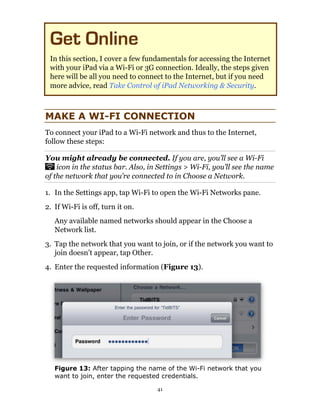
4. Enter the requested information (Figure 13).


   Figure 13: After tapping the name of the Wi-Fi network that you
   want to join, enter the requested credentials.

                                    41
5. Tap the Join key (Figure 14). (On a physical keyboard, press Enter
   or Return instead.)


  Figure 14: After using the onscreen keyboard to enter login
  credentials for a Wi-Fi network, tap the Join key at the right of the
  keyboard.

If all goes well, your iPad connects to the network and a checkmark
appears beside the name of the network in the Choose a Network list
(Figure 15).


  Figure 15: Success! This iPad is connected to a Wi-Fi network,
  called TidBITS. A checkmark beside TidBITS in the list of available
  Wi-Fi networks indicates that the connection is active.


Note: The iPad preferentially uses 802.11n to connect wirelessly
via Wi-Fi; this is a step up from the current models of the iPhone
and iPod touch, which use the older, slower 802.11g standard.

If you experience a connection problem, try one of these tips:
• After you connect to a public hotspot, if your apps can’t access the
  Internet, you may have another step to complete. In Safari, try to
  access any Web page, which will instead load the connection page
  for the hotspot. On that page, you may have to agree to certain rules


                                   42
or enter your credit card number. Once you’ve finished whatever the
   page wants you to do, you should be able to use the Internet.
• Owners of first-generation Wi-Fi–only iPads have reported a variety
  of problems with flaky or weak Wi-Fi connections. I hope—and
  assume—that Apple will fix this disappointing problem in a future
  firmware update.
  • If your Wi-Fi network uses the older and easily cracked WEP
    security method, you may have better luck if you reconfigure the
    network to use a different technique, such as WPA. Take Control
    author Michael Cohen wrote about this at
    http://www.ipadprojectsbook.com/2010/04/19/read-it-and-
    wep/.
   • For more background and possible solutions read the TidBITS
     article “Apple Acknowledges iPad Wi-Fi Issues, Sort Of,” at
     http://db.tidbits.com/article/11274.
• Another connection problem that’s unrelated to Wi-Fi is unlikely
  to affect your iPad directly, but you may want to be aware of it
  if you run your own Wi-Fi network or use your iPad on a large
  institutional network. The TidBITS article “Princeton University
  Identifies iPad DHCP Flaw” (http://db.tidbits.com/article/11195)
  offers more technical information explaining the problem, plus it
  has potentially illuminating comments at the end. I expect Apple
  will fix this problem soon.
To disconnect from a particular Wi-Fi network, in the Settings app, tap
Wi-Fi to open the Wi-Fi Networks pane. In the Choose a Network list,
tap the detail button associated with the network; then tap Forget
This Network and Forget.
You might want to turn off your Wi-Fi radio entirely to save power. To
do so, in the Settings app, tap Wi-Fi and toggle the Wi-Fi setting Off.


MAKE A 3G CONNECTION
The 3G iPad can connect to the Internet through a cellular data net-
work, a useful feature when Wi-Fi isn’t available. In the United States,
the 3G iPad uses AT&T’s national network; it initially tries to use the
faster 3G, which is available throughout most of AT&T’s footprint, but
                                   43
in coverage holes, it switches down to the slower 2.5G EDGE service.
(In some countries, carriers provide 3G everywhere they offer service,
and have no EDGE to fall back to.)

Tip: To see where AT&T offers 3G and EDGE service, visit
http://www.wireless.att.com/coverageviewer/.

To learn about plans outside the United States, see
http://www.ilounge.com/index.php/articles/comments/the-complete-
guide-to-international-ipad-pricing-service-providers/.
To activate service on a 3G iPad, tap Settings > Cellular Data > View
Account, fill in the fields (Figure 16), tap the name of the plan that
you want, and tap Next to continue the activation process.


   Figure 16: The top of Cellular Data Account pane asks for information
   needed to set up your 3G data plan account. You may not see an AT&T
   logo at the upper right, as shown here.

Once your plan is active, if your iPad is connected via 3G, you will see
the 3G icon in the status bar.
Should you wish to switch to a different plan or cancel, tap Settings >
Cellular Data > View Account, enter your password, tap Next, and then
tap either Add Data or Change Plan. (This works for AT&T domestic
plans, presumably the procedure will be similar for other carriers.)


                                    44
To disable 3G connectivity temporarily, you have two options:
• In the Settings app, tap Airplane Mode. This turns off all wireless
  communications—Wi-Fi, 3G, Bluetooth, and GPS. An airplane icon
  appears in the status bar, indicating that you are in Airplane Mode.
• In the Settings app, tap Cellular Data, and set the Cellular Data
  switch to Off. This turns off only the 3G radio.

Tip: To learn a great deal more about how 3G connectivity works,
including how to monitor and slow your use of 3G data, and infor-
mation about devices that can provide 3G service to a Wi-Fi–only
iPad, read Glenn Fleishman’s book, Take Control of iPad
Networking & Security.


                                   45
Download and
 Manage Apps
 The iPad’s core apps come pre-installed from Apple. They include
 Safari, Mail, Contacts, Calendar, and more. By default, four of these
 apps appear on the Home screen’s Dock and the rest alphabetize
 first on the Home screen. Although you can rearrange Apple’s core
 apps on the Home screen, you cannot delete them.
 The core apps do many things, but they do not come close to unlock-
 ing the full potential of your iPad. Through Apple’s App Store, you
 can download a treasure trove of third-party apps, many of which
 are free or cost less than $5.
 In this section, I introduce you to the App Store, discuss strategies
 for finding good apps, and walk you through the basics of down-
 loading, updating, deleting, and sharing apps.


FIND GREAT APPS

Apps let you personalize your iPad enormously. Whatever your
hobby, interest, or goal, there’s likely an app (or even more likely,
ten apps) related to it. If you enjoy a particular TV show, movie,
or Web site, it probably has an app. For my family, essential apps
along these lines include WeatherBug Elite for iPad, Netflix, and
Epicurious. We also have the Amazon Mobile app.

Further, some programs on your regular computer likely have iPad
counterparts, or at least iPhone versions. For example, the popular
Dropbox file-sharing service has an iPad app, whereas the voice-over-
IP service Skype has an iPhone app that likely will be updated to an
iPad edition later this year.
You can see star ratings and read app reviews in the App Store, but
it can be hard to find what you want among the many choices or deter-
mine if the reviewers use the app the same way that you would, or if a
new version of the app has addressed some reviewer complaints. Since
                                   46
it’s often impossible to get a refund for an app purchase, you may want
to research some app purchases carefully; each iPad-related ebook
in the Take Control series discusses third-party apps. Also, I especially
recommend Macworld’s AppGuide (http://www.macworld.com/
appguide/).

Know your source! Some sketchy Web sites may review iPad apps
in exchange for money from the developer. This is poor journalism.
O.A.T.S., the Organization for App Testing Standards, helps you
identify app-reviewing Web sites that have signed a pledge to, in
essence, not be slimy (http://www.gotoats.org/).

Although you can turn on the App Store Genius feature—which, along
the same lines as the iTunes Store Genius feature, is meant to help you
find new apps to try, based on your app usage patterns—the feature
does not appear to be working in the iPad’s App Store app. (To try
turning it on, go to Settings > Store, View Account, and look for an
option near the bottom of the Account screen.)

Where’s the Clock?
My husband and I have found that an iPod is better than a
sleeping pill for putting us to sleep—we turn on the sleep timer
for 15 minutes and have it play an audiobook during that time.
Because the iPod is old and sometimes a little flaky, we use
Adam’s iPhone as an alarm clock for waking up. I had hoped to
use the iPad for the both purposes.
Unfortunately, the iPad doesn’t include a Clock app and third-party
clock apps don’t run properly in the background. iPhone OS 4,
expected late in 2010 for the iPad, should enable background
processing and bring back the capability to use a clock app for
timing and alarms.

Too Many Users?
The iPad is a single-person device, with no way to organize it with
accounts or folders for different people. If you’re sharing an iPad
and butting heads over who gets to do what, consider installing
different apps for different people. For instance, you might use
a Gmail app while your spouse uses the Mail app.


                                   47
Extra Apple apps: A few free Apple apps don’t come pre-installed
on your iPad, but you may wish to install them:
• iBooks: iBooks lets you read ebooks in the EPUB format, so long as
  they come from Apple’s iBookstore or they are DRM free. iBooks.
  will be bundled with iPhone OS 4 for all Apple iPhone OS devices.
• MobileMe iDisk: If you have a MobileMe subscription, you can
  store files on your Internet-based iDisk from any Mac or Windows
  computer and then access them using the iDisk app on your iPad,
  iPhone, or iPod touch. (Dropbox is a great alternative if you don’t
  have MobileMe or if you are frustrated by slow iDisk uploads.)
• MobileMe Gallery: If you’ve posted photos or movies from an iLife
  application to a MobileMe gallery, you can use this app to view
  them on your iPad (or iPhone or iPod touch).
• Remote: This app lets you use your iPad as a remote control for an
  Apple TV or for music playing on a computer in iTunes.


SHOP FOR APPS
Your first decision when using the App Store to shop is whether you
want to shop on your iPad or on your regular computer. Either option
works well.
No matter where you decide to shop, here are a few important
shopping tips:
• iPhone apps are designed for the smaller iPhone or iPod touch
  screen. They operate properly on the iPad, but appear at iPhone-
  screen size. You can tap a 2x button to enlarge them to full iPad size.
  At full iPad size, they tend to look clunky, so if you use an app often
  on an iPad, you’ll likely want the iPad version. iPad apps often use
  the larger amount of screen space on the iPad to provide more con-
  trols or features than their iPhone counterparts.
• iPad-only apps do not work on the iPhone or iPod touch.
• Some iPad-only apps have HD in their names. For a television,
  HD means the screen is high-definition and thus can display many
  pixels at once. For an app, HD informally means the app was


                                   48
designed for the iPad screen. In standardized test language, an iPad
  is to an iPhone as an HDTV is to a small black-and-white TV.
• Some apps come in a “universal” format that scales appropriately to
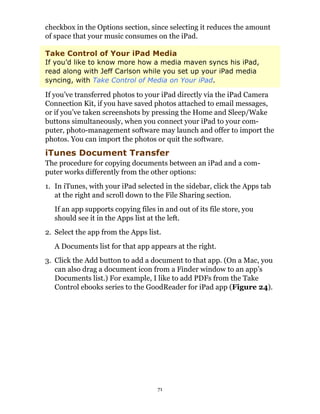
  each device, no matter which one you install it on. A Universal app
  has a small, white + badge in (or beside) its price tag.
• You can share app purchases with up to five other computers. This
  sounds like it might be simple, but it can require planning and
  patience. Consult Share Apps, ahead, for more information.

App Store Issues
Apple’s App Store collects nearly 200,000 apps in one location, so
you can do one-stop shopping from a reliable source. For an app
to appear in the App Store, it must be approved by Apple. Apple
checks for certain interface and coding problems, to ensure that
the app is likely to run smoothly and be easy to operate. Apple
also screens for “objectionable” content. Such content can range
from porn to politics, and more. Apple has been heavily criticized
for unclear guidelines. These links provide more information:
http://www.pcworld.com/article/185604/apple_censors_dalai_lama_
iphone_apps_in_china.html
http://www.macobserver.com/tmo/article/apples_app_store_rejections/
http://daringfireball.net/linked/2010/04/16/fiore-resubmit
Typical consumers will not want to bypass the App Store in order
to install alternative content, though enterprising geeks can
search on the Internet for steps on how to do so. Note that Apple
doesn’t approve of or support these steps, and following them
could cause problems.

Shopping on the iPad
To shop directly on the iPad, use the App Store app. Purchases will
sync to your computer (and thus be backed up) next time you sync.
Here are a few tips for using the App Store app on the iPad:
• To browse in the iPad App Store app, use the Featured, Top Charts,
  and Categories buttons, located on the tab bar at the bottom of the
  screen.


                                   49
• To search for a specific app (such as OmniGraffle or Instapaper) or
  with a keyword (such as Ithaca, meditate, or hockey), tap the Search
  field at the upper right, type your query, and press Search. To cancel
  a search, tap the Cancel button at the top left of the screen. To clear
  the Search field so you can search for another term, tap the X icon
  in the Search field.
• To change your iTunes Store account information (including
  payment method), or change the account associated with the iPad,
  tap Settings > Store.
To acquire an app from the App Store, follow these steps:
1. Tap the app’s price button, or the FREE button.
   The button changes to a green BUY APP or INSTALL APP button.
2. If you definitely want the app, tap the green button.
3. If you are not logged in to your iTunes Store account, you will
   be asked to log in. You must log in to continue.
The iPad shows the app icon with a dimmed icon on the first page of
the Home screen that has a free spot. A page will be added if needed.
A progress bar on the icon fills as the app downloads and installs.
(Earlier, in Drag, I explained how to rearrange app icons on the Home
screen.)
Next time you connect your iPad to your computer, you may get a
message asking if you want to copy your new app to your computer.
Unless you want to delete the app entirely, you should click the
Transfer button. (If you don’t get the message, don’t worry.)
Either way, iTunes begins syncing data between the computer and the
iPad and you’ll see messages about backing up and syncing. Your new
app is being backed up to your computer. To verify that your app is on
the computer, look for it in your iTunes library—in the iTunes sidebar,
under Library, click Apps.
If your iPad gets lost or has a problem, you’ll still have the app on your
computer in your iTunes library. And, you can transfer the app from
the iTunes library to another iPad or—if it’s compatible—to an iPod
touch or iPhone.


                                    50
No Sync?
If you turned off the sync-related checkbox in the iTunes prefer-
ences, in the Devices pane, your iPad won’t sync automatically.
To enable syncing, turn this checkbox back on, or select the iPad
in the iTunes sidebar and click the Sync button at the lower right.
Why disable syncing? You might prefer to avoid automatic syncs
if you get frustrated with frequent, lengthy syncs that seem
unnecessary or if you want to double-check your sync settings
before your iPad syncs automatically. You might also wish to turn
off syncing in certain problem-solving scenarios.

Shopping in iTunes
To shop for apps using your iPad’s primary computer, first launch
iTunes. The iPad doesn’t have to be connected to the computer, but it’s
okay if it is.
In the iTunes sidebar, under Store, click iTunes Store. Apple occas-
ionally changes the iTunes Store layout. Currently, a toolbar appears
at the top of the main pane. In that toolbar, click App Store. To limit
the displayed apps to only those that take advantage of the iPad’s
screen size, click iPad in the iPhone/iPad lozenge at the top of the
screen (Figure 17).


   Figure 17: To view only iPad apps in the iTunes Store, first select
   iTunes Store in the sidebar (left). Once the store loads in the pane at
   the right of the iTunes window, click App Store at the top of the pane.
   Now, click iPad in the lozenge (shown near upper right) to view the
   iPad area of the store.

                                    51
To browse by category: Hover the pointer over App Store in the
toolbar to see a tiny triangle. Click the triangle to display a menu of
categories, and then choose a category.

To acquire an app, follow these steps:
1. Evaluate how well the app will run on your iPad and on any other
   devices you might want to install it on:
   • Not iPad-compatible: The app won’t run on your iPad, so
     don’t buy it!
   • iPad-compatible: The app was designed for the iPod touch
     and/or iPhone, but it will run on the iPad, albeit at a smaller size
     or with a bitmapped appearance. The developer might update it
     to a universal app free of charge to you, but the developer might
     instead release a new, iPad-only edition, forcing you to pay again
     if you want the iPad edition. The PayPal app shown in Figure 18
     is iPad-compatible. It’s also free, so there’s no concern that you’d
     have to pay again if PayPal releases an iPad-only edition.


      Figure 18: The PayPal app is compatible with the iPad, but it isn’t
      designed for the iPad, a fact you can confirm on the app’s iTunes
      Store catalog page.

   • Universal: A universal app contains an iPad version and an
     iPhone/iPod touch version. You can install it on any such device
     and the proper version will run. The Amazon app in Figure 19 is
     an example of a universal app.
                                   52
Figure 19: The Amazon app has a + badge marking it as a
     universal app, designed for both the iPad and the iPhone/iPod
     touch.

   • iPad-only: An iPad-only app should look great on your iPad
     screen and it will likely have features and controls that wouldn’t
     make sense on a smaller iPhone screen. However, you can’t copy
     an iPad-only app to an iPhone or iPod touch.
2. Click the app’s price button (or the Free App button, as in
   Figure 19, above).
3. If you are not logged in to your iTunes Store account, you will be
   asked to log in. You must log in to continue.
You’ll briefly see status information at the top of the window as the app
downloads. In the sidebar, you’ll also see a Downloads item appear in
the Store category. It disappears once the item has downloaded.
Once the app is downloaded, you can find it in your iTunes library: in
the iTunes sidebar, under Library, click Apps.

Note: To work with the apps in the context of your iPad, connect
your iPad to the computer, select it in the iTunes sidebar, and click
the Apps tab at the right.

To transfer the app to your iPad, connect the iPad to your computer.
The iPad should begin syncing (see No Sync?, p. 51, if your iPad
doesn’t sync). You’ll see messages in the iTunes status area about
backing up and syncing. When the sync is complete, a copy of the app
                                   53
appears on the iPad. All new apps that you synced for the first time on
this sync appear in alphabetical order on the first page of the Home
screen that has room. Earlier, in Drag, I explained how to rearrange
app icons on the Home screen and Dock.


START USING A NEW APP
Now that you’ve downloaded your app and placed it in a favorable
location on your Home screen, it’s time to try it out!
Here are some tips for exploring a new app:
• In the Settings app, tap the app’s name in the left pane (some apps
  won’t appear here, but many will). Special settings appear at the
  right. Review the settings, since they help you understand the fea-
  tures better. Customize them for how you think you’ll use the app.
   For example, when I checked the settings for the NYT Editors’
   Choice app (it’s called NYTimes in Settings), I realized that the app
   can download articles automatically and it will delete articles after a
   customizable number of days have elapsed (Figure 20).


   Figure 20: If I don’t get around to reading an article for 7 days, the
   app will delete it. I was pleased to discover this feature in Settings.

• In the Settings app, in the left pane, tap Notifications. If
  Notifications is off, turn it on. Check the list below the Notifications
  slider for the name of your app. If you see it, tap it. Note the
                                    54
available options and set them as desired. Once you’ve used the app
  for a while, you may wish to come back and tweak your choices.

  What’s a notification? A notification could be a message from
  an app that pops up on the iPad screen, even if the app isn’t active.
  For example, I use the Boxcar iPhone app to give me a text notifi-
  cation if someone sends me a direct Twitter message. Notifications
  can also include sound alerts and badges on an app’s icon.

• Open the app. If it’s an iPhone app, it appears iPhone-sized in the
  center of the screen. You can enlarge it by tapping the 2x badge.
• Some apps have an info badge on them, typically at the upper
  right. Click the badge to access settings.
• Rotate the iPad to see if the app provides different options in
  different orientations.
• Tap once in the center of the screen to see what happens. Tap twice.
• If an app has a tab bar (a tab bar is like a toolbar—a row of buttons,
  but Apple calls it a tab bar in the iPhone OS), look for a More button
  at the right. It may lead to important additional controls.
• If the app has a Help option, read the help. You may also wish
  to look for help on the developer’s Web site using a different
  computer. It’s easier to read documentation on one screen while
  you use the iPad separately.
• If you want to move documents into the app from your computer,
  see iTunes Document Transfer and Documents, ahead.


MANAGE APPS
Let’s talk about a few app housekeeping tasks that you may wish to
do, perhaps now, perhaps on a regular schedule, or perhaps only
occasionally.
Update Apps
Your iPad apps will likely be updated occasionally—or even quite
frequently—by their developers. If any updates are available, you’ll see
a red badge on the App Store icon on the Home screen. And, if you

                                   55
open the App Store app, the Updates button on the tab bar will also
have a red badge. The number in the badge is supposed to indicate the
number of updates available, but the numbers don’t always match.
To get updates directly with the iPad:
1. In the App Store app, tap the Updates button on the tab bar.
   The Updates screen lists all available updates (Figure 21).


   Figure 21: Review the information in the updates list to determine
   which updates you want to download.

2. Decide which apps you want to update. Consider the update
   descriptions, sizes, and prices (at the moment, all updates are free,
   though that may change in the future). If you are connected via 3G,
   you can update an app only if its size is less than 20 MB. If your
   connection is 3G or a slow Wi-Fi connection, as a rule of thumb,
   don’t update more than 100 MB worth of apps at a time.
3. Next:
  • To download and install all the updates, tap the Update All
    button (at the upper right).
  • To download and install one update, tap its price, or the FREE
    button. Tap the now-green button again.

                                   56
4. If you’re asked for your iTunes password, enter it.
The iPad shows the Home screen with a gear spinning at the upper left.
After a bit, the screen’s focus switches to a downloading app’s icon. A
status bar in the icon fills as the update downloads and installs.
You can also download updates within iTunes:
1. In the sidebar, click Apps.
2. At the lower right of the Apps pane, click the arrow that goes with
   an update notice (Figure 22) or click Check for Updates.


   Figure 22: In iTunes, with Apps selected in the sidebar, you may
   see an updates notice like this one at the lower right of the window.
   Click the small arrow to the right of “Updates Available” to view your
   updates.

   If you clicked Check for Updates and you get a message saying that
   no updates are available, then you’re done. Otherwise, if you get a
   message asking if you’d like to view available updates, click the View
   Updates button to display the My App Updates screen.
3. In the My App Updates screen:
   • To download all the updates, click Download All Free Updates
     (at the upper right). In most cases, it’s easiest to download all
     free updates in this fashion, unless you’re certain you don’t want
     to update a particular app.
   • To download an individual update, click its Get Update button.
4. If you’re asked for your iTunes password, enter it.
iTunes downloads your updates. Next time you sync your iPad, any
updated apps will transfer to the iPad, overwriting the old versions.


                                   57
Share Apps
You can share apps among any other iPhones or iPod touches that you
sync from the same iTunes library that your iPad syncs to. So, if you
own an iPod touch, there’s no problem with sharing compatible apps
between the iPod touch and the iPad. Or, if your household has one
computer, two iPhones, and two iPads, all the devices can share the
iPhone apps and both iPads can share the iPad-only apps.
If you want to bring more than one computer into the sharing scenario,
I strongly recommend that you not sync one iPad to two computers
unless you have a compelling reason to do so. It is possible to do this
if you are careful with your sync settings in iTunes, but the details are
beyond the scope of this ebook. Alternatively, consider syncing some
items via MobileMe, Google Calendar, or Microsoft Exchange instead
of double-syncing with two copies of iTunes on two computers.
However, in the more common scenario of two iPad users in one
household, each with a computer, or one iPhone user with a computer
and one iPad user with a second computer, both people can share
apps between the computers and then transfer the apps to the various
devices. In fact, anyone with an iTunes account can sync apps from his
account to a total of five computers.

Coordination is key! If you have more than two computers and
computer users in your house, pay attention to who buys which types
of media and who shares what so you don’t end up with a mess. It
may seem simple now, but as you buy new computers and get rid of
old ones, it may become confusing. For the details on authorizing—
and de-authorizing—a computer to share purchases from an iTunes
account, read http://support.apple.com/kb/HT1420.

The easiest way to share apps between computers on a local network
is to turn on Home Sharing on each computer’s copy of iTunes. To do
so, on each computer, in iTunes, choose Advanced > Turn On Home
Sharing and then enter the account information for the iTunes account
you want to share. You must enter the same account info on each
computer.
A shared library appears in the iTunes sidebar under the Shared
category. You can copy shared items by dragging them from a shared
library to your own library—in this case, select Apps in the shared

                                   58
library, select the item(s) that you want to copy, and then drag them
to the library region in the iTunes sidebar (Figure 23). You can also
select items in a shared library and then click the Import button at the
lower right.


   Figure 23: To copy apps from a library shared with Home Sharing, first
   select the shared library’s Apps category, as I’ve done here in the turtle
   library near the lower left. Then, at the right, select one or more apps
   and drag them to the Library region of the sidebar. A red badge on the
   dragged-in selection indicates how many apps (six in this case) will be
   copied when you release the mouse button.

Now that you’ve transferred the apps, you can sync them to any iPad
that normally syncs to this computer.


                                    59
Transfer Automatically
You can transfer purchases automatically from a shared library to
your iTunes library:
1. Under Shared in the iTunes sidebar, select the shared library.
2. At the lower right, click the Settings button.
3. Select the types of iTunes Store purchases that you want to
   transfer automatically, and then click the OK button. This
   setting applies only to new purchases, not existing items.

Tip: To learn more about setting up and using Home Sharing,
consult http://support.apple.com/kb/ht3819.

Send Feedback
If you’re happy—or unhappy—with an app, you can let the developer
know. You can write a review in the App Store on the app’s page,
though that will do more to inform other users about your experiences
than to inform the developer. The App Store allows you to write a
review only if you have downloaded the app in question. To send more
personal feedback and possibly get a response, find the developer’s
Web site and look for contact information. Also, some apps have
Facebook pages or Twitter feeds. Many developers care deeply about
the quality of their apps and are open to your feedback, and they find
the one-way nature of App Store reviews frustrating.
Delete an App
You can delete an app from just your iPad, from just your iTunes
library, or entirely from both.
Delete from the iPad
To remove an app from your Home screen, but keep it in your iTunes
library in case you want it later, or in case you want to use it on some
other Apple device, delete it using one of these techniques:
• Use the iPad: Find the app on the Home screen. Touch its icon
  until all the icons wiggle. Then tap the X badge that appears on the
  icon for the app you want to delete. If you’re asked, confirm that you
  do want to delete the app, and if you wish, give it a star rating.
  Finally, press the Home button to stop the app icons from wiggling.


                                    60
Delete app data?! When you delete an app, the iPad deletes the
   app’s data—information such as settings, scores, and any files
   stored in the app’s file store on the iPad itself. Most app data is
   saved in your iPad backup, but you can’t recover individual files.
   It’s all or nothing. See Know Backup Basics, later, to learn more
   about this important topic.

   No X? You can’t delete the default Apple apps. If you don’t want
   one cluttering up your Home screen, the best you can do is relegate
   it to a page way to the right.

• Use iTunes on your computer: Connect your iPad to your
  computer, and in the iTunes sidebar, select your iPad and click the
  Apps tab. Locate the app in the apps list at the left and deselect the
  app’s checkbox.
Next time you sync your iPad, the app will be removed from the iPad.
To restore the app to your iPad, select the iPad in the iTunes sidebar
and click the Apps tab. Locate the app in the apps list at the left and
select the app’s checkbox.
Delete from iTunes
To remove the app entirely from your iTunes library, so it won’t show
up as a syncing option for your iPad or any other Apple device:
1. In the sidebar, in the Library category, select Apps.
2. Select the app that you want to delete.
3. Press Delete (or choose Edit > Delete) and click Remove in the first
   dialog that appears. A second dialog checks to see how serious you
   are:
   • To remove the app entirely, click Move to Trash. The app will be
     removed from your drive next time you empty the Trash on your
     computer.
   • To remove the app from your library but be able to bring it back
     later, click Keep Files.
If you chose the second option in Step 3, above, your apps are stored as
.ipa files. By default, they are stored nested down several levels in your

                                    61
user folder. Exactly where they are stored depends on which operating
system you are running:
• Mac OS X: ~/Music/iTunes/iTunes Media/Mobile Applications/
• Windows XP: ~My DocumentsMy MusiciTunesiTunes
  MediaMobile Applications

• Windows Vista: ~MusiciTunesiTunes MediaMobile
  Applications

• Windows 7: My MusiciTunesiTunes MediaMobile Applications

What’s the ~ in the path? The paths above use a tilde (~) to tell
you to start from your user (home) folder. This is a common techie
shortcut.

To return an app to your iTunes library, drag its file from the Mobile
Applications folder into the iTunes window or to the iTunes icon on
the Dock.
Recover a Deleted App
To recover a deleted app, you can re-download it from the iTunes
Store. Pretend you are buying it again and click the price button.
iTunes will present a dialog telling you that you can download the
app again for free; just click OK.

If you initially acquired the app through Home Sharing:
Copy it over, once again, from the shared iTunes library.


                                   62
Move Files and Data
 between the iPad and
 Your Computer
 By “files and data,” I mean nearly anything digital: ebooks, audio
 books, podcasts, music, calendar data, contact information, email
 messages, iWork documents, graphics, photos, and so on.
 Sometimes, files and data arrive on the iPad directly from the
 Internet. For example, if you configure the Mail app, it will load
 your email. And, if you install the Facebook app and use it to log
 in to your Facebook account, you’ll be able to see your profile and
 news feed. Further, if you install the Kindle app and then use it
 to log in to your Kindle account, you’ll gain access to your Kindle
 ebooks. And, apps such as Pandora Radio and Netflix can stream
 data to your iPad.
 However, in this section I talk about what to do if you need to move
 data not between the iPad and an Internet service, but instead
 between your iPad and your computer.
 Some of the options are straightforward because they involve a
 direct, physical connection between your computer and your iPad,
 but others are more complex because they use an online service as
 an intermediary. These complex options often require more config-
 uration and they slightly break down the black-and-white distinc-
 tion that I made above about moving data between the iPad and the
 Internet versus moving data between a computer and the Internet.
 In this section, I explain the options and help you devise a strategy.


KNOW IMPORTANT BACKGROUND INFO
If Apple were starting fresh with the iPad, we’d likely have a straight-
forward scheme for moving files between a computer and an iPad.
Instead, Apple built on the technological underpinnings of the

                                    63
iPhone/iPod line, creating a situation that makes more sense if you’ve
been using those devices from the beginning.
Apple began with the iPod, which was originally a simple audio player.
To put audio files on any iPod, you attach the iPod to a computer with
a cable, select the iPod in iTunes, and set up a file transfer from the
iTunes library to the iPod. Because iTunes is the main Macintosh
program for organizing music and other audio files, this made sense.
Apple also developed a version of iTunes for Windows users, and Apple
even devised some neat technology that enables you to subscribe to a
podcast on the computer and then—if you are good about regularly
connecting the iPod to the computer—automatically sync fresh podcast
episodes to the iPod.

Note: The iPod app on the iPad is where you listen to audio files
copied from iTunes.

Then Apple made it possible for some iPods to display photos. iTunes
doesn’t store photos in its library, so Apple made iTunes an intermedi-
ary between the iPod and your photos (iPhoto on the Mac), so you can
easily transfer photos to the iPod along with your audio files. Also,
many iPods have Calendar and Contacts apps, so Apple made iTunes
the intermediary for transferring that data as well.
Next, Apple gave some iPods the capability to play videos and third-
party games. Instead of creating iVideos and iGames, or some other
program to copy those file types to iPods, Apple added video and game
options to iTunes. To move these items to the iPod, you put them in
your iTunes library, just like audio files, and then transfer them to the
iPod.
What began simply—using iTunes as an interface to transfer audio files
over a basic cable connection—became more complex, since photos,
contacts, calendars, and games have nothing to do with iTunes, and
even videos are somewhat stretching the metaphor. However, the
technology works well and it’s easy to use.
It would likely be easy for Apple to create a more sensible option on
the Mac, but I’ve heard it suggested that Apple has continued using
iTunes as a transfer utility because it is a reasonable cross-platform
solution that works similarly on the Mac and under Windows.

                                   64
Older iPods lacked Internet access and keyboards, so you couldn’t
create much of anything on them beyond On the Go playlists—for the
most part, information moved in one direction, from the computer to
the iPod. However, the situation became more exciting with the iPod
touch and the iPhone, because you can put data on those devices in a
variety of ways: via the iPhone’s camera, by recording audio, by down-
loading from the Internet, with an app’s multi-touch interface, or with
an onscreen keyboard.
With the iPod touch and iPhone, data doesn’t transfer in one direction
from iTunes; instead it generally synchronizes, so any data you’ve
downloaded or entered on the device transfers to the computer and
appropriately mingles with data already on the computer. For example,
if you buy a song directly from the iTunes Store on the device, that
song copies to the iTunes library on the computer. And, if you enter
a meeting in the Calendar app, that calendar event copies to your
computer.
Photos taken on the iPhone add a twist—if you take photos on your
iPhone, photo-management software—such as iPhoto on the Mac—will
(likely) launch when you connect the iPhone to the computer, so you
can download the photos to the computer. However, photos still move
from the computer to the iPhone through iTunes.
If that wasn’t enough, the iPhone and iPod touch also introduced
wireless syncing options that move data via the Internet. For example,
you can enter an appointment in the Calendar app on your iPhone
while you are at your doctor’s office and have the appointment appear
in the calendars on your office and home computers automatically,
within minutes. Or, you can add a bookmark to your Web browser at
work and have it appear in the Safari app on your iPod touch at home
automatically.
The iPad adds even more options, because it can use iTunes to transfer
(but not sync) copies of documents—such as word processing files, and
spreadsheets—between the iPad and a computer.
Now that you know your history, you have the background to
understand what’s going on when you move files between your
computer and your iPad.


                                   65
DEVISE A STRATEGY
The most straightforward way to move data and files between your
iPad and your computer is through iTunes, but you can also use the
Internet to transfer data. So:
• If you aren’t interested in moving data via the Internet, your best
  strategy is to Transfer with iTunes, as I describe a few pages ahead.
• If you want more details before you decide, or if you want to refine
  your strategy and figure out what you’ll transfer via iTunes and
  what via the Internet, keep reading.
Tables 2–3 summarize the types of data that can be transferred to an
iPad, where it comes from, where it goes, and where you configure it.
While you peruse the tables, keep the following in mind:
• “Info” data: Data that you configure on the iTunes Info tab can
  be synced wirelessly, typically using a MobileMe connection, but—
  depending on your situation and overall geekiness—most of it can
  alternatively be synced via options including Microsoft Exchange
  or Google Sync. An exception is notes, which at present can transfer
  only via iTunes; see An Important Note on Notes (p. 68).
• Media files: You can download media directly to your iPad, so
  you don’t have to use iTunes as an intermediary. However, if you
  use iTunes for podcasts, you’ll get more features—like automatic
  downloading and automatic deletion of older or listened-to epi-
  sodes. When you back up your iPad, you do not back up media
  stored only on the iPad. To back up media, you must sync it with
  your iTunes library.
• Documents: You can use online or cloud-based file-sharing
  services—such as iDisk (part of MobileMe) and Dropbox (a popular
  online file-sharing service) to share documents between a computer
  and an iPad. These services work over the Internet and do not rely
  on iTunes at all. However, some apps—including iBooks, Keynote,
  Numbers, and Pages—rely on iTunes-based file transfers.
• Power considerations: If your iPad won’t charge effectively from
  your computer, you may be less enthused about habitually connect-
  ing it to iTunes for syncing. (See Pick a Powerful Port.)

                                   66
• Logistics: If your computer isn’t located near where you want to
  use your iPad, it will be more difficult to connect to iTunes
  regularly.
I suggest that for each piece of data listed in Tables 2–3, you devise
a plan for whether you want to transfer it between your computer and
your iPad and—if you do want to—how you plan to do so. You might
even write it down, so you can remember later.

Table 2: Syncing an iPad via iTunes, Info Tab
See the notes on the next page for special details!

                 Desktop Computer                 Sync or
Data             Application                      Copy?       iPad App
Contacts         Mac: Address Book and most       Sync        Contacts
                 modern contact programs
                 Windows: Several options
                 The cloud via a desktop
                 computer: Yahoo Address
                 Book, Google Contacts
Calendars        Mac: iCal and most modern        Sync        Calendar
                 calendar programs
                 Windows: Microsoft Outlook
                 2003 or 2007
Email account    Mac: Mail                        Copy to     Mail
settings, but    Windows: Microsoft Outlook       iPad, but
not email        2003 or 2007 or Outlook          not vice-
messages         Express                          versa

Web              Mac: Safari                      Sync        Safari
bookmarks        Windows: Internet Explorer or
                 Safari
Notes            Mac: Mail’s On My Mac            Sync        Notes
                 mailbox, may require Mac OS
                 X 10.5.8 Leopard or later
                 Windows: Microsoft Outlook
                 2003 or 2007


                                   67
More on Macintosh Calendar and Contact Syncing
When iTunes syncs certain types of data—such as contacts and
calendar events—from the Mac to an iPad, it isn’t syncing directly
from Address Book and iCal. Instead, iTunes works with the “truth
database” on the Mac. This database receives information from
Address Book and iCal, and from many third-party address book
and calendar programs. Thus, you needn’t use Address Book or
iCal in order to sync contacts and calendars with your iPad.
The truth database also tracks the sequence of changes, so if
you change the same data on the iPad and the Mac, the database
decide which change is more recent.
To learn a great deal more about Macintosh syncing, along with
detailed advice on syncing to an iPhone (which is nearly identical
to syncing to an iPad), consult Take Control of Syncing Data in
Snow Leopard.

More on Windows Calendar and Contact Syncing
When you sync data from the Info tab with a computer running
Windows, you can sync only to one particular application.
According to the iPad’s documentation, your choices for contacts
are Yahoo Address Book, Google Contacts, Windows Address Book
(Microsoft Outlook Express), Windows Vista Contacts, and
Microsoft Outlook 2003 and 2007. For calendars, the documen-
tation lists Microsoft Outlook 2003 and 2007.

An Important Note on Notes
Unlike the rest of the data in Table 2, just previously, notes
associated with the iPad’s Notes app can sync with the iPad only
through iTunes, not wirelessly through MobileMe. Apparently,
Apple is working on adding a MobileMe-mediated notes sync.
However, several third-party apps offer vastly better note-taking
options than those in Apple’s Notes app. And, a few even sync
notes between an iPad and other devices. In Take Control of
Working with Your iPad, Joe Kissell describes noteworthy options.


                                 68
Table 3: Syncing an iPad via iTunes, Other Tabs

iTunes Tab      Sync or Copy?                              iPad App
Apps            Syncs between your iTunes library and
                the iPad.
Documents       A document can be copied from your
                drive to and from a single app.
Music           Syncs from the iTunes library; pay         iPod
                attention to settings.
Movies          Syncs from the iTunes library. Non-        Videos
(commercial     rented movies sync; pay attention to
and personal)   settings.
                Movies rented on the computer can be
                copied to the iPad, but not vice-versa.
                Configure movie copying from iPhoto
                to the iPad on the Photos tab.
TV Shows        Syncs from the iTunes library; pay         Videos
                attention to settings.
Podcasts        It works best to think of episodes as      iPod for audio
                going one way from your iTunes             podcasts,
                library to your iPad. Set up the sync to   Videos for video
                remove older episodes from your iPad.      podcasts
iTunes U        It works best to think of episodes as      iPod for audio,
                going one way from your iTunes             Videos for video
                library to your iPad. Set up the sync to
                delete older episodes from your iPad.
Books           Syncs from your iTunes library, except     iBooks for
                iBookstore samples don’t sync.             ebooks, iPod
                (You can add an ebook in EPUB format       for audiobooks
                to your iTunes library.)
Photos          Within iTunes, copies from your iPhoto     Photos
                library or other photo-editing
                software, or a folder on your hard
                drive, to the iPad.


                                    69
Feeling unsure? You don’t have to transfer everything right away.
Start with one or two items that you most want to get working and
add more as time passes.

Tip: No matter what, you’ll want to connect your iPad to a
computer occasionally, because that’s how you download and
install operating system updates and make backups.


TRANSFER WITH iTUNES
For any type of data that can be synced in iTunes, you control what
transfers by selecting the iPad in the iTunes sidebar (see How to
Connect) and working through the various tabs that appear to the
right. Most tabs—Music, Movies, TV Shows, Podcasts, iTunes U,
Books, and Photos—are reasonably self-explanatory, but to be sure
you start on the right foot, I want to offer a few tips.
General Advice
Remember, you won’t see any tabs unless your iPad is selected in
the iTunes sidebar. As you work your way through the tabs, be sure
to scroll down all the way in each tab, since important options are
sometimes located a ways down; for example the Info tab has a
laundry list of options (described in Table 3, previous page) that
consumes about three screens on my MacBook.
After making changes in a tab, click the Apply button in the lower
right corner to save your changes; if you didn’t mean to make them,
click Cancel instead.
Your iPad will most likely begin syncing as soon as you connect it to
iTunes (if not, see No Sync?, p. 51). You can also initiate a sync at any
time by choosing File > Sync “iPad Name”.
iTunes Media Transfer
Notice a few special settings on the Summary tab, in the Options
section. Some of these—“Sync only checked songs and videos” and
“Manually manage music and videos”—give you fine-grained control
over which music and video files transfer to the iPad. (However, that
control may come at the expense of your sanity, if you have a lot of
media.) Also note the “Convert higher bit rate songs to 128 kbps AAC”
                                    70
checkbox in the Options section, since selecting it reduces the amount
of space that your music consumes on the iPad.

Take Control of Your iPad Media
If you’d like to know more how a media maven syncs his iPad,
read along with Jeff Carlson while you set up your iPad media
syncing, with Take Control of Media on Your iPad.

If you’ve transferred photos to your iPad directly via the iPad Camera
Connection Kit, if you have saved photos attached to email messages,
or if you’ve taken screenshots by pressing the Home and Sleep/Wake
buttons simultaneously, when you connect your iPad to your com-
puter, photo-management software may launch and offer to import the
photos. You can import the photos or quit the software.
iTunes Document Transfer
The procedure for copying documents between an iPad and a com-
puter works differently from the other options:
1. In iTunes, with your iPad selected in the sidebar, click the Apps tab
   at the right and scroll down to the File Sharing section.
   If an app supports copying files in and out of its file store, you
   should see it in the Apps list at the left.
2. Select the app from the Apps list.
   A Documents list for that app appears at the right.
3. Click the Add button to add a document to that app. (On a Mac, you
   can also drag a document icon from a Finder window to an app’s
   Documents list.) For example, I like to add PDFs from the Take
   Control ebooks series to the GoodReader for iPad app (Figure 24).


                                     71
Figure 24: In the File Sharing section of the Apps tab, you can copy a
   document to a particular app. To see which documents you’ve already
   copied to an app, select the app’s name at the left, as I’ve done here
   with GoodReader. Click the Add button (lower right) to add a file.

The document copies immediately to the iPad. You can access it in the
app you copied it to.
You can also copy files from an app’s file store to your desktop com-
puter. To do so, follow the steps given just previously, but in Step 4,
select the document(s) that you want to copy and then click the Save
To button.


TRANSFER VIA THE INTERNET
This topic has two parts—Data and Documents. Calling these subtopics
“Data” and “Documents” is a slightly slippery decision, because a
document is data, but let’s not get hung up on the semantics, since the
technology world has yet to come up with solid terminology for this
distinction.
For our purposes, data consists of tiny things like calendar events and
browser bookmarks. You would not typically have (or, at least, work
with) a separate file on your hard drive for a single data item. In
contrast, documents are items like PDF files and spreadsheets, items
that you would normally think of as separate files on your hard drive.
                                    72
Data
To transfer data to and from your iPad wirelessly without the help of
iTunes, you have a few choices:
• Sync with Apple’s MobileMe online service.
• Sync with a server that uses Microsoft Exchange ActiveSync. This
  includes Microsoft Exchange or Google Sync. Google Sync works
  with Google Calendar and Google Contacts.
• View calendars shared via CalDAV or iCalendar. This read-only
  option includes Google Calendar, Yahoo Calendar, read-only iCal
  calendars, and other options.
• View read-only contact data from an LDAP server. (You can search
  for a contact in the Contacts app, in the Groups screen.)
Read Table 4 for a summary of these options and to determine which
might work for you. After Table 4, I look more carefully at each
option.

Wireless Syncing Can Get Geeky
If your first try at setting up wireless syncing works smoothly,
feel free to ignore anything in Table 4 that you don’t understand.
However, if it doesn’t work, you may have to do some research or
get help from a smart friend, since syncing can get hairy quickly,
and describing all the options is beyond the scope of this ebook.

Mix and match? Although it is usually possible to mix and match
these wireless techniques, I suggest getting one working exactly the
way you want before adding another. Mac users can consult Take
Control of Syncing Data in Snow Leopard, which describes many of
the gotchas and best practices.


                                   73
Table 4: Wireless Options for Putting Data on the iPad

Method       Pros               Cons                  Notes
MobileMe     Common             Annual $99 fee,       For direct Windows
             method, well-      though family packs   calendar syncing,
             known, well        and smart shopping    works with only
             documented.        can lower the cost.   Outlook 2003 and
             Synced data can    No notes sync from    2007.
             also be viewed     the Mac at present.   Works with iCal and
             on the Web.                              many other Mac
                                For calendars and
                                contacts, must sync   programs.
                                all or none; can’t
                                pick and choose as
                                you can with iTunes
                                sync.
Microsoft    Works with         Microsoft Exchange    Data can also sync
Exchange     Google Sync to     sync may require      with a Mac running
ActiveSync   sync Google        coordination with     10.6 Snow Leopard,
             Calendar and       your IT department.   at which point it
             Google Contacts    Google-related sync   could sync to via
             Works with         often poorly          iTunes or MobileMe.
             Microsoft          documented; fea-      Under iPhone OS 3,
             Exchange           tures may change      the iPad can sync to
             servers            with no notice.       only one Exchange
             Free to you.                             Active sync source.

CalDAV and Handy if your        Contact data can be   Use this option to
iCalendar  employer or          viewed, but not       “subscribe to”
           school publishes     edited.               “published” iCal
           data in one of       Meeting invitations   calendars.
           these formats.       can’t be accepted.    You can view
             Free to you.                             Google and Yahoo
                                                      calendars this way.
LDAP         Handy if your      Contact data can be   Data isn’t stored on
             employer or        searched and          the iPad, but you
             school publishes   viewed but not        can search for a
             data this way.     edited.               desired contact
             Free to you.                             wirelessly.

                                  74
MobileMe
The MobileMe online service (http://www.apple.com/mobileme/)
offers a grab bag of features, including:
• iDisk online storage (accessible on the iPad, but not in most apps;
  also accessible on your computer, iPhone, or iPod touch; has a
  password-protected public folder for making files generally avail-
  able to the world).
• Find My iPhone (it works with the iPad, too).
• Remote Wipe (can erase the contents of a stolen iPad, assuming the
  iPad is online).
• Email accounts with optional webmail access.
• Integration with Apple’s iLife software suite, providing an optional
  Web server for your iWeb sites as well as online photo and movie
  galleries for iPhoto and iMovie.
• Most pertinent to this discussion, a MobileMe sync can transfer
  data from your computer, iPad, iPhone, or iPod touch to the
  MobileMe server cloud, where you can access it via the Web by
  logging in to your me.com account. Once it’s in the cloud, you can
  further sync it with any—or all—of these devices.
MobileMe costs $99 per year from Apple, but before you purchase it,
consider these money-saving options:
• Shop on Amazon. Amazon often sells the MobileMe Individual and
  the Mobile Me Family Pack at a $20 or $30 discount.
• See if Apple offers you a free trial period. That can be a good way
  to try the service. As I write this, Apple currently offers 60 days for
  free at http://www.apple.com/mobileme/.

Tip: To learn much more about MobileMe, read Take Control of
MobileMe.

Before you set up MobileMe syncing, make sure you know the answer
to these two questions:
• Where is the data that I want to sync? If your iPad is new, the
  answer is easy—the data is on your computer. But, if you’ve had the

                                    75
iPad for a while, you may not have identical data on the iPad and
   on the computer. I suggest syncing the data between your iPad and
   your computer with an iTunes sync immediately before you start
   syncing with MobileMe.

   Warning! The directions below assume that your computer has
   a full copy of the data.

• Do I have a backup? If you aren’t paying attention, or if some-
  thing unexpected happens, it is possible to lose data when syncing.
  If your backups are disorganized or you aren’t certain how you
  would restore important data, take steps to avoid problems
  before proceeding. (My colleague Joe Kissell holds you hand
  through your first back up from start to finish in Take Control of
  Easy Mac Backups.)
All that said, to set up MobileMe from a Mac, follow the directions
below (skip ahead a page for Windows directions).
To set up MobileMe syncing on a Mac:
1. Open System Preferences by clicking its icon in the Dock or
   choosing System Preferences from the Apple  menu.
2. In System Preferences, click MobileMe to open the MobileMe pane.
3. If you’re not signed in to MobileMe, sign in.
4. Click the Sync button to switch to the Sync view.
5. Select the “Synchronize with MobileMe” checkbox.
6. From the pop-up menu beside the checkbox, choose Automatically.
   (You can choose another option later, but I generally recommend
   Automatically because it moves your changes quickly, thus making
   them available in multiple locations and minimizing the chance of
   a sync conflict.)
7. Select the data types that you want to sync. You can sync all the
   options to MobileMe, but only Bookmarks, Calendars, Contacts,
   Mail Accounts, and Notes will further sync to the iPad.
   (Figure 25).


                                   76
Figure 25: I’ve set up automatic MobileMe syncing for my contacts.

8. Click the Sync Now button.
9. Skip to the paragraph just after the next set of steps (that’s after
   Step 6, next page).
To set up MobileMe syncing in Windows:
1. Download and install the MobileMe Control Panel from
   http://support.apple.com/downloads/MobileMe_Control_Panel_
   for_Windows.
2. Open the MobileMe control panel and confirm that you are signed
   in. If you’re not, sign in.
3. Click the Sync tab.
4. Select the “Sync with MobileMe” checkbox. From the pop-up menu
   beside the checkbox, choose Automatically. (You can choose
                                     77
another option later, but I generally recommend Automatically
  because it moves your changes quickly, thus making them available
  in multiple locations and minimizing the chance of a sync conflict.)
5. Configure how you want to sync Contacts, Calendars, and
   Bookmarks.
6. Click the Sync Now button.
Now that you’ve set up syncing from your computer to MobileMe,
wait a few minutes (or, maybe 20 minutes, depending on the mood
of the technology pantheon); then log in to your MobileMe account
at http://www.me.com/to confirm that your data has arrived.
You’re almost done. It’s time to set up MobileMe on the iPad:
1. In the Settings app, tap Mail, Contacts, Calendars.
2. Now under Accounts:
  • If you already have a MobileMe account listed, tap it.
  • If you don’t have a MobileMe account listed, tap Add Account;
    then tap MobileMe. Enter your account information. I suggest
    leaving the Description field at its default or indicating that it’s
    a MobileMe account. Then tap Next.
     The iPad verifies your account information and shows the
     MobileMe dialog (Figure 26).


                                   78
Figure 26: You can set what types of data you want to sync and
  turn on Find My iPad.

3. Set the toggle switches for Mail, Contacts, Calendars, and
   Bookmarks the way you want. If a switch is on, the corresponding
   data will synchronize between MobileMe and the iPad (in the case
   of email account information, it transfers only to the iPad).

  Find My iPad? If you like the idea of being able to log in to the
  MobileMe Web site to figure out where your iPad is (more or less),
  make it beep, and make it display a message, turn on Find My
  iPad.

4. Tap Save.
  The iPad configures your sync and returns to the main Mail,
  Contacts, Calendars settings screen.
5. Set how often you want the sync between the iPad and MobileMe to
   occur; see Set Up Push or Fetch, a few pages ahead.


                                 79
Note: When I tried to sync about 1,800 contacts from MobileMe to
my iPad over a fast Wi-Fi connection, it took about 10 seconds for
the contacts to appear in the Contacts app.

Microsoft Exchange ActiveSync
Microsoft Exchange ActiveSync (EAS) is a protocol (set of rules for
communicating in a certain way) invented by Microsoft and licensed to
various companies including Apple, Google, and Palm. It was designed
for push data syncing with mobile devices. With respect to the iPad,
two common examples of ActiveSync servers are Microsoft Exchange
and Google (through Google Sync), though other options do exist.
The iPad can sync with only a single ActiveSync server account.

Coming in iPhone OS 4: In iPhone OS 4, you’ll be able to sync the
iPad to more than one account on an ActiveSync server and to
more than one ActiveSync server.

I give some pointers for working with Microsoft Exchange and Google
Sync next.
Microsoft Exchange
If your employer uses Microsoft Exchange, you may be able to set up
your iPad to sync work-related contact and calendar data, for instance,
between the Exchange server and your iPad. The details and quirks of
this process are beyond the scope of this book, however, I do cover the
basics.

Coming in iPhone OS 4: In iPhone OS 3, you can sync with
Exchange Server 2003 (SP2) and 2007 (SP1), but not Exchange
Server 2010. iPhone OS 4 will support Exchange Server 2010.

To set up Exchange syncing, I recommend that you begin by asking
your IT department about iPad support. Your organization may have a
configuration profile for your iPad. A configuration profile can include
settings for accessing the Exchange server, along with Exchange email
account settings, and security-related settings. If you receive a config-
uration profile in email or via the Web on your iPad, tap it to begin
installing it.


                                   80
Tip: You may find it useful to consult the appendix, “iPad in the
Enterprise” in the iPad manual, at http://manuals.info.apple.com/
en_US/iPad_User_Guide.pdf. And, for real-world help that includes
troubleshooting advice and pointers on Step 3 below, I like
http://blog.fosketts.net/guides/ipad-exchange-activesync/.

However, if talking to your IT department isn’t feasible, try this:

Warning! If you already have contacts and calendar data on your
iPad, your first sync may replace that iPad data with the data from
the server.

1. In the Settings app on the iPad, tap Mail, Contacts, Calendars.
2. In the pane at the right, under Accounts, tap Add Account; then tap
   Microsoft Exchange.
3. Enter your account details and tap Next. (See the Tip just before
   these steps if you need help.)
4. Set up the items you want to use on the iPad: Mail, Contacts, and
   Calendars.
5. Set how often you want to sync between the iPad and the Exchange
   server; read Set Up Push or Fetch, a few pages ahead.
Wait a few minutes, and then check your iPad to see if new data has
arrived.
Google Sync
You set up syncing to Google Sync with the same steps that I gave
just previously for setting up a Microsoft Exchange account (Really!).
Because the specifics of these steps change every so often, refer
to this Google Help page for the most current directions
http://www.google.com/support/mobile/bin/answer.py?hl=en
&answer=138740.

Warning! If you already have contacts and calendar data on your
iPad, your first sync may replace that iPad data with the data from
the server.


                                    81
After you follow the steps given in Google Help page linked just
previously and Set Up Push or Fetch for your Gmail account, you
should be successfully syncing between the iPad’s Calendar app and
your primary Google calendar. However, you may wish to sync with
multiple Google calendars.
To sync the iPad’s Calendar app with multiple Google calendars that
you own or subscribe to:
1. On your iPad, in Safari, go to http://m.google.com/sync.
2. If you’re not already signed in, sign in.
   A list of devices that you’ve set up for Google Sync appears.
3. Tap iPad.
4. In the resulting Settings screen, select the checkboxes for the
   calendars you want to sync; then tap Save.

Tip: For more information, or if you need steps for a Google Apps
account, read http://www.google.com/support/mobile/
bin/answer.py?hl=en&answer=139206.

CalDAV, iCalendar, and LDAP
To connect your iPad to a calendar or contact directory, follow these
steps:
1. In the Settings app, tap Mail, Contacts, Calendars > Other.
2. Tap Add LDAP Account, Add CalDAV Account, or (for iCalendar—
   also known as .ics) tap Add Subscribed Calendar.
3. Fill in the details provided by your server administrator.
Once you complete the screen or screens required, the new account
should appear on the Mail, Contacts, and Calendars pane, in the
Accounts list.
For specific help with Google Calendar, see http://www.google.com/
support/mobile/bin/answer.py?answer=151674.
For help with Yahoo Calendar, log in to your Yahoo account, open
the Calendar, and consult the Help. I was unable to make the Yahoo
CalDAV-to-iPad transfer work; if you can’t get your connection work-

                                     82
ing either, try the idea in the Tip, just ahead, or consider viewing your
calendar in Safari.

Tip: In some cases, it may be more effective to subscribe to these
services from the calendar or contact program on your computer
and then sync their data to the iPad using iTunes or MobileMe.

SSL? SSL adds security to your connection and it is always worth
turning on via a Use SSL slider in an account’s settings, if the remote
server supports SSL and you have the necessary credentials. If you’re
asked if it’s okay to connect without SSL, you won’t hurt your iPad by
tapping Continue, though an industrious network spy could see the
contents of your feed and possibly gain access to your user name or
password.

Set Up Push or Fetch
Unless you want to save as much battery life as possible, I suggest that
you set your iPad to receive changed data automatically, that is, to have
data pushed to it. This helps ensure that you have the latest data, and
helps avoid sync conflicts that are more likely when you sync less often.
Push must be turned on for the Find My iPhone feature of MobileMe
to work.
To turn on push, in the Settings app, tap Mail, Contacts, Calendars >
Fetch New Data. Then, to be sure push is on for the service you want
it to be on for, tap Advanced. In the Advanced pane, tap the option you
want. Push is available only for certain types of accounts, including
MobileMe, Microsoft Exchange, and Yahoo Mail.
(If you prefer to have data arrive on a schedule or only when you
request it manually, you can instead tap those options.)
Documents
You can use iTunes to copy documents to individual apps on your
iPad, and I gave directions for this at the end of Transfer with iTunes,
a few pages back. A frustration with the iTunes method is that you can
access a document on the iPad only in the app that you assigned it to in
iTunes. Another frustration is that any changes you make do not occur
within a single document located on both the iPad and the computer;
instead you must transfer separate copies of the document back and
forth manually.

                                    83
So, what can you do? You can access a general collection of documents
by connecting the iPad to some sort of file repository located on the
Internet or available on a local wireless network. Unfortunately, this
approach often suffers from the fact that the documents can’t be
changed on the iPad. If you just want to view documents, there are a
few excellent options, which I list in order of my personal preference:
• Use the free Dropbox app from the makers of the popular Dropbox
  file-sharing service. This option is free unless you need quite a lot of
  disk space on Dropbox (http://www.dropbox.com/).
• Store or create documents in Google Docs and then view them in
  Safari on the iPad. Unfortunately, you can’t edit them in Safari on
  the iPad—or at least you can’t without a third-party app, a topic that
  is beyond the scope of this book but see the Tip on the next page.
  This option is free (http://docs.google.com/).
• Many apps can access documents stored on another computer on
  your local network or on the Web. My favorite app in this category
  is GoodReader for iPad. It has excellent PDF support and it can
  access documents not only from a local network and the Web, but
  also from Dropbox and Google Docs. It can also access an iDisk
  (http://www.goodreader.net/goodreader.html).
   Other apps in this category include Air Sharing HD, ReaddleDocs
   for iPad, and PDF Expert (PDF Expert handles much more than just
   PDFs). Apple’s iDisk app, which works with MobileMe, falls in this
   category, too.

   Get the iPad version! Some of these apps don’t yet have iPad
   versions, but I expect they will soon. If possible, buy an iPad app,
   not an iPhone app, since your documents will look much better.


                                    84
Way More about Document Transfer
Two Take Control ebooks tackle this topic at length:
• In Take Control of Working with Your iPad, Joe Kissell discusses
  what Apple offers and goes way beyond Apple’s offerings to
  describe the limitations and possibilities for how to best work
  on the same document from more than one computer. In some
  cases, Joe notes iPad apps that sync wirelessly with their cloud-
  based or desktop-based counterparts.
• In Take Control of iPad Networking & Security, Glenn Fleishman
  looks deeply at how to configure and use Air Sharing HD,
  GoodReader for iPad, and Dropbox. Glenn also talks briefly
  about iDisk.
There is some overlap between the discussions in the two ebooks.


                                85
Find Your Stuff
 In this section, I explain how to find all manner of things on the
 iPad, including files and bits of data that are smaller than files, such
 as contact addresses, calendar events, and email messages. I also
 talk briefly about where you’ll find your iPad backups.


FIND A PARTICULAR FILE
On the iPad, each file is linked with exactly one application. For
example, if you create a file in Apple’s Numbers app, that file is owned
by and is usable in only Numbers. Although the file is stored on the
iPad’s flash drive, from your perspective as a user, the file is in
Numbers and nowhere else. Or, if you use the Apps tab in iTunes to
associate a PDF—maybe this ebook—with GoodReader, the PDF
appears to be in GoodReader. There’s no central area where you can
view all your files at once.
If you are looking for a particular file, you must open the app that the
file goes with and use that app’s internal file list to access it. The iPad’s
Spotlight search feature does not enable you to search for individual
files by filename or keyword.

Special exceptions: For a few types of data—such as music and
podcasts in the iPod app and individual messages in the Mail app—
you can search for what feels like an individual file. I talk about those
exceptions on the next page, in Search with Spotlight.

I wish I could give better advice for how to find a file, because if you
can’t remember which app a file is stored in, or if you have trouble
locating files within a particular app, you are currently out of luck. I
encourage you to let Apple know that you’d like to see a better solution
at http://www.apple.com/feedback/ipad.html.
However, if you are looking for an app—perhaps your Home screen
is cluttered—or if you are looking for a friend’s address or a particular
song from your iTunes library—you can locate it using the iPad’s
Spotlight search engine.

                                     86
SEARCH WITH SPOTLIGHT
The iPad’s Spotlight search feature is a quick and easy way to find a
handful of special types of information without opening the app that
“owns” the information, though it is often just as easy to search directly
in the app. Beyond that, Spotlight is a great way to launch an app if you
can’t quickly find it on your Home screen.
Here’s what you can do:
• Search for an app and launch it.

   Find my icon: To locate an app on your Home screen, connect
   your iPad to your computer and select it in the iTunes sidebar.
   Click the Apps tab. In the list at the left of the Apps tab, find the app
   and double-click it. The image of the Home screen at the right will
   switch to the correct page and show the app with a blue outline.

• Search for a contact by First, Last, or Company name; and open that
  contact in the Address Book app.
• Search for a calendar event by Title, Location, or invitee; and open
  that event in the Calendar app.
• Search for an email message stored in Mail by text in the To, From,
  or Subject fields (but not the body of messages); and open the
  message in the Mail app.
• Search for various media items synced from your iTunes library or
  purchased directly from iTunes using search terms such as names
  of songs, music artists, and music albums, and titles of podcasts and
  audiobooks; and open a found item in the iPod app. (If you instead
  search for these items by first opening the iPod app and then typing
  your search term into the Search field at the upper right, you can
  narrow your search by tapping buttons that appear above the
  onscreen keyboard.)
• Search the text of notes stored in the Notes app, and open a found
  note in Notes.
To start searching, go to your Home screen and then swipe to the right,
past the leftmost page (move your finger from left to right) to display
the Spotlight screen (Figure 27), which has a search field at the top.

                                     87
Figure 27: Type your search query into the Search field. In this image,
   I’ve typed “Water”. My results show a contact from Address Book, the
   Waterslide game app, and several songs. I can tap any result to
   immediately open it within its parent app.

Type whatever you’re searching for in the Search field. The iPad
responds with a list of results, organized by type of data. Tap an item to
open it in its associated app.
Here are a few search tips:
• To clear the Search field quickly, tap the X icon on its right side.
• If the onscreen keyboard is obscuring some of the results, hide it by
  scrolling the results list or tapping the Search key on its right side.
• To return to the Home screen, press the Home button or just swipe
  to the left (move your finger from right to left).
• If you can’t find an app that you think should be there, Connect
  Your iPad to Your Computer and check in the Apps tab in iTunes to
  see if the app is configured to sync to the iPad.

                                    88
• To set which categories appear in the search results and their order
  in the results, open the Settings app and tap General > Home >
  Search Results (Figure 28). Tap items to select or deselect them.
  Drag the grab icon at the right of a category name to move the
  category to a different location in the list (and thus change the order
  of the search results).


   Figure 28: My search results will show first contacts, then apps, and
   then music. No other categories will show.


KNOW BACKUP BASICS
If your iPad were crushed by a truck, drenched in a rainstorm, or
stolen, you could buy a new iPad, but what about your data? If you’ve
made a recent backup, you can restore it to your new iPad and be right
back where you were before the catastrophe. (And since no one can
predict calamities, this is why you really do want to connect your iPad
to a computer regularly.)


                                   89
When you Connect Your iPad to Your Computer, iTunes will likely
back up your iPad. Backups occur when you sync and when you update
the iPhone OS. Backups include apps and their associated documents,
and most of your settings. Backups don’t include media in your iTunes
library or photos, nor do they include videos stored outside the iTunes
library. (Refer to Table 3, p. 69, to review which items are stored in
the iTunes library).

Back Up Your Backup
When you back up your computer’s drive, be sure to back up your
iPad backup. Here’s where it’s located:
• Macintosh: ~/Library/Application Support/MobileSync/Backup/
• Windows XP: Documents and SettingsusernameApplication
  DataApple ComputerMobileSyncBackup
• Windows Vista and Windows 7: ~AppDataRoamingApple
  ComputerMobileSyncBackup
(The tilde (~) character in some of the paths above means to start
at your user’s home directory.)

Individual Document Backups
Documents that you create in iPad apps, such as Keynote or
Numbers, are stored in the iPad backup, but you can’t recover
them individually. Apple recommends that you occasionally save
these files to your hard drive: select your iPad in the iTunes
sidebar, click the Apps tab, scroll down to the File Sharing area,
select the app for which you have a lot of special individual files,
select those files, and then click Save To. This copies those files
from the iPad to your computer, and you can further back them
up with whatever backup system your computer uses.

During an iPad restore, the iPad returns to the factory defaults and
you’re given the option to copy your backup to it. After the restore is
completed, you can resync from the iTunes library to return iTunes
media to the iPad.


                                    90
If your iPad’s software is messed up and you are certain
you have a good backup! Be sure to not back it up again during
the early stages of a restore. Likely, you’ll also want to prevent your
iPad from syncing when you connect it to iTunes, so read No Sync?
(p. 51) to find out how to do that before proceeding.
Note that you can delete a bad backup—obviously you must proceed
with care to make sure you delete the correct backup if you have
multiple devices from Apple. You do this on the Devices pane of the
iTunes preferences.

For a new iPad, the first time you connect it to a computer containing
a backup of an old iPad (or an iPod touch), iTunes will ask you if you’d
like to restore from a backup.
Before restoring a backup to a not-new iPad, I recommend that you
review Apple’s directions at http://support.apple.com/kb/HT4079.
That way, you can be sure you’re following Apple’s latest advice. How-
ever, if you want to get started and feel confident that you don’t need
special handholding, make sure you are running the latest version of
iTunes, Connect Your iPad to Your Computer, select it in the iTunes
sidebar, and then click the Restore button in the Version section of
the Summary tab.

Note: Restoring and re-synchronizing an iPad can take several
hours due to the amount of data that needs to be transferred.


                                   91
Secure Your iPad
 It is reassuring to know that you could get your iPad data back if
 your iPad were lost or broken, but you may find it less reassuring to
 think about what someone else could do with your iPad and its data.


Depending on how you’re set up, here are some things that a mildly
competent identity thief, ex-wife, jilted boyfriend, or worse could d0:
• Read your email.
• Write and send email from your email address.
• See what Web pages you’ve been browsing recently.
• Log in as you to any Web sites where you’ve saved your login
  information. (And from there, potentially change your login
  information!)
• Access all documents stored in your various iPad apps, as well as
  view your Address Book and Calendar contents.
If any of the above seems concerning, it should.
I could write many pages about iPad security, and Glenn Fleishman
does in Take Control of iPad Networking & Security, but at a mini-
mum you should be aware of the following tips:
• Put a passcode on your iPad, so that it won’t wake up after a certain
  amount of time has passed unless you key in the passcode. In
  Settings, tap General > Passcode Lock. I suggest that you carefully
  consider how to make the options here work best for your situation.
• You can install a third-party app, such as the popular 1Password to
  help you remember your Web passwords, and keep them secret. (An
  iPad can share 1Password passwords with a Macintosh.)
• If you subscribe to MobileMe, you can use its Find My iPhone
  service to locate a missing iPad and its Remote Wipe service to
  erase the disk of a missing iPad. Both options work only if the iPad
  is online, so they are more likely to work with a 3G iPad.

                                   92
Demo Your iPad
 It’s hard to go anywhere with an iPad without being asked for a
 demo, and it’s a lot of fun to show off the iPad. Your demo will be
 easier, however, if you’ve thought out how to show off the iPad and
 give people a realistic idea of what it can do. This section focuses
 on the free software from Apple that comes with the iPad, but you
 should definitely customize your demo with your favorite third-
 party apps.
 Here’s how to show off your iPad.


PREPARE YOUR DEMO
These steps not only help you give a better demo, they also help you
explore and set up your iPad.
Set Up Your Home Screen
This demo uses the following core apps, which I recommend you
position on the first page of the Home screen or on the Dock: iPod,
Safari, Contacts, Calendar, Maps, YouTube, and Photos. (Read Drag
if you need help.)
The demo also uses a few free downloadable apps, which you should
download and position where you can find them easily: iBooks, which
you’ll need to demo ebook reading, and one or two games.
I suggest a game that is easy to understand quickly and that uses the
iPad’s tilting capabilities, such as Break HD Free. I enjoy the free
Waterslide Extreme app, even though it is not presently an iPad app.
It works well in 2x mode on the iPad (Figure 29). You get to pretend
you are sliding on fantastical waterslides through a cityscape while
picking up speed boosts and avoiding problems such as red rubber
ducks.


                                  93
Figure 29: Tilt and rotate the iPad to stay in the waterslide and avoid
  problems like devilish ducks.

Flip back to Download and Manage Apps if you need advice on how to
locate, download, and get started with a third-party app. Of course, you
should certainly feel free to personalize your demo with additional
third-party apps!
Move Music to iPod
You can sync music from iTunes on your computer or buy some from
the iTunes app—open the app and tap Music on the tab bar at the
bottom of the screen. If you don’t already have music in your iTunes
library, you can rip (copy) some from a music CD. Practice playing
music in the iPod app and be sure you can easily navigate around and
control the volume.
Transfer Photos
Transfer some photos from your computer to the Photos app or use
some other technique, such as importing them from a camera or saving
photos attached to an email message. Because you’ll be showing off the

                                   94
iPad’s Picture Frame mode, transfer at least 25 photos, but several
hundred, organized into albums, will work even better.
Set up your iPad’s built-in slideshow:
1. View the slideshow in Picture Frame mode: Press the Sleep/Wake
   button once (or twice if needed) to view the Lock screen. Instead of
   sliding to unlock, press the Picture Frame button (Figure 30).


  Figure 30: Tap the Picture Frame button located to the right of the
  “slide to unlock” slider.

  The slideshow plays.
2. Notice what you like and don’t like about the slideshow. Watch
   especially for any lousy or embarrassing photos that should be
   removed!
3. Stop the slideshow by pressing the Home button.
4. Now configure the slideshow by unlocking the iPad and tapping
   Settings > Picture Frame. Your choices here include:
  • Transition: Dissolve shows a single photo at a time, whereas
    Origami puts multiple photos on the screen simultaneously and
    fills the entire screen. Either is fine for a demo, but read on.
  • Zoom in on faces: Keep this option off for demos, since it can
    zoom in strangely on some photos, hurting the overall effect.
  • Shuffle: Don’t turn shuffle on if you’re using the Origami
    transition, since it works better when it’s showing related photos.
    Shuffle is fine if you’re using the Dissolve transition.
  • All Photos/Albums: For normal use, All Photos is probably best,
    but for a demo, I recommend selecting a particular album or two
    that are guaranteed to have good demo photos.


                                   95
Save YouTube Favorites
Open the YouTube app. Add a few videos that you want to share during
your demo the YouTube app’s Favorites list so you can access them
easily during your demo.
I recommend these videos:
• iPad Proves Ideal Cat Plaything: If you even vaguely find cats
  cute, you’ll enjoy watching a cat using the iPad. To locate this video,
  type ipad proves ideal in the YouTube app’s search field; then tap
  Search. Or just tap this link if you’re reading on your iPad; it should
  open in the YouTube app: http://www.youtube.com/watch?
  v=EYyXRiziHL8.
• David Pogue – Apple iPad Town Meeting: In this video, New
  York Times tech columnist David Pogue uses humor to make the
  point that although the iPad has its shortcomings, it’s still a way-
  cool first-generation device. The video addresses certain common
  criticisms of the iPad—lack of Flash support, no multitasking, and
  so forth—so you don’t have to during your demo.
   To find this video, type Pogue iPad town in the YouTube app’s
   search field; then tap Search. Or visit this link to open the video:
   http://www.youtube.com/watch?v=AguaLlieuO8.

   What’s unboxing? The term unboxing comes up in David’s
   video. In the tech world, unboxing videos are a phenomenon that
   occurs when a new gizmo comes out. People who get it first take
   videos of what it was like to open the box for the first time. These
   videos are more exciting when the box is complicated or there’s
   a lot of separate small parts.

Coming in iPhone OS 4: Some multitasking related limitations will
be significantly addressed in iPhone OS 4.

To “favorite” a YouTube video on the iPad, first play it. Then, while its
playing, tap the screen to bring up the playback controls. On the play-
back controls, tap the Bookmark       button (Figure 31).


                                    96
Figure 31: To mark a video as a favorite, play the video, tap the
  screen to reveal the playback controls (shown here in the lower left),
  and then tap the Bookmark       button in the controls. (In this screen-
  shot, I’m playing a video of myself and Take Control publisher Adam
  Engst explaining Take Control to Macworld interviewer Chris Breen.
  The video is called Macworld 2010: TidBITS.)

Make Safari Bookmarks
Decide on a few Web sites that you’d like to show off during your
demo. Visit each one in turn, and bookmark it by tapping the plus
button on the Safari toolbar.
Practice visiting each bookmarked site. To do so, tap the button that
looks like an open book     to show your bookmarks, and then tap a
bookmark.

No bookmarks? If the popover doesn’t show your main bookmarks,
tap the button at the upper left and navigate there.


                                   97
Do a Dry Run
Run through the steps for giving your demo, below, once or twice
before you give your demo and you’ll be ready to go. If you’ll be giving
a demo without an Internet connection, be sure to run through the
demo sans Internet in advance, so you know what to skip or explain
differently.

Increase Your iPad IQ
Want to boost your iPad know-how to the stratosphere so you
can demo even more cool things about using the iPad? Buy the
discounted Improve Your iPad IQ bundle!


GIVE YOUR DEMO
Although I’ve written the instructions below as though you’ll be per-
forming the actions, it’s best if you let the person you are demoing to
run the touchscreen, since touching the iPad is a huge part of under-
standing why it’s so compelling.

Tabletop Tip
If you give your demo while sitting at a table, face to face with
your friend, you’ll likely set the iPad on the table flat with the
status bar closest to you and Dock closest to your friend, meaning
that you’ll be viewing the iPad upside down. Note that if you try to
control the iPad from this position, your finger will be at a reverse
angle from usual and the iPad won’t be all that responsive.
You can counter this by tilting your finger as though it were the
other way round. Practice helps.

iPod and Music
Observe that many people think the iPad is just a big iPod touch. Open
the iPod app. Browse around in the app and play some music. Show off
the Now Playing view and look at an album or genre list (Figure 32).


                                   98
Figure 32: To see a list of songs in a genre, tap the Genre button
  on the tab bar at the bottom of the main iPod screen and then tap
  a genre’s icon. In this screenshot, I’m viewing my New Age song list
  and I’ve tapped the first song, Celestial Soda Pop, to play it.

Talk about how you can listen just on the internal speakers, with
headphones, or with external speakers. Leave the music playing at
an enjoyable, but low, volume, as you continue with the demo.
iBooks and Ebooks
There are few different things you can do with regard to ebooks, but
here’s how I like to run my demos:
1. Open iBooks, and then tap the free ebook that comes with iBooks,
   Winnie-the-Pooh. Drag with your finger to turn the pages slowly
   while watching the subtle, gorgeous special effects. In portrait
   orientation, turn pages from the corners to see what happens.
   Rotate the iPad to see what happens. Read the “To Her” dedication
   on page 7 (Figure 33).


                                  99
Figure 33: In portrait view, slowly drag a page from the corner to
  watch the fun effects. The “To Her” dedication is charming and
  further cements Winnie-the-Pooh as a good choice for the free ebook
  that comes with iBooks.

2. Click the Store button at the top left of the main iBooks screen to
   access the iBookstore. Open the Free section. The organization of
   the iBookstore may change from time to time, but right now you can


                                 100
view free ebooks by tapping Charts in the tab bar. The Top Free
   Books list appears on the right.
   Talk about how a nice thing about the iPad is that you aren’t locked
   into just one ebook reseller. For example, you can read books from
   your Kindle library at Amazon.com in the Kindle app, but there are
   plenty of other options, including the Take Control ebook series!

   Is Take Control in the iBookstore? By the time you read this
   text, the series will quite likely be in the iBookstore. The series is
   also available at http://www.takecontrolbooks.com/.

3. Switch out of iBooks and open Safari. Visit a few of your book-
   marked Web sites. Show off pinching and pulling—see Pinch and
   Pull (Zoom)—and remember that a double-tap often zooms text on
   a Web page for reading.
Contacts
Open the Contacts app. Check if the person you are giving the demo to
is in your contact list. If yes, make sure the info is up to date. If no, add
a entry for them.
Calendars
Decide when you’ll next get together with the person you are giving the
demo to and add an event for that (Figure 34).


                                     101
Figure 34: While you demo the calendar app, add an event that
   you’ll be attending with the person you’re giving the demo to.

Game Time
Play the game that you set up earlier, when you prepared this demo.
Maps
Open the Maps app. Tap the locator       button on the toolbar to get
a map of where you are.
Enter an address of a fun destination in the directions field at the
upper right. In Figure 35, I’ve entered a great biking destination if
you happen to be cycling in the Finger Lakes region of New York State.
The Fremont Troll in Seattle is also a good choice, and you can locate it
by searching for Seattle troll.


                                   102
Figure 35: Tap a resulting red pin and then tap the info     button to
   learn more about the red pin’s location.

Maps will respond by placing a red pin at the destination and by show-
ing a route to the destination.
Tap the pin to show the info    button, and then tap the info     button
to see more information.
Try some of the options in the info popover. In particular, if your
popover includes a photo, tap the photo to explore the scenery in
Google Street View.
Enjoy pinching, pulling, and dragging around.


                                   103
YouTube
Open the YouTube app and play the videos you set up in your Favorites
list earlier.

Tip: If you forgot to save them in your Favorites list, you can likely
find them in your History, but don’t show off your History list
unless you are certain that you want to share everything in it.

Photos
Open the Photos app. Tap a photo or tap Albums to view and tap your
photos. Flick to move to the next photo or tap again to return to the
previous screen.
Show what happens if you rotate the iPad into portrait and landscape
orientation.
If the person experiencing the demo particularly likes a photo,
with that photo in view, tap the Share   button at the upper right
(Figure 36) and then tap Email Photo to email a copy of the photo
to that person.


                                 104
Figure 36: To email the photo to someone else, tap the Share
   button and then tap Email Photo.

Picture Frame Mode
Press the Sleep/Wake button to sleep the iPad, and press it again to
access the Lock screen. Instead of sliding to unlock, press the Picture
Frame button. Enjoy the show.
You can now let the person you are demoing to continue to explore the
iPad, or you can put the iPad in a case that has a kickstand and leave it
playing the slideshow.


                                   105
About This Book
 Thank you for purchasing this Take Control book. We hope you find
 it both useful and enjoyable to read. We welcome your comments at
 tc-comments@tidbits.com.


ABOUT THE AUTHOR
                 Tonya Engst is best known for co-founding the
                 TidBITS online publication in 1990 with her now-
                 husband Adam Engst. Tonya is now Editor in Chief
                 of the Take Control series, which is published by
                 TidBITS Publishing Inc. She has edited over half of
                 the Take Control titles. This is the first Take Control
                 ebook that she has written.
When she’s not working at her computer, using her iPad, or hanging
out with family and friends, you can probably find her outside, riding
a bicycle or cross-country skiing.


AUTHOR’S ACKNOWLEDGMENTS
Thanks to Tristan for tea and snacks, thanks to Adam for technical
and culinary support, and thanks to the Take Control authors who
wrote their iPad ebooks while I wrote this one—Jeff Carlson, Glenn
Fleishman, and Joe Kissell. Thanks to Eolake Stobblehouse for helping
us all have iPads as early as possible.
Bouquets to tech reviewers Chris Pepper, Michael Cohen, Sharon
Zardetto, and Tom Gewecke.
Thanks to Apple Inc. for making amazing technology that’s (usually)
fun to spend time with.


                                   106
ABOUT THE PUBLISHER
Publishers Adam and Tonya Engst have been
creating Apple-related content since they
started the online newsletter TidBITS, in 1990.
In TidBITS, you can find the latest Apple news,
plus read reviews, opinions, and more (http://www.tidbits.com/).
Adam and Tonya are known in the Apple world as writers, editors, and
speakers. They are also parents to Tristan, who thinks ebooks about
clipper ships and castles would be cool.


PRODUCTION CREDITS
Take Control logo: Jeff Tolbert
Cover design: Jon Hersh
Editor: Adam Engst
Production Assistants: Shelly Goldhar, Julie Kulik
Thanks to Mom and Dad, for a well-timed trip to Purity Ice Cream.


                                  107
Copyright and Fine Print
                    Take Control of iPad Basics
                      ISBN: 978-1-61542-051-3
     Copyright © 2010, TidBITS Publishing Inc. All rights reserved.

                             TidBITS Publishing Inc.
                                 50 Hickory Road
                              Ithaca, NY 14850 USA
                       http://www.takecontrolbooks.com/
Take Control electronic books help readers regain a measure of control in an oftentimes
out-of-control universe. Take Control ebooks also streamline the publication process so
that information about quickly changing technical topics can be published while it’s still
relevant and accurate.
This electronic book doesn’t use copy protection because copy protection makes life harder
for everyone. So we ask a favor of our readers. If you want to share your copy of this ebook
with a friend, please do so as you would a physical book, meaning that if your friend uses it
regularly, he or she should buy a copy. Your support makes it possible for future Take
Control ebooks to hit the Internet long before you’d find the same information in a printed
book. Plus, if you buy the ebook, you’re entitled to any free updates that become available.
Although the author and TidBITS Publishing Inc. have made a reasonable effort to ensure
the accuracy of the information herein, they assume no responsibility for errors or
omissions. The information in this ebook is distributed “As Is,” without warranty of any
kind. Neither TidBITS Publishing Inc. nor the author shall be liable to any person or entity
for any special, indirect, incidental, or consequential damages, including without
limitation lost revenues or lost profits, that may result (or that are alleged to result) from
the use of these materials. In other words, use this information at your own risk.
Many of the designations used to distinguish products and services are claimed
as trademarks or service marks. Any trademarks, service marks, product names, or named
features that appear in this title are assumed to be the property of their respective owners.
All product names and services are used in an editorial fashion only, with no intention of
infringement of the trademark. No such use, or the use of any trade name, is meant to
convey endorsement or other affiliation with this title.
This title is an independent publication and it has not been authorized, sponsored,
or otherwise approved by Apple Inc. Because of the nature of this title, it uses terms that
are the trademarks or that are the registered trademarks of Apple Inc.; to view a complete
list of the trademarks and of the registered trademarks of Apple Inc., you can visit
http://www.apple.com/legal/trademark/appletmlist.html.

                                             108
Featured Titles
 Click any book title below or visit our Web catalog to add more
 ebooks to your Take Control collection!


INCREASE YOUR iPAD IQ
Take Control of iPad Networking & Security (Glenn Fleishman):
Learn fascinating and practical geek-level details about iPad
networking and security. Covers Wi-Fi and 3G networks. $15
Take Control of Mail on the iPad, iPhone, and iPod touch (Joe Kissell):
Develop your mobile email strategy, and learn how to use email effec-
tively on your Apple devices. $10
Take Control of Media on Your iPad (Jeff Carlson): Maximize your
iPad enjoyment by reading an ebook, listening to music, viewing
photos, watching a video, or using your iPad as a remote control. $10
Take Control of Working with Your iPad (Joe Kissell): Adopt a
cutting-edge mindset while you take your iPad to meetings, create
original documents, round-trip files to other devices, and print. $10

Tip: Buy them all at a discount in the iPad IQ bundle!


USE YOUR MAC LIKE A PRO
Take Control of Exploring & Customizing Snow Leopard (Matt
Neuburg): Learn how to customize your Mac’s interface, navigate
quickly around your disk, and use special features like a pro. $15
Take Control of Mac OS X Backups (Joe Kissell): Be prepared to
restore quickly and completely, no matter what catastrophe arises. $15
Take Control of MobileMe (Joe Kissell): Make the most of the oodles
of features provided by a $99-per-year MobileMe subscription. $10
Take Control of Your 802.11n AirPort Network (Glenn Fleishman):
Glenn helps you buy the best gear, set up, security, and more. $15
                                   109

Ipad basics 1.0

  • 1.
    Check for Updates Make sure you have the latest information! TidBITS Publishing Inc. iPad Take Control of v1.0 Basics Tonya Engst Improve Your iPad IQ! Click here to save big on other iPad titles. FR Help Catalog Feedback Order Print Copy E E
  • 2.
    Table of Contents README FIRST 4   Updates and More..................................................................... 4   Basics ..................................................................................... 5   INTRODUCTION 6   iPAD BASICS QUICK START 7   DECIDE WHAT TO BUY 9   Which iPad Is Right for You?....................................................... 9   AppleCare...............................................................................14   Accessories .............................................................................15   FIND BUTTONS AND PORTS 17   CONNECT YOUR iPAD TO A COMPUTER 19   Why Connect? .........................................................................19   How to Connect .......................................................................20   UPDATE YOUR iPAD’S SOFTWARE 23   POWER UP (AND DOWN) 25   Handle the Battery...................................................................25   Turn Your iPad Off and On ........................................................26   LEARN THE INTERFACE 28   Go Home ................................................................................28   Use the iPad’s TouchScreen.......................................................30   Rotate and Tilt (Change Orientation) ..........................................35   Shake (Undo)..........................................................................36   CONNECT WITH BLUETOOTH 37   GET ONLINE 41   Make a Wi-Fi Connection ..........................................................41   Make a 3G Connection..............................................................43   DOWNLOAD AND MANAGE APPS 46   Find Great Apps.......................................................................46   Shop for Apps .........................................................................48   2
  • 3.
    Start Using aNew App .............................................................54   Manage Apps ..........................................................................55   MOVE FILES AND DATA BETWEEN THE iPAD AND YOUR COMPUTER 63   Know Important Background Info ..............................................63   Devise a Strategy ....................................................................66   Transfer with iTunes ................................................................70   Transfer via the Internet...........................................................72   FIND YOUR STUFF 86   Find a Particular File.................................................................86   Search with Spotlight ...............................................................87   Know Backup Basics.................................................................89   SECURE YOUR iPAD 92   DEMO YOUR iPAD 93   Prepare Your Demo..................................................................93   Give Your Demo ......................................................................98   ABOUT THIS BOOK 106   About the Author ................................................................... 106   Author’s Acknowledgments ..................................................... 106   About the Publisher................................................................ 107   Production Credits ................................................................. 107   COPYRIGHT AND FINE PRINT 108   FEATURED TITLES 109   Increase Your iPad IQ............................................................. 109   Use Your Mac Like a Pro ......................................................... 109   3
  • 4.
    Read Me First Welcome to Take Control of iPad Basics, version 1.0, published in June 2010 by TidBITS Publishing Inc. This book was written by Tonya Engst and edited by Adam Engst. This ebook guides you through the basics of using an iPad, helping you gain confidence and master important fundamental features. This ebook also serves as a general introduction for other iPad- related ebooks in the Take Control series. Copyright © 2010, TidBITS Publishing, Inc. All rights reserved. If you have an ebook version of this title, please note that if you want to share it with a friend, we ask that you do so as you would a physical book: “lend” it for a quick look, but ask your friend to buy a new copy to read it more carefully or to keep it for reference. Discounted classroom and Mac user group copies are also available. UPDATES AND MORE You can access extras related to this ebook on the Web. Once you’re on the ebook’s Take Control Extras page, you can: • Download any available new version of the ebook for free, or purchase any subsequent edition at a discount. • Download various formats, including PDF and—usually—EPUB and Mobipocket. (Learn about reading this ebook on handheld devices at http://www.takecontrolbooks.com/device-advice.) • Read postings to the ebook’s blog. These may include new infor- mation and tips, as well as links to author interviews. At the top of the blog, you can also see any update plans for the ebook. • Get a discount when you order a print copy of the ebook. 4
  • 5.
    BASICS In reading thisbook, you may get stuck if you don’t understand a few important conventions: • iPad navigation: To describe moving around in the iPad’s interface, I sometimes use a shortcut. For example, if I wanted to tell you to open the Settings app, tap the Photos option at the left, and then—in the Photos pane—tap Play Each Slide For, I might instead tell you to “tap Settings > Photos > Play Each Slide For.” If you don’t know what tapping is, or if you need basic navigation help, be sure to read Learn the Interface, later in this book. • Desktop vs. mobile: In the context of the iPad, a desktop computer is either a laptop (most of which sit on desks) or conventional computer running an operating system such as Mac OS X or Windows. A mobile device is a handheld computer-like device, such as an iPad, Kindle, or BlackBerry. A mobile devices uses a mobile operating system, such as the iPhone OS. Mobile software is designed for mobile devices. For example, the version of Safari that runs on the iPad is the mobile version of Apple’s desktop Safari Web browser, and it is more technically called Mobile Safari. I try to avoid these terms in this book because they can be confusing for beginning readers, but you will find them in other writing and even in other Take Control ebooks. • Menus: To describe choosing a command from a menu in the menu bar on a desktop computer, I use an abbreviated description. For example, if I wanted to tell you to create a new playlist in iTunes, I could write “go to the File menu and choose New Playlist.” Instead, I get to the point more quickly, by writing “choose File > New Playlist.” 5
  • 6.
    Introduction This ebook isfor you if you’re on the cusp of buying an iPad, if you’ve just bought an iPad and aren’t sure what to do with it, or if you’ve had an iPad for a while, but feel that you’re missing out on certain basic functions. My mission is to provide helpful guidance regarding the most essential things to know about the iPad. When you finish reading, you will be more confident in your use of the iPad and you’ll be ready for the more advanced content in other Take Control ebooks about the iPad, which assume you know this basic information. By collecting the basics here in one ebook, my goal is to make learning about the iPad easy and avoid repeating information in those other ebooks. I’m excited about the iPad. The new touchscreen is big fun, and the operating system behind the iPad—the iPhone OS—is fairly new, so Apple has been able to rethink many last-century decisions about how a computer should work. All this new technology, however, can cause to bumps in the road for people who want to use the iPad comfortably without spending hours researching arcane details. For example, although this may seem reasonable for those who have been using iPods for years, a rational newcomer might find it odd to use iTunes—software that was originally designed for listening to music—to move photos from a computer to an iPad (but not vice-versa). In this ebook I hope to share my enthusiasm for the iPad, and to help you navigate any basic rough spots that interfere with your enjoyment of your iPad. Let’s begin! 6
  • 7.
    iPad Basics QuickStart This ebook first looks at how to buy an iPad and related accessories. After that, I’ve organized it so if you read from start to finish with a new iPad in hand, by the end of the ebook, your iPad will be set up, you’ll be comfortable with its basic features, and you’ll be ready to give a whiz-bang demo of it to anyone who asks. However, you should feel free to jump in and start reading anywhere—just click a link below to get started. If you’d prefer to start with a visual introduction to the buttons and ports on your iPad, see Find Buttons and Ports (p. 17). Decide what to buy: • Whether you’ve not yet bought an iPad or you’re thinking of buying one for someone else, see Which iPad Is Right for You? (p. 9). • Learn about AppleCare (p. 14) and Accessories (p. 15) for your iPad. Come to grips with a few essentials: • If you’re not sure what all those buttons and ports around the edge of your iPad are for, read Find Buttons and Ports (p. 17). • Visit the mother ship! Connect Your iPad to a Computer in order to set it up, make backups, and move data to it (p. 19). • Read important advice on how to Handle the Battery (p. 25) properly, plus learn how to Turn Your iPad Off and On (p. 26). • Make sure your iPad has the latest version of its operating system and core apps in Update Your iPad’s Software (p. 23). • Understand the basic finger gestures necessary to interact with the iPad’s onscreen interface by reading Learn the Interface (p. 28). • If you’re using a Bluetooth device, such as a wireless keyboard or headset, learn how to connect it to your iPad in Connect with Bluetooth (p. 37). 7
  • 8.
    Get online: • Dependingon your iPad model, you can Get Online (p. 41) with a Wi-Fi connection or a cellular connection. Manage your apps: • Learn how to Find Great Apps (p. 46) and Shop for Apps (p. 48). • Find out how to Start Using a New App (p. 54), and learn how to Update Apps (p. 55), Share Apps (p. 58), and Delete an App (p. 60). Keep track of your stuff: • Learn where the iPad puts your stuff in Find Your Stuff (p. 86), and Devise a Strategy (p. 66) for how you’ll transfer files and data between your iPad and other devices. • What would happen if your iPad were damaged, lost, or stolen? Make sure you Know Backup Basics (p. 89) and how to Secure Your iPad (p. 92). Show off your iPad: • Having a new iPad is a lot like having a new puppy. It’s cute, and you’re likely to want to show it off to friends and relatives. Read Demo Your iPad (p. 93) for advice on how to give a good demo. Increase Your iPad IQ Want to boost your iPad know-how beyond the topics covered in this ebook? Buy the discounted Improve Your iPad IQ bundle, which includes: • Take Control of Media on Your iPad • Take Control of Working with Your iPad • Take Control of iPad Networking & Security • Take Control of Mail on the iPad, iPhone, and iPod touch Tip: Apple’s iPad manual does a nice job with describing basic iPad operations, though most of the material in it is also covered here (http://manuals.info.apple.com/en_US/iPad_User_Guide.pdf). 8
  • 9.
    Decide What toBuy Whether you’re buying an iPad for yourself or a family member, or recommending one to a friend, this section helps you make an informed decision. It also notes other items you might want to purchase for your iPad, such as AppleCare and Accessories. WHICH iPAD IS RIGHT FOR YOU? Whether you’re at an Apple Store, Best Buy, or some other retailer, or you’re shopping online at the Apple Web site (http://store.apple.com/ us/browse/home/shop_ipad/family/ipad), you have decisions to make regarding when to buy, whether to buy the 3G model, and how much Storage Capacity you’ll want. Timing If you have this ebook, you’re probably already enjoying the thrill of early iPad ownership. But, if you don’t yet have an iPad or are thinking about buying another one, keep in mind that future iPad models will likely have fewer quirks and bugs, plus more features. For example, Apple has a history of adding more disk space to later models while keeping the price similar. Also, the current iPad being sold in the United States does not support as many foreign language localizations and keyboards as the iPhone does. You may be able to justify buying a first-generation iPad more easily if you can hand it down to a family member once later models are available. An aged iPad will likely make a great digital picture frame even years hence. Wi-Fi–Only or 3G? Two models of the iPad are available. Their full names are “iPad with Wi-Fi” and “iPad with Wi-Fi + 3G.” For ease of reading, I call them the “Wi-Fi iPad” and the “3G iPad.” The more expensive 3G iPad adds a 3G mobile broadband radio and a GPS receiver. The 3G radio enables a 3G iPad to access the Internet not only through a Wi-Fi connection, but also anywhere there’s a cell data network to which you’re subscribed, while the GPS receiver helps it pinpoint its location more accurately. 9
  • 10.
    More accurate location-findingis handy for using Maps and GPS navigation apps, and for using the MobileMe-based Find My iPhone service (which, despite the word “iPhone”, works with iPads). Tip: Just like a mobile phone, the 3G iPad has a removable SIM card that stores your cellular subscriber information. The iPad’s tiny SIM card is a micro-SIM (3FF) card, so you can’t swap it out for the larger-sized SIM cards used by most current devices and network carriers (The upcoming revision to the iPhone is rumored to have a micro-SIM card also.) There are some cons to the 3G iPad: • Higher cost: You’ll pay $130 more for the iPad itself, and using the 3G connection requires a paid data plan. In the United States, AT&T offers two iPad data plans : one costs $14.99 a month for up to 250 MB of data (upstream and downstream combined), and the other costs $29.99 per month for unlimited data use. You can monitor your usage and switch plans easily whenever you want— there’s no long-term contract. Rates for data plans in other countries vary, but are generally more expensive. • Bandwidth may disappoint: A con of using the Internet via the cellular data network right now is slow data transfer, noticeably slower than a good Wi-Fi connection. 3G connectivity is okay—but not fabulous—for average Web browsing, but don’t depend on it for watching streaming video or downloading big files. AT&T’s Web site claims EDGE is fast enough for video and music, but my experience in rural upstate New York with an iPhone would disagree. When relying on EDGE reception, I’ve found that access times for apps that go beyond basic text are almost untenable. On the other hand, slow is better than nothing when you want to check the weather quickly. The 3G iPad does have a number of benefits: • Always-on connection: Unlike a Wi-Fi connection, a 3G con- nection is likely to be available when you are out and about—in locations like trains, parks, museums, and doctors’ offices. And, in some cases where a Wi-Fi connection is available, it may cost you $10 or so per day to access it, for instance at an airport or hotel. 10
  • 11.
    For example: Givea kid a 3G iPad in the backseat during a car trip and the 3G connection may stay up for hours. A Wi-Fi con- nection won’t last long enough to make it worth figuring out how to connect. (Unless the car has a mobile Wi-Fi hotspot, such as the Dodge 2010 Grand Caravan; see http://www.dodge.com/en/ 2010/grand_caravan/innovations/uconnect/.) • Convenience: Connecting to cellular networks happens auto- matically with no effort from you. You don’t have to tap anything or enter a password. In contrast, connecting via Wi-Fi typically requires you to tap your iPad’s screen a few times and enter a pass- word, though you can set up the iPad to connect automatically to a particular Wi-Fi network, a handy feature for quick connections at home or work, or anywhere you visit often. • Even more Wi-Fi: Your 3G data plan may include free Wi-Fi access. For example, in the United States, AT&T’s iPad’s 3G service plan includes free access to AT&T’s 20,000-plus Wi-Fi hotspots— over half of which are at McDonald’s, allowing you to connect more quickly via Wi-Fi at these hotspots. You can find AT&T hotspot locations at http://www.att.com/gen/general?pid=13540. • Mapping: If you’ll be using the iPad as an on-the-go navigation assistant for determining where you are and how to get where you are going, whether with the built-in Maps app or a third-party GPS navigation app, the 3G model will be vastly superior, especially with an active data plan. The Wi-Fi iPad can use Wi-Fi positioning (just like the iPod touch and original iPhone) to grab coordinates, but that requires an active Wi-Fi connection to send and receive data. The 3G iPad can determine its location using not only information from Wi-Fi positioning, but also from its GPS chip and cell towers. Also, the Find My iPhone service in MobileMe (which works with iPads) provides far more exact coordinates for the 3G iPad. • Future planning: Even if you never need cellular connectivity, a future user of your iPad might need it. A “future user” could be a relative or friend who you give the iPad to, or it could be someone you sell the iPad to. 11
  • 12.
    Speaking for myself,I would have purchased a 3G iPad except that it came out several weeks after the Wi-Fi iPad, and I needed my iPad right away to write this ebook! Storage Capacity The iPad stores software and files using internal, non-upgradable flash memory. You can choose 16, 32, or 64 GB of storage, and you’ll pay another $100 for each doubling of capacity. Whether it’s worth more money for more storage space depends on how you’ll use the iPad, now and in the future. Read Table 1 to get an idea of how much space you’re likely to want for media, and spend a few minutes with a calculator to determine how much space you might want for your files. If you think you’ll want to put more media on your iPad, multiply using the figure in the “Space Needed” column to predict how much room you’ll want, keeping in mind that my estimates in this column are based on likely typical use, but they may not exactly match your media. Table 1 also includes the space needed by a few popular iPad apps. 12
  • 13.
    Table 1: HowMany Gigabytes Do You Need? Space To Store This Needed Notes Overhead and 2.2 GB iPhone OS 3.2. These files must be on system files your iPad. You don’t get a choice. 100 songs 575 MB 128 Kbps AAC format. 100 photos 104 MB 380 MB on the Mac, automatically resized/compressed during sync to the iPad. 1 hour of standard 750 MB iTunes video wasn't compressed definition video from further during sync. Other formats the iTunes Store may give different results. 10 Take Control 30 MB PDF format. ebooks iBooks app 18 MB For reading ebooks, including Take Control ebooks, in EPUB format. Ebooks won’t take much space unless they include a lot of graphics. iWork apps 100 MB Keynote, Pages, and Numbers. Instapaper Pro app 3.9 MB Displays on the iPad the text of Web pages saved for later reading from any computer Web browser. Netflix app 3.2 MB Streams video from Netflix. Real Racing HD app 157 MB A racing game controlled by tilting the iPad. Magic Piano app 9.4 MB A multiplayer music app. GoodReader for iPad 9 MB Recommended for reading Take app Control ebook PDFs. Most apps are under 10 MB in size and many are under 1 MB. However, games can be large and navigation apps can be enormous. Navigon MobileNavigator North America (not available as an iPad app when this ebook was produced), for instance, is 1.46 GB in size. To check an app’s size, view its catalog page in the App Store. 13
  • 14.
    Note: You canfigure that a gigabyte contains approximately 1,000 megabytes. APPLECARE You can purchase a $99 AppleCare extended warranty for your iPad. It extends the hardware warranty from 1 year to 2 years, and it extends the free phone support period from 90 days to 2 years. You can read the details of what’s covered and how Apple will remedy a covered problem in the PDF available here: http://www.apple.com/legal/ applecare/appforipad.html. Reasons to pay $99 for AppleCare include: • You think you’ll be a frequent caller to the phone support folks (but ideally this ebook will reduce your need to call!). • You’re worried about the battery. I don’t think you need to worry much about the battery, but the AppleCare warranty offers a replacement for any iPad that, within 2 years, can’t charge to more than 50 percent of its original capacity. The regular warranty covers just 1 year. • You tend to be hard on electronic equipment, you know you’ll be moving your iPad around a lot, or you expect it to be in especially hot or cold temperatures. Too cold? The iPad’s technical specs say you should use it only down to 32° F (0° C), though it’s okay to store it down to -4° F (-20° C). See http://www.apple.com/ipad/specs/. • You feel more comfortable with a warranty, especially on a first- generation device that may be more likely to suffer odd problems. • You may be able to sell an AppleCare-protected iPad for more money. I chose not to buy AppleCare, because $99 felt like too high a proportion of the total cost of the device. 14
  • 15.
    ACCESSORIES The iPad comeswith two important accessories at no extra charge: a USB Power Adapter that you use to charge it directly from a wall outlet and a Dock Connector to USB cable that connects the iPad to the USB Power Adapter or to a computer. Once it’s attached to a computer, you can back it up, transfer files to and from it, and charge it. Tip: You may want to purchase a second power adapter for travel or to leave at an office. (Apple’s iPad 10W USB Power Adapter accessory includes the adapter, a 6-foot power cord, and the Dock Connector to USB cable.) Beyond those two freebies, there are plenty of optional accessories for making your iPad more useful and fun. For example, you can: • Transfer photos to your iPad: Apple sells a $29 iPad Camera Connection Kit that can help you offload photos from your digital camera to your iPad while you’re on a trip away from your com- puter. It includes two dock adapters, one with a USB jack and the other with an SD card slot. (The USB jack adapter works only with digital cameras and the iPhone.) Through either adapter, you can download photos directly into the iPad for later syncing via iTunes to a computer. Remember, it’s optional: The iPad Camera Connection Kit is entirely optional—you can also transfer photos from a digital camera to a computer and then from the computer to your iPad. You can read a detailed review of the Camera Connection Kit, see its photo, and learn how it can connect the iPad to other USB devices at http://db.tidbits.com/article/11219. Also, for more about USB input via a mic, read Andy Ihnatko’s article at http://ihnatko.com/ 2010/04/27/usb-microphones-work-with-the-ipad-new-post/. • Output audio to speakers or use headphones: The jack on the iPad takes a 3.5-mm stereo cable, so you can plug in normal headphones and speakers. For headphones, however, you might prefer wireless Bluetooth headphones. For help finding good headphones, check this Macworld article by Dan Frakes: http://www.macworld.com/article/144708/. 15
  • 16.
    • Output videofrom your iPad to a projector, computer monitor, or TV: Apple sells video output cables for VGA, com- posite, and component. VGA is useful to plug into video projectors, while composite (all signals on one cable) or component (three cables separating out video components) are best for plugging an iPad into TVs. No adapters are available for DVI or HDMI as far as I know. • Dock your iPad: Apple sells two docks. Both prop the iPad up at a good viewing angle. Both also offer two connectors: a USB port (for connecting to a computer or power adapter) and an audio jack. The idea is that you connect cables to the dock for use on a table or desk, after which you can easily pop the iPad out of the dock and take it away with no cables trailing. The $69 iPad Keyboard Dock comes with a unique iPad keyboard, which includes special keys for Home, Search, Picture Frame, Switch Input Language, iTunes Transport, and Screen Lock. The $29 iPod Dock doesn’t include a keyboard. I expect third-party docks will become available in 2010. Picture Frame mode: The iPad is easy to switch into Picture Frame mode (lock it and tap a button), wherein it shows specified photos in a slideshow. This is great fun, but you’ll want to put the iPad in an upright position, just as you would a framed photo. A dock or case with a “kickstand” is a must for this purpose. • Connect wirelessly to a Bluetooth keyboard: If you want to do a lot of typing on your iPad you’ll want either the iPad Keyboard Dock noted above or a Bluetooth keyboard like the Apple Wireless Keyboard or any third-party Bluetooth keyboard. • Protect with a case: A case may be useful for protecting your iPad if you plan to carry it around a lot, or toss it in a laptop bag. Some cases include a kickstand that supports the device at a good viewing angle. iLounge is maintaining a gallery of iPad cases at http://www.ilounge.com/index.php/accessories/ipad. Tip: You can find more details about Apple’s iPad accessories at http://www.apple.com/ipad/accessories/. And, for tested, real- world advice, be sure to read this Macworld article: http://www.macworld.com/article/150439/. 16
  • 17.
    Find Buttons andPorts Some people can look at the iPad and instantly know what the buttons and cable-connection ports are for. Others find them indecipherable. Figures 1–4 show the iPad in an upright, “portrait” orientation, with the docking port and the round Home button at the bottom. Figure 1: iPad in portrait position, lower center and right. (A) Dock connector port, see Accessories and How to Connect. The round Home button is the Dock connector port. See Go Home. (B) Speaker vents. Figure 2: iPad in portrait position, upper left. (A) Headphone jack, see Accessories and Connect with Bluetooth. (B) Microphone port. 17
  • 18.
    Figure 3: iPadin portrait position, upper right. (A) Sleep/Wake switch, see Turn Your iPad Off and On. (B) Screen rotation lock, see Rotate and Tilt (Change Orientation). (C) Volume up/down. Figure 4: iPad in portrait position, lower left side. (A) The micro-SIM card tray and card on a 3G iPad. The Wi-Fi–only iPad doesn’t have this tray. Removing and Inserting the micro-SIM Card To open the tray shown in Figure 4, above, find the micro-SIM extractor tool that came taped in a paper packet with your iPad. Push the tool into the hole by the tray until you hear a click (if you can’t find the tool, try a small paper clip). If you are the sort who gets flummoxed by this sort of task, view this YouTube video first: http://www.youtube.com/watch?v=KWPz_hgzsuw. 18
  • 19.
    Connect Your iPad to a Computer Most of the time, you use the iPad unfettered by cables or physi- cal connections of any sort. However, occasionally, you’ll want to connect it to a computer for a variety of housekeeping tasks. Note: If your school or employer gave you an iPad with certain apps and files pre-loaded, the primary computer that your iPad connects to may not be yours! You should talk to your IT department about how backups and iPhone OS updates will be handled, and how you should move personal data to the iPad. WHY CONNECT? When you first get your iPad, if you press the round Home button, you’ll likely see the image in Figure 5. Figure 5: This image is telling you to connect your iPad to your computer and launch iTunes. 19
  • 20.
    With the picturein Figure 5, the iPad is asking you to “connect to iTunes.” If you’ve never used an iPhone or iPod, you may find this odd, but iTunes serves as a control center for various iPad-related tasks, including: • Completing a one-time registration/set up process for a new iPad. • Installing operating system updates. • Making (and restoring!) backups of data on your iPad • Copying files to and from the iPad. These include ebooks, audiobooks, podcasts, songs, and videos, along with other document types used by particular iPad apps. • Copying photos from your computer to the iPad. • Synchronizing contact and calendar information between your computer and your iPad. • Synchronizing Web browser bookmarks between your computer and your iPad. • If your iPad is unhappy, it may show the screen in Figure 5. HOW TO CONNECT You should connect your iPad to your computer for the reasons listed previously. Follow these steps (which require a bit of additional thought the first time): 1. If you’ve never connected your iPad to a computer, decide which computer to use. As a rule of thumb, you should always connect your iPad to the same computer, which the iPad will think of as its primary computer. (If you are confident of your iTunes syncing skills, you can likely break this rule with no penalty, but those details are beyond the scope of this ebook.) Pay attention to power! If you have more than one computer that you could reasonably connect to, take a minute to consider your options. Read Handle the Battery and especially Pick a Powerful Port. 20
  • 21.
    Note: You canconnect multiple iPads, iPhones, and iPod touches to the same computer. Don’t have iTunes? For the next step, you’ll need to be running iTunes. If you don’t already have iTunes installed, you can download it from http://www.apple.com/itunes/download/. 2. Plug your Dock Connector to USB cable into the dock connector port on the edge of the iPad and into a USB port on your computer. The Dock Connector to USB cable came in the same box with your iPad. (As a rule of thumb, you can use other cables intended for the same purpose, such an iPhone’s Dock Connector cable. That said, some third-party cables may not work; a tech reviewer of this ebook reported that a Griffin cable that works with his iPhone does not work with his iPad.) 3. If your computer isn’t on, turn it on. If iTunes hasn’t launched automatically, launch it. But, I’m in iPhoto: If you’ve loaded photos or screenshots onto your iPad since the last time you attached it to this computer, iPhoto—or some other photo application—may launch. If that happens, you can download your images to your computer now. Once you’ve done that, launch iTunes. If this is the first time you’ve connected a new iPad to a computer, iTunes will take you through a first-time set up process. Otherwise your iPad may begin syncing. (I talk more about syncing in Move Files and Data between the iPad and Your Computer, ahead.) Transfer from a Backup? The first time you connect an iPad to a computer, you might be asked if you want to transfer settings and apps from an iPhone or iPod touch backup. Generally, this is a nice way to start with a new iPad. However, you may not want to do so if the iPad is for someone else who would need a lot of different settings or if you have a lot of iPhone or iPod touch apps that you don’t want to use on the iPad’s larger screen. The transfer can take a while— potentially several hours. 21
  • 22.
    Whatever happens, youriPad should appear in the iTunes sidebar, under the Devices category. You can select the iPad in the sidebar (Figure 6) to view information about it and to set how certain items will sync between the computer and the iPad. Figure 6: After you’ve connected your iPad to your computer, you should see it listed in the iTunes sidebar under the Devices category. In this screenshot, the blue highlight indicates that I’ve selected the iPad named TidBITS iPad. Now you know: If you encounter instructions telling you to “select your iPad in the iTunes sidebar,” you now know what to do. Tip: To change your iPad’s name, double-click the name in the iTunes sidebar and type a new name. I explain how to configure your iPad in iTunes later in this ebook. You can keep reading to learn about an important thing to do regularly— update your Apple software—or you can skip ahead to other topics. Refer to iPad Basics Quick Start (p. 7) to quickly find information in this book. 22
  • 23.
    Update Your iPad’sSoftware Your iPad contains two types of software from Apple: • An operating system: The iPad’s operating system is the iPhone OS. (If you find it weird that it’s not called “the iPad OS,” well, that’s understandable. The iPhone OS is a special version of Mac OS X, the operating system that runs on the Macintosh. The iPhone OS also runs the iPhone and the iPod touch.) An operating system is the basic software on the iPad that enables and coordinates its overall behavior. • Core apps: Apps are where you have fun or get work done on your iPad. For instance, you can view photos downloaded from your computer in the Photos app and you can send email in the Mail app. Apple provides a core set of apps for free. (Thousands of independent developers also make iPad apps, and I talk about them later, in Download and Manage Apps.) If past history is any indication, Apple will update the iPad’s software every few months. It’s nearly always to your advantage to install the latest versions of this software so that you can use the new features and avoid bugs. I suggest that you follow the direc- tions in this section at once, to ensure that your iPad is up to date. To update your iPad’s Apple software, follow these steps: 1. In the iTunes sidebar, under Devices, select your iPad (if you need help, read How to Connect, just previously). The pane at the right shows a Summary tab. 2. In the Summary tab, in the Version area, click Check for Update. (Figure 7). 23
  • 24.
    Figure 7: Selectyour iPad under Devices in the iTunes sidebar to view the Summary tab in the pane at the right. 3. Now: • If the resulting dialog tells you that your iPad software is current, then you are all set. • If the resulting dialog says that an update is available, go ahead and install the update. Which OS Version Is Your iPad Running? You can check your iPad’s operating system version on the Summary tab described in Step 2 just previously. Look in the iPad area near the top of the Summary tab. Or, on your iPad, in the Settings app, tap General > About. The version number (and the build number, in parentheses) is listed next to the Version label. iPhone OS 4 Coming in Late 2010 Apple has announced that iPhone OS 4 will available for the iPad later in 2010. You can learn more in “Apple Previews Major New Features in iPhone OS 4” at http://db.tidbits.com/article/11176. 24
  • 25.
    Power Up (andDown) How many people does it take to charge and turn on an iPad? If your answer is “more than one,” then you need to read this section. We’ll look at the basics of charging the battery and keeping it happy, and make sure you know how to Turn Your iPad Off and On. You should get comfortable with the power switch just in case your iPad freezes with an unfortunate error or crash. HANDLE THE BATTERY For those accustomed to short laptop and iPhone battery life, the iPad is a revelation—Apple claims a 10-hour battery life, and depending on how you use it, that might even be a conservative estimate. You can check the battery’s charge by looking at the indicator in the status bar on the iPad screen. To ensure that your iPad will work unplugged whenever you want it to, establish a charging location where you can easily place the iPad when nobody is using it, For example: • Set up a spot for the iPad on your night table and plug it into a wall outlet while you sleep. • If you work at a desktop or laptop computer for several hours most days, plug it into the computer’s USB port while you work. (But read Pick a Powerful Port, next page, if you do this!) • Set up a plugged-in dock on a shelf in your kitchen, and put your iPad there when you’re not using it. For more enjoyment, you can also use your iPad in that location to play music or podcasts, show recipes, or display photos in Picture Frame mode. If you want to synchronize certain types of data regularly—such as calendar events and freshly downloaded podcasts through iTunes, establishing a regular charging and syncing routine where you dock your iPad to your computer is important. 25
  • 26.
    Another good habitis a monthly discharge/charge cycle. The reason for this cycle depends on what you read, but Apple says it will help your battery report accurately on its charge, and I’ve read many sources that say it will also help your battery maintain its power- storage capacity. Once per month, you should charge the battery completely and then run it down completely. You might do this on the first Saturday of every month, for instance. Tip: You may find it handy to have extra charging cables, perhaps one on each floor of your house and one in your office. Note that you can use an iPhone or iPod touch charging cable with an iPad. Keep reading to learn more about managing your battery. Pick a Powerful Port If your iPad seems to charge too slowly—or not at all—when connected to a computer, you could have one (or both) of two problems: • The computer must be on, and it may need to be awake. For instance, my 2008 MacBook must be awake in order to charge my iPad. • If the iPad is connected to an older Macintosh, most Windows PCs, and most USB hubs (powered and unpowered)—the iPad battery may drain, not charge at all, or charge slowly. If this proves prob- lematic for you, use the wall adapter for charging. For details, read this Macworld article: http://www.macworld.com/article/150356/. This problem could conceivably be avoided with a powered dock that let the iPad connect to iTunes while charging from a wall outlet. I hope that such a device will become available in 2010. Tip: Apple offers suggestions for maximizing battery life at http://www.apple.com/batteries/ipad.html. TURN YOUR iPAD OFF AND ON Most of the time, you won’t power your iPad down—your iPad will either be awake or asleep, as I described just previously. If you do want to turn it off—perhaps because you are experiencing weird behavior and you want a fresh start, or because you don’t plan on using it for a 26
  • 27.
    while and wantto maintain as much battery charge as possible—you can: press the physical Sleep/Wake button (Figure 3, p. 18) and hold the button down until the screen darkens. Then, slide the “slide to power off” slider that appears. To turn the iPad on, press the Sleep/Wake button once again, holding it down until the Apple logo appears on the screen. If your iPad won’t turn off: Instead of the procedure described just above, try resetting it. To do so, press and hold the Sleep/Wake button and the Home button at the same time for (as Apple puts it) “at least 10 seconds.” Regardless of how long it takes, release the buttons when the Apple logo appears. (I imagine that if it takes more than 30 seconds, your iPad has a more serious problem.) If your iPad won’t turn on: Most likely, the problem is extremely low power. Plug your iPad into a good source of power, ideally a wall outlet. If it still won’t turn on, wait 10 minutes or so before you try again. If waiting doesn’t help, try resetting the iPad, as described in the above paragraph. And although you may feel foolish if this is the case, if you are wearing polarized sunglasses, take them off or rotate your iPad and see if the problem goes away—polarized sunglasses can make the iPad’s screen look completely black. Tip: If thinking about how your iPad could crash or break makes you wonder about how to make a backup of your personal data on the iPad, note that I cover that topic ahead, in Know Backup Basics. 27
  • 28.
    Learn the Interface Interacting with an iPad is more direct than interacting with many other electronic devices. For example, shaking it (like a salt shaker or Etch A Sketch) is not only permitted, it’s expected! In this sec- tion, I walk you through the basic navigation gestures (movements with your fingers), plus share a few special tips to help you become more comfortable with your iPad. (For help with the physical but- tons located on the edge of the iPad, see Find Buttons and Ports, earlier.) GO HOME The Home screen on your iPad has a series of up to 11 pages that contain icons for your apps (Figure 8). If you are not on the Home screen, you go there by pressing the Home button. Figure 8: A view of the first page of the iPad Home screen, with the status bar at the top and the Dock at the bottom. 28
  • 29.
    Customizing the HomeScreen In Figure 8 just previously, a few things are different than the most generic possible screen: • I’ve moved Settings to the upper left where I can find it easily. The apps shown comprise the complete collection of Apple’s core apps except that I’ve added the third-party WeatherBug Elite for iPad to the Dock. • The red 18 badge on the App Store means I should update my apps, since 18 of them have been updated since I last did so! The red badge on the Mail app indicates that Mail has 9 unread messages. • To pick the ocean-wave wallpaper backdrop, I chose Settings > Brightness & Wallpaper, tapped the Wallpaper well, and then tapped Wallpaper. The status bar appears at the top of Home screen, showing icons and indicators related to the iPad’s overall situation. For instance, if you are connected to the Internet with a wireless connection, you’ll see a fan-like Wi-Fi icon. The status bar is nearly always present, no mat- ter what screen you are looking at, although many games and some other apps hide it. The Dock sits at the bottom of the Home screen and provides a spot for your most frequently used apps. It appears on each page of the Home screen, so no matter what page you’re on, you can instantly access the apps you’ve dragged to it. A subtle set of dots above the Dock indicates which page you’re viewing. In the rest of this section, I explain how to use your fingers to operate the iPad’s touchscreen. The examples that I give explain how to open apps and work with the Home screen. Coming in iPhone OS 4: If your Home screen has too many pages, it can be hard to locate an app’s icon quickly. iPhone OS 4 will add folders, making it easier to categorize and locate app icons. In the meantime, you can Search with Spotlight. 29
  • 30.
    Press Home Twice Pressingthe Home button twice usually returns you to the Home screen no matter what app you’re in. However, since pressing Home once also does this, you might want to configure the iPad to react differently when you press Home twice. To set this up, on the Home screen, tap Settings to open the Settings app. Tap General > Home, and then tap Search or iPod to change the setting. Notice that the General > Home settings also have an iPod Controls switch. When that option is On, if you are playing audio from the iPod app while some other app is active, a double-press of the Home button will cause the iPad to pop up a dialog showing iPod-related controls, regardless of how you’ve configured your default double-press Home button action. Press the Home button to exit Settings and return to the Home screen. (If you don’t know what I mean by tap, read below.) Coming in iPhone OS 4: In iPhone OS 4, another option—perhaps the default option—for a double-tap on the Home screen will display a strip at the bottom of the screen for currently launched apps. Tapping an app’s icon on that strip will switch to that app. USE THE iPAD’S TOUCHSCREEN If you know how to use a mouse with a computer, it will be easy to learn the basics of using the iPad’s touchscreen—tapping, touching, and dragging—because they are so similar to their corresponding mouse actions. Once you have those under control, you can easily learn advanced gestures like flicking and pinching. Tap and Touch A tap is a light poke of your finger on the iPad screen, much like a mouse click. For instance, to open an app from the Home screen, you tap its icon. There’s also double-tapping, wherein you poke twice. 30
  • 31.
    Tip: In Safari,double-tapping a text column on a Web page zooms the tapped column to fit the screen. A touch is like a tap, except that you keep your finger down, usually until something happens. For example, if you touch an app icon on the Home screen for a few moments, all the icons will begin to wiggle. (Press Home to make them sit still.) Drag A drag is like dragging with a mouse. You touch an item on the screen, keep your finger down, and then move your finger. The item should move under your finger. To stop moving it, lift your finger. Dragging is usually a slow motion and always has a destination. To see an example of dragging, you can rearrange the app icons on the Home screen: touch any app icon until all the icons wiggle; then drag the icons as desired. To move an app between screens, drag it against the left or right edge of the screen (if you have trouble, try these tips: touch the wiggling icon until it enlarges slightly, drag it slowly, and press firmly as the icon hits the edge of the screen). You can also drag apps on or off the Dock, which can hold a total of six apps. Press the Home button to stop the wiggling and save the new locations of your apps. What’s the X for? When the app icons are wiggling, they each also display an X badge. Tap the X to remove the app from the iPad. This deletes any data or documents associated with the app, but it doesn’t delete the app itself from your iTunes library, so you can get it back later. See Delete an App, later. Tip: Prefer to rearrange apps without the wiggles? Having trouble moving apps between screens? You can also drag them around in iTunes. With your iPad selected in the iTunes sidebar, click the Apps tab. You can drag the app icons with your mouse. To drag between screens, drag an icon to a screen thumbnail. Coming in iPhone OS 4: In iPhone OS 4, you’ll be able to group apps into folders, using the same wiggling technique described above. You’ll also be able to add folders to the Dock. 31
  • 32.
    Swipe, Flick, andSlide Several variants of dragging are commonly described with other words, most notably swiping, flicking, and sliding. We are all still working these new terms into our vocabularies and Apple’s documentation is currently inconsistent with respect to them. A swipe is like a drag, except you touch a blank—or inactive—area of the screen first, instead of touching a particular item. Also, a swipe is a fairly quick motion with no specific destination. Use a swipe to scroll up and down in a screen, and sometimes to switch between screens. For example, to move among the different pages of your Home screen, just swipe left or right across the current page. (Notice the small, dotted indicator bar above the Dock; it helps you determine which page you’re on—Figure 9.) If you swipe all the way to the left (by swiping left to right), you’ll go past your first Home page to the Spotlight screen. (Spotlight is the name for Apple’s search tech- nology.) See Find Your Stuff for more details. Figure 9: The brighter dot indicates that the iPad is on the first page, with the Spotlight search screen to its left and additional pages to its right. A swipe must have fluid movement so it’s clearly not a tap or touch. To stop a swipe, just pick up your finger, with no pause. Be decisive, and swipe with panache. It may take a few tries, so persevere if you don’t get it immediately. Swipe not swiping? Make sure your thumb or some other stray finger isn’t touching the edge of the screen. Once you’ve mastered the one-finger swipe, look for situations where two-finger swipes are used. For example, to scroll a long text entry field in a Web browser, put two fingers down and swipe vertically. 32
  • 33.
    A more refinedtype of swipe is what I call a “thumb swipe.” Hold the iPad with your left hand and place your left thumb near the edge of the screen. Now, flick the thumb half an inch right or left. This maneuver is easier if you have larger hands. Regardless of your hand size, you may find that thumb swiping is an efficient way to turn the page in ebook reader apps, such as iBooks or Kindle. Flicking is very much like swiping, and if there’s any difference at all, it would be that your fingers don’t move as far and the motion is faster. Sliding is like dragging, but it generally describes moving a control object within a constrained space, like the “slide to unlock” slider and the volume slider in the iPod app. “Slide” may indicate that you should move your finger from one specific location on the screen to another. Combining Gestures The finger actions that I just described sometimes combine into fluid motions. For example, when you’re using the onscreen keyboard (in Apple’s Notes app or elsewhere), try this: 1. Touch the N key. A popover strip appears, showing variants (Figure 10). Figure 10: Touching and sliding combine into a fluid gesture for typing alternate characters. 2. Keep your finger down and slide it to the ñ. The ñ box turns blue. 33
  • 34.
    3. Lift yourfinger. The iPad types an ñ. You can use the same technique with other characters to type other accented letters. Tip: To type an apostrophe (') you can just touch and hold down on the Comma (,) key without sliding. When you explore an app, it’s worth your time to tap, double-tap, and touch its screen in various locations to see what happens. For example, if you’re scrolled down on a screen so you can no longer see the top, you can usually tap the status bar at the top of the screen to return to the top. This is especially useful in long email messages or Web pages, and when viewing pictures in the Photos app. Pinch and Pull (Zoom) What if you want to see something at a smaller size, by zooming out? On the iPad, you pinch to zoom out to show more of an image. It’s easy to understand the pinch gesture in the Maps app. Let’s take a look: 1. On the Home screen, tap Maps. (Maps is likely on the first page; by default, Apple’s core apps alphabetize on the Home screen before any third-party apps.) A map should be showing; you can view a map of a particular area by typing an address in the Current Location field. 2. Place your thumb and pointer finger on the map. 3. Drag your thumb and pointer finger closer together, and then lift them from the screen. The map zooms out, showing more of the landscape. How do you zoom in? With what I call a pull action, which is the reverse of a pinch. (Apple doesn’t use the term “pull,” but instead talks about pinching your fingers apart, which doesn’t make sense, since a pinch involves bringing your fingers closer together. I’ve also read documentation calling this an “expand” gesture) Continuing with the steps just above, to zoom in on the map: 34
  • 35.
    1. Place yourthumb and pointer finger on the map so that they are on either side of the area you want to zoom in on. 2. Drag your fingers apart an inch or two, and then lift them from the screen. The area that was between the fingers enlarges. You can pull the map out several times to continue zooming in. Try these gestures in any app to see if they do anything, but especially remember to try them in Safari or in photo-related apps. Double-tap to zoom: A double-tap will sometimes also zoom an object on the iPad screen. ROTATE AND TILT (CHANGE ORIENTATION) If you turn your iPad in space, the screen adjusts accordingly. You can see this on the Home screen where one orientation (called portrait, as in a tall, narrow painting of a person) positions the apps in four columns, but the other orientation (called landscape—as in a wide painting of a lake and mountains) places the apps in five columns. In many apps, different orientations have different layouts or controls, so be sure to experiment. And many other apps—mostly games—rely not only on rotation but also on tilting the iPad in space. (My son’s favorite tilting game is a port of the classic Atari 2600 Adventure game, mine is Waterslide Extreme; at publication time, neither these apps had been updated for the iPad, but both run in iPhone- compatibility mode.) If accidental screen rotations bother you or you want to position the iPad one way while holding it the other way—perhaps while reading in bed, you can lock the orientation by sliding the screen rotation lock switch on edge of the iPad’s frame down (find it on the right edge when the iPad is in portrait orientation, with the Home button at the bottom; see Find the Buttons and Ports). When the screen rotation lock is on, you’ll see a tiny red dot in its physical sliding well. To unlock the screen rotation, slide the switch back up. 35
  • 36.
    Can’t rotate? Checkthat the screen rotation lock isn’t on. Also, try positioning the iPad so it is less flat (point the top edge more at the ceiling or sky, and less at the wall or horizon). SHAKE (UNDO) On a computer, if you are typing and want to reverse a recent action, you typically choose File > Undo, or press Command-Z or Control-Z. The iPad, like the iPhone and iPod touch, takes an entirely novel approach—you shake the iPad itself. Some apps also have more conventional Undo and Redo commands. For example, Apple’s three iWork apps each store your 200 last edits, so you can undo and redo them with ease by tapping the Undo button near the upper left (switch orientations if you don’t see it). To access the Redo command in these apps, touch and hold the Undo button. Use the iPad Like a Pro! The iPad is easy to get started with, but Apple has built a lot more power and flexibility into the iPad’s interface, and learning more will enable you to use the iPad more enjoyably. You can learn more about the iPad’s interface in other ebooks about the iPad in the Take Control series, including. • Take Control of Working with Your iPad has a nice discussion of how to get more out of the keyboard, how to select text, and how to move text around with cut, copy, and paste. • Take Control of Media on Your iPad discusses the details of controlling the iPod app. 36
  • 37.
    Connect with Bluetooth If you need to send data between two devices—such as an iPad and a keyboard, or an iPad and a headset—and you want to do it without a cable connection, you typically use a Bluetooth wireless connec- tion. Bluetooth gives you a handy wireless connection over a short range, and it’s commonly used in home entertainment systems and electronic gizmos. The iPad can’t connect to all Bluetooth devices, though it can con- nect to keyboards, headphones, and stereo speakers from both Apple and third parties. In this section, I discuss how to connect your iPad to a Bluetooth device, a process called pairing. Tip: You can watch a fun introduction to Bluetooth basics at http://www.bluetooth.com/English/Pages/Fast_Facts.aspx. Which Bluetooth Headphones Work? The iPad supports headphones that just let you listen to audio (the A2DP profile) and headphones that have remote control options like play and pause (the AVRCP profile), but it doesn’t—at least not in iPhone OS 3—work with hands-free headphones designed for running a mobile phone while driving (the HFP profile). To pair your iPad with a Bluetooth device, follow these basic steps: 1. Make the device discoverable. When a Bluetooth device is discover- able, it is receptive to other Bluetooth devices that want to find it. For example, to make the Apple Bluetooth keyboard discoverable, turn it on by pressing the round button on the back of the right side. If the batteries are working, a small green light flashes on the upper right of the keyboard, above the Eject key. The light indicates that the keyboard is discoverable and ready to pair. You have about 3 minutes to pair it. If you don’t pair it quickly enough, the key- board turns off and you must start again. 37
  • 38.
    If turning onthe device doesn’t make it discoverable, consult the device’s manual (or Web site) for instructions. Dual-pairing advice: I’ve found that if the Apple Wireless Keyboard is paired with some other device that is on and in Bluetooth range, such as, for instance, a Mac mini, you must unpair it before this step will work. This problem may occur with other Bluetooth peripherals. 2. On the iPad, in the Settings app, tap General > Bluetooth. 3. If Bluetooth is off, turn it on. Any in-range discoverable devices appear in the Devices list (Figure 11), including the device you made discoverable in Step 1. Figure 11: Discoverable devices appear in the Devices list. Notice the faint Bluetooth icon in the status bar by the battery indicator. The gray icon means that Bluetooth is on, but nothing is connected. Keyboard not appearing? If the keyboard was previously paired to another device that is turned on and in range, either turn the device off, or unpair the keyboard from that device. After that, turn the keyboard off and then back on, and try again. 4. In the Devices list, tap the device that you want to pair with. 5. If the iPad tells you to type something, follow the directions. If you need to type a passkey but don’t know what it is, try 0000. 38
  • 39.
    If all goeswell, your device pairs with the iPad. In so doing, the device and the iPad exchange a small amount of information and establish a working relationship. “Connected” appears beside the device’s name in the Devices list (Figure 12). Figure 12: The keyboard appears in the Devices list with a “Connected” label, meaning that it is paired and in range. The Bluetooth icon in the status bar has turned white, indicating that Bluetooth is on and at least one device is connected. As long as the device remains within 25–30 feet of the iPad, it should stay connected. If it strays farther way, it will remain paired, but it won’t be connected. Check your power! If a Bluetooth connection isn’t working well, verify that the batteries in the Bluetooth device are charged. If a paired device is interfering with what you do want to do, try one of the following solutions: • To disable a Bluetooth keyboard temporarily so you can use the onscreen keyboard, press the Eject key on the Bluetooth keyboard or turn Bluetooth off in the Settings app. • To disable Bluetooth headphones temporarily while you’re in an audio- or video-related app, tap the Bluetooth audio icon to switch to a different output option, such as the iPad’s internal speaker. In the iPod app, the icon appears near the bottom of the screen. • To unpair a device from the iPad and thus completely disable the connection, in the Settings app, tap General > Bluetooth. In the 39
  • 40.
    Device list, tapthe detail button in the device’s listing; then tap Forget This Device and tap OK. You can pair and unpair a set of devices as often as you like. According to Apple, you may have to restart your iPad to make it forget about a device completely. For more information or if you are having trouble making an iPad forget a device, see http://support.apple.com/kb/TS3280. No OK Button When Using a Bluetooth Keyboard iPad dialogs may lack an OK button, because the assumption is that you’ll tap a key on the iPad keyboard—such as Go or Join— to confirm the dialog. If you are using a physical keyboard when one of these dialogs appears, you won’t get an OK button to tap. Instead, you should press the Return or Enter key on your key- board. This is fairly obvious once you think about it, but you may be perplexed or surprised until you get used to it. Turn off the keyboard before transporting it! Here’s a scenario to avoid. You’ve turned on the passcode lock, as described in Secure Your iPad, ahead. You toss your iPad and powered-on, connected Bluetooth keyboard in your backpack. As you sprint to catch your train, the jostling backpack presses keys on the keyboard. The iPad interprets those key presses as attempts to type the pass- code. If the number of passcode tries is exceeded, you could be locked out of your iPad. To avoid this problem, power down the keyboard before you pack it. 40
  • 41.
    Get Online Inthis section, I cover a few fundamentals for accessing the Internet with your iPad via a Wi-Fi or 3G connection. Ideally, the steps given here will be all you need to connect to the Internet, but if you need more advice, read Take Control of iPad Networking & Security. MAKE A WI-FI CONNECTION To connect your iPad to a Wi-Fi network and thus to the Internet, follow these steps: You might already be connected. If you are, you’ll see a Wi-Fi icon in the status bar. Also, in Settings > Wi-Fi, you’ll see the name of the network that you’re connected to in Choose a Network. 1. In the Settings app, tap Wi-Fi to open the Wi-Fi Networks pane. 2. If Wi-Fi is off, turn it on. Any available named networks should appear in the Choose a Network list. 3. Tap the network that you want to join, or if the network you want to join doesn’t appear, tap Other. 4. Enter the requested information (Figure 13). Figure 13: After tapping the name of the Wi-Fi network that you want to join, enter the requested credentials. 41
  • 42.
    5. Tap theJoin key (Figure 14). (On a physical keyboard, press Enter or Return instead.) Figure 14: After using the onscreen keyboard to enter login credentials for a Wi-Fi network, tap the Join key at the right of the keyboard. If all goes well, your iPad connects to the network and a checkmark appears beside the name of the network in the Choose a Network list (Figure 15). Figure 15: Success! This iPad is connected to a Wi-Fi network, called TidBITS. A checkmark beside TidBITS in the list of available Wi-Fi networks indicates that the connection is active. Note: The iPad preferentially uses 802.11n to connect wirelessly via Wi-Fi; this is a step up from the current models of the iPhone and iPod touch, which use the older, slower 802.11g standard. If you experience a connection problem, try one of these tips: • After you connect to a public hotspot, if your apps can’t access the Internet, you may have another step to complete. In Safari, try to access any Web page, which will instead load the connection page for the hotspot. On that page, you may have to agree to certain rules 42
  • 43.
    or enter yourcredit card number. Once you’ve finished whatever the page wants you to do, you should be able to use the Internet. • Owners of first-generation Wi-Fi–only iPads have reported a variety of problems with flaky or weak Wi-Fi connections. I hope—and assume—that Apple will fix this disappointing problem in a future firmware update. • If your Wi-Fi network uses the older and easily cracked WEP security method, you may have better luck if you reconfigure the network to use a different technique, such as WPA. Take Control author Michael Cohen wrote about this at http://www.ipadprojectsbook.com/2010/04/19/read-it-and- wep/. • For more background and possible solutions read the TidBITS article “Apple Acknowledges iPad Wi-Fi Issues, Sort Of,” at http://db.tidbits.com/article/11274. • Another connection problem that’s unrelated to Wi-Fi is unlikely to affect your iPad directly, but you may want to be aware of it if you run your own Wi-Fi network or use your iPad on a large institutional network. The TidBITS article “Princeton University Identifies iPad DHCP Flaw” (http://db.tidbits.com/article/11195) offers more technical information explaining the problem, plus it has potentially illuminating comments at the end. I expect Apple will fix this problem soon. To disconnect from a particular Wi-Fi network, in the Settings app, tap Wi-Fi to open the Wi-Fi Networks pane. In the Choose a Network list, tap the detail button associated with the network; then tap Forget This Network and Forget. You might want to turn off your Wi-Fi radio entirely to save power. To do so, in the Settings app, tap Wi-Fi and toggle the Wi-Fi setting Off. MAKE A 3G CONNECTION The 3G iPad can connect to the Internet through a cellular data net- work, a useful feature when Wi-Fi isn’t available. In the United States, the 3G iPad uses AT&T’s national network; it initially tries to use the faster 3G, which is available throughout most of AT&T’s footprint, but 43
  • 44.
    in coverage holes,it switches down to the slower 2.5G EDGE service. (In some countries, carriers provide 3G everywhere they offer service, and have no EDGE to fall back to.) Tip: To see where AT&T offers 3G and EDGE service, visit http://www.wireless.att.com/coverageviewer/. To learn about plans outside the United States, see http://www.ilounge.com/index.php/articles/comments/the-complete- guide-to-international-ipad-pricing-service-providers/. To activate service on a 3G iPad, tap Settings > Cellular Data > View Account, fill in the fields (Figure 16), tap the name of the plan that you want, and tap Next to continue the activation process. Figure 16: The top of Cellular Data Account pane asks for information needed to set up your 3G data plan account. You may not see an AT&T logo at the upper right, as shown here. Once your plan is active, if your iPad is connected via 3G, you will see the 3G icon in the status bar. Should you wish to switch to a different plan or cancel, tap Settings > Cellular Data > View Account, enter your password, tap Next, and then tap either Add Data or Change Plan. (This works for AT&T domestic plans, presumably the procedure will be similar for other carriers.) 44
  • 45.
    To disable 3Gconnectivity temporarily, you have two options: • In the Settings app, tap Airplane Mode. This turns off all wireless communications—Wi-Fi, 3G, Bluetooth, and GPS. An airplane icon appears in the status bar, indicating that you are in Airplane Mode. • In the Settings app, tap Cellular Data, and set the Cellular Data switch to Off. This turns off only the 3G radio. Tip: To learn a great deal more about how 3G connectivity works, including how to monitor and slow your use of 3G data, and infor- mation about devices that can provide 3G service to a Wi-Fi–only iPad, read Glenn Fleishman’s book, Take Control of iPad Networking & Security. 45
  • 46.
    Download and ManageApps The iPad’s core apps come pre-installed from Apple. They include Safari, Mail, Contacts, Calendar, and more. By default, four of these apps appear on the Home screen’s Dock and the rest alphabetize first on the Home screen. Although you can rearrange Apple’s core apps on the Home screen, you cannot delete them. The core apps do many things, but they do not come close to unlock- ing the full potential of your iPad. Through Apple’s App Store, you can download a treasure trove of third-party apps, many of which are free or cost less than $5. In this section, I introduce you to the App Store, discuss strategies for finding good apps, and walk you through the basics of down- loading, updating, deleting, and sharing apps. FIND GREAT APPS Apps let you personalize your iPad enormously. Whatever your hobby, interest, or goal, there’s likely an app (or even more likely, ten apps) related to it. If you enjoy a particular TV show, movie, or Web site, it probably has an app. For my family, essential apps along these lines include WeatherBug Elite for iPad, Netflix, and Epicurious. We also have the Amazon Mobile app. Further, some programs on your regular computer likely have iPad counterparts, or at least iPhone versions. For example, the popular Dropbox file-sharing service has an iPad app, whereas the voice-over- IP service Skype has an iPhone app that likely will be updated to an iPad edition later this year. You can see star ratings and read app reviews in the App Store, but it can be hard to find what you want among the many choices or deter- mine if the reviewers use the app the same way that you would, or if a new version of the app has addressed some reviewer complaints. Since 46
  • 47.
    it’s often impossibleto get a refund for an app purchase, you may want to research some app purchases carefully; each iPad-related ebook in the Take Control series discusses third-party apps. Also, I especially recommend Macworld’s AppGuide (http://www.macworld.com/ appguide/). Know your source! Some sketchy Web sites may review iPad apps in exchange for money from the developer. This is poor journalism. O.A.T.S., the Organization for App Testing Standards, helps you identify app-reviewing Web sites that have signed a pledge to, in essence, not be slimy (http://www.gotoats.org/). Although you can turn on the App Store Genius feature—which, along the same lines as the iTunes Store Genius feature, is meant to help you find new apps to try, based on your app usage patterns—the feature does not appear to be working in the iPad’s App Store app. (To try turning it on, go to Settings > Store, View Account, and look for an option near the bottom of the Account screen.) Where’s the Clock? My husband and I have found that an iPod is better than a sleeping pill for putting us to sleep—we turn on the sleep timer for 15 minutes and have it play an audiobook during that time. Because the iPod is old and sometimes a little flaky, we use Adam’s iPhone as an alarm clock for waking up. I had hoped to use the iPad for the both purposes. Unfortunately, the iPad doesn’t include a Clock app and third-party clock apps don’t run properly in the background. iPhone OS 4, expected late in 2010 for the iPad, should enable background processing and bring back the capability to use a clock app for timing and alarms. Too Many Users? The iPad is a single-person device, with no way to organize it with accounts or folders for different people. If you’re sharing an iPad and butting heads over who gets to do what, consider installing different apps for different people. For instance, you might use a Gmail app while your spouse uses the Mail app. 47
  • 48.
    Extra Apple apps:A few free Apple apps don’t come pre-installed on your iPad, but you may wish to install them: • iBooks: iBooks lets you read ebooks in the EPUB format, so long as they come from Apple’s iBookstore or they are DRM free. iBooks. will be bundled with iPhone OS 4 for all Apple iPhone OS devices. • MobileMe iDisk: If you have a MobileMe subscription, you can store files on your Internet-based iDisk from any Mac or Windows computer and then access them using the iDisk app on your iPad, iPhone, or iPod touch. (Dropbox is a great alternative if you don’t have MobileMe or if you are frustrated by slow iDisk uploads.) • MobileMe Gallery: If you’ve posted photos or movies from an iLife application to a MobileMe gallery, you can use this app to view them on your iPad (or iPhone or iPod touch). • Remote: This app lets you use your iPad as a remote control for an Apple TV or for music playing on a computer in iTunes. SHOP FOR APPS Your first decision when using the App Store to shop is whether you want to shop on your iPad or on your regular computer. Either option works well. No matter where you decide to shop, here are a few important shopping tips: • iPhone apps are designed for the smaller iPhone or iPod touch screen. They operate properly on the iPad, but appear at iPhone- screen size. You can tap a 2x button to enlarge them to full iPad size. At full iPad size, they tend to look clunky, so if you use an app often on an iPad, you’ll likely want the iPad version. iPad apps often use the larger amount of screen space on the iPad to provide more con- trols or features than their iPhone counterparts. • iPad-only apps do not work on the iPhone or iPod touch. • Some iPad-only apps have HD in their names. For a television, HD means the screen is high-definition and thus can display many pixels at once. For an app, HD informally means the app was 48
  • 49.
    designed for theiPad screen. In standardized test language, an iPad is to an iPhone as an HDTV is to a small black-and-white TV. • Some apps come in a “universal” format that scales appropriately to each device, no matter which one you install it on. A Universal app has a small, white + badge in (or beside) its price tag. • You can share app purchases with up to five other computers. This sounds like it might be simple, but it can require planning and patience. Consult Share Apps, ahead, for more information. App Store Issues Apple’s App Store collects nearly 200,000 apps in one location, so you can do one-stop shopping from a reliable source. For an app to appear in the App Store, it must be approved by Apple. Apple checks for certain interface and coding problems, to ensure that the app is likely to run smoothly and be easy to operate. Apple also screens for “objectionable” content. Such content can range from porn to politics, and more. Apple has been heavily criticized for unclear guidelines. These links provide more information: http://www.pcworld.com/article/185604/apple_censors_dalai_lama_ iphone_apps_in_china.html http://www.macobserver.com/tmo/article/apples_app_store_rejections/ http://daringfireball.net/linked/2010/04/16/fiore-resubmit Typical consumers will not want to bypass the App Store in order to install alternative content, though enterprising geeks can search on the Internet for steps on how to do so. Note that Apple doesn’t approve of or support these steps, and following them could cause problems. Shopping on the iPad To shop directly on the iPad, use the App Store app. Purchases will sync to your computer (and thus be backed up) next time you sync. Here are a few tips for using the App Store app on the iPad: • To browse in the iPad App Store app, use the Featured, Top Charts, and Categories buttons, located on the tab bar at the bottom of the screen. 49
  • 50.
    • To searchfor a specific app (such as OmniGraffle or Instapaper) or with a keyword (such as Ithaca, meditate, or hockey), tap the Search field at the upper right, type your query, and press Search. To cancel a search, tap the Cancel button at the top left of the screen. To clear the Search field so you can search for another term, tap the X icon in the Search field. • To change your iTunes Store account information (including payment method), or change the account associated with the iPad, tap Settings > Store. To acquire an app from the App Store, follow these steps: 1. Tap the app’s price button, or the FREE button. The button changes to a green BUY APP or INSTALL APP button. 2. If you definitely want the app, tap the green button. 3. If you are not logged in to your iTunes Store account, you will be asked to log in. You must log in to continue. The iPad shows the app icon with a dimmed icon on the first page of the Home screen that has a free spot. A page will be added if needed. A progress bar on the icon fills as the app downloads and installs. (Earlier, in Drag, I explained how to rearrange app icons on the Home screen.) Next time you connect your iPad to your computer, you may get a message asking if you want to copy your new app to your computer. Unless you want to delete the app entirely, you should click the Transfer button. (If you don’t get the message, don’t worry.) Either way, iTunes begins syncing data between the computer and the iPad and you’ll see messages about backing up and syncing. Your new app is being backed up to your computer. To verify that your app is on the computer, look for it in your iTunes library—in the iTunes sidebar, under Library, click Apps. If your iPad gets lost or has a problem, you’ll still have the app on your computer in your iTunes library. And, you can transfer the app from the iTunes library to another iPad or—if it’s compatible—to an iPod touch or iPhone. 50
  • 51.
    No Sync? If youturned off the sync-related checkbox in the iTunes prefer- ences, in the Devices pane, your iPad won’t sync automatically. To enable syncing, turn this checkbox back on, or select the iPad in the iTunes sidebar and click the Sync button at the lower right. Why disable syncing? You might prefer to avoid automatic syncs if you get frustrated with frequent, lengthy syncs that seem unnecessary or if you want to double-check your sync settings before your iPad syncs automatically. You might also wish to turn off syncing in certain problem-solving scenarios. Shopping in iTunes To shop for apps using your iPad’s primary computer, first launch iTunes. The iPad doesn’t have to be connected to the computer, but it’s okay if it is. In the iTunes sidebar, under Store, click iTunes Store. Apple occas- ionally changes the iTunes Store layout. Currently, a toolbar appears at the top of the main pane. In that toolbar, click App Store. To limit the displayed apps to only those that take advantage of the iPad’s screen size, click iPad in the iPhone/iPad lozenge at the top of the screen (Figure 17). Figure 17: To view only iPad apps in the iTunes Store, first select iTunes Store in the sidebar (left). Once the store loads in the pane at the right of the iTunes window, click App Store at the top of the pane. Now, click iPad in the lozenge (shown near upper right) to view the iPad area of the store. 51
  • 52.
    To browse bycategory: Hover the pointer over App Store in the toolbar to see a tiny triangle. Click the triangle to display a menu of categories, and then choose a category. To acquire an app, follow these steps: 1. Evaluate how well the app will run on your iPad and on any other devices you might want to install it on: • Not iPad-compatible: The app won’t run on your iPad, so don’t buy it! • iPad-compatible: The app was designed for the iPod touch and/or iPhone, but it will run on the iPad, albeit at a smaller size or with a bitmapped appearance. The developer might update it to a universal app free of charge to you, but the developer might instead release a new, iPad-only edition, forcing you to pay again if you want the iPad edition. The PayPal app shown in Figure 18 is iPad-compatible. It’s also free, so there’s no concern that you’d have to pay again if PayPal releases an iPad-only edition. Figure 18: The PayPal app is compatible with the iPad, but it isn’t designed for the iPad, a fact you can confirm on the app’s iTunes Store catalog page. • Universal: A universal app contains an iPad version and an iPhone/iPod touch version. You can install it on any such device and the proper version will run. The Amazon app in Figure 19 is an example of a universal app. 52
  • 53.
    Figure 19: TheAmazon app has a + badge marking it as a universal app, designed for both the iPad and the iPhone/iPod touch. • iPad-only: An iPad-only app should look great on your iPad screen and it will likely have features and controls that wouldn’t make sense on a smaller iPhone screen. However, you can’t copy an iPad-only app to an iPhone or iPod touch. 2. Click the app’s price button (or the Free App button, as in Figure 19, above). 3. If you are not logged in to your iTunes Store account, you will be asked to log in. You must log in to continue. You’ll briefly see status information at the top of the window as the app downloads. In the sidebar, you’ll also see a Downloads item appear in the Store category. It disappears once the item has downloaded. Once the app is downloaded, you can find it in your iTunes library: in the iTunes sidebar, under Library, click Apps. Note: To work with the apps in the context of your iPad, connect your iPad to the computer, select it in the iTunes sidebar, and click the Apps tab at the right. To transfer the app to your iPad, connect the iPad to your computer. The iPad should begin syncing (see No Sync?, p. 51, if your iPad doesn’t sync). You’ll see messages in the iTunes status area about backing up and syncing. When the sync is complete, a copy of the app 53
  • 54.
    appears on theiPad. All new apps that you synced for the first time on this sync appear in alphabetical order on the first page of the Home screen that has room. Earlier, in Drag, I explained how to rearrange app icons on the Home screen and Dock. START USING A NEW APP Now that you’ve downloaded your app and placed it in a favorable location on your Home screen, it’s time to try it out! Here are some tips for exploring a new app: • In the Settings app, tap the app’s name in the left pane (some apps won’t appear here, but many will). Special settings appear at the right. Review the settings, since they help you understand the fea- tures better. Customize them for how you think you’ll use the app. For example, when I checked the settings for the NYT Editors’ Choice app (it’s called NYTimes in Settings), I realized that the app can download articles automatically and it will delete articles after a customizable number of days have elapsed (Figure 20). Figure 20: If I don’t get around to reading an article for 7 days, the app will delete it. I was pleased to discover this feature in Settings. • In the Settings app, in the left pane, tap Notifications. If Notifications is off, turn it on. Check the list below the Notifications slider for the name of your app. If you see it, tap it. Note the 54
  • 55.
    available options andset them as desired. Once you’ve used the app for a while, you may wish to come back and tweak your choices. What’s a notification? A notification could be a message from an app that pops up on the iPad screen, even if the app isn’t active. For example, I use the Boxcar iPhone app to give me a text notifi- cation if someone sends me a direct Twitter message. Notifications can also include sound alerts and badges on an app’s icon. • Open the app. If it’s an iPhone app, it appears iPhone-sized in the center of the screen. You can enlarge it by tapping the 2x badge. • Some apps have an info badge on them, typically at the upper right. Click the badge to access settings. • Rotate the iPad to see if the app provides different options in different orientations. • Tap once in the center of the screen to see what happens. Tap twice. • If an app has a tab bar (a tab bar is like a toolbar—a row of buttons, but Apple calls it a tab bar in the iPhone OS), look for a More button at the right. It may lead to important additional controls. • If the app has a Help option, read the help. You may also wish to look for help on the developer’s Web site using a different computer. It’s easier to read documentation on one screen while you use the iPad separately. • If you want to move documents into the app from your computer, see iTunes Document Transfer and Documents, ahead. MANAGE APPS Let’s talk about a few app housekeeping tasks that you may wish to do, perhaps now, perhaps on a regular schedule, or perhaps only occasionally. Update Apps Your iPad apps will likely be updated occasionally—or even quite frequently—by their developers. If any updates are available, you’ll see a red badge on the App Store icon on the Home screen. And, if you 55
  • 56.
    open the AppStore app, the Updates button on the tab bar will also have a red badge. The number in the badge is supposed to indicate the number of updates available, but the numbers don’t always match. To get updates directly with the iPad: 1. In the App Store app, tap the Updates button on the tab bar. The Updates screen lists all available updates (Figure 21). Figure 21: Review the information in the updates list to determine which updates you want to download. 2. Decide which apps you want to update. Consider the update descriptions, sizes, and prices (at the moment, all updates are free, though that may change in the future). If you are connected via 3G, you can update an app only if its size is less than 20 MB. If your connection is 3G or a slow Wi-Fi connection, as a rule of thumb, don’t update more than 100 MB worth of apps at a time. 3. Next: • To download and install all the updates, tap the Update All button (at the upper right). • To download and install one update, tap its price, or the FREE button. Tap the now-green button again. 56
  • 57.
    4. If you’reasked for your iTunes password, enter it. The iPad shows the Home screen with a gear spinning at the upper left. After a bit, the screen’s focus switches to a downloading app’s icon. A status bar in the icon fills as the update downloads and installs. You can also download updates within iTunes: 1. In the sidebar, click Apps. 2. At the lower right of the Apps pane, click the arrow that goes with an update notice (Figure 22) or click Check for Updates. Figure 22: In iTunes, with Apps selected in the sidebar, you may see an updates notice like this one at the lower right of the window. Click the small arrow to the right of “Updates Available” to view your updates. If you clicked Check for Updates and you get a message saying that no updates are available, then you’re done. Otherwise, if you get a message asking if you’d like to view available updates, click the View Updates button to display the My App Updates screen. 3. In the My App Updates screen: • To download all the updates, click Download All Free Updates (at the upper right). In most cases, it’s easiest to download all free updates in this fashion, unless you’re certain you don’t want to update a particular app. • To download an individual update, click its Get Update button. 4. If you’re asked for your iTunes password, enter it. iTunes downloads your updates. Next time you sync your iPad, any updated apps will transfer to the iPad, overwriting the old versions. 57
  • 58.
    Share Apps You canshare apps among any other iPhones or iPod touches that you sync from the same iTunes library that your iPad syncs to. So, if you own an iPod touch, there’s no problem with sharing compatible apps between the iPod touch and the iPad. Or, if your household has one computer, two iPhones, and two iPads, all the devices can share the iPhone apps and both iPads can share the iPad-only apps. If you want to bring more than one computer into the sharing scenario, I strongly recommend that you not sync one iPad to two computers unless you have a compelling reason to do so. It is possible to do this if you are careful with your sync settings in iTunes, but the details are beyond the scope of this ebook. Alternatively, consider syncing some items via MobileMe, Google Calendar, or Microsoft Exchange instead of double-syncing with two copies of iTunes on two computers. However, in the more common scenario of two iPad users in one household, each with a computer, or one iPhone user with a computer and one iPad user with a second computer, both people can share apps between the computers and then transfer the apps to the various devices. In fact, anyone with an iTunes account can sync apps from his account to a total of five computers. Coordination is key! If you have more than two computers and computer users in your house, pay attention to who buys which types of media and who shares what so you don’t end up with a mess. It may seem simple now, but as you buy new computers and get rid of old ones, it may become confusing. For the details on authorizing— and de-authorizing—a computer to share purchases from an iTunes account, read http://support.apple.com/kb/HT1420. The easiest way to share apps between computers on a local network is to turn on Home Sharing on each computer’s copy of iTunes. To do so, on each computer, in iTunes, choose Advanced > Turn On Home Sharing and then enter the account information for the iTunes account you want to share. You must enter the same account info on each computer. A shared library appears in the iTunes sidebar under the Shared category. You can copy shared items by dragging them from a shared library to your own library—in this case, select Apps in the shared 58
  • 59.
    library, select theitem(s) that you want to copy, and then drag them to the library region in the iTunes sidebar (Figure 23). You can also select items in a shared library and then click the Import button at the lower right. Figure 23: To copy apps from a library shared with Home Sharing, first select the shared library’s Apps category, as I’ve done here in the turtle library near the lower left. Then, at the right, select one or more apps and drag them to the Library region of the sidebar. A red badge on the dragged-in selection indicates how many apps (six in this case) will be copied when you release the mouse button. Now that you’ve transferred the apps, you can sync them to any iPad that normally syncs to this computer. 59
  • 60.
    Transfer Automatically You cantransfer purchases automatically from a shared library to your iTunes library: 1. Under Shared in the iTunes sidebar, select the shared library. 2. At the lower right, click the Settings button. 3. Select the types of iTunes Store purchases that you want to transfer automatically, and then click the OK button. This setting applies only to new purchases, not existing items. Tip: To learn more about setting up and using Home Sharing, consult http://support.apple.com/kb/ht3819. Send Feedback If you’re happy—or unhappy—with an app, you can let the developer know. You can write a review in the App Store on the app’s page, though that will do more to inform other users about your experiences than to inform the developer. The App Store allows you to write a review only if you have downloaded the app in question. To send more personal feedback and possibly get a response, find the developer’s Web site and look for contact information. Also, some apps have Facebook pages or Twitter feeds. Many developers care deeply about the quality of their apps and are open to your feedback, and they find the one-way nature of App Store reviews frustrating. Delete an App You can delete an app from just your iPad, from just your iTunes library, or entirely from both. Delete from the iPad To remove an app from your Home screen, but keep it in your iTunes library in case you want it later, or in case you want to use it on some other Apple device, delete it using one of these techniques: • Use the iPad: Find the app on the Home screen. Touch its icon until all the icons wiggle. Then tap the X badge that appears on the icon for the app you want to delete. If you’re asked, confirm that you do want to delete the app, and if you wish, give it a star rating. Finally, press the Home button to stop the app icons from wiggling. 60
  • 61.
    Delete app data?!When you delete an app, the iPad deletes the app’s data—information such as settings, scores, and any files stored in the app’s file store on the iPad itself. Most app data is saved in your iPad backup, but you can’t recover individual files. It’s all or nothing. See Know Backup Basics, later, to learn more about this important topic. No X? You can’t delete the default Apple apps. If you don’t want one cluttering up your Home screen, the best you can do is relegate it to a page way to the right. • Use iTunes on your computer: Connect your iPad to your computer, and in the iTunes sidebar, select your iPad and click the Apps tab. Locate the app in the apps list at the left and deselect the app’s checkbox. Next time you sync your iPad, the app will be removed from the iPad. To restore the app to your iPad, select the iPad in the iTunes sidebar and click the Apps tab. Locate the app in the apps list at the left and select the app’s checkbox. Delete from iTunes To remove the app entirely from your iTunes library, so it won’t show up as a syncing option for your iPad or any other Apple device: 1. In the sidebar, in the Library category, select Apps. 2. Select the app that you want to delete. 3. Press Delete (or choose Edit > Delete) and click Remove in the first dialog that appears. A second dialog checks to see how serious you are: • To remove the app entirely, click Move to Trash. The app will be removed from your drive next time you empty the Trash on your computer. • To remove the app from your library but be able to bring it back later, click Keep Files. If you chose the second option in Step 3, above, your apps are stored as .ipa files. By default, they are stored nested down several levels in your 61
  • 62.
    user folder. Exactlywhere they are stored depends on which operating system you are running: • Mac OS X: ~/Music/iTunes/iTunes Media/Mobile Applications/ • Windows XP: ~My DocumentsMy MusiciTunesiTunes MediaMobile Applications • Windows Vista: ~MusiciTunesiTunes MediaMobile Applications • Windows 7: My MusiciTunesiTunes MediaMobile Applications What’s the ~ in the path? The paths above use a tilde (~) to tell you to start from your user (home) folder. This is a common techie shortcut. To return an app to your iTunes library, drag its file from the Mobile Applications folder into the iTunes window or to the iTunes icon on the Dock. Recover a Deleted App To recover a deleted app, you can re-download it from the iTunes Store. Pretend you are buying it again and click the price button. iTunes will present a dialog telling you that you can download the app again for free; just click OK. If you initially acquired the app through Home Sharing: Copy it over, once again, from the shared iTunes library. 62
  • 63.
    Move Files andData between the iPad and Your Computer By “files and data,” I mean nearly anything digital: ebooks, audio books, podcasts, music, calendar data, contact information, email messages, iWork documents, graphics, photos, and so on. Sometimes, files and data arrive on the iPad directly from the Internet. For example, if you configure the Mail app, it will load your email. And, if you install the Facebook app and use it to log in to your Facebook account, you’ll be able to see your profile and news feed. Further, if you install the Kindle app and then use it to log in to your Kindle account, you’ll gain access to your Kindle ebooks. And, apps such as Pandora Radio and Netflix can stream data to your iPad. However, in this section I talk about what to do if you need to move data not between the iPad and an Internet service, but instead between your iPad and your computer. Some of the options are straightforward because they involve a direct, physical connection between your computer and your iPad, but others are more complex because they use an online service as an intermediary. These complex options often require more config- uration and they slightly break down the black-and-white distinc- tion that I made above about moving data between the iPad and the Internet versus moving data between a computer and the Internet. In this section, I explain the options and help you devise a strategy. KNOW IMPORTANT BACKGROUND INFO If Apple were starting fresh with the iPad, we’d likely have a straight- forward scheme for moving files between a computer and an iPad. Instead, Apple built on the technological underpinnings of the 63
  • 64.
    iPhone/iPod line, creatinga situation that makes more sense if you’ve been using those devices from the beginning. Apple began with the iPod, which was originally a simple audio player. To put audio files on any iPod, you attach the iPod to a computer with a cable, select the iPod in iTunes, and set up a file transfer from the iTunes library to the iPod. Because iTunes is the main Macintosh program for organizing music and other audio files, this made sense. Apple also developed a version of iTunes for Windows users, and Apple even devised some neat technology that enables you to subscribe to a podcast on the computer and then—if you are good about regularly connecting the iPod to the computer—automatically sync fresh podcast episodes to the iPod. Note: The iPod app on the iPad is where you listen to audio files copied from iTunes. Then Apple made it possible for some iPods to display photos. iTunes doesn’t store photos in its library, so Apple made iTunes an intermedi- ary between the iPod and your photos (iPhoto on the Mac), so you can easily transfer photos to the iPod along with your audio files. Also, many iPods have Calendar and Contacts apps, so Apple made iTunes the intermediary for transferring that data as well. Next, Apple gave some iPods the capability to play videos and third- party games. Instead of creating iVideos and iGames, or some other program to copy those file types to iPods, Apple added video and game options to iTunes. To move these items to the iPod, you put them in your iTunes library, just like audio files, and then transfer them to the iPod. What began simply—using iTunes as an interface to transfer audio files over a basic cable connection—became more complex, since photos, contacts, calendars, and games have nothing to do with iTunes, and even videos are somewhat stretching the metaphor. However, the technology works well and it’s easy to use. It would likely be easy for Apple to create a more sensible option on the Mac, but I’ve heard it suggested that Apple has continued using iTunes as a transfer utility because it is a reasonable cross-platform solution that works similarly on the Mac and under Windows. 64
  • 65.
    Older iPods lackedInternet access and keyboards, so you couldn’t create much of anything on them beyond On the Go playlists—for the most part, information moved in one direction, from the computer to the iPod. However, the situation became more exciting with the iPod touch and the iPhone, because you can put data on those devices in a variety of ways: via the iPhone’s camera, by recording audio, by down- loading from the Internet, with an app’s multi-touch interface, or with an onscreen keyboard. With the iPod touch and iPhone, data doesn’t transfer in one direction from iTunes; instead it generally synchronizes, so any data you’ve downloaded or entered on the device transfers to the computer and appropriately mingles with data already on the computer. For example, if you buy a song directly from the iTunes Store on the device, that song copies to the iTunes library on the computer. And, if you enter a meeting in the Calendar app, that calendar event copies to your computer. Photos taken on the iPhone add a twist—if you take photos on your iPhone, photo-management software—such as iPhoto on the Mac—will (likely) launch when you connect the iPhone to the computer, so you can download the photos to the computer. However, photos still move from the computer to the iPhone through iTunes. If that wasn’t enough, the iPhone and iPod touch also introduced wireless syncing options that move data via the Internet. For example, you can enter an appointment in the Calendar app on your iPhone while you are at your doctor’s office and have the appointment appear in the calendars on your office and home computers automatically, within minutes. Or, you can add a bookmark to your Web browser at work and have it appear in the Safari app on your iPod touch at home automatically. The iPad adds even more options, because it can use iTunes to transfer (but not sync) copies of documents—such as word processing files, and spreadsheets—between the iPad and a computer. Now that you know your history, you have the background to understand what’s going on when you move files between your computer and your iPad. 65
  • 66.
    DEVISE A STRATEGY Themost straightforward way to move data and files between your iPad and your computer is through iTunes, but you can also use the Internet to transfer data. So: • If you aren’t interested in moving data via the Internet, your best strategy is to Transfer with iTunes, as I describe a few pages ahead. • If you want more details before you decide, or if you want to refine your strategy and figure out what you’ll transfer via iTunes and what via the Internet, keep reading. Tables 2–3 summarize the types of data that can be transferred to an iPad, where it comes from, where it goes, and where you configure it. While you peruse the tables, keep the following in mind: • “Info” data: Data that you configure on the iTunes Info tab can be synced wirelessly, typically using a MobileMe connection, but— depending on your situation and overall geekiness—most of it can alternatively be synced via options including Microsoft Exchange or Google Sync. An exception is notes, which at present can transfer only via iTunes; see An Important Note on Notes (p. 68). • Media files: You can download media directly to your iPad, so you don’t have to use iTunes as an intermediary. However, if you use iTunes for podcasts, you’ll get more features—like automatic downloading and automatic deletion of older or listened-to epi- sodes. When you back up your iPad, you do not back up media stored only on the iPad. To back up media, you must sync it with your iTunes library. • Documents: You can use online or cloud-based file-sharing services—such as iDisk (part of MobileMe) and Dropbox (a popular online file-sharing service) to share documents between a computer and an iPad. These services work over the Internet and do not rely on iTunes at all. However, some apps—including iBooks, Keynote, Numbers, and Pages—rely on iTunes-based file transfers. • Power considerations: If your iPad won’t charge effectively from your computer, you may be less enthused about habitually connect- ing it to iTunes for syncing. (See Pick a Powerful Port.) 66
  • 67.
    • Logistics: Ifyour computer isn’t located near where you want to use your iPad, it will be more difficult to connect to iTunes regularly. I suggest that for each piece of data listed in Tables 2–3, you devise a plan for whether you want to transfer it between your computer and your iPad and—if you do want to—how you plan to do so. You might even write it down, so you can remember later. Table 2: Syncing an iPad via iTunes, Info Tab See the notes on the next page for special details! Desktop Computer Sync or Data Application Copy? iPad App Contacts Mac: Address Book and most Sync Contacts modern contact programs Windows: Several options The cloud via a desktop computer: Yahoo Address Book, Google Contacts Calendars Mac: iCal and most modern Sync Calendar calendar programs Windows: Microsoft Outlook 2003 or 2007 Email account Mac: Mail Copy to Mail settings, but Windows: Microsoft Outlook iPad, but not email 2003 or 2007 or Outlook not vice- messages Express versa Web Mac: Safari Sync Safari bookmarks Windows: Internet Explorer or Safari Notes Mac: Mail’s On My Mac Sync Notes mailbox, may require Mac OS X 10.5.8 Leopard or later Windows: Microsoft Outlook 2003 or 2007 67
  • 68.
    More on MacintoshCalendar and Contact Syncing When iTunes syncs certain types of data—such as contacts and calendar events—from the Mac to an iPad, it isn’t syncing directly from Address Book and iCal. Instead, iTunes works with the “truth database” on the Mac. This database receives information from Address Book and iCal, and from many third-party address book and calendar programs. Thus, you needn’t use Address Book or iCal in order to sync contacts and calendars with your iPad. The truth database also tracks the sequence of changes, so if you change the same data on the iPad and the Mac, the database decide which change is more recent. To learn a great deal more about Macintosh syncing, along with detailed advice on syncing to an iPhone (which is nearly identical to syncing to an iPad), consult Take Control of Syncing Data in Snow Leopard. More on Windows Calendar and Contact Syncing When you sync data from the Info tab with a computer running Windows, you can sync only to one particular application. According to the iPad’s documentation, your choices for contacts are Yahoo Address Book, Google Contacts, Windows Address Book (Microsoft Outlook Express), Windows Vista Contacts, and Microsoft Outlook 2003 and 2007. For calendars, the documen- tation lists Microsoft Outlook 2003 and 2007. An Important Note on Notes Unlike the rest of the data in Table 2, just previously, notes associated with the iPad’s Notes app can sync with the iPad only through iTunes, not wirelessly through MobileMe. Apparently, Apple is working on adding a MobileMe-mediated notes sync. However, several third-party apps offer vastly better note-taking options than those in Apple’s Notes app. And, a few even sync notes between an iPad and other devices. In Take Control of Working with Your iPad, Joe Kissell describes noteworthy options. 68
  • 69.
    Table 3: Syncingan iPad via iTunes, Other Tabs iTunes Tab Sync or Copy? iPad App Apps Syncs between your iTunes library and the iPad. Documents A document can be copied from your drive to and from a single app. Music Syncs from the iTunes library; pay iPod attention to settings. Movies Syncs from the iTunes library. Non- Videos (commercial rented movies sync; pay attention to and personal) settings. Movies rented on the computer can be copied to the iPad, but not vice-versa. Configure movie copying from iPhoto to the iPad on the Photos tab. TV Shows Syncs from the iTunes library; pay Videos attention to settings. Podcasts It works best to think of episodes as iPod for audio going one way from your iTunes podcasts, library to your iPad. Set up the sync to Videos for video remove older episodes from your iPad. podcasts iTunes U It works best to think of episodes as iPod for audio, going one way from your iTunes Videos for video library to your iPad. Set up the sync to delete older episodes from your iPad. Books Syncs from your iTunes library, except iBooks for iBookstore samples don’t sync. ebooks, iPod (You can add an ebook in EPUB format for audiobooks to your iTunes library.) Photos Within iTunes, copies from your iPhoto Photos library or other photo-editing software, or a folder on your hard drive, to the iPad. 69
  • 70.
    Feeling unsure? Youdon’t have to transfer everything right away. Start with one or two items that you most want to get working and add more as time passes. Tip: No matter what, you’ll want to connect your iPad to a computer occasionally, because that’s how you download and install operating system updates and make backups. TRANSFER WITH iTUNES For any type of data that can be synced in iTunes, you control what transfers by selecting the iPad in the iTunes sidebar (see How to Connect) and working through the various tabs that appear to the right. Most tabs—Music, Movies, TV Shows, Podcasts, iTunes U, Books, and Photos—are reasonably self-explanatory, but to be sure you start on the right foot, I want to offer a few tips. General Advice Remember, you won’t see any tabs unless your iPad is selected in the iTunes sidebar. As you work your way through the tabs, be sure to scroll down all the way in each tab, since important options are sometimes located a ways down; for example the Info tab has a laundry list of options (described in Table 3, previous page) that consumes about three screens on my MacBook. After making changes in a tab, click the Apply button in the lower right corner to save your changes; if you didn’t mean to make them, click Cancel instead. Your iPad will most likely begin syncing as soon as you connect it to iTunes (if not, see No Sync?, p. 51). You can also initiate a sync at any time by choosing File > Sync “iPad Name”. iTunes Media Transfer Notice a few special settings on the Summary tab, in the Options section. Some of these—“Sync only checked songs and videos” and “Manually manage music and videos”—give you fine-grained control over which music and video files transfer to the iPad. (However, that control may come at the expense of your sanity, if you have a lot of media.) Also note the “Convert higher bit rate songs to 128 kbps AAC” 70
  • 71.
    checkbox in theOptions section, since selecting it reduces the amount of space that your music consumes on the iPad. Take Control of Your iPad Media If you’d like to know more how a media maven syncs his iPad, read along with Jeff Carlson while you set up your iPad media syncing, with Take Control of Media on Your iPad. If you’ve transferred photos to your iPad directly via the iPad Camera Connection Kit, if you have saved photos attached to email messages, or if you’ve taken screenshots by pressing the Home and Sleep/Wake buttons simultaneously, when you connect your iPad to your com- puter, photo-management software may launch and offer to import the photos. You can import the photos or quit the software. iTunes Document Transfer The procedure for copying documents between an iPad and a com- puter works differently from the other options: 1. In iTunes, with your iPad selected in the sidebar, click the Apps tab at the right and scroll down to the File Sharing section. If an app supports copying files in and out of its file store, you should see it in the Apps list at the left. 2. Select the app from the Apps list. A Documents list for that app appears at the right. 3. Click the Add button to add a document to that app. (On a Mac, you can also drag a document icon from a Finder window to an app’s Documents list.) For example, I like to add PDFs from the Take Control ebooks series to the GoodReader for iPad app (Figure 24). 71
  • 72.
    Figure 24: Inthe File Sharing section of the Apps tab, you can copy a document to a particular app. To see which documents you’ve already copied to an app, select the app’s name at the left, as I’ve done here with GoodReader. Click the Add button (lower right) to add a file. The document copies immediately to the iPad. You can access it in the app you copied it to. You can also copy files from an app’s file store to your desktop com- puter. To do so, follow the steps given just previously, but in Step 4, select the document(s) that you want to copy and then click the Save To button. TRANSFER VIA THE INTERNET This topic has two parts—Data and Documents. Calling these subtopics “Data” and “Documents” is a slightly slippery decision, because a document is data, but let’s not get hung up on the semantics, since the technology world has yet to come up with solid terminology for this distinction. For our purposes, data consists of tiny things like calendar events and browser bookmarks. You would not typically have (or, at least, work with) a separate file on your hard drive for a single data item. In contrast, documents are items like PDF files and spreadsheets, items that you would normally think of as separate files on your hard drive. 72
  • 73.
    Data To transfer datato and from your iPad wirelessly without the help of iTunes, you have a few choices: • Sync with Apple’s MobileMe online service. • Sync with a server that uses Microsoft Exchange ActiveSync. This includes Microsoft Exchange or Google Sync. Google Sync works with Google Calendar and Google Contacts. • View calendars shared via CalDAV or iCalendar. This read-only option includes Google Calendar, Yahoo Calendar, read-only iCal calendars, and other options. • View read-only contact data from an LDAP server. (You can search for a contact in the Contacts app, in the Groups screen.) Read Table 4 for a summary of these options and to determine which might work for you. After Table 4, I look more carefully at each option. Wireless Syncing Can Get Geeky If your first try at setting up wireless syncing works smoothly, feel free to ignore anything in Table 4 that you don’t understand. However, if it doesn’t work, you may have to do some research or get help from a smart friend, since syncing can get hairy quickly, and describing all the options is beyond the scope of this ebook. Mix and match? Although it is usually possible to mix and match these wireless techniques, I suggest getting one working exactly the way you want before adding another. Mac users can consult Take Control of Syncing Data in Snow Leopard, which describes many of the gotchas and best practices. 73
  • 74.
    Table 4: WirelessOptions for Putting Data on the iPad Method Pros Cons Notes MobileMe Common Annual $99 fee, For direct Windows method, well- though family packs calendar syncing, known, well and smart shopping works with only documented. can lower the cost. Outlook 2003 and Synced data can No notes sync from 2007. also be viewed the Mac at present. Works with iCal and on the Web. many other Mac For calendars and contacts, must sync programs. all or none; can’t pick and choose as you can with iTunes sync. Microsoft Works with Microsoft Exchange Data can also sync Exchange Google Sync to sync may require with a Mac running ActiveSync sync Google coordination with 10.6 Snow Leopard, Calendar and your IT department. at which point it Google Contacts Google-related sync could sync to via Works with often poorly iTunes or MobileMe. Microsoft documented; fea- Under iPhone OS 3, Exchange tures may change the iPad can sync to servers with no notice. only one Exchange Free to you. Active sync source. CalDAV and Handy if your Contact data can be Use this option to iCalendar employer or viewed, but not “subscribe to” school publishes edited. “published” iCal data in one of Meeting invitations calendars. these formats. can’t be accepted. You can view Free to you. Google and Yahoo calendars this way. LDAP Handy if your Contact data can be Data isn’t stored on employer or searched and the iPad, but you school publishes viewed but not can search for a data this way. edited. desired contact Free to you. wirelessly. 74
  • 75.
    MobileMe The MobileMe onlineservice (http://www.apple.com/mobileme/) offers a grab bag of features, including: • iDisk online storage (accessible on the iPad, but not in most apps; also accessible on your computer, iPhone, or iPod touch; has a password-protected public folder for making files generally avail- able to the world). • Find My iPhone (it works with the iPad, too). • Remote Wipe (can erase the contents of a stolen iPad, assuming the iPad is online). • Email accounts with optional webmail access. • Integration with Apple’s iLife software suite, providing an optional Web server for your iWeb sites as well as online photo and movie galleries for iPhoto and iMovie. • Most pertinent to this discussion, a MobileMe sync can transfer data from your computer, iPad, iPhone, or iPod touch to the MobileMe server cloud, where you can access it via the Web by logging in to your me.com account. Once it’s in the cloud, you can further sync it with any—or all—of these devices. MobileMe costs $99 per year from Apple, but before you purchase it, consider these money-saving options: • Shop on Amazon. Amazon often sells the MobileMe Individual and the Mobile Me Family Pack at a $20 or $30 discount. • See if Apple offers you a free trial period. That can be a good way to try the service. As I write this, Apple currently offers 60 days for free at http://www.apple.com/mobileme/. Tip: To learn much more about MobileMe, read Take Control of MobileMe. Before you set up MobileMe syncing, make sure you know the answer to these two questions: • Where is the data that I want to sync? If your iPad is new, the answer is easy—the data is on your computer. But, if you’ve had the 75
  • 76.
    iPad for awhile, you may not have identical data on the iPad and on the computer. I suggest syncing the data between your iPad and your computer with an iTunes sync immediately before you start syncing with MobileMe. Warning! The directions below assume that your computer has a full copy of the data. • Do I have a backup? If you aren’t paying attention, or if some- thing unexpected happens, it is possible to lose data when syncing. If your backups are disorganized or you aren’t certain how you would restore important data, take steps to avoid problems before proceeding. (My colleague Joe Kissell holds you hand through your first back up from start to finish in Take Control of Easy Mac Backups.) All that said, to set up MobileMe from a Mac, follow the directions below (skip ahead a page for Windows directions). To set up MobileMe syncing on a Mac: 1. Open System Preferences by clicking its icon in the Dock or choosing System Preferences from the Apple  menu. 2. In System Preferences, click MobileMe to open the MobileMe pane. 3. If you’re not signed in to MobileMe, sign in. 4. Click the Sync button to switch to the Sync view. 5. Select the “Synchronize with MobileMe” checkbox. 6. From the pop-up menu beside the checkbox, choose Automatically. (You can choose another option later, but I generally recommend Automatically because it moves your changes quickly, thus making them available in multiple locations and minimizing the chance of a sync conflict.) 7. Select the data types that you want to sync. You can sync all the options to MobileMe, but only Bookmarks, Calendars, Contacts, Mail Accounts, and Notes will further sync to the iPad. (Figure 25). 76
  • 77.
    Figure 25: I’veset up automatic MobileMe syncing for my contacts. 8. Click the Sync Now button. 9. Skip to the paragraph just after the next set of steps (that’s after Step 6, next page). To set up MobileMe syncing in Windows: 1. Download and install the MobileMe Control Panel from http://support.apple.com/downloads/MobileMe_Control_Panel_ for_Windows. 2. Open the MobileMe control panel and confirm that you are signed in. If you’re not, sign in. 3. Click the Sync tab. 4. Select the “Sync with MobileMe” checkbox. From the pop-up menu beside the checkbox, choose Automatically. (You can choose 77
  • 78.
    another option later,but I generally recommend Automatically because it moves your changes quickly, thus making them available in multiple locations and minimizing the chance of a sync conflict.) 5. Configure how you want to sync Contacts, Calendars, and Bookmarks. 6. Click the Sync Now button. Now that you’ve set up syncing from your computer to MobileMe, wait a few minutes (or, maybe 20 minutes, depending on the mood of the technology pantheon); then log in to your MobileMe account at http://www.me.com/to confirm that your data has arrived. You’re almost done. It’s time to set up MobileMe on the iPad: 1. In the Settings app, tap Mail, Contacts, Calendars. 2. Now under Accounts: • If you already have a MobileMe account listed, tap it. • If you don’t have a MobileMe account listed, tap Add Account; then tap MobileMe. Enter your account information. I suggest leaving the Description field at its default or indicating that it’s a MobileMe account. Then tap Next. The iPad verifies your account information and shows the MobileMe dialog (Figure 26). 78
  • 79.
    Figure 26: Youcan set what types of data you want to sync and turn on Find My iPad. 3. Set the toggle switches for Mail, Contacts, Calendars, and Bookmarks the way you want. If a switch is on, the corresponding data will synchronize between MobileMe and the iPad (in the case of email account information, it transfers only to the iPad). Find My iPad? If you like the idea of being able to log in to the MobileMe Web site to figure out where your iPad is (more or less), make it beep, and make it display a message, turn on Find My iPad. 4. Tap Save. The iPad configures your sync and returns to the main Mail, Contacts, Calendars settings screen. 5. Set how often you want the sync between the iPad and MobileMe to occur; see Set Up Push or Fetch, a few pages ahead. 79
  • 80.
    Note: When Itried to sync about 1,800 contacts from MobileMe to my iPad over a fast Wi-Fi connection, it took about 10 seconds for the contacts to appear in the Contacts app. Microsoft Exchange ActiveSync Microsoft Exchange ActiveSync (EAS) is a protocol (set of rules for communicating in a certain way) invented by Microsoft and licensed to various companies including Apple, Google, and Palm. It was designed for push data syncing with mobile devices. With respect to the iPad, two common examples of ActiveSync servers are Microsoft Exchange and Google (through Google Sync), though other options do exist. The iPad can sync with only a single ActiveSync server account. Coming in iPhone OS 4: In iPhone OS 4, you’ll be able to sync the iPad to more than one account on an ActiveSync server and to more than one ActiveSync server. I give some pointers for working with Microsoft Exchange and Google Sync next. Microsoft Exchange If your employer uses Microsoft Exchange, you may be able to set up your iPad to sync work-related contact and calendar data, for instance, between the Exchange server and your iPad. The details and quirks of this process are beyond the scope of this book, however, I do cover the basics. Coming in iPhone OS 4: In iPhone OS 3, you can sync with Exchange Server 2003 (SP2) and 2007 (SP1), but not Exchange Server 2010. iPhone OS 4 will support Exchange Server 2010. To set up Exchange syncing, I recommend that you begin by asking your IT department about iPad support. Your organization may have a configuration profile for your iPad. A configuration profile can include settings for accessing the Exchange server, along with Exchange email account settings, and security-related settings. If you receive a config- uration profile in email or via the Web on your iPad, tap it to begin installing it. 80
  • 81.
    Tip: You mayfind it useful to consult the appendix, “iPad in the Enterprise” in the iPad manual, at http://manuals.info.apple.com/ en_US/iPad_User_Guide.pdf. And, for real-world help that includes troubleshooting advice and pointers on Step 3 below, I like http://blog.fosketts.net/guides/ipad-exchange-activesync/. However, if talking to your IT department isn’t feasible, try this: Warning! If you already have contacts and calendar data on your iPad, your first sync may replace that iPad data with the data from the server. 1. In the Settings app on the iPad, tap Mail, Contacts, Calendars. 2. In the pane at the right, under Accounts, tap Add Account; then tap Microsoft Exchange. 3. Enter your account details and tap Next. (See the Tip just before these steps if you need help.) 4. Set up the items you want to use on the iPad: Mail, Contacts, and Calendars. 5. Set how often you want to sync between the iPad and the Exchange server; read Set Up Push or Fetch, a few pages ahead. Wait a few minutes, and then check your iPad to see if new data has arrived. Google Sync You set up syncing to Google Sync with the same steps that I gave just previously for setting up a Microsoft Exchange account (Really!). Because the specifics of these steps change every so often, refer to this Google Help page for the most current directions http://www.google.com/support/mobile/bin/answer.py?hl=en &answer=138740. Warning! If you already have contacts and calendar data on your iPad, your first sync may replace that iPad data with the data from the server. 81
  • 82.
    After you followthe steps given in Google Help page linked just previously and Set Up Push or Fetch for your Gmail account, you should be successfully syncing between the iPad’s Calendar app and your primary Google calendar. However, you may wish to sync with multiple Google calendars. To sync the iPad’s Calendar app with multiple Google calendars that you own or subscribe to: 1. On your iPad, in Safari, go to http://m.google.com/sync. 2. If you’re not already signed in, sign in. A list of devices that you’ve set up for Google Sync appears. 3. Tap iPad. 4. In the resulting Settings screen, select the checkboxes for the calendars you want to sync; then tap Save. Tip: For more information, or if you need steps for a Google Apps account, read http://www.google.com/support/mobile/ bin/answer.py?hl=en&answer=139206. CalDAV, iCalendar, and LDAP To connect your iPad to a calendar or contact directory, follow these steps: 1. In the Settings app, tap Mail, Contacts, Calendars > Other. 2. Tap Add LDAP Account, Add CalDAV Account, or (for iCalendar— also known as .ics) tap Add Subscribed Calendar. 3. Fill in the details provided by your server administrator. Once you complete the screen or screens required, the new account should appear on the Mail, Contacts, and Calendars pane, in the Accounts list. For specific help with Google Calendar, see http://www.google.com/ support/mobile/bin/answer.py?answer=151674. For help with Yahoo Calendar, log in to your Yahoo account, open the Calendar, and consult the Help. I was unable to make the Yahoo CalDAV-to-iPad transfer work; if you can’t get your connection work- 82
  • 83.
    ing either, trythe idea in the Tip, just ahead, or consider viewing your calendar in Safari. Tip: In some cases, it may be more effective to subscribe to these services from the calendar or contact program on your computer and then sync their data to the iPad using iTunes or MobileMe. SSL? SSL adds security to your connection and it is always worth turning on via a Use SSL slider in an account’s settings, if the remote server supports SSL and you have the necessary credentials. If you’re asked if it’s okay to connect without SSL, you won’t hurt your iPad by tapping Continue, though an industrious network spy could see the contents of your feed and possibly gain access to your user name or password. Set Up Push or Fetch Unless you want to save as much battery life as possible, I suggest that you set your iPad to receive changed data automatically, that is, to have data pushed to it. This helps ensure that you have the latest data, and helps avoid sync conflicts that are more likely when you sync less often. Push must be turned on for the Find My iPhone feature of MobileMe to work. To turn on push, in the Settings app, tap Mail, Contacts, Calendars > Fetch New Data. Then, to be sure push is on for the service you want it to be on for, tap Advanced. In the Advanced pane, tap the option you want. Push is available only for certain types of accounts, including MobileMe, Microsoft Exchange, and Yahoo Mail. (If you prefer to have data arrive on a schedule or only when you request it manually, you can instead tap those options.) Documents You can use iTunes to copy documents to individual apps on your iPad, and I gave directions for this at the end of Transfer with iTunes, a few pages back. A frustration with the iTunes method is that you can access a document on the iPad only in the app that you assigned it to in iTunes. Another frustration is that any changes you make do not occur within a single document located on both the iPad and the computer; instead you must transfer separate copies of the document back and forth manually. 83
  • 84.
    So, what canyou do? You can access a general collection of documents by connecting the iPad to some sort of file repository located on the Internet or available on a local wireless network. Unfortunately, this approach often suffers from the fact that the documents can’t be changed on the iPad. If you just want to view documents, there are a few excellent options, which I list in order of my personal preference: • Use the free Dropbox app from the makers of the popular Dropbox file-sharing service. This option is free unless you need quite a lot of disk space on Dropbox (http://www.dropbox.com/). • Store or create documents in Google Docs and then view them in Safari on the iPad. Unfortunately, you can’t edit them in Safari on the iPad—or at least you can’t without a third-party app, a topic that is beyond the scope of this book but see the Tip on the next page. This option is free (http://docs.google.com/). • Many apps can access documents stored on another computer on your local network or on the Web. My favorite app in this category is GoodReader for iPad. It has excellent PDF support and it can access documents not only from a local network and the Web, but also from Dropbox and Google Docs. It can also access an iDisk (http://www.goodreader.net/goodreader.html). Other apps in this category include Air Sharing HD, ReaddleDocs for iPad, and PDF Expert (PDF Expert handles much more than just PDFs). Apple’s iDisk app, which works with MobileMe, falls in this category, too. Get the iPad version! Some of these apps don’t yet have iPad versions, but I expect they will soon. If possible, buy an iPad app, not an iPhone app, since your documents will look much better. 84
  • 85.
    Way More aboutDocument Transfer Two Take Control ebooks tackle this topic at length: • In Take Control of Working with Your iPad, Joe Kissell discusses what Apple offers and goes way beyond Apple’s offerings to describe the limitations and possibilities for how to best work on the same document from more than one computer. In some cases, Joe notes iPad apps that sync wirelessly with their cloud- based or desktop-based counterparts. • In Take Control of iPad Networking & Security, Glenn Fleishman looks deeply at how to configure and use Air Sharing HD, GoodReader for iPad, and Dropbox. Glenn also talks briefly about iDisk. There is some overlap between the discussions in the two ebooks. 85
  • 86.
    Find Your Stuff In this section, I explain how to find all manner of things on the iPad, including files and bits of data that are smaller than files, such as contact addresses, calendar events, and email messages. I also talk briefly about where you’ll find your iPad backups. FIND A PARTICULAR FILE On the iPad, each file is linked with exactly one application. For example, if you create a file in Apple’s Numbers app, that file is owned by and is usable in only Numbers. Although the file is stored on the iPad’s flash drive, from your perspective as a user, the file is in Numbers and nowhere else. Or, if you use the Apps tab in iTunes to associate a PDF—maybe this ebook—with GoodReader, the PDF appears to be in GoodReader. There’s no central area where you can view all your files at once. If you are looking for a particular file, you must open the app that the file goes with and use that app’s internal file list to access it. The iPad’s Spotlight search feature does not enable you to search for individual files by filename or keyword. Special exceptions: For a few types of data—such as music and podcasts in the iPod app and individual messages in the Mail app— you can search for what feels like an individual file. I talk about those exceptions on the next page, in Search with Spotlight. I wish I could give better advice for how to find a file, because if you can’t remember which app a file is stored in, or if you have trouble locating files within a particular app, you are currently out of luck. I encourage you to let Apple know that you’d like to see a better solution at http://www.apple.com/feedback/ipad.html. However, if you are looking for an app—perhaps your Home screen is cluttered—or if you are looking for a friend’s address or a particular song from your iTunes library—you can locate it using the iPad’s Spotlight search engine. 86
  • 87.
    SEARCH WITH SPOTLIGHT TheiPad’s Spotlight search feature is a quick and easy way to find a handful of special types of information without opening the app that “owns” the information, though it is often just as easy to search directly in the app. Beyond that, Spotlight is a great way to launch an app if you can’t quickly find it on your Home screen. Here’s what you can do: • Search for an app and launch it. Find my icon: To locate an app on your Home screen, connect your iPad to your computer and select it in the iTunes sidebar. Click the Apps tab. In the list at the left of the Apps tab, find the app and double-click it. The image of the Home screen at the right will switch to the correct page and show the app with a blue outline. • Search for a contact by First, Last, or Company name; and open that contact in the Address Book app. • Search for a calendar event by Title, Location, or invitee; and open that event in the Calendar app. • Search for an email message stored in Mail by text in the To, From, or Subject fields (but not the body of messages); and open the message in the Mail app. • Search for various media items synced from your iTunes library or purchased directly from iTunes using search terms such as names of songs, music artists, and music albums, and titles of podcasts and audiobooks; and open a found item in the iPod app. (If you instead search for these items by first opening the iPod app and then typing your search term into the Search field at the upper right, you can narrow your search by tapping buttons that appear above the onscreen keyboard.) • Search the text of notes stored in the Notes app, and open a found note in Notes. To start searching, go to your Home screen and then swipe to the right, past the leftmost page (move your finger from left to right) to display the Spotlight screen (Figure 27), which has a search field at the top. 87
  • 88.
    Figure 27: Typeyour search query into the Search field. In this image, I’ve typed “Water”. My results show a contact from Address Book, the Waterslide game app, and several songs. I can tap any result to immediately open it within its parent app. Type whatever you’re searching for in the Search field. The iPad responds with a list of results, organized by type of data. Tap an item to open it in its associated app. Here are a few search tips: • To clear the Search field quickly, tap the X icon on its right side. • If the onscreen keyboard is obscuring some of the results, hide it by scrolling the results list or tapping the Search key on its right side. • To return to the Home screen, press the Home button or just swipe to the left (move your finger from right to left). • If you can’t find an app that you think should be there, Connect Your iPad to Your Computer and check in the Apps tab in iTunes to see if the app is configured to sync to the iPad. 88
  • 89.
    • To setwhich categories appear in the search results and their order in the results, open the Settings app and tap General > Home > Search Results (Figure 28). Tap items to select or deselect them. Drag the grab icon at the right of a category name to move the category to a different location in the list (and thus change the order of the search results). Figure 28: My search results will show first contacts, then apps, and then music. No other categories will show. KNOW BACKUP BASICS If your iPad were crushed by a truck, drenched in a rainstorm, or stolen, you could buy a new iPad, but what about your data? If you’ve made a recent backup, you can restore it to your new iPad and be right back where you were before the catastrophe. (And since no one can predict calamities, this is why you really do want to connect your iPad to a computer regularly.) 89
  • 90.
    When you ConnectYour iPad to Your Computer, iTunes will likely back up your iPad. Backups occur when you sync and when you update the iPhone OS. Backups include apps and their associated documents, and most of your settings. Backups don’t include media in your iTunes library or photos, nor do they include videos stored outside the iTunes library. (Refer to Table 3, p. 69, to review which items are stored in the iTunes library). Back Up Your Backup When you back up your computer’s drive, be sure to back up your iPad backup. Here’s where it’s located: • Macintosh: ~/Library/Application Support/MobileSync/Backup/ • Windows XP: Documents and SettingsusernameApplication DataApple ComputerMobileSyncBackup • Windows Vista and Windows 7: ~AppDataRoamingApple ComputerMobileSyncBackup (The tilde (~) character in some of the paths above means to start at your user’s home directory.) Individual Document Backups Documents that you create in iPad apps, such as Keynote or Numbers, are stored in the iPad backup, but you can’t recover them individually. Apple recommends that you occasionally save these files to your hard drive: select your iPad in the iTunes sidebar, click the Apps tab, scroll down to the File Sharing area, select the app for which you have a lot of special individual files, select those files, and then click Save To. This copies those files from the iPad to your computer, and you can further back them up with whatever backup system your computer uses. During an iPad restore, the iPad returns to the factory defaults and you’re given the option to copy your backup to it. After the restore is completed, you can resync from the iTunes library to return iTunes media to the iPad. 90
  • 91.
    If your iPad’ssoftware is messed up and you are certain you have a good backup! Be sure to not back it up again during the early stages of a restore. Likely, you’ll also want to prevent your iPad from syncing when you connect it to iTunes, so read No Sync? (p. 51) to find out how to do that before proceeding. Note that you can delete a bad backup—obviously you must proceed with care to make sure you delete the correct backup if you have multiple devices from Apple. You do this on the Devices pane of the iTunes preferences. For a new iPad, the first time you connect it to a computer containing a backup of an old iPad (or an iPod touch), iTunes will ask you if you’d like to restore from a backup. Before restoring a backup to a not-new iPad, I recommend that you review Apple’s directions at http://support.apple.com/kb/HT4079. That way, you can be sure you’re following Apple’s latest advice. How- ever, if you want to get started and feel confident that you don’t need special handholding, make sure you are running the latest version of iTunes, Connect Your iPad to Your Computer, select it in the iTunes sidebar, and then click the Restore button in the Version section of the Summary tab. Note: Restoring and re-synchronizing an iPad can take several hours due to the amount of data that needs to be transferred. 91
  • 92.
    Secure Your iPad It is reassuring to know that you could get your iPad data back if your iPad were lost or broken, but you may find it less reassuring to think about what someone else could do with your iPad and its data. Depending on how you’re set up, here are some things that a mildly competent identity thief, ex-wife, jilted boyfriend, or worse could d0: • Read your email. • Write and send email from your email address. • See what Web pages you’ve been browsing recently. • Log in as you to any Web sites where you’ve saved your login information. (And from there, potentially change your login information!) • Access all documents stored in your various iPad apps, as well as view your Address Book and Calendar contents. If any of the above seems concerning, it should. I could write many pages about iPad security, and Glenn Fleishman does in Take Control of iPad Networking & Security, but at a mini- mum you should be aware of the following tips: • Put a passcode on your iPad, so that it won’t wake up after a certain amount of time has passed unless you key in the passcode. In Settings, tap General > Passcode Lock. I suggest that you carefully consider how to make the options here work best for your situation. • You can install a third-party app, such as the popular 1Password to help you remember your Web passwords, and keep them secret. (An iPad can share 1Password passwords with a Macintosh.) • If you subscribe to MobileMe, you can use its Find My iPhone service to locate a missing iPad and its Remote Wipe service to erase the disk of a missing iPad. Both options work only if the iPad is online, so they are more likely to work with a 3G iPad. 92
  • 93.
    Demo Your iPad It’s hard to go anywhere with an iPad without being asked for a demo, and it’s a lot of fun to show off the iPad. Your demo will be easier, however, if you’ve thought out how to show off the iPad and give people a realistic idea of what it can do. This section focuses on the free software from Apple that comes with the iPad, but you should definitely customize your demo with your favorite third- party apps. Here’s how to show off your iPad. PREPARE YOUR DEMO These steps not only help you give a better demo, they also help you explore and set up your iPad. Set Up Your Home Screen This demo uses the following core apps, which I recommend you position on the first page of the Home screen or on the Dock: iPod, Safari, Contacts, Calendar, Maps, YouTube, and Photos. (Read Drag if you need help.) The demo also uses a few free downloadable apps, which you should download and position where you can find them easily: iBooks, which you’ll need to demo ebook reading, and one or two games. I suggest a game that is easy to understand quickly and that uses the iPad’s tilting capabilities, such as Break HD Free. I enjoy the free Waterslide Extreme app, even though it is not presently an iPad app. It works well in 2x mode on the iPad (Figure 29). You get to pretend you are sliding on fantastical waterslides through a cityscape while picking up speed boosts and avoiding problems such as red rubber ducks. 93
  • 94.
    Figure 29: Tiltand rotate the iPad to stay in the waterslide and avoid problems like devilish ducks. Flip back to Download and Manage Apps if you need advice on how to locate, download, and get started with a third-party app. Of course, you should certainly feel free to personalize your demo with additional third-party apps! Move Music to iPod You can sync music from iTunes on your computer or buy some from the iTunes app—open the app and tap Music on the tab bar at the bottom of the screen. If you don’t already have music in your iTunes library, you can rip (copy) some from a music CD. Practice playing music in the iPod app and be sure you can easily navigate around and control the volume. Transfer Photos Transfer some photos from your computer to the Photos app or use some other technique, such as importing them from a camera or saving photos attached to an email message. Because you’ll be showing off the 94
  • 95.
    iPad’s Picture Framemode, transfer at least 25 photos, but several hundred, organized into albums, will work even better. Set up your iPad’s built-in slideshow: 1. View the slideshow in Picture Frame mode: Press the Sleep/Wake button once (or twice if needed) to view the Lock screen. Instead of sliding to unlock, press the Picture Frame button (Figure 30). Figure 30: Tap the Picture Frame button located to the right of the “slide to unlock” slider. The slideshow plays. 2. Notice what you like and don’t like about the slideshow. Watch especially for any lousy or embarrassing photos that should be removed! 3. Stop the slideshow by pressing the Home button. 4. Now configure the slideshow by unlocking the iPad and tapping Settings > Picture Frame. Your choices here include: • Transition: Dissolve shows a single photo at a time, whereas Origami puts multiple photos on the screen simultaneously and fills the entire screen. Either is fine for a demo, but read on. • Zoom in on faces: Keep this option off for demos, since it can zoom in strangely on some photos, hurting the overall effect. • Shuffle: Don’t turn shuffle on if you’re using the Origami transition, since it works better when it’s showing related photos. Shuffle is fine if you’re using the Dissolve transition. • All Photos/Albums: For normal use, All Photos is probably best, but for a demo, I recommend selecting a particular album or two that are guaranteed to have good demo photos. 95
  • 96.
    Save YouTube Favorites Openthe YouTube app. Add a few videos that you want to share during your demo the YouTube app’s Favorites list so you can access them easily during your demo. I recommend these videos: • iPad Proves Ideal Cat Plaything: If you even vaguely find cats cute, you’ll enjoy watching a cat using the iPad. To locate this video, type ipad proves ideal in the YouTube app’s search field; then tap Search. Or just tap this link if you’re reading on your iPad; it should open in the YouTube app: http://www.youtube.com/watch? v=EYyXRiziHL8. • David Pogue – Apple iPad Town Meeting: In this video, New York Times tech columnist David Pogue uses humor to make the point that although the iPad has its shortcomings, it’s still a way- cool first-generation device. The video addresses certain common criticisms of the iPad—lack of Flash support, no multitasking, and so forth—so you don’t have to during your demo. To find this video, type Pogue iPad town in the YouTube app’s search field; then tap Search. Or visit this link to open the video: http://www.youtube.com/watch?v=AguaLlieuO8. What’s unboxing? The term unboxing comes up in David’s video. In the tech world, unboxing videos are a phenomenon that occurs when a new gizmo comes out. People who get it first take videos of what it was like to open the box for the first time. These videos are more exciting when the box is complicated or there’s a lot of separate small parts. Coming in iPhone OS 4: Some multitasking related limitations will be significantly addressed in iPhone OS 4. To “favorite” a YouTube video on the iPad, first play it. Then, while its playing, tap the screen to bring up the playback controls. On the play- back controls, tap the Bookmark button (Figure 31). 96
  • 97.
    Figure 31: Tomark a video as a favorite, play the video, tap the screen to reveal the playback controls (shown here in the lower left), and then tap the Bookmark button in the controls. (In this screen- shot, I’m playing a video of myself and Take Control publisher Adam Engst explaining Take Control to Macworld interviewer Chris Breen. The video is called Macworld 2010: TidBITS.) Make Safari Bookmarks Decide on a few Web sites that you’d like to show off during your demo. Visit each one in turn, and bookmark it by tapping the plus button on the Safari toolbar. Practice visiting each bookmarked site. To do so, tap the button that looks like an open book to show your bookmarks, and then tap a bookmark. No bookmarks? If the popover doesn’t show your main bookmarks, tap the button at the upper left and navigate there. 97
  • 98.
    Do a DryRun Run through the steps for giving your demo, below, once or twice before you give your demo and you’ll be ready to go. If you’ll be giving a demo without an Internet connection, be sure to run through the demo sans Internet in advance, so you know what to skip or explain differently. Increase Your iPad IQ Want to boost your iPad know-how to the stratosphere so you can demo even more cool things about using the iPad? Buy the discounted Improve Your iPad IQ bundle! GIVE YOUR DEMO Although I’ve written the instructions below as though you’ll be per- forming the actions, it’s best if you let the person you are demoing to run the touchscreen, since touching the iPad is a huge part of under- standing why it’s so compelling. Tabletop Tip If you give your demo while sitting at a table, face to face with your friend, you’ll likely set the iPad on the table flat with the status bar closest to you and Dock closest to your friend, meaning that you’ll be viewing the iPad upside down. Note that if you try to control the iPad from this position, your finger will be at a reverse angle from usual and the iPad won’t be all that responsive. You can counter this by tilting your finger as though it were the other way round. Practice helps. iPod and Music Observe that many people think the iPad is just a big iPod touch. Open the iPod app. Browse around in the app and play some music. Show off the Now Playing view and look at an album or genre list (Figure 32). 98
  • 99.
    Figure 32: Tosee a list of songs in a genre, tap the Genre button on the tab bar at the bottom of the main iPod screen and then tap a genre’s icon. In this screenshot, I’m viewing my New Age song list and I’ve tapped the first song, Celestial Soda Pop, to play it. Talk about how you can listen just on the internal speakers, with headphones, or with external speakers. Leave the music playing at an enjoyable, but low, volume, as you continue with the demo. iBooks and Ebooks There are few different things you can do with regard to ebooks, but here’s how I like to run my demos: 1. Open iBooks, and then tap the free ebook that comes with iBooks, Winnie-the-Pooh. Drag with your finger to turn the pages slowly while watching the subtle, gorgeous special effects. In portrait orientation, turn pages from the corners to see what happens. Rotate the iPad to see what happens. Read the “To Her” dedication on page 7 (Figure 33). 99
  • 100.
    Figure 33: Inportrait view, slowly drag a page from the corner to watch the fun effects. The “To Her” dedication is charming and further cements Winnie-the-Pooh as a good choice for the free ebook that comes with iBooks. 2. Click the Store button at the top left of the main iBooks screen to access the iBookstore. Open the Free section. The organization of the iBookstore may change from time to time, but right now you can 100
  • 101.
    view free ebooksby tapping Charts in the tab bar. The Top Free Books list appears on the right. Talk about how a nice thing about the iPad is that you aren’t locked into just one ebook reseller. For example, you can read books from your Kindle library at Amazon.com in the Kindle app, but there are plenty of other options, including the Take Control ebook series! Is Take Control in the iBookstore? By the time you read this text, the series will quite likely be in the iBookstore. The series is also available at http://www.takecontrolbooks.com/. 3. Switch out of iBooks and open Safari. Visit a few of your book- marked Web sites. Show off pinching and pulling—see Pinch and Pull (Zoom)—and remember that a double-tap often zooms text on a Web page for reading. Contacts Open the Contacts app. Check if the person you are giving the demo to is in your contact list. If yes, make sure the info is up to date. If no, add a entry for them. Calendars Decide when you’ll next get together with the person you are giving the demo to and add an event for that (Figure 34). 101
  • 102.
    Figure 34: Whileyou demo the calendar app, add an event that you’ll be attending with the person you’re giving the demo to. Game Time Play the game that you set up earlier, when you prepared this demo. Maps Open the Maps app. Tap the locator button on the toolbar to get a map of where you are. Enter an address of a fun destination in the directions field at the upper right. In Figure 35, I’ve entered a great biking destination if you happen to be cycling in the Finger Lakes region of New York State. The Fremont Troll in Seattle is also a good choice, and you can locate it by searching for Seattle troll. 102
  • 103.
    Figure 35: Tapa resulting red pin and then tap the info button to learn more about the red pin’s location. Maps will respond by placing a red pin at the destination and by show- ing a route to the destination. Tap the pin to show the info button, and then tap the info button to see more information. Try some of the options in the info popover. In particular, if your popover includes a photo, tap the photo to explore the scenery in Google Street View. Enjoy pinching, pulling, and dragging around. 103
  • 104.
    YouTube Open the YouTubeapp and play the videos you set up in your Favorites list earlier. Tip: If you forgot to save them in your Favorites list, you can likely find them in your History, but don’t show off your History list unless you are certain that you want to share everything in it. Photos Open the Photos app. Tap a photo or tap Albums to view and tap your photos. Flick to move to the next photo or tap again to return to the previous screen. Show what happens if you rotate the iPad into portrait and landscape orientation. If the person experiencing the demo particularly likes a photo, with that photo in view, tap the Share button at the upper right (Figure 36) and then tap Email Photo to email a copy of the photo to that person. 104
  • 105.
    Figure 36: Toemail the photo to someone else, tap the Share button and then tap Email Photo. Picture Frame Mode Press the Sleep/Wake button to sleep the iPad, and press it again to access the Lock screen. Instead of sliding to unlock, press the Picture Frame button. Enjoy the show. You can now let the person you are demoing to continue to explore the iPad, or you can put the iPad in a case that has a kickstand and leave it playing the slideshow. 105
  • 106.
    About This Book Thank you for purchasing this Take Control book. We hope you find it both useful and enjoyable to read. We welcome your comments at tc-comments@tidbits.com. ABOUT THE AUTHOR Tonya Engst is best known for co-founding the TidBITS online publication in 1990 with her now- husband Adam Engst. Tonya is now Editor in Chief of the Take Control series, which is published by TidBITS Publishing Inc. She has edited over half of the Take Control titles. This is the first Take Control ebook that she has written. When she’s not working at her computer, using her iPad, or hanging out with family and friends, you can probably find her outside, riding a bicycle or cross-country skiing. AUTHOR’S ACKNOWLEDGMENTS Thanks to Tristan for tea and snacks, thanks to Adam for technical and culinary support, and thanks to the Take Control authors who wrote their iPad ebooks while I wrote this one—Jeff Carlson, Glenn Fleishman, and Joe Kissell. Thanks to Eolake Stobblehouse for helping us all have iPads as early as possible. Bouquets to tech reviewers Chris Pepper, Michael Cohen, Sharon Zardetto, and Tom Gewecke. Thanks to Apple Inc. for making amazing technology that’s (usually) fun to spend time with. 106
  • 107.
    ABOUT THE PUBLISHER PublishersAdam and Tonya Engst have been creating Apple-related content since they started the online newsletter TidBITS, in 1990. In TidBITS, you can find the latest Apple news, plus read reviews, opinions, and more (http://www.tidbits.com/). Adam and Tonya are known in the Apple world as writers, editors, and speakers. They are also parents to Tristan, who thinks ebooks about clipper ships and castles would be cool. PRODUCTION CREDITS Take Control logo: Jeff Tolbert Cover design: Jon Hersh Editor: Adam Engst Production Assistants: Shelly Goldhar, Julie Kulik Thanks to Mom and Dad, for a well-timed trip to Purity Ice Cream. 107
  • 108.
    Copyright and FinePrint Take Control of iPad Basics ISBN: 978-1-61542-051-3 Copyright © 2010, TidBITS Publishing Inc. All rights reserved. TidBITS Publishing Inc. 50 Hickory Road Ithaca, NY 14850 USA http://www.takecontrolbooks.com/ Take Control electronic books help readers regain a measure of control in an oftentimes out-of-control universe. Take Control ebooks also streamline the publication process so that information about quickly changing technical topics can be published while it’s still relevant and accurate. This electronic book doesn’t use copy protection because copy protection makes life harder for everyone. So we ask a favor of our readers. If you want to share your copy of this ebook with a friend, please do so as you would a physical book, meaning that if your friend uses it regularly, he or she should buy a copy. Your support makes it possible for future Take Control ebooks to hit the Internet long before you’d find the same information in a printed book. Plus, if you buy the ebook, you’re entitled to any free updates that become available. Although the author and TidBITS Publishing Inc. have made a reasonable effort to ensure the accuracy of the information herein, they assume no responsibility for errors or omissions. The information in this ebook is distributed “As Is,” without warranty of any kind. Neither TidBITS Publishing Inc. nor the author shall be liable to any person or entity for any special, indirect, incidental, or consequential damages, including without limitation lost revenues or lost profits, that may result (or that are alleged to result) from the use of these materials. In other words, use this information at your own risk. Many of the designations used to distinguish products and services are claimed as trademarks or service marks. Any trademarks, service marks, product names, or named features that appear in this title are assumed to be the property of their respective owners. All product names and services are used in an editorial fashion only, with no intention of infringement of the trademark. No such use, or the use of any trade name, is meant to convey endorsement or other affiliation with this title. This title is an independent publication and it has not been authorized, sponsored, or otherwise approved by Apple Inc. Because of the nature of this title, it uses terms that are the trademarks or that are the registered trademarks of Apple Inc.; to view a complete list of the trademarks and of the registered trademarks of Apple Inc., you can visit http://www.apple.com/legal/trademark/appletmlist.html. 108
  • 109.
    Featured Titles Clickany book title below or visit our Web catalog to add more ebooks to your Take Control collection! INCREASE YOUR iPAD IQ Take Control of iPad Networking & Security (Glenn Fleishman): Learn fascinating and practical geek-level details about iPad networking and security. Covers Wi-Fi and 3G networks. $15 Take Control of Mail on the iPad, iPhone, and iPod touch (Joe Kissell): Develop your mobile email strategy, and learn how to use email effec- tively on your Apple devices. $10 Take Control of Media on Your iPad (Jeff Carlson): Maximize your iPad enjoyment by reading an ebook, listening to music, viewing photos, watching a video, or using your iPad as a remote control. $10 Take Control of Working with Your iPad (Joe Kissell): Adopt a cutting-edge mindset while you take your iPad to meetings, create original documents, round-trip files to other devices, and print. $10 Tip: Buy them all at a discount in the iPad IQ bundle! USE YOUR MAC LIKE A PRO Take Control of Exploring & Customizing Snow Leopard (Matt Neuburg): Learn how to customize your Mac’s interface, navigate quickly around your disk, and use special features like a pro. $15 Take Control of Mac OS X Backups (Joe Kissell): Be prepared to restore quickly and completely, no matter what catastrophe arises. $15 Take Control of MobileMe (Joe Kissell): Make the most of the oodles of features provided by a $99-per-year MobileMe subscription. $10 Take Control of Your 802.11n AirPort Network (Glenn Fleishman): Glenn helps you buy the best gear, set up, security, and more. $15 109