Accessibility Scavenger Hunt
Explore the stations to learn
about the accessibility features
of the iPad.

You may want to use a QR
Code Reader app such as:

     Inigma       Scan


                                     1
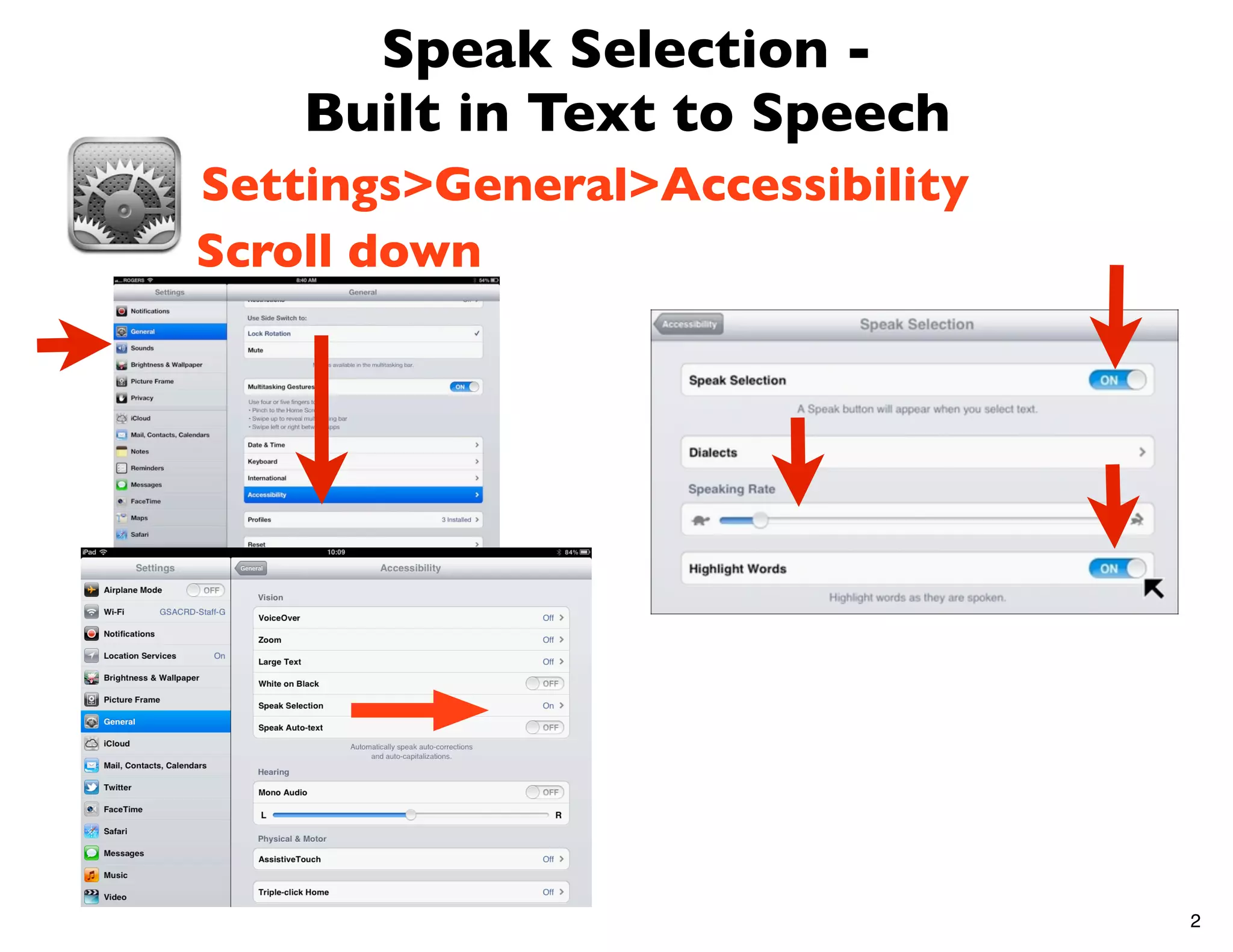
Speak Selection -
    Built in Text to Speech
Settings>General>Accessibility
Scroll down


                                 2
Speak Selection -
                Built in Text to Speech
         Settings>General>Accessibility
         Scroll down
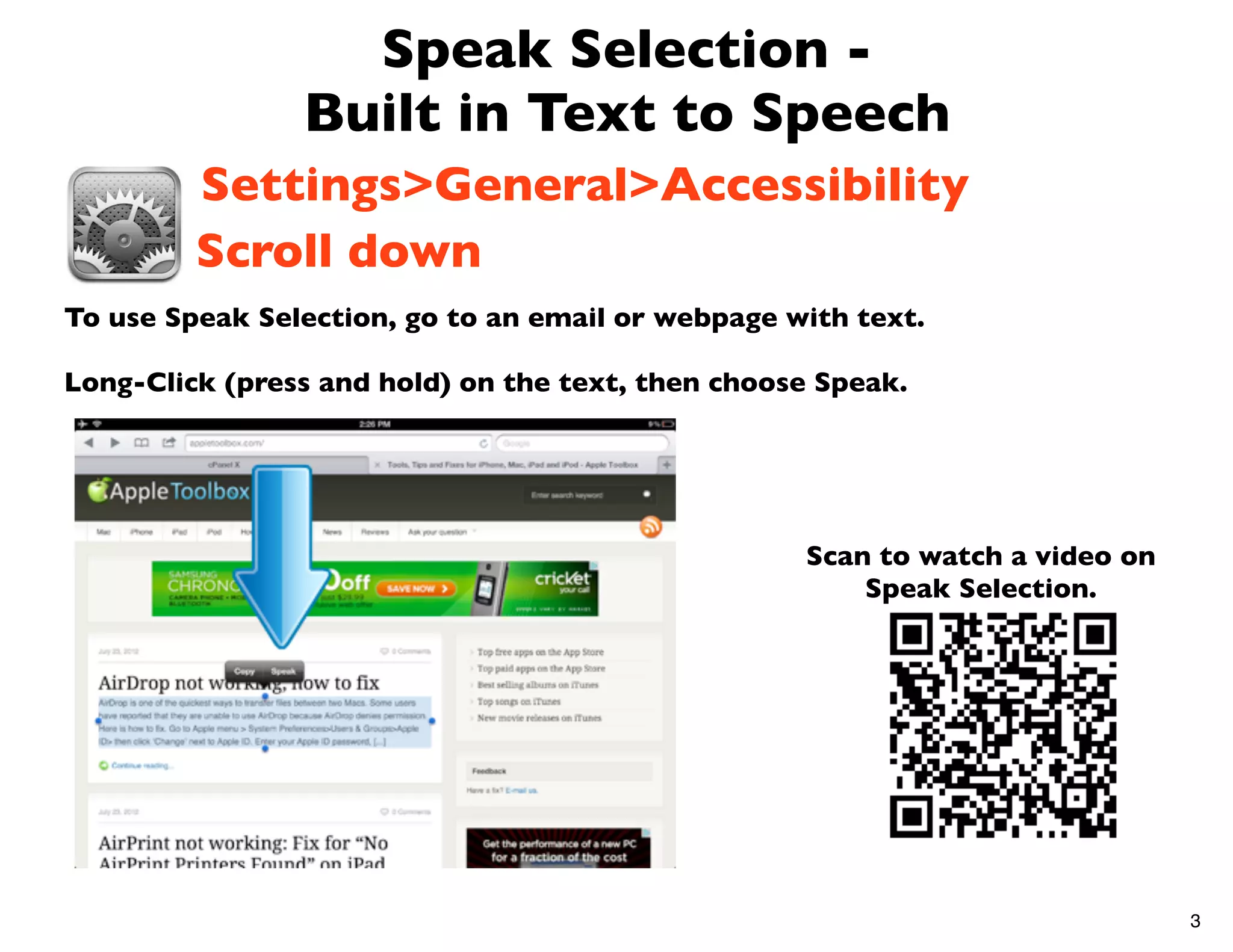
To use Speak Selection, go to an email or webpage with text.

Long-Click (press and hold) on the text, then choose Speak.


                                                   Scan to watch a video on
                                                       Speak Selection.


                                                                              3
Google Search App
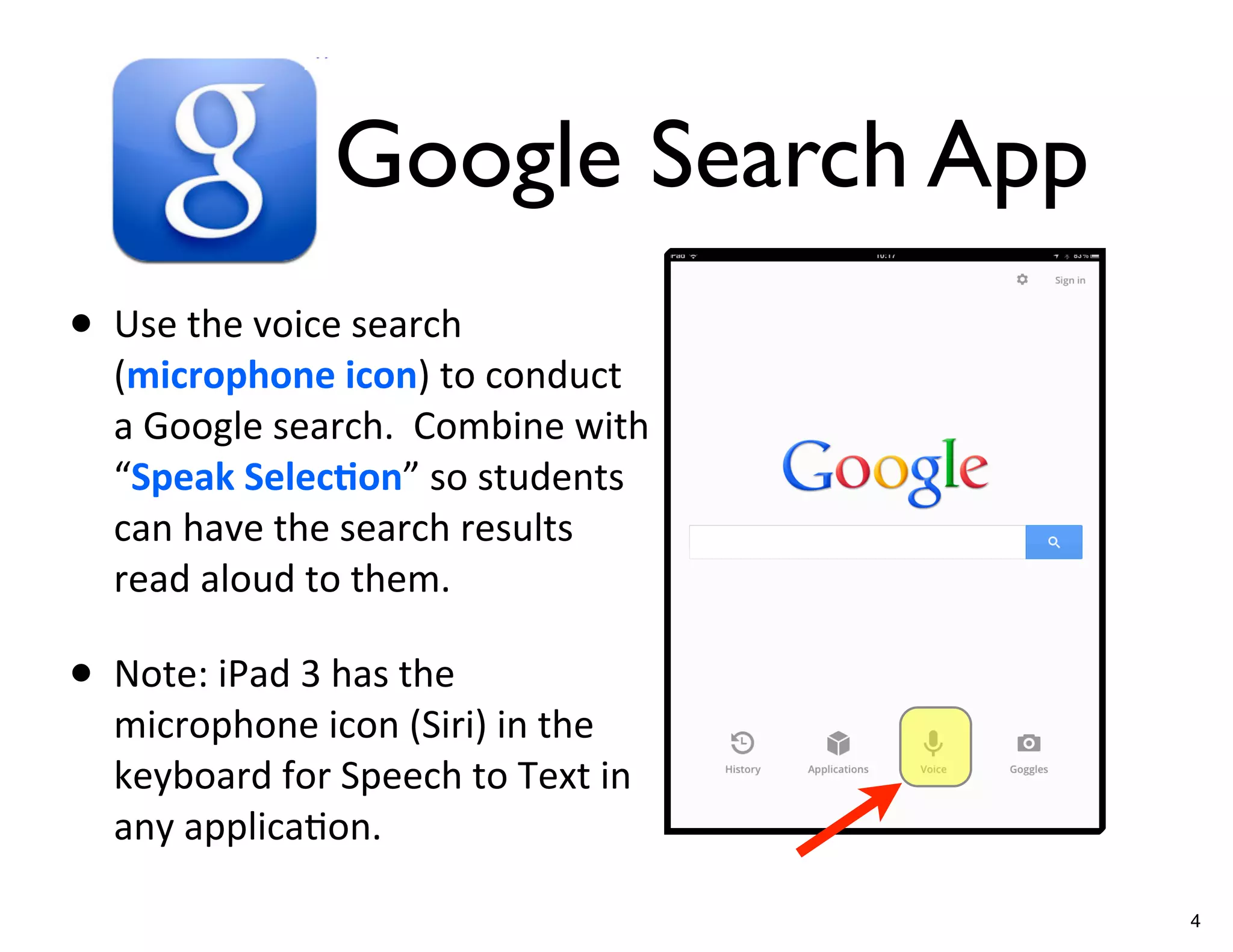
• Use	
  the	
  voice	
  search	
  
    (microphone	
  icon)	
  to	
  conduct	
  
    a	
  Google	
  search.	
  	
  Combine	
  with	
  
    “Speak	
  Selec/on”	
  so	
  students	
  
    can	
  have	
  the	
  search	
  results	
  
    read	
  aloud	
  to	
  them.

• Note:	
  iPad	
  3	
  has	
  the	
  
    microphone	
  icon	
  (Siri)	
  in	
  the	
  
    keyboard	
  for	
  Speech	
  to	
  Text	
  in	
  
    any	
  applicaGon.

                                                        4
Voice Over -
   Reads aloud Everything
Settings>General>Accessibility


                                 5
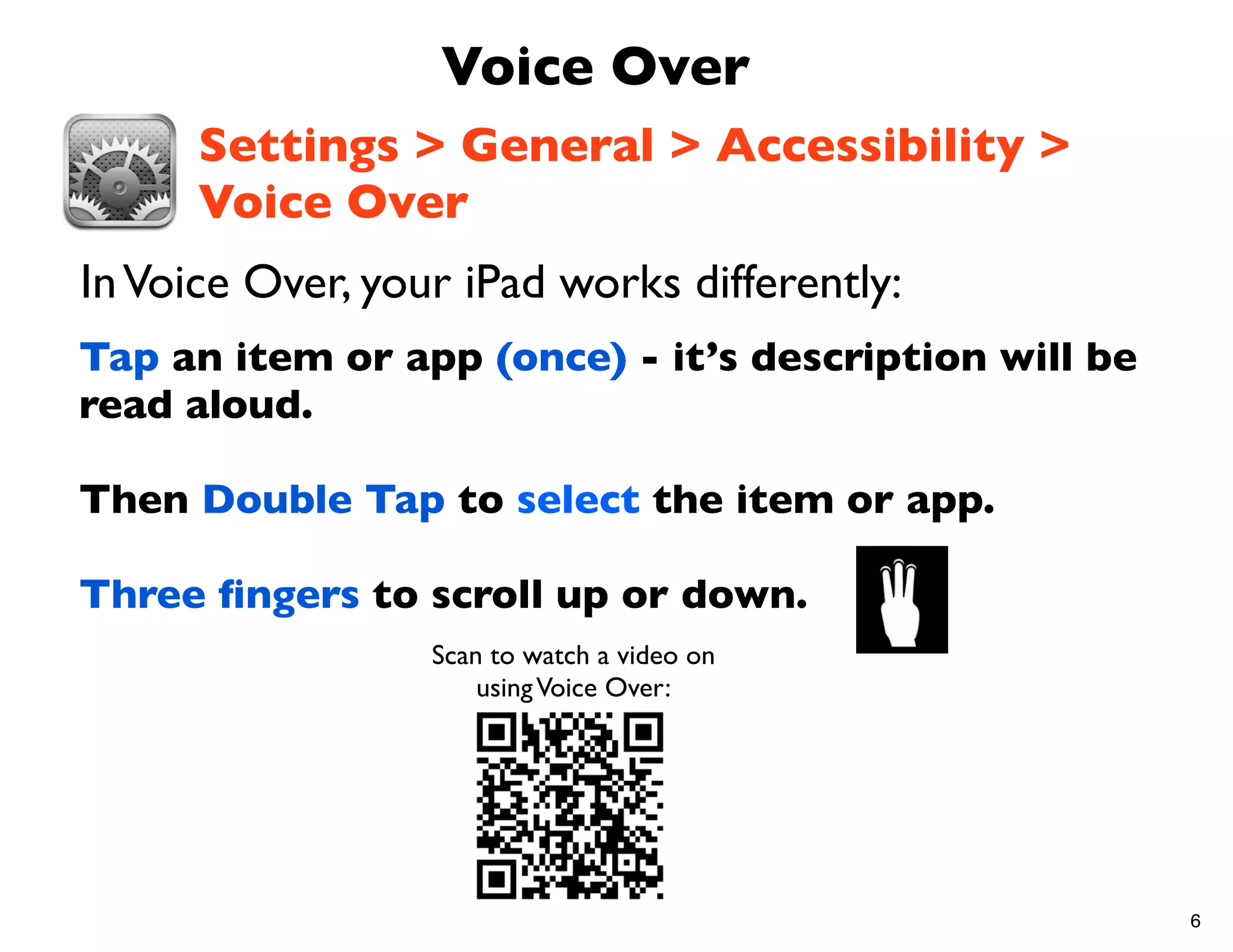
Voice Over
      Settings > General > Accessibility >
      Voice Over
In Voice Over, your iPad works differently:
Tap an item or app (once) - it’s description will be
read aloud.

Then Double Tap to select the item or app.

Three fingers to scroll up or down.
                  Scan to watch a video on
                      using Voice Over:


                                                       6
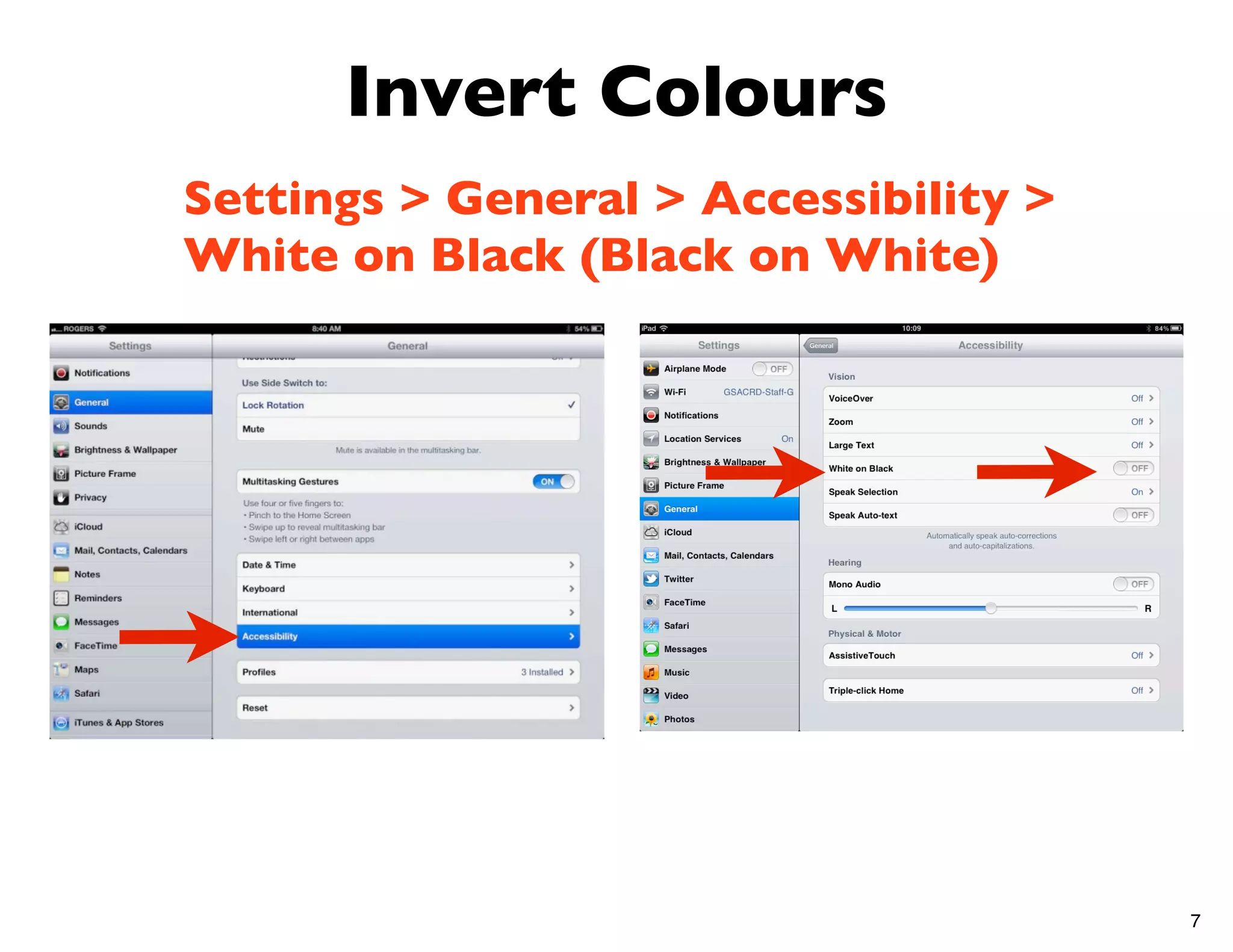
Invert Colours
Settings > General > Accessibility >
White on Black (Black on White)


                                       7
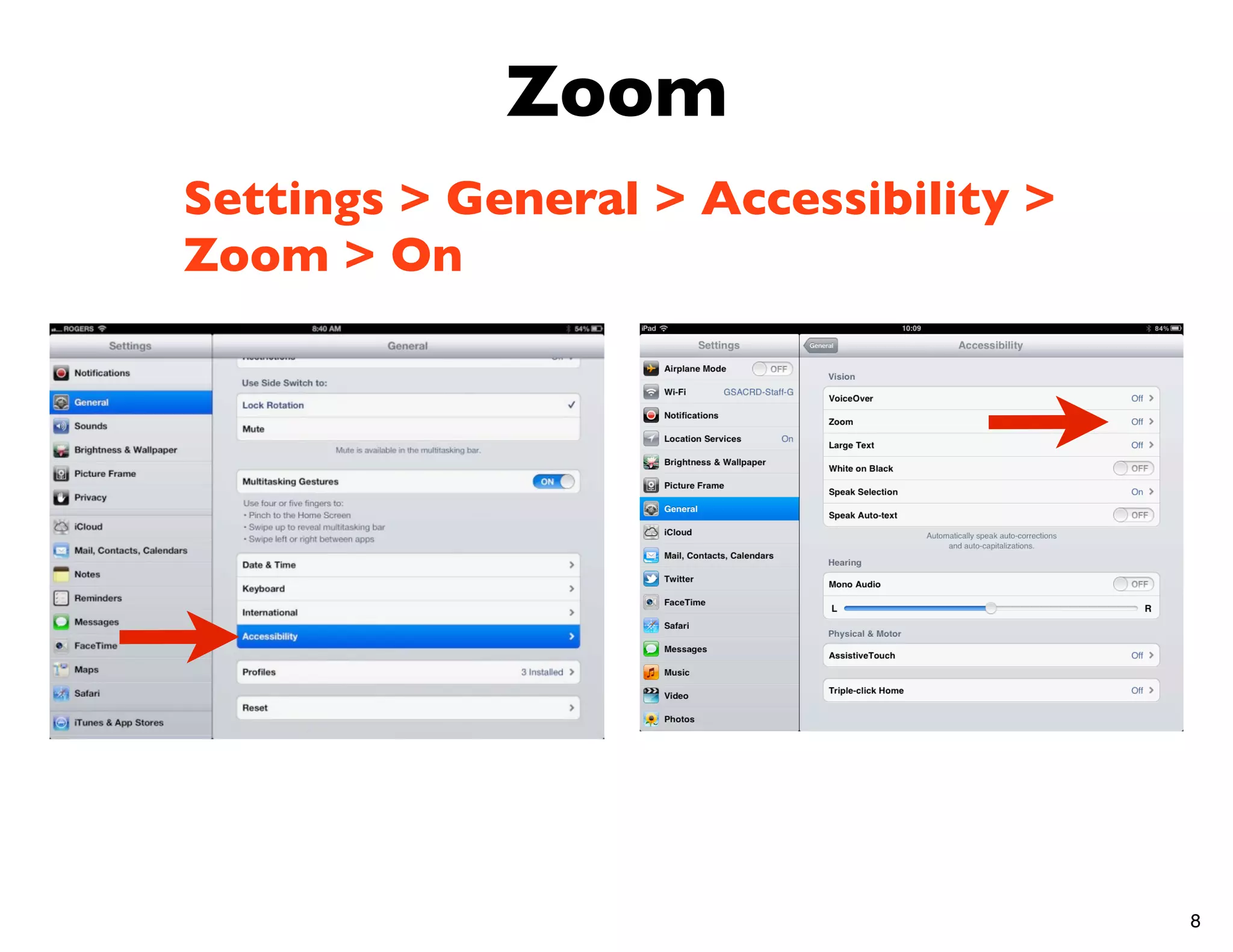
Zoom
Settings > General > Accessibility >
Zoom > On


                                       8
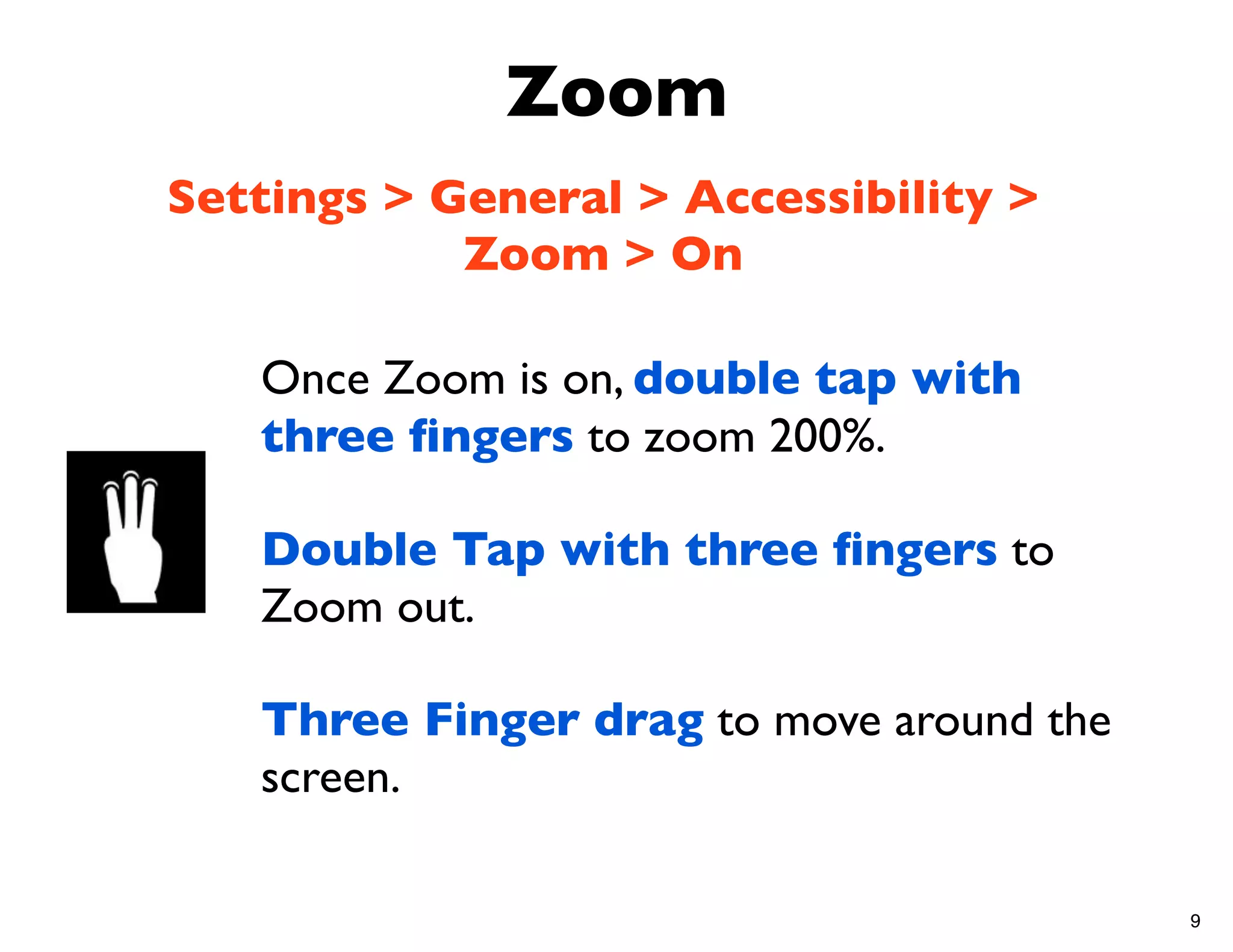
Zoom
Settings > General > Accessibility >
            Zoom > On

   Once Zoom is on, double tap with
   three fingers to zoom 200%.

   Double Tap with three fingers to
   Zoom out.

   Three Finger drag to move around the
   screen.

                                          9
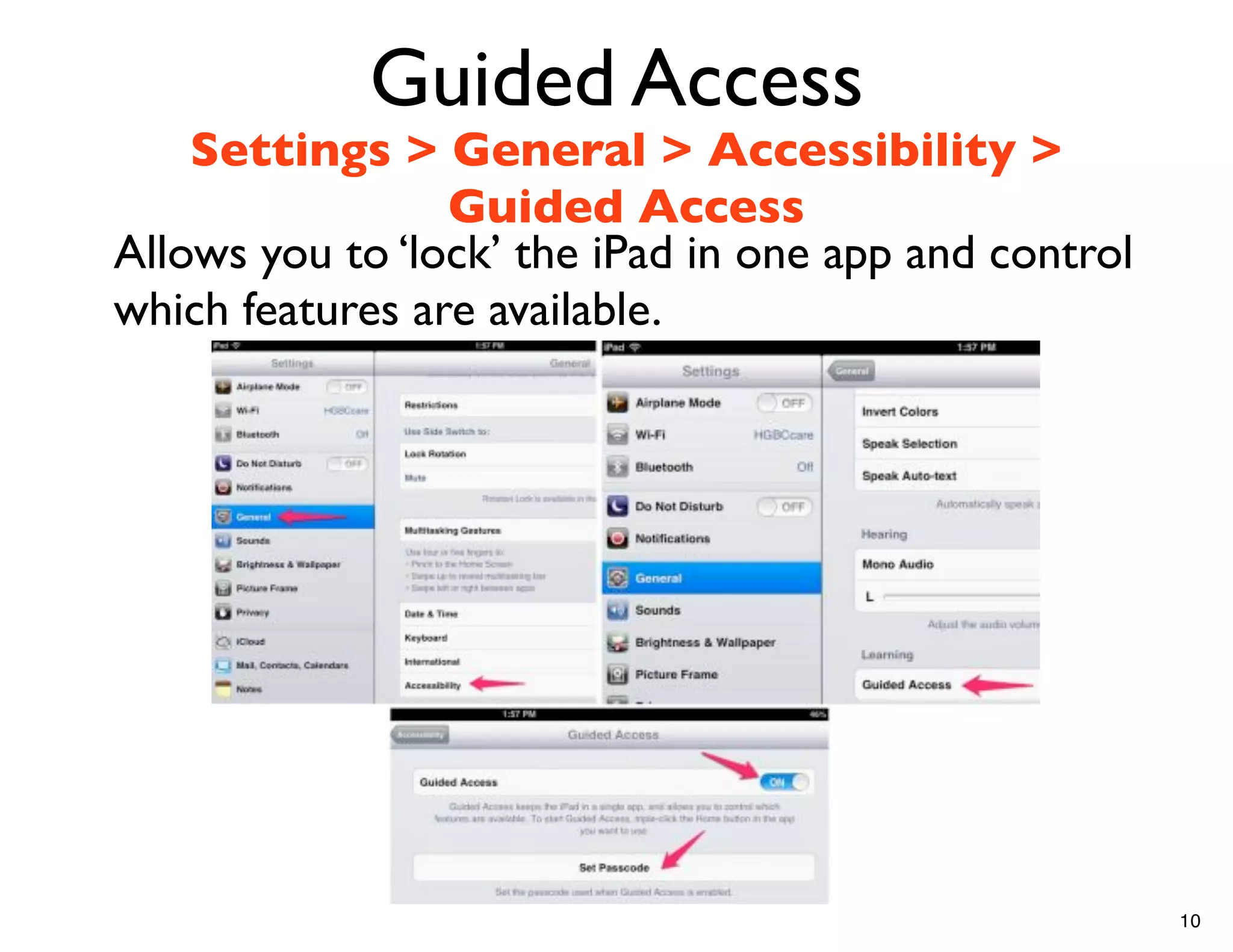
Guided Access
    Settings > General > Accessibility >
                 Guided Access
Allows you to ‘lock’ the iPad in one app and control
which features are available.


                                                       10
Guided Access
           Settings > General > Accessibility >
                      Guided Access
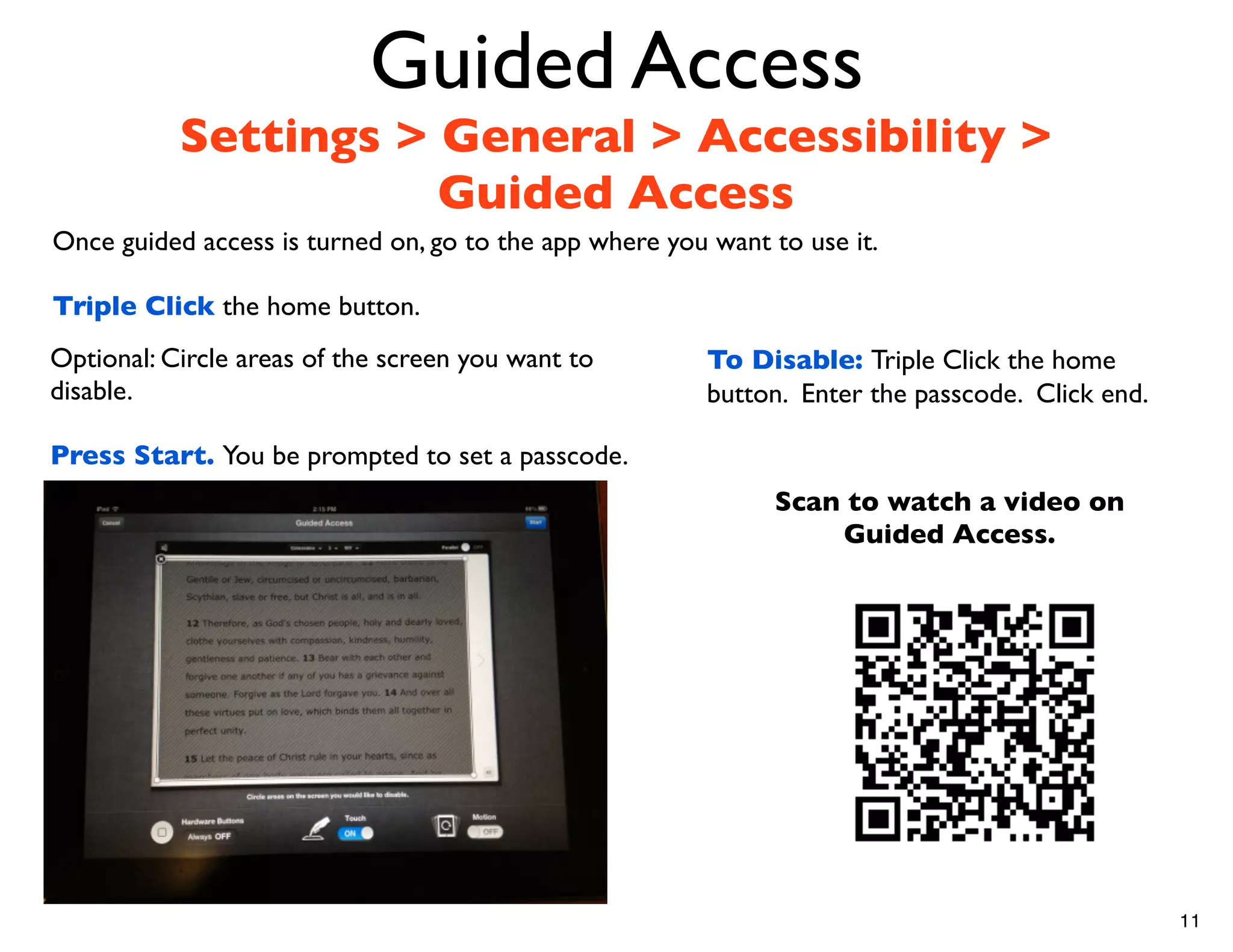
Once guided access is turned on, go to the app where you want to use it.

Triple Click the home button.
Optional: Circle areas of the screen you want to         To Disable: Triple Click the home
disable.                                                 button. Enter the passcode. Click end.

Press Start. You be prompted to set a passcode.
                                                              Scan to watch a video on
                                                                  Guided Access.


                                                                                                  11
Speech to Text
Siri - Available in iPad 3, iPhone 4S
           + and iPad Mini
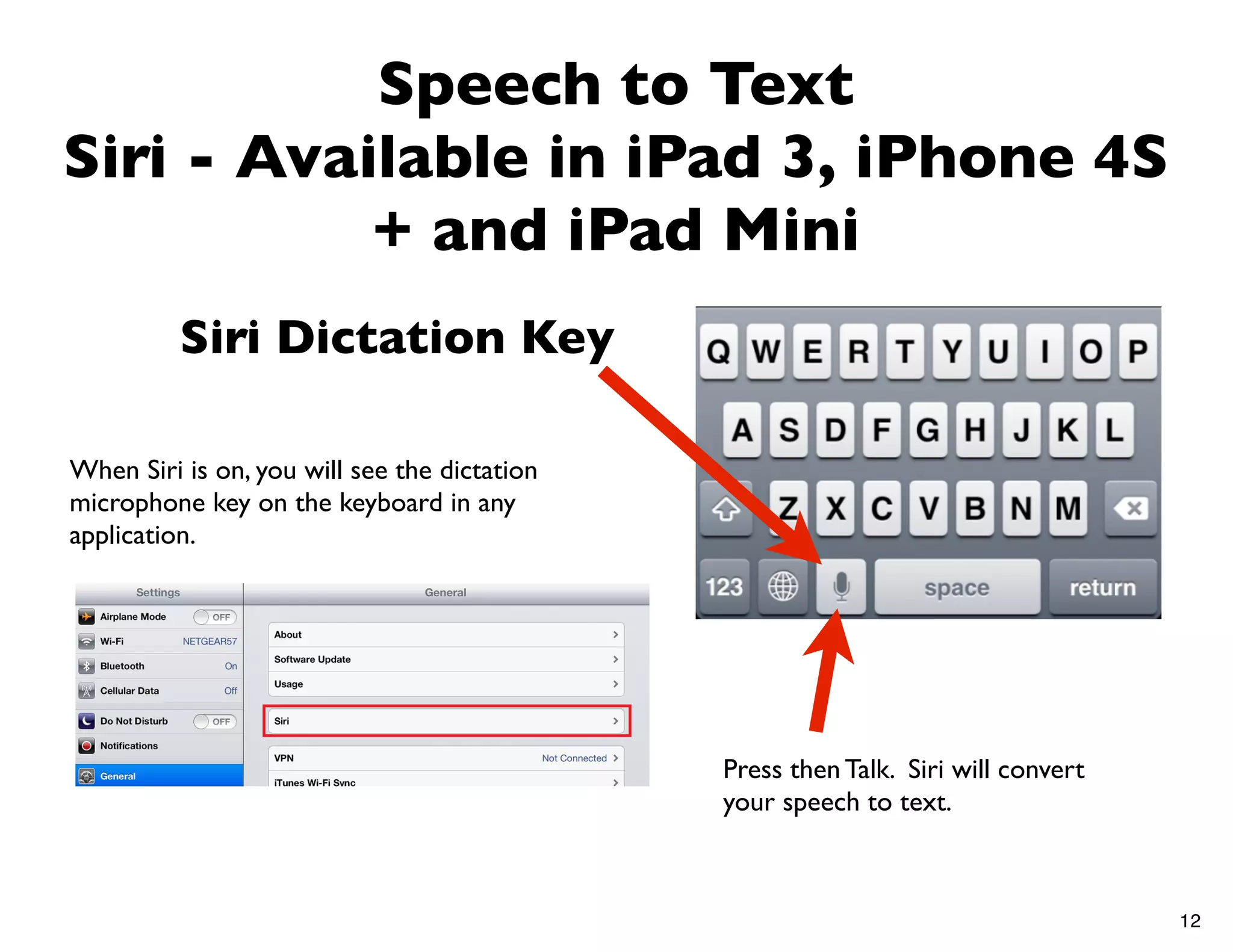
          Siri Dictation Key

When Siri is on, you will see the dictation
microphone key on the keyboard in any
application.


                                              Press then Talk. Siri will convert
                                              your speech to text.


                                                                                   12

iPad Accessibility Scavenger Hunt

  • 1.
    Accessibility Scavenger Hunt Explorethe stations to learn about the accessibility features of the iPad. You may want to use a QR Code Reader app such as: Inigma Scan 1
  • 2.
    Speak Selection - Built in Text to Speech Settings>General>Accessibility Scroll down 2
  • 3.
    Speak Selection - Built in Text to Speech Settings>General>Accessibility Scroll down To use Speak Selection, go to an email or webpage with text. Long-Click (press and hold) on the text, then choose Speak. Scan to watch a video on Speak Selection. 3
  • 4.
    Google Search App •Use  the  voice  search   (microphone  icon)  to  conduct   a  Google  search.    Combine  with   “Speak  Selec/on”  so  students   can  have  the  search  results   read  aloud  to  them. • Note:  iPad  3  has  the   microphone  icon  (Siri)  in  the   keyboard  for  Speech  to  Text  in   any  applicaGon. 4
  • 5.
    Voice Over - Reads aloud Everything Settings>General>Accessibility 5
  • 6.
    Voice Over Settings > General > Accessibility > Voice Over In Voice Over, your iPad works differently: Tap an item or app (once) - it’s description will be read aloud. Then Double Tap to select the item or app. Three fingers to scroll up or down. Scan to watch a video on using Voice Over: 6
  • 7.
    Invert Colours Settings >General > Accessibility > White on Black (Black on White) 7
  • 8.
    Zoom Settings > General> Accessibility > Zoom > On 8
  • 9.
    Zoom Settings > General> Accessibility > Zoom > On Once Zoom is on, double tap with three fingers to zoom 200%. Double Tap with three fingers to Zoom out. Three Finger drag to move around the screen. 9
  • 10.
    Guided Access Settings > General > Accessibility > Guided Access Allows you to ‘lock’ the iPad in one app and control which features are available. 10
  • 11.
    Guided Access Settings > General > Accessibility > Guided Access Once guided access is turned on, go to the app where you want to use it. Triple Click the home button. Optional: Circle areas of the screen you want to To Disable: Triple Click the home disable. button. Enter the passcode. Click end. Press Start. You be prompted to set a passcode. Scan to watch a video on Guided Access. 11
  • 12.
    Speech to Text Siri- Available in iPad 3, iPhone 4S + and iPad Mini Siri Dictation Key When Siri is on, you will see the dictation microphone key on the keyboard in any application. Press then Talk. Siri will convert your speech to text. 12