1/82
2/82
iOS - iPhone/iPadiOS - iPhone/iPad
Application DevelopmentApplication Development
WorkshopWorkshop
Part 1Part 1
2
3/82
What do you need?What do you need?
• Previous experience in another Object Oriented
Programming (OOP) language will be helpful
• Some understanding of C can be helpful, but is not
required. Objective-C builds on C++.
• Development Environment (IDE) is helpful
• Mac computer running OS X Lion or higher!
• If you plan to submit to the App Store, you will need
Apple devices to do real testing on. The simulator is
not good enough.
3
4/82
IntroductionIntroduction
• iOS is the operating system that runs iPhones, iPod
Touches, iPads, and Apple TVs.
• The language used to develop software for iOS is
Objective-C. (very similar to C)
• This workshop will teach you how to get started but
will not have time to teach you everything.
• This workshop is good preparation for a real full
iPhone/iPad, iOS Development class!
4
5/82
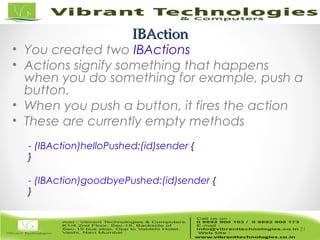
What is iOS?What is iOS?• iOS is an OS. It’s a subset of Mac OS X.
• The iOS SDK is the software development kit that allows application
programs to utilize classes and frameworks provided by the SDK. This
workshop will focus on iOS SDK 5
• iOS is multitasking and runs on different devices (iPhones, iPod Touches,
iPads, and Apple TVs).
• Apple provides an IDE called Xcode.
• Xcode is the IDE used by iOS (and OS X) developers. It does NOT run on
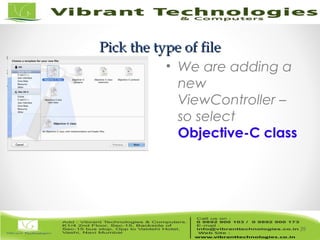
MS Windows.
• Xcode provides an interface to the compiler, editor, debugger, and
code profiling tools.
5
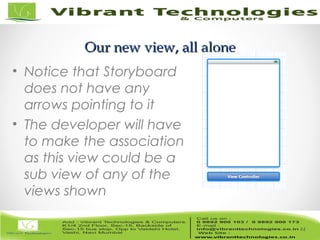
6/82
Device FeaturesDevice Features
• SQLite for structured data storage
• Media support for common audio, video, and still
image formats (MPEG4, H.264, MP3, AAC, AMR,
JPG, PNG, GIF)
• GSM Telephony (hardware dependent)
• Bluetooth, EDGE, 3G, and WiFi (hardware
dependent)
• Camera, GPS, compass, and accelerometer
(hardware dependent)
• Rich development environment including a device
simulator, tools for debugging, memory and
performance profiling
6
7/82
Download the iOS SDKDownload the iOS SDK
• Download the latest from the Apple App store
• This is only available for Apple Macintosh computers
• It’s free
• To build to device and submit to the app store, you
will be required to becomes a register Apple iOS
developer
• It’s $99 year for the basic account
• If you plan to get a job in iOS development, you will
need to establish a basic account and submit
something to the Apple Store. Maybe a game?
7
8/82
Let’s get started - Launch XcodeLet’s get started - Launch Xcode
• You are presented with
the Welcome screen:
o Create a new project
o Connect to a repository
o Learn about using
Xcode
o Go to Apple’s Portal
• Go ahead and click on
“Create a new project”
8
9/82
Project TemplateProject Template
• There are several
predefined
templates to help
you get started on
a new project
• For now, click on
Single View
Application
9
10/82
Project OptionsProject Options
• The Product Name is the name of
your app
• Company Identifier is your
organization name – such as
edu.itu (reverse domain)
• Class Prefix (leave empty)
• Device Family: iPad, iPhone,
Universal (Universal means that a
single binary will have screens for
iPhone, iPod Touch, and iPads)
• Storyboards
• Automatic Reference Counting
• Include Unit Tests (leave
unchecked as we are not using)
10
11/82
Source ControlSource Control
• Asks for a location for Source
Control
• By Default, it will use a local GIT
repository
• New developers not used to
source control – this is extremely
useful!
• It keeps track of versions, lets
you see what’s changed, and
will undoubtedly be used in any
team project you run into in the
“real” world
• GIT and Subversion are two
popular source controls systems
– there are many others to
choose from
11
12/82
Where do I start?Where do I start?
12
13/82
Let’s build the default projectLet’s build the default project
• Click the Run button (upper left of the screen)
• The iPad simulator will launch (You can also change
this to iPhone if you want)
• You will have a blank white screen
• Press Command-Q to end the simulator
13
14/82
Quick Terminology: MVCQuick Terminology: MVC
• Model-View-Controller (MVC)
• MVC is the paradigm of iOS programming
• Model: Holds data, should know nothing of the
interface
• View: Code for getting data in/out of a view.
Deals with items like buttons, lists, tables, etc
• Controller: Keeps the Model objects and View
objects in sync
14
15/82
Quick Terminology: DelegateQuick Terminology: Delegate
• AppDelegate.h
• AppDelegate.m
• The Delegate is essentially
the “controller” of your app.
It links buttons, labels and
views together
• .h files are header files and
interfaces are defined here
• .m files are implementation
files. These contain your
classes, code, etc.
15
16/82
Quick Terminology: StoryboardQuick Terminology: Storyboard
• These are new to iOS5
• Storyboards help you graphically lay out your app
before you code it.
• It makes it easy to see the “flow” of your app
• You are advised to use Storyboards going forward with
you iOS programming adventures
• If you have tinkered with iOS in the past, you might be
asking about the xib/nibs. They are still there, however,
Storyboards offer similar functionality and make it easier
to visualize your views.
• We will not be covering nibs in this workshop.
16
17/82
Quick Terminology: ARCQuick Terminology: ARC
• Automatic Reference Counting (ARC)
• The LLVM 3.0 compiler handles memory management
for you
• It is not a garbage collector!
• Prior to iOS5 – memory management was the single
most difficult item to grasp in Objective-C.
• Unless you have specific reasons, all of your projects
should use ARC.
17
18/82
Quick Terminology: Unit TestsQuick Terminology: Unit Tests
• We will not be discussing Unit Tests in this workshop
• Be advised – unit tests are very useful for your
programs
• The tests can help you make sure your code changes
are not breaking anything.
• The goal is to be able to find bugs quicker and fix
them before your code goes to QA (or the customer!)
18
19/82
Click on the iPhone StoryboardClick on the iPhone Storyboard
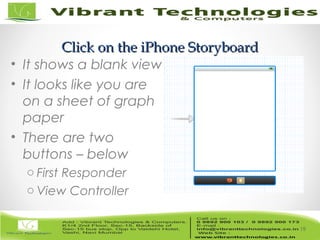
• It shows a blank view
• It looks like you are
on a sheet of graph
paper
• There are two
buttons – below
o First Responder
o View Controller
19
20/82
Find the LabelFind the Label
• In Xcode, lower right
hand corner, scroll until
you find the object
Label
• Drag Label to the blank
view
• Double click on the
Label you added, and
change it to say “Hello
World”
• Do the same steps for
the iPad Storyboard
20
21/82
Run the projectRun the project
• The iPad and iPhone projects should now display
Hello World!
21
22/82
Next, add two buttons to your viewNext, add two buttons to your view
• Find the Round Rect
Button, drag two to the
view
• Double-click on one of
the buttons and type
Hello
• Double-click on one of
the buttons and type
Goodbye
• Run your project, click
on the buttons
22
23/82
Nothing Happens – we have to tell it to doNothing Happens – we have to tell it to do
somethingsomething
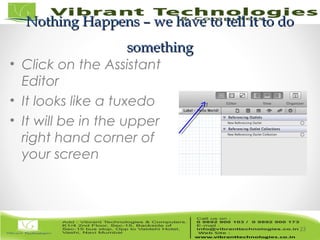
• Click on the Assistant
Editor
• It looks like a tuxedo
• It will be in the upper
right hand corner of
your screen
23
24/82
Linking the ViewObject to yourLinking the ViewObject to your
ViewController…ViewController…
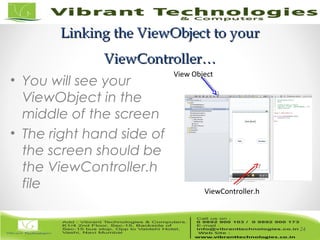
• You will see your
ViewObject in the
middle of the screen
• The right hand side of
the screen should be
the ViewController.h
file
24
View Object
ViewController.h
25/82
Link the label…Link the label…
• Single click on your Hello World
label
• While holding down the Control
key, left click-drag to the
ViewController.h file
• You need to drag between the
@interface and @end in the
code
• This will make a new property
• For the name, call it helloLabel so
we can easily recognize what it is
• This step will allow us to make
changes to the UILabel
25
26/82
@interface and @end@interface and @end
• Remember that Objective-C is an
extensive to the C language
• The @ symbol denotes an Objective-C
keyword
• @interface is the start of a class.
• @interface Classname: Superclass
• Anything between the declaration and
end is part of the class
26
27/82
@property (weak, nonatomic) IBOutlet@property (weak, nonatomic) IBOutlet
UILabel *helloLabel;UILabel *helloLabel;
• A property is an attribute of the class
• Getters and Setters are automatically created for
you
• Weak is a memory management term
• Nonatomic has to do with adding mutexes around
your getters and setters
• IBOutlet stands for Interface Builder Outlet.
• Interface Builder still exists in iOS5 but we are using
the new Storyboard feature instead.
27
28/82
@synthesize helloLabel@synthesize helloLabel
• Synthesize – this creates the
accessor/mutators (getters/setters) for
you
• You can write your own if you want,
but in general, there is no reason to do
this.
28
29/82
Link the rest of the buttonsLink the rest of the buttons
• Link helloButton to
ViewController.h
• Link goodbyeButton
to ViewController.h
• When done, you will
have two properties
• Now, switch the
Assistant window to
the ViewController.m
file
29
30/82
TouchUpInside ActionsTouchUpInside Actions
TouchUpInside events occur if
you touch a button and lift off
while inside the button
This corresponds to a user
tapping a button
Right-Click on the Hello button
On the far right, locate Touch
Up Inside
Left click-drag this over to your
ViewController.m
Notice it creates some code
Do the same for the goodbye
button
30
31/82
IBActionIBAction
• You created two IBActions
• Actions signify something that happens
when you do something for example, push a
button.
• When you push a button, it fires the action
• These are currently empty methods
- (IBAction)helloPushed:(id)sender {
}
- (IBAction)goodbyePushed:(id)sender {
}
31
32/82
Change the UILabelChange the UILabel
- (IBAction)helloPushed:(id)sender {
self.helloLabel.text=@"Hello Pushed";
}
- (IBAction)goodbyePushed:(id)sender {
self.helloLabel.text=@"Goodbye Pushed";
}
• Self refers to the ViewController class
• We defined the property helloLabel earlier
• Text is a property of UILabel’s that we can set.
• The @”Some text” is an NSString object that UILabels can
display.
• Run your program and push the buttons. You should see the
UILabel change when you press the buttons
32
33/82
Tab ControllerTab Controller
• If you’ve ever used an iOS device, you have come
across apps that use the tab controller.
• Several of the built in apps (such as the phone app)
use this controller
• For the next exercise, we are going to create a
simple tab controller
33
34/82
Create a new projectCreate a new project
• Close any existing
projects you have
open (to make things
easier!)
• Select File->New-
>Project from the
application menu
34
35/82
Select Tab TemplateSelect Tab Template
• Select the
“Tabbed
Application”
Template for your
project
35
36/82
Set OptionsSet Options
• For product name, call it
tabDemo
• Whatever you used for
Company Identifier should
be set – if not, edu.itu is ok
• Leave Class Prefix blank
• For Device family, choose
iPhone (to keep it simple)
• Enable Storyboards and
Arc
• Do not select Unit Tests
36
37/82
Look at the StoryboardLook at the Storyboard
• Click on
MainStoryboard.Storyboard
• Notice how the Tab Bar
Controller is shown
• It also shows the child views
associated with the tab bar
buttons
• This lets the developer see the
views and path to them at a
quick glance.
• Go ahead and run the project,
observe what happens when
you tap the tab items. It
switches between the views
37
38/82
Let’s add a new class: ThirdViewControllerLet’s add a new class: ThirdViewController
• On the left
hand side, right-
click on the
tabDemo folder
and select New
File
38
39/82
Pick the type of filePick the type of file
• We are adding a
new
ViewController –
so select
Objective-C class
39
40/82
Pick the optionsPick the options
• For Class, type in Third
• In the Sublass combo box,
select UIViewController
• The IDE will change your class
name
• It is good naming convention
to have the class be
description – so in this case,
ThirdViewController lets any
developer know this is a
ViewController
• Leave Targeted for iPad and
XIB unchecked
40
41/82
CreateCreate
• Take the default
options, click
the Create
button
41
42/82
We now have a .h and .mWe now have a .h and .m
• Notice that you now
have two files
• ThirdViewController.h
and
ThirdViewController.m
• If you look at the files,
they are basically
“skeleton” classes
ready for the developer
42
43/82
Add another View ControllerAdd another View Controller
• Add a new View
Controller to the
Storyboard
• After you add it, it
will not be linked
to any view
43
44/82
Our new view, all aloneOur new view, all alone
• Notice that Storyboard
does not have any
arrows pointing to it
• The developer will have
to make the association
as this view could be a
sub view of any of the
views shown
44
45/82
Link this ViewController to the TabLink this ViewController to the Tab
ControllerController
• Hold down the Control key, left-click
drag from the Tab Controller to the
new view we just added
• This tells Storyboard that this view is
going to be accessed from the tab
controller
45
46/82
Select RelationshipSelect Relationship
46
47/82
Label this before we forgetLabel this before we forget
• Click on the Text
• Change this to say Third
• We do not have any
graphics – if we did, we
would want to go
ahead and add a
graphic for this.
• Note: you will need
graphics for standard
iPhones, retina, and
iPads.
47
48/82
Lets be more specific about the classLets be more specific about the class
• Left Click on your new
view in Storyboard – icon
on right bottom
• Click the Identify
Inspector (upper right)
• Notice how the class is
currently UIViewController
• We need to make this to
be associated with our
ThirdViewController
(which is a subclass of
UIViewController)
48
49/82
Select ThirdViewControllerSelect ThirdViewController
• From the combo box,
scroll until you find
ThirdViewController
• This will let us do any
custom actions we
might need to do
• Remember:
ThirdViewController has
all of the methods and
properties of a
UIViewController!
49
50/82
Let’s Replace the First ViewLet’s Replace the First View
• We are going to
replace the
FirstViewController
with a
TableViewController
• Click on First View, hit
the Delete button to
remove it
50
51/82
Drag a Table View ControllerDrag a Table View Controller
• From the Object
Library, drag over a
Table View
Controller
• A good spot would
be where you just
deleted the other
view controller
51
52/82
Embed Navigation ControllerEmbed Navigation Controller
• From the Xcode menu
bar, select Editor-
>Embed In-
>Navigation Controller
• Notice that another
view controller is
added to the
Storyboard canvas
52
53/82
Check it outCheck it out
• This is what we did in
the previous slide
• Since the Navigation
Controller is a
container, there is a
relationship between
the Navigation
controller and the
table view controller.
(Noted by the
connecting arrow)
53
54/82
Hook up the ScenesHook up the Scenes
• Ctrl-drag from the
Tab Bar controller
to the Navigation
controller
• Select
Relationship –
View Controllers
54
55/82
Look at Storyboard nowLook at Storyboard now
• The relationship is defined
• When we added this, it
added an entry labeled
“Item” as the last tab bar
button
• Drag this “Item” and make it
the first entry in our tab bar
55
56/82
Fix up the tab bar itemsFix up the tab bar items
• Drag item to the left
most position
• Also, let’s rename
this back to First
• Double-click on Item
in the Navigation
Controller scene,
change text to First
56
57/82
Name the Navigation barName the Navigation bar
• In the Table View
window, double-click on
the Title bar.
• Type in “Things” to give
the Navigation bar a
name.
• In a “real” app, you
would type something
descriptive and
meaningful to the user.
57
58/82
The Navigation Bar has a titleThe Navigation Bar has a title
• You can now see the
title has a name.
• If you have noticed, we
have been getting a
warning from the
compiler for our
storyboard.
• “Prototype table cells
must have reuse
identifiers”
58
59/82
Let’s get rid of the warningLet’s get rid of the warning
• Warnings are typically not something
you want in your program.
• We are getting this warning because
we have not configured the cells yet –
so the compiler does not know what
they are.
59
60/82
Table View ControllerTable View Controller
• Click on the
blank prototype
cell
• Next, click on
the attributes
inspector and
set Style to
Subtitle.
60
61/82
Attributes InspectorAttributes Inspector
61
62/82
More cell attributesMore cell attributes
• Set the Accessory attribute
to Disclosure Indicator.
• Give the cell an identifier of
ThingsCell.
• The warning from Xcode is a
reminder to developers –
there is something you need
to do if you want this to work.
• (Side note – warnings are
something you should not
overlook. Several program
crashes can stem from
warnings people don’t pay
attention to.)
62
63/82
Add a UIViewController subclass template…Add a UIViewController subclass template…
• Add a new file to the project.
• Choose UIViewController subclass
template.
• Name the class ThingsViewController,
this will be a subclass of
UITableViewController
63
64/82
New fileNew file
64
65/82
Objective-C ClassObjective-C Class
65
66/82
ThingsViewControllerThingsViewController
66
67/82
Create to add to projectCreate to add to project
67
68/82
Set the class with Identify InspectorSet the class with Identify Inspector
• Click on the
TableViewController
object (the whole
object will be outlined
in blue)
• Now, click class and
select
ThingsViewController
68
69/82
Build and run!Build and run!
• Go ahead and build the app
• You can now add items to the table view
if you want to continue working with this
app.
69
70/82
ThankThank You !!!You !!!
For More Information click below link:
Follow Us on:
http://vibranttechnologies.co.in/ios-classes-in-mumbai.html

Ios - Intorduction to view controller

  • 1.
  • 2.
    2/82 iOS - iPhone/iPadiOS- iPhone/iPad Application DevelopmentApplication Development WorkshopWorkshop Part 1Part 1 2
  • 3.
    3/82 What do youneed?What do you need? • Previous experience in another Object Oriented Programming (OOP) language will be helpful • Some understanding of C can be helpful, but is not required. Objective-C builds on C++. • Development Environment (IDE) is helpful • Mac computer running OS X Lion or higher! • If you plan to submit to the App Store, you will need Apple devices to do real testing on. The simulator is not good enough. 3
  • 4.
    4/82 IntroductionIntroduction • iOS isthe operating system that runs iPhones, iPod Touches, iPads, and Apple TVs. • The language used to develop software for iOS is Objective-C. (very similar to C) • This workshop will teach you how to get started but will not have time to teach you everything. • This workshop is good preparation for a real full iPhone/iPad, iOS Development class! 4
  • 5.
    5/82 What is iOS?Whatis iOS?• iOS is an OS. It’s a subset of Mac OS X. • The iOS SDK is the software development kit that allows application programs to utilize classes and frameworks provided by the SDK. This workshop will focus on iOS SDK 5 • iOS is multitasking and runs on different devices (iPhones, iPod Touches, iPads, and Apple TVs). • Apple provides an IDE called Xcode. • Xcode is the IDE used by iOS (and OS X) developers. It does NOT run on MS Windows. • Xcode provides an interface to the compiler, editor, debugger, and code profiling tools. 5
  • 6.
    6/82 Device FeaturesDevice Features •SQLite for structured data storage • Media support for common audio, video, and still image formats (MPEG4, H.264, MP3, AAC, AMR, JPG, PNG, GIF) • GSM Telephony (hardware dependent) • Bluetooth, EDGE, 3G, and WiFi (hardware dependent) • Camera, GPS, compass, and accelerometer (hardware dependent) • Rich development environment including a device simulator, tools for debugging, memory and performance profiling 6
  • 7.
    7/82 Download the iOSSDKDownload the iOS SDK • Download the latest from the Apple App store • This is only available for Apple Macintosh computers • It’s free • To build to device and submit to the app store, you will be required to becomes a register Apple iOS developer • It’s $99 year for the basic account • If you plan to get a job in iOS development, you will need to establish a basic account and submit something to the Apple Store. Maybe a game? 7
  • 8.
    8/82 Let’s get started- Launch XcodeLet’s get started - Launch Xcode • You are presented with the Welcome screen: o Create a new project o Connect to a repository o Learn about using Xcode o Go to Apple’s Portal • Go ahead and click on “Create a new project” 8
  • 9.
    9/82 Project TemplateProject Template •There are several predefined templates to help you get started on a new project • For now, click on Single View Application 9
  • 10.
    10/82 Project OptionsProject Options •The Product Name is the name of your app • Company Identifier is your organization name – such as edu.itu (reverse domain) • Class Prefix (leave empty) • Device Family: iPad, iPhone, Universal (Universal means that a single binary will have screens for iPhone, iPod Touch, and iPads) • Storyboards • Automatic Reference Counting • Include Unit Tests (leave unchecked as we are not using) 10
  • 11.
    11/82 Source ControlSource Control •Asks for a location for Source Control • By Default, it will use a local GIT repository • New developers not used to source control – this is extremely useful! • It keeps track of versions, lets you see what’s changed, and will undoubtedly be used in any team project you run into in the “real” world • GIT and Subversion are two popular source controls systems – there are many others to choose from 11
  • 12.
    12/82 Where do Istart?Where do I start? 12
  • 13.
    13/82 Let’s build thedefault projectLet’s build the default project • Click the Run button (upper left of the screen) • The iPad simulator will launch (You can also change this to iPhone if you want) • You will have a blank white screen • Press Command-Q to end the simulator 13
  • 14.
    14/82 Quick Terminology: MVCQuickTerminology: MVC • Model-View-Controller (MVC) • MVC is the paradigm of iOS programming • Model: Holds data, should know nothing of the interface • View: Code for getting data in/out of a view. Deals with items like buttons, lists, tables, etc • Controller: Keeps the Model objects and View objects in sync 14
  • 15.
    15/82 Quick Terminology: DelegateQuickTerminology: Delegate • AppDelegate.h • AppDelegate.m • The Delegate is essentially the “controller” of your app. It links buttons, labels and views together • .h files are header files and interfaces are defined here • .m files are implementation files. These contain your classes, code, etc. 15
  • 16.
    16/82 Quick Terminology: StoryboardQuickTerminology: Storyboard • These are new to iOS5 • Storyboards help you graphically lay out your app before you code it. • It makes it easy to see the “flow” of your app • You are advised to use Storyboards going forward with you iOS programming adventures • If you have tinkered with iOS in the past, you might be asking about the xib/nibs. They are still there, however, Storyboards offer similar functionality and make it easier to visualize your views. • We will not be covering nibs in this workshop. 16
  • 17.
    17/82 Quick Terminology: ARCQuickTerminology: ARC • Automatic Reference Counting (ARC) • The LLVM 3.0 compiler handles memory management for you • It is not a garbage collector! • Prior to iOS5 – memory management was the single most difficult item to grasp in Objective-C. • Unless you have specific reasons, all of your projects should use ARC. 17
  • 18.
    18/82 Quick Terminology: UnitTestsQuick Terminology: Unit Tests • We will not be discussing Unit Tests in this workshop • Be advised – unit tests are very useful for your programs • The tests can help you make sure your code changes are not breaking anything. • The goal is to be able to find bugs quicker and fix them before your code goes to QA (or the customer!) 18
  • 19.
    19/82 Click on theiPhone StoryboardClick on the iPhone Storyboard • It shows a blank view • It looks like you are on a sheet of graph paper • There are two buttons – below o First Responder o View Controller 19
  • 20.
    20/82 Find the LabelFindthe Label • In Xcode, lower right hand corner, scroll until you find the object Label • Drag Label to the blank view • Double click on the Label you added, and change it to say “Hello World” • Do the same steps for the iPad Storyboard 20
  • 21.
    21/82 Run the projectRunthe project • The iPad and iPhone projects should now display Hello World! 21
  • 22.
    22/82 Next, add twobuttons to your viewNext, add two buttons to your view • Find the Round Rect Button, drag two to the view • Double-click on one of the buttons and type Hello • Double-click on one of the buttons and type Goodbye • Run your project, click on the buttons 22
  • 23.
    23/82 Nothing Happens –we have to tell it to doNothing Happens – we have to tell it to do somethingsomething • Click on the Assistant Editor • It looks like a tuxedo • It will be in the upper right hand corner of your screen 23
  • 24.
    24/82 Linking the ViewObjectto yourLinking the ViewObject to your ViewController…ViewController… • You will see your ViewObject in the middle of the screen • The right hand side of the screen should be the ViewController.h file 24 View Object ViewController.h
  • 25.
    25/82 Link the label…Linkthe label… • Single click on your Hello World label • While holding down the Control key, left click-drag to the ViewController.h file • You need to drag between the @interface and @end in the code • This will make a new property • For the name, call it helloLabel so we can easily recognize what it is • This step will allow us to make changes to the UILabel 25
  • 26.
    26/82 @interface and @end@interfaceand @end • Remember that Objective-C is an extensive to the C language • The @ symbol denotes an Objective-C keyword • @interface is the start of a class. • @interface Classname: Superclass • Anything between the declaration and end is part of the class 26
  • 27.
    27/82 @property (weak, nonatomic)IBOutlet@property (weak, nonatomic) IBOutlet UILabel *helloLabel;UILabel *helloLabel; • A property is an attribute of the class • Getters and Setters are automatically created for you • Weak is a memory management term • Nonatomic has to do with adding mutexes around your getters and setters • IBOutlet stands for Interface Builder Outlet. • Interface Builder still exists in iOS5 but we are using the new Storyboard feature instead. 27
  • 28.
    28/82 @synthesize helloLabel@synthesize helloLabel •Synthesize – this creates the accessor/mutators (getters/setters) for you • You can write your own if you want, but in general, there is no reason to do this. 28
  • 29.
    29/82 Link the restof the buttonsLink the rest of the buttons • Link helloButton to ViewController.h • Link goodbyeButton to ViewController.h • When done, you will have two properties • Now, switch the Assistant window to the ViewController.m file 29
  • 30.
    30/82 TouchUpInside ActionsTouchUpInside Actions TouchUpInsideevents occur if you touch a button and lift off while inside the button This corresponds to a user tapping a button Right-Click on the Hello button On the far right, locate Touch Up Inside Left click-drag this over to your ViewController.m Notice it creates some code Do the same for the goodbye button 30
  • 31.
    31/82 IBActionIBAction • You createdtwo IBActions • Actions signify something that happens when you do something for example, push a button. • When you push a button, it fires the action • These are currently empty methods - (IBAction)helloPushed:(id)sender { } - (IBAction)goodbyePushed:(id)sender { } 31
  • 32.
    32/82 Change the UILabelChangethe UILabel - (IBAction)helloPushed:(id)sender { self.helloLabel.text=@"Hello Pushed"; } - (IBAction)goodbyePushed:(id)sender { self.helloLabel.text=@"Goodbye Pushed"; } • Self refers to the ViewController class • We defined the property helloLabel earlier • Text is a property of UILabel’s that we can set. • The @”Some text” is an NSString object that UILabels can display. • Run your program and push the buttons. You should see the UILabel change when you press the buttons 32
  • 33.
    33/82 Tab ControllerTab Controller •If you’ve ever used an iOS device, you have come across apps that use the tab controller. • Several of the built in apps (such as the phone app) use this controller • For the next exercise, we are going to create a simple tab controller 33
  • 34.
    34/82 Create a newprojectCreate a new project • Close any existing projects you have open (to make things easier!) • Select File->New- >Project from the application menu 34
  • 35.
    35/82 Select Tab TemplateSelectTab Template • Select the “Tabbed Application” Template for your project 35
  • 36.
    36/82 Set OptionsSet Options •For product name, call it tabDemo • Whatever you used for Company Identifier should be set – if not, edu.itu is ok • Leave Class Prefix blank • For Device family, choose iPhone (to keep it simple) • Enable Storyboards and Arc • Do not select Unit Tests 36
  • 37.
    37/82 Look at theStoryboardLook at the Storyboard • Click on MainStoryboard.Storyboard • Notice how the Tab Bar Controller is shown • It also shows the child views associated with the tab bar buttons • This lets the developer see the views and path to them at a quick glance. • Go ahead and run the project, observe what happens when you tap the tab items. It switches between the views 37
  • 38.
    38/82 Let’s add anew class: ThirdViewControllerLet’s add a new class: ThirdViewController • On the left hand side, right- click on the tabDemo folder and select New File 38
  • 39.
    39/82 Pick the typeof filePick the type of file • We are adding a new ViewController – so select Objective-C class 39
  • 40.
    40/82 Pick the optionsPickthe options • For Class, type in Third • In the Sublass combo box, select UIViewController • The IDE will change your class name • It is good naming convention to have the class be description – so in this case, ThirdViewController lets any developer know this is a ViewController • Leave Targeted for iPad and XIB unchecked 40
  • 41.
    41/82 CreateCreate • Take thedefault options, click the Create button 41
  • 42.
    42/82 We now havea .h and .mWe now have a .h and .m • Notice that you now have two files • ThirdViewController.h and ThirdViewController.m • If you look at the files, they are basically “skeleton” classes ready for the developer 42
  • 43.
    43/82 Add another ViewControllerAdd another View Controller • Add a new View Controller to the Storyboard • After you add it, it will not be linked to any view 43
  • 44.
    44/82 Our new view,all aloneOur new view, all alone • Notice that Storyboard does not have any arrows pointing to it • The developer will have to make the association as this view could be a sub view of any of the views shown 44
  • 45.
    45/82 Link this ViewControllerto the TabLink this ViewController to the Tab ControllerController • Hold down the Control key, left-click drag from the Tab Controller to the new view we just added • This tells Storyboard that this view is going to be accessed from the tab controller 45
  • 46.
  • 47.
    47/82 Label this beforewe forgetLabel this before we forget • Click on the Text • Change this to say Third • We do not have any graphics – if we did, we would want to go ahead and add a graphic for this. • Note: you will need graphics for standard iPhones, retina, and iPads. 47
  • 48.
    48/82 Lets be morespecific about the classLets be more specific about the class • Left Click on your new view in Storyboard – icon on right bottom • Click the Identify Inspector (upper right) • Notice how the class is currently UIViewController • We need to make this to be associated with our ThirdViewController (which is a subclass of UIViewController) 48
  • 49.
    49/82 Select ThirdViewControllerSelect ThirdViewController •From the combo box, scroll until you find ThirdViewController • This will let us do any custom actions we might need to do • Remember: ThirdViewController has all of the methods and properties of a UIViewController! 49
  • 50.
    50/82 Let’s Replace theFirst ViewLet’s Replace the First View • We are going to replace the FirstViewController with a TableViewController • Click on First View, hit the Delete button to remove it 50
  • 51.
    51/82 Drag a TableView ControllerDrag a Table View Controller • From the Object Library, drag over a Table View Controller • A good spot would be where you just deleted the other view controller 51
  • 52.
    52/82 Embed Navigation ControllerEmbedNavigation Controller • From the Xcode menu bar, select Editor- >Embed In- >Navigation Controller • Notice that another view controller is added to the Storyboard canvas 52
  • 53.
    53/82 Check it outCheckit out • This is what we did in the previous slide • Since the Navigation Controller is a container, there is a relationship between the Navigation controller and the table view controller. (Noted by the connecting arrow) 53
  • 54.
    54/82 Hook up theScenesHook up the Scenes • Ctrl-drag from the Tab Bar controller to the Navigation controller • Select Relationship – View Controllers 54
  • 55.
    55/82 Look at StoryboardnowLook at Storyboard now • The relationship is defined • When we added this, it added an entry labeled “Item” as the last tab bar button • Drag this “Item” and make it the first entry in our tab bar 55
  • 56.
    56/82 Fix up thetab bar itemsFix up the tab bar items • Drag item to the left most position • Also, let’s rename this back to First • Double-click on Item in the Navigation Controller scene, change text to First 56
  • 57.
    57/82 Name the NavigationbarName the Navigation bar • In the Table View window, double-click on the Title bar. • Type in “Things” to give the Navigation bar a name. • In a “real” app, you would type something descriptive and meaningful to the user. 57
  • 58.
    58/82 The Navigation Barhas a titleThe Navigation Bar has a title • You can now see the title has a name. • If you have noticed, we have been getting a warning from the compiler for our storyboard. • “Prototype table cells must have reuse identifiers” 58
  • 59.
    59/82 Let’s get ridof the warningLet’s get rid of the warning • Warnings are typically not something you want in your program. • We are getting this warning because we have not configured the cells yet – so the compiler does not know what they are. 59
  • 60.
    60/82 Table View ControllerTableView Controller • Click on the blank prototype cell • Next, click on the attributes inspector and set Style to Subtitle. 60
  • 61.
  • 62.
    62/82 More cell attributesMorecell attributes • Set the Accessory attribute to Disclosure Indicator. • Give the cell an identifier of ThingsCell. • The warning from Xcode is a reminder to developers – there is something you need to do if you want this to work. • (Side note – warnings are something you should not overlook. Several program crashes can stem from warnings people don’t pay attention to.) 62
  • 63.
    63/82 Add a UIViewControllersubclass template…Add a UIViewController subclass template… • Add a new file to the project. • Choose UIViewController subclass template. • Name the class ThingsViewController, this will be a subclass of UITableViewController 63
  • 64.
  • 65.
  • 66.
  • 67.
    67/82 Create to addto projectCreate to add to project 67
  • 68.
    68/82 Set the classwith Identify InspectorSet the class with Identify Inspector • Click on the TableViewController object (the whole object will be outlined in blue) • Now, click class and select ThingsViewController 68
  • 69.
    69/82 Build and run!Buildand run! • Go ahead and build the app • You can now add items to the table view if you want to continue working with this app. 69
  • 70.
    70/82 ThankThank You !!!You!!! For More Information click below link: Follow Us on: http://vibranttechnologies.co.in/ios-classes-in-mumbai.html