Amrita
School
of
Engineering,
Bangalore
Ms. Harika Pudugosula
Leturer
Department of Electronics & Communication Engineering
Amrita School of Engineering
1
Chapter 1 - Introduction
2
Objectives
 To describe the basic organization of computer
systems
 To provide a grand tour of the major components of
operating systems
 To give an overview of the many types of computing
environments
 To explore several open-source operating systems
3
Operating System
 A program that acts as an intermediary between a
user of a computer and the computer hardware
 Operating system goals:
– Execute user programs and make solving user
problems easier
– Make the computer system convenient to use
– Use the computer hardware in an efficient manner
4
Computer System Structure
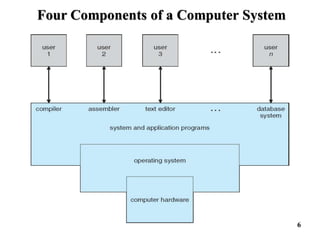
 Computer system can be divided into four components:
Hardware – provides basic computing resources
• CPU, memory, I/O devices
Operating system
• Controls and coordinates use of hardware among
various applications and users
Application programs – define the ways in which the
system resources are used to solve the computing
problems of the users
• Word processors, compilers, web browsers,
database systems, video games
Users
• People, machines, other computers 5
Four Components of a Computer System
6
What Operating Systems Do
 Depends on the point of view
 Users want convenience, ease of use and good
performance
• Don’t care about resource utilization
 But shared computer such as mainframe or
minicomputer must keep all users happy
 Users of dedicate systems such as workstations have
dedicated resources but frequently use shared
resources from servers
 Handheld computers are resource poor, optimized for
usability and battery life
 Some computers have little or no user interface, such
as embedded computers in devices and automobiles
7
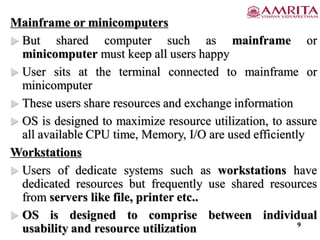
What Operating Systems Do - User point of view
 Depends on the point of view-user view
 User view varies based on the interface being used
 Single user
 User sits in front of computer consisting of monitor,
keyboard, mouse, system unit
 Users want convenience, maximize the work
 OS is designed ease of use and good performance
 Don’t care about resource utilization
8
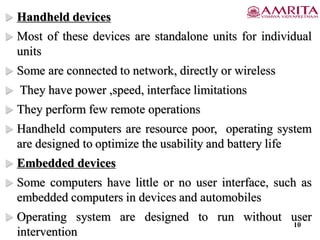
Mainframe or minicomputers
 But shared computer such as mainframe or
minicomputer must keep all users happy
 User sits at the terminal connected to mainframe or
minicomputer
 These users share resources and exchange information
 OS is designed to maximize resource utilization, to assure
all available CPU time, Memory, I/O are used efficiently
Workstations
 Users of dedicate systems such as workstations have
dedicated resources but frequently use shared resources
from servers like file, printer etc..
 OS is designed to comprise between individual
usability and resource utilization 9
 Handheld devices
 Most of these devices are standalone units for individual
units
 Some are connected to network, directly or wireless
 They have power ,speed, interface limitations
 They perform few remote operations
 Handheld computers are resource poor, operating system
are designed to optimize the usability and battery life
 Embedded devices
 Some computers have little or no user interface, such as
embedded computers in devices and automobiles
 Operating system are designed to run without user
intervention
10
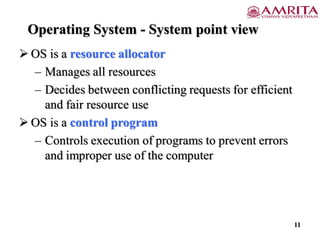
Operating System - System point view
 OS is a resource allocator
– Manages all resources
– Decides between conflicting requests for efficient
and fair resource use
 OS is a control program
– Controls execution of programs to prevent errors
and improper use of the computer
11
Operating System Definition (Cont.)
 No universally accepted definition
 “ Everything a vendor ships when you order an
operating system” is a good approximation
• But varies widely
 “ The one program running at all times on the
computer” is the kernel.
 Everything else is either
• a system program (ships with the operating system) ,
(or)
• an application program.
12
Computer Startup
 Bootstrap program is loaded at power-up or
reboot
– Typically stored in ROM or EPROM, generally
known as firmware
– Initializes all aspects of system
– Loads operating system kernel and starts
execution
13
Computer System Organization
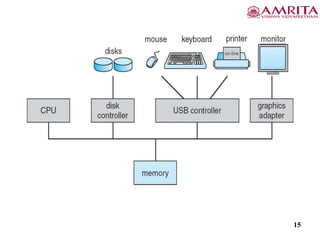
 Computer-system operation
– One or more CPUs, device controllers connect
through common bus providing access to shared
memory
– Concurrent execution of CPUs and devices
competing for memory cycles
14
15
Computer-System Operation
• I/O devices and the CPU can execute concurrently
• Each device controller is in charge of a particular
device type
• Each device controller has a local buffer
• CPU moves data from/to main memory to/from local
buffers
• I/O is from the device to local buffer of controller
• Device controller informs CPU that it has finished its
operation by causing an interrupt
16
Common Functions of Interrupts
• Interrupt transfers control to the interrupt service
routine generally, through the interrupt vector,
which contains the addresses of all the service
routines
• Interrupt architecture must save the address of the
interrupted instruction
• A trap or exception is a software-generated interrupt
caused either by an error or a user request
• An operating system is interrupt driven
17
Interrupt Handling
• The operating system preserves the state of the CPU
by storing registers and the program counter
• Determines which type of interrupt has occurred:
– polling
– vectored interrupt system
• Separate segments of code determine what action
should be taken for each type of interrupt
18
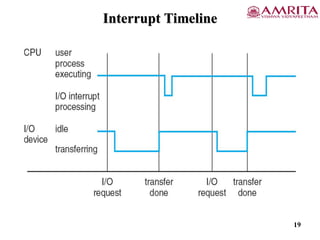
Interrupt Timeline
19
• After I/O starts, control returns to user program only upon I/O
completion
– Wait instruction idles the CPU until the next interrupt
– Wait loop (contention for memory access)
– At most one I/O request is outstanding at a time, no
simultaneous I/O processing
• After I/O starts, control returns to user program without
waiting for I/O completion
– System call – request to the OS to allow user to wait for
I/O completion
– Device-status table contains entry for each I/O device
indicating its type, address, and state
– OS indexes into I/O device table to determine device status
and to modify table entry to include interrupt
20
Storage Definitions and Notation Review
The basic unit of computer storage is the bit. A bit can contain one of two values, 0 and 1. All other
storage in a computer is based on collections of bits. Given enough bits, it is amazing how many
things a computer can represent: numbers, letters, images, movies, sounds, documents, and
programs, to name a few. A byte is 8 bits, and on most computers it is the smallest convenient chunk
of storage. For example, most computers don’t have an instruction to move a bit but do have one to
move a byte. A less common term is word, which is a given computer architecture’s native unit of
data. A word is made up of one or more bytes. For example, a computer that has 64-bit registers and
64-bit memory addressing typically has 64-bit (8-byte) words. A computer executes many operations
in its native word size rather than a byte at a time.
Computer storage, along with most computer throughput, is generally measured and manipulated in
bytes and collections of bytes.
A kilobyte, or KB, is 1,024 bytes
a megabyte, or MB, is 1,0242 bytes
a gigabyte, or GB, is 1,0243 bytes
a terabyte, or TB, is 1,0244 bytes
a petabyte, or PB, is 1,0245 bytes
Computer manufacturers often round off these numbers and say that a megabyte is 1 million bytes
and a gigabyte is 1 billion bytes. Networking measurements are an exception to this general rule;
they are given in bits (because networks move data a bit at a time).
21
Storage Structure
• Main memory – only large storage media that the CPU can
access directly
– Random access
– Typically volatile
• Secondary storage – extension of main memory that provides
large nonvolatile storage capacity
• Hard disks – rigid metal or glass platters covered with magnetic
recording material
– Disk surface is logically divided into tracks, which are
subdivided into sectors
– The disk controller determines the logical interaction
between the device and the computer
• Solid-state disks – faster than hard disks, nonvolatile
– Various technologies
– Becoming more popular 22
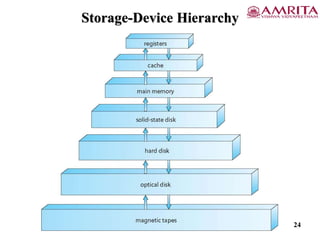
Storage Hierarchy
 Storage systems organized in hierarchy
– Speed
– Cost
– Volatility
 Caching – copying information into faster storage
system; main memory can be viewed as a cache for
secondary storage
 Device Driver for each device controller to manage
I/O
– Provides uniform interface between controller and
kernel
23
Storage-Device Hierarchy
24
Caching
 Important principle, performed at many levels in a
computer (in hardware, operating system, software)
 Information in use copied from slower to faster
storage temporarily
 Faster storage (cache) checked first to determine if
information is there
• If it is, information used directly from the cache
(fast)
• If not, data copied to cache and used there
 Cache smaller than storage being cached
• Cache management important design problem
• Cache size and replacement policy
25
Direct Memory Access Structure
 Used for high-speed I/O devices able to transmit
information at close to memory speeds
 Device controller transfers blocks of data from
buffer storage directly to main memory without CPU
intervention
 Only one interrupt is generated per block, rather than
the one interrupt per byte
26
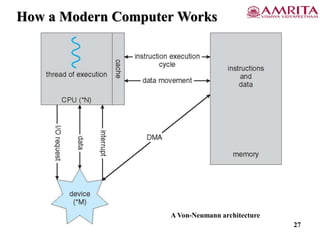
How a Modern Computer Works
A Von-Neumann architecture
27
Computer-System Architecture
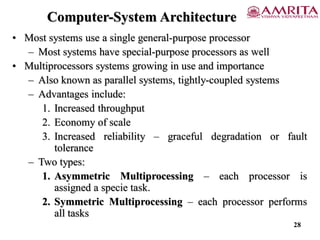
• Most systems use a single general-purpose processor
– Most systems have special-purpose processors as well
• Multiprocessors systems growing in use and importance
– Also known as parallel systems, tightly-coupled systems
– Advantages include:
1. Increased throughput
2. Economy of scale
3. Increased reliability – graceful degradation or fault
tolerance
– Two types:
1. Asymmetric Multiprocessing – each processor is
assigned a specie task.
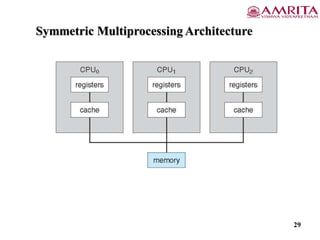
2. Symmetric Multiprocessing – each processor performs
all tasks
28
Symmetric Multiprocessing Architecture
29
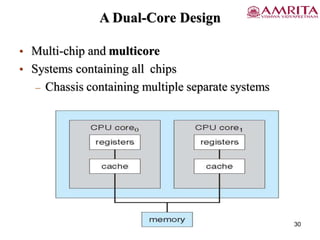
A Dual-Core Design
• Multi-chip and multicore
• Systems containing all chips
– Chassis containing multiple separate systems
30
Clustered Systems
• Like multiprocessor systems, but multiple systems working
together
– Usually sharing storage via a storage-area network (SAN)
– Provides a high-availability service which survives failures
• Asymmetric clustering has one machine in hot-standby
mode
• Symmetric clustering has multiple nodes running
applications, monitoring each other
– Some clusters are for high-performance computing (HPC)
• Applications must be written to use parallelization
– Some have distributed lock manager (DLM) to avoid
conflicting operations
31
Clustered Systems
32
References
1. Silberscatnz and Galvin, “Operating System Concepts,” Ninth Edition,
John Wiley and Sons, 2012.
33
Thank you
34

Introduction to Operating Systems.pdf

  • 1.
    Amrita School of Engineering, Bangalore Ms. Harika Pudugosula Leturer Departmentof Electronics & Communication Engineering Amrita School of Engineering 1
  • 2.
    Chapter 1 -Introduction 2
  • 3.
    Objectives  To describethe basic organization of computer systems  To provide a grand tour of the major components of operating systems  To give an overview of the many types of computing environments  To explore several open-source operating systems 3
  • 4.
    Operating System  Aprogram that acts as an intermediary between a user of a computer and the computer hardware  Operating system goals: – Execute user programs and make solving user problems easier – Make the computer system convenient to use – Use the computer hardware in an efficient manner 4
  • 5.
    Computer System Structure Computer system can be divided into four components: Hardware – provides basic computing resources • CPU, memory, I/O devices Operating system • Controls and coordinates use of hardware among various applications and users Application programs – define the ways in which the system resources are used to solve the computing problems of the users • Word processors, compilers, web browsers, database systems, video games Users • People, machines, other computers 5
  • 6.
    Four Components ofa Computer System 6
  • 7.
    What Operating SystemsDo  Depends on the point of view  Users want convenience, ease of use and good performance • Don’t care about resource utilization  But shared computer such as mainframe or minicomputer must keep all users happy  Users of dedicate systems such as workstations have dedicated resources but frequently use shared resources from servers  Handheld computers are resource poor, optimized for usability and battery life  Some computers have little or no user interface, such as embedded computers in devices and automobiles 7
  • 8.
    What Operating SystemsDo - User point of view  Depends on the point of view-user view  User view varies based on the interface being used  Single user  User sits in front of computer consisting of monitor, keyboard, mouse, system unit  Users want convenience, maximize the work  OS is designed ease of use and good performance  Don’t care about resource utilization 8
  • 9.
    Mainframe or minicomputers But shared computer such as mainframe or minicomputer must keep all users happy  User sits at the terminal connected to mainframe or minicomputer  These users share resources and exchange information  OS is designed to maximize resource utilization, to assure all available CPU time, Memory, I/O are used efficiently Workstations  Users of dedicate systems such as workstations have dedicated resources but frequently use shared resources from servers like file, printer etc..  OS is designed to comprise between individual usability and resource utilization 9
  • 10.
     Handheld devices Most of these devices are standalone units for individual units  Some are connected to network, directly or wireless  They have power ,speed, interface limitations  They perform few remote operations  Handheld computers are resource poor, operating system are designed to optimize the usability and battery life  Embedded devices  Some computers have little or no user interface, such as embedded computers in devices and automobiles  Operating system are designed to run without user intervention 10
  • 11.
    Operating System -System point view  OS is a resource allocator – Manages all resources – Decides between conflicting requests for efficient and fair resource use  OS is a control program – Controls execution of programs to prevent errors and improper use of the computer 11
  • 12.
    Operating System Definition(Cont.)  No universally accepted definition  “ Everything a vendor ships when you order an operating system” is a good approximation • But varies widely  “ The one program running at all times on the computer” is the kernel.  Everything else is either • a system program (ships with the operating system) , (or) • an application program. 12
  • 13.
    Computer Startup  Bootstrapprogram is loaded at power-up or reboot – Typically stored in ROM or EPROM, generally known as firmware – Initializes all aspects of system – Loads operating system kernel and starts execution 13
  • 14.
    Computer System Organization Computer-system operation – One or more CPUs, device controllers connect through common bus providing access to shared memory – Concurrent execution of CPUs and devices competing for memory cycles 14
  • 15.
  • 16.
    Computer-System Operation • I/Odevices and the CPU can execute concurrently • Each device controller is in charge of a particular device type • Each device controller has a local buffer • CPU moves data from/to main memory to/from local buffers • I/O is from the device to local buffer of controller • Device controller informs CPU that it has finished its operation by causing an interrupt 16
  • 17.
    Common Functions ofInterrupts • Interrupt transfers control to the interrupt service routine generally, through the interrupt vector, which contains the addresses of all the service routines • Interrupt architecture must save the address of the interrupted instruction • A trap or exception is a software-generated interrupt caused either by an error or a user request • An operating system is interrupt driven 17
  • 18.
    Interrupt Handling • Theoperating system preserves the state of the CPU by storing registers and the program counter • Determines which type of interrupt has occurred: – polling – vectored interrupt system • Separate segments of code determine what action should be taken for each type of interrupt 18
  • 19.
  • 20.
    • After I/Ostarts, control returns to user program only upon I/O completion – Wait instruction idles the CPU until the next interrupt – Wait loop (contention for memory access) – At most one I/O request is outstanding at a time, no simultaneous I/O processing • After I/O starts, control returns to user program without waiting for I/O completion – System call – request to the OS to allow user to wait for I/O completion – Device-status table contains entry for each I/O device indicating its type, address, and state – OS indexes into I/O device table to determine device status and to modify table entry to include interrupt 20
  • 21.
    Storage Definitions andNotation Review The basic unit of computer storage is the bit. A bit can contain one of two values, 0 and 1. All other storage in a computer is based on collections of bits. Given enough bits, it is amazing how many things a computer can represent: numbers, letters, images, movies, sounds, documents, and programs, to name a few. A byte is 8 bits, and on most computers it is the smallest convenient chunk of storage. For example, most computers don’t have an instruction to move a bit but do have one to move a byte. A less common term is word, which is a given computer architecture’s native unit of data. A word is made up of one or more bytes. For example, a computer that has 64-bit registers and 64-bit memory addressing typically has 64-bit (8-byte) words. A computer executes many operations in its native word size rather than a byte at a time. Computer storage, along with most computer throughput, is generally measured and manipulated in bytes and collections of bytes. A kilobyte, or KB, is 1,024 bytes a megabyte, or MB, is 1,0242 bytes a gigabyte, or GB, is 1,0243 bytes a terabyte, or TB, is 1,0244 bytes a petabyte, or PB, is 1,0245 bytes Computer manufacturers often round off these numbers and say that a megabyte is 1 million bytes and a gigabyte is 1 billion bytes. Networking measurements are an exception to this general rule; they are given in bits (because networks move data a bit at a time). 21
  • 22.
    Storage Structure • Mainmemory – only large storage media that the CPU can access directly – Random access – Typically volatile • Secondary storage – extension of main memory that provides large nonvolatile storage capacity • Hard disks – rigid metal or glass platters covered with magnetic recording material – Disk surface is logically divided into tracks, which are subdivided into sectors – The disk controller determines the logical interaction between the device and the computer • Solid-state disks – faster than hard disks, nonvolatile – Various technologies – Becoming more popular 22
  • 23.
    Storage Hierarchy  Storagesystems organized in hierarchy – Speed – Cost – Volatility  Caching – copying information into faster storage system; main memory can be viewed as a cache for secondary storage  Device Driver for each device controller to manage I/O – Provides uniform interface between controller and kernel 23
  • 24.
  • 25.
    Caching  Important principle,performed at many levels in a computer (in hardware, operating system, software)  Information in use copied from slower to faster storage temporarily  Faster storage (cache) checked first to determine if information is there • If it is, information used directly from the cache (fast) • If not, data copied to cache and used there  Cache smaller than storage being cached • Cache management important design problem • Cache size and replacement policy 25
  • 26.
    Direct Memory AccessStructure  Used for high-speed I/O devices able to transmit information at close to memory speeds  Device controller transfers blocks of data from buffer storage directly to main memory without CPU intervention  Only one interrupt is generated per block, rather than the one interrupt per byte 26
  • 27.
    How a ModernComputer Works A Von-Neumann architecture 27
  • 28.
    Computer-System Architecture • Mostsystems use a single general-purpose processor – Most systems have special-purpose processors as well • Multiprocessors systems growing in use and importance – Also known as parallel systems, tightly-coupled systems – Advantages include: 1. Increased throughput 2. Economy of scale 3. Increased reliability – graceful degradation or fault tolerance – Two types: 1. Asymmetric Multiprocessing – each processor is assigned a specie task. 2. Symmetric Multiprocessing – each processor performs all tasks 28
  • 29.
  • 30.
    A Dual-Core Design •Multi-chip and multicore • Systems containing all chips – Chassis containing multiple separate systems 30
  • 31.
    Clustered Systems • Likemultiprocessor systems, but multiple systems working together – Usually sharing storage via a storage-area network (SAN) – Provides a high-availability service which survives failures • Asymmetric clustering has one machine in hot-standby mode • Symmetric clustering has multiple nodes running applications, monitoring each other – Some clusters are for high-performance computing (HPC) • Applications must be written to use parallelization – Some have distributed lock manager (DLM) to avoid conflicting operations 31
  • 32.
  • 33.
    References 1. Silberscatnz andGalvin, “Operating System Concepts,” Ninth Edition, John Wiley and Sons, 2012. 33
  • 34.