Copyright © 2006 by The McGraw-Hill Companies, Inc. All rights reserved.McGraw-Hill Technology Education
Introduction to Computers
INSTRUCTOR:INSTRUCTOR:
DR SHAFIULLAH SOOMRODR SHAFIULLAH SOOMRO
s.soomro@quest.edu.pks.soomro@quest.edu.pk
COURSE SLIDE WEB PAGE :COURSE SLIDE WEB PAGE :
HTTPS://WWW.SLIDESHARE.NET/SAFISOOMROHTTPS://WWW.SLIDESHARE.NET/SAFISOOMRO
TEXTBOOKS:TEXTBOOKS:
UCUC -- UNDERSTANDING COMPUTERS (2000UNDERSTANDING COMPUTERS (2000
ED.)ED.)
Copyright © 2006 by The McGraw-Hill Companies, Inc. All rights reserved.McGraw-Hill Technology Education
Chapter 3A
Using the Keyboard And
Mouse
3A-3
The Keyboard
• The most common input device
– Must be proficient with keyboard
– Skill is called keyboarding
3A-4
The Keyboard
• How keyboard works
– Keyboard controller detects a key press
– Controller sends a code to the CPU
• Code represents the key pressed
– Controller notifies the operating system
– Operating system responds
– Controller repeats the letter if held
3A-5
The Mouse
• All modern computers have a variant
• Allows users to select objects
– Pointer moved by the mouse
• Mechanical mouse
– Rubber ball determines direction and speed
– The ball often requires cleaning
3A-6
The Mouse
• Optical mouse
– Light shown onto mouse pad
– Reflection determines speed and direction
– Requires little maintenance
3A-7
The Mouse
• Interacting with a mouse
– Actions involve pointing to an object
– Clicking selects the object
– Clicking and holding drags the object
– Releasing an object is a drop
– Right clicking activates the shortcut menu
– Modern mice include a scroll wheel
3A-8
The Mouse
• Benefits
– Pointer positioning is fast
– Menu interaction is easy
– Users can draw electronically
3A-9
The Mouse
• Mouse button configuration
– Configured for a right-handed user
• Can be reconfigured
– Between 1 and 6 buttons
– Extra buttons are configurable
3A-10
Variants of the Mouse
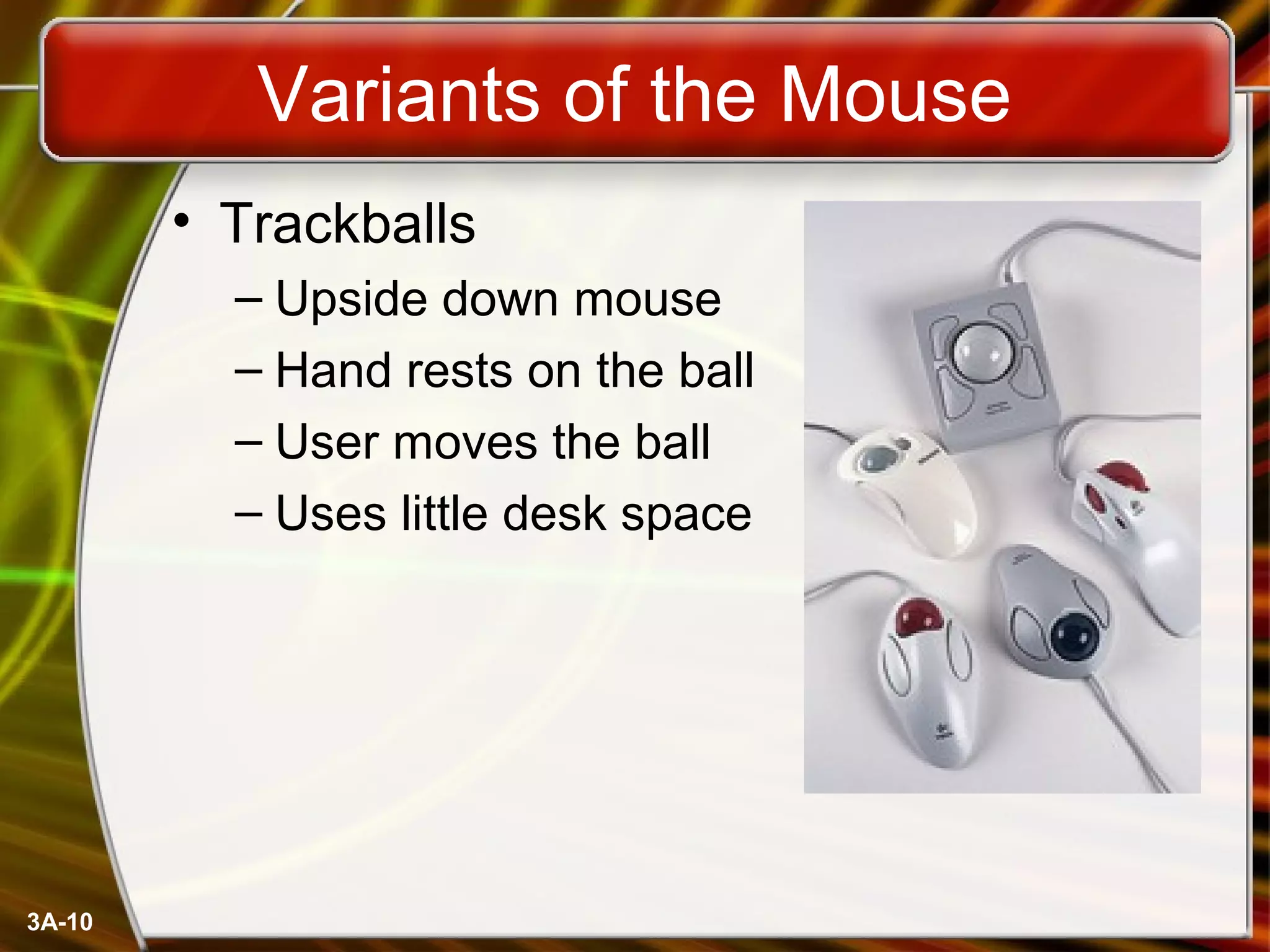
• Trackballs
– Upside down mouse
– Hand rests on the ball
– User moves the ball
– Uses little desk space
3A-11
Variants of the Mouse
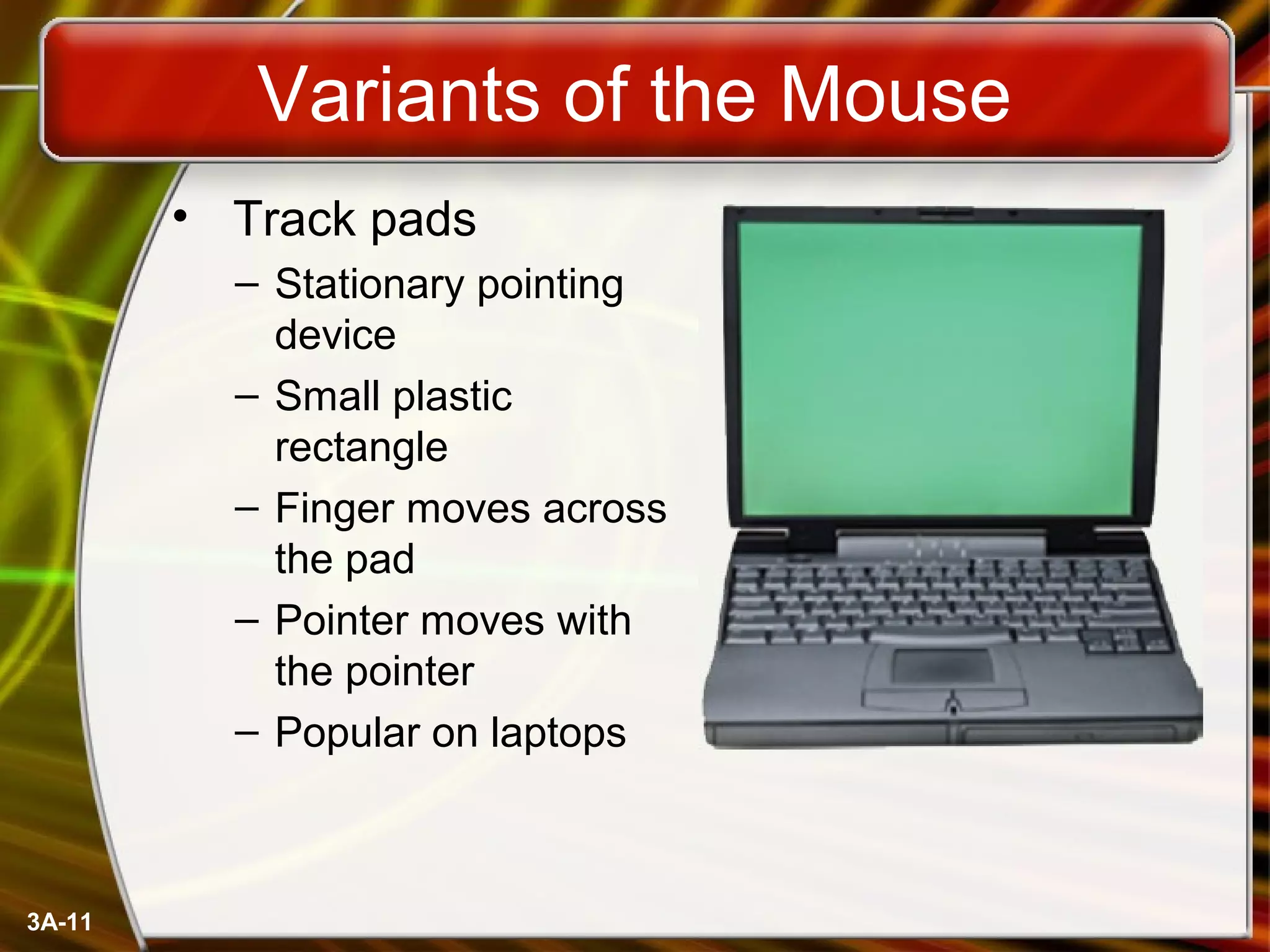
• Track pads
– Stationary pointing
device
– Small plastic
rectangle
– Finger moves across
the pad
– Pointer moves with
the pointer
– Popular on laptops
3A-12
Variants of the Mouse
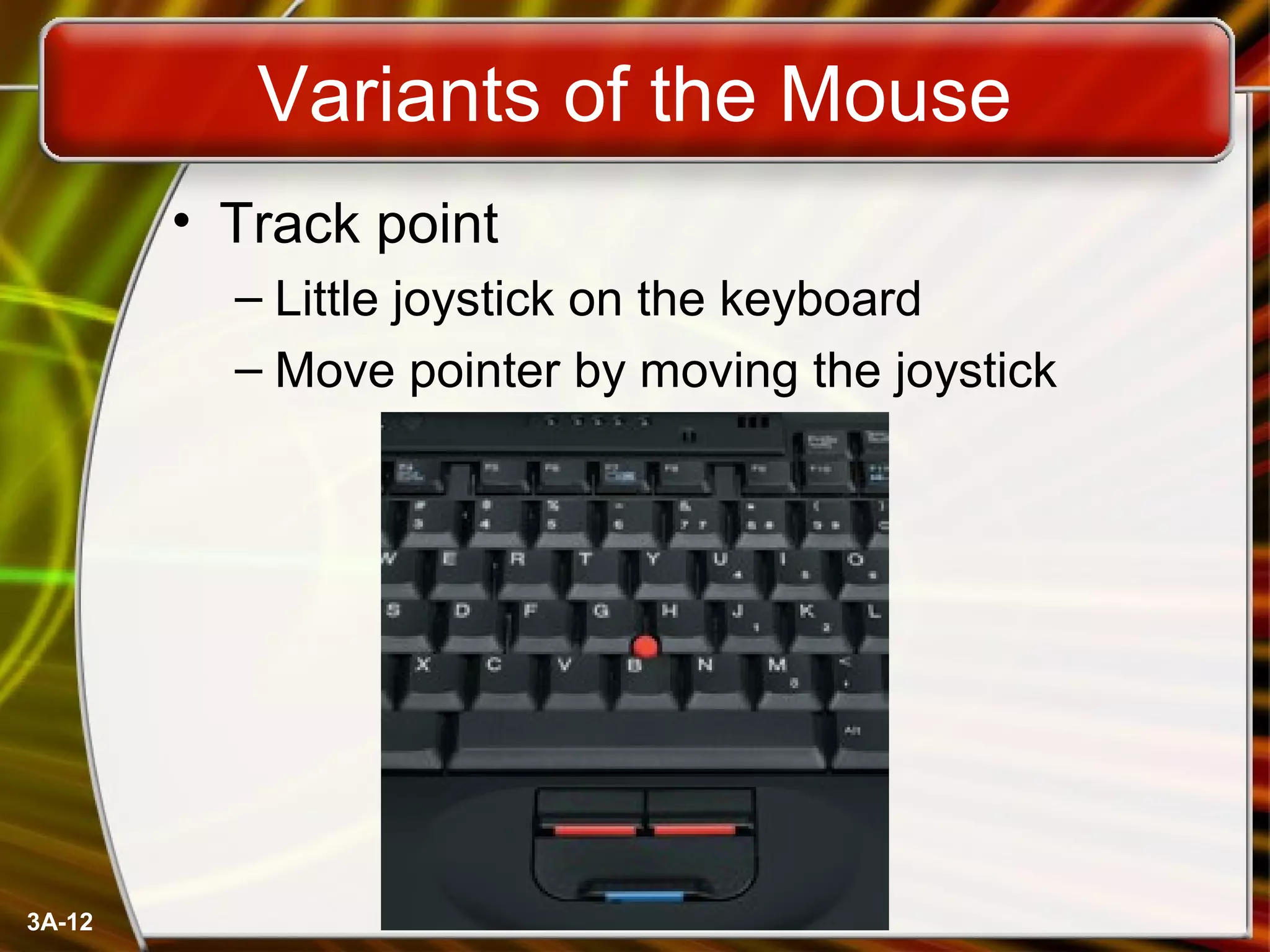
• Track point
– Little joystick on the keyboard
– Move pointer by moving the joystick
3A-13
Ergonomics and Input Devices
• Ergonomics
– Study of human and tool interaction
– Concerned with physical interaction
– Attempts to improve safety and comfort
3A-14
Ergonomics and Input Devices
• Repetitive Strain Injury (RSI)
– Caused by continuous misuse of the body
– Many professions suffer from RSI
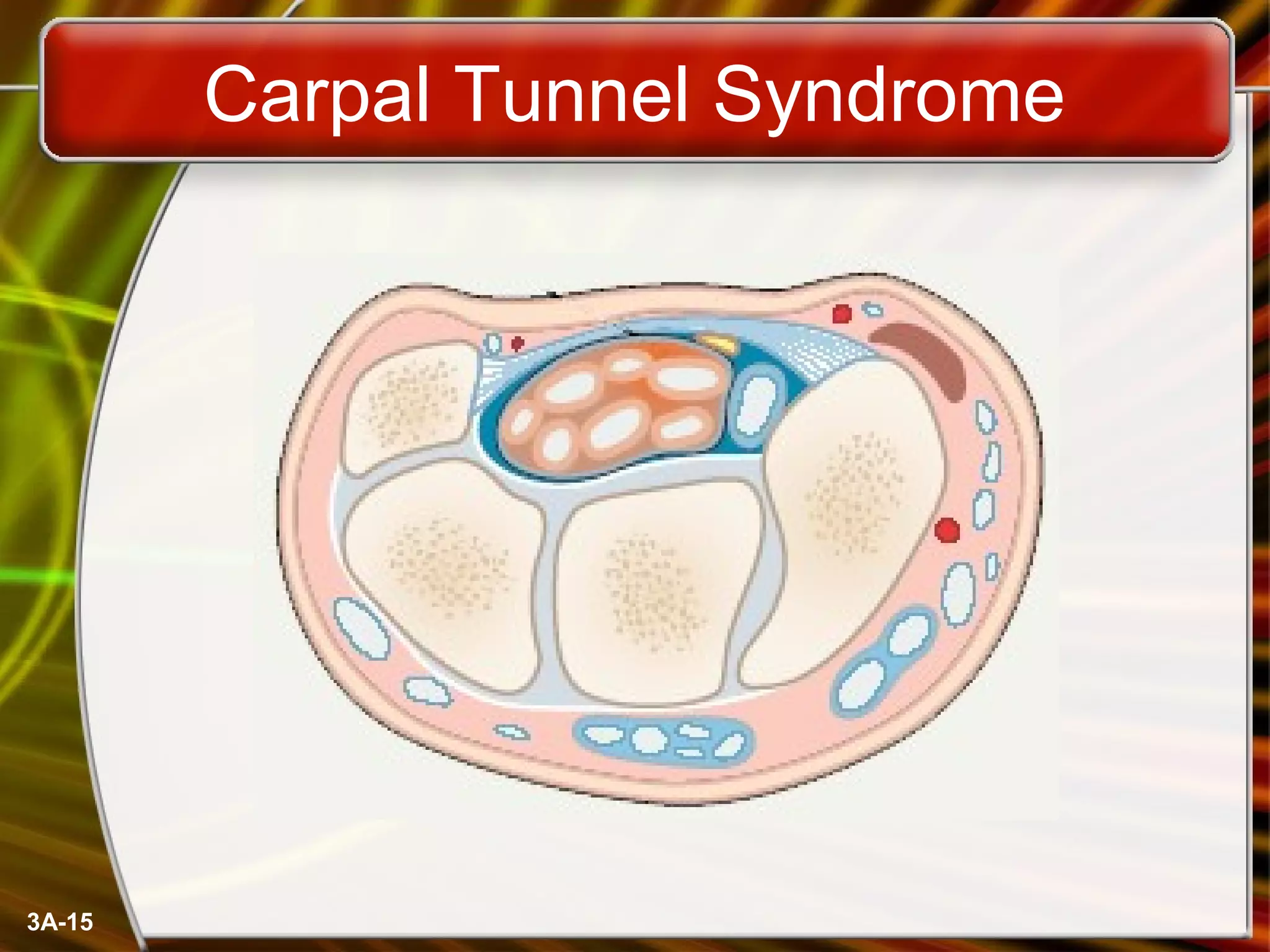
• Carpal Tunnel Syndrome
– Carpal tunnel is a passage in the wrist
– Holds nerves and tendons
– Prolonged keyboarding swells tendons
3A-15
Carpal Tunnel Syndrome
3A-16
Ergonomics and Input Devices
• Office hardware suggestions
– Office chairs should have
• Adjustable armrests and height
• Armrests
• Lower back support
– Desks should have
• Have a keyboard tray
• Keep hands at keyboard height
• Place the monitor at eye level
3A-17
Ergonomics and Input Devices
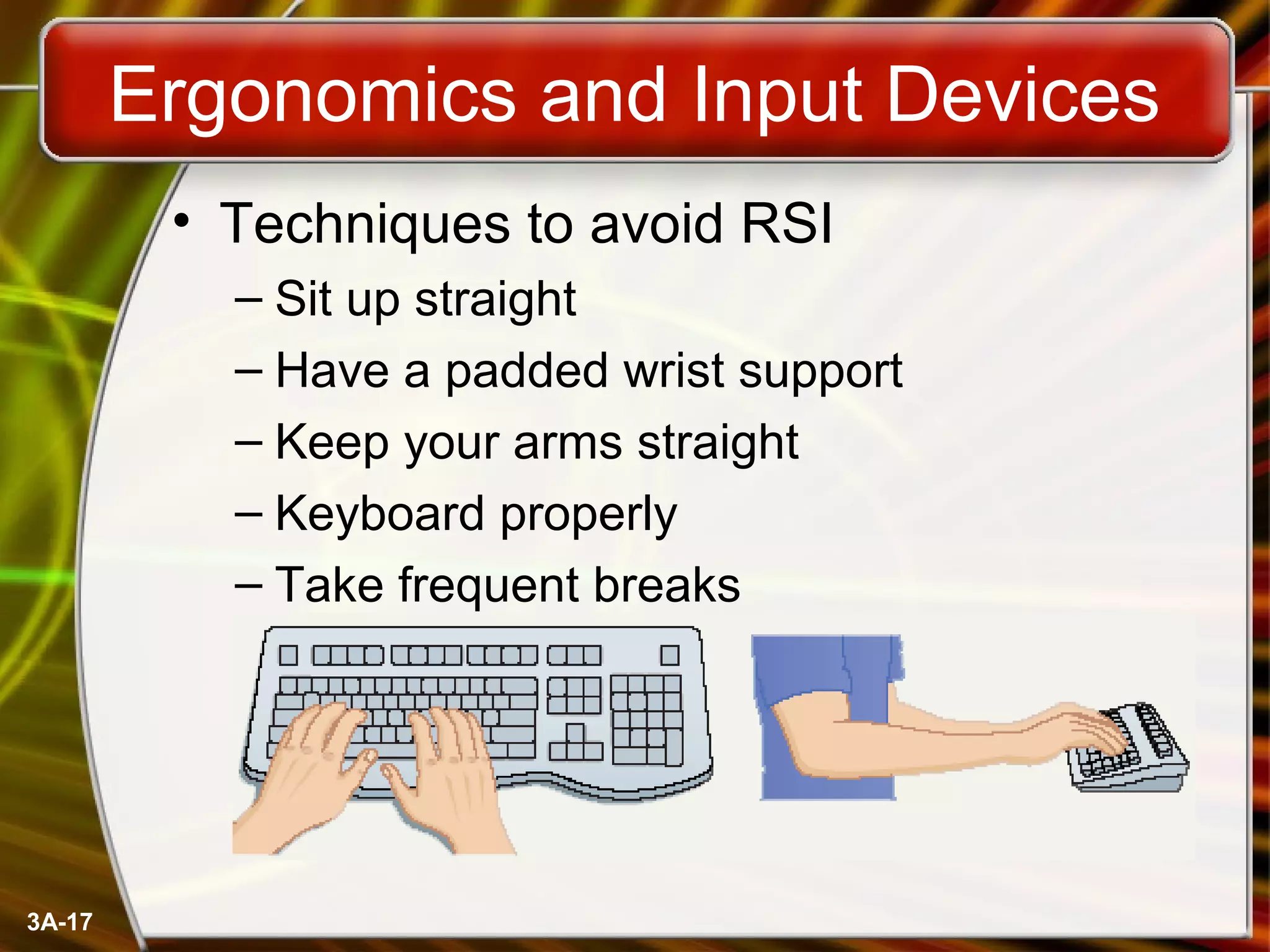
• Techniques to avoid RSI
– Sit up straight
– Have a padded wrist support
– Keep your arms straight
– Keyboard properly
– Take frequent breaks
Copyright © 2006 by The McGraw-Hill Companies, Inc. All rights reserved.McGraw-Hill Technology Education
Chapter 3A
End of Chapter
3A-19
Project due Oct. 14
• MIDI: Musical Instrument Digital
Interface
• Use MIDI to edit and play London
Bridge or your favorite song.
• For example: Mary has a little sheep:
3212 333 222 355 3212 333 22321.

Intro ch 03_a

  • 1.
    Copyright © 2006by The McGraw-Hill Companies, Inc. All rights reserved.McGraw-Hill Technology Education Introduction to Computers INSTRUCTOR:INSTRUCTOR: DR SHAFIULLAH SOOMRODR SHAFIULLAH SOOMRO s.soomro@quest.edu.pks.soomro@quest.edu.pk COURSE SLIDE WEB PAGE :COURSE SLIDE WEB PAGE : HTTPS://WWW.SLIDESHARE.NET/SAFISOOMROHTTPS://WWW.SLIDESHARE.NET/SAFISOOMRO TEXTBOOKS:TEXTBOOKS: UCUC -- UNDERSTANDING COMPUTERS (2000UNDERSTANDING COMPUTERS (2000 ED.)ED.)
  • 2.
    Copyright © 2006by The McGraw-Hill Companies, Inc. All rights reserved.McGraw-Hill Technology Education Chapter 3A Using the Keyboard And Mouse
  • 3.
    3A-3 The Keyboard • Themost common input device – Must be proficient with keyboard – Skill is called keyboarding
  • 4.
    3A-4 The Keyboard • Howkeyboard works – Keyboard controller detects a key press – Controller sends a code to the CPU • Code represents the key pressed – Controller notifies the operating system – Operating system responds – Controller repeats the letter if held
  • 5.
    3A-5 The Mouse • Allmodern computers have a variant • Allows users to select objects – Pointer moved by the mouse • Mechanical mouse – Rubber ball determines direction and speed – The ball often requires cleaning
  • 6.
    3A-6 The Mouse • Opticalmouse – Light shown onto mouse pad – Reflection determines speed and direction – Requires little maintenance
  • 7.
    3A-7 The Mouse • Interactingwith a mouse – Actions involve pointing to an object – Clicking selects the object – Clicking and holding drags the object – Releasing an object is a drop – Right clicking activates the shortcut menu – Modern mice include a scroll wheel
  • 8.
    3A-8 The Mouse • Benefits –Pointer positioning is fast – Menu interaction is easy – Users can draw electronically
  • 9.
    3A-9 The Mouse • Mousebutton configuration – Configured for a right-handed user • Can be reconfigured – Between 1 and 6 buttons – Extra buttons are configurable
  • 10.
    3A-10 Variants of theMouse • Trackballs – Upside down mouse – Hand rests on the ball – User moves the ball – Uses little desk space
  • 11.
    3A-11 Variants of theMouse • Track pads – Stationary pointing device – Small plastic rectangle – Finger moves across the pad – Pointer moves with the pointer – Popular on laptops
  • 12.
    3A-12 Variants of theMouse • Track point – Little joystick on the keyboard – Move pointer by moving the joystick
  • 13.
    3A-13 Ergonomics and InputDevices • Ergonomics – Study of human and tool interaction – Concerned with physical interaction – Attempts to improve safety and comfort
  • 14.
    3A-14 Ergonomics and InputDevices • Repetitive Strain Injury (RSI) – Caused by continuous misuse of the body – Many professions suffer from RSI • Carpal Tunnel Syndrome – Carpal tunnel is a passage in the wrist – Holds nerves and tendons – Prolonged keyboarding swells tendons
  • 15.
  • 16.
    3A-16 Ergonomics and InputDevices • Office hardware suggestions – Office chairs should have • Adjustable armrests and height • Armrests • Lower back support – Desks should have • Have a keyboard tray • Keep hands at keyboard height • Place the monitor at eye level
  • 17.
    3A-17 Ergonomics and InputDevices • Techniques to avoid RSI – Sit up straight – Have a padded wrist support – Keep your arms straight – Keyboard properly – Take frequent breaks
  • 18.
    Copyright © 2006by The McGraw-Hill Companies, Inc. All rights reserved.McGraw-Hill Technology Education Chapter 3A End of Chapter
  • 19.
    3A-19 Project due Oct.14 • MIDI: Musical Instrument Digital Interface • Use MIDI to edit and play London Bridge or your favorite song. • For example: Mary has a little sheep: 3212 333 222 355 3212 333 22321.

Editor's Notes

  • #5 Teaching tip Table 5A.3 presents the ASCII code. An exercise that never fails to amuse students is to use the Alt and the number pad to enter letters into an application. As before, open MS Word. Have students hold down the Alt key and type an ASCII value into the number pad. Once they release the Alt, the letter appears. This is a useful skill when the keyboard breaks. Challenge the students to explore numbers above 128.
  • #8 Insider information Douglas Englebart patented the first mouse in 1970 as the “X-Y position indicator for a display system.” The name mouse comes from the tail on the device.
  • #13 Insider information The term track point is copyrighted by IBM.
  • #15 Teaching tip Hairstylists often suffer from carpal tunnel. Bicyclists can suffer from overuse injuries of the knee. Page 116 of the text has a diagram of the carpal tunnel.