+
Impact Metrics, Data &
You
(this is the part mostly about data)
Jenny Muilenburg
14 September 2015
Quick poll
 Staffweb
 Desktop
 Google drive
 Dropbox (or similar)
 Email folders
 Other?
Quick poll
 Slideshare
 ResearchWorks (or similar)
 ORCID (or similar)
 Shared via org website (conference proceeding website, for example)
 Others?
What now?
 What I mean when I say “data”
 Examples (mine and yours)
 Tips and tricks
 File management
 Naming conventions
 Sharing
 Resources
 Q&A (throughout!)
What is your “data”?
 Work files, aka documents
 PPT, Word, Excel
 Presentations (audio/video recordings)
 Email
 Chat
 Committee work
 Posters, articles
 Handouts, flyers, bookmarks
 Twitter, FB, instagram: social media (whether for marketing or work
communication)
What do you do with your data?
It’s used for (or actually exists as):
 Presentations
 Assessments
 Reference
 Comments/questions
 Tracking impact
 Marketing
 Other documents related to class (handouts, etc)
 Creating LibGuides
 Other
Someone asks you…
 Where is your data?
 How discoverable is it?
 How easy is it to share?
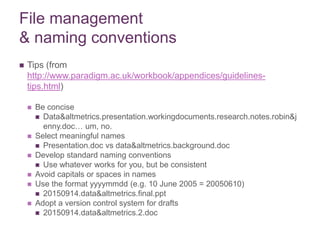
File management
& naming conventions
 Tips (from
http://www.paradigm.ac.uk/workbook/appendices/guidelines-
tips.html)
 Be concise
 Data&altmetrics.presentation.workingdocuments.research.notes.robin&j
enny.doc… um, no.
 Select meaningful names
 Presentation.doc vs data&altmetrics.background.doc
 Develop standard naming conventions
 Use whatever works for you, but be consistent
 Avoid capitals or spaces in names
 Use the format yyyymmdd (e.g. 10 June 2005 = 20050610)
 20150914.data&altmetrics.final.ppt
 Adopt a version control system for drafts
 20150914.data&altmetrics.2.doc
File management
& naming conventions
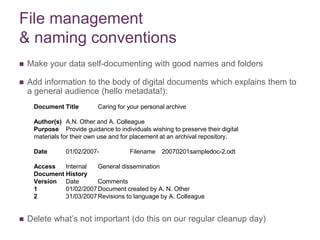
 Make your data self-documenting with good names and folders
 Add information to the body of digital documents which explains them to
a general audience (hello metadata!):
 Delete what’s not important (do this on our regular cleanup day)
Document Title Caring for your personal archive
Author(s) A.N. Other and A. Colleague
Purpose Provide guidance to individuals wishing to preserve their digital
materials for their own use and for placement at an archival repository.
Date 01/02/2007- Filename 20070201sampledoc-2.odt
Access Internal General dissemination
Document History
Version Date Comments
1 01/02/2007Document created by A. N. Other
2 31/03/2007Revisions to language by A. Colleague
Storage and backup
 Storage options: pro & cons
 Backup options: use them! (regularly)
 And decide what to back up
 Sharing does not equal storage OR backup
Sharing
 Open source
 Open publishing
 Share your presentations & classes
 Share your papers
 Tracking (Robin)
Resources: personal organization
http://personaldigitalarchiving.com (next conference 2016, old ones
online)
http://library.columbia.edu/locations/dhc/personal-digital-
archiving/online-resources.html
http://www.ala.org/lita/digitalarchiving (personal digital archiving for
librarians, class coming up next month)
For the academics out there:
http://people.ucsc.edu/~swhittak/papers/folder_structure_final.pdf
Action items
 Review your storage!
 Desktop (+ remote desktop)
 Google drive
 Staffweb
 Dropbox
 Etc
 Delete old items!
 Back things up!
 Share something! 
 Slideshare
 ResearchWorks
 Etc.

Impact Metrics, Data & You

  • 1.
    + Impact Metrics, Data& You (this is the part mostly about data) Jenny Muilenburg 14 September 2015
  • 2.
    Quick poll  Staffweb Desktop  Google drive  Dropbox (or similar)  Email folders  Other?
  • 3.
    Quick poll  Slideshare ResearchWorks (or similar)  ORCID (or similar)  Shared via org website (conference proceeding website, for example)  Others?
  • 4.
    What now?  WhatI mean when I say “data”  Examples (mine and yours)  Tips and tricks  File management  Naming conventions  Sharing  Resources  Q&A (throughout!)
  • 5.
    What is your“data”?  Work files, aka documents  PPT, Word, Excel  Presentations (audio/video recordings)  Email  Chat  Committee work  Posters, articles  Handouts, flyers, bookmarks  Twitter, FB, instagram: social media (whether for marketing or work communication)
  • 6.
    What do youdo with your data? It’s used for (or actually exists as):  Presentations  Assessments  Reference  Comments/questions  Tracking impact  Marketing  Other documents related to class (handouts, etc)  Creating LibGuides  Other
  • 7.
    Someone asks you… Where is your data?  How discoverable is it?  How easy is it to share?
  • 8.
    File management & namingconventions  Tips (from http://www.paradigm.ac.uk/workbook/appendices/guidelines- tips.html)  Be concise  Data&altmetrics.presentation.workingdocuments.research.notes.robin&j enny.doc… um, no.  Select meaningful names  Presentation.doc vs data&altmetrics.background.doc  Develop standard naming conventions  Use whatever works for you, but be consistent  Avoid capitals or spaces in names  Use the format yyyymmdd (e.g. 10 June 2005 = 20050610)  20150914.data&altmetrics.final.ppt  Adopt a version control system for drafts  20150914.data&altmetrics.2.doc
  • 9.
    File management & namingconventions  Make your data self-documenting with good names and folders  Add information to the body of digital documents which explains them to a general audience (hello metadata!):  Delete what’s not important (do this on our regular cleanup day) Document Title Caring for your personal archive Author(s) A.N. Other and A. Colleague Purpose Provide guidance to individuals wishing to preserve their digital materials for their own use and for placement at an archival repository. Date 01/02/2007- Filename 20070201sampledoc-2.odt Access Internal General dissemination Document History Version Date Comments 1 01/02/2007Document created by A. N. Other 2 31/03/2007Revisions to language by A. Colleague
  • 10.
    Storage and backup Storage options: pro & cons  Backup options: use them! (regularly)  And decide what to back up  Sharing does not equal storage OR backup
  • 11.
    Sharing  Open source Open publishing  Share your presentations & classes  Share your papers  Tracking (Robin)
  • 12.
    Resources: personal organization http://personaldigitalarchiving.com(next conference 2016, old ones online) http://library.columbia.edu/locations/dhc/personal-digital- archiving/online-resources.html http://www.ala.org/lita/digitalarchiving (personal digital archiving for librarians, class coming up next month) For the academics out there: http://people.ucsc.edu/~swhittak/papers/folder_structure_final.pdf
  • 13.
    Action items  Reviewyour storage!  Desktop (+ remote desktop)  Google drive  Staffweb  Dropbox  Etc  Delete old items!  Back things up!  Share something!   Slideshare  ResearchWorks  Etc.

Editor's Notes

  • #3 Quick show of hands for who uses what to store work files of any type. Write on board.
  • #4 Another poll: does anyone use these services?
  • #8 If someone asks you about your work, to talk about it or to see it, to understand specifics of it, do you panic? Do you know where it is? Can someone else find it without your help? Can you provide it to them easily?
  • #9 Be concise: avoid long and complex file paths. Select meaningful names: this facilitates searching and browsing. Develop standard naming conventions for the file names of record types you create or save on a regular basis. Avoid capitals or spaces: this can cause problems when moving files between different computing environments. Use the format yyyymmdd (e.g. 10 June 2005 = 20050610) for recording dates: that way your files will be presented chronologically in file management tools. Adopt a version control system for drafts (e.g. yyyymmdddocumentname-2.pdf, where -2 denotes that this is 'version 2' of the document). This prevents the embarrassment of sending the wrong version of a document to others. Drafts are also valuable for researchers tracing the creative thought process.
  • #10 File related information together in well-named folders, which give an indication of the subject, project or activity on which they are based. Add information to the body of digital documents which explains them to a general audience. This can help you when you re-discover a document too. Simple information, such as a log of authors, a document history and a note about the purpose of a document can be very helpful. You could add a simple table like this to any textual document:
  • #11 We already went through some of these in our first poll. Perhaps you’re one of those people who can minimize the number of storage locations they use… Poll: Does anyone here regularly backup their stuff? Laptop? Google drive? Ever lost anything on either of those? Note: just because you’ve shared it doesn’t mean it saved.
  • #12 Open source is for data. Open publishing (many options out there), use these instead of journals. Slideshare etc for presentations or classes. Even staffweb is good for sharing with peers. Tweet your papers or presentations, write them up, share at conferences, etc. Make sure others can find them. Use whatever metadata is available to you.