INFO OBJECT
(CHARACTERISTICS)
- Yasmin Banu A
INTRODUCTION:
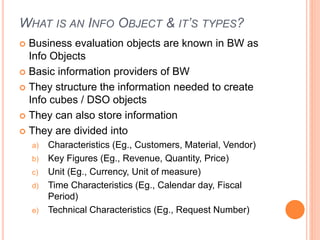
WHAT IS AN INFO OBJECT & IT’S TYPES?
 Business evaluation objects are known in BW as
Info Objects
 Basic information providers of BW
 They structure the information needed to create
Info cubes / DSO objects
 They can also store information
 They are divided into
a) Characteristics (Eg., Customers, Material, Vendor)
b) Key Figures (Eg., Revenue, Quantity, Price)
c) Unit (Eg., Currency, Unit of measure)
d) Time Characteristics (Eg., Calendar day, Fiscal
Period)
e) Technical Characteristics (Eg., Request Number)
CHARACTERISTIC INFO
OBJECT:
INTRODUCTION:
 Characteristics Info Objects are the business
reference objects used to analyze the facts
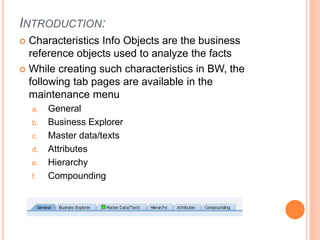
 While creating such characteristics in BW, the
following tab pages are available in the
maintenance menu
a. General
b. Business Explorer
c. Master data/texts
d. Attributes
e. Hierarchy
f. Compounding
STEPS TO CREATE
CHARACTERISTIC INFO
OBJECT:
STEPS TO CREATE CHARACTERISTICS INFO OBJECT:
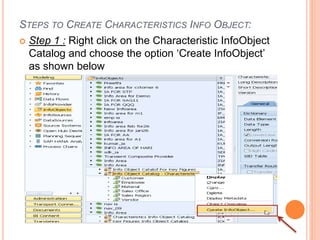
 Step 1 : Right click on the Characteristic InfoObject
Catalog and choose the option ‘Create InfoObject’
as shown below
STEPS TO CREATE CHARACTERISTICS INFO OBJECT:
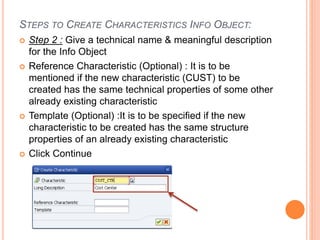
 Step 2 : Give a technical name & meaningful description
for the Info Object
 Reference Characteristic (Optional) : It is to be
mentioned if the new characteristic (CUST) to be
created has the same technical properties of some other
already existing characteristic
 Template (Optional) :It is to be specified if the new
characteristic to be created has the same structure
properties of an already existing characteristic
 Click Continue
STEPS TO CREATE CHARACTERISTICS INFO OBJECT:
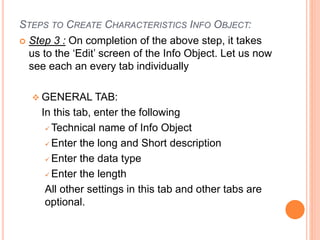
 Step 3 : On completion of the above step, it takes
us to the ‘Edit’ screen of the Info Object. Let us now
see each an every tab individually
 GENERAL TAB:
In this tab, enter the following
 Technical name of Info Object
 Enter the long and Short description
 Enter the data type
 Enter the length
All other settings in this tab and other tabs are
optional.
STEPS TO CREATE CHARACTERISTICS INFO OBJECT:
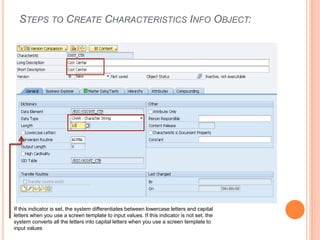
If this indicator is set, the system differentiates between lowercase letters and capital
letters when you use a screen template to input values. If this indicator is not set, the
system converts all the letters into capital letters when you use a screen template to
input values
STEPS TO CREATE CHARACTERISTICS INFO OBJECT:
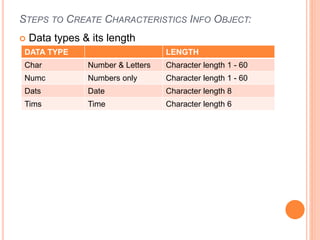
 Data types & its length
DATA TYPE LENGTH
Char Number & Letters Character length 1 - 60
Numc Numbers only Character length 1 - 60
Dats Date Character length 8
Tims Time Character length 6
STEPS TO CREATE CHARACTERISTICS INFO OBJECT:
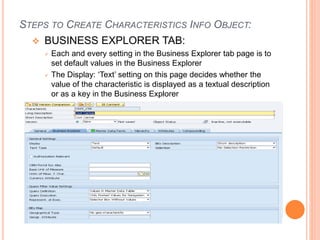
 BUSINESS EXPLORER TAB:
 Each and every setting in the Business Explorer tab page is to
set default values in the Business Explorer
 The Display: ‘Text’ setting on this page decides whether the
value of the characteristic is displayed as a textual description
or as a key in the Business Explorer
STEPS TO CREATE CHARACTERISTICS INFO OBJECT:
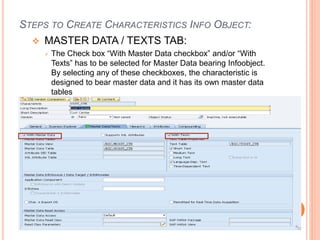
 MASTER DATA / TEXTS TAB:
 The Check box “With Master Data checkbox” and/or “With
Texts” has to be selected for Master Data bearing Infoobject.
By selecting any of these checkboxes, the characteristic is
designed to bear master data and it has its own master data
tables
STEPS TO CREATE CHARACTERISTICS INFO OBJECT:
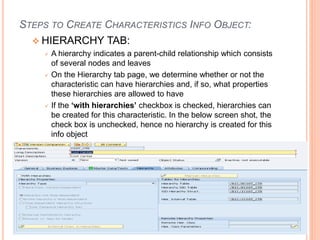
 HIERARCHY TAB:
 A hierarchy indicates a parent-child relationship which consists
of several nodes and leaves
 On the Hierarchy tab page, we determine whether or not the
characteristic can have hierarchies and, if so, what properties
these hierarchies are allowed to have
 If the ‘with hierarchies’ checkbox is checked, hierarchies can
be created for this characteristic. In the below screen shot, the
check box is unchecked, hence no hierarchy is created for this
info object
STEPS TO CREATE CHARACTERISTICS INFO OBJECT:
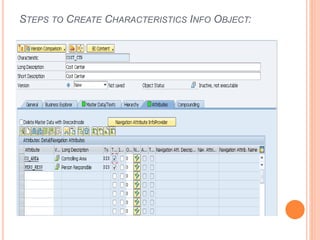
 ATTRIBUTES TAB:
 Attributes are nothing but the fields or properties of master
data
 There are different types of Attributes:
a. Display Attributes
b. Navigational Attributes
c. Executive Attributes
d. Compound Attributes
 The attributes are assigned to the characteristic on
the Attributes tab page
 Several characteristics can be added as attributes of the
master data characteristics in the Attribute tab page
 Attributes can be marked as navigational or display attribute
by clicking on “navigational attribute on/off” button
 Display and navigation attributes can be marked as time-
dependent if a validity period is required for each attribute
value.
STEPS TO CREATE CHARACTERISTICS INFO OBJECT:
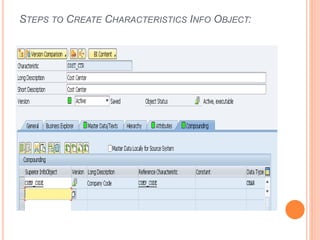
 COMPOUNDING TAB:
 On this tab page, you determine whether or not the
characteristic is to be compounded to other InfoObjects
 If the info-object is defined as an attributes, it cannot be
included as compounding object.
 Sometimes, the meaning of master data depends on the
source of the data. In these cases, we need to
compound the characteristic with the source
 Say, for example, cost center 1000 stands for sales and
distribution in controlling area 10, and it also stands for
sales in controlling area 20. In this case, you would
define a cost center to controlling area characteristic
Compounding
STEPS TO CREATE CHARACTERISTICS INFO OBJECT:
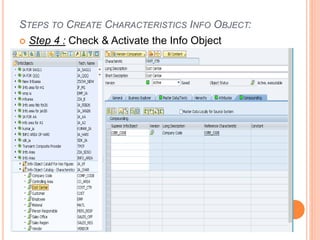
 Step 4 : Check & Activate the Info Object
THANK YOU

SAP BW - Info object (characteristics)

  • 1.
  • 2.
  • 3.
    WHAT IS ANINFO OBJECT & IT’S TYPES?  Business evaluation objects are known in BW as Info Objects  Basic information providers of BW  They structure the information needed to create Info cubes / DSO objects  They can also store information  They are divided into a) Characteristics (Eg., Customers, Material, Vendor) b) Key Figures (Eg., Revenue, Quantity, Price) c) Unit (Eg., Currency, Unit of measure) d) Time Characteristics (Eg., Calendar day, Fiscal Period) e) Technical Characteristics (Eg., Request Number)
  • 4.
  • 5.
    INTRODUCTION:  Characteristics InfoObjects are the business reference objects used to analyze the facts  While creating such characteristics in BW, the following tab pages are available in the maintenance menu a. General b. Business Explorer c. Master data/texts d. Attributes e. Hierarchy f. Compounding
  • 6.
  • 7.
    STEPS TO CREATECHARACTERISTICS INFO OBJECT:  Step 1 : Right click on the Characteristic InfoObject Catalog and choose the option ‘Create InfoObject’ as shown below
  • 8.
    STEPS TO CREATECHARACTERISTICS INFO OBJECT:  Step 2 : Give a technical name & meaningful description for the Info Object  Reference Characteristic (Optional) : It is to be mentioned if the new characteristic (CUST) to be created has the same technical properties of some other already existing characteristic  Template (Optional) :It is to be specified if the new characteristic to be created has the same structure properties of an already existing characteristic  Click Continue
  • 9.
    STEPS TO CREATECHARACTERISTICS INFO OBJECT:  Step 3 : On completion of the above step, it takes us to the ‘Edit’ screen of the Info Object. Let us now see each an every tab individually  GENERAL TAB: In this tab, enter the following  Technical name of Info Object  Enter the long and Short description  Enter the data type  Enter the length All other settings in this tab and other tabs are optional.
  • 10.
    STEPS TO CREATECHARACTERISTICS INFO OBJECT: If this indicator is set, the system differentiates between lowercase letters and capital letters when you use a screen template to input values. If this indicator is not set, the system converts all the letters into capital letters when you use a screen template to input values
  • 11.
    STEPS TO CREATECHARACTERISTICS INFO OBJECT:  Data types & its length DATA TYPE LENGTH Char Number & Letters Character length 1 - 60 Numc Numbers only Character length 1 - 60 Dats Date Character length 8 Tims Time Character length 6
  • 12.
    STEPS TO CREATECHARACTERISTICS INFO OBJECT:  BUSINESS EXPLORER TAB:  Each and every setting in the Business Explorer tab page is to set default values in the Business Explorer  The Display: ‘Text’ setting on this page decides whether the value of the characteristic is displayed as a textual description or as a key in the Business Explorer
  • 13.
    STEPS TO CREATECHARACTERISTICS INFO OBJECT:  MASTER DATA / TEXTS TAB:  The Check box “With Master Data checkbox” and/or “With Texts” has to be selected for Master Data bearing Infoobject. By selecting any of these checkboxes, the characteristic is designed to bear master data and it has its own master data tables
  • 14.
    STEPS TO CREATECHARACTERISTICS INFO OBJECT:  HIERARCHY TAB:  A hierarchy indicates a parent-child relationship which consists of several nodes and leaves  On the Hierarchy tab page, we determine whether or not the characteristic can have hierarchies and, if so, what properties these hierarchies are allowed to have  If the ‘with hierarchies’ checkbox is checked, hierarchies can be created for this characteristic. In the below screen shot, the check box is unchecked, hence no hierarchy is created for this info object
  • 15.
    STEPS TO CREATECHARACTERISTICS INFO OBJECT:  ATTRIBUTES TAB:  Attributes are nothing but the fields or properties of master data  There are different types of Attributes: a. Display Attributes b. Navigational Attributes c. Executive Attributes d. Compound Attributes  The attributes are assigned to the characteristic on the Attributes tab page  Several characteristics can be added as attributes of the master data characteristics in the Attribute tab page  Attributes can be marked as navigational or display attribute by clicking on “navigational attribute on/off” button  Display and navigation attributes can be marked as time- dependent if a validity period is required for each attribute value.
  • 16.
    STEPS TO CREATECHARACTERISTICS INFO OBJECT:
  • 17.
    STEPS TO CREATECHARACTERISTICS INFO OBJECT:  COMPOUNDING TAB:  On this tab page, you determine whether or not the characteristic is to be compounded to other InfoObjects  If the info-object is defined as an attributes, it cannot be included as compounding object.  Sometimes, the meaning of master data depends on the source of the data. In these cases, we need to compound the characteristic with the source  Say, for example, cost center 1000 stands for sales and distribution in controlling area 10, and it also stands for sales in controlling area 20. In this case, you would define a cost center to controlling area characteristic Compounding
  • 18.
    STEPS TO CREATECHARACTERISTICS INFO OBJECT:
  • 19.
    STEPS TO CREATECHARACTERISTICS INFO OBJECT:  Step 4 : Check & Activate the Info Object
  • 20.