• Learners to be able to write five
instructions of coding
• Learners to be able to create a basic web
homepage
• Learners to be able to include one pictures
and one hyperlinks
Need: A Hosting Site &
Domain
Your
website
• Sign in to www.x10hosting.com. This sign in
using the username: -
pechakucha4coding@gmail.com. Password:
codingclass (lowercase c). Our domain is
www.learncoding@x10hosting.com.
• For PC download Notepad ++ http://notepad-
plus-plus.org/download/v6.7.4.html
• For MAC download Text Wrangle
http://www.barebones.com/products/textwra
ngler/download.html
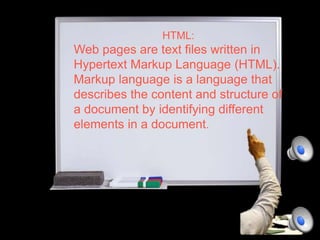
HTML:
Web pages are text files written in
Hypertext Markup Language (HTML).
Markup language is a language that
describes the content and structure of
a document by identifying different
elements in a document.
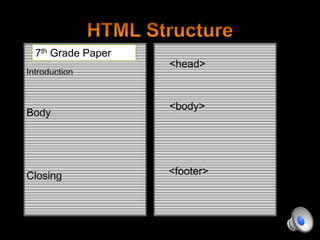
<head>
<body>
<footer>
7th Grade Paper
Introduction
Body
Closing
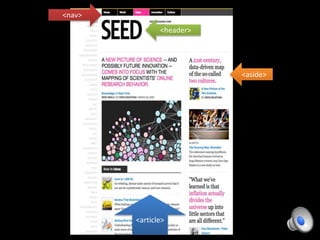
<nav>
<aside>
<article>
<header>
Credits
• “Coding is Poetry” from Flickr
• “Seed website” from Flickr
• “Cooking pot” from Flickr
• “Closed cooking pot” from Flickr
• “Sunny Acres website” from HTML, CSS, and Dynamic HTML, 5th Edition (2013) by
Patrick Carey
• “Raised Hand” from Flickr
• “Pour a Drink” from Flickr
• “1990s computer” from Flickr
• “www” from Microsoft PowerPoint 2013
• “Jumping Man” from Microsoft PowerPoint 2013
• In Living Color Theme Song from YouTube
• “So What You Saying?” Sound Clip. From Soundboard.com, Martin Lawrence.
• “Oh yeah” Sound Clip. From Soundboard.com, Martin Lawerence.
• “Is it Good to You” Instrumental by Tedy Riley . From Intro Depot, YouTube.

IN LIVING CODING

  • 2.
    • Learners tobe able to write five instructions of coding • Learners to be able to create a basic web homepage • Learners to be able to include one pictures and one hyperlinks
  • 4.
    Need: A HostingSite & Domain Your website
  • 5.
    • Sign into www.x10hosting.com. This sign in using the username: - pechakucha4coding@gmail.com. Password: codingclass (lowercase c). Our domain is www.learncoding@x10hosting.com.
  • 6.
    • For PCdownload Notepad ++ http://notepad- plus-plus.org/download/v6.7.4.html • For MAC download Text Wrangle http://www.barebones.com/products/textwra ngler/download.html
  • 7.
    HTML: Web pages aretext files written in Hypertext Markup Language (HTML). Markup language is a language that describes the content and structure of a document by identifying different elements in a document.
  • 9.
  • 13.
  • 21.
    Credits • “Coding isPoetry” from Flickr • “Seed website” from Flickr • “Cooking pot” from Flickr • “Closed cooking pot” from Flickr • “Sunny Acres website” from HTML, CSS, and Dynamic HTML, 5th Edition (2013) by Patrick Carey • “Raised Hand” from Flickr • “Pour a Drink” from Flickr • “1990s computer” from Flickr • “www” from Microsoft PowerPoint 2013 • “Jumping Man” from Microsoft PowerPoint 2013 • In Living Color Theme Song from YouTube • “So What You Saying?” Sound Clip. From Soundboard.com, Martin Lawrence. • “Oh yeah” Sound Clip. From Soundboard.com, Martin Lawerence. • “Is it Good to You” Instrumental by Tedy Riley . From Intro Depot, YouTube.

Editor's Notes

  • #4 To get started you need nothing more than a text editor and a Web browser to complete the assignments that follows.
  • #5 To begin coding you need two things a Site to Host your website and a domain. Hosting a site means having a space on a server that can contain your website. The domain is your www. Address. For this class I have already started a web host and domain.
  • #6 Lets gets started: Sign in to www.x10hosting.com. This sign in using the username: -pechakucha4coding@gmail.com. Password: codingclass (lowercase c). Our domain is www.learncoding@x10hosting.com.
  • #7 Now download a simple text editor which you will use to write your code. For PC download Notepad ++ http://notepad-plus-plus.org/download/v6.7.4.html ; for MAC download Text Wrangle http://www.barebones.com/products/textwrangler/download.html
  • #8 HTML: Web pages are text files written in Hypertext Markup Language (HTML). Markup language is a language that describes the content and structure of a document by identifying different elements in the document.
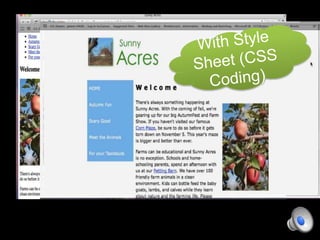
  • #9 HTML and Stlye Sheets: The exact appearance of an each page element is decribed in a separate document known as a style sheet. In other words it’s the code used to make the webpage look pretty. We will not be covering style sheets in this presentation.
  • #10 Structure of an HTML Document: Writing code for a webpage is just like writing a paper, you have specific “elements” that are needed in order for others, in this case the web browser, to recognize your document. Like in a paper you need a Introduction, in HTML referred to as the <head>; the body as the <body> and the closing as the <footer>
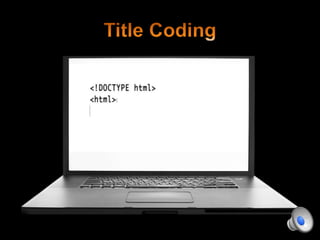
  • #11 To begin writing for your webpage you start with: <!DOCTYPE html>---This indicates the type of document Please enter this into your text editor now   Then type <html>----This is the opening html tag
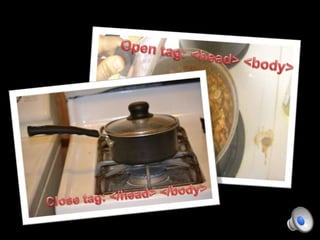
  • #12 Note each tag you write has an opening and a closing. Opening tags look like: <head> <body> Closing tags look like:</head> </body>
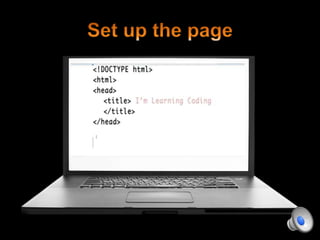
  • #13 To Add a Title to Your Web Page:   Beneath <html> Enter <head> <title> Im Learning Coding </title> </head>
  • #14 Structure of the Page Body: Body can contain: <article> <aside> <footer> <header> <nav> <section>   Think of the structural elements similar to a magazine layout.
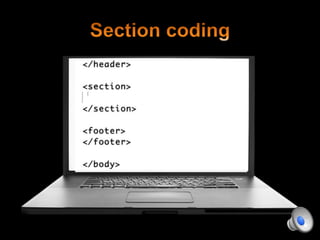
  • #15 Now return to text editor as type under the closing of </head>, type <body>: <header> </header>   <section> </section>   <footer> </footer>   Close with </body>
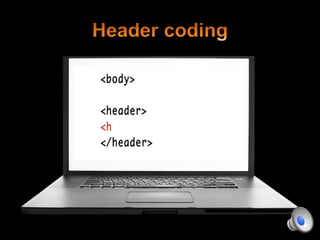
  • #16 In <header> we will add: <h1> Welcome to Learning Coding</h1> <h2>I’m doing it</h2> Then close with </header>
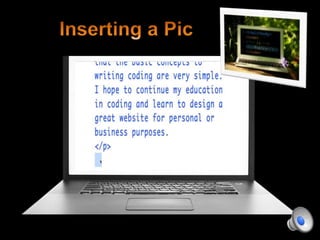
  • #17 In <section> enter a new line, with: <p> (indicates a paragraph) Type: I’m taking a Pecha Kacha class on Coding. I’m learning that the basic concepts to writing coding are very simple. I hope to continue my education in coding and learn to design a great website for personal or business purposes.   Then close with </p>   Close section with </section>
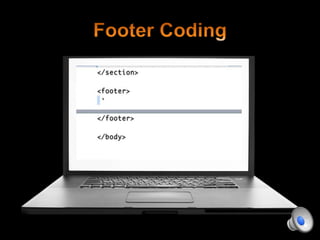
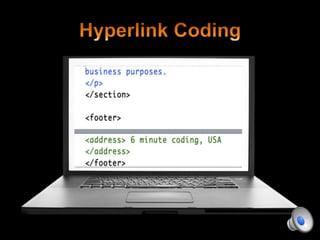
  • #18 In the footer is a great place to put any closing information or contact information. We will add in the footer section: <footer> <address> 6 minute coding, USA, Close with:</address> </footer>   Then close the entire <body> section right after closing the footer with: </body>
  • #19 To Insert a Image: Locate an image or picture on your computer. Record the file name.   In side the <section> add: <img src=”filename.png” alt=”The File Name” />   Where file name is located type the name of the document with correct ending file type (ex. .gif, .tiff, .png, etc)
  • #20 To Add Hypertext: Go to <h1> Learning Coding </h1>   Then type: <a href=”learn.htm”>Learning Coding</a> It will look like: <h1><a href=”learn.htm”>Learning Coding</a></h1>   This will take you to a page that I created for the purposes of this tutorial.