{
iPad Tips & Tricks
MILI & MILI Junior 2014-2015
Olivia Moris, Metronet
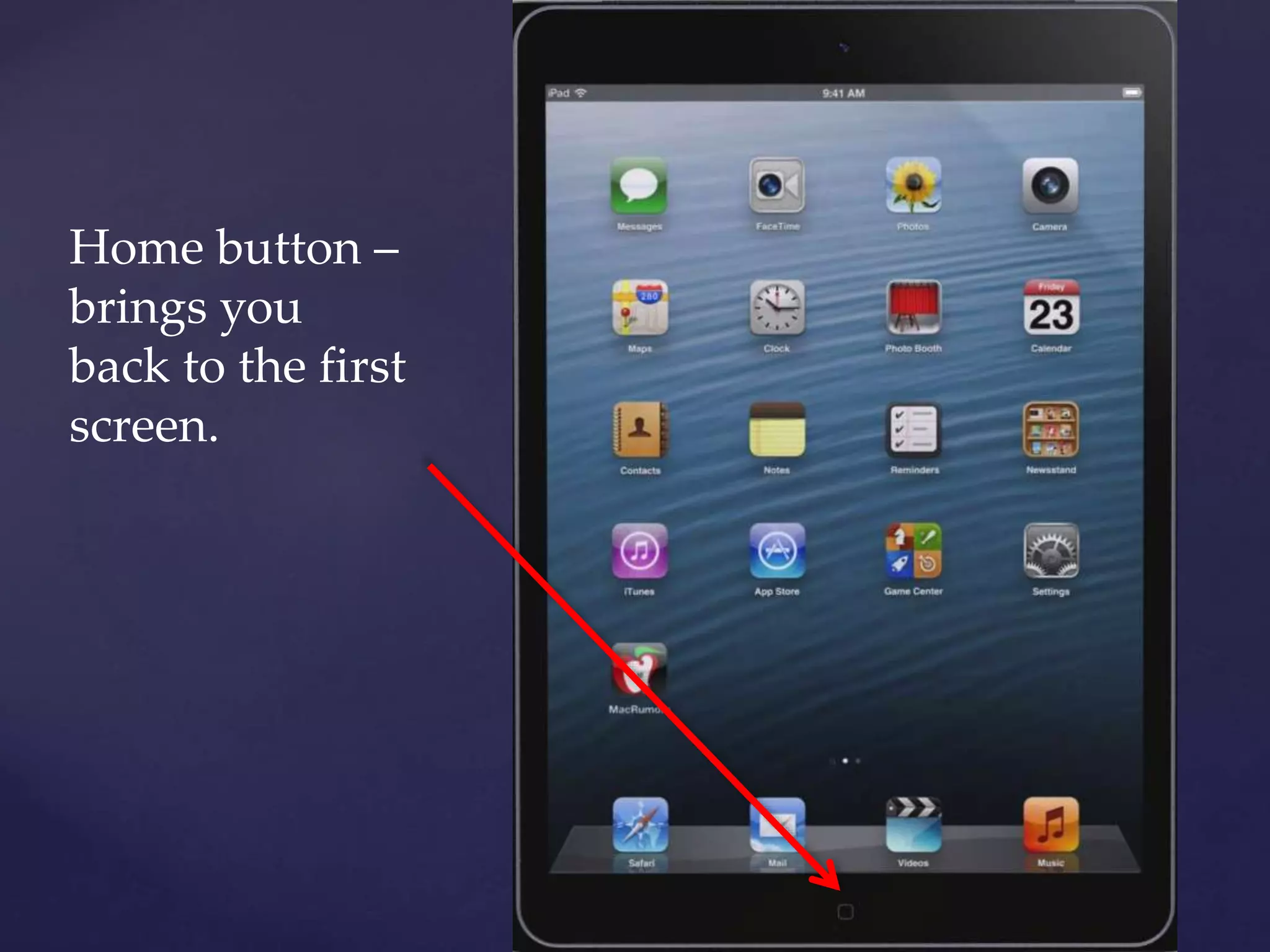
Home button –
brings you
back to the first
screen.
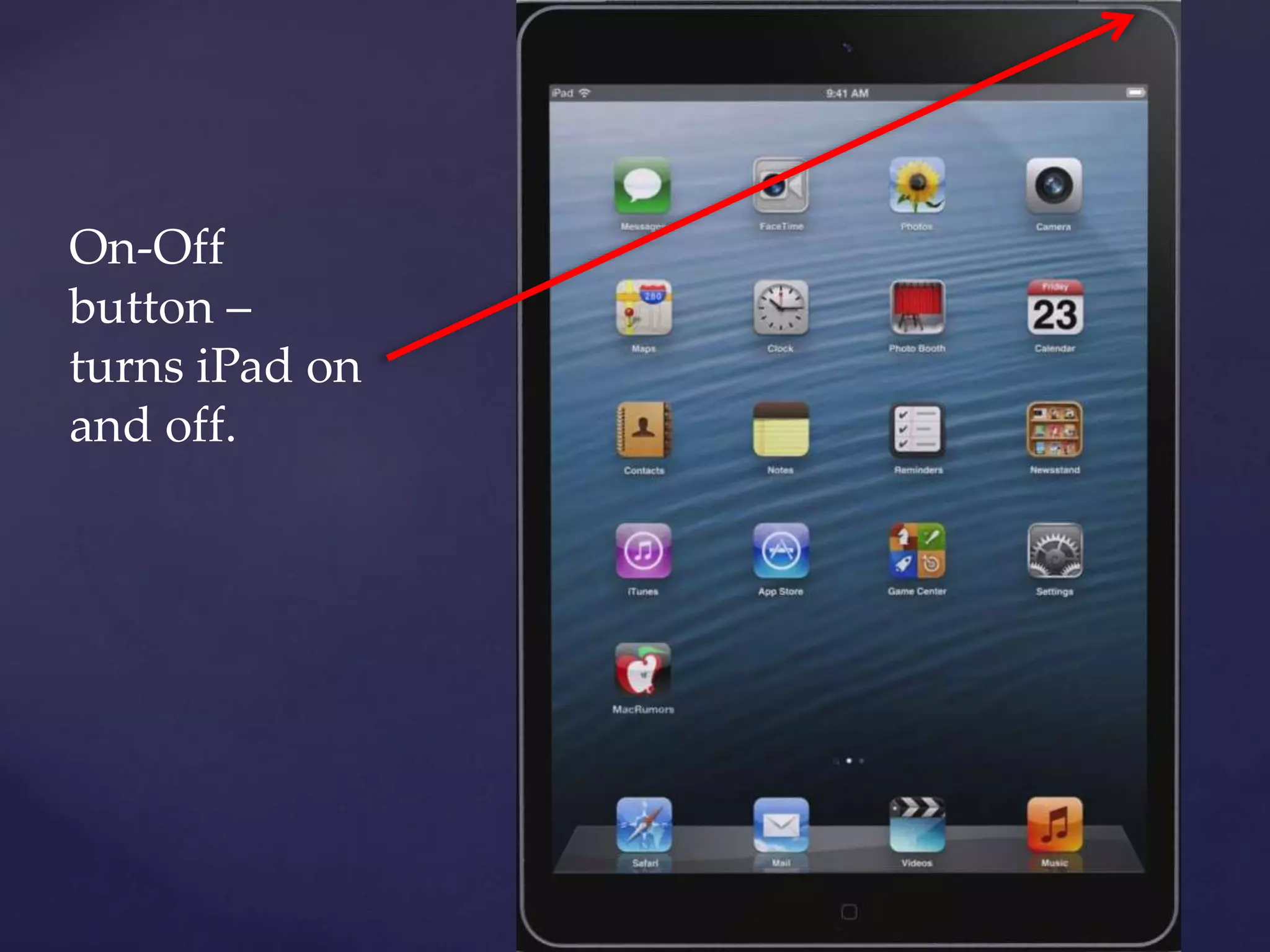
On-Off
button –
turns iPad on
and off.
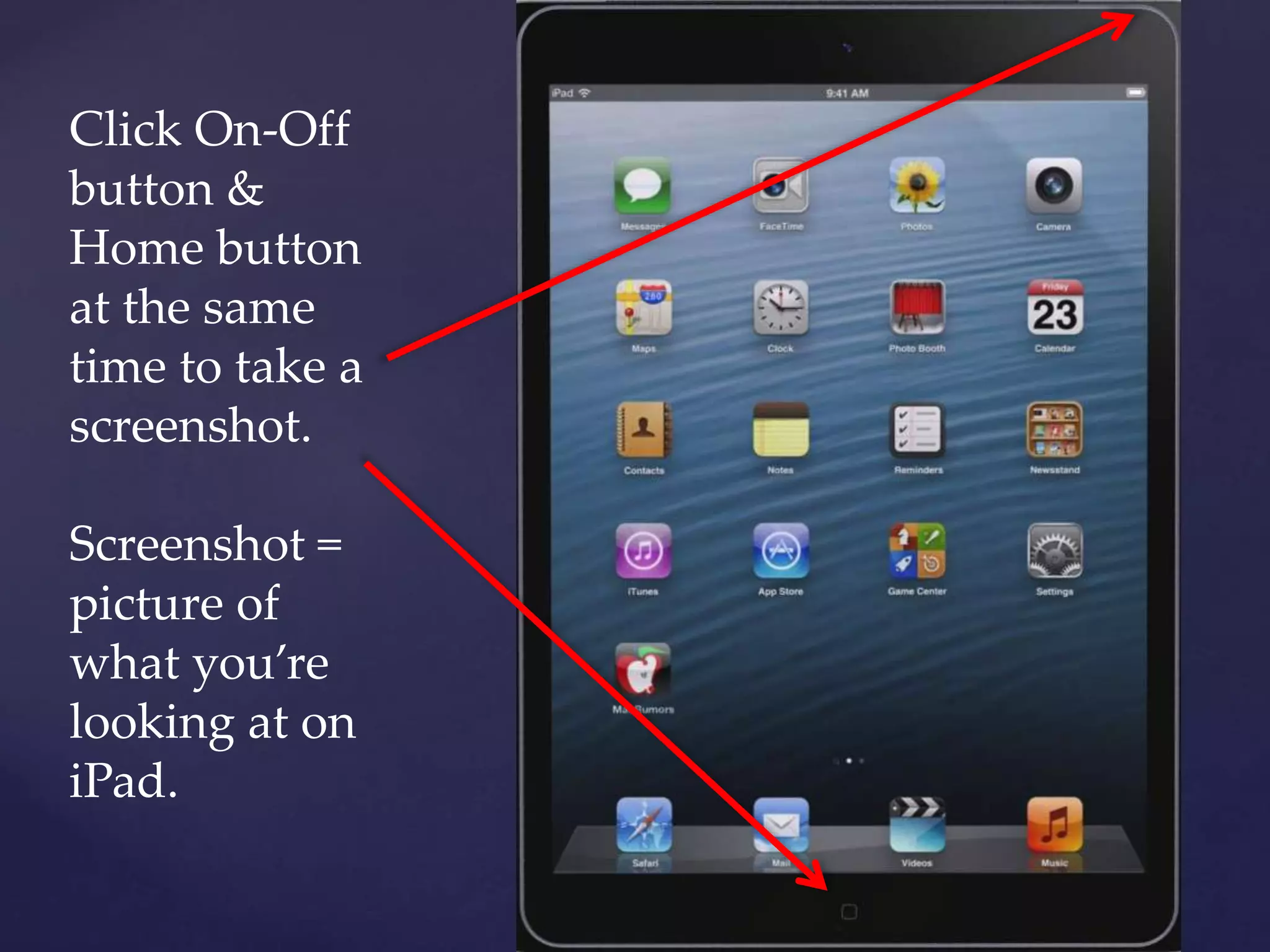
Click On-Off
button &
Home button
at the same
time to take a
screenshot.
Screenshot =
picture of
what you’re
looking at on
iPad.
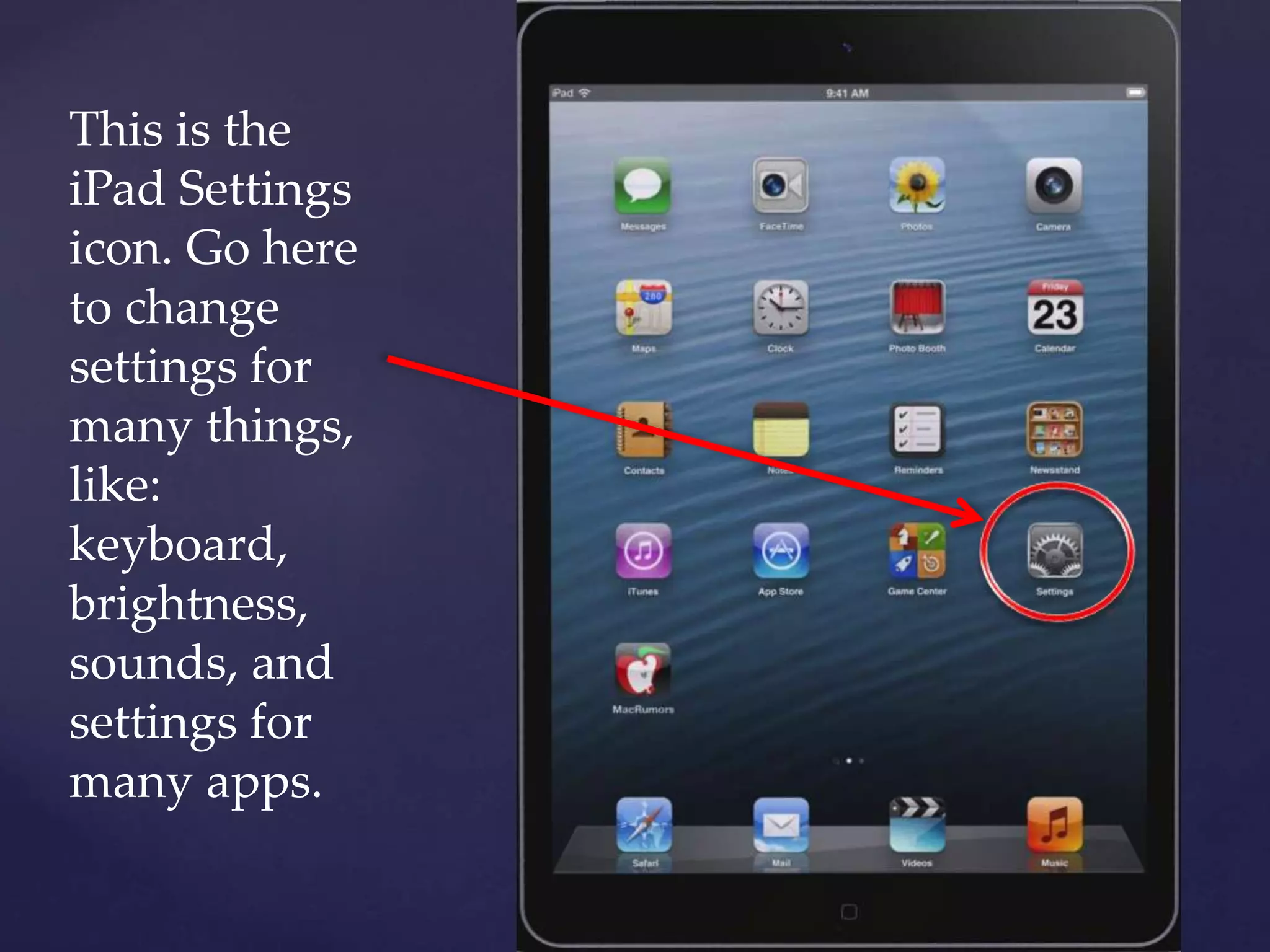
This is the
iPad Settings
icon. Go here
to change
settings for
many things,
like:
keyboard,
brightness,
sounds, and
settings for
many apps.
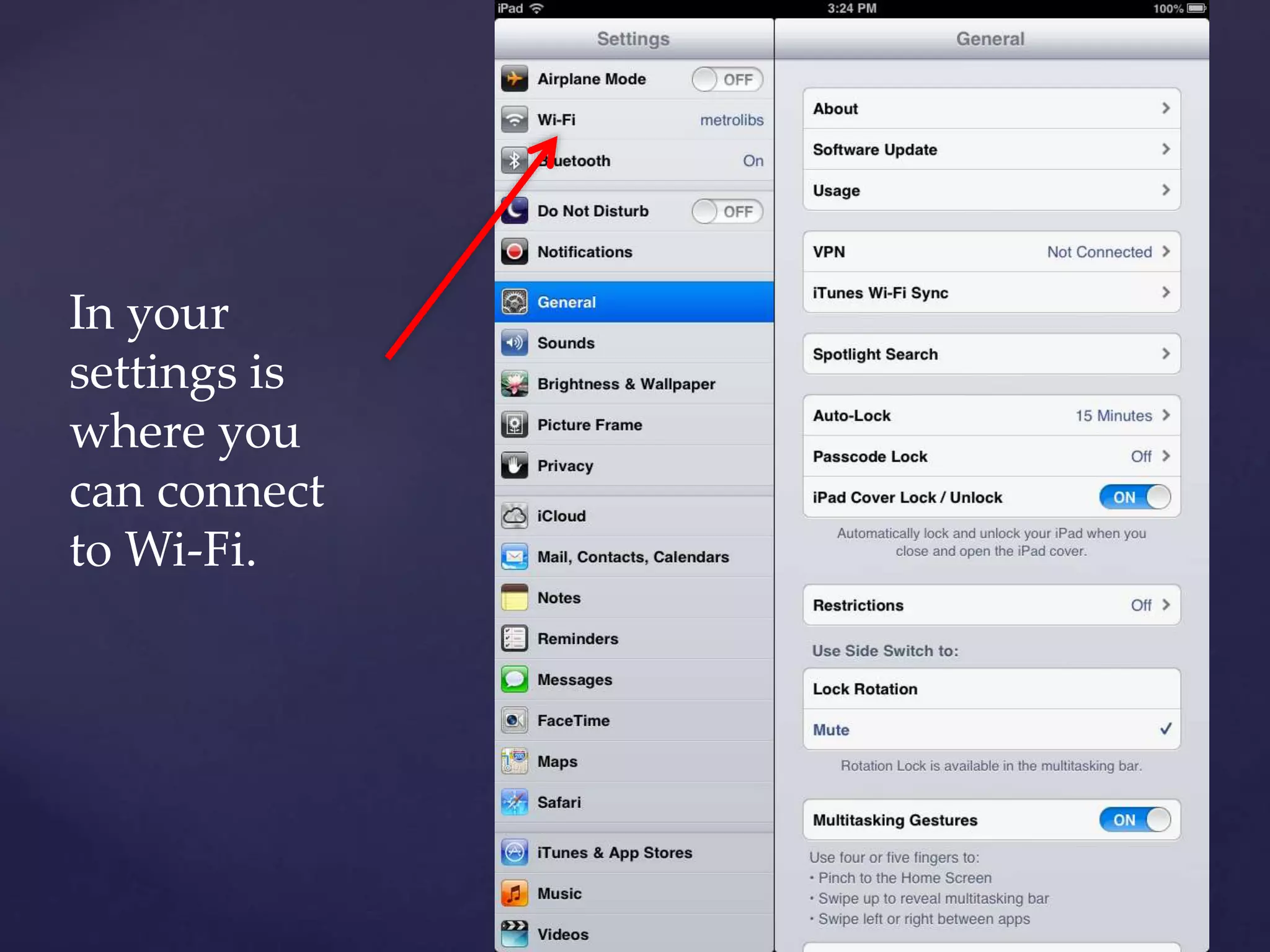
In your
settings is
where you
can connect
to Wi-Fi.
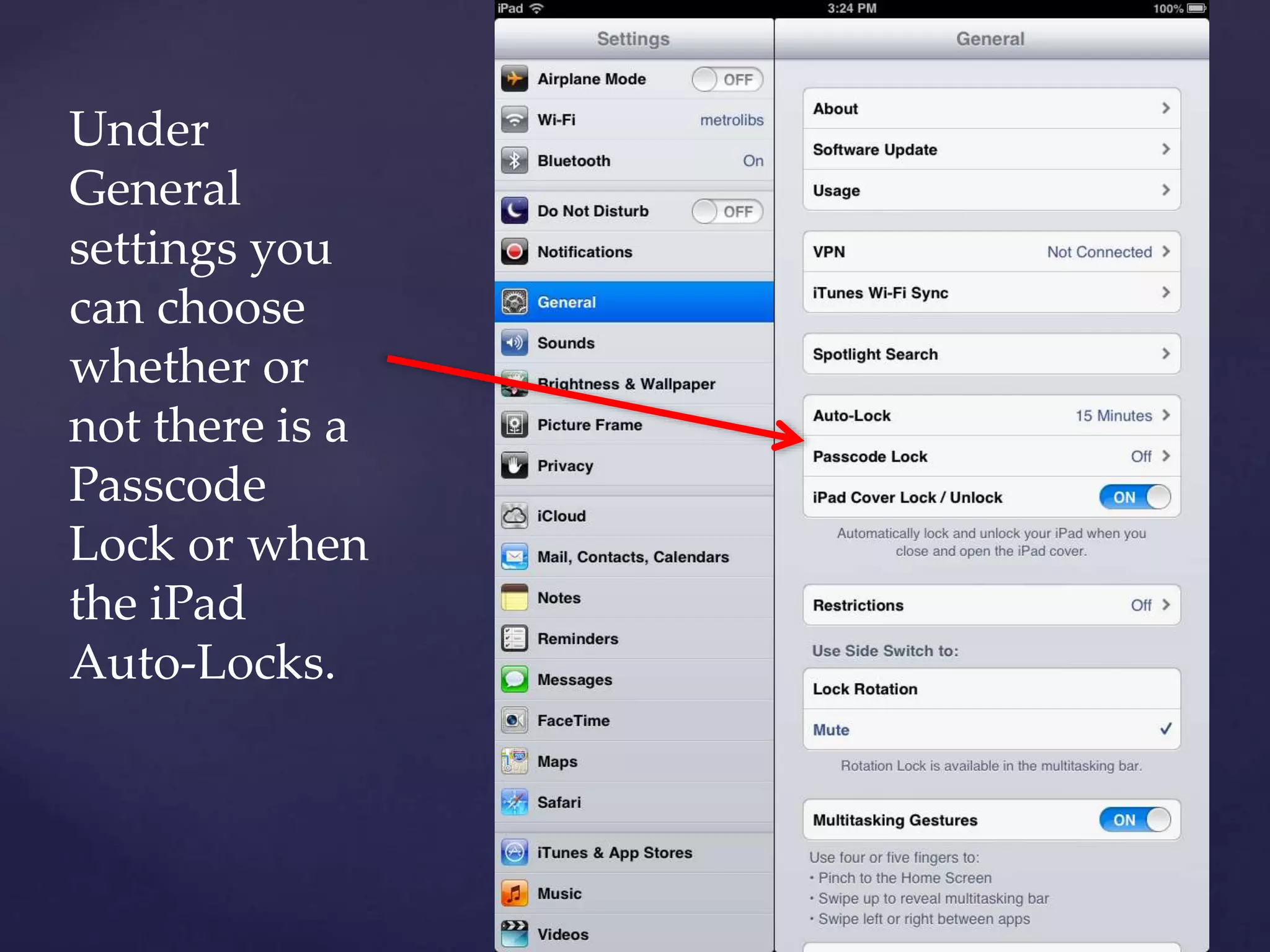
Under
General
settings you
can choose
whether or
not there is a
Passcode
Lock or when
the iPad
Auto-Locks.
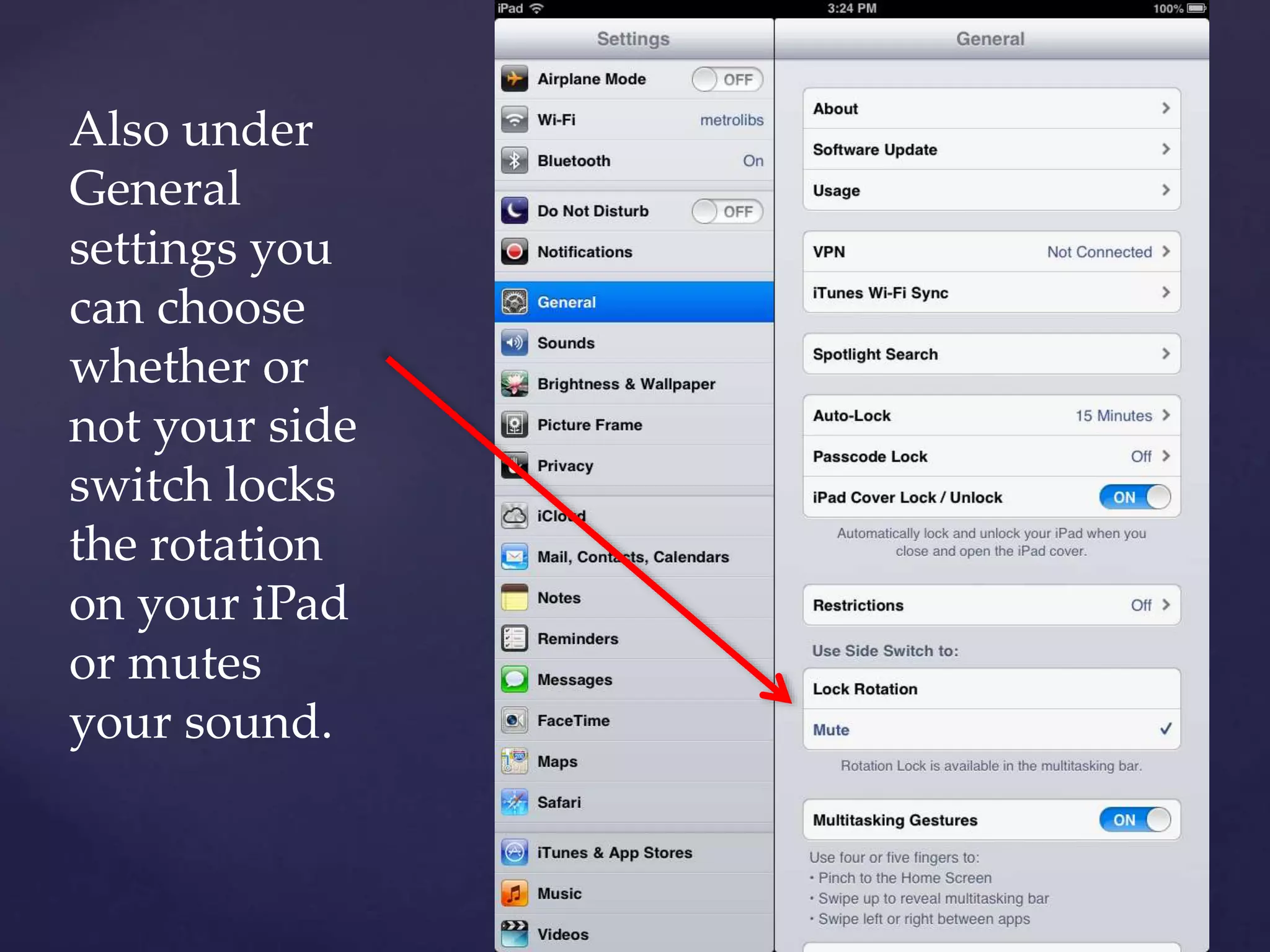
Also under
General
settings you
can choose
whether or
not your side
switch locks
the rotation
on your iPad
or mutes
your sound.
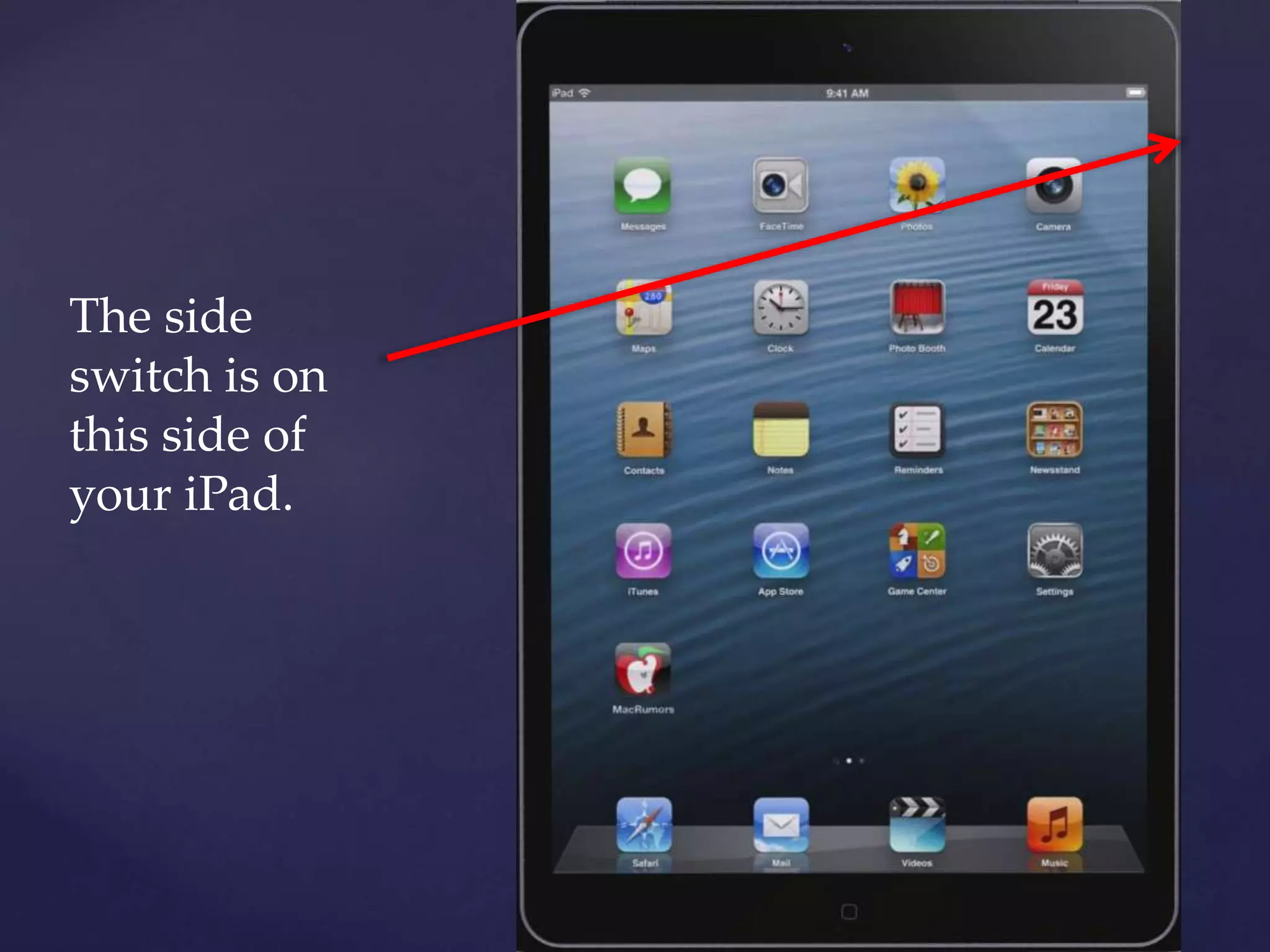
The side
switch is on
this side of
your iPad.
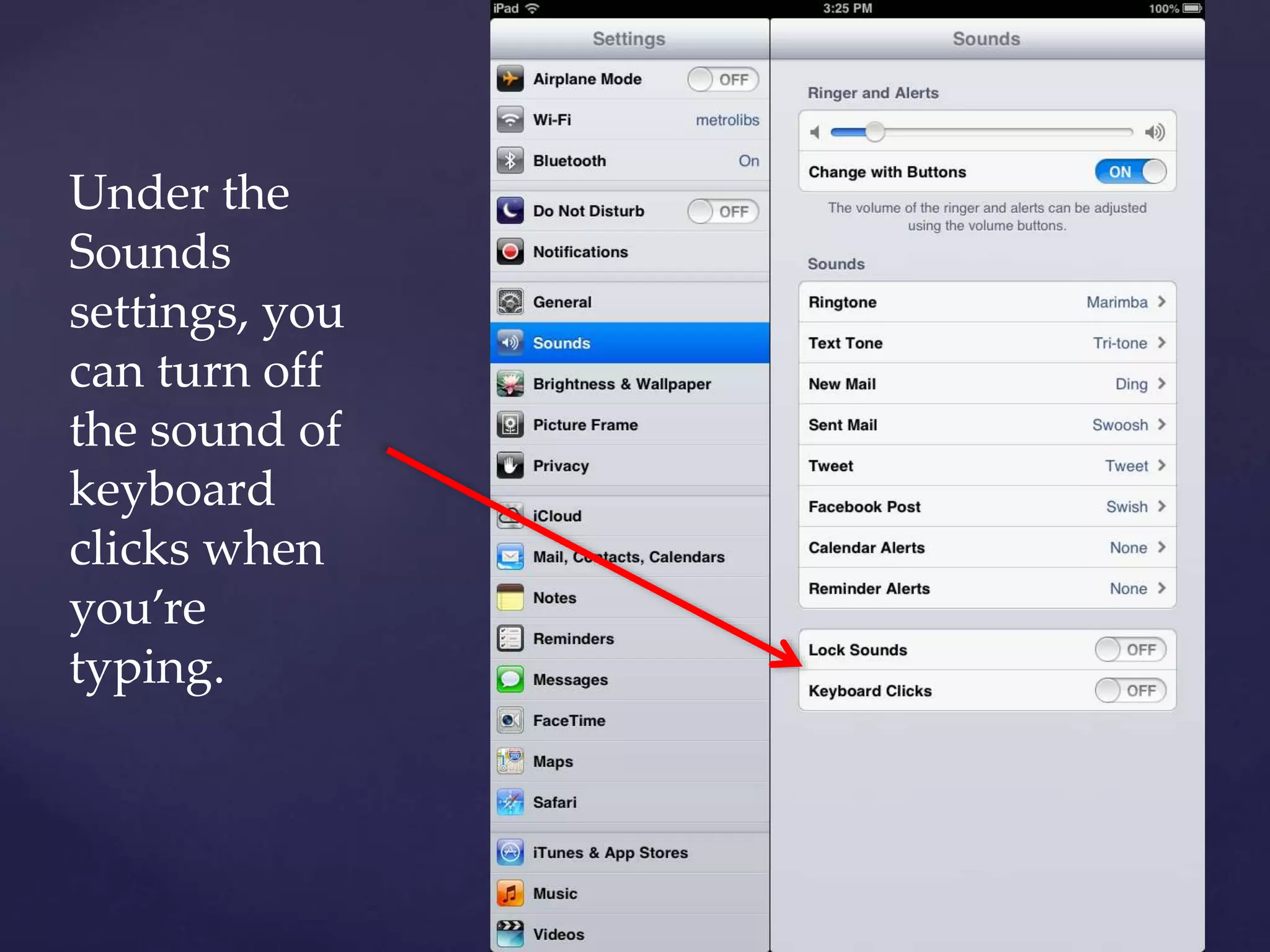
Under the
Sounds
settings, you
can turn off
the sound of
keyboard
clicks when
you’re
typing.
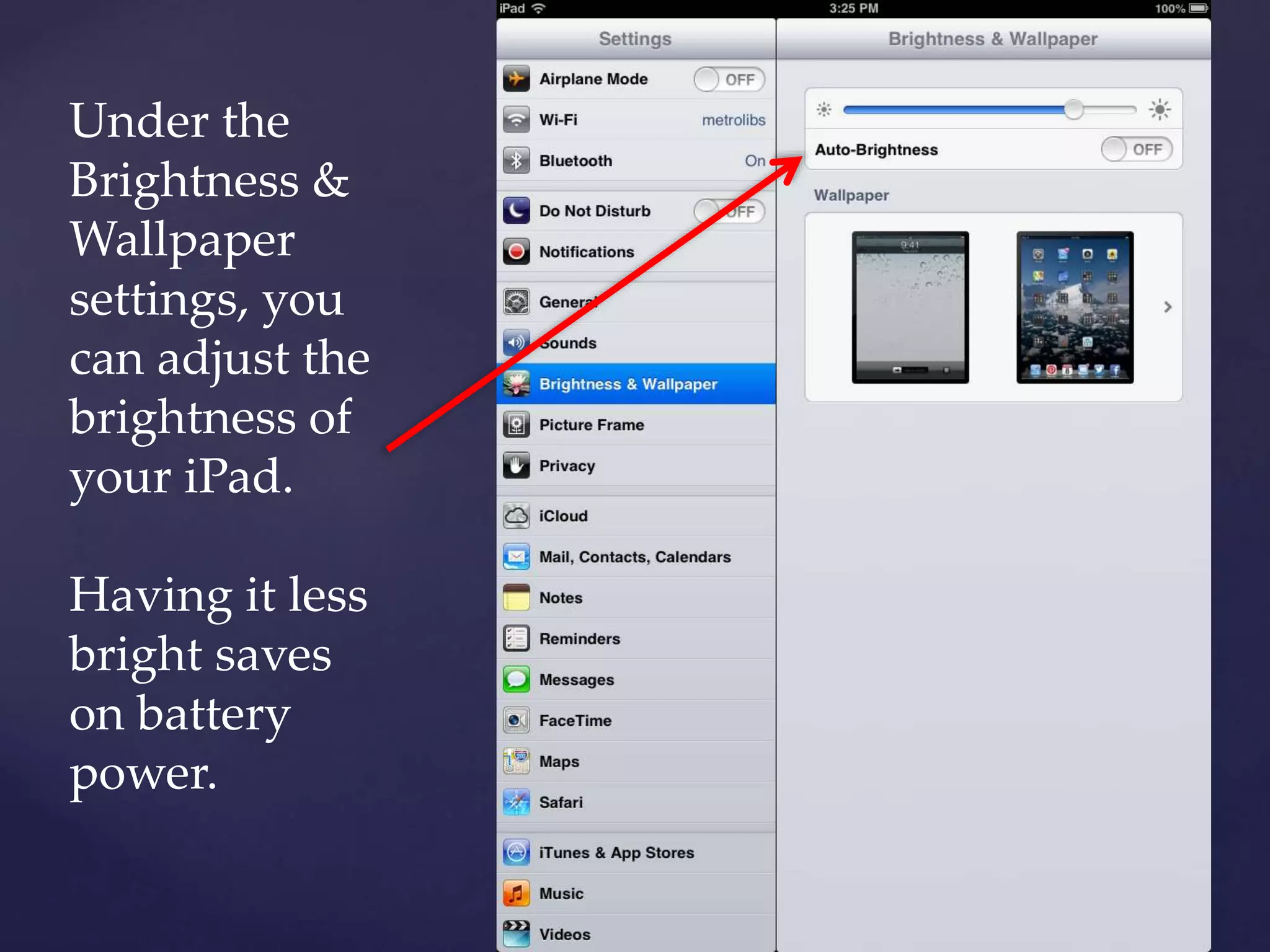
Under the
Brightness &
Wallpaper
settings, you
can adjust the
brightness of
your iPad.
Having it less
bright saves
on battery
power.
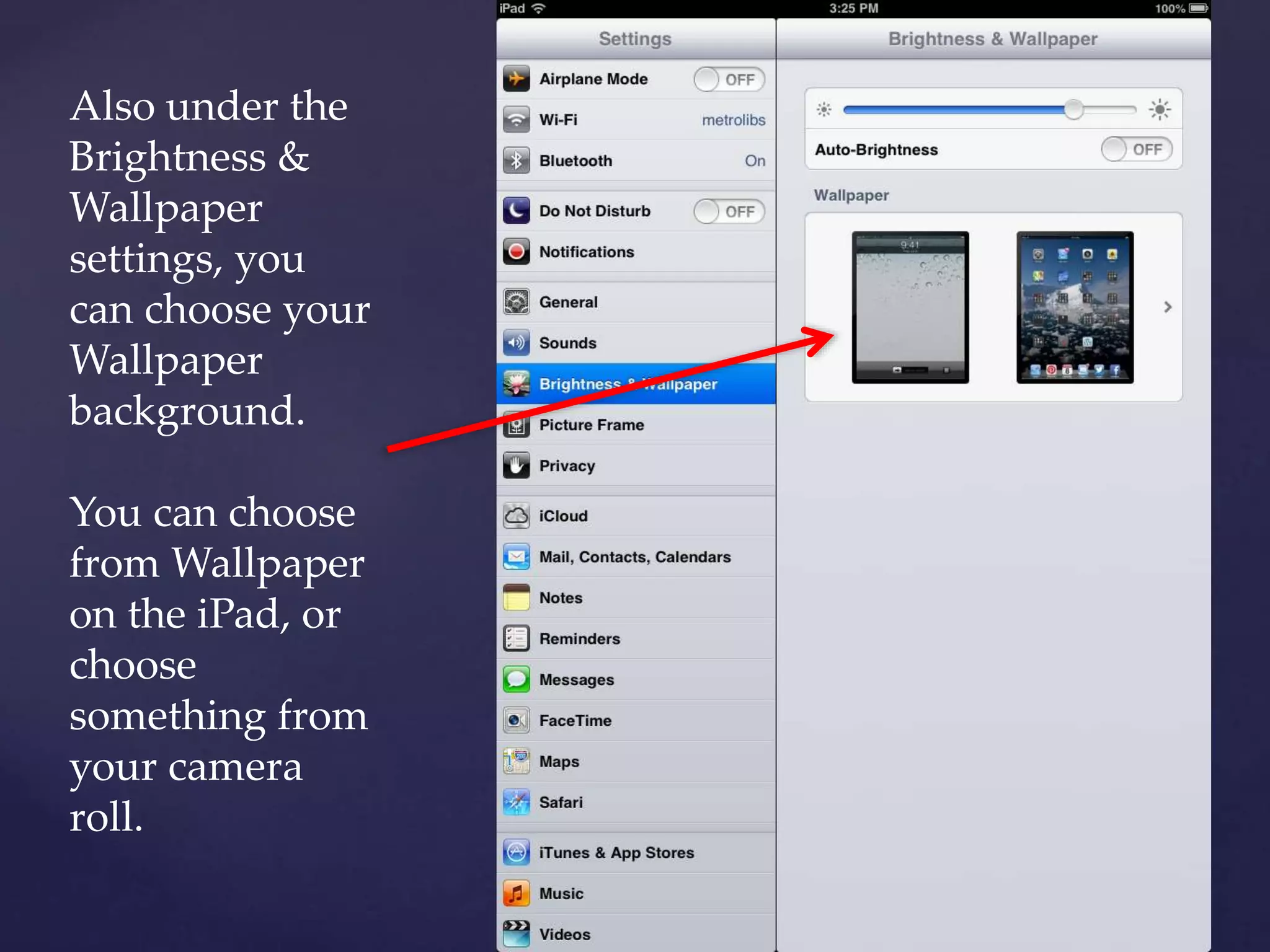
Also under the
Brightness &
Wallpaper
settings, you
can choose your
Wallpaper
background.
You can choose
from Wallpaper
on the iPad, or
choose
something from
your camera
roll.
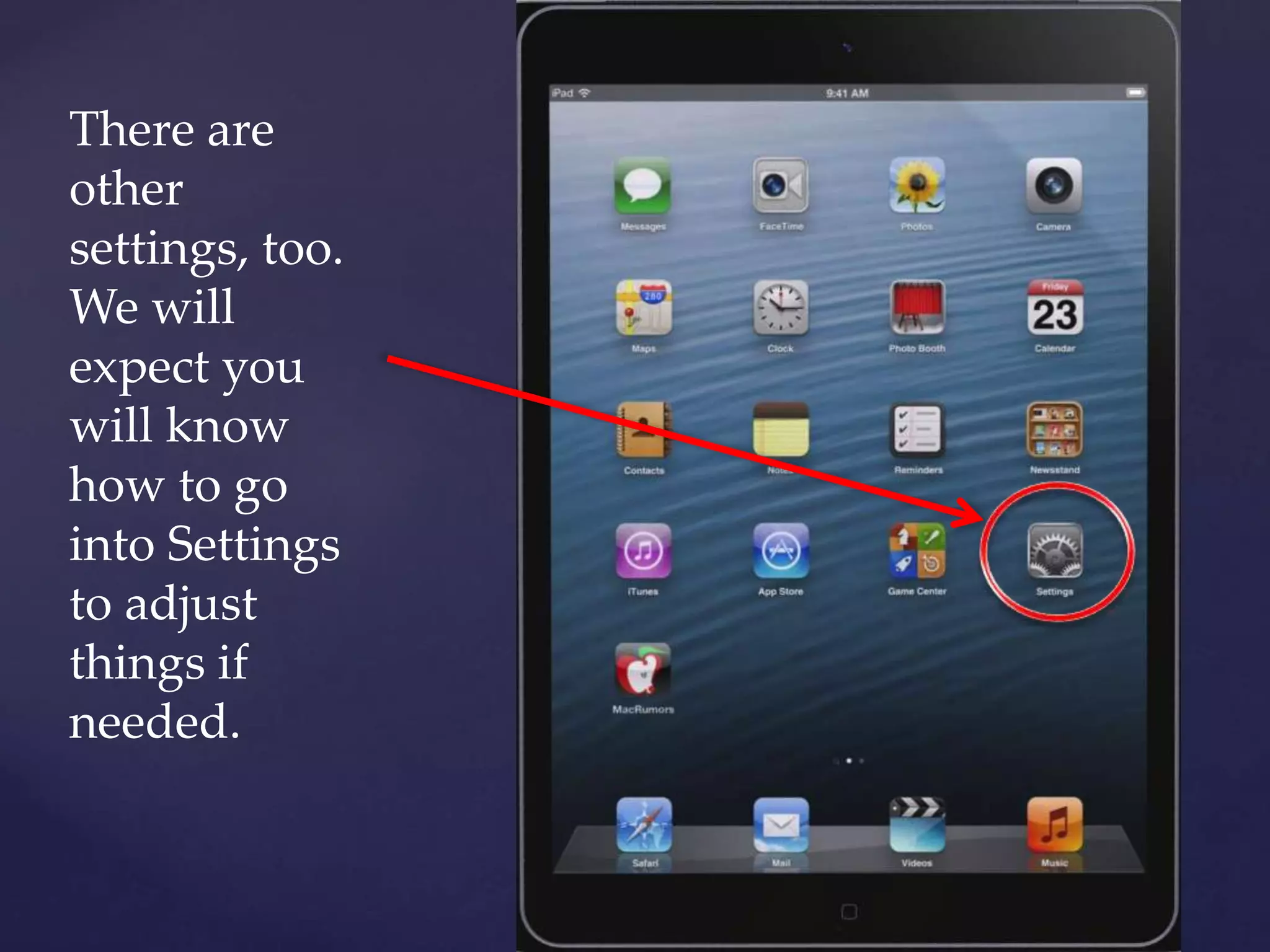
There are
other
settings, too.
We will
expect you
will know
how to go
into Settings
to adjust
things if
needed.
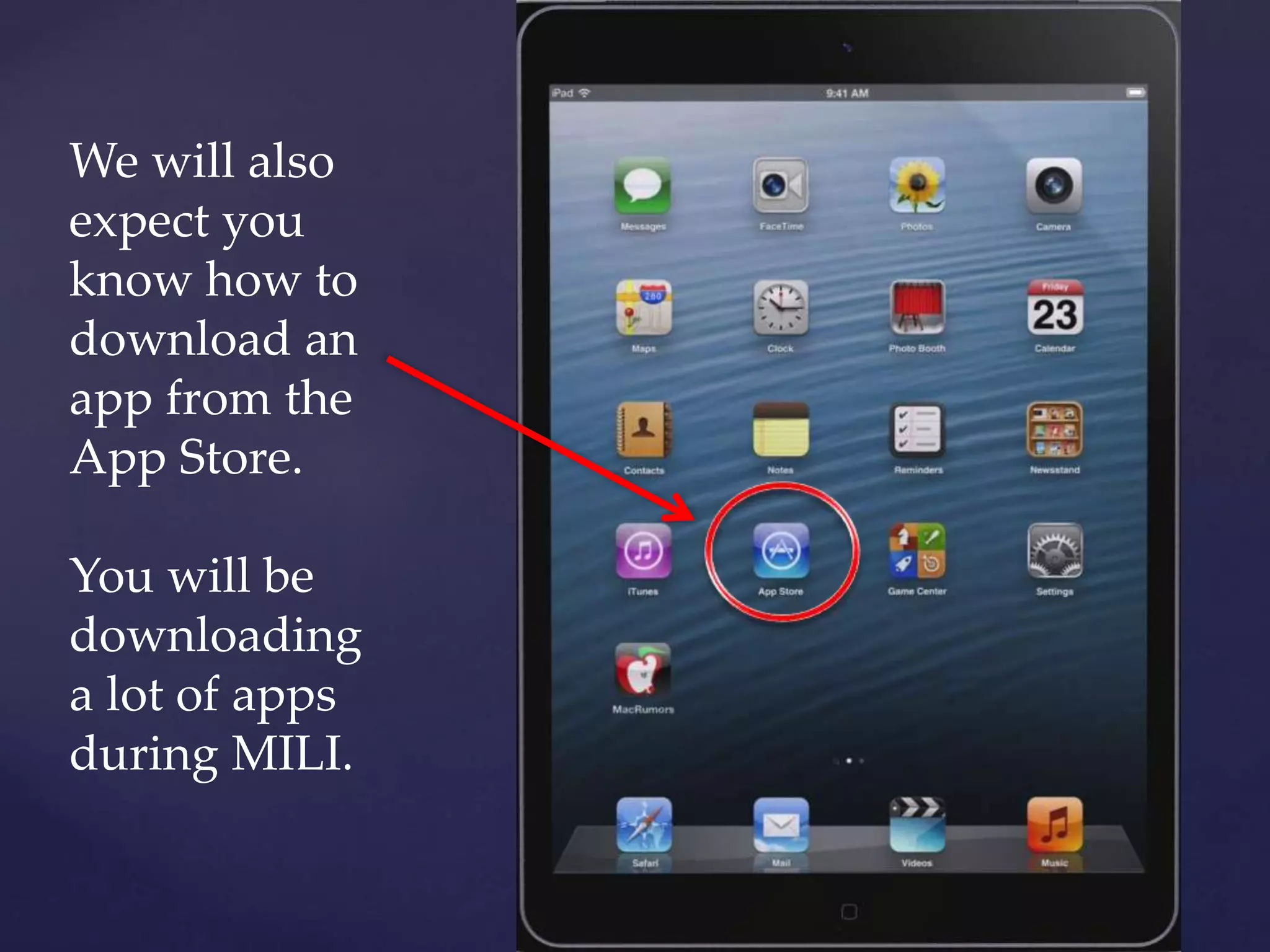
We will also
expect you
know how to
download an
app from the
App Store.
You will be
downloading
a lot of apps
during MILI.
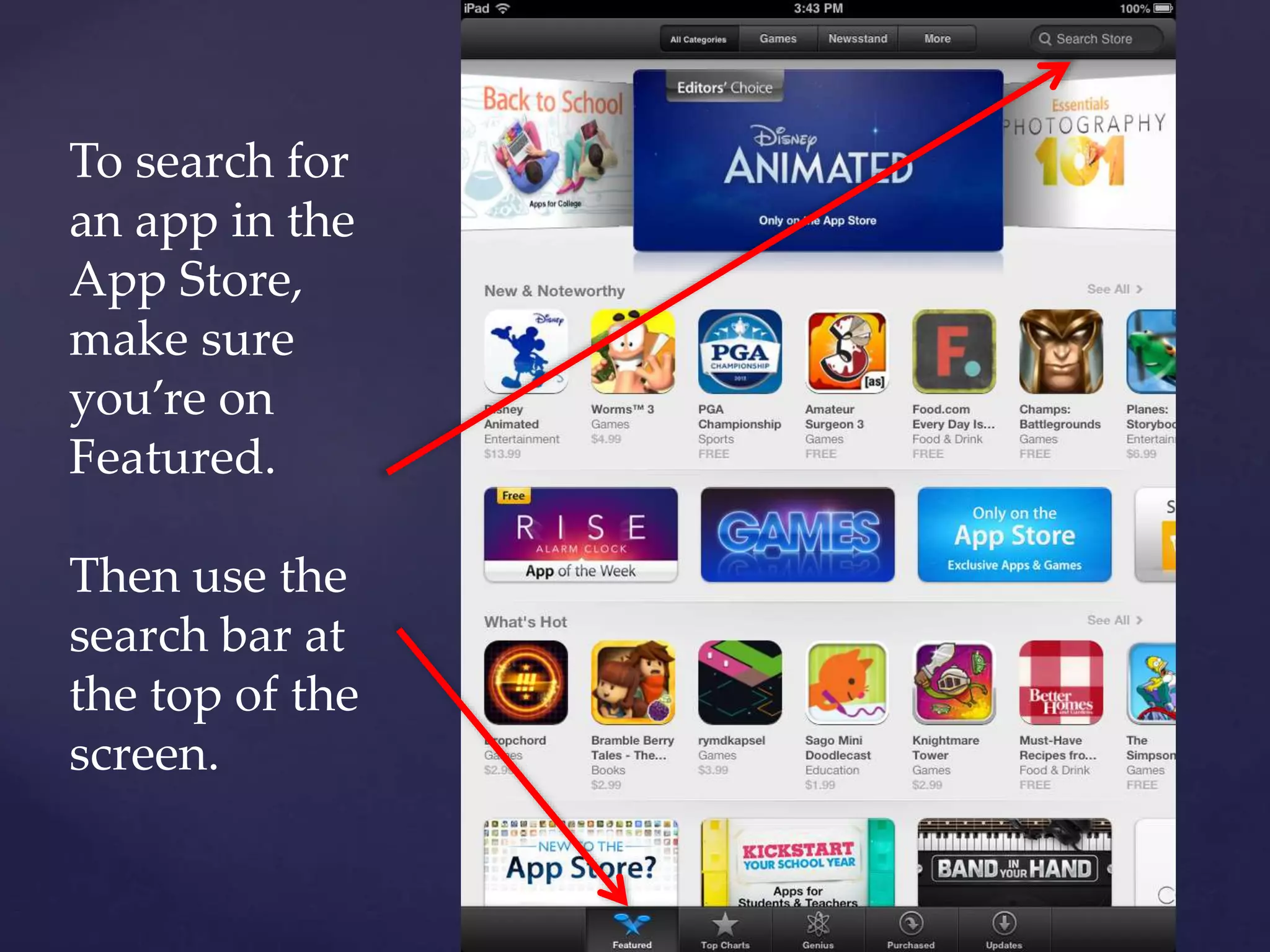
To search for
an app in the
App Store,
make sure
you’re on
Featured.
Then use the
search bar at
the top of the
screen.
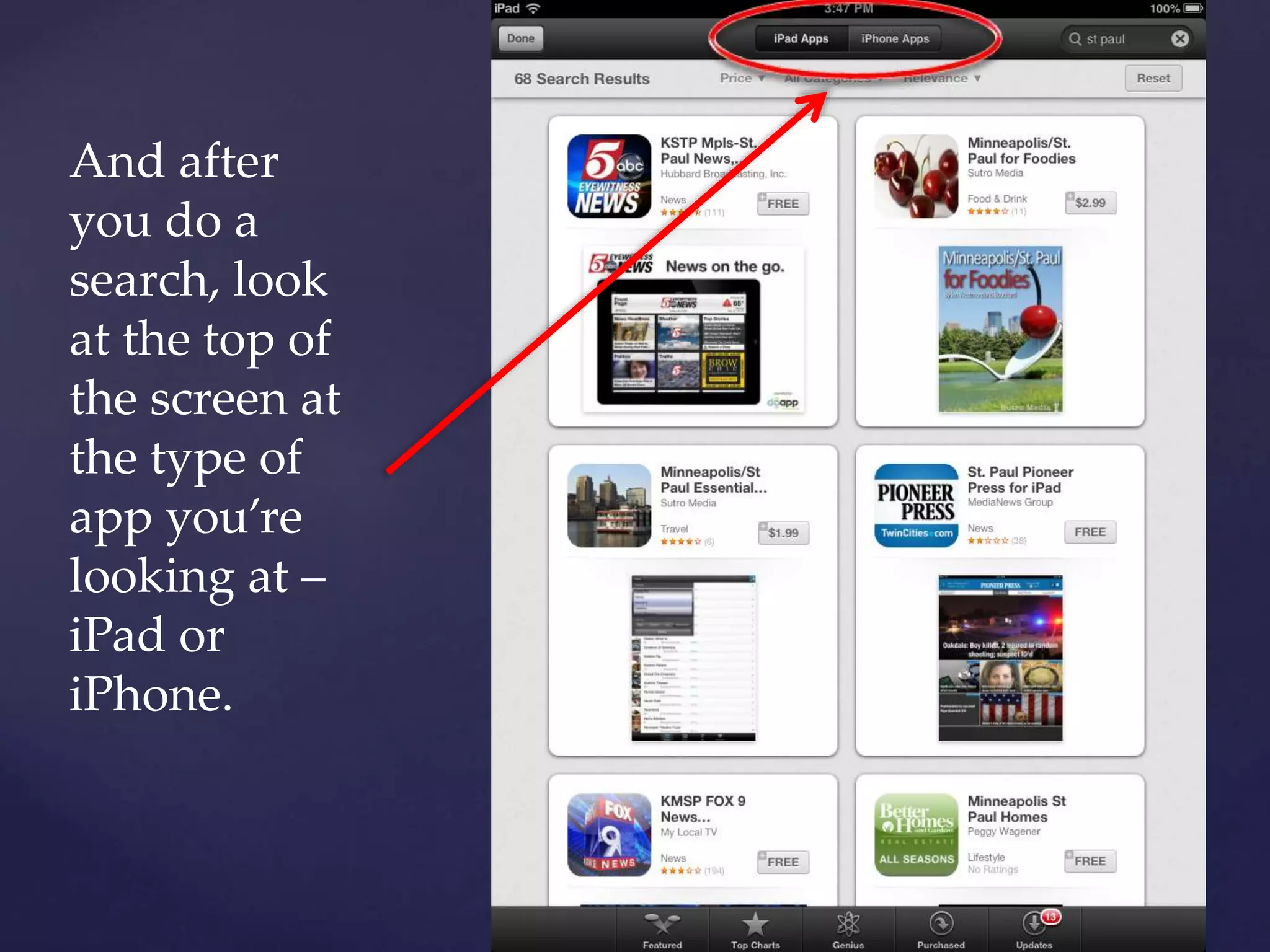
And after
you do a
search, look
at the top of
the screen at
the type of
app you’re
looking at –
iPad or
iPhone.
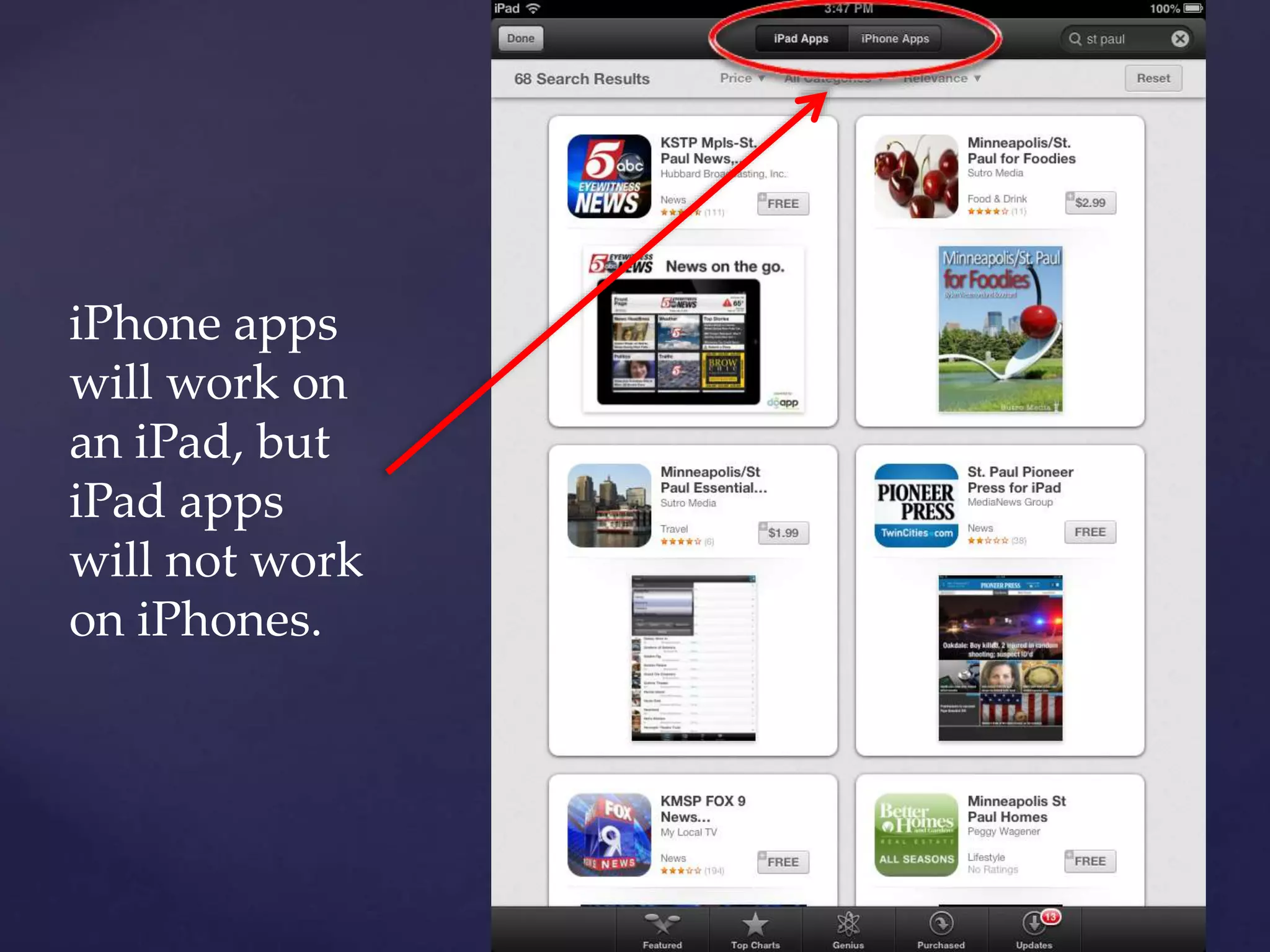
iPhone apps
will work on
an iPad, but
iPad apps
will not work
on iPhones.
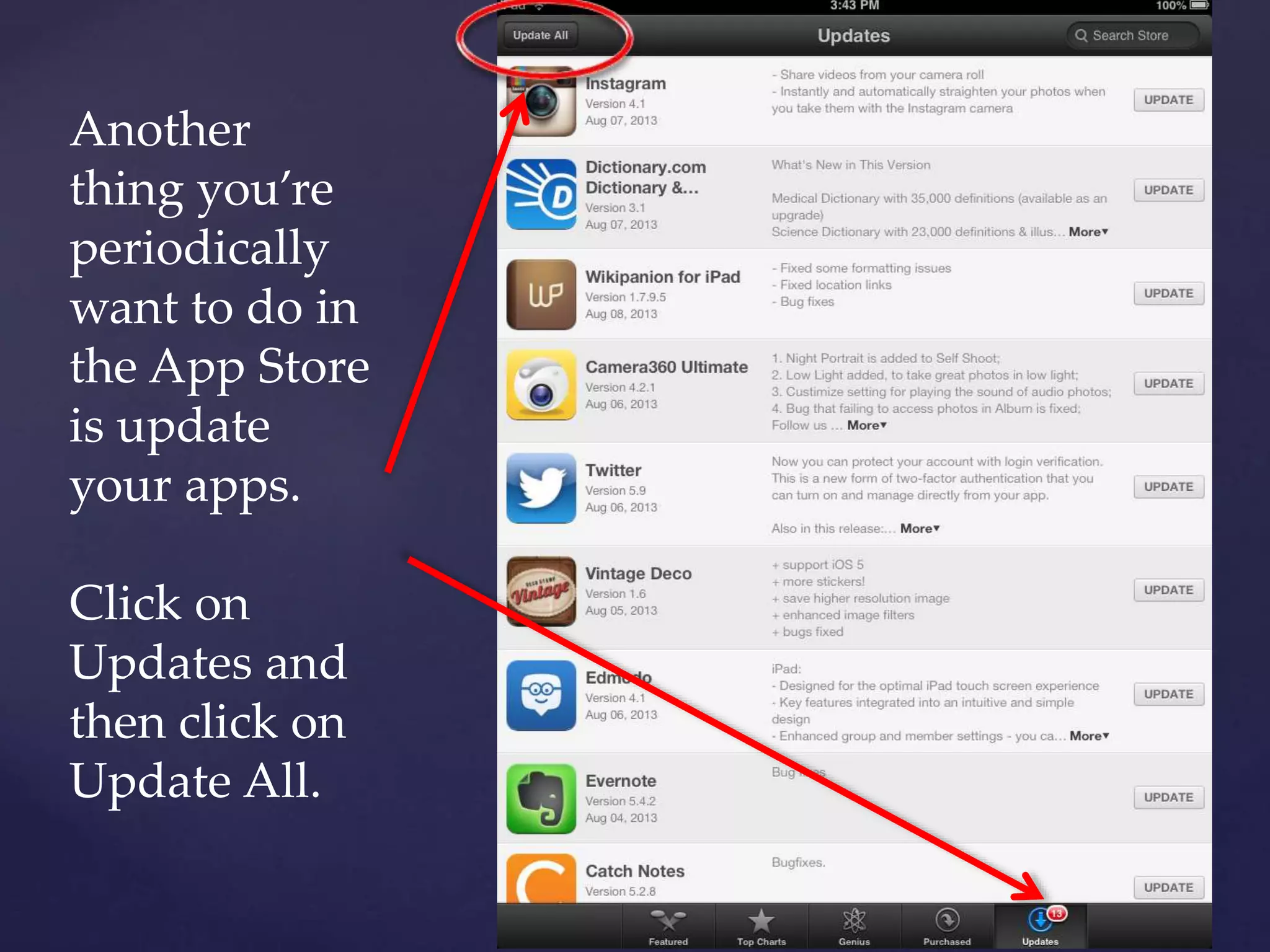
Another
thing you’re
periodically
want to do in
the App Store
is update
your apps.
Click on
Updates and
then click on
Update All.
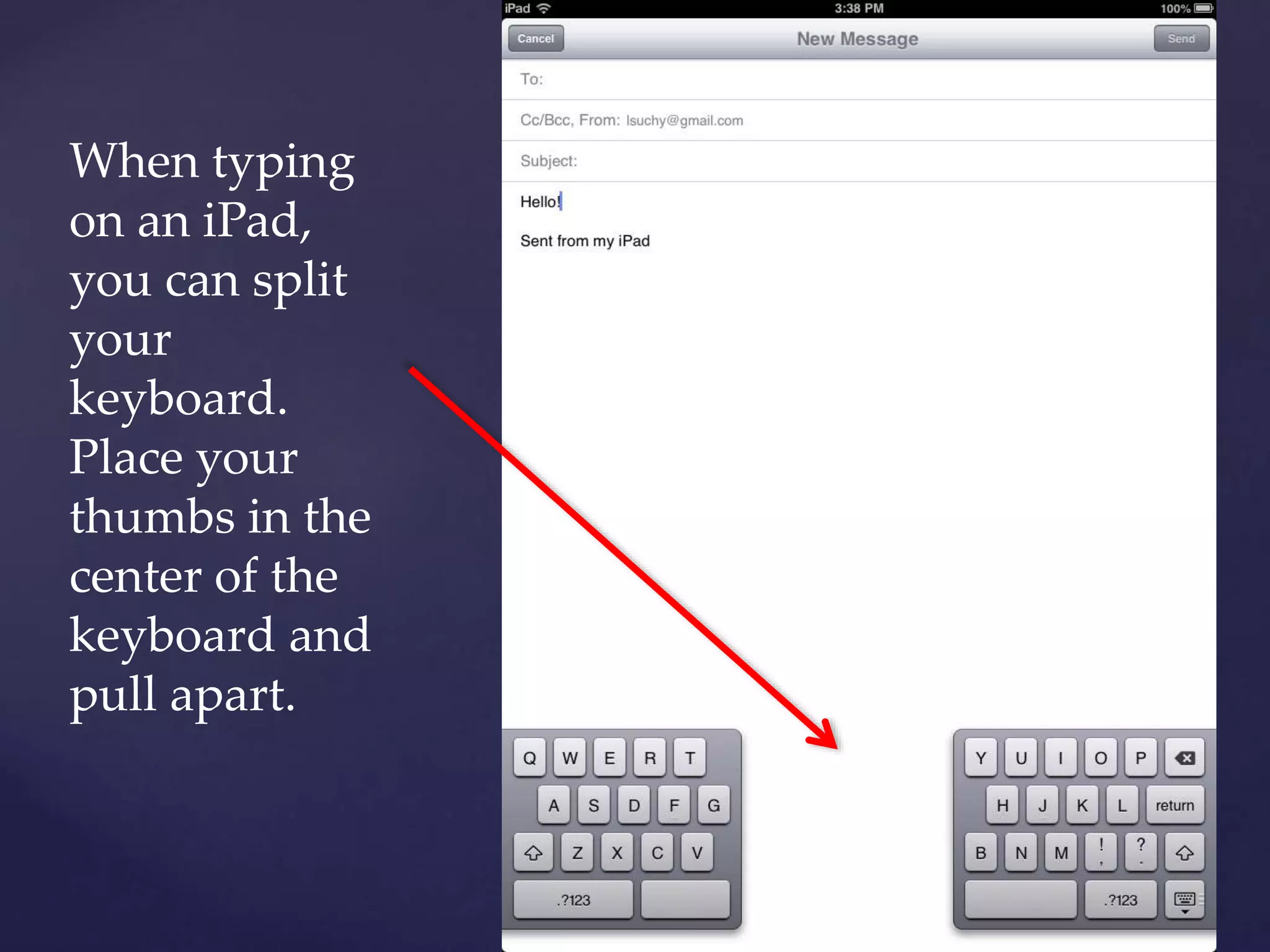
When typing
on an iPad,
you can split
your
keyboard.
Place your
thumbs in the
center of the
keyboard and
pull apart.
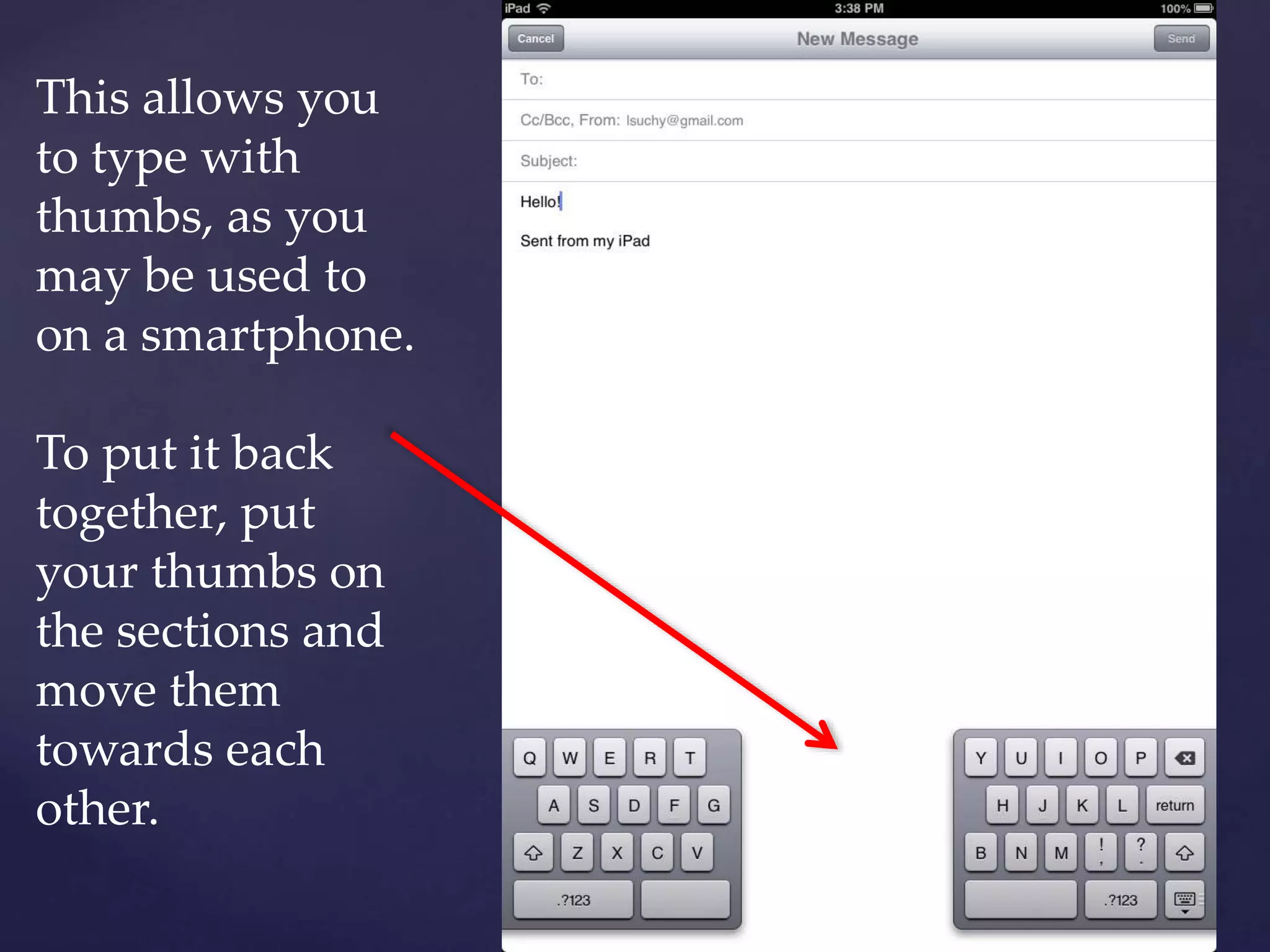
This allows you
to type with
thumbs, as you
may be used to
on a smartphone.
To put it back
together, put
your thumbs on
the sections and
move them
towards each
other.
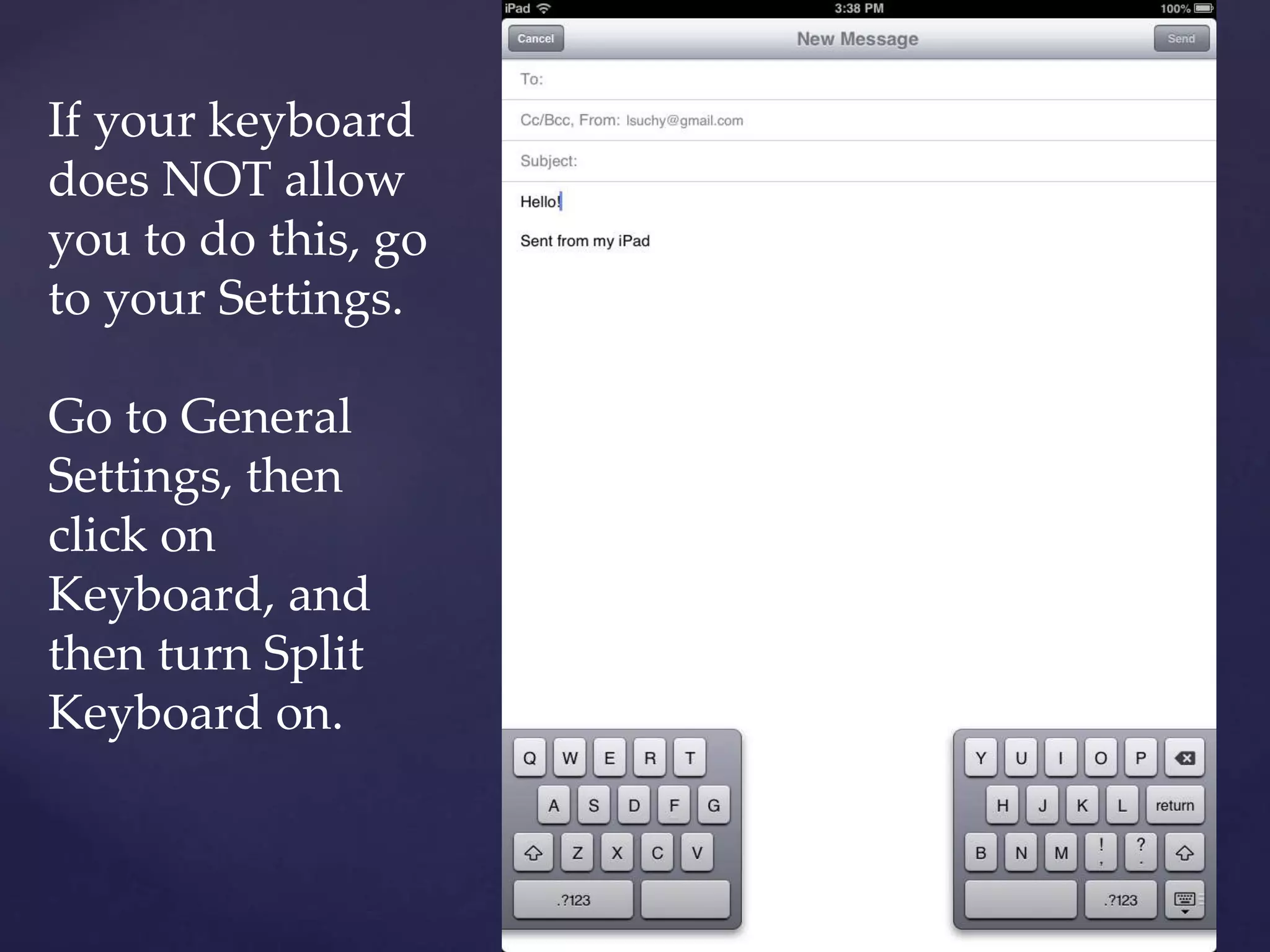
If your keyboard
does NOT allow
you to do this, go
to your Settings.
Go to General
Settings, then
click on
Keyboard, and
then turn Split
Keyboard on.
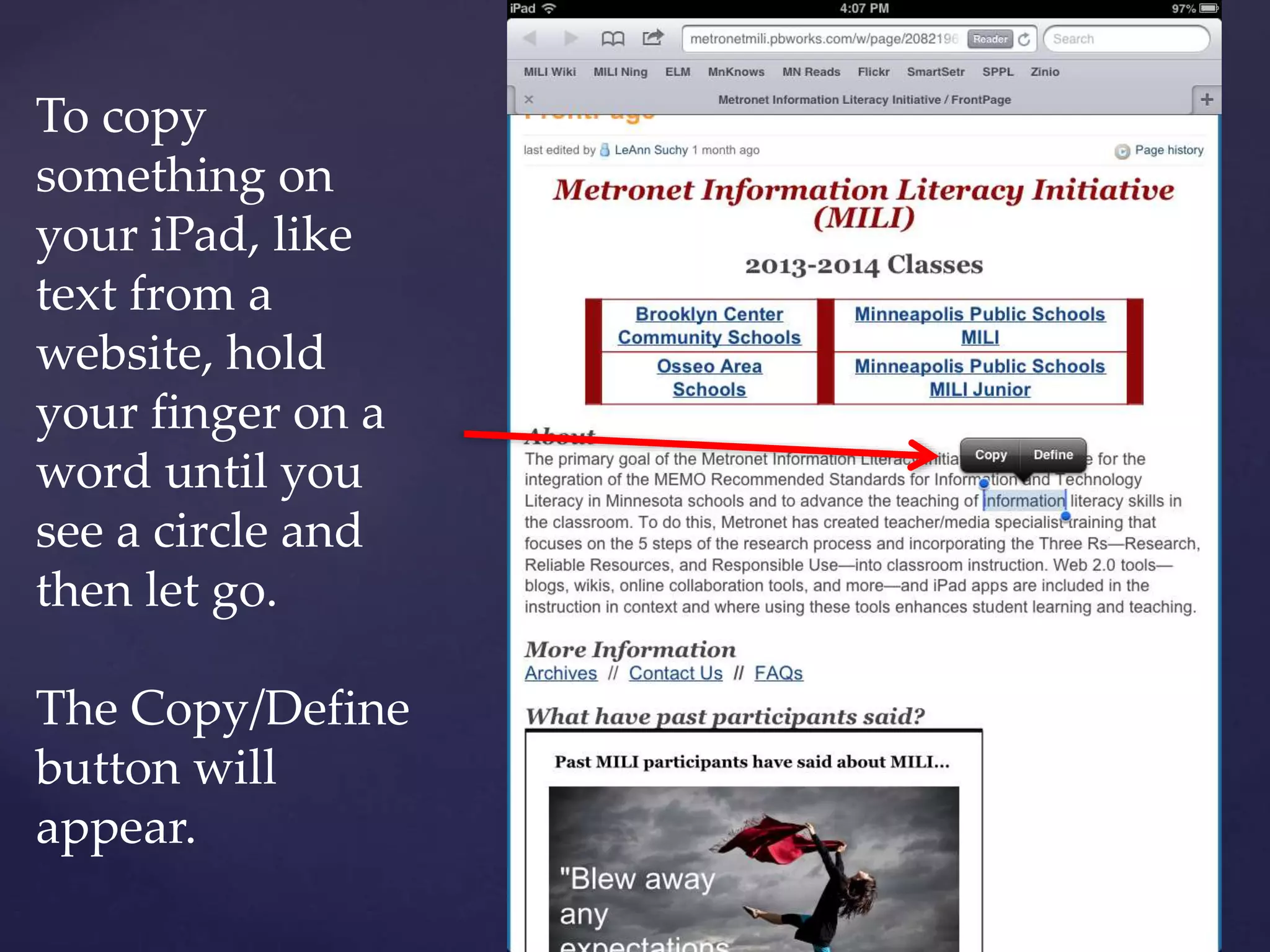
To copy
something on
your iPad, like
text from a
website, hold
your finger on a
word until you
see a circle and
then let go.
The Copy/Define
button will
appear.
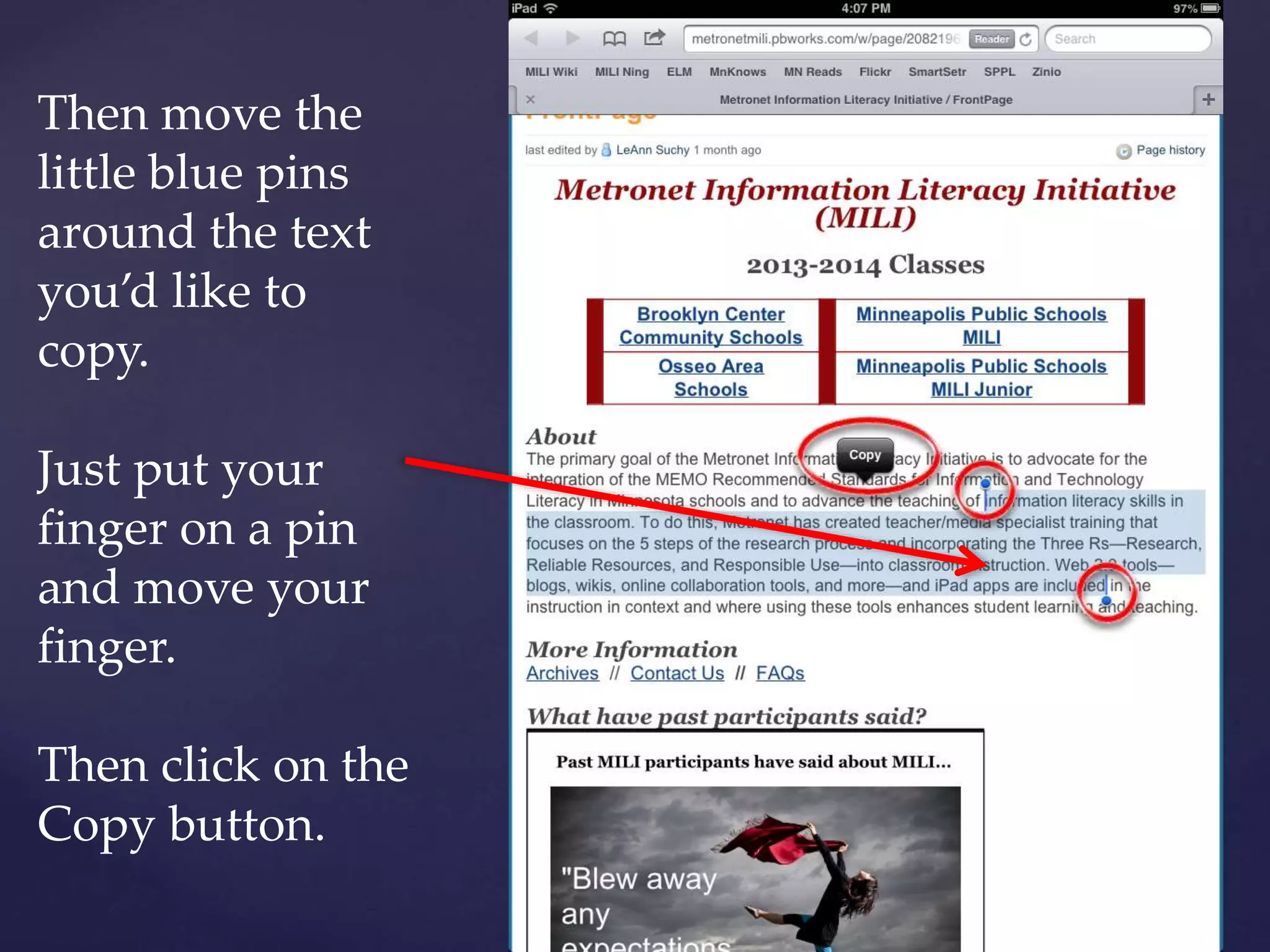
Then move the
little blue pins
around the text
you’d like to
copy.
Just put your
finger on a pin
and move your
finger.
Then click on the
Copy button.
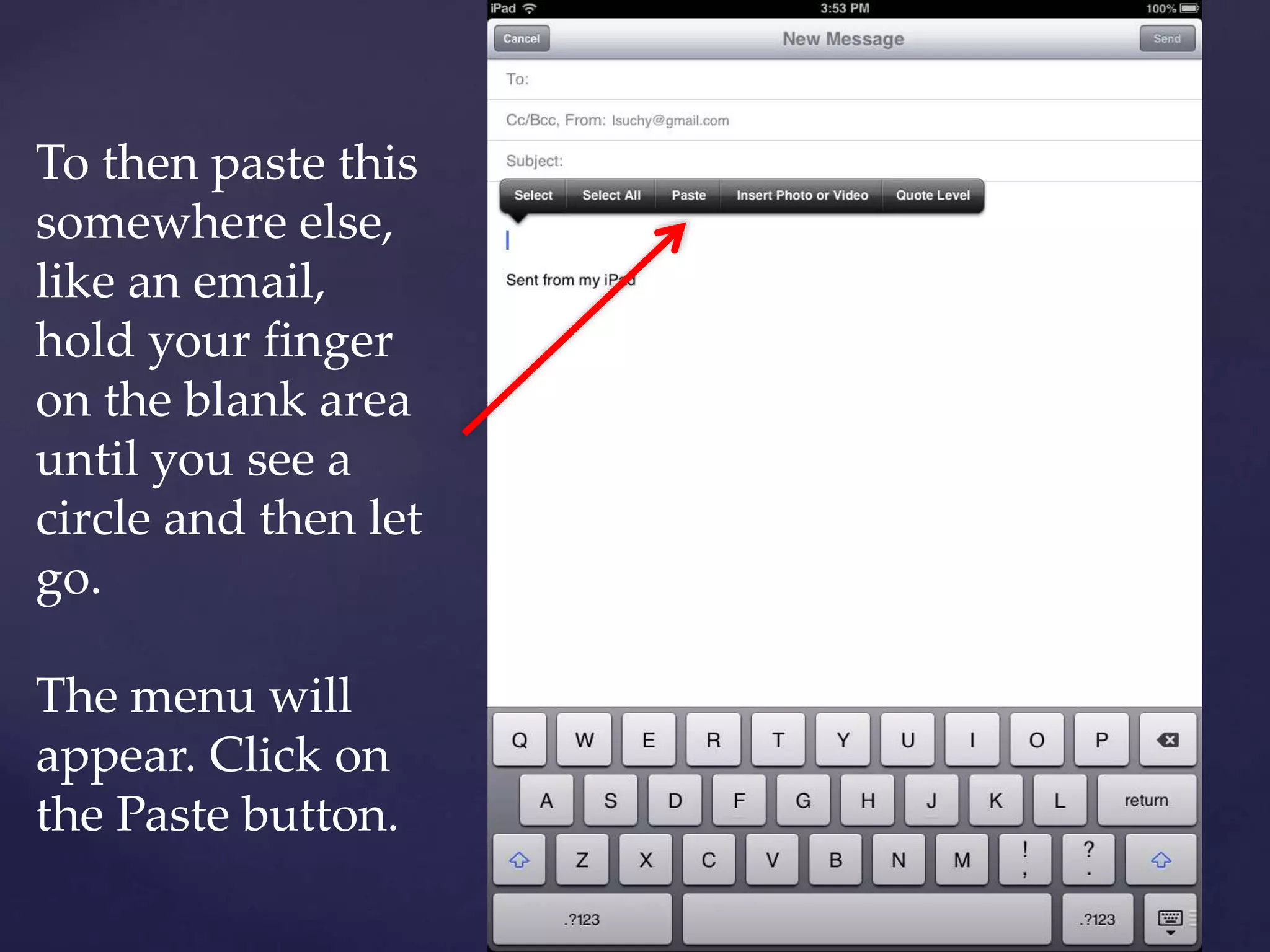
To then paste this
somewhere else,
like an email,
hold your finger
on the blank area
until you see a
circle and then let
go.
The menu will
appear. Click on
the Paste button.
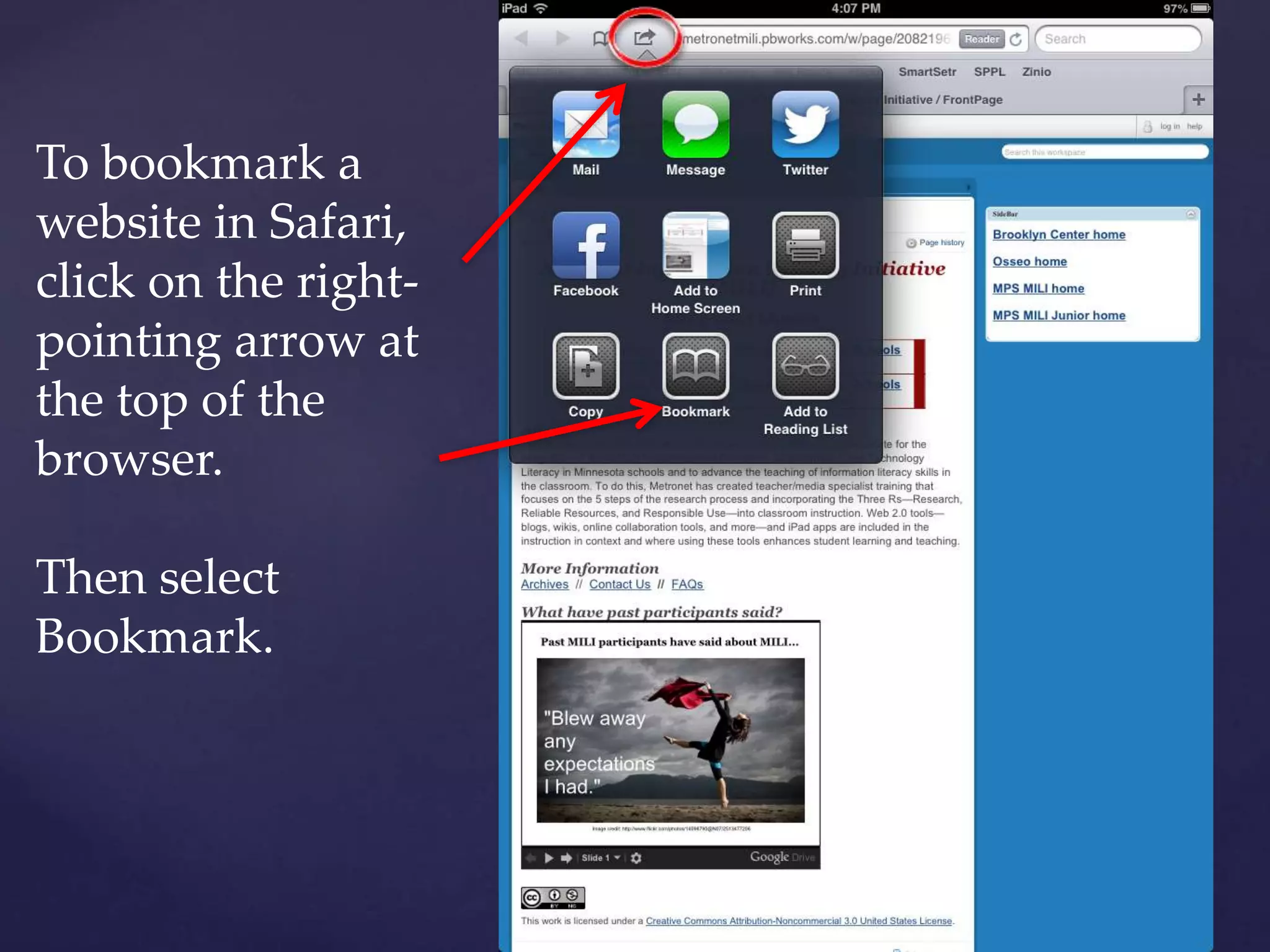
To bookmark a
website in Safari,
click on the right-
pointing arrow at
the top of the
browser.
Then select
Bookmark.
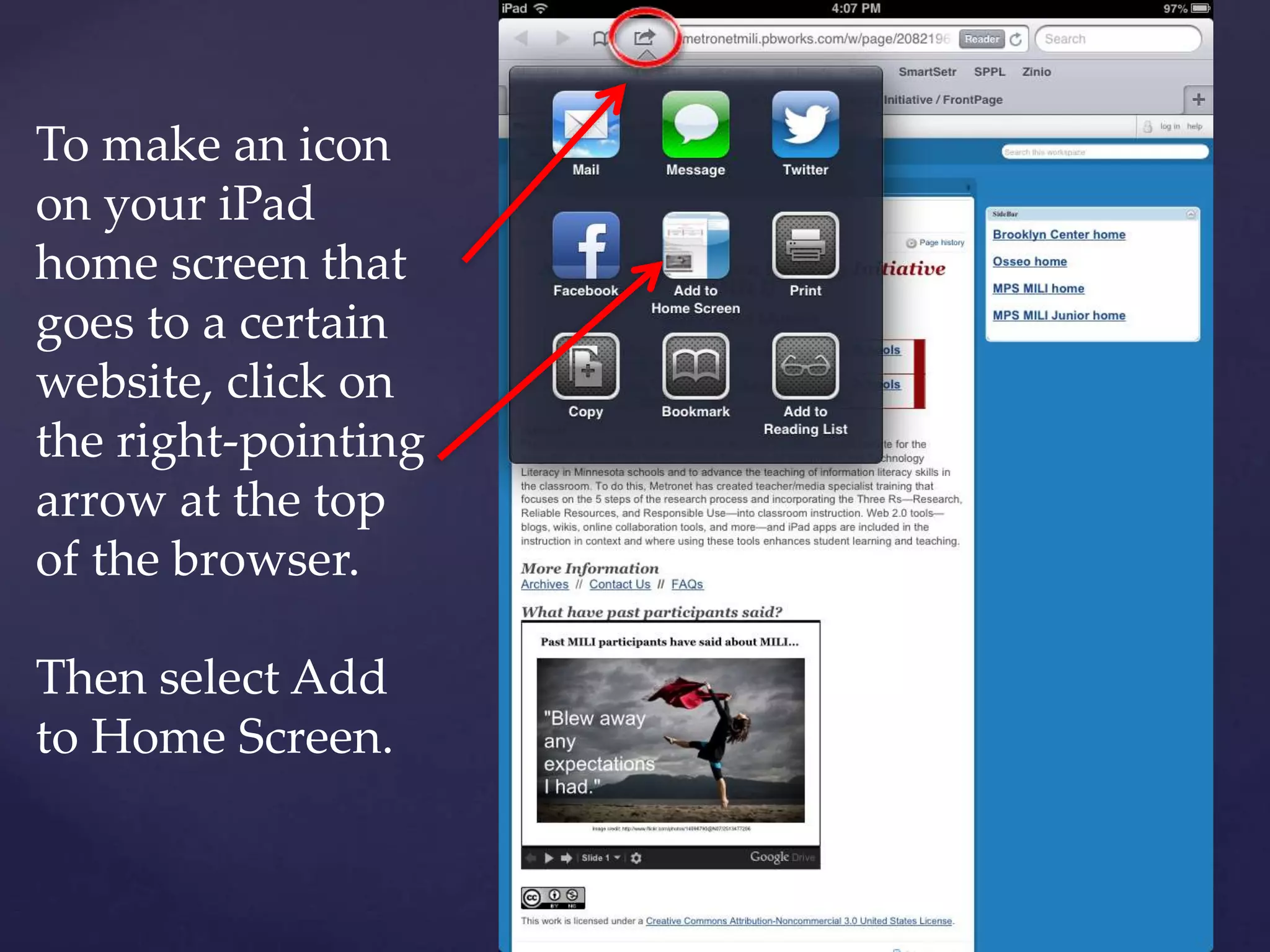
To make an icon
on your iPad
home screen that
goes to a certain
website, click on
the right-pointing
arrow at the top
of the browser.
Then select Add
to Home Screen.
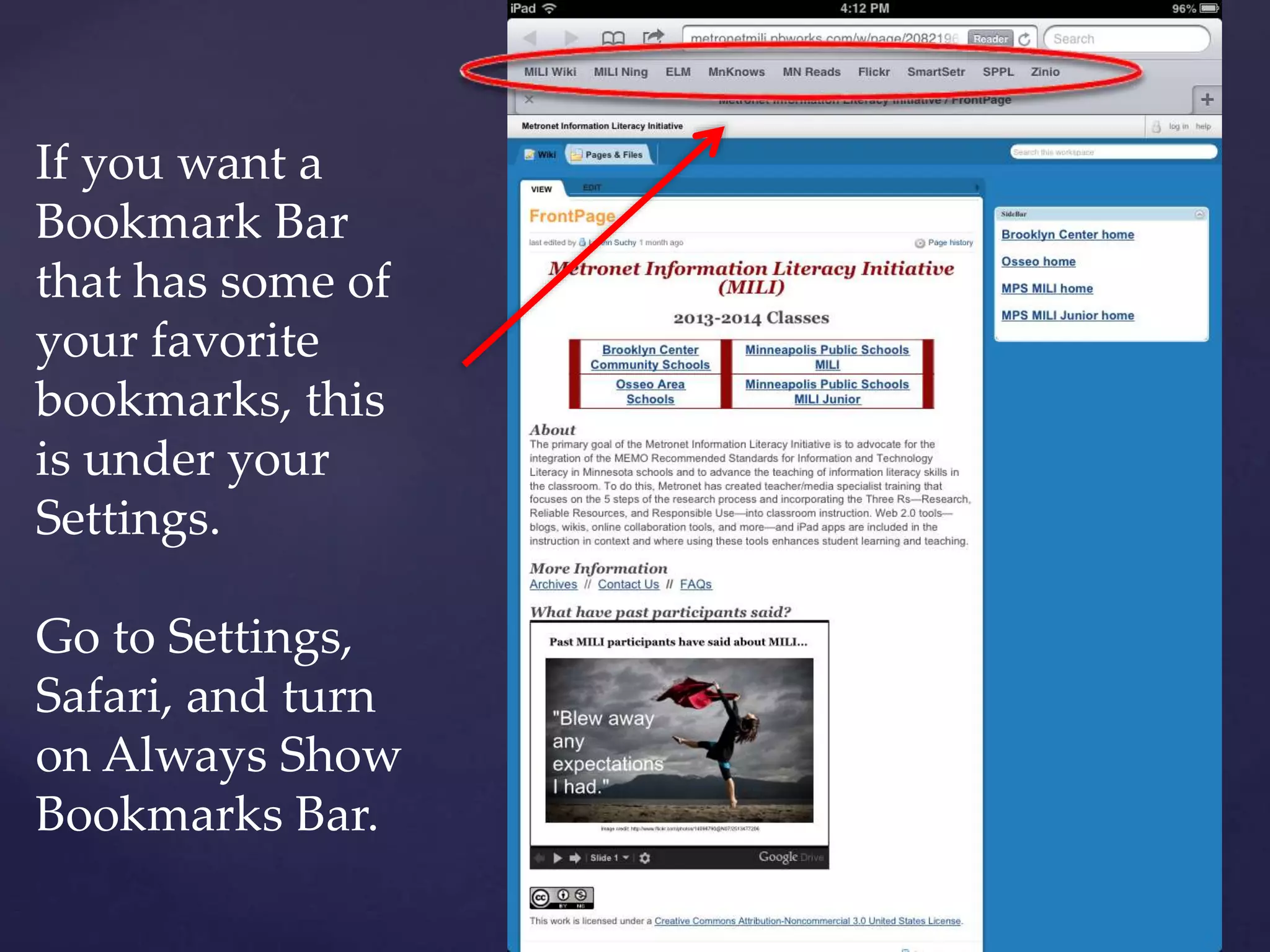
If you want a
Bookmark Bar
that has some of
your favorite
bookmarks, this
is under your
Settings.
Go to Settings,
Safari, and turn
on Always Show
Bookmarks Bar.
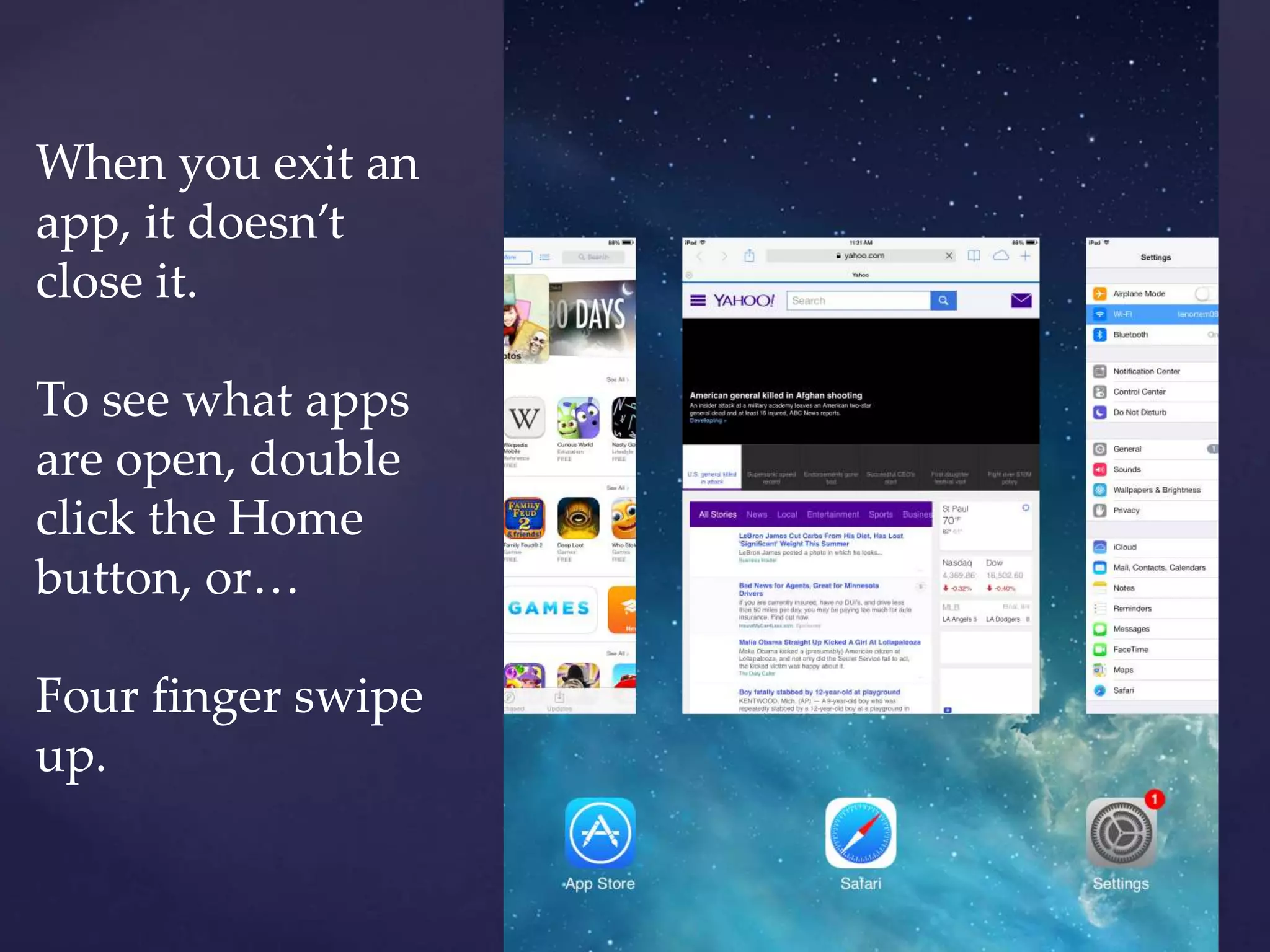
When you exit an
app, it doesn’t
close it.
To see what apps
are open, double
click the Home
button, or…
Four finger swipe
up.
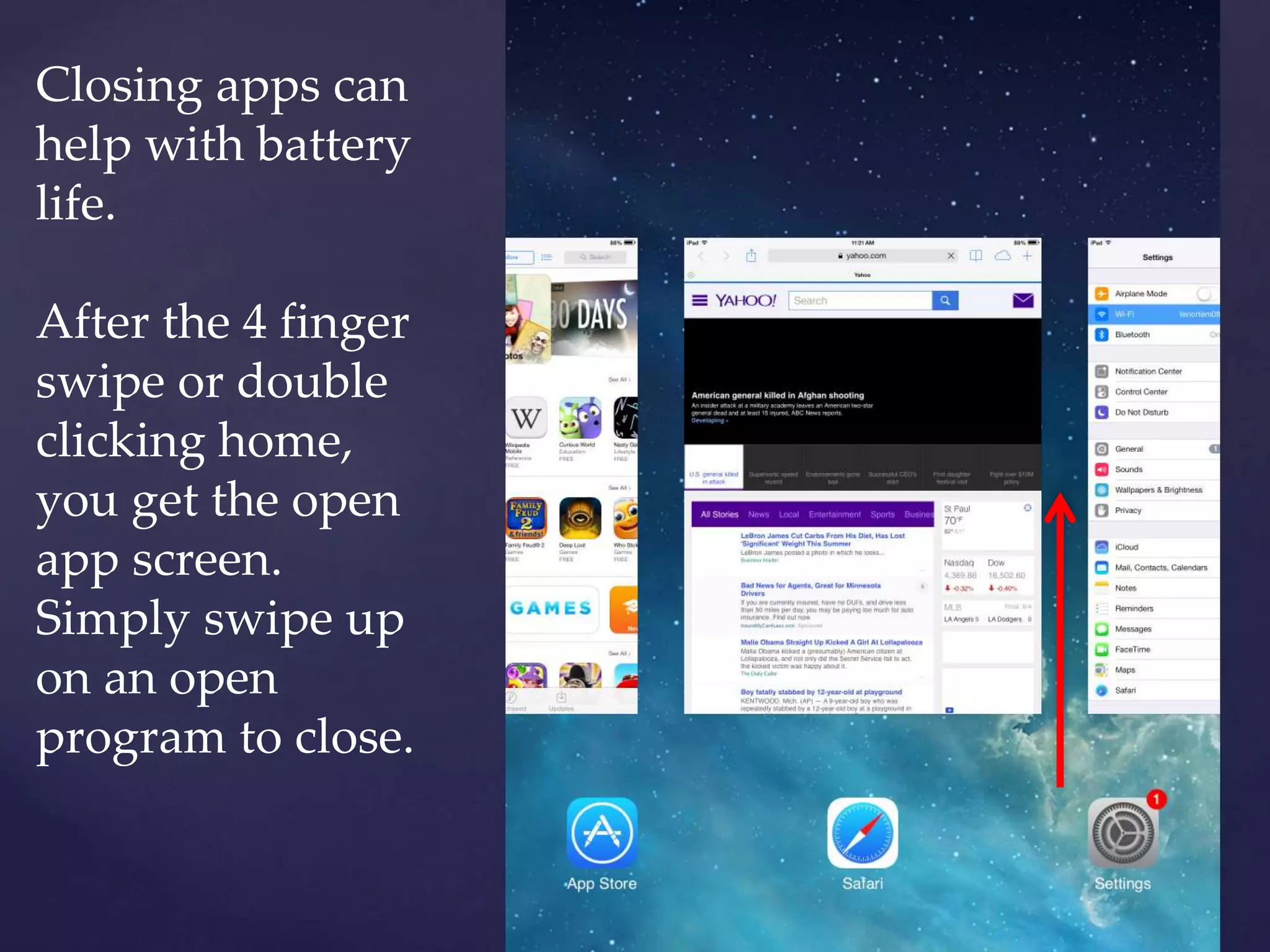
Closing apps can
help with battery
life.
After the 4 finger
swipe or double
clicking home,
you get the open
app screen.
Simply swipe up
on an open
program to close.
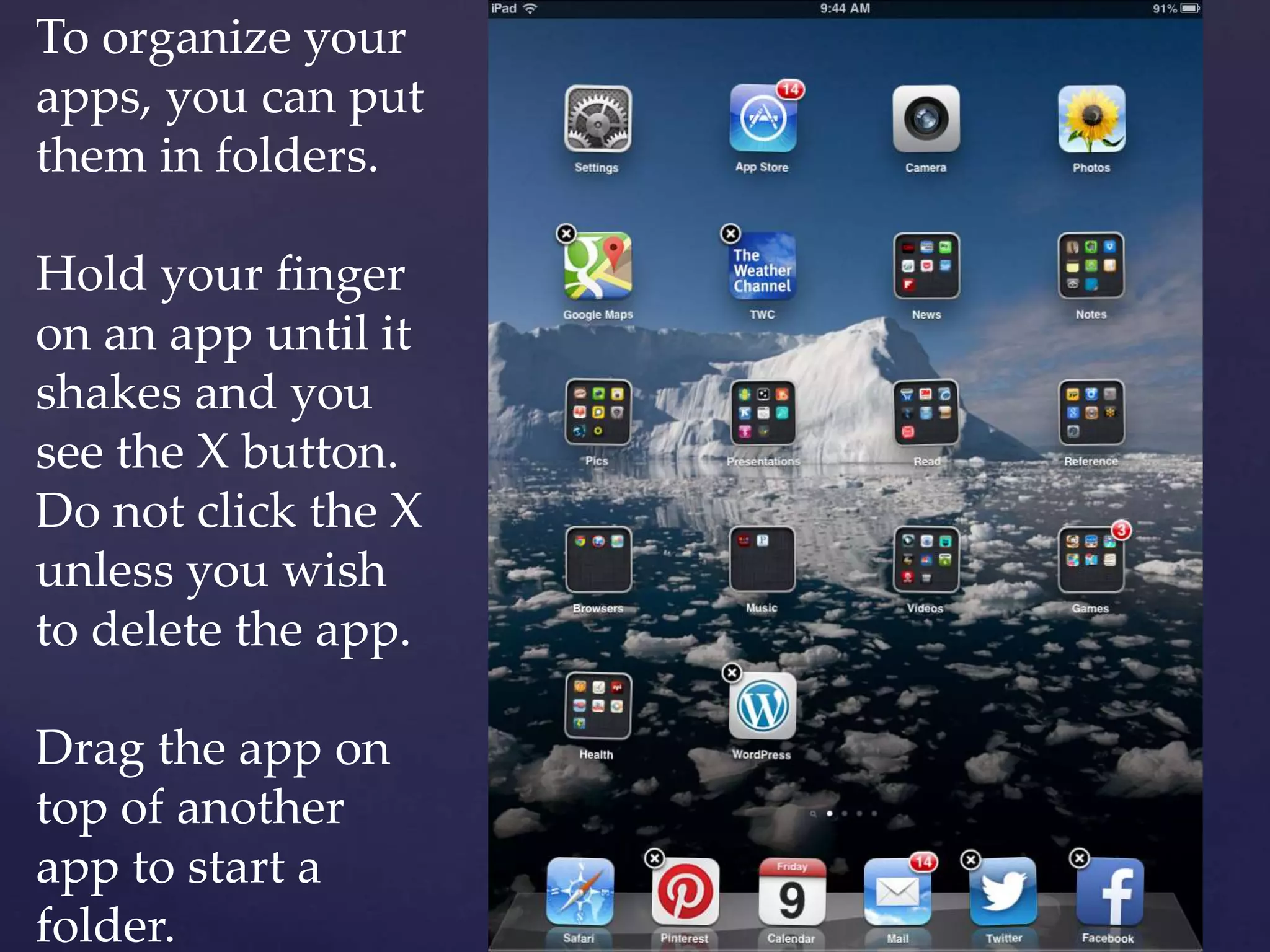
To organize your
apps, you can put
them in folders.
Hold your finger
on an app until it
shakes and you
see the X button.
Do not click the X
unless you wish
to delete the app.
Drag the app on
top of another
app to start a
folder.
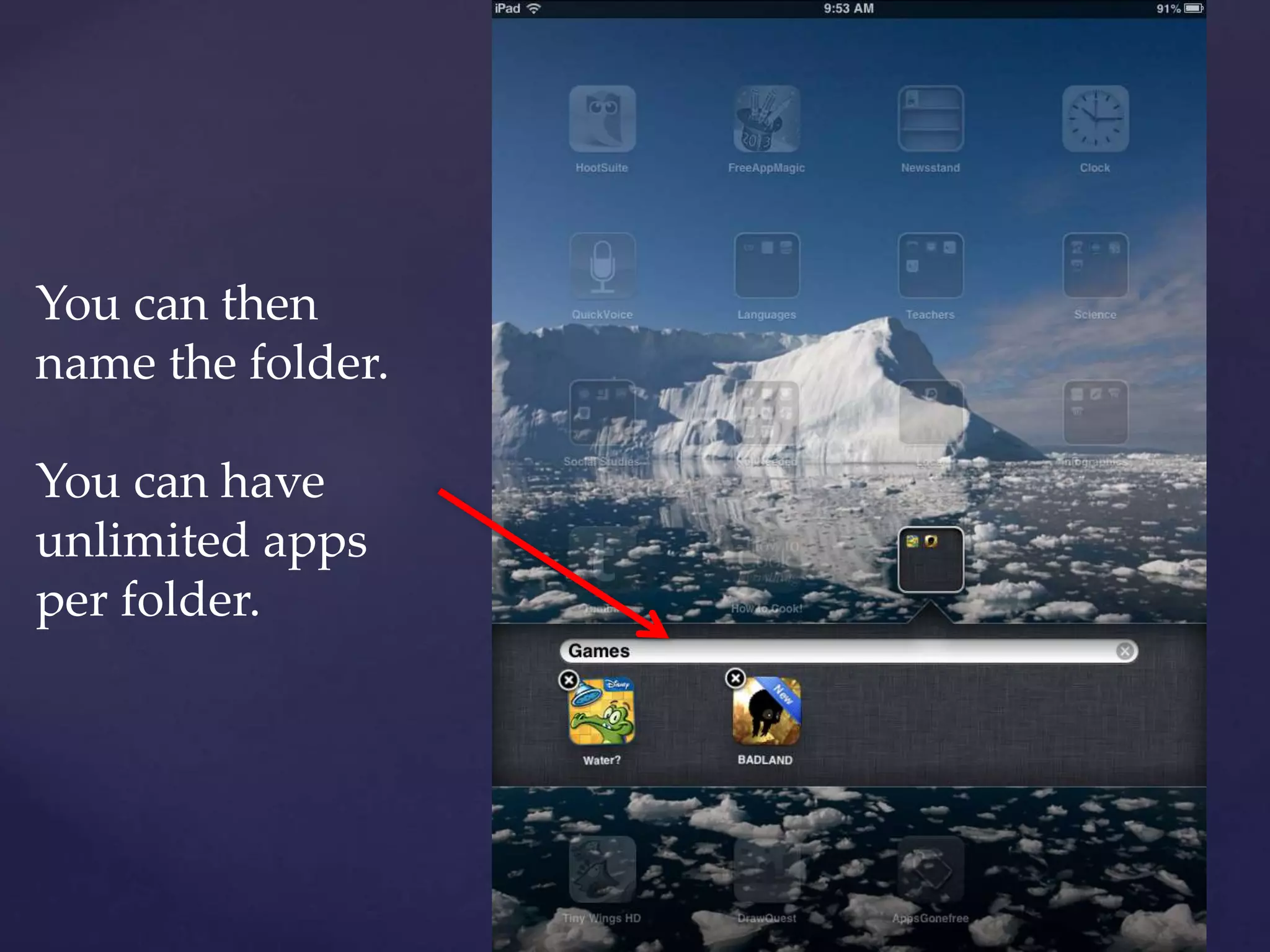
You can then
name the folder.
You can have
unlimited apps
per folder.

iPad Tips & Tricks 14-15

  • 1.
    { iPad Tips &Tricks MILI & MILI Junior 2014-2015 Olivia Moris, Metronet
  • 2.
    Home button – bringsyou back to the first screen.
  • 3.
  • 4.
    Click On-Off button & Homebutton at the same time to take a screenshot. Screenshot = picture of what you’re looking at on iPad.
  • 5.
    This is the iPadSettings icon. Go here to change settings for many things, like: keyboard, brightness, sounds, and settings for many apps.
  • 6.
    In your settings is whereyou can connect to Wi-Fi.
  • 7.
    Under General settings you can choose whetheror not there is a Passcode Lock or when the iPad Auto-Locks.
  • 8.
    Also under General settings you canchoose whether or not your side switch locks the rotation on your iPad or mutes your sound.
  • 9.
    The side switch ison this side of your iPad.
  • 10.
    Under the Sounds settings, you canturn off the sound of keyboard clicks when you’re typing.
  • 11.
    Under the Brightness & Wallpaper settings,you can adjust the brightness of your iPad. Having it less bright saves on battery power.
  • 12.
    Also under the Brightness& Wallpaper settings, you can choose your Wallpaper background. You can choose from Wallpaper on the iPad, or choose something from your camera roll.
  • 13.
    There are other settings, too. Wewill expect you will know how to go into Settings to adjust things if needed.
  • 14.
    We will also expectyou know how to download an app from the App Store. You will be downloading a lot of apps during MILI.
  • 15.
    To search for anapp in the App Store, make sure you’re on Featured. Then use the search bar at the top of the screen.
  • 16.
    And after you doa search, look at the top of the screen at the type of app you’re looking at – iPad or iPhone.
  • 17.
    iPhone apps will workon an iPad, but iPad apps will not work on iPhones.
  • 18.
    Another thing you’re periodically want todo in the App Store is update your apps. Click on Updates and then click on Update All.
  • 19.
    When typing on aniPad, you can split your keyboard. Place your thumbs in the center of the keyboard and pull apart.
  • 20.
    This allows you totype with thumbs, as you may be used to on a smartphone. To put it back together, put your thumbs on the sections and move them towards each other.
  • 21.
    If your keyboard doesNOT allow you to do this, go to your Settings. Go to General Settings, then click on Keyboard, and then turn Split Keyboard on.
  • 22.
    To copy something on youriPad, like text from a website, hold your finger on a word until you see a circle and then let go. The Copy/Define button will appear.
  • 23.
    Then move the littleblue pins around the text you’d like to copy. Just put your finger on a pin and move your finger. Then click on the Copy button.
  • 24.
    To then pastethis somewhere else, like an email, hold your finger on the blank area until you see a circle and then let go. The menu will appear. Click on the Paste button.
  • 25.
    To bookmark a websitein Safari, click on the right- pointing arrow at the top of the browser. Then select Bookmark.
  • 26.
    To make anicon on your iPad home screen that goes to a certain website, click on the right-pointing arrow at the top of the browser. Then select Add to Home Screen.
  • 27.
    If you wanta Bookmark Bar that has some of your favorite bookmarks, this is under your Settings. Go to Settings, Safari, and turn on Always Show Bookmarks Bar.
  • 28.
    When you exitan app, it doesn’t close it. To see what apps are open, double click the Home button, or… Four finger swipe up.
  • 29.
    Closing apps can helpwith battery life. After the 4 finger swipe or double clicking home, you get the open app screen. Simply swipe up on an open program to close.
  • 30.
    To organize your apps,you can put them in folders. Hold your finger on an app until it shakes and you see the X button. Do not click the X unless you wish to delete the app. Drag the app on top of another app to start a folder.
  • 31.
    You can then namethe folder. You can have unlimited apps per folder.