1
eSpark Learning
iPad 101
2
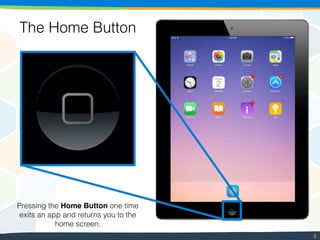
The Home Button
Pressing the Home Button one time
exits an app and returns you to the
home screen.
3
Apps
Tapping an app icon one time
opens the app.
4
App Folders
Tapping an app folder one time
opens a new page of apps.
5
Dock
Apps in the dock always
remain on the screen even when
you switch to a new page.
6
Fast App Switcher
Pressing the Home Button two times
shows your open apps and allows you
to switch between them without
returning to the home screen.
7
Sleep Mode
To start sleep mode, press the
button on the top right of the iPad.
8
Power Off
To power off the iPad, press and
hold the button on the top right of
the iPad for approximately 3 seconds.
Then, slide the circle to the right.
9
Airplane Mode
To turn on airplane mode, open
Settings, locate the airplane mode on
the top left and drag the bar to the right.
10
Volume
To adjust the iPad’s volume, use the
two buttons on the right side of the iPad.
11
eSpark Volume
To use the eSpark app, you must
grant it access to the microphone.
Open Settings, Privacy, Microphone and
click the slider next to eSpark so it is green.
12
eSpark Video
To use the eSpark app, you must
grant it access to the camera.
Open Settings, Privacy, Camera and
click the slider next to eSpark so it is green.
13
Search
To search the iPad, drag three
fingers down from the marked area.
14
Wifi Settings
To check if the iPad’s wifi is turned on,
drag one finger up from the marked area.
15
Exiting an App
To exit an app place all 5 fingers
on the screen and pinch them
together until the app disappears.
16
Force Close
Press the Home Button two times
to find the “fast app switcher.” Touch
and hold the app you want to close,
and drag it upwards until it disappears.
17
Zoom In
To zoom in on a webpage, place two fingers
together on the area and drag them apart.
Or double tap the area with one finger.
18
Zoom Out
To zoom out on a webpage, place two fingers
apart on the area and pinch them together.
Or double tap the area with one finger.
19
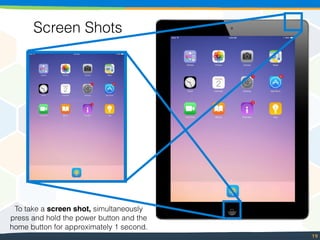
Screen Shots
To take a screen shot, simultaneously
press and hold the power button and the
home button for approximately 1 second.
20
Notes
To create a new note in the Notes app,
tap the pen and paper symbol in the top
right corner. Tap the blank note to find the
keyboard. Then, use the keyboard to type.

iPad 101- Intermediate

  • 1.
  • 2.
    2 The Home Button Pressingthe Home Button one time exits an app and returns you to the home screen.
  • 3.
    3 Apps Tapping an appicon one time opens the app.
  • 4.
    4 App Folders Tapping anapp folder one time opens a new page of apps.
  • 5.
    5 Dock Apps in thedock always remain on the screen even when you switch to a new page.
  • 6.
    6 Fast App Switcher Pressingthe Home Button two times shows your open apps and allows you to switch between them without returning to the home screen.
  • 7.
    7 Sleep Mode To startsleep mode, press the button on the top right of the iPad.
  • 8.
    8 Power Off To poweroff the iPad, press and hold the button on the top right of the iPad for approximately 3 seconds. Then, slide the circle to the right.
  • 9.
    9 Airplane Mode To turnon airplane mode, open Settings, locate the airplane mode on the top left and drag the bar to the right.
  • 10.
    10 Volume To adjust theiPad’s volume, use the two buttons on the right side of the iPad.
  • 11.
    11 eSpark Volume To usethe eSpark app, you must grant it access to the microphone. Open Settings, Privacy, Microphone and click the slider next to eSpark so it is green.
  • 12.
    12 eSpark Video To usethe eSpark app, you must grant it access to the camera. Open Settings, Privacy, Camera and click the slider next to eSpark so it is green.
  • 13.
    13 Search To search theiPad, drag three fingers down from the marked area.
  • 14.
    14 Wifi Settings To checkif the iPad’s wifi is turned on, drag one finger up from the marked area.
  • 15.
    15 Exiting an App Toexit an app place all 5 fingers on the screen and pinch them together until the app disappears.
  • 16.
    16 Force Close Press theHome Button two times to find the “fast app switcher.” Touch and hold the app you want to close, and drag it upwards until it disappears.
  • 17.
    17 Zoom In To zoomin on a webpage, place two fingers together on the area and drag them apart. Or double tap the area with one finger.
  • 18.
    18 Zoom Out To zoomout on a webpage, place two fingers apart on the area and pinch them together. Or double tap the area with one finger.
  • 19.
    19 Screen Shots To takea screen shot, simultaneously press and hold the power button and the home button for approximately 1 second.
  • 20.
    20 Notes To create anew note in the Notes app, tap the pen and paper symbol in the top right corner. Tap the blank note to find the keyboard. Then, use the keyboard to type.