

PREPARED BY RAVI KUMAR LANKE Page 1
Hyperion Planning Installation 9.3.1 on Windows 32 bit
This document demonstrates step by step procedure to install Hyperion Planning Software.
This includes the installation and configuration of Hyperion components and other relative
software.
PREPARED BY RAVI KUMAR LANKE Page 2
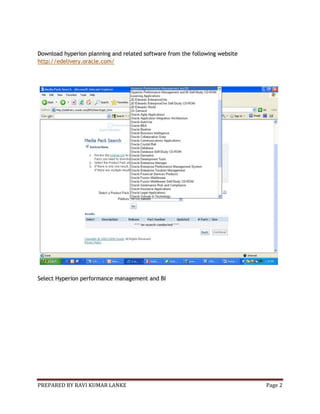
Download hyperion planning and related software from the following website
http://edelivery.oracle.com/
Select Hyperion performance management and BI
PREPARED BY RAVI KUMAR LANKE Page 3
Download the following products:
1. Hyperion Shared Services Release 9.3.1 Microsoft Windows x86 Installer English (V11229-01)
2. Hyperion Smart View for Office Release 9.3.1.2 Microsoft Windows x86 Installer ( V12736-01)
3. Hyperion Essbase - System 9 Release 9.3.1.3 Server Windows Installer (V14762-01)
4. Hyperion Essbase Administration Services - System 9 Release 9.3.1.3 Windows Installer-- (V14792-01)
5. Hyperion Planning - System 9 Release 9.3.1.1 All Platforms Installer English-- V11378-01
PREPARED BY RAVI KUMAR LANKE Page 4
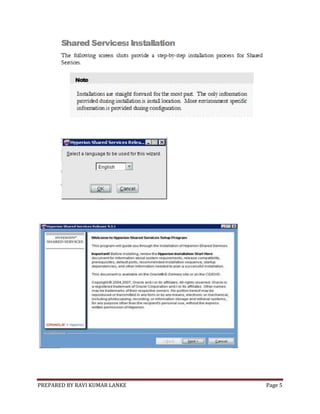
After downloading the software. Extract the setup files from downloads and start installation.
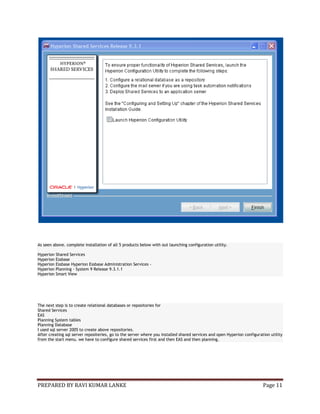
Make sure that you don't check Launch configuration utility in the last step in the first run.
PREPARED BY RAVI KUMAR LANKE Page 5
PREPARED BY RAVI KUMAR LANKE Page 6
Select the country and click next
Select I Agree and click next
PREPARED BY RAVI KUMAR LANKE Page 7
Specify the path to install and click next
Give the directory name and click next
PREPARED BY RAVI KUMAR LANKE Page 8
Select custom install and click next
Select hyperion shared services and click next
PREPARED BY RAVI KUMAR LANKE Page 9
Click next
PREPARED BY RAVI KUMAR LANKE Page 10
Click next
PREPARED BY RAVI KUMAR LANKE Page 11
As seen above. complete installation of all 5 products below with out launching configuration utility.
Hyperion Shared Services
Hyperion Essbase
Hyperion Essbase Hyperion Essbase Administration Services -
Hyperion Planning - System 9 Release 9.3.1.1
Hyperion Smart View
The next step is to create relational databases or repositories for
Shared Services
EAS
Planning System tables
Planning Database
I used sql server 2005 to create above repositories.
After creating sql server repositeries, go to the server where you installed shared services and open Hyperion configuration utility
from the start menu. we have to configure shared services first and then EAS and then planning.
PREPARED BY RAVI KUMAR LANKE Page 12
PREPARED BY RAVI KUMAR LANKE Page 13
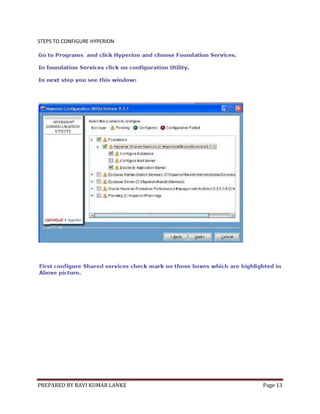
STEPS TO CONFIGURE HYPERION
PREPARED BY RAVI KUMAR LANKE Page 14
PREPARED BY RAVI KUMAR LANKE Page 15
PREPARED BY RAVI KUMAR LANKE Page 16
PREPARED BY RAVI KUMAR LANKE Page 17
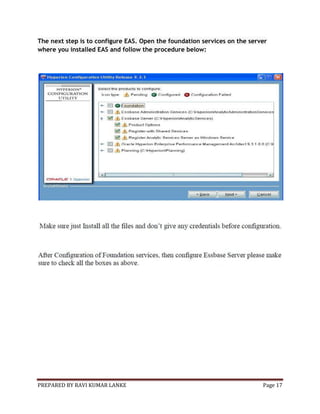
The next step is to configure EAS. Open the foundation services on the server
where you installed EAS and follow the procedure below:
PREPARED BY RAVI KUMAR LANKE Page 18
PREPARED BY RAVI KUMAR LANKE Page 19
PREPARED BY RAVI KUMAR LANKE Page 20
PREPARED BY RAVI KUMAR LANKE Page 21
PREPARED BY RAVI KUMAR LANKE Page 22
PREPARED BY RAVI KUMAR LANKE Page 23
PREPARED BY RAVI KUMAR LANKE Page 24
PREPARED BY RAVI KUMAR LANKE Page 25
PREPARED BY RAVI KUMAR LANKE Page 26
PREPARED BY RAVI KUMAR LANKE Page 27
PREPARED BY RAVI KUMAR LANKE Page 28
PREPARED BY RAVI KUMAR LANKE Page 29

Hyperion planning installation 9.3.1

  • 1.
    PREPARED BY RAVIKUMAR LANKE Page 1 Hyperion Planning Installation 9.3.1 on Windows 32 bit This document demonstrates step by step procedure to install Hyperion Planning Software. This includes the installation and configuration of Hyperion components and other relative software.
  • 2.
    PREPARED BY RAVIKUMAR LANKE Page 2 Download hyperion planning and related software from the following website http://edelivery.oracle.com/ Select Hyperion performance management and BI
  • 3.
    PREPARED BY RAVIKUMAR LANKE Page 3 Download the following products: 1. Hyperion Shared Services Release 9.3.1 Microsoft Windows x86 Installer English (V11229-01) 2. Hyperion Smart View for Office Release 9.3.1.2 Microsoft Windows x86 Installer ( V12736-01) 3. Hyperion Essbase - System 9 Release 9.3.1.3 Server Windows Installer (V14762-01) 4. Hyperion Essbase Administration Services - System 9 Release 9.3.1.3 Windows Installer-- (V14792-01) 5. Hyperion Planning - System 9 Release 9.3.1.1 All Platforms Installer English-- V11378-01
  • 4.
    PREPARED BY RAVIKUMAR LANKE Page 4 After downloading the software. Extract the setup files from downloads and start installation. Make sure that you don't check Launch configuration utility in the last step in the first run.
  • 5.
    PREPARED BY RAVIKUMAR LANKE Page 5
  • 6.
    PREPARED BY RAVIKUMAR LANKE Page 6 Select the country and click next Select I Agree and click next
  • 7.
    PREPARED BY RAVIKUMAR LANKE Page 7 Specify the path to install and click next Give the directory name and click next
  • 8.
    PREPARED BY RAVIKUMAR LANKE Page 8 Select custom install and click next Select hyperion shared services and click next
  • 9.
    PREPARED BY RAVIKUMAR LANKE Page 9 Click next
  • 10.
    PREPARED BY RAVIKUMAR LANKE Page 10 Click next
  • 11.
    PREPARED BY RAVIKUMAR LANKE Page 11 As seen above. complete installation of all 5 products below with out launching configuration utility. Hyperion Shared Services Hyperion Essbase Hyperion Essbase Hyperion Essbase Administration Services - Hyperion Planning - System 9 Release 9.3.1.1 Hyperion Smart View The next step is to create relational databases or repositories for Shared Services EAS Planning System tables Planning Database I used sql server 2005 to create above repositories. After creating sql server repositeries, go to the server where you installed shared services and open Hyperion configuration utility from the start menu. we have to configure shared services first and then EAS and then planning.
  • 12.
    PREPARED BY RAVIKUMAR LANKE Page 12
  • 13.
    PREPARED BY RAVIKUMAR LANKE Page 13 STEPS TO CONFIGURE HYPERION
  • 14.
    PREPARED BY RAVIKUMAR LANKE Page 14
  • 15.
    PREPARED BY RAVIKUMAR LANKE Page 15
  • 16.
    PREPARED BY RAVIKUMAR LANKE Page 16
  • 17.
    PREPARED BY RAVIKUMAR LANKE Page 17 The next step is to configure EAS. Open the foundation services on the server where you installed EAS and follow the procedure below:
  • 18.
    PREPARED BY RAVIKUMAR LANKE Page 18
  • 19.
    PREPARED BY RAVIKUMAR LANKE Page 19
  • 20.
    PREPARED BY RAVIKUMAR LANKE Page 20
  • 21.
    PREPARED BY RAVIKUMAR LANKE Page 21
  • 22.
    PREPARED BY RAVIKUMAR LANKE Page 22
  • 23.
    PREPARED BY RAVIKUMAR LANKE Page 23
  • 24.
    PREPARED BY RAVIKUMAR LANKE Page 24
  • 25.
    PREPARED BY RAVIKUMAR LANKE Page 25
  • 26.
    PREPARED BY RAVIKUMAR LANKE Page 26
  • 27.
    PREPARED BY RAVIKUMAR LANKE Page 27
  • 28.
    PREPARED BY RAVIKUMAR LANKE Page 28
  • 29.
    PREPARED BY RAVIKUMAR LANKE Page 29