ORACLE® HYPERION ENTERPRISE
                                           PERFORMANCE MANAGEMENT SYSTEM
                                                                        RELEASE 11.1.2.1


                                  RAPID DEPLOYMENT OF PLANNING
                                    DOMAIN FOR DEVELOPMENT
                                          ENVIRONMENTS

CONTENTS IN BRIEF

                About this Document . . . . . . . . . . . . . . . . . . . . . . . . . . . . . . . . . . . . . . . . . . . . . . . . . . . 2
                Deployment Requirements . . . . . . . . . . . . . . . . . . . . . . . . . . . . . . . . . . . . . . . . . . . . . . . 2
                Deployment Process . . . . . . . . . . . . . . . . . . . . . . . . . . . . . . . . . . . . . . . . . . . . . . . . . . . . 4
                Step 1: Downloading Installation Files . . . . . . . . . . . . . . . . . . . . . . . . . . . . . . . . . . . . . . . 5
                Step 2: Installing and Configuring the Database . . . . . . . . . . . . . . . . . . . . . . . . . . . . . . . 10
                Step 3: Installing and Configuring EPM System . . . . . . . . . . . . . . . . . . . . . . . . . . . . . . . . 17
About this Document
This document presents recommended steps to build a typical Oracle Hyperion Planning, Fusion
Edition, development environment on a single server running Microsoft Windows. A typical
Planning development environment comprises the following products:
l      Oracle Hyperion Planning, Fusion Edition
l      Oracle's Hyperion® Foundation Services
l      Hyperion Calculation Manager
l      Oracle Essbase
l      Oracle Hyperion Financial Reporting, Fusion Edition
l      Oracle Hyperion Smart View for Office, Fusion Edition
l      Required products including Oracle Database, Oracle WebLogic Server, and Oracle HTTP
       Server.


Deployment Requirements

Server
Table 1       Server Requirements

    Requirement                   Description

    Server Operating System       Windows 2008 R2 x64

    Processor                     Quad core

    Memory                        16 GB RAM

    Disk                          200 GB Disk

    Other Software                A program, such as 7-Zip or WinZip, to extract the contents of media packs


User Account
Use a generic Windows user account, for example, epm_rapid_user, that satisfies the following
requirements. This account is referred to as deployment account throughout this document:
l      Deployment account is a member of the Administrators group on the server on which
       you are deploying this domain.
l      The following local security policies are assigned to the deployment account. By default,
       these policies are granted to members of the Administrators group:
       m       Act as part of the operating system
       m       Bypass traverse checking


2          Rapid Deployment of Planning Domain for Development Environments
m   Log on as a batch job
    m   Log on as a service
l   User account control is disabled for the deployment account.


Verifying Local Security Policy Assignments

ä To verify that local security policies are assigned to deployment user:
1   Log on to the server using the deployment account.
2   On the server, click Start, and then Administrative Tools, and then Local Security Policy.
3   in Local Security Policy, expand Local Policies, and then select User Rights Assignment.
4   Verify that the security setting for the policies highlighted in the following illustration include the
    Administrators group. Double-click the security setting of the policy to view its properties and
    assignments.


Disabling User Account Control

ä To turn off user account control:
1   Log on to the server using the deployment account.
2   On the server, click Start, and then Control Panel.
3   In Control Panel, click User Accounts.
4   In User Accounts, click Change User Account Control settings.


                                                                  Rapid Deployment of Planning Domain for Development Environments   3
5   Drag the user account control slider to Never Notify.


6   Click OK.


Deployment Password
Select a password for your deployment. This password will be used for Oracle Database
Administrator, Oracle Database User, WebLogic Administrator, and EPM Administrator. This
password is referred to as deployment password throughout this document.
The deployment password must conform to the following guidelines:
l   Contain at least one uppercase letter
l   Contain at least one numeral
l   Be at least eight characters long
l   Cannot contain special characters

An example of an acceptable password is 1Rapidepm.


Deployment Process
The deployment process involves the following steps and takes approximately three hours:
l   Step 1: Downloading Installation Files (approximately 70 minutes)
l   Step 2: Installing and Configuring the Database (approximately 20 minutes)
l   Step 3: Installing and Configuring EPM System(approximately 90 minutes)


4   Rapid Deployment of Planning Domain for Development Environments
Step 1: Downloading Installation Files
This section explains how to download Oracle 11g Database (Version 11.2.0.1.0) and Oracle
Hyperion Enterprise Performance Management System product media packs and get them
ready. You can download media packs simultaneously. Using a T1 connection, downloading
media packs takes approximately 65 minutes.

ä To download media packs from Oracle E-Delivery website:
1   Create two folders named EPM_rapid_downloads and EPM_rapid_unzipped on your server.
    The file path should not contain spaces.
2   Using a browser, connect to http://edelivery.oracle.com.
3   On Oracle E-Delivery web site, click Sign In / Register.
4   In Sign In, enter your E-Delivery user name and password, and then click Sign In.
5   On terms and Restrictions, read and accept the Trial License and Export Restrictions agreements, and
    then click Continue.


6   Download part numbers to install Oracle Database 11g.
    a. In Media Pack Search, search for Oracle Database product pack for Microsoft
       Windows x64 (64-bit), and then select Go to start the search.


                                                               Rapid Deployment of Planning Domain for Development Environments   5
b. From Results section, select Oracle Database 11g Release 2 (11.2.0.1.0) Media Pack for
       Microsoft Windows x64 (64-bit), and then click Continue.


    c. Download the following part numbers to EPM_rapid_downloads.


        Table 2   Database Part Numbers to Download

         Part Number                Name

         V20610-01 Part 1 of 2      Oracle Database 11g Release 2 (11.2.0.1.0) for Microsoft Windows x64 (64-bit) (Part 1 of 2)

         V20610-01 Part 2 of 2      Oracle Database 11g Release 2 (11.2.0.1.0) for Microsoft Windows x64 (64-bit) (Part 2 of 2)


6   Rapid Deployment of Planning Domain for Development Environments
7   Download part numbers to install EPM System Planning domain.
    a. From the browser, navigate back to Media Pack Search.
    b. In Media Pack Search, search for Oracle Enterprise Performance Management
       System for Microsoft Windows x64 (64-bit) platform, and then select Go to start
       the search.
    c. In Results, select Oracle Enterprise Performance Management (11.1.2.1.0) Media Pack
       for Microsoft Windows x64 (64-bit), and then click Continue.


                                                          Rapid Deployment of Planning Domain for Development Environments   7
d. Download the following part numbers to EPM_rapid_downloads.

        Table 3   EPM System Part Numbers to Download

         Part Number      Name

         V25495-01        Oracle Hyperion Enterprise Performance Management System Installer, Fusion Edition Release 11.1.2.1.0 for
                          Microsoft Windows (64-bit)

         V25496-01        Oracle Hyperion Foundation Services Release 11.1.2.1.0 for Microsoft Windows (64-bit) Part 1 of 7

         V25497-01        Oracle Hyperion Foundation Services Release 11.1.2.1.0 for Microsoft Windows (64-bit) Part 2 of 7

         V25498-01        Oracle Hyperion Foundation Services Release 11.1.2.1.0 for Microsoft Windows (64-bit) Part 3 of 7

         V25499-01        Oracle Hyperion Foundation Services Release 11.1.2.1.0 for Microsoft Windows (64-bit) Part 4 of 7

         V25459-01        Oracle Hyperion Foundation Services Release 11.1.2.1.0 Part 5 of 7

         V25460-01        Oracle Hyperion Foundation Services Release 11.1.2.1.0 Part 6 of 7

         V25461-01        Oracle Hyperion Foundation Services Release 11.1.2.1.0 Part 7 of 7

         V25462-01        Oracle Hyperion Calculation Manager Release 11.1.2.1.0

         V25464-01        Oracle Essbase Release 11.1.2.1.0 Part 1 of 2

         V25500-01        Oracle Essbase Release 11.1.2.1.0 Part 2 of 2 for Microsoft Windows (64-bit)

         V25466-01        Oracle Essbase Clients Release 11.1.2.1.0

         V25468-01        Oracle Hyperion Financial Reporting, Fusion Edition Release 11.1.2.1.0

         V25469-01        Oracle Hyperion Financial Reporting Studio and Print Server, Fusion Edition Release 11.1.2.1.0 for Microsoft
                          Windows

         V25470-01        Oracle Hyperion Enterprise Performance Management Reporting and Analysis Core Components Release 11.1.
                          2.1.0

         V25477-01        Oracle Hyperion Planning, Fusion Edition Release 11.1.2.1.0

         V25494-01        Oracle Hyperion Enterprise Performance Management System Additional Content Release 11.1.2.1.0

8   Verify the size of EPM_rapid_downloads, which contains the part numbers indicated in the following
    illustration:


8   Rapid Deployment of Planning Domain for Development Environments
To verify folder size:
    a. In Windows Explorer, right-click EPM_rapid_downloads.
    b. Select Properties. The results should match the following illustration:


9   After the media pack downloads are complete, using a program, for example 7-Zip, extract the contents
    of the downloaded Oracle Database and EPM System product media packs into
    EPM_rapid_unzipped.

    You will be warned about overwriting some existing files. Select Yes.


                                                             Rapid Deployment of Planning Domain for Development Environments   9
Step 2: Installing and Configuring the Database
ä To install and configure Oracle Database:
1    Using Windows Explorer, navigate to EPM_rapid_unzipped/database, and then double-click
     setup.exe to launch the installer.
2    In Configure Security Updates, uncheck I wish to receive security updates via My Oracle Support,
     and then select Next.
     A warning that you did not provide an email address is displayed.


3    In Email Address Not Specified, click Yes.


10   Rapid Deployment of Planning Domain for Development Environments
4   In Select Installation Option, ensure that Create and configure a database is selected, and then click
    Next.


5   In System Class, select Server Class, and then click Next.


6   In Grid Installation Options, select Single instance database installation, and then click Next.


                                                              Rapid Deployment of Planning Domain for Development Environments   11
7    In Select Install Type, ensure that Typical install is selected, and then click Next.


8    In Typical Install Configuration, enter the following information. Keep default values for all other fields.
     Click Next when you are done.
     l   Database Edition—Select Standard Edition One(3.29 GB).
     l   Global Database Name—Set to epmrapid.example.com. Be sure to replace
         example.com with your fully qualified domain name.
     l   Administrative Password—Enter the deployment password.
     l   Confirm Password—Reenter the deployment password.


12   Rapid Deployment of Planning Domain for Development Environments
9   In Summary, click Finish.


10 In Install Product, click Finish.


                                       Rapid Deployment of Planning Domain for Development Environments   13
11 After completing the installation process, the installer runs the Database Configuration Assistant.


12 In Database Configuration Assistant summary, click OK.
13 In Oracle Database 11g Release 2 Installer, click Close.
14 Validate the database installation by selecting Start, then All Programs, then Oracle -
     OraDb11g_home1, and then Database Control - epmrapid.
     Because Enterprise Manager Database Control is a secure site, you need a certificate. Select
     the Continue to this web site (not recommended) option.


15 Log in as user SYS using the deployment password. Select SYSDBA role in Connect As.


14   Rapid Deployment of Planning Domain for Development Environments
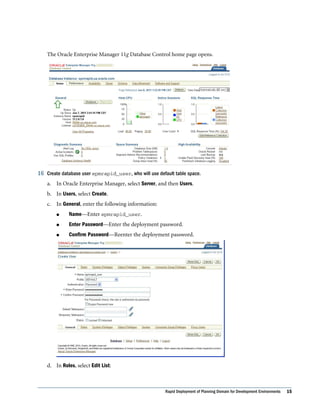
The Oracle Enterprise Manager 11g Database Control home page opens.


16 Create database user epmrapid_user, who will use default table space.
    a. In Oracle Enterprise Manager, select Server, and then Users.
    b. In Users, select Create.
    c. In General, enter the following information:
        l     Name––Enter epmrapid_user.
        l     Enter Password––Enter the deployment password.
        l     Confirm Password––Reenter the deployment password.


    d. In Roles, select Edit List:


                                                        Rapid Deployment of Planning Domain for Development Environments   15
e. In Available Roles, select the RESOURCE role, and then move it to Selected Roles.


     f.   Click OK.
     g. In System Privileges, select Edit List.
     h. Move CREATE SESSION and CREATE VIEW privileges from Available System Privileges to
        Selected System Privileges.


     i.   Click OK.
     j.   In Create User, click OK.


16    Rapid Deployment of Planning Domain for Development Environments
Step 3: Installing and Configuring EPM System
This process takes approximately 90 minutes.

ä To install EPM System files:
1   In Windows Explorer, navigate to the EPM_rapid_unzipped folder, and double-click
    installTool.cmd.
2   In EPM System Installer, select a language and click OK.


3   In Welcome, verify that your system has passed all prerequisite checks, and then click Next.


4   In Destination, click Next.


                                                               Rapid Deployment of Planning Domain for Development Environments   17
5    In Installation Type, under New installation, select Choose components individually.


6    In Product Selection, uncheck these Oracle Essbase components, and then select Next:
     l   Essbase Studio Console
     l   Essbase Integration Services Console
     l   Essbase Integration Services
     l   Essbase Studio Server
     l   Provider Services Web Application


7    In Confirmation, click Next.
8    In Progress, monitor the installation status.


18   Rapid Deployment of Planning Domain for Development Environments
9   In Summary, click Configure.


10 In Oracle Instance, click Next to use the default values to create an EPM Oracle instance.


11 On the database Configuration, enter the following information, and then click Next. Use default values
    for all remaining fields and selections.
    l    Service Name or SID––Enter epmrapid.example.com. Replace example.com with the
         fully qualified domain name. The database service name that you must use is available
         in C:appepmrapidproduct11.2.0dbhome_1NETWORKADMIN
         tnsnames.ora.


                                                              Rapid Deployment of Planning Domain for Development Environments   19
l   User Name––Enter epmrapid_user.
     l   Password––Enter the deployment password.


12 In component Configuration, click Next to configure the selected products.


20   Rapid Deployment of Planning Domain for Development Environments
13 In Configure Common Settings, click Next to use the default values.


14 In Configure Database, use the default values, and then click Next.


15 In Configure Reporting and Analysis Framework Services, click Next to use the default values.


                                                            Rapid Deployment of Planning Domain for Development Environments   21
16 In Deploy to Application Server - Specify WebLogic Domain Information, enter the following values,
     and then click Next. Use the default values in the remaining fields.
     l   Administrator Password––Enter the deployment password.
     l   Confirm Administrator Password––Reenter the deployment password.


17 In Deploy to Application Server: Oracle WebLogic, click Next to use the default selections.


18 In Configure Essbase Server, click Next to use the default values.


22   Rapid Deployment of Planning Domain for Development Environments
19 In Configure Web Server, click Next to use the default values.


20 In Oracle Configuration Manager Registration, uncheck I wish to receive security updates via my
    Oracle Support and then select Next.


21 In Email Address Not Specified, click Yes.
22 In Set Shared Services admin user password, enter the deployment password in Password and Re-
    type Password, and then click Next.


                                                             Rapid Deployment of Planning Domain for Development Environments   23
23 In Confirmation, click Next to initiate the deployment process.
     The deployment process takes approximately 45 minutes.


24 In Summary, click Finish.


25 Install Financial Reporting Studio.
     These steps install the client components for Financial Reporting Studio.
     a. In Windows Explorer, navigate to EPM_rapid_unzipped
        FinancialReportingStudio, and double-click
        FinancialReportingStudio.exe.
     b. In Choose Setup Language, select a language and click OK.


     c. Click Next on all installer wizard screens.


24   Rapid Deployment of Planning Domain for Development Environments
d. In InstallShield Wizard Completed, click Finish.
26 On your server, select Start, then All Programs, then Oracle EPM System, then Foundation Services,
    and then Start EPM System.
    This process takes approximately 15 minutes.
27 Confirm that processes are running by viewing Windows services.
    a. On your server, select Start, and then Run.
    b. In Open, type services.msc and then click OK.
    c. In Services, verify that the Hyperion and Oracle services startup status match those
       indicated in the following illustration:


28 Select Start, then All Programs, then Oracle EPM System, then Foundation Services, then
    epmsystem1, and then EPM System Diagnostic.
    Oracle Hyperion Enterprise Performance Management System runs diagnostic scripts.
    Diagnostic Test results are displayed in your browser.
29 Review the diagnostics report and verify that all deployed products have passed the tests. You can ignore
    Interactive Reporting diagnostic checks that indicate failure, because Interactive Reporting is not part
    of the deployment.


                                                               Rapid Deployment of Planning Domain for Development Environments   25
30 Verify that you can access Financial Reporting Studio.
     a. Select Start, then All Programs, then Oracle, then Financial Reporting Studio, and then
        Financial Reporting Studio.
     b. In the Logon screen, enter the following information, and then select OK to open Financial
        Reporting Studio.
         l      User Name—Enter admin.
         l      Password—Enter the deployment password.
         l      Server URL—Enter http://HOST_NAME:19000. Replace HOST_NAME with the
                name of your server.


31 Verify that you can access Oracle Enterprise Performance Management Workspace, Fusion Edition, and
     Planning Administration Wizard.
     a. Select Start, then All Programs, then Oracle EPM System, then Workspace, and then
        Workspace URL.
     b. On the Logon screen, enter the following information:
         l      User Name—Enter admin.
         l      Password—Enter the deployment password.


26   Rapid Deployment of Planning Domain for Development Environments
c. Select Log On.
    Workspace home page is displayed.


    You can download and install Smart View on a client computer by connecting to Oracle
    Enterprise Performance Management Workspace, Fusion Edition.
    l    To download Oracle Hyperion Smart View for Office, Fusion Edition, in
         Workspace, select Tools, then Install, and then SmartView.
    l    To install Smart View client, follow the instructions in Oracle Hyperion Enterprise
         Performance Management System Installation and Configuration Guide.
d. Select Navigate, then Administer, then Classic Application Administration, and then
   Planning Administration.
    The Classic Application Wizard opens. This wizard is used for creating Classic Oracle
    Hyperion Planning, Fusion Edition, applications.


                                                    Rapid Deployment of Planning Domain for Development Environments   27
COPYRIGHT NOTICE


EPM System Rapid Deployment of Planning Domain for Development Environments, 11.1.2.1
Copyright © 2011, Oracle and/or its affiliates. All rights reserved.
Authors: EPM Information Development Team
Oracle and Java are registered trademarks of Oracle and/or its affiliates. Other names may be trademarks of their respective
owners
This software and related documentation are provided under a license agreement containing restrictions on use and disclosure
and are protected by intellectual property laws. Except as expressly permitted in your license agreement or allowed by law, you
may not use, copy, reproduce, translate, broadcast, modify, license, transmit, distribute, exhibit, perform, publish, or display
any part, in any form, or by any means. Reverse engineering, disassembly, or decompilation of this software, unless required
by law for interoperability, is prohibited.
The information contained herein is subject to change without notice and is not warranted to be error-free. If you find any
errors, please report them to us in writing.
If this is software or related documentation that is delivered to the U.S. Government or anyone licensing it on behalf of the U.S.
Government, the following notice is applicable:
U.S. GOVERNMENT RIGHTS:
Programs, software, databases, and related documentation and technical data delivered to U.S. Government customers are
"commercial computer software" or "commercial technical data" pursuant to the applicable Federal Acquisition Regulation and
agency-specific supplemental regulations. As such, the use, duplication, disclosure, modification, and adaptation shall be subject
to the restrictions and license terms set forth in the applicable Government contract, and, to the extent applicable by the terms
of the Government contract, the additional rights set forth in FAR 52.227-19, Commercial Computer Software License
(December 2007). Oracle America, Inc., 500 Oracle Parkway, Redwood City, CA 94065.
This software or hardware is developed for general use in a variety of information management applications. It is not developed
or intended for use in any inherently dangerous applications, including applications that may create a risk of personal injury.
If you use this software or hardware in dangerous applications, then you shall be responsible to take all appropriate fail-safe,
backup, redundancy, and other measures to ensure its safe use. Oracle Corporation and its affiliates disclaim any liability for
any damages caused by use of this software or hardware in dangerous applications.
This software or hardware and documentation may provide access to or information on content, products, and services from
third parties. Oracle Corporation and its affiliates are not responsible for and expressly disclaim all warranties of any kind with
respect to third-party content, products, and services. Oracle Corporation and its affiliates will not be responsible for any loss,
costs, or damages incurred due to your access to or use of third-party content, products, or services.

Planning domain-rapid-deploy-418950

  • 1.
    ORACLE® HYPERION ENTERPRISE PERFORMANCE MANAGEMENT SYSTEM RELEASE 11.1.2.1 RAPID DEPLOYMENT OF PLANNING DOMAIN FOR DEVELOPMENT ENVIRONMENTS CONTENTS IN BRIEF About this Document . . . . . . . . . . . . . . . . . . . . . . . . . . . . . . . . . . . . . . . . . . . . . . . . . . . 2 Deployment Requirements . . . . . . . . . . . . . . . . . . . . . . . . . . . . . . . . . . . . . . . . . . . . . . . 2 Deployment Process . . . . . . . . . . . . . . . . . . . . . . . . . . . . . . . . . . . . . . . . . . . . . . . . . . . . 4 Step 1: Downloading Installation Files . . . . . . . . . . . . . . . . . . . . . . . . . . . . . . . . . . . . . . . 5 Step 2: Installing and Configuring the Database . . . . . . . . . . . . . . . . . . . . . . . . . . . . . . . 10 Step 3: Installing and Configuring EPM System . . . . . . . . . . . . . . . . . . . . . . . . . . . . . . . . 17
  • 2.
    About this Document Thisdocument presents recommended steps to build a typical Oracle Hyperion Planning, Fusion Edition, development environment on a single server running Microsoft Windows. A typical Planning development environment comprises the following products: l Oracle Hyperion Planning, Fusion Edition l Oracle's Hyperion® Foundation Services l Hyperion Calculation Manager l Oracle Essbase l Oracle Hyperion Financial Reporting, Fusion Edition l Oracle Hyperion Smart View for Office, Fusion Edition l Required products including Oracle Database, Oracle WebLogic Server, and Oracle HTTP Server. Deployment Requirements Server Table 1 Server Requirements Requirement Description Server Operating System Windows 2008 R2 x64 Processor Quad core Memory 16 GB RAM Disk 200 GB Disk Other Software A program, such as 7-Zip or WinZip, to extract the contents of media packs User Account Use a generic Windows user account, for example, epm_rapid_user, that satisfies the following requirements. This account is referred to as deployment account throughout this document: l Deployment account is a member of the Administrators group on the server on which you are deploying this domain. l The following local security policies are assigned to the deployment account. By default, these policies are granted to members of the Administrators group: m Act as part of the operating system m Bypass traverse checking 2 Rapid Deployment of Planning Domain for Development Environments
  • 3.
    m Log on as a batch job m Log on as a service l User account control is disabled for the deployment account. Verifying Local Security Policy Assignments ä To verify that local security policies are assigned to deployment user: 1 Log on to the server using the deployment account. 2 On the server, click Start, and then Administrative Tools, and then Local Security Policy. 3 in Local Security Policy, expand Local Policies, and then select User Rights Assignment. 4 Verify that the security setting for the policies highlighted in the following illustration include the Administrators group. Double-click the security setting of the policy to view its properties and assignments. Disabling User Account Control ä To turn off user account control: 1 Log on to the server using the deployment account. 2 On the server, click Start, and then Control Panel. 3 In Control Panel, click User Accounts. 4 In User Accounts, click Change User Account Control settings. Rapid Deployment of Planning Domain for Development Environments 3
  • 4.
    5 Drag the user account control slider to Never Notify. 6 Click OK. Deployment Password Select a password for your deployment. This password will be used for Oracle Database Administrator, Oracle Database User, WebLogic Administrator, and EPM Administrator. This password is referred to as deployment password throughout this document. The deployment password must conform to the following guidelines: l Contain at least one uppercase letter l Contain at least one numeral l Be at least eight characters long l Cannot contain special characters An example of an acceptable password is 1Rapidepm. Deployment Process The deployment process involves the following steps and takes approximately three hours: l Step 1: Downloading Installation Files (approximately 70 minutes) l Step 2: Installing and Configuring the Database (approximately 20 minutes) l Step 3: Installing and Configuring EPM System(approximately 90 minutes) 4 Rapid Deployment of Planning Domain for Development Environments
  • 5.
    Step 1: DownloadingInstallation Files This section explains how to download Oracle 11g Database (Version 11.2.0.1.0) and Oracle Hyperion Enterprise Performance Management System product media packs and get them ready. You can download media packs simultaneously. Using a T1 connection, downloading media packs takes approximately 65 minutes. ä To download media packs from Oracle E-Delivery website: 1 Create two folders named EPM_rapid_downloads and EPM_rapid_unzipped on your server. The file path should not contain spaces. 2 Using a browser, connect to http://edelivery.oracle.com. 3 On Oracle E-Delivery web site, click Sign In / Register. 4 In Sign In, enter your E-Delivery user name and password, and then click Sign In. 5 On terms and Restrictions, read and accept the Trial License and Export Restrictions agreements, and then click Continue. 6 Download part numbers to install Oracle Database 11g. a. In Media Pack Search, search for Oracle Database product pack for Microsoft Windows x64 (64-bit), and then select Go to start the search. Rapid Deployment of Planning Domain for Development Environments 5
  • 6.
    b. From Resultssection, select Oracle Database 11g Release 2 (11.2.0.1.0) Media Pack for Microsoft Windows x64 (64-bit), and then click Continue. c. Download the following part numbers to EPM_rapid_downloads. Table 2 Database Part Numbers to Download Part Number Name V20610-01 Part 1 of 2 Oracle Database 11g Release 2 (11.2.0.1.0) for Microsoft Windows x64 (64-bit) (Part 1 of 2) V20610-01 Part 2 of 2 Oracle Database 11g Release 2 (11.2.0.1.0) for Microsoft Windows x64 (64-bit) (Part 2 of 2) 6 Rapid Deployment of Planning Domain for Development Environments
  • 7.
    7 Download part numbers to install EPM System Planning domain. a. From the browser, navigate back to Media Pack Search. b. In Media Pack Search, search for Oracle Enterprise Performance Management System for Microsoft Windows x64 (64-bit) platform, and then select Go to start the search. c. In Results, select Oracle Enterprise Performance Management (11.1.2.1.0) Media Pack for Microsoft Windows x64 (64-bit), and then click Continue. Rapid Deployment of Planning Domain for Development Environments 7
  • 8.
    d. Download thefollowing part numbers to EPM_rapid_downloads. Table 3 EPM System Part Numbers to Download Part Number Name V25495-01 Oracle Hyperion Enterprise Performance Management System Installer, Fusion Edition Release 11.1.2.1.0 for Microsoft Windows (64-bit) V25496-01 Oracle Hyperion Foundation Services Release 11.1.2.1.0 for Microsoft Windows (64-bit) Part 1 of 7 V25497-01 Oracle Hyperion Foundation Services Release 11.1.2.1.0 for Microsoft Windows (64-bit) Part 2 of 7 V25498-01 Oracle Hyperion Foundation Services Release 11.1.2.1.0 for Microsoft Windows (64-bit) Part 3 of 7 V25499-01 Oracle Hyperion Foundation Services Release 11.1.2.1.0 for Microsoft Windows (64-bit) Part 4 of 7 V25459-01 Oracle Hyperion Foundation Services Release 11.1.2.1.0 Part 5 of 7 V25460-01 Oracle Hyperion Foundation Services Release 11.1.2.1.0 Part 6 of 7 V25461-01 Oracle Hyperion Foundation Services Release 11.1.2.1.0 Part 7 of 7 V25462-01 Oracle Hyperion Calculation Manager Release 11.1.2.1.0 V25464-01 Oracle Essbase Release 11.1.2.1.0 Part 1 of 2 V25500-01 Oracle Essbase Release 11.1.2.1.0 Part 2 of 2 for Microsoft Windows (64-bit) V25466-01 Oracle Essbase Clients Release 11.1.2.1.0 V25468-01 Oracle Hyperion Financial Reporting, Fusion Edition Release 11.1.2.1.0 V25469-01 Oracle Hyperion Financial Reporting Studio and Print Server, Fusion Edition Release 11.1.2.1.0 for Microsoft Windows V25470-01 Oracle Hyperion Enterprise Performance Management Reporting and Analysis Core Components Release 11.1. 2.1.0 V25477-01 Oracle Hyperion Planning, Fusion Edition Release 11.1.2.1.0 V25494-01 Oracle Hyperion Enterprise Performance Management System Additional Content Release 11.1.2.1.0 8 Verify the size of EPM_rapid_downloads, which contains the part numbers indicated in the following illustration: 8 Rapid Deployment of Planning Domain for Development Environments
  • 9.
    To verify foldersize: a. In Windows Explorer, right-click EPM_rapid_downloads. b. Select Properties. The results should match the following illustration: 9 After the media pack downloads are complete, using a program, for example 7-Zip, extract the contents of the downloaded Oracle Database and EPM System product media packs into EPM_rapid_unzipped. You will be warned about overwriting some existing files. Select Yes. Rapid Deployment of Planning Domain for Development Environments 9
  • 10.
    Step 2: Installingand Configuring the Database ä To install and configure Oracle Database: 1 Using Windows Explorer, navigate to EPM_rapid_unzipped/database, and then double-click setup.exe to launch the installer. 2 In Configure Security Updates, uncheck I wish to receive security updates via My Oracle Support, and then select Next. A warning that you did not provide an email address is displayed. 3 In Email Address Not Specified, click Yes. 10 Rapid Deployment of Planning Domain for Development Environments
  • 11.
    4 In Select Installation Option, ensure that Create and configure a database is selected, and then click Next. 5 In System Class, select Server Class, and then click Next. 6 In Grid Installation Options, select Single instance database installation, and then click Next. Rapid Deployment of Planning Domain for Development Environments 11
  • 12.
    7 In Select Install Type, ensure that Typical install is selected, and then click Next. 8 In Typical Install Configuration, enter the following information. Keep default values for all other fields. Click Next when you are done. l Database Edition—Select Standard Edition One(3.29 GB). l Global Database Name—Set to epmrapid.example.com. Be sure to replace example.com with your fully qualified domain name. l Administrative Password—Enter the deployment password. l Confirm Password—Reenter the deployment password. 12 Rapid Deployment of Planning Domain for Development Environments
  • 13.
    9 In Summary, click Finish. 10 In Install Product, click Finish. Rapid Deployment of Planning Domain for Development Environments 13
  • 14.
    11 After completingthe installation process, the installer runs the Database Configuration Assistant. 12 In Database Configuration Assistant summary, click OK. 13 In Oracle Database 11g Release 2 Installer, click Close. 14 Validate the database installation by selecting Start, then All Programs, then Oracle - OraDb11g_home1, and then Database Control - epmrapid. Because Enterprise Manager Database Control is a secure site, you need a certificate. Select the Continue to this web site (not recommended) option. 15 Log in as user SYS using the deployment password. Select SYSDBA role in Connect As. 14 Rapid Deployment of Planning Domain for Development Environments
  • 15.
    The Oracle EnterpriseManager 11g Database Control home page opens. 16 Create database user epmrapid_user, who will use default table space. a. In Oracle Enterprise Manager, select Server, and then Users. b. In Users, select Create. c. In General, enter the following information: l Name––Enter epmrapid_user. l Enter Password––Enter the deployment password. l Confirm Password––Reenter the deployment password. d. In Roles, select Edit List: Rapid Deployment of Planning Domain for Development Environments 15
  • 16.
    e. In AvailableRoles, select the RESOURCE role, and then move it to Selected Roles. f. Click OK. g. In System Privileges, select Edit List. h. Move CREATE SESSION and CREATE VIEW privileges from Available System Privileges to Selected System Privileges. i. Click OK. j. In Create User, click OK. 16 Rapid Deployment of Planning Domain for Development Environments
  • 17.
    Step 3: Installingand Configuring EPM System This process takes approximately 90 minutes. ä To install EPM System files: 1 In Windows Explorer, navigate to the EPM_rapid_unzipped folder, and double-click installTool.cmd. 2 In EPM System Installer, select a language and click OK. 3 In Welcome, verify that your system has passed all prerequisite checks, and then click Next. 4 In Destination, click Next. Rapid Deployment of Planning Domain for Development Environments 17
  • 18.
    5 In Installation Type, under New installation, select Choose components individually. 6 In Product Selection, uncheck these Oracle Essbase components, and then select Next: l Essbase Studio Console l Essbase Integration Services Console l Essbase Integration Services l Essbase Studio Server l Provider Services Web Application 7 In Confirmation, click Next. 8 In Progress, monitor the installation status. 18 Rapid Deployment of Planning Domain for Development Environments
  • 19.
    9 In Summary, click Configure. 10 In Oracle Instance, click Next to use the default values to create an EPM Oracle instance. 11 On the database Configuration, enter the following information, and then click Next. Use default values for all remaining fields and selections. l Service Name or SID––Enter epmrapid.example.com. Replace example.com with the fully qualified domain name. The database service name that you must use is available in C:appepmrapidproduct11.2.0dbhome_1NETWORKADMIN tnsnames.ora. Rapid Deployment of Planning Domain for Development Environments 19
  • 20.
    l User Name––Enter epmrapid_user. l Password––Enter the deployment password. 12 In component Configuration, click Next to configure the selected products. 20 Rapid Deployment of Planning Domain for Development Environments
  • 21.
    13 In ConfigureCommon Settings, click Next to use the default values. 14 In Configure Database, use the default values, and then click Next. 15 In Configure Reporting and Analysis Framework Services, click Next to use the default values. Rapid Deployment of Planning Domain for Development Environments 21
  • 22.
    16 In Deployto Application Server - Specify WebLogic Domain Information, enter the following values, and then click Next. Use the default values in the remaining fields. l Administrator Password––Enter the deployment password. l Confirm Administrator Password––Reenter the deployment password. 17 In Deploy to Application Server: Oracle WebLogic, click Next to use the default selections. 18 In Configure Essbase Server, click Next to use the default values. 22 Rapid Deployment of Planning Domain for Development Environments
  • 23.
    19 In ConfigureWeb Server, click Next to use the default values. 20 In Oracle Configuration Manager Registration, uncheck I wish to receive security updates via my Oracle Support and then select Next. 21 In Email Address Not Specified, click Yes. 22 In Set Shared Services admin user password, enter the deployment password in Password and Re- type Password, and then click Next. Rapid Deployment of Planning Domain for Development Environments 23
  • 24.
    23 In Confirmation,click Next to initiate the deployment process. The deployment process takes approximately 45 minutes. 24 In Summary, click Finish. 25 Install Financial Reporting Studio. These steps install the client components for Financial Reporting Studio. a. In Windows Explorer, navigate to EPM_rapid_unzipped FinancialReportingStudio, and double-click FinancialReportingStudio.exe. b. In Choose Setup Language, select a language and click OK. c. Click Next on all installer wizard screens. 24 Rapid Deployment of Planning Domain for Development Environments
  • 25.
    d. In InstallShieldWizard Completed, click Finish. 26 On your server, select Start, then All Programs, then Oracle EPM System, then Foundation Services, and then Start EPM System. This process takes approximately 15 minutes. 27 Confirm that processes are running by viewing Windows services. a. On your server, select Start, and then Run. b. In Open, type services.msc and then click OK. c. In Services, verify that the Hyperion and Oracle services startup status match those indicated in the following illustration: 28 Select Start, then All Programs, then Oracle EPM System, then Foundation Services, then epmsystem1, and then EPM System Diagnostic. Oracle Hyperion Enterprise Performance Management System runs diagnostic scripts. Diagnostic Test results are displayed in your browser. 29 Review the diagnostics report and verify that all deployed products have passed the tests. You can ignore Interactive Reporting diagnostic checks that indicate failure, because Interactive Reporting is not part of the deployment. Rapid Deployment of Planning Domain for Development Environments 25
  • 26.
    30 Verify thatyou can access Financial Reporting Studio. a. Select Start, then All Programs, then Oracle, then Financial Reporting Studio, and then Financial Reporting Studio. b. In the Logon screen, enter the following information, and then select OK to open Financial Reporting Studio. l User Name—Enter admin. l Password—Enter the deployment password. l Server URL—Enter http://HOST_NAME:19000. Replace HOST_NAME with the name of your server. 31 Verify that you can access Oracle Enterprise Performance Management Workspace, Fusion Edition, and Planning Administration Wizard. a. Select Start, then All Programs, then Oracle EPM System, then Workspace, and then Workspace URL. b. On the Logon screen, enter the following information: l User Name—Enter admin. l Password—Enter the deployment password. 26 Rapid Deployment of Planning Domain for Development Environments
  • 27.
    c. Select LogOn. Workspace home page is displayed. You can download and install Smart View on a client computer by connecting to Oracle Enterprise Performance Management Workspace, Fusion Edition. l To download Oracle Hyperion Smart View for Office, Fusion Edition, in Workspace, select Tools, then Install, and then SmartView. l To install Smart View client, follow the instructions in Oracle Hyperion Enterprise Performance Management System Installation and Configuration Guide. d. Select Navigate, then Administer, then Classic Application Administration, and then Planning Administration. The Classic Application Wizard opens. This wizard is used for creating Classic Oracle Hyperion Planning, Fusion Edition, applications. Rapid Deployment of Planning Domain for Development Environments 27
  • 28.
    COPYRIGHT NOTICE EPM SystemRapid Deployment of Planning Domain for Development Environments, 11.1.2.1 Copyright © 2011, Oracle and/or its affiliates. All rights reserved. Authors: EPM Information Development Team Oracle and Java are registered trademarks of Oracle and/or its affiliates. Other names may be trademarks of their respective owners This software and related documentation are provided under a license agreement containing restrictions on use and disclosure and are protected by intellectual property laws. Except as expressly permitted in your license agreement or allowed by law, you may not use, copy, reproduce, translate, broadcast, modify, license, transmit, distribute, exhibit, perform, publish, or display any part, in any form, or by any means. Reverse engineering, disassembly, or decompilation of this software, unless required by law for interoperability, is prohibited. The information contained herein is subject to change without notice and is not warranted to be error-free. If you find any errors, please report them to us in writing. If this is software or related documentation that is delivered to the U.S. Government or anyone licensing it on behalf of the U.S. Government, the following notice is applicable: U.S. GOVERNMENT RIGHTS: Programs, software, databases, and related documentation and technical data delivered to U.S. Government customers are "commercial computer software" or "commercial technical data" pursuant to the applicable Federal Acquisition Regulation and agency-specific supplemental regulations. As such, the use, duplication, disclosure, modification, and adaptation shall be subject to the restrictions and license terms set forth in the applicable Government contract, and, to the extent applicable by the terms of the Government contract, the additional rights set forth in FAR 52.227-19, Commercial Computer Software License (December 2007). Oracle America, Inc., 500 Oracle Parkway, Redwood City, CA 94065. This software or hardware is developed for general use in a variety of information management applications. It is not developed or intended for use in any inherently dangerous applications, including applications that may create a risk of personal injury. If you use this software or hardware in dangerous applications, then you shall be responsible to take all appropriate fail-safe, backup, redundancy, and other measures to ensure its safe use. Oracle Corporation and its affiliates disclaim any liability for any damages caused by use of this software or hardware in dangerous applications. This software or hardware and documentation may provide access to or information on content, products, and services from third parties. Oracle Corporation and its affiliates are not responsible for and expressly disclaim all warranties of any kind with respect to third-party content, products, and services. Oracle Corporation and its affiliates will not be responsible for any loss, costs, or damages incurred due to your access to or use of third-party content, products, or services.