Introduction
 CAWA DE provides distributed job scheduling and workload
management across the enterprise.
 The interface lets us quickly drag-and-drop our way through
workload definitions and to monitor and control batch
workload, regardless of the operating system.
 CAWA functions across a wide variety of server platforms,
including UNIX, Windows, z/OS®, IBM, Oracle and
PeopleSoft.
 . It is a simple, flexible, and powerful solution for enterprise
application integration (EAI) and systems operations.
CAWA DE Components
CAWA Database Server:
 The database server is the core of the DE environment. The
server handles and directs all incoming connections from the
Desktop Client, Agents, and a database peer server in a failover
configuration.
 It is an Oracle database.
CA Workload Automation DE supports both the external database
and the embedded database (PostgreSQL).
To use an external database, set up the external database before
installing the server.
 CAWA Desktop Client
 The CAWA Desktop Client is a powerful, Windows-based
interface for defining, monitoring, and controlling
enterprise workload.
 Its graphical interface enables users to quickly drag-and-
drop their way through workload definitions, manage
their applications, and monitor and control batch
workload, regardless of the operating system.
CAWA DE Components
 CAWA System Agents
 CAWA System Agents are applications that extend batch workload
management across multiple operating systems.
 These Agents automatically run scheduled workload and monitor its
progress.
 Agents communicate with the CAWA Servers through TCP/IP
 Every server that we plan to execute programs from thru CAWA must
have the agent installed.
CAWA DE Components
CAWA workload consists of 3 parts:
 Work Objects (WOBs)
 Applications (Where our individual jobs are stored)
 Events (Determine when our applications will run)
CAWA DE Components
What is an Object?
 Objects (Jobs) can be simple script or command
executions, File Triggers, FTP processes, Monitoring
Jobs, and others.
 They are the programs we execute.
 In the project we shell scripts for backups and
monitoring services in objects
What is an Application?
 A CAWA Application is an Object-Oriented definition of one
or more (usually related) jobs/functions that run under the
control of CAWA.
 The Application contains and controls our individual jobs.
 Usually jobs in an Application are related. For example, all
of our payroll jobs may be in one Application. An
Application may contain jobs that run on the same
platform/server or it may have jobs that run on different
platforms/servers.
 An application may have 1 job or it may have 1000 jobs.
What is an Event?
 CAWA uses an Event to determine when and how often to run
an Application and where the Application definition is stored.
 When an Event executes, CAWA reviews the Application
definition, selects the appropriate objects for execution for the
day or interval, verifies the dependency chains, and then begins
executing the objects selected based on the object’s defined
characteristics.
 The Event determines what day/time to trigger your application.
How To Get Access to the Desktop
Client
 In order to use CAWA DE you must have a CAWA License, a user
id and password with approiate groups assigned.
 Once PAS has created the ID in CAWA, you will get instructions
on how to download the software to your workstation.
CAWA DE GROUPS
 We use Groups to control access to your applications.
 The permissions are set at the Group level instead of at the individual ID level.
 All applications, events, global JavaScripts, alerts, etc. that you create must
begin with a Group name your ID is in.
 You only have access to applications that begin with a Group name your ID is
in.
 Example…..you are a member of the CBIS team, so all applications you create
must begin with “CBIS_”.
 If you try to save an application that begins with something other than a valid
group name you will get an error saying you do not have permission to do so.
What is the CAWA DE Desktop Client?
 The CAWA DE Desktop Client is a graphical interface for
defining, monitoring, and controlling enterprise workflow.
 It is where you will do all your work in CAWA.
 Users have full access to their applications in Test but have
read only access in Production.
CAWA DE Desktop Client
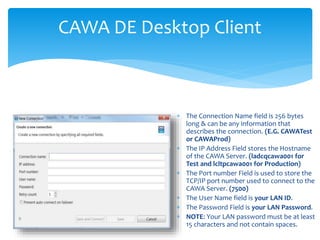
 The Connection Name field is 256 bytes
long & can be any information that
describes the connection. (E.G. CAWATest
or CAWAProd)
 The IP Address Field stores the Hostname
of the CAWA Server. (ladcqcawa001 for
Test and lcltpcawa001 for Production)
 The Port number Field is used to store the
TCP/IP port number used to connect to the
CAWA Server. (7500)
 The User Name field is your LAN ID.
 The Password Field is your LAN Password.
 NOTE: Your LAN password must be at least
15 characters and not contain spaces.
CAWA DE Desktop Client
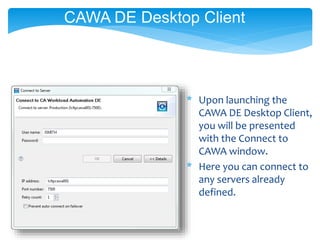
* Upon launching the
CAWA DE Desktop Client,
you will be presented
with the Connect to
CAWA window.
* Here you can connect to
any servers already
defined.
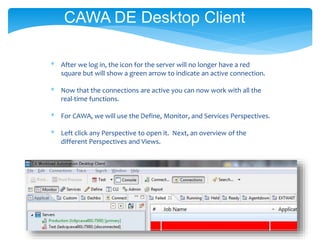
* After we log in, the icon for the server will no longer have a red
square but will show a green arrow to indicate an active connection.
* Now that the connections are active you can now work with all the
real-time functions.
* For CAWA, we will use the Define, Monitor, and Services Perspectives.
* Left click any Perspective to open it. Next, an overview of the
different Perspectives and Views.
CAWA DE Desktop Client
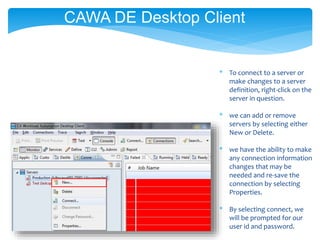
* To connect to a server or
make changes to a server
definition, right-click on the
server in question.
* we can add or remove
servers by selecting either
New or Delete.
* we have the ability to make
any connection information
changes that may be
needed and re-save the
connection by selecting
Properties.
* By selecting connect, we
will be prompted for our
user id and password.
CAWA DE Desktop Client
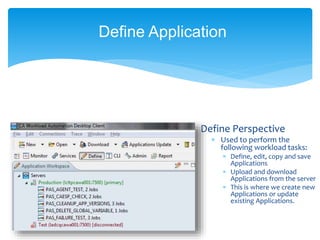
Define Perspective
 Used to perform the
following workload tasks:
 Define, edit, copy and save
Applications
 Upload and download
Applications from the server
 This is where we create new
Applications or update
existing Applications.
Define Application
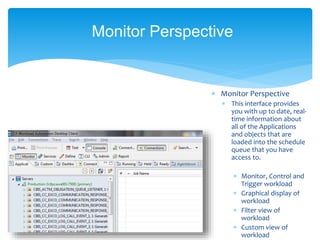
 Monitor Perspective
 This interface provides
you with up to date, real-
time information about
all of the Applications
and objects that are
loaded into the schedule
queue that you have
access to.
 Monitor, Control and
Trigger workload
 Graphical display of
workload
 Filter view of
workload
 Custom view of
workload
Monitor Perspective
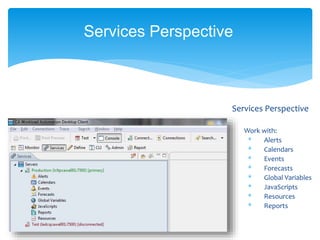
Services Perspective
Work with:
* Alerts
* Calendars
* Events
* Forecasts
* Global Variables
* JavaScripts
* Resources
* Reports
Services Perspective
To create a new application, right
click on the server, then click on
NEW.
If we are working with an existing
application, right click on the server
and click on DOWNLOAD.
CAWA DE Desktop Client - Define
Perspective
Application Properties
 Applications are, in their basic form, containers.
 They contain a set of objects that needs to be
processed by ESP dSeries in a certain order at a
certain time of day, day of week, or both.
 Applications have a set of parameters that effect how
the objects contained operate and how the container
is identified to the system.
 All workload that ESP dSeries executes must be part
of a defined Application.
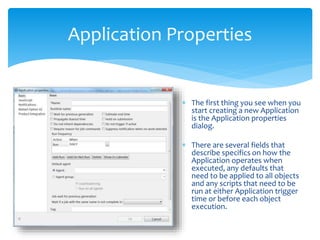
Application Properties
 The first thing you see when you
start creating a new Application
is the Application properties
dialog.
 There are several fields that
describe specifics on how the
Application operates when
executed, any defaults that
need to be applied to all objects
and any scripts that need to be
run at either Application trigger
time or before each object
execution.
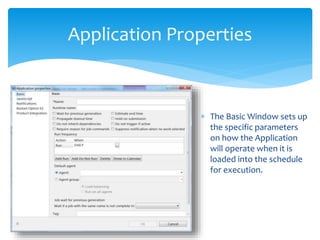
Application Properties
 The Basic Window sets up
the specific parameters
on how the Application
will operate when it is
loaded into the schedule
for execution.
Application Properties
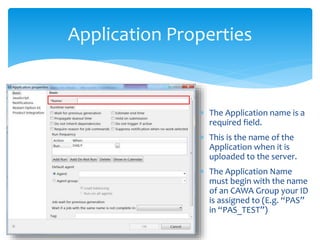
 The Application name is a
required field.
 This is the name of the
Application when it is
uploaded to the server.
 The Application Name
must begin with the name
of an CAWA Group your ID
is assigned to (E.g. “PAS”
in “PAS_TEST”)
Application Properties
 The Runtime name is
the name to be used
for tracking this
Application. If this field
is left blank, the
Application Name field
will be used for
tracking.
 Best Practice: To avoid
confusion between
Application, Runtime, and
Event names, keeping them
the same will maintain
uniformity and ease of
application management.
Application Properties
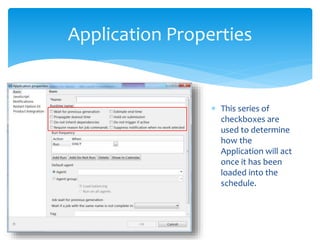
 This series of
checkboxes are
used to determine
how the
Application will act
once it has been
loaded into the
schedule.
Application Properties
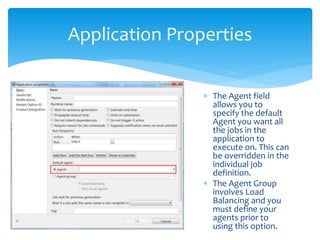
 The Agent field
allows you to
specify the default
Agent you want all
the jobs in the
application to
execute on. This can
be overridden in the
individual job
definition.
 The Agent Group
involves Load
Balancing and you
must define your
agents prior to
using this option.
Application Properties
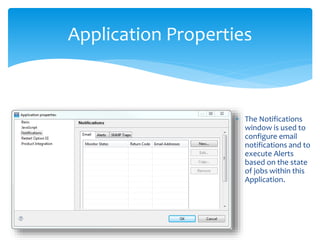
 The Notifications
window is used to
configure email
notifications and to
execute Alerts
based on the state
of jobs within this
Application.
Application Properties
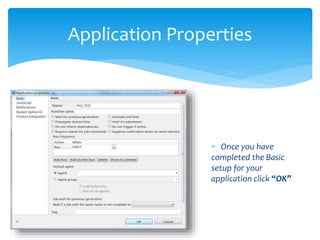
 Once you have
completed the Basic
setup for your
application click “OK”
Schedule Application
 To schedule an Application, you create an Event. When the Event is
triggered, the Application runs. For example, you can create an Event
to run an Application daily at 10am. Each day at 10am, CAWA Server
triggers the Event and the Application runs. Or you may want to create
an Event to run an Application manually on request. When you trigger
the Event manually, the Application runs.
 When you define a new Application, CAWA DE Desktop Client defines a
default Event that will have your id at the beginning of the name. You
will have to edit this event and make changes to the name.
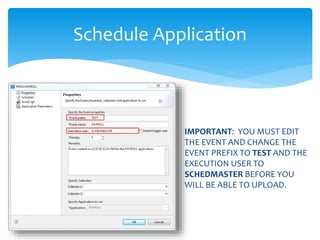
 Change the Event Prefix to TEST and the Execution User to
SCHEDMASTER.
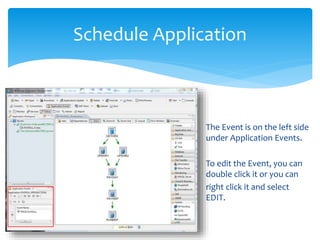
The Event is on the left side
under Application Events.
To edit the Event, you can
double click it or you can
right click it and select
EDIT.
Schedule Application
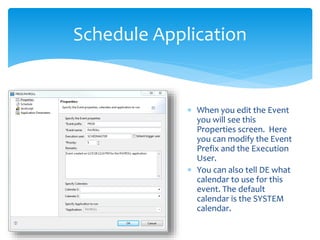
 When you edit the Event
you will see this
Properties screen. Here
you can modify the Event
Prefix and the Execution
User.
 You can also tell DE what
calendar to use for this
event. The default
calendar is the SYSTEM
calendar.
IMPORTANT: YOU MUST EDIT
THE EVENT AND CHANGE THE
EVENT PREFIX TO TEST AND THE
EXECUTION USER TO
SCHEDMASTER BEFORE YOU
WILL BE ABLE TO UPLOAD.
Schedule Application
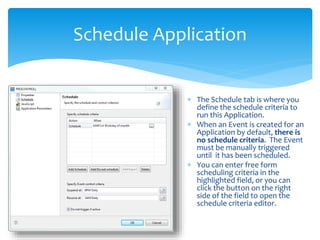
 The Schedule tab is where you
define the schedule criteria to
run this Application.
 When an Event is created for an
Application by default, there is
no schedule criteria. The Event
must be manually triggered
until it has been scheduled.
 You can enter free form
scheduling criteria in the
highlighted field, or you can
click the button on the right
side of the field to open the
schedule criteria editor.
Schedule Application
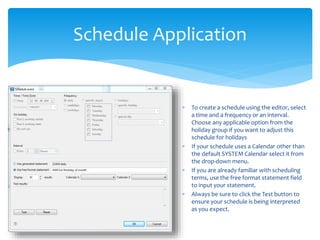
 To create a schedule using the editor, select
a time and a frequency or an interval.
Choose any applicable option from the
holiday group if you want to adjust this
schedule for holidays
 If your schedule uses a Calendar other than
the default SYSTEM Calendar select it from
the drop-down menu.
 If you are already familiar with scheduling
terms, use the free format statement field
to input your statement.
 Always be sure to click the Test button to
ensure your schedule is being interpreted
as you expect.
Define jobs in Application
 Step 1 – Define the Application Properties.
 Step 2 – Add Objects to the Application Container.
 Step 3 – Modify the Event for this Application to load
it into the schedule at the appropriate time.
 Step 4 – Save the Application and Upload to the ESP
dSeries Server.
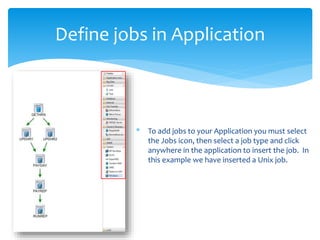
* To add jobs to your Application you must select
the Jobs icon, then select a job type and click
anywhere in the application to insert the job. In
this example we have inserted a Unix job.
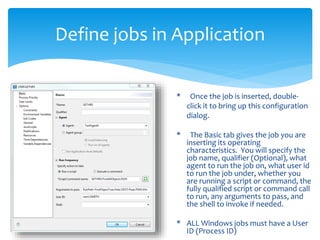
Define jobs in Application
* Once the job is inserted, double-
click it to bring up this configuration
dialog.
* The Basic tab gives the job you are
inserting its operating
characteristics. You will specify the
job name, qualifier (Optional), what
agent to run the job on, what user id
to run the job under, whether you
are running a script or command, the
fully qualified script or command call
to run, any arguments to pass, and
the shell to invoke if needed.
* ALL Windows jobs must have a User
ID (Process ID)
Uploading Application
 Step 1 – Define the Application Properties.
 Step 2 – Add Objects to the Application Container.
 Step 3 – Modify the Event for this Application to load
it into the schedule at the appropriate time.
 Step 4 – Save the Application and Upload to the
CAWA DE Server.
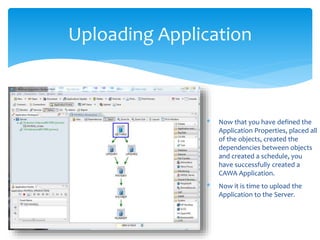
* Now that you have defined the
Application Properties, placed all
of the objects, created the
dependencies between objects
and created a schedule, you
have successfully created a
CAWA Application.
* Now it is time to upload the
Application to the Server.
Uploading Application
To UPLOAD, you can either right
click on the application under
the application workspace and
then click on UPLOAD. Or, you
can also click the UPLOAD
button on the task bar.
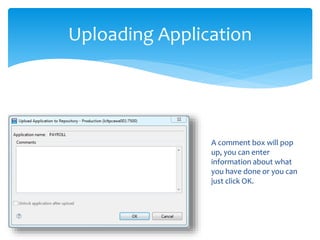
Uploading Application
A comment box will pop
up, you can enter
information about what
you have done or you can
just click OK.
Uploading Application
Multiple Events
 You can create multiple events within the same
application by dragging and dropping another Event
Trigger into the Event space.
 The multiple events cannot be named the same.
 By doing this you can schedule the same application
to run at various dates and times without having to
create new applications.
CAWA DE Desktop Client - Monitor
Perspective
Cybermation Training Unit #6
Monitor Perspective
 To monitor workload in CAWA DE you will use the Monitor
Perspective of the CAWA DE Desktop Client.
 This interface provides you with up to date, real-time
information about all of the Applications and objects that
are loaded into the schedule queue that you have access to
see.
 It is where all of the day to day monitoring of scheduled
workload in CAWA DE is Viewed and Manipulated.
Monitor Perspective
 Performs the following workload tasks:
 Monitor, Control and Trigger workload
 Graphical display of workload
 Filter view of workload
 Custom view of workload
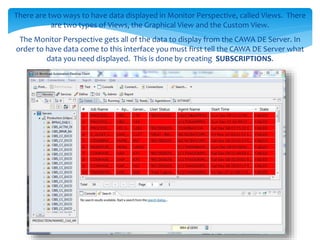
There are two ways to have data displayed in Monitor Perspective, called Views. There
are two types of Views, the Graphical View and the Custom View.
The Monitor Perspective gets all of the data to display from the CAWA DE Server. In
order to have data come to this interface you must first tell the CAWA DE Server what
data you need displayed. This is done by creating SUBSCRIPTIONS.
Monitor Perspective
 There are 2 ways of Subscribing:
- Manually
- Automatically
 To Manually Subscribe to a CAWA DE Server, right
click on the CAWA DE instance name in Connections
View.
 Manual Subscriptions are based on Filters.
Job States
 CAWA DE represents real-time processing information using job
states.
 Each job object that executes moves through a number of these job
states.
 The most common are Ready, Executing, and either Complete or
Fail.
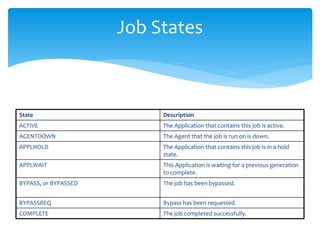
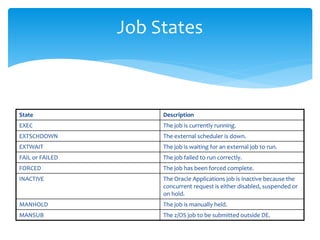
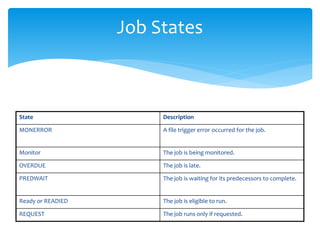
 All of the job states a job object could possibly move through are on
the next 3 pages.
Job States
State Description
ACTIVE The Application that contains this job is active.
AGENTDOWN The Agent that the job is run on is down.
APPLHOLD The Application that contains this job is in a hold
state.
APPLWAIT This Application is waiting for a previous generation
to complete.
BYPASS, or BYPASSED The job has been bypassed.
BYPASSREQ Bypass has been requested.
COMPLETE The job completed successfully.
Job States
State Description
EXEC The job is currently running.
EXTSCHDOWN The external scheduler is down.
EXTWAIT The job is waiting for an external job to run.
FAIL or FAILED The job failed to run correctly.
FORCED The job has been forced complete.
INACTIVE The Oracle Applications job is inactive because the
concurrent request is either disabled, suspended or
on hold.
MANHOLD The job is manually held.
MANSUB The z/OS job to be submitted outside DE.
Job States
State Description
MONERROR A file trigger error occurred for the job.
Monitor The job is being monitored.
OVERDUE The job is late.
PREDWAIT The job is waiting for its predecessors to complete.
Ready or READIED The job is eligible to run.
REQUEST The job runs only if requested.

CA workload Automation Tool Power Point Presentation

  • 1.
    Introduction  CAWA DEprovides distributed job scheduling and workload management across the enterprise.  The interface lets us quickly drag-and-drop our way through workload definitions and to monitor and control batch workload, regardless of the operating system.  CAWA functions across a wide variety of server platforms, including UNIX, Windows, z/OS®, IBM, Oracle and PeopleSoft.  . It is a simple, flexible, and powerful solution for enterprise application integration (EAI) and systems operations.
  • 2.
    CAWA DE Components CAWADatabase Server:  The database server is the core of the DE environment. The server handles and directs all incoming connections from the Desktop Client, Agents, and a database peer server in a failover configuration.  It is an Oracle database. CA Workload Automation DE supports both the external database and the embedded database (PostgreSQL). To use an external database, set up the external database before installing the server.
  • 3.
     CAWA DesktopClient  The CAWA Desktop Client is a powerful, Windows-based interface for defining, monitoring, and controlling enterprise workload.  Its graphical interface enables users to quickly drag-and- drop their way through workload definitions, manage their applications, and monitor and control batch workload, regardless of the operating system. CAWA DE Components
  • 4.
     CAWA SystemAgents  CAWA System Agents are applications that extend batch workload management across multiple operating systems.  These Agents automatically run scheduled workload and monitor its progress.  Agents communicate with the CAWA Servers through TCP/IP  Every server that we plan to execute programs from thru CAWA must have the agent installed. CAWA DE Components
  • 5.
    CAWA workload consistsof 3 parts:  Work Objects (WOBs)  Applications (Where our individual jobs are stored)  Events (Determine when our applications will run) CAWA DE Components
  • 6.
    What is anObject?  Objects (Jobs) can be simple script or command executions, File Triggers, FTP processes, Monitoring Jobs, and others.  They are the programs we execute.  In the project we shell scripts for backups and monitoring services in objects
  • 7.
    What is anApplication?  A CAWA Application is an Object-Oriented definition of one or more (usually related) jobs/functions that run under the control of CAWA.  The Application contains and controls our individual jobs.  Usually jobs in an Application are related. For example, all of our payroll jobs may be in one Application. An Application may contain jobs that run on the same platform/server or it may have jobs that run on different platforms/servers.  An application may have 1 job or it may have 1000 jobs.
  • 8.
    What is anEvent?  CAWA uses an Event to determine when and how often to run an Application and where the Application definition is stored.  When an Event executes, CAWA reviews the Application definition, selects the appropriate objects for execution for the day or interval, verifies the dependency chains, and then begins executing the objects selected based on the object’s defined characteristics.  The Event determines what day/time to trigger your application.
  • 9.
    How To GetAccess to the Desktop Client  In order to use CAWA DE you must have a CAWA License, a user id and password with approiate groups assigned.  Once PAS has created the ID in CAWA, you will get instructions on how to download the software to your workstation.
  • 10.
    CAWA DE GROUPS We use Groups to control access to your applications.  The permissions are set at the Group level instead of at the individual ID level.  All applications, events, global JavaScripts, alerts, etc. that you create must begin with a Group name your ID is in.  You only have access to applications that begin with a Group name your ID is in.  Example…..you are a member of the CBIS team, so all applications you create must begin with “CBIS_”.  If you try to save an application that begins with something other than a valid group name you will get an error saying you do not have permission to do so.
  • 11.
    What is theCAWA DE Desktop Client?  The CAWA DE Desktop Client is a graphical interface for defining, monitoring, and controlling enterprise workflow.  It is where you will do all your work in CAWA.  Users have full access to their applications in Test but have read only access in Production.
  • 12.
    CAWA DE DesktopClient  The Connection Name field is 256 bytes long & can be any information that describes the connection. (E.G. CAWATest or CAWAProd)  The IP Address Field stores the Hostname of the CAWA Server. (ladcqcawa001 for Test and lcltpcawa001 for Production)  The Port number Field is used to store the TCP/IP port number used to connect to the CAWA Server. (7500)  The User Name field is your LAN ID.  The Password Field is your LAN Password.  NOTE: Your LAN password must be at least 15 characters and not contain spaces.
  • 13.
    CAWA DE DesktopClient * Upon launching the CAWA DE Desktop Client, you will be presented with the Connect to CAWA window. * Here you can connect to any servers already defined.
  • 14.
    * After welog in, the icon for the server will no longer have a red square but will show a green arrow to indicate an active connection. * Now that the connections are active you can now work with all the real-time functions. * For CAWA, we will use the Define, Monitor, and Services Perspectives. * Left click any Perspective to open it. Next, an overview of the different Perspectives and Views. CAWA DE Desktop Client
  • 15.
    * To connectto a server or make changes to a server definition, right-click on the server in question. * we can add or remove servers by selecting either New or Delete. * we have the ability to make any connection information changes that may be needed and re-save the connection by selecting Properties. * By selecting connect, we will be prompted for our user id and password. CAWA DE Desktop Client
  • 16.
    Define Perspective  Usedto perform the following workload tasks:  Define, edit, copy and save Applications  Upload and download Applications from the server  This is where we create new Applications or update existing Applications. Define Application
  • 17.
     Monitor Perspective This interface provides you with up to date, real- time information about all of the Applications and objects that are loaded into the schedule queue that you have access to.  Monitor, Control and Trigger workload  Graphical display of workload  Filter view of workload  Custom view of workload Monitor Perspective
  • 18.
    Services Perspective Work with: *Alerts * Calendars * Events * Forecasts * Global Variables * JavaScripts * Resources * Reports Services Perspective
  • 19.
    To create anew application, right click on the server, then click on NEW. If we are working with an existing application, right click on the server and click on DOWNLOAD. CAWA DE Desktop Client - Define Perspective
  • 20.
    Application Properties  Applicationsare, in their basic form, containers.  They contain a set of objects that needs to be processed by ESP dSeries in a certain order at a certain time of day, day of week, or both.  Applications have a set of parameters that effect how the objects contained operate and how the container is identified to the system.  All workload that ESP dSeries executes must be part of a defined Application.
  • 21.
    Application Properties  Thefirst thing you see when you start creating a new Application is the Application properties dialog.  There are several fields that describe specifics on how the Application operates when executed, any defaults that need to be applied to all objects and any scripts that need to be run at either Application trigger time or before each object execution.
  • 22.
    Application Properties  TheBasic Window sets up the specific parameters on how the Application will operate when it is loaded into the schedule for execution.
  • 23.
    Application Properties  TheApplication name is a required field.  This is the name of the Application when it is uploaded to the server.  The Application Name must begin with the name of an CAWA Group your ID is assigned to (E.g. “PAS” in “PAS_TEST”)
  • 24.
    Application Properties  TheRuntime name is the name to be used for tracking this Application. If this field is left blank, the Application Name field will be used for tracking.  Best Practice: To avoid confusion between Application, Runtime, and Event names, keeping them the same will maintain uniformity and ease of application management.
  • 25.
    Application Properties  Thisseries of checkboxes are used to determine how the Application will act once it has been loaded into the schedule.
  • 26.
    Application Properties  TheAgent field allows you to specify the default Agent you want all the jobs in the application to execute on. This can be overridden in the individual job definition.  The Agent Group involves Load Balancing and you must define your agents prior to using this option.
  • 27.
    Application Properties  TheNotifications window is used to configure email notifications and to execute Alerts based on the state of jobs within this Application.
  • 28.
    Application Properties  Onceyou have completed the Basic setup for your application click “OK”
  • 29.
    Schedule Application  Toschedule an Application, you create an Event. When the Event is triggered, the Application runs. For example, you can create an Event to run an Application daily at 10am. Each day at 10am, CAWA Server triggers the Event and the Application runs. Or you may want to create an Event to run an Application manually on request. When you trigger the Event manually, the Application runs.  When you define a new Application, CAWA DE Desktop Client defines a default Event that will have your id at the beginning of the name. You will have to edit this event and make changes to the name.  Change the Event Prefix to TEST and the Execution User to SCHEDMASTER.
  • 30.
    The Event ison the left side under Application Events. To edit the Event, you can double click it or you can right click it and select EDIT. Schedule Application
  • 31.
    Schedule Application  Whenyou edit the Event you will see this Properties screen. Here you can modify the Event Prefix and the Execution User.  You can also tell DE what calendar to use for this event. The default calendar is the SYSTEM calendar.
  • 32.
    IMPORTANT: YOU MUSTEDIT THE EVENT AND CHANGE THE EVENT PREFIX TO TEST AND THE EXECUTION USER TO SCHEDMASTER BEFORE YOU WILL BE ABLE TO UPLOAD. Schedule Application
  • 33.
    Schedule Application  TheSchedule tab is where you define the schedule criteria to run this Application.  When an Event is created for an Application by default, there is no schedule criteria. The Event must be manually triggered until it has been scheduled.  You can enter free form scheduling criteria in the highlighted field, or you can click the button on the right side of the field to open the schedule criteria editor.
  • 34.
    Schedule Application  Tocreate a schedule using the editor, select a time and a frequency or an interval. Choose any applicable option from the holiday group if you want to adjust this schedule for holidays  If your schedule uses a Calendar other than the default SYSTEM Calendar select it from the drop-down menu.  If you are already familiar with scheduling terms, use the free format statement field to input your statement.  Always be sure to click the Test button to ensure your schedule is being interpreted as you expect.
  • 35.
    Define jobs inApplication  Step 1 – Define the Application Properties.  Step 2 – Add Objects to the Application Container.  Step 3 – Modify the Event for this Application to load it into the schedule at the appropriate time.  Step 4 – Save the Application and Upload to the ESP dSeries Server.
  • 36.
    * To addjobs to your Application you must select the Jobs icon, then select a job type and click anywhere in the application to insert the job. In this example we have inserted a Unix job. Define jobs in Application
  • 37.
    Define jobs inApplication * Once the job is inserted, double- click it to bring up this configuration dialog. * The Basic tab gives the job you are inserting its operating characteristics. You will specify the job name, qualifier (Optional), what agent to run the job on, what user id to run the job under, whether you are running a script or command, the fully qualified script or command call to run, any arguments to pass, and the shell to invoke if needed. * ALL Windows jobs must have a User ID (Process ID)
  • 38.
    Uploading Application  Step1 – Define the Application Properties.  Step 2 – Add Objects to the Application Container.  Step 3 – Modify the Event for this Application to load it into the schedule at the appropriate time.  Step 4 – Save the Application and Upload to the CAWA DE Server.
  • 39.
    * Now thatyou have defined the Application Properties, placed all of the objects, created the dependencies between objects and created a schedule, you have successfully created a CAWA Application. * Now it is time to upload the Application to the Server. Uploading Application
  • 40.
    To UPLOAD, youcan either right click on the application under the application workspace and then click on UPLOAD. Or, you can also click the UPLOAD button on the task bar. Uploading Application
  • 41.
    A comment boxwill pop up, you can enter information about what you have done or you can just click OK. Uploading Application
  • 42.
    Multiple Events  Youcan create multiple events within the same application by dragging and dropping another Event Trigger into the Event space.  The multiple events cannot be named the same.  By doing this you can schedule the same application to run at various dates and times without having to create new applications.
  • 43.
    CAWA DE DesktopClient - Monitor Perspective Cybermation Training Unit #6
  • 44.
    Monitor Perspective  Tomonitor workload in CAWA DE you will use the Monitor Perspective of the CAWA DE Desktop Client.  This interface provides you with up to date, real-time information about all of the Applications and objects that are loaded into the schedule queue that you have access to see.  It is where all of the day to day monitoring of scheduled workload in CAWA DE is Viewed and Manipulated.
  • 45.
    Monitor Perspective  Performsthe following workload tasks:  Monitor, Control and Trigger workload  Graphical display of workload  Filter view of workload  Custom view of workload
  • 46.
    There are twoways to have data displayed in Monitor Perspective, called Views. There are two types of Views, the Graphical View and the Custom View. The Monitor Perspective gets all of the data to display from the CAWA DE Server. In order to have data come to this interface you must first tell the CAWA DE Server what data you need displayed. This is done by creating SUBSCRIPTIONS.
  • 47.
    Monitor Perspective  Thereare 2 ways of Subscribing: - Manually - Automatically  To Manually Subscribe to a CAWA DE Server, right click on the CAWA DE instance name in Connections View.  Manual Subscriptions are based on Filters.
  • 48.
    Job States  CAWADE represents real-time processing information using job states.  Each job object that executes moves through a number of these job states.  The most common are Ready, Executing, and either Complete or Fail.  All of the job states a job object could possibly move through are on the next 3 pages.
  • 49.
    Job States State Description ACTIVEThe Application that contains this job is active. AGENTDOWN The Agent that the job is run on is down. APPLHOLD The Application that contains this job is in a hold state. APPLWAIT This Application is waiting for a previous generation to complete. BYPASS, or BYPASSED The job has been bypassed. BYPASSREQ Bypass has been requested. COMPLETE The job completed successfully.
  • 50.
    Job States State Description EXECThe job is currently running. EXTSCHDOWN The external scheduler is down. EXTWAIT The job is waiting for an external job to run. FAIL or FAILED The job failed to run correctly. FORCED The job has been forced complete. INACTIVE The Oracle Applications job is inactive because the concurrent request is either disabled, suspended or on hold. MANHOLD The job is manually held. MANSUB The z/OS job to be submitted outside DE.
  • 51.
    Job States State Description MONERRORA file trigger error occurred for the job. Monitor The job is being monitored. OVERDUE The job is late. PREDWAIT The job is waiting for its predecessors to complete. Ready or READIED The job is eligible to run. REQUEST The job runs only if requested.