AERIAL TOUR OF NEW SIGHTS IN
FME SERVER 2018
AGENDA
A Guided Tour of FME Server 2018:
● Demos
● New Functionality
Automate Anything
FME Server is Automation
The Gates of FME
Server
GET
STARTED
QUICKLY
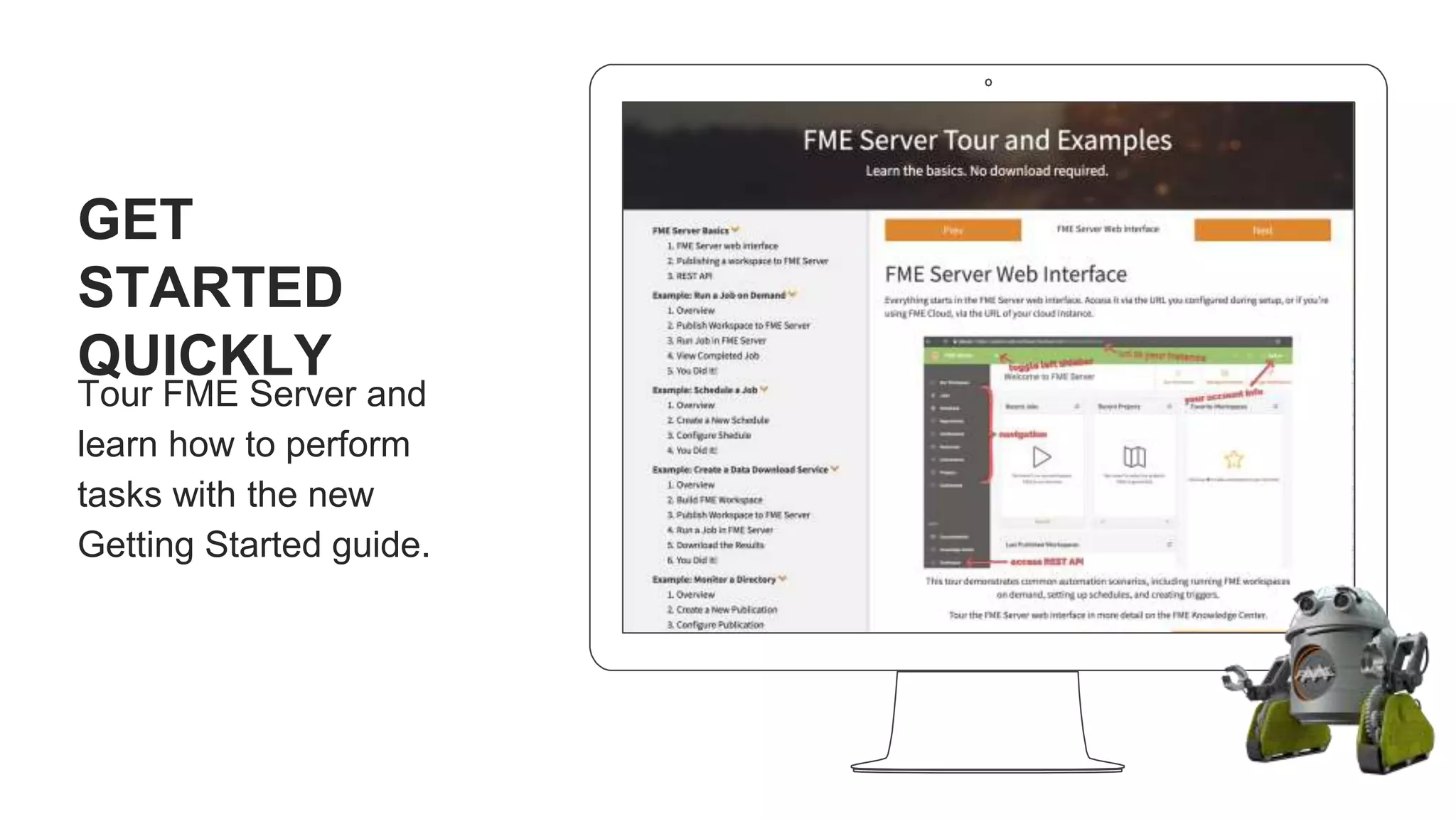
Tour FME Server and
learn how to perform
tasks with the new
Getting Started guide.
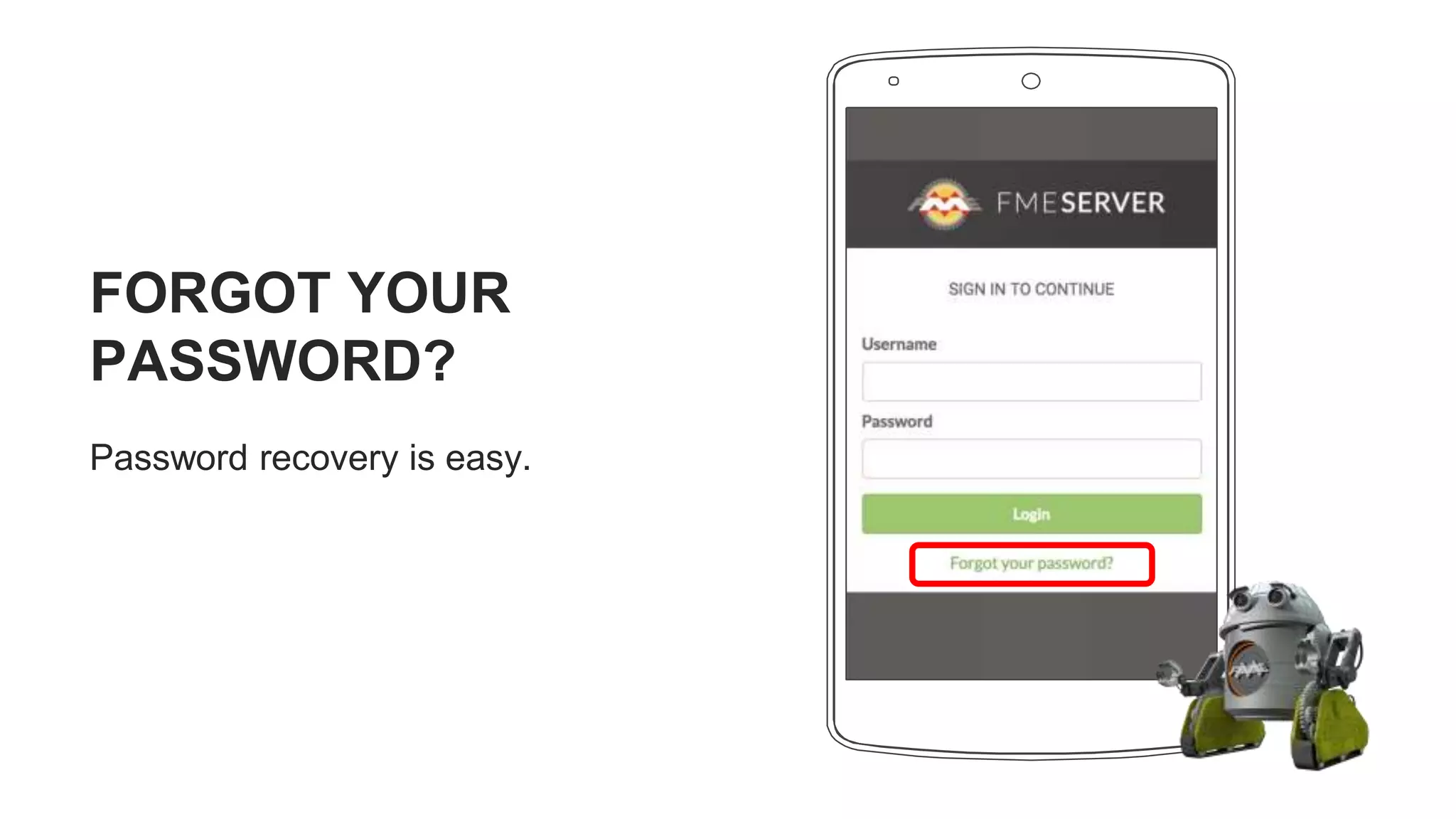
FORGOT YOUR
PASSWORD?
Password recovery is easy.
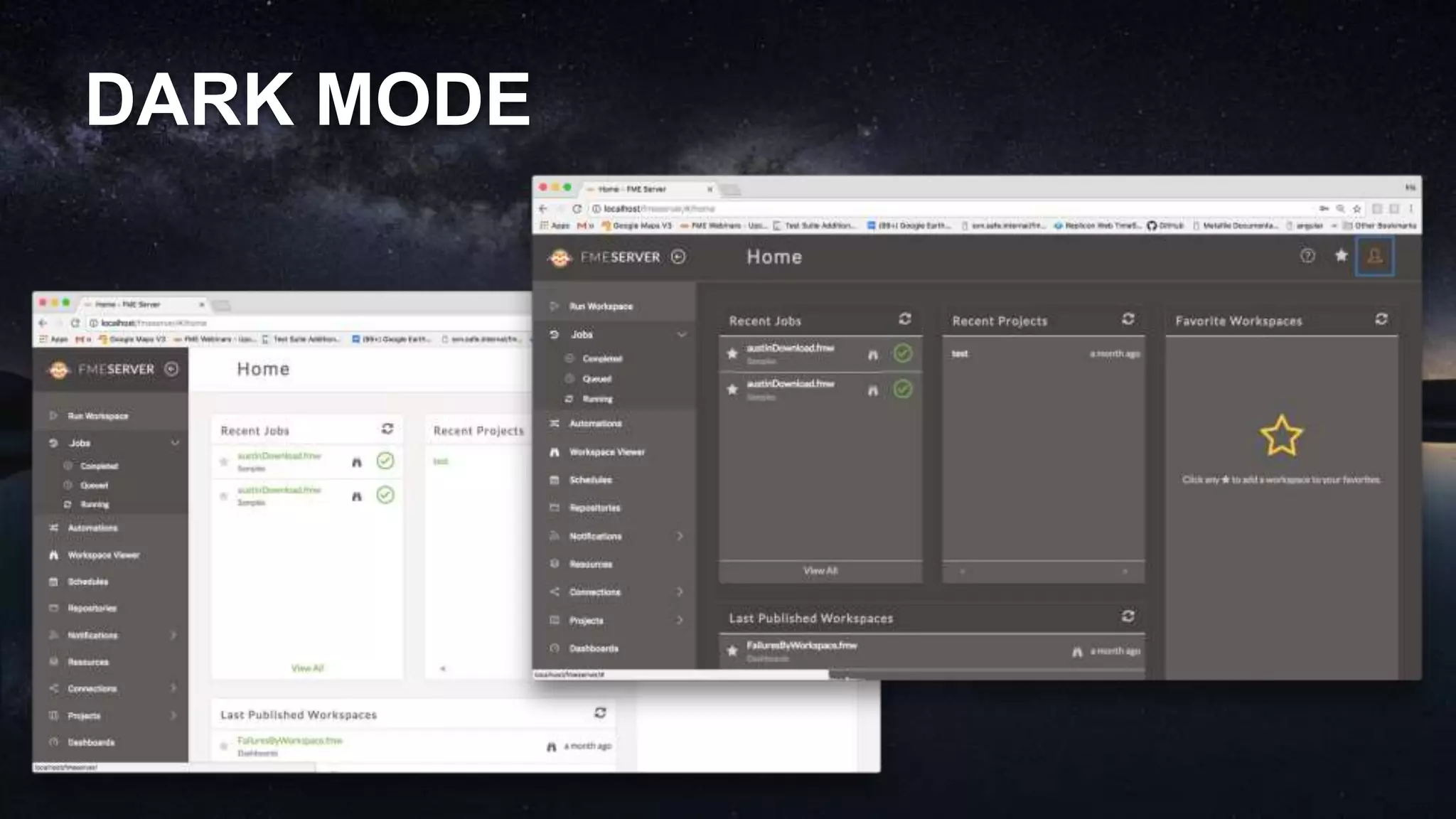
DARK MODE
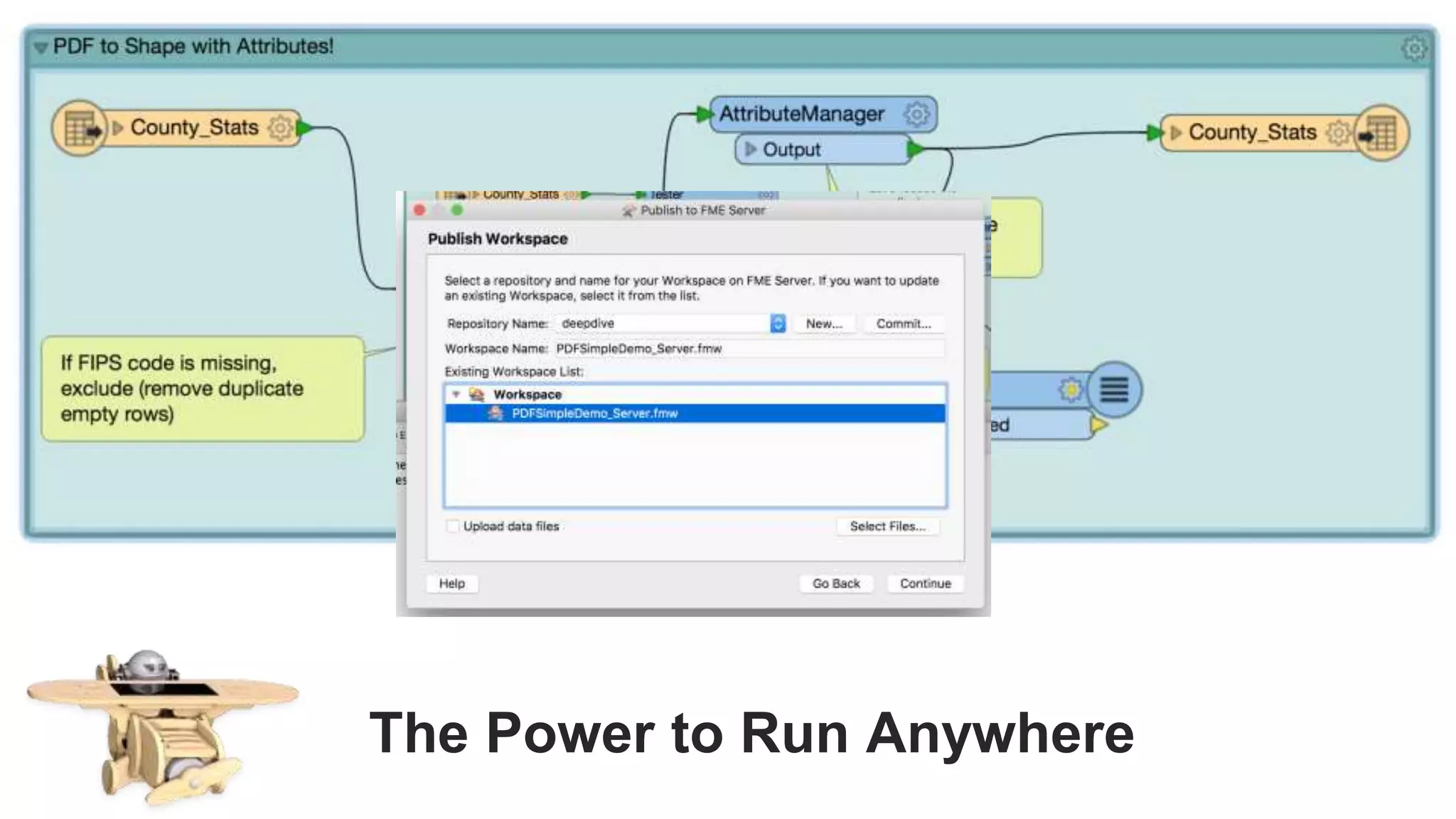
The Power to Run Anywhere
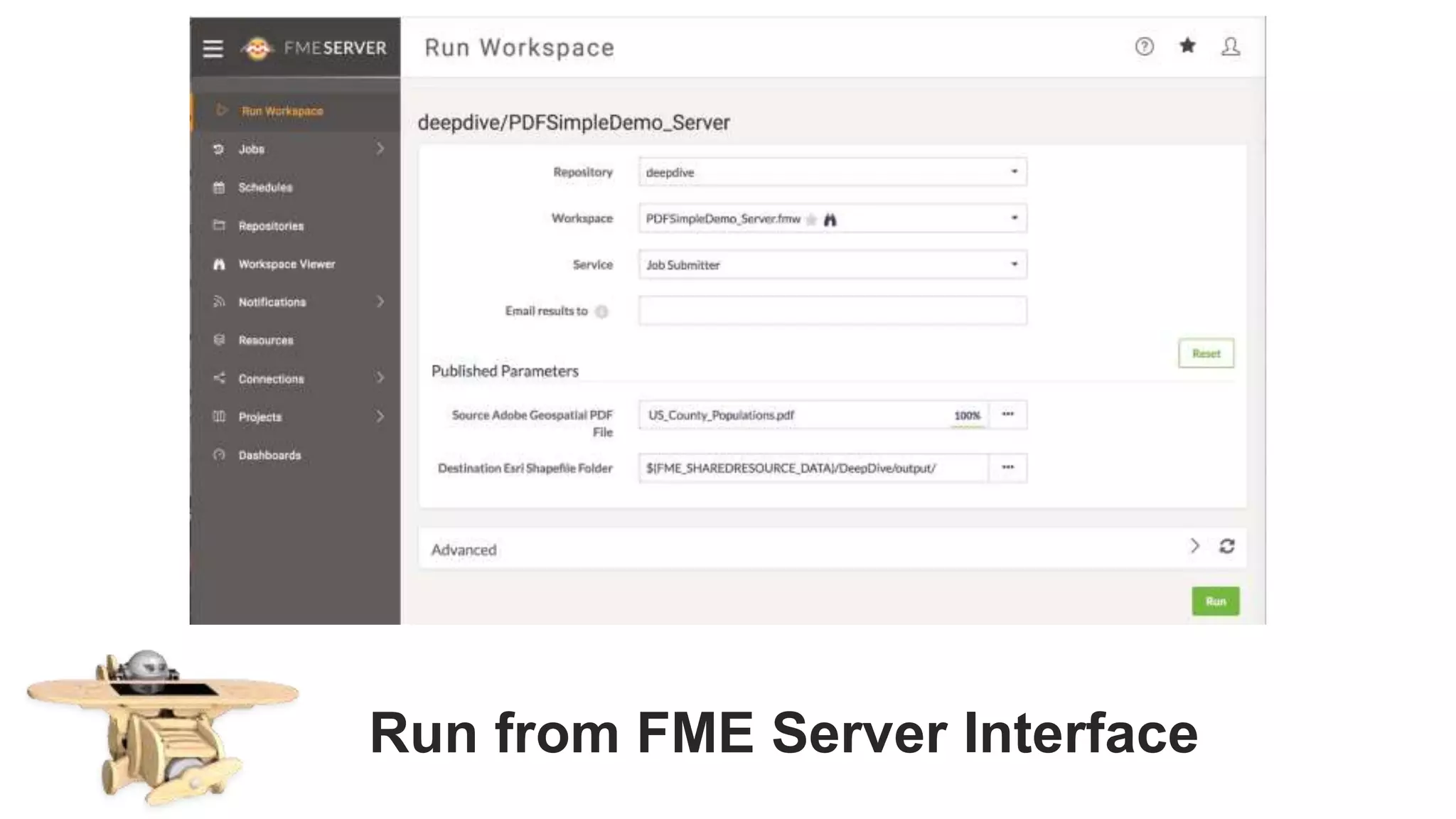
Run from FME Server Interface
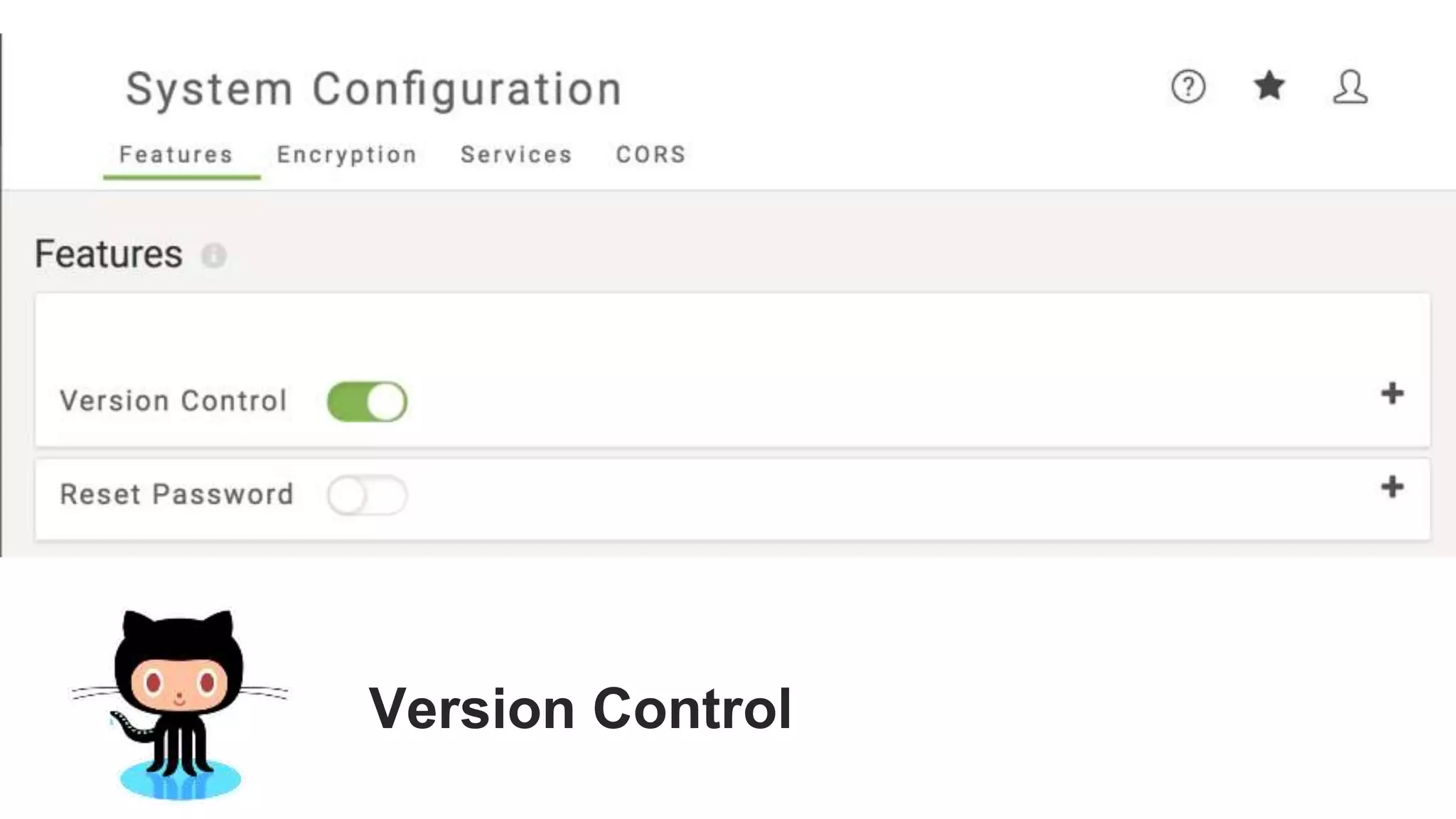
Version Control
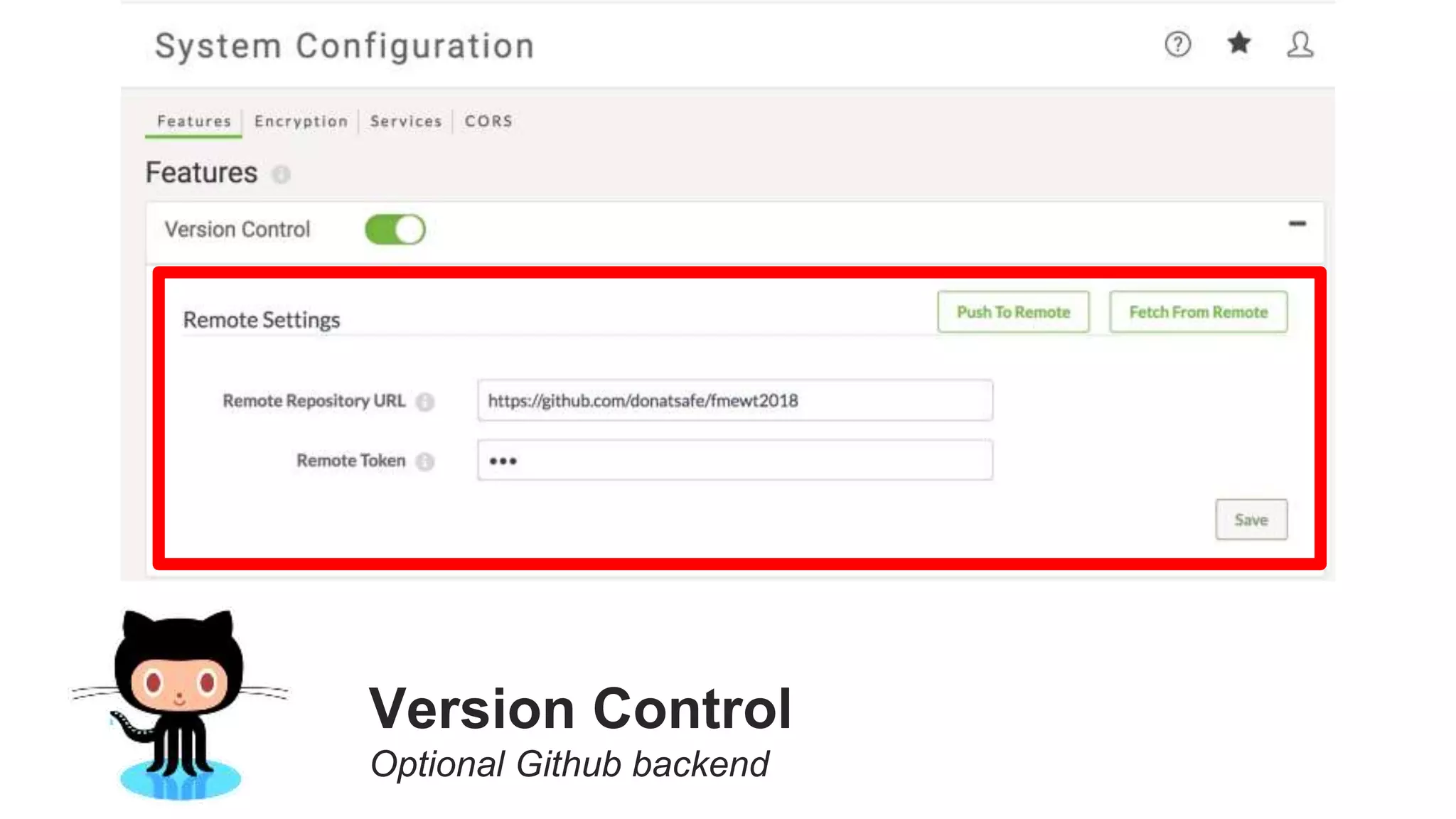
Version Control
Optional Github backend
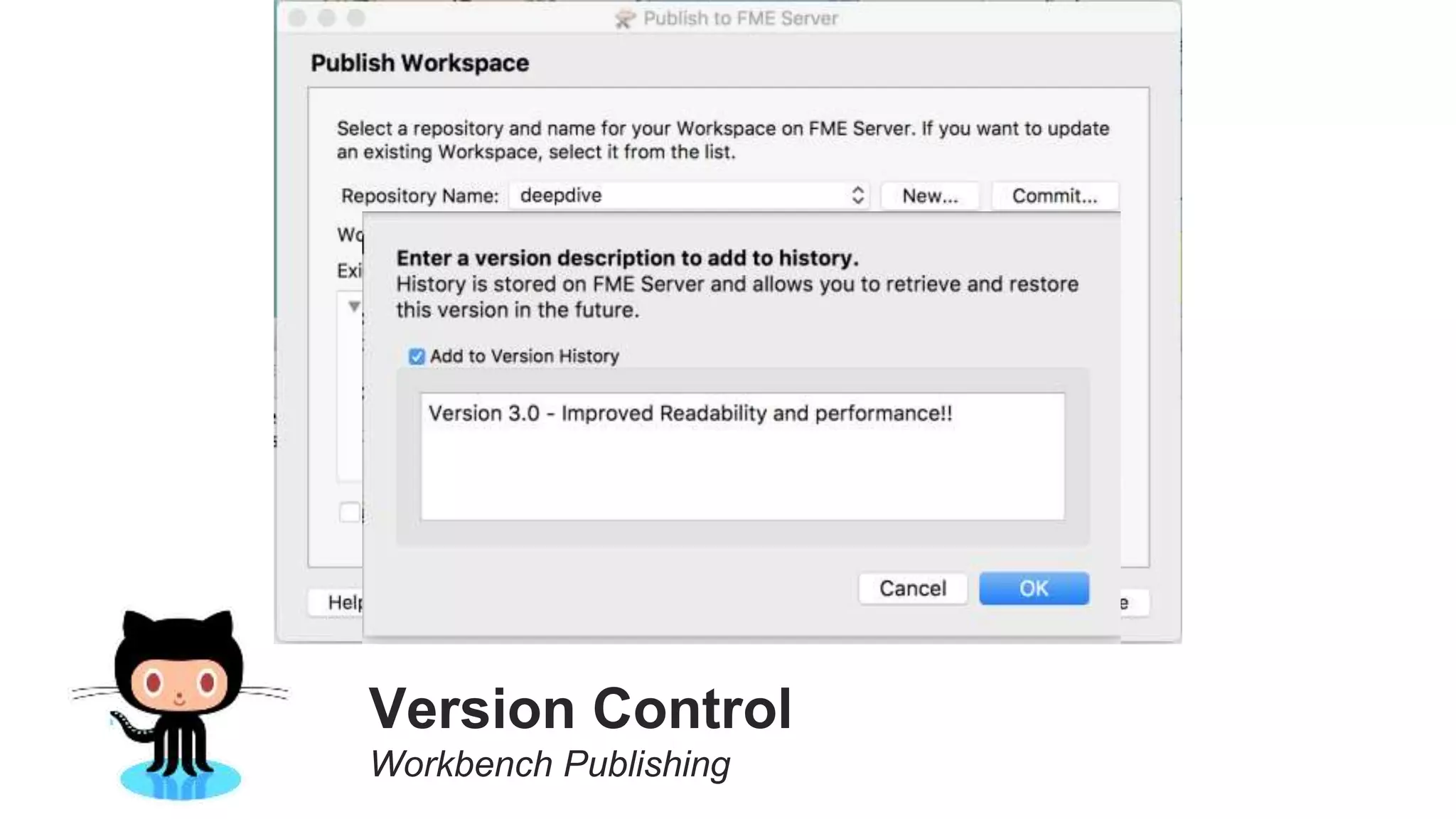
Version Control
Workbench Publishing
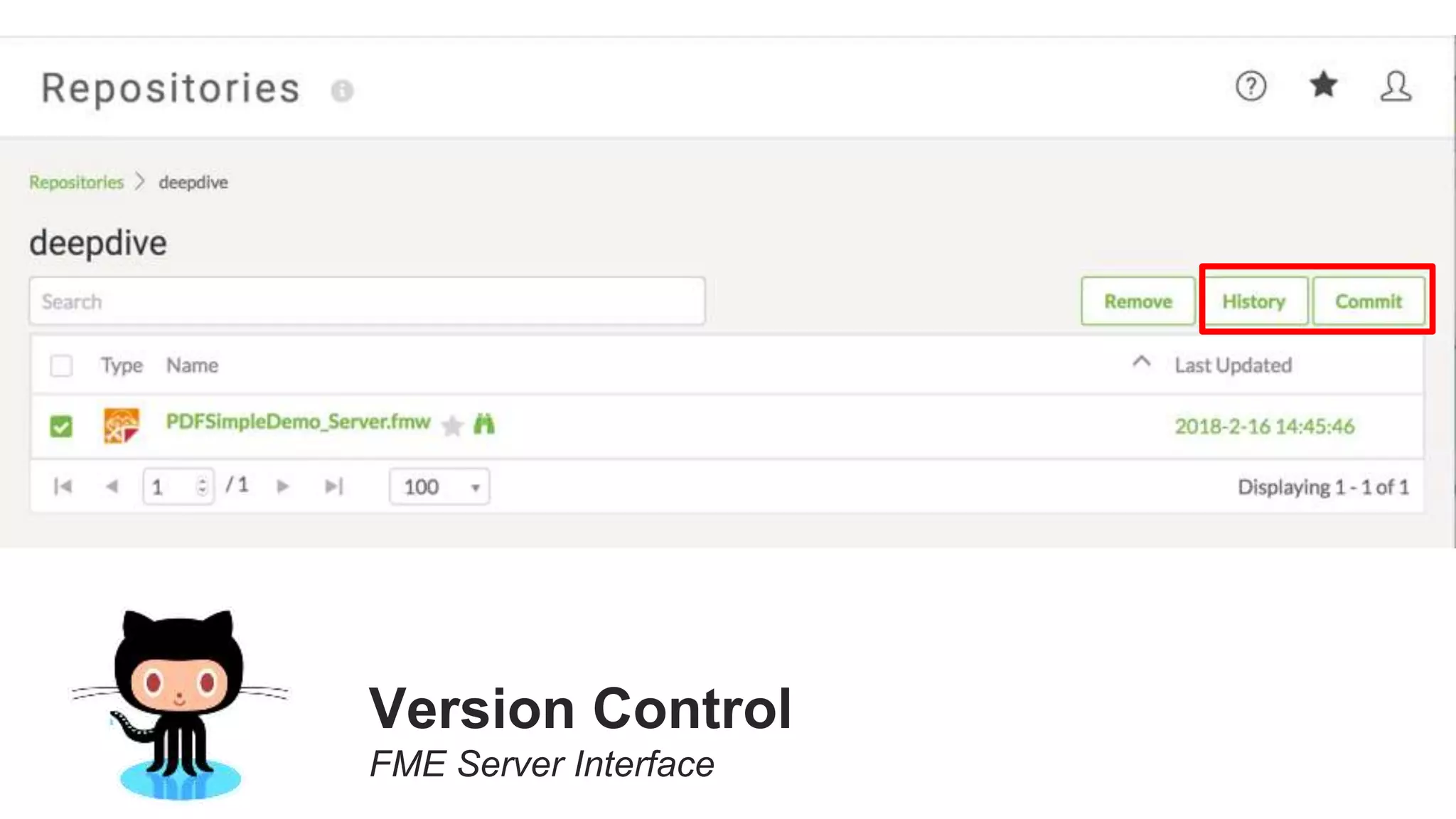
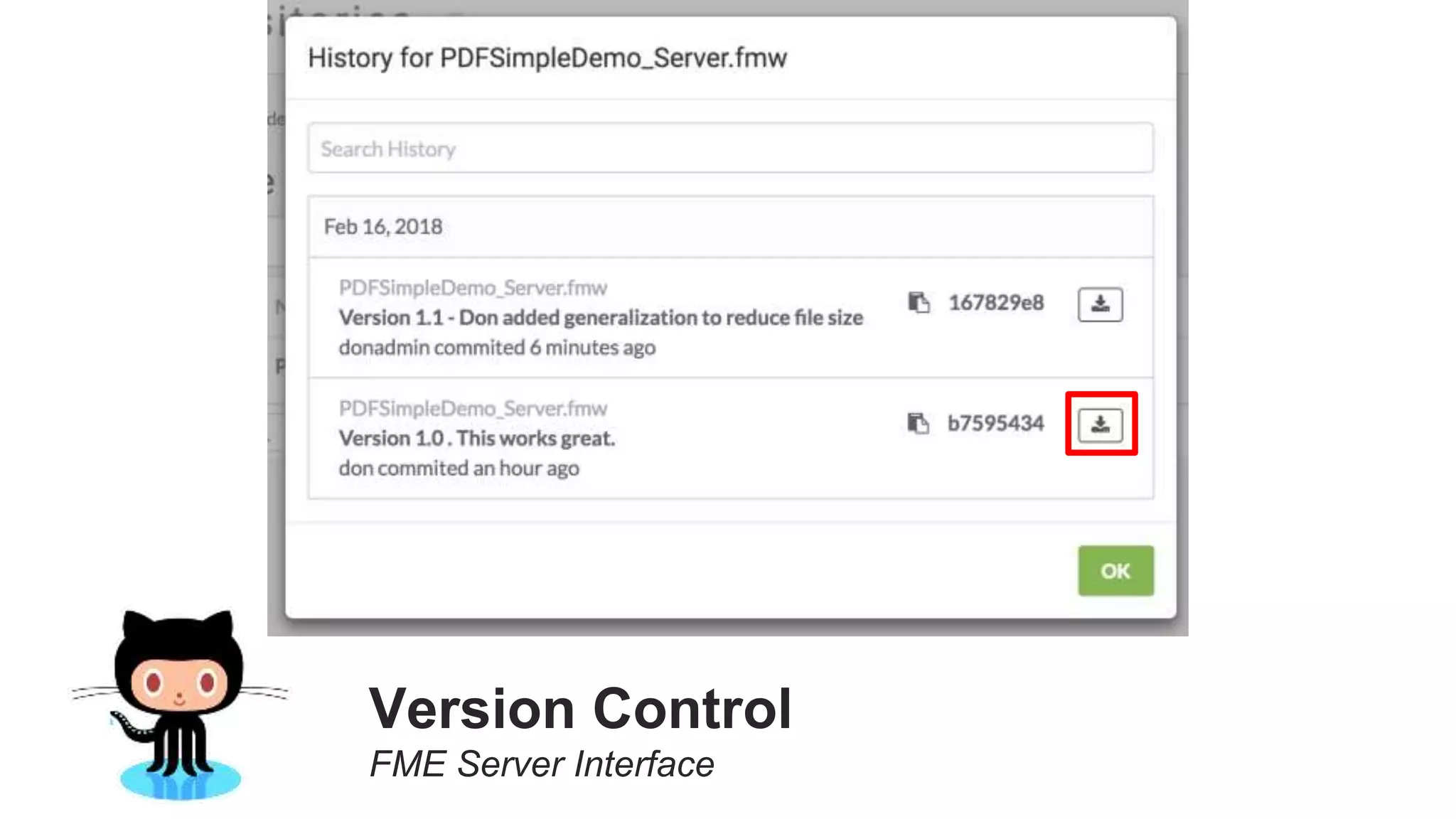
Version Control
FME Server Interface
Version Control
FME Server Interface
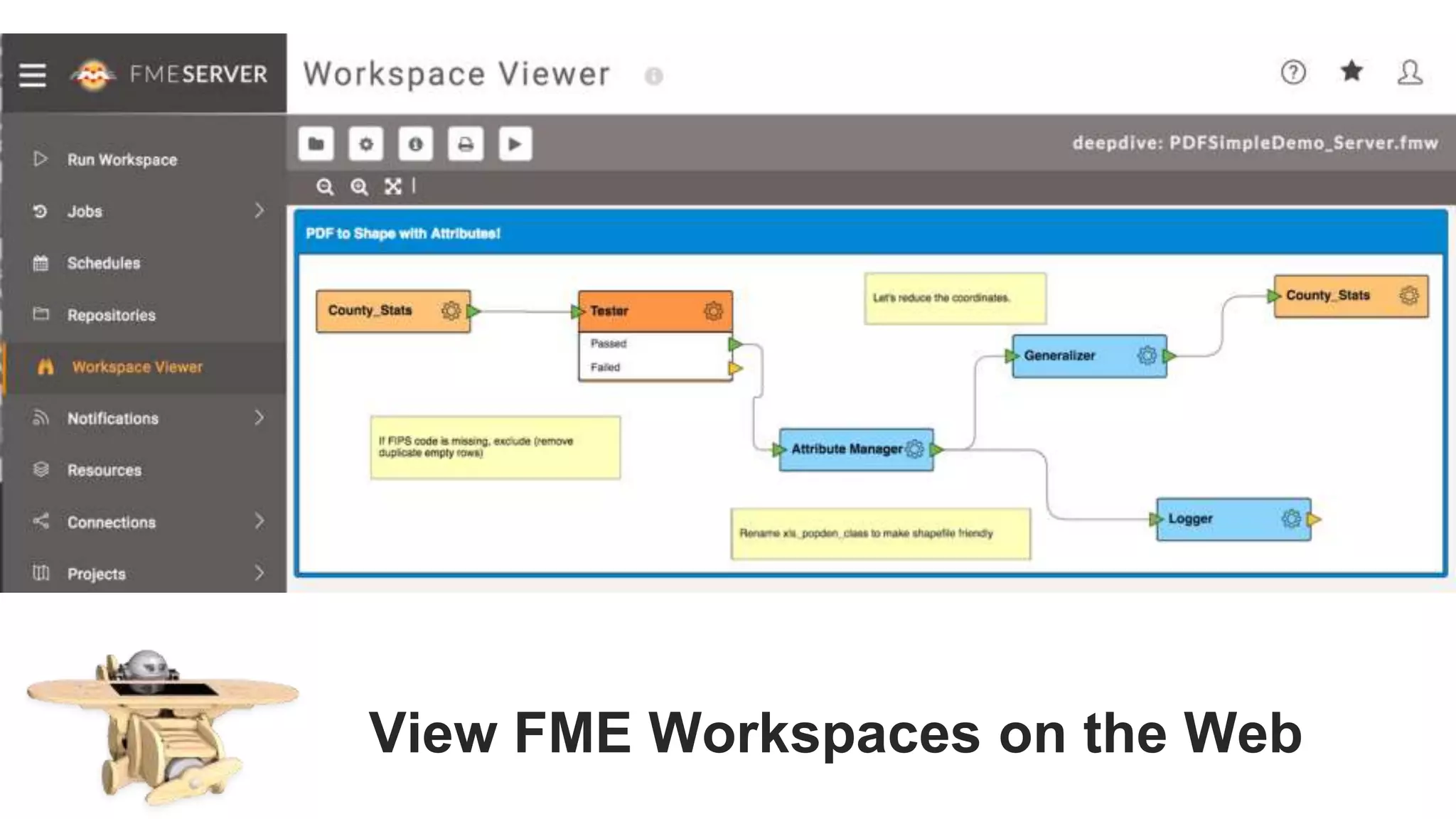
View FME Workspaces on the Web
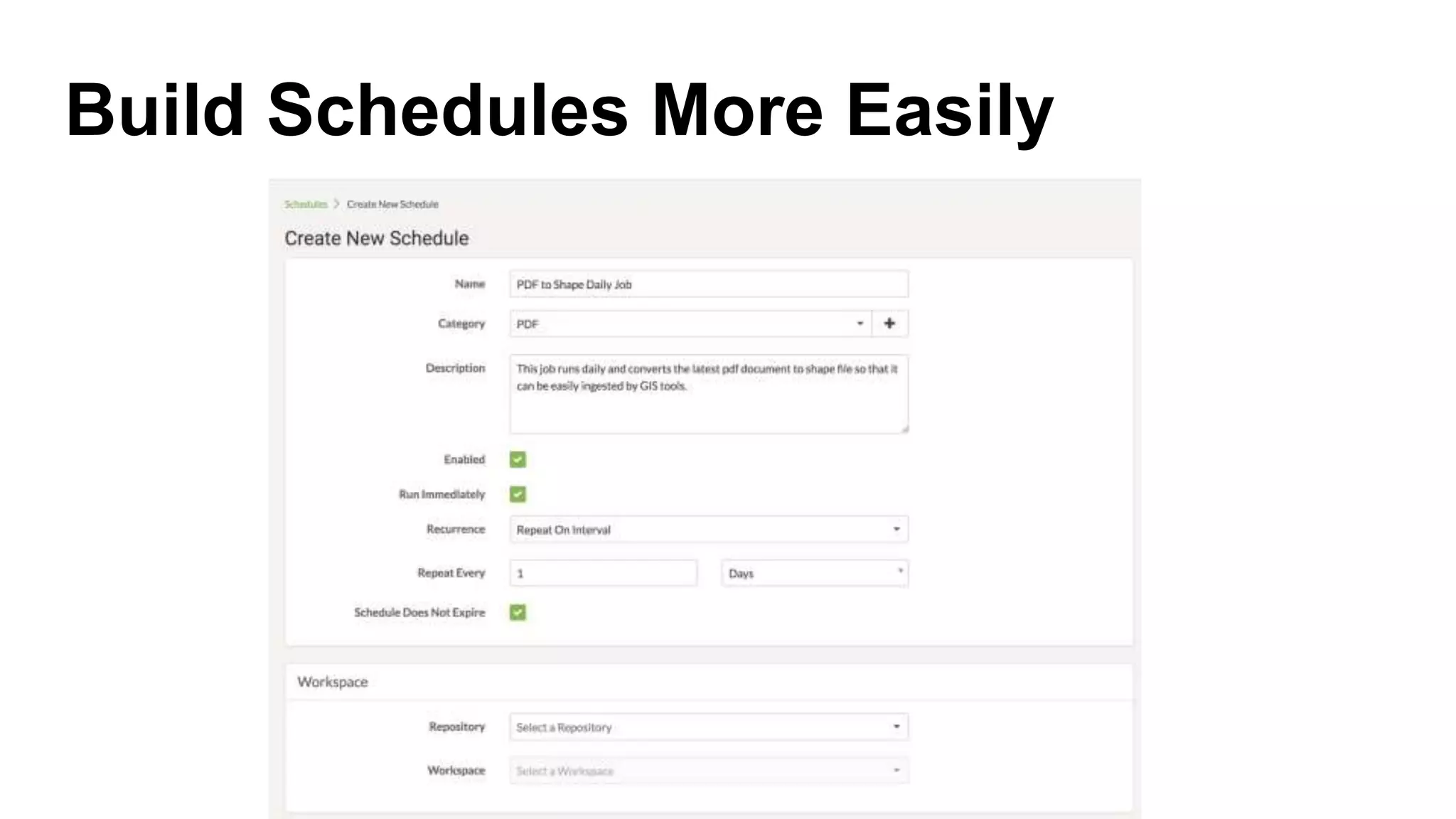
Build Schedules More Easily
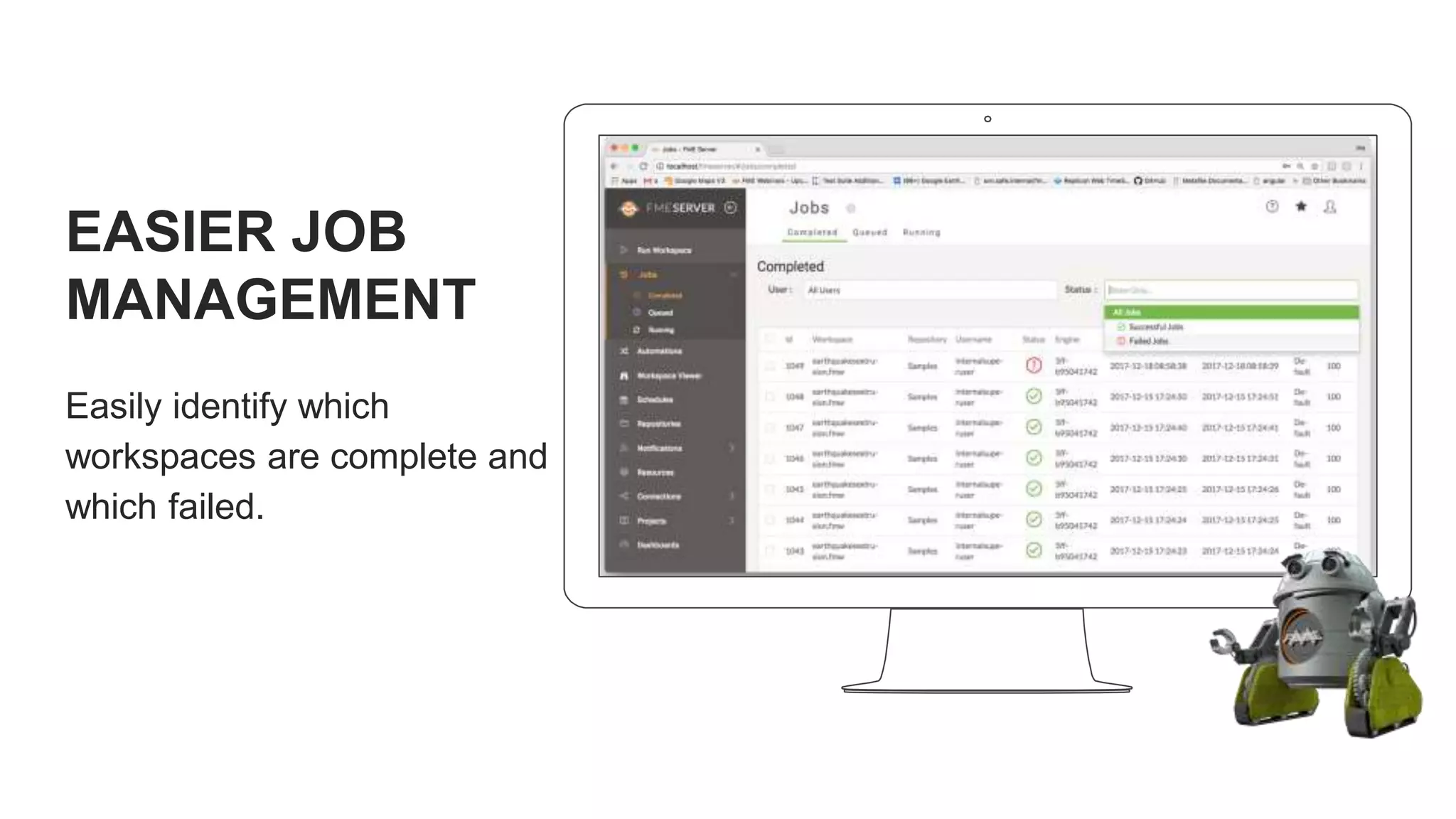
EASIER JOB
MANAGEMENT
Easily identify which
workspaces are complete and
which failed.
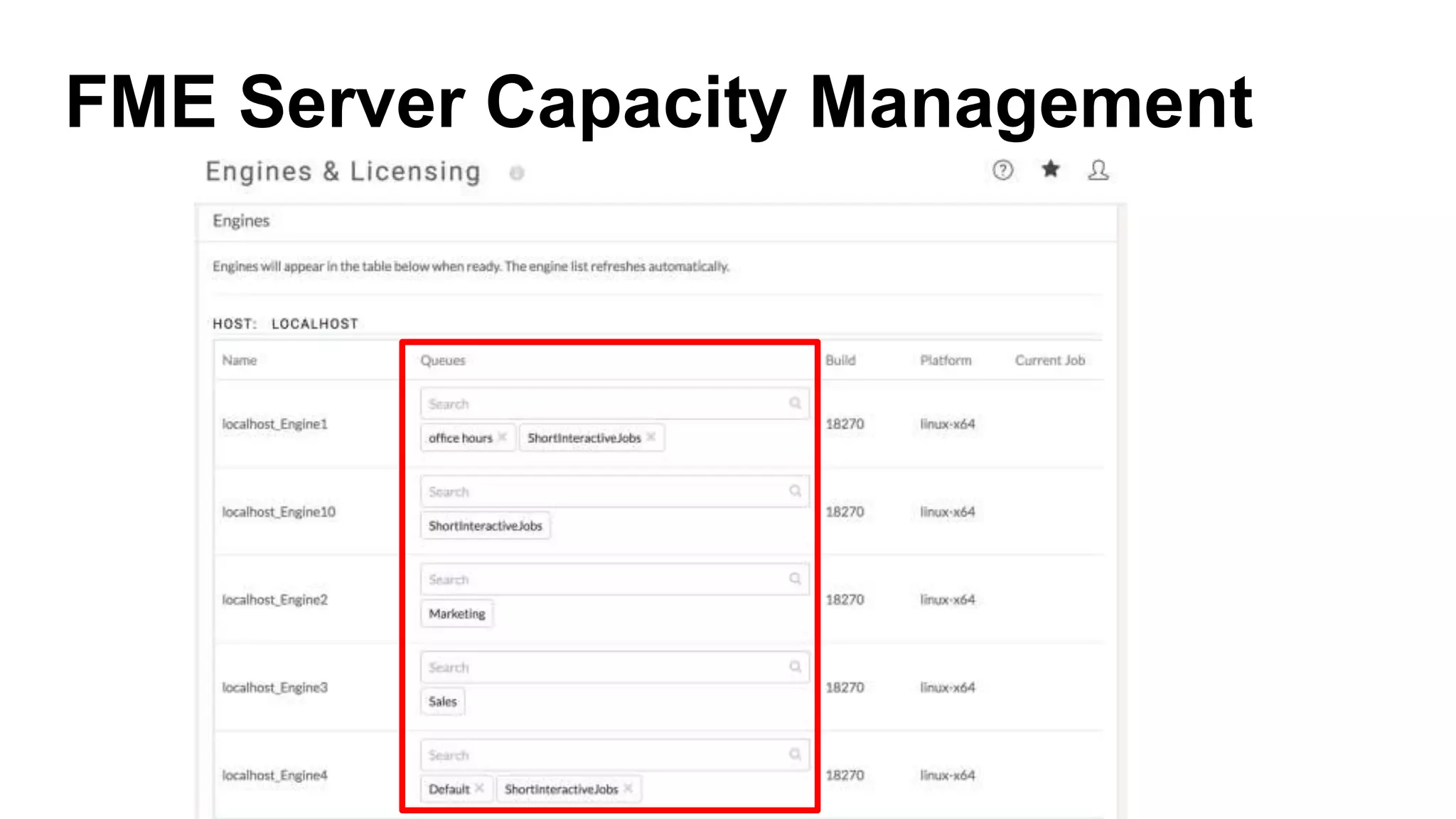
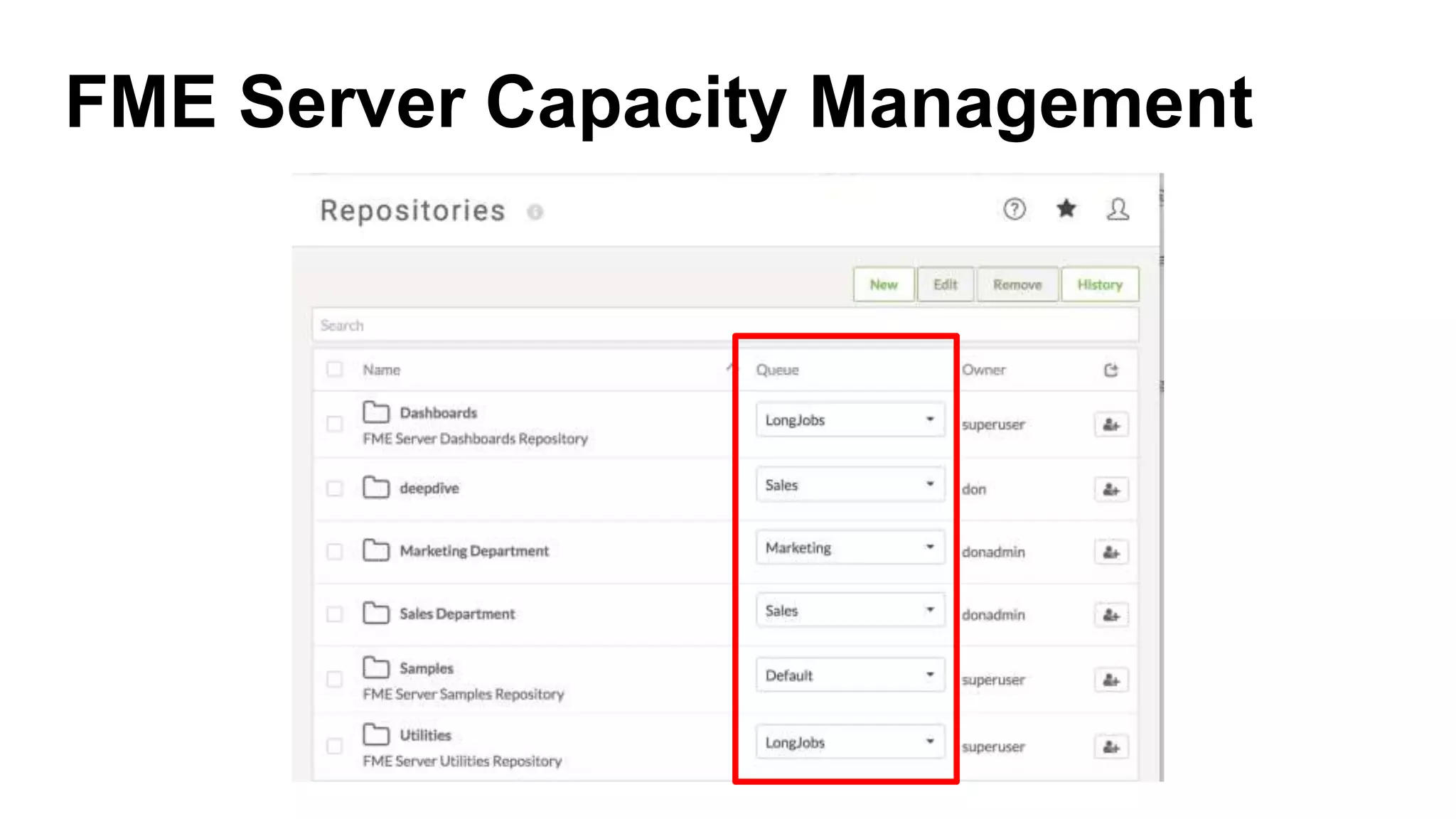
FME Server Capacity Management
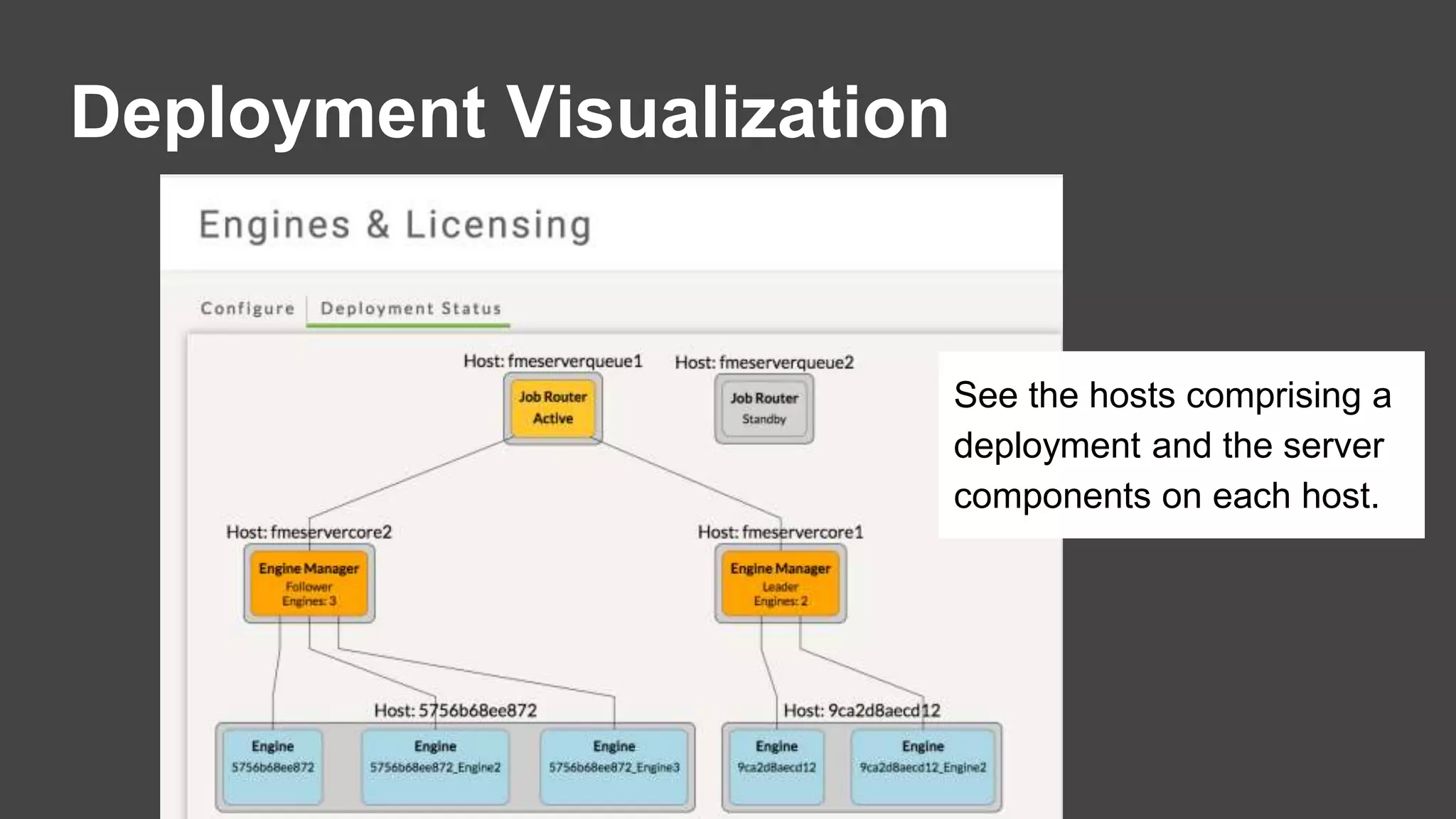
Deployment Visualization
See the hosts comprising a
deployment and the server
components on each host.
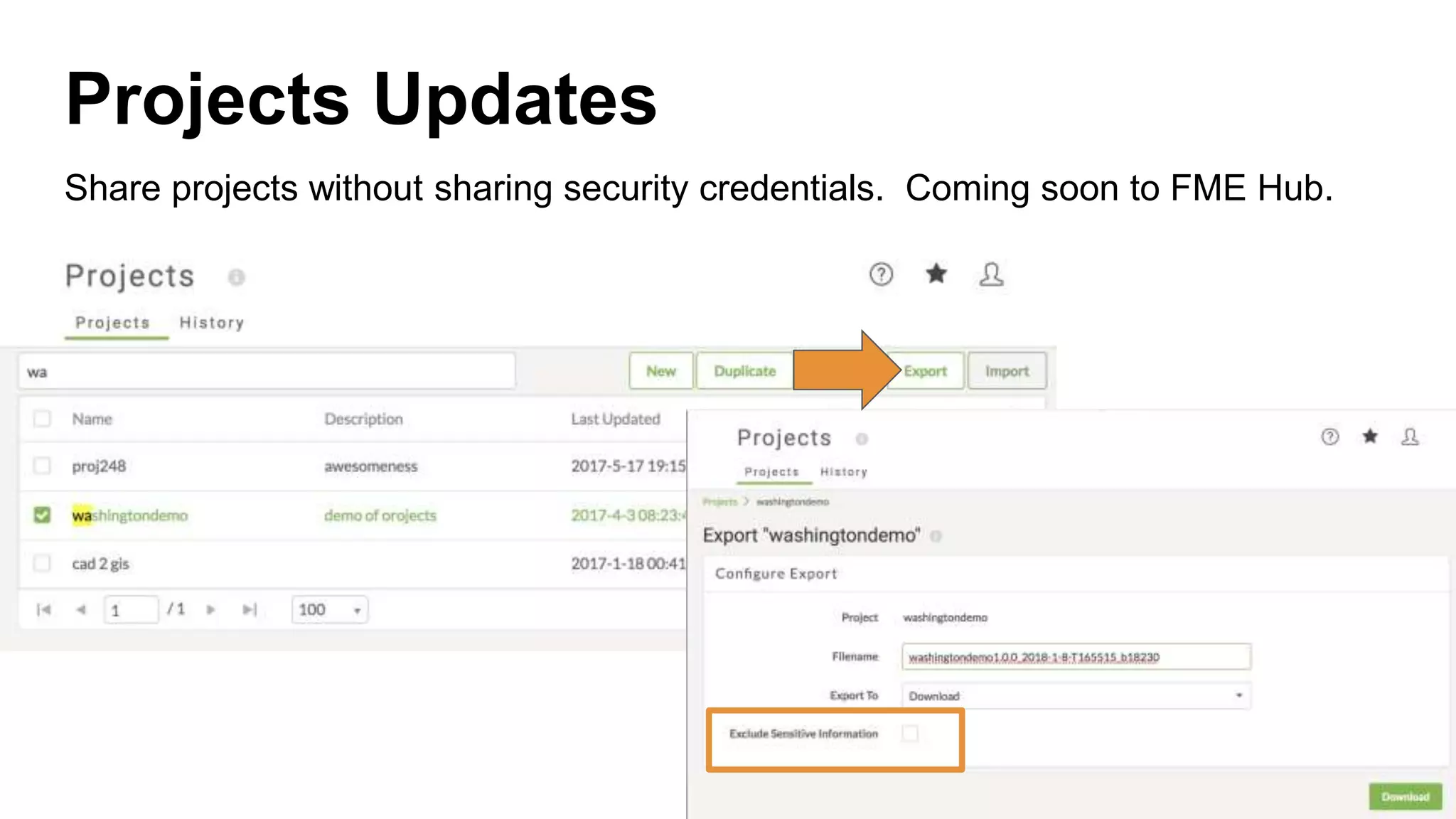
Projects Updates
Share projects without sharing security credentials. Coming soon to FME Hub.
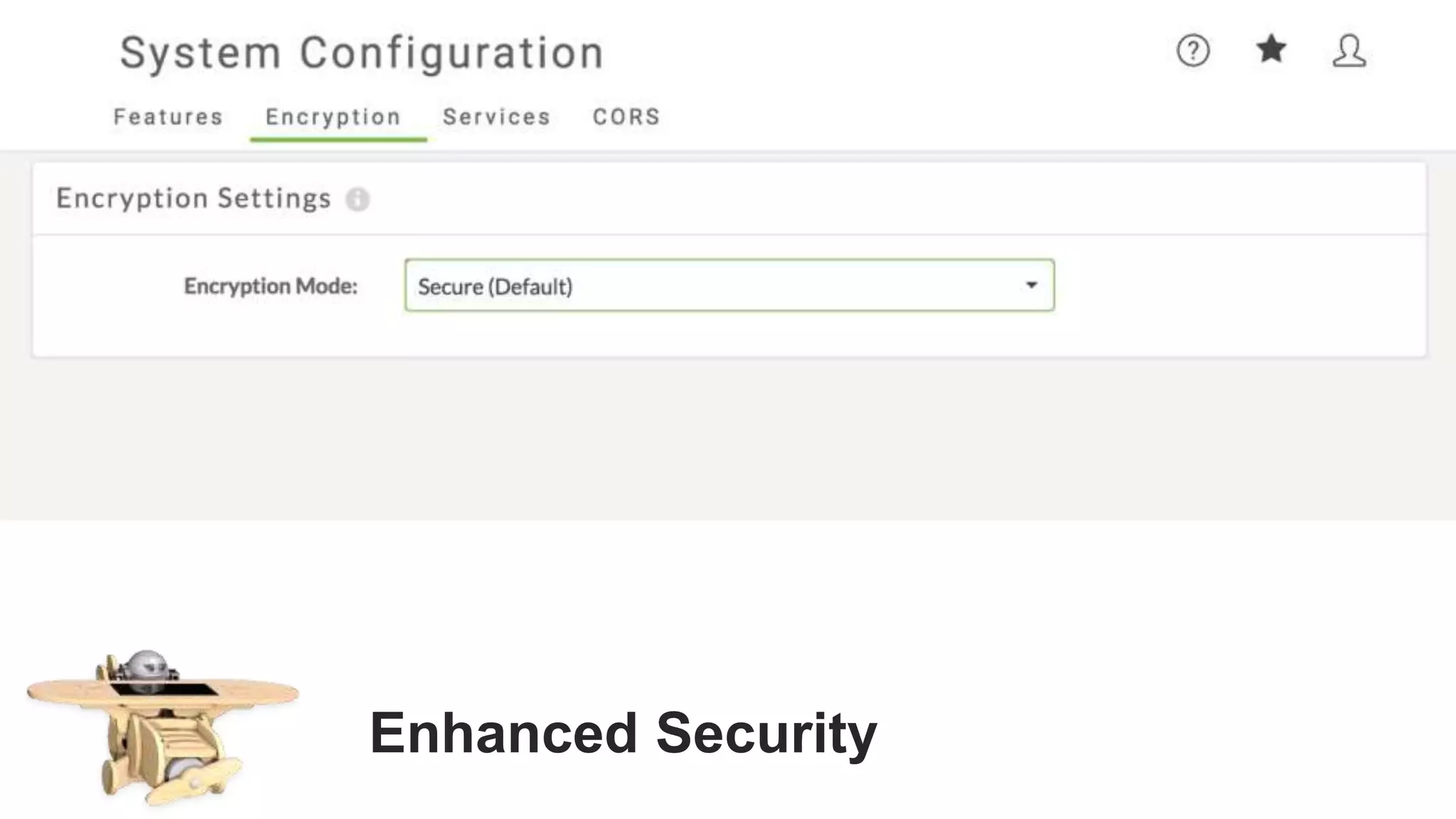
Enhanced Security
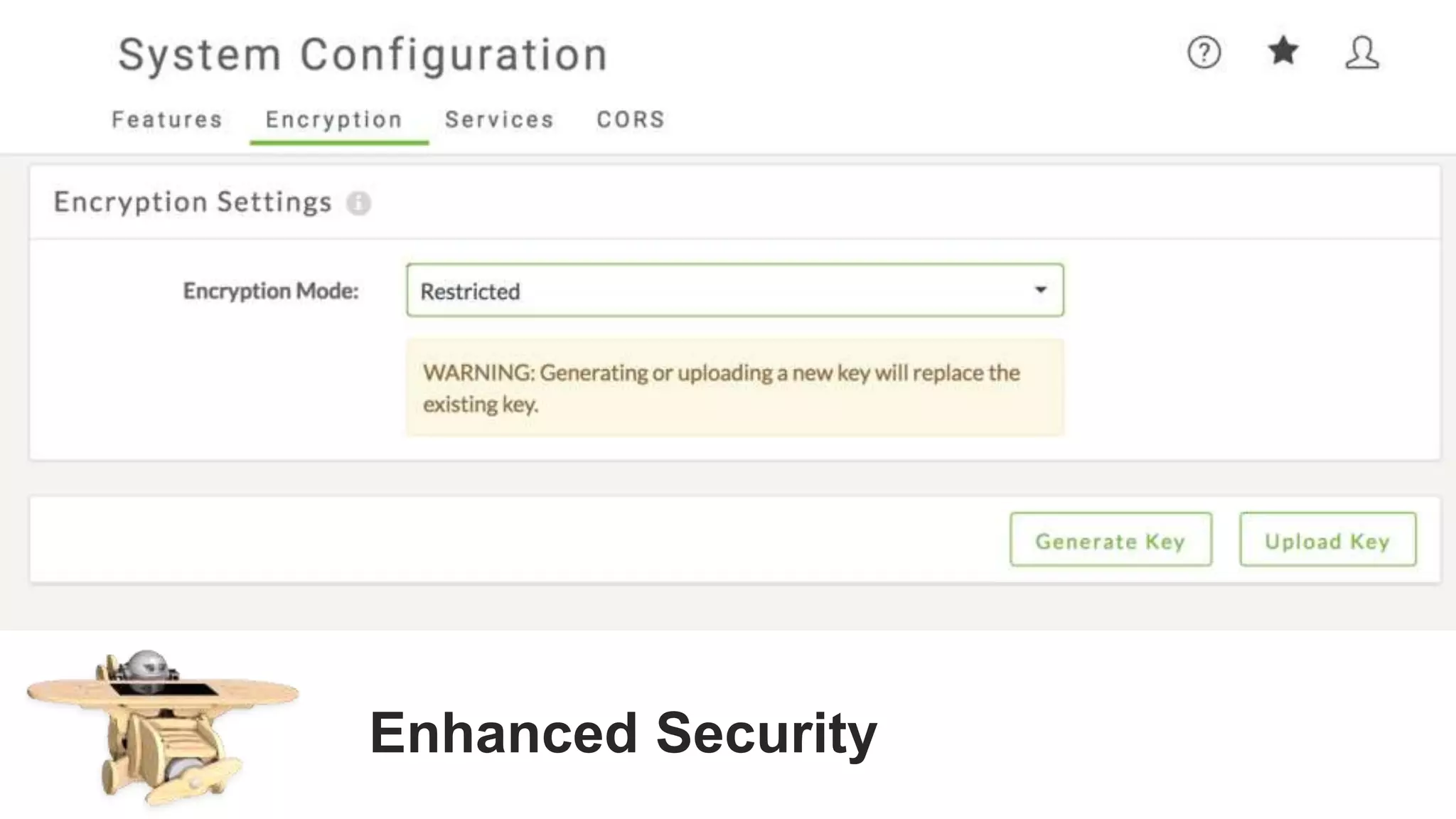
Enhanced Security
Fault Tolerance (Tech Preview)
FME Server 2018.0 is built
from the ground up to be
easily deployed across many
machines.
FME Server on Docker
Out of tech preview! Quickly deploy FME Server on any platform that supports Docker.
PREPARE FOR LANDING
FME Server 2018 is a big release that
lays the foundation for many more
exciting things in the future!
Q&A

Redesigned FME Server 2018

Editor's Notes

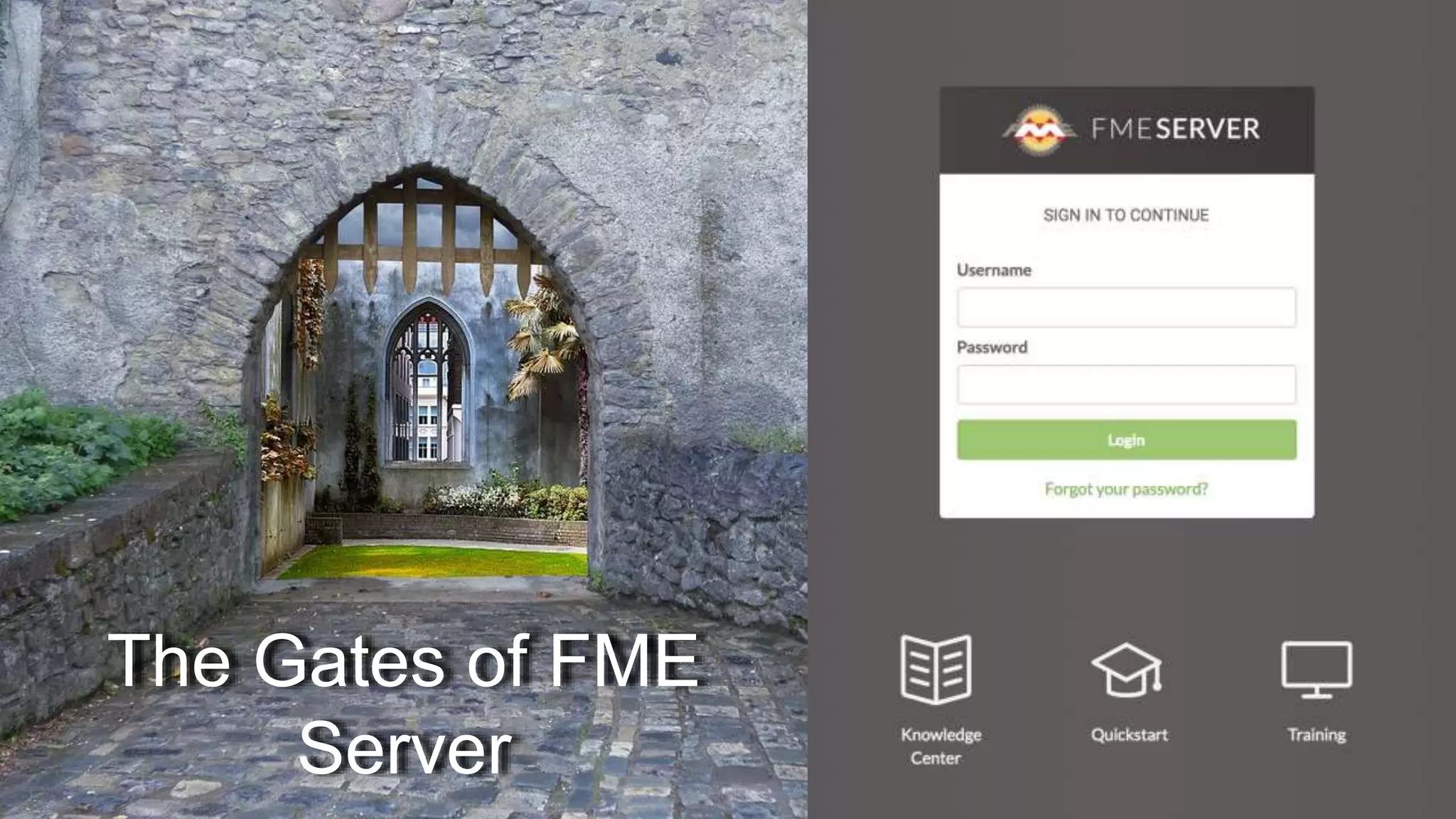
  • #5 This is where it all begins with server. These are the gates of FME Server. Don’t know what to do then we give you a clue by clicking on Quickstart! Give it a try if you dare!
  • #8 Whoa the lights of FME Server are too bright. Can you turn them down. Of course we can we now have Dark. Some like dark, some like light. Some like both. Click on the upper right “head” icon and then switch to dark mode.
  • #9 From the desktop deep dive was a simple workspace that took PDF and output it to Shape. Let’s publish it to server so that we can share and run this by many. Publish this as both Data Download and Job Submitter.
  • #10 Show how to run this. Demo the drag and drop of file onto the source. Show the data download first. Then write it to a shared resource. I can also send a link to someone to run. As long as they can logon they can run the job. This one is really generic and guest/guest works. Question: Wouldn’t it be nice if I could just give you a link and it could run even if you didn’t have an account or know what fme server even is? Answer: Oh ya. Oh ya. Oh ya. FME 2018.1 is it.
  • #11 When you published did you notice the button that said “Commit”? What is that about? FME Server 2018 now has a versioning system on it. Let’s take a look at that. We are very excited about this functionality as it can help both desktop and server users. Please try it, give it a go, and let us know what you want next on this. First from an administration point of view. Only users that are administrators are able to configure Versioning. Once enabled however any user that can publish workspaces to the server can create new versions of their work when they want to. Simple version can be turned on by simply. But if you are concerned about versions then you really should also put something behind it. Note: Versions of workspaces are not stored when we do a backup. We instead give you the ability of connecting the versions to a remote git system. Here we will are using github.
  • #12 Simply fill in the Git repository URL and token and you are good to go. You can now push to the remote server. When performing a migration you should do this as well. As part of a server backup you should also push to remote git system. Then when you go to a new machine you can use the “fetch from Remote” just after your FME Server restore and you will be good to go. That is it for the Administration side. Only job for the administrator is to decide when to “push to remote”. Now let’s look at the user side of things.
  • #13 When it comes to the author or workspace creator there are two ways that a user can commit something to the version control system. On Desktop you can do it whenever you want. Even if you don’t have a server license you could still install server and use it as your workspace repository and version system. Several benefits of this. A single place for all workspaces. Easy to work with others. Now you have version control system as well that is git backed. Whenever you have something you like you commit it knowing you can always go back again. Let’s publish this workspace as a favorite “Jenn Likes this one” or something. Nice thing is that you as the user decide when you have something you want to commit. We don’t store every edit but rather each “version” that you think is significant or worth “checkpointing”.
  • #14 From the server we can also work with the Versions. We can commit one here. When working with server workflows this is probably where you would do it. Once you have something working then you commit the workspace here. How do you get an old version if you want to go back?
  • #15 To roll back this is simple as well. Simply click on the history button. Then you can download any version you want. We don’t replace the version currently on the server as that could be part of a production run. If you want to replace you would download and then republish. For desktop workflows this is great too. We will show this
  • #16 In the past to view workspaces you had to download them to your desktop. Not anymore now with FME Server you can view them directly on the web. This is the beginning of exciting future functionality for FME and FME Server.
  • #17 Ok. lots of new and exciting things there. Now let’s get back to creating something that is automated. Show how to build a simple schedule. Minor updates here. Here we create a schedule that runs every night.
  • #18 In the past it has been tough to find those failed or problem jobs. Now it is much easier. Filter by User and success/fail of workspace.
  • #19 How can organizations manage their server? How can you ensure that one department doesnt’ swamp another one or that large jobs don’t eat up all your engines starving out small jobs? Queue creation and management is controlled by the administrator. By clever usage of the queues and job assignment you can ensure that the most important jobs get done and also that a single server resources are allocated as you want. First thing to do is to create queues and assign them to Engines. Some changes for FME 2018 Queues have priorities. We are deprecating the job priority. You can then assign the queues to explicit engines. Lots of powerful things you can do with queues and engines in FME 2018. Laying down the framework for an elastic world of engines.
  • #20 Next the adminstrator can assign repositories to queues. What this does is set the queue that a workspace that is in a repository will use when run. In this way you can control the engine usage and make it easier to share and allocate your server resources.
  • #21 In the past it was difficult to know how your server was deployed and where the components were located. For FME 2018 we have re-architected many of the server components. Now thru a single page you can visually see and get information about your server. See where things are deployed and what jobs are being done by engines.
  • #22 create a project with the workspace and the schedule in it.
  • #23 If security is of paramount concern then we have a new encryption mode where everything is encrypted. You need to be careful as if you encrypt your server and back it up you won’t be able to restore to another server if you don’t have the key. You can only restore to server in which the key has been previously applied.
  • #24 Don’t lose your key!!!! Then try to back up local/docker without key
  • #25 The reason for this architecture is we built FME Server from the ground up to be Fault-tolerant. In the past there were different deployments of Actiive-Active and Active-Passive each had a strength and each strengths and weaknesses.