HTML
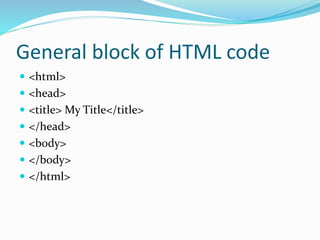
General block of HTML code
 <html>
 <head>
 <title> My Title</title>
 </head>
 <body>
 </body>
 </html>
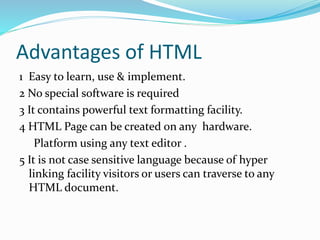
Advantages of HTML
1 Easy to learn, use & implement.
2 No special software is required
3 It contains powerful text formatting facility.
4 HTML Page can be created on any hardware.
Platform using any text editor .
5 It is not case sensitive language because of hyper
linking facility visitors or users can traverse to any
HTML document.
Disadvantages of HTML
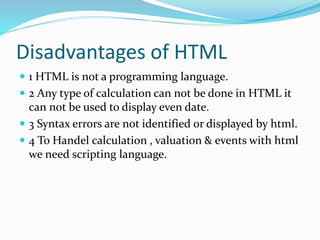
 1 HTML is not a programming language.
 2 Any type of calculation can not be done in HTML it
can not be used to display even date.
 3 Syntax errors are not identified or displayed by html.
 4 To Handel calculation , valuation & events with html
we need scripting language.
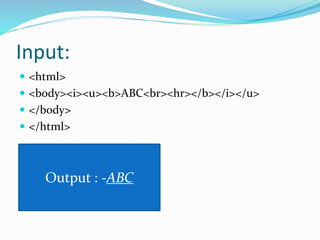
Input:
 <html>
 <body><i><u><b>ABC<br><hr></b></i></u>
 </body>
 </html>
Output : -ABC
Input: Big & Small
 <html>
 <body><h5>We are<big>IT</big>student</h5><br>
 <h1>small tag<small></small></h1>
 </body>
 </html>
Output : - We are IT Student
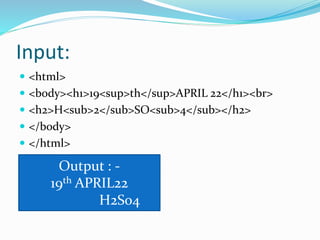
Input:
 <html>
 <body><h1>19<sup>th</sup>APRIL 22</h1><br>
 <h2>H<sub>2</sub>SO<sub>4</sub></h2>
 </body>
 </html>
Output : -
19th APRIL22
H2So4
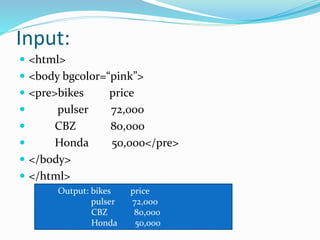
Input:
 <html>
 <body bgcolor=“pink”>
 <pre>bikes price
 pulser 72,000
 CBZ 80,000
 Honda 50,000</pre>
 </body>
 </html>
Output: bikes price
pulser 72,000
CBZ 80,000
Honda 50,000
Important tag for display for the
list
 1] Order List(OL)
 2] Unorder List(UL)
 3] Definition List
Attributes for<ol>
 i] <ol type>
 E.g <ol type=“A”>
 ii] <ol start>
 E.g <ol start=“1112”>
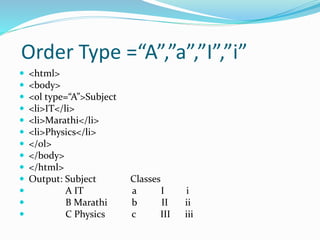
Order Type =“A”,”a”,”I”,”i”
 <html>
 <body>
 <ol type=“A”>Subject
 <li>IT</li>
 <li>Marathi</li>
 <li>Physics</li>
 </ol>
 </body>
 </html>
 Output: Subject Classes
 A IT a I i
 B Marathi b II ii
 C Physics c III iii
1] Order List
 <html>
 <body>
 <ol>Subject
 <li>IT</li>
 <li>Marathi</li>
 <li>Physics</li>
 </ol> Output: Subject
 </body> 1 IT
 </html> 2 Marathi
 3 Physics
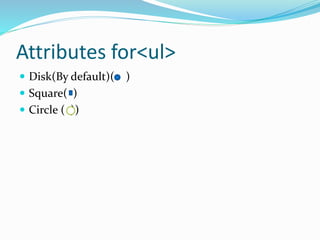
Attributes for<ul>
 Disk(By default)( )
 Square( )
 Circle ( ))
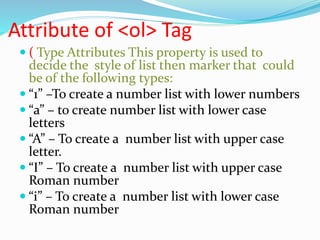
Attribute of <ol> Tag
 ( Type Attributes This property is used to
decide the style of list then marker that could
be of the following types:
 “1” –To create a number list with lower numbers
 “a” – to create number list with lower case
letters
 “A” – To create a number list with upper case
letter.
 “I” – To create a number list with upper case
Roman number
 “i” – To create a number list with lower case
Roman number
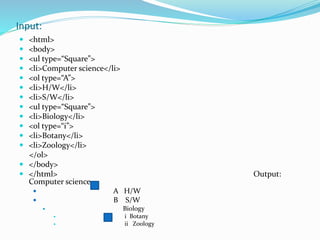
Input:
 <html>
 <body>
 <ul type=“Square”>
 <li>Computer science</li>
 <ol type=“A”>
 <li>H/W</li>
 <li>S/W</li>
 <ul type=“Square”>
 <li>Biology</li>
 <ol type=“i”>
 <li>Botany</li>
 <li>Zoology</li>
</ol>
 </body>
 </html> Output:
Computer science
 A H/W
 B S/W
 Biology
 i Botany
 ii Zoology
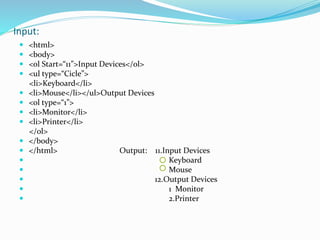
Input:
 <html>
 <body>
 <ol Start=“11”>Input Devices</ol>
 <ul type=“Cicle”>
<li>Keyboard</li>
 <li>Mouse</li></ul>Output Devices
 <ol type=“1”>
 <li>Monitor</li>
 <li>Printer</li>
</ol>
 </body>
 </html> Output: 11.Input Devices
 Keyboard
 Mouse
 12.Output Devices
 1 Monitor
 2.Printer
To insert image on web page we
used <img>
 1] src –path of image file
 2] hight
 3] width
 4] Border
 5]Align value for align (Top,bottom,center,left,right)
6]’H’space /’V’ space text
ggggggggggggg‘h’ space ............
.............
‘V’space ..............
...............
...............
..............
Image
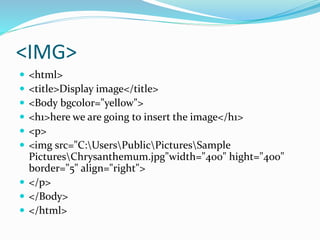
<IMG>
 <html>
 <title>Display image</title>
 <Body bgcolor="yellow">
 <h1>here we are going to insert the image</h1>
 <p>
 <img src="C:UsersPublicPicturesSample
PicturesChrysanthemum.jpg"width="400" hight="400"
border="5" align="right">
 </p>
 </Body>
 </html>
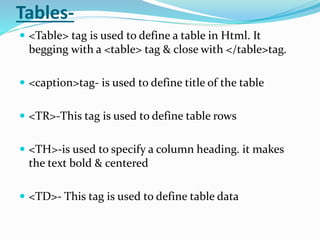
Tables-
 <Table> tag is used to define a table in Html. It
begging with a <table> tag & close with </table>tag.
 <caption>tag- is used to define title of the table
 <TR>-This tag is used to define table rows
 <TH>-is used to specify a column heading. it makes
the text bold & centered
 <TD>- This tag is used to define table data
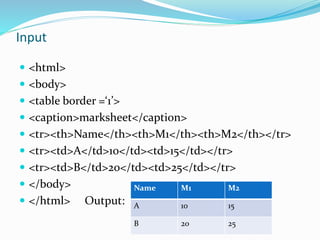
Input
 <html>
 <body>
 <table border =‘1’>
 <caption>marksheet</caption>
 <tr><th>Name</th><th>M1</th><th>M2</th></tr>
 <tr><td>A</td>10</td><td>15</td></tr>
 <tr><td>B</td>20</td><td>25</td></tr>
 </body>
 </html> Output: Marksheet
Name M1 M2
A 10 15
B 20 25
Different attributes of table
 1 ] Border
 2] Align
 3] Width
 4] Border Color
 5 ] Cellspacing – It spacifies the width of the border
betn indivual cell of table & border of the table itself.
 6 ] Cellpadding – It spacifies the space to be left
inpixces the border of table cell & it contains.
 cellspace
cellpadding
3
Different attributes of table
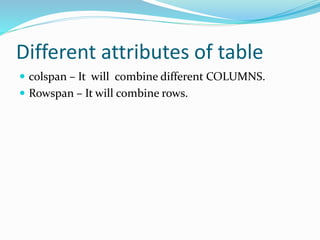
 colspan – It will combine different COLUMNS.
 Rowspan – It will combine rows.
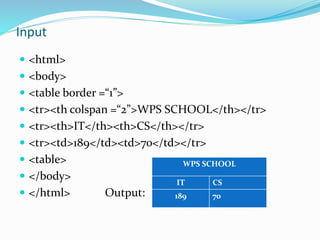
Input
 <html>
 <body>
 <table border =“1”>
 <tr><th colspan =“2”>WPS SCHOOL</th></tr>
 <tr><th>IT</th><th>CS</th></tr>
 <tr><td>189</td><td>70</td></tr>
 <table>
 </body>
 </html> Output:
WPS SCHOOL
IT CS
189 70
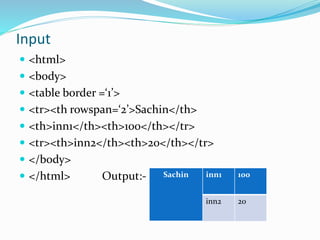
Input
 <html>
 <body>
 <table border =‘1’>
 <tr><th rowspan=‘2’>Sachin</th>
 <th>inn1</th><th>100</th></tr>
 <tr><th>inn2</th><th>20</th></tr>
 </body>
 </html> Output:- Sachin inn1 100
inn2 20
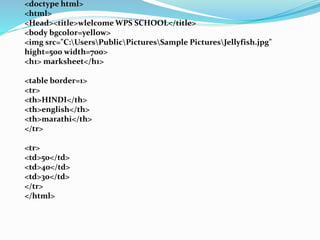
<doctype html>
<html>
<Head><title>wlelcome WPS SCHOOL</title>
<body bgcolor=yellow>
<img src="C:UsersPublicPicturesSample PicturesJellyfish.jpg"
hight=500 width=700>
<h1> marksheet</h1>
<table border=1>
<tr>
<th>HINDI</th>
<th>english</th>
<th>marathi</th>
</tr>
<tr>
<td>50</td>
<td>40</td>
<td>30</td>
</tr>
</html>
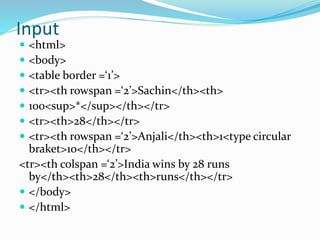
Input
 <html>
 <body>
 <table border =‘1’>
 <tr><th rowspan =‘2’>Sachin</th><th>
 100<sup>*</sup></th></tr>
 <tr><th>28</th></tr>
 <tr><th rowspan =‘2’>Anjali</th><th>1<type circular
braket>10</th></tr>
<tr><th colspan =‘2’>India wins by 28 runs
by</th><th>28</th><th>runs</th></tr>
 </body>
 </html>
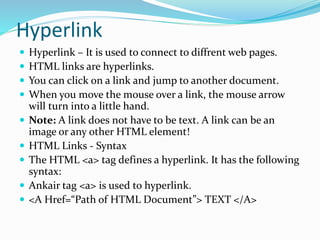
Hyperlink
 Hyperlink – It is used to connect to diffrent web pages.
 HTML links are hyperlinks.
 You can click on a link and jump to another document.
 When you move the mouse over a link, the mouse arrow
will turn into a little hand.
 Note: A link does not have to be text. A link can be an
image or any other HTML element!
 HTML Links - Syntax
 The HTML <a> tag defines a hyperlink. It has the following
syntax:
 Ankair tag <a> is used to hyperlink.
 <A Href=“Path of HTML Document”> TEXT </A>
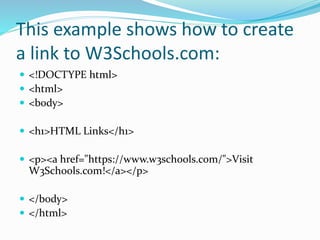
This example shows how to create
a link to W3Schools.com:
 <!DOCTYPE html>
 <html>
 <body>
 <h1>HTML Links</h1>
 <p><a href="https://www.w3schools.com/">Visit
W3Schools.com!</a></p>
 </body>
 </html>
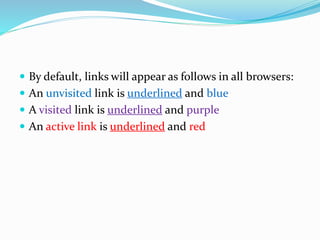
 By default, links will appear as follows in all browsers:
 An unvisited link is underlined and blue
 A visited link is underlined and purple
 An active link is underlined and red
Forms & Frame
 A Form is a collection of Fields of the information on
a page.
 The various fields of data in a form may contain text
boxes, radio buttons, drop-down menus, check boxes,
password boxes, and other elements. These element
are called Form Controls.
Forms & Frame
 Syntax <HTML>
 <FROM>
 FORM ELEMENTS
 </FROM>
 </BODY>
 </HTML>
Input Elements
 Input elements are the form element that can accept input from
the user. the following are the some of the input elements that
can be added to form .these are also called form Controls.
 Text Box
 Check Box
 Radio Button
 Password box
 Buttons
 Drop down list
 Combo box
 Text area
Input tag & Its Attributes
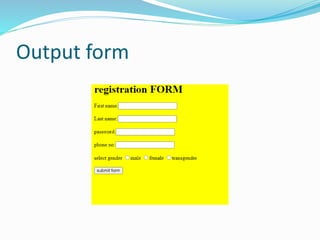
 <HTML>
 <BODY bgcolor="yellow">
 <H1>registration FORM</h1>
 <FORM>
 First name:<input type="text"><br><br>
 Last name:<input type="text"><br><br>
 password:<input type="Password"><br><br>
 phone no:<input type="text"><br><br>
 select gender
 <input type="radio"name="gender">male
 <input type="radio"name="gender">female
 <input type="radio"name="gender">transgender<br><br>
 <input Type =“checkbox” Name =“Check”>set Google as my default home page.<br><br>
 <button type="submit" value="Submit">submit form </button>
 </FORM>
 </HTML>
Output form
CSS is the language we use to style an html document.
CSS describe how HTML ELEMENTS should be
displayed
https://www.youtube.com/watch?v=79qvk2T6R68
An id name cannot start with a
number! The CSS class Selector.
The class selector selects HTML
elements with a specific class
attribute
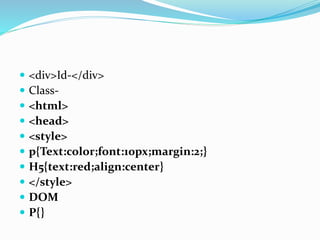
 <div>Id-</div>
 Class-
 <html>
 <head>
 <style>
 p{Text:color;font:10px;margin:2;}
 H5{text:red;align:center}
 </style>
 DOM
 P{}
An id name cannot start with a
number! The CSS class Selector. The
class selector selects HTML elements
with a specific class attribut
CSS Introduction
CSS is the language we use to style a Web page.
 What is CSS?
 CSS stands for Cascading Style Sheets
 CSS describes how HTML elements are to be displayed
on screen, paper, or in other media
 CSS saves a lot of work. It can control the layout of
multiple web pages all at once
 External stylesheets are stored in CSS files

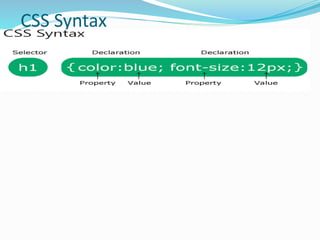
CSS Syntax
Three Ways to Insert CSS
There are three ways of inserting a style sheet:
External CSS
Internal CSS
Inline CSS
 Using CSS
 CSS can be added to HTML documents in 3 ways:
 Inline - by using the style attribute inside HTML
elements
 Internal - by using a <style> element in
the <head> section
 External - by using a <link> element to link to an
external CSS file

External CSS
 External CSS
 With an external style sheet, you can change the look
of an entire website by changing just one file!
 Each HTML page must include a reference to the
external style sheet file inside the <link> element,
inside the head section.
Example
External styles are defined
within the <link> element,
inside the <head> section of
an HTML page: "mystyle.css"
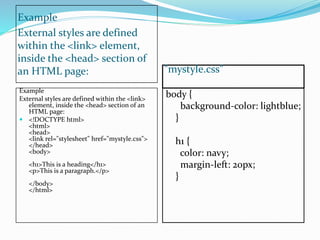
Example
External styles are defined within the <link>
element, inside the <head> section of an
HTML page:
 <!DOCTYPE html>
<html>
<head>
<link rel="stylesheet" href="mystyle.css">
</head>
<body>
<h1>This is a heading</h1>
<p>This is a paragraph.</p>
</body>
</html>
body {
background-color: lightblue;
}
h1 {
color: navy;
margin-left: 20px;
}

HTML.pptx

  • 1.
  • 2.
    General block ofHTML code  <html>  <head>  <title> My Title</title>  </head>  <body>  </body>  </html>
  • 3.
    Advantages of HTML 1Easy to learn, use & implement. 2 No special software is required 3 It contains powerful text formatting facility. 4 HTML Page can be created on any hardware. Platform using any text editor . 5 It is not case sensitive language because of hyper linking facility visitors or users can traverse to any HTML document.
  • 4.
    Disadvantages of HTML 1 HTML is not a programming language.  2 Any type of calculation can not be done in HTML it can not be used to display even date.  3 Syntax errors are not identified or displayed by html.  4 To Handel calculation , valuation & events with html we need scripting language.
  • 5.
  • 6.
    Input: Big &Small  <html>  <body><h5>We are<big>IT</big>student</h5><br>  <h1>small tag<small></small></h1>  </body>  </html> Output : - We are IT Student
  • 7.
    Input:  <html>  <body><h1>19<sup>th</sup>APRIL22</h1><br>  <h2>H<sub>2</sub>SO<sub>4</sub></h2>  </body>  </html> Output : - 19th APRIL22 H2So4
  • 8.
    Input:  <html>  <bodybgcolor=“pink”>  <pre>bikes price  pulser 72,000  CBZ 80,000  Honda 50,000</pre>  </body>  </html> Output: bikes price pulser 72,000 CBZ 80,000 Honda 50,000
  • 9.
    Important tag fordisplay for the list  1] Order List(OL)  2] Unorder List(UL)  3] Definition List
  • 10.
    Attributes for<ol>  i]<ol type>  E.g <ol type=“A”>  ii] <ol start>  E.g <ol start=“1112”>
  • 11.
    Order Type =“A”,”a”,”I”,”i” <html>  <body>  <ol type=“A”>Subject  <li>IT</li>  <li>Marathi</li>  <li>Physics</li>  </ol>  </body>  </html>  Output: Subject Classes  A IT a I i  B Marathi b II ii  C Physics c III iii
  • 12.
    1] Order List <html>  <body>  <ol>Subject  <li>IT</li>  <li>Marathi</li>  <li>Physics</li>  </ol> Output: Subject  </body> 1 IT  </html> 2 Marathi  3 Physics
  • 13.
    Attributes for<ul>  Disk(Bydefault)( )  Square( )  Circle ( ))
  • 14.
    Attribute of <ol>Tag  ( Type Attributes This property is used to decide the style of list then marker that could be of the following types:  “1” –To create a number list with lower numbers  “a” – to create number list with lower case letters  “A” – To create a number list with upper case letter.  “I” – To create a number list with upper case Roman number  “i” – To create a number list with lower case Roman number
  • 15.
    Input:  <html>  <body> <ul type=“Square”>  <li>Computer science</li>  <ol type=“A”>  <li>H/W</li>  <li>S/W</li>  <ul type=“Square”>  <li>Biology</li>  <ol type=“i”>  <li>Botany</li>  <li>Zoology</li> </ol>  </body>  </html> Output: Computer science  A H/W  B S/W  Biology  i Botany  ii Zoology
  • 16.
    Input:  <html>  <body> <ol Start=“11”>Input Devices</ol>  <ul type=“Cicle”> <li>Keyboard</li>  <li>Mouse</li></ul>Output Devices  <ol type=“1”>  <li>Monitor</li>  <li>Printer</li> </ol>  </body>  </html> Output: 11.Input Devices  Keyboard  Mouse  12.Output Devices  1 Monitor  2.Printer
  • 17.
    To insert imageon web page we used <img>  1] src –path of image file  2] hight  3] width  4] Border  5]Align value for align (Top,bottom,center,left,right) 6]’H’space /’V’ space text ggggggggggggg‘h’ space ............ ............. ‘V’space .............. ............... ............... .............. Image
  • 18.
    <IMG>  <html>  <title>Displayimage</title>  <Body bgcolor="yellow">  <h1>here we are going to insert the image</h1>  <p>  <img src="C:UsersPublicPicturesSample PicturesChrysanthemum.jpg"width="400" hight="400" border="5" align="right">  </p>  </Body>  </html>
  • 19.
    Tables-  <Table> tagis used to define a table in Html. It begging with a <table> tag & close with </table>tag.  <caption>tag- is used to define title of the table  <TR>-This tag is used to define table rows  <TH>-is used to specify a column heading. it makes the text bold & centered  <TD>- This tag is used to define table data
  • 20.
    Input  <html>  <body> <table border =‘1’>  <caption>marksheet</caption>  <tr><th>Name</th><th>M1</th><th>M2</th></tr>  <tr><td>A</td>10</td><td>15</td></tr>  <tr><td>B</td>20</td><td>25</td></tr>  </body>  </html> Output: Marksheet Name M1 M2 A 10 15 B 20 25
  • 21.
    Different attributes oftable  1 ] Border  2] Align  3] Width  4] Border Color  5 ] Cellspacing – It spacifies the width of the border betn indivual cell of table & border of the table itself.  6 ] Cellpadding – It spacifies the space to be left inpixces the border of table cell & it contains.  cellspace cellpadding 3
  • 22.
    Different attributes oftable  colspan – It will combine different COLUMNS.  Rowspan – It will combine rows.
  • 23.
    Input  <html>  <body> <table border =“1”>  <tr><th colspan =“2”>WPS SCHOOL</th></tr>  <tr><th>IT</th><th>CS</th></tr>  <tr><td>189</td><td>70</td></tr>  <table>  </body>  </html> Output: WPS SCHOOL IT CS 189 70
  • 24.
    Input  <html>  <body> <table border =‘1’>  <tr><th rowspan=‘2’>Sachin</th>  <th>inn1</th><th>100</th></tr>  <tr><th>inn2</th><th>20</th></tr>  </body>  </html> Output:- Sachin inn1 100 inn2 20
  • 25.
    <doctype html> <html> <Head><title>wlelcome WPSSCHOOL</title> <body bgcolor=yellow> <img src="C:UsersPublicPicturesSample PicturesJellyfish.jpg" hight=500 width=700> <h1> marksheet</h1> <table border=1> <tr> <th>HINDI</th> <th>english</th> <th>marathi</th> </tr> <tr> <td>50</td> <td>40</td> <td>30</td> </tr> </html>
  • 26.
    Input  <html>  <body> <table border =‘1’>  <tr><th rowspan =‘2’>Sachin</th><th>  100<sup>*</sup></th></tr>  <tr><th>28</th></tr>  <tr><th rowspan =‘2’>Anjali</th><th>1<type circular braket>10</th></tr> <tr><th colspan =‘2’>India wins by 28 runs by</th><th>28</th><th>runs</th></tr>  </body>  </html>
  • 27.
    Hyperlink  Hyperlink –It is used to connect to diffrent web pages.  HTML links are hyperlinks.  You can click on a link and jump to another document.  When you move the mouse over a link, the mouse arrow will turn into a little hand.  Note: A link does not have to be text. A link can be an image or any other HTML element!  HTML Links - Syntax  The HTML <a> tag defines a hyperlink. It has the following syntax:  Ankair tag <a> is used to hyperlink.  <A Href=“Path of HTML Document”> TEXT </A>
  • 28.
    This example showshow to create a link to W3Schools.com:  <!DOCTYPE html>  <html>  <body>  <h1>HTML Links</h1>  <p><a href="https://www.w3schools.com/">Visit W3Schools.com!</a></p>  </body>  </html>
  • 29.
     By default,links will appear as follows in all browsers:  An unvisited link is underlined and blue  A visited link is underlined and purple  An active link is underlined and red
  • 30.
    Forms & Frame A Form is a collection of Fields of the information on a page.  The various fields of data in a form may contain text boxes, radio buttons, drop-down menus, check boxes, password boxes, and other elements. These element are called Form Controls.
  • 31.
    Forms & Frame Syntax <HTML>  <FROM>  FORM ELEMENTS  </FROM>  </BODY>  </HTML>
  • 32.
    Input Elements  Inputelements are the form element that can accept input from the user. the following are the some of the input elements that can be added to form .these are also called form Controls.  Text Box  Check Box  Radio Button  Password box  Buttons  Drop down list  Combo box  Text area
  • 33.
    Input tag &Its Attributes  <HTML>  <BODY bgcolor="yellow">  <H1>registration FORM</h1>  <FORM>  First name:<input type="text"><br><br>  Last name:<input type="text"><br><br>  password:<input type="Password"><br><br>  phone no:<input type="text"><br><br>  select gender  <input type="radio"name="gender">male  <input type="radio"name="gender">female  <input type="radio"name="gender">transgender<br><br>  <input Type =“checkbox” Name =“Check”>set Google as my default home page.<br><br>  <button type="submit" value="Submit">submit form </button>  </FORM>  </HTML>
  • 34.
  • 35.
    CSS is thelanguage we use to style an html document. CSS describe how HTML ELEMENTS should be displayed https://www.youtube.com/watch?v=79qvk2T6R68
  • 36.
    An id namecannot start with a number! The CSS class Selector. The class selector selects HTML elements with a specific class attribute
  • 37.
     <div>Id-</div>  Class- <html>  <head>  <style>  p{Text:color;font:10px;margin:2;}  H5{text:red;align:center}  </style>  DOM  P{}
  • 38.
    An id namecannot start with a number! The CSS class Selector. The class selector selects HTML elements with a specific class attribut
  • 39.
    CSS Introduction CSS isthe language we use to style a Web page.  What is CSS?  CSS stands for Cascading Style Sheets  CSS describes how HTML elements are to be displayed on screen, paper, or in other media  CSS saves a lot of work. It can control the layout of multiple web pages all at once  External stylesheets are stored in CSS files 
  • 40.
  • 41.
    Three Ways toInsert CSS There are three ways of inserting a style sheet: External CSS Internal CSS Inline CSS  Using CSS  CSS can be added to HTML documents in 3 ways:  Inline - by using the style attribute inside HTML elements  Internal - by using a <style> element in the <head> section  External - by using a <link> element to link to an external CSS file 
  • 42.
    External CSS  ExternalCSS  With an external style sheet, you can change the look of an entire website by changing just one file!  Each HTML page must include a reference to the external style sheet file inside the <link> element, inside the head section.
  • 43.
    Example External styles aredefined within the <link> element, inside the <head> section of an HTML page: "mystyle.css" Example External styles are defined within the <link> element, inside the <head> section of an HTML page:  <!DOCTYPE html> <html> <head> <link rel="stylesheet" href="mystyle.css"> </head> <body> <h1>This is a heading</h1> <p>This is a paragraph.</p> </body> </html> body { background-color: lightblue; } h1 { color: navy; margin-left: 20px; }