Tableau Prep
Tableau prep
• Tableau Prep Builder is a tool in the Tableau product suite designed to
make preparing your data easy and intuitive. Use Tableau Prep Builder
to combine, shape, and clean your data for analysis in Tableau.
• Start by connecting to your data from a variety of files, servers, or
Tableau extracts. Connect to and combine data from multiple data
sources. Drag and drop or double-click to bring your tables into the
flow pane, and then add flow steps where you can then use familiar
operations such as filter, split, rename, pivot, join, union and more to
clean and shape your data.
• Each step in the process is represented visually in a flow chart that you
create and control. Tableau Prep tracks each operation so that you can
check your work and make changes at any point in the flow.
• When you are finished with your flow, run it to apply the operations to
the entire data set.
Using tableau prep
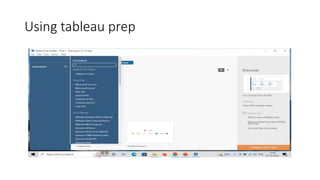
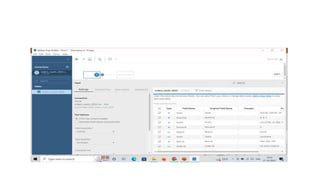
• Go to the > Connections + -> Text File (Any type of file).
• Choose the file Orders_South 2015 (for the given example) -> open
• It will be loaded into the tableau as shown in the next slide.
• The first option is connections that shows the file that we have
loaded into the tableau prep.
• Below that, there is a table option that shows the tables available in
the file that we have uploaded.
• Then in the top right (white area with a flow chart) is known as flow
area that shows how the data flow is going on.
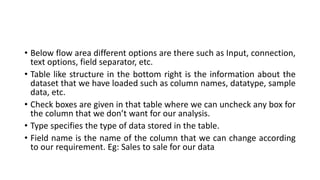
• Below flow area different options are there such as Input, connection,
text options, field separator, etc.
• Table like structure in the bottom right is the information about the
dataset that we have loaded such as column names, datatype, sample
data, etc.
• Check boxes are given in that table where we can uncheck any box for
the column that we don’t want for our analysis.
• Type specifies the type of data stored in the table.
• Field name is the name of the column that we can change according
to our requirement. Eg: Sales to sale for our data
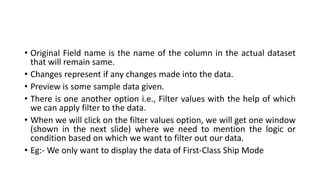
• Original Field name is the name of the column in the actual dataset
that will remain same.
• Changes represent if any changes made into the data.
• Preview is some sample data given.
• There is one another option i.e., Filter values with the help of which
we can apply filter to the data.
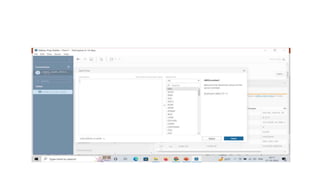
• When we will click on the filter values option, we will get one window
(shown in the next slide) where we need to mention the logic or
condition based on which we want to filter out our data.
• Eg:- We only want to display the data of First-Class Ship Mode
• Add a formula [Ship Mode]='first class’ into the window and click on
apply.
• We can also remove/edit the filter applied to our data by right clicking
• Under input, there are certain options like settings, multiple files,
data sample, changes.
• Multiple files is the option with the help of which we can join multiple
files.
• Data sample is the option that help us to choose how many rows we
want to use.
• Changes is the tab that shows the changes that we made to our data.
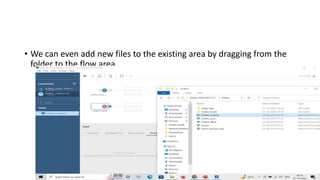
• We can even add new files to the existing area by dragging from the
folder to the flow area.
• In the orders_south table, there are the two columns order date and ship
date. But in orders_central there are 6 columns that are representing order
day, month, year and ship day, month and year. So, this is the problem.
• In the orders_south, region column is there. But in orders_central, region
column is not there. This is also the problem.
• In the orders_central table, order date, ship date and regions, all these
columns are available. But when scrolling down through the columns, there
are duplicate columns with a prefix Right. To remove these duplicate
columns, just check the check box in front of them. And the value given for
the state is AZ, not the full name just like in other tables.
• In the orders_East, there is a prefix (USD) with the values of Sales
column. But in other tables no such prefix is there. So, we need to
remove all these problems from our dataset as a part of cleaning.
Cleaning using
Tableau Prep
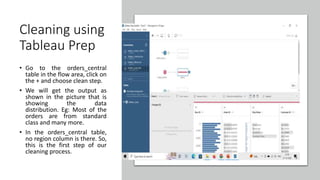
• Go to the orders_central
table in the flow area, click on
the + and choose clean step.
• We will get the output as
shown in the picture that is
showing the data
distribution. Eg: Most of the
orders are from standard
class and many more.
• In the orders_central table,
no region column is there. So,
this is the first step of our
cleaning process.
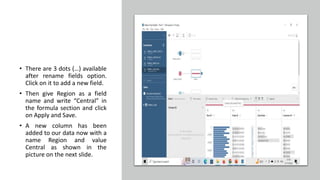
• There are 3 dots (…) available
after rename fields option.
Click on it to add a new field.
• Then give Region as a field
name and write “Central” in
the formula section and click
on Apply and Save.
• A new column has been
added to our data now with a
name Region and value
Central as shown in the
picture on the next slide.
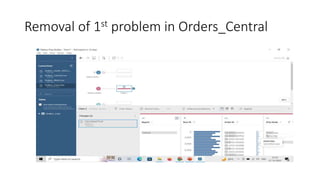
Removal of 1st problem in Orders_Central
• Second issue with the orders_central is missing order date and ship
date column. For this again we will add a new calculated field.
• Enter the details as Order Date as a field name and formula as
MAKEDATE([Order Year],[Order Month],[Order Day]) and click on
apply and save.
• New field with a name Order Date has been added into the data as
shown in the picture on the next slide.
• Similarly add a new field ship date with a formula MAKEDATE([Ship
Year],[Ship Month],[Ship Day]).
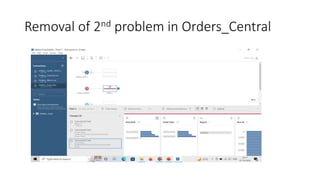
Removal of 2nd problem in Orders_Central
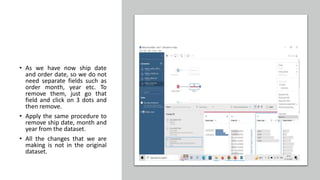
• As we have now ship date
and order date, so we do not
need separate fields such as
order month, year etc. To
remove them, just go that
field and click on 3 dots and
then remove.
• Apply the same procedure to
remove ship date, month and
year from the dataset.
• All the changes that we are
making is not in the original
dataset.
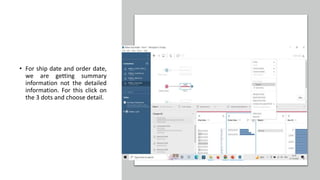
• For ship date and order date,
we are getting summary
information not the detailed
information. For this click on
the 3 dots and choose detail.
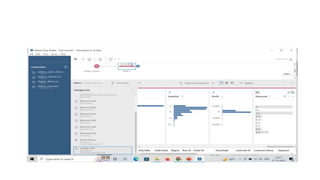
• There is one another issue in the orders_central table that there is a
discount column which is of type abc and one value is None. But if no
discount is there it must be 0. So, to do this, double click on none and
type 0. And to change the datatype, click on abc and choose number.
• We can see all the changes that we have made on the next slide.
• If we want, we can also assign a new name to the 1st clean step by
just double clicking clean 1 and enter a new name as “Fixing date and
discount”.
Removal of 1st
Problem in
Orders_East
• The problem in this table is
there is USD written with the
sales value. So, for this go to
the sales field and click on 3
dots and then choose clean
and then remove letters. It
will automatically remove
USD from the sales.
• After that convert the
datatype to the decimal
number.
• Now orders_east is fine.
Removal of 1st
problem in
Orders_West
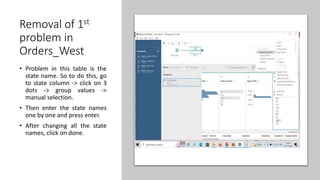
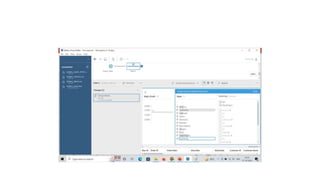
• Problem in this table is the
state name. So to do this, go
to state column -> click on 3
dots -> group values ->
manual selection.
• Then enter the state names
one by one and press enter.
• After changing all the state
names, click on done.
Union of two files
• To perform the union of west and east dataset, drag the cleaning box
of west on to the cleaning step of east. New step will be added that
represents the union.
• Similarly, drag cleaning step of central and drop it on the union made
by east and west.
• At last, drag south data and drop it on the union box created earlier.
• The structure created is represented on the next slide.
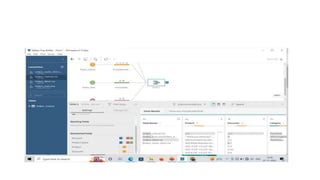
• As shown in the picture, in the left side there is mismatched fields
column that is representing all the mismatched columns from the
union of 4 tables.
• Click on the checkbox of show only mismatched fields and we will
only get those fields.
• Drag Discounts field on the Discount to merge these two and drag
Product to Product Name.
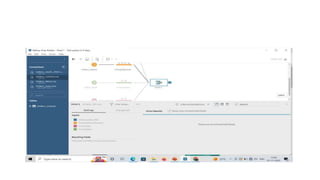
• There are no mismatched fields left as shown in the picture on the
next slide.
• Now add new file, go to + -> Excel file -> Return Reasons_New.

Tableau Prep.pptx

  • 1.
  • 2.
    Tableau prep • TableauPrep Builder is a tool in the Tableau product suite designed to make preparing your data easy and intuitive. Use Tableau Prep Builder to combine, shape, and clean your data for analysis in Tableau. • Start by connecting to your data from a variety of files, servers, or Tableau extracts. Connect to and combine data from multiple data sources. Drag and drop or double-click to bring your tables into the flow pane, and then add flow steps where you can then use familiar operations such as filter, split, rename, pivot, join, union and more to clean and shape your data.
  • 3.
    • Each stepin the process is represented visually in a flow chart that you create and control. Tableau Prep tracks each operation so that you can check your work and make changes at any point in the flow. • When you are finished with your flow, run it to apply the operations to the entire data set.
  • 4.
  • 5.
    • Go tothe > Connections + -> Text File (Any type of file). • Choose the file Orders_South 2015 (for the given example) -> open • It will be loaded into the tableau as shown in the next slide. • The first option is connections that shows the file that we have loaded into the tableau prep. • Below that, there is a table option that shows the tables available in the file that we have uploaded. • Then in the top right (white area with a flow chart) is known as flow area that shows how the data flow is going on.
  • 7.
    • Below flowarea different options are there such as Input, connection, text options, field separator, etc. • Table like structure in the bottom right is the information about the dataset that we have loaded such as column names, datatype, sample data, etc. • Check boxes are given in that table where we can uncheck any box for the column that we don’t want for our analysis. • Type specifies the type of data stored in the table. • Field name is the name of the column that we can change according to our requirement. Eg: Sales to sale for our data
  • 8.
    • Original Fieldname is the name of the column in the actual dataset that will remain same. • Changes represent if any changes made into the data. • Preview is some sample data given. • There is one another option i.e., Filter values with the help of which we can apply filter to the data. • When we will click on the filter values option, we will get one window (shown in the next slide) where we need to mention the logic or condition based on which we want to filter out our data. • Eg:- We only want to display the data of First-Class Ship Mode
  • 10.
    • Add aformula [Ship Mode]='first class’ into the window and click on apply. • We can also remove/edit the filter applied to our data by right clicking
  • 11.
    • Under input,there are certain options like settings, multiple files, data sample, changes. • Multiple files is the option with the help of which we can join multiple files. • Data sample is the option that help us to choose how many rows we want to use. • Changes is the tab that shows the changes that we made to our data.
  • 12.
    • We caneven add new files to the existing area by dragging from the folder to the flow area.
  • 13.
    • In theorders_south table, there are the two columns order date and ship date. But in orders_central there are 6 columns that are representing order day, month, year and ship day, month and year. So, this is the problem. • In the orders_south, region column is there. But in orders_central, region column is not there. This is also the problem. • In the orders_central table, order date, ship date and regions, all these columns are available. But when scrolling down through the columns, there are duplicate columns with a prefix Right. To remove these duplicate columns, just check the check box in front of them. And the value given for the state is AZ, not the full name just like in other tables.
  • 14.
    • In theorders_East, there is a prefix (USD) with the values of Sales column. But in other tables no such prefix is there. So, we need to remove all these problems from our dataset as a part of cleaning.
  • 15.
    Cleaning using Tableau Prep •Go to the orders_central table in the flow area, click on the + and choose clean step. • We will get the output as shown in the picture that is showing the data distribution. Eg: Most of the orders are from standard class and many more. • In the orders_central table, no region column is there. So, this is the first step of our cleaning process.
  • 16.
    • There are3 dots (…) available after rename fields option. Click on it to add a new field. • Then give Region as a field name and write “Central” in the formula section and click on Apply and Save. • A new column has been added to our data now with a name Region and value Central as shown in the picture on the next slide.
  • 17.
    Removal of 1stproblem in Orders_Central
  • 18.
    • Second issuewith the orders_central is missing order date and ship date column. For this again we will add a new calculated field. • Enter the details as Order Date as a field name and formula as MAKEDATE([Order Year],[Order Month],[Order Day]) and click on apply and save. • New field with a name Order Date has been added into the data as shown in the picture on the next slide. • Similarly add a new field ship date with a formula MAKEDATE([Ship Year],[Ship Month],[Ship Day]).
  • 19.
    Removal of 2ndproblem in Orders_Central
  • 20.
    • As wehave now ship date and order date, so we do not need separate fields such as order month, year etc. To remove them, just go that field and click on 3 dots and then remove. • Apply the same procedure to remove ship date, month and year from the dataset. • All the changes that we are making is not in the original dataset.
  • 21.
    • For shipdate and order date, we are getting summary information not the detailed information. For this click on the 3 dots and choose detail.
  • 22.
    • There isone another issue in the orders_central table that there is a discount column which is of type abc and one value is None. But if no discount is there it must be 0. So, to do this, double click on none and type 0. And to change the datatype, click on abc and choose number. • We can see all the changes that we have made on the next slide. • If we want, we can also assign a new name to the 1st clean step by just double clicking clean 1 and enter a new name as “Fixing date and discount”.
  • 24.
    Removal of 1st Problemin Orders_East • The problem in this table is there is USD written with the sales value. So, for this go to the sales field and click on 3 dots and then choose clean and then remove letters. It will automatically remove USD from the sales. • After that convert the datatype to the decimal number. • Now orders_east is fine.
  • 25.
    Removal of 1st problemin Orders_West • Problem in this table is the state name. So to do this, go to state column -> click on 3 dots -> group values -> manual selection. • Then enter the state names one by one and press enter. • After changing all the state names, click on done.
  • 27.
    Union of twofiles • To perform the union of west and east dataset, drag the cleaning box of west on to the cleaning step of east. New step will be added that represents the union. • Similarly, drag cleaning step of central and drop it on the union made by east and west. • At last, drag south data and drop it on the union box created earlier. • The structure created is represented on the next slide. • As shown in the picture, in the left side there is mismatched fields column that is representing all the mismatched columns from the union of 4 tables.
  • 29.
    • Click onthe checkbox of show only mismatched fields and we will only get those fields. • Drag Discounts field on the Discount to merge these two and drag Product to Product Name. • There are no mismatched fields left as shown in the picture on the next slide.
  • 31.
    • Now addnew file, go to + -> Excel file -> Return Reasons_New.