HTML (Hyper Text Markup Language)
❖ Introduction: -
HTML stands for Hyper Text Markup Language. It is basically a
web page designing language which is used to create web
pages for the web sites. It is not just a programming language.
It is used to tell to web browsers about where and how much
size of to display the things such as the videos, the audios, the
images, the graphics, the hyperlinks, etc. on the web pages
over the Internet.
In other words, we can say that it is basically the
complete structure of the web page that display on the
website. It actually provides the form of the structure of
the web page.
It was developed and designed by the great computer scientist “Tim
Berners Lee” at CERN
(Centre for European Research Network) of Switzerland in the year
of 1989. Till now several versions of HTML have been developed like: -
2.0,3.0,4.0,5.0, etc. HTML 5.0 is the latest one of all the versions.
It became the fundamental markup language for the web page designing
are inherited from the HTML like: - XML (Extensible Markup Language),
DHTML (Dynamic HTML), etc.
HTML stands for Hypertext Markup Language. HTML was
originally based on the Standard Generalized Markup Language
(SGML), more complicated document-processing system. To write
HTML pages, you won’t need to know much about SGML. However, it
is necessary to know that one of the main features of SGML is that it
describes the general structure of the content inside documents
rather than its actual appearance on the page or on screen does help.
It is a markup language because the whole document involves the
texts and the special tags which is used. Its file extension is ‘.html’ and
‘.htm’. But ‘.htm’ is not preferred to use.
❖ Advantages of HTML: -
✓ It allows to create attractive web pages.
✓ It allows to prepare multimedia document for web pages.
✓ It allows to link one document to another document.
✓ By using its linking facility, it allows to change or modify the
contents of web pages or websites.
✓ It is supported by over all the web browsers.
✓ It is machine independent language.
✓ It comes with a large collection of instructions (Tags and
Attributes) which makes it suitable for web page designing.
❖ Disadvantages of HTML: -
✓ It does not allow to beauty of the things that display on the web
pages.
✓ It does not have the property to apply the CSS. But it is used with
CSS.
✓ It does not modify the layout of the web pages or the website.
✓ It does not used to load on the server.
➢ Required Steps to create a HTML document: -
However, there are so many software or text editors to create a HTML
document. These are: -
1. Notepad,
2. Notepad++,
3. Sublime Text,
4. Komodo Edit,
5. Coda,
6. Text Wrangler,
7. HTML Kit,
8. Text Edit, etc.
Hence, we open any one text editor among all to create the HTML
document and type the commands, tags, codes, attributes on that text
editor.
➢ Required Steps to save the HTML document: -
1. Click on the File tab on that text editor.
2. Click on the Save.
3. Now, a pop-up window displays to save the file. Just type
‘name.html’ or ‘name.htm’.
4. Click on the Save Button.
➢ Required Steps to open the HTML document: -
1. Click on the File tab on that text editor.
2. Click on the Open.
3. Now, a pop-up window displays to save the file. Just type
‘name.html’ or ‘name.htm’.
4. Click on the Open Button.
Or
Double click on the name of the HTML file (web file).
Or
1. Right click on the name of the HTML file to be opened.
2. Click on Open with option.
3. Now, the name of desired web browser like: - Google
Chrome, Internet Explorer, Mozilla, Firefox, etc.
Note: - To do any changes in the result of HTML document: -
1. Click on View, Source.
2. Perform desired changes to secure file and save
it.
3. Now, go to Internet Explorer.
4. Click on the Refresh Button.
➢ Structure of the HTML document: -
<html>
<head> Heading of the Content
<title> Title of the Content </title>
</head>
<body>
All the contents and the things (that have written under
this tag) display on the web pages.
This is my website “Saurabh Tech India”.
</body>
</html>
Or,
<!DOCTYPE html>
<html>
<head> Heading of the Content
<title> Title of the Content </title>
</head>
<body>
All the contents and the things (that have written under
this tag) display on the web pages.
This is my website “Saurabh Tech India”.
</body>
</html>
➢ Terms of the HTML: -
There are two terms: -
1) Tags: - The commands or codes of html document are
called tags. It is used to tell or mark the contents of html
that, how these contents will appear over browsers’
window. The tags are bounded with ‘<’ and ‘>’ signs. For
example: - <html>, <i>, <table>, etc.
There are two types of tag elements: -
a) Container Elements: - Those elements of HTML
which contain both opening and closing tags are
called container elements. For example: - </title>,
</head>, </form>, etc.
b) Empty Elements: - Those elements of HTML which
do not require the closing tag are called empty
elements. For example: - <b>, <hr>, <img>, etc.
2) Attributes: - A special code which can be used with the
tags of HTML are called attributes. These are used to
specify additional information about the contents.
These are used inside the tags like: - bgcolor, color,
background, align, etc. For example: -
<body bgcolor=” Green”>, <p align= “centre”>, etc.
➢ Tags and Attributes of HTML and their purposes: -
➢ <!DOCTYPE html>: - This is the tag that used to tell to
validators and browsers which specification the page.
➢ <html>……. </html>: - This tag is used to start and end the
HTML document.
➢ <title>………</title>: - This tag is used to specify the text
expression which will appear as the title of document.
➢ <head>……. </head>: - This tag is used to specify the
header elements for HTML document. It can be used to
declare the title area for HTML document.
➢ <body>…………</body>: - This tag is used to define the
content area or web page area for HTML document.
➢ Bgcolor: - This attribute is used with <body> tag. It is used
to define the background color of web page.
Syntax: - <body bgcolor=” color name/color code”>….
</body>
➢ Text: - This attribute is used with <body> tag. It is used to
define the foreground color for the web page. Syntax: -
<body text=” color name”>……...</body>.
➢ <b>……. </b>: - This tag is used to specify the bounded text
with bold style.
➢ <i>…. </i>: - This tag is used to specify the bounded text
with Italic style.
➢ <u>……. </u>: - This tag is used to specify the bounded text
with underline style.
➢ <s>…. </s>: - This tag is used to specify the bounded text
with strikethrough style.
➢ <sup>…. </sup>: - This tag is used to specify the bounded
text with super script style.
➢ <sub>…. </sub>: - This tag is used to specify the bounded
text with subscript style.
➢ <br/>: - This tag is used to break the line or the paragraph.
➢ <p>…. </p>: - This tag is used to specify the texts as a
paragraph.
Attribute used with <p> tag: -
• Align: - This attribute is used with <p> tag to define
the alignment of paragraph. Syntax: -
<p align= “align expression”></p>
➢ Heading: -
There are 6 tag levels of heading that HTML allows to apply: -
a) <H1>: - Generally, this level is used to specify the major
heading of the content. Syntax: - <h1>…. </h1>.
b) <H2>: - This level is used to specify the heading of the
content. Syntax: - <h2>…. </h2>.
c) <H3>: - This level is used to specify the sub heading of the
content. Syntax: - <h3>…. </h3>.
d) <H4>: - This level is used to specify the minor heading of
the content. Syntax: - <h4>…. </h4>.
e) <H5>: - This level generally is used to specify the paragraph.
Syntax: - <h5>…. </h5>.
f) <H6>: - This level is used to specify the content in normal
text. Syntax: - <h6>…. </h6>.
The sizes of each level from h1 to h6 are smaller than the
preceding one. <h1> is the largest one and <h6> is the
smallest one.
➢ <Hr>: - This tag is used to create a horizontal line.
Attributes used with <hr>: -
• Align: - It is used to specify the alignment of the line
as left, right, centre, justify, etc. Syntax: - <hr align=”
option”>.
• Width: - It is used to specify the width of the line. The
width should be indicated in either pixels or in %. This
can be used in separate. Syntax: - <hr width= ”20px”>
or <hr width= ”20%”>.
• Height: - It is used to specify the height of the line.
The height should be indicated either in pixels or in
%. This can be used in separate. Syntax: - <hr
height=”15px”> or <hr height=”15%”>.
• Size: - It is used to specify the size of the line. The size
includes width and height. If we have to show both
the width and height, then the size attribute is used.
Syntax: - <hr size=” width: …. px, height: …px”>.
• Color: - It is used to specify the colour/the colour
code of the line. Syntax: - <hr color=” color name”>.
• No shade: - It is used to display the line without 3-D
shading.
➢ <font>: - This tag is used to specify the font of the text.
Syntax: - <font>……. </font>.
Attribute used with <font>: -
• Family: - It is used to specify the family of the font like
‘Verdana’, ‘Calibri (Body)’, ‘Calibri (Heading)’, ‘Arial
Black’, and so on. Syntax: - <font family=” family
name”>.
• Size: - It is used to specify the size of the font of the
text. It already includes both height and width.
Syntax: - <font size=” (size in number) px”>.
• Color: - It is used to specify the colour of the font of
the text. Syntax: - <font color=” color name”>.
• Type: - It is used to specify the type of the font like
bold, italic, underline, strikethrough, etc. Syntax: -
<font type=”font type”>.
• Variant: - It is used to specify the variant of the font
like normal or small caps. Syntax: - <font variant=”
normal/small caps”>.
• Style: - It is used to specify the style of the font like
normal, italic or oblique. Syntax: - <font style=”
normal/italic/oblique”>.
• Weight: - It is used to specify the weight of the font
like bold, lighter, light, bolder, normal. Syntax: - <font
weight=” bold/lighter/light/bolder/normal”>.
➢ <top margin>: - It is used with <body> tag to specify the top
margin for the content of web page. Syntax: - <body top
margin=” margin in px”>.
➢ <left margin>: - It is used with <body> tag to specify the left
margin for the content. Syntax: - <body left margin=”
margin in px”>.
➢ <bottom margin>: - It is used with <body> tag to specify the
bottom margin for the content. Syntax: - <body bottom
margin=” margin in px”>.
➢ <right margin>: - It is used with <body> tag to specify the
right margin for the content. Syntax: - <body right=”
margin in px”>.
➢ <em>: - It is used to specify the emphasizing the text.
Syntax: - <em>…. </em>.
➢ <strong>: - It is used to specify the strong emphasizing text.
Syntax: - <strong>…. </strong>.
➢ <small>: - It is used to specify the text in a smaller font than
the text around it. Syntax: - <small>…. </small>.
➢ <kbd>: - It is used to specify the text in keyboard typed.
Syntax: - <kbd>…. </kbd>.
➢ <code>: - It is used to specify the text in coded form.
Syntax: - <code>…. </code>.
➢ <pre>: - It is used to specify the preformatted text. All tabs,
spaces and return are retained. Text is in the printed
monospaced font. Syntax: - <pre>…. </pre>.
➢ <dfn>: - It is used to specify the definition of the term.
Syntax: - <dfn>…. </dfn>.
➢ <cite>: - It is used to specify the citation or linking of the
text in the list/table of contents. Syntax: - <cite>…</cite>.
➢ <meta>: - It is used to specify the characters encoding that
used in the html document. Syntax: -
<meta charset=” UTF-8”>.
➢ <address>: - It is used to specify the copyright and
information about the creator/developer. It is situated
generally in the footer of each document. Syntax: -
<address>…. </address>.
➢ <big>: - It is used to specify a block of text increased by 1
point. Syntax: - <big>…</big>.
➢ <img>: - It is used to insert images to the web page. To
insert an image, we should be known about the source of
the image that where the image is situated. Syntax: -
<img src=”URL of the source of the image”>.
Attributes used with <img>: -
• Width: - It is used to specify the width of the image.
Syntax: - <img src=”URL of the source of the image”
width=” numbers in px”>.
• Height: - It is used to specify the height of the image.
Syntax: - <img src=”URL of the source of the image”
height=” numbers in px”>.
• Border: - It is used to specify the border of the image.
Syntax: - <img src=”URL of the source of the image”
border=” numbers in px”>.
• Alt: - It is used to specify the alternative of the image.
Syntax: - <img src=”URL of the source of the image”
alt=”name expression”>.
➢ Background: - This attribute is used with <body> tag to
apply a picture as the background of the web page. Syntax:
- <body background=” source of the picture”>.
➢ <q>: - It is used to specify a block of text bounded with
double quotation marks. Syntax:-<q>…. </q>.
Attribute used with <q>: -
• Cite: - It is used to linking the quotation.
➢ <blockquote>: - It is used to specify a block of text with new
section. Syntax: - <blockquote>…. </blockquote>.
Attribute used with <blockquote>: -
• Cite: - It is used to linking the quotation.
List Tags: - It is used to create listings of the items in either orderly or
unorderly. Syntax: - <li>…</li>. So, there are two types of the list tags:
-
➢ <ol>: - It is used to create an ordered list in the web page.
It allows to create a numbered list. Syntax: - <ol>…</ol>.
Attribute used with <ol>: -
• Type: - It is used to specify the type of <ol> tag like
uppercase letters, lowercase letters, numbers,
roman(i/I). Syntax: - <ol type=” ol type”>.
➢ <ul>: - It is used to specify the type of <ul> tag like disc,
square, circle, arrow, tick mark, etc. Syntax: -
<ul type=” ul type”>.
➢ <marquee>: - It is used to show scrolling the contents on
the web page. Syntax: - <marquee>…. </marquee>.
Attribute used with <marquee>: -
• Behaviour: - It is used to specify how the text scroll
within the marquee. Syntax: -
<marquee behaviour=” scroll/alternate/slide” >.
</marquee>.
Direction: - It is used to specify the direction of the
content. Syntax: -
<marquee direction=”
left/right/up/down”>…</marquee>.
• Scroll amount: - It is used to specify the scroll amount
of the content. Syntax: - <marquee direction=”value
in px”>…</marquee>.
• Scroll delay: - It is used to specify the scroll delay of
the content between each scroll movement in
milliseconds. Syntax: - <marquee scroll
delay=”value”>…</marquee>.
• Loop: - It is used to specify the number of times the
marquee content will scroll. If no values are specified,
the default value is -1, which means the marquee
content will scroll continuously. Syntax: -
<marquee loop=”value”>…. </marquee>.
• Bgcolor: - It is used to specify the background colour
through colour name/code. Syntax: -
<marquee bgcolor=” colour name”>…. </marquee>.
➢ <table>: - It is used to create the table in the web page.
Syntax: - <table>…. </table>.
Attributes used with <table>: -
• Cellpadding: - It is used to specify the space around
the data of each cell of table. Syntax: -
<table cellpadding=”value:>…. </table>.
• Cell spacing: - It is used to specify the space between
the cells of table. Syntax: - <table cell
spacing=”value”>…</table>.
• Border: - It is used to specify the width of table border
line. Syntax: - <body border=”value”>…. </body>.
• Row span: - It is used with <th> or<td> to marge the
cell row wise. Syntax: - <th row span=” number of
cells”>…. </th> or <td row span=” number of
cells”>…. </td>.
• Colspan: - It is used with <th> or<td> to merge the cell
column wise. Syntax: - <th colspan=” number of
cells”>…. </th> or <th colspan=” number of cells”>….
</th>.
➢ <th>: - It is used to specify the head of the table in column
wise. Syntax: <table><th>…</th></table>.
➢ <td>: - It is used to specify the data of the table in column
wise. Syntax: - <table><td>…. </td></table>.
➢ <tr>: - It is used to specify the starting and the ending of
the table in row wise. Syntax: -
<table><tr>……</tr></table>.
➢ <a>: - It is also known as anchor tag to hyper linking the
two pages/website. To linking, the hyper reference should
be connected with <a>. It is closing tag. Syntax: - <a
href=”URL of the target page/website”>……. </a>.
➢ <span>: - It is used to apply the styles to a particular text.
Syntax: - <span>…. </span>.
➢ <div>: - It is used to create a block or a division in a row
wise. The most important use of <div> tag is to provide the
complete structure of the page/website in a row wise. It is
known as a division tag. It is used to make divisions of the
content in the web page like videos, images, audios, texts,
etc. It must have both opening and closing tag. Syntax: -
<div>…. </div>
Note: - To keep the content in column wise, it should be
done by using the CSS properties and selectors such as
float, position, class, id, etc.
➢ <mark>: - It is used to highlight the content. By default, it
is in yellow colour. Syntax: - <mark>…. </mark>.
➢ <del>: - It is used to delete the content. Syntax: - <del>….
</del>.
➢ <centre>: - It is used to keep in exact centre of the page.
Syntax: - <centre>…. </centre>.
➢ <meter>: - It is used to create the meter in progression. In
<meter> tag, three things should be mentioned within it: -
a) Minimum value,
b) Maximum value, and
c) Filled value.
Web Form: - A page which collects information from user and
sends this input to server computer. It uses label, textbox, list
box, option button, check box, command button, etc. to collect
input from user. To create web form, a <form> tag should be
used.
➢ <form>: - It is used to define the starting and closing tag of
a web form.
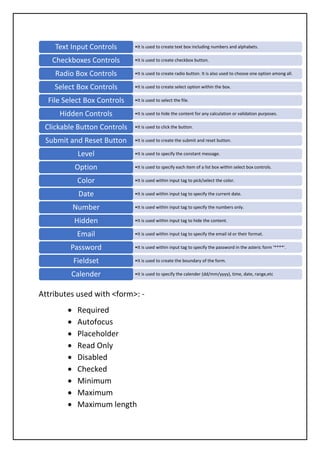
ELEMENTS OF <form> TAG
Attributes used with <form>: -
• Required
• Autofocus
• Placeholder
• Read Only
• Disabled
• Checked
• Minimum
• Maximum
• Maximum length
•It is used to create text box including numbers and alphabets.
Text Input Controls
•It is used to create checkbox button.
Checkboxes Controls
•It is used to create radio button. It is also used to choose one option among all.
Radio Box Controls
•It is used to create select option within the box.
Select Box Controls
•It is used to select the file.
File Select Box Controls
•It is used to hide the content for any calculation or validation purposes.
Hidden Controls
•It is used to click the button.
Clickable Button Controls
•It is used to create the submit and reset button.
Submit and Reset Button
•It is used to specify the constant message.
Level
•It is used to specify each item of a list box within select box controls.
Option
•It is used within input tag to pick/select the color.
Color
•It is used within input tag to specify the current date.
Date
•It is used within input tag to specify the numbers only.
Number
•It is used within input tag to hide the content.
Hidden
•It is used within input tag to specify the email id or their format.
Email
•It is used within input tag to specify the password in the asteric form '****'.
Password
•It is used to create the boundary of the form.
Fieldset
•It is used to specify the calender (dd/mm/yyyy), time, date, range,etc
Calender
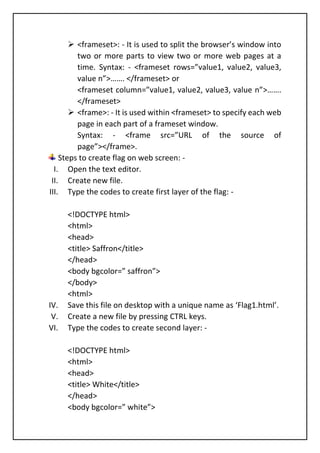
➢ <frameset>: - It is used to split the browser’s window into
two or more parts to view two or more web pages at a
time. Syntax: - <frameset rows=”value1, value2, value3,
value n”>……. </frameset> or
<frameset column=”value1, value2, value3, value n”>…….
</frameset>
➢ <frame>: - It is used within <frameset> to specify each web
page in each part of a frameset window.
Syntax: - <frame src=”URL of the source of
page”></frame>.
Steps to create flag on web screen: -
I. Open the text editor.
II. Create new file.
III. Type the codes to create first layer of the flag: -
<!DOCTYPE html>
<html>
<head>
<title> Saffron</title>
</head>
<body bgcolor=” saffron”>
</body>
<html>
IV. Save this file on desktop with a unique name as ‘Flag1.html’.
V. Create a new file by pressing CTRL keys.
VI. Type the codes to create second layer: -
<!DOCTYPE html>
<html>
<head>
<title> White</title>
</head>
<body bgcolor=” white”>
</body>
<html>
VII. Again, save this file on the desktop with a unique name as
‘Flag2.html’
VIII. Create a new file by pressing CTRL+N keys
IX. Type the codes to create third layer: -
<!DOCTYPE html>
<html>
<head>
<title> Green</title>
</head>
<body bgcolor=” green”>
</body>
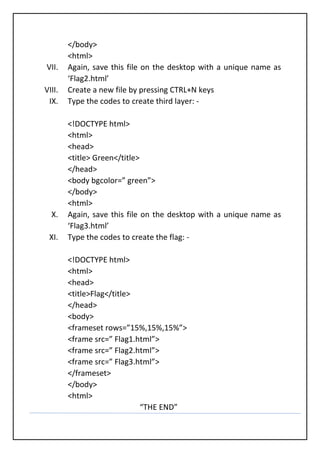
<html>
X. Again, save this file on the desktop with a unique name as
‘Flag3.html’
XI. Type the codes to create the flag: -
<!DOCTYPE html>
<html>
<head>
<title>Flag</title>
</head>
<body>
<frameset rows=”15%,15%,15%”>
<frame src=” Flag1.html”>
<frame src=” Flag2.html”>
<frame src=” Flag3.html”>
</frameset>
</body>
<html>
“THE END”

HTML.pdf

  • 1.
    HTML (Hyper TextMarkup Language) ❖ Introduction: - HTML stands for Hyper Text Markup Language. It is basically a web page designing language which is used to create web pages for the web sites. It is not just a programming language. It is used to tell to web browsers about where and how much size of to display the things such as the videos, the audios, the images, the graphics, the hyperlinks, etc. on the web pages over the Internet. In other words, we can say that it is basically the complete structure of the web page that display on the website. It actually provides the form of the structure of the web page. It was developed and designed by the great computer scientist “Tim Berners Lee” at CERN (Centre for European Research Network) of Switzerland in the year of 1989. Till now several versions of HTML have been developed like: - 2.0,3.0,4.0,5.0, etc. HTML 5.0 is the latest one of all the versions. It became the fundamental markup language for the web page designing are inherited from the HTML like: - XML (Extensible Markup Language), DHTML (Dynamic HTML), etc. HTML stands for Hypertext Markup Language. HTML was originally based on the Standard Generalized Markup Language (SGML), more complicated document-processing system. To write HTML pages, you won’t need to know much about SGML. However, it
  • 2.
    is necessary toknow that one of the main features of SGML is that it describes the general structure of the content inside documents rather than its actual appearance on the page or on screen does help. It is a markup language because the whole document involves the texts and the special tags which is used. Its file extension is ‘.html’ and ‘.htm’. But ‘.htm’ is not preferred to use. ❖ Advantages of HTML: - ✓ It allows to create attractive web pages. ✓ It allows to prepare multimedia document for web pages. ✓ It allows to link one document to another document. ✓ By using its linking facility, it allows to change or modify the contents of web pages or websites. ✓ It is supported by over all the web browsers. ✓ It is machine independent language. ✓ It comes with a large collection of instructions (Tags and Attributes) which makes it suitable for web page designing. ❖ Disadvantages of HTML: - ✓ It does not allow to beauty of the things that display on the web pages. ✓ It does not have the property to apply the CSS. But it is used with CSS. ✓ It does not modify the layout of the web pages or the website. ✓ It does not used to load on the server. ➢ Required Steps to create a HTML document: - However, there are so many software or text editors to create a HTML document. These are: - 1. Notepad, 2. Notepad++, 3. Sublime Text,
  • 3.
    4. Komodo Edit, 5.Coda, 6. Text Wrangler, 7. HTML Kit, 8. Text Edit, etc. Hence, we open any one text editor among all to create the HTML document and type the commands, tags, codes, attributes on that text editor. ➢ Required Steps to save the HTML document: - 1. Click on the File tab on that text editor. 2. Click on the Save. 3. Now, a pop-up window displays to save the file. Just type ‘name.html’ or ‘name.htm’. 4. Click on the Save Button. ➢ Required Steps to open the HTML document: - 1. Click on the File tab on that text editor. 2. Click on the Open. 3. Now, a pop-up window displays to save the file. Just type ‘name.html’ or ‘name.htm’. 4. Click on the Open Button. Or Double click on the name of the HTML file (web file). Or 1. Right click on the name of the HTML file to be opened. 2. Click on Open with option. 3. Now, the name of desired web browser like: - Google Chrome, Internet Explorer, Mozilla, Firefox, etc. Note: - To do any changes in the result of HTML document: - 1. Click on View, Source.
  • 4.
    2. Perform desiredchanges to secure file and save it. 3. Now, go to Internet Explorer. 4. Click on the Refresh Button. ➢ Structure of the HTML document: - <html> <head> Heading of the Content <title> Title of the Content </title> </head> <body> All the contents and the things (that have written under this tag) display on the web pages. This is my website “Saurabh Tech India”. </body> </html> Or, <!DOCTYPE html> <html> <head> Heading of the Content <title> Title of the Content </title> </head> <body> All the contents and the things (that have written under this tag) display on the web pages. This is my website “Saurabh Tech India”. </body> </html> ➢ Terms of the HTML: - There are two terms: - 1) Tags: - The commands or codes of html document are called tags. It is used to tell or mark the contents of html
  • 5.
    that, how thesecontents will appear over browsers’ window. The tags are bounded with ‘<’ and ‘>’ signs. For example: - <html>, <i>, <table>, etc. There are two types of tag elements: - a) Container Elements: - Those elements of HTML which contain both opening and closing tags are called container elements. For example: - </title>, </head>, </form>, etc. b) Empty Elements: - Those elements of HTML which do not require the closing tag are called empty elements. For example: - <b>, <hr>, <img>, etc. 2) Attributes: - A special code which can be used with the tags of HTML are called attributes. These are used to specify additional information about the contents. These are used inside the tags like: - bgcolor, color, background, align, etc. For example: - <body bgcolor=” Green”>, <p align= “centre”>, etc. ➢ Tags and Attributes of HTML and their purposes: - ➢ <!DOCTYPE html>: - This is the tag that used to tell to validators and browsers which specification the page. ➢ <html>……. </html>: - This tag is used to start and end the HTML document. ➢ <title>………</title>: - This tag is used to specify the text expression which will appear as the title of document. ➢ <head>……. </head>: - This tag is used to specify the header elements for HTML document. It can be used to declare the title area for HTML document. ➢ <body>…………</body>: - This tag is used to define the content area or web page area for HTML document. ➢ Bgcolor: - This attribute is used with <body> tag. It is used to define the background color of web page. Syntax: - <body bgcolor=” color name/color code”>…. </body>
  • 6.
    ➢ Text: -This attribute is used with <body> tag. It is used to define the foreground color for the web page. Syntax: - <body text=” color name”>……...</body>. ➢ <b>……. </b>: - This tag is used to specify the bounded text with bold style. ➢ <i>…. </i>: - This tag is used to specify the bounded text with Italic style. ➢ <u>……. </u>: - This tag is used to specify the bounded text with underline style. ➢ <s>…. </s>: - This tag is used to specify the bounded text with strikethrough style. ➢ <sup>…. </sup>: - This tag is used to specify the bounded text with super script style. ➢ <sub>…. </sub>: - This tag is used to specify the bounded text with subscript style. ➢ <br/>: - This tag is used to break the line or the paragraph. ➢ <p>…. </p>: - This tag is used to specify the texts as a paragraph. Attribute used with <p> tag: - • Align: - This attribute is used with <p> tag to define the alignment of paragraph. Syntax: - <p align= “align expression”></p> ➢ Heading: - There are 6 tag levels of heading that HTML allows to apply: - a) <H1>: - Generally, this level is used to specify the major heading of the content. Syntax: - <h1>…. </h1>. b) <H2>: - This level is used to specify the heading of the content. Syntax: - <h2>…. </h2>. c) <H3>: - This level is used to specify the sub heading of the content. Syntax: - <h3>…. </h3>. d) <H4>: - This level is used to specify the minor heading of the content. Syntax: - <h4>…. </h4>.
  • 7.
    e) <H5>: -This level generally is used to specify the paragraph. Syntax: - <h5>…. </h5>. f) <H6>: - This level is used to specify the content in normal text. Syntax: - <h6>…. </h6>. The sizes of each level from h1 to h6 are smaller than the preceding one. <h1> is the largest one and <h6> is the smallest one. ➢ <Hr>: - This tag is used to create a horizontal line. Attributes used with <hr>: - • Align: - It is used to specify the alignment of the line as left, right, centre, justify, etc. Syntax: - <hr align=” option”>. • Width: - It is used to specify the width of the line. The width should be indicated in either pixels or in %. This can be used in separate. Syntax: - <hr width= ”20px”> or <hr width= ”20%”>. • Height: - It is used to specify the height of the line. The height should be indicated either in pixels or in %. This can be used in separate. Syntax: - <hr height=”15px”> or <hr height=”15%”>. • Size: - It is used to specify the size of the line. The size includes width and height. If we have to show both the width and height, then the size attribute is used. Syntax: - <hr size=” width: …. px, height: …px”>. • Color: - It is used to specify the colour/the colour code of the line. Syntax: - <hr color=” color name”>. • No shade: - It is used to display the line without 3-D shading. ➢ <font>: - This tag is used to specify the font of the text. Syntax: - <font>……. </font>. Attribute used with <font>: -
  • 8.
    • Family: -It is used to specify the family of the font like ‘Verdana’, ‘Calibri (Body)’, ‘Calibri (Heading)’, ‘Arial Black’, and so on. Syntax: - <font family=” family name”>. • Size: - It is used to specify the size of the font of the text. It already includes both height and width. Syntax: - <font size=” (size in number) px”>. • Color: - It is used to specify the colour of the font of the text. Syntax: - <font color=” color name”>. • Type: - It is used to specify the type of the font like bold, italic, underline, strikethrough, etc. Syntax: - <font type=”font type”>. • Variant: - It is used to specify the variant of the font like normal or small caps. Syntax: - <font variant=” normal/small caps”>. • Style: - It is used to specify the style of the font like normal, italic or oblique. Syntax: - <font style=” normal/italic/oblique”>. • Weight: - It is used to specify the weight of the font like bold, lighter, light, bolder, normal. Syntax: - <font weight=” bold/lighter/light/bolder/normal”>. ➢ <top margin>: - It is used with <body> tag to specify the top margin for the content of web page. Syntax: - <body top margin=” margin in px”>. ➢ <left margin>: - It is used with <body> tag to specify the left margin for the content. Syntax: - <body left margin=” margin in px”>. ➢ <bottom margin>: - It is used with <body> tag to specify the bottom margin for the content. Syntax: - <body bottom margin=” margin in px”>.
  • 9.
    ➢ <right margin>:- It is used with <body> tag to specify the right margin for the content. Syntax: - <body right=” margin in px”>. ➢ <em>: - It is used to specify the emphasizing the text. Syntax: - <em>…. </em>. ➢ <strong>: - It is used to specify the strong emphasizing text. Syntax: - <strong>…. </strong>. ➢ <small>: - It is used to specify the text in a smaller font than the text around it. Syntax: - <small>…. </small>. ➢ <kbd>: - It is used to specify the text in keyboard typed. Syntax: - <kbd>…. </kbd>. ➢ <code>: - It is used to specify the text in coded form. Syntax: - <code>…. </code>. ➢ <pre>: - It is used to specify the preformatted text. All tabs, spaces and return are retained. Text is in the printed monospaced font. Syntax: - <pre>…. </pre>. ➢ <dfn>: - It is used to specify the definition of the term. Syntax: - <dfn>…. </dfn>. ➢ <cite>: - It is used to specify the citation or linking of the text in the list/table of contents. Syntax: - <cite>…</cite>. ➢ <meta>: - It is used to specify the characters encoding that used in the html document. Syntax: - <meta charset=” UTF-8”>. ➢ <address>: - It is used to specify the copyright and information about the creator/developer. It is situated generally in the footer of each document. Syntax: - <address>…. </address>. ➢ <big>: - It is used to specify a block of text increased by 1 point. Syntax: - <big>…</big>. ➢ <img>: - It is used to insert images to the web page. To insert an image, we should be known about the source of the image that where the image is situated. Syntax: - <img src=”URL of the source of the image”>.
  • 10.
    Attributes used with<img>: - • Width: - It is used to specify the width of the image. Syntax: - <img src=”URL of the source of the image” width=” numbers in px”>. • Height: - It is used to specify the height of the image. Syntax: - <img src=”URL of the source of the image” height=” numbers in px”>. • Border: - It is used to specify the border of the image. Syntax: - <img src=”URL of the source of the image” border=” numbers in px”>. • Alt: - It is used to specify the alternative of the image. Syntax: - <img src=”URL of the source of the image” alt=”name expression”>. ➢ Background: - This attribute is used with <body> tag to apply a picture as the background of the web page. Syntax: - <body background=” source of the picture”>. ➢ <q>: - It is used to specify a block of text bounded with double quotation marks. Syntax:-<q>…. </q>. Attribute used with <q>: - • Cite: - It is used to linking the quotation. ➢ <blockquote>: - It is used to specify a block of text with new section. Syntax: - <blockquote>…. </blockquote>. Attribute used with <blockquote>: - • Cite: - It is used to linking the quotation. List Tags: - It is used to create listings of the items in either orderly or unorderly. Syntax: - <li>…</li>. So, there are two types of the list tags: - ➢ <ol>: - It is used to create an ordered list in the web page. It allows to create a numbered list. Syntax: - <ol>…</ol>. Attribute used with <ol>: -
  • 11.
    • Type: -It is used to specify the type of <ol> tag like uppercase letters, lowercase letters, numbers, roman(i/I). Syntax: - <ol type=” ol type”>. ➢ <ul>: - It is used to specify the type of <ul> tag like disc, square, circle, arrow, tick mark, etc. Syntax: - <ul type=” ul type”>. ➢ <marquee>: - It is used to show scrolling the contents on the web page. Syntax: - <marquee>…. </marquee>. Attribute used with <marquee>: - • Behaviour: - It is used to specify how the text scroll within the marquee. Syntax: - <marquee behaviour=” scroll/alternate/slide” >. </marquee>. Direction: - It is used to specify the direction of the content. Syntax: - <marquee direction=” left/right/up/down”>…</marquee>. • Scroll amount: - It is used to specify the scroll amount of the content. Syntax: - <marquee direction=”value in px”>…</marquee>. • Scroll delay: - It is used to specify the scroll delay of the content between each scroll movement in milliseconds. Syntax: - <marquee scroll delay=”value”>…</marquee>. • Loop: - It is used to specify the number of times the marquee content will scroll. If no values are specified, the default value is -1, which means the marquee content will scroll continuously. Syntax: - <marquee loop=”value”>…. </marquee>. • Bgcolor: - It is used to specify the background colour through colour name/code. Syntax: - <marquee bgcolor=” colour name”>…. </marquee>.
  • 12.
    ➢ <table>: -It is used to create the table in the web page. Syntax: - <table>…. </table>. Attributes used with <table>: - • Cellpadding: - It is used to specify the space around the data of each cell of table. Syntax: - <table cellpadding=”value:>…. </table>. • Cell spacing: - It is used to specify the space between the cells of table. Syntax: - <table cell spacing=”value”>…</table>. • Border: - It is used to specify the width of table border line. Syntax: - <body border=”value”>…. </body>. • Row span: - It is used with <th> or<td> to marge the cell row wise. Syntax: - <th row span=” number of cells”>…. </th> or <td row span=” number of cells”>…. </td>. • Colspan: - It is used with <th> or<td> to merge the cell column wise. Syntax: - <th colspan=” number of cells”>…. </th> or <th colspan=” number of cells”>…. </th>. ➢ <th>: - It is used to specify the head of the table in column wise. Syntax: <table><th>…</th></table>. ➢ <td>: - It is used to specify the data of the table in column wise. Syntax: - <table><td>…. </td></table>. ➢ <tr>: - It is used to specify the starting and the ending of the table in row wise. Syntax: - <table><tr>……</tr></table>. ➢ <a>: - It is also known as anchor tag to hyper linking the two pages/website. To linking, the hyper reference should be connected with <a>. It is closing tag. Syntax: - <a href=”URL of the target page/website”>……. </a>. ➢ <span>: - It is used to apply the styles to a particular text. Syntax: - <span>…. </span>.
  • 13.
    ➢ <div>: -It is used to create a block or a division in a row wise. The most important use of <div> tag is to provide the complete structure of the page/website in a row wise. It is known as a division tag. It is used to make divisions of the content in the web page like videos, images, audios, texts, etc. It must have both opening and closing tag. Syntax: - <div>…. </div> Note: - To keep the content in column wise, it should be done by using the CSS properties and selectors such as float, position, class, id, etc. ➢ <mark>: - It is used to highlight the content. By default, it is in yellow colour. Syntax: - <mark>…. </mark>. ➢ <del>: - It is used to delete the content. Syntax: - <del>…. </del>. ➢ <centre>: - It is used to keep in exact centre of the page. Syntax: - <centre>…. </centre>. ➢ <meter>: - It is used to create the meter in progression. In <meter> tag, three things should be mentioned within it: - a) Minimum value, b) Maximum value, and c) Filled value. Web Form: - A page which collects information from user and sends this input to server computer. It uses label, textbox, list box, option button, check box, command button, etc. to collect input from user. To create web form, a <form> tag should be used. ➢ <form>: - It is used to define the starting and closing tag of a web form. ELEMENTS OF <form> TAG
  • 14.
    Attributes used with<form>: - • Required • Autofocus • Placeholder • Read Only • Disabled • Checked • Minimum • Maximum • Maximum length •It is used to create text box including numbers and alphabets. Text Input Controls •It is used to create checkbox button. Checkboxes Controls •It is used to create radio button. It is also used to choose one option among all. Radio Box Controls •It is used to create select option within the box. Select Box Controls •It is used to select the file. File Select Box Controls •It is used to hide the content for any calculation or validation purposes. Hidden Controls •It is used to click the button. Clickable Button Controls •It is used to create the submit and reset button. Submit and Reset Button •It is used to specify the constant message. Level •It is used to specify each item of a list box within select box controls. Option •It is used within input tag to pick/select the color. Color •It is used within input tag to specify the current date. Date •It is used within input tag to specify the numbers only. Number •It is used within input tag to hide the content. Hidden •It is used within input tag to specify the email id or their format. Email •It is used within input tag to specify the password in the asteric form '****'. Password •It is used to create the boundary of the form. Fieldset •It is used to specify the calender (dd/mm/yyyy), time, date, range,etc Calender
  • 15.
    ➢ <frameset>: -It is used to split the browser’s window into two or more parts to view two or more web pages at a time. Syntax: - <frameset rows=”value1, value2, value3, value n”>……. </frameset> or <frameset column=”value1, value2, value3, value n”>……. </frameset> ➢ <frame>: - It is used within <frameset> to specify each web page in each part of a frameset window. Syntax: - <frame src=”URL of the source of page”></frame>. Steps to create flag on web screen: - I. Open the text editor. II. Create new file. III. Type the codes to create first layer of the flag: - <!DOCTYPE html> <html> <head> <title> Saffron</title> </head> <body bgcolor=” saffron”> </body> <html> IV. Save this file on desktop with a unique name as ‘Flag1.html’. V. Create a new file by pressing CTRL keys. VI. Type the codes to create second layer: - <!DOCTYPE html> <html> <head> <title> White</title> </head> <body bgcolor=” white”>
  • 16.
    </body> <html> VII. Again, savethis file on the desktop with a unique name as ‘Flag2.html’ VIII. Create a new file by pressing CTRL+N keys IX. Type the codes to create third layer: - <!DOCTYPE html> <html> <head> <title> Green</title> </head> <body bgcolor=” green”> </body> <html> X. Again, save this file on the desktop with a unique name as ‘Flag3.html’ XI. Type the codes to create the flag: - <!DOCTYPE html> <html> <head> <title>Flag</title> </head> <body> <frameset rows=”15%,15%,15%”> <frame src=” Flag1.html”> <frame src=” Flag2.html”> <frame src=” Flag3.html”> </frameset> </body> <html> “THE END”