How to Use EasyBib
A Step-by-Step GUIDE
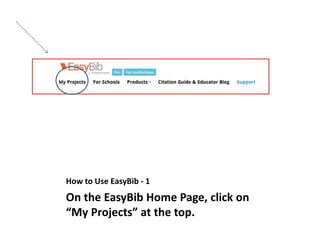
How to Use EasyBib - 1
On the EasyBib Home Page, click on
“My Projects” at the top.
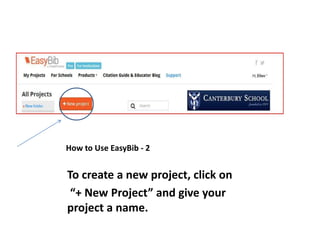
How to Use EasyBib - 2
To create a new project, click on
“+ New Project” and give your
project a name.
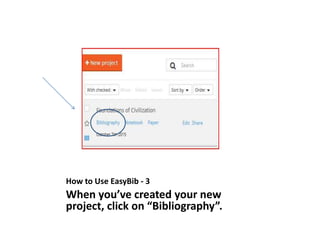
How to Use EasyBib - 3
When you’ve created your new
project, click on “Bibliography”.
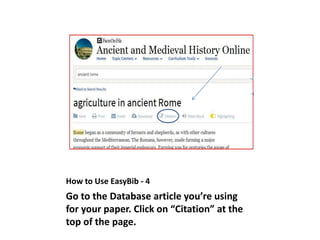
How to Use EasyBib - 4
Go to the Database article you’re using
for your paper. Click on “Citation” at the
top of the page.
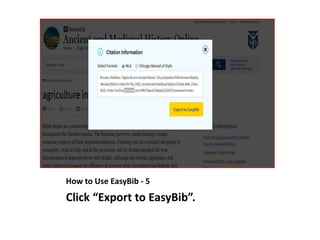
How to Use EasyBib - 5
Click “Export to EasyBib”.
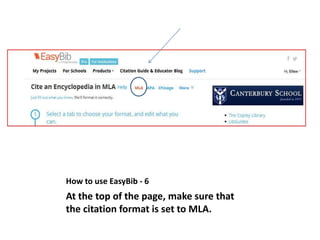
How to use EasyBib - 6
At the top of the page, make sure that
the citation format is set to MLA.
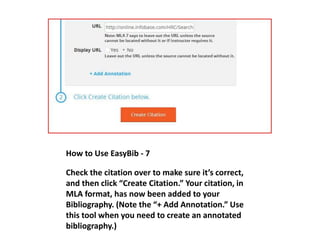
How to Use EasyBib - 7
Check the citation over to make sure it’s correct,
and then click “Create Citation.” Your citation, in
MLA format, has now been added to your
Bibliography. (Note the “+ Add Annotation.” Use
this tool when you need to create an annotated
bibliography.)
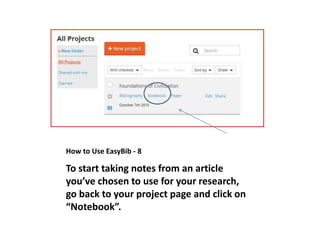
How to Use EasyBib - 8
To start taking notes from an article
you’ve chosen to use for your research,
go back to your project page and click on
“Notebook”.
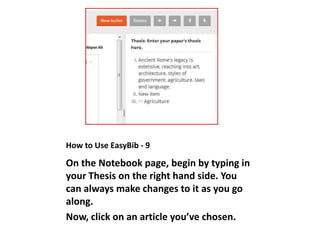
How to Use EasyBib - 9
On the Notebook page, begin by typing in
your Thesis on the right hand side. You
can always make changes to it as you go
along.
Now, click on an article you’ve chosen.
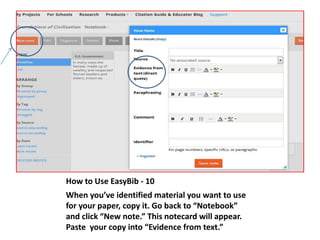
How to Use EasyBib - 10
When you’ve identified material you want to use
for your paper, copy it. Go back to “Notebook”
and click “New note.” This notecard will appear.
Paste your copy into “Evidence from text.”
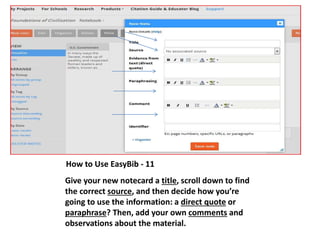
How to Use EasyBib - 11
Give your new notecard a title, scroll down to find
the correct source, and then decide how you’re
going to use the information: a direct quote or
paraphrase? Then, add your own comments and
observations about the material.
How to Use EasyBib - 12
Since the article you’re using is already in your
bibliography, it will appear when you scroll down
“Source.” Click on it to associate the citation with
the corresponding notecard.
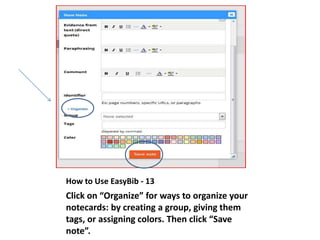
How to Use EasyBib - 13
Click on “Organize” for ways to organize your
notecards: by creating a group, giving them
tags, or assigning colors. Then click “Save
note”.
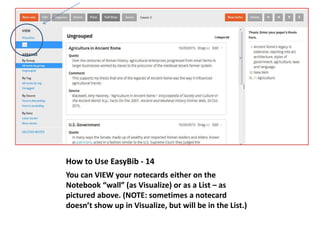
How to Use EasyBib - 14
You can VIEW your notecards either on the
Notebook “wall” (as Visualize) or as a List – as
pictured above. (NOTE: sometimes a notecard
doesn’t show up in Visualize, but will be in the List.)
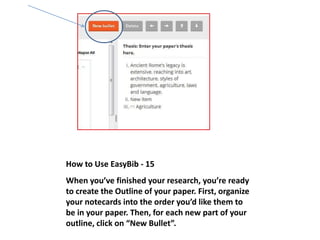
How to Use EasyBib - 15
When you’ve finished your research, you’re ready
to create the Outline of your paper. First, organize
your notecards into the order you’d like them to
be in your paper. Then, for each new part of your
outline, click on “New Bullet”.
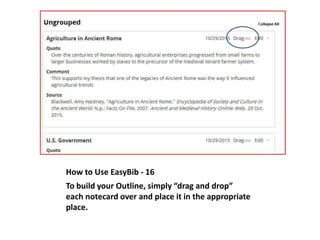
How to Use EasyBib - 16
To build your Outline, simply “drag and drop”
each notecard over and place it in the appropriate
place.
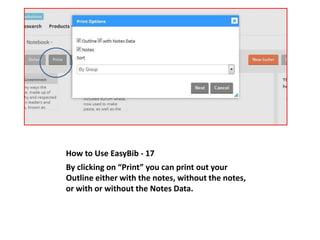
How to Use EasyBib - 17
By clicking on “Print” you can print out your
Outline either with the notes, without the notes,
or with or without the Notes Data.
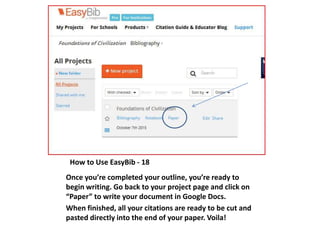
How to Use EasyBib - 18
Once you’re completed your outline, you’re ready to
begin writing. Go back to your project page and click on
“Paper” to write your document in Google Docs.
When finished, all your citations are ready to be cut and
pasted directly into the end of your paper. Voila!

How to use easybib

  • 1.
    How to UseEasyBib A Step-by-Step GUIDE
  • 2.
    How to UseEasyBib - 1 On the EasyBib Home Page, click on “My Projects” at the top.
  • 3.
    How to UseEasyBib - 2 To create a new project, click on “+ New Project” and give your project a name.
  • 4.
    How to UseEasyBib - 3 When you’ve created your new project, click on “Bibliography”.
  • 5.
    How to UseEasyBib - 4 Go to the Database article you’re using for your paper. Click on “Citation” at the top of the page.
  • 6.
    How to UseEasyBib - 5 Click “Export to EasyBib”.
  • 7.
    How to useEasyBib - 6 At the top of the page, make sure that the citation format is set to MLA.
  • 8.
    How to UseEasyBib - 7 Check the citation over to make sure it’s correct, and then click “Create Citation.” Your citation, in MLA format, has now been added to your Bibliography. (Note the “+ Add Annotation.” Use this tool when you need to create an annotated bibliography.)
  • 9.
    How to UseEasyBib - 8 To start taking notes from an article you’ve chosen to use for your research, go back to your project page and click on “Notebook”.
  • 10.
    How to UseEasyBib - 9 On the Notebook page, begin by typing in your Thesis on the right hand side. You can always make changes to it as you go along. Now, click on an article you’ve chosen.
  • 11.
    How to UseEasyBib - 10 When you’ve identified material you want to use for your paper, copy it. Go back to “Notebook” and click “New note.” This notecard will appear. Paste your copy into “Evidence from text.”
  • 12.
    How to UseEasyBib - 11 Give your new notecard a title, scroll down to find the correct source, and then decide how you’re going to use the information: a direct quote or paraphrase? Then, add your own comments and observations about the material.
  • 13.
    How to UseEasyBib - 12 Since the article you’re using is already in your bibliography, it will appear when you scroll down “Source.” Click on it to associate the citation with the corresponding notecard.
  • 14.
    How to UseEasyBib - 13 Click on “Organize” for ways to organize your notecards: by creating a group, giving them tags, or assigning colors. Then click “Save note”.
  • 15.
    How to UseEasyBib - 14 You can VIEW your notecards either on the Notebook “wall” (as Visualize) or as a List – as pictured above. (NOTE: sometimes a notecard doesn’t show up in Visualize, but will be in the List.)
  • 16.
    How to UseEasyBib - 15 When you’ve finished your research, you’re ready to create the Outline of your paper. First, organize your notecards into the order you’d like them to be in your paper. Then, for each new part of your outline, click on “New Bullet”.
  • 17.
    How to UseEasyBib - 16 To build your Outline, simply “drag and drop” each notecard over and place it in the appropriate place.
  • 18.
    How to UseEasyBib - 17 By clicking on “Print” you can print out your Outline either with the notes, without the notes, or with or without the Notes Data.
  • 19.
    How to UseEasyBib - 18 Once you’re completed your outline, you’re ready to begin writing. Go back to your project page and click on “Paper” to write your document in Google Docs. When finished, all your citations are ready to be cut and pasted directly into the end of your paper. Voila!