How To Disable IE Enhanced Security - PowerShell
i | P a g e
Table of Contents
Overview.......................................................................................................................................................1
Applies To..................................................................................................................................................1
Pre-Requisites ...........................................................................................................................................1
PowerShell Script – Disable IE Enhanced Security........................................................................................1
Code Snippet.............................................................................................................................................1
PowerShell Output....................................................................................................................................3
Registry Key – Already Configured........................................................................................................3
Registry Key – Admin Profile Enabled...................................................................................................3
Registry Key – User Profile Enabled......................................................................................................4
Registry Key – Not Configured..............................................................................................................4
How To Disable IE Enhanced Security - PowerShell
1 | P a g e
Overview
In this post we will walk-through the process of disabling Internet Explorer's Enhanced Security.
By default registry key value of IsInstalled is set to “1”, which means is IE Enhanced Security configuration
is “Enabled”. If the registry key value is set to “0” then IE Enhanced Security configuration is disabled.
Applies To
Tested on Windows 10, Windows 2008 R2 and Windows 2012.
Pre-Requisites
Launch PowerShell Command Console or PowerShell ISE.
To run this script, Execution Policy should be set to either of these “AllSigned” or “RemoteSigned” or
“Unrestricted”, you can get current execution policy by running the command; “Get-ExecutionPolicy”.
Policy Type Purpose
Restricted No scripts can be run. Windows PowerShell can be used only in interactive mode.
AllSigned Only scripts signed by a trusted publisher can be run.
RemoteSigned Downloaded scripts must be signed by a trusted publisher before they can be run.
Unrestricted No restrictions; all Windows PowerShell scripts can be run.
PowerShell Script – Disable IE Enhanced Security
The script posted in this article will read the system's registry key and the value set for component and its
configured value, if configuration is already disabled, it will display IsInstalled Registry key value which is
set to “0” when the configuration is disabled.
Code Snippet
#
# Define Environment Variables
# Define Registry Key for Admin and Current User for IE Enhanced Security
#
$IE_ES_Admin_Key="HKLM:SOFTWAREMicrosoftActive SetupInstalled Components{A509B1A7-
37EF-4b3f-8CFC-4F3A74704073}"
$IE_ES_User_Key="HKLM:SOFTWAREMicrosoftActive SetupInstalled Components{A509B1A8-37EF-
4b3f-8CFC-4F3A74704073}"
# Check Registry Key - System Profile Key Exists
#
Clear-Host
if ((Test-Path -Path $IE_ES_Admin_Key)) {
$ARegistryValue=(Get-ItemProperty -Path $IE_ES_Admin_Key -Name IsInstalled).IsInstalled
How To Disable IE Enhanced Security - PowerShell
2 | P a g e
if ($IE_ES_Admin_Key -ne "") {
if ($ARegistryValue -eq "" -or $ARegistryValue -ne 1) {
Write-Host `n$IE_ES_Admin_Key -BackgroundColor Black -ForegroundColor Green
Write-Host "`nIE Enhanced Security is Already Disabled for Admin ......"
write-host `n`nCurrently Registry Value is set to $ARegistryValue `, No changes have been done. -
ForegroundColor Black -BackgroundColor White
[console]::Beep(600,800)
} elseif ($ARegistryValue -eq 1) {
Clear-Host
Write-Host "`nIE Enhanced Security is Currently Enabled for Admin ......"
Get-ItemProperty -Path $IE_ES_Admin_Key | Select-Object PSPath, IsInstalled, PSDrive | fl
Read-Host "Press Any Key..." | Out-Null
Write-Host "`nDisabling Now.. $IE_ES_Admin_Key `n`n##### Shown is the Updated Setting ####" -
ForegroundColor DarkYellow -BackgroundColor Black
[console]::Beep(600,800)
Set-ItemProperty -Path $IE_ES_Admin_Key -Name "IsInstalled" -Value 0 -Force
Get-ItemProperty -Path $IE_ES_Admin_Key | Select-Object PSPath, IsInstalled, PSDrive | fl
}
}
}
# Check Registry Key - User Profile Key Exists
#
if ((Test-Path -Path $IE_ES_User_Key)) {
$URegistryValue=(Get-ItemProperty -Path $IE_ES_User_Key -Name IsInstalled).IsInstalled
if ($URegistryValue -eq "" -or $URegistryValue -ne 1) {
Write-Host `n$IE_ES_User_Key -BackgroundColor Black -ForegroundColor Green
Write-Host "`nIE Enhanced Security is Already Disabled for User ......"
write-host `n`nCurrently Registry Value is set to $URegistryValue `, No changes have been done.`n -
ForegroundColor Black -BackgroundColor White
[console]::Beep(600,800)
} elseif ($URegistryValue -eq 1) {
Write-Host "`nIE Enhanced Security is Currently Enabled for User ......"
Get-ItemProperty -Path $IE_ES_User_Key | Select-Object PSPath, IsInstalled, PSDrive | fl
Read-Host "Press Any Key..." | Out-Null
Write-Host "`nDisabling Now.. $IE_ES_Admin_Key `n`n##### Shown is the Updated Setting ####" -
ForegroundColor DarkYellow -BackgroundColor Black
[console]::Beep(600,800)
Set-ItemProperty -Path $IE_ES_User_Key -Name "IsInstalled" -Value 0 -Force
Get-ItemProperty -Path $IE_ES_User_Key | Select-Object PSPath, IsInstalled, PSDrive | fl
}
} else {
Write-Host "`nIE Enahanced Security Registry Keys in (Admin and User) - Is Not Configured"
Write-host "`n $IE_ES_Admin_Key `n $IE_ES_User_Key " -ForegroundColor Black -BackgroundColor
Cyan
Write-Host "`nReigstry Key Not Found!" -ForegroundColor White -BackgroundColor Red
[console]::Beep(600,700)
}
How To Disable IE Enhanced Security - PowerShell
3 | P a g e
PowerShell Output
In this example we will capture different possibilities of registry configured values;
Registry Key – Already Configured
If the registry key is already configured; below screenshot will be displayed.
Registry Key – Admin Profile Enabled
Registry key for Admin key that is configured as per the below Registry location;
HKLM:SOFTWAREMicrosoftActive SetupInstalled Components{A509B1A7-37EF-4b3f-8CFC-
4F3A74704073}
How To Disable IE Enhanced Security - PowerShell
4 | P a g e
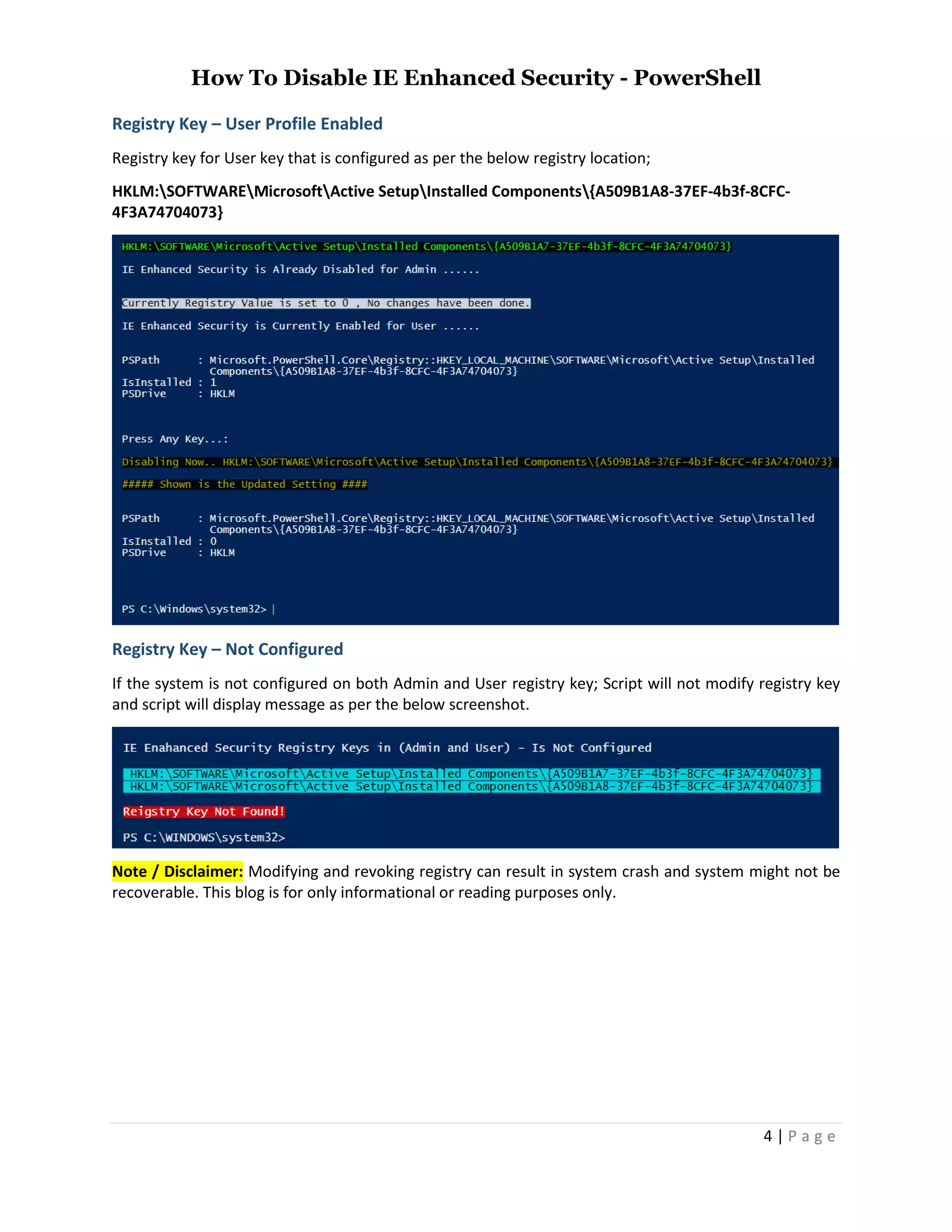
Registry Key – User Profile Enabled
Registry key for User key that is configured as per the below registry location;
HKLM:SOFTWAREMicrosoftActive SetupInstalled Components{A509B1A8-37EF-4b3f-8CFC-
4F3A74704073}
Registry Key – Not Configured
If the system is not configured on both Admin and User registry key; Script will not modify registry key
and script will display message as per the below screenshot.
Note / Disclaimer: Modifying and revoking registry can result in system crash and system might not be
recoverable. This blog is for only informational or reading purposes only.

How To Disable IE Enhanced Security Windows PowerShell

  • 1.
    How To DisableIE Enhanced Security - PowerShell i | P a g e Table of Contents Overview.......................................................................................................................................................1 Applies To..................................................................................................................................................1 Pre-Requisites ...........................................................................................................................................1 PowerShell Script – Disable IE Enhanced Security........................................................................................1 Code Snippet.............................................................................................................................................1 PowerShell Output....................................................................................................................................3 Registry Key – Already Configured........................................................................................................3 Registry Key – Admin Profile Enabled...................................................................................................3 Registry Key – User Profile Enabled......................................................................................................4 Registry Key – Not Configured..............................................................................................................4
  • 2.
    How To DisableIE Enhanced Security - PowerShell 1 | P a g e Overview In this post we will walk-through the process of disabling Internet Explorer's Enhanced Security. By default registry key value of IsInstalled is set to “1”, which means is IE Enhanced Security configuration is “Enabled”. If the registry key value is set to “0” then IE Enhanced Security configuration is disabled. Applies To Tested on Windows 10, Windows 2008 R2 and Windows 2012. Pre-Requisites Launch PowerShell Command Console or PowerShell ISE. To run this script, Execution Policy should be set to either of these “AllSigned” or “RemoteSigned” or “Unrestricted”, you can get current execution policy by running the command; “Get-ExecutionPolicy”. Policy Type Purpose Restricted No scripts can be run. Windows PowerShell can be used only in interactive mode. AllSigned Only scripts signed by a trusted publisher can be run. RemoteSigned Downloaded scripts must be signed by a trusted publisher before they can be run. Unrestricted No restrictions; all Windows PowerShell scripts can be run. PowerShell Script – Disable IE Enhanced Security The script posted in this article will read the system's registry key and the value set for component and its configured value, if configuration is already disabled, it will display IsInstalled Registry key value which is set to “0” when the configuration is disabled. Code Snippet # # Define Environment Variables # Define Registry Key for Admin and Current User for IE Enhanced Security # $IE_ES_Admin_Key="HKLM:SOFTWAREMicrosoftActive SetupInstalled Components{A509B1A7- 37EF-4b3f-8CFC-4F3A74704073}" $IE_ES_User_Key="HKLM:SOFTWAREMicrosoftActive SetupInstalled Components{A509B1A8-37EF- 4b3f-8CFC-4F3A74704073}" # Check Registry Key - System Profile Key Exists # Clear-Host if ((Test-Path -Path $IE_ES_Admin_Key)) { $ARegistryValue=(Get-ItemProperty -Path $IE_ES_Admin_Key -Name IsInstalled).IsInstalled
  • 3.
    How To DisableIE Enhanced Security - PowerShell 2 | P a g e if ($IE_ES_Admin_Key -ne "") { if ($ARegistryValue -eq "" -or $ARegistryValue -ne 1) { Write-Host `n$IE_ES_Admin_Key -BackgroundColor Black -ForegroundColor Green Write-Host "`nIE Enhanced Security is Already Disabled for Admin ......" write-host `n`nCurrently Registry Value is set to $ARegistryValue `, No changes have been done. - ForegroundColor Black -BackgroundColor White [console]::Beep(600,800) } elseif ($ARegistryValue -eq 1) { Clear-Host Write-Host "`nIE Enhanced Security is Currently Enabled for Admin ......" Get-ItemProperty -Path $IE_ES_Admin_Key | Select-Object PSPath, IsInstalled, PSDrive | fl Read-Host "Press Any Key..." | Out-Null Write-Host "`nDisabling Now.. $IE_ES_Admin_Key `n`n##### Shown is the Updated Setting ####" - ForegroundColor DarkYellow -BackgroundColor Black [console]::Beep(600,800) Set-ItemProperty -Path $IE_ES_Admin_Key -Name "IsInstalled" -Value 0 -Force Get-ItemProperty -Path $IE_ES_Admin_Key | Select-Object PSPath, IsInstalled, PSDrive | fl } } } # Check Registry Key - User Profile Key Exists # if ((Test-Path -Path $IE_ES_User_Key)) { $URegistryValue=(Get-ItemProperty -Path $IE_ES_User_Key -Name IsInstalled).IsInstalled if ($URegistryValue -eq "" -or $URegistryValue -ne 1) { Write-Host `n$IE_ES_User_Key -BackgroundColor Black -ForegroundColor Green Write-Host "`nIE Enhanced Security is Already Disabled for User ......" write-host `n`nCurrently Registry Value is set to $URegistryValue `, No changes have been done.`n - ForegroundColor Black -BackgroundColor White [console]::Beep(600,800) } elseif ($URegistryValue -eq 1) { Write-Host "`nIE Enhanced Security is Currently Enabled for User ......" Get-ItemProperty -Path $IE_ES_User_Key | Select-Object PSPath, IsInstalled, PSDrive | fl Read-Host "Press Any Key..." | Out-Null Write-Host "`nDisabling Now.. $IE_ES_Admin_Key `n`n##### Shown is the Updated Setting ####" - ForegroundColor DarkYellow -BackgroundColor Black [console]::Beep(600,800) Set-ItemProperty -Path $IE_ES_User_Key -Name "IsInstalled" -Value 0 -Force Get-ItemProperty -Path $IE_ES_User_Key | Select-Object PSPath, IsInstalled, PSDrive | fl } } else { Write-Host "`nIE Enahanced Security Registry Keys in (Admin and User) - Is Not Configured" Write-host "`n $IE_ES_Admin_Key `n $IE_ES_User_Key " -ForegroundColor Black -BackgroundColor Cyan Write-Host "`nReigstry Key Not Found!" -ForegroundColor White -BackgroundColor Red [console]::Beep(600,700) }
  • 4.
    How To DisableIE Enhanced Security - PowerShell 3 | P a g e PowerShell Output In this example we will capture different possibilities of registry configured values; Registry Key – Already Configured If the registry key is already configured; below screenshot will be displayed. Registry Key – Admin Profile Enabled Registry key for Admin key that is configured as per the below Registry location; HKLM:SOFTWAREMicrosoftActive SetupInstalled Components{A509B1A7-37EF-4b3f-8CFC- 4F3A74704073}
  • 5.
    How To DisableIE Enhanced Security - PowerShell 4 | P a g e Registry Key – User Profile Enabled Registry key for User key that is configured as per the below registry location; HKLM:SOFTWAREMicrosoftActive SetupInstalled Components{A509B1A8-37EF-4b3f-8CFC- 4F3A74704073} Registry Key – Not Configured If the system is not configured on both Admin and User registry key; Script will not modify registry key and script will display message as per the below screenshot. Note / Disclaimer: Modifying and revoking registry can result in system crash and system might not be recoverable. This blog is for only informational or reading purposes only.