How to Make a Waterfall Chart in
Tableau
A Business Dashboard Challenge:
• Turn an income statement into an
interactive dashboard:
(Facebook IPO Form S-1 from SEC Edgar website)
http://dataremixed.com/2012/02/a-facebook-waterfall/
Step 1a: Get the Data
• Financials from SEC website copy/pasted into
Excel table:
ConsolidatedStatements of Operations Data: 2 0 0 7 2 0 0 8 2 0 0 9 2 0 10 2 0 11
1. Revenue $ 153 $ 272 $ 777 $ 1,974 $ 3,711
2. Cost of revenue $ (41) $ (124) $ (223) $ (493) $ (860)
3. Marketing and sales $ (32) $ (76) $ (115) $ (184) $ (427)
4. Research and development $ (81) $ (47) $ (87) $ (144) $ (388)
5. General and administrative $ (123) $ (80) $ (90) $ (121) $ (280)
6. Other expense, net $ (11) $ (1) $ (8) $ (24) $ (61)
7. Provision for income taxes $ (3) $ - $ (25) $ (402) $ (695)
8. Net income (loss) $ (138) $ (56) $ 229 $ 606 $ 1,000
Step 1b: Reshape the Data in Excel
http://kb.tableausoftware.com/articles/knowledgebase/addin-reshaping-data-excel
https://www.interworks.com/blogs/tcostello/2012/02/06/preparing-data-tableau-1-3-video-tutorial
1
2
3
4
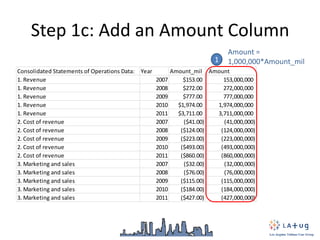
Step 1c: Add an Amount Column
Consolidated Statements of Operations Data: Year Amount_mil Amount
1. Revenue 2007 $153.00 153,000,000
1. Revenue 2008 $272.00 272,000,000
1. Revenue 2009 $777.00 777,000,000
1. Revenue 2010 $1,974.00 1,974,000,000
1. Revenue 2011 $3,711.00 3,711,000,000
2. Cost of revenue 2007 ($41.00) (41,000,000)
2. Cost of revenue 2008 ($124.00) (124,000,000)
2. Cost of revenue 2009 ($223.00) (223,000,000)
2. Cost of revenue 2010 ($493.00) (493,000,000)
2. Cost of revenue 2011 ($860.00) (860,000,000)
3. Marketing and sales 2007 ($32.00) (32,000,000)
3. Marketing and sales 2008 ($76.00) (76,000,000)
3. Marketing and sales 2009 ($115.00) (115,000,000)
3. Marketing and sales 2010 ($184.00) (184,000,000)
3. Marketing and sales 2011 ($427.00) (427,000,000)
1
Amount =
1,000,000*Amount_mil
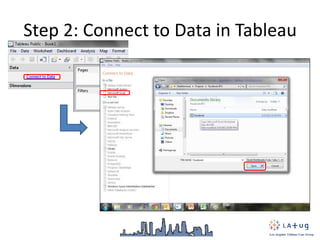
Step 2: Connect to Data in Tableau
Step 3a: Begin a Gantt Bar Chart
2 Drag “Category” to the Columns shelf
1 Select “Gantt Bar” chart
Step 3b: Create Two Calculated Fields
1 Right click anywhere in the “Measures” area and select “Create Calculated Field
2 “Amount (graph)”:
IF Category="8. Net income
(loss)" THEN [Amount]*-1 ELSE
[Amount] END
3 “Amount (reversed)”:
[Amount (graph)]*-1
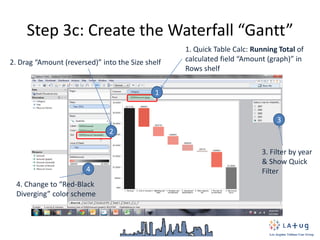
Step 3c: Create the Waterfall “Gantt”
1
2
1. Quick Table Calc: Running Total of
calculated field “Amount (graph)” in
Rows shelf
2. Drag “Amount (reversed)” into the Size shelf
3
3. Filter by year
& Show Quick
Filter4
4. Change to “Red-Black
Diverging” color scheme
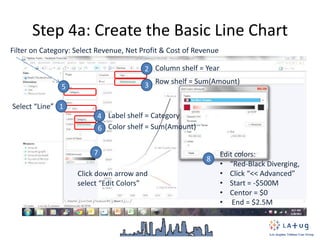
Step 4a: Create the Basic Line Chart
2
1
3
4
5
6
7
8
Column shelf = Year
Row shelf = Sum(Amount)
Select “Line”
Label shelf = Category
Filter on Category: Select Revenue, Net Profit & Cost of Revenue
Edit colors:
• “Red-Black Diverging,
• Click “<< Advanced”
• Start = -$500M
• Centor = $0
• End = $2.5M
• Click “OK”
Color shelf = Sum(Amount)
Click down arrow and
select “Edit Colors”
Step 4b: Create a “Dual Axis”,
“Multiple Mark Type” chart
1 Hold down “Ctrl”, left click on SUM(Amount) in the Row shelf, and drag & drop to
the right to add a second SUM(Amount) to the Row shelf
2
3
Click down arrow in 2nd
SUM(Amount) and select
“Dual Axis”
Click down arrow in
Marks area and select
“Multiple Mark Types”
Step 4b: Synchronize Axis
1
2
Right click 2nd Y-axis and
select “Synchronize Axis”
Uncheck “Show Header”
Step 4c: Make 2nd Mark Type Circles
1
2
3
Click right (“>”) until “SUM(Amount) (2)” is showing
Change the type from “Line” to “Circle” and reduce the
size of the circles by dragging the “Size” slider to the left
3. Click on the “Label” down arrow and
uncheck “Show mark labels” to clean up
the chart
Step 5a: Create a New Dashboard
1
Right click on the new tab icon
and select “New Dashboard”
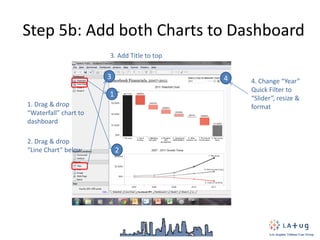
Step 5b: Add both Charts to Dashboard
3
3. Add Title to top
4 4. Change “Year”
Quick Filter to
“Slider”, resize &
format
1
1. Drag & drop
“Waterfall” chart to
dashboard
2
2. Drag & drop
“Line Chart” below
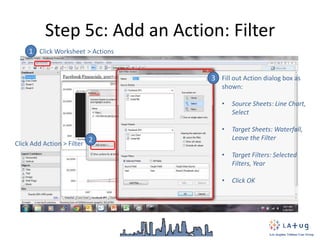
Step 5c: Add an Action: Filter
1 Click Worksheet > Actions
2Click Add Action > Filter
3 Fill out Action dialog box as
shown:
• Source Sheets: Line Chart,
Select
• Target Sheets: Waterfall,
Leave the Filter
• Target Filters: Selected
Filters, Year
• Click OK
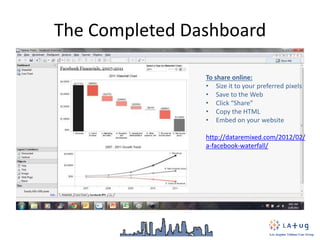
The Completed Dashboard
To share online:
• Size it to your preferred pixels
• Save to the Web
• Click “Share”
• Copy the HTML
• Embed on your website
http://dataremixed.com/2012/02/
a-facebook-waterfall/

How to create a tableau waterfall chart

  • 1.
    How to Makea Waterfall Chart in Tableau
  • 2.
    A Business DashboardChallenge: • Turn an income statement into an interactive dashboard: (Facebook IPO Form S-1 from SEC Edgar website) http://dataremixed.com/2012/02/a-facebook-waterfall/
  • 3.
    Step 1a: Getthe Data • Financials from SEC website copy/pasted into Excel table: ConsolidatedStatements of Operations Data: 2 0 0 7 2 0 0 8 2 0 0 9 2 0 10 2 0 11 1. Revenue $ 153 $ 272 $ 777 $ 1,974 $ 3,711 2. Cost of revenue $ (41) $ (124) $ (223) $ (493) $ (860) 3. Marketing and sales $ (32) $ (76) $ (115) $ (184) $ (427) 4. Research and development $ (81) $ (47) $ (87) $ (144) $ (388) 5. General and administrative $ (123) $ (80) $ (90) $ (121) $ (280) 6. Other expense, net $ (11) $ (1) $ (8) $ (24) $ (61) 7. Provision for income taxes $ (3) $ - $ (25) $ (402) $ (695) 8. Net income (loss) $ (138) $ (56) $ 229 $ 606 $ 1,000
  • 4.
    Step 1b: Reshapethe Data in Excel http://kb.tableausoftware.com/articles/knowledgebase/addin-reshaping-data-excel https://www.interworks.com/blogs/tcostello/2012/02/06/preparing-data-tableau-1-3-video-tutorial 1 2 3 4
  • 5.
    Step 1c: Addan Amount Column Consolidated Statements of Operations Data: Year Amount_mil Amount 1. Revenue 2007 $153.00 153,000,000 1. Revenue 2008 $272.00 272,000,000 1. Revenue 2009 $777.00 777,000,000 1. Revenue 2010 $1,974.00 1,974,000,000 1. Revenue 2011 $3,711.00 3,711,000,000 2. Cost of revenue 2007 ($41.00) (41,000,000) 2. Cost of revenue 2008 ($124.00) (124,000,000) 2. Cost of revenue 2009 ($223.00) (223,000,000) 2. Cost of revenue 2010 ($493.00) (493,000,000) 2. Cost of revenue 2011 ($860.00) (860,000,000) 3. Marketing and sales 2007 ($32.00) (32,000,000) 3. Marketing and sales 2008 ($76.00) (76,000,000) 3. Marketing and sales 2009 ($115.00) (115,000,000) 3. Marketing and sales 2010 ($184.00) (184,000,000) 3. Marketing and sales 2011 ($427.00) (427,000,000) 1 Amount = 1,000,000*Amount_mil
  • 6.
    Step 2: Connectto Data in Tableau
  • 7.
    Step 3a: Begina Gantt Bar Chart 2 Drag “Category” to the Columns shelf 1 Select “Gantt Bar” chart
  • 8.
    Step 3b: CreateTwo Calculated Fields 1 Right click anywhere in the “Measures” area and select “Create Calculated Field 2 “Amount (graph)”: IF Category="8. Net income (loss)" THEN [Amount]*-1 ELSE [Amount] END 3 “Amount (reversed)”: [Amount (graph)]*-1
  • 9.
    Step 3c: Createthe Waterfall “Gantt” 1 2 1. Quick Table Calc: Running Total of calculated field “Amount (graph)” in Rows shelf 2. Drag “Amount (reversed)” into the Size shelf 3 3. Filter by year & Show Quick Filter4 4. Change to “Red-Black Diverging” color scheme
  • 10.
    Step 4a: Createthe Basic Line Chart 2 1 3 4 5 6 7 8 Column shelf = Year Row shelf = Sum(Amount) Select “Line” Label shelf = Category Filter on Category: Select Revenue, Net Profit & Cost of Revenue Edit colors: • “Red-Black Diverging, • Click “<< Advanced” • Start = -$500M • Centor = $0 • End = $2.5M • Click “OK” Color shelf = Sum(Amount) Click down arrow and select “Edit Colors”
  • 11.
    Step 4b: Createa “Dual Axis”, “Multiple Mark Type” chart 1 Hold down “Ctrl”, left click on SUM(Amount) in the Row shelf, and drag & drop to the right to add a second SUM(Amount) to the Row shelf 2 3 Click down arrow in 2nd SUM(Amount) and select “Dual Axis” Click down arrow in Marks area and select “Multiple Mark Types”
  • 12.
    Step 4b: SynchronizeAxis 1 2 Right click 2nd Y-axis and select “Synchronize Axis” Uncheck “Show Header”
  • 13.
    Step 4c: Make2nd Mark Type Circles 1 2 3 Click right (“>”) until “SUM(Amount) (2)” is showing Change the type from “Line” to “Circle” and reduce the size of the circles by dragging the “Size” slider to the left 3. Click on the “Label” down arrow and uncheck “Show mark labels” to clean up the chart
  • 14.
    Step 5a: Createa New Dashboard 1 Right click on the new tab icon and select “New Dashboard”
  • 15.
    Step 5b: Addboth Charts to Dashboard 3 3. Add Title to top 4 4. Change “Year” Quick Filter to “Slider”, resize & format 1 1. Drag & drop “Waterfall” chart to dashboard 2 2. Drag & drop “Line Chart” below
  • 16.
    Step 5c: Addan Action: Filter 1 Click Worksheet > Actions 2Click Add Action > Filter 3 Fill out Action dialog box as shown: • Source Sheets: Line Chart, Select • Target Sheets: Waterfall, Leave the Filter • Target Filters: Selected Filters, Year • Click OK
  • 17.
    The Completed Dashboard Toshare online: • Size it to your preferred pixels • Save to the Web • Click “Share” • Copy the HTML • Embed on your website http://dataremixed.com/2012/02/ a-facebook-waterfall/