Practical Tips You Can Use to Protect Your Identity, Your
Computer and Your Network from Attack

www.CTDayton.com
Home PC Security Part I






Your kids use your computer
You travel with your computer and use WiFi
Personal & financial information are on your
computer
Business files are on your computer
Family pictures and videos are on your
computer

What would happen if your computer
was gone tomorrow?
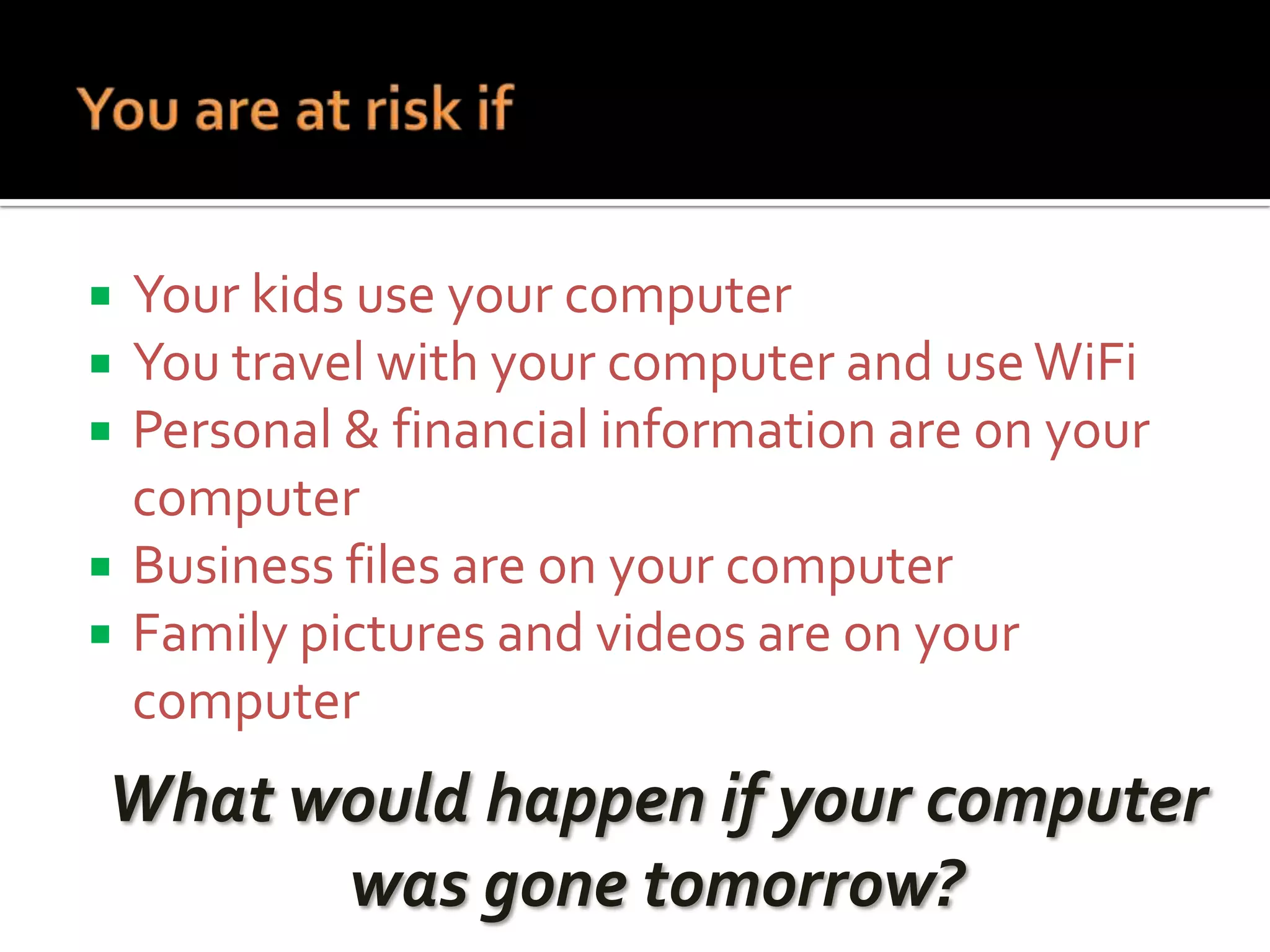
What is Cyber-Security?

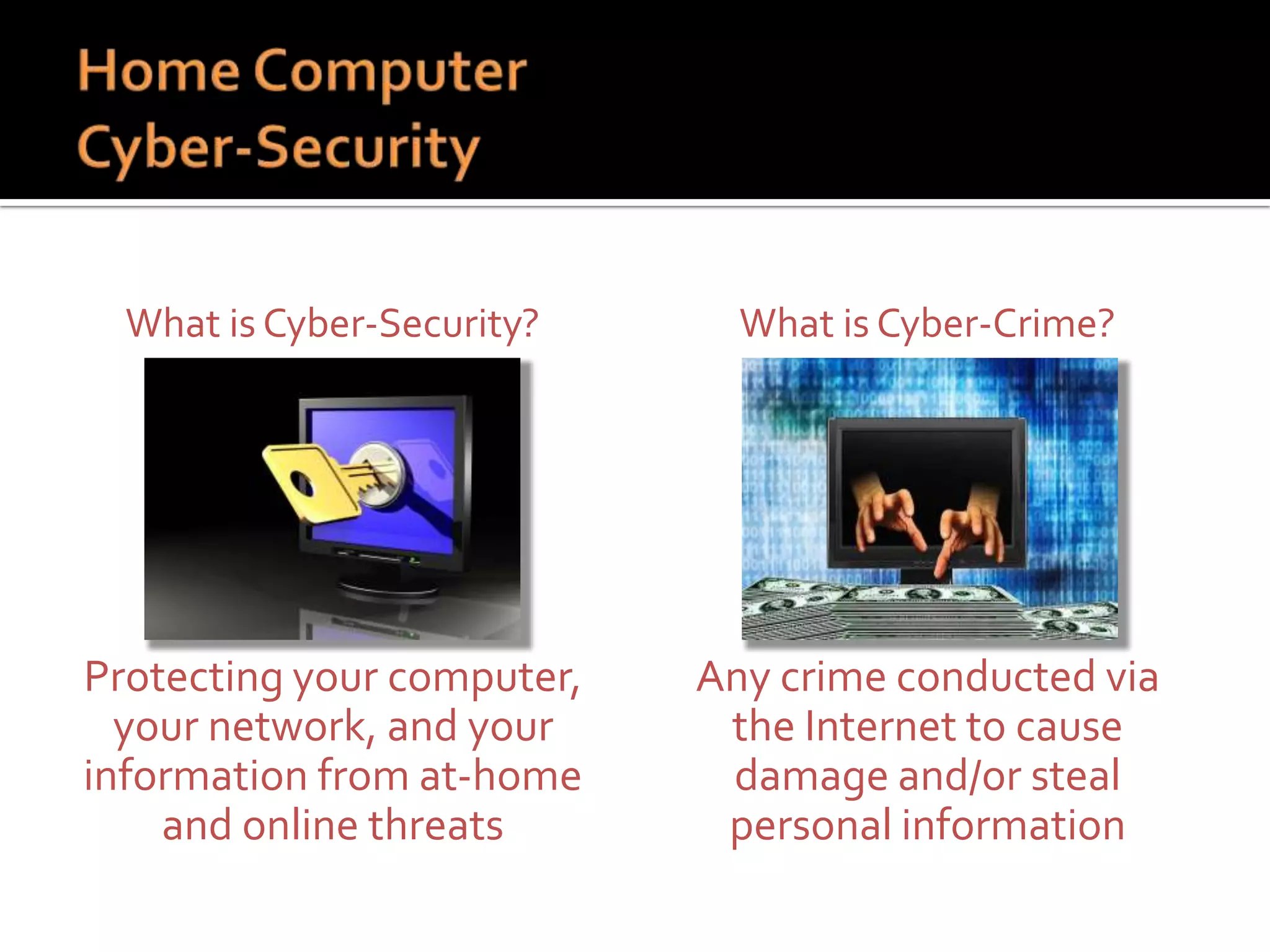
What is Cyber-Crime?

Protecting your computer,
your network, and your
information from at-home
and online threats

Any crime conducted via
the Internet to cause
damage and/or steal
personal information


Why do hackers hack?
 Lot’s of money to be stolen
 To collect information!
 Information used to directly

steal money, and identity theft


Why attack the home computer?
 Home computer = information!
 Least secure in general
 Unwary users


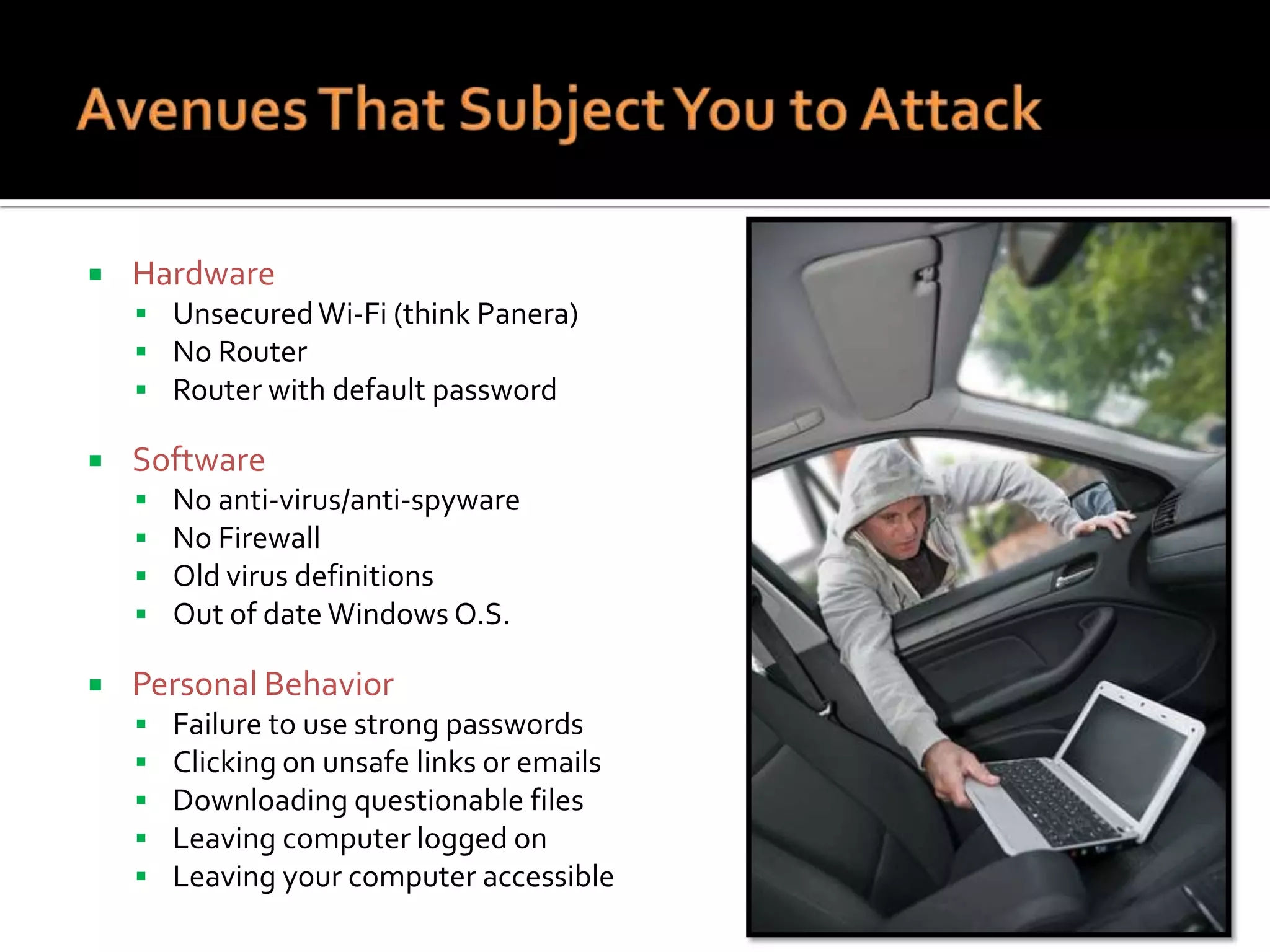
Hardware
 Unsecured Wi-Fi (think Panera)
 No Router
 Router with default password



Software







No anti-virus/anti-spyware
No Firewall
Old virus definitions
Out of date Windows O.S.

Personal Behavior






Failure to use strong passwords
Clicking on unsafe links or emails
Downloading questionable files
Leaving computer logged on
Leaving your computer accessible
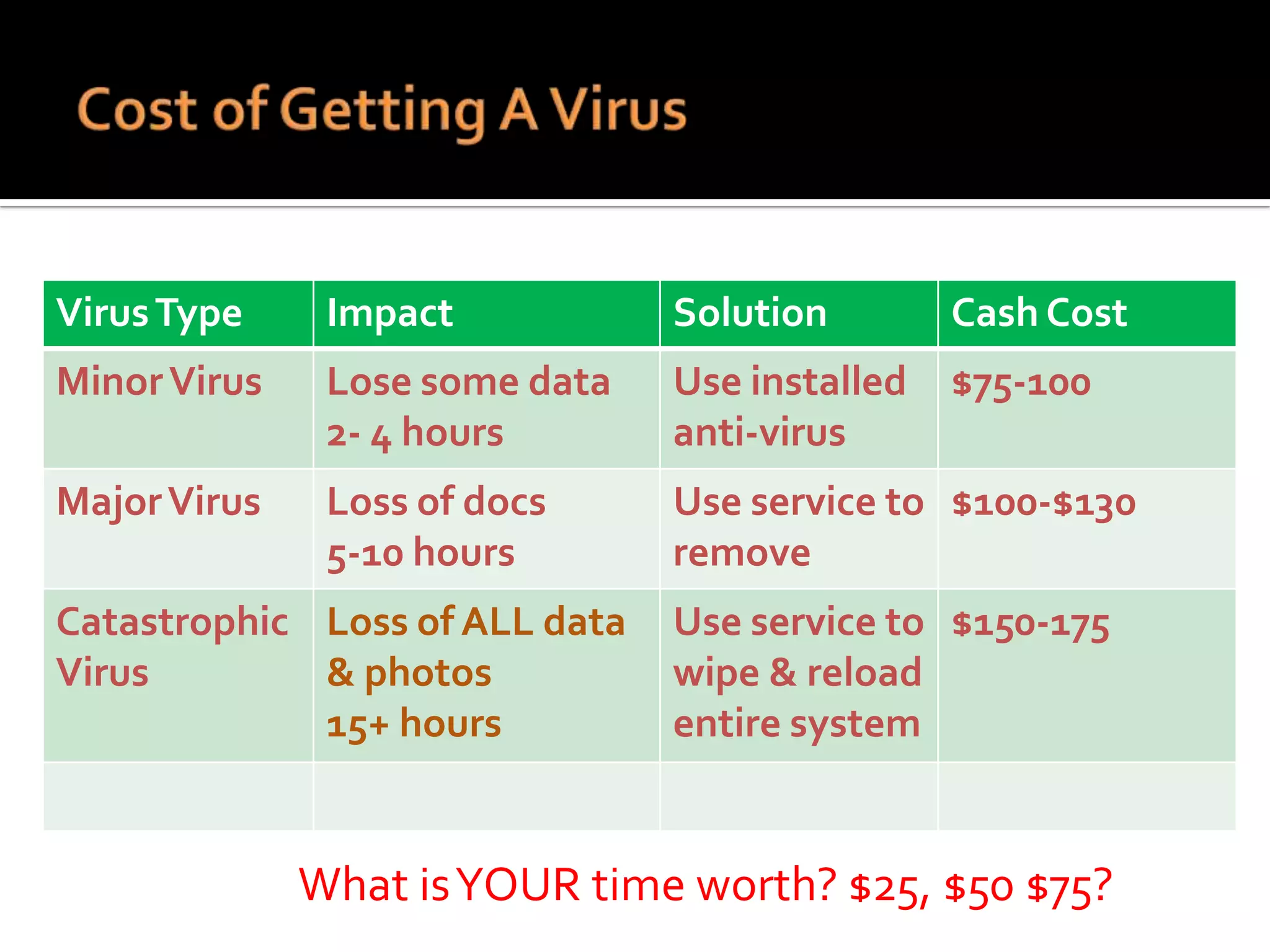
Virus Type

Impact

Solution

Cash Cost

Minor Virus

Lose some data
2- 4 hours

Use installed
anti-virus

$75-100

Major Virus

Loss of docs
5-10 hours

Use service to $100-$130
remove

Catastrophic Loss of ALL data
Virus
& photos
15+ hours

Use service to $150-175
wipe & reload
entire system

What is YOUR time worth? $25, $50 $75?
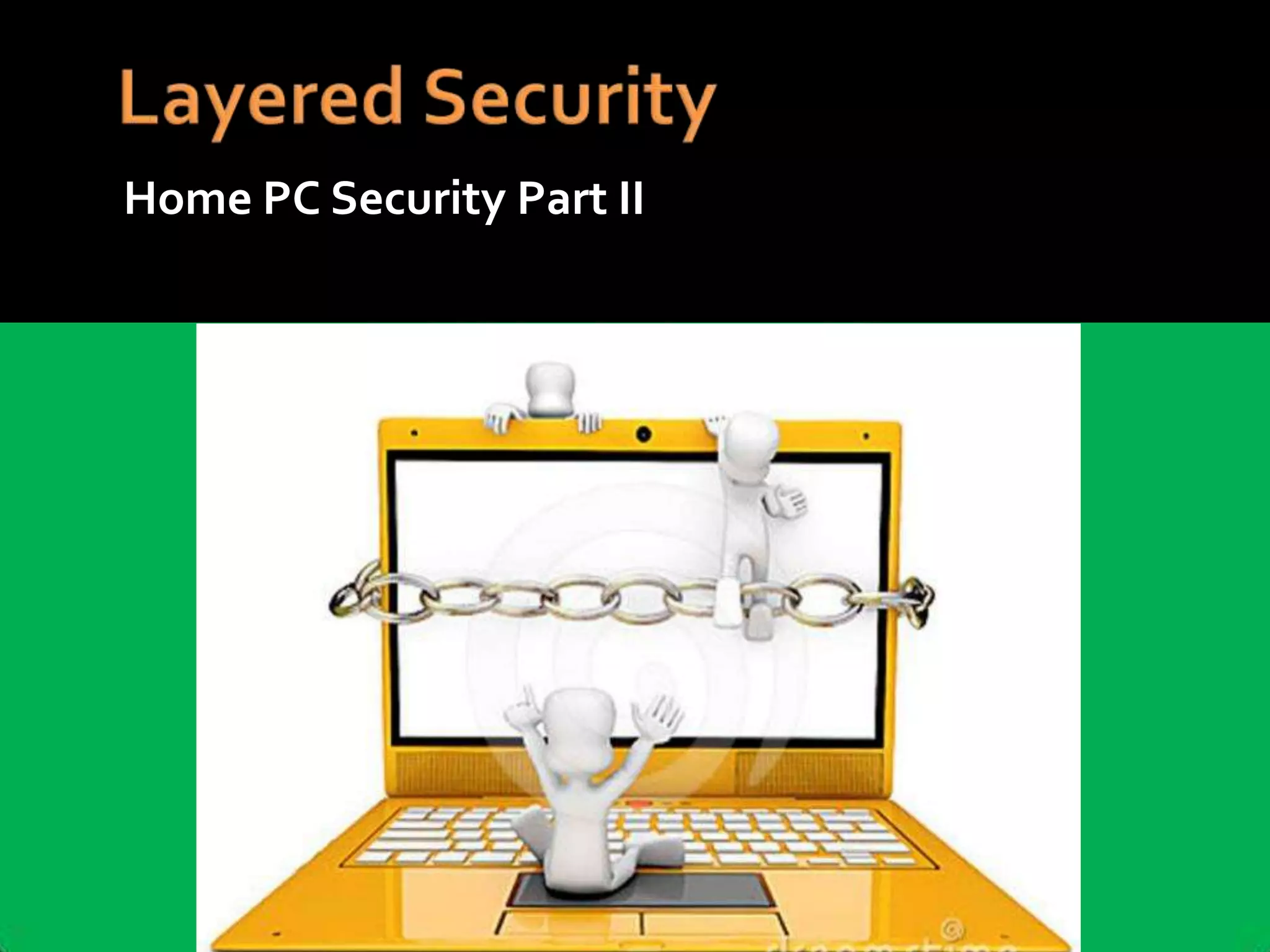
Home PC Security Part II
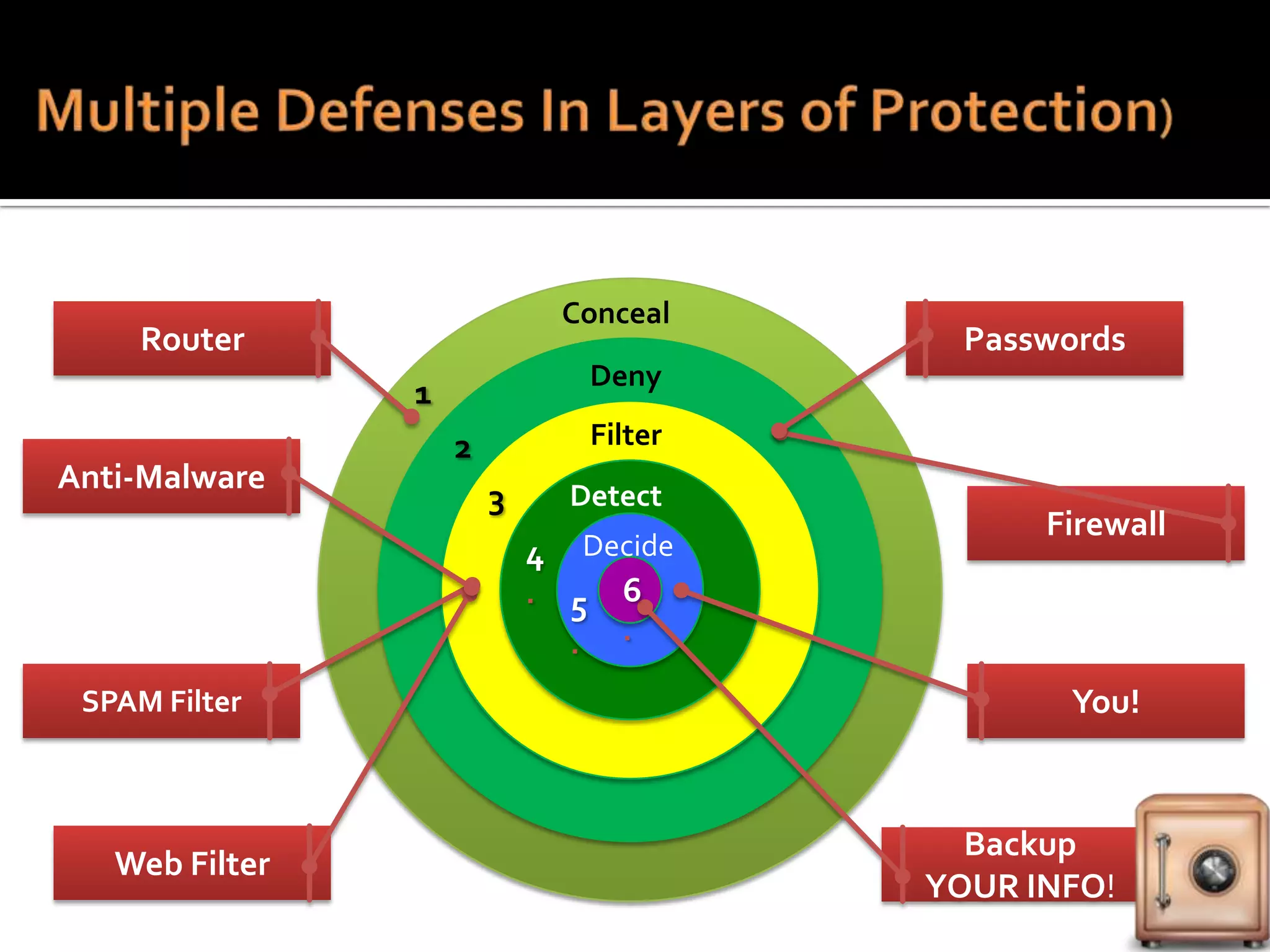
Conceal

Router

Deny

1
Anti-Malware

Filter

2
3

Detect
Decide

4
.

Web Filter

Firewall

5 6
.

SPAM Filter

Passwords

.

You!

Backup
YOUR INFO!
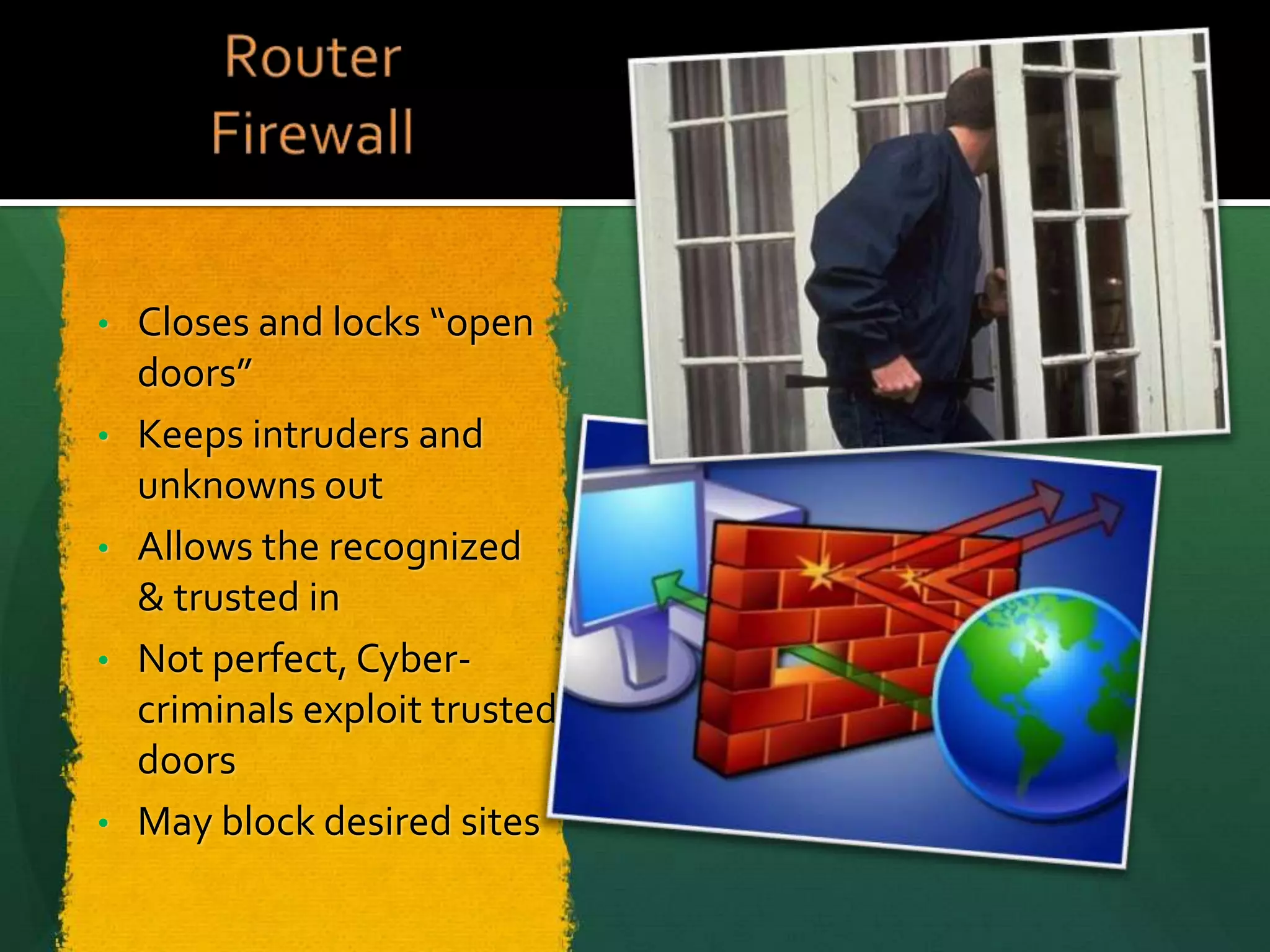
Closes and locks “open
doors”
• Keeps intruders and
unknowns out
• Allows the recognized
& trusted in
• Not perfect, Cybercriminals exploit trusted
doors
• May block desired sites
•


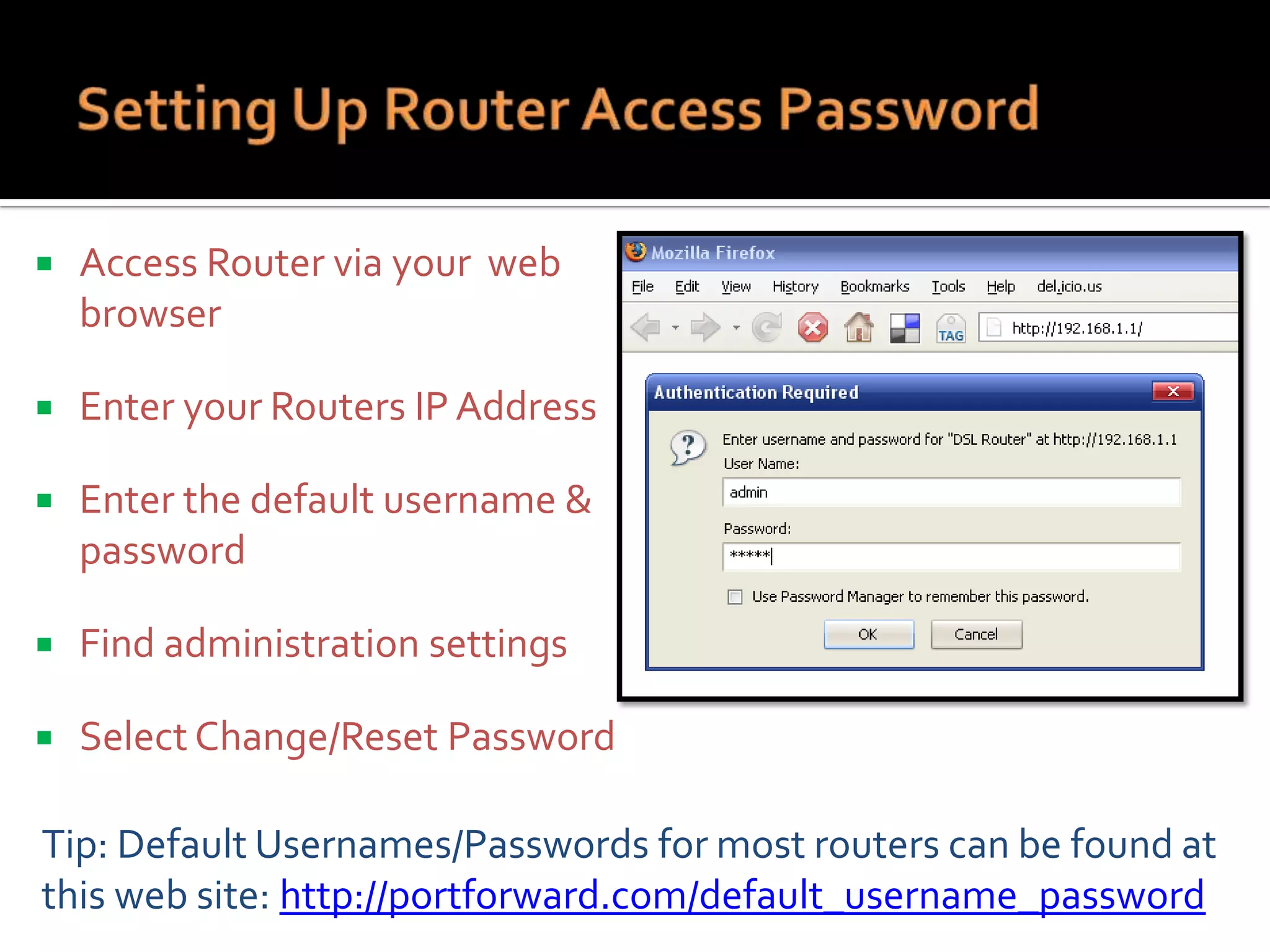
Access Router via your web
browser



Enter your Routers IP Address



Enter the default username &
password



Find administration settings



Select Change/Reset Password

Tip: Default Usernames/Passwords for most routers can be found at
this web site: http://portforward.com/default_username_password


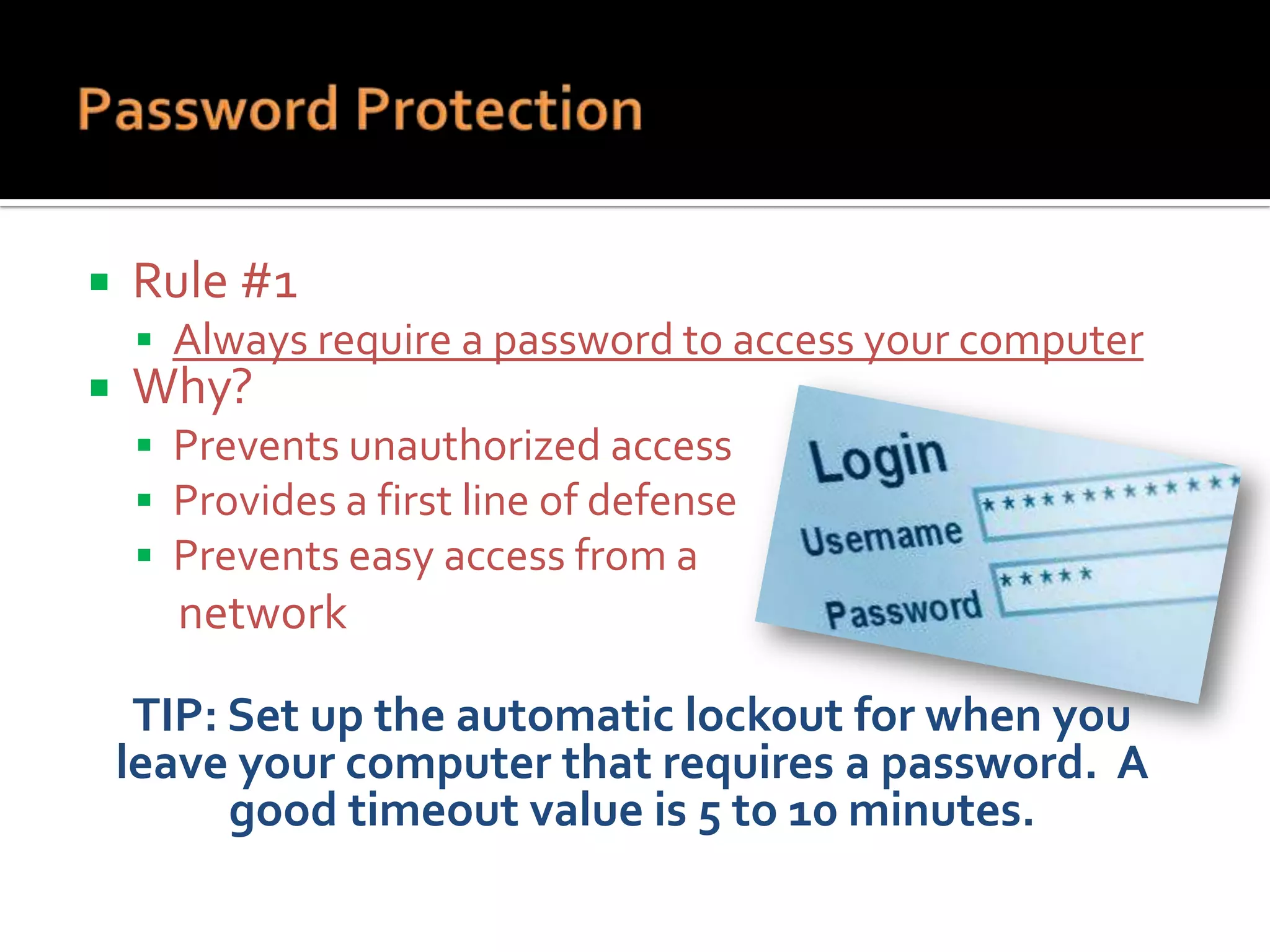
Rule #1
 Always require a password to access your computer



Why?

 Prevents unauthorized access
 Provides a first line of defense
 Prevents easy access from a

network

TIP: Set up the automatic lockout for when you
leave your computer that requires a password. A
good timeout value is 5 to 10 minutes.




ALWAYS Password protect
your computer
Lock you cell phone
Use strong passwords –
 12 characters, letters, numbers and symbols
 Use a “coded” phrase you can remember





Do not store passwords electronically
Do not write them down
Use password vault plugin such as “Lastpass”


Encryption makes files and data unreadable to
anyone that does not have the encryption key



You can encrypt:
 Entire Computer
 A Disk Volume
 Files & Folders



Protects against theft and unauthorized access






SPAM Filters
Keeps out email from
unknown senders
Catches majority of
SPAM
Catches non-SPAM
Allows known email
SPAM Filters aren’t
perfect!







WEB Filters
Prohibits bad websites
Pre-examines website
content and warns you
Catches good websites
Allows known
websites
Web filters aren’t
perfect!
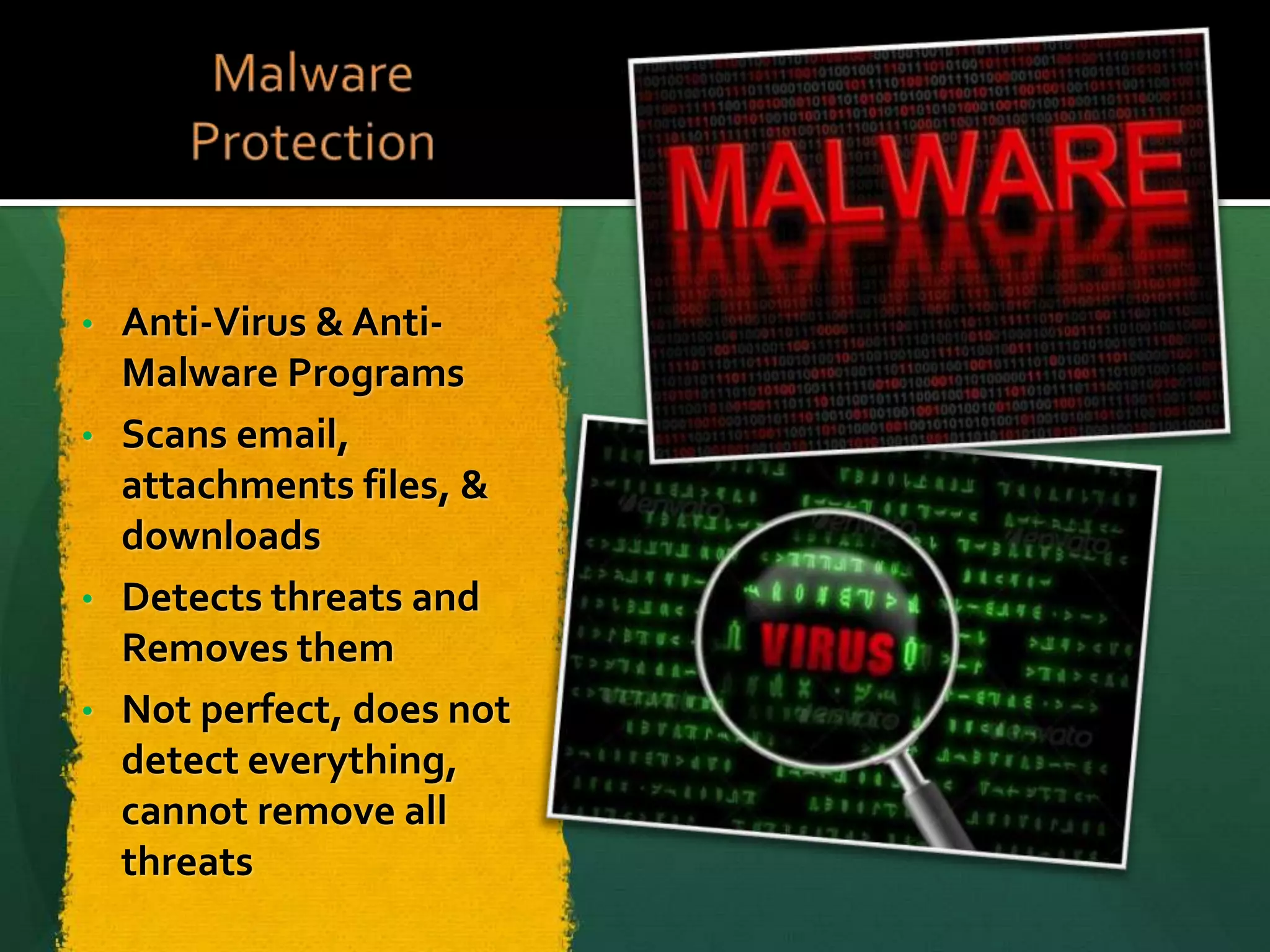
Anti-Virus & AntiMalware Programs
• Scans email,
attachments files, &
downloads
• Detects threats and
Removes them
• Not perfect, does not
detect everything,
cannot remove all
threats
•
Home PC Security Part III

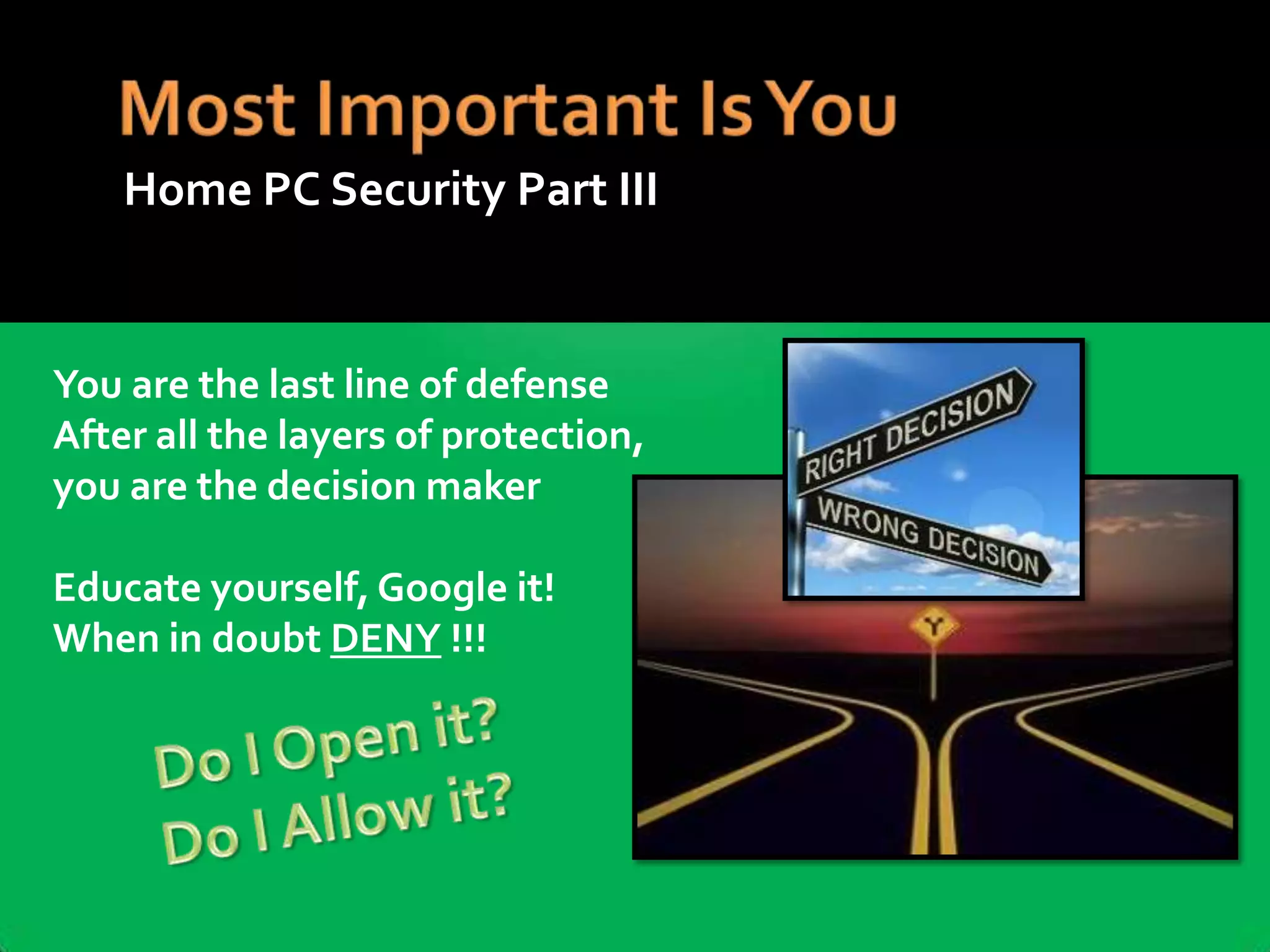
You are the last line of defense
After all the layers of protection,
you are the decision maker
Educate yourself, Google it!
When in doubt DENY !!!
http://www.youtube.com/watch?v=xxDm_sKhIBM
Home PC Security Part III
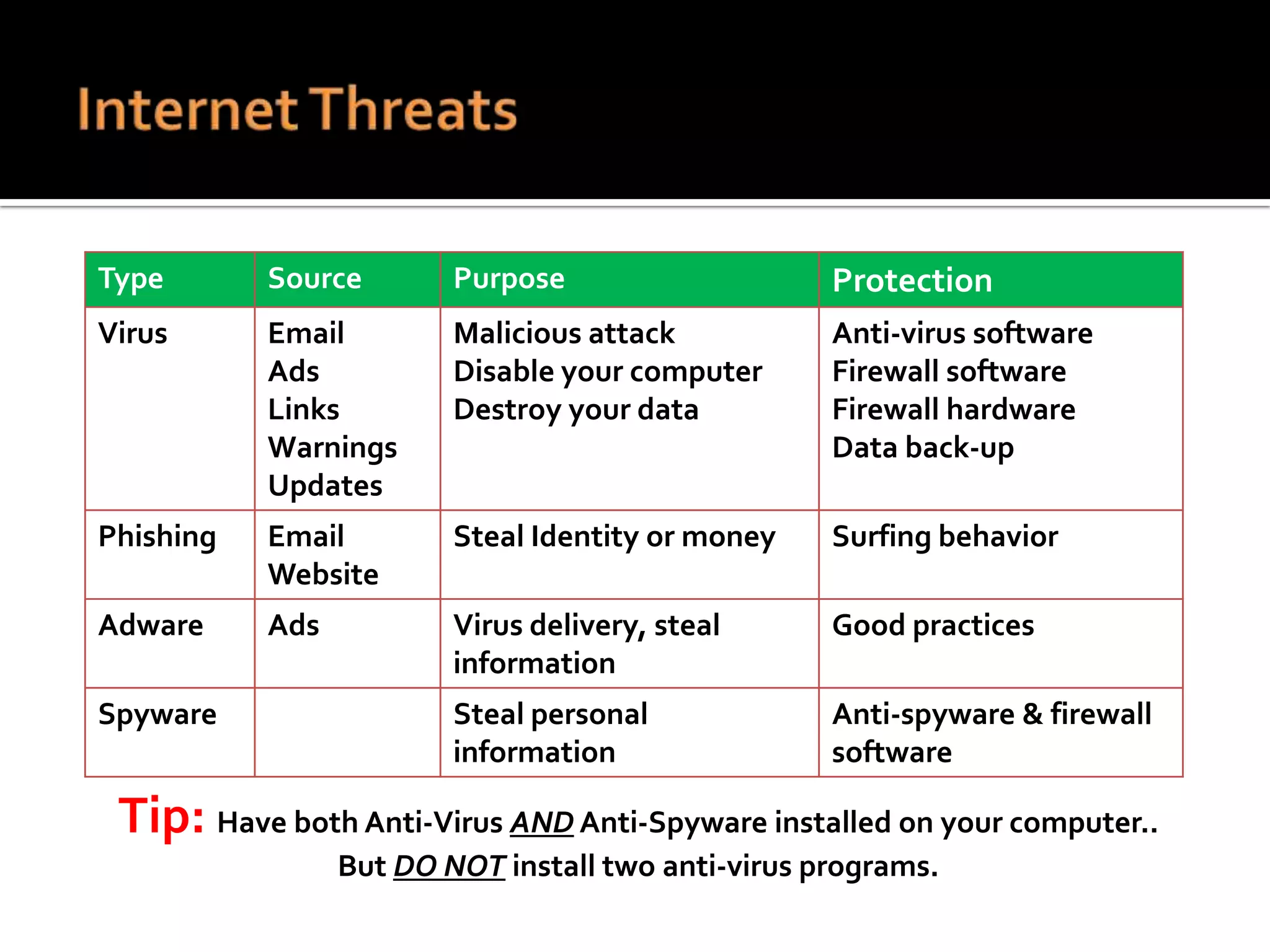
Type

Source

Purpose

Protection

Virus

Email
Ads
Links
Warnings
Updates

Malicious attack
Disable your computer
Destroy your data

Anti-virus software
Firewall software
Firewall hardware
Data back-up

Phishing

Email
Website

Steal Identity or money

Surfing behavior

Adware

Ads

Virus delivery, steal
information

Good practices

Steal personal
information

Anti-spyware & firewall
software

Spyware

Tip: Have both Anti-Virus AND Anti-Spyware installed on your computer..
But DO NOT install two anti-virus programs.


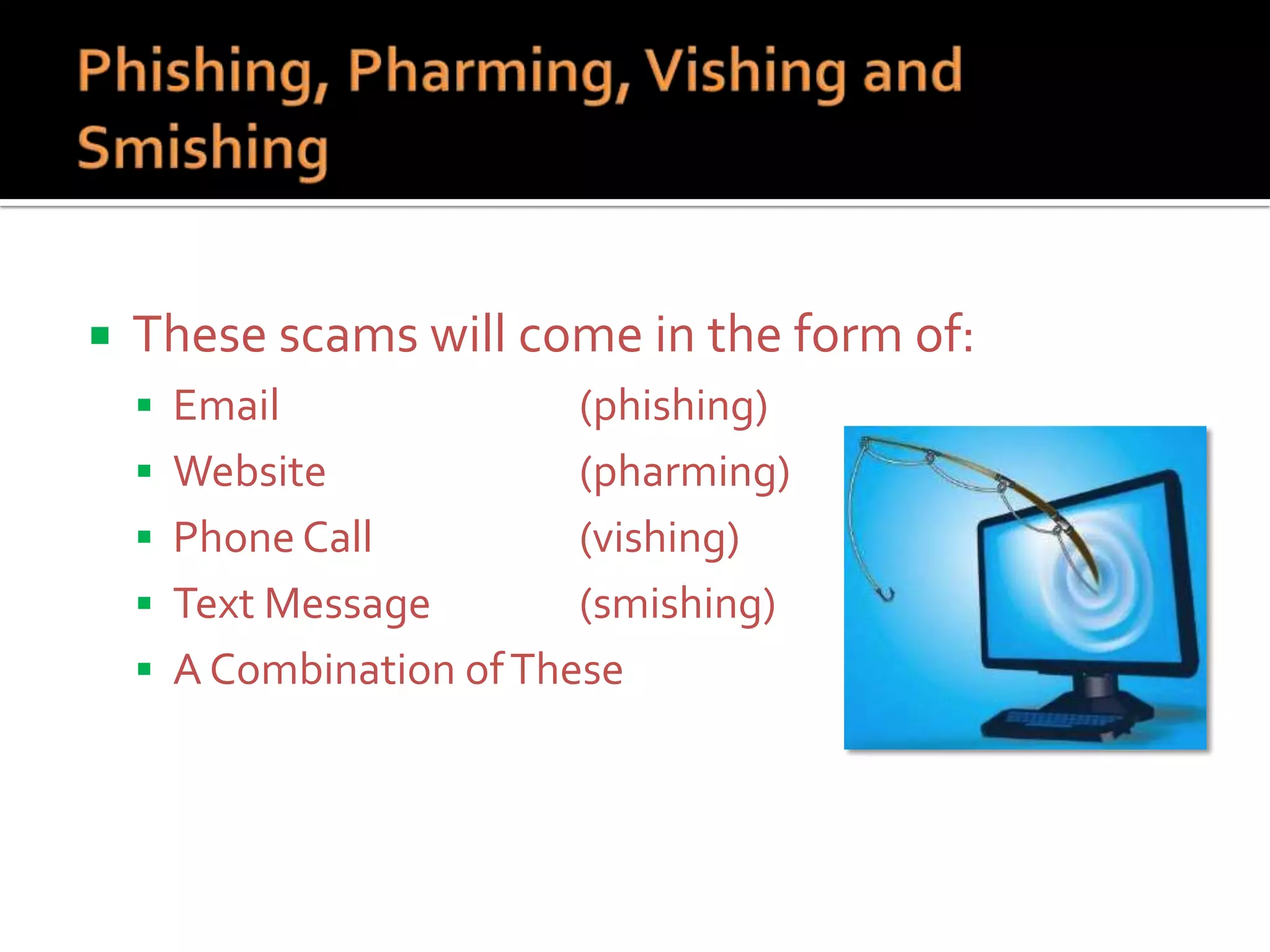
These scams will come in the form of:
 Email







(phishing)
Website
(pharming)
Phone Call
(vishing)
Text Message
(smishing)
A Combination of These


Similar variations on a theme



Identity Theft is their goal

 May direct you to call a number to “unlock” or “reactivate” your
account by entering personal info
 May direct you to a website to enter personal info

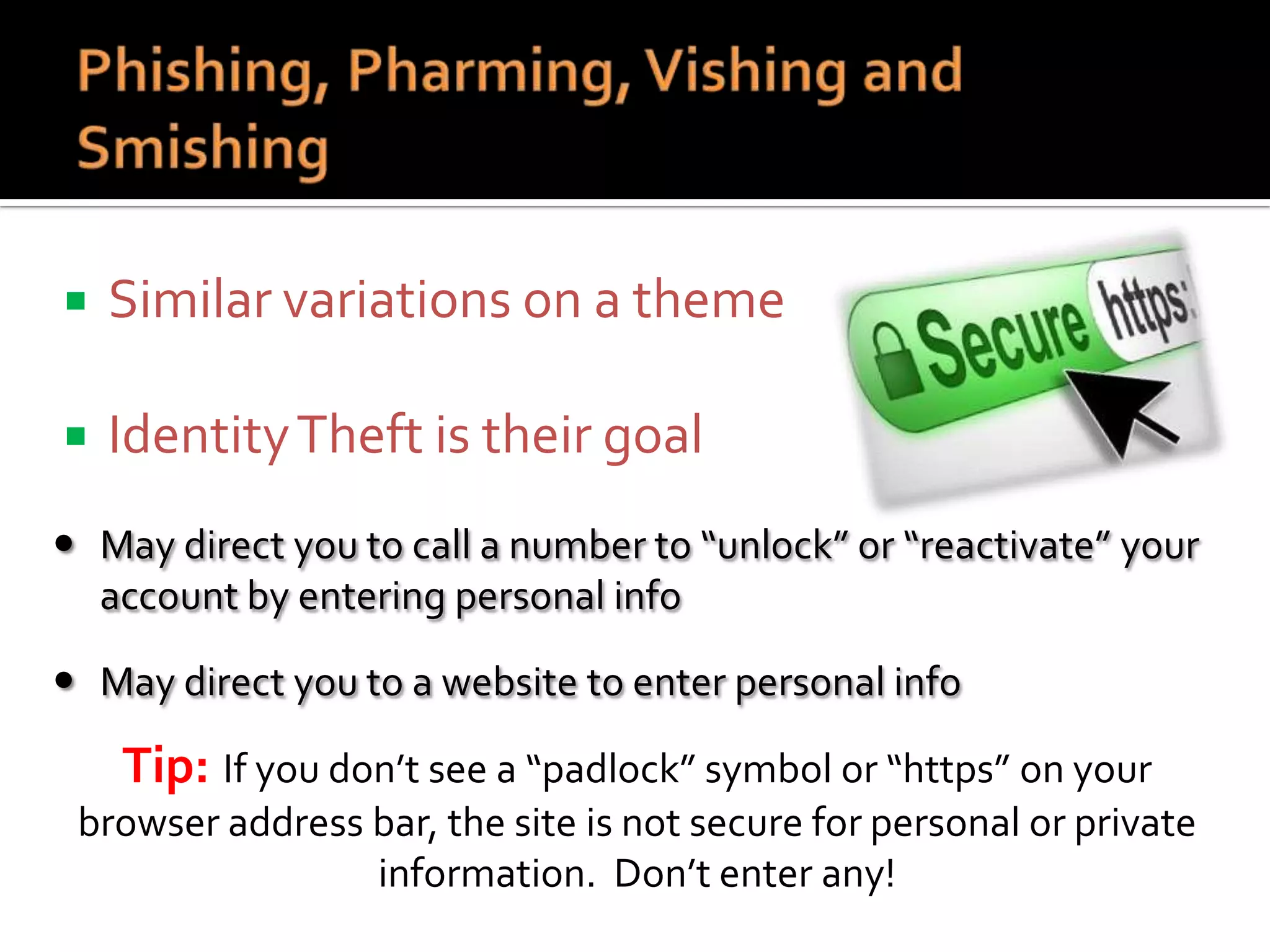
Tip: If you don’t see a “padlock” symbol or “https” on your
browser address bar, the site is not secure for personal or private
information. Don’t enter any!


Requests personal information?



Contains grammatical errors or
misspellings?



How do they address you?



Is it too good to be true?



Have you checked the link?
Tip:

You can “Mouse Over” a link and check a website
Does the website URL look legitimate?

Tip: Legitimate companies will NEVER ask you for personal or confidential
information via email, a website, telephone, or text message.
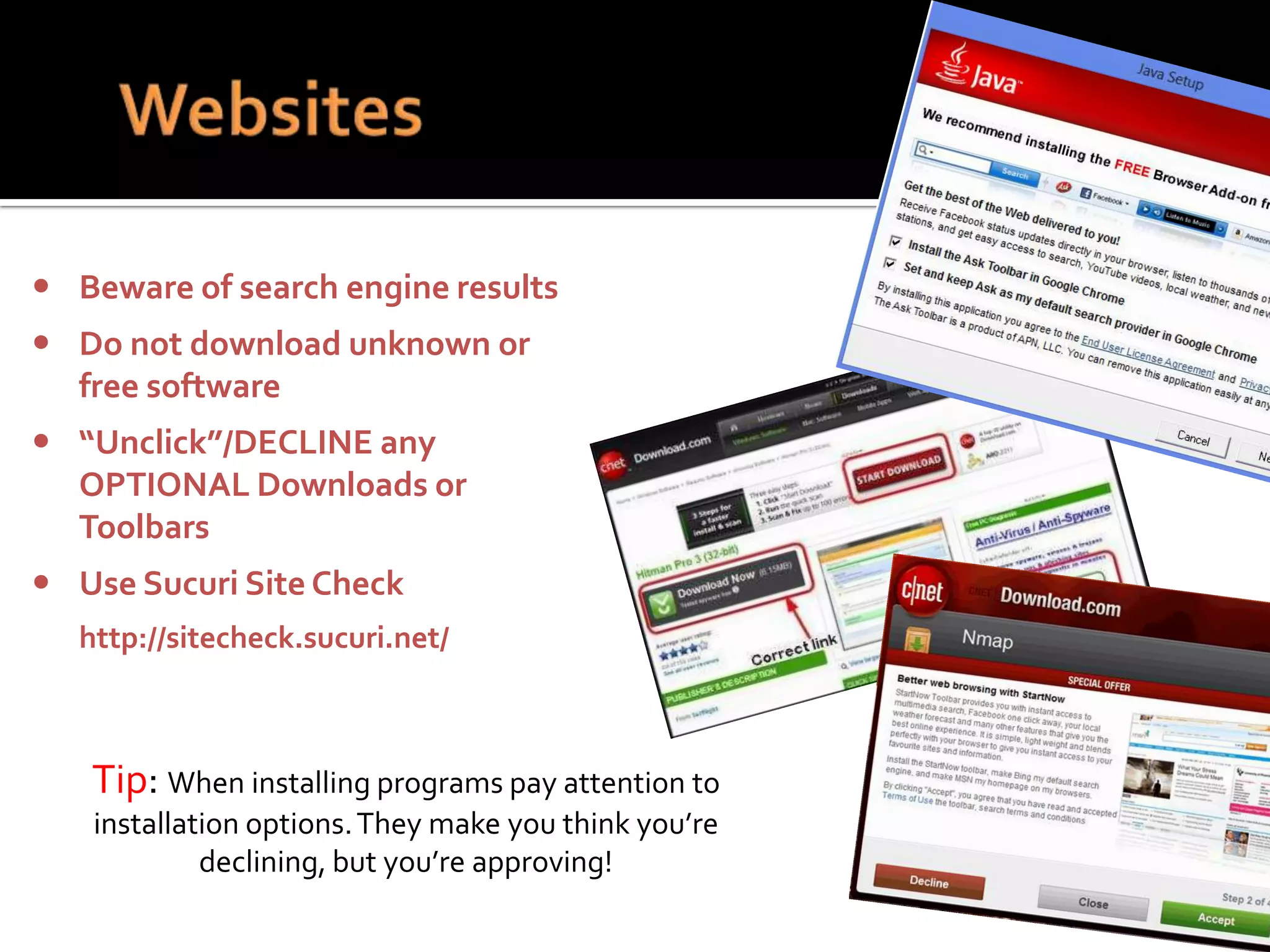
 Beware of search engine results
 Do not download unknown or
free software
 “Unclick”/DECLINE any
OPTIONAL Downloads or
Toolbars
 Use Sucuri Site Check
http://sitecheck.sucuri.net/

Tip: When installing programs pay attention to
installation options. They make you think you’re
declining, but you’re approving!
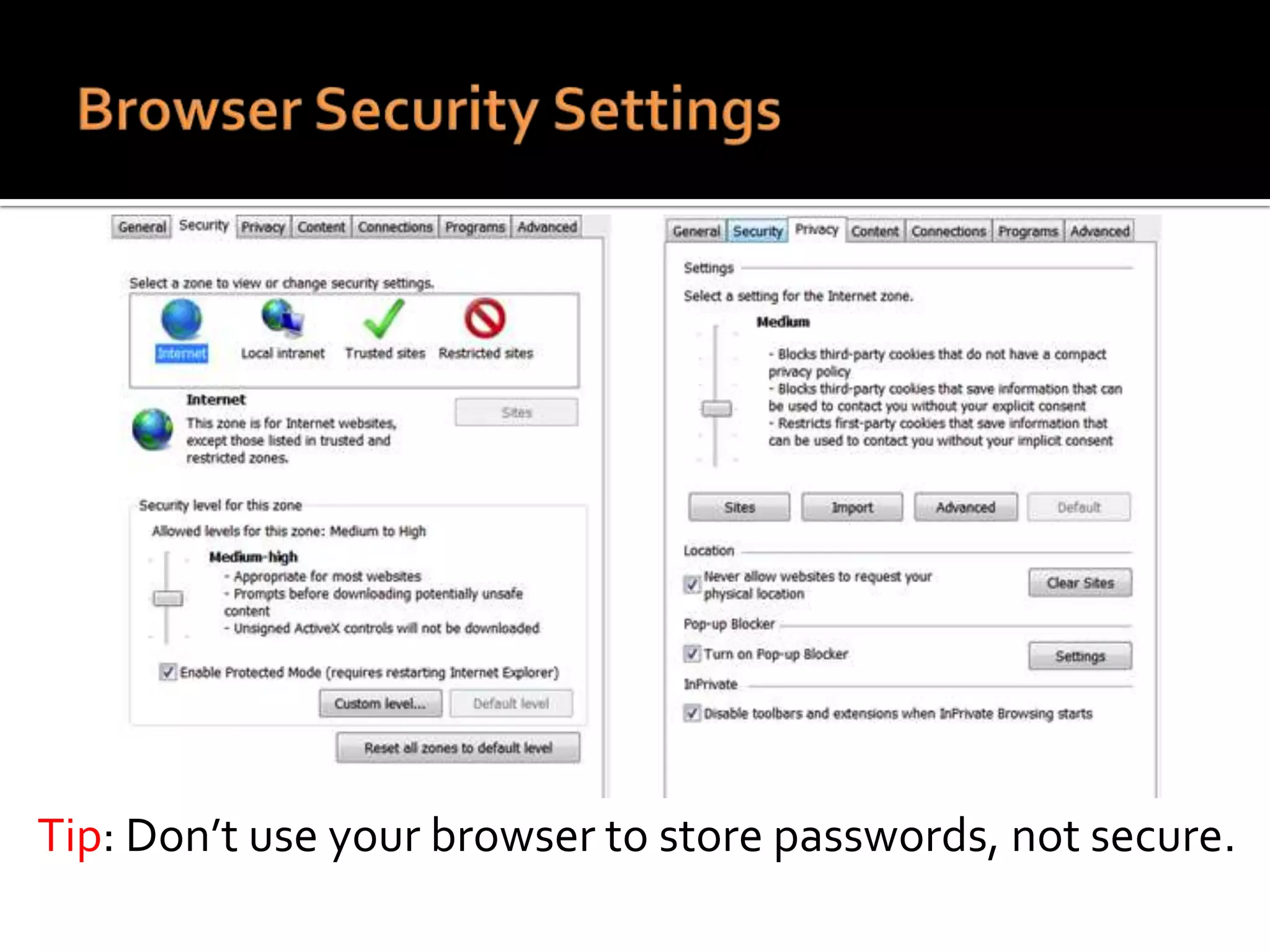
Tip: Don’t use your browser to store passwords, not secure.




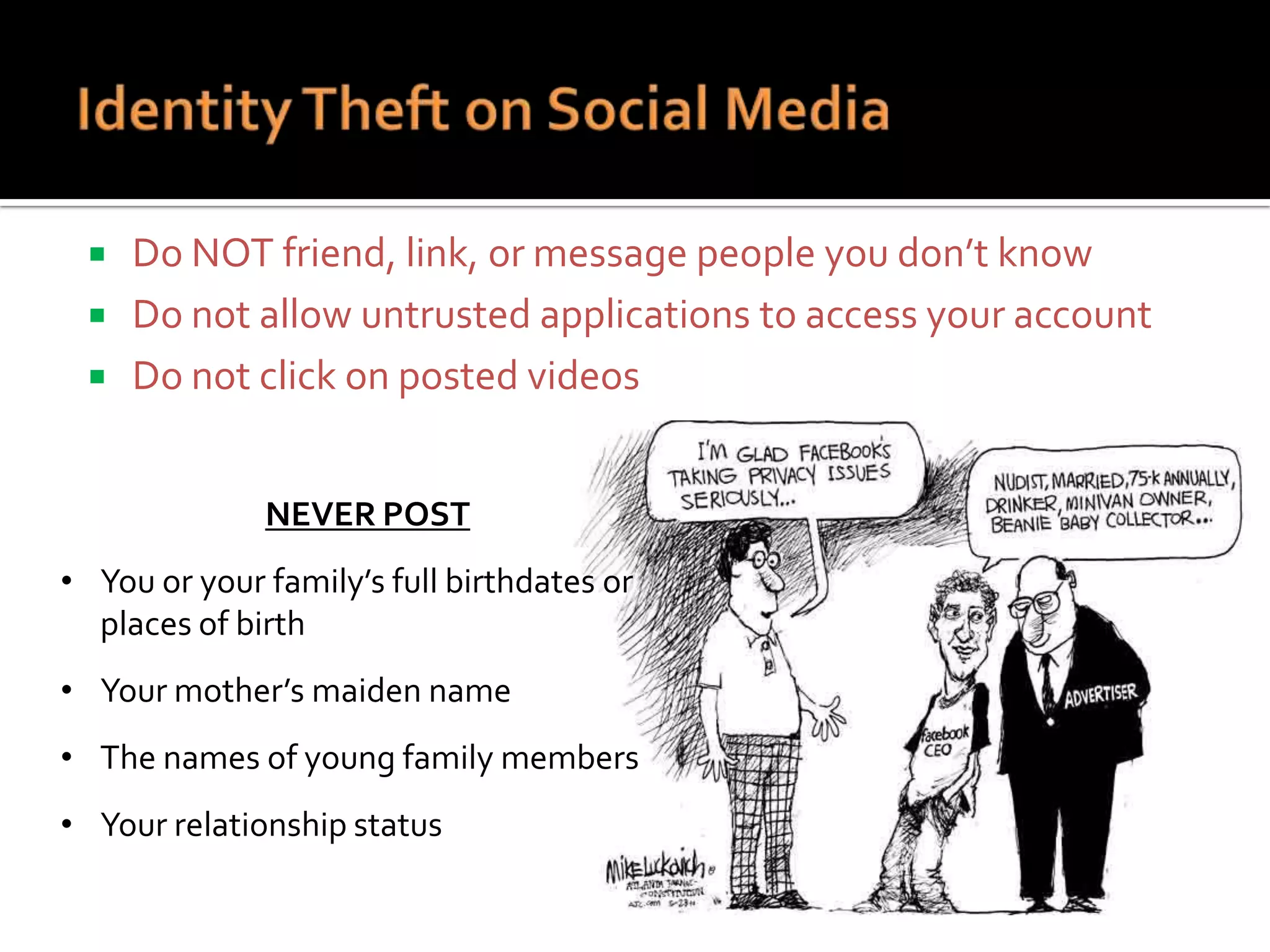
Do NOT friend, link, or message people you don’t know
Do not allow untrusted applications to access your account
Do not click on posted videos
NEVER POST

• You or your family’s full birthdates or
places of birth
• Your mother’s maiden name
• The names of young family members
• Your relationship status
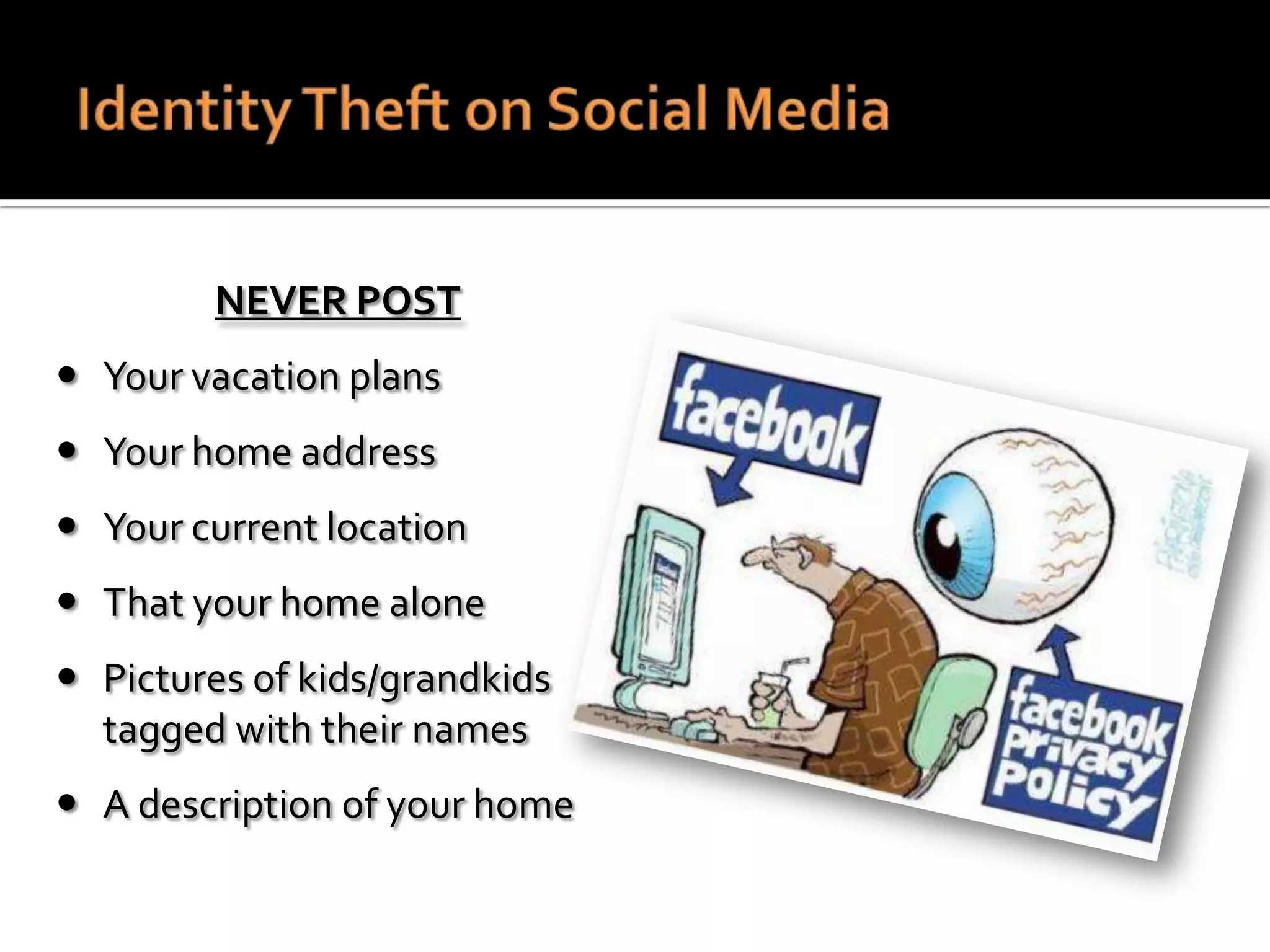
NEVER POST
 Your vacation plans
 Your home address
 Your current location
 That your home alone
 Pictures of kids/grandkids
tagged with their names
 A description of your home
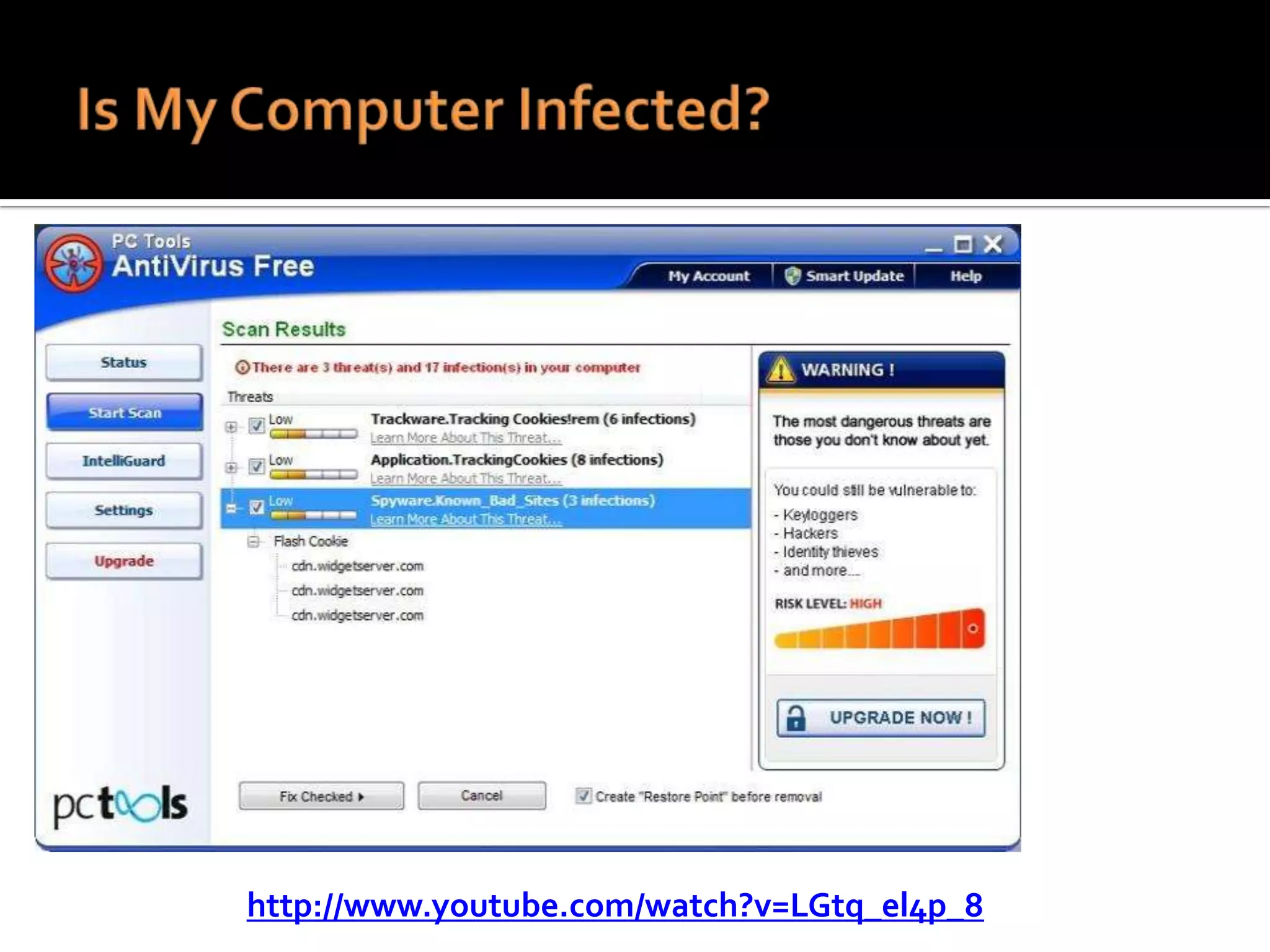
Home PC Security Part IV
http://www.youtube.com/watch?v=LGtq_el4p_8






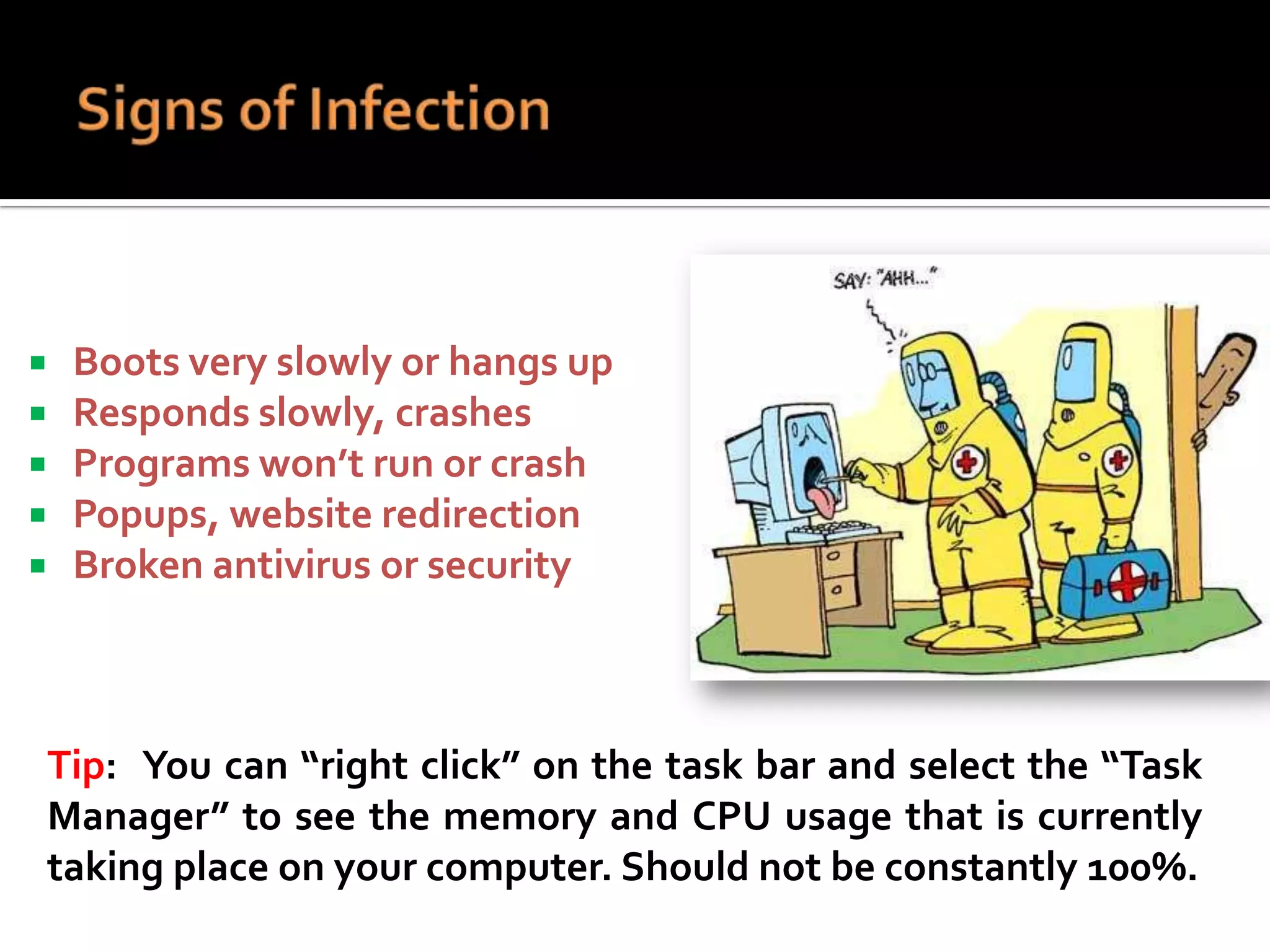
Boots very slowly or hangs up
Responds slowly, crashes
Programs won’t run or crash
Popups, website redirection
Broken antivirus or security

Tip: You can “right click” on the task bar and select the “Task
Manager” to see the memory and CPU usage that is currently
taking place on your computer. Should not be constantly 100%.
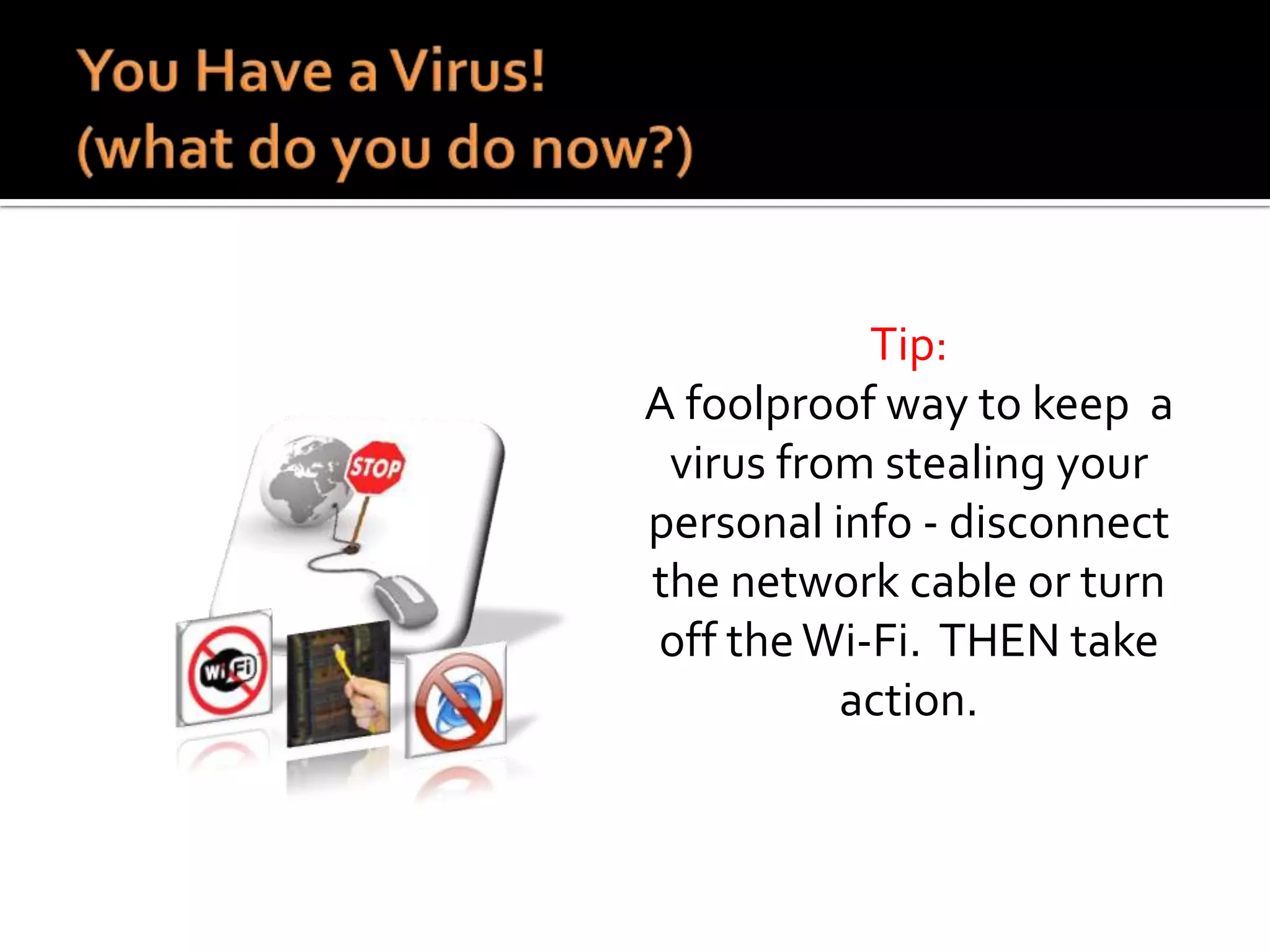
Tip:
A foolproof way to keep a
virus from stealing your
personal info - disconnect
the network cable or turn
off the Wi-Fi. THEN take
action.


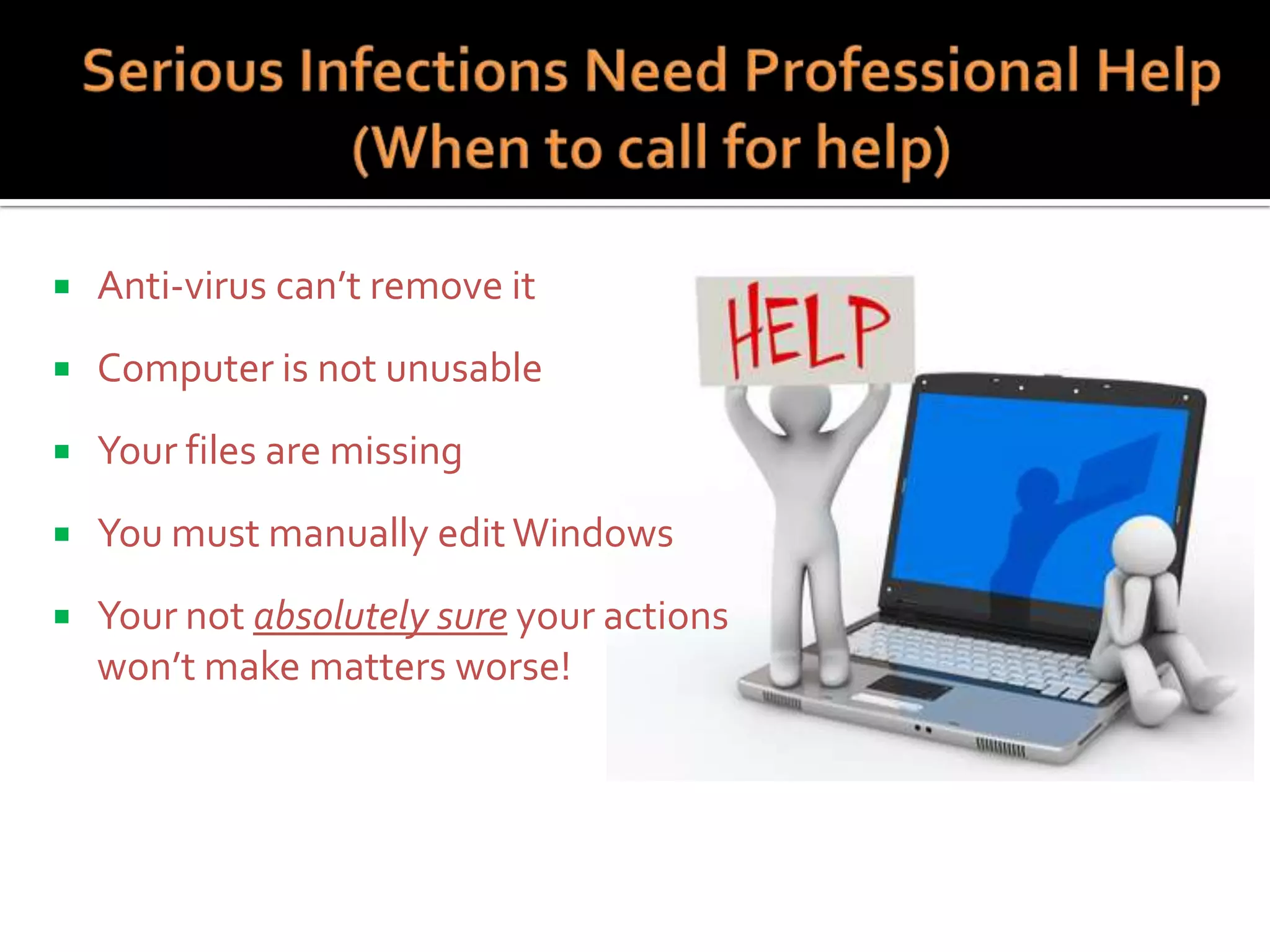
Anti-virus can’t remove it



Computer is not unusable



Your files are missing



You must manually edit Windows



Your not absolutely sure your actions
won’t make matters worse!
Home PC Security Part V


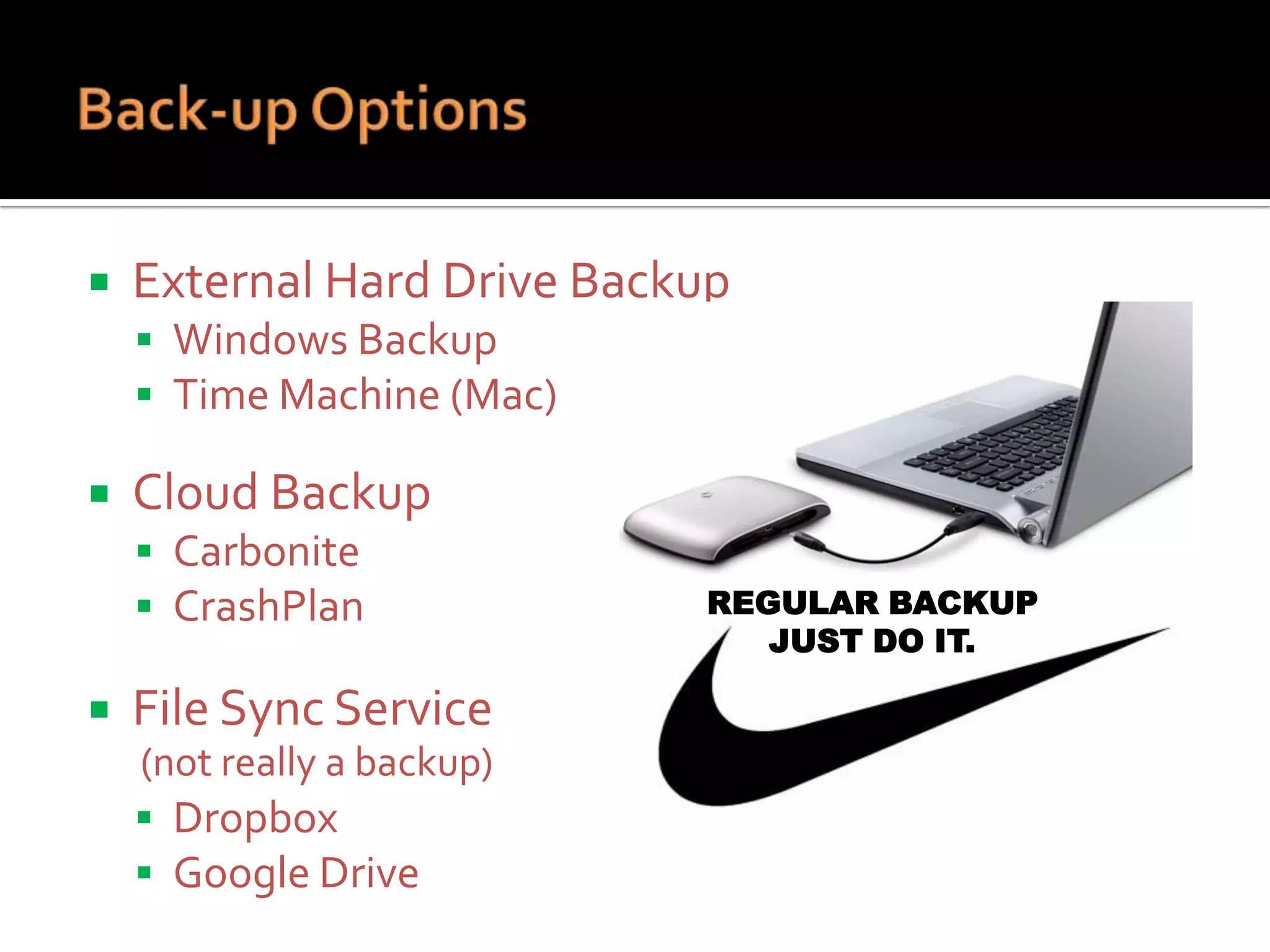
External Hard Drive Backup
 Windows Backup
 Time Machine (Mac)



Cloud Backup
 Carbonite
 CrashPlan



File Sync Service
(not really a backup)
 Dropbox
 Google Drive

REGULAR BACKUP
JUST DO IT.
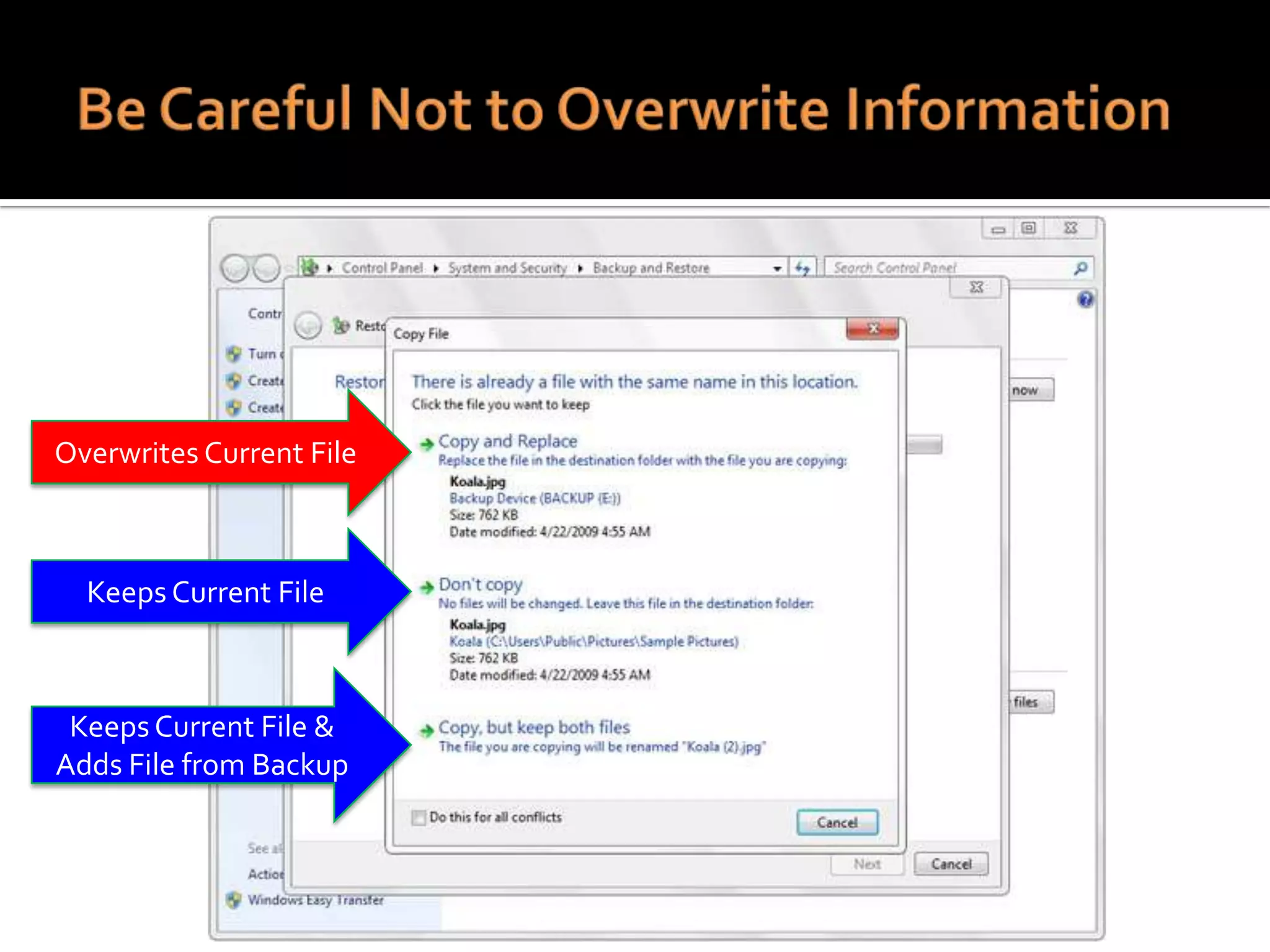
Overwrites Current File

Keeps Current File

Keeps Current File &
Adds File from Backup



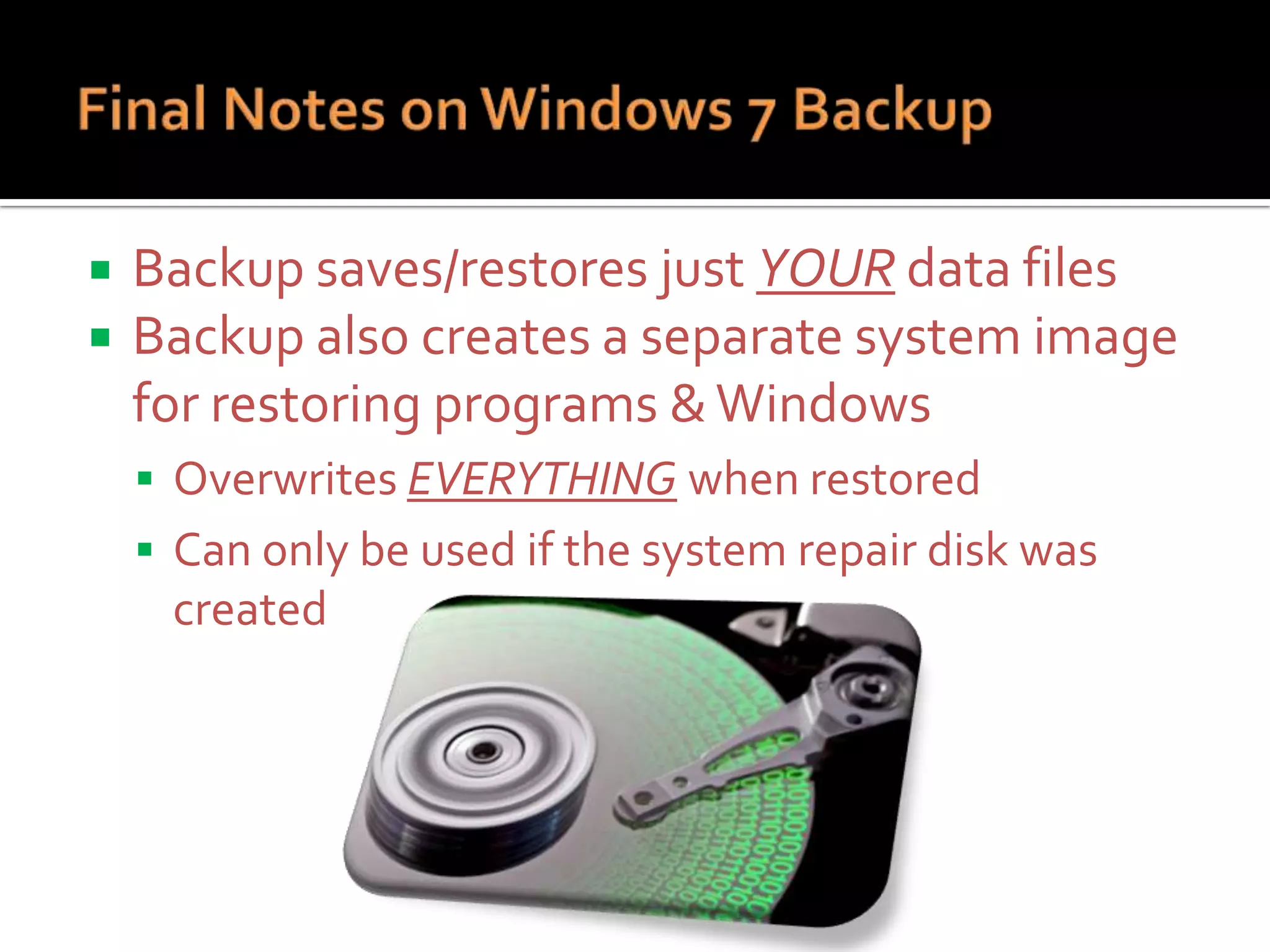
Backup saves/restores just YOUR data files
Backup also creates a separate system image
for restoring programs & Windows
 Overwrites EVERYTHING when restored
 Can only be used if the system repair disk was

created


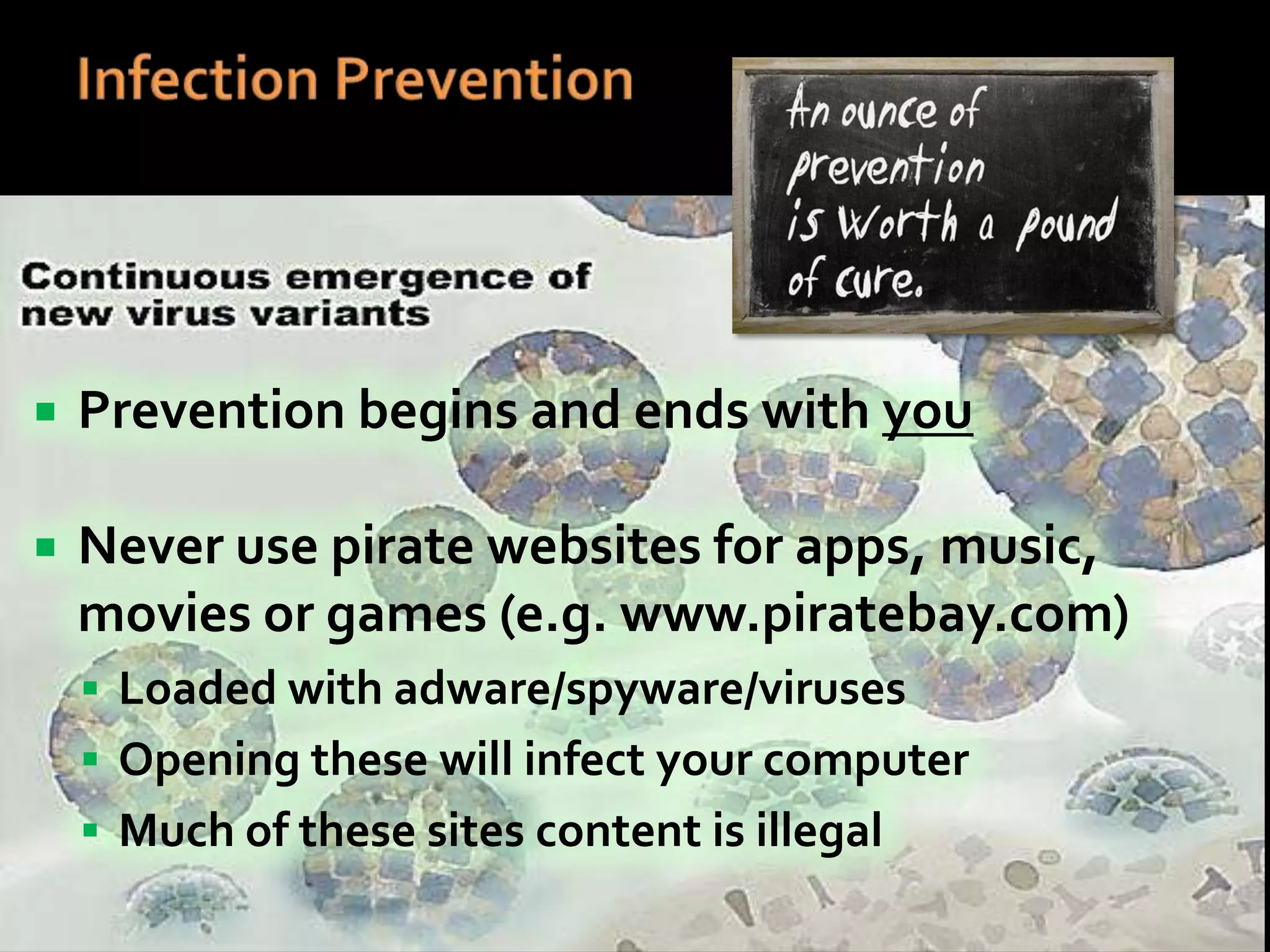
Prevention begins and ends with you



Never use pirate websites for apps, music,
movies or games (e.g. www.piratebay.com)
 Loaded with adware/spyware/viruses
 Opening these will infect your computer
 Much of these sites content is illegal
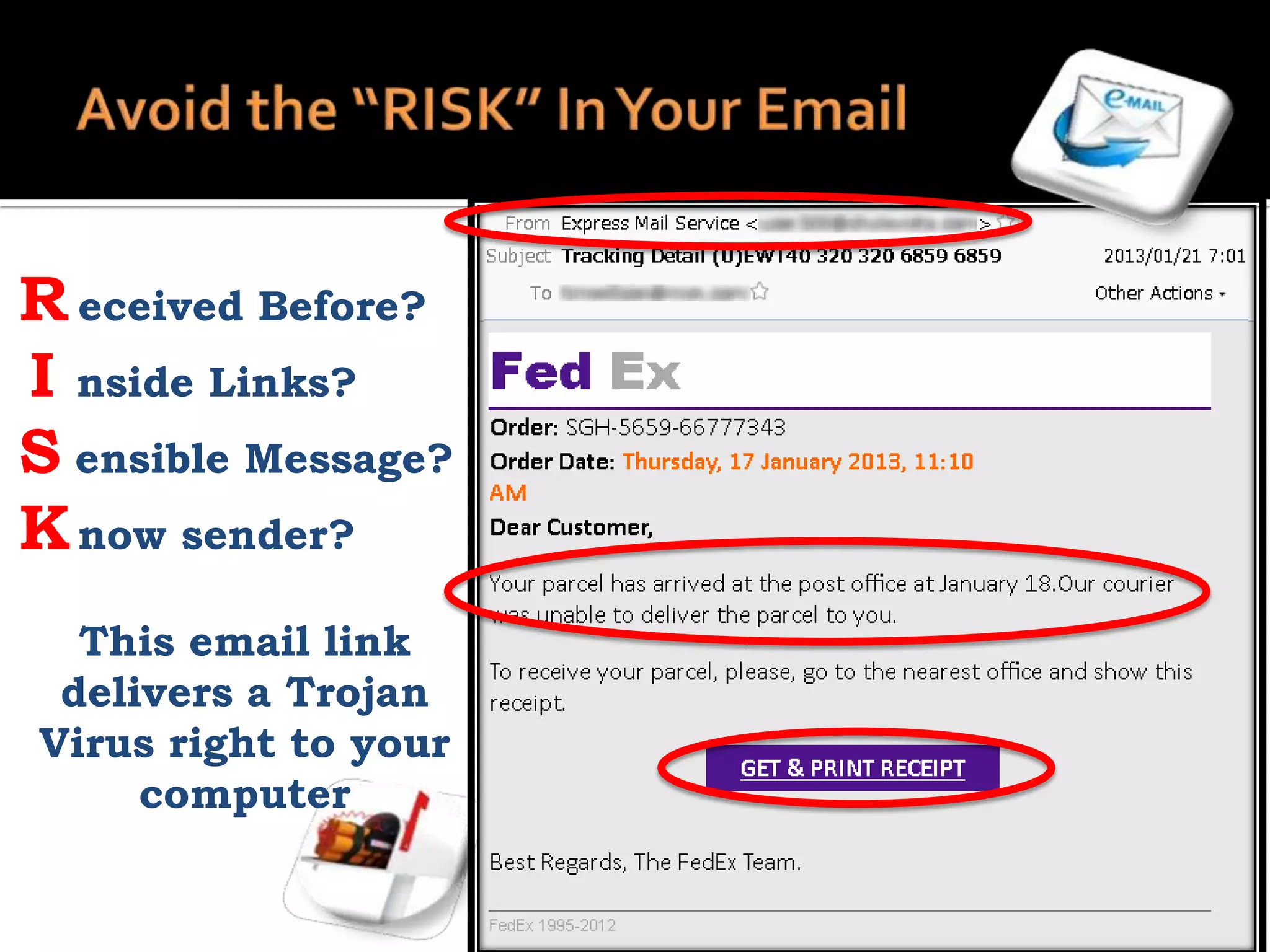
R eceived Before?
I nside Links?
S ensible Message?
K now sender?
This email link
delivers a Trojan
Virus right to your
computer
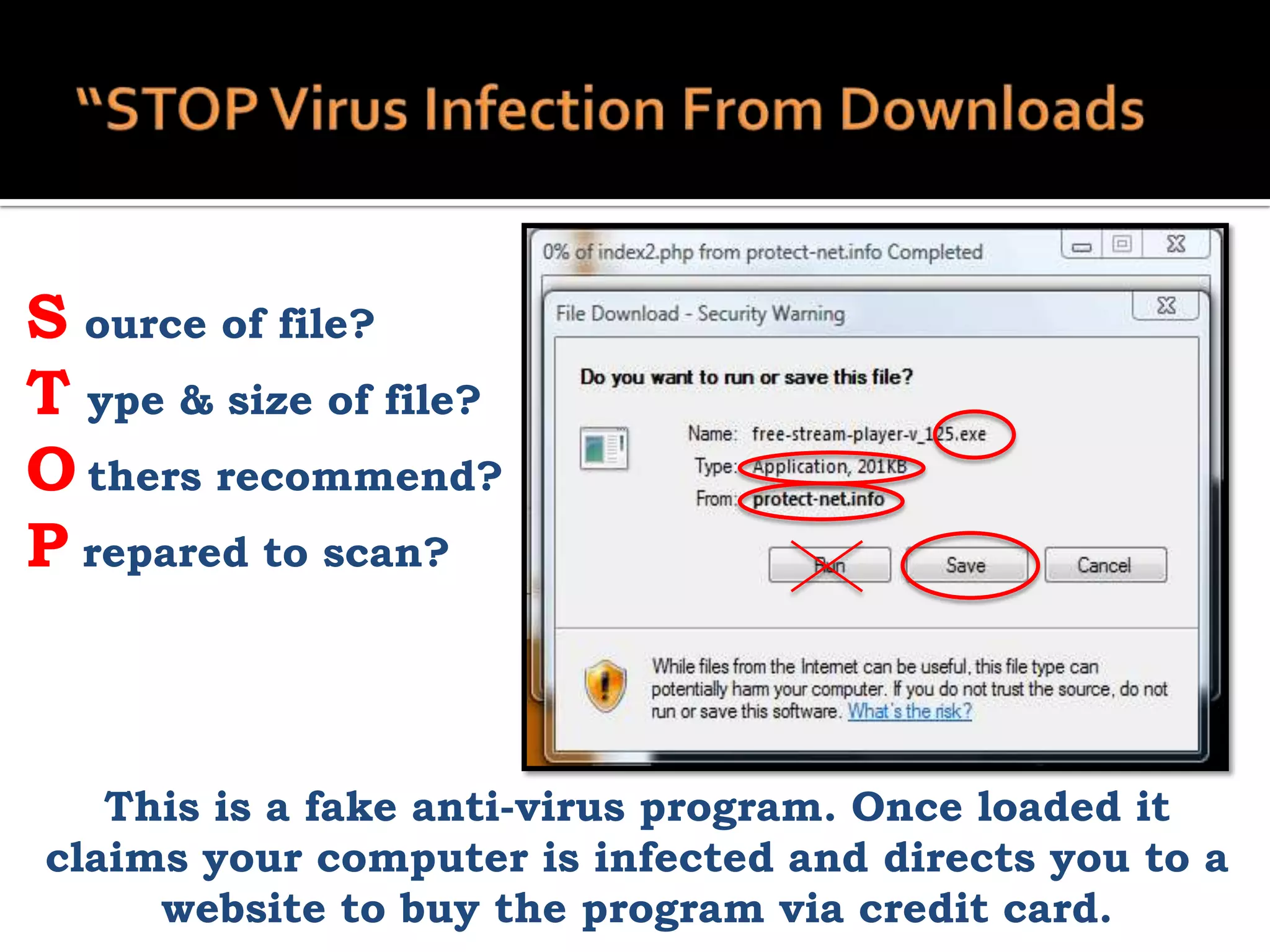
S ource of file?
T ype & size of file?
O thers recommend?
P repared to scan?

This is a fake anti-virus program. Once loaded it
claims your computer is infected and directs you to a
website to buy the program via credit card.


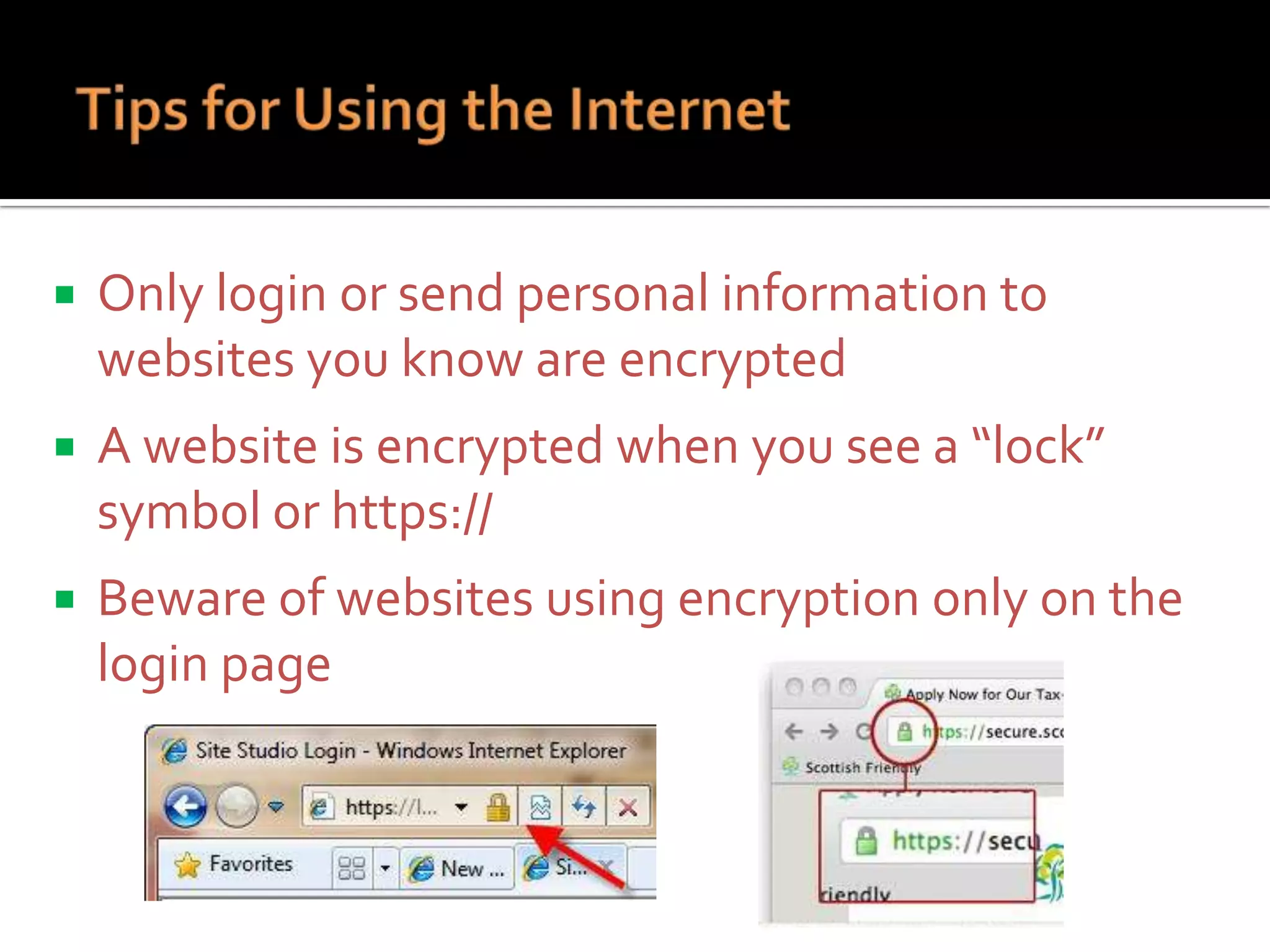
Only login or send personal information to
websites you know are encrypted



A website is encrypted when you see a “lock”
symbol or https://



Beware of websites using encryption only on the
login page


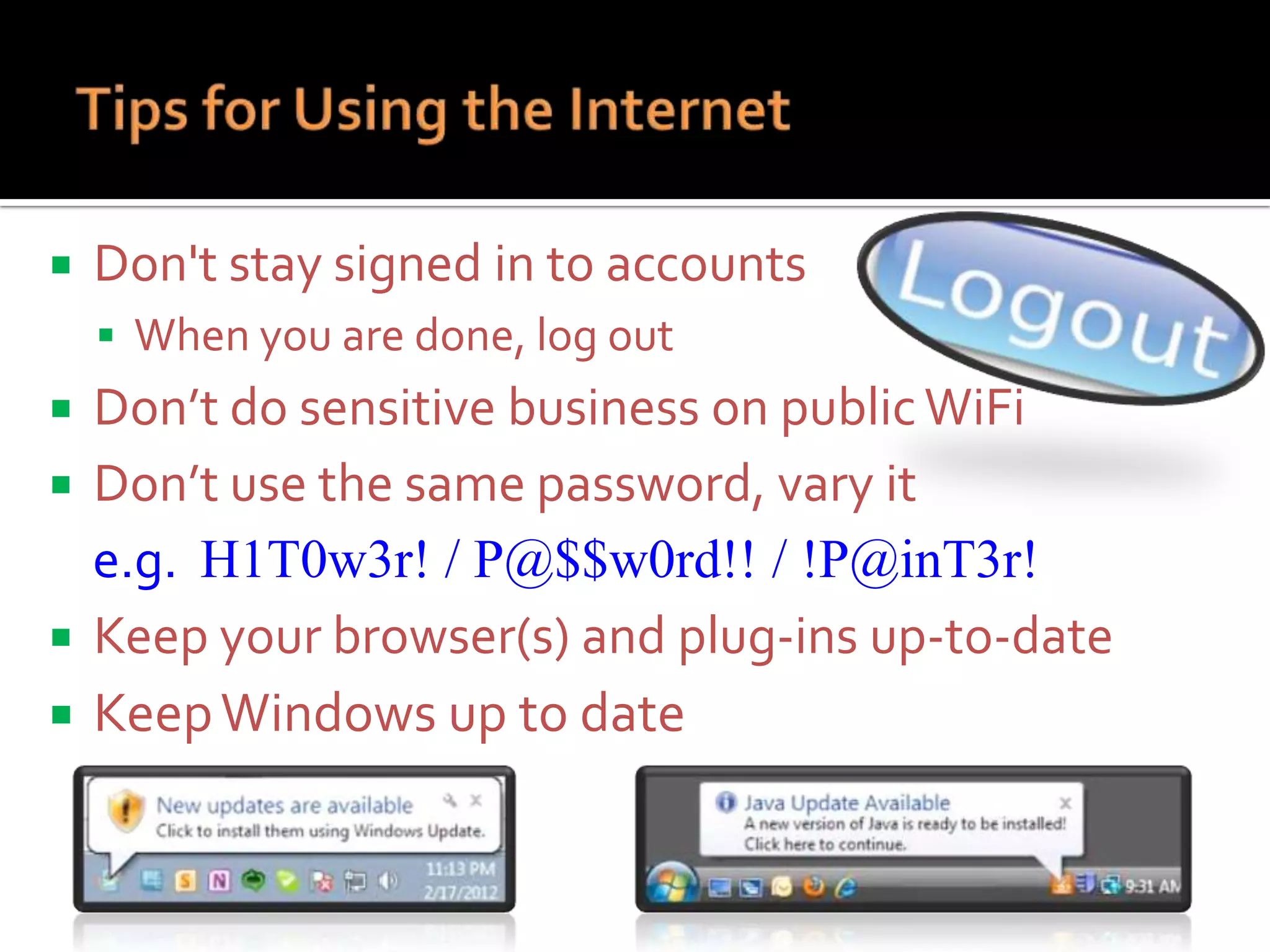
Don't stay signed in to accounts
 When you are done, log out

Don’t do sensitive business on public WiFi
 Don’t use the same password, vary it
e.g. H1T0w3r! / P@$$w0rd!! / !P@inT3r!
 Keep your browser(s) and plug-ins up-to-date
 Keep Windows up to date

1.
2.
3.
4.
5.

Regularly Backup of your files and data
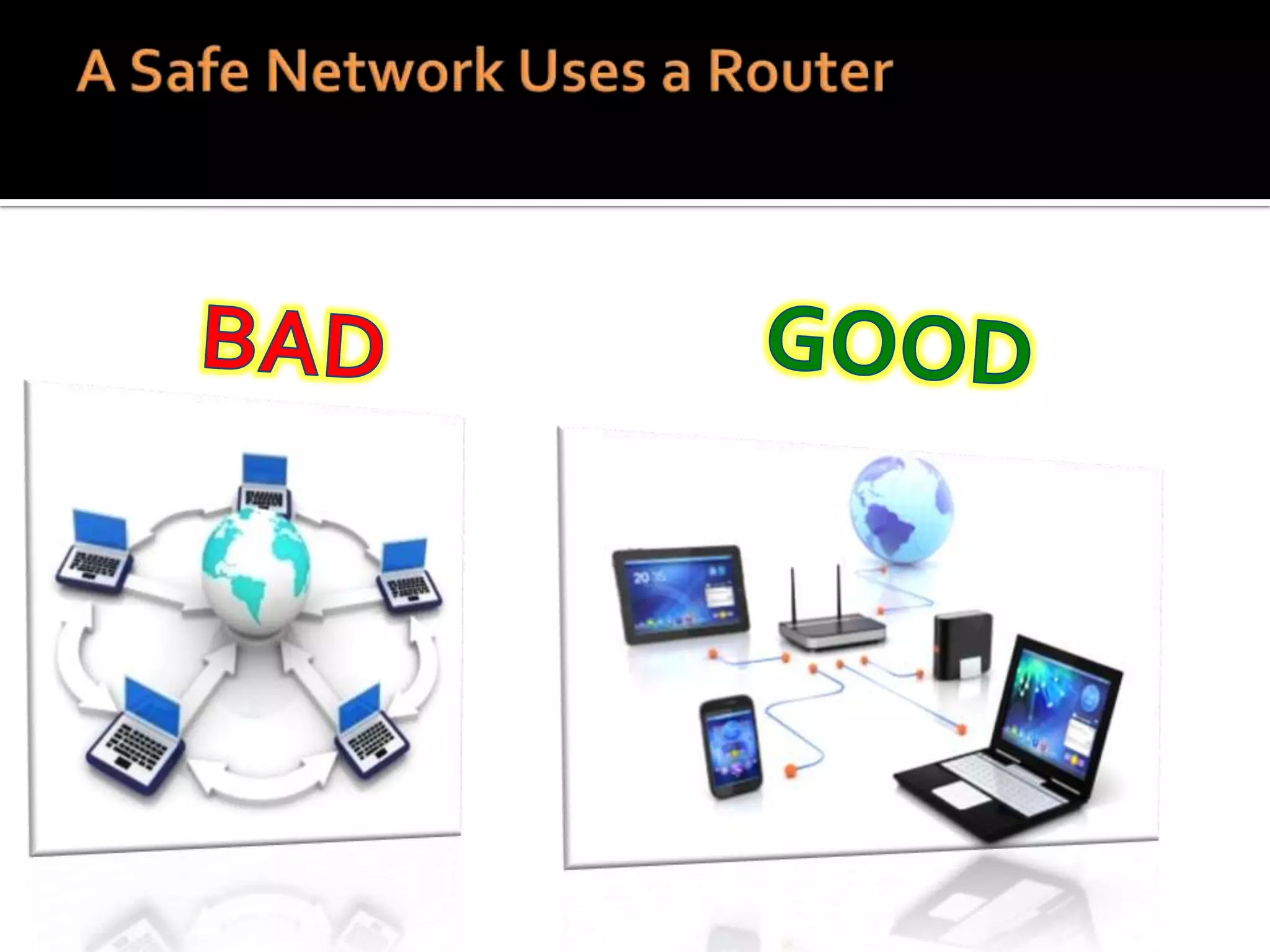
Use a Router, it hides your computer/network
Make sure the Windows Firewall is enabled
Use strong passwords on your Router and Computer
Use anti-virus/anti-spyware to detect/remove
malware

And, practice safe surfing: if you aren’t sure, don’t click!
Tip: By protecting your computer, hackers and Internet
criminals “move on” to easier targets. Stay vigilant!
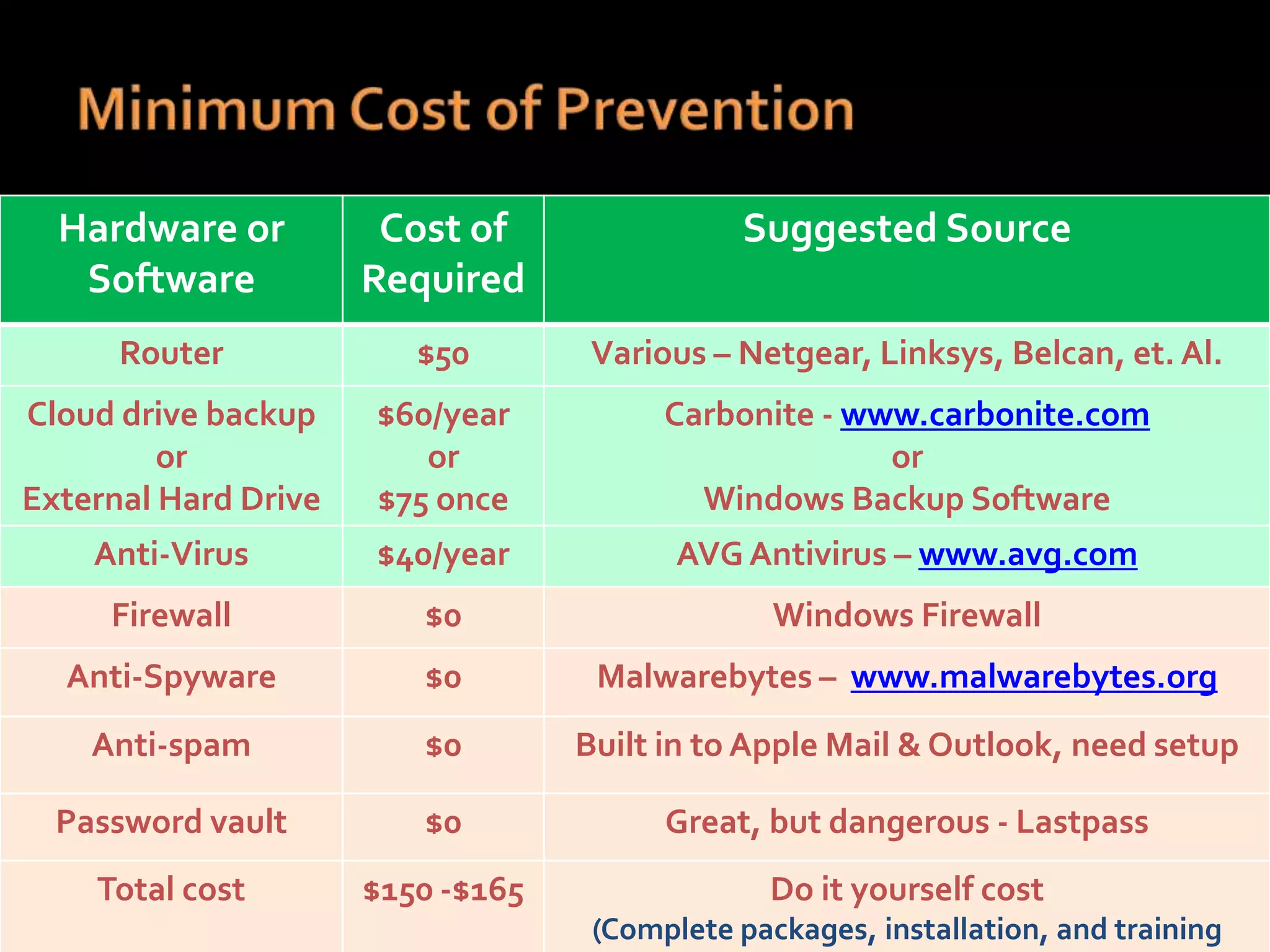
Hardware or
Software

Cost of
Required

Suggested Source

Router

$50

Various – Netgear, Linksys, Belcan, et. Al.

Cloud drive backup
or
External Hard Drive

$60/year
or
$75 once

Carbonite - www.carbonite.com
or
Windows Backup Software

Anti-Virus

$40/year

AVG Antivirus – www.avg.com

Firewall

$0

Windows Firewall

Anti-Spyware

$0

Malwarebytes – www.malwarebytes.org

Anti-spam

$0

Built in to Apple Mail & Outlook, need setup

Password vault

$0

Great, but dangerous - Lastpass

Total cost

$150 -$165

Do it yourself cost
(Complete packages, installation, and training
www.CTDayton.com

(937) 458-2000
www.CTDayton.com

cbrust@comptroub.com

Home and Business Computer Security 2014

  • 1.
    Practical Tips YouCan Use to Protect Your Identity, Your Computer and Your Network from Attack www.CTDayton.com
  • 2.
  • 3.
         Your kids useyour computer You travel with your computer and use WiFi Personal & financial information are on your computer Business files are on your computer Family pictures and videos are on your computer What would happen if your computer was gone tomorrow?
  • 4.
    What is Cyber-Security? Whatis Cyber-Crime? Protecting your computer, your network, and your information from at-home and online threats Any crime conducted via the Internet to cause damage and/or steal personal information
  • 5.
     Why do hackershack?  Lot’s of money to be stolen  To collect information!  Information used to directly steal money, and identity theft  Why attack the home computer?  Home computer = information!  Least secure in general  Unwary users
  • 6.
     Hardware  Unsecured Wi-Fi(think Panera)  No Router  Router with default password  Software      No anti-virus/anti-spyware No Firewall Old virus definitions Out of date Windows O.S. Personal Behavior      Failure to use strong passwords Clicking on unsafe links or emails Downloading questionable files Leaving computer logged on Leaving your computer accessible
  • 7.
    Virus Type Impact Solution Cash Cost MinorVirus Lose some data 2- 4 hours Use installed anti-virus $75-100 Major Virus Loss of docs 5-10 hours Use service to $100-$130 remove Catastrophic Loss of ALL data Virus & photos 15+ hours Use service to $150-175 wipe & reload entire system What is YOUR time worth? $25, $50 $75?
  • 8.
  • 9.
  • 11.
    Closes and locks“open doors” • Keeps intruders and unknowns out • Allows the recognized & trusted in • Not perfect, Cybercriminals exploit trusted doors • May block desired sites •
  • 12.
     Access Router viayour web browser  Enter your Routers IP Address  Enter the default username & password  Find administration settings  Select Change/Reset Password Tip: Default Usernames/Passwords for most routers can be found at this web site: http://portforward.com/default_username_password
  • 13.
     Rule #1  Alwaysrequire a password to access your computer  Why?  Prevents unauthorized access  Provides a first line of defense  Prevents easy access from a network TIP: Set up the automatic lockout for when you leave your computer that requires a password. A good timeout value is 5 to 10 minutes.
  • 14.
       ALWAYS Password protect yourcomputer Lock you cell phone Use strong passwords –  12 characters, letters, numbers and symbols  Use a “coded” phrase you can remember    Do not store passwords electronically Do not write them down Use password vault plugin such as “Lastpass”
  • 15.
     Encryption makes filesand data unreadable to anyone that does not have the encryption key  You can encrypt:  Entire Computer  A Disk Volume  Files & Folders  Protects against theft and unauthorized access
  • 16.
         SPAM Filters Keeps outemail from unknown senders Catches majority of SPAM Catches non-SPAM Allows known email SPAM Filters aren’t perfect!      WEB Filters Prohibits bad websites Pre-examines website content and warns you Catches good websites Allows known websites Web filters aren’t perfect!
  • 17.
    Anti-Virus & AntiMalwarePrograms • Scans email, attachments files, & downloads • Detects threats and Removes them • Not perfect, does not detect everything, cannot remove all threats •
  • 18.
    Home PC SecurityPart III You are the last line of defense After all the layers of protection, you are the decision maker Educate yourself, Google it! When in doubt DENY !!!
  • 19.
  • 20.
  • 21.
    Type Source Purpose Protection Virus Email Ads Links Warnings Updates Malicious attack Disable yourcomputer Destroy your data Anti-virus software Firewall software Firewall hardware Data back-up Phishing Email Website Steal Identity or money Surfing behavior Adware Ads Virus delivery, steal information Good practices Steal personal information Anti-spyware & firewall software Spyware Tip: Have both Anti-Virus AND Anti-Spyware installed on your computer.. But DO NOT install two anti-virus programs.
  • 22.
     These scams willcome in the form of:  Email     (phishing) Website (pharming) Phone Call (vishing) Text Message (smishing) A Combination of These
  • 23.
     Similar variations ona theme  Identity Theft is their goal  May direct you to call a number to “unlock” or “reactivate” your account by entering personal info  May direct you to a website to enter personal info Tip: If you don’t see a “padlock” symbol or “https” on your browser address bar, the site is not secure for personal or private information. Don’t enter any!
  • 24.
     Requests personal information?  Containsgrammatical errors or misspellings?  How do they address you?  Is it too good to be true?  Have you checked the link? Tip: You can “Mouse Over” a link and check a website Does the website URL look legitimate? Tip: Legitimate companies will NEVER ask you for personal or confidential information via email, a website, telephone, or text message.
  • 25.
     Beware ofsearch engine results  Do not download unknown or free software  “Unclick”/DECLINE any OPTIONAL Downloads or Toolbars  Use Sucuri Site Check http://sitecheck.sucuri.net/ Tip: When installing programs pay attention to installation options. They make you think you’re declining, but you’re approving!
  • 26.
    Tip: Don’t useyour browser to store passwords, not secure.
  • 27.
       Do NOT friend,link, or message people you don’t know Do not allow untrusted applications to access your account Do not click on posted videos NEVER POST • You or your family’s full birthdates or places of birth • Your mother’s maiden name • The names of young family members • Your relationship status
  • 28.
    NEVER POST  Yourvacation plans  Your home address  Your current location  That your home alone  Pictures of kids/grandkids tagged with their names  A description of your home
  • 29.
  • 30.
  • 31.
         Boots very slowlyor hangs up Responds slowly, crashes Programs won’t run or crash Popups, website redirection Broken antivirus or security Tip: You can “right click” on the task bar and select the “Task Manager” to see the memory and CPU usage that is currently taking place on your computer. Should not be constantly 100%.
  • 32.
    Tip: A foolproof wayto keep a virus from stealing your personal info - disconnect the network cable or turn off the Wi-Fi. THEN take action.
  • 33.
     Anti-virus can’t removeit  Computer is not unusable  Your files are missing  You must manually edit Windows  Your not absolutely sure your actions won’t make matters worse!
  • 34.
  • 35.
     External Hard DriveBackup  Windows Backup  Time Machine (Mac)  Cloud Backup  Carbonite  CrashPlan  File Sync Service (not really a backup)  Dropbox  Google Drive REGULAR BACKUP JUST DO IT.
  • 37.
    Overwrites Current File KeepsCurrent File Keeps Current File & Adds File from Backup
  • 38.
      Backup saves/restores justYOUR data files Backup also creates a separate system image for restoring programs & Windows  Overwrites EVERYTHING when restored  Can only be used if the system repair disk was created
  • 39.
     Prevention begins andends with you  Never use pirate websites for apps, music, movies or games (e.g. www.piratebay.com)  Loaded with adware/spyware/viruses  Opening these will infect your computer  Much of these sites content is illegal
  • 40.
    R eceived Before? Inside Links? S ensible Message? K now sender? This email link delivers a Trojan Virus right to your computer
  • 41.
    S ource offile? T ype & size of file? O thers recommend? P repared to scan? This is a fake anti-virus program. Once loaded it claims your computer is infected and directs you to a website to buy the program via credit card.
  • 42.
     Only login orsend personal information to websites you know are encrypted  A website is encrypted when you see a “lock” symbol or https://  Beware of websites using encryption only on the login page
  • 43.
     Don't stay signedin to accounts  When you are done, log out Don’t do sensitive business on public WiFi  Don’t use the same password, vary it e.g. H1T0w3r! / P@$$w0rd!! / !P@inT3r!  Keep your browser(s) and plug-ins up-to-date  Keep Windows up to date 
  • 44.
    1. 2. 3. 4. 5. Regularly Backup ofyour files and data Use a Router, it hides your computer/network Make sure the Windows Firewall is enabled Use strong passwords on your Router and Computer Use anti-virus/anti-spyware to detect/remove malware And, practice safe surfing: if you aren’t sure, don’t click! Tip: By protecting your computer, hackers and Internet criminals “move on” to easier targets. Stay vigilant!
  • 45.
    Hardware or Software Cost of Required SuggestedSource Router $50 Various – Netgear, Linksys, Belcan, et. Al. Cloud drive backup or External Hard Drive $60/year or $75 once Carbonite - www.carbonite.com or Windows Backup Software Anti-Virus $40/year AVG Antivirus – www.avg.com Firewall $0 Windows Firewall Anti-Spyware $0 Malwarebytes – www.malwarebytes.org Anti-spam $0 Built in to Apple Mail & Outlook, need setup Password vault $0 Great, but dangerous - Lastpass Total cost $150 -$165 Do it yourself cost (Complete packages, installation, and training
  • 46.

Editor's Notes

  • #5 In-Home Threats (internal - Physical)Computer TheftUnauthorized accessTamperingOnline Threats (external – Internet)HackersMalwareScams
  • #6 Types of information stolen:Credit card infoOnline bank account informationBank statementsConfidential information like SSN, addresses, phone #sStock trading data, brokerage statementsTax return informationEmail addresses for SPAM and SCAMs
  • #11 Router is the First Line of Defense“Hides” your network and computers from being directly accessible on the InternetRouters Can Provide Firewall Protection
  • #14 Prevents unauthorized access when your not aroundProvides a first line of defense in case of computer theftPrevent hackers from gaining easy access if they get inside your network
  • #18 What AV do you use?The big boys concentrate on advertising (Norton, McAfee)Not as efficient as others
  • #22 This helps detect/protect you from more kinds of malware than just Anti-Virus
  • #23 Sometimes a scam artist will first contact you “benignly” as bait to lure you into a conversation. They then follow that up with the scam after gaining your trust.Other times, the scam artist will contact you directly asking for information for a seemingly valid reason.
  • #24 Cons to get your personal information
  • #32 High or zero network activityHigh CPU and/or memory usage