

G it’s the way
   to do it!
G it’s the way
           to do it!


 A Beginnerʼs Guide to
Version Control with Git.
What is
Version Control?
What is
      Version Control?
• Allows you to keep a history of every change
  within a project.
What is
      Version Control?
• Allows you to keep a history of every change
  within a project.
• Allows multiple people to collaborate on the
  same project, without evil stuff happening.
What is
        Version Control?
• Allows you to keep a history of every change
    within a project.
• Allows multiple people to collaborate on the
    same project, without evil stuff happening.
•   All files (and historical versions) are backed-
    up automatically.
What is Git?
What is Git?


• Created by Linus Torvalds.
What is Git?


• Created by Linus Torvalds.
• Run locally, with no server needed.
What is Git?


• Created by Linus Torvalds.
• Run locally, with no server needed.
• Works offline.
What is Git?


• Created by Linus Torvalds.
• Run locally, with no server needed.
• Works offline.
• Command-line or GUI.
Installation
Installation

• Windows:
  http://code.google.com/p/msysgit/
• Mac OSX:
  http://code.google.com/p/git-osx-installer/
• Linux:
  Packages available for most distros, or build from
  source.
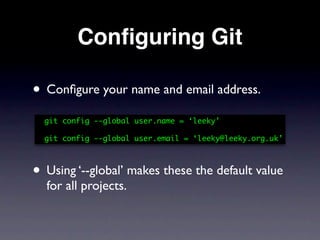
Configuring Git

• Configure your name and email address.
  git config --global user.name = ‘leeky’

  git config --global user.email = ‘leeky@leeky.org.uk’


• Using ‘--global’ makes these the default value
  for all projects.
Starting a New
Git-Managed Project
Starting a New
   Git-Managed Project

• Create directory for project.
Starting a New
    Git-Managed Project

• Create directory for project.
•   cd   into project directory.
Starting a New
    Git-Managed Project

• Create directory for project.
•   cd   into project directory.

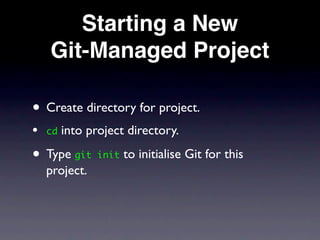
• Type git init to initialise Git for this
    project.
Starting a New
     Git-Managed Project

• Create directory for project.
•   cd   into project directory.

• Type git init to initialise Git for this
    project.
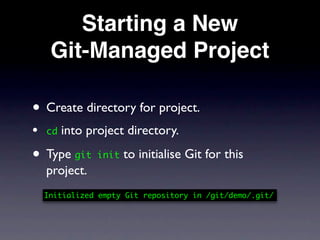
    Initialized empty Git repository in /git/demo/.git/
Terminology

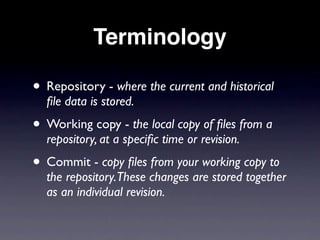
• Repository - where the current and historical
  file data is stored.
• Working copy - the local copy of files from a
  repository, at a specific time or revision.
• Commit - copy files from your working copy to
  the repository.These changes are stored together
  as an individual revision.
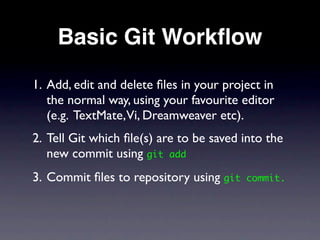
Basic Git Workflow
1. Add, edit and delete files in your project in
   the normal way, using your favourite editor
   (e.g. TextMate,Vi, Dreamweaver etc).
2. Tell Git which file(s) are to be saved into the
   new commit using git add
3. Commit files to repository using git   commit.
Demo
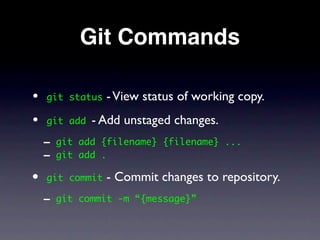
Git Commands

•   git status   - View status of working copy.
•   git add   - Add unstaged changes.
    - git   add {filename} {filename} ...
    - git   add .

• git commit     - Commit changes to repository.
    - git   commit -m “{message}”
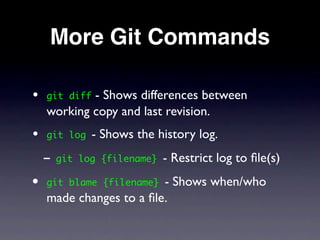
More Git Commands

•   git diff- Shows differences between
    working copy and last revision.
•   git log    - Shows the history log.
    - git   log {filename}   - Restrict log to file(s)
• git blame {filename}   - Shows when/who
    made changes to a file.
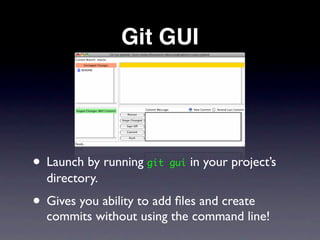
Git GUI


• Launch by running git gui in your project’s
  directory.
• Gives you ability to add files and create
  commits without using the command line!
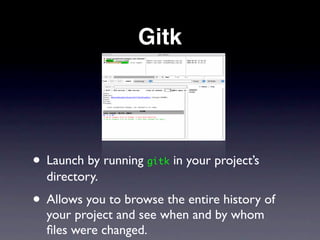
Gitk


• Launch by running gitk in your project’s
  directory.
• Allows you to browse the entire history of
  your project and see when and by whom
  files were changed.
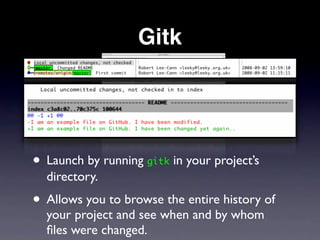
Gitk


• Launch by running gitk in your project’s
  directory.
• Allows you to browse the entire history of
  your project and see when and by whom
  files were changed.
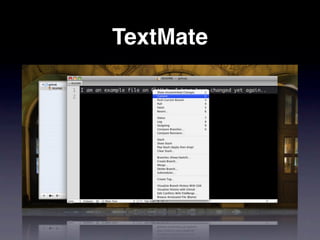
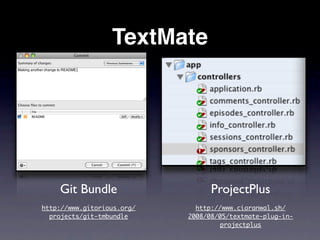
TextMate
TextMate


    Git Bundle                    ProjectPlus
http://www.gitorious.org/     http://www.ciaranwal.sh/
  projects/git-tmbundle     2008/08/05/textmate-plug-in-
                                     projectplus
Branching
Branching

• Allows experimental features to be
  developed separately, without affecting stable
  code.
Branching

• Allows experimental features to be
  developed separately, without affecting stable
  code.
• Branches can be easily created and later
  merged together.
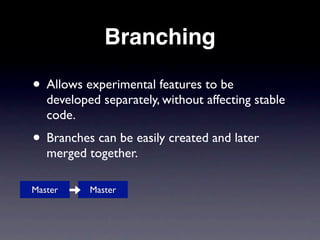
Branching

• Allows experimental features to be
   developed separately, without affecting stable
   code.
• Branches can be easily created and later
   merged together.

Master     Master
Branching

• Allows experimental features to be
   developed separately, without affecting stable
   code.
• Branches can be easily created and later
   merged together.

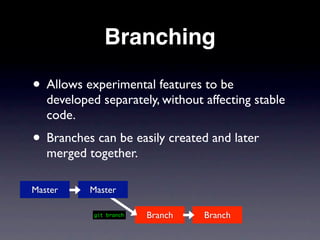
Master     Master

            git branch   Branch   Branch
Branching

• Allows experimental features to be
   developed separately, without affecting stable
   code.
• Branches can be easily created and later
   merged together.

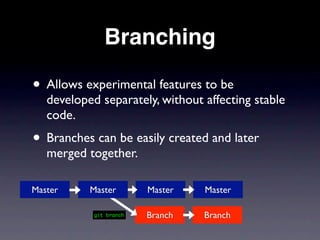
Master     Master        Master   Master

            git branch   Branch   Branch
Branching

• Allows experimental features to be
   developed separately, without affecting stable
   code.
• Branches can be easily created and later
   merged together.

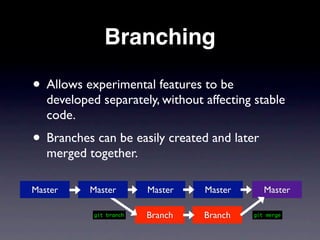
Master     Master        Master   Master      Master

            git branch   Branch   Branch   git merge
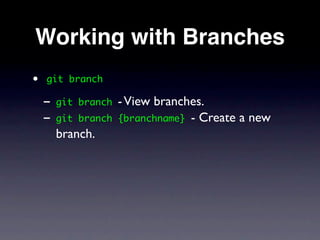
Working with Branches
•   git branch

    - git   branch   - View branches.
    - git   branch   {branchname} - Create a new
      branch.
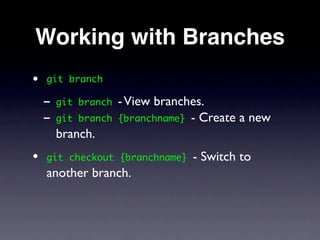
Working with Branches
•   git branch

    - git   branch   - View branches.
    - git   branch   {branchname} - Create a new
      branch.
•   git checkout {branchname}     - Switch to
    another branch.
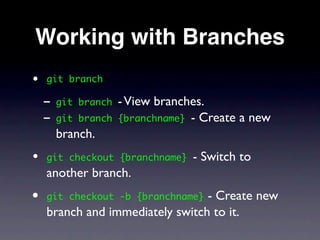
Working with Branches
•   git branch

    - git   branch   - View branches.
    - git   branch   {branchname} - Create a new
      branch.
•   git checkout {branchname}     - Switch to
    another branch.
• git checkout -b {branchname}   - Create new
    branch and immediately switch to it.
Merging Branches
Merging Branches


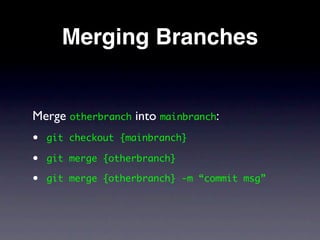
Merge otherbranch into mainbranch:
Merging Branches


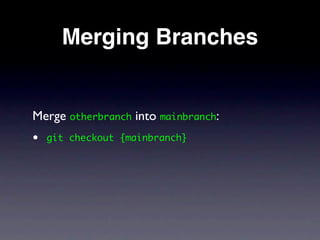
Merge otherbranch into mainbranch:
•   git checkout {mainbranch}
Merging Branches


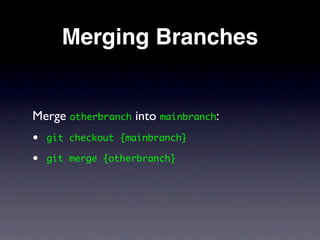
Merge otherbranch into mainbranch:
•   git checkout {mainbranch}

•   git merge {otherbranch}
Merging Branches


Merge otherbranch into mainbranch:
•   git checkout {mainbranch}

•   git merge {otherbranch}

•   git merge {otherbranch} -m “commit msg”
Conflict Resolution
Conflict Resolution

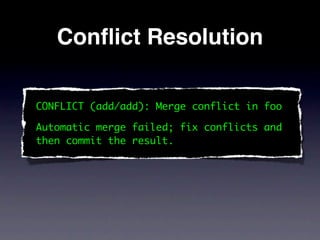
CONFLICT (add/add): Merge conflict in foo

Automatic merge failed; fix conflicts and
then commit the result.
Conflict Resolution


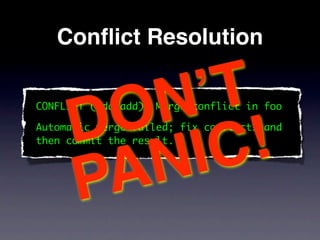
     D O N ʼT
CONFLICT (add/add): Merge conflict in foo


          IC  !
Automatic merge failed; fix conflicts and
then commit the result.


        N
     PA
Conflict Resolution

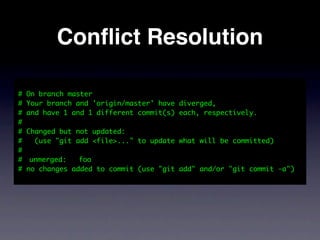
# On branch master
# Your branch and 'origin/master' have   diverged,
# and have 1 and 1 different commit(s)   each, respectively.
#
# Changed but not updated:
#   (use "git add <file>..." to update   what will be committed)
#
#	 unmerged:   foo
# no changes added to commit (use "git   add" and/or "git commit -a")
Conflict Resolution
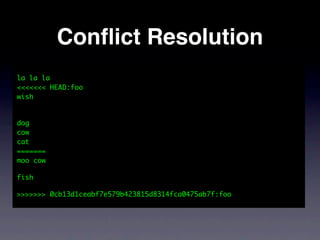
la la la
<<<<<<< HEAD:foo
wish


dog
cow
cat
=======
moo cow

fish

>>>>>>> 0cb13d1ceabf7e579b423815d8314fca0475ab7f:foo
Conflict Resolution


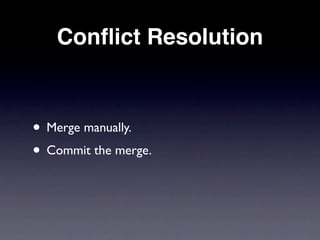
• Merge manually.
• Commit the merge.
Collaborating with Others

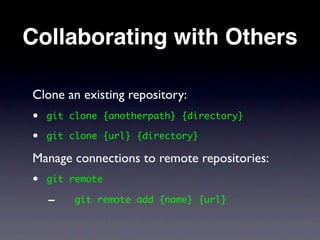
Clone an existing repository:
•   git clone {anotherpath} {directory}

•   git clone {url} {directory}

Manage connections to remote repositories:
•   git remote

    -    git remote add {name} {url}
Pushing & Pulling
Pushing & Pulling
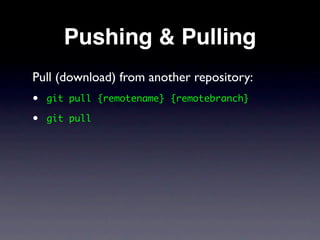
Pull (download) from another repository:
•   git pull {remotename} {remotebranch}

•   git pull
Pushing & Pulling
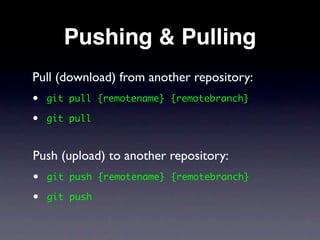
Pull (download) from another repository:
•   git pull {remotename} {remotebranch}

•   git pull


Push (upload) to another repository:
•   git push {remotename} {remotebranch}

•   git push
Third-party Git Hosts


• GitHub - http://www.github.com
• Gitorious - http://www.gitorious.org/
• Unfuddle - http://www.unfuddle.com
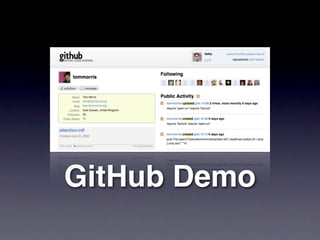
GitHub Demo
Resources

• Git for Designers -
  http://hoth.entp.com/output/git_for_designers.html
• Peepcode Screencast ($9) -
  https://peepcode.com/products/git
• Hosting your own repositories -
  http://scie.nti.st/2007/11/14/hosting-git-
  repositories-the-easy-and-secure-way
Thanks for listening.
     Robert Lee-Cann
      Lee-Cann Creative

      hello@lee-cann.com

Beginner's Guide to Version Control with Git

  • 2.
    G it’s theway to do it!
  • 3.
    G it’s theway to do it! A Beginnerʼs Guide to Version Control with Git.
  • 4.
  • 5.
    What is Version Control? • Allows you to keep a history of every change within a project.
  • 6.
    What is Version Control? • Allows you to keep a history of every change within a project. • Allows multiple people to collaborate on the same project, without evil stuff happening.
  • 7.
    What is Version Control? • Allows you to keep a history of every change within a project. • Allows multiple people to collaborate on the same project, without evil stuff happening. • All files (and historical versions) are backed- up automatically.
  • 8.
  • 9.
    What is Git? •Created by Linus Torvalds.
  • 10.
    What is Git? •Created by Linus Torvalds. • Run locally, with no server needed.
  • 11.
    What is Git? •Created by Linus Torvalds. • Run locally, with no server needed. • Works offline.
  • 12.
    What is Git? •Created by Linus Torvalds. • Run locally, with no server needed. • Works offline. • Command-line or GUI.
  • 13.
  • 14.
    Installation • Windows: http://code.google.com/p/msysgit/ • Mac OSX: http://code.google.com/p/git-osx-installer/ • Linux: Packages available for most distros, or build from source.
  • 15.
    Configuring Git • Configureyour name and email address. git config --global user.name = ‘leeky’ git config --global user.email = ‘leeky@leeky.org.uk’ • Using ‘--global’ makes these the default value for all projects.
  • 16.
  • 17.
    Starting a New Git-Managed Project • Create directory for project.
  • 18.
    Starting a New Git-Managed Project • Create directory for project. • cd into project directory.
  • 19.
    Starting a New Git-Managed Project • Create directory for project. • cd into project directory. • Type git init to initialise Git for this project.
  • 20.
    Starting a New Git-Managed Project • Create directory for project. • cd into project directory. • Type git init to initialise Git for this project. Initialized empty Git repository in /git/demo/.git/
  • 21.
    Terminology • Repository -where the current and historical file data is stored. • Working copy - the local copy of files from a repository, at a specific time or revision. • Commit - copy files from your working copy to the repository.These changes are stored together as an individual revision.
  • 22.
    Basic Git Workflow 1.Add, edit and delete files in your project in the normal way, using your favourite editor (e.g. TextMate,Vi, Dreamweaver etc). 2. Tell Git which file(s) are to be saved into the new commit using git add 3. Commit files to repository using git commit.
  • 23.
  • 24.
    Git Commands • git status - View status of working copy. • git add - Add unstaged changes. - git add {filename} {filename} ... - git add . • git commit - Commit changes to repository. - git commit -m “{message}”
  • 25.
    More Git Commands • git diff- Shows differences between working copy and last revision. • git log - Shows the history log. - git log {filename} - Restrict log to file(s) • git blame {filename} - Shows when/who made changes to a file.
  • 26.
    Git GUI • Launchby running git gui in your project’s directory. • Gives you ability to add files and create commits without using the command line!
  • 27.
    Gitk • Launch byrunning gitk in your project’s directory. • Allows you to browse the entire history of your project and see when and by whom files were changed.
  • 28.
    Gitk • Launch byrunning gitk in your project’s directory. • Allows you to browse the entire history of your project and see when and by whom files were changed.
  • 29.
  • 30.
    TextMate Git Bundle ProjectPlus http://www.gitorious.org/ http://www.ciaranwal.sh/ projects/git-tmbundle 2008/08/05/textmate-plug-in- projectplus
  • 31.
  • 32.
    Branching • Allows experimentalfeatures to be developed separately, without affecting stable code.
  • 33.
    Branching • Allows experimentalfeatures to be developed separately, without affecting stable code. • Branches can be easily created and later merged together.
  • 34.
    Branching • Allows experimentalfeatures to be developed separately, without affecting stable code. • Branches can be easily created and later merged together. Master Master
  • 35.
    Branching • Allows experimentalfeatures to be developed separately, without affecting stable code. • Branches can be easily created and later merged together. Master Master git branch Branch Branch
  • 36.
    Branching • Allows experimentalfeatures to be developed separately, without affecting stable code. • Branches can be easily created and later merged together. Master Master Master Master git branch Branch Branch
  • 37.
    Branching • Allows experimentalfeatures to be developed separately, without affecting stable code. • Branches can be easily created and later merged together. Master Master Master Master Master git branch Branch Branch git merge
  • 38.
  • 39.
    Working with Branches • git branch - git branch - View branches. - git branch {branchname} - Create a new branch.
  • 40.
    Working with Branches • git branch - git branch - View branches. - git branch {branchname} - Create a new branch. • git checkout {branchname} - Switch to another branch.
  • 41.
    Working with Branches • git branch - git branch - View branches. - git branch {branchname} - Create a new branch. • git checkout {branchname} - Switch to another branch. • git checkout -b {branchname} - Create new branch and immediately switch to it.
  • 42.
  • 43.
  • 44.
    Merging Branches Merge otherbranchinto mainbranch: • git checkout {mainbranch}
  • 45.
    Merging Branches Merge otherbranchinto mainbranch: • git checkout {mainbranch} • git merge {otherbranch}
  • 46.
    Merging Branches Merge otherbranchinto mainbranch: • git checkout {mainbranch} • git merge {otherbranch} • git merge {otherbranch} -m “commit msg”
  • 47.
  • 48.
    Conflict Resolution CONFLICT (add/add):Merge conflict in foo Automatic merge failed; fix conflicts and then commit the result.
  • 49.
    Conflict Resolution D O N ʼT CONFLICT (add/add): Merge conflict in foo IC ! Automatic merge failed; fix conflicts and then commit the result. N PA
  • 50.
    Conflict Resolution # Onbranch master # Your branch and 'origin/master' have diverged, # and have 1 and 1 different commit(s) each, respectively. # # Changed but not updated: # (use "git add <file>..." to update what will be committed) # # unmerged: foo # no changes added to commit (use "git add" and/or "git commit -a")
  • 51.
    Conflict Resolution la lala <<<<<<< HEAD:foo wish dog cow cat ======= moo cow fish >>>>>>> 0cb13d1ceabf7e579b423815d8314fca0475ab7f:foo
  • 52.
    Conflict Resolution • Mergemanually. • Commit the merge.
  • 53.
  • 54.
    Collaborating with Others Clonean existing repository: • git clone {anotherpath} {directory} • git clone {url} {directory} Manage connections to remote repositories: • git remote - git remote add {name} {url}
  • 55.
  • 56.
    Pushing & Pulling Pull(download) from another repository: • git pull {remotename} {remotebranch} • git pull
  • 57.
    Pushing & Pulling Pull(download) from another repository: • git pull {remotename} {remotebranch} • git pull Push (upload) to another repository: • git push {remotename} {remotebranch} • git push
  • 58.
    Third-party Git Hosts •GitHub - http://www.github.com • Gitorious - http://www.gitorious.org/ • Unfuddle - http://www.unfuddle.com
  • 59.
  • 60.
    Resources • Git forDesigners - http://hoth.entp.com/output/git_for_designers.html • Peepcode Screencast ($9) - https://peepcode.com/products/git • Hosting your own repositories - http://scie.nti.st/2007/11/14/hosting-git- repositories-the-easy-and-secure-way
  • 61.
    Thanks for listening. Robert Lee-Cann Lee-Cann Creative hello@lee-cann.com

Editor's Notes

  • #2 Hello, my name is Robert Lee-Cann and I&amp;#x2019;m a web developer. In this talk I&amp;#x2019;ll be introducing you to the basic concepts of version control - what it is, how it works and the benefits it will bring to your development workflow.
  • #3 Hello, my name is Robert Lee-Cann and I&amp;#x2019;m a web developer. In this talk I&amp;#x2019;ll be introducing you to the basic concepts of version control - what it is, how it works and the benefits it will bring to your development workflow.
  • #4 So what exactly IS version control?
  • #5 So what exactly IS version control?
  • #6 So what exactly IS version control?