USING GRAMMARLY
new method
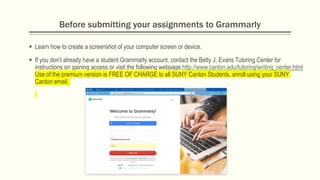
Before submitting your assignments to Grammarly
 Learn how to create a screenshot of your computer screen or device.
 If you don’t already have a student Grammarly account, contact the Betty J. Evans Tutoring Center for
instructions on gaining access or visit the following webpage http://www.canton.edu/tutoring/writing_center.html
Use of the premium version is FREE OF CHARGE to all SUNY Canton Students, enroll using your SUNY
Canton email.
Upload Your Document by Clicking on the “Upload”
symbol.
IMPORTANT !
Make sure you see
the word
“PREMIUM” at the
upper left-hand
corner of the
screen. If not,
please contact the
Betty J. Evans
Tutoring Center for
assistance.
PLEASE VIEW THE VIDEO BELOW (click on the arrow at
the lower left after moving your cursor over the image)
ATTACHING A SCREENSHOT OF THE GRAMMARLY
SUMMARY
IMPORTANT !
Attach a
screenshot of the
results, similar to
those pictured in
the dropbox with
your assignment
file.

Grammarly Registration & Use Instructions

  • 1.
  • 2.
    Before submitting yourassignments to Grammarly  Learn how to create a screenshot of your computer screen or device.  If you don’t already have a student Grammarly account, contact the Betty J. Evans Tutoring Center for instructions on gaining access or visit the following webpage http://www.canton.edu/tutoring/writing_center.html Use of the premium version is FREE OF CHARGE to all SUNY Canton Students, enroll using your SUNY Canton email.
  • 3.
    Upload Your Documentby Clicking on the “Upload” symbol. IMPORTANT ! Make sure you see the word “PREMIUM” at the upper left-hand corner of the screen. If not, please contact the Betty J. Evans Tutoring Center for assistance.
  • 4.
    PLEASE VIEW THEVIDEO BELOW (click on the arrow at the lower left after moving your cursor over the image)
  • 5.
    ATTACHING A SCREENSHOTOF THE GRAMMARLY SUMMARY IMPORTANT ! Attach a screenshot of the results, similar to those pictured in the dropbox with your assignment file.

Editor's Notes

  • #2 NOTE: To change the image on this slide, select the picture and delete it. Then click the Pictures icon in the placeholder to insert your own image.