Widgets for the Wiki Seton Catholic School October 15, 2009
AGENDA Updates since last session http://www.bubbl.us/   Questions/Comments Eight Ways To Use School Wikis Embedding Resources
Eight Ways To Use School Wikis http://www.techlearning.com/article/22064 Decrease Disruptions of Instructional Time Make Meetings More Efficient Collaborate On Important Document Enhance Professional Development Share and Collaborate On Curriculum Maps Save Trees and Time  A Portal for All Your Lessons Getting Started
Create A “Sandbox” Access your Wiki Sign in New Page Enter Sandbox as the Page Name Click Create
What is a Widget? According to Wikipedia… “ small specialized GUI application that provides some visual information and/or easy access to frequently used functions such as clocks, calendars, news aggregators, calculators and desktop notes.”
Embedding Resources Bubbl.us  Adding an Image TeacherTube Video SlideShare Blabberize Flash Cards/Crossword Puzzle
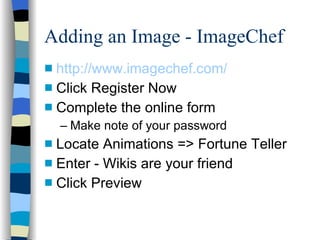
Adding an Image - ImageChef http://www.imagechef.com/ Click Register Now Complete the online form Make note of your password Locate Animations => Fortune Teller Enter - Wikis are your friend Click Preview
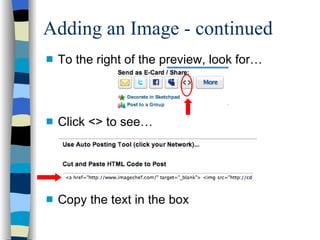
Adding an Image - continued To the right of the preview, look for… Click <> to see… Copy the text in the box
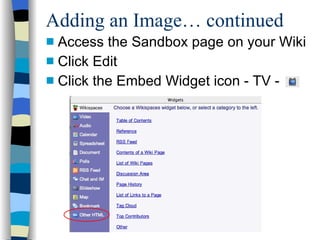
Adding an Image… continued Access the Sandbox page on your Wiki Click Edit Click the Embed Widget icon - TV -
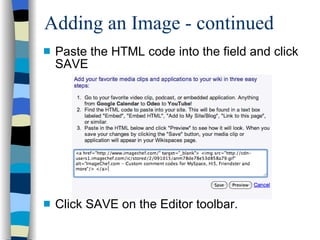
Adding an Image - continued Paste the HTML code into the field and click SAVE Click SAVE on the Editor toolbar.
Let’s Log Out of ImageChef Log out Close window
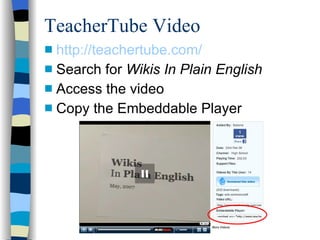
TeacherTube Video http://teachertube.com/ Search for  Wikis In Plain English Access the video Copy the Embeddable Player
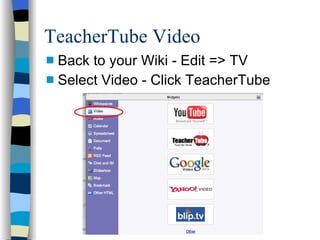
TeacherTube Video Back to your Wiki - Edit => TV Select Video - Click TeacherTube
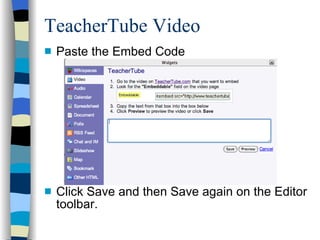
TeacherTube Video Paste the Embed Code Click Save and then Save again on the Editor toolbar.
TeacherTube Video How might you use this in your classroom? Close window.
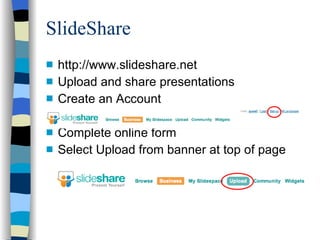
SlideShare http://www.slideshare.net Upload and share presentations Create an Account Complete online form Select Upload from banner at top of page
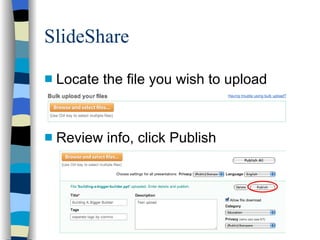
SlideShare Locate the file you wish to upload Review info, click Publish
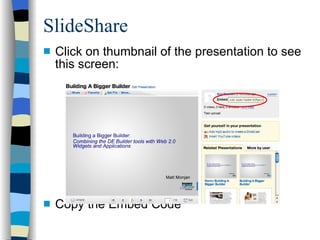
SlideShare Click on thumbnail of the presentation to see this screen: Copy the Embed Code
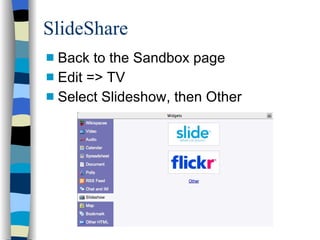
SlideShare Back to the Sandbox page Edit => TV Select Slideshow, then Other
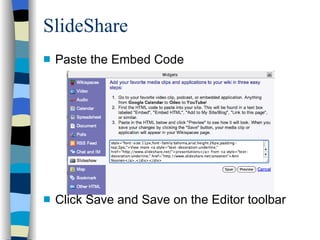
SlideShare Paste the Embed Code Click Save and Save on the Editor toolbar
SlideShare How might you use this in your classroom? Log out of SlideShare. Close window.
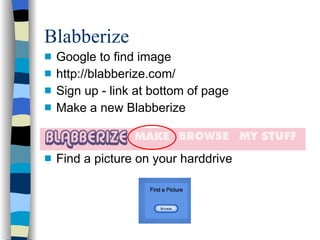
Blabberize Google to find image http://blabberize.com/ Sign up - link at bottom of page Make a new Blabberize Find a picture on your harddrive
Blabberize Follow onscreen instructions Crop Place the mouth Record your voice Save
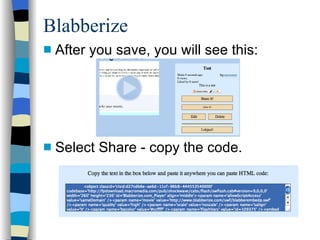
Blabberize After you save, you will see this: Select Share - copy the code.
Blabberize How might you use this in your classroom? Log out of Blabberize.
Flashcards/Crossword Puzzle Crossword Puzzle http://justcrosswords.com/ Flashcards http://flashcarddb.com/
Next Session November 18th
Widgets for the Wiki Seton Catholic School October 15, 2009

Widgets

  • 1.
    Widgets for theWiki Seton Catholic School October 15, 2009
  • 2.
    AGENDA Updates sincelast session http://www.bubbl.us/ Questions/Comments Eight Ways To Use School Wikis Embedding Resources
  • 3.
    Eight Ways ToUse School Wikis http://www.techlearning.com/article/22064 Decrease Disruptions of Instructional Time Make Meetings More Efficient Collaborate On Important Document Enhance Professional Development Share and Collaborate On Curriculum Maps Save Trees and Time A Portal for All Your Lessons Getting Started
  • 4.
    Create A “Sandbox”Access your Wiki Sign in New Page Enter Sandbox as the Page Name Click Create
  • 5.
    What is aWidget? According to Wikipedia… “ small specialized GUI application that provides some visual information and/or easy access to frequently used functions such as clocks, calendars, news aggregators, calculators and desktop notes.”
  • 6.
    Embedding Resources Bubbl.us Adding an Image TeacherTube Video SlideShare Blabberize Flash Cards/Crossword Puzzle
  • 7.
    Adding an Image- ImageChef http://www.imagechef.com/ Click Register Now Complete the online form Make note of your password Locate Animations => Fortune Teller Enter - Wikis are your friend Click Preview
  • 8.
    Adding an Image- continued To the right of the preview, look for… Click <> to see… Copy the text in the box
  • 9.
    Adding an Image…continued Access the Sandbox page on your Wiki Click Edit Click the Embed Widget icon - TV -
  • 10.
    Adding an Image- continued Paste the HTML code into the field and click SAVE Click SAVE on the Editor toolbar.
  • 11.
    Let’s Log Outof ImageChef Log out Close window
  • 12.
    TeacherTube Video http://teachertube.com/Search for Wikis In Plain English Access the video Copy the Embeddable Player
  • 13.
    TeacherTube Video Backto your Wiki - Edit => TV Select Video - Click TeacherTube
  • 14.
    TeacherTube Video Pastethe Embed Code Click Save and then Save again on the Editor toolbar.
  • 15.
    TeacherTube Video Howmight you use this in your classroom? Close window.
  • 16.
    SlideShare http://www.slideshare.net Uploadand share presentations Create an Account Complete online form Select Upload from banner at top of page
  • 17.
    SlideShare Locate thefile you wish to upload Review info, click Publish
  • 18.
    SlideShare Click onthumbnail of the presentation to see this screen: Copy the Embed Code
  • 19.
    SlideShare Back tothe Sandbox page Edit => TV Select Slideshow, then Other
  • 20.
    SlideShare Paste theEmbed Code Click Save and Save on the Editor toolbar
  • 21.
    SlideShare How mightyou use this in your classroom? Log out of SlideShare. Close window.
  • 22.
    Blabberize Google tofind image http://blabberize.com/ Sign up - link at bottom of page Make a new Blabberize Find a picture on your harddrive
  • 23.
    Blabberize Follow onscreeninstructions Crop Place the mouth Record your voice Save
  • 24.
    Blabberize After yousave, you will see this: Select Share - copy the code.
  • 25.
    Blabberize How mightyou use this in your classroom? Log out of Blabberize.
  • 26.
    Flashcards/Crossword Puzzle CrosswordPuzzle http://justcrosswords.com/ Flashcards http://flashcarddb.com/
  • 27.
  • 28.
    Widgets for theWiki Seton Catholic School October 15, 2009