GOOGLE SCHOLAR
Presented by
Gerald Louw
GOALS
 How Google Scholar works
 Settings in Google Scholar
 Strategies for searching
 Use a citation management tool in Google Scholar
 Evaluating Websites
GOOGLE SCHOLAR
 Debut in November 2004
 Content has grown significantly
 Simplicity, Google Scholar, popular
 Google Books project has given boost to content
 Not really a subset to Google search
 Not all publishers of academic information
 Resource devoted to scholarly literature
 Journal articles, books, citations, conference
proceedings
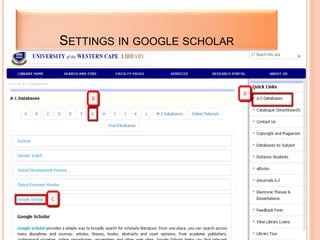
SETTINGS IN GOOGLE SCHOLAR
OFF CAMPUS LOG IN
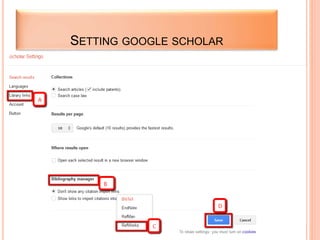
SETTING GOOGLE SCHOLAR
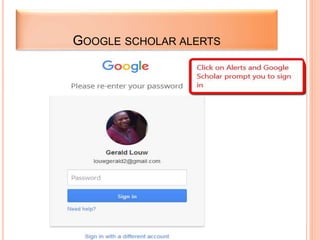
GOOGLE SCHOLAR ALERTS
CREATING AN ALERT
GOOGLE SCHOLAR METRICS FOR
PUBLICATIONS
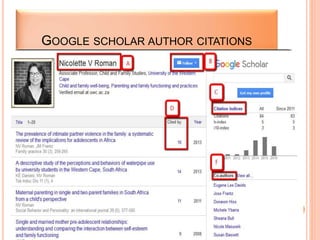
GOOGLE SCHOLAR AUTHOR CITATIONS
GOOGLE SCHOLAR JOURNAL IMPACT FACTOR
SEARCH METHODS
 Cited Reference Search
 One relevant article/ book, lead to other references
 Ask supervisor for recommendation for key article
 Building Block Search
 Formulate queries based on the elements or concept
groups “OR”- ing synonyms, using controlled or free
vocabulary.
 Pearl growing
 Use the characteristics of the “pearl” to successively
grow a set of related documents: use assigned index
terms-words, names, citations, publication data, or
structural and statistical properties to formulate queries
to retrieve subsequent sets.
SEARCHING
 AND between words
 + to include common words
 “quotation marks” to search for a phrase
 - to exclude from search
 OR for either word search
 Author: for author search
 Intitle: to search title
 Restrict by date and publication
 Advance Search
ADVANCE SEARCH
ADVANCE SEARCH
UNDERSTANDING SEARCH RESULTS
PROS AND CONS OF GOOGLE SCHOLAR
 Pros
 Content has grown
 Google Books project has enhanced the content
 Includes languages other than English
 Library links is good to identify sources locally
 Delivering citation counts
 Cons
 Still gaps in top ranking journals
 Some subjects are covered more than others
 It is unclear how results are ordered
ACCESS AN ARTICLE YOUR INSTITUTION IS
NOT SUBSCRIBED TO
 Your library through Inter Library Loans
 Search Google Scholar on the title and author to
see if it points you to a free copy.
 Search JSTOR for older articles
 Search for the author on Google, the author might
provide a link to the full text.
 Search on Open Access search engines such as
OAlster.
 Search your library catalogue
 Search for the journal it might have a website that
makes the article freely available
REFERENCE LIST
 Badke, W. B. (2008). Research strategies: Finding
your way through the information fog. New York:
iUniverse
 Jacsó, P. (February 22, 2008). Google Scholar
revisited. Online Information Review, 32, 1, 102-
114.
 Ó, D. N. (2012). Internet research skills. London: SAGE.
 Wang, Y., & Howard, P. (January 01, 2012). Google
Scholar Usage: An Academic Library's Experience.
Journal of Web Librarianship, 6, 2, 94-108.
THANK YOU

Google scholar Part 2

  • 1.
  • 2.
    GOALS  How GoogleScholar works  Settings in Google Scholar  Strategies for searching  Use a citation management tool in Google Scholar  Evaluating Websites
  • 3.
    GOOGLE SCHOLAR  Debutin November 2004  Content has grown significantly  Simplicity, Google Scholar, popular  Google Books project has given boost to content  Not really a subset to Google search  Not all publishers of academic information  Resource devoted to scholarly literature  Journal articles, books, citations, conference proceedings
  • 4.
  • 5.
  • 6.
  • 7.
  • 8.
  • 9.
  • 10.
  • 11.
    GOOGLE SCHOLAR METRICSFOR PUBLICATIONS
  • 12.
  • 13.
  • 14.
    SEARCH METHODS  CitedReference Search  One relevant article/ book, lead to other references  Ask supervisor for recommendation for key article  Building Block Search  Formulate queries based on the elements or concept groups “OR”- ing synonyms, using controlled or free vocabulary.  Pearl growing  Use the characteristics of the “pearl” to successively grow a set of related documents: use assigned index terms-words, names, citations, publication data, or structural and statistical properties to formulate queries to retrieve subsequent sets.
  • 15.
    SEARCHING  AND betweenwords  + to include common words  “quotation marks” to search for a phrase  - to exclude from search  OR for either word search  Author: for author search  Intitle: to search title  Restrict by date and publication  Advance Search
  • 16.
  • 17.
  • 18.
  • 19.
  • 20.
    PROS AND CONSOF GOOGLE SCHOLAR  Pros  Content has grown  Google Books project has enhanced the content  Includes languages other than English  Library links is good to identify sources locally  Delivering citation counts  Cons  Still gaps in top ranking journals  Some subjects are covered more than others  It is unclear how results are ordered
  • 21.
    ACCESS AN ARTICLEYOUR INSTITUTION IS NOT SUBSCRIBED TO  Your library through Inter Library Loans  Search Google Scholar on the title and author to see if it points you to a free copy.  Search JSTOR for older articles  Search for the author on Google, the author might provide a link to the full text.  Search on Open Access search engines such as OAlster.  Search your library catalogue  Search for the journal it might have a website that makes the article freely available
  • 22.
    REFERENCE LIST  Badke,W. B. (2008). Research strategies: Finding your way through the information fog. New York: iUniverse  Jacsó, P. (February 22, 2008). Google Scholar revisited. Online Information Review, 32, 1, 102- 114.  Ó, D. N. (2012). Internet research skills. London: SAGE.  Wang, Y., & Howard, P. (January 01, 2012). Google Scholar Usage: An Academic Library's Experience. Journal of Web Librarianship, 6, 2, 94-108.
  • 23.

Editor's Notes

  • #2 Introduction to Google Scholar
  • #3 Explain the goals of the presentation.
  • #4 Google Scholar made its debut in 2004. The content of Google has grown significantly. The simplicity of Google Scholar made it popular. The Google Books project has given a boost to the content of Google Scholar. Google Scholar is not subset to Google search. Not all the publishers of academic content supply their information to Google Scholar. The content of Google Scholar include journal articles, books, citations and conference proceedings.
  • #5 Access Google Scholar through the A-Z Databases of the library. First click on A (A-Z Databases), followed by a click on G under red B, There after click on C (Google Scholar).
  • #6 User name: student number/ staff number Password: date of birth (yymmdd) or full identity document number (13 digits)
  • #7 The red alphabetic letters shows the options a user can use to navigate the Google Scholar platform.
  • #8 Setting the library link (A), Setting reference management tool (B), choose Refworks ( C ) and save (D).
  • #9 Very important to double check whether your library is linked to Google Scholar, if not fill in the details of your library in the blank space.
  • #10 The moment the user click on the Alerts option, Google Scholar will ask the user to sign in.
  • #11 If the user want to create, the user can put in the resource or search terms.
  • #12 Google Scholar metrics for publications e.g. subject, journal, h5-index.
  • #13 Author citations.
  • #14 Journal impact factor with the h5-index, position of journal in subject area and cited by.
  • #15 Search methods.
  • #16 Searching strategies.
  • #17 Click on drop down arrow to for the advance search options.
  • #18 Advance search box.
  • #19 Understanding the search results e.g. conference paper, book and full text article.
  • #20 Understanding search results e.g. cited by, import to Refworks, related articles, save, all versions and more.