Business Listing
The Ultimate Google Listing Cheat Sheet
Net Point Marketing Presents
Google Business Listing | Step-By-Step Guide
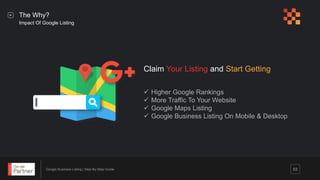
The Why?
Impact Of Google Listing
 Higher Google Rankings
 More Traffic To Your Website
 Google Maps Listing
 Google Business Listing On Mobile & Desktop
Claim Your Listing and Start Getting
03
Google Business Listing | Step-By-Step Guide
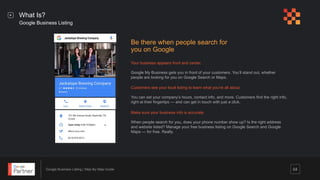
What Is?
Google Business Listing
Be there when people search for
you on Google
Make sure your business info is accurate.
When people search for you, does your phone number show up? Is the right address
and website listed? Manage your free business listing on Google Search and Google
Maps — for free. Really.
04
Your business appears front and center.
Google My Business gets you in front of your customers. You’ll stand out, whether
people are looking for you on Google Search or Maps.
Customers see your local listing to learn what you’re all about
You can set your company’s hours, contact info, and more. Customers find the right info,
right at their fingertips — and can get in touch with just a click.
Jackalope Brewing Company
Google Business Listing | Step-By-Step Guide
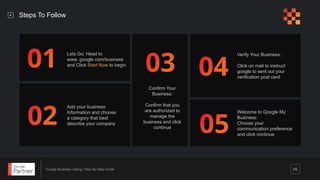
Steps To Follow
05
Lets Go: Head to
www. google.com/business
and Click Start Now to begin
Add your business
Information and choose
a category that best
describe your company
Confirm Your
Business:
Confirm that you
are authorized to
manage the
business and click
continue
Verify Your Business:
Click on mail to instruct
google to sent out your
verification post card
Welcome to Google My
Business:
Choose your
communication preference
and click continue
Google Business Listing | Step-By-Step Guide 06
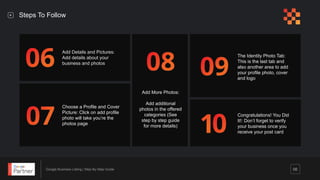
Add Details and Pictures:
Add details about your
business and photos
Choose a Profile and Cover
Picture: Click on add profile
photo will take you’re the
photos page
Add More Photos:
Add additional
photos in the offered
categories (See
step by step guide
for more details)
The Identity Photo Tab:
This is the last tab and
also another area to add
your profile photo, cover
and logo
Congratulations! You Did
It!: Don’t forget to verify
your business once you
receive your post card
Steps To Follow
Google Business Listing | Step-By-Step Guide
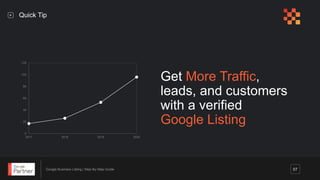
Quick Tip
Get More Traffic,
leads, and customers
with a verified
Google Listing
07
0
20
40
60
80
100
120
2017 2018 2019 2020
Google Business Listing | Step-By-Step Guide
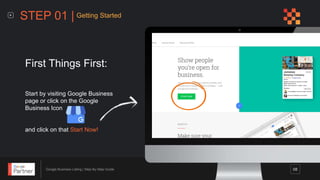
STEP 01 | Getting Started
First Things First:
Start by visiting Google Business
page or click on the Google
Business Icon
and click on that Start Now!
08
Google Business Listing | Step-By-Step Guide 09
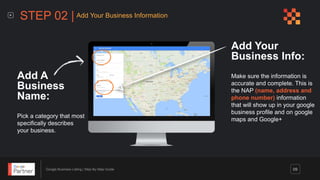
Add Your
Business Info:
Make sure the information is
accurate and complete. This is
the NAP (name, address and
phone number) information
that will show up in your google
business profile and on google
maps and Google+
Add A
Business
Name:
Pick a category that most
specifically describes
your business.
STEP 02 | Add Your Business Information
Google Business Listing | Step-By-Step Guide
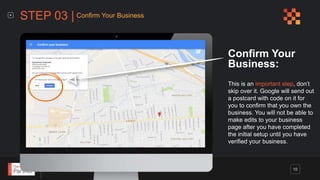
Confirm Your
Business:
This is an important step, don’t
skip over it. Google will send out
a postcard with code on it for
you to confirm that you own the
business. You will not be able to
make edits to your business
page after you have completed
the initial setup until you have
verified your business.
STEP 03 | Confirm Your Business
10
Google Business Listing | Step-By-Step Guide
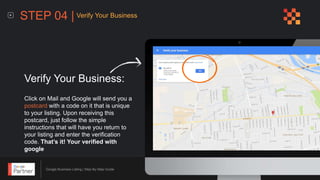
Verify Your Business:
Click on Mail and Google will send you a
postcard with a code on it that is unique
to your listing. Upon receiving this
postcard, just follow the simple
instructions that will have you return to
your listing and enter the verification
code. That’s it! Your verified with
google
STEP 04 | Verify Your Business
Google Business Listing | Step-By-Step Guide
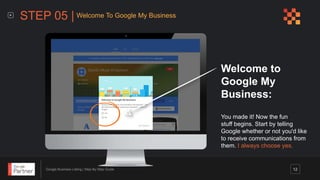
Welcome to
Google My
Business:
You made it! Now the fun
stuff begins. Start by telling
Google whether or not you'd like
to receive communications from
them. I always choose yes.
STEP 05 | Welcome To Google My Business
12
Google Business Listing | Step-By-Step Guide
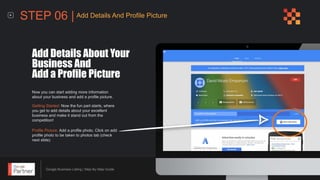
Now you can start adding more information
about your business and add a profile picture.
Add Details About Your
Business And
Add a Profile Picture
Getting Started: Now the fun part starts, where
you get to add details about your excellent
business and make it stand out from the
competition!
Profile Picture: Add a profile photo. Click on add
profile photo to be taken to photos tab (check
next slide)
STEP 06 | Add Details And Profile Picture
Google Business Listing | Step-By-Step Guide
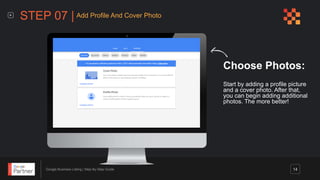
Choose Photos:
Start by adding a profile picture
and a cover photo. After that,
you can begin adding additional
photos. The more better!
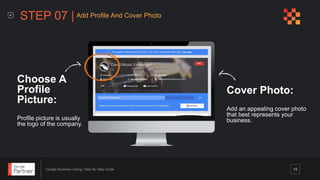
STEP 07 | Add Profile And Cover Photo
14
Google Business Listing | Step-By-Step Guide 15
Cover Photo:
Add an appealing cover photo
that best represents your
business.
Choose A
Profile
Picture:
Profile picture is usually
the logo of the company.
STEP 07 | Add Profile And Cover Photo
Google Business Listing | Step-By-Step Guide
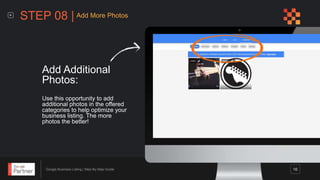
Add Additional
Photos:
Use this opportunity to add
additional photos in the offered
categories to help optimize your
business listing. The more
photos the better!
STEP 08 | Add More Photos
16
Google Business Listing | Step-By-Step Guide
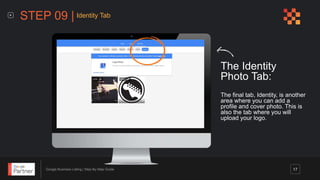
The Identity
Photo Tab:
The final tab, Identity, is another
area where you can add a
profile and cover photo. This is
also the tab where you will
upload your logo.
STEP 09 | Identity Tab
17
Google Business Listing | Step-By-Step Guide
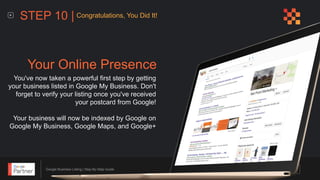
You've now taken a powerful first step by getting
your business listed in Google My Business. Don't
forget to verify your listing once you've received
your postcard from Google!
Your business will now be indexed by Google on
Google My Business, Google Maps, and Google+
Your Online Presence
STEP 10 | Congratulations, You Did It!
Google Business Listing | Step-By-Step GuidePresentation name goes here
You Did It!
Google Business Listing | Step-By-Step Guide
Get In Touch
info@netpointmarketing.com
614-769-1318
3004 Granada Hills Drive
Columbus, Ohio 43231

Google Listing Cheatsheet

  • 2.
    Business Listing The UltimateGoogle Listing Cheat Sheet Net Point Marketing Presents
  • 3.
    Google Business Listing| Step-By-Step Guide The Why? Impact Of Google Listing  Higher Google Rankings  More Traffic To Your Website  Google Maps Listing  Google Business Listing On Mobile & Desktop Claim Your Listing and Start Getting 03
  • 4.
    Google Business Listing| Step-By-Step Guide What Is? Google Business Listing Be there when people search for you on Google Make sure your business info is accurate. When people search for you, does your phone number show up? Is the right address and website listed? Manage your free business listing on Google Search and Google Maps — for free. Really. 04 Your business appears front and center. Google My Business gets you in front of your customers. You’ll stand out, whether people are looking for you on Google Search or Maps. Customers see your local listing to learn what you’re all about You can set your company’s hours, contact info, and more. Customers find the right info, right at their fingertips — and can get in touch with just a click. Jackalope Brewing Company
  • 5.
    Google Business Listing| Step-By-Step Guide Steps To Follow 05 Lets Go: Head to www. google.com/business and Click Start Now to begin Add your business Information and choose a category that best describe your company Confirm Your Business: Confirm that you are authorized to manage the business and click continue Verify Your Business: Click on mail to instruct google to sent out your verification post card Welcome to Google My Business: Choose your communication preference and click continue
  • 6.
    Google Business Listing| Step-By-Step Guide 06 Add Details and Pictures: Add details about your business and photos Choose a Profile and Cover Picture: Click on add profile photo will take you’re the photos page Add More Photos: Add additional photos in the offered categories (See step by step guide for more details) The Identity Photo Tab: This is the last tab and also another area to add your profile photo, cover and logo Congratulations! You Did It!: Don’t forget to verify your business once you receive your post card Steps To Follow
  • 7.
    Google Business Listing| Step-By-Step Guide Quick Tip Get More Traffic, leads, and customers with a verified Google Listing 07 0 20 40 60 80 100 120 2017 2018 2019 2020
  • 8.
    Google Business Listing| Step-By-Step Guide STEP 01 | Getting Started First Things First: Start by visiting Google Business page or click on the Google Business Icon and click on that Start Now! 08
  • 9.
    Google Business Listing| Step-By-Step Guide 09 Add Your Business Info: Make sure the information is accurate and complete. This is the NAP (name, address and phone number) information that will show up in your google business profile and on google maps and Google+ Add A Business Name: Pick a category that most specifically describes your business. STEP 02 | Add Your Business Information
  • 10.
    Google Business Listing| Step-By-Step Guide Confirm Your Business: This is an important step, don’t skip over it. Google will send out a postcard with code on it for you to confirm that you own the business. You will not be able to make edits to your business page after you have completed the initial setup until you have verified your business. STEP 03 | Confirm Your Business 10
  • 11.
    Google Business Listing| Step-By-Step Guide Verify Your Business: Click on Mail and Google will send you a postcard with a code on it that is unique to your listing. Upon receiving this postcard, just follow the simple instructions that will have you return to your listing and enter the verification code. That’s it! Your verified with google STEP 04 | Verify Your Business
  • 12.
    Google Business Listing| Step-By-Step Guide Welcome to Google My Business: You made it! Now the fun stuff begins. Start by telling Google whether or not you'd like to receive communications from them. I always choose yes. STEP 05 | Welcome To Google My Business 12
  • 13.
    Google Business Listing| Step-By-Step Guide Now you can start adding more information about your business and add a profile picture. Add Details About Your Business And Add a Profile Picture Getting Started: Now the fun part starts, where you get to add details about your excellent business and make it stand out from the competition! Profile Picture: Add a profile photo. Click on add profile photo to be taken to photos tab (check next slide) STEP 06 | Add Details And Profile Picture
  • 14.
    Google Business Listing| Step-By-Step Guide Choose Photos: Start by adding a profile picture and a cover photo. After that, you can begin adding additional photos. The more better! STEP 07 | Add Profile And Cover Photo 14
  • 15.
    Google Business Listing| Step-By-Step Guide 15 Cover Photo: Add an appealing cover photo that best represents your business. Choose A Profile Picture: Profile picture is usually the logo of the company. STEP 07 | Add Profile And Cover Photo
  • 16.
    Google Business Listing| Step-By-Step Guide Add Additional Photos: Use this opportunity to add additional photos in the offered categories to help optimize your business listing. The more photos the better! STEP 08 | Add More Photos 16
  • 17.
    Google Business Listing| Step-By-Step Guide The Identity Photo Tab: The final tab, Identity, is another area where you can add a profile and cover photo. This is also the tab where you will upload your logo. STEP 09 | Identity Tab 17
  • 18.
    Google Business Listing| Step-By-Step Guide You've now taken a powerful first step by getting your business listed in Google My Business. Don't forget to verify your listing once you've received your postcard from Google! Your business will now be indexed by Google on Google My Business, Google Maps, and Google+ Your Online Presence STEP 10 | Congratulations, You Did It!
  • 19.
    Google Business Listing| Step-By-Step GuidePresentation name goes here You Did It!
  • 20.
    Google Business Listing| Step-By-Step Guide Get In Touch info@netpointmarketing.com 614-769-1318 3004 Granada Hills Drive Columbus, Ohio 43231