How to Create a 
Facebook Page for a 
Business 
{ 
Setting Up Your Facebook Page
A Facebook fan page is a place where the fans of your 
business can share their passions and learn more about 
changes and upcoming events in your business, whether 
you're running a bar or a pet grooming service. Creating a 
Facebook page for your business will help you reach more 
customers, have a better sense of what potential customers 
want, and will allow you to stay current. Creating a page 
only takes a few minutes -- the hard part is keeping it 
updated. If you want to know how to do it, just follow these 
steps.
Click on "Create a Page." You can find this option on the bottom right of 
the sign-in page on Facebook. If you're already logged in to your 
Facebook account, then you can just click on the gear on the top right of 
the screen and then select the "create a page" option.
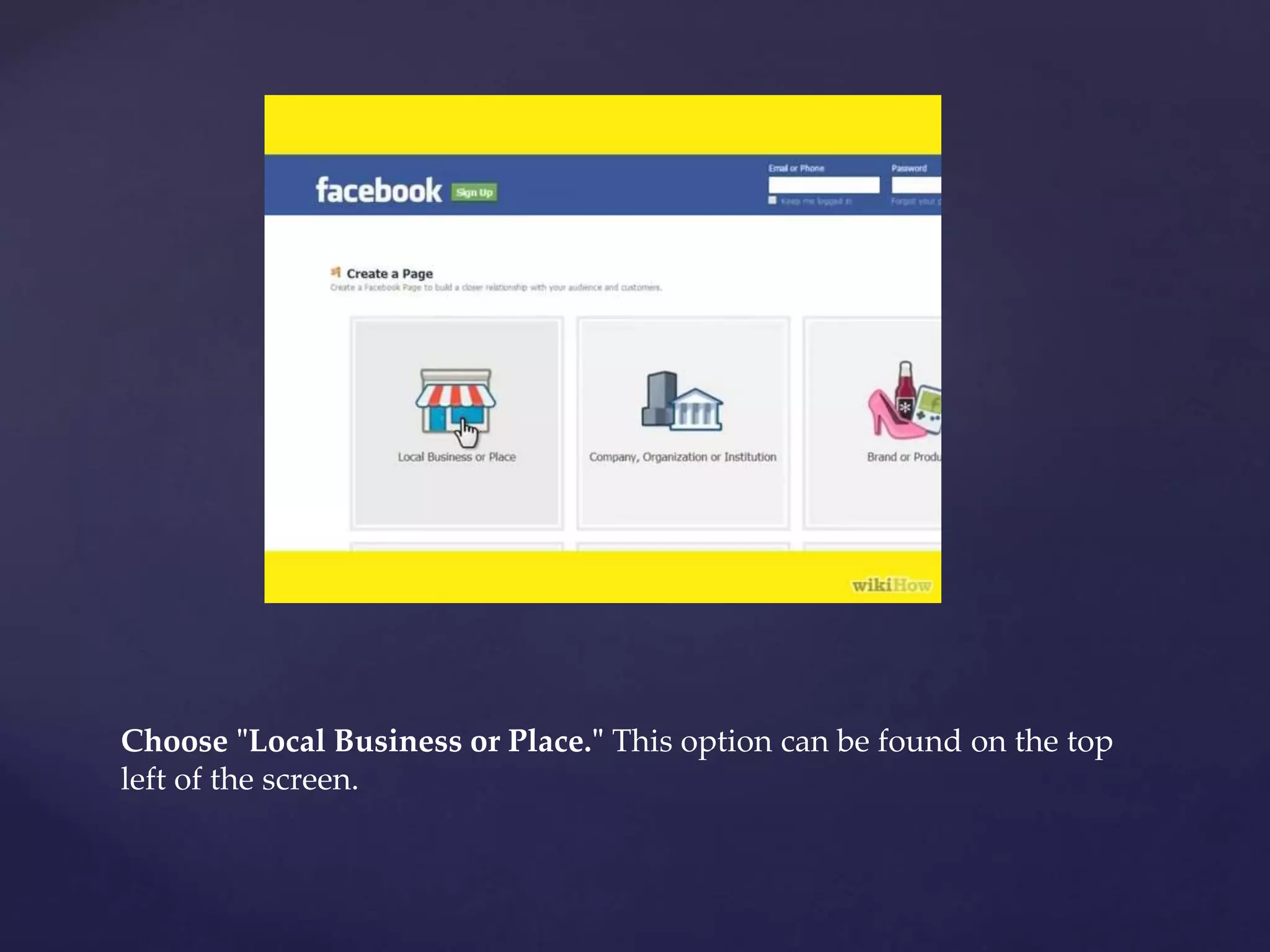
Choose "Local Business or Place." This option can be found on the top 
left of the screen.
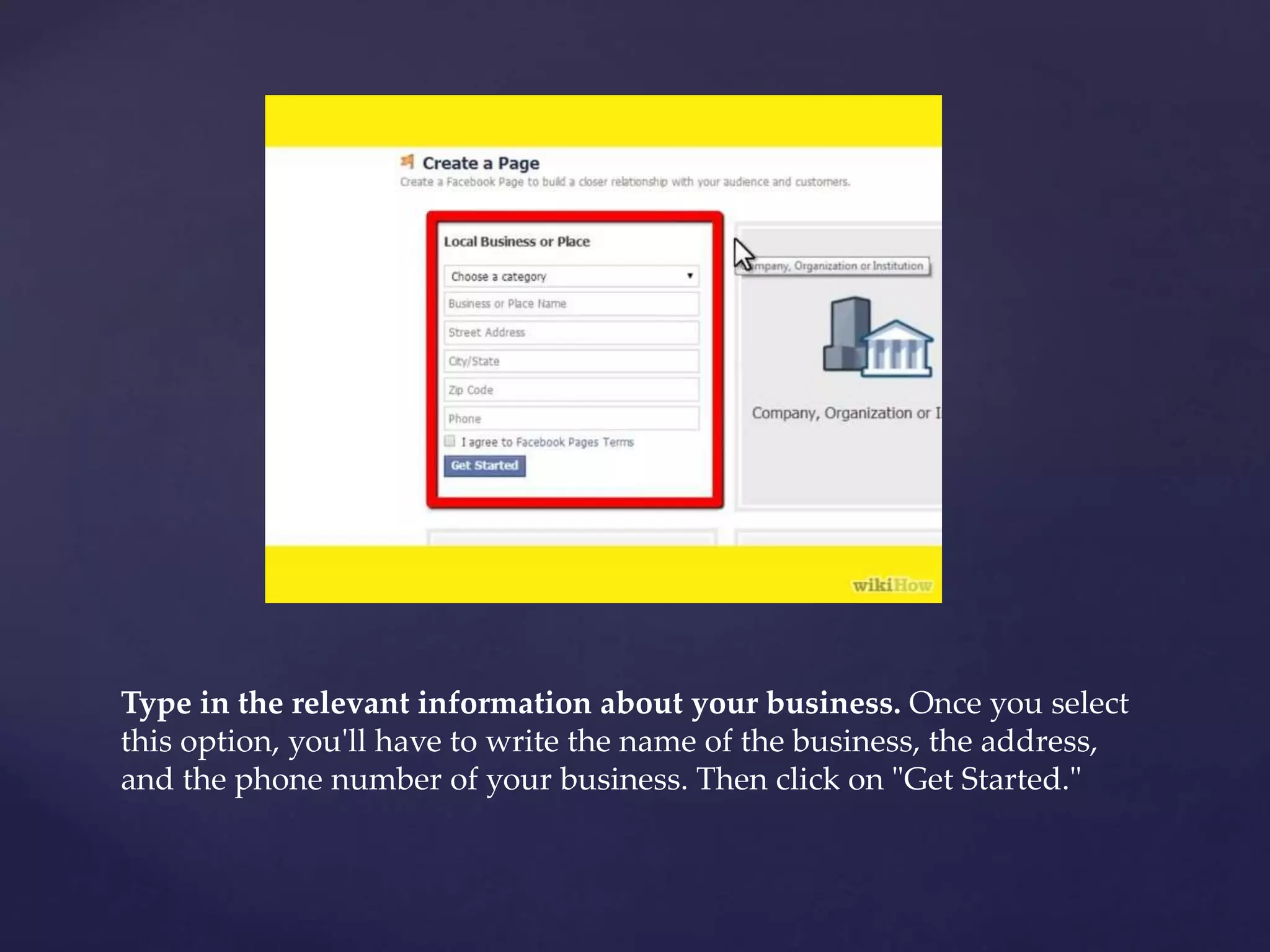
Type in the relevant information about your business. Once you select 
this option, you'll have to write the name of the business, the address, 
and the phone number of your business. Then click on "Get Started."
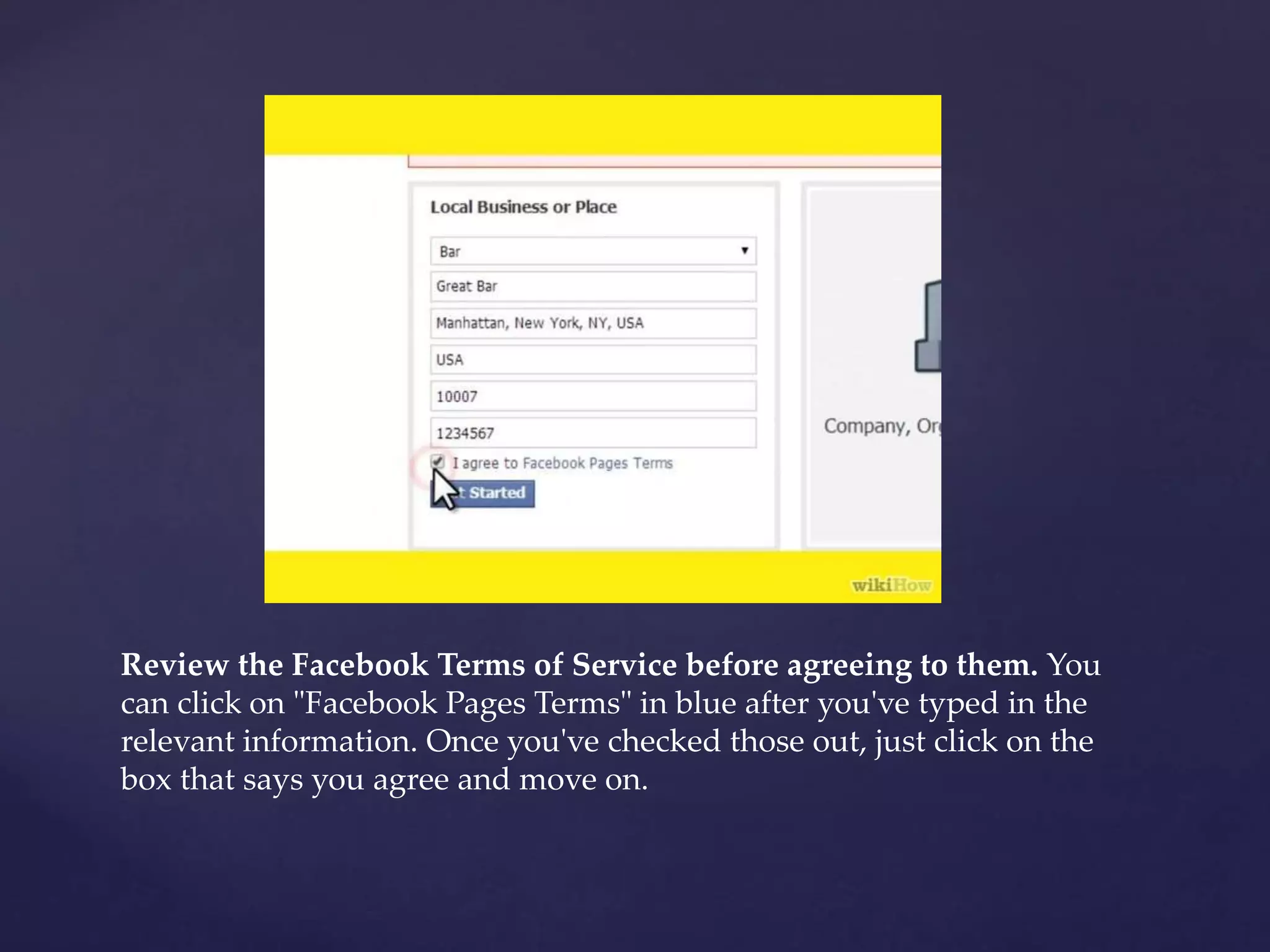
Review the Facebook Terms of Service before agreeing to them. You 
can click on "Facebook Pages Terms" in blue after you've typed in the 
relevant information. Once you've checked those out, just click on the 
box that says you agree and move on.
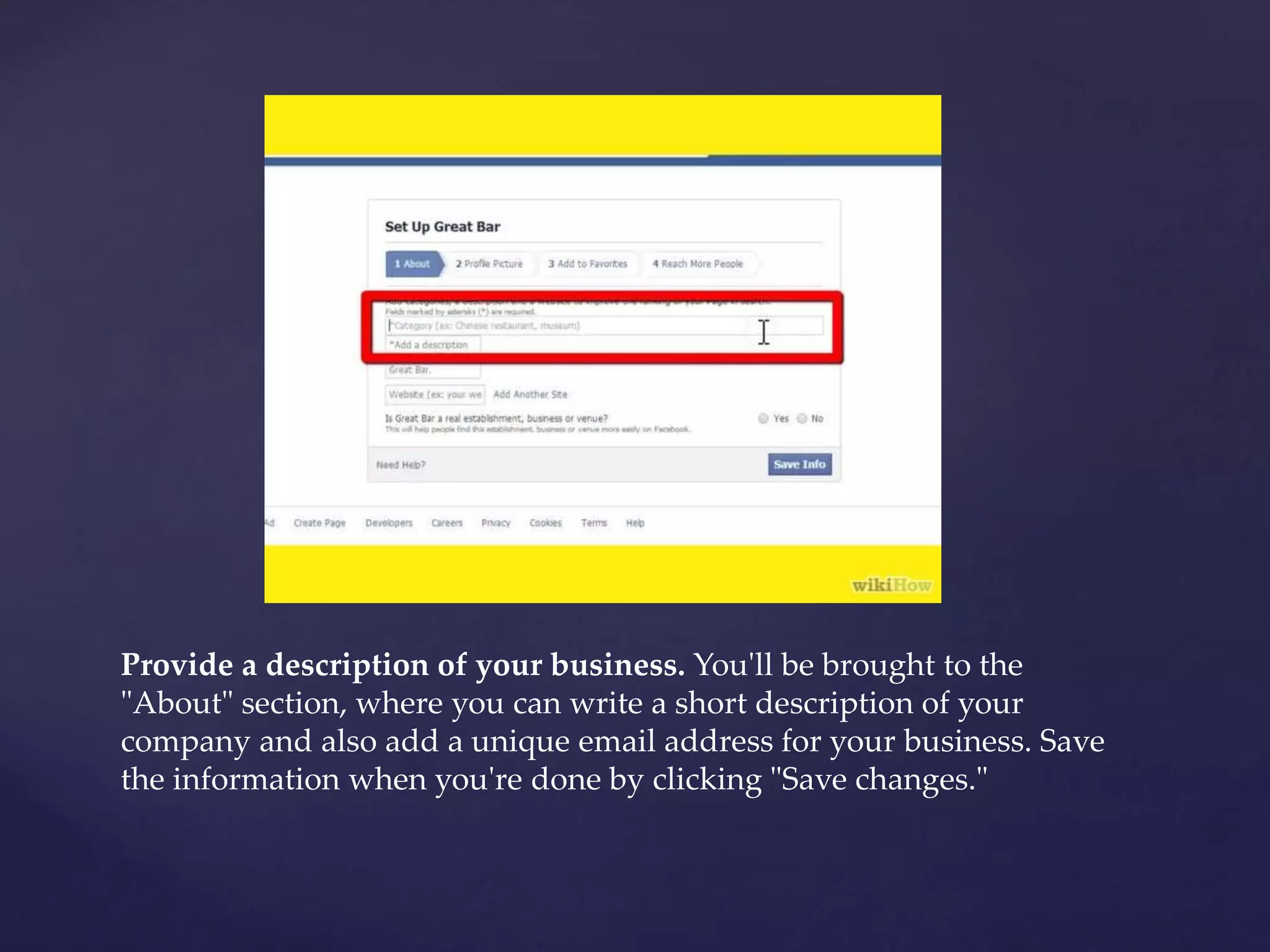
Provide a description of your business. You'll be brought to the 
"About" section, where you can write a short description of your 
company and also add a unique email address for your business. Save 
the information when you're done by clicking "Save changes."
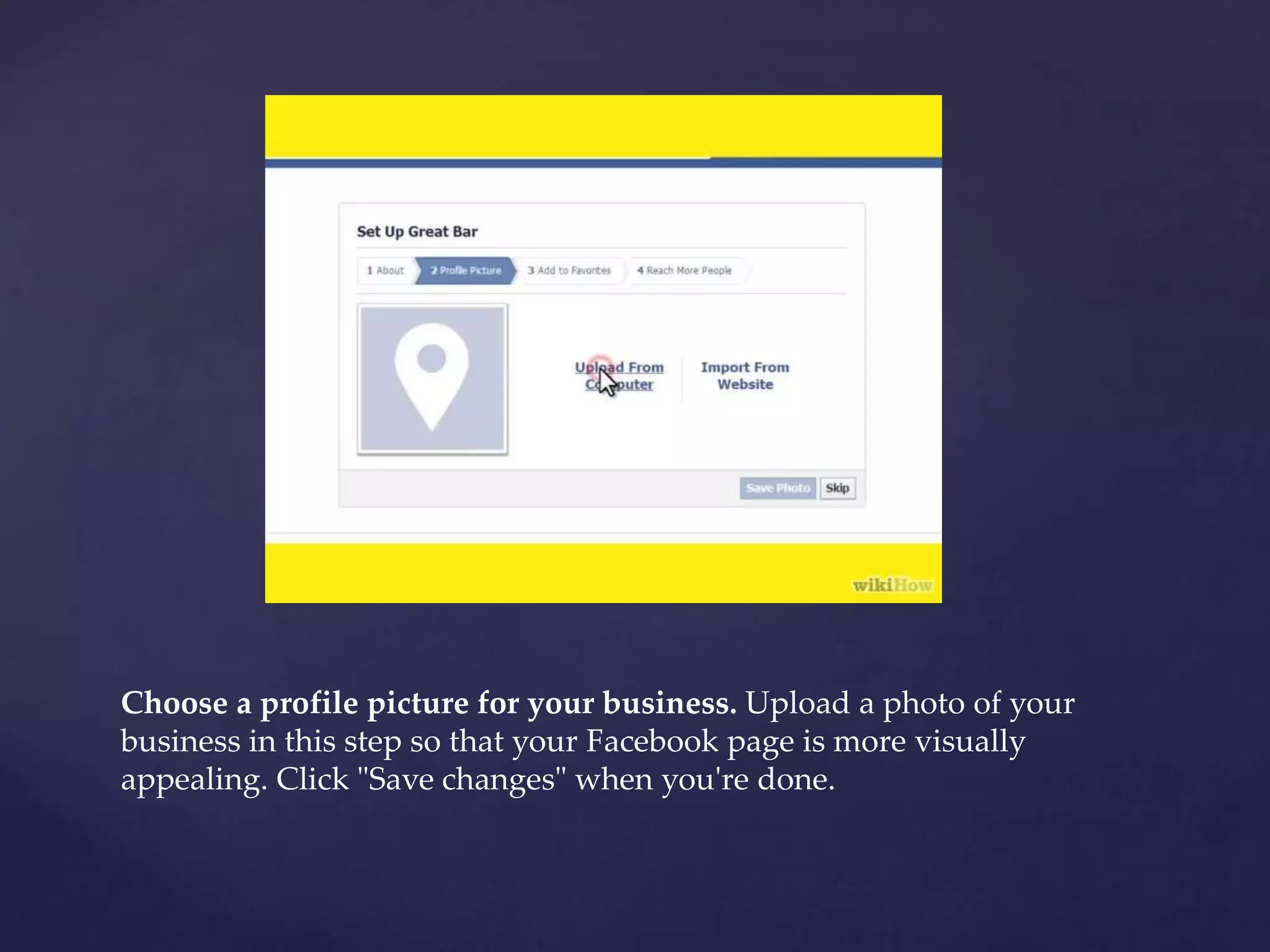
Choose a profile picture for your business. Upload a photo of your 
business in this step so that your Facebook page is more visually 
appealing. Click "Save changes" when you're done.
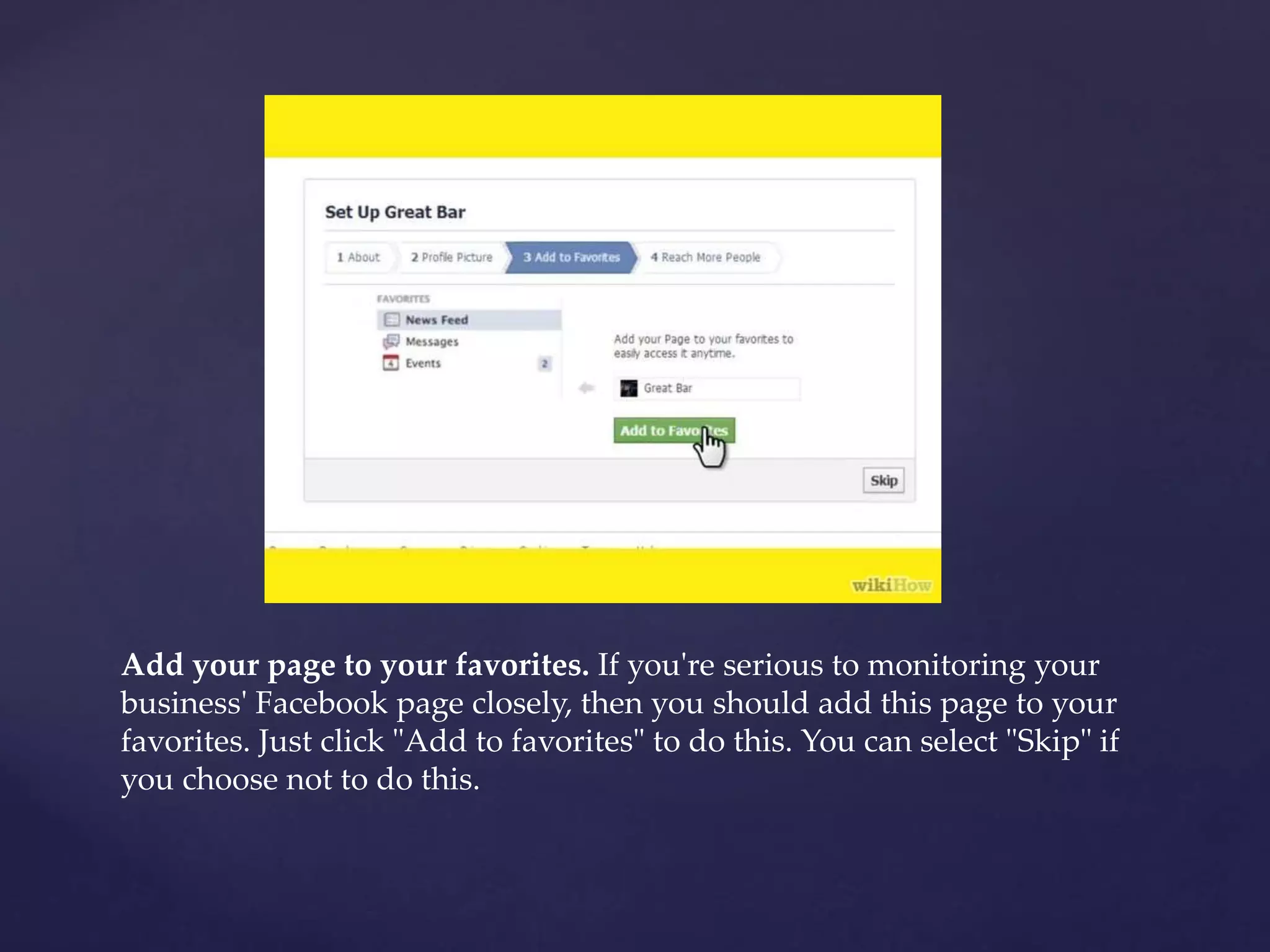
Add your page to your favorites. If you're serious to monitoring your 
business' Facebook page closely, then you should add this page to your 
favorites. Just click "Add to favorites" to do this. You can select "Skip" if 
you choose not to do this.
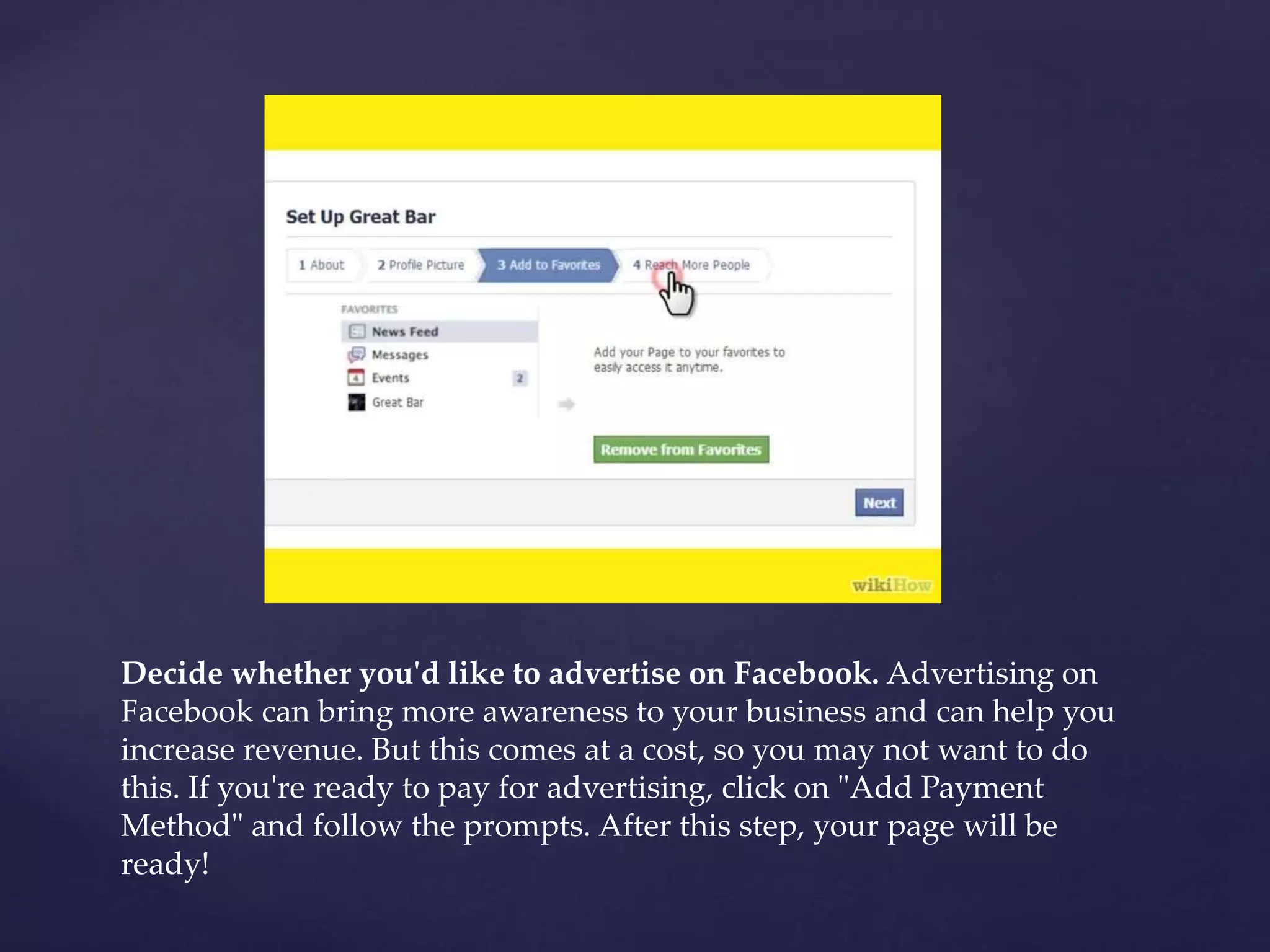
Decide whether you'd like to advertise on Facebook. Advertising on 
Facebook can bring more awareness to your business and can help you 
increase revenue. But this comes at a cost, so you may not want to do 
this. If you're ready to pay for advertising, click on "Add Payment 
Method" and follow the prompts. After this step, your page will be 
ready!
http://www.wikihow.com/Create-a-Facebook- 
Page-for-a-Business 
http://www.cygnismedia.com/ 
Resource:

How to create a facebook page for a business

  • 1.
    How to Createa Facebook Page for a Business { Setting Up Your Facebook Page
  • 2.
    A Facebook fanpage is a place where the fans of your business can share their passions and learn more about changes and upcoming events in your business, whether you're running a bar or a pet grooming service. Creating a Facebook page for your business will help you reach more customers, have a better sense of what potential customers want, and will allow you to stay current. Creating a page only takes a few minutes -- the hard part is keeping it updated. If you want to know how to do it, just follow these steps.
  • 3.
    Click on "Createa Page." You can find this option on the bottom right of the sign-in page on Facebook. If you're already logged in to your Facebook account, then you can just click on the gear on the top right of the screen and then select the "create a page" option.
  • 4.
    Choose "Local Businessor Place." This option can be found on the top left of the screen.
  • 5.
    Type in therelevant information about your business. Once you select this option, you'll have to write the name of the business, the address, and the phone number of your business. Then click on "Get Started."
  • 6.
    Review the FacebookTerms of Service before agreeing to them. You can click on "Facebook Pages Terms" in blue after you've typed in the relevant information. Once you've checked those out, just click on the box that says you agree and move on.
  • 7.
    Provide a descriptionof your business. You'll be brought to the "About" section, where you can write a short description of your company and also add a unique email address for your business. Save the information when you're done by clicking "Save changes."
  • 8.
    Choose a profilepicture for your business. Upload a photo of your business in this step so that your Facebook page is more visually appealing. Click "Save changes" when you're done.
  • 9.
    Add your pageto your favorites. If you're serious to monitoring your business' Facebook page closely, then you should add this page to your favorites. Just click "Add to favorites" to do this. You can select "Skip" if you choose not to do this.
  • 10.
    Decide whether you'dlike to advertise on Facebook. Advertising on Facebook can bring more awareness to your business and can help you increase revenue. But this comes at a cost, so you may not want to do this. If you're ready to pay for advertising, click on "Add Payment Method" and follow the prompts. After this step, your page will be ready!
  • 11.