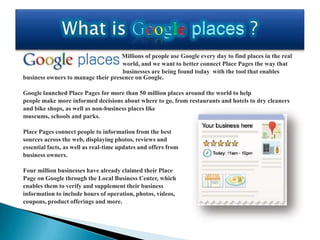
Millions of people use Google every day to find places in the real
                                    world, and we want to better connect Place Pages the way that
                                    businesses are being found today with the tool that enables
business owners to manage their presence on Google.

Google launched Place Pages for more than 50 million places around the world to help
people make more informed decisions about where to go, from restaurants and hotels to dry cleaners
and bike shops, as well as non-business places like
museums, schools and parks.
Place Pages connect people to information from the best
sources across the web, displaying photos, reviews and
essential facts, as well as real-time updates and offers from
business owners.
Four million businesses have already claimed their Place
Page on Google through the Local Business Center, which
enables them to verify and supplement their business
information to include hours of operation, photos, videos,
coupons, product offerings and more.
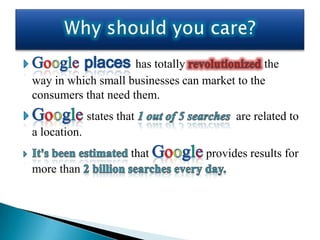
has totally               the
way in which small businesses can market to the
consumers that need them.
              states that                are related to
a location.
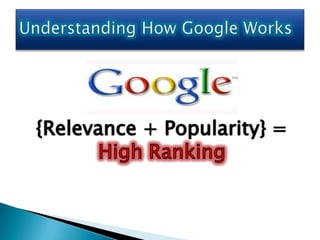
                        that       provides results for
more than
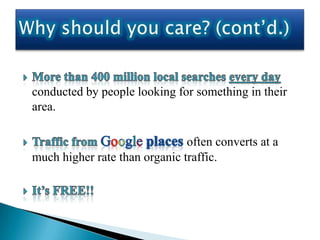
conducted by people looking for something in their
area.

                               often converts at a
much higher rate than organic traffic.
You can
read them, and more helpful articles at the
         help page:
◦ http://www.google.com/support/places/
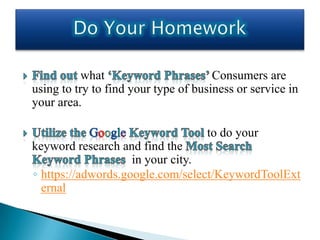
what                       Consumers are
using to try to find your type of business or service in
your area.

                                    to do your
keyword research and find the
                    in your city.
◦ https://adwords.google.com/select/KeywordToolExt
  ernal
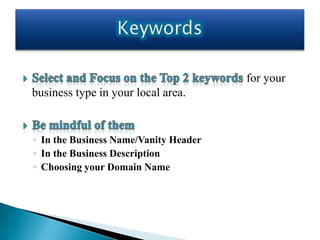
for your
business type in your local area.


◦ In the Business Name/Vanity Header
◦ In the Business Description
◦ Choosing your Domain Name
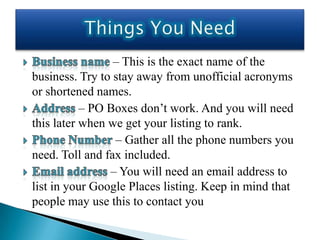
– This is the exact name of the
business. Try to stay away from unofficial acronyms
or shortened names.
           – PO Boxes don’t work. And you will need
this later when we get your listing to rank.
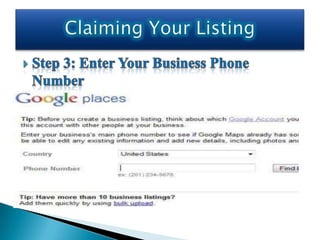
                 – Gather all the phone numbers you
need. Toll and fax included.
                – You will need an email address to
list in your Google Places listing. Keep in mind that
people may use this to contact you
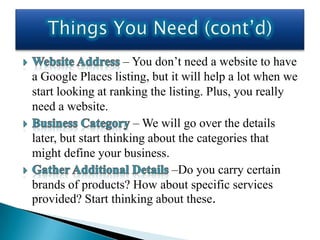
– You don’t need a website to have
a Google Places listing, but it will help a lot when we
start looking at ranking the listing. Plus, you really
need a website.
                       – We will go over the details
later, but start thinking about the categories that
might define your business.
                              –Do you carry certain
brands of products? How about specific services
provided? Start thinking about these.
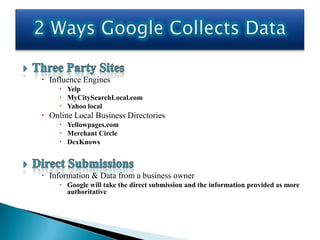
 Influence Engines
      Yelp
      MyCitySearchLocal.com
      Yahoo local
 Online Local Business Directories
      Yellowpages.com
      Merchant Circle
      DexKnows


 Information & Data from a business owner
      Google will take the direct submission and the information provided as more
       authoritative
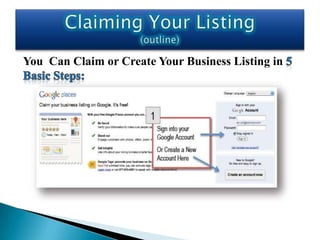
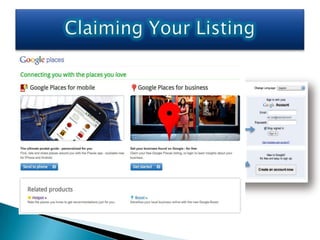
You Can Claim or Create Your Business Listing in
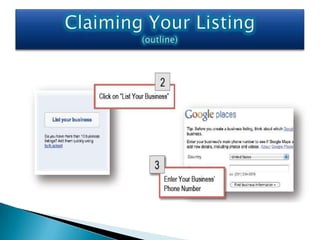
Go to the Google Places site - http://google.com/local/add. You’ll
be asked to sign in with your Google Account, or to register a
new one. If you have a Google account, great. If not, signing up is
a quick 1-page exercise.
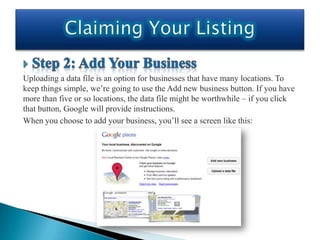
Uploading a data file is an option for businesses that have many locations. To
keep things simple, we’re going to use the Add new business button. If you have
more than five or so locations, the data file might be worthwhile – if you click
that button, Google will provide instructions.
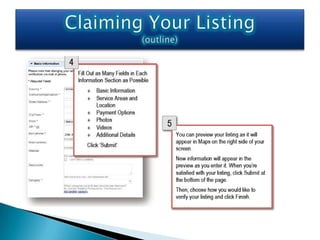
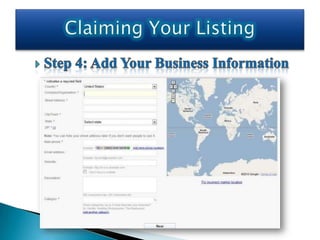
When you choose to add your business, you’ll see a screen like this:
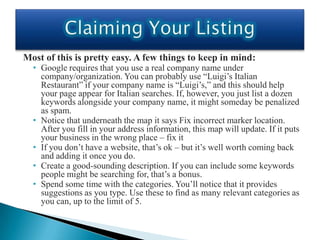
Most of this is pretty easy. A few things to keep in mind:
  • Google requires that you use a real company name under
    company/organization. You can probably use “Luigi’s Italian
    Restaurant” if your company name is “Luigi’s,” and this should help
    your page appear for Italian searches. If, however, you just list a dozen
    keywords alongside your company name, it might someday be penalized
    as spam.
  • Notice that underneath the map it says Fix incorrect marker location.
    After you fill in your address information, this map will update. If it puts
    your business in the wrong place – fix it
  • If you don’t have a website, that’s ok – but it’s well worth coming back
    and adding it once you do.
  • Create a good-sounding description. If you can include some keywords
    people might be searching for, that’s a bonus.
  • Spend some time with the categories. You’ll notice that it provides
    suggestions as you type. Use these to find as many relevant categories as
    you can, up to the limit of 5.
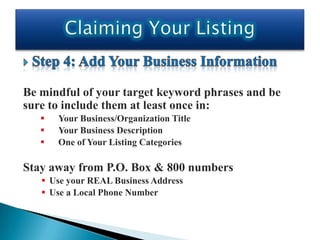
Be mindful of your target keyword phrases and be
sure to include them at least once in:
      Your Business/Organization Title
      Your Business Description
      One of Your Listing Categories

Stay away from P.O. Box & 800 numbers
    Use your REAL Business Address
    Use a Local Phone Number
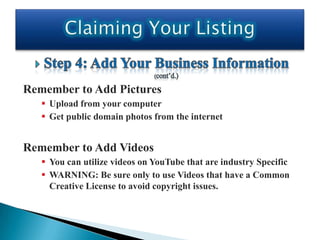
Remember to Add Pictures
    Upload from your computer
    Get public domain photos from the internet


Remember to Add Videos
    You can utilize videos on YouTube that are industry Specific
    WARNING: Be sure only to use Videos that have a Common
     Creative License to avoid copyright issues.
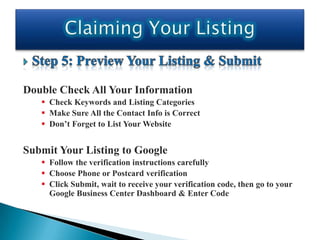
Double Check All Your Information
    Check Keywords and Listing Categories
    Make Sure All the Contact Info is Correct
    Don’t Forget to List Your Website


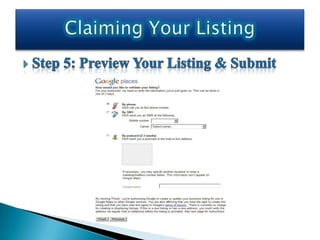
Submit Your Listing to Google
    Follow the verification instructions carefully
    Choose Phone or Postcard verification
    Click Submit, wait to receive your verification code, then go to your
     Google Business Center Dashboard & Enter Code
Edit Your Listing
 Click on Edit, and existing information can be edited, or new
 info added. Remember to go back and fill in any sections you
 skipped during the initial setup.


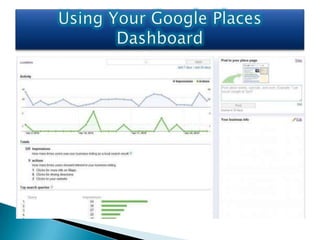
View Visitor Statistics & Post To Page
 Click on View report, and a page will appear that looks like the
 picture on the previous slide
View Visitor Statistics & Post To Page
 There is some great information here, as you can see the number
 of visitors to your page, what those visitors do on the page, what
 searches they are using, and where they are asking for driving
 directions from.

 You can also post to your place page, using the small box in the
 upper-right corner. This allows for the posting of real-time
 updates, primarily intended for businesses that have special
 events happening on a regular basis.
Create Coupons

 At the very top of the page on your dashboard screen, there
 should be a link to Coupons. Upon clicking this link, you’ll be
 taken to a page where you can create a new coupon, or manage
 existing coupons.

 The coupons are fairly self-explanatory. The big benefit is that
 they receive a prominent showing on your Places page, and
 should help convince customers to consider your business.
 Coupons can either be printed by a customer, or displayed on
 their cell-phone (so be prepared to track customer use of non-
 printed coupons).
Google Tags ($25/Month)
 Google is testing a feature called Tags, which is available in a
 select set of cities. The program runs $25 per month, and allows
 a business to highlight their listing on Google Maps with a
 special yellow tag containing additional information.

 I don’t have much experience with the efficacy of this
 advertising method. It’s inexpensive enough, however, to give a
 try – and the statistics on the Google Places Dashboard should
 make it easy to see how it has worked. You can access more
 information at http://www.google.com/help/tags/.
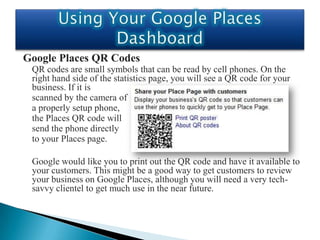
Google Places QR Codes
 QR codes are small symbols that can be read by cell phones. On the
 right hand side of the statistics page, you will see a QR code for your
 business. If it is
 scanned by the camera of
 a properly setup phone,
 the Places QR code will
 send the phone directly
 to your Places page.

 Google would like you to print out the QR code and have it available to
 your customers. This might be a good way to get customers to review
 your business on Google Places, although you will need a very tech-
 savvy clientel to get much use in the near future.
Free Photo Shoots from Google
 Google is currently providing free photo shoots to businesses in select
 cities. The shots are taken by a local photographer, and are intended for
 use on Google Places.

 This could be an easy way to get more professional shots than you
 would take yourself – for more information, visit Google’s Business
 Photos page at http://maps.google.com/help/maps/businessphotos.
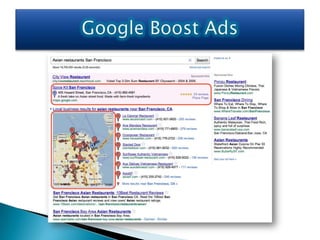
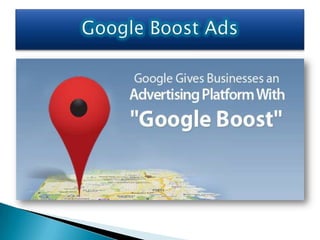
Why Google Boost?
 Google Boost and Location Extensions both allow local companies to
 advertise on Google’s search results. Location Extensions are accessed
 through the Adwords interface, and are a good choice for more
 advanced users.

 For the average business owner going the DIY route, Google Boost
 may be the better option. Ads look like this:
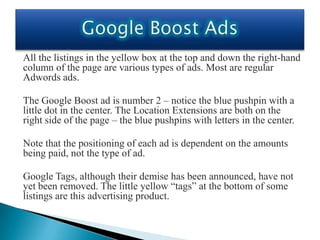
All the listings in the yellow box at the top and down the right-hand
column of the page are various types of ads. Most are regular
Adwords ads.

The Google Boost ad is number 2 – notice the blue pushpin with a
little dot in the center. The Location Extensions are both on the
right side of the page – the blue pushpins with letters in the center.

Note that the positioning of each ad is dependent on the amounts
being paid, not the type of ad.

Google Tags, although their demise has been announced, have not
yet been removed. The little yellow “tags” at the bottom of some
listings are this advertising product.
So what are the advantages of Boost?
 • It’s easy – as I’ll be describing in a moment.
 • Google automatically bids you up near the top of the page,
   guaranteeing that your listing will be seen (although
   potentially making it expensive as well)
 • Your ad gets some nice highlights – the blue pushpin draws
   the eye, and searchers are able to click the main link to reach
   your website, or the “Place Page” link to go to your Google
   Places page.
 • Like most Google products, but unlike Tags, you pay for
   performance – charges are based on actual clicks.
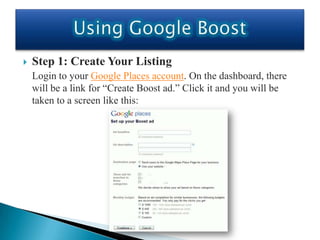
   Step 1: Create Your Listing
    Login to your Google Places account. On the dashboard, there
    will be a link for “Create Boost ad.” Click it and you will be
    taken to a screen like this:
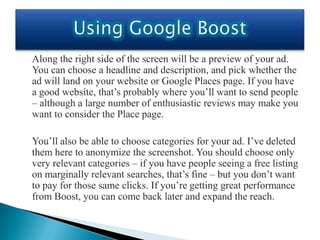
Along the right side of the screen will be a preview of your ad.
You can choose a headline and description, and pick whether the
ad will land on your website or Google Places page. If you have
a good website, that’s probably where you’ll want to send people
– although a large number of enthusiastic reviews may make you
want to consider the Place page.

You’ll also be able to choose categories for your ad. I’ve deleted
them here to anonymize the screenshot. You should choose only
very relevant categories – if you have people seeing a free listing
on marginally relevant searches, that’s fine – but you don’t want
to pay for those same clicks. If you’re getting great performance
from Boost, you can come back later and expand the reach.
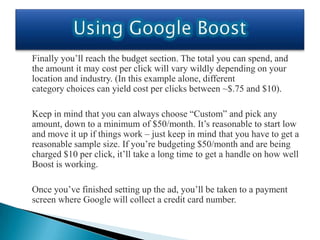
Finally you’ll reach the budget section. The total you can spend, and
the amount it may cost per click will vary wildly depending on your
location and industry. (In this example alone, different
category choices can yield cost per clicks between ~$.75 and $10).

Keep in mind that you can always choose “Custom” and pick any
amount, down to a minimum of $50/month. It’s reasonable to start low
and move it up if things work – just keep in mind that you have to get a
reasonable sample size. If you’re budgeting $50/month and are being
charged $10 per click, it’ll take a long time to get a handle on how well
Boost is working.

Once you’ve finished setting up the ad, you’ll be taken to a payment
screen where Google will collect a credit card number.
Step 2:Tracking & Improving
 Before we get started on improving performance, let’s look at what is
 going on behind the scenes. Google makes Boost easy by hiding some
 of the choices from you. A few of these are:
 • Keywords: Google is choosing which searches your ad should show
    for (if you were using the full Adwords interface you would have to
    pick the keywords).
 • Bids: Google is choosing your bids for each keyword. Again, this is
    something you can do yourself in the full Adwords interface. They
    usually bid you to near the top of the page – which is good for
    getting lots of clicks.
 • Ads & Ad Groups: Google is allowing you only one ad. In the setup
    used with Location Extensions, you can create multiple ads, and
    even specify different ads for different keywords.
In a normal situation, keywords, bids, and ads are some of the key things
to work on – but with Boost, it’s pretty much taken care of. You can
choose new categories, adjust your total bid amount, or write new ads
(but without split-testing), however your options are limited.

This will limit the scope for improvement, but it does make things easy –
and it may be ok for many small companies. With small budgets,
businesses struggle to get enough data to improve these aspects anyway.

Once your boost ad is setup, you’ll automatically see your “Boost ad
activity” on the regular Google Places Dashboard. You get graphs with
impressions and actions, total impression, action, and spend amounts, and
a listing of your “Top search keywords” (those with the most
impressions).
So how can we improve our results with Boost?
 The key is in better-converting those clicks that come to your site. For most
 businesses, that means having a decent website, and really going after web
 leads.

 Make sure your website has an easy to fill out contact form, and that your
 phone number is prominent on every page. Create a system to make sure
 web leads get called back immediately, not a couple days later.

 I would also recommend tracking everything as well as you can, so that
 you can see if you’re improving.
Watch how many people click your Boost ad, what they do on your
website, and how many end up contacting your business.

If all that sounds impossible, you’re probably better off working
with someone to improve your website and processes before
throwing big $$$’s at advertising online.
Google Boost can bring in more business, starting after about
a 5-minute signup. That’s pretty seductive, but it can also be
an awfully expensive program. So who should use it? See if
you check all these off:
  • Is your website decent?
  • Is your company prepared to effectively handle both call-ins and
    contact form leads?
  • Is your budget for advertising on Google more than $50, but less
    than ~$1500
  • Have you exhausted cheaper lead sources? (Putting a bit of effort
    into your Google Places page, garnering online reviews, and getting
    citations through other local directories will probably provide a
    much better ROI than Boost).
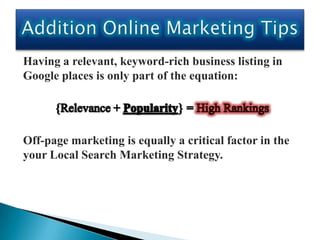
Having a relevant, keyword-rich business listing in
Google places is only part of the equation:


Off-page marketing is equally a critical factor in the
your Local Search Marketing Strategy.
Here are a couple of things that you can do, quickly, to
help ensure good exposure for your business on Google:
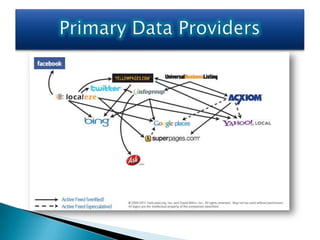
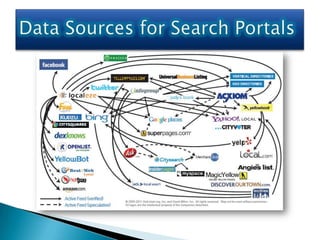
   Create Business Listing profiles on the major influence engines
    and local business directories that Google collects data from like:
           Yelp
           MyCitySearchLocal.com
           Facebook
           Merchant Circle
           Local.com
           Dexknows.com
           Yellowpages/Superpages.com
   Encourage New & Existing Customers to post 5 Star
    Reviews on your Google Place Page as well on your
    business profile on the other influence engines and local
    business directory websites.

   Interact online by Responding to the Reviews on your Place
    Page

   Join the Chamber of Commerce in Your City
    ◦ .gov backlinks to your website and your place page carry a lot weight &
      authority with Google in terms of Relevence
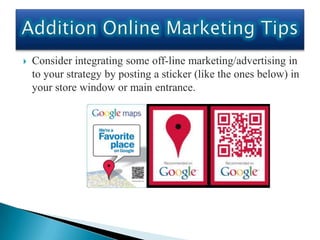
   Consider integrating some off-line marketing/advertising in
    to your strategy by posting a sticker (like the ones below) in
    your store window or main entrance.
Thank you very much for attending this
  SPECIAL Google places Crash Course
               Webinar!

Let’s Know if there is anything else that you
can do to assist you in marketing your Local
                   Business.
Got a Question?........

   Get an Answer.
In the interest of time and out of consideration of the
     other webinar attendees (and the trainer!!):

 1.    Each Local Business Owner/Webinar Attendee will
      be given the opportunity to ask questions and receive
           answers from the Local SEO Expert Trainer

2.    Participants will be allow to ask up to 2 questions, so
      that everyone may get a change to talk with the SEO
            Trainer with this webinar’s Allotted time.
Thank You

Google Places Optimization Crash Course

  • 2.
    Millions of peopleuse Google every day to find places in the real world, and we want to better connect Place Pages the way that businesses are being found today with the tool that enables business owners to manage their presence on Google. Google launched Place Pages for more than 50 million places around the world to help people make more informed decisions about where to go, from restaurants and hotels to dry cleaners and bike shops, as well as non-business places like museums, schools and parks. Place Pages connect people to information from the best sources across the web, displaying photos, reviews and essential facts, as well as real-time updates and offers from business owners. Four million businesses have already claimed their Place Page on Google through the Local Business Center, which enables them to verify and supplement their business information to include hours of operation, photos, videos, coupons, product offerings and more.
  • 5.
    has totally the way in which small businesses can market to the consumers that need them. states that are related to a location. that provides results for more than
  • 6.
    conducted by peoplelooking for something in their area. often converts at a much higher rate than organic traffic.
  • 7.
    You can read them,and more helpful articles at the help page: ◦ http://www.google.com/support/places/
  • 8.
    what Consumers are using to try to find your type of business or service in your area. to do your keyword research and find the in your city. ◦ https://adwords.google.com/select/KeywordToolExt ernal
  • 9.
    for your business typein your local area. ◦ In the Business Name/Vanity Header ◦ In the Business Description ◦ Choosing your Domain Name
  • 10.
    – This isthe exact name of the business. Try to stay away from unofficial acronyms or shortened names. – PO Boxes don’t work. And you will need this later when we get your listing to rank. – Gather all the phone numbers you need. Toll and fax included. – You will need an email address to list in your Google Places listing. Keep in mind that people may use this to contact you
  • 11.
    – You don’tneed a website to have a Google Places listing, but it will help a lot when we start looking at ranking the listing. Plus, you really need a website. – We will go over the details later, but start thinking about the categories that might define your business. –Do you carry certain brands of products? How about specific services provided? Start thinking about these.
  • 13.
     Influence Engines  Yelp  MyCitySearchLocal.com  Yahoo local  Online Local Business Directories  Yellowpages.com  Merchant Circle  DexKnows  Information & Data from a business owner  Google will take the direct submission and the information provided as more authoritative
  • 17.
    You Can Claimor Create Your Business Listing in
  • 20.
    Go to theGoogle Places site - http://google.com/local/add. You’ll be asked to sign in with your Google Account, or to register a new one. If you have a Google account, great. If not, signing up is a quick 1-page exercise.
  • 22.
    Uploading a datafile is an option for businesses that have many locations. To keep things simple, we’re going to use the Add new business button. If you have more than five or so locations, the data file might be worthwhile – if you click that button, Google will provide instructions. When you choose to add your business, you’ll see a screen like this:
  • 23.
    Most of thisis pretty easy. A few things to keep in mind: • Google requires that you use a real company name under company/organization. You can probably use “Luigi’s Italian Restaurant” if your company name is “Luigi’s,” and this should help your page appear for Italian searches. If, however, you just list a dozen keywords alongside your company name, it might someday be penalized as spam. • Notice that underneath the map it says Fix incorrect marker location. After you fill in your address information, this map will update. If it puts your business in the wrong place – fix it • If you don’t have a website, that’s ok – but it’s well worth coming back and adding it once you do. • Create a good-sounding description. If you can include some keywords people might be searching for, that’s a bonus. • Spend some time with the categories. You’ll notice that it provides suggestions as you type. Use these to find as many relevant categories as you can, up to the limit of 5.
  • 25.
    Be mindful ofyour target keyword phrases and be sure to include them at least once in:  Your Business/Organization Title  Your Business Description  One of Your Listing Categories Stay away from P.O. Box & 800 numbers  Use your REAL Business Address  Use a Local Phone Number
  • 26.
    Remember to AddPictures  Upload from your computer  Get public domain photos from the internet Remember to Add Videos  You can utilize videos on YouTube that are industry Specific  WARNING: Be sure only to use Videos that have a Common Creative License to avoid copyright issues.
  • 28.
    Double Check AllYour Information  Check Keywords and Listing Categories  Make Sure All the Contact Info is Correct  Don’t Forget to List Your Website Submit Your Listing to Google  Follow the verification instructions carefully  Choose Phone or Postcard verification  Click Submit, wait to receive your verification code, then go to your Google Business Center Dashboard & Enter Code
  • 31.
    Edit Your Listing Click on Edit, and existing information can be edited, or new info added. Remember to go back and fill in any sections you skipped during the initial setup. View Visitor Statistics & Post To Page Click on View report, and a page will appear that looks like the picture on the previous slide
  • 32.
    View Visitor Statistics& Post To Page There is some great information here, as you can see the number of visitors to your page, what those visitors do on the page, what searches they are using, and where they are asking for driving directions from. You can also post to your place page, using the small box in the upper-right corner. This allows for the posting of real-time updates, primarily intended for businesses that have special events happening on a regular basis.
  • 33.
    Create Coupons Atthe very top of the page on your dashboard screen, there should be a link to Coupons. Upon clicking this link, you’ll be taken to a page where you can create a new coupon, or manage existing coupons. The coupons are fairly self-explanatory. The big benefit is that they receive a prominent showing on your Places page, and should help convince customers to consider your business. Coupons can either be printed by a customer, or displayed on their cell-phone (so be prepared to track customer use of non- printed coupons).
  • 34.
    Google Tags ($25/Month) Google is testing a feature called Tags, which is available in a select set of cities. The program runs $25 per month, and allows a business to highlight their listing on Google Maps with a special yellow tag containing additional information. I don’t have much experience with the efficacy of this advertising method. It’s inexpensive enough, however, to give a try – and the statistics on the Google Places Dashboard should make it easy to see how it has worked. You can access more information at http://www.google.com/help/tags/.
  • 35.
    Google Places QRCodes QR codes are small symbols that can be read by cell phones. On the right hand side of the statistics page, you will see a QR code for your business. If it is scanned by the camera of a properly setup phone, the Places QR code will send the phone directly to your Places page. Google would like you to print out the QR code and have it available to your customers. This might be a good way to get customers to review your business on Google Places, although you will need a very tech- savvy clientel to get much use in the near future.
  • 36.
    Free Photo Shootsfrom Google Google is currently providing free photo shoots to businesses in select cities. The shots are taken by a local photographer, and are intended for use on Google Places. This could be an easy way to get more professional shots than you would take yourself – for more information, visit Google’s Business Photos page at http://maps.google.com/help/maps/businessphotos.
  • 38.
    Why Google Boost? Google Boost and Location Extensions both allow local companies to advertise on Google’s search results. Location Extensions are accessed through the Adwords interface, and are a good choice for more advanced users. For the average business owner going the DIY route, Google Boost may be the better option. Ads look like this:
  • 40.
    All the listingsin the yellow box at the top and down the right-hand column of the page are various types of ads. Most are regular Adwords ads. The Google Boost ad is number 2 – notice the blue pushpin with a little dot in the center. The Location Extensions are both on the right side of the page – the blue pushpins with letters in the center. Note that the positioning of each ad is dependent on the amounts being paid, not the type of ad. Google Tags, although their demise has been announced, have not yet been removed. The little yellow “tags” at the bottom of some listings are this advertising product.
  • 41.
    So what arethe advantages of Boost? • It’s easy – as I’ll be describing in a moment. • Google automatically bids you up near the top of the page, guaranteeing that your listing will be seen (although potentially making it expensive as well) • Your ad gets some nice highlights – the blue pushpin draws the eye, and searchers are able to click the main link to reach your website, or the “Place Page” link to go to your Google Places page. • Like most Google products, but unlike Tags, you pay for performance – charges are based on actual clicks.
  • 42.
    Step 1: Create Your Listing Login to your Google Places account. On the dashboard, there will be a link for “Create Boost ad.” Click it and you will be taken to a screen like this:
  • 43.
    Along the rightside of the screen will be a preview of your ad. You can choose a headline and description, and pick whether the ad will land on your website or Google Places page. If you have a good website, that’s probably where you’ll want to send people – although a large number of enthusiastic reviews may make you want to consider the Place page. You’ll also be able to choose categories for your ad. I’ve deleted them here to anonymize the screenshot. You should choose only very relevant categories – if you have people seeing a free listing on marginally relevant searches, that’s fine – but you don’t want to pay for those same clicks. If you’re getting great performance from Boost, you can come back later and expand the reach.
  • 44.
    Finally you’ll reachthe budget section. The total you can spend, and the amount it may cost per click will vary wildly depending on your location and industry. (In this example alone, different category choices can yield cost per clicks between ~$.75 and $10). Keep in mind that you can always choose “Custom” and pick any amount, down to a minimum of $50/month. It’s reasonable to start low and move it up if things work – just keep in mind that you have to get a reasonable sample size. If you’re budgeting $50/month and are being charged $10 per click, it’ll take a long time to get a handle on how well Boost is working. Once you’ve finished setting up the ad, you’ll be taken to a payment screen where Google will collect a credit card number.
  • 45.
    Step 2:Tracking &Improving Before we get started on improving performance, let’s look at what is going on behind the scenes. Google makes Boost easy by hiding some of the choices from you. A few of these are: • Keywords: Google is choosing which searches your ad should show for (if you were using the full Adwords interface you would have to pick the keywords). • Bids: Google is choosing your bids for each keyword. Again, this is something you can do yourself in the full Adwords interface. They usually bid you to near the top of the page – which is good for getting lots of clicks. • Ads & Ad Groups: Google is allowing you only one ad. In the setup used with Location Extensions, you can create multiple ads, and even specify different ads for different keywords.
  • 46.
    In a normalsituation, keywords, bids, and ads are some of the key things to work on – but with Boost, it’s pretty much taken care of. You can choose new categories, adjust your total bid amount, or write new ads (but without split-testing), however your options are limited. This will limit the scope for improvement, but it does make things easy – and it may be ok for many small companies. With small budgets, businesses struggle to get enough data to improve these aspects anyway. Once your boost ad is setup, you’ll automatically see your “Boost ad activity” on the regular Google Places Dashboard. You get graphs with impressions and actions, total impression, action, and spend amounts, and a listing of your “Top search keywords” (those with the most impressions).
  • 47.
    So how canwe improve our results with Boost? The key is in better-converting those clicks that come to your site. For most businesses, that means having a decent website, and really going after web leads. Make sure your website has an easy to fill out contact form, and that your phone number is prominent on every page. Create a system to make sure web leads get called back immediately, not a couple days later. I would also recommend tracking everything as well as you can, so that you can see if you’re improving.
  • 48.
    Watch how manypeople click your Boost ad, what they do on your website, and how many end up contacting your business. If all that sounds impossible, you’re probably better off working with someone to improve your website and processes before throwing big $$$’s at advertising online.
  • 49.
    Google Boost canbring in more business, starting after about a 5-minute signup. That’s pretty seductive, but it can also be an awfully expensive program. So who should use it? See if you check all these off: • Is your website decent? • Is your company prepared to effectively handle both call-ins and contact form leads? • Is your budget for advertising on Google more than $50, but less than ~$1500 • Have you exhausted cheaper lead sources? (Putting a bit of effort into your Google Places page, garnering online reviews, and getting citations through other local directories will probably provide a much better ROI than Boost).
  • 50.
    Having a relevant,keyword-rich business listing in Google places is only part of the equation: Off-page marketing is equally a critical factor in the your Local Search Marketing Strategy.
  • 51.
    Here are acouple of things that you can do, quickly, to help ensure good exposure for your business on Google:  Create Business Listing profiles on the major influence engines and local business directories that Google collects data from like:  Yelp  MyCitySearchLocal.com  Facebook  Merchant Circle  Local.com  Dexknows.com  Yellowpages/Superpages.com
  • 52.
    Encourage New & Existing Customers to post 5 Star Reviews on your Google Place Page as well on your business profile on the other influence engines and local business directory websites.  Interact online by Responding to the Reviews on your Place Page  Join the Chamber of Commerce in Your City ◦ .gov backlinks to your website and your place page carry a lot weight & authority with Google in terms of Relevence
  • 53.
    Consider integrating some off-line marketing/advertising in to your strategy by posting a sticker (like the ones below) in your store window or main entrance.
  • 54.
    Thank you verymuch for attending this SPECIAL Google places Crash Course Webinar! Let’s Know if there is anything else that you can do to assist you in marketing your Local Business.
  • 55.
  • 56.
    In the interestof time and out of consideration of the other webinar attendees (and the trainer!!): 1. Each Local Business Owner/Webinar Attendee will be given the opportunity to ask questions and receive answers from the Local SEO Expert Trainer 2. Participants will be allow to ask up to 2 questions, so that everyone may get a change to talk with the SEO Trainer with this webinar’s Allotted time.
  • 57.