GitHub for Software Development a White Paper
Part:1
One of the best version control systems on the earth
Abstract
GitHub is the leading code-hosting platform with literally millions of open source
projects having their code hosted on it. In conjunction with Git, it provides the means for a productive
development workflow and is the preferred tool among developers. Starting with the basics of creating
a repository, you will then learn how to manage the issue tracker, where your project can be discussed.
Continuing our journey, we will explore how to use the wiki and write rich documentation that will
accompany your project. Organization and team management will be the next stop and then onto
the pull requests feature that made GitHub so well known. Next, we will focus on creating simple web
pages hosted on GitHub and lastly we explore the settings that are configurable for a user and a
repository.
Overview of Repository and Issue Tracker-- The landing page of a project on GitHub depicts the
contents of a person's local Git repository. GitHub also provides an issue tracker for each repository.
GitHub has also implemented many other features that sit on top of the issue tracker, such as labels and
milestones that provide the ability for better visualization and categorization of all the issues.
Giving birth to a new Repository- You should have already signed up in GitHub through
https://github.com/join as prerequsites.
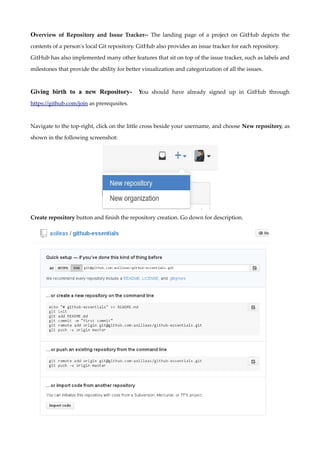
Navigate to the top-right, click on the little cross beside your username, and choose New repository, as
shown in the following screenshot:
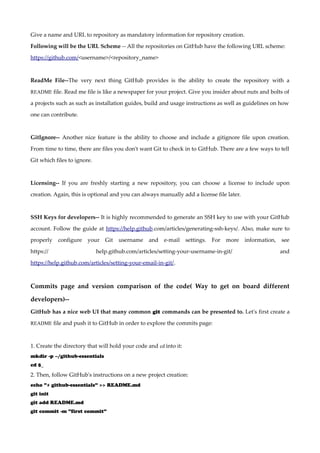
Create repository button and finish the repository creation. Go down for description.
Give a name and URL to repository as mandatory information for repository creation.
Following will be the URL Scheme -- All the repositories on GitHub have the following URL scheme:
https://github.com/<username>/<repository_name>
ReadMe File--The very next thing GitHub provides is the ability to create the repository with a
README file. Read me file is like a newspaper for your project. Give you insider about nuts and bolts of
a projects such as such as installation guides, build and usage instructions as well as guidelines on how
one can contribute.
GitIgnore-- Another nice feature is the ability to choose and include a gitignore file upon creation.
From time to time, there are files you don't want Git to check in to GitHub. There are a few ways to tell
Git which files to ignore.
Licensing-- If you are freshly starting a new repository, you can choose a license to include upon
creation. Again, this is optional and you can always manually add a license file later.
SSH Keys for developers-- It is highly recommended to generate an SSH key to use with your GitHub
account. Follow the guide at https://help.github.com/articles/generating-ssh-keys/. Also, make sure to
properly configure your Git username and e-mail settings. For more information, see
https:// help.github.com/articles/setting-your-username-in-git/ and
https://help.github.com/articles/setting-your-email-in-git/.
Commits page and version comparison of the code( Way to get on board different
developers)--
GitHub has a nice web UI that many common git commands can be presented to. Let's first create a
README file and push it to GitHub in order to explore the commits page:
1. Create the directory that will hold your code and cd into it:
mkdir -p ~/github-essentials
cd $_
2. Then, follow GitHub's instructions on a new project creation:
echo "# github-essentials" >> README.md
git init
git add README.md
git commit -m "first commit"
git remote add origin git@github.com:<username>/<repository>.git
git push -u origin master
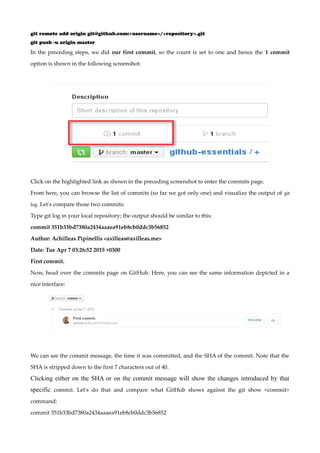
In the preceding steps, we did our first commit, so the count is set to one and hence the 1 commit
option is shown in the following screenshot:
Click on the highlighted link as shown in the preceding screenshot to enter the commits page.
From here, you can browse the list of commits (so far we got only one) and visualize the output of git
log. Let's compare those two commits:
Type git log in your local repository; the output should be similar to this:
commit 351b33bd7380a2434aaaea91eb8cb0ddc3b56852
Author: Achilleas Pipinellis <axilleas@axilleas.me>
Date: Tue Apr 7 03:26:52 2015 +0300
First commit.
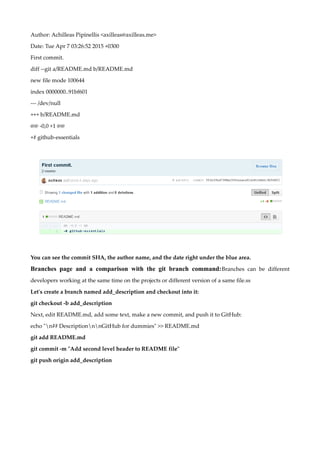
Now, head over the commits page on GitHub. Here, you can see the same information depicted in a
nice interface:
We can see the commit message, the time it was committed, and the SHA of the commit. Note that the
SHA is stripped down to the first 7 characters out of 40.
Clicking either on the SHA or on the commit message will show the changes introduced by that
specific commit. Let's do that and compare what GitHub shows against the git show <commit>
command:
commit 351b33bd7380a2434aaaea91eb8cb0ddc3b56852
Author: Achilleas Pipinellis <axilleas@axilleas.me>
Date: Tue Apr 7 03:26:52 2015 +0300
First commit.
diff --git a/README.md b/README.md
new file mode 100644
index 0000000..91bf601
--- /dev/null
+++ b/README.md
@@ -0,0 +1 @@
+# github-essentials
You can see the commit SHA, the author name, and the date right under the blue area.
Branches page and a comparison with the git branch command:Branches can be different
developers working at the same time on the projects or different version of a same file.ss
Let's create a branch named add_description and checkout into it:
git checkout -b add_description
Next, edit README.md, add some text, make a new commit, and push it to GitHub:
echo "n## DescriptionnnGitHub for dummies" >> README.md
git add README.md
git commit -m "Add second level header to README file"
git push origin add_description
Now let's create a second branch named new_feature, out of the master branch and just push it to
GitHub:
git checkout master
git branch new_feature
git push origin new_feature
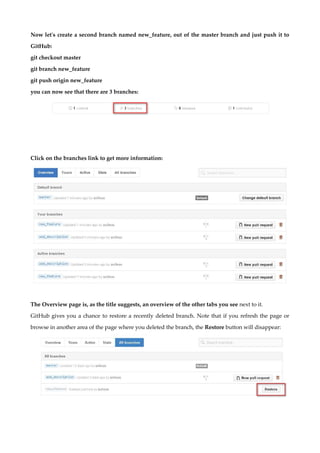
you can now see that there are 3 branches:
Click on the branches link to get more information:
The Overview page is, as the title suggests, an overview of the other tabs you see next to it.
GitHub gives you a chance to restore a recently deleted branch. Note that if you refresh the page or
browse in another area of the page where you deleted the branch, the Restore button will disappear:
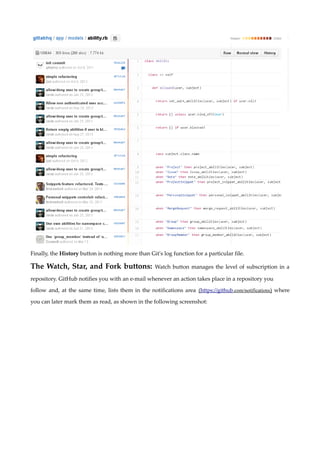
The Raw, Blame, and History buttons
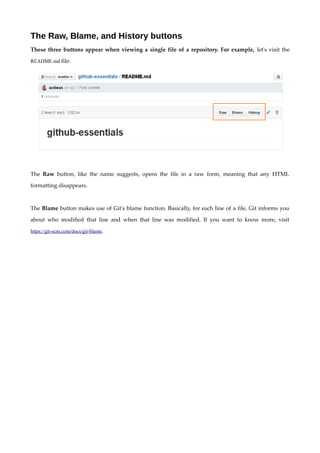
These three buttons appear when viewing a single file of a repository. For example, let's visit the
README.md file:
The Raw button, like the name suggests, opens the file in a raw form, meaning that any HTML
formatting disappears.
The Blame button makes use of Git's blame function. Basically, for each line of a file, Git informs you
about who modified that line and when that line was modified. If you want to know more, visit
https://git-scm.com/docs/git-blame.
Finally, the History button is nothing more than Git's log function for a particular file.
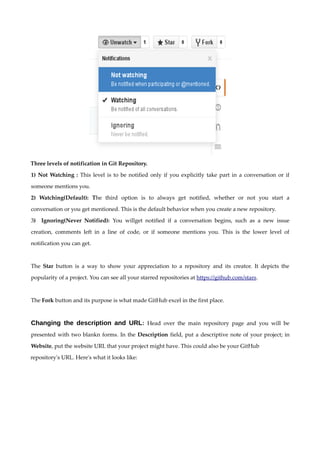
The Watch, Star, and Fork buttons: Watch button manages the level of subscription in a
repository. GitHub notifies you with an e-mail whenever an action takes place in a repository you
follow and, at the same time, lists them in the notifications area (https://github.com/notifications) where
you can later mark them as read, as shown in the following screenshot:
Three levels of notification in Git Repository.
1) Not Watching : This level is to be notified only if you explicitly take part in a conversation or if
someone mentions you.
2) Watching(Default): The third option is to always get notified, whether or not you start a
conversation or you get mentioned. This is the default behavior when you create a new repository.
3) Ignoring(Never Notified): You willget notified if a conversation begins, such as a new issue
creation, comments left in a line of code, or if someone mentions you. This is the lower level of
notification you can get.
The Star button is a way to show your appreciation to a repository and its creator. It depicts the
popularity of a project. You can see all your starred repositories at https://github.com/stars.
The Fork button and its purpose is what made GitHub excel in the first place.
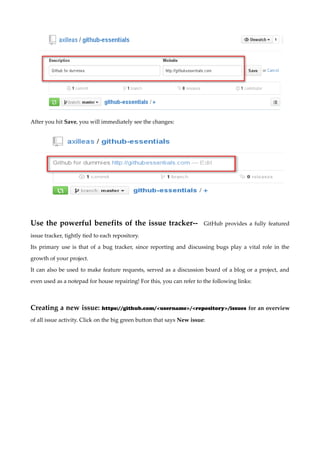
Changing the description and URL: Head over the main repository page and you will be
presented with two blankn forms. In the Description field, put a descriptive note of your project; in
Website, put the website URL that your project might have. This could also be your GitHub
repository's URL. Here's what it looks like:
After you hit Save, you will immediately see the changes:
Use the powerful benefits of the issue tracker-- GitHub provides a fully featured
issue tracker, tightly tied to each repository.
Its primary use is that of a bug tracker, since reporting and discussing bugs play a vital role in the
growth of your project.
It can also be used to make feature requests, served as a discussion board of a blog or a project, and
even used as a notepad for house repairing! For this, you can refer to the following links:
Creating a new issue: https://github.com/<username>/<repository>/issues for an overview
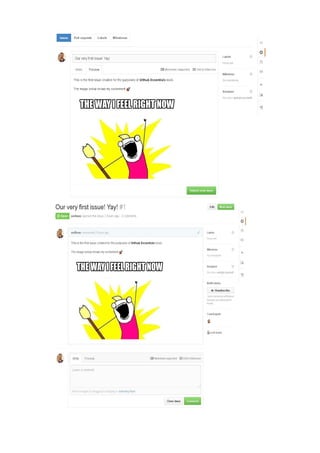
of all issue activity. Click on the big green button that says New issue:
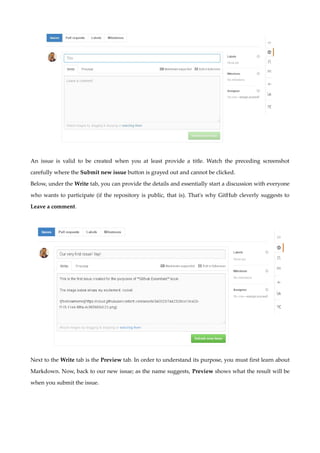
An issue is valid to be created when you at least provide a title. Watch the preceding screenshot
carefully where the Submit new issue button is grayed out and cannot be clicked.
Below, under the Write tab, you can provide the details and essentially start a discussion with everyone
who wants to participate (if the repository is public, that is). That's why GitHub cleverly suggests to
Leave a comment.
Next to the Write tab is the Preview tab. In order to understand its purpose, you must first learn about
Markdown. Now, back to our new issue; as the name suggests, Preview shows what the result will be
when you submit the issue.
Assigning issues to users--
Concept of collaborator-- Acts as a Service desk closes a tickets and reasigns the tickets to different
teams acts as a middle men for the issue tickets between team or users and manages authorization and
access to the issue tickets and other features of bug tracking. A collaborator is a person who has push
access to the repository and, in our case, can also edit and close issues. Repositories can have more than
one colaborator.
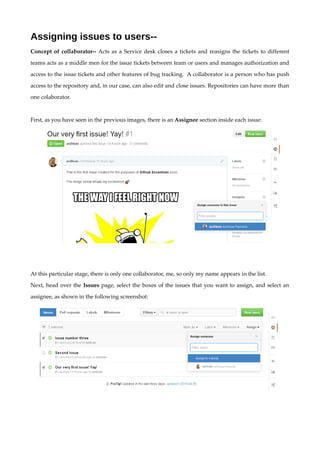
First, as you have seen in the previous images, there is an Assignee section inside each issue:
At this particular stage, there is only one collaborator, me, so only my name appears in the list.
Next, head over the Issues page, select the boxes of the issues that you want to assign, and select an
assignee, as shown in the following screenshot:
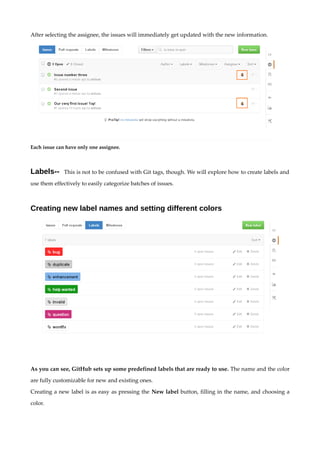
After selecting the assignee, the issues will immediately get updated with the new information.
Each issue can have only one assignee.
Labels-- This is not to be confused with Git tags, though. We will explore how to create labels and
use them effectively to easily categorize batches of issues.
Creating new label names and setting different colors
As you can see, GitHub sets up some predefined labels that are ready to use. The name and the color
are fully customizable for new and existing ones.
Creating a new label is as easy as pressing the New label button, filling in the name, and choosing a
color.
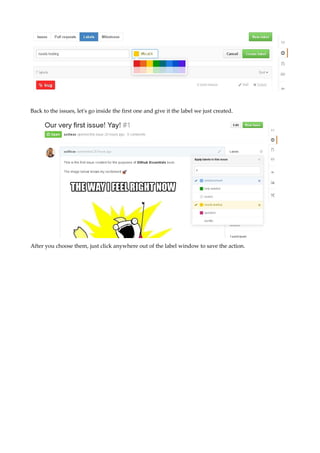
Back to the issues, let's go inside the first one and give it the label we just created.
After you choose them, just click anywhere out of the label window to save the action.
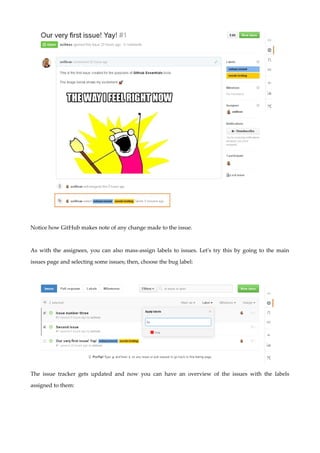
Notice how GitHub makes note of any change made to the issue.
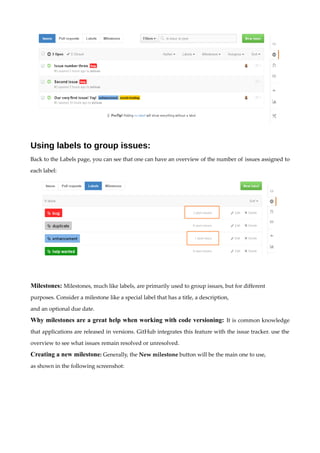
As with the assignees, you can also mass-assign labels to issues. Let's try this by going to the main
issues page and selecting some issues; then, choose the bug label:
The issue tracker gets updated and now you can have an overview of the issues with the labels
assigned to them:
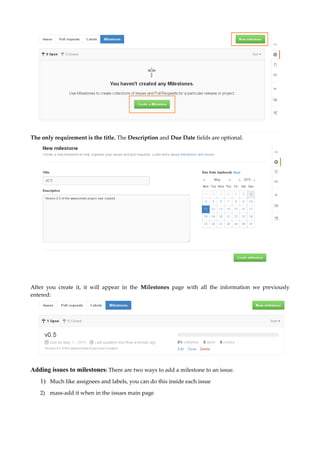
Using labels to group issues:
Back to the Labels page, you can see that one can have an overview of the number of issues assigned to
each label:
Milestones: Milestones, much like labels, are primarily used to group issues, but for different
purposes. Consider a milestone like a special label that has a title, a description,
and an optional due date.
Why milestones are a great help when working with code versioning: It is common knowledge
that applications are released in versions. GitHub integrates this feature with the issue tracker. use the
overview to see what issues remain resolved or unresolved.
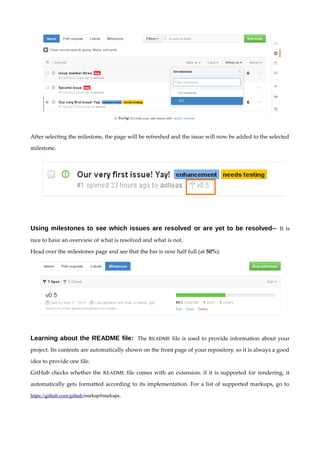
Creating a new milestone: Generally, the New milestone button will be the main one to use,
as shown in the following screenshot:
The only requirement is the title. The Description and Due Date fields are optional.
After you create it, it will appear in the Milestones page with all the information we previously
entered:
Adding issues to milestones: There are two ways to add a milestone to an issue.
1) Much like assignees and labels, you can do this inside each issue
2) mass-add it when in the issues main page
After selecting the milestone, the page will be refreshed and the issue will now be added to the selected
milestone.
Using milestones to see which issues are resolved or are yet to be resolved-- It is
nice to have an overview of what is resolved and what is not.
Head over the milestones page and see that the bar is now half full (at 50%):
Learning about the README file: The README file is used to provide information about your
project. Its contents are automatically shown on the front page of your repository, so it is always a good
idea to provide one file.
GitHub checks whether the README file comes with an extension. if it is supported for rendering, it
automatically gets formatted according to its implementation. For a list of supported markups, go to
https://github.com/github/markup#markups.

Git Hub Platform

  • 1.
    GitHub for SoftwareDevelopment a White Paper Part:1 One of the best version control systems on the earth Abstract GitHub is the leading code-hosting platform with literally millions of open source projects having their code hosted on it. In conjunction with Git, it provides the means for a productive development workflow and is the preferred tool among developers. Starting with the basics of creating a repository, you will then learn how to manage the issue tracker, where your project can be discussed. Continuing our journey, we will explore how to use the wiki and write rich documentation that will accompany your project. Organization and team management will be the next stop and then onto the pull requests feature that made GitHub so well known. Next, we will focus on creating simple web pages hosted on GitHub and lastly we explore the settings that are configurable for a user and a repository.
  • 2.
    Overview of Repositoryand Issue Tracker-- The landing page of a project on GitHub depicts the contents of a person's local Git repository. GitHub also provides an issue tracker for each repository. GitHub has also implemented many other features that sit on top of the issue tracker, such as labels and milestones that provide the ability for better visualization and categorization of all the issues. Giving birth to a new Repository- You should have already signed up in GitHub through https://github.com/join as prerequsites. Navigate to the top-right, click on the little cross beside your username, and choose New repository, as shown in the following screenshot: Create repository button and finish the repository creation. Go down for description.
  • 3.
    Give a nameand URL to repository as mandatory information for repository creation. Following will be the URL Scheme -- All the repositories on GitHub have the following URL scheme: https://github.com/<username>/<repository_name> ReadMe File--The very next thing GitHub provides is the ability to create the repository with a README file. Read me file is like a newspaper for your project. Give you insider about nuts and bolts of a projects such as such as installation guides, build and usage instructions as well as guidelines on how one can contribute. GitIgnore-- Another nice feature is the ability to choose and include a gitignore file upon creation. From time to time, there are files you don't want Git to check in to GitHub. There are a few ways to tell Git which files to ignore. Licensing-- If you are freshly starting a new repository, you can choose a license to include upon creation. Again, this is optional and you can always manually add a license file later. SSH Keys for developers-- It is highly recommended to generate an SSH key to use with your GitHub account. Follow the guide at https://help.github.com/articles/generating-ssh-keys/. Also, make sure to properly configure your Git username and e-mail settings. For more information, see https:// help.github.com/articles/setting-your-username-in-git/ and https://help.github.com/articles/setting-your-email-in-git/. Commits page and version comparison of the code( Way to get on board different developers)-- GitHub has a nice web UI that many common git commands can be presented to. Let's first create a README file and push it to GitHub in order to explore the commits page: 1. Create the directory that will hold your code and cd into it: mkdir -p ~/github-essentials cd $_ 2. Then, follow GitHub's instructions on a new project creation: echo "# github-essentials" >> README.md git init git add README.md git commit -m "first commit"
  • 4.
    git remote addorigin git@github.com:<username>/<repository>.git git push -u origin master In the preceding steps, we did our first commit, so the count is set to one and hence the 1 commit option is shown in the following screenshot: Click on the highlighted link as shown in the preceding screenshot to enter the commits page. From here, you can browse the list of commits (so far we got only one) and visualize the output of git log. Let's compare those two commits: Type git log in your local repository; the output should be similar to this: commit 351b33bd7380a2434aaaea91eb8cb0ddc3b56852 Author: Achilleas Pipinellis <axilleas@axilleas.me> Date: Tue Apr 7 03:26:52 2015 +0300 First commit. Now, head over the commits page on GitHub. Here, you can see the same information depicted in a nice interface: We can see the commit message, the time it was committed, and the SHA of the commit. Note that the SHA is stripped down to the first 7 characters out of 40. Clicking either on the SHA or on the commit message will show the changes introduced by that specific commit. Let's do that and compare what GitHub shows against the git show <commit> command: commit 351b33bd7380a2434aaaea91eb8cb0ddc3b56852
  • 5.
    Author: Achilleas Pipinellis<axilleas@axilleas.me> Date: Tue Apr 7 03:26:52 2015 +0300 First commit. diff --git a/README.md b/README.md new file mode 100644 index 0000000..91bf601 --- /dev/null +++ b/README.md @@ -0,0 +1 @@ +# github-essentials You can see the commit SHA, the author name, and the date right under the blue area. Branches page and a comparison with the git branch command:Branches can be different developers working at the same time on the projects or different version of a same file.ss Let's create a branch named add_description and checkout into it: git checkout -b add_description Next, edit README.md, add some text, make a new commit, and push it to GitHub: echo "n## DescriptionnnGitHub for dummies" >> README.md git add README.md git commit -m "Add second level header to README file" git push origin add_description
  • 6.
    Now let's createa second branch named new_feature, out of the master branch and just push it to GitHub: git checkout master git branch new_feature git push origin new_feature you can now see that there are 3 branches: Click on the branches link to get more information: The Overview page is, as the title suggests, an overview of the other tabs you see next to it. GitHub gives you a chance to restore a recently deleted branch. Note that if you refresh the page or browse in another area of the page where you deleted the branch, the Restore button will disappear:
  • 7.
    The Raw, Blame,and History buttons These three buttons appear when viewing a single file of a repository. For example, let's visit the README.md file: The Raw button, like the name suggests, opens the file in a raw form, meaning that any HTML formatting disappears. The Blame button makes use of Git's blame function. Basically, for each line of a file, Git informs you about who modified that line and when that line was modified. If you want to know more, visit https://git-scm.com/docs/git-blame.
  • 8.
    Finally, the Historybutton is nothing more than Git's log function for a particular file. The Watch, Star, and Fork buttons: Watch button manages the level of subscription in a repository. GitHub notifies you with an e-mail whenever an action takes place in a repository you follow and, at the same time, lists them in the notifications area (https://github.com/notifications) where you can later mark them as read, as shown in the following screenshot:
  • 9.
    Three levels ofnotification in Git Repository. 1) Not Watching : This level is to be notified only if you explicitly take part in a conversation or if someone mentions you. 2) Watching(Default): The third option is to always get notified, whether or not you start a conversation or you get mentioned. This is the default behavior when you create a new repository. 3) Ignoring(Never Notified): You willget notified if a conversation begins, such as a new issue creation, comments left in a line of code, or if someone mentions you. This is the lower level of notification you can get. The Star button is a way to show your appreciation to a repository and its creator. It depicts the popularity of a project. You can see all your starred repositories at https://github.com/stars. The Fork button and its purpose is what made GitHub excel in the first place. Changing the description and URL: Head over the main repository page and you will be presented with two blankn forms. In the Description field, put a descriptive note of your project; in Website, put the website URL that your project might have. This could also be your GitHub repository's URL. Here's what it looks like:
  • 10.
    After you hitSave, you will immediately see the changes: Use the powerful benefits of the issue tracker-- GitHub provides a fully featured issue tracker, tightly tied to each repository. Its primary use is that of a bug tracker, since reporting and discussing bugs play a vital role in the growth of your project. It can also be used to make feature requests, served as a discussion board of a blog or a project, and even used as a notepad for house repairing! For this, you can refer to the following links: Creating a new issue: https://github.com/<username>/<repository>/issues for an overview of all issue activity. Click on the big green button that says New issue:
  • 11.
    An issue isvalid to be created when you at least provide a title. Watch the preceding screenshot carefully where the Submit new issue button is grayed out and cannot be clicked. Below, under the Write tab, you can provide the details and essentially start a discussion with everyone who wants to participate (if the repository is public, that is). That's why GitHub cleverly suggests to Leave a comment. Next to the Write tab is the Preview tab. In order to understand its purpose, you must first learn about Markdown. Now, back to our new issue; as the name suggests, Preview shows what the result will be when you submit the issue.
  • 13.
    Assigning issues tousers-- Concept of collaborator-- Acts as a Service desk closes a tickets and reasigns the tickets to different teams acts as a middle men for the issue tickets between team or users and manages authorization and access to the issue tickets and other features of bug tracking. A collaborator is a person who has push access to the repository and, in our case, can also edit and close issues. Repositories can have more than one colaborator. First, as you have seen in the previous images, there is an Assignee section inside each issue: At this particular stage, there is only one collaborator, me, so only my name appears in the list. Next, head over the Issues page, select the boxes of the issues that you want to assign, and select an assignee, as shown in the following screenshot:
  • 14.
    After selecting theassignee, the issues will immediately get updated with the new information. Each issue can have only one assignee. Labels-- This is not to be confused with Git tags, though. We will explore how to create labels and use them effectively to easily categorize batches of issues. Creating new label names and setting different colors As you can see, GitHub sets up some predefined labels that are ready to use. The name and the color are fully customizable for new and existing ones. Creating a new label is as easy as pressing the New label button, filling in the name, and choosing a color.
  • 15.
    Back to theissues, let's go inside the first one and give it the label we just created. After you choose them, just click anywhere out of the label window to save the action.
  • 16.
    Notice how GitHubmakes note of any change made to the issue. As with the assignees, you can also mass-assign labels to issues. Let's try this by going to the main issues page and selecting some issues; then, choose the bug label: The issue tracker gets updated and now you can have an overview of the issues with the labels assigned to them:
  • 17.
    Using labels togroup issues: Back to the Labels page, you can see that one can have an overview of the number of issues assigned to each label: Milestones: Milestones, much like labels, are primarily used to group issues, but for different purposes. Consider a milestone like a special label that has a title, a description, and an optional due date. Why milestones are a great help when working with code versioning: It is common knowledge that applications are released in versions. GitHub integrates this feature with the issue tracker. use the overview to see what issues remain resolved or unresolved. Creating a new milestone: Generally, the New milestone button will be the main one to use, as shown in the following screenshot:
  • 18.
    The only requirementis the title. The Description and Due Date fields are optional. After you create it, it will appear in the Milestones page with all the information we previously entered: Adding issues to milestones: There are two ways to add a milestone to an issue. 1) Much like assignees and labels, you can do this inside each issue 2) mass-add it when in the issues main page
  • 19.
    After selecting themilestone, the page will be refreshed and the issue will now be added to the selected milestone. Using milestones to see which issues are resolved or are yet to be resolved-- It is nice to have an overview of what is resolved and what is not. Head over the milestones page and see that the bar is now half full (at 50%): Learning about the README file: The README file is used to provide information about your project. Its contents are automatically shown on the front page of your repository, so it is always a good idea to provide one file. GitHub checks whether the README file comes with an extension. if it is supported for rendering, it automatically gets formatted according to its implementation. For a list of supported markups, go to https://github.com/github/markup#markups.