Md. Jane Alam Adnan
(Student)
Noakhali Science & Technology University
Gmail : adnannstu@gmail.com
Contact : 01825003211
Content Creator
Table of Content
 Git initialization
 Declare username and email(globally or locally)
 Check username and email
 Git status
 Add file
 Commit
 Remove file
 Master branch
 Branch create
 Shifting branch
 Check how many branch
 Merge branch
 Delete branch
 Clone
 Fetch & Pull
 Push Md. Jane Alam Adnan
(Student)
Noakhali Science & Technology University
Gmail : adnannstu@gmail.com
Contact : 01825003211
Content Creator
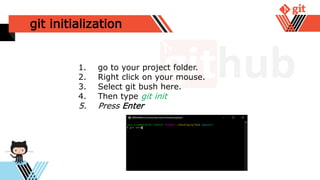
git initialization
1. go to your project folder.
2. Right click on your mouse.
3. Select git bush here.
4. Then type git init
5. Press Enter
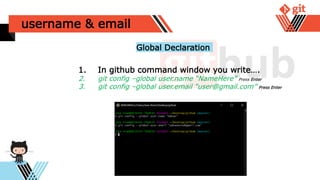
username & email
1. In github command window you write….
2. git config –global user.name “NameHere” Press Enter
3. git config –global user.email “user@gmail.com” Press Enter
Global Declaration
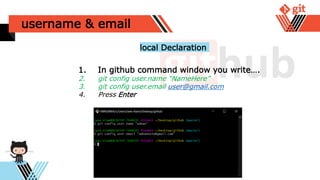
username & email
1. In github command window you write….
2. git config user.name “NameHere”
3. git config user.email user@gmail.com
4. Press Enter
local Declaration
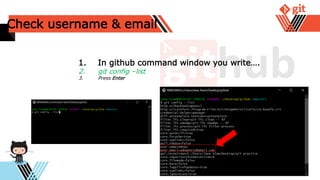
Check username & email
1. In github command window you write….
2. git config –list
3. Press Enter
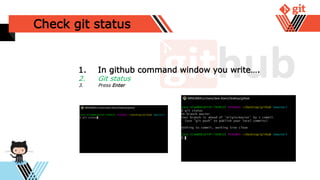
Check git status
1. In github command window you write….
2. Git status
3. Press Enter
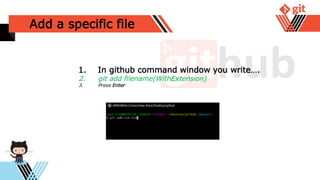
Add a specific file
1. In github command window you write….
2. git add filename(WithExtension)
3. Press Enter
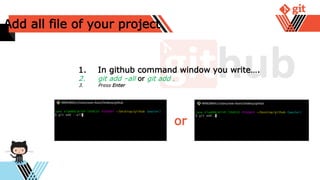
Add all file of your project
1. In github command window you write….
2. git add –all or git add .
3. Press Enter
or
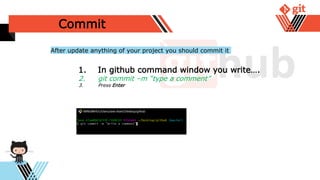
Commit
1. In github command window you write….
2. git commit –m “type a comment”
3. Press Enter
After update anything of your project you should commit it
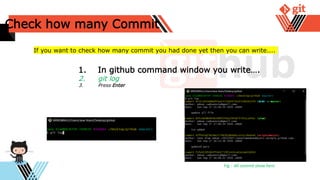
Check how many Commit
1. In github command window you write….
2. git log
3. Press Enter
If you want to check how many commit you had done yet then you can write....
Fig : All commit show here
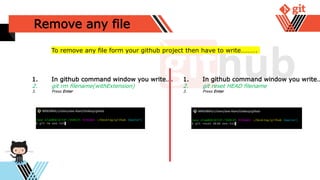
Remove any file
1. In github command window you write….
2. git rm filename(withExtension)
3. Press Enter
To remove any file form your github project then have to write……….
1. In github command window you write…
2. git reset HEAD filename
3. Press Enter
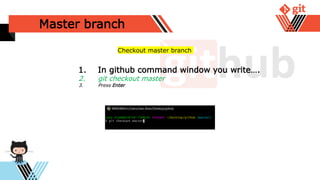
Master branch
1. In github command window you write….
2. git checkout master
3. Press Enter
Checkout master branch
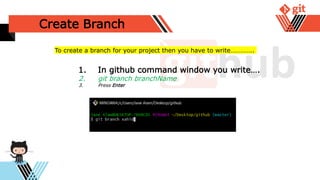
Create Branch
1. In github command window you write….
2. git branch branchName
3. Press Enter
To create a branch for your project then you have to write…………..
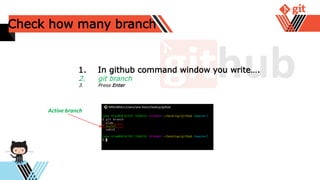
Check how many branch
1. In github command window you write….
2. git branch
3. Press Enter
Active branch
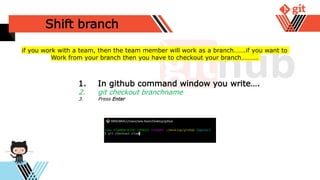
Shift branch
1. In github command window you write….
2. git checkout branchname
3. Press Enter
if you work with a team, then the team member will work as a branch…….if you want to
Work from your branch then you have to checkout your branch……….
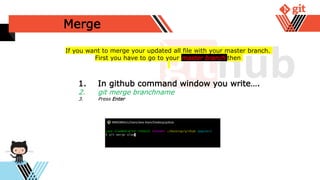
Merge
1. In github command window you write….
2. git merge branchname
3. Press Enter
If you want to merge your updated all file with your master branch.
First you have to go to your master branch then
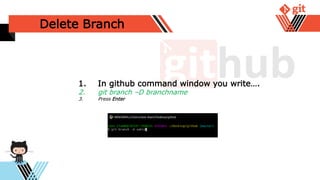
Delete Branch
1. In github command window you write….
2. git branch –D branchname
3. Press Enter
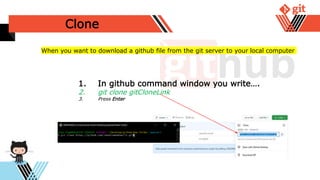
Clone
1. In github command window you write….
2. git clone gitCloneLink
3. Press Enter
When you want to download a github file from the git server to your local computer
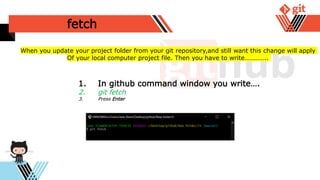
fetch
1. In github command window you write….
2. git fetch
3. Press Enter
When you update your project folder from your git repository,and still want this change will apply
Of your local computer project file. Then you have to write…………..
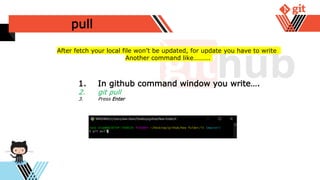
pull
1. In github command window you write….
2. git pull
3. Press Enter
After fetch your local file won’t be updated, for update you have to write
Another command like……….
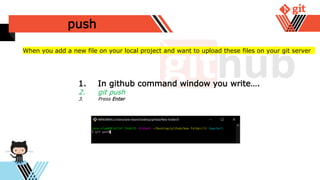
push
1. In github command window you write….
2. git push
3. Press Enter
When you add a new file on your local project and want to upload these files on your git server
Md. Jane Alam Adnan
(Student)
Noakhali Science & Technology University
Gmail : adnannstu@gmail.com
Contact : 01825003211
Content Creator

Github

  • 1.
    Md. Jane AlamAdnan (Student) Noakhali Science & Technology University Gmail : adnannstu@gmail.com Contact : 01825003211 Content Creator
  • 2.
    Table of Content Git initialization  Declare username and email(globally or locally)  Check username and email  Git status  Add file  Commit  Remove file  Master branch  Branch create  Shifting branch  Check how many branch  Merge branch  Delete branch  Clone  Fetch & Pull  Push Md. Jane Alam Adnan (Student) Noakhali Science & Technology University Gmail : adnannstu@gmail.com Contact : 01825003211 Content Creator
  • 3.
    git initialization 1. goto your project folder. 2. Right click on your mouse. 3. Select git bush here. 4. Then type git init 5. Press Enter
  • 4.
    username & email 1.In github command window you write…. 2. git config –global user.name “NameHere” Press Enter 3. git config –global user.email “user@gmail.com” Press Enter Global Declaration
  • 5.
    username & email 1.In github command window you write…. 2. git config user.name “NameHere” 3. git config user.email user@gmail.com 4. Press Enter local Declaration
  • 6.
    Check username &email 1. In github command window you write…. 2. git config –list 3. Press Enter
  • 7.
    Check git status 1.In github command window you write…. 2. Git status 3. Press Enter
  • 8.
    Add a specificfile 1. In github command window you write…. 2. git add filename(WithExtension) 3. Press Enter
  • 9.
    Add all fileof your project 1. In github command window you write…. 2. git add –all or git add . 3. Press Enter or
  • 10.
    Commit 1. In githubcommand window you write…. 2. git commit –m “type a comment” 3. Press Enter After update anything of your project you should commit it
  • 11.
    Check how manyCommit 1. In github command window you write…. 2. git log 3. Press Enter If you want to check how many commit you had done yet then you can write.... Fig : All commit show here
  • 12.
    Remove any file 1.In github command window you write…. 2. git rm filename(withExtension) 3. Press Enter To remove any file form your github project then have to write………. 1. In github command window you write… 2. git reset HEAD filename 3. Press Enter
  • 13.
    Master branch 1. Ingithub command window you write…. 2. git checkout master 3. Press Enter Checkout master branch
  • 14.
    Create Branch 1. Ingithub command window you write…. 2. git branch branchName 3. Press Enter To create a branch for your project then you have to write…………..
  • 15.
    Check how manybranch 1. In github command window you write…. 2. git branch 3. Press Enter Active branch
  • 16.
    Shift branch 1. Ingithub command window you write…. 2. git checkout branchname 3. Press Enter if you work with a team, then the team member will work as a branch…….if you want to Work from your branch then you have to checkout your branch……….
  • 17.
    Merge 1. In githubcommand window you write…. 2. git merge branchname 3. Press Enter If you want to merge your updated all file with your master branch. First you have to go to your master branch then
  • 18.
    Delete Branch 1. Ingithub command window you write…. 2. git branch –D branchname 3. Press Enter
  • 19.
    Clone 1. In githubcommand window you write…. 2. git clone gitCloneLink 3. Press Enter When you want to download a github file from the git server to your local computer
  • 20.
    fetch 1. In githubcommand window you write…. 2. git fetch 3. Press Enter When you update your project folder from your git repository,and still want this change will apply Of your local computer project file. Then you have to write…………..
  • 21.
    pull 1. In githubcommand window you write…. 2. git pull 3. Press Enter After fetch your local file won’t be updated, for update you have to write Another command like……….
  • 22.
    push 1. In githubcommand window you write…. 2. git push 3. Press Enter When you add a new file on your local project and want to upload these files on your git server
  • 23.
    Md. Jane AlamAdnan (Student) Noakhali Science & Technology University Gmail : adnannstu@gmail.com Contact : 01825003211 Content Creator