


Git & GitHub for
beginners 🚀
@paal_ringstad
INTRO TIME 🎉
1. What brought you here
tonight
2. One passion of yours
3. Your lovely name
Let’s make it easy
local vs. online
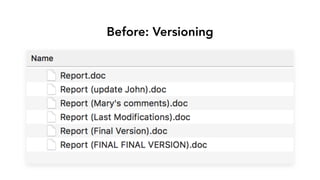
Before: Versioning
SETUP
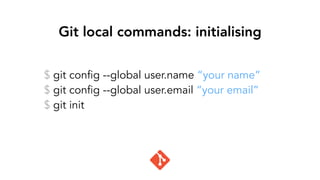
Git local commands: initialising
$ git config --global user.name “your name”
$ git config --global user.email “your email”
$ git init
Command Line
One folder
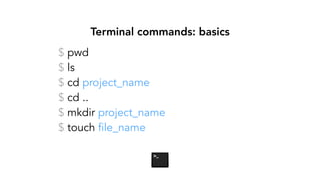
Terminal commands: basics
$ pwd
$ ls
$ cd project_name
$ cd ..
$ mkdir project_name
$ touch file_name
Commit
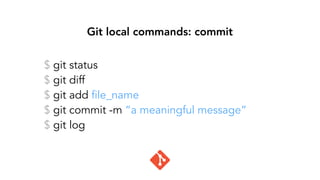
Git local commands: commit
$ git status
$ git diff
$ git add file_name
$ git commit -m “a meaningful message”
$ git log
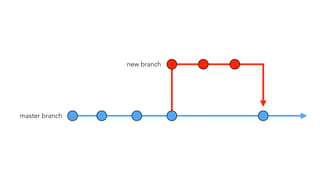
Branches
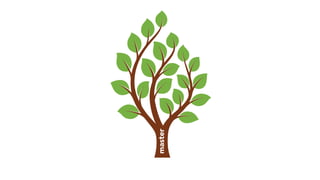
master
master branch
new branch
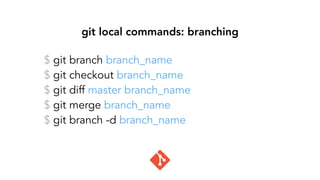
$ git branch branch_name
$ git checkout branch_name
$ git diff master branch_name
$ git merge branch_name
$ git branch -d branch_name
git local commands: branching
Remote
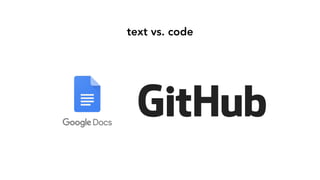
text vs. code
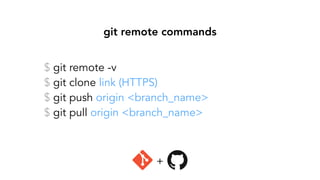
git remote commands
$ git remote -v
$ git clone link (HTTPS)
$ git push origin <branch_name>
$ git pull origin <branch_name>
+
Pull Request
Please accept my pull request
PULL REQUESTS
Challenges 💪
The following slides are challenges to solve with
your workshop buddy (pair programming).
Part 1 - Git
Using git via the command line to create a new
project and version it
challenge 1
Open your terminal. Using the command line, create a
new folder on your Desktop. Jump into this newly-
created folder, then create a new HTML file.The
convention is to call this file “index.html”.
How you do know the file was successfully created?
challenge 2
If not done already, set your identity in git. Then initialise
git inside the current folder. Make a first commit. By
convention, the commit message for the first commit is:
“initial commit”
challenge 3
Drag and drop the HMTL file in your text / code editor
(Sublime Text). Then write some stuff in it. Finally, save
the file! How do you review what changed in the HTML
file using git? Make a new commit to explain what
changed.
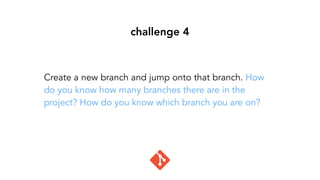
challenge 4
Create a new branch and jump onto that branch. How
do you know how many branches there are in the
project? How do you know which branch you are on?
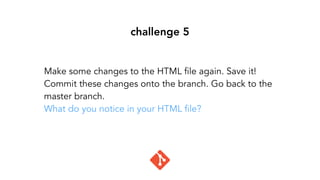
challenge 5
Make some changes to the HTML file again. Save it!
Commit these changes onto the branch. Go back to the
master branch.
What do you notice in your HTML file?
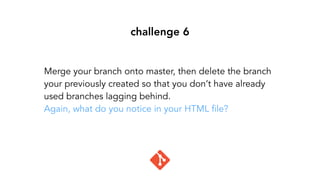
challenge 6
Merge your branch onto master, then delete the branch
your previously created so that you don’t have already
used branches lagging behind.
Again, what do you notice in your HTML file?
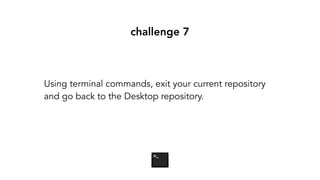
challenge 7
Using terminal commands, exit your current repository
and go back to the Desktop repository.
Part 2 - Github
Using git along with GitHub to collaborate on
an existing project online.
challenge 8
Find out what your Github username is. Then write it
down in the comment section of the Meetup page of
this event (where I shared the link of these slides). Let
me know when it’s done, I’ll add you to the project on
GitHub. 🙂
challenge 9
Click on this link to accept my invitation to the GitHub
repository: http://bit.ly/wagonmelgit. You’re now a
collaborator of this repository and have push and pull
access.
+
challenge 10
Clone a copy of this repository using the HTTPS link:
http://bit.ly/gitgit1 - Then jump into that repository. For
your information, cloning a project from Github
automatically initialises git.
+
challenge 11
Create a new branch, then update the HTML file
according to the instructions in it and save it. Finally,
commit the changes on that branch.
+
challenge 12
How do you list the remote repositories linked to your
project? You need to find Github’s nickname to be able
to push your branch there. Using git, push your branch
to GitHub.
+
final challenge 🎉
Go to the repository page on Github:
https://github.com/twinturtle42/github_lewagonMEL
Open a Pull Request for me to review and let me know
when it’s done 🙂
+
congrats 😎
If your Pull Request got accepted, your changes are
added to the codebase and available online forever!
https://charlymartin.github.io/github_workshop/
Le Wagon brings technical skills
to creative people
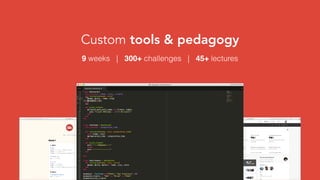
9 weeks | 300+ challenges | 45+ lectures
Custom tools & pedagogy
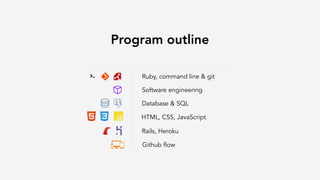
Program outline
Ruby, command line & git
Software engineering
Database & SQL
HTML, CSS, JavaScript
Rails, Heroku
Github flow
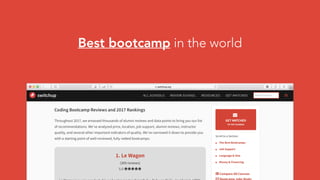
Best bootcamp in the world
Apply at lewagon.com/melbourne
Outcomes
1. Interact with computer
via the command line
2. Tell the difference
between Git & Github
3. Collaborate on an open
source project

Git & Github Workshop - Le Wagon Melbourne

  • 1.
    Git & GitHubfor beginners 🚀 @paal_ringstad
  • 2.
    INTRO TIME 🎉 1.What brought you here tonight 2. One passion of yours 3. Your lovely name
  • 3.
  • 4.
  • 5.
  • 6.
  • 7.
    Git local commands:initialising $ git config --global user.name “your name” $ git config --global user.email “your email” $ git init
  • 8.
  • 9.
  • 11.
    Terminal commands: basics $pwd $ ls $ cd project_name $ cd .. $ mkdir project_name $ touch file_name
  • 12.
  • 14.
    Git local commands:commit $ git status $ git diff $ git add file_name $ git commit -m “a meaningful message” $ git log
  • 15.
  • 16.
  • 17.
  • 18.
    $ git branchbranch_name $ git checkout branch_name $ git diff master branch_name $ git merge branch_name $ git branch -d branch_name git local commands: branching
  • 19.
  • 20.
  • 21.
    git remote commands $git remote -v $ git clone link (HTTPS) $ git push origin <branch_name> $ git pull origin <branch_name> +
  • 22.
  • 23.
    Please accept mypull request PULL REQUESTS
  • 24.
    Challenges 💪 The followingslides are challenges to solve with your workshop buddy (pair programming).
  • 25.
    Part 1 -Git Using git via the command line to create a new project and version it
  • 26.
    challenge 1 Open yourterminal. Using the command line, create a new folder on your Desktop. Jump into this newly- created folder, then create a new HTML file.The convention is to call this file “index.html”. How you do know the file was successfully created?
  • 27.
    challenge 2 If notdone already, set your identity in git. Then initialise git inside the current folder. Make a first commit. By convention, the commit message for the first commit is: “initial commit”
  • 28.
    challenge 3 Drag anddrop the HMTL file in your text / code editor (Sublime Text). Then write some stuff in it. Finally, save the file! How do you review what changed in the HTML file using git? Make a new commit to explain what changed.
  • 29.
    challenge 4 Create anew branch and jump onto that branch. How do you know how many branches there are in the project? How do you know which branch you are on?
  • 30.
    challenge 5 Make somechanges to the HTML file again. Save it! Commit these changes onto the branch. Go back to the master branch. What do you notice in your HTML file?
  • 31.
    challenge 6 Merge yourbranch onto master, then delete the branch your previously created so that you don’t have already used branches lagging behind. Again, what do you notice in your HTML file?
  • 32.
    challenge 7 Using terminalcommands, exit your current repository and go back to the Desktop repository.
  • 33.
    Part 2 -Github Using git along with GitHub to collaborate on an existing project online.
  • 34.
    challenge 8 Find outwhat your Github username is. Then write it down in the comment section of the Meetup page of this event (where I shared the link of these slides). Let me know when it’s done, I’ll add you to the project on GitHub. 🙂
  • 35.
    challenge 9 Click onthis link to accept my invitation to the GitHub repository: http://bit.ly/wagonmelgit. You’re now a collaborator of this repository and have push and pull access. +
  • 36.
    challenge 10 Clone acopy of this repository using the HTTPS link: http://bit.ly/gitgit1 - Then jump into that repository. For your information, cloning a project from Github automatically initialises git. +
  • 37.
    challenge 11 Create anew branch, then update the HTML file according to the instructions in it and save it. Finally, commit the changes on that branch. +
  • 38.
    challenge 12 How doyou list the remote repositories linked to your project? You need to find Github’s nickname to be able to push your branch there. Using git, push your branch to GitHub. +
  • 39.
    final challenge 🎉 Goto the repository page on Github: https://github.com/twinturtle42/github_lewagonMEL Open a Pull Request for me to review and let me know when it’s done 🙂 +
  • 40.
    congrats 😎 If yourPull Request got accepted, your changes are added to the codebase and available online forever! https://charlymartin.github.io/github_workshop/
  • 41.
    Le Wagon bringstechnical skills to creative people
  • 42.
    9 weeks |300+ challenges | 45+ lectures Custom tools & pedagogy
  • 43.
    Program outline Ruby, commandline & git Software engineering Database & SQL HTML, CSS, JavaScript Rails, Heroku Github flow
  • 44.
  • 45.
  • 46.
    Outcomes 1. Interact withcomputer via the command line 2. Tell the difference between Git & Github 3. Collaborate on an open source project