Git (and github) for stand alone use
Ikuru K
What is git?
● A better version control system
● Freely available and open source
● What are version control systems good for?
Google it!
Brief history
● Linux project was initially using the bit keeper service, but
one of the contributors reverse engineered the protocol,
and made the provider angry, and Linux project got
banned from using the service.
● Linux's original author decided to make a version control
system that scales up with the project size, that also works
in a distributed manner.
● Linux original author passed the maintainer role to another
developer, and git has been evolving since.
Version control jargons
● Fluffy concept, but used frequently.
● Definitions are subjective, so feedback is
appreciated.
● Checkout/branch, commit, push, pull/merge.
Checkout/branch
● Point where change starts to be made
● Implication that it is always possible to return to
the checkout point, in case of some code
breakage that is not possible to recover.
Git repository, index, and
workspace.
● Changes made to your files exist in the
workspace.
● git add will move those changes to the index.
● Committing those changes will move whats in
the index to the repository object store.
● This three phase system allows the messy part
of the scratching prettier, and less garbage gets
committed as a result.
Commit
● In git context, a commit is a set of changes made to
the code base.
– More than a simple “save”
● Granularity is often subject of discussion
– If too much is changed in a single commit, then there is not
much point of it.
– If related changes are scattered across multiple commits,
life will be hard.
– Seems like work possible to be described in one sentence
is a good rule of thumb
Push
● Reflect the changes made by you to some
other entity. i.e. publish your commits
– Remote repository/ other person
– “Change made today will be pushed to production”
– “Please don't push garbage to our repository”
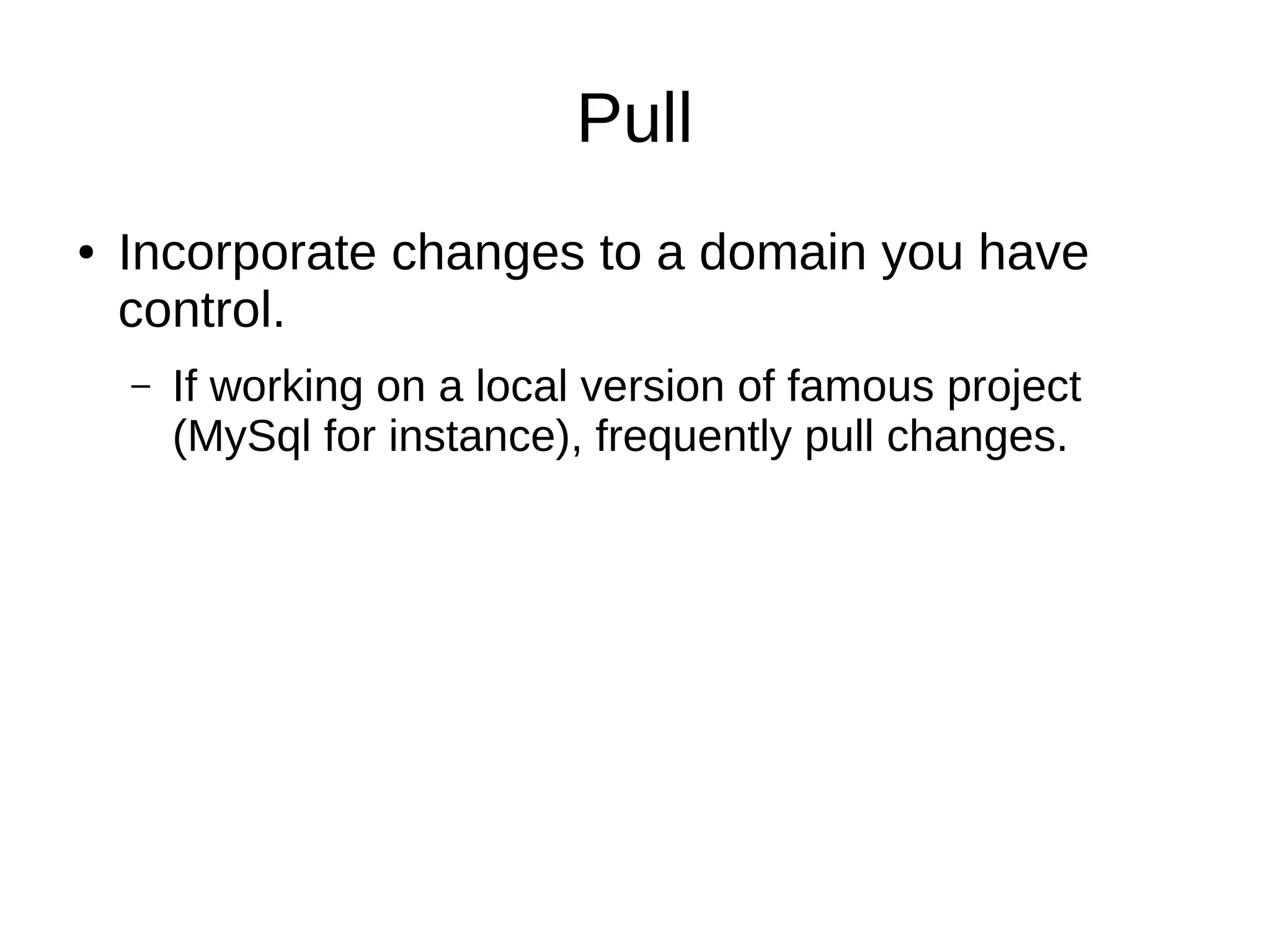
Pull
● Incorporate changes to a domain you have
control.
– If working on a local version of famous project
(MySql for instance), frequently pull changes.
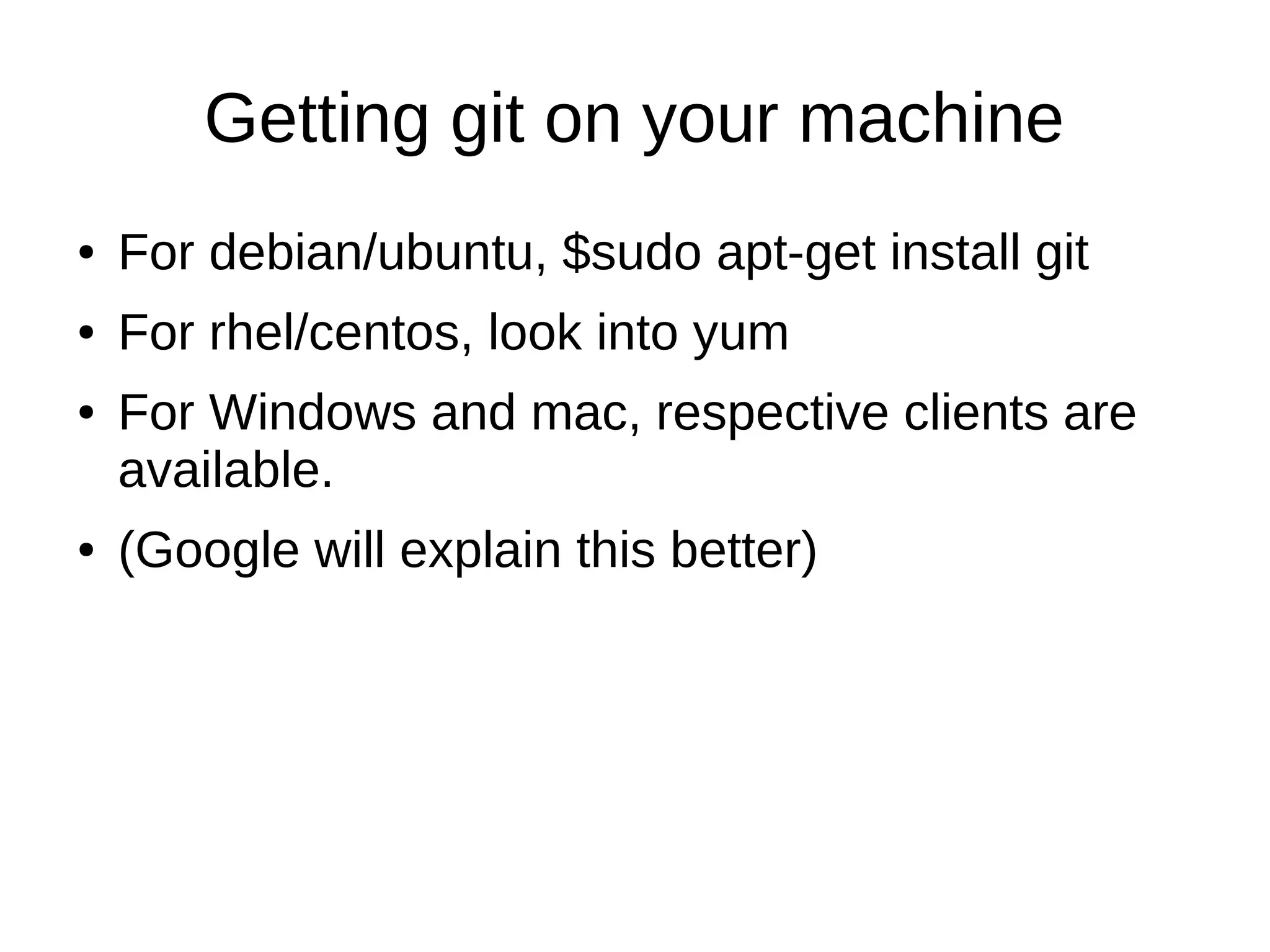
Getting git on your machine
● For debian/ubuntu, $sudo apt-get install git
● For rhel/centos, look into yum
● For Windows and mac, respective clients are
available.
● (Google will explain this better)
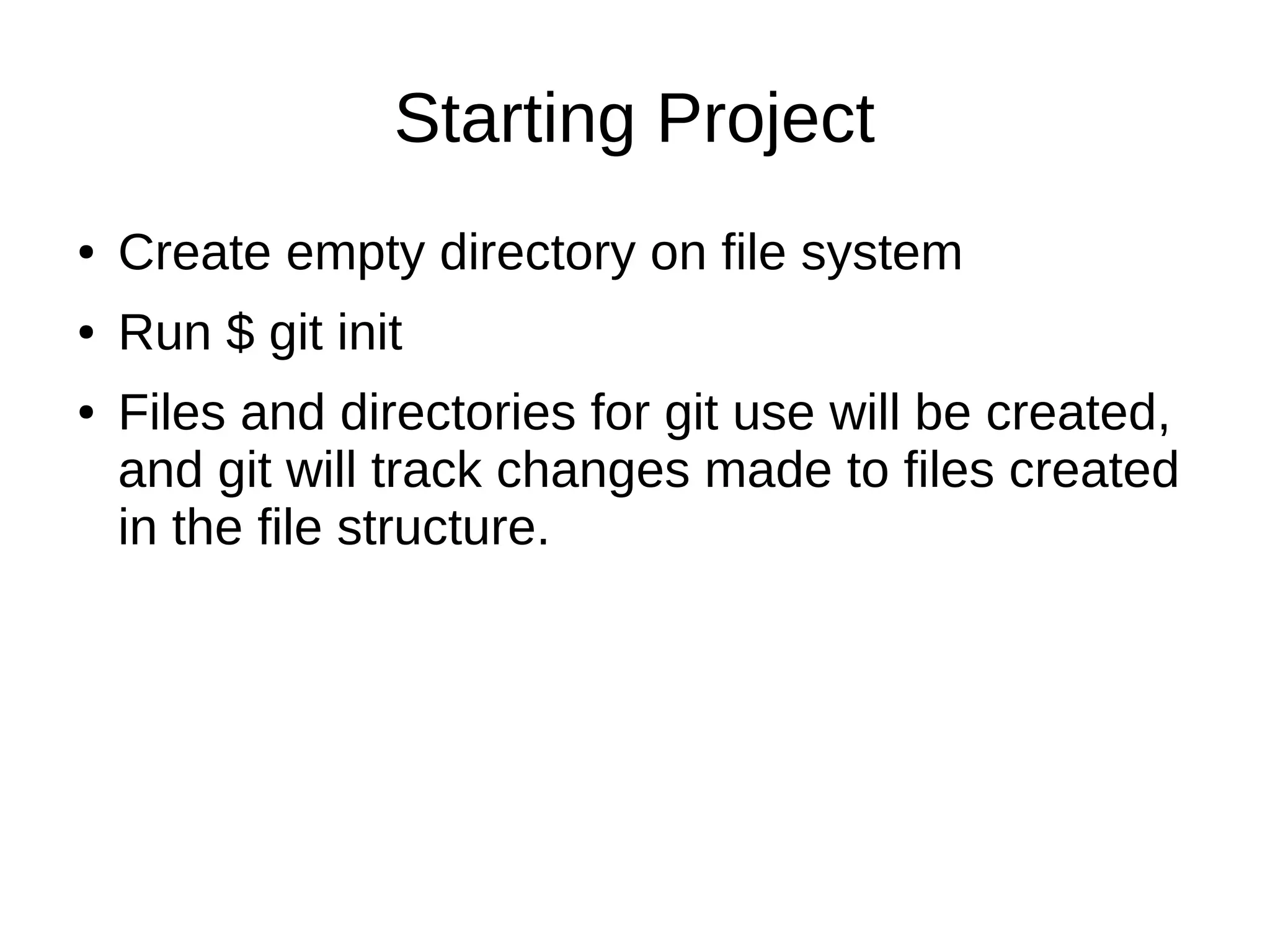
Starting Project
● Create empty directory on file system
● Run $ git init
● Files and directories for git use will be created,
and git will track changes made to files created
in the file structure.
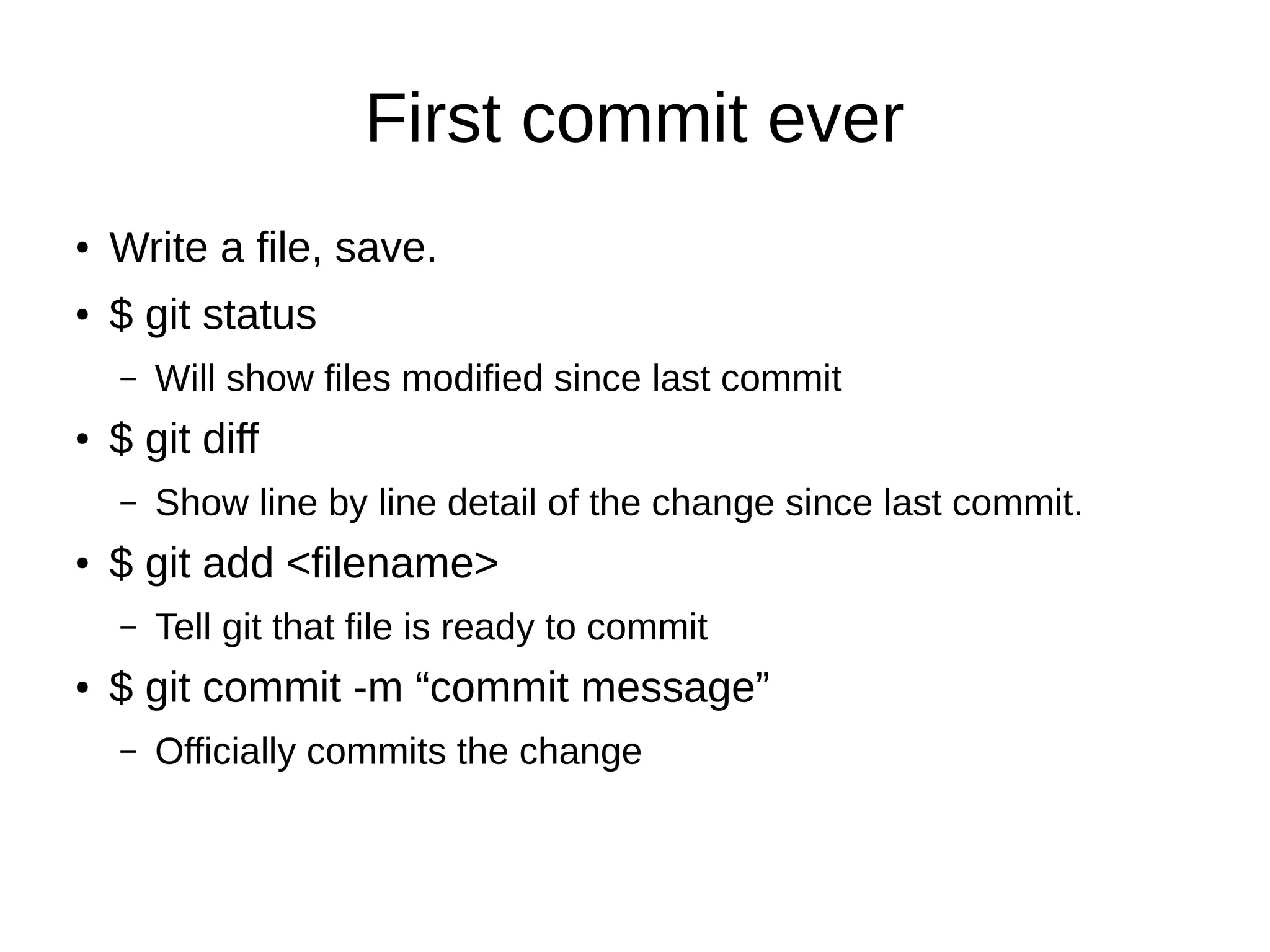
First commit ever
● Write a file, save.
● $ git status
– Will show files modified since last commit
● $ git diff
– Show line by line detail of the change since last commit.
● $ git add <filename>
– Tell git that file is ready to commit
● $ git commit -m “commit message”
– Officially commits the change
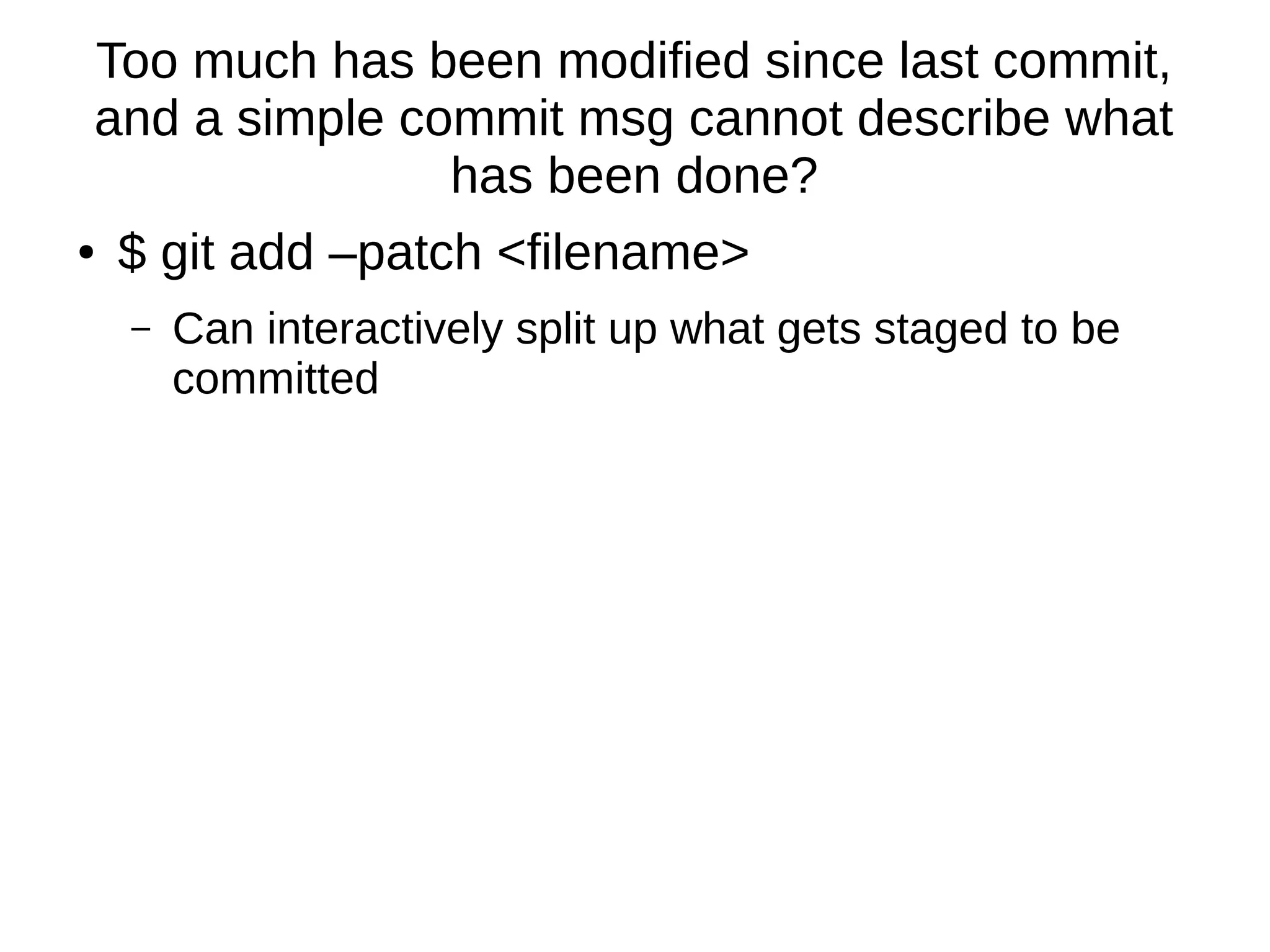
Too much has been modified since last commit,
and a simple commit msg cannot describe what
has been done?
● $ git add –patch <filename>
– Can interactively split up what gets staged to be
committed
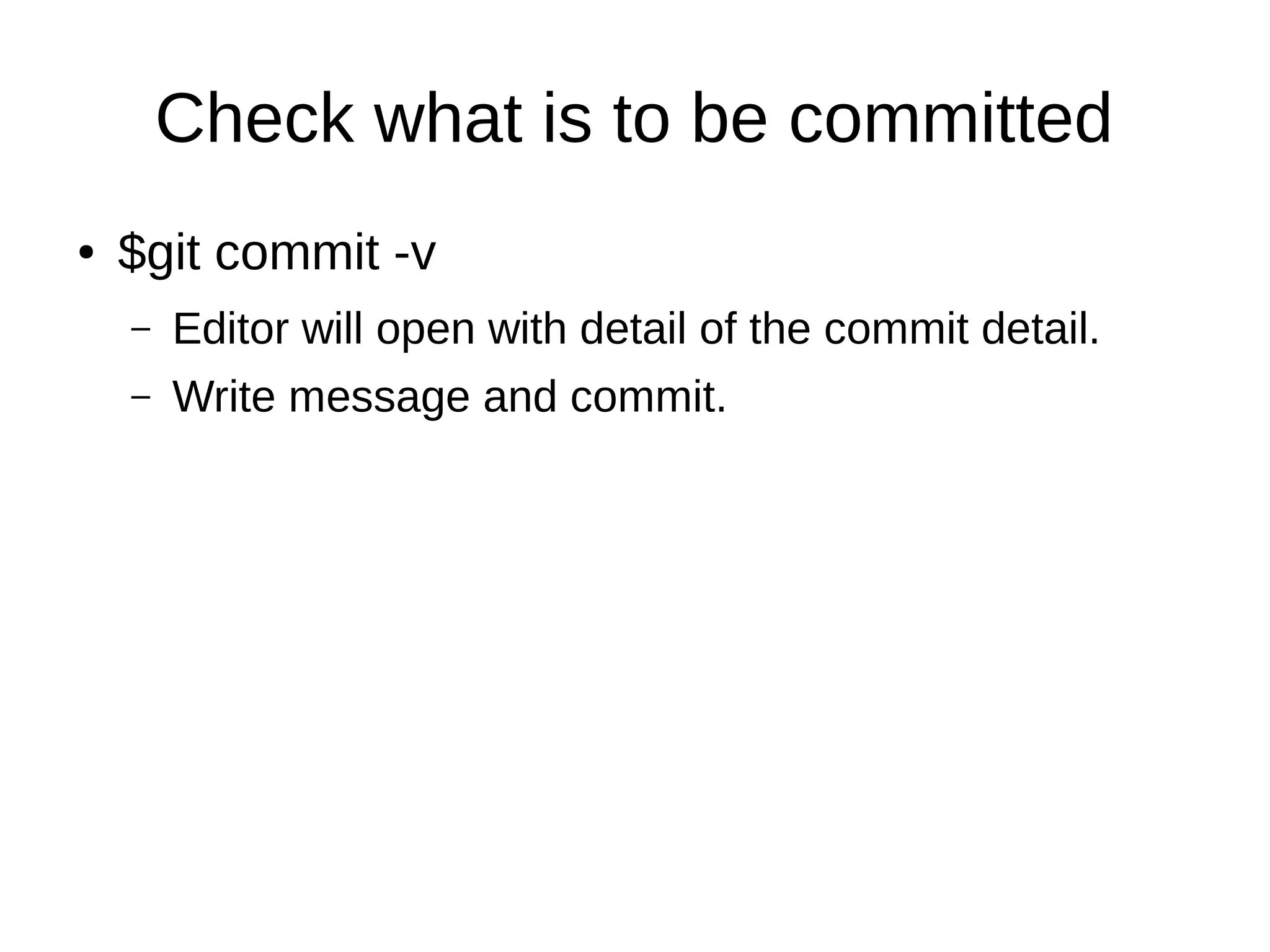
Check what is to be committed
● $git commit -v
– Editor will open with detail of the commit detail.
– Write message and commit.
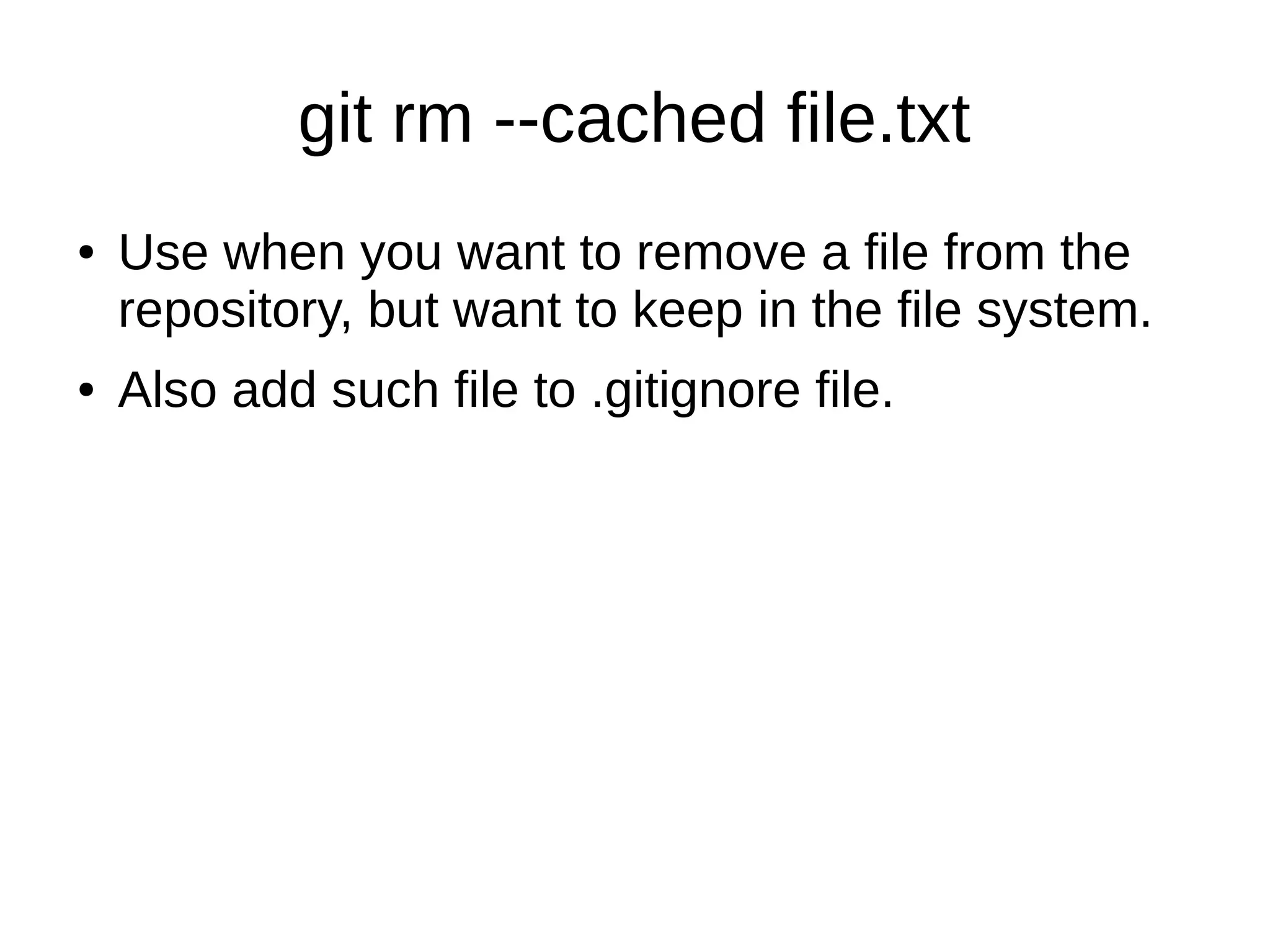
git rm --cached file.txt
● Use when you want to remove a file from the
repository, but want to keep in the file system.
● Also add such file to .gitignore file.
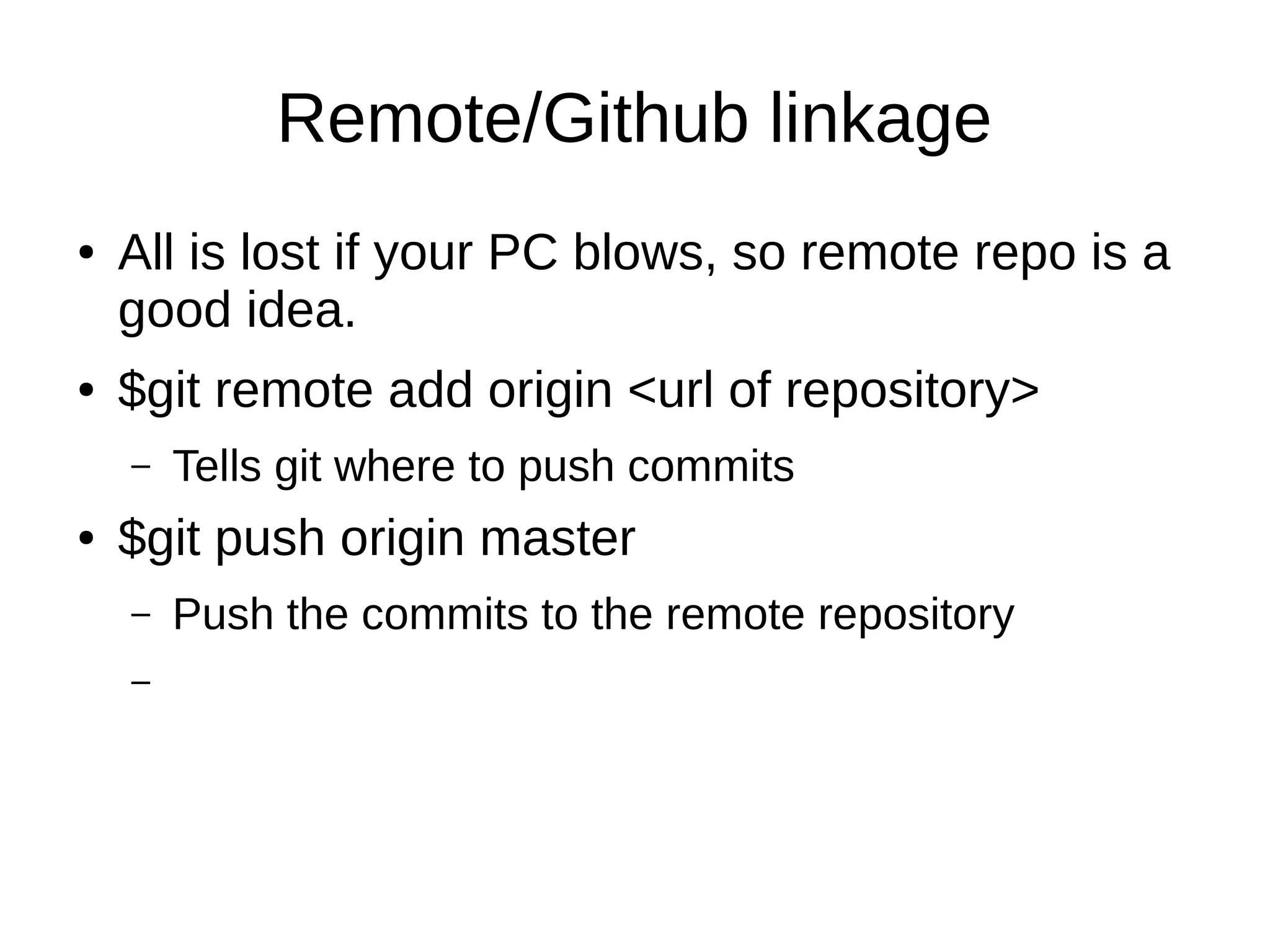
Remote/Github linkage
● All is lost if your PC blows, so remote repo is a
good idea.
● $git remote add origin <url of repository>
– Tells git where to push commits
● $git push origin master
– Push the commits to the remote repository
–
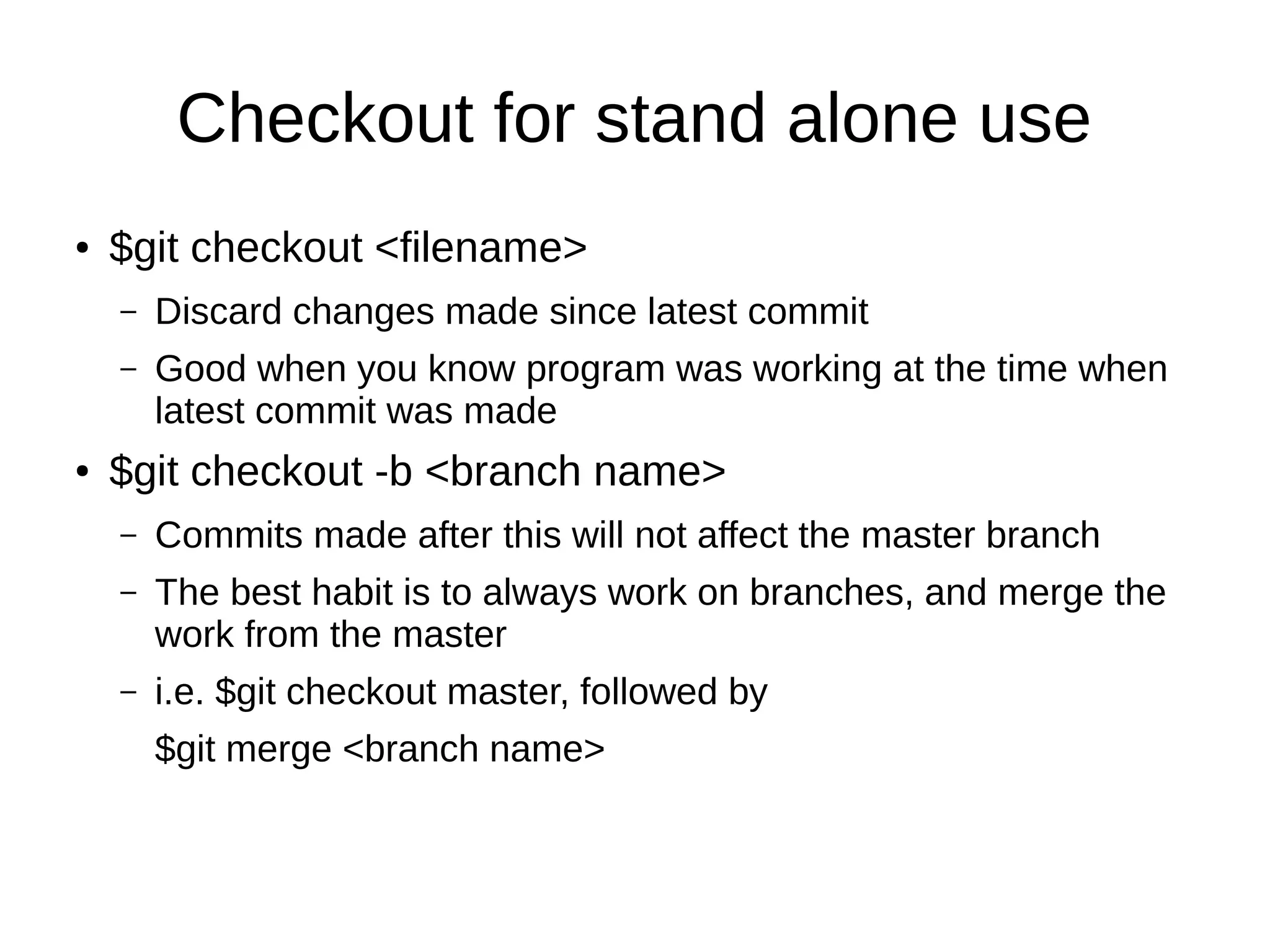
Checkout for stand alone use
● $git checkout <filename>
– Discard changes made since latest commit
– Good when you know program was working at the time when
latest commit was made
● $git checkout -b <branch name>
– Commits made after this will not affect the master branch
– The best habit is to always work on branches, and merge the
work from the master
– i.e. $git checkout master, followed by
$git merge <branch name>

Git for standalone use

  • 1.
    Git (and github)for stand alone use Ikuru K
  • 2.
    What is git? ●A better version control system ● Freely available and open source ● What are version control systems good for? Google it!
  • 3.
    Brief history ● Linuxproject was initially using the bit keeper service, but one of the contributors reverse engineered the protocol, and made the provider angry, and Linux project got banned from using the service. ● Linux's original author decided to make a version control system that scales up with the project size, that also works in a distributed manner. ● Linux original author passed the maintainer role to another developer, and git has been evolving since.
  • 4.
    Version control jargons ●Fluffy concept, but used frequently. ● Definitions are subjective, so feedback is appreciated. ● Checkout/branch, commit, push, pull/merge.
  • 5.
    Checkout/branch ● Point wherechange starts to be made ● Implication that it is always possible to return to the checkout point, in case of some code breakage that is not possible to recover.
  • 6.
    Git repository, index,and workspace. ● Changes made to your files exist in the workspace. ● git add will move those changes to the index. ● Committing those changes will move whats in the index to the repository object store. ● This three phase system allows the messy part of the scratching prettier, and less garbage gets committed as a result.
  • 7.
    Commit ● In gitcontext, a commit is a set of changes made to the code base. – More than a simple “save” ● Granularity is often subject of discussion – If too much is changed in a single commit, then there is not much point of it. – If related changes are scattered across multiple commits, life will be hard. – Seems like work possible to be described in one sentence is a good rule of thumb
  • 8.
    Push ● Reflect thechanges made by you to some other entity. i.e. publish your commits – Remote repository/ other person – “Change made today will be pushed to production” – “Please don't push garbage to our repository”
  • 9.
    Pull ● Incorporate changesto a domain you have control. – If working on a local version of famous project (MySql for instance), frequently pull changes.
  • 10.
    Getting git onyour machine ● For debian/ubuntu, $sudo apt-get install git ● For rhel/centos, look into yum ● For Windows and mac, respective clients are available. ● (Google will explain this better)
  • 11.
    Starting Project ● Createempty directory on file system ● Run $ git init ● Files and directories for git use will be created, and git will track changes made to files created in the file structure.
  • 12.
    First commit ever ●Write a file, save. ● $ git status – Will show files modified since last commit ● $ git diff – Show line by line detail of the change since last commit. ● $ git add <filename> – Tell git that file is ready to commit ● $ git commit -m “commit message” – Officially commits the change
  • 13.
    Too much hasbeen modified since last commit, and a simple commit msg cannot describe what has been done? ● $ git add –patch <filename> – Can interactively split up what gets staged to be committed
  • 14.
    Check what isto be committed ● $git commit -v – Editor will open with detail of the commit detail. – Write message and commit.
  • 15.
    git rm --cachedfile.txt ● Use when you want to remove a file from the repository, but want to keep in the file system. ● Also add such file to .gitignore file.
  • 16.
    Remote/Github linkage ● Allis lost if your PC blows, so remote repo is a good idea. ● $git remote add origin <url of repository> – Tells git where to push commits ● $git push origin master – Push the commits to the remote repository –
  • 17.
    Checkout for standalone use ● $git checkout <filename> – Discard changes made since latest commit – Good when you know program was working at the time when latest commit was made ● $git checkout -b <branch name> – Commits made after this will not affect the master branch – The best habit is to always work on branches, and merge the work from the master – i.e. $git checkout master, followed by $git merge <branch name>