Preface

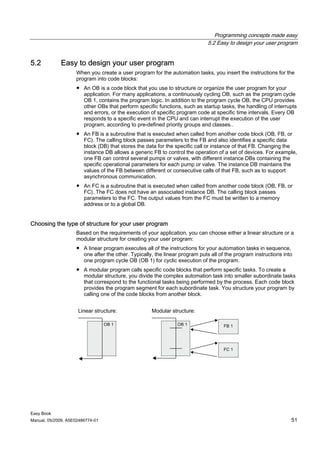
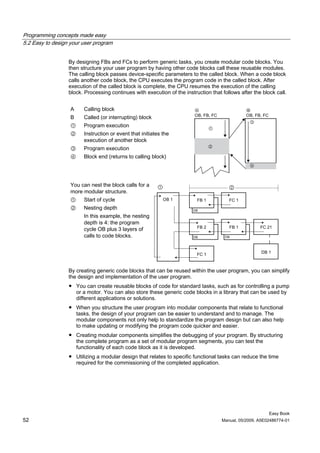
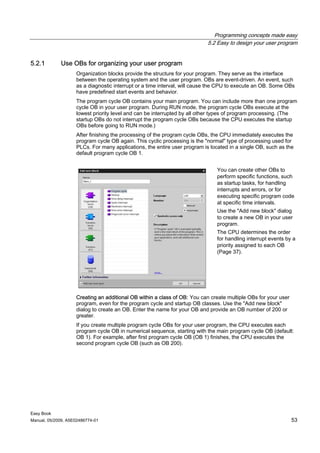
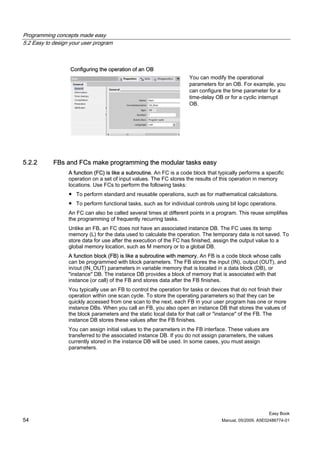
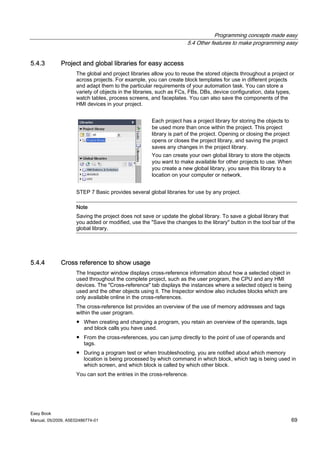
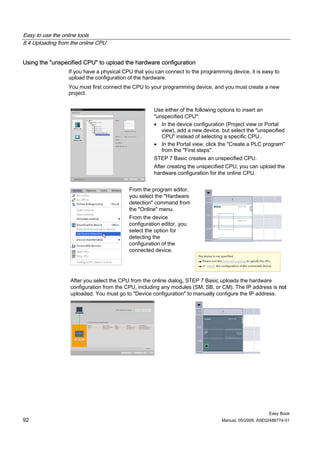
                            Introducing the powerful and
                                         1
SIMATIC S7-1200 Easy Book


                            ______________
                            flexible S7-1200

                            STEP 7 Basic makes the
                                         2
                            ______________
                            work easy
  SIMATIC
                                            3
                            ______________
                            Getting started

  S7-1200
                                                   4
  Easy Book                 ______________
                            PLC concepts made easy

                            Programming concepts
                                         5
  Manual
                            ______________
                            made easy

                            Easy to communicate
                                         6
                            ______________
                            between devices

                            Easy to use the built-in pulse
                                         7
                            ______________
                            generators


                                                         8
                            ______________
                            Easy to use the online tools


                                                     A
                            ______________
                            Technical specifications


  05/2009
  A5E02486774-01
Legal information
Legal information
Warning notice system
             This manual contains notices you have to observe in order to ensure your personal safety, as well as to prevent
             damage to property. The notices referring to your personal safety are highlighted in the manual by a safety alert
             symbol, notices referring only to property damage have no safety alert symbol. These notices shown below are
             graded according to the degree of danger.

                  DANGER
              indicates that death or severe personal injury will result if proper precautions are not taken.

                  WARNING
              indicates that death or severe personal injury may result if proper precautions are not taken.

                  CAUTION
              with a safety alert symbol, indicates that minor personal injury can result if proper precautions are not taken.

              CAUTION
              without a safety alert symbol, indicates that property damage can result if proper precautions are not taken.

              NOTICE
              indicates that an unintended result or situation can occur if the corresponding information is not taken into
              account.
             If more than one degree of danger is present, the warning notice representing the highest degree of danger will
             be used. A notice warning of injury to persons with a safety alert symbol may also include a warning relating to
             property damage.
Qualified Personnel
             The device/system may only be set up and used in conjunction with this documentation. Commissioning and
             operation of a device/system may only be performed by qualified personnel. Within the context of the safety notes
             in this documentation qualified persons are defined as persons who are authorized to commission, ground and
             label devices, systems and circuits in accordance with established safety practices and standards.
Proper use of Siemens products
             Note the following:

                  WARNING
              Siemens products may only be used for the applications described in the catalog and in the relevant technical
              documentation. If products and components from other manufacturers are used, these must be recommended
              or approved by Siemens. Proper transport, storage, installation, assembly, commissioning, operation and
              maintenance are required to ensure that the products operate safely and without any problems. The permissible
              ambient conditions must be adhered to. The information in the relevant documentation must be observed.

Trademarks
             All names identified by ® are registered trademarks of the Siemens AG. The remaining trademarks in this
             publication may be trademarks whose use by third parties for their own purposes could violate the rights of the
             owner.
Disclaimer of Liability
             We have reviewed the contents of this publication to ensure consistency with the hardware and software
             described. Since variance cannot be precluded entirely, we cannot guarantee full consistency. However, the
             information in this publication is reviewed regularly and any necessary corrections are included in subsequent
             editions.


             Siemens AG                                Ordernumber: 6ES7 298-8FA30-8BQ0                     Copyright © Siemens AG 2009.
             Industry Sector                           Ⓟ 06/2009                                            Technical data subject to change
             Postfach 48 48
             90026 NÜRNBERG
             GERMANY
Preface

                    Welcome to the world of S7-1200, the latest in a line of the Siemens SIMATIC controllers.
                    The SIMATIC S7-1200 compact controller is the modular, space-saving controller for small
                    automation systems that require either simple or advanced functionality for logic, HMI and
                    networking. The compact design, low cost, and powerful features make the S7-1200 a
                    perfect solution for controlling small applications.
                    As part of the SIMATIC commitment to "totally integrated automation" (TIA), the S7-1200
                    product family and the STEP 7 Basic programming tool give you the flexibility you need to
                    solve your automation needs.
                    The S7-1200 helps to make the most challenging tasks easy!
                    The SIMATIC S7-1200 controller solution, designed for the "compact" controller class, is
                    comprised of the SIMATIC S7-1200 controller and SIMATIC HMI Basic panels that can both
                    be programmed with SIMATIC STEP 7 Basic engineering software. The ability to program
                    both devices using the same engineering software significantly reduces development costs.


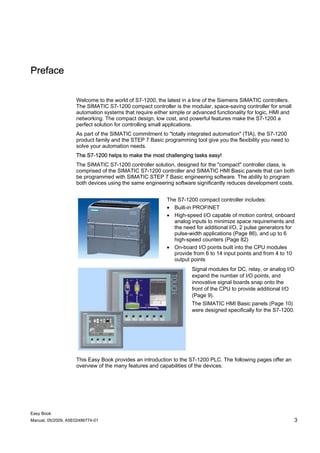
                                                         The S7-1200 compact controller includes:
                                                         • Built-in PROFINET
                                                         • High-speed I/O capable of motion control, onboard
                                                           analog inputs to minimize space requirements and
                                                           the need for additional I/O, 2 pulse generators for
                                                           pulse-width applications (Page 86), and up to 6
                                                           high-speed counters (Page 82)
                                                         • On-board I/O points built into the CPU modules
                                                           provide from 6 to 14 input points and from 4 to 10
                                                           output points
                                                                    Signal modules for DC, relay, or analog I/O
                                                                    expand the number of I/O points, and
                                                                    innovative signal boards snap onto the
                                                                    front of the CPU to provide additional I/O
                                                                    (Page 9).
                                                                    The SIMATIC HMI Basic panels (Page 10)
                                                                    were designed specifically for the S7-1200.


                    This Easy Book provides an introduction to the S7-1200 PLC. The following pages offer an
                    overview of the many features and capabilities of the devices.


Easy Book
Manual, 05/2009, A5E02486774-01                                                                                  3
Preface


          For additional information, refer to the S7-1200 programmable controller system manual.
          You can also use the following web site to search for specific information about products or
          to contact technical support representatives:
          http://www.siemens.com/automation/support-request
          For information about UL and FM certification, CE labeling, C-Tick and other standards, refer
          to the Technical specifications (Page 97).
          Contact your Siemens distributor or sales office for assistance in answering any technical
          questions, for training, or for ordering S7 products. Because your sales representatives are
          technically trained and have the most specific knowledge about your operations, process
          and industry, as well as about the individual Siemens products that you are using, they can
          provide the fastest and most efficient answers to any problems you might encounter.


                                                                                                Easy Book
4                                                                          Manual, 05/2009, A5E02486774-01
Table of contents

      Preface ...................................................................................................................................................... 3
1     Introducing the powerful and flexible S7-1200 ........................................................................................... 7
      1.1           Expanding the capability of the CPU .............................................................................................9
      1.2           HMI Basic panels .........................................................................................................................10
      1.3           Mounting dimensions and clearance requirements .....................................................................11
2     STEP 7 Basic makes the work easy ........................................................................................................ 13
      2.1           Help when you need it .................................................................................................................14
      2.1.1         Printing a topic from the online help ............................................................................................16
      2.2           All of the tools you need...............................................................................................................17
      2.2.1         Easy to insert instructions into your user program.......................................................................18
      2.2.2         Easy access to your favorite instructions from a toolbar .............................................................18
      2.2.3         Easy to drag and drop between editors .......................................................................................19
      2.2.4         Easy to change the operating mode of the CPU .........................................................................19
      2.2.5         Easy to virtually "unplug" modules without losing the configuration ............................................20
      2.2.6         Easy to modify the appearance and configuration of STEP 7 Basic ...........................................20
3     Getting started ......................................................................................................................................... 21
4     PLC concepts made easy ........................................................................................................................ 31
      4.1           Tasks performed every scan cycle ..............................................................................................31
      4.2           Operating modes of the CPU.......................................................................................................32
      4.3           Memory areas, addressing and data types..................................................................................33
      4.4           Execution of the user program.....................................................................................................37
      4.5           Protecting access to the CPU or code block is easy ...................................................................39
5     Programming concepts made easy.......................................................................................................... 41
      5.1           Easy to create the device configuration.......................................................................................41
      5.1.1         Configuring the operation of the CPU and modules ....................................................................46
      5.1.2         Configuring the IP address of the CPU........................................................................................49
      5.2           Easy to design your user program...............................................................................................51
      5.2.1         Use OBs for organizing your user program .................................................................................53
      5.2.2         FBs and FCs make programming the modular tasks easy..........................................................54
      5.2.3         Data blocks provide easy storage for program data ....................................................................55
      5.3           Easy to use the powerful programming languages......................................................................57
      5.3.1         Easy-to-use programming languages..........................................................................................57
      5.3.2         Providing the basic instructions you expect.................................................................................58
      5.4           Other features to make programming easy .................................................................................67
      5.4.1         System memory and clock memory provide standard functionality.............................................67
      5.4.2         Watch tables make monitoring the user program easy ...............................................................68
      5.4.3         Project and global libraries for easy access ................................................................................69
      5.4.4         Cross reference to show usage ...................................................................................................69
      5.4.5         Call structure to examine the calling hierarchy ............................................................................70


Easy Book
Manual, 05/2009, A5E02486774-01                                                                                                                                     5
Table of contents


6     Easy to communicate between devices ................................................................................................... 73
      6.1           PROFINET instructions (T-blocks).............................................................................................. 74
      6.2           PtP, USS, and Modbus communication protocols ...................................................................... 75
      6.2.1         PtP instructions ........................................................................................................................... 76
      6.2.2         Library of USS instructions.......................................................................................................... 77
      6.2.3         Library of Modbus instructions .................................................................................................... 79
7     Easy to use the built-in pulse generators ................................................................................................. 81
      7.1           High-speed counters ................................................................................................................... 82
      7.2           Pulse-width modulation (PWM)................................................................................................... 86
8     Easy to use the online tools ..................................................................................................................... 89
      8.1           Going online and connecting to a CPU....................................................................................... 89
      8.2           Downloading a permanent IP address to an online CPU ........................................................... 89
      8.3           Interacting with the online CPU................................................................................................... 90
      8.4           Uploading from the online CPU .................................................................................................. 91
      8.5           Comparing offline and online CPUs............................................................................................ 93
      8.6           Displaying the diagnostic events................................................................................................. 93
      8.7           Using a watch table for monitoring the CPU ............................................................................... 94
      8.8           Forcing variables in the CPU ...................................................................................................... 95
A     Technical specifications ........................................................................................................................... 97
      A.1           General specifications................................................................................................................. 97
      A.2           CPU modules ............................................................................................................................ 101
      A.3           Signal boards ............................................................................................................................ 106
      A.4           Digital signal modules ............................................................................................................... 107
      A.5           Analog signal modules .............................................................................................................. 112
      A.6           Communication modules........................................................................................................... 114
      Index...................................................................................................................................................... 117


                                                                                                                                                        Easy Book
6                                                                                                                         Manual, 05/2009, A5E02486774-01
Introducing the powerful and flexible S7-1200                                                               1
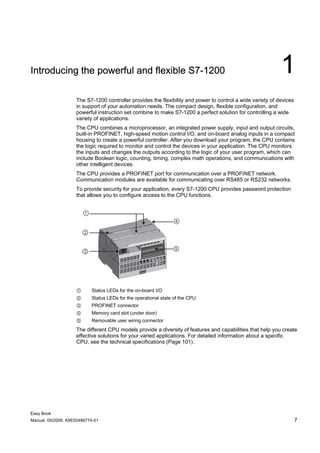
                    The S7-1200 controller provides the flexibility and power to control a wide variety of devices
                    in support of your automation needs. The compact design, flexible configuration, and
                    powerful instruction set combine to make S7-1200 a perfect solution for controlling a wide
                    variety of applications.
                    The CPU combines a microprocessor, an integrated power supply, input and output circuits,
                    built-in PROFINET, high-speed motion control I/O, and on-board analog inputs in a compact
                    housing to create a powerful controller. After you download your program, the CPU contains
                    the logic required to monitor and control the devices in your application. The CPU monitors
                    the inputs and changes the outputs according to the logic of your user program, which can
                    include Boolean logic, counting, timing, complex math operations, and communications with
                    other intelligent devices.
                    The CPU provides a PROFINET port for communication over a PROFINET network.
                    Communication modules are available for communicating over RS485 or RS232 networks.
                    To provide security for your application, every S7-1200 CPU provides password protection
                    that allows you to configure access to the CPU functions.


                    ①      Status LEDs for the on-board I/O
                    ②      Status LEDs for the operational state of the CPU
                    ③      PROFINET connector
                    ④      Memory card slot (under door)
                    ⑤      Removable user wiring connector
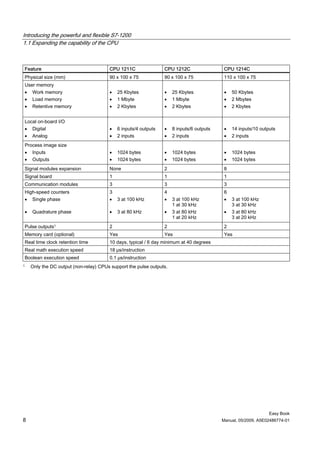
                    The different CPU models provide a diversity of features and capabilities that help you create
                    effective solutions for your varied applications. For detailed information about a specific
                    CPU, see the technical specifications (Page 101).


Easy Book
Manual, 05/2009, A5E02486774-01                                                                                      7
Introducing the powerful and flexible S7-1200
1.1 Expanding the capability of the CPU


    Feature                                CPU 1211C                CPU 1212C                  CPU 1214C
    Physical size (mm)                     90 x 100 x 75            90 x 100 x 75              110 x 100 x 75
    User memory
    • Work memory                          •   25 Kbytes            •    25 Kbytes             •   50 Kbytes
    • Load memory                          •   1 Mbyte              •    1 Mbyte               •   2 Mbytes
    • Retentive memory                     •   2 Kbytes             •    2 Kbytes              •   2 Kbytes


    Local on-board I/O
    • Digital                              •   6 inputs/4 outputs   •    8 inputs/6 outputs    •   14 inputs/10 outputs
    • Analog                               •   2 inputs             •    2 inputs              •   2 inputs
    Process image size
    • Inputs                               •   1024 bytes           •    1024 bytes            •   1024 bytes
    • Outputs                              •   1024 bytes           •    1024 bytes            •   1024 bytes
    Signal modules expansion               None                     2                          8
    Signal board                           1                        1                          1
    Communication modules                  3                        3                          3
    High-speed counters                    3                        4                          6
    • Single phase                         •   3 at 100 kHz         •    3 at 100 kHz          •   3 at 100 kHz
                                                                         1 at 30 kHz               3 at 30 kHz
    •   Quadrature phase                   •   3 at 80 kHz          •    3 at 80 kHz           •   3 at 80 kHz
                                                                         1 at 20 kHz               3 at 20 kHz
    Pulse outputs1                         2                        2                          2
    Memory card (optional)                 Yes                      Yes                        Yes
    Real time clock retention time         10 days, typical / 6 day minimum at 40 degrees
    Real math execution speed              18 μs/instruction
    Boolean execution speed                0.1 μs/instruction
1       Only the DC output (non-relay) CPUs support the pulse outputs.


                                                                                                                    Easy Book
8                                                                                             Manual, 05/2009, A5E02486774-01
Introducing the powerful and flexible S7-1200
                                                                            1.1 Expanding the capability of the CPU


1.1          Expanding the capability of the CPU
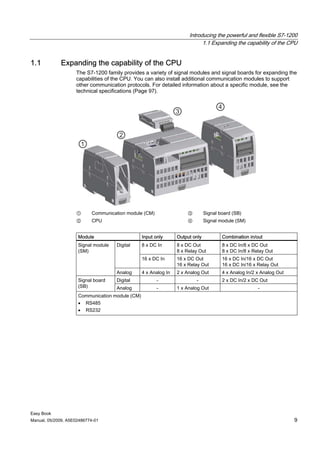
                    The S7-1200 family provides a variety of signal modules and signal boards for expanding the
                    capabilities of the CPU. You can also install additional communication modules to support
                    other communication protocols. For detailed information about a specific module, see the
                    technical specifications (Page 97).


                    ①      Communication module (CM)                 ③         Signal board (SB)
                    ②      CPU                                       ④         Signal module (SM)


                     Module                      Input only      Output only           Combination in/out
                     Signal module   Digital     8 x DC In       8 x DC Out            8 x DC In/8 x DC Out
                     (SM)                                        8 x Relay Out         8 x DC In/8 x Relay Out
                                                 16 x DC In      16 x DC Out           16 x DC In/16 x DC Out
                                                                 16 x Relay Out        16 x DC In/16 x Relay Out
                                     Analog      4 x Analog In   2 x Analog Out        4 x Analog In/2 x Analog Out
                     Signal board    Digital            -                -             2 x DC In/2 x DC Out
                     (SB)            Analog             -        1 x Analog Out                        -
                     Communication module (CM)
                     • RS485
                     • RS232


Easy Book
Manual, 05/2009, A5E02486774-01                                                                                       9
Introducing the powerful and flexible S7-1200
1.2 HMI Basic panels


1.2         HMI Basic panels
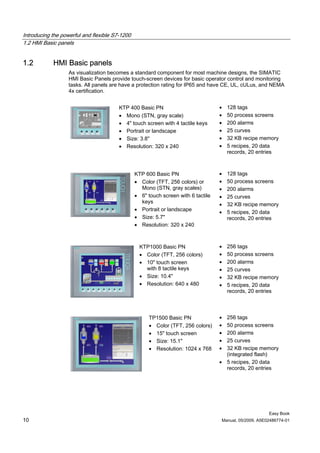
                   As visualization becomes a standard component for most machine designs, the SIMATIC
                   HMI Basic Panels provide touch-screen devices for basic operator control and monitoring
                   tasks. All panels are have a protection rating for IP65 and have CE, UL, cULus, and NEMA
                   4x certification.


                                        KTP 400 Basic PN                           •   128 tags
                                        • Mono (STN, gray scale)                   •   50 process screens
                                        • 4" touch screen with 4 tactile keys      •   200 alarms
                                        • Portrait or landscape                    •   25 curves
                                        • Size: 3.8"                               •   32 KB recipe memory
                                        • Resolution: 320 x 240                    •   5 recipes, 20 data
                                                                                       records, 20 entries


                                                KTP 600 Basic PN                   •   128 tags
                                                • Color (TFT, 256 colors) or       •   50 process screens
                                                  Mono (STN, gray scales)          •   200 alarms
                                                • 6" touch screen with 6 tactile   •   25 curves
                                                  keys
                                                                                   •   32 KB recipe memory
                                                • Portrait or landscape
                                                                                   •   5 recipes, 20 data
                                                • Size: 5.7"                           records, 20 entries
                                                • Resolution: 320 x 240


                                                  KTP1000 Basic PN                 •   256 tags
                                                  • Color (TFT, 256 colors)        •   50 process screens
                                                  • 10" touch screen               •   200 alarms
                                                    with 8 tactile keys            •   25 curves
                                                  • Size: 10.4"                    •   32 KB recipe memory
                                                  • Resolution: 640 x 480          •   5 recipes, 20 data
                                                                                       records, 20 entries


                                                      TP1500 Basic PN              • 256 tags
                                                      • Color (TFT, 256 colors)    • 50 process screens
                                                      • 15" touch screen           • 200 alarms
                                                      • Size: 15.1"                • 25 curves
                                                      • Resolution: 1024 x 768     • 32 KB recipe memory
                                                                                     (integrated flash)
                                                                                   • 5 recipes, 20 data
                                                                                     records, 20 entries


                                                                                                        Easy Book
10                                                                                 Manual, 05/2009, A5E02486774-01
Introducing the powerful and flexible S7-1200
                                                              1.3 Mounting dimensions and clearance requirements


1.3          Mounting dimensions and clearance requirements
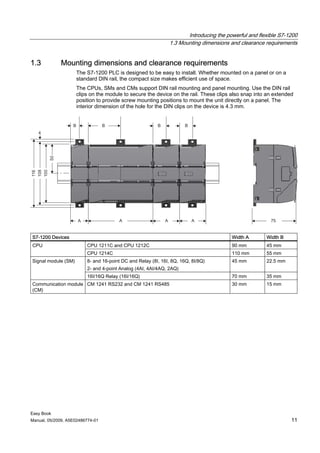
                     The S7-1200 PLC is designed to be easy to install. Whether mounted on a panel or on a
                     standard DIN rail, the compact size makes efficient use of space.
                     The CPUs, SMs and CMs support DIN rail mounting and panel mounting. Use the DIN rail
                     clips on the module to secure the device on the rail. These clips also snap into an extended
                     position to provide screw mounting positions to mount the unit directly on a panel. The
                     interior dimension of the hole for the DIN clips on the device is 4.3 mm.


S7-1200 Devices                                                                        Width A       Width B
CPU                      CPU 1211C and CPU 1212C                                       90 mm         45 mm
                         CPU 1214C                                                     110 mm        55 mm
Signal module (SM)       8- and 16-point DC and Relay (8I, 16I, 8Q, 16Q, 8I/8Q)        45 mm         22.5 mm
                         2- and 4-point Analog (4AI, 4AI/4AQ, 2AQ)
                         16I/16Q Relay (16I/16Q)                                       70 mm         35 mm
Communication module CM 1241 RS232 and CM 1241 RS485                                   30 mm         15 mm
(CM)


Easy Book
Manual, 05/2009, A5E02486774-01                                                                                 11
Introducing the powerful and flexible S7-1200
1.3 Mounting dimensions and clearance requirements


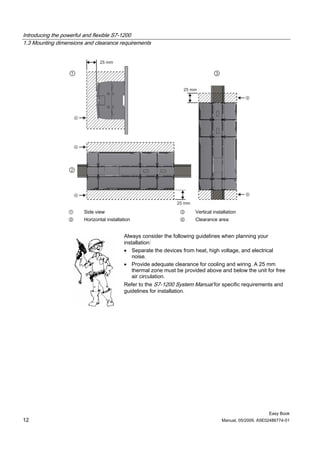
                 ①     Side view                                  ③     Vertical installation
                 ②     Horizontal installation                    ④     Clearance area


                                           Always consider the following guidelines when planning your
                                           installation:
                                           • Separate the devices from heat, high voltage, and electrical
                                               noise.
                                           • Provide adequate clearance for cooling and wiring. A 25 mm
                                               thermal zone must be provided above and below the unit for free
                                               air circulation.
                                           Refer to the S7-1200 System Manual for specific requirements and
                                           guidelines for installation.


                                                                                                          Easy Book
12                                                                                   Manual, 05/2009, A5E02486774-01
STEP 7 Basic makes the work easy                                                                             2
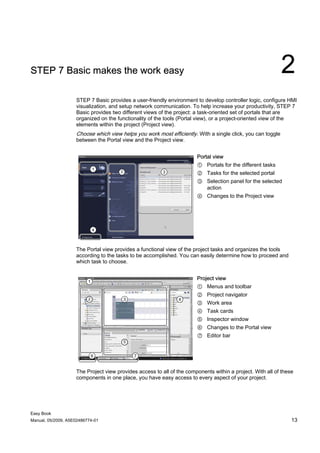
                    STEP 7 Basic provides a user-friendly environment to develop controller logic, configure HMI
                    visualization, and setup network communication. To help increase your productivity, STEP 7
                    Basic provides two different views of the project: a task-oriented set of portals that are
                    organized on the functionality of the tools (Portal view), or a project-oriented view of the
                    elements within the project (Project view).
                    Choose which view helps you work most efficiently. With a single click, you can toggle
                    between the Portal view and the Project view.


                                                                       Portal view
                                                                       ① Portals for the different tasks
                                                                       ② Tasks for the selected portal
                                                                       ③ Selection panel for the selected
                                                                         action
                                                                       ④ Changes to the Project view


                    The Portal view provides a functional view of the project tasks and organizes the tools
                    according to the tasks to be accomplished. You can easily determine how to proceed and
                    which task to choose.


                                                                       Project view
                                                                       ① Menus and toolbar
                                                                       ② Project navigator
                                                                       ③ Work area
                                                                       ④ Task cards
                                                                       ⑤ Inspector window
                                                                       ⑥ Changes to the Portal view
                                                                       ⑦ Editor bar


                    The Project view provides access to all of the components within a project. With all of these
                    components in one place, you have easy access to every aspect of your project.


Easy Book
Manual, 05/2009, A5E02486774-01                                                                                 13
STEP 7 Basic makes the work easy
2.1 Help when you need it


                 The windows and areas of the Project view For example, the inspector window shows the
                 properties and information for the object that you have selected in the work area. As you
                 select different objects, the inspector window displays the properties that you can configure.
                 The inspector window includes tabs that allow you to see diagnostic information and other
                 messages.
                 By showing all of the editors that are open, the editor bar helps you work more quickly and
                 efficiently. To toggle between the open editors, simply click the different editor. You can also
                 arrange two editors to appear together, arranged either vertically or horizontally. This feature
                 allows you to drag and drop between editors.


2.1        Help when you need it

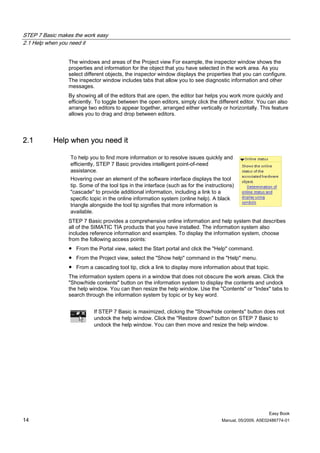
                 To help you to find more information or to resolve issues quickly and
                 efficiently, STEP 7 Basic provides intelligent point-of-need
                 assistance.
                 Hovering over an element of the software interface displays the tool
                 tip. Some of the tool tips in the interface (such as for the instructions)
                 "cascade" to provide additional information, including a link to a
                 specific topic in the online information system (online help). A black
                 triangle alongside the tool tip signifies that more information is
                 available.
                 STEP 7 Basic provides a comprehensive online information and help system that describes
                 all of the SIMATIC TIA products that you have installed. The information system also
                 includes reference information and examples. To display the information system, choose
                 from the following access points:
                 ● From the Portal view, select the Start portal and click the "Help" command.
                 ● From the Project view, select the "Show help" command in the "Help" menu.
                 ● From a cascading tool tip, click a link to display more information about that topic.
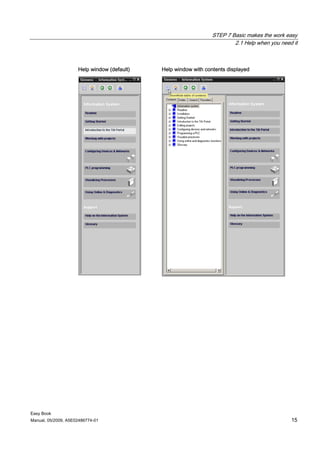
                 The information system opens in a window that does not obscure the work areas. Click the
                 "Show/hide contents" button on the information system to display the contents and undock
                 the help window. You can then resize the help window. Use the "Contents" or "Index" tabs to
                 search through the information system by topic or by key word.


                            If STEP 7 Basic is maximized, clicking the "Show/hide contents" button does not
                            undock the help window. Click the "Restore down" button on STEP 7 Basic to
                            undock the help window. You can then move and resize the help window.


                                                                                                          Easy Book
14                                                                                   Manual, 05/2009, A5E02486774-01
STEP 7 Basic makes the work easy
                                                                         2.1 Help when you need it


                     Help window (default)   Help window with contents displayed


Easy Book
Manual, 05/2009, A5E02486774-01                                                                15
STEP 7 Basic makes the work easy
2.1 Help when you need it


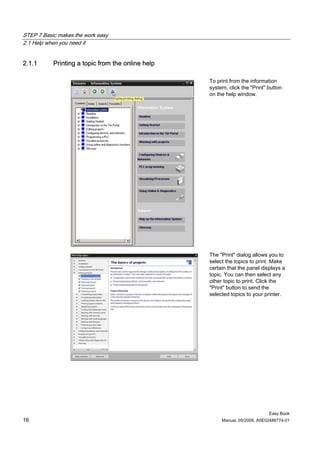
2.1.1      Printing a topic from the online help

                                                   To print from the information
                                                   system, click the "Print" button
                                                   on the help window.


                                                   The "Print" dialog allows you to
                                                   select the topics to print. Make
                                                   certain that the panel displays a
                                                   topic. You can then select any
                                                   other topic to print. Click the
                                                   "Print" button to send the
                                                   selected topics to your printer.


                                                                             Easy Book
16                                                      Manual, 05/2009, A5E02486774-01
STEP 7 Basic makes the work easy
                                                                               2.2 All of the tools you need


2.2          All of the tools you need

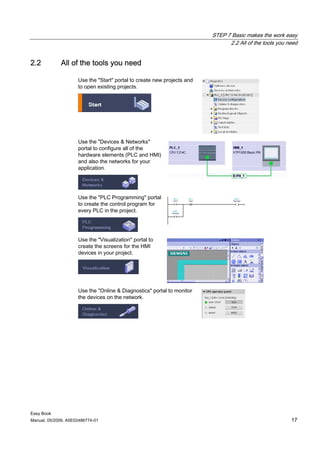
                     Use the "Start" portal to create new projects and
                     to open existing projects.


                     Use the "Devices & Networks"
                     portal to configure all of the
                     hardware elements (PLC and HMI)
                     and also the networks for your
                     application.


                     Use the "PLC Programming" portal
                     to create the control program for
                     every PLC in the project.


                     Use the "Visualization" portal to
                     create the screens for the HMI
                     devices in your project.


                     Use the "Online & Diagnostics" portal to monitor
                     the devices on the network.


Easy Book
Manual, 05/2009, A5E02486774-01                                                                          17
STEP 7 Basic makes the work easy
2.2 All of the tools you need


2.2.1      Easy to insert instructions into your user program

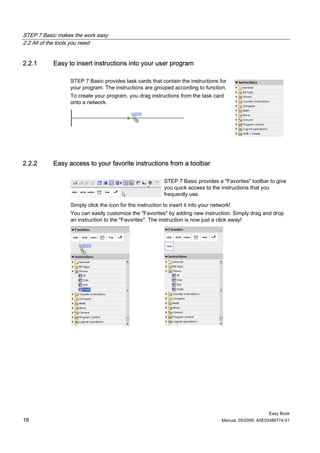
                 STEP 7 Basic provides task cards that contain the instructions for
                 your program. The instructions are grouped according to function.
                 To create your program, you drag instructions from the task card
                 onto a network.


2.2.2      Easy access to your favorite instructions from a toolbar

                                                           STEP 7 Basic provides a "Favorites" toolbar to give
                                                           you quick access to the instructions that you
                                                           frequently use.

                 Simply click the icon for the instruction to insert it into your network!
                 You can easily customize the "Favorites" by adding new instruction. Simply drag and drop
                 an instruction to the "Favorites". The instruction is now just a click away!


                                                                                                           Easy Book
18                                                                                    Manual, 05/2009, A5E02486774-01
STEP 7 Basic makes the work easy
                                                                                   2.2 All of the tools you need


2.2.3        Easy to drag and drop between editors

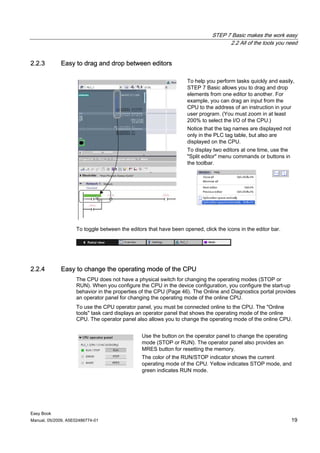
                                                                   To help you perform tasks quickly and easily,
                                                                   STEP 7 Basic allows you to drag and drop
                                                                   elements from one editor to another. For
                                                                   example, you can drag an input from the
                                                                   CPU to the address of an instruction in your
                                                                   user program. (You must zoom in at least
                                                                   200% to select the I/O of the CPU.)
                                                                   Notice that the tag names are displayed not
                                                                   only in the PLC tag table, but also are
                                                                   displayed on the CPU.
                                                                   To display two editors at one time, use the
                                                                   "Split editor" menu commands or buttons in
                                                                   the toolbar.


                    To toggle between the editors that have been opened, click the icons in the editor bar.


2.2.4        Easy to change the operating mode of the CPU
                    The CPU does not have a physical switch for changing the operating modes (STOP or
                    RUN). When you configure the CPU in the device configuration, you configure the start-up
                    behavior in the properties of the CPU (Page 46). The Online and Diagnostics portal provides
                    an operator panel for changing the operating mode of the online CPU.
                    To use the CPU operator panel, you must be connected online to the CPU. The "Online
                    tools" task card displays an operator panel that shows the operating mode of the online
                    CPU. The operator panel also allows you to change the operating mode of the online CPU.


                                               Use the button on the operator panel to change the operating
                                               mode (STOP or RUN). The operator panel also provides an
                                               MRES button for resetting the memory.
                                               The color of the RUN/STOP indicator shows the current
                                               operating mode of the CPU. Yellow indicates STOP mode, and
                                               green indicates RUN mode.


Easy Book
Manual, 05/2009, A5E02486774-01                                                                                  19
STEP 7 Basic makes the work easy
2.2 All of the tools you need


2.2.5      Easy to virtually "unplug" modules without losing the configuration

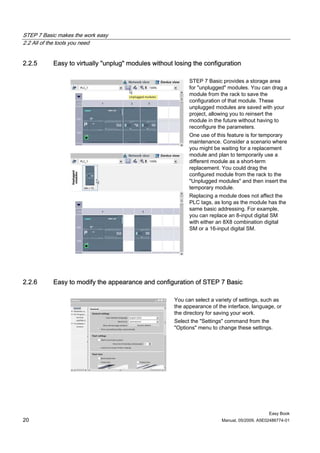
                                                            STEP 7 Basic provides a storage area
                                                            for "unplugged" modules. You can drag a
                                                            module from the rack to save the
                                                            configuration of that module. These
                                                            unplugged modules are saved with your
                                                            project, allowing you to reinsert the
                                                            module in the future without having to
                                                            reconfigure the parameters.
                                                            One use of this feature is for temporary
                                                            maintenance. Consider a scenario where
                                                            you might be waiting for a replacement
                                                            module and plan to temporarily use a
                                                            different module as a short-term
                                                            replacement. You could drag the
                                                            configured module from the rack to the
                                                            "Unplugged modules" and then insert the
                                                            temporary module.
                                                            Replacing a module does not affect the
                                                            PLC tags, as long as the module has the
                                                            same basic addressing. For example,
                                                            you can replace an 8-input digital SM
                                                            with either an 8X8 combination digital
                                                            SM or a 16-input digital SM.


2.2.6      Easy to modify the appearance and configuration of STEP 7 Basic

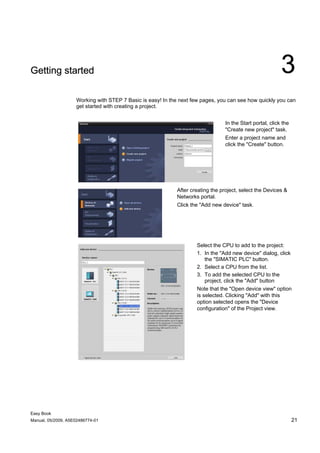
                                                      You can select a variety of settings, such as
                                                      the appearance of the interface, language, or
                                                      the directory for saving your work.
                                                      Select the "Settings" command from the
                                                      "Options" menu to change these settings.


                                                                                              Easy Book
20                                                                       Manual, 05/2009, A5E02486774-01
Getting started                                                                                            3
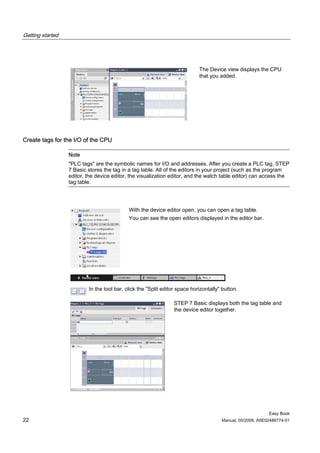
                    Working with STEP 7 Basic is easy! In the next few pages, you can see how quickly you can
                    get started with creating a project.


                                                                                 In the Start portal, click the
                                                                                 "Create new project" task.
                                                                                 Enter a project name and
                                                                                 click the "Create" button.


                                                            After creating the project, select the Devices &
                                                            Networks portal.
                                                            Click the "Add new device" task.


                                                                    Select the CPU to add to the project:
                                                                    1. In the "Add new device" dialog, click
                                                                        the "SIMATIC PLC" button.
                                                                    2. Select a CPU from the list.
                                                                    3. To add the selected CPU to the
                                                                        project, click the "Add" button
                                                                    Note that the "Open device view" option
                                                                    is selected. Clicking "Add" with this
                                                                    option selected opens the "Device
                                                                    configuration" of the Project view.


Easy Book
Manual, 05/2009, A5E02486774-01                                                                                   21
Getting started


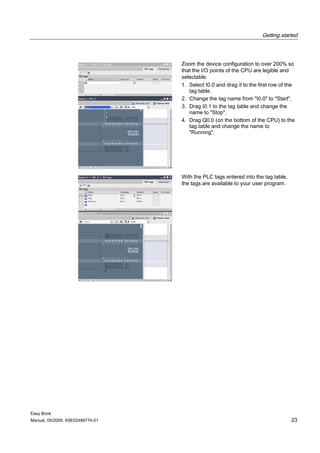
                                                                            The Device view displays the CPU
                                                                            that you added.


Create tags for the I/O of the CPU

                  Note
                  "PLC tags" are the symbolic names for I/O and addresses. After you create a PLC tag, STEP
                  7 Basic stores the tag in a tag table. All of the editors in your project (such as the program
                  editor, the device editor, the visualization editor, and the watch table editor) can access the
                  tag table.


                                            With the device editor open, you can open a tag table.
                                            You can see the open editors displayed in the editor bar.


                          In the tool bar, click the "Split editor space horizontally" button.

                                                                STEP 7 Basic displays both the tag table and
                                                                the device editor together.


                                                                                                           Easy Book
22                                                                                    Manual, 05/2009, A5E02486774-01
Getting started


                                  Zoom the device configuration to over 200% so
                                  that the I/O points of the CPU are legible and
                                  selectable.
                                  1. Select I0.0 and drag it to the first row of the
                                     tag table.
                                  2. Change the tag name from "I0.0" to "Start".
                                  3. Drag I0.1 to the tag table and change the
                                     name to "Stop".
                                  4. Drag Q0.0 (on the bottom of the CPU) to the
                                     tag table and change the name to
                                     "Running".


                                  With the PLC tags entered into the tag table,
                                  the tags are available to your user program.


Easy Book
Manual, 05/2009, A5E02486774-01                                                   23
Getting started


Create a simple network in your user program

                                          Your program code consists of instructions that the PLC executes
                                          in sequence. For this example, you use ladder logic (LAD) to
                                          create the program code. The LAD program is a sequence of
                                          networks that resemble the rungs of a ladder.
                                          To open the program editor, follow these steps:
                                          1. Expand the "Program blocks" folder in the Project tree to
                                             display the "Main [OB1]" block.
                                          2. Double-click the "Main [OB1]" block.
                                          The program editor opens the program block (OB1). You can now
                                          start entering the instructions for your user program.
                                                                      Use the buttons on the "Favorites" to
                                                                      insert contacts and coils onto the
                                                                      network:
                                                                      1. Click the "Normally open contact"
                                                                         button on the "Favorites" to add a
                                                                         contact to the network.
                                                                      2. For this example, add second
                                                                         contact.
                                                                      3. Click the "Output coil" button to
                                                                         insert a coil.
                                                                      The "Favorites" also provides a
                                                                      button for creating a branch:
                                                                      1. Click the "Open branch" icon to
                                                                         add a branch to the rail of the
                                                                         network.
                                                                      2. Insert another normally open
                                                                         contact to the open branch.
                                                                      3. Drag the double-headed arrow to
                                                                         a connection point (the green
                                                                         square on the rung) between the
                                                                         open and closed contacts on the
                                                                         first rung.
                                                                      To save the project, click the "Save
                                                                      project" button in the toolbar. Notice
                                                                      that you do not have to finish editing
                                                                      the rung before saving.


                  You have created a network of LAD instructions. You can now associate the tag names with
                  these instructions.


                                                                                                    Easy Book
24                                                                             Manual, 05/2009, A5E02486774-01
Getting started


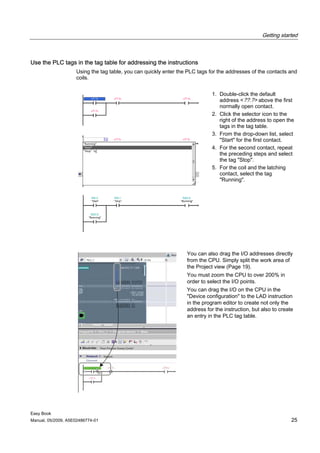
Use the PLC tags in the tag table for addressing the instructions
                    Using the tag table, you can quickly enter the PLC tags for the addresses of the contacts and
                    coils.


                                                                             1. Double-click the default
                                                                                address <??.?> above the first
                                                                                normally open contact.
                                                                             2. Click the selector icon to the
                                                                                right of the address to open the
                                                                                tags in the tag table.
                                                                             3. From the drop-down list, select
                                                                                "Start" for the first contact.
                                                                             4. For the second contact, repeat
                                                                                the preceding steps and select
                                                                                the tag "Stop".
                                                                             5. For the coil and the latching
                                                                                contact, select the tag
                                                                                "Running".


                                                                  You can also drag the I/O addresses directly
                                                                  from the CPU. Simply split the work area of
                                                                  the Project view (Page 19).
                                                                  You must zoom the CPU to over 200% in
                                                                  order to select the I/O points.
                                                                  You can drag the I/O on the CPU in the
                                                                  "Device configuration" to the LAD instruction
                                                                  in the program editor to create not only the
                                                                  address for the instruction, but also to create
                                                                  an entry in the PLC tag table.


Easy Book
Manual, 05/2009, A5E02486774-01                                                                                 25
Getting started


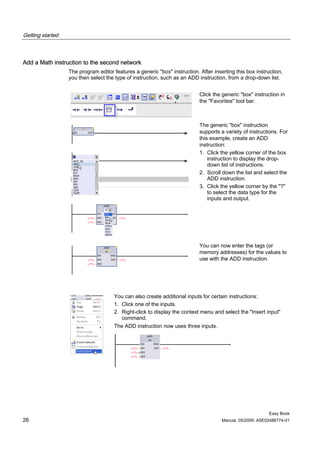
Add a Math instruction to the second network
                  The program editor features a generic "box" instruction. After inserting this box instruction,
                  you then select the type of instruction, such as an ADD instruction, from a drop-down list.


                                                                           Click the generic "box" instruction in
                                                                           the "Favorites" tool bar.


                                                                           The generic "box" instruction
                                                                           supports a variety of instructions. For
                                                                           this example, create an ADD
                                                                           instruction:
                                                                           1. Click the yellow corner of the box
                                                                               instruction to display the drop-
                                                                               down list of instructions.
                                                                           2. Scroll down the list and select the
                                                                               ADD instruction.
                                                                           3. Click the yellow corner by the "?"
                                                                               to select the data type for the
                                                                               inputs and output.


                                                                           You can now enter the tags (or
                                                                           memory addresses) for the values to
                                                                           use with the ADD instruction.


                                     You can also create additional inputs for certain instructions:
                                     1. Click one of the inputs.
                                     2. Right-click to display the context menu and select the "Insert input"
                                        command.
                                     The ADD instruction now uses three inputs.


                                                                                                          Easy Book
26                                                                                   Manual, 05/2009, A5E02486774-01
Getting started


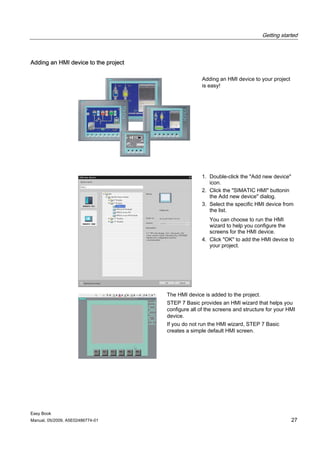
Adding an HMI device to the project

                                                     Adding an HMI device to your project
                                                     is easy!


                                                     1. Double-click the "Add new device"
                                                        icon.
                                                     2. Click the "SIMATIC HMI" buttonin
                                                        the Add new device" dialog.
                                                     3. Select the specific HMI device from
                                                        the list.
                                                        You can choose to run the HMI
                                                        wizard to help you configure the
                                                        screens for the HMI device.
                                                     4. Click "OK" to add the HMI device to
                                                        your project.


                                      The HMI device is added to the project.
                                      STEP 7 Basic provides an HMI wizard that helps you
                                      configure all of the screens and structure for your HMI
                                      device.
                                      If you do not run the HMI wizard, STEP 7 Basic
                                      creates a simple default HMI screen.


Easy Book
Manual, 05/2009, A5E02486774-01                                                             27
Getting started


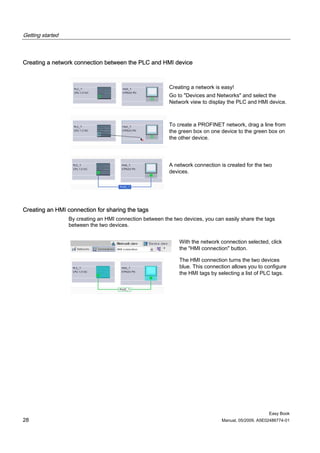
Creating a network connection between the PLC and HMI device


                                                          Creating a network is easy!
                                                          Go to "Devices and Networks" and select the
                                                          Network view to display the PLC and HMI device.


                                                          To create a PROFINET network, drag a line from
                                                          the green box on one device to the green box on
                                                          the other device.


                                                          A network connection is created for the two
                                                          devices.


Creating an HMI connection for sharing the tags
                  By creating an HMI connection between the two devices, you can easily share the tags
                  between the two devices.


                                                               With the network connection selected, click
                                                               the "HMI connection" button.

                                                               The HMI connection turns the two devices
                                                               blue. This connection allows you to configure
                                                               the HMI tags by selecting a list of PLC tags.


                                                                                                     Easy Book
28                                                                              Manual, 05/2009, A5E02486774-01
Getting started


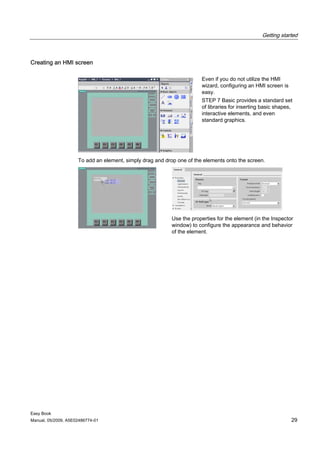
Creating an HMI screen

                                                                       Even if you do not utilize the HMI
                                                                       wizard, configuring an HMI screen is
                                                                       easy.
                                                                       STEP 7 Basic provides a standard set
                                                                       of libraries for inserting basic shapes,
                                                                       interactive elements, and even
                                                                       standard graphics.


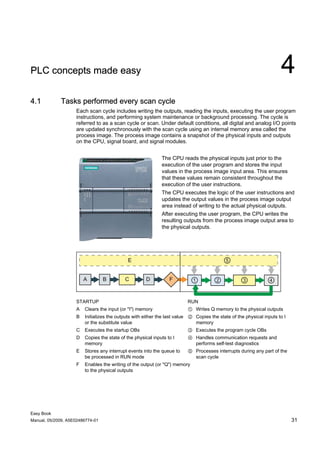
                     To add an element, simply drag and drop one of the elements onto the screen.


                                                           Use the properties for the element (in the Inspector
                                                           window) to configure the appearance and behavior
                                                           of the element.


Easy Book
Manual, 05/2009, A5E02486774-01                                                                               29
PLC concepts made easy                                                                                                4
4.1          Tasks performed every scan cycle
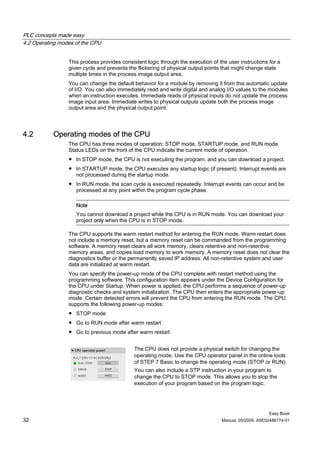
                    Each scan cycle includes writing the outputs, reading the inputs, executing the user program
                    instructions, and performing system maintenance or background processing. The cycle is
                    referred to as a scan cycle or scan. Under default conditions, all digital and analog I/O points
                    are updated synchronously with the scan cycle using an internal memory area called the
                    process image. The process image contains a snapshot of the physical inputs and outputs
                    on the CPU, signal board, and signal modules.


                                                             The CPU reads the physical inputs just prior to the
                                                             execution of the user program and stores the input
                                                             values in the process image input area. This ensures
                                                             that these values remain consistent throughout the
                                                             execution of the user instructions.
                                                             The CPU executes the logic of the user instructions and
                                                             updates the output values in the process image output
                                                             area instead of writing to the actual physical outputs.
                                                             After executing the user program, the CPU writes the
                                                             resulting outputs from the process image output area to
                                                             the physical outputs.


                    STARTUP                                              RUN
                    A   Clears the input (or "I") memory                 ① Writes Q memory to the physical outputs
                    B   Initializes the outputs with either the last value ② Copies the state of the physical inputs to I
                        or the substitute value                              memory
                    C   Executes the startup OBs                         ③ Executes the program cycle OBs
                    D   Copies the state of the physical inputs to I     ④ Handles communication requests and
                        memory                                             performs self-test diagnostics
                    E   Stores any interrupt events into the queue to    ⑤ Processes interrupts during any part of the
                        be processed in RUN mode                           scan cycle
                    F   Enables the writing of the output (or "Q") memory
                        to the physical outputs


Easy Book
Manual, 05/2009, A5E02486774-01                                                                                             31
PLC concepts made easy
4.2 Operating modes of the CPU


                 This process provides consistent logic through the execution of the user instructions for a
                 given cycle and prevents the flickering of physical output points that might change state
                 multiple times in the process image output area.
                 You can change the default behavior for a module by removing it from this automatic update
                 of I/O. You can also immediately read and write digital and analog I/O values to the modules
                 when an instruction executes. Immediate reads of physical inputs do not update the process
                 image input area. Immediate writes to physical outputs update both the process image
                 output area and the physical output point.


4.2        Operating modes of the CPU
                 The CPU has three modes of operation: STOP mode, STARTUP mode, and RUN mode.
                 Status LEDs on the front of the CPU indicate the current mode of operation.
                 ● In STOP mode, the CPU is not executing the program, and you can download a project.
                 ● In STARTUP mode, the CPU executes any startup logic (if present). Interrupt events are
                   not processed during the startup mode.
                 ● In RUN mode, the scan cycle is executed repeatedly. Interrupt events can occur and be
                   processed at any point within the program cycle phase.

                    Note
                    You cannot download a project while the CPU is in RUN mode. You can download your
                    project only when the CPU is in STOP mode.

                 The CPU supports the warm restart method for entering the RUN mode. Warm restart does
                 not include a memory reset, but a memory reset can be commanded from the programming
                 software. A memory reset clears all work memory, clears retentive and non-retentive
                 memory areas, and copies load memory to work memory. A memory reset does not clear the
                 diagnostics buffer or the permanently saved IP address. All non-retentive system and user
                 data are initialized at warm restart.
                 You can specify the power-up mode of the CPU complete with restart method using the
                 programming software. This configuration item appears under the Device Configuration for
                 the CPU under Startup. When power is applied, the CPU performs a sequence of power-up
                 diagnostic checks and system initialization. The CPU then enters the appropriate power-up
                 mode. Certain detected errors will prevent the CPU from entering the RUN mode. The CPU
                 supports the following power-up modes:
                 ● STOP mode
                 ● Go to RUN mode after warm restart
                 ● Go to previous mode after warm restart


                                             The CPU does not provide a physical switch for changing the
                                             operating mode. Use the CPU operator panel in the online tools
                                             of STEP 7 Basic to change the operating mode (STOP or RUN).
                                             You can also include a STP instruction in your program to
                                             change the CPU to STOP mode. This allows you to stop the
                                             execution of your program based on the program logic.


                                                                                                       Easy Book
32                                                                                Manual, 05/2009, A5E02486774-01
PLC concepts made easy
                                                                   4.3 Memory areas, addressing and data types


4.3          Memory areas, addressing and data types
                    The CPU provides the following memory areas to store the user program, data, and
                    configuration:
                    ● Load memory is non-volatile storage for the user program, the data, and the
                      configuration. When a project is downloaded to the CPU, it is first stored in the Load
                      memory area. This area is located either in a memory card (if present) or in the CPU. This
                      non-volatile memory area is maintained through a power loss.
                    ● Work memory RAM is volatile storage for some elements of the user project while
                      executing the user program. To improve system performance, the CPU copies some
                      elements of the project from load memory into work memory. This volatile area is lost
                      when power is removed and is restored by the CPU when power is restored.
                    The CPU provides for storage of 2048 bytes of retentive data. You can specify work memory
                    data values, such as data in a DB or bit memory (M), that are to be retained or saved
                    permanently each time power is removed.
                    Retentive memory is non-volatile storage for a limited quantity of work memory values. The
                    retentive memory area is used to store the values of selected user memory locations during
                    power loss. When a power down occurs, the CPU by design has enough hold-up time to
                    retain the values of a limited number of specified locations. These retentive values are then
                    restored upon power up.

                    Note
                    When you download a project or an element of the project, the retentive memory is reset.


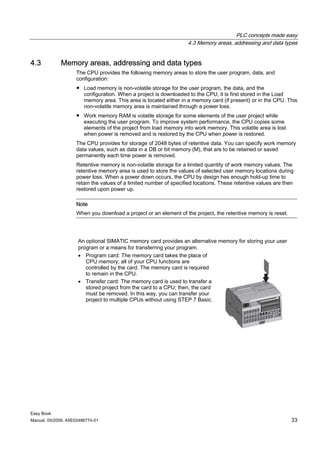
                     An optional SIMATIC memory card provides an alternative memory for storing your user
                     program or a means for transferring your program.
                     • Program card: The memory card takes the place of
                        CPU memory; all of your CPU functions are
                        controlled by the card. The memory card is required
                        to remain in the CPU.
                     • Transfer card: The memory card is used to transfer a
                        stored project from the card to a CPU; then, the card
                        must be removed. In this way, you can transfer your
                        project to multiple CPUs without using STEP 7 Basic.


Easy Book
Manual, 05/2009, A5E02486774-01                                                                                 33
PLC concepts made easy
4.3 Memory areas, addressing and data types


Data types supported by S7-1200

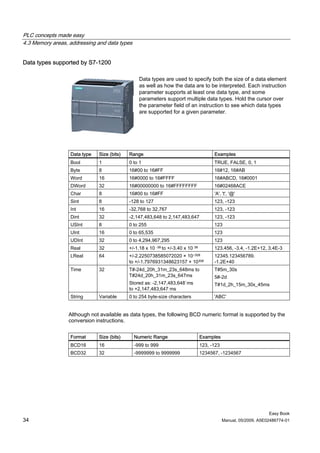
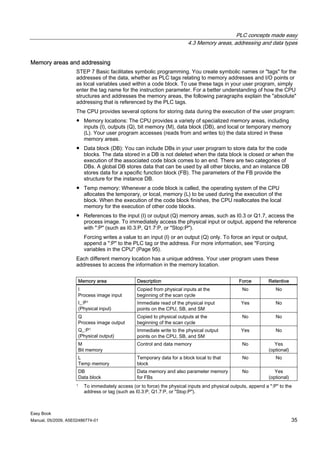
                                                Data types are used to specify both the size of a data element
                                                as well as how the data are to be interpreted. Each instruction
                                                parameter supports at least one data type, and some
                                                parameters support multiple data types. Hold the cursor over
                                                the parameter field of an instruction to see which data types
                                                are supported for a given parameter.


                  Data type   Size (bits)   Range                                             Examples
                  Bool        1             0 to 1                                            TRUE, FALSE, 0, 1
                  Byte        8             16#00 to 16#FF                                    16#12, 16#AB
                  Word        16            16#0000 to 16#FFFF                                16#ABCD, 16#0001
                  DWord       32            16#00000000 to 16#FFFFFFFF                        16#02468ACE
                  Char        8             16#00 to 16#FF                                    'A', 't', '@'
                  Sint        8             -128 to 127                                       123, -123
                  Int         16            -32,768 to 32,767                                 123, -123
                  Dint        32            -2,147,483,648 to 2,147,483,647                   123, -123
                  USInt       8             0 to 255                                          123
                  UInt        16            0 to 65,535                                       123
                  UDInt       32            0 to 4,294,967,295                                123
                  Real        32            +/-1.18 x 10   -38 to   +/-3.40 x 10   38         123.456, -3.4, -1.2E+12, 3.4E-3
                  LReal       64            +/-2.2250738585072020 × 10−308                    12345.123456789.
                                            to +/-1.7976931348623157 × 10308                  -1.2E+40
                  Time        32            T#-24d_20h_31m_23s_648ms to                       T#5m_30s
                                            T#24d_20h_31m_23s_647ms                           5#-2d
                                            Stored as: -2,147,483,648`ms                      T#1d_2h_15m_30x_45ms
                                            to +2,147,483,647 ms
                  String      Variable      0 to 254 byte-size characters                     'ABC'


                 Although not available as data types, the following BCD numeric format is supported by the
                 conversion instructions.


                  Format      Size (bits)     Numeric Range                             Examples
                  BCD16       16              -999 to 999                               123, -123
                  BCD32       32              -9999999 to 9999999                       1234567, -1234567


                                                                                                                         Easy Book
34                                                                                                  Manual, 05/2009, A5E02486774-01
PLC concepts made easy
                                                                           4.3 Memory areas, addressing and data types


Memory areas and addressing
                    STEP 7 Basic facilitates symbolic programming. You create symbolic names or "tags" for the
                    addresses of the data, whether as PLC tags relating to memory addresses and I/O points or
                    as local variables used within a code block. To use these tags in your user program, simply
                    enter the tag name for the instruction parameter. For a better understanding of how the CPU
                    structures and addresses the memory areas, the following paragraphs explain the "absolute"
                    addressing that is referenced by the PLC tags.
                    The CPU provides several options for storing data during the execution of the user program:
                    ● Memory locations: The CPU provides a variety of specialized memory areas, including
                      inputs (I), outputs (Q), bit memory (M), data block (DB), and local or temporary memory
                      (L). Your user program accesses (reads from and writes to) the data stored in these
                      memory areas.
                    ● Data block (DB): You can include DBs in your user program to store data for the code
                      blocks. The data stored in a DB is not deleted when the data block is closed or when the
                      execution of the associated code block comes to an end. There are two categories of
                      DBs. A global DB stores data that can be used by all other blocks, and an instance DB
                      stores data for a specific function block (FB). The parameters of the FB provide the
                      structure for the instance DB.
                    ● Temp memory: Whenever a code block is called, the operating system of the CPU
                      allocates the temporary, or local, memory (L) to be used during the execution of the
                      block. When the execution of the code block finishes, the CPU reallocates the local
                      memory for the execution of other code blocks.
                    ● References to the input (I) or output (Q) memory areas, such as I0.3 or Q1.7, access the
                      process image. To immediately access the physical input or output, append the reference
                      with ":P" (such as I0.3:P, Q1.7:P, or "Stop:P").
                          Forcing writes a value to an input (I) or an output (Q) only. To force an input or output,
                          append a ":P" to the PLC tag or the address. For more information, see "Forcing
                          variables in the CPU" (Page 95).
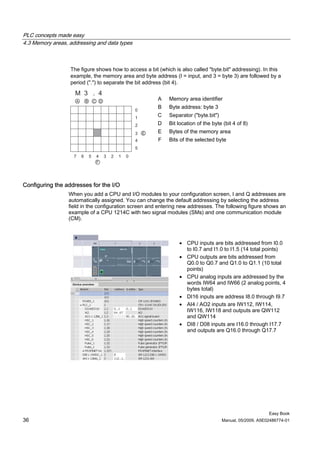
                    Each different memory location has a unique address. Your user program uses these
                    addresses to access the information in the memory location.


                        Memory area                Description                                     Force         Retentive
                        I                          Copied from physical inputs at the               No              No
                        Process image input        beginning of the scan cycle
                        I_:P1                      Immediate read of the physical input             Yes             No
                        (Physical input)           points on the CPU, SB, and SM
                        Q                          Copied to physical outputs at the                No              No
                        Process image output       beginning of the scan cycle
                        Q_:P1                      Immediate write to the physical output           Yes             No
                        (Physical output)          points on the CPU, SB, and SM
                        M                          Control and data memory                          No              Yes
                        Bit memory                                                                               (optional)
                        L                          Temporary data for a block local to that         No              No
                        Temp memory                block
                        DB                         Data memory and also parameter memory            No              Yes
                        Data block                 for FBs                                                       (optional)
                    1     To immediately access (or to force) the physical inputs and physical outputs, append a ":P" to the
                          address or tag (such as I0.3:P, Q1.7:P, or "Stop:P").


Easy Book
Manual, 05/2009, A5E02486774-01                                                                                               35
PLC concepts made easy
4.3 Memory areas, addressing and data types


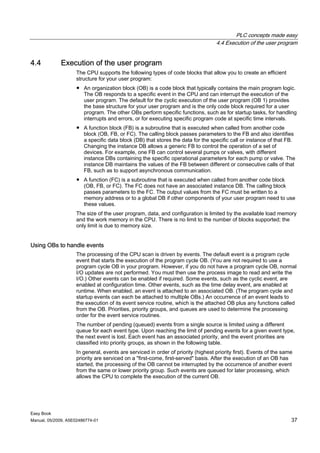
                  The figure shows how to access a bit (which is also called "byte.bit" addressing). In this
                  example, the memory area and byte address (I = input, and 3 = byte 3) are followed by a
                  period (".") to separate the bit address (bit 4).


                                                       A    Memory area identifier
                                                       B    Byte address: byte 3
                                                       C    Separator ("byte.bit")
                                                       D    Bit location of the byte (bit 4 of 8)
                                                       E    Bytes of the memory area
                                                       F    Bits of the selected byte


Configuring the addresses for the I/O
                 When you add a CPU and I/O modules to your configuration screen, I and Q addresses are
                 automatically assigned. You can change the default addressing by selecting the address
                 field in the configuration screen and entering new addresses. The following figure shows an
                 example of a CPU 1214C with two signal modules (SMs) and one communication module
                 (CM).


                                                                • CPU inputs are bits addressed from I0.0
                                                                  to I0.7 and I1.0 to I1.5 (14 total points)
                                                                • CPU outputs are bits addressed from
                                                                  Q0.0 to Q0.7 and Q1.0 to Q1.1 (10 total
                                                                  points)
                                                                • CPU analog inputs are addressed by the
                                                                  words IW64 and IW66 (2 analog points, 4
                                                                  bytes total)
                                                                • DI16 inputs are address I8.0 through I9.7
                                                                • AI4 / AO2 inputs are IW112, IW114,
                                                                  IW116, IW118 and outputs are QW112
                                                                  and QW114
                                                                • DI8 / D08 inputs are I16.0 through I17.7
                                                                  and outputs are Q16.0 through Q17.7


                                                                                                          Easy Book
36                                                                                   Manual, 05/2009, A5E02486774-01
PLC concepts made easy
                                                                                  4.4 Execution of the user program


4.4          Execution of the user program
                    The CPU supports the following types of code blocks that allow you to create an efficient
                    structure for your user program:
                    ● An organization block (OB) is a code block that typically contains the main program logic.
                      The OB responds to a specific event in the CPU and can interrupt the execution of the
                      user program. The default for the cyclic execution of the user program (OB 1) provides
                      the base structure for your user program and is the only code block required for a user
                      program. The other OBs perform specific functions, such as for startup tasks, for handling
                      interrupts and errors, or for executing specific program code at specific time intervals.
                    ● A function block (FB) is a subroutine that is executed when called from another code
                      block (OB, FB, or FC). The calling block passes parameters to the FB and also identifies
                      a specific data block (DB) that stores the data for the specific call or instance of that FB.
                      Changing the instance DB allows a generic FB to control the operation of a set of
                      devices. For example, one FB can control several pumps or valves, with different
                      instance DBs containing the specific operational parameters for each pump or valve. The
                      instance DB maintains the values of the FB between different or consecutive calls of that
                      FB, such as to support asynchronous communication.
                    ● A function (FC) is a subroutine that is executed when called from another code block
                      (OB, FB, or FC). The FC does not have an associated instance DB. The calling block
                      passes parameters to the FC. The output values from the FC must be written to a
                      memory address or to a global DB if other components of your user program need to use
                      these values.
                    The size of the user program, data, and configuration is limited by the available load memory
                    and the work memory in the CPU. There is no limit to the number of blocks supported; the
                    only limit is due to memory size.


Using OBs to handle events
                    The processing of the CPU scan is driven by events. The default event is a program cycle
                    event that starts the execution of the program cycle OB. (You are not required to use a
                    program cycle OB in your program. However, if you do not have a program cycle OB, normal
                    I/O updates are not performed. You must then use the process image to read and write the
                    I/O.) Other events can be enabled if required. Some events, such as the cyclic event, are
                    enabled at configuration time. Other events, such as the time delay event, are enabled at
                    runtime. When enabled, an event is attached to an associated OB. (The program cycle and
                    startup events can each be attached to multiple OBs.) An occurrence of an event leads to
                    the execution of its event service routine, which is the attached OB plus any functions called
                    from the OB. Priorities, priority groups, and queues are used to determine the processing
                    order for the event service routines.
                    The number of pending (queued) events from a single source is limited using a different
                    queue for each event type. Upon reaching the limit of pending events for a given event type,
                    the next event is lost. Each event has an associated priority, and the event priorities are
                    classified into priority groups, as shown in the following table.
                    In general, events are serviced in order of priority (highest priority first). Events of the same
                    priority are serviced on a "first-come, first-served" basis. After the execution of an OB has
                    started, the processing of the OB cannot be interrupted by the occurrence of another event
                    from the same or lower priority group. Such events are queued for later processing, which
                    allows the CPU to complete the execution of the current OB.


Easy Book
Manual, 05/2009, A5E02486774-01                                                                                     37
PLC concepts made easy
4.4 Execution of the user program


                  An OB within a priority group does not interrupt another OB within the same priority group.
                  However, an event in priority group 2 will interrupt the execution of an OB in priority group 1,
                  and an event in priority group 3 will interrupt the execution of any OB in either priority group
                  1 or 2.


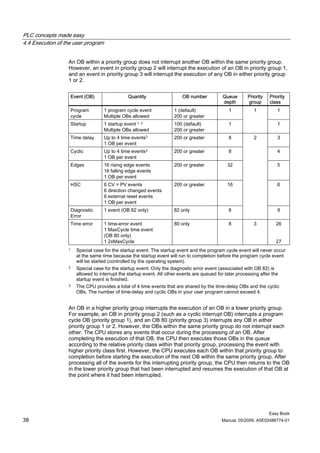
                      Event (OB)                Quantity                 OB number          Queue       Priority   Priority
                                                                                            depth       group      class
                      Program       1 program cycle event            1 (default)               1           1           1
                      cycle         Multiple OBs allowed             200 or greater
                      Startup       1 startup event 1, 2             100 (default)             1                       1
                                    Multiple OBs allowed             200 or greater
                      Time delay    Up to 4 time events3             200 or greater            8           2           3
                                    1 OB per event
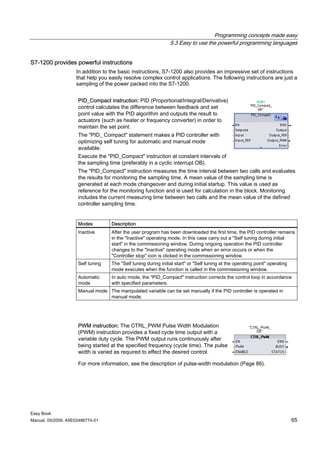
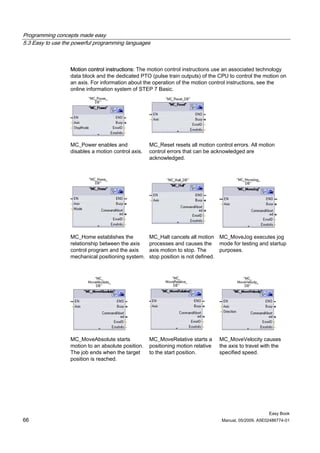
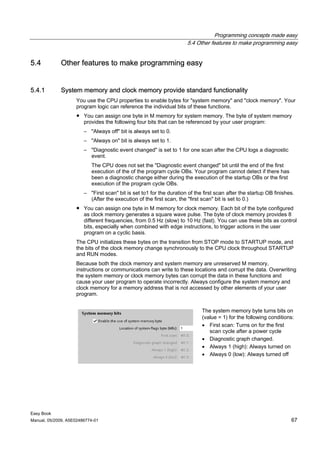
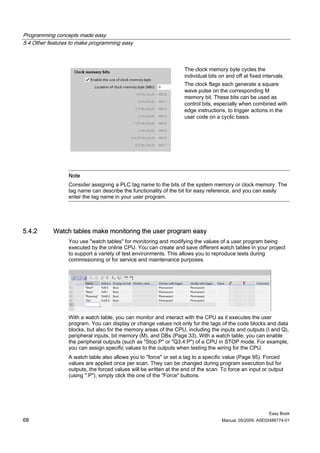
                      Cyclic        Up to 4 time events3             200 or greater            8                       4
                                    1 OB per event
                      Edges         16 rising edge events            200 or greater           32                       5
                                    16 falling edge events
                                    1 OB per event
                      HSC           6 CV = PV events                 200 or greater           16                       6
                                    6 direction changed events
                                    6 external reset events
                                    1 OB per event
                      Diagnostic    1 event (OB 82 only)             82 only                   8                       9
                      Error
                      Time error    1 time-error event               80 only                   8           3          26
                                    1 MaxCycle time event
                                    (OB 80 only)
                                    1 2xMaxCycle                                                                      27
                  1     Special case for the startup event: The startup event and the program cycle event will never occur
                        at the same time because the startup event will run to completion before the program cycle event
                        will be started (controlled by the operating system).
                  2     Special case for the startup event: Only the diagnostic error event (associated with OB 82) is
                        allowed to interrupt the startup event. All other events are queued for later processing after the
                        startup event is finished.
                  3     The CPU provides a total of 4 time events that are shared by the time-delay OBs and the cyclic
                        OBs. The number of time-delay and cyclic OBs in your user program cannot exceed 4.


                  An OB in a higher priority group interrupts the execution of an OB in a lower priority group.
                  For example, an OB in priority group 2 (such as a cyclic interrupt OB) interrupts a program
                  cycle OB (priority group 1), and an OB 80 (priority group 3) interrupts any OB in either
                  priority group 1 or 2. However, the OBs within the same priority group do not interrupt each
                  other. The CPU stores any events that occur during the processing of an OB. After
                  completing the execution of that OB, the CPU then executes those OBs in the queue
                  according to the relative priority class within that priority group, processing the event with
                  higher priority class first. However, the CPU executes each OB within that priority group to
                  completion before starting the execution of the next OB within the same priority group. After
                  processing all of the events for the interrupting priority group, the CPU then returns to the OB
                  in the lower priority group that had been interrupted and resumes the execution of that OB at
                  the point where it had been interrupted.


                                                                                                                   Easy Book
38                                                                                          Manual, 05/2009, A5E02486774-01
PLC concepts made easy
                                                            4.5 Protecting access to the CPU or code block is easy


                    If the CPU were to detect an event in priority group 3 (such as a time error event), the time-
                    error OB interrupts the processing of both priority group 1 (such as a program cycle OB) and
                    priority group 2 (such as a cyclic OB). The CPU executes the time-error OB and then returns
                    to the execution of the OB that was interrupted, either in priority group 2 (if interrupted) or in
                    priority group 1.


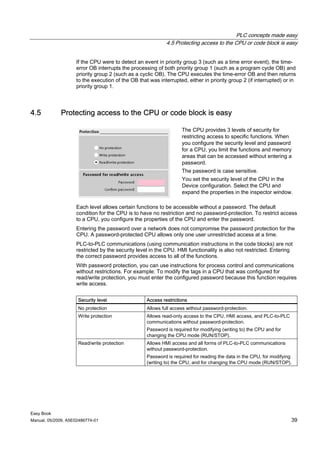
4.5          Protecting access to the CPU or code block is easy

                                                                   The CPU provides 3 levels of security for
                                                                   restricting access to specific functions. When
                                                                   you configure the security level and password
                                                                   for a CPU, you limit the functions and memory
                                                                   areas that can be accessed without entering a
                                                                   password.
                                                                   The password is case sensitive.
                                                                   You set the security level of the CPU in the
                                                                   Device configuration. Select the CPU and
                                                                   expand the properties in the inspector window.

                    Each level allows certain functions to be accessible without a password. The default
                    condition for the CPU is to have no restriction and no password-protection. To restrict access
                    to a CPU, you configure the properties of the CPU and enter the password.
                    Entering the password over a network does not compromise the password protection for the
                    CPU. A password-protected CPU allows only one user unrestricted access at a time.
                    PLC-to-PLC communications (using communication instructions in the code blocks) are not
                    restricted by the security level in the CPU. HMI functionality is also not restricted. Entering
                    the correct password provides access to all of the functions.
                    With password protection, you can use instructions for process control and communications
                    without restrictions. For example: To modify the tags in a CPU that was configured for
                    read/write protection, you must enter the configured password because this function requires
                    write access.


                     Security level                Access restrictions
                     No protection                 Allows full access without password-protection.
                     Write protection              Allows read-only access to the CPU, HMI access, and PLC-to-PLC
                                                   communications without password-protection.
                                                   Password is required for modifying (writing to) the CPU and for
                                                   changing the CPU mode (RUN/STOP).
                     Read/write protection         Allows HMI access and all forms of PLC-to-PLC communications
                                                   without password-protection.
                                                   Password is required for reading the data in the CPU, for modifying
                                                   (writing to) the CPU, and for changing the CPU mode (RUN/STOP).


Easy Book
Manual, 05/2009, A5E02486774-01                                                                                      39
Programming concepts made easy                                                                                    5
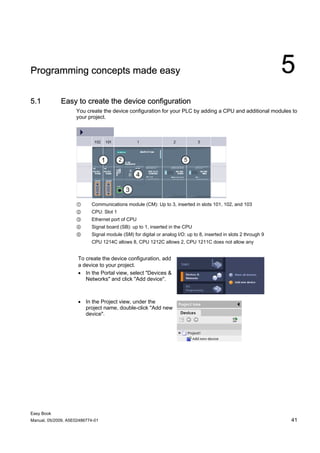
5.1          Easy to create the device configuration
                    You create the device configuration for your PLC by adding a CPU and additional modules to
                    your project.


                    ①      Communications module (CM): Up to 3, inserted in slots 101, 102, and 103
                    ②      CPU: Slot 1
                    ③      Ethernet port of CPU
                    ④      Signal board (SB): up to 1, inserted in the CPU
                    ⑤      Signal module (SM) for digital or analog I/O: up to 8, inserted in slots 2 through 9
                           CPU 1214C allows 8, CPU 1212C allows 2, CPU 1211C does not allow any


                     To create the device configuration, add
                     a device to your project.
                     • In the Portal view, select "Devices &
                        Networks" and click "Add device".


                     • In the Project view, under the
                       project name, double-click "Add new
                       device".


Easy Book
Manual, 05/2009, A5E02486774-01                                                                                   41
Programming concepts made easy
5.1 Easy to create the device configuration


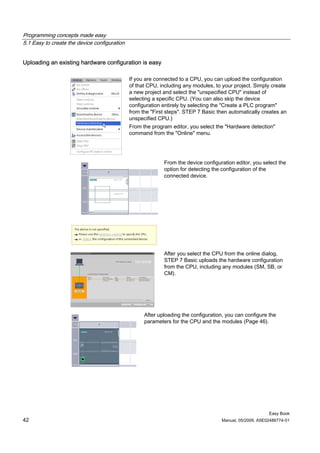
Uploading an existing hardware configuration is easy

                                              If you are connected to a CPU, you can upload the configuration
                                              of that CPU, including any modules, to your project. Simply create
                                              a new project and select the "unspecified CPU" instead of
                                              selecting a specific CPU. (You can also skip the device
                                              configuration entirely by selecting the "Create a PLC program"
                                              from the "First steps". STEP 7 Basic then automatically creates an
                                              unspecified CPU.)
                                              From the program editor, you select the "Hardware detection"
                                              command from the "Online" menu.


                                                            From the device configuration editor, you select the
                                                            option for detecting the configuration of the
                                                            connected device.


                                                            After you select the CPU from the online dialog,
                                                            STEP 7 Basic uploads the hardware configuration
                                                            from the CPU, including any modules (SM, SB, or
                                                            CM).


                                                    After uploading the configuration, you can configure the
                                                    parameters for the CPU and the modules (Page 46).


                                                                                                         Easy Book
42                                                                                  Manual, 05/2009, A5E02486774-01
Programming concepts made easy
                                                                      5.1 Easy to create the device configuration


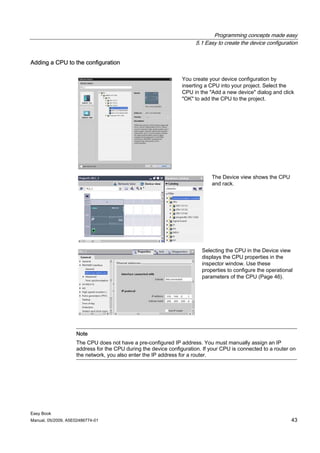
Adding a CPU to the configuration

                                                                You create your device configuration by
                                                                inserting a CPU into your project. Select the
                                                                CPU in the "Add a new device" dialog and click
                                                                "OK" to add the CPU to the project.


                                                                            The Device view shows the CPU
                                                                            and rack.


                                                                        Selecting the CPU in the Device view
                                                                        displays the CPU properties in the
                                                                        inspector window. Use these
                                                                        properties to configure the operational
                                                                        parameters of the CPU (Page 46).


                    Note
                    The CPU does not have a pre-configured IP address. You must manually assign an IP
                    address for the CPU during the device configuration. If your CPU is connected to a router on
                    the network, you also enter the IP address for a router.


Easy Book
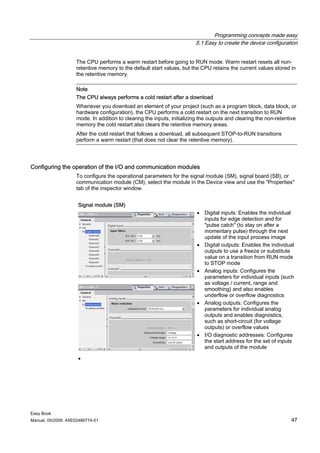
Manual, 05/2009, A5E02486774-01                                                                               43
Programming concepts made easy
5.1 Easy to create the device configuration


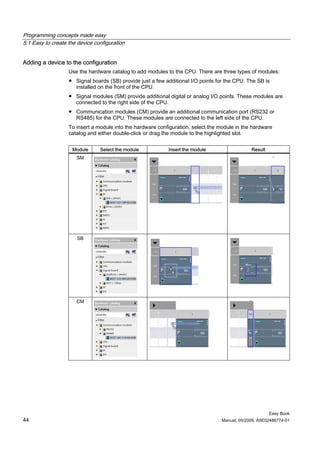
Adding a device to the configuration
                   Use the hardware catalog to add modules to the CPU. There are three types of modules:
                   ● Signal boards (SB) provide just a few additional I/O points for the CPU. The SB is
                     installed on the front of the CPU.
                   ● Signal modules (SM) provide additional digital or analog I/O points. These modules are
                     connected to the right side of the CPU.
                   ● Communication modules (CM) provide an additional communication port (RS232 or
                     RS485) for the CPU. These modules are connected to the left side of the CPU.
                   To insert a module into the hardware configuration, select the module in the hardware
                   catalog and either double-click or drag the module to the highlighted slot.


                    Module      Select the module           Insert the module                   Result
                      SM


                      SB


                      CM


                                                                                                         Easy Book
44                                                                                 Manual, 05/2009, A5E02486774-01
Programming concepts made easy
                                                                       5.1 Easy to create the device configuration


Configuring a network connection
                    Use the "Network view" of Device configuration to create the network connections between
                    the devices in your project. After creating the network connection, use the "Properties" tab of
                    the inspector window to configure the parameters of the network.


                                                                          Select "Network view" to display the
                                                                          devices to be connected.


                                                                          Select the port on one device and drag
                                                                          the connection to the port on the
                                                                          second device.


                                                                          Release the mouse button to create
                                                                          the network connection.


Easy Book
Manual, 05/2009, A5E02486774-01                                                                                  45
Programming concepts made easy
5.1 Easy to create the device configuration


5.1.1       Configuring the operation of the CPU and modules

                                                          To configure the operational parameters for the
                                                          CPU, select the CPU in the Device view and use
                                                          the "Properties" tab of the inspector window.
                                                          • PROFINET IP address and time synchronization
                                                             for the CPU
                                                          • Startup behavior of the CPU following an off-to-
                                                             on transition
                                                          • Local (on-board) digital and analog I/O, high-
                                                             speed counters (HSC), and pulse generators
                                                          • System clock (time, time zone and daylight
                                                             saving time)
                                                          • Read/write protection and password for
                                                             accessing the CPU
                                                          • Maximum cycle time or a fixed minimum cycle
                                                             time and communications load


Configuring the STOP-to-RUN operation of the CPU
                   Whenever the operating state changes from STOP to RUN, the CPU clears the process
                   image inputs, initializes the process image outputs, and processes the startup OBs.
                   (Therefore, any read accesses to the process-image inputs by instructions in the startup OBs
                   will read zero rather than the current physical input value.) To read the current state of a
                   physical input during the startup mode, you must perform an immediate read. The startup
                   OBs and any associated FCs and FBs are executed next. If more than one startup OB
                   exists, each is executed in order according to the OB number, with the lowest OB number
                   executing first.
                   The CPU also performs the following tasks during the startup processing.
                   ● Interrupts are queued but not processed during the startup phase
                   ● No cycle time monitoring is performed during the startup phase
                   ● Configuration changes to HSC (high-speed counter), PWM (pulse-width modulation), and
                     PtP (point-to-point communication) modules can be made in startup
                   ● Actual operation of HSC, PWM, and point-to-point communication modules only occurs in
                     RUN
                   After the execution of the startup OBs finishes, the CPU goes to RUN mode and processes
                   the control tasks in a continuous scan cycle.
                   Use the CPU properties to configure how the CPU starts up after a power cycle.


                                                                                   Select whether the CPU
                                                                                   starts in STOP mode,
                                                                                   RUN mode, or in the
                                                                                   previous mode (prior to
                                                                                   the power cycle).


                                                                                                       Easy Book
46                                                                                Manual, 05/2009, A5E02486774-01
Programming concepts made easy
                                                                        5.1 Easy to create the device configuration


                    The CPU performs a warm restart before going to RUN mode. Warm restart resets all non-
                    retentive memory to the default start values, but the CPU retains the current values stored in
                    the retentive memory.

                    Note
                    The CPU always performs a cold restart after a download
                    Whenever you download an element of your project (such as a program block, data block, or
                    hardware configuration), the CPU performs a cold restart on the next transition to RUN
                    mode. In addition to clearing the inputs, initializing the outputs and clearing the non-retentive
                    memory the cold restart also clears the retentive memory areas.
                    After the cold restart that follows a download, all subsequent STOP-to-RUN transitions
                    perform a warm restart (that does not clear the retentive memory).


Configuring the operation of the I/O and communication modules
                    To configure the operational parameters for the signal module (SM), signal board (SB), or
                    communication module (CM), select the module in the Device view and use the "Properties"
                    tab of the inspector window.


                     Signal module (SM)
                                                                         • Digital inputs: Enables the individual
                                                                           inputs for edge detection and for
                                                                           "pulse catch" (to stay on after a
                                                                           momentary pulse) through the next
                                                                           update of the input process image
                                                                         • Digital outputs: Enables the individual
                                                                           outputs to use a freeze or substitute
                                                                           value on a transition from RUN mode
                                                                           to STOP mode
                                                                         • Analog inputs: Configures the
                                                                           parameters for individual inputs (such
                                                                           as voltage / current, range and
                                                                           smoothing) and also enables
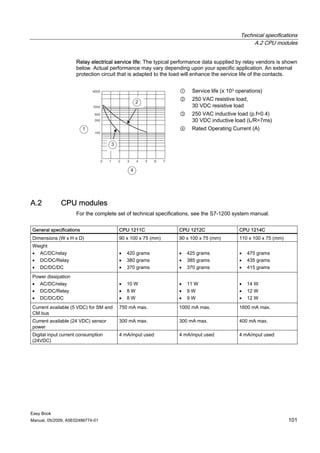
                                                                           underflow or overflow diagnostics
                                                                         • Analog outputs: Configures the
                                                                           parameters for individual analog
                                                                           outputs and enables diagnostics,
                                                                           such as short-circuit (for voltage
                                                                           outputs) or overflow values
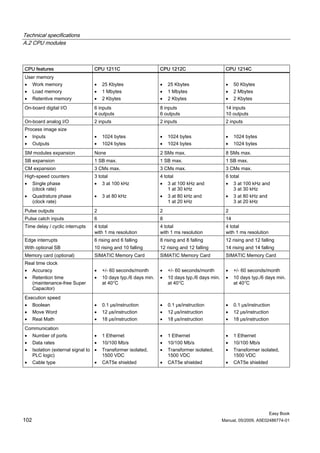
                                                                         • I/O diagnostic addresses: Configures
                                                                           the start address for the set of inputs
                                                                           and outputs of the module

                     •


Easy Book
Manual, 05/2009, A5E02486774-01                                                                                   47
Programming concepts made easy
5.1 Easy to create the device configuration


                    Communication module (CM)
                                                                   • Port configuration: Configures the
                                                                     communication parameters, such as
                                                                     baud rate, parity, data bits, stop bits,
                                                                     and wait time
                                                                   • Transmit message configuration:
                                                                     Enables and configures transmit
                                                                     related options
                                                                   • Receive message configuration:
                                                                     Enables and configures the message-
                                                                     start and message-end parameters

                    You can also change these configuration parameters with your user program.


                    Signal board (SB)
                                                                   • Digital inputs: Configures the
                                                                     individual inputs for edge detection
                                                                     and for "pulse catch" through the next
                                                                     update of the input process image
                                                                   • Digital outputs: Enables the individual
                                                                     outputs to freeze or use a substitute
                                                                     value on a transition from RUN mode
                                                                     to STOP mode
                                                                   • Analog outputs: Configures the output
                                                                     type (voltage or current) and enables
                                                                     short-circuit diagnostics (for voltage
                                                                     outputs) and to freeze or use a
                                                                     substitute value on a transition from
                                                                     RUN mode to STOP mode
                                                                   • I/O diagnostic addresses: Configures
                                                                     the start address for the set of inputs
                                                                     and outputs of the module


                                                                                                     Easy Book
48                                                                              Manual, 05/2009, A5E02486774-01
Programming concepts made easy
                                                                      5.1 Easy to create the device configuration


5.1.2        Configuring the IP address of the CPU
                    Because the CPU does not have a pre-configured IP address, you must manually assign an
                    IP address. You configure the IP address and the other parameters for the PROFINET
                    interface when you configure the properties for the CPU.
                    ● In a PROFINET network, each device is assigned a unique Media Access Control
                      address (MAC address) by the manufacturer for identification. Each device must also
                      have an IP address.
                    ● A subnet is a logical grouping of connected network devices. A mask (also known as the
                      subnet mask or network mask) defines the boundaries of a subnet. The only connection
                      between different subnets is via a router. Routers are the link between LANs and rely on
                      IP addresses to deliver and receive data packets.
                    Before you can download an IP address to the CPU, you must ensure that the IP address for
                    your computer matches the IP address of your programming device.


                                             You can use STEP 7 Basic to determine the IP address of your
                                             programming device:
                                             1. Right-click the "Online access" folder in the Project tree" to
                                                display the context menu.
                                             2. Select the "Properties" command.
                                                                             The dialog displays the settings for
                                                                             the programming device.
                                                                             The IP address for the CPU must
                                                                             be compatible with the IP address
                                                                             and subnet mask for the
                                                                             programming device.
                                                                             Consult your network specialist for
                                                                             the IP address and subnet mask
                                                                             for your CPU.


                     After determining the IP address and subnet mask for the CPU, enter the IP address for
                     the CPU and for the router (if applicable). Refer to the S7-1200 System Manual for more
                     information.
                                                                                      Select "Ethernet address"
                                                                                      to enter the Ethernet
                                                                                      address of the physical
                                                                                      CPU.
                                                                                      If your CPU is connected
                                                                                      to a router, enter the IP
                                                                                      address for the router.


Easy Book
Manual, 05/2009, A5E02486774-01                                                                                  49
Programming concepts made easy
5.1 Easy to create the device configuration


                    Parameter                           Description
                    Subnet        Name of the Subnet to which the device is connected. Click the "Add new subnet"
                                  button to create a new subnet. "Not connected" is the default.
                                  Two connection types are possible:
                                  • The "Not connected" default provides a local connection.
                                  • A subnet is required when your network has two or more devices.
                    IP protocol   IP address            Assigned IP address for the CPU
                                  Subnet mask           Assigned subnet mask
                                  Use IP router         Click the checkbox to indicate the use of an IP router
                                  Router address        Assigned IP address for the router, if applicable


                                                                                After completing the configuration,
                                                                                download the project to the CPU.
                                                                                The IP address for the CPU and
                                                                                for the router (if applicable) are
                                                                                configured when you download the
                                                                                project.


                                                                                                                 Easy Book
50                                                                                      Manual, 05/2009, A5E02486774-01
Programming concepts made easy
                                                                             5.2 Easy to design your user program


5.2          Easy to design your user program
                    When you create a user program for the automation tasks, you insert the instructions for the
                    program into code blocks:
                    ● An OB is a code block that you use to structure or organize the user program for your
                      application. For many applications, a continuously cycling OB, such as the program cycle
                      OB 1, contains the program logic. In addition to the program cycle OB, the CPU provides
                      other OBs that perform specific functions, such as startup tasks, the handling of interrupts
                      and errors, or the execution of specific program code at specific time intervals. Every OB
                      responds to a specific event in the CPU and can interrupt the execution of the user
                      program, according to pre-defined priority groups and classes..
                    ● An FB is a subroutine that is executed when called from another code block (OB, FB, or
                      FC). The calling block passes parameters to the FB and also identifies a specific data
                      block (DB) that stores the data for the specific call or instance of that FB. Changing the
                      instance DB allows a generic FB to control the operation of a set of devices. For example,
                      one FB can control several pumps or valves, with different instance DBs containing the
                      specific operational parameters for each pump or valve. The instance DB maintains the
                      values of the FB between different or consecutive calls of that FB, such as to support
                      asynchronous communication.
                    ● An FC is a subroutine that is executed when called from another code block (OB, FB, or
                      FC). The FC does not have an associated instance DB. The calling block passes
                      parameters to the FC. The output values from the FC must be written to a memory
                      address or to a global DB.


Choosing the type of structure for your user program
                    Based on the requirements of your application, you can choose either a linear structure or a
                    modular structure for creating your user program:
                    ● A linear program executes all of the instructions for your automation tasks in sequence,
                      one after the other. Typically, the linear program puts all of the program instructions into
                      one program cycle OB (OB 1) for cyclic execution of the program.
                    ● A modular program calls specific code blocks that perform specific tasks. To create a
                      modular structure, you divide the complex automation task into smaller subordinate tasks
                      that correspond to the functional tasks being performed by the process. Each code block
                      provides the program segment for each subordinate task. You structure your program by
                      calling one of the code blocks from another block.


                     Linear structure:              Modular structure:


Easy Book
Manual, 05/2009, A5E02486774-01                                                                                  51
Programming concepts made easy
5.2 Easy to design your user program


                  By designing FBs and FCs to perform generic tasks, you create modular code blocks. You
                  then structure your user program by having other code blocks call these reusable modules.
                  The calling block passes device-specific parameters to the called block. When a code block
                  calls another code block, the CPU executes the program code in the called block. After
                  execution of the called block is complete, the CPU resumes the execution of the calling
                  block. Processing continues with execution of the instruction that follows after the block call.


                   A    Calling block
                   B    Called (or interrupting) block
                   ①    Program execution
                   ②    Instruction or event that initiates the
                        execution of another block
                   ③    Program execution
                   ④    Block end (returns to calling block)


                   You can nest the block calls for a
                   more modular structure.
                   ①    Start of cycle
                   ②    Nesting depth
                        In this example, the nesting
                        depth is 4: the program
                        cycle OB plus 3 layers of
                        calls to code blocks.


                  By creating generic code blocks that can be reused within the user program, you can simplify
                  the design and implementation of the user program.
                  ● You can create reusable blocks of code for standard tasks, such as for controlling a pump
                    or a motor. You can also store these generic code blocks in a library that can be used by
                    different applications or solutions.
                  ● When you structure the user program into modular components that relate to functional
                    tasks, the design of your program can be easier to understand and to manage. The
                    modular components not only help to standardize the program design but can also help
                    to make updating or modifying the program code quicker and easier.
                  ● Creating modular components simplifies the debugging of your program. By structuring
                    the complete program as a set of modular program segments, you can test the
                    functionality of each code block as it is developed.
                  ● Utilizing a modular design that relates to specific functional tasks can reduce the time
                    required for the commissioning of the completed application.


                                                                                                          Easy Book
52                                                                                   Manual, 05/2009, A5E02486774-01
Programming concepts made easy
                                                                           5.2 Easy to design your user program


5.2.1        Use OBs for organizing your user program
                    Organization blocks provide the structure for your program. They serve as the interface
                    between the operating system and the user program. OBs are event-driven. An event, such
                    as a diagnostic interrupt or a time interval, will cause the CPU to execute an OB. Some OBs
                    have predefined start events and behavior.
                    The program cycle OB contains your main program. You can include more than one program
                    cycle OB in your user program. During RUN mode, the program cycle OBs execute at the
                    lowest priority level and can be interrupted by all other types of program processing. (The
                    startup OBs do not interrupt the program cycle OBs because the CPU executes the startup
                    OBs before going to RUN mode.)
                    After finishing the processing of the program cycle OBs, the CPU immediately executes the
                    program cycle OB again. This cyclic processing is the "normal" type of processing used for
                    PLCs. For many applications, the entire user program is located in a single OB, such as the
                    default program cycle OB 1.


                                                                              You can create other OBs to
                                                                              perform specific functions, such
                                                                              as startup tasks, for handling
                                                                              interrupts and errors, or for
                                                                              executing specific program code
                                                                              at specific time intervals.
                                                                              Use the "Add new block" dialog
                                                                              to create a new OB in your user
                                                                              program.
                                                                              The CPU determines the order
                                                                              for handling interrupt events by a
                                                                              priority assigned to each OB
                                                                              (Page 37).


                    Creating an additional OB within a class of OB: You can create multiple OBs for your user
                    program, even for the program cycle and startup OB classes. Use the "Add new block"
                    dialog to create an OB. Enter the name for your OB and provide an OB number of 200 or
                    greater.
                    If you create multiple program cycle OBs for your user program, the CPU executes each
                    program cycle OB in numerical sequence, starting with the main program cycle OB (default:
                    OB 1). For example, after first program cycle OB (OB 1) finishes, the CPU executes the
                    second program cycle OB (such as OB 200).


Easy Book
Manual, 05/2009, A5E02486774-01                                                                                 53
Programming concepts made easy
5.2 Easy to design your user program


                   Configuring the operation of an OB
                                                                      You can modify the operational
                                                                      parameters for an OB. For example, you
                                                                      can configure the time parameter for a
                                                                      time-delay OB or for a cyclic interrupt
                                                                      OB.


5.2.2       FBs and FCs make programming the modular tasks easy
                  A function (FC) is like a subroutine. An FC is a code block that typically performs a specific
                  operation on a set of input values. The FC stores the results of this operation in memory
                  locations. Use FCs to perform the following tasks:
                  ● To perform standard and reusable operations, such as for mathematical calculations.
                  ● To perform functional tasks, such as for individual controls using bit logic operations.
                  An FC can also be called several times at different points in a program. This reuse simplifies
                  the programming of frequently recurring tasks.
                  Unlike an FB, an FC does not have an associated instance DB. The FC uses its temp
                  memory (L) for the data used to calculate the operation. The temporary data is not saved. To
                  store data for use after the execution of the FC has finished, assign the output value to a
                  global memory location, such as M memory or to a global DB.
                  A function block (FB) is like a subroutine with memory. An FB is a code block whose calls
                  can be programmed with block parameters. The FB stores the input (IN), output (OUT), and
                  in/out (IN_OUT) parameters in variable memory that is located in a data block (DB), or
                  "instance" DB. The instance DB provides a block of memory that is associated with that
                  instance (or call) of the FB and stores data after the FB finishes.
                  You typically use an FB to control the operation for tasks or devices that do not finish their
                  operation within one scan cycle. To store the operating parameters so that they can be
                  quickly accessed from one scan to the next, each FB in your user program has one or more
                  instance DBs. When you call an FB, you also open an instance DB that stores the values of
                  the block parameters and the static local data for that call or "instance" of the FB. The
                  instance DB stores these values after the FB finishes.
                  You can assign initial values to the parameters in the FB interface. These values are
                  transferred to the associated instance DB. If you do not assign parameters, the values
                  currently stored in the instance DB will be used. In some cases, you must assign
                  parameters.


                                                                                                         Easy Book
54                                                                                  Manual, 05/2009, A5E02486774-01
Programming concepts made easy
                                                                            5.2 Easy to design your user program


                    You can associate different instance DBs with different calls of the FB. The instance DBs
                    allow you to use one generic FB to control multiple devices. You structure your program by
                    having one code block make a call to an FB and an instance DB. The CPU then executes
                    the program code in that FB and stores the block parameters and the static local data in the
                    instance DB. When the execution of the FB finishes, the CPU returns to the code block that
                    called the FB. The instance DB retains the values for that instance of the FB. By designing
                    the FB for generic control tasks, you can reuse the FB for multiple devices by selecting
                    different instance DBs for different calls of the FB.
                    The following figure shows an OB that calls one FB three times, using a different data block
                    for each call. This structure allows one generic FB to control several similar devices, such as
                    motors, by assigning a different instance data block for each call for the different devices.
                    Each instance DB stores the data (such as speed, ramp-up time, and total operating time)
                    for an individual device. In this example, FB 22 controls three separate devices, with DB 201
                    storing the operational data for the first device, DB 202 storing the operational data for the
                    second device, and DB 203 storing the operational data for the third device.


5.2.3        Data blocks provide easy storage for program data
                    You create data blocks (DB) in your user program to store data for the code blocks. All of the
                    program blocks in the user program can access the data in a global DB, but an instance DB
                    stores data for a specific function block (FB).
                    Your user program can store data in the specialized memory areas of the CPU, such as for
                    the inputs (I), outputs (Q), and bit memory (M). In addition, you can use a data block (DB) for
                    fast access to data stored within the program itself. You can define a DB as being read-only.
                    The data stored in a DB is not deleted when the data block is closed or the execution of the
                    associated code block comes to an end. There are two types of DBs:
                    ● A global DB stores data for the code blocks in your program. Any OB, FB, or FC can
                      access the data in a global DB.
                    ● An instance DB stores the data for a specific FB. The structure of the data in an instance
                      DB reflects the parameters (Input, Output, and InOut) and the static data for the FB. The
                      Temp memory for the FB is not stored in the instance DB.
                    Although the instance DB reflects the data for a specific FB, any code block can access the
                    data in an instance DB.


Easy Book
Manual, 05/2009, A5E02486774-01                                                                                  55
Programming concepts made easy
5.2 Easy to design your user program


Creating a new code block
                  In this example, use the Project view to add an FC to the project. You also configure the
                  program block to enter the instructions in ladder logic (LAD). In the Project view, select the
                  PLC programming portal and select the PLC_1 device from the drop-down list. For this
                  example, the device is PLC_1. Double-click "Program blocks", and then double-click "Add
                  new block".


                                                                1. In the "Add new block" dialog, click the
                                                                   "Function (FC)" icon.
                                                                2. Specify the programming language for the
                                                                   FC by selecting "LAD" from the drop-down
                                                                   menu.
                                                                3. Click "OK" to add the block to the project.
                                                                Selecting the "Add new & open" option (default)
                                                                opens the FC in the Project view.
                                                                To save the project, click the "Save project"
                                                                button in the toolbar.


                  You can easily have any code block (OB, FB, or FC) in your user program call another FB or
                  FC.


                                                                                 1. Open the code block that
                                                                                    will call the other block.
                                                                                 2. In the project tree, select
                                                                                    the code block to be called.
                                                                                 3. Drag the block to the
                                                                                    selected network to create
                                                                                    a Call instruction.

                  You can now enter the PLC tags for the parameters of the code block.

                  Note
                  Your user program cannot call an OB because OBs are event-driven (Page 37). The CPU
                  starts the execution of the OB in response to receiving an event.


                                                                                                          Easy Book
56                                                                                   Manual, 05/2009, A5E02486774-01
Programming concepts made easy
                                                           5.3 Easy to use the powerful programming languages


5.3          Easy to use the powerful programming languages


5.3.1        Easy-to-use programming languages
                    You have the option of choosing either the LAD (ladder logic) or FBD (Function Block
                    Diagram) programming language.
                    LAD is a graphical programming language. The representation is based on circuit diagrams.
                    To create the logic for complex operations, you can insert branches to create the logic for
                    parallel circuits. Parallel branches are opened downwards or are connected directly to the
                    power rail. You terminate the branches upwards. LAD also provides "box" instructions for a
                    variety of functions, such as math, timer, counter, and move.


                                                                                     The elements of a circuit
                                                                                     diagram (such as normally
                                                                                     closed contacts, normally
                                                                                     open contacts, and coils)
                                                                                     are linked to form networks.


                    Consider the following rules when creating a LAD network:
                    ● Every LAD network must terminate with a coil or a box instruction. Do not terminate a
                      network with either a Compare instruction or an Edge-detection (Positive-edge or
                      Negative-edge) instruction.
                    ● You cannot create a branch that could result in a power flow in the reverse direction.


                    ● You cannot create a branch that would cause a short circuit.


Easy Book
Manual, 05/2009, A5E02486774-01                                                                                 57
Programming concepts made easy
5.3 Easy to use the powerful programming languages


                    Like LAD, FBD is also a graphical programming language. The representation of the logic
                    is based on the graphical logic symbols used in Boolean algebra.
                    Mathematical functions and other complex
                    functions can be represented directly in
                    conjunction with the logic boxes. To create
                    the logic for complex operations, insert
                    parallel branches between the boxes.


5.3.2       Providing the basic instructions you expect


Bit logic instructions
                   The basis of bit logic instruction is contacts and coils. Contacts read the status of a bit, while
                   the coils write the status of the operation to a bit.


                                                                               Contacts test the binary status of
                                                                               the bit, with the result being
                                                                               "power flow" if on (1) or "no power
                                                                               flow" if off (0).
                                                                               The state of the coil reflects the
                                                                               status of the preceding logic.

                   If you use a coil with the same address in more than one program segment, the result of the
                   last calculation in the user program determines the status of the value for that address.


                    Normally Open        Normally Closed       The Normally Open contact is closed (ON) when
                    Contact              Contact               the assigned bit value is equal to 1.
                                                               The Normally Closed contact is closed (ON)
                                                               when the assigned bit value is equal to 0.


                   The basic structure of a bit logic operation is either AND logic or OR logic. Contacts
                   connected in series create AND logic networks. Contacts connected in parallel create OR
                   logic networks.
                   You can connect contacts to other contacts and create your own combination logic. If the
                   input bit you specify uses memory identifier I (input) or Q (output), then the bit value is read
                   from the process-image register. The physical contact signals in your control process are
                   wired to input terminals on the PLC. The CPU scans the wired input signals and updates the
                   corresponding state values in the process-image input register.
                   You can specify an immediate read of a physical input using ":P" following the tag for an
                   input (such as "Motor_Start:P" or "I3.4:P"). For an immediate read, the bit data values are
                   read directly from the physical input instead of the process image. An immediate read does
                   not update the process image.


                                                                                                            Easy Book
58                                                                                     Manual, 05/2009, A5E02486774-01
Programming concepts made easy
                                                             5.3 Easy to use the powerful programming languages


                     Output coil             Inverted output coil


                    ● If there is power flow through an output coil, then the output bit is set to 1.
                    ● If there is no power flow through an output coil, then the output coil bit is set to 0.
                    ● If there is power flow through an inverted output coil, then the output bit is set to 0.
                    ● If there is no power flow through an inverted output coil, then the output bit is set to 1.
                    The coil output instruction writes a value for an output bit. If the output bit you specify uses
                    memory identifier Q, then the CPU turns the output bit in the process-image register on or
                    off, setting the specified bit equal to power flow status. The output signals for your control
                    actuators are wired to the output terminals of the PLC0. In RUN mode, the CPU system
                    scans your input signals, processes the input states according to your program logic, and
                    then reacts by setting new output state values in the process-image output register. After
                    each program execution cycle, the CPU transfers the new output state reaction stored in the
                    process-image register to the wired output terminals.
                    You can specify an immediate write of a physical output using ":P" following the tag for an
                    output (such as "Motor_On:P" or "Q3.4:P"). For an immediate write, the bit data values are
                    written to the process image output and directly to the physical output.
                    Coils are not restricted to the end of a network. You can insert a coil in the middle of a rung
                    of the LAD network, in between contacts or other instructions.


                     NOT contact inverter AND box with one inverted           AND box with inverted logic input
                     (LAD)                logic input (FBD)                   and output (FBD)


                    The LAD NOT contact inverts the logical state of power flow input.
                    ● If there is no power flow into the NOT contact, then there is power flow out.
                    ● If there is power flow into the NOT contact, then there is no power flow out.
                    For FBD programming, you can drag the "Negate binary input" tool from the "Favorites"
                    toolbar or instruction tree and then drop it on an input or output to create a logic inverter on
                    that box connector.


Easy Book
Manual, 05/2009, A5E02486774-01                                                                                     59
Programming concepts made easy
5.3 Easy to use the powerful programming languages


                  AND box (FBD)                 OR box (FBD)                    XOR box (FBD)


                 ● All inputs of an AND box must be TRUE for the output to be TRUE.
                 ● Any input of an OR box must be TRUE for the output to be TRUE.
                 ● An odd number of the inputs of an XOR box must be TRUE for the output to be TRUE.
                 In FBD programming, the contact networks of LAD are represented by AND (&), OR (>=1),
                 and exclusive OR (x) box networks where you can specify bit values for the box inputs and
                 outputs. You may also connect to other logic boxes and create your own logic combinations.
                 After the box is placed in your network, you can drag the "Insert binary input" tool from the
                 "Favorites" toolbar or instruction tree and then drop it onto the input side of the box to add
                 more inputs. You can also right-click on the box input connector and select "Insert input".
                 Box inputs and output can be connected to another logic box, or you can enter a bit address
                 or bit symbol name for an unconnected input. When the box instruction is executed, the
                 current input states are applied to the binary box logic and, if true, the box output will be true.


Compare instructions
                 You use the compare instructions to compare two values of the same data type. When the
                 comparison is TRUE, the contact is activated (LAD) or the box output is TRUE (FBD).


                  LAD                FBD
                                                        After you click on the instruction in the program editor,
                                                        you can select the comparison type and data type from
                                                        the drop-down menus.


                     Relation type     The comparison is true if:
                          ==           IN1 is equal to IN2
                          <>           IN1 is not equal to IN2
                          >=           IN1 is greater than or equal to IN2
                          <=           IN1 is less than or equal to IN2
                           >           IN1 is greater than IN2
                           <           IN1 is less than IN2


                                                                                                           Easy Book
60                                                                                   Manual, 05/2009, A5E02486774-01
Programming concepts made easy
                                                            5.3 Easy to use the powerful programming languages


Move and Block Move instructions
                    You use the move instructions to copy data elements to a new memory address and convert
                    from one data type to another. The source data is not changed by the move process.


                                   MOVE copies a data element stored at a specified address to a new
                                   address.


                                   MOVE_BLK (interruptible move) copies a block of data elements to a new
                                   address


                                   UMOVE_BLK (uninterruptible move) copies a block of data elements to a
                                   new address


                    ● The MOVE instruction copies a single data element from the source address specified by
                      the IN parameter to the destination address specified by the OUT parameter.
                    ● The MOVE_BLK and UMOVE_BLK instructions have an additional COUNT parameter.
                      The COUNT specifies how many data elements are copied. The number of bytes per
                      element copied depends on the data type assigned to the IN and OUT parameter tag
                      names in the PLC tag table.


Counters
                    You use the counter instructions to count internal program events and external process
                    events. Each counter uses a structure stored in a data block to maintain counter data. You
                    assign the data block when the counter instruction is placed in the editor. These instructions
                    use software counters whose maximum counting rate is limited by the execution rate of the
                    OB they are placed in.


                     CTU counts up.      CTD counts down.        CTUD counts up and down.


                     Select the count value data type from the drop-down list under the counter name.


Easy Book
Manual, 05/2009, A5E02486774-01                                                                                 61
Programming concepts made easy
5.3 Easy to use the powerful programming languages


                  The CTU counts up by 1 when the value of parameter CU changes from 0 to 1. The figure
                  shows a CTU timing diagram with an unsigned integer count value (where PV = 3).
                  • If the value of parameter CV (Current
                     count value) is greater than or equal to the
                     value of parameter PV (Preset count
                     value), then the counter output parameter
                     Q = 1.
                  • If the value of the reset parameter R
                     changes from 0 to 1, then the current
                     count value is reset to 0.


                  The CTD counts down by 1 when the value of parameter CD changes from 0 to 1. The
                  figure shows a CTD timing diagram with an unsigned integer count value (where PV = 3).
                  • If the value of parameter CV
                      (Current count value) is equal to
                      or less than 0, the counter output
                      parameter Q = 1.
                  • If the value of parameter LOAD
                      changes from 0 to 1, the value at
                      parameter PV (Preset value) is
                      loaded to the counter as the new
                      CV (Current count value).

                  The CTUD counts up or down by 1 on the 0 to 1 transition of the Count up (CU) or Count
                  down (CD) inputs. The figure shows a CTUD timing diagram with an unsigned integer
                  count value (where PV = 4).
                  • If the value of parameter CV (Current count value) is equal to or greater than the value
                     of parameter PV (Preset value), then the counter output parameter QU = 1.
                  • If the value of parameter CV is
                    less than or equal to zero, then
                    the counter output parameter QD
                    = 1.
                  • If the value of parameter LOAD
                    changes from 0 to 1, then the
                    value at parameter PV (Preset
                    value) is loaded to the counter as
                    the new CV (Current count value).
                    If the value of the reset parameter
                    R is changes from 0 to 1, the
                    current count value is reset to 0.


                                                                                                      Easy Book
62                                                                               Manual, 05/2009, A5E02486774-01
Programming concepts made easy
                                                             5.3 Easy to use the powerful programming languages


Timers
                    You use the timer instructions to create programmed time delays:
                    ● TP: The pulse timer generates a pulse with a preset width time.
                    ● TON: The on-delay timer output Q is set to ON after a preset time delay.
                    ● TOF: The off-delay timer output Q is reset to OFF after a preset time delay.
                    ● TONR: The on-delay retentive timer output is set to ON after a preset time delay. Elapsed
                      time is accumulated over multiple timing periods until the R input is used to reset the
                      elapsed time.
                    ● RT: Reset a timer by clearing the time data stored in the specified timer instance data
                      block.


                     TP, TON, and TOF timers           The TONR timer has             The RT instruction resets
                     have the same input and           the additional reset           the timer data for the
                     output parameters.                input parameter R.             specified timer.
                                                                                      "Timer name"
                                                                                      ----[ RT ]----


                    Each timer uses a structure stored in a data block to maintain timer data. You assign the
                    data block when the timer instruction is placed in the editor. When you place timer
                    instructions in a function block, you can select the multi-instance data block option, the timer
                    structure names can be different with separate data structures, but the timer data is
                    contained in a single data block and does not require a separate data block for each timer.
                    This reduces the processing time and data storage necessary for handling the timers. There
                    is no interaction between the timer data structures in the shared multi-instance data block.


                     TP timer
                     Pulse timing
                     diagram


Easy Book
Manual, 05/2009, A5E02486774-01                                                                                   63
Programming concepts made easy
5.3 Easy to use the powerful programming languages


                  TON timer
                  On-delay timing
                  diagram


                  TOF timer
                  Off-delay timing
                  diagram


                  TONR timer
                  On-delay retentive
                  timing diagram


                                                                          Easy Book
64                                                   Manual, 05/2009, A5E02486774-01
Programming concepts made easy
                                                                 5.3 Easy to use the powerful programming languages


S7-1200 provides powerful instructions
                    In addition to the basic instructions, S7-1200 also provides an impressive set of instructions
                    that help you easily resolve complex control applications. The following instructions are just a
                    sampling of the power packed into the S7-1200.


                     PID_Compact instruction: PID (Proportional/Integral/Derivative)
                     control calculates the difference between feedback and set
                     point value with the PID algorithm and outputs the result to
                     actuators (such as heater or frequency converter) in order to
                     maintain the set point.
                     The "PID_ Compact" statement makes a PID controller with
                     optimizing self tuning for automatic and manual mode
                     available.
                     Execute the "PID_Compact" instruction at constant intervals of
                     the sampling time (preferably in a cyclic interrupt OB).
                     The "PID_Compact" instruction measures the time interval between two calls and evaluates
                     the results for monitoring the sampling time. A mean value of the sampling time is
                     generated at each mode changeover and during initial startup. This value is used as
                     reference for the monitoring function and is used for calculation in the block. Monitoring
                     includes the current measuring time between two calls and the mean value of the defined
                     controller sampling time.


                     Modes          Description
                     Inactive       After the user program has been downloaded the first time, the PID controller remains
                                    in the "Inactive" operating mode. In this case carry out a "Self tuning during initial
                                    start" in the commissioning window. During ongoing operation the PID controller
                                    changes to the "Inactive" operating mode when an error occurs or when the
                                    "Controller stop" icon is clicked in the commissioning window.
                     Self tuning    The "Self tuning during initial start" or "Self tuning at the operating point" operating
                                    mode executes when the function is called in the commissioning window.
                     Automatic      In auto mode, the "PID_Compact" instruction corrects the control loop in accordance
                     mode           with specified parameters.
                     Manual mode The manipulated variable can be set manually if the PID controller is operated in
                                 manual mode.


                     PWM instruction: The CTRL_PWM Pulse Width Modulation
                     (PWM) instruction provides a fixed cycle time output with a
                     variable duty cycle. The PWM output runs continuously after
                     being started at the specified frequency (cycle time). The pulse
                     width is varied as required to effect the desired control.

                     For more information, see the description of pulse-width modulation (Page 86).


Easy Book
Manual, 05/2009, A5E02486774-01                                                                                                65
Programming concepts made easy
5.3 Easy to use the powerful programming languages


                  Motion control instructions: The motion control instructions use an associated technology
                  data block and the dedicated PTO (pulse train outputs) of the CPU to control the motion on
                  an axis. For information about the operation of the motion control instructions, see the
                  online information system of STEP 7 Basic.


                  MC_Power enables and              MC_Reset resets all motion control errors. All motion
                  disables a motion control axis.   control errors that can be acknowledged are
                                                    acknowledged.


                  MC_Home establishes the           MC_Halt cancels all motion MC_MoveJog executes jog
                  relationship between the axis     processes and causes the mode for testing and startup
                  control program and the axis      axis motion to stop. The      purposes.
                  mechanical positioning system.    stop position is not defined.


                  MC_MoveAbsolute starts            MC_MoveRelative starts a      MC_MoveVelocity causes
                  motion to an absolute position.   positioning motion relative   the axis to travel with the
                  The job ends when the target      to the start position.        specified speed.
                  position is reached.


                                                                                                        Easy Book
66                                                                                 Manual, 05/2009, A5E02486774-01
Programming concepts made easy
                                                                      5.4 Other features to make programming easy


5.4          Other features to make programming easy


5.4.1        System memory and clock memory provide standard functionality
                    You use the CPU properties to enable bytes for "system memory" and "clock memory". Your
                    program logic can reference the individual bits of these functions.
                    ● You can assign one byte in M memory for system memory. The byte of system memory
                      provides the following four bits that can be referenced by your user program:
                        – "Always off" bit is always set to 0.
                        – "Always on" bit is always set to 1.
                        – "Diagnostic event changed" is set to 1 for one scan after the CPU logs a diagnostic
                          event.
                           The CPU does not set the "Diagnostic event changed" bit until the end of the first
                           execution of the of the program cycle OBs. Your program cannot detect if there has
                           been a diagnostic change either during the execution of the startup OBs or the first
                           execution of the program cycle OBs.
                        – "First scan" bit is set to1 for the duration of the first scan after the startup OB finishes.
                          (After the execution of the first scan, the "first scan" bit is set to 0.)
                    ● You can assign one byte in M memory for clock memory. Each bit of the byte configured
                      as clock memory generates a square wave pulse. The byte of clock memory provides 8
                      different frequencies, from 0.5 Hz (slow) to 10 Hz (fast). You can use these bits as control
                      bits, especially when combined with edge instructions, to trigger actions in the user
                      program on a cyclic basis.
                    The CPU initializes these bytes on the transition from STOP mode to STARTUP mode, and
                    the bits of the clock memory change synchronously to the CPU clock throughout STARTUP
                    and RUN modes.
                    Because both the clock memory and system memory are unreserved M memory,
                    instructions or communications can write to these locations and corrupt the data. Overwriting
                    the system memory or clock memory bytes can corrupt the data in these functions and
                    cause your user program to operate incorrectly. Always configure the system memory and
                    clock memory for a memory address that is not accessed by other elements of your user
                    program.


                                                                             The system memory byte turns bits on
                                                                             (value = 1) for the following conditions:
                                                                             • First scan: Turns on for the first
                                                                                scan cycle after a power cycle
                                                                             • Diagnostic graph changed.
                                                                             • Always 1 (high): Always turned on
                                                                             • Always 0 (low): Always turned off


Easy Book
Manual, 05/2009, A5E02486774-01                                                                                      67
Programming concepts made easy
5.4 Other features to make programming easy


                                                                   The clock memory byte cycles the
                                                                   individual bits on and off at fixed intervals.
                                                                   The clock flags each generate a square
                                                                   wave pulse on the corresponding M
                                                                   memory bit. These bits can be used as
                                                                   control bits, especially when combined with
                                                                   edge instructions, to trigger actions in the
                                                                   user code on a cyclic basis.


                 Note
                 Consider assigning a PLC tag name to the bits of the system memory or clock memory. The
                 tag name can describe the functionality of the bit for easy reference, and you can easily
                 enter the tag name in your user program.


5.4.2      Watch tables make monitoring the user program easy
                 You use "watch tables" for monitoring and modifying the values of a user program being
                 executed by the online CPU. You can create and save different watch tables in your project
                 to support a variety of test environments. This allows you to reproduce tests during
                 commissioning or for service and maintenance purposes.


                 With a watch table, you can monitor and interact with the CPU as it executes the user
                 program. You can display or change values not only for the tags of the code blocks and data
                 blocks, but also for the memory areas of the CPU, including the inputs and outputs (I and Q),
                 peripheral inputs, bit memory (M), and DBs (Page 33). With a watch table, you can enable
                 the peripheral outputs (such as "Stop:P" or "Q3.4:P") of a CPU in STOP mode. For example,
                 you can assign specific values to the outputs when testing the wiring for the CPU.
                 A watch table also allows you to "force" or set a tag to a specific value (Page 95). Forced
                 values are applied once per scan. They can be changed during program execution but for
                 outputs, the forced values will be written at the end of the scan. To force an input or output
                 (using ":P"), simply click the one of the "Force" buttons.


                                                                                                          Easy Book
68                                                                                  Manual, 05/2009, A5E02486774-01
Programming concepts made easy
                                                                   5.4 Other features to make programming easy


5.4.3        Project and global libraries for easy access
                    The global and project libraries allow you to reuse the stored objects throughout a project or
                    across projects. For example, you can create block templates for use in different projects
                    and adapt them to the particular requirements of your automation task. You can store a
                    variety of objects in the libraries, such as FCs, FBs, DBs, device configuration, data types,
                    watch tables, process screens, and faceplates. You can also save the components of the
                    HMI devices in your project.


                                                    Each project has a project library for storing the objects to
                                                    be used more than once within the project. This project
                                                    library is part of the project. Opening or closing the project
                                                    opens or closes the project library, and saving the project
                                                    saves any changes in the project library.
                                                    You can create your own global library to store the objects
                                                    you want to make available for other projects to use. When
                                                    you create a new global library, you save this library to a
                                                    location on your computer or network.


                    STEP 7 Basic provides several global libraries for use by any project.

                    Note
                    Saving the project does not save or update the global library. To save a global library that
                    you added or modified, use the "Save the changes to the library" button in the tool bar of the
                    global library.


5.4.4        Cross reference to show usage
                    The Inspector window displays cross-reference information about how a selected object in
                    used throughout the complete project, such as the user program, the CPU and any HMI
                    devices. The "Cross-reference" tab displays the instances where a selected object is being
                    used and the other objects using it. The Inspector window also includes blocks which are
                    only available online in the cross-references.
                    The cross-reference list provides an overview of the use of memory addresses and tags
                    within the user program.
                    ● When creating and changing a program, you retain an overview of the operands, tags
                      and block calls you have used.
                    ● From the cross-references, you can jump directly to the point of use of operands and
                      tags.
                    ● During a program test or when troubleshooting, you are notified about which memory
                      location is being processed by which command in which block, which tag is being used in
                      which screen, and which block is called by which other block.
                    You can sort the entries in the cross-reference.


Easy Book
Manual, 05/2009, A5E02486774-01                                                                                      69
Programming concepts made easy
5.4 Other features to make programming easy


                  Column        Description
                  Object        Name of the object that uses the lower-level objects or that is being used by the
                                lower-level objects.
                  Quantity      Number of uses
                  Location      Each location of use, for example, network
                  Property      Special properties of referenced objects, for example, the tag names in multi-instance
                                declarations.
                  as            Shows additional information about the object, such as whether an instance DB is
                                used as template or as a multiple instance.
                  Access        Type of access, whether access to the operand is read access (R) and/or write
                                access (W).
                  Address       Address of the operand
                  Type          Information on the type and language used to create the object
                  Path          Path of object in project tree


                 To display the cross-references, select the "Show cross-references" command. (In the
                 Project view, find the cross references in the "Tools" menu.)

                 Note
                 You do not have to close the editor to see the cross-reference information.


5.4.5      Call structure to examine the calling hierarchy
                 The call structure describes the call hierarchy of the block within your user program. It
                 provides an overview of the blocks used, calls to other blocks, the relationships between
                 blocks, the data requirements for each block, and the status of the blocks. You can open the
                 program editor and edit blocks from the call structure.
                 Displaying the call structure provides you with a list of the blocks used in the user program.
                 STEP 7 Basic highlights the first level of the call structure and displays any blocks that are
                 not called by any other block in the program. The first level of the call structure displays the
                 OBs and any FCs, FBs, and DBs that are not called by an OB. If a code block calls another
                 another blocks, the called is shown as an indentation under the calling block. The call
                 structure only displays those blocks that are called by a code block.
                 You can selectively display only the blocks causing conflicts within the call structure. The
                 following conditions cause conflicts:
                 ● Blocks that execute any calls with older or newer code time stamps.
                 ● Blocks that call a block with modified interface.
                 ● Blocks that use a tag with modified address and/or data type.
                 ● Block that are called neither directly nor indirectly by an OB.
                 ● Blocks that call a non-existent or missing block.
                 You can group several block calls and data blocks as a group. You use a drop-down list to
                 see the links to the various call locations.


                                                                                                              Easy Book
70                                                                                      Manual, 05/2009, A5E02486774-01
Programming concepts made easy
                                                                     5.4 Other features to make programming easy


                    You can also perform a consistency check to show time stamp conflicts. Changing the time
                    stamp of a block during or after the program is generated can lead to time stamp conflicts,
                    which in turn cause inconsistencies among the blocks that are calling and being called.
                    ● Most time stamp and interface conflicts can be corrected by recompiling the code blocks.
                    ● If compilation fails to clear up inconsistencies, use the link in the "Details" column to go to
                      the source of the problem in the program editor. You can then manually eliminate any
                      inconsistencies.
                    ● Any blocks marked in red must be recompiled.


Easy Book
Manual, 05/2009, A5E02486774-01                                                                                   71
Easy to communicate between devices                                                                   6
                    The integrated PROFINET port of the CPU supports both Ethernet and TCP/IP-based
                    communications standards in order to communicate with the following devices:
                    ● Programming device with STEP 7 Basic
                    ● HMI devices
                    ● Other CPUs or non-Siemens devices using standard TCP communications protocols
                      transmission block (T-block) instructions


                     Direct connection: Programming
                     device connected to a CPU
                     • The project must include the CPU.
                     • The programming device is not
                        part of the project, but must be
                        running STEP 7 Basic.


                     Direct connection: HMI panel
                     connected to a CPU
                     • The project must include both the
                        CPU and the HMI.


                     Direct connection: A CPU connected
                     to another CPU
                     • The project must include both
                         CPUs.
                     • You must configure a network
                         connection between the two
                         CPUs.

                     Network connection: More than two
                     devices connected together
                     • The project must include the
                        devices (CPU and HMI). You do
                        not include the router in the
                        configuration.
                     • You must configure the network
                        connections between the devices.
                                                                ①   CSM1277 Ethernet Switch


Easy Book
Manual, 05/2009, A5E02486774-01                                                                       73
Easy to communicate between devices
6.1 PROFINET instructions (T-blocks)


                 The CPU uses the Transport Connection Protocol (TCP) and the ISO Transport over TCP
                 (RFC 1006) application protocols. When configuring a connection with a CPU for ISO-over-
                 TCP, use only ASCII characters in the TSAP extension for the passive communication
                 partners.
                 An Ethernet switch is not required for a direct connection between a programming device or
                 HMI and a CPU. An Ethernet switch is required for a network with more than two CPUs or
                 HMI devices.

                 Note
                 The PROFINET port on the CPU does not contain an Ethernet switching device. You can
                 use a rack-mounted Siemens CSM1277 4-port Ethernet switch to connect your CPUs and
                 HMI devices.


6.1        PROFINET instructions (T-blocks)

                                              TSEND_C establishes a TCP or ISO on TCP communication
                                              connection to a partner station, sends data, and can terminate
                                              the connection. After the connection is set up and established,
                                              it is automatically maintained and monitored by the CPU.
                                              TSEND_C combines the functions of TCON, TDISCON and
                                              TSEND.
                                              Use the T-block instructions only in a program cycle OB (such
                                              as OB 1).
                 ● To establish a connection, execute TSEND_C with CONT = 1. After successful
                   establishing of the connection, set the DONE parameter for one cycle.
                 ● To terminate the communication connection, execute TSEND_C with CONT = 0. The
                   connection will be aborted immediately. This also affects the receiving station. The
                   connection will be closed there and data inside the receive buffer could be lost.
                 ● To send data over an established connection, execute TSEND_C with a rising edge on
                   REQ. After a successful send operation, TSEND_C sets the DONE parameter for one
                   cycle.
                 ● To establish a connection and send data, execute TSEND_C with CONT =1 and REQ =
                   1. After a successful send operation, TSEND_C sets the DONE parameter for one cycle.

                    Note
                    Due to the asynchronous processing of TSEND_C, you must keep the data in the sender
                    area consistent until the DONE parameter or the ERROR parameter assumes the values
                    TRUE. For TSEND_C, a TRUE state at the parameter DONE means that the data was
                    sent successfully. It does not mean that the connection partner CPU actually read the
                    receive buffer. Due to the asynchronous processing of TRCV_C, the data in the receiver
                    area are only consistent when parameter DONE = 1.


                                                                                                      Easy Book
74                                                                               Manual, 05/2009, A5E02486774-01
Easy to communicate between devices
                                                            6.2 PtP, USS, and Modbus communication protocols


                                                  TRCV_C establishes a TCP or ISO-on-TCP communication
                                                  connection to a partner CPU, receives data, and can
                                                  terminate the connection. After the connection is set up and
                                                  established, it is automatically maintained and monitored by
                                                  the CPU. The TRCV_C instruction combines the functions of
                                                  the TCON, TDISCON, and TRCV instructions.


                    ● To establish a connection, execute TRCV_C with parameter CONT = 1.
                    ● To receive data, execute TRCV_C with parameter EN_R = 1. Receive data continuously
                      when parameters EN_R = 1 and CONT = 1.
                    ● To terminate the connection, execute TRCV_C with parameter CONT = 0. The
                      connection will be aborted immediately and data could be lost.

                        Note
                        Ad hoc mode for TCP and ISO-on-TCP is not supported.
                        The "ad hoc" mode is not supported by the S7-1200. This affects the descriptions of the
                        TSEND_C, TSEND, TRCV_C and TRCV instructions in Section 6.2.4.2 "Open Ethernet
                        communication".


6.2          PtP, USS, and Modbus communication protocols

                                                                 The CPU supports the PtP protocol for
                                                                 character-based serial communication, in which
                                                                 the user application completely defines and
                                                                 implements the protocol of choice. PtP enables
                                                                 a wide variety of possibilities:
                                                                 • Sending information directly to an external
                                                                    device such as a printer
                                                                 • Receiving information from devices such as
                                                                    barcode readers, RFID readers, third-party
                                                                    camera or vision systems, and many other
                                                                    types of devices
                                                                 • Sending and receiving data with devices
                                                                    such as GPS devices, third-party camera or
                                                                    vision systems, or radio modems


                    PtP is serial communication that supports a variety of baud rates and parity options. STEP 7
                    Basic provides libraries of instructions that you can use in programming your application.
                    These libraries provide PtP communication functions for the following protocols:
                    ● USS drive protocol (RS485 only)
                    ● Modbus RTU Master and RTU Slave protocols


Easy Book
Manual, 05/2009, A5E02486774-01                                                                                  75
Easy to communicate between devices
6.2 PtP, USS, and Modbus communication protocols


6.2.1      PtP instructions

                                          The PORT_CFG, SEND_CFG, and RCV_CFG instructions allow
                                          you to change the configuration from your user program.
                                          • PORT_CFG changes the port parameters such as baud rate.
                                          • SEND_CFG changes the configuration of serial transmission
                                             parameters.
                                          • RCV_CFG changes the configuration of serial receiver
                                             parameters in a communication port. This instruction
                                             configures the conditions that signal the start and end of a
                                             received message. Messages that satisfy these conditions
                                             will be received by the RCV_PTP instruction.


                                                                    The dynamic configuration changes
                                                                    are not permanently stored in the
                                                                    CPU. After a power cycle, the initial
                                                                    static configuration from the device
                                                                    configuration will be used.


                                          The SEND_PTP, RCV_PTP, and RCV_RST instructions control
                                          the PtP communication:
                                          • SEND_PTP transfers the specified buffer to the CM module.
                                             The CPU continues to execute the user program while the
                                             module sends the data at the specified baud rate.
                                          • RCV_PTP checks for messages that have been received in
                                             the CM module. If a message is available, it will be
                                             transferred from the CM to the CPU.
                                          • The RCV_RST resets the receive buffer.
                                          Each CM module can buffer up to a maximum of 1K bytes. This
                                          buffer can be allocated across multiple received messages.


                                          The SGN_SET and SGN_GET are
                                          valid only for the RS232 CM
                                          module. Use these instructions to
                                          read or set the RS232
                                          communication signals.


                                                                                                   Easy Book
76                                                                            Manual, 05/2009, A5E02486774-01
Easy to communicate between devices
                                                            6.2 PtP, USS, and Modbus communication protocols


6.2.2        Library of USS instructions
                    The USS library supports the USS protocol and provides the functions that are specifically
                    designed for communicating with drives over the RS485 port of a CM module. You can
                    control the physical drive and the read/write drive parameters with the USS library. Each
                    RS485 CM supports a maximum of 16 drives.
                    ● The USS_PORT instruction handles actual communication between the CPU and one
                      drive. Insert a different USS_PORT instruction for each drive in your application. Ensure
                      that the user program executes the USS_PORT instruction fast enough to prevent a
                      communication timeout by the drive. Use the USS_PORT instruction in the program cycle
                      or any interrupt OB.
                    ● The USS_DRV instruction accesses a specified drive on the USS network. The input and
                      output parameters of the USS_DRV instruction are the status and controls for the drive. If
                      there are 16 drives on the network, your program must have at least 16 USS_DRV
                      instructions, with one instruction for each drive. Ensure that the CPU executes the
                      USS_DRV instruction at the rate that is required to control the functions of the drive. Use
                      the USS_DRV instruction only in the program cycle OB.
                    ● The USS_RPM and USS_WPM instructions read and write the operating parameters of
                      the remote drive. These parameters control the internal operation of the drive. See the
                      drive manual for the definition of these parameters. Your program can contain as many of
                      these instructions as necessary. However, only one read or write request can be active
                      for any one drive at any given time. Use the USS_RPM and USS_WPM instructions only
                      in a program cycle OB.
                    An instance DB contains temporary storage and buffers for all of the drives on the USS
                    network connected to each CM module. The USS instructions for a drive use the instance
                    DB to share the information.


                                           The USS_DRV instruction exchanges data with the drive, by
                                           creating request messages and interpreting the drive response
                                           messages. All of the USS instructions associated with one USS
                                           network and CM must use the same instance DB.
                                           Use a separate USS_DRV instruction for each drive.


                                           The USS_PORT instruction handles communication over the USS
                                           network. Typically, there is only one USS_PORT instruction for each
                                           CM, and the USS_PORT instruction handles the transmission to or
                                           from a single drive.
                     Execute the USS_PORT from a time-delay interrupt OB to prevent drive timeouts and keep
                     the most recent USS data updates available for USS_DRV calls.


Easy Book
Manual, 05/2009, A5E02486774-01                                                                                  77
Easy to communicate between devices
6.2 PtP, USS, and Modbus communication protocols


                                         The USS_RPM instruction reads a parameter from the drive.
                                         Execute the USS_RPM from the program cycle OB.


                                         The USS_WPM instruction modifies a parameter in the drive.
                                         Execute the USS_WPM from the program cycle OB.
                                         The "EEPROM" parameter controls the writing of the data to the
                                         EEPROM. To extend the service life of your EEPROM, Use the
                                         "EEPROM" parameter to minimize the number of EEPROM write
                                         operations.


Calculating the time required for communicating with the drive
                 Communications with the drive are asynchronous to the CPU scan. The CPU typically
                 completes several scans before one drive communications transaction is completed.
                 The USS_PORT interval is the time required for one drive transaction. The following table
                 shows the minimum USS_PORT interval for each baud rate. Calling the USS_PORT function
                 more frequently than the USS_PORT interval will not increase the number of transactions.
                 The drive timeout interval is the amount of time that might be taken for a transaction, if
                 communications errors caused 3 tries to complete the transaction. By default, the USS
                 protocol library automatically does up to 2 retries on each transaction.


                  Baud rate      Calculated minimum USS_PORT call Interval (milliseconds)
                  1200           790
                  2400           405
                  4800           212.5
                  9600           116.3
                  19200          68.2
                  38400          44.1
                  57600          36.1
                  115200         28.1


                                                                                                       Easy Book
78                                                                                Manual, 05/2009, A5E02486774-01
Easy to communicate between devices
                                                             6.2 PtP, USS, and Modbus communication protocols


6.2.3        Library of Modbus instructions

                                           The MB_COMM_LOAD instruction configures a port on the CM
                                           module for Modbus RTU protocol communications.
                                           You can use either the RS232 or the RS485 CM module.
                                           Your user program must execute the MB_COMM_LOAD to configure
                                           a port before either a MB_SLAVE or a MB_MASTER instruction can
                                           communicate with that port.


                                           The MB_MASTER instruction allows your user program to
                                           communicate as a Modbus master. You can access data in one or
                                           more Modbus slave devices.
                                           Inserting the MB_MASTER instruction creates an instance data
                                           block. Use this DB name as the MB_DB parameter on the
                                           MB_COMM_LOAD instruction.

                     Execute all MB_MASTER instructions for a given port from the same OB (or OB priority
                     level).
                                           The MB_SLAVE instruction allows your user program to
                                           communicate as a Modbus slave. A Modbus RTU master can issue
                                           a request and then your program responds via MB_SLAVE
                                           execution.
                                           Inserting the MB_SLAVE instruction creates an instance data block.
                                           Use this DB name as the MB_DB parameter on the
                                           MB_COMM_LOAD instruction.
                     Execute all MB_SLAVE instructions from a cyclic interrupt OB.
                    The Modbus instructions do not use communication interrupt events to control the
                    communication process. Your program must poll the MB_MASTER or MB_SLAVE
                    instructions for transmit and receive complete conditions.
                    If a port is to respond as a slave to a Modbus master, then that port cannot be used by
                    MB_MASTER. Only one instance of MB_SLAVE execution can be used with a given port.
                    Likewise, If a port is to be used to initiate Modbus master requests, that port cannot be used
                    by MB_SLAVE . One or more instances of MB_MASTER execution can be used with that
                    port.
                    If your program operates a Modbus slave, then MB_SLAVE must poll (execute periodically)
                    at a rate that allows it to make a timely response to incoming requests from a Modbus
                    master.
                    If your program operates a Modbus master and uses MB_MASTER to send a request to a
                    slave, then you must continue to poll (execute MB_MASTER) until the response from the
                    slave is returned.


Easy Book
Manual, 05/2009, A5E02486774-01                                                                                 79
Easy to use the built-in pulse generators                                                                  7
                                                        You can configure the outputs of the CPU or signal
                                                        board (SB) to function as a pulse generator or pulse-
                                                        train output (PTO). The pulse-width modulation (PWM)
                                                        instruction and the basic motion instruction use these
                                                        outputs.
                                                        For information about the basic motion instructions,
                                                        refer to the online help of STEP 7 Basic.


                    Note
                    Pulse-train outputs cannot be used by other instructions in the user program.
                    When you configure the outputs of the CPU or SB as pulse generators (for use with the
                    PWM or basic motion control instructions), the corresponding outputs addresses (Q0.0,
                    Q0.1, Q4.0, and Q4.1) are removed from the Q memory and cannot be used for other
                    purposes in your user program. If your user program writes a value to an output used as a
                    pulse generator, the CPU does not write that value to the physical output.


                     NOTICE
                     Do not exceed the maximum pulse frequency.
                     As described in the S7-1200 System Manual, the maximum pulse frequency of the pulse
                     output generators is 100 KHz for the digital outputs of the CPU and 20 KHz for the digital
                     outputs of the signal board.
                     When configuring the basic motion instructions, be aware that STEP 7 Basic does not alert
                     you if you configure an axis with a maximum speed or frequency that exceeds this
                     hardware limitation. This could cause problems with your application, so always ensure that
                     you do not exceed the maximum pulse frequency of the hardware.


Easy Book
Manual, 05/2009, A5E02486774-01                                                                                   81
Easy to use the built-in pulse generators
7.1 High-speed counters


7.1          High-speed counters
                   A high-speed counter (HSC) can be used as an input for an incremental shaft encoder. The
                   shaft encoder provides a specified number of counts per revolution and a reset pulse that
                   occurs once per revolution. The clock(s) and the reset pulse from the shaft encoder provide
                   the inputs to the HSC.
                   The HSC is loaded with the first of several presets, and the outputs are activated for the time
                   period where the current count is less than the current preset. The HSC provides an interrupt
                   when the current count is equal to preset, when reset occurs, and also when there is a
                   direction change.
                   As each current-count-value-equals-preset-value interrupt event occurs, a new preset is
                   loaded and the next state for the outputs is set. When the reset interrupt event occurs, the
                   first preset and the first output states are set, and the cycle is repeated.
                   Since the interrupts occur at a much lower rate than the counting rate of the HSC, precise
                   control of high-speed operations can be implemented with relatively minor impact to the scan
                   cycle of the CPU. The method of interrupt attachment allows each load of a new preset to be
                   performed in a separate interrupt routine for easy state control. (Alternatively, all interrupt
                   events can be processed in a single interrupt routine.)


Selecting the functionality for the HSC
                   All HSCs function the same way for the same counter mode of operation. There are four
                   basic types of HSC: single-phase counter with internal direction control, single-phase
                   counter with external direction control, two-phase counter with 2 clock inputs, and A/B phase
                   quadrature counter. Note that every mode is not supported by every HSC. You can use each
                   HSC type with or without a reset input. When you activate the reset input, it clears the
                   current value and holds it clear until you deactivate reset.
                   Frequency function: Some HSC modes allow the HSC to be configured (type of counting) to
                   report the frequency instead of a current count of pulses. Three different frequency
                   measuring periods are available: 0.01, 0.1, or 1.0 seconds.
                   The frequency measuring period determines how often the HSC calculates and reports a
                   new frequency value. The reported frequency is an average value determined by the total
                   number of counts in the last measuring period. If the frequency is rapidly changing, the
                   reported value will be an intermediate between the highest and lowest frequency occurring
                   during the measuring period. The frequency is always reported in Hertz (pulses per second),
                   regardless of the frequency-measuring-period setting.
                   Counter modes and inputs: The following table shows the inputs used for the clock, direction
                   control, and reset functions associated with the HSC. The same input cannot be used for two
                   different functions, but any input not being used by the present mode of its HSC can be used
                   for another purpose.
                   For example, if HSC1 is in a mode that uses built-in inputs but does not use the external
                   reset (I0.3), then I0.3 can be used for edge interrupts or for HSC2.


                                                                                                          Easy Book
82                                                                                   Manual, 05/2009, A5E02486774-01
Easy to use the built-in pulse generators
                                                                                                7.1 High-speed counters


                    Description                                Default Input Assignment                         Function
            HSC1:                        Built In I0.0              I0.1                  I0.3
                                or Signal Board I4.0                I4.1                  -
                             or monitor PTO 01 PTO 0 Pulse          PTO 0 Direction       -
            HSC2:                       Built In I0.2               I0.3                  I0.1
    HSC
                             or monitor PTO 11 PTO 1 Pulse          PTO 1 Direction       -
            HSC3:2                         Built In I0.4            I0.5                  I0.7
            HSC4:3                         Built In I0.6            I0.7                  I0.5
            HSC5:4                         Built In I1.0            I1.1                  I1.2
                                  or Signal Board I4.0              I4.1                  -
            HSC6:5                         Built In I1.3            I1.4                  I1.5
    Mode    Single-phase counter with internal      Clock           -                     -             Count or Frequency
            direction control                                                             Reset         Count
            Single-phase counter with external      Clock           Direction             -             Count or Frequency
            direction control                                                             Reset         Count
            Two-phase counter with 2 clock          Clock up        Clock down            -             Count or Frequency
            inputs                                                                        Reset         Count
            A/B-phase quadrature counter            Phase A         Phase B               -             Count or Frequency
                                                                                          Phase Z       Count
            Monitor pulse train outputs (PTO)1      Clock           Direction             -             Count
1    Pulse train output monitoring always uses clock and direction. If the corresponding PTO output is configured for pulse
     only, then the direction output should generally be set for positive counting.
2    HSC3 with a reset input is not possible for the CPU 1211C which supports only 6 built-in inputs.
3    HSC4 is not possible for the CPU 1211C which supports only 6 built-in inputs.
4    HSC5 is only supported by the CPU 1211C and CPU 1212C when a 2 DI/2DQ SB is installed.
5    HSC6 is not supported by the CPU 1211C or the CPU 1212C.


Accessing the current value for the HSC
                       The CPU stores the current value of each HSC in an input (I) address. The following table
                       shows the default addresses assigned to the current value for each HSC. You can change
                       the I address for the current value by modifying the properties of the CPU in the Device
                       Configuration.


                              High-speed counter                Data type                         Default address
                                       HSC1                       DINT                                ID1000
                                       HSC2                       DINT                                ID1004
                                       HSC3                       DINT                                ID1008
                                       HSC4                       DINT                                ID1012
                                       HSC5                       DINT                                ID1016
                                       HSC6                       DINT                                ID1020


Easy Book
Manual, 05/2009, A5E02486774-01                                                                                               83
Easy to use the built-in pulse generators
7.1 High-speed counters


Configuration of the HSC
                   The CPU allows you to configure up to 6 high-speed counters. You edit the "Properties" of
                   the CPU to configure the parameters of each individual HSC.


                                                                       Configure the parameters for the high-
                                                                       speed counters by editing the "Properties"
                                                                       of the CPU.
                                                                       After enabling the HSC, configure the other
                                                                       parameters, such as counter function,
                                                                       initial values, reset options and interrupt
                                                                       events.
                                                                       After configuring the HSC, you use the
                                                                       CTRL_HSC instruction in your user
                                                                       program to control the operation of the
                                                                       HSC.


Using the CTRL_HSC instruction
                   The CTRL_HSC instruction controls the high-speed counters that are used to count events
                   that occur faster than the CPU scan rate. While the counting rate of the CTU, CTD, and
                   CTUD counter instructions is limited by the CPU scan rate, the high-speed counters operate
                   asynchronously to the CPU scan and allow counting events up to a 100 kHz count rate (for
                   HSC 1, 2, or 3 and onboard CPU count input configuration).


                                               Each CTRL_HSC instruction uses a structure stored in a data
                                               block to maintain data. You assign the data block when the
                                               CTRL_HSC instruction is placed in the editor.
                                               Inserting the CTRL_HSC instruction into your user program also
                                               creates an instance DB.


                    Parameter          Data type      Description
                    HSC                HW_HSC         HSC identifier
                    DIR                BOOL           1 = Request new direction
                    CV                 BOOL           1 = Request to set new counter value
                    RV                 BOOL           1= Request to set new reference value
                    PERIOD             BOOL           1 = Request to set new period value
                                                      (only for frequency measurement mode)
                    NEW_DIR            INT            New direction: 1= forward, -1= backward
                    NEW_CV             DINT           New counter value
                    NEW_RV             DINT           New reference value


                                                                                                           Easy Book
84                                                                                    Manual, 05/2009, A5E02486774-01
Easy to use the built-in pulse generators
                                                                                        7.1 High-speed counters


                     Parameter         Data type      Description
                     NEW_PERIOD        INT            New period value in seconds: .01, .1, or 1
                                                      (only for frequency measurement mode)
                     BUSY              BOOL           Function busy
                     STATUS            WORD           Execution condition code


                    You must configure the high-speed counters in the project settings for the CPU device
                    configuration before you can use high-speed counters in your program. The HSC device
                    configuration settings select counting modes, I/O connections, interrupt assignment, and
                    operation as a high-speed counter or as a device to measure pulse frequency. You can
                    operate the high-speed counter with no program control or with program control.
                    Many high-speed counter configuration parameters are set only in the project device
                    configuration. Some high-speed counter parameters are initialized in the project device
                    configuration, but can be modified later under program control. The CTRL_HSC instruction
                    parameters provide program control of the counting process:
                    ● Set the counting direction to a NEW_DIR value
                    ● Set the current count value to a NEW_CV value
                    ● Set the reference value to a NEW_RV value
                    ● Set the Period value (for frequency measurement mode) to a NEW_PERIOD value
                    If the following boolean flag values are set to 1 when the CTRL_HSC instruction is executed,
                    the corresponding NEW_xxx value is loaded to the counter. Multiple requests (more than
                    one flag is set at the same time) are processed in a single execution of the CTRL_HSC
                    instruction.
                    ● DIR = 1 is a request to load a NEW_DIR value, 0 = no change
                    ● CV = 1 is a request to load a NEW_CV value, 0 = no change
                    ● RV = 1 is a request to load a NEW_RV value, 0 = no change
                    ● PERIOD = 1 is a request to load a NEW_PERIOD value, 0 = no change
                    The CTRL_HSC instruction is usually placed in a hardware interrupt OB that is executed
                    when the counter hardware interrupt event is triggered. For example, if a CV=RV event
                    triggers the counter interrupt, then a hardware interrupt OB code block can execute a
                    CTRL_HSC instruction to change the reference value by loading a NEW_RV value.
                    The current count value is not available in the CTRL_HSC parameters. The Process Image
                    address that stores the current count value is assigned during the high-speed counter
                    hardware configuration. You may use program logic to directly read the count value and the
                    value returned to your program will be a correct count for the instant in which the counter
                    was read, but the counter will continue to count high-speed events. The actual count value
                    could change before your program completes a process using an old count value.


Easy Book
Manual, 05/2009, A5E02486774-01                                                                                85
Easy to use the built-in pulse generators
7.2 Pulse-width modulation (PWM)


7.2          Pulse-width modulation (PWM)
                   Two pulse generators are available for controlling high-speed pulse output functions: Pulse
                   Width Modulation (PWM) and Pulse train output (PTO). Since the PWM output can be varied
                   from 0 to full scale, it provides a digital output that in many ways is the same as an analog
                   output. For example, the PWM output can be used to control the speed of a motor from stop
                   to full speed, or it can be used to control position of a valve from closed to fully opened. PTO
                   is used by the motion control instructions.


                                                          Duty cycle can be expressed, for example, as a
                                                          percentage of the cycle time or as a relative quantity
                                                          (such as 0 to 1000 or 0 to 10000). The pulse width
                                                          can vary from 0 (no pulse, always off) to full scale (no
                                                          pulse, always on).
                    ①     Cycle time
                    ②     Pulse width time
                   The CTRL_PWM instruction provides a fixed cycle time output with a variable duty cycle.
                   The PWM output runs continuously after being started at the specified frequency (cycle
                   time). The pulse width is varied as required to affect the control.
                   You can assign each pulse generator to either PWM or PTO, but not both at the same time.


Configuring the pulse generators
                   The two pulse generators are mapped to specific digital outputs as shown in the following
                   table. You can use onboard CPU outputs, or you can use the optional signal board outputs.
                   The output point numbers are shown in the following table (assuming the default output
                   configuration). If you have changed the output point numbering, then the output point
                   numbers will be those you assigned. Regardless, PTO1/PWM1 uses the first two digital
                   outputs, and PTO2/PWM2 uses the next two digital outputs, either on the CPU or on the
                   attached signal board. Note that PWM requires only one output, while PTO can optionally
                   use two outputs per channel. If an output is not required for a pulse function, it is available
                   for other uses.


                    Description     Default output assignment                     Pulse              Direction
                        PTO 1                    Onboard CPU                       Q0.0                Q0.1
                                                 Signal board                      Q4.0                Q4.1
                        PWM 1                    Onboard CPU                       Q0.0                  --
                                                 Signal board                      Q4.0                  --
                        PTO 2                    Onboard CPU                       Q0.2                Q0.3
                                                 Signal board                      Q4.2                Q4.3
                        PWM 2                    Onboard CPU                       Q0.2                  --
                                                 Signal board                      Q4.2                  --


                                                                                                              Easy Book
86                                                                                    Manual, 05/2009, A5E02486774-01
Easy to use the built-in pulse generators
                                                                                  7.2 Pulse-width modulation (PWM)


                    To prepare for PWM operation, first configure a pulse channel in the device configuration by
                    selecting the CPU, then "Pulse Generator (PTO/PWM)", and choose either "PWM1" or
                    "PWM2". Enable the pulse generator (check box). If a pulse generator is enabled, a unique
                    default name is assigned to this particular pulse generator. You can change this name by
                    editing it in the "Name:" edit box, but it must be a unique name. Names of enabled pulse
                    generators will become tags in the "constant" tag table, and will be available for use as the
                    PWM parameter of the CTRL_PWM instruction. You have the option to rename the pulse
                    generator, add a comment, and assign parameters as follows:
                    ● Pulse generator used as follows: PWM or PTO (choose PWM)
                    ● Output source: onboard CPU or Signal Board
                    ● Time base: milliseconds or microseconds
                    ● Pulse width format:
                        – Percent (0 to 100)
                        – Thousandths (0 to 1000)
                        – Ten-thousandths (0 to 10000)
                    ● Cycle time: Enter your cycle time value. This value can only be changed here.
                    ● Initial pulse width: Enter your initial pulse width value. The pulse width value can be
                      changed during runtime.
                    ● Start address: Enter the word-length address of the output (Q) where you want to locate
                      the pulse width value. The default location is QW1000 for PWM1, and QW1002 for
                      PWM2. The value at this location controls the width of the pulse and is initialized to the
                      "Initial pulse width:" value specified above each time the PLC transitions from STOP to
                      RUN mode. You change this Q-word value during run time to cause a change in the
                      pulse width.


Using the CTRL_PWM instruction

                                                When placing a CTRL_PWM instruction into the program editor,
                                                a DB will be assigned. A data block (DB) is used by the
                                                CTRL_PWM instruction to store parameter information. The
                                                data block parameters are controlled by the CTRL_PWM
                                                instruction.


                     Parameter     Data type      Description
                     PWM           WORD           PWM identifier: Names of enabled pulse generators will become tags
                                                  in the "constant" tag table, and will be available for use as the PWM
                                                  parameter.
                     ENABLE        BOOL           1=start pulse generator
                                                  0 = stop pulse generator
                     BUSY          BOOL           Function busy
                     STATUS        WORD           Execution condition code


Easy Book
Manual, 05/2009, A5E02486774-01                                                                                      87
Easy to use the built-in pulse generators
7.2 Pulse-width modulation (PWM)


                   Use the tag name for the PWM parameter to specify the enabled pulse generator.
                   When the EN input is TRUE, the PWM_CTRL instruction starts or stops the identified PWM
                   based on the value at the ENABLE input. Pulse width is specified by the value in the
                   associated Q word output address. Because the CPU processes the request when the
                   CTRL_PWM instruction is executed, parameter BUSY will always report FALSE on S7-1200
                   CPU models.
                   The pulse width will be set to the initial value configured in device configuration when the
                   PLC first enters the RUN mode. You write values to the word-length output (Q) address that
                   was specified in device configuration ("Output addresses" / "Start address:") as needed to
                   change the pulse width. Use an instruction, such as Move, Convert, Math, or PID, to write
                   the specified pulse width to the appropriate word-length output (Q). You must use the valid
                   range for the output value (percent, thousandths, ten-thousandths, or S7 analog format).


                                                                                                        Easy Book
88                                                                                 Manual, 05/2009, A5E02486774-01
Easy to use the online tools                                                                                8
8.1          Going online and connecting to a CPU
                    The online connection provides you with additional capabilities:
                    ● Using the CPU operator panel to change the operating mode of the CPU (Page 90)
                    ● Uploading, comparing, and synchronizing the code blocks of the user program (Page 91)
                    ● Using a watch table (Page 94) to test the user program and to force (Page 95) values in
                      the CPU
                    ● Using the diagnostic buffer (Page 93) to display the events
                    To load your project (including the user program, device configuration, and IP address),
                    create an online connection to a CPU. Use the "Online access" folder to connect to an online
                    CPU:


                                             1. Open the "Online access" folder and select the online
                                                connection for your CPU.
                                             2. Double-click "Update accessible devices" to display the online
                                                CPU.
                                             Use the "Online tools" task card to access the data on online CPU.


8.2          Downloading a permanent IP address to an online CPU

                                                                                       To permanently assign an
                                                                                       IP address, you must
                                                                                       perform the following
                                                                                       tasks:
                                                                                       • Configure the IP
                                                                                          address for the CPU
                                                                                          (Page 49)
                                                                                       • Save and download
                                                                                          the configuration to the
                                                                                          CPU.


                    The IP address and subnet mask for the CPU must be compatible with the IP address and
                    subnet mask of the programming device. Consult your network specialist for the IP address
                    and subnet mask for your CPU.
                    If the CPU has not been previously configured, you can also use "Online access" (Page 89)
                    to set the IP address.


Easy Book
Manual, 05/2009, A5E02486774-01                                                                                 89
Easy to use the online tools
8.3 Interacting with the online CPU


                                            An IP address that has been downloaded as part of the device
                                            configuration will not be lost on a power cycle of the PLC.
                                            After you have downloaded the device configuration with the IP
                                            address, you can see the IP address under the "Online access"
                                            folder.


8.3         Interacting with the online CPU
                   The Online and Diagnostics portal provides an operator panel for changing the operating
                   mode of the online CPU. The "Online tools" task card displays an operator panel that shows
                   the operating mode of the online CPU. The operator panel also allows you to change the
                   operating mode of the online CPU.


                                                Use the button on the operator panel to change the operating
                                                mode (STOP or RUN). The operator panel also provides an
                                                MRES button for resetting the memory.
                                                The color of the RUN/STOP indicator shows the current
                                                operating mode of the CPU: yellow indicates STOP mode,
                                                and green indicates RUN mode.
                   To use the operator panel, you must be connected online to the CPU. After you select the
                   CPU in the device configuration or display a code block in the online CPU, you can display
                   the operator panel from the "Online tools" task card.


                                                               You can monitor the cycle time of an online
                                                               CPU.


                                                                                                        Easy Book
90                                                                                 Manual, 05/2009, A5E02486774-01
Easy to use the online tools
                                                                             8.4 Uploading from the online CPU


                     You can also view the memory usage of the CPU.


8.4          Uploading from the online CPU
                    STEP 7 provides two methods for uploading the code blocks of the user program from an
                    online CPU.


                                    Using the Project navigation, you can drag and drop the code blocks from
                                    the online CPU to a CPU in your off-line project.
                                    1. With your project open, expand the "Online access" container and
                                       select an online CPU.
                                    2. Expand the online CPU to display the code blocks of the user program.
                                    3. Drag the "Program blocks" folder from the online CPU to the "Program
                                       blocks" container of the CPU in your offline project.
                                    STEP 7 Basic copies the code blocks from the online CPU to your offline
                                    project.


                                        You can also use the "Compare" function to synchronize the code
                                        blocks between the online CPU and the offline CPU:
                                        1. Select the offline CPU.
                                        2. Select the "Compare offline/online" command from the "Tools"
                                             menu.
                                        If the code blocks of the offline do not match the code blocks of the
                                        online CPU, the "Compare" editor allows you to synchronize the two
                                        CPU.
                                                                 Click the "Action" icon to
                                                                 select whether to upload,
                                                                 download or take no action.
                                                                 Click the "Synchronize"
                                                                 button loads the code blocks
                                                                 to the designated CPU.


Easy Book
Manual, 05/2009, A5E02486774-01                                                                                 91
Easy to use the online tools
8.4 Uploading from the online CPU


Using the "unspecified CPU" to upload the hardware configuration
                  If you have a physical CPU that you can connect to the programming device, it is easy to
                  upload the configuration of the hardware.
                  You must first connect the CPU to your programming device, and you must create a new
                  project.


                                                     Use either of the following options to insert an
                                                     "unspecified CPU":
                                                     • In the device configuration (Project view or Portal
                                                        view), add a new device, but select the "unspecified
                                                        CPU" instead of selecting a specific CPU..
                                                     • In the Portal view, click the "Create a PLC program"
                                                        from the "First steps".
                                                     STEP 7 Basic creates an unspecified CPU.
                                                     After creating the unspecified CPU, you can upload the
                                                     hardware configuration for the online CPU.


                                           From the program editor,
                                           you select the "Hardware
                                           detection" command from
                                           the "Online" menu.
                                           From the device
                                           configuration editor, you
                                           select the option for
                                           detecting the
                                           configuration of the
                                           connected device.


                  After you select the CPU from the online dialog, STEP 7 Basic uploads the hardware
                  configuration from the CPU, including any modules (SM, SB, or CM). The IP address is not
                  uploaded. You must go to "Device configuration" to manually configure the IP address.


                                                                                                      Easy Book
92                                                                               Manual, 05/2009, A5E02486774-01
Easy to use the online tools
                                                                           8.5 Comparing offline and online CPUs


8.5          Comparing offline and online CPUs

                                         You can compare the code blocks in an online CPU with the code
                                         blocks in your offline project:
                                         1. Select the offline CPU.
                                         2. Select the "Compare offline/online" command from the "Tools"
                                              menu.
                                         If the code blocks of the offline do not match the code blocks of the
                                         online CPU, the "Compare" editor allows you to synchronize the two
                                         CPU.
                                                                   Click the "Action" icon to select
                                                                   whether to upload, download or
                                                                   take no action.
                                                                   Click the "Synchronize" button
                                                                   loads the code blocks to the
                                                                   designated CPU.
                                                          Click the "detailed comparison" button to
                                                          show the code blocks side-by-side. The
                                                          detailed comparison highlights the
                                                          differences between the code blocks of
                                                          online and offline CPUs.


8.6          Displaying the diagnostic events

                                                                            The CPU provides a diagnostic
                                                                            buffer which contains an entry for
                                                                            each diagnostic event, such as
                                                                            transition of the CPU operating mode
                                                                            or errors detected by the CPU or
                                                                            modules.
                                                                            To access the diagnostic buffer, you
                                                                            must be online.

                    While the CPU maintains power, up to 50 most recent events are available in this log. When
                    the log is full, a new event replaces the oldest event in the log. When power is lost, the ten
                    most recent events are saved.
                    Each entry includes a date and time the event occurred, an event category, and an event
                    description. The entries are displayed in chronological order with the most recent event at
                    the top.


Easy Book
Manual, 05/2009, A5E02486774-01                                                                                   93
Easy to use the online tools
8.7 Using a watch table for monitoring the CPU


8.7         Using a watch table for monitoring the CPU
                  A watch table allows you to monitor or modify data points while the CPU executes your user
                  program. These data points can be inputs (I), outputs (Q), peripheral inputs or outputs (such
                  as "On:P", "I 3.4:P" or "Q3.4:P"), M memory, or a DB. The monitoring function does not
                  change the program sequence. It presents you with information about the program sequence
                  and the data of the program in the CPU. You can also use the "Modify" and "Force" functions
                  to test the execution of your user program.


                  Note
                  The digital I/O points used by the high-speed counter (HSC), pulse-width modulation (PWM),
                  and pulse-train output (PTO) devices are assigned during device configuration. When digital
                  I/O point addresses are assigned to these devices, the values of the assigned I/O point
                  addresses cannot be modified by the "Force" function of the watch table.


                  With a watch table, you can monitor or modify the values of the individual tags. You can also
                  force a tag to a specific value. You can specify to monitor or modify the tag at the beginning
                  or the end of the scan cycle, when the CPU changes to STOP mode, or "permanently" (with
                  the value not being reset after a STOP to RUN transition).


                                                    To create a watch table:
                                                    1. Double-click "Add new watch table" to open a new
                                                       watch table.
                                                    2. Enter the tag name to add a tag to the watch table.


                  To monitor the tags, you must have an online connection to the CPU. The following options
                  are available for modifying tags:
                  ● "Modify now" immediately changes the value for the selected addresses for one scan
                    cycle.
                  ● "Modify with trigger" changes the values for the selected addresses.
                     This function does not provide feedback to indicate that the selected addresses were
                     actually modified. If feedback of the change is required, use the "Modify now" function.
                  ● "Enable peripheral outputs" allows you to turn on the peripheral outputs when the CPU is
                    in STOP mode. This feature is useful for testing the wiring of the output modules.
                  The various functions can be selected using the buttons at the top of a watch table. Enter the
                  tag name to monitor and select a display format from the dropdown selection. With an online
                  connection to the CPU, clicking the "Monitor" button displays the actual value of the data
                  point in the "Monitor value" field.


                                                                                                        Easy Book
94                                                                                 Manual, 05/2009, A5E02486774-01
Easy to use the online tools
                                                                                          8.8 Forcing variables in the CPU


8.8          Forcing variables in the CPU
                    A watch table provides a "force" function that overwrites the value for an input or output point
                    to a specified value for the peripheral input or peripheral output address. The CPU applies
                    this forced value to the input process image prior to the execution of the user program and to
                    the output process image before the outputs are written to the modules.
                    ● Prior to the execution of the scan, the CPU overwrites the value of the peripheral input
                      with the forced value. The user program uses the forced value in processing.
                    ● At the end of the scan, the CPU overwrites the output values generated by the user
                      program with any forced value specified for the peripheral outputs. The forced value
                      appears at the physical output and is used by the process.
                    When an input or output is forced in a watch table, the force actions become part of the user
                    program. If you close STEP 7 Basic, the forced elements remain active for the user program
                    being executed by the CPU program until they are cleared. To clear these forced elements,
                    you must use STEP 7 Basic to connect with the online CPU and use the watch table to turn
                    off or stop the force function for those elements.
                    If the CPU is executing the user program from a write-protected memory card, you cannot
                    initiate or change the forcing of I/O from a watch table because you cannot override the
                    values in the write-protected user program. Any attempt to force the write-protected values
                    generates an error. If you use a memory card to transfer a user program, any forced
                    elements on that memory card will be transferred to the CPU.


                    Startup                                              RUN
                      A    The clearing of the I memory area is not      ①     While writing Q memory to the physical
                           affected by the Force function.                     outputs, the CPU applies the force value as
                                                                               the outputs are updated.
                      B    The initialization of the outputs values is   ②     After copying the state of the physical inputs
                           not affected by the Force function.                 to I memory, the CPU applies the force
                                                                               values.
                      C    During the execution of the startup OBs,      ③     During the execution of the user program
                           the CPU applies the force value when                (program cycle OBs), the CPU applies the
                           the user program accesses the physical              force value when the user program accesses
                           input.                                              the physical input.
                      D    After copying the state of the physical       ④     Handling of communication requests and self-
                           inputs to I memory, the CPU applies the             test diagnostics are not affected by the Force
                           force values.                                       function.
                      E    The storing of interrupt events into the      ⑤     The processing of interrupts during any part of
                           queue is not affected.                              the scan cycle is not affected.
                      F    The enabling of the writing to the
                           outputs is not affected.


Easy Book
Manual, 05/2009, A5E02486774-01                                                                                                 95
Technical specifications                                                                                  A
A.1          General specifications
                    The S7-1200 automation system complies with the following standards and test
                    specifications. The test criteria for the S7-1200 automation system are based on these
                    standards and test specifications.


                                   The S7-1200 Automation System satisfies requirements and safety related
                                   objectives according to the EC directives listed below and conforms to the
                                   harmonized European standards (EN) for the programmable controllers
                                   listed in the Official Journals of the European Community.
                    ● EC Directive 2006/95/EC (Low Voltage Directive) "Electrical Equipment Designed for Use
                      within Certain Voltage Limits"
                        – EN 61131-2:2007 Programmable controllers - Equipment requirements and tests
                    ● EC Directive 2004/108/EC (EMC Directive) "Electromagnetic Compatibility"
                        – Emission standard
                          EN 61000-6-4:2007: Industrial Environment
                        – Immunity standard
                          EN 61000-6-2:2005: Industrial Environment
                    ● EC Directive 94/9/EC (ATEX) "Equipment and Protective Systems Intended for Use in
                      Potentially Explosive Atmosphere
                        – EN 60079-15:2005: Type of Protection 'n'
                    The CE Declaration of Conformity is held on file available to competent authorities at:
                    Siemens AG
                    IA AS RD ST PLC Amberg
                    Werner-von-Siemens-Str. 50
                    D92224 Amberg
                    Germany


                                       Underwriters Laboratories Inc. complying with
                                       • Underwriters Laboratories, Inc.: UL 508 Listed (Industrial Control
                                         Equipment)
                                       • Canadian Standards Association: CSA C22.2 Number 142 (Process
                                         Control Equipment)


                     NOTICE
                     The SIMATIC S7-1200 series meets the CSA standard.
                     The cULus logo indicates that the S7-1200 has been examined and certified by
                     Underwriters Laboratories (UL) to standards UL 508 and CSA 22.2 No. 142.


Easy Book
Manual, 05/2009, A5E02486774-01                                                                                 97
Technical specifications
A.1 General specifications


                                       Factory Mutual Research (FM):
                                       Approval Standard Class Number 3600 and 3611
                                       Approved for use in:
                                       Class I, Division 2, Gas Group A, B, C, D, Temperature Class T4A Ta =
                                       40° C
                                       Class I, Zone 2, IIC, Temperature Class T4 Ta = 40° C


                                       EN 60079-0:2006: Explosive Atmospheres - General Requirements
                                       EN 60079-15:2005: Electrical Apparatus for potentially explosive
                                       atmospheres;
                                       Type of protection 'n'
                                       II 3 G Ex nA II T4
                   The following special conditions for safe use of the S7-1200 must be followed:
                   ● Install modules in a suitable enclosure providing a minimum degree of protection of IP54
                     according to EN 60529 and take into account the environmental conditions under which
                     the equipment will be used.
                   ● When the temperature under rated conditions exceeds 70° C at the cable entry point, or
                     80° C at the branching point of the conductors, the temperature specification of the
                     selected cable should be in compliance with the actual measured temperature.
                   ● Provisions should be made to prevent the rated voltage from being exceeded by transient
                     disturbances of more than 40%.


                                The S7-1200 automation system satisfies requirements of standards to AS/NZS
                                2064 (Class A)


                   Maritime approval: The S7-1200 products are periodically submitted for special agency
                   approvals related to specific markets and applications. Consult your local Siemens
                   representative if you need additional information related to the latest listing of exact
                   approvals by part number.
                   Classification societies:
                   ● ABS (American Bureau of Shipping)
                   ● BV (Bureau Veritas)
                   ● DNV (Det Norske Veritas)
                   ● GL (Germanischer Lloyd)
                   ● LRS (Lloyds Register of Shipping)
                   ● Class NK (Nippon Kaiji Kyokai)
                   Industrial environments: The S7-1200 automation system is designed for use in industrial
                   environments.


                   Application Field       Noise Emission Requirements        Noise Immunity Requirements
                   Industrial              EN 61000-6-4:2007                  EN 61000-6-2:2005


                                                                                                           Easy Book
98                                                                                    Manual, 05/2009, A5E02486774-01
Technical specifications
                                                                                            A.1 General specifications


                    Electromagnetic compatibility: Electromagnetic Compatibility (EMC) is the ability of an
                    electrical device to operate as intended in an electromagnetic environment and to operate
                    without emitting levels of electromagnetic interference (EMI) that may disturb other electrical
                    devices in the vicinity.


                     Electromagnetic Compatibility - Immunity per EN 61000-6-2
                     EN 61000-4-2                       8 kV air discharge to all surfaces
                     Electrostatic discharge            6 kV contact discharge to exposed conductive surfaces
                     EN 61000-4-3                       80 to 100 MHz, 10 V/m, 80% AM at 1 kHz
                     Radiated electromagnetic field     1-4 to 2.0 GHz, 3 V/m, 80% AM a 1 kHz
                                                        2.0 to 2.7 GHz, 1 V/m, 80% AM at 1 kHz
                     EN 61000-4-4                       2 kV, 5 kHz with coupling network to AC and DC system power
                     Fast transient bursts              2 kV, 5 kHz with coupling clamp to I/O
                                                        AC systems - 2 kV common mode, 1kV differential mode
                     EN 6100-4-5                        DC systems - 2 kV common mode, 1kV differential mode
                     Surge immunity                     For DC systems (I/O signals, DC power systems) external
                                                        protection is required.
                     EN 61000-4-6                       150 kHz to 80 MHz, 10 V RMS, 80% AM at 1kHz
                     Conducted disturbances
                     EN 61000-4-11                      AC systems
                     Voltage dips                       0% for 1 cycle, 40% for 12 cycles and 70% for 30 cycles at 60
                                                        Hz


                     Electromagnetic Compatibility - Conducted and Radiated Emissions per EN 61000-6-4
                     Conducted Emissions
                     EN 55011, Class A, Group 1
                     0.15 MHz to 0.5 MHz                <79dB (μV) quasi-peak; <66 dB (μV) average
                     0.5 MHz to 5 MHz                   <73dB (μV) quasi-peak; <60 dB (μV) average
                     5 MHz to 30 MHz                    <73dB (μV) quasi-peak; <60 dB (μV) average
                     Radiated Emissions
                     EN 55011, Class A, Group 1         <40dB (μV/m) quasi-peak; measured at 10m
                     30 MHz to 230 MHz                  <47dB (μV/m) quasi-peak; measured at 10m
                     230 MHz to 1 GHz


                    Environmental conditions


                     Environmental Conditions - Transport and Storage
                     EN 60068-2-2, Test Bb, Dry heat and       -40° C to +70° C
                     EN 60068-2-1, Test Ab, Cold
                     EN 60068-2-30, Test Db, Damp heat         25° C to 55° C, 95% humidity
                     EN 60068-2-14, Test Na, temperature       -40° C to +70° C, dwell time 3 hours, 2 cycles
                     shock
                     EN 60068-2-32, Free fall                  0.3 m, 5 times, product packaging
                     Atmospheric pressure                      1080 to 660h Pa (corresponding to an altitude of -1000
                                                               to 3500m)


Easy Book
Manual, 05/2009, A5E02486774-01                                                                                         99
Technical specifications
A.1 General specifications


                   Environmental Conditions - Operating
                   Ambient temperature range                    0° C to 55° C horizontal mounting
                   (Inlet Air 25 mm below unit)                 0° C to 45° C vertical mounting
                                                                95% non-condensing humidity
                   Atmospheric pressure                         1080 to 795 hPa (Corresponding to an altitude of -1000
                                                                to 2000m)
                   Concentration of contaminants                S02: < 0.5 ppm; H2S: < 0.1 ppm; RH < 60% non-
                                                                condensing
                   EN 60068-2-14, Test Nb, temperature          5° C to 55°, 3° C/minute
                   change
                   EN 60068-2-27 Mechanical shock               15 G, 11 ms pulse, 6 shocks in each of 3 axis
                   EN 60068-2-6 Sinusoidal vibration            DIN rail mount: 3.5mm from 5-9 Hz, 1G from 9 - 150 Hz
                                                                Panel Mount: 7.00mm from 5-9 Hz, 2G from 9 to 150 Hz
                                                                10 sweeps each axis, 1 octave per minute


                   High Potential Isolation Test
                   24 V/5 V nominal circuits                    520 VDC (type test of optical isolation boundaries)
                   115/230 V circuits to ground                 1,500 VAC routine test/1950 VDC type test
                   115/230 V circuits to 115/230 V circuits     1,500 VAC routine test/1950 VDC type test
                   115 V/230V circuits to 24 V/5 V circuits     1,500 VAC routine test/3250 VDC type test


                   Protection Class: Protection Class II according to EN 61131-2 (Protective conductor not
                   required)
                   Degree of protection
                   ● IP20 Mechanical Protection, EN 60529
                   ● Protects against finger contact with high voltage as tested by standard probe. External
                     protection required for dust, dirt, water and foreign objects of < 12.5mm in diameter.
                   Rated voltages


                   Rated Voltage                   Tolerance
                   24 VDC                          20.4 VDC to 28.8 VDC
                   120/230 VAC                     85 VAC to 264 VAC, 47 to 63 Hz


                   NOTICE
                   When a mechanical contact turns on output power to the S7-1200 CPU, or any digital
                   signal module, it sends a "1" signal to the digital outputs for approximately 50
                   microseconds. You must plan for this, especially if you are using devices which respond to
                   short duration pulses.


                                                                                                                 Easy Book
100                                                                                        Manual, 05/2009, A5E02486774-01
Technical specifications
                                                                                                A.2 CPU modules


                    Relay electrical service life: The typical performance data supplied by relay vendors is shown
                    below. Actual performance may vary depending upon your specific application. An external
                    protection circuit that is adapted to the load will enhance the service life of the contacts.


                                                                ①     Service life (x 103 operations)
                                                                ②     250 VAC resistive load,
                                                                      30 VDC resistive load
                                                                ③     250 VAC inductive load (p.f=0.4)
                                                                      30 VDC inductive load (L/R=7ms)
                                                                ④     Rated Operating Current (A)


A.2          CPU modules
                    For the complete set of technical specifications, see the S7-1200 system manual.


General specifications                 CPU 1211C               CPU 1212C                  CPU 1214C
Dimensions (W x H x D)                 90 x 100 x 75 (mm)      90 x 100 x 75 (mm)         110 x 100 x 75 (mm)
Weight
• AC/DC/relay                          •   420 grams           •    425 grams             •   475 grams
• DC/DC/Relay                          •   380 grams           •    385 grams             •   435 grams
• DC/DC/DC                             •   370 grams           •    370 grams             •   415 grams
Power dissipation
• AC/DC/relay                          •   10 W                •    11 W                  •   14 W
• DC/DC/Relay                          •   8W                  •    9W                    •   12 W
• DC/DC/DC                             •   8W                  •    9W                    •   12 W
Current available (5 VDC) for SM and   750 mA max.             1000 mA max.               1600 mA max.
CM bus
Current available (24 VDC) sensor      300 mA max.             300 mA max.                400 mA max.
power
Digital input current consumption      4 mA/input used         4 mA/input used            4 mA/input used
(24VDC)


Easy Book
Manual, 05/2009, A5E02486774-01                                                                                 101
Technical specifications
A.2 CPU modules


CPU features                      CPU 1211C                      CPU 1212C                       CPU 1214C
User memory
• Work memory                     •   25 Kbytes                  •   25 Kbytes                   •    50 Kbytes
• Load memory                     •   1 Mbytes                   •   1 Mbytes                    •    2 Mbytes
• Retentive memory                •   2 Kbytes                   •   2 Kbytes                    •    2 Kbytes
On-board digital I/O              6 inputs                       8 inputs                        14 inputs
                                  4 outputs                      6 outputs                       10 outputs
On-board analog I/O               2 inputs                       2 inputs                        2 inputs
Process image size
• Inputs                          •   1024 bytes                 •   1024 bytes                  •    1024 bytes
• Outputs                         •   1024 bytes                 •   1024 bytes                  •    1024 bytes
SM modules expansion              None                           2 SMs max.                      8 SMs max.
SB expansion                      1 SB max.                      1 SB max.                       1 SB max.
CM expansion                      3 CMs max.                     3 CMs max.                      3 CMs max.
High-speed counters               3 total                        4 total                         6 total
• Single phase                    • 3 at 100 kHz                 • 3 at 100 kHz and              • 3 at 100 kHz and
   (clock rate)                                                      1 at 30 kHz                     3 at 30 kHz
• Quadrature phase                •   3 at 80 kHz                • 3 at 80 kHz and               • 3 at 80 kHz and
   (clock rate)                                                      1 at 20 kHz                     3 at 20 kHz
Pulse outputs                     2                              2                               2
Pulse catch inputs                6                              8                               14
Time delay / cyclic interrupts    4 total                        4 total                         4 total
                                  with 1 ms resolution           with 1 ms resolution            with 1 ms resolution
Edge interrupts                   6 rising and 6 falling         8 rising and 8 falling          12 rising and 12 falling
With optional SB                  10 rising and 10 falling       12 rising and 12 falling        14 rising and 14 falling
Memory card (optional)            SIMATIC Memory Card            SIMATIC Memory Card             SIMATIC Memory Card
Real time clock
• Accuracy                        •   +/- 60 seconds/month       •   +/- 60 seconds/month        •    +/- 60 seconds/month
• Retention time                  •   10 days typ./6 days min.   •   10 days typ./6 days min.    •    10 days typ./6 days min.
   (maintenance-free Super            at 40°C                        at 40°C                          at 40°C
   Capacitor)
Execution speed
• Boolean                         •   0.1 μs/instruction         •   0.1 μs/instruction          •    0.1 μs/instruction
• Move Word                       •   12 μs/instruction          •   12 μs/instruction           •    12 μs/instruction
• Real Math                       •   18 μs/instruction          •   18 μs/instruction           •    18 μs/instruction
Communication
• Number of ports                 •   1 Ethernet                 •   1 Ethernet                  •    1 Ethernet
• Data rates                      •   10/100 Mb/s                •   10/100 Mb/s                 •    10/100 Mb/s
• Isolation (external signal to   •   Transformer isolated,      •   Transformer isolated,       •    Transformer isolated,
  PLC logic)                          1500 VDC                       1500 VDC                         1500 VDC
• Cable type                      •   CAT5e shielded             •   CAT5e shielded              •    CAT5e shielded


                                                                                                                        Easy Book
102                                                                                             Manual, 05/2009, A5E02486774-01
Technical specifications
                                                                                                  A.2 CPU modules


Digital inputs                     Description
Number of inputs                                    Number that can be on simultaneously
• CPU 1211C                        •    6           • 6
• CPU 1212C                        •    8           • 8
• CPU 1214C                        •    14          • 14
Type                               Sink/Source (IEC Type 1 sink)
Rated voltage                      24 VDC at 4 mA, nominal
Continuous permissible voltage     30 VDC, max.
Surge voltage                      35 VDC for 0.5 sec.
Logic 1 signal (min.)              15 VDC at 2.5 mA
Logic 0 signal (max.)              5 VDC at 1 mA
Isolation (field side to logic)    500 VAC for 1 minute
Isolation groups                   1
Filter times                       0.2, 0.4, 0.8, 1.6, 3.2, 6.4, and 12.8 ms (selectable in groups of 4)
HSC clock input rates (max.)       Logic 1 level = 15 to 26 VDC
• CPU 1211C                        • Single phase: 100 KHz
                                      Quadrature phase: 80 KHz
•   CPU 1212C                      • Single phase: 100 KHz (Ia.0 to Ia.5) and 30 KHz (Ia.6 to Ia.7)
                                      Quadrature phase: 80 KHz (Ia.0 to Ia.5) and 20 KHz (Ia.6 to Ia.7)
•   CPU 1214C                      • Single phase: 100 KHz (Ia.0 to Ia.5) and 30 KHz (Ia.6 to Ib.5)
                                      Quadrature phase: 80 KHz (Ia.0 to Ia.5) and 20 KHz (Ia.6 to Ib.5)
Cable length (meters)              500 shielded, 300 unshielded, 50 shielded for HSC inputs


Digital outputs                    Relay                                       DC
Number of outputs                  AC/DC/Relay and DC/DC/Relay                 DC/DC/DC
                                   • CPU 1211C: 4                              • CPU 1211C: 4
                                   • CPU 1212C: 6                              • CPU 1212C: 6
                                   • CPU 1214C: 10                             • CPU 1214C: 10
Number of outputs that can be on   AC/DC/Relay and DC/DC/Relay                 DC/DC/DC
simultaneously                     • CPU 1211C: 4                              • CPU 1211C: 4
                                   • CPU 1212C: 6                              • CPU 1212C: 6
                                   • CPU 1214C: 10                             • CPU 1214C: 10
Type                               Relay, dry contact                          Solid state - MOSFET
Voltage range                      5 to 30 VDC or 5 to 250 VAC                 20.4 to 28.8 VDC
Logic 1 signal at max. current     N/A                                         20 VDC min.
Logic 0 signal with 10 KΩ load     N/A                                         0.1 VDC max.
Current (max.)                     2.0 A                                       0.5 A
Lamp load                          30 W DC / 200 W AC                          5W
ON state resistance                0.2 Ω max. when new                         0.6 Ω max.
Leakage current per point          N/A                                         10 μA max.
Surge current                      7 A with contacts closed                    8 A for 100 ms max.
Overload protection                No                                          No


Easy Book
Manual, 05/2009, A5E02486774-01                                                                                  103
Technical specifications
A.2 CPU modules


    Digital outputs                          Relay                                      DC
    Isolation (field side to logic)          •   Coil to contact 1500 VAC for 1         500 VAC for 1 minute
                                                 minute
                                             •   Coil to logic: None
    Isolation resistance                     100 MΩ min. when new                       N/A
    Isolation between open contacts          750 VAC for 1 minute                       N/A
    Isolation groups                         AC/DC/Relay and DC/DC/Relay                DC/DC/DC
                                             • CPU 1211C: 1                             • CPU 1211C: 1
                                             • CPU 1212C: 2                             • CPU 1212C: 1
                                             • CPU 1214C: 2                             • CPU 1214C: 1
    Inductive clamp voltage                  N/A                                        L+ minus 48 VDC, 1 W dissipation
    Switching delay (Qa.0 to Qa.3)           10 ms max.                                 1.0 μs max., off to on
                                                                                        3.0 μs max., on to off
    Switching delay (Qa.4 to Qb.1)           10 ms max.                                 50 μs max., off to on
                                                                                        200 μs max., on to off
    Pulse Train Output rate                  Not recommended                            100 KHz max.,
    (Qa.0 and Qa.2)                                                                     2 Hz min.
    Lifetime mechanical (no load)            10,000,000 open/close cycles               N/A
    Lifetime contacts at rated load          100,000 open/close cycles
    Behavior on RUN to STOP                  Last value or substitute value (default value 0)
    Cable length (meters)                    500 m shielded, 150 m unshielded


    Analog inputs                            Description
    Number and type of inputs                2 Voltage (single-ended) inputs
                                             CPU 1211C, CPU 1212C, and CPU 1214C
    Range                                    0 to 10 V
    Full-scale range (data   word)1          0 to 27648
    Overshoot range (data word)1             27649 to 32511
    Overflow (data word)1                    32512 to 32767
    Resolution                               10 bits
    Maximum withstand voltage                35 VDC
    Smoothing2                               None, Weak, Medium, or Strong
    Noise rejection3                         10, 50, or 60 Hz
    Impedance                                ≥100 KΩ
    Isolation (field side to logic)          None
    Accuracy (25°C / 0 to 55°C)              3.0% / 3.5% of full-scale
    Common mode rejection                    40 dB, DC to 60 Hz
    Operational signal range                 Signal plus common mode voltage must be less than +12 V
                                             and greater than -12 V
    Cable length                             10 m, twisted and shielded
1      Refer to the S7-1200 system manual for voltage and current representations of the analog inputs.
2      Refer to the S7-1200 system manual for step response times of the analog inputs.
3      Refer to the S7-1200 system manual for sample rates of the analog inputs.


                                                                                                                     Easy Book
104                                                                                             Manual, 05/2009, A5E02486774-01
Technical specifications
                                                                                    A.2 CPU modules


Sample wiring diagrams for the S7-1200 CPU
                    For complete information, see the S7-1200 system manual.


                     CPU 1214C AC/DC/Relay


                                                                               ① 24 VDC Sensor
                                                                                 Power Out


                     CPU 1214C DC/DC/DC


                                                                               ① 24 VDC Sensor
                                                                                 Power Out


Easy Book
Manual, 05/2009, A5E02486774-01                                                                    105
Technical specifications
A.3 Signal boards


A.3              Signal boards

General                                 SB 1223 DI 2x24VDC, DQ 2x24VDC                SB 1223 AQ 1x12bit
Order number                            6ES7 223-0BD30-0XB0                           6ES7 232-4HA30-0XB0
Dimensions (W x H x D)                  38 x 62 x 21 (mm)                             38 x 62 x 21 (mm)
Weight                                  40 grams                                      40 grams
Power dissipation                       1.0 W                                         1.5 W
Current consumption (SM Bus)            50 mA                                         15 mA
Current consumption (24 VDC)            4 mA / Input used                             40 mA (no load)
Inputs/outputs                          2 inputs (IEC Type 1 sink)                    1 output
                                        2 outputs (solid state - MOSFET)              (voltage or current)


Digital inputs                            SB 1223 DI 2x24VDC, DQ 2x24VDC
Number and type of inputs                 IEC Type 1 sink: 2 inputs
(Number of inputs on simultaneously)      (2)
Rated voltage                             24 VDC at 4 mA, nominal
Continuous permissible voltage            30 VDC, max.
Surge voltage                             35 VDC for 0.5 sec.
Logic 1 signal (min.)                     15 VDC at 2.5 mA
Logic 0 signal (max.)                     5 VDC at 1 mA
HSC clock input rates (max.)              20 kHz (15 to 30 VDC); 30 kHz (15 to 26 VDC)
Isolation (field side to logic)           500 VAC for 1 minute
Isolation groups                          1
Filter times                              0.2, 0.4, 0.8, 1.6, 3.2, 6.4, and 12.8 ms
                                          Selectable in groups of 2
Cable length (meters)                     500 shielded, 300 unshielded


Digital Outputs                               SB 1223 DI 2x24VDC, DQ 2x24VDC
Number and type of outputs                    Solid state - MOSFET: 2 outputs
(Number of outputs on simultaneously)         (2)
Voltage range                                 20.4 to 28.8 VDC
Logic 1 signal at max. current                20 VDC min.
Logic 0 signal with 10K Ω load                0.1 VDC max.
Current (max.)                                0.5 A
Lamp load                                     5W
On state contact resistance                   0.6 Ω max.
Leakage current per point                     10 μA max.
Pulse Train Output rate                       20 KHz max., 2 Hz min.
Surge current                                 5 A for 100 ms max.
Overload protection                           No
Isolation (field side to logic)               500 VAC for 1 minute
Isolation groups                              1
Currents per common                           1A


                                                                                                              Easy Book
106                                                                                      Manual, 05/2009, A5E02486774-01
Technical specifications
                                                                                                   A.4 Digital signal modules


Digital Outputs                                       SB 1223 DI 2x24VDC, DQ 2x24VDC
Inductive clamp voltage                               L+ minus 48 V, 1 W dissipation
Switching delay                                       2 μs max. off-to-on; 10 μs max. on-to-off
Behavior on RUN to STOP                               Last value or substitute value (default value 0)
Cable length (meters)                                 500 shielded, 150 unshielded


Analog Outputs                                 SB 1223 AQ 1x12bit
Number and type of outputs                     1 (voltage or current)
Range                                          ±10 V or 0 to 20 mA
Resolution                                     Voltage: 12 bits                      Current: 11 bits
Full scale range (data word)                   Voltage: -27,648 to 27,648            Current: 0 to 27,648
Accuracy (25°C / 0 to 55°C)                    ±0.5% / ±1% of full scale
Settling time (95% of new value)               Voltage:                              Current:
                                               300 μS (R), 750 μS (1 uF)             600 μS (1 mH), 2 ms (10 mH)
Load impedance                                 Voltage: ≥ 1000 Ω                     Current: ≤ 600 Ω
Behavior on RUN to STOP                        Last value or substitute value (default value 0)
Isolation (field side to logic)                None
Cable length (meters)                          10 meters, twisted and shielded
Diagnostics               Overflow/underflow                                         Yes
                          Short to ground (voltage mode only)                        Yes
                          Wire break (current mode only)                             Yes


                        SB 1223 2x24VDC 2x24VDC                              SB 1232 AQ 1


A.4            Digital signal modules
                       The following specifications provide a sample of the digital SM modules available for S7-
                       1200. Refer to the S7-1200 system manual for more information.


Easy Book
Manual, 05/2009, A5E02486774-01                                                                                          107
Technical specifications
A.4 Digital signal modules


Sample SM 1221 digital input signal modules

General                                         SM 1221 DI 8x24VDC                       SM 1221 DI 16x24VDC
Number of inputs                                8                                        16
(Number of inputs on simultaneously)            (8)                                      (16)
Dimensions (W x H x D)                          45 x 100 x 75 (mm)                       45 x 100 x 75 (mm)
Weight                                          170 grams                                210 grams
Power dissipation                               1.5 W                                    2.5 W
Current consumption (SM Bus)                    105 mA                                   130 mA
Current consumption (24 VDC)                    4 mA / input used                        4 mA / input used


Digital inputs                                  Description
Input type                                      Sink/Source (IEC Type 1 sink)
Rated voltage                                   24 VDC at 4 mA, nominal
Continuous permissible voltage                  30 VDC, max.
Surge voltage                                   35 VDC for 0.5 sec.
Logic 1 signal (min.)                           15 VDC at 2.5 mA
Logic 0 signal (max.)                           5 VDC at 1 mA
Isolation (field side to logic)                 500 VAC for 1 minute
Isolation groups                                DI 8x24VDC: 2; DI 16x24VDC: 4
Filter times (ms)                               0.2, 0.4, 0.8, 1.6, 3.2, 6.4, and 12.8
                                                (selectable in groups of 4)
Cable length (meters)                           500 shielded, 300 unshielded


                        SM 1221 DI 8 x 24 VDC                             SM 1221 DI 16 x 24 VDC


                                                                                                                     Easy Book
108                                                                                             Manual, 05/2009, A5E02486774-01
Technical specifications
                                                                                              A.4 Digital signal modules


Sample SM 1222 output-only signal modules

General                               SM1222 DQ 16xRelay                          SM1222 DQ 16x24VDC
Number and type of outputs            16 relay, dry contact                       16 solid state - MOSFET
Dimensions (W x H x D)                45 x 100 x 75 (mm)                          45 x 100 x 75 (mm)
Weight                                260 grams                                   220 grams
Power dissipation                     8.5 W                                       2.5 W
Current consumption (SM Bus)          135 mA                                  140 mA
Current consumption (24 VDC)          11 mA / Relay coil used                     N/A


Digital outputs                   SM1222 DQ 16xRelay                                SM1222 DQ 16x24VDC
Number and type of outputs        16 relay, dry contact                             16 solid state - MOSFET
(Number of outputs on             (16)                                              (16)
simultaneously)
Voltage range                     5 to 30 VDC or 5 to 250 VAC                       20.4 to 28.8 VDC
Logic 1 signal at max. current    N/A                                               20 VDC min.
Logic 0 signal with 10K Ω load                                                      0.1 VDC max.
Current (max.)                    2.0 A                                             0.5 A
Lamp load                         30 W DC / 200 W AC                                5W
On state contact resistance       0.2 Ω max. when new                               0.6 Ω max.
Leakage current per point         N/A                                               10 μA max.
Surge current                     7 A with contacts closed                          8 A for 100 ms max.
Overload protection               No                                                No
Isolation (field side to logic)   Coil to contact: 1500 VAC for 1 minute            500 VAC for 1 minute
                                  Coil to logic: None
Isolation resistance              100 MΩ min. when new                              N/A
Isolation between open contacts   750 VAC for 1 minute
Isolation groups                  4                                                 1
Current per common (max.)         10 A                                              8A
Inductive clamp voltage           N/A                                               L+ minus 48 V, 1 W dissipation
Switching delay                   10 ms max.                                        50 μs max. off to on
                                                                                    200 μs max. on to off
Lifetime mechanical (no load)     10,000,000 open/close cycles                      N/A
Lifetime contacts at rated load   100,000 open/close cycles
Behavior on RUN to STOP           Last value or substitute value (default value     Last value or substitute value
                                  0)                                                (default value 0)
Cable length (meters)             500 shielded, 150 unshielded                      500 shielded, 150 unshielded


Easy Book
Manual, 05/2009, A5E02486774-01                                                                                      109
Technical specifications
A.4 Digital signal modules


                    SM 1222 DQ 16 x Relay                        SM 1222 DQ 16 x 24 VDC


Sample SM 1223 combination digital input/output signal modules

General                                SM 1223                            SM 1223
                                       DI 16x24 VDC, DQ 16xRelay          DI 16x24 VDC, DQ16x24 VDC
Number and type of inputs              16 sink/source (IEC Type 1 sink)   16 sink/source (IEC Type 1 sink)
(Number of inputs on simultaneously)   (16)                               (16)
Number and type of outputs             16 relay, dry contact              16 solid state - MOSFET
(Number of inputs on simultaneously)   (16)                               (16)
Dimensions (W x H x D)                 70 x 100 x 75 (mm)                 70 x 100 x 75 (mm)
Weight                                 350 grams                          310 grams
Power dissipation                      10 W                               4.5 W
Current consumption (SM Bus)           180 mA                             185 mA
Current consumption (24 VDC)           4 mA / Input used                  4 mA / Input used
                                       11 mA / Relay coil used


                                                                                                     Easy Book
110                                                                            Manual, 05/2009, A5E02486774-01
Technical specifications
                                                                                           A.4 Digital signal modules


Digital inputs                          Description
Number and type of inputs               16 sink/source (IEC Type 1 sink)
Rated voltage                           24 VDC at 4 mA, nominal
Continuous permissible voltage          30 VDC, max.
Surge voltage                           35 VDC for 0.5 sec.
Logic 1 signal (min.)                   15 VDC at 2.5 mA
Logic 0 signal (max.)                   5 VDC at 1 mA
Isolation (field side to logic)         500 VAC for 1 minute
Isolation groups                        2
Filter times (ms)                       0.2, 0.4, 0.8, 1.6, 3.2, 6.4, and 12.8 ms, selectable in groups of 4
Cable length (meters)                   500 shielded, 300 unshielded


Digital outputs                         SM 1223                                  SM 1223
                                        DI 16x24 VDC, DQ 16xRelay                DI 16x24 VDC, DQ16x24 VDC
Number and type of outputs              16 relay, dry contact                    16 solid state - MOSFET
(Number of outputs on simultaneously)   (16)                                     (16)
Voltage range                           5 to 30 VDC or 5 to 250 VAC              20.4 to 28.8 VDC
Logic 1 signal at max. current          N/A                                      20 VDC min.
Logic 0 signal with 10K Ω load                                                   0.1 VDC max.
Current (max.)                          2.0 A                                    0.5 A
Lamp load                               30 W DC / 200 W AC                       5W
On state contact resistance             0.2 Ω max. when new                      0.6 Ω max.
Leakage current per point               N/A                                      10 μA max.
Surge current                           7 A with contacts closed                 8 A for 100 ms max.
Overload protection                     No                                       No
Isolation (field side to logic)         Coil to contact: 1500 VAC for 1          500 VAC for 1 minute
                                        minute
                                        Coil to logic: None
Isolation resistance                    100 MΩ min. when new                     N/A
Isolation between open contacts         750 VAC for 1 minute
Isolation groups                        4                                        1
Current per common (max.)               8A                                       8A
Inductive clamp voltage                 N/A                                      L+ minus 48 V, 1 W dissipation
Switching delay                         10 ms max.                               50 μs max. off to on
                                                                                 200 μs max. on to off
Lifetime mechanical (no load)           10,000,000 open/close cycles             N/A
Lifetime contacts at rated load         100,000 open/close cycles
Behavior on RUN to STOP                 Last value or substitute value (default value 0)
Cable length (meters)                   500 shielded, 150 unshielded


Easy Book
Manual, 05/2009, A5E02486774-01                                                                                   111
Technical specifications
A.5 Analog signal modules


                     SM1223 DI 16 x 24 VDC, DQ 16 x Relay          SM 1223 DI 16 x 24 VDC, DQ 16 x 24 VDC


A.5          Analog signal modules
                    The following specifications provide a sample of the analog SM modules available for S7-
                    1200. Refer to the S7-1200 system manual for more information.


General                                SM 1231                SM 1234                      SM 1232
                                       AI 4x13bit             AI 4x13bit AQ 2x14bit        AQ 2x14bit
Number and type of inputs              4 Voltage or Current   4 Voltage or Current         0
(Selectable in groups of 2)            (differential)         (differential)
Number and type of outputs             0                      2 voltage or current         2 voltage or current
Dimensions W x H x D                   45 x 100 x 75 (mm)     45 x 100 x 75 (mm)           45 x 100 x 75 (mm)
Weight                                 180 grams              220 grams                    180 grams
Power dissipation                      1.5 W                  2.0 W                        1.5 W
Current consumption (SM Bus)           80 mA                  80 mA                        80 mA
Current consumption (24 VDC)           45 mA                  60 mA (no load)              45 mA (no load)


                                                                                                             Easy Book
112                                                                                   Manual, 05/2009, A5E02486774-01
Technical specifications
                                                                                                   A.5 Analog signal modules


    Analog inputs                                   Description
    Type of inputs                                  Voltage or Current (differential), selectable in groups of 2
    Range                                           ±10 V, ±5 V, ±2.5 V, or 0 to 20 mA
    Full scale range (data word)                    -27,648 to 27,648
    Overshoot/undershoot range                      Voltage: 32,511 to 27,649 / -27,649 to -32,512
    (data word)1                                    Current: 32,511 to 27,649 / 0 to -4864
    Overflow/underflow (data word)1                 Voltage: 32,767 to 32,512 / -32,513 to -32,768
                                                    Current: 32,767 to 32,512 / -4865 to -32,768
    Resolution                                      12 bits + sign bit
    Maximum withstand voltage/current               ±35 V / ±40 mA
    Smoothing2                                      None, weak, medium, or strong
    Noise rejection3                                400, 60, 50, or 10 Hz
    Impedance                                       ≥ 9 MΩ (voltage) / 250 Ω (current)
    Isolation (field side to logic)                 None
    Accuracy (25°C / 0 to 55°C)                     ±0.1% / ±0.2% of full scale
    Analog to digital conversion time               625 μs (400 Hz rejection)
    Common mode rejection                           40 dB, DC to 60 Hz
    Operational signal range                        Signal plus common mode voltage must be less than +12 V and greater
                                                    than -12 V
    Cable length (meters)                           10 meters, twisted and shielded
1      Refer to the S7-1200 system manual for voltage and current representations of the analog inputs.
2      Refer to the S7-1200 system manual for step response times of the analog inputs.
3      Refer to the S7-1200 system manual for sample rates of the analog inputs.


    Analog outputs                                  Description
    Type of outputs                                 Voltage or current
    Range                                           ±10 V or 0 to 20 mA
    Resolution                                      Voltage: 14 bits
                                                    Current: 13 bits
    Full scale range (data word)1                   Voltage: -27,648 to 27,648
                                                    Current: 0 to 27,648
    Accuracy (25°C / 0 to 55°C)                     ±0.3% / ±0.6% of full scale
    Settling time (95% of new value)                Voltage: 300 μS (R), 750 μS (1 uF)
                                                    Current: 600 μS (1 mH), 2 ms (10 mH)
    Load impedance                                  Voltage: ≥ 1000 Ω
                                                    Current: ≤ 600 Ω
    Behavior on RUN to STOP                         Last value or substitute value (default value 0)
    Isolation (field side to logic)                 None
    Cable length (meters)                           10 meters twisted and shielded
1      Refer to the S7-1200 system manual for voltage and current representations of the analog outputs.


Easy Book
Manual, 05/2009, A5E02486774-01                                                                                           113
Technical specifications
A.6 Communication modules


    Diagnostics                                        SM 1231           SM 1234                        SM 1232
                                                       AI 4x13bit        AI 4x13bit AQ 2x14bit          AQ 2x14bit
    Overflow/underflow                                 Yes1              Yes1                           N/A
    Short to ground (voltage mode only)                No                Yes (outputs)                  Yes
    Wire break (current mode only)                     No                Yes, (outputs)                 Yes
    24 VDC low voltage                                 Yes               Yes                            Yes
1     If a voltage greater than +30 VDC or less than -15 VDC is applied to the input, the resulting value will be unknown and
      the corresponding overflow or underflow may not be active.


                         SM 1231 AI x 13 Bit                 SM 1234 AI 4 x 13 Bit             SM 1232 AQ 2 x 14 bit


A.6               Communication modules
                         The following specifications provide a sample of the CM modules available for S7-1200.
                         Refer to the S7-1200 system manual for pin-outs and other information.


    General                                  CM 1241 RS485                             CM 1241 RS232
    Dimensions (W x H x D)                   30 x 100 x 75 (mm)                        30 x 100 x 75 mm
    Weight                                   150 grams                                 150 grams
    Power loss (dissipation)                 1.1 W                                     1.1 W
    From +5 VDC                              220 mA                                    220 mA


                                                                                                                      Easy Book
114                                                                                              Manual, 05/2009, A5E02486774-01
Technical specifications
                                                                                               A.6 Communication modules


Transmitter and Receiver                                      Description
Tranmitter             Common mode voltage range              -7 V to +12 V, 1 second, 3 VRMS continuous
(RS485)                Transmitter differential output voltage 2 V min. at RL = 100 Ω
                                                               1.5 V min. at RL = 54 Ω
                       Termination and bias                   10K Ω to +5 V on B, PROFIBUS Pin 3
                                                              10K Ω to GND on A, PROFIBUS Pin 8
Transmitter            Transmitter output voltage             +/- 5 V min. at RL = 3K Ω
(RS232)                Transmit output voltage                +/- 15 VDC max.
Receiver               Receiver input impedance               •     RS485: 5.4K Ω min. including termination
                                                              •     RS232: 3 K Ω min.
                       Receiver threshold/sensitivity         •     RS485: +/- 0.2 V min., 60 mV typical hysteresis
                                                              •     RS232: 0.8 V min. low, 2.4 max. high 0.5 V typical
                                                                    hysteresis
                       Receiver input voltage                 +/- 30VDC max.
                       (RS232 only)
Isolation              Signal to chassis ground               500 VAC, 1 minute
                       Signal to CPU logic common
Cable length, shielded (max.)                                 •     RS485: 1000 m.
                                                              •     RS232: 10 m.


CM 1241 RS485
    Pin                    Description                  Connector         Pin                      Description
1 GND         Logic or communication ground                           6 PWR       +5V with 100 ohm series resistor: Output
2             Not connected                                           7           Not connected
3 TxD+        Signal B (RxD/TxD+): Input/Output                       8 TXD-      Signal A (RxD/TxD-): Input/Output
4 RTS         Request to send (TTL level): Output                     9           Not connected
5 GND         Logic or communication ground                           SHELL       Chassis ground


CM 1241 RS232
Pin                        Description                  Connector         Pin                      Description
1 DCD         Data carrier detect: Input                               6 DSR      Data set ready: Input
2 RxD         Received data from DCE: Input                            7 RTS      Request to send: Output
3 TxD         Transmitted data to DCE: Output                          8 CTS      Clear to send: Input
4 DTR         Data terminal ready: Output                              9 RI       Ring indicator (not used)
5 GND         Logic ground                                             SHELL      Chassis ground


Easy Book
Manual, 05/2009, A5E02486774-01                                                                                              115
Index
                                                         libraries, 75
                                                         network, 73
A                                                      Communication module
                                                         Add modules, 44
Accessible devices, 89
                                                         Add new device, 43
Accessing the online help, 14
                                                         Device configuration, 41
Adding a device
                                                       Communication module (CM)
   Unspecific CPU, 42, 92
                                                         Comparison chart, 9
Analog signal module specifications, 112
                                                       Communications module (CM)
ATEX approval, 97, 98
                                                         specifications, 114
                                                       Communications module (CM), USS library, 77
                                                       Compare instructions, 60
B                                                      Comparison chart
Bit logic, 58                                            CPU models, 8
Block                                                    HMI devices, 10
    Calling another code block, 56                     Comparison chart of modules, 9
    Consistency check, 71                              Configuration
    Getting started, 56                                  Discover, 42, 92
    Types, 37                                            HSC (high-speed counter), 84
Block call                                               Industrial Ethernet port, 49
    Basics, 37                                           IP address, 49
    Calling as single instance or multi-instance, 54     PROFINET, 49
Block move (MOVE_BLK) instruction, 61                    Startup parameters, 46
Blocks                                                 Configuring parameters
    data blocks (DBs), 37                                CPU, 46, 47
    function blocks (FBs), 37                            Ethernet port, 49
    functions (FCs), 37                                  modules, 46, 47
    organization blocks (OBs), 37                        PROFINET, 49
Box instruction                                        Connections
    Getting started, 26                                  HMI connection, 28
                                                         network connection, 28
                                                       Consistency check, 71
C                                                        Introduction, 71
                                                       Contacts
Call structure, 70
                                                         Getting started, 24
   Introduction, 70
                                                       Context-sensitive help, 14
CE approval, 97
                                                       Copying code block from an online CPU, 91
Changing settings for STEP 7 Basic, 20
                                                       Counter
CM 1241 RS232 specifications, 114
                                                         high-speed (HSC), 82
CM 1241 RS485 specifications, 114
                                                         high-speed (HSC): configuring, 84
Code block
                                                       Counter instructions, 61
   Calling a block, 56
                                                       CPU
   copying from an online CPU, 91
                                                         1211C specifications, 101
   DB (data block), 55
                                                         1212C specifications, 101
   FB (function block), 54
                                                         1214C specifications, 101
   FC (function), 54
                                                         Add modules, 44
Code blocks, 52
                                                         Add new device, 43
Communication
                                                         Calling a block, 56
   IP address, 49


Easy Book
Manual, 05/2009, A5E02486774-01                                                                      117
Index


   Comparison chart, 8                       Configuring the CPU, 46, 47
   configuring communication to HMI, 73      Configuring the modules, 46, 47
   Configuring parameters, 46, 47            Discover, 42, 92
   Device configuration, 41                  Ethernet port, 49
   Diagnostics buffer, 93                    Network connection, 45
   Ethernet port, 49                         PROFINET, 49
   force, 95                              Diagnostics buffer, 93
   Getting started, 21                    Digital signal board (SB) specifications, 106
   IP address, 49                         Discover, 42, 92
   Network connection, 45                 Displaying the contents and index (online help), 14
   online, 89                             Documentation, 14
   Operating modes, 32                    Drag and drop between editors, 19
   operator panel, 19, 32, 90
   organization block (OB), 53
   Overview, 7                            E
   Password protection, 39
                                          Electromagnetic compatibility (EMC), 99
   PROFINET, 49
                                          Environmental conditions, 99
   Program execution, 31
                                          Environments
   Security levels, 39
                                             industrial, 98
   Startup parameters, 46
                                          Ethernet
   Startup processing, 46
                                             IP address, 49
   startup tasks, 53
                                             Network connection, 45
   synchronize, 91
                                          Ethernet communication, 73
   Thermal zone, 11
                                          Ethernet instructions
   Unspecific CPU, 42, 92
                                             TRCV_C, 75
   upload, 91
                                             TSEND_C, 74
   watch tables, 94
                                          Event execution, 37
Creating a network connection, 45
                                          Events, 93
Creating a network connection, 28
                                             organization block (OB), 53
Creating an HMI connection, 28
                                          Expanding the capabilities of the S7-1200, 9
Cross-references
                                          Expanding the online help window, 14
   Introduction, 69
   Uses, 69
CSA approval, 97
C-Tick approval, 98
                                          F
CTRL_PWM instruction, 86                  Favorites toolbar, 18
cULus approval, 97                        FB (function block), 54
Cycle time monitoring, 90                 FBD (function block diagram), 58
                                          FC (function), 54
                                          FM approval, 98
D                                         Force, 95
                                          Function (FC), 54
Data block
                                          Function block (FB)
   Global data block, 35, 55
                                             Initial value, 54
   Instance data block, 35
                                          Function block (FB)
Data block (DB), 55
                                             Instance data block, 54
Data handling block (DHB), 55
                                          Function block (FB)
Data types, 34
                                             Output parameters, 54
DB (data block), 55
Designing a PLC system, 37, 51
Device configuration, 41
   Add modules, 44
                                          G
   Add new device, 43                     General technical specifications), 97


                                                                                          Easy Book
118                                                                  Manual, 05/2009, A5E02486774-01
Index


Getting started                            HMI
   addressing, 25                            Getting started, 27, 29
   Block, 56                                 HMI connection, 28
   box instruction, 26                       network connection, 28
   Cascading tool tips, 14                 HMI
   contacts, 24                              configuring PROFINET communication, 73
   Context-sensitive help, 14              HMI connection, 28
   CPU, 21                                 HMI devices
   Documentation, 14                         Network connection, 45
   HMI, 27, 29                               Overview, 10
   HMI connection, 28                      HSC (high-speed counter), 82
   Information system, 14                    configuration, 84
   instructions, 25
   LAD program, 24, 26
   Math instruction, 26                    I
   network, 24
                                           I/O
   network connection, 28
                                               Addressing, 36
   new PLC, 21
                                           I/O modules
   Online help, 14
                                               watch tables, 94
   PLC tags, 22, 25
                                           Information system, 14
   Program block, 56
                                               Displaying the contents and index, 14
   Project, 21
                                               Expanding, 14
   Rollout help, 14
                                               Printing, 16
   split editors, 22, 25
                                               Undocking, 14
   tags, 22, 25
                                           Inserting a device
   Tool tips, 14
                                               Unspecific CPU, 42, 92
Global data block, 35, 55
                                           Inserting instructions
Global library
                                               drag and drop between editors, 19
   USS, 77
                                               favorites, 18
                                           Inserting instructions drag and drop, 18
                                           Installation
H                                              Mounting dimensions, 11
Handling interrupt events                      Thermal zone, 11
   organization block (OB), 53             Instance data block, 35
Hardware configuration, 41                 Instructions
   Add modules, 44                             adding a parameter, 26
   Add new device, 43                          bit logic, 58
   Configuring the CPU, 46, 47                 block move (MOVE_BLK), 61
   Configuring the modules, 46, 47             compare, 60
   Discover, 42, 92                            counter, 61
   Ethernet port, 49                           CTRL_PWM), 86
   Network connection, 45                      drag and drop, 18
   PROFINET, 49                                drag and drop between editors, 19
Help, 14                                       favorites, 18
   Displaying the contents and index, 14       Getting started, 25, 26
   Expanding, 14                               high-speed counter (HSC), 84
   Printing, 16                                inserting, 18
   Undocking, 14                               move, 61
High-speed counter, 82                         PID_Compact, 65
High-speed counter (HSC) instruction, 84       timer, 63
HMI                                            timer: RT (reset timer), 63
   screen, 29                                  timer: TOF (off-delay timer), 63


Easy Book
Manual, 05/2009, A5E02486774-01                                                         119
Index


    timer: TON (on-delay timer), 63                  HMI connection, 28
    timer: TONR (on-delay retentive timer), 63       HMI screen, 29
    timer: TP (pulse timer), 63                      network connection, 28
    TRCV_C, 75
    TSEND_C, 74
    uninterruptible move (UMOVE_BLK), 61         O
Interrupts
                                                 Off-delay (TOF) instruction, 63
    organization block (OB), 53
                                                 On-delay delay (TON) instruction, 63
IP address, 49
                                                 On-delay retentive (TONR) instruction, 63
IP router, 49
                                                 Online
                                                    accessible devices, 89
                                                    code blocks, 91
L                                                   connecting to a CPU, 89
LAD (ladder logic), 57                              cycle time monitoring, 90
Linear programming, 51                              Discover, 92
                                                    force, 95
                                                    memory usage monitoring, 91
M                                                   operator panel, 19, 32, 90
                                                    synchronize, 91
MAC address, 49
                                                 Online help, 14
Maritime approval, 98
                                                    Displaying the contents and index, 14
Memory
                                                    Expanding the help window, 14
  clock memory, 67
                                                    Printing, 16
  L (local memory), 35
                                                    Undocking, 14
  load memory, 33
                                                 Operating mode, 19, 32, 90
  retentive memory, 33
                                                 Operator panel, 19, 32, 90
  system memory, 67
                                                 Organization block
  work memory, 33
                                                    configuring operation, 54
Memory locations, 35
                                                    creating, 53
Memory usage monitoring, online, 91
                                                    multiple program cycle OBs, 53
Modules
                                                    processing, 53
  Comparison chart, 9
                                                 Output parameters, 54
  Configuring parameters, 46, 47
  Thermal zone, 11
Monitoring the program, 68
Mounting
                                                 P
  Dimensions, 11                                 Parameter assignment, 54
  Thermal zone, 11                               Password protection
Move instruction, 61                                CPU, 39
MRES                                             PID_Compact instruction, 65
  operator panel, 19, 32, 90                     PLC
                                                    Calling a block, 56
                                                    force, 95
N                                                   Getting started, 21
                                                    instructions, 25
Network
                                                    online, 89
   getting started, 24, 26
                                                    Overview, 7
   network connection, 28
                                                    synchronize, 91
Network communication, 73
                                                    tags, 22, 25
Network connection, 45
                                                    upload, 91
New project
                                                    using blocks, 37, 51
   adding an HMI device, 27
                                                 PLC tags
   Getting started, 21


                                                                                                   Easy Book
120                                                                           Manual, 05/2009, A5E02486774-01
Index


   Getting started, 22, 25                Add modules, 44
Point-to-point communication, 75          Add new device, 43
Portal view, 13                           Configuring the CPU parameters, 46, 47
   Add modules, 44                        Configuring the Ethernet port, 49
   Add new device, 43                     Configuring the modules, 46, 47
   Configuring the CPU, 46, 47            Device configuration, 41
   Configuring the Ethernet port, 49      Network connection, 45
   Configuring the modules, 46, 47        PROFINET, 49
   PROFINET, 49                        Protection class, 100
Printing the help topics, 16           Protection level
Priorities in processing, 37              CPU, 39
PROFINET, 73                           Protocol
   IP address, 49                         communication, 75
   Network connection, 45              PTO (pulse train output), 86
   testing a network, 50               PtP communication, 75
PROFINET interface                     Pulse delay (TP) instruction, 63
   Ethernet address properties, 49     Pulse train output (PTO), 86
Program                                PWM
   Calling a block, 56                    CTRL_PWM instruction, 86
   copying from an online CPU, 91
   Getting started, 24, 26
   Math instruction, 26                Q
   sample network, 24, 26
                                       Queuing, 37
   synchronize, 91
   upload, 91
Program block
   Getting started, 21, 56
                                       R
Program execution, 31                  Rated voltages, 100
Program execution, 37                  Relay electrical service life, 101
Program information                    Reset timer (RT) instruction, 63
   In the call structure, 70           Rollout help, 14
Program structure, 52                  Router IP address, 49
Programming                            RT (reset timer) instruction, 63
   drag and drop between editors, 19   RUN mode, 32
   favorites, 18                          force, 95
   FBD (function block diagram), 58       operator panel, 19, 32, 90
   Getting started, 25                    Program execution, 31
   inserting instructions, 18
   LAD (ladder), 57
   Linear, 51                          S
   Structured, 51
                                       S7-1200
   Unspecific CPU, 42, 92
                                          Add modules, 44
Project
                                          Add new device, 43
   adding an HMI device, 27
                                          Calling a block, 56
   Getting started, 21
                                          Comparison chart of CPU models, 8
   HMI connection, 28
                                          Configuring the CPU parameters, 46, 47
   HMI screen, 29
                                          Configuring the modules, 46, 47
   network connection, 28
                                          CPU, 7
   program, 25
                                          Device configuration, 41
   Restricting access to a CPU, 39
                                          Diagnostics buffer, 93
   tags, 22, 25
                                          Ethernet port, 49
Project view, 13
                                          Expanding the capabilities, 9


Easy Book
Manual, 05/2009, A5E02486774-01                                                     121
Index


   force, 95                                       general technical, 97
   HMI devices, 10                                 maritime approval, 98
   IP address, 49                                  protection, 100
   Mounting dimensions, 11                         rated voltages, 100
   Network connection, 45                          relay electrical service life, 101
   online, 89                                      SB 1223, 106
   operator panel, 19, 32, 90                      SM 1221 signal module, 108
   organization block (OB), 53                     SM 1221 wiring diagram, 108
   Password protection, 39                         SM 1222 signal module, 109
   PROFINET, 49                                    SM 1222 wiring diagram, 110
   Program execution, 31                           SM 1223 signal module, 110
   Startup parameters, 46                          SM 1223 wiring diagram, 112
   synchronize, 91                                 UL approval, 97
   Thermal zone, 11                             Split editors
   upload, 91                                      Getting started, 22, 25
SB 1223 specifications, 106                     STARTUP mode
Security                                           force, 95
   CPU, 39                                         Program execution, 31
Serial communication, 75                        Startup parameters, 46
Signal board (SB)                               STEP 7
   Add modules, 44                                 Add modules, 44
   Comparison chart, 9                             Add new device, 43
   Device configuration, 41                        Configuring the CPU, 46, 47
Signal board (SM)                                  Configuring the modules, 46, 47
   Add new device, 43                              Device configuration, 41
Signal module (SM)                                 Ethernet port, 49
   Add modules, 44                                 Network connection, 45
   Add new device, 43                              Portal view, 13
   Comparison chart, 9                             PROFINET, 49
   Device configuration, 41                        Project view, 13
Signal modules                                  STEP 7 Basic
   SM 1221 specifications, 108                     changing the settings, 20
   SM 1222 specifications, 109                     Diagnostics buffer, 93
   SM 1223 specifications, 110                     drag and drop between editors, 19
Specifications                                     favorites, 18
   Analog signal modules, 112                      force, 95
   Analog signal modules wiring diagrams, 114      inserting instructions, 18
   ATEX approval, 97, 98                           operator panel, 19, 32, 90
   CE approval, 97                              STOP mode, 32
   communication module CM 1241 RS232, 114         force, 95
   communication module CM 1241 RS485, 114         operator panel, 19, 32, 90
   CPU 1211C, 101                               Structured programming, 51, 52
   CPU 1212C, 101                               Subnet mask, 49
   CPU 1214C, 101                               Synchronize, 91
   CSA approval, 97                             Synchronizing online and offline CPUs, 91
   C-Tick approval, 98
   cULus approval, 97
   digital signal boards (SBs), 106             T
   electromagnetic compatibility (EMC), 99
                                                Tags
   environmental conditions, 99
                                                   Getting started, 22, 25
   environments, 98
                                                TCP/IP communication, 73
   FM approval, 98
                                                Technical specifications, 97


                                                                                                Easy Book
122                                                                        Manual, 05/2009, A5E02486774-01
Index


Testing the program, 68                           Uninterruptible move (UMOVE_BLK) instruction, 61
Thermal zone, 11                                  Unspecific CPU, 42, 92
TIA Portal                                        Upload
   Add modules, 44                                   code blocks, 91
   Add new device, 43                                Discover, 92
   Configuring the CPU, 46, 47                       synchronize, 91
   Configuring the modules, 47                    User interface
   Device configuration, 41                          Portal view, 13
   Ethernet port, 49                                 Project view, 13
   Network connection, 45                         User program
   Portal view, 13                                   drag and drop between editors, 19
   PROFINET, 49                                      favorites, 18
   Project view, 13                                  inserting instructions, 18
Timer instructions, 63                            USS protocol library, 77
TOF (off-delay) timer instruction, 63
TON (on-delay delay) timer instruction, 63
TONR (on-delay retentive) timer instruction, 63   W
Tool tips, 14
                                                  Watch tables, 68, 94
TP (pulse delay) timer instruction, 63
                                                  Wiring diagrams
TRCV_C instruction, 75
                                                     Analog signal modules, 114
TSEND_C instruction, 74
                                                     SM 1221 signal module, 108
                                                     SM 1222 signal module, 110
                                                     SM 1223 signal module, 112
U
UL approval, 97
Undocking the online help, 14


Easy Book
Manual, 05/2009, A5E02486774-01                                                                      123

Giao trinh-plc-s7-1200-easy book

  • 1.
    Preface Introducing the powerful and 1 SIMATIC S7-1200 Easy Book ______________ flexible S7-1200 STEP 7 Basic makes the 2 ______________ work easy SIMATIC 3 ______________ Getting started S7-1200 4 Easy Book ______________ PLC concepts made easy Programming concepts 5 Manual ______________ made easy Easy to communicate 6 ______________ between devices Easy to use the built-in pulse 7 ______________ generators 8 ______________ Easy to use the online tools A ______________ Technical specifications 05/2009 A5E02486774-01
  • 2.
    Legal information Legal information Warningnotice system This manual contains notices you have to observe in order to ensure your personal safety, as well as to prevent damage to property. The notices referring to your personal safety are highlighted in the manual by a safety alert symbol, notices referring only to property damage have no safety alert symbol. These notices shown below are graded according to the degree of danger. DANGER indicates that death or severe personal injury will result if proper precautions are not taken. WARNING indicates that death or severe personal injury may result if proper precautions are not taken. CAUTION with a safety alert symbol, indicates that minor personal injury can result if proper precautions are not taken. CAUTION without a safety alert symbol, indicates that property damage can result if proper precautions are not taken. NOTICE indicates that an unintended result or situation can occur if the corresponding information is not taken into account. If more than one degree of danger is present, the warning notice representing the highest degree of danger will be used. A notice warning of injury to persons with a safety alert symbol may also include a warning relating to property damage. Qualified Personnel The device/system may only be set up and used in conjunction with this documentation. Commissioning and operation of a device/system may only be performed by qualified personnel. Within the context of the safety notes in this documentation qualified persons are defined as persons who are authorized to commission, ground and label devices, systems and circuits in accordance with established safety practices and standards. Proper use of Siemens products Note the following: WARNING Siemens products may only be used for the applications described in the catalog and in the relevant technical documentation. If products and components from other manufacturers are used, these must be recommended or approved by Siemens. Proper transport, storage, installation, assembly, commissioning, operation and maintenance are required to ensure that the products operate safely and without any problems. The permissible ambient conditions must be adhered to. The information in the relevant documentation must be observed. Trademarks All names identified by ® are registered trademarks of the Siemens AG. The remaining trademarks in this publication may be trademarks whose use by third parties for their own purposes could violate the rights of the owner. Disclaimer of Liability We have reviewed the contents of this publication to ensure consistency with the hardware and software described. Since variance cannot be precluded entirely, we cannot guarantee full consistency. However, the information in this publication is reviewed regularly and any necessary corrections are included in subsequent editions. Siemens AG Ordernumber: 6ES7 298-8FA30-8BQ0 Copyright © Siemens AG 2009. Industry Sector Ⓟ 06/2009 Technical data subject to change Postfach 48 48 90026 NÜRNBERG GERMANY
  • 3.
    Preface Welcome to the world of S7-1200, the latest in a line of the Siemens SIMATIC controllers. The SIMATIC S7-1200 compact controller is the modular, space-saving controller for small automation systems that require either simple or advanced functionality for logic, HMI and networking. The compact design, low cost, and powerful features make the S7-1200 a perfect solution for controlling small applications. As part of the SIMATIC commitment to "totally integrated automation" (TIA), the S7-1200 product family and the STEP 7 Basic programming tool give you the flexibility you need to solve your automation needs. The S7-1200 helps to make the most challenging tasks easy! The SIMATIC S7-1200 controller solution, designed for the "compact" controller class, is comprised of the SIMATIC S7-1200 controller and SIMATIC HMI Basic panels that can both be programmed with SIMATIC STEP 7 Basic engineering software. The ability to program both devices using the same engineering software significantly reduces development costs. The S7-1200 compact controller includes: • Built-in PROFINET • High-speed I/O capable of motion control, onboard analog inputs to minimize space requirements and the need for additional I/O, 2 pulse generators for pulse-width applications (Page 86), and up to 6 high-speed counters (Page 82) • On-board I/O points built into the CPU modules provide from 6 to 14 input points and from 4 to 10 output points Signal modules for DC, relay, or analog I/O expand the number of I/O points, and innovative signal boards snap onto the front of the CPU to provide additional I/O (Page 9). The SIMATIC HMI Basic panels (Page 10) were designed specifically for the S7-1200. This Easy Book provides an introduction to the S7-1200 PLC. The following pages offer an overview of the many features and capabilities of the devices. Easy Book Manual, 05/2009, A5E02486774-01 3
  • 4.
    Preface For additional information, refer to the S7-1200 programmable controller system manual. You can also use the following web site to search for specific information about products or to contact technical support representatives: http://www.siemens.com/automation/support-request For information about UL and FM certification, CE labeling, C-Tick and other standards, refer to the Technical specifications (Page 97). Contact your Siemens distributor or sales office for assistance in answering any technical questions, for training, or for ordering S7 products. Because your sales representatives are technically trained and have the most specific knowledge about your operations, process and industry, as well as about the individual Siemens products that you are using, they can provide the fastest and most efficient answers to any problems you might encounter. Easy Book 4 Manual, 05/2009, A5E02486774-01
  • 5.
    Table of contents Preface ...................................................................................................................................................... 3 1 Introducing the powerful and flexible S7-1200 ........................................................................................... 7 1.1 Expanding the capability of the CPU .............................................................................................9 1.2 HMI Basic panels .........................................................................................................................10 1.3 Mounting dimensions and clearance requirements .....................................................................11 2 STEP 7 Basic makes the work easy ........................................................................................................ 13 2.1 Help when you need it .................................................................................................................14 2.1.1 Printing a topic from the online help ............................................................................................16 2.2 All of the tools you need...............................................................................................................17 2.2.1 Easy to insert instructions into your user program.......................................................................18 2.2.2 Easy access to your favorite instructions from a toolbar .............................................................18 2.2.3 Easy to drag and drop between editors .......................................................................................19 2.2.4 Easy to change the operating mode of the CPU .........................................................................19 2.2.5 Easy to virtually "unplug" modules without losing the configuration ............................................20 2.2.6 Easy to modify the appearance and configuration of STEP 7 Basic ...........................................20 3 Getting started ......................................................................................................................................... 21 4 PLC concepts made easy ........................................................................................................................ 31 4.1 Tasks performed every scan cycle ..............................................................................................31 4.2 Operating modes of the CPU.......................................................................................................32 4.3 Memory areas, addressing and data types..................................................................................33 4.4 Execution of the user program.....................................................................................................37 4.5 Protecting access to the CPU or code block is easy ...................................................................39 5 Programming concepts made easy.......................................................................................................... 41 5.1 Easy to create the device configuration.......................................................................................41 5.1.1 Configuring the operation of the CPU and modules ....................................................................46 5.1.2 Configuring the IP address of the CPU........................................................................................49 5.2 Easy to design your user program...............................................................................................51 5.2.1 Use OBs for organizing your user program .................................................................................53 5.2.2 FBs and FCs make programming the modular tasks easy..........................................................54 5.2.3 Data blocks provide easy storage for program data ....................................................................55 5.3 Easy to use the powerful programming languages......................................................................57 5.3.1 Easy-to-use programming languages..........................................................................................57 5.3.2 Providing the basic instructions you expect.................................................................................58 5.4 Other features to make programming easy .................................................................................67 5.4.1 System memory and clock memory provide standard functionality.............................................67 5.4.2 Watch tables make monitoring the user program easy ...............................................................68 5.4.3 Project and global libraries for easy access ................................................................................69 5.4.4 Cross reference to show usage ...................................................................................................69 5.4.5 Call structure to examine the calling hierarchy ............................................................................70 Easy Book Manual, 05/2009, A5E02486774-01 5
  • 6.
    Table of contents 6 Easy to communicate between devices ................................................................................................... 73 6.1 PROFINET instructions (T-blocks).............................................................................................. 74 6.2 PtP, USS, and Modbus communication protocols ...................................................................... 75 6.2.1 PtP instructions ........................................................................................................................... 76 6.2.2 Library of USS instructions.......................................................................................................... 77 6.2.3 Library of Modbus instructions .................................................................................................... 79 7 Easy to use the built-in pulse generators ................................................................................................. 81 7.1 High-speed counters ................................................................................................................... 82 7.2 Pulse-width modulation (PWM)................................................................................................... 86 8 Easy to use the online tools ..................................................................................................................... 89 8.1 Going online and connecting to a CPU....................................................................................... 89 8.2 Downloading a permanent IP address to an online CPU ........................................................... 89 8.3 Interacting with the online CPU................................................................................................... 90 8.4 Uploading from the online CPU .................................................................................................. 91 8.5 Comparing offline and online CPUs............................................................................................ 93 8.6 Displaying the diagnostic events................................................................................................. 93 8.7 Using a watch table for monitoring the CPU ............................................................................... 94 8.8 Forcing variables in the CPU ...................................................................................................... 95 A Technical specifications ........................................................................................................................... 97 A.1 General specifications................................................................................................................. 97 A.2 CPU modules ............................................................................................................................ 101 A.3 Signal boards ............................................................................................................................ 106 A.4 Digital signal modules ............................................................................................................... 107 A.5 Analog signal modules .............................................................................................................. 112 A.6 Communication modules........................................................................................................... 114 Index...................................................................................................................................................... 117 Easy Book 6 Manual, 05/2009, A5E02486774-01
  • 7.
    Introducing the powerfuland flexible S7-1200 1 The S7-1200 controller provides the flexibility and power to control a wide variety of devices in support of your automation needs. The compact design, flexible configuration, and powerful instruction set combine to make S7-1200 a perfect solution for controlling a wide variety of applications. The CPU combines a microprocessor, an integrated power supply, input and output circuits, built-in PROFINET, high-speed motion control I/O, and on-board analog inputs in a compact housing to create a powerful controller. After you download your program, the CPU contains the logic required to monitor and control the devices in your application. The CPU monitors the inputs and changes the outputs according to the logic of your user program, which can include Boolean logic, counting, timing, complex math operations, and communications with other intelligent devices. The CPU provides a PROFINET port for communication over a PROFINET network. Communication modules are available for communicating over RS485 or RS232 networks. To provide security for your application, every S7-1200 CPU provides password protection that allows you to configure access to the CPU functions. ① Status LEDs for the on-board I/O ② Status LEDs for the operational state of the CPU ③ PROFINET connector ④ Memory card slot (under door) ⑤ Removable user wiring connector The different CPU models provide a diversity of features and capabilities that help you create effective solutions for your varied applications. For detailed information about a specific CPU, see the technical specifications (Page 101). Easy Book Manual, 05/2009, A5E02486774-01 7
  • 8.
    Introducing the powerfuland flexible S7-1200 1.1 Expanding the capability of the CPU Feature CPU 1211C CPU 1212C CPU 1214C Physical size (mm) 90 x 100 x 75 90 x 100 x 75 110 x 100 x 75 User memory • Work memory • 25 Kbytes • 25 Kbytes • 50 Kbytes • Load memory • 1 Mbyte • 1 Mbyte • 2 Mbytes • Retentive memory • 2 Kbytes • 2 Kbytes • 2 Kbytes Local on-board I/O • Digital • 6 inputs/4 outputs • 8 inputs/6 outputs • 14 inputs/10 outputs • Analog • 2 inputs • 2 inputs • 2 inputs Process image size • Inputs • 1024 bytes • 1024 bytes • 1024 bytes • Outputs • 1024 bytes • 1024 bytes • 1024 bytes Signal modules expansion None 2 8 Signal board 1 1 1 Communication modules 3 3 3 High-speed counters 3 4 6 • Single phase • 3 at 100 kHz • 3 at 100 kHz • 3 at 100 kHz 1 at 30 kHz 3 at 30 kHz • Quadrature phase • 3 at 80 kHz • 3 at 80 kHz • 3 at 80 kHz 1 at 20 kHz 3 at 20 kHz Pulse outputs1 2 2 2 Memory card (optional) Yes Yes Yes Real time clock retention time 10 days, typical / 6 day minimum at 40 degrees Real math execution speed 18 μs/instruction Boolean execution speed 0.1 μs/instruction 1 Only the DC output (non-relay) CPUs support the pulse outputs. Easy Book 8 Manual, 05/2009, A5E02486774-01
  • 9.
    Introducing the powerfuland flexible S7-1200 1.1 Expanding the capability of the CPU 1.1 Expanding the capability of the CPU The S7-1200 family provides a variety of signal modules and signal boards for expanding the capabilities of the CPU. You can also install additional communication modules to support other communication protocols. For detailed information about a specific module, see the technical specifications (Page 97). ① Communication module (CM) ③ Signal board (SB) ② CPU ④ Signal module (SM) Module Input only Output only Combination in/out Signal module Digital 8 x DC In 8 x DC Out 8 x DC In/8 x DC Out (SM) 8 x Relay Out 8 x DC In/8 x Relay Out 16 x DC In 16 x DC Out 16 x DC In/16 x DC Out 16 x Relay Out 16 x DC In/16 x Relay Out Analog 4 x Analog In 2 x Analog Out 4 x Analog In/2 x Analog Out Signal board Digital - - 2 x DC In/2 x DC Out (SB) Analog - 1 x Analog Out - Communication module (CM) • RS485 • RS232 Easy Book Manual, 05/2009, A5E02486774-01 9
  • 10.
    Introducing the powerfuland flexible S7-1200 1.2 HMI Basic panels 1.2 HMI Basic panels As visualization becomes a standard component for most machine designs, the SIMATIC HMI Basic Panels provide touch-screen devices for basic operator control and monitoring tasks. All panels are have a protection rating for IP65 and have CE, UL, cULus, and NEMA 4x certification. KTP 400 Basic PN • 128 tags • Mono (STN, gray scale) • 50 process screens • 4" touch screen with 4 tactile keys • 200 alarms • Portrait or landscape • 25 curves • Size: 3.8" • 32 KB recipe memory • Resolution: 320 x 240 • 5 recipes, 20 data records, 20 entries KTP 600 Basic PN • 128 tags • Color (TFT, 256 colors) or • 50 process screens Mono (STN, gray scales) • 200 alarms • 6" touch screen with 6 tactile • 25 curves keys • 32 KB recipe memory • Portrait or landscape • 5 recipes, 20 data • Size: 5.7" records, 20 entries • Resolution: 320 x 240 KTP1000 Basic PN • 256 tags • Color (TFT, 256 colors) • 50 process screens • 10" touch screen • 200 alarms with 8 tactile keys • 25 curves • Size: 10.4" • 32 KB recipe memory • Resolution: 640 x 480 • 5 recipes, 20 data records, 20 entries TP1500 Basic PN • 256 tags • Color (TFT, 256 colors) • 50 process screens • 15" touch screen • 200 alarms • Size: 15.1" • 25 curves • Resolution: 1024 x 768 • 32 KB recipe memory (integrated flash) • 5 recipes, 20 data records, 20 entries Easy Book 10 Manual, 05/2009, A5E02486774-01
  • 11.
    Introducing the powerfuland flexible S7-1200 1.3 Mounting dimensions and clearance requirements 1.3 Mounting dimensions and clearance requirements The S7-1200 PLC is designed to be easy to install. Whether mounted on a panel or on a standard DIN rail, the compact size makes efficient use of space. The CPUs, SMs and CMs support DIN rail mounting and panel mounting. Use the DIN rail clips on the module to secure the device on the rail. These clips also snap into an extended position to provide screw mounting positions to mount the unit directly on a panel. The interior dimension of the hole for the DIN clips on the device is 4.3 mm. S7-1200 Devices Width A Width B CPU CPU 1211C and CPU 1212C 90 mm 45 mm CPU 1214C 110 mm 55 mm Signal module (SM) 8- and 16-point DC and Relay (8I, 16I, 8Q, 16Q, 8I/8Q) 45 mm 22.5 mm 2- and 4-point Analog (4AI, 4AI/4AQ, 2AQ) 16I/16Q Relay (16I/16Q) 70 mm 35 mm Communication module CM 1241 RS232 and CM 1241 RS485 30 mm 15 mm (CM) Easy Book Manual, 05/2009, A5E02486774-01 11
  • 12.
    Introducing the powerfuland flexible S7-1200 1.3 Mounting dimensions and clearance requirements ① Side view ③ Vertical installation ② Horizontal installation ④ Clearance area Always consider the following guidelines when planning your installation: • Separate the devices from heat, high voltage, and electrical noise. • Provide adequate clearance for cooling and wiring. A 25 mm thermal zone must be provided above and below the unit for free air circulation. Refer to the S7-1200 System Manual for specific requirements and guidelines for installation. Easy Book 12 Manual, 05/2009, A5E02486774-01
  • 13.
    STEP 7 Basicmakes the work easy 2 STEP 7 Basic provides a user-friendly environment to develop controller logic, configure HMI visualization, and setup network communication. To help increase your productivity, STEP 7 Basic provides two different views of the project: a task-oriented set of portals that are organized on the functionality of the tools (Portal view), or a project-oriented view of the elements within the project (Project view). Choose which view helps you work most efficiently. With a single click, you can toggle between the Portal view and the Project view. Portal view ① Portals for the different tasks ② Tasks for the selected portal ③ Selection panel for the selected action ④ Changes to the Project view The Portal view provides a functional view of the project tasks and organizes the tools according to the tasks to be accomplished. You can easily determine how to proceed and which task to choose. Project view ① Menus and toolbar ② Project navigator ③ Work area ④ Task cards ⑤ Inspector window ⑥ Changes to the Portal view ⑦ Editor bar The Project view provides access to all of the components within a project. With all of these components in one place, you have easy access to every aspect of your project. Easy Book Manual, 05/2009, A5E02486774-01 13
  • 14.
    STEP 7 Basicmakes the work easy 2.1 Help when you need it The windows and areas of the Project view For example, the inspector window shows the properties and information for the object that you have selected in the work area. As you select different objects, the inspector window displays the properties that you can configure. The inspector window includes tabs that allow you to see diagnostic information and other messages. By showing all of the editors that are open, the editor bar helps you work more quickly and efficiently. To toggle between the open editors, simply click the different editor. You can also arrange two editors to appear together, arranged either vertically or horizontally. This feature allows you to drag and drop between editors. 2.1 Help when you need it To help you to find more information or to resolve issues quickly and efficiently, STEP 7 Basic provides intelligent point-of-need assistance. Hovering over an element of the software interface displays the tool tip. Some of the tool tips in the interface (such as for the instructions) "cascade" to provide additional information, including a link to a specific topic in the online information system (online help). A black triangle alongside the tool tip signifies that more information is available. STEP 7 Basic provides a comprehensive online information and help system that describes all of the SIMATIC TIA products that you have installed. The information system also includes reference information and examples. To display the information system, choose from the following access points: ● From the Portal view, select the Start portal and click the "Help" command. ● From the Project view, select the "Show help" command in the "Help" menu. ● From a cascading tool tip, click a link to display more information about that topic. The information system opens in a window that does not obscure the work areas. Click the "Show/hide contents" button on the information system to display the contents and undock the help window. You can then resize the help window. Use the "Contents" or "Index" tabs to search through the information system by topic or by key word. If STEP 7 Basic is maximized, clicking the "Show/hide contents" button does not undock the help window. Click the "Restore down" button on STEP 7 Basic to undock the help window. You can then move and resize the help window. Easy Book 14 Manual, 05/2009, A5E02486774-01
  • 15.
    STEP 7 Basicmakes the work easy 2.1 Help when you need it Help window (default) Help window with contents displayed Easy Book Manual, 05/2009, A5E02486774-01 15
  • 16.
    STEP 7 Basicmakes the work easy 2.1 Help when you need it 2.1.1 Printing a topic from the online help To print from the information system, click the "Print" button on the help window. The "Print" dialog allows you to select the topics to print. Make certain that the panel displays a topic. You can then select any other topic to print. Click the "Print" button to send the selected topics to your printer. Easy Book 16 Manual, 05/2009, A5E02486774-01
  • 17.
    STEP 7 Basicmakes the work easy 2.2 All of the tools you need 2.2 All of the tools you need Use the "Start" portal to create new projects and to open existing projects. Use the "Devices & Networks" portal to configure all of the hardware elements (PLC and HMI) and also the networks for your application. Use the "PLC Programming" portal to create the control program for every PLC in the project. Use the "Visualization" portal to create the screens for the HMI devices in your project. Use the "Online & Diagnostics" portal to monitor the devices on the network. Easy Book Manual, 05/2009, A5E02486774-01 17
  • 18.
    STEP 7 Basicmakes the work easy 2.2 All of the tools you need 2.2.1 Easy to insert instructions into your user program STEP 7 Basic provides task cards that contain the instructions for your program. The instructions are grouped according to function. To create your program, you drag instructions from the task card onto a network. 2.2.2 Easy access to your favorite instructions from a toolbar STEP 7 Basic provides a "Favorites" toolbar to give you quick access to the instructions that you frequently use. Simply click the icon for the instruction to insert it into your network! You can easily customize the "Favorites" by adding new instruction. Simply drag and drop an instruction to the "Favorites". The instruction is now just a click away! Easy Book 18 Manual, 05/2009, A5E02486774-01
  • 19.
    STEP 7 Basicmakes the work easy 2.2 All of the tools you need 2.2.3 Easy to drag and drop between editors To help you perform tasks quickly and easily, STEP 7 Basic allows you to drag and drop elements from one editor to another. For example, you can drag an input from the CPU to the address of an instruction in your user program. (You must zoom in at least 200% to select the I/O of the CPU.) Notice that the tag names are displayed not only in the PLC tag table, but also are displayed on the CPU. To display two editors at one time, use the "Split editor" menu commands or buttons in the toolbar. To toggle between the editors that have been opened, click the icons in the editor bar. 2.2.4 Easy to change the operating mode of the CPU The CPU does not have a physical switch for changing the operating modes (STOP or RUN). When you configure the CPU in the device configuration, you configure the start-up behavior in the properties of the CPU (Page 46). The Online and Diagnostics portal provides an operator panel for changing the operating mode of the online CPU. To use the CPU operator panel, you must be connected online to the CPU. The "Online tools" task card displays an operator panel that shows the operating mode of the online CPU. The operator panel also allows you to change the operating mode of the online CPU. Use the button on the operator panel to change the operating mode (STOP or RUN). The operator panel also provides an MRES button for resetting the memory. The color of the RUN/STOP indicator shows the current operating mode of the CPU. Yellow indicates STOP mode, and green indicates RUN mode. Easy Book Manual, 05/2009, A5E02486774-01 19
  • 20.
    STEP 7 Basicmakes the work easy 2.2 All of the tools you need 2.2.5 Easy to virtually "unplug" modules without losing the configuration STEP 7 Basic provides a storage area for "unplugged" modules. You can drag a module from the rack to save the configuration of that module. These unplugged modules are saved with your project, allowing you to reinsert the module in the future without having to reconfigure the parameters. One use of this feature is for temporary maintenance. Consider a scenario where you might be waiting for a replacement module and plan to temporarily use a different module as a short-term replacement. You could drag the configured module from the rack to the "Unplugged modules" and then insert the temporary module. Replacing a module does not affect the PLC tags, as long as the module has the same basic addressing. For example, you can replace an 8-input digital SM with either an 8X8 combination digital SM or a 16-input digital SM. 2.2.6 Easy to modify the appearance and configuration of STEP 7 Basic You can select a variety of settings, such as the appearance of the interface, language, or the directory for saving your work. Select the "Settings" command from the "Options" menu to change these settings. Easy Book 20 Manual, 05/2009, A5E02486774-01
  • 21.
    Getting started 3 Working with STEP 7 Basic is easy! In the next few pages, you can see how quickly you can get started with creating a project. In the Start portal, click the "Create new project" task. Enter a project name and click the "Create" button. After creating the project, select the Devices & Networks portal. Click the "Add new device" task. Select the CPU to add to the project: 1. In the "Add new device" dialog, click the "SIMATIC PLC" button. 2. Select a CPU from the list. 3. To add the selected CPU to the project, click the "Add" button Note that the "Open device view" option is selected. Clicking "Add" with this option selected opens the "Device configuration" of the Project view. Easy Book Manual, 05/2009, A5E02486774-01 21
  • 22.
    Getting started The Device view displays the CPU that you added. Create tags for the I/O of the CPU Note "PLC tags" are the symbolic names for I/O and addresses. After you create a PLC tag, STEP 7 Basic stores the tag in a tag table. All of the editors in your project (such as the program editor, the device editor, the visualization editor, and the watch table editor) can access the tag table. With the device editor open, you can open a tag table. You can see the open editors displayed in the editor bar. In the tool bar, click the "Split editor space horizontally" button. STEP 7 Basic displays both the tag table and the device editor together. Easy Book 22 Manual, 05/2009, A5E02486774-01
  • 23.
    Getting started Zoom the device configuration to over 200% so that the I/O points of the CPU are legible and selectable. 1. Select I0.0 and drag it to the first row of the tag table. 2. Change the tag name from "I0.0" to "Start". 3. Drag I0.1 to the tag table and change the name to "Stop". 4. Drag Q0.0 (on the bottom of the CPU) to the tag table and change the name to "Running". With the PLC tags entered into the tag table, the tags are available to your user program. Easy Book Manual, 05/2009, A5E02486774-01 23
  • 24.
    Getting started Create asimple network in your user program Your program code consists of instructions that the PLC executes in sequence. For this example, you use ladder logic (LAD) to create the program code. The LAD program is a sequence of networks that resemble the rungs of a ladder. To open the program editor, follow these steps: 1. Expand the "Program blocks" folder in the Project tree to display the "Main [OB1]" block. 2. Double-click the "Main [OB1]" block. The program editor opens the program block (OB1). You can now start entering the instructions for your user program. Use the buttons on the "Favorites" to insert contacts and coils onto the network: 1. Click the "Normally open contact" button on the "Favorites" to add a contact to the network. 2. For this example, add second contact. 3. Click the "Output coil" button to insert a coil. The "Favorites" also provides a button for creating a branch: 1. Click the "Open branch" icon to add a branch to the rail of the network. 2. Insert another normally open contact to the open branch. 3. Drag the double-headed arrow to a connection point (the green square on the rung) between the open and closed contacts on the first rung. To save the project, click the "Save project" button in the toolbar. Notice that you do not have to finish editing the rung before saving. You have created a network of LAD instructions. You can now associate the tag names with these instructions. Easy Book 24 Manual, 05/2009, A5E02486774-01
  • 25.
    Getting started Use thePLC tags in the tag table for addressing the instructions Using the tag table, you can quickly enter the PLC tags for the addresses of the contacts and coils. 1. Double-click the default address <??.?> above the first normally open contact. 2. Click the selector icon to the right of the address to open the tags in the tag table. 3. From the drop-down list, select "Start" for the first contact. 4. For the second contact, repeat the preceding steps and select the tag "Stop". 5. For the coil and the latching contact, select the tag "Running". You can also drag the I/O addresses directly from the CPU. Simply split the work area of the Project view (Page 19). You must zoom the CPU to over 200% in order to select the I/O points. You can drag the I/O on the CPU in the "Device configuration" to the LAD instruction in the program editor to create not only the address for the instruction, but also to create an entry in the PLC tag table. Easy Book Manual, 05/2009, A5E02486774-01 25
  • 26.
    Getting started Add aMath instruction to the second network The program editor features a generic "box" instruction. After inserting this box instruction, you then select the type of instruction, such as an ADD instruction, from a drop-down list. Click the generic "box" instruction in the "Favorites" tool bar. The generic "box" instruction supports a variety of instructions. For this example, create an ADD instruction: 1. Click the yellow corner of the box instruction to display the drop- down list of instructions. 2. Scroll down the list and select the ADD instruction. 3. Click the yellow corner by the "?" to select the data type for the inputs and output. You can now enter the tags (or memory addresses) for the values to use with the ADD instruction. You can also create additional inputs for certain instructions: 1. Click one of the inputs. 2. Right-click to display the context menu and select the "Insert input" command. The ADD instruction now uses three inputs. Easy Book 26 Manual, 05/2009, A5E02486774-01
  • 27.
    Getting started Adding anHMI device to the project Adding an HMI device to your project is easy! 1. Double-click the "Add new device" icon. 2. Click the "SIMATIC HMI" buttonin the Add new device" dialog. 3. Select the specific HMI device from the list. You can choose to run the HMI wizard to help you configure the screens for the HMI device. 4. Click "OK" to add the HMI device to your project. The HMI device is added to the project. STEP 7 Basic provides an HMI wizard that helps you configure all of the screens and structure for your HMI device. If you do not run the HMI wizard, STEP 7 Basic creates a simple default HMI screen. Easy Book Manual, 05/2009, A5E02486774-01 27
  • 28.
    Getting started Creating anetwork connection between the PLC and HMI device Creating a network is easy! Go to "Devices and Networks" and select the Network view to display the PLC and HMI device. To create a PROFINET network, drag a line from the green box on one device to the green box on the other device. A network connection is created for the two devices. Creating an HMI connection for sharing the tags By creating an HMI connection between the two devices, you can easily share the tags between the two devices. With the network connection selected, click the "HMI connection" button. The HMI connection turns the two devices blue. This connection allows you to configure the HMI tags by selecting a list of PLC tags. Easy Book 28 Manual, 05/2009, A5E02486774-01
  • 29.
    Getting started Creating anHMI screen Even if you do not utilize the HMI wizard, configuring an HMI screen is easy. STEP 7 Basic provides a standard set of libraries for inserting basic shapes, interactive elements, and even standard graphics. To add an element, simply drag and drop one of the elements onto the screen. Use the properties for the element (in the Inspector window) to configure the appearance and behavior of the element. Easy Book Manual, 05/2009, A5E02486774-01 29
  • 31.
    PLC concepts madeeasy 4 4.1 Tasks performed every scan cycle Each scan cycle includes writing the outputs, reading the inputs, executing the user program instructions, and performing system maintenance or background processing. The cycle is referred to as a scan cycle or scan. Under default conditions, all digital and analog I/O points are updated synchronously with the scan cycle using an internal memory area called the process image. The process image contains a snapshot of the physical inputs and outputs on the CPU, signal board, and signal modules. The CPU reads the physical inputs just prior to the execution of the user program and stores the input values in the process image input area. This ensures that these values remain consistent throughout the execution of the user instructions. The CPU executes the logic of the user instructions and updates the output values in the process image output area instead of writing to the actual physical outputs. After executing the user program, the CPU writes the resulting outputs from the process image output area to the physical outputs. STARTUP RUN A Clears the input (or "I") memory ① Writes Q memory to the physical outputs B Initializes the outputs with either the last value ② Copies the state of the physical inputs to I or the substitute value memory C Executes the startup OBs ③ Executes the program cycle OBs D Copies the state of the physical inputs to I ④ Handles communication requests and memory performs self-test diagnostics E Stores any interrupt events into the queue to ⑤ Processes interrupts during any part of the be processed in RUN mode scan cycle F Enables the writing of the output (or "Q") memory to the physical outputs Easy Book Manual, 05/2009, A5E02486774-01 31
  • 32.
    PLC concepts madeeasy 4.2 Operating modes of the CPU This process provides consistent logic through the execution of the user instructions for a given cycle and prevents the flickering of physical output points that might change state multiple times in the process image output area. You can change the default behavior for a module by removing it from this automatic update of I/O. You can also immediately read and write digital and analog I/O values to the modules when an instruction executes. Immediate reads of physical inputs do not update the process image input area. Immediate writes to physical outputs update both the process image output area and the physical output point. 4.2 Operating modes of the CPU The CPU has three modes of operation: STOP mode, STARTUP mode, and RUN mode. Status LEDs on the front of the CPU indicate the current mode of operation. ● In STOP mode, the CPU is not executing the program, and you can download a project. ● In STARTUP mode, the CPU executes any startup logic (if present). Interrupt events are not processed during the startup mode. ● In RUN mode, the scan cycle is executed repeatedly. Interrupt events can occur and be processed at any point within the program cycle phase. Note You cannot download a project while the CPU is in RUN mode. You can download your project only when the CPU is in STOP mode. The CPU supports the warm restart method for entering the RUN mode. Warm restart does not include a memory reset, but a memory reset can be commanded from the programming software. A memory reset clears all work memory, clears retentive and non-retentive memory areas, and copies load memory to work memory. A memory reset does not clear the diagnostics buffer or the permanently saved IP address. All non-retentive system and user data are initialized at warm restart. You can specify the power-up mode of the CPU complete with restart method using the programming software. This configuration item appears under the Device Configuration for the CPU under Startup. When power is applied, the CPU performs a sequence of power-up diagnostic checks and system initialization. The CPU then enters the appropriate power-up mode. Certain detected errors will prevent the CPU from entering the RUN mode. The CPU supports the following power-up modes: ● STOP mode ● Go to RUN mode after warm restart ● Go to previous mode after warm restart The CPU does not provide a physical switch for changing the operating mode. Use the CPU operator panel in the online tools of STEP 7 Basic to change the operating mode (STOP or RUN). You can also include a STP instruction in your program to change the CPU to STOP mode. This allows you to stop the execution of your program based on the program logic. Easy Book 32 Manual, 05/2009, A5E02486774-01
  • 33.
    PLC concepts madeeasy 4.3 Memory areas, addressing and data types 4.3 Memory areas, addressing and data types The CPU provides the following memory areas to store the user program, data, and configuration: ● Load memory is non-volatile storage for the user program, the data, and the configuration. When a project is downloaded to the CPU, it is first stored in the Load memory area. This area is located either in a memory card (if present) or in the CPU. This non-volatile memory area is maintained through a power loss. ● Work memory RAM is volatile storage for some elements of the user project while executing the user program. To improve system performance, the CPU copies some elements of the project from load memory into work memory. This volatile area is lost when power is removed and is restored by the CPU when power is restored. The CPU provides for storage of 2048 bytes of retentive data. You can specify work memory data values, such as data in a DB or bit memory (M), that are to be retained or saved permanently each time power is removed. Retentive memory is non-volatile storage for a limited quantity of work memory values. The retentive memory area is used to store the values of selected user memory locations during power loss. When a power down occurs, the CPU by design has enough hold-up time to retain the values of a limited number of specified locations. These retentive values are then restored upon power up. Note When you download a project or an element of the project, the retentive memory is reset. An optional SIMATIC memory card provides an alternative memory for storing your user program or a means for transferring your program. • Program card: The memory card takes the place of CPU memory; all of your CPU functions are controlled by the card. The memory card is required to remain in the CPU. • Transfer card: The memory card is used to transfer a stored project from the card to a CPU; then, the card must be removed. In this way, you can transfer your project to multiple CPUs without using STEP 7 Basic. Easy Book Manual, 05/2009, A5E02486774-01 33
  • 34.
    PLC concepts madeeasy 4.3 Memory areas, addressing and data types Data types supported by S7-1200 Data types are used to specify both the size of a data element as well as how the data are to be interpreted. Each instruction parameter supports at least one data type, and some parameters support multiple data types. Hold the cursor over the parameter field of an instruction to see which data types are supported for a given parameter. Data type Size (bits) Range Examples Bool 1 0 to 1 TRUE, FALSE, 0, 1 Byte 8 16#00 to 16#FF 16#12, 16#AB Word 16 16#0000 to 16#FFFF 16#ABCD, 16#0001 DWord 32 16#00000000 to 16#FFFFFFFF 16#02468ACE Char 8 16#00 to 16#FF 'A', 't', '@' Sint 8 -128 to 127 123, -123 Int 16 -32,768 to 32,767 123, -123 Dint 32 -2,147,483,648 to 2,147,483,647 123, -123 USInt 8 0 to 255 123 UInt 16 0 to 65,535 123 UDInt 32 0 to 4,294,967,295 123 Real 32 +/-1.18 x 10 -38 to +/-3.40 x 10 38 123.456, -3.4, -1.2E+12, 3.4E-3 LReal 64 +/-2.2250738585072020 × 10−308 12345.123456789. to +/-1.7976931348623157 × 10308 -1.2E+40 Time 32 T#-24d_20h_31m_23s_648ms to T#5m_30s T#24d_20h_31m_23s_647ms 5#-2d Stored as: -2,147,483,648`ms T#1d_2h_15m_30x_45ms to +2,147,483,647 ms String Variable 0 to 254 byte-size characters 'ABC' Although not available as data types, the following BCD numeric format is supported by the conversion instructions. Format Size (bits) Numeric Range Examples BCD16 16 -999 to 999 123, -123 BCD32 32 -9999999 to 9999999 1234567, -1234567 Easy Book 34 Manual, 05/2009, A5E02486774-01
  • 35.
    PLC concepts madeeasy 4.3 Memory areas, addressing and data types Memory areas and addressing STEP 7 Basic facilitates symbolic programming. You create symbolic names or "tags" for the addresses of the data, whether as PLC tags relating to memory addresses and I/O points or as local variables used within a code block. To use these tags in your user program, simply enter the tag name for the instruction parameter. For a better understanding of how the CPU structures and addresses the memory areas, the following paragraphs explain the "absolute" addressing that is referenced by the PLC tags. The CPU provides several options for storing data during the execution of the user program: ● Memory locations: The CPU provides a variety of specialized memory areas, including inputs (I), outputs (Q), bit memory (M), data block (DB), and local or temporary memory (L). Your user program accesses (reads from and writes to) the data stored in these memory areas. ● Data block (DB): You can include DBs in your user program to store data for the code blocks. The data stored in a DB is not deleted when the data block is closed or when the execution of the associated code block comes to an end. There are two categories of DBs. A global DB stores data that can be used by all other blocks, and an instance DB stores data for a specific function block (FB). The parameters of the FB provide the structure for the instance DB. ● Temp memory: Whenever a code block is called, the operating system of the CPU allocates the temporary, or local, memory (L) to be used during the execution of the block. When the execution of the code block finishes, the CPU reallocates the local memory for the execution of other code blocks. ● References to the input (I) or output (Q) memory areas, such as I0.3 or Q1.7, access the process image. To immediately access the physical input or output, append the reference with ":P" (such as I0.3:P, Q1.7:P, or "Stop:P"). Forcing writes a value to an input (I) or an output (Q) only. To force an input or output, append a ":P" to the PLC tag or the address. For more information, see "Forcing variables in the CPU" (Page 95). Each different memory location has a unique address. Your user program uses these addresses to access the information in the memory location. Memory area Description Force Retentive I Copied from physical inputs at the No No Process image input beginning of the scan cycle I_:P1 Immediate read of the physical input Yes No (Physical input) points on the CPU, SB, and SM Q Copied to physical outputs at the No No Process image output beginning of the scan cycle Q_:P1 Immediate write to the physical output Yes No (Physical output) points on the CPU, SB, and SM M Control and data memory No Yes Bit memory (optional) L Temporary data for a block local to that No No Temp memory block DB Data memory and also parameter memory No Yes Data block for FBs (optional) 1 To immediately access (or to force) the physical inputs and physical outputs, append a ":P" to the address or tag (such as I0.3:P, Q1.7:P, or "Stop:P"). Easy Book Manual, 05/2009, A5E02486774-01 35
  • 36.
    PLC concepts madeeasy 4.3 Memory areas, addressing and data types The figure shows how to access a bit (which is also called "byte.bit" addressing). In this example, the memory area and byte address (I = input, and 3 = byte 3) are followed by a period (".") to separate the bit address (bit 4). A Memory area identifier B Byte address: byte 3 C Separator ("byte.bit") D Bit location of the byte (bit 4 of 8) E Bytes of the memory area F Bits of the selected byte Configuring the addresses for the I/O When you add a CPU and I/O modules to your configuration screen, I and Q addresses are automatically assigned. You can change the default addressing by selecting the address field in the configuration screen and entering new addresses. The following figure shows an example of a CPU 1214C with two signal modules (SMs) and one communication module (CM). • CPU inputs are bits addressed from I0.0 to I0.7 and I1.0 to I1.5 (14 total points) • CPU outputs are bits addressed from Q0.0 to Q0.7 and Q1.0 to Q1.1 (10 total points) • CPU analog inputs are addressed by the words IW64 and IW66 (2 analog points, 4 bytes total) • DI16 inputs are address I8.0 through I9.7 • AI4 / AO2 inputs are IW112, IW114, IW116, IW118 and outputs are QW112 and QW114 • DI8 / D08 inputs are I16.0 through I17.7 and outputs are Q16.0 through Q17.7 Easy Book 36 Manual, 05/2009, A5E02486774-01
  • 37.
    PLC concepts madeeasy 4.4 Execution of the user program 4.4 Execution of the user program The CPU supports the following types of code blocks that allow you to create an efficient structure for your user program: ● An organization block (OB) is a code block that typically contains the main program logic. The OB responds to a specific event in the CPU and can interrupt the execution of the user program. The default for the cyclic execution of the user program (OB 1) provides the base structure for your user program and is the only code block required for a user program. The other OBs perform specific functions, such as for startup tasks, for handling interrupts and errors, or for executing specific program code at specific time intervals. ● A function block (FB) is a subroutine that is executed when called from another code block (OB, FB, or FC). The calling block passes parameters to the FB and also identifies a specific data block (DB) that stores the data for the specific call or instance of that FB. Changing the instance DB allows a generic FB to control the operation of a set of devices. For example, one FB can control several pumps or valves, with different instance DBs containing the specific operational parameters for each pump or valve. The instance DB maintains the values of the FB between different or consecutive calls of that FB, such as to support asynchronous communication. ● A function (FC) is a subroutine that is executed when called from another code block (OB, FB, or FC). The FC does not have an associated instance DB. The calling block passes parameters to the FC. The output values from the FC must be written to a memory address or to a global DB if other components of your user program need to use these values. The size of the user program, data, and configuration is limited by the available load memory and the work memory in the CPU. There is no limit to the number of blocks supported; the only limit is due to memory size. Using OBs to handle events The processing of the CPU scan is driven by events. The default event is a program cycle event that starts the execution of the program cycle OB. (You are not required to use a program cycle OB in your program. However, if you do not have a program cycle OB, normal I/O updates are not performed. You must then use the process image to read and write the I/O.) Other events can be enabled if required. Some events, such as the cyclic event, are enabled at configuration time. Other events, such as the time delay event, are enabled at runtime. When enabled, an event is attached to an associated OB. (The program cycle and startup events can each be attached to multiple OBs.) An occurrence of an event leads to the execution of its event service routine, which is the attached OB plus any functions called from the OB. Priorities, priority groups, and queues are used to determine the processing order for the event service routines. The number of pending (queued) events from a single source is limited using a different queue for each event type. Upon reaching the limit of pending events for a given event type, the next event is lost. Each event has an associated priority, and the event priorities are classified into priority groups, as shown in the following table. In general, events are serviced in order of priority (highest priority first). Events of the same priority are serviced on a "first-come, first-served" basis. After the execution of an OB has started, the processing of the OB cannot be interrupted by the occurrence of another event from the same or lower priority group. Such events are queued for later processing, which allows the CPU to complete the execution of the current OB. Easy Book Manual, 05/2009, A5E02486774-01 37
  • 38.
    PLC concepts madeeasy 4.4 Execution of the user program An OB within a priority group does not interrupt another OB within the same priority group. However, an event in priority group 2 will interrupt the execution of an OB in priority group 1, and an event in priority group 3 will interrupt the execution of any OB in either priority group 1 or 2. Event (OB) Quantity OB number Queue Priority Priority depth group class Program 1 program cycle event 1 (default) 1 1 1 cycle Multiple OBs allowed 200 or greater Startup 1 startup event 1, 2 100 (default) 1 1 Multiple OBs allowed 200 or greater Time delay Up to 4 time events3 200 or greater 8 2 3 1 OB per event Cyclic Up to 4 time events3 200 or greater 8 4 1 OB per event Edges 16 rising edge events 200 or greater 32 5 16 falling edge events 1 OB per event HSC 6 CV = PV events 200 or greater 16 6 6 direction changed events 6 external reset events 1 OB per event Diagnostic 1 event (OB 82 only) 82 only 8 9 Error Time error 1 time-error event 80 only 8 3 26 1 MaxCycle time event (OB 80 only) 1 2xMaxCycle 27 1 Special case for the startup event: The startup event and the program cycle event will never occur at the same time because the startup event will run to completion before the program cycle event will be started (controlled by the operating system). 2 Special case for the startup event: Only the diagnostic error event (associated with OB 82) is allowed to interrupt the startup event. All other events are queued for later processing after the startup event is finished. 3 The CPU provides a total of 4 time events that are shared by the time-delay OBs and the cyclic OBs. The number of time-delay and cyclic OBs in your user program cannot exceed 4. An OB in a higher priority group interrupts the execution of an OB in a lower priority group. For example, an OB in priority group 2 (such as a cyclic interrupt OB) interrupts a program cycle OB (priority group 1), and an OB 80 (priority group 3) interrupts any OB in either priority group 1 or 2. However, the OBs within the same priority group do not interrupt each other. The CPU stores any events that occur during the processing of an OB. After completing the execution of that OB, the CPU then executes those OBs in the queue according to the relative priority class within that priority group, processing the event with higher priority class first. However, the CPU executes each OB within that priority group to completion before starting the execution of the next OB within the same priority group. After processing all of the events for the interrupting priority group, the CPU then returns to the OB in the lower priority group that had been interrupted and resumes the execution of that OB at the point where it had been interrupted. Easy Book 38 Manual, 05/2009, A5E02486774-01
  • 39.
    PLC concepts madeeasy 4.5 Protecting access to the CPU or code block is easy If the CPU were to detect an event in priority group 3 (such as a time error event), the time- error OB interrupts the processing of both priority group 1 (such as a program cycle OB) and priority group 2 (such as a cyclic OB). The CPU executes the time-error OB and then returns to the execution of the OB that was interrupted, either in priority group 2 (if interrupted) or in priority group 1. 4.5 Protecting access to the CPU or code block is easy The CPU provides 3 levels of security for restricting access to specific functions. When you configure the security level and password for a CPU, you limit the functions and memory areas that can be accessed without entering a password. The password is case sensitive. You set the security level of the CPU in the Device configuration. Select the CPU and expand the properties in the inspector window. Each level allows certain functions to be accessible without a password. The default condition for the CPU is to have no restriction and no password-protection. To restrict access to a CPU, you configure the properties of the CPU and enter the password. Entering the password over a network does not compromise the password protection for the CPU. A password-protected CPU allows only one user unrestricted access at a time. PLC-to-PLC communications (using communication instructions in the code blocks) are not restricted by the security level in the CPU. HMI functionality is also not restricted. Entering the correct password provides access to all of the functions. With password protection, you can use instructions for process control and communications without restrictions. For example: To modify the tags in a CPU that was configured for read/write protection, you must enter the configured password because this function requires write access. Security level Access restrictions No protection Allows full access without password-protection. Write protection Allows read-only access to the CPU, HMI access, and PLC-to-PLC communications without password-protection. Password is required for modifying (writing to) the CPU and for changing the CPU mode (RUN/STOP). Read/write protection Allows HMI access and all forms of PLC-to-PLC communications without password-protection. Password is required for reading the data in the CPU, for modifying (writing to) the CPU, and for changing the CPU mode (RUN/STOP). Easy Book Manual, 05/2009, A5E02486774-01 39
  • 41.
    Programming concepts madeeasy 5 5.1 Easy to create the device configuration You create the device configuration for your PLC by adding a CPU and additional modules to your project. ① Communications module (CM): Up to 3, inserted in slots 101, 102, and 103 ② CPU: Slot 1 ③ Ethernet port of CPU ④ Signal board (SB): up to 1, inserted in the CPU ⑤ Signal module (SM) for digital or analog I/O: up to 8, inserted in slots 2 through 9 CPU 1214C allows 8, CPU 1212C allows 2, CPU 1211C does not allow any To create the device configuration, add a device to your project. • In the Portal view, select "Devices & Networks" and click "Add device". • In the Project view, under the project name, double-click "Add new device". Easy Book Manual, 05/2009, A5E02486774-01 41
  • 42.
    Programming concepts madeeasy 5.1 Easy to create the device configuration Uploading an existing hardware configuration is easy If you are connected to a CPU, you can upload the configuration of that CPU, including any modules, to your project. Simply create a new project and select the "unspecified CPU" instead of selecting a specific CPU. (You can also skip the device configuration entirely by selecting the "Create a PLC program" from the "First steps". STEP 7 Basic then automatically creates an unspecified CPU.) From the program editor, you select the "Hardware detection" command from the "Online" menu. From the device configuration editor, you select the option for detecting the configuration of the connected device. After you select the CPU from the online dialog, STEP 7 Basic uploads the hardware configuration from the CPU, including any modules (SM, SB, or CM). After uploading the configuration, you can configure the parameters for the CPU and the modules (Page 46). Easy Book 42 Manual, 05/2009, A5E02486774-01
  • 43.
    Programming concepts madeeasy 5.1 Easy to create the device configuration Adding a CPU to the configuration You create your device configuration by inserting a CPU into your project. Select the CPU in the "Add a new device" dialog and click "OK" to add the CPU to the project. The Device view shows the CPU and rack. Selecting the CPU in the Device view displays the CPU properties in the inspector window. Use these properties to configure the operational parameters of the CPU (Page 46). Note The CPU does not have a pre-configured IP address. You must manually assign an IP address for the CPU during the device configuration. If your CPU is connected to a router on the network, you also enter the IP address for a router. Easy Book Manual, 05/2009, A5E02486774-01 43
  • 44.
    Programming concepts madeeasy 5.1 Easy to create the device configuration Adding a device to the configuration Use the hardware catalog to add modules to the CPU. There are three types of modules: ● Signal boards (SB) provide just a few additional I/O points for the CPU. The SB is installed on the front of the CPU. ● Signal modules (SM) provide additional digital or analog I/O points. These modules are connected to the right side of the CPU. ● Communication modules (CM) provide an additional communication port (RS232 or RS485) for the CPU. These modules are connected to the left side of the CPU. To insert a module into the hardware configuration, select the module in the hardware catalog and either double-click or drag the module to the highlighted slot. Module Select the module Insert the module Result SM SB CM Easy Book 44 Manual, 05/2009, A5E02486774-01
  • 45.
    Programming concepts madeeasy 5.1 Easy to create the device configuration Configuring a network connection Use the "Network view" of Device configuration to create the network connections between the devices in your project. After creating the network connection, use the "Properties" tab of the inspector window to configure the parameters of the network. Select "Network view" to display the devices to be connected. Select the port on one device and drag the connection to the port on the second device. Release the mouse button to create the network connection. Easy Book Manual, 05/2009, A5E02486774-01 45
  • 46.
    Programming concepts madeeasy 5.1 Easy to create the device configuration 5.1.1 Configuring the operation of the CPU and modules To configure the operational parameters for the CPU, select the CPU in the Device view and use the "Properties" tab of the inspector window. • PROFINET IP address and time synchronization for the CPU • Startup behavior of the CPU following an off-to- on transition • Local (on-board) digital and analog I/O, high- speed counters (HSC), and pulse generators • System clock (time, time zone and daylight saving time) • Read/write protection and password for accessing the CPU • Maximum cycle time or a fixed minimum cycle time and communications load Configuring the STOP-to-RUN operation of the CPU Whenever the operating state changes from STOP to RUN, the CPU clears the process image inputs, initializes the process image outputs, and processes the startup OBs. (Therefore, any read accesses to the process-image inputs by instructions in the startup OBs will read zero rather than the current physical input value.) To read the current state of a physical input during the startup mode, you must perform an immediate read. The startup OBs and any associated FCs and FBs are executed next. If more than one startup OB exists, each is executed in order according to the OB number, with the lowest OB number executing first. The CPU also performs the following tasks during the startup processing. ● Interrupts are queued but not processed during the startup phase ● No cycle time monitoring is performed during the startup phase ● Configuration changes to HSC (high-speed counter), PWM (pulse-width modulation), and PtP (point-to-point communication) modules can be made in startup ● Actual operation of HSC, PWM, and point-to-point communication modules only occurs in RUN After the execution of the startup OBs finishes, the CPU goes to RUN mode and processes the control tasks in a continuous scan cycle. Use the CPU properties to configure how the CPU starts up after a power cycle. Select whether the CPU starts in STOP mode, RUN mode, or in the previous mode (prior to the power cycle). Easy Book 46 Manual, 05/2009, A5E02486774-01
  • 47.
    Programming concepts madeeasy 5.1 Easy to create the device configuration The CPU performs a warm restart before going to RUN mode. Warm restart resets all non- retentive memory to the default start values, but the CPU retains the current values stored in the retentive memory. Note The CPU always performs a cold restart after a download Whenever you download an element of your project (such as a program block, data block, or hardware configuration), the CPU performs a cold restart on the next transition to RUN mode. In addition to clearing the inputs, initializing the outputs and clearing the non-retentive memory the cold restart also clears the retentive memory areas. After the cold restart that follows a download, all subsequent STOP-to-RUN transitions perform a warm restart (that does not clear the retentive memory). Configuring the operation of the I/O and communication modules To configure the operational parameters for the signal module (SM), signal board (SB), or communication module (CM), select the module in the Device view and use the "Properties" tab of the inspector window. Signal module (SM) • Digital inputs: Enables the individual inputs for edge detection and for "pulse catch" (to stay on after a momentary pulse) through the next update of the input process image • Digital outputs: Enables the individual outputs to use a freeze or substitute value on a transition from RUN mode to STOP mode • Analog inputs: Configures the parameters for individual inputs (such as voltage / current, range and smoothing) and also enables underflow or overflow diagnostics • Analog outputs: Configures the parameters for individual analog outputs and enables diagnostics, such as short-circuit (for voltage outputs) or overflow values • I/O diagnostic addresses: Configures the start address for the set of inputs and outputs of the module • Easy Book Manual, 05/2009, A5E02486774-01 47
  • 48.
    Programming concepts madeeasy 5.1 Easy to create the device configuration Communication module (CM) • Port configuration: Configures the communication parameters, such as baud rate, parity, data bits, stop bits, and wait time • Transmit message configuration: Enables and configures transmit related options • Receive message configuration: Enables and configures the message- start and message-end parameters You can also change these configuration parameters with your user program. Signal board (SB) • Digital inputs: Configures the individual inputs for edge detection and for "pulse catch" through the next update of the input process image • Digital outputs: Enables the individual outputs to freeze or use a substitute value on a transition from RUN mode to STOP mode • Analog outputs: Configures the output type (voltage or current) and enables short-circuit diagnostics (for voltage outputs) and to freeze or use a substitute value on a transition from RUN mode to STOP mode • I/O diagnostic addresses: Configures the start address for the set of inputs and outputs of the module Easy Book 48 Manual, 05/2009, A5E02486774-01
  • 49.
    Programming concepts madeeasy 5.1 Easy to create the device configuration 5.1.2 Configuring the IP address of the CPU Because the CPU does not have a pre-configured IP address, you must manually assign an IP address. You configure the IP address and the other parameters for the PROFINET interface when you configure the properties for the CPU. ● In a PROFINET network, each device is assigned a unique Media Access Control address (MAC address) by the manufacturer for identification. Each device must also have an IP address. ● A subnet is a logical grouping of connected network devices. A mask (also known as the subnet mask or network mask) defines the boundaries of a subnet. The only connection between different subnets is via a router. Routers are the link between LANs and rely on IP addresses to deliver and receive data packets. Before you can download an IP address to the CPU, you must ensure that the IP address for your computer matches the IP address of your programming device. You can use STEP 7 Basic to determine the IP address of your programming device: 1. Right-click the "Online access" folder in the Project tree" to display the context menu. 2. Select the "Properties" command. The dialog displays the settings for the programming device. The IP address for the CPU must be compatible with the IP address and subnet mask for the programming device. Consult your network specialist for the IP address and subnet mask for your CPU. After determining the IP address and subnet mask for the CPU, enter the IP address for the CPU and for the router (if applicable). Refer to the S7-1200 System Manual for more information. Select "Ethernet address" to enter the Ethernet address of the physical CPU. If your CPU is connected to a router, enter the IP address for the router. Easy Book Manual, 05/2009, A5E02486774-01 49
  • 50.
    Programming concepts madeeasy 5.1 Easy to create the device configuration Parameter Description Subnet Name of the Subnet to which the device is connected. Click the "Add new subnet" button to create a new subnet. "Not connected" is the default. Two connection types are possible: • The "Not connected" default provides a local connection. • A subnet is required when your network has two or more devices. IP protocol IP address Assigned IP address for the CPU Subnet mask Assigned subnet mask Use IP router Click the checkbox to indicate the use of an IP router Router address Assigned IP address for the router, if applicable After completing the configuration, download the project to the CPU. The IP address for the CPU and for the router (if applicable) are configured when you download the project. Easy Book 50 Manual, 05/2009, A5E02486774-01
  • 51.
    Programming concepts madeeasy 5.2 Easy to design your user program 5.2 Easy to design your user program When you create a user program for the automation tasks, you insert the instructions for the program into code blocks: ● An OB is a code block that you use to structure or organize the user program for your application. For many applications, a continuously cycling OB, such as the program cycle OB 1, contains the program logic. In addition to the program cycle OB, the CPU provides other OBs that perform specific functions, such as startup tasks, the handling of interrupts and errors, or the execution of specific program code at specific time intervals. Every OB responds to a specific event in the CPU and can interrupt the execution of the user program, according to pre-defined priority groups and classes.. ● An FB is a subroutine that is executed when called from another code block (OB, FB, or FC). The calling block passes parameters to the FB and also identifies a specific data block (DB) that stores the data for the specific call or instance of that FB. Changing the instance DB allows a generic FB to control the operation of a set of devices. For example, one FB can control several pumps or valves, with different instance DBs containing the specific operational parameters for each pump or valve. The instance DB maintains the values of the FB between different or consecutive calls of that FB, such as to support asynchronous communication. ● An FC is a subroutine that is executed when called from another code block (OB, FB, or FC). The FC does not have an associated instance DB. The calling block passes parameters to the FC. The output values from the FC must be written to a memory address or to a global DB. Choosing the type of structure for your user program Based on the requirements of your application, you can choose either a linear structure or a modular structure for creating your user program: ● A linear program executes all of the instructions for your automation tasks in sequence, one after the other. Typically, the linear program puts all of the program instructions into one program cycle OB (OB 1) for cyclic execution of the program. ● A modular program calls specific code blocks that perform specific tasks. To create a modular structure, you divide the complex automation task into smaller subordinate tasks that correspond to the functional tasks being performed by the process. Each code block provides the program segment for each subordinate task. You structure your program by calling one of the code blocks from another block. Linear structure: Modular structure: Easy Book Manual, 05/2009, A5E02486774-01 51
  • 52.
    Programming concepts madeeasy 5.2 Easy to design your user program By designing FBs and FCs to perform generic tasks, you create modular code blocks. You then structure your user program by having other code blocks call these reusable modules. The calling block passes device-specific parameters to the called block. When a code block calls another code block, the CPU executes the program code in the called block. After execution of the called block is complete, the CPU resumes the execution of the calling block. Processing continues with execution of the instruction that follows after the block call. A Calling block B Called (or interrupting) block ① Program execution ② Instruction or event that initiates the execution of another block ③ Program execution ④ Block end (returns to calling block) You can nest the block calls for a more modular structure. ① Start of cycle ② Nesting depth In this example, the nesting depth is 4: the program cycle OB plus 3 layers of calls to code blocks. By creating generic code blocks that can be reused within the user program, you can simplify the design and implementation of the user program. ● You can create reusable blocks of code for standard tasks, such as for controlling a pump or a motor. You can also store these generic code blocks in a library that can be used by different applications or solutions. ● When you structure the user program into modular components that relate to functional tasks, the design of your program can be easier to understand and to manage. The modular components not only help to standardize the program design but can also help to make updating or modifying the program code quicker and easier. ● Creating modular components simplifies the debugging of your program. By structuring the complete program as a set of modular program segments, you can test the functionality of each code block as it is developed. ● Utilizing a modular design that relates to specific functional tasks can reduce the time required for the commissioning of the completed application. Easy Book 52 Manual, 05/2009, A5E02486774-01
  • 53.
    Programming concepts madeeasy 5.2 Easy to design your user program 5.2.1 Use OBs for organizing your user program Organization blocks provide the structure for your program. They serve as the interface between the operating system and the user program. OBs are event-driven. An event, such as a diagnostic interrupt or a time interval, will cause the CPU to execute an OB. Some OBs have predefined start events and behavior. The program cycle OB contains your main program. You can include more than one program cycle OB in your user program. During RUN mode, the program cycle OBs execute at the lowest priority level and can be interrupted by all other types of program processing. (The startup OBs do not interrupt the program cycle OBs because the CPU executes the startup OBs before going to RUN mode.) After finishing the processing of the program cycle OBs, the CPU immediately executes the program cycle OB again. This cyclic processing is the "normal" type of processing used for PLCs. For many applications, the entire user program is located in a single OB, such as the default program cycle OB 1. You can create other OBs to perform specific functions, such as startup tasks, for handling interrupts and errors, or for executing specific program code at specific time intervals. Use the "Add new block" dialog to create a new OB in your user program. The CPU determines the order for handling interrupt events by a priority assigned to each OB (Page 37). Creating an additional OB within a class of OB: You can create multiple OBs for your user program, even for the program cycle and startup OB classes. Use the "Add new block" dialog to create an OB. Enter the name for your OB and provide an OB number of 200 or greater. If you create multiple program cycle OBs for your user program, the CPU executes each program cycle OB in numerical sequence, starting with the main program cycle OB (default: OB 1). For example, after first program cycle OB (OB 1) finishes, the CPU executes the second program cycle OB (such as OB 200). Easy Book Manual, 05/2009, A5E02486774-01 53
  • 54.
    Programming concepts madeeasy 5.2 Easy to design your user program Configuring the operation of an OB You can modify the operational parameters for an OB. For example, you can configure the time parameter for a time-delay OB or for a cyclic interrupt OB. 5.2.2 FBs and FCs make programming the modular tasks easy A function (FC) is like a subroutine. An FC is a code block that typically performs a specific operation on a set of input values. The FC stores the results of this operation in memory locations. Use FCs to perform the following tasks: ● To perform standard and reusable operations, such as for mathematical calculations. ● To perform functional tasks, such as for individual controls using bit logic operations. An FC can also be called several times at different points in a program. This reuse simplifies the programming of frequently recurring tasks. Unlike an FB, an FC does not have an associated instance DB. The FC uses its temp memory (L) for the data used to calculate the operation. The temporary data is not saved. To store data for use after the execution of the FC has finished, assign the output value to a global memory location, such as M memory or to a global DB. A function block (FB) is like a subroutine with memory. An FB is a code block whose calls can be programmed with block parameters. The FB stores the input (IN), output (OUT), and in/out (IN_OUT) parameters in variable memory that is located in a data block (DB), or "instance" DB. The instance DB provides a block of memory that is associated with that instance (or call) of the FB and stores data after the FB finishes. You typically use an FB to control the operation for tasks or devices that do not finish their operation within one scan cycle. To store the operating parameters so that they can be quickly accessed from one scan to the next, each FB in your user program has one or more instance DBs. When you call an FB, you also open an instance DB that stores the values of the block parameters and the static local data for that call or "instance" of the FB. The instance DB stores these values after the FB finishes. You can assign initial values to the parameters in the FB interface. These values are transferred to the associated instance DB. If you do not assign parameters, the values currently stored in the instance DB will be used. In some cases, you must assign parameters. Easy Book 54 Manual, 05/2009, A5E02486774-01
  • 55.
    Programming concepts madeeasy 5.2 Easy to design your user program You can associate different instance DBs with different calls of the FB. The instance DBs allow you to use one generic FB to control multiple devices. You structure your program by having one code block make a call to an FB and an instance DB. The CPU then executes the program code in that FB and stores the block parameters and the static local data in the instance DB. When the execution of the FB finishes, the CPU returns to the code block that called the FB. The instance DB retains the values for that instance of the FB. By designing the FB for generic control tasks, you can reuse the FB for multiple devices by selecting different instance DBs for different calls of the FB. The following figure shows an OB that calls one FB three times, using a different data block for each call. This structure allows one generic FB to control several similar devices, such as motors, by assigning a different instance data block for each call for the different devices. Each instance DB stores the data (such as speed, ramp-up time, and total operating time) for an individual device. In this example, FB 22 controls three separate devices, with DB 201 storing the operational data for the first device, DB 202 storing the operational data for the second device, and DB 203 storing the operational data for the third device. 5.2.3 Data blocks provide easy storage for program data You create data blocks (DB) in your user program to store data for the code blocks. All of the program blocks in the user program can access the data in a global DB, but an instance DB stores data for a specific function block (FB). Your user program can store data in the specialized memory areas of the CPU, such as for the inputs (I), outputs (Q), and bit memory (M). In addition, you can use a data block (DB) for fast access to data stored within the program itself. You can define a DB as being read-only. The data stored in a DB is not deleted when the data block is closed or the execution of the associated code block comes to an end. There are two types of DBs: ● A global DB stores data for the code blocks in your program. Any OB, FB, or FC can access the data in a global DB. ● An instance DB stores the data for a specific FB. The structure of the data in an instance DB reflects the parameters (Input, Output, and InOut) and the static data for the FB. The Temp memory for the FB is not stored in the instance DB. Although the instance DB reflects the data for a specific FB, any code block can access the data in an instance DB. Easy Book Manual, 05/2009, A5E02486774-01 55
  • 56.
    Programming concepts madeeasy 5.2 Easy to design your user program Creating a new code block In this example, use the Project view to add an FC to the project. You also configure the program block to enter the instructions in ladder logic (LAD). In the Project view, select the PLC programming portal and select the PLC_1 device from the drop-down list. For this example, the device is PLC_1. Double-click "Program blocks", and then double-click "Add new block". 1. In the "Add new block" dialog, click the "Function (FC)" icon. 2. Specify the programming language for the FC by selecting "LAD" from the drop-down menu. 3. Click "OK" to add the block to the project. Selecting the "Add new & open" option (default) opens the FC in the Project view. To save the project, click the "Save project" button in the toolbar. You can easily have any code block (OB, FB, or FC) in your user program call another FB or FC. 1. Open the code block that will call the other block. 2. In the project tree, select the code block to be called. 3. Drag the block to the selected network to create a Call instruction. You can now enter the PLC tags for the parameters of the code block. Note Your user program cannot call an OB because OBs are event-driven (Page 37). The CPU starts the execution of the OB in response to receiving an event. Easy Book 56 Manual, 05/2009, A5E02486774-01
  • 57.
    Programming concepts madeeasy 5.3 Easy to use the powerful programming languages 5.3 Easy to use the powerful programming languages 5.3.1 Easy-to-use programming languages You have the option of choosing either the LAD (ladder logic) or FBD (Function Block Diagram) programming language. LAD is a graphical programming language. The representation is based on circuit diagrams. To create the logic for complex operations, you can insert branches to create the logic for parallel circuits. Parallel branches are opened downwards or are connected directly to the power rail. You terminate the branches upwards. LAD also provides "box" instructions for a variety of functions, such as math, timer, counter, and move. The elements of a circuit diagram (such as normally closed contacts, normally open contacts, and coils) are linked to form networks. Consider the following rules when creating a LAD network: ● Every LAD network must terminate with a coil or a box instruction. Do not terminate a network with either a Compare instruction or an Edge-detection (Positive-edge or Negative-edge) instruction. ● You cannot create a branch that could result in a power flow in the reverse direction. ● You cannot create a branch that would cause a short circuit. Easy Book Manual, 05/2009, A5E02486774-01 57
  • 58.
    Programming concepts madeeasy 5.3 Easy to use the powerful programming languages Like LAD, FBD is also a graphical programming language. The representation of the logic is based on the graphical logic symbols used in Boolean algebra. Mathematical functions and other complex functions can be represented directly in conjunction with the logic boxes. To create the logic for complex operations, insert parallel branches between the boxes. 5.3.2 Providing the basic instructions you expect Bit logic instructions The basis of bit logic instruction is contacts and coils. Contacts read the status of a bit, while the coils write the status of the operation to a bit. Contacts test the binary status of the bit, with the result being "power flow" if on (1) or "no power flow" if off (0). The state of the coil reflects the status of the preceding logic. If you use a coil with the same address in more than one program segment, the result of the last calculation in the user program determines the status of the value for that address. Normally Open Normally Closed The Normally Open contact is closed (ON) when Contact Contact the assigned bit value is equal to 1. The Normally Closed contact is closed (ON) when the assigned bit value is equal to 0. The basic structure of a bit logic operation is either AND logic or OR logic. Contacts connected in series create AND logic networks. Contacts connected in parallel create OR logic networks. You can connect contacts to other contacts and create your own combination logic. If the input bit you specify uses memory identifier I (input) or Q (output), then the bit value is read from the process-image register. The physical contact signals in your control process are wired to input terminals on the PLC. The CPU scans the wired input signals and updates the corresponding state values in the process-image input register. You can specify an immediate read of a physical input using ":P" following the tag for an input (such as "Motor_Start:P" or "I3.4:P"). For an immediate read, the bit data values are read directly from the physical input instead of the process image. An immediate read does not update the process image. Easy Book 58 Manual, 05/2009, A5E02486774-01
  • 59.
    Programming concepts madeeasy 5.3 Easy to use the powerful programming languages Output coil Inverted output coil ● If there is power flow through an output coil, then the output bit is set to 1. ● If there is no power flow through an output coil, then the output coil bit is set to 0. ● If there is power flow through an inverted output coil, then the output bit is set to 0. ● If there is no power flow through an inverted output coil, then the output bit is set to 1. The coil output instruction writes a value for an output bit. If the output bit you specify uses memory identifier Q, then the CPU turns the output bit in the process-image register on or off, setting the specified bit equal to power flow status. The output signals for your control actuators are wired to the output terminals of the PLC0. In RUN mode, the CPU system scans your input signals, processes the input states according to your program logic, and then reacts by setting new output state values in the process-image output register. After each program execution cycle, the CPU transfers the new output state reaction stored in the process-image register to the wired output terminals. You can specify an immediate write of a physical output using ":P" following the tag for an output (such as "Motor_On:P" or "Q3.4:P"). For an immediate write, the bit data values are written to the process image output and directly to the physical output. Coils are not restricted to the end of a network. You can insert a coil in the middle of a rung of the LAD network, in between contacts or other instructions. NOT contact inverter AND box with one inverted AND box with inverted logic input (LAD) logic input (FBD) and output (FBD) The LAD NOT contact inverts the logical state of power flow input. ● If there is no power flow into the NOT contact, then there is power flow out. ● If there is power flow into the NOT contact, then there is no power flow out. For FBD programming, you can drag the "Negate binary input" tool from the "Favorites" toolbar or instruction tree and then drop it on an input or output to create a logic inverter on that box connector. Easy Book Manual, 05/2009, A5E02486774-01 59
  • 60.
    Programming concepts madeeasy 5.3 Easy to use the powerful programming languages AND box (FBD) OR box (FBD) XOR box (FBD) ● All inputs of an AND box must be TRUE for the output to be TRUE. ● Any input of an OR box must be TRUE for the output to be TRUE. ● An odd number of the inputs of an XOR box must be TRUE for the output to be TRUE. In FBD programming, the contact networks of LAD are represented by AND (&), OR (>=1), and exclusive OR (x) box networks where you can specify bit values for the box inputs and outputs. You may also connect to other logic boxes and create your own logic combinations. After the box is placed in your network, you can drag the "Insert binary input" tool from the "Favorites" toolbar or instruction tree and then drop it onto the input side of the box to add more inputs. You can also right-click on the box input connector and select "Insert input". Box inputs and output can be connected to another logic box, or you can enter a bit address or bit symbol name for an unconnected input. When the box instruction is executed, the current input states are applied to the binary box logic and, if true, the box output will be true. Compare instructions You use the compare instructions to compare two values of the same data type. When the comparison is TRUE, the contact is activated (LAD) or the box output is TRUE (FBD). LAD FBD After you click on the instruction in the program editor, you can select the comparison type and data type from the drop-down menus. Relation type The comparison is true if: == IN1 is equal to IN2 <> IN1 is not equal to IN2 >= IN1 is greater than or equal to IN2 <= IN1 is less than or equal to IN2 > IN1 is greater than IN2 < IN1 is less than IN2 Easy Book 60 Manual, 05/2009, A5E02486774-01
  • 61.
    Programming concepts madeeasy 5.3 Easy to use the powerful programming languages Move and Block Move instructions You use the move instructions to copy data elements to a new memory address and convert from one data type to another. The source data is not changed by the move process. MOVE copies a data element stored at a specified address to a new address. MOVE_BLK (interruptible move) copies a block of data elements to a new address UMOVE_BLK (uninterruptible move) copies a block of data elements to a new address ● The MOVE instruction copies a single data element from the source address specified by the IN parameter to the destination address specified by the OUT parameter. ● The MOVE_BLK and UMOVE_BLK instructions have an additional COUNT parameter. The COUNT specifies how many data elements are copied. The number of bytes per element copied depends on the data type assigned to the IN and OUT parameter tag names in the PLC tag table. Counters You use the counter instructions to count internal program events and external process events. Each counter uses a structure stored in a data block to maintain counter data. You assign the data block when the counter instruction is placed in the editor. These instructions use software counters whose maximum counting rate is limited by the execution rate of the OB they are placed in. CTU counts up. CTD counts down. CTUD counts up and down. Select the count value data type from the drop-down list under the counter name. Easy Book Manual, 05/2009, A5E02486774-01 61
  • 62.
    Programming concepts madeeasy 5.3 Easy to use the powerful programming languages The CTU counts up by 1 when the value of parameter CU changes from 0 to 1. The figure shows a CTU timing diagram with an unsigned integer count value (where PV = 3). • If the value of parameter CV (Current count value) is greater than or equal to the value of parameter PV (Preset count value), then the counter output parameter Q = 1. • If the value of the reset parameter R changes from 0 to 1, then the current count value is reset to 0. The CTD counts down by 1 when the value of parameter CD changes from 0 to 1. The figure shows a CTD timing diagram with an unsigned integer count value (where PV = 3). • If the value of parameter CV (Current count value) is equal to or less than 0, the counter output parameter Q = 1. • If the value of parameter LOAD changes from 0 to 1, the value at parameter PV (Preset value) is loaded to the counter as the new CV (Current count value). The CTUD counts up or down by 1 on the 0 to 1 transition of the Count up (CU) or Count down (CD) inputs. The figure shows a CTUD timing diagram with an unsigned integer count value (where PV = 4). • If the value of parameter CV (Current count value) is equal to or greater than the value of parameter PV (Preset value), then the counter output parameter QU = 1. • If the value of parameter CV is less than or equal to zero, then the counter output parameter QD = 1. • If the value of parameter LOAD changes from 0 to 1, then the value at parameter PV (Preset value) is loaded to the counter as the new CV (Current count value). If the value of the reset parameter R is changes from 0 to 1, the current count value is reset to 0. Easy Book 62 Manual, 05/2009, A5E02486774-01
  • 63.
    Programming concepts madeeasy 5.3 Easy to use the powerful programming languages Timers You use the timer instructions to create programmed time delays: ● TP: The pulse timer generates a pulse with a preset width time. ● TON: The on-delay timer output Q is set to ON after a preset time delay. ● TOF: The off-delay timer output Q is reset to OFF after a preset time delay. ● TONR: The on-delay retentive timer output is set to ON after a preset time delay. Elapsed time is accumulated over multiple timing periods until the R input is used to reset the elapsed time. ● RT: Reset a timer by clearing the time data stored in the specified timer instance data block. TP, TON, and TOF timers The TONR timer has The RT instruction resets have the same input and the additional reset the timer data for the output parameters. input parameter R. specified timer. "Timer name" ----[ RT ]---- Each timer uses a structure stored in a data block to maintain timer data. You assign the data block when the timer instruction is placed in the editor. When you place timer instructions in a function block, you can select the multi-instance data block option, the timer structure names can be different with separate data structures, but the timer data is contained in a single data block and does not require a separate data block for each timer. This reduces the processing time and data storage necessary for handling the timers. There is no interaction between the timer data structures in the shared multi-instance data block. TP timer Pulse timing diagram Easy Book Manual, 05/2009, A5E02486774-01 63
  • 64.
    Programming concepts madeeasy 5.3 Easy to use the powerful programming languages TON timer On-delay timing diagram TOF timer Off-delay timing diagram TONR timer On-delay retentive timing diagram Easy Book 64 Manual, 05/2009, A5E02486774-01
  • 65.
    Programming concepts madeeasy 5.3 Easy to use the powerful programming languages S7-1200 provides powerful instructions In addition to the basic instructions, S7-1200 also provides an impressive set of instructions that help you easily resolve complex control applications. The following instructions are just a sampling of the power packed into the S7-1200. PID_Compact instruction: PID (Proportional/Integral/Derivative) control calculates the difference between feedback and set point value with the PID algorithm and outputs the result to actuators (such as heater or frequency converter) in order to maintain the set point. The "PID_ Compact" statement makes a PID controller with optimizing self tuning for automatic and manual mode available. Execute the "PID_Compact" instruction at constant intervals of the sampling time (preferably in a cyclic interrupt OB). The "PID_Compact" instruction measures the time interval between two calls and evaluates the results for monitoring the sampling time. A mean value of the sampling time is generated at each mode changeover and during initial startup. This value is used as reference for the monitoring function and is used for calculation in the block. Monitoring includes the current measuring time between two calls and the mean value of the defined controller sampling time. Modes Description Inactive After the user program has been downloaded the first time, the PID controller remains in the "Inactive" operating mode. In this case carry out a "Self tuning during initial start" in the commissioning window. During ongoing operation the PID controller changes to the "Inactive" operating mode when an error occurs or when the "Controller stop" icon is clicked in the commissioning window. Self tuning The "Self tuning during initial start" or "Self tuning at the operating point" operating mode executes when the function is called in the commissioning window. Automatic In auto mode, the "PID_Compact" instruction corrects the control loop in accordance mode with specified parameters. Manual mode The manipulated variable can be set manually if the PID controller is operated in manual mode. PWM instruction: The CTRL_PWM Pulse Width Modulation (PWM) instruction provides a fixed cycle time output with a variable duty cycle. The PWM output runs continuously after being started at the specified frequency (cycle time). The pulse width is varied as required to effect the desired control. For more information, see the description of pulse-width modulation (Page 86). Easy Book Manual, 05/2009, A5E02486774-01 65
  • 66.
    Programming concepts madeeasy 5.3 Easy to use the powerful programming languages Motion control instructions: The motion control instructions use an associated technology data block and the dedicated PTO (pulse train outputs) of the CPU to control the motion on an axis. For information about the operation of the motion control instructions, see the online information system of STEP 7 Basic. MC_Power enables and MC_Reset resets all motion control errors. All motion disables a motion control axis. control errors that can be acknowledged are acknowledged. MC_Home establishes the MC_Halt cancels all motion MC_MoveJog executes jog relationship between the axis processes and causes the mode for testing and startup control program and the axis axis motion to stop. The purposes. mechanical positioning system. stop position is not defined. MC_MoveAbsolute starts MC_MoveRelative starts a MC_MoveVelocity causes motion to an absolute position. positioning motion relative the axis to travel with the The job ends when the target to the start position. specified speed. position is reached. Easy Book 66 Manual, 05/2009, A5E02486774-01
  • 67.
    Programming concepts madeeasy 5.4 Other features to make programming easy 5.4 Other features to make programming easy 5.4.1 System memory and clock memory provide standard functionality You use the CPU properties to enable bytes for "system memory" and "clock memory". Your program logic can reference the individual bits of these functions. ● You can assign one byte in M memory for system memory. The byte of system memory provides the following four bits that can be referenced by your user program: – "Always off" bit is always set to 0. – "Always on" bit is always set to 1. – "Diagnostic event changed" is set to 1 for one scan after the CPU logs a diagnostic event. The CPU does not set the "Diagnostic event changed" bit until the end of the first execution of the of the program cycle OBs. Your program cannot detect if there has been a diagnostic change either during the execution of the startup OBs or the first execution of the program cycle OBs. – "First scan" bit is set to1 for the duration of the first scan after the startup OB finishes. (After the execution of the first scan, the "first scan" bit is set to 0.) ● You can assign one byte in M memory for clock memory. Each bit of the byte configured as clock memory generates a square wave pulse. The byte of clock memory provides 8 different frequencies, from 0.5 Hz (slow) to 10 Hz (fast). You can use these bits as control bits, especially when combined with edge instructions, to trigger actions in the user program on a cyclic basis. The CPU initializes these bytes on the transition from STOP mode to STARTUP mode, and the bits of the clock memory change synchronously to the CPU clock throughout STARTUP and RUN modes. Because both the clock memory and system memory are unreserved M memory, instructions or communications can write to these locations and corrupt the data. Overwriting the system memory or clock memory bytes can corrupt the data in these functions and cause your user program to operate incorrectly. Always configure the system memory and clock memory for a memory address that is not accessed by other elements of your user program. The system memory byte turns bits on (value = 1) for the following conditions: • First scan: Turns on for the first scan cycle after a power cycle • Diagnostic graph changed. • Always 1 (high): Always turned on • Always 0 (low): Always turned off Easy Book Manual, 05/2009, A5E02486774-01 67
  • 68.
    Programming concepts madeeasy 5.4 Other features to make programming easy The clock memory byte cycles the individual bits on and off at fixed intervals. The clock flags each generate a square wave pulse on the corresponding M memory bit. These bits can be used as control bits, especially when combined with edge instructions, to trigger actions in the user code on a cyclic basis. Note Consider assigning a PLC tag name to the bits of the system memory or clock memory. The tag name can describe the functionality of the bit for easy reference, and you can easily enter the tag name in your user program. 5.4.2 Watch tables make monitoring the user program easy You use "watch tables" for monitoring and modifying the values of a user program being executed by the online CPU. You can create and save different watch tables in your project to support a variety of test environments. This allows you to reproduce tests during commissioning or for service and maintenance purposes. With a watch table, you can monitor and interact with the CPU as it executes the user program. You can display or change values not only for the tags of the code blocks and data blocks, but also for the memory areas of the CPU, including the inputs and outputs (I and Q), peripheral inputs, bit memory (M), and DBs (Page 33). With a watch table, you can enable the peripheral outputs (such as "Stop:P" or "Q3.4:P") of a CPU in STOP mode. For example, you can assign specific values to the outputs when testing the wiring for the CPU. A watch table also allows you to "force" or set a tag to a specific value (Page 95). Forced values are applied once per scan. They can be changed during program execution but for outputs, the forced values will be written at the end of the scan. To force an input or output (using ":P"), simply click the one of the "Force" buttons. Easy Book 68 Manual, 05/2009, A5E02486774-01
  • 69.
    Programming concepts madeeasy 5.4 Other features to make programming easy 5.4.3 Project and global libraries for easy access The global and project libraries allow you to reuse the stored objects throughout a project or across projects. For example, you can create block templates for use in different projects and adapt them to the particular requirements of your automation task. You can store a variety of objects in the libraries, such as FCs, FBs, DBs, device configuration, data types, watch tables, process screens, and faceplates. You can also save the components of the HMI devices in your project. Each project has a project library for storing the objects to be used more than once within the project. This project library is part of the project. Opening or closing the project opens or closes the project library, and saving the project saves any changes in the project library. You can create your own global library to store the objects you want to make available for other projects to use. When you create a new global library, you save this library to a location on your computer or network. STEP 7 Basic provides several global libraries for use by any project. Note Saving the project does not save or update the global library. To save a global library that you added or modified, use the "Save the changes to the library" button in the tool bar of the global library. 5.4.4 Cross reference to show usage The Inspector window displays cross-reference information about how a selected object in used throughout the complete project, such as the user program, the CPU and any HMI devices. The "Cross-reference" tab displays the instances where a selected object is being used and the other objects using it. The Inspector window also includes blocks which are only available online in the cross-references. The cross-reference list provides an overview of the use of memory addresses and tags within the user program. ● When creating and changing a program, you retain an overview of the operands, tags and block calls you have used. ● From the cross-references, you can jump directly to the point of use of operands and tags. ● During a program test or when troubleshooting, you are notified about which memory location is being processed by which command in which block, which tag is being used in which screen, and which block is called by which other block. You can sort the entries in the cross-reference. Easy Book Manual, 05/2009, A5E02486774-01 69
  • 70.
    Programming concepts madeeasy 5.4 Other features to make programming easy Column Description Object Name of the object that uses the lower-level objects or that is being used by the lower-level objects. Quantity Number of uses Location Each location of use, for example, network Property Special properties of referenced objects, for example, the tag names in multi-instance declarations. as Shows additional information about the object, such as whether an instance DB is used as template or as a multiple instance. Access Type of access, whether access to the operand is read access (R) and/or write access (W). Address Address of the operand Type Information on the type and language used to create the object Path Path of object in project tree To display the cross-references, select the "Show cross-references" command. (In the Project view, find the cross references in the "Tools" menu.) Note You do not have to close the editor to see the cross-reference information. 5.4.5 Call structure to examine the calling hierarchy The call structure describes the call hierarchy of the block within your user program. It provides an overview of the blocks used, calls to other blocks, the relationships between blocks, the data requirements for each block, and the status of the blocks. You can open the program editor and edit blocks from the call structure. Displaying the call structure provides you with a list of the blocks used in the user program. STEP 7 Basic highlights the first level of the call structure and displays any blocks that are not called by any other block in the program. The first level of the call structure displays the OBs and any FCs, FBs, and DBs that are not called by an OB. If a code block calls another another blocks, the called is shown as an indentation under the calling block. The call structure only displays those blocks that are called by a code block. You can selectively display only the blocks causing conflicts within the call structure. The following conditions cause conflicts: ● Blocks that execute any calls with older or newer code time stamps. ● Blocks that call a block with modified interface. ● Blocks that use a tag with modified address and/or data type. ● Block that are called neither directly nor indirectly by an OB. ● Blocks that call a non-existent or missing block. You can group several block calls and data blocks as a group. You use a drop-down list to see the links to the various call locations. Easy Book 70 Manual, 05/2009, A5E02486774-01
  • 71.
    Programming concepts madeeasy 5.4 Other features to make programming easy You can also perform a consistency check to show time stamp conflicts. Changing the time stamp of a block during or after the program is generated can lead to time stamp conflicts, which in turn cause inconsistencies among the blocks that are calling and being called. ● Most time stamp and interface conflicts can be corrected by recompiling the code blocks. ● If compilation fails to clear up inconsistencies, use the link in the "Details" column to go to the source of the problem in the program editor. You can then manually eliminate any inconsistencies. ● Any blocks marked in red must be recompiled. Easy Book Manual, 05/2009, A5E02486774-01 71
  • 73.
    Easy to communicatebetween devices 6 The integrated PROFINET port of the CPU supports both Ethernet and TCP/IP-based communications standards in order to communicate with the following devices: ● Programming device with STEP 7 Basic ● HMI devices ● Other CPUs or non-Siemens devices using standard TCP communications protocols transmission block (T-block) instructions Direct connection: Programming device connected to a CPU • The project must include the CPU. • The programming device is not part of the project, but must be running STEP 7 Basic. Direct connection: HMI panel connected to a CPU • The project must include both the CPU and the HMI. Direct connection: A CPU connected to another CPU • The project must include both CPUs. • You must configure a network connection between the two CPUs. Network connection: More than two devices connected together • The project must include the devices (CPU and HMI). You do not include the router in the configuration. • You must configure the network connections between the devices. ① CSM1277 Ethernet Switch Easy Book Manual, 05/2009, A5E02486774-01 73
  • 74.
    Easy to communicatebetween devices 6.1 PROFINET instructions (T-blocks) The CPU uses the Transport Connection Protocol (TCP) and the ISO Transport over TCP (RFC 1006) application protocols. When configuring a connection with a CPU for ISO-over- TCP, use only ASCII characters in the TSAP extension for the passive communication partners. An Ethernet switch is not required for a direct connection between a programming device or HMI and a CPU. An Ethernet switch is required for a network with more than two CPUs or HMI devices. Note The PROFINET port on the CPU does not contain an Ethernet switching device. You can use a rack-mounted Siemens CSM1277 4-port Ethernet switch to connect your CPUs and HMI devices. 6.1 PROFINET instructions (T-blocks) TSEND_C establishes a TCP or ISO on TCP communication connection to a partner station, sends data, and can terminate the connection. After the connection is set up and established, it is automatically maintained and monitored by the CPU. TSEND_C combines the functions of TCON, TDISCON and TSEND. Use the T-block instructions only in a program cycle OB (such as OB 1). ● To establish a connection, execute TSEND_C with CONT = 1. After successful establishing of the connection, set the DONE parameter for one cycle. ● To terminate the communication connection, execute TSEND_C with CONT = 0. The connection will be aborted immediately. This also affects the receiving station. The connection will be closed there and data inside the receive buffer could be lost. ● To send data over an established connection, execute TSEND_C with a rising edge on REQ. After a successful send operation, TSEND_C sets the DONE parameter for one cycle. ● To establish a connection and send data, execute TSEND_C with CONT =1 and REQ = 1. After a successful send operation, TSEND_C sets the DONE parameter for one cycle. Note Due to the asynchronous processing of TSEND_C, you must keep the data in the sender area consistent until the DONE parameter or the ERROR parameter assumes the values TRUE. For TSEND_C, a TRUE state at the parameter DONE means that the data was sent successfully. It does not mean that the connection partner CPU actually read the receive buffer. Due to the asynchronous processing of TRCV_C, the data in the receiver area are only consistent when parameter DONE = 1. Easy Book 74 Manual, 05/2009, A5E02486774-01
  • 75.
    Easy to communicatebetween devices 6.2 PtP, USS, and Modbus communication protocols TRCV_C establishes a TCP or ISO-on-TCP communication connection to a partner CPU, receives data, and can terminate the connection. After the connection is set up and established, it is automatically maintained and monitored by the CPU. The TRCV_C instruction combines the functions of the TCON, TDISCON, and TRCV instructions. ● To establish a connection, execute TRCV_C with parameter CONT = 1. ● To receive data, execute TRCV_C with parameter EN_R = 1. Receive data continuously when parameters EN_R = 1 and CONT = 1. ● To terminate the connection, execute TRCV_C with parameter CONT = 0. The connection will be aborted immediately and data could be lost. Note Ad hoc mode for TCP and ISO-on-TCP is not supported. The "ad hoc" mode is not supported by the S7-1200. This affects the descriptions of the TSEND_C, TSEND, TRCV_C and TRCV instructions in Section 6.2.4.2 "Open Ethernet communication". 6.2 PtP, USS, and Modbus communication protocols The CPU supports the PtP protocol for character-based serial communication, in which the user application completely defines and implements the protocol of choice. PtP enables a wide variety of possibilities: • Sending information directly to an external device such as a printer • Receiving information from devices such as barcode readers, RFID readers, third-party camera or vision systems, and many other types of devices • Sending and receiving data with devices such as GPS devices, third-party camera or vision systems, or radio modems PtP is serial communication that supports a variety of baud rates and parity options. STEP 7 Basic provides libraries of instructions that you can use in programming your application. These libraries provide PtP communication functions for the following protocols: ● USS drive protocol (RS485 only) ● Modbus RTU Master and RTU Slave protocols Easy Book Manual, 05/2009, A5E02486774-01 75
  • 76.
    Easy to communicatebetween devices 6.2 PtP, USS, and Modbus communication protocols 6.2.1 PtP instructions The PORT_CFG, SEND_CFG, and RCV_CFG instructions allow you to change the configuration from your user program. • PORT_CFG changes the port parameters such as baud rate. • SEND_CFG changes the configuration of serial transmission parameters. • RCV_CFG changes the configuration of serial receiver parameters in a communication port. This instruction configures the conditions that signal the start and end of a received message. Messages that satisfy these conditions will be received by the RCV_PTP instruction. The dynamic configuration changes are not permanently stored in the CPU. After a power cycle, the initial static configuration from the device configuration will be used. The SEND_PTP, RCV_PTP, and RCV_RST instructions control the PtP communication: • SEND_PTP transfers the specified buffer to the CM module. The CPU continues to execute the user program while the module sends the data at the specified baud rate. • RCV_PTP checks for messages that have been received in the CM module. If a message is available, it will be transferred from the CM to the CPU. • The RCV_RST resets the receive buffer. Each CM module can buffer up to a maximum of 1K bytes. This buffer can be allocated across multiple received messages. The SGN_SET and SGN_GET are valid only for the RS232 CM module. Use these instructions to read or set the RS232 communication signals. Easy Book 76 Manual, 05/2009, A5E02486774-01
  • 77.
    Easy to communicatebetween devices 6.2 PtP, USS, and Modbus communication protocols 6.2.2 Library of USS instructions The USS library supports the USS protocol and provides the functions that are specifically designed for communicating with drives over the RS485 port of a CM module. You can control the physical drive and the read/write drive parameters with the USS library. Each RS485 CM supports a maximum of 16 drives. ● The USS_PORT instruction handles actual communication between the CPU and one drive. Insert a different USS_PORT instruction for each drive in your application. Ensure that the user program executes the USS_PORT instruction fast enough to prevent a communication timeout by the drive. Use the USS_PORT instruction in the program cycle or any interrupt OB. ● The USS_DRV instruction accesses a specified drive on the USS network. The input and output parameters of the USS_DRV instruction are the status and controls for the drive. If there are 16 drives on the network, your program must have at least 16 USS_DRV instructions, with one instruction for each drive. Ensure that the CPU executes the USS_DRV instruction at the rate that is required to control the functions of the drive. Use the USS_DRV instruction only in the program cycle OB. ● The USS_RPM and USS_WPM instructions read and write the operating parameters of the remote drive. These parameters control the internal operation of the drive. See the drive manual for the definition of these parameters. Your program can contain as many of these instructions as necessary. However, only one read or write request can be active for any one drive at any given time. Use the USS_RPM and USS_WPM instructions only in a program cycle OB. An instance DB contains temporary storage and buffers for all of the drives on the USS network connected to each CM module. The USS instructions for a drive use the instance DB to share the information. The USS_DRV instruction exchanges data with the drive, by creating request messages and interpreting the drive response messages. All of the USS instructions associated with one USS network and CM must use the same instance DB. Use a separate USS_DRV instruction for each drive. The USS_PORT instruction handles communication over the USS network. Typically, there is only one USS_PORT instruction for each CM, and the USS_PORT instruction handles the transmission to or from a single drive. Execute the USS_PORT from a time-delay interrupt OB to prevent drive timeouts and keep the most recent USS data updates available for USS_DRV calls. Easy Book Manual, 05/2009, A5E02486774-01 77
  • 78.
    Easy to communicatebetween devices 6.2 PtP, USS, and Modbus communication protocols The USS_RPM instruction reads a parameter from the drive. Execute the USS_RPM from the program cycle OB. The USS_WPM instruction modifies a parameter in the drive. Execute the USS_WPM from the program cycle OB. The "EEPROM" parameter controls the writing of the data to the EEPROM. To extend the service life of your EEPROM, Use the "EEPROM" parameter to minimize the number of EEPROM write operations. Calculating the time required for communicating with the drive Communications with the drive are asynchronous to the CPU scan. The CPU typically completes several scans before one drive communications transaction is completed. The USS_PORT interval is the time required for one drive transaction. The following table shows the minimum USS_PORT interval for each baud rate. Calling the USS_PORT function more frequently than the USS_PORT interval will not increase the number of transactions. The drive timeout interval is the amount of time that might be taken for a transaction, if communications errors caused 3 tries to complete the transaction. By default, the USS protocol library automatically does up to 2 retries on each transaction. Baud rate Calculated minimum USS_PORT call Interval (milliseconds) 1200 790 2400 405 4800 212.5 9600 116.3 19200 68.2 38400 44.1 57600 36.1 115200 28.1 Easy Book 78 Manual, 05/2009, A5E02486774-01
  • 79.
    Easy to communicatebetween devices 6.2 PtP, USS, and Modbus communication protocols 6.2.3 Library of Modbus instructions The MB_COMM_LOAD instruction configures a port on the CM module for Modbus RTU protocol communications. You can use either the RS232 or the RS485 CM module. Your user program must execute the MB_COMM_LOAD to configure a port before either a MB_SLAVE or a MB_MASTER instruction can communicate with that port. The MB_MASTER instruction allows your user program to communicate as a Modbus master. You can access data in one or more Modbus slave devices. Inserting the MB_MASTER instruction creates an instance data block. Use this DB name as the MB_DB parameter on the MB_COMM_LOAD instruction. Execute all MB_MASTER instructions for a given port from the same OB (or OB priority level). The MB_SLAVE instruction allows your user program to communicate as a Modbus slave. A Modbus RTU master can issue a request and then your program responds via MB_SLAVE execution. Inserting the MB_SLAVE instruction creates an instance data block. Use this DB name as the MB_DB parameter on the MB_COMM_LOAD instruction. Execute all MB_SLAVE instructions from a cyclic interrupt OB. The Modbus instructions do not use communication interrupt events to control the communication process. Your program must poll the MB_MASTER or MB_SLAVE instructions for transmit and receive complete conditions. If a port is to respond as a slave to a Modbus master, then that port cannot be used by MB_MASTER. Only one instance of MB_SLAVE execution can be used with a given port. Likewise, If a port is to be used to initiate Modbus master requests, that port cannot be used by MB_SLAVE . One or more instances of MB_MASTER execution can be used with that port. If your program operates a Modbus slave, then MB_SLAVE must poll (execute periodically) at a rate that allows it to make a timely response to incoming requests from a Modbus master. If your program operates a Modbus master and uses MB_MASTER to send a request to a slave, then you must continue to poll (execute MB_MASTER) until the response from the slave is returned. Easy Book Manual, 05/2009, A5E02486774-01 79
  • 81.
    Easy to usethe built-in pulse generators 7 You can configure the outputs of the CPU or signal board (SB) to function as a pulse generator or pulse- train output (PTO). The pulse-width modulation (PWM) instruction and the basic motion instruction use these outputs. For information about the basic motion instructions, refer to the online help of STEP 7 Basic. Note Pulse-train outputs cannot be used by other instructions in the user program. When you configure the outputs of the CPU or SB as pulse generators (for use with the PWM or basic motion control instructions), the corresponding outputs addresses (Q0.0, Q0.1, Q4.0, and Q4.1) are removed from the Q memory and cannot be used for other purposes in your user program. If your user program writes a value to an output used as a pulse generator, the CPU does not write that value to the physical output. NOTICE Do not exceed the maximum pulse frequency. As described in the S7-1200 System Manual, the maximum pulse frequency of the pulse output generators is 100 KHz for the digital outputs of the CPU and 20 KHz for the digital outputs of the signal board. When configuring the basic motion instructions, be aware that STEP 7 Basic does not alert you if you configure an axis with a maximum speed or frequency that exceeds this hardware limitation. This could cause problems with your application, so always ensure that you do not exceed the maximum pulse frequency of the hardware. Easy Book Manual, 05/2009, A5E02486774-01 81
  • 82.
    Easy to usethe built-in pulse generators 7.1 High-speed counters 7.1 High-speed counters A high-speed counter (HSC) can be used as an input for an incremental shaft encoder. The shaft encoder provides a specified number of counts per revolution and a reset pulse that occurs once per revolution. The clock(s) and the reset pulse from the shaft encoder provide the inputs to the HSC. The HSC is loaded with the first of several presets, and the outputs are activated for the time period where the current count is less than the current preset. The HSC provides an interrupt when the current count is equal to preset, when reset occurs, and also when there is a direction change. As each current-count-value-equals-preset-value interrupt event occurs, a new preset is loaded and the next state for the outputs is set. When the reset interrupt event occurs, the first preset and the first output states are set, and the cycle is repeated. Since the interrupts occur at a much lower rate than the counting rate of the HSC, precise control of high-speed operations can be implemented with relatively minor impact to the scan cycle of the CPU. The method of interrupt attachment allows each load of a new preset to be performed in a separate interrupt routine for easy state control. (Alternatively, all interrupt events can be processed in a single interrupt routine.) Selecting the functionality for the HSC All HSCs function the same way for the same counter mode of operation. There are four basic types of HSC: single-phase counter with internal direction control, single-phase counter with external direction control, two-phase counter with 2 clock inputs, and A/B phase quadrature counter. Note that every mode is not supported by every HSC. You can use each HSC type with or without a reset input. When you activate the reset input, it clears the current value and holds it clear until you deactivate reset. Frequency function: Some HSC modes allow the HSC to be configured (type of counting) to report the frequency instead of a current count of pulses. Three different frequency measuring periods are available: 0.01, 0.1, or 1.0 seconds. The frequency measuring period determines how often the HSC calculates and reports a new frequency value. The reported frequency is an average value determined by the total number of counts in the last measuring period. If the frequency is rapidly changing, the reported value will be an intermediate between the highest and lowest frequency occurring during the measuring period. The frequency is always reported in Hertz (pulses per second), regardless of the frequency-measuring-period setting. Counter modes and inputs: The following table shows the inputs used for the clock, direction control, and reset functions associated with the HSC. The same input cannot be used for two different functions, but any input not being used by the present mode of its HSC can be used for another purpose. For example, if HSC1 is in a mode that uses built-in inputs but does not use the external reset (I0.3), then I0.3 can be used for edge interrupts or for HSC2. Easy Book 82 Manual, 05/2009, A5E02486774-01
  • 83.
    Easy to usethe built-in pulse generators 7.1 High-speed counters Description Default Input Assignment Function HSC1: Built In I0.0 I0.1 I0.3 or Signal Board I4.0 I4.1 - or monitor PTO 01 PTO 0 Pulse PTO 0 Direction - HSC2: Built In I0.2 I0.3 I0.1 HSC or monitor PTO 11 PTO 1 Pulse PTO 1 Direction - HSC3:2 Built In I0.4 I0.5 I0.7 HSC4:3 Built In I0.6 I0.7 I0.5 HSC5:4 Built In I1.0 I1.1 I1.2 or Signal Board I4.0 I4.1 - HSC6:5 Built In I1.3 I1.4 I1.5 Mode Single-phase counter with internal Clock - - Count or Frequency direction control Reset Count Single-phase counter with external Clock Direction - Count or Frequency direction control Reset Count Two-phase counter with 2 clock Clock up Clock down - Count or Frequency inputs Reset Count A/B-phase quadrature counter Phase A Phase B - Count or Frequency Phase Z Count Monitor pulse train outputs (PTO)1 Clock Direction - Count 1 Pulse train output monitoring always uses clock and direction. If the corresponding PTO output is configured for pulse only, then the direction output should generally be set for positive counting. 2 HSC3 with a reset input is not possible for the CPU 1211C which supports only 6 built-in inputs. 3 HSC4 is not possible for the CPU 1211C which supports only 6 built-in inputs. 4 HSC5 is only supported by the CPU 1211C and CPU 1212C when a 2 DI/2DQ SB is installed. 5 HSC6 is not supported by the CPU 1211C or the CPU 1212C. Accessing the current value for the HSC The CPU stores the current value of each HSC in an input (I) address. The following table shows the default addresses assigned to the current value for each HSC. You can change the I address for the current value by modifying the properties of the CPU in the Device Configuration. High-speed counter Data type Default address HSC1 DINT ID1000 HSC2 DINT ID1004 HSC3 DINT ID1008 HSC4 DINT ID1012 HSC5 DINT ID1016 HSC6 DINT ID1020 Easy Book Manual, 05/2009, A5E02486774-01 83
  • 84.
    Easy to usethe built-in pulse generators 7.1 High-speed counters Configuration of the HSC The CPU allows you to configure up to 6 high-speed counters. You edit the "Properties" of the CPU to configure the parameters of each individual HSC. Configure the parameters for the high- speed counters by editing the "Properties" of the CPU. After enabling the HSC, configure the other parameters, such as counter function, initial values, reset options and interrupt events. After configuring the HSC, you use the CTRL_HSC instruction in your user program to control the operation of the HSC. Using the CTRL_HSC instruction The CTRL_HSC instruction controls the high-speed counters that are used to count events that occur faster than the CPU scan rate. While the counting rate of the CTU, CTD, and CTUD counter instructions is limited by the CPU scan rate, the high-speed counters operate asynchronously to the CPU scan and allow counting events up to a 100 kHz count rate (for HSC 1, 2, or 3 and onboard CPU count input configuration). Each CTRL_HSC instruction uses a structure stored in a data block to maintain data. You assign the data block when the CTRL_HSC instruction is placed in the editor. Inserting the CTRL_HSC instruction into your user program also creates an instance DB. Parameter Data type Description HSC HW_HSC HSC identifier DIR BOOL 1 = Request new direction CV BOOL 1 = Request to set new counter value RV BOOL 1= Request to set new reference value PERIOD BOOL 1 = Request to set new period value (only for frequency measurement mode) NEW_DIR INT New direction: 1= forward, -1= backward NEW_CV DINT New counter value NEW_RV DINT New reference value Easy Book 84 Manual, 05/2009, A5E02486774-01
  • 85.
    Easy to usethe built-in pulse generators 7.1 High-speed counters Parameter Data type Description NEW_PERIOD INT New period value in seconds: .01, .1, or 1 (only for frequency measurement mode) BUSY BOOL Function busy STATUS WORD Execution condition code You must configure the high-speed counters in the project settings for the CPU device configuration before you can use high-speed counters in your program. The HSC device configuration settings select counting modes, I/O connections, interrupt assignment, and operation as a high-speed counter or as a device to measure pulse frequency. You can operate the high-speed counter with no program control or with program control. Many high-speed counter configuration parameters are set only in the project device configuration. Some high-speed counter parameters are initialized in the project device configuration, but can be modified later under program control. The CTRL_HSC instruction parameters provide program control of the counting process: ● Set the counting direction to a NEW_DIR value ● Set the current count value to a NEW_CV value ● Set the reference value to a NEW_RV value ● Set the Period value (for frequency measurement mode) to a NEW_PERIOD value If the following boolean flag values are set to 1 when the CTRL_HSC instruction is executed, the corresponding NEW_xxx value is loaded to the counter. Multiple requests (more than one flag is set at the same time) are processed in a single execution of the CTRL_HSC instruction. ● DIR = 1 is a request to load a NEW_DIR value, 0 = no change ● CV = 1 is a request to load a NEW_CV value, 0 = no change ● RV = 1 is a request to load a NEW_RV value, 0 = no change ● PERIOD = 1 is a request to load a NEW_PERIOD value, 0 = no change The CTRL_HSC instruction is usually placed in a hardware interrupt OB that is executed when the counter hardware interrupt event is triggered. For example, if a CV=RV event triggers the counter interrupt, then a hardware interrupt OB code block can execute a CTRL_HSC instruction to change the reference value by loading a NEW_RV value. The current count value is not available in the CTRL_HSC parameters. The Process Image address that stores the current count value is assigned during the high-speed counter hardware configuration. You may use program logic to directly read the count value and the value returned to your program will be a correct count for the instant in which the counter was read, but the counter will continue to count high-speed events. The actual count value could change before your program completes a process using an old count value. Easy Book Manual, 05/2009, A5E02486774-01 85
  • 86.
    Easy to usethe built-in pulse generators 7.2 Pulse-width modulation (PWM) 7.2 Pulse-width modulation (PWM) Two pulse generators are available for controlling high-speed pulse output functions: Pulse Width Modulation (PWM) and Pulse train output (PTO). Since the PWM output can be varied from 0 to full scale, it provides a digital output that in many ways is the same as an analog output. For example, the PWM output can be used to control the speed of a motor from stop to full speed, or it can be used to control position of a valve from closed to fully opened. PTO is used by the motion control instructions. Duty cycle can be expressed, for example, as a percentage of the cycle time or as a relative quantity (such as 0 to 1000 or 0 to 10000). The pulse width can vary from 0 (no pulse, always off) to full scale (no pulse, always on). ① Cycle time ② Pulse width time The CTRL_PWM instruction provides a fixed cycle time output with a variable duty cycle. The PWM output runs continuously after being started at the specified frequency (cycle time). The pulse width is varied as required to affect the control. You can assign each pulse generator to either PWM or PTO, but not both at the same time. Configuring the pulse generators The two pulse generators are mapped to specific digital outputs as shown in the following table. You can use onboard CPU outputs, or you can use the optional signal board outputs. The output point numbers are shown in the following table (assuming the default output configuration). If you have changed the output point numbering, then the output point numbers will be those you assigned. Regardless, PTO1/PWM1 uses the first two digital outputs, and PTO2/PWM2 uses the next two digital outputs, either on the CPU or on the attached signal board. Note that PWM requires only one output, while PTO can optionally use two outputs per channel. If an output is not required for a pulse function, it is available for other uses. Description Default output assignment Pulse Direction PTO 1 Onboard CPU Q0.0 Q0.1 Signal board Q4.0 Q4.1 PWM 1 Onboard CPU Q0.0 -- Signal board Q4.0 -- PTO 2 Onboard CPU Q0.2 Q0.3 Signal board Q4.2 Q4.3 PWM 2 Onboard CPU Q0.2 -- Signal board Q4.2 -- Easy Book 86 Manual, 05/2009, A5E02486774-01
  • 87.
    Easy to usethe built-in pulse generators 7.2 Pulse-width modulation (PWM) To prepare for PWM operation, first configure a pulse channel in the device configuration by selecting the CPU, then "Pulse Generator (PTO/PWM)", and choose either "PWM1" or "PWM2". Enable the pulse generator (check box). If a pulse generator is enabled, a unique default name is assigned to this particular pulse generator. You can change this name by editing it in the "Name:" edit box, but it must be a unique name. Names of enabled pulse generators will become tags in the "constant" tag table, and will be available for use as the PWM parameter of the CTRL_PWM instruction. You have the option to rename the pulse generator, add a comment, and assign parameters as follows: ● Pulse generator used as follows: PWM or PTO (choose PWM) ● Output source: onboard CPU or Signal Board ● Time base: milliseconds or microseconds ● Pulse width format: – Percent (0 to 100) – Thousandths (0 to 1000) – Ten-thousandths (0 to 10000) ● Cycle time: Enter your cycle time value. This value can only be changed here. ● Initial pulse width: Enter your initial pulse width value. The pulse width value can be changed during runtime. ● Start address: Enter the word-length address of the output (Q) where you want to locate the pulse width value. The default location is QW1000 for PWM1, and QW1002 for PWM2. The value at this location controls the width of the pulse and is initialized to the "Initial pulse width:" value specified above each time the PLC transitions from STOP to RUN mode. You change this Q-word value during run time to cause a change in the pulse width. Using the CTRL_PWM instruction When placing a CTRL_PWM instruction into the program editor, a DB will be assigned. A data block (DB) is used by the CTRL_PWM instruction to store parameter information. The data block parameters are controlled by the CTRL_PWM instruction. Parameter Data type Description PWM WORD PWM identifier: Names of enabled pulse generators will become tags in the "constant" tag table, and will be available for use as the PWM parameter. ENABLE BOOL 1=start pulse generator 0 = stop pulse generator BUSY BOOL Function busy STATUS WORD Execution condition code Easy Book Manual, 05/2009, A5E02486774-01 87
  • 88.
    Easy to usethe built-in pulse generators 7.2 Pulse-width modulation (PWM) Use the tag name for the PWM parameter to specify the enabled pulse generator. When the EN input is TRUE, the PWM_CTRL instruction starts or stops the identified PWM based on the value at the ENABLE input. Pulse width is specified by the value in the associated Q word output address. Because the CPU processes the request when the CTRL_PWM instruction is executed, parameter BUSY will always report FALSE on S7-1200 CPU models. The pulse width will be set to the initial value configured in device configuration when the PLC first enters the RUN mode. You write values to the word-length output (Q) address that was specified in device configuration ("Output addresses" / "Start address:") as needed to change the pulse width. Use an instruction, such as Move, Convert, Math, or PID, to write the specified pulse width to the appropriate word-length output (Q). You must use the valid range for the output value (percent, thousandths, ten-thousandths, or S7 analog format). Easy Book 88 Manual, 05/2009, A5E02486774-01
  • 89.
    Easy to usethe online tools 8 8.1 Going online and connecting to a CPU The online connection provides you with additional capabilities: ● Using the CPU operator panel to change the operating mode of the CPU (Page 90) ● Uploading, comparing, and synchronizing the code blocks of the user program (Page 91) ● Using a watch table (Page 94) to test the user program and to force (Page 95) values in the CPU ● Using the diagnostic buffer (Page 93) to display the events To load your project (including the user program, device configuration, and IP address), create an online connection to a CPU. Use the "Online access" folder to connect to an online CPU: 1. Open the "Online access" folder and select the online connection for your CPU. 2. Double-click "Update accessible devices" to display the online CPU. Use the "Online tools" task card to access the data on online CPU. 8.2 Downloading a permanent IP address to an online CPU To permanently assign an IP address, you must perform the following tasks: • Configure the IP address for the CPU (Page 49) • Save and download the configuration to the CPU. The IP address and subnet mask for the CPU must be compatible with the IP address and subnet mask of the programming device. Consult your network specialist for the IP address and subnet mask for your CPU. If the CPU has not been previously configured, you can also use "Online access" (Page 89) to set the IP address. Easy Book Manual, 05/2009, A5E02486774-01 89
  • 90.
    Easy to usethe online tools 8.3 Interacting with the online CPU An IP address that has been downloaded as part of the device configuration will not be lost on a power cycle of the PLC. After you have downloaded the device configuration with the IP address, you can see the IP address under the "Online access" folder. 8.3 Interacting with the online CPU The Online and Diagnostics portal provides an operator panel for changing the operating mode of the online CPU. The "Online tools" task card displays an operator panel that shows the operating mode of the online CPU. The operator panel also allows you to change the operating mode of the online CPU. Use the button on the operator panel to change the operating mode (STOP or RUN). The operator panel also provides an MRES button for resetting the memory. The color of the RUN/STOP indicator shows the current operating mode of the CPU: yellow indicates STOP mode, and green indicates RUN mode. To use the operator panel, you must be connected online to the CPU. After you select the CPU in the device configuration or display a code block in the online CPU, you can display the operator panel from the "Online tools" task card. You can monitor the cycle time of an online CPU. Easy Book 90 Manual, 05/2009, A5E02486774-01
  • 91.
    Easy to usethe online tools 8.4 Uploading from the online CPU You can also view the memory usage of the CPU. 8.4 Uploading from the online CPU STEP 7 provides two methods for uploading the code blocks of the user program from an online CPU. Using the Project navigation, you can drag and drop the code blocks from the online CPU to a CPU in your off-line project. 1. With your project open, expand the "Online access" container and select an online CPU. 2. Expand the online CPU to display the code blocks of the user program. 3. Drag the "Program blocks" folder from the online CPU to the "Program blocks" container of the CPU in your offline project. STEP 7 Basic copies the code blocks from the online CPU to your offline project. You can also use the "Compare" function to synchronize the code blocks between the online CPU and the offline CPU: 1. Select the offline CPU. 2. Select the "Compare offline/online" command from the "Tools" menu. If the code blocks of the offline do not match the code blocks of the online CPU, the "Compare" editor allows you to synchronize the two CPU. Click the "Action" icon to select whether to upload, download or take no action. Click the "Synchronize" button loads the code blocks to the designated CPU. Easy Book Manual, 05/2009, A5E02486774-01 91
  • 92.
    Easy to usethe online tools 8.4 Uploading from the online CPU Using the "unspecified CPU" to upload the hardware configuration If you have a physical CPU that you can connect to the programming device, it is easy to upload the configuration of the hardware. You must first connect the CPU to your programming device, and you must create a new project. Use either of the following options to insert an "unspecified CPU": • In the device configuration (Project view or Portal view), add a new device, but select the "unspecified CPU" instead of selecting a specific CPU.. • In the Portal view, click the "Create a PLC program" from the "First steps". STEP 7 Basic creates an unspecified CPU. After creating the unspecified CPU, you can upload the hardware configuration for the online CPU. From the program editor, you select the "Hardware detection" command from the "Online" menu. From the device configuration editor, you select the option for detecting the configuration of the connected device. After you select the CPU from the online dialog, STEP 7 Basic uploads the hardware configuration from the CPU, including any modules (SM, SB, or CM). The IP address is not uploaded. You must go to "Device configuration" to manually configure the IP address. Easy Book 92 Manual, 05/2009, A5E02486774-01
  • 93.
    Easy to usethe online tools 8.5 Comparing offline and online CPUs 8.5 Comparing offline and online CPUs You can compare the code blocks in an online CPU with the code blocks in your offline project: 1. Select the offline CPU. 2. Select the "Compare offline/online" command from the "Tools" menu. If the code blocks of the offline do not match the code blocks of the online CPU, the "Compare" editor allows you to synchronize the two CPU. Click the "Action" icon to select whether to upload, download or take no action. Click the "Synchronize" button loads the code blocks to the designated CPU. Click the "detailed comparison" button to show the code blocks side-by-side. The detailed comparison highlights the differences between the code blocks of online and offline CPUs. 8.6 Displaying the diagnostic events The CPU provides a diagnostic buffer which contains an entry for each diagnostic event, such as transition of the CPU operating mode or errors detected by the CPU or modules. To access the diagnostic buffer, you must be online. While the CPU maintains power, up to 50 most recent events are available in this log. When the log is full, a new event replaces the oldest event in the log. When power is lost, the ten most recent events are saved. Each entry includes a date and time the event occurred, an event category, and an event description. The entries are displayed in chronological order with the most recent event at the top. Easy Book Manual, 05/2009, A5E02486774-01 93
  • 94.
    Easy to usethe online tools 8.7 Using a watch table for monitoring the CPU 8.7 Using a watch table for monitoring the CPU A watch table allows you to monitor or modify data points while the CPU executes your user program. These data points can be inputs (I), outputs (Q), peripheral inputs or outputs (such as "On:P", "I 3.4:P" or "Q3.4:P"), M memory, or a DB. The monitoring function does not change the program sequence. It presents you with information about the program sequence and the data of the program in the CPU. You can also use the "Modify" and "Force" functions to test the execution of your user program. Note The digital I/O points used by the high-speed counter (HSC), pulse-width modulation (PWM), and pulse-train output (PTO) devices are assigned during device configuration. When digital I/O point addresses are assigned to these devices, the values of the assigned I/O point addresses cannot be modified by the "Force" function of the watch table. With a watch table, you can monitor or modify the values of the individual tags. You can also force a tag to a specific value. You can specify to monitor or modify the tag at the beginning or the end of the scan cycle, when the CPU changes to STOP mode, or "permanently" (with the value not being reset after a STOP to RUN transition). To create a watch table: 1. Double-click "Add new watch table" to open a new watch table. 2. Enter the tag name to add a tag to the watch table. To monitor the tags, you must have an online connection to the CPU. The following options are available for modifying tags: ● "Modify now" immediately changes the value for the selected addresses for one scan cycle. ● "Modify with trigger" changes the values for the selected addresses. This function does not provide feedback to indicate that the selected addresses were actually modified. If feedback of the change is required, use the "Modify now" function. ● "Enable peripheral outputs" allows you to turn on the peripheral outputs when the CPU is in STOP mode. This feature is useful for testing the wiring of the output modules. The various functions can be selected using the buttons at the top of a watch table. Enter the tag name to monitor and select a display format from the dropdown selection. With an online connection to the CPU, clicking the "Monitor" button displays the actual value of the data point in the "Monitor value" field. Easy Book 94 Manual, 05/2009, A5E02486774-01
  • 95.
    Easy to usethe online tools 8.8 Forcing variables in the CPU 8.8 Forcing variables in the CPU A watch table provides a "force" function that overwrites the value for an input or output point to a specified value for the peripheral input or peripheral output address. The CPU applies this forced value to the input process image prior to the execution of the user program and to the output process image before the outputs are written to the modules. ● Prior to the execution of the scan, the CPU overwrites the value of the peripheral input with the forced value. The user program uses the forced value in processing. ● At the end of the scan, the CPU overwrites the output values generated by the user program with any forced value specified for the peripheral outputs. The forced value appears at the physical output and is used by the process. When an input or output is forced in a watch table, the force actions become part of the user program. If you close STEP 7 Basic, the forced elements remain active for the user program being executed by the CPU program until they are cleared. To clear these forced elements, you must use STEP 7 Basic to connect with the online CPU and use the watch table to turn off or stop the force function for those elements. If the CPU is executing the user program from a write-protected memory card, you cannot initiate or change the forcing of I/O from a watch table because you cannot override the values in the write-protected user program. Any attempt to force the write-protected values generates an error. If you use a memory card to transfer a user program, any forced elements on that memory card will be transferred to the CPU. Startup RUN A The clearing of the I memory area is not ① While writing Q memory to the physical affected by the Force function. outputs, the CPU applies the force value as the outputs are updated. B The initialization of the outputs values is ② After copying the state of the physical inputs not affected by the Force function. to I memory, the CPU applies the force values. C During the execution of the startup OBs, ③ During the execution of the user program the CPU applies the force value when (program cycle OBs), the CPU applies the the user program accesses the physical force value when the user program accesses input. the physical input. D After copying the state of the physical ④ Handling of communication requests and self- inputs to I memory, the CPU applies the test diagnostics are not affected by the Force force values. function. E The storing of interrupt events into the ⑤ The processing of interrupts during any part of queue is not affected. the scan cycle is not affected. F The enabling of the writing to the outputs is not affected. Easy Book Manual, 05/2009, A5E02486774-01 95
  • 97.
    Technical specifications A A.1 General specifications The S7-1200 automation system complies with the following standards and test specifications. The test criteria for the S7-1200 automation system are based on these standards and test specifications. The S7-1200 Automation System satisfies requirements and safety related objectives according to the EC directives listed below and conforms to the harmonized European standards (EN) for the programmable controllers listed in the Official Journals of the European Community. ● EC Directive 2006/95/EC (Low Voltage Directive) "Electrical Equipment Designed for Use within Certain Voltage Limits" – EN 61131-2:2007 Programmable controllers - Equipment requirements and tests ● EC Directive 2004/108/EC (EMC Directive) "Electromagnetic Compatibility" – Emission standard EN 61000-6-4:2007: Industrial Environment – Immunity standard EN 61000-6-2:2005: Industrial Environment ● EC Directive 94/9/EC (ATEX) "Equipment and Protective Systems Intended for Use in Potentially Explosive Atmosphere – EN 60079-15:2005: Type of Protection 'n' The CE Declaration of Conformity is held on file available to competent authorities at: Siemens AG IA AS RD ST PLC Amberg Werner-von-Siemens-Str. 50 D92224 Amberg Germany Underwriters Laboratories Inc. complying with • Underwriters Laboratories, Inc.: UL 508 Listed (Industrial Control Equipment) • Canadian Standards Association: CSA C22.2 Number 142 (Process Control Equipment) NOTICE The SIMATIC S7-1200 series meets the CSA standard. The cULus logo indicates that the S7-1200 has been examined and certified by Underwriters Laboratories (UL) to standards UL 508 and CSA 22.2 No. 142. Easy Book Manual, 05/2009, A5E02486774-01 97
  • 98.
    Technical specifications A.1 Generalspecifications Factory Mutual Research (FM): Approval Standard Class Number 3600 and 3611 Approved for use in: Class I, Division 2, Gas Group A, B, C, D, Temperature Class T4A Ta = 40° C Class I, Zone 2, IIC, Temperature Class T4 Ta = 40° C EN 60079-0:2006: Explosive Atmospheres - General Requirements EN 60079-15:2005: Electrical Apparatus for potentially explosive atmospheres; Type of protection 'n' II 3 G Ex nA II T4 The following special conditions for safe use of the S7-1200 must be followed: ● Install modules in a suitable enclosure providing a minimum degree of protection of IP54 according to EN 60529 and take into account the environmental conditions under which the equipment will be used. ● When the temperature under rated conditions exceeds 70° C at the cable entry point, or 80° C at the branching point of the conductors, the temperature specification of the selected cable should be in compliance with the actual measured temperature. ● Provisions should be made to prevent the rated voltage from being exceeded by transient disturbances of more than 40%. The S7-1200 automation system satisfies requirements of standards to AS/NZS 2064 (Class A) Maritime approval: The S7-1200 products are periodically submitted for special agency approvals related to specific markets and applications. Consult your local Siemens representative if you need additional information related to the latest listing of exact approvals by part number. Classification societies: ● ABS (American Bureau of Shipping) ● BV (Bureau Veritas) ● DNV (Det Norske Veritas) ● GL (Germanischer Lloyd) ● LRS (Lloyds Register of Shipping) ● Class NK (Nippon Kaiji Kyokai) Industrial environments: The S7-1200 automation system is designed for use in industrial environments. Application Field Noise Emission Requirements Noise Immunity Requirements Industrial EN 61000-6-4:2007 EN 61000-6-2:2005 Easy Book 98 Manual, 05/2009, A5E02486774-01
  • 99.
    Technical specifications A.1 General specifications Electromagnetic compatibility: Electromagnetic Compatibility (EMC) is the ability of an electrical device to operate as intended in an electromagnetic environment and to operate without emitting levels of electromagnetic interference (EMI) that may disturb other electrical devices in the vicinity. Electromagnetic Compatibility - Immunity per EN 61000-6-2 EN 61000-4-2 8 kV air discharge to all surfaces Electrostatic discharge 6 kV contact discharge to exposed conductive surfaces EN 61000-4-3 80 to 100 MHz, 10 V/m, 80% AM at 1 kHz Radiated electromagnetic field 1-4 to 2.0 GHz, 3 V/m, 80% AM a 1 kHz 2.0 to 2.7 GHz, 1 V/m, 80% AM at 1 kHz EN 61000-4-4 2 kV, 5 kHz with coupling network to AC and DC system power Fast transient bursts 2 kV, 5 kHz with coupling clamp to I/O AC systems - 2 kV common mode, 1kV differential mode EN 6100-4-5 DC systems - 2 kV common mode, 1kV differential mode Surge immunity For DC systems (I/O signals, DC power systems) external protection is required. EN 61000-4-6 150 kHz to 80 MHz, 10 V RMS, 80% AM at 1kHz Conducted disturbances EN 61000-4-11 AC systems Voltage dips 0% for 1 cycle, 40% for 12 cycles and 70% for 30 cycles at 60 Hz Electromagnetic Compatibility - Conducted and Radiated Emissions per EN 61000-6-4 Conducted Emissions EN 55011, Class A, Group 1 0.15 MHz to 0.5 MHz <79dB (μV) quasi-peak; <66 dB (μV) average 0.5 MHz to 5 MHz <73dB (μV) quasi-peak; <60 dB (μV) average 5 MHz to 30 MHz <73dB (μV) quasi-peak; <60 dB (μV) average Radiated Emissions EN 55011, Class A, Group 1 <40dB (μV/m) quasi-peak; measured at 10m 30 MHz to 230 MHz <47dB (μV/m) quasi-peak; measured at 10m 230 MHz to 1 GHz Environmental conditions Environmental Conditions - Transport and Storage EN 60068-2-2, Test Bb, Dry heat and -40° C to +70° C EN 60068-2-1, Test Ab, Cold EN 60068-2-30, Test Db, Damp heat 25° C to 55° C, 95% humidity EN 60068-2-14, Test Na, temperature -40° C to +70° C, dwell time 3 hours, 2 cycles shock EN 60068-2-32, Free fall 0.3 m, 5 times, product packaging Atmospheric pressure 1080 to 660h Pa (corresponding to an altitude of -1000 to 3500m) Easy Book Manual, 05/2009, A5E02486774-01 99
  • 100.
    Technical specifications A.1 Generalspecifications Environmental Conditions - Operating Ambient temperature range 0° C to 55° C horizontal mounting (Inlet Air 25 mm below unit) 0° C to 45° C vertical mounting 95% non-condensing humidity Atmospheric pressure 1080 to 795 hPa (Corresponding to an altitude of -1000 to 2000m) Concentration of contaminants S02: < 0.5 ppm; H2S: < 0.1 ppm; RH < 60% non- condensing EN 60068-2-14, Test Nb, temperature 5° C to 55°, 3° C/minute change EN 60068-2-27 Mechanical shock 15 G, 11 ms pulse, 6 shocks in each of 3 axis EN 60068-2-6 Sinusoidal vibration DIN rail mount: 3.5mm from 5-9 Hz, 1G from 9 - 150 Hz Panel Mount: 7.00mm from 5-9 Hz, 2G from 9 to 150 Hz 10 sweeps each axis, 1 octave per minute High Potential Isolation Test 24 V/5 V nominal circuits 520 VDC (type test of optical isolation boundaries) 115/230 V circuits to ground 1,500 VAC routine test/1950 VDC type test 115/230 V circuits to 115/230 V circuits 1,500 VAC routine test/1950 VDC type test 115 V/230V circuits to 24 V/5 V circuits 1,500 VAC routine test/3250 VDC type test Protection Class: Protection Class II according to EN 61131-2 (Protective conductor not required) Degree of protection ● IP20 Mechanical Protection, EN 60529 ● Protects against finger contact with high voltage as tested by standard probe. External protection required for dust, dirt, water and foreign objects of < 12.5mm in diameter. Rated voltages Rated Voltage Tolerance 24 VDC 20.4 VDC to 28.8 VDC 120/230 VAC 85 VAC to 264 VAC, 47 to 63 Hz NOTICE When a mechanical contact turns on output power to the S7-1200 CPU, or any digital signal module, it sends a "1" signal to the digital outputs for approximately 50 microseconds. You must plan for this, especially if you are using devices which respond to short duration pulses. Easy Book 100 Manual, 05/2009, A5E02486774-01
  • 101.
    Technical specifications A.2 CPU modules Relay electrical service life: The typical performance data supplied by relay vendors is shown below. Actual performance may vary depending upon your specific application. An external protection circuit that is adapted to the load will enhance the service life of the contacts. ① Service life (x 103 operations) ② 250 VAC resistive load, 30 VDC resistive load ③ 250 VAC inductive load (p.f=0.4) 30 VDC inductive load (L/R=7ms) ④ Rated Operating Current (A) A.2 CPU modules For the complete set of technical specifications, see the S7-1200 system manual. General specifications CPU 1211C CPU 1212C CPU 1214C Dimensions (W x H x D) 90 x 100 x 75 (mm) 90 x 100 x 75 (mm) 110 x 100 x 75 (mm) Weight • AC/DC/relay • 420 grams • 425 grams • 475 grams • DC/DC/Relay • 380 grams • 385 grams • 435 grams • DC/DC/DC • 370 grams • 370 grams • 415 grams Power dissipation • AC/DC/relay • 10 W • 11 W • 14 W • DC/DC/Relay • 8W • 9W • 12 W • DC/DC/DC • 8W • 9W • 12 W Current available (5 VDC) for SM and 750 mA max. 1000 mA max. 1600 mA max. CM bus Current available (24 VDC) sensor 300 mA max. 300 mA max. 400 mA max. power Digital input current consumption 4 mA/input used 4 mA/input used 4 mA/input used (24VDC) Easy Book Manual, 05/2009, A5E02486774-01 101
  • 102.
    Technical specifications A.2 CPUmodules CPU features CPU 1211C CPU 1212C CPU 1214C User memory • Work memory • 25 Kbytes • 25 Kbytes • 50 Kbytes • Load memory • 1 Mbytes • 1 Mbytes • 2 Mbytes • Retentive memory • 2 Kbytes • 2 Kbytes • 2 Kbytes On-board digital I/O 6 inputs 8 inputs 14 inputs 4 outputs 6 outputs 10 outputs On-board analog I/O 2 inputs 2 inputs 2 inputs Process image size • Inputs • 1024 bytes • 1024 bytes • 1024 bytes • Outputs • 1024 bytes • 1024 bytes • 1024 bytes SM modules expansion None 2 SMs max. 8 SMs max. SB expansion 1 SB max. 1 SB max. 1 SB max. CM expansion 3 CMs max. 3 CMs max. 3 CMs max. High-speed counters 3 total 4 total 6 total • Single phase • 3 at 100 kHz • 3 at 100 kHz and • 3 at 100 kHz and (clock rate) 1 at 30 kHz 3 at 30 kHz • Quadrature phase • 3 at 80 kHz • 3 at 80 kHz and • 3 at 80 kHz and (clock rate) 1 at 20 kHz 3 at 20 kHz Pulse outputs 2 2 2 Pulse catch inputs 6 8 14 Time delay / cyclic interrupts 4 total 4 total 4 total with 1 ms resolution with 1 ms resolution with 1 ms resolution Edge interrupts 6 rising and 6 falling 8 rising and 8 falling 12 rising and 12 falling With optional SB 10 rising and 10 falling 12 rising and 12 falling 14 rising and 14 falling Memory card (optional) SIMATIC Memory Card SIMATIC Memory Card SIMATIC Memory Card Real time clock • Accuracy • +/- 60 seconds/month • +/- 60 seconds/month • +/- 60 seconds/month • Retention time • 10 days typ./6 days min. • 10 days typ./6 days min. • 10 days typ./6 days min. (maintenance-free Super at 40°C at 40°C at 40°C Capacitor) Execution speed • Boolean • 0.1 μs/instruction • 0.1 μs/instruction • 0.1 μs/instruction • Move Word • 12 μs/instruction • 12 μs/instruction • 12 μs/instruction • Real Math • 18 μs/instruction • 18 μs/instruction • 18 μs/instruction Communication • Number of ports • 1 Ethernet • 1 Ethernet • 1 Ethernet • Data rates • 10/100 Mb/s • 10/100 Mb/s • 10/100 Mb/s • Isolation (external signal to • Transformer isolated, • Transformer isolated, • Transformer isolated, PLC logic) 1500 VDC 1500 VDC 1500 VDC • Cable type • CAT5e shielded • CAT5e shielded • CAT5e shielded Easy Book 102 Manual, 05/2009, A5E02486774-01
  • 103.
    Technical specifications A.2 CPU modules Digital inputs Description Number of inputs Number that can be on simultaneously • CPU 1211C • 6 • 6 • CPU 1212C • 8 • 8 • CPU 1214C • 14 • 14 Type Sink/Source (IEC Type 1 sink) Rated voltage 24 VDC at 4 mA, nominal Continuous permissible voltage 30 VDC, max. Surge voltage 35 VDC for 0.5 sec. Logic 1 signal (min.) 15 VDC at 2.5 mA Logic 0 signal (max.) 5 VDC at 1 mA Isolation (field side to logic) 500 VAC for 1 minute Isolation groups 1 Filter times 0.2, 0.4, 0.8, 1.6, 3.2, 6.4, and 12.8 ms (selectable in groups of 4) HSC clock input rates (max.) Logic 1 level = 15 to 26 VDC • CPU 1211C • Single phase: 100 KHz Quadrature phase: 80 KHz • CPU 1212C • Single phase: 100 KHz (Ia.0 to Ia.5) and 30 KHz (Ia.6 to Ia.7) Quadrature phase: 80 KHz (Ia.0 to Ia.5) and 20 KHz (Ia.6 to Ia.7) • CPU 1214C • Single phase: 100 KHz (Ia.0 to Ia.5) and 30 KHz (Ia.6 to Ib.5) Quadrature phase: 80 KHz (Ia.0 to Ia.5) and 20 KHz (Ia.6 to Ib.5) Cable length (meters) 500 shielded, 300 unshielded, 50 shielded for HSC inputs Digital outputs Relay DC Number of outputs AC/DC/Relay and DC/DC/Relay DC/DC/DC • CPU 1211C: 4 • CPU 1211C: 4 • CPU 1212C: 6 • CPU 1212C: 6 • CPU 1214C: 10 • CPU 1214C: 10 Number of outputs that can be on AC/DC/Relay and DC/DC/Relay DC/DC/DC simultaneously • CPU 1211C: 4 • CPU 1211C: 4 • CPU 1212C: 6 • CPU 1212C: 6 • CPU 1214C: 10 • CPU 1214C: 10 Type Relay, dry contact Solid state - MOSFET Voltage range 5 to 30 VDC or 5 to 250 VAC 20.4 to 28.8 VDC Logic 1 signal at max. current N/A 20 VDC min. Logic 0 signal with 10 KΩ load N/A 0.1 VDC max. Current (max.) 2.0 A 0.5 A Lamp load 30 W DC / 200 W AC 5W ON state resistance 0.2 Ω max. when new 0.6 Ω max. Leakage current per point N/A 10 μA max. Surge current 7 A with contacts closed 8 A for 100 ms max. Overload protection No No Easy Book Manual, 05/2009, A5E02486774-01 103
  • 104.
    Technical specifications A.2 CPUmodules Digital outputs Relay DC Isolation (field side to logic) • Coil to contact 1500 VAC for 1 500 VAC for 1 minute minute • Coil to logic: None Isolation resistance 100 MΩ min. when new N/A Isolation between open contacts 750 VAC for 1 minute N/A Isolation groups AC/DC/Relay and DC/DC/Relay DC/DC/DC • CPU 1211C: 1 • CPU 1211C: 1 • CPU 1212C: 2 • CPU 1212C: 1 • CPU 1214C: 2 • CPU 1214C: 1 Inductive clamp voltage N/A L+ minus 48 VDC, 1 W dissipation Switching delay (Qa.0 to Qa.3) 10 ms max. 1.0 μs max., off to on 3.0 μs max., on to off Switching delay (Qa.4 to Qb.1) 10 ms max. 50 μs max., off to on 200 μs max., on to off Pulse Train Output rate Not recommended 100 KHz max., (Qa.0 and Qa.2) 2 Hz min. Lifetime mechanical (no load) 10,000,000 open/close cycles N/A Lifetime contacts at rated load 100,000 open/close cycles Behavior on RUN to STOP Last value or substitute value (default value 0) Cable length (meters) 500 m shielded, 150 m unshielded Analog inputs Description Number and type of inputs 2 Voltage (single-ended) inputs CPU 1211C, CPU 1212C, and CPU 1214C Range 0 to 10 V Full-scale range (data word)1 0 to 27648 Overshoot range (data word)1 27649 to 32511 Overflow (data word)1 32512 to 32767 Resolution 10 bits Maximum withstand voltage 35 VDC Smoothing2 None, Weak, Medium, or Strong Noise rejection3 10, 50, or 60 Hz Impedance ≥100 KΩ Isolation (field side to logic) None Accuracy (25°C / 0 to 55°C) 3.0% / 3.5% of full-scale Common mode rejection 40 dB, DC to 60 Hz Operational signal range Signal plus common mode voltage must be less than +12 V and greater than -12 V Cable length 10 m, twisted and shielded 1 Refer to the S7-1200 system manual for voltage and current representations of the analog inputs. 2 Refer to the S7-1200 system manual for step response times of the analog inputs. 3 Refer to the S7-1200 system manual for sample rates of the analog inputs. Easy Book 104 Manual, 05/2009, A5E02486774-01
  • 105.
    Technical specifications A.2 CPU modules Sample wiring diagrams for the S7-1200 CPU For complete information, see the S7-1200 system manual. CPU 1214C AC/DC/Relay ① 24 VDC Sensor Power Out CPU 1214C DC/DC/DC ① 24 VDC Sensor Power Out Easy Book Manual, 05/2009, A5E02486774-01 105
  • 106.
    Technical specifications A.3 Signalboards A.3 Signal boards General SB 1223 DI 2x24VDC, DQ 2x24VDC SB 1223 AQ 1x12bit Order number 6ES7 223-0BD30-0XB0 6ES7 232-4HA30-0XB0 Dimensions (W x H x D) 38 x 62 x 21 (mm) 38 x 62 x 21 (mm) Weight 40 grams 40 grams Power dissipation 1.0 W 1.5 W Current consumption (SM Bus) 50 mA 15 mA Current consumption (24 VDC) 4 mA / Input used 40 mA (no load) Inputs/outputs 2 inputs (IEC Type 1 sink) 1 output 2 outputs (solid state - MOSFET) (voltage or current) Digital inputs SB 1223 DI 2x24VDC, DQ 2x24VDC Number and type of inputs IEC Type 1 sink: 2 inputs (Number of inputs on simultaneously) (2) Rated voltage 24 VDC at 4 mA, nominal Continuous permissible voltage 30 VDC, max. Surge voltage 35 VDC for 0.5 sec. Logic 1 signal (min.) 15 VDC at 2.5 mA Logic 0 signal (max.) 5 VDC at 1 mA HSC clock input rates (max.) 20 kHz (15 to 30 VDC); 30 kHz (15 to 26 VDC) Isolation (field side to logic) 500 VAC for 1 minute Isolation groups 1 Filter times 0.2, 0.4, 0.8, 1.6, 3.2, 6.4, and 12.8 ms Selectable in groups of 2 Cable length (meters) 500 shielded, 300 unshielded Digital Outputs SB 1223 DI 2x24VDC, DQ 2x24VDC Number and type of outputs Solid state - MOSFET: 2 outputs (Number of outputs on simultaneously) (2) Voltage range 20.4 to 28.8 VDC Logic 1 signal at max. current 20 VDC min. Logic 0 signal with 10K Ω load 0.1 VDC max. Current (max.) 0.5 A Lamp load 5W On state contact resistance 0.6 Ω max. Leakage current per point 10 μA max. Pulse Train Output rate 20 KHz max., 2 Hz min. Surge current 5 A for 100 ms max. Overload protection No Isolation (field side to logic) 500 VAC for 1 minute Isolation groups 1 Currents per common 1A Easy Book 106 Manual, 05/2009, A5E02486774-01
  • 107.
    Technical specifications A.4 Digital signal modules Digital Outputs SB 1223 DI 2x24VDC, DQ 2x24VDC Inductive clamp voltage L+ minus 48 V, 1 W dissipation Switching delay 2 μs max. off-to-on; 10 μs max. on-to-off Behavior on RUN to STOP Last value or substitute value (default value 0) Cable length (meters) 500 shielded, 150 unshielded Analog Outputs SB 1223 AQ 1x12bit Number and type of outputs 1 (voltage or current) Range ±10 V or 0 to 20 mA Resolution Voltage: 12 bits Current: 11 bits Full scale range (data word) Voltage: -27,648 to 27,648 Current: 0 to 27,648 Accuracy (25°C / 0 to 55°C) ±0.5% / ±1% of full scale Settling time (95% of new value) Voltage: Current: 300 μS (R), 750 μS (1 uF) 600 μS (1 mH), 2 ms (10 mH) Load impedance Voltage: ≥ 1000 Ω Current: ≤ 600 Ω Behavior on RUN to STOP Last value or substitute value (default value 0) Isolation (field side to logic) None Cable length (meters) 10 meters, twisted and shielded Diagnostics Overflow/underflow Yes Short to ground (voltage mode only) Yes Wire break (current mode only) Yes SB 1223 2x24VDC 2x24VDC SB 1232 AQ 1 A.4 Digital signal modules The following specifications provide a sample of the digital SM modules available for S7- 1200. Refer to the S7-1200 system manual for more information. Easy Book Manual, 05/2009, A5E02486774-01 107
  • 108.
    Technical specifications A.4 Digitalsignal modules Sample SM 1221 digital input signal modules General SM 1221 DI 8x24VDC SM 1221 DI 16x24VDC Number of inputs 8 16 (Number of inputs on simultaneously) (8) (16) Dimensions (W x H x D) 45 x 100 x 75 (mm) 45 x 100 x 75 (mm) Weight 170 grams 210 grams Power dissipation 1.5 W 2.5 W Current consumption (SM Bus) 105 mA 130 mA Current consumption (24 VDC) 4 mA / input used 4 mA / input used Digital inputs Description Input type Sink/Source (IEC Type 1 sink) Rated voltage 24 VDC at 4 mA, nominal Continuous permissible voltage 30 VDC, max. Surge voltage 35 VDC for 0.5 sec. Logic 1 signal (min.) 15 VDC at 2.5 mA Logic 0 signal (max.) 5 VDC at 1 mA Isolation (field side to logic) 500 VAC for 1 minute Isolation groups DI 8x24VDC: 2; DI 16x24VDC: 4 Filter times (ms) 0.2, 0.4, 0.8, 1.6, 3.2, 6.4, and 12.8 (selectable in groups of 4) Cable length (meters) 500 shielded, 300 unshielded SM 1221 DI 8 x 24 VDC SM 1221 DI 16 x 24 VDC Easy Book 108 Manual, 05/2009, A5E02486774-01
  • 109.
    Technical specifications A.4 Digital signal modules Sample SM 1222 output-only signal modules General SM1222 DQ 16xRelay SM1222 DQ 16x24VDC Number and type of outputs 16 relay, dry contact 16 solid state - MOSFET Dimensions (W x H x D) 45 x 100 x 75 (mm) 45 x 100 x 75 (mm) Weight 260 grams 220 grams Power dissipation 8.5 W 2.5 W Current consumption (SM Bus) 135 mA 140 mA Current consumption (24 VDC) 11 mA / Relay coil used N/A Digital outputs SM1222 DQ 16xRelay SM1222 DQ 16x24VDC Number and type of outputs 16 relay, dry contact 16 solid state - MOSFET (Number of outputs on (16) (16) simultaneously) Voltage range 5 to 30 VDC or 5 to 250 VAC 20.4 to 28.8 VDC Logic 1 signal at max. current N/A 20 VDC min. Logic 0 signal with 10K Ω load 0.1 VDC max. Current (max.) 2.0 A 0.5 A Lamp load 30 W DC / 200 W AC 5W On state contact resistance 0.2 Ω max. when new 0.6 Ω max. Leakage current per point N/A 10 μA max. Surge current 7 A with contacts closed 8 A for 100 ms max. Overload protection No No Isolation (field side to logic) Coil to contact: 1500 VAC for 1 minute 500 VAC for 1 minute Coil to logic: None Isolation resistance 100 MΩ min. when new N/A Isolation between open contacts 750 VAC for 1 minute Isolation groups 4 1 Current per common (max.) 10 A 8A Inductive clamp voltage N/A L+ minus 48 V, 1 W dissipation Switching delay 10 ms max. 50 μs max. off to on 200 μs max. on to off Lifetime mechanical (no load) 10,000,000 open/close cycles N/A Lifetime contacts at rated load 100,000 open/close cycles Behavior on RUN to STOP Last value or substitute value (default value Last value or substitute value 0) (default value 0) Cable length (meters) 500 shielded, 150 unshielded 500 shielded, 150 unshielded Easy Book Manual, 05/2009, A5E02486774-01 109
  • 110.
    Technical specifications A.4 Digitalsignal modules SM 1222 DQ 16 x Relay SM 1222 DQ 16 x 24 VDC Sample SM 1223 combination digital input/output signal modules General SM 1223 SM 1223 DI 16x24 VDC, DQ 16xRelay DI 16x24 VDC, DQ16x24 VDC Number and type of inputs 16 sink/source (IEC Type 1 sink) 16 sink/source (IEC Type 1 sink) (Number of inputs on simultaneously) (16) (16) Number and type of outputs 16 relay, dry contact 16 solid state - MOSFET (Number of inputs on simultaneously) (16) (16) Dimensions (W x H x D) 70 x 100 x 75 (mm) 70 x 100 x 75 (mm) Weight 350 grams 310 grams Power dissipation 10 W 4.5 W Current consumption (SM Bus) 180 mA 185 mA Current consumption (24 VDC) 4 mA / Input used 4 mA / Input used 11 mA / Relay coil used Easy Book 110 Manual, 05/2009, A5E02486774-01
  • 111.
    Technical specifications A.4 Digital signal modules Digital inputs Description Number and type of inputs 16 sink/source (IEC Type 1 sink) Rated voltage 24 VDC at 4 mA, nominal Continuous permissible voltage 30 VDC, max. Surge voltage 35 VDC for 0.5 sec. Logic 1 signal (min.) 15 VDC at 2.5 mA Logic 0 signal (max.) 5 VDC at 1 mA Isolation (field side to logic) 500 VAC for 1 minute Isolation groups 2 Filter times (ms) 0.2, 0.4, 0.8, 1.6, 3.2, 6.4, and 12.8 ms, selectable in groups of 4 Cable length (meters) 500 shielded, 300 unshielded Digital outputs SM 1223 SM 1223 DI 16x24 VDC, DQ 16xRelay DI 16x24 VDC, DQ16x24 VDC Number and type of outputs 16 relay, dry contact 16 solid state - MOSFET (Number of outputs on simultaneously) (16) (16) Voltage range 5 to 30 VDC or 5 to 250 VAC 20.4 to 28.8 VDC Logic 1 signal at max. current N/A 20 VDC min. Logic 0 signal with 10K Ω load 0.1 VDC max. Current (max.) 2.0 A 0.5 A Lamp load 30 W DC / 200 W AC 5W On state contact resistance 0.2 Ω max. when new 0.6 Ω max. Leakage current per point N/A 10 μA max. Surge current 7 A with contacts closed 8 A for 100 ms max. Overload protection No No Isolation (field side to logic) Coil to contact: 1500 VAC for 1 500 VAC for 1 minute minute Coil to logic: None Isolation resistance 100 MΩ min. when new N/A Isolation between open contacts 750 VAC for 1 minute Isolation groups 4 1 Current per common (max.) 8A 8A Inductive clamp voltage N/A L+ minus 48 V, 1 W dissipation Switching delay 10 ms max. 50 μs max. off to on 200 μs max. on to off Lifetime mechanical (no load) 10,000,000 open/close cycles N/A Lifetime contacts at rated load 100,000 open/close cycles Behavior on RUN to STOP Last value or substitute value (default value 0) Cable length (meters) 500 shielded, 150 unshielded Easy Book Manual, 05/2009, A5E02486774-01 111
  • 112.
    Technical specifications A.5 Analogsignal modules SM1223 DI 16 x 24 VDC, DQ 16 x Relay SM 1223 DI 16 x 24 VDC, DQ 16 x 24 VDC A.5 Analog signal modules The following specifications provide a sample of the analog SM modules available for S7- 1200. Refer to the S7-1200 system manual for more information. General SM 1231 SM 1234 SM 1232 AI 4x13bit AI 4x13bit AQ 2x14bit AQ 2x14bit Number and type of inputs 4 Voltage or Current 4 Voltage or Current 0 (Selectable in groups of 2) (differential) (differential) Number and type of outputs 0 2 voltage or current 2 voltage or current Dimensions W x H x D 45 x 100 x 75 (mm) 45 x 100 x 75 (mm) 45 x 100 x 75 (mm) Weight 180 grams 220 grams 180 grams Power dissipation 1.5 W 2.0 W 1.5 W Current consumption (SM Bus) 80 mA 80 mA 80 mA Current consumption (24 VDC) 45 mA 60 mA (no load) 45 mA (no load) Easy Book 112 Manual, 05/2009, A5E02486774-01
  • 113.
    Technical specifications A.5 Analog signal modules Analog inputs Description Type of inputs Voltage or Current (differential), selectable in groups of 2 Range ±10 V, ±5 V, ±2.5 V, or 0 to 20 mA Full scale range (data word) -27,648 to 27,648 Overshoot/undershoot range Voltage: 32,511 to 27,649 / -27,649 to -32,512 (data word)1 Current: 32,511 to 27,649 / 0 to -4864 Overflow/underflow (data word)1 Voltage: 32,767 to 32,512 / -32,513 to -32,768 Current: 32,767 to 32,512 / -4865 to -32,768 Resolution 12 bits + sign bit Maximum withstand voltage/current ±35 V / ±40 mA Smoothing2 None, weak, medium, or strong Noise rejection3 400, 60, 50, or 10 Hz Impedance ≥ 9 MΩ (voltage) / 250 Ω (current) Isolation (field side to logic) None Accuracy (25°C / 0 to 55°C) ±0.1% / ±0.2% of full scale Analog to digital conversion time 625 μs (400 Hz rejection) Common mode rejection 40 dB, DC to 60 Hz Operational signal range Signal plus common mode voltage must be less than +12 V and greater than -12 V Cable length (meters) 10 meters, twisted and shielded 1 Refer to the S7-1200 system manual for voltage and current representations of the analog inputs. 2 Refer to the S7-1200 system manual for step response times of the analog inputs. 3 Refer to the S7-1200 system manual for sample rates of the analog inputs. Analog outputs Description Type of outputs Voltage or current Range ±10 V or 0 to 20 mA Resolution Voltage: 14 bits Current: 13 bits Full scale range (data word)1 Voltage: -27,648 to 27,648 Current: 0 to 27,648 Accuracy (25°C / 0 to 55°C) ±0.3% / ±0.6% of full scale Settling time (95% of new value) Voltage: 300 μS (R), 750 μS (1 uF) Current: 600 μS (1 mH), 2 ms (10 mH) Load impedance Voltage: ≥ 1000 Ω Current: ≤ 600 Ω Behavior on RUN to STOP Last value or substitute value (default value 0) Isolation (field side to logic) None Cable length (meters) 10 meters twisted and shielded 1 Refer to the S7-1200 system manual for voltage and current representations of the analog outputs. Easy Book Manual, 05/2009, A5E02486774-01 113
  • 114.
    Technical specifications A.6 Communicationmodules Diagnostics SM 1231 SM 1234 SM 1232 AI 4x13bit AI 4x13bit AQ 2x14bit AQ 2x14bit Overflow/underflow Yes1 Yes1 N/A Short to ground (voltage mode only) No Yes (outputs) Yes Wire break (current mode only) No Yes, (outputs) Yes 24 VDC low voltage Yes Yes Yes 1 If a voltage greater than +30 VDC or less than -15 VDC is applied to the input, the resulting value will be unknown and the corresponding overflow or underflow may not be active. SM 1231 AI x 13 Bit SM 1234 AI 4 x 13 Bit SM 1232 AQ 2 x 14 bit A.6 Communication modules The following specifications provide a sample of the CM modules available for S7-1200. Refer to the S7-1200 system manual for pin-outs and other information. General CM 1241 RS485 CM 1241 RS232 Dimensions (W x H x D) 30 x 100 x 75 (mm) 30 x 100 x 75 mm Weight 150 grams 150 grams Power loss (dissipation) 1.1 W 1.1 W From +5 VDC 220 mA 220 mA Easy Book 114 Manual, 05/2009, A5E02486774-01
  • 115.
    Technical specifications A.6 Communication modules Transmitter and Receiver Description Tranmitter Common mode voltage range -7 V to +12 V, 1 second, 3 VRMS continuous (RS485) Transmitter differential output voltage 2 V min. at RL = 100 Ω 1.5 V min. at RL = 54 Ω Termination and bias 10K Ω to +5 V on B, PROFIBUS Pin 3 10K Ω to GND on A, PROFIBUS Pin 8 Transmitter Transmitter output voltage +/- 5 V min. at RL = 3K Ω (RS232) Transmit output voltage +/- 15 VDC max. Receiver Receiver input impedance • RS485: 5.4K Ω min. including termination • RS232: 3 K Ω min. Receiver threshold/sensitivity • RS485: +/- 0.2 V min., 60 mV typical hysteresis • RS232: 0.8 V min. low, 2.4 max. high 0.5 V typical hysteresis Receiver input voltage +/- 30VDC max. (RS232 only) Isolation Signal to chassis ground 500 VAC, 1 minute Signal to CPU logic common Cable length, shielded (max.) • RS485: 1000 m. • RS232: 10 m. CM 1241 RS485 Pin Description Connector Pin Description 1 GND Logic or communication ground 6 PWR +5V with 100 ohm series resistor: Output 2 Not connected 7 Not connected 3 TxD+ Signal B (RxD/TxD+): Input/Output 8 TXD- Signal A (RxD/TxD-): Input/Output 4 RTS Request to send (TTL level): Output 9 Not connected 5 GND Logic or communication ground SHELL Chassis ground CM 1241 RS232 Pin Description Connector Pin Description 1 DCD Data carrier detect: Input 6 DSR Data set ready: Input 2 RxD Received data from DCE: Input 7 RTS Request to send: Output 3 TxD Transmitted data to DCE: Output 8 CTS Clear to send: Input 4 DTR Data terminal ready: Output 9 RI Ring indicator (not used) 5 GND Logic ground SHELL Chassis ground Easy Book Manual, 05/2009, A5E02486774-01 115
  • 117.
    Index libraries, 75 network, 73 A Communication module Add modules, 44 Accessible devices, 89 Add new device, 43 Accessing the online help, 14 Device configuration, 41 Adding a device Communication module (CM) Unspecific CPU, 42, 92 Comparison chart, 9 Analog signal module specifications, 112 Communications module (CM) ATEX approval, 97, 98 specifications, 114 Communications module (CM), USS library, 77 Compare instructions, 60 B Comparison chart Bit logic, 58 CPU models, 8 Block HMI devices, 10 Calling another code block, 56 Comparison chart of modules, 9 Consistency check, 71 Configuration Getting started, 56 Discover, 42, 92 Types, 37 HSC (high-speed counter), 84 Block call Industrial Ethernet port, 49 Basics, 37 IP address, 49 Calling as single instance or multi-instance, 54 PROFINET, 49 Block move (MOVE_BLK) instruction, 61 Startup parameters, 46 Blocks Configuring parameters data blocks (DBs), 37 CPU, 46, 47 function blocks (FBs), 37 Ethernet port, 49 functions (FCs), 37 modules, 46, 47 organization blocks (OBs), 37 PROFINET, 49 Box instruction Connections Getting started, 26 HMI connection, 28 network connection, 28 Consistency check, 71 C Introduction, 71 Contacts Call structure, 70 Getting started, 24 Introduction, 70 Context-sensitive help, 14 CE approval, 97 Copying code block from an online CPU, 91 Changing settings for STEP 7 Basic, 20 Counter CM 1241 RS232 specifications, 114 high-speed (HSC), 82 CM 1241 RS485 specifications, 114 high-speed (HSC): configuring, 84 Code block Counter instructions, 61 Calling a block, 56 CPU copying from an online CPU, 91 1211C specifications, 101 DB (data block), 55 1212C specifications, 101 FB (function block), 54 1214C specifications, 101 FC (function), 54 Add modules, 44 Code blocks, 52 Add new device, 43 Communication Calling a block, 56 IP address, 49 Easy Book Manual, 05/2009, A5E02486774-01 117
  • 118.
    Index Comparison chart, 8 Configuring the CPU, 46, 47 configuring communication to HMI, 73 Configuring the modules, 46, 47 Configuring parameters, 46, 47 Discover, 42, 92 Device configuration, 41 Ethernet port, 49 Diagnostics buffer, 93 Network connection, 45 Ethernet port, 49 PROFINET, 49 force, 95 Diagnostics buffer, 93 Getting started, 21 Digital signal board (SB) specifications, 106 IP address, 49 Discover, 42, 92 Network connection, 45 Displaying the contents and index (online help), 14 online, 89 Documentation, 14 Operating modes, 32 Drag and drop between editors, 19 operator panel, 19, 32, 90 organization block (OB), 53 Overview, 7 E Password protection, 39 Electromagnetic compatibility (EMC), 99 PROFINET, 49 Environmental conditions, 99 Program execution, 31 Environments Security levels, 39 industrial, 98 Startup parameters, 46 Ethernet Startup processing, 46 IP address, 49 startup tasks, 53 Network connection, 45 synchronize, 91 Ethernet communication, 73 Thermal zone, 11 Ethernet instructions Unspecific CPU, 42, 92 TRCV_C, 75 upload, 91 TSEND_C, 74 watch tables, 94 Event execution, 37 Creating a network connection, 45 Events, 93 Creating a network connection, 28 organization block (OB), 53 Creating an HMI connection, 28 Expanding the capabilities of the S7-1200, 9 Cross-references Expanding the online help window, 14 Introduction, 69 Uses, 69 CSA approval, 97 C-Tick approval, 98 F CTRL_PWM instruction, 86 Favorites toolbar, 18 cULus approval, 97 FB (function block), 54 Cycle time monitoring, 90 FBD (function block diagram), 58 FC (function), 54 FM approval, 98 D Force, 95 Function (FC), 54 Data block Function block (FB) Global data block, 35, 55 Initial value, 54 Instance data block, 35 Function block (FB) Data block (DB), 55 Instance data block, 54 Data handling block (DHB), 55 Function block (FB) Data types, 34 Output parameters, 54 DB (data block), 55 Designing a PLC system, 37, 51 Device configuration, 41 Add modules, 44 G Add new device, 43 General technical specifications), 97 Easy Book 118 Manual, 05/2009, A5E02486774-01
  • 119.
    Index Getting started HMI addressing, 25 Getting started, 27, 29 Block, 56 HMI connection, 28 box instruction, 26 network connection, 28 Cascading tool tips, 14 HMI contacts, 24 configuring PROFINET communication, 73 Context-sensitive help, 14 HMI connection, 28 CPU, 21 HMI devices Documentation, 14 Network connection, 45 HMI, 27, 29 Overview, 10 HMI connection, 28 HSC (high-speed counter), 82 Information system, 14 configuration, 84 instructions, 25 LAD program, 24, 26 Math instruction, 26 I network, 24 I/O network connection, 28 Addressing, 36 new PLC, 21 I/O modules Online help, 14 watch tables, 94 PLC tags, 22, 25 Information system, 14 Program block, 56 Displaying the contents and index, 14 Project, 21 Expanding, 14 Rollout help, 14 Printing, 16 split editors, 22, 25 Undocking, 14 tags, 22, 25 Inserting a device Tool tips, 14 Unspecific CPU, 42, 92 Global data block, 35, 55 Inserting instructions Global library drag and drop between editors, 19 USS, 77 favorites, 18 Inserting instructions drag and drop, 18 Installation H Mounting dimensions, 11 Handling interrupt events Thermal zone, 11 organization block (OB), 53 Instance data block, 35 Hardware configuration, 41 Instructions Add modules, 44 adding a parameter, 26 Add new device, 43 bit logic, 58 Configuring the CPU, 46, 47 block move (MOVE_BLK), 61 Configuring the modules, 46, 47 compare, 60 Discover, 42, 92 counter, 61 Ethernet port, 49 CTRL_PWM), 86 Network connection, 45 drag and drop, 18 PROFINET, 49 drag and drop between editors, 19 Help, 14 favorites, 18 Displaying the contents and index, 14 Getting started, 25, 26 Expanding, 14 high-speed counter (HSC), 84 Printing, 16 inserting, 18 Undocking, 14 move, 61 High-speed counter, 82 PID_Compact, 65 High-speed counter (HSC) instruction, 84 timer, 63 HMI timer: RT (reset timer), 63 screen, 29 timer: TOF (off-delay timer), 63 Easy Book Manual, 05/2009, A5E02486774-01 119
  • 120.
    Index timer: TON (on-delay timer), 63 HMI connection, 28 timer: TONR (on-delay retentive timer), 63 HMI screen, 29 timer: TP (pulse timer), 63 network connection, 28 TRCV_C, 75 TSEND_C, 74 uninterruptible move (UMOVE_BLK), 61 O Interrupts Off-delay (TOF) instruction, 63 organization block (OB), 53 On-delay delay (TON) instruction, 63 IP address, 49 On-delay retentive (TONR) instruction, 63 IP router, 49 Online accessible devices, 89 code blocks, 91 L connecting to a CPU, 89 LAD (ladder logic), 57 cycle time monitoring, 90 Linear programming, 51 Discover, 92 force, 95 memory usage monitoring, 91 M operator panel, 19, 32, 90 synchronize, 91 MAC address, 49 Online help, 14 Maritime approval, 98 Displaying the contents and index, 14 Memory Expanding the help window, 14 clock memory, 67 Printing, 16 L (local memory), 35 Undocking, 14 load memory, 33 Operating mode, 19, 32, 90 retentive memory, 33 Operator panel, 19, 32, 90 system memory, 67 Organization block work memory, 33 configuring operation, 54 Memory locations, 35 creating, 53 Memory usage monitoring, online, 91 multiple program cycle OBs, 53 Modules processing, 53 Comparison chart, 9 Output parameters, 54 Configuring parameters, 46, 47 Thermal zone, 11 Monitoring the program, 68 Mounting P Dimensions, 11 Parameter assignment, 54 Thermal zone, 11 Password protection Move instruction, 61 CPU, 39 MRES PID_Compact instruction, 65 operator panel, 19, 32, 90 PLC Calling a block, 56 force, 95 N Getting started, 21 instructions, 25 Network online, 89 getting started, 24, 26 Overview, 7 network connection, 28 synchronize, 91 Network communication, 73 tags, 22, 25 Network connection, 45 upload, 91 New project using blocks, 37, 51 adding an HMI device, 27 PLC tags Getting started, 21 Easy Book 120 Manual, 05/2009, A5E02486774-01
  • 121.
    Index Getting started, 22, 25 Add modules, 44 Point-to-point communication, 75 Add new device, 43 Portal view, 13 Configuring the CPU parameters, 46, 47 Add modules, 44 Configuring the Ethernet port, 49 Add new device, 43 Configuring the modules, 46, 47 Configuring the CPU, 46, 47 Device configuration, 41 Configuring the Ethernet port, 49 Network connection, 45 Configuring the modules, 46, 47 PROFINET, 49 PROFINET, 49 Protection class, 100 Printing the help topics, 16 Protection level Priorities in processing, 37 CPU, 39 PROFINET, 73 Protocol IP address, 49 communication, 75 Network connection, 45 PTO (pulse train output), 86 testing a network, 50 PtP communication, 75 PROFINET interface Pulse delay (TP) instruction, 63 Ethernet address properties, 49 Pulse train output (PTO), 86 Program PWM Calling a block, 56 CTRL_PWM instruction, 86 copying from an online CPU, 91 Getting started, 24, 26 Math instruction, 26 Q sample network, 24, 26 Queuing, 37 synchronize, 91 upload, 91 Program block Getting started, 21, 56 R Program execution, 31 Rated voltages, 100 Program execution, 37 Relay electrical service life, 101 Program information Reset timer (RT) instruction, 63 In the call structure, 70 Rollout help, 14 Program structure, 52 Router IP address, 49 Programming RT (reset timer) instruction, 63 drag and drop between editors, 19 RUN mode, 32 favorites, 18 force, 95 FBD (function block diagram), 58 operator panel, 19, 32, 90 Getting started, 25 Program execution, 31 inserting instructions, 18 LAD (ladder), 57 Linear, 51 S Structured, 51 S7-1200 Unspecific CPU, 42, 92 Add modules, 44 Project Add new device, 43 adding an HMI device, 27 Calling a block, 56 Getting started, 21 Comparison chart of CPU models, 8 HMI connection, 28 Configuring the CPU parameters, 46, 47 HMI screen, 29 Configuring the modules, 46, 47 network connection, 28 CPU, 7 program, 25 Device configuration, 41 Restricting access to a CPU, 39 Diagnostics buffer, 93 tags, 22, 25 Ethernet port, 49 Project view, 13 Expanding the capabilities, 9 Easy Book Manual, 05/2009, A5E02486774-01 121
  • 122.
    Index force, 95 general technical, 97 HMI devices, 10 maritime approval, 98 IP address, 49 protection, 100 Mounting dimensions, 11 rated voltages, 100 Network connection, 45 relay electrical service life, 101 online, 89 SB 1223, 106 operator panel, 19, 32, 90 SM 1221 signal module, 108 organization block (OB), 53 SM 1221 wiring diagram, 108 Password protection, 39 SM 1222 signal module, 109 PROFINET, 49 SM 1222 wiring diagram, 110 Program execution, 31 SM 1223 signal module, 110 Startup parameters, 46 SM 1223 wiring diagram, 112 synchronize, 91 UL approval, 97 Thermal zone, 11 Split editors upload, 91 Getting started, 22, 25 SB 1223 specifications, 106 STARTUP mode Security force, 95 CPU, 39 Program execution, 31 Serial communication, 75 Startup parameters, 46 Signal board (SB) STEP 7 Add modules, 44 Add modules, 44 Comparison chart, 9 Add new device, 43 Device configuration, 41 Configuring the CPU, 46, 47 Signal board (SM) Configuring the modules, 46, 47 Add new device, 43 Device configuration, 41 Signal module (SM) Ethernet port, 49 Add modules, 44 Network connection, 45 Add new device, 43 Portal view, 13 Comparison chart, 9 PROFINET, 49 Device configuration, 41 Project view, 13 Signal modules STEP 7 Basic SM 1221 specifications, 108 changing the settings, 20 SM 1222 specifications, 109 Diagnostics buffer, 93 SM 1223 specifications, 110 drag and drop between editors, 19 Specifications favorites, 18 Analog signal modules, 112 force, 95 Analog signal modules wiring diagrams, 114 inserting instructions, 18 ATEX approval, 97, 98 operator panel, 19, 32, 90 CE approval, 97 STOP mode, 32 communication module CM 1241 RS232, 114 force, 95 communication module CM 1241 RS485, 114 operator panel, 19, 32, 90 CPU 1211C, 101 Structured programming, 51, 52 CPU 1212C, 101 Subnet mask, 49 CPU 1214C, 101 Synchronize, 91 CSA approval, 97 Synchronizing online and offline CPUs, 91 C-Tick approval, 98 cULus approval, 97 digital signal boards (SBs), 106 T electromagnetic compatibility (EMC), 99 Tags environmental conditions, 99 Getting started, 22, 25 environments, 98 TCP/IP communication, 73 FM approval, 98 Technical specifications, 97 Easy Book 122 Manual, 05/2009, A5E02486774-01
  • 123.
    Index Testing the program,68 Uninterruptible move (UMOVE_BLK) instruction, 61 Thermal zone, 11 Unspecific CPU, 42, 92 TIA Portal Upload Add modules, 44 code blocks, 91 Add new device, 43 Discover, 92 Configuring the CPU, 46, 47 synchronize, 91 Configuring the modules, 47 User interface Device configuration, 41 Portal view, 13 Ethernet port, 49 Project view, 13 Network connection, 45 User program Portal view, 13 drag and drop between editors, 19 PROFINET, 49 favorites, 18 Project view, 13 inserting instructions, 18 Timer instructions, 63 USS protocol library, 77 TOF (off-delay) timer instruction, 63 TON (on-delay delay) timer instruction, 63 TONR (on-delay retentive) timer instruction, 63 W Tool tips, 14 Watch tables, 68, 94 TP (pulse delay) timer instruction, 63 Wiring diagrams TRCV_C instruction, 75 Analog signal modules, 114 TSEND_C instruction, 74 SM 1221 signal module, 108 SM 1222 signal module, 110 SM 1223 signal module, 112 U UL approval, 97 Undocking the online help, 14 Easy Book Manual, 05/2009, A5E02486774-01 123