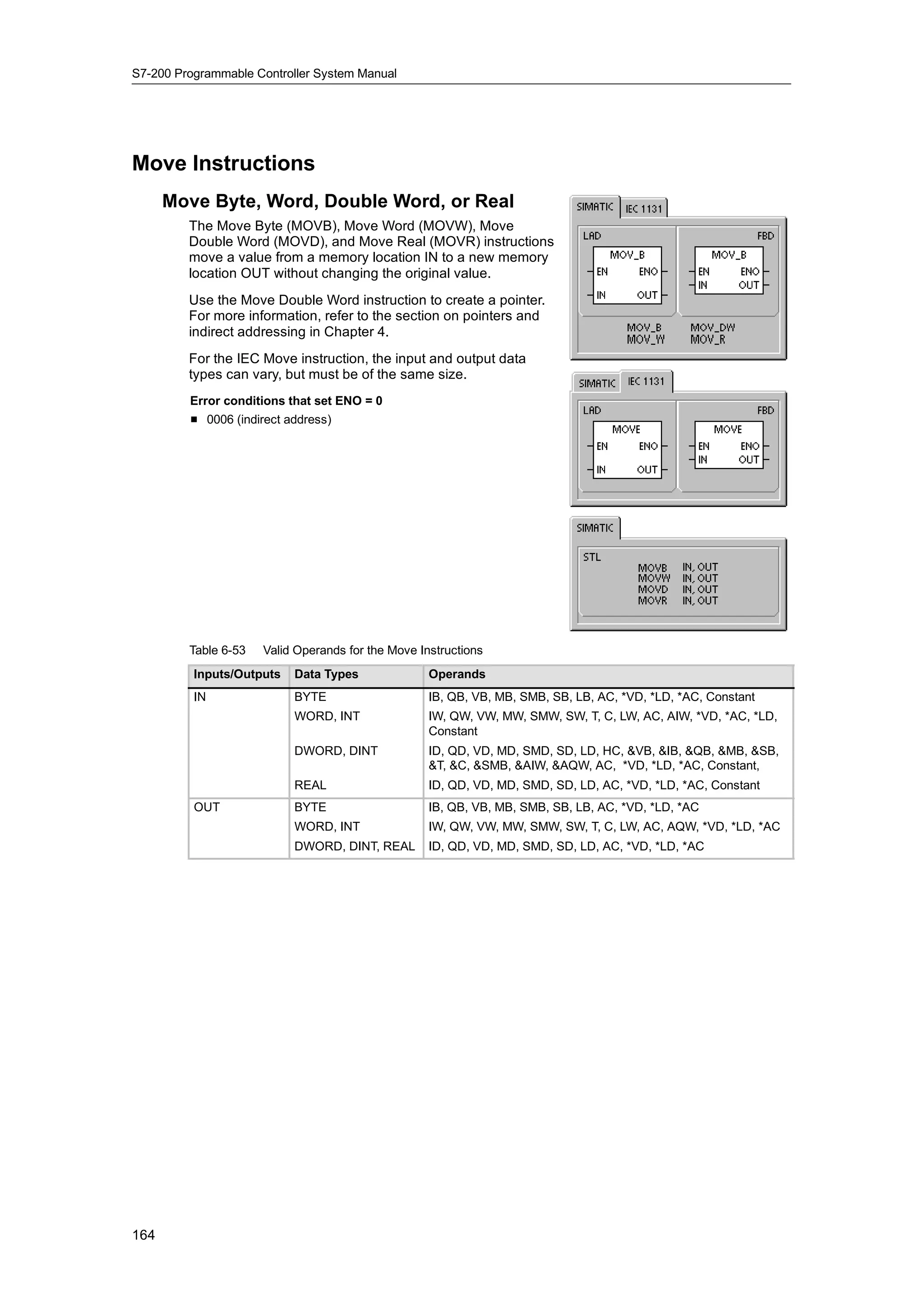
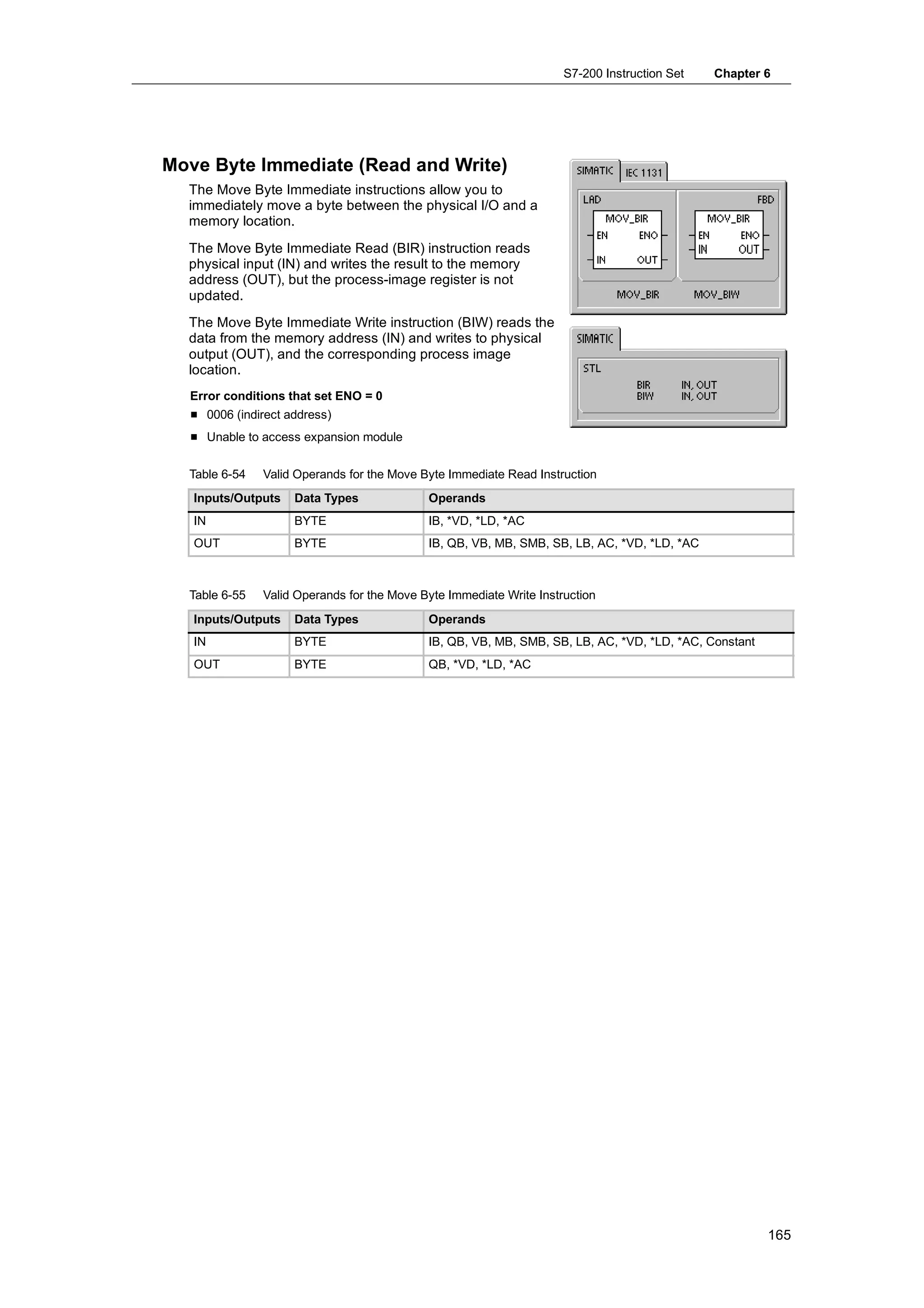
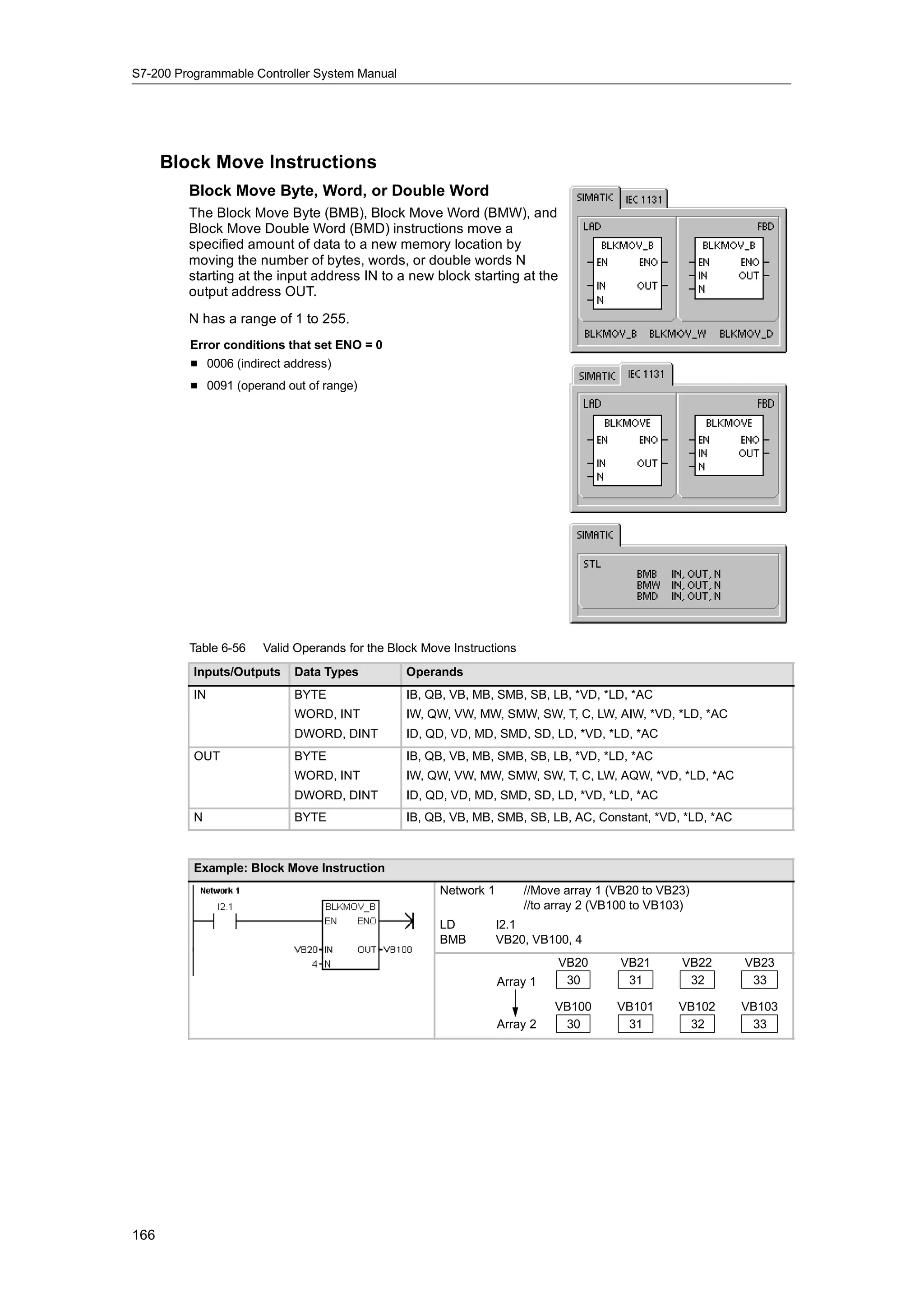
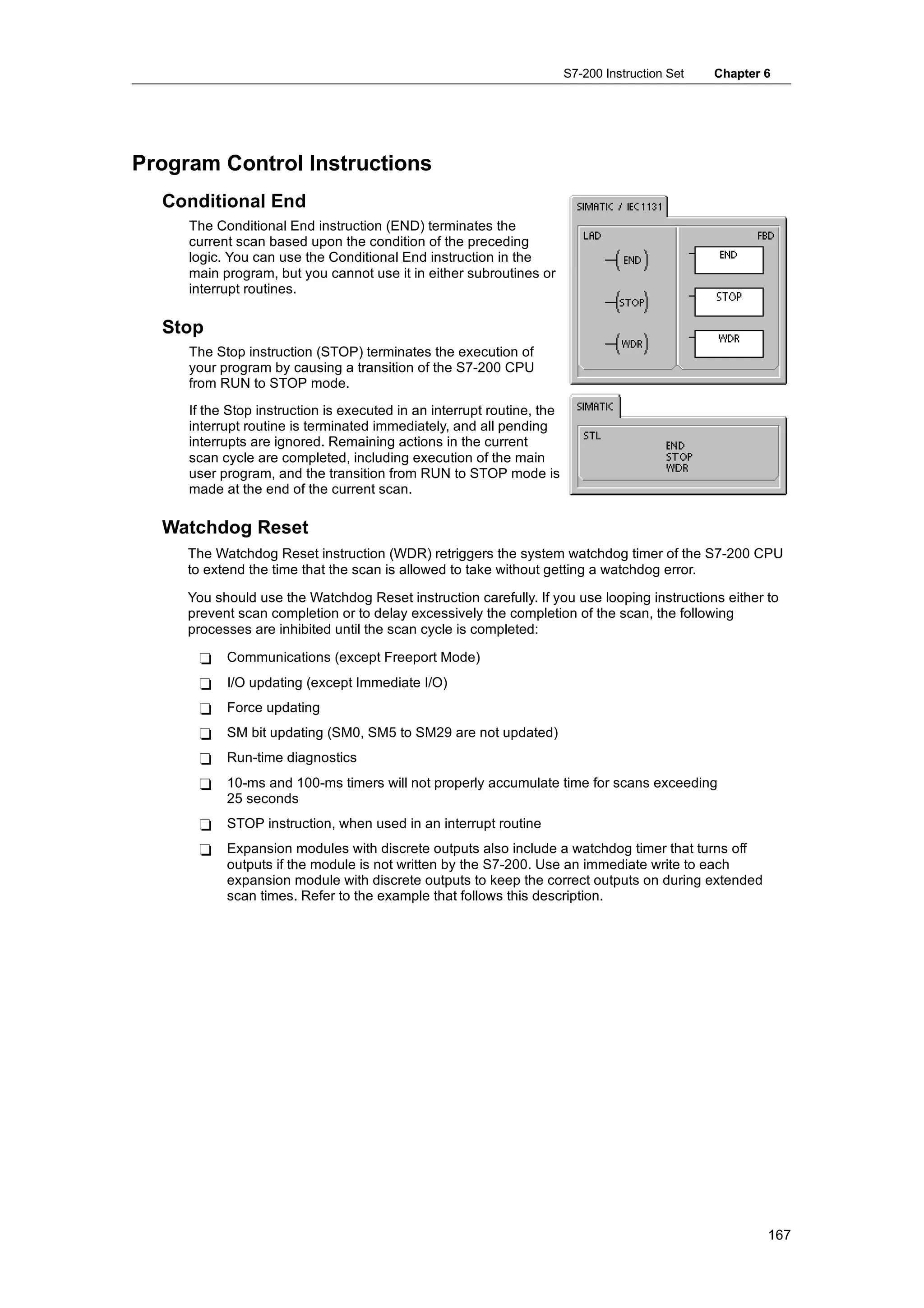
Preface, Contents

                                    Product Overview                    1
                                    Getting Started                     2
SIMATIC                             Installing the S7-200               3
                                    PLC Concepts                        4
S7-200
                                    Programming Concepts,
Programmable Controller             Conventions and Features            5
System Manual                       S7-200 Instruction Set              6
                                    Communicating over a Network        7
                                    Hardware Troubleshooting Guide
                                    and Software Debugging Tools        8
                                    Open Loop Motion Control with       9
                                    the S7-200
                                    Creating a Program for the          10
                                    Modem Module
                                    Using the USS Protocol Library to   11
                                    Control a MicroMaster Drive
                                    Using the Modbus Protocol           12
                                    Library
                                    Using Recipes                       13
                                    Using Data Logs                     14
                                    PID Auto-Tune and the PID
                                    Tuning Control Panel                15
                                    Appendices


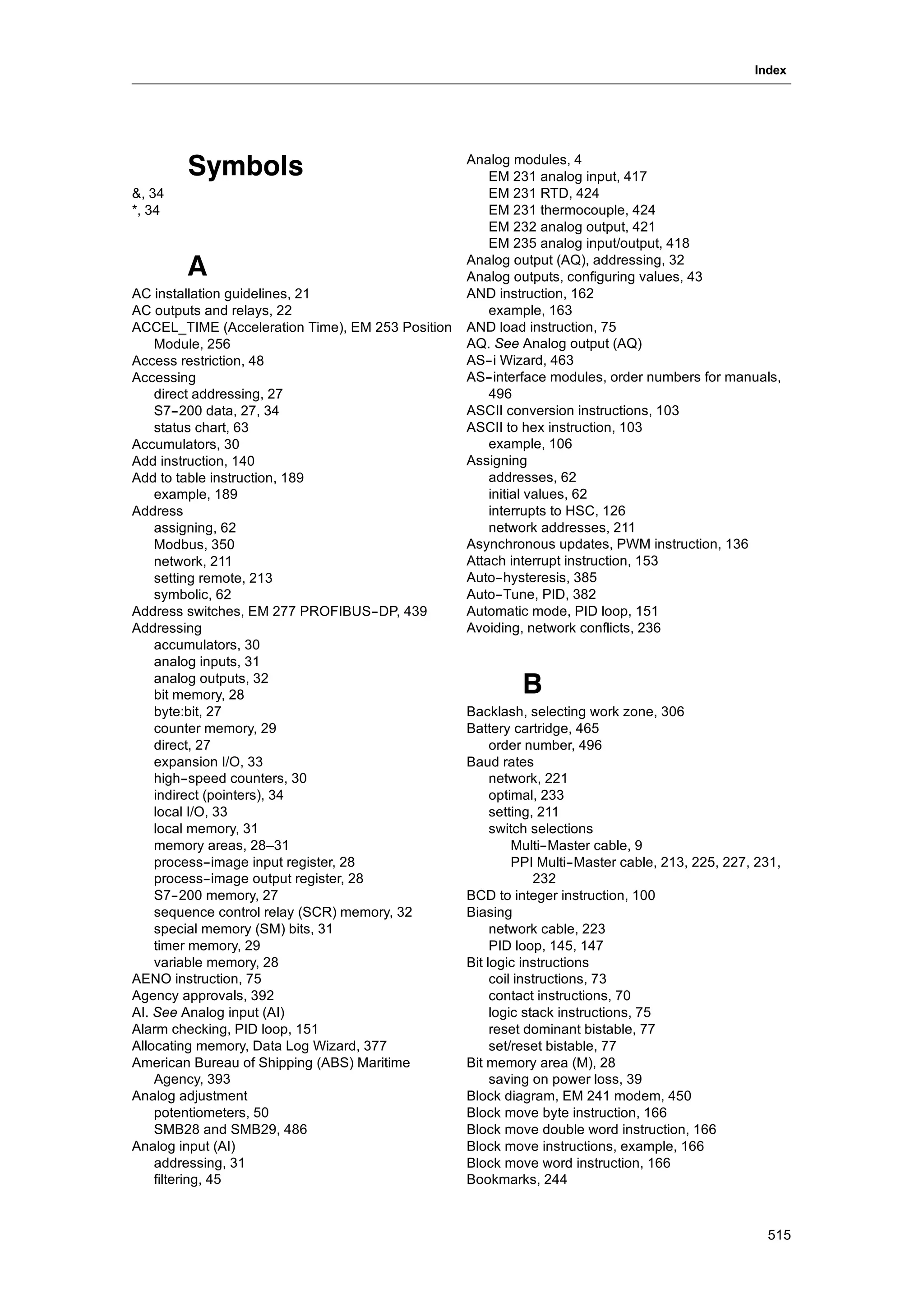
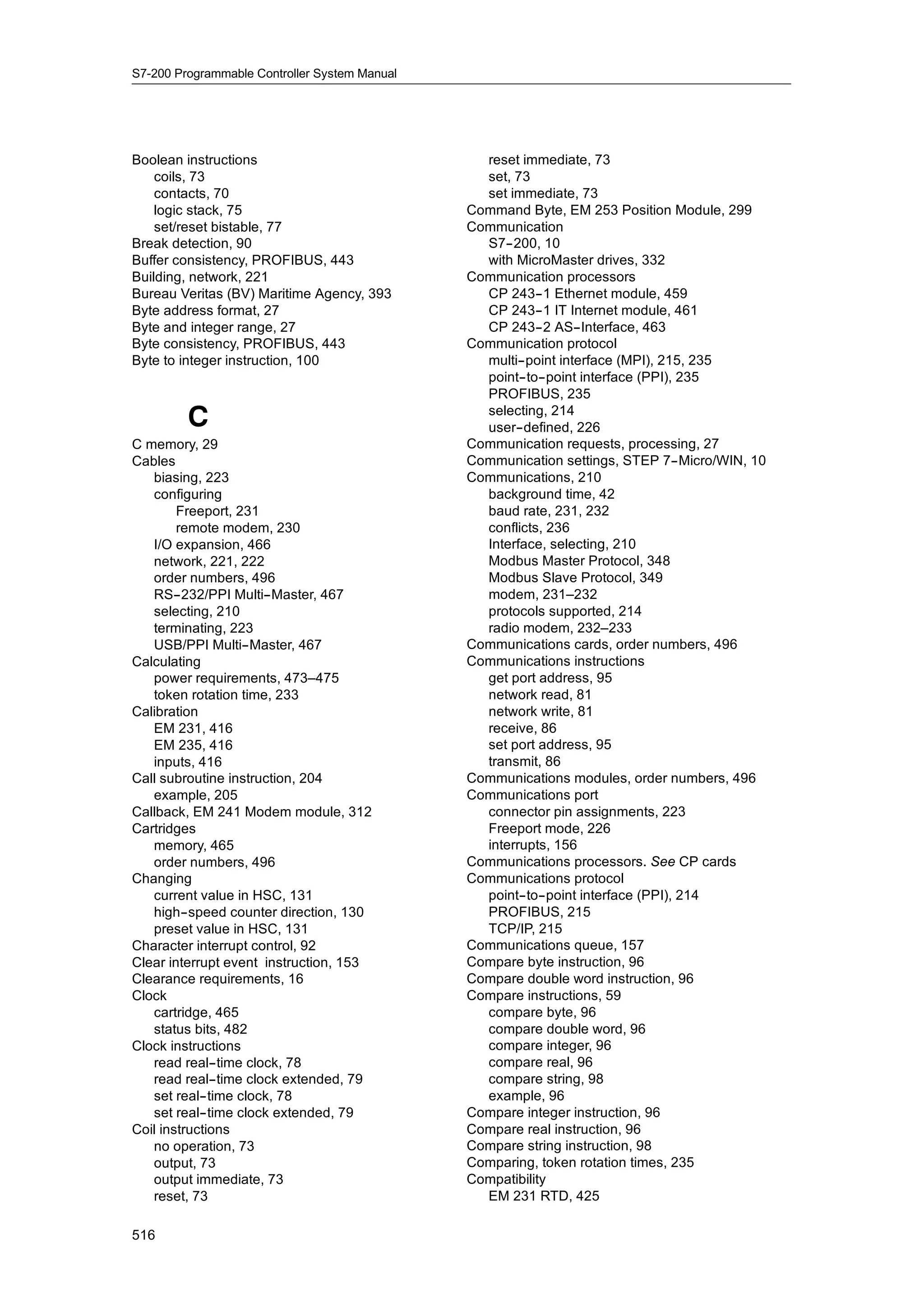
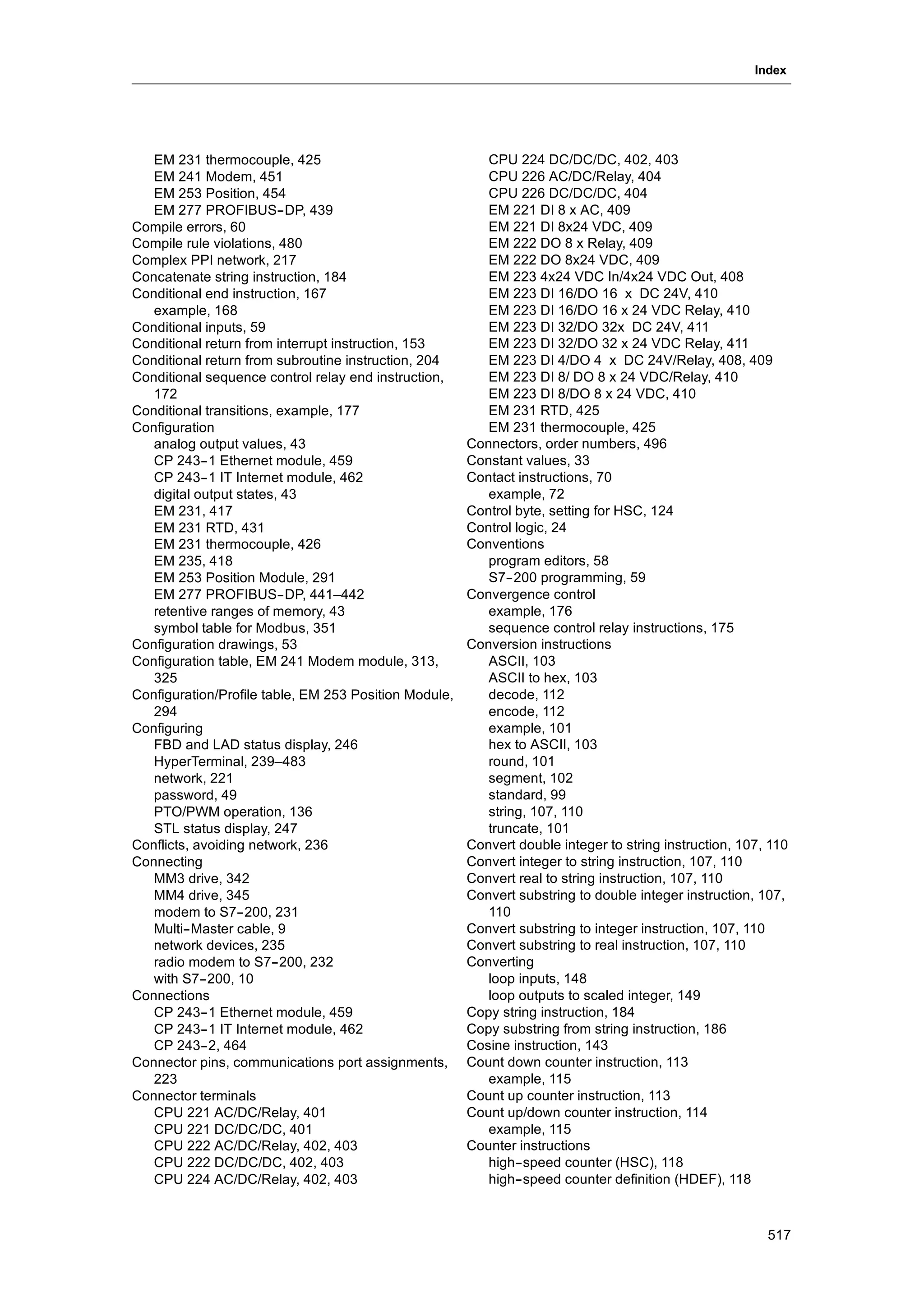
                                    Index
This manual has the order number:
6ES7298-8FA24- 8BH0
                 -


Edition 08/2008
A5E00307987- 04
           -
Safety Guidelines
                      This manual contains notices which you should observe to ensure your own personal safety, as
                      well as to protect the product and connected equipment. These notices are highlighted in the
                      manual by a warning triangle and are marked as follows according to the level of danger:
                        Danger
                        Danger indicates an imminently hazardous situation which, if not avoided, will result in death or
                        serious injury.

                        Warning
                        Warning indicates a potentially hazardous situation which, if not avoided, could result in death or
                        serious injury.

                        Caution
                        Caution used with the safety alert symbol indicates a potentially hazardous situation which, if not
                        avoided, may result in minor or moderate injury.

                        Caution
                        Caution used without the safety alert symbol indicates a potentially hazardous situation which, if
                        not avoided, may result in property damage.

                        Notice
                        Notice indicates a potential situation which, if not avoided, may result in an undesirable result or
                        state.


         Qualified Personnel
                      Only qualified personnel should be allowed to install and work on this equipment. Qualified
                      persons are defined as persons who are authorized to commission, to ground, and to tag circuits,
                      equipment, and systems in accordance with established safety practices and standards.
         Correct Usage
                      Note the following:
                        Warning
                        This device and its components may only be used for the applications described in the catalog
                        or the technical descriptions, and only in connection with devices or components from other
                        manufacturers which have been approved or recommended by Siemens.
                        This product can only function correctly and safely if it is transported, stored, set up, and
                        installed correctly, and operated and maintained as recommended.


         Trademarks
                      SIMATICR, SIMATIC HMIR and SIMATIC NETR are registered trademarks of SIEMENS AG.
                      Some of other designations used in these documents are also registered trademarks; the owner’s rights may be
                      violated if they are used by third parties for their own purposes.


Copyright Siemens AG 2008 All rights reserved                                             Disclaimer of Liability
The reproduction, transmission or use of this document or its contents is not             We have checked the contents of this manual for agreement with the hardware and
permitted without express written authority. Offenders will be liable for damages.        software described. Since deviations cannot be precluded entirely, we cannot
All rights, including rights created by patent grant or registration of a utility model   guarantee full agreement. However, the data in this manual are reviewed regularly
or design, are reserved.                                                                  and any necessary corrections included in subsequent editions. Suggestions for
                                                                                          improvement are welcomed.

Siemens AG
Bereich Automation and Drives
Geschaeftsgebiet Industrial Automation Systems                                            E Siemens AG 2008
Postfach 4848, D- 90327 Nuernberg                                                         Technical data subject to change.
         ii
Siemens Aktiengesellschaft                                                                6ES7298-8FA24-8BH0
Preface

 Purpose of the manual
    The S7-200 series is a line of micro-programmable logic controllers (Micro PLCs) that can control
    a variety of automation applications. Compact design, low cost, and a powerful instruction set
    make the S7-200 a perfect solution for controlling small applications. The wide variety of S7-200
    models and the Windows-based programming tool give you the flexibility you need to solve your
    automation problems.

    This manual provides information about installing and programming the S7-200 Micro PLCs and
    is designed for engineers, programmers, installers, and electricians who have a general
    knowledge of programmable logic controllers.

 Required Basic Knowledge
    To understand this manual, it is necessary to have a general knowledge of automation and
    programmable logic controllers.

 Scope of the Manual
    This manual is valid for STEP 7--Micro/WIN, version 4.0 and the S7-200 CPU product family. For
    a complete list of the S7-200 products and order numbers described in this manual, see
    Appendix A.

 Changes compared to the previous version
    This manual has been revised to include two new analog expansion modules and one additional
    appendix.

     -    EM 231 Analog Input RTD, 4 Inputs
     -    EM 231 Analog Input Thermocouple 8 Inputs
     -    Appendix H, S7-200CN Products

 Certification
    The SIMATIC S7-200 products have the following certification:

     -    Underwriters Laboratories, Inc. UL 508 Listed (Industrial Control Equipment),
          Registration number E75310
     -    Canadian Standards Association: CSA C22.2 Number 142 (Process Control Equipment)
     -    Factory Mutual Research: Class Number 3600, Class Number 3611, FM Class I, Division 2,
          Groups A, B, C, & D Hazardous Locations, T4A and Class I, Zone 2, IIC, T4

     Tip
     The SIMATIC S7-200 series meets the CSA standard.
     The cULus logo indicates that the S7-200 has been examined and certified by Underwriters
     Laboratories (UL) to standards UL 508 and CSA 22.2 No. 142.


                                                                                                    iii
S7-200 Programmable Controller System Manual


     CE Labeling
           Refer to the General Technical Specifications in Appendix A for more information.

     C-Tick
           The SIMATIC S7-200 products are compliant with requirements of the AS/NZS 2064 (Australian)
           standard.

     Standards:
           The SIMATIC S7-200 products fulfill the requirement and criteria of IEC 61131--2, Programmable
           controllers -- Equipment requirements.

           Refer to Appendix A for additional compliance information.

     Place of this Documentation in the Information Environment
 Product
  Family                               Documentation                                       Order Number

 S7-200     S7-200 Point-to-Point Interface Communication Manual (English/German)   6ES7 298-
                                                                                            -8GA00-
                                                                                                  -8XH0
            SIMATIC Text Display User Manual (included on the STEP 7-
                                                                    -Micro/WIN      none
            documentation CD)
            HMI device OP 73micro, TP 177micro (WinCC Flexible) Operating           6AV6 691-
                                                                                            -1DF01-
                                                                                                  -0AB0
            Instructions (English)
            SIMATIC HMI WinCC flexible 2005 Micro User’s Manual (English)           6AV6 691-
                                                                                            -1AA01-
                                                                                                  -0AB0
            SIMATIC NET CP 243- AS-Interface Master Manual (English)
                              -2                                                    6GK7 243-
                                                                                            -2AX00-
                                                                                                  -8BA0
            SIMATIC NET CP 243- Communications processor of Industrial Ethernet
                                 -1                                                 J31069-
                                                                                          -D0428-
                                                                                                -U001-
                                                                                                     -A2-
                                                                                                        -7618
            Technical Manual (English)
            SIMATIC NET CP 243- IT Communications Processor of Industrial
                                  -1                                                J31069-
                                                                                          -D0429-
                                                                                                -U001-
                                                                                                     -A2-
                                                                                                        -7618
            Ethernet and Information Technology Technical Manual (English)
            SIMATIC NET S7Beans / Applets for IT-
                                                -CPs Programming Tips (English)     C79000-
                                                                                          -G8976-
                                                                                                -C180-
                                                                                                     -02
            SIMATIC NET GPRS/GSM-
                                -Modem SINAUT MD720- System manual
                                                   -3                               C79000-
                                                                                          -G8976-
                                                                                                -C211
            (English)
            SIMATIC NET SINAUT MICRO SC System manual (English)                     C79000-
                                                                                          -G8900-
                                                                                                -C210
            SIWAREX MS Device Manual (English) (included with device)               none
            S7-200 Programmable Controller System Manual (English)                  6ES7 298-
                                                                                            -8FA24-
                                                                                                  -8BH0


iv
Preface


Finding Your Way
  If you are a first-time user of S7-200 Micro PLCs, you should read the entire S7-200
  Programmable Controller System Manual. If you are an experienced user, refer to the table of
  contents or index to find specific information.

  The S7-200 Programmable Controller System Manual is organized according to the following
  topics:

   -    Chapter 1 (Product Overview) provides an overview of some of the features of the S7-200
        family of Micro PLC products.
   -    Chapter 2 (Getting Started) provides a tutorial for creating and downloading a sample
        control program to an S7-200.
   -    Chapter 3 (Installing the S7-200) provides the dimensions and basic guidelines for installing
        the S7-200 CPU modules and expansion I/O modules.
   -    Chapter 4 (PLC Concepts) provides information about the operation of the S7-200.
   -    Chapter 5 (Programming Concepts, Conventions, and Features) provides information about
        the features of STEP 7--Micro/WIN, the program editors and types of instructions
        (IEC 1131-3 or SIMATIC), S7-200 data types, and guidelines for creating programs.
   -    Chapter 6 (S7-200 Instruction Set) provides descriptions and examples of programming
        instructions supported by the S7-200.
   -    Chapter 7 (Communicating over a Network) provides information for setting up the different
        network configurations supported by the S7-200.
   -    Chapter 8 (Hardware Troubleshooting Guide and Software Debugging Tools) provides
        information for troubleshooting problems with the S7-200 hardware and about the
        STEP 7--Micro/WIN features that help you debug your program.
   -    Chapter 9 (Open Loop Motion Control with the S7-200) provides information about three
        methods of open loop motion control: Pulse Width Modulation, Pulse Train Output, and the
        EM 253 Position Control Module.
   -    Chapter 10 (Creating a Program for the Modem Module) provides information about the
        instructions and wizard used to create a program for the EM 241 Modem module.
   -    Chapter 11 (Using the USS Protocol Library to Control a MicroMaster Drive) provides
        information about the instructions used to create a control program for a MicroMaster drive.
        It also provides information about how to configure the MicroMaster 3 and MicroMaster 4
        drives.
   -    Chapter 12 (Using the Modbus Protocol Library) provides information about the instructions
        used to create a program that uses the Modbus protocol for communications.
   -    Chapter 13 (Using Recipes) provides information about organizing and loading automation
        program recipes in the memory cartridge.
   -    Chapter 14 (Using Data Logs) provides information about storing process measurement
        data in the memory cartridge.
   -    Chapter 15 (PID Auto-Tune and the PID Tuning Control Panel) provides information about
        using these features to greatly enhance the utility and ease of use of the PID function
        provided by the S7-200.
   -    Appendix A (Technical Specifications) provides the technical information and data sheets
        about the S7-200 hardware.
  The other appendices provide additional reference information, such as descriptions of the error
  codes, descriptions of the Special Memory (SM) area, part numbers for ordering S7-200
  equipment, STL instruction execution times, and S7-200CN product information.

  In addition to this manual, STEP 7--Micro/WIN provides extensive online help for getting started
  with programming the S7-200. Included with the purchase of the STEP 7--Micro/WIN software is a
  free documentation CD. On this CD you can find application tips, an electronic version of this
  manual and other information.


                                                                                                     v
S7-200 Programmable Controller System Manual


         Online Help
         Help is only a keystroke away! Pressing F1 accesses the extensive online help for
         STEP 7--Micro/WIN. The online help includes useful information about getting started with
         programming the S7-200, as well as many other topics.

         Electronic Manual
         An electronic version of this S7-200 System Manual is available on the documentation CD. You
         can install the electronic manual onto your computer so that you can easily access the information
         in the manual while you are working with the STEP 7--Micro/WIN software.

         Programming Tips
         The documentation CD includes Programming Tips, a set of application examples with sample
         programs. Reviewing or modifying these examples can help you find efficient or innovative
         solutions for your own application. You can also find the most current version of Programming Tips
         on the S7-200 Internet site.

     Recycling and Disposal
         Please contact a company certified in the disposal of electronic scrap for environmentally safe
         recycling and disposal of your device.

     Additional Support
         Local Siemens Sales Office or Distributor
         For assistance in answering any technical questions, for training on the S7-200 products, or for
         ordering S7-200 products, contact your Siemens distributor or sales office. Because your sales
         representatives are technically trained and have the most specific knowledge about your
         operations, process and industry, as well as about the individual Siemens products that you are
         using, they can provide the fastest and most efficient answers to any problems that you might
         encounter.

     Service & Support on the Internet
         In addition to our documentation, we offer our Know-how online on the Internet at:

         http://www.siemens.com/automation/service&support

         where you will find the following:

           -   www.siemens.com/S7--200 for S7-200 product information
               The S7-200 Internet site includes frequently asked questions (FAQs), Programming Tips
               (application examples and sample programs), information about newly released products,
               and product updates or downloads.
           -   The newsletter, which constantly provides you with up-to-date information on your products.
           -   The right documents via our Search function in Service & Support.
           -   A forum, where users and experts from all over the world exchange their experiences.
           -   Your local representative for Automation & Drives.
           -   Information on field service, repairs, spare parts and more under “Services”.

     Technical Services
         The highly trained staff of the S7-200 Technical Services center is also available to help you solve
         any problems that you might encounter. You can call on them 24 hours a day, 7 days a week.


vi
Preface


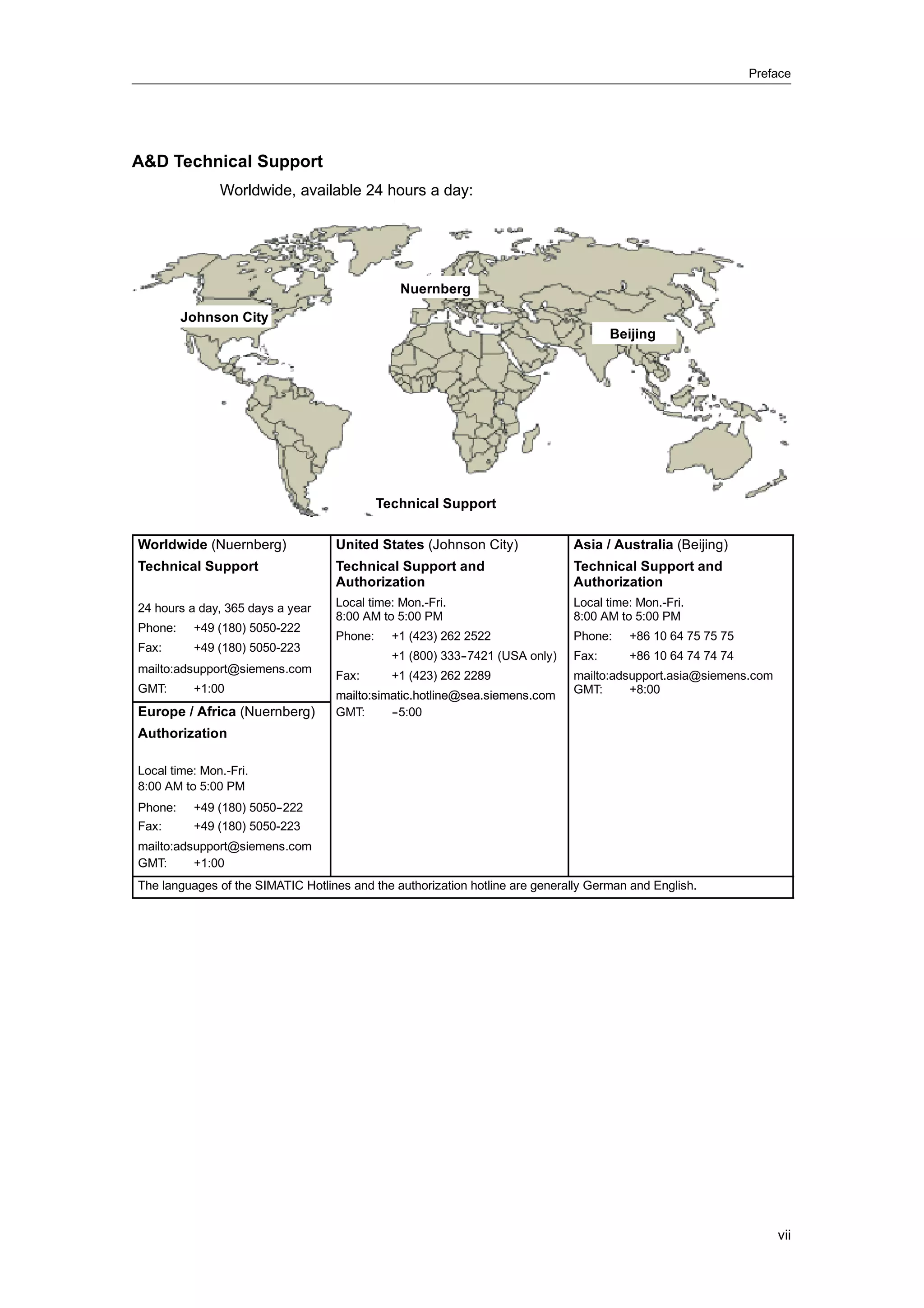
A&D Technical Support
               Worldwide, available 24 hours a day:


                                               Nuernberg

         Johnson City
                                                                                     Beijing


                                            Technical Support

Worldwide (Nuernberg)              United States (Johnson City)               Asia / Australia (Beijing)
Technical Support                  Technical Support and                      Technical Support and
                                   Authorization                              Authorization
24 hours a day, 365 days a year    Local time: Mon.-Fri.                      Local time: Mon.-Fri.
                                   8:00 AM to 5:00 PM                         8:00 AM to 5:00 PM
Phone:    +49 (180) 5050-222
                                   Phone:     +1 (423) 262 2522               Phone:    +86 10 64 75 75 75
Fax:      +49 (180) 5050-223
                                              +1 (800) 333-
                                                          -7421 (USA only)    Fax:      +86 10 64 74 74 74
mailto:adsupport@siemens.com
                                   Fax:       +1 (423) 262 2289               mailto:adsupport.asia@siemens.com
GMT:      +1:00                                                               GMT:      +8:00
                                   mailto:simatic.hotline@sea.siemens.com
Europe / Africa (Nuernberg)        GMT:      -
                                             -5:00
Authorization

Local time: Mon.-Fri.
8:00 AM to 5:00 PM
Phone:    +49 (180) 5050-
                        -222
Fax:      +49 (180) 5050-223
mailto:adsupport@siemens.com
GMT:      +1:00
The languages of the SIMATIC Hotlines and the authorization hotline are generally German and English.


                                                                                                                  vii
S7-200 Programmable Controller System Manual


viii
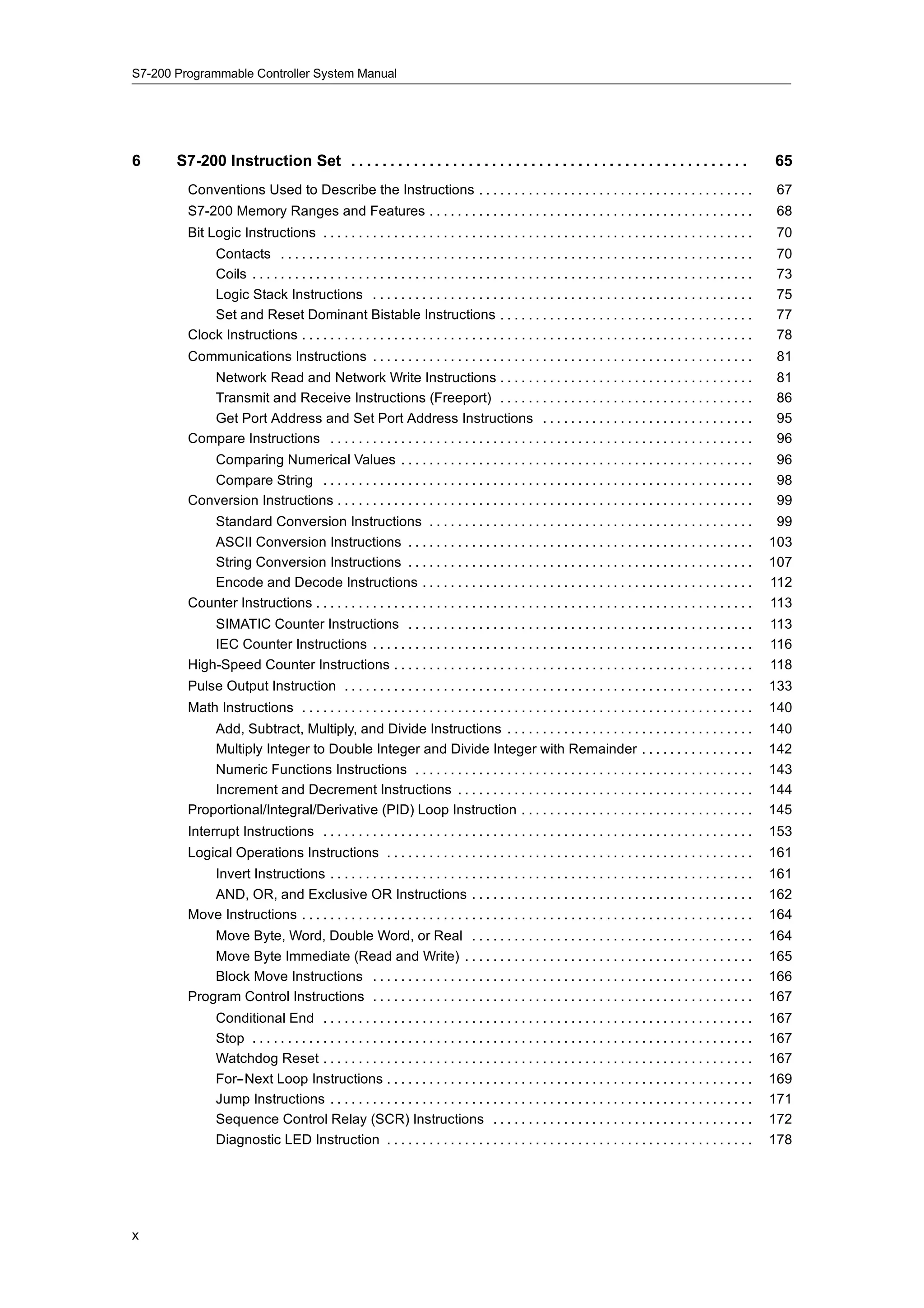
Contents
1   Product Overview . . . . . . . . . . . . . . . . . . . . . . . . . . . . . . . . . . . . . . . . . . . . . . . . . . . . . . .                          1
      What’s New? . . . . . . . . . . . . . . . . . . . . . . . . . . . . . . . . . . . . . . . . . . . . . . . . . . . . . . . . . . . . . . . . . . . .    2
      S7-200 CPU . . . . . . . . . . . . . . . . . . . . . . . . . . . . . . . . . . . . . . . . . . . . . . . . . . . . . . . . . . . . . . . . . . . .     2
      S7-200 Expansion Modules . . . . . . . . . . . . . . . . . . . . . . . . . . . . . . . . . . . . . . . . . . . . . . . . . . . . . . .                 4
      STEP 7--Micro/WIN Programming Package . . . . . . . . . . . . . . . . . . . . . . . . . . . . . . . . . . . . . . . . . .                              5
      Communications Options . . . . . . . . . . . . . . . . . . . . . . . . . . . . . . . . . . . . . . . . . . . . . . . . . . . . . . . . .               5
      Display Panels . . . . . . . . . . . . . . . . . . . . . . . . . . . . . . . . . . . . . . . . . . . . . . . . . . . . . . . . . . . . . . . . . .     6

2   Getting Started . . . . . . . . . . . . . . . . . . . . . . . . . . . . . . . . . . . . . . . . . . . . . . . . . . . . . . . . . .                     7
      Connecting the S7-200 CPU . . . . . . . . . . . . . . . . . . . . . . . . . . . . . . . . . . . . . . . . . . . . . . . . . . . . . .                  8
      Creating a Sample Program . . . . . . . . . . . . . . . . . . . . . . . . . . . . . . . . . . . . . . . . . . . . . . . . . . . . . . .               10
      Downloading the Sample Program . . . . . . . . . . . . . . . . . . . . . . . . . . . . . . . . . . . . . . . . . . . . . . . . .                      14
      Placing the S7-200 in RUN Mode . . . . . . . . . . . . . . . . . . . . . . . . . . . . . . . . . . . . . . . . . . . . . . . . . .                    14

3   Installing the S7-200 . . . . . . . . . . . . . . . . . . . . . . . . . . . . . . . . . . . . . . . . . . . . . . . . . . . . .                         15
      Guidelines for Installing S7-200 Devices . . . . . . . . . . . . . . . . . . . . . . . . . . . . . . . . . . . . . . . . . . . .                      16
      Installing and Removing the S7-200 Modules . . . . . . . . . . . . . . . . . . . . . . . . . . . . . . . . . . . . . . . .                            17
      Guidelines for Grounding and Wiring . . . . . . . . . . . . . . . . . . . . . . . . . . . . . . . . . . . . . . . . . . . . . . .                     20

4   PLC Concepts . . . . . . . . . . . . . . . . . . . . . . . . . . . . . . . . . . . . . . . . . . . . . . . . . . . . . . . . . . .                      23
      Understanding How the S7-200 Executes Your Control Logic . . . . . . . . . . . . . . . . . . . . . . . . . .                                          24
      Accessing the Data of the S7-200 . . . . . . . . . . . . . . . . . . . . . . . . . . . . . . . . . . . . . . . . . . . . . . . . . .                  27
      Understanding How the S7-200 Saves and Restores Data . . . . . . . . . . . . . . . . . . . . . . . . . . . . .                                        36
      Selecting the Operating Mode for the S7-200 CPU . . . . . . . . . . . . . . . . . . . . . . . . . . . . . . . . . . . .                               40
      Using the S7-200 Explorer . . . . . . . . . . . . . . . . . . . . . . . . . . . . . . . . . . . . . . . . . . . . . . . . . . . . . . . .             41
      Features of the S7-200 . . . . . . . . . . . . . . . . . . . . . . . . . . . . . . . . . . . . . . . . . . . . . . . . . . . . . . . . . . .          41

5   Programming Concepts, Conventions, and Features . . . . . . . . . . . . . . . . . . . . . . .                                                           51
      Guidelines for Designing a Micro PLC System . . . . . . . . . . . . . . . . . . . . . . . . . . . . . . . . . . . . . . .                             52
      Basic Elements of a Program . . . . . . . . . . . . . . . . . . . . . . . . . . . . . . . . . . . . . . . . . . . . . . . . . . . . . .               53
      Using STEP 7--Micro/WIN to Create Your Programs . . . . . . . . . . . . . . . . . . . . . . . . . . . . . . . . . .                                   55
      Choosing Between the SIMATIC and IEC 1131--3 Instruction Sets . . . . . . . . . . . . . . . . . . . . . .                                             57
      Understanding the Conventions Used by the Program Editors . . . . . . . . . . . . . . . . . . . . . . . . . .                                         58
      Using Wizards To Help You Create Your Control Program . . . . . . . . . . . . . . . . . . . . . . . . . . . . . .                                     60
      Handling Errors in the S7-200 . . . . . . . . . . . . . . . . . . . . . . . . . . . . . . . . . . . . . . . . . . . . . . . . . . . . .               60
      Assigning Addresses and Initial Values in the Data Block Editor . . . . . . . . . . . . . . . . . . . . . . . .                                       62
      Using the Symbol Table for Symbolic Addressing of Variables . . . . . . . . . . . . . . . . . . . . . . . . . .                                       62
      Using Local Variables . . . . . . . . . . . . . . . . . . . . . . . . . . . . . . . . . . . . . . . . . . . . . . . . . . . . . . . . . . . .         63
      Using the Status Chart to Monitor Your Program . . . . . . . . . . . . . . . . . . . . . . . . . . . . . . . . . . . . . .                            63
      Creating an Instruction Library . . . . . . . . . . . . . . . . . . . . . . . . . . . . . . . . . . . . . . . . . . . . . . . . . . . . .             64
      Features for Debugging Your Program . . . . . . . . . . . . . . . . . . . . . . . . . . . . . . . . . . . . . . . . . . . . . .                       64


                                                                                                                                                            ix
S7-200 Programmable Controller System Manual


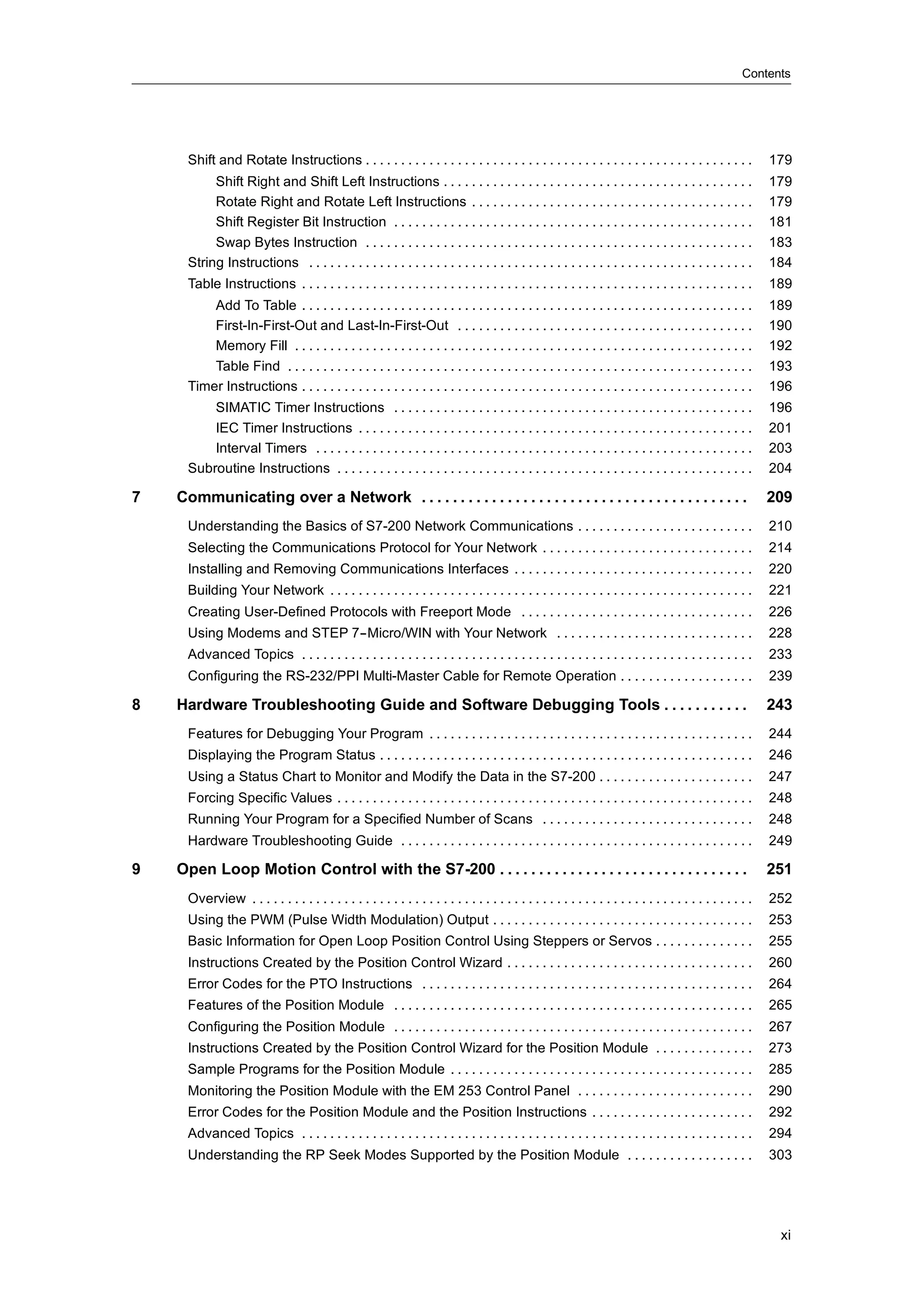
6      S7-200 Instruction Set . . . . . . . . . . . . . . . . . . . . . . . . . . . . . . . . . . . . . . . . . . . . . . . . . . .                                  65
         Conventions Used to Describe the Instructions . . . . . . . . . . . . . . . . . . . . . . . . . . . . . . . . . . . . . . .                                  67
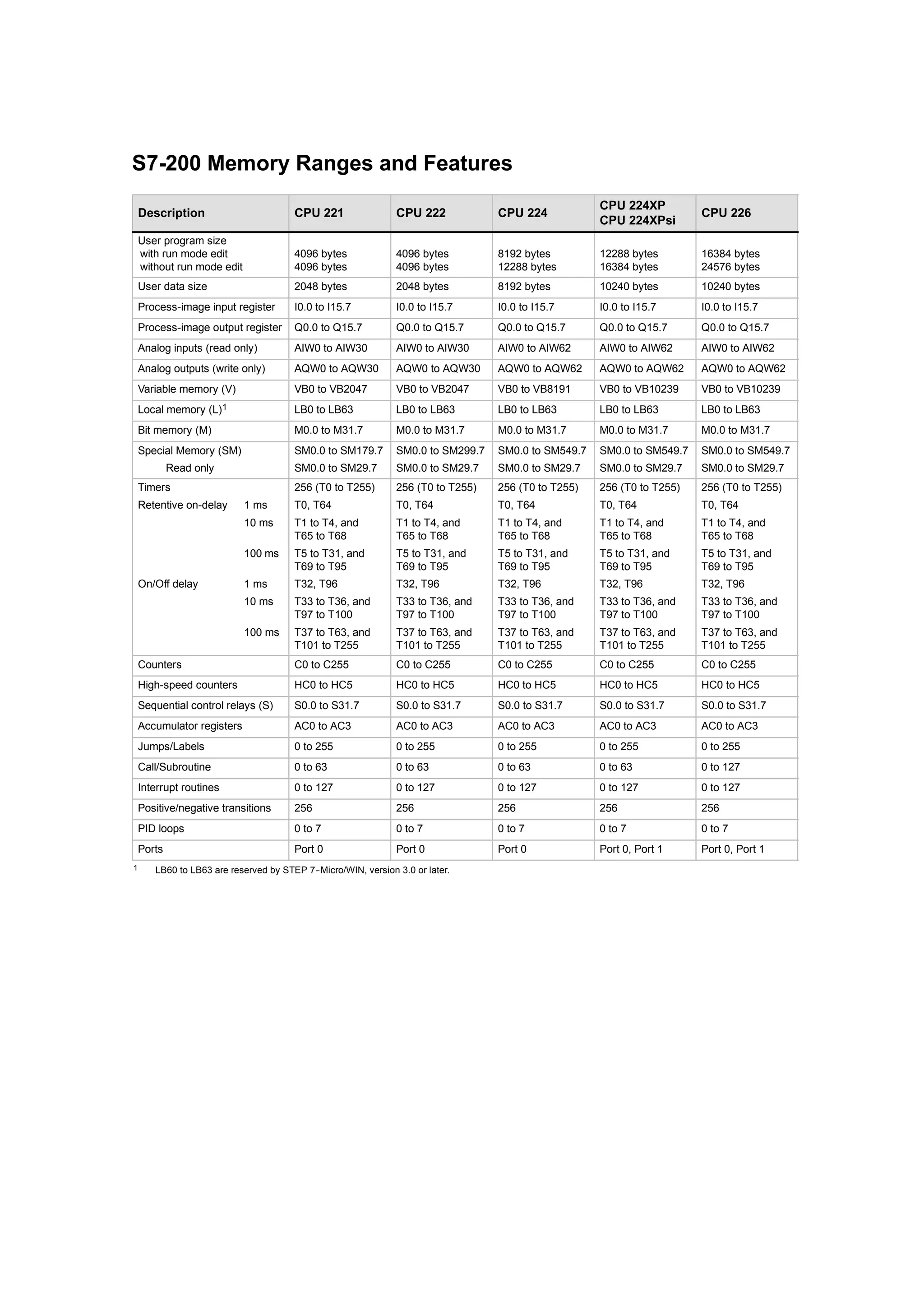
         S7-200 Memory Ranges and Features . . . . . . . . . . . . . . . . . . . . . . . . . . . . . . . . . . . . . . . . . . . . . .                                68
         Bit Logic Instructions . . . . . . . . . . . . . . . . . . . . . . . . . . . . . . . . . . . . . . . . . . . . . . . . . . . . . . . . . . . . .             70
             Contacts . . . . . . . . . . . . . . . . . . . . . . . . . . . . . . . . . . . . . . . . . . . . . . . . . . . . . . . . . . . . . . . . . . .           70
             Coils . . . . . . . . . . . . . . . . . . . . . . . . . . . . . . . . . . . . . . . . . . . . . . . . . . . . . . . . . . . . . . . . . . . . . . .      73
             Logic Stack Instructions . . . . . . . . . . . . . . . . . . . . . . . . . . . . . . . . . . . . . . . . . . . . . . . . . . . . . .                     75
             Set and Reset Dominant Bistable Instructions . . . . . . . . . . . . . . . . . . . . . . . . . . . . . . . . . . . .                                     77
         Clock Instructions . . . . . . . . . . . . . . . . . . . . . . . . . . . . . . . . . . . . . . . . . . . . . . . . . . . . . . . . . . . . . . . .           78
         Communications Instructions . . . . . . . . . . . . . . . . . . . . . . . . . . . . . . . . . . . . . . . . . . . . . . . . . . . . . .                      81
            Network Read and Network Write Instructions . . . . . . . . . . . . . . . . . . . . . . . . . . . . . . . . . . . .                                       81
            Transmit and Receive Instructions (Freeport) . . . . . . . . . . . . . . . . . . . . . . . . . . . . . . . . . . . .                                      86
            Get Port Address and Set Port Address Instructions . . . . . . . . . . . . . . . . . . . . . . . . . . . . . .                                            95
         Compare Instructions . . . . . . . . . . . . . . . . . . . . . . . . . . . . . . . . . . . . . . . . . . . . . . . . . . . . . . . . . . . .                 96
            Comparing Numerical Values . . . . . . . . . . . . . . . . . . . . . . . . . . . . . . . . . . . . . . . . . . . . . . . . . .                            96
            Compare String . . . . . . . . . . . . . . . . . . . . . . . . . . . . . . . . . . . . . . . . . . . . . . . . . . . . . . . . . . . . .                  98
         Conversion Instructions . . . . . . . . . . . . . . . . . . . . . . . . . . . . . . . . . . . . . . . . . . . . . . . . . . . . . . . . . . .                99
            Standard Conversion Instructions . . . . . . . . . . . . . . . . . . . . . . . . . . . . . . . . . . . . . . . . . . . . . .                              99
            ASCII Conversion Instructions . . . . . . . . . . . . . . . . . . . . . . . . . . . . . . . . . . . . . . . . . . . . . . . . .                          103
            String Conversion Instructions . . . . . . . . . . . . . . . . . . . . . . . . . . . . . . . . . . . . . . . . . . . . . . . . .                         107
            Encode and Decode Instructions . . . . . . . . . . . . . . . . . . . . . . . . . . . . . . . . . . . . . . . . . . . . . . .                             112
         Counter Instructions . . . . . . . . . . . . . . . . . . . . . . . . . . . . . . . . . . . . . . . . . . . . . . . . . . . . . . . . . . . . . .            113
             SIMATIC Counter Instructions . . . . . . . . . . . . . . . . . . . . . . . . . . . . . . . . . . . . . . . . . . . . . . . . .                          113
             IEC Counter Instructions . . . . . . . . . . . . . . . . . . . . . . . . . . . . . . . . . . . . . . . . . . . . . . . . . . . . . .                    116
         High-Speed Counter Instructions . . . . . . . . . . . . . . . . . . . . . . . . . . . . . . . . . . . . . . . . . . . . . . . . . . .                       118
         Pulse Output Instruction . . . . . . . . . . . . . . . . . . . . . . . . . . . . . . . . . . . . . . . . . . . . . . . . . . . . . . . . . .                133
         Math Instructions . . . . . . . . . . . . . . . . . . . . . . . . . . . . . . . . . . . . . . . . . . . . . . . . . . . . . . . . . . . . . . . .           140
             Add, Subtract, Multiply, and Divide Instructions . . . . . . . . . . . . . . . . . . . . . . . . . . . . . . . . . . .                                  140
             Multiply Integer to Double Integer and Divide Integer with Remainder . . . . . . . . . . . . . . . .                                                    142
             Numeric Functions Instructions . . . . . . . . . . . . . . . . . . . . . . . . . . . . . . . . . . . . . . . . . . . . . . . .                          143
             Increment and Decrement Instructions . . . . . . . . . . . . . . . . . . . . . . . . . . . . . . . . . . . . . . . . . .                                144
         Proportional/Integral/Derivative (PID) Loop Instruction . . . . . . . . . . . . . . . . . . . . . . . . . . . . . . . . .                                   145
         Interrupt Instructions . . . . . . . . . . . . . . . . . . . . . . . . . . . . . . . . . . . . . . . . . . . . . . . . . . . . . . . . . . . . .            153
         Logical Operations Instructions . . . . . . . . . . . . . . . . . . . . . . . . . . . . . . . . . . . . . . . . . . . . . . . . . . . .                     161
            Invert Instructions . . . . . . . . . . . . . . . . . . . . . . . . . . . . . . . . . . . . . . . . . . . . . . . . . . . . . . . . . . . .              161
            AND, OR, and Exclusive OR Instructions . . . . . . . . . . . . . . . . . . . . . . . . . . . . . . . . . . . . . . . .                                   162
         Move Instructions . . . . . . . . . . . . . . . . . . . . . . . . . . . . . . . . . . . . . . . . . . . . . . . . . . . . . . . . . . . . . . . .           164
             Move Byte, Word, Double Word, or Real . . . . . . . . . . . . . . . . . . . . . . . . . . . . . . . . . . . . . . . .                                   164
             Move Byte Immediate (Read and Write) . . . . . . . . . . . . . . . . . . . . . . . . . . . . . . . . . . . . . . . . .                                  165
             Block Move Instructions . . . . . . . . . . . . . . . . . . . . . . . . . . . . . . . . . . . . . . . . . . . . . . . . . . . . . .                     166
         Program Control Instructions . . . . . . . . . . . . . . . . . . . . . . . . . . . . . . . . . . . . . . . . . . . . . . . . . . . . . .                    167
                Conditional End . . . . . . . . . . . . . . . . . . . . . . . . . . . . . . . . . . . . . . . . . . . . . . . . . . . . . . . . . . . . .            167
                Stop . . . . . . . . . . . . . . . . . . . . . . . . . . . . . . . . . . . . . . . . . . . . . . . . . . . . . . . . . . . . . . . . . . . . . . .   167
                Watchdog Reset . . . . . . . . . . . . . . . . . . . . . . . . . . . . . . . . . . . . . . . . . . . . . . . . . . . . . . . . . . . . .             167
                For--Next Loop Instructions . . . . . . . . . . . . . . . . . . . . . . . . . . . . . . . . . . . . . . . . . . . . . . . . . . . .                  169
                Jump Instructions . . . . . . . . . . . . . . . . . . . . . . . . . . . . . . . . . . . . . . . . . . . . . . . . . . . . . . . . . . . .            171
                Sequence Control Relay (SCR) Instructions . . . . . . . . . . . . . . . . . . . . . . . . . . . . . . . . . . . . .                                  172
                Diagnostic LED Instruction . . . . . . . . . . . . . . . . . . . . . . . . . . . . . . . . . . . . . . . . . . . . . . . . . . . .                   178


x
Contents


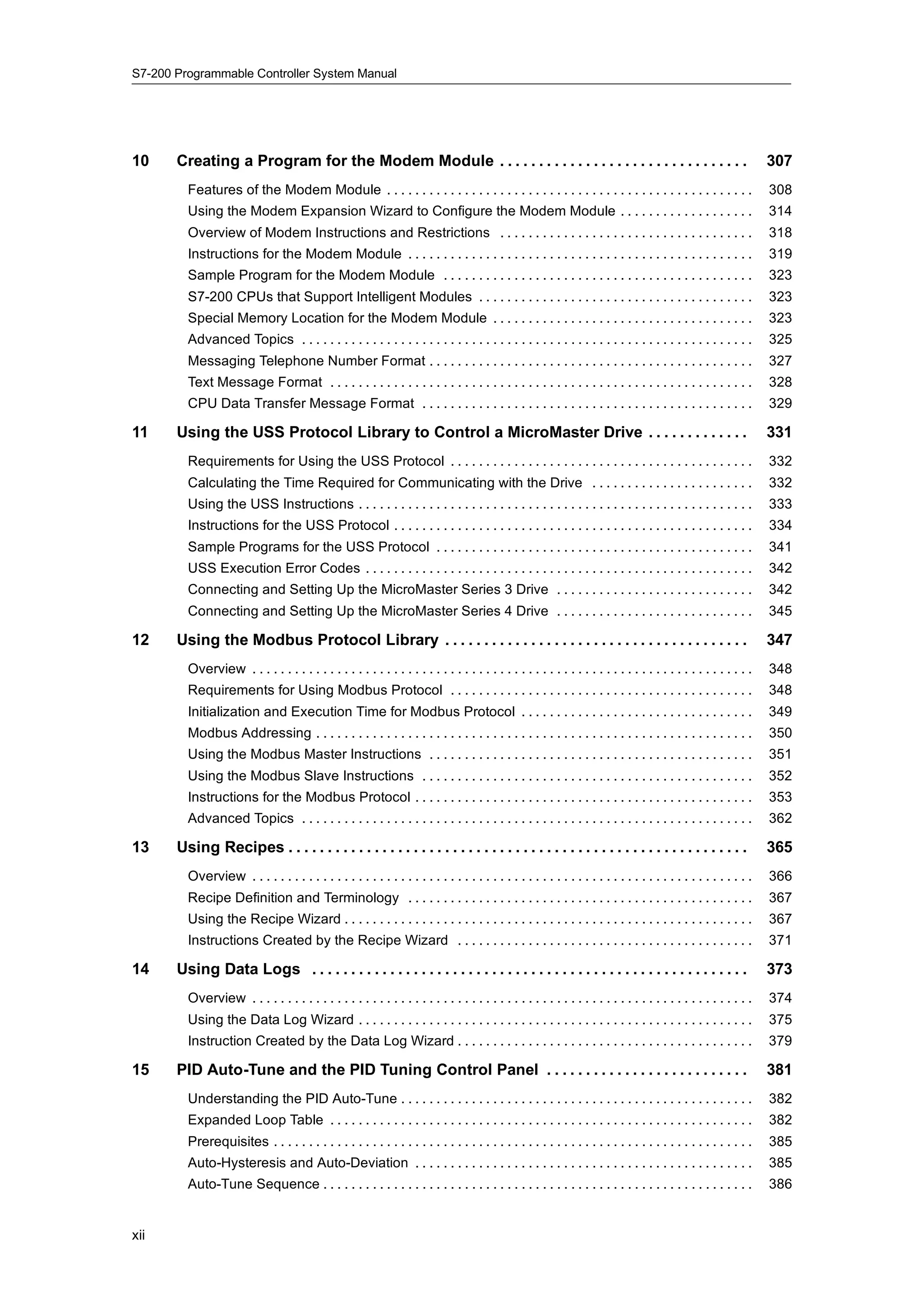
      Shift and Rotate Instructions . . . . . . . . . . . . . . . . . . . . . . . . . . . . . . . . . . . . . . . . . . . . . . . . . . . . . . .              179
           Shift Right and Shift Left Instructions . . . . . . . . . . . . . . . . . . . . . . . . . . . . . . . . . . . . . . . . . . . .                     179
           Rotate Right and Rotate Left Instructions . . . . . . . . . . . . . . . . . . . . . . . . . . . . . . . . . . . . . . . .                           179
           Shift Register Bit Instruction . . . . . . . . . . . . . . . . . . . . . . . . . . . . . . . . . . . . . . . . . . . . . . . . . . .                181
           Swap Bytes Instruction . . . . . . . . . . . . . . . . . . . . . . . . . . . . . . . . . . . . . . . . . . . . . . . . . . . . . . .                183
      String Instructions . . . . . . . . . . . . . . . . . . . . . . . . . . . . . . . . . . . . . . . . . . . . . . . . . . . . . . . . . . . . . . .        184
      Table Instructions . . . . . . . . . . . . . . . . . . . . . . . . . . . . . . . . . . . . . . . . . . . . . . . . . . . . . . . . . . . . . . . .       189
          Add To Table . . . . . . . . . . . . . . . . . . . . . . . . . . . . . . . . . . . . . . . . . . . . . . . . . . . . . . . . . . . . . . . .         189
          First-In-First-Out and Last-In-First-Out . . . . . . . . . . . . . . . . . . . . . . . . . . . . . . . . . . . . . . . . . .                         190
          Memory Fill . . . . . . . . . . . . . . . . . . . . . . . . . . . . . . . . . . . . . . . . . . . . . . . . . . . . . . . . . . . . . . . . .        192
          Table Find . . . . . . . . . . . . . . . . . . . . . . . . . . . . . . . . . . . . . . . . . . . . . . . . . . . . . . . . . . . . . . . . . .       193
      Timer Instructions . . . . . . . . . . . . . . . . . . . . . . . . . . . . . . . . . . . . . . . . . . . . . . . . . . . . . . . . . . . . . . . .       196
          SIMATIC Timer Instructions . . . . . . . . . . . . . . . . . . . . . . . . . . . . . . . . . . . . . . . . . . . . . . . . . . .                     196
          IEC Timer Instructions . . . . . . . . . . . . . . . . . . . . . . . . . . . . . . . . . . . . . . . . . . . . . . . . . . . . . . . .               201
          Interval Timers . . . . . . . . . . . . . . . . . . . . . . . . . . . . . . . . . . . . . . . . . . . . . . . . . . . . . . . . . . . . . .          203
      Subroutine Instructions . . . . . . . . . . . . . . . . . . . . . . . . . . . . . . . . . . . . . . . . . . . . . . . . . . . . . . . . . . .            204

7   Communicating over a Network . . . . . . . . . . . . . . . . . . . . . . . . . . . . . . . . . . . . . . . . . .                                           209
      Understanding the Basics of S7-200 Network Communications . . . . . . . . . . . . . . . . . . . . . . . . .                                              210
      Selecting the Communications Protocol for Your Network . . . . . . . . . . . . . . . . . . . . . . . . . . . . . .                                       214
      Installing and Removing Communications Interfaces . . . . . . . . . . . . . . . . . . . . . . . . . . . . . . . . . .                                    220
      Building Your Network . . . . . . . . . . . . . . . . . . . . . . . . . . . . . . . . . . . . . . . . . . . . . . . . . . . . . . . . . . . .            221
      Creating User-Defined Protocols with Freeport Mode . . . . . . . . . . . . . . . . . . . . . . . . . . . . . . . . .                                     226
      Using Modems and STEP 7--Micro/WIN with Your Network . . . . . . . . . . . . . . . . . . . . . . . . . . . .                                             228
      Advanced Topics . . . . . . . . . . . . . . . . . . . . . . . . . . . . . . . . . . . . . . . . . . . . . . . . . . . . . . . . . . . . . . . .          233
      Configuring the RS-232/PPI Multi-Master Cable for Remote Operation . . . . . . . . . . . . . . . . . . .                                                 239

8   Hardware Troubleshooting Guide and Software Debugging Tools . . . . . . . . . . .                                                                          243
      Features for Debugging Your Program . . . . . . . . . . . . . . . . . . . . . . . . . . . . . . . . . . . . . . . . . . . . . .                          244
      Displaying the Program Status . . . . . . . . . . . . . . . . . . . . . . . . . . . . . . . . . . . . . . . . . . . . . . . . . . . . .                  246
      Using a Status Chart to Monitor and Modify the Data in the S7-200 . . . . . . . . . . . . . . . . . . . . . .                                            247
      Forcing Specific Values . . . . . . . . . . . . . . . . . . . . . . . . . . . . . . . . . . . . . . . . . . . . . . . . . . . . . . . . . . .            248
      Running Your Program for a Specified Number of Scans . . . . . . . . . . . . . . . . . . . . . . . . . . . . . .                                         248
      Hardware Troubleshooting Guide . . . . . . . . . . . . . . . . . . . . . . . . . . . . . . . . . . . . . . . . . . . . . . . . . .                       249

9   Open Loop Motion Control with the S7-200 . . . . . . . . . . . . . . . . . . . . . . . . . . . . . . . .                                                   251
      Overview . . . . . . . . . . . . . . . . . . . . . . . . . . . . . . . . . . . . . . . . . . . . . . . . . . . . . . . . . . . . . . . . . . . . . . .   252
      Using the PWM (Pulse Width Modulation) Output . . . . . . . . . . . . . . . . . . . . . . . . . . . . . . . . . . . . .                                  253
      Basic Information for Open Loop Position Control Using Steppers or Servos . . . . . . . . . . . . . .                                                    255
      Instructions Created by the Position Control Wizard . . . . . . . . . . . . . . . . . . . . . . . . . . . . . . . . . . .                                260
      Error Codes for the PTO Instructions . . . . . . . . . . . . . . . . . . . . . . . . . . . . . . . . . . . . . . . . . . . . . . .                       264
      Features of the Position Module . . . . . . . . . . . . . . . . . . . . . . . . . . . . . . . . . . . . . . . . . . . . . . . . . . .                    265
      Configuring the Position Module . . . . . . . . . . . . . . . . . . . . . . . . . . . . . . . . . . . . . . . . . . . . . . . . . . .                    267
      Instructions Created by the Position Control Wizard for the Position Module . . . . . . . . . . . . . .                                                  273
      Sample Programs for the Position Module . . . . . . . . . . . . . . . . . . . . . . . . . . . . . . . . . . . . . . . . . . .                            285
      Monitoring the Position Module with the EM 253 Control Panel . . . . . . . . . . . . . . . . . . . . . . . . .                                           290
      Error Codes for the Position Module and the Position Instructions . . . . . . . . . . . . . . . . . . . . . . .                                          292
      Advanced Topics . . . . . . . . . . . . . . . . . . . . . . . . . . . . . . . . . . . . . . . . . . . . . . . . . . . . . . . . . . . . . . . .          294
      Understanding the RP Seek Modes Supported by the Position Module . . . . . . . . . . . . . . . . . .                                                     303


                                                                                                                                                                xi
S7-200 Programmable Controller System Manual


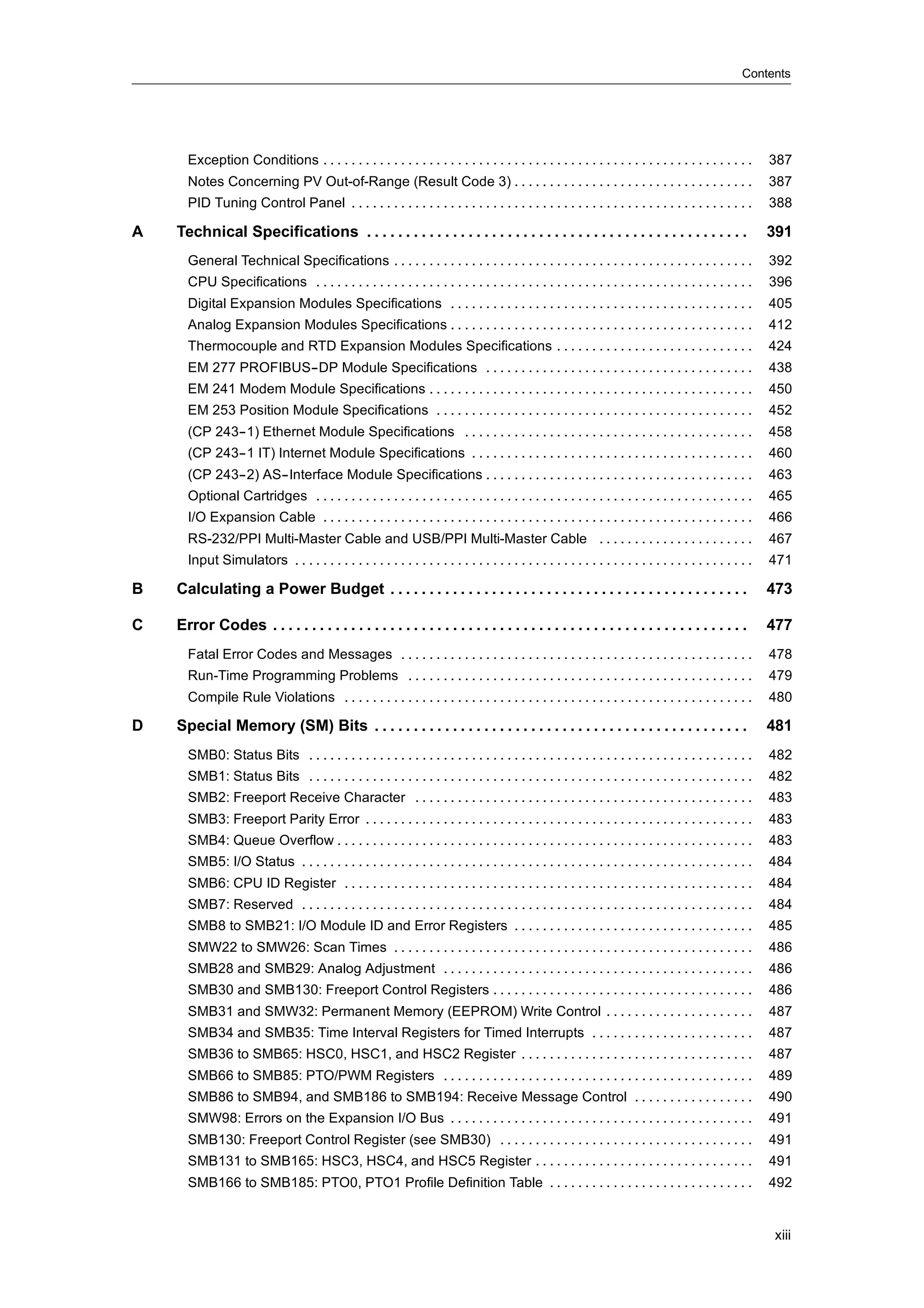
10     Creating a Program for the Modem Module . . . . . . . . . . . . . . . . . . . . . . . . . . . . . . . .                                                    307
         Features of the Modem Module . . . . . . . . . . . . . . . . . . . . . . . . . . . . . . . . . . . . . . . . . . . . . . . . . . . .                     308
         Using the Modem Expansion Wizard to Configure the Modem Module . . . . . . . . . . . . . . . . . . .                                                     314
         Overview of Modem Instructions and Restrictions . . . . . . . . . . . . . . . . . . . . . . . . . . . . . . . . . . . .                                  318
         Instructions for the Modem Module . . . . . . . . . . . . . . . . . . . . . . . . . . . . . . . . . . . . . . . . . . . . . . . . .                      319
         Sample Program for the Modem Module . . . . . . . . . . . . . . . . . . . . . . . . . . . . . . . . . . . . . . . . . . . .                              323
         S7-200 CPUs that Support Intelligent Modules . . . . . . . . . . . . . . . . . . . . . . . . . . . . . . . . . . . . . . .                               323
         Special Memory Location for the Modem Module . . . . . . . . . . . . . . . . . . . . . . . . . . . . . . . . . . . . .                                   323
         Advanced Topics . . . . . . . . . . . . . . . . . . . . . . . . . . . . . . . . . . . . . . . . . . . . . . . . . . . . . . . . . . . . . . . .          325
         Messaging Telephone Number Format . . . . . . . . . . . . . . . . . . . . . . . . . . . . . . . . . . . . . . . . . . . . . .                            327
         Text Message Format . . . . . . . . . . . . . . . . . . . . . . . . . . . . . . . . . . . . . . . . . . . . . . . . . . . . . . . . . . . .              328
         CPU Data Transfer Message Format . . . . . . . . . . . . . . . . . . . . . . . . . . . . . . . . . . . . . . . . . . . . . . .                           329

11     Using the USS Protocol Library to Control a MicroMaster Drive . . . . . . . . . . . . .                                                                    331
         Requirements for Using the USS Protocol . . . . . . . . . . . . . . . . . . . . . . . . . . . . . . . . . . . . . . . . . . .                            332
         Calculating the Time Required for Communicating with the Drive . . . . . . . . . . . . . . . . . . . . . . .                                             332
         Using the USS Instructions . . . . . . . . . . . . . . . . . . . . . . . . . . . . . . . . . . . . . . . . . . . . . . . . . . . . . . . .               333
         Instructions for the USS Protocol . . . . . . . . . . . . . . . . . . . . . . . . . . . . . . . . . . . . . . . . . . . . . . . . . . .                  334
         Sample Programs for the USS Protocol . . . . . . . . . . . . . . . . . . . . . . . . . . . . . . . . . . . . . . . . . . . . .                           341
         USS Execution Error Codes . . . . . . . . . . . . . . . . . . . . . . . . . . . . . . . . . . . . . . . . . . . . . . . . . . . . . . .                  342
         Connecting and Setting Up the MicroMaster Series 3 Drive . . . . . . . . . . . . . . . . . . . . . . . . . . . .                                         342
         Connecting and Setting Up the MicroMaster Series 4 Drive . . . . . . . . . . . . . . . . . . . . . . . . . . . .                                         345

12     Using the Modbus Protocol Library . . . . . . . . . . . . . . . . . . . . . . . . . . . . . . . . . . . . . . .                                            347
         Overview . . . . . . . . . . . . . . . . . . . . . . . . . . . . . . . . . . . . . . . . . . . . . . . . . . . . . . . . . . . . . . . . . . . . . . .   348
         Requirements for Using Modbus Protocol . . . . . . . . . . . . . . . . . . . . . . . . . . . . . . . . . . . . . . . . . . .                             348
         Initialization and Execution Time for Modbus Protocol . . . . . . . . . . . . . . . . . . . . . . . . . . . . . . . . .                                  349
         Modbus Addressing . . . . . . . . . . . . . . . . . . . . . . . . . . . . . . . . . . . . . . . . . . . . . . . . . . . . . . . . . . . . . .            350
         Using the Modbus Master Instructions . . . . . . . . . . . . . . . . . . . . . . . . . . . . . . . . . . . . . . . . . . . . . .                         351
         Using the Modbus Slave Instructions . . . . . . . . . . . . . . . . . . . . . . . . . . . . . . . . . . . . . . . . . . . . . . .                        352
         Instructions for the Modbus Protocol . . . . . . . . . . . . . . . . . . . . . . . . . . . . . . . . . . . . . . . . . . . . . . . .                     353
         Advanced Topics . . . . . . . . . . . . . . . . . . . . . . . . . . . . . . . . . . . . . . . . . . . . . . . . . . . . . . . . . . . . . . . .          362

13     Using Recipes . . . . . . . . . . . . . . . . . . . . . . . . . . . . . . . . . . . . . . . . . . . . . . . . . . . . . . . . . . .                        365
         Overview . . . . . . . . . . . . . . . . . . . . . . . . . . . . . . . . . . . . . . . . . . . . . . . . . . . . . . . . . . . . . . . . . . . . . . .   366
         Recipe Definition and Terminology . . . . . . . . . . . . . . . . . . . . . . . . . . . . . . . . . . . . . . . . . . . . . . . . .                      367
         Using the Recipe Wizard . . . . . . . . . . . . . . . . . . . . . . . . . . . . . . . . . . . . . . . . . . . . . . . . . . . . . . . . . .              367
         Instructions Created by the Recipe Wizard . . . . . . . . . . . . . . . . . . . . . . . . . . . . . . . . . . . . . . . . . .                            371

14     Using Data Logs . . . . . . . . . . . . . . . . . . . . . . . . . . . . . . . . . . . . . . . . . . . . . . . . . . . . . . . .                            373
         Overview . . . . . . . . . . . . . . . . . . . . . . . . . . . . . . . . . . . . . . . . . . . . . . . . . . . . . . . . . . . . . . . . . . . . . . .   374
         Using the Data Log Wizard . . . . . . . . . . . . . . . . . . . . . . . . . . . . . . . . . . . . . . . . . . . . . . . . . . . . . . . .                375
         Instruction Created by the Data Log Wizard . . . . . . . . . . . . . . . . . . . . . . . . . . . . . . . . . . . . . . . . . .                           379

15     PID Auto-Tune and the PID Tuning Control Panel . . . . . . . . . . . . . . . . . . . . . . . . . .                                                         381
         Understanding the PID Auto-Tune . . . . . . . . . . . . . . . . . . . . . . . . . . . . . . . . . . . . . . . . . . . . . . . . . .                      382
         Expanded Loop Table . . . . . . . . . . . . . . . . . . . . . . . . . . . . . . . . . . . . . . . . . . . . . . . . . . . . . . . . . . . .              382
         Prerequisites . . . . . . . . . . . . . . . . . . . . . . . . . . . . . . . . . . . . . . . . . . . . . . . . . . . . . . . . . . . . . . . . . . . .    385
         Auto-Hysteresis and Auto-Deviation . . . . . . . . . . . . . . . . . . . . . . . . . . . . . . . . . . . . . . . . . . . . . . . .                       385
         Auto-Tune Sequence . . . . . . . . . . . . . . . . . . . . . . . . . . . . . . . . . . . . . . . . . . . . . . . . . . . . . . . . . . . . .             386


xii
Contents


      Exception Conditions . . . . . . . . . . . . . . . . . . . . . . . . . . . . . . . . . . . . . . . . . . . . . . . . . . . . . . . . . . . . .       387
      Notes Concerning PV Out-of-Range (Result Code 3) . . . . . . . . . . . . . . . . . . . . . . . . . . . . . . . . . .                                 387
      PID Tuning Control Panel . . . . . . . . . . . . . . . . . . . . . . . . . . . . . . . . . . . . . . . . . . . . . . . . . . . . . . . . .           388

A   Technical Specifications . . . . . . . . . . . . . . . . . . . . . . . . . . . . . . . . . . . . . . . . . . . . . . . . .                             391
      General Technical Specifications . . . . . . . . . . . . . . . . . . . . . . . . . . . . . . . . . . . . . . . . . . . . . . . . . . .               392
      CPU Specifications . . . . . . . . . . . . . . . . . . . . . . . . . . . . . . . . . . . . . . . . . . . . . . . . . . . . . . . . . . . . . .       396
      Digital Expansion Modules Specifications . . . . . . . . . . . . . . . . . . . . . . . . . . . . . . . . . . . . . . . . . . .                       405
      Analog Expansion Modules Specifications . . . . . . . . . . . . . . . . . . . . . . . . . . . . . . . . . . . . . . . . . . .                        412
      Thermocouple and RTD Expansion Modules Specifications . . . . . . . . . . . . . . . . . . . . . . . . . . . .                                        424
      EM 277 PROFIBUS--DP Module Specifications . . . . . . . . . . . . . . . . . . . . . . . . . . . . . . . . . . . . . .                                438
      EM 241 Modem Module Specifications . . . . . . . . . . . . . . . . . . . . . . . . . . . . . . . . . . . . . . . . . . . . . .                       450
      EM 253 Position Module Specifications . . . . . . . . . . . . . . . . . . . . . . . . . . . . . . . . . . . . . . . . . . . . .                      452
      (CP 243--1) Ethernet Module Specifications . . . . . . . . . . . . . . . . . . . . . . . . . . . . . . . . . . . . . . . . .                         458
      (CP 243--1 IT) Internet Module Specifications . . . . . . . . . . . . . . . . . . . . . . . . . . . . . . . . . . . . . . . .                        460
      (CP 243--2) AS--Interface Module Specifications . . . . . . . . . . . . . . . . . . . . . . . . . . . . . . . . . . . . . .                          463
      Optional Cartridges . . . . . . . . . . . . . . . . . . . . . . . . . . . . . . . . . . . . . . . . . . . . . . . . . . . . . . . . . . . . . .      465
      I/O Expansion Cable . . . . . . . . . . . . . . . . . . . . . . . . . . . . . . . . . . . . . . . . . . . . . . . . . . . . . . . . . . . . .        466
      RS-232/PPI Multi-Master Cable and USB/PPI Multi-Master Cable . . . . . . . . . . . . . . . . . . . . . .                                             467
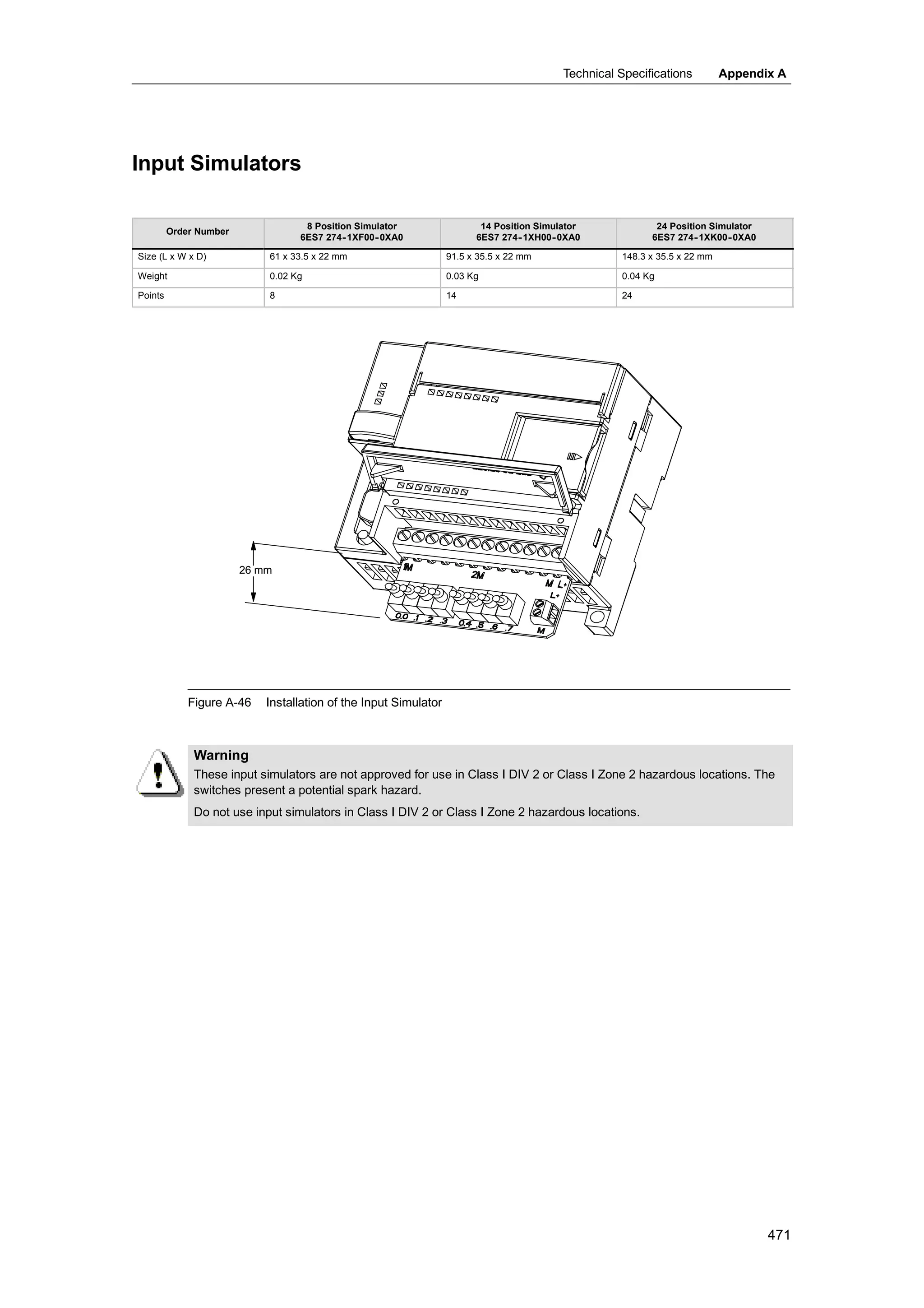
      Input Simulators . . . . . . . . . . . . . . . . . . . . . . . . . . . . . . . . . . . . . . . . . . . . . . . . . . . . . . . . . . . . . . . . .   471

B   Calculating a Power Budget . . . . . . . . . . . . . . . . . . . . . . . . . . . . . . . . . . . . . . . . . . . . . .                                 473

C   Error Codes . . . . . . . . . . . . . . . . . . . . . . . . . . . . . . . . . . . . . . . . . . . . . . . . . . . . . . . . . . . . .                  477
      Fatal Error Codes and Messages . . . . . . . . . . . . . . . . . . . . . . . . . . . . . . . . . . . . . . . . . . . . . . . . . .                   478
      Run-Time Programming Problems . . . . . . . . . . . . . . . . . . . . . . . . . . . . . . . . . . . . . . . . . . . . . . . . .                      479
      Compile Rule Violations . . . . . . . . . . . . . . . . . . . . . . . . . . . . . . . . . . . . . . . . . . . . . . . . . . . . . . . . . .          480

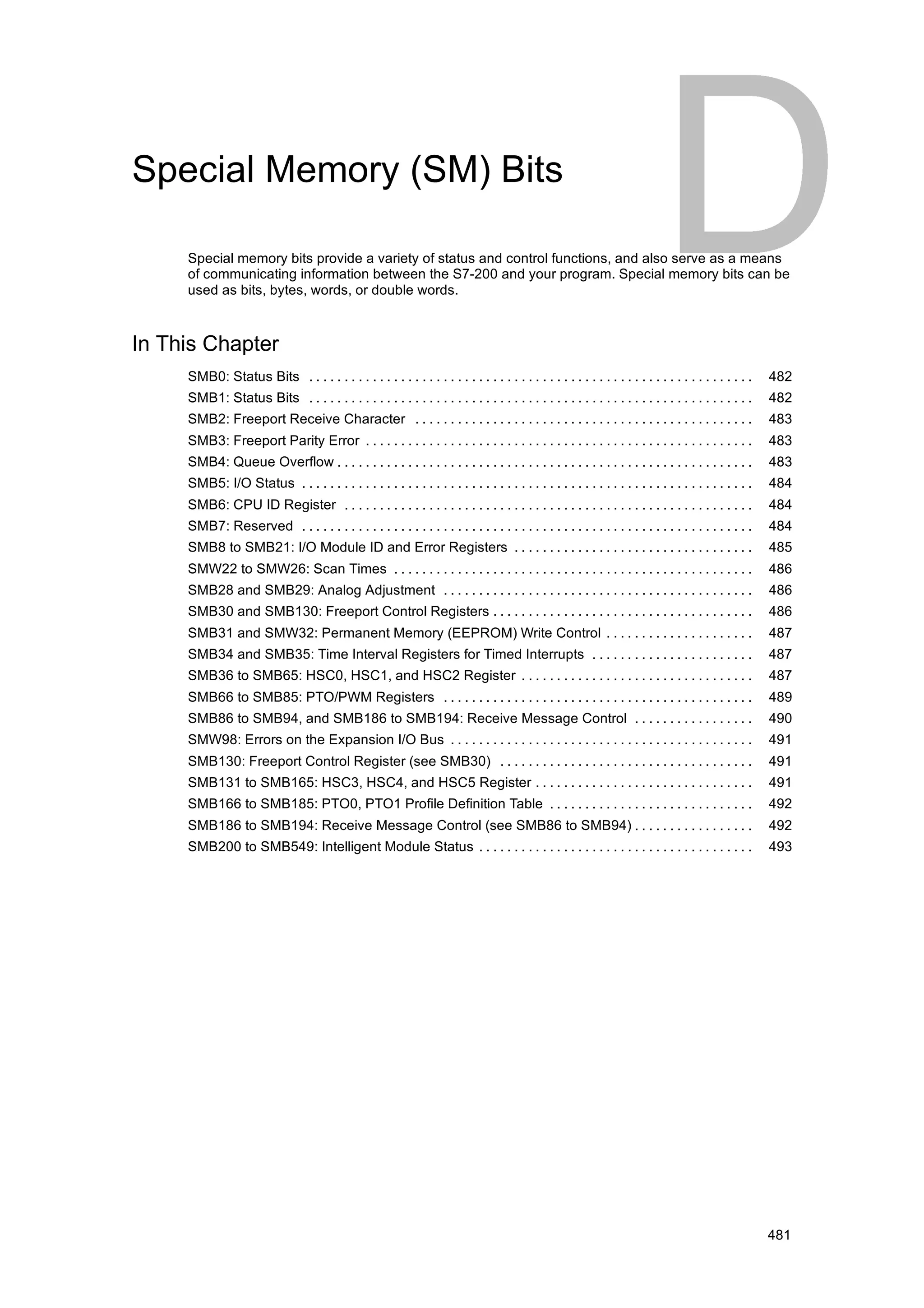
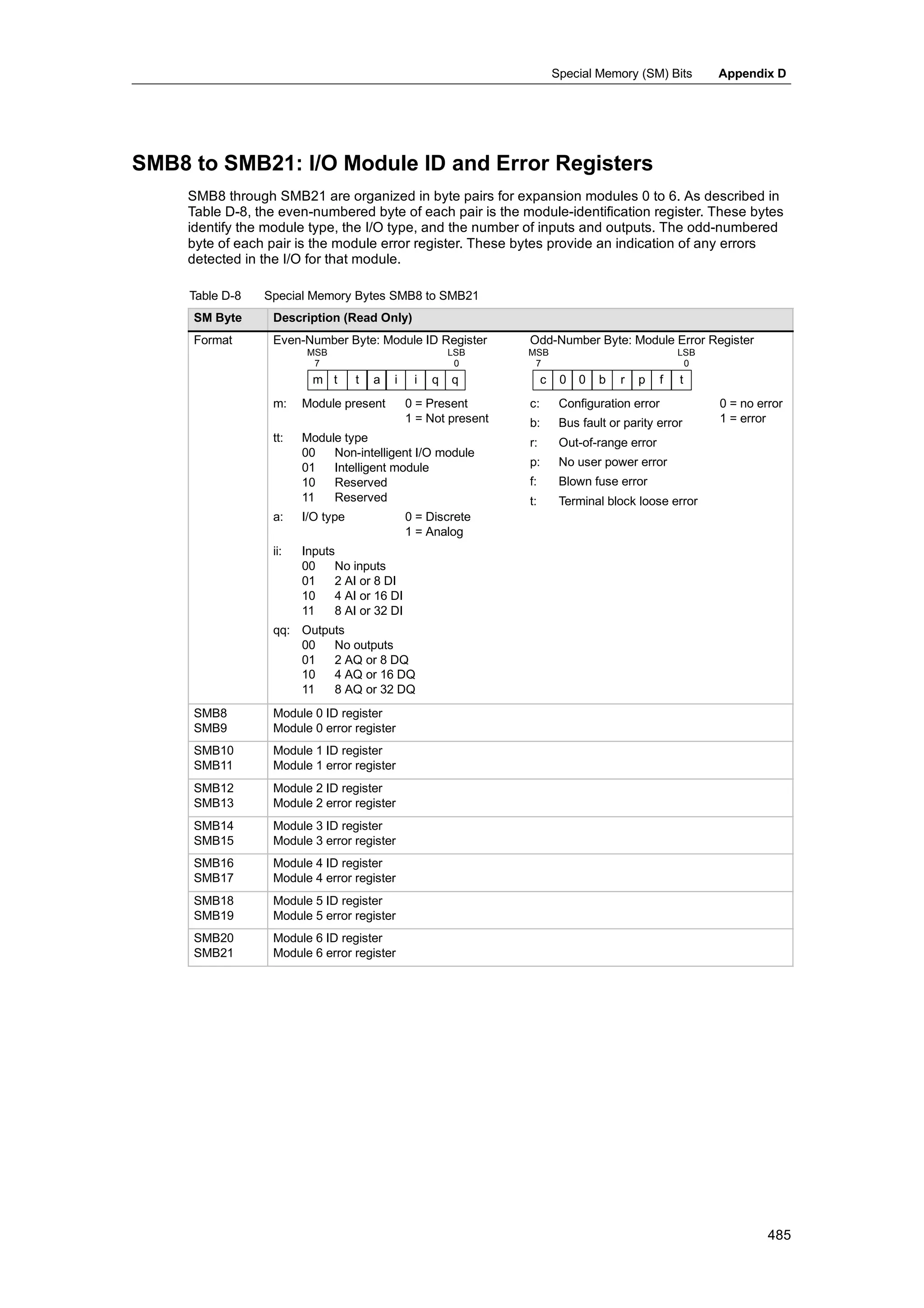
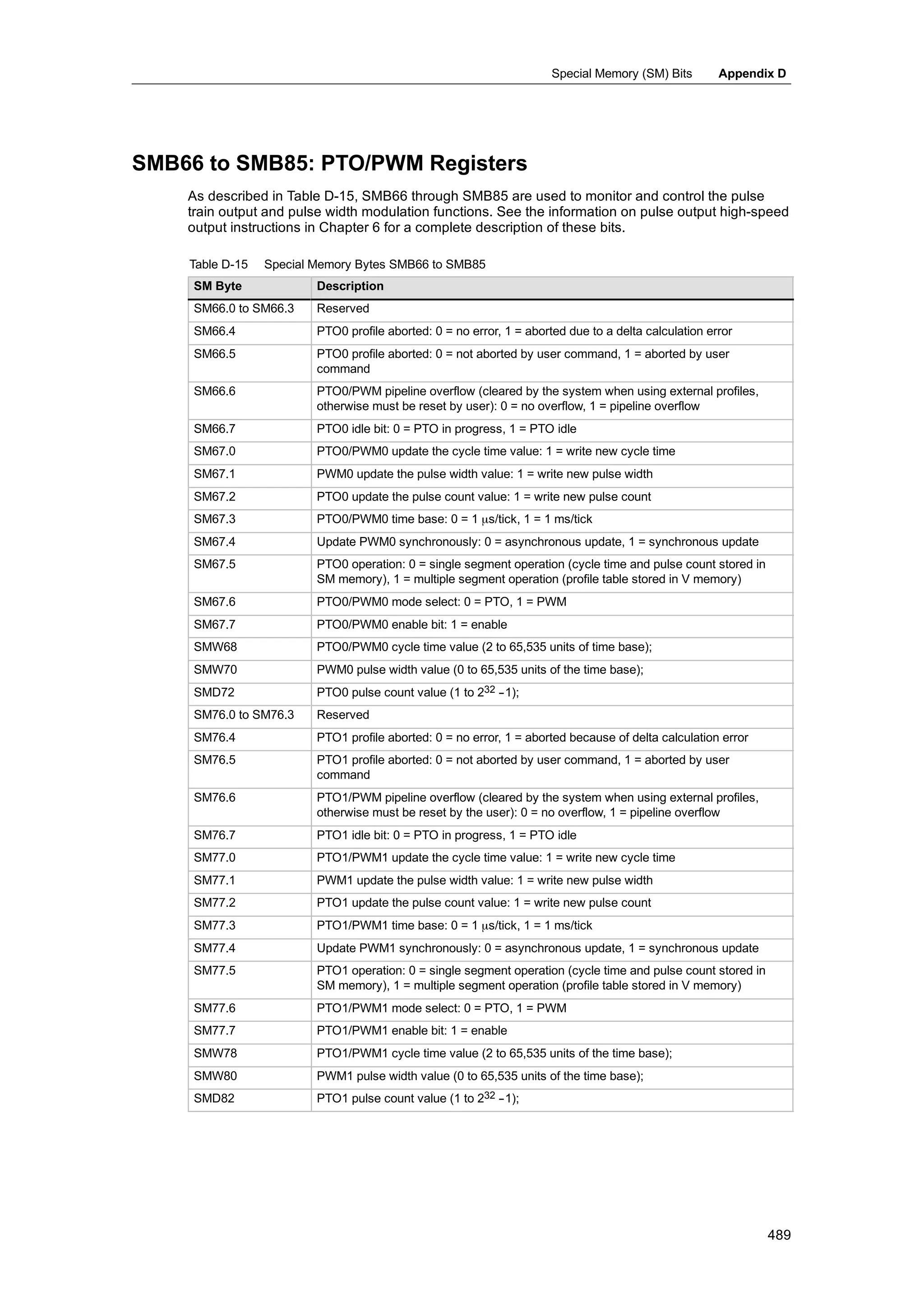
D   Special Memory (SM) Bits . . . . . . . . . . . . . . . . . . . . . . . . . . . . . . . . . . . . . . . . . . . . . . . .                               481
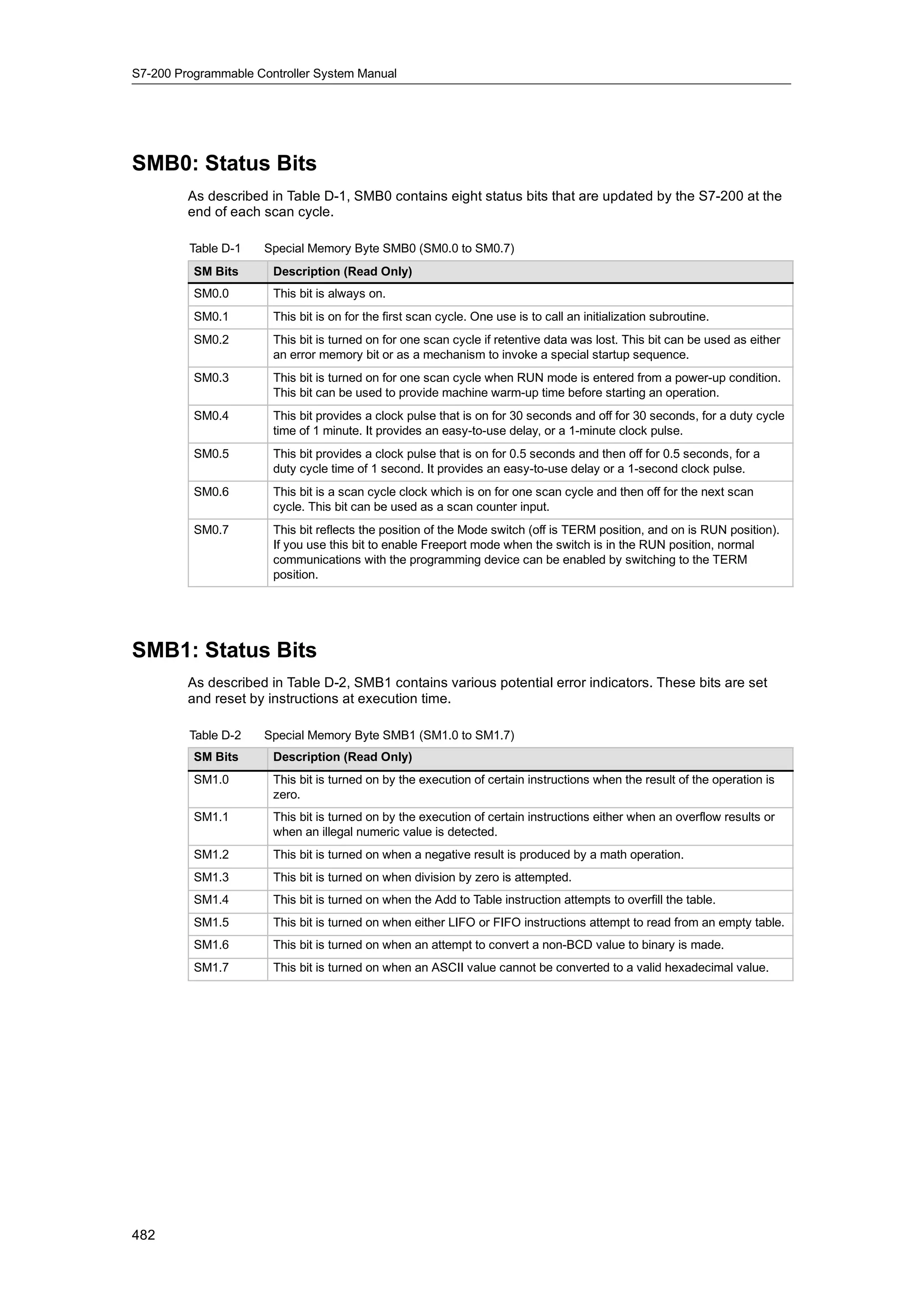
      SMB0: Status Bits . . . . . . . . . . . . . . . . . . . . . . . . . . . . . . . . . . . . . . . . . . . . . . . . . . . . . . . . . . . . . . .      482
      SMB1: Status Bits . . . . . . . . . . . . . . . . . . . . . . . . . . . . . . . . . . . . . . . . . . . . . . . . . . . . . . . . . . . . . . .      482
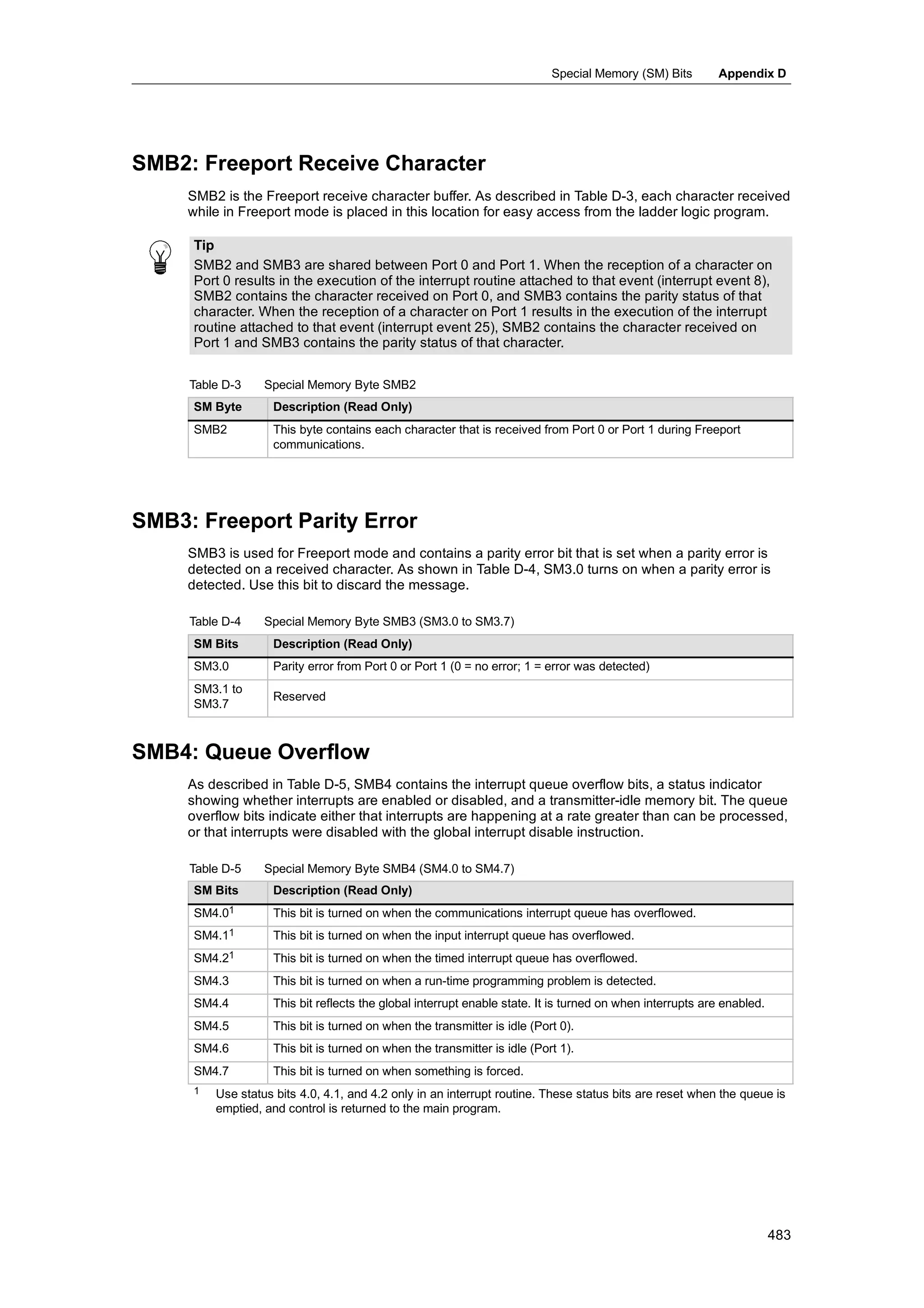
      SMB2: Freeport Receive Character . . . . . . . . . . . . . . . . . . . . . . . . . . . . . . . . . . . . . . . . . . . . . . . .                     483
      SMB3: Freeport Parity Error . . . . . . . . . . . . . . . . . . . . . . . . . . . . . . . . . . . . . . . . . . . . . . . . . . . . . . .            483
      SMB4: Queue Overflow . . . . . . . . . . . . . . . . . . . . . . . . . . . . . . . . . . . . . . . . . . . . . . . . . . . . . . . . . . .           483
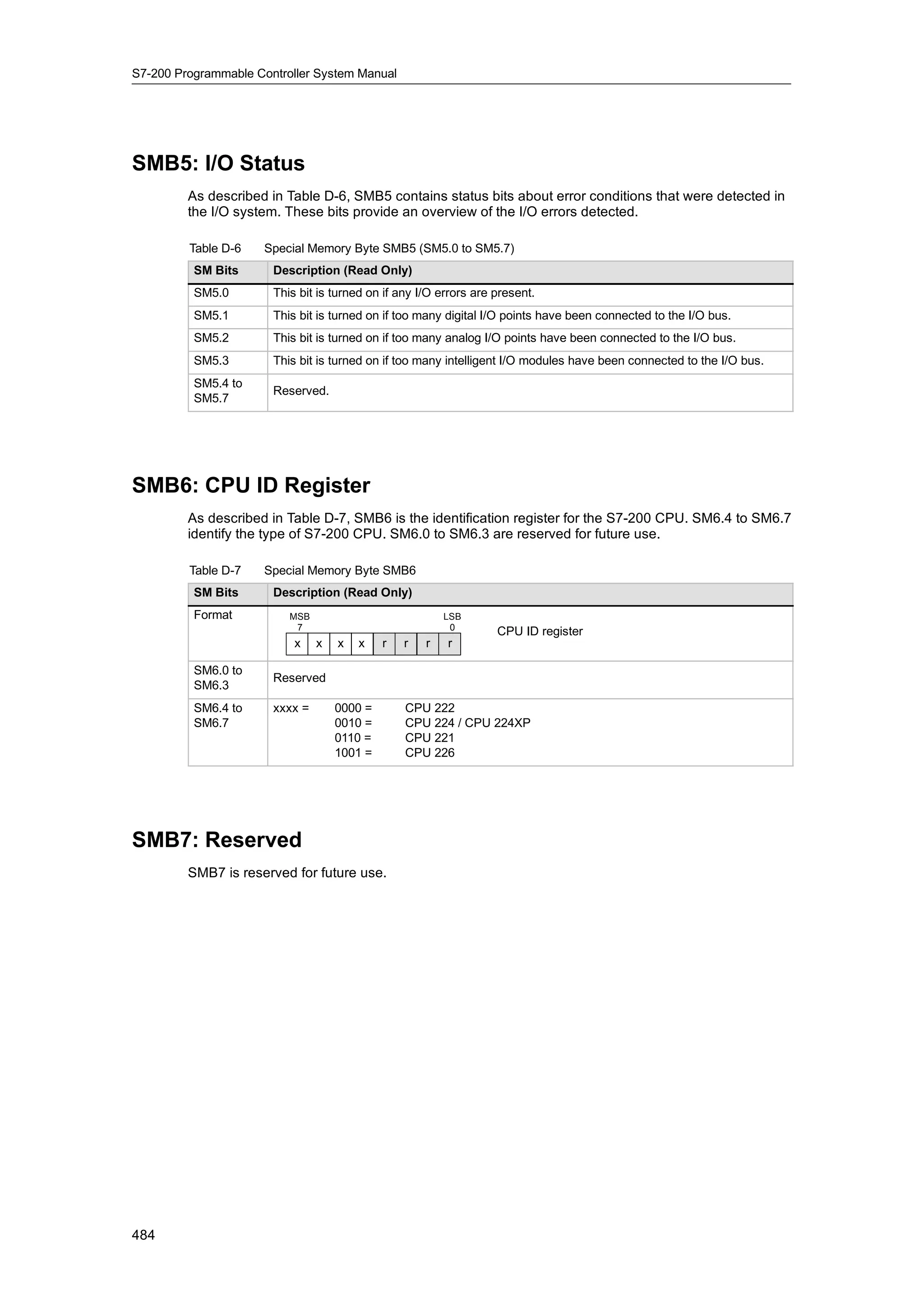
      SMB5: I/O Status . . . . . . . . . . . . . . . . . . . . . . . . . . . . . . . . . . . . . . . . . . . . . . . . . . . . . . . . . . . . . . . .     484
      SMB6: CPU ID Register . . . . . . . . . . . . . . . . . . . . . . . . . . . . . . . . . . . . . . . . . . . . . . . . . . . . . . . . . .            484
      SMB7: Reserved . . . . . . . . . . . . . . . . . . . . . . . . . . . . . . . . . . . . . . . . . . . . . . . . . . . . . . . . . . . . . . . .       484
      SMB8 to SMB21: I/O Module ID and Error Registers . . . . . . . . . . . . . . . . . . . . . . . . . . . . . . . . . .                                 485
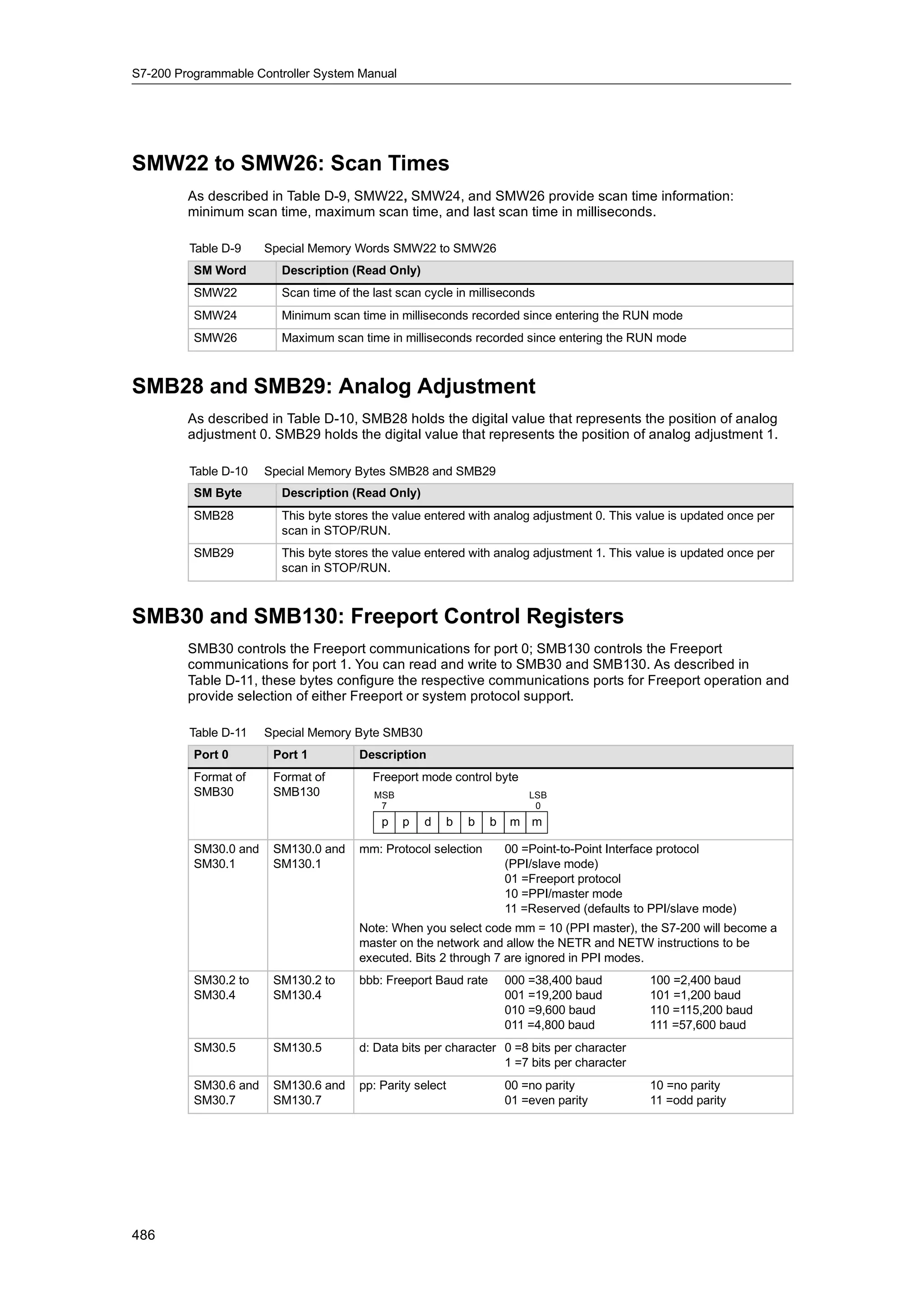
      SMW22 to SMW26: Scan Times . . . . . . . . . . . . . . . . . . . . . . . . . . . . . . . . . . . . . . . . . . . . . . . . . . .                     486
      SMB28 and SMB29: Analog Adjustment . . . . . . . . . . . . . . . . . . . . . . . . . . . . . . . . . . . . . . . . . . . .                           486
      SMB30 and SMB130: Freeport Control Registers . . . . . . . . . . . . . . . . . . . . . . . . . . . . . . . . . . . . .                               486
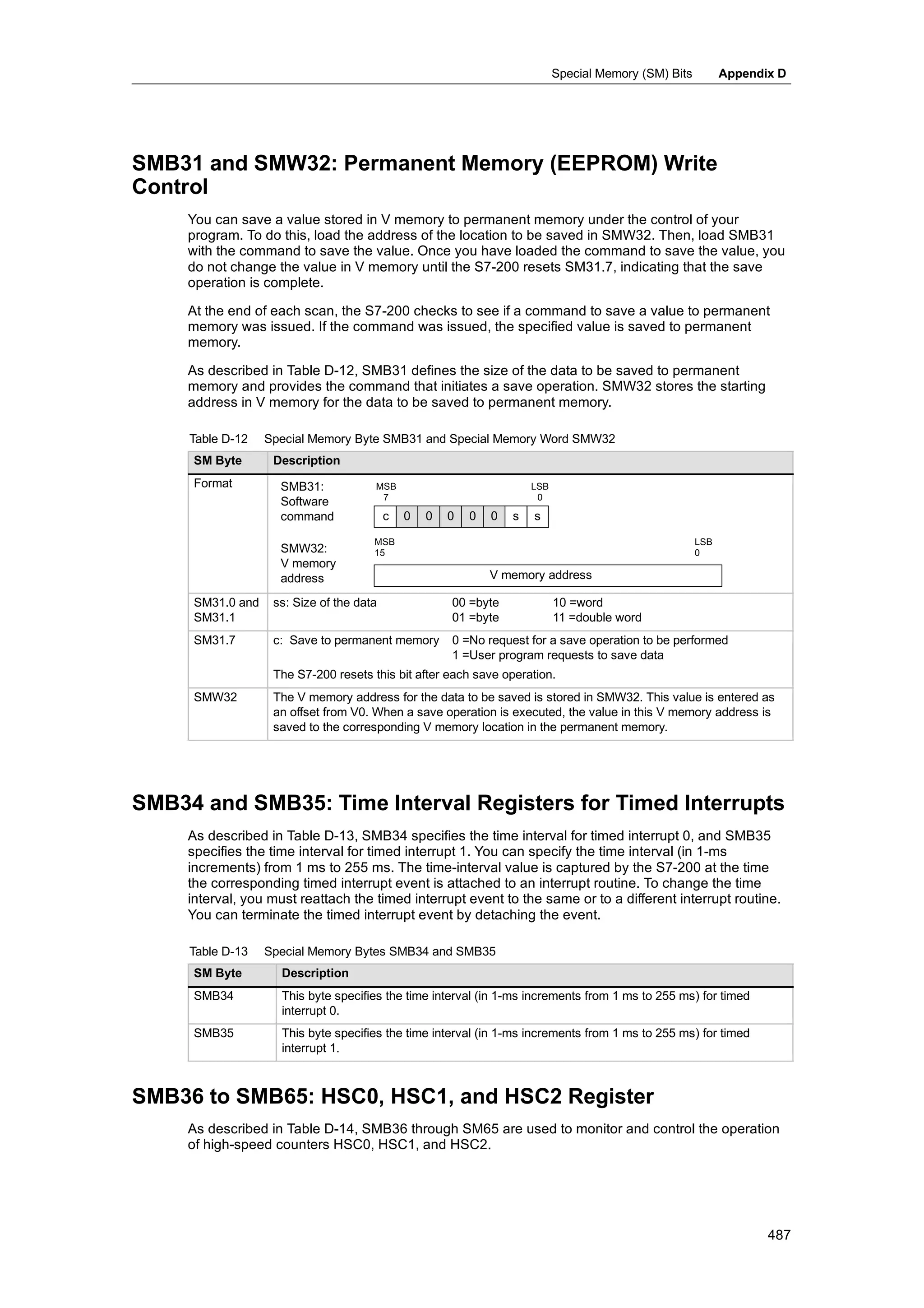
      SMB31 and SMW32: Permanent Memory (EEPROM) Write Control . . . . . . . . . . . . . . . . . . . . .                                                   487
      SMB34 and SMB35: Time Interval Registers for Timed Interrupts . . . . . . . . . . . . . . . . . . . . . . .                                          487
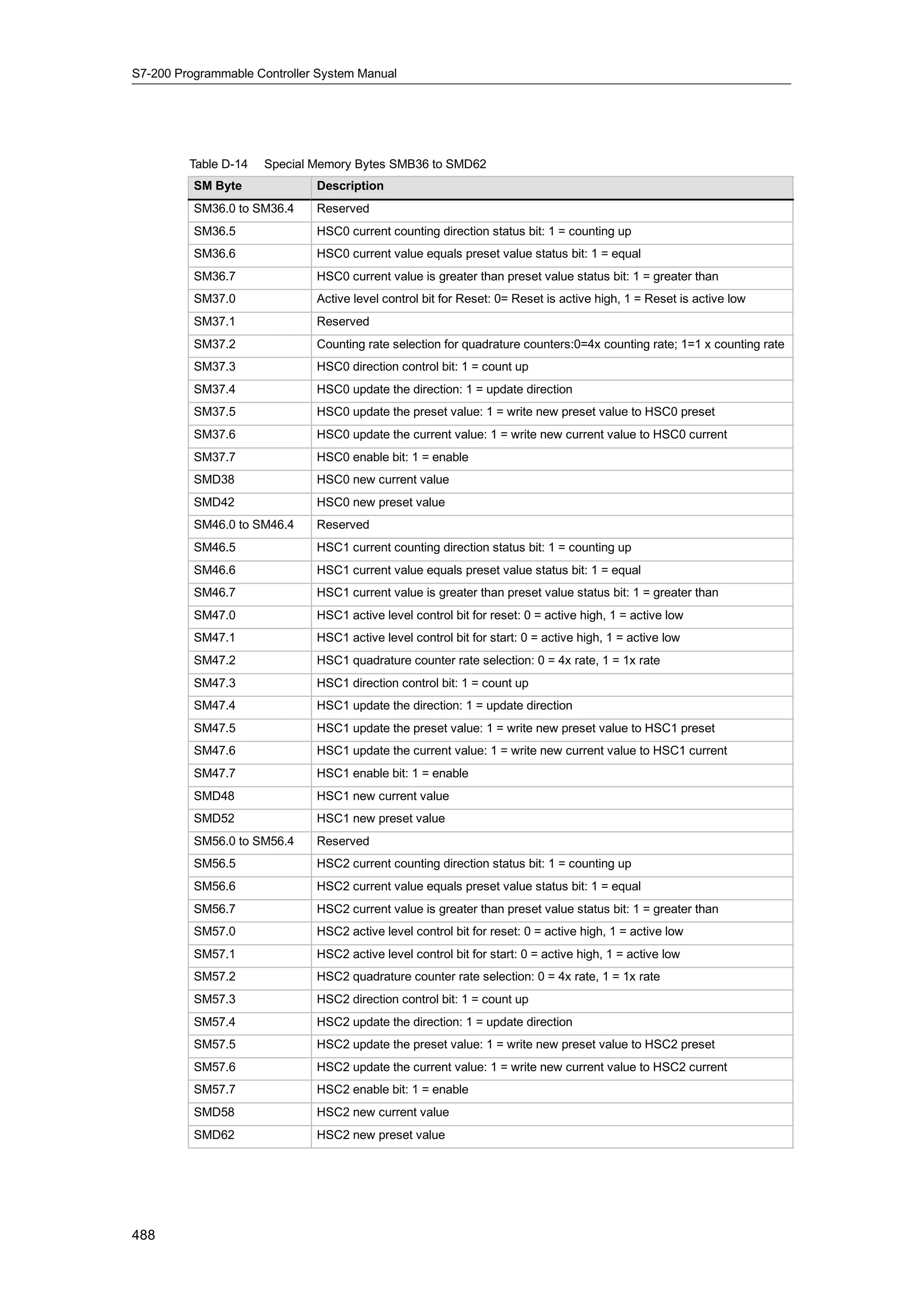
      SMB36 to SMB65: HSC0, HSC1, and HSC2 Register . . . . . . . . . . . . . . . . . . . . . . . . . . . . . . . . .                                      487
      SMB66 to SMB85: PTO/PWM Registers . . . . . . . . . . . . . . . . . . . . . . . . . . . . . . . . . . . . . . . . . . . .                            489
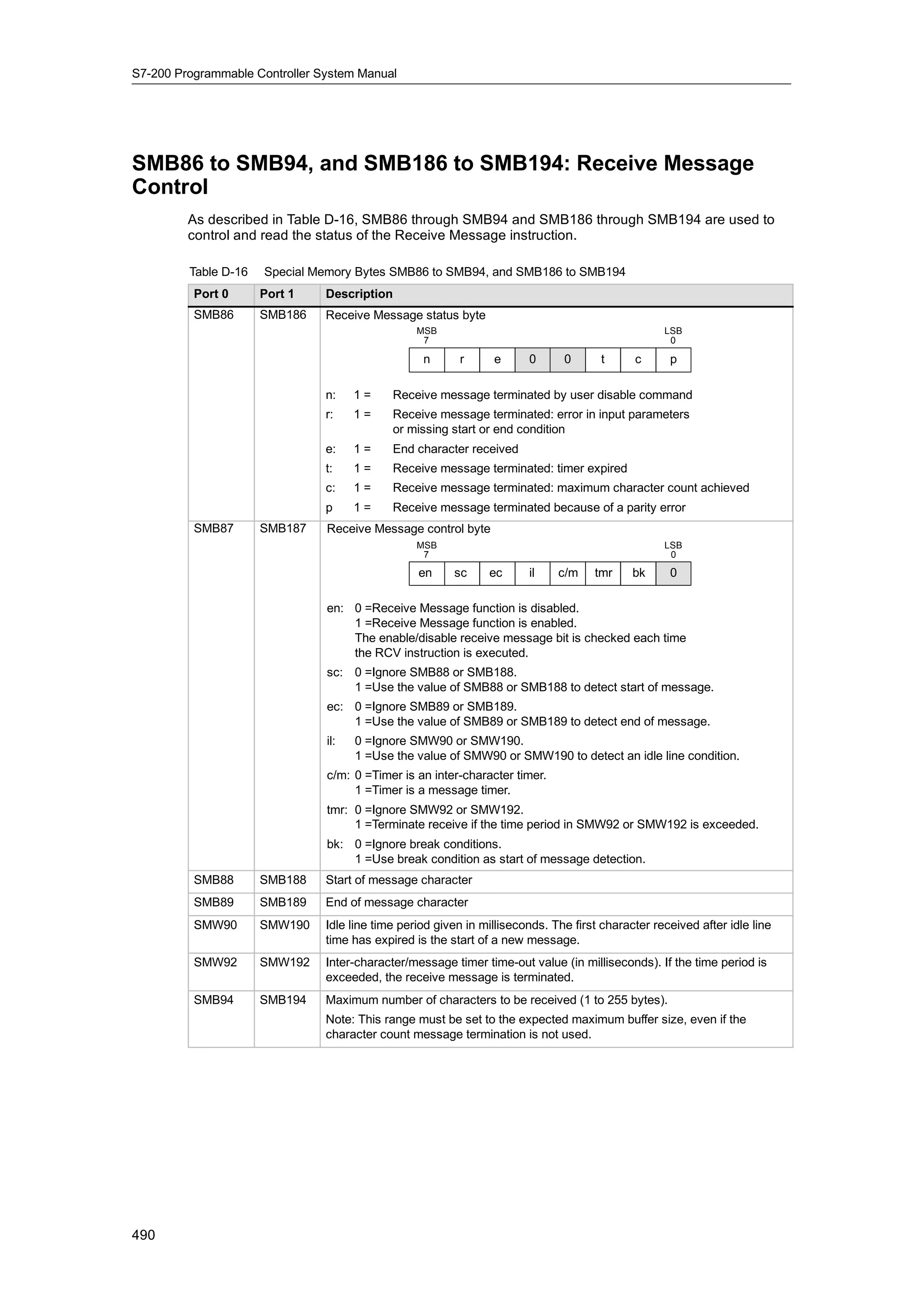
      SMB86 to SMB94, and SMB186 to SMB194: Receive Message Control . . . . . . . . . . . . . . . . .                                                      490
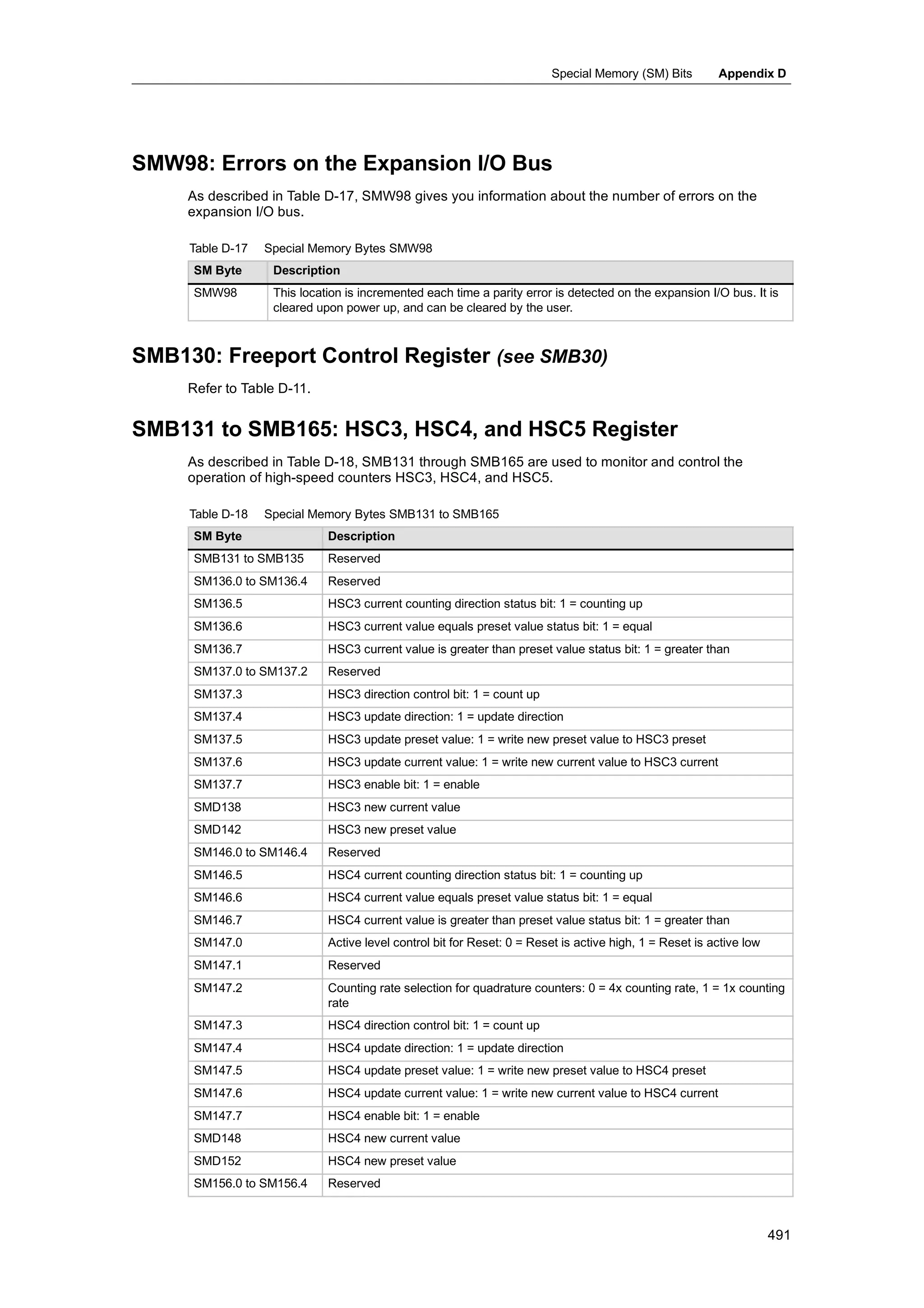
      SMW98: Errors on the Expansion I/O Bus . . . . . . . . . . . . . . . . . . . . . . . . . . . . . . . . . . . . . . . . . . .                         491
      SMB130: Freeport Control Register (see SMB30) . . . . . . . . . . . . . . . . . . . . . . . . . . . . . . . . . . . .                                491
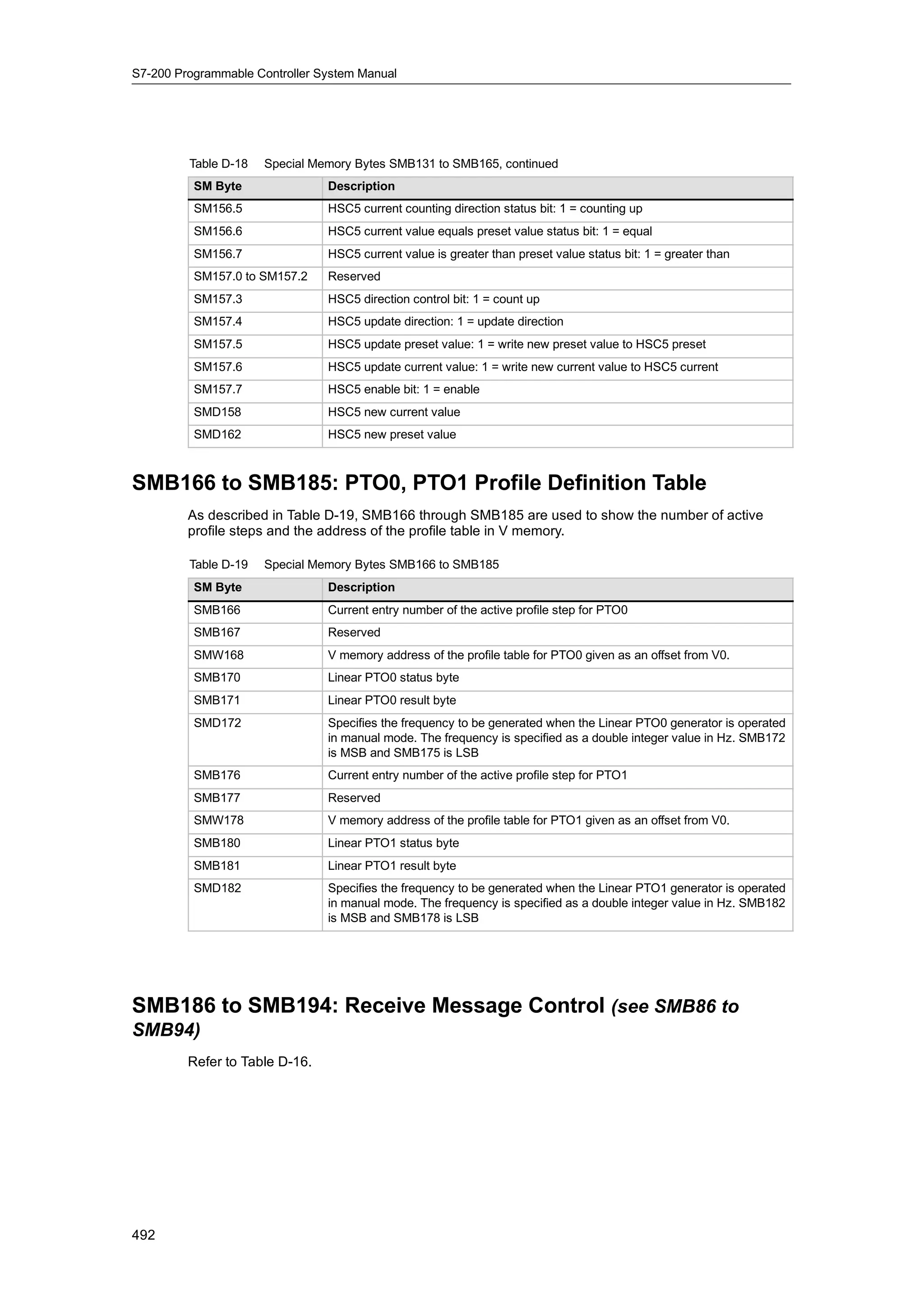
      SMB131 to SMB165: HSC3, HSC4, and HSC5 Register . . . . . . . . . . . . . . . . . . . . . . . . . . . . . . .                                        491
      SMB166 to SMB185: PTO0, PTO1 Profile Definition Table . . . . . . . . . . . . . . . . . . . . . . . . . . . . .                                      492


                                                                                                                                                           xiii
S7-200 Programmable Controller System Manual


         SMB186 to SMB194: Receive Message Control (see SMB86 to SMB94) . . . . . . . . . . . . . . . . .                                                492
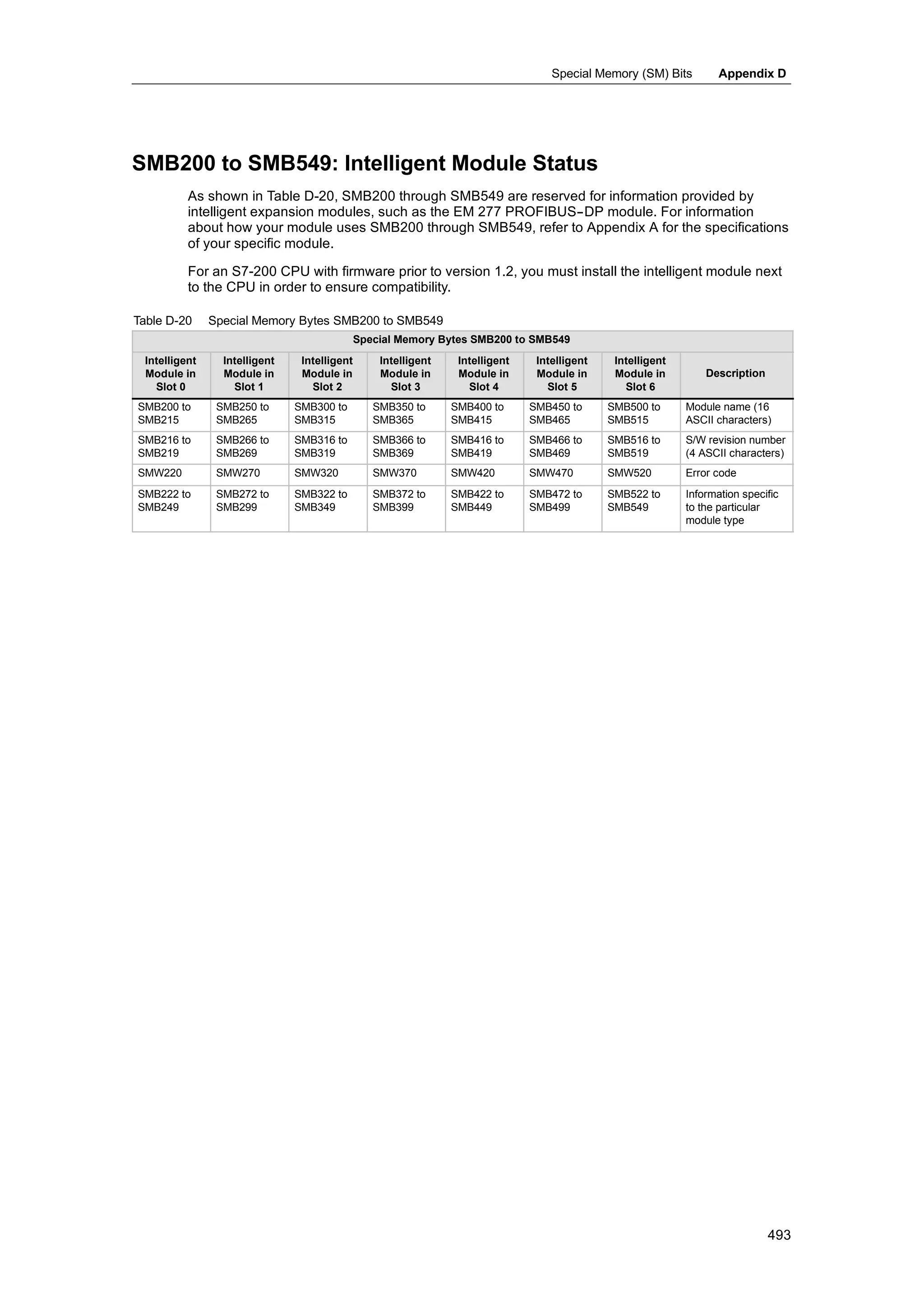
         SMB200 to SMB549: Intelligent Module Status . . . . . . . . . . . . . . . . . . . . . . . . . . . . . . . . . . . . . . .                       493

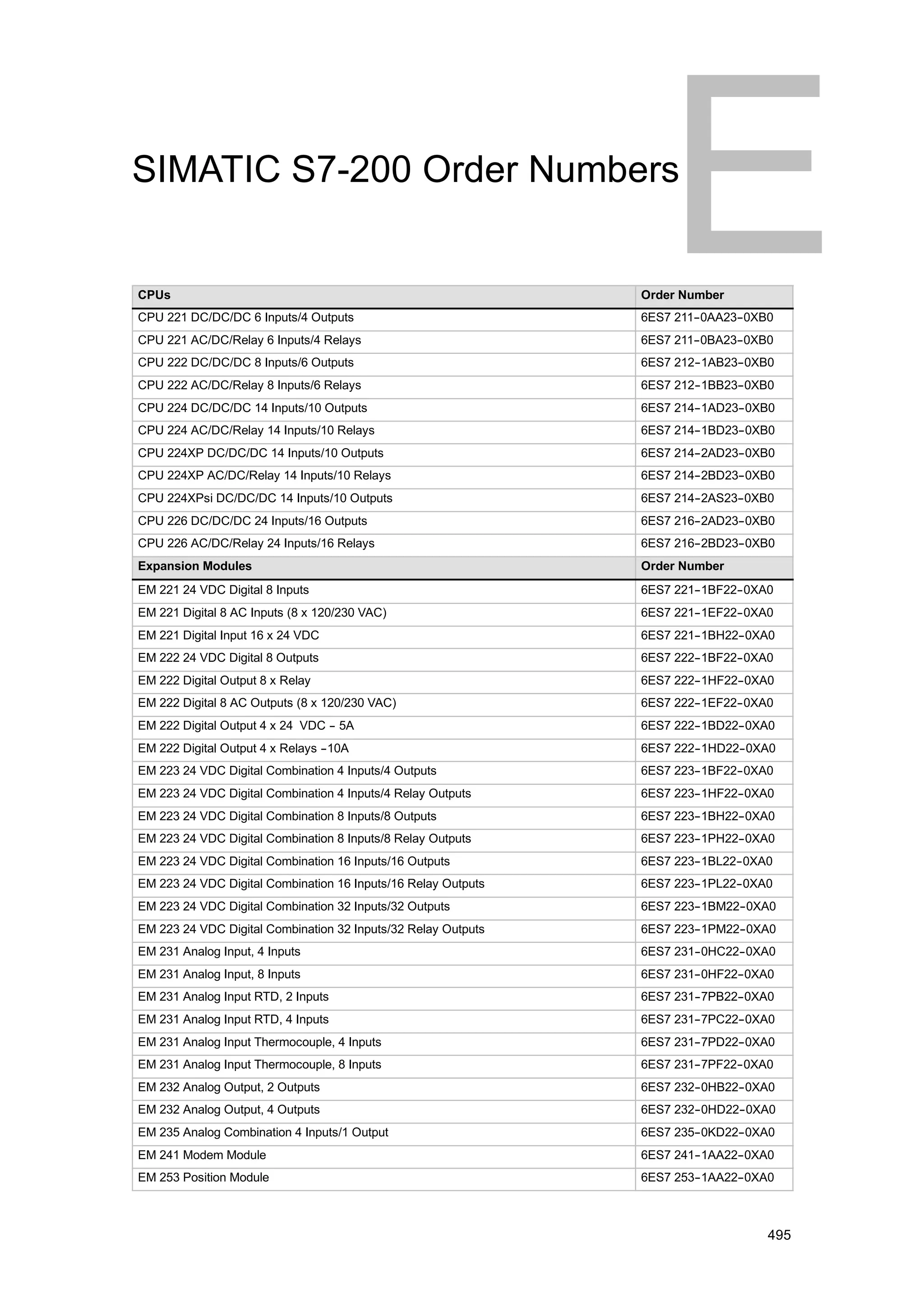
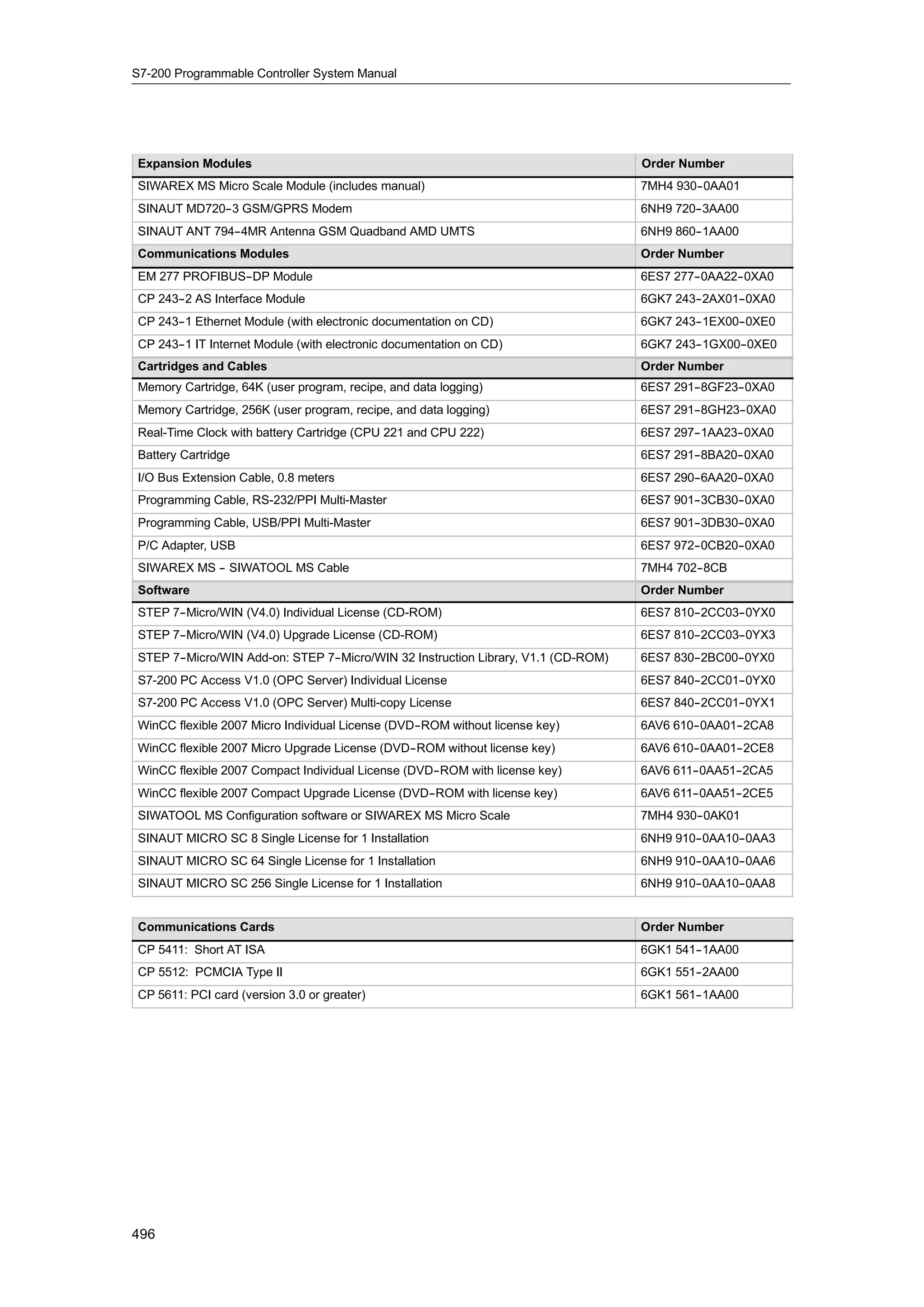
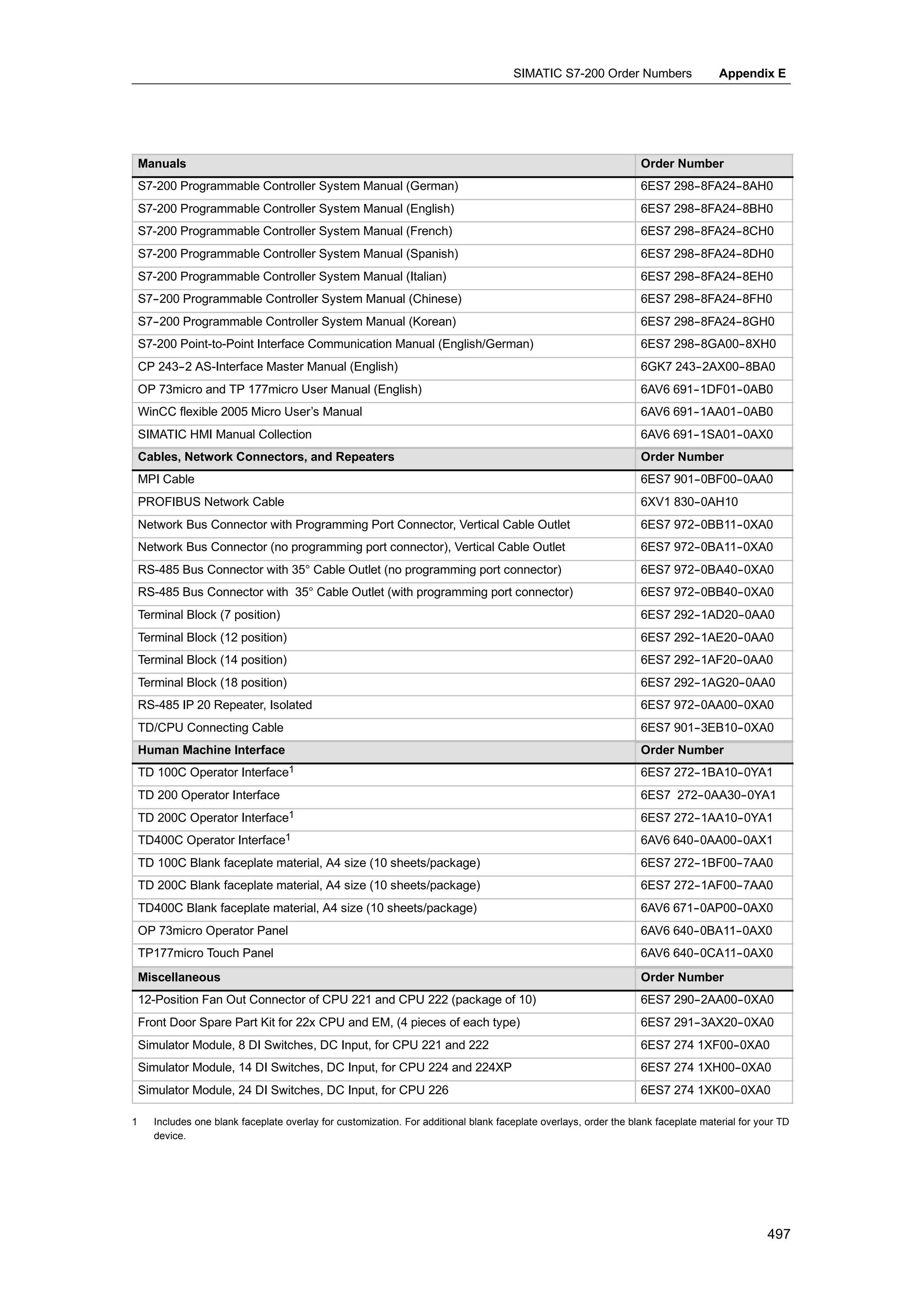
E      S7-200 Order Numbers . . . . . . . . . . . . . . . . . . . . . . . . . . . . . . . . . . . . . . . . . . . . . . . . . . .                        495

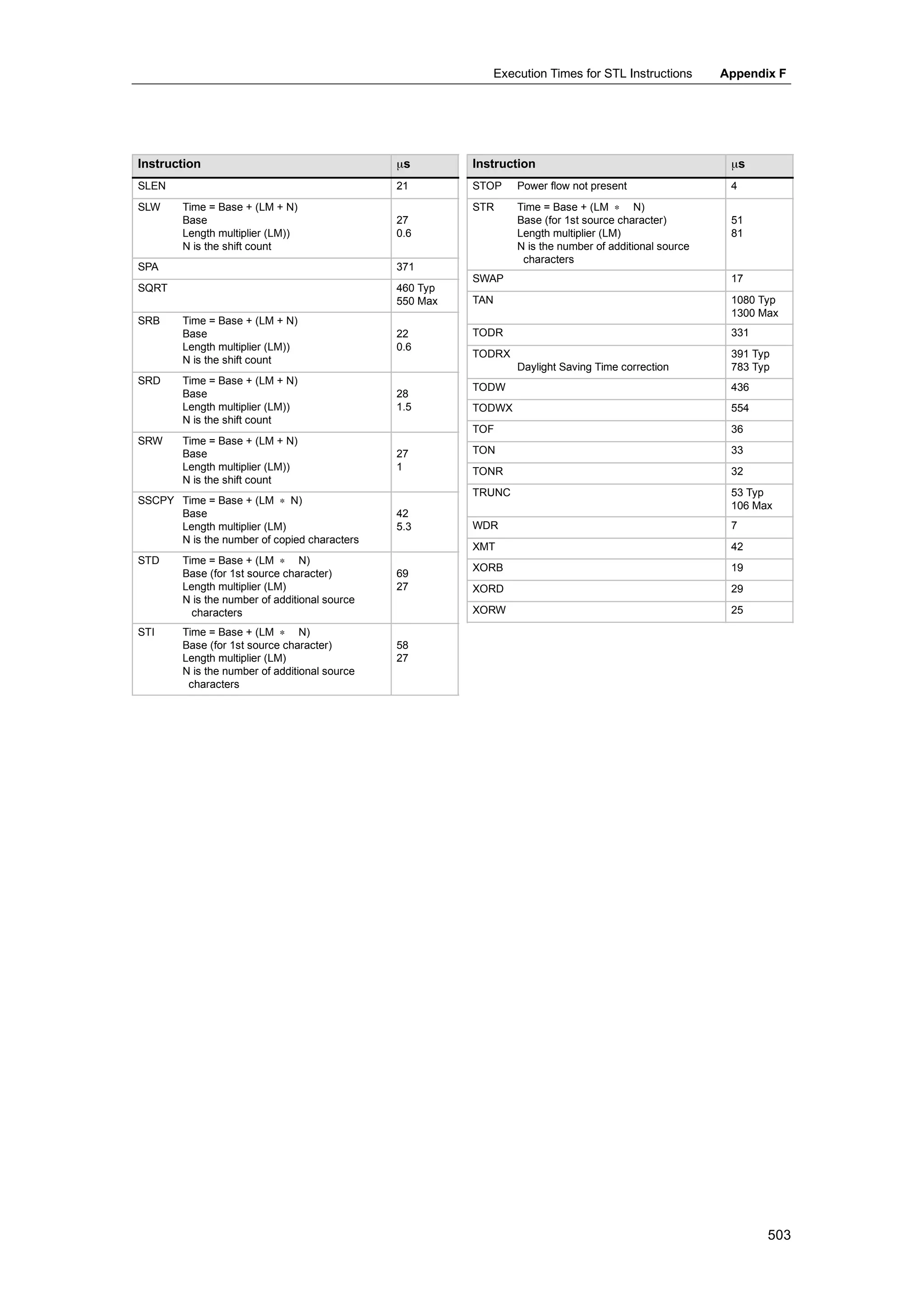
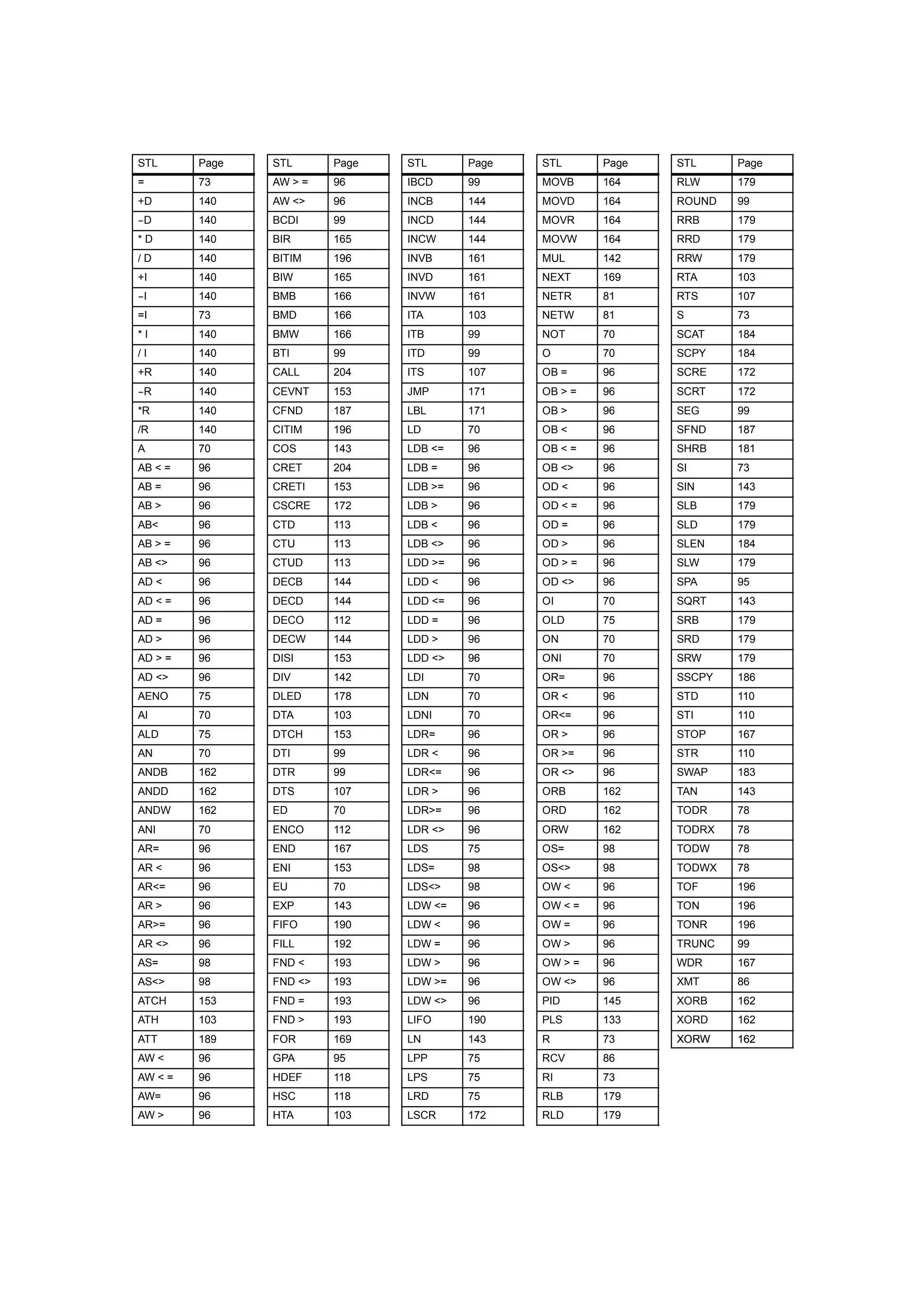
F      Execution Times for STL Instructions . . . . . . . . . . . . . . . . . . . . . . . . . . . . . . . . . . . . .                                    499

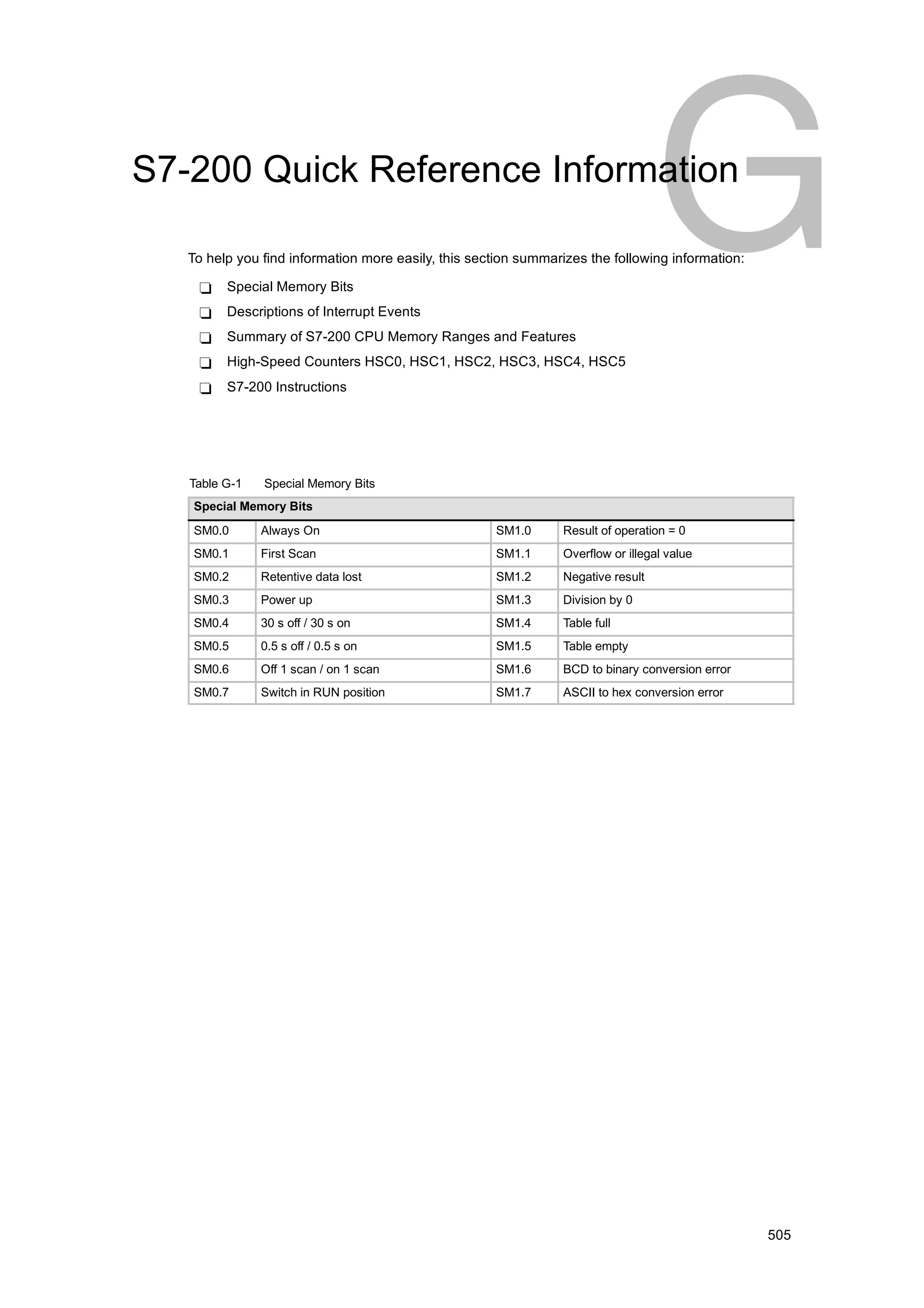
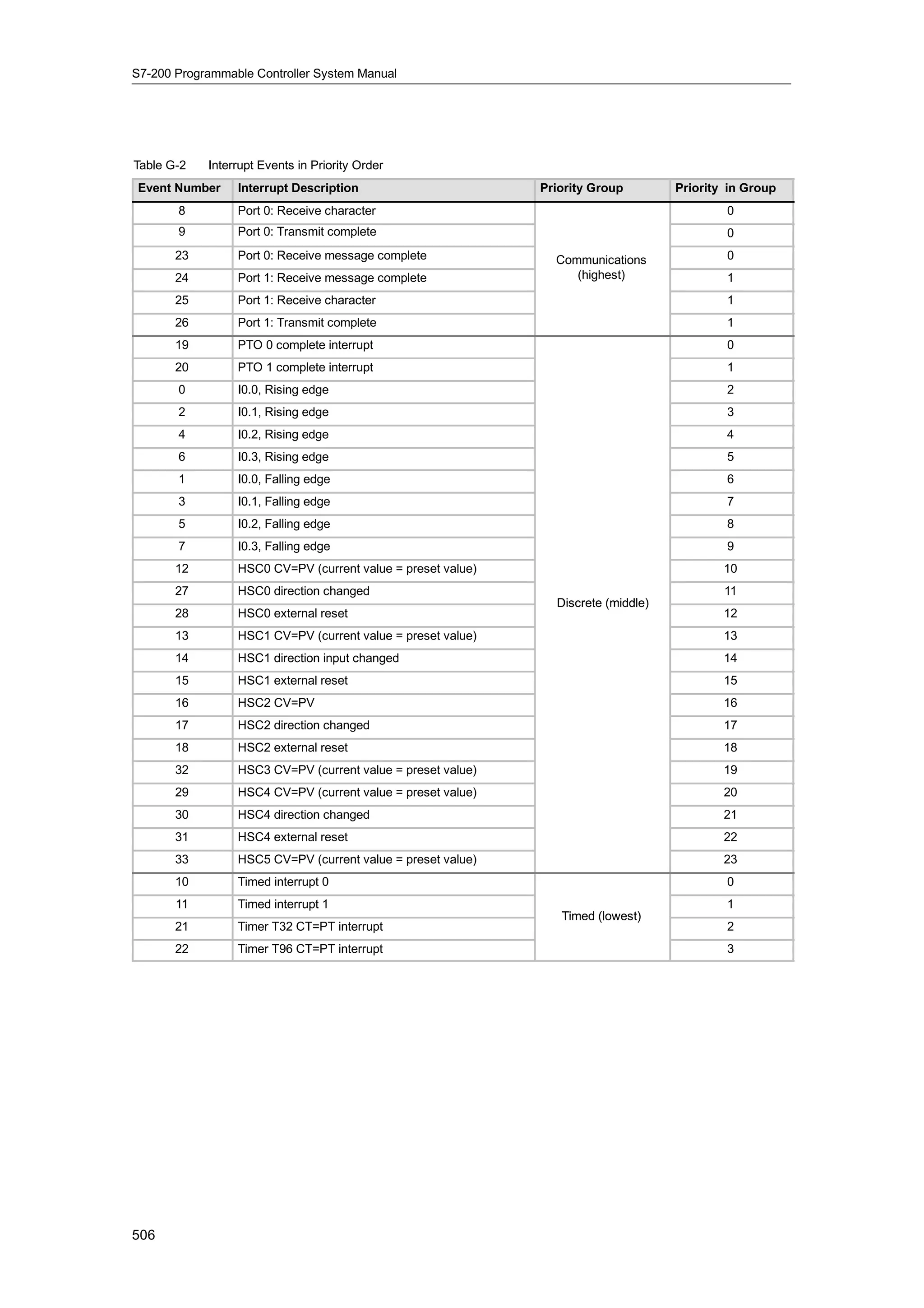
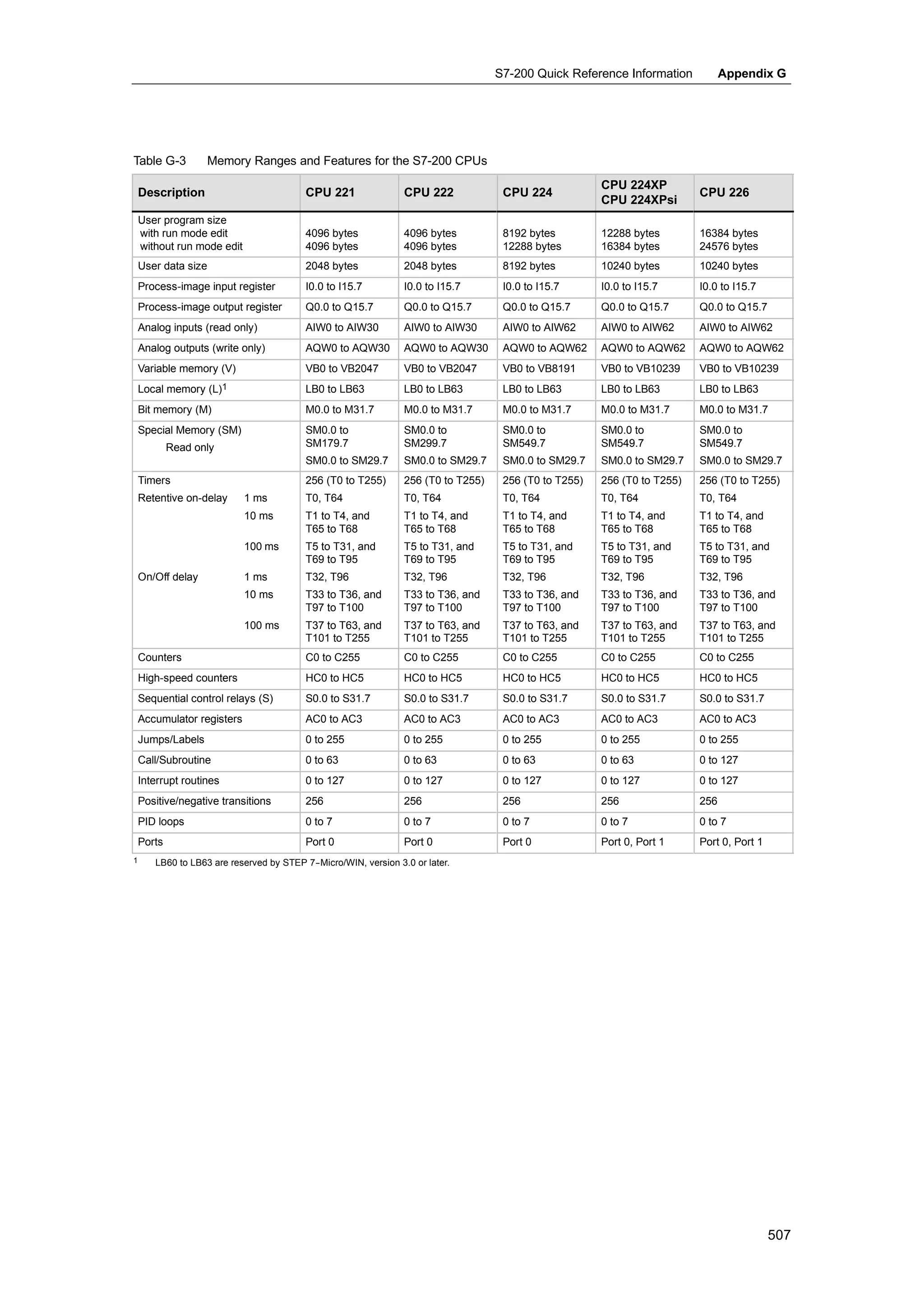
G      S7-200 Quick Reference Information . . . . . . . . . . . . . . . . . . . . . . . . . . . . . . . . . . . . . .                                    505

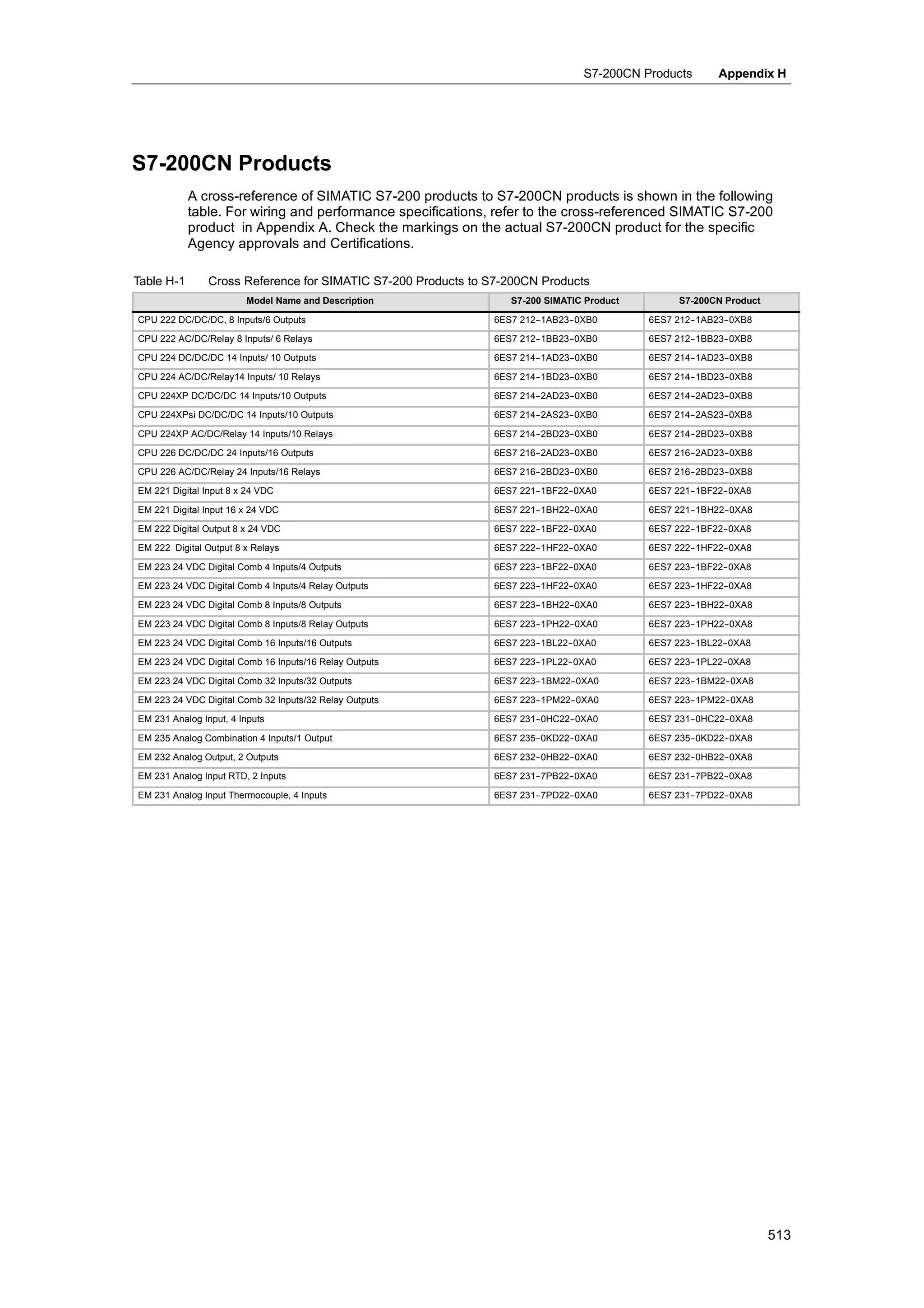
H      S7-200CN Products . . . . . . . . . . . . . . . . . . . . . . . . . . . . . . . . . . . . . . . . . . . . . . . . . . . . . .                     511
         Certifications and Approvals for S7-200CN Products . . . . . . . . . . . . . . . . . . . . . . . . . . . . . . . . . .                          512
         S7-200CN Products . . . . . . . . . . . . . . . . . . . . . . . . . . . . . . . . . . . . . . . . . . . . . . . . . . . . . . . . . . . . . .   513


xiv
Product Overview

     The S7-200 series of micro-programmable logic controllers (Micro PLCs) can control a wide
     variety of devices to support your automation needs.

     The S7-200 monitors inputs and changes outputs as controlled by the user program, which can
     include Boolean logic, counting, timing, complex math operations, and communications with other
     intelligent devices. The compact design, flexible configuration, and powerful instruction set
     combine to make the S7-200 a perfect solution for controlling a wide variety of applications.


In This Chapter
     What’s New? . . . . . . . . . . . . . . . . . . . . . . . . . . . . . . . . . . . . . . . . . . . . . . . . . . . . . . . . . . . . . . . . . . . .   2
     S7-200 CPU . . . . . . . . . . . . . . . . . . . . . . . . . . . . . . . . . . . . . . . . . . . . . . . . . . . . . . . . . . . . . . . . . . . .    2
     S7-200 Expansion Modules . . . . . . . . . . . . . . . . . . . . . . . . . . . . . . . . . . . . . . . . . . . . . . . . . . . . . . .                4
     STEP 7--Micro/WIN Programming Package . . . . . . . . . . . . . . . . . . . . . . . . . . . . . . . . . . . . . . . . . .                             5
     Communications Options . . . . . . . . . . . . . . . . . . . . . . . . . . . . . . . . . . . . . . . . . . . . . . . . . . . . . . . . .              5
     Display Panels . . . . . . . . . . . . . . . . . . . . . . . . . . . . . . . . . . . . . . . . . . . . . . . . . . . . . . . . . . . . . . . . . .    6


                                                                                                                                                           1
S7-200 Programmable Controller System Manual


What’s New?
             The new features of the SIMATIC S7-200 include two new analog expansion modules:

              -    EM 231 Analog Input RTD, 4 Inputs
              -    EM 231 Analog Input Thermocouple 8 Inputs
              -    Appendix H, S7-200CN Products

S7-200 CPU
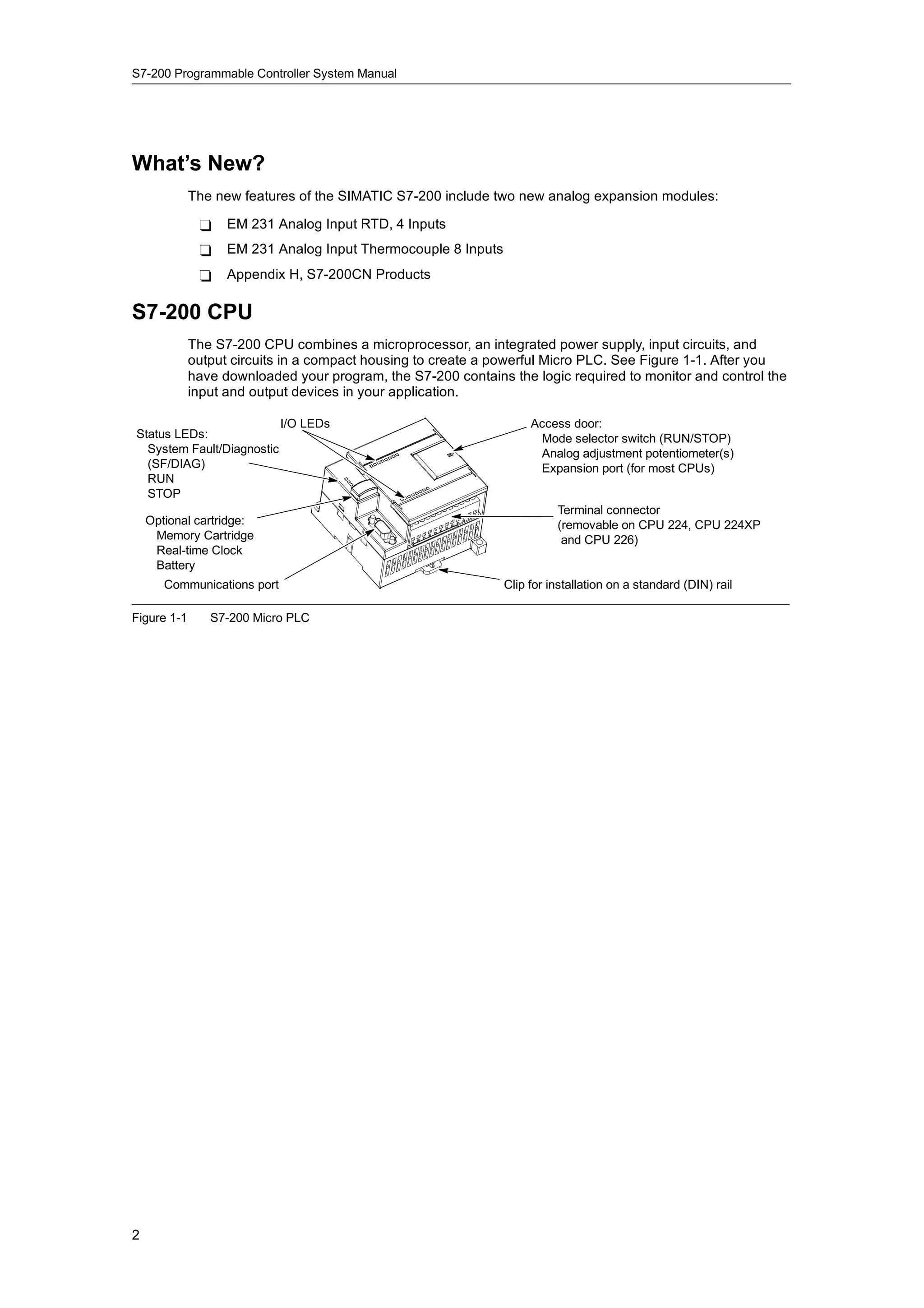
             The S7-200 CPU combines a microprocessor, an integrated power supply, input circuits, and
             output circuits in a compact housing to create a powerful Micro PLC. See Figure 1-1. After you
             have downloaded your program, the S7-200 contains the logic required to monitor and control the
             input and output devices in your application.

                             I/O LEDs                               Access door:
Status LEDs:                                                         Mode selector switch (RUN/STOP)
  System Fault/Diagnostic                                            Analog adjustment potentiometer(s)
  (SF/DIAG)                                                          Expansion port (for most CPUs)
  RUN
  STOP
                                                                         Terminal connector
    Optional cartridge:                                                  (removable on CPU 224, CPU 224XP
     Memory Cartridge                                                     and CPU 226)
     Real-time Clock
     Battery
       Communications port                                     Clip for installation on a standard (DIN) rail

Figure 1-1      S7-200 Micro PLC


2
Product Overview               Chapter 1


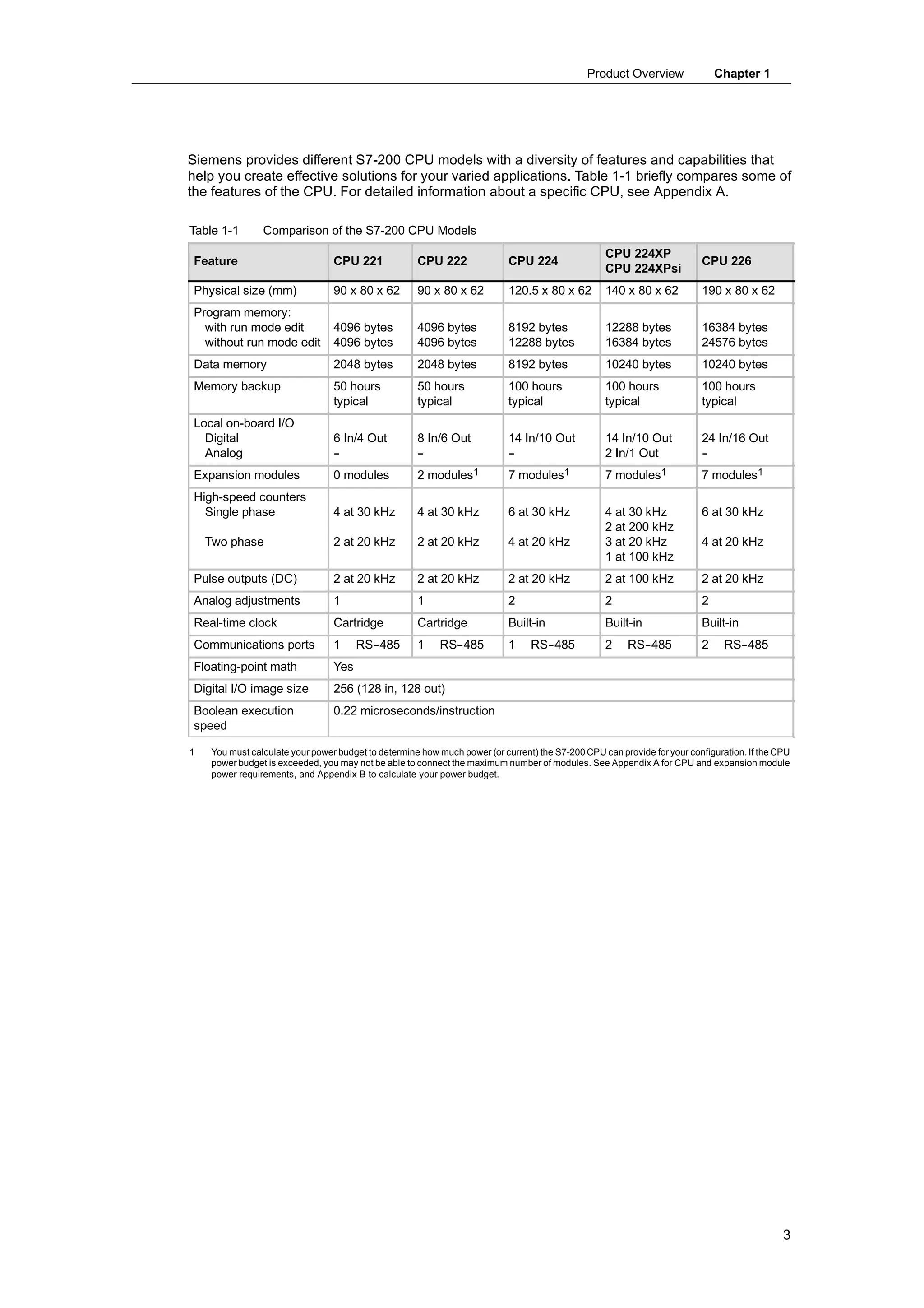
Siemens provides different S7-200 CPU models with a diversity of features and capabilities that
help you create effective solutions for your varied applications. Table 1-1 briefly compares some of
the features of the CPU. For detailed information about a specific CPU, see Appendix A.

Table 1-1       Comparison of the S7-200 CPU Models
                                                                                                  CPU 224XP
Feature                          CPU 221             CPU 222               CPU 224                                       CPU 226
                                                                                                  CPU 224XPsi
Physical size (mm)               90 x 80 x 62        90 x 80 x 62          120.5 x 80 x 62        140 x 80 x 62          190 x 80 x 62
Program memory:
  with run mode edit             4096 bytes          4096 bytes            8192 bytes             12288 bytes            16384 bytes
  without run mode edit          4096 bytes          4096 bytes            12288 bytes            16384 bytes            24576 bytes
Data memory                      2048 bytes          2048 bytes            8192 bytes             10240 bytes            10240 bytes
Memory backup                    50 hours            50 hours              100 hours              100 hours              100 hours
                                 typical             typical               typical                typical                typical
Local on-board I/O
  Digital                        6 In/4 Out          8 In/6 Out            14 In/10 Out           14 In/10 Out           24 In/16 Out
  Analog                         -
                                 -                   -
                                                     -                     -
                                                                           -                      2 In/1 Out             -
                                                                                                                         -
Expansion modules                0 modules           2 modules1            7 modules1             7 modules1             7 modules1
High-speed counters
  Single phase                   4 at 30 kHz         4 at 30 kHz           6 at 30 kHz            4 at 30 kHz            6 at 30 kHz
                                                                                                  2 at 200 kHz
    Two phase                    2 at 20 kHz         2 at 20 kHz           4 at 20 kHz            3 at 20 kHz            4 at 20 kHz
                                                                                                  1 at 100 kHz
Pulse outputs (DC)               2 at 20 kHz         2 at 20 kHz           2 at 20 kHz            2 at 100 kHz           2 at 20 kHz
Analog adjustments               1                   1                     2                      2                      2
Real-time clock                  Cartridge           Cartridge             Built-in               Built-in               Built-in
Communications ports             1     RS-
                                         -485        1    RS-
                                                            -485           1    RS-
                                                                                  -485            2     RS-
                                                                                                          -485           2     RS-
                                                                                                                                 -485
Floating-point math              Yes
Digital I/O image size           256 (128 in, 128 out)
Boolean execution                0.22 microseconds/instruction
speed

1   You must calculate your power budget to determine how much power (or current) the S7-200 CPU can provide for your configuration. If the CPU
    power budget is exceeded, you may not be able to connect the maximum number of modules. See Appendix A for CPU and expansion module
    power requirements, and Appendix B to calculate your power budget.


                                                                                                                                             3
S7-200 Programmable Controller System Manual


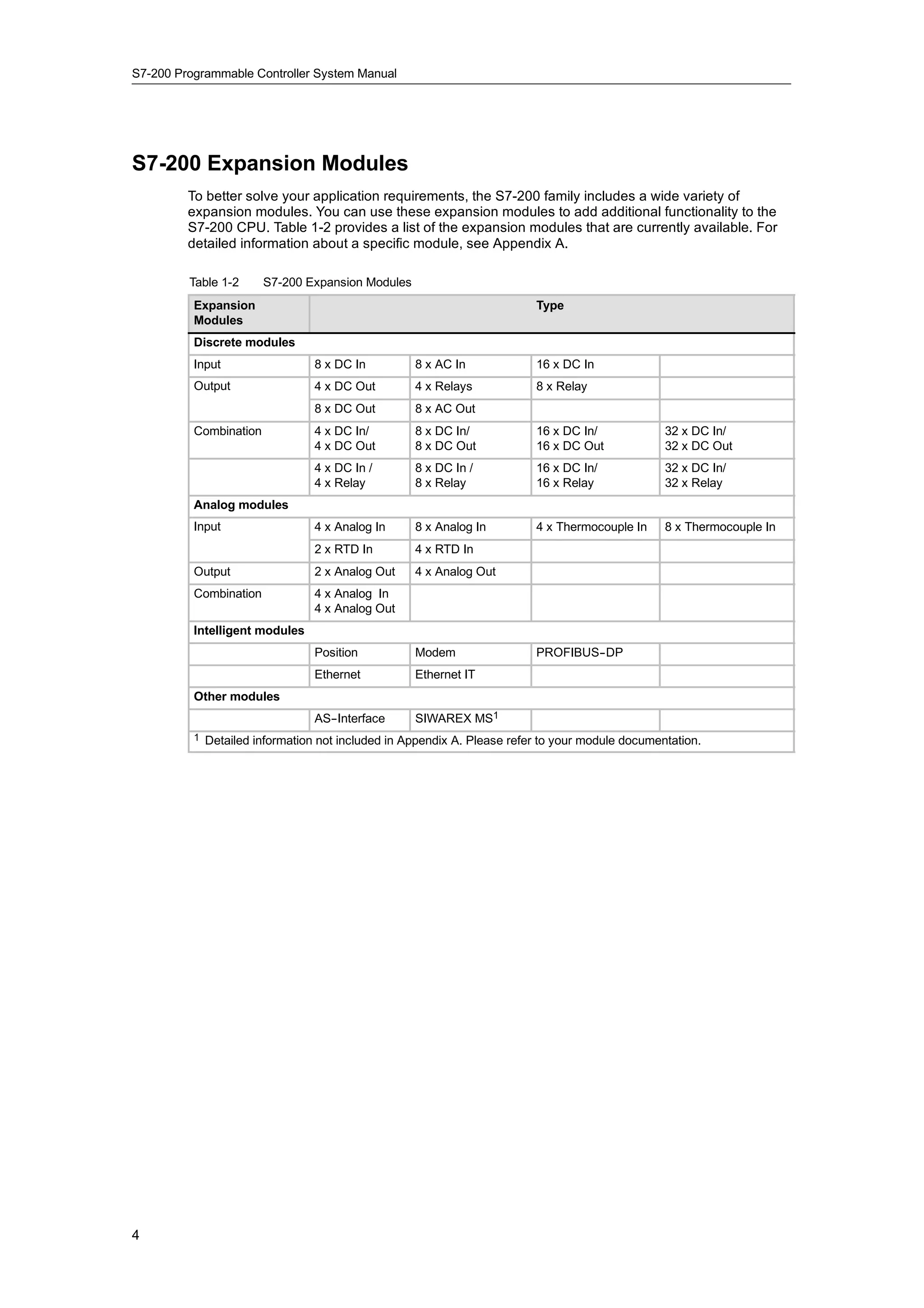
S7-200 Expansion Modules
         To better solve your application requirements, the S7-200 family includes a wide variety of
         expansion modules. You can use these expansion modules to add additional functionality to the
         S7-200 CPU. Table 1-2 provides a list of the expansion modules that are currently available. For
         detailed information about a specific module, see Appendix A.

         Table 1-2      S7-200 Expansion Modules
          Expansion                                                       Type
          Modules
          Discrete modules
          Input                   8 x DC In         8 x AC In             16 x DC In
          Output                  4 x DC Out        4 x Relays            8 x Relay
                                  8 x DC Out        8 x AC Out
          Combination             4 x DC In/        8 x DC In/            16 x DC In/             32 x DC In/
                                  4 x DC Out        8 x DC Out            16 x DC Out             32 x DC Out
                                  4 x DC In /       8 x DC In /           16 x DC In/             32 x DC In/
                                  4 x Relay         8 x Relay             16 x Relay              32 x Relay
          Analog modules
          Input                   4 x Analog In     8 x Analog In         4 x Thermocouple In     8 x Thermocouple In
                                  2 x RTD In        4 x RTD In
          Output                  2 x Analog Out    4 x Analog Out
          Combination             4 x Analog In
                                  4 x Analog Out
          Intelligent modules
                                  Position          Modem                 PROFIBUS-
                                                                                  -DP
                                  Ethernet          Ethernet IT
          Other modules
                                  AS-
                                    -Interface      SIWAREX MS1
          1   Detailed information not included in Appendix A. Please refer to your module documentation.


4
Product Overview     Chapter 1


STEP 7-
      -Micro/WIN Programming Package
    The STEP 7--Micro/WIN programming package provides a user-friendly environment to develop,
    edit, and monitor the logic needed to control your application. STEP 7--Micro/WIN provides three
    program editors for convenience and efficiency in developing the control program for your
    application. To help you find the information you need, STEP 7--Micro/WIN provides an extensive
    online help system and a documentation CD that contains an electronic version of this manual,
    application tips, and other useful information.

  Computer Requirements
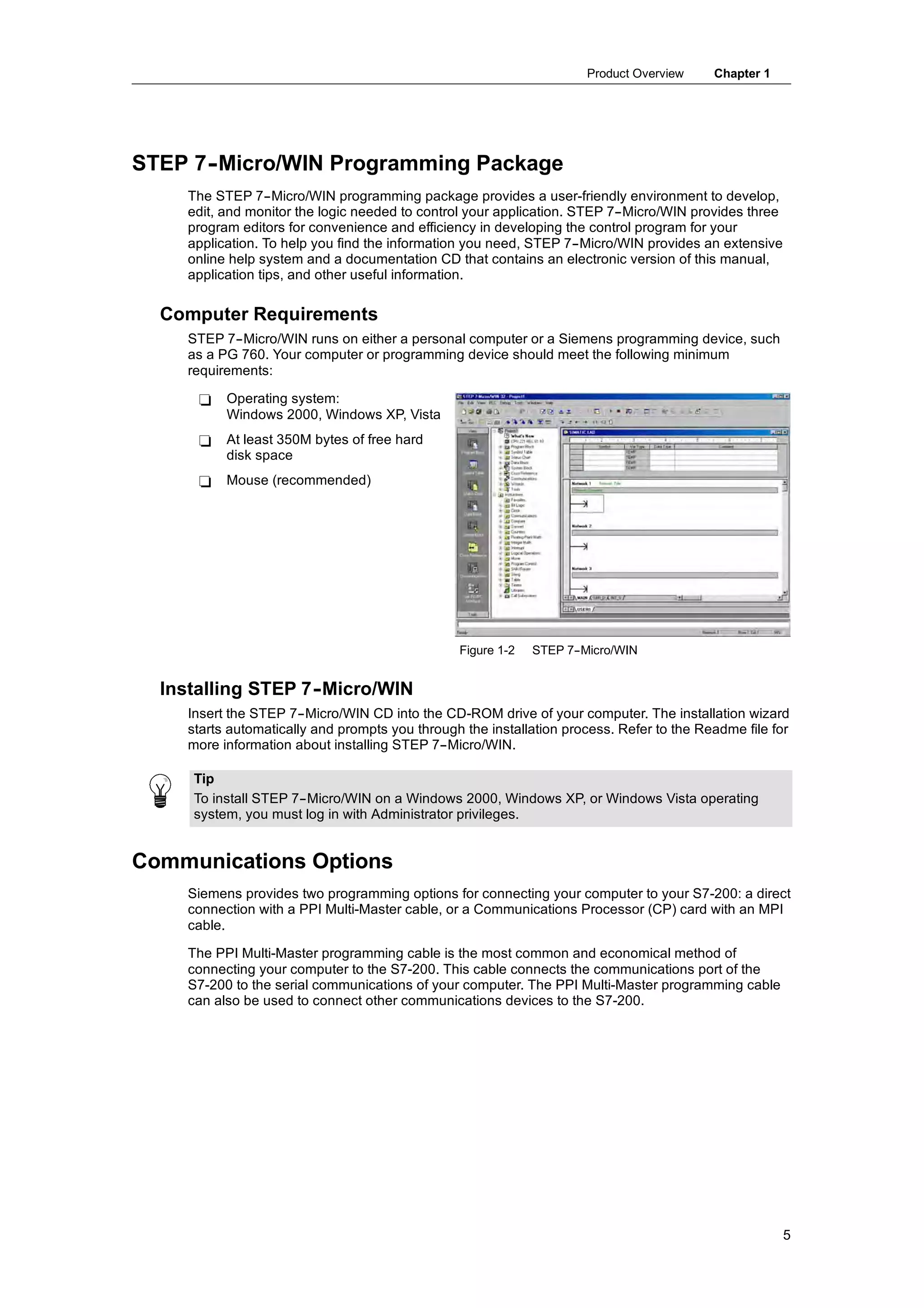
    STEP 7--Micro/WIN runs on either a personal computer or a Siemens programming device, such
    as a PG 760. Your computer or programming device should meet the following minimum
    requirements:

      -   Operating system:
          Windows 2000, Windows XP, Vista
      -   At least 350M bytes of free hard
          disk space
      -   Mouse (recommended)


                                                Figure 1-2   STEP 7-
                                                                   -Micro/WIN


  Installing STEP 7-
                   -Micro/WIN
    Insert the STEP 7--Micro/WIN CD into the CD-ROM drive of your computer. The installation wizard
    starts automatically and prompts you through the installation process. Refer to the Readme file for
    more information about installing STEP 7--Micro/WIN.

     Tip
     To install STEP 7--Micro/WIN on a Windows 2000, Windows XP, or Windows Vista operating
     system, you must log in with Administrator privileges.


Communications Options
    Siemens provides two programming options for connecting your computer to your S7-200: a direct
    connection with a PPI Multi-Master cable, or a Communications Processor (CP) card with an MPI
    cable.

    The PPI Multi-Master programming cable is the most common and economical method of
    connecting your computer to the S7-200. This cable connects the communications port of the
    S7-200 to the serial communications of your computer. The PPI Multi-Master programming cable
    can also be used to connect other communications devices to the S7-200.


                                                                                                       5
S7-200 Programmable Controller System Manual


  Display Panels
        Text Display Units
               The Text Display (TD) is a display device that can be connected to the S7-200. Using the Text
               Display wizard, you can easily program your S7-200 to display text messages and other data
               pertaining to your application.

               The TD device provides a low cost interface to your application by allowing you to view, monitor,
               and change the process variables pertaining to your application.

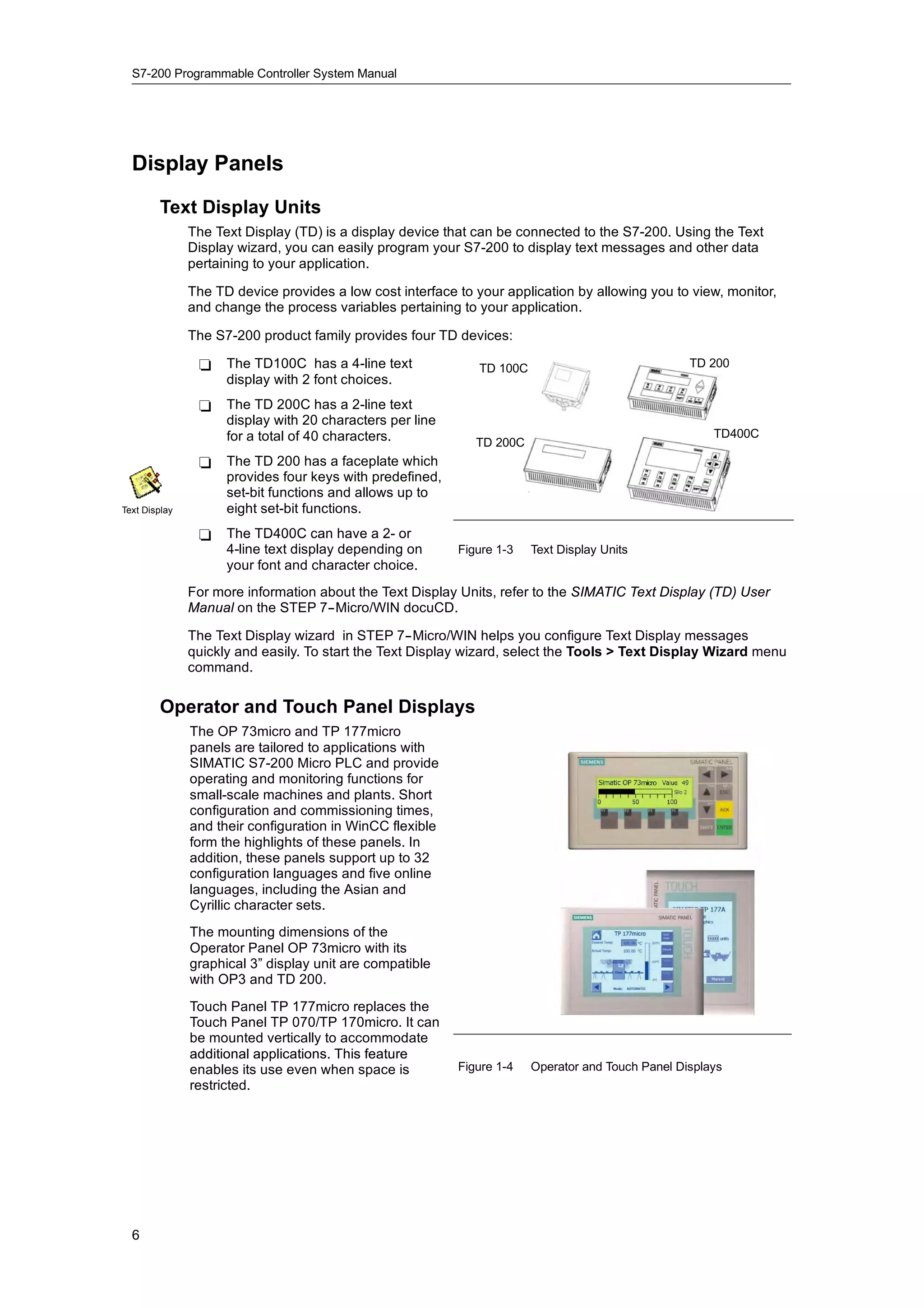
               The S7-200 product family provides four TD devices:

                -    The TD100C has a 4-line text              TD 100C                              TD 200
                     display with 2 font choices.
                -    The TD 200C has a 2-line text
                     display with 20 characters per line
                     for a total of 40 characters.                                                      TD400C
                                                              TD 200C
                -    The TD 200 has a faceplate which
                     provides four keys with predefined,
                     set-bit functions and allows up to
Text Display         eight set-bit functions.
                -    The TD400C can have a 2- or
                                               2
                     4-line text display depending on      Figure 1-3    Text Display Units
                     your font and character choice.
               For more information about the Text Display Units, refer to the SIMATIC Text Display (TD) User
               Manual on the STEP 7--Micro/WIN docuCD.

               The Text Display wizard in STEP 7--Micro/WIN helps you configure Text Display messages
               quickly and easily. To start the Text Display wizard, select the Tools > Text Display Wizard menu
               command.

        Operator and Touch Panel Displays
               The OP 73micro and TP 177micro
               panels are tailored to applications with
               SIMATIC S7-200 Micro PLC and provide
               operating and monitoring functions for
               small-scale machines and plants. Short
               configuration and commissioning times,
               and their configuration in WinCC flexible
               form the highlights of these panels. In
               addition, these panels support up to 32
               configuration languages and five online
               languages, including the Asian and
               Cyrillic character sets.
               The mounting dimensions of the
               Operator Panel OP 73micro with its
               graphical 3” display unit are compatible
               with OP3 and TD 200.
               Touch Panel TP 177micro replaces the
               Touch Panel TP 070/TP 170micro. It can
               be mounted vertically to accommodate
               additional applications. This feature
               enables its use even when space is          Figure 1-4    Operator and Touch Panel Displays
               restricted.


  6
Getting Started

     STEP 7--Micro/WIN makes it easy for you to program your S7-200. In just a few short steps using
     a simple example, you can learn how to connect, program, and run your S7-200.

     All you need for this example is a PPI Multi-Master cable, an S7-200 CPU, and a programming
     device running the STEP 7--Micro/WIN programming software.


In This Chapter
     Connecting the S7-200 CPU . . . . . . . . . . . . . . . . . . . . . . . . . . . . . . . . . . . . . . . . . . . . . . . . . . . . . .      8
     Creating a Sample Program . . . . . . . . . . . . . . . . . . . . . . . . . . . . . . . . . . . . . . . . . . . . . . . . . . . . . . .   10
     Downloading the Sample Program . . . . . . . . . . . . . . . . . . . . . . . . . . . . . . . . . . . . . . . . . . . . . . . . .          14
     Placing the S7-200 in RUN Mode . . . . . . . . . . . . . . . . . . . . . . . . . . . . . . . . . . . . . . . . . . . . . . . . . .        14


                                                                                                                                               7
S7-200 Programmable Controller System Manual


Connecting the S7-200 CPU
         Connecting your S7-200 is easy. For this example, you only need to connect power to your
         S7-200 CPU and then connect the communications cable between your programming device and
         the S7-200 CPU.

    Connecting Power to the S7-200 CPU
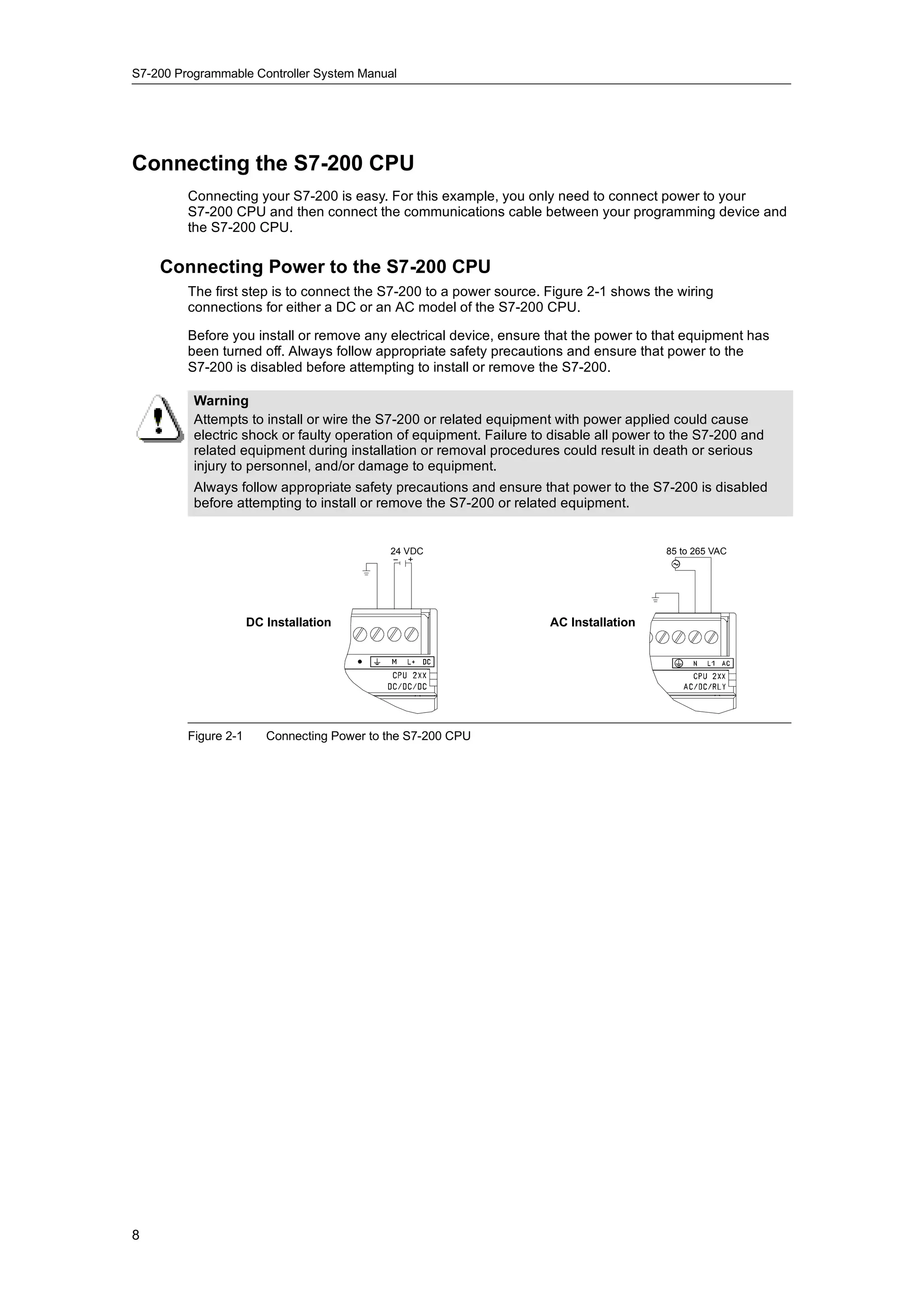
         The first step is to connect the S7-200 to a power source. Figure 2-1 shows the wiring
         connections for either a DC or an AC model of the S7-200 CPU.

         Before you install or remove any electrical device, ensure that the power to that equipment has
         been turned off. Always follow appropriate safety precautions and ensure that power to the
         S7-200 is disabled before attempting to install or remove the S7-200.

          Warning
          Attempts to install or wire the S7-200 or related equipment with power applied could cause
          electric shock or faulty operation of equipment. Failure to disable all power to the S7-200 and
          related equipment during installation or removal procedures could result in death or serious
          injury to personnel, and/or damage to equipment.
          Always follow appropriate safety precautions and ensure that power to the S7-200 is disabled
          before attempting to install or remove the S7-200 or related equipment.


                                             24 VDC                                     85 to 265 VAC


                      DC Installation                                AC Installation


         Figure 2-1      Connecting Power to the S7-200 CPU


8
Getting Started      Chapter 2


Connecting the RS-232/PPI Multi-Master Cable
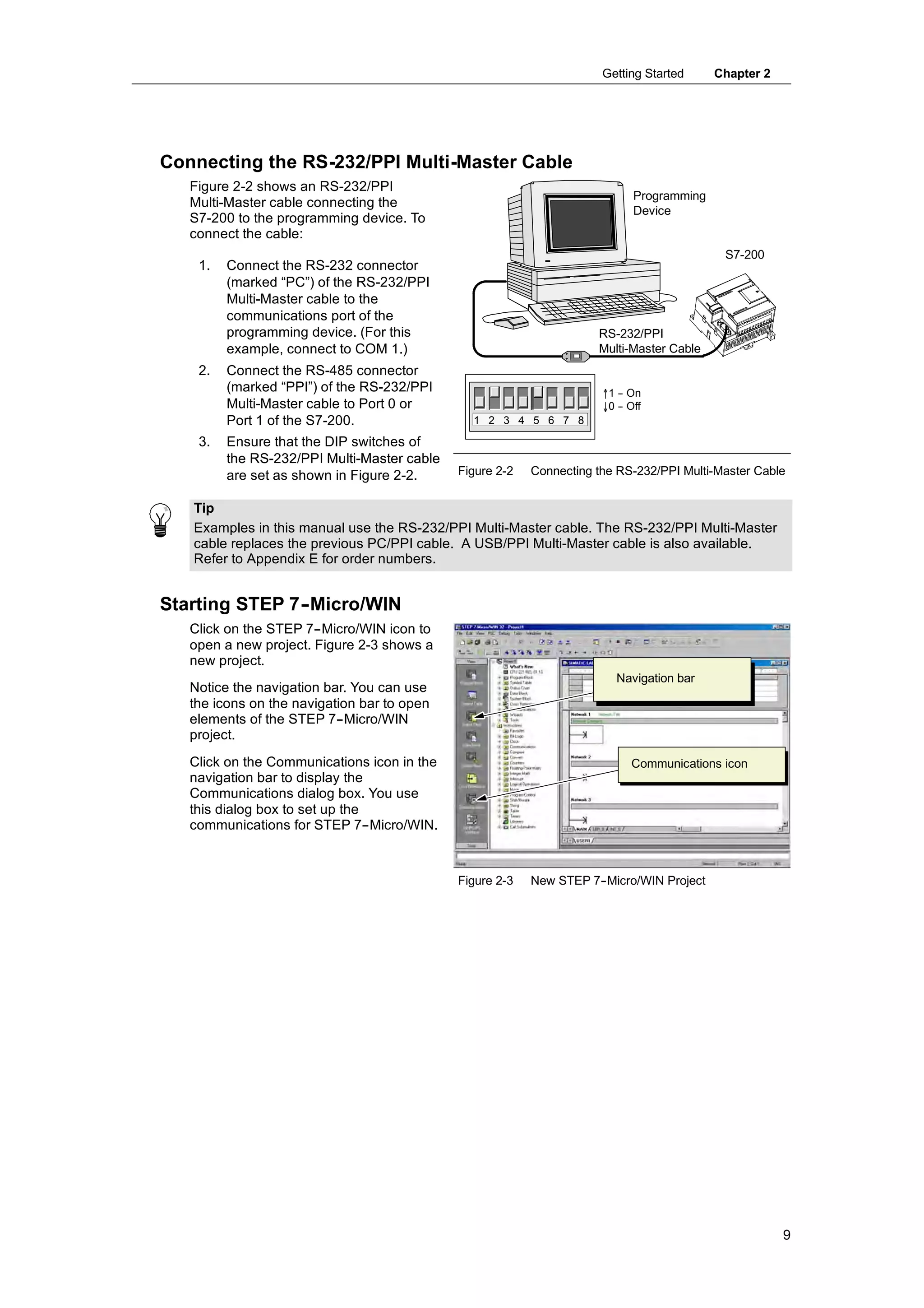
   Figure 2-2 shows an RS-232/PPI
                                                                             Programming
   Multi-Master cable connecting the
                                                                             Device
   S7-200 to the programming device. To
   connect the cable:
                                                                                            S7-200
    1.   Connect the RS-232 connector
         (marked “PC”) of the RS-232/PPI
         Multi-Master cable to the
         communications port of the
         programming device. (For this                               RS-232/PPI
         example, connect to COM 1.)                                 Multi-Master Cable
    2.   Connect the RS-485 connector
         (marked “PPI”) of the RS-232/PPI                             ↑1 -- On
         Multi-Master cable to Port 0 or                              ↓0 -- Off
         Port 1 of the S7-200.                 1 2 3 4 5 6 7 8

    3.   Ensure that the DIP switches of
         the RS-232/PPI Multi-Master cable
         are set as shown in Figure 2-2.     Figure 2-2   Connecting the RS-232/PPI Multi-Master Cable


   Tip
   Examples in this manual use the RS-232/PPI Multi-Master cable. The RS-232/PPI Multi-Master
   cable replaces the previous PC/PPI cable. A USB/PPI Multi-Master cable is also available.
   Refer to Appendix E for order numbers.


Starting STEP 7-
               -Micro/WIN
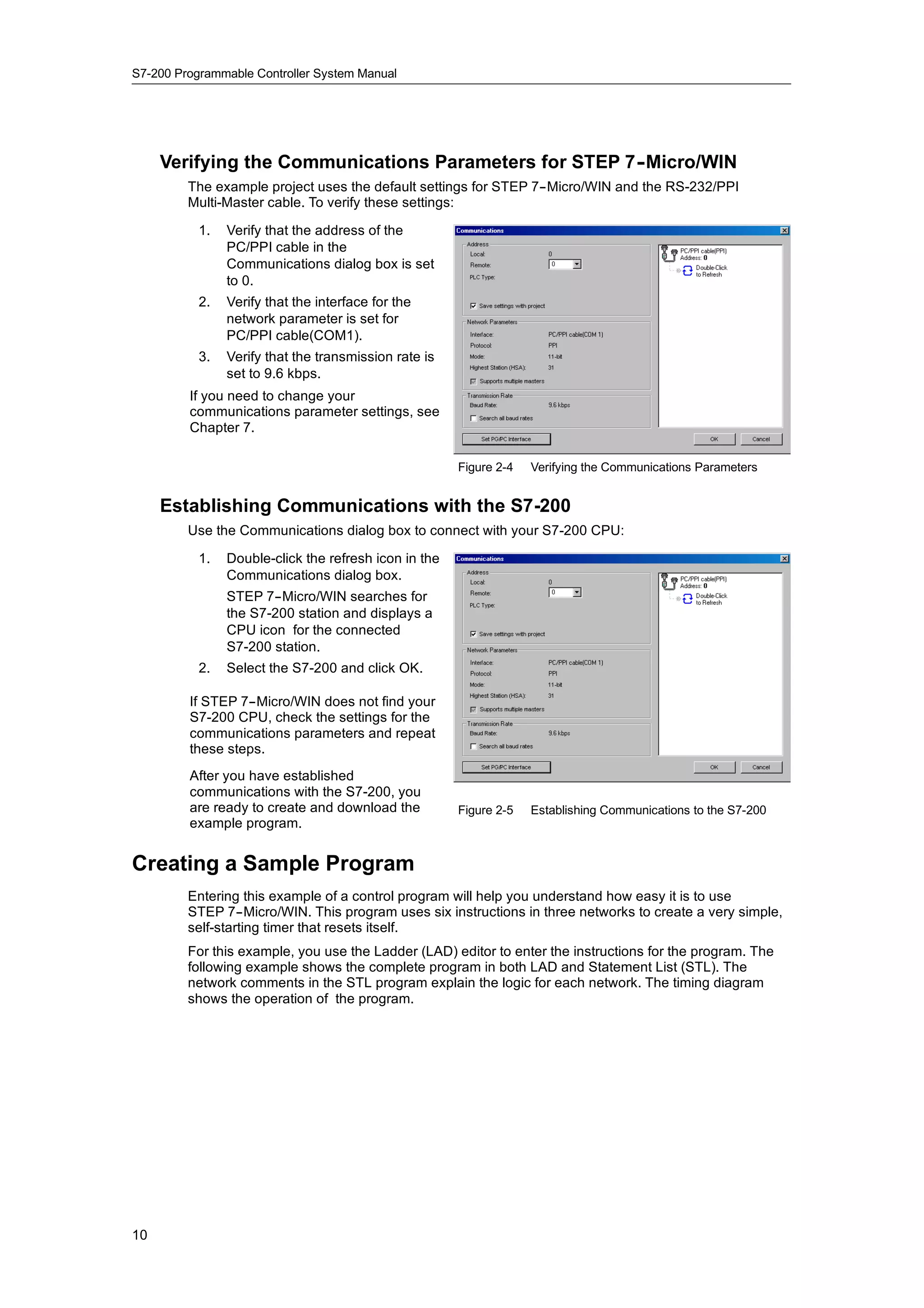
   Click on the STEP 7--Micro/WIN icon to
   open a new project. Figure 2-3 shows a
   new project.
                                                                         Navigation bar
   Notice the navigation bar. You can use
   the icons on the navigation bar to open
   elements of the STEP 7--Micro/WIN
   project.
   Click on the Communications icon in the                                  Communications icon
   navigation bar to display the
   Communications dialog box. You use
   this dialog box to set up the
   communications for STEP 7--Micro/WIN.


                                             Figure 2-3   New STEP 7-
                                                                    -Micro/WIN Project


                                                                                                       9
S7-200 Programmable Controller System Manual


     Verifying the Communications Parameters for STEP 7-
                                                       -Micro/WIN
         The example project uses the default settings for STEP 7--Micro/WIN and the RS-232/PPI
         Multi-Master cable. To verify these settings:

           1.   Verify that the address of the
                PC/PPI cable in the
                Communications dialog box is set
                to 0.
           2.   Verify that the interface for the
                network parameter is set for
                PC/PPI cable(COM1).
           3.   Verify that the transmission rate is
                set to 9.6 kbps.
         If you need to change your
         communications parameter settings, see
         Chapter 7.

                                                       Figure 2-4   Verifying the Communications Parameters


     Establishing Communications with the S7-200
         Use the Communications dialog box to connect with your S7-200 CPU:

           1.   Double-click the refresh icon in the
                Communications dialog box.
                STEP 7--Micro/WIN searches for
                the S7-200 station and displays a
                CPU icon for the connected
                S7-200 station.
           2.   Select the S7-200 and click OK.

         If STEP 7--Micro/WIN does not find your
         S7-200 CPU, check the settings for the
         communications parameters and repeat
         these steps.
         After you have established
         communications with the S7-200, you
         co     u cat o s t t e S 00,
         are ready to create and download the          Figure 2-5   Establishing Communications to the S7-200
         example program.


Creating a Sample Program
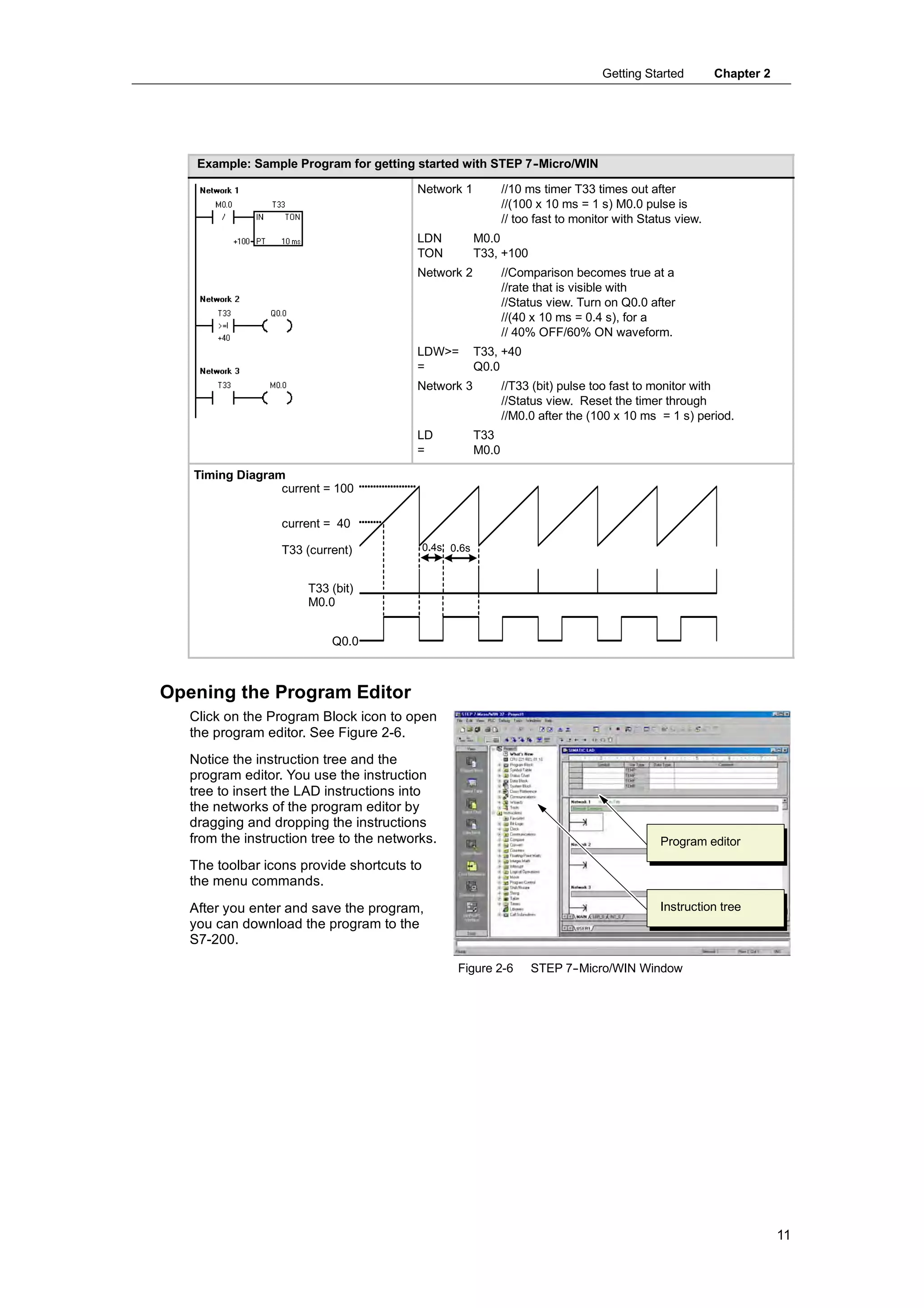
         Entering this example of a control program will help you understand how easy it is to use
         STEP 7--Micro/WIN. This program uses six instructions in three networks to create a very simple,
         self-starting timer that resets itself.
         For this example, you use the Ladder (LAD) editor to enter the instructions for the program. The
         following example shows the complete program in both LAD and Statement List (STL). The
         network comments in the STL program explain the logic for each network. The timing diagram
         shows the operation of the program.


10
Getting Started        Chapter 2


    Example: Sample Program for getting started with STEP 7- Micro/WIN
                                                           -

                                         Network 1             //10 ms timer T33 times out after
                                                               //(100 x 10 ms = 1 s) M0.0 pulse is
                                                               // too fast to monitor with Status view.
                                         LDN            M0.0
                                         TON            T33, +100
                                         Network 2             //Comparison becomes true at a
                                                               //rate that is visible with
                                                               //Status view. Turn on Q0.0 after
                                                               //(40 x 10 ms = 0.4 s), for a
                                                               // 40% OFF/60% ON waveform.
                                         LDW>=          T33, +40
                                         =              Q0.0
                                         Network 3             //T33 (bit) pulse too fast to monitor with
                                                               //Status view. Reset the timer through
                                                               //M0.0 after the (100 x 10 ms = 1 s) period.
                                         LD             T33
                                         =              M0.0

   Timing Diagram
                 current = 100

                  current = 40

                  T33 (current)             0.4s 0.6s


                       T33 (bit)
                       M0.0


                           Q0.0


Opening the Program Editor
   Click on the Program Block icon to open
   the program editor. See Figure 2-6.
   Notice the instruction tree and the
   program editor. You use the instruction
   tree to insert the LAD instructions into
   the networks of the program editor by
   dragging and dropping the instructions
   from the instruction tree to the networks.                                                 Program editor
   The toolbar icons provide shortcuts to
   the menu commands.
   After you enter and save the program,                                                      Instruction tree
   you can download the program to the
   S7-200.

                                                  Figure 2-6        STEP 7-
                                                                          -Micro/WIN Window


                                                                                                                      11
S7-200 Programmable Controller System Manual


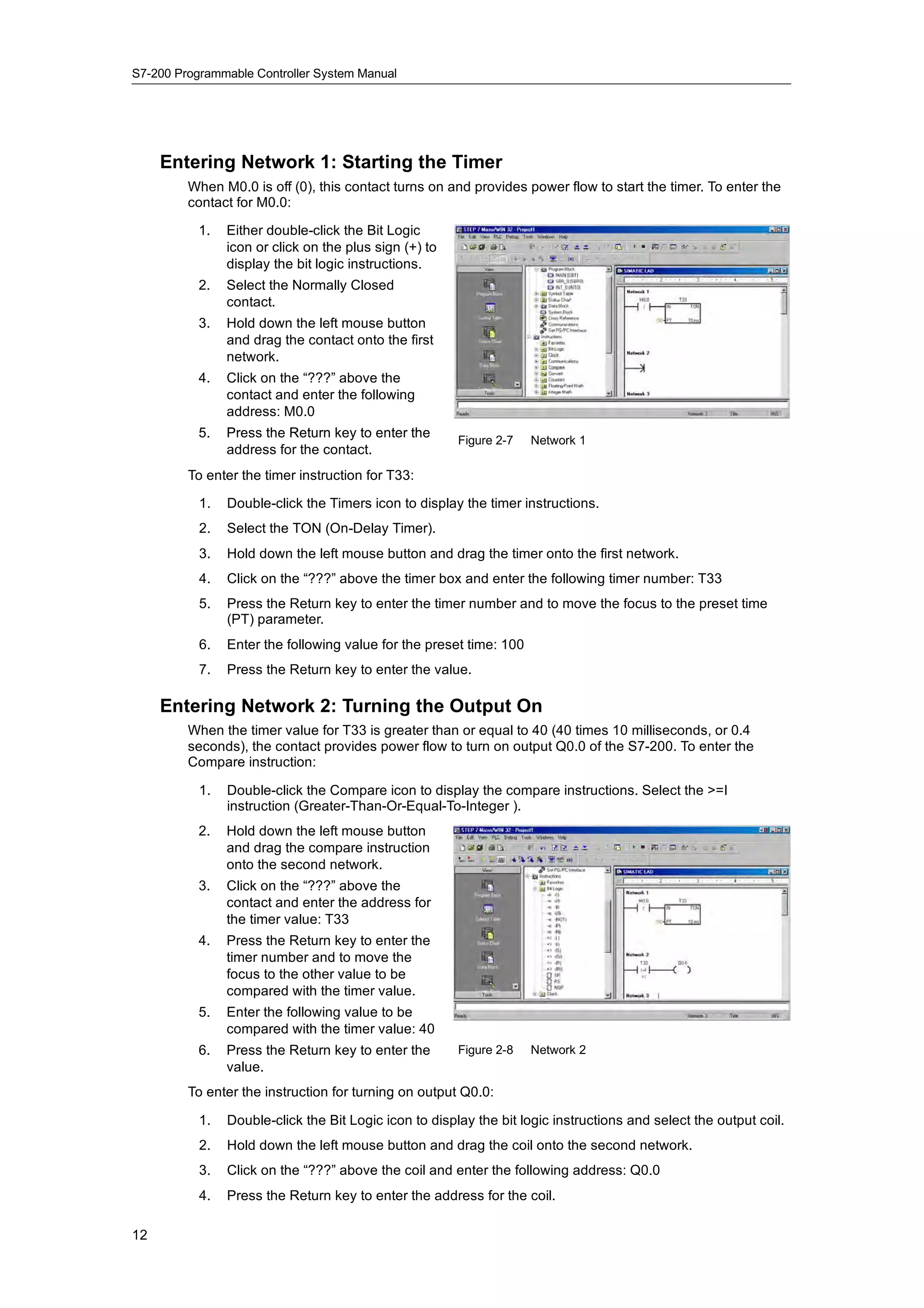
     Entering Network 1: Starting the Timer
         When M0.0 is off (0), this contact turns on and provides power flow to start the timer. To enter the
         contact for M0.0:

           1.   Either double-click the Bit Logic
                icon or click on the plus sign (+) to
                display the bit logic instructions.
           2.   Select the Normally Closed
                contact.
           3.   Hold down the left mouse button
                and drag the contact onto the first
                network.
           4.   Click on the “???” above the
                contact and enter the following
                address: M0.0
           5.
           5    Press the Return key to enter the
                                                        Figure 2-7   Network 1
                address for the contact.
         To enter the timer instruction for T33:

           1.   Double-click the Timers icon to display the timer instructions.
           2.   Select the TON (On-Delay Timer).
           3.   Hold down the left mouse button and drag the timer onto the first network.
           4.   Click on the “???” above the timer box and enter the following timer number: T33
           5.   Press the Return key to enter the timer number and to move the focus to the preset time
                (PT) parameter.
           6.   Enter the following value for the preset time: 100
           7.   Press the Return key to enter the value.

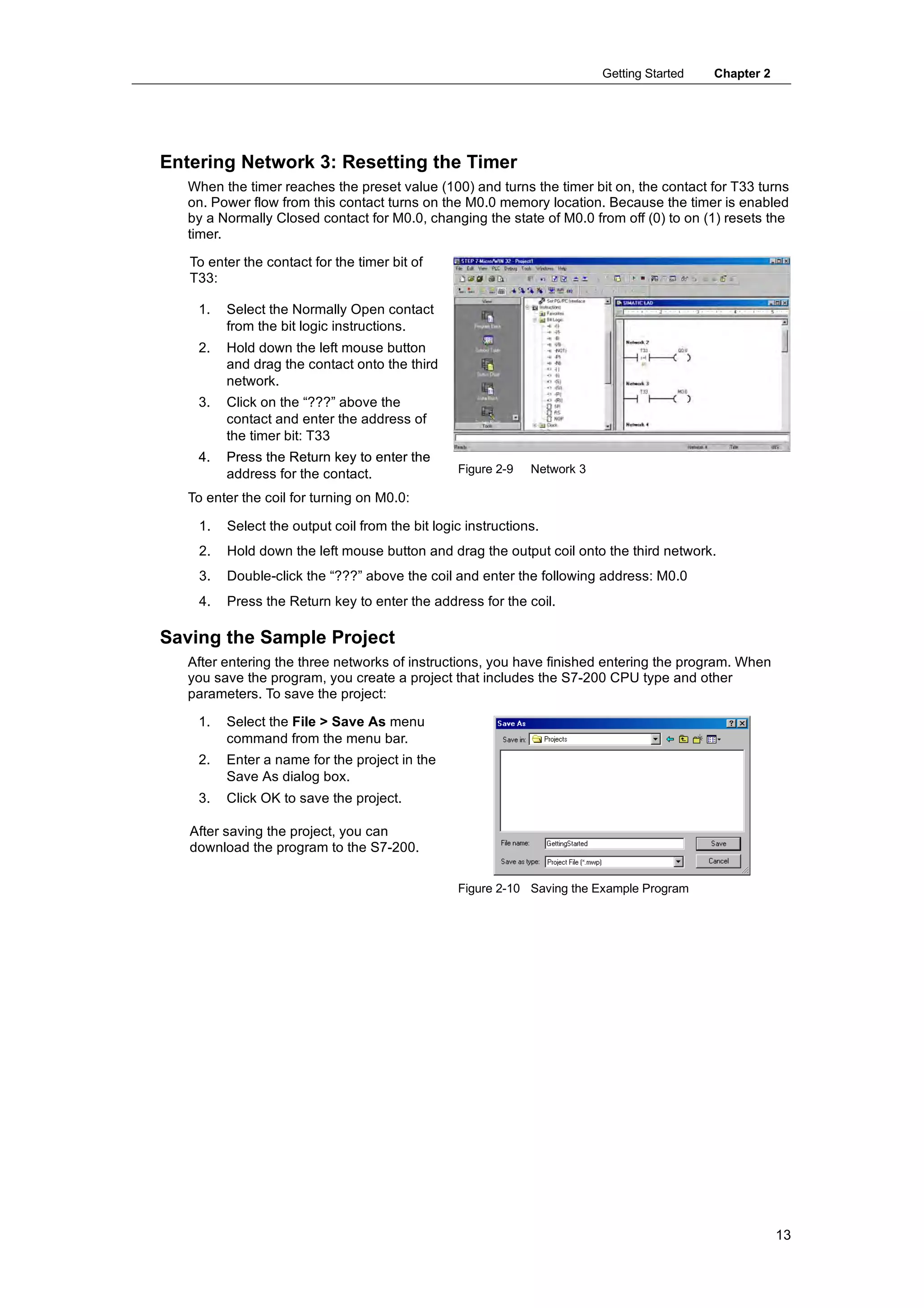
     Entering Network 2: Turning the Output On
         When the timer value for T33 is greater than or equal to 40 (40 times 10 milliseconds, or 0.4
         seconds), the contact provides power flow to turn on output Q0.0 of the S7-200. To enter the
         Compare instruction:

           1.   Double-click the Compare icon to display the compare instructions. Select the >=I
                instruction (Greater-Than-Or-Equal-To-Integer ).
           2.   Hold down the left mouse button
                and drag the compare instruction
                onto the second network.
           3.   Click on the “???” above the
                contact and enter the address for
                the timer value: T33
           4.   Press the Return key to enter the
                timer number and to move the
                focus to the other value to be
                compared with the timer value.
           5.   Enter the following value to be
                compared with the timer value: 40
                    p
           6.   Press the Return key to enter the       Figure 2-8   Network 2
                value.
         To enter the instruction for turning on output Q0.0:

           1.   Double-click the Bit Logic icon to display the bit logic instructions and select the output coil.
           2.   Hold down the left mouse button and drag the coil onto the second network.
           3.   Click on the “???” above the coil and enter the following address: Q0.0
           4.   Press the Return key to enter the address for the coil.

12
Getting Started   Chapter 2


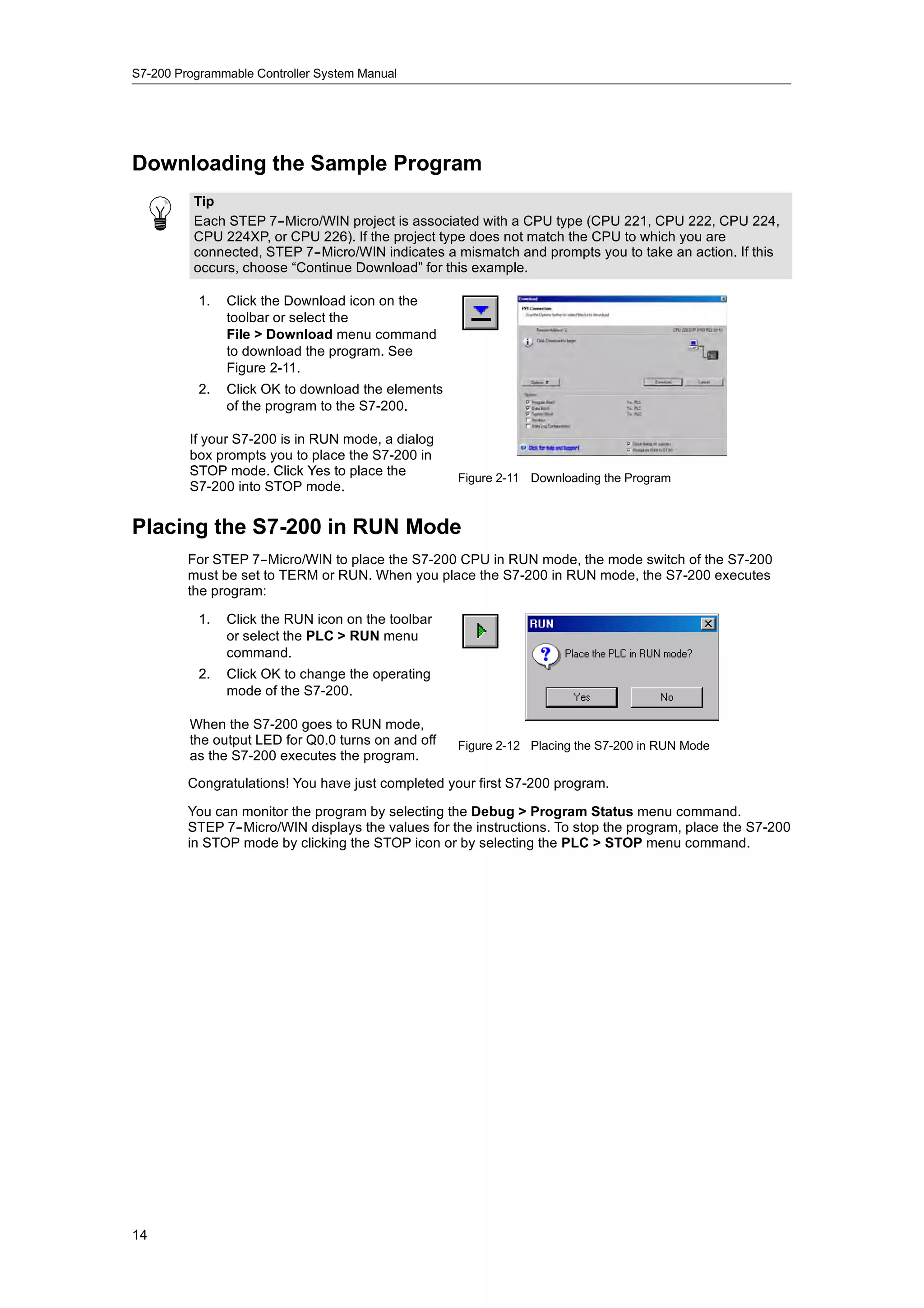
Entering Network 3: Resetting the Timer
   When the timer reaches the preset value (100) and turns the timer bit on, the contact for T33 turns
   on. Power flow from this contact turns on the M0.0 memory location. Because the timer is enabled
   by a Normally Closed contact for M0.0, changing the state of M0.0 from off (0) to on (1) resets the
   timer.

   To enter the contact for the timer bit of
   T33:

    1.   Select the Normally Open contact
         from the bit logic instructions.
    2.   Hold down the left mouse button
         and drag the contact onto the third
         network.
    3.   Click on the “???” above the
         contact and enter the address of
         the timer bit: T33
    4.   Press the Return key to enter the
         address for the contact.                Figure 2-9   Network 3

   To enter the coil for turning on M0.0:

    1.   Select the output coil from the bit logic instructions.
    2.   Hold down the left mouse button and drag the output coil onto the third network.
    3.   Double-click the “???” above the coil and enter the following address: M0.0
    4.   Press the Return key to enter the address for the coil.

Saving the Sample Project
   After entering the three networks of instructions, you have finished entering the program. When
   you save the program, you create a project that includes the S7-200 CPU type and other
   parameters. To save the project:

    1.   Select the File > Save As menu
         command from the menu bar.
    2.   Enter a name for the project in the
         Save As dialog box.
    3.   Click OK to save the project.

   After saving the project, you can
   download the program to the S7-200.

                                                 Figure 2-10 Saving the Example Program


                                                                                                        13
S7-200 Programmable Controller System Manual


Downloading the Sample Program
          Tip
          Each STEP 7--Micro/WIN project is associated with a CPU type (CPU 221, CPU 222, CPU 224,
          CPU 224XP, or CPU 226). If the project type does not match the CPU to which you are
          connected, STEP 7--Micro/WIN indicates a mismatch and prompts you to take an action. If this
          occurs, choose “Continue Download” for this example.

           1.   Click the Download icon on the
                toolbar or select the
                File > Download menu command
                to download the program. See
                Figure 2-11.
           2.   Click OK to download the elements
                of the program to the S7-200.

         If your S7-200 is in RUN mode, a dialog
         box prompts you to place the S7-200 in
         STOP mode Click Yes to place the
                 mode.                              Figure 2-11 Downloading the Program
         S7-200 into STOP mode.


Placing the S7-200 in RUN Mode
         For STEP 7--Micro/WIN to place the S7-200 CPU in RUN mode, the mode switch of the S7-200
         must be set to TERM or RUN. When you place the S7-200 in RUN mode, the S7-200 executes
         the program:

           1.   Click the RUN icon on the toolbar
                or select the PLC > RUN menu
                command.
           2.   Click OK to change the operating
                mode of the S7-200.

         When the S7-200 goes to RUN mode,
                           g
         the t t
         th output LED f Q0 0 t
                        for Q0.0 turns on and off
                                            d ff    Figure 2-12 Placing the S7-200 in RUN Mode
         as the S7-200 executes the program.

         Congratulations! You have just completed your first S7-200 program.

         You can monitor the program by selecting the Debug > Program Status menu command.
         STEP 7--Micro/WIN displays the values for the instructions. To stop the program, place the S7-200
         in STOP mode by clicking the STOP icon or by selecting the PLC > STOP menu command.


14
Installing the S7-200

     The S7-200 equipment is designed to be easy to install. You can use the mounting holes to attach
     the modules to a panel, or you can use the built-in clips to mount the modules onto a standard
     (DIN) rail. The small size of the S7-200 allows you to make efficient use of space.

     This chapter provides guidelines for installing and wiring your S7-200 system.


In This Chapter
     Guidelines for Installing S7-200 Devices . . . . . . . . . . . . . . . . . . . . . . . . . . . . . . . . . . . . . . . . . . . .    16
     Installing and Removing the S7-200 Modules . . . . . . . . . . . . . . . . . . . . . . . . . . . . . . . . . . . . . . . .          17
     Guidelines for Grounding and Wiring . . . . . . . . . . . . . . . . . . . . . . . . . . . . . . . . . . . . . . . . . . . . . . .   20


                                                                                                                                         15
S7-200 Programmable Controller System Manual


Guidelines for Installing S7-200 Devices
             You can install an S7-200 either on a panel or on a standard rail, and you can orient the S7-200
             either horizontally or vertically.

             Warning
             The SIMATIC S7-200 PLCs are Open Type Controllers. It is required that you install the S7-200
             in a housing, cabinet, or electric control room. Entry to the housing, cabinet, or electric control
             room should be limited to authorized personnel.
             Failure to follow these installation requirements could result in death or serious injury to
             personnel, and/or damage to equipment.
             Always follow these requirements when installing S7-200 PLCs.


     Separate the S7-200 Devices from Heat, High Voltage, and Electrical
     Noise
             As a general rule for laying out the devices of your system, always separate the devices that
             generate high voltage and high electrical noise from the low-voltage, logic-type devices such as
             the S7-200.

             When configuring the layout of the S7-200 inside your panel, consider the heat-generating
             devices and locate the electronic-type devices in the cooler areas of your cabinet. Operating any
             electronic device in a high-temperature environment will reduce the time to failure.

             Consider also the routing of the wiring for the devices in the panel. Avoid placing low voltage
             signal wires and communications cables in the same tray with AC power wiring and high-energy,
             rapidly-switched DC wiring.

     Provide Adequate Clearance for Cooling and Wiring
             S7-200 devices are designed for natural convection cooling. For proper cooling, you must provide
             a clearance of at least 25 mm above and below the devices. Also, allow at least 75 mm of depth.

             Caution
             For vertical mounting, the maximum allowable ambient temperature is reduced by
             10 degrees C. Mount the S7-200 CPU below any expansion modules.

             When planning your layout for the S7-200 system, allow enough clearance for the wiring and
             communications cable connections. For additional flexibility in configuring the layout of the S7-200
             system, use the I/O expansion cable.

                                       Clearance                                   35 mm

                                                                                                     1 mm
                                                                    7.5 mm


                                                                                DIN Rail
  25 mm


                                                                                             75 mm


                                                                             Front of the                   Mounting
                                                                             enclosure                      surface

                                                   Vertical Panel
                                                     Mounting
                                                                                            Side View
 Horizontal DIN Rail Mounting with Optional
  Expansion Cable (limit one per system)


Figure 3-1      Mounting Methods, Orientation, and Clearance


16
Installing the S7-200   Chapter 3


  Power Budget
     All S7-200 CPUs have an internal power supply that provides power for the CPU, the expansion
     modules, and other 24 VDC user power requirements.

     The S7-200 CPU provides the 5 VDC logic power needed for any expansion in your system. Pay
     careful attention to your system configuration to ensure that your CPU can supply the 5V power
     required by your selected expansion modules. If your configuration requires more power than the
     CPU can supply, you must remove a module or select a CPU with more power capability. Refer to
     Appendix A for information about the 5 VDC logic budget supplied by your S7-200 CPU and the
     5 VDC power requirements of the expansion modules. Use Appendix B as a guide for determining
     how much power (or current) the CPU can provide for your configuration.

     All S7-200 CPUs also provide a 24 VDC sensor supply that can supply 24 VDC for input points,
     for relay coil power on the expansion modules, or for other requirements. If your power
     requirements exceed the budget of the sensor supply, then you must add an external 24 VDC
     power supply to your system. Refer to Appendix A for the 24 VDC sensor supply power budget for
     your particular S7-200 CPU.

     If you require an external 24 VDC power supply, ensure that the power supply is not connected in
     parallel with the sensor supply of the S7-200 CPU. For improved electrical noise protection, it is
     recommended that the commons (M) of the different power supplies be connected.

     Warning
     Connecting an external 24 VDC power supply in parallel with the S7-200 24 VDC sensor supply
     can result in a conflict between the two supplies as each seeks to establish its own preferred
     output voltage level.
     The result of this conflict can be shortened lifetime or immediate failure of one or both power
     supplies, with consequent unpredictable operation of the PLC system. Unpredictable operation
     could result in death or serious injury to personnel, and/or damage to equipment.
     The S7-200 DC sensor supply and any external power supply should provide power to different
     points.


Installing and Removing the S7-200 Modules
     The S7-200 can be easily installed on a standard DIN rail or on a panel.

  Prerequisites
     Before you install or remove any electrical device, ensure that the power to that equipment has
     been turned off. Also, ensure that the power to any related equipment has been turned off.

     Warning
     Attempts to install or remove S7-200 or related equipment with the power applied could cause
     electric shock or faulty operation of equipment.
     Failure to disable all power to the S7-200 and related equipment during installation or removal
     procedures could result in death or serious injury to personnel, and/or damage to equipment.
     Always follow appropriate safety precautions and ensure that power to the S7-200 is disabled
     before attempting to install or remove S7-200 CPUs or related equipment.

     Always ensure that whenever you replace or install an S7-200 device you use the correct module
     or equivalent device.

     Warning
     If you install an incorrect module, the program in the S7-200 could function unpredictably.
     Failure to replace an S7-200 device with the same model, orientation, or order could result in
     death or serious injury to personnel, and/or damage to equipment.
     Replace an S7-200 device with the same model, and be sure to orient and position it correctly.


                                                                                                        17
S7-200 Programmable Controller System Manual


     Mounting Dimensions
         The S7-200 CPUs and expansion modules include mounting holes to facilitate installation on
         panels. Refer to Table 3-1 for the mounting dimensions.
         Table 3-1      Mounting Dimensions


                                                                                             9.5 mm*     * Minimum spacing
                                                                                                           between modules
                                                                   A                                       when hard-mounted
                         4 mm
                                                                   B

                                                                                                                Mounting
                                                                                                                holes (M4
                                                                                                                or No. 8)

            96 mm       88 mm        80 mm


                                                                                                  B
                                                                       4 mm
                        4 mm                                                                      A
          S7-200 Module                                                                           Width A        Width B
          CPU 221 and CPU 222                                                                          90 mm        82 mm
          CPU 224                                                                                 120.5 mm       112.5 mm
          CPU 224XP, CPU 224XPsi                                                                      140 mm       132 mm
          CPU 226                                                                                     196 mm       188 mm
          Expansion modules:      4- and 8-point DC and Relay I/O (8I, 4Q, 8Q, 4I/4Q)                  46 mm        38 mm
                                  and Analog Out (2 AQ)
          Expansion modules:      16-point digital I/O (16I, 8I/8Q), Analog I/O (4AI, 8AI, 4AQ,       71.2 mm     63.2 mm
                                  4AI/1AQ), RTD, Thermocouple, PROFIBUS, Ethernet,
                                  Internet, AS-Interface, 8-point AC (8I and 8Q), Position, and
                Modem
          Expansion modules:      32-point digital I/O (16I/16Q)                                  137.3 mm       129.3 mm
          Expansion modules:      64-point digital I/O (32I/32Q)                                      196 mm       188 mm


     Installing a CPU or Expansion Module
         Installing the S7-200 is easy! Just follow these steps.

         Panel Mounting
           1.    Locate, drill, and tap the mounting holes (M4 or American Standard number 8), using the
                 dimensions in Table 3-1.
           2.    Secure the module(s) to the panel, using the appropriate screws.
           3.    If you are using an expansion module, connect the expansion module ribbon cable into the
                 expansion port connector under the access door.
         DIN Rail Mounting
           1.    Secure the rail to the mounting panel every 75 mm.
           2.    Snap open the DIN clip (located on the bottom of the module) and hook the back of the
                 module onto the DIN rail.
           3.    If you are using an expansion module, connect the expansion module ribbon cable into the
                 expansion port connector under the access door.
           4.    Rotate the module down to the DIN rail and snap the clip closed. Carefully check that the
                 clip has fastened the module securely onto the rail. To avoid damage to the module, press
                 on the tab of the mounting hole instead of pressing directly on the front of the module.


18
Installing the S7-200   Chapter 3


   Tip
   Using DIN rail stops could be helpful if your S7-200 is in an environment with high vibration
   potential or if the S7-200 has been installed vertically.
   If your system is in a high-vibration environment, then panel-mounting the S7-200 will provide a
   greater level of vibration protection.


Removing a CPU or Expansion Module
  To remove an S7-200 CPU or expansion module, follow these steps:

    1.   Remove power from the S7-200.
    2.   Disconnect all the wiring and cabling that is attached to the module. Most S7-200 CPU and
         expansion modules have removable connectors to make this job easier.
    3.   If you have expansion modules connected to the unit that you are removing, open the
         access cover door and disconnect the expansion module ribbon cable from the adjacent
         modules.
    4.   Unscrew the mounting screws or snap open the DIN clip.
    5.   Remove the module.

Removing and Reinstalling the Terminal Block Connector
  Most S7-200 modules have removable connectors to make installing and replacing the module
  easy. Refer to Appendix A to determine whether your S7-200 module has removable connectors.
  You can order an optional fan-out connector for modules that do not have removable connectors.
  See Appendix E for order numbers.

  To Remove the Connector
    1.   Open the connector door to gain access to the connector.
    2.   Insert a small screwdriver in the notch in the middle of the connector.
    3.   Remove the terminal connector by prying the screwdriver away from the S7-200 housing.
         See Figure 3-2.


  Figure 3-2   Removing the Connector


  To Reinstall the Connector
    1.   Open the connector door.
    2.   Align the connector with the pins on the unit and align the wiring edge of the connector
         inside the rim of the connector base.
    3.   Press down firmly to rotate the connector until it snaps into place. Check carefully to ensure
         that the connector is properly aligned and fully engaged.


                                                                                                       19
S7-200 Programmable Controller System Manual


Guidelines for Grounding and Wiring
         Proper grounding and wiring of all electrical equipment is important to help ensure the optimum
         operation of your system and to provide additional electrical noise protection for your application
         and the S7-200.

     Prerequisites
         Before you ground or install wiring to any electrical device, ensure that the power to that
         equipment has been turned off. Also, ensure that the power to any related equipment has been
         turned off.

         Ensure that you follow all applicable electrical codes when wiring the S7-200 and related
         equipment. Install and operate all equipment according to all applicable national and local
         standards. Contact your local authorities to determine which codes and standards apply to your
         specific case.

          Warning
          Attempts to install or wire the S7-200 or related equipment with power applied could cause
          electric shock or faulty operation of equipment. Failure to disable all power to the S7-200 and
          related equipment during installation or removal procedures could result in death or serious
          injury to personnel, and/or damage to equipment.
          Always follow appropriate safety precautions and ensure that power to the S7-200 is disabled
          before attempting to install or remove the S7-200 or related equipment.

         Always take safety into consideration as you design the grounding and wiring of your S7-200
         system. Electronic control devices, such as the S7-200, can fail and can cause unexpected
         operation of the equipment that is being controlled or monitored. For this reason, you should
         implement safeguards that are independent of the S7-200 to protect against possible personal
         injury or equipment damage.

          Warning
          Control devices can fail in an unsafe condition, resulting in unexpected operation of controlled
          equipment. Such unexpected operations could result in death or serious injury to personnel,
          and/or damage to equipment.
          Use an emergency stop function, electromechanical overrides, or other redundant safeguards
          that are independent of the S7-200.


     Guidelines for Isolation
         S7-200 AC power supply boundaries and I/O boundaries to AC circuits have been designed and
         approved to provide safe separation between AC line voltages and low voltage circuits. These
         boundaries include double or reinforced insulation, or basic plus supplementary insulation,
         according to various standards. Components which cross these boundaries such as optical
         couplers, capacitors, transformers, and relays have been approved as providing safe separation.
         Isolation boundaries which meet these requirements have been identified in S7-200 product data
         sheets as having 1500VAC or greater isolation. This designation is based on a routine factory test
         of ( 2Ue + 1000VAC ) or equivalent according to approved methods. S7-200 safe separation
         boundaries have been type tested to 4242 VDC.

         The sensor supply output, communications circuits, and internal logic circuits of an S7-200 with
         included AC power supply are sourced as SELV (safety extra--low voltage) according to EN
         61131--2. These circuits become PELV (protective extra--low voltage) if the sensor supply M, or
         any other non-isolated M connection to the S7-200 is connected to ground. Other S7-200 M
         connections which may ground reference the low voltage are designated as not isolated to logic
         on specific product data sheets. Examples are RS485 communications port M, analog I/O M, and
         relay coil power M.

         To maintain the SELV / PELV character of the S7-200 low voltage circuits, external connections to
         communications ports, analog circuits, and all 24V nominal power supply and I/O circuits must be
         powered from approved sources that meet the requirements of SELV, PELV, Class 2, Limited
         Voltage, or Limited Power according to various standards.


20
Installing the S7-200   Chapter 3


    Warning
    Use of non-isolated or single insulation supplies to supply low voltage circuits from an AC line
    can result in hazardous voltages appearing on circuits that are expected to be touch safe, such
    as communications circuits and low voltage sensor wiring.
    Such unexpected high voltages could result in death or serious injury to personnel, and/or
    damage to equipment.
    Only use high voltage to low voltage power converters that are approved as sources of touch
    safe, limited voltage circuits.


Guidelines for Grounding the S7-200
   The best way to ground your application is to ensure that all the common and ground connections
   of your S7-200 and related equipment are grounded to a single point. This single point should be
   connected directly to the earth ground for your system.

   For improved electrical noise protection, it is recommended that all DC common returns be
   connected to the same single-point earth ground. Connect the 24 VDC sensor supply common
   (M) to earth ground.

   All ground wires should be as short as possible and should use a large wire size, such as 2 mm2
   (14 AWG).

   When locating grounds, remember to consider safety grounding requirements and the proper
   operation of protective interrupting devices.

Guidelines for Wiring the S7-200
   When designing the wiring for your S7-200, provide a single disconnect switch that simultaneously
   removes power from the S7-200 CPU power supply, from all input circuits, and from all output
   circuits. Provide overcurrent protection, such as a fuse or circuit breaker, to limit fault currents on
   supply wiring. You might want to provide additional protection by placing a fuse or other current
   limit in each output circuit.

   Install appropriate surge suppression devices for any wiring that could be subject to lightning
   surges.

   Avoid placing low-voltage signal wires and communications cables in the same wire tray with AC
   wires and high-energy, rapidly switched DC wires. Always route wires in pairs, with the neutral or
   common wire paired with the hot or signal-carrying wire.

   Use the shortest wire possible and ensure that the wire is sized properly to carry the required
   current. The connector accepts wire sizes from 2 mm2 to 0.3 mm2 (14 AWG to 22 AWG). Use
   shielded wires for optimum protection against electrical noise. Typically, grounding the shield at
   the S7-200 gives the best results.

   When wiring input circuits that are powered by an external power supply, include an overcurrent
   protection device in that circuit. External protection is not necessary for circuits that are powered
   by the 24 VDC sensor supply from the S7-200 because the sensor supply is already
   current-limited.

   Most S7-200 modules have removable connectors for user wiring. (Refer to Appendix A to
   determine if your module has removable connectors.) To prevent loose connections, ensure that
   the connector is seated securely and that the wire is installed securely into the connector. To avoid
   damaging the connector, be careful that you do not over-tighten the screws. The maximum torque
   for the connector screw is 0.56 N-m (5 inch-pounds).

   To help prevent unwanted current flows in your installation, the S7-200 provides isolation
   boundaries at certain points. When you plan the wiring for your system, you should consider these
   isolation boundaries. Refer to Appendix A for the amount of isolation provided and the location of
   the isolation boundaries. Isolation boundaries rated less than 1500 VAC must not be depended on
   as safety boundaries.

    Tip
    For a communications network, the maximum length of the communications cable is 50 m
    without using a repeater. The communications port on the S7-200 is non-isolated. Refer to
    Chapter 7 for more information.


                                                                                                         21
S7-200 Programmable Controller System Manual


     Guidelines for Inductive Loads
         You should equip inductive loads with suppression circuits to limit voltage rise when the control
         output turns off. Suppression circuits protect your outputs from premature failure due to high
         inductive switching currents. In addition, suppression circuits limit the electrical noise generated
         when switching inductive loads.

          Tip
          The effectiveness of a given suppression circuit depends on the application, and you must verify
          it for your particular use. Always ensure that all components used in your suppression circuit are
          rated for use in the application.


         DC Outputs and Relays That Control DC Loads
         The DC outputs have internal protection that is adequate for most applications. Since the relays
         can be used for either a DC or an AC load, internal protection is not provided.

         Figure 3-3 shows a sample suppression                              A       B (optional)
         circuit for a DC load. In most
                                                                                              A - I1N4001 diode or equivalent
                                                                                                -
         applications, the addition of a diode (A)
                                                                                              B - 8.2 V Zener for DC Outputs
                                                                                                -
         across the inductive load is suitable, but     Output                                    36 V Zener for Relay Outputs
         if your application requires faster turn-off   Point
         times, then the addition of a Zener diode                   DC Inductive Load
         (B) is recommended. Be sure to size
         your Zener diode properly for the amount
                                                        Figure 3-3        Suppression Circuit for a DC Load
         of current in your output circuit.

         AC Outputs and Relays That Control AC Loads
         The AC outputs have internal protection that is adequate for most applications. Since the relays
         can be used for either a DC or an AC load, internal protection is not provided.

         Figure 3-4 shows a sample suppression                                   .1 µ F   100 to 120 Ω
         circuit for an AC load. When you use a
         relay or AC output to switch 115 V/230                                       MOV
         VAC loads, place resistor/capacitor
         networks across the AC load as shown
         in this figure. You can also use a metal
         oxide varistor (MOV) to limit peak                      Output
                                                                 Point
         voltage. Ensure that the working voltage                               AC Inductive Load
         of the MOV is at least 20% greater than
         the nominal line voltage.                      Figure 3-4        Suppression Circuit for an AC Load

          Warning
          When relay expansion modules are used to switch AC inductive loads, the external
          resistor/capacitor noise suppression circuit must be placed across the AC load to prevent
          unexpected machine or process operation. See Figure 3-4.


     Guidelines for Lamp Loads
         Lamp loads are damaging to relay contacts because of the high turn-on surge current. This surge
         current will nominally be 10 to 15 times the steady state current for a Tungsten lamp. A
         replaceable interposing relay or surge limiter is recommended for lamp loads that will be switched
         a large number of times during the lifetime of the application.


22
PLC Concepts

     The basic function of the S7-200 is to monitor field inputs and, based on your control logic, turn on
     or off field output devices. This chapter explains the concepts used to execute your program, the
     various types of memory used, and how that memory is retained.


In This Chapter
     Understanding How the S7-200 Executes Your Control Logic . . . . . . . . . . . . . . . . . . . . . . . . . .                                   24
     Accessing the Data of the S7-200 . . . . . . . . . . . . . . . . . . . . . . . . . . . . . . . . . . . . . . . . . . . . . . . . . .           27
     Understanding How the S7-200 Saves and Restores Data . . . . . . . . . . . . . . . . . . . . . . . . . . . . .                                 36
     Selecting the Operating Mode for the S7-200 CPU . . . . . . . . . . . . . . . . . . . . . . . . . . . . . . . . . . . .                        40
     Using the S7-200 Explorer . . . . . . . . . . . . . . . . . . . . . . . . . . . . . . . . . . . . . . . . . . . . . . . . . . . . . . . .      41
     Features of the S7-200 . . . . . . . . . . . . . . . . . . . . . . . . . . . . . . . . . . . . . . . . . . . . . . . . . . . . . . . . . . .   41


                                                                                                                                                    23
S7-200 Programmable Controller System Manual


Understanding How the S7-200 Executes Your Control Logic
         The S7-200 continuously cycles through the control logic in your program, reading and writing
         data.

     The S7-200 Relates Your Program to the Physical Inputs and Outputs
         The basic operation of the S7-200 is very simple:                Start_PB         E_Stop     M_Starter

           -   The S7-200 reads the status of the inputs.
           -   The program that is stored in the S7-200 uses               M_Starter                              Motor
               these inputs to evaluate the control logic. As
               the program runs, the S7-200 updates the
               data.
                                                                                       Output
           -   The S7-200 writes the data to the outputs.                                             Motor Starter

         Figure 4-1 shows a simple diagram of how an
                                                                                       Input
         electrical relay diagram relates to the S7-200. In this                                    Start / Stop Switch
         example, the state of the switch for starting the
         motor is combined with the states of other inputs.
         The calculations of these states then determine the
         state for the output that goes to the actuator which      Figure 4-1    Controlling Inputs and Outputs
         starts the motor.

     The S7-200 Executes Its Tasks in a Scan Cycle
         The S7-200 executes a series of tasks repetitively. This cyclical execution of tasks is called the
         scan cycle. As shown in Figure 4-2, the S7-200 performs most or all of the following tasks during a
         scan cycle:

           -   Reading the inputs: The S7-200 copies the
               state of the physical inputs to the                          Writes to the outputs
               process-image input register.
           -   Executing the control logic in the program:
               The S7-200 executes the instructions of the           Perform the CPU Diagnostics
               program and stores the values in the various
                                                                     Process any
               memory areas.                                         Communications Requests

           -   Processing any communications requests:
               The S7-200 performs any tasks required for                    Execute the Program
               communications.                                                                          Scan Cycle

           -   Executing the CPU self-test diagnostics: The
               S7-200 ensures that the firmware, the                         Reads the inputs
               program memory, and any expansion
               modules are working properly.
           -   Writing t th
               W iti to the outputs: Th values stored i
                                t t The l         t d in           Figure 4-2    S7-200 Scan Cycle
               the process-image output register are written
               to the physical outputs.
         The execution of the user program is dependent upon whether the S7-200 is in STOP mode or in
         RUN mode. In RUN mode, your program is executed; in STOP mode, your program is not
         executed.


24
PLC Concepts       Chapter 4


Reading the Inputs
Digital inputs: Each scan cycle begins by reading the current value of the digital inputs and then
writing these values to the process-image input register.

Analog inputs: The S7-200 does not update analog inputs from expansion modules as part of the
normal scan cycle unless filtering of analog inputs is enabled. An analog filter is provided to allow
you to have a more stable signal. You can enable the analog filter for each analog input point.

When analog input filtering is enabled for an analog input, the S7-200 updates that analog input
once per scan cycle, performs the filtering function, and stores the filtered value internally. The
filtered value is then supplied each time your program accesses the analog input.

When analog filtering is not enabled, the S7-200 reads the value of the analog input from
expansion modules each time your program accesses the analog input.

Analog inputs AIW0 and AIW2 included on the CPU 224XP are updated every scan with the most
recent result from the analog-to-digital converter. This converter is an averaging type (sigma-delta)
and those values will usually not need software filtering.

 Tip
 Analog input filtering is provided to allow you to have a more stable analog value. Use the
 analog input filter for applications where the input signal varies slowly with time. If the signal is a
 high-speed signal, then you should not enable the analog filter.
 Do not use the analog filter with modules that pass digital information or alarm indications in the
 analog words. Always disable analog filtering for RTD, Thermocouple, and AS-Interface Master
 modules.


Executing the Program
During the execution phase of the scan cycle, the S7-200 executes your program, starting with the
first instruction and proceeding to the end instruction. The immediate I/O instructions give you
immediate access to inputs and outputs during the execution of either the program or an interrupt
routine.

If you use subroutines in your program, the subroutines are stored as part of the program. The
subroutines are executed when they are called by the main program, by another subroutine, or by
an interrupt routine. Subroutine nesting depth is 8 from the main and 1 from an interrupt routine.

If you use interrupts in your program, the interrupt routines that are associated with the interrupt
events are stored as part of the program. The interrupt routines are not executed as part of the
normal scan cycle, but are executed when the interrupt event occurs (which could be at any point
in the scan cycle).

Local memory is reserved for each of eleven entities: one main, eight subroutine nesting levels
when initiated from the main, one interrupt, and one subroutine nesting level when initiated from
an interrupt routine. Local memory has a local scope in that it is available only within its
associated program entity, and cannot be accessed by the other program entities. For more
information about Local memory, refer to Local Memory Area: L in this chapter.

Figure 4-3 depicts the flow of a typical scan including the Local memory usage and two interrupt
events, one during the program--execution phase and another during the communications phase
of the scan cycle. Subroutines are called by the next higher level, and are executed when called.
Interrupt routines are not called; they are a result of an occurrence of the associated interrupt
event.


                                                                                                        25
S7-200 Programmable Controller System Manual


                                                    SBR nesting Level 1
                                                                          SBR nesting level 2
                                                                                                SBR nesting level 3


                                                                                                                      6
                                                                                                                      7
                                                                                                SBR nesting level 4
                                                                                                                      5


                                                                                                                      8


                                                                                                                                                            SBR nesting level 1
                                                                                                                      nesting level
                                                                                                                      nesting level
                                                                                                                      nesting level


                                                                                                                      nesting level
                         Local (L) Memo ry


                                                                                                                                                            . Interrupt
                                             Main


                                                                                                                      SBR
                                                                                                                      SBR
                                                                                                                      SBR
                                                                                                                      SBR
                                                                                                           Max 64 bytes data for each entity level


                                                                                                Reading inputs to process image input register
                 1 ms*                                   Main Program
                                                                                                                                                Interrupt
                                                                                   Subroutine
                 Event
                                                                                                                                                                                  Subroutine

                 1 ms*
                                                         Main Program


                                                                               Subroutine
                 1 ms*
                                                                                                 Subroutine


                                                                                                                                                                                               Cycle Time
                                                                                   Subroutine

                                                         Main Program
                 1 ms*
                                                                                                                              Communication
                                                                                                               HMI, EM277, Status Chart, PC access
                 Event
                                                                                                                                                                                   SI Q0.0
                 1 ms*                                                                                                                                                      Immediate I/O
                                                                                                                                                                            operations
             * Internal 1ms
               Timer Update


                                                                                                                              Self-test diagnostics

                  S7-200 ensures that the firmware, the program memory, and any
                  expansion modules are working properly

                     Writing from proces s image to the outputs


Figure 4-3   Typical Scan Flow


26
PLC Concepts      Chapter 4


     Processing Any Communications Requests
     During the message-processing phase of the scan cycle, the S7-200 processes any messages
     that were received from the communications port or intelligent I/O modules.

     Executing the CPU Self-test Diagnostics
     During this phase of the scan cycle, the S7-200 checks for proper operation of the CPU and for
     the status of any expansion modules.

     Writing to the Digital Outputs
     At the end of every scan cycle, the S7-200 writes the values stored in the process-image output
     register to the digital outputs. (Analog outputs are updated immediately, independently from the
     scan cycle.)


Accessing the Data of the S7-200
     The S7-200 stores information in different memory locations that have unique addresses. You can
     explicitly identify the memory address that you want to access. This allows your program to have
     direct access to the information. Table 4-1 shows the range of integer values that can be
     represented by the different sizes of data.

     Table 4-1     Decimal and Hexadecimal Ranges for the Different Sizes of Data
      Representation         Byte (B)         Word (W)             Double Word (D)
      Unsigned Integer       0 to 255         0 to 65,535          0 to 4,294,967,295
                             0 to FF          0 to FFFF            0 to FFFF FFFF
      Signed Integer         -
                             -128 to +127     -
                                              -32,768 to +32,767   -
                                                                   -2,147,483,648 to +2,147,483,647
                             80 to 7F         8000 to 7FFF         8000 0000 to 7FFF FFFF
      Real                   Not applicable   Not applicable       +1.175495E-
                                                                             -38 to +3.402823E+38 (positive)
      IEEE 32-bit                                                  -
                                                                   -1.175495E-
                                                                             -38 to -
                                                                                    -3.402823E+38 (negative)
      Floating Point

     To access a bit in a memory area, you specify the address, which includes the memory area
     identifier, the byte address, and the bit number. Figure 4-4 shows an example of accessing a bit
     (which is also called “byte.bit” addressing). In this example, the memory area and byte address
     (I = input, and 3 = byte 3) are followed by a period (“.”) to separate the bit address (bit 4).


                       I 3 . 4
                                                                      Process-image Input (I) Memory Area
                                   Bit of byte, or bit number:
                                   bit 4 of 8 (0 to 7)                              7 6 5 4 3 2 1 0
                                   Period separates the                   Byte 0
                                   byte address from the bit              Byte 1
                                   number                                 Byte 2
                                   Byte address: byte 3 (the              Byte 3
                                   fourth byte)                           Byte 4
                                   Memory area identifier                 Byte 5

     Figure 4-4    Byte.Bit Addressing

     You can access data in most memory areas (V, I, Q, M, S, L, and SM) as bytes, words, or double
     words by using the byte-address format. To access a byte, word, or double word of data in the
     memory, you must specify the address in a way similar to specifying the address for a bit. This
     includes an area identifier, data size designation, and the starting byte address of the byte, word,
     or double-word value, as shown in Figure 4-5.


                                                                                                               27
S7-200 Programmable Controller System Manual


             Data in other memory areas (such as T, C, HC, and the accumulators) are accessed by using an
             address format that includes an area identifier and a device number.

     V B 100                                V W 100                                   V D 100
                  Byte address                                Byte address                          Byte address
                  Access to a byte size                       Access to a word size                 Access to a double word size
                  Area identifier                             Area identifier                       Area identifier

                        MSB                LSB
         VB100          7       VB100       0
                                                                                          MSB       =    most significant bit
                                                                                          LSB       =    least significant bit
                   Most significant byte              Least significant byte
                       MSB                                          LSB
         VW100         15      VB100        8    7       VB101        0


                   Most significant byte                                                          Least significant byte
                        MSB                                                                                         LSB

         VD100          31     VB100       24    23       VB101       16 15       VB102   8   7         VB103          0


Figure 4-5      Comparing Byte, Word, and Double-Word Access to the Same Address


      Accessing Data in the Memory Areas
             Process-Image Input Register: I
             The S7-200 samples the physical input points at the beginning of each scan cycle and writes
             these values to the process-image input register. You can access the process-image input register
             in bits, bytes, words, or double words:

             Bit:                                            I[byte address].[bit address]                              I0.1
             Byte, Word, or Double Word:                     I[size][starting byte address]                             IB4

             Process-Image Output Register: Q
             At the end of the scan cycle, the S7-200 copies the values stored in the process-image output
             register to the physical output points. You can access the process-image output register in bits,
             bytes, words, or double words:

             Bit:                                            Q[byte address].[bit address]                              Q1.1
             Byte, Word, or Double Word:                     Q[size][starting byte address]                             QB5

             Variable Memory Area: V
             You can use V memory to store intermediate results of operations being performed by the control
             logic in your program. You can also use V memory to store other data pertaining to your process
             or task. You can access the V memory area in bits, bytes, words, or double words:

             Bit:                                            V[byte address].[bit address]                              V10.2
             Byte, Word, or Double Word:                     V[size][starting byte address]                             VW100

             Bit Memory Area: M
             You can use the bit memory area (M memory) as control relays to store the intermediate status of
             an operation or other control information. You can access the bit memory area in bits, bytes,
             words, or double words:

             Bit:                                            M[byte address].[bit address]                              M26.7
             Byte, Word, or Double Word:                     M[size][starting byte address]                             MD20


28
PLC Concepts           Chapter 4


             Timer Memory Area: T
             The S7-200 provides timers that count increments of time in resolutions (time-base increments) of
             1 ms, 10 ms, or 100 ms. Two variables are associated with a timer:

               -       Current value: this 16-bit signed integer stores the amount of time counted by the timer.
               -       Timer bit: this bit is set or cleared as a result of comparing the current and the preset value.
                       The preset value is entered as part of the timer instruction.
             You access both of these variables by using the timer address (T + timer number). Access to
             either the timer bit or the current value is dependent on the instruction used: instructions with bit
             operands access the timer bit, while instructions with word operands access the current value. As
             shown in Figure 4-6, the Normally Open Contact instruction accesses the timer bit, while the Move
             Word instruction accesses the current value of the timer.

             Format:                                         T[timer number]                                      T24

             I2.1                     MOV_                                                                        T3
                                                          Current Value                  Timer Bits
                                    EN W
                                                                          T0                T0
                          T3        IN    OUT    VW200
                                                                          T1                T1
                                                                          T2                T2
                                                          15 (MSB)        T3   0 (LSB)      T3
                    Accesses the current value
                                                                                                   Accesses the timer bit
Figure 4-6          Accessing the Timer Bit or the Current Value of a Timer


             Counter Memory Area: C
             The S7-200 provides three types of counters that count each low-to-high transition event on the
             counter input(s): one type counts up only, one type counts down only, and one type counts both
             up and down. Two variables are associated with a counter:

               -       Current value: this 16-bit signed integer stores the accumulated count.
               -       Counter bit: this bit is set or cleared as a result of comparing the current and the preset
                       value. The preset value is entered as part of the counter instruction.
             You access both of these variables by using the counter address (C + counter number). Access to
             either the counter bit or the current value is dependent on the instruction used: instructions with bit
             operands access the counter bit, while instructions with word operands access the current value.
             As shown in Figure 4-7, the Normally Open Contact instruction accesses the counter bit, while the
             Move Word instruction accesses the current value of the counter.

             Format:                                         C[counter number]                                    C24

        I2.1                    MOV_W                                                                               C3
                                                         Current Value                   Counter Bits
                               EN
                                                                          C0                 C0
                     C3        IN        OUT    VW200
                                                                          C1                 C1
                                                                          C2                 C2
                                                         15 (MSB)         C3   0 (LSB)       C3
                      Accesses the current value                                                      Accesses the counter bit

Figure 4-7          Accessing the Counter Bit or the Current Value of a Counter


                                                                                                                                     29
S7-200 Programmable Controller System Manual


             High-Speed Counters: HC
             The high-speed counters count high-speed events independent of the CPU scan. High-speed
             counters have a signed, 32-bit integer counting value (or current value). To access the count
             value for the high-speed counter, you specify the address of the high-speed counter, using the
             memory type (HC) and the counter number (such as HC0). The current value of the high-speed
             counter is a read-only value and can be addressed only as a double word (32 bits).

             Format:                              HC[high-speed counter number]                                     HC1

             Accumulators: AC
             The accumulators are read/write devices that can be used like memory. For example, you can use
             accumulators to pass parameters to and from subroutines and to store intermediate values used
             in a calculation. The S7-200 provides four 32-bit accumulators (AC0, AC1, AC2, and AC3). You
             can access the data in the accumulators as bytes, words, or double words.

             The size of the data being accessed is determined by the instruction that is used to access the
             accumulator. As shown in Figure 4-8, you use the least significant 8 or 16 bits of the value that is
             stored in the accumulator to access the accumulator as bytes or words. To access the
             accumulator as a double word, you use all 32 bits.

             For information about how to use the accumulators within interrupt subroutines, refer to the
             Interrupt Instructions in Chapter 6.

             Format:                              AC[accumulator number]                                            AC0


                                                   AC2 (accessed as a byte)                                   MSB                  LSB
                                                                                                               7                    0


                                                   AC1 (accessed as a word)          MSB                                           LSB
                                                                                     15                   8    7                    0
                                                                                       Most significant        Least significant

                                                                                            Byte 1                  Byte 0


                                                   AC3 (accessed as a double word)
                                                 MSB                                                                           LSB
                                                  31               24 23            16 15                 8    7                0
                                                    Most significant                                           Least significant

                                                        Byte 3             Byte 2           Byte 1                  Byte 0


Figure 4-8      Accessing the Accumulators


30
PLC Concepts       Chapter 4


Special Memory: SM
The SM bits provide a means for communicating information between the CPU and your program.
You can use these bits to select and control some of the special functions of the S7-200 CPU,
such as: a bit that turns on for the first scan cycle, a bit that toggles at a fixed rate, or a bit that
shows the status of math or operational instructions. (For more information about the SM bits, see
Appendix D.) You can access the SM bits as bits, bytes, words, or double words:

Bit:                                  SM[byte address].[bit address]                   SM0.1
Byte, Word, or Double Word:           SM[size][starting byte address]                  SMB86

Local Memory Area: L
The S7-200 provides 64 bytes of local memory of which 60 can be used as scratchpad memory or
for passing formal parameters to subroutines.

 Tip
 If you are programming in either LAD or FBD, STEP 7--Micro/WIN reserves the last four bytes of
 local memory for its own use.

Local memory is similar to V memory with one major exception. V memory has a global scope
while L memory has a local scope. The term global scope means that the same memory location
can be accessed from any program entity (main program, subroutines, or interrupt routines). The
term local scope means that the memory allocation is associated with a particular program entity.
The S7-200 allocates 64 bytes of L memory for the main program, 64 bytes for each subroutine
nesting level, and 64 bytes for interrupt routines.

The allocation of L memory for the main program cannot be accessed from subroutines or from
interrupt routines. A subroutine cannot access the L memory allocation of the main program, an
interrupt routine, or another subroutine. Likewise, an interrupt routine cannot access the L memory
allocation of the main program or of a subroutine.

The allocation of L memory is made by the S7-200 on an as-needed basis. This means that while
the main portion of the program is being executed, the L memory allocations for subroutines and
interrupt routines do not exist. At the time that an interrupt occurs or a subroutine is called, local
memory is allocated as required. The new allocation of L memory might reuse the same L
memory locations of a different subroutine or interrupt routine.

The L memory is not initialized by the S7-200 at the time of allocation and might contain any
value. When you pass formal parameters in a subroutine call, the values of the parameters being
passed are placed by the S7-200 in the appropriate L memory locations of the called subroutine. L
memory locations, which do not receive a value as a result of the formal parameter passing step,
will not be initialized and might contain any value at the time of allocation.

Bit:                                  L[byte address].[bit address]                    L0.0
Byte, Word, or Double Word:           L[size] [starting byte address]                  LB33

Analog Inputs: AI
The S7-200 converts an analog value (such as temperature or voltage) into a word-length (16-bit)
digital value. You access these values by the area identifier (AI), size of the data (W), and the
starting byte address. Since analog inputs are words and always start on even-number bytes
(such as 0, 2, or 4), you access them with even-number byte addresses (such as AIW0, AIW2, or
AIW4). Analog input values are read-only values.

Format:                               AIW[starting byte address]                       AIW4


                                                                                                       31
S7-200 Programmable Controller System Manual


         Analog Outputs: AQ
         The S7-200 converts a word-length (16-bit) digital value into a current or voltage, proportional to
         the digital value (such as for a current or voltage). You write these values by the area identifier
         (AQ), size of the data (W), and the starting byte address. Since analog outputs are words and
         always start on even-number bytes (such as 0, 2, or 4), you write them with even-number byte
         addresses (such as AQW0, AQW2, or AQW4). Analog output values are write-only values.

         Format:                                    AQW[starting byte address]                               AQW4

         Sequence Control Relay (SCR) Memory Area: S
         SCRs or S bits are used to organize machine operations or steps into equivalent program
         segments. SCRs allow logical segmentation of the control program. You can access the S bits as
         bits, bytes, words, or double words.

         Bit:                                       S[byte address].[bit address]                            S3.1
         Byte, Word, or Double Word:                S[size][starting byte address]                           SB4

     Format for Real Numbers
         Real (or floating-point) numbers are represented as 32-bit, single-precision numbers, whose
         format is described in the ANSI/IEEE 754--1985 standard. See Figure 4-9. Real numbers are
         accessed in double-word lengths.

         For the S7-200, floating point numbers are                    MSB                                                  LSB
                                                                       31 30                23 22                            0
         accurate up to 6 decimal places. Therefore,
                                                                        S        Exponent            Mantissa
         you can specify a maximum of 6 decimal
         places when entering a floating-point
         p                   g          gp                           Sign
         constant.
              t t                                                Figure 4-9      Format of a Real Number


         Accuracy when Calculating Real Numbers
         Calculations that involve a long series of values including very large and very small numbers can
         produce inaccurate results. This can occur if the numbers differ by 10 to the power of x,
         where x > 6.

         For example:             100 000 000 + 1 = 100 000 000

     Format for Strings
         A string is a sequence of characters, with each character being stored as a byte. The first byte of
         the string defines the length of the string, which is the number of characters. Figure 4-10 shows
         the format for a string. A string can have a length of 0 to 254 characters, plus the length byte, so
         the maximum length for a string is 255 bytes. A string constant is limited to 126 bytes.


                   Length            Character 1   Character 2     Character 3         Character 4     ...          Character 254

                 Byte 0               Byte 1        Byte 2          Byte 3                  Byte 4                   Byte 254

         Figure 4-10        Format for Strings


32
PLC Concepts       Chapter 4


Specifying a Constant Value for S7-200 Instructions
   You can use a constant value in many of the S7-200 instructions. Constants can be bytes, words,
   or double words. The S7-200 stores all constants as binary numbers, which can then be
   represented in decimal, hexadecimal, ASCII, or real number (floating point) formats. See
   Table 4-2.

   Table 4-2   Representation of Constant Values
   Representation         Format                    Sample
   Decimal                [decimal value]           20047
   Hexadecimal            16#[hexadecimal value]    16#4E4F
   Binary                 2#[binary number]         2#1010_0101_1010_0101
   ASCII                  ’[ASCII text]’            ’ABCD’
   Real                   ANSI/IEEE 754-
                                       -1985        +1.175495E-
                                                              -38 (positive) -
                                                                             -1.175495E-
                                                                                       -38 (negative)
   String                 “[stringtext]”            “ABCDE”


   Tip
   The S7-200 CPU does not support “data typing” or data checking (such as specifying that the
   constant is stored as an integer, a signed integer, or a double integer). For example, an Add
   instruction can use the value in VW100 as a signed integer value, while an Exclusive Or
   instruction can use the same value in VW100 as an unsigned binary value.


Addressing the Local and Expansion I/O
   The local I/O provided by the CPU provides a fixed set of I/O addresses. You can add I/O points to
   the S7-200 CPU by connecting expansion I/O modules to the right side of the CPU, forming an I/O
   chain. The addresses of the points of the module are determined by the type of I/O and the
   position of the module in the chain, with respect to the preceding input or output module of the
   same type. For example, an output module does not affect the addresses of the points on an input
   module, and vice versa. Likewise, analog modules do not affect the addressing of digital modules,
   and vice versa.

   Tip
   Process-image register space for digital I/O is always reserved in increments of eight bits (one
   byte). If a module does not provide a physical point for each bit of each reserved byte, these
   unused bits cannot be assigned to subsequent modules in the I/O chain. For input modules, the
   unused bits are set to zero with each input update cycle.
   Analog I/O points are always allocated in increments of two points. If a module does not provide
   physical I/O for each of these points, these I/O points are lost and are not available for
   assignment to subsequent modules in the I/O chain.


                                                                                                     33
S7-200 Programmable Controller System Manual


          Figure 4-11 provides an example of the I/O numbering for a particular hardware configuration. The
          gaps in the addressing (shown as gray italic text) cannot be used by your program.


                                                                4 Analog In                            4 Analog In
        CPU 224XP               4 In / 4 Out             8 In                             8 Out
                                                                1 Analog Out                           1 Analog Out

      I0.0         Q0.0        Module 0           Module 1      Module 2               Module 3        Module 4
      I0.1         Q0.1        I2.0   Q2.0        I3.0          AIW4        AQW4       Q3.0            AIW12      AQW8
      I0.2         Q0.2        I2.1   Q2.1        I3.1          AIW6        AQW6       Q3.1            AIW14      AQW10
      I0.3         Q0.3        I2.2   Q2.2        I3.2          AIW8                   Q3.2            AIW16
      I0.4         Q0.4        I2.3   Q2.3        I3.3          AIW10                  Q3.3            AIW18
      I0.5         Q0.5        I2.4   Q2.4        I3.4                                 Q3.4
      I0.6         Q0.6        I2.5   Q2.5        I3.5                                 Q3.5
      I0.7         Q0.7        I2.6   Q2.6        I3.6                                 Q3.6
      I1.0         Q1.0        I2.7   Q2.7        I3.7                                 Q3.7
      I1.1         Q1.1
      I1.2         Q1.2        Expansion I/O
      I1.3         Q1.3
      I1.4         Q1.4
      I1.5         Q1.5
      I1.6         Q1.6
      I1.7         Q1.7
      AIW0         AQW0
      AIW2         AQW2
     Local I/O

Figure 4-11      Sample I/O Addresses for Local and Expansion I/O (CPU 224XP)


     Using Pointers for Indirect Addressing of the S7-200 Memory Areas
          Indirect addressing uses a pointer to access the data in memory. Pointers are double word
          memory locations that contain the address of another memory location. You can only use
          V memory locations, L memory locations, or accumulator registers (AC1, AC2, AC3) as pointers.
          To create a pointer, you must use the Move Double Word instruction to move the address of the
          indirectly addressed memory location to the pointer location. Pointers can also be passed to a
          subroutine as a parameter.

          The S7-200 allows pointers to access the following memory areas: I, Q, V, M, S, AI, AQ, SM,
          T (current value only), and C (current value only). You cannot use indirect addressing to access
          an individual bit or to access HC or L memory areas.

          To indirectly access the data in a memory address, you create a pointer to that location by
          entering an ampersand (&) and the memory location to be addressed. The input operand of the
          instruction must be preceded with an ampersand (&) to signify that the address of a memory
          location, instead of its contents, is to be moved into the location identified in the output operand of
          the instruction (the pointer).

          Entering an asterisk (*) in front of an operand for an instruction specifies that the operand is a
          pointer. As shown in Figure 4-12, entering *AC1 specifies that AC1 is a pointer to the word-length
          value being referenced by the Move Word (MOVW) instruction. In this example, the values stored
          in both VB200 and VB201 are moved to accumulator AC0.
                                          AC1
              V199
                                           address of VW200          MOVD &VW200, AC1
              V200        12                                               Creates the pointer by moving the address of VB200
              V201        34                                               (address of the initial byte for VW200) to AC1.
              V202        56              AC0
                                                     1234            MOVW *AC1, AC0
              V203        78
                                                                       Moves the word value pointed to by AC1 to AC0.
          Figure 4-12     Creating and Using a Pointer


34
PLC Concepts        Chapter 4


         As shown in Figure 4-13, you can change the value of a pointer. Since pointers are 32-bit values,
         use double-word instructions to modify pointer values. Simple mathematical operations, such as
         adding or incrementing, can be used to modify pointer values.


                                   AC1
           V199
                                      address of VW200             MOVD &VW200, AC1
           V200        12                                            Creates the pointer by moving the address of
           V201        34          AC0
                                                                     VB200 (address of VW200’s initial byte) to AC1.
           V202        56                        1234              MOVW *AC1, AC0
           V203        78                                            Moves the word value pointed to by
                                                                     AC1 (VW200) to AC0.
                                   AC1
           V199
                                      address of VW202             +D  +2, AC1
           V200        12                                            Adds 2 to the accumulator to point to the
                                   AC0
           V201        34                                            next word location.
                                                 5678              MOVW *AC1, AC0
           V202        56
                                                                     Moves the word value pointed to by
           V203        78                                            AC1 (VW202) to AC0.

         Figure 4-13   Modifying a Pointer


          Tip
          Remember to adjust for the size of the data that you are accessing: to access a byte, increment
          the pointer value by 1; to access a word or a current value for a timer or counter, add or
          increment the pointer value by 2; and to access a double word, add or increment the pointer
          value by 4.


Sample Program for Using an Offset to Access Data in V Memory
This example uses LD10 as a pointer to the address VB0. You then increment the pointer by an offset stored in VD1004.
LD10 then points to another address in V memory (VB0 + offset). The value stored in the V memory address pointed to
by LD10 is then copied to VB1900. By changing the value in VD1004, you can access any V memory location.
                                                Network 1 //How to use an offset to read the value
                                                          //of any VB location:
                                                          //
                                                          //1. Load the starting address of the
                                                          //V memory to a pointer.
                                                          //2. Add the offset value to the pointer.
                                                          //3. Copy the value from the V memory
                                                          //location (offset) to VB1900.
                                                          //
                                                LD       SM0.0
                                                MOVD     &VB0, LD10
                                                +D       VD1004, LD10
                                                MOVB     *LD10, VB1900


                                                                                                                    35
S7-200 Programmable Controller System Manual


Sample Program for Using a Pointer to Access Data in a Table
This example uses LD14 as a pointer to a recipe stored in a table of recipes that begins at VB100. In this example,
VW1008 stores the index to a specific recipe in the table. If each recipe in the table is 50 bytes long, you multiply the
index by 50 to obtain the offset for the starting address of a specific recipe. By adding the offset to the pointer, you can
access the individual recipe from the table. In this example, the recipe is copied to the 50 bytes that start at VB1500.
                                                    Network 1 //How to transfer a recipe from a table of recipes:
                                                              // - Each recipe is 50 bytes long.
                                                                 -
                                                              // - The index parameter (VW1008) identifies
                                                                 -
                                                              // the recipe to be loaded.
                                                              //
                                                              //1. Create a pointer to the starting address
                                                              //   of the recipe table.
                                                              //2. Convert the index of the recipe to a
                                                              // double-word value.
                                                              //3. Multiply the offset to accommodate
                                                              // the size of each recipe.
                                                              //4. Add the adjusted offset to the pointer.
                                                              //5. Transfer the selected recipe to
                                                              // VB1500 through VB1549.
                                                    LD       SM0.0
                                                    MOVD     &VB100, LD14
                                                    ITD      VW1008, LD18
                                                    *D       +50, LD18
                                                    +D       LD18, LD14
                                                    BMB      *LD14, VB1500, 50


Understanding How the S7-200 Saves and Restores Data
         The S7-200 provides a variety of features to ensure that your user program and data are properly
         retained in the S7-200.

           -     Retentive Data Memory -- Areas of data memory the user selects to remain unchanged
                 over a power cycle, as long as the super capacitor and the optional battery cartridge have
                 not been discharged. V, M, Timer Currents, and Counter Currents are the only data memory
                 areas that are configurable to be retentive.
           -     Permanent Memory -- Non-volatile memory used to store the program block, data block,
                 system block, forced values, M memory configured to be saved on loss of power, and
                 selected values written under user program control
           -     Memory Cartridge -- Removable non-volatile memory used to store the program block, data
                 block, system block, recipes, data logs, and forced values
         You can use the S7-200 Explorer to store documentation files (doc, text, pdf, etc.) into the
         cartridge. You can also use the S7-200 Explorer to perform general file maintenance on the
         memory cartridge (copy, delete, directory and launch).

         To install a memory cartridge, remove the plastic slot cover from the S7-200 CPU and insert the
         memory cartridge in the slot. The memory cartridge is keyed for proper installation.

          Caution
          Electrostatic discharge can damage the memory cartridge or the receptacle on the S7-200 CPU.
          Make contact with a grounded conductive pad and/or wear a grounded wrist strap when you
          handle the cartridge. Store the cartridge in a conductive container.


36
PLC Concepts        Chapter 4


Downloading and Uploading the Elements of Your Project
  Your project consists of different elements:

    -    Program block
    -    Data block (optional)
    -    System block (optional)
    -    Recipes (optional)
    -    Data log configurations (optional)
  When you download a project, the program block, data block and system block are stored in
  permanent memory for safekeeping. Recipes and data log configurations are stored in the
  memory cartridge, and replace any existing recipes and data logs. Any program elements not
  included in the download operation are left unchanged in permanent memory and the memory
  cartridge.

   If a project download includes recipes or
   data log configurations, the memory
   cartridge must remain installed for proper
   program operation.
   To download your project to an S7-200
   CPU:

    1.   Select the File > Download menu
         command.
    2.   Click each project element you
         wish to download.
    3.   Click the Download Button.


                                                 Figure 4-14 Download a Project to S7-200 CPU

  When you upload a project to your computer using STEP 7--Micro/WIN, the S7-200 uploads the
  program block, data block and system block from permanent memory. The recipes and data log
  configurations are uploaded from the memory cartridge. The data from the data logs is not
  uploaded to your computer using STEP7--Micro/WIN. The S7-200 Explorer is used to upload the
  data from the data logs (see Chapter 14).

   To upload your project from an S7-200
   CPU:

    1.   Select the File > Upload menu
         command.
    2.   Click each project element that you
         wish to upload.
    3.   Click the Upload Button.


                                                 Figure 4-15 Upload a Project to the S7-200


                                                                                                          37
S7-200 Programmable Controller System Manual


     Storing your Program on a Memory Cartridge
         The S7-200 allows you to copy your user program from one CPU to another using a memory
         cartridge. You can also distribute updates for any of the following blocks in your S7-200: the
         program block, system block or data block.

         Before copying any program elements to the memory cartridge, STEP 7--Micro/WIN deletes all
         program elements (including recipes and data logs) except for user files on the memory cartridge.
         If your program will not fit because of the size of your files, you can do one of two things to create
         enough storage space for your program. You can either erase the memory cartridge using the
         PLC > Erase Memory Cartridge menu command. Or, you can open the S7-200 Explorer and
         remove user files that are no longer needed.

         The PLC must be in STOP mode to program the memory cartridge.

         To store your program in the memory
         cartridge:

           1.   Select the PLC > Program
                Memory Cartridge menu
                command.
           2.   Click each project element you
                wish to copy to the memory
                cartridge (all program elements
                that exist in your project are
                selected by default). If the system
                block is selected the force values
                will be copied as well.
           3.   Click the Program Button
                                                       Figure 4-16 Store a Program on a Memory Cartridge

         The program block, system block, data block, and any forced values are copied from permanent
         memory in the S7-200 to the memory cartridge. The recipes and data log configurations are
         copied from STEP 7--Micro/WIN to the memory cartridge.

     Restoring a Program from a Memory Cartridge
         To transfer the program from a memory cartridge to the S7-200, you must apply power to the
         S7-200 with the memory cartridge installed. If any of the blocks or force values present in the
         memory cartridge are different from the blocks or force values in the S7-200, then all blocks
         present in the memory cartridge are copied to the S7-200.

           -    If a program block was transferred from the memory cartridge, the program block in
                permanent memory is replaced.
           -    If a data block was transferred from the memory cartridge, the data block in permanent
                memory is replaced, all of V memory is cleared, and V memory is initialized with the
                contents of the data block.
           -    If a system block was transferred from the memory cartridge, the system block and force
                values in the permanent memory are replaced and all retentive memory is cleared.
         Once the transferred program has been stored to permanent memory you can remove the
         memory cartridge. However, if recipes or data logs are present in the cartridge, you must leave
         the memory cartridge installed. Leaving the memory cartridge installed will delay entry to RUN
         mode on subsequent power cycles.

          Notice
          Powering on an S7-200 CPU with an installed memory cartridge that was programmed by a
          different model of S7-200 CPU can cause an error. Memory cartridges that are programmed by
          a lower model number CPU can be read by a higher model number CPU. However, the
          opposite is not true. For example, memory cartridges that are programmed by a CPU 221 or
          CPU 222 can be read by a CPU 224, but memory cartridges that are programmed by a
          CPU 224 are rejected by a CPU 221 or CPU 222.
          For a complete list of memory cartridge usage restrictions, see Optional Cartridges (Memory
          Cartridge) in Appendix A.


38
PLC Concepts             Chapter 4


Saving the Retentive M Memory Area on Power Loss
  If you configured any of the first 14 bytes of bit memory (MB0 to MB13) to be retentive, these
  bytes are saved to permanent memory when the S7-200 loses power. By default, the first 14
  bytes of M memory are selected to be non-retentive.

Restoring Data after Power On
  When power is applied, the S7-200 restores the program block and the system block from
  permanent memory. The S7-200 then verifies that the super capacitor and optional battery
  cartridge, if installed, has successfully maintained the data stored in RAM memory. If the data was
  successfully maintained, the retentive areas of user data memory are left unchanged. The
  non-retentive portions of V memory are restored from the contents of the data block in permanent
  memory. The non-retentive portions of other memory areas are cleared.

  If the contents of RAM were not maintained (such as after an extended power failure), the S7-200
  clears all user data areas, sets the Retentive Data Lost memory bit (SM0.2), restores V memory
  from the contents of the data block in permanent memory, and restores the first 14 bytes of
  M memory from permanent memory if these bytes were previously configured as retentive.

Using Your Program to Save V Memory to Permanent Memory
  You can save a value (byte, word, or double word) stored in any location of the V memory area to
  permanent memory. A save to permanent memory operation typically increases the scan time by
  10 to 15 ms. The value written by the Save operation overwrites any previous value stored in the
  V memory area of permanent memory.

  The save to permanent memory operation does not update the data in the memory cartridge.

   Tip
   Since the number of save operations to the permanent memory (EEPROM) is limited (100,000
   minimum, and 1,000,000 typical), you should ensure that only necessary values are saved.
   Otherwise, the EEPROM can wear out and the CPU can fail. Typically, you should perform save
   operations at the occurrence of specific events that occur rather infrequently.
   For example, if the scan time of the S7-200 is 50 ms and a value was saved once per scan, the
   EEPROM would last a minimum of 5,000 seconds, which is less than an hour and a half. On the
   other hand, if a value were saved once an hour, the EEPROM would last a minimum of 11
   years.


Copying V Memory to Permanent Memory
  Special Memory Byte 31 (SMB31) commands the S7-200 to copy a value in V memory to the
  V memory area of permanent memory. Special Memory Word 32 (SMW32) stores the address
  location of the value that is to be copied. Figure 4-17 shows the format of SMB31 and SMW32.

   Use the following steps to program the S7-200 to      SMB31
                                                                                                  Size of value to be
                                                             7                                0
   save or write a specific value in V memory:                                                    saved:
                                                             sv   0   0   0    0   0   s1   s0    00 - byte
                                                                                                      -
                                                                                                  01 - byte
                                                                                                      -
    1.   Load the V memory address of the value to                                                10 - word
                                                                                                      -
         be saved in SMW32.                               Save to permanent memory:               11 - double word
                                                                                                     -
                                                          0 = No
    2.   Load the size of the data in SM31.0 and          1 = Yes                   The CPU resets
         SM31.1, as shown in Figure 4-17.                                           SM31.7 after each
                                                                                    save operation.
    3.   Set SM31.7 to 1.
                                                         SMW32
   At the end of every scan cycle, the S7-200 checks         15            V memory address                0
   SM31.7; if SM31.7 equals 1, the specified value is
                                                             Specify the V memory address as an offset from V0.
   saved to permanent memory. The operation is
   complete when the S7-200 resets SM31.7 to 0.
   Do not change the value in V memory until the         Figure 4-17 SMB31 and SMW32
   save operation is complete.


                                                                                                                  39
S7-200 Programmable Controller System Manual


          Tip
          Copying V Memory to permanent memory can be used to save values that are created from an
          HMI and stored from the program to the internal EEPROM.
          To include the values saved to the internal EEPROM in your STEP 7--Micro/WIN project, you
          must upload the DB. However, this upload is only possible if the DB (which included a variable
          that was at an equal or higher address than the V Memory address saved in SMW32) was
          previously downloaded from STEP 7--Micro/WIN.


Sample Program: Copying V Memory to the Permanent Memory
This example transfers VB100 to permanent memory. On a rising edge of I0.0, if another transfer is not in progress, it
loads the address of the V memory location to be transferred to SMW32. It selects the amount of V memory to transfer
(1=Byte; 2=Word; 3=Double Word or Real). It then sets SM31.7 to have the S7-200 transfer the data at the end of the
scan.
The S7-200 automatically resets SM31.7 when the transfer is complete.
                                                                    Network 1          //Transfer a V memory
                                                                                       //location (VB100) to
                                                                                       //permanent memory
                                                                    LD          I0.0
                                                                    EU
                                                                    AN          SM31.7
                                                                    MOVW        +100, SMW32
                                                                    MOVB        1, SMB31
                                                                    S           SM31.7, 1


Selecting the Operating Mode for the S7-200 CPU
         The S7-200 has two modes of operation: STOP mode and RUN mode. The status LEDs on the
         front of the CPU indicates the current mode of operation. In STOP mode, the S7-200 is not
         executing the program, and you can download a program or the CPU configuration. In RUN
         mode, the S7-200 is running the program.

           -    The S7-200 provides a mode switch for changing the mode of operation. You can use the
                mode switch (located under the front access door of the S7-200) to manually select the
                operating mode: setting the mode switch to STOP mode stops the execution of the
                program; setting the mode switch to RUN mode starts the execution of the program; and
                setting the mode switch to TERM (terminal) mode does not change the operating mode.
                If a power cycle occurs when the mode switch is set to either STOP or TERM, the S7-200
                goes automatically to STOP mode when power is restored. If a power cycle occurs when
                the mode switch is set to RUN, the S7-200 goes to RUN mode when power is restored.
           -    STEP 7--Micro/WIN allows you to change the operating mode of the online S7-200. To
                enable the software to change the operating mode, you must manually set the mode switch
                on the S7-200 to either TERM or RUN. You can use the PLC > STOP or PLC > RUN menu
                commands or the associated buttons on the toolbar to change the operating mode.
           -    You can insert the STOP instruction in your program to change the S7-200 to STOP mode.
                This allows you to halt the execution of your program based on the program logic. For more
                information about the STOP instruction, see Chapter 6.


40
PLC Concepts      Chapter 4


Using the S7-200 Explorer
     The S7-200 Explorer is an extension to
     the Windows Explorer application that
     provides access to S7-200 PLCs and
     allows the contents of each connected
     PLC to be explored. The different blocks
     that may reside in either the PLC or the
     memory cartridge can be determined.
     Properties are available for each block.
     Since the S7-200 Explorer is an
     extension to the Windows Explorer
     application, standard Windows               Figure 4-18 S7-200 Explorer
     navigation and behaviors are supported.
     The S7-200 Explorer is the mechanism used to read data log data stored within the memory
     cartridge. Refer to Chapter 14 for more information about data logs.

     The S7-200 Explorer can also be used to read or write user files to the memory cartridge. These
     can be any type of files, Word documents, bitmap files, jpeg files, or STEP 7--Micro/WIN projects.


Features of the S7-200
     The S7-200 provides several special features that allow you to customize how the S7-200
     functions to better fit your application.

  The S7-200 Allows Your Program to Immediately Read or Write the I/O
     The S7-200 instruction set provides instructions that immediately read from or write to the physical
     I/O. These immediate I/O instructions allow direct access to the actual input or output point, even
     though the image registers are normally used as either the source or the destination for I/O
     accesses.

     The corresponding process-image input register location is not modified when you use an
     immediate instruction to access an input point. The corresponding process-image output register
     location is updated simultaneously when you use an immediate instruction to access an output
     point.

     Tip
     The S7-200 handles reads of analog inputs as immediate data, unless you enable analog input
     filtering. When you write a value to an analog output, the output is updated immediately.

     It is usually advantageous to use the process-image register rather than to directly access inputs
     or outputs during the execution of your program. There are three reasons for using the image
     registers:

      -    The sampling of all inputs at the start of the scan synchronizes and freezes the values of
           the inputs for the program execution phase of the scan cycle. The outputs are updated from
           the image register after the execution of the program is complete. This provides a stabilizing
           effect on the system.
      -    Your program can access the image register much more quickly than it can access I/O
           points, allowing faster execution of the program.
      -    I/O points are bit entities and must be accessed as bits or bytes, but you can access the
           image register as bits, bytes, words, or double words. Thus, the image registers provide
           additional flexibility.


                                                                                                        41
S7-200 Programmable Controller System Manual


     The S7-200 Allows Your Program to Interrupt the Scan Cycle
         If you use interrupts, the routines associated with each interrupt event are stored as part of the
         program. The interrupt routines are not executed as part of the normal scan cycle, but are
         executed when the interrupt event occurs (which could be at any point in the scan cycle).

         Interrupts are serviced by the S7-200 on a first-come-first-served basis within their respective
         priority assignments. See the Interrupt instructions in Chapter 6 for more information.

     The S7-200 Allows You to Allocate Processing Time for Run Mode Edit
     and Execution Status
         You can configure a percentage of the scan cycle to be dedicated for processing a run mode edit
         compilation or execution status. (Run mode edit and execution status are options provided by
         STEP 7--Micro/WIN to make debugging your program easier.) As you increase the percentage of
         time that is dedicated to these two tasks, you increase the scan time, which makes your control
         process run more slowly.

         The default percentage of the scan dedicated to processing run mode edits and execution status
         is set to 10%. This setting was chosen to provide a reasonable compromise for processing the
         compilation and status operations while minimizing the impact to your control process. You can
         adjust this value by 5% increments up to a maximum of 50%. To set the scan cycle time-slice for
         background communications:

           1.   Select the View > Component >
                System Block menu command
                and select Background Time.
           2.   In the Background tab, use the
                drop down box to select the
                communications background time.
           3.   Click OK to save your selection.
           4.   Download the modified system
                block to the S7-200.


                                                       Figure 4-19 Communications Background Time


42
PLC Concepts   Chapter 4


The S7-200 Allows You to Set the States of Digital Outputs for Stop
Mode
   The output table of the S7-200 allows you to determine whether to set the state of the digital
   output points to known values upon a transition to the STOP mode, or to leave the outputs in the
   state they were in before the transition to the STOP mode. The output table is part of the system
   block that is downloaded and stored in the S7-200.

    1.   Select the View > Component >
         System Block menu command
         and select Output Table. Click on
         the Digital tab.
    2.   To freeze the outputs in their last
         state, select the Freeze Outputs
         checkbox.
    3.   To copy the table values to the
         outputs, enter the output table
         values by clicking the checkbox for
         each output bit you want to set to
         On (1) after a run-to-stop transition.
         The default values of the table are
         all zeroes.
    4.   Click OK to save your selections.
    5.   Download the modified system             Figure 4-20 Digital Output Table
         block to the S7-200.

The S7-200 Allows You to Configure the Value of Analog Outputs
   The Analog Output Table allows you to set analog output points to known values after a
   RUN-to-STOP transition, or to preserve the output values that existed before the transition to
   STOP mode. The Analog Output table is part of the system block that is downloaded and stored in
   the S7-200 CPU.

    1.   Select the View > Component >
         System Block menu command
         and select Output Table. Click on
         the Analog tab.
    2.   To freeze the outputs in their last
         state, select the Freeze Outputs
         check box.
    3.   The Freeze Values table allows
         you to set the analog outputs to a
         known value (--32768 to 37262),
         on a RUN-to-STOP transition.
    4.   Click OK to save your selections.
    5.   Download the modified system
         block to the S7-200.
                                                  Figure 4-21 Analog Output Table

The S7-200 Allows You to Define Memory to Be Retained on Loss of
Power
   You can define up to six retentive ranges to select the areas of memory you want to retain through
   power cycles. You can define ranges of addresses in the following memory areas to be retentive:
   V, M, C, and T. For timers, only the retentive timers (TONR) can be retained. The default setting for
   the first 14 bytes of M Memory is to be non-retentive.

   Only the current values for timers and counters can be retained: the timer and counter bits are not
   retentive.


                                                                                                       43
S7-200 Programmable Controller System Manual


          Tip
          Changing the range MB0 to MB13 to be retentive enables a special feature that automatically
          saves these locations to the permanent memory on power down.
         To define the retentive memory:

           1.   Select the View > Component >
                System Block menu command
                and select Retentive Ranges.
           2.   Select the ranges of memory to be
                retained following loss of power
                and click OK.
           3.   Download the modified system
                block to the S7-200.


                                                        Figure 4-22 Retentive Memory

     The S7-200 Allows You to Filter the Digital Inputs
         The S7-200 allows you to select an input filter that defines a delay time (selectable from 0.2 ms to
         12.8 ms) for some or all of the local digital input points. This delay helps to filter noise on the input
         wiring that could cause inadvertent changes to the states of the inputs.

         The input filter is part of the system block
         that is downloaded and stored in the
         S7-200. The default filter time is 6.4 ms.
         As shown in Figure 4-23, each delay
         specification applies to groups of input
         points.
         To configure the delay times for the input
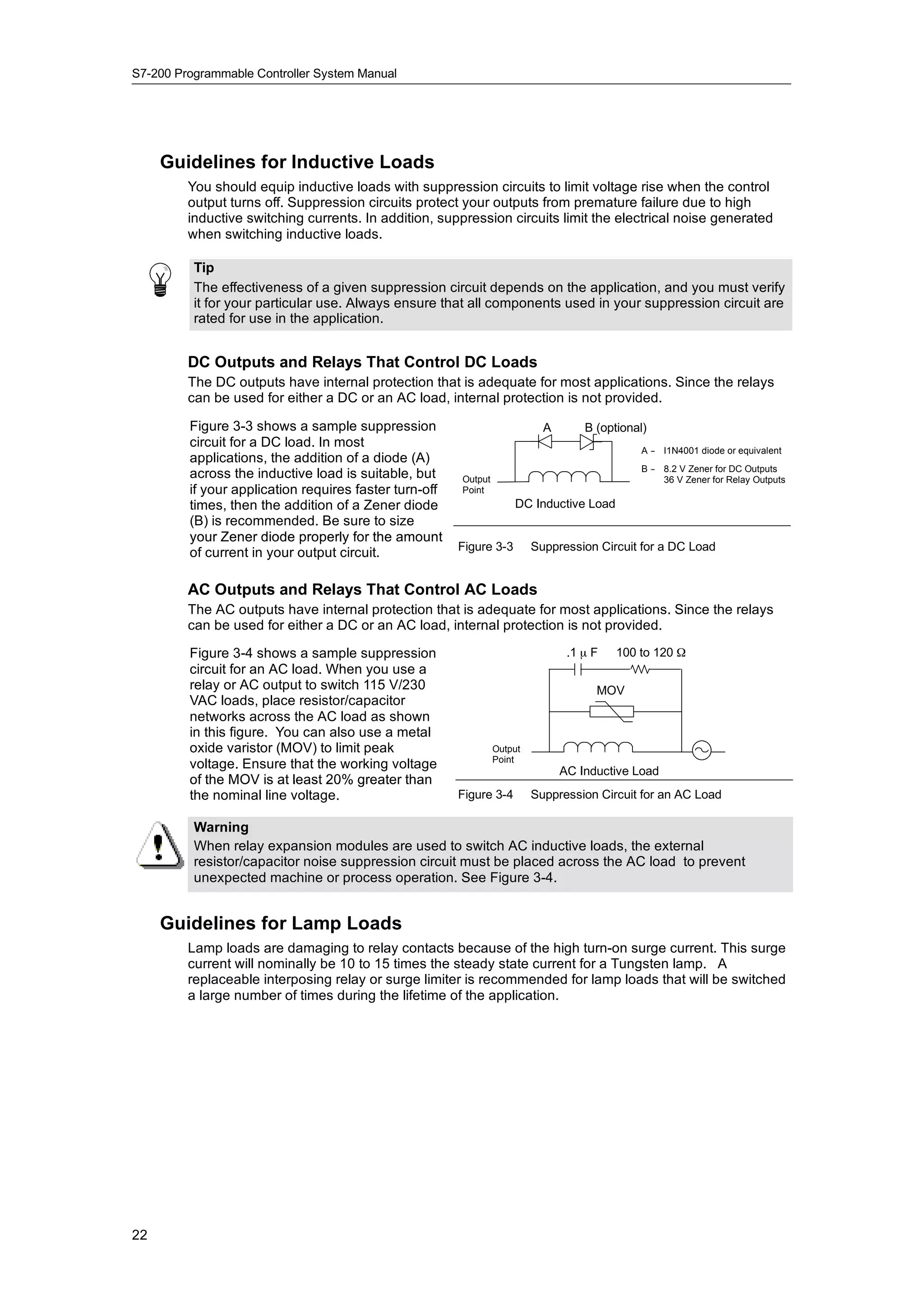
         filter:

           1.   Select the View > Component >
                System Block menu command
                and select Input Filters. Click on
                the Digital tab.
           2.   Enter the amount of delay for each
                group of inputs and click OK.
           3.
           3    Download the modified system            Figure 4-23 Digital Input Filter
                block to the S7-200.
          Tip
          The digital input filter affects the input value as seen by instruction reads, input interrupts, and
          pulse catches. Depending on your filter selection, your program could miss an interrupt event or
          pulse catch. The high speed counters count the events on the unfiltered inputs.


44
PLC Concepts      Chapter 4


The S7-200 Allows You to Filter the Analog Inputs
   The S7-200 allows you to select software filtering on individual analog inputs. The filtered value is
   the average value of a preselected number of samples of the analog input. The filter specification
   (number of samples and deadband) is the same for all analog inputs for which filtering is enabled.

   The filter has a fast response feature to allow large changes to be quickly reflected in the filter
   value. The filter makes a step function change to the latest analog input value when the input
   exceeds a specified change from the current value. This change, called the deadband, is
   specified in counts of the digital value of the analog input.

   The default configuration is to enable
   filtering for all analog inputs except AIW0
   and AIW2 on CPU 224XP.

    1.   Select the View > Component >
         System Block menu command
         and select Input Filters. Click on
         the Analog tab.
    2.   Select the analog inputs that you
         want to filter, the number of
         samples, and the deadband.
    3.   Click OK.
    4.   Download the modified system
         block to the S7-200.

                                                 Figure 4-24 Analog Input Filter

    Tip
    Do not use the analog filter with modules that pass digital information or alarm indications in the
    analog words. Always disable analog filtering for RTD, Thermocouple, and AS-Interface Master
    modules.

    Tip
    AIW0 and AIW2 on the CPU 224XP are filtered by the analog to digital converter, and usually
    will not need the additional software filter.


The S7-200 Allows You to Catch Pulses of Short Duration
   The S7-200 provides a pulse catch feature which can be used for some or all of the local digital
   input points. The pulse catch feature allows you to capture high-going pulses or low-going pulses
   that are of such a short duration that they would not always be seen when the S7-200 reads the
   digital inputs at the beginning of the scan cycle. When pulse catch is enabled for an input, a
   change in state of the input is latched and held until the next input cycle update. This ensures that
   a pulse which lasts for a short period of time is caught and held until the S7-200 reads the inputs.

   You can individually enable the pulse
   catch operation for each of the local
   digital inputs.
   To access the pulse catch configuration
   screen:

    1.   Select the View > Component >
         System Block menu command
         and select Pulse Catch Bits.
    2.   Click the corresponding check box
         and click OK.
    3.   Download the modified system
         block to the S7-200.


                                                 Figure 4-25 Pulse Catch


                                                                                                         45
S7-200 Programmable Controller System Manual


         Figure 4-26 shows the basic operation of the S7-200 with and without pulse catch enabled.


                                       Scan cycle                   Next scan cycle

                                Input update                  Input update

             Physical Input

               Output from                                     The S7-200 misses this pulse because the input
                pulse catch                                    turned on and off before the S7-200 updated the
                                                               process-image input register
                  Disabled

                                                              The S7-200 catches the pulse on the physical input
                   Enabled

         Figure 4-26   Operation of the S7-200 with the Pulse Catch Feature Enabled and Disabled


         Because the pulse catch function operates on the input after it passes through the input filter, you
         must adjust the input filter time so that the pulse is not removed by the filter. Figure 4-27 shows a
         block diagram of the digital input circuit.


                                  Optical           Digital Input              Pulse
                                                                                                      Input to S7-200
                                 Isolation             Filter                  Catch

               External
               Digital Input                                             Pulse Catch Enable

         Figure 4-27   Digital Input Circuit


         Figure 4-28 shows the response of an enabled pulse catch function to various input conditions. If
         you have more than one pulse in a given scan, only the first pulse is read. If you have multiple
         pulses in a given scan, you should use the rising/falling edge interrupt events. (For a listing of
         interrupt events, see Table 6-46.)


                                                            Scan cycle                    Next scan cycle

                                                     Input update                      Input update

                        Input to pulse catch
                        Output from pulse catch

                        Input to pulse catch
                        Output from pulse catch

                        Input to pulse catch
                        Output from pulse catch

         Figure 4-28   Responses of the Pulse Catch Function to Various Input Conditions


46
PLC Concepts       Chapter 4


The S7-200 Provides a User-Controlled LED
  The S7-200 provides an LED (SF/DIAG) that can indicate red (system fault LED) or yellow
  (diagnostic LED). The diagnostic LED can be illuminated under user program control, or can
  automatically illuminate under certain conditions: when an I/O point or data value is forced, or
  when a module has an I/O error.

   To configure the automatic selections for
   the diagnostic LED:

    1.   Select the View > Component >
         System Block menu command
         and select Configure LED.
    2.   Click each item to either enable or
         disable turning on the LED when
         an I/O point or data value is forced,
         or when a module has an I/O error.
    3.   Download the modified system
         block to the S7-200.

   To control the state of the diagnostic LED
   with your user program, use the
   Diagnostic LED instruction in Chapter 6.      Figure 4-29 Diagnostic LED


The S7-200 Maintains a History Log of Major CPU Events
   The S7-200 maintains a log that contains
   a time-stamped history of major CPU
   events, such as when power is applied,
   when the CPU enters RUN mode, and
   when fatal errors occur. Your time-of-day
   clock must be configured in order to get
   valid time and date stamps on the log
   entries.
   To view the Event History log, select the
   PLC > Information menu command and
   select Event History.                         Figure 4-30 Viewing the Event History Log


The S7-200 Allows You to Increase Your Available User Program
Memory
   The S7-200 allows you to disable the run
   mode edit feature in the CPU 224,
   CPU 224XP, and CPU 226 in order to
   increase the amount of program memory
   available for your use. Refer to Table 1-1
   to see the amount of program memory
   for each CPU model.
   To disable the run mode edit feature,
   follow these steps

    1.   Select the View > System Block
         menu command and select
         Increase Program Memory.
    2.   Click the Increase Memory item to
         disable the run mode edit feature.
    3.
    3    D
         Download th modified system
               l d the     difi d t              Figure 4-31 Disable Run Mode Edit
         block to the S7-200.


                                                                                                         47
S7-200 Programmable Controller System Manual


     The S7-200 Provides Password Protection
         All models of the S7-200 provide password protection for restricting access to specific functions.

         A password authorizes access to the functions and memory: without a password, the S7-200
         provides unrestricted access. When it is password protected, the S7-200 limits all restricted
         operations according to the configuration provided when the password was installed

         The password is not case-sensitive.

         As shown in Table 4-3, the S7-200 provides four levels of access restriction. Each level allows
         certain functions to be accessible without a password. For the four levels of access, entering the
         correct password provides access to the functions as noted below. The default condition for the
         S7-200 is level 1 (no restriction).

         Entering the password over a network does not compromise the password protection for the
         S7-200.

         You can in effect, disable the password by changing the password level 4, 3, or 2 to Level 1, since
         Level 1 allows all unrestricted CPU access.

         Table 4-3     Restricting Access to the S7-200
          CPU Function                          Level 1          Level 2          Level 3          Level 4
          Read and write user data
          Start, Stop, and Power-
                                -Up Reset
          of the CPU                                                              Access allowed   Access allowed
          Read and write the time- -day
                                 -of-                            Access allowed
          Clock
          Upload the user program, data,                                                           Never allowed
          and the CPU configuration
          Download of Program Block, Data                                                          Password
          Block or System Block                                                                    required (Never
                                                                                                   allowed for
                                                                                                   System Block)
          Runtime Edits                                                                            Never allowed
          Delete of Program Block, Data                                                            Password
          Block, or System Data Block           Access allowed                                     required (Never
                                                                                                   allowed for
                                                                                                   System Block)
                                                                                  Password
          Copy of Program Block, Data                            Password         required
          Block, or System Data Block to the                     required
          memory cartridge
          Force data in status chart
                                                                                                   Password
          Execute the single or multiple scan                                                      required
                                                                                                     q
          Writing of output in STOP mode
          Reset of scan rates in PLC
          information
          Execution status
                                                                                                   Never allowed
          Project compare

         Having one user authorized to access restricted functions Reset of Scan Rates in PLC information
         does not authorize other users to access those functions. Only one user is allowed unrestricted
         access to the S7-200 at a time.

          Tip
          After you enter the password, the authorization level for that password remains effective for up
          to one minute after the programming device has been disconnected from the S7-200. Always
          exit STEP 7-Micro/WIN before disconnecting the cable to prevent another user from accessing
          the privileges of the programming device.


48
PLC Concepts     Chapter 4


Configuring a Password for the S7-200
The System Block dialog box (Figure 4-32) allows you to configure a password for the S7-200.
The default condition for the S7-200 is set at Full (Level 1), no restriction.

 1.   Select the View > Component >
      System Block menu command to
      display the System Block dialog
      box and select Password.
 2.   Select the appropriate level of
      access for the S7-200.
 3.   Enter and verify the password for
      Partial (Level 2) or Minimum
      (Level 3).
 4.   Click OK.
 5.   Download the modified system
      block to the S7-200.


                                            Figure 4-32 Creating a Password

Recovering from a Lost Password
If you forget the password, you must clear the memory of the S7-200 and reload your program.
Clearing the memory puts the S7-200 in STOP mode and resets the S7-200 to the factory-set
defaults, except for the network address, baud rate, and the time-of-day clock. To clear your
program in the S7-200:

 1.   Select the PLC > Clear menu command to display the Clear dialog box.
 2.   Select all three blocks and confirm your action by clicking OK.
 3.   If a password had been configured, STEP 7--Micro/WIN displays a password-authorization
      dialog box. To clear the password, enter CLEARPLC in the password-authorization dialog
      box to continue the Clear All operation. (The CLEARPLC password is not case sensitive.)
The Clear All operation does not remove the program from a memory cartridge. Since the memory
cartridge stores the password along with the program, you must also reprogram the memory
cartridge to remove the lost password.

Warning
Clearing the S7-200 memory causes the outputs to turn off (or in the case of an analog output,
to be frozen at a specific value).
If the S7-200 is connected to equipment when you clear the memory, changes in the state of the
outputs can be transmitted to the equipment. If you had configured the “safe state” for the
outputs to be different from the factory settings, changes in the outputs could cause
unpredictable operation of your equipment, which in turn could cause death or serious injury to
personnel, and/or damage to equipment.
Always follow appropriate safety precautions and ensure that your process is in a safe state
before clearing the S7-200 memory.


                                                                                                 49
S7-200 Programmable Controller System Manual


     The S7-200 Provides Analog Adjustment Potentiometers
         The analog adjustment potentiometers are located under the front access cover of the module.
         You can adjust these potentiometers to increase or decrease values that are stored in bytes of
         Special Memory (SMB). These read-only values can be used by the program for a variety of
         functions, such as updating the current value for a timer or a counter, entering or changing the
         preset values, or setting limits. Use a small screwdriver to make the adjustments: turn the
         potentiometer clockwise (to the right) to increase the value, and counterclockwise (to the left) to
         decrease the value.
         SMB28 holds the digital value that represents the position of analog adjustment 0. SMB29 holds
         the digital value that represents the position of analog adjustment 1. The analog adjustment has a
         nominal range of 0 to 255 and a repeatability of ±2 counts.
          Sample Program for Referencing the Value Entered with the Analog Adjustment Potentiometers
                                                   Network 1      //Read analog adjustment 0 (SMB28).
                                                                  //Save the value as an integer in VW100.
                                                   LD      I0.0
                                                   BTI     SMB28, VW100

                                                   Network 2      //Use the integer value (VW100) as
                                                                  //a preset for a timer.
                                                   LDN     Q0.0
                                                   TON     T33, VW100

                                                   Network 3      //Turn on Q0.0 when T33 reaches
                                                                  //the preset value.
                                                   LD      T33
                                                   =       Q0.0


     The S7-200 Provides High-speed I/O
         High-Speed Counters
         The S7-200 provides integrated high-speed counter functions that count high speed external
         events without degrading the performance of the S7-200. See Appendix A for the rates supported
         by your CPU model. Each counter has dedicated inputs for clocks, direction control, reset, and
         start, where these functions are supported. You can select different quadrature modes for varying
         the counting rate. For more information on high-speed counters, see Chapter 6.

         High-Speed Pulse Output
         The S7-200 supports high-speed pulse outputs, with outputs Q0.0 and Q0.1 generating either a
         high-speed pulse train output (PTO) or pulse width modulation (PWM).

         The PTO function provides a square wave (50% duty cycle) output for a specified number of
         pulses (from 1 to 4,294,967,295 pulses) and a specified cycle time (in either microsecond or
         millisecond increments. You can program the PTO function to produce either one train of pulses or
         a pulse profile consisting of multiple trains of pulses. For example, you can use a pulse profile to
         control a stepper motor through a simple ramp up, run, and ramp down sequence or more
         complicated sequences.

         The PWM function provides a fixed cycle time with a variable duty cycle output, with the cycle time
         and the pulse width specified in either microsecond or millisecond increments. When the pulse
         width is equal to the cycle time, the duty cycle is 100 percent and the output is turned on
         continuously. When the pulse width is zero, the duty cycle is 0 percent and the output is turned off.

         For more information on the high-speed pulse output instruction, see Chapter 6. For more
         information about using PTO in open loop motion control, see Chapter 9.


50
Programming Concepts, Conventions,
and Features

     The S7-200 continuously executes your program to control a task or process. You use
     STEP 7--Micro/WIN to create this program and download it to the S7-200. STEP 7--Micro/WIN
     provides a variety of tools and features for designing, implementing, and debugging your program.


In This Chapter
     Guidelines for Designing a Micro PLC System . . . . . . . . . . . . . . . . . . . . . . . . . . . . . . . . . . . . . . .                       52
     Basic Elements of a Program . . . . . . . . . . . . . . . . . . . . . . . . . . . . . . . . . . . . . . . . . . . . . . . . . . . . . .         53
     Using STEP 7--Micro/WIN to Create Your Programs . . . . . . . . . . . . . . . . . . . . . . . . . . . . . . . . . .                             55
     Choosing Between the SIMATIC and IEC 1131--3 Instruction Sets . . . . . . . . . . . . . . . . . . . . . .                                       57
     Understanding the Conventions Used by the Program Editors . . . . . . . . . . . . . . . . . . . . . . . . . .                                   58
     Using Wizards To Help You Create Your Control Program . . . . . . . . . . . . . . . . . . . . . . . . . . . . . .                               60
     Handling Errors in the S7-200 . . . . . . . . . . . . . . . . . . . . . . . . . . . . . . . . . . . . . . . . . . . . . . . . . . . . .         60
     Assigning Addresses and Initial Values in the Data Block Editor . . . . . . . . . . . . . . . . . . . . . . . .                                 62
     Using the Symbol Table for Symbolic Addressing of Variables . . . . . . . . . . . . . . . . . . . . . . . . . .                                 62
     Using Local Variables . . . . . . . . . . . . . . . . . . . . . . . . . . . . . . . . . . . . . . . . . . . . . . . . . . . . . . . . . . . .   63
     Using the Status Chart to Monitor Your Program . . . . . . . . . . . . . . . . . . . . . . . . . . . . . . . . . . . . . .                      63
     Creating an Instruction Library . . . . . . . . . . . . . . . . . . . . . . . . . . . . . . . . . . . . . . . . . . . . . . . . . . . . .       64
     Features for Debugging Your Program . . . . . . . . . . . . . . . . . . . . . . . . . . . . . . . . . . . . . . . . . . . . . .                 64


                                                                                                                                                     51
S7-200 Programmable Controller System Manual


Guidelines for Designing a Micro PLC System
         There are many methods for designing a Micro PLC system. The following general guidelines can
         apply to many design projects. Of course, you must follow the directives of your own company’s
         procedures and the accepted practices of your own training and location.

     Partition Your Process or Machine
         Divide your process or machine into sections that have a level of independence from each other.
         These partitions determine the boundaries between controllers and influence the functional
         description specifications and the assignment of resources.

     Create the Functional Specifications
         Write the descriptions of operation for each section of the process or machine. Include the
         following topics: I/O points, functional description of the operation, states that must be achieved
         before allowing action for each actuator (such as solenoids, motors, and drives), description of the
         operator interface, and any interfaces with other sections of the process or machine.

     Design the Safety Circuits
         Identify equipment requiring hard-wired logic for safety. Control devices can fail in an unsafe
         manner, producing unexpected startup or change in the operation of machinery. Where
         unexpected or incorrect operation of the machinery could result in physical injury to people or
         significant property damage, consideration should be given to the use of electro-mechanical
         overrides which operate independently of the S7-200 to prevent unsafe operations. The following
         tasks should be included in the design of safety circuits:

           -   Identify improper or unexpected operation of actuators that could be hazardous.
           -   Identify the conditions that would assure the operation is not hazardous, and determine how
               to detect these conditions independently of the S7-200.
           -   Identify how the S7-200 CPU and I/O affect the process when power is applied and
               removed, and when errors are detected. This information should only be used for designing
               for the normal and expected abnormal operation, and should not be relied on for safety
               purposes.
           -   Design manual or electro-mechanical safety overrides that block the hazardous operation
               independent of the S7-200.
           -   Provide appropriate status information from the independent circuits to the S7-200 so that
               the program and any operator interfaces have necessary information.
           -   Identify any other safety-related requirements for safe operation of the process.

     Specify the Operator Stations
         Based on the requirements of the functional specifications, create drawings of the operator
         stations. Include the following items:

           -   Overview showing the location of each operator station in relation to the process or
               machine
           -   Mechanical layout of the devices, such as display, switches, and lights, for the operator
               station
           -   Electrical drawings with the associated I/O of the S7-200 CPU or expansion module


52
Programming Concepts, Conventions, and Features           Chapter 5


  Create the Configuration Drawings
     Based on the requirements of the functional specification, create configuration drawings of the
     control equipment. Include the following items:

      -    Overview showing the location of each S7-200 in relation to the process or machine
      -    Mechanical layout of the S7-200 and expansion I/O modules (including cabinets and other
           equipment)
      -    Electrical drawings for each S7-200 and expansion I/O module (including the device model
           numbers, communications addresses, and I/O addresses)

  Create a List of Symbolic Names (optional)
     If you choose to use symbolic names for addressing, create a list of symbolic names for the
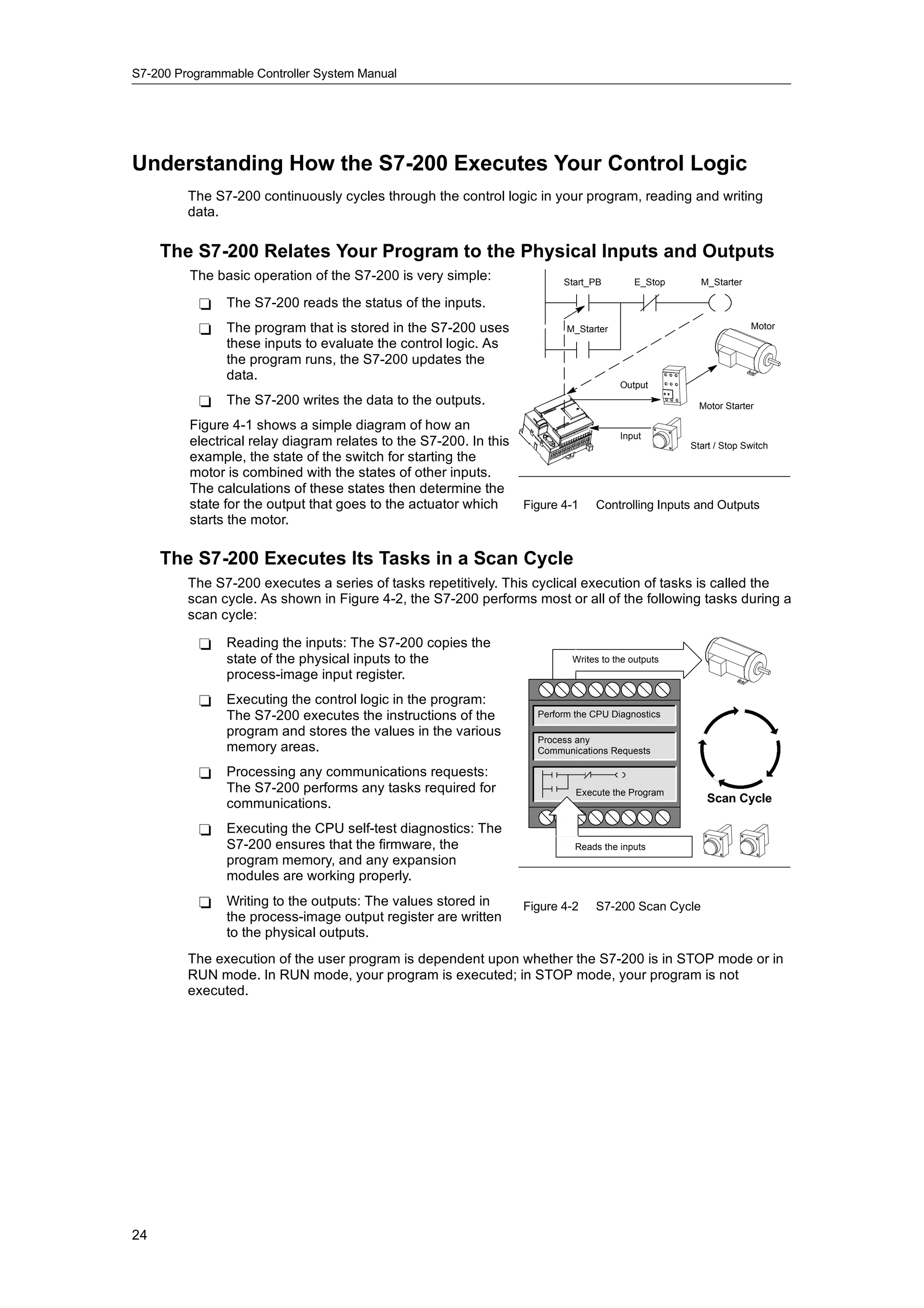
     absolute addresses. Include not only the physical I/O signals, but also the other elements to be
     used in your program.


Basic Elements of a Program
     A program block is composed of executable code and comments. The executable code consists
     of a main program and any subroutines or interrupt routines. The code is compiled and
     downloaded to the S7-200; the program comments are not. You can use the organizational
     elements (main program, subroutines, and interrupt routines) to structure your control program.

     The following example shows a program that includes a subroutine and an interrupt routine. This
     sample program uses a timed interrupt for reading the value of an analog input every 100 ms.


     Example:Basic Elements of a Program
      M                                                  Network 1       //On first scan, call subroutine 0.
      A                                                  LD          SM0.1
      I                                                  CALL        SBR_0
      N

      S                                                  Network 1       //Set the interval to 100 ms
      B                                                                  //for the timed interrupt.
      R                                                                  //Enable interrupt 0.
      0                                                  LD          SM0.0
                                                         MOVB        100, SMB34
                                                         ATCH        INT_0, 10
                                                         ENI


      I                                                  Network 1       //Sample the Analog Input 4.
      N                                                  LD          SM0.0
      T                                                  MOVW        AIW4,VW100
      0


  Main Program
     The main body of the program contains the instructions that control your application. The S7-200
     executes these instructions sequentially, once per scan cycle. The main program is also referred
     to as OB1.


                                                                                                               53
S7-200 Programmable Controller System Manual


     Subroutines
         These optional elements of your program are executed only when called: by the main program, by
         an interrupt routine, or by another subroutine. Subroutines are useful in cases where you want to
         execute a function repeatedly. Rather than rewriting the logic for each place in the main program
         where you want the function to occur, you can write the logic once in a subroutine and call the
         subroutine as many times as needed during the main program. Subroutines provide several
         benefits:

           -   Using subroutines reduces the overall size of your program.
           -   Using subroutines decreases your scan time because you have moved the code out of the
               main program. The S7-200 evaluates the code in the main program every scan cycle,
               whether the code is executed or not, but the S7-200 evaluates the code in the subroutine
               only when you call the subroutine, and does not evaluate the code during the scans in
               which the subroutine is not called.
           -   Using subroutines creates code that is portable. You can isolate the code for a function in a
               subroutine, and then copy that subroutine into other programs with little or no rework.

          Tip
          Using V memory addresses can limit the portability of your subroutine, because it is possible for
          V memory address assignment from one program to conflict with an assignment in another
          program. Subroutines that use the local variable table (L memory) for all address assignments,
          by contrast, are highly portable because there is no concern about address conflicts between
          the subroutine and another part of the program when using local variables.


     Interrupt Routines
         These optional elements of your program react to specific interrupt events. You design an interrupt
         routine to handle a pre-defined interrupt event. Whenever the specified event occurs, the S7-200
         executes the interrupt routine.

         The interrupt routines are not called by your main program. You associate an interrupt routine with
         an interrupt event, and the S7-200 executes the instructions in the interrupt routine only on each
         occurrence of the interrupt event.

          Tip
          Because it is not possible to predict when the S7-200 might generate an interrupt, it is desirable
          to limit the number of variables that are used both by the interrupt routine and elsewhere in the
          program.
          Use the local variable table of the interrupt routine to ensure that your interrupt routine uses only
          the temporary memory and does not overwrite data used somewhere else in your program.
          There are a number of programming techniques you can use to ensure that data is correctly
          shared between your main program and the interrupt routines. These techniques are described
          in Chapter 6 with the Interrupt instructions.


     Other Elements of the Program
         Other blocks contain information for the S7-200. You can choose to download these blocks when
         you download your program.

         System Block
System
         The system block allows you to configure different hardware options for the S7-200.
 Block

         Data Block
         The data block stores the values for different variables (V memory) used by your program. You
 Data    can use the data block to enter initial values for the data.
 Block


54
Programming Concepts, Conventions, and Features          Chapter 5


Using STEP 7-
            -Micro/WIN to Create Your Programs
          To open STEP 7--Micro/WIN, double-click on the STEP 7--Micro/WIN icon, or select the Start >
          SIMATIC > STEP 7 MicroWIN V4.0 menu command. As shown in Figure 5-1, the
          STEP 7--Micro/WIN project window provides a convenient working space for creating your control
          program.
          The toolbars provide buttons for shortcuts to frequently used menu commands. You can view or
          hide any of the toolbars.
          The navigation bar presents groups of
          icons for accessing different
          programming features of
          STEP 7--Micro/WIN.
          The instruction tree displays all of the
          project objects and the instructions for
          creating your control program. You can
          drag and drop individual instructions
          from the tree into your program, or you
          can double-click an instruction to insert it
                                                                                              Program Editor
          at the current location of the cursor in the
          program editor.
                                                                           Instruction tree
          The program editor contains the program
          logic and a local variable table where         Navigation bar
          you can assign symbolic names for
          temporary local variables. Subroutines
          and interrupt routines appear as tabs at
          the bottom of the program editor window.
          Click on the tabs to move between the    Figure 5-1 STEP 7-   -Micro/WIN
          subroutines, interrupts, and the main
          program.
          STEP 7--Micro/WIN provides three editors for creating your program: Ladder Logic (LAD),
          Statement List (STL), and Function Block Diagram (FBD). With some restrictions, programs
Program   written in any of these program editors can be viewed and edited with the other program editors.
 Editor


    Features of the STL Editor
          The STL editor displays the program as a text-based language. The STL editor allows you to
          create control programs by entering the instruction mnemonics. The STL editor also allows you to
          create programs that you could not otherwise create with the LAD or FBD editors. This is because
          you are programming in the native language of the S7-200, rather than in a graphical editor where
          some restrictions must be applied in order to draw the diagrams correctly. As shown in Figure 5-2,
          this text-based concept is very similar to assembly language programming.
          The S7-200 executes each instruction in
          the order dictated by the program, from
                                                                LD      I0.0        //Read one input
          top to bottom, and then restarts at the
                                                                A       I0.1        //AND with another input
          top.
                                                                =       Q1.0        //Write value to output 1
          STL uses a logic stack to resolve the
          control logic. You insert the STL
          co t o og c ou se t t e S
          instructions for handling the stack            Figure 5-2   Sample STL Program
          operations.
          Consider these main points when you select the STL editor:

           -    STL is most appropriate for experienced programmers.
           -    STL sometimes allows you to solve problems that you cannot solve very easily with the
                LAD or FBD editor.
           -    You can only use the STL editor with the SIMATIC instruction set.
           -    While you can always use the STL editor to view or edit a program that was created with the
                LAD or FBD editors, the reverse is not always true. You cannot always use the LAD or FBD
                editors to display a program that was written with the STL editor.


                                                                                                                    55
S7-200 Programmable Controller System Manual


     Features of the LAD Editor
         The LAD editor displays the program as a graphical representation similar to electrical wiring
         diagrams. Ladder programs allow the program to emulate the flow of electric current from a power
         source through a series of logical input conditions that in turn enable logical output conditions. A
         LAD program includes a left power rail that is energized. Contacts that are closed allow energy to
         flow through them to the next element, and contacts that are open block that energy flow.

         The logic is separated into networks.
         The program is executed one network at
         a time, from left to right and then top to
         bottom as dictated by the program.
         Figure 5-3 shows an example of a LAD
         program. The various instructions are
         represented by graphic symbols and
         include three basic forms.
         Contacts represent logic input conditions
         such as switches, buttons, or internal
         conditions.
         Coils usually represent logic output
         results such as lamps, motor starters,
         interposing relays or internal output
                     relays,
         conditions.                                  Figure 5-3   Sample LAD Program

         Boxes represent additional instructions, such as timers, counters, or math instructions.

         Consider these main points when you select the LAD editor:

           -   Ladder logic is easy for beginning programmers to use.
           -   Graphical representation is easy to understand and is popular around the world.
           -   The LAD editor can be used with both the SIMATIC and IEC 1131--3 instruction sets.
           -   You can always use the STL editor to display a program created with the SIMATIC LAD
               editor.

     Features of the FBD Editor
         The FBD editor displays the program as a graphical representation that resembles common logic
         gate diagrams. There are no contacts and coils as found in the LAD editor, but there are
         equivalent instructions that appear as box instructions.

         Figure 5-4 shows an example of an FBD
         program.
         FBD does not use the concept of left and
         right power rails; therefore, the term
         “power flow” is used to express the
         analogous concept of control flow
                                                      Figure 5-4   Sample FBD Program
         through the FBD logic blocks.

         The logic “1” path through FBD elements is called power flow. The origin of a power flow input and
         the destination of a power flow output can be assigned directly to an operand.

         The program logic is derived from the connections between these box instructions. That is, the
         output from one instruction (such as an AND box) can be used to enable another instruction (such
         as a timer) to create the necessary control logic. This connection concept allows you to solve a
         wide variety of logic problems.
         Consider these main points when you select the FBD editor:

           -   The graphical logic gate style of representation is good for following program flow.
           -   The FBD editor can be used with both the SIMATIC and IEC 1131--3 instruction sets.
           -   You can always use the STL editor to display a program created with the SIMATIC FBD
               editor.


56
Programming Concepts, Conventions, and Features      Chapter 5


Choosing Between the SIMATIC and IEC 1131- Instruction Sets
                                         -3
     Most PLCs offer similar basic instructions, but there are usually small differences from vendor to
     vendor in appearance, operation, and so forth. Over the last several years, the International
     Electrotechnical Commission (IEC) has developed an emerging global standard that specifically
     relates to many aspects of PLC programming. This standard encourages different PLC
     manufacturers to offer instructions that are the same in both appearance and operation.

     Your S7-200 offers two instruction sets that allow you to solve a wide variety of automation tasks.
     The IEC instruction set complies with the IEC 1131--3 standard for PLC programming, and the
     SIMATIC instruction set is designed specifically for the S7-200.

     Tip
     When STEP 7--Micro/WIN is set to the IEC mode, it displays a red diamond 〈♦) in the Instruction
     Tree beside the instructions that are not defined by the IEC 1131--3 standard.

     There are a few key differences between the SIMATIC instruction set and the IEC instruction set:

      -    The IEC instruction set is restricted to those instructions that are standard among PLC
           vendors. Some instructions that are normally included in the SIMATIC set are not standard
           instructions in the IEC 1131--3 specification. These are still available for use as
           non-standard instructions, but if you use them, the program is no longer strictly IEC 1131--3
           compatible.
      -    Some IEC box instructions accept multiple data formats. This practice is often referred to as
           overloading. For example, rather than have separate ADD_I (Add Integer) and ADD_R (Add
           Real), math boxes, the IEC ADD instruction examines the format of the data being added
           and automatically chooses the correct instruction in the S7-200. This can save valuable
           program design time.
      -    When you use the IEC instructions, the instruction parameters are automatically checked
           for the proper data format, such as a signed integer versus an unsigned integer. For
           example, an error results if you try to enter an integer value for an instruction that expected
           a bit value (on/off). This feature helps to minimize programming syntax errors.
     Consider these points when you select either the SIMATIC or the IEC instruction set:

      -    SIMATIC instructions usually have the shortest execution times. Some IEC instructions
           might have longer execution times.
      -    Some IEC instructions, such as timers, counters, multiply, and divide, operate differently
           than their SIMATIC counterparts.
      -    You can use all three program editors (LAD, STL, FBD) with the SIMATIC instruction set.
           You can use only the LAD and FBD program editors for IEC instructions.
      -    The operation of the IEC instructions is standard for different brands of PLCs, and the
           knowledge about creating an IEC-compliant program can be leveraged across PLC
           platforms.
      -    While the IEC standard defines fewer instructions than are available in the SIMATIC
           instruction set, you can always include SIMATIC instructions in your IEC program.
      -    IEC 1131--3 specifies that variables must be declared with a type, and supports system
           checking of data type.


                                                                                                          57
S7-200 Programmable Controller System Manual


Understanding the Conventions Used by the Program Editors
         STEP 7--Micro/WIN uses the following conventions in all of the program editors:

           -   A # in front of a symbol name (#var1) indicates that the symbol is of local scope.
           -   For IEC instructions, the % symbol indicates a direct address.
           -   The operand symbol “?.?” or “????” indicates that an operand configuration is required.
         LAD programs are divided into segments called networks. A network is an ordered arrangement
         of contacts, coils, and boxes that are all connected to form a complete circuit: no short circuits, no
         open circuits, and no reverse power flow conditions exist. STEP 7--Micro/WIN allows you to create
         comments for your LAD program on a network-by-network basis. FBD programming uses the
         network concept for segmenting and commenting your program.

         STL programs do not use networks; however, you can use the NETWORK keyword to segment
         your program.

     Conventions Specific to the LAD Editor
         In the LAD editor, you can use the F4, F6, and F9 keys on your keyboard to access contact, box,
         and coil instructions. The LAD editor uses the following conventions:

           -   The symbol “------>>” is an open circuit or a required power flow connection.
           -   The symbol “ ” indicates that the output is an optional power flow for an instruction that
               can be cascaded or connected in series.
           -   The symbol “>>” indicates that you can use power flow.

     Conventions Specific to the FBD Editor
         In the FBD editor, you can use the F4, F6, and F9 keys on your keyboard to access AND, OR,
         and box instructions. The FBD editor uses the following conventions:

           -   The symbol “------>>” on an EN operand is a power flow or operand indicator. It can also
               depict an open circuit or a required power flow connection.
           -   The symbol “ ” indicates that the output is an optional power flow for an instruction that
               can be cascaded or connected in series.
           -   The symbols “<<” and “>>” indicate that you
                                                                    Logical NOT
               can use either a value or power flow.
                                                                    Condition
           -   Negation bubbles: The logical NOT condition
               or inverted condition of the operand or power        Immediate
               flow is shown by the small circle on the input.      Condition
               In Figure 5-5, Q0.0 is equal to the NOT of I0.0
               AND I0.1. Negation bubbles are only valid for
                             g                      y
               Boolean signals, which can b specified as
               B l        i   l    hi h      be     ifi d        Figure 5-5     FBD Conventions
               parameters or power flow.
           -   Immediate indicators: As shown in Figure 5-5, the FBD editor displays an immediate
               condition of a Boolean operand with a vertical line on the input to an FBD instruction. The
               immediate indicator causes an immediate read from the specified physical input. Immediate
               operators are only valid for physical inputs.
           -   Box with no input or output: A box with no input indicates an instruction that is independent
               of power flow.

          Tip
          The number of operands can be expanded up to 32 inputs for AND and OR instructions. To add
          or subtract operand tics, use the “+” and “--” keys on your keyboard.


58
Programming Concepts, Conventions, and Features   Chapter 5


General Conventions of Programming for an S7-200
  EN/ENO Definition
  EN (Enable IN) is a Boolean input for boxes in LAD and FBD. Power flow must be present at this
  input for the box instruction to be executed. In STL, the instructions do not have an EN input, but
  the top of stack value must be a logic “1” for the corresponding STL instruction to be executed.

  ENO (Enable Out) is a Boolean output for boxes in LAD and FBD. If the box has power flow at the
  EN input and the box executes its function without error, then the ENO output passes power flow
  to the next element. If an error is detected in the execution of the box, then power flow is
  terminated at the box that generated the error.

  In STL, there is no ENO output, but the STL instructions that correspond to the LAD and FBD
  instructions with ENO outputs do set a special ENO bit. This bit is accessible with the AND ENO
  (AENO) instruction and can be used to generate the same effect as the ENO bit of a box.

   Tip
   The EN/ENO operands and data types are not shown in the valid operands table for each
   instruction because the operands are the same for all LAD and FBD instructions. Table 5-1 lists
   these operands and data types for LAD and FBD. These operands apply to all LAD and FBD
   instructions shown in this manual.

   Table 5-1    EN/ENO Operands and Data Types for LAD and FBD
   Program Editor       Inputs/Outputs       Operands                                        Data Types
   LAD                  EN, ENO              Power Flow                                      BOOL
   FBD                  EN, ENO              I, Q, V, M, SM, S, T, C, L                      BOOL


  Conditional/Unconditional Inputs
  In LAD and FBD, a box or a coil that is dependent upon power flow is shown with a connection to
  any element on the left side. A coil or box that is independent of power flow is shown with a
  connection directly to the left power rail. Table 5-2 shows an example of both a conditional and an
  unconditional input.

   Table 5-2    Representation of Conditional and Unconditional Inputs
   Power Flow                                                      LAD                FBD
   Instruction that is dependent on power flow (conditional)


   Instruction that is independent of power flow (unconditional)


  Instructions without Outputs
  Boxes that cannot cascade are drawn with no Boolean outputs. These include the Subroutine
  Call, Jump, and Conditional Return instructions. There are also ladder coils that can only be
  placed on the left power rail. These include the Label, Next, Load SCR, Conditional SCR End, and
  SCR End instructions. These are shown in FBD as boxes and are distinguished with unlabeled
  power inputs and no outputs.

  Compare Instructions
  The compare instruction is executed regardless of the state of power flow. If power flow is false,
  the output is false. If power flow is true, the output is set depending upon the result of the
  compare. SIMATIC FBD, IEC Ladder, and IEC FBD compare instructions are shown as boxes,
  although the operation is performed as a contact.


                                                                                                          59
S7-200 Programmable Controller System Manual


Using Wizards To Help You Create Your Control Program
         STEP 7--Micro/WIN provides wizards to make aspects of your programming easier and more
         automatic. In Chapter 6, instructions that have an associated wizard are identified by the following
         Instruction Wizard icon:


                                   Instruction
                                     Wizard


Handling Errors in the S7-200
         The S7-200 classifies errors as either fatal errors or non-fatal errors. You can view the error codes
         that were generated by an error by selecting the PLC > Information menu command.

         Figure 5-6 shows the PLC Information
         dialog box that displays the error code
         and the description of the error.
         The Last Fatal field shows the previous
         fatal error code generated by the
         S7-200. This value is retained over
         power cycles if the RAM is retained. This
         location is cleared either whenever all
         memory of the S7-200 is cleared or if the
         RAM is not retained after a prolonged
         power outage.
         The Total Fatal field is the count of fatal
         errors generated by the S7-200 since the
         last time the S7-200 had all memory
         areas cleared. This value is retained
         over power cycles if the RAM is retained.
         This location is cleared whenever all
         memory of the S7-200 is cleared, or
         when the RAM is not retained after a
         prolonged power outage.
         Appendix C lists the S7-200 error codes,
         and Appendix D describes the special
         memory (SM) bits which can be used for
                       bits,
                                                  Figure 5-6      PLC Information Dialog Box
         monitoring errors.

     Non-Fatal Errors
         Non-fatal errors are those indicating problems with the construction of the user program, with the
         execution of an instruction in the user program, and with expansion I/O modules. You can use
         STEP 7--Micro/WIN to view the error codes that were generated by the non-fatal error. There are
         three basic categories of non-fatal errors.

         Program-compile errors
         The S7-200 compiles the program as it downloads. If the S7-200 detects that the program violates
         a compilation rule, the download is aborted and an error code is generated. (A program that was
         already downloaded to the S7-200 would still exist in the permanent memory and would not be
         lost.) After you correct your program, you can download it again. Refer to Appendix C for a list of
         compile rule violations.

         I/O errors
         At startup, the S7-200 reads the I/O configuration from each module. During normal operation, the
         S7-200 periodically checks the status of each module and compares it against the configuration
         obtained during startup. If the S7-200 detects a difference, the S7-200 sets the configuration error
         bit in the module error register. The S7-200 does not read input data from or write output data to
         that module until the module configuration again matches the one obtained at startup.


60
Programming Concepts, Conventions, and Features            Chapter 5


   The module status information is stored in special memory (SM) bits. Your program can monitor
   and evaluate these bits. Refer to Appendix D for more information about the SM bits used for
   reporting I/O errors. SM5.0 is the global I/O error bit and remains set while an error condition
   exists on an expansion module.

   Program execution errors
   Your program can create error conditions while being executed. These errors can result from
   improper use of an instruction or from the processing of invalid data by an instruction. For
   example, an indirect-address pointer that was valid when the program compiled could be modified
   during the execution of the program to point to an out-of-range address. This is an example of a
   run-time programming problem. SM4.3 is set upon the occurrence of a run-time programming
   problem and remains set while the S7-200 is in RUN mode. (Refer to Appendix C for the list of
   run-time programming problems). Program execution error information is stored in special memory
   (SM) bits. Your program can monitor and evaluate these bits. Refer to Appendix D for more
   information about the SM bits used for reporting program execution errors.

   The S7-200 does not change to STOP mode when it detects a non-fatal error. It only logs the
   event in SM memory and continues with the execution of your program. However, you can design
   your program to force the S7-200 to STOP mode when a non-fatal error is detected. The following
   sample program shows a network of a program that is monitoring two of the global non-fatal error
   bits and changes the S7-200 to STOP whenever either of these bits turns on.

    Sample Program: Logic for Detecting a Non-Fatal Error Condition
                                  Network 1     //When an I/O error or a run-time error occurs,
                                                //go to STOP mode
                                  LD   SM5.0
                                  O    SM4.3
                                  STOP


Fatal Errors
   Fatal errors cause the S7-200 to stop the execution of your program. Depending upon the severity
   of the fatal error, it can render the S7-200 incapable of performing any or all functions. The
   objective for handling fatal errors is to bring the S7-200 to a safe state from which the S7-200 can
   respond to interrogations about the existing error conditions. When a fatal error is detected, the
   S7-200 changes to STOP mode, turns on the SF/DIAG (Red) and the STOP LED, overrides the
   output table, and turns off the outputs. The S7-200 remains in this condition until the fatal error
   condition is corrected.

   Once you have made the changes to correct the fatal error condition, use one of the following
   methods to restart the S7-200:

    -    Turn the power off and then on.
    -    Change the mode switch from RUN or TERM to STOP.
    -      Select the PLC > Power-Up Reset menu command from STEP 7--Micro/WIN to restart the
           S7-200. This forces the S7-200 to restart and clear any fatal errors.
   Restarting the S7-200 clears the fatal error condition and performs power-up diagnostic testing to
   verify that the fatal error has been corrected. If another fatal error condition is found, the S7-200
   again sets the fault LED, indicating that an error still exists. Otherwise, the S7-200 begins normal
   operation.

   Some error conditions can render the S7-200 incapable of communication. In these cases, you
   cannot view the error code from the S7-200. These types of errors indicate hardware failures that
   require the S7-200 to be repaired; they cannot be fixed by changes to the program or clearing the
   memory of the S7-200.


                                                                                                              61
S7-200 Programmable Controller System Manual


Assigning Addresses and Initial Values in the Data Block Editor
         The data block editor allows you to make initial data assignments to V memory (variable memory)
         only. You can make assignments to bytes, words, or double words of V memory. Comments are
 Data    optional.
 Block
         The data block editor is a free-form text
         editor; that is, no specific fields are
         defined for particular types of
         information. After you finish typing a line
         and press the Enter key, the data block
         editor formats the line (aligns columns of
         addresses, data, comments; capitalizes
         V memory addresses) and redisplays it.
         Pressing CTRL--ENTER, after
         completing an assignment line,
         auto-increments the address to the next
         available address.                            Figure 5-7   Data Block Editor

         The data block editor assigns an appropriate amount of V memory based on your previous
         address allocations and the size (byte, word, or double word) of the data value(s).

         The first line of the data block must have an explicit address assignment. Subsequent lines can
         have explicit or implicit address assignments. An implicit address assignment is made by the
         editor when you type multiple data values after a single address assignment, or type a line that
         contains only data values.


         The data block editor accepts uppercase or lowercase letters and allows commas, tabs, or spaces
         to serve as separators between addresses and data values.


Using the Symbol Table for Symbolic Addressing of Variables
         The symbol table allows you to define and edit the symbols that can be accessed by the symbolic
         name anywhere in your program. You can create multiple symbol tables. There is also a tab in the
Symbol   symbol table for system-defined symbols that you can use in your program. The symbol table is
 Table
         also referred to as the global variable table.

         You can identify the operands of the instructions in your program absolutely or symbolically. An
         absolute reference uses the memory area and bit or byte location to identify the address. A
         symbolic reference uses a combination of alphanumeric characters to identify the address.

         For SIMATIC programs, you make global
         symbol assignments by using the
         symbol table. For IEC programs, you
         make global symbol assignments by
         using the global variable table.
         To assign a symbol to an address:
                                                       Figure 5-8   Symbol Table

           1.   Click on the Symbol Table icon in the navigation bar to open the symbol table.
           2.   Enter the symbol name (for example, Input1) in the Symbol Name column. The maximum
                symbol length is 23 characters.
           3.   Enter the address (for example, I0.0) in the Address column.
           4.   For an IEC global variable table, enter a value in the Data Type column or select one from
                the list box.
         You can create multiple symbol tables; however, you cannot use the same string more than once
         as a global symbol assignment, neither within a single table nor among several tables.


62
Programming Concepts, Conventions, and Features    Chapter 5


Using Local Variables
         You can use the local variable table of
         the program editor to assign variables
         that are unique to an individual
         subroutine or interrupt routine. See
         Figure 5-9.
         Local variables can be used as
         parameters that are passed in to a
         subroutine and they increase the
         portability or reuse of a subroutine.
                                   subroutine         Figure 5-9   Local Variable Table


Using the Status Chart to Monitor Your Program
         A status chart allows you to monitor or modify the values of the process variables as your S7-200
         runs the control program. You can track the status of program inputs, outputs, or variables by
Status   displaying the current values. The status chart also allows you to force or change the values of the
Chart    process variables.

         You can create multiple status charts in order to view elements from different portions of your
         program.

         To access the status chart, select the View > Component > Status Chart menu command or
         click the Status Chart icon in the navigation bar.

         When you create a status chart, you
         enter addresses of process variables for
         monitoring. You cannot view the status of
         constants, accumulators, or local
         variables. You can display a timer or
         counter value either as a bit or as a
         word. Displaying the value as a bit
         shows the status of the timer or counter
         bit; displaying the value as a word shows
                                                      Figure 5-10 Status Chart
         the timer or counter value.

         To build a status chart and monitor the variables:

          1.   Enter the address for each desired value in the Address field.
          2.   Select the data type in the Format column.
          3.   To view the status of the process variables in your S7-200, select the Debug > Chart
               Status menu command.
          4.   To continuously sample the values, or to perform a single read of the status, click the button
               on the toolbar. The Status Chart also allows you to modify or force values for the different
               process variables.
         You can insert additional rows in your Status Chart by selecting the Edit > Insert > Row menu
         command.

         Tip
         You can create multiple status charts to divide the variables into logical groups so that each
         group can be viewed in a shorter and separate status chart.


                                                                                                            63
S7-200 Programmable Controller System Manual


Creating an Instruction Library
         STEP 7--Micro/WIN allows you either to create a custom library of instructions, or to use a library
         created by someone else. See Figure 5-11.

         To create a library of instructions, you create standard STEP 7--Micro/WIN subroutine and
         interrupt routines and group them together. You can hide the code in these routines to prevent
         accidental changes or to protect the technology (know-how) of the author.

         To create an instruction library, perform the following
         tasks:

           1.   Write the program as a standard
                STEP 7--Micro/WIN project and put the
                function to be included in the library into
                subroutines or interrupt routines.
           2.   Ensure that all V memory locations in the
                subroutines or interrupt routines have been
                assigned a symbolic name. To minimize the
                amount of V memory that the library requires,
                use sequential V memory locations.
           3.   Rename the subroutines or interrupt routines
                to the names that you want to appear in the
                instruction library.
           4.   Select the File > Create Library menu
                command to compile the new instruction
                library.
         For more information about creating libraries, refer
         to the online help for STEP 7--Micro/WIN.
         Use the following procedure to access an instruction Figure 5-11 Instruction Tree with Libraries
         in an instruction library:

           1.   Add the Libraries directory to the instruction tree by selecting the File > Add Libraries
                menu command.
           2.   Select the specific instruction and insert it into your program (as you would any standard
                instruction).
                If the library routine requires any V memory, STEP 7--Micro/WIN prompts you when the
                project is compiled to assign a block of memory. Use the Library Memory Allocation dialog
                box to assign blocks of memory.

Features for Debugging Your Program
         STEP 7--Micro/WIN provides the following features to help you debug your program:

           -    Bookmarks in your program to make it easy to move back and forth between lines of a long
                program.
           -    Cross Reference table allow you to check the references used in your program.
           -    RUN-mode editing allows you to make small changes to your program with minimal
                disturbance to the process controlled by the program. You can also download the program
                block when you are editing in RUN mode.
         For more information about debugging your program, refer to Chapter 8.


64
S7-200 Instruction Set

     This chapter describes the SIMATIC and IEC 1131 instruction set for the S7-200 Micro PLCs.


In This Chapter
     Conventions Used to Describe the Instructions . . . . . . . . . . . . . . . . . . . . . . . . . . . . . . . . . . . . . . .                                67
     S7-200 Memory Ranges and Features . . . . . . . . . . . . . . . . . . . . . . . . . . . . . . . . . . . . . . . . . . . . . .                              68
     Bit Logic Instructions . . . . . . . . . . . . . . . . . . . . . . . . . . . . . . . . . . . . . . . . . . . . . . . . . . . . . . . . . . . . .           70
         Contacts . . . . . . . . . . . . . . . . . . . . . . . . . . . . . . . . . . . . . . . . . . . . . . . . . . . . . . . . . . . . . . . . . . .         70
         Coils . . . . . . . . . . . . . . . . . . . . . . . . . . . . . . . . . . . . . . . . . . . . . . . . . . . . . . . . . . . . . . . . . . . . . . .    73
         Logic Stack Instructions . . . . . . . . . . . . . . . . . . . . . . . . . . . . . . . . . . . . . . . . . . . . . . . . . . . . . .                   75
         Set and Reset Dominant Bistable Instructions . . . . . . . . . . . . . . . . . . . . . . . . . . . . . . . . . . . .                                   77
     Clock Instructions . . . . . . . . . . . . . . . . . . . . . . . . . . . . . . . . . . . . . . . . . . . . . . . . . . . . . . . . . . . . . . . .         78
     Communications Instructions . . . . . . . . . . . . . . . . . . . . . . . . . . . . . . . . . . . . . . . . . . . . . . . . . . . . . .                    81
        Network Read and Network Write Instructions . . . . . . . . . . . . . . . . . . . . . . . . . . . . . . . . . . . .                                     81
        Transmit and Receive Instructions (Freeport) . . . . . . . . . . . . . . . . . . . . . . . . . . . . . . . . . . . .                                    86
        Get Port Address and Set Port Address Instructions . . . . . . . . . . . . . . . . . . . . . . . . . . . . . .                                          95
     Compare Instructions . . . . . . . . . . . . . . . . . . . . . . . . . . . . . . . . . . . . . . . . . . . . . . . . . . . . . . . . . . . .               96
        Comparing Numerical Values . . . . . . . . . . . . . . . . . . . . . . . . . . . . . . . . . . . . . . . . . . . . . . . . . .                          96
        Compare String . . . . . . . . . . . . . . . . . . . . . . . . . . . . . . . . . . . . . . . . . . . . . . . . . . . . . . . . . . . . .                98
     Conversion Instructions . . . . . . . . . . . . . . . . . . . . . . . . . . . . . . . . . . . . . . . . . . . . . . . . . . . . . . . . . . .              99
        Standard Conversion Instructions . . . . . . . . . . . . . . . . . . . . . . . . . . . . . . . . . . . . . . . . . . . . . .                            99
        ASCII Conversion Instructions . . . . . . . . . . . . . . . . . . . . . . . . . . . . . . . . . . . . . . . . . . . . . . . . .                        103
        String Conversion Instructions . . . . . . . . . . . . . . . . . . . . . . . . . . . . . . . . . . . . . . . . . . . . . . . . .                       107
        Encode and Decode Instructions . . . . . . . . . . . . . . . . . . . . . . . . . . . . . . . . . . . . . . . . . . . . . . .                           112
     Counter Instructions . . . . . . . . . . . . . . . . . . . . . . . . . . . . . . . . . . . . . . . . . . . . . . . . . . . . . . . . . . . . . .          113
         SIMATIC Counter Instructions . . . . . . . . . . . . . . . . . . . . . . . . . . . . . . . . . . . . . . . . . . . . . . . . .                        113
         IEC Counter Instructions . . . . . . . . . . . . . . . . . . . . . . . . . . . . . . . . . . . . . . . . . . . . . . . . . . . . . .                  116
     High-Speed Counter Instructions . . . . . . . . . . . . . . . . . . . . . . . . . . . . . . . . . . . . . . . . . . . . . . . . . . .                     118
     Pulse Output Instruction . . . . . . . . . . . . . . . . . . . . . . . . . . . . . . . . . . . . . . . . . . . . . . . . . . . . . . . . . .              133
     Math Instructions . . . . . . . . . . . . . . . . . . . . . . . . . . . . . . . . . . . . . . . . . . . . . . . . . . . . . . . . . . . . . . . .         140
         Add, Subtract, Multiply, and Divide Instructions . . . . . . . . . . . . . . . . . . . . . . . . . . . . . . . . . . .                                140
         Multiply Integer to Double Integer and Divide Integer with Remainder . . . . . . . . . . . . . . . .                                                  142
         Numeric Functions Instructions . . . . . . . . . . . . . . . . . . . . . . . . . . . . . . . . . . . . . . . . . . . . . . . .                        143
         Increment and Decrement Instructions . . . . . . . . . . . . . . . . . . . . . . . . . . . . . . . . . . . . . . . . . .                              144
     Proportional/Integral/Derivative (PID) Loop Instruction . . . . . . . . . . . . . . . . . . . . . . . . . . . . . . . . .                                 145
     Interrupt Instructions . . . . . . . . . . . . . . . . . . . . . . . . . . . . . . . . . . . . . . . . . . . . . . . . . . . . . . . . . . . . .          153
     Logical Operations Instructions . . . . . . . . . . . . . . . . . . . . . . . . . . . . . . . . . . . . . . . . . . . . . . . . . . . .                   161
        Invert Instructions . . . . . . . . . . . . . . . . . . . . . . . . . . . . . . . . . . . . . . . . . . . . . . . . . . . . . . . . . . . .            161
        AND, OR, and Exclusive OR Instructions . . . . . . . . . . . . . . . . . . . . . . . . . . . . . . . . . . . . . . . .                                 162
     Move Instructions . . . . . . . . . . . . . . . . . . . . . . . . . . . . . . . . . . . . . . . . . . . . . . . . . . . . . . . . . . . . . . . .         164
            Move Byte, Word, Double Word, or Real . . . . . . . . . . . . . . . . . . . . . . . . . . . . . . . . . . . . . . . .                              164
            Move Byte Immediate (Read and Write) . . . . . . . . . . . . . . . . . . . . . . . . . . . . . . . . . . . . . . . . .                             165
            Block Move Instructions . . . . . . . . . . . . . . . . . . . . . . . . . . . . . . . . . . . . . . . . . . . . . . . . . . . . . .                166


                                                                                                                                                               65
S7-200 Programmable Controller System Manual


         Program Control Instructions . . . . . . . . . . . . . . . . . . . . . . . . . . . . . . . . . . . . . . . . . . . . . . . . . . . . . .                  167
              Conditional End . . . . . . . . . . . . . . . . . . . . . . . . . . . . . . . . . . . . . . . . . . . . . . . . . . . . . . . . . . . . .            167
              Stop . . . . . . . . . . . . . . . . . . . . . . . . . . . . . . . . . . . . . . . . . . . . . . . . . . . . . . . . . . . . . . . . . . . . . . .   167
              Watchdog Reset . . . . . . . . . . . . . . . . . . . . . . . . . . . . . . . . . . . . . . . . . . . . . . . . . . . . . . . . . . . . .             167
              For--Next Loop Instructions . . . . . . . . . . . . . . . . . . . . . . . . . . . . . . . . . . . . . . . . . . . . . . . . . . . .                  169
              Jump Instructions . . . . . . . . . . . . . . . . . . . . . . . . . . . . . . . . . . . . . . . . . . . . . . . . . . . . . . . . . . . .            171
              Sequence Control Relay (SCR) Instructions . . . . . . . . . . . . . . . . . . . . . . . . . . . . . . . . . . . . .                                  172
              Diagnostic LED Instruction . . . . . . . . . . . . . . . . . . . . . . . . . . . . . . . . . . . . . . . . . . . . . . . . . . . .                   178
         Shift and Rotate Instructions . . . . . . . . . . . . . . . . . . . . . . . . . . . . . . . . . . . . . . . . . . . . . . . . . . . . . . .               179
              Shift Right and Shift Left Instructions . . . . . . . . . . . . . . . . . . . . . . . . . . . . . . . . . . . . . . . . . . . .                      179
              Rotate Right and Rotate Left Instructions . . . . . . . . . . . . . . . . . . . . . . . . . . . . . . . . . . . . . . . .                            179
              Shift Register Bit Instruction . . . . . . . . . . . . . . . . . . . . . . . . . . . . . . . . . . . . . . . . . . . . . . . . . . .                 181
              Swap Bytes Instruction . . . . . . . . . . . . . . . . . . . . . . . . . . . . . . . . . . . . . . . . . . . . . . . . . . . . . . .                 183
         String Instructions . . . . . . . . . . . . . . . . . . . . . . . . . . . . . . . . . . . . . . . . . . . . . . . . . . . . . . . . . . . . . . .         184
         Table Instructions . . . . . . . . . . . . . . . . . . . . . . . . . . . . . . . . . . . . . . . . . . . . . . . . . . . . . . . . . . . . . . . .        189
             Add To Table . . . . . . . . . . . . . . . . . . . . . . . . . . . . . . . . . . . . . . . . . . . . . . . . . . . . . . . . . . . . . . . .          189
             First-In-First-Out and Last-In-First-Out . . . . . . . . . . . . . . . . . . . . . . . . . . . . . . . . . . . . . . . . . .                          190
             Memory Fill . . . . . . . . . . . . . . . . . . . . . . . . . . . . . . . . . . . . . . . . . . . . . . . . . . . . . . . . . . . . . . . . .         192
             Table Find . . . . . . . . . . . . . . . . . . . . . . . . . . . . . . . . . . . . . . . . . . . . . . . . . . . . . . . . . . . . . . . . . .        193
         Timer Instructions . . . . . . . . . . . . . . . . . . . . . . . . . . . . . . . . . . . . . . . . . . . . . . . . . . . . . . . . . . . . . . . .        196
             SIMATIC Timer Instructions . . . . . . . . . . . . . . . . . . . . . . . . . . . . . . . . . . . . . . . . . . . . . . . . . . .                      196
             IEC Timer Instructions . . . . . . . . . . . . . . . . . . . . . . . . . . . . . . . . . . . . . . . . . . . . . . . . . . . . . . . .                201
             Interval Timers . . . . . . . . . . . . . . . . . . . . . . . . . . . . . . . . . . . . . . . . . . . . . . . . . . . . . . . . . . . . . .           203
         Subroutine Instructions . . . . . . . . . . . . . . . . . . . . . . . . . . . . . . . . . . . . . . . . . . . . . . . . . . . . . . . . . . .             204


66
S7-200 Instruction Set   Chapter 6


Conventions Used to Describe the Instructions
             Figure 6-1 shows a typical description for an instruction and points to the different areas used to
             describe the instruction and its operation. The illustration of the instruction shows the format in
             LAD, FBD, and STL. The operand table lists the operands for the instruction and shows the valid
             data types, memory areas and sizes for each operand.

             EN/ENO operands and data types are not shown in the instruction operand table because the
             operands are the same for all LAD and FBD instructions.

              -    For LAD: EN and ENO are power flow and are BOOL data types.
              -    For FBD: EN and ENO are I, Q, V, M, SM, S, T, C, L, or power flow and are BOOL data
                   types.

   Description of the instruction                               STL instruction         LAD and FBD instructions
   and operands


   List of the error conditions
   that affect ENO and any SM
   bits affected


   Operands for the
   instruction


                              Valid data types


                                             Valid memory areas and sizes for
                                             the operands


Figure 6-1      Instruction Descriptions


                                                                                                                       67
S7-200 Programmable Controller System Manual


S7-200 Memory Ranges and Features
Table 6-1          Memory Ranges and Features for the S7-200 CPUs
                                                                                                    CPU 224XP
    Description                        CPU 221                CPU 222            CPU 224                               CPU 226
                                                                                                    CPU 224XPsi
    User program size
    with run mode edit                 4096 bytes             4096 bytes         8192 bytes         12288 bytes        16384 bytes
    without run mode edit              4096 bytes             4096 bytes         12288 bytes        16384 bytes        24576 bytes
    User data size                     2048 bytes             2048 bytes         8192 bytes         10240 bytes        10240 bytes
    Process-image input register       I0.0 to I15.7          I0.0 to I15.7      I0.0 to I15.7      I0.0 to I15.7      I0.0 to I15.7
    Process-image output register      Q0.0 to Q15.7          Q0.0 to Q15.7      Q0.0 to Q15.7      Q0.0 to Q15.7      Q0.0 to Q15.7
    Analog inputs (read only)          AIW0 to AIW30          AIW0 to AIW30      AIW0 to AIW62      AIW0 to AIW62      AIW0 to AIW62
    Analog outputs (write only)        AQW0 to AQW30          AQW0 to AQW30      AQW0 to AQW62      AQW0 to AQW62      AQW0 to AQW62
    Variable memory (V)                VB0 to VB2047          VB0 to VB2047      VB0 to VB8191      VB0 to VB10239     VB0 to VB10239
    Local memory (L)1                  LB0 to LB63            LB0 to LB63        LB0 to LB63        LB0 to LB63        LB0 to LB63
    Bit memory (M)                     M0.0 to M31.7          M0.0 to M31.7      M0.0 to M31.7      M0.0 to M31.7      M0.0 to M31.7
    Special Memory (SM)                SM0.0 to SM179.7       SM0.0 to SM299.7   SM0.0 to SM549.7   SM0.0 to SM549.7   SM0.0 to SM549.7
            Read only                  SM0.0 to SM29.7        SM0.0 to SM29.7    SM0.0 to SM29.7    SM0.0 to SM29.7    SM0.0 to SM29.7
    Timers                             256 (T0 to T255)       256 (T0 to T255)   256 (T0 to T255)   256 (T0 to T255)   256 (T0 to T255)
    Retentive on-delay      1 ms       T0, T64                T0, T64            T0, T64            T0, T64            T0, T64
                            10 ms      T1 to T4, and          T1 to T4, and      T1 to T4, and      T1 to T4, and      T1 to T4, and
                                       T65 to T68             T65 to T68         T65 to T68         T65 to T68         T65 to T68
                            100 ms     T5 to T31, and         T5 to T31, and     T5 to T31, and     T5 to T31, and     T5 to T31, and
                                       T69 to T95             T69 to T95         T69 to T95         T69 to T95         T69 to T95
    On/Off delay            1 ms       T32, T96               T32, T96           T32, T96           T32, T96           T32, T96
                            10 ms      T33 to T36, and        T33 to T36, and    T33 to T36, and    T33 to T36, and    T33 to T36, and
                                       T97 to T100            T97 to T100        T97 to T100        T97 to T100        T97 to T100
                            100 ms     T37 to T63, and        T37 to T63, and    T37 to T63, and    T37 to T63, and    T37 to T63, and
                                       T101 to T255           T101 to T255       T101 to T255       T101 to T255       T101 to T255
    Counters                           C0 to C255             C0 to C255         C0 to C255         C0 to C255         C0 to C255
    High-speed counters                HC0 to HC5             HC0 to HC5         HC0 to HC5         HC0 to HC5         HC0 to HC5
    Sequential control relays (S)      S0.0 to S31.7          S0.0 to S31.7      S0.0 to S31.7      S0.0 to S31.7      S0.0 to S31.7
    Accumulator registers              AC0 to AC3             AC0 to AC3         AC0 to AC3         AC0 to AC3         AC0 to AC3
    Jumps/Labels                       0 to 255               0 to 255           0 to 255           0 to 255           0 to 255
    Call/Subroutine                    0 to 63                0 to 63            0 to 63            0 to 63            0 to 127
    Interrupt routines                 0 to 127               0 to 127           0 to 127           0 to 127           0 to 127
    Positive/negative transitions      256                    256                256                256                256
    PID loops                          0 to 7                 0 to 7             0 to 7             0 to 7             0 to 7
    Ports                              Port 0                 Port 0             Port 0             Port 0, Port 1     Port 0, Port 1
1      LB60 to LB63 are reserved by STEP 7-
                                          -Micro/WIN, version 3.0 or later.


68
S7-200 Instruction Set     Chapter 6


Table 6-2      Operand Ranges for the S7-200 CPUs
                                                                                  CPU 224XP
Access Method                 CPU 221         CPU 222         CPU 224                              CPU 226
                                                                                  CPU 224XPsi
Bit access (byte.bit)     I   0.0 to 15.7     0.0 to 15.7     0.0 to 15.7         0.0 to 15.7      0.0 to 15.7
                          Q   0.0 to 15.7     0.0 to 15.7     0.0 to 15.7         0.0 to 15.7      0.0 to 15.7
                          V   0.0 to 2047.7   0.0 to 2047.7   0.0 to 8191.7       0.0 to 10239.7   0.0 to 10239.7
                         M    0.0 to 31.7     0.0 to 31.7     0.0 to 31.7         0.0 to 31.7      0.0 to 31.7
                         SM   0.0 to 165.7    0.0 to 299.7    0.0 to 549.7        0.0 to 549.7     0.0 to 549.7
                          S   0.0 to 31.7     0.0 to 31.7     0.0 to 31.7         0.0 to 31.7      0.0 to 31.7
                          T   0 to 255        0 to 255        0 to 255            0 to 255         0 to 255
                          C   0 to 255        0 to 255        0 to 255            0 to 255         0 to 255
                          L   0.0 to 63.7     0.0 to 63.7     0.0 to 63.7         0.0 to 63.7      0.0 to 63.7
Byte access              IB   0 to 15         0 to 15         0 to 15             0 to 15          0 to 15
                         QB   0 to 15         0 to 15         0 to 15             0 to 15          0 to 15
                         VB   0 to 2047       0 to 2047       0 to 8191           0 to 10239       0 to 10239
                         MB   0 to 31         0 to 31         0 to 31             0 to 31          0 to 31
                        SMB   0 to 165        0 to 299        0 to 549            0 to 549         0 to 549
                         SB   0 to 31         0 to 31         0 to 31             0 to 31          0 to 31
                         LB   0 to 63         0 to 63         0 to 63             0 to 63          0 to 63
                         AC   0 to 3          0 to 3          0 to 3              0 to 255         0 to 255
              KB (Constant)   KB (Constant)   KB (Constant)   KB (Constant)       KB (Constant)    KB (Constant)
Word access              IW   0 to 14         0 to 14         0 to 14             0 to 14          0 to 14
                        QW    0 to 14         0 to 14         0 to 14             0 to 14          0 to 14
                         VW   0 to 2046       0 to 2046       0 to 8190           0 to 10238       0 to 10238
                        MW    0 to 30         0 to 30         0 to 30             0 to 30          0 to 30
                        SMW   0 to 164        0 to 298        0 to 548            0 to 548         0 to 548
                         SW   0 to 30         0 to 30         0 to 30             0 to 30          0 to 30
                          T   0 to 255        0 to 255        0 to 255            0 to 255         0 to 255
                          C   0 to 255        0 to 255        0 to 255            0 to 255         0 to 255
                         LW   0 to 62         0 to 62         0 to 62             0 to 62          0 to 62
                         AC   0 to 3          0 to 3          0 to 3              0 to 3           0 to 3
                        AIW   0 to 30         0 to 30         0 to 62             0 to 62          0 to 62
                        AQW   0 to 30         0 to 30         0 to 62             0 to 62          0 to 62
              KW (Constant)   KW (Constant)   KW (Constant)   KW (Constant)       KW (Constant)    KW (Constant)
Double word access       ID   0 to 12         0 to 12         0 to 12             0 to 12          0 to 12
                         QD   0 to 12         0 to 12         0 to 12             0 to 12          0 to 12
                         VD   0 to 2044       0 to 2044       0 to 8188           0 to 10236       0 to 10236
                         MD   0 to 28         0 to 28         0 to 28             0 to 28          0 to 28
                        SMD   0 to 162        0 to 296        0 to 546            0 to 546         0 to 546
                         SD   0 to 28         0 to 28         0 to 28             0 to 28          0 to 28
                         LD   0 to 60         0 to 60         0 to 60             0 to 60          0 to 60
                         AC   0 to 3          0 to 3          0 to 3              0 to 3           0 to 3
                         HC   0 to 5          0 to 5          0 to 5              0 to 5           0 to 5
              KD (Constant)   KD (Constant)   KD (Constant)   KD (Constant)       KD (Constant)    KD (Constant)


                                                                                                                    69
S7-200 Programmable Controller System Manual


Bit Logic Instructions
     Contacts
         Standard Contacts
         The Normally Open contact instructions (LD, A, and O) and
         Normally Closed contact instructions (LDN, AN, ON) obtain
         the referenced value from the memory or from the
         process-image register. The standard contact instructions
         obtain the referenced value from the memory (or
         process-image register if the data type is I or Q).
         The Normally Open contact is closed (on) when the bit is
         equal to 1, and the Normally Closed contact is closed (on)
         when the bit is equal to 0. In FBD, inputs to both the And
         and Or boxes can be expanded to a maximum of 32 inputs.
         In STL, the Normally Open instructions Load, AND, or OR
         the bit value of the address bit to the top of the stack, and
         the Normally Closed instructions Load, AND, or OR the
         logical NOT of the bit value to the top of the stack.

         Immediate Contacts
         An immediate contact does not rely on the S7-200 scan
         cycle to update; it updates immediately. The Normally Open
         Immediate contact instructions (LDI, AI, and OI) and
         Normally Closed Immediate contact instructions (LDNI, ANI,
         and ONI) obtain the physical input value when the
         instruction is executed, but the process-image register is
         not updated.
         The Normally Open Immediate contact is closed (on) when
         the physical input point (bit) is 1, and the Normally Closed
         Immediate contact is closed (on) when the physical input
         point (bit) is 0. The Normally Open instructions immediately
         Load, AND, or OR the physical input value to the top of the
         stack, and the Normally Closed instructions immediately
         Load, AND, or OR the logical NOT of the value of the
         physical input point to the top of the stack.

         NOT Instruction
         The Not instruction (NOT) changes the state of power flow
         input (that is, it changes the value on the top of the stack
         from 0 to 1 or from 1 to 0).


70
S7-200 Instruction Set         Chapter 6


             Positive and Negative Transition Instructions
             The Positive Transition contact instruction (EU) allows power to flow for one scan for each
             off-to-on transition. The Negative Transition contact instruction (ED) allows power to flow for one
             scan for each on-to-off transition. For the Positive Transition instruction, detection of a 0-to-1
             transition in the value on the top of the stack sets the top of the stack value to 1; otherwise, it is set
             to 0. For a Negative Transition instruction, detection of a 1-to-0 transition in the value on the top of
             the stack sets the top of the stack value to 1; otherwise, it is set to 0.

             For run mode editing (when you edit your program in RUN mode), you must enter a parameter for
             the Positive Transition and Negative Transition instructions. Refer to Chapter 5 for more
             information about editing in RUN mode.

              Table 6-3           Valid Operands for the Bit Logic Input Instructions
               Inputs/Outputs                 Data Type          Operands
               Bit                            BOOL               I, Q, V, M, SM, S, T, C, L, Power Flow
               Bit (immediate)                BOOL               I


             As shown in Figure 6-2, the S7-200 uses a logic stack to resolve the control logic. In these
             examples, “iv0” to “iv7” identify the initial values of the logic stack, “nv” identifies a new value
             provided by the instruction, and “S0” identifies the calculated value that is stored in the logic stack.

      Load (LD, LDI,      Before           After   And (A, AI, AN,      Before       After    Or (O, OI, ON,       Before      After
      LDN, LDNI)           iv0              nv
                                                   ANI)                  iv0         S01
                                                                                              ONI)                  iv0         S01
      Loads a new                                  ANDs a new                                 ORs a new
                           iv1              iv0    value (nv) with       iv1         iv1      value (nv) with       iv1         iv1
      value (nv) onto
      the stack.           iv2              iv1    the initial value     iv2         iv2      the initial value     iv2         iv2
                                                   (iv) at the top of                         (iv) at the top of
                           iv3              iv2                          iv3         iv3                            iv3         iv3
                                                   the stack.                                 the stack.
                           iv4              iv3    S0=iv0 AND nv         iv4         iv4      S0=iv0 OR nv          iv4         iv4
                           iv5              iv4                          iv5         iv5                            iv5         iv5
                           iv6              iv5                          iv6         iv6                            iv6         iv6
                           iv7              iv6                          iv7         iv7                            iv7         iv7
                           iv82             iv7                          iv8         iv8                            iv8         iv8


  1      S0 identifies the calculated value that is stored in the logic stack.
  2      After the execution of a Load, the value iv8 is lost.

Figure 6-2           Operations of the Contact Instructions.


               Tip
               Because the Positive Transition and Negative Transition instructions require an on-to-off or an
               off-to-on transition, you cannot detect an edge-up or edge-down transition on the first scan.
               During the first scan, the S7-200 sets the state of the bit specified by these instructions. On
               subsequent scans, these instructions can then detect transitions for the specified bit.


                                                                                                                                        71
S7-200 Programmable Controller System Manual


Example: Contact Instructions
                                               Network 1      //N.O. contacts I0.0 AND I0.1 must be on
                                                              //(closed) to activate Q0.0. The NOT
                                                              //instruction acts as an inverter. In RUN
                                                              // mode, Q0.0 and Q0.1 have opposite logic states.
                                               LD      I0.0
                                               A      I0.1
                                               =      Q0.0
                                               NOT
                                               =      Q0.1
                                               Network 2      //N.O. contact I0.2 must be on or N.C.
                                                              //contact I0.3 must be off to activate Q0.2.
                                                              // One or more parallel LAD branches
                                                              //(OR logic inputs) must be true to make
                                                              //the output active.
                                               LD     I0.2
                                               ON     I0.3
                                               =      Q0.2
                                               Network 3       //A positive Edge Up input on a P contact
                                                              //or a negative Edge Down input on a N contact
                                                              //outputs a pulse with a 1 scan cycle
                                                              //duration. In RUN mode, the pulsed state
                                                              //changes of Q0.4 and Q0.5 are too fast to
                                                              // be visible in program status view.
                                                              //The Set and Reset outputs latch the
                                                              // pulse in Q0.3 and make the state
                                                              //change visible in program status view.
                                               LD     I0.4
                                               LPS
                                               EU
                                               S      Q0.3, 1
                                               =      Q0.4
                                               LPP
                                               ED
                                               R      Q0.3, 1
                                               =      Q0.5
Timing Diagram       Network 1
                                I0.0

                                I0.1

                                Q0.0
                                Q0.1


                     Network 2
                                I0.2

                                I0.3


                                Q0.2

                     Network 3
                                I0.4

                                Q0.3

                                                             On for one scan
                                Q0.4

                                                                                 On for one scan
                                Q0.5


72
S7-200 Instruction Set   Chapter 6


Coils
   Output
   The Output instruction (=) writes the new value for the
   output bit to the process-image register. When the Output
   instruction is executed, the S7-200 turns the output bit in the
   process-image register on or off. For LAD and FBD, the
   specified bit is set equal to power flow. For STL, the value
   on the top of the stack is copied to the specified bit.

   Output Immediate
   The Output Immediate instruction (=I) writes the new value
   to both the physical output and the corresponding
   process-image register location when the instruction is
   executed.
   When the Output Immediate instruction is executed, the
   physical output point (Bit) is immediately set equal to power
   flow. For STL, the instruction immediately copies the value
   on the top of the stack to the specified physical output bit
   (STL). The “I” indicates an immediate reference; the new
   value is written to both the physical output and the
   corresponding process-image register location when the
   instruction is executed. This differs from the non-immediate
   references, which write the new value to the process-image
   register only.

   Set and Reset
   The Set (S) and Reset (R) instructions set (turn on) or reset
   (turn off) the specified number of points (N), starting at the
   specified address (Bit). You can set or reset from 1 to 255
   points.

   If the Reset instruction specifies either a timer bit (T) or counter bit (C), the instruction resets the
   timer or counter bit and clears the current value of the timer or counter.

   Error conditions that set ENO = 0
   H 0006 (indirect address)
   H 0091 (operand out of range)
   Set Immediate and Reset Immediate
   The Set Immediate and Reset Immediate instructions immediately set (turn on) or immediately
   reset (turn off) the number of points (N), starting at specified address (Bit). You can set or reset
   from 1 to 128 points immediately.
   The “I” indicates an immediate reference; when the instruction is executed, the new value is
   written to both the physical output point and the corresponding process-image register location.
   This differs from the non-immediate references, which write the new value to the process-image
   register only.
   Error conditions that set ENO = 0
   H 0006 (indirect address)
   H 0091 (operand out of range)

   Table 6-4    Valid Operands for the Bit Logic Output Instructions
    Inputs/Outputs          Data Type        Operands
    Bit                     BOOL             I, Q, V, M, SM, S, T, C, L
    Bit (immediate)         BOOL             Q
    N                       BYTE             IB, QB, VB, MB, SMB, SB, LB, AC, *VD, *LD, *AC, Constant


                                                                                                               73
S7-200 Programmable Controller System Manual


Example: Coil Instructions
                                               Network 1          //Output instructions assign bit values to external I/O (I, Q)
                                                                  //and internal memory (M, SM, T, C, V, S, L).
                                               LD          I0.0
                                               =           Q0.0
                                               =           Q0.1
                                               =           V0.0
                                               Network 2          //Set a sequential group of 6 bits to a value of 1. Specify a
                                                                  //starting bit address and how many bits to set. The program
                                                                  //status indicator for Set is ON when the value of the first bit
                                                                  //(Q0.2) is 1.
                                               LD          I0.1
                                               S           Q0.2, 6
                                               Network 3          //Reset a sequential group of 6 bits to a value of 0.
                                                                  //Specify a starting bit address and how many bits to reset.
                                                                  //The program status indicator for Reset is ON when the value
                                                                  //of the first bit (Q0.2) is 0.
                                               LD          I0.2
                                               R           Q0.2, 6
                                               Network 4          //Sets and resets 8 output bits (Q1.0 to Q1.7) as a group.
                                               LD          I0.3
                                               LPS
                                               A           I0.4
                                               S           Q1.0, 8
                                               LPP
                                               A           I0.5
                                               R           Q1.0, 8
                                               Network 5          //The Set and Reset instructions perform the function of a latched
                                                                  //relay. To isolate the Set/Reset bits, make sure they are not
                                                                  //overwritten by another assignment instruction. In this example,
                                                                  //Network 4 sets and resets eight output bits (Q1.0 to Q1.7)
                                                                  //as a group. In RUN mode, Network 5 can overwrite
                                                                  //the Q1.0 bit value and control the Set/Reset program
                                                                  //status indicators in Network 4.
                                               LD          I0.6
                                               =           Q1.0
Timing Diagram        Network 1

                        I0.0
                        Q0.0, Q0.1, V0.0

                      Networks 2 and 3
                        I0.1 (Set)


                        I0.2 (Reset)


                        Reset to 0 overwrites Set to 1 because the program scan
                        executes the Network 3 Reset after the Network 2 Set


                       Networks 4 and 5
                        I0.3

                        I0.4 (Set)

                        I0.5 (Reset)


                        I0.6

                        Q1.0


                               Network 5 Output bit (=) instruction overwrites the first bit (Q1.0) Set/Reset in
                               Network 4 because the program scan executes the Network 5 assignment last


74
S7-200 Instruction Set   Chapter 6


Logic Stack Instructions
   AND Load
   The AND Load instruction (ALD) combines the values in the
   first and second levels of the stack using a logical AND
   operation. The result is loaded in the top of stack. After the
   ALD is executed, the stack depth is decreased by one.

   OR Load
   The OR Load instruction (OLD) combines the values in the
   first and second levels of the stack, using a logical OR
   operation. The result is loaded in the top of the stack. After
   the OLD is executed, the stack depth is decreased by one.

   Logic Push
   The Logic Push instruction (LPS) duplicates the top value on the stack and pushes this value onto
   the stack. The bottom of the stack is pushed off and lost.

   Logic Read
   The Logic Read instruction (LRD) copies the second stack value to the top of stack. The stack is
   not pushed or popped, but the old top-of-stack value is destroyed by the copy.

   Logic Pop
   The Logic Pop instruction (LPP) pops one value off of the stack. The second stack value becomes
   the new top of stack value.

   AND ENO
   The AND ENO instruction (AENO) performs a logical AND of the ENO bit with the top of the stack
   to generate the same effect as the ENO bit of a box in LAD or FBD. The result of the AND
   operation is the new top of stack.

   ENO is a Boolean output for boxes in LAD and FBD. If a box has power flow at the EN input and
   is executed without error, the ENO output passes power flow to the next element. You can use the
   ENO as an enable bit that indicates the successful completion of an instruction. The ENO bit is
   used with the top of stack to affect power flow for execution of subsequent instructions. STL
   instructions do not have an EN input. The top of the stack must be a logic 1 for conditional
   instructions to be executed. In STL there is also no ENO output. However, the STL instructions
   that correspond to LAD and FBD instructions with ENO outputs set a special ENO bit. This bit is
   accessible with the AENO instruction.

   Load Stack
   The Load Stack instruction (LDS) duplicates the stack bit (N) on the stack and places this value
   on top of the stack. The bottom of the stack is pushed off and lost.


   Table 6-5   Valid Operands for the Load Stack Instruction
   Inputs/Outputs         Data Type        Operands
   N                      BYTE             Constant (0 to 8)


                                                                                                         75
S7-200 Programmable Controller System Manual


             As shown in Figure 6-3, the S7-200 uses a logic stack to resolve the control logic. In these
             examples, “iv0” to “iv7” identify the initial values of the logic stack, “nv” identifies a new value
             provided by the instruction, and “S0” identifies the calculated value that is stored in the logic stack.


     ALD                Before       After   OLD                Before       After          LDS          Before   After
     AND the top         iv0          S0     OR the top two      iv0           S0           Load Stack    iv0     iv3
     two stack           iv1          iv2    stack values        iv1           iv2                        iv1      iv0
     values              iv2          iv3                        iv2           iv3                        iv2      iv1
                         iv3          iv4                        iv3           iv4                        iv3      iv2
                         iv4          iv5                        iv4           iv5                        iv4      iv3
                         iv5          iv6                        iv5           iv6                        iv5      iv4
                         iv6          iv7                        iv6           iv7                        iv6      iv5
                         iv7          iv8                        iv7           iv8                        iv7      iv6
     S0 = iv0 AND iv1    iv8          x1     S0 = iv0 OR iv1     iv8           x1                         iv82     iv7


     LPS                Before       After   LRD                Before       After          LPP          Before   After
     Logic Push          iv0         iv0     Logic Read          iv0          iv1           Logic Pop     iv0     iv1
                         iv1          iv0                        iv1           iv1                        iv1      iv2
                         iv2          iv1                        iv2           iv2                        iv2      iv3
                         iv3          iv2                        iv3           iv3                        iv3      iv4
                         iv4          iv3                        iv4           iv4                        iv4      iv5
                         iv5          iv4                        iv5           iv5                        iv5      iv6
                         iv6          iv5                        iv6           iv6                        iv6      iv7
                         iv7          iv6                        iv7           iv7                        iv7      iv8
                         iv82         iv7                        iv8           iv8                        iv8      x1


     1    The value is unknown (it could be either a 0 or a 1).
     2    After the execution of a Logic Push or a Load Stack instruction, value iv8 is lost.

Figure 6-3       Operations of the Logic Stack Instructions


              Example: Logic Stack Instructions
                                                                         Network 1
                                                                         LD          I0.0
                                                                         LD          I0.1
                                                                         LD          I2.0
                                                                         A           I2.1
                                                                         OLD
                                                                         ALD
                                                                         =           Q5.0
                                                                         Network 2
                                                                         LD          I0.0
                                                                         LPS
                                                                         LD          I0.5
                                                                         O           I0.6
                                                                         ALD
                                                                         =           Q7.0
                                                                         LRD
                                                                         LD          I2.1
                                                                         O           I1.3
                                                                         ALD
                                                                         =           Q6.0
                                                                         LPP
                                                                         A           I1.0
                                                                         =           Q3.0


76
S7-200 Instruction Set        Chapter 6


Set and Reset Dominant Bistable Instructions
   The Set Dominant Bistable is a latch where the set
   dominates. If the set (S1) and reset (R) signals are both
   true, the output (OUT) is true.
   The Reset Dominant Bistable is a latch where the reset
   dominates. If the set (S) and reset (R1) signals are both
   true, the output (OUT) is false.
   The Bit parameter specifies the Boolean parameter that is
   set or reset. The optional output reflects the signal state of
   the Bit parameter.
   Table 6-7 shows the truth tables for the sample program.


   Table 6-6     Valid Operands for the Set Dominant Bistable and Reset Dominant Bistable
                 Instructions
   Inputs/Outputs            Data Types      Operands
   S1, R                     BOOL            I, Q, V, M, SM, S, T, C, Power Flow
   S, R1, OUT                BOOL            I, Q, V, M, SM, S, T, C, L, Power Flow
   Bit                       BOOL            I, Q, V, M, S


   Example: Set and Reset Dominant Bistable Instructions
                                               Timing Diagram

                                               Set        I0.0

                                               Reset      I0.1

                                               SR         Q0.0

                                               RS         Q0.1


   Table 6-7     Truth Table for the Set and Reset Dominant Bistable Instructions
   Instruction                                       S1                 R                     Out (Bit)
   Set Dominant Bistable instruction                 0                  0                   Previous state
   (SR)
                                                     0                  1                         0
                                                     1                  0                         1
                                                     1                  1                         1
   Instruction                                       S                  R1                    Out (Bit)
   Reset Dominant Bistable instruction               0                  0                   Previous state
   (RS)
                                                     0                  1                         0
                                                     1                  0                         1
                                                     1                  1                         0


                                                                                                                  77
S7-200 Programmable Controller System Manual


Clock Instructions
     Read Real-Time Clock and Set Real-Time
     Clock
         The Read Real-Time Clock (TODR) instruction reads the
         current time and date from the hardware clock and loads it
         in an 8-byte Time buffer starting at address T. The Set
         Real-Time Clock (TODW) instruction writes the current time
         and date to the hardware clock, beginning at the 8-byte
         Time buffer address specified by T.
         You must code all date and time values in BCD format (for
         example, 16#97 for the year 1997). Figure 6-4 shows the
         format of the 8-Byte Time buffer (T).
         The time-of-day (TOD) clock initializes the following date
         and time after extended power outages or when memory
         has been lost:
         Date:                  01--Jan--90
         Time:                  00:00:00
         Day of Week:           Sunday
          Error conditions that set ENO = 0
          H 0006 (indirect address)
          H 0007 (TOD data error) Set Real-Time Clock only
          H 000C (clock not present)


         Table 6-8       Valid Operands for the Clock Instructions
          Inputs/Outputs               Data Types    Operands
          T                            BYTE          IB, QB, VB, MB, SMB, SB, LB, *VD, *LD, *AC


                  T           T+1           T+2         T+3            T+4        T+5        T+6                 T+7
              Year:         Month:        Day:        Hours:         Minutes:   Seconds:          0         Day of Week:
              00 to 99      01 to 12      01 to 31    00 to 23       00 to 59   00 to 59                    0 to 7*
                                                                                           *T+7       1=Sunday, 7=Saturday
                                                                                                      0 disables the day of week.


         Figure 6-4      Format of the 8-Byte Time Buffer (T)


78
S7-200 Instruction Set     Chapter 6


   Tip
   The S7-200 CPU does not perform a check to verify that the day of week is correct based upon
   the date. Invalid dates, such as February 30, could be accepted. You should ensure that the
   date you enter is correct.
   Do not use the TODR/TODW instruction in both the main program and in an interrupt routine. A
   TODR/TODW instruction in an interrupt routine that attempts to execute while another
   TODR/TODW instruction is in process cannot be executed. SM4.3 is set indicating that two
   simultaneous accesses to the clock were attempted (non-fatal error 0007).
   The time-of-day clock in the S7-200 uses only the least significant two digits for the year, so for
   the year 2000, the year is represented as 00. The S7-200 PLC does not use the year
   information in any way. However, user programs that use arithmetic or compares with the year’s
   value must take into account the two-digit representation and the change in century.
   Leap year is correctly handled through year 2096.


Read Real Time Clock Extended                                      Error conditions that set ENO = 0
                                                                   H 0006 (indirect address)
  The Read Real Time Clock Extended (TODRX) instruction
  reads the current time, date, and daylight savings               H 000C (clock cartridge not present)
  configuration from the PLC and loads it in a 19-byte buffer      H 0091 (range error)
  beginning at the address specified by T.

Set Real Time Clock Extended                                       Error conditions that set ENO = 0
                                                                   H 0006 (indirect address)
  The Set Real Time Clock (TODWX) instruction writes the
  current time, date, and daylight savings configuration to the    H 0007 (TOD data error)
  PLC beginning at the 19-byte buffer address specified by T.      H 000C (clock cartridge not present)
  You must code all date and time values in BCD format (for        H 0091 (range error)
  example, 16#02 for the year 2002). Table 6-9 shows the
  format of the 19-Byte Time Buffer (T).
                                                                   Date:        01--Jan--90
  The time-of-day clock initializes the following date and time    Time         00:00:00
  after extended power outages or memory has been lost:            Day of Week: Sunday
   Tip
   The only time the S7-200 CPU uses bytes 9 to18 is when the “User Specified” mode is selected
   in byte 8. Otherwise, the last value written to these bytes by STEP 7--Micro/WIN or the
   SET_RTCX instruction is returned.


                                                                                                          79
S7-200 Programmable Controller System Manual


         Table 6-9         Format of the 19-Byte Time Buffer (TI)
             T Byte   Description                        Byte Data
             0        year (0-
                             -99)                        current year (BCD value)
             1        month (1-
                              -12)                       current month (BCD value)
             2        day (1-
                            -31)                         current day (BCD value
             3        hour (0-
                             -23)                        current hour (BCD value)
             4        minute (0-
                               -59)                      current minute (BCD value)
             5        second (0-
                               -59)                      current second (BCD value)
             6        00                                 reserved - always set to 00
                                                                  -
             7        day of week (1-
                                    -7)                  current day of the week, 1=Sunday (BCD value)
             8        mode (00H--03H, 08H,               correction mode:
                      10H-
                         -13H, FFH)                          00H = correction disabled
                                                             01H = EU (time zone offset from UTC = 0 hrs) 1
                                                             02H = EU (time zone offset from UTC = +1 hrs) 1
                                                             03H = EU (time zone offset from UTC = +2 hrs) 1
                                                             04H- -07H = reserved
                                                             08H = EU (time zone offset from UTC = - hrs) 1
                                                                                                     -1
                                                             09H- -0FH = reserved
                                                             10H = US 2
                                                             11H = Australia 3
                                                             12H = Australia (Tasmania) 4
                                                             13H = New Zealand 5
                                                             14H- -FEH = reserved
                                                             FFH = user specified (using values in bytes 9-
                                                                                                          -18)
             9        correction hours (0-
                                         -23)            correction amount, hours (BCD value)
             10       correction minutes (0-
                                           -59)          correction amount, minutes (BCD value)
             11       beginning month (1-
                                        -12)             beginning month of daylight saving time (BCD value)
             12       beginning day (1-
                                      -31)               beginning day of daylight saving time (BCD value)
             13       beginning hour (0-
                                       -23)              beginning hour of daylight saving time (BCD value)
             14       beginning minute (0-
                                         -59)            beginning minute of daylight saving time (BCD value)
             15       ending month (1-
                                     -12)                ending month of daylight saving time (BCD value)
             16       ending day (1-
                                   -31)                  ending day of daylight saving time (BCD value)
             17       ending hour (0-
                                    -23)                 ending hour of daylight saving time (BCD value
             18       ending minute (0-
                                      -59)               ending minute of daylight saving time (BCD value)
         1 EU convention: Adjust time ahead one hour on last Sunday in March at 1:00 a.m. UTC. Adjust time back one hour on last Sunday
           in October at 2:00 a.m UTC. (The local time when the correction is made depends upon the time zone offset from UTC).
         2 US convention: Adjust time ahead one hour on first Sunday in April at 2:00 a.m local time. Adjust time back one hour on last
           Sunday in October at 2:00 a.m local time.
         3 Australia convention: Adjust time ahead one hour on last Sunday in October at 2:00 a.m. local time. Adjust time back one hour
           on last Sunday in March at 3:00 a.m. local time.
         4 Australia (Tasmania) convention: Adjust time ahead one hour on first Sunday in October at 2:00 a.m. local time. Adjust time back
           one hour on last Sunday in March at 3:00 a.m. local time
         5 New Zealand convention: Adjust time ahead one hour on first Sunday in October at 2:00 a.m. local time. Adjust time back one
           hour on first Sunday on or after March 15 at 3:00 a.m. local time


80
S7-200 Instruction Set   Chapter 6


   Communications Instructions
          Network Read and Network Write Instructions
              The Network Read instruction (NETR) initiates a
              communications operation to gather data from a remote
              device through the specified port (PORT), as defined by the
              table (TBL). The Network Write instruction (NETW) initiates
              a communications operation to write data to a remote
              device through the specified port (PORT), as defined by the
              table (TBL).
              Error conditions that set ENO = 0:
              H 0006 (indirect address)
              H If the function returns an error and sets the E bit of table status
                byte (see Figure 6-5)

              The Network Read instruction can read up to 16 bytes of
              information from a remote station, and the Network Write
              instruction can write up to 16 bytes of information to a
              remote station.
              You can have any number of Network Read and Network
              Write instructions in the program, but only a maximum of
              eight Network Read and Network Write instructions can be
              activated at any one time. For example, you can have 4
              Network Read and 4 Network Write instructions, or 2
              Network Read and 6 Network Write instructions, active at
              the same time in a given S7-200.
              You can use the Network Read/Network Write Instruction Wizard to configure the counter. To start
              the Network Read/Network Write Instruction Wizard, select the Tools > Instruction Wizard menu
Instruction   command and then select Network Read/Network Write from the Instruction Wizard window.
  Wizard

              Table 6-10    Valid Operands for the Network Read and Network Write Instructions
              Inputs/Outputs            Data Type         Operands
              TBL                       BYTE              VB, MB, *VD, *LD, *AC
              PORT                      BYTE              Constant         for CPU 221, CPU 222, CPU 224:       0
                                                                           for CPU 224XP, CPU 226:              0 or 1


                                                                                                                           81
S7-200 Programmable Controller System Manual


         Figure 6-5 describes the table that is referenced by the TBL parameter, and Table 6-11 lists the
         error codes.


          Byte                                        D Done (function has been completed):        0 = not done      1 = done
          Offset   7                             0    A Active (function has been queued):         0 = not active    1 = active
           0       D      A     E    0   Error code   E Error (function returned an error):        0 = no error      1 = error
           1           Remote station address          Remote station address: the address of the PLC whose data is to be
           2             Pointer to the data           accessed.
           3                 area in the               Pointer to the data area in the remote station: an indirect pointer to
           4               remote station              the data that is to be accessed.
           5               (I, Q, M, or V)             Data length: the number of bytes of data that are to be accessed
                                                       in the remote station (1 to 16 bytes).
           6               Data length
           7               Data byte 0                   Receive or transmit data area. 1 to 16 bytes reserved for the data.
           8               Data byte 1                   For a Network Read instruction, stores the values that were read
                                                         from the remote station when the instruction was executed.
         22                Data byte 15                  For a Network Write instruction, stores the values to be sent to the
                                                         remote station when the instruction is executed.

         Figure 6-5           TBL Parameter for the Network Read and Network Write Instructions


         Table 6-11        Error Codes for the TBL Parameter
           Code         Definition
               0        No error.
               1        Time-out error: Remote station not responding.
               2        Receive error: Parity, framing, or checksum error in the response.
               3        Offline error: Collisions caused by duplicate station addresses or failed hardware.
               4        Queue overflow error: More than 8 Network Read or Network Write instructions have been activated.
               5        Protocol violation: Attempt to execute a Network Read or Network Write instruction without enabling
                        the PPI Master Mode in SMB30 or SMB130.
               6        Illegal parameter: TBL parameter contains an illegal or invalid value.
               7        No resource: Remote station is busy. (An upload or a download sequence is in process.)
               8        Layer 7 error: Application protocol violation
               9        Message error: Wrong data address or incorrect data length
          A to F        Not used. (Reserved)

         Figure 6-6 shows an example to illustrate the utility of the Network Read and Network Write
         instructions. For this example, consider a production line where tubs of butter are being filled and
         sent to one of four boxing machines (case packers). The case packer packs eight tubs of butter
         into a single cardboard box. A diverter machine controls the flow of butter tubs to each of the case
         packers. Four S7-200s control the case packers, and an S7-200 with a TD 200 operator interface
         controls the diverter.


82
S7-200 Instruction Set            Chapter 6


      Case Packer #1                    Case Packer #2              Case Packer #3              Case Packer #4            Diverter
      Station 2                         Station 3                   Station 4                   Station 5                 Station 6             TD 200 Station 1


  VB100       Control             VB100         Control         VB100      Control         VB100     Control         VB200       Rcv       VB300     Xmt
  VW101       Status              VW101         Status          VW101      Status          VW101     Status                      Buffers             Buffers


      VB100       f     e     e     e       0   g   b     t   Control                   VB200       Receive buffer               VB300     Transmit buffer
                                                                                                    Station 2                              Station 2
                                                              Status MSB
      VB101                       Number of                                             VB210       Receive buffer               VB310     Transmit buffer
                                                                                                    Station 3                              Station
      VB102                   cases packed                                              VB220       Receive buffer               VB320     Transmit buffer
                                                              LSB                                                                          Station 4
                                                                                                    Station 4
                                                                                        VB230       Receive buffer               VB330     Transmit buffer
                                                                                                    Station 5                              Station
  t     Out of butter tubs to pack; t=1, out of butter tubs
  b     Box supply is low; b=1, must add boxes in the
        next 30 minutes
  g     Glue supply is low; g=1, must add glue in the next 30 minutes
  eee error code identifying the type of fault experienced
  f     Fault indicator; f=1, the case packer has detected an error

Figure 6-6       Example of the Network Read and Network Write Instructions


             Figure 6-7 shows the receive buffer (VB200) and transmit buffer (VB300) for accessing the data in
             station 2. The S7-200 uses a Network Read instruction to read the control and status information
             on a continuous basis from each of the case packers. Each time a case packer has packed 100
             cases, the diverter notes this and sends a message to clear the status word using a Network Write
             instruction.


                        Receive Buffer for reading from                                                  Transmit Buffer for clearing the count of
                        Case Packer #1                                                                   Case Packer #1
                                        7                                           0
                                                                                                                      7                                      0
                      VB200             D A E         0    Error Code
                                                                                                        VB300         D A E         0    Error Code
                      VB201              Remote station address = 2
                                                                                                        VB301          Remote station address = 2
                      VB202                    Pointer to the
                                                                                                        VB302                Pointer to the
                      VB203                       data area
                                                                                                        VB303                  data area
                      VB204                         in the
                                                                                                        VB304                     in the
                      VB205              Remote station = (&VB100)
                                                                                                        VB305          Remote station = (&VB101)
                      VB206                Data length = 3 bytes
                                                                                                        VB306             Data length = 2 bytes
                      VB207                            Control
                                                                                                        VB307                       0
                      VB208                         Status (MSB)
                                                                                                        VB308                       0
                      VB209                         Status (LSB)


             Figure 6-7             Sample TBL Data for the Network Read/Write Example


                                                                                                                                                                   83
S7-200 Programmable Controller System Manual


Example: Network Read and Network Write Instructions
                                                       Network 1   //On the first scan, enable the
                                                                   //PPI master mode
                                                                   //and clear all receive and transmit buffers.
                                                       LD          SM0.1
                                                       MOVB        2, SMB30
                                                       FILL        +0, VW200, 68

                                                       Network 2   //When the NETR Done bit (V200.7)
                                                                   //is set and 100 cases have been
                                                                   //packed:
                                                                   //1. Load the station address of
                                                                   //     case packer #1.
                                                                   //2. Load a pointer to the data in
                                                                   //     the remote station.
                                                                   //3. Load the length of data to be
                                                                   //      transmitted.
                                                                   //4. Load the data to transmit.
                                                                   //5. Reset the number of cases packed
                                                                   //     by case packer #1
                                                       LD          V200.7
                                                       AW=         VW208, +100
                                                       MOVB        2, VB301
                                                       MOVD        &VB101, VD302
                                                       MOVB        2, VB306
                                                       MOVW        +0, VW307
                                                       NETW        VB300, 0

                                                       Network 3   //When the NETR Done bit is set,
                                                                   //save the control data from
                                                                   //case packer #1.
                                                       LD          V200.7
                                                       MOVB        VB207, VB400


84
S7-200 Instruction Set      Chapter 6


Example: Network Read and Network Write Instructions , continued
                                                      Network 4     //If not the first scan and there are
                                                                   //no errors:
                                                                   //1. Load the station address of
                                                                   //      case packer #1.
                                                                   //2. Load a pointer to the data in
                                                                   //      the remote station.
                                                                   //3. Load the length of data to
                                                                   //      be received.
                                                                   //4. Read the control and status data
                                                                   //      in case packer #1.
                                                      LDN          SM0.1
                                                      AN           V200.6
                                                      AN           V200.5
                                                      MOVB         2, VB201
                                                      MOVD         &VB100, VD202
                                                      MOVB         3, VB206
                                                      NETR         VB200, 0


                                                                                                             85
S7-200 Programmable Controller System Manual


     Transmit and Receive Instructions (Freeport)
         The Transmit instruction (XMT) is used in Freeport mode to
         transmit data by means of the communications port(s).
         The Receive instruction (RCV) initiates or terminates the
         receive message function. You must specify a start and an
         end condition for the Receive box to operate. Messages
         received through the specified port (PORT) are stored in the
         data buffer (TBL). The first entry in the data buffer specifies
         the number of bytes received.
         Error conditions that set ENO = 0
         H 0006 (indirect address)
         H 0009 (simultaneous Transmit/Receive on port 0)
         H 000B (simultaneous Transmit/Receive on port 1)
         H Receive parameter error sets SM86.6 or SM186.6
         H S7-200 CPU is not in Freeport mode


         Table 6-12   Valid Operands for the Transmit and Receive Instructions
          Inputs/Outputs         Data Type        Operands
          TBL                    BYTE             IB, QB, VB, MB, SMB, SB, *VD, *LD, *AC
          PORT                   BYTE             Constant        for CPU 221, CPU 222, CPU 224:   0
                                                                  for CPU 224XP, CPU 226:          0 or 1

         For more information about using Freeport mode, see the section Creating User-Defined
         Protocols with Freeport Mode on page 226 in Chapter 7.

         Using Freeport Mode to Control the Serial Communications Port
         You can select the Freeport mode to control the serial communications port of the S7-200 by
         means of the user program. When you select Freeport mode, your program controls the operation
         of the communications port through the use of the receive interrupts, the transmit interrupts, the
         Transmit instruction, and the Receive instruction. The communications protocol is entirely
         controlled by the ladder program while in Freeport mode. SMB30 (for port 0) and SMB130 (for port
         1 if your S7-200 has two ports) are used to select the baud rate and parity.

         The Freeport mode is disabled and normal communications are re-established (for example,
         programming device access) when the S7-200 is in STOP mode.

         In the simplest case, you can send a message to a printer or a display using only the Transmit
         (XMT) instruction. Other examples include a connection to a bar code reader, a weighing scale,
         and a welder. In each case, you must write your program to support the protocol that is used by
         the device with which the S7-200 communicates while in Freeport mode.

         Freeport communications are possible only when the S7-200 is in RUN mode. Enable the
         Freeport mode by setting a value of 01 in the protocol select field of SMB30 (Port 0) or SMB130
         (Port 1). While in Freeport mode, communications with the programming device are not possible.

          Tip
          Freeport mode can be controlled using special memory bit SM0.7, which reflects the current
          position of the operating mode switch. When SM0.7 is equal to 0, the switch is in TERM
          position; when SM0.7 = 1, the operating mode switch is in RUN position. If you enable Freeport
          mode only when the switch is in RUN position, you can use the programming device to monitor
          or control the S7-200 operation by changing the switch to any other position.


86
S7-200 Instruction Set                 Chapter 6


Changing PPI Communications to Freeport Mode
SMB30 and SMB130 configure the communications ports, 0 and 1 respectively, for Freeport
operation and provide selection of baud rate, parity, and number of data bits. Figure 6-8 describes
the Freeport control byte. One stop bit is generated for all configurations.


    MSB                               LSB
     7                                 0
                                               bbb: Freeport baud rate
         p   p   d   b    b   b   m   m             000 =     38,400 baud
                                                    001 =     19,200 baud
    SMB30 =              Port 0
                                                    010 =     9,600 baud
    SMB130 =             Port 1
                                                    011 =     4,800 baud
                                                    100 =     2,400 baud
    pp:      Parity select                          101 =     1,200 baud
                                                                                              1   Requires S7-200
             00 =       no parity                   110 =     115.2 kbaud1
             01 =       even parity                 111 =     57.6 kbaud1                         CPUs version 1.2
             10 =       no parity                                                                 or later
                                               mm: Protocol selection
             11 =       odd parity                 00 =      PPI/slave mode
    d:       Data bits per character               01 =      Freeport protocol
             0=         8 bits per character       10 =      PPI/master mode
             1=         7 bits per character       11 =      Reserved (defaults to PPI/slave mode)

Figure 6-8       SM Control Byte for Freeport Mode (SMB30 or SMB130)

Transmitting Data
The Transmit instruction lets you send a buffer of one or more characters, up to a maximum of
255.

Figure 6-9 shows the format of the                   Count      M        E        S       S         A       G       E
Transmit buffer.
                                                                         Characters of the message
If an interrupt routine is attached to the
transmit complete event, the S7-200                                   Number of bytes to transmit (byte field)
generates an interrupt (interrupt event 9
for port 0 and interrupt event 26 for port
1) after the last character of the buffer is
                                                 Figure 6-9      Format for the Transmit Buffer
sent.
You can make transmissions without using interrupts (for example, sending a message to a
printer) by monitoring SM4.5 or SM4.6 to signal when transmission is complete.

You can use the Transmit instruction to generate a BREAK condition by setting the number of
characters to zero and then executing the Transmit instruction. This generates a BREAK condition
on the line for 16-bit times at the current baud rate. Transmitting a BREAK is handled in the same
manner as transmitting any other message, in that a Transmit interrupt is generated when the
BREAK is complete and SM4.5 or SM4.6 signals the current status of the Transmit operation.

Receiving Data
The Receive instruction lets you receive a buffer of one or more characters, up to a maximum of
255.

Figure 6-10 shows the format of the                 Count
                                                              Start
                                                                        M     E       S   S         A   G       E
                                                                                                                    End
                                                              Char                                                  Char
Receive buffer.
                                                                            Characters of the message
If an interrupt routine is attached to the
receive message complete event, the                                 Number of bytes received (byte field)
S7-200 generates an interrupt (interrupt
event 23 for port 0 and interrupt event 24
for port 1) after the last character of the
                                                 Figure 6-10 Format for the Receive Buffer
buffer is received.
You can receive messages without using interrupts by monitoring SMB86 (port 0) or SMB186
(port 1). This byte is non-zero when the Receive instruction is inactive or has been terminated. It is
zero when a receive is in progress.


                                                                                                                            87
S7-200 Programmable Controller System Manual


         As shown in Table 6-13, the Receive instruction allows you to select the message start and
         message end conditions, using SMB86 through SMB94 for port 0 and SMB186 through SMB194
         for port 1.

          Tip
          The receive message function is automatically terminated in case of an overrun or a parity error.
          You must define a start condition and an end condition (maximum character count) for the
          receive message function to operate.

         Table 6-13   Bytes of the Receive Buffer (SMB86 to SMB94, and SM1B86 to SMB194)
          Port 0       Port 1       Description
          SMB86        SMB186       Receive message             MSB                                              LSB
                                                                 7                                                0
                                    status byte
                                                                  n      r     e      0      0       t     c      p
                                    n:    1=     Receive message function terminated: user issued
                                                 disable command.
                                    r:    1=     Receive message function terminated: error in input
                                                 parameters or missing start or end condition.
                                    e:    1=     End character received.
                                    t:    1=     Receive message function terminated: timer expired.
                                    c:    1=     Receive message function terminated: maximum
                                                 character count achieved.
                                    p     1=     Receive message function terminated: a parity error.
          SMB87        SMB187       Receive message             MSB                                              LSB
                                                                 7                                                0
                                    control byte
                                                                en     sc     ec      il    c/m    tmr     bk     0

                                    en: 0 =Receive message function is disabled.
                                        1 =Receive message function is enabled.
                                        The enable/disable receive message bit is checked each time
                                        the RCV instruction is executed.
                                    sc: 0 =Ignore SMB88 or SMB188.
                                        1 =Use the value of SMB88 or SMB188 to detect start of message.
                                    ec: 0 =Ignore SMB89 or SMB189.
                                        1 =Use the value of SMB89 or SMB189 to detect end of message.
                                    il:   0 =Ignore SMW90 or SMW190.
                                          1 =Use the value of SMW90 or SMW190 to detect an idle line condition.
                                    c/m: 0 =Timer is an inter-character timer.
                                         1 =Timer is a message timer.
                                    tmr: 0 =Ignore SMW92 or SMW192.
                                         1 =Terminate receive if the time period in SMW92 or
                                              SMW192 is exceeded.
                                    bk: 0 =Ignore break conditions.
                                        1 =Use break condition as start of message detection.
          SMB88        SMB188       Start of message character.
          SMB89        SMB189       End of message character.
          SMW90        SMW190       Idle line time period given in milliseconds. The first character received after idle
                                    line time has expired is the start of a new message.
          SMW92        SMW192       Inter-character/message timer time-out value given in milliseconds. If the time
                                    period is exceeded, the receive message function is terminated.
          SMB94        SMB194       Maximum number of characters to be received (1 to 255 bytes). This range must
                                    be set to the expected maximum buffer size, even if the character count
                                    message termination is not used.


88
S7-200 Instruction Set        Chapter 6


Start and End Conditions for the Receive Instruction
The Receive instruction uses the bits of the receive message control byte (SMB87 or SMB187) to
define the message start and end conditions.

 Tip
 If there is traffic present on the communications port from other devices when the Receive
 instruction is executed, the receive message function could begin receiving a character in the
 middle of that character, resulting in a possible parity error and termination of the receive
 message function. If parity is not enabled the received message could contain incorrect
 characters. This situation can occur when the start condition is specified to be a specific start
 character or any character, as described in item 2. and item 6. below.
 The Receive instruction supports several message start conditions. Specifying a start condition
 involving a break or an idle line detection avoids this problem by forcing the receive message
 function to synchronize the start of the message with the start of a character before placing
 characters into the message buffer.

The Receive instruction supports several start conditions:

  1.   Idle line detection: The idle line condition is defined as a quiet or idle time on the
       transmission line. A receive is started when the communications line has been quiet or idle
       for the number of milliseconds specified in SMW90 or SMW190. When the Receive
       instruction in your program is executed, the receive message function initiates a search for
       an idle line condition. If any characters are received before the idle line time expires, the
       receive message function ignores those characters and restarts the idle line timer with the
       time from SMW90 or SMW190. See Figure 6-11. After the idle line time expires, the receive
       message function stores all subsequent characters received in the message buffer.
       The idle line time should always be greater than the time to transmit one character (start bit,
       data bits, parity and stop bits) at the specified baud rate. A typical value for the idle line time
       is three character times at the specified baud rate.
       You use idle line detection as a start condition for binary protocols, protocols where there is
       not a particular start character, or when the protocol specifies a minimum time between
       messages.
              Setup:    il = 1, sc = 0, bk = 0, SMW90/SMW190 = idle line timeout in milliseconds

                       Characters                                          Characters


                       Restarts the idle time                               First character placed in the
                                                                            message buffer
  Receive instruction is executed:              Idle time is detected:
  starts the idle time                          starts the Receive Message function

Figure 6-11   Using Idle Time Detection to Start the Receive Instruction


  2.   Start character detection: The start character is any character which is used as the first
       character of a message. A message is started when the start character specified in SMB88
       or SMB188 is received. The receive message function stores the start character in the
       receive buffer as the first character of the message. The receive message function ignores
       any characters that are received before the start character. The start character and all
       characters received after the start character are stored in the message buffer.
       Typically, you use start character detection for ASCII protocols in which all messages start
       with the same character.
              Setup: il = 0, sc = 1, bk = 0, SMW90/SMW190 = don’t care, SMB88/SMB188 = start
              character


                                                                                                               89
S7-200 Programmable Controller System Manual


           3.   Idle line and start character: The Receive instruction can start a message with the
                combination of an idle line and a start character. When the Receive instruction is executed,
                the receive message function searches for an idle line condition. After finding the idle line
                condition, the receive message function looks for the specified start character. If any
                character but the start character is received, the receive message function restarts the
                search for an idle line condition. All characters received before the idle line condition has
                been satisfied and before the start character has been received are ignored. The start
                character is placed in the message buffer along with all subsequent characters.
                The idle line time should always be greater than the time to transmit one character (start bit,
                data bits, parity and stop bits) at the specified baud rate. A typical value for the idle line time
                is three character times at the specified baud rate.
                Typically, you use this type of start condition when there is a protocol that specifies a
                minimum time between messages, and the first character of the message is an address or
                something which specifies a particular device. This is most useful when implementing a
                protocol where there are multiple devices on the communications link. In this case the
                Receive instruction triggers an interrupt only when a message is received for the specific
                address or devices specified by the start character.
                      Setup: il = 1, sc = 1, bk = 0, SMW90/SMW190 > 0, SMB88/SMB188 = start
                      character
           4.   Break detection: A break is indicated when the received data is held to a zero value for a
                time greater than a full character transmission time. A full character transmission time is
                defined as the total time of the start, data, parity and stop bits. If the Receive instruction is
                configured to start a message on receiving a break condition, any characters received after
                the break condition are placed in the message buffer. Any characters received before the
                break condition are ignored.
                Typically, you use break detection as a start condition only when a protocol requires it.
                      Setup: il = 0, sc = 0, bk = 1, SMW90/SMW190 = don’t care, SMB88/SMB188 =
                      don’t care
           5.   Break and a start character: The Receive instruction can be configured to start receiving
                characters after receiving a break condition, and then a specific start character, in that
                sequence. After the break condition, the receive message function looks for the specified
                start character. If any character but the start character is received, the receive message
                function restarts the search for an break condition. All characters received before the break
                condition has been satisfied and before the start character has been received are ignored.
                The start character is placed in the message buffer along with all subsequent characters.
                      Setup:    il = 0, sc = 1, bk = 1, SMW90/SMW190 = don’t care,
                                SMB88/SMB188 = start character
           6.   Any character: The Receive instruction can be configured to immediately start receiving any
                and all characters and placing them in the message buffer. This is a special case of the idle
                line detection. In this case the idle line time (SMW90 or SMW190) is set to zero. This forces
                the Receive instruction to begin receiving characters immediately upon execution.
                      Setup:    il = 1, sc = 0, bk = 0, SMW90/SMW190 = 0, SMB88/SMB188 = don’t care
                Starting a message on any character allows the message timer to be used to time out the
                receiving of a message. This is useful in cases where Freeport is used to implement the
                master or host portion of a protocol and there is a need to time out if no response is
                received from a slave device within a specified amount of time. The message timer starts
                when the Receive instruction executes because the idle line time was set to zero. The
                message timer times out and terminates the receive message function if no other end
                condition is satisfied.
                      Setup:    il = 1, sc = 0, bk = 0, SMW90/SMW190 = 0, SMB88/SMB188 = don’t care
                                c/m = 1, tmr = 1, SMW92 = message timeout in milliseconds


90
S7-200 Instruction Set   Chapter 6


The Receive instruction supports several ways to terminate a message. The message can be
terminated on one or a combination of the following:

 1.   End character detection: The end character is any character which is used to denote the
      end of the message. After finding the start condition, the Receive instruction checks each
      character received to see if it matches the end character. When the end character is
      received, it is placed in the message buffer and the receive is terminated.
      Typically, you use end character detection with ASCII protocols where every message ends
      with a specific character. You can use end character detection in combination with the
      intercharacter timer, the message timer or the maximum character count to terminate a
      message.
                Setup:    ec = 1, SMB89/SMB189 = end character
 2.   Intercharacter timer: The intercharacter time is the time measured from the end of one
      character (the stop bit) to the end of the next character (the stop bit). If the time between
      characters (including the second character) exceeds the number of milliseconds specified
      in SMW92 or SMW192, the receive message function is terminated. The intercharacter
      timer is restarted on each character received. See Figure 6-12.
      You can use the intercharacter timer to terminate a message for protocols which do not
      have a specific end-of-message character. This timer must be set to a value greater than
      one character time at the selected baud rate since this timer always includes the time to
      receive one entire character (start bit, data bits, parity and stop bits).
      You can use the intercharacter timer in combination with the end character detection and
      the maximum character count to terminate a message.
                Setup:    c/m = 0, tmr = 1, SMW92/SMW192 = timeout in milliseconds

               Characters                                                       Characters


              Restarts the intercharacter                     The intercharacter timer expires:
              timer                                           Terminates the message and generates the
                                                              Receive Message interrupt

Figure 6-12     Using the Intercharacter Timer to Terminate the Receive Instruction


 3.   Message timer: The message timer terminates a message at a specified time after the start
      of the message. The message timer starts as soon as the start condition(s) for the receive
      message function have been met. The message timer expires when the number of
      milliseconds specified in SMW92 or SMW192 have passed. See Figure 6-13.
      Typically, you use a message timer when the communications devices cannot guarantee
      that there will not be time gaps between characters or when operating over modems. For
      modems, you can use a message timer to specify a maximum time allowed to receive the
      message after the message has started. A typical value for a message timer would be
      about 1.5 times the time required to receive the longest possible message at the selected
      baud rate.
      You can use the message timer in combination with the end character detection and the
      maximum character count to terminate a message.
                Setup:    c/m = 1, tmr = 1, SMW92/SMW192 = timeout in milliseconds


                                                                                                            91
S7-200 Programmable Controller System Manual


                        Characters                                                     Characters


                       Start of the message:                        The message timer expires:
                       Starts the message timer                     Terminates the message and generates the
                                                                    Receive Message interrupt

         Figure 6-13    Using the Message Timer to Terminate the Receive Instruction


           4.   Maximum character count: The Receive instruction must be told the maximum number of
                characters to receive (SMB94 or SMB194). When this value is met or exceeded, the receive
                message function is terminated. The Receive instruction requires that the user specify a
                maximum character count even if this is not specifically used as a terminating condition.
                This is because the Receive instruction needs to know the maximum size of the receive
                message so that user data placed after the message buffer is not overwritten.
                The maximum character count can be used to terminate messages for protocols where the
                message length is known and always the same. The maximum character count is always
                used in combination with the end character detection, intercharacter timer, or message
                timer.
           5.   Parity errors: The Receive instruction is automatically terminated when the hardware
                signals a parity error on a received character. Parity errors are only possible if parity is
                enabled in SMB30 or SMB130. There is no way to disable this function.
           6.   User termination: The user program can terminate a receive message function by executing
                another Receive instruction with the enable bit (EN) in SMB87 or SMB187 set to zero. This
                immediately terminates the receive message function.

         Using Character Interrupt Control to Receive Data
         To allow complete flexibility in protocol support, you can also receive data using character interrupt
         control. Each character received generates an interrupt. The received character is placed in
         SMB2, and the parity status (if enabled) is placed in SM3.0 just prior to execution of the interrupt
         routine attached to the receive character event. SMB2 is the Freeport receive character buffer.
         Each character received while in Freeport mode is placed in this location for easy access from the
         user program. SMB3 is used for Freeport mode and contains a parity error bit that is turned on
         when a parity error is detected on a received character. All other bits of the byte are reserved. Use
         the parity bit either to discard the message or to generate a negative acknowledgement to the
         message.

         When the character interrupt is used at high baud rates (38.4 kbaud to 115.2 kbaud), the time
         between interrupts is very short. For example, the character interrupt for 38.4 kbaud is
         260 microseconds, for 57.6 kbaud is 173 microseconds, and for 115.2 kbaud is 86 microseconds.
         Ensure that you keep the interrupt routines very short to avoid missing characters, or else use the
         Receive instruction.

          Tip
          SMB2 and SMB3 are shared between Port 0 and Port 1. When the reception of a character on
          Port 0 results in the execution of the interrupt routine attached to that event (interrupt event 8),
          SMB2 contains the character received on Port 0, and SMB3 contains the parity status of that
          character. When the reception of a character on Port 1 results in the execution of the interrupt
          routine attached to that event (interrupt event 25), SMB2 contains the character received on
          Port 1 and SMB3 contains the parity status of that character.


92
S7-200 Instruction Set      Chapter 6


Example: Transmit and Receive Instructions
M                                            Network 1       //This program receives a string of characters
A                                                            //until a line feed character is received.
I                                                            //The message is then transmitted back
N                                                            //to the sender.
                                             LD          SM0.1        //On the first scan:
                                             MOVB        16#09, SMB30 //1. Initialize Freeport:
                                                                      //    - Select 9600 baud.
                                                                            -
                                                                      //    - Select 8 data bits.
                                                                            -
                                                                      //    - Select no parity.
                                                                            -

                                             MOVB        16#B0, SMB87 //2.   Initialize RCV message control byte:
                                                                      //     - RCV enabled.
                                                                              -
                                                                      //     - Detect end of message character.
                                                                              -
                                                                      //     - Detect idle line condition
                                                                              -
                                                                      //        as the message start condition.

                                             MOVB        16#0A, SMB89 //3. Set end of message character
                                                                      //   to hex OA (line feed).

                                             MOVW        +5, SMW90      //4. Set idle line timeout
                                                                        //   to 5 ms.

                                             MOVB        100, SMB94     //5. Set maximum number of characters
                                                                        //   to 100.

                                             ATCH        INT_0, 23      //6. Attach interrupt 0
                                                                        //   to the Receive Complete event.

                                             ATCH        INT_2, 9       //7. Attach interrupt 2
                                                                        //   to the Transmit Complete event.

                                             ENI                        //8. Enable user interrupts.

                                             RCV         VB100, 0       //9. Enable receive box with
                                                                        //   buffer at VB100.


                                                                                                                    93
S7-200 Programmable Controller System Manual


Example: Transmit and Receive Instructions, continued
 I                                             Network 1       //Receive complete interrupt routine:
 N                                                             //1. If receive status shows receive of
 T                                                             // end character, then attach a
 0                                                             // 10 ms timer to trigger a transmit and return.
                                                               //2. If the receive completed for any other reason,
                                                               // then start a new receive.
                                               LDB=        SMB86, 16#20
                                               MOVB        10, SMB34
                                               ATCH        INT_1, 10
                                               CRETI
                                               NOT
                                               RCV         VB100, 0


 I                                             Network 1       //10-ms Timer interrupt:
 N                                                             //1. Detach timer interrupt.
 T                                                             //2. Transmit message back to user on port.
 1                                             LD          SM0.0
                                               DTCH        10
                                               XMT         VB100, 0


 I                                             Network 1              //Transmit Complete interrupt:
 N                                                                    //Enable another receive.
 T                                             LD          SM0.0
 2                                             RCV         VB100, 0


94
S7-200 Instruction Set       Chapter 6


Get Port Address and Set Port Address Instructions
   The Get Port Address instruction (GPA) reads the station
   address of the S7-200 CPU port specified in PORT and
   places the value in the address specified in ADDR.
   The Set Port Address instruction (SPA) sets the port station
   address (PORT) to the value specified in ADDR. The new
   address is not saved permanently. After a power cycle, the
   affected port returns to the last address (the one that was
   downloaded with the system block).
   Error conditions that set ENO = 0:
   H 0006 (indirect address)
   H 0004 (attempted to perform a Set Port Address instruction in an
     interrupt routine)


   Table 6-14   Valid Operands for the Get Port Address and Set Port Address Instructions
   Inputs/Outputs           Data Type       Operands
   ADDR                     BYTE            IB, QB, VB, MB, SMB, SB, LB, AC, *VD, *LD, *AC, Constant
                                            (A constant value is valid only for the Set Port Address instruction.)
   PORT                     BYTE            Constant         for CPU 221, CPU 222, CPU 224:            0
                                                             for CPU 224XP, CPU 226:                   0 or 1


                                                                                                                 95
S7-200 Programmable Controller System Manual


Compare Instructions
     Comparing Numerical Values
         The compare instructions are used to compare two values:
         IN1 = IN2       IN1 >= IN2      IN1 <= IN2
         IN1 > IN2       IN1 < IN2       IN1 <> IN2
         Compare Byte operations are unsigned.
         Compare Integer operations are signed.
         Compare Double Word operations are signed.
         Compare Real operations are signed.
         For LAD and FBD: When the comparison is true, the
         Compare instruction turns on the contact (LAD) or output
         (FBD).
         For STL: When the comparison is true, the Compare
         instruction Loads, ANDs, or ORs a 1 with the value on the
         top of the stack (STL).
         When you use the IEC compare instructions, you can use
         various data types for the inputs. However, both input
         values must be of the same data type.


         Notice
         The following conditions are fatal errors and cause your
         S7-200 to immediately stop the execution of your
         program:
         H   Illegal indirect address is encountered (any Compare
             instruction)
         H   Illegal real number (for example, NAN) is encountered
             (Compare Real instruction)
         To prevent these conditions from occurring, ensure that
         you properly initialize pointers and values that contain real
         numbers before executing compare instructions that use
         these values.
         Compare instructions are executed regardless of the state
         of power flow.


         Table 6-15   Valid Operands for the Compare Instructions
          Inputs/Outputs     Type           Operands
          IN1, IN2           BYTE           IB, QB, VB, MB, SMB, SB, LB, AC, *VD, *LD, *AC, Constant
                             INT            IW, QW, VW, MW, SMW, SW, T, C, LW, AC, AIW, *VD, *LD, *AC,
                                            Constant
                             DINT           ID, QD, VD, MD, SMD, SD, LD, AC, HC, *VD, *LD, *AC, Constant
                             REAL           ID, QD, VD, MD, SMD, SD, LD, AC, *VD, *LD, *AC, Constant
          Output (or OUT)    BOOL           I, Q, V, M, SM, S, T, C, L, Power Flow


96
S7-200 Instruction Set       Chapter 6


Example: Compare Instructions
                                Network 1          //Turn analog adjustment potentiometer 0
                                                   //to vary the SMB28 byte value.
                                                   //Q0.0 is active when the SMB28 value
                                                   //is less than or equal to 50.
                                                   //Q0.1 is active when the SMB28 value
                                                   //is greater than or equal to 150.
                                                   //The status indicator is on when
                                                   //the comparison is true.
                                LD          I0.0
                                LPS
                                AB<=        SMB28, 50
                                =           Q0.0
                                LPP
                                AB>=        SMB28, 150
                                =           Q0.1

                                Network 2           //Load V memory addresses with
                                                    //low values that make the comparisons
                                                    //false and that turn
                                                    //the status indicators off.
                                LD          I0.1
                                MOVW        --30000, VW0
                                MOVD        --200000000, VD2
                                MOVR        1.012E--006, VD6

                                Network 3           //Load V memory addresses with
                                                    //high values that make the
                                                    //comparisons true and that turn
                                                    //the status indicators on.
                                LD          I0.2
                                MOVW        +30000, VW0
                                MOVD        --100000000, VD2
                                MOVR        3.141593, VD6

                                Network 4           //The Integer Word comparison tests
                                                    //to find if VW0 > +10000 is true.
                                                    //Uses program constants to show the
                                                    // different data types. You can also
                                                    //compare two values
                                                    //stored in programmable memory
                                                    //like: VW0 > VW100
                                LD          I0.3
                                LPS
                                AW>         VW0, +10000
                                =           Q0.2
                                LRD
                                AD<         -
                                            -150000000, VD2
                                =           Q0.3
                                LPP
                                AR>         VD6, 5.001E-
                                                       -006
                                =           Q0.4


                                                                                                   97
S7-200 Programmable Controller System Manual


     Compare String
         The Compare String instruction compares two strings of
         ASCII characters:
         IN1 = IN2       IN1 <> IN2
         When the comparison is true, the Compare instruction turns
         the contact (LAD) or output (FBD) on, or the compare
         instruction Loads, ANDs or ORs a 1 with the value on the
         top of the stack (STL).


         Notice
         The following conditions are fatal errors and cause your
         S7-200 to immediately stop the execution of your
         program:
         H   Illegal indirect address is encountered (any compare
             instruction)
         H   A string with a length greater than 254 characters is
             encountered (Compare String instruction)
         H   A string whose starting address and length are such
             that it will not fit in the specified memory area
             (Compare String instruction)
         To prevent these conditions from occurring, ensure that
         you properly initialize pointers and memory locations that
         are intended to hold ASCII strings prior to executing
         compare instructions that use these values. Ensure that
         the buffer reserved for an ASCII string can reside
         completely within the specified memory area.
         Compare instructions are executed regardless of the state
         of power flow.


         Table 6-16   Valid Operands for the Compare String Instructions
          Inputs/Outputs     Type            Operands
          IN1                STRING          VB, LB, *VD, *LD, *AC, constant
          IN2                STRING          VB, LB, *VD, *LD, *AC
          Output (OUT)       BOOL            I, Q, V, M, SM, S, T, C, L, Power Flow


98
S7-200 Instruction Set   Chapter 6


Conversion Instructions
  Standard Conversion Instructions
     Numerical Conversions
     The Byte to Integer (BTI), Integer to Byte (ITB), Integer to
     Double Integer (ITD), Double Integer to Integer (DTI),
     Double Integer to Real (DTR), BCD to Integer (BCDI) and
     Integer to BCD (IBCD) instructions convert an input value IN
     to the specified format and stores the output value in the
     memory location specified by OUT. For example, you can
     convert a double integer value to a real number. You can
     also convert between integer and BCD formats.

     Round and Truncate
     The Round instruction (ROUND) converts a real value IN to
     a double integer value and places the rounded result into
     the variable specified by OUT.
     The Truncate instruction (TRUNC) converts a real number
     IN into a double integer and places the whole-number
     portion of the result into the variable specified by OUT.

     Segment
     The Segment instruction (SEG) allows you to generate a bit
     pattern that illuminates the segments of a seven-segment
     display.


     Table 6-17   Valid Operands for the Standard Conversion Instructions
     Inputs/Outputs    Data Type      Operands
     IN                BYTE           IB, QB, VB, MB, SMB, SB, LB, AC, *VD, *LD, *AC, Constant
                       WORD, INT      IW, QW, VW, MW, SMW, SW, T, C, LW, AIW, AC, *VD, *LD, *AC, Constant
                       DINT           ID, QD, VD, MD, SMD, SD, LD, HC, AC, *VD, *LD, *AC, Constant
                       REAL           ID, QD, VD, MD, SMD, SD, LD, AC, *VD, *LD, *AC, Constant
     OUT               BYTE           IB, QB, VB, MB, SMB, SB, LB, AC, *VD, *LD, *AC
                       WORD, INT      IW, QW, VW, MW, SMW, SW, T, C, LW, AC, *VD, *LD, *AC
                       DINT, REAL     ID, QD, VD, MD, SMD, SD, LD, AC, *VD, *LD, *AC


                                                                                                             99
S7-200 Programmable Controller System Manual


         Operation of the BCD to Integer and Integer to BCD Instructions
         The BCD to Integer instruction (BCDI) converts the             Error conditions that set ENO = 0
         binary-coded decimal value IN to an integer value and loads H SM1.6 (invalid BCD)
         the result into the variable specified by OUT. The valid range
                                                                        H 0006 (indirect address)
         for IN is 0 to 9999 BCD.
         The Integer to BCD instruction (IBCD) converts the input
                                                                          SM bits affected:
         integer value IN to a binary-coded decimal and loads the
         result into the variable specified by OUT. The valid range for   H SM1.6 (invalid BCD)
         IN is 0 to 9999 integer.

         Operation of the Double Integer to Real Instruction
         The Double Integer to Real instruction (DTR) converts a        Error conditions that set ENO = 0
         32-bit, signed integer IN into a 32-bit real number and places H 0006 (indirect address)
         the result into the variable specified by OUT.

         Operation of the Double Integer to Integer Instruction
         The Double Integer to Integer instruction (DTI) converts the     Error conditions that set ENO = 0
         double integer value IN to an integer value and places the       H SM1.1 (overflow)
         result into the variable specified by OUT.
                                                                          H 0006 (indirect address)
         If the value that you are converting is too large to be
                                                                         SM bits affected:
         represented in the output, then the overflow bit is set and the
         output is not affected.                                         H SM1.1 (overflow)


         Operation of the Integer to Double Integer Instruction
         The Integer to Double Integer instruction (ITD) converts the     Error conditions that set ENO = 0
         integer value IN to a double integer value and places the        H 0006 (indirect address)
         result into the variable specified by OUT. The sign is
         extended.


         Operation of the Byte to Integer Instruction
         The Byte to Integer instruction (BTI) converts the byte value    Error conditions that set ENO = 0
         IN to an integer value and places the result into the variable   H 0006 (indirect address)
         specified by OUT. The byte is unsigned, therefore there is
         no sign extension.


         Operation of the Integer to Byte Instruction
         The Integer to Byte instruction (ITB) converts the word value Error conditions that set ENO = 0
         IN to a byte value and places the result into the variable    H SM1.1 (overflow)
         specified by OUT. Values 0 to 255 are converted. All other
                                                                       H 0006 (indirect address)
         values result in overflow and the output is not affected
                                                         affected.
                                                                          SM bits affected:
                                                                          H SM1.1 (overflow)

          Tip
          To change an integer to a real number, use the Integer to Double Integer instruction and then
          use the Double Integer to Real instruction.


100
S7-200 Instruction Set        Chapter 6


Operation of the Round and Truncate Instructions
The Round instruction (ROUND) converts the real-number                   Error conditions that set ENO = 0
value IN to a double integer value and places the result into            H SM1.1 (overflow)
the variable specified by OUT. If the fraction portion is 0.5 or
                                                                         H 0006 (indirect address)
greater, the number is rounded up.
The Truncate instruction (TRUNC) converts a real-number       SM bits affected:
value IN into a double integer and places the result into the H SM1.1 (overflow)
variable specified by OUT. Only the whole number portion of
the real number is converted, and the fraction is discarded.

If the value that you are converting is not a valid real number or is too large to be represented in
the output, then the overflow bit is set and the output is not affected.

 Example: Standard Conversion Instructions
                                             Network 1          //Convert inches to centimeters:
                                                                //1. Load a counter value (inches) into AC1.
                                                                //2. Convert the value to a real number.
                                                                //3. Multiply by 2.54 (convert to centimeters).
                                                                //4. Convert the value back to an integer.
                                             LD          I0.0
                                             ITD         C10, AC1
                                             DTR         AC1, VD0
                                             MOVR        VD0, VD8
                                             *R          VD4, VD8
                                             ROUND       VD8, VD12

                                             Network 2          //Convert a BCD value to an integer
                                             LD          I0.3
                                             BCDI        AC0


  Double Word Integer to Real and Round                                                          BCD to Integer

  C10       101            Count = 101 inches                                                      AC0     1234
  VD0              101.0   Count (as a real number)                                                        BCDI
  VD4              2.54    2.54 constant (inches to centimeters)                                   AC0     04D2

  VD8             256.54   256.54 centimeters as real number
   VD12             257    257 centimeters as double integer


                                                                                                                  101
S7-200 Programmable Controller System Manual


         Operation of the Segment Instruction
         To illuminate the segments of a seven-segment display, the Segment instruction (SEG) converts
         the character (byte) specified by IN to generate a bit pattern (byte) at the location specified by
         OUT.

          The illuminated segments represent the character in the          Error conditions that set ENO = 0
          least significant digit of the input byte. Figure 6-14 shows the H 0006 (indirect address)
          seven-segment display coding used by the Segment
          instruction.


       (IN)      Segment         (OUT)                               (IN)    Segment            (OUT)
       LSD       Display     - gfe dcba
                             -                                       LSD     Display        - gfe dcba
                                                                                            -

         0                   0011     1111                             8                    0111     1111

         1                   0000     0110                 a           9                    0110     0111
         2                   0101     1011           f     g   b       A                    0111     0111
         3                   0100     1111                             B                    0111     1100
                                                     e         c
         4                   0110     0110                             C                    0011     1001
                                                           d
         5                   0110     1101                             D                    0101     1110
         6                   0111     1101                             E                    0111     1001
         7                   0000     0111                             F                    0111     0001


Figure 6-14    Coding for a Seven-Segment Display


             Example: Segment Instruction
                                             Network 1                                 05                 6D
                                                                                                 SEG
                                             LD          I1.0
                                                                                     VB48                 AC1
                                             SEG         VB48, AC1

                                                                                            (display character)


102
S7-200 Instruction Set   Chapter 6


ASCII Conversion Instructions
  Valid ASCII characters are the hexadecimal values 30 to 39, and 41 to 46.

   Converting between ASCII and Hexadecimal
   Values
   The ASCII to Hexadecimal instruction (ATH) converts a
   number LEN of ASCII characters, starting at IN, to
   hexadecimal digits starting at OUT. The Hexadecimal to
   ASCII instruction (HTA) converts the hexadecimal digits,
   starting with the input byte IN, to ASCII characters starting at
   OUT. The number of hexadecimal digits to be converted is
   specified by length LEN.
   The maximum number of ASCII characters or hexadecimal
   digits that can be converted is 255. Valid ASCII input
   Valid ASCII input characters are alphanumeric characters 0
   to 9 with a hex code value of 30 to 39, and uppercase
   characters A to F with a hex code value of 41 to 46.
   Error conditions that set ENO = 0
   H SM1.7 (illegal ASCII) ASCII to Hexadecimal only
   H 0006 (indirect address)
   H 0091 (operand out of range)

   SM bits affected:
   H SM1.7 (illegal ASCII)

   Converting Numerical Values to ASCII
   The Integer to ASCII (ITA), Double Integer to ASCII (DTA),
   and Real to ASCII (RTA) instructions convert integer, double
   integer, or real number values to ASCII characters.

   Table 6-18   Valid Operands for the ASCII Conversion Instructions
   Inputs/Outputs      Data Type       Operands
   IN                  BYTE            IB, QB, VB, MB, SMB, SB, LB, *VD, *LD, *AC
                       INT             IW, QW, VW, MW, SMW, SW, T, C, LW, AC, AIW, *VD, *LD, *AC,
                                       Constant
                       DINT            ID, QD, VD, MD, SMD, SD, LD, AC, HC, *VD, *LD, *AC, Constant
                       REAL            ID, QD, VD, MD, SMD, SD, LD, AC, *VD, *LD, *AC, Constant
   LEN, FMT            BYTE            IB, QB, VB, MB, SMB, SB, LB, AC, *VD, *LD, *AC, Constant
   OUT                 BYTE            IB, QB, VB, MB, SMB, SB, LB, *VD, *LD, *AC


  Operation of the Integer to ASCII Instruction
   The Integer to ASCII instruction (ITA) converts an integer           Error conditions that set ENO = 0
   word IN to an array of ASCII characters. The format FMT              H 0006 (indirect address)
   specifies the conversion precision to the right of the decimal,
                                                                        H Illegal format
   and whether the decimal point is to be shown as a comma
   or a period. The resulting conversion is placed in 8                 H nnn > 5
   consecutive bytes beginning with OUT.
  The array of ASCII characters is always 8 characters.


                                                                                                            103
S7-200 Programmable Controller System Manual


         Figure 6-15 describes the format operand for the Integer to ASCII instruction. The size of the
         output buffer is always 8 bytes. The number of digits to the right of the decimal point in the output
         buffer is specified by the nnn field. The valid range of the nnn field is 0 to 5. Specifying 0 digits to
         the right of the decimal point causes the value to be displayed without a decimal point. For values
         of nnn bigger than 5, the output buffer is filled with ASCII spaces. The c bit specifies the use of
         either a comma (c=1) or a decimal point (c=0) as the separator between the whole number and
         the fraction. The upper 4 bits must be zero.

         Figure 6-15 shows examples of values that are formatted using a decimal point (c=0) with three
         digits to the right of the decimal point (nnn=011). The output buffer is formatted according to the
         following rules:

           -     Positive values are written to the output buffer without a sign.
           -     Negative values are written to the output buffer with a leading minus sign (--).
           -     Leading zeros to the left of the decimal point (except the digit adjacent to the decimal point)
                 are suppressed.
           -     Values are right-justified in the output buffer.

          FMT
                                                                             Out Out Out Out Out Out Out Out
           MSB                                  LSB                              +1 +2 +3 +4 +5 +6 +7
           7     6    5    4    3     2    1    0                    in=12                0   .   0   1   2
           0     0    0    0    c     n    n    n                 in=--123            -
                                                                                      -   0   .   1   2   3
           c = comma (1) or decimal point (0)                     in=1234                 1   .   2   3   4
           nnn = digits to right of decimal point             in = -
                                                                   -12345         -
                                                                                  -   1   2   .   3   4   5

         Figure 6-15       FMT Operand for the Integer to ASCII (ITA) Instruction


         Operation of the Double Integer to ASCII Instruction
         The Double Integer to ASCII (DTA) instruction converts a                   Error conditions that set ENO = 0
         double word IN to an array of ASCII characters. The format                 H 0006 (indirect address)
         operand FMT specifies the conversion precision to the right
                                                                                    H Illegal format
         of the decimal. The resulting conversion is placed in 12
         consecutive bytes beginning with OUT.                                      H nnn > 5

         The size of the output buffer is always 12 bytes.

         Figure 6-16 describes the format operand for the Double Integer to ASCII instruction. The number
         of digits to the right of the decimal point in the output buffer is specified by the nnn field. The valid
         range of the nnn field is 0 to 5. Specifying 0 digits to the right of the decimal point causes the value
         to be displayed without a decimal point. For values of nnn bigger than 5, the output buffer is filled
         with ASCII spaces. The c bit specifies the use of either a comma (c=1) or a decimal point (c=0) as
         the separator between the whole number and the fraction. The upper 4 bits must be zero.

         Figure 6-16 shows examples of values that are formatted using a decimal point (c=0) with four
         digits to the right of the decimal point (nnn=100). The output buffer is formatted according to the
         following rules:

           -     Positive values are written to the output buffer without a sign.
           -     Negative values are written to the output buffer with a leading minus sign (--).
           -     Leading zeros to the left of the decimal point (except the digit adjacent to the decimal point)
                 are suppressed.
           -     Values are right-justified in the output buffer.


104
S7-200 Instruction Set      Chapter 6


FMT
                                                                       Out Out Out Out Out Out Out Out Out Out Out Out
  MSB                                            LSB
                                                                           +1 +2 +3 +4 +5 +6 +7 +8 +9 +10 +11
  7     6     5    4     3       2       1       0
                                                              in=-
                                                                 -12                               -
                                                                                                   -   0    .   0    0     1     2
  0     0     0    0     c       n       n       n
                                                         in=1234567                          1     2   3    .   4    5     6     7
  c = comma (1) or decimal point (0)
  nnn = digits to right of decimal point


Figure 6-16        FMT Operand for the Double Integer to ASCII (DTA) Instruction


Operation of the Real to ASCII Instruction
The Real to ASCII instruction (RTA) converts a real-number                                   Error conditions that set ENO = 0
value IN to ASCII characters. The format FMT specifies the                                   H 0006 (indirect address)
conversion precision to the right of the decimal, whether the
                                                                                             H nnn > 5
decimal point is shown as a comma or a period, and the
output buffer size.                                                                          H ssss < 3
                                                                                             H ssss< number of characters in OUT
The resulting conversion is placed in an output buffer
beginning with OUT.
The number (or length) of the resulting ASCII characters is the size of the output buffer and can be
specified to a size ranging from 3 to 15 bytes or characters.

The real-number format used by the S7-200 supports a maximum of 7 significant digits.
Attempting to display more than 7 significant digits produces a rounding error.

Figure 6-17 describes the format operand (FMT) for the RTA instruction. The size of the output
buffer is specified by the ssss field. A size of 0, 1, or 2 bytes is not valid. The number of digits to
the right of the decimal point in the output buffer is specified by the nnn field. The valid range of
the nnn field is 0 to 5. Specifying 0 digits to the right of the decimal point causes the value to be
displayed without a decimal point. The output buffer is filled with ASCII spaces for values of nnn
bigger than 5 or when the specified output buffer is too small to store the converted value. The c
bit specifies the use of either a comma (c=1) or a decimal point (c=0) as the separator between
the whole number and the fraction.

Figure 6-17 also shows examples of values that are formatted using a decimal point (c=0) with
one digit to the right of the decimal point (nnn=001) and a buffer size of six bytes (ssss=0110). The
output buffer is formatted according to the following rules:

 -       Positive values are written to the output buffer without a sign.
 -       Negative values are written to the output buffer with a leading minus sign (--).
 -       Leading zeros to the left of the decimal point (except the digit adjacent to the decimal point)
         are suppressed.
 -       Values to the right of the decimal point are rounded to fit in the specified number of digits to
         the right of the decimal point.
 -       The size of the output buffer must be a minimum of three bytes more than the number of
         digits to the right of the decimal point.
 -       Values are right-justified in the output buffer.


      FMT                                                                                        Out Out Out Out Out Out
        MSB                                              LSB
                                                                                                     +1 +2 +3 +4 +5
         7     6     5       4       3       2       1   0                    in = 1234.5         1   2   3   4   .   5
         s     s     s       s       c       n       n   n
                                                                            in = --0.0004                     0   .   0
        ssss = size of output buffer                                       in = -
                                                                                -3.67526                  -
                                                                                                          -   3   .   7
        c = comma (1) or decimal point (0)
        nnn = digits to right of decimal point                                   in = 1.95                    2   .   0

Figure 6-17        FMT Operand for the Real to ASCII (RTA) Instruction


                                                                                                                                 105
S7-200 Programmable Controller System Manual


          Example: ASCII to Hexadecimal Instruction
                                                                        Network 1
                                                                        LD          I3.2
                                                                        ATH         VB30, VB40, 3


                   ‘3’   ‘E’     ‘A’
                   33    45      41          ATH         3E         Ax              Note: The X indicates that the
                 VB30                                    VB40                       “nibble” (half of a byte) is unchanged.


          Example: Integer to ASCII Instruction
                                                                        Network 1            //Convert the integer value at VW2
                                                                                             //to 8 ASCII characters starting at VB10,
                                                                                             //using a format of 16#0B
                                                                                             //(a comma for the decimal point,
                                                                                             //followed by 3 digits).
                                                                        LD          I2.3
                                                                        ITA         VW2, VB10, 16#0B
                                       ‘ ’         ‘ ’        ‘1’         ‘2’          ‘,’       ‘3’      ‘4’     ‘5’
              12345        ITA         20          20         31          32          2C         33       34      35
             VW2                       VB10        VB11       ...


          Example: Real to ASCII Instruction
                                                                        Network 1            //Convert the real value at VD2
                                                                                             //to 10 ASCII characters starting at VB10,
                                                                                             //using a format of 16#A3
                                                                                             //(a period for the decimal point,
                                                                                             //followed by 3 digits).
                                                                        LD          I2.3
                                                                        RTA         VD2, VB10, 16#A3
                                        ‘ ’         ‘ ’           ‘ ’         ‘1’        ‘2’        ‘3’     ‘.’    ‘4’       ‘5’    ‘0’
               123.45                   20          20           20           31        32         33      2E      34       35      30
                               RTA
              VD2                       VB10        VB11        ...


106
S7-200 Instruction Set   Chapter 6


String Conversion Instructions
   Converting Numerical Values to String
   The Integer to String (ITS), Double Integer to String (DTS),
   and Real to String (RTS) instructions convert integers,
   double integers, or real number values (IN) to an ASCII
   string (OUT).

   Operation of the Integer to String
   The Integer to String instruction (ITS) converts an integer
   word IN to an ASCII string with a length of 8 characters. The
   format (FMT) specifies the conversion precision to the right
   of the decimal, and whether the decimal point is to be
   shown as a comma or a period. The resulting string is
   written to 9 consecutive bytes starting at OUT. See the
   section, format for strings in Chapter 4 for more information.
   Error conditions that set ENO = 0
   H 0006 (indirect address)
   H 0091 (operand out of range)
   H Illegal format (nnn > 5)

   Figure 6-18 describes the format operand for the Integer to
   String instruction. The length of the output string is always 8
   characters. The number of digits to the right of the decimal
   point in the output buffer is specified by the nnn field. The
   valid range of the nnn field is 0 to 5. Specifying 0 digits to
   the right of the decimal point causes the value to be
   displayed without a decimal point. For values of nnn greater
   than 5, the output is a string of 8 ASCII space characters.
   The c bit specifies the use of either a comma (c=1) or a
   decimal point (c=0) as the separator between the whole
   number and the fraction. The upper 4 bits of the format must
   be zero.

   Figure 6-18 also shows examples of values that are formatted using a decimal point (c= 0) with
   three digits to the right of the decimal point (nnn = 011).The value at OUT is the length of the
   string.

   The output string is formatted according to the following rules:

    -     Positive values are written to the output buffer without a sign.
    -     Negative values are written to the output buffer with a leading minus sign (--).
    -     Leading zeros to the left of the decimal point (except the digit adjacent to the decimal point)
          are suppressed.
    -     Values are right-justified in the output string.

   Table 6-19   Valid Operands for the Instructions That Convert Numerical Values to Strings
    Inputs/Outputs      Data Type       Operands
    IN                  INT             IW, QW, VW, MW, SMW, SW, T, C, LW, AIW, *VD, *LD, *AC, Constant
                        DINT            ID, QD, VD, MD, SMD, SD, LD, AC, HC, *VD, *LD, *AC, Constant
                        REAL            ID, QD, VD, MD, SMD, SD, LD, AC, *VD, *LD, *AC, Constant
    FMT                 BYTE            IB, QB, VB, MB, SMB, SB, LB, AC, *VD, *LD, *AC, Constant
    OUT                 STRING          VB, LB, *VD, *LD, *AC


                                                                                                        107
S7-200 Programmable Controller System Manual


             FMT
                                                                                     Out Out Out Out Out Out Out Out Out
                 MSB                                   LSB                                +1 +2 +3 +4 +5 +6 +7 +8
                 7     6    5    4     3     2   1     0                     in=12     8               0.  .   0   1   2
                 0     0    0    0     c     n   n     n                  in=--123     8               0.  .   1   2   3
                 c = comma (1) or decimal point (0)                       in=1234      8               1   .   2   3   4
                 nnn = digits to right of decimal point               in = -
                                                                           -12345      8       -
                                                                                               -   1   2   .   3   4   5

            Figure 6-18          FMT Operand for the Integer to String Instruction


            Operation of the Double Integer to String
             The Double Integer to String instruction (DTS) converts a                       Error conditions that set ENO = 0
             double integer IN to an ASCII string with a length of 12                        H 0006 (indirect address)
             characters. The format (FMT) specifies the conversion
                                                                                             H 0091 (operand out of range)
             precision to the right of the decimal, and whether the
             decimal point is to be shown as a comma or a period. The                        H Illegal format (nnn > 5)
             resulting string is written to 13 consecutive bytes starting at
             OUT. For more information, see the section that describes
             the format for strings in Chapter 4.
            Figure 6-19 describes the format operand for the Integer to String instruction. The length of the
            output string is always 8 characters. The number of digits to the right of the decimal point in the
            output buffer is specified by the nnn field. The valid range of the nnn field is 0 to 5. Specifying 0
            digits to the right of the decimal point causes the value to be displayed without a decimal point.
            For values of nnn greater than 5, the output is a string of 12 ASCII space characters. The c bit
            specifies the use of either a comma (c=1) or a decimal point (c=0) as the separator between the
            whole number and the fraction. The upper 4 bits of the format must be zero.

            Figure 6-19 also shows examples of values that are formatted using a decimal point (c= 0) with
            four digits to the right of the decimal point (nnn = 100). The value at OUT is the length of the string.
            The output string is formatted according to the following rules:

                 -      Positive values are written to the output buffer without a sign.
                 -      Negative values are written to the output buffer with a leading minus sign (--).
                 -      Leading zeros to the left of the decimal point (except the digit adjacent to the decimal point)
                        are suppressed.
                 -      Values are right-justified in the output string.

FMT
                                                                    Out Out Out Out Out Out Out Out Out Out Out Out Out
  MSB                                      LSB                           +1 +2 +3 +4 +5 +6 +7 +8 +9 +10 +11 +12
  7     6    5     4    3    2     1    0                   in=12    12                   .   -
                                                                                              -   0   .  0   0   1   2
  0     0    0     0    c    n     n    n            in=-
                                                        -1234567     12                   1   2   3   .  4   5   6   7
  c = comma (1) or decimal point (0)
  nnn = digits to right of decimal point


Figure 6-19          FMT Operand for the Double Integer to String Instruction


108
S7-200 Instruction Set        Chapter 6


Operation of the Real to String
The Real to String instruction (RTS) converts a real value IN                  Error conditions that set ENO = 0
to an ASCII string. The format (FMT) specifies the                             H 0006 (indirect address)
conversion precision to the right of the decimal, whether the
                                                                               H 0091 (operand out of range)
decimal point is to be shown as a comma or a period and
the length of the output string.                                               H Illegal format:
                                                                                  nnn > 5
The resulting conversion is placed in a string beginning with                     ssss < 3
OUT. The length of the resulting string is specified in the                       ssss < number of characters
format and can be 3 to 15 characters. For more information,                          required
see the section that describes the format for strings in
Chapter 4.

The real-number format used by the S7-200 supports a maximum of 7 significant digits.
Attempting to display more than the 7 significant digits produces a rounding error.

Figure 6-20 describes the format operand for the Real to String instruction. The length of the
output string is specified by the ssss field. A size of 0, 1, or 2 bytes is not valid. The number of
digits to the right of the decimal point in the output buffer is specified by the nnn field. The valid
range of the nnn field is 0 to 5. Specifying 0 digits to the right of the decimal point causes the value
to be displayed without a decimal point. The output string is filled with ASCII space characters
when nnn is greater than 5 or when the specified length of the output string is too small to store
the converted value. The c bit specifies the use of either a comma (c=1) or a decimal point (c=0)
as the separator between the whole number and the fraction.

Figure 6-20 also shows examples of values that are formatted using a decimal point (c= 0) with
one digit to the right of the decimal point (nnn = 001) and a output string length of 6 characters
(ssss = 0110). The value at OUT is the length of the string. The output string is formatted
according to the following rules:

 -      Positive values are written to the output buffer without a sign.
 -      Negative values are written to the output buffer with a leading minus sign (--).
 -      Leading zeros to the left of the decimal point (except the digit adjacent to the decimal point)
        are suppressed.
 -      Values to the right of the decimal point are rounded to fit in the specified number of digits to
        the right of the decimal point.
 -      The size of the output string must be a minimum of three bytes more than the number of
        digits to the right of the decimal point.
 -      Values are right-justified in the output string.

FMT
                                                                                Out Out Out Out Out Out Out
  MSB                                  LSB                                           +1 +2 +3 +4 +5 +6
  7     6    5    4    3     2    1    0                         in=1234.5        6   1   2   3   4   .   5
  s     s    s    s    c     n    n    n                       in= --0.0004       6               0
                                                                                                  .   .   0
  ssss = length of output string                             in= --3.67526        6           -
                                                                                              -  3    .   7
  c = comma (1) or decimal point (0)                               in = 1.95      6               2   .   0
  nnn = digits to right of decimal point

Figure 6-20       FMT Operand for the Real to String Instruction


                                                                                                                   109
S7-200 Programmable Controller System Manual


         Converting Substrings to Numerical Values
         The Substring to Integer (STI), Substring to Double Integer
         (STD), and Substring to Real (STR) instructions convert a
         string value IN, starting at the offset INDX, to an integer,
         double integer or real number value OUT .
         Error conditions that set ENO = 0
         H 0006 (indirect address)
         H 0091 (operand out of range)
         H 009B (index = 0)
         H SM1.1 (overflow)

         The Substring to Integer and Substring to Double Integer
         convert strings with the following form:
         [spaces] [+ or --] [digits 0 -- 9]
         The Substring to Real instruction converts strings with the
         following form: [spaces] [+ or --] [digits 0 -- 9] [. or ,] [digits
         0 -- 9]
         The INDX value is normally set to 1, which starts the
         conversion with the first character of the string. The INDX
         value can be set to other values to start the conversion at
         different points within the string. This can be used when the
         input string contains text that is not part of the number to be
         converted. For example, if the input string is “Temperature:
         77.8”, you set INDX to a value of 13 to skip over the word
         “Temperature: ” at the start of the string.
         The Substring to Real instruction does not convert strings
         using scientific notation or exponential forms of real
         numbers. The instruction does not produce an overflow
         error (SM1.1) but converts the string to a real number up to
         the exponential and then terminates the conversion. For
         example, the string ‘1.234E6’ converts without errors to a
         real value of 1.234.
         The conversion is terminated when the end of the string is reached or when the first invalid
         character is found. An invalid character is any character which is not a digit (0 -- 9).

         The overflow error (SM1.1) is set whenever the conversion produces an integer value that is too
         large for the output value. For example, the Substring to Integer instruction sets the overflow error
         if the input string produces a value greater than 32767 or less than --32768.

         The overflow error (SM1.1) is also set if no conversion is possible when the input string does not
         contain a valid value. For example, if the input string contains ‘A123’, the conversion instruction
         sets SM1.1 (overflow) and the output value remains unchanged.

         Table 6-20   Valid Operands for the Instructions That Convert Substrings to Numerical Values
          Inputs/Outputs      Data Type        Operands
          IN                  STRING           IB, QB, VB, MB, SMB, SB, LB, *VD, *LD, *AC, Constant
          INDX                BYTE             VB, IB, QB, MB, SMB, SB, LB, AC, *VD, *LD, *AC, Constant
          OUT                 INT              VW, IW, QW, MW, SMW, SW, T, C, LW, AC, AQW, *VD, *LD, *AC
                              DINT, REAL       VD, ID, QD, MD, SMD, SD, LD, AC, *VD, *LD, *AC


110
S7-200 Instruction Set        Chapter 6


  Valid Input Strings                                 Valid Input Strings
  for Integer and Double Integer                      for Real Numbers                                       Invalid Input Strings
       Input String        Output Integer                   Input String              Output Real            Input String
                   ‘123’              123                               ‘123’                  123.0                        ‘A123’
              ‘-
               -00456’              -
                                    -456                           ‘-
                                                                    -00456’                  -
                                                                                             -456.0                             ‘ ’
               ‘123.45’               123                           ‘123.45’                 123.45                       ‘++123’
                ‘+2345’             2345                             ‘+2345’                 2345.0                        ‘+--123
     ‘000000123ABCD’                  123                  ‘00.000000123’              0.000000123                        ‘+ 123’

Figure 6-21   Examples of Valid and Invalid Input Strings


           Example: String Conversion: Substring to Integer, Double Integer and Real
                                                           Network 1            //Converts the numeric string to an integer.
                                                                                //Converts the numeric string to a double integer.
                                                                                //Converts the numeric string to a real.
                                                           LD        I0.0
                                                           STI       VB0,7,VW100
                                                           STD       VB0,7,VD200
                                                           STR       VB0,7,VD300


                                   VB0                                                                             VB11
                                   11    ’T’   ’e’   ’m’      ’p’    ’ ’        ’ ’     ’9’   ’8’      ’.’   ’6’    ’F’

                               After executing the network:
                               VW100 (integer) = 98
                               VD200 (double integer) = 98
                               VD300 (real) = 98.6


                                                                                                                                      111
S7-200 Programmable Controller System Manual


      Encode and Decode Instructions
         Encode
         The Encode instruction (ENCO) writes the bit number of the
         least significant bit set of the input word IN into the least
         significant “nibble” (4 bits) of the output byte OUT.

         Decode
         The Decode instruction (DECO) sets the bit in the output
         word OUT that corresponds to the bit number represented
         by the least significant “nibble” (4 bits) of the input byte IN.
         All other bits of the output word are set to 0.

         SM Bits and ENO
         For both the Encode and Decode instructions, the following
         conditions affect ENO.
         Error conditions that set ENO = 0
         H 0006 (indirect address)

         Table 6-21   Valid Operands for the Encode and Decode Instructions
          Inputs/Outputs   Data Types        Operands
          IN               BYTE              IB, QB, VB, MB, SMB, SB, LB, AC, *VD, *LD, *AC, Constant
                           WORD              IW, QW, VW, MW, SMW, SW, T, C, LW, AC, AIW, *VD, *LD, *AC, Constant
          OUT              BYTE              IB, QB, VB, MB, SMB, SB, LB, AC, *VD, *LD, *AC
                           WORD              IW, QW, VW, MW, SMW, SW, T, C, LW, AC, AQW, *VD, *LD, *AC


          Example: Decode and Encode Instructions
                                                            Network 1       //AC2 contains error bits.
                                                                            //1. The DECO instruction sets
                                                                                 the bit in VW40
                                                                            // that corresponds to this error
                                                                            // code.
                                                                            //2. The ENCO instruction converts
                                                                            // the least significant bit set to an
                                                                            // error code
                                                                            // that is stored in VB50.
                                                            LD          I3.1
                                                            DECO        AC2, VW40
                                                            ENCO        AC3, VB50
                                                                                     15       9            0
                           AC2                          3                   AC3      1000 0010 0000 0000

                                 15
                                         DECO      3    0                                     ENCO
                           VW40 0000 0000 0000 1000                         VB50                           9


112
S7-200 Instruction Set   Chapter 6


Counter Instructions
   SIMATIC Counter Instructions
     Count Up Counter
     The Count Up instruction (CTU) counts up from the current
     value each time the count up (CU) input makes the
     transition from off to on. When the current value Cxx is
     greater than or equal to the preset value PV, the counter bit
     Cxx turns on. The counter is reset when the Reset (R) input
     turns on, or when the Reset instruction is executed. The
     counter stops counting when it reaches the maximum value
     (32,767).
     STL operation :
     H Reset input: Top of stack
     H Count Up input: Value loaded in the second stack location

     Count Down Counter
     The Count Down instruction (CTD) counts down from the
     current value of that counter each time the count down (CD)
     input makes the transition from off to on. When the current
     value Cxx is equal to 0, the counter bit Cxx turns on. The
     counter resets the counter bit Cxx and loads the current
     value with the preset value PV when the load input LD turns
     on. The counter stops upon reaching zero, and the counter
     bit Cxx turns on.
     STL operation:
     H Load input: Top of stack
     H Count Down input: Value loaded in the second stack location.


                                                                                                       113
S7-200 Programmable Controller System Manual


         Count Up/Down Counter
         The Count Up/Down instruction (CTUD) counts up each time the count up (CU) input makes the
         transition from off to on, and counts down each time the count down (CD) input makes the
         transition from off to on. The current value Cxx of the counter maintains the current count. The
         preset value PV is compared to the current value each time the counter instruction is executed.
         Upon reaching maximum value (32,767), the next rising edge at the count up input causes the
         current count to wrap around to the minimum value (--32,768). On reaching the minimum value
         (--32,768), the next rising edge at the count down input causes the current count to wrap around
         to the maximum value (32,767).
         When the current value Cxx is greater than or equal to the preset value PV, the counter bit Cxx
         turns on. Otherwise, the counter bit turns off. The counter is reset when the Reset (R) input turns
         on, or when the Reset instruction is executed.
         STL operation:
         H Reset input: Top of stack
         H Count Down input: Value loaded in the second stack location
         H Count Up input: Value loaded in the third stack location


         Table 6-22     Valid Operands for the SIMATIC Counter Instructions
          Inputs/Outputs             Data Types       Operands
          Cxx                        WORD             Constant (C0 to C255)
          CU, CD, LD, R              BOOL             I, Q, V, M, SM, S, T, C, L, Power Flow
          PV                         INT              IW, QW, VW, MW, SMW, SW, LW, T, C, AC, AIW, *VD, *LD, *AC,
                                                      Constant


          Tip
          Since there is one current value for each counter, do not assign the same number to more than
          one counter. (Up Counters, Up/Down Counters, and Down counters with the same number
          access the same current value.)
          When you reset a counter using the Reset instruction, the counter bit is reset and the counter
          current value is set to zero. Use the counter number to reference both the current value and the
          counter bit of that counter.


         Table 6-23     Operations of the Counter Instructions

          Type       Operation                          Counter Bit                       Power Cycle/First Scan
          CTU        CU increments the current          The counter bit turns on when:    Counter bit is off.
                     value.                             Current value >= Preset           Current value can be retained.1
                     Current value continues to
                     increment until it reaches
                     32,767.
          CTUD       CU increments the current          The counter bit turns on when:    Counter bit is off.
                     value.                             Current value >= Preset           Current value can be retained.1
                     CD decrements the current
                     value.
                     Current value continues to
                     increment or decrement until
                     the counter is reset.
          CTD        CD decrements the current          The counter bit turns on when:    Counter bit is off.
                     value until the current value      Current value = 0                 Current value can be retained.1
                     reaches 0.

         1     You can select that the current value for the counter be retentive. See Chapter 4 for information about memory
               retention for the S7-200 CPU.


114
S7-200 Instruction Set          Chapter 6


Example: SIMATIC Count Down Counter Instruction
                                               Network 1            //Count down counter C1 current value
                                                                    //counts from 3 to 0
                                                                    //with I0.1 off,
                                                                    //I0.0 Off-
                                                                              -on decrements C1 current value
                                                                    //I0.1 On loads countdown preset value 3
                                               LD           I0.0
                                               LD           I0.1
                                               CTD          C1, +3

                                               Network 2            //C1 bit is on when counter C1 current value = 0
                                               LD           C1
                                               =            Q0.0


Timing Diagram
                                     I0.0 Down

                                      I0.1 Load

                                                        3                                     3
                                                                2                                      2
                                                                    1
                                                    0                       0
                                    C1 (current)

                                   C1 (bit) Q0.0


Example: SIMATIC Count Up/Down Counter Instruction
                                                        Network 1                   //I0.0 counts up
                                                                                    //I0.1 counts down
                                                                                    //I0.2 resets current value to 0
                                                        LD                  I0.0
                                                        LD                   I0.1
                                                        LD                  I0.2
                                                        CTUD                C48, +4

                                                        Network 2                   //Count Up/Down counter C48
                                                                                    //turns on C48 bit when
                                                                                    //current value >= 4
                                                        LD                  C48
                                                        =                   Q0.0


Timing Diagram
                    I0.0 (up)

                    I0.1 (down)


                    I0.2 (reset)


                                                                                5                          5
                                                                        4               4          4
                                                            3                                 3
                                                    2
                                           1
                   C48 (current) 0                                                                               0


                   C48 (bit) Q0.0


                                                                                                                               115
S7-200 Programmable Controller System Manual


      IEC Counter Instructions
         Up Counter
         The Count Up instruction (CTU) counts up from the current
         value to the preset value (PV) on the rising edges of the
         Count Up (CU) input. When the current value (CV) is greater
         than or equal to the preset value, the counter output bit (Q)
         turns on. The counter resets when the reset input (R) is
         enabled. The Up Counter stops counting when it reaches
         the preset value.

         Down Counter
         The Count Down instruction (CTD) counts down from the
         preset value (PV) on the rising edges of the Count Down
         (CD) input. When the current value (CV) is equal to zero, the
         counter output bit (Q) turns on. The counter resets and
         loads the current value with the preset value when the load
         input (LD) is enabled. The Down Counter stops counting
         when it reaches zero.

         Up/Down Counter
         The Count Up/Down instruction (CTUD) counts up or down
         from the current value (CV) on the rising edges of the Count
         Up (CU) or Count Down (CD) input. When the current value
         is equal to preset, the up output (QU) turns on. When the
         current value is equal to zero, the down output (QD) turns
         on. The counter loads the current value with the preset
         value (PV) when the load (LD) input is enabled. Similarly,
         the counter resets and loads the current value with 0 when
         the reset (R) is enabled. The counter stops counting when it
         reaches preset or 0.

         Table 6-24   Valid Operands for the IEC Counter Instructions
          Inputs/Outputs       Data Types            Operands
          Cxx                  CTU, CTD, CTUD        Constant (C0 to C255)
          CU, CD, LD, R        BOOL                  I, Q, V, M, SM, S, T, C, L, Power Flow
          PV                   INT                   IW, QW, VW, MW, SMW, SW, LW, AC, AIW, *VD, *LD, *AC,
                                                     Constant
          Q, QU, QD            BOOL                  I, Q, V, M, SM, S, L
          CV                   INT                   IW, QW, VW, MW, SW, LW, AC, *VD, *LD, *AC


          Tip
          Since there is one current value for each counter, do not assign the same number to more than
          one counter. (Up Counters, Down Counters, and Up/Down Counters access the same current
          value.)


116
S7-200 Instruction Set       Chapter 6


Example: IEC Counter Instructions
                                Timing Diagram
                                    I4.0
                                    CU - Up
                                         -

                                    I3.0
                                    CD - -
                                    Down
                                    I2.0
                                    R- -
                                    Reset
                                    I1.0
                                    LD - Load
                                         -


                                                                4    4                4              4
                                    VW0                     3            3       3
                                    CV --
                                    Current             2                    2
                                    Value           1
                                                0                                            0

                                    Q0.0
                                    QU - Up
                                        -

                                    Q0.1
                                    QD - Down
                                        -


                                                                                                         117
S7-200 Programmable Controller System Manual


  High-Speed Counter Instructions
         High-Speed Counter Definition
              The High-Speed Counter Definition instruction (HDEF)
              selects the operating mode of a specific high-speed counter
              (HSCx). The mode selection defines the clock, direction,
              start, and reset functions of the high-speed counter.
              You use one High-Speed Counter Definition instruction for
              each high-speed counter.
              Error conditions that set ENO = 0
              H 0003 (input point conflict)
              H 0004 (illegal instruction in interrupt)
              H 000A (HSC redefinition)


         High-Speed Counter
              The High-Speed Counter (HSC) instruction configures and
              controls the high-speed counter, based on the state of the
              HSC special memory bits. The parameter N specifies the
              high-speed counter number.
              The high-speed counters can be configured for up to twelve different modes of operation. See
              Table 6-26.
              Each counter has dedicated inputs for clocks, direction control, reset, and start, where these
              functions are supported. For the two-phase counters, both clocks can run at their maximum
              rates. In quadrature modes, you can select one times (1x) or four times (4x) the maximum
              counting rates. All counters run at maximum rates without interfering with one another.
              Error conditions that set ENO = 0
              H 0001 (HSC before HDEF)
              H 0005 (simultaneous HSC/PLS)

              Table 6-25    Valid Operands for the High-Speed Counter Instructions
              Inputs/Outputs             Data Types       Operands
              HSC, MODE                  BYTE             Constant
              N                          WORD             Constant

              Refer to the Programming Tips on the documentation CD for programs that use high-speed
              counters. See Tip 4 and Tip 29.
Programming
Tips
              High-speed counters count high-speed events that cannot be controlled at S7-200 scan rates.
              The maximum counting frequency of a high-speed counter depends upon your S7-200 CPU
              model. Refer to Appendix A for more information.

              Tip
              CPU 221 and CPU 222 support four high-speed counters: HSC0, HSC3, HSC4, and HSC5.
              These CPUs do not support HSC1 and HSC2.
              CPU 224, CPU 224XP, and CPU 226 support six high-speed counters: HSC0 to HSC5.


  118
S7-200 Instruction Set    Chapter 6


              Typically, a high-speed counter is used as the drive for a drum timer, where a shaft rotating at a
              constant speed is fitted with an incremental shaft encoder. The shaft encoder provides a specified
              number of counts per revolution and a reset pulse that occurs once per revolution. The clock(s)
              and the reset pulse from the shaft encoder provide the inputs to the high-speed counter.

              The high-speed counter is loaded with the first of several presets, and the desired outputs are
              activated for the time period where the current count is less than the current preset. The counter is
              set up to provide an interrupt when the current count is equal to preset and also when reset
              occurs.

              As each current-count-value-equals-preset-value interrupt event occurs, a new preset is loaded
              and the next state for the outputs is set. When the reset interrupt event occurs, the first preset and
              the first output states are set, and the cycle is repeated.

              Since the interrupts occur at a much lower rate than the counting rates of the high-speed
              counters, precise control of high-speed operations can be implemented with relatively minor
              impact to the overall PLC scan cycle. The method of interrupt attachment allows each load of a
              new preset to be performed in a separate interrupt routine for easy state control. (Alternatively, all
              interrupt events can be processed in a single interrupt routine.)

              Understanding the Different High-Speed Counters
              All counters function the same way for the same counter mode of operation. There are four basic
              types of counters: single-phase counter with internal direction control, single-phase counter with
              external direction control, two-phase counter with 2 clock inputs, and A/B phase quadrature
              counter. Note that every mode is not supported by every counter. You can use each type: without
              reset or start inputs, with reset and without start, or with both start and reset inputs.

               -    When you activate the reset input, it clears the current value and holds it clear until you
                    deactivate reset.
               -    When you activate the start input, it allows the counter to count. While start is deactivated,
                    the current value of the counter is held constant and clocking events are ignored.
               -    If reset is activated while start is inactive, the reset is ignored and the current value is not
                    changed. If the start input becomes active while the reset input is active, the current value is
                    cleared.
              Before you use a high-speed counter, you use the HDEF instruction (High-Speed Counter
              Definition) to select a counter mode. Use the first scan memory bit, SM0.1 (this bit is turned on for
              the first scan and is then turned off), to call a subroutine that contains the HDEF instruction.

          Programming a High-Speed Counter
              You can use the HSC Instruction Wizard to configure the counter. The wizard uses the following
              information: type and mode of counter, counter preset value, counter current value, and initial
Instruction   counting direction. To start the HSC Instruction Wizard, select the Tools > Instruction Wizard
  Wizard      menu command and then select HSC from the Instruction Wizard window.

              To program a high-speed counter, you must perform the following basic tasks:

               -    Define the counter and mode.
               -    Set the control byte.
               -    Set the current value (starting value).
               -    Set the preset value (target value).
               -    Assign and enable the interrupt routine.
               -    Activate the high-speed counter.


                                                                                                                  119
S7-200 Programmable Controller System Manual


         Defining Counter Modes and Inputs
         Use the High-Speed Counter Definition instruction to define the counter modes and inputs.

         Table 6-26 shows the inputs used for the clock, direction control, reset, and start functions
         associated with the high-speed counters. The same input cannot be used for two different
         functions, but any input not being used by the present mode of its high-speed counter can be
         used for another purpose. For example, if HSC0 is being used in mode 1, which uses I0.0 and
         I0.2, I0.1 can be used for edge interrupts or for HSC3.

          Tip
          Note that all modes of HSC0 (except mode 12) always use I0.0 and all modes of HSC4 always
          use I0.3, so these points are never available for other uses when these counters are in use.

         Table 6-26     Inputs for the High-Speed Counters
          Mode        Description                             Inputs
                                                     HSC0        I0.0        I0.1        I0.2
                                                     HSC1        I0.6        I0.7        I1.0       I1.1
                                                     HSC2        I1.2        I1.3        I1.4       I1.5
                                                     HSC3        I0.1
                                                     HSC4        I0.3        I0.4        I0.5
                                                     HSC5        I0.4
             0        Single-phase counter with internal      Clock
                      direction
                      di ti control
                                  t l
             1                                                Clock                   Reset
             2                                                Clock                   Reset     Start
             3        Single-phase counter with external      Clock      Direction
                      direction
                      di ti control
                                  t l
             4                                                Clock      Direction    Reset
             5                                                Clock      Direction    Reset     Start
             6        Two-phase counter with 2 clock inputs   Clock Up   Clock Down
             7                                                Clock Up   Clock Down   Reset
             8                                                Clock Up   Clock Down   Reset     Start
             9        A/B phase quadrature counter            Clock A    Clock B
            10                                                Clock A    Clock B      Reset
            11                                                Clock A    Clock B      Reset     Start
            12        Only HSC0 and HSC3 support
                      mode12.
                      HSC0 counts the number of pulses
                      going out of Q0.0.
                      HSC3 counts the number of pulses
                      going out of Q0.1.


120
S7-200 Instruction Set    Chapter 6


Examples of HSC Modes
The timing diagrams in Figure 6-22 through Figure 6-26 show how each counter functions
according to mode.


                                Current value loaded to 0, preset loaded to 4, counting direction set to up.
                                Counter enable bit set to enabled.
                                                      PV=CV interrupt generated
                                                      Direction changed within interrupt routine
                          1
          Clock           0
                          1
          Internal
          Direction       0
          Control
                                                         4
          (1 = Up)
                                                 3            3
                                          2                          2
          Counter                   1                                         1
          Current
                                                                                    0
          Value           0
                                                                                          -
                                                                                          -1


Figure 6-22     Operation Example of Modes 0, 1, or 2


                                 Current value loaded to 0, preset loaded to 4, counting direction set to up.
                                 Counter enable bit set to enabled.
                                                        PV=CV interrupt generated
                                                                    PV=CV interrupt generated and
                                                                    Direction Changed interrupt generated
                          1
              Clock       0
              External    1
              Direction
              Control     0
              (1 = Up)                                          5
                                                         4            4
                                                 3                            3
              Counter                      2                                         2
              Current                1                                                     1
              Value
                          0

Figure 6-23     Operation Example of Modes 3, 4, or 5


                                                                                                                121
S7-200 Programmable Controller System Manual


         When you use counting modes 6, 7, or 8, and rising edges on both the up clock and down clock
         inputs occur within 0.3 microseconds of each other, the high-speed counter could see these
         events as happening simultaneously. If this happens, the current value is unchanged and no
         change in counting direction is indicated. As long as the separation between rising edges of the
         up and down clock inputs is greater than this time period, the high-speed counter captures each
         event separately. In either case, no error is generated and the counter maintains the correct count
         value.


                                       Current value loaded to 0, preset loaded to 4, initial counting direction set to up.
                                       Counter enable bit set to enabled.
                                                                  PV=CV interrupt generated
                                                                                  PV=CV interrupt generated and
                Count       1
                                                                                  Direction Changed interrupt generated
                Up
                            0
                Clock

                Count       1
                Down
                Clock       0

                                                                            5
                                                                    4               4
                                                             3                              3
                                                    2                                               2
                Counter                    1                                                                 1
                Current
                Value       0

         Figure 6-24    Operation Example of Modes 6, 7, or 8


                                Current value loaded to 0, preset loaded to 3, initial counting direction set to up.
                                Counter enable bit set to enabled.

                                                        PV=CV interrupt             PV=CV interrupt generated and
                                                        generated                   Direction Changed interrupt generated
           Phase A 1
           Clock   0

           Phase B 1
           Clock
                   0
                                                                        4
                                                         3                              3
                                               2                                                2
           Counter
           Current                    1
           Value   0

         Figure 6-25    Operation Example of Modes 9, 10, or 11 (Quadrature 1x Mode)


122
S7-200 Instruction Set                    Chapter 6


                                       Current value loaded to 0, preset loaded to 9, initial counting direction set to up.
                                       Counter enable bit set to enabled.
                                                                                             Direction Changed
                                                          PV=CV interrupt generated          interrupt generated

                                                                                                                     PV=CV
                                                                                                                     interrupt generated
               Phase A          1
               Clock            0

               Phase B          1
               Clock
                                0

                                                                                               12
                                                                             11                                 11
                                                                            10                                    10
                                                                        9                                              9
                                                                    8                                                      8
                                                                7                                                              7
                                                            6                                                                      6
                                                        5
                                                    4
                                                3
                                            2
               Counter Current          1
               Value
                           0

          Figure 6-26        Operation Example of Modes 9, 10, or 11 (Quadrature 4x Mode)


          Reset and Start Operation
          The operation of the reset and start inputs shown in Figure 6-27 applies to all modes that use
          reset and start inputs. In the diagrams for the reset and start inputs, both reset and start are
          shown with the active state programmed to a high level.

                                                                                                                  Reset interrupt                 Reset interrupt
      Example with Reset                                                     Example with Reset                   generated                       generated
      and without Start                                                      and Start        Counter          Counter                 Counter    Counter
                                                                                                    disabled   enabled                 disabled   enabled

                                                                             Start            1
                                                                             (Active High)
                                                                                              0


                                                                             Reset            1
                                        Reset interrupt
                                                                             (Active High)
                                        generated                                             0
      Reset             1
      (Active High)
                        0
                                                                                  +2,147,483,647
           +2,147,483,647
                                                                                                     Current                           Current
                                                                             Counter
      Counter                                                                                 0       value                             value
                         0                                                   Current Value
      Current Value                                                                                  frozen                            frozen
                                                                                  -
                                                                                  -2,147,483,648
           -
           -2,147,483,648


              Counter value is somewhere in this range.                                             Counter value is somewhere in this range.
Figure 6-27     Operation Examples Using Reset with and without Start


                                                                                                                                                              123
S7-200 Programmable Controller System Manual


         Four counters have three control bits that are used to configure the active state of the reset and
         start inputs and to select 1x or 4x counting modes (quadrature counters only). These bits are
         located in the control byte for the respective counter and are only used when the HDEF instruction
         is executed. These bits are defined in Table 6-27.

          Tip
          You must set these three control bits to the desired state before the HDEF instruction is
          executed. Otherwise, the counter takes on the default configuration for the counter mode
          selected.
          Once the HDEF instruction has been executed, you cannot change the counter setup unless
          you first place the S7-200 in STOP mode.

         Table 6-27        Active Level for Reset, Start, and 1x/4x Control Bits
          HSC0          HSC1       HSC2       HSC4        Description (used only when HDEF is executed)
                                                          Active level control bit for Reset1:
          SM37.0        SM47.0     SM57.0     SM147.0
                                                          0 = Reset is active high         1 = Reset is active low
                                                          Active level control bit for Start1:
             - --
             -- -       SM47.1     SM57.1        - --
                                                 -- -
                                                          0 = Start is active high           1 = Start is active low
                                                          Counting rate selection for quadrature counters:
          SM37.2        SM47.2     SM57.2     SM147.2
                                                          0 = 4X counting rate           1 = 1X counting rate
         1       The default setting of the reset input and the start input are active high, and the quadrature counting rate is 4x
                 (or four times the input clock frequency).


          Example: High-Speed Counter Definition Instruction
             M                                                          Network 1       //On the first scan:
             A                                                                          //1. Select the start and reset
             I                                                                          //    inputs to be active high
             N                                                                          //   and select 4x mode.
                                                                                        //2. Configure HSC1 for
                                                                                        //   quadrature mode with reset
                                                                                        //    and start inputs
                                                                        LD          SM0.1
                                                                        MOVB        16#F8, SMB47
                                                                        HDEF        1, 11


         Setting the Control Byte
         After you define the counter and the counter mode, you can program the dynamic parameters of
         the counter. Each high-speed counter has a control byte that allows the following actions:

             -      Enabling or disabling the counter
             -      Controlling the direction (modes 0, 1, and 2 only), or the initial counting direction for all other
                    modes
             -      Loading the current value
             -      Loading the preset value
         Examination of the control byte and associated current and preset values is invoked by the
         execution of the HSC instruction. Table 6-28 describes each of these control bits.


124
S7-200 Instruction Set         Chapter 6


Table 6-28    Control Bits for HSC0, HSC1, HSC2, HSC3, HSC4, and HSC5
HSC0         HSC1    HSC2   HSC3      HSC4      HSC5       Description
                                                           Counting direction control bit:
SM37.3 SM47.3 SM57.3 SM137.3          SM147.3   SM157.3
                                                           0 = Count down            1 = Count up
                                                           Write the counting direction to the HSC:
SM37.4 SM47.4 SM57.4 SM137.4          SM147.4   SM157.4    0 = No update              1 = Update
                                                                                          direction
                                                           Write the new preset value to the HSC:
SM37.5 SM47.5 SM57.5 SM137.5          SM147.5   SM157.5
                                                           0 = No update            1 = Update preset
                                                           Write the new current value to the HSC:
SM37.6 SM47.6 SM57.6 SM137.6          SM147.6   SM157.6    0 = No update            1 = Update current
                                                                                        value
                                                           Enable the HSC:
SM37.7 SM47.7 SM57.7 SM137.7          SM147.7   SM157.7
                                                           0 = Disable the HSC          1 = Enable the HSC


Reading the Current Value
The current value of each high-speed counter can only be read using the data type HC
(High-Speed-Counter Current) followed by the counter number (0, 1, 2, 3, 4, or 5) as shown in
Table 6-29. Use the HC data type whenever you wish to read the current count, either in a status
chart or in the user program. The HC data type is read--only; you cannot write a new current count
to the high speed counter using the HC data type.


Table 6-29    Current Values of HSC0, HSC1, HSC2, HSC3, HSC4, and HSC5
Value to be Read              HSC0       HSC1        HSC2              HSC3          HSC4         HSC5
Current value (CV)            HC0        HC1         HC2               HC3           HC4          HC5


Example: Reading and Saving the Current Count
 M                                                 Network 1          //Save the value of
 A                                                                    //High Speed Counter 0
 I                                                                    //into VD200 when I3.0
 N                                                                    //transitions from OFF to ON.

                                                   LD          I3.0
                                                   EU
                                                   MOVD        HC0, VD200


Setting Current Values and Preset Values
Each high-speed counter has a 32--bit current value (CV) and a 32--bit preset value (PV) stored
internally. The current value is the actual count value of the counter, while the preset value is a
comparison value optionally used to trigger an interrupt when the current value reaches the preset
value. You can read the current value using the HC data type as described in the previous
section. You cannot read the preset value directly. To load a new current or preset value into the
high-speed counter, you must set up the control byte and the special memory double-word(s) that
hold the desired new current and/or new preset values, and also execute the HSC instruction to
cause the new values to the transferred to the high-speed counter. Table 6-30 lists the special
memory double words used to hold the desired new current and preset values.


                                                                                                         125
S7-200 Programmable Controller System Manual


         Use the following steps to write a new current value and/or new preset value to the high-speed
         counter (steps 1 and 2 can be done in either order):

           1.   Load the value to be written into the appropriate SM new--current value and/or new preset
                value (Table 6-30). Loading these new values does not affect the high-speed counter yet.
           2.   Set or clear the appropriate bits in the appropriate control byte (Table 6-28) to indicate
                whether to update the current and/or preset values (bit x.5 for preset and x.6 for current).
                Manipulating these bits does not affect the high-speed counter yet.
           3.   Execute the HSC instruction referencing the appropriate high-speed counter number.
                Executing this instruction causes the control byte to be examined. If the control byte
                specifies an update for the current, the preset, or both, then the appropriate values are
                copied from the SM new current value and/or new preset value locations into the
                high--speed counter internal registers.


         Table 6-30   New Current and New Preset Values of HSC0, HSC1, HSC2, HSC3, HSC4, and
                      HSC5

          Value to be Loaded           HSC0        HSC1        HSC2        HSC3         HSC4         HSC5
          New current value (new CV)   SMD38       SMD48       SMD58       SMD138       SMD148       SMD158
          New preset value (new PV)    SMD42       SMD52       SMD62       SMD142       SMD152       SMD162


          Tip
          Changes to the control byte and the SM locations for new current value and new preset value
          will not affect the high-speed counter until the corresponding HSC instruction is executed.


          Example: Updating the Current and Preset Values
           M                                                 Network 1    //Update the current count to 1000
           A                                                              //and the preset value to 2000
           I                                                              //for High-Speed counter 0 when I2.0
           N                                                              //transitions from OFF to ON


                                                             LD           I2.0
                                                             EU
                                                             MOVD         1000, SMD38
                                                             MOVD         2000, SMD42
                                                             =            SM37.5
                                                             =            SM37.6
                                                             HSC          0


         Assigning Interrupts
         All counter modes support an interrupt event when the current value of the HSC is equal to the
         loaded preset value. Counter modes that use an external reset input support an interrupt on
         activation of the external reset. All counter modes except modes 0, 1, and 2 support an interrupt
         on a change in counting direction. Each of these interrupt conditions can be enabled or disabled
         separately. For a complete discussion on the use of interrupts, see the section on
         Communications and Interrupt instructions.

          Notice
          A fatal error can occur if you attempt either to load a new current value or to disable and then
          re-enable the high-speed counter from within the external reset interrupt routine.


         Status Byte
         A status byte for each high-speed counter provides status memory bits that indicate the current
         counting direction and whether the current value is greater or equal to the preset value. Table 6-31
         defines these status bits for each high-speed counter.

126
S7-200 Instruction Set       Chapter 6


    Tip
    Status bits are valid only while the high-speed counter interrupt routine is being executed. The
    purpose of monitoring the state of the high-speed counter is to enable interrupts for the events
    that are of consequence to the operation being performed.

   Table 6-31    Status Bits for HSC0, HSC1, HSC2, HSC3, HSC4, and HSC5
    HSC0        HSC1     HSC2     HSC3      HSC4      HSC5      Description
    SM36.0      SM46.0   SM56.0   SM136.0   SM146.0   SM156.0   Not used
    SM36.1      SM46.1   SM56.1   SM136.1   SM146.1   SM156.1   Not used
    SM36.2      SM46.2   SM56.2   SM136.2   SM146.2   SM156.2   Not used
    SM36.3      SM46.3   SM56.3   SM136.3   SM146.3   SM156.3   Not used
    SM36.4      SM46.4   SM56.4   SM136.4   SM146.4   SM156.4   Not used
    SM36.5      SM46.5   SM56.5   SM136.5   SM146.5   SM156.5   Current counting direction status bit:
                                                                0 = Counting down
                                                                1 = Counting up
    SM36.6      SM46.6   SM56.6   SM136.6   SM146.6   SM156.6   Current value equals preset value status bit:
                                                                0 = Not equal
                                                                1 = Equal
    SM36.7      SM46.7   SM56.7   SM136.7   SM146.7   SM156.7   Current value greater than preset value
                                                                status bit:
                                                                0 = Less than or equal
                                                                1 = Greater than


Sample Initialization Sequences for the High-Speed Counters
   HSC1 is used as the model counter in the following descriptions of the initialization and operation
   sequences. The initialization descriptions assume that the S7-200 has just been placed in RUN
   mode, and for that reason, the first scan memory bit is true. If this is not the case, remember that
   the HDEF instruction can be executed only one time for each high-speed counter after entering
   RUN mode. Executing HDEF for a high-speed counter a second time generates a run-time error
   and does not change the counter setup from the way it was set up on the first execution of HDEF
   for that counter.

    Tip
    Although the following sequences show how to change direction, current value, and preset
    value individually, you can change all or any combination of them in the same sequence by
    setting the value of SMB47 appropriately and then executing the HSC instruction.


   Initialization Modes 0, 1, or 2
   The following steps describe how to initialize HSC1 for Single Phase Up/Down Counter with
   Internal Direction (Modes 0, 1, or 2).

    1.     Use the first scan memory bit to call a subroutine in which the initialization operation is
           performed. Since you use a subroutine call, subsequent scans do not make the call to the
           subroutine, which reduces scan time execution and provides a more structured program.
    2.     In the initialization subroutine, load SMB47 according to the desired control operation. For
           example:
           SMB47 = 16#F8             Produces the following results:
                                     Enables the counter
                                     Writes a new current value
                                     Writes a new preset value
                                     Sets the direction to count up
                                     Sets the start and reset inputs to be active high


                                                                                                          127
S7-200 Programmable Controller System Manual


           3.   Execute the HDEF instruction with the HSC input set to 1 and the MODE input set to one of
                the following: 0 for no external reset or start, 1 for external reset and no start, or 2 for both
                external reset and start.
           4.   Load SMD48 (double-word-sized value) with the desired current value (load with 0 to clear
                it).
           5.   Load SMD52 (double-word-sized value) with the desired preset value.
           6.   In order to capture the current value equal to preset event, program an interrupt by
                attaching the CV = PV interrupt event (event 13) to an interrupt routine. See the section that
                discusses the Interrupt Instructions for complete details on interrupt processing.
           7.   In order to capture an external reset event, program an interrupt by attaching the external
                reset interrupt event (event 15) to an interrupt routine.
           8.   Execute the global interrupt enable instruction (ENI) to enable interrupts.
           9.   Execute the HSC instruction to cause the S7-200 to program HSC1.
           10. Exit the subroutine.

         Initialization Modes 3, 4, or 5
         The following steps describe how to initialize HSC1 for Single Phase Up/Down Counter with
         External Direction (Modes 3, 4, or 5):

           1.   Use the first scan memory bit to call a subroutine in which the initialization operation is
                performed. Since you use a subroutine call, subsequent scans do not make the call to the
                subroutine, which reduces scan time execution and provides a more structured program.
           2.   In the initialization subroutine, load SMB47 according to the desired control operation. For
                example:
                SMB47 = 16#F8              Produces the following results:
                                           Enables the counter
                                           Writes a new current value
                                           Writes a new preset value
                                           Sets the initial direction of the HSC to count up
                                           Sets the start and reset inputs to be active high
           3.   Execute the HDEF instruction with the HSC input set to 1 and the MODE input set to one of
                the following: 3 for no external reset or start, 4 for external reset and no start, or 5 for both
                external reset and start.
           4.   Load SMD48 (double-word-sized value) with the desired current value (load with 0 to clear
                it).
           5.   Load SMD52 (double-word-sized value) with the desired preset value.
           6.   In order to capture the current-value-equal-to-preset event, program an interrupt by
                attaching the CV = PV interrupt event (event 13) to an interrupt routine. See the section that
                discusses the Interrupt Instructions for complete details on interrupt processing.
           7.   In order to capture direction changes, program an interrupt by attaching the direction
                changed interrupt event (event 14) to an interrupt routine.
           8.   In order to capture an external reset event, program an interrupt by attaching the external
                reset interrupt event (event 15) to an interrupt routine.
           9.   Execute the global interrupt enable instruction (ENI) to enable interrupts.
           10. Execute the HSC instruction to cause the S7-200 to program HSC1.
           11. Exit the subroutine.


128
S7-200 Instruction Set    Chapter 6


Initialization Modes 6, 7, or 8
The following steps describe how to initialize HSC1 for Two Phase Up/Down Counter with
Up/Down Clocks (Modes 6, 7, or 8):

 1.   Use the first scan memory bit to call a subroutine in which the initialization operations are
      performed. Since you use a subroutine call, subsequent scans do not make the call to the
      subroutine, which reduces scan time execution and provides a more structured program.
 2.   In the initialization subroutine, load SMB47 according to the desired control operation. For
      example:
      SMB47 = 16#F8             Produces the following results:
                                Enables the counter
                                Writes a new current value
                                Writes a new preset value
                                Sets the initial direction of the HSC to count up
                                Sets the start and reset inputs to be active high
 3.   Execute the HDEF instruction with the HSC input set to 1 and the MODE set to one of the
      following: 6 for no external reset or start, 7 for external reset and no start, or 8 for both
      external reset and start.
 4.   Load SMD48 (double-word-sized value) with the desired current value (load with 0 to clear
      it).
 5.   Load SMD52 (double-word-sized value) with the desired preset value.
 6.   In order to capture the current-value-equal-to-preset event, program an interrupt by
      attaching the CV = PV interrupt event (event 13) to an interrupt routine. See the section on
      interrupts.
 7.   In order to capture direction changes, program an interrupt by attaching the direction
      changed interrupt event (event 14) to an interrupt routine.
 8.   In order to capture an external reset event, program an interrupt by attaching the external
      reset interrupt event (event 15) to an interrupt routine.
 9.   Execute the global interrupt enable instruction (ENI) to enable interrupts.
 10. Execute the HSC instruction to cause the S7-200 to program HSC1.
 11. Exit the subroutine.

Initialization Modes 9, 10, or 11
The following steps describe how to initialize HSC1 for A/B Phase Quadrature Counter (for modes
9, 10, or 11):

 1.   Use the first scan memory bit to call a subroutine in which the initialization operations are
      performed. Since you use a subroutine call, subsequent scans do not make the call to the
      subroutine, which reduces scan time execution and provides a more structured program.
 2.   In the initialization subroutine, load SMB47 according to the desired control operation.
      Example (1x counting mode):
      SMB47 = 16#FC          Produces the following results:
                             Enables the counter
                             Writes a new current value
                             Writes a new preset value
                             Sets the initial direction of the HSC to count up
                             Sets the start and reset inputs to be active high
      Example (4x counting mode):
      SMB47 = 16#F8          Produces the following results:
                             Enables the counter
                             Writes a new current value
                             Writes a new preset value
                             Sets the initial direction of the HSC to count up
                             Sets the start and reset inputs to be active high


                                                                                                 129
S7-200 Programmable Controller System Manual


           3.   Execute the HDEF instruction with the HSC input set to 1 and the MODE input set to one of
                the following: 9 for no external reset or start, 10 for external reset and no start, or 11 for both
                external reset and start.
           4.   Load SMD48 (double-word-sized value) with the desired current value (load with 0 to clear
                it).
           5.   Load SMD52 (double-word-sized value) with the desired preset value.
           6.   In order to capture the current-value-equal-to-preset event, program an interrupt by
                attaching the CV = PV interrupt event (event 13) to an interrupt routine. See the section on
                enabling interrupts (ENI) for complete details on interrupt processing.
           7.   In order to capture direction changes, program an interrupt by attaching the direction
                changed interrupt event (event 14) to an interrupt routine.
           8.   In order to capture an external reset event, program an interrupt by attaching the external
                reset interrupt event (event 15) to an interrupt routine.
           9.   Execute the global interrupt enable instruction (ENI) to enable interrupts.
           10. Execute the HSC instruction to cause the S7-200 to program HSC1.
           11. Exit the subroutine.

         Initialization Mode 12
         The following steps describe how to initialize HSC0 for counting pulses generated by PTO0
         (Mode 12).

           1.   Use the first scan memory bit to call a subroutine in which the initialization operation is
                performed. Since you use a subroutine call, subsequent scans do not make the call to the
                subroutine, which reduces scan time execution and provides a more structured program.
           2.   In the initialization subroutine, load SMB37 according to the desired control operation. For
                example:
                SMB37 = 16#F8              Produces the following results:
                                           Enables the counter
                                           Writes a new current value
                                           Writes a new preset value
                                           Sets the direction to count up
                                           Sets the start and reset inputs to be active high
           3.   Execute the HDEF instruction with the HSC input set to 0 and the MODE input set to 12.
           4.   Load SMD38 (double-word-sized value) with the desired current value (load with 0 to clear
                it).
           5.   Load SMD42 (double-word-sized value) with the desired preset value.
           6.   In order to capture the current value equal to preset event, program an interrupt by
                attaching the CV = PV interrupt event (event 12) to an interrupt routine. See the section that
                discusses the Interrupt Instructions for complete details on interrupt processing.
           7.   Execute the global interrupt enable instruction (ENI) to enable interrupts.
           8.   Execute the HSC instruction to cause the S7-200 to program HSC0.
           9.   Exit the subroutine.

         Change Direction in Modes 0, 1, 2, or 12
         The following steps describe how to configure HSC1 for Change Direction for Single Phase
         Counter with Internal Direction (Modes 0, 1, 2, or 12):

           1.   Load SMB47 to write the desired direction:
                SMB47 = 16#90              Enables the counter
                                           Sets the direction of the HSC to count down
                SMB47 = 16#98              Enables the counter
                                           Sets the direction of the HSC to count up
           2.   Execute the HSC instruction to cause the S7-200 to program HSC1.


130
S7-200 Instruction Set   Chapter 6


Loading a New Current Value (Any Mode)
Changing the current value forces the counter to be disabled while the change is made. While the
counter is disabled, it does not count or generate interrupts.

The following steps describe how to change the counter current value of HSC1 (any mode):

 1.   Load SMB47 to write the desired current value:
      SMB47 = 16#C0            Enables the counter
                               Writes the new current value
 2.   Load SMD48 (double-word-sized value) with the desired current value (load with 0 to clear
      it).
 3.   Execute the HSC instruction to cause the S7-200 to program HSC1.

Loading a New Preset Value (Any Mode)
The following steps describe how to change the preset value of HSC1 (any mode):

 1.   Load SMB47 to write the desired preset value:
      SMB47 = 16#A0            Enables the counter
                               Writes the new preset value
 2.   Load SMD52 (double-word-sized value) with the desired preset value.
 3.   Execute the HSC instruction to cause the S7-200 to program HSC1.

Disabling a High-Speed Counter (Any Mode)
The following steps describe how to disable the HSC1 high-speed counter (any mode):

 1.   Load SMB47 to disable the counter:
      SMB47 = 16#00            Disables the counter
 2.   Execute the HSC instruction to disable the counter.


                                                                                               131
S7-200 Programmable Controller System Manual


Example: High-Speed Counter Instruction
 M                                             Network 1       //On the first scan, call SBR_0.
 A                                             LD          SM0.1
 I                                             CALL        SBR_0
 N


 S                                             Network 1       //On the first scan, configure HSC1:
 B                                                             //1. Enable the counter.
 R                                                             // - Write a new current value.
                                                                    -
  0                                                            // - Write a new preset value.
                                                                    -
                                                               // - Set the initial direction to count up.
                                                                    -
                                                               // - Select the start and reset inputs
                                                                    -
                                                               //     to be active high.
                                                               // - Select 4x mode.
                                                                    -
                                                               //2. Configure HSC1 for quadrature mode
                                                               // with reset and start inputs.
                                                               //3. Clear the current value of HSC1.
                                                               //4. Set the HSC1 preset value to 50.
                                                               //5. When HSC1 current value = preset value,
                                                               // attach event 13 to interrupt routine INT_0.
                                                               //6. Global interrupt enable.
                                                               //7. Program HSC1.

                                               LD          SM0.1
                                               MOVB        16#F8, SMB47
                                               HDEF        1, 11
                                               MOVD        +0, SMD48
                                               MOVD        +50, SMD52
                                               ATCH        INT_0, 13
                                               ENI
                                               HSC         1


 I                                             Network 1       //Program HSC1:
 N                                                             //1. Clear the current value of HSC1.
 T                                                             //2. Select to write only a new current
  0                                                            // and leave HSC1 enabled.
                                               LD          SM0.0
                                               MOVD        +0, SMD48
                                               MOVB        16#C0, SMB47
                                               HSC         1


132
S7-200 Instruction Set   Chapter 6


  Pulse Output Instruction
              The Pulse Output instruction (PLS) is used to control the
              Pulse Train Output (PTO) and Pulse Width Modulation
              (PWM) functions available on the high-speed outputs (Q0.0
              and Q0.1).
  Position
  Control
              The improved Position Control Wizard creates instructions
              customized to your application that simplify your
              programming tasks and take advantage of the extra
              features of the S7-200 CPUs. Refer to Chapter 9 for more
              information about the Position Control Wizard.
              You can continue to use the old PLS instruction to create
              your own motion application, but the linear ramp on the PTO
              is only supported by instructions created by the improved
              Position Control Wizard.
              PTO provides a square wave (50% duty cycle) output with
              user control of the cycle time and the number of pulses.

              PWM provides a continuous, variable duty cycle output with user control of the cycle time and the
              pulse width.

              The S7-200 has two PTO/PWM generators that create either a high-speed pulse train or a pulse
              width modulated waveform. One generator is assigned to digital output point Q0.0, and the other
              generator is assigned to digital output point Q0.1. A designated special memory (SM) location
              stores the following data for each generator: a control byte (8-bit value), a pulse count value (an
              unsigned 32-bit value), and a cycle time and pulse width value (an unsigned 16-bit value).

              The PTO/PWM generators and the process-image register share the use of Q0.0 and Q0.1. When
              a PTO or PWM function is active on Q0.0 or Q0.1, the PTO/PWM generator has control of the
              output, and normal use of the output point is inhibited. The output waveform is not affected by the
              state of the process-image register, the forced value of the point, or the execution of immediate
              output instructions. When the PTO/PWM generator is inactive, control of the output reverts to the
              process-image register. The process-image register determines the initial and final state of the
              output waveform, causing the waveform to start and end at a high or low level.

              Table 6-32   Valid Operands for Pulse Output Instruction

              Inputs/Outputs          Data Types       Operands
              Q0.X                    WORD             Constant:   0 (= Q0.0)   or   1 (= Q0.1)


              Tip
              Before enabling PTO or PWM operation, set the value of the process-image register for Q0.0
              and Q0.1 to 0.
              Default values for all control bits, cycle time, pulse width, and pulse count values are 0.
              The PTO/PWM outputs must have a minimum load of at least 10% of rated load to provide
              crisp transitions from off to on, and from on to off.

              Refer to the Programming Tips on the documentation CD for programs that use the PLS
              instruction for PTO/PWM operation. See Tip 7, Tip 22, Tip 23, Tip 30, and Tip 50.
Programming
Tips


                                                                                                                 133
S7-200 Programmable Controller System Manual


      Pulse Train Operation (PTO)
         PTO provides a square wave (50% duty cycle) output for a specified number of pulses and a
         specified cycle time. (See Figure 6-28.) PTO can produce either a single train of pulses or multiple
         trains of pulses (using a pulse profile). You specify the number of pulses and the cycle time (in
         either microsecond or millisecond increments):

           -    Number of pulses:         1 to 4,294,967,295                             Cycle Time

           -    Cycle time:               10 µs to 65,535 µs or
                                          2 ms to 65,535 ms.               50%       50%        50%   50%
                                                                           Off       On         Off   On
         Specifying an odd number of microseconds or
         milliseconds for the cycle time (such as 75 ms),
         causes some distortion in the duty cycle.
                                             cycle                    Figure 6-28 Pulse Train Output (PTO)
         See Table 6-33 for pulse count and cycle time limitations.

         Table 6-33    Pulse Count and Cycle Time in the PTO function

          Pulse Count/Cycle TIme                  Reaction
          Cycle time < 2 time units               Cycle time defaults to 2 time units.
          Pulse count = 0                         Pulse count defaults to 1 pulse.

         The PTO function allows the “chaining” or “pipelining” of pulse trains. When the active pulse train
         is complete, the output of a new pulse train begins immediately. This allows continuity between
         subsequent output pulse trains.

         Using the Position Control Wizard
         The Position Control Wizard automatically handles single and multiple segment pipelining of PTO
         pulses, pulse width modulation, SM Location configuration, and creating a profile table. The
         information is here for your reference. It is recommended that you use the Position Control
         Wizard. For more information about the Position Control Wizard, see Chapter 9.

         Single-Segment Pipelining of PTO Pulses
         In single-segment pipelining, you are responsible for updating the SM locations for the next pulse
         train. After the initial PTO segment has been started, you must modify immediately the SM
         locations as required for the second waveform and execute the PLS instruction again. The
         attributes of the second pulse train are held in a pipeline until the first pulse train is completed.
         Only one entry at a time can be stored in the pipeline. When the first pulse train completes, the
         output of the second waveform begins, and the pipeline is made available for a new pulse train
         specification. You can then repeat this process to set up the characteristics of the next pulse train.

         Smooth transitions between pulse trains occur unless there is a change in the time base or the
         active pulse train completes before a new pulse train setup is captured by the execution of the
         PLS instruction.


134
S7-200 Instruction Set     Chapter 6


  Multiple-Segment Pipelining of PTO Pulses
  In multiple-segment pipelining, the S7-200 automatically reads the characteristics of each pulse
  train segment from a profile table located in V memory. The SM locations used in this mode are
  the control byte, the status byte, and the starting V memory offset of the profile table (SMW168 or
  SMW178). The time base can be either microseconds or milliseconds, but the selection applies to
  all cycle time values in the profile table, and cannot be changed while the profile is running.
  Execution on the PLS instruction starts multiple segment operation.

  Each segment entry is 8 bytes in length, and is composed of a 16-bit cycle time value, a 16-bit
  cycle time delta value, and a 32-bit pulse count value. Table 6-34 shows the format of the profile
  table. You can increase or decrease the cycle time automatically by programming a specified
  amount for each pulse. A positive value in the cycle time delta field increases cycle time, a
  negative value in the cycle time delta field decreases cycle time, and 0 results in an unchanging
  cycle time.

  While the PTO profile is operating, the number of the currently active segment is available in
  SMB166 (or SMB176).

  Table 6-34     Profile Table Format for Multiple-Segment PTO Operation
   Byte Offset      Segment      Description of Table Entries
          0                      Number of segments: 1 to 2551
          1               #1     Initial cycle time (2 to 65,535 units of the time base)
          3                      Cycle time delta per pulse (signed value) (-
                                                                            -32,768 to 32,767 units of the time
                                 base)
          5                      Pulse count (1 to 4,294,967,295)
          9               #2     Initial cycle time (2 to 65,535 units of the time base)
          11                     Cycle time delta per pulse (signed value) (-
                                                                            -32,768 to 32,767 units of the time
                                 base)
          13                     Pulse count (1 to 4,294,967,295)
      (Continues)         #3     (Continues)

  1    Entering a value of 0 for the number of segments generates a non-fatal error. No PTO output is generated.


Pulse Width Modulation (PWM)
   PWM provides a fixed cycle time output with a                               Cycle Time
   variable duty cycle. (See Figure 6-29.) You can
   specify the cycle time and the pulse width in either                    Pulse Width         Pulse Width
   microsecond or millisecond increments:                                     Time                Time
      -   Cycle time:
           y                        10 µ to 65,535 µ or
                                       µs          µs
                                    2 ms to 65,535 ms
                                          t 65 535                Figure 6-29 Pulse Width Modulation (PWM)
      -   Pulse width time:         0 µs to 65,535 µs or
                                    0 ms to 65,535 ms
  As shown in Table 6-35, setting the pulse width equal to the cycle time (which makes the duty
  cycle 100 percent) turns the output on continuously. Setting the pulse width to 0 (which makes the
  duty cycle 0 percent) turns the output off.

  Table 6-35     Pulse Width Time and Cycle Time and Reactions in the PWM Function

   Pulse Width Time/ Cycle Time              Reaction
   Pulse width time >= Cycle time value      The duty cycle is 100%: the output is turned on continuously.
   Pulse width time = 0                      The duty cycle is 0%: the output is turned off.
   Cycle time < 2 time units                 The cycle time defaults to two time units.


                                                                                                              135
S7-200 Programmable Controller System Manual


         There are two different ways to change the characteristics of a PWM waveform:

           -   Synchronous Update: If no time base changes are required, you can use a synchronous
               update. With a synchronous update, the change in the waveform characteristics occurs on
               a cycle boundary, providing a smooth transition.
           -   Asynchronous Update: Typically with PWM operation, the pulse width is varied while the
               cycle time remains constant so time base changes are not required. However, if a change
               in the time base of the PTO/PWM generator is required, an asynchronous update is used.
               An asynchronous update causes the PTO/PWM generator to be disabled momentarily,
               asynchronous to the PWM waveform. This can cause undesirable jitter in the controlled
               device. For that reason, synchronous PWM updates are recommended. Choose a time
               base that you expect to work for all of your anticipated cycle time values.

          Tip
          The PWM Update Method bit (SM67.4 or SM77.4) in the control byte specifies the update type
          used when the PLS instruction is executed to invoke changes.
          If the time base is changed, an asynchronous update occurs regardless of the state of the PWM
          Update Method bit.


      Using SM Locations to Configure and Control the PTO/PWM Operation
         The PLS instruction reads the data stored in the specified SM memory locations and programs the
         PTO/PWM generator accordingly. SMB67 controls PTO 0 or PWM 0, and SMB77 controls PTO 1
         or PWM 1. Table 6-36 describes the registers used to control the PTO/PWM operation. You can
         use Table 6-37 as a quick reference to determine the value to place in the PTO/PWM control
         register to invoke the desired operation.

         You can change the characteristics of a PTO or PWM waveform by modifying the locations in the
         SM area (including the control byte) and then executing the PLS instruction. You can disable the
         generation of a PTO or PWM waveform at any time by writing 0 to the PTO/PWM enable bit of the
         control byte (SM67.7 or SM77.7) and then executing the PLS instruction.

         The PTO Idle bit in the status byte (SM66.7 or SM76.7) is provided to indicate the completion of
         the programmed pulse train. In addition, an interrupt routine can be invoked upon the completion
         of a pulse train. (Refer to the descriptions of the Interrupt instructions and the Communications
         instructions.) If you are using the multiple segment operation, the interrupt routine is invoked upon
         completion of the profile table.

         The following conditions set SM66.4 (or SM76.4) and SM66.5 (or SM76.5):

           -   Specifying a cycle time delta value that results in an illegal cycle time after a number of
               pulses generates a mathematical overflow condition that terminates the PTO function and
               sets the Delta Calculation Error bit (SM66.4 or SM76.4) to 1. The output reverts to image
               register control.
           -   Manually aborting (disabling) a PTO profile in progress sets the User Abort bit (SM66.5 or
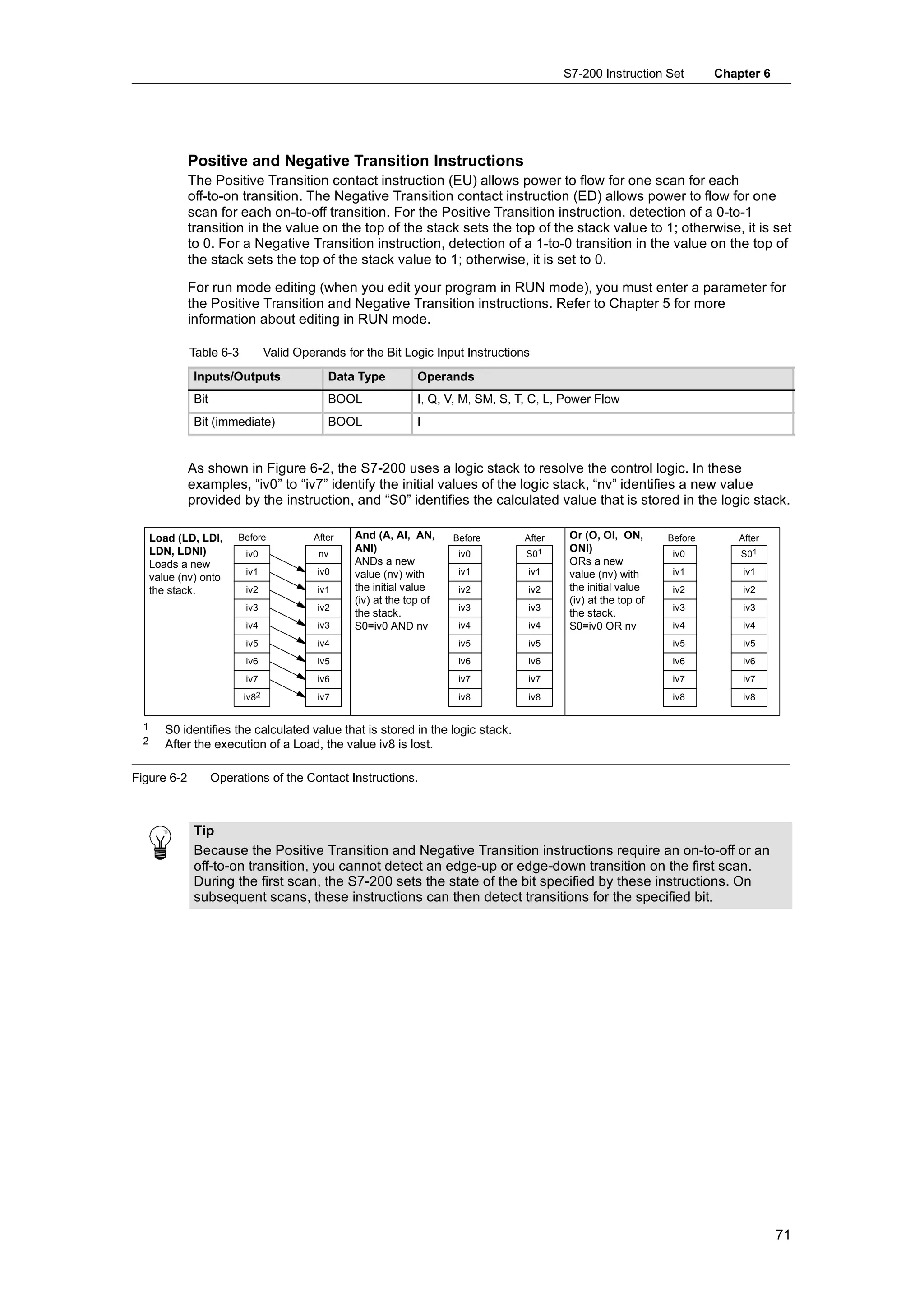
               SM76.5) to 1.
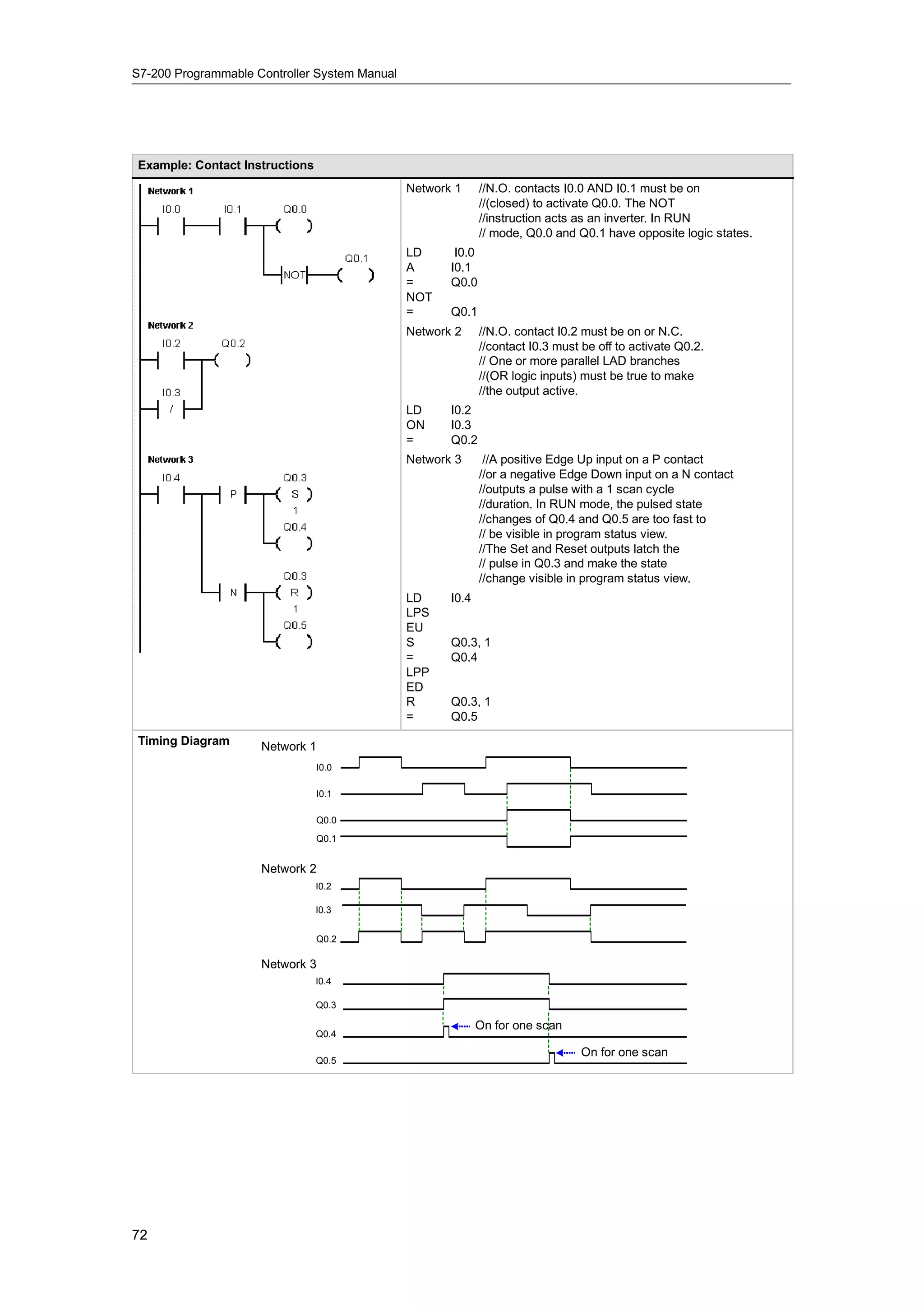
           -   Attempting to load the pipeline while it is full sets the PTO/PWM overflow bit (SM66.6 or
               SM76.6) to 1. You must clear this bit manually after an overflow is detected if you want to
               detect subsequent overflows. The transition to RUN mode initializes this bit to 0.

          Tip
          When you load a new pulse count (SMD72 or SMD82), pulse width (SMW70 or SMW80), or
          cycle time (SMW68 or SMW78), also set the appropriate update bits in the control register
          before you execute the PLS instruction. For a multiple segment pulse train operation, you must
          also load the starting offset (SMW168 or SMW178) of the profile table and the profile table
          values before you execute the PLS instruction.


136
S7-200 Instruction Set         Chapter 6


Table 6-36   SM Locations of the PTO / PWM Control Registers
Q0.0         Q0.1       Status Bits
SM66.4       SM76.4     PTO profile aborted (delta calculation error): 0 = no error        1 = aborted
SM66.5       SM76.5     PTO profile aborted due to user command: 0 = no abort              1 = aborted
SM66.6       SM76.6     PTO/PWM pipeline overflow/underflow:          0 = no overflow      1 = overflow/underflow
SM66.7       SM76.7     PTO idle:                                     0 = in progress      1 = PTO idle
Q0.0         Q0.1       Control Bits
SM67.0       SM77.0     PTO/PWM update the cycle time:                0 = no update        1 = update cycle time
SM67.1       SM77.1     PWM update the pulse width time:              0 = no update        1 = update pulse width
SM67.2       SM77.2     PTO update the pulse count value:             0 = no update        1 = update pulse
                                                                                               count
SM67.3       SM77.3     PTO/PWM time base:                            0 = 1 µs/tick        1 = 1 ms/tick
SM67.4       SM77.4     PWM update method:                            0 =asynchronous 1 = synchronous
SM67.5       SM77.5     PTO single/multiple segment operation:        0 = single           1 = multiple
SM67.6       SM77.6     PTO/PWM mode select:                          0 = PTO              1 = PWM
SM67.7       SM77.7     PTO/PWM enable:                               0 = disable          1 = enable
Q0.0         Q0.1       Other PTO/PWM Registers
SMW68        SMW78      PTO/PWM cycle time value                      range: 2 to 65,535
SMW70        SMW80      PWM pulse width value                         range: 0 to 65,535
SMD72        SMD82      PTO pulse count value                         range: 1 to 4,294,967,295
SMB166       SMB176     Number of the segment in progress             Multiple-segment PTO operation only
SMW168       SMW178     Starting location of the profile table        Multiple-segment PTO operation only
                        (byte offset from V0 )
SMB170       SMB180     Linear profile status byte
SMB171       SMB181     Linear profile result register
SMD172       SMD182     Manual mode frequency register


Table 6-37   PTO/PWM Control Byte Reference

Control               Result of Executing the PLS Instruction
Register                         PTO           PWM
(Hex                  Select                                                       Pulse    Pulse          Cycle
             Enable              Segment       Update            Time Base
Value)                Mode                                                         Count    Width          Time
                                 Operation     Method
  16#81       Yes      PTO       Single                           1 µs/cycle                               Load
  16#84       Yes      PTO       Single                           1 µs/cycle       Load
  16#85       Yes      PTO       Single                           1 µs/cycle       Load                    Load
  16#89       Yes      PTO       Single                           1 ms/cycle                               Load
  16#8C       Yes      PTO       Single                           1 ms/cycle       Load
  16#8D       Yes      PTO       Single                           1 ms/cycle       Load                    Load
  16#A0       Yes      PTO       Multiple                         1 µs/cycle
  16#A8       Yes      PTO       Multiple                         1 ms/cycle
  16#D1       Yes      PWM                     Synchronous        1 µs/cycle                               Load
  16#D2       Yes      PWM                     Synchronous        1 µs/cycle                Load
  16#D3       Yes      PWM                     Synchronous        1 µs/cycle                Load           Load
  16#D9       Yes      PWM                     Synchronous        1 ms/cycle                               Load
  16#DA       Yes      PWM                     Synchronous        1 ms/cycle                Load
  16#DB       Yes      PWM                     Synchronous        1 ms/cycle                Load           Load


                                                                                                                  137
S7-200 Programmable Controller System Manual


      Calculating Profile Table Values
         The multiple-segment pipelining capability of the          Frequency

         PTO/PWM generators can be useful in many                      10 kHz
         applications, particularly in stepper motor control.
                                                                           2 kHz

         For example, you can use PTO with a pulse profile
                                                                                                                                   Time
         to control a stepper motor through a simple ramp
         up, run, and ramp down sequence or more                                           1           2                3
         complicated sequences by defining a pulse profile
         that consists of up to 255 segments, with each                                              4,000 pulses
         segment corresponding to a ramp up, run, or ramp
         down operation.                                               1    Segment #1         2   Segment #2       3       Segment #3
                                                                            200 pulses             3400 pulses              400 pulses

         Figure 6-30 illustrates sample profile table values
         required to generate an output waveform that
         accelerates a stepper motor (segment 1), operates
                                                  1)
                                                                    Figure 6-30 Frequency/Time Diagram
         the motor at a constant speed (segment 2), and
         then decelerates the motor (segment 3).

         For this example: The starting and final pulse frequency is 2 kHz, the maximum pulse frequency is
         10 kHz, and 4000 pulses are required to achieve the desired number of motor revolutions. Since
         the values for the profile table are expressed in terms of period (cycle time) instead of frequency,
         you must convert the given frequency values into cycle time values. Therefore, the starting (initial)
         and final (ending) cycle time is 500 µs, and the cycle time corresponding to the maximum
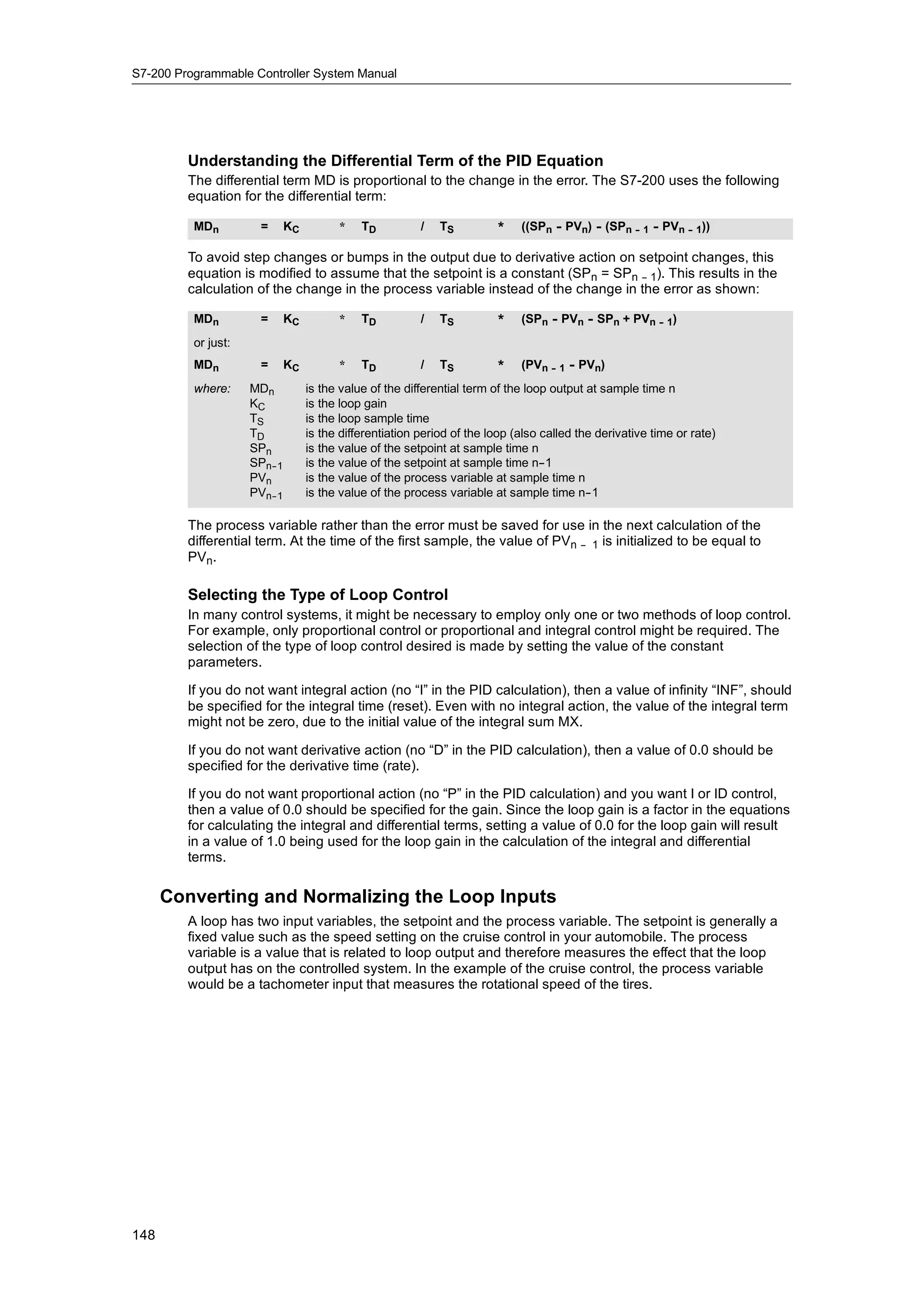
         frequency is 100 µs. During the acceleration portion of the output profile, the maximum pulse
         frequency should be reached in approximately 200 pulses. The deceleration portion of the profile
         should be completed in approximately 400 pulses.

         You can use the following formula to determine the delta cycle time value for a given segment that
         the PTO/PWM generator uses to adjust the cycle time of each pulse:

         Delta cycle time for a segment = | End_CTseg -- Init_CTseg | / Quantityseg

             where:    End_CTseg = Ending cycle time for this segment
                       Init_CTseg = Initial cycle time for this segment
                       Quantityseg = Quantity of pulses in this segment

         Using this formula to calculate the delta        Table 6-38        Profile Table Values
         cycle time values for the sample
                                                          Address           Value      Description
         application:
                                                          VB500                    3   Total number of segments
         Segment 1 (acceleration):
                                                          VW501              500       Initial cycle time
             Delta cycle time =        --2
                                                          VW503                -
                                                                               -2      Initial delta cycle time         Segment 1
                                                                                                                          g
         Segment 2 (constant speed):
                                                          VD505              200       Number of pulses
             Delta cycle time =      0
                                                          VW509              100       Initial cycle time
         Segment 3 (deceleration):
                                                          VW511                    0   Delta cycle time                 Segment 2
                                                                                                                          g
             Delta cycle time =         1
                                                          VD513             3400       Number of pulses
         Table 6-38 lists the values for generating
         the example waveform (assumes that the           VW517              100       Initial cycle time
         profile table is located in V memory, starting   VW519                    1   Delta cycle time                 Segment 3
                                                                                                                          g
         at V500). You can include instructions in
                                                          VD521              400       Number of pulses
         your program to load these values into
         V memory, or you can define the values of
         the profile in the data block.


138
S7-200 Instruction Set      Chapter 6


In order to determine if the transitions between waveform segments are acceptable, you need to
determine the cycle time of the last pulse in a segment. Unless the delta cycle time is 0, you must
calculate the cycle time of the last pulse of a segment, because this value is not specified in the
profile. Use the following formula to calculate the cycle time of the last pulse:

Cycle time of the last pulse for a segment = Init_CTseg + ( Deltaseg * ( Quantityseg -- 1 ))
    where:    Init_CTseg = Initial cycle time for this segment

              Deltaseg = Delta cycle time for this segment

              Quantityseg = Quantity of pulses in this segment

While the simplified example above is useful as an introduction, real applications can require more
complicated waveform profiles. Remember that the delta cycle time can be specified only as an
integer number of microseconds or milliseconds, and the cycle time modification is performed on
each pulse.

The effect of these two items is that calculation of the delta cycle time value for a given segment
could require an iterative approach. Some flexibility in the value of the ending cycle time or the
number of pulses for a given segment might be required.

The duration of a given profile segment can be useful in the process of determining correct profile
table values. Use the following formula to calculate the length of time for completing a given profile
segment:

Duration of segment = Quantityseg * ( Init_CT + ( ( Deltaseg/2 ) * ( Quantityseg -- 1 ) ) )

    where:    Quantityseg = Quantity of pulses in this segment

              Init_CTseg = Initial cycle time for this segment

              Deltaseg = Delta cycle time for this segment


                                                                                                      139
S7-200 Programmable Controller System Manual


Math Instructions
      Add, Subtract, Multiply, and Divide
      Instructions
         Add                           Subtract
         IN1 + IN2 = OUT               IN1 -- IN2 = OUT            LAD and
         FBD
         IN1 + OUT = OUT               OUT -- IN1 = OUT            STL
         The Add Integer (+I) or Subtract Integer (--I) instructions add
         or subtract two 16-bit integers to produce a 16-bit result. The
         Add Double Integer (+D) or Subtract Double Integer (--D)
         instructions add or subtract two 32-bit integers to produce a
         32-bit result. The Add Real (+R) and Subtract Real (--R)
         instructions add or subtract two 32-bit real numbers to
         produce a 32-bit real number result.

         Multiply                      Divide
         IN1 * IN2 = OUT               IN1 / IN2 = OUT             LAD and
         FBD
         IN1 * OUT = OUT               OUT / IN1 = OUT             STL

         The Multiply Integer (*I) or Divide Integer (/I) instructions
         multiply or divide two 16-bit integers to produce a 16-bit
         result. (For division, no remainder is kept.) The Multiply
         Double Integer (*D) or Divide Double Integer (/D) instructions
         multiply or divide two 32-bit integers to produce a 32-bit
         result. (For division, no remainder is kept.) The Multiply Real
         (*R) or Divide Real (/R) instructions multiply or divide two
         32-bit real numbers to produce a 32-bit real number result.

         SM Bits and ENO
         SM1.1 indicates overflow errors and illegal values. If SM1.1
         is set, then the status of SM1.0 and SM1.2 is not valid and
         the original input operands are not altered. If SM1.1 and
         SM1.3 are not set, then the math operation has completed
         with a valid result and SM1.0 and SM1.2 contain valid
         status. If SM1.3 is set during a divide operation, then the
         other math status bits are left unchanged.
         Error conditions that set         Special Memory bits affected
         ENO = 0                           H SM1.0 (zero)
         H SM1.1 (overflow)
                                           H SM1.1 (overflow, illegal value generated during the operation, or illegal
         H SM1.3 (divide by zero)            input parameter found)
         H 0006 (indirect address)         H SM1.2 (negative)
                                           H SM1.3 (divide by zero)


         Table 6-39   Valid Operands for Add, Subtract, Multiply, and Divide Instructions
          Inputs/Outputs    Data Types      Operands
          IN1, IN2          INT             IW, QW, VW, MW, SMW, SW, T, C, LW, AC, AIW, *VD, *AC, *LD, Constant
                            DINT            ID, QD, VD, MD, SMD, SD, LD, AC, HC, *VD, *LD, *AC, Constant
                            REAL            ID, QD, VD, MD, SMD, SD, LD, AC, *VD, *LD, *AC, Constant
          OUT               INT             IW, QW, VW, MW, SMW, SW, LW, T, C, AC, *VD, *AC, *LD
                            DINT, REAL      ID, QD, VD, MD, SMD, SD, LD, AC, *VD, *LD, *AC
         Real (or floating-point) numbers are represented in the format described in the ANSI/IEEE 754-
                                                                                                      -1985 standard
         (single-precision). Refer to that standard for more information.


140
S7-200 Instruction Set         Chapter 6


Example: Integer Math Instructions
                                                Network 1
                                                LD         I0.0
                                                +I         AC1, AC0
                                                *I         AC1, VW100
                                                /I         VW10, VW200


Add                                   Multiply                                        Divide
  40     +     60    =     100           40          *      20       =    800          4000        /     40        =     100
AC1          AC0         AC0          AC1                 VW100          VW100        VW200             VW10             VW200


Example: Real Math Instructions
                                                Network 1
                                                LD         I0.0
                                                +R         AC1, AC0
                                                *R         AC1, VD100
                                                /R         VD10, VD200


Add                                  Multiply                                      Divide
 4000.0 +    6000.0 =    10000.0      400.0      *       200.0   =   80000.0        4000.0     /       41.0    =       97.5609
 AC1         AC0          AC0          AC1           VD100           VD100          VD200              VD10            VD200


                                                                                                                            141
S7-200 Programmable Controller System Manual


      Multiply Integer to Double Integer and Divide Integer with Remainder

         Multiply Integer to Double Integer
         IN1 * IN2 = OUT         LAD and FBD
         IN1 * OUT = OUT         STL
         The Multiply Integer to Double Integer instruction (MUL)
         multiplies two 16-bit integers and produces a 32-bit product.
         In the STL MUL instruction, the least-significant word (16
         bits) of the 32-bit OUT is used as one of the factors.

         Divide Integer with Remainder
         IN1 / IN2 = OUT         LAD and FBD
         OUT / IN1 = OUT         STL
         The Divide Integer with Remainder instruction (DIV) divides
         two 16-bit integers and produces a 32-bit result consisting of
         a 16-bit remainder (the most-significant word) and a 16-bit
         quotient (the least-significant word).

         In STL, the least-significant word (16 bits) of the 32-bit OUT is used as the dividend.

         SM Bits and ENO
         For both of the instructions on this page, Special Memory (SM) bits indicate errors and illegal
         values. If SM1.3 (divide by zero) is set during a divide operation, then the other math status bits
         are left unchanged. Otherwise, all supported math status bits contain valid status upon
         completion of the math operation.
         Error conditions that set ENO = 0                       Special Memory bits affected
         H SM1.1 (overflow)                                      H SM1.0 (zero)
         H SM1.3 (divide by zero)                                H SM1.1 (overflow)
         H 0006 (indirect address)                               H SM1.2 (negative)
                                                                 H SM1.3 (divide by zero)

         Table 6-40   Valid Operands for Multiply Integer to Double Integer and Divide Integer with
                      Remainder

          Inputs/Outputs      Data Types      Operands
          IN1, IN2            INT             IW, QW, VW, MW, SMW, SW, T, C, LW, AC, AIW, *VD, *LD, *AC,
                                              Constant
          OUT                 DINT            ID, QD, VD, MD, SMD, SD, LD, AC, *VD, *LD, *AC


          Example: Multiply Integer to Double Integer Instruction and Divide Integer with Remainder Instruction
                                                       Network 1
                                                       LD       I0.0
                                                       MUL      AC1, VD100
                                                       DIV      VW10, VD200
                                                             Multiply Integer to       400       *        200   =     80000
                                                             Double Integer
                                                                                       AC1            VW102           VD100

                                                                                                                 rem. quot.
                                                             Divide Integer        4000              41          23     97
                                                                                             /              =
                                                             with Remainder                                     VW200 VW202
                                                                                   VW202         VW10
                                                                                                                    VD200
          Note: VD100 contains: VW100 and VW102, and VD200 contains: VW200 and VW202.


142
S7-200 Instruction Set      Chapter 6


Numeric Functions Instructions
   Sine, Cosine, and Tangent
   The Sine (SIN), Cosine (COS), and Tangent (TAN) instructions
   evaluate the trigonometric function of the angle value IN and place the
   result in OUT. The input angle value is in radians.
   SIN (IN) = OUT           COS (IN) = OUT         TAN (IN) = OUT
   To convert an angle from degrees to radians: Use the MUL_R (*R)
   instruction to multiply the angle in degrees by 1.745329E--2
   (approximately by π/180).

   Natural Logarithm and Natural Exponential
   The Natural Logarithm instruction (LN) performs the natural logarithm
   of the value in IN and places the result in OUT.
   The Natural Exponential instruction (EXP) performs the exponential
   operation of e raised to the power of the value in IN and places the
   result in OUT.
   LN (IN) = OUT            EXP (IN)= OUT
   To obtain the base 10 logarithm from the natural logarithm: Divide the natural logarithm by 2.302585
   (approximately the natural logarithm of 10).
   To raise any real number to the power of another real number, including fractional exponents: Combine the
   Natural Exponential instruction with the Natural Logarithm instruction. For example, to raise X to the Y
   power, enter the following instruction: EXP (Y * LN (X)).

   Square Root
   The Square Root instruction (SQRT) takes the square root of a real number (IN) and produces a real
   number result OUT.
   SQRT (IN)= OUT
   To obtain other roots:        5 cubed = 5^3 = EXP(3*LN(5)) = 125
                                 The cube root of 125 = 125^(1/3) = EXP((1/3)*LN(125))= 5
                                 The square root of 5 cubed = 5^(3/2) = EXP(3/2*LN(5)) = 11.18034

   SM Bits and ENO for the Numeric Functions Instructions
   For all of the instructions that are described on this page, SM1.1 is used to indicate overflow errors and
   illegal values. If SM1.1 is set, then the status of SM1.0 and SM1.2 is not valid and the original input
   operands are not altered. If SM1.1 is not set, then the math operation has completed with a valid result and
   SM1.0 and SM1.2 contain valid status.
   Error conditions that set ENO = 0       Special Memory bits affected
   H SM1.1 (overflow)                      H SM1.0 (zero)
   H 0006 (indirect address)               H SM1.1 (overflow)
                                           H SM1.2 (negative)


   Table 6-41   Valid Operands for Numeric Functions

   Inputs/Outputs           Data Types      Operands
   IN                       REAL            ID, QD, VD, MD, SMD, SD, LD, AC, *VD, *LD, *AC, Constant
   OUT                      REAL            ID, QD, VD, MD, SMD, SD, LD, AC, *VD, *LD, *AC
   Real (or floating-point) numbers are represented in the format described in the ANSI/IEEE 754-
                                                                                                -1985 standard
   (single-precision). Refer to that standard for more information.


                                                                                                           143
S7-200 Programmable Controller System Manual


      Increment and Decrement Instructions
         Increment
         IN + 1 = OUT             LAD and FBD
         OUT + 1 = OUT            STL

         Decrement
         IN -- 1 = OUT            LAD and FBD
         OUT -- 1 = OUT           STL
         The Increment and Decrement instructions add or subtract
         1 to or from the input IN and place the result into the
         variable OUT.
         Increment Byte (INCB) and Decrement Byte (DECB)
         operations are unsigned.
         Increment Word (INCW) and Decrement Word (DECW)
         operations are signed.
         Increment Double Word (INCD) and Decrement Double
         Word (DECD) operations are signed.
         Error conditions that set ENO = 0:
         H SM1.1 (overflow)
         H 0006 (indirect address)

         Special Memory bits affected:
         H SM1.0 (zero)
         H SM1.1 (overflow)
         H SM1.2 (negative) for Word and Double Word operations


         Table 6-42   Valid Operands for the Increment and Decrement Instructions

          Inputs/Outputs   Data Types      Operands
          IN               BYTE            IB, QB, VB, MB, SMB, SB, LB, AC, *VD, *LD, *AC, Constant
                           INT             IW, QW, VW, MW, SMW, SW, T, C, LW, AC, AIW, *VD, *LD, *AC, Constant
                           DINT            ID, QD, VD, MD, SMD, SD, LD, AC, HC, *VD, *LD, *AC, Constant
          OUT              BYTE            IB, QB, VB, MB, SMB, SB, LB, AC, *VD, *AC, *LD
                           INT             IW, QW, VW, MW, SMW, SW, T, C, LW, AC,*VD, *LD, *AC
                           DINT            ID, QD, VD, MD, SMD, SD, LD, AC, *VD, *LD, *AC


          Example: Increment and Decrement Instructions
                                                     Network 1
                                                     LD          I4.0
                                                     INCW        AC0
                                                     DECD        VD100

                                                     Increment Word                    125 + 1 =            126
                                                                                    AC0                   AC0

                                                     Decrement Double Word           128000 - 1 =
                                                                                            -             127999

                                                                                    VD100             VD100


144
S7-200 Instruction Set   Chapter 6


   Proportional/Integral/Derivative (PID) Loop Instruction
              The PID Loop instruction (PID) executes a PID loop
              calculation on the referenced LOOP based on the input and
              configuration information in Table (TBL).
              Error conditions that set ENO = 0:
              H SM1.1 (overflow)
              H 0006 (indirect address)

              Special Memory bits affected:
              H SM1.1 (overflow)

              The PID loop instruction (Proportional, Integral, Derivative
              Loop) is provided to perform the PID calculation. The top of
              the logic stack (TOS) must be ON (power flow) to enable the
              PID calculation. The instruction has two operands: a TABLE
              address which is the starting address of the loop table and a
              LOOP number which is a constant from 0 to 7.

              Eight PID instructions can be used in a program. If two or more PID instructions are used with the
              same loop number (even if they have different table addresses), the PID calculations will interfere
              with one another and the output will be unpredictable.

              The loop table stores nine parameters used for controlling and monitoring the loop operation and
              includes the current and previous value of the process variable, the setpoint, output, gain, sample
              time, integral time (reset), derivative time (rate), and the integral sum (bias).

              To perform the PID calculation at the desired sample rate, the PID instruction must be executed
              either from within a timed interrupt routine or from within the main program at a rate controlled by a
              timer. The sample time must be supplied as an input to the PID instruction via the loop table.

              Auto-Tune capability has been incorporated into the PID instruction. Refer to Chapter 15 for a
              detailed description of auto-tuning. The PID Tuning Control Panel only works with PID loops
              created by the PID wizard..


              Table 6-43   Valid Operands for the PID Loop Instruction
               Inputs/Outputs         Data Types       Operands
               TBL                    BYTE             VB
               LOOP                   BYTE             Constant (0 to 7)


              STEP 7-Micro/WIN offers the PID Wizard to guide you in defining a PID algorithm for a
              closed-loop control process. Select the Tools > Instruction Wizard menu command and then
Instruction   select PID from the Instruction Wizard window.
  Wizard

               Tip
               The setpoint of the low range and the setpoint of the high range should correspond to the
               process variable low range and high range.


                                                                                                                145
S7-200 Programmable Controller System Manual


      Understanding the PID Algorithm
         In steady state operation, a PID controller regulates the value of the output so as to drive the error
         (e) to zero. A measure of the error is given by the difference between the setpoint (SP) (the
         desired operating point) and the process variable (PV) (the actual operating point). The principle
         of PID control is based upon the following equation that expresses the output, M(t), as a function
         of a proportional term, an integral term, and a differential term:

          Output     =        Proportional term      +     Integral term                        +       Differential term
                                                                        t

          M(t)       =        KC * e                 +      K
                                                                C
                                                                     e dt + M     initial
                                                                                                +       KC * de/dt
                                                                    0
          where:   M(t)         is the loop output as a function of time
                   KC           is the loop gain
                   e            is the loop error (the difference between setpoint and process variable)
                   Minitial     is the initial value of the loop output


         In order to implement this control function in a digital computer, the continuous function must be
         quantized into periodic samples of the error value with subsequent calculation of the output. The
         corresponding equation that is the basis for the digital computer solution is:
                                                                            n
          Mn         =        Kc * en                 +         KI *        Σ ex
                                                                            1
                                                                                   + Minitial       +    KD * (en - en- 1)

          output      =     proportional term          +     integral term              +    differential term
          where:   Mn         is the calculated value of the loop output at sample time n
                   KC         is the loop gain
                   en         is the value of the loop error at sample time n
                   en -- 1    is the previous value of the loop error (at sample time n - 1)
                                                                                        -
                   ex         is the value of the loop error at sample time x
                   KI         is the proportional constant of the integral term
                   Minitial   is the initial value of the loop output
                   KD         is the proportional constant of the differential term

         From this equation, the integral term is shown to be a function of all the error terms from the first
         sample to the current sample. The differential term is a function of the current sample and the
         previous sample, while the proportional term is only a function of the current sample. In a digital
         computer, it is not practical to store all samples of the error term, nor is it necessary.

         Since the digital computer must calculate the output value each time the error is sampled
         beginning with the first sample, it is only necessary to store the previous value of the error and the
         previous value of the integral term. As a result of the repetitive nature of the digital computer
         solution, a simplification in the equation that must be solved at any sample time can be made. The
         simplified equation is:

          Mn         =        Kc * en                  +     KI * en + MX                 +     KD * (en - en- 1)
          output     =        proportional term        +     integral term                +     differential term
          where:   Mn           is the calculated value of the loop output at sample time n
                   KC           is the loop gain
                   en           is the value of the loop error at sample time n
                   en -- 1      is the previous value of the loop error (at sample time n - 1)
                                                                                          -
                   KI           is the proportional constant of the integral term
                   MX           is the previous value of the integral term (at sample time n - 1)
                                                                                             -
                   KD           is the proportional constant of the differential term


146
S7-200 Instruction Set           Chapter 6


The S7-200 uses a modified form of the above simplified equation when calculating the loop
output value. This modified equation is:

 Mn         =    MPn                          +       MIn                        +      MDn
 output     =    proportional term            +       integral term              +      differential term
 where:   Mn         is the calculated value of the loop output at sample time n
          MPn        is the value of the proportional term of the loop output at sample time n
          MIn        is the value of the integral term of the loop output at sample time n
          MDn        is the value of the differential term of the loop output at sample time n


Understanding the Proportional Term of the PID Equation
The proportional term MP is the product of the gain (KC), which controls the sensitivity of the
output calculation, and the error (e), which is the difference between the setpoint (SP) and the
process variable (PV) at a given sample time. The equation for the proportional term as solved by
the S7-200 is:

 MPn        =    KC              *        (SPn - PVn)
 where:   MPn        is the value of the proportional term of the loop output at sample time n
          KC         is the loop gain
          SPn        is the value of the setpoint at sample time n
          PVn        is the value of the process variable at sample time n

Understanding the Integral Term of the PID Equation
The integral term MI is proportional to the sum of the error over time. The equation for the integral
term as solved by the S7-200 is:

 MIn        =   KC           *       TS           /     TI            *   (SPn - PVn)          +    MX
 where:   MIn        is the value of the integral term of the loop output at sample time n
          KC         is the loop gain
          TS         is the loop sample time
          TI         is the integration period of the loop (also called the integral time or reset)
          SPn        is the value of the setpoint at sample time n
          PVn        is the value of the process variable at sample time n
          MX         is the value of the integral term at sample time n - 1
                                                                          -
                     (also called the integral sum or the bias)

The integral sum or bias (MX) is the running sum of all previous values of the integral term. After
each calculation of MIn, the bias is updated with the value of MIn which might be adjusted or
clamped (see the section “Variables and Ranges” for details). The initial value of the bias is
typically set to the output value (Minitial) just prior to the first loop output calculation. Several
constants are also part of the integral term, the gain (KC), the sample time (TS), which is the cycle
time at which the PID loop recalculates the output value, and the integral time or reset (TI), which
is a time used to control the influence of the integral term in the output calculation.


                                                                                                                    147
S7-200 Programmable Controller System Manual


         Understanding the Differential Term of the PID Equation
         The differential term MD is proportional to the change in the error. The S7-200 uses the following
         equation for the differential term:

          MDn          =      KC         *    TD          /   TS         *    ((SPn - PVn) - (SPn -- 1 - PVn -- 1))

         To avoid step changes or bumps in the output due to derivative action on setpoint changes, this
         equation is modified to assume that the setpoint is a constant (SPn = SPn -- 1). This results in the
         calculation of the change in the process variable instead of the change in the error as shown:

          MDn          =      KC         *    TD          /   TS         *    (SPn - PVn - SPn + PVn -- 1)
          or just:
          MDn          =      KC         *    TD          /   TS         *    (PVn -- 1 - PVn)
          where:     MDn           is the value of the differential term of the loop output at sample time n
                     KC            is the loop gain
                     TS            is the loop sample time
                     TD            is the differentiation period of the loop (also called the derivative time or rate)
                     SPn           is the value of the setpoint at sample time n
                     SPn--1        is the value of the setpoint at sample time n-  -1
                     PVn           is the value of the process variable at sample time n
                     PVn--1        is the value of the process variable at sample time n-   -1

         The process variable rather than the error must be saved for use in the next calculation of the
         differential term. At the time of the first sample, the value of PVn -- 1 is initialized to be equal to
         PVn.

         Selecting the Type of Loop Control
         In many control systems, it might be necessary to employ only one or two methods of loop control.
         For example, only proportional control or proportional and integral control might be required. The
         selection of the type of loop control desired is made by setting the value of the constant
         parameters.

         If you do not want integral action (no “I” in the PID calculation), then a value of infinity “INF”, should
         be specified for the integral time (reset). Even with no integral action, the value of the integral term
         might not be zero, due to the initial value of the integral sum MX.

         If you do not want derivative action (no “D” in the PID calculation), then a value of 0.0 should be
         specified for the derivative time (rate).

         If you do not want proportional action (no “P” in the PID calculation) and you want I or ID control,
         then a value of 0.0 should be specified for the gain. Since the loop gain is a factor in the equations
         for calculating the integral and differential terms, setting a value of 0.0 for the loop gain will result
         in a value of 1.0 being used for the loop gain in the calculation of the integral and differential
         terms.

      Converting and Normalizing the Loop Inputs
         A loop has two input variables, the setpoint and the process variable. The setpoint is generally a
         fixed value such as the speed setting on the cruise control in your automobile. The process
         variable is a value that is related to loop output and therefore measures the effect that the loop
         output has on the controlled system. In the example of the cruise control, the process variable
         would be a tachometer input that measures the rotational speed of the tires.


148
S7-200 Instruction Set    Chapter 6


   Both the setpoint and the process variable are real world values whose magnitude, range, and
   engineering units could be different. Before these real world values can be operated upon by the
   PID instruction, the values must be converted to normalized, floating-point representations.

   The first step is to convert the real world value from a 16-bit integer value to a floating-point or real
   number value. The following instruction sequence is provided to show how to convert from an
   integer value to a real number.

    ITD      AIW0, AC0                 //Convert an input value to a double word
    DTR      AC0, AC0                 //Convert the 32-bit integer to a real number

   The next step is to convert the real number value representation of the real world value to a
   normalized value between 0.0 and 1.0. The following equation is used to normalize either the
   setpoint or process variable value:

    RNorm      =      ((RRaw / Span) + Offset)
    where:   RNorm      is the normalized, real number value representation of the real world value
             RRaw       is the un-normalized or raw, real number value representation of the real world value
             Offset     is 0.0 for unipolar values
                        is 0.5 for bipolar values
             Span       is the maximum possible value minus the minimum possible value:
                        = 32,000 for unipolar values (typical)
                        = 64,000 for bipolar values (typical)

   The following instruction sequence shows how to normalize the bipolar value in AC0 (whose span
   is 64,000) as a continuation of the previous instruction sequence:

    /R       64000.0, AC0             //Normalize the value in the accumulator
    +R       0.5, AC0                 //Offset the value to the range from 0.0 to 1.0
    MOVR     AC0, VD100               //Store the normalized value in the loop TABLE


Converting the Loop Output to a Scaled Integer Value
   The loop output is the control variable, such as the throttle setting of the cruise control on an
   automobile. The loop output is a normalized, real number value between 0.0 and 1.0. Before the
   loop output can be used to drive an analog output, the loop output must be converted to a 16-bit,
   scaled integer value. This process is the reverse of converting the PV and SP to a normalized
   value. The first step is to convert the loop output to a scaled, real number value using the formula
   given below:

    RScal      =      (Mn - Offset)         *     Span
    where:   RScal      is the scaled, real number value of the loop output
             Mn         is the normalized, real number value of the loop output
             Offset     is 0.0 for unipolar values
                        is 0.5 for bipolar values
             Span       is the maximum possible value minus the minimum possible value
                        = 32,000 for unipolar values (typical)
                        = 64,000 for bipolar values (typical)


                                                                                                                149
S7-200 Programmable Controller System Manual


         The following instruction sequence shows how to scale the loop output:

          MOVR     VD108, AC0              //Moves the loop output to the accumulator
          -
          -R       0.5, AC0                //Include this statement only if the value is bipolar
          *R       64000.0, AC0            //Scales the value in the accumulator

         Next, the scaled, real number value representing the loop output must be converted to a 16-bit
         integer. The following instruction sequence shows how to do this conversion:

          ROUND AC0, AC0                   //Converts the real number to a 32-bit integer
          DTI   AC0, LW0                   //Converts the value to a 16-bit integer
          MOVW LW0, AQW0                   //Writes the value to the analog output


      Forward- or Reverse-Acting Loops
         The loop is forward-acting if the gain is positive and reverse-acting if the gain is negative. (For I or
         ID control, where the gain value is 0.0, specifying positive values for integral and derivative time
         will result in a forward-acting loop, and specifying negative values will result in a reverse-acting
         loop.)

         Variables and Ranges
         The process variable and setpoint are inputs to the PID calculation. Therefore the loop table fields
         for these variables are read but not altered by the PID instruction.

         The output value is generated by the PID calculation, so the output value field in the loop table is
         updated at the completion of each PID calculation. The output value is clamped between 0.0 and
         1.0. The output value field can be used as an input by the user to specify an initial output value
         when making the transition from manual control to PID instruction (auto) control of the output. (See
         the discussion in the “Modes” section below).

         If integral control is being used, then the bias value is updated by the PID calculation and the
         updated value is used as an input in the next PID calculation. When the calculated output value
         goes out of range (output would be less than 0.0 or greater than 1.0), the bias is adjusted
         according to the following formulas:

          MX         =   1.0           -     (MPn + MDn)                   when the calculated output Mn > 1.0
             or
          MX         =    - (MPn + MDn)                                    when the calculated output Mn < 0.0
          where:   MX          is the value of the adjusted bias
                   MPn         is the value of the proportional term of the loop output at sample time n
                   MDn         is the value of the differential term of the loop output at sample time n
                   Mn          is the value of the loop output at sample time n

         By adjusting the bias as described, an improvement in system responsiveness is achieved once
         the calculated output comes back into the proper range. The calculated bias is also clamped
         between 0.0 and 1.0 and then is written to the bias field of the loop table at the completion of each
         PID calculation. The value stored in the loop table is used in the next PID calculation.

         The bias value in the loop table can be modified by the user prior to execution of the PID
         instruction in order to address bias value problems in certain application situations. Care must be
         taken when manually adjusting the bias, and any bias value written into the loop table must be a
         real number between 0.0 and 1.0.

         A comparison value of the process variable is maintained in the loop table for use in the derivative
         action part of the PID calculation. You should not modify this value.


150
S7-200 Instruction Set    Chapter 6


Modes
There is no built-in mode control for S7-200 PID loops. The PID calculation is performed only
when power flows to the PID box. Therefore, “automatic” or “auto” mode exists when the PID
calculation is performed cyclically. “Manual” mode exists when the PID calculation is not
performed.

The PID instruction has a power-flow history bit, similar to a counter instruction. The instruction
uses this history bit to detect a 0-to-1 power-flow transition. When the power-flow transition is
detected, it will cause the instruction to perform a series of actions to provide a bumpless change
from manual control to auto control. In order for change to auto mode control to be bumpless, the
value of the output as set by the manual control must be supplied as an input to the PID
instruction (written to the loop table entry for Mn) before switching to auto control. The PID
instruction performs the following actions to values in the loop table to ensure a bumpless change
from manual to auto control when a 0-to-1 power-flow transition is detected:

 -    Sets setpoint (SPn) = process variable (PVn)
 -    Sets old process variable (PVn--1) = process variable (PVn)
 -    Sets bias (MX) = output value (Mn)
The default state of the PID history bits is “set” and that state is established at startup and on
every STOP-to-RUN mode transition of the controller. If power flows to the PID box the first time
that it is executed after entering RUN mode, then no power-flow transition is detected and the
bumpless mode change actions are not performed.

Alarm Checking and Special Operations
The PID instruction is a simple but powerful instruction that performs the PID calculation. If other
processing is required such as alarm checking or special calculations on loop variables, these
must be implemented using the basic instructions supported by the S7-200.

Error Conditions
When it is time to compile, the CPU will generate a compile error (range error) and the compilation
will fail if the loop table start address or PID loop number operands specified in the instruction are
out of range.

Certain loop table input values are not range checked by the PID instruction. You must take care
to ensure that the process variable and setpoint (as well as the bias and previous process
variable if used as inputs) are real numbers between 0.0 and 1.0.

If any error is encountered while performing the mathematical operations of the PID calculation,
then SM1.1 (overflow or illegal value) is set and execution of the PID instruction is terminated.
(Update of the output values in the loop table could be incomplete, so you should disregard these
values and correct the input value causing the mathematical error before the next execution of the
loop’s PID instruction.)


                                                                                                  151
S7-200 Programmable Controller System Manual


         Loop Table
         The loop table is 80 bytes long and has the format shown in Table 6-44.

         Table 6-44     Loop Table
          Offset      Field                      Format           Type        Description
             0        Process variable           REAL             In          Contains the process variable, which must
                      (PVn)                                                   be scaled between 0.0 and 1.0.
             4        Setpoint                   REAL             In          Contains the setpoint, which must be scaled
                      (SPn)                                                   between 0.0 and 1.0.
             8        Output                     REAL             In/Out      Contains the calculated output, scaled
                      (Mn)                                                    between 0.0 and 1.0.
            12        Gain                       REAL             In          Contains the gain, which is a proportional
                      (KC)                                                    constant. Can be a positive or negative
                                                                              number.
            16        Sample time                REAL             In          Contains the sample time, in seconds. Must
                      (TS)                                                    be a positive number.
            20        Integral time or reset     REAL             In          Contains the integral time or reset, in
                      (TI)                                                    minutes. Must be a positive number.
            24        Derivative time or rate    REAL             In          Contains the derivative time or rate, in
                      (TD)                                                    minutes. Must be a positive number.
            28        Bias                       REAL             In/Out      Contains the bias or integral sum value
                      (MX)                                                    between 0.0 and 1.0.
            32        Previous process           REAL             In/Out      Contains the value of the process variable
                      variable (PVn--1)                                       stored from the last execution of the PID
                                                                              instruction.
           36 to      Reserved for auto-tuning variables. Refer to Table 15-1 for details.
            79


152
S7-200 Instruction Set   Chapter 6


Interrupt Instructions
   Enable Interrupt and Disable Interrupt
      The Enable Interrupt instruction (ENI) globally enables
      processing of all attached interrupt events. The Disable
      Interrupt instruction (DISI) globally disables processing of all
      interrupt events.
      When you make the transition to RUN mode, interrupts are
      initially disabled. In RUN mode, you can enable interrupt
      processing by executing the Enable Interrupt instruction.
      Executing the Disable Interrupt instruction inhibits the
      processing of interrupts; however, active interrupt events will
      continue to be queued.
      Error conditions that set ENO = 0:
      H 0004 (attempted execution of ENI, DISI, or HDEF instructions in
        an interrupt routine)

   Conditional Return from Interrupt
      The Conditional Return from Interrupt instruction (CRETI)
      can be used to return from an interrupt, based upon the
      condition of the preceding logic.

   Attach Interrupt
      The Attach Interrupt instruction (ATCH) associates an
      interrupt event EVNT with an interrupt routine number INT
      and enables the interrupt event.
      Error conditions that set ENO = 0:
      H 0002 (conflicting assignment of inputs to an HSC)

   Detach Interrupt
      The Detach Interrupt instruction (DTCH) disassociates an
      interrupt event EVNT from all interrupt routines and disables
      the interrupt event.

   Clear Interrupt Event
      The Clear Interrupt Event instruction removes all interrupt events of type EVNT from the interrupt
      queue. Use this instruction to clear the interrupt queue of unwanted interrupt events. If this
      instruction is being used to clear out spurious interrupt events, you should detach the event
      before clearing the events from the queue. Otherwise new events will be added to the queue
      after the clear event instruction has been executed.
      The example shows a high-speed counter in quadrature mode using the CLR_EVNT instruction
      to remove interrupts. If a light chopper stepper sensor was stopped in a position that is on the
      edge of a light to dark transition, then small machine vibrations could generate unwanted
      interrupts before the new PV can be loaded.

      Table 6-45   Valid Operands for the Interrupt Instructions
      Inputs/Outputs       Data Types       Operands
      INT                  BYTE             Constant (0 to 127)
      EVNT                 BYTE             Constant     CPU 221 and CPU 222:   0 to 12, 19 to 23, and 27 to 33
                                                         CPU 224:               0 to 23 and 27 to 33
                                                         CPU 224XP and CPU 226: 0 to 33


                                                                                                            153
S7-200 Programmable Controller System Manual


      Operation of the Attach Interrupt and Detach Interrupt Instructions
         Before an interrupt routine can be invoked, an association must be established between the
         interrupt event and the program segment that you want to execute when the event occurs. Use
         the Attach Interrupt instruction to associate an interrupt event (specified by the interrupt event
         number) and the program segment (specified by an interrupt routine number). You can attach
         multiple interrupt events to one interrupt routine, but one event cannot be concurrently attached to
         multiple interrupt routines.

         When you attach an interrupt event to an interrupt routine, that interrupt is automatically enabled. If
         you disable all interrupts using the global disable interrupt instruction, each occurrence of the
         interrupt event is queued until interrupts are re-enabled, using the global enable interrupt
         instruction, or the interrupt queue overflows.

         You can disable individual interrupt events by breaking the association between the interrupt
         event and the interrupt routine with the Detach Interrupt instruction. The Detach Interrupt
         instruction returns the interrupt to an inactive or ignored state. Table 6-46 lists the different types of
         interrupt events.

         Table 6-46   Interrupt Events
                                                                               CPU 221               CPU 224XP
          Event       Description                                                        CPU 224
                                                                               CPU 222               CPU 226
              0       I0.0                Rising edge                             Y          Y             Y
              1       I0.0                Falling edge                            Y          Y             Y
              2       I0.1                Rising edge                             Y          Y             Y
              3       I0.1                Falling edge                            Y          Y             Y
              4       I0.2                Rising edge                             Y          Y             Y
              5       I0.2                Falling edge                            Y          Y             Y
              6       I0.3                Rising edge                             Y          Y             Y
              7       I0.3                Falling edge                            Y          Y             Y
              8       Port 0              Receive character                       Y          Y             Y
              9       Port 0              Transmit complete                       Y          Y             Y
             10       Timed interrupt 0   SMB34                                   Y          Y             Y
             11       Timed interrupt 1   SMB35                                   Y          Y             Y
             12       HSC0                CV=PV                                   Y          Y             Y
                                          (current value = preset value)
             13       HSC1                CV=PV                                              Y             Y
                                          (current value = preset value)
             14       HSC1                Direction changed                                  Y             Y
             15       HSC1                External reset                                     Y             Y
             16       HSC2                CV=PV                                              Y             Y
                                          (current value = preset value)
             17       HSC2                Direction changed                                  Y             Y
             18       HSC2                External reset                                     Y             Y
             19       PLS0                PTO pulse count complete interrupt      Y          Y             Y
             20       PLS1                PTO pulse count complete interrupt      Y          Y             Y
             21       Timer T32           CT=PT interrupt                         Y          Y             Y


154
S7-200 Instruction Set        Chapter 6


   Table 6-46   Interrupt Events, continued
                                                                               CPU 221                    CPU 224XP
   Event        Description                                                                 CPU 224
                                                                               CPU 222                    CPU 226
       22       Timer T96             CT=PT interrupt                               Y            Y              Y
       23       Port 0                Receive message complete                      Y            Y              Y
       24       Port 1                Receive message complete                                                  Y
       25       Port 1                Receive character                                                         Y
       26       Port 1                Transmit complete                                                         Y
       27       HSC0                  Direction changed                             Y            Y              Y
       28       HSC0                  External reset                                Y            Y              Y
       29       HSC4                  CV=PV                                         Y            Y              Y
                                      (current value = preset value)
       30       HSC4                  Direction changed                             Y            Y              Y
       31       HSC4                  External reset                                Y            Y              Y
       32       HSC3                  CV=PV                                         Y            Y              Y
                                      (current value = preset value)
       33       HSC5                  CV=PV                                         Y            Y              Y
                                      (current value = preset value)


Understanding How the S7-200 Processes Interrupt Routines
  The interrupt routine is executed in response to an associated internal or external event. Once the
  last instruction of the interrupt routine has been executed, control is returned to the main program.
  You can exit the routine by executing a Conditional Return from Interrupt instruction (CRETI).
  Table 6-47 emphasizes some guidelines and restrictions for using interrupt routines in your
  program.

   Table 6-47   Guidelines and Restrictions for Using Interrupt Routines
   Guidelines
   Interrupt processing provides quick reaction to special internal or external events. You should optimize
   interrupt routines to perform a specific task, and then return control to the main routine.
   By keeping the interrupt routines short and to the point, execution is quick and other processes are not
   deferred for long periods of time. If this is not done, unexpected conditions can cause abnormal operation of
   equipment controlled by the main program. For interrupts, the axiom, ‘‘the shorter, the better,’’ is definitely true.
   Restrictions
   You cannot use the Disable Interrupt (DISI), Enable Interrupt (ENI), High-Speed Counter Definition (HDEF),
   and End (END) instructions in an interrupt routine.


  System Support for Interrupts
  Because contact, coil, and accumulator logic can be affected by interrupts, the system saves and
  reloads the logic stack, accumulator registers, and the special memory bits (SM) that indicate the
  status of accumulator and instruction operations. This avoids disruption to the main user program
  caused by branching to and from an interrupt routine.

  Sharing Data Between the Main Program and Interrupt Routines
  You can share data between the main program and one or more interrupt routines. Because it is
  not possible to predict when the S7-200 might generate an interrupt, it is desirable to limit the
  number of variables that are used by both the interrupt routine and elsewhere in the program.
  Problems with the consistency of shared data can result due to the actions of interrupt routines
  when the execution of instructions in your main program is interrupted by interrupt events. Use the
  local variable table of the interrupt routine to ensure that your interrupt routine uses only the
  temporary memory and does not overwrite data used somewhere else in your program.


                                                                                                                    155
S7-200 Programmable Controller System Manual


         There are a number of programming techniques you can use to ensure that data is correctly
         shared between your main program and interrupt routines. These techniques either restrict the
         way access is made to shared memory locations or prevent interruption of instruction sequences
         using shared memory locations.

           -   For an STL program that is sharing a single variable: If the shared data is a single byte,
               word, or double word variable and your program is written in STL, then correct shared
               access can be ensured by storing the intermediate values from operations on shared data
               only in non-shared memory locations or accumulators.
           -   For a LAD program that is sharing a single variable: If the shared data is a single byte,
               word, or double word variable and your program is written in LAD, then correct shared
               access can be ensured by establishing the convention that access to shared memory
               locations be made using only Move instructions (MOVB, MOVW, MOVD, MOVR). While
               many LAD instructions are composed of interruptible sequences of STL instructions, these
               Move instructions are composed of a single STL instruction whose execution cannot be
               affected by interrupt events.
           -   For an STL or LAD program that is sharing multiple variables: If the shared data is
               composed of a number of related bytes, words, or double words, then the interrupt
               disable/enable instructions (DISI and ENI) can be used to control interrupt routine
               execution. At the point in your main program where operations on shared memory locations
               are to begin, disable the interrupts. Once all actions affecting the shared locations are
               complete, re-enable the interrupts. During the time that interrupts are disabled, interrupt
               routines cannot be executed and therefore cannot access shared memory locations;
               however, this approach can result in delayed response to interrupt events.

         Calling Subroutines from Interrupt Routines
         You can call one nesting level of subroutines from an interrupt routine. The accumulators and the
         logic stack are shared between an interrupt routine and a subroutine that is called.

      Types of Interrupts Supported by the S7-200
         The S7-200 supports the following types of interrupt routines:

           -   Communications port interrupts: The S7-200 generates events that allow your program to
               control the communications port.
           -   I/O interrupts: The S7-200 generates events for different changes of state for various I/O.
               These events allow your program to respond to the high-speed counters, the pulse outputs,
               or to rising or falling states of the inputs.
           -   Time-based interrupts: The S7-200 generates events that allow your program to react at
               specific intervals.

         Communications Port Interrupts
         The serial communications port of the S7-200 can be controlled by your program. This mode of
         operating the communications port is called Freeport mode. In Freeport mode, your program
         defines the baud rate, bits per character, parity, and protocol. The Receive and Transmit interrupts
         are available to facilitate your program-controlled communications. Refer to the Transmit and
         Receive instructions for more information.

         I/O Interrupts
         I/O interrupts include rising/falling edge interrupts, high-speed counter interrupts, and pulse train
         output interrupts. The S7-200 can generate an interrupt on rising and/or falling edges of an input
         (either I0.0, I0.1, I0.2, or I0.3). The rising edge and the falling edge events can be captured for
         each of these input points. These rising/falling edge events can be used to signify a condition that
         must receive immediate attention when the event happens.

         The high-speed counter interrupts allow you to respond to conditions such as the current value
         reaching the preset value, a change in counting direction that might correspond to a reversal in
         the direction in which a shaft is turning, or an external reset of the counter. Each of these
         high-speed counter events allows action to be taken in real time in response to high-speed events
         that cannot be controlled at programmable logic controller scan speeds.


156
S7-200 Instruction Set       Chapter 6


   The pulse train output interrupts provide immediate notification of completion of outputting the
   prescribed number of pulses. A typical use of pulse train outputs is stepper motor control.

   You can enable each of the above interrupts by attaching an interrupt routine to the related I/O
   event.

   Time-Based Interrupts
   Time-based interrupts include timed interrupts and the timer T32/T96 interrupts. You can specify
   actions to be taken on a cyclic basis using a timed interrupt. The cycle time is set in 1-ms
   increments from 1 ms to 255 ms. You must write the cycle time in SMB34 for timed interrupt 0, and
   in SMB35 for timed interrupt 1.

   The timed interrupt event transfers control to the appropriate interrupt routine each time the timer
   expires. Typically, you use timed interrupts to control the sampling of analog inputs or to execute a
   PID loop at regular intervals.

   A timed interrupt is enabled and timing begins when you attach an interrupt routine to a timed
   interrupt event. During the attachment, the system captures the cycle time value, so subsequent
   changes to SMB34 and SMB35 do not affect the cycle time. To change the cycle time, you must
   modify the cycle time value, and then re-attach the interrupt routine to the timed interrupt event.
   When the re-attachment occurs, the timed interrupt function clears any accumulated time from the
   previous attachment and begins timing with the new value.

   After being enabled, the timed interrupt runs continuously, executing the attached interrupt routine
   on each expiration of the specified time interval. If you exit RUN mode or detach the timed
   interrupt, the timed interrupt is disabled. If the global disable interrupt instruction is executed, timed
   interrupts continue to occur. Each occurrence of the timed interrupt is queued (until either
   interrupts are enabled or the queue is full).

   The timer T32/T96 interrupts allow timely response to the completion of a specified time interval.
   These interrupts are only supported for the 1-ms resolution on-delay (TON) and off-delay (TOF)
   timers T32 and T96. The T32 and T96 timers otherwise behave normally. Once the interrupt is
   enabled, the attached interrupt routine is executed when the active timer’s current value becomes
   equal to the preset time value during the normal 1-ms timer update performed in the S7-200. You
   enable these interrupts by attaching an interrupt routine to the T32/T96 interrupt events.

Interrupt Priority and Queuing
   Interrupts are serviced by the S7-200 on a first-come-first-served basis within their respective
   priority group. Only one user-interrupt routine is ever being executed at any point in time. Once the
   execution of an interrupt routine begins, the routine is executed to completion. It cannot be
   pre-empted by another interrupt routine, even by a higher priority routine. Interrupts that occur
   while another interrupt is being processed are queued for later processing.

   Table 6-48 shows the three interrupt queues and the maximum number of interrupts they can
   store.

   Table 6-48   Maximum Number of Entries per Interrupt Queue
    Queue                                  CPU 221, CPU 222, CPU 224        CPU 224XP and CPU 226
    Communications queue                                 4                                   8
    I/O Interrupt queue                                 16                                16
    Timed Interrupt queue                                8                                   8

   Potentially, more interrupts can occur than the queue can hold. Therefore, queue overflow
   memory bits (identifying the type of interrupt events that have been lost) are maintained by the
   system. Table 6-49 shows the interrupt queue overflow bits. You should use these bits only in an
   interrupt routine because they are reset when the queue is emptied, and control is returned to the
   main program.


                                                                                                         157
S7-200 Programmable Controller System Manual


         Table 6-50 shows all interrupt events, with their priority and assigned event number.

         Table 6-49     Interrupt Queue Overflow Bits
          Description (0 = No Overflow, 1 = Overflow)                                         SM Bit
          Communications queue                                                                SM4.0
          I/O Interrupt queue                                                                 SM4.1
          Timed Interrupt queue                                                               SM4.2


         Table 6-50     Priority Order for Interrupt Events
          Event       Description                                              Priority Group      Priority in Group
             8        Port 0            Receive character                      Communications               0
                                                                               Highest Priority
                                                                               Hi h t P i it
             9        Port 0            Transmit complete                                                   0
            23        Port 0            Receive message complete                                            0
            24        Port 1            Receive message complete                                            1
            25        Port 1            Receive character                                                   1
            26        Port 1            Transmit complete                                                   1
            19        PLS0              PTO pulse count complete interrupt     Discrete                     0
                                                                               Medium P i it
                                                                               M di     Priority
            20        PLS1              PTO pulse count complete interrupt                                  1
             0        I0.0              Rising edge                                                         2
             2        I0.1              Rising edge                                                         3
             4        I0.2              Rising edge                                                         4
             6        I0.3              Rising edge                                                         5
             1        I0.0              Falling edge                                                        6
             3        I0.1              Falling edge                                                        7
             5        I0.2              Falling edge                                                        8
             7        I0.3              Falling edge                                                        9
            12        HSC0              CV=PV (current value = preset value)                               10
            27        HSC0              Direction changed                                                  11
            28        HSC0              External reset                                                     12
            13        HSC1              CV=PV (current value = preset value)                               13
            14        HSC1              Direction changed                                                  14
            15        HSC1              External reset                                                     15
            16        HSC2              CV=PV (current value = preset value)                               16
            17        HSC2              Direction changed                                                  17
            18        HSC2              External reset                                                     18
            32        HSC3              CV=PV (current value = preset value)                               19
            29        HSC4              CV=PV (current value = preset value)                               20
            30        HSC4              Direction changed                                                  21
            31        HSC4              External reset                                                     22
            33        HSC5              CV=PV (current value = preset value)                               23
            10        Timed interrupt 0 SMB34                                  Timed                        0
                                                                               Lowest P i it
                                                                               L     t Priority
            11        Timed interrupt 1 SMB35                                                               1
            21        Timer T32         CT=PT interrupt                                                     2
            22        Timer T96         CT=PT interrupt                                                     3


158
S7-200 Instruction Set       Chapter 6


Example: Interrupt Instructions
M                                      Network 1       //On the first scan:
A                                                      //1. Define interrupt routine INT_0 to
I                                                      // be a falling-edge interrupt for I0.0
N                                                      //2. Globally enable interrupts.
                                       LD              SM0.1
                                       ATCH            INT_0, 1
                                       ENI
                                       Network 2       //If an I/O error is detected,
                                                       //disable the falling-edge interrupt for I0.0.
                                                       //This network is optional.
                                       LD              SM5.0
                                       DTCH            1
                                       Network 3       //When M5.0 is on,
                                                       //disable all interrupts.
                                       LD              M5.0
                                       DISI


 I                                     Network 1       //I0.0 falling-edge interrupt routine:
 N                                                     //Conditional return based on an I/O error.
 T                                     LD              SM5.0
 0                                     CRETI


Example: Timed Interrupt for Reading the Value of an Analog Input
M                                      Network 1       //On the first scan, call subroutine 0.
A                                      LD          SM0.1
I                                      CALL        SBR_0
N

 S                                     Network 1       //1. Set the interval for the timed interrupt 0 to 100 ms.
 B                                                     //2. Attach timed interrupt 0 (Event 10) to INT_0.
 R                                                     //3. Global interrupt enable.
 0                                     LD          SM0.0
                                       MOVB        100, SMB34
                                       ATCH        INT_0, 10
                                       ENI


 I                                     Network 1       //Read the value of AIW4 every 100 ms
 N                                     LD          SM0.0
 T                                     MOVW        AIW4, VW100
 0


                                                                                                                    159
S7-200 Programmable Controller System Manual


          Example: Clear Interrupt Event Instruction
                                                       Network 1   // Instruction Wizard HSC

                                                       LD   SM0.0
                                                       MOVB 16#A0, SMB47
                                                                    //Set control bits:
                                                                   //write preset;

                                                       MOVD +6, SMD52
                                                                   //PV = 6;

                                                       ATCH HSC1 STEP1 13
                                                            HSC1_STEP1,
                                                                //Interrupt HSC1_STEP1: CV = PV for HC1

                                                       Network 2   //Clear unwanted interrupts caused
                                                                   //by machine vibration

                                                       LD          SM0.0
                                                       CEVNT       13


160
S7-200 Instruction Set    Chapter 6


Logical Operations Instructions
  Invert Instructions
     Invert Byte, Word, and Double Word
     The Invert Byte (INVB), Invert Word (INVW), and Invert
     Double Word (INVD) instructions form the one’s complement
     of the input IN and load the result into the memory location
     OUT.
     Error conditions that set ENO = 0
     H 0006 (indirect address)

     SM bits affected:
     H SM1.0 (zero)


     Table 6-51   Valid Operands for the Invert Instructions
     Inputs/Outputs       Data Types     Operands
     IN                   BYTE           IB, QB, VB, MB, SMB, SB, LB, AC, *VD, *LD, *AC, Constant
                          WORD           IW, QW, VW, MW, SMW, SW, T, C, LW, AC, AIW, *VD, *LD, *AC, Constant
                          DWORD          ID, QD, VD, MD, SMD, SD, LD, AC, HC, *VD, *LD, *AC, Constant
     OUT                  BYTE           IB, QB, VB, MB, SMB, SB, LB, AC,*VD, *LD, *AC
                          WORD           IW, QW, VW, MW, SMW, SW, T, C, LW, AC, *VD, *LD, *AC
                          DWORD          ID, QD, VD, MD, SMD, SD, LD, AC, *VD, *LD, *AC


     Example: Invert Instruction
                                                       Network 1
                                                       LD           I4.0
                                                       INVW         AC0
                                                               Invert Word         AC0      1101 0111 1001 0101
                                                                                                complement
                                                                                   AC0     0010 1000 0110 1010


                                                                                                                  161
S7-200 Programmable Controller System Manual


      AND, OR, and Exclusive OR Instructions
         AND Byte, AND Word, and AND Double Word
         The AND Byte (ANDB), AND Word (ANDW), and AND
         Double Word (ANDD) instructions AND the corresponding
         bits of two input values IN1 and IN2 and load the result in a
         memory location OUT.

         OR Byte, OR Word and OR Double Word
         The OR Byte (ORB), OR Word instruction (ORW), and OR
         Double Word (ORD) instructions OR the corresponding bits
         of two input values IN1 and IN2 and load the result in a
         memory location OUT.

         Exclusive OR Byte, Exclusive OR Word, and
         Exclusive OR Double Word
         The Exclusive OR Byte (XROB), Exclusive OR Word
         (XORW), and Exclusive OR Double Word (XORD)
         instruction XOR the corresponding bits of two input values
         IN1 and IN2 and load the result in a memory location OUT.


         SM Bits and ENO
         For all of the instructions described on this page, the
         following conditions affect SM bits and ENO.
         Error conditions that set ENO = 0
         H 0006 (indirect address)

         SM bits affected:
         H SM1.0 (zero)


         Table 6-52   Valid Operands for the AND, OR, and Exclusive OR Instructions
          Inputs/Outputs     Data Types      Operands
          IN1, IN2           BYTE            IB, QB, VB, MB, SMB, SB, LB, AC, *VD, *LD, *AC, Constant
                             WORD            IW, QW, VW, MW, SMW, SW, T, C, LW, AC, AIW, *VD, *LD, *AC, Constant
                             DWORD           ID, QD, VD, MD, SMD, SD, LD, AC, HC, *VD, *LD, *AC, Constant
          OUT                BYTE            IB, QB, VB, MB, SMB, SB, LB, AC, *VD, *AC, *LD
                             WORD            IW, QW, VW, MW, SMW, SW, T, C, LW, AC, *VD, *AC, *LD
                             DWORD           ID, QD, VD, MD, SMD, SD, LD, AC, *VD, *AC, *LD


162
S7-200 Instruction Set     Chapter 6


Example: AND, OR, and Exclusive OR Instructions
                                           Network 1
                                           LD          I4.0
                                           ANDW        AC1, AC0
                                           ORW         AC1, VW100
                                           XORW        AC1, AC0


                                           AND Word                             OR Word
                                           AC1 0001 1111 0110 1101            AC1 0001 1111 0110 1101
                                                       AND                                OR
                                           AC0 1101 0011 1110 0110          VW100 1101 0011 1010 0000
                                                      equals                             equals
                                           AC0 0001 0011 0110 0100          VW100 1101 1111 1110 1101

                                                                    Exclusive OR Word
                                                                AC1      0001 1111 0110 1101
                                                                                XOR
                                                                AC0 0001 0011 0110 0100
                                                                          equals
                                                                AC0 0000 1100 0000 1001


                                                                                                       163
S7-200 Programmable Controller System Manual


Move Instructions
      Move Byte, Word, Double Word, or Real
         The Move Byte (MOVB), Move Word (MOVW), Move
         Double Word (MOVD), and Move Real (MOVR) instructions
         move a value from a memory location IN to a new memory
         location OUT without changing the original value.
         Use the Move Double Word instruction to create a pointer.
         For more information, refer to the section on pointers and
         indirect addressing in Chapter 4.
         For the IEC Move instruction, the input and output data
         types can vary, but must be of the same size.
         Error conditions that set ENO = 0
         H 0006 (indirect address)


         Table 6-53   Valid Operands for the Move Instructions
          Inputs/Outputs   Data Types               Operands
          IN               BYTE                     IB, QB, VB, MB, SMB, SB, LB, AC, *VD, *LD, *AC, Constant
                           WORD, INT                IW, QW, VW, MW, SMW, SW, T, C, LW, AC, AIW, *VD, *AC, *LD,
                                                    Constant
                           DWORD, DINT              ID, QD, VD, MD, SMD, SD, LD, HC, &VB, &IB, &QB, &MB, &SB,
                                                    &T, &C, &SMB, &AIW, &AQW, AC, *VD, *LD, *AC, Constant,
                           REAL                     ID, QD, VD, MD, SMD, SD, LD, AC, *VD, *LD, *AC, Constant
          OUT              BYTE                     IB, QB, VB, MB, SMB, SB, LB, AC, *VD, *LD, *AC
                           WORD, INT                IW, QW, VW, MW, SMW, SW, T, C, LW, AC, AQW, *VD, *LD, *AC
                           DWORD, DINT, REAL        ID, QD, VD, MD, SMD, SD, LD, AC, *VD, *LD, *AC


164
S7-200 Instruction Set   Chapter 6


Move Byte Immediate (Read and Write)
  The Move Byte Immediate instructions allow you to
  immediately move a byte between the physical I/O and a
  memory location.
  The Move Byte Immediate Read (BIR) instruction reads
  physical input (IN) and writes the result to the memory
  address (OUT), but the process-image register is not
  updated.
  The Move Byte Immediate Write instruction (BIW) reads the
  data from the memory address (IN) and writes to physical
  output (OUT), and the corresponding process image
  location.
  Error conditions that set ENO = 0
  H 0006 (indirect address)
  H Unable to access expansion module


  Table 6-54   Valid Operands for the Move Byte Immediate Read Instruction
   Inputs/Outputs   Data Types              Operands
   IN               BYTE                    IB, *VD, *LD, *AC
   OUT              BYTE                    IB, QB, VB, MB, SMB, SB, LB, AC, *VD, *LD, *AC


  Table 6-55   Valid Operands for the Move Byte Immediate Write Instruction
   Inputs/Outputs   Data Types              Operands
   IN               BYTE                    IB, QB, VB, MB, SMB, SB, LB, AC, *VD, *LD, *AC, Constant
   OUT              BYTE                    QB, *VD, *LD, *AC


                                                                                                       165
S7-200 Programmable Controller System Manual


      Block Move Instructions
         Block Move Byte, Word, or Double Word
         The Block Move Byte (BMB), Block Move Word (BMW), and
         Block Move Double Word (BMD) instructions move a
         specified amount of data to a new memory location by
         moving the number of bytes, words, or double words N
         starting at the input address IN to a new block starting at the
         output address OUT.
         N has a range of 1 to 255.
         Error conditions that set ENO = 0
         H 0006 (indirect address)
         H 0091 (operand out of range)


         Table 6-56   Valid Operands for the Block Move Instructions
          Inputs/Outputs   Data Types          Operands
          IN               BYTE                IB, QB, VB, MB, SMB, SB, LB, *VD, *LD, *AC
                           WORD, INT           IW, QW, VW, MW, SMW, SW, T, C, LW, AIW, *VD, *LD, *AC
                           DWORD, DINT         ID, QD, VD, MD, SMD, SD, LD, *VD, *LD, *AC
          OUT              BYTE                IB, QB, VB, MB, SMB, SB, LB, *VD, *LD, *AC
                           WORD, INT           IW, QW, VW, MW, SMW, SW, T, C, LW, AQW, *VD, *LD, *AC
                           DWORD, DINT         ID, QD, VD, MD, SMD, SD, LD, *VD, *LD, *AC
          N                BYTE                IB, QB, VB, MB, SMB, SB, LB, AC, Constant, *VD, *LD, *AC


          Example: Block Move Instruction
                                                      Network 1        //Move array 1 (VB20 to VB23)
                                                                       //to array 2 (VB100 to VB103)
                                                      LD          I2.1
                                                      BMB         VB20, VB100, 4
                                                                             VB20      VB21       VB22    VB23
                                                                  Array 1     30        31         32      33

                                                                            VB100      VB101      VB102   VB103
                                                                  Array 2    30         31          32     33


166
S7-200 Instruction Set   Chapter 6


Program Control Instructions
  Conditional End
     The Conditional End instruction (END) terminates the
     current scan based upon the condition of the preceding
     logic. You can use the Conditional End instruction in the
     main program, but you cannot use it in either subroutines or
     interrupt routines.

  Stop
     The Stop instruction (STOP) terminates the execution of
     your program by causing a transition of the S7-200 CPU
     from RUN to STOP mode.
     If the Stop instruction is executed in an interrupt routine, the
     interrupt routine is terminated immediately, and all pending
     interrupts are ignored. Remaining actions in the current
     scan cycle are completed, including execution of the main
     user program, and the transition from RUN to STOP mode is
     made at the end of the current scan.

  Watchdog Reset
     The Watchdog Reset instruction (WDR) retriggers the system watchdog timer of the S7-200 CPU
     to extend the time that the scan is allowed to take without getting a watchdog error.

     You should use the Watchdog Reset instruction carefully. If you use looping instructions either to
     prevent scan completion or to delay excessively the completion of the scan, the following
     processes are inhibited until the scan cycle is completed:

      -    Communications (except Freeport Mode)
      -    I/O updating (except Immediate I/O)
      -    Force updating
      -    SM bit updating (SM0, SM5 to SM29 are not updated)
      -    Run-time diagnostics
      -    10-ms and 100-ms timers will not properly accumulate time for scans exceeding
           25 seconds
      -    STOP instruction, when used in an interrupt routine
      -    Expansion modules with discrete outputs also include a watchdog timer that turns off
           outputs if the module is not written by the S7-200. Use an immediate write to each
           expansion module with discrete outputs to keep the correct outputs on during extended
           scan times. Refer to the example that follows this description.


                                                                                                         167
S7-200 Programmable Controller System Manual


          Tip
          If you expect your scan time to exceed 500 ms, or if you expect a burst of interrupt activity that
          could prevent returning to the main scan for more than 500 ms, you should use the Watchdog
          Reset instruction to retrigger the watchdog timer.
          Each time you use the Watchdog Reset instruction, you should also use an immediate write to
          one output byte (QB) in each discrete expansion module to reset each expansion module
          watchdog.
          If you use the Watchdog Reset instruction to allow the execution of a program that requires a
          long scan time, changing the mode switch to the STOP position causes the S7-200 to transition
          to STOP mode within 1.4 seconds.


          Example: Stop, End, and Watchdog Reset Instructions
                                               Network 1          //When an I/O error is detected:
                                                                  //Force the transition to STOP mode.
                                               LD          SM5.0
                                               STOP

                                               Network 2          //When M5.6 is on, allow the scan to
                                                                  //be extended:
                                                                  //1. Retrigger the Watchdog Reset for the S7-200.
                                                                  //2. Retrigger the watchdog for the
                                                                       first output module.
                                               LD          M5.6
                                               WDR
                                               BIW         QB2, QB2

                                               Network 3          //When I0.0 is on, terminate the current scan.
                                               LD          I0.0
                                               END


168
S7-200 Instruction Set   Chapter 6


For-
   -Next Loop Instructions
   Use the For (FOR) and Next (NEXT) instructions to
   delineate a loop that is repeated for the specified count.
   Each For instruction requires a Next instruction. You can
   nest For--Next loops (place a For--Next loop within a
   For--Next loop) to a depth of eight.
   The For instruction executes the instructions between the
   For and the Next instructions. You specify the index value or
   current loop count INDX, the starting value INIT, and the
   ending value FINAL.
   The Next instruction marks the end of the FOR loop.
   Error conditions that set ENO = 0
   H 0006 (indirect address)

   If you enable the For--Next loop, it continues the looping
   process until it finishes the iterations, unless you change the
   final value from within the loop itself. You can change the
   values while the For--Next loop is in the looping process.
   When the loop is enabled again, it copies the initial value
   into the index value (current loop number).
   The For--Next instruction resets itself the next time it is
   enabled.
  For example, given an INIT value of 1 and a FINAL value of 10, the instructions between the For
  instruction and the Next instruction are executed 10 times with the INDX value being incremented:

  1, 2, 3, ...10.

  If the starting value is greater than the final value, the loop is not executed. After each execution of
  the instructions between the For instruction and the Next instruction, the INDX value is
  incremented and the result is compared to the final value. If the INDX is greater than the final
  value, the loop is terminated.

  If the top of stack is 1 when your program enters the For--Next loop, then the top of stack will be 1
  when your program exits the For--Next loop.


   Table 6-57    Valid Operands for the For and Next Instructions
   Inputs/Outputs           Data Types       Operands
   INDX                     INT              IW, QW, VW, MW, SMW, SW, T, C, LW, AC, *VD, *LD, *AC
   INIT, FINAL              INT              VW, IW, QW, MW, SMW, SW, T, C, LW, AC, AIW, *VD, *LD, *AC,
                                             Constant


                                                                                                          169
S7-200 Programmable Controller System Manual


          Example: For- Next Loop Instructions
                      -
                                                         Network 1       //When I2.0 comes on, the outside loop
                                                     1                   //(arrow 1) is executed 100 times
                                                         LD          I2.0
                                                         FOR         VW100, +1, +100

                                                         Network 2       //The inside loop (arrow 2)
                                                                         //is executed twice for each
                                                                         //execution of the outside loop
                                                 2                       //when I2.1 is on.
                                                         LD          I2.1
                                                         FOR         VW225, +1, +2

                                                         Network 3       //End of Loop 2.
                                                         NEXT

                                                         Network 4       //End of Loop 1 .
                                                         NEXT


170
S7-200 Instruction Set       Chapter 6


Jump Instructions
   The Jump to Label instruction (JMP) performs a branch to
   the specified label N within the program.
   The Label instruction (LBL) marks the location of the jump
   destination N.
   You can use the Jump instruction in the main program, in
   subroutines, or in interrupt routines. The Jump and its
   corresponding Label instruction must always be located
   within the same segment of code (either the main program,
   a subroutine, or an interrupt routine).
   You cannot jump from the main program to a label in either
   a subroutine or an interrupt routine. Likewise, you cannot
   jump from a subroutine or interrupt routine to a label outside
   that subroutine or interrupt routine.
   You can use a Jump instruction within an SCR segment, but
   the corresponding Label instruction must be located within
   the same SCR segment.

   Table 6-58   Valid Operands for the Jump Instructions
   Inputs/Outputs    Data Types      Operands
   N                 WORD            Constant (0 to 255)


   Example: Jump to Label Instruction
                                        Network 1       //If the retentive data has not been lost,
                                                        //Jump to LBL4
                                        LDN         SM0.2
                                        JMP         4
                                        Network 2
                                        LBL         4


                                                                                                             171
S7-200 Programmable Controller System Manual


      Sequence Control Relay (SCR) Instructions
         SCR instructions provide you with a simple yet powerful
         state control programming technique that fits naturally into a
         LAD, FBD, or STL program.
         Whenever your application consists of a sequence of
         operations that must be performed repetitively, SCRs can be
         used to structure your program so that it corresponds
         directly to your application. As a result, you can program
         and debug your application more quickly and easily.


         The Load SCR instruction (LSCR) loads the SCR and logic
         stacks with the value of the S bit referenced by the
         instruction N.
         The SCR segment is energized or de-energized by the
         resulting value of the SCR stack. The value of the SCR
         stack is copied to the top of the logic stack so that boxes or
         output coils can be tied directly to the left power rail without
         an intervening contact.

         Restrictions
         When using SCRs, be aware of the following restrictions:
          -       You cannot use the same S bit in more than one
                  routine. For example, if you use S0.1 in the main
                  program, do not use it in a subroutine.
          -       You cannot jump into or out of an SCR segment;
                  however, you can use Jump and Label instructions to
                  jump around SCR segments or to jump within an SCR
                  segment.
           -      You cannot use the END instruction in an SCR segment.

         Table 6-59     Valid Operands for the Sequence Control Relay Instructions
          Inputs/Outputs           Data Types      Operands
          S_bit                    BOOL            S


172
S7-200 Instruction Set      Chapter 6


Figure 6-31 shows the S stack and the logic stack and the effect of executing the Load SCR
instruction. The following is true of Sequence Control Relay instructions:

 -    The Load SCR instruction (LSCR) marks the beginning of an SCR segment, and the SCR
      End instruction (SCRE) marks the end of an SCR segment. All logic between the Load SCR
      and the SCR End instructions are dependent upon the value of the S stack for its execution.
      Logic between the SCR End and the next Load SCR instruction is not dependent on the
      value of the S stack.
 -    The SCR Transition instruction              Load the value of Sx.y onto the SCR and logic stacks.
      (SCRT) provides the means to                S stack          ivS                        Sx.y
      transfer control from an active SCR                                         S bit
      segment to another SCR segment.                              iv0                        Sx.y
                                                                   iv1                         iv1
      Execution of the SCR Transition             Logic stack      iv2                         iv2
      instruction when it has power flow                           iv3                         iv3
      will reset the S bit of the currently                        iv4                         iv4
      active segment and will set the S                            iv5                         iv5
      bit of the referenced segment.
                                                                   iv6                         iv6
      Resetting the S bit of the active
                                                                   iv7                         iv7
      segment does not affect the S                  Before                       After
                                                                   iv8                         iv8
      stack at the time the SCR
      Transition instruction executes.
      Consequently, the SCR segment
      C             tl th                 t   Figure 6-31 Effect of LSCR on the Logic Stack
      remains energized until it is exited.
 -    The Conditional SCR End instruction (CSCRE) provides a means to exit an active SCR
      segment without executing the instructions between the Conditional SCR End and the
      SCR End instructions. The Conditional SCR End instruction does not affect any S bit nor
      does it affect the S stack.
In the following example, the first scan bit SM0.1 sets S0.1, which will be the active State 1 on the
first scan. After a 2-second delay, T37 causes a transition to State 2. This transition deactivates
the State 1 SCR (S0.1) segment and activates the State 2 SCR (S0.2) segment.


                                                                                                     173
S7-200 Programmable Controller System Manual


          Example: Sequence Control Relay Instruction
                                               Network 1          //On the first scan enable State 1.
                                               LD          SM0.1
                                               S           S0.1, 1

                                               Network 2          //Beginning of State 1 control region.
                                               LSCR        S0.1

                                               Network 3          //Control the signals for Street 1:
                                                                  //1. Set: Turn on the red light.
                                                                  //2. Reset: Turn off the yellow and green lights.
                                                                  //3. Start a 2-
                                                                                -second timer.
                                               LD          SM0.0
                                               S           Q0.4, 1
                                               R           Q0.5, 2
                                               TON         T37, +20

                                               Network 4          //After a 2 second delay, transition to State 2.
                                               LD          T37
                                               SCRT        S0.2

                                               Network 5          //End of SCR region for State 1.
                                               SCRE

                                               Network 6          //Beginning of State 2 control region.
                                               LSCR        S0.2

                                               Network 7          //Control the signals for Street 2:
                                                                  //1. Set: Turn on the green light.
                                                                  //2. Start a 25-
                                                                                 -second timer.
                                               LD          SM0.0
                                               S           Q0.2, 1
                                               TON         T38, +250

                                               Network 8          //After a 25 second delay, transition to State 3.
                                               LD          T38
                                               SCRT        S0.3

                                               Network 9          //End of SCR region for State 2.
                                               SCRE


174
S7-200 Instruction Set       Chapter 6


Divergence Control
In many applications, a single stream of sequential states must be split into two or more different
streams. When a control stream diverges into multiple streams, all outgoing streams must be
activated simultaneously. This is shown in Figure 6-32.


                                                     State L


                                                             Transition Condition


                            State M                                              State N


Figure 6-32   Divergence of a Control Stream


The divergence of control streams can be implemented in an SCR program by using multiple
SCRT instructions enabled by the same transition condition, as shown in the following example.

 Example: Divergence of Control Streams
                                        Network 1          //Beginning of State L control region.
                                        LSCR        S3.4

                                        Network 2
                                        LD          M2.3
                                        A           I2.1
                                        SCRT        S3.5              //Transition to State M
                                        SCRT        S6.5              //Transition to State N

                                        Network 3          //End of the State region for State L.
                                        SCRE


Convergence Control
A situation similar to divergence control arises when two or more streams of sequential states
must be merged into a single stream. When multiple streams merge into a single stream, they are
said to converge. When streams converge, all incoming streams must be complete before the
next state is executed. Figure 6-33 depicts the convergence of two control streams.

The convergence of control streams can be implemented in an SCR program by making the
transition from state L to state L’ and by making the transition from state M to state M’. When both
SCR bits representing L’ and M’ are true, state N can the enabled as shown in the following
example.


                                                                                                            175
S7-200 Programmable Controller System Manual


                                    State L                                              State M


                                                                   Transition Condition


                                                           State N


         Figure 6-33   Convergence of a Control Stream


          Example: Convergence of Control Streams
                                                    Network 1          //Beginning of State L control region
                                                    LSCR        S3.4

                                                    Network 2          //Transition to State L’
                                                    LD          V100.5
                                                    SCRT        S3.5

                                                    Network 3          //End of SCR region for State L
                                                    SCRE

                                                    Network 4          //Beginning of State M control region
                                                    LSCR        S6.4

                                                    Network 5          //Transition to State M’
                                                    LD          C50
                                                    SCRT        S6.5

                                                    Network 6          //End of SCR region for State M
                                                    SCRE

                                                    Network 7          //When both State L’ and State M’
                                                                       //are activated:
                                                                       //1. Enable State N (S5.0)
                                                                       //2. Reset State L’ (S3.5)
                                                                       //3. Reset State M’ (S6.5)
                                                    LD          S3.5
                                                    A           S6.5
                                                    S           S5.0, 1
                                                    R           S3.5, 1
                                                    R           S6.5, 1


176
S7-200 Instruction Set      Chapter 6


In other situations, a control stream might be directed into one of several possible control streams,
depending upon which transition condition comes true first. Such a situation is depicted in Figure
6-34, which shows an equivalent SCR program.


                                                      State L


                                  Transition Condition                                  Transition Condition

                            State M                                               State N


Figure 6-34   Divergence of a Control Stream, Depending on the Transition Condition


 Example: Conditional Transitions
                                         Network 1          //Beginning of State L control region
                                         LSCR        S3.4

                                         Network 2          //Transition to State M
                                         LD          M2.3
                                         SCRT        S3.5

                                         Network 3          //Transition to State N
                                         LD          I3.3
                                         SCRT        S6.5

                                         Network 4          //End of SCR region for State L
                                         SCRE


                                                                                                               177
S7-200 Programmable Controller System Manual


      Diagnostic LED Instruction
         If the input parameter IN has a value of zero, then set the
         diagnostic LED OFF. If the input parameter IN has a value
         greater than zero, then set the diagnostic LED ON (yellow).
         The CPU light emitting diode (LED) labeled SF/ DIAG can
         be configured to indicate yellow when either the conditions
         specified in the System Block are true or when the
         DIAG_LED instruction is executed with a non--zero IN
         parameter.
         System Block (Configure LED) check box options:
          -     SF/ DIAG LED is ON (yellow) when an item is forced
                in the CPU
          -     SF/ DIAG LED is ON (yellow) when a module has an
                I/O error
         Uncheck both Configure LED options to give the DIAG_LED
         instruction sole control over SF/ DIAG yellow illumination. A
         CPU System Fault (SF) is indicated with red illumination.


         Table 6-60    Valid Operands for the Diagnostic LED Instruction
          Inputs/Outputs     Data Types       Operands
          IN                 BYTE             VB, IB, QB, MB, SB, SMB, LB, AC, Constant, *VD, *LD, *AC


          Example 1 Diagnostic LED Instruction
          Blink the diagnostic LED when an error is detected.
          Blink the diagnostic LED any time one of the 5 error conditions is detected.
                                                            Network 1
                                                            LD          SM1.3
                                                            O           SM 2.0
                                                            O           SM4.1
                                                            O           SM4.2
                                                            O           SM5.0
                                                            A           SM0.5
                                                            =           V100.0


                                                            Network 2
                                                            LD          SM0.0
                                                            DLED        VB100


          Example 2 Diagnostic LED Instruction
          Turn the diagnostic LED ON when an error is returned.
          When an error code is reported in VB100, turn on the diagnostic LED
                                                            Network 1
                                                            LD          SM0.0
                                                            DLED        VB100


178
S7-200 Instruction Set     Chapter 6


Shift and Rotate Instructions
  Shift Right and Shift Left Instructions
     The Shift instructions shift the input value IN right or left by
     the shift count N and load the result in the output OUT.


     The Shift instructions fill with zeros as each bit is shifted
     out. If the shift count (N) is greater than or equal to the
     maximum allowed (8 for byte operations, 16 for word
     operations, and 32 for double word operations), the value is
     shifted the maximum number of times for the operation. If
     the shift count is greater than 0, the overflow memory bit
     (SM1.1) takes on the value of the last bit shifted out. The
     zero memory bit (SM1.0) is set if the result of the shift
     operation is zero.
     Byte operations are unsigned. For word and double word
     operations, the sign bit is shifted when you use signed data
     types.
     Error conditions that set ENO = 0      SM bits affected:
     H 0006 (indirect address)              H SM1.0 (zero)
                                            H SM1.1 (overflow)

  Rotate Right and Rotate Left Instructions
     The Rotate instructions rotate the input value (IN) right or
     left by the shift count (N) and load the result in the memory
     location (OUT). The rotate is circular.
     If the shift count is greater than or equal to the maximum for
     the operation (8 for a byte operation, 16 for a word
     operation, or 32 for a double-word operation), the S7-200
     performs a modulo operation on the shift count to obtain a
     valid shift count before the rotation is executed. This result
     is a shift count of 0 to 7 for byte operations, 0 to 15 for word
     operations, and 0 to 31 for double-word operations.
     If the shift count is 0, a rotate operation is not performed. If the rotate operation is performed, the
     value of the last bit rotated is copied to the overflow bit (SM1.1).
     If the shift count is not an integer multiple of 8 (for byte operations), 16 (for word operations), or
     32 (for double-word operations), the last bit rotated out is copied to the overflow memory bit
     (SM1.1). The zero memory bit (SM1.0) is set when the value to be rotated is zero.
     Byte operations are unsigned. For word and double word operations, the sign bit is shifted when
     you use signed data types.
     Error conditions that set ENO = 0      SM bits affected:
     H 0006 (indirect address)              H SM1.0 (zero)
                                            H SM1.1 (overflow)
     Table 6-61   Valid Operands for the Shift and Rotate Instructions
      Inputs/Outputs   Data Types        Operands
      IN               BYTE              IB, QB, VB, MB, SMB, SB, LB, AC, *VD, *LD, *AC, Constant
                       WORD              IW, QW, VW, MW, SMW, SW, T, C, LW, AC, AIW, *VD, *LD, *AC, Constant
                       DWORD             ID, QD, VD, MD, SMD, SD, LD, AC, HC, *VD, *LD, *AC, Constant
      OUT              BYTE              IB, QB, VB, MB, SMB, SB, LB, AC, *VD, *LD, *AC
                       WORD              IW, QW, VW, MW, SMW, SW, T, C, LW, AC, *VD, *LD, *AC
                       DWORD             ID, QD, VD, MD, SMD, SD, LD, AC, *VD, *LD, *AC
      N                BYTE              IB, QB, VB, MB, SMB, SB, LB, AC, *VD, *LD, *AC, Constant


                                                                                                            179
S7-200 Programmable Controller System Manual


          Example: Shift and Rotate Instructions
                                                            Network 1
                                                            LD          I4.0
                                                            RRW         AC0, 2
                                                            SLW         VW200, 3


           Rotate                                                 Shift
                     Before rotate               Overflow                          Before shift               Overflow
           AC0       0100 0000 0000 0001           x              VW200            1110 0010 1010 1101          x


                     After first rotate          Overflow                          After first shift          Overflow
           AC0       1010 0000 0000 0000           1              VW200            1100 0101 0101 1010          1


                     After second rotate         Overflow                          After second shift         Overflow
           AC0       0101 0000 0000 0000           0              VW200            1000 1010 1011 0100          1

           Zero Memory Bit (SM1.0)         = 0
           Overflow Memory Bit (SM1.1)     = 0                                     After third shift          Overflow
                                                                  VW200            0001 0101 0110 1000          1

                                                                  Zero Memory Bit (SM1.0)               = 0
                                                                  Overflow Memory Bit (SM1.1)           = 1


180
S7-200 Instruction Set    Chapter 6


Shift Register Bit Instruction
   The Shift Register Bit instruction shifts a value into the Shift
   Register. This instruction provides an easy method for
   sequencing and controlling product flow or data. Use this
   instruction to shift the entire register one bit, once per scan.


   The Shift Register Bit instruction shifts the value of DATA
   into the Shift Register. S_BIT specifies the least significant
   bit of the Shift Register. N specifies the length of the Shift
   Register and the direction of the shift (Shift Plus = N, Shift
   Minus = --N).
   Each bit shifted out by the SHRB instruction is placed in the
   overflow memory bit (SM1.1).
   This instruction is defined by both the least significant bit
   (S_BIT) and the number of bits specified by the length (N).
   Error conditions that set ENO = 0
   H 0006 (indirect address)
   H 0091 (operand out of range)
   H 0092 (error in count field)

   SM bits affected:
   H SM1.1 (overflow)

   Table 6-62     Valid Operands for the Shift Register Bit Instruction
    Inputs/Outputs      Data Types       Operands
    DATA, S_Bit         BOOL             I, Q, V, M, SM, S, T, C, L
    N                   BYTE             IB, QB, VB, MB, SMB, SB, LB, AC, *VD, *LD, *AC, Constant


                                                                                                            181
S7-200 Programmable Controller System Manual


          Use the following equation to compute the address of the most significant bit of the Shift Register
          (MSB.b):

                MSB.b = [(Byte of S_BIT) + ([N] - 1 + (bit of S_BIT)) / 8].[remainder of the division by 8]
                                                -

          For example: if S_BIT is V33.4 and N is 14, the            Shift Minus,                          S_BIT
          following calculation shows that the MSB.b is V35.1.       Length = --14               MSB                         LSB
                                                                                           V33   7           4                0
                MSB.b          = V33 + ([14] -- 1 +4)/8
                               = V33 + 17/8
                               = V33 + 2 with a remainder of 1                             V34   7                            0
                               = V35.1
          On a Shift Minus, indicated by a negative value of                               V35   7                       1    0
          length (N), the input data shifts into the most
          significant bit of the Shift Register, and shifts out of
                                                                                                             MSB of Shift Register
          the least significant bit (S_BIT). The data shifted out
          is then placed in the overflow memory bit (SM1.1).         Shift Plus,                           S_BIT
                                                                                                 MSB                         LSB
                                                                     Length = 14
          On a Shift Plus, indicated by a positive value of                                V33   7           4                0
          length (N), the input data (DATA) shifts into the least
          significant bit of the Shift Register, specified by the                          V34   7                            0
          S_BIT, and out of the most significant bit of the Shift
          Register. The data shifted out is then placed in the
                                                                                           V35   7                       1    0
          overflow memory bit (SM1.1).
          The maximum length of the shift register is 64 bits,                                               MSB of Shift Register
          positive or negative. Figure 6-35 shows bit shifting
                        g           g                        g
          for
          f negative and positive values of N
                   ti     d     iti    l     f N.                    Figure 6-35 Shift Register Entry and Exit

      Example: Shift Register Bit Instruction
                                                              Network 1
                                                              LD          I0.2
                                                              EU
                                                              SHRB        I0.3, V100.0, +4


                                                                                 7 (MSB)                           0 (LSB)    S_BIT
      Timing Diagram
                                                            Before      V100                         0 1     0     1          I0.3
                                                            first shift
                I0.2
                                                                       Overflow (SM1.1)              x
                                                                                                                              S_BIT
      Positive
      transition (P)                                        After       V100                         1 0     1     1          I0.3
                                                            first shift
                I0.3                                                   Overflow (SM1.1)              0
                                                                                                                              S_BIT
                        First shift          Second shift   After     V100                           0 1     1     0          I0.3
                                                            second
                                                            shift
                                                                       Overflow (SM1.1)              1


182
S7-200 Instruction Set   Chapter 6


Swap Bytes Instruction
   The Swap Bytes instruction exchanges the most significant
   byte with the least significant byte of the word IN.
   Error conditions that set ENO = 0
   H 0006 (indirect address)


   Table 6-63   Valid Operands for the Swap Bytes Instruction
   Inputs/Outputs    Data Types        Operands
   IN                WORD              IW, QW, VW, MW, SMW, SW, T, C, LW,AC, *VD, *LD, *AC


   Example: Swap Instructions
                                                Network 1
                                                LD          I2.1
                                                SWAP        VW50


                               Swap                 D6 C3
                                           VW50                    VW50 C3 D6


                                                                                                      183
S7-200 Programmable Controller System Manual


String Instructions
      String Length
         The String Length instruction (SLEN) returns the length of
         the string specified by IN.

      Copy String
         The Copy String instruction (SCPY) copies the string
         specified by IN to the string specified by OUT.

      Concatenate String
         The Concatenate String instruction (SCAT) appends the
         string specified by IN to the end of the string specified by
         OUT.

      SM Bits and ENO
         For the String Length, Copy String, and Concatenate String
         instructions, the following conditions affect ENO.
         Error conditions that set ENO = 0
         H 0006 (indirect address)
         H 0091 (range error)


         Table 6-64   Valid Operands for the String Length Instruction
          Inputs/Outputs   Data Types           Operands
          IN               STRING               VB, LB, *VD, *LD, *AC, Constant String
          OUT              BYTE                 IB, QB, VB, MB, SMB, SB, LB, AC, *VD, *LD, *AC


         Table 6-65   Valid Operands for the Copy String and Concatenate String Instructions
          Inputs/Outputs   Data Types           Operands
          IN               STRING               VB, LB, *VD, *LD, *AC , Constant String
          OUT              STRING               VB, LB, *VD, *AC, *LD


184
S7-200 Instruction Set   Chapter 6


Example: Concatenate String, Copy String, and String Length Instructions
                                                 Network 1       //1.   Append the string at “WORLD”
                                                                 //     to the string at VB0
                                                                 //2.   Copy the string at VB0
                                                                 //     to a new string at VB100
                                                                 //3.   Get the length of the string
                                                                 //     that starts at VB100
                                                 LD           I0.0
                                                 SCAT        “WORLD”, VB0
                                                 STRCPY      VB0, VB100
                                                 STRLEN      VB100, AC0


Before executing the program
     VB0                                   VB6
      6     ’H’   ’E’    ’L’   ’L’   ’O’   ’ ’

After executing the program
      VB0                                                                     VB11
     11     ’H’   ’E’    ’L’   ’L’   ’O’   ’ ’   ’W’   ’O’     ’R’      ’L’    ’D’

    VB100                                                                     VB111
     11     ’H’   ’E’    ’L’   ’L’   ’O’   ’ ’   ’W’   ’O’     ’R’      ’L’    ’D’
     AC0
     11


                                                                                                       185
S7-200 Programmable Controller System Manual


      Copy Substring from String
         The Copy Substring from String instruction (SSCPY) copies
         the specified number of characters N from the
         string specified by IN, starting at the index INDX, to a new
         string specified by OUT.
         Error conditions that set ENO = 0
         H 0006 (indirect address)
         H 0091 (range error)
         H 009B (index=0)


         Table 6-66   Valid Operands for the Copy Substring from String Instructions
          Inputs/Outputs    Data Types            Operands
          IN                STRING                VB, LB, *VD, *LD, *AC, Constant String
          OUT               STRING                VB, LB, *VD, *LD, *AC
          INDX, N           BYTE                  IB, QB, VB, MB, SMB, SB, LB, AC, *VD, *LD, *AC, Constant


          Example: Copy Substring Instruction
                                                        Network 1           //Starting at the seventh character in
                                                                            //the string at VB0, copy 5 characters
                                                                            //to a new string at VB20
                                                        LD          I0.0
                                                        SSCPY       VB0, 7, 5, VB20


          Before executing the program
               VB0                                                                          VB11
                11    ’H’   ’E’      ’L’   ’L’    ’O’   ’ ’   ’W’     ’O’      ’R’    ’L’    ’D’


          After executing the program
               VB20                              VB25
                5     ’W’   ’O’      ’R’   ’L’    ’D’


186
S7-200 Instruction Set        Chapter 6


Find String Within String
   The Find String Within String instruction (SFND) searches
   for the first occurrence of the string IN2 within the string IN1.
   The search begins at the starting position specified by OUT
   (which must be in range 1 through the string length). If a
   sequence of characters is found that matches exactly the
   string IN2, the position of the first character in the sequence
   for the string is written to OUT. If the string IN2 was not found
   in the string IN1, the instruction OUT is set to 0.
   Error conditions that set ENO = 0
   H 0006 (indirect address)
   H 0091 (range error)
   H 009B (index=0)

Find First Character Within String
   The Find First Character Within String instruction (CFND)
   searches the string IN1 for the first occurrence of any
   character from the character set described in the string IN2.
   The search begins at starting position OUT (which must be
   in range 1 through the string length). If a matching character
   is found, the position of the character is written to OUT. If no
   matching character is found, OUT is set to 0.
   Error conditions that set ENO = 0
   H 0006 (indirect address)
   H 0091 (range error)
   H 009B (index=0)


   Table 6-67   Valid Operands for Find String Within String and Find First Character Within String
                Instructions

   Inputs/Outputs     Data Types          Operands
   IN1, IN2           STRING              VB, LB, *VD, *LD, *AC, Constant String
   OUT                BYTE                IB, QB, VB, MB, SMB, SB, LB, AC, *VD, *LD, *AC


                                                                                                              187
S7-200 Programmable Controller System Manual


          Example: Find String Within String Instruction
          The following example uses a string stored at VB0 as a command for turning a pump on or off. A string ’On’ is
          stored at VB20, and a string ’Off’ is stored at VB30. The result of the Find String Within String instruction is
          stored in AC0 (the OUT parameter). If the result is not 0, then the string ’On’ was found in the command string
          (VB12).
                                                               Network 1           //1.   Set AC0 to 1.
                                                                                   //     (AC0 is used as the OUT parameter.)
                                                                                   //2.   Search the string at VB0 for the string
                                                                                   //     at VB20 (’On’), starting at the first
                                                                                   //     position (AC0=1).
                                                               LD           I0.0
                                                               MOVB        1, AC0
                                                               SFND        VB0, VB20, AC0


                           VB0                                                                                                VB12
                            12     ’T’    ’u’        ’r’   ’n’     ’ ’     ’P’       ’u’         ’m’    ’p’   ’ ’       ’O’    ’n’

                           VB20          VB22              VB30                      VB33
                             2    ’O’     ’n’                  3    ’O’      ’f’          ’f’

          If the string in VB20     AC0                                                         If the string in VB20         AC0
          is found:                             11                                              is not found:                        0


          Example: Find Character Within String Instruction
          In the following example, a string stored at VB0 contains the temperature. The string at VB20 stores all the
          numeric characters (and the + and - that can identify a temperature in a string. The sample program finds the
                                               -)
          starting position for a number in that string and then converts the numeric characters into a real number.
          VD200 stores the real-number value of the temperature.
                                                               Network 1           //1.   Set AC0 to 1.
                                                                                   //     (AC0 is used as the OUT parameter
                                                                                   //     and points to the first position of the string.)
                                                                                   //2.   Find the numeric character
                                                                                   //     in the string at VB0.
                                                                                   //3.   Convert the string to a real number.
                                                               LD           I0.0
                                                               MOVB        1, AC0
                                                               CFND        VB0, VB20, AC0
                                                               STR         VB0, AC0, VD200


                           VB0                                                                                       VB11
                            11     ’T’    ’e’    ’m’       ’p’     ’ ’     ’ ’       ’9’          ’8’   ’.’    ’6’      ’F’

                           VB20                                                                                               VB32
                            12     ’1’    ’2’        ’3’   ’4’     ’5’     ’6’       ’7’          ’8’   ’9’    ’0’      ’+’    ’-
                                                                                                                                -’

                           Starting position of the temperature                                 Real-number value of the
                           stored in VB0:                                                       temperature:
                                             AC0                                                             VD200
                                                                                                                          98.6
                                                           7


188
S7-200 Instruction Set          Chapter 6


Table Instructions
  Add To Table
     The Add To Table instruction adds word values (DATA) to a
     table (TBL). The first value of the table is the maximum table
     length (TL). The second value is the entry count (EC), which
     specifies the number of entries in the table. New data are
     added to the table after the last entry. Each time new data
     are added to the table, the entry count is incremented.
     A table can have up to 100 data entries.
     Error conditions that set ENO = 0
     H SM1.4 (table overflow)
     H 0006 (indirect address)
     H 0091 (operand out of range)

     SM bits affected:
     H SM1.4 is set to 1 if you try to overfill the table


     Table 6-68    Valid Operands for the Table Instructions
      Inputs/Outputs      Data Types        Operands
      DATA                INT               IW, QW, VW, MW, SMW, SW, T, C, LW, AC, AIW, *VD, *LD, *AC, Constant
      TBL                 WORD              IW, QW, VW, MW, SMW, SW, T, C, LW, *VD, *LD, *AC


      Example: Add to Table Instruction
                                                              Network 1       //Load maximum table length
                                                              LD          SM0.1
                                                              MOVW        +6, VW200

                                                              Network 2
                                                              LD          I0.0
                                                              ATT         VW100, VW200


                          Before execution of ATT                         After execution of ATT
                          VW100      1234

                          VW200      0006      TL (max. no. of entries)   VW200       0006    TL (max. no. of entries)
                          VW202      0002      EC (entry count)           VW202       0003    EC (entry count)
                          VW204      5431      d0 (data 0)                VW204       5431    d0 (data 0)
                          VW206      8942      d1 (data 1)                VW206       8942    d1 (data 1)
                          VW208      xxxx                                 VW208       1234    d2 (data 2)
                          VW210      xxxx                                 VW210       xxxx
                          VW212      xxxx                                 VW212       xxxx
                          VW214      xxxx                                 VW214       xxxx


                                                                                                                          189
S7-200 Programmable Controller System Manual


      First-In-First-Out and Last-In-First-Out
         A table can have up to 100 data entries.

         First-In-First-Out
         The First-In-First-Out instruction (FIFO) moves the oldest (or
         first) entry in a table to the output memory address by
         removing the first entry in the table (TBL) and moving the
         value to the location specified by DATA. All other entries of
         the table are shifted up one location. The entry count in the
         table is decremented for each instruction execution.

         Last-In-First-Out
         The Last-In-First-Out instruction (LIFO) moves the newest
         (or last) entry in the table to the output memory address by
         removing the last entry in the table (TBL) and moving the
         value to the location specified by DATA. The entry count in
         the table is decremented for each instruction execution.

         Error conditions that set ENO = 0          SM bits affected:
         H SM1.5 (empty table)                      H SM1.5 is set to 1 if you try to remove an entry from an empty table
         H 0006 (indirect address)
         H 0091 (operand out of range)

         Table 6-69     Valid Operands for the First-In-First-Out and Last-In-First-Out Instructions
          Inputs/Outputs      Data Types       Operands
          TBL                 WORD             IW, QW, VW, MW, SMW, SW, T, C, LW, *VD, *LD, *AC
          DATA                INT              IW, QW, VW, MW, SMW, SW, T, C, LW, AC, AQW, *VD, *LD, *AC


          Example: First-In-First-Out Instruction
                                                                      Network 1
                                                                      LD          I4.1
                                                                      FIFO        VW200, VW400


                Before execution of FIFO                                          VW400   5431   After execution of FIFO

                      VW200      0006      TL (max. no. of entries)           VW200       0006   TL (max. no. of entries)
                      VW202      0003      EC (entry count)                   VW202       0002   EC (entry count)
                      VW204      5431      d0 (data 0)                        VW204       8942   d0 (data 0)
                      VW206      8942      d1 (data 1)                        VW206       1234   d1 (data 1)
                      VW208      1234      d2 (data 2)                        VW208       xxxx
                      VW210      xxxx                                         VW210       xxxx
                      VW212      xxxx                                         VW212       xxxx
                      VW214      xxxx                                         VW214       xxxx


190
S7-200 Instruction Set          Chapter 6


Example: Last-In-First-Out Instruction
                                                    Network 1
                                                    LD          I0.1
                                                    LIFO        VW200, VW300


 Before execution of LIFO                                   VW300       1234        After execution of LIFO

     VW200      0006     TL (max. no. of entries)           VW200       0006     TL (max. no. of entries)
     VW202      0003     EC (entry count)                   VW202       0002     EC (entry count)
     VW204      5431     d0 (data 0)                        VW204       5431     d0 (data 0)
     VW206      8942     d1 (data 1)                        VW206       8942     d1 (data 1)
     VW208      1234     d2 (data 2)                        VW208       xxxx
     VW210      xxxx                                        VW210       xxxx
     VW212      xxxx                                        VW212       xxxx
     VW214      xxxx                                        VW214       xxxx


                                                                                                              191
S7-200 Programmable Controller System Manual


      Memory Fill
         The Memory Fill instruction (FILL) writes N consecutive
         words, beginning at address OUT, with the word value
         contained in address IN.
         N has a range of 1 to 255.
         Error conditions that set ENO = 0
         H 0006 (indirect address)
         H 0091 (operand out of range)


         Table 6-70   Valid Operands for the Memory Fill Instruction
          Inputs/Outputs   Data Types        Operands
          IN               INT               IW, QW, VW, MW, SMW, SW, T, C, LW, AC, AIW, *VD, *LD, *AC, Constant
          N                BYTE              IB, QB, VB, MB, SMB, SB, LB, AC, *VD, *LD, *AC, Constant
          OUT              INT               IW, QW, VW, MW, SMW, SW, T, C, LW, AQW, *VD, *LD, *AC


          Example: Memory Fill Instruction
                                                           Network 1
                                                           LD          I2.1
                                                           FILL        +0, VW200, 10


                                     IN                 VW200      VW202          VW218
                                      0      FILL        0          0    ...       0


192
S7-200 Instruction Set        Chapter 6


Table Find
   The Table Find instruction (FND) searches a table for data
   that matches certain criteria. The Table Find instruction
   searches the table TBL, starting with the table entry INDX,
   for the data value or pattern PTN that matches the search
   criteria defined by CMD. The command parameter CMD is
   given a numeric value of 1 to 4 that corresponds to =, <>, <,
   and >, respectively.
   If a match is found, the INDX points to the matching entry in
   the table. To find the next matching entry, the INDX must be
   incremented before invoking the Table Find instruction
   again. If a match is not found, the INDX has a value equal to
   the entry count.
   A table can have up to 100 data entries. The data entries
   (area to be searched) are numbered from 0 to a maximum
   value of 99.
   Error conditions that set ENO = 0
   H 0006 (indirect address)
   H 0091 (operand out of range)

   Table 6-71    Valid Operands for the Table Find Instruction
    Inputs/Outputs     Data Types      Operands
    TBL                WORD            IW, QW, VW, MW, SMW, T, C, LW, *VD, *LD, *AC
    PTN                INT             IW, QW, VW, MW, SMW, SW, T, C, LW, AC, AIW, *VD, *LD, *AC, Constant
    INDX               WORD            IW, QW, VW, MW, SMW, SW, T, C, LW, AC, *VD, *LD, *AC
    CMD                BYTE            (Constant) 1: Equal (=), 2: Not Equal (<>), 3: Less Than (<),
                                       4: Greater Than (>)


    Tip
    When you use the Table Find instruction with tables generated with the Add to Table,
    Last-In-First-Out, and First-In-First-Out instructions, the entry count and the data entries
    correspond directly. The maximum-number-of-entries word required for the Add to Table,
    Last-In-First-Out, or First-In-First-Out instructions is not required by the Table Find instruction.
    See Figure 6-36.
    Consequently, you should set the TBL operand of a Find instruction to one-word address (two
    bytes) higher than the TBL operand of a corresponding the Add to Table, Last-In-First-Out, or
    First-In-First-Out instruction.


          Table format for ATT, LIFO, and FIFO                    Table format for TBL_FIND

             VW200       0006     TL (max. no. of entries)            VW202       0006      EC (entry count)
             VW202       0006     EC (entry count)                    VW204       xxxx      d0 (data 0)
             VW204       xxxx     d0 (data 0)                         VW206       xxxx      d1 (data 1)
             VW206       xxxx     d1 (data 1)                         VW208       xxxx      d2 (data 2)
             VW208       xxxx     d2 (data 2)                         VW210       xxxx      d3 (data 3)
             VW210       xxxx     d3 (data 3)                         VW212       xxxx      d4 (data 4)
             VW212       xxxx     d4 (data 4)                         VW214       xxxx      d5 (data 5)
             VW214       xxxx     d5 (data 5)


   Figure 6-36    Different Table Formats between the Table Find Instruction and the ATT, LIFO, and FIFO
                   Instructions


                                                                                                               193
S7-200 Programmable Controller System Manual


          Example: Table Find Instruction
                                                              Network 1
                                                              LD           I2.1
                                                              FND=         VW202, 16#3130, AC1


           When I2.1 is on, search the table for    AC1         0           AC1 must be set to 0 to
           a value equal to 3130 HEX.                                       search from the top of table.
                                                    Execute table search    AC1 contains the data entry
          VW202      0006       EC (entry count)
                                                    AC1         2           number corresponding to the
          VW204      3133       d0 (data 0)
                                                                            first match found in the table (d2).
          VW206      4142       d1 (data 1)
          VW208      3130       d2 (data 2)
          VW210      3030       d3 (data 3)                                 Increment the INDX by one,
                                                    AC1         3           before searching the
          VW212      3130       d4 (data 4)
          VW214      4541       d5 (data 5)                                 remaining entries of the table.
                                                    Execute table search    AC1 contains the data entry number
                                                    AC1         4           corresponding to the second
           If the table was created using ATT,                              match found in the table (d4).
           LIFO, and FIFO instructions, VW200
           contains the maximum number of                                   Increment the INDX by one, before
           allowed entries and is not required by   AC1         5           searching the remaining entries
           the Find instructions.                                           of the table.
                                                    Execute table search    AC1 contains a value equal to the entry
                                                    AC1         6           count. The entire table has been searched
                                                                            without finding another match.

                                                                            Before the table can be searched
                                                    AC1         0           again, the INDX value must be reset to 0.


194
S7-200 Instruction Set       Chapter 6


Example: Creating a Table
The following program creates a table with 20 entries. The first memory location of the table contains the
length of the table (in this case 20 entries). The second memory location shows the current number of table
entries. The other locations contain the entries. A table can have up to 100 entries. It does not include the
parameters defining the maximum length of the table or the actual number of entries (here VW0 and VW2).
The actual number of entries in the table (here VW2) is automatically incremented or decremented by the
CPU with every command.
Before you work with a table, assign the maximum number of table entries. Otherwise, you cannot make
entries in the table. Also, be sure that all read and write commands are activated with edges.
To search the table, the index (VW106) must set to 0 before doing the find. If a match is found, the index will
have the table entry number, but if no match is found, the index will match the current entry count for the table
(VW2).
                                                       Network 1          //Create table with 20 entries starting
                                                                          //with memory location 4.
                                                                          //1. On the first scan, define the
                                                                          //maximum length of the table.
                                                       LD                 SM0.1
                                                       MOVW               +20, VW0
                                                       Network 2          //Reset table with input I0.0
                                                                          //On the rising edge of I0.0, fill
                                                                          //memory locations from VW2 with ”+0” .
                                                       LD          I0.0
                                                       EU
                                                       FILL        +0, VW2, 21
                                                       Network 3          //Write value to table with input I0.1
                                                                          //On the rising edge of I0.1, copy
                                                                          //value of memory location
                                                                          //VW100 to table.
                                                       LD          I0.1
                                                       EU
                                                       ATT         VW100, VW0
                                                       Network 4          //Read first table value with
                                                                          //input I0.2. Move the last table
                                                                          //value to location VW102.
                                                                          //This reduces the number of entries.
                                                                          //On the rising edge of I0.2,
                                                                          //Move last table value to VW102
                                                       LD          I0.2
                                                       EU
                                                       LIFO        VW0, VW102
                                                       Network 5          //Read last table value with
                                                                          //input I0.3. Move the first table
                                                                          //value to location VW102.
                                                                          //This reduces the number of entries.
                                                                          //On the rising edge of I0.0,
                                                                          //Move first table value to VW104
                                                       LD          I0.3
                                                       EU
                                                       FIFO        VW0, VW104
                                                       Network 6          //Search table for the first location
                                                                          //that has a value of 10.
                                                                          //1. On the rising edge of I0.4,
                                                                          // reset index pointer.
                                                                          //2. Find a table entry that equals 10.
                                                       LD          I0.4
                                                       EU
                                                       MOVW        +0, VW106
                                                       FND=        VW2, +10, VW106


                                                                                                                    195
S7-200 Programmable Controller System Manual


Timer Instructions
      SIMATIC Timer Instructions
         On-Delay Timer
         Retentive On-Delay Timer
         The On-Delay Timer (TON) and Retentive On-Delay Timer
         (TONR) instructions count time when the enabling input is
         on. The timer number (Txx) determines the resolution of the
         timer, and the resolution is now shown in the instruction box.

         Off-Delay Timer
         The Off-Delay Timer (TOF) is used to delay turning an
         output off for a fixed period of time after the input turns off.
         The timer number (Txx) determines the resolution of the
         timer, and the resolution is now shown in the instruction box.


         Table 6-72     Valid Operands for the SIMATIC Timer Instructions

          Inputs/Outputs     Data Types         Operands
          Txx                WORD               Constant (T0 to T255)
          IN                 BOOL               I, Q, V, M, SM, S, T, C, L, Power Flow
          PT                 INT                IW, QW, VW, MW, SMW, SW, T, C, LW, AC, AIW, *VD, *LD, *AC, Constant


          Tip
          You cannot share the same timer number (Txx) for an off-delay timer (TOF) and an on-delay
          timer (TON). For example, you cannot have both a TON T32 and a TOF T32.

         As shown in Table 6-73, the three types of timers perform different types of timing tasks:

             -   You can use a TON for timing a single interval.
             -   You can use a TONR for accumulating a number of timed intervals.
             -   You can use a TOF for extending time past an off (or false) condition, such as for cooling a
                 motor after it is turned off.

         Table 6-73     Operations of the Timer Instructions

          Type        Current >= Preset                State of the Enabling Input (IN)        Power Cycle/First Scan
          TON         Timer bit on                     ON: Current value counts time           Timer bit off
                      Current continues counting       OFF: Timer bit off, current value = 0   Current value = 0
                      to 32,767
          TONR        Timer bit on                     ON: Current value counts time           Timer bit off
                      Current continues counting       OFF: Timer bit and current value        Current value can be
                      to 32,767                        maintain last state                     maintained1
          TOF         Timer bit off                    ON: Timer bit on, current value = 0     Timer bit off
                      Current = Preset, stops          OFF: Timer counts after on-to-off       Current value = 0
                      counting                         transition

         1     The retentive timer current value can be selected for retention through a power cycle. See Chapter 4 for
               information about memory retention for the S7-200 CPU.


196
S7-200 Instruction Set    Chapter 6


              Refer to the Programming Tips on the documentation CD for a sample program that uses the
              on-delay timer (TON). See Tip 31
Programming
Tips
              The TON and TONR instructions count time when the enabling input is on. When the current
              value is equal to or greater than the preset time, the timer bit is on.

               -    The current value of a TON timer is cleared when the enabling input is off, whereas the
                    current value of the TONR timer is maintained when the input is off.
               -    You can use the TONR timer to accumulate time when the input turns on and off. Use the
                    Reset instruction (R) to clear the current value of the TONR.
               -    Both the TON and the TONR timers continue counting after the preset is reached, and they
                    stop counting at the maximum value of 32,767.
              The TOF instruction is used to delay turning an output off for a fixed period of time after the input
              turns off. When the enabling input turns on, the timer bit turns on immediately, and the current
              value is set to 0. When the input turns off, the timer counts until the elapsed time reaches the
              preset time.

               -    When the preset is reached, the timer bit turns off and the current value stops incrementing;
                    however, if the input turns on again before the TOF reaches the preset value, the timer bit
                    remains on.
               -    The enabling input must make an on-to-off transition for the TOF to begin counting time
                    intervals.
               -    If the TOF timer is inside an SCR region and the SCR region is inactive, then the current
                    value is set to 0, the timer bit is turned off, and the current value does not increment.

               Tip
               You can reset a TONR only by using the Reset (R) instruction. You can also use the Reset
               instruction to reset any TON or TOF. The Reset instruction performs the following operations:
               H   Timer Bit = off
               H   Timer Current = 0
               After a reset, TOF timers require the enabling input to make the transition from on to off in order
               for the timer to restart.


         Determining the Resolution of the Timer
              Timers count time intervals. The resolution (or time base) of the timer determines the amount of
              time in each interval. For example, a TON with a resolution of 10 ms counts the number of 10-ms
              intervals that elapse after the TON is enabled: a count of 50 on a 10-ms timer represents 500 ms.
              The SIMATIC timers are available in three resolutions: 1 ms, 10 ms, and 100 ms. As shown in
              Table 6-74, the timer number determines the resolution of the timer.


                                                                                                                 197
S7-200 Programmable Controller System Manual


          Tip
          To guarantee a minimum time interval, increase the preset value (PV) by 1. For example: To
          ensure a minimum timed interval of at least 2100 ms for a 100-ms timer, set the PV to 22.


         Table 6-74     Timer Numbers and Resolutions

          Timer Type          Resolution          Maximum Value                            Timer Number
          TONR                     1 ms                  32.767 s       (0.546 min.)       T0, T64
          (retentive)
          ( t ti )
                                  10 ms                  327.67 s        (5.46 min.)       T1 to T4, T65 to T68
                                100 ms                   3276.7 s        (54.6 min.)       T5 to T31, T69 to T95
          TON, TOF                 1 ms                  32.767 s       (0.546 min.)       T32, T96
          (non-retentive)
          (      t ti )
                                  10 ms                  327.67 s        (5.46 min.)       T33 to T36, T97 to T100
                                100 ms                   3276.7 s        (54.6 min.)       T37 to T63, T101 to T255


      Understanding How Resolution Affects the Timer Action
         For a timer with a resolution of 1 ms, the timer bit and the current value are updated asynchronous
         to the scan cycle. For scans greater than 1 ms, the timer bit and the current value are updated
         multiple times throughout the scan.

         For a timer with a resolution of 10 ms, the timer bit and the current value are updated at the
         beginning of each scan cycle. The timer bit and current value remain constant throughout the
         scan, and the time intervals that accumulate during the scan are added to the current value at the
         start of each scan.

         For a timer with a resolution of 100 ms, the timer bit and current value are updated when the
         instruction is executed; therefore, ensure that your program executes the instruction for a 100-ms
         timer only once per scan cycle in order for the timer to maintain the correct timing.

          Example: SIMATIC On-Delay Timer
                                                   Network 1          //100 ms timer T37 times out after
                                                                      //(10 x 100 ms = 1s)
                                                                      //I0.0 ON=T37 enabled,
                                                                      //I0.0 OFF=disable and reset T37
                                                   LD          I0.0
                                                   TON         T37, +10

                                                   Network 2          //T37 bit is controlled by timer T37
                                                   LD          T37
                                                   =           Q0.0


          Timing Diagram
                                    I0.0

                                                        1s


                                                                                                               Maximum
                             current = 10
                                                                                                             value = 32767

                              T37 (current)

                                 T37 (bit)
                                  Q0.0


198
S7-200 Instruction Set         Chapter 6


Tip
To guarantee that the output of a self-resetting timer is turned on for one scan each time the
timer reaches the preset value, use a normally closed contact instead of the timer bit as the
enabling input to the timer.


Example: SIMATIC Self-Resetting On-Delay Timer
                                       Network 1          //10 ms timer T33 times out after
                                                          //(100 x 10 ms = 1s)
                                                          //M0.0 pulse is too fast to monitor
                                                          //with Status view
                                       LDN         M0.0
                                       TON         T33, +100
                                       Network 2          //Comparison becomes true at a
                                                          //rate that is visible with Status view.
                                                          //Turn on Q0.0 after (40 x 10 ms)
                                                          //for a 40% OFF/60% ON waveform
                                       LDW>=       T33, +40
                                       =           Q0.0
                                       Network 3          //T33 (bit) pulse too fast to monitor
                                                          //with Status view
                                                          //Reset the timer through M0.0 after
                                                          //the (100 x 10 ms) period
                                       LD          T33
                                       =           M0.0

Timing Diagram         current = 100


                       current = 40

                       T33 (current)         0.4s 0.6s


                          T33 (bit)
                           M0.0


                            Q0.0


Example: SIMATIC Off-Delay Timer
                                       Network 1          //10-ms timer T33 times out after (100 x 10 ms = 1s)
                                                          //I0.0 ON- -OFF=T33 enabled
                                                                    -to-
                                                          //I0.0 OFF- -ON=disable and reset T33
                                                                     -to-
                                       LD          I0.0
                                       TOF         T33, +100

                                       Network 2          //Timer T33 controls Q0.0 through timer contact T33
                                       LD          T33
                                       =           Q0.0


Timing Diagram
                         I0.0

                                        1s                   0.8 s


                  current = 100

                  T33 (current)


                  T33 (bit) Q0.0


                                                                                                             199
S7-200 Programmable Controller System Manual


          Example: SIMATIC Retentive On-Delay Timer
                                                  Network 1           //10 ms TONR timer T1 times out at
                                                                      //PT=(100 x 10 ms=1s)
                                                  LD   I0.0
                                                  TONR T1, +100

                                                  Network 2           //T1 bit is controlled by timer T1.
                                                                      //Turns Q0.0 on after the timer accumulates a total
                                                                      //of 1 second
                                                  LD     T1
                                                  =      Q0.0

                                                  Network 3           //TONR timers must be reset by a Reset instruction
                                                                      //with a T address.
                                                                      //Resets timer T1 (current and bit) when I0.1 is on.
                                                  LD     I0.1
                                                  R      T1, 1

          Timing Diagram
                                   I0.0


                                               0.6 s          0.4 s                                 1s


                           100 (Current)


                           60 (Current)


                              T1 (Current)


                            T1 (bit), Q0.0


                               I0.1(Reset)


200
S7-200 Instruction Set      Chapter 6


IEC Timer Instructions
   On-Delay Timer
   The On-Delay Timer (TON) instruction counts time when the
   enabling input is on.

   Off-Delay Timer
   The Off-Delay Timer (TOF) delays turning an output off for a
   fixed period of time after the input turns off.

   Pulse Timer
   The Pulse Timer (TP) generates pulses for a specific
   duration.

   Table 6-75    Valid Operands for the IEC Timer Instructions

   Inputs/Outputs     Data Types       Operands
   Txx                TON, TOF, TP Constant (T32 to T63, T96 to T255)
   IN                 BOOL             I, Q, V, M, SM, S, T, C, L, Power Flow
   PT                 INT              IW, QW, VW, MW, SMW, SW, LW, AC, AIW, *VD, *LD, *AC, Constant
   Q                  BOOL             I, Q, V, M, SM, S, L
   ET                 INT              IW, QW, VW, MW, SMW, SW, LW, AC, AQW, *VD, *LD, *AC

   Tip
   You cannot share the same timer numbers for TOF, TON, and TP. For example, you cannot
   have both a TON T32 and a TOF T32.

    -      The TON instruction counts time intervals up to the preset value when the enabling input
           (IN) becomes true. When the elapsed time (ET) is equal to the Preset Time (PT), the timer
           output bit (Q) turns on. The output bit resets when the enabling input turns off. When the
           preset is reached, timing stops and the timer is disabled.
    -      The TOF instruction delays setting an output to off for a fixed period of time after the input
           turns off. It times up to the preset value when the enabling input (IN) turns off. When the
           elapsed time (ET) is equal to the preset time (PT), the timer output bit (Q) turns off. When
           the preset is reached, the timer output bit turns off and the elapsed time is maintained until
           the enabling input makes the transition to on. If the enabling input sets the transition to off
           for a period of time shorter than the preset time, the output bit remains on.
    -      The TP instruction generates pulses for a specific duration. As the enabling input (IN) turns
           on, the output bit (Q) turns on. The output bit remains on for the pulse specified within the
           preset time (PT). When the elapsed time (ET) reaches preset (PT), the output bit turns off.
           The elapsed time is maintained until the enabling input turns off. When the output bit turns
           on, it remains on until the pulse time has elapsed.
   Each count of the current value is a multiple of the time base. For example, a count of 50 on a
   10-ms timer represents 500 ms. The IEC timers (TON, TOF, and TP) are available in three
   resolutions. The resolution is determined by the timer number, as shown in Table 6-76.

   Table 6-76    Resolution of the IEC Timers
   Resolution                      Maximum Value                            Timer Number
   1 ms                                    32.767 s     (0.546 minutes)     T32, T96
   10 ms                                   327.67 s     (5.46 minutes)      T33 to T36, T97 to T100
   100 ms                                  3276.7 s     (54.6 minutes)      T37 to T63, T101 to T255


                                                                                                              201
S7-200 Programmable Controller System Manual


          Example: IEC On-Delay Timer Instruction
                                                     Timing Diagram
                                                        Input


                                                      VW100
                                                     (current)
                                                                          PT = 3         PT = 3
                                                  Output (Q)


          Example: IEC Off-Delay Timer Instruction
                                                 Timing Diagram
                                                        Input


                                                      VW100
                                                     (current)
                                                                            PT = 3   PT = 3
                                                  Output (Q)


          Example: IEC Pulse Timer Instruction
                                                         Timing Diagram
                                                       Input


                                                   VW100
                                                  (current)
                                                                      PT = 3
                                                     Output


202
S7-200 Instruction Set         Chapter 6


Interval Timers
   Beginning Interval Time
   The Beginning Interval Time (BITIM) instruction reads the
   current value of the built-in 1 millisecond counter and stores
   the value in OUT. The maximum timed interval for a
   DWORD millisecond value is 2 raised to the 32 power or
   49.7 days.

   Calculate Interval Time
   The Calculate Interval Time (CITIM) instruction calculates
   the time difference between the current time and the time
   provided in IN. The difference is stored in OUT. The
   maximum timed interval for a DWORD millisecond value is 2
   raised to the 32 power or 49.7 days. CITIM automatically
   handles the one millisecond timer rollover that occurs within
   the maximum interval, depending on when the BITIM
   instruction was executed.


   Table 6-77   Valid Operands for the Interval Timer Instructions

   Inputs/Outputs    Data Types       Operands
   IN                DWORD            VD, ID, QD, MD, SMD, SD, LD, HC, AC, *VD, *LD, *AC
   OUT               DWORD            VD, ID, QD, MD, SMD, SD, LD, AC, *VD, *LD, *AC


   Example: SIMATIC Beginning Interval Time and Calculate Interval Time
                                             Network 1       //Capture the time that Q0.0 turned on.


                                             LD    Q0.0
                                             EU
                                             BITIM VD0


                                             Network 2       // Calculate time Q0.0 has been on.

                                             LD    Q0.0
                                             CITIM VD0, VD4


                                                                                                               203
S7-200 Programmable Controller System Manual


Subroutine Instructions
         The Call Subroutine instruction (CALL) transfers control to
         the subroutine SBR_N. You can use a Call Subroutine
         instruction with or without parameters. After the subroutine
         completes its execution, control returns to the instruction that
         follows the Call Subroutine.
         The Conditional Return from Subroutine instruction (CRET)
         terminates the subroutine based upon the preceding logic.
         To add a subroutine, select the Edit > Insert > Subroutine
         menu command.
         Error conditions that set ENO = 0
         H 0008 (maximum subroutine nesting exceeded)
         H 0006 (indirect address)

         From the main program, you can nest subroutines (place a
         subroutine call within a subroutine) to a depth of eight. From
         an interrupt routine, you cannot nest subroutines.

         A subroutine call cannot be placed in any subroutine called from an interrupt routine. Recursion (a
         subroutine that calls itself) is not prohibited, but you should use caution when using recursion with
         subroutines.

         Table 6-78      Valid Operands for the Subroutine Instruction
          Inputs/Output        Data Types        Operands
          s
          SBR_N                WORD              Constant    for CPU 221, CPU 222, CPU 224:               0 to 63
                                                             for CPU 224XP and CPU 226                    0 to 127
          IN                   BOOL              V, I, Q, M, SM, S, T, C, L, Power Flow
                               BYTE              VB, IB, QB, MB, SMB, SB, LB, AC, *VD, *LD, *AC1, constant
                               WORD, INT         VW, T, C, IW, QW, MW, SMW, SW, LW, AC, AIW, *VD, *LD, *AC1,
                                                 constant
                               DWORD, DINT       VD, ID, QD, MD, SMD, SD, LD, AC, HC, *VD, *LD, *AC1,
                                                 &VB, &IB, &QB, &MB, &T, &C, &SB, &AI, &AQ, &SMB, constant
                               STRING            *VD, *LD, *AC, constant
          IN/OUT               BOOL              V, I, Q, M, SM2, S, T, C, L
                               BYTE              VB, IB, QB, MB, SMB2, SB, LB, AC, *VD, *LD, *AC1
                               WORD, INT         VW, T, C, IW, QW, MW, SMW2, SW, LW, AC, *VD, *LD, *AC1
                               DWORD, DINT       VD, ID, QD, MD, SMD2, SD, LD, AC, *VD, *LD, *AC1
          OUT                  BOOL              V, I, Q, M, SM2, S, T, C, L
                               BYTE              VB, IB, QB, MB, SMB2, SB, LB, AC, *VD, *LD, *AC1
                               WORD, INT         VW, T, C, IW, QW, MW, SMW2, SW, LW, AC, AQW, *VD, *LD, *AC1
                               DWORD, DINT       VD, ID, QD, MD, SMD2, SD, LD, AC, *VD, *LD, *AC1
         1     Must be offset 1 or above
         2     Must be offset 30 or above


          Tip
          STEP 7--Micro/WIN automatically adds an unconditional return from each subroutine.

         When a subroutine is called, the entire logic stack is saved, the top of stack is set to one, all other
         stack locations are set to zero, and control is transferred to the called subroutine. When this
         subroutine is completed, the stack is restored with the values saved at the point of call, and
         control is returned to the calling routine.

         Accumulators are common to subroutines and the calling routine. No save or restore operation is
         performed on accumulators due to subroutine use.

         When a subroutine is called more than once in the same cycle, the edge/up, edge/down, timer
         and counter instructions should not be used.


204
S7-200 Instruction Set       Chapter 6


Calling a Subroutine With Parameters
   Subroutines can contain passed parameters. The parameters are defined in the local variable
   table of the subroutine. The parameters must have a symbol name (maximum of 23 characters), a
   variable type, and a data type. Sixteen parameters can be passed to or from a subroutine.

   The variable type field in the local variable table defines whether the variable is passed into the
   subroutine (IN), passed into and out of the subroutine (IN_OUT), or passed out of the subroutine
   (OUT). Table 6-79 describes the parameter types for a subroutine. To add a parameter entry,
   place the cursor on the variable type field of the type (IN, IN_OUT, or OUT) that you want to add.
   Click the right mouse button to get a menu of options. Select the Insert option and then the Row
   Below option. Another parameter entry of the selected type appears below the current entry.


   Table 6-79   Parameter Types for a Subroutine
    Parameter      Description
    IN             Parameters are passed into the subroutine. If the parameter is a direct address (such as
                   VB10), the value at the specified location is passed into the subroutine. If the parameter is an
                   indirect address (such as *AC1), the value at the location pointed to is passed into the
                   subroutine. If the parameter is a data constant (16#1234) or an address (&VB100), the
                   constant or address value is passed into the subroutine.
    IN_OUT         The value at the specified parameter location is passed into the subroutine, and the result
                   value from the subroutine is returned to the same location. Constants (such as 16#1234) and
                   addresses (such as &VB100) are not allowed for input/output parameters.
    OUT            The result value from the subroutine is returned to the specified parameter location.
                   Constants (such as 16#1234) and addresses (such as &VB100) are not allowed as output
                   parameters. Since output parameters do not retain the value assigned by the last execution
                   of the subroutine, you must assign values to outputs each time the subroutine is called. Note
                   that the SET and RESET instructions only affect the value of the Boolean operand(s) when
                   power flow is ON.
    TEMP           Any local memory that is not used for passed parameters can be used for temporary storage
                   within the subroutine.

   As shown in Figure 6-37, the data type field in the local variable table defines the size and format
   of the parameter. The parameter types are listed below:

    -     BOOL: This data type is used for
          single bit inputs and outputs. IN3 in
          the following example is a Boolean
          input.
    -     BYTE, WORD, DWORD: These
          data types identify an unsigned
          input or output parameter of 1, 2,
          or 4 bytes, respectively.
    -     INT, DINT: These data types
          identify signed input or output
                 y g        p         p
          parameters of 2 or 4 b
                        f       bytes,              Figure 6-37 Local Variable Table
          respectively.
    -     REAL: This data type identifies a single precision (4 byte) IEEE floating-point value.
    -     STRING: This data type is used as a four-byte pointer to a string.
    -     Power Flow: Boolean power flow is allowed only for bit (Boolean) inputs. This declaration
          tells STEP 7-Micro/WIN that this input parameter is the result of power flow based on a
          combination of bit logic instructions. Boolean power flow inputs must appear first in the local
          variable table before any other type input. Only input parameters are allowed to be used
          this way. The enable input (EN) and the IN1 inputs in the following example use Boolean
          logic.


                                                                                                                205
S7-200 Programmable Controller System Manual


          Example: Subroutine Call
          There are two STL examples provided. The first set of STL instructions can be displayed only in the STL
          editor since the BOOL parameters used as power flow inputs are not saved to L memory.
          The second set of STL instructions can be displayed also in the LAD and FBD editors because L memory is
          used to save the state of the BOOL inputs parameters that are shown as power flow inputs in LAD and FBD.
                                                           STL only:
                                                           Network 1
                                                           LD          I0.0
                                                           CALL        SBR_0, I0.1, VB10, I1.0, &VB100, *AC1, VD200

                                                           To display correctly in LAD and FBD:
                                                           Network 1
                                                           LD          I0.0
                                                           =           L60.0
                                                           LD          I0.1
                                                           =           L63.7
                                                           LD          L60.0
                                                           CALL        SBR_0, L63.7, VB10, I1.0, &VB100, *AC1,
                                                           VD200

         Address parameters such as IN4 (&VB100) are passed into a subroutine as a DWORD (unsigned
         double word) value. The type of a constant parameter must be specified for the parameter in the
         calling routine with a constant descriptor in front of the constant value. For example, to pass an
         unsigned double word constant with a value of 12,345 as a parameter, the constant parameter
         must be specified as DW#12345. If the constant describer is omitted from the parameter, the
         constant can be assumed to be a different type.

         There are no automatic data type conversions performed on the input or output parameters. For
         example, if the local variable table specifies that a parameter has the data type REAL, and in the
         calling routine a double word (DWORD) is specified for that parameter, the value in the subroutine
         will be a double word.

         When values are passed to a subroutine, they are placed into the local memory of the subroutine.
         The left-most column of the local variable table shows the local memory address for each passed
         parameter. Input parameter values are copied to the subroutine’s local memory when the
         subroutine is called. Output parameter values are copied from the subroutine’s local memory to
         the specified output parameter addresses when the subroutine execution is complete.

         The data element size and type are represented in the coding of the parameters. Assignment of
         parameter values to local memory in the subroutine is as follows:

           -    Parameter values are assigned to local memory in the order specified by the call subroutine
                instruction with parameters starting at L.0.
           -    One to eight consecutive bit parameter values are assigned to a single byte starting with
                Lx.0 and continuing to Lx.7.
           -    Byte, word, and double word values are assigned to local memory on byte boundaries (LBx,
                LWx, or LDx).
         In the Call Subroutine instruction with parameters, parameters must be arranged in order with
         input parameters first, followed by input/output parameters, and then followed by output
         parameters.

         If you are programming in STL, the format of the CALL instruction is:

               CALL     subroutine number, parameter 1, parameter 2, ... , parameter


206
S7-200 Instruction Set        Chapter 6


Example: Subroutine and Return from Subroutine Instructions
M                                               Network 1       //On the first scan, call subroutine 0
A                                                               //for initialization.
I                                               LD          SM0.1
N                                               CALL        SBR_0

S                                               Network 1       //You can use a conditional return to leave
B                                                               //the subroutine before the last network.
R                                               LD          M14.3
0                                               CRET

                                                Network 2       //This network will be skipped if M14.3 is on.
                                                LD          SM0.0
                                                MOVB        10, VB0


Example: Subroutine Call with strings
This example copies a different string literal to a unique address depending upon the given input. The unique
address of this string is saved. The string address is then passed to the subroutine by using an indirect
address. The data type of the subroutine input parameter is string. The subroutine then moves the string to a
different location.
A string literal can also be passed to the subroutine. The string reference inside the subroutine is always the
same.
M                                                            Network 1        //
A                                                            LD          I0.0
I                                                            SSCPY       “string1”, VB100
N                                                            AENO
                                                             MOVD        &VB100, VD0


                                                             Network2 //
                                                             LD          I0.1
                                                             SSCPY       “string2”, VB200
                                                             AENO
                                                             MOVD        &VB200, VD0


                                                             Network3 //
                                                             LD          I0.2
                                                             CALL        SBR_0, *VD0


S                                                            Network 1        //
B                                                            LD          SM0.0
R                                                            SSCPY       *LD0, VB300
0


                                                                                                                 207
S7-200 Programmable Controller System Manual


208
Communicating over a Network

     The S7-200 is designed to solve your communications and networking needs by supporting not
     only the simplest of networks but also supporting more complex networks. The S7-200 also
     provides tools that allow you to communicate with other devices, such as printers and weigh
     scales which use their own communications protocols.

     STEP 7--Micro/WIN makes setting up and configuring your network simple and straightforward.


In This Chapter
     Understanding the Basics of S7-200 Network Communications . . . . . . . . . . . . . . . . . . . . . . . . .                                       210
     Selecting the Communications Protocol for Your Network . . . . . . . . . . . . . . . . . . . . . . . . . . . . . .                                214
     Installing and Removing Communications Interfaces . . . . . . . . . . . . . . . . . . . . . . . . . . . . . . . . . .                             220
     Building Your Network . . . . . . . . . . . . . . . . . . . . . . . . . . . . . . . . . . . . . . . . . . . . . . . . . . . . . . . . . . . .     221
     Creating User-Defined Protocols with Freeport Mode . . . . . . . . . . . . . . . . . . . . . . . . . . . . . . . . .                              226
     Using Modems and STEP 7--Micro/WIN with Your Network . . . . . . . . . . . . . . . . . . . . . . . . . . . .                                      228
     Advanced Topics . . . . . . . . . . . . . . . . . . . . . . . . . . . . . . . . . . . . . . . . . . . . . . . . . . . . . . . . . . . . . . . .   233
     Configuring the RS-232/PPI Multi-Master Cable for Remote Operation . . . . . . . . . . . . . . . . . . .                                          239


                                                                                                                                                       209
S7-200 Programmable Controller System Manual


Understanding the Basics of S7-200 Network Communications
      Selecting the Communication Interface for Your Network
         The S7-200 supports many different types of communication networks. The selection of a network
         is performed within the Set PG/PC Interface property dialog. A selected network is referred to as
         an Interface. The different types of interfaces available to access these communication networks
         are:

           -    PPI Multi-Master cables
                                                                                                               1.
           -    CP communication cards
           -    Ethernet communication cards
         To select the communication interface for
         STEP 7--Micro/WIN, you perform the following
         steps. See Figure 7-1.
                                                                                                               2.
           1.   Double-click the icon in the Communications
                Setup window.
           2.   Select the interface parameter for
                STEP 7--Micro/WIN.


                                                               Figure 7-1   STEP 7-
                                                                                  -Micro/WIN
                                                                            Communications Interface


      PPI Multi-Master Cables
         The S7-200 supports communication through two
         different types of PPI Multi-Master cables. These
         cable types permit communication through either an
         RS-232 or a USB interface.
         As shown in Figure 7-2, selecting the PPI                                                        1.
         Multi-Master cable type is simple. You perform the
         following steps:
                                                                                                           2.
           1.   Click the Properties button on the Set PG/PC
                Interface property page.
           2.   Click the Local Connection tab on the                                                     3.
                Properties page.
           3.   Select the USB or the desired COM port .


                                                               Figure 7-2   PPI Multi-Master Cable Selection

          Tip
          Please note that only one USB cable can be used at a time.


          Tip
          Examples in this manual use the RS-232/PPI Multi-Master cable. The RS-232/PPI Multi-Master
          cable replaces the previous PC/PPI cable. A USB/PPI Multi-Master cable is also available.
          Refer to Appendix E for order numbers.


210
Communicating over a Network        Chapter 7


Using Master and Slave Devices on a PROFIBUS Network
  The S7-200 supports a master-slave network and can function as either a master or a slave in a
  PROFIBUS network, while STEP 7--Micro/WIN is always a master.

  Masters
  A device that is a master on a network can initiate a request to another device on the network. A
  master can also respond to requests from other masters on the network. Typical master devices
  include STEP 7--Micro/WIN, human-machine interface devices such as a TD 200, and S7-300 or
  S7-400 PLCs. The S7-200 functions as a master when it is requesting information from another
  S7-200 (peer-to-peer communications).

  Slaves
  A device that is configured as a slave can only respond to requests from a master device; a slave
  never initiates a request. For most networks, the S7-200 functions as a slave. As a slave device,
  the S7-200 responds to requests from a network master device, such as an operator panel or
  STEP 7--Micro/WIN.

Setting the Baud Rate and Network Address
  The speed that data is transmitted across the network is the baud rate, which is typically
  measured in units of kilobaud (kbaud) or megabaud (Mbaud). The baud rate measures how much
  data can be transmitted within a given amount of time. For example, a baud rate of 19.2 kbaud
  describes a transmission rate of 19,200 bits per second.

  Every device that communicates over a           Table 7-1    Baud Rates Supported by the
  given network must be configured to                          S7-200
  transmit data at the same baud rate.
                                                  Network                      Baud Rate
  Therefore, the fastest baud rate for the
  network is determined by the slowest            Standard Network             9.6 kbaud to 187.5 kbaud
  device connected to the network.                Using an EM 277              9.6 kbaud to 12 Mbaud

  Table 7-1 lists the baud rates supported by     Freeport Mode                1200 baud to 115.2 kbaud
  the S7-200.

  The network address is a unique number          Table 7-2    Default Addresses for S7-200
  that you assign to each device on the                        Devices
  network. The unique network address
                                                  S7-200 Device                Default Address
  ensures that the data is transferred to or
  retrieved from the correct device. The          STEP 7-
                                                        -Micro/WIN                            0
  S7-200 supports network addresses from 0        HMI (TD 200, TP, or OP)                     1
  to 126. For an S7-200 with two ports, each
                                                  S7-200 CPU                                  2
  port has a network address. Table 7-2 lists
  the default (factory) settings for the S7-200
  devices.


                                                                                                       211
S7-200 Programmable Controller System Manual


         Setting the Baud Rate and Network Address for STEP 7-
                                                             -Micro/WIN
         You must configure the baud rate and network address for STEP 7--Micro/WIN. The baud rate
         must be the same as the other devices on the network, and the network address must be unique.

         Typically, you do not change the network address (0) for STEP 7--Micro/WIN. If your network
         includes another programming package, you might need to change the network address for
         STEP 7--Micro/WIN.

         As shown in Figure 7-3, configuring the baud rate
         and network address for STEP 7--Micro/WIN is                                                       1.
         simple. After you click the Communications icon in
         the Navigation bar, you perform the following steps:

           1.   Double-click the icon in the Communications
                Setup window.
           2.   Click the Properties button on the Set PG/PC                                                2.
                Interface dialog box.
           3.   Select the network address for
                STEP 7--Micro/WIN.
           4.   Select the baud rate for STEP 7--Micro/WIN.                                                 3.


                                                                                                            4.


                                                                Figure 7-3   Configuring STEP 7-
                                                                                               -Micro/WIN

         Setting the Baud Rate and Network Address for the S7-200
         You must also configure the baud rate and network address for the S7-200. The system block of
         the S7-200 stores the baud rate and network address. After you select the parameters for the
         S7-200, you must download the system block to the S7-200.

         The default baud rate for each S7-200 port is
         9.6 kbaud, and the default network address is 2.
         As shown in Figure 7-4, use STEP 7--Micro/WIN to
         set the baud rate and network address for the
         S7-200. After you select the System Block icon in
         the Navigation bar or select the View > Component
         > System Block menu command, you perform the
         following steps:

           1.   Select the network address for the S7-200.
           2.   Select the baud rate for the S7-200.
           3.   Download the system block to the S7-200.
                                                                Figure 7-4   Configuring the S7-200 CPU

          Tip
          Selection of all baud rate options is permitted. STEP 7--Micro/WIN validates this selection
          during the download of the System Block. Baud rate selections that would prevent
          STEP 7--Micro/WIN from communicating with the S7-200 are prevented from being downloaded.


212
Communicating over a Network     Chapter 7


Setting the Remote Address
Before you can download the updated settings to
the S7-200, you must set both the communications
(COM) port of STEP 7--Micro/WIN (local) and the
address of the S7-200 (remote) to match the current
setting of the remote S7-200. See Figure 7-5.
After you download the updated settings, you may
need to reconfigure the PG/PC Interface baud rate
setting (if different from the setting used when
downloading to the remote S7-200). Refer to Figure
7-3 to configure the baud rate.

                                                         Figure 7-5   Configuring STEP 7-
                                                                                        -Micro/WIN


Searching for the S7-200 CPUs on a Network
You can search for and identify the S7-200 CPUs that are attached to your network. You can also
search the network at a specific baud rate or at all baud rates when looking for S7-200s.

Only PPI Multi-Master cables permit searching of all
baud rates. This feature is not available if
communicating through a CP card. The search                                                           1.
starts at the baud rate that is currently selected.

 1.   Open the Communications dialog box and
      double-click the Refresh icon to start the
      search.
 2.   To search all baud rates, select the Search All                                                 2.
      Baud Rates check box.
                                                         Figure 7-6   Searching for CPUs on a Network


                                                                                                     213
S7-200 Programmable Controller System Manual


Selecting the Communications Protocol for Your Network
         The following information is an overview of the protocols supported by the S7-200 CPUs.

           -   Point-to-Point Interface (PPI)
           -   Multi-Point Interface (MPI)
           -   PROFIBUS
         Based on the Open System Interconnection (OSI) seven-layer model of communications
         architecture, these protocols are implemented on a token ring network which conforms to the
         PROFIBUS standard as defined in the European Standard EN 50170. These protocols are
         asynchronous, character-based protocols with one start bit, eight data bits, even parity, and one
         stop bit. Communications frames depend upon special start and stop characters, source and
         destination station addresses, frame length, and a checksum for data integrity. The protocols can
         run on a network simultaneously without interfering with each other, as long as the baud rate is the
         same for each protocol.

         Ethernet is also available for the S7-200 CPU with expansion modules CP243--1 and CP243--1 IT.

      PPI Protocol
         PPI is a master-slave protocol: the master devices                     STEP 7--Micro/WIN:
         send requests to the slave devices, and the slave                      Master
         devices respond. See Figure 7-7. Slave devices do
         not initiate messages, but wait until a master sends
         them a request or polls them for a response.                                                S7-200
         Masters communicate to slaves by means of a
         shared connection which is managed by the PPI
                                                                                                HMI: Master
         protocol. PPI does not limit the number of masters
         that can communicate with any one slave; however,
         you cannot install more than 32 masters on the
                                                                   Figure 7-7   PPI Network
         network.
         S7-200 CPUs can act as master devices while they are in RUN mode, if you enable PPI master
         mode in the user program. (See the description of SMB30 in Appendix D.) After enabling PPI
         master mode, you can use the Network Read or the Network Write instructions to read from or
         write to other S7-200s. While the S7-200 is acting as a PPI master, it still responds as a slave to
         requests from other masters.

         PPI Advanced allows network devices to establish a logical connection between the devices. With
         PPI Advanced, there are a limited number of connections supplied by each device. See Table 7-3
         for the number of connections supported by the S7-200.

         All S7-200 CPUs support both PPI and PPI Advanced protocols, while PPI Advanced is the only
         PPI protocol supported by the EM 277 module.

         Table 7-3     Number of Connections for the S7-200 CPU and EM 277 Modules
          Module                         Baud Rate                                    Connections
          S7-200 CPU             Port 0 9.6 kbaud, 19.2 kbaud, or 187.5 kbaud         4
                                 Port 1 9.6 kbaud, 19.2 kbaud, or 187.5 kbaud         4
          EM 277 Module                  9.6 kbaud to 12 Mbaud                        6 per module


214
Communicating over a Network        Chapter 7


MPI Protocol
   MPI allows both master-master and master-slave            STEP 7--Micro/WIN:
                                                                                         S7-200: Slave
   communications. See Figure 7-8. To communicate            Master
   with an S7-200 CPU, STEP 7--Micro/WIN
   establishes a master--slave connection. MPI
   protocol does not communicate with an S7-200
   CPU operating as a master.                                                          S7-300: Master

   Network devices communicate by means of
   separate connections (managed by the MPI
   protocol) between any two devices. Communication
   between devices is limited to the number of
   connections supported by the S7-200 CPU or
   EM 277 modules. See Table 7-3 for the number of          Figure 7-8   MPI Network
   connections supported by the S7-200.

  For MPI protocol, the S7-300 and S7-400 PLCs use the XGET and XPUT instructions to read and
  write data to the S7-200 CPU. For information about these instructions, refer to your S7-300 or
  S7-400 programming manual.

PROFIBUS Protocol
   The PROFIBUS protocol is designed for high-speed                               S7-200 (EM 277): Slave
   communications with distributed I/O devices (remote
   I/O). There are many PROFIBUS devices available
   from a variety of manufacturers. These devices              S7-300: Master
   range from simple input or output modules to motor
   controllers and PLCs.
                                                                                        ET 200: Slave
   PROFIBUS networks typically have one master and
   several slave I/O devices. See Figure 7-9. The
   master device is configured to know what types of
   I/O slaves are connected and at what addresses.
   The master initializes the network and verifies that
   the slave devices on the network match the
   configuration. The master continuously writes output Figure 7-9       PROFIBUS Network
   data to the slaves and reads input data from them.
  When a DP master configures a slave device successfully, it then owns that slave device. If there
  is a second master device on the network, it has very limited access to the slaves owned by the
  first master.

TCP/IP Protocol
  The S7-200 can support TCP/IP Ethernet communication through the use of an Ethernet (CP
  243--1) or Internet (CP 243--1 IT) expansion module. Table 7-4 shows the baud rate and number
  of connections supported by these modules.

   Table 7-4   Number of Connections for the Ethernet (CP 243-
                                                             -1) and the Internet (CP 243- IT) Modules
                                                                                         -1
   Module                         Baud Rate                          Connections
   Ethernet (CP 243- Module
                   -1)                                               8 general purpose connections
                                  10 to 100 Mbaud
   Internet (CP 243- IT) Module
                   -1                                                1 STEP 7-
                                                                             -Micro/WIN connection

  Refer to the SIMATIC NET CP 243- Communications Processor for Industrial Ethernet Manual
                                   -1
  or the SIMATIC NET CP 243- IT Communications Processor for Industrial Ethernet and
                            -1
  Information Technology Manual for additional information.


                                                                                                         215
S7-200 Programmable Controller System Manual


      Sample Network Configurations Using Only S7-200 Devices
         Single-Master PPI Networks
         For a simple single-master network, the
         programming station and the S7-200 CPU are
         connected by either a PPI Multi-Master cable or by
         a communications processor (CP) card installed in
         the programming station.
                                                                                                    S7-200
         In the sample network at the top of Figure 7-10, the     STEP 7-
                                                                        -Micro/WIN
         programming station (STEP 7--Micro/WIN) is the
         network master. In the sample network at the
         bottom of Figure 7-10, a human-machine interface
         (HMI) device (such as a TD 200, TP, or OP) is the         HMI (such as a TD 200)           S7-200
         network master.
         In both sample networks, the S7-200 CPU is a slave Figure 7-10 Single-Master PPI Network
         that responds to requests from the master.
         For a single-master PPI network, configure STEP 7--Micro/WIN to use PPI protocol. Uncheck the
         Multiple Master Network and the PPI Advanced check boxes, if available.

         Multi-Master PPI Networks
         Figure 7-11 shows a sample network of multiple
         masters with one slave. The programming station
         (STEP 7--Micro/WIN) uses either a CP card or a PPI                                            S7-200

         Multi-Master cable. STEP 7--Micro/WIN and the HMI
         device share the network.
         Both STEP 7--Micro/WIN and the HMI device are
         masters and must have separate network                   STEP 7-
                                                                        -Micro/WIN
                                                                                                 HMI
         addresses. When the PPI Multi-Master cable is
         being used, the cable is a master and uses the
         network address supplied by STEP 7--Micro/WIN.         Figure 7-11 Multiple Masters with One Slave
         The S7-200 CPU is a slave.
         Figure 7-12 shows a PPI network with multiple
         masters communicating with multiple slaves. In this
         example, both STEP 7--Micro/WIN and the HMI can
                                                                                                   S7-200
         request data from any S7-200 CPU slave.
         STEP 7--Micro/WIN and the HMI device share the
         network.
                                                                 STEP 7-
                                                                       -Micro/WIN
         All devices (masters and slaves) have different
                                                                                                   S7-200
         network addresses. When the PPI Multi-Master
                                                                               HMI
         cable is being used, the cable is a master and uses
         the network address supplied by
         STEP 7--Micro/WIN. The S7-200 CPUs are slaves.         Figure 7-12 Multiple Masters and Slaves

         For a network with multiple masters and one or more slaves, configure STEP 7--Micro/WIN to use
         PPI protocol and check the Multiple Master Network and the PPI Advanced check boxes if they
         are available. If you are using a PPI Multi-Master cable, the Multiple Master Network and PPI
         Advanced check boxes are ignored.


216
Communicating over a Network          Chapter 7


   Complex PPI Networks
   Figure 7-13 shows a sample network that uses
   multiple masters with peer-to-peer communications.                                               S7-200

   STEP 7--Micro/WIN and the HMI device read and
   write over the network to the S7-200 CPUs, and the     STEP 7-
                                                                -Micro/WIN
   S7-200 CPUs use the Network Read and Network
   Write instructions to read and write to each other
                                                                      HMI                           S7-200
   (peer-to-peer communications).

                                                          Figure 7-13 Peer-to-Peer Communications

   Figure 7-14 shows another, example of a complex                                     HMI          HMI

   PPI network that uses multiple masters with
   peer-to-peer communications. In this example, each
   HMI monitors one S7-200 CPU.
   The S7-200 CPUs use the NETR and NETW
   instructions to read and write to each other            STEP 7-
                                                                 -Micro/WIN
   (peer-to-peer communications).
   For complex PPI networks configure STEP
                                                                                      S7-200       S7-200
   7--Micro/WIN to use PPI protocol and check the
   Multiple Master Network and the PPI Advanced
   check boxes if available If you are using a PPI
                  available.
                                                          Figure 7-14 HMI Devices and Peer-to-Peer
   Multi-Master cable, the Multiple Master Network and
   PPI Advanced check boxes are ignored.

Sample Network Configurations Using S7-200, S7-300, and S7-400
Devices
  Networks with Baud Rates Up to 187.5 kbaud
   In the sample network shown in Figure 7-15, the
   S7-300 uses the XPUT and XGET instructions to
   communicate with an S7-200 CPU. The S7-300                                S7-300
                                                                                                        HMI
   cannot communicate with an S7-200 CPU in master
   mode.
   To communicate with the S7 CPUs, configure
   STEP 7--Micro/WIN to use PPI protocol and check
   the Multiple Master Network and the PPI Advanced
                                                          STEP 7-
                                                                -Micro/WIN
   check boxes if available. If you are using a PPI
   Multi-Master cable, the Multiple Master Network and                           S7-200        S7-200
   PPI Advanced check boxes are ignored.
                                                          Figure 7-15 Baud Rates Up to 187.5 Kbaud


                                                                                                              217
S7-200 Programmable Controller System Manual


         Networks with Baud Rates Above 187.5 kbaud
         For baud rates above 187.5 kbaud, the S7-200 CPU must use an EM 277 module for connecting
         to the network. See Figure 7-16. STEP 7--Micro/WIN must be connected by a communications
         processor (CP) card.

         In this configuration, the S7-300 can communicate                       S7-300         HMI

         with the S7-200s, using the XPUT and XGET
         instructions, and the HMI can monitor either the
         S7-200s or the S7-300.
         The EM 277 is always a slave device.
         STEP 7--Micro/WIN can program or monitor either   STEP 7-
                                                                 -Micro/WIN
         S7-200 CPU through the attached EM 277. To
         communicate with an EM 277 above 187.5 kbaud,
         configure STEP 7--Micro/WIN to use MPI protocol                    S7-200 EM 277 S7-200 EM 277
         with a CP card. The maximum baud rate for the PPI
         Multi-Master cables is 187.5 kbaud.               Figure 7-16 Baud Rates Above 187.5 Kbaud


      Sample PROFIBUS-DP Network Configurations
         Networks with S7-315- DP as PROFIBUS Master and EM 277 as PROFIBUS
                             -2
         Slave
         Figure 7-17 shows a sample PROFIBUS network             S7-315-2 DP

         that uses an S7-315--2 DP as the PROFIBUS
         master. An EM 277 module is a PROFIBUS slave.
         The S7-315--2 DP can read data from or write data                        PROFIBUS-DP
         to the EM 277, from 1 byte up to 128 bytes. The
         S7-315--2 DP reads or writes V memory locations in
         the S7-200.
         This network supports baud rates from 9600 baud        ET 200         ET 200       S7-200    EM 277
         to 12 Mbaud.
                                                              Figure 7-17 Network with S7-315- DP
                                                                                             -2

         Networks with STEP 7-
                             -Micro/WIN and HMI
         Figure 7-18 shows a sample network with an              S7-315- DP
                                                                       -2

         S7-315--2 DP as the PROFIBUS master and                                                       HMI
         EM 277 as a PROFIBUS slave. In this configuration,
         the HMI monitors the S7-200 through the EM 277.
         STEP 7--Micro/WIN programs the S7-200 through                            PROFIBUS-DP
         the EM 277.
         This network supports baud rates from 9600 baud
         to 12 Mbaud. STEP 7--Micro/WIN requires a CP
         card for baud rates above 187.5 kbaud.
                                                               ET 200                       S7-200    EM 277


                                                                         STEP 7-
                                                                               -Micro/WIN

                                                              Figure 7-18 PROFIBUS Network


218
Communicating over a Network            Chapter 7


  Configure STEP 7--Micro/WIN to use PROFIBUS protocol for a CP card. Select the DP or
  Standard profile if there are only DP devices present on the network. Select the Universal
  (DP/FMS) profile for all master devices if there are any non--DP devices on the network, such as
  TD 200s. All masters on the network must be set up to use the same PROFIBUS profile (DP,
  Standard or Universal) for the network to operate.

  The PPI Multi-master cables will function on networks up to 187.5 kbaud only if all master devices
  are using the Universal (DP/FMS) profile.

Sample Network Configurations Using Ethernet and/or Internet
Devices
   In the configuration shown in Figure 7-19, an
   Ethernet connection is used to allow
   STEP 7--Micro/WIN to communicate with either of
   the S7-200 CPUs which are using an Ethernet
   (CP 243--1) module or an Internet (CP 243--1 IT)
   module. The S7-200 CPUs can exchange data              STEP 7-
                                                                -Micro/WIN
   through the Ethernet connection. A standard
   browser program running on the PC with
   STEP 7--Micro/WIN can be used to access the
                                                                      S7-200   CP 243-1   S7-200 CP 243- IT
                                                                                                       -1
   home page of the Internet (CP 243--1 IT) module.


   For Ethernet networks, you configure                 Figure 7-19 10/100 Mbaud Ethernet Network
   STEP 7--Micro/WIN to use TCP/IP protocol.

   Tip
   In the Set PG/PC Interface dialog, there are at least two TCP/IP choices. The selection
   TCP/IP --> NdisWanlp is not supported by the S7-200.

    -   In the Set PG/PC Interface dialog box, the option(s) depend upon the type of Ethernet
        interface provided in your PC. Choose the one that connects your computer to the Ethernet
        network where the CP 243--1 or CP 243--1 IT module is connected.
    -   On the Communications dialog, you must enter the Remote IP address(es) of each of the
        Ethernet/Internet modules with which you wish to communicate.


                                                                                                         219
S7-200 Programmable Controller System Manual


Installing and Removing Communications Interfaces
         From the Set PG/PC Interface dialog box, you use the Installing/Uninstalling Interfaces dialog box
         to install or remove communications interfaces for your computer

              1.   In the Set PG/PC Interface dialog box, click Select to access the Installing/Uninstalling
                   Interfaces dialog box.
                   The Selection box lists the interfaces that are available, and the Installed box displays the
                   interfaces that have already been installed on your computer.
              2.   To add a communications interface: Select the communications hardware installed on your
                   computer and click Install. When you close the Installing/Uninstallling Interfaces dialog box,
                   the Set PG/PC Interface dialog box displays the interface in the Interface Parameter
                   Assignment Used box.
              3.   To remove a communications interface: Select the interface to be removed and click
                   Uninstall. When you close the Installing/Uninstallling Interfaces dialog box, the Set PG/PC
                   Interface dialog box removes the interface from the Interface Parameter Assignment Used
                   box.

                                                       1.               2.               3.


Figure 7-20    Set PG/PC Interface and Installing/Uninstalling Interfaces Dialog Boxes


         Adjusting the Port Settings of Your Computer for PPI Multi-Master
         If you are using the USB/PPI Multi-Master cable or the RS-232/PPI Multi-Master cable in PPI
         mode, adjustment of your computer’s port settings is not necessary and operation in multi-master
         networks is possible with the Windows NT operating system.

         If you are using the RS-232/PPI Multi-Master cable in PPI/Freeport mode for communication
         between an S7-200 CPU and STEP 7--Micro/WIN on an operating system that supports the PPI
         Multi-Master configuration (Windows NT does not support the PPI Multi-Master), you might need
         to adjust the port settings on your computer:

              1.   Right-click the My Computer icon on the desktop and select the Properties menu command.
              2.   Select the Device Manager tab. For Windows 2000, select first the Hardware tab and then
                   Device Manager button.
              3.   Double-click the Ports (COM & LPT).
              4.   Select the communications port that you are currently using (for example, COM1).
              5.   On the Port Settings tab, click the Advanced button.
              6.   Set the Receive Buffer and the Transmit Buffer controls to the lowest value (1).
              7.   Click OK to apply the change, close all the windows, and reboot the computer to make the
                   new settings active.


220
Communicating over a Network         Chapter 7


Building Your Network
  General Guidelines
     Always install appropriate surge suppression devices for any wiring that could be subject to
     lightning surges.

     Avoid placing low-voltage signal wires and communications cables in the same wire tray with AC
     wires and high-energy, rapidly switched DC wires. Always route wires in pairs, with the neutral or
     common wire paired with the hot or signal-carrying wire.

     The communications port of the S7-200 CPU is not isolated. Consider using an RS-485 repeater
     or an EM 277 module to provide isolation for your network.

     Caution
     Interconnecting equipment with different reference potentials can cause unwanted currents to
     flow through the interconnecting cable.
     These unwanted currents can cause communications errors or can damage equipment.
     Be sure all equipment that you are about to connect with a communications cable either shares
     a common circuit reference or is isolated to prevent unwanted current flows. See the information
     about grounding and circuit reference points for using isolated circuits in Chapter 3.


  Determining the Distances, Transmission Rate, and Cable for Your
  Network
     As shown in Table 7-5, the maximum length of a network segment is determined by two factors:
     isolation (using an RS-485 repeater) and baud rate.

     Isolation is required when you connect devices at different ground potentials. Different ground
     potentials can exist when grounds are physically separated by a long distance. Even over short
     distances, load currents of heavy machinery can cause a difference in ground potential.
     Table 7-5    Maximum Length for a Network Cable
     Baud Rate                            Non-Isolated CPU Port1         CPU Port with Repeater or EM 277
     9.6 kbaud to 187.5 kbaud                                  50 m                       1,000 m
     500 kbaud                                        Not supported                         400 m
     1 Mbaud to 1.5 Mbaud                             Not supported                         200 m
     3 Mbaud to 12 Mbaud                              Not supported                         100 m
     1   The maximum distance allowed without using an isolator or repeater is 50 m. You measure this distance from
         the first node to the last node in the segment.


                                                                                                              221
S7-200 Programmable Controller System Manual


         Using Repeaters on the Network
         An RS-485 repeater provides bias and termination for the network segment. You can use a
         repeater for the following purposes:

              -   To increase the length of a network: Adding a repeater to your network allows you to extend
                  the network another 50 m. If you connect two repeaters with no other nodes in between (as
                  shown in Figure 7-21), you can extend the network to the maximum cable length for the
                  baud rate. You can use up to 9 repeaters in series on a network, but the total length of the
                  network must not exceed 9600 m.
              -   To add devices to a network: Each segment can have a maximum of 32 devices connected
                  up to 50 m at 9600 baud. Using a repeater allows you to add another segment (32 devices)
                  to the network.
              -   To electrically isolate different network segments: Isolating the network improves the quality
                  of the transmission by separating the network segments which might be at different ground
                  potentials.
         A repeater on your network counts as one of the nodes on a segment, even though it is not
         assigned a network address.

                  Segment                                 Segment                             Segment


                                             RS-485                                RS-485
                                             Repeater                              Repeater


                      50 m                              Up to 1000 m                           50 m

Figure 7-21   Sample Network with Repeaters


         Selecting the Network Cable
         S7-200 networks use the RS-485 standard on twisted pair cables. Table 7-6 lists the specifications
         for the network cable. You can connect up to 32 devices on a network segment.

          Table 7-6      General Specifications for Network Cable
          Specifications                        Description
          Cable type                            Shielded, twisted pair
          Loop resistance                       ±115 Ω/km
          Effective capacitance                 30 pF/m
          Nominal impedance                     Approximately 135 Ω to 160 Ω (frequency =3 MHz to 20 MHz)
          Attenuation                           0.9 dB/100 m (frequency=200 kHz)
          Cross-sectional core area             0.3 mm2 to 0.5 mm2
          Cable diameter                        8 mm ±0.5 mm


222
Communicating over a Network             Chapter 7


    Connector Pin Assignments
         The communications ports on the S7-200 CPU are RS-485 compatible on a nine-pin subminiature
         D connector in accordance with the PROFIBUS standard as defined in the European Standard
         EN 50170. Table 7-7 shows the connector that provides the physical connection for the
         communications port and describes the communications port pin assignments.

          Table 7-7       Pin Assignments for the S7-200 Communications Port
          Connector                 Pin Number               PROFIBUS Signal                         Port 0/Port 1
                                              1              Shield                                  Chassis ground
                                              2              24 V Return                             Logic common
          Pin 1                               3              RS-485 Signal B                         RS-485 Signal B
                            Pin 6
                                              4              Request-to-Send                         RTS (TTL)
                                              5              5 V Return                              Logic common
                                              6              +5 V                                    +5 V, 100 Ω series resistor
                            Pin 9
          Pin 5                               7              +24 V                                   +24 V
                                              8              RS-485 Signal A                         RS-485 Signal A
                                              9              Not applicable                          10-bit protocol select (input)
                                     Connector shell         Shield                                  Chassis ground


    Biasing and Terminating the Network Cable
         Siemens provides two types of network connectors that you can use to easily connect multiple
         devices to a network: a standard network connector (see Table 7-7 for the pin assignments), and
         a connector that includes a programming port, which allows you to connect a programming station
         or an HMI device to the network without disturbing any existing network connections. The
         programming port connector passes all signals (including the power pins) from the S7-200
         through to the programming port, which is especially useful for connecting devices that draw
         power from the S7-200 (such as a TD 200).

         Both connectors have two sets of terminal screws to allow you to attach the incoming and
         outgoing network cables. Both connectors also have switches to bias and terminate the network
         selectively. Figure 7-22 shows typical biasing and termination for the cable connectors.

     Cable must be terminated        Switch position = On           Switch position = Off        Switch position = On
                                     Terminated and biased          No termination or bias       Terminated and biased
     and biased at both ends.
                                               On                        Off                             On

                                         ABAB                            ABAB                        A B AB


                            Bare shielding: approximately 12 mm (1/2 in.) must contact the metal guides of all locations.

  Switch position = On:                             Switch position = Off:
                                                                                                              B
  Terminated and biased               Pin #         No termination or bias               TxD/RxD +                          Pin #
                                                                                                              A
                                                                                         TxD/RxD -
                                        6                                                                                     6
                          390 Ω                                                          Cable shield
                      B                                                                                       B
   TxD/RxD +                            3                                                TxD/RxD +                            3
                                              Network
                      A   220 Ω               connector                                                       A
   TxD/RxD -                            8                                                TxD/RxD -                            8
                          390 Ω
                                        5                                                                                     5
   Cable shield                         1                                                Cable shield                         1

Figure 7-22    Bias and Termination of the Network Cable


                                                                                                                                      223
S7-200 Programmable Controller System Manual


      Choosing a PPI Multi-Master Cable or a CP Card for Your Network
         As shown in Table 7-8, STEP 7--Micro/WIN supports the RS-232/PPI Multi-Master cable and the
         USB/PPI Multi-Master cable as well as several CP cards that allow the programming station (your
         computer or SIMATIC programming device) to act as a network master.

         For baud rates up to 187.5 kbaud the PPI Multi-Master cables provide the simplest and most
         cost-effective connection between STEP 7--Micro/WIN and one S7-200 CPU or an S7-200
         network. Two types of PPI Multi-Master cables are available and both can be used for local
         connection between STEP 7--Micro/WIN and an S7-200 network.

         The USB/PPI Multi-Master cable is a plug and play device that can be used with PCs that support
         the USB Version 1.1. It provides isolation between your PC and the S7-200 network while
         supporting PPI communication at baud rates up to 187.5 kbaud. There are no switches to set; just
         connect the cable, choose the PC/PPI cable as the interface, select PPI protocol, and set the port
         to USB in the PC Connection tab. Only one USB/PPI Multi-Master cable can be connected to the
         PC at a time for use by STEP 7--Micro/WIN.

         The RS-232/PPI Multi-Master cable has eight DIP switches: two of these switches are used to
         configure the cable for operation with STEP 7--Micro/WIN.

           -   If you are connecting the cable to the PC, select PPI mode (switch 5 = 1) and Local
               operation (switch 6 = 0).
           -   If you are connecting the cable to a modem, select PPI mode (switch 5 = 1) and Remote
               operation (switch 6 = 1).
         The cable provides isolation between your PC and the S7-200 network. Choose the PC/PPI cable
         as the interface and select the RS-232 port that you want to use under the PC Connection tab.
         Under the PPI tab, select the station address and the network baud rate. You do not need to make
         any other selections because protocol selection is automatic with the RS-232/PPI Multi-Master
         cable.

         Both the USB/PPI and the RS-232/PPI Multi-Master cables have LEDs that provide an indication
         of the communication activity with the PC as well as network communication activity.

           -   The Tx LED indicates that the cable is transmitting information to the PC.
           -   The Rx LED indicates that the cable is receiving information from the PC.
           -   The PPI LED indicates that the cable is transmitting data on the network. Since the
               Multi-Master cables are token holders, the PPI LED is on continuously once communication
               has been initialized by STEP 7--Micro/WIN. The PPI LED is turned off when the connection
               with STEP 7--Micro/WIN is closed. The PPI LED will also flash at 1 Hz rate while waiting to
               join the network.
         The CP cards contain dedicated hardware to assist the programming station in managing a
         multi-master network and can support different protocols at several baud rates.

         Each CP card provides a single RS-485 port for connection to the network. The CP 5511 PCMCIA
         card has an adapter that provides the 9-pin D port. You connect one end of the cable to the
         RS-485 port of the card and connect the other end to a programming port connector on your
         network.

         If you are using a CP card with PPI communications, STEP 7--Micro/WIN will not support two
         different applications running on the same CP card at the same time. You must close the other
         application before connecting STEP 7--Micro/WIN to the network through the CP card. If you are
         using MPI or PROFIBUS communication, multiple STEP 7--Micro/WIN applications are permitted
         to communicate over the network at the same time.

          Caution
          Using a non-isolated RS-485-to-RS-232 converter can damage the RS-232 port of your
          computer.
          The Siemens RS-232/PPI and USB/PPI Multi-Master cables (order number 6ES7
          901--3CB30--0XA0 or 6ES7 901--3DB30--0XA0, respectively) provide electrical isolation
          between the RS-485 port on the S7-200 CPU and the RS-232 or USB port that connects to your
          computer. If you do not use the Siemens Multi-Master cable, you must provide isolation for the
          RS-232 port of your computer.


224
Communicating over a Network           Chapter 7


   Table 7-8        CP Cards and Protocols Supported by STEP 7-
                                                              -Micro/WIN
   Configuration                                                                 Baud Rate       Protocol
   RS-232/PPI Multi-Master or USB/PPI Multi-Master cable1                        9.6 kbaud to    PPI
   Connected to a port on the programming station                                187.5 kbaud
   PC Adapter USB, V1.1 or later                                                 9.6 kbaud to    PPI, MPI, and
                                                                                 187.5 baud      PROFIBUS
   CP 5512                                                                       9.6 kbaud to    PPI, MPI, and
   Type II, PCMCIA card (for a notebook computer)                                12 Mbaud        PROFIBUS
   CP 5611 (version 3 or greater)                                                9.6 kbaud to    PPI, MPI, and
   PCI card                                                                      12 Mbaud        PROFIBUS
   CP 1613, S7-1613                                                              10 Mbaud or     TCP/IP
   PCI card                                                                      100 Mbaud
   CP 1612, SoftNet-S7                                                           10 Mbaud or     TCP/IP
   PCI card                                                                      100 Mbaud
   CP 1512, SoftNet-S7                                                           10 Mbaud or     TCP/IP
   PCMCIA card (for a notebook computer)                                         100 Mbaud
   1   The Multi-Master cables provide electrical isolation between the RS-485 port (on the S7-200 CPU) and the port
       that connects to your computer. Using a non-isolated RS-485-to-RS-232 converter could damage the RS-232
       port of your computer.


Using HMI Devices on Your Network
  The S7-200 CPU supports many types of HMI devices from Siemens and also from other
  manufacturers. While some of these HMI devices (such as the TD 200) do not allow you to select
  the communications protocol used by the device, other devices (such as the OP and TP product
  lines) allow you to select the communications protocol for that device.

  If your HMI device allows you to select the communications protocol, consider the following
  guidelines:

       -   For an HMI device connected to the communications port of the S7-200 CPU, with no other
           devices on the network, select either the PPI or the MPI protocol for the HMI device.
       -   For an HMI device connected to an EM 277 PROFIBUS module, select either the MPI or
           the PROFIBUS protocol.
               --   If the network with the HMI device includes S7-300 or S7-400 PLCs, select the MPI
                    protocol for the HMI device.
               --   If the network with the HMI device is a PROFIBUS network, select the PROFIBUS
                    protocol for the HMI device and select a profile consistent with the other masters on
                    the PROFIBUS network.
       -   For an HMI device connected to the communications port of the S7-200 CPU which has
           been configured as a master, select the PPI protocol for the HMI device. Advanced PPI is
           optimal. The MPI and PROFIBUS protocols do not support the S7-200 CPU as a master.
  For more information about how to configure the HMI device, refer to the specific manual for your
  device (see Table 7-9). These manuals are included in the STEP 7--Micro/WIN documentation
  CD.

   Table 7-9        HMI Devices Supported by the S7-200 CPU
   HMI               Configuration Software        Configuration Cable                Communications Cable
   TD 100C           Text Display Wizard           no                                 6ES7 901-
                                                                                              -3EB10-
                                                                                                    -0XA0
                      Keypad Designer
                      K      dD i
   TD 200                                                                             Part of TD 200
                     (part of STEP 7-
                                    -Micro/WIN)
   TD 200C                                                                            Part of TD 200C
   TD400C                                                                             Part of TD400C
   TP177micro        WinCC flexible micro          S7--200 RS--232 PC--PPI cable,     See SIMATIC HMI catalog
                     WinCC flexible Compact
                                        p          (6ES7 901-
                                                   (         -3CB30--0XA0) )          ST80
   OP73micro         WinCC flexible Standard                                          (http://www.siemens.com
                     WinCC flexible Advanced                                          search on ST80)


                                                                                                                 225
S7-200 Programmable Controller System Manual


Creating User-Defined Protocols with Freeport Mode
         Freeport mode allows your program to control the communications port of the S7-200 CPU. You
         can use Freeport mode to implement user-defined communications protocols to communicate with
         many types of intelligent devices. Freeport mode supports both ASCII and binary protocols.

         To enable Freeport mode, you use special memory bytes SMB30 (for Port 0) and SMB130 (for
         Port 1). Your program uses the following to control the operation of the communications port:

           -   Transmit instruction (XMT) and the transmit interrupt: The Transmit instruction allows the
               S7-200 to transmit up to 255 characters from the COM port. The transmit interrupt notifies
               your program in the S7-200 when the transmission has been completed.
           -   Receive character interrupt: The receive character interrupt notifies the user program that a
               character has been received on the COM port. Your program can then act on that character,
               based on the protocol being implemented.
           -   Receive instruction (RCV): The Receive instruction receives the entire message from the
               COM port and then generates an interrupt for your program when the message has been
               completely received. You use the SM memory of the S7-200 to configure the Receive
               instruction for starting and stopping the receiving of messages, based on defined
               conditions. The Receive instruction allows your program to start or stop a message based
               on specific characters or time intervals. Most protocols can be implemented with the
               Receive instruction.
         Freeport mode is active only when the S7-200 is in RUN mode. Setting the S7-200 to STOP mode
         halts all Freeport communications, and the communications port then reverts to the PPI protocol
         with the settings which were configured in the system block of the S7-200.

         Table 7-10   Using Freeport Mode
          Network Configuration                                       Description
          Using Freeport over                                         Example: Using an S7-200 with an electronic
          an RS-232                 Scale                             scale that has an RS-232 port.
                                               PC/PPI
          connection                           Cable                  S    RS-232/PPI Multi-Master cable connects
                                                                           the RS-232 port on the scale to the RS-485
                                                             S7-200
                                                                           port on the S7-200 CPU. (Set the cable to
                                                                           PPI/Freeport mode, switch 5=0.)
                                                                      S    S7-200 CPU uses Freeport to
                                                                           communicate with the scale.
                                                                      S    Baud rate can be from 1200 baud to
                                                                           115.2 kbaud.
                                                                      S    User program defines the protocol.
          Using USS protocol                                          Example: Using an S7-200 with SIMODRIVE
                                                        MicroMaster
                                                                      MicroMaster drives.
                                                                      S    STEP 7-
                                                                                 -Micro/WIN provides a USS library.
                                                        MicroMaster   S    S7-200 CPU is a master, and the drives
                                  S7-200                                   are slaves.

                                                        MicroMaster                 Refer to the Programming Tips on
                                                                                    the documentation CD for a sample
                                                                      Programming   USS program. See Tip 28.
                                                                      Tips

          Creating a user                   Modbus Network            Example: Connecting S7-200 CPUs to a
          program that                                                Modbus network.
          emulates a slave                                            S    User program in the S7-200 emulates a
          device on another                                                Modbus slave.
          network                                        Modbus
                                                         Device       S    STEP 7-  -Micro/WIN provides a Modbus
                                  S7-200    S7-200                         library.

                                                                                    Refer to the Programming Tips on
                                                                                    the documentation CD for a sample
                                                                      Programming   Modbus program. See Tip 41.
                                                                      Tips


226
Communicating over a Network    Chapter 7


Using the RS-232/PPI Multi-Master Cable and Freeport Mode with
RS-232 Devices
  You can use the RS-232/PPI Multi-Master cable and the Freeport communications functions to
  connect the S7-200 CPUs to many devices that are compatible with the RS-232 standard. The
  cable must be set to PPI/Freeport mode (switch 5 = 0) for Freeport operation. Switch 6 selects
  either Local mode (DCE) (switch 6 = 0), or Remote mode (DTE) (switch 6 = 1).

  The RS-232/PPI Multi-Master cable is in Transmit mode when data is transmitted from the RS-232
  port to the RS-485 port. The cable is in Receive mode when it is idle or is transmitting data from
  the RS-485 port to the RS-232 port. The cable changes from Receive to Transmit mode
  immediately when it detects characters on the RS-232 transmit line.

  The RS-232/PPI Multi-Master cable supports baud rates between 1200 baud and 115.2 kbaud.
  Use the DIP switches on the housing of the RS-232/PPI Multi-Master cable to configure the cable
  for the correct baud rate. Table 7-11 shows the baud rates and switch positions.

  The cable switches back to Receive mode Table 7-11 Turnaround Time and Settings
  when the RS-232 transmit line is in the idle
                                               Baud Rate   Turnaround Time      Settings (1 =
  state for a period of time defined as the
                                                                                Up)
  turnaround time of the cable. The baud rate
  selection of the cable determines the            115200            0.15 ms          110
  turnaround time, as shown in Table 7-11.          57600            0.3 ms           111

  If you are using the RS-232/PPI                    38400                 0.5 ms         000
  Multi-Master cable in a system where               19200                 1.0 ms         001
  Freeport communications is used, the
                                                      9600                 2.0 ms         010
  program in the S7-200 must comprehend
  the turnaround time for the following               4800                 4.0 ms         011
  situations:                                         2400                 7.0 ms         100
                                                      1200               14.0 ms          101

    -   The S7-200 responds to messages transmitted by the RS-232 device.
        After the S7-200 receives a request message from the RS-232 device, the S7-200 must
        delay the transmission of a response message for a period of time greater than or equal to
        the turnaround time of the cable.
    -   The RS-232 device responds to messages transmitted from the S7-200.
        After the S7-200 receives a response message from the RS-232 device, the S7-200 must
        delay the transmission of the next request message for a period of time greater than or
        equal to the turnaround time of the cable.
  In both situations, the delay allows the RS-232/PPI Multi-Master cable sufficient time to switch
  from Transmit mode to Receive mode so that data can be transmitted from the RS-485 port to the
  RS-232 port.


                                                                                                227
S7-200 Programmable Controller System Manual


Using Modems and STEP 7-
                       -Micro/WIN with Your Network
         STEP 7--Micro/WIN version 3.2 or later uses the standard Windows Phone and Modem Options
         for selecting and configuring telephone modems. The Phone and Modem Options are under the
         Windows Control Panel. Using the Windows setup options for modems allows you to:

           -   Use most internal and external
               modems supported by Windows.
           -   Use the standard configurations for
               most modems supported by
               Windows.
           -   Use the standard Windows dialing
               rules for selection of locations,
               country and area code support,
               pulse or tone dialing, and calling
               card support.
           -   Use higher baud rates when
               communicating to the EM 241
               Modem module.
         Use the Windows control panel to
         display the Modem Properties dialog
         box. This dialog box allows you to
         configure the local modem. You select
         your modem from the list of modems
         supported by Windows. If your modem
         type is not listed in the Windows modem
         dialog box, select a type that is the
         closest match for your modem, or
         contact your modem vendor to acquire
                                                     Figure 7-23 Configuring the Local Modem
         the modem configuration files for
         Windows.
         STEP 7--Micro/WIN also lets you use radio and cellular modems. These modem types do not
         appear in the Windows Modem Properties dialog box, but are available when configuring a
         connection for STEP 7--Micro/WIN.


      Configuring a Modem Connection
         A connection associates an identifying name with the physical properties of the connection. For a
         telephone modem these properties include the type of modem, 10 or 11 bit protocol selections,
         and timeouts. For cellular modems the connection allows setting of a PIN and other parameters.
         Radio modem properties include selections for baud rate, parity, flow control and other
         parameters.


228
Communicating over a Network    Chapter 7


             Adding a Connection
             Use the Connection wizard to add a new connection, remove, or edit a connection as shown in
Connection   Figure 7-24.
  Wizard
                1.   Double-click the icon in the Communications Setup window.
                2.   Double-click the PC/PPI cable to open the PG/PC interface. Select the PPI cable and click
                     the Properties button. On the Local Connection tab, check the Modem Connection box.
                3.   Double-click the modem Connect icon in the Communications dialog.
                4.   Click the Settings button to display the Modem Connections Settings dialog box.
                5.   Click the Add button to start the Add Modem Connection wizard.
                6.   Configure the connection as prompted by the wizard.

                                4.                                           5.                   6.


  Figure 7-24    Adding a Modem Connection


        Connecting to the S7-200 with a Modem
             After you have added a modem
             connection, you can connect to an
             S7-200 CPU.                                                                                  1.

                1.   Open the Communications dialog
                     box and double-click on the
                     Connect icon to display the
                     Modem Connection dialog box.
                2.   In the Modem Connection dialog                                                       2.
                     box, click Connect to dial the
                     modem.


                                                          Figure 7-25 Connecting to the S7-200


                                                                                                           229
S7-200 Programmable Controller System Manual


            Configuring a Remote Modem
            The remote modem is the modem that is
            connected to the S7-200. If the remote
            modem is an EM 241 Modem module,
            no configuration is required. If you are
            connecting to a stand-alone modem or
 Modem      cell modem, you must configure the
Expansion   connection.
 Wizard

            The Modem Expansion wizard
            configures the remote modem which is
            connected to the S7-200 CPU. Special
            modem configurations are required in
            order to properly communicate with the
            RS-485 half duplex port of the S7-200
            CPU. Simply select the type of modem,
            and enter the information as prompted
                                                         Figure 7-26 Modem Expansion Wizard
            by the wizard. For more information,
            refer to the online help.


        Configuring a PPI Multi-Master Cable to Work with a Remote Modem
            The RS-232 PPI Multi-Master cable
            provides the ability to send modem AT
            command strings upon power-up of the
            cable. Please note that this
            configuration is only required if the
            default modem settings must be
            changed. See Figure 7-27.
            Modem commands can be specified in
            the General commands. The auto
            answer command will be the only default
            setting.
            Cell phone authorization commands and
            PIN numbers can be specified in the Cell
            Phone Authorization field, for example
            +CPIN=1234.
            Each command string will be sent
            separately to the modem. Each string will
            be preceded with the AT modem
            attention command.
            These commands will be initialized within
            Th              d    ill b i iti li d ithi   Figure 7-27 Modem Expansion Wizard - Sending Modem
                                                                                            -
            the cable by selecting the Program/Test                  Commands
            button.
            Please note that the bitmap will depict the recommended switch settings depending upon the
            selected parameters.

            While configuring the RS-232/PPI Multi-Master cable with STEP 7--Micro/WIN, you must connect
            the RS-485 connector to an S7-200 CPU. This is the source of the 24V power required for the
            cable to operate. Be sure to supply power to the S7-200 CPU.

            After exiting the STEP 7--Micro/WIN configuration of the RS-232/PPI Multi-Master cable,
            disconnect the cable from the PC and connect it to the modem. Power cycle both the modem and
            the cable. You are now ready to use the cable for remote operation in a PPI multi-master network.

            Tip
            Your modem must be at the factory default settings for use with a PPI Multi-Master cable.


  230
Communicating over a Network        Chapter 7


Configuring a PPI Multi-Master Cable to Work with Freeport
   The RS-232 PPI Multi-Master cable
   provides the same ability to send modem
   AT command strings with the cable
   configured for Freeport mode. Please note
   that this configuration is only required if the
   default modem settings must be changed.
   However, the cable must also be
   configured to match the S7-200 port’s
   baud rate, parity, and number of data bits.
   This is required since the S7-200
   application     program    will    control
   configuration of these parameters.
   Baud rates can be selected between 1.2
   kbaud and 115.2 kbaud.
   Seven or eight data bits can be selected.
   Even, odd, or no parity can be selected.
   Please note that the bitmap will depict the
   recommended switch settings depending
   upon the selected parameters.                     Figure 7-28 Modem Expansion Wizard - Sending Modem
                                                                                        -
                                                                 Command in Freeport Mode

   While configuring the RS-232/PPI Multi-Master cable with STEP 7--Micro/WIN, you must connect
   the RS-485 connector to an S7-200 CPU. This is the source of the 24V power required for the
   cable to operate. Be sure to supply power to the S7-200 CPU.

   After exiting the STEP 7--Micro/WIN configuration of the RS-232/PPI Multi-Master cable,
   disconnect the cable from the PC and connect it to the modem. Power cycle both the modem and
   the cable. You are now ready to use the cable for remote operation in a PPI multi-master network.

   Tip
   Your modem must be at the factory default settings for use with a PPI Multi-Master cable.


Using a Telephone Modem with the RS-232/PPI Multi-Master Cable
   You can use an RS-232/PPI Multi-Master cable to
                                                                                           1
   connect the RS-232 communications port of a
   modem to an S7-200 CPU. See Figure 7-29.                                 1 23 4 5 6 78 0
                                                                                        8

                                                                   Kbaud    123
                                                                   115.2K   110             8 Spare
    -    Switches 1, 2, and 3 set the baud rate.                    57.6K   111             7 1=10 Bit
                                                                    38.4K   000               0=11 Bit
    -    Switch 5 selects PPI or PPI/Freeport mode.                 19.2K   001             6 1=Remote
                                                                     9.6K   010               0= Local
    -    Switch 6 select either Local (equivalent to the             4.8K   011             5 1=PPI
         Data Communications Equipment -- DCE) or                    2.4K   100               0=PPI/Freeport
         remote (equivalent to Data Terminal                         1.2K   101             4 Spare
         Equipment -- DTE) mode.
           q p              )
    -    Switch 7 selects either 10-bit or 11-bit PPI          Figure 7-29 Settings for the RS-232/PPI
                                                                           Multi-Master Cable
         protocol.
   Switch 5 selects operation in PPI mode or in PPI/Freeport mode. If you are using STEP
   7--Micro/WIN to communicate with the S7-200 through modems, select PPI mode (switch 5 = 1).
   Otherwise, select PPI/Freeport mode (switch 5 = 0).

   Switch 7 of the RS-232/PPI Multi-Master cable selects either a 10--bit or 11--bit mode for
   PPI/Freeport mode. Use switch 7 only when the S7-200 is connected to STEP 7--Micro/WIN with a
   modem in PPI/Freeport mode. Otherwise, set switch 7 for 11--bit mode to ensure proper operation
   with other devices.


                                                                                                           231
S7-200 Programmable Controller System Manual


         Switch 6 of the RS-232/PPI Multi-Master cable                         RS-485                     RS-232
         allows you to set the RS-232 port of the cable to
                                                                                                              DCE
         either Local (DCE) or Remote (DTE) mode.
                                                                    S7-200                                   Modem
           -   If you are using the RS-232/PPI Multi-Master
               cable with STEP 7--Micro/WIN or if the
               RS-232/PPI Multi-Master cable is connected
               to a computer, set the RS-232/PPI
               Multi-Master cable to Local (DCE) mode.                          9-pin-to-25-pin adapter

           -   If you are using the RS-232/PPI Multi-Master                  9-pin          25-pin
               cable with a modem (which is a DCE device),             RD 2                 2 TD (input to DCE)
               set the RS-232/PPI Multi-Master cable to                TD 3                 3 RD (output from DCE)
               Remote (DTE) mode.                                     RTS 7                 4 RTS
                                                                      GND 5                 7 GND


                                                                 Figure 7-30 Pin Assignments for Adapters

         This eliminates the need to install a null modem adapter between the RS-232/PPI Multi-Master
         cable and the modem. Depending on the connector on the modem, you might still need to use a
         9-pin-to-25-pin adapter.

         Figure 7-30 shows the pin assignment for a common modem adapter.

         See Appendix A for more information about the RS-232/PPI Multi-Master cable. The pin numbers
         and functions for the RS-485 and RS-232 ports of the RS-232/PPI Multi-Master cable in Local
         (DCE) mode are shown in Table A-69. Table A-70 shows the pin numbers and functions for the
         RS-485 and RS-232 ports of the RS-232/PPI Multi-Master cable in Remote (DTE) mode. The
         RS-232/PPI Multi-Master cable supplies RTS only when it is in Remote (DTE) mode.

      Using a Radio Modem with the RS-232/PPI Multi-Master Cable
         You can use an RS-232/PPI Multi-Master cable to connect the RS-232 communications port of a
         radio modem to an S7-200 CPU. However, operation with radio modems is not the same as it is
         with telephone modems.

         PPI Mode
         With the RS-232/PPI Multi-Master cable set for PPI mode (switch 5 = 1), you would normally
         select remote mode (switch 6 = 1) for operation with a modem. However, selecting the remote
         mode causes the cable to send the character string ’AT’ and wait for the modem to reply with ’OK’
         on each power up. While telephone modems use this sequence to establish the baud rate, radio
         modems do not generally accept AT commands.

         Therefore, for operation with radio modems you must select local mode (switch 6 = 0) and use a
         null modem adapter between the RS-232 connector of the cable and the RS-232 port on your
         radio modem. Null modem adapters are available in either 9-pin-to-9 pin or 9-pin-to-25 pin
         configurations.

         Configure the radio modem to operate at 9.6, 19.2, 38.4, 57.6 or 115.2 kbaud. The RS-232/PPI
         Multi-Master cable will automatically adjust to any one of these baud rates on the first character
         transmitted by the radio modem.

         PPI/Freeport Mode
         With the RS-232/PPI Multi-Master cable set for PPI/Freeport mode (switch 5 = 0), select remote
         mode (switch 6 = 1) for operation with a radio modem. Configure the cable so that it will not send
         any AT commands to setup the modem.

         Switches 1, 2, and 3 on the RS-232/PPI Multi-Master cable set the baud rate. See Figure 7--29.
         Select the baud rate setting that corresponds to the baud rate of the PLC and the radio modem.


232
Communicating over a Network      Chapter 7


Advanced Topics
  Optimizing the Network Performance
    The following factors affect network performance (with baud rate and number of masters having
    the greatest effect):

      -   Baud rate: Operating the network at the highest baud rate supported by all devices has the
          greatest effect on the network.
      -   Number of masters on the network: Minimizing the number of masters on a network also
          increases the performance of the network. Each master on the network increases the
          overhead requirements of the network; having fewer masters lessens the overhead.
      -   Selection of master and slave addresses: The addresses of the master devices should be
          set so that all of the masters are at sequential addresses with no gaps between addresses.
          Whenever there is an address gap between masters, the masters continually check the
          addresses in the gap to see if there is another master wanting to come online. This
          checking requires time and increases the overhead of the network. If there is no address
          gap between masters, no checking is done and so the overhead is minimized. You can set
          the slave addresses to any value without affecting network performance, as long as the
          slaves are not between masters. Slaves between masters increase the network overhead
          in the same way as having address gaps between masters.
      -   Gap update factor (GUF): Used only when an S7-200 CPU is operating as a PPI master,
          the GUF tells the S7-200 how often to check the address gap for other masters. You use
          STEP 7--Micro/WIN to set the GUF in the CPU configuration for a CPU port. This configures
          the S7-200 to check address gaps only on a periodic basis. For GUF=1, the S7-200 checks
          the address gap every time it holds the token; for GUF=2, the S7-200 checks the address
          gap once every two times it holds the token. If there are address gaps between masters, a
          higher GUF reduces the network overhead. If there are no address gaps between masters,
          the GUF has no effect on performance. Setting a large number for the GUF causes long
          delays in bringing masters online, because the addresses are checked less frequently. The
          default GUF setting is 10.
      -   Highest station address (HSA): Used only when an S7-200 CPU is operating as a PPI
          master, the HSA defines the highest address at which a master should look for another
          master. You use STEP 7--Micro/WIN to set the HSA in the CPU configuration for a CPU
          port. Setting an HSA limits the address gap which must be checked by the last master
          (highest address) in the network. Limiting the size of the address gap minimizes the time
          required to find and bring online another master. The highest station address has no effect
          on slave addresses: masters can still communicate with slaves which have addresses
          greater than the HSA. As a general rule, set the highest station address on all masters to
          the same value. This address should be greater than or equal to the highest master
          address. The default value for the HSA is 31.

    Calculating the Token Rotation Time for a Network
    In a token-passing network, the only station that can initiate communications is the station that
    holds the token. The token rotation time (the time required for the token to be circulated to each of
    the masters in the logical ring) measures the performance of your network.
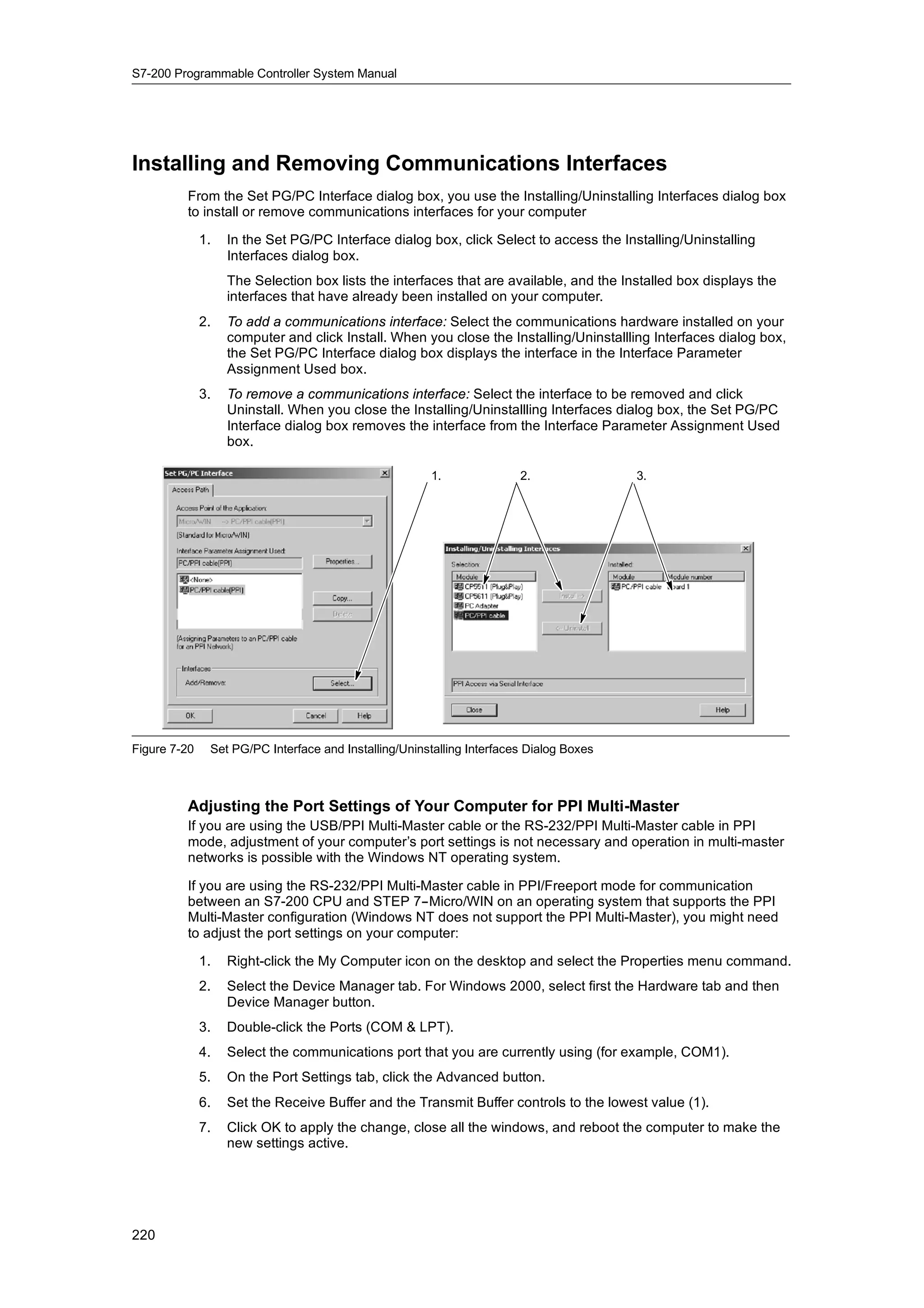
    Figure 7-31 provides a sample network as an example for calculating the token rotation time for a
    multiple-master network. In this example, the TD 200 (station 3) communicates with the CPU 222
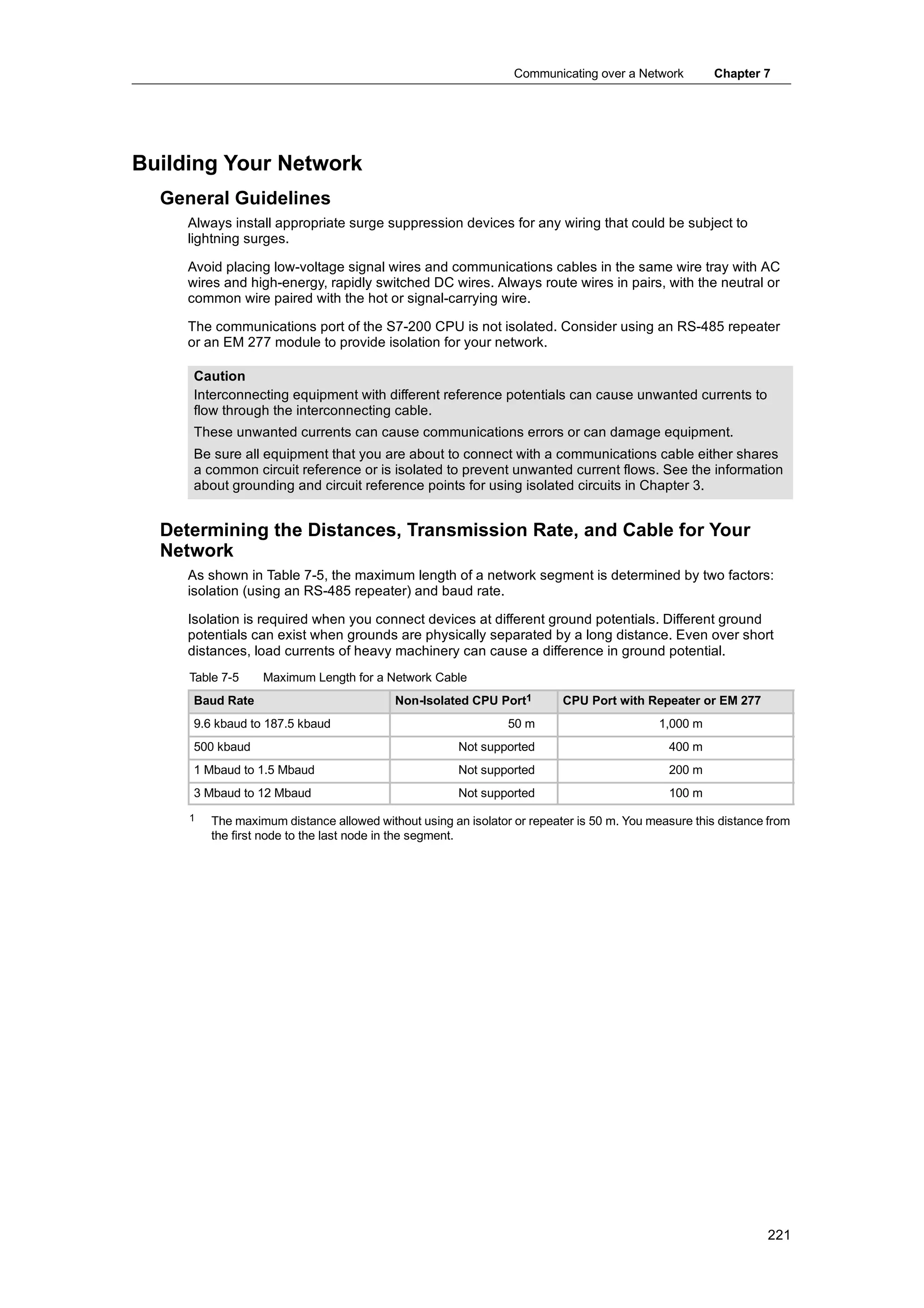
    (station 2), the TD 200 (station 5) communicates with the CPU 222 (station 4), and so on. The two
    CPU 224 modules use the Network Read and Network Write instructions to gather data from the
    other S7-200s: CPU 224 (station 6) sends messages to stations 2, 4, and 8, and the CPU 224
    (station 8) sends messages to stations 2, 4, and 6. In this network, there are six master stations
    (the four TD 200 units and the two CPU 224 modules) and two slave stations (the two CPU 222
    modules).


                                                                                                     233
S7-200 Programmable Controller System Manual


              Refer to the Programming Tips on the documentation CD for a discussion about token rotation.
              See Tip 42.
Programming
Tips

                       CPU 222         CPU 222         CPU 224     CPU 224      TD 200      TD 200      TD 200      TD 200
                       Station 2       Station 4       Station 6   Station 8    Station 9   Station 7   Station 5   Station 3


              Figure 7-31          Example of a Token-Passing Network


              In order for a master to send a message, it must hold the token. For example: When station 3 has
              the token, it initiates a request message to station 2 and then it passes the token to station 5.
              Station 5 then initiates a request message to station 4 and then passes the token to station 6.
              Station 6 then initiates a message to station 2, 4, or 8, and passes the token to station 7. This
              process of initiating a message and passing the token continues around the logical ring from
              station 3 to station 5, station 6, station 7, station 8, station 9, and finally back to station 3. The
              token must rotate completely around the logical ring in order for a master to be able to send a
              request for information. For a logical ring of six stations, sending one request message per token
              hold to read or write one double-word value (four bytes of data), the token rotation time is
              approximately 900 ms at 9600 baud. Increasing the number of bytes of data accessed per
              message or increasing the number of stations increases the token rotation time.

              The token rotation time is determined by how long each station holds the token. You can
              determine the token rotation time for your multiple-master network by adding the times that each
              master holds the token. If the PPI master mode has been enabled (under the PPI protocol on your
              network), you can send messages to other S7-200s by using the Network Read and Network
              Write instructions with the S7-200. If you send messages using these instructions, you can use
              the following formula to calculate the approximate token rotation time, based on the following
              assumptions: each station sends one request per token hold, the request is either a read or write
              request for consecutive data locations, there is no conflict for use of the one communications
              buffer in the S7-200, and there is no S7-200 that has a scan time longer than about 10 ms.

               Token hold time (Thold) = (128 overhead + n data char) x 11 bits/char x 1/baud rate
               Token rotation time (Trot) = Thold of master 1 + Thold of master 2 + . . . + Thold of master m
               where                     n is the number of data characters (bytes)
                                         m is the number of masters

              The following equations calculate the rotation times (one “bit time” equals the duration of one
              signaling period) for the example shown in Figure 7-31:

              T (token hold time)                  =     (128 + 4 char) x 11 bits/char x 1/9600 bit times/s
                                                   =     151.25 ms per master
              T (token rotation time)              =     151.25 ms per master ≦ 6 masters
                                                   =     907.5 ms

               Tip
               SIMATIC NET COM PROFIBUS software provides an analyzer to determine network
               performance.


  234
Communicating over a Network               Chapter 7


    Comparing Token Rotation Times
         Table 7-12 shows comparisons of the token rotation time versus the number of stations, amount of
         data, and the baud rate. The times are figured for a case where you use the Network Read and
         Network Write instructions with the S7-200 CPU or other master devices.

            Table 7-12     Token Rotation Time (in Seconds)
                                                                             Number of Masters
              Baud Rate          Bytes
                              Transferred   2           3        4       5           6       7       8           9        10
                                   1        0.30        0.44     0.59    0.74        0.89    1.03    1.18        1.33     1.48
               9.6
               9 6 kbaud
                                  16        0.33        0.50     0.66    0.83        0.99    1.16    1.32        1.49     1.65
                                   1        0.15        0.22     0.30    0.37        0.44    0.52    0.59        0.67     0.74
              19.2
              19 2 kbaud
                                  16        0.17        0.25     0.33    0.41        0.50    0.58    0.66        0.74     0.83
                                   1        0.009       0.013    0.017   0.022       0.026   0.030   0.035       0.039    0.043
              187.5
              187 5 kbaud
                                  16        0.011       0.016    0.021   0.026       0.031   0.037   0.042       0.047    0.052


    Understanding the Connections That Link the Network Devices
         Network devices communicate through individual connections, which are private links between
         the master and slave devices. As shown in Figure 7-32, the communications protocols differ in
         how the connections are handled:

              -    The PPI protocol utilizes one shared connection among all of the network devices.
              -    The PPI Advanced, MPI, and PROFIBUS protocols utilize separate connections between
                   any two devices communicating with each other.
         When using PPI Advanced, MPI, or PROFIBUS, a second master cannot interfere with a
         connection that has been established between a master and a slave. S7-200 CPUs and EM 277s
         always reserve one connection for STEP 7--Micro/WIN and one connection for HMI devices. Other
         master devices cannot use these reserved connections. This ensures that you can always
         connect at least one programming station and at least one HMI device to the S7-200 CPU or EM
         277 when the master is using a protocol that supports connections, such as PPI Advanced.


      PPI                                       PPI Connection           PPI Connection              PPI Connection
      All devices share a common
      connection


      PPI Advanced                                                           Connection 2
      MPI
      PROFIBUS                                   Connection 1                Connection 1                Connection 1

      Each device communicates
      through a separate connection


Figure 7-32     Managing the Communications Connections


                                                                                                                               235
S7-200 Programmable Controller System Manual


         As shown in Table 7-13, the S7-200 CPU or EM 277 provide a specific number of connections.
         Each port (Port 0 and Port 1) of an S7-200 CPU supports up to four separate connections. (This
         allows a maximum of eight connections for the S7-200 CPU.) This is in addition to the shared PPI
         connection. An EM 277 supports six connections. Each port reserves one connection for a
         programmer and one connection for an operator panel (OP or TP). The remaining connections are
         available for general use.

         Table 7-13    Capabilities of the S7-200 CPU and EM 277 Modules
                                                                             STEP 7- Micro/WIN Protocol Profile
                                                                                     -
          Connection Point           Baud Rate              Connections
                                                                             Selections
          S7-200 CPU        Port 0   9.6 kbaud,                   4          PPI, PPI Advanced, MPI, and PROFIBUS1
                                     19.2 kbaud, or
                                     187.5 kbaud
                            Port 1   9.6 kbaud,                   4          PPI, PPI Advanced, MPI, and PROFIBUS1
                                     19.2 kbaud, or
                                     187.5 kbaud
          EM 277 Module              9.6 kbaud to           6 per module2    PPI Advanced, MPI, and PROFIBUS
                                     12 Mbaud
         1 If a CP card is used to connect STEP 7-
                                                 -Micro/WIN to the S7-200 CPU through Port 0 or Port 1, you can select
           either MPI or DP PROFIBUS profiles only when the S7-200 device is configured as a slave.
         2 In addition to the PROFIBUS connection.


      Working with Complex Networks
         For the S7-200, complex networks typically have multiple S7-200 masters that use the Network
         Read (NETR) and Network Write (NETW) instructions to communicate with other devices on a PPI
         network. Complex networks typically present special problems that can block a master from
         communicating with a slave.

         If the network is running at a lower baud rate (such as 9.6 kbaud or 19.2 kbaud), then each master
         completes the transaction (read or write) before passing the token. At 187.5 kbaud, however, the
         master issues a request to a slave and then passes the token, which leaves an outstanding
         request at the slave.

         Figure 7-33 shows a network with potential communications conflicts. In this network, Station 1,
         Station 2, and Station 3 are masters, using the Network Read or Network Write instructions to
         communicate with Station 4. The Network Read and Network Write instructions use PPI protocol
         so all of the S7-200s share the single PPI connection in Station 4.

         In this example, Station 1 issues a request to          Station 1 Master Station 2 Master       Station 3 Master

         Station 4. For baud rates above 19.2 kbaud,
         Station 1 then passes the token to Station 2. If
         Station 2 attempts to issue a request to Station 4,
         the request from Station 2 is rejected because the
         request from Station 1 is still present. All requests                                     Station 4 Slave
         to Station 4 will be rejected until Station 4 completes
         the response to Station 1. Only after the response
         has been completed can another master i
         h b               l t d         th        t issue a     Figure 7-33 Communications Conflict
         request to Station 4.

         To avoid this conflict for the communications port on         Station 1 Slave   Station 2 Slave        Station 3 Slave

         Station 4, consider making Station 4 the only master
         on the network, as shown in Figure 7-34. Station 4
         then issues the read/write requests to the other
         S7-200s.
         Not only does this configuration ensure that there is                                             Station 4 Master
         no conflict in communications, but it also reduces
         the overhead caused by having multiple masters
         and allows the network to operate more efficiently.           Figure 7-34 Avoiding Conflict


236
Communicating over a Network         Chapter 7


For some applications, however, reducing     Table 7-14      HSA and Target Token Rotation
the number of masters on the network is                      Time
not an option. When there are several
                                              HSA            9.6 kbaud      19.2 kbaud       187.5 kbaud
masters, you must manage the token
rotation time and ensure that the network     HSA=15            0.613 s        0.307 s          31 ms
does not exceed the target token rotation     HSA=31            1.040 s        0.520 s          53 ms
time. (The token rotation time is the amount
                                              HSA=63            1.890 s        0.950 s          97 ms
of time that elapses from when a master
passes the token until that master receives   HSA=126           3.570 s        1.790 s         183 ms
the token again.)
If the time required for the token to return to the master is greater than a target token rotation time,
then the master is not allowed to issue a request. The master can issue a request only when the
actual token rotation time is less than the target token rotation time.

The highest station address (HSA) and the baud rate settings for the S7-200 determine the target
token rotation time. Table 7-14 lists target rotation times.

For the slower baud rates, such as 9.6 kbaud and 19.2 kbaud, the master waits for the response
to its request before passing the token. Because processing the request/response cycle can take
a relatively long time in terms of the scan time, there is a high probability that every master on the
network can have a request ready to transmit every time it holds the token. The actual token
rotation time would then increase, and some masters might not be able to process any requests.
In some situations, a master might only rarely be allowed to process requests.

For example: Consider a network of 10 masters that transmit 1 byte at 9.6 kbaud that is
configured with an HSA of 15. For this example, each of the masters always has a message ready
to send. As shown in Table 7-14, the target rotation time for this network is 0.613 s. However,
based on the performance data listed in Table 7-12, the actual token rotation time required for this
network is 1.48 s. Because the actual token rotation time is greater than the target token rotation
time, some of the masters will not be allowed to transmit a message until some later rotation of the
token.

You have two basic options for improving a situation where the actual token rotation time is
greater than the target token rotation time:

 -    You can reduce actual token rotation time by reducing the number of masters on your
      network. Depending on your application, this might not be a feasible solution.
 -    You can increase the target token rotation time by increasing the HSA for all of the master
      devices on the network.
Increasing the HSA can cause a different problem for your network by affecting the amount of time
that it takes for a S7-200 to switch to master mode and enter the network. If you use a timer to
ensure that the Network Read or Network Write instruction completes its execution within a
specified time, the delay in initializing master mode and adding the S7-200 as a master on the
network can cause the instruction to time out. You can minimize the delay in adding masters by
reducing the Gap Update Factor (GUF) for all masters on the network.

Because of the manner in which requests are posted to and left at the slave for 187.5 kbaud, you
should allow extra time when selecting the target token rotation time. For 187.5 kbaud, the actual
token rotation time should be approximately half of the target token rotation time.

To determine the token rotation time, use the performance data in Table 7-12 to determine the
time required for completing the Network Read and Network Write operations. To calculate the
time required for HMI devices (such as the TD 200), use the performance data for transferring
16 bytes. Calculate the token rotation time by adding the time for each device on the network.
Adding all of the times together describes a worst-case scenario where all devices want to
process a request during the same token rotation. This defines the maximum token rotation time
required for the network.


                                                                                                     237
S7-200 Programmable Controller System Manual


         For example: Consider a network running at 9.6 kbaud with four TD 200s and four S7-200s, with
         each S7-200 writing 10 bytes of data to another S7-200 every second. Use Table 7-12 to calculate
         the specific transfer times for the network:

         4 TD 200 devices transferring 16 bytes of data =           0.66 s
         4 S7-200s transferring 10 bytes of data =                  0.63 s
         Total token rotation time =                                1.29 s

         To allow enough time for this network to process all requests during one token rotation, set the
         HSA to 63. (See Table 7-14.) Selecting a target token rotation (1.89 s) that is greater than the
         maximum token rotation time (1.29 s) ensures that every device can transfer data on every
         rotation of the token.

         To help improve the reliability of a multi-master network, you should also consider the following
         actions:

           -   Change the update rate for the HMI devices to allow more time between updates. For
               example, change the update rate for a TD 200 from “As fast as possible” to “Once per
               second.”
           -   Reduce the number of requests (and the network overhead for processing the requests) by
               combining the operations of Network Read or Network Write operations. For example,
               instead of using two Network Read operations that read 4 bytes each, use one Network
               Read operation that reads 8 bytes. The time to process the two requests of 4 bytes is much
               greater than the time to process one request for 8 bytes.
           -   Change the update rate of the S7-200 masters so that they do not attempt to update faster
               than the token rotation time.


238
Communicating over a Network      Chapter 7


Configuring the RS-232/PPI Multi-Master Cable for Remote
Operation
     HyperTerminal as a Configuration Tool
     If STEP 7--Micro/WIN is not available for you to use to configure the RS-232/PPI Multi-Master
     cable for remote operation, you can use HyperTerminal or any other dumb terminal package. The
     RS-232/PPI Multi-Master cable provides built-in menus to guide you as you configure the cable for
     remote operation.

     While configuring the RS-232/PPI Multi-Master cable with HyperTerminal, you must connect the
     RS-485 connector to an S7-200 CPU. This is the source of the 24V power required for the cable
     to operate. Be sure to supply power to the S7-200 CPU.

     To invoke HyperTerminal on your PC,
     click on Start > Programs >
     Accessories > Communications >
     HyperTerminal.
     HyperTerminal application launches and
     prompts for a Connection Description.
     You must supply a name for the
     connection (for example, Multi-Master).
     Click OK. You can select an icon or
     accept the default icon provided with the
     new connection. See Figure 7-35.

                                                   Figure 7-35 HyperTerminal Connection Description


     The Connect To screen is displayed.
     Select the communications port that you
     will be using and click OK. The next
     screen displayed is COMx Properties.
     Accept the default and click OK. See
     Figure 7-36.


                                                   Figure 7-36 HyperTerminal Connect To Screen and COMx
                                                               Properties Screen


     After clicking OK, your cursor is placed in
     the edit window of the HyperTerminal
     screen as shown in Figure 7-37. Notice
     that the status bar at the bottom of the
     HyperTerminal window indicates that you
     are connected and a timer is running to
     indicate the duration of the connection.
     From the menu, select Call >
     Disconnect. The status bar now
     indicates you are disconnected.
     Select View > Font. Select Courier New
     and click OK.
                                                   Figure 7-37 Multi-Master HyperTerminal Edit Window


                                                                                                        239
S7-200 Programmable Controller System Manual


         Select File > Properties. On the
         Connect To tab, click the Configure ...
         button to display the communication port
         properties. See Figure 7-38.
         In the COMx Properties dialog, select the
         baud rate from the drop down menu for
         Bits per second. You must choose a
         baud rate from 9600 to115200 bits per
         second (typically, 9600). Select 8 data
         bits, no parity, one stop bit and no flow
         control by using the appropriate drop
         down menus.
         Click OK to return to the Connect To tab.
                                                     Figure 7-38 Multi-Master Properties and COMx Properties


         Select the Settings tab. In the Emulation
         drop down menu, select ANSI and click
         OK. This will return you to the edit
         window of the HyperTerminal screen.
         The status bar at the bottom of the
         screen should indicate:
         “Disconnected ANSI 9600 8--N--1”
         as shown in Figure 7-39.


                                                     Figure 7-39 HyperTerminal Edit - Disconnect ANSI
                                                                                    -


         To initiate communication with the
         RS-232/PPI Multi-Master cable, type
         “hhh”. The Rx LED on the cable should
         blink on for about a second as you type
         “hhh”. The TX LED turns on briefly as the
         cable responds with a choice of
         languages.
         Enter the number that corresponds to
         your choice of language (use the
         backspace key to eliminate the default
         selection) and depress the ENTER key.
         Figure 7-40 shows the language
         selection display and the RS232/PPI
         Cable Setup for Remote Operation
         selection display.
         This display also shows the firmware
         revision of the cable.
                                                     Figure 7-40 HyperTerminal Language Selection and
                                                                 RS-232/PPI Cable Setup


240
Communicating over a Network                            Chapter 7


The RS232/PPI Cable Setup for Remote Operation display guides you through the steps required
to configure the cable for the type of remote operation you desire.

 -    If you have an earlier version of
      STEP 7--Micro/WIN, select option
      2 “PPI single master network with
      a modem”.
 -    If you are using Freeport
      communication with a modem,
      select option 3.
For example, select option 1 for PPI
multi-master network with a modem                                                          STEP 7-Micro/WIN:

using STEP 7--Micro/WIN 3.2 Service                                                         Master

Pack 4 or later.
                                                                        Modem
The HyperTerminal display shown in
Figure 7-41 indicates the switch settings                   Telephone
                                                               Line
                                                                                                 HMI: Master

you need to set on the cable. The switch
settings allow STEP 7--Micro/WIN to
participate in a remote network via                         Modem          RS-232 Multi-
                                                                           Master Cable               S7-200

modems with one or more masters and
one or more S7-200 PLCs. Such a
network is shown in Figure 7-41.
                                              Figure 7-41 HyperTerminal - RS-232/PPI Cable Setup
                                                                        -


After setting the switches as indicated,
select continue. The resulting
HyperTerminal display is shown in
Figure 7-42.
The remote modem (the one connected
to the RS-232/PPI Multi-Master cable)
should be set to factory defaults. With
the remote modem set to factory
defaults, enter the AT strings required to
program the modem for operation with
the RS-232/PPI Multi-Master cable.
Typically, the only string that needs to be
sent is ATS0=1, which configures the
modem to auto--answer incoming calls
on the first ring.
                                              Figure 7-42 HyperTerminal - Remote Modem
                                                                        -

If you are using a cell modem that requires a PIN, use the second AT command to supply the PIN
(refer to your modem manual for the AT commands supported by your modem). If you need to
modify the AT commands, make the selection and enter the commands required as you are
prompted for them. The prompts include example AT command strings to help you with the
formatting of the commands.

The RS-232/PPI Multi-Master cable will send these AT strings to the modem each time the cable
powers up. Make sure that the modem is powered up before or very close to the same time the
cable is powered up. Also, if you power cycle the modem, be sure to power cycle the cable. This
allows the cable to properly configure the modem and operate at the highest available baud rate.


                                                                                                                       241
S7-200 Programmable Controller System Manual


         The HyperTerminal displays in Figure
         7-43 show how to enter the AT
         commands. If you do not need to supply
         a second AT command at the prompt,
         press the ENTER key. This returns you
         to the selection for modifying the AT
         commands or exiting. If you finished
         entering the AT commands select Exit.
         After exiting the HyperTerminal
         configuration of the RS-232/PPI
         Multi-Master cable, disconnect the cable
         from the PC and connect it to the
         modem. Power cycle both the modem
         and the cable. You are now ready to use
         the cable for remote operation in a PPI
         multi-master network.


                                                    Figure 7-43 HyperTerminal - AT Commands
                                                                              -


         Freeport Operation with HyperTerminal
         Configuring the RS-232/PPI Multi-Master cable for Freeport operation using HyperTerminal is very
         similar to the example configuration described above. Follow the prompts to configure the cable
         according to your needs.


242
Hardware Troubleshooting Guide and
Software Debugging Tools

     STEP 7--Micro/WIN provides software tools to help you debug and test your program. These
     features include viewing the status of the program as it is executed by the S7-200, selecting to run
     the S7-200 for a specified number of scans, and forcing values.

     Use Table 8-1 as a guide for determining the cause and possible solution when troubleshooting
     problems with the S7-200 hardware.


In This Chapter
     Features for Debugging Your Program . . . . . . . . . . . . . . . . . . . . . . . . . . . . . . . . . . . . . . . . . . . . . .                 244
     Displaying the Program Status . . . . . . . . . . . . . . . . . . . . . . . . . . . . . . . . . . . . . . . . . . . . . . . . . . . . .         246
     Using a Status Chart to Monitor and Modify the Data in the S7-200 . . . . . . . . . . . . . . . . . . . . . .                                   247
     Forcing Specific Values . . . . . . . . . . . . . . . . . . . . . . . . . . . . . . . . . . . . . . . . . . . . . . . . . . . . . . . . . . .   248
     Running Your Program for a Specified Number of Scans . . . . . . . . . . . . . . . . . . . . . . . . . . . . . .                                248
     Hardware Troubleshooting Guide . . . . . . . . . . . . . . . . . . . . . . . . . . . . . . . . . . . . . . . . . . . . . . . . . .              249


                                                                                                                                                     243
S7-200 Programmable Controller System Manual


 Features for Debugging Your Program
            STEP 7--Micro/WIN provides several features to help you debug your program: bookmarks, cross
            reference tables, and run mode edits.

       Using Bookmarks for Easy Program Access
            You can set bookmarks in your program to make it easy to move back and forth between
            designated (bookmarked) lines of a long program. You can move to the next or the previous
            bookmarked line of your program.

       Using the Cross Reference Table to Check Your Program References
            The cross reference table allows you to display the cross references and element usage
            information for your program.
  Cross
Reference   The cross reference table identifies all
            operands used in the program, and
            identifies the program block, network or
            line location, and instruction context of
            the operand each time it is used.
            You can toggle between symbolic and
            absolute view to change the
            representation of all operands.
                                                        Figure 8-1   Cross Reference Table

            Tip
            Double-clicking on an element in the cross reference table takes you to that part of your
            program or block.


       Editing Your Program in RUN Mode
            The S7-200 CPUs Rel. 2.0 (and higher) models support RUN mode edits. The RUN mode edit
            capability is intended to allow you to make small changes to a user program with minimal
            disturbance to the process being controlled by the program. However, implementing this capability
            also allows massive program changes that could be disruptive or even dangerous.

            Warning
            When you download changes to an S7-200 in RUN mode, the changes immediately affect
            process operation. Changing the program in RUN mode can result in unexpected system
            operation, which could cause death or serious injury to personnel, and/or damage to equipment.
            Only authorized personnel who understand the effects of RUN mode edits on system operation
            should perform a RUN mode edit.

            To perform a program edit in RUN mode, the online S7-200 CPU must support RUN mode edits
            and must be in RUN mode.

             1.   Select the Debug > Program Edit in RUN menu command.
             2.   If the project is different than the program in the S7-200, you are prompted to save it. The
                  RUN mode edit can be performed only on the program in the S7-200.
             3.   STEP 7--Micro/WIN alerts you about editing your program in RUN mode and prompts you to
                  either continue or to cancel the operation. If you click Continue, STEP 7--Micro/WIN uploads
                  the program from the S7-200. You can now edit your program in RUN mode. No restrictions
                  on edits are enforced.


 244
Hardware Troubleshooting Guide and Software Debugging Tools      Chapter 8


Tip
Positive (EU) and Negative (ED) transition instructions are shown with an operand. To view
information about edge instructions, select the Cross Reference icon in the View. The Edge
Usage tab lists numbers for the edge instructions in your program. Be careful not to assign
duplicate edge numbers as you edit your program.


Downloading the Program in RUN Mode
RUN-mode editing allows you to download only your program block while the S7-200 is in RUN
mode. Before downloading the program block in RUN mode, consider the effect of a RUN-mode
modification on the operation of the S7-200 for the following situations:

 -    If you deleted the control logic for an output, the S7-200 maintains the last state of the
      output until the next power cycle or transition to STOP mode.
 -    If you deleted a high-speed counter or pulse output functions which were running, the
      high-speed counter or pulse output continues to run until the next power cycle or transition
      to STOP mode.
 -    If you deleted an Attach Interrupt instruction but did not delete the interrupt routine, the
      S7-200 continues to execute the interrupt routine until a power cycle or a transition to STOP
      mode. Likewise, if you deleted a Detach Interrupt instruction, the interrupts are not shut
      down until the next power cycle or transition to STOP mode.
 -    If you added an Attach Interrupt instruction that is conditional on the first scan bit, the event
      is not activated until the next power cycle or STOP-to-RUN mode transition.
 -    If you deleted an Enable Interrupt instruction, the interrupts continue to operate until the
      next power cycle or transition from RUN to STOP mode.
 -    If you modified the table address of a receive box and the receive box is active at the time
      that the S7-200 switches from the old program to the modified program, the S7-200
      continues to write the data received to the old table address. Network Read and Network
      Write instructions function in the same manner.
 -    Any logic that is conditional on the state of the first scan bit will not be executed until the
      next power cycle or transition from STOP to RUN mode. The first scan bit is set only by the
      transition to RUN mode and is not affected by a RUN-mode edit.

Tip
Before you can download your program in RUN mode, the S7-200 must support RUN mode
edits, the program must compile with no errors, and the communications between
STEP 7--Micro/WIN and the S7-200 must be error-free.
You can download only the program block.

To download your program in RUN mode, click on the Download button or select the File >
Download menu command. If the program compiles successfully, STEP 7--Micro/WIN downloads
the program block to the S7-200.

Exiting RUN-Mode Edit
To exit RUN-mode editing, select the Debug > Program Edit in RUN menu command and
deselect the checkmark. If you have changes that have not been saved, STEP 7--Micro/WIN
prompts you either to continue editing, to download changes and exit RUN-mode editing, or to exit
without downloading.


                                                                                                     245
S7-200 Programmable Controller System Manual


Displaying the Program Status
         STEP 7--Micro/WIN allows you to monitor the status of the user program as it is being executed.
         When you monitor the program status, the program editor displays the status of instruction
         operand values.

         To display the status, click the Program Status button or select the Debug > Program Status
         menu command.

      Displaying the Status of the Program in LAD and FBD
         STEP 7--Micro/WIN provides two options for displaying the status of LAD and FBD programs:

           -   End of scan status: STEP 7--Micro/WIN acquires the values for the status display across
               multiple scan cycles and then updates the status screen display. The status display does
               not reflect the actual status of each element at the time of execution. The end-of-scan
               status does not show status for L memory or for the accumulators.
               For end of scan status, the status values are updated in all of the CPU operating modes.
           -   Execution status: STEP 7--Micro/WIN displays the values of the networks as the elements
               are executed in the S7-200. For displaying the execution status, select the Debug > Use
               Execution Status menu command.
               For execution status, the status values are updated only when the CPU is in RUN mode.

          Tip
          STEP 7--Micro/WIN provides a simple method for changing the state of a variable. Simply select
          the variable and right-click to display a menu of options.


         Configuring How the Status is Displayed in the LAD and FBD Program
         STEP 7--Micro/WIN provides a variety of
         options for displaying the status in the
         program.
         To configure the display option for the
         status screen, select the Tools >
         Options menu command, select
         Program Editor and click on the Program
         Editor tab, as shown in Figure 8-2.


                                                    Figure 8-2   Options for the Status Display


246
Hardware Troubleshooting Guide and Software Debugging Tools          Chapter 8


  Displaying the Status of the Program in STL
     You can monitor the execution status of your STL program on an instruction-by-instruction basis.
     For an STL program, STEP 7--Micro/WIN displays the status of the instructions that are displayed
     on the screen.

     STEP 7--Micro/WIN gathers status information from the S7-200, beginning from the first STL
     statement at the top of the editor window. As you scroll down the editor window, new information is
     gathered from the S7-200.

     STEP 7--Micro/WIN continuously
     updates values on the screen. To halt
     the screen updates, select the Triggered
     Pause button. The current data remains
     on the screen until you deselect the
     Triggered Pause button.

     Configuring Which Parameters
     Are Displayed in the STL Program
     STEP 7--Micro/WIN allows you to display
     the status of a variety of parameters for
     the STL instructions. Select the Tools >
     Options menu command, select
     Program Editor, and click on the STL
     Status tab See Figure 8-3.
            tab.              83                  Figure 8-3   Options for Displaying STL Status


Using a Status Chart to Monitor and Modify the Data in the
S7-200
     The Status Chart allows you to read,
     write, force, and monitor variables while
     the S7-200 is executing your program.
     Select the View > Component > Status
     Chart menu command to create a status
     chart. Figure 8-4 shows a sample status
     chart.
     You can create multiple status charts.
     STEP 7--Micro/WIN provides toolbar
     icons for manipulating the status chart:
     Sort Ascending, Sort Descending, Single
     Read, Write All, Force, Unforce, Unforce
     All, and Read All Forced.
     To select a format for a cell, select the
     cell and click the right mouse button to     Figure 8-4   Status Chart
     display the context menu.


                                                                                                           247
S7-200 Programmable Controller System Manual


Forcing Specific Values
         The S7-200 allows you to force any or all of the I/O points (I and Q bits). In addition, you can also
         force up to 16 memory values (V or M) or analog I/O values (AI or AQ). V memory or M memory
         values can be forced in bytes, words, or double words. Analog values are forced as words only,
         on even-numbered byte boundaries, such as AIW6 or AQW14. All forced values are stored in the
         permanent memory of the S7-200.

         Because the forced data might be changed during the scan cycle (either by the program, by the
         I/O update cycle, or by the communications- processing cycle), the S7-200 reapplies the forced
         values at various times in the scan cycle.

           -   Reading the inputs: The S7-200 applies the forced values to the inputs as they are read.
           -   Executing the control logic in the program:
                                                                          Writes to the outputs
               The S7-200 applies the forced values to all
               immediate I/O accesses. Forced values are
               applied for up to 16 memory values after the
               program has been executed.
                                                                   Perform the CPU Diagnostics
           -   Processing any communications requests:
               The S7-200 applies the forced values to all         Process any Communications
                                                                   Requests
               read/write communications accesses.
           -   Writing to the outputs: The S7-200 applies the
               forced values to the outputs as they are                     Execute the Program
                                                                                                      Scan Cycle
               written.
         You can use the Status Chart to force values. To
         force a new value, enter the value in the New Value
                                                                           Reads the inputs
         column of the Status Chart, then press the Force
         button on the toolbar. To force an existing value,
         highlight the value in the Current Value column, then
                                                  column          Figure 8-5      S7-200 Scan Cycle
         press the Force button.

          Tip
          The Force function overrides a Read Immediate or Write Immediate instruction. The Force
          function also overrides the output table that was configured for transition to STOP mode. If the
          S7-200 goes to STOP mode, the output reflects the forced value and not the value that was
          configured in the output table.


Running Your Program for a Specified Number of Scans
         To help you debug your program, STEP 7--Micro/WIN allows you to run the program for a specific
         number of scans.

         You can have the S7-200 execute only the first scan. This allows you to monitor the data in the
         S7-200 after the first scan. Select the Debug > First Scan menu command to run the first scan.

         You can have the S7-200 execute your program for a limited number of scans (from 1 scan to
         65,535 scans). This allows you to monitor the program as it changes variables. Select the
         Debug > Multiple Scans menu command to specify the number of scans to be executed.


248
Hardware Troubleshooting Guide and Software Debugging Tools              Chapter 8


Hardware Troubleshooting Guide
Table 8-1   Troubleshooting Guide for the S7-200 Hardware
Symptom                          Possible Causes                            Possible Solution
Outputs stop working             S   The device being controlled has        S   When connecting to an inductive load
                                     caused an electrical surge that            (such as a motor or relay), a proper
                                     damaged the output                         suppression circuit should be used.
                                 S   User program error                         Refer to Chapter 3.
                                 S   Wiring loose or incorrect              S   Correct user program
                                 S   Excessive load                         S   Check wiring and correct
                                 S   Output point is forced                 S   Check load against point ratings
                                                                            S   Check the S7-200 for forced I/O
SF (System Fault) light on the   The following list describes the most      Read the fatal error code number and refer to
S7-200 turns on (Red)            common error codes and causes:             Appendix C for information about the type of
                                 S   User programming error                 error:
                                     - 0003
                                     -         Watchdog error               S   For a programming error, check the
                                                                                usage of the FOR, NEXT, JMP, LBL, and
                                     - 0011
                                     -         Indirect addressing              Compare instructions.
                                     - 0012
                                     -         Illegal floating-point       S   For electrical noise:
                                               value
                                                                                - Refer to the wiring guidelines in
                                                                                -
                                     - 0014
                                     -         Range error                        Chapter 3. It is very important that the
                                 S   Electrical noise                             control panel is connected to a good
                                     (0001 through 0009)                          ground and that high voltage wiring is
                                 S   Component damage                             not run in parallel with low voltage
                                     (0001 through 0010)                          wiring.
                                                                                - Connect the M terminal on the 24 VDC
                                                                                -
                                                                                  Sensor Power Supply to ground.
None of the LEDs turn on         S   Blown fuse                             Connect a line analyzer to the system to
                                 S   Reversed 24 V power wires              check the magnitude and duration of the
                                                                            over-voltage spikes. Based on this
                                 S   Incorrect voltage                      information, add the proper type arrestor
                                                                            device to your system.
                                                                            Refer to the wiring guidelines in Chapter 3 for
                                                                            information about installing the field wiring.
Intermittent operation           S   Improper grounding                     Refer to the wiring guidelines in Chapter 3.
associated with high energy      S   Routing of wiring within the control   It is very important that the control panel is
devices                              cabinet                                connected to a good ground and that high
                                 S   Too short of a delay time for the      voltage wiring is not run in parallel with low
                                     input filters                          voltage wiring.
                                                                            Connect the M terminal on the 24 VDC
                                                                            Sensor Power Supply to ground.
                                                                            Increase the input filter delay in the system
                                                                            data block.
Communications network is        The communications cable can provide       S   Refer to the wiring guidelines in
damaged when connecting to       a path for unwanted currents if all            Chapter 3 and to the network guidelines
an external device               non-isolated devices, such as PLCs,            in Chapter 7.
Either the port on the           computers, or other devices that are       S   Purchase the isolated PC/PPI cable.
computer, the port on the        connected to the network do not share
                                 the same circuit common reference.         S   Purchase the isolated RS-485-to-RS-485
S7-200, or the PC/PPI cable is                                                  repeater when you connect machines
damaged                          The unwanted currents can cause                that do not have a common electrical
                                 communications errors or damage to             reference.
                                 the circuits.
                                                                            Refer to Appendix E for information about
                                                                            order numbers for S7-200 equipment.
Other communications         Refer to Chapter 7 for information about network communications.
problems (STEP 7--Micro/WIN)
Error handling                   Refer to Appendix C for information about error codes.


                                                                                                                         249
S7-200 Programmable Controller System Manual


250
Open Loop Motion Control with the
S7-200

     The S7-200 provides three methods of open loop motion control:

       -       Pulse Width Modulation (PWM) -- built into the S7-200 for speed, position or duty cycle
               control
       -       Pulse Train Output (PTO) -- built into the S7-200 for speed and position control
       -       EM 253 Position Module -- an add on module for speed and position control
     To simplify the use of position control in your application, STEP 7--Micro/WIN provides a Position
     Control wizard that allows you to completely configure the PWM, PTO or Position module in
     minutes. The wizard generates position instructions that you can use to provide dynamic control of
     speed and position in your application. For the Position module STEP 7--Micro/WIN also provides
     a control panel that allows you to control, monitor and test your motion operations.


In This Chapter
     Overview . . . . . . . . . . . . . . . . . . . . . . . . . . . . . . . . . . . . . . . . . . . . . . . . . . . . . . . . . . . . . . . . . . . . . . .   252
     Using the PWM (Pulse Width Modulation) Output . . . . . . . . . . . . . . . . . . . . . . . . . . . . . . . . . . . . .                                  253
     Basic Information for Open Loop Position Control Using Steppers or Servos . . . . . . . . . . . . . .                                                    255
     Instructions Created by the Position Control Wizard . . . . . . . . . . . . . . . . . . . . . . . . . . . . . . . . . . .                                260
     Error Codes for the PTO Instructions . . . . . . . . . . . . . . . . . . . . . . . . . . . . . . . . . . . . . . . . . . . . . . .                       264
     Features of the Position Module . . . . . . . . . . . . . . . . . . . . . . . . . . . . . . . . . . . . . . . . . . . . . . . . . . .                    265
     Configuring the Position Module . . . . . . . . . . . . . . . . . . . . . . . . . . . . . . . . . . . . . . . . . . . . . . . . . . .                    267
     Instructions Created by the Position Control Wizard for the Position Module . . . . . . . . . . . . . .                                                  273
     Sample Programs for the Position Module . . . . . . . . . . . . . . . . . . . . . . . . . . . . . . . . . . . . . . . . . . .                            285
     Monitoring the Position Module with the EM 253 Control Panel . . . . . . . . . . . . . . . . . . . . . . . . .                                           290
     Error Codes for the Position Module and the Position Instructions . . . . . . . . . . . . . . . . . . . . . . .                                          292
     Advanced Topics . . . . . . . . . . . . . . . . . . . . . . . . . . . . . . . . . . . . . . . . . . . . . . . . . . . . . . . . . . . . . . . .          294
     Understanding the RP Seek Modes Supported by the Position Module . . . . . . . . . . . . . . . . . .                                                     303


                                                                                                                                                              251
S7-200 Programmable Controller System Manual


  Overview
           The S7-200 provides three methods of open loop motion control:

             -   Pulse Width Modulation (PWM) -- built into the S7-200 for speed, position or duty cycle
                 control
             -   Pulse Train Output (PTO) -- built into the S7-200 for speed and position control
             -   EM 253 Position Module -- an add on module for speed and position control
           The S7-200 provides two digital outputs (Q0.0 and Q0.1) that can be configured using the Position
           Control Wizard for use as either PWM or a PTO outputs. The Position Control Wizard can also be
           used to configure the EM 253 Position Module.
Position
 Control
           When an output is configured for PWM operation, the cycle time of the output is fixed and the
           pulse width or duty cycle of the pulse is controlled by your program. The variations in pulse width
           can be used to control the speed or position in your application.

           When an output is configured for PTO operation, a 50% duty cycle pulse train is generated for
           open loop control of the speed and position for either stepper motors or servo motors. The built in
           PTO function only provides the pulse train output. Direction and limit controls must be supplied by
           your application program using I/O built into the PLC or provided by expansion modules.

           The EM 253 Position Module provides a single pulse train output with integrated direction control,
           disable and clear outputs. It also includes dedicated inputs which allow the module to be
           configured for several modes of operation including automatic reference point seek. The module
           provides a unified solution for open loop control of the speed and position for either stepper
           motors or servo motors.

           To simplify the use of position control in your application, STEP 7--Micro/WIN provides a Position
           Control wizard that allows you to completely configure the PWM, PTO or Position module in
           minutes. The wizard generates position instructions that you can use to provide dynamic control of
           speed and position in your application. For the Position module STEP 7--Micro/WIN also provides
           a control panel that allows you to control, monitor and test your motion operations.


  252
Open Loop Motion Control with the S7-200       Chapter 9


Using the PWM (Pulse Width Modulation) Output
     PWM provides a fixed cycle time output with a variable duty cycle. The PWM output runs
     continuously after being started at the specified frequence (cycle time). The pulse width is varied
     as required to effect the desired control. Duty cycle can be expressed as a percentage of the
     cycle time or as a time value corresponding to pulse width. The pulse width can vary from 0% (no
     pulse, always off) to 100% (no pulse, always on). See Figure 9-1.

     Since the PWM output can be varied from 0% to                          Cycle Time
     100%, it provides a digital output that in many ways
     is analogous to an analog output. For example the                 Pulse Width        Pulse Width
     PWM output can be used to control the speed of a                     Time               Time
     motor from stop to full speed or it can be used to
     control position of a valve from closed to full open.
                                                               Figure 9-1    Pulse Width Modulation (PWM)

  Configuring the PWM Output
     To configure one of the built-in outputs for PWM control, use the Position Control wizard. To start
     the Position Control wizard, either click the Tools icon in the navigation bar and then double-click
     the Position Control Wizard icon, or select the Tools> Position Control Wizard menu command.
     See Figure 9-2

      1.   Select the option to configure the
           onboard PTO/PWM operation for
           the S7-200 PLC.
      2.   Choose the output Q0.0 or Q0.1
           that you wish to configure as a
           PWM output.
      3.   Next select Pulse Width
           Modulation (PWM) from the drop
           down dialog box, select the time
           base of microseconds or
           milliseconds and specify the cycle
           time.
      4.
      4    Select Finish to complete the
                                                  Figure 9-2    Configuring the PWM Output
           wizard.
     The wizard will generate one instruction for you to use to control the duty cycle of the the PWM
     output.


                                                                                                            253
S7-200 Programmable Controller System Manual


      PWMx_RUN Instruction
         The PWMx_RUN instruction allows you to control the duty
         cycle of the output by varying the pulse width from 0 to the
         pulse width of the cycle time.
         The Cycle input is a word value that defines the cycle time
         for the PWM output. The allowed range is from 2 to 65535
         units of the time base (microseconds or milliseconds) that
         was specified within the wizard.
         The Duty_Cycle input is a word value that defines the pulse
         width for the PWM output. The allowed range of values is
         from 0.0 to 65535 units of the time base (microseconds or
         milliseconds) that was specified within the wizard.
         The Error is a byte value returned by the PWMx_RUN
         instruction that indicates the result of execution. See Table
         for a description of the possible error codes.


         Table 9-1     Parameters for the PWMx_RUN Instruction

          Inputs/Outputs         Data Types      Operands
          Cycle, Duty_Cycle      Word            IW, QW, VW, MW, SMW, SW, T, C, LW, AC, AIW, *VD, *AC, *LD,
                                                 Constant
          Error                  Byte            IB, QB, VB, MBV, SMB, LB, AC, *VD, *AC, *LD, Constant


         Table 9-2     PWMx_RUN Instruction Error Codes
          Error Code       Description
                  0        No error, normal completion
                  1        Immediate STOP issued during move. STOP command completed successfully


254
Open Loop Motion Control with the S7-200   Chapter 9


Basic Information for Open Loop Position Control Using
Steppers or Servos
     Both the PTO built-in to the S7-200 PLC and the EM 253 Position Module use a pulse train output
     to control both the speed and position of a stepper motor or a servo motor.

     Using the PTO or the module for open loop position control requires expertise in the field of motion
     control. This chapter is not meant to educate the novice in this subject. However, it provides
     fundamental information that will help as you use the Position Control wizard to configure the PTO
     or module for your application.

  Maximum and Start/Stop Speeds
     The wizard will prompt you for the maximum speed (MAX_SPEED) and Start/Stop Speed
     (SS_SPEED) for your application. See Figure 9-3.

      -    MAX_SPEED: Enter the value for the optimum operating speed of your application within
           the torque capability of your motor. The torque required to drive the load is determined by
           friction, inertia, and the acceleration/deceleration times.
      -    The Position Control wizard calculates and displays the minimum speed that can be
           controlled by the Position module based on the MAX_SPEED you specify.
      -    For the PTO output you must specify the desired start/stop speed. Since at least one cycle
           at the start/stop speed is generated each time a move is executed, use a start/stop speed
           whose period is less than the acceleration/deceleration time.
      -    SS_SPEED: Enter a value within                    Speed
           the capability of your motor to drive
           your load at low speeds. If the        MAX_SPEED
           SS_SPEED value is too low, the
           motor and load could vibrate or
           move in short jumps at the               SS_SPEED
           beginning and end of travel. If the
           SS_SPEED value is too high, the                                                 Distance
           motor could lose pulses on start
           up,
           up and the load could overdrive
                                                 Figure 9-3 Maximum Speed and Start/Stop Speed
           the motor when attempting to stop.


                                                                                                      255
S7-200 Programmable Controller System Manual


         Motor data sheets have different ways of specifying the start/stop (or pull--in/pull--out ) speed for a
         motor and given load. Typically, a useful SS_SPEED value is 5% to 15% of the MAX_SPEED
         value. To help you select the correct speeds for your application, refer to the data sheet for your
         motor. Figure 9-4 shows a typical motor torque/speed curve.


                 Torque required to                                             Motor torque versus
                 drive the load                                                 speed characteristic


                              Motor
                              Torque                                        Start/Stop speed versus torque
                                                                            This curve moves towards lower
                                                                            speed as the load inertia increases.

                                                    Motor Speed
                      Start/Stop speed
                      (SS_SPEED) for this load                       Maximum speed that the motor can drive the load
                                                                     MAX_SPEED should not exceed this value.

         Figure 9-4    Typical Torque-Speed Curve for a Motor


      Entering the Acceleration and Deceleration Times
         As part of the configuration, you set the acceleration and deceleration times. The default setting
         for both the acceleration time and the deceleration time is 1 second. Typically, motors can work
         with less than 1 second. See Figure 9-5. You specify the following times in milliseconds:

           -    ACCEL_TIME: Time required for                         Speed
                the motor to accelerate from             MAX_SPEED
                SS_SPEED to MAX_SPEED.
                Default = 1000 ms
           -    DECEL_TIME: Time required for             SS_SPEED
                the motor to decelerate from
                MAX_SPEED to SS_SPEED.                                                                  Distance
                Default = 1000 ms
                                                                        ACCEL_TIME         DECEL_TIME

                                                        Figure 9-5   Acceleration and Deceleration Times

          Tip
          Motor acceleration and deceleration times are determined by trial and error. You should start by
          entering a large value. Optimize these settings for the application by gradually reducing the
          times until the motor starts to stall.


256
Open Loop Motion Control with the S7-200      Chapter 9


Configuring the Motion Profiles
        A profile is a pre-defined motion description consisting of one or more speeds of movement that
        effect a change in position from a starting point to an ending point. You do not have to define a
        profile in order to use the PTO or the module. The Position Control wizard provides instructions for
        you to use to control moves without running a profile.

        A profile is programmed in steps consisting of an acceleration/deceleration to a target speed
        followed by a fixed number of pulses at the target speed. In the case of single step moves or the
        last step in a move there is also a deceleration from the target speed (last target speed) to stop.

        The PTO and module support a maximum of 25 profiles.


Defining the Motion Profile
        The Position Control wizard guides you through a Motion Profile Definition where you define each
        motion profile for your application. For each profile, you select the operating mode and define the
        specifics of each individual step for the profile. The Position Control wizard also allows you to
        define a symbolic name for each profile by simply entering the symbol name as you define the
        profile.

Selecting the Mode of Operation for the Profile
        You configure the profile according the the mode of operation desired. The PTO supports relative
        position and single speed continuous rotation. The Position module supports absolute position,
        relative position, single-speed continuous rotation, and two-speed continuous rotation. Figure 9-6
        shows the different modes of operation.


Absolute Position                        Single-Speed                        Single-Speed Continuous Rotation
(Position Module only)                   Continuous Rotation                 with Triggered Stop
                                                                             (Position Module only)
                                                                                  Target Speed      RPS signals
                                                                                    Reached           Stop


                                         Controlled by your program until
    0       Starting        Ending
                                         another command (such as Abort)
  Zero      Position        Position
                                         is issued
 Position


Relative Position                        Two-Speed Continuous Rotation
                                         (Position Module only)
                                                     Target Speed with      Target Speed with
                                                       RPS Inactive         RPS Active


Starting             Ending Position
Position             Measured from the
                     starting point


        Figure 9-6      Mode Selections for the Position Module


                                                                                                                  257
S7-200 Programmable Controller System Manual


      Creating the Steps for the Profile
         A step is a fixed distance that a tool moves, including the distance covered during acceleration
         and deceleration times. In the case of the PTO a maximum of 29 steps are allowed in each profile.
         The module supports a maximum of 4 steps in each profile.

         You specify the target speed and ending
         position or number of pulses for each
         step. Additional steps are entered one at
         a time. Figure 9-7 illustrates a one-step,
         two-step, three-step and a four-step
         profile.                                            One-Step Profile               Two-Step Profile

         Notice that a one-step profile has one
         constant speed segment, a two-step
         profile has two constant speed
         segments, and so on. The number of
         steps in the profile matches the number            Three-Step Profile              Four-Step Profile
         of constant speed segments of the
         profile.
                                                      Figure 9-7   Sample Motion Profiles


      Using the PTO Output
         PTO provides a square wave output (50% duty                              Cycle Time
         cycle) for a specified number of pulses. The
         frequency or cycle time of each pulse changes
         linearly with frequency during acceleration and               50%       50%        50%     50%
                                                                       Off       On         Off     On
         deceleration and remains fixed during the constant
         frequency portions of a movement. Once the
         specified number of pulses have been generated,
         the PTO output turns off and no further pulses are
         generated until a new specification is loaded. See        Figure 9-8   Pulse Train Output (PTO)
         Figure 9-8.


258
Open Loop Motion Control with the S7-200    Chapter 9


Configuring the PTO Output
  To configure one of the built in outputs for PTO operation use the Position Control wizard. To start
  the Position Control wizard, either click the Tools icon in the navigation bar and then double-click
  the Position Control Wizard icon, or select the Tools> Position Control Wizard menu command.

    1.   Select the option to configure the onboard PTO/PWM operation for the S7-200 PLC.
    2.   Choose the output Q0.0 or Q0.1 that you wish to configure as a PTO output.
    3.   Select Linear Pulse Train Output (PTO) from the drop down dialog box.
    4.   If you wish to monitor the number of pulses generated by the PTO, select the use High
         Speed Counter by clicking the check box.
    5.   Enter the MAX_SPEED and the SS_SPEED in the designated edit boxes.
    6.   Enter the acceleration and deceleration times in the designated edit boxes.
    7.   In the motion profile definition screen, click the new profile button to enable defining the
         profile. Choose the desired mode of operation.
         For a relative position profile:
                Fill in the target speed and the number of pulses. You may then click the plot step
                button to see a graphical representation of the move.
                If more than one step is needed, click the new step button and fill in the step
                information as required.
         For a single speed, continuous rotation:
                Enter the single speed value in the edit box.
                If you wish to terminate the single speed, continuous rotation move, click the Program
                a Subroutine check box and and enter the number of pulses to move after the Stop
                event.
    8.   Define as many profiles and steps as you need to perform the desired movement
    9.   Then select Finish to complete the wizard.


                                                                                                        259
S7-200 Programmable Controller System Manual


Instructions Created by the Position Control Wizard
         The Position Control wizard makes controlling your built-in PTO easier by creating five unique
         instruction subroutines. Each position instruction is prefixed with a “PTOx_” where x is the
         channel number (x=0 for Q0.0, x=1 for Q0.1).

      PTOx_CTRL Subroutine
         The PTOx_CTRL subroutine (Control) enables and
         initializes the PTO output for use with a stepper or servo
         motor. Use this subroutine only once in your program and
         ensure that it is executed every scan. Always use SM0.0 as
         the input for the EN input.
         The I_STOP (Immediate STOP) input is a Boolean input.
         When this input is low, the PTO function operates normally.
         When this input goes high, the PTO terminates the issuance
         of pulses immediately.
         The D_STOP (Decelerated STOP) input is a Boolean input.
         When this input is low, the PTO function operates normally.
         When this input goes high, the PTO generates a pulse train
         that decelerates the motor to a stop.
         The Done output is a Boolean output. When the Done bit is
         set high, it indicates the subroutine has been executed by
         the CPU.


         When the Done bit is high, the Error byte reports normal completion with no error or with an error
         code. See Table 9-7 for definitions of the error codes.

         The C_Pos parameter contains the current position of the module as the number of pulses if the
         HSC was enabled in the wizard. Otherwise the current position is always 0.

         Table 9-3   Parameters for the PTOx_CTRL Instruction

          Inputs/Outputs        Data Types     Operands
          I_STOP                BOOL           I, Q, V, M, SM, S, T, C, L, Power Flow
          D_STOP                BOOL           I, Q, V, M, SM, S, T, C, L, Power Flow
          Done                  BOOL           I, Q, V, M, SM, S, T, C, L
          Error                 BYTE           IB, QB, VB, MB, SMB, SB, LB, AC, *VD, *AC, *LD
          C_Pos                 DWORD          ID, QD, VD, MD, SMD, SD, LD, AC, *VD, *AC, *LD


260
Open Loop Motion Control with the S7-200   Chapter 9


PTOx_RUN Subroutine
  The PTOx_RUN subroutine (Run Profile) commands the
  PLC to execute the motion operation in a specific profile
  stored in the configuration/profile table.
  Turning on the EN bit enables the subroutine. Ensure that
  the EN bit stays on until the Done bit signals that the
  execution of the subroutine has completed.
  Turning on the START parameter initiates execution of the
  profile. For each scan when the START parameter is on and
  the PTO is not currently active, the instruction activates the
  PTO. To ensure that only one command is sent, use an
  edge detection element to pulse the START parameter on.
  The Profile parameter contains the number or the symbolic
  name for the motion profile.
  Turning on the Abort parameter commands the Position
  module to stop the current profile and decelerate until the
  motor comes to a stop.
  The Done parameter turns on when the module completes
  this instruction.
  The Error parameter contains the result of this instruction.
  See Table 9-7 for definitions of the error codes.


  The C_Profile parameter contains the profile currently being executed by the Position module.

  The C_Step parameter contains the step of the profile currently being executed.

  The C_Pos parameter contains the current position of the module as the number of pulses if the
  HSC was enabled in the wizard. Otherwise the current position is always 0.

  Table 9-4      Parameters for the PTOx_RUN Instruction

   Inputs/Outputs          Data Types     Operands
   START                   BOOL           I, Q, V, M, SM, S, T, C, L, Power Flow
   Profile                 BYTE           IB, QB, VB, MB, SMB, SB, LB, AC, *VD, *AC, *LD, Constant
   Abort, Done             BOOL           I, Q, V, M, SM, S, T, C, L
   Error, C_Profile,       BYTE           IB, QB, VB, MB, SMB, SB, LB, AC, *VD, *AC, *LD
   C_Step
   C_Pos                   DINT           ID, QD, VD, MD, SMD, SD, LD, AC, *VD, *AC, *LD


                                                                                                     261
S7-200 Programmable Controller System Manual


      PTOx_MAN Subroutine
         The PTOx_MAN subroutine (Manual Mode) puts the PTO
         output in manual mode. This allows the motor to be started,
         stopped and run at different speeds within the range from
         Start/Stop speed through Maximum speed as specified in
         the wizard. While the PTOx_MAN subroutine is enabled, no
         other PTOx_RUN or PTOx_ADV instructions should be
         executed.
         Enabling the RUN (Run/Stop) parameter commands the
         PTO to accelerate to the specified speed (Speed
         parameter). You can change the value for the Speed
         parameter while the motor is running. Disabling the RUN
         parameter commands the PTO to decelerate until the motor
         comes to a stop.
         The Speed parameter determines the speed when RUN is
         enabled. The speed will be clamped to Start/Stop or
         Maximum for values of the Speed parameter outside this
         range. The speed is a DINT value for pulses/second. You
         can change this parameter while the motor is running.
         The Error parameter contains the result of this instruction.
         See Table 9-7 for definitions of the error codes.

         The C_Pos parameter contains the current position of the module as the number of pulses if the
         HSC was enabled in the wizard. Otherwise the current position is always 0.

         Table 9-5   Parameters for the PTOx_MAN Instruction

          Inputs/Outputs        Data Types     Operands
          RUN                   BOOL           I, Q, V, M, SM, S, T, C, L, Power Flow
          SPEED                 DINT           ID, QD, VD, MD, SMD, SD, LD, AC, *VD, *AC, *LD, Constant
          Error                 BYTE           IB, QB, VB, MB, SMB, SB, LB, AC, *VD, *AC, *LD
          C_Pos                 DINT           ID, QD, VD, MD, SMD, SD, LD, AC, *VD, *AC, *LD


          Tip
          The PTO may not react to small changes in the Speed parameter, especially if the configured
          acceleration or deceleration time is short and the difference between the configured maximum
          speed and start/stop speed is large.


262
Open Loop Motion Control with the S7-200    Chapter 9


PTOx_LDPOS Instruction
  The PTOx_LDPOS instruction (Load Position) changes the
  current position value of the PTO pulse counter to a new
  value. You can also use this instruction to establish a new
  zero position for any move command.
  Turning on the EN bit enables the instruction. Ensure that
  the EN bit stays on until the Done bit signals that the
  execution of the instruction has completed.
  Turning on the START parameter loads a new position into
  the PTO pulse counter. For each scan when the START
  parameter is on and the PTO is not currently busy, the
  instruction loads a new position into the PTO pulse counter.
  To ensure that only one command is sent, use an edge
  detection element to pulse the START parameter on.
  The New_Pos parameter provides the new value to replace
  the current position value that is reported. The position
  value is expressed as a number of pulses.


  The Done parameter turns on when the module completes this instruction.

  The Error parameter contains the result of this instruction. See Table 9-7 for definitions of the error
  codes.

  The C_Pos parameter contains the current position of the module as the number of pulses if the
  HSC was enabled in the wizard. Otherwise the current position is always 0.

  Table 9-6   Parameters for the PTOx_LDPOS Instruction

   Inputs/Outputs         Data Types     Operands
   START                  BOOL           I, Q, V, M, SM, S, T, C, L, Power Flow
   New_Pos, C_Pos         DINT           ID, QD, VD, MD, SMD, SD, LD, AC, *VD, *AC, *LD
   Done                   BOOL           I, Q, V, M, SM, S, T, C, L
   Error                  BYTE           IB, QB, VB, MB, SMB, SB, LB, AC, *VD, *AC, *LD


                                                                                                     263
S7-200 Programmable Controller System Manual


      PTOx_ADV Subroutine
         The PTOx_ADV subroutine stops the current continuous
         motion profile and advances the number of pulses specified
         in the wizard profile definition. This subroutine is created if
         you have specified at least one single speed continuous
         rotation with the PTOx_ADV option enabled in the Position
         Control Wizard.


Error Codes for the PTO Instructions
         Table 9-7     PTO Instruction Error Codes
          Error Code        Description
              0             No error, normal completion
              1             Immediate STOP issued during move. STOP command completed successfully
              2             Decelerated STOP issued during move. STOP command completed successfully
              3             Execution error detected in the pulse generator or in format of the PTO table
              127           An ENO error was encountered. Check PLC information for description on non-fatal error
              128           Busy. Another PTO operation is already in process
              129           Both the Immediate STOP and Decelerated STOP commands were enabled at the same
                            time, resulting in an immediate STOP
              130           The PTO instruction is currently being commanded to STOP
              132           Requested profile number is out of range


264
Open Loop Motion Control with the S7-200          Chapter 9


Features of the Position Module
     The Position module provides the functionality and performance that you need for single-axis,
     open-loop position control:

      -     Provides high-speed control, with a range from 20 pulses per second up to 200,000 pulses
            per second
      -     Supports both jerk (S curve) or linear
            acceleration and deceleration
      -     Provides a configurable measuring system
            that allows you to enter data either as
            engineering units (such as inches or
            centimeters) or as a number of pulses
      -     Provides configurable backlash compensation
      -     Supports absolute, relative, and manual
            methods of position control
      -     Provides continuous operation
      -     Provides up to 25 motion profiles, with up to 4
            speed changes per profile
      -     Provides four different reference-point seek
            modes, with a choice of the starting seek
            direction and the final approach direction for
            each sequence
      -     Provides removable field wiring connectors for
            easy installation and removal                  Figure 9-9            EM 253 Position Module

     You use STEP 7--Micro/WIN to create all of the configuration and profile information used by the
     Position module. This information is downloaded to the S7-200 with your program blocks.
     Because all the information required for position control is stored in the S7-200, you can replace a
     Position module without having to reprogram or reconfigure the module.

     The S7-200 reserves 8 bits of the process image output register (Q memory) for the interface to
     the Position module. Your application program in the S7-200 uses these bits to control the
     operation of the Position module. These 8 output bits are not connected to any of the physical
     field outputs of the Position module.

     The Position module provides five digital inputs and four digital outputs that provide the interface
     to your motion application. See Table 9-8. These inputs and outputs are local to the Position
     module. Appendix A provides the detailed specifications for the Position module and also includes
     wiring diagrams for connecting the Position module to some of the more common motor
     driver/amplifier units.

     Table 9-8    Inputs and Outputs of the Position Module
     Signal          Description
     STP             The STP input causes the module to stop the motion in progress. You can select the desired
                     operation of STP within the Position Control wizard.
     RPS             The RPS (Reference Point Switch) input establishes the reference point or home position for
                     absolute move operations.
     ZP              The ZP (Zero Pulse) input helps establish the reference point or home position. Typically, the
                     motor driver/amplifier pulses ZP once per motor revolution.
     LMT+            LMT+ and LMT- inputs establish the maximum limits for motion travel. The Position Control
                                    -
     LMT-
        -            wizard allows you to configure the operation of LMT+ and LMT- inputs.
                                                                                 -
     P0              P0 and P1 are open drain transistor pulse outputs that control the movement and direction of
     P1              movement of the motor. P0+, P0- and P1+, P1- are differential pulse outputs that provide the
                                                       -              -
     P0+, P0-
            -        identical functions of P0 and P1, respectively, while providing superior signal quality. The
     P1+, P1-
            -        open drain outputs and the differential outputs are all active simultaneously. Based upon the
                     interface requirements of motor driver/amplifier, you choose which set of pulse outputs to
                     use.
     DIS             DIS is an open drain transistor output used to disable or enable the motor driver/amplifier.
     CLR             CLR is an open drain transistor output used to clear the servo pulse count register.


                                                                                                                    265
S7-200 Programmable Controller System Manual


      Programming the Position Module
         STEP 7--Micro/WIN provides easy-to-use tools for configuring and programming the Position
         module. Simply follow these steps:

           1.   Configure the Position module. STEP 7--Micro/WIN provides a Position Control wizard for
                creating the configuration/profile table and the position instructions. See Configuring the
                Position Module on page 270 for information about configuring the Position module.
           2.   Test the operation of the Position Module. STEP 7--Micro/WIN provides an EM 253 control
                panel for testing the wiring of the inputs and outputs, the configuration of the Position
                module, and the operation of the motion profiles. See page 290 for information about the
                EM 253 control panel.
           3.   Create the program to be executed by the S7-200. The Position Control wizard
                automatically creates the position instructions that you insert into your program. See
                page 273 for information about the position instructions. Insert the following instructions into
                your program:
                  --   To enable the Position module, insert a POSx_CTRL instruction. Use SM0.0 (Always
                       On) to ensure that this instruction is executed every scan.
                  --   To move the motor to a specific location, use a POSx_GOTO or a POSx_RUN
                       instruction. The POSx_GOTO instruction move to a location specified by the inputs
                       from your program. The POSx_RUN instruction executes the motion profiles you
                       configured with the Position Control wizard.
                  --   To use absolute coordinates for your motion, you must establish the zero position for
                       your application. Use the a POSx_RSEEK or a POSx_LDPOS instruction to establish
                       the zero position.
                  --   The other instructions that are created by the Position Control wizard provide
                       functionality for typical applications and are optional for your specific application.
           4.   Compile your program and download the system block, data block, and program block to
                the S7-200.
          Tip
          Refer to Appendix A for information about connecting the Position module to several common
          stepper motor controllers.

          Tip
          To match the default settings in the Position Control wizard, set the DIP switches on the stepper
          motor controller to 10,000 pulses per revolution.


266
Open Loop Motion Control with the S7-200   Chapter 9


  Configuring the Position Module
           You must create a configuration/profile table for the Position module in order for the module to
           control your motion application. The Position Control wizard makes the configuration process
           quick and easy by leading you step-by-step through the configuration process. Refer to the
Position
 Control   Advanced Topics on page 294 for detailed information about the configuration/profile table.


           The Position Control wizard also allows
           you to create the configuration/profile
           table offline. You can create the
           configuration without being connected to
           an S7-200 CPU with a Position module
           installed.
           To run the Position Control wizard, your
           project must have been compiled and
           set to symbolic addressing mode.
           To start the Position Control wizard,
           either click the Tools icon in the
           navigation bar and then double-click the
           Position Control Wizard icon, or select
           the Tools> Position Control Wizard           Figure 9-10 Position Control Wizard
           menu command.
           To configure the Position Control Module use the Position Control wizard. Select the option to
           configure the EM 253 Position Control Module.

           Enter location of module
           Specify the module slot position (module 0 to module 6). If STEP 7--Micro/WIN is connected to the
           PLC, you only have to click the Read Modules button. For an S7-200 CPU with firmware prior to
           version 1.2, the module must be installed next to the CPU.

           Select type of measurement
           Select the measurement system. You can select either engineering units or pulses. If you select
           pulses, no other information is required. If you select engineering units, the number of pulses
           required to produce one revolution of the motor (refer to the data sheet for your motor or drive),
           the base unit of measurement (such as inch, foot, millimeter, or centimeter), and the distance
           traveled in one revolution of the motor.

            -    STEP 7--Micro/WIN provides an EM253 Control Panel that allows you to modify the number
                 of units per revolution after the Position module has been configured.
            -    If you change the measurement system later, you must delete the entire configuration
                 including any instructions generated by the Position Control wizard. You must then enter
                 your selections consistent with the new measurement system.


                                                                                                              267
S7-200 Programmable Controller System Manual


            Edit default input and output configuration
            To change or view the default configuration of the integrated inputs/outputs select the Advanced
            Options button.

              -    Use the Input Active Levels tab to select the active level (High or Low). When the level is
                   set to High, a logic 1 is read when current is flowing in the input. When the level is set to
                   Low, a logic 1 is read when there is no current flow in the input. A logic 1 level is always
                   interpreted as meaning the condition is active. The LEDs are illuminated when current flows
                   in the input, regardless of activation level. (Default = active high)
              -    Use the Input Filter Times tab to select the filter time constant (0.20 ms to 12.80 ms) for the
                   STP, RPS, LMT+, and LMT-- inputs. Increasing the filter time constant eliminates more
                   noise, but it also slows down the response time to a signal state change. (Default = 6.4 ms)
              -    Use the Pulse and Directional Outputs tab to select the polarity of the outputs and to select
                   the direction control method. See Figures 9-11 and 9-12 to see the effects of polarity and
                   direction control method selections.

           Positive Rotation         Negative Rotation             Positive Rotation      Negative Rotation

   P0                                                         P0


   P1                                                         P1                            ² 0.5 ms


Figure 9-11     Rotation Options for Positive Polarity

            Positive Rotation         Negative Rotation            Positive Rotation      Negative Rotation

      P0                                                      P0


      P1                                                      P1                            ² 0.5 ms


Figure 9-12     Rotation Options for Negative Polarity

              Warning
              Control devices can fail in unsafe conditions, and can result in unpredictable operation of
              controlled equipment. Such unpredictable operations could result in death or serious personal
              injury, and/or equipment failure.
              The limit and stop functions in the Position Module are electronic logic implementations that do
              not provide the level of protection provided by electromechanical controls. Consider using an
              emergency stop function, electromechanical overrides, or redundant safeguards that are
              independent of the Position module and the S7-200 CPU.


            Configure response of module to physical inputs
            Next, select the module response to the LMT+, the LMT--, and the STP inputs. Use the drop down
            box to select: no action (ignore the input condition), decelerate to a stop (default), or immediate
            stop.

            Enter maximum start and stop speed
            Enter the maximum speed (MAX_SPEED) and Start/Stop Speed (SS_SPEED) for your
            application


268
Open Loop Motion Control with the S7-200   Chapter 9


Enter jog parameters
Next, enter the JOG_SPEED and the JOG_INCREMENT values.

 -    JOG_SPEED: The JOG_SPEED (Jog speed for the motor) is the maximum speed that can
      be obtained while the JOG command remains active.
 -    JOG_INCREMENT: Distance that the tool is moved by a momentary JOG command.
Figure 9-13 shows the operation of the Jog command. When the Position module receives a Jog
command, it starts a timer. If the Jog command is terminated before 0.5 seconds has elapsed, the
Position module moves the tool the amount specified in the JOG_INCREMENT at the speed
defined by SS_SPEED. If the Jog command is still active when the 0.5 seconds have elapsed, the
Position module accelerates to the JOG_SPEED. Motion continues until the Jog command is
terminated. The Position module then performs a decelerated stop. You can enable the Jog
command either from the EM 253 control panel or with a position instruction.


                     Speed
        MAX_SPEED
                                                                     JOG command terminated

        JOG_SPEED


         SS_SPEED

                                                                                              Distance


                      JOG_INCREMENT                         JOG command active for
                      JOG command active for                more than 0.5 seconds
                      less than 0.5 seconds

Figure 9-13   Representation of a JOG Operation


Enter acceleration time
Enter the acceleration and deceleration times in the edit boxes

Enter jerk time
For single step moves enter the jerk time compensation. This provides smoother position control
by reducing the jerk (rate of change) in acceleration and deceleration parts of the motion profile.
See Figure 9-14.

Jerk time compensation is also known as ”S curve profiling.” This compensation is applied equally
to the beginning and ending portions of both the acceleration and deceleration curve. Jerk
compensation is not applied to the initial and final step between zero speed and SS_SPEED.


                                                                                                    269
S7-200 Programmable Controller System Manual


         You specify the jerk compensation by                      Speed
         entering a time value (JERK_TIME). This      MAX_SPEED
         is the time required for acceleration to
         change from zero to the maximum
         acceleration rate. A longer jerk time
         yields smoother operation with a smaller
         increase in total cycle time than would be     SS_SPEED
         obtained by decreasing the                                                                  Distance
         ACCEL_TIME and DECEL_TIME. A
         value of zero indicates that no
                                                                    JERK_TIME
         compensation is to be applied.
         (Default = 0 ms)                             Figure 9-14 Jerk Compensation

          Tip
          A good first value for JERK_TIME is 40% of ACCEL_TIME.


         Configure reference point and seek parameters
         Select using a reference point or not using a reference point for your application.

           -   If your application requires that movements start from or be referenced to an absolute
               position, you must establish a reference point (RP) or zero position that fixes the position
               measurements to a known point on the physical system.
           -   If a reference point is used, you will want to define a way to automatically relocate the
               reference point. The process of automatically locating the reference point is called
               Reference Point Seek. Defining the Reference Point Seek process requires two steps in the
               wizard.
               Enter the Reference Point seek speeds (a fast seek speed and a slow seek speed). Define
               the initial seek direction and the final reference point approach direction. Use the advanced
               RP Options button to enter Reference Point Offset and backlash compensation values.
               RP_FAST is the initial speed the module uses when performing an RP seek command.
               Typically, the RP_FAST value is approximately 2/3 of the MAX_SPEED value.
               RP_SLOW is the speed of the final approach to the RP. A slower speed is used on
               approach to the RP, so as not to miss it. Typically, the RP_SLOW value is the SS_SPEED
               value.
               RP_SEEK_DIR is the initial direction for the RP seek operation. Typically, this is the
               direction from the work zone to the vicinity of the RP. Limit switches play an important role in
               defining the region that is searched for the RP. When performing a RP seek operation,
               encountering a limit switch can result in a reversal of the direction, which allows the search
               to continue. (Default = Negative)
               RP_APPR_DIR is the direction of the final approach to the RP. To reduce backlash and
               provide more accuracy, the reference point should be approached in the same direction
               used to move from the RP to the work zone. (Default = Positive)


270
Open Loop Motion Control with the S7-200     Chapter 9


-    The Position Control wizard provides advanced reference point options that allow you to
     specify an RP offset (RP_OFFSET), which is the distance from the RP to the zero position.
     See Figure 9-15.
     RP_OFFSET: Distance from the                                                      Work
     RP to the zero position of the                                                    Zone
     physical measuring system.
     Default = 0
     Backlash compensation:                   RP                 Zero Position
     Distance that the motor must move                RP_OFFSET
     to eliminate the slack (backlash) in
     the system on a direction change.
           y                        g
     Backlash
     B kl h compensation is always Figure 9-15 Relationship Between RP and Zero Position
                          ti i l
     a positive value. Default = 0
     Choose a Reference Point search sequence.
-    The Position module provides a reference point switch (RPS) input that is used when
     seeking the RP. The RP is identified by a method of locating an exact position with respect
     to the RPS. The RP can be centered in the RPS Active zone, the RP can be located on the
     edge of the RPS Active zone, or the RP can be located a specified number of zero pulse
     (ZP) input transitions from the edge of the RPS Active zone.
     You can configure the sequence that the Position module uses to search for the reference
     point. Figure 9-16 shows a simplified diagram of the default RP search sequence. You can
     select the following options for the RP search sequence:
     RP Seek mode 0: Does not perform a RP seek sequence
     RP Seek mode 1: The RP is where the RPS input goes active on the approach from the
     work zone side. (Default)
     RP Seek mode 2: The RP is            RP Seek Mode 1
                                                                               RP Seek Direction
     centered within the active region of    LMT--               RPS
     the RPS input.                                                            RP Approach Direction
                                            Active              Active
     RP Seek mode 3: The RP is                                                   Work Zone
     located outside the active region of
     the RPS input. RP_Z_CNT
     specifies how many ZP (Zero
     Pulse) input counts should be
     received after the RPS becomes
     inactive.
     RP Seek mode 4: The RP is
     generally within the active region
     of the RPS input. RP_Z_CNT
     specifies how many ZP (Zero
     Pulse) input counts should be          Figure 9-16 Default RP Search Sequence (Simplified)
     received after the RPS becomes
     active.

Tip
The RPS Active region (which is the distance that the RPS input remains active) must be
greater than the distance required to decelerate from the RP_FAST speed to the RP_SLOW
speed. If the distance is too short, the Position module generates an error.


                                                                                                   271
S7-200 Programmable Controller System Manual


         Command byte
         Next enter the Q byte address for the command byte. The command byte is the address of the 8
         digital outputs reserved in the process image register for the interface to the Position Module. See
         Figure 4-11 in Chapter 4 for a description of the I/O numbering.

         Defining the motion profile
         In the motion profile definition screen, click the new profile button to enable defining the profile.
         Choose the desired mode of operation.

           -   For an absolute position profile:
               Fill in the target speed and the ending position. You may then click the plot step button to
               see a graphical representation of the move.
               If more than one step is needed, click the new step button and fill in the step information as
               required.
           -   For a relative position profile:
               Fill in the target speed and the ending position. You may then click the plot step button to
               see a graphical representation of the move.
               If more than one step is needed, click the new step button and fill in the step information as
               required.
           -   For a single-speed, continuous rotation:
               Enter the single speed value in the edit box.
               Select the direction of rotation
               If you wish to terminate the single speed, continuous rotation move using the RPS input,
               click the check box.
           -   For a two-speed, continuous rotation:
               Enter the target speed value when RPS is high in the edit box.
                Enter the target speed value when RPS is low in the edit box.
                Select the direction of rotation
         Define as many profiles and steps as you need to perform the desired movement.

         Finish the configuration
         After you have configured the operation of the Position module, you simply click Finish, and the
         Position Control wizard performs the following tasks:

           -   Inserts the module configuration and profile table into the data block for your S7-200
               program
           -   Creates a global symbol table for the motion parameters
           -   Adds the motion instruction subroutines into the project program block for you to use in your
               application
         You can run the Position Control wizard again in order to modify any configuration or profile
         information.

          Tip
          Because the Position Control wizard makes changes to the program block, the data block and
          the system block, be sure to download all three blocks to the S7-200 CPU. Otherwise, the
          Position module might not have all the program components that it needs for proper operation.


272
Open Loop Motion Control with the S7-200   Chapter 9


Instructions Created by the Position Control Wizard for the
Position Module
     The Position Control wizard makes controlling the Position module easier by creating unique
     instruction subroutines based on the position of the module and configuration options you
     selected. Each position instruction is prefixed with a ”POSx_” where x is the module location.
     Because each position instruction is a subroutine, the 11 position instructions use 11 subroutines.


      Tip
      The position instructions increase the amount of memory required for your program by up to
      1700 bytes. You can delete unused position instructions to reduce the amount of memory
      required. To restore a deleted position instruction, simply run the Position Control wizard again.


  Guidelines for Using the Position Instructions
     You must ensure that only one position instruction is active at a time.

     You can execute the POSx_RUN and POSx_GOTO from an interrupt routine. However, it is very
     important that you do not attempt to start an instruction in an interrupt routine if the module is busy
     processing another command. If you start an instruction in an interrupt routine, then you can use
     the outputs of the POSx_CTRL instruction to monitor when the Position module has completed
     the movement.

     The Position Control wizard automatically configures the values for the speed parameters (Speed
     and C_Speed) and the position parameters (Pos or C_Pos) according to the measurement
     system that you selected. For pulses, these parameters are DINT values. For engineering units,
     the parameters are REAL values for the type of unit that you selected. For example: selecting
     centimeters (cm) stores the position parameters as REAL values in centimeters and stores the
     speed parameters as REAL values in centimeters per second (cm/sec).

     The following position instructions are required for specific position control tasks:

      -    Insert the POSx_CTRL instruction in your program and use the SM0.0 contact to execute it
           every scan.
      -    To specify motion to an absolute position, you must first use either an POSx_RSEEK or a
           POSx_LDPOS instruction to establish the zero position.
      -    To move to a specific location, based on inputs from your program, use the POSx_GOTO
           instruction.
      -    To run the motion profiles you configured with the Position Control wizard, use the
           POSx_RUN instruction.
     The other position instructions are optional.


                                                                                                        273
S7-200 Programmable Controller System Manual


      POSx_CTRL Instruction
         The POSx_CTRL instruction (Control) enables and
         initializes the Position module by automatically commanding
         the Position module to load the configuration/profile table
         each time the S7-200 changes to RUN mode.
         Use this instruction only once in your project, and ensure
         that your program calls this instruction every scan. Use
         SM0.0 (Always On) as the input for the EN parameter.
         The MOD_EN parameter must be on to enable the other
         position instructions to send commands to the Position
         module. If the MOD_EN parameter turns off, then the
         Position module aborts any command that is in progress.
         The output parameters of the POSx_CTRL instruction
         provide the current status of the Position module.
         The Done parameter turns on when the Position module
         completes any instruction.
         The Error parameter contains the result of this instruction.
         See Table 9-20 for definitions of the error codes.

         The C_Pos parameter is the current position of the module. Based of the units of measurement,
         the value is either a number of pulses (DINT) or the number of engineering units (REAL).

         The C_Speed parameter provides the current speed of the module. If you configured the
         measurement system for the Position module for pulses, C_Speed is a DINT value containing the
         number of pulses/second. If you configured the measurement system for engineering units,
         C_Speed is a REAL value containing the selected engineering units/second (REAL).

         The C_Dir parameter indicates the current direction of the motor.

         Table 9-9      Parameters for the POSx_CTRL Instruction
          Inputs/Outputs           Data Type      Operands
          MOD_EN                   BOOL           I, Q, V, M, SM, S, T, C, L, Power Flow
          Done, C_Dir              BOOL           I, Q, V, M, SM, S, T, C, L
          Error                    BYTE           IB, QB, VB, MB, SMB, SB, LB, AC, *VD, *AC, *LD
          C_Pos, C_Speed           DINT, REAL     ID, QD, VD, MD, SMD, SD, LD, AC, *VD, *AC, *LD


          Tip
          The Position module reads the configuration/profile table only at power-up or when commanded
          to load the configuration.
          H   If you use the Position Control wizard to modify the configuration, then the POSx_CTRL
              instruction automatically commands the Position module to load the configuration/profile
              table every time the S7-200 CPU changes to RUN mode.
          H   If you use the EM 253 Control Panel to modify the configuration, clicking the Update
              Configuration button commands the Position module to load the new configuration/profile
              table.
          H   If you use another method to modify the configuration, then you must also issue a Reload
              the Configuration command to the Position module to load the configuration/profile table.
              Otherwise, the Position module continues to use the old configuration/profile table.


274
Open Loop Motion Control with the S7-200   Chapter 9


POSx_MAN Instruction
  The POSx_MAN instruction (Manual Mode) puts the
  Position module into manual mode. This allows the motor to
  be run at different speeds or to be jogged in a positive or
  negative direction. While the POSx_MAN instruction is
  enabled, only the POSx_CTRL and POSx_DIS instructions
  are allowed.
  You can enable only one of the RUN, JOG_P, or JOG_N
  inputs at a time.
  Enabling the RUN (Run/Stop) parameter commands to the
  Position module to accelerate to the specified speed
  (Speed parameter) and direction (Dir parameter). You can
  change the value for the Speed parameter while the motor
  is running, but the Dir parameter must remain constant.
  Disabling the RUN parameter commands the Position
  module to decelerate until the motor comes to a stop.
  Enabling the JOG_P (Jog Positive Rotation) or the JOG_N
  (Jog Negative Rotation) parameter commands the Position
  module to jog in either a positive or negative direction. If the
  JOG_P or JOG_N parameter remains enabled for less than
  0.5 seconds, the Position module issues pulses to travel the
  distance specified in JOG_INCREMENT. If the JOG_P or
  JOG_N parameter remains enabled for 0.5 seconds or
  longer, the motion module begins to accelerate to the
  specified JOG_SPEED.

  The Speed parameter determines the speed when RUN is enabled. If you configured the
  measuring system of the Position module for pulses, the speed is a DINT value for pulses/second.
  If you configured the measuring system of the Position module for engineering units, the speed is
  a REAL value for units/second. You can change this parameter while the motor is running.

   Tip
   The Position module may not react to small changes in the Speed parameter, especially if the
   configured acceleration or deceleration time is short and the difference between the configured
   maximum speed and start/stop speed is large.
   For more information refer to FAQ 22632118 on the Siemens Internet site at
   www.siemens.com/S7--200.

  The Dir parameter determines the direction to move when RUN is enabled. You cannot change
  this value when the RUN parameter is enabled.
  The Error parameter contains the result of this instruction. See Table 9-20 for definitions of the
  error codes.
  The C_Pos parameter contains the current position of the module. Based of the units of
  measurement selected, the value is either a number of pulses (DINT) or the number of
  engineering units (REAL).
  The C_Speed parameter contains the current speed of the module. Based of the units of
  measurement selected, the value is either the number of pulses/second (DINT) or the engineering
  units/second (REAL).
  The C_Dir parameter indicates the current direction of the motor.
  Table 9-10    Parameters for the POSx_MAN Instruction
   Inputs/Outputs         Data Type       Operands
   RUN, JOG_P, JOG_N      BOOL            I, Q, V, M, SM, S, T, C, L, Power Flow
   Speed                  DINT, REAL      ID, QD, VD, MD, SMD, SD, LD, AC, *VD, *AC, *LD, Constant
   Dir, C_Dir             BOOL            I, Q, V, M, SM, S, T, C, L
   Error                  BYTE            IB, QB, VB, MB, SMB, SB, LB, AC, *VD, *AC, *LD
   C_Pos, C_Speed         DINT, REAL      ID, QD, VD, MD, SMD, SD, LD, AC, *VD, *AC, *LD


                                                                                                       275
S7-200 Programmable Controller System Manual


      POSx_GOTO Instruction
         The POSx_GOTO instruction commands the Position
         Module to go to a desired location.
         Turning on the EN bit enables the instruction. Ensure that
         the EN bit stays on until the DONE bit signals that the
         execution of the instruction has completed.
         Turning on the START parameter sends a GOTO command
         to the Position module. For each scan when the START
         parameter is on and the Position module is not currently
         busy, the instruction sends a GOTO command to the
         Position module. To ensure that only one GOTO command
         is sent, use an edge detection element to pulse the START
         parameter on.
         The Pos parameter contains a value that signifies either the
         location to move (for an absolute move) or the distance to
         move (for a relative move). Based of the units of
         measurement selected, the value is either a number of
         pulses (DINT) or the engineering units (REAL).
         The Speed parameter determines the maximum speed for
         this movement. Based of the units of measurement, the
         value is either a number of pulses/second (DINT) or the
         engineering units/second (REAL).
         The Mode parameter selects the type of move:
          0 -- Absolute position
          1 -- Relative position
          2 -- Single--speed, continuous positive rotation
          3 -- Single--speed, continuous negative rotation

         The Done parameter turns on when the Position module completes this instruction.

         Turning on the Abort parameter commands the Position module to stop the current profile and
         decelerate until the motor comes to a stop.

         The Error parameter contains the result of this instruction. See Table 9-20 for definitions of the
         error codes.

         The C_Pos parameter contains current position of the module. Based of the units of
         measurement, the value is either a number of pulses (DINT) or the number of engineering units
         (REAL).

         The C_Speed parameter contains the current speed of the module. Based of the units of
         measurement, the value is either a number of pulses/second (DINT) or the engineering
         units/second (REAL).

         Table 9-11     Parameters for the POSx_GOTO Instruction
          Inputs/Outputs          Data Type      Operands
          START                   BOOL           I, Q, V, M, SM, S, T, C, L, Power Flow
          Pos, Speed              DINT, REAL     ID, QD, VD, MD, SMD, SD, LD, AC, *VD, *AC, *LD, Constant
          Mode                    BYTE           IB, QB, VB, MB, SMB, SB, LB, AC, *VD, *AC, *LD, Constant
          Abort, Done             BOOL           I, Q, V, M, SM, S, T, C, L
          Error                   BYTE           IB, QB, VB, MB, SMB, SB, LB, AC, *VD, *AC, *LD
          C_Pos, C_Speed          DINT, REAL     ID, QD, VD, MD, SMD, SD, LD, AC, *VD, *AC, *LD


276
Open Loop Motion Control with the S7-200      Chapter 9


POSx_RUN Instruction
  The POSx_RUN instruction (Run Profile) commands the
  Position module to execute the motion operation in a
  specific profile stored in the configuration/profile table.
  Turning on the EN bit enables the instruction. Ensure that
  the EN bit stays on until the Done bit signals that the
  execution of the instruction has completed.
  Turning on the START parameter sends a RUN command
  to the Position module. For each scan when the START
  parameter is on and the Position module is not currently
  busy, the instruction sends a RUN command to the Position
  module. To ensure that only one command is sent, use an
  edge detection element to pulse the START parameter on.
  The Profile parameter contains the number or the symbolic
  name for the motion profile. You can also select the
  advanced motion commands (118 to 127). For information
  about the motion commands, see Table 9-26.
  Turning on the Abort parameter commands the Position
  module to stop the current profile and decelerate until the
  motor comes to a stop.
  The Done parameter turns on when the module completes
  this instruction.
  The Error parameter contains the result of this instruction.
  See Table 9-20 for definitions of the error codes.

  The C_Profile parameter contains the profile currently being executed by the Position module.

  The C_Step parameter contains the step of the profile currently being executed.

  The C_Pos parameter contains the current position of the module. Based of the units of
  measurement, the value is either a number of pulses (DINT) or the number of engineering units
  (REAL).

  The C_Speed parameter contains the current speed of the module. Based of the units of
  measurement, the value is either a number of pulses/second (DINT) or the engineering
  units/second (REAL).

  Table 9-12     Parameters for the POSx_RUN Instruction
   Inputs/Outputs              Data Type      Operands
   START                       BOOL           I, Q, V, M, SM, S, T, C, L, Power Flow
   Profile                     BYTE           IB, QB, VB, MB, SMB, SB, LB, AC, *VD, *AC, *LD, Constant
   Abort, Done                 BOOL           I, Q, V, M, SM, S, T, C, L
   Error, C_Profile, C_Step    BYTE           IB, QB, VB, MB, SMB, SB, LB, AC, *VD, *AC, *LD
   C_Pos, C_Speed              DINT, REAL     ID, QD, VD, MD, SMD, SD, LD, AC, *VD, *AC, *LD


                                                                                                         277
S7-200 Programmable Controller System Manual


      POSx_RSEEK Instruction
         The POSx_RSEEK instruction (Seek Reference Point
         Position) initiates a reference point seek operation, using
         the search method in the configuration/profile table. When
         the Position module locates the reference point and motion
         has stopped, the Position module loads the RP_OFFSET
         parameter value into the current position and generates a
         50-millisecond pulse on the CLR output.
         The default value for RP_OFFSET is 0. You can use the
         Position Control wizard, the EM253 Control Panel, or the
         POSx_LDOFF (Load Offset) instruction to change the
         RP_OFFSET value.
         Turning on the EN bit enables the instruction. Ensure that
         the EN bit stays on until the Done bit signals that the
         execution of the instruction has completed.
         Turning on the START parameter sends a RSEEK
         command to the Position module. For each scan when the
         START parameter is on and the Position module is not
         currently busy, the instruction sends a RSEEK command to
         the Position module. To ensure that only one command is
         sent, use an edge detection element to pulse the START
         parameter on.

         The Done parameter turns on when the module completes this instruction.

         The Error parameter contains the result of this instruction. See Table 9-20 for definitions of the
         error codes.

         Table 9-13   Parameters for the POSx_RSEEK Instruction
          Inputs/Outputs            Data Type      Operands
          START                     BOOL           I, Q, V, M, SM, S, T, C, L, Power Flow
          Done                      BOOL           I, Q, V, M, SM, S, T, C, L
          Error                     BYTE           IB, QB, VB, MB, SMB, SB, LB, AC, *VD, *AC, *LD


278
Open Loop Motion Control with the S7-200       Chapter 9


POSx_LDOFF Instruction
  The POSx_LDOFF instruction (Load Reference Point
  Offset) establishes a new zero position that is at a different
  location from the reference point position.
  Before executing this instruction, you must first determine
  the position of the reference point. You must also move the
  machine to the starting position. When the instruction sends
  the LDOFF command, the Position module computes the
  offset between the starting position (the current position)
  and the reference point position. The Position module then
  stores the computed offset to the RP_OFFSET parameter
  and sets the current position to 0. This establishes the
  starting position as the zero position.
  In the event that the motor loses track of its position (such
  as on loss of power or if the motor is repositioned
  manually), you can use the POSx_RSEEK instruction to
  re-establish the zero position automatically.
  Turning on the EN bit enables the instruction. Ensure that
  the EN bit stays on until the Done bit signals that the
  execution of the instruction has completed.

  Turning on the START parameter sends a LDOFF command to the Position module. For each
  scan when the START parameter is on and the Position module is not currently busy, the
  instruction sends a LDOFF command to the Position module. To ensure that only one command is
  sent, use an edge detection element to pulse the START parameter on.

  The Done parameter turns on when the module completes this instruction.

  The Error parameter contains the result of this instruction. See Table 9-20 on for definitions of the
  error codes.

  Table 9-14   Parameters for the POSx_LDOFF Instruction
   Inputs/Outputs            Data Type       Operands
   START                     BOOL            I, Q, V, M, SM, S, T, C, L, Power Flow
   Done                      BOOL            I, Q, V, M, SM, S, T, C, L
   Error                     BYTE            IB, QB, VB, MB, SMB, SB, LB, AC, *VD, *AC, *LD


                                                                                                      279
S7-200 Programmable Controller System Manual


      POSx_LDPOS Instruction
         The POSx_LDPOS instruction (Load Position) changes the
         current position value in the Position module to a new
         value. You can also use this instruction to establish a new
         zero position for any absolute move command.
         Turning on the EN bit enables the instruction. Ensure that
         the EN bit stays on until the Done bit signals that the
         execution of the instruction has completed.
         Turning on the START parameter sends a LDPOS
         command to the Position module. For each scan when the
         START parameter is on and the Position module is not
         currently busy, the instruction sends a LDPOS command to
         the Position module. To ensure that only one command is
         sent, use an edge detection element to pulse the START
         parameter on.
         The New_Pos parameter provides the new value to replace
         the current position value that the Position module reports
         and uses for absolute moves. Based of the units of
         measurement, the value is either a number of pulses (DINT)
         or the engineering units (REAL).
         The Done parameter turns on when the module completes
         this instruction.

         The Error parameter contains the result of this instruction. See Table 9-20 for definitions of the
         error codes.

         The C_Pos parameter contains the current position of the module. Based of the units of
         measurement, the value is either a number of pulses (DINT) or the number of engineering units
         (REAL).

         Table 9-15   Parameters for the POSx_LDPOS Instruction
          Inputs/Outputs        Data Type       Operands
          START                 BOOL            I, Q, V, M, SM, S, T, C, L, Power Flow
          New_Pos, C_Pos        DINT, REAL      ID, QD, VD, MD, SMD, SD, LD, AC, *VD, *AC, *LD
          Done                  BOOL            I, Q, V, M, SM, S, T, C, L
          Error                 BYTE            IB, QB, VB, MB, SMB, SB, LB, AC, *VD, *AC, *LD


280
Open Loop Motion Control with the S7-200   Chapter 9


POSx_SRATE Instruction
  The POSx_SRATE instruction (Set Rate) commands the
  Position module to change the acceleration, deceleration,
  and jerk times.
  Turning on the EN bit enables the instruction. Ensure that
  the EN bit stays on until the Done bit signals that the
  execution of the instruction has completed.
  Turning on the START parameter copies the new time
  values to the configuration/profile table and sends a SRATE
  command to the Position module. For each scan when the
  START parameter is on and the Position module is not
  currently busy, the instruction sends a SRATE command to
  the Position module. To ensure that only one command is
  sent, use an edge detection element to pulse the START
  parameter on.
  The ACCEL_Time, DECEL_Time, and JERK_Time
  parameters determine the new acceleration time,
  deceleration time, and jerk time in milliseconds (ms).
  The Done parameter turns on when the module completes
  this instruction.
  The Error parameter contains the result of this instruction.
  See Table 9-20 for definitions of the error codes.

  Table 9-16   Parameters for the POSx_SRATE Instruction
   Inputs/Outputs                Data Type      Operands
   START                         BOOL           I, Q, V, M, SM, S, T, C, L
   ACCEL_Time, DECEL_Time,       DINT           ID, QD, VD, MD, SMD, SD, LD, AC, *VD, *AC, *LD,
   JERK_Time                                    Constant
   Done                          BOOL           I, Q, V, M, SM, S, T, C, L
   Error                         BYTE           IB, QB, VB, MB, SMB, SB, LB, AC, *VD, *AC, *LD


                                                                                                  281
S7-200 Programmable Controller System Manual


      POSx_DIS Instruction
         The POSx_DIS instruction turns the DIS output of the
         Position module on or off. This allows you to use the DIS
         output for disabling or enabling a motor controller. If you use
         the DIS output on the Position module, then this instruction
         can be called every scan or only when you need to change
         the value of the DIS output.
         When the EN bit turns on to enable the instruction, the
         DIS_ON parameter controls the DIS output of the Position
         module. For more information about the DIS output, see
         Table 9-8 or refer to the specifications for the Position
         module in Appendix A.
         The Error parameter contains the result of this instruction.
         See Table 9-20 for definitions of the error codes.


         Table 9-17   Parameters for the POSx_DIS Instruction
          Inputs/Outputs             Data Type      Operands
          DIS_ON                     BYTE           IB, QB, VB, MB, SMB, SB, LB, AC, *VD, *AC, *LD, Constant
          Error                      BYTE           IB, QB, VB, MB, SMB, SB, LB, AC, *VD, *AC, *LD


282
Open Loop Motion Control with the S7-200       Chapter 9


POSx_CLR Instruction
  The POSx_CLR instruction (Pulse the CLR Output)
  commands the Position module to generate a 50-ms pulse
  on the CLR output.
  Turning on the EN bit enables the instruction. Ensure that
  the EN bit stays on until the Done bit signals that the
  execution of the instruction has completed.
  Turning on the START parameter sends a CLR command to
  the Position module. For each scan when the START
  parameter is on and the Position module is not currently
  busy, the instruction sends a CLR command to the Position
  module. To ensure that only one command is sent, use an
  edge detection element to pulse the START parameter on.
  The Done parameter turns on when the module completes
  this instruction.
  The Error parameter contains the result of this instruction.
  See Table 9-20 for definitions of the error codes.

  Table 9-18   Parameters for the POSx_CLR Instruction
   Inputs/Outputs            Data Type       Operands
   START                     BOOL            I, Q, V, M, SM, S, T, C, L, Power Flow
   Done                      BOOL            I, Q, V, M, SM, S, T, C, L
   Error                     BYTE            IB, QB, VB, MB, SMB, SB, LB, AC, *VD, *AC, *LD


                                                                                                      283
S7-200 Programmable Controller System Manual


      POSx_CFG Instruction
         The POSx_CFG instruction (Reload Configuration)
         commands the Position module to read the configuration
         block from the location specified by the configuration/profile
         table pointer. The Position module then compares the new
         configuration with the existing configuration and performs
         any required setup changes or recalculations.
         Turning on the EN bit enables the instruction. Ensure that
         the EN bit stays on until the Done bit signals that the
         execution of the instruction has completed.
         Turning on the START parameter sends a CFG command to
         the Position module. For each scan when the START
         parameter is on and the Position module is not currently
         busy, the instruction sends a CFG command to the Position
         module. To ensure that only one command is sent, use an
         edge detection element to pulse the START parameter on.
         The Done parameter turns on when the module completes
         this instruction.

         The Error parameter contains the result of this instruction. See Table 9-20 for definitions of the
         error codes.

         Table 9-19   Parameters for the POSx_CFG Instruction
          Inputs/Outputs            Data Type       Operands
          START                     BOOL            I, Q, V, M, SM, S, T, C, L, Power Flow
          Done                      BOOL            I, Q, V, M, SM, S, T, C, L
          Error                     BYTE            IB, QB, VB, MB, SMB, SB, LB, AC, *VD, *AC, *LD


284
Open Loop Motion Control with the S7-200             Chapter 9


Sample Programs for the Position Module
        The first sample program shows a simple relative move that uses the POSx_CTRL and
        POSx_GOTO instructions to perform a cut-to-length operation. This program does not require an
        RP seek mode or a motion profile, and the length can be measured in either pulses or engineering
        units. Enter the length (VD500) and target speed (VD504). When I0.0 (Start) turns on, the
        machine starts. When I0.1 (Stop) turns on, the machine finishes the current operation and stops.
        When I0.2 (E_Stop) turns on, the machine aborts any motion and immediately stops.

        The second sample program provides an example of the POSx_CTRL, POSx_RUN,
        POSx_RSEEK, and POSx_MAN instructions. You must configure the RP seek mode and a
        motion profile.

Sample Program 1: Simple Relative Move (Cut to Length application)
                                                           Network 1         //Control instruction (module in slot 0).
                                                           LD        SM0.0
                                                           =         L60.0
                                                           LDN       I0.2
                                                           =         L63.7
                                                           LD        L60.0
                                                           CALL      POS0_CTRL, L63.7, M1.0, VB900,
                                                                     VD902, VD906, V910.0

                                                           Network 2         //Start puts machine into
                                                                             //automatic mode
                                                           LD        I0.0
                                                           AN        I0.2
                                                           EU
                                                           S         Q0.2, 1
                                                           S         M0.1, 1

                                                           Network 3         //E_Stop: stops immediately and
                                                                             //turns off automatic mode.
                                                           LD        I0.2
                                                           R         Q0.2, 1

                                                           Network 4         //Move to a certain point:
                                                                             //Enter the length to cut.
                                                                             //Enter the target speed into Speed.
                                                                             //Set the mode to 1 (Relative mode).
                                                           LD        Q0.2
                                                           =         L60.0
                                                           LD        M0.1
                                                           EU
                                                           =         L63.7
                                                           LD        L60.0
                                                           CALL      POS0_GOTO, L63.7, VD500, VD504,
                                                                     1, I0.2, Q0.4, VB920, VD922, VD926

                                                           Network 5         //When in position, turn on the cutter
                                                                             //for 2 seconds to finish the cut.
                                                           LD        Q0.2
                                                           A         Q0.4
                                                           TON       T33, +200
                                                           AN        T33
                                                           =         Q0.3


                                                                                                                  285
S7-200 Programmable Controller System Manual


Sample Program 1: Simple Relative Move (Cut to Length application) , continued
                                                           Network 6          //When the cut is finished then restart
                                                                              //unless the Stop is active.
                                                           LD       Q0.2
                                                           A        T33
                                                           LPS
                                                           AN       I0.1
                                                           =        M0.1
                                                           LPP
                                                           A        I0.1
                                                           R        Q0.2, 1


Sample Program 2: Program with POSx_CTRL, POSx_RUN, POSx_SEEK, and POSx_MAN
                                                             Network 1          //Enable the Position module
                                                             LD        SM0.0
                                                             =         L60.0
                                                             LDN       I0.1
                                                             =         L63.7
                                                             LD        L60.0
                                                             CALL      POS0_CTRL, L63.7, M1.0, VB900,
                                                                       VD902, VD906, V910.0

                                                             Network 2          //Manual mode if not in auto mode
                                                             LD        I1.0
                                                             AN        M0.0
                                                             =         L60.0
                                                             LD        I1.1
                                                             =         L63.7
                                                             LD        I1.2
                                                             =         L63.6
                                                             LD        I1.4
                                                             =         L63.5
                                                             LD        L60.0
                                                             CALL      POS0_MAN, L63.7, L63.6,
                                                                       L63.5, +100000, 1.5, VB920,
                                                                       VD902, VD906, V910.0

                                                             Network 3          //Enable auto mode
                                                             LD        I0.0
                                                             EU
                                                             S         M0.0, 2
                                                             S         S0.1, 1
                                                             R         S0.2, 8


286
Open Loop Motion Control with the S7-200      Chapter 9


Sample Program 2: Program with POSx_CTRL, POSx_RUN, POSx_SEEK, and POSx_MAN, continued
                                                       Network 4     //Emergency Stop
                                                                     //Disable the module and auto mode
                                                       LD     I0.1
                                                       R      M0.0, 1
                                                       R      S0.1, 9
                                                       R      Q0.3, 3

                                                       Network 5     //When in auto mode:
                                                                     //Turn on the Running light
                                                       LD     M0.0
                                                       =      Q0.1

                                                       Network 6
                                                       LSCR S0.1

                                                       Network 7     //Find the reference point (RP)
                                                       LD     S0.1
                                                       =      L60.0
                                                       LD     S0.1
                                                       =      L63.7
                                                       LD     L60.0
                                                       CALL   POS0_RSEEK, L63.7, M1.1, VB930

                                                       Network 8     //When at reference point (RP):
                                                                     //Clamp the material and
                                                                     //Go to the next step.
                                                       LD     M1.1
                                                       LPS
                                                       AB=    VB930, 0
                                                       S      Q0.3, 1
                                                       SCRT   S0.2
                                                       LPP
                                                       AB<>   VB930, 0
                                                       SCRT   S1.0

                                                       Network 9
                                                       SCRE

                                                       Network 10
                                                       LSCR S0.2


                                                                                                       287
S7-200 Programmable Controller System Manual


Sample Program 2: Program with POSx_CTRL, POSx_RUN, POSx_SEEK, and POSx_MAN, continued
                                                      Network 11    //Use profile 1 to move into position.
                                                      LD     S0.2
                                                      =      L60.0
                                                      LD     S0.2
                                                      =      L63.7
                                                      LD     L60.0
                                                      CALL   POS0_RUN, L63.7, VB228, I0.1,
                                                             M1.2, VB940, VB941, VB942,
                                                             VD944, VD948
                                                      Network 12    //When positioned, turn
                                                                    //on the cutter and go to
                                                                    //the next step.
                                                      LD     M1.2
                                                      LPS
                                                      AB=    VB940, 0
                                                      S      Q0.4, 1
                                                      R      T33, 1
                                                      SCRT   S0.3
                                                      LPP
                                                      AB<>   VB940, 0
                                                      SCRT   S1.0

                                                      Network 13
                                                      SCRE

                                                      Network 14    //Wait for the cut to finish
                                                      LSCR S0.3

                                                      Network 15
                                                      LD     S0.3
                                                      TON    T33, +200


288
Open Loop Motion Control with the S7-200           Chapter 9


Sample Program 2: Program with POSx_CTRL, POSx_RUN, POSx_SEEK, and POSx_MAN, continued
                                                       Network 16     //Unless STOP is on, restart
                                                                      //when the cut is finished.
                                                       LD     T33
                                                       LPS
                                                       R      Q0.3, 1
                                                       R      Q0.4, 1
                                                       AN     I0.2
                                                       SCRT   S0.1
                                                       LPP
                                                       A      I0.2
                                                       R      M0.0, 4
                                                       Network 17
                                                       SCRE

                                                       Network 18
                                                       LSCR S1.0

                                                       Network 19     //Reset the outputs.
                                                       LD     S1.0
                                                       R      Q0.3, 2

                                                       Network 20     //Flash the error light.
                                                       LD     SM0.5
                                                       =      Q0.5

                                                       Network 21     //Exit the error routine if STOP is on.
                                                       LD     I0.2
                                                       R      M0.0, 9
                                                       R      S0.1, 8

                                                       Network 22
                                                       SCRE


                                                                                                         289
S7-200 Programmable Controller System Manual


Monitoring the Position Module with the EM 253 Control Panel
         To aid you in the development of your Position Control solution, STEP 7--Micro/WIN provides the
         EM 253 Control Panel. The Operation, Configuration and Diagnostics tabs make it easy for you to
         monitor and control the operation of the Position module during the startup and test phases of
         your development process.

         Use the EM 253 Control Panel to verify that the Position module is wired correctly, to adjust the
         configuration data, and to test each movement profile.


      Displaying and Controlling the Operation of the Position Module
         The Operation tab of the control panel allows you to interact with the operations of the Position
         Module. The control panel displays the current speed, the current position and the current
         direction of the Position module. You can also see the status of the input and output LEDs
         (excluding the Pulse LEDs).

         The control panel allows you to interact
         with the Position module by changing the
         speed and direction, by stopping and
         starting the motion, and by jogging the
         tool (if the motion is stopped).
         You can also generate the following
         motion commands:
           -   Enable Manual Operation. This
               command allows you to use the
               manual controls for positioning the
               tool.
           -   Run a Motion Profile. This
               command allows you to select a
               profile to be executed. The control
               panel displays the status of the
               profile which is being executed by
               the Position module.
                                                     Figure 9-17 Operation Tab of the EM 253 Control Panel

           -   Seek to a Reference Point. This command finds the reference point by using the configured
               search mode.
           -   Load Reference Point Offset. After you use the manual controls to jog the tool to the new
               zero position, you then load the Reference Point Offset.
           -   Reload Current Position. This command updates the current position value and establishes
               a new zero position.
           -   Activate the DIS output and Deactivate the DIS output. These commands turn the DIS
               output of the Position module on and off.
           -   Pulse the CLR output. This command generates a 50 ms pulse on the CLR output of the
               Position module.
           -   Teach a Motion Profile. This command allows you to save the target position and speed for
               a motion profile and step as you manually position the tool. The control panel displays the
               status of the profile which is being executed by the Position module.
           -   Load Module Configuration. This command loads a new configuration by commanding the
               Position module to read the configuration block from the V memory of the S7-200.


290
Open Loop Motion Control with the S7-200     Chapter 9


    -    Move to an Absolute Position. This command allows you to move to a specified position at
         a target speed. Before using this command, you must have already established the zero
         position.
    -    Move by a Relative Amount. This command allows you to move a specified distance from
         the current position at a target speed. You can enter a positive or negative distance.
    -    Reset the Command Interface. This command clears the command byte for the Position
         module and sets the Done bit. Use this command if the Position module appears to not be
         responding to commands.

Displaying and Modifying the Configuration of the Position Module
   The Configuration tab of the control
   panel allows you to view and modify the
   configuration settings for the Position
   module that are stored in the data block
   of the S7-200.
   After you modify the configuration
   settings, you simple click a button to
   update the settings in both the
   STEP 7--Micro/Win project and the data
   block of the S7-200.


                                               Figure 9-18 Configuration Tab of the EM 253 Control Panel


Displaying the Diagnostics Information for the Position Module
   The Diagnostics tab of the control panel
   allows you to view the diagnostic
   information about the Position module.
   You can view specific information about
   the Position module, such as the position
   of the module in the I/O chain, the
   module type and firmware version
   number, and the output byte used as the
   command byte for the module.
   The control panel displays any error
   condition that resulted from a
   commanded operation. Refer to
   Table 9-20 for the instruction error
   conditions.
   You can also view any error condition
   reported by the Position module. Refer to
   Table 9-21 for the module error
         9 21
   conditions.                               Figure 9-19 Diagnostics Tab of the EM 253 Control Panel


                                                                                                      291
S7-200 Programmable Controller System Manual


Error Codes for the Position Module and the Position
Instructions
         Table 9-20    Instruction Error Codes
          Error Code        Description
              0             No error
              1             Aborted by user
              2             Configuration error
                            Use the EM 253 Control Panel Diagnostics tab to view error codes
              3             Illegal command
              4             Aborted due to no valid configuration
                            Use the EM 253 Control Panel Diagnostics tab to view error codes
              5             Aborted due to no user power
              6             Aborted due to no defined reference point
              7             Aborted due to STP input active
              8             Aborted due to LMT- input active
                                              -
              9             Aborted due to LMT+ input active
              10            Aborted due to problem executing motion
              11            No profile block configured for specified profile
              12            Illegal operation mode
              13            Operation mode not supported for this command
              14            Illegal number of steps in profile block
              15            Illegal direction change
              16            Illegal distance
              17            RPS trigger occurred before target speed reached
              18            Insufficient RPS active region width
              19            Speed out of range
              20            Insufficient distance to perform desired speed change
              21            Illegal position
              22            Zero position unknown
              23 to 127     Reserved
              128           Position module cannot process this instruction: either the Position module is busy with
                            another instruction, or there was no Start pulse on this instruction
              129           Position module error: Module ID incorrect or module logged out. Refer to SMB8 to SMB21
                            (I/O Module ID and Error Register) for other error conditions.
              130           Position module is not enabled
              131           Position module is not available due to a module error or module not enabled
                            (See the POSx_CTRL status)
              132           The Q memory address that was configured with the Position Control wizard does not
                            match the memory address for the module at this location.


292
Open Loop Motion Control with the S7-200   Chapter 9


Table 9-21   Module Error Codes
Error Code        Description
       0          No error
       1          No user power
       2          Configuration block not present
       3          Configuration block pointer error
       4          Size of configuration block exceeds available V memory
       5          Illegal configuration block format
       6          Too many profiles specified
       7          Illegal STP_RSP specification
       8          Illegal LMT-
                             -_RPS specification
       9          Illegal LMT+_RPS specification
       10         Illegal FILTER_TIME specification
       11         Illegal MEAS_SYS specification
       12         Illegal RP_CFG specification
       13         Illegal PLS/REV value
       14         Illegal UNITS/REV value
       15         Illegal RP_ZP_CNT value
       16         Illegal JOG_INCREMENT value
       17         Illegal MAX_SPEED value
       18         Illegal SS_SPD value
       19         Illegal RP_FAST value
       20         Illegal RP_SLOW value
       21         Illegal JOG_SPEED value
       22         Illegal ACCEL_TIME value
       23         Illegal DECEL_TIME value
       24         Illegal JERK_TIME value
       25         Illegal BKLSH_COMP value


                                                                                                    293
S7-200 Programmable Controller System Manual


Advanced Topics
      Understanding the Configuration/Profile Table
          The Position Control wizard has been developed to make motion applications easy by
          automatically generating the configuration and profile information based upon the answers you
          give about your position control system. Configuration/profile table information is provided for
          advanced users who want to create their own position control routines.

          The configuration/profile table is located in the V memory area of the S7-200. As shown in
          Table 9-22, the configuration settings are stored in the following types of information:

           -    The configuration block contains information used to set up the module in preparation for
                executing motion commands.
           -    The interactive block supports direct setup of motion parameters by the user program.
           -    Each profile block describes a predefined move operation to be performed by the Position
                module. You can configure up 25 profile blocks.

          Tip
          To create more than 25 motion profiles, you can exchange configuration/profile tables by
          changing the value stored in the configuration/profile table pointer.


Table 9-22 Configuration/Profile Table
 Offset   Name                  Function Description                                                                  Type
Configuration Block
      0   MOD_ID               Module identification field                                                             --
                                                                                                                       --
      5   CB_LEN               The length of the configuration block in bytes (1 byte)                                 --
                                                                                                                       --
      6   IB_LEN               The length of the interactive block in bytes (1 byte)                                   --
                                                                                                                       --
      7   PF_LEN               The length of a single profile in bytes (1 byte)                                        --
                                                                                                                       --
      8   STP_LEN              The length of a single step in bytes (1 byte)                                           --
                                                                                                                       --
      9   STEPS                The number of steps allowed per profile (1 byte)                                        --
                                                                                                                       --
   10     PROFILES             Number of profiles from 0 to 25 (1 byte)                                                --
                                                                                                                       --
   11     Reserved             Set to 0x0000                                                                           --
                                                                                                                       --
   13     IN_OUT_CFG           Specifies the use of      MSB                                                    LSB    --
                                                                                                                       --
                               the module inputs             7    6       5    4       3        2     1          0
                               and outputs (1 byte)      P/D     POL      0    0     STP     RPS    LMT-
                                                                                                       -    LMT+


                               P/D     This bit specifies the use of P0 and P1.
                                       Positive Polarity (POL=0):
                                        0 - P0 pulses for positive rotation
                                           -
                                              P1 pulses for negative rotation
                                        1 - P0 pulses for rotation
                                           -
                                              P1 controls rotation direction (0 - positive, 1 - negative)
                                                                                -             -
                                       Negative Polarity (POL=1):
                                        0 - P0 pulses for positive rotation
                                          -
                                            P1 pulses for negative rotation
                                        1 - P0 pulses for rotation
                                          -
                                            P1 controls rotation direction (0 - positive, 1 - negative)
                                                                              -             -
                               POL     This bit selects the polarity convention for P0 and P1.
                                       (0 - positive polarity, 1 - negative polarity)
                                          -                      -
                               STP     This bit controls the active level for the stop input.
                               RPS     This bit controls the active level for the RPS input.
                               LMT-
                                  -    This bit controls the active level for the negative travel limit input.
                               LMT+    This bit controls the active level for the positive travel limit input
                               0 - Active high
                                 -
                               1 - Active low
                                 -


294
Open Loop Motion Control with the S7-200                     Chapter 9


Table 9-22 Configuration/Profile Table, continued
 Offset   Name                  Function Description                                                                         Type
   14     STP_RSP              Specifies the response of the drive to the STP input (1 byte)                                  --
                                                                                                                              --
                                     0 No action. Ignore the input condition.
                                     1 Decelerate to a stop and indicate that the STP input is active.
                                     2 Terminate the pulses and indicate STP input
                                     3 to 255 Reserved (error if specified)
   15     LMT-
             -_RSP             Specifies the response of the drive to the negative limit input (1 byte)                       --
                                                                                                                              --
                                 0 No action. Ignore the input condition.
                                 1 Decelerate to a stop and indicate that the limit has been reached.
                                 2 Terminate the pulses and indicate that the limit has been reached.
                                 3 to 255 Reserved (error if specified)
   16     LMT+_RSP             Specifies the response of the drive to the positive limit input (1 byte)                       --
                                                                                                                              --
                                 0 No action. Ignore the input condition.
                                 1 Decelerate to a stop and indicate that the limit has been reached.
                                 2 Terminate pulses and indicate that the limit has been reached.
                                 3 to 255 Reserved (error if specified)
   17     FILTER_TIME          Specifies the filter         MSB                                                        LSB    --
                                                                                                                              --
                               time for the STP,             7        6        5       4       3       2          1     0
                               LMT- LMT+, and
                                   -,                             STP, LMT- LMT+
                                                                          -,                               RPS
                               RPS inputs (1 byte)
                               ’0000’  200 µsec          ’0101’      3200 µsec
                               ’0001’  400 µsec          ’0110’      6400 µsec
                               ’0010’  800 µsec          ’0111’ 12800 µsec
                               ’0011’ 1600 µsec          ’1000’        No filter
                               ’0100’ 1600 µsec          ’1001 ’ to ’1111’ Reserved (error if specified)
   18     MEAS_SYS             Specifies the measurement system (1 byte)                                                      --
                                                                                                                              --
                                 0     Pulses (speed is measured in pulses/second, and the position values
                                       are measured in pulses). Values are stored as DINT.
                                 1     Engineering units (speed is measured in units/second, and the position
                                       values are measured in units). Values are stored as single-precision
                                       REAL.
                                 2 to 255 Reserved (error if specified)
   19     --
          --                   Reserved (Set to 0)                                                                            --
                                                                                                                              --
   20     PLS/REV              Specifies the number of pulses per revolution of the motor (4 bytes)                          DINT
                               Only applicable when MEAS_SYS is set to 1.
   24     UNITS/REV            Specifies the engineering units per revolution of the motor (4 bytes)                         REAL
                               Only applicable when MEAS_SYS is set to 1.
   28     UNITS                Reserved for STEP 7-
                                                  -Micro/WIN to store a custom units string (4 bytes)                         --
                                                                                                                              --
   32     RP_CFG               Specifies the                MSB                                                       LSB     --
                                                                                                                              --
                               reference point                7      6     5       4       3       2          1        0
                               search configuration                        0       0                   MODE
                               (1 byte)
                                                                               RP_ADDR_DIR
                                                                               RP_SEEK_DIR
                               RP_SEEK_DIR This bit specifies the starting direction for a reference
                                           point search.
                                           (0 - positive direction, 1 - negative direction)
                                              -                       -
                               RP_APPR_DIR This bit specifies the approach direction for
                                           terminating the reference point search.
                                           (0 - positive direction, 1 - negative direction)
                                              -                       -
                               MODE Specifies the reference point search method.
                                 ’0000’   Reference point search disabled.
                                 ’0001’   The reference point is where the RPS input goes active.
                                 ’0010’   The reference point is centered within the active region of the
                                          RPS input.
                                 ’0011’ The reference point is outside the active region of the RPS input.
                                 ’0100’ The reference point is within the active region of the RPS input.
                                 ’0101’ to ’1111’ Reserved (error if selected)
   33     --
          --                   Reserved (Set to 0)                                                                            --
                                                                                                                              --
   34     RP_Z_CNT             Number of pulses of the ZP input used to define the reference point (4 bytes)                 DINT
   38     RP_FAST              Fast speed for the RP seek operation: MAX_SPD or less (4 bytes)                               DINT
                                                                                                                             REAL


                                                                                                                               295
S7-200 Programmable Controller System Manual


Table 9-22 Configuration/Profile Table, continued
 Offset   Name                  Function Description                                                             Type
   42     RP_SLOW              Slow speed for the RP seek operation: maximum speed from which the motor          DINT
                               can instantly go to a stop or less (4 bytes)                                      REAL
   46     SS_SPEED             Start/Stop Speed. (4 bytes)                                                       DINT
                               The starting speed is the max. speed to which the motor can instantly go from     REAL
                               a stop and the maximum speed from which the motor can instantly go to a
                               stop. Operation below this speed is allowed, but the acceleration and
                               deceleration times do not apply.
   50     MAX_SPEED            Maximum operating speed of the motor (4 bytes)                                    DINT
                                                                                                                 REAL
   54     JOG_SPEED            Jog speed. MAX_SPEED or less (4 bytes)
   58     JOG_INCREMENT        The jog increment value is the distance (or number of pulses) to move in          DINT
                               response to a single jog pulse. (4 bytes)                                         REAL
   62     ACCEL_TIME           Time required to accelerate from minimum to maximum speed in milliseconds         DINT
                               (4 bytes)
   66     DECEL_TIME           Time required to decelerate from maximum to minimum speed in milliseconds         DINT
                               (4 bytes)
   70     BKLSH_COMP           Backlash compensation: the distance used to compensate for the system             DINT
                               backlash on a direction change (4 bytes)                                          REAL
   74     JERK_TIME            Time during which jerk compensation is applied to the beginning and ending        DINT
                               portions of an acceleration/deceleration curve (S curve). Specifying a value of
                               0 disables jerk compensation. The jerk time is given in milliseconds. (4 bytes)
Interactive Block
   78     MOVE_CMD             Selects the mode of operation (1 byte)                                             --
                                                                                                                  --
                               0 Absolute position
                               1 Relative position
                               2 Single-speed, continuous operation, positive rotation
                               3 Single-speed, continuous operation, negative rotation
                               4 Manual speed control, positive rotation
                               5 Manual speed control, negative rotation
                               6 Single-speed, continuous operation, positive rotation with triggered stop
                                    (RPS input signals stop)
                               7 Single-speed, continuous operation, negative rotation with triggered stop
                                    (RPS input signals stop)
                               8 to 255 - Reserved (error if specified)
                                        -
   79     --
          --                   Reserved. Set to 0                                                                 --
                                                                                                                  --
   80     TARGET_POS           Target position to go to in this move (4 bytes)                                   DINT
                                                                                                                 REAL
   84     TARGET_SPEED         Target speed for this move (4 bytes)                                              DINT
                                                                                                                 REAL
   88     RP_OFFSET            Absolute position of the reference point (4 bytes)                                DINT
                                                                                                                 REAL
Profile Block 0
    92    STEPS                Number of steps in this move sequence (1 byte)                                     --
                                                                                                                  --
   (+0)
   93     MODE                 Selects the mode of operation for this profile block (1 byte)                      --
                                                                                                                  --
  (+1)                           0   Absolute position
                                 1   Relative position
                                 2   Single-speed, continuous operation, positive rotation
                                 3   Single-speed, continuous operation, negative rotation
                                 4   Reserved (error if specified)
                                 5   Reserved (error if specified)
                                 6   Single-speed, continuous operation, positive rotation with triggered stop
                                     (RPS selects speed)
                                 7 Single-speed, continuous operation, negative rotation
                                     with triggered stop (RPS input signals stop)
                                 8 Two-speed, continuous operation, positive rotation (RPS selects speed)
                                 9 Two-speed, continuous operation, negative rotation
                                     (RPS selects speed)
                                 10 to 255 --   Reserved (error if specified)


296
Open Loop Motion Control with the S7-200   Chapter 9


Table 9-22 Configuration/Profile Table, continued
 Offset   Name                  Function Description                                                      Type
   94       0     POS          Position to go to in move step 0 (4 bytes)                                 DINT
  (+2)                                                                                                    REAL
   98             SPEED        Target speed for move step 0 (4 bytes)                                     DINT
  (+6)                                                                                                    REAL
   102      1     POS          Position to go to in move step 1 (4 bytes)                                 DINT
  (+10)                                                                                                   REAL
   106            SPEED        Target speed for move step 1 (4 bytes)                                     DINT
  (+14)                                                                                                   REAL
   110      2     POS          Position to go to in move step 2 (4 bytes)                                 DINT
  (+18)                                                                                                   REAL
   114            SPEED        Target speed for move step 2 (4 bytes)                                     DINT
  (+22)                                                                                                   REAL
   118      3     POS          Position to go to in move step 3 (4 bytes)                                 DINT
  (+26)                                                                                                   REAL
   122            SPEED        Target speed for move step 3 (4 bytes)                                     DINT
  (+30)                                                                                                   REAL
Profile Block 1
   126    STEPS                Number of steps in this move sequence (1 byte)                              --
                                                                                                           --
  (+34)
   127    MODE                 Selects the mode of operation for this profile block (1 byte)               --
                                                                                                           --
  (+35)
   128      0     POS          Position to go to in move step 0 (4 bytes)                                 DINT
  (+36)                                                                                                   REAL
   132            SPEED        Target speed for move step 0 (4 bytes)                                     DINT
  (+40)                                                                                                   REAL
   ...      ...        ...     ...                                                                          ...


                                                                                                            297
S7-200 Programmable Controller System Manual


      Special Memory Locations for the Position Module
         The S7-200 allocates 50 bytes of special memory (SM) to each intelligent module, based on the
         physical position of the module in the I/O system. See Table 9-23. When the module detects an
         error condition or a change in status of the data, the module updates these SM locations. The first
         module updates SMB200 through SMB249 as required to report the error condition, the second
         module updates SMB250 through SMB299, and so on.
         Table 9-23   Special Memory Bytes SMB200 to SMB549
          SM Bytes for an intelligent module in:
             Slot 0          Slot 1           Slot 2           Slot 3                  Slot 4                    Slot 5                Slot 6
          SMB200 to       SMB250 to       SMB300 to        SMB350 to              SMB400 to             SMB450 to             SMB500 to
          SMB249          SMB299          SMB349           SMB399                 SMB449                SMB499                SMB549
         Table 9-24 shows the structure of the SM data area allocated for an intelligent module. The
         definition is given as if this were the intelligent module is located in slot 0 of the I/O system.


Table 9-24 Special Memory Area Definition for the EM 253 Position Module
 SM Address    Description
SMB200 to        Module name (16 ASCII characters). SMB200 is the first character: “EM253 Position”
SMB215
SMB216 to        Software revision number (4 ASCII characters). SMB216 is the first character.
SMB219
SMW220           Error code for the module. See Table 9-21 for a description of the error codes.
SMB222            Input/output status. Reflects the            MSB                                                                      LSB
                  status of the inputs and outputs              7         6         5           4        3            2        1         0
                  of the module.                                DIS       0         0       STP         LMT-
                                                                                                           -        LMT+      RPS        ZP


                  DIS     Disable outputs                            0 = No current flow                 1 = Current flow
                  STP     Stop input                                 0 = No current flow                 1 = Current flow
                  LMT--   Negative travel limit input                0 = No current flow                 1 = Current flow
                  LMT+    Positive travel limit input                0 = No current flow                 1 = Current flow
                  RPS     Reference point switch input               0 = No current flow                 1 = Current flow
                  ZP      Zero pulse input                           0 = No current flow                 1 = Current flow
SMB223           Instantaneous module status. Reflects          MSB                                                                      LSB
                 the status of the module configuration          7            6         5           4        3            2        1      0
                 and rotation direction status.                      0        0         0           0        0        OR       R         CFG


                 OR   Target speed out of range                 0 = In range                            1 = Out of range
                 R    Direction of rotation                     0 = Positive rotation                   1 = Negative rotation
                 CFG  Module configured                         0 = Not configured                      1 = Configured
SMB224           CUR_PF is a byte that indicates the profile currently being executed.
SMB225           CUR_STP is a byte that indicates the step currently being executed in the profile.
SMD226           CUR_POS is a double-word value that indicates the current position of the module.
SMD230           CUR_SPD is a double-word value that indicates the current speed of the module.
SMB234           Result of the instruction. See Table 9-20 for                    MSB                                                    LSB
                                                                                   7        6                                              0
                 descriptions of the error codes. Error conditions
                 above 127 are generated by the instruction                        D                              ERROR
                 subroutines created by the wizard.
                 D     Done bit       0= Operation in progress
                                      1= Operation complete (set by the module during initialization)
SMB235 to        Reserved
SMB244
SMB245           Offset to the first Q byte used as the command interface to this module. The offset is supplied by the
                 S7-200 automatically for the convenience of the user and is not needed by the module.
SMD246           Pointer to the V memory location of the configuration/profile table. A pointer value to an area other than
                 V memory is not valid. The Position module monitors this location until it receives a non-zero pointer
                 value.


298
Open Loop Motion Control with the S7-200           Chapter 9


Understanding the Command Byte for the Position Module
  The Position module provides one byte of discrete outputs which is used as the command byte.
  Figure 9-20 shows the command byte definition. Table 9-20 shows the Command_code
  definitions.

   A write to the command byte where the                         MSB                                  LSB
                                                                  7    6   5     4     3    2    1     0
   R bit changes from 0 to 1 is interpreted
   by the module as a new command.                    QBx         R            Command_code

   If the module detects a transition to idle         R     0=     Idle
   (R bit changes state to 0) while a                       1=     Execute the command specified
   command is active, then the operation in                        in Command_code (See Table 9-25)
   progress is aborted and, if a motion is in
   progress,
   progress then a decelerated stop is
   performed.                                      Figure 9-20 Definition of the Command Byte

  After an operation has completed, the module must see a transition to idle before a new command
  is accepted. If an operation is aborted, then the module must complete any deceleration before a
  new command is accepted. Any change in the Command_code value while a command is active
  is ignored.

  The response of the Position module to a      Table 9-25 Command_code Definitions
  change in the operating mode of the            Command_code Command
  S7-200 or to a fault condition is governed     000 0000 to    0 to   Execute motion specified in
  by the effect that the S7-200 exerts over the 000 1111        24     Profile Blocks 0 to 24
  discrete outputs according to the existing
                                                 100 0000 to    25 to Reserved
  definition of the S7-200 function:
                                                      111 0101             117       (Error if specified)
    -    If the S7-200 changes from STOP to           111 0110             118       Activate the DIS output
         RUN: The program in the S7-200               111 0111             119       Deactivate the DIS output
         controls the operation of the Position       111 1000             120       Pulse the CLR output
         module.
                                                      111 1001             121       Reload current position
    -    If the S7-200 changes from RUN to            111 1010             122       Execute motion specified in
         STOP: You can select the state that                                         the Interactive Block
         the discrete outputs are to go to on a       111 1011             123       Capture reference point
         transition to STOP or that the outputs                                      offset
         are to retain their last state.              111 1100             124       Jog positive rotation
            --   If the R bit is turned off when      111 1101             125       Jog negative rotation
                 going to STOP: The Position          111 1110             126       Seek to reference point
                 module decelerates any                                              position
                 motion in progress to a stop         111 1111             127       Reload configuration

            --   If the R bit is turned on when going to STOP: The Position module completes any
                 command that is in progress. If no command is in progress, the Position module
                 executes the command which is specified by the Command_code bits.
            --   If the R bit is held in its last state: The Position module completes any motion in
                 progress.
    -    If the S7-200 detects a fatal error and turns off all discrete outputs: The Position module
         decelerates any motion in progress to a stop.
  The Position module implements a watchdog timer that turns the outputs off if communications
  with the S7-200 are lost. If the output watchdog timer expires, the Position module decelerates
  any motion in progress to a stop.

  If a fatal error in the hardware or firmware of the module is detected, the Position module sets the
  P0, P1, DIS and CLR outputs to the inactive state.


                                                                                                               299
S7-200 Programmable Controller System Manual


Table 9-26   Motion Commands
Command                            Description
Commands 0 to 24:                  When this command is executed, the Position module performs the motion
Executes the motion specified in   operation specified in the MODE field of the profile block indicated by the
profile blocks 0 to 24             Command_code portion of the command.
                                   S   In Mode 0 (absolute position), the motion profile block defines from one to four
                                       steps with each step containing both the position (POS) and speed (SPEED)
                                       that describes the move segment. The POS specification represents an
                                       absolute location, which is based on the location designated as reference point.
                                       The direction of movement is determined by the relationship between the
                                       current position and the position of the first step in the profile. In a multi-step
                                       move a reversal of direction of travel is prohibited and results in an error
                                       condition being reported.
                                   S   In Mode 1 (relative position), the motion profile block defines from one to four
                                       steps with each step containing both the position (POS) and the speed
                                       (SPEED) that describes the move segment. The sign of the position value
                                       (POS) determines the direction of the movement. In a multi-step move, a
                                       reversal of direction of travel is prohibited and results in the reporting of an error
                                       condition.
                                   S   In Modes 2 and 3 (single-speed, continuous operation modes), the position
                                       (POS) specification is ignored and the module accelerates to the speed
                                       specified in the SPEED field of the first step. Mode 2 is used for positive
                                       rotation, and Mode 3 is used for negative rotation. Movement stops when the
                                       command byte transitions to Idle.
                                   S   In Modes 6 and 7 (single-speed, continuous operation modes with triggered
                                       stop), the module accelerates to the speed specified in the SPEED field of the
                                       first step. If and when the RPS input becomes active, movement stops after
                                       completing the distance specified in the POS field of the first step. (The
                                       distance specified in the POS field must include the deceleration distance.) If
                                       the POS field is zero when the RPS input becomes active, the Position module
                                       decelerates to a stop. Mode 6 is used for positive rotation, and Mode 7 is used
                                       for negative rotation.
                                   S   In Modes 8 and 9, the binary value of the RPS input selects one of two speed
                                       values as specified by the first two steps in the profile block.
                                       - If the RPS is inactive: Step 0 controls the speed of the drive.
                                       -
                                       - If the RPS is active: Step 1 controls the speed of the drive.
                                       -
                                       Mode 8 is used for positive rotation, and Mode 9 is used for negative rotation.
                                       The SPEED value controls the speed of movement. The POS values are
                                       ignored in this mode.
Command 118                        When this command is executed, the Position module activates the DIS output.
Activates the DIS output
Command 119                        When this command is executed, the Position module deactivates the DIS output.
Deactivates the DIS output
Command 120                        When this command is executed, the Position module generates a 50-millisecond
Pulses the CLR output              pulse on the CLR output.

Command 121                        When this command is executed, the Position module sets the current position to
Reloads the Current Position       the value found in the TARGET_POS field of the interactive block.


300
Open Loop Motion Control with the S7-200           Chapter 9


Table 9-26   Motion Commands, continued
Command                            Description
Command 122                        When this command is executed, the Position module performs the motion
Execute the motion specified in    operation specified in the MOVE_CMD field of the interactive block.
the interactive block              S   In Modes 0 and 1 (absolute and relative motion modes), a single step motion is
                                       performed based upon the target speed and position information provided in the
                                       TARGET_SPEED and TARGET_POS fields of the interactive block.
                                   S   In Modes 2 and 3 (single-speed, continuous operation modes), the position
                                       specification is ignored, and the Position module accelerates to the speed
                                       specified in the TARGET_SPEED field of the interactive block. Movement stops
                                       when the command byte transitions to Idle.
                                   S   In Modes 4 and 5 (manual speed control modes), the position specification is
                                       ignored and your program loads the value of speed changes into the
                                       TARGET_SPEED field of the interactive block. The Position module
                                       continuously monitors this location and responds appropriately when the speed
                                       value changes.
Command 123                        When this command is executed, the Position module establishes a zero position
Capture the Reference Point        that is at a different location from the reference point position.
offset                             Before issuing this command, you must have determined the position of the
                                   reference point and must also have jogged the machine to the work starting
                                   position. After receiving this command, the Position module computes the offset
                                   between the work starting position (the current position) and the reference point
                                   position and writes the computed offset to the RP_OFFSET field of the Interactive
                                   Block. The current position is then set to 0 to establish the work starting position as
                                   the zero position.
                                   In the event that the stepper motor loses track of its position (for example, if power
                                   is lost or the stepper motor is repositioned manually) the Seek to Reference Point
                                   Position command can be issued to re-establish the zero position automatically.
Command 124                        This command allows you to manually issue pulses for moving the stepper motor in
Jog positive rotation              the positive direction.
                                   If the command remains active for less than 0.5 seconds, the Position module
                                   issues pulses to travel the distance specified in JOG_INCREMENT.
                                   If the command remains active for 0.5 seconds or longer, the motion module begins
                                   to accelerate to the specified JOG_SPEED.
                                   When a transition to idle is detected, the Position module decelerates to a stop.
Command 125                        This command allows you to manually issue pulses for moving the stepper motor in
Jog negative rotation              the negative direction.
                                   If the command remains active for less than 0.5 seconds, the Position module
                                   issues pulses to travel the distance specified in JOG_INCREMENT.
                                   If the command remains active for 0.5 seconds or longer, the Position module
                                   begins to accelerate to the specified JOG_SPEED.
                                   When a transition to idle is detected, the Position module decelerates to a stop.
Command 126                        When this command is executed, the Position module initiates a reference point
Seek to Reference Point position   seek operation using the specified search method. When the reference point has
                                   been located and motion has stopped, the Position module loads the value read
                                   from the RP_OFFSET field of the interactive block into the current position and
                                   pulses the CLR output on for 50 milliseconds.
Command 127                        When this command is executed, the Position module reads the configuration/profile
Reload the configuration           table pointer from the appropriate location in SM memory and then reads the
                                   configuration block from the location specified by the configuration/profile table
                                   pointer. The Position module compares the configuration data just obtained against
                                   the existing module configuration and performs any required setup changes or
                                   recalculations. Any cached profiles are discarded.


                                                                                                                       301
S7-200 Programmable Controller System Manual


      Understanding the Profile Cache of the Position Module
         The Position module stores the execution data for up to 4 profiles in cache memory. When the
         Position module receives a command to execute a profile, it checks to see if the requested profile
         is stored in the cache memory. If the execution data for the profile is resident in the cache, the
         Position module immediately executes the profile. If the the execution data for the profile is not
         resident in the cache, the Position module reads the profile block information from the
         configuration/profile table in the S7-200 and calculates the execution data for the profile before
         executing the profile.

         Command 122 (Execute the motion specified in the interactive block ) does not use cache
         memory to store the execution data, but always reads the interactive block from the
         configuration/profile table in the S7-200 and calculates the execution data for the motion.

         Reconfiguring the Position module deletes all of the execution data stored in the cache memory.


      Creating Your Own Position Control Instructions
         The Position Control wizard creates the position instructions for controlling the operation of the
         Position module; however, you can also create your own instructions. The following STL code
         segment provides an example of how you might create your own control instructions for the
         Position module.

         This example uses an S7-200 CPU 224 with a Position module located in slot 0. The Position module is
         configured on power-up. CMD_STAT is a symbol for SMB234, CMD is a symbol for QB2, and NEW_CMD is a
         symbol for the profile.


          Sample Program: Controlling the Position Module
          Network 1       //New move command state
          LSCR        State_0

          Network 2       //CMD_STAT is a symbol for SMB234
                          //CMD is a symbol for QB2
                          //NEW_CMD is a symbol for the profile.
                          //
                          //1. Clear the Done bit of the Position module.
                          //2. Clear the command byte of the Position module.
                          //3. Issue the new command.
                          //4. Wait for the command to be executed.
          LD          SM0.0
          MOVB        0, CMD_STAT
          BIW         0, CMD
          BIW         NEW_CMD, CMD
          SCRT        State_1

          Network 3
          SCRE

          Network 4       //Wait for the command to be completed.
          LSCR        State_1

          Network 5       //If the command is complete without error, go to the idle state.
          LDB=        CMD_STAT, 16#80
          SCRT        Idle_State

          Network 6       //If the command is complete with an error, go to the error handling state.
          LDB>        CMD_STAT, 16#80
          SCRT        Error_State

          Network 7
          SCRE


302
Open Loop Motion Control with the S7-200    Chapter 9


Understanding the RP Seek Modes Supported by the Position
Module
          The following figures provide diagrams of the different options for each RP seek mode.

              -      Figure 9-21 shows two of the options for RP seek mode 1. This mode locates the RP
                     where the RPS input goes active on the approach from the work zone side.
              -      Figure 9-22 shows two of the options for RP seek mode 2. This mode locates the RP in the
                     center within the active region of the RPS input.
              -      Figure 9-23 shows two of the options for RP seek mode 3. This mode locates the RP a
                     specified number of zero pulses (ZP) outside the active region of the RPS input.
              -      Figure 9-24 shows two of the options for RP seek mode 4. This mode locates the RP a
                     specified number of zero pulses (ZP) within the active region of the RPS input.
          For each mode, there are four combinations of RP Seek direction and RP Approach direction.
          (Only two of the combinations are shown.) These combinations determine the pattern for the RP
          seek operation. For each of the combinations, there are also four different starting points:

          The work zones for each diagram have been located so that moving from the reference point to
          the work zone requires movement in the same direction as the RP Approach Direction. By
          selecting the location of the work zone in this way, all the backlash of the mechanical gearing
          system is removed for the first move to the work zone after a reference point seek.


  Default configuration :              LMT- -                 RPS Active
  RP Seek Direction: Negative          Active
                                                                           RP
  RP Approach Direction: Positive                                                       Work Zone

   Positive motion


   Negative motion


  RP Seek Direction: Positive                        RPS Active                                     LMT+
  RP Approach Direction: Positive                                                                   Active
                                                              RP
                                                                            Work Zone

   Positive motion


   Negative motion


Figure 9-21     RP Seek Mode 1


                                                                                                             303
S7-200 Programmable Controller System Manual


  Default configuration :                                   RPS Active
  RP Seek Direction: Negative        LMT- -
                                     Active                      RP
  RP Approach Direction: Positive
                                                                                     Work Zone

   Positive motion


   Negative motion


  RP Seek Direction: Positive                  RPS Active
  RP Approach Direction: Positive                                                                   LMT+
                                                  RP                                                Active
                                                                      Work Zone

   Positive motion


   Negative motion


Figure 9-22     RP Seek: Mode 2


  Default configuration :             LMT- -                 RPS
  RP Seek Direction: Negative         Active                Active    RP
  RP Approach Direction: Positive                                                     Work Zone
                                                                                     Number of ZP pulses
   Positive motion


   Negative motion


  RP Seek Direction: Positive                    RPS                                                LMT+
  RP Approach Direction: Positive               Active                                              Active
                                                            RP
                                                                           Work Zone
                                                                         Number of
   Positive motion                                                       ZP pulses

   Negative motion


Figure 9-23     RP Seek: Mode 3


304
Open Loop Motion Control with the S7-200    Chapter 9


  Default configuration :                               RPS Active
  RP Seek Direction: Negative       LMT- -
                                    Active                  RP
  RP Approach Direction: Positive
                                                                             Work Zone
                                                                        Number of ZP pulses
   Positive motion


   Negative motion


  RP Seek Direction: Positive                  RPS Active
  RP Approach Direction: Positive                                                        LMT+
                                                   RP                                    Active
                                                                 Work Zone

                                                                 Number of
   Positive motion
                                                                 ZP pulses
   Negative motion


Figure 9-24     RP Seek: Mode 4


                                                                                                  305
S7-200 Programmable Controller System Manual


      Selecting the Location of the Work Zone to Eliminate Backlash
          Figure 9-25 shows the work zone in relationship to the reference point (RP), the RPS Active zone,
          and the limit switches (LMT+ and LMT--) for an approach direction that eliminates the backlash.
          The second part of the illustration places the work zone so that the backlash is not eliminated.
          Figure 9-25 shows RP seek mode 3. A similar placement of the work zone is possible, although
          not recommended, for each of the search sequences for each of the other RP seek modes.

   Backlash is eliminated
   RP Seek Direction: Negative
   RP Approach Direction: Negative           LMT- -                                        RPS
                                             Active                              RP       Active
                                                              Work Zone

   Positive motion


   Negative motion


   Backlash is not eliminated
   RP Seek Direction: Negative
   RP Approach Direction: Negative           LMT- -                                        RPS
                                             Active                             RP        Active
                                                                                                   Work Zone

   Positive motion


   Negative motion


Figure 9-25     Placement of the Work Zone with and without the Elimination of Backlash


306
Creating a Program for the
Modem Module

     The EM 241 Modem module allows you to connect your S7-200 directly to an analog telephone
     line, and supports communications between your S7-200 and STEP 7--Micro/WIN. The Modem
     module also supports the Modbus slave RTU protocol. Communications between the Modem
     module and the S7-200 are made over the Expansion I/O bus.

     STEP 7--Micro/WIN provides a Modem Expansion wizard to help set up a remote modem or a
     Modem module for connecting a local S7-200 to a remote device.


In This Chapter
     Features of the Modem Module . . . . . . . . . . . . . . . . . . . . . . . . . . . . . . . . . . . . . . . . . . . . . . . . . . . .              308
     Using the Modem Expansion Wizard to Configure the Modem Module . . . . . . . . . . . . . . . . . . .                                              314
     Overview of Modem Instructions and Restrictions . . . . . . . . . . . . . . . . . . . . . . . . . . . . . . . . . . . .                           318
     Instructions for the Modem Module . . . . . . . . . . . . . . . . . . . . . . . . . . . . . . . . . . . . . . . . . . . . . . . . .               319
     Sample Program for the Modem Module . . . . . . . . . . . . . . . . . . . . . . . . . . . . . . . . . . . . . . . . . . . .                       323
     S7-200 CPUs that Support Intelligent Modules . . . . . . . . . . . . . . . . . . . . . . . . . . . . . . . . . . . . . . .                        323
     Special Memory Location for the Modem Module . . . . . . . . . . . . . . . . . . . . . . . . . . . . . . . . . . . . .                            323
     Advanced Topics . . . . . . . . . . . . . . . . . . . . . . . . . . . . . . . . . . . . . . . . . . . . . . . . . . . . . . . . . . . . . . . .   325
     Messaging Telephone Number Format . . . . . . . . . . . . . . . . . . . . . . . . . . . . . . . . . . . . . . . . . . . . . .                     327
     Text Message Format . . . . . . . . . . . . . . . . . . . . . . . . . . . . . . . . . . . . . . . . . . . . . . . . . . . . . . . . . . . .       328
     CPU Data Transfer Message Format . . . . . . . . . . . . . . . . . . . . . . . . . . . . . . . . . . . . . . . . . . . . . . .                    329


                                                                                                                                                       307
S7-200 Programmable Controller System Manual


Features of the Modem Module
         The Modem module allows you to connect your S7-200 directly to an analog telephone line and
         provides the following features:

           -   Provides international telephone line
               interface
           -   Provides a modem interface to
               STEP 7--Micro/WIN for programming
               and troubleshooting (teleservice)
           -   Supports the Modbus RTU protocol
           -   Supports numeric and text paging
           -   Supports SMS messaging
           -   Allows CPU-to-CPU or CPU-to
               Modbus data transfers                          Country Code
                                                              Switches
           -   Provides password protection
           -   Provides security callback                     Figure 10-1         EM 241 Modem Module
           -   The Modem module configuration is stored in the CPU
         You can use the STEP 7--Micro/WIN Modem Expansion wizard to configure the Modem module.
         Refer to Appendix A for the specifications of the Modem module.

      International Telephone Line Interface
         The Modem module is a standard V.34                                Pin     Description
                                                             123456         3       Ring
         (33.6 kBaud), 10-bit modem, and is                                                         Reverse connection
         compatible with most internal and                                  4       Tip             is allowed.
         external PC modems. The Modem
         module does not communicate with
                                                          Figure 10-2       View of RJ11 Jack
         11-bit modems.
         You connect the Modem module to the                 Table 10-1 Countries Supported by the EM 241
         telephone line with the six-position four-wire       Switch Setting       Country
         RJ11 connector mounted on the front of the                     00              Australia
         module. See Figure 10-2.
                                                                        01              Austria
         An adapter may be required to convert the                      02              Belgium
         RJ11 connector for connection to the
         standard telephone line termination in the                     05              Canada
         various countries. Refer to the                                06              China
         documentation for your adapter connector                       08              Denmark
         for more information.                                          09              Finland
         The modem and telephone line interface is                      10              France
         powered from an external 24 VDC supply.                        11              Germany
         This can be connected to the CPU sensor
                                                                        12              Greece
         supply or to an external source. Connect
         the ground terminal on the Modem module                        16              Ireland
         to the system earth ground.                                    18              Italy
         The Modem module automatically                                 22              Luxembourg
         configures the telephone interface for                         25              Netherlands
         country-specific operation when power is                       26              New Zealand
         applied to the module. The two rotary                          27              Norway
         switches on the front of the module select
         the country code. You must set the                             30              Portugal
         switches to the desired country selection                      34              Spain
         before the Modem module is powered up.                         35              Sweden
         Refer to Table 10-1 for switch settings for                    36              Switzerland
         the countries supported.
                                                                        38              U.K.
                                                                        39              U.S.A.


308
Creating a Program for the Modem Module      Chapter 10


STEP 7-
      -Micro/WIN Interface
  The Modem module allows you to communicate with STEP 7--Micro/WIN over a telephone line
  (teleservice). You do not need to configure or program the S7-200 CPU to use the Modem module
  as the remote modem when used with STEP 7--Micro/WIN.

  Follow these steps to use the Modem module with STEP 7--Micro/WIN:

    1.   Remove the power from the S7-200 CPU and attach the Modem module to the I/O
         expansion bus. Do not attach any I/O modules while the S7-200 CPU is powered up.
    2.   Connect the telephone line to the Modem module. Use an adapter if necessary.
    3.   Connect 24 volts DC to the Modem module terminal blocks.
    4.   Connect the Modem module terminal block ground connection to the system ground.
    5.   Set the country code switches.
    6.   Power up the S7-200 CPU and the Modem module.
    7.   Configure STEP 7--Micro/WIN to communicate to a 10-bit modem.

Modbus RTU Protocol
  You can configure the Modem module to respond as a Modbus RTU slave. The Modem module
  receives Modbus requests over the modem interface, interprets those requests and transfers data
  to or from the CPU. The Modem module then generates a Modbus response and transmits it out
  over the modem interface.

   Tip
   If the Modem module is configured to respond as a Modbus RTU slave, STEP 7--Micro/WIN is
   not able to communicate to the Modem module over the telephone line.

  The Modem module supports the Modbus functions shown in Table 10-2.

  Modbus functions 4 and 16 allow reading or Table 10-2 Modbus Functions Supported by Modem
  writing a maximum of 125 holding registers              Module
  (250 bytes of V memory) in one request.         Function       Description
  Functions 5 and 15 write to the output         Function 01          Read coil (output) status
  image register of the CPU. These values
                                                 Function 02              Read input status
  can be overwritten by user program.
                                                   Function 03            Read holding registers
  Modbus addresses are normally written as         Function 04      Read input (analog input) registers
  5 or 6 character values containing the data      Function 05           Write single coil (output)
  type and the offset. The first one or two
                                                   Function 06            Preset single register
  characters determine the data type, and the
  last four characters select the proper value     Function 15         Write multiple coils (outputs)
  within the data type. The Modbus master          Function 16           Preset multiple registers
  device maps the addresses to the correct
  Modbus functions.


                                                                                                        309
S7-200 Programmable Controller System Manual


         Table 10-3 shows the Modbus addresses        Table 10-3     Mapping Modbus Addresses to the S7-200
         supported by the Modem module, and the                      CPU
         mapping of Modbus addresses to the                Modbus Address           S7-200 CPU Address
         S7-200 CPU addresses.                                     000001                     Q0.0
                                                                   000002                     Q0.1
         Use the Modem Expansion wizard to create                  000003                     Q0.2
         a configuration block in for the Modem                      ...                       ...
         module to support Modbus RTU protocol.                    000127                     Q15.6
         The Modem module configuration block                      000128                     Q15.7
         must be downloaded to the CPU data block
                                                                   010001                      I0.0
         before you can use the Modbus protocol.                   010002                      I0.1
                                                                   010003                      I0.2
                                                                     ...                        ...
                                                                   010127                     I15.6
                                                                   010128                     I15.7
                                                                   030001                    AIW0
                                                                   030002                    AIW2
                                                                   030003                    AIW4
                                                                     ...                       ...
                                                                   030032                    AIW62
                                                                   040001                   VW0
                                                                   040002                   VW2
                                                                   040003                   VW4
                                                                     ...                      ...
                                                                   04xxxx                VW 2*(xxxx-
                                                                                                   -1)

      Paging and SMS Messaging
         The Modem module supports sending numeric and text paging messages, and SMS (Short
         Message Service) messages to cellular phones (where supported by the cellular provider). The
         messages and telephone numbers are stored in the Modem module configuration block which
         must be downloaded to the data block in the S7-200 CPU. You can use the Modem Expansion
         wizard to create the messages and telephone numbers for the Modem module configuration
         block. The Modem Expansion wizard also creates the program code to allow your program to
         initiate the sending of the messages.

      Numeric Paging
         Numeric paging uses the tones of a touch tone telephone to send numeric values to a pager. The
         Modem module dials the requested paging service, waits for the voice message to complete, and
         then sends the tones corresponding to the digits in the paging message. The digits 0 through 9,
         asterisk (*), A, B, C and D are allowed in the paging message. The actual characters displayed by
         a pager for the asterisk and A, B, C, and D characters are not standardized, and are determined
         by the pager and the paging service provider.

      Text Paging
         Text paging allows alphanumeric messages to be transmitted to a paging service provider, and
         from there to a pager. Text paging providers normally have a modem line that accepts text pages.
         The Modem module uses Telelocator Alphanumeric Protocol (TAP) to transmit the text messages
         to the service provider. Many providers of text paging use this protocol to accept messages.

      Short Message Service (SMS)
         Short Message Service (SMS) messaging is supported by some cellular telephone services,
         generally those that are GSM compatible. SMS allows the Modem module to send a message
         over an analog telephone line to an SMS provider. The SMS provider then transmits the message
         to the cellular telephone, and the message appears on the text display of the telephone. The
         Modem module uses the Telelocator Alphanumeric Protocol (TAP) and the Universal Computer
         Protocol (UCP) to send messages to the SMS provider. You can send SMS messages only to
         SMS providers that support these protocols on a modem line.


310
Creating a Program for the Modem Module   Chapter 10


Embedded Variables in Text and SMS Messages
   The Modem module can embed data values from the CPU in the text messages and format the
   data values based on a specification in the message. You can specify the number of digits to the
   left and right of the decimal point, and whether the decimal point is a period or a comma. When
   the user program commands the Modem module to transmit a text message, the Modem module
   retrieves the message from the CPU, determines what CPU values are needed within the
   message, retrieves those values from the CPU, and then formats and place the values within the
   text message before transmitting the message to the service provider.

   The telephone number of the messaging provider, the message, and the variables embedded
   within the message are read from the CPU over multiple CPU scan cycles. Your program should
   not modify telephone numbers or messages while a message is being sent. The variables
   embedded within a message can continue to be updated during the sending of a message. If a
   message contains multiple variables, those variables are read over multiple scan cycles of the
   CPU. If you want all of the embedded variables within a message to be consistent, the you must
   not change any of the embedded variables after you send a message.

Data Transfers
   The Modem module allows your program to transfer data to another CPU or to a Modbus device
   over the telephone line. The data transfers and telephone numbers are configured with the
   Modem Expansion wizard, and are stored in the Modem module configuration block. The
   configuration block is then downloaded to the data block in the S7-200 CPU. The Modem
   Expansion wizard also creates program code to allow your program to initiate the data transfers.

   A data transfer can be either a request to read data from a remote device, or a request to write
   data to a remote device. A data transfer can read or write between 1 and 100 words of data. Data
   transfers move data to or from the V memory of the attached CPU.

   The Modem Expansion wizard allows you to create a data transfer consisting of a single read from
   the remote device, a single write to the remote device, or both a read from and a write to the
   remote device.

   Data transfers use the configured protocol of the Modem module. If the Modem module is
   configured to support PPI protocol (where it responds to STEP 7--Micro/WIN), the Modem module
   uses the PPI protocol to transfer data. If the Modem module is configured to support the Modbus
   RTU protocol, data transfers are transmitted using the Modbus protocol.

   The telephone number of the remote device, the data transfer request and the data being
   transferred are read from the CPU over multiple CPU scan cycles. Your program should not
   modify telephone numbers or messages while a message is being sent. Also, you should not
   modify the data being transferred while a message is being sent.

   If the remote device is another Modem module, the password function can be used by the data
   transfers by entering the password of the remote Modem module in the telephone number
   configuration. The callback function cannot be used with data transfers.

Password Protection
   The password security of the Modem module is optional and is enabled with the Modem
   Expansion wizard. The password used by the Modem module is not the same as the CPU
   password. The Modem module password is a separate 8-character password that the caller must
   supply to the Modem module before being allowed access to the attached CPU. The password is
   stored in the V memory of the CPU as part of the Modem module configuration block. The Modem
   module configuration block must be downloaded to the data block of the attached CPU.

   If the CPU has the password security enabled in the System Data Block, the caller must supply
   the CPU password to gain access to any password protected functions.


                                                                                                 311
S7-200 Programmable Controller System Manual


      Security Callback
         The callback function of the Modem module is optional and is configured with the Modem
         Expansion wizard. The callback function provides additional security for the attached CPU by
         allowing access to the CPU only from predefined telephone numbers. When the callback function
         is enabled, the Modem module answers any incoming calls, verifies the caller, and then
         disconnects the line. If the caller is authorized, the Modem module then dials a predefined
         telephone number for the caller, and allows access to the CPU.

         The Modem module supports three callback modes:

           -   Callback to a single predefined telephone number
           -   Callback to multiple predefined telephone numbers
           -   Callback to any telephone number
         The callback mode is selected by checking the appropriate option in the Modem Expansion
         wizard and then defining the callback telephone numbers. The callback telephone numbers are
         stored in the Modem module configuration block stored in the data block of the attached CPU.

         The simplest form of callback is to a single predefined telephone number. If only one callback
         number is stored in the Modem module configuration block, whenever the Modem module
         answers an incoming call, it notifies the caller that callback is enabled, disconnects the caller, and
         then dials the callback number specified in the configuration block.

         The Modem module also supports callback for multiple predefined telephone numbers. In this
         mode the caller is asked for a telephone number. If the supplied number matches one of the
         predefined telephone numbers in the Modem module configuration block, the Modem module
         disconnects the caller, and then calls back using the matching telephone number from the
         configuration block. The user can configure up to 250 callback numbers.

         Where there are multiple predefined callback numbers, the callback number supplied when
         connecting to the Modem module must be an exact match of the number in the configuration
         block of the Modem module except for the first two digits. For example, if the configured callback
         is 91(123)4569999 because of a need to dial an outside line (9) and long distance (1), the number
         supplied for the callback could be any of the following:

           -   91(123)4569999
           -   1(123)4569999
           -   (123)4569999

         All of the above telephone number are considered to be a callback match. The Modem module
         uses the callback telephone number from its configuration block when performing the callback, in
         this example 91(123)4569999. When configuring multiple callback numbers, make sure that all
         telephone numbers are unique excluding the first two digits. Only the numeric characters in a
         telephone number are used when comparing callback numbers. Characters such as commas or
         parenthesis are ignored when comparing callback numbers.

         The callback to any telephone number is set up in the Modem Expansion wizard by selecting the
         “Enable callbacks to any phone number” option during the callback configuration. If this option is
         selected, the Modem module answers an incoming call and requests a callback telephone
         number. After the telephone number is supplied by the caller, the Modem module disconnects and
         dials that telephone number. This callback mode only provides a means to allow telephone
         charges to be billed to the Modem module’s telephone connection and does not provide any
         security for the S7-200 CPU. The Modem module password should be used for security if this
         callback mode is used.

         The Modem module password and callback functions can be enabled at the same time. The
         Modem module requires a caller to supply the correct password before handling the callback.


312
Creating a Program for the Modem Module          Chapter 10


Configuration Table for the Modem Module
  All of the text messages, telephone numbers, data transfer information, callback numbers and
  other options are stored in a Modem module configuration table which must loaded into the V
  memory of the S7-200 CPU. The Modem Expansion wizard guides you through the creation of a
  Modem module configuration table. STEP 7--Micro/WIN then places the Modem module
  configuration table in the Data Block which is downloaded to the S7-200 CPU.

  The Modem module reads this configuration table from the CPU on startup and within five
  seconds of any STOP-to-RUN transition of the CPU. The Modem module does not read a new
  configuration table from the CPU as long the Modem module is online with STEP 7--Micro/WIN. If
  a new configuration table is downloaded while the Modem module is online, the Modem module
  reads the new configuration table when the online session is ended.

  If the Modem module detects an error in the configuration table, the Module Good (MG) LED on
  the front of the module flashes on and off. Check the PLC Information screen in
  STEP 7--Micro/WIN, or read the value in SMW220 (for module slot 0) for information about the
  configuration error. The Modem module configuration errors are listed in Table 10-4. If you use the
  Modem Expansion wizard to create the Modem module configuration table, STEP 7--Micro/WIN
  checks the data before creating the configuration table.

   Table 10-4   EM 241 Configuration Errors (Hexadecimal)
        Error                                                Description
        0000       No error
        0001       No 24 VDC external power
        0002       Modem failure
        0003       No configuration block ID - The EM 241 identification at the start of the configuration table is
                                              -
                   not valid for this module.
        0004       Configuration block out of range - The configuration table pointer does not point to V
                                                    -
                   memory, or some part of the table is outside the range of V memory for the attached CPU.
        0005       Configuration error - Callback is enabled and the number of callback telephone numbers
                                         -
                   equals 0 or it is greater than 250. The number of messages is greater than 250. The number
                   of messaging telephone numbers is greater than 250, or if length of the messaging telephone
                   numbers is greater than 120 bytes.
        0006       Country selection error - The country selection on the two rotary switches is not a supported
                                           -
                   value.
        0007       Phone number too large - Callback is enabled and the callback number length is greater than
                                          -
                   the maximum.
    0008 to 00FF   Reserved
        01xx       Error in callback number xx - There are illegal characters in callback telephone number xx.
                                                  -
                   The value xx is 1 for the first callback number, 2 for the second, etc.
        02xx       Error in telephone number xx - One of the fields in a message telephone number xx or a data
                                                 -
                   transfer telephone number xx contains an illegal value. The value xx is 1 for the first
                   telephone number, 2 for the second, etc.
        03xx       Error in message xx - Message or data transfer number xx exceeds the maximum length.
                                         -
                   The value xx is 1 for the first message, 2 for the second, etc.
    0400 to FFFF   Reserved


                                                                                                                 313
S7-200 Programmable Controller System Manual


       Status LEDs of the Modem Module
            The Modem module has 8 status LEDs on the front panel. Table 10-5 describes the status LEDs.

            Table 10-5   EM 241 Status LEDs
                  LED                                               Description
                  MF       Module Fail - This LED is on when the module detects a fault condition such as:
                                       -
                           S   No 24 VDC external power
                           S   Timeout of the I/O watchdog
                           S   Modem failure
                           S   Communications error with the local CPU
                  MG       Module Good - This LED is on when there is no module fault condition. The Module Good
                                          -
                           LED flashes if there is a error in the configuration table, or the user has selected an illegal
                           country setting for the telephone line interface. Check the PLC Information screen in
                           STEP 7- -Micro/WIN or read the value in SMW220 (for module slot 0) for information about the
                           configuration error.
                  OH       Off Hook - This LED is on when the EM 241 is actively using the telephone line.
                                    -
                  NT       No Dial Tone - This LED indicates an error condition and turns on when the EM 241 has
                                         -
                           been commanded to send a message and there is no dial tone on the telephone line. This is
                           only an error condition if the EM 241 has been configured to check for a dial tone before
                           dialing. The LED remains on for approximately 5 seconds after a failed dial attempt.
                  RI       Ring Indicator -
                                          -This LED indicates that the EM 241 is receiving an incoming call.
                  CD       Carrier Detect - This LED indicates that a connection has been established with a remote
                                          -
                           modem.
                  Rx       Receive Data - This LED flashes on when the modem is receiving data.
                                        -
                  Tx       Transmit Data - This LED flashes on when the modem is transmitting data.
                                         -


 Using the Modem Expansion Wizard to Configure the Modem
 Module
            Start the Modem Expansion wizard from the STEP 7--Micro/WIN Tools menu or from the Tools
            portion of the Navigation Bar.

 Modem      To use this wizard, the project must be compiled and set to Symbolic Addressing Mode. If you
Expansion   have not already compiled your program, compile it now.

             1.   On first screen of the Modem Expansion wizard, select Configure an EM 241 Modem
                  module and click Next>.
             2.   The Modem Expansion wizard requires the Modem module’s position relative to the S7-200
                  CPU in order to generate the correct program code. Click the Read Modules button to
                  automatically read the positions of the intelligent modules attached to the CPU. Expansion
                  modules are numbered sequentially starting at zero. Double-click the Modem module that
                  you want to configure, or set the Module Position field to the position of the Modem module.
                  Click Next>.
                  For an S7-200 CPU with firmware prior to version 1.2, you must install the intelligent module
                  next to the CPU in order for the Modem Expansion wizard to configure the module.
             3.   The password protection screen allows you to enable password protection for the Modem
                  module and assign a 1 to 8 character password for the module. This password is
                  independent of the S7-200 CPU password. When the module is password-protected,
                  anyone who attempts to connect with the S7-200 CPU through the Modem module is
                  required to supply the correct password. Select password protection if desired, and enter a
                  password. Click Next>.


 314
Creating a Program for the Modem Module     Chapter 10


4.   The Modem module supports two communications protocols: PPI protocol (to communicate
     with STEP 7--Micro/WIN), and Modbus RTU protocol. Protocol selection is dependent on
     the type of device that is being used as the remote communications partner. This setting
     controls the communications protocol used when the Modem module answers a call and
     also when the Modem module initiates a CPU data transfer. Select the appropriate protocol
     and click Next>.
5.   You can configure the module to send numeric and text messages to pagers, or Short
     Message Service (SMS) messages to cellular telephones. Check the Enable messaging
     checkbox and click the Configure Messaging... button to define messages and the
     recipient’s telephone numbers.
6.   When setting up a message to be sent to a pager or cellular phone, you must define the
     message and the telephone number. Select the Messages tab on the Configure Messaging
     screen and click the New Message button. Enter the text for the message and specify any
     CPU data values to insert into the message. To insert a CPU data value into the message,
     move the cursor to the position for the data and click the Insert Data... button. Specify the
     address of the CPU data value (i.e. VW100), the display format (i.e. Signed Integer) and the
     digits left and right of the decimal point. You can also specify if the decimal point should be
     a comma or a period.
       --   Numeric paging messages are limited to the digits 0 to 9, the letters A, B, C and D,
            and the asterisk (*). The maximum allowed length of a numeric paging message
            varies by service provider.
       --   Text messages can be up to 119 characters in length and contain any alphanumeric
            character.
       --   Text messages can contain any number of embedded variables.
       --   Embedded variables can be from V, M, SM, I, Q, S, T, C or AI memory in the attached
            CPU.
       --   Hexadecimal data is displayed with a leading ‘16#’. The number of characters in the
            value is based on the size of the variable. For example, VW100 displays as 16#0123.
       --   The number of digits left of the decimal must be large enough to display the expected
            range of values, including the negative sign, if the data value is a signed integer or
            floating point value.
       --   If the data format is integer and the number of digits right of the decimal point is not
            zero, the integer value is displayed as a scaled integer. For example, if VW100 =
            1234 and there are 2 digits right of the decimal point, the data is displayed as ‘12.34’.
       --   If the data value is greater than can be displayed in the specified field size, the
            Modem module places the # character in all character positions of data value.
7.   Telephone numbers are configured by selecting the Phone Numbers tab on the Configure
     Messaging screen. Click the New Phone Number... button to add a new telephone number.
     Once a telephone number has been configured it must be added to the project. Highlight
     the telephone number in the Available Phone Numbers column and click the right arrow box
     to add the telephone number to the current project. Once you have added the telephone
     number to the current project, you can select the telephone number and add a symbolic
     name for this number to use in your program.
     The telephone number consists of several fields which vary based on the type of
     messaging selected by the user.
       --   The Messaging Protocol selection tells the Modem module which protocol to use
            when sending the message to the message service
S72-00 system manual_en-us

S72-00 system manual_en-us

  • 1.
    Preface, Contents Product Overview 1 Getting Started 2 SIMATIC Installing the S7-200 3 PLC Concepts 4 S7-200 Programming Concepts, Programmable Controller Conventions and Features 5 System Manual S7-200 Instruction Set 6 Communicating over a Network 7 Hardware Troubleshooting Guide and Software Debugging Tools 8 Open Loop Motion Control with 9 the S7-200 Creating a Program for the 10 Modem Module Using the USS Protocol Library to 11 Control a MicroMaster Drive Using the Modbus Protocol 12 Library Using Recipes 13 Using Data Logs 14 PID Auto-Tune and the PID Tuning Control Panel 15 Appendices Index This manual has the order number: 6ES7298-8FA24- 8BH0 - Edition 08/2008 A5E00307987- 04 -
  • 2.
    Safety Guidelines This manual contains notices which you should observe to ensure your own personal safety, as well as to protect the product and connected equipment. These notices are highlighted in the manual by a warning triangle and are marked as follows according to the level of danger: Danger Danger indicates an imminently hazardous situation which, if not avoided, will result in death or serious injury. Warning Warning indicates a potentially hazardous situation which, if not avoided, could result in death or serious injury. Caution Caution used with the safety alert symbol indicates a potentially hazardous situation which, if not avoided, may result in minor or moderate injury. Caution Caution used without the safety alert symbol indicates a potentially hazardous situation which, if not avoided, may result in property damage. Notice Notice indicates a potential situation which, if not avoided, may result in an undesirable result or state. Qualified Personnel Only qualified personnel should be allowed to install and work on this equipment. Qualified persons are defined as persons who are authorized to commission, to ground, and to tag circuits, equipment, and systems in accordance with established safety practices and standards. Correct Usage Note the following: Warning This device and its components may only be used for the applications described in the catalog or the technical descriptions, and only in connection with devices or components from other manufacturers which have been approved or recommended by Siemens. This product can only function correctly and safely if it is transported, stored, set up, and installed correctly, and operated and maintained as recommended. Trademarks SIMATICR, SIMATIC HMIR and SIMATIC NETR are registered trademarks of SIEMENS AG. Some of other designations used in these documents are also registered trademarks; the owner’s rights may be violated if they are used by third parties for their own purposes. Copyright Siemens AG 2008 All rights reserved Disclaimer of Liability The reproduction, transmission or use of this document or its contents is not We have checked the contents of this manual for agreement with the hardware and permitted without express written authority. Offenders will be liable for damages. software described. Since deviations cannot be precluded entirely, we cannot All rights, including rights created by patent grant or registration of a utility model guarantee full agreement. However, the data in this manual are reviewed regularly or design, are reserved. and any necessary corrections included in subsequent editions. Suggestions for improvement are welcomed. Siemens AG Bereich Automation and Drives Geschaeftsgebiet Industrial Automation Systems E Siemens AG 2008 Postfach 4848, D- 90327 Nuernberg Technical data subject to change. ii Siemens Aktiengesellschaft 6ES7298-8FA24-8BH0
  • 3.
    Preface Purpose ofthe manual The S7-200 series is a line of micro-programmable logic controllers (Micro PLCs) that can control a variety of automation applications. Compact design, low cost, and a powerful instruction set make the S7-200 a perfect solution for controlling small applications. The wide variety of S7-200 models and the Windows-based programming tool give you the flexibility you need to solve your automation problems. This manual provides information about installing and programming the S7-200 Micro PLCs and is designed for engineers, programmers, installers, and electricians who have a general knowledge of programmable logic controllers. Required Basic Knowledge To understand this manual, it is necessary to have a general knowledge of automation and programmable logic controllers. Scope of the Manual This manual is valid for STEP 7--Micro/WIN, version 4.0 and the S7-200 CPU product family. For a complete list of the S7-200 products and order numbers described in this manual, see Appendix A. Changes compared to the previous version This manual has been revised to include two new analog expansion modules and one additional appendix. - EM 231 Analog Input RTD, 4 Inputs - EM 231 Analog Input Thermocouple 8 Inputs - Appendix H, S7-200CN Products Certification The SIMATIC S7-200 products have the following certification: - Underwriters Laboratories, Inc. UL 508 Listed (Industrial Control Equipment), Registration number E75310 - Canadian Standards Association: CSA C22.2 Number 142 (Process Control Equipment) - Factory Mutual Research: Class Number 3600, Class Number 3611, FM Class I, Division 2, Groups A, B, C, & D Hazardous Locations, T4A and Class I, Zone 2, IIC, T4 Tip The SIMATIC S7-200 series meets the CSA standard. The cULus logo indicates that the S7-200 has been examined and certified by Underwriters Laboratories (UL) to standards UL 508 and CSA 22.2 No. 142. iii
  • 4.
    S7-200 Programmable ControllerSystem Manual CE Labeling Refer to the General Technical Specifications in Appendix A for more information. C-Tick The SIMATIC S7-200 products are compliant with requirements of the AS/NZS 2064 (Australian) standard. Standards: The SIMATIC S7-200 products fulfill the requirement and criteria of IEC 61131--2, Programmable controllers -- Equipment requirements. Refer to Appendix A for additional compliance information. Place of this Documentation in the Information Environment Product Family Documentation Order Number S7-200 S7-200 Point-to-Point Interface Communication Manual (English/German) 6ES7 298- -8GA00- -8XH0 SIMATIC Text Display User Manual (included on the STEP 7- -Micro/WIN none documentation CD) HMI device OP 73micro, TP 177micro (WinCC Flexible) Operating 6AV6 691- -1DF01- -0AB0 Instructions (English) SIMATIC HMI WinCC flexible 2005 Micro User’s Manual (English) 6AV6 691- -1AA01- -0AB0 SIMATIC NET CP 243- AS-Interface Master Manual (English) -2 6GK7 243- -2AX00- -8BA0 SIMATIC NET CP 243- Communications processor of Industrial Ethernet -1 J31069- -D0428- -U001- -A2- -7618 Technical Manual (English) SIMATIC NET CP 243- IT Communications Processor of Industrial -1 J31069- -D0429- -U001- -A2- -7618 Ethernet and Information Technology Technical Manual (English) SIMATIC NET S7Beans / Applets for IT- -CPs Programming Tips (English) C79000- -G8976- -C180- -02 SIMATIC NET GPRS/GSM- -Modem SINAUT MD720- System manual -3 C79000- -G8976- -C211 (English) SIMATIC NET SINAUT MICRO SC System manual (English) C79000- -G8900- -C210 SIWAREX MS Device Manual (English) (included with device) none S7-200 Programmable Controller System Manual (English) 6ES7 298- -8FA24- -8BH0 iv
  • 5.
    Preface Finding Your Way If you are a first-time user of S7-200 Micro PLCs, you should read the entire S7-200 Programmable Controller System Manual. If you are an experienced user, refer to the table of contents or index to find specific information. The S7-200 Programmable Controller System Manual is organized according to the following topics: - Chapter 1 (Product Overview) provides an overview of some of the features of the S7-200 family of Micro PLC products. - Chapter 2 (Getting Started) provides a tutorial for creating and downloading a sample control program to an S7-200. - Chapter 3 (Installing the S7-200) provides the dimensions and basic guidelines for installing the S7-200 CPU modules and expansion I/O modules. - Chapter 4 (PLC Concepts) provides information about the operation of the S7-200. - Chapter 5 (Programming Concepts, Conventions, and Features) provides information about the features of STEP 7--Micro/WIN, the program editors and types of instructions (IEC 1131-3 or SIMATIC), S7-200 data types, and guidelines for creating programs. - Chapter 6 (S7-200 Instruction Set) provides descriptions and examples of programming instructions supported by the S7-200. - Chapter 7 (Communicating over a Network) provides information for setting up the different network configurations supported by the S7-200. - Chapter 8 (Hardware Troubleshooting Guide and Software Debugging Tools) provides information for troubleshooting problems with the S7-200 hardware and about the STEP 7--Micro/WIN features that help you debug your program. - Chapter 9 (Open Loop Motion Control with the S7-200) provides information about three methods of open loop motion control: Pulse Width Modulation, Pulse Train Output, and the EM 253 Position Control Module. - Chapter 10 (Creating a Program for the Modem Module) provides information about the instructions and wizard used to create a program for the EM 241 Modem module. - Chapter 11 (Using the USS Protocol Library to Control a MicroMaster Drive) provides information about the instructions used to create a control program for a MicroMaster drive. It also provides information about how to configure the MicroMaster 3 and MicroMaster 4 drives. - Chapter 12 (Using the Modbus Protocol Library) provides information about the instructions used to create a program that uses the Modbus protocol for communications. - Chapter 13 (Using Recipes) provides information about organizing and loading automation program recipes in the memory cartridge. - Chapter 14 (Using Data Logs) provides information about storing process measurement data in the memory cartridge. - Chapter 15 (PID Auto-Tune and the PID Tuning Control Panel) provides information about using these features to greatly enhance the utility and ease of use of the PID function provided by the S7-200. - Appendix A (Technical Specifications) provides the technical information and data sheets about the S7-200 hardware. The other appendices provide additional reference information, such as descriptions of the error codes, descriptions of the Special Memory (SM) area, part numbers for ordering S7-200 equipment, STL instruction execution times, and S7-200CN product information. In addition to this manual, STEP 7--Micro/WIN provides extensive online help for getting started with programming the S7-200. Included with the purchase of the STEP 7--Micro/WIN software is a free documentation CD. On this CD you can find application tips, an electronic version of this manual and other information. v
  • 6.
    S7-200 Programmable ControllerSystem Manual Online Help Help is only a keystroke away! Pressing F1 accesses the extensive online help for STEP 7--Micro/WIN. The online help includes useful information about getting started with programming the S7-200, as well as many other topics. Electronic Manual An electronic version of this S7-200 System Manual is available on the documentation CD. You can install the electronic manual onto your computer so that you can easily access the information in the manual while you are working with the STEP 7--Micro/WIN software. Programming Tips The documentation CD includes Programming Tips, a set of application examples with sample programs. Reviewing or modifying these examples can help you find efficient or innovative solutions for your own application. You can also find the most current version of Programming Tips on the S7-200 Internet site. Recycling and Disposal Please contact a company certified in the disposal of electronic scrap for environmentally safe recycling and disposal of your device. Additional Support Local Siemens Sales Office or Distributor For assistance in answering any technical questions, for training on the S7-200 products, or for ordering S7-200 products, contact your Siemens distributor or sales office. Because your sales representatives are technically trained and have the most specific knowledge about your operations, process and industry, as well as about the individual Siemens products that you are using, they can provide the fastest and most efficient answers to any problems that you might encounter. Service & Support on the Internet In addition to our documentation, we offer our Know-how online on the Internet at: http://www.siemens.com/automation/service&support where you will find the following: - www.siemens.com/S7--200 for S7-200 product information The S7-200 Internet site includes frequently asked questions (FAQs), Programming Tips (application examples and sample programs), information about newly released products, and product updates or downloads. - The newsletter, which constantly provides you with up-to-date information on your products. - The right documents via our Search function in Service & Support. - A forum, where users and experts from all over the world exchange their experiences. - Your local representative for Automation & Drives. - Information on field service, repairs, spare parts and more under “Services”. Technical Services The highly trained staff of the S7-200 Technical Services center is also available to help you solve any problems that you might encounter. You can call on them 24 hours a day, 7 days a week. vi
  • 7.
    Preface A&D Technical Support Worldwide, available 24 hours a day: Nuernberg Johnson City Beijing Technical Support Worldwide (Nuernberg) United States (Johnson City) Asia / Australia (Beijing) Technical Support Technical Support and Technical Support and Authorization Authorization 24 hours a day, 365 days a year Local time: Mon.-Fri. Local time: Mon.-Fri. 8:00 AM to 5:00 PM 8:00 AM to 5:00 PM Phone: +49 (180) 5050-222 Phone: +1 (423) 262 2522 Phone: +86 10 64 75 75 75 Fax: +49 (180) 5050-223 +1 (800) 333- -7421 (USA only) Fax: +86 10 64 74 74 74 mailto:adsupport@siemens.com Fax: +1 (423) 262 2289 mailto:adsupport.asia@siemens.com GMT: +1:00 GMT: +8:00 mailto:simatic.hotline@sea.siemens.com Europe / Africa (Nuernberg) GMT: - -5:00 Authorization Local time: Mon.-Fri. 8:00 AM to 5:00 PM Phone: +49 (180) 5050- -222 Fax: +49 (180) 5050-223 mailto:adsupport@siemens.com GMT: +1:00 The languages of the SIMATIC Hotlines and the authorization hotline are generally German and English. vii
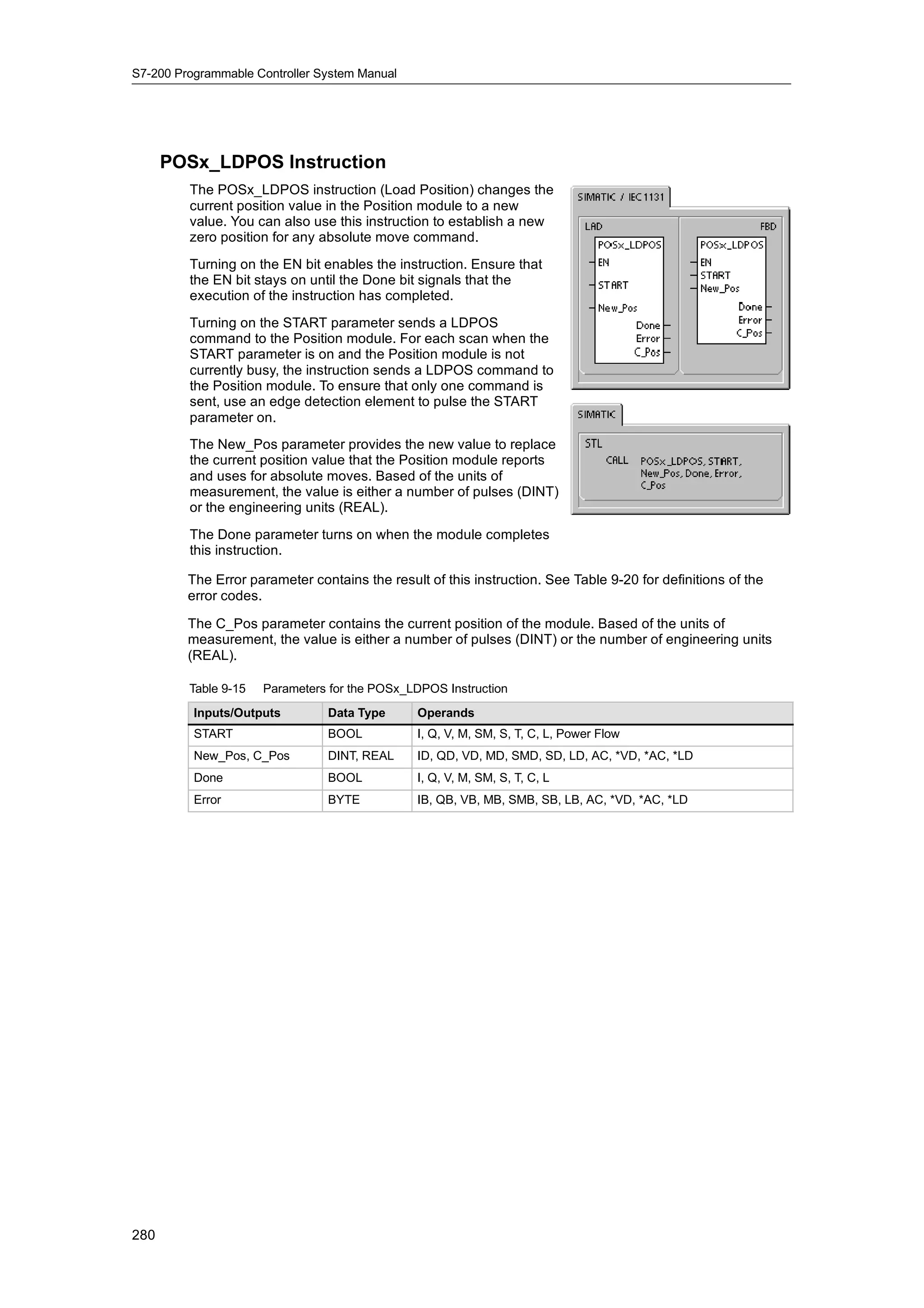
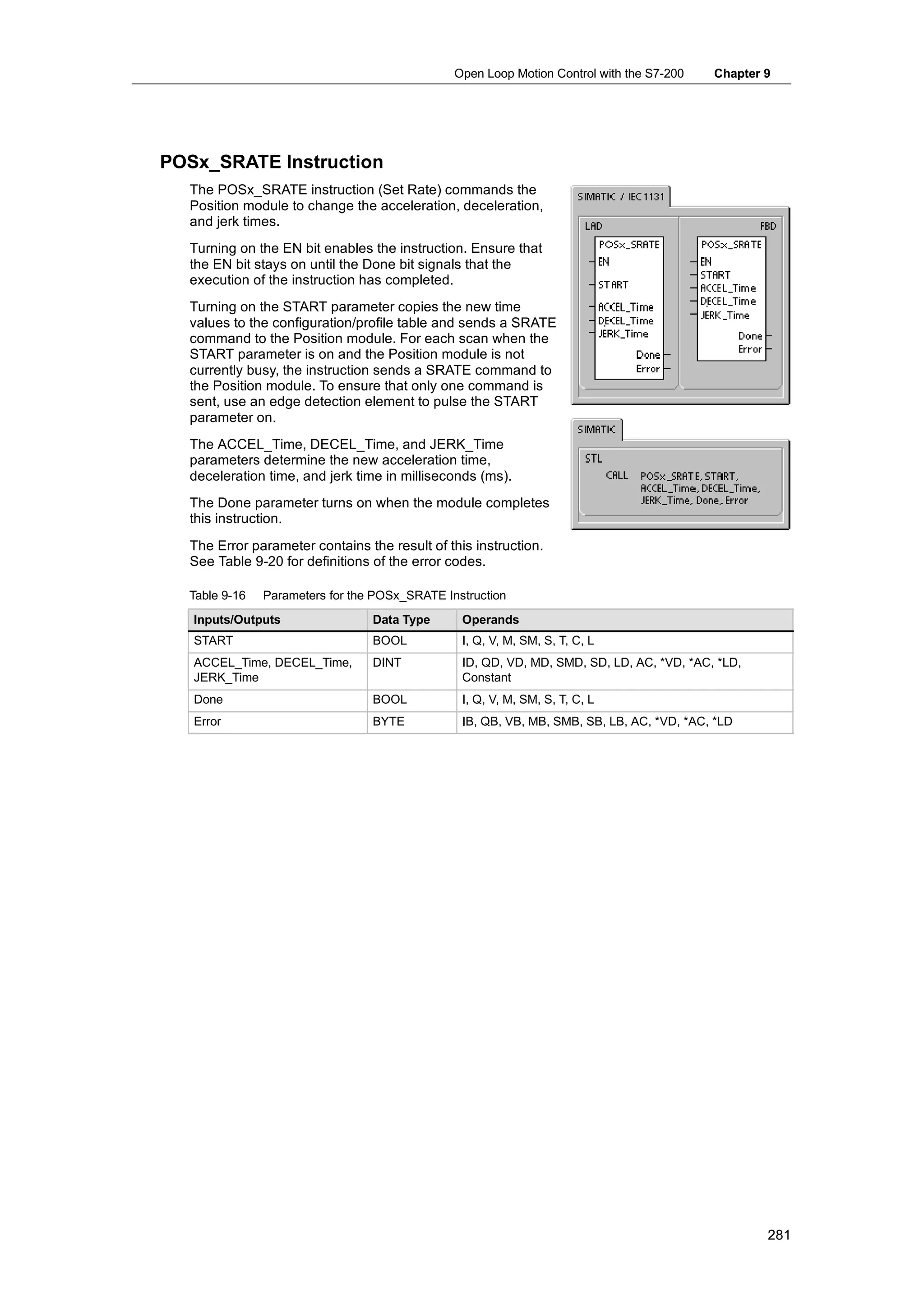
  • 8.
  • 9.
    Contents 1 Product Overview . . . . . . . . . . . . . . . . . . . . . . . . . . . . . . . . . . . . . . . . . . . . . . . . . . . . . . . 1 What’s New? . . . . . . . . . . . . . . . . . . . . . . . . . . . . . . . . . . . . . . . . . . . . . . . . . . . . . . . . . . . . . . . . . . . . 2 S7-200 CPU . . . . . . . . . . . . . . . . . . . . . . . . . . . . . . . . . . . . . . . . . . . . . . . . . . . . . . . . . . . . . . . . . . . . 2 S7-200 Expansion Modules . . . . . . . . . . . . . . . . . . . . . . . . . . . . . . . . . . . . . . . . . . . . . . . . . . . . . . . 4 STEP 7--Micro/WIN Programming Package . . . . . . . . . . . . . . . . . . . . . . . . . . . . . . . . . . . . . . . . . . 5 Communications Options . . . . . . . . . . . . . . . . . . . . . . . . . . . . . . . . . . . . . . . . . . . . . . . . . . . . . . . . . 5 Display Panels . . . . . . . . . . . . . . . . . . . . . . . . . . . . . . . . . . . . . . . . . . . . . . . . . . . . . . . . . . . . . . . . . . 6 2 Getting Started . . . . . . . . . . . . . . . . . . . . . . . . . . . . . . . . . . . . . . . . . . . . . . . . . . . . . . . . . . 7 Connecting the S7-200 CPU . . . . . . . . . . . . . . . . . . . . . . . . . . . . . . . . . . . . . . . . . . . . . . . . . . . . . . 8 Creating a Sample Program . . . . . . . . . . . . . . . . . . . . . . . . . . . . . . . . . . . . . . . . . . . . . . . . . . . . . . . 10 Downloading the Sample Program . . . . . . . . . . . . . . . . . . . . . . . . . . . . . . . . . . . . . . . . . . . . . . . . . 14 Placing the S7-200 in RUN Mode . . . . . . . . . . . . . . . . . . . . . . . . . . . . . . . . . . . . . . . . . . . . . . . . . . 14 3 Installing the S7-200 . . . . . . . . . . . . . . . . . . . . . . . . . . . . . . . . . . . . . . . . . . . . . . . . . . . . . 15 Guidelines for Installing S7-200 Devices . . . . . . . . . . . . . . . . . . . . . . . . . . . . . . . . . . . . . . . . . . . . 16 Installing and Removing the S7-200 Modules . . . . . . . . . . . . . . . . . . . . . . . . . . . . . . . . . . . . . . . . 17 Guidelines for Grounding and Wiring . . . . . . . . . . . . . . . . . . . . . . . . . . . . . . . . . . . . . . . . . . . . . . . 20 4 PLC Concepts . . . . . . . . . . . . . . . . . . . . . . . . . . . . . . . . . . . . . . . . . . . . . . . . . . . . . . . . . . . 23 Understanding How the S7-200 Executes Your Control Logic . . . . . . . . . . . . . . . . . . . . . . . . . . 24 Accessing the Data of the S7-200 . . . . . . . . . . . . . . . . . . . . . . . . . . . . . . . . . . . . . . . . . . . . . . . . . . 27 Understanding How the S7-200 Saves and Restores Data . . . . . . . . . . . . . . . . . . . . . . . . . . . . . 36 Selecting the Operating Mode for the S7-200 CPU . . . . . . . . . . . . . . . . . . . . . . . . . . . . . . . . . . . . 40 Using the S7-200 Explorer . . . . . . . . . . . . . . . . . . . . . . . . . . . . . . . . . . . . . . . . . . . . . . . . . . . . . . . . 41 Features of the S7-200 . . . . . . . . . . . . . . . . . . . . . . . . . . . . . . . . . . . . . . . . . . . . . . . . . . . . . . . . . . . 41 5 Programming Concepts, Conventions, and Features . . . . . . . . . . . . . . . . . . . . . . . 51 Guidelines for Designing a Micro PLC System . . . . . . . . . . . . . . . . . . . . . . . . . . . . . . . . . . . . . . . 52 Basic Elements of a Program . . . . . . . . . . . . . . . . . . . . . . . . . . . . . . . . . . . . . . . . . . . . . . . . . . . . . . 53 Using STEP 7--Micro/WIN to Create Your Programs . . . . . . . . . . . . . . . . . . . . . . . . . . . . . . . . . . 55 Choosing Between the SIMATIC and IEC 1131--3 Instruction Sets . . . . . . . . . . . . . . . . . . . . . . 57 Understanding the Conventions Used by the Program Editors . . . . . . . . . . . . . . . . . . . . . . . . . . 58 Using Wizards To Help You Create Your Control Program . . . . . . . . . . . . . . . . . . . . . . . . . . . . . . 60 Handling Errors in the S7-200 . . . . . . . . . . . . . . . . . . . . . . . . . . . . . . . . . . . . . . . . . . . . . . . . . . . . . 60 Assigning Addresses and Initial Values in the Data Block Editor . . . . . . . . . . . . . . . . . . . . . . . . 62 Using the Symbol Table for Symbolic Addressing of Variables . . . . . . . . . . . . . . . . . . . . . . . . . . 62 Using Local Variables . . . . . . . . . . . . . . . . . . . . . . . . . . . . . . . . . . . . . . . . . . . . . . . . . . . . . . . . . . . . 63 Using the Status Chart to Monitor Your Program . . . . . . . . . . . . . . . . . . . . . . . . . . . . . . . . . . . . . . 63 Creating an Instruction Library . . . . . . . . . . . . . . . . . . . . . . . . . . . . . . . . . . . . . . . . . . . . . . . . . . . . . 64 Features for Debugging Your Program . . . . . . . . . . . . . . . . . . . . . . . . . . . . . . . . . . . . . . . . . . . . . . 64 ix
  • 10.
    S7-200 Programmable ControllerSystem Manual 6 S7-200 Instruction Set . . . . . . . . . . . . . . . . . . . . . . . . . . . . . . . . . . . . . . . . . . . . . . . . . . . 65 Conventions Used to Describe the Instructions . . . . . . . . . . . . . . . . . . . . . . . . . . . . . . . . . . . . . . . 67 S7-200 Memory Ranges and Features . . . . . . . . . . . . . . . . . . . . . . . . . . . . . . . . . . . . . . . . . . . . . . 68 Bit Logic Instructions . . . . . . . . . . . . . . . . . . . . . . . . . . . . . . . . . . . . . . . . . . . . . . . . . . . . . . . . . . . . . 70 Contacts . . . . . . . . . . . . . . . . . . . . . . . . . . . . . . . . . . . . . . . . . . . . . . . . . . . . . . . . . . . . . . . . . . . 70 Coils . . . . . . . . . . . . . . . . . . . . . . . . . . . . . . . . . . . . . . . . . . . . . . . . . . . . . . . . . . . . . . . . . . . . . . . 73 Logic Stack Instructions . . . . . . . . . . . . . . . . . . . . . . . . . . . . . . . . . . . . . . . . . . . . . . . . . . . . . . 75 Set and Reset Dominant Bistable Instructions . . . . . . . . . . . . . . . . . . . . . . . . . . . . . . . . . . . . 77 Clock Instructions . . . . . . . . . . . . . . . . . . . . . . . . . . . . . . . . . . . . . . . . . . . . . . . . . . . . . . . . . . . . . . . . 78 Communications Instructions . . . . . . . . . . . . . . . . . . . . . . . . . . . . . . . . . . . . . . . . . . . . . . . . . . . . . . 81 Network Read and Network Write Instructions . . . . . . . . . . . . . . . . . . . . . . . . . . . . . . . . . . . . 81 Transmit and Receive Instructions (Freeport) . . . . . . . . . . . . . . . . . . . . . . . . . . . . . . . . . . . . 86 Get Port Address and Set Port Address Instructions . . . . . . . . . . . . . . . . . . . . . . . . . . . . . . 95 Compare Instructions . . . . . . . . . . . . . . . . . . . . . . . . . . . . . . . . . . . . . . . . . . . . . . . . . . . . . . . . . . . . 96 Comparing Numerical Values . . . . . . . . . . . . . . . . . . . . . . . . . . . . . . . . . . . . . . . . . . . . . . . . . . 96 Compare String . . . . . . . . . . . . . . . . . . . . . . . . . . . . . . . . . . . . . . . . . . . . . . . . . . . . . . . . . . . . . 98 Conversion Instructions . . . . . . . . . . . . . . . . . . . . . . . . . . . . . . . . . . . . . . . . . . . . . . . . . . . . . . . . . . . 99 Standard Conversion Instructions . . . . . . . . . . . . . . . . . . . . . . . . . . . . . . . . . . . . . . . . . . . . . . 99 ASCII Conversion Instructions . . . . . . . . . . . . . . . . . . . . . . . . . . . . . . . . . . . . . . . . . . . . . . . . . 103 String Conversion Instructions . . . . . . . . . . . . . . . . . . . . . . . . . . . . . . . . . . . . . . . . . . . . . . . . . 107 Encode and Decode Instructions . . . . . . . . . . . . . . . . . . . . . . . . . . . . . . . . . . . . . . . . . . . . . . . 112 Counter Instructions . . . . . . . . . . . . . . . . . . . . . . . . . . . . . . . . . . . . . . . . . . . . . . . . . . . . . . . . . . . . . . 113 SIMATIC Counter Instructions . . . . . . . . . . . . . . . . . . . . . . . . . . . . . . . . . . . . . . . . . . . . . . . . . 113 IEC Counter Instructions . . . . . . . . . . . . . . . . . . . . . . . . . . . . . . . . . . . . . . . . . . . . . . . . . . . . . . 116 High-Speed Counter Instructions . . . . . . . . . . . . . . . . . . . . . . . . . . . . . . . . . . . . . . . . . . . . . . . . . . . 118 Pulse Output Instruction . . . . . . . . . . . . . . . . . . . . . . . . . . . . . . . . . . . . . . . . . . . . . . . . . . . . . . . . . . 133 Math Instructions . . . . . . . . . . . . . . . . . . . . . . . . . . . . . . . . . . . . . . . . . . . . . . . . . . . . . . . . . . . . . . . . 140 Add, Subtract, Multiply, and Divide Instructions . . . . . . . . . . . . . . . . . . . . . . . . . . . . . . . . . . . 140 Multiply Integer to Double Integer and Divide Integer with Remainder . . . . . . . . . . . . . . . . 142 Numeric Functions Instructions . . . . . . . . . . . . . . . . . . . . . . . . . . . . . . . . . . . . . . . . . . . . . . . . 143 Increment and Decrement Instructions . . . . . . . . . . . . . . . . . . . . . . . . . . . . . . . . . . . . . . . . . . 144 Proportional/Integral/Derivative (PID) Loop Instruction . . . . . . . . . . . . . . . . . . . . . . . . . . . . . . . . . 145 Interrupt Instructions . . . . . . . . . . . . . . . . . . . . . . . . . . . . . . . . . . . . . . . . . . . . . . . . . . . . . . . . . . . . . 153 Logical Operations Instructions . . . . . . . . . . . . . . . . . . . . . . . . . . . . . . . . . . . . . . . . . . . . . . . . . . . . 161 Invert Instructions . . . . . . . . . . . . . . . . . . . . . . . . . . . . . . . . . . . . . . . . . . . . . . . . . . . . . . . . . . . . 161 AND, OR, and Exclusive OR Instructions . . . . . . . . . . . . . . . . . . . . . . . . . . . . . . . . . . . . . . . . 162 Move Instructions . . . . . . . . . . . . . . . . . . . . . . . . . . . . . . . . . . . . . . . . . . . . . . . . . . . . . . . . . . . . . . . . 164 Move Byte, Word, Double Word, or Real . . . . . . . . . . . . . . . . . . . . . . . . . . . . . . . . . . . . . . . . 164 Move Byte Immediate (Read and Write) . . . . . . . . . . . . . . . . . . . . . . . . . . . . . . . . . . . . . . . . . 165 Block Move Instructions . . . . . . . . . . . . . . . . . . . . . . . . . . . . . . . . . . . . . . . . . . . . . . . . . . . . . . 166 Program Control Instructions . . . . . . . . . . . . . . . . . . . . . . . . . . . . . . . . . . . . . . . . . . . . . . . . . . . . . . 167 Conditional End . . . . . . . . . . . . . . . . . . . . . . . . . . . . . . . . . . . . . . . . . . . . . . . . . . . . . . . . . . . . . 167 Stop . . . . . . . . . . . . . . . . . . . . . . . . . . . . . . . . . . . . . . . . . . . . . . . . . . . . . . . . . . . . . . . . . . . . . . . 167 Watchdog Reset . . . . . . . . . . . . . . . . . . . . . . . . . . . . . . . . . . . . . . . . . . . . . . . . . . . . . . . . . . . . . 167 For--Next Loop Instructions . . . . . . . . . . . . . . . . . . . . . . . . . . . . . . . . . . . . . . . . . . . . . . . . . . . . 169 Jump Instructions . . . . . . . . . . . . . . . . . . . . . . . . . . . . . . . . . . . . . . . . . . . . . . . . . . . . . . . . . . . . 171 Sequence Control Relay (SCR) Instructions . . . . . . . . . . . . . . . . . . . . . . . . . . . . . . . . . . . . . 172 Diagnostic LED Instruction . . . . . . . . . . . . . . . . . . . . . . . . . . . . . . . . . . . . . . . . . . . . . . . . . . . . 178 x
  • 11.
    Contents Shift and Rotate Instructions . . . . . . . . . . . . . . . . . . . . . . . . . . . . . . . . . . . . . . . . . . . . . . . . . . . . . . . 179 Shift Right and Shift Left Instructions . . . . . . . . . . . . . . . . . . . . . . . . . . . . . . . . . . . . . . . . . . . . 179 Rotate Right and Rotate Left Instructions . . . . . . . . . . . . . . . . . . . . . . . . . . . . . . . . . . . . . . . . 179 Shift Register Bit Instruction . . . . . . . . . . . . . . . . . . . . . . . . . . . . . . . . . . . . . . . . . . . . . . . . . . . 181 Swap Bytes Instruction . . . . . . . . . . . . . . . . . . . . . . . . . . . . . . . . . . . . . . . . . . . . . . . . . . . . . . . 183 String Instructions . . . . . . . . . . . . . . . . . . . . . . . . . . . . . . . . . . . . . . . . . . . . . . . . . . . . . . . . . . . . . . . 184 Table Instructions . . . . . . . . . . . . . . . . . . . . . . . . . . . . . . . . . . . . . . . . . . . . . . . . . . . . . . . . . . . . . . . . 189 Add To Table . . . . . . . . . . . . . . . . . . . . . . . . . . . . . . . . . . . . . . . . . . . . . . . . . . . . . . . . . . . . . . . . 189 First-In-First-Out and Last-In-First-Out . . . . . . . . . . . . . . . . . . . . . . . . . . . . . . . . . . . . . . . . . . 190 Memory Fill . . . . . . . . . . . . . . . . . . . . . . . . . . . . . . . . . . . . . . . . . . . . . . . . . . . . . . . . . . . . . . . . . 192 Table Find . . . . . . . . . . . . . . . . . . . . . . . . . . . . . . . . . . . . . . . . . . . . . . . . . . . . . . . . . . . . . . . . . . 193 Timer Instructions . . . . . . . . . . . . . . . . . . . . . . . . . . . . . . . . . . . . . . . . . . . . . . . . . . . . . . . . . . . . . . . . 196 SIMATIC Timer Instructions . . . . . . . . . . . . . . . . . . . . . . . . . . . . . . . . . . . . . . . . . . . . . . . . . . . 196 IEC Timer Instructions . . . . . . . . . . . . . . . . . . . . . . . . . . . . . . . . . . . . . . . . . . . . . . . . . . . . . . . . 201 Interval Timers . . . . . . . . . . . . . . . . . . . . . . . . . . . . . . . . . . . . . . . . . . . . . . . . . . . . . . . . . . . . . . 203 Subroutine Instructions . . . . . . . . . . . . . . . . . . . . . . . . . . . . . . . . . . . . . . . . . . . . . . . . . . . . . . . . . . . 204 7 Communicating over a Network . . . . . . . . . . . . . . . . . . . . . . . . . . . . . . . . . . . . . . . . . . 209 Understanding the Basics of S7-200 Network Communications . . . . . . . . . . . . . . . . . . . . . . . . . 210 Selecting the Communications Protocol for Your Network . . . . . . . . . . . . . . . . . . . . . . . . . . . . . . 214 Installing and Removing Communications Interfaces . . . . . . . . . . . . . . . . . . . . . . . . . . . . . . . . . . 220 Building Your Network . . . . . . . . . . . . . . . . . . . . . . . . . . . . . . . . . . . . . . . . . . . . . . . . . . . . . . . . . . . . 221 Creating User-Defined Protocols with Freeport Mode . . . . . . . . . . . . . . . . . . . . . . . . . . . . . . . . . 226 Using Modems and STEP 7--Micro/WIN with Your Network . . . . . . . . . . . . . . . . . . . . . . . . . . . . 228 Advanced Topics . . . . . . . . . . . . . . . . . . . . . . . . . . . . . . . . . . . . . . . . . . . . . . . . . . . . . . . . . . . . . . . . 233 Configuring the RS-232/PPI Multi-Master Cable for Remote Operation . . . . . . . . . . . . . . . . . . . 239 8 Hardware Troubleshooting Guide and Software Debugging Tools . . . . . . . . . . . 243 Features for Debugging Your Program . . . . . . . . . . . . . . . . . . . . . . . . . . . . . . . . . . . . . . . . . . . . . . 244 Displaying the Program Status . . . . . . . . . . . . . . . . . . . . . . . . . . . . . . . . . . . . . . . . . . . . . . . . . . . . . 246 Using a Status Chart to Monitor and Modify the Data in the S7-200 . . . . . . . . . . . . . . . . . . . . . . 247 Forcing Specific Values . . . . . . . . . . . . . . . . . . . . . . . . . . . . . . . . . . . . . . . . . . . . . . . . . . . . . . . . . . . 248 Running Your Program for a Specified Number of Scans . . . . . . . . . . . . . . . . . . . . . . . . . . . . . . 248 Hardware Troubleshooting Guide . . . . . . . . . . . . . . . . . . . . . . . . . . . . . . . . . . . . . . . . . . . . . . . . . . 249 9 Open Loop Motion Control with the S7-200 . . . . . . . . . . . . . . . . . . . . . . . . . . . . . . . . 251 Overview . . . . . . . . . . . . . . . . . . . . . . . . . . . . . . . . . . . . . . . . . . . . . . . . . . . . . . . . . . . . . . . . . . . . . . . 252 Using the PWM (Pulse Width Modulation) Output . . . . . . . . . . . . . . . . . . . . . . . . . . . . . . . . . . . . . 253 Basic Information for Open Loop Position Control Using Steppers or Servos . . . . . . . . . . . . . . 255 Instructions Created by the Position Control Wizard . . . . . . . . . . . . . . . . . . . . . . . . . . . . . . . . . . . 260 Error Codes for the PTO Instructions . . . . . . . . . . . . . . . . . . . . . . . . . . . . . . . . . . . . . . . . . . . . . . . 264 Features of the Position Module . . . . . . . . . . . . . . . . . . . . . . . . . . . . . . . . . . . . . . . . . . . . . . . . . . . 265 Configuring the Position Module . . . . . . . . . . . . . . . . . . . . . . . . . . . . . . . . . . . . . . . . . . . . . . . . . . . 267 Instructions Created by the Position Control Wizard for the Position Module . . . . . . . . . . . . . . 273 Sample Programs for the Position Module . . . . . . . . . . . . . . . . . . . . . . . . . . . . . . . . . . . . . . . . . . . 285 Monitoring the Position Module with the EM 253 Control Panel . . . . . . . . . . . . . . . . . . . . . . . . . 290 Error Codes for the Position Module and the Position Instructions . . . . . . . . . . . . . . . . . . . . . . . 292 Advanced Topics . . . . . . . . . . . . . . . . . . . . . . . . . . . . . . . . . . . . . . . . . . . . . . . . . . . . . . . . . . . . . . . . 294 Understanding the RP Seek Modes Supported by the Position Module . . . . . . . . . . . . . . . . . . 303 xi
  • 12.
    S7-200 Programmable ControllerSystem Manual 10 Creating a Program for the Modem Module . . . . . . . . . . . . . . . . . . . . . . . . . . . . . . . . 307 Features of the Modem Module . . . . . . . . . . . . . . . . . . . . . . . . . . . . . . . . . . . . . . . . . . . . . . . . . . . . 308 Using the Modem Expansion Wizard to Configure the Modem Module . . . . . . . . . . . . . . . . . . . 314 Overview of Modem Instructions and Restrictions . . . . . . . . . . . . . . . . . . . . . . . . . . . . . . . . . . . . 318 Instructions for the Modem Module . . . . . . . . . . . . . . . . . . . . . . . . . . . . . . . . . . . . . . . . . . . . . . . . . 319 Sample Program for the Modem Module . . . . . . . . . . . . . . . . . . . . . . . . . . . . . . . . . . . . . . . . . . . . 323 S7-200 CPUs that Support Intelligent Modules . . . . . . . . . . . . . . . . . . . . . . . . . . . . . . . . . . . . . . . 323 Special Memory Location for the Modem Module . . . . . . . . . . . . . . . . . . . . . . . . . . . . . . . . . . . . . 323 Advanced Topics . . . . . . . . . . . . . . . . . . . . . . . . . . . . . . . . . . . . . . . . . . . . . . . . . . . . . . . . . . . . . . . . 325 Messaging Telephone Number Format . . . . . . . . . . . . . . . . . . . . . . . . . . . . . . . . . . . . . . . . . . . . . . 327 Text Message Format . . . . . . . . . . . . . . . . . . . . . . . . . . . . . . . . . . . . . . . . . . . . . . . . . . . . . . . . . . . . 328 CPU Data Transfer Message Format . . . . . . . . . . . . . . . . . . . . . . . . . . . . . . . . . . . . . . . . . . . . . . . 329 11 Using the USS Protocol Library to Control a MicroMaster Drive . . . . . . . . . . . . . 331 Requirements for Using the USS Protocol . . . . . . . . . . . . . . . . . . . . . . . . . . . . . . . . . . . . . . . . . . . 332 Calculating the Time Required for Communicating with the Drive . . . . . . . . . . . . . . . . . . . . . . . 332 Using the USS Instructions . . . . . . . . . . . . . . . . . . . . . . . . . . . . . . . . . . . . . . . . . . . . . . . . . . . . . . . . 333 Instructions for the USS Protocol . . . . . . . . . . . . . . . . . . . . . . . . . . . . . . . . . . . . . . . . . . . . . . . . . . . 334 Sample Programs for the USS Protocol . . . . . . . . . . . . . . . . . . . . . . . . . . . . . . . . . . . . . . . . . . . . . 341 USS Execution Error Codes . . . . . . . . . . . . . . . . . . . . . . . . . . . . . . . . . . . . . . . . . . . . . . . . . . . . . . . 342 Connecting and Setting Up the MicroMaster Series 3 Drive . . . . . . . . . . . . . . . . . . . . . . . . . . . . 342 Connecting and Setting Up the MicroMaster Series 4 Drive . . . . . . . . . . . . . . . . . . . . . . . . . . . . 345 12 Using the Modbus Protocol Library . . . . . . . . . . . . . . . . . . . . . . . . . . . . . . . . . . . . . . . 347 Overview . . . . . . . . . . . . . . . . . . . . . . . . . . . . . . . . . . . . . . . . . . . . . . . . . . . . . . . . . . . . . . . . . . . . . . . 348 Requirements for Using Modbus Protocol . . . . . . . . . . . . . . . . . . . . . . . . . . . . . . . . . . . . . . . . . . . 348 Initialization and Execution Time for Modbus Protocol . . . . . . . . . . . . . . . . . . . . . . . . . . . . . . . . . 349 Modbus Addressing . . . . . . . . . . . . . . . . . . . . . . . . . . . . . . . . . . . . . . . . . . . . . . . . . . . . . . . . . . . . . . 350 Using the Modbus Master Instructions . . . . . . . . . . . . . . . . . . . . . . . . . . . . . . . . . . . . . . . . . . . . . . 351 Using the Modbus Slave Instructions . . . . . . . . . . . . . . . . . . . . . . . . . . . . . . . . . . . . . . . . . . . . . . . 352 Instructions for the Modbus Protocol . . . . . . . . . . . . . . . . . . . . . . . . . . . . . . . . . . . . . . . . . . . . . . . . 353 Advanced Topics . . . . . . . . . . . . . . . . . . . . . . . . . . . . . . . . . . . . . . . . . . . . . . . . . . . . . . . . . . . . . . . . 362 13 Using Recipes . . . . . . . . . . . . . . . . . . . . . . . . . . . . . . . . . . . . . . . . . . . . . . . . . . . . . . . . . . . 365 Overview . . . . . . . . . . . . . . . . . . . . . . . . . . . . . . . . . . . . . . . . . . . . . . . . . . . . . . . . . . . . . . . . . . . . . . . 366 Recipe Definition and Terminology . . . . . . . . . . . . . . . . . . . . . . . . . . . . . . . . . . . . . . . . . . . . . . . . . 367 Using the Recipe Wizard . . . . . . . . . . . . . . . . . . . . . . . . . . . . . . . . . . . . . . . . . . . . . . . . . . . . . . . . . . 367 Instructions Created by the Recipe Wizard . . . . . . . . . . . . . . . . . . . . . . . . . . . . . . . . . . . . . . . . . . 371 14 Using Data Logs . . . . . . . . . . . . . . . . . . . . . . . . . . . . . . . . . . . . . . . . . . . . . . . . . . . . . . . . 373 Overview . . . . . . . . . . . . . . . . . . . . . . . . . . . . . . . . . . . . . . . . . . . . . . . . . . . . . . . . . . . . . . . . . . . . . . . 374 Using the Data Log Wizard . . . . . . . . . . . . . . . . . . . . . . . . . . . . . . . . . . . . . . . . . . . . . . . . . . . . . . . . 375 Instruction Created by the Data Log Wizard . . . . . . . . . . . . . . . . . . . . . . . . . . . . . . . . . . . . . . . . . . 379 15 PID Auto-Tune and the PID Tuning Control Panel . . . . . . . . . . . . . . . . . . . . . . . . . . 381 Understanding the PID Auto-Tune . . . . . . . . . . . . . . . . . . . . . . . . . . . . . . . . . . . . . . . . . . . . . . . . . . 382 Expanded Loop Table . . . . . . . . . . . . . . . . . . . . . . . . . . . . . . . . . . . . . . . . . . . . . . . . . . . . . . . . . . . . 382 Prerequisites . . . . . . . . . . . . . . . . . . . . . . . . . . . . . . . . . . . . . . . . . . . . . . . . . . . . . . . . . . . . . . . . . . . . 385 Auto-Hysteresis and Auto-Deviation . . . . . . . . . . . . . . . . . . . . . . . . . . . . . . . . . . . . . . . . . . . . . . . . 385 Auto-Tune Sequence . . . . . . . . . . . . . . . . . . . . . . . . . . . . . . . . . . . . . . . . . . . . . . . . . . . . . . . . . . . . . 386 xii
  • 13.
    Contents Exception Conditions . . . . . . . . . . . . . . . . . . . . . . . . . . . . . . . . . . . . . . . . . . . . . . . . . . . . . . . . . . . . . 387 Notes Concerning PV Out-of-Range (Result Code 3) . . . . . . . . . . . . . . . . . . . . . . . . . . . . . . . . . . 387 PID Tuning Control Panel . . . . . . . . . . . . . . . . . . . . . . . . . . . . . . . . . . . . . . . . . . . . . . . . . . . . . . . . . 388 A Technical Specifications . . . . . . . . . . . . . . . . . . . . . . . . . . . . . . . . . . . . . . . . . . . . . . . . . 391 General Technical Specifications . . . . . . . . . . . . . . . . . . . . . . . . . . . . . . . . . . . . . . . . . . . . . . . . . . . 392 CPU Specifications . . . . . . . . . . . . . . . . . . . . . . . . . . . . . . . . . . . . . . . . . . . . . . . . . . . . . . . . . . . . . . 396 Digital Expansion Modules Specifications . . . . . . . . . . . . . . . . . . . . . . . . . . . . . . . . . . . . . . . . . . . 405 Analog Expansion Modules Specifications . . . . . . . . . . . . . . . . . . . . . . . . . . . . . . . . . . . . . . . . . . . 412 Thermocouple and RTD Expansion Modules Specifications . . . . . . . . . . . . . . . . . . . . . . . . . . . . 424 EM 277 PROFIBUS--DP Module Specifications . . . . . . . . . . . . . . . . . . . . . . . . . . . . . . . . . . . . . . 438 EM 241 Modem Module Specifications . . . . . . . . . . . . . . . . . . . . . . . . . . . . . . . . . . . . . . . . . . . . . . 450 EM 253 Position Module Specifications . . . . . . . . . . . . . . . . . . . . . . . . . . . . . . . . . . . . . . . . . . . . . 452 (CP 243--1) Ethernet Module Specifications . . . . . . . . . . . . . . . . . . . . . . . . . . . . . . . . . . . . . . . . . 458 (CP 243--1 IT) Internet Module Specifications . . . . . . . . . . . . . . . . . . . . . . . . . . . . . . . . . . . . . . . . 460 (CP 243--2) AS--Interface Module Specifications . . . . . . . . . . . . . . . . . . . . . . . . . . . . . . . . . . . . . . 463 Optional Cartridges . . . . . . . . . . . . . . . . . . . . . . . . . . . . . . . . . . . . . . . . . . . . . . . . . . . . . . . . . . . . . . 465 I/O Expansion Cable . . . . . . . . . . . . . . . . . . . . . . . . . . . . . . . . . . . . . . . . . . . . . . . . . . . . . . . . . . . . . 466 RS-232/PPI Multi-Master Cable and USB/PPI Multi-Master Cable . . . . . . . . . . . . . . . . . . . . . . 467 Input Simulators . . . . . . . . . . . . . . . . . . . . . . . . . . . . . . . . . . . . . . . . . . . . . . . . . . . . . . . . . . . . . . . . . 471 B Calculating a Power Budget . . . . . . . . . . . . . . . . . . . . . . . . . . . . . . . . . . . . . . . . . . . . . . 473 C Error Codes . . . . . . . . . . . . . . . . . . . . . . . . . . . . . . . . . . . . . . . . . . . . . . . . . . . . . . . . . . . . . 477 Fatal Error Codes and Messages . . . . . . . . . . . . . . . . . . . . . . . . . . . . . . . . . . . . . . . . . . . . . . . . . . 478 Run-Time Programming Problems . . . . . . . . . . . . . . . . . . . . . . . . . . . . . . . . . . . . . . . . . . . . . . . . . 479 Compile Rule Violations . . . . . . . . . . . . . . . . . . . . . . . . . . . . . . . . . . . . . . . . . . . . . . . . . . . . . . . . . . 480 D Special Memory (SM) Bits . . . . . . . . . . . . . . . . . . . . . . . . . . . . . . . . . . . . . . . . . . . . . . . . 481 SMB0: Status Bits . . . . . . . . . . . . . . . . . . . . . . . . . . . . . . . . . . . . . . . . . . . . . . . . . . . . . . . . . . . . . . . 482 SMB1: Status Bits . . . . . . . . . . . . . . . . . . . . . . . . . . . . . . . . . . . . . . . . . . . . . . . . . . . . . . . . . . . . . . . 482 SMB2: Freeport Receive Character . . . . . . . . . . . . . . . . . . . . . . . . . . . . . . . . . . . . . . . . . . . . . . . . 483 SMB3: Freeport Parity Error . . . . . . . . . . . . . . . . . . . . . . . . . . . . . . . . . . . . . . . . . . . . . . . . . . . . . . . 483 SMB4: Queue Overflow . . . . . . . . . . . . . . . . . . . . . . . . . . . . . . . . . . . . . . . . . . . . . . . . . . . . . . . . . . . 483 SMB5: I/O Status . . . . . . . . . . . . . . . . . . . . . . . . . . . . . . . . . . . . . . . . . . . . . . . . . . . . . . . . . . . . . . . . 484 SMB6: CPU ID Register . . . . . . . . . . . . . . . . . . . . . . . . . . . . . . . . . . . . . . . . . . . . . . . . . . . . . . . . . . 484 SMB7: Reserved . . . . . . . . . . . . . . . . . . . . . . . . . . . . . . . . . . . . . . . . . . . . . . . . . . . . . . . . . . . . . . . . 484 SMB8 to SMB21: I/O Module ID and Error Registers . . . . . . . . . . . . . . . . . . . . . . . . . . . . . . . . . . 485 SMW22 to SMW26: Scan Times . . . . . . . . . . . . . . . . . . . . . . . . . . . . . . . . . . . . . . . . . . . . . . . . . . . 486 SMB28 and SMB29: Analog Adjustment . . . . . . . . . . . . . . . . . . . . . . . . . . . . . . . . . . . . . . . . . . . . 486 SMB30 and SMB130: Freeport Control Registers . . . . . . . . . . . . . . . . . . . . . . . . . . . . . . . . . . . . . 486 SMB31 and SMW32: Permanent Memory (EEPROM) Write Control . . . . . . . . . . . . . . . . . . . . . 487 SMB34 and SMB35: Time Interval Registers for Timed Interrupts . . . . . . . . . . . . . . . . . . . . . . . 487 SMB36 to SMB65: HSC0, HSC1, and HSC2 Register . . . . . . . . . . . . . . . . . . . . . . . . . . . . . . . . . 487 SMB66 to SMB85: PTO/PWM Registers . . . . . . . . . . . . . . . . . . . . . . . . . . . . . . . . . . . . . . . . . . . . 489 SMB86 to SMB94, and SMB186 to SMB194: Receive Message Control . . . . . . . . . . . . . . . . . 490 SMW98: Errors on the Expansion I/O Bus . . . . . . . . . . . . . . . . . . . . . . . . . . . . . . . . . . . . . . . . . . . 491 SMB130: Freeport Control Register (see SMB30) . . . . . . . . . . . . . . . . . . . . . . . . . . . . . . . . . . . . 491 SMB131 to SMB165: HSC3, HSC4, and HSC5 Register . . . . . . . . . . . . . . . . . . . . . . . . . . . . . . . 491 SMB166 to SMB185: PTO0, PTO1 Profile Definition Table . . . . . . . . . . . . . . . . . . . . . . . . . . . . . 492 xiii
  • 14.
    S7-200 Programmable ControllerSystem Manual SMB186 to SMB194: Receive Message Control (see SMB86 to SMB94) . . . . . . . . . . . . . . . . . 492 SMB200 to SMB549: Intelligent Module Status . . . . . . . . . . . . . . . . . . . . . . . . . . . . . . . . . . . . . . . 493 E S7-200 Order Numbers . . . . . . . . . . . . . . . . . . . . . . . . . . . . . . . . . . . . . . . . . . . . . . . . . . . 495 F Execution Times for STL Instructions . . . . . . . . . . . . . . . . . . . . . . . . . . . . . . . . . . . . . 499 G S7-200 Quick Reference Information . . . . . . . . . . . . . . . . . . . . . . . . . . . . . . . . . . . . . . 505 H S7-200CN Products . . . . . . . . . . . . . . . . . . . . . . . . . . . . . . . . . . . . . . . . . . . . . . . . . . . . . . 511 Certifications and Approvals for S7-200CN Products . . . . . . . . . . . . . . . . . . . . . . . . . . . . . . . . . . 512 S7-200CN Products . . . . . . . . . . . . . . . . . . . . . . . . . . . . . . . . . . . . . . . . . . . . . . . . . . . . . . . . . . . . . . 513 xiv
  • 15.
    Product Overview The S7-200 series of micro-programmable logic controllers (Micro PLCs) can control a wide variety of devices to support your automation needs. The S7-200 monitors inputs and changes outputs as controlled by the user program, which can include Boolean logic, counting, timing, complex math operations, and communications with other intelligent devices. The compact design, flexible configuration, and powerful instruction set combine to make the S7-200 a perfect solution for controlling a wide variety of applications. In This Chapter What’s New? . . . . . . . . . . . . . . . . . . . . . . . . . . . . . . . . . . . . . . . . . . . . . . . . . . . . . . . . . . . . . . . . . . . . 2 S7-200 CPU . . . . . . . . . . . . . . . . . . . . . . . . . . . . . . . . . . . . . . . . . . . . . . . . . . . . . . . . . . . . . . . . . . . . 2 S7-200 Expansion Modules . . . . . . . . . . . . . . . . . . . . . . . . . . . . . . . . . . . . . . . . . . . . . . . . . . . . . . . 4 STEP 7--Micro/WIN Programming Package . . . . . . . . . . . . . . . . . . . . . . . . . . . . . . . . . . . . . . . . . . 5 Communications Options . . . . . . . . . . . . . . . . . . . . . . . . . . . . . . . . . . . . . . . . . . . . . . . . . . . . . . . . . 5 Display Panels . . . . . . . . . . . . . . . . . . . . . . . . . . . . . . . . . . . . . . . . . . . . . . . . . . . . . . . . . . . . . . . . . . 6 1
  • 16.
    S7-200 Programmable ControllerSystem Manual What’s New? The new features of the SIMATIC S7-200 include two new analog expansion modules: - EM 231 Analog Input RTD, 4 Inputs - EM 231 Analog Input Thermocouple 8 Inputs - Appendix H, S7-200CN Products S7-200 CPU The S7-200 CPU combines a microprocessor, an integrated power supply, input circuits, and output circuits in a compact housing to create a powerful Micro PLC. See Figure 1-1. After you have downloaded your program, the S7-200 contains the logic required to monitor and control the input and output devices in your application. I/O LEDs Access door: Status LEDs: Mode selector switch (RUN/STOP) System Fault/Diagnostic Analog adjustment potentiometer(s) (SF/DIAG) Expansion port (for most CPUs) RUN STOP Terminal connector Optional cartridge: (removable on CPU 224, CPU 224XP Memory Cartridge and CPU 226) Real-time Clock Battery Communications port Clip for installation on a standard (DIN) rail Figure 1-1 S7-200 Micro PLC 2
  • 17.
    Product Overview Chapter 1 Siemens provides different S7-200 CPU models with a diversity of features and capabilities that help you create effective solutions for your varied applications. Table 1-1 briefly compares some of the features of the CPU. For detailed information about a specific CPU, see Appendix A. Table 1-1 Comparison of the S7-200 CPU Models CPU 224XP Feature CPU 221 CPU 222 CPU 224 CPU 226 CPU 224XPsi Physical size (mm) 90 x 80 x 62 90 x 80 x 62 120.5 x 80 x 62 140 x 80 x 62 190 x 80 x 62 Program memory: with run mode edit 4096 bytes 4096 bytes 8192 bytes 12288 bytes 16384 bytes without run mode edit 4096 bytes 4096 bytes 12288 bytes 16384 bytes 24576 bytes Data memory 2048 bytes 2048 bytes 8192 bytes 10240 bytes 10240 bytes Memory backup 50 hours 50 hours 100 hours 100 hours 100 hours typical typical typical typical typical Local on-board I/O Digital 6 In/4 Out 8 In/6 Out 14 In/10 Out 14 In/10 Out 24 In/16 Out Analog - - - - - - 2 In/1 Out - - Expansion modules 0 modules 2 modules1 7 modules1 7 modules1 7 modules1 High-speed counters Single phase 4 at 30 kHz 4 at 30 kHz 6 at 30 kHz 4 at 30 kHz 6 at 30 kHz 2 at 200 kHz Two phase 2 at 20 kHz 2 at 20 kHz 4 at 20 kHz 3 at 20 kHz 4 at 20 kHz 1 at 100 kHz Pulse outputs (DC) 2 at 20 kHz 2 at 20 kHz 2 at 20 kHz 2 at 100 kHz 2 at 20 kHz Analog adjustments 1 1 2 2 2 Real-time clock Cartridge Cartridge Built-in Built-in Built-in Communications ports 1 RS- -485 1 RS- -485 1 RS- -485 2 RS- -485 2 RS- -485 Floating-point math Yes Digital I/O image size 256 (128 in, 128 out) Boolean execution 0.22 microseconds/instruction speed 1 You must calculate your power budget to determine how much power (or current) the S7-200 CPU can provide for your configuration. If the CPU power budget is exceeded, you may not be able to connect the maximum number of modules. See Appendix A for CPU and expansion module power requirements, and Appendix B to calculate your power budget. 3
  • 18.
    S7-200 Programmable ControllerSystem Manual S7-200 Expansion Modules To better solve your application requirements, the S7-200 family includes a wide variety of expansion modules. You can use these expansion modules to add additional functionality to the S7-200 CPU. Table 1-2 provides a list of the expansion modules that are currently available. For detailed information about a specific module, see Appendix A. Table 1-2 S7-200 Expansion Modules Expansion Type Modules Discrete modules Input 8 x DC In 8 x AC In 16 x DC In Output 4 x DC Out 4 x Relays 8 x Relay 8 x DC Out 8 x AC Out Combination 4 x DC In/ 8 x DC In/ 16 x DC In/ 32 x DC In/ 4 x DC Out 8 x DC Out 16 x DC Out 32 x DC Out 4 x DC In / 8 x DC In / 16 x DC In/ 32 x DC In/ 4 x Relay 8 x Relay 16 x Relay 32 x Relay Analog modules Input 4 x Analog In 8 x Analog In 4 x Thermocouple In 8 x Thermocouple In 2 x RTD In 4 x RTD In Output 2 x Analog Out 4 x Analog Out Combination 4 x Analog In 4 x Analog Out Intelligent modules Position Modem PROFIBUS- -DP Ethernet Ethernet IT Other modules AS- -Interface SIWAREX MS1 1 Detailed information not included in Appendix A. Please refer to your module documentation. 4
  • 19.
    Product Overview Chapter 1 STEP 7- -Micro/WIN Programming Package The STEP 7--Micro/WIN programming package provides a user-friendly environment to develop, edit, and monitor the logic needed to control your application. STEP 7--Micro/WIN provides three program editors for convenience and efficiency in developing the control program for your application. To help you find the information you need, STEP 7--Micro/WIN provides an extensive online help system and a documentation CD that contains an electronic version of this manual, application tips, and other useful information. Computer Requirements STEP 7--Micro/WIN runs on either a personal computer or a Siemens programming device, such as a PG 760. Your computer or programming device should meet the following minimum requirements: - Operating system: Windows 2000, Windows XP, Vista - At least 350M bytes of free hard disk space - Mouse (recommended) Figure 1-2 STEP 7- -Micro/WIN Installing STEP 7- -Micro/WIN Insert the STEP 7--Micro/WIN CD into the CD-ROM drive of your computer. The installation wizard starts automatically and prompts you through the installation process. Refer to the Readme file for more information about installing STEP 7--Micro/WIN. Tip To install STEP 7--Micro/WIN on a Windows 2000, Windows XP, or Windows Vista operating system, you must log in with Administrator privileges. Communications Options Siemens provides two programming options for connecting your computer to your S7-200: a direct connection with a PPI Multi-Master cable, or a Communications Processor (CP) card with an MPI cable. The PPI Multi-Master programming cable is the most common and economical method of connecting your computer to the S7-200. This cable connects the communications port of the S7-200 to the serial communications of your computer. The PPI Multi-Master programming cable can also be used to connect other communications devices to the S7-200. 5
  • 20.
    S7-200 Programmable ControllerSystem Manual Display Panels Text Display Units The Text Display (TD) is a display device that can be connected to the S7-200. Using the Text Display wizard, you can easily program your S7-200 to display text messages and other data pertaining to your application. The TD device provides a low cost interface to your application by allowing you to view, monitor, and change the process variables pertaining to your application. The S7-200 product family provides four TD devices: - The TD100C has a 4-line text TD 100C TD 200 display with 2 font choices. - The TD 200C has a 2-line text display with 20 characters per line for a total of 40 characters. TD400C TD 200C - The TD 200 has a faceplate which provides four keys with predefined, set-bit functions and allows up to Text Display eight set-bit functions. - The TD400C can have a 2- or 2 4-line text display depending on Figure 1-3 Text Display Units your font and character choice. For more information about the Text Display Units, refer to the SIMATIC Text Display (TD) User Manual on the STEP 7--Micro/WIN docuCD. The Text Display wizard in STEP 7--Micro/WIN helps you configure Text Display messages quickly and easily. To start the Text Display wizard, select the Tools > Text Display Wizard menu command. Operator and Touch Panel Displays The OP 73micro and TP 177micro panels are tailored to applications with SIMATIC S7-200 Micro PLC and provide operating and monitoring functions for small-scale machines and plants. Short configuration and commissioning times, and their configuration in WinCC flexible form the highlights of these panels. In addition, these panels support up to 32 configuration languages and five online languages, including the Asian and Cyrillic character sets. The mounting dimensions of the Operator Panel OP 73micro with its graphical 3” display unit are compatible with OP3 and TD 200. Touch Panel TP 177micro replaces the Touch Panel TP 070/TP 170micro. It can be mounted vertically to accommodate additional applications. This feature enables its use even when space is Figure 1-4 Operator and Touch Panel Displays restricted. 6
  • 21.
    Getting Started STEP 7--Micro/WIN makes it easy for you to program your S7-200. In just a few short steps using a simple example, you can learn how to connect, program, and run your S7-200. All you need for this example is a PPI Multi-Master cable, an S7-200 CPU, and a programming device running the STEP 7--Micro/WIN programming software. In This Chapter Connecting the S7-200 CPU . . . . . . . . . . . . . . . . . . . . . . . . . . . . . . . . . . . . . . . . . . . . . . . . . . . . . . 8 Creating a Sample Program . . . . . . . . . . . . . . . . . . . . . . . . . . . . . . . . . . . . . . . . . . . . . . . . . . . . . . . 10 Downloading the Sample Program . . . . . . . . . . . . . . . . . . . . . . . . . . . . . . . . . . . . . . . . . . . . . . . . . 14 Placing the S7-200 in RUN Mode . . . . . . . . . . . . . . . . . . . . . . . . . . . . . . . . . . . . . . . . . . . . . . . . . . 14 7
  • 22.
    S7-200 Programmable ControllerSystem Manual Connecting the S7-200 CPU Connecting your S7-200 is easy. For this example, you only need to connect power to your S7-200 CPU and then connect the communications cable between your programming device and the S7-200 CPU. Connecting Power to the S7-200 CPU The first step is to connect the S7-200 to a power source. Figure 2-1 shows the wiring connections for either a DC or an AC model of the S7-200 CPU. Before you install or remove any electrical device, ensure that the power to that equipment has been turned off. Always follow appropriate safety precautions and ensure that power to the S7-200 is disabled before attempting to install or remove the S7-200. Warning Attempts to install or wire the S7-200 or related equipment with power applied could cause electric shock or faulty operation of equipment. Failure to disable all power to the S7-200 and related equipment during installation or removal procedures could result in death or serious injury to personnel, and/or damage to equipment. Always follow appropriate safety precautions and ensure that power to the S7-200 is disabled before attempting to install or remove the S7-200 or related equipment. 24 VDC 85 to 265 VAC DC Installation AC Installation Figure 2-1 Connecting Power to the S7-200 CPU 8
  • 23.
    Getting Started Chapter 2 Connecting the RS-232/PPI Multi-Master Cable Figure 2-2 shows an RS-232/PPI Programming Multi-Master cable connecting the Device S7-200 to the programming device. To connect the cable: S7-200 1. Connect the RS-232 connector (marked “PC”) of the RS-232/PPI Multi-Master cable to the communications port of the programming device. (For this RS-232/PPI example, connect to COM 1.) Multi-Master Cable 2. Connect the RS-485 connector (marked “PPI”) of the RS-232/PPI ↑1 -- On Multi-Master cable to Port 0 or ↓0 -- Off Port 1 of the S7-200. 1 2 3 4 5 6 7 8 3. Ensure that the DIP switches of the RS-232/PPI Multi-Master cable are set as shown in Figure 2-2. Figure 2-2 Connecting the RS-232/PPI Multi-Master Cable Tip Examples in this manual use the RS-232/PPI Multi-Master cable. The RS-232/PPI Multi-Master cable replaces the previous PC/PPI cable. A USB/PPI Multi-Master cable is also available. Refer to Appendix E for order numbers. Starting STEP 7- -Micro/WIN Click on the STEP 7--Micro/WIN icon to open a new project. Figure 2-3 shows a new project. Navigation bar Notice the navigation bar. You can use the icons on the navigation bar to open elements of the STEP 7--Micro/WIN project. Click on the Communications icon in the Communications icon navigation bar to display the Communications dialog box. You use this dialog box to set up the communications for STEP 7--Micro/WIN. Figure 2-3 New STEP 7- -Micro/WIN Project 9
  • 24.
    S7-200 Programmable ControllerSystem Manual Verifying the Communications Parameters for STEP 7- -Micro/WIN The example project uses the default settings for STEP 7--Micro/WIN and the RS-232/PPI Multi-Master cable. To verify these settings: 1. Verify that the address of the PC/PPI cable in the Communications dialog box is set to 0. 2. Verify that the interface for the network parameter is set for PC/PPI cable(COM1). 3. Verify that the transmission rate is set to 9.6 kbps. If you need to change your communications parameter settings, see Chapter 7. Figure 2-4 Verifying the Communications Parameters Establishing Communications with the S7-200 Use the Communications dialog box to connect with your S7-200 CPU: 1. Double-click the refresh icon in the Communications dialog box. STEP 7--Micro/WIN searches for the S7-200 station and displays a CPU icon for the connected S7-200 station. 2. Select the S7-200 and click OK. If STEP 7--Micro/WIN does not find your S7-200 CPU, check the settings for the communications parameters and repeat these steps. After you have established communications with the S7-200, you co u cat o s t t e S 00, are ready to create and download the Figure 2-5 Establishing Communications to the S7-200 example program. Creating a Sample Program Entering this example of a control program will help you understand how easy it is to use STEP 7--Micro/WIN. This program uses six instructions in three networks to create a very simple, self-starting timer that resets itself. For this example, you use the Ladder (LAD) editor to enter the instructions for the program. The following example shows the complete program in both LAD and Statement List (STL). The network comments in the STL program explain the logic for each network. The timing diagram shows the operation of the program. 10
  • 25.
    Getting Started Chapter 2 Example: Sample Program for getting started with STEP 7- Micro/WIN - Network 1 //10 ms timer T33 times out after //(100 x 10 ms = 1 s) M0.0 pulse is // too fast to monitor with Status view. LDN M0.0 TON T33, +100 Network 2 //Comparison becomes true at a //rate that is visible with //Status view. Turn on Q0.0 after //(40 x 10 ms = 0.4 s), for a // 40% OFF/60% ON waveform. LDW>= T33, +40 = Q0.0 Network 3 //T33 (bit) pulse too fast to monitor with //Status view. Reset the timer through //M0.0 after the (100 x 10 ms = 1 s) period. LD T33 = M0.0 Timing Diagram current = 100 current = 40 T33 (current) 0.4s 0.6s T33 (bit) M0.0 Q0.0 Opening the Program Editor Click on the Program Block icon to open the program editor. See Figure 2-6. Notice the instruction tree and the program editor. You use the instruction tree to insert the LAD instructions into the networks of the program editor by dragging and dropping the instructions from the instruction tree to the networks. Program editor The toolbar icons provide shortcuts to the menu commands. After you enter and save the program, Instruction tree you can download the program to the S7-200. Figure 2-6 STEP 7- -Micro/WIN Window 11
  • 26.
    S7-200 Programmable ControllerSystem Manual Entering Network 1: Starting the Timer When M0.0 is off (0), this contact turns on and provides power flow to start the timer. To enter the contact for M0.0: 1. Either double-click the Bit Logic icon or click on the plus sign (+) to display the bit logic instructions. 2. Select the Normally Closed contact. 3. Hold down the left mouse button and drag the contact onto the first network. 4. Click on the “???” above the contact and enter the following address: M0.0 5. 5 Press the Return key to enter the Figure 2-7 Network 1 address for the contact. To enter the timer instruction for T33: 1. Double-click the Timers icon to display the timer instructions. 2. Select the TON (On-Delay Timer). 3. Hold down the left mouse button and drag the timer onto the first network. 4. Click on the “???” above the timer box and enter the following timer number: T33 5. Press the Return key to enter the timer number and to move the focus to the preset time (PT) parameter. 6. Enter the following value for the preset time: 100 7. Press the Return key to enter the value. Entering Network 2: Turning the Output On When the timer value for T33 is greater than or equal to 40 (40 times 10 milliseconds, or 0.4 seconds), the contact provides power flow to turn on output Q0.0 of the S7-200. To enter the Compare instruction: 1. Double-click the Compare icon to display the compare instructions. Select the >=I instruction (Greater-Than-Or-Equal-To-Integer ). 2. Hold down the left mouse button and drag the compare instruction onto the second network. 3. Click on the “???” above the contact and enter the address for the timer value: T33 4. Press the Return key to enter the timer number and to move the focus to the other value to be compared with the timer value. 5. Enter the following value to be compared with the timer value: 40 p 6. Press the Return key to enter the Figure 2-8 Network 2 value. To enter the instruction for turning on output Q0.0: 1. Double-click the Bit Logic icon to display the bit logic instructions and select the output coil. 2. Hold down the left mouse button and drag the coil onto the second network. 3. Click on the “???” above the coil and enter the following address: Q0.0 4. Press the Return key to enter the address for the coil. 12
  • 27.
    Getting Started Chapter 2 Entering Network 3: Resetting the Timer When the timer reaches the preset value (100) and turns the timer bit on, the contact for T33 turns on. Power flow from this contact turns on the M0.0 memory location. Because the timer is enabled by a Normally Closed contact for M0.0, changing the state of M0.0 from off (0) to on (1) resets the timer. To enter the contact for the timer bit of T33: 1. Select the Normally Open contact from the bit logic instructions. 2. Hold down the left mouse button and drag the contact onto the third network. 3. Click on the “???” above the contact and enter the address of the timer bit: T33 4. Press the Return key to enter the address for the contact. Figure 2-9 Network 3 To enter the coil for turning on M0.0: 1. Select the output coil from the bit logic instructions. 2. Hold down the left mouse button and drag the output coil onto the third network. 3. Double-click the “???” above the coil and enter the following address: M0.0 4. Press the Return key to enter the address for the coil. Saving the Sample Project After entering the three networks of instructions, you have finished entering the program. When you save the program, you create a project that includes the S7-200 CPU type and other parameters. To save the project: 1. Select the File > Save As menu command from the menu bar. 2. Enter a name for the project in the Save As dialog box. 3. Click OK to save the project. After saving the project, you can download the program to the S7-200. Figure 2-10 Saving the Example Program 13
  • 28.
    S7-200 Programmable ControllerSystem Manual Downloading the Sample Program Tip Each STEP 7--Micro/WIN project is associated with a CPU type (CPU 221, CPU 222, CPU 224, CPU 224XP, or CPU 226). If the project type does not match the CPU to which you are connected, STEP 7--Micro/WIN indicates a mismatch and prompts you to take an action. If this occurs, choose “Continue Download” for this example. 1. Click the Download icon on the toolbar or select the File > Download menu command to download the program. See Figure 2-11. 2. Click OK to download the elements of the program to the S7-200. If your S7-200 is in RUN mode, a dialog box prompts you to place the S7-200 in STOP mode Click Yes to place the mode. Figure 2-11 Downloading the Program S7-200 into STOP mode. Placing the S7-200 in RUN Mode For STEP 7--Micro/WIN to place the S7-200 CPU in RUN mode, the mode switch of the S7-200 must be set to TERM or RUN. When you place the S7-200 in RUN mode, the S7-200 executes the program: 1. Click the RUN icon on the toolbar or select the PLC > RUN menu command. 2. Click OK to change the operating mode of the S7-200. When the S7-200 goes to RUN mode, g the t t th output LED f Q0 0 t for Q0.0 turns on and off d ff Figure 2-12 Placing the S7-200 in RUN Mode as the S7-200 executes the program. Congratulations! You have just completed your first S7-200 program. You can monitor the program by selecting the Debug > Program Status menu command. STEP 7--Micro/WIN displays the values for the instructions. To stop the program, place the S7-200 in STOP mode by clicking the STOP icon or by selecting the PLC > STOP menu command. 14
  • 29.
    Installing the S7-200 The S7-200 equipment is designed to be easy to install. You can use the mounting holes to attach the modules to a panel, or you can use the built-in clips to mount the modules onto a standard (DIN) rail. The small size of the S7-200 allows you to make efficient use of space. This chapter provides guidelines for installing and wiring your S7-200 system. In This Chapter Guidelines for Installing S7-200 Devices . . . . . . . . . . . . . . . . . . . . . . . . . . . . . . . . . . . . . . . . . . . . 16 Installing and Removing the S7-200 Modules . . . . . . . . . . . . . . . . . . . . . . . . . . . . . . . . . . . . . . . . 17 Guidelines for Grounding and Wiring . . . . . . . . . . . . . . . . . . . . . . . . . . . . . . . . . . . . . . . . . . . . . . . 20 15
  • 30.
    S7-200 Programmable ControllerSystem Manual Guidelines for Installing S7-200 Devices You can install an S7-200 either on a panel or on a standard rail, and you can orient the S7-200 either horizontally or vertically. Warning The SIMATIC S7-200 PLCs are Open Type Controllers. It is required that you install the S7-200 in a housing, cabinet, or electric control room. Entry to the housing, cabinet, or electric control room should be limited to authorized personnel. Failure to follow these installation requirements could result in death or serious injury to personnel, and/or damage to equipment. Always follow these requirements when installing S7-200 PLCs. Separate the S7-200 Devices from Heat, High Voltage, and Electrical Noise As a general rule for laying out the devices of your system, always separate the devices that generate high voltage and high electrical noise from the low-voltage, logic-type devices such as the S7-200. When configuring the layout of the S7-200 inside your panel, consider the heat-generating devices and locate the electronic-type devices in the cooler areas of your cabinet. Operating any electronic device in a high-temperature environment will reduce the time to failure. Consider also the routing of the wiring for the devices in the panel. Avoid placing low voltage signal wires and communications cables in the same tray with AC power wiring and high-energy, rapidly-switched DC wiring. Provide Adequate Clearance for Cooling and Wiring S7-200 devices are designed for natural convection cooling. For proper cooling, you must provide a clearance of at least 25 mm above and below the devices. Also, allow at least 75 mm of depth. Caution For vertical mounting, the maximum allowable ambient temperature is reduced by 10 degrees C. Mount the S7-200 CPU below any expansion modules. When planning your layout for the S7-200 system, allow enough clearance for the wiring and communications cable connections. For additional flexibility in configuring the layout of the S7-200 system, use the I/O expansion cable. Clearance 35 mm 1 mm 7.5 mm DIN Rail 25 mm 75 mm Front of the Mounting enclosure surface Vertical Panel Mounting Side View Horizontal DIN Rail Mounting with Optional Expansion Cable (limit one per system) Figure 3-1 Mounting Methods, Orientation, and Clearance 16
  • 31.
    Installing the S7-200 Chapter 3 Power Budget All S7-200 CPUs have an internal power supply that provides power for the CPU, the expansion modules, and other 24 VDC user power requirements. The S7-200 CPU provides the 5 VDC logic power needed for any expansion in your system. Pay careful attention to your system configuration to ensure that your CPU can supply the 5V power required by your selected expansion modules. If your configuration requires more power than the CPU can supply, you must remove a module or select a CPU with more power capability. Refer to Appendix A for information about the 5 VDC logic budget supplied by your S7-200 CPU and the 5 VDC power requirements of the expansion modules. Use Appendix B as a guide for determining how much power (or current) the CPU can provide for your configuration. All S7-200 CPUs also provide a 24 VDC sensor supply that can supply 24 VDC for input points, for relay coil power on the expansion modules, or for other requirements. If your power requirements exceed the budget of the sensor supply, then you must add an external 24 VDC power supply to your system. Refer to Appendix A for the 24 VDC sensor supply power budget for your particular S7-200 CPU. If you require an external 24 VDC power supply, ensure that the power supply is not connected in parallel with the sensor supply of the S7-200 CPU. For improved electrical noise protection, it is recommended that the commons (M) of the different power supplies be connected. Warning Connecting an external 24 VDC power supply in parallel with the S7-200 24 VDC sensor supply can result in a conflict between the two supplies as each seeks to establish its own preferred output voltage level. The result of this conflict can be shortened lifetime or immediate failure of one or both power supplies, with consequent unpredictable operation of the PLC system. Unpredictable operation could result in death or serious injury to personnel, and/or damage to equipment. The S7-200 DC sensor supply and any external power supply should provide power to different points. Installing and Removing the S7-200 Modules The S7-200 can be easily installed on a standard DIN rail or on a panel. Prerequisites Before you install or remove any electrical device, ensure that the power to that equipment has been turned off. Also, ensure that the power to any related equipment has been turned off. Warning Attempts to install or remove S7-200 or related equipment with the power applied could cause electric shock or faulty operation of equipment. Failure to disable all power to the S7-200 and related equipment during installation or removal procedures could result in death or serious injury to personnel, and/or damage to equipment. Always follow appropriate safety precautions and ensure that power to the S7-200 is disabled before attempting to install or remove S7-200 CPUs or related equipment. Always ensure that whenever you replace or install an S7-200 device you use the correct module or equivalent device. Warning If you install an incorrect module, the program in the S7-200 could function unpredictably. Failure to replace an S7-200 device with the same model, orientation, or order could result in death or serious injury to personnel, and/or damage to equipment. Replace an S7-200 device with the same model, and be sure to orient and position it correctly. 17
  • 32.
    S7-200 Programmable ControllerSystem Manual Mounting Dimensions The S7-200 CPUs and expansion modules include mounting holes to facilitate installation on panels. Refer to Table 3-1 for the mounting dimensions. Table 3-1 Mounting Dimensions 9.5 mm* * Minimum spacing between modules A when hard-mounted 4 mm B Mounting holes (M4 or No. 8) 96 mm 88 mm 80 mm B 4 mm 4 mm A S7-200 Module Width A Width B CPU 221 and CPU 222 90 mm 82 mm CPU 224 120.5 mm 112.5 mm CPU 224XP, CPU 224XPsi 140 mm 132 mm CPU 226 196 mm 188 mm Expansion modules: 4- and 8-point DC and Relay I/O (8I, 4Q, 8Q, 4I/4Q) 46 mm 38 mm and Analog Out (2 AQ) Expansion modules: 16-point digital I/O (16I, 8I/8Q), Analog I/O (4AI, 8AI, 4AQ, 71.2 mm 63.2 mm 4AI/1AQ), RTD, Thermocouple, PROFIBUS, Ethernet, Internet, AS-Interface, 8-point AC (8I and 8Q), Position, and Modem Expansion modules: 32-point digital I/O (16I/16Q) 137.3 mm 129.3 mm Expansion modules: 64-point digital I/O (32I/32Q) 196 mm 188 mm Installing a CPU or Expansion Module Installing the S7-200 is easy! Just follow these steps. Panel Mounting 1. Locate, drill, and tap the mounting holes (M4 or American Standard number 8), using the dimensions in Table 3-1. 2. Secure the module(s) to the panel, using the appropriate screws. 3. If you are using an expansion module, connect the expansion module ribbon cable into the expansion port connector under the access door. DIN Rail Mounting 1. Secure the rail to the mounting panel every 75 mm. 2. Snap open the DIN clip (located on the bottom of the module) and hook the back of the module onto the DIN rail. 3. If you are using an expansion module, connect the expansion module ribbon cable into the expansion port connector under the access door. 4. Rotate the module down to the DIN rail and snap the clip closed. Carefully check that the clip has fastened the module securely onto the rail. To avoid damage to the module, press on the tab of the mounting hole instead of pressing directly on the front of the module. 18
  • 33.
    Installing the S7-200 Chapter 3 Tip Using DIN rail stops could be helpful if your S7-200 is in an environment with high vibration potential or if the S7-200 has been installed vertically. If your system is in a high-vibration environment, then panel-mounting the S7-200 will provide a greater level of vibration protection. Removing a CPU or Expansion Module To remove an S7-200 CPU or expansion module, follow these steps: 1. Remove power from the S7-200. 2. Disconnect all the wiring and cabling that is attached to the module. Most S7-200 CPU and expansion modules have removable connectors to make this job easier. 3. If you have expansion modules connected to the unit that you are removing, open the access cover door and disconnect the expansion module ribbon cable from the adjacent modules. 4. Unscrew the mounting screws or snap open the DIN clip. 5. Remove the module. Removing and Reinstalling the Terminal Block Connector Most S7-200 modules have removable connectors to make installing and replacing the module easy. Refer to Appendix A to determine whether your S7-200 module has removable connectors. You can order an optional fan-out connector for modules that do not have removable connectors. See Appendix E for order numbers. To Remove the Connector 1. Open the connector door to gain access to the connector. 2. Insert a small screwdriver in the notch in the middle of the connector. 3. Remove the terminal connector by prying the screwdriver away from the S7-200 housing. See Figure 3-2. Figure 3-2 Removing the Connector To Reinstall the Connector 1. Open the connector door. 2. Align the connector with the pins on the unit and align the wiring edge of the connector inside the rim of the connector base. 3. Press down firmly to rotate the connector until it snaps into place. Check carefully to ensure that the connector is properly aligned and fully engaged. 19
  • 34.
    S7-200 Programmable ControllerSystem Manual Guidelines for Grounding and Wiring Proper grounding and wiring of all electrical equipment is important to help ensure the optimum operation of your system and to provide additional electrical noise protection for your application and the S7-200. Prerequisites Before you ground or install wiring to any electrical device, ensure that the power to that equipment has been turned off. Also, ensure that the power to any related equipment has been turned off. Ensure that you follow all applicable electrical codes when wiring the S7-200 and related equipment. Install and operate all equipment according to all applicable national and local standards. Contact your local authorities to determine which codes and standards apply to your specific case. Warning Attempts to install or wire the S7-200 or related equipment with power applied could cause electric shock or faulty operation of equipment. Failure to disable all power to the S7-200 and related equipment during installation or removal procedures could result in death or serious injury to personnel, and/or damage to equipment. Always follow appropriate safety precautions and ensure that power to the S7-200 is disabled before attempting to install or remove the S7-200 or related equipment. Always take safety into consideration as you design the grounding and wiring of your S7-200 system. Electronic control devices, such as the S7-200, can fail and can cause unexpected operation of the equipment that is being controlled or monitored. For this reason, you should implement safeguards that are independent of the S7-200 to protect against possible personal injury or equipment damage. Warning Control devices can fail in an unsafe condition, resulting in unexpected operation of controlled equipment. Such unexpected operations could result in death or serious injury to personnel, and/or damage to equipment. Use an emergency stop function, electromechanical overrides, or other redundant safeguards that are independent of the S7-200. Guidelines for Isolation S7-200 AC power supply boundaries and I/O boundaries to AC circuits have been designed and approved to provide safe separation between AC line voltages and low voltage circuits. These boundaries include double or reinforced insulation, or basic plus supplementary insulation, according to various standards. Components which cross these boundaries such as optical couplers, capacitors, transformers, and relays have been approved as providing safe separation. Isolation boundaries which meet these requirements have been identified in S7-200 product data sheets as having 1500VAC or greater isolation. This designation is based on a routine factory test of ( 2Ue + 1000VAC ) or equivalent according to approved methods. S7-200 safe separation boundaries have been type tested to 4242 VDC. The sensor supply output, communications circuits, and internal logic circuits of an S7-200 with included AC power supply are sourced as SELV (safety extra--low voltage) according to EN 61131--2. These circuits become PELV (protective extra--low voltage) if the sensor supply M, or any other non-isolated M connection to the S7-200 is connected to ground. Other S7-200 M connections which may ground reference the low voltage are designated as not isolated to logic on specific product data sheets. Examples are RS485 communications port M, analog I/O M, and relay coil power M. To maintain the SELV / PELV character of the S7-200 low voltage circuits, external connections to communications ports, analog circuits, and all 24V nominal power supply and I/O circuits must be powered from approved sources that meet the requirements of SELV, PELV, Class 2, Limited Voltage, or Limited Power according to various standards. 20
  • 35.
    Installing the S7-200 Chapter 3 Warning Use of non-isolated or single insulation supplies to supply low voltage circuits from an AC line can result in hazardous voltages appearing on circuits that are expected to be touch safe, such as communications circuits and low voltage sensor wiring. Such unexpected high voltages could result in death or serious injury to personnel, and/or damage to equipment. Only use high voltage to low voltage power converters that are approved as sources of touch safe, limited voltage circuits. Guidelines for Grounding the S7-200 The best way to ground your application is to ensure that all the common and ground connections of your S7-200 and related equipment are grounded to a single point. This single point should be connected directly to the earth ground for your system. For improved electrical noise protection, it is recommended that all DC common returns be connected to the same single-point earth ground. Connect the 24 VDC sensor supply common (M) to earth ground. All ground wires should be as short as possible and should use a large wire size, such as 2 mm2 (14 AWG). When locating grounds, remember to consider safety grounding requirements and the proper operation of protective interrupting devices. Guidelines for Wiring the S7-200 When designing the wiring for your S7-200, provide a single disconnect switch that simultaneously removes power from the S7-200 CPU power supply, from all input circuits, and from all output circuits. Provide overcurrent protection, such as a fuse or circuit breaker, to limit fault currents on supply wiring. You might want to provide additional protection by placing a fuse or other current limit in each output circuit. Install appropriate surge suppression devices for any wiring that could be subject to lightning surges. Avoid placing low-voltage signal wires and communications cables in the same wire tray with AC wires and high-energy, rapidly switched DC wires. Always route wires in pairs, with the neutral or common wire paired with the hot or signal-carrying wire. Use the shortest wire possible and ensure that the wire is sized properly to carry the required current. The connector accepts wire sizes from 2 mm2 to 0.3 mm2 (14 AWG to 22 AWG). Use shielded wires for optimum protection against electrical noise. Typically, grounding the shield at the S7-200 gives the best results. When wiring input circuits that are powered by an external power supply, include an overcurrent protection device in that circuit. External protection is not necessary for circuits that are powered by the 24 VDC sensor supply from the S7-200 because the sensor supply is already current-limited. Most S7-200 modules have removable connectors for user wiring. (Refer to Appendix A to determine if your module has removable connectors.) To prevent loose connections, ensure that the connector is seated securely and that the wire is installed securely into the connector. To avoid damaging the connector, be careful that you do not over-tighten the screws. The maximum torque for the connector screw is 0.56 N-m (5 inch-pounds). To help prevent unwanted current flows in your installation, the S7-200 provides isolation boundaries at certain points. When you plan the wiring for your system, you should consider these isolation boundaries. Refer to Appendix A for the amount of isolation provided and the location of the isolation boundaries. Isolation boundaries rated less than 1500 VAC must not be depended on as safety boundaries. Tip For a communications network, the maximum length of the communications cable is 50 m without using a repeater. The communications port on the S7-200 is non-isolated. Refer to Chapter 7 for more information. 21
  • 36.
    S7-200 Programmable ControllerSystem Manual Guidelines for Inductive Loads You should equip inductive loads with suppression circuits to limit voltage rise when the control output turns off. Suppression circuits protect your outputs from premature failure due to high inductive switching currents. In addition, suppression circuits limit the electrical noise generated when switching inductive loads. Tip The effectiveness of a given suppression circuit depends on the application, and you must verify it for your particular use. Always ensure that all components used in your suppression circuit are rated for use in the application. DC Outputs and Relays That Control DC Loads The DC outputs have internal protection that is adequate for most applications. Since the relays can be used for either a DC or an AC load, internal protection is not provided. Figure 3-3 shows a sample suppression A B (optional) circuit for a DC load. In most A - I1N4001 diode or equivalent - applications, the addition of a diode (A) B - 8.2 V Zener for DC Outputs - across the inductive load is suitable, but Output 36 V Zener for Relay Outputs if your application requires faster turn-off Point times, then the addition of a Zener diode DC Inductive Load (B) is recommended. Be sure to size your Zener diode properly for the amount Figure 3-3 Suppression Circuit for a DC Load of current in your output circuit. AC Outputs and Relays That Control AC Loads The AC outputs have internal protection that is adequate for most applications. Since the relays can be used for either a DC or an AC load, internal protection is not provided. Figure 3-4 shows a sample suppression .1 µ F 100 to 120 Ω circuit for an AC load. When you use a relay or AC output to switch 115 V/230 MOV VAC loads, place resistor/capacitor networks across the AC load as shown in this figure. You can also use a metal oxide varistor (MOV) to limit peak Output Point voltage. Ensure that the working voltage AC Inductive Load of the MOV is at least 20% greater than the nominal line voltage. Figure 3-4 Suppression Circuit for an AC Load Warning When relay expansion modules are used to switch AC inductive loads, the external resistor/capacitor noise suppression circuit must be placed across the AC load to prevent unexpected machine or process operation. See Figure 3-4. Guidelines for Lamp Loads Lamp loads are damaging to relay contacts because of the high turn-on surge current. This surge current will nominally be 10 to 15 times the steady state current for a Tungsten lamp. A replaceable interposing relay or surge limiter is recommended for lamp loads that will be switched a large number of times during the lifetime of the application. 22
  • 37.
    PLC Concepts The basic function of the S7-200 is to monitor field inputs and, based on your control logic, turn on or off field output devices. This chapter explains the concepts used to execute your program, the various types of memory used, and how that memory is retained. In This Chapter Understanding How the S7-200 Executes Your Control Logic . . . . . . . . . . . . . . . . . . . . . . . . . . 24 Accessing the Data of the S7-200 . . . . . . . . . . . . . . . . . . . . . . . . . . . . . . . . . . . . . . . . . . . . . . . . . . 27 Understanding How the S7-200 Saves and Restores Data . . . . . . . . . . . . . . . . . . . . . . . . . . . . . 36 Selecting the Operating Mode for the S7-200 CPU . . . . . . . . . . . . . . . . . . . . . . . . . . . . . . . . . . . . 40 Using the S7-200 Explorer . . . . . . . . . . . . . . . . . . . . . . . . . . . . . . . . . . . . . . . . . . . . . . . . . . . . . . . . 41 Features of the S7-200 . . . . . . . . . . . . . . . . . . . . . . . . . . . . . . . . . . . . . . . . . . . . . . . . . . . . . . . . . . . 41 23
  • 38.
    S7-200 Programmable ControllerSystem Manual Understanding How the S7-200 Executes Your Control Logic The S7-200 continuously cycles through the control logic in your program, reading and writing data. The S7-200 Relates Your Program to the Physical Inputs and Outputs The basic operation of the S7-200 is very simple: Start_PB E_Stop M_Starter - The S7-200 reads the status of the inputs. - The program that is stored in the S7-200 uses M_Starter Motor these inputs to evaluate the control logic. As the program runs, the S7-200 updates the data. Output - The S7-200 writes the data to the outputs. Motor Starter Figure 4-1 shows a simple diagram of how an Input electrical relay diagram relates to the S7-200. In this Start / Stop Switch example, the state of the switch for starting the motor is combined with the states of other inputs. The calculations of these states then determine the state for the output that goes to the actuator which Figure 4-1 Controlling Inputs and Outputs starts the motor. The S7-200 Executes Its Tasks in a Scan Cycle The S7-200 executes a series of tasks repetitively. This cyclical execution of tasks is called the scan cycle. As shown in Figure 4-2, the S7-200 performs most or all of the following tasks during a scan cycle: - Reading the inputs: The S7-200 copies the state of the physical inputs to the Writes to the outputs process-image input register. - Executing the control logic in the program: The S7-200 executes the instructions of the Perform the CPU Diagnostics program and stores the values in the various Process any memory areas. Communications Requests - Processing any communications requests: The S7-200 performs any tasks required for Execute the Program communications. Scan Cycle - Executing the CPU self-test diagnostics: The S7-200 ensures that the firmware, the Reads the inputs program memory, and any expansion modules are working properly. - Writing t th W iti to the outputs: Th values stored i t t The l t d in Figure 4-2 S7-200 Scan Cycle the process-image output register are written to the physical outputs. The execution of the user program is dependent upon whether the S7-200 is in STOP mode or in RUN mode. In RUN mode, your program is executed; in STOP mode, your program is not executed. 24
  • 39.
    PLC Concepts Chapter 4 Reading the Inputs Digital inputs: Each scan cycle begins by reading the current value of the digital inputs and then writing these values to the process-image input register. Analog inputs: The S7-200 does not update analog inputs from expansion modules as part of the normal scan cycle unless filtering of analog inputs is enabled. An analog filter is provided to allow you to have a more stable signal. You can enable the analog filter for each analog input point. When analog input filtering is enabled for an analog input, the S7-200 updates that analog input once per scan cycle, performs the filtering function, and stores the filtered value internally. The filtered value is then supplied each time your program accesses the analog input. When analog filtering is not enabled, the S7-200 reads the value of the analog input from expansion modules each time your program accesses the analog input. Analog inputs AIW0 and AIW2 included on the CPU 224XP are updated every scan with the most recent result from the analog-to-digital converter. This converter is an averaging type (sigma-delta) and those values will usually not need software filtering. Tip Analog input filtering is provided to allow you to have a more stable analog value. Use the analog input filter for applications where the input signal varies slowly with time. If the signal is a high-speed signal, then you should not enable the analog filter. Do not use the analog filter with modules that pass digital information or alarm indications in the analog words. Always disable analog filtering for RTD, Thermocouple, and AS-Interface Master modules. Executing the Program During the execution phase of the scan cycle, the S7-200 executes your program, starting with the first instruction and proceeding to the end instruction. The immediate I/O instructions give you immediate access to inputs and outputs during the execution of either the program or an interrupt routine. If you use subroutines in your program, the subroutines are stored as part of the program. The subroutines are executed when they are called by the main program, by another subroutine, or by an interrupt routine. Subroutine nesting depth is 8 from the main and 1 from an interrupt routine. If you use interrupts in your program, the interrupt routines that are associated with the interrupt events are stored as part of the program. The interrupt routines are not executed as part of the normal scan cycle, but are executed when the interrupt event occurs (which could be at any point in the scan cycle). Local memory is reserved for each of eleven entities: one main, eight subroutine nesting levels when initiated from the main, one interrupt, and one subroutine nesting level when initiated from an interrupt routine. Local memory has a local scope in that it is available only within its associated program entity, and cannot be accessed by the other program entities. For more information about Local memory, refer to Local Memory Area: L in this chapter. Figure 4-3 depicts the flow of a typical scan including the Local memory usage and two interrupt events, one during the program--execution phase and another during the communications phase of the scan cycle. Subroutines are called by the next higher level, and are executed when called. Interrupt routines are not called; they are a result of an occurrence of the associated interrupt event. 25
  • 40.
    S7-200 Programmable ControllerSystem Manual SBR nesting Level 1 SBR nesting level 2 SBR nesting level 3 6 7 SBR nesting level 4 5 8 SBR nesting level 1 nesting level nesting level nesting level nesting level Local (L) Memo ry . Interrupt Main SBR SBR SBR SBR Max 64 bytes data for each entity level Reading inputs to process image input register 1 ms* Main Program Interrupt Subroutine Event Subroutine 1 ms* Main Program Subroutine 1 ms* Subroutine Cycle Time Subroutine Main Program 1 ms* Communication HMI, EM277, Status Chart, PC access Event SI Q0.0 1 ms* Immediate I/O operations * Internal 1ms Timer Update Self-test diagnostics S7-200 ensures that the firmware, the program memory, and any expansion modules are working properly Writing from proces s image to the outputs Figure 4-3 Typical Scan Flow 26
  • 41.
    PLC Concepts Chapter 4 Processing Any Communications Requests During the message-processing phase of the scan cycle, the S7-200 processes any messages that were received from the communications port or intelligent I/O modules. Executing the CPU Self-test Diagnostics During this phase of the scan cycle, the S7-200 checks for proper operation of the CPU and for the status of any expansion modules. Writing to the Digital Outputs At the end of every scan cycle, the S7-200 writes the values stored in the process-image output register to the digital outputs. (Analog outputs are updated immediately, independently from the scan cycle.) Accessing the Data of the S7-200 The S7-200 stores information in different memory locations that have unique addresses. You can explicitly identify the memory address that you want to access. This allows your program to have direct access to the information. Table 4-1 shows the range of integer values that can be represented by the different sizes of data. Table 4-1 Decimal and Hexadecimal Ranges for the Different Sizes of Data Representation Byte (B) Word (W) Double Word (D) Unsigned Integer 0 to 255 0 to 65,535 0 to 4,294,967,295 0 to FF 0 to FFFF 0 to FFFF FFFF Signed Integer - -128 to +127 - -32,768 to +32,767 - -2,147,483,648 to +2,147,483,647 80 to 7F 8000 to 7FFF 8000 0000 to 7FFF FFFF Real Not applicable Not applicable +1.175495E- -38 to +3.402823E+38 (positive) IEEE 32-bit - -1.175495E- -38 to - -3.402823E+38 (negative) Floating Point To access a bit in a memory area, you specify the address, which includes the memory area identifier, the byte address, and the bit number. Figure 4-4 shows an example of accessing a bit (which is also called “byte.bit” addressing). In this example, the memory area and byte address (I = input, and 3 = byte 3) are followed by a period (“.”) to separate the bit address (bit 4). I 3 . 4 Process-image Input (I) Memory Area Bit of byte, or bit number: bit 4 of 8 (0 to 7) 7 6 5 4 3 2 1 0 Period separates the Byte 0 byte address from the bit Byte 1 number Byte 2 Byte address: byte 3 (the Byte 3 fourth byte) Byte 4 Memory area identifier Byte 5 Figure 4-4 Byte.Bit Addressing You can access data in most memory areas (V, I, Q, M, S, L, and SM) as bytes, words, or double words by using the byte-address format. To access a byte, word, or double word of data in the memory, you must specify the address in a way similar to specifying the address for a bit. This includes an area identifier, data size designation, and the starting byte address of the byte, word, or double-word value, as shown in Figure 4-5. 27
  • 42.
    S7-200 Programmable ControllerSystem Manual Data in other memory areas (such as T, C, HC, and the accumulators) are accessed by using an address format that includes an area identifier and a device number. V B 100 V W 100 V D 100 Byte address Byte address Byte address Access to a byte size Access to a word size Access to a double word size Area identifier Area identifier Area identifier MSB LSB VB100 7 VB100 0 MSB = most significant bit LSB = least significant bit Most significant byte Least significant byte MSB LSB VW100 15 VB100 8 7 VB101 0 Most significant byte Least significant byte MSB LSB VD100 31 VB100 24 23 VB101 16 15 VB102 8 7 VB103 0 Figure 4-5 Comparing Byte, Word, and Double-Word Access to the Same Address Accessing Data in the Memory Areas Process-Image Input Register: I The S7-200 samples the physical input points at the beginning of each scan cycle and writes these values to the process-image input register. You can access the process-image input register in bits, bytes, words, or double words: Bit: I[byte address].[bit address] I0.1 Byte, Word, or Double Word: I[size][starting byte address] IB4 Process-Image Output Register: Q At the end of the scan cycle, the S7-200 copies the values stored in the process-image output register to the physical output points. You can access the process-image output register in bits, bytes, words, or double words: Bit: Q[byte address].[bit address] Q1.1 Byte, Word, or Double Word: Q[size][starting byte address] QB5 Variable Memory Area: V You can use V memory to store intermediate results of operations being performed by the control logic in your program. You can also use V memory to store other data pertaining to your process or task. You can access the V memory area in bits, bytes, words, or double words: Bit: V[byte address].[bit address] V10.2 Byte, Word, or Double Word: V[size][starting byte address] VW100 Bit Memory Area: M You can use the bit memory area (M memory) as control relays to store the intermediate status of an operation or other control information. You can access the bit memory area in bits, bytes, words, or double words: Bit: M[byte address].[bit address] M26.7 Byte, Word, or Double Word: M[size][starting byte address] MD20 28
  • 43.
    PLC Concepts Chapter 4 Timer Memory Area: T The S7-200 provides timers that count increments of time in resolutions (time-base increments) of 1 ms, 10 ms, or 100 ms. Two variables are associated with a timer: - Current value: this 16-bit signed integer stores the amount of time counted by the timer. - Timer bit: this bit is set or cleared as a result of comparing the current and the preset value. The preset value is entered as part of the timer instruction. You access both of these variables by using the timer address (T + timer number). Access to either the timer bit or the current value is dependent on the instruction used: instructions with bit operands access the timer bit, while instructions with word operands access the current value. As shown in Figure 4-6, the Normally Open Contact instruction accesses the timer bit, while the Move Word instruction accesses the current value of the timer. Format: T[timer number] T24 I2.1 MOV_ T3 Current Value Timer Bits EN W T0 T0 T3 IN OUT VW200 T1 T1 T2 T2 15 (MSB) T3 0 (LSB) T3 Accesses the current value Accesses the timer bit Figure 4-6 Accessing the Timer Bit or the Current Value of a Timer Counter Memory Area: C The S7-200 provides three types of counters that count each low-to-high transition event on the counter input(s): one type counts up only, one type counts down only, and one type counts both up and down. Two variables are associated with a counter: - Current value: this 16-bit signed integer stores the accumulated count. - Counter bit: this bit is set or cleared as a result of comparing the current and the preset value. The preset value is entered as part of the counter instruction. You access both of these variables by using the counter address (C + counter number). Access to either the counter bit or the current value is dependent on the instruction used: instructions with bit operands access the counter bit, while instructions with word operands access the current value. As shown in Figure 4-7, the Normally Open Contact instruction accesses the counter bit, while the Move Word instruction accesses the current value of the counter. Format: C[counter number] C24 I2.1 MOV_W C3 Current Value Counter Bits EN C0 C0 C3 IN OUT VW200 C1 C1 C2 C2 15 (MSB) C3 0 (LSB) C3 Accesses the current value Accesses the counter bit Figure 4-7 Accessing the Counter Bit or the Current Value of a Counter 29
  • 44.
    S7-200 Programmable ControllerSystem Manual High-Speed Counters: HC The high-speed counters count high-speed events independent of the CPU scan. High-speed counters have a signed, 32-bit integer counting value (or current value). To access the count value for the high-speed counter, you specify the address of the high-speed counter, using the memory type (HC) and the counter number (such as HC0). The current value of the high-speed counter is a read-only value and can be addressed only as a double word (32 bits). Format: HC[high-speed counter number] HC1 Accumulators: AC The accumulators are read/write devices that can be used like memory. For example, you can use accumulators to pass parameters to and from subroutines and to store intermediate values used in a calculation. The S7-200 provides four 32-bit accumulators (AC0, AC1, AC2, and AC3). You can access the data in the accumulators as bytes, words, or double words. The size of the data being accessed is determined by the instruction that is used to access the accumulator. As shown in Figure 4-8, you use the least significant 8 or 16 bits of the value that is stored in the accumulator to access the accumulator as bytes or words. To access the accumulator as a double word, you use all 32 bits. For information about how to use the accumulators within interrupt subroutines, refer to the Interrupt Instructions in Chapter 6. Format: AC[accumulator number] AC0 AC2 (accessed as a byte) MSB LSB 7 0 AC1 (accessed as a word) MSB LSB 15 8 7 0 Most significant Least significant Byte 1 Byte 0 AC3 (accessed as a double word) MSB LSB 31 24 23 16 15 8 7 0 Most significant Least significant Byte 3 Byte 2 Byte 1 Byte 0 Figure 4-8 Accessing the Accumulators 30
  • 45.
    PLC Concepts Chapter 4 Special Memory: SM The SM bits provide a means for communicating information between the CPU and your program. You can use these bits to select and control some of the special functions of the S7-200 CPU, such as: a bit that turns on for the first scan cycle, a bit that toggles at a fixed rate, or a bit that shows the status of math or operational instructions. (For more information about the SM bits, see Appendix D.) You can access the SM bits as bits, bytes, words, or double words: Bit: SM[byte address].[bit address] SM0.1 Byte, Word, or Double Word: SM[size][starting byte address] SMB86 Local Memory Area: L The S7-200 provides 64 bytes of local memory of which 60 can be used as scratchpad memory or for passing formal parameters to subroutines. Tip If you are programming in either LAD or FBD, STEP 7--Micro/WIN reserves the last four bytes of local memory for its own use. Local memory is similar to V memory with one major exception. V memory has a global scope while L memory has a local scope. The term global scope means that the same memory location can be accessed from any program entity (main program, subroutines, or interrupt routines). The term local scope means that the memory allocation is associated with a particular program entity. The S7-200 allocates 64 bytes of L memory for the main program, 64 bytes for each subroutine nesting level, and 64 bytes for interrupt routines. The allocation of L memory for the main program cannot be accessed from subroutines or from interrupt routines. A subroutine cannot access the L memory allocation of the main program, an interrupt routine, or another subroutine. Likewise, an interrupt routine cannot access the L memory allocation of the main program or of a subroutine. The allocation of L memory is made by the S7-200 on an as-needed basis. This means that while the main portion of the program is being executed, the L memory allocations for subroutines and interrupt routines do not exist. At the time that an interrupt occurs or a subroutine is called, local memory is allocated as required. The new allocation of L memory might reuse the same L memory locations of a different subroutine or interrupt routine. The L memory is not initialized by the S7-200 at the time of allocation and might contain any value. When you pass formal parameters in a subroutine call, the values of the parameters being passed are placed by the S7-200 in the appropriate L memory locations of the called subroutine. L memory locations, which do not receive a value as a result of the formal parameter passing step, will not be initialized and might contain any value at the time of allocation. Bit: L[byte address].[bit address] L0.0 Byte, Word, or Double Word: L[size] [starting byte address] LB33 Analog Inputs: AI The S7-200 converts an analog value (such as temperature or voltage) into a word-length (16-bit) digital value. You access these values by the area identifier (AI), size of the data (W), and the starting byte address. Since analog inputs are words and always start on even-number bytes (such as 0, 2, or 4), you access them with even-number byte addresses (such as AIW0, AIW2, or AIW4). Analog input values are read-only values. Format: AIW[starting byte address] AIW4 31
  • 46.
    S7-200 Programmable ControllerSystem Manual Analog Outputs: AQ The S7-200 converts a word-length (16-bit) digital value into a current or voltage, proportional to the digital value (such as for a current or voltage). You write these values by the area identifier (AQ), size of the data (W), and the starting byte address. Since analog outputs are words and always start on even-number bytes (such as 0, 2, or 4), you write them with even-number byte addresses (such as AQW0, AQW2, or AQW4). Analog output values are write-only values. Format: AQW[starting byte address] AQW4 Sequence Control Relay (SCR) Memory Area: S SCRs or S bits are used to organize machine operations or steps into equivalent program segments. SCRs allow logical segmentation of the control program. You can access the S bits as bits, bytes, words, or double words. Bit: S[byte address].[bit address] S3.1 Byte, Word, or Double Word: S[size][starting byte address] SB4 Format for Real Numbers Real (or floating-point) numbers are represented as 32-bit, single-precision numbers, whose format is described in the ANSI/IEEE 754--1985 standard. See Figure 4-9. Real numbers are accessed in double-word lengths. For the S7-200, floating point numbers are MSB LSB 31 30 23 22 0 accurate up to 6 decimal places. Therefore, S Exponent Mantissa you can specify a maximum of 6 decimal places when entering a floating-point p g gp Sign constant. t t Figure 4-9 Format of a Real Number Accuracy when Calculating Real Numbers Calculations that involve a long series of values including very large and very small numbers can produce inaccurate results. This can occur if the numbers differ by 10 to the power of x, where x > 6. For example: 100 000 000 + 1 = 100 000 000 Format for Strings A string is a sequence of characters, with each character being stored as a byte. The first byte of the string defines the length of the string, which is the number of characters. Figure 4-10 shows the format for a string. A string can have a length of 0 to 254 characters, plus the length byte, so the maximum length for a string is 255 bytes. A string constant is limited to 126 bytes. Length Character 1 Character 2 Character 3 Character 4 ... Character 254 Byte 0 Byte 1 Byte 2 Byte 3 Byte 4 Byte 254 Figure 4-10 Format for Strings 32
  • 47.
    PLC Concepts Chapter 4 Specifying a Constant Value for S7-200 Instructions You can use a constant value in many of the S7-200 instructions. Constants can be bytes, words, or double words. The S7-200 stores all constants as binary numbers, which can then be represented in decimal, hexadecimal, ASCII, or real number (floating point) formats. See Table 4-2. Table 4-2 Representation of Constant Values Representation Format Sample Decimal [decimal value] 20047 Hexadecimal 16#[hexadecimal value] 16#4E4F Binary 2#[binary number] 2#1010_0101_1010_0101 ASCII ’[ASCII text]’ ’ABCD’ Real ANSI/IEEE 754- -1985 +1.175495E- -38 (positive) - -1.175495E- -38 (negative) String “[stringtext]” “ABCDE” Tip The S7-200 CPU does not support “data typing” or data checking (such as specifying that the constant is stored as an integer, a signed integer, or a double integer). For example, an Add instruction can use the value in VW100 as a signed integer value, while an Exclusive Or instruction can use the same value in VW100 as an unsigned binary value. Addressing the Local and Expansion I/O The local I/O provided by the CPU provides a fixed set of I/O addresses. You can add I/O points to the S7-200 CPU by connecting expansion I/O modules to the right side of the CPU, forming an I/O chain. The addresses of the points of the module are determined by the type of I/O and the position of the module in the chain, with respect to the preceding input or output module of the same type. For example, an output module does not affect the addresses of the points on an input module, and vice versa. Likewise, analog modules do not affect the addressing of digital modules, and vice versa. Tip Process-image register space for digital I/O is always reserved in increments of eight bits (one byte). If a module does not provide a physical point for each bit of each reserved byte, these unused bits cannot be assigned to subsequent modules in the I/O chain. For input modules, the unused bits are set to zero with each input update cycle. Analog I/O points are always allocated in increments of two points. If a module does not provide physical I/O for each of these points, these I/O points are lost and are not available for assignment to subsequent modules in the I/O chain. 33
  • 48.
    S7-200 Programmable ControllerSystem Manual Figure 4-11 provides an example of the I/O numbering for a particular hardware configuration. The gaps in the addressing (shown as gray italic text) cannot be used by your program. 4 Analog In 4 Analog In CPU 224XP 4 In / 4 Out 8 In 8 Out 1 Analog Out 1 Analog Out I0.0 Q0.0 Module 0 Module 1 Module 2 Module 3 Module 4 I0.1 Q0.1 I2.0 Q2.0 I3.0 AIW4 AQW4 Q3.0 AIW12 AQW8 I0.2 Q0.2 I2.1 Q2.1 I3.1 AIW6 AQW6 Q3.1 AIW14 AQW10 I0.3 Q0.3 I2.2 Q2.2 I3.2 AIW8 Q3.2 AIW16 I0.4 Q0.4 I2.3 Q2.3 I3.3 AIW10 Q3.3 AIW18 I0.5 Q0.5 I2.4 Q2.4 I3.4 Q3.4 I0.6 Q0.6 I2.5 Q2.5 I3.5 Q3.5 I0.7 Q0.7 I2.6 Q2.6 I3.6 Q3.6 I1.0 Q1.0 I2.7 Q2.7 I3.7 Q3.7 I1.1 Q1.1 I1.2 Q1.2 Expansion I/O I1.3 Q1.3 I1.4 Q1.4 I1.5 Q1.5 I1.6 Q1.6 I1.7 Q1.7 AIW0 AQW0 AIW2 AQW2 Local I/O Figure 4-11 Sample I/O Addresses for Local and Expansion I/O (CPU 224XP) Using Pointers for Indirect Addressing of the S7-200 Memory Areas Indirect addressing uses a pointer to access the data in memory. Pointers are double word memory locations that contain the address of another memory location. You can only use V memory locations, L memory locations, or accumulator registers (AC1, AC2, AC3) as pointers. To create a pointer, you must use the Move Double Word instruction to move the address of the indirectly addressed memory location to the pointer location. Pointers can also be passed to a subroutine as a parameter. The S7-200 allows pointers to access the following memory areas: I, Q, V, M, S, AI, AQ, SM, T (current value only), and C (current value only). You cannot use indirect addressing to access an individual bit or to access HC or L memory areas. To indirectly access the data in a memory address, you create a pointer to that location by entering an ampersand (&) and the memory location to be addressed. The input operand of the instruction must be preceded with an ampersand (&) to signify that the address of a memory location, instead of its contents, is to be moved into the location identified in the output operand of the instruction (the pointer). Entering an asterisk (*) in front of an operand for an instruction specifies that the operand is a pointer. As shown in Figure 4-12, entering *AC1 specifies that AC1 is a pointer to the word-length value being referenced by the Move Word (MOVW) instruction. In this example, the values stored in both VB200 and VB201 are moved to accumulator AC0. AC1 V199 address of VW200 MOVD &VW200, AC1 V200 12 Creates the pointer by moving the address of VB200 V201 34 (address of the initial byte for VW200) to AC1. V202 56 AC0 1234 MOVW *AC1, AC0 V203 78 Moves the word value pointed to by AC1 to AC0. Figure 4-12 Creating and Using a Pointer 34
  • 49.
    PLC Concepts Chapter 4 As shown in Figure 4-13, you can change the value of a pointer. Since pointers are 32-bit values, use double-word instructions to modify pointer values. Simple mathematical operations, such as adding or incrementing, can be used to modify pointer values. AC1 V199 address of VW200 MOVD &VW200, AC1 V200 12 Creates the pointer by moving the address of V201 34 AC0 VB200 (address of VW200’s initial byte) to AC1. V202 56 1234 MOVW *AC1, AC0 V203 78 Moves the word value pointed to by AC1 (VW200) to AC0. AC1 V199 address of VW202 +D +2, AC1 V200 12 Adds 2 to the accumulator to point to the AC0 V201 34 next word location. 5678 MOVW *AC1, AC0 V202 56 Moves the word value pointed to by V203 78 AC1 (VW202) to AC0. Figure 4-13 Modifying a Pointer Tip Remember to adjust for the size of the data that you are accessing: to access a byte, increment the pointer value by 1; to access a word or a current value for a timer or counter, add or increment the pointer value by 2; and to access a double word, add or increment the pointer value by 4. Sample Program for Using an Offset to Access Data in V Memory This example uses LD10 as a pointer to the address VB0. You then increment the pointer by an offset stored in VD1004. LD10 then points to another address in V memory (VB0 + offset). The value stored in the V memory address pointed to by LD10 is then copied to VB1900. By changing the value in VD1004, you can access any V memory location. Network 1 //How to use an offset to read the value //of any VB location: // //1. Load the starting address of the //V memory to a pointer. //2. Add the offset value to the pointer. //3. Copy the value from the V memory //location (offset) to VB1900. // LD SM0.0 MOVD &VB0, LD10 +D VD1004, LD10 MOVB *LD10, VB1900 35
  • 50.
    S7-200 Programmable ControllerSystem Manual Sample Program for Using a Pointer to Access Data in a Table This example uses LD14 as a pointer to a recipe stored in a table of recipes that begins at VB100. In this example, VW1008 stores the index to a specific recipe in the table. If each recipe in the table is 50 bytes long, you multiply the index by 50 to obtain the offset for the starting address of a specific recipe. By adding the offset to the pointer, you can access the individual recipe from the table. In this example, the recipe is copied to the 50 bytes that start at VB1500. Network 1 //How to transfer a recipe from a table of recipes: // - Each recipe is 50 bytes long. - // - The index parameter (VW1008) identifies - // the recipe to be loaded. // //1. Create a pointer to the starting address // of the recipe table. //2. Convert the index of the recipe to a // double-word value. //3. Multiply the offset to accommodate // the size of each recipe. //4. Add the adjusted offset to the pointer. //5. Transfer the selected recipe to // VB1500 through VB1549. LD SM0.0 MOVD &VB100, LD14 ITD VW1008, LD18 *D +50, LD18 +D LD18, LD14 BMB *LD14, VB1500, 50 Understanding How the S7-200 Saves and Restores Data The S7-200 provides a variety of features to ensure that your user program and data are properly retained in the S7-200. - Retentive Data Memory -- Areas of data memory the user selects to remain unchanged over a power cycle, as long as the super capacitor and the optional battery cartridge have not been discharged. V, M, Timer Currents, and Counter Currents are the only data memory areas that are configurable to be retentive. - Permanent Memory -- Non-volatile memory used to store the program block, data block, system block, forced values, M memory configured to be saved on loss of power, and selected values written under user program control - Memory Cartridge -- Removable non-volatile memory used to store the program block, data block, system block, recipes, data logs, and forced values You can use the S7-200 Explorer to store documentation files (doc, text, pdf, etc.) into the cartridge. You can also use the S7-200 Explorer to perform general file maintenance on the memory cartridge (copy, delete, directory and launch). To install a memory cartridge, remove the plastic slot cover from the S7-200 CPU and insert the memory cartridge in the slot. The memory cartridge is keyed for proper installation. Caution Electrostatic discharge can damage the memory cartridge or the receptacle on the S7-200 CPU. Make contact with a grounded conductive pad and/or wear a grounded wrist strap when you handle the cartridge. Store the cartridge in a conductive container. 36
  • 51.
    PLC Concepts Chapter 4 Downloading and Uploading the Elements of Your Project Your project consists of different elements: - Program block - Data block (optional) - System block (optional) - Recipes (optional) - Data log configurations (optional) When you download a project, the program block, data block and system block are stored in permanent memory for safekeeping. Recipes and data log configurations are stored in the memory cartridge, and replace any existing recipes and data logs. Any program elements not included in the download operation are left unchanged in permanent memory and the memory cartridge. If a project download includes recipes or data log configurations, the memory cartridge must remain installed for proper program operation. To download your project to an S7-200 CPU: 1. Select the File > Download menu command. 2. Click each project element you wish to download. 3. Click the Download Button. Figure 4-14 Download a Project to S7-200 CPU When you upload a project to your computer using STEP 7--Micro/WIN, the S7-200 uploads the program block, data block and system block from permanent memory. The recipes and data log configurations are uploaded from the memory cartridge. The data from the data logs is not uploaded to your computer using STEP7--Micro/WIN. The S7-200 Explorer is used to upload the data from the data logs (see Chapter 14). To upload your project from an S7-200 CPU: 1. Select the File > Upload menu command. 2. Click each project element that you wish to upload. 3. Click the Upload Button. Figure 4-15 Upload a Project to the S7-200 37
  • 52.
    S7-200 Programmable ControllerSystem Manual Storing your Program on a Memory Cartridge The S7-200 allows you to copy your user program from one CPU to another using a memory cartridge. You can also distribute updates for any of the following blocks in your S7-200: the program block, system block or data block. Before copying any program elements to the memory cartridge, STEP 7--Micro/WIN deletes all program elements (including recipes and data logs) except for user files on the memory cartridge. If your program will not fit because of the size of your files, you can do one of two things to create enough storage space for your program. You can either erase the memory cartridge using the PLC > Erase Memory Cartridge menu command. Or, you can open the S7-200 Explorer and remove user files that are no longer needed. The PLC must be in STOP mode to program the memory cartridge. To store your program in the memory cartridge: 1. Select the PLC > Program Memory Cartridge menu command. 2. Click each project element you wish to copy to the memory cartridge (all program elements that exist in your project are selected by default). If the system block is selected the force values will be copied as well. 3. Click the Program Button Figure 4-16 Store a Program on a Memory Cartridge The program block, system block, data block, and any forced values are copied from permanent memory in the S7-200 to the memory cartridge. The recipes and data log configurations are copied from STEP 7--Micro/WIN to the memory cartridge. Restoring a Program from a Memory Cartridge To transfer the program from a memory cartridge to the S7-200, you must apply power to the S7-200 with the memory cartridge installed. If any of the blocks or force values present in the memory cartridge are different from the blocks or force values in the S7-200, then all blocks present in the memory cartridge are copied to the S7-200. - If a program block was transferred from the memory cartridge, the program block in permanent memory is replaced. - If a data block was transferred from the memory cartridge, the data block in permanent memory is replaced, all of V memory is cleared, and V memory is initialized with the contents of the data block. - If a system block was transferred from the memory cartridge, the system block and force values in the permanent memory are replaced and all retentive memory is cleared. Once the transferred program has been stored to permanent memory you can remove the memory cartridge. However, if recipes or data logs are present in the cartridge, you must leave the memory cartridge installed. Leaving the memory cartridge installed will delay entry to RUN mode on subsequent power cycles. Notice Powering on an S7-200 CPU with an installed memory cartridge that was programmed by a different model of S7-200 CPU can cause an error. Memory cartridges that are programmed by a lower model number CPU can be read by a higher model number CPU. However, the opposite is not true. For example, memory cartridges that are programmed by a CPU 221 or CPU 222 can be read by a CPU 224, but memory cartridges that are programmed by a CPU 224 are rejected by a CPU 221 or CPU 222. For a complete list of memory cartridge usage restrictions, see Optional Cartridges (Memory Cartridge) in Appendix A. 38
  • 53.
    PLC Concepts Chapter 4 Saving the Retentive M Memory Area on Power Loss If you configured any of the first 14 bytes of bit memory (MB0 to MB13) to be retentive, these bytes are saved to permanent memory when the S7-200 loses power. By default, the first 14 bytes of M memory are selected to be non-retentive. Restoring Data after Power On When power is applied, the S7-200 restores the program block and the system block from permanent memory. The S7-200 then verifies that the super capacitor and optional battery cartridge, if installed, has successfully maintained the data stored in RAM memory. If the data was successfully maintained, the retentive areas of user data memory are left unchanged. The non-retentive portions of V memory are restored from the contents of the data block in permanent memory. The non-retentive portions of other memory areas are cleared. If the contents of RAM were not maintained (such as after an extended power failure), the S7-200 clears all user data areas, sets the Retentive Data Lost memory bit (SM0.2), restores V memory from the contents of the data block in permanent memory, and restores the first 14 bytes of M memory from permanent memory if these bytes were previously configured as retentive. Using Your Program to Save V Memory to Permanent Memory You can save a value (byte, word, or double word) stored in any location of the V memory area to permanent memory. A save to permanent memory operation typically increases the scan time by 10 to 15 ms. The value written by the Save operation overwrites any previous value stored in the V memory area of permanent memory. The save to permanent memory operation does not update the data in the memory cartridge. Tip Since the number of save operations to the permanent memory (EEPROM) is limited (100,000 minimum, and 1,000,000 typical), you should ensure that only necessary values are saved. Otherwise, the EEPROM can wear out and the CPU can fail. Typically, you should perform save operations at the occurrence of specific events that occur rather infrequently. For example, if the scan time of the S7-200 is 50 ms and a value was saved once per scan, the EEPROM would last a minimum of 5,000 seconds, which is less than an hour and a half. On the other hand, if a value were saved once an hour, the EEPROM would last a minimum of 11 years. Copying V Memory to Permanent Memory Special Memory Byte 31 (SMB31) commands the S7-200 to copy a value in V memory to the V memory area of permanent memory. Special Memory Word 32 (SMW32) stores the address location of the value that is to be copied. Figure 4-17 shows the format of SMB31 and SMW32. Use the following steps to program the S7-200 to SMB31 Size of value to be 7 0 save or write a specific value in V memory: saved: sv 0 0 0 0 0 s1 s0 00 - byte - 01 - byte - 1. Load the V memory address of the value to 10 - word - be saved in SMW32. Save to permanent memory: 11 - double word - 0 = No 2. Load the size of the data in SM31.0 and 1 = Yes The CPU resets SM31.1, as shown in Figure 4-17. SM31.7 after each save operation. 3. Set SM31.7 to 1. SMW32 At the end of every scan cycle, the S7-200 checks 15 V memory address 0 SM31.7; if SM31.7 equals 1, the specified value is Specify the V memory address as an offset from V0. saved to permanent memory. The operation is complete when the S7-200 resets SM31.7 to 0. Do not change the value in V memory until the Figure 4-17 SMB31 and SMW32 save operation is complete. 39
  • 54.
    S7-200 Programmable ControllerSystem Manual Tip Copying V Memory to permanent memory can be used to save values that are created from an HMI and stored from the program to the internal EEPROM. To include the values saved to the internal EEPROM in your STEP 7--Micro/WIN project, you must upload the DB. However, this upload is only possible if the DB (which included a variable that was at an equal or higher address than the V Memory address saved in SMW32) was previously downloaded from STEP 7--Micro/WIN. Sample Program: Copying V Memory to the Permanent Memory This example transfers VB100 to permanent memory. On a rising edge of I0.0, if another transfer is not in progress, it loads the address of the V memory location to be transferred to SMW32. It selects the amount of V memory to transfer (1=Byte; 2=Word; 3=Double Word or Real). It then sets SM31.7 to have the S7-200 transfer the data at the end of the scan. The S7-200 automatically resets SM31.7 when the transfer is complete. Network 1 //Transfer a V memory //location (VB100) to //permanent memory LD I0.0 EU AN SM31.7 MOVW +100, SMW32 MOVB 1, SMB31 S SM31.7, 1 Selecting the Operating Mode for the S7-200 CPU The S7-200 has two modes of operation: STOP mode and RUN mode. The status LEDs on the front of the CPU indicates the current mode of operation. In STOP mode, the S7-200 is not executing the program, and you can download a program or the CPU configuration. In RUN mode, the S7-200 is running the program. - The S7-200 provides a mode switch for changing the mode of operation. You can use the mode switch (located under the front access door of the S7-200) to manually select the operating mode: setting the mode switch to STOP mode stops the execution of the program; setting the mode switch to RUN mode starts the execution of the program; and setting the mode switch to TERM (terminal) mode does not change the operating mode. If a power cycle occurs when the mode switch is set to either STOP or TERM, the S7-200 goes automatically to STOP mode when power is restored. If a power cycle occurs when the mode switch is set to RUN, the S7-200 goes to RUN mode when power is restored. - STEP 7--Micro/WIN allows you to change the operating mode of the online S7-200. To enable the software to change the operating mode, you must manually set the mode switch on the S7-200 to either TERM or RUN. You can use the PLC > STOP or PLC > RUN menu commands or the associated buttons on the toolbar to change the operating mode. - You can insert the STOP instruction in your program to change the S7-200 to STOP mode. This allows you to halt the execution of your program based on the program logic. For more information about the STOP instruction, see Chapter 6. 40
  • 55.
    PLC Concepts Chapter 4 Using the S7-200 Explorer The S7-200 Explorer is an extension to the Windows Explorer application that provides access to S7-200 PLCs and allows the contents of each connected PLC to be explored. The different blocks that may reside in either the PLC or the memory cartridge can be determined. Properties are available for each block. Since the S7-200 Explorer is an extension to the Windows Explorer application, standard Windows Figure 4-18 S7-200 Explorer navigation and behaviors are supported. The S7-200 Explorer is the mechanism used to read data log data stored within the memory cartridge. Refer to Chapter 14 for more information about data logs. The S7-200 Explorer can also be used to read or write user files to the memory cartridge. These can be any type of files, Word documents, bitmap files, jpeg files, or STEP 7--Micro/WIN projects. Features of the S7-200 The S7-200 provides several special features that allow you to customize how the S7-200 functions to better fit your application. The S7-200 Allows Your Program to Immediately Read or Write the I/O The S7-200 instruction set provides instructions that immediately read from or write to the physical I/O. These immediate I/O instructions allow direct access to the actual input or output point, even though the image registers are normally used as either the source or the destination for I/O accesses. The corresponding process-image input register location is not modified when you use an immediate instruction to access an input point. The corresponding process-image output register location is updated simultaneously when you use an immediate instruction to access an output point. Tip The S7-200 handles reads of analog inputs as immediate data, unless you enable analog input filtering. When you write a value to an analog output, the output is updated immediately. It is usually advantageous to use the process-image register rather than to directly access inputs or outputs during the execution of your program. There are three reasons for using the image registers: - The sampling of all inputs at the start of the scan synchronizes and freezes the values of the inputs for the program execution phase of the scan cycle. The outputs are updated from the image register after the execution of the program is complete. This provides a stabilizing effect on the system. - Your program can access the image register much more quickly than it can access I/O points, allowing faster execution of the program. - I/O points are bit entities and must be accessed as bits or bytes, but you can access the image register as bits, bytes, words, or double words. Thus, the image registers provide additional flexibility. 41
  • 56.
    S7-200 Programmable ControllerSystem Manual The S7-200 Allows Your Program to Interrupt the Scan Cycle If you use interrupts, the routines associated with each interrupt event are stored as part of the program. The interrupt routines are not executed as part of the normal scan cycle, but are executed when the interrupt event occurs (which could be at any point in the scan cycle). Interrupts are serviced by the S7-200 on a first-come-first-served basis within their respective priority assignments. See the Interrupt instructions in Chapter 6 for more information. The S7-200 Allows You to Allocate Processing Time for Run Mode Edit and Execution Status You can configure a percentage of the scan cycle to be dedicated for processing a run mode edit compilation or execution status. (Run mode edit and execution status are options provided by STEP 7--Micro/WIN to make debugging your program easier.) As you increase the percentage of time that is dedicated to these two tasks, you increase the scan time, which makes your control process run more slowly. The default percentage of the scan dedicated to processing run mode edits and execution status is set to 10%. This setting was chosen to provide a reasonable compromise for processing the compilation and status operations while minimizing the impact to your control process. You can adjust this value by 5% increments up to a maximum of 50%. To set the scan cycle time-slice for background communications: 1. Select the View > Component > System Block menu command and select Background Time. 2. In the Background tab, use the drop down box to select the communications background time. 3. Click OK to save your selection. 4. Download the modified system block to the S7-200. Figure 4-19 Communications Background Time 42
  • 57.
    PLC Concepts Chapter 4 The S7-200 Allows You to Set the States of Digital Outputs for Stop Mode The output table of the S7-200 allows you to determine whether to set the state of the digital output points to known values upon a transition to the STOP mode, or to leave the outputs in the state they were in before the transition to the STOP mode. The output table is part of the system block that is downloaded and stored in the S7-200. 1. Select the View > Component > System Block menu command and select Output Table. Click on the Digital tab. 2. To freeze the outputs in their last state, select the Freeze Outputs checkbox. 3. To copy the table values to the outputs, enter the output table values by clicking the checkbox for each output bit you want to set to On (1) after a run-to-stop transition. The default values of the table are all zeroes. 4. Click OK to save your selections. 5. Download the modified system Figure 4-20 Digital Output Table block to the S7-200. The S7-200 Allows You to Configure the Value of Analog Outputs The Analog Output Table allows you to set analog output points to known values after a RUN-to-STOP transition, or to preserve the output values that existed before the transition to STOP mode. The Analog Output table is part of the system block that is downloaded and stored in the S7-200 CPU. 1. Select the View > Component > System Block menu command and select Output Table. Click on the Analog tab. 2. To freeze the outputs in their last state, select the Freeze Outputs check box. 3. The Freeze Values table allows you to set the analog outputs to a known value (--32768 to 37262), on a RUN-to-STOP transition. 4. Click OK to save your selections. 5. Download the modified system block to the S7-200. Figure 4-21 Analog Output Table The S7-200 Allows You to Define Memory to Be Retained on Loss of Power You can define up to six retentive ranges to select the areas of memory you want to retain through power cycles. You can define ranges of addresses in the following memory areas to be retentive: V, M, C, and T. For timers, only the retentive timers (TONR) can be retained. The default setting for the first 14 bytes of M Memory is to be non-retentive. Only the current values for timers and counters can be retained: the timer and counter bits are not retentive. 43
  • 58.
    S7-200 Programmable ControllerSystem Manual Tip Changing the range MB0 to MB13 to be retentive enables a special feature that automatically saves these locations to the permanent memory on power down. To define the retentive memory: 1. Select the View > Component > System Block menu command and select Retentive Ranges. 2. Select the ranges of memory to be retained following loss of power and click OK. 3. Download the modified system block to the S7-200. Figure 4-22 Retentive Memory The S7-200 Allows You to Filter the Digital Inputs The S7-200 allows you to select an input filter that defines a delay time (selectable from 0.2 ms to 12.8 ms) for some or all of the local digital input points. This delay helps to filter noise on the input wiring that could cause inadvertent changes to the states of the inputs. The input filter is part of the system block that is downloaded and stored in the S7-200. The default filter time is 6.4 ms. As shown in Figure 4-23, each delay specification applies to groups of input points. To configure the delay times for the input filter: 1. Select the View > Component > System Block menu command and select Input Filters. Click on the Digital tab. 2. Enter the amount of delay for each group of inputs and click OK. 3. 3 Download the modified system Figure 4-23 Digital Input Filter block to the S7-200. Tip The digital input filter affects the input value as seen by instruction reads, input interrupts, and pulse catches. Depending on your filter selection, your program could miss an interrupt event or pulse catch. The high speed counters count the events on the unfiltered inputs. 44
  • 59.
    PLC Concepts Chapter 4 The S7-200 Allows You to Filter the Analog Inputs The S7-200 allows you to select software filtering on individual analog inputs. The filtered value is the average value of a preselected number of samples of the analog input. The filter specification (number of samples and deadband) is the same for all analog inputs for which filtering is enabled. The filter has a fast response feature to allow large changes to be quickly reflected in the filter value. The filter makes a step function change to the latest analog input value when the input exceeds a specified change from the current value. This change, called the deadband, is specified in counts of the digital value of the analog input. The default configuration is to enable filtering for all analog inputs except AIW0 and AIW2 on CPU 224XP. 1. Select the View > Component > System Block menu command and select Input Filters. Click on the Analog tab. 2. Select the analog inputs that you want to filter, the number of samples, and the deadband. 3. Click OK. 4. Download the modified system block to the S7-200. Figure 4-24 Analog Input Filter Tip Do not use the analog filter with modules that pass digital information or alarm indications in the analog words. Always disable analog filtering for RTD, Thermocouple, and AS-Interface Master modules. Tip AIW0 and AIW2 on the CPU 224XP are filtered by the analog to digital converter, and usually will not need the additional software filter. The S7-200 Allows You to Catch Pulses of Short Duration The S7-200 provides a pulse catch feature which can be used for some or all of the local digital input points. The pulse catch feature allows you to capture high-going pulses or low-going pulses that are of such a short duration that they would not always be seen when the S7-200 reads the digital inputs at the beginning of the scan cycle. When pulse catch is enabled for an input, a change in state of the input is latched and held until the next input cycle update. This ensures that a pulse which lasts for a short period of time is caught and held until the S7-200 reads the inputs. You can individually enable the pulse catch operation for each of the local digital inputs. To access the pulse catch configuration screen: 1. Select the View > Component > System Block menu command and select Pulse Catch Bits. 2. Click the corresponding check box and click OK. 3. Download the modified system block to the S7-200. Figure 4-25 Pulse Catch 45
  • 60.
    S7-200 Programmable ControllerSystem Manual Figure 4-26 shows the basic operation of the S7-200 with and without pulse catch enabled. Scan cycle Next scan cycle Input update Input update Physical Input Output from The S7-200 misses this pulse because the input pulse catch turned on and off before the S7-200 updated the process-image input register Disabled The S7-200 catches the pulse on the physical input Enabled Figure 4-26 Operation of the S7-200 with the Pulse Catch Feature Enabled and Disabled Because the pulse catch function operates on the input after it passes through the input filter, you must adjust the input filter time so that the pulse is not removed by the filter. Figure 4-27 shows a block diagram of the digital input circuit. Optical Digital Input Pulse Input to S7-200 Isolation Filter Catch External Digital Input Pulse Catch Enable Figure 4-27 Digital Input Circuit Figure 4-28 shows the response of an enabled pulse catch function to various input conditions. If you have more than one pulse in a given scan, only the first pulse is read. If you have multiple pulses in a given scan, you should use the rising/falling edge interrupt events. (For a listing of interrupt events, see Table 6-46.) Scan cycle Next scan cycle Input update Input update Input to pulse catch Output from pulse catch Input to pulse catch Output from pulse catch Input to pulse catch Output from pulse catch Figure 4-28 Responses of the Pulse Catch Function to Various Input Conditions 46
  • 61.
    PLC Concepts Chapter 4 The S7-200 Provides a User-Controlled LED The S7-200 provides an LED (SF/DIAG) that can indicate red (system fault LED) or yellow (diagnostic LED). The diagnostic LED can be illuminated under user program control, or can automatically illuminate under certain conditions: when an I/O point or data value is forced, or when a module has an I/O error. To configure the automatic selections for the diagnostic LED: 1. Select the View > Component > System Block menu command and select Configure LED. 2. Click each item to either enable or disable turning on the LED when an I/O point or data value is forced, or when a module has an I/O error. 3. Download the modified system block to the S7-200. To control the state of the diagnostic LED with your user program, use the Diagnostic LED instruction in Chapter 6. Figure 4-29 Diagnostic LED The S7-200 Maintains a History Log of Major CPU Events The S7-200 maintains a log that contains a time-stamped history of major CPU events, such as when power is applied, when the CPU enters RUN mode, and when fatal errors occur. Your time-of-day clock must be configured in order to get valid time and date stamps on the log entries. To view the Event History log, select the PLC > Information menu command and select Event History. Figure 4-30 Viewing the Event History Log The S7-200 Allows You to Increase Your Available User Program Memory The S7-200 allows you to disable the run mode edit feature in the CPU 224, CPU 224XP, and CPU 226 in order to increase the amount of program memory available for your use. Refer to Table 1-1 to see the amount of program memory for each CPU model. To disable the run mode edit feature, follow these steps 1. Select the View > System Block menu command and select Increase Program Memory. 2. Click the Increase Memory item to disable the run mode edit feature. 3. 3 D Download th modified system l d the difi d t Figure 4-31 Disable Run Mode Edit block to the S7-200. 47
  • 62.
    S7-200 Programmable ControllerSystem Manual The S7-200 Provides Password Protection All models of the S7-200 provide password protection for restricting access to specific functions. A password authorizes access to the functions and memory: without a password, the S7-200 provides unrestricted access. When it is password protected, the S7-200 limits all restricted operations according to the configuration provided when the password was installed The password is not case-sensitive. As shown in Table 4-3, the S7-200 provides four levels of access restriction. Each level allows certain functions to be accessible without a password. For the four levels of access, entering the correct password provides access to the functions as noted below. The default condition for the S7-200 is level 1 (no restriction). Entering the password over a network does not compromise the password protection for the S7-200. You can in effect, disable the password by changing the password level 4, 3, or 2 to Level 1, since Level 1 allows all unrestricted CPU access. Table 4-3 Restricting Access to the S7-200 CPU Function Level 1 Level 2 Level 3 Level 4 Read and write user data Start, Stop, and Power- -Up Reset of the CPU Access allowed Access allowed Read and write the time- -day -of- Access allowed Clock Upload the user program, data, Never allowed and the CPU configuration Download of Program Block, Data Password Block or System Block required (Never allowed for System Block) Runtime Edits Never allowed Delete of Program Block, Data Password Block, or System Data Block Access allowed required (Never allowed for System Block) Password Copy of Program Block, Data Password required Block, or System Data Block to the required memory cartridge Force data in status chart Password Execute the single or multiple scan required q Writing of output in STOP mode Reset of scan rates in PLC information Execution status Never allowed Project compare Having one user authorized to access restricted functions Reset of Scan Rates in PLC information does not authorize other users to access those functions. Only one user is allowed unrestricted access to the S7-200 at a time. Tip After you enter the password, the authorization level for that password remains effective for up to one minute after the programming device has been disconnected from the S7-200. Always exit STEP 7-Micro/WIN before disconnecting the cable to prevent another user from accessing the privileges of the programming device. 48
  • 63.
    PLC Concepts Chapter 4 Configuring a Password for the S7-200 The System Block dialog box (Figure 4-32) allows you to configure a password for the S7-200. The default condition for the S7-200 is set at Full (Level 1), no restriction. 1. Select the View > Component > System Block menu command to display the System Block dialog box and select Password. 2. Select the appropriate level of access for the S7-200. 3. Enter and verify the password for Partial (Level 2) or Minimum (Level 3). 4. Click OK. 5. Download the modified system block to the S7-200. Figure 4-32 Creating a Password Recovering from a Lost Password If you forget the password, you must clear the memory of the S7-200 and reload your program. Clearing the memory puts the S7-200 in STOP mode and resets the S7-200 to the factory-set defaults, except for the network address, baud rate, and the time-of-day clock. To clear your program in the S7-200: 1. Select the PLC > Clear menu command to display the Clear dialog box. 2. Select all three blocks and confirm your action by clicking OK. 3. If a password had been configured, STEP 7--Micro/WIN displays a password-authorization dialog box. To clear the password, enter CLEARPLC in the password-authorization dialog box to continue the Clear All operation. (The CLEARPLC password is not case sensitive.) The Clear All operation does not remove the program from a memory cartridge. Since the memory cartridge stores the password along with the program, you must also reprogram the memory cartridge to remove the lost password. Warning Clearing the S7-200 memory causes the outputs to turn off (or in the case of an analog output, to be frozen at a specific value). If the S7-200 is connected to equipment when you clear the memory, changes in the state of the outputs can be transmitted to the equipment. If you had configured the “safe state” for the outputs to be different from the factory settings, changes in the outputs could cause unpredictable operation of your equipment, which in turn could cause death or serious injury to personnel, and/or damage to equipment. Always follow appropriate safety precautions and ensure that your process is in a safe state before clearing the S7-200 memory. 49
  • 64.
    S7-200 Programmable ControllerSystem Manual The S7-200 Provides Analog Adjustment Potentiometers The analog adjustment potentiometers are located under the front access cover of the module. You can adjust these potentiometers to increase or decrease values that are stored in bytes of Special Memory (SMB). These read-only values can be used by the program for a variety of functions, such as updating the current value for a timer or a counter, entering or changing the preset values, or setting limits. Use a small screwdriver to make the adjustments: turn the potentiometer clockwise (to the right) to increase the value, and counterclockwise (to the left) to decrease the value. SMB28 holds the digital value that represents the position of analog adjustment 0. SMB29 holds the digital value that represents the position of analog adjustment 1. The analog adjustment has a nominal range of 0 to 255 and a repeatability of ±2 counts. Sample Program for Referencing the Value Entered with the Analog Adjustment Potentiometers Network 1 //Read analog adjustment 0 (SMB28). //Save the value as an integer in VW100. LD I0.0 BTI SMB28, VW100 Network 2 //Use the integer value (VW100) as //a preset for a timer. LDN Q0.0 TON T33, VW100 Network 3 //Turn on Q0.0 when T33 reaches //the preset value. LD T33 = Q0.0 The S7-200 Provides High-speed I/O High-Speed Counters The S7-200 provides integrated high-speed counter functions that count high speed external events without degrading the performance of the S7-200. See Appendix A for the rates supported by your CPU model. Each counter has dedicated inputs for clocks, direction control, reset, and start, where these functions are supported. You can select different quadrature modes for varying the counting rate. For more information on high-speed counters, see Chapter 6. High-Speed Pulse Output The S7-200 supports high-speed pulse outputs, with outputs Q0.0 and Q0.1 generating either a high-speed pulse train output (PTO) or pulse width modulation (PWM). The PTO function provides a square wave (50% duty cycle) output for a specified number of pulses (from 1 to 4,294,967,295 pulses) and a specified cycle time (in either microsecond or millisecond increments. You can program the PTO function to produce either one train of pulses or a pulse profile consisting of multiple trains of pulses. For example, you can use a pulse profile to control a stepper motor through a simple ramp up, run, and ramp down sequence or more complicated sequences. The PWM function provides a fixed cycle time with a variable duty cycle output, with the cycle time and the pulse width specified in either microsecond or millisecond increments. When the pulse width is equal to the cycle time, the duty cycle is 100 percent and the output is turned on continuously. When the pulse width is zero, the duty cycle is 0 percent and the output is turned off. For more information on the high-speed pulse output instruction, see Chapter 6. For more information about using PTO in open loop motion control, see Chapter 9. 50
  • 65.
    Programming Concepts, Conventions, andFeatures The S7-200 continuously executes your program to control a task or process. You use STEP 7--Micro/WIN to create this program and download it to the S7-200. STEP 7--Micro/WIN provides a variety of tools and features for designing, implementing, and debugging your program. In This Chapter Guidelines for Designing a Micro PLC System . . . . . . . . . . . . . . . . . . . . . . . . . . . . . . . . . . . . . . . 52 Basic Elements of a Program . . . . . . . . . . . . . . . . . . . . . . . . . . . . . . . . . . . . . . . . . . . . . . . . . . . . . . 53 Using STEP 7--Micro/WIN to Create Your Programs . . . . . . . . . . . . . . . . . . . . . . . . . . . . . . . . . . 55 Choosing Between the SIMATIC and IEC 1131--3 Instruction Sets . . . . . . . . . . . . . . . . . . . . . . 57 Understanding the Conventions Used by the Program Editors . . . . . . . . . . . . . . . . . . . . . . . . . . 58 Using Wizards To Help You Create Your Control Program . . . . . . . . . . . . . . . . . . . . . . . . . . . . . . 60 Handling Errors in the S7-200 . . . . . . . . . . . . . . . . . . . . . . . . . . . . . . . . . . . . . . . . . . . . . . . . . . . . . 60 Assigning Addresses and Initial Values in the Data Block Editor . . . . . . . . . . . . . . . . . . . . . . . . 62 Using the Symbol Table for Symbolic Addressing of Variables . . . . . . . . . . . . . . . . . . . . . . . . . . 62 Using Local Variables . . . . . . . . . . . . . . . . . . . . . . . . . . . . . . . . . . . . . . . . . . . . . . . . . . . . . . . . . . . . 63 Using the Status Chart to Monitor Your Program . . . . . . . . . . . . . . . . . . . . . . . . . . . . . . . . . . . . . . 63 Creating an Instruction Library . . . . . . . . . . . . . . . . . . . . . . . . . . . . . . . . . . . . . . . . . . . . . . . . . . . . . 64 Features for Debugging Your Program . . . . . . . . . . . . . . . . . . . . . . . . . . . . . . . . . . . . . . . . . . . . . . 64 51
  • 66.
    S7-200 Programmable ControllerSystem Manual Guidelines for Designing a Micro PLC System There are many methods for designing a Micro PLC system. The following general guidelines can apply to many design projects. Of course, you must follow the directives of your own company’s procedures and the accepted practices of your own training and location. Partition Your Process or Machine Divide your process or machine into sections that have a level of independence from each other. These partitions determine the boundaries between controllers and influence the functional description specifications and the assignment of resources. Create the Functional Specifications Write the descriptions of operation for each section of the process or machine. Include the following topics: I/O points, functional description of the operation, states that must be achieved before allowing action for each actuator (such as solenoids, motors, and drives), description of the operator interface, and any interfaces with other sections of the process or machine. Design the Safety Circuits Identify equipment requiring hard-wired logic for safety. Control devices can fail in an unsafe manner, producing unexpected startup or change in the operation of machinery. Where unexpected or incorrect operation of the machinery could result in physical injury to people or significant property damage, consideration should be given to the use of electro-mechanical overrides which operate independently of the S7-200 to prevent unsafe operations. The following tasks should be included in the design of safety circuits: - Identify improper or unexpected operation of actuators that could be hazardous. - Identify the conditions that would assure the operation is not hazardous, and determine how to detect these conditions independently of the S7-200. - Identify how the S7-200 CPU and I/O affect the process when power is applied and removed, and when errors are detected. This information should only be used for designing for the normal and expected abnormal operation, and should not be relied on for safety purposes. - Design manual or electro-mechanical safety overrides that block the hazardous operation independent of the S7-200. - Provide appropriate status information from the independent circuits to the S7-200 so that the program and any operator interfaces have necessary information. - Identify any other safety-related requirements for safe operation of the process. Specify the Operator Stations Based on the requirements of the functional specifications, create drawings of the operator stations. Include the following items: - Overview showing the location of each operator station in relation to the process or machine - Mechanical layout of the devices, such as display, switches, and lights, for the operator station - Electrical drawings with the associated I/O of the S7-200 CPU or expansion module 52
  • 67.
    Programming Concepts, Conventions,and Features Chapter 5 Create the Configuration Drawings Based on the requirements of the functional specification, create configuration drawings of the control equipment. Include the following items: - Overview showing the location of each S7-200 in relation to the process or machine - Mechanical layout of the S7-200 and expansion I/O modules (including cabinets and other equipment) - Electrical drawings for each S7-200 and expansion I/O module (including the device model numbers, communications addresses, and I/O addresses) Create a List of Symbolic Names (optional) If you choose to use symbolic names for addressing, create a list of symbolic names for the absolute addresses. Include not only the physical I/O signals, but also the other elements to be used in your program. Basic Elements of a Program A program block is composed of executable code and comments. The executable code consists of a main program and any subroutines or interrupt routines. The code is compiled and downloaded to the S7-200; the program comments are not. You can use the organizational elements (main program, subroutines, and interrupt routines) to structure your control program. The following example shows a program that includes a subroutine and an interrupt routine. This sample program uses a timed interrupt for reading the value of an analog input every 100 ms. Example:Basic Elements of a Program M Network 1 //On first scan, call subroutine 0. A LD SM0.1 I CALL SBR_0 N S Network 1 //Set the interval to 100 ms B //for the timed interrupt. R //Enable interrupt 0. 0 LD SM0.0 MOVB 100, SMB34 ATCH INT_0, 10 ENI I Network 1 //Sample the Analog Input 4. N LD SM0.0 T MOVW AIW4,VW100 0 Main Program The main body of the program contains the instructions that control your application. The S7-200 executes these instructions sequentially, once per scan cycle. The main program is also referred to as OB1. 53
  • 68.
    S7-200 Programmable ControllerSystem Manual Subroutines These optional elements of your program are executed only when called: by the main program, by an interrupt routine, or by another subroutine. Subroutines are useful in cases where you want to execute a function repeatedly. Rather than rewriting the logic for each place in the main program where you want the function to occur, you can write the logic once in a subroutine and call the subroutine as many times as needed during the main program. Subroutines provide several benefits: - Using subroutines reduces the overall size of your program. - Using subroutines decreases your scan time because you have moved the code out of the main program. The S7-200 evaluates the code in the main program every scan cycle, whether the code is executed or not, but the S7-200 evaluates the code in the subroutine only when you call the subroutine, and does not evaluate the code during the scans in which the subroutine is not called. - Using subroutines creates code that is portable. You can isolate the code for a function in a subroutine, and then copy that subroutine into other programs with little or no rework. Tip Using V memory addresses can limit the portability of your subroutine, because it is possible for V memory address assignment from one program to conflict with an assignment in another program. Subroutines that use the local variable table (L memory) for all address assignments, by contrast, are highly portable because there is no concern about address conflicts between the subroutine and another part of the program when using local variables. Interrupt Routines These optional elements of your program react to specific interrupt events. You design an interrupt routine to handle a pre-defined interrupt event. Whenever the specified event occurs, the S7-200 executes the interrupt routine. The interrupt routines are not called by your main program. You associate an interrupt routine with an interrupt event, and the S7-200 executes the instructions in the interrupt routine only on each occurrence of the interrupt event. Tip Because it is not possible to predict when the S7-200 might generate an interrupt, it is desirable to limit the number of variables that are used both by the interrupt routine and elsewhere in the program. Use the local variable table of the interrupt routine to ensure that your interrupt routine uses only the temporary memory and does not overwrite data used somewhere else in your program. There are a number of programming techniques you can use to ensure that data is correctly shared between your main program and the interrupt routines. These techniques are described in Chapter 6 with the Interrupt instructions. Other Elements of the Program Other blocks contain information for the S7-200. You can choose to download these blocks when you download your program. System Block System The system block allows you to configure different hardware options for the S7-200. Block Data Block The data block stores the values for different variables (V memory) used by your program. You Data can use the data block to enter initial values for the data. Block 54
  • 69.
    Programming Concepts, Conventions,and Features Chapter 5 Using STEP 7- -Micro/WIN to Create Your Programs To open STEP 7--Micro/WIN, double-click on the STEP 7--Micro/WIN icon, or select the Start > SIMATIC > STEP 7 MicroWIN V4.0 menu command. As shown in Figure 5-1, the STEP 7--Micro/WIN project window provides a convenient working space for creating your control program. The toolbars provide buttons for shortcuts to frequently used menu commands. You can view or hide any of the toolbars. The navigation bar presents groups of icons for accessing different programming features of STEP 7--Micro/WIN. The instruction tree displays all of the project objects and the instructions for creating your control program. You can drag and drop individual instructions from the tree into your program, or you can double-click an instruction to insert it Program Editor at the current location of the cursor in the program editor. Instruction tree The program editor contains the program logic and a local variable table where Navigation bar you can assign symbolic names for temporary local variables. Subroutines and interrupt routines appear as tabs at the bottom of the program editor window. Click on the tabs to move between the Figure 5-1 STEP 7- -Micro/WIN subroutines, interrupts, and the main program. STEP 7--Micro/WIN provides three editors for creating your program: Ladder Logic (LAD), Statement List (STL), and Function Block Diagram (FBD). With some restrictions, programs Program written in any of these program editors can be viewed and edited with the other program editors. Editor Features of the STL Editor The STL editor displays the program as a text-based language. The STL editor allows you to create control programs by entering the instruction mnemonics. The STL editor also allows you to create programs that you could not otherwise create with the LAD or FBD editors. This is because you are programming in the native language of the S7-200, rather than in a graphical editor where some restrictions must be applied in order to draw the diagrams correctly. As shown in Figure 5-2, this text-based concept is very similar to assembly language programming. The S7-200 executes each instruction in the order dictated by the program, from LD I0.0 //Read one input top to bottom, and then restarts at the A I0.1 //AND with another input top. = Q1.0 //Write value to output 1 STL uses a logic stack to resolve the control logic. You insert the STL co t o og c ou se t t e S instructions for handling the stack Figure 5-2 Sample STL Program operations. Consider these main points when you select the STL editor: - STL is most appropriate for experienced programmers. - STL sometimes allows you to solve problems that you cannot solve very easily with the LAD or FBD editor. - You can only use the STL editor with the SIMATIC instruction set. - While you can always use the STL editor to view or edit a program that was created with the LAD or FBD editors, the reverse is not always true. You cannot always use the LAD or FBD editors to display a program that was written with the STL editor. 55
  • 70.
    S7-200 Programmable ControllerSystem Manual Features of the LAD Editor The LAD editor displays the program as a graphical representation similar to electrical wiring diagrams. Ladder programs allow the program to emulate the flow of electric current from a power source through a series of logical input conditions that in turn enable logical output conditions. A LAD program includes a left power rail that is energized. Contacts that are closed allow energy to flow through them to the next element, and contacts that are open block that energy flow. The logic is separated into networks. The program is executed one network at a time, from left to right and then top to bottom as dictated by the program. Figure 5-3 shows an example of a LAD program. The various instructions are represented by graphic symbols and include three basic forms. Contacts represent logic input conditions such as switches, buttons, or internal conditions. Coils usually represent logic output results such as lamps, motor starters, interposing relays or internal output relays, conditions. Figure 5-3 Sample LAD Program Boxes represent additional instructions, such as timers, counters, or math instructions. Consider these main points when you select the LAD editor: - Ladder logic is easy for beginning programmers to use. - Graphical representation is easy to understand and is popular around the world. - The LAD editor can be used with both the SIMATIC and IEC 1131--3 instruction sets. - You can always use the STL editor to display a program created with the SIMATIC LAD editor. Features of the FBD Editor The FBD editor displays the program as a graphical representation that resembles common logic gate diagrams. There are no contacts and coils as found in the LAD editor, but there are equivalent instructions that appear as box instructions. Figure 5-4 shows an example of an FBD program. FBD does not use the concept of left and right power rails; therefore, the term “power flow” is used to express the analogous concept of control flow Figure 5-4 Sample FBD Program through the FBD logic blocks. The logic “1” path through FBD elements is called power flow. The origin of a power flow input and the destination of a power flow output can be assigned directly to an operand. The program logic is derived from the connections between these box instructions. That is, the output from one instruction (such as an AND box) can be used to enable another instruction (such as a timer) to create the necessary control logic. This connection concept allows you to solve a wide variety of logic problems. Consider these main points when you select the FBD editor: - The graphical logic gate style of representation is good for following program flow. - The FBD editor can be used with both the SIMATIC and IEC 1131--3 instruction sets. - You can always use the STL editor to display a program created with the SIMATIC FBD editor. 56
  • 71.
    Programming Concepts, Conventions,and Features Chapter 5 Choosing Between the SIMATIC and IEC 1131- Instruction Sets -3 Most PLCs offer similar basic instructions, but there are usually small differences from vendor to vendor in appearance, operation, and so forth. Over the last several years, the International Electrotechnical Commission (IEC) has developed an emerging global standard that specifically relates to many aspects of PLC programming. This standard encourages different PLC manufacturers to offer instructions that are the same in both appearance and operation. Your S7-200 offers two instruction sets that allow you to solve a wide variety of automation tasks. The IEC instruction set complies with the IEC 1131--3 standard for PLC programming, and the SIMATIC instruction set is designed specifically for the S7-200. Tip When STEP 7--Micro/WIN is set to the IEC mode, it displays a red diamond 〈♦) in the Instruction Tree beside the instructions that are not defined by the IEC 1131--3 standard. There are a few key differences between the SIMATIC instruction set and the IEC instruction set: - The IEC instruction set is restricted to those instructions that are standard among PLC vendors. Some instructions that are normally included in the SIMATIC set are not standard instructions in the IEC 1131--3 specification. These are still available for use as non-standard instructions, but if you use them, the program is no longer strictly IEC 1131--3 compatible. - Some IEC box instructions accept multiple data formats. This practice is often referred to as overloading. For example, rather than have separate ADD_I (Add Integer) and ADD_R (Add Real), math boxes, the IEC ADD instruction examines the format of the data being added and automatically chooses the correct instruction in the S7-200. This can save valuable program design time. - When you use the IEC instructions, the instruction parameters are automatically checked for the proper data format, such as a signed integer versus an unsigned integer. For example, an error results if you try to enter an integer value for an instruction that expected a bit value (on/off). This feature helps to minimize programming syntax errors. Consider these points when you select either the SIMATIC or the IEC instruction set: - SIMATIC instructions usually have the shortest execution times. Some IEC instructions might have longer execution times. - Some IEC instructions, such as timers, counters, multiply, and divide, operate differently than their SIMATIC counterparts. - You can use all three program editors (LAD, STL, FBD) with the SIMATIC instruction set. You can use only the LAD and FBD program editors for IEC instructions. - The operation of the IEC instructions is standard for different brands of PLCs, and the knowledge about creating an IEC-compliant program can be leveraged across PLC platforms. - While the IEC standard defines fewer instructions than are available in the SIMATIC instruction set, you can always include SIMATIC instructions in your IEC program. - IEC 1131--3 specifies that variables must be declared with a type, and supports system checking of data type. 57
  • 72.
    S7-200 Programmable ControllerSystem Manual Understanding the Conventions Used by the Program Editors STEP 7--Micro/WIN uses the following conventions in all of the program editors: - A # in front of a symbol name (#var1) indicates that the symbol is of local scope. - For IEC instructions, the % symbol indicates a direct address. - The operand symbol “?.?” or “????” indicates that an operand configuration is required. LAD programs are divided into segments called networks. A network is an ordered arrangement of contacts, coils, and boxes that are all connected to form a complete circuit: no short circuits, no open circuits, and no reverse power flow conditions exist. STEP 7--Micro/WIN allows you to create comments for your LAD program on a network-by-network basis. FBD programming uses the network concept for segmenting and commenting your program. STL programs do not use networks; however, you can use the NETWORK keyword to segment your program. Conventions Specific to the LAD Editor In the LAD editor, you can use the F4, F6, and F9 keys on your keyboard to access contact, box, and coil instructions. The LAD editor uses the following conventions: - The symbol “------>>” is an open circuit or a required power flow connection. - The symbol “ ” indicates that the output is an optional power flow for an instruction that can be cascaded or connected in series. - The symbol “>>” indicates that you can use power flow. Conventions Specific to the FBD Editor In the FBD editor, you can use the F4, F6, and F9 keys on your keyboard to access AND, OR, and box instructions. The FBD editor uses the following conventions: - The symbol “------>>” on an EN operand is a power flow or operand indicator. It can also depict an open circuit or a required power flow connection. - The symbol “ ” indicates that the output is an optional power flow for an instruction that can be cascaded or connected in series. - The symbols “<<” and “>>” indicate that you Logical NOT can use either a value or power flow. Condition - Negation bubbles: The logical NOT condition or inverted condition of the operand or power Immediate flow is shown by the small circle on the input. Condition In Figure 5-5, Q0.0 is equal to the NOT of I0.0 AND I0.1. Negation bubbles are only valid for g y Boolean signals, which can b specified as B l i l hi h be ifi d Figure 5-5 FBD Conventions parameters or power flow. - Immediate indicators: As shown in Figure 5-5, the FBD editor displays an immediate condition of a Boolean operand with a vertical line on the input to an FBD instruction. The immediate indicator causes an immediate read from the specified physical input. Immediate operators are only valid for physical inputs. - Box with no input or output: A box with no input indicates an instruction that is independent of power flow. Tip The number of operands can be expanded up to 32 inputs for AND and OR instructions. To add or subtract operand tics, use the “+” and “--” keys on your keyboard. 58
  • 73.
    Programming Concepts, Conventions,and Features Chapter 5 General Conventions of Programming for an S7-200 EN/ENO Definition EN (Enable IN) is a Boolean input for boxes in LAD and FBD. Power flow must be present at this input for the box instruction to be executed. In STL, the instructions do not have an EN input, but the top of stack value must be a logic “1” for the corresponding STL instruction to be executed. ENO (Enable Out) is a Boolean output for boxes in LAD and FBD. If the box has power flow at the EN input and the box executes its function without error, then the ENO output passes power flow to the next element. If an error is detected in the execution of the box, then power flow is terminated at the box that generated the error. In STL, there is no ENO output, but the STL instructions that correspond to the LAD and FBD instructions with ENO outputs do set a special ENO bit. This bit is accessible with the AND ENO (AENO) instruction and can be used to generate the same effect as the ENO bit of a box. Tip The EN/ENO operands and data types are not shown in the valid operands table for each instruction because the operands are the same for all LAD and FBD instructions. Table 5-1 lists these operands and data types for LAD and FBD. These operands apply to all LAD and FBD instructions shown in this manual. Table 5-1 EN/ENO Operands and Data Types for LAD and FBD Program Editor Inputs/Outputs Operands Data Types LAD EN, ENO Power Flow BOOL FBD EN, ENO I, Q, V, M, SM, S, T, C, L BOOL Conditional/Unconditional Inputs In LAD and FBD, a box or a coil that is dependent upon power flow is shown with a connection to any element on the left side. A coil or box that is independent of power flow is shown with a connection directly to the left power rail. Table 5-2 shows an example of both a conditional and an unconditional input. Table 5-2 Representation of Conditional and Unconditional Inputs Power Flow LAD FBD Instruction that is dependent on power flow (conditional) Instruction that is independent of power flow (unconditional) Instructions without Outputs Boxes that cannot cascade are drawn with no Boolean outputs. These include the Subroutine Call, Jump, and Conditional Return instructions. There are also ladder coils that can only be placed on the left power rail. These include the Label, Next, Load SCR, Conditional SCR End, and SCR End instructions. These are shown in FBD as boxes and are distinguished with unlabeled power inputs and no outputs. Compare Instructions The compare instruction is executed regardless of the state of power flow. If power flow is false, the output is false. If power flow is true, the output is set depending upon the result of the compare. SIMATIC FBD, IEC Ladder, and IEC FBD compare instructions are shown as boxes, although the operation is performed as a contact. 59
  • 74.
    S7-200 Programmable ControllerSystem Manual Using Wizards To Help You Create Your Control Program STEP 7--Micro/WIN provides wizards to make aspects of your programming easier and more automatic. In Chapter 6, instructions that have an associated wizard are identified by the following Instruction Wizard icon: Instruction Wizard Handling Errors in the S7-200 The S7-200 classifies errors as either fatal errors or non-fatal errors. You can view the error codes that were generated by an error by selecting the PLC > Information menu command. Figure 5-6 shows the PLC Information dialog box that displays the error code and the description of the error. The Last Fatal field shows the previous fatal error code generated by the S7-200. This value is retained over power cycles if the RAM is retained. This location is cleared either whenever all memory of the S7-200 is cleared or if the RAM is not retained after a prolonged power outage. The Total Fatal field is the count of fatal errors generated by the S7-200 since the last time the S7-200 had all memory areas cleared. This value is retained over power cycles if the RAM is retained. This location is cleared whenever all memory of the S7-200 is cleared, or when the RAM is not retained after a prolonged power outage. Appendix C lists the S7-200 error codes, and Appendix D describes the special memory (SM) bits which can be used for bits, Figure 5-6 PLC Information Dialog Box monitoring errors. Non-Fatal Errors Non-fatal errors are those indicating problems with the construction of the user program, with the execution of an instruction in the user program, and with expansion I/O modules. You can use STEP 7--Micro/WIN to view the error codes that were generated by the non-fatal error. There are three basic categories of non-fatal errors. Program-compile errors The S7-200 compiles the program as it downloads. If the S7-200 detects that the program violates a compilation rule, the download is aborted and an error code is generated. (A program that was already downloaded to the S7-200 would still exist in the permanent memory and would not be lost.) After you correct your program, you can download it again. Refer to Appendix C for a list of compile rule violations. I/O errors At startup, the S7-200 reads the I/O configuration from each module. During normal operation, the S7-200 periodically checks the status of each module and compares it against the configuration obtained during startup. If the S7-200 detects a difference, the S7-200 sets the configuration error bit in the module error register. The S7-200 does not read input data from or write output data to that module until the module configuration again matches the one obtained at startup. 60
  • 75.
    Programming Concepts, Conventions,and Features Chapter 5 The module status information is stored in special memory (SM) bits. Your program can monitor and evaluate these bits. Refer to Appendix D for more information about the SM bits used for reporting I/O errors. SM5.0 is the global I/O error bit and remains set while an error condition exists on an expansion module. Program execution errors Your program can create error conditions while being executed. These errors can result from improper use of an instruction or from the processing of invalid data by an instruction. For example, an indirect-address pointer that was valid when the program compiled could be modified during the execution of the program to point to an out-of-range address. This is an example of a run-time programming problem. SM4.3 is set upon the occurrence of a run-time programming problem and remains set while the S7-200 is in RUN mode. (Refer to Appendix C for the list of run-time programming problems). Program execution error information is stored in special memory (SM) bits. Your program can monitor and evaluate these bits. Refer to Appendix D for more information about the SM bits used for reporting program execution errors. The S7-200 does not change to STOP mode when it detects a non-fatal error. It only logs the event in SM memory and continues with the execution of your program. However, you can design your program to force the S7-200 to STOP mode when a non-fatal error is detected. The following sample program shows a network of a program that is monitoring two of the global non-fatal error bits and changes the S7-200 to STOP whenever either of these bits turns on. Sample Program: Logic for Detecting a Non-Fatal Error Condition Network 1 //When an I/O error or a run-time error occurs, //go to STOP mode LD SM5.0 O SM4.3 STOP Fatal Errors Fatal errors cause the S7-200 to stop the execution of your program. Depending upon the severity of the fatal error, it can render the S7-200 incapable of performing any or all functions. The objective for handling fatal errors is to bring the S7-200 to a safe state from which the S7-200 can respond to interrogations about the existing error conditions. When a fatal error is detected, the S7-200 changes to STOP mode, turns on the SF/DIAG (Red) and the STOP LED, overrides the output table, and turns off the outputs. The S7-200 remains in this condition until the fatal error condition is corrected. Once you have made the changes to correct the fatal error condition, use one of the following methods to restart the S7-200: - Turn the power off and then on. - Change the mode switch from RUN or TERM to STOP. - Select the PLC > Power-Up Reset menu command from STEP 7--Micro/WIN to restart the S7-200. This forces the S7-200 to restart and clear any fatal errors. Restarting the S7-200 clears the fatal error condition and performs power-up diagnostic testing to verify that the fatal error has been corrected. If another fatal error condition is found, the S7-200 again sets the fault LED, indicating that an error still exists. Otherwise, the S7-200 begins normal operation. Some error conditions can render the S7-200 incapable of communication. In these cases, you cannot view the error code from the S7-200. These types of errors indicate hardware failures that require the S7-200 to be repaired; they cannot be fixed by changes to the program or clearing the memory of the S7-200. 61
  • 76.
    S7-200 Programmable ControllerSystem Manual Assigning Addresses and Initial Values in the Data Block Editor The data block editor allows you to make initial data assignments to V memory (variable memory) only. You can make assignments to bytes, words, or double words of V memory. Comments are Data optional. Block The data block editor is a free-form text editor; that is, no specific fields are defined for particular types of information. After you finish typing a line and press the Enter key, the data block editor formats the line (aligns columns of addresses, data, comments; capitalizes V memory addresses) and redisplays it. Pressing CTRL--ENTER, after completing an assignment line, auto-increments the address to the next available address. Figure 5-7 Data Block Editor The data block editor assigns an appropriate amount of V memory based on your previous address allocations and the size (byte, word, or double word) of the data value(s). The first line of the data block must have an explicit address assignment. Subsequent lines can have explicit or implicit address assignments. An implicit address assignment is made by the editor when you type multiple data values after a single address assignment, or type a line that contains only data values. The data block editor accepts uppercase or lowercase letters and allows commas, tabs, or spaces to serve as separators between addresses and data values. Using the Symbol Table for Symbolic Addressing of Variables The symbol table allows you to define and edit the symbols that can be accessed by the symbolic name anywhere in your program. You can create multiple symbol tables. There is also a tab in the Symbol symbol table for system-defined symbols that you can use in your program. The symbol table is Table also referred to as the global variable table. You can identify the operands of the instructions in your program absolutely or symbolically. An absolute reference uses the memory area and bit or byte location to identify the address. A symbolic reference uses a combination of alphanumeric characters to identify the address. For SIMATIC programs, you make global symbol assignments by using the symbol table. For IEC programs, you make global symbol assignments by using the global variable table. To assign a symbol to an address: Figure 5-8 Symbol Table 1. Click on the Symbol Table icon in the navigation bar to open the symbol table. 2. Enter the symbol name (for example, Input1) in the Symbol Name column. The maximum symbol length is 23 characters. 3. Enter the address (for example, I0.0) in the Address column. 4. For an IEC global variable table, enter a value in the Data Type column or select one from the list box. You can create multiple symbol tables; however, you cannot use the same string more than once as a global symbol assignment, neither within a single table nor among several tables. 62
  • 77.
    Programming Concepts, Conventions,and Features Chapter 5 Using Local Variables You can use the local variable table of the program editor to assign variables that are unique to an individual subroutine or interrupt routine. See Figure 5-9. Local variables can be used as parameters that are passed in to a subroutine and they increase the portability or reuse of a subroutine. subroutine Figure 5-9 Local Variable Table Using the Status Chart to Monitor Your Program A status chart allows you to monitor or modify the values of the process variables as your S7-200 runs the control program. You can track the status of program inputs, outputs, or variables by Status displaying the current values. The status chart also allows you to force or change the values of the Chart process variables. You can create multiple status charts in order to view elements from different portions of your program. To access the status chart, select the View > Component > Status Chart menu command or click the Status Chart icon in the navigation bar. When you create a status chart, you enter addresses of process variables for monitoring. You cannot view the status of constants, accumulators, or local variables. You can display a timer or counter value either as a bit or as a word. Displaying the value as a bit shows the status of the timer or counter bit; displaying the value as a word shows Figure 5-10 Status Chart the timer or counter value. To build a status chart and monitor the variables: 1. Enter the address for each desired value in the Address field. 2. Select the data type in the Format column. 3. To view the status of the process variables in your S7-200, select the Debug > Chart Status menu command. 4. To continuously sample the values, or to perform a single read of the status, click the button on the toolbar. The Status Chart also allows you to modify or force values for the different process variables. You can insert additional rows in your Status Chart by selecting the Edit > Insert > Row menu command. Tip You can create multiple status charts to divide the variables into logical groups so that each group can be viewed in a shorter and separate status chart. 63
  • 78.
    S7-200 Programmable ControllerSystem Manual Creating an Instruction Library STEP 7--Micro/WIN allows you either to create a custom library of instructions, or to use a library created by someone else. See Figure 5-11. To create a library of instructions, you create standard STEP 7--Micro/WIN subroutine and interrupt routines and group them together. You can hide the code in these routines to prevent accidental changes or to protect the technology (know-how) of the author. To create an instruction library, perform the following tasks: 1. Write the program as a standard STEP 7--Micro/WIN project and put the function to be included in the library into subroutines or interrupt routines. 2. Ensure that all V memory locations in the subroutines or interrupt routines have been assigned a symbolic name. To minimize the amount of V memory that the library requires, use sequential V memory locations. 3. Rename the subroutines or interrupt routines to the names that you want to appear in the instruction library. 4. Select the File > Create Library menu command to compile the new instruction library. For more information about creating libraries, refer to the online help for STEP 7--Micro/WIN. Use the following procedure to access an instruction Figure 5-11 Instruction Tree with Libraries in an instruction library: 1. Add the Libraries directory to the instruction tree by selecting the File > Add Libraries menu command. 2. Select the specific instruction and insert it into your program (as you would any standard instruction). If the library routine requires any V memory, STEP 7--Micro/WIN prompts you when the project is compiled to assign a block of memory. Use the Library Memory Allocation dialog box to assign blocks of memory. Features for Debugging Your Program STEP 7--Micro/WIN provides the following features to help you debug your program: - Bookmarks in your program to make it easy to move back and forth between lines of a long program. - Cross Reference table allow you to check the references used in your program. - RUN-mode editing allows you to make small changes to your program with minimal disturbance to the process controlled by the program. You can also download the program block when you are editing in RUN mode. For more information about debugging your program, refer to Chapter 8. 64
  • 79.
    S7-200 Instruction Set This chapter describes the SIMATIC and IEC 1131 instruction set for the S7-200 Micro PLCs. In This Chapter Conventions Used to Describe the Instructions . . . . . . . . . . . . . . . . . . . . . . . . . . . . . . . . . . . . . . . 67 S7-200 Memory Ranges and Features . . . . . . . . . . . . . . . . . . . . . . . . . . . . . . . . . . . . . . . . . . . . . . 68 Bit Logic Instructions . . . . . . . . . . . . . . . . . . . . . . . . . . . . . . . . . . . . . . . . . . . . . . . . . . . . . . . . . . . . . 70 Contacts . . . . . . . . . . . . . . . . . . . . . . . . . . . . . . . . . . . . . . . . . . . . . . . . . . . . . . . . . . . . . . . . . . . 70 Coils . . . . . . . . . . . . . . . . . . . . . . . . . . . . . . . . . . . . . . . . . . . . . . . . . . . . . . . . . . . . . . . . . . . . . . . 73 Logic Stack Instructions . . . . . . . . . . . . . . . . . . . . . . . . . . . . . . . . . . . . . . . . . . . . . . . . . . . . . . 75 Set and Reset Dominant Bistable Instructions . . . . . . . . . . . . . . . . . . . . . . . . . . . . . . . . . . . . 77 Clock Instructions . . . . . . . . . . . . . . . . . . . . . . . . . . . . . . . . . . . . . . . . . . . . . . . . . . . . . . . . . . . . . . . . 78 Communications Instructions . . . . . . . . . . . . . . . . . . . . . . . . . . . . . . . . . . . . . . . . . . . . . . . . . . . . . . 81 Network Read and Network Write Instructions . . . . . . . . . . . . . . . . . . . . . . . . . . . . . . . . . . . . 81 Transmit and Receive Instructions (Freeport) . . . . . . . . . . . . . . . . . . . . . . . . . . . . . . . . . . . . 86 Get Port Address and Set Port Address Instructions . . . . . . . . . . . . . . . . . . . . . . . . . . . . . . 95 Compare Instructions . . . . . . . . . . . . . . . . . . . . . . . . . . . . . . . . . . . . . . . . . . . . . . . . . . . . . . . . . . . . 96 Comparing Numerical Values . . . . . . . . . . . . . . . . . . . . . . . . . . . . . . . . . . . . . . . . . . . . . . . . . . 96 Compare String . . . . . . . . . . . . . . . . . . . . . . . . . . . . . . . . . . . . . . . . . . . . . . . . . . . . . . . . . . . . . 98 Conversion Instructions . . . . . . . . . . . . . . . . . . . . . . . . . . . . . . . . . . . . . . . . . . . . . . . . . . . . . . . . . . . 99 Standard Conversion Instructions . . . . . . . . . . . . . . . . . . . . . . . . . . . . . . . . . . . . . . . . . . . . . . 99 ASCII Conversion Instructions . . . . . . . . . . . . . . . . . . . . . . . . . . . . . . . . . . . . . . . . . . . . . . . . . 103 String Conversion Instructions . . . . . . . . . . . . . . . . . . . . . . . . . . . . . . . . . . . . . . . . . . . . . . . . . 107 Encode and Decode Instructions . . . . . . . . . . . . . . . . . . . . . . . . . . . . . . . . . . . . . . . . . . . . . . . 112 Counter Instructions . . . . . . . . . . . . . . . . . . . . . . . . . . . . . . . . . . . . . . . . . . . . . . . . . . . . . . . . . . . . . . 113 SIMATIC Counter Instructions . . . . . . . . . . . . . . . . . . . . . . . . . . . . . . . . . . . . . . . . . . . . . . . . . 113 IEC Counter Instructions . . . . . . . . . . . . . . . . . . . . . . . . . . . . . . . . . . . . . . . . . . . . . . . . . . . . . . 116 High-Speed Counter Instructions . . . . . . . . . . . . . . . . . . . . . . . . . . . . . . . . . . . . . . . . . . . . . . . . . . . 118 Pulse Output Instruction . . . . . . . . . . . . . . . . . . . . . . . . . . . . . . . . . . . . . . . . . . . . . . . . . . . . . . . . . . 133 Math Instructions . . . . . . . . . . . . . . . . . . . . . . . . . . . . . . . . . . . . . . . . . . . . . . . . . . . . . . . . . . . . . . . . 140 Add, Subtract, Multiply, and Divide Instructions . . . . . . . . . . . . . . . . . . . . . . . . . . . . . . . . . . . 140 Multiply Integer to Double Integer and Divide Integer with Remainder . . . . . . . . . . . . . . . . 142 Numeric Functions Instructions . . . . . . . . . . . . . . . . . . . . . . . . . . . . . . . . . . . . . . . . . . . . . . . . 143 Increment and Decrement Instructions . . . . . . . . . . . . . . . . . . . . . . . . . . . . . . . . . . . . . . . . . . 144 Proportional/Integral/Derivative (PID) Loop Instruction . . . . . . . . . . . . . . . . . . . . . . . . . . . . . . . . . 145 Interrupt Instructions . . . . . . . . . . . . . . . . . . . . . . . . . . . . . . . . . . . . . . . . . . . . . . . . . . . . . . . . . . . . . 153 Logical Operations Instructions . . . . . . . . . . . . . . . . . . . . . . . . . . . . . . . . . . . . . . . . . . . . . . . . . . . . 161 Invert Instructions . . . . . . . . . . . . . . . . . . . . . . . . . . . . . . . . . . . . . . . . . . . . . . . . . . . . . . . . . . . . 161 AND, OR, and Exclusive OR Instructions . . . . . . . . . . . . . . . . . . . . . . . . . . . . . . . . . . . . . . . . 162 Move Instructions . . . . . . . . . . . . . . . . . . . . . . . . . . . . . . . . . . . . . . . . . . . . . . . . . . . . . . . . . . . . . . . . 164 Move Byte, Word, Double Word, or Real . . . . . . . . . . . . . . . . . . . . . . . . . . . . . . . . . . . . . . . . 164 Move Byte Immediate (Read and Write) . . . . . . . . . . . . . . . . . . . . . . . . . . . . . . . . . . . . . . . . . 165 Block Move Instructions . . . . . . . . . . . . . . . . . . . . . . . . . . . . . . . . . . . . . . . . . . . . . . . . . . . . . . 166 65
  • 80.
    S7-200 Programmable ControllerSystem Manual Program Control Instructions . . . . . . . . . . . . . . . . . . . . . . . . . . . . . . . . . . . . . . . . . . . . . . . . . . . . . . 167 Conditional End . . . . . . . . . . . . . . . . . . . . . . . . . . . . . . . . . . . . . . . . . . . . . . . . . . . . . . . . . . . . . 167 Stop . . . . . . . . . . . . . . . . . . . . . . . . . . . . . . . . . . . . . . . . . . . . . . . . . . . . . . . . . . . . . . . . . . . . . . . 167 Watchdog Reset . . . . . . . . . . . . . . . . . . . . . . . . . . . . . . . . . . . . . . . . . . . . . . . . . . . . . . . . . . . . . 167 For--Next Loop Instructions . . . . . . . . . . . . . . . . . . . . . . . . . . . . . . . . . . . . . . . . . . . . . . . . . . . . 169 Jump Instructions . . . . . . . . . . . . . . . . . . . . . . . . . . . . . . . . . . . . . . . . . . . . . . . . . . . . . . . . . . . . 171 Sequence Control Relay (SCR) Instructions . . . . . . . . . . . . . . . . . . . . . . . . . . . . . . . . . . . . . 172 Diagnostic LED Instruction . . . . . . . . . . . . . . . . . . . . . . . . . . . . . . . . . . . . . . . . . . . . . . . . . . . . 178 Shift and Rotate Instructions . . . . . . . . . . . . . . . . . . . . . . . . . . . . . . . . . . . . . . . . . . . . . . . . . . . . . . . 179 Shift Right and Shift Left Instructions . . . . . . . . . . . . . . . . . . . . . . . . . . . . . . . . . . . . . . . . . . . . 179 Rotate Right and Rotate Left Instructions . . . . . . . . . . . . . . . . . . . . . . . . . . . . . . . . . . . . . . . . 179 Shift Register Bit Instruction . . . . . . . . . . . . . . . . . . . . . . . . . . . . . . . . . . . . . . . . . . . . . . . . . . . 181 Swap Bytes Instruction . . . . . . . . . . . . . . . . . . . . . . . . . . . . . . . . . . . . . . . . . . . . . . . . . . . . . . . 183 String Instructions . . . . . . . . . . . . . . . . . . . . . . . . . . . . . . . . . . . . . . . . . . . . . . . . . . . . . . . . . . . . . . . 184 Table Instructions . . . . . . . . . . . . . . . . . . . . . . . . . . . . . . . . . . . . . . . . . . . . . . . . . . . . . . . . . . . . . . . . 189 Add To Table . . . . . . . . . . . . . . . . . . . . . . . . . . . . . . . . . . . . . . . . . . . . . . . . . . . . . . . . . . . . . . . . 189 First-In-First-Out and Last-In-First-Out . . . . . . . . . . . . . . . . . . . . . . . . . . . . . . . . . . . . . . . . . . 190 Memory Fill . . . . . . . . . . . . . . . . . . . . . . . . . . . . . . . . . . . . . . . . . . . . . . . . . . . . . . . . . . . . . . . . . 192 Table Find . . . . . . . . . . . . . . . . . . . . . . . . . . . . . . . . . . . . . . . . . . . . . . . . . . . . . . . . . . . . . . . . . . 193 Timer Instructions . . . . . . . . . . . . . . . . . . . . . . . . . . . . . . . . . . . . . . . . . . . . . . . . . . . . . . . . . . . . . . . . 196 SIMATIC Timer Instructions . . . . . . . . . . . . . . . . . . . . . . . . . . . . . . . . . . . . . . . . . . . . . . . . . . . 196 IEC Timer Instructions . . . . . . . . . . . . . . . . . . . . . . . . . . . . . . . . . . . . . . . . . . . . . . . . . . . . . . . . 201 Interval Timers . . . . . . . . . . . . . . . . . . . . . . . . . . . . . . . . . . . . . . . . . . . . . . . . . . . . . . . . . . . . . . 203 Subroutine Instructions . . . . . . . . . . . . . . . . . . . . . . . . . . . . . . . . . . . . . . . . . . . . . . . . . . . . . . . . . . . 204 66
  • 81.
    S7-200 Instruction Set Chapter 6 Conventions Used to Describe the Instructions Figure 6-1 shows a typical description for an instruction and points to the different areas used to describe the instruction and its operation. The illustration of the instruction shows the format in LAD, FBD, and STL. The operand table lists the operands for the instruction and shows the valid data types, memory areas and sizes for each operand. EN/ENO operands and data types are not shown in the instruction operand table because the operands are the same for all LAD and FBD instructions. - For LAD: EN and ENO are power flow and are BOOL data types. - For FBD: EN and ENO are I, Q, V, M, SM, S, T, C, L, or power flow and are BOOL data types. Description of the instruction STL instruction LAD and FBD instructions and operands List of the error conditions that affect ENO and any SM bits affected Operands for the instruction Valid data types Valid memory areas and sizes for the operands Figure 6-1 Instruction Descriptions 67
  • 82.
    S7-200 Programmable ControllerSystem Manual S7-200 Memory Ranges and Features Table 6-1 Memory Ranges and Features for the S7-200 CPUs CPU 224XP Description CPU 221 CPU 222 CPU 224 CPU 226 CPU 224XPsi User program size with run mode edit 4096 bytes 4096 bytes 8192 bytes 12288 bytes 16384 bytes without run mode edit 4096 bytes 4096 bytes 12288 bytes 16384 bytes 24576 bytes User data size 2048 bytes 2048 bytes 8192 bytes 10240 bytes 10240 bytes Process-image input register I0.0 to I15.7 I0.0 to I15.7 I0.0 to I15.7 I0.0 to I15.7 I0.0 to I15.7 Process-image output register Q0.0 to Q15.7 Q0.0 to Q15.7 Q0.0 to Q15.7 Q0.0 to Q15.7 Q0.0 to Q15.7 Analog inputs (read only) AIW0 to AIW30 AIW0 to AIW30 AIW0 to AIW62 AIW0 to AIW62 AIW0 to AIW62 Analog outputs (write only) AQW0 to AQW30 AQW0 to AQW30 AQW0 to AQW62 AQW0 to AQW62 AQW0 to AQW62 Variable memory (V) VB0 to VB2047 VB0 to VB2047 VB0 to VB8191 VB0 to VB10239 VB0 to VB10239 Local memory (L)1 LB0 to LB63 LB0 to LB63 LB0 to LB63 LB0 to LB63 LB0 to LB63 Bit memory (M) M0.0 to M31.7 M0.0 to M31.7 M0.0 to M31.7 M0.0 to M31.7 M0.0 to M31.7 Special Memory (SM) SM0.0 to SM179.7 SM0.0 to SM299.7 SM0.0 to SM549.7 SM0.0 to SM549.7 SM0.0 to SM549.7 Read only SM0.0 to SM29.7 SM0.0 to SM29.7 SM0.0 to SM29.7 SM0.0 to SM29.7 SM0.0 to SM29.7 Timers 256 (T0 to T255) 256 (T0 to T255) 256 (T0 to T255) 256 (T0 to T255) 256 (T0 to T255) Retentive on-delay 1 ms T0, T64 T0, T64 T0, T64 T0, T64 T0, T64 10 ms T1 to T4, and T1 to T4, and T1 to T4, and T1 to T4, and T1 to T4, and T65 to T68 T65 to T68 T65 to T68 T65 to T68 T65 to T68 100 ms T5 to T31, and T5 to T31, and T5 to T31, and T5 to T31, and T5 to T31, and T69 to T95 T69 to T95 T69 to T95 T69 to T95 T69 to T95 On/Off delay 1 ms T32, T96 T32, T96 T32, T96 T32, T96 T32, T96 10 ms T33 to T36, and T33 to T36, and T33 to T36, and T33 to T36, and T33 to T36, and T97 to T100 T97 to T100 T97 to T100 T97 to T100 T97 to T100 100 ms T37 to T63, and T37 to T63, and T37 to T63, and T37 to T63, and T37 to T63, and T101 to T255 T101 to T255 T101 to T255 T101 to T255 T101 to T255 Counters C0 to C255 C0 to C255 C0 to C255 C0 to C255 C0 to C255 High-speed counters HC0 to HC5 HC0 to HC5 HC0 to HC5 HC0 to HC5 HC0 to HC5 Sequential control relays (S) S0.0 to S31.7 S0.0 to S31.7 S0.0 to S31.7 S0.0 to S31.7 S0.0 to S31.7 Accumulator registers AC0 to AC3 AC0 to AC3 AC0 to AC3 AC0 to AC3 AC0 to AC3 Jumps/Labels 0 to 255 0 to 255 0 to 255 0 to 255 0 to 255 Call/Subroutine 0 to 63 0 to 63 0 to 63 0 to 63 0 to 127 Interrupt routines 0 to 127 0 to 127 0 to 127 0 to 127 0 to 127 Positive/negative transitions 256 256 256 256 256 PID loops 0 to 7 0 to 7 0 to 7 0 to 7 0 to 7 Ports Port 0 Port 0 Port 0 Port 0, Port 1 Port 0, Port 1 1 LB60 to LB63 are reserved by STEP 7- -Micro/WIN, version 3.0 or later. 68
  • 83.
    S7-200 Instruction Set Chapter 6 Table 6-2 Operand Ranges for the S7-200 CPUs CPU 224XP Access Method CPU 221 CPU 222 CPU 224 CPU 226 CPU 224XPsi Bit access (byte.bit) I 0.0 to 15.7 0.0 to 15.7 0.0 to 15.7 0.0 to 15.7 0.0 to 15.7 Q 0.0 to 15.7 0.0 to 15.7 0.0 to 15.7 0.0 to 15.7 0.0 to 15.7 V 0.0 to 2047.7 0.0 to 2047.7 0.0 to 8191.7 0.0 to 10239.7 0.0 to 10239.7 M 0.0 to 31.7 0.0 to 31.7 0.0 to 31.7 0.0 to 31.7 0.0 to 31.7 SM 0.0 to 165.7 0.0 to 299.7 0.0 to 549.7 0.0 to 549.7 0.0 to 549.7 S 0.0 to 31.7 0.0 to 31.7 0.0 to 31.7 0.0 to 31.7 0.0 to 31.7 T 0 to 255 0 to 255 0 to 255 0 to 255 0 to 255 C 0 to 255 0 to 255 0 to 255 0 to 255 0 to 255 L 0.0 to 63.7 0.0 to 63.7 0.0 to 63.7 0.0 to 63.7 0.0 to 63.7 Byte access IB 0 to 15 0 to 15 0 to 15 0 to 15 0 to 15 QB 0 to 15 0 to 15 0 to 15 0 to 15 0 to 15 VB 0 to 2047 0 to 2047 0 to 8191 0 to 10239 0 to 10239 MB 0 to 31 0 to 31 0 to 31 0 to 31 0 to 31 SMB 0 to 165 0 to 299 0 to 549 0 to 549 0 to 549 SB 0 to 31 0 to 31 0 to 31 0 to 31 0 to 31 LB 0 to 63 0 to 63 0 to 63 0 to 63 0 to 63 AC 0 to 3 0 to 3 0 to 3 0 to 255 0 to 255 KB (Constant) KB (Constant) KB (Constant) KB (Constant) KB (Constant) KB (Constant) Word access IW 0 to 14 0 to 14 0 to 14 0 to 14 0 to 14 QW 0 to 14 0 to 14 0 to 14 0 to 14 0 to 14 VW 0 to 2046 0 to 2046 0 to 8190 0 to 10238 0 to 10238 MW 0 to 30 0 to 30 0 to 30 0 to 30 0 to 30 SMW 0 to 164 0 to 298 0 to 548 0 to 548 0 to 548 SW 0 to 30 0 to 30 0 to 30 0 to 30 0 to 30 T 0 to 255 0 to 255 0 to 255 0 to 255 0 to 255 C 0 to 255 0 to 255 0 to 255 0 to 255 0 to 255 LW 0 to 62 0 to 62 0 to 62 0 to 62 0 to 62 AC 0 to 3 0 to 3 0 to 3 0 to 3 0 to 3 AIW 0 to 30 0 to 30 0 to 62 0 to 62 0 to 62 AQW 0 to 30 0 to 30 0 to 62 0 to 62 0 to 62 KW (Constant) KW (Constant) KW (Constant) KW (Constant) KW (Constant) KW (Constant) Double word access ID 0 to 12 0 to 12 0 to 12 0 to 12 0 to 12 QD 0 to 12 0 to 12 0 to 12 0 to 12 0 to 12 VD 0 to 2044 0 to 2044 0 to 8188 0 to 10236 0 to 10236 MD 0 to 28 0 to 28 0 to 28 0 to 28 0 to 28 SMD 0 to 162 0 to 296 0 to 546 0 to 546 0 to 546 SD 0 to 28 0 to 28 0 to 28 0 to 28 0 to 28 LD 0 to 60 0 to 60 0 to 60 0 to 60 0 to 60 AC 0 to 3 0 to 3 0 to 3 0 to 3 0 to 3 HC 0 to 5 0 to 5 0 to 5 0 to 5 0 to 5 KD (Constant) KD (Constant) KD (Constant) KD (Constant) KD (Constant) KD (Constant) 69
  • 84.
    S7-200 Programmable ControllerSystem Manual Bit Logic Instructions Contacts Standard Contacts The Normally Open contact instructions (LD, A, and O) and Normally Closed contact instructions (LDN, AN, ON) obtain the referenced value from the memory or from the process-image register. The standard contact instructions obtain the referenced value from the memory (or process-image register if the data type is I or Q). The Normally Open contact is closed (on) when the bit is equal to 1, and the Normally Closed contact is closed (on) when the bit is equal to 0. In FBD, inputs to both the And and Or boxes can be expanded to a maximum of 32 inputs. In STL, the Normally Open instructions Load, AND, or OR the bit value of the address bit to the top of the stack, and the Normally Closed instructions Load, AND, or OR the logical NOT of the bit value to the top of the stack. Immediate Contacts An immediate contact does not rely on the S7-200 scan cycle to update; it updates immediately. The Normally Open Immediate contact instructions (LDI, AI, and OI) and Normally Closed Immediate contact instructions (LDNI, ANI, and ONI) obtain the physical input value when the instruction is executed, but the process-image register is not updated. The Normally Open Immediate contact is closed (on) when the physical input point (bit) is 1, and the Normally Closed Immediate contact is closed (on) when the physical input point (bit) is 0. The Normally Open instructions immediately Load, AND, or OR the physical input value to the top of the stack, and the Normally Closed instructions immediately Load, AND, or OR the logical NOT of the value of the physical input point to the top of the stack. NOT Instruction The Not instruction (NOT) changes the state of power flow input (that is, it changes the value on the top of the stack from 0 to 1 or from 1 to 0). 70
  • 85.
    S7-200 Instruction Set Chapter 6 Positive and Negative Transition Instructions The Positive Transition contact instruction (EU) allows power to flow for one scan for each off-to-on transition. The Negative Transition contact instruction (ED) allows power to flow for one scan for each on-to-off transition. For the Positive Transition instruction, detection of a 0-to-1 transition in the value on the top of the stack sets the top of the stack value to 1; otherwise, it is set to 0. For a Negative Transition instruction, detection of a 1-to-0 transition in the value on the top of the stack sets the top of the stack value to 1; otherwise, it is set to 0. For run mode editing (when you edit your program in RUN mode), you must enter a parameter for the Positive Transition and Negative Transition instructions. Refer to Chapter 5 for more information about editing in RUN mode. Table 6-3 Valid Operands for the Bit Logic Input Instructions Inputs/Outputs Data Type Operands Bit BOOL I, Q, V, M, SM, S, T, C, L, Power Flow Bit (immediate) BOOL I As shown in Figure 6-2, the S7-200 uses a logic stack to resolve the control logic. In these examples, “iv0” to “iv7” identify the initial values of the logic stack, “nv” identifies a new value provided by the instruction, and “S0” identifies the calculated value that is stored in the logic stack. Load (LD, LDI, Before After And (A, AI, AN, Before After Or (O, OI, ON, Before After LDN, LDNI) iv0 nv ANI) iv0 S01 ONI) iv0 S01 Loads a new ANDs a new ORs a new iv1 iv0 value (nv) with iv1 iv1 value (nv) with iv1 iv1 value (nv) onto the stack. iv2 iv1 the initial value iv2 iv2 the initial value iv2 iv2 (iv) at the top of (iv) at the top of iv3 iv2 iv3 iv3 iv3 iv3 the stack. the stack. iv4 iv3 S0=iv0 AND nv iv4 iv4 S0=iv0 OR nv iv4 iv4 iv5 iv4 iv5 iv5 iv5 iv5 iv6 iv5 iv6 iv6 iv6 iv6 iv7 iv6 iv7 iv7 iv7 iv7 iv82 iv7 iv8 iv8 iv8 iv8 1 S0 identifies the calculated value that is stored in the logic stack. 2 After the execution of a Load, the value iv8 is lost. Figure 6-2 Operations of the Contact Instructions. Tip Because the Positive Transition and Negative Transition instructions require an on-to-off or an off-to-on transition, you cannot detect an edge-up or edge-down transition on the first scan. During the first scan, the S7-200 sets the state of the bit specified by these instructions. On subsequent scans, these instructions can then detect transitions for the specified bit. 71
  • 86.
    S7-200 Programmable ControllerSystem Manual Example: Contact Instructions Network 1 //N.O. contacts I0.0 AND I0.1 must be on //(closed) to activate Q0.0. The NOT //instruction acts as an inverter. In RUN // mode, Q0.0 and Q0.1 have opposite logic states. LD I0.0 A I0.1 = Q0.0 NOT = Q0.1 Network 2 //N.O. contact I0.2 must be on or N.C. //contact I0.3 must be off to activate Q0.2. // One or more parallel LAD branches //(OR logic inputs) must be true to make //the output active. LD I0.2 ON I0.3 = Q0.2 Network 3 //A positive Edge Up input on a P contact //or a negative Edge Down input on a N contact //outputs a pulse with a 1 scan cycle //duration. In RUN mode, the pulsed state //changes of Q0.4 and Q0.5 are too fast to // be visible in program status view. //The Set and Reset outputs latch the // pulse in Q0.3 and make the state //change visible in program status view. LD I0.4 LPS EU S Q0.3, 1 = Q0.4 LPP ED R Q0.3, 1 = Q0.5 Timing Diagram Network 1 I0.0 I0.1 Q0.0 Q0.1 Network 2 I0.2 I0.3 Q0.2 Network 3 I0.4 Q0.3 On for one scan Q0.4 On for one scan Q0.5 72
  • 87.
    S7-200 Instruction Set Chapter 6 Coils Output The Output instruction (=) writes the new value for the output bit to the process-image register. When the Output instruction is executed, the S7-200 turns the output bit in the process-image register on or off. For LAD and FBD, the specified bit is set equal to power flow. For STL, the value on the top of the stack is copied to the specified bit. Output Immediate The Output Immediate instruction (=I) writes the new value to both the physical output and the corresponding process-image register location when the instruction is executed. When the Output Immediate instruction is executed, the physical output point (Bit) is immediately set equal to power flow. For STL, the instruction immediately copies the value on the top of the stack to the specified physical output bit (STL). The “I” indicates an immediate reference; the new value is written to both the physical output and the corresponding process-image register location when the instruction is executed. This differs from the non-immediate references, which write the new value to the process-image register only. Set and Reset The Set (S) and Reset (R) instructions set (turn on) or reset (turn off) the specified number of points (N), starting at the specified address (Bit). You can set or reset from 1 to 255 points. If the Reset instruction specifies either a timer bit (T) or counter bit (C), the instruction resets the timer or counter bit and clears the current value of the timer or counter. Error conditions that set ENO = 0 H 0006 (indirect address) H 0091 (operand out of range) Set Immediate and Reset Immediate The Set Immediate and Reset Immediate instructions immediately set (turn on) or immediately reset (turn off) the number of points (N), starting at specified address (Bit). You can set or reset from 1 to 128 points immediately. The “I” indicates an immediate reference; when the instruction is executed, the new value is written to both the physical output point and the corresponding process-image register location. This differs from the non-immediate references, which write the new value to the process-image register only. Error conditions that set ENO = 0 H 0006 (indirect address) H 0091 (operand out of range) Table 6-4 Valid Operands for the Bit Logic Output Instructions Inputs/Outputs Data Type Operands Bit BOOL I, Q, V, M, SM, S, T, C, L Bit (immediate) BOOL Q N BYTE IB, QB, VB, MB, SMB, SB, LB, AC, *VD, *LD, *AC, Constant 73
  • 88.
    S7-200 Programmable ControllerSystem Manual Example: Coil Instructions Network 1 //Output instructions assign bit values to external I/O (I, Q) //and internal memory (M, SM, T, C, V, S, L). LD I0.0 = Q0.0 = Q0.1 = V0.0 Network 2 //Set a sequential group of 6 bits to a value of 1. Specify a //starting bit address and how many bits to set. The program //status indicator for Set is ON when the value of the first bit //(Q0.2) is 1. LD I0.1 S Q0.2, 6 Network 3 //Reset a sequential group of 6 bits to a value of 0. //Specify a starting bit address and how many bits to reset. //The program status indicator for Reset is ON when the value //of the first bit (Q0.2) is 0. LD I0.2 R Q0.2, 6 Network 4 //Sets and resets 8 output bits (Q1.0 to Q1.7) as a group. LD I0.3 LPS A I0.4 S Q1.0, 8 LPP A I0.5 R Q1.0, 8 Network 5 //The Set and Reset instructions perform the function of a latched //relay. To isolate the Set/Reset bits, make sure they are not //overwritten by another assignment instruction. In this example, //Network 4 sets and resets eight output bits (Q1.0 to Q1.7) //as a group. In RUN mode, Network 5 can overwrite //the Q1.0 bit value and control the Set/Reset program //status indicators in Network 4. LD I0.6 = Q1.0 Timing Diagram Network 1 I0.0 Q0.0, Q0.1, V0.0 Networks 2 and 3 I0.1 (Set) I0.2 (Reset) Reset to 0 overwrites Set to 1 because the program scan executes the Network 3 Reset after the Network 2 Set Networks 4 and 5 I0.3 I0.4 (Set) I0.5 (Reset) I0.6 Q1.0 Network 5 Output bit (=) instruction overwrites the first bit (Q1.0) Set/Reset in Network 4 because the program scan executes the Network 5 assignment last 74
  • 89.
    S7-200 Instruction Set Chapter 6 Logic Stack Instructions AND Load The AND Load instruction (ALD) combines the values in the first and second levels of the stack using a logical AND operation. The result is loaded in the top of stack. After the ALD is executed, the stack depth is decreased by one. OR Load The OR Load instruction (OLD) combines the values in the first and second levels of the stack, using a logical OR operation. The result is loaded in the top of the stack. After the OLD is executed, the stack depth is decreased by one. Logic Push The Logic Push instruction (LPS) duplicates the top value on the stack and pushes this value onto the stack. The bottom of the stack is pushed off and lost. Logic Read The Logic Read instruction (LRD) copies the second stack value to the top of stack. The stack is not pushed or popped, but the old top-of-stack value is destroyed by the copy. Logic Pop The Logic Pop instruction (LPP) pops one value off of the stack. The second stack value becomes the new top of stack value. AND ENO The AND ENO instruction (AENO) performs a logical AND of the ENO bit with the top of the stack to generate the same effect as the ENO bit of a box in LAD or FBD. The result of the AND operation is the new top of stack. ENO is a Boolean output for boxes in LAD and FBD. If a box has power flow at the EN input and is executed without error, the ENO output passes power flow to the next element. You can use the ENO as an enable bit that indicates the successful completion of an instruction. The ENO bit is used with the top of stack to affect power flow for execution of subsequent instructions. STL instructions do not have an EN input. The top of the stack must be a logic 1 for conditional instructions to be executed. In STL there is also no ENO output. However, the STL instructions that correspond to LAD and FBD instructions with ENO outputs set a special ENO bit. This bit is accessible with the AENO instruction. Load Stack The Load Stack instruction (LDS) duplicates the stack bit (N) on the stack and places this value on top of the stack. The bottom of the stack is pushed off and lost. Table 6-5 Valid Operands for the Load Stack Instruction Inputs/Outputs Data Type Operands N BYTE Constant (0 to 8) 75
  • 90.
    S7-200 Programmable ControllerSystem Manual As shown in Figure 6-3, the S7-200 uses a logic stack to resolve the control logic. In these examples, “iv0” to “iv7” identify the initial values of the logic stack, “nv” identifies a new value provided by the instruction, and “S0” identifies the calculated value that is stored in the logic stack. ALD Before After OLD Before After LDS Before After AND the top iv0 S0 OR the top two iv0 S0 Load Stack iv0 iv3 two stack iv1 iv2 stack values iv1 iv2 iv1 iv0 values iv2 iv3 iv2 iv3 iv2 iv1 iv3 iv4 iv3 iv4 iv3 iv2 iv4 iv5 iv4 iv5 iv4 iv3 iv5 iv6 iv5 iv6 iv5 iv4 iv6 iv7 iv6 iv7 iv6 iv5 iv7 iv8 iv7 iv8 iv7 iv6 S0 = iv0 AND iv1 iv8 x1 S0 = iv0 OR iv1 iv8 x1 iv82 iv7 LPS Before After LRD Before After LPP Before After Logic Push iv0 iv0 Logic Read iv0 iv1 Logic Pop iv0 iv1 iv1 iv0 iv1 iv1 iv1 iv2 iv2 iv1 iv2 iv2 iv2 iv3 iv3 iv2 iv3 iv3 iv3 iv4 iv4 iv3 iv4 iv4 iv4 iv5 iv5 iv4 iv5 iv5 iv5 iv6 iv6 iv5 iv6 iv6 iv6 iv7 iv7 iv6 iv7 iv7 iv7 iv8 iv82 iv7 iv8 iv8 iv8 x1 1 The value is unknown (it could be either a 0 or a 1). 2 After the execution of a Logic Push or a Load Stack instruction, value iv8 is lost. Figure 6-3 Operations of the Logic Stack Instructions Example: Logic Stack Instructions Network 1 LD I0.0 LD I0.1 LD I2.0 A I2.1 OLD ALD = Q5.0 Network 2 LD I0.0 LPS LD I0.5 O I0.6 ALD = Q7.0 LRD LD I2.1 O I1.3 ALD = Q6.0 LPP A I1.0 = Q3.0 76
  • 91.
    S7-200 Instruction Set Chapter 6 Set and Reset Dominant Bistable Instructions The Set Dominant Bistable is a latch where the set dominates. If the set (S1) and reset (R) signals are both true, the output (OUT) is true. The Reset Dominant Bistable is a latch where the reset dominates. If the set (S) and reset (R1) signals are both true, the output (OUT) is false. The Bit parameter specifies the Boolean parameter that is set or reset. The optional output reflects the signal state of the Bit parameter. Table 6-7 shows the truth tables for the sample program. Table 6-6 Valid Operands for the Set Dominant Bistable and Reset Dominant Bistable Instructions Inputs/Outputs Data Types Operands S1, R BOOL I, Q, V, M, SM, S, T, C, Power Flow S, R1, OUT BOOL I, Q, V, M, SM, S, T, C, L, Power Flow Bit BOOL I, Q, V, M, S Example: Set and Reset Dominant Bistable Instructions Timing Diagram Set I0.0 Reset I0.1 SR Q0.0 RS Q0.1 Table 6-7 Truth Table for the Set and Reset Dominant Bistable Instructions Instruction S1 R Out (Bit) Set Dominant Bistable instruction 0 0 Previous state (SR) 0 1 0 1 0 1 1 1 1 Instruction S R1 Out (Bit) Reset Dominant Bistable instruction 0 0 Previous state (RS) 0 1 0 1 0 1 1 1 0 77
  • 92.
    S7-200 Programmable ControllerSystem Manual Clock Instructions Read Real-Time Clock and Set Real-Time Clock The Read Real-Time Clock (TODR) instruction reads the current time and date from the hardware clock and loads it in an 8-byte Time buffer starting at address T. The Set Real-Time Clock (TODW) instruction writes the current time and date to the hardware clock, beginning at the 8-byte Time buffer address specified by T. You must code all date and time values in BCD format (for example, 16#97 for the year 1997). Figure 6-4 shows the format of the 8-Byte Time buffer (T). The time-of-day (TOD) clock initializes the following date and time after extended power outages or when memory has been lost: Date: 01--Jan--90 Time: 00:00:00 Day of Week: Sunday Error conditions that set ENO = 0 H 0006 (indirect address) H 0007 (TOD data error) Set Real-Time Clock only H 000C (clock not present) Table 6-8 Valid Operands for the Clock Instructions Inputs/Outputs Data Types Operands T BYTE IB, QB, VB, MB, SMB, SB, LB, *VD, *LD, *AC T T+1 T+2 T+3 T+4 T+5 T+6 T+7 Year: Month: Day: Hours: Minutes: Seconds: 0 Day of Week: 00 to 99 01 to 12 01 to 31 00 to 23 00 to 59 00 to 59 0 to 7* *T+7 1=Sunday, 7=Saturday 0 disables the day of week. Figure 6-4 Format of the 8-Byte Time Buffer (T) 78
  • 93.
    S7-200 Instruction Set Chapter 6 Tip The S7-200 CPU does not perform a check to verify that the day of week is correct based upon the date. Invalid dates, such as February 30, could be accepted. You should ensure that the date you enter is correct. Do not use the TODR/TODW instruction in both the main program and in an interrupt routine. A TODR/TODW instruction in an interrupt routine that attempts to execute while another TODR/TODW instruction is in process cannot be executed. SM4.3 is set indicating that two simultaneous accesses to the clock were attempted (non-fatal error 0007). The time-of-day clock in the S7-200 uses only the least significant two digits for the year, so for the year 2000, the year is represented as 00. The S7-200 PLC does not use the year information in any way. However, user programs that use arithmetic or compares with the year’s value must take into account the two-digit representation and the change in century. Leap year is correctly handled through year 2096. Read Real Time Clock Extended Error conditions that set ENO = 0 H 0006 (indirect address) The Read Real Time Clock Extended (TODRX) instruction reads the current time, date, and daylight savings H 000C (clock cartridge not present) configuration from the PLC and loads it in a 19-byte buffer H 0091 (range error) beginning at the address specified by T. Set Real Time Clock Extended Error conditions that set ENO = 0 H 0006 (indirect address) The Set Real Time Clock (TODWX) instruction writes the current time, date, and daylight savings configuration to the H 0007 (TOD data error) PLC beginning at the 19-byte buffer address specified by T. H 000C (clock cartridge not present) You must code all date and time values in BCD format (for H 0091 (range error) example, 16#02 for the year 2002). Table 6-9 shows the format of the 19-Byte Time Buffer (T). Date: 01--Jan--90 The time-of-day clock initializes the following date and time Time 00:00:00 after extended power outages or memory has been lost: Day of Week: Sunday Tip The only time the S7-200 CPU uses bytes 9 to18 is when the “User Specified” mode is selected in byte 8. Otherwise, the last value written to these bytes by STEP 7--Micro/WIN or the SET_RTCX instruction is returned. 79
  • 94.
    S7-200 Programmable ControllerSystem Manual Table 6-9 Format of the 19-Byte Time Buffer (TI) T Byte Description Byte Data 0 year (0- -99) current year (BCD value) 1 month (1- -12) current month (BCD value) 2 day (1- -31) current day (BCD value 3 hour (0- -23) current hour (BCD value) 4 minute (0- -59) current minute (BCD value) 5 second (0- -59) current second (BCD value) 6 00 reserved - always set to 00 - 7 day of week (1- -7) current day of the week, 1=Sunday (BCD value) 8 mode (00H--03H, 08H, correction mode: 10H- -13H, FFH) 00H = correction disabled 01H = EU (time zone offset from UTC = 0 hrs) 1 02H = EU (time zone offset from UTC = +1 hrs) 1 03H = EU (time zone offset from UTC = +2 hrs) 1 04H- -07H = reserved 08H = EU (time zone offset from UTC = - hrs) 1 -1 09H- -0FH = reserved 10H = US 2 11H = Australia 3 12H = Australia (Tasmania) 4 13H = New Zealand 5 14H- -FEH = reserved FFH = user specified (using values in bytes 9- -18) 9 correction hours (0- -23) correction amount, hours (BCD value) 10 correction minutes (0- -59) correction amount, minutes (BCD value) 11 beginning month (1- -12) beginning month of daylight saving time (BCD value) 12 beginning day (1- -31) beginning day of daylight saving time (BCD value) 13 beginning hour (0- -23) beginning hour of daylight saving time (BCD value) 14 beginning minute (0- -59) beginning minute of daylight saving time (BCD value) 15 ending month (1- -12) ending month of daylight saving time (BCD value) 16 ending day (1- -31) ending day of daylight saving time (BCD value) 17 ending hour (0- -23) ending hour of daylight saving time (BCD value 18 ending minute (0- -59) ending minute of daylight saving time (BCD value) 1 EU convention: Adjust time ahead one hour on last Sunday in March at 1:00 a.m. UTC. Adjust time back one hour on last Sunday in October at 2:00 a.m UTC. (The local time when the correction is made depends upon the time zone offset from UTC). 2 US convention: Adjust time ahead one hour on first Sunday in April at 2:00 a.m local time. Adjust time back one hour on last Sunday in October at 2:00 a.m local time. 3 Australia convention: Adjust time ahead one hour on last Sunday in October at 2:00 a.m. local time. Adjust time back one hour on last Sunday in March at 3:00 a.m. local time. 4 Australia (Tasmania) convention: Adjust time ahead one hour on first Sunday in October at 2:00 a.m. local time. Adjust time back one hour on last Sunday in March at 3:00 a.m. local time 5 New Zealand convention: Adjust time ahead one hour on first Sunday in October at 2:00 a.m. local time. Adjust time back one hour on first Sunday on or after March 15 at 3:00 a.m. local time 80
  • 95.
    S7-200 Instruction Set Chapter 6 Communications Instructions Network Read and Network Write Instructions The Network Read instruction (NETR) initiates a communications operation to gather data from a remote device through the specified port (PORT), as defined by the table (TBL). The Network Write instruction (NETW) initiates a communications operation to write data to a remote device through the specified port (PORT), as defined by the table (TBL). Error conditions that set ENO = 0: H 0006 (indirect address) H If the function returns an error and sets the E bit of table status byte (see Figure 6-5) The Network Read instruction can read up to 16 bytes of information from a remote station, and the Network Write instruction can write up to 16 bytes of information to a remote station. You can have any number of Network Read and Network Write instructions in the program, but only a maximum of eight Network Read and Network Write instructions can be activated at any one time. For example, you can have 4 Network Read and 4 Network Write instructions, or 2 Network Read and 6 Network Write instructions, active at the same time in a given S7-200. You can use the Network Read/Network Write Instruction Wizard to configure the counter. To start the Network Read/Network Write Instruction Wizard, select the Tools > Instruction Wizard menu Instruction command and then select Network Read/Network Write from the Instruction Wizard window. Wizard Table 6-10 Valid Operands for the Network Read and Network Write Instructions Inputs/Outputs Data Type Operands TBL BYTE VB, MB, *VD, *LD, *AC PORT BYTE Constant for CPU 221, CPU 222, CPU 224: 0 for CPU 224XP, CPU 226: 0 or 1 81
  • 96.
    S7-200 Programmable ControllerSystem Manual Figure 6-5 describes the table that is referenced by the TBL parameter, and Table 6-11 lists the error codes. Byte D Done (function has been completed): 0 = not done 1 = done Offset 7 0 A Active (function has been queued): 0 = not active 1 = active 0 D A E 0 Error code E Error (function returned an error): 0 = no error 1 = error 1 Remote station address Remote station address: the address of the PLC whose data is to be 2 Pointer to the data accessed. 3 area in the Pointer to the data area in the remote station: an indirect pointer to 4 remote station the data that is to be accessed. 5 (I, Q, M, or V) Data length: the number of bytes of data that are to be accessed in the remote station (1 to 16 bytes). 6 Data length 7 Data byte 0 Receive or transmit data area. 1 to 16 bytes reserved for the data. 8 Data byte 1 For a Network Read instruction, stores the values that were read from the remote station when the instruction was executed. 22 Data byte 15 For a Network Write instruction, stores the values to be sent to the remote station when the instruction is executed. Figure 6-5 TBL Parameter for the Network Read and Network Write Instructions Table 6-11 Error Codes for the TBL Parameter Code Definition 0 No error. 1 Time-out error: Remote station not responding. 2 Receive error: Parity, framing, or checksum error in the response. 3 Offline error: Collisions caused by duplicate station addresses or failed hardware. 4 Queue overflow error: More than 8 Network Read or Network Write instructions have been activated. 5 Protocol violation: Attempt to execute a Network Read or Network Write instruction without enabling the PPI Master Mode in SMB30 or SMB130. 6 Illegal parameter: TBL parameter contains an illegal or invalid value. 7 No resource: Remote station is busy. (An upload or a download sequence is in process.) 8 Layer 7 error: Application protocol violation 9 Message error: Wrong data address or incorrect data length A to F Not used. (Reserved) Figure 6-6 shows an example to illustrate the utility of the Network Read and Network Write instructions. For this example, consider a production line where tubs of butter are being filled and sent to one of four boxing machines (case packers). The case packer packs eight tubs of butter into a single cardboard box. A diverter machine controls the flow of butter tubs to each of the case packers. Four S7-200s control the case packers, and an S7-200 with a TD 200 operator interface controls the diverter. 82
  • 97.
    S7-200 Instruction Set Chapter 6 Case Packer #1 Case Packer #2 Case Packer #3 Case Packer #4 Diverter Station 2 Station 3 Station 4 Station 5 Station 6 TD 200 Station 1 VB100 Control VB100 Control VB100 Control VB100 Control VB200 Rcv VB300 Xmt VW101 Status VW101 Status VW101 Status VW101 Status Buffers Buffers VB100 f e e e 0 g b t Control VB200 Receive buffer VB300 Transmit buffer Station 2 Station 2 Status MSB VB101 Number of VB210 Receive buffer VB310 Transmit buffer Station 3 Station VB102 cases packed VB220 Receive buffer VB320 Transmit buffer LSB Station 4 Station 4 VB230 Receive buffer VB330 Transmit buffer Station 5 Station t Out of butter tubs to pack; t=1, out of butter tubs b Box supply is low; b=1, must add boxes in the next 30 minutes g Glue supply is low; g=1, must add glue in the next 30 minutes eee error code identifying the type of fault experienced f Fault indicator; f=1, the case packer has detected an error Figure 6-6 Example of the Network Read and Network Write Instructions Figure 6-7 shows the receive buffer (VB200) and transmit buffer (VB300) for accessing the data in station 2. The S7-200 uses a Network Read instruction to read the control and status information on a continuous basis from each of the case packers. Each time a case packer has packed 100 cases, the diverter notes this and sends a message to clear the status word using a Network Write instruction. Receive Buffer for reading from Transmit Buffer for clearing the count of Case Packer #1 Case Packer #1 7 0 7 0 VB200 D A E 0 Error Code VB300 D A E 0 Error Code VB201 Remote station address = 2 VB301 Remote station address = 2 VB202 Pointer to the VB302 Pointer to the VB203 data area VB303 data area VB204 in the VB304 in the VB205 Remote station = (&VB100) VB305 Remote station = (&VB101) VB206 Data length = 3 bytes VB306 Data length = 2 bytes VB207 Control VB307 0 VB208 Status (MSB) VB308 0 VB209 Status (LSB) Figure 6-7 Sample TBL Data for the Network Read/Write Example 83
  • 98.
    S7-200 Programmable ControllerSystem Manual Example: Network Read and Network Write Instructions Network 1 //On the first scan, enable the //PPI master mode //and clear all receive and transmit buffers. LD SM0.1 MOVB 2, SMB30 FILL +0, VW200, 68 Network 2 //When the NETR Done bit (V200.7) //is set and 100 cases have been //packed: //1. Load the station address of // case packer #1. //2. Load a pointer to the data in // the remote station. //3. Load the length of data to be // transmitted. //4. Load the data to transmit. //5. Reset the number of cases packed // by case packer #1 LD V200.7 AW= VW208, +100 MOVB 2, VB301 MOVD &VB101, VD302 MOVB 2, VB306 MOVW +0, VW307 NETW VB300, 0 Network 3 //When the NETR Done bit is set, //save the control data from //case packer #1. LD V200.7 MOVB VB207, VB400 84
  • 99.
    S7-200 Instruction Set Chapter 6 Example: Network Read and Network Write Instructions , continued Network 4 //If not the first scan and there are //no errors: //1. Load the station address of // case packer #1. //2. Load a pointer to the data in // the remote station. //3. Load the length of data to // be received. //4. Read the control and status data // in case packer #1. LDN SM0.1 AN V200.6 AN V200.5 MOVB 2, VB201 MOVD &VB100, VD202 MOVB 3, VB206 NETR VB200, 0 85
  • 100.
    S7-200 Programmable ControllerSystem Manual Transmit and Receive Instructions (Freeport) The Transmit instruction (XMT) is used in Freeport mode to transmit data by means of the communications port(s). The Receive instruction (RCV) initiates or terminates the receive message function. You must specify a start and an end condition for the Receive box to operate. Messages received through the specified port (PORT) are stored in the data buffer (TBL). The first entry in the data buffer specifies the number of bytes received. Error conditions that set ENO = 0 H 0006 (indirect address) H 0009 (simultaneous Transmit/Receive on port 0) H 000B (simultaneous Transmit/Receive on port 1) H Receive parameter error sets SM86.6 or SM186.6 H S7-200 CPU is not in Freeport mode Table 6-12 Valid Operands for the Transmit and Receive Instructions Inputs/Outputs Data Type Operands TBL BYTE IB, QB, VB, MB, SMB, SB, *VD, *LD, *AC PORT BYTE Constant for CPU 221, CPU 222, CPU 224: 0 for CPU 224XP, CPU 226: 0 or 1 For more information about using Freeport mode, see the section Creating User-Defined Protocols with Freeport Mode on page 226 in Chapter 7. Using Freeport Mode to Control the Serial Communications Port You can select the Freeport mode to control the serial communications port of the S7-200 by means of the user program. When you select Freeport mode, your program controls the operation of the communications port through the use of the receive interrupts, the transmit interrupts, the Transmit instruction, and the Receive instruction. The communications protocol is entirely controlled by the ladder program while in Freeport mode. SMB30 (for port 0) and SMB130 (for port 1 if your S7-200 has two ports) are used to select the baud rate and parity. The Freeport mode is disabled and normal communications are re-established (for example, programming device access) when the S7-200 is in STOP mode. In the simplest case, you can send a message to a printer or a display using only the Transmit (XMT) instruction. Other examples include a connection to a bar code reader, a weighing scale, and a welder. In each case, you must write your program to support the protocol that is used by the device with which the S7-200 communicates while in Freeport mode. Freeport communications are possible only when the S7-200 is in RUN mode. Enable the Freeport mode by setting a value of 01 in the protocol select field of SMB30 (Port 0) or SMB130 (Port 1). While in Freeport mode, communications with the programming device are not possible. Tip Freeport mode can be controlled using special memory bit SM0.7, which reflects the current position of the operating mode switch. When SM0.7 is equal to 0, the switch is in TERM position; when SM0.7 = 1, the operating mode switch is in RUN position. If you enable Freeport mode only when the switch is in RUN position, you can use the programming device to monitor or control the S7-200 operation by changing the switch to any other position. 86
  • 101.
    S7-200 Instruction Set Chapter 6 Changing PPI Communications to Freeport Mode SMB30 and SMB130 configure the communications ports, 0 and 1 respectively, for Freeport operation and provide selection of baud rate, parity, and number of data bits. Figure 6-8 describes the Freeport control byte. One stop bit is generated for all configurations. MSB LSB 7 0 bbb: Freeport baud rate p p d b b b m m 000 = 38,400 baud 001 = 19,200 baud SMB30 = Port 0 010 = 9,600 baud SMB130 = Port 1 011 = 4,800 baud 100 = 2,400 baud pp: Parity select 101 = 1,200 baud 1 Requires S7-200 00 = no parity 110 = 115.2 kbaud1 01 = even parity 111 = 57.6 kbaud1 CPUs version 1.2 10 = no parity or later mm: Protocol selection 11 = odd parity 00 = PPI/slave mode d: Data bits per character 01 = Freeport protocol 0= 8 bits per character 10 = PPI/master mode 1= 7 bits per character 11 = Reserved (defaults to PPI/slave mode) Figure 6-8 SM Control Byte for Freeport Mode (SMB30 or SMB130) Transmitting Data The Transmit instruction lets you send a buffer of one or more characters, up to a maximum of 255. Figure 6-9 shows the format of the Count M E S S A G E Transmit buffer. Characters of the message If an interrupt routine is attached to the transmit complete event, the S7-200 Number of bytes to transmit (byte field) generates an interrupt (interrupt event 9 for port 0 and interrupt event 26 for port 1) after the last character of the buffer is Figure 6-9 Format for the Transmit Buffer sent. You can make transmissions without using interrupts (for example, sending a message to a printer) by monitoring SM4.5 or SM4.6 to signal when transmission is complete. You can use the Transmit instruction to generate a BREAK condition by setting the number of characters to zero and then executing the Transmit instruction. This generates a BREAK condition on the line for 16-bit times at the current baud rate. Transmitting a BREAK is handled in the same manner as transmitting any other message, in that a Transmit interrupt is generated when the BREAK is complete and SM4.5 or SM4.6 signals the current status of the Transmit operation. Receiving Data The Receive instruction lets you receive a buffer of one or more characters, up to a maximum of 255. Figure 6-10 shows the format of the Count Start M E S S A G E End Char Char Receive buffer. Characters of the message If an interrupt routine is attached to the receive message complete event, the Number of bytes received (byte field) S7-200 generates an interrupt (interrupt event 23 for port 0 and interrupt event 24 for port 1) after the last character of the Figure 6-10 Format for the Receive Buffer buffer is received. You can receive messages without using interrupts by monitoring SMB86 (port 0) or SMB186 (port 1). This byte is non-zero when the Receive instruction is inactive or has been terminated. It is zero when a receive is in progress. 87
  • 102.
    S7-200 Programmable ControllerSystem Manual As shown in Table 6-13, the Receive instruction allows you to select the message start and message end conditions, using SMB86 through SMB94 for port 0 and SMB186 through SMB194 for port 1. Tip The receive message function is automatically terminated in case of an overrun or a parity error. You must define a start condition and an end condition (maximum character count) for the receive message function to operate. Table 6-13 Bytes of the Receive Buffer (SMB86 to SMB94, and SM1B86 to SMB194) Port 0 Port 1 Description SMB86 SMB186 Receive message MSB LSB 7 0 status byte n r e 0 0 t c p n: 1= Receive message function terminated: user issued disable command. r: 1= Receive message function terminated: error in input parameters or missing start or end condition. e: 1= End character received. t: 1= Receive message function terminated: timer expired. c: 1= Receive message function terminated: maximum character count achieved. p 1= Receive message function terminated: a parity error. SMB87 SMB187 Receive message MSB LSB 7 0 control byte en sc ec il c/m tmr bk 0 en: 0 =Receive message function is disabled. 1 =Receive message function is enabled. The enable/disable receive message bit is checked each time the RCV instruction is executed. sc: 0 =Ignore SMB88 or SMB188. 1 =Use the value of SMB88 or SMB188 to detect start of message. ec: 0 =Ignore SMB89 or SMB189. 1 =Use the value of SMB89 or SMB189 to detect end of message. il: 0 =Ignore SMW90 or SMW190. 1 =Use the value of SMW90 or SMW190 to detect an idle line condition. c/m: 0 =Timer is an inter-character timer. 1 =Timer is a message timer. tmr: 0 =Ignore SMW92 or SMW192. 1 =Terminate receive if the time period in SMW92 or SMW192 is exceeded. bk: 0 =Ignore break conditions. 1 =Use break condition as start of message detection. SMB88 SMB188 Start of message character. SMB89 SMB189 End of message character. SMW90 SMW190 Idle line time period given in milliseconds. The first character received after idle line time has expired is the start of a new message. SMW92 SMW192 Inter-character/message timer time-out value given in milliseconds. If the time period is exceeded, the receive message function is terminated. SMB94 SMB194 Maximum number of characters to be received (1 to 255 bytes). This range must be set to the expected maximum buffer size, even if the character count message termination is not used. 88
  • 103.
    S7-200 Instruction Set Chapter 6 Start and End Conditions for the Receive Instruction The Receive instruction uses the bits of the receive message control byte (SMB87 or SMB187) to define the message start and end conditions. Tip If there is traffic present on the communications port from other devices when the Receive instruction is executed, the receive message function could begin receiving a character in the middle of that character, resulting in a possible parity error and termination of the receive message function. If parity is not enabled the received message could contain incorrect characters. This situation can occur when the start condition is specified to be a specific start character or any character, as described in item 2. and item 6. below. The Receive instruction supports several message start conditions. Specifying a start condition involving a break or an idle line detection avoids this problem by forcing the receive message function to synchronize the start of the message with the start of a character before placing characters into the message buffer. The Receive instruction supports several start conditions: 1. Idle line detection: The idle line condition is defined as a quiet or idle time on the transmission line. A receive is started when the communications line has been quiet or idle for the number of milliseconds specified in SMW90 or SMW190. When the Receive instruction in your program is executed, the receive message function initiates a search for an idle line condition. If any characters are received before the idle line time expires, the receive message function ignores those characters and restarts the idle line timer with the time from SMW90 or SMW190. See Figure 6-11. After the idle line time expires, the receive message function stores all subsequent characters received in the message buffer. The idle line time should always be greater than the time to transmit one character (start bit, data bits, parity and stop bits) at the specified baud rate. A typical value for the idle line time is three character times at the specified baud rate. You use idle line detection as a start condition for binary protocols, protocols where there is not a particular start character, or when the protocol specifies a minimum time between messages. Setup: il = 1, sc = 0, bk = 0, SMW90/SMW190 = idle line timeout in milliseconds Characters Characters Restarts the idle time First character placed in the message buffer Receive instruction is executed: Idle time is detected: starts the idle time starts the Receive Message function Figure 6-11 Using Idle Time Detection to Start the Receive Instruction 2. Start character detection: The start character is any character which is used as the first character of a message. A message is started when the start character specified in SMB88 or SMB188 is received. The receive message function stores the start character in the receive buffer as the first character of the message. The receive message function ignores any characters that are received before the start character. The start character and all characters received after the start character are stored in the message buffer. Typically, you use start character detection for ASCII protocols in which all messages start with the same character. Setup: il = 0, sc = 1, bk = 0, SMW90/SMW190 = don’t care, SMB88/SMB188 = start character 89
  • 104.
    S7-200 Programmable ControllerSystem Manual 3. Idle line and start character: The Receive instruction can start a message with the combination of an idle line and a start character. When the Receive instruction is executed, the receive message function searches for an idle line condition. After finding the idle line condition, the receive message function looks for the specified start character. If any character but the start character is received, the receive message function restarts the search for an idle line condition. All characters received before the idle line condition has been satisfied and before the start character has been received are ignored. The start character is placed in the message buffer along with all subsequent characters. The idle line time should always be greater than the time to transmit one character (start bit, data bits, parity and stop bits) at the specified baud rate. A typical value for the idle line time is three character times at the specified baud rate. Typically, you use this type of start condition when there is a protocol that specifies a minimum time between messages, and the first character of the message is an address or something which specifies a particular device. This is most useful when implementing a protocol where there are multiple devices on the communications link. In this case the Receive instruction triggers an interrupt only when a message is received for the specific address or devices specified by the start character. Setup: il = 1, sc = 1, bk = 0, SMW90/SMW190 > 0, SMB88/SMB188 = start character 4. Break detection: A break is indicated when the received data is held to a zero value for a time greater than a full character transmission time. A full character transmission time is defined as the total time of the start, data, parity and stop bits. If the Receive instruction is configured to start a message on receiving a break condition, any characters received after the break condition are placed in the message buffer. Any characters received before the break condition are ignored. Typically, you use break detection as a start condition only when a protocol requires it. Setup: il = 0, sc = 0, bk = 1, SMW90/SMW190 = don’t care, SMB88/SMB188 = don’t care 5. Break and a start character: The Receive instruction can be configured to start receiving characters after receiving a break condition, and then a specific start character, in that sequence. After the break condition, the receive message function looks for the specified start character. If any character but the start character is received, the receive message function restarts the search for an break condition. All characters received before the break condition has been satisfied and before the start character has been received are ignored. The start character is placed in the message buffer along with all subsequent characters. Setup: il = 0, sc = 1, bk = 1, SMW90/SMW190 = don’t care, SMB88/SMB188 = start character 6. Any character: The Receive instruction can be configured to immediately start receiving any and all characters and placing them in the message buffer. This is a special case of the idle line detection. In this case the idle line time (SMW90 or SMW190) is set to zero. This forces the Receive instruction to begin receiving characters immediately upon execution. Setup: il = 1, sc = 0, bk = 0, SMW90/SMW190 = 0, SMB88/SMB188 = don’t care Starting a message on any character allows the message timer to be used to time out the receiving of a message. This is useful in cases where Freeport is used to implement the master or host portion of a protocol and there is a need to time out if no response is received from a slave device within a specified amount of time. The message timer starts when the Receive instruction executes because the idle line time was set to zero. The message timer times out and terminates the receive message function if no other end condition is satisfied. Setup: il = 1, sc = 0, bk = 0, SMW90/SMW190 = 0, SMB88/SMB188 = don’t care c/m = 1, tmr = 1, SMW92 = message timeout in milliseconds 90
  • 105.
    S7-200 Instruction Set Chapter 6 The Receive instruction supports several ways to terminate a message. The message can be terminated on one or a combination of the following: 1. End character detection: The end character is any character which is used to denote the end of the message. After finding the start condition, the Receive instruction checks each character received to see if it matches the end character. When the end character is received, it is placed in the message buffer and the receive is terminated. Typically, you use end character detection with ASCII protocols where every message ends with a specific character. You can use end character detection in combination with the intercharacter timer, the message timer or the maximum character count to terminate a message. Setup: ec = 1, SMB89/SMB189 = end character 2. Intercharacter timer: The intercharacter time is the time measured from the end of one character (the stop bit) to the end of the next character (the stop bit). If the time between characters (including the second character) exceeds the number of milliseconds specified in SMW92 or SMW192, the receive message function is terminated. The intercharacter timer is restarted on each character received. See Figure 6-12. You can use the intercharacter timer to terminate a message for protocols which do not have a specific end-of-message character. This timer must be set to a value greater than one character time at the selected baud rate since this timer always includes the time to receive one entire character (start bit, data bits, parity and stop bits). You can use the intercharacter timer in combination with the end character detection and the maximum character count to terminate a message. Setup: c/m = 0, tmr = 1, SMW92/SMW192 = timeout in milliseconds Characters Characters Restarts the intercharacter The intercharacter timer expires: timer Terminates the message and generates the Receive Message interrupt Figure 6-12 Using the Intercharacter Timer to Terminate the Receive Instruction 3. Message timer: The message timer terminates a message at a specified time after the start of the message. The message timer starts as soon as the start condition(s) for the receive message function have been met. The message timer expires when the number of milliseconds specified in SMW92 or SMW192 have passed. See Figure 6-13. Typically, you use a message timer when the communications devices cannot guarantee that there will not be time gaps between characters or when operating over modems. For modems, you can use a message timer to specify a maximum time allowed to receive the message after the message has started. A typical value for a message timer would be about 1.5 times the time required to receive the longest possible message at the selected baud rate. You can use the message timer in combination with the end character detection and the maximum character count to terminate a message. Setup: c/m = 1, tmr = 1, SMW92/SMW192 = timeout in milliseconds 91
  • 106.
    S7-200 Programmable ControllerSystem Manual Characters Characters Start of the message: The message timer expires: Starts the message timer Terminates the message and generates the Receive Message interrupt Figure 6-13 Using the Message Timer to Terminate the Receive Instruction 4. Maximum character count: The Receive instruction must be told the maximum number of characters to receive (SMB94 or SMB194). When this value is met or exceeded, the receive message function is terminated. The Receive instruction requires that the user specify a maximum character count even if this is not specifically used as a terminating condition. This is because the Receive instruction needs to know the maximum size of the receive message so that user data placed after the message buffer is not overwritten. The maximum character count can be used to terminate messages for protocols where the message length is known and always the same. The maximum character count is always used in combination with the end character detection, intercharacter timer, or message timer. 5. Parity errors: The Receive instruction is automatically terminated when the hardware signals a parity error on a received character. Parity errors are only possible if parity is enabled in SMB30 or SMB130. There is no way to disable this function. 6. User termination: The user program can terminate a receive message function by executing another Receive instruction with the enable bit (EN) in SMB87 or SMB187 set to zero. This immediately terminates the receive message function. Using Character Interrupt Control to Receive Data To allow complete flexibility in protocol support, you can also receive data using character interrupt control. Each character received generates an interrupt. The received character is placed in SMB2, and the parity status (if enabled) is placed in SM3.0 just prior to execution of the interrupt routine attached to the receive character event. SMB2 is the Freeport receive character buffer. Each character received while in Freeport mode is placed in this location for easy access from the user program. SMB3 is used for Freeport mode and contains a parity error bit that is turned on when a parity error is detected on a received character. All other bits of the byte are reserved. Use the parity bit either to discard the message or to generate a negative acknowledgement to the message. When the character interrupt is used at high baud rates (38.4 kbaud to 115.2 kbaud), the time between interrupts is very short. For example, the character interrupt for 38.4 kbaud is 260 microseconds, for 57.6 kbaud is 173 microseconds, and for 115.2 kbaud is 86 microseconds. Ensure that you keep the interrupt routines very short to avoid missing characters, or else use the Receive instruction. Tip SMB2 and SMB3 are shared between Port 0 and Port 1. When the reception of a character on Port 0 results in the execution of the interrupt routine attached to that event (interrupt event 8), SMB2 contains the character received on Port 0, and SMB3 contains the parity status of that character. When the reception of a character on Port 1 results in the execution of the interrupt routine attached to that event (interrupt event 25), SMB2 contains the character received on Port 1 and SMB3 contains the parity status of that character. 92
  • 107.
    S7-200 Instruction Set Chapter 6 Example: Transmit and Receive Instructions M Network 1 //This program receives a string of characters A //until a line feed character is received. I //The message is then transmitted back N //to the sender. LD SM0.1 //On the first scan: MOVB 16#09, SMB30 //1. Initialize Freeport: // - Select 9600 baud. - // - Select 8 data bits. - // - Select no parity. - MOVB 16#B0, SMB87 //2. Initialize RCV message control byte: // - RCV enabled. - // - Detect end of message character. - // - Detect idle line condition - // as the message start condition. MOVB 16#0A, SMB89 //3. Set end of message character // to hex OA (line feed). MOVW +5, SMW90 //4. Set idle line timeout // to 5 ms. MOVB 100, SMB94 //5. Set maximum number of characters // to 100. ATCH INT_0, 23 //6. Attach interrupt 0 // to the Receive Complete event. ATCH INT_2, 9 //7. Attach interrupt 2 // to the Transmit Complete event. ENI //8. Enable user interrupts. RCV VB100, 0 //9. Enable receive box with // buffer at VB100. 93
  • 108.
    S7-200 Programmable ControllerSystem Manual Example: Transmit and Receive Instructions, continued I Network 1 //Receive complete interrupt routine: N //1. If receive status shows receive of T // end character, then attach a 0 // 10 ms timer to trigger a transmit and return. //2. If the receive completed for any other reason, // then start a new receive. LDB= SMB86, 16#20 MOVB 10, SMB34 ATCH INT_1, 10 CRETI NOT RCV VB100, 0 I Network 1 //10-ms Timer interrupt: N //1. Detach timer interrupt. T //2. Transmit message back to user on port. 1 LD SM0.0 DTCH 10 XMT VB100, 0 I Network 1 //Transmit Complete interrupt: N //Enable another receive. T LD SM0.0 2 RCV VB100, 0 94
  • 109.
    S7-200 Instruction Set Chapter 6 Get Port Address and Set Port Address Instructions The Get Port Address instruction (GPA) reads the station address of the S7-200 CPU port specified in PORT and places the value in the address specified in ADDR. The Set Port Address instruction (SPA) sets the port station address (PORT) to the value specified in ADDR. The new address is not saved permanently. After a power cycle, the affected port returns to the last address (the one that was downloaded with the system block). Error conditions that set ENO = 0: H 0006 (indirect address) H 0004 (attempted to perform a Set Port Address instruction in an interrupt routine) Table 6-14 Valid Operands for the Get Port Address and Set Port Address Instructions Inputs/Outputs Data Type Operands ADDR BYTE IB, QB, VB, MB, SMB, SB, LB, AC, *VD, *LD, *AC, Constant (A constant value is valid only for the Set Port Address instruction.) PORT BYTE Constant for CPU 221, CPU 222, CPU 224: 0 for CPU 224XP, CPU 226: 0 or 1 95
  • 110.
    S7-200 Programmable ControllerSystem Manual Compare Instructions Comparing Numerical Values The compare instructions are used to compare two values: IN1 = IN2 IN1 >= IN2 IN1 <= IN2 IN1 > IN2 IN1 < IN2 IN1 <> IN2 Compare Byte operations are unsigned. Compare Integer operations are signed. Compare Double Word operations are signed. Compare Real operations are signed. For LAD and FBD: When the comparison is true, the Compare instruction turns on the contact (LAD) or output (FBD). For STL: When the comparison is true, the Compare instruction Loads, ANDs, or ORs a 1 with the value on the top of the stack (STL). When you use the IEC compare instructions, you can use various data types for the inputs. However, both input values must be of the same data type. Notice The following conditions are fatal errors and cause your S7-200 to immediately stop the execution of your program: H Illegal indirect address is encountered (any Compare instruction) H Illegal real number (for example, NAN) is encountered (Compare Real instruction) To prevent these conditions from occurring, ensure that you properly initialize pointers and values that contain real numbers before executing compare instructions that use these values. Compare instructions are executed regardless of the state of power flow. Table 6-15 Valid Operands for the Compare Instructions Inputs/Outputs Type Operands IN1, IN2 BYTE IB, QB, VB, MB, SMB, SB, LB, AC, *VD, *LD, *AC, Constant INT IW, QW, VW, MW, SMW, SW, T, C, LW, AC, AIW, *VD, *LD, *AC, Constant DINT ID, QD, VD, MD, SMD, SD, LD, AC, HC, *VD, *LD, *AC, Constant REAL ID, QD, VD, MD, SMD, SD, LD, AC, *VD, *LD, *AC, Constant Output (or OUT) BOOL I, Q, V, M, SM, S, T, C, L, Power Flow 96
  • 111.
    S7-200 Instruction Set Chapter 6 Example: Compare Instructions Network 1 //Turn analog adjustment potentiometer 0 //to vary the SMB28 byte value. //Q0.0 is active when the SMB28 value //is less than or equal to 50. //Q0.1 is active when the SMB28 value //is greater than or equal to 150. //The status indicator is on when //the comparison is true. LD I0.0 LPS AB<= SMB28, 50 = Q0.0 LPP AB>= SMB28, 150 = Q0.1 Network 2 //Load V memory addresses with //low values that make the comparisons //false and that turn //the status indicators off. LD I0.1 MOVW --30000, VW0 MOVD --200000000, VD2 MOVR 1.012E--006, VD6 Network 3 //Load V memory addresses with //high values that make the //comparisons true and that turn //the status indicators on. LD I0.2 MOVW +30000, VW0 MOVD --100000000, VD2 MOVR 3.141593, VD6 Network 4 //The Integer Word comparison tests //to find if VW0 > +10000 is true. //Uses program constants to show the // different data types. You can also //compare two values //stored in programmable memory //like: VW0 > VW100 LD I0.3 LPS AW> VW0, +10000 = Q0.2 LRD AD< - -150000000, VD2 = Q0.3 LPP AR> VD6, 5.001E- -006 = Q0.4 97
  • 112.
    S7-200 Programmable ControllerSystem Manual Compare String The Compare String instruction compares two strings of ASCII characters: IN1 = IN2 IN1 <> IN2 When the comparison is true, the Compare instruction turns the contact (LAD) or output (FBD) on, or the compare instruction Loads, ANDs or ORs a 1 with the value on the top of the stack (STL). Notice The following conditions are fatal errors and cause your S7-200 to immediately stop the execution of your program: H Illegal indirect address is encountered (any compare instruction) H A string with a length greater than 254 characters is encountered (Compare String instruction) H A string whose starting address and length are such that it will not fit in the specified memory area (Compare String instruction) To prevent these conditions from occurring, ensure that you properly initialize pointers and memory locations that are intended to hold ASCII strings prior to executing compare instructions that use these values. Ensure that the buffer reserved for an ASCII string can reside completely within the specified memory area. Compare instructions are executed regardless of the state of power flow. Table 6-16 Valid Operands for the Compare String Instructions Inputs/Outputs Type Operands IN1 STRING VB, LB, *VD, *LD, *AC, constant IN2 STRING VB, LB, *VD, *LD, *AC Output (OUT) BOOL I, Q, V, M, SM, S, T, C, L, Power Flow 98
  • 113.
    S7-200 Instruction Set Chapter 6 Conversion Instructions Standard Conversion Instructions Numerical Conversions The Byte to Integer (BTI), Integer to Byte (ITB), Integer to Double Integer (ITD), Double Integer to Integer (DTI), Double Integer to Real (DTR), BCD to Integer (BCDI) and Integer to BCD (IBCD) instructions convert an input value IN to the specified format and stores the output value in the memory location specified by OUT. For example, you can convert a double integer value to a real number. You can also convert between integer and BCD formats. Round and Truncate The Round instruction (ROUND) converts a real value IN to a double integer value and places the rounded result into the variable specified by OUT. The Truncate instruction (TRUNC) converts a real number IN into a double integer and places the whole-number portion of the result into the variable specified by OUT. Segment The Segment instruction (SEG) allows you to generate a bit pattern that illuminates the segments of a seven-segment display. Table 6-17 Valid Operands for the Standard Conversion Instructions Inputs/Outputs Data Type Operands IN BYTE IB, QB, VB, MB, SMB, SB, LB, AC, *VD, *LD, *AC, Constant WORD, INT IW, QW, VW, MW, SMW, SW, T, C, LW, AIW, AC, *VD, *LD, *AC, Constant DINT ID, QD, VD, MD, SMD, SD, LD, HC, AC, *VD, *LD, *AC, Constant REAL ID, QD, VD, MD, SMD, SD, LD, AC, *VD, *LD, *AC, Constant OUT BYTE IB, QB, VB, MB, SMB, SB, LB, AC, *VD, *LD, *AC WORD, INT IW, QW, VW, MW, SMW, SW, T, C, LW, AC, *VD, *LD, *AC DINT, REAL ID, QD, VD, MD, SMD, SD, LD, AC, *VD, *LD, *AC 99
  • 114.
    S7-200 Programmable ControllerSystem Manual Operation of the BCD to Integer and Integer to BCD Instructions The BCD to Integer instruction (BCDI) converts the Error conditions that set ENO = 0 binary-coded decimal value IN to an integer value and loads H SM1.6 (invalid BCD) the result into the variable specified by OUT. The valid range H 0006 (indirect address) for IN is 0 to 9999 BCD. The Integer to BCD instruction (IBCD) converts the input SM bits affected: integer value IN to a binary-coded decimal and loads the result into the variable specified by OUT. The valid range for H SM1.6 (invalid BCD) IN is 0 to 9999 integer. Operation of the Double Integer to Real Instruction The Double Integer to Real instruction (DTR) converts a Error conditions that set ENO = 0 32-bit, signed integer IN into a 32-bit real number and places H 0006 (indirect address) the result into the variable specified by OUT. Operation of the Double Integer to Integer Instruction The Double Integer to Integer instruction (DTI) converts the Error conditions that set ENO = 0 double integer value IN to an integer value and places the H SM1.1 (overflow) result into the variable specified by OUT. H 0006 (indirect address) If the value that you are converting is too large to be SM bits affected: represented in the output, then the overflow bit is set and the output is not affected. H SM1.1 (overflow) Operation of the Integer to Double Integer Instruction The Integer to Double Integer instruction (ITD) converts the Error conditions that set ENO = 0 integer value IN to a double integer value and places the H 0006 (indirect address) result into the variable specified by OUT. The sign is extended. Operation of the Byte to Integer Instruction The Byte to Integer instruction (BTI) converts the byte value Error conditions that set ENO = 0 IN to an integer value and places the result into the variable H 0006 (indirect address) specified by OUT. The byte is unsigned, therefore there is no sign extension. Operation of the Integer to Byte Instruction The Integer to Byte instruction (ITB) converts the word value Error conditions that set ENO = 0 IN to a byte value and places the result into the variable H SM1.1 (overflow) specified by OUT. Values 0 to 255 are converted. All other H 0006 (indirect address) values result in overflow and the output is not affected affected. SM bits affected: H SM1.1 (overflow) Tip To change an integer to a real number, use the Integer to Double Integer instruction and then use the Double Integer to Real instruction. 100
  • 115.
    S7-200 Instruction Set Chapter 6 Operation of the Round and Truncate Instructions The Round instruction (ROUND) converts the real-number Error conditions that set ENO = 0 value IN to a double integer value and places the result into H SM1.1 (overflow) the variable specified by OUT. If the fraction portion is 0.5 or H 0006 (indirect address) greater, the number is rounded up. The Truncate instruction (TRUNC) converts a real-number SM bits affected: value IN into a double integer and places the result into the H SM1.1 (overflow) variable specified by OUT. Only the whole number portion of the real number is converted, and the fraction is discarded. If the value that you are converting is not a valid real number or is too large to be represented in the output, then the overflow bit is set and the output is not affected. Example: Standard Conversion Instructions Network 1 //Convert inches to centimeters: //1. Load a counter value (inches) into AC1. //2. Convert the value to a real number. //3. Multiply by 2.54 (convert to centimeters). //4. Convert the value back to an integer. LD I0.0 ITD C10, AC1 DTR AC1, VD0 MOVR VD0, VD8 *R VD4, VD8 ROUND VD8, VD12 Network 2 //Convert a BCD value to an integer LD I0.3 BCDI AC0 Double Word Integer to Real and Round BCD to Integer C10 101 Count = 101 inches AC0 1234 VD0 101.0 Count (as a real number) BCDI VD4 2.54 2.54 constant (inches to centimeters) AC0 04D2 VD8 256.54 256.54 centimeters as real number VD12 257 257 centimeters as double integer 101
  • 116.
    S7-200 Programmable ControllerSystem Manual Operation of the Segment Instruction To illuminate the segments of a seven-segment display, the Segment instruction (SEG) converts the character (byte) specified by IN to generate a bit pattern (byte) at the location specified by OUT. The illuminated segments represent the character in the Error conditions that set ENO = 0 least significant digit of the input byte. Figure 6-14 shows the H 0006 (indirect address) seven-segment display coding used by the Segment instruction. (IN) Segment (OUT) (IN) Segment (OUT) LSD Display - gfe dcba - LSD Display - gfe dcba - 0 0011 1111 8 0111 1111 1 0000 0110 a 9 0110 0111 2 0101 1011 f g b A 0111 0111 3 0100 1111 B 0111 1100 e c 4 0110 0110 C 0011 1001 d 5 0110 1101 D 0101 1110 6 0111 1101 E 0111 1001 7 0000 0111 F 0111 0001 Figure 6-14 Coding for a Seven-Segment Display Example: Segment Instruction Network 1 05 6D SEG LD I1.0 VB48 AC1 SEG VB48, AC1 (display character) 102
  • 117.
    S7-200 Instruction Set Chapter 6 ASCII Conversion Instructions Valid ASCII characters are the hexadecimal values 30 to 39, and 41 to 46. Converting between ASCII and Hexadecimal Values The ASCII to Hexadecimal instruction (ATH) converts a number LEN of ASCII characters, starting at IN, to hexadecimal digits starting at OUT. The Hexadecimal to ASCII instruction (HTA) converts the hexadecimal digits, starting with the input byte IN, to ASCII characters starting at OUT. The number of hexadecimal digits to be converted is specified by length LEN. The maximum number of ASCII characters or hexadecimal digits that can be converted is 255. Valid ASCII input Valid ASCII input characters are alphanumeric characters 0 to 9 with a hex code value of 30 to 39, and uppercase characters A to F with a hex code value of 41 to 46. Error conditions that set ENO = 0 H SM1.7 (illegal ASCII) ASCII to Hexadecimal only H 0006 (indirect address) H 0091 (operand out of range) SM bits affected: H SM1.7 (illegal ASCII) Converting Numerical Values to ASCII The Integer to ASCII (ITA), Double Integer to ASCII (DTA), and Real to ASCII (RTA) instructions convert integer, double integer, or real number values to ASCII characters. Table 6-18 Valid Operands for the ASCII Conversion Instructions Inputs/Outputs Data Type Operands IN BYTE IB, QB, VB, MB, SMB, SB, LB, *VD, *LD, *AC INT IW, QW, VW, MW, SMW, SW, T, C, LW, AC, AIW, *VD, *LD, *AC, Constant DINT ID, QD, VD, MD, SMD, SD, LD, AC, HC, *VD, *LD, *AC, Constant REAL ID, QD, VD, MD, SMD, SD, LD, AC, *VD, *LD, *AC, Constant LEN, FMT BYTE IB, QB, VB, MB, SMB, SB, LB, AC, *VD, *LD, *AC, Constant OUT BYTE IB, QB, VB, MB, SMB, SB, LB, *VD, *LD, *AC Operation of the Integer to ASCII Instruction The Integer to ASCII instruction (ITA) converts an integer Error conditions that set ENO = 0 word IN to an array of ASCII characters. The format FMT H 0006 (indirect address) specifies the conversion precision to the right of the decimal, H Illegal format and whether the decimal point is to be shown as a comma or a period. The resulting conversion is placed in 8 H nnn > 5 consecutive bytes beginning with OUT. The array of ASCII characters is always 8 characters. 103
  • 118.
    S7-200 Programmable ControllerSystem Manual Figure 6-15 describes the format operand for the Integer to ASCII instruction. The size of the output buffer is always 8 bytes. The number of digits to the right of the decimal point in the output buffer is specified by the nnn field. The valid range of the nnn field is 0 to 5. Specifying 0 digits to the right of the decimal point causes the value to be displayed without a decimal point. For values of nnn bigger than 5, the output buffer is filled with ASCII spaces. The c bit specifies the use of either a comma (c=1) or a decimal point (c=0) as the separator between the whole number and the fraction. The upper 4 bits must be zero. Figure 6-15 shows examples of values that are formatted using a decimal point (c=0) with three digits to the right of the decimal point (nnn=011). The output buffer is formatted according to the following rules: - Positive values are written to the output buffer without a sign. - Negative values are written to the output buffer with a leading minus sign (--). - Leading zeros to the left of the decimal point (except the digit adjacent to the decimal point) are suppressed. - Values are right-justified in the output buffer. FMT Out Out Out Out Out Out Out Out MSB LSB +1 +2 +3 +4 +5 +6 +7 7 6 5 4 3 2 1 0 in=12 0 . 0 1 2 0 0 0 0 c n n n in=--123 - - 0 . 1 2 3 c = comma (1) or decimal point (0) in=1234 1 . 2 3 4 nnn = digits to right of decimal point in = - -12345 - - 1 2 . 3 4 5 Figure 6-15 FMT Operand for the Integer to ASCII (ITA) Instruction Operation of the Double Integer to ASCII Instruction The Double Integer to ASCII (DTA) instruction converts a Error conditions that set ENO = 0 double word IN to an array of ASCII characters. The format H 0006 (indirect address) operand FMT specifies the conversion precision to the right H Illegal format of the decimal. The resulting conversion is placed in 12 consecutive bytes beginning with OUT. H nnn > 5 The size of the output buffer is always 12 bytes. Figure 6-16 describes the format operand for the Double Integer to ASCII instruction. The number of digits to the right of the decimal point in the output buffer is specified by the nnn field. The valid range of the nnn field is 0 to 5. Specifying 0 digits to the right of the decimal point causes the value to be displayed without a decimal point. For values of nnn bigger than 5, the output buffer is filled with ASCII spaces. The c bit specifies the use of either a comma (c=1) or a decimal point (c=0) as the separator between the whole number and the fraction. The upper 4 bits must be zero. Figure 6-16 shows examples of values that are formatted using a decimal point (c=0) with four digits to the right of the decimal point (nnn=100). The output buffer is formatted according to the following rules: - Positive values are written to the output buffer without a sign. - Negative values are written to the output buffer with a leading minus sign (--). - Leading zeros to the left of the decimal point (except the digit adjacent to the decimal point) are suppressed. - Values are right-justified in the output buffer. 104
  • 119.
    S7-200 Instruction Set Chapter 6 FMT Out Out Out Out Out Out Out Out Out Out Out Out MSB LSB +1 +2 +3 +4 +5 +6 +7 +8 +9 +10 +11 7 6 5 4 3 2 1 0 in=- -12 - - 0 . 0 0 1 2 0 0 0 0 c n n n in=1234567 1 2 3 . 4 5 6 7 c = comma (1) or decimal point (0) nnn = digits to right of decimal point Figure 6-16 FMT Operand for the Double Integer to ASCII (DTA) Instruction Operation of the Real to ASCII Instruction The Real to ASCII instruction (RTA) converts a real-number Error conditions that set ENO = 0 value IN to ASCII characters. The format FMT specifies the H 0006 (indirect address) conversion precision to the right of the decimal, whether the H nnn > 5 decimal point is shown as a comma or a period, and the output buffer size. H ssss < 3 H ssss< number of characters in OUT The resulting conversion is placed in an output buffer beginning with OUT. The number (or length) of the resulting ASCII characters is the size of the output buffer and can be specified to a size ranging from 3 to 15 bytes or characters. The real-number format used by the S7-200 supports a maximum of 7 significant digits. Attempting to display more than 7 significant digits produces a rounding error. Figure 6-17 describes the format operand (FMT) for the RTA instruction. The size of the output buffer is specified by the ssss field. A size of 0, 1, or 2 bytes is not valid. The number of digits to the right of the decimal point in the output buffer is specified by the nnn field. The valid range of the nnn field is 0 to 5. Specifying 0 digits to the right of the decimal point causes the value to be displayed without a decimal point. The output buffer is filled with ASCII spaces for values of nnn bigger than 5 or when the specified output buffer is too small to store the converted value. The c bit specifies the use of either a comma (c=1) or a decimal point (c=0) as the separator between the whole number and the fraction. Figure 6-17 also shows examples of values that are formatted using a decimal point (c=0) with one digit to the right of the decimal point (nnn=001) and a buffer size of six bytes (ssss=0110). The output buffer is formatted according to the following rules: - Positive values are written to the output buffer without a sign. - Negative values are written to the output buffer with a leading minus sign (--). - Leading zeros to the left of the decimal point (except the digit adjacent to the decimal point) are suppressed. - Values to the right of the decimal point are rounded to fit in the specified number of digits to the right of the decimal point. - The size of the output buffer must be a minimum of three bytes more than the number of digits to the right of the decimal point. - Values are right-justified in the output buffer. FMT Out Out Out Out Out Out MSB LSB +1 +2 +3 +4 +5 7 6 5 4 3 2 1 0 in = 1234.5 1 2 3 4 . 5 s s s s c n n n in = --0.0004 0 . 0 ssss = size of output buffer in = - -3.67526 - - 3 . 7 c = comma (1) or decimal point (0) nnn = digits to right of decimal point in = 1.95 2 . 0 Figure 6-17 FMT Operand for the Real to ASCII (RTA) Instruction 105
  • 120.
    S7-200 Programmable ControllerSystem Manual Example: ASCII to Hexadecimal Instruction Network 1 LD I3.2 ATH VB30, VB40, 3 ‘3’ ‘E’ ‘A’ 33 45 41 ATH 3E Ax Note: The X indicates that the VB30 VB40 “nibble” (half of a byte) is unchanged. Example: Integer to ASCII Instruction Network 1 //Convert the integer value at VW2 //to 8 ASCII characters starting at VB10, //using a format of 16#0B //(a comma for the decimal point, //followed by 3 digits). LD I2.3 ITA VW2, VB10, 16#0B ‘ ’ ‘ ’ ‘1’ ‘2’ ‘,’ ‘3’ ‘4’ ‘5’ 12345 ITA 20 20 31 32 2C 33 34 35 VW2 VB10 VB11 ... Example: Real to ASCII Instruction Network 1 //Convert the real value at VD2 //to 10 ASCII characters starting at VB10, //using a format of 16#A3 //(a period for the decimal point, //followed by 3 digits). LD I2.3 RTA VD2, VB10, 16#A3 ‘ ’ ‘ ’ ‘ ’ ‘1’ ‘2’ ‘3’ ‘.’ ‘4’ ‘5’ ‘0’ 123.45 20 20 20 31 32 33 2E 34 35 30 RTA VD2 VB10 VB11 ... 106
  • 121.
    S7-200 Instruction Set Chapter 6 String Conversion Instructions Converting Numerical Values to String The Integer to String (ITS), Double Integer to String (DTS), and Real to String (RTS) instructions convert integers, double integers, or real number values (IN) to an ASCII string (OUT). Operation of the Integer to String The Integer to String instruction (ITS) converts an integer word IN to an ASCII string with a length of 8 characters. The format (FMT) specifies the conversion precision to the right of the decimal, and whether the decimal point is to be shown as a comma or a period. The resulting string is written to 9 consecutive bytes starting at OUT. See the section, format for strings in Chapter 4 for more information. Error conditions that set ENO = 0 H 0006 (indirect address) H 0091 (operand out of range) H Illegal format (nnn > 5) Figure 6-18 describes the format operand for the Integer to String instruction. The length of the output string is always 8 characters. The number of digits to the right of the decimal point in the output buffer is specified by the nnn field. The valid range of the nnn field is 0 to 5. Specifying 0 digits to the right of the decimal point causes the value to be displayed without a decimal point. For values of nnn greater than 5, the output is a string of 8 ASCII space characters. The c bit specifies the use of either a comma (c=1) or a decimal point (c=0) as the separator between the whole number and the fraction. The upper 4 bits of the format must be zero. Figure 6-18 also shows examples of values that are formatted using a decimal point (c= 0) with three digits to the right of the decimal point (nnn = 011).The value at OUT is the length of the string. The output string is formatted according to the following rules: - Positive values are written to the output buffer without a sign. - Negative values are written to the output buffer with a leading minus sign (--). - Leading zeros to the left of the decimal point (except the digit adjacent to the decimal point) are suppressed. - Values are right-justified in the output string. Table 6-19 Valid Operands for the Instructions That Convert Numerical Values to Strings Inputs/Outputs Data Type Operands IN INT IW, QW, VW, MW, SMW, SW, T, C, LW, AIW, *VD, *LD, *AC, Constant DINT ID, QD, VD, MD, SMD, SD, LD, AC, HC, *VD, *LD, *AC, Constant REAL ID, QD, VD, MD, SMD, SD, LD, AC, *VD, *LD, *AC, Constant FMT BYTE IB, QB, VB, MB, SMB, SB, LB, AC, *VD, *LD, *AC, Constant OUT STRING VB, LB, *VD, *LD, *AC 107
  • 122.
    S7-200 Programmable ControllerSystem Manual FMT Out Out Out Out Out Out Out Out Out MSB LSB +1 +2 +3 +4 +5 +6 +7 +8 7 6 5 4 3 2 1 0 in=12 8 0. . 0 1 2 0 0 0 0 c n n n in=--123 8 0. . 1 2 3 c = comma (1) or decimal point (0) in=1234 8 1 . 2 3 4 nnn = digits to right of decimal point in = - -12345 8 - - 1 2 . 3 4 5 Figure 6-18 FMT Operand for the Integer to String Instruction Operation of the Double Integer to String The Double Integer to String instruction (DTS) converts a Error conditions that set ENO = 0 double integer IN to an ASCII string with a length of 12 H 0006 (indirect address) characters. The format (FMT) specifies the conversion H 0091 (operand out of range) precision to the right of the decimal, and whether the decimal point is to be shown as a comma or a period. The H Illegal format (nnn > 5) resulting string is written to 13 consecutive bytes starting at OUT. For more information, see the section that describes the format for strings in Chapter 4. Figure 6-19 describes the format operand for the Integer to String instruction. The length of the output string is always 8 characters. The number of digits to the right of the decimal point in the output buffer is specified by the nnn field. The valid range of the nnn field is 0 to 5. Specifying 0 digits to the right of the decimal point causes the value to be displayed without a decimal point. For values of nnn greater than 5, the output is a string of 12 ASCII space characters. The c bit specifies the use of either a comma (c=1) or a decimal point (c=0) as the separator between the whole number and the fraction. The upper 4 bits of the format must be zero. Figure 6-19 also shows examples of values that are formatted using a decimal point (c= 0) with four digits to the right of the decimal point (nnn = 100). The value at OUT is the length of the string. The output string is formatted according to the following rules: - Positive values are written to the output buffer without a sign. - Negative values are written to the output buffer with a leading minus sign (--). - Leading zeros to the left of the decimal point (except the digit adjacent to the decimal point) are suppressed. - Values are right-justified in the output string. FMT Out Out Out Out Out Out Out Out Out Out Out Out Out MSB LSB +1 +2 +3 +4 +5 +6 +7 +8 +9 +10 +11 +12 7 6 5 4 3 2 1 0 in=12 12 . - - 0 . 0 0 1 2 0 0 0 0 c n n n in=- -1234567 12 1 2 3 . 4 5 6 7 c = comma (1) or decimal point (0) nnn = digits to right of decimal point Figure 6-19 FMT Operand for the Double Integer to String Instruction 108
  • 123.
    S7-200 Instruction Set Chapter 6 Operation of the Real to String The Real to String instruction (RTS) converts a real value IN Error conditions that set ENO = 0 to an ASCII string. The format (FMT) specifies the H 0006 (indirect address) conversion precision to the right of the decimal, whether the H 0091 (operand out of range) decimal point is to be shown as a comma or a period and the length of the output string. H Illegal format: nnn > 5 The resulting conversion is placed in a string beginning with ssss < 3 OUT. The length of the resulting string is specified in the ssss < number of characters format and can be 3 to 15 characters. For more information, required see the section that describes the format for strings in Chapter 4. The real-number format used by the S7-200 supports a maximum of 7 significant digits. Attempting to display more than the 7 significant digits produces a rounding error. Figure 6-20 describes the format operand for the Real to String instruction. The length of the output string is specified by the ssss field. A size of 0, 1, or 2 bytes is not valid. The number of digits to the right of the decimal point in the output buffer is specified by the nnn field. The valid range of the nnn field is 0 to 5. Specifying 0 digits to the right of the decimal point causes the value to be displayed without a decimal point. The output string is filled with ASCII space characters when nnn is greater than 5 or when the specified length of the output string is too small to store the converted value. The c bit specifies the use of either a comma (c=1) or a decimal point (c=0) as the separator between the whole number and the fraction. Figure 6-20 also shows examples of values that are formatted using a decimal point (c= 0) with one digit to the right of the decimal point (nnn = 001) and a output string length of 6 characters (ssss = 0110). The value at OUT is the length of the string. The output string is formatted according to the following rules: - Positive values are written to the output buffer without a sign. - Negative values are written to the output buffer with a leading minus sign (--). - Leading zeros to the left of the decimal point (except the digit adjacent to the decimal point) are suppressed. - Values to the right of the decimal point are rounded to fit in the specified number of digits to the right of the decimal point. - The size of the output string must be a minimum of three bytes more than the number of digits to the right of the decimal point. - Values are right-justified in the output string. FMT Out Out Out Out Out Out Out MSB LSB +1 +2 +3 +4 +5 +6 7 6 5 4 3 2 1 0 in=1234.5 6 1 2 3 4 . 5 s s s s c n n n in= --0.0004 6 0 . . 0 ssss = length of output string in= --3.67526 6 - - 3 . 7 c = comma (1) or decimal point (0) in = 1.95 6 2 . 0 nnn = digits to right of decimal point Figure 6-20 FMT Operand for the Real to String Instruction 109
  • 124.
    S7-200 Programmable ControllerSystem Manual Converting Substrings to Numerical Values The Substring to Integer (STI), Substring to Double Integer (STD), and Substring to Real (STR) instructions convert a string value IN, starting at the offset INDX, to an integer, double integer or real number value OUT . Error conditions that set ENO = 0 H 0006 (indirect address) H 0091 (operand out of range) H 009B (index = 0) H SM1.1 (overflow) The Substring to Integer and Substring to Double Integer convert strings with the following form: [spaces] [+ or --] [digits 0 -- 9] The Substring to Real instruction converts strings with the following form: [spaces] [+ or --] [digits 0 -- 9] [. or ,] [digits 0 -- 9] The INDX value is normally set to 1, which starts the conversion with the first character of the string. The INDX value can be set to other values to start the conversion at different points within the string. This can be used when the input string contains text that is not part of the number to be converted. For example, if the input string is “Temperature: 77.8”, you set INDX to a value of 13 to skip over the word “Temperature: ” at the start of the string. The Substring to Real instruction does not convert strings using scientific notation or exponential forms of real numbers. The instruction does not produce an overflow error (SM1.1) but converts the string to a real number up to the exponential and then terminates the conversion. For example, the string ‘1.234E6’ converts without errors to a real value of 1.234. The conversion is terminated when the end of the string is reached or when the first invalid character is found. An invalid character is any character which is not a digit (0 -- 9). The overflow error (SM1.1) is set whenever the conversion produces an integer value that is too large for the output value. For example, the Substring to Integer instruction sets the overflow error if the input string produces a value greater than 32767 or less than --32768. The overflow error (SM1.1) is also set if no conversion is possible when the input string does not contain a valid value. For example, if the input string contains ‘A123’, the conversion instruction sets SM1.1 (overflow) and the output value remains unchanged. Table 6-20 Valid Operands for the Instructions That Convert Substrings to Numerical Values Inputs/Outputs Data Type Operands IN STRING IB, QB, VB, MB, SMB, SB, LB, *VD, *LD, *AC, Constant INDX BYTE VB, IB, QB, MB, SMB, SB, LB, AC, *VD, *LD, *AC, Constant OUT INT VW, IW, QW, MW, SMW, SW, T, C, LW, AC, AQW, *VD, *LD, *AC DINT, REAL VD, ID, QD, MD, SMD, SD, LD, AC, *VD, *LD, *AC 110
  • 125.
    S7-200 Instruction Set Chapter 6 Valid Input Strings Valid Input Strings for Integer and Double Integer for Real Numbers Invalid Input Strings Input String Output Integer Input String Output Real Input String ‘123’ 123 ‘123’ 123.0 ‘A123’ ‘- -00456’ - -456 ‘- -00456’ - -456.0 ‘ ’ ‘123.45’ 123 ‘123.45’ 123.45 ‘++123’ ‘+2345’ 2345 ‘+2345’ 2345.0 ‘+--123 ‘000000123ABCD’ 123 ‘00.000000123’ 0.000000123 ‘+ 123’ Figure 6-21 Examples of Valid and Invalid Input Strings Example: String Conversion: Substring to Integer, Double Integer and Real Network 1 //Converts the numeric string to an integer. //Converts the numeric string to a double integer. //Converts the numeric string to a real. LD I0.0 STI VB0,7,VW100 STD VB0,7,VD200 STR VB0,7,VD300 VB0 VB11 11 ’T’ ’e’ ’m’ ’p’ ’ ’ ’ ’ ’9’ ’8’ ’.’ ’6’ ’F’ After executing the network: VW100 (integer) = 98 VD200 (double integer) = 98 VD300 (real) = 98.6 111
  • 126.
    S7-200 Programmable ControllerSystem Manual Encode and Decode Instructions Encode The Encode instruction (ENCO) writes the bit number of the least significant bit set of the input word IN into the least significant “nibble” (4 bits) of the output byte OUT. Decode The Decode instruction (DECO) sets the bit in the output word OUT that corresponds to the bit number represented by the least significant “nibble” (4 bits) of the input byte IN. All other bits of the output word are set to 0. SM Bits and ENO For both the Encode and Decode instructions, the following conditions affect ENO. Error conditions that set ENO = 0 H 0006 (indirect address) Table 6-21 Valid Operands for the Encode and Decode Instructions Inputs/Outputs Data Types Operands IN BYTE IB, QB, VB, MB, SMB, SB, LB, AC, *VD, *LD, *AC, Constant WORD IW, QW, VW, MW, SMW, SW, T, C, LW, AC, AIW, *VD, *LD, *AC, Constant OUT BYTE IB, QB, VB, MB, SMB, SB, LB, AC, *VD, *LD, *AC WORD IW, QW, VW, MW, SMW, SW, T, C, LW, AC, AQW, *VD, *LD, *AC Example: Decode and Encode Instructions Network 1 //AC2 contains error bits. //1. The DECO instruction sets the bit in VW40 // that corresponds to this error // code. //2. The ENCO instruction converts // the least significant bit set to an // error code // that is stored in VB50. LD I3.1 DECO AC2, VW40 ENCO AC3, VB50 15 9 0 AC2 3 AC3 1000 0010 0000 0000 15 DECO 3 0 ENCO VW40 0000 0000 0000 1000 VB50 9 112
  • 127.
    S7-200 Instruction Set Chapter 6 Counter Instructions SIMATIC Counter Instructions Count Up Counter The Count Up instruction (CTU) counts up from the current value each time the count up (CU) input makes the transition from off to on. When the current value Cxx is greater than or equal to the preset value PV, the counter bit Cxx turns on. The counter is reset when the Reset (R) input turns on, or when the Reset instruction is executed. The counter stops counting when it reaches the maximum value (32,767). STL operation : H Reset input: Top of stack H Count Up input: Value loaded in the second stack location Count Down Counter The Count Down instruction (CTD) counts down from the current value of that counter each time the count down (CD) input makes the transition from off to on. When the current value Cxx is equal to 0, the counter bit Cxx turns on. The counter resets the counter bit Cxx and loads the current value with the preset value PV when the load input LD turns on. The counter stops upon reaching zero, and the counter bit Cxx turns on. STL operation: H Load input: Top of stack H Count Down input: Value loaded in the second stack location. 113
  • 128.
    S7-200 Programmable ControllerSystem Manual Count Up/Down Counter The Count Up/Down instruction (CTUD) counts up each time the count up (CU) input makes the transition from off to on, and counts down each time the count down (CD) input makes the transition from off to on. The current value Cxx of the counter maintains the current count. The preset value PV is compared to the current value each time the counter instruction is executed. Upon reaching maximum value (32,767), the next rising edge at the count up input causes the current count to wrap around to the minimum value (--32,768). On reaching the minimum value (--32,768), the next rising edge at the count down input causes the current count to wrap around to the maximum value (32,767). When the current value Cxx is greater than or equal to the preset value PV, the counter bit Cxx turns on. Otherwise, the counter bit turns off. The counter is reset when the Reset (R) input turns on, or when the Reset instruction is executed. STL operation: H Reset input: Top of stack H Count Down input: Value loaded in the second stack location H Count Up input: Value loaded in the third stack location Table 6-22 Valid Operands for the SIMATIC Counter Instructions Inputs/Outputs Data Types Operands Cxx WORD Constant (C0 to C255) CU, CD, LD, R BOOL I, Q, V, M, SM, S, T, C, L, Power Flow PV INT IW, QW, VW, MW, SMW, SW, LW, T, C, AC, AIW, *VD, *LD, *AC, Constant Tip Since there is one current value for each counter, do not assign the same number to more than one counter. (Up Counters, Up/Down Counters, and Down counters with the same number access the same current value.) When you reset a counter using the Reset instruction, the counter bit is reset and the counter current value is set to zero. Use the counter number to reference both the current value and the counter bit of that counter. Table 6-23 Operations of the Counter Instructions Type Operation Counter Bit Power Cycle/First Scan CTU CU increments the current The counter bit turns on when: Counter bit is off. value. Current value >= Preset Current value can be retained.1 Current value continues to increment until it reaches 32,767. CTUD CU increments the current The counter bit turns on when: Counter bit is off. value. Current value >= Preset Current value can be retained.1 CD decrements the current value. Current value continues to increment or decrement until the counter is reset. CTD CD decrements the current The counter bit turns on when: Counter bit is off. value until the current value Current value = 0 Current value can be retained.1 reaches 0. 1 You can select that the current value for the counter be retentive. See Chapter 4 for information about memory retention for the S7-200 CPU. 114
  • 129.
    S7-200 Instruction Set Chapter 6 Example: SIMATIC Count Down Counter Instruction Network 1 //Count down counter C1 current value //counts from 3 to 0 //with I0.1 off, //I0.0 Off- -on decrements C1 current value //I0.1 On loads countdown preset value 3 LD I0.0 LD I0.1 CTD C1, +3 Network 2 //C1 bit is on when counter C1 current value = 0 LD C1 = Q0.0 Timing Diagram I0.0 Down I0.1 Load 3 3 2 2 1 0 0 C1 (current) C1 (bit) Q0.0 Example: SIMATIC Count Up/Down Counter Instruction Network 1 //I0.0 counts up //I0.1 counts down //I0.2 resets current value to 0 LD I0.0 LD I0.1 LD I0.2 CTUD C48, +4 Network 2 //Count Up/Down counter C48 //turns on C48 bit when //current value >= 4 LD C48 = Q0.0 Timing Diagram I0.0 (up) I0.1 (down) I0.2 (reset) 5 5 4 4 4 3 3 2 1 C48 (current) 0 0 C48 (bit) Q0.0 115
  • 130.
    S7-200 Programmable ControllerSystem Manual IEC Counter Instructions Up Counter The Count Up instruction (CTU) counts up from the current value to the preset value (PV) on the rising edges of the Count Up (CU) input. When the current value (CV) is greater than or equal to the preset value, the counter output bit (Q) turns on. The counter resets when the reset input (R) is enabled. The Up Counter stops counting when it reaches the preset value. Down Counter The Count Down instruction (CTD) counts down from the preset value (PV) on the rising edges of the Count Down (CD) input. When the current value (CV) is equal to zero, the counter output bit (Q) turns on. The counter resets and loads the current value with the preset value when the load input (LD) is enabled. The Down Counter stops counting when it reaches zero. Up/Down Counter The Count Up/Down instruction (CTUD) counts up or down from the current value (CV) on the rising edges of the Count Up (CU) or Count Down (CD) input. When the current value is equal to preset, the up output (QU) turns on. When the current value is equal to zero, the down output (QD) turns on. The counter loads the current value with the preset value (PV) when the load (LD) input is enabled. Similarly, the counter resets and loads the current value with 0 when the reset (R) is enabled. The counter stops counting when it reaches preset or 0. Table 6-24 Valid Operands for the IEC Counter Instructions Inputs/Outputs Data Types Operands Cxx CTU, CTD, CTUD Constant (C0 to C255) CU, CD, LD, R BOOL I, Q, V, M, SM, S, T, C, L, Power Flow PV INT IW, QW, VW, MW, SMW, SW, LW, AC, AIW, *VD, *LD, *AC, Constant Q, QU, QD BOOL I, Q, V, M, SM, S, L CV INT IW, QW, VW, MW, SW, LW, AC, *VD, *LD, *AC Tip Since there is one current value for each counter, do not assign the same number to more than one counter. (Up Counters, Down Counters, and Up/Down Counters access the same current value.) 116
  • 131.
    S7-200 Instruction Set Chapter 6 Example: IEC Counter Instructions Timing Diagram I4.0 CU - Up - I3.0 CD - - Down I2.0 R- - Reset I1.0 LD - Load - 4 4 4 4 VW0 3 3 3 CV -- Current 2 2 Value 1 0 0 Q0.0 QU - Up - Q0.1 QD - Down - 117
  • 132.
    S7-200 Programmable ControllerSystem Manual High-Speed Counter Instructions High-Speed Counter Definition The High-Speed Counter Definition instruction (HDEF) selects the operating mode of a specific high-speed counter (HSCx). The mode selection defines the clock, direction, start, and reset functions of the high-speed counter. You use one High-Speed Counter Definition instruction for each high-speed counter. Error conditions that set ENO = 0 H 0003 (input point conflict) H 0004 (illegal instruction in interrupt) H 000A (HSC redefinition) High-Speed Counter The High-Speed Counter (HSC) instruction configures and controls the high-speed counter, based on the state of the HSC special memory bits. The parameter N specifies the high-speed counter number. The high-speed counters can be configured for up to twelve different modes of operation. See Table 6-26. Each counter has dedicated inputs for clocks, direction control, reset, and start, where these functions are supported. For the two-phase counters, both clocks can run at their maximum rates. In quadrature modes, you can select one times (1x) or four times (4x) the maximum counting rates. All counters run at maximum rates without interfering with one another. Error conditions that set ENO = 0 H 0001 (HSC before HDEF) H 0005 (simultaneous HSC/PLS) Table 6-25 Valid Operands for the High-Speed Counter Instructions Inputs/Outputs Data Types Operands HSC, MODE BYTE Constant N WORD Constant Refer to the Programming Tips on the documentation CD for programs that use high-speed counters. See Tip 4 and Tip 29. Programming Tips High-speed counters count high-speed events that cannot be controlled at S7-200 scan rates. The maximum counting frequency of a high-speed counter depends upon your S7-200 CPU model. Refer to Appendix A for more information. Tip CPU 221 and CPU 222 support four high-speed counters: HSC0, HSC3, HSC4, and HSC5. These CPUs do not support HSC1 and HSC2. CPU 224, CPU 224XP, and CPU 226 support six high-speed counters: HSC0 to HSC5. 118
  • 133.
    S7-200 Instruction Set Chapter 6 Typically, a high-speed counter is used as the drive for a drum timer, where a shaft rotating at a constant speed is fitted with an incremental shaft encoder. The shaft encoder provides a specified number of counts per revolution and a reset pulse that occurs once per revolution. The clock(s) and the reset pulse from the shaft encoder provide the inputs to the high-speed counter. The high-speed counter is loaded with the first of several presets, and the desired outputs are activated for the time period where the current count is less than the current preset. The counter is set up to provide an interrupt when the current count is equal to preset and also when reset occurs. As each current-count-value-equals-preset-value interrupt event occurs, a new preset is loaded and the next state for the outputs is set. When the reset interrupt event occurs, the first preset and the first output states are set, and the cycle is repeated. Since the interrupts occur at a much lower rate than the counting rates of the high-speed counters, precise control of high-speed operations can be implemented with relatively minor impact to the overall PLC scan cycle. The method of interrupt attachment allows each load of a new preset to be performed in a separate interrupt routine for easy state control. (Alternatively, all interrupt events can be processed in a single interrupt routine.) Understanding the Different High-Speed Counters All counters function the same way for the same counter mode of operation. There are four basic types of counters: single-phase counter with internal direction control, single-phase counter with external direction control, two-phase counter with 2 clock inputs, and A/B phase quadrature counter. Note that every mode is not supported by every counter. You can use each type: without reset or start inputs, with reset and without start, or with both start and reset inputs. - When you activate the reset input, it clears the current value and holds it clear until you deactivate reset. - When you activate the start input, it allows the counter to count. While start is deactivated, the current value of the counter is held constant and clocking events are ignored. - If reset is activated while start is inactive, the reset is ignored and the current value is not changed. If the start input becomes active while the reset input is active, the current value is cleared. Before you use a high-speed counter, you use the HDEF instruction (High-Speed Counter Definition) to select a counter mode. Use the first scan memory bit, SM0.1 (this bit is turned on for the first scan and is then turned off), to call a subroutine that contains the HDEF instruction. Programming a High-Speed Counter You can use the HSC Instruction Wizard to configure the counter. The wizard uses the following information: type and mode of counter, counter preset value, counter current value, and initial Instruction counting direction. To start the HSC Instruction Wizard, select the Tools > Instruction Wizard Wizard menu command and then select HSC from the Instruction Wizard window. To program a high-speed counter, you must perform the following basic tasks: - Define the counter and mode. - Set the control byte. - Set the current value (starting value). - Set the preset value (target value). - Assign and enable the interrupt routine. - Activate the high-speed counter. 119
  • 134.
    S7-200 Programmable ControllerSystem Manual Defining Counter Modes and Inputs Use the High-Speed Counter Definition instruction to define the counter modes and inputs. Table 6-26 shows the inputs used for the clock, direction control, reset, and start functions associated with the high-speed counters. The same input cannot be used for two different functions, but any input not being used by the present mode of its high-speed counter can be used for another purpose. For example, if HSC0 is being used in mode 1, which uses I0.0 and I0.2, I0.1 can be used for edge interrupts or for HSC3. Tip Note that all modes of HSC0 (except mode 12) always use I0.0 and all modes of HSC4 always use I0.3, so these points are never available for other uses when these counters are in use. Table 6-26 Inputs for the High-Speed Counters Mode Description Inputs HSC0 I0.0 I0.1 I0.2 HSC1 I0.6 I0.7 I1.0 I1.1 HSC2 I1.2 I1.3 I1.4 I1.5 HSC3 I0.1 HSC4 I0.3 I0.4 I0.5 HSC5 I0.4 0 Single-phase counter with internal Clock direction di ti control t l 1 Clock Reset 2 Clock Reset Start 3 Single-phase counter with external Clock Direction direction di ti control t l 4 Clock Direction Reset 5 Clock Direction Reset Start 6 Two-phase counter with 2 clock inputs Clock Up Clock Down 7 Clock Up Clock Down Reset 8 Clock Up Clock Down Reset Start 9 A/B phase quadrature counter Clock A Clock B 10 Clock A Clock B Reset 11 Clock A Clock B Reset Start 12 Only HSC0 and HSC3 support mode12. HSC0 counts the number of pulses going out of Q0.0. HSC3 counts the number of pulses going out of Q0.1. 120
  • 135.
    S7-200 Instruction Set Chapter 6 Examples of HSC Modes The timing diagrams in Figure 6-22 through Figure 6-26 show how each counter functions according to mode. Current value loaded to 0, preset loaded to 4, counting direction set to up. Counter enable bit set to enabled. PV=CV interrupt generated Direction changed within interrupt routine 1 Clock 0 1 Internal Direction 0 Control 4 (1 = Up) 3 3 2 2 Counter 1 1 Current 0 Value 0 - -1 Figure 6-22 Operation Example of Modes 0, 1, or 2 Current value loaded to 0, preset loaded to 4, counting direction set to up. Counter enable bit set to enabled. PV=CV interrupt generated PV=CV interrupt generated and Direction Changed interrupt generated 1 Clock 0 External 1 Direction Control 0 (1 = Up) 5 4 4 3 3 Counter 2 2 Current 1 1 Value 0 Figure 6-23 Operation Example of Modes 3, 4, or 5 121
  • 136.
    S7-200 Programmable ControllerSystem Manual When you use counting modes 6, 7, or 8, and rising edges on both the up clock and down clock inputs occur within 0.3 microseconds of each other, the high-speed counter could see these events as happening simultaneously. If this happens, the current value is unchanged and no change in counting direction is indicated. As long as the separation between rising edges of the up and down clock inputs is greater than this time period, the high-speed counter captures each event separately. In either case, no error is generated and the counter maintains the correct count value. Current value loaded to 0, preset loaded to 4, initial counting direction set to up. Counter enable bit set to enabled. PV=CV interrupt generated PV=CV interrupt generated and Count 1 Direction Changed interrupt generated Up 0 Clock Count 1 Down Clock 0 5 4 4 3 3 2 2 Counter 1 1 Current Value 0 Figure 6-24 Operation Example of Modes 6, 7, or 8 Current value loaded to 0, preset loaded to 3, initial counting direction set to up. Counter enable bit set to enabled. PV=CV interrupt PV=CV interrupt generated and generated Direction Changed interrupt generated Phase A 1 Clock 0 Phase B 1 Clock 0 4 3 3 2 2 Counter Current 1 Value 0 Figure 6-25 Operation Example of Modes 9, 10, or 11 (Quadrature 1x Mode) 122
  • 137.
    S7-200 Instruction Set Chapter 6 Current value loaded to 0, preset loaded to 9, initial counting direction set to up. Counter enable bit set to enabled. Direction Changed PV=CV interrupt generated interrupt generated PV=CV interrupt generated Phase A 1 Clock 0 Phase B 1 Clock 0 12 11 11 10 10 9 9 8 8 7 7 6 6 5 4 3 2 Counter Current 1 Value 0 Figure 6-26 Operation Example of Modes 9, 10, or 11 (Quadrature 4x Mode) Reset and Start Operation The operation of the reset and start inputs shown in Figure 6-27 applies to all modes that use reset and start inputs. In the diagrams for the reset and start inputs, both reset and start are shown with the active state programmed to a high level. Reset interrupt Reset interrupt Example with Reset Example with Reset generated generated and without Start and Start Counter Counter Counter Counter disabled enabled disabled enabled Start 1 (Active High) 0 Reset 1 Reset interrupt (Active High) generated 0 Reset 1 (Active High) 0 +2,147,483,647 +2,147,483,647 Current Current Counter Counter 0 value value 0 Current Value Current Value frozen frozen - -2,147,483,648 - -2,147,483,648 Counter value is somewhere in this range. Counter value is somewhere in this range. Figure 6-27 Operation Examples Using Reset with and without Start 123
  • 138.
    S7-200 Programmable ControllerSystem Manual Four counters have three control bits that are used to configure the active state of the reset and start inputs and to select 1x or 4x counting modes (quadrature counters only). These bits are located in the control byte for the respective counter and are only used when the HDEF instruction is executed. These bits are defined in Table 6-27. Tip You must set these three control bits to the desired state before the HDEF instruction is executed. Otherwise, the counter takes on the default configuration for the counter mode selected. Once the HDEF instruction has been executed, you cannot change the counter setup unless you first place the S7-200 in STOP mode. Table 6-27 Active Level for Reset, Start, and 1x/4x Control Bits HSC0 HSC1 HSC2 HSC4 Description (used only when HDEF is executed) Active level control bit for Reset1: SM37.0 SM47.0 SM57.0 SM147.0 0 = Reset is active high 1 = Reset is active low Active level control bit for Start1: - -- -- - SM47.1 SM57.1 - -- -- - 0 = Start is active high 1 = Start is active low Counting rate selection for quadrature counters: SM37.2 SM47.2 SM57.2 SM147.2 0 = 4X counting rate 1 = 1X counting rate 1 The default setting of the reset input and the start input are active high, and the quadrature counting rate is 4x (or four times the input clock frequency). Example: High-Speed Counter Definition Instruction M Network 1 //On the first scan: A //1. Select the start and reset I // inputs to be active high N // and select 4x mode. //2. Configure HSC1 for // quadrature mode with reset // and start inputs LD SM0.1 MOVB 16#F8, SMB47 HDEF 1, 11 Setting the Control Byte After you define the counter and the counter mode, you can program the dynamic parameters of the counter. Each high-speed counter has a control byte that allows the following actions: - Enabling or disabling the counter - Controlling the direction (modes 0, 1, and 2 only), or the initial counting direction for all other modes - Loading the current value - Loading the preset value Examination of the control byte and associated current and preset values is invoked by the execution of the HSC instruction. Table 6-28 describes each of these control bits. 124
  • 139.
    S7-200 Instruction Set Chapter 6 Table 6-28 Control Bits for HSC0, HSC1, HSC2, HSC3, HSC4, and HSC5 HSC0 HSC1 HSC2 HSC3 HSC4 HSC5 Description Counting direction control bit: SM37.3 SM47.3 SM57.3 SM137.3 SM147.3 SM157.3 0 = Count down 1 = Count up Write the counting direction to the HSC: SM37.4 SM47.4 SM57.4 SM137.4 SM147.4 SM157.4 0 = No update 1 = Update direction Write the new preset value to the HSC: SM37.5 SM47.5 SM57.5 SM137.5 SM147.5 SM157.5 0 = No update 1 = Update preset Write the new current value to the HSC: SM37.6 SM47.6 SM57.6 SM137.6 SM147.6 SM157.6 0 = No update 1 = Update current value Enable the HSC: SM37.7 SM47.7 SM57.7 SM137.7 SM147.7 SM157.7 0 = Disable the HSC 1 = Enable the HSC Reading the Current Value The current value of each high-speed counter can only be read using the data type HC (High-Speed-Counter Current) followed by the counter number (0, 1, 2, 3, 4, or 5) as shown in Table 6-29. Use the HC data type whenever you wish to read the current count, either in a status chart or in the user program. The HC data type is read--only; you cannot write a new current count to the high speed counter using the HC data type. Table 6-29 Current Values of HSC0, HSC1, HSC2, HSC3, HSC4, and HSC5 Value to be Read HSC0 HSC1 HSC2 HSC3 HSC4 HSC5 Current value (CV) HC0 HC1 HC2 HC3 HC4 HC5 Example: Reading and Saving the Current Count M Network 1 //Save the value of A //High Speed Counter 0 I //into VD200 when I3.0 N //transitions from OFF to ON. LD I3.0 EU MOVD HC0, VD200 Setting Current Values and Preset Values Each high-speed counter has a 32--bit current value (CV) and a 32--bit preset value (PV) stored internally. The current value is the actual count value of the counter, while the preset value is a comparison value optionally used to trigger an interrupt when the current value reaches the preset value. You can read the current value using the HC data type as described in the previous section. You cannot read the preset value directly. To load a new current or preset value into the high-speed counter, you must set up the control byte and the special memory double-word(s) that hold the desired new current and/or new preset values, and also execute the HSC instruction to cause the new values to the transferred to the high-speed counter. Table 6-30 lists the special memory double words used to hold the desired new current and preset values. 125
  • 140.
    S7-200 Programmable ControllerSystem Manual Use the following steps to write a new current value and/or new preset value to the high-speed counter (steps 1 and 2 can be done in either order): 1. Load the value to be written into the appropriate SM new--current value and/or new preset value (Table 6-30). Loading these new values does not affect the high-speed counter yet. 2. Set or clear the appropriate bits in the appropriate control byte (Table 6-28) to indicate whether to update the current and/or preset values (bit x.5 for preset and x.6 for current). Manipulating these bits does not affect the high-speed counter yet. 3. Execute the HSC instruction referencing the appropriate high-speed counter number. Executing this instruction causes the control byte to be examined. If the control byte specifies an update for the current, the preset, or both, then the appropriate values are copied from the SM new current value and/or new preset value locations into the high--speed counter internal registers. Table 6-30 New Current and New Preset Values of HSC0, HSC1, HSC2, HSC3, HSC4, and HSC5 Value to be Loaded HSC0 HSC1 HSC2 HSC3 HSC4 HSC5 New current value (new CV) SMD38 SMD48 SMD58 SMD138 SMD148 SMD158 New preset value (new PV) SMD42 SMD52 SMD62 SMD142 SMD152 SMD162 Tip Changes to the control byte and the SM locations for new current value and new preset value will not affect the high-speed counter until the corresponding HSC instruction is executed. Example: Updating the Current and Preset Values M Network 1 //Update the current count to 1000 A //and the preset value to 2000 I //for High-Speed counter 0 when I2.0 N //transitions from OFF to ON LD I2.0 EU MOVD 1000, SMD38 MOVD 2000, SMD42 = SM37.5 = SM37.6 HSC 0 Assigning Interrupts All counter modes support an interrupt event when the current value of the HSC is equal to the loaded preset value. Counter modes that use an external reset input support an interrupt on activation of the external reset. All counter modes except modes 0, 1, and 2 support an interrupt on a change in counting direction. Each of these interrupt conditions can be enabled or disabled separately. For a complete discussion on the use of interrupts, see the section on Communications and Interrupt instructions. Notice A fatal error can occur if you attempt either to load a new current value or to disable and then re-enable the high-speed counter from within the external reset interrupt routine. Status Byte A status byte for each high-speed counter provides status memory bits that indicate the current counting direction and whether the current value is greater or equal to the preset value. Table 6-31 defines these status bits for each high-speed counter. 126
  • 141.
    S7-200 Instruction Set Chapter 6 Tip Status bits are valid only while the high-speed counter interrupt routine is being executed. The purpose of monitoring the state of the high-speed counter is to enable interrupts for the events that are of consequence to the operation being performed. Table 6-31 Status Bits for HSC0, HSC1, HSC2, HSC3, HSC4, and HSC5 HSC0 HSC1 HSC2 HSC3 HSC4 HSC5 Description SM36.0 SM46.0 SM56.0 SM136.0 SM146.0 SM156.0 Not used SM36.1 SM46.1 SM56.1 SM136.1 SM146.1 SM156.1 Not used SM36.2 SM46.2 SM56.2 SM136.2 SM146.2 SM156.2 Not used SM36.3 SM46.3 SM56.3 SM136.3 SM146.3 SM156.3 Not used SM36.4 SM46.4 SM56.4 SM136.4 SM146.4 SM156.4 Not used SM36.5 SM46.5 SM56.5 SM136.5 SM146.5 SM156.5 Current counting direction status bit: 0 = Counting down 1 = Counting up SM36.6 SM46.6 SM56.6 SM136.6 SM146.6 SM156.6 Current value equals preset value status bit: 0 = Not equal 1 = Equal SM36.7 SM46.7 SM56.7 SM136.7 SM146.7 SM156.7 Current value greater than preset value status bit: 0 = Less than or equal 1 = Greater than Sample Initialization Sequences for the High-Speed Counters HSC1 is used as the model counter in the following descriptions of the initialization and operation sequences. The initialization descriptions assume that the S7-200 has just been placed in RUN mode, and for that reason, the first scan memory bit is true. If this is not the case, remember that the HDEF instruction can be executed only one time for each high-speed counter after entering RUN mode. Executing HDEF for a high-speed counter a second time generates a run-time error and does not change the counter setup from the way it was set up on the first execution of HDEF for that counter. Tip Although the following sequences show how to change direction, current value, and preset value individually, you can change all or any combination of them in the same sequence by setting the value of SMB47 appropriately and then executing the HSC instruction. Initialization Modes 0, 1, or 2 The following steps describe how to initialize HSC1 for Single Phase Up/Down Counter with Internal Direction (Modes 0, 1, or 2). 1. Use the first scan memory bit to call a subroutine in which the initialization operation is performed. Since you use a subroutine call, subsequent scans do not make the call to the subroutine, which reduces scan time execution and provides a more structured program. 2. In the initialization subroutine, load SMB47 according to the desired control operation. For example: SMB47 = 16#F8 Produces the following results: Enables the counter Writes a new current value Writes a new preset value Sets the direction to count up Sets the start and reset inputs to be active high 127
  • 142.
    S7-200 Programmable ControllerSystem Manual 3. Execute the HDEF instruction with the HSC input set to 1 and the MODE input set to one of the following: 0 for no external reset or start, 1 for external reset and no start, or 2 for both external reset and start. 4. Load SMD48 (double-word-sized value) with the desired current value (load with 0 to clear it). 5. Load SMD52 (double-word-sized value) with the desired preset value. 6. In order to capture the current value equal to preset event, program an interrupt by attaching the CV = PV interrupt event (event 13) to an interrupt routine. See the section that discusses the Interrupt Instructions for complete details on interrupt processing. 7. In order to capture an external reset event, program an interrupt by attaching the external reset interrupt event (event 15) to an interrupt routine. 8. Execute the global interrupt enable instruction (ENI) to enable interrupts. 9. Execute the HSC instruction to cause the S7-200 to program HSC1. 10. Exit the subroutine. Initialization Modes 3, 4, or 5 The following steps describe how to initialize HSC1 for Single Phase Up/Down Counter with External Direction (Modes 3, 4, or 5): 1. Use the first scan memory bit to call a subroutine in which the initialization operation is performed. Since you use a subroutine call, subsequent scans do not make the call to the subroutine, which reduces scan time execution and provides a more structured program. 2. In the initialization subroutine, load SMB47 according to the desired control operation. For example: SMB47 = 16#F8 Produces the following results: Enables the counter Writes a new current value Writes a new preset value Sets the initial direction of the HSC to count up Sets the start and reset inputs to be active high 3. Execute the HDEF instruction with the HSC input set to 1 and the MODE input set to one of the following: 3 for no external reset or start, 4 for external reset and no start, or 5 for both external reset and start. 4. Load SMD48 (double-word-sized value) with the desired current value (load with 0 to clear it). 5. Load SMD52 (double-word-sized value) with the desired preset value. 6. In order to capture the current-value-equal-to-preset event, program an interrupt by attaching the CV = PV interrupt event (event 13) to an interrupt routine. See the section that discusses the Interrupt Instructions for complete details on interrupt processing. 7. In order to capture direction changes, program an interrupt by attaching the direction changed interrupt event (event 14) to an interrupt routine. 8. In order to capture an external reset event, program an interrupt by attaching the external reset interrupt event (event 15) to an interrupt routine. 9. Execute the global interrupt enable instruction (ENI) to enable interrupts. 10. Execute the HSC instruction to cause the S7-200 to program HSC1. 11. Exit the subroutine. 128
  • 143.
    S7-200 Instruction Set Chapter 6 Initialization Modes 6, 7, or 8 The following steps describe how to initialize HSC1 for Two Phase Up/Down Counter with Up/Down Clocks (Modes 6, 7, or 8): 1. Use the first scan memory bit to call a subroutine in which the initialization operations are performed. Since you use a subroutine call, subsequent scans do not make the call to the subroutine, which reduces scan time execution and provides a more structured program. 2. In the initialization subroutine, load SMB47 according to the desired control operation. For example: SMB47 = 16#F8 Produces the following results: Enables the counter Writes a new current value Writes a new preset value Sets the initial direction of the HSC to count up Sets the start and reset inputs to be active high 3. Execute the HDEF instruction with the HSC input set to 1 and the MODE set to one of the following: 6 for no external reset or start, 7 for external reset and no start, or 8 for both external reset and start. 4. Load SMD48 (double-word-sized value) with the desired current value (load with 0 to clear it). 5. Load SMD52 (double-word-sized value) with the desired preset value. 6. In order to capture the current-value-equal-to-preset event, program an interrupt by attaching the CV = PV interrupt event (event 13) to an interrupt routine. See the section on interrupts. 7. In order to capture direction changes, program an interrupt by attaching the direction changed interrupt event (event 14) to an interrupt routine. 8. In order to capture an external reset event, program an interrupt by attaching the external reset interrupt event (event 15) to an interrupt routine. 9. Execute the global interrupt enable instruction (ENI) to enable interrupts. 10. Execute the HSC instruction to cause the S7-200 to program HSC1. 11. Exit the subroutine. Initialization Modes 9, 10, or 11 The following steps describe how to initialize HSC1 for A/B Phase Quadrature Counter (for modes 9, 10, or 11): 1. Use the first scan memory bit to call a subroutine in which the initialization operations are performed. Since you use a subroutine call, subsequent scans do not make the call to the subroutine, which reduces scan time execution and provides a more structured program. 2. In the initialization subroutine, load SMB47 according to the desired control operation. Example (1x counting mode): SMB47 = 16#FC Produces the following results: Enables the counter Writes a new current value Writes a new preset value Sets the initial direction of the HSC to count up Sets the start and reset inputs to be active high Example (4x counting mode): SMB47 = 16#F8 Produces the following results: Enables the counter Writes a new current value Writes a new preset value Sets the initial direction of the HSC to count up Sets the start and reset inputs to be active high 129
  • 144.
    S7-200 Programmable ControllerSystem Manual 3. Execute the HDEF instruction with the HSC input set to 1 and the MODE input set to one of the following: 9 for no external reset or start, 10 for external reset and no start, or 11 for both external reset and start. 4. Load SMD48 (double-word-sized value) with the desired current value (load with 0 to clear it). 5. Load SMD52 (double-word-sized value) with the desired preset value. 6. In order to capture the current-value-equal-to-preset event, program an interrupt by attaching the CV = PV interrupt event (event 13) to an interrupt routine. See the section on enabling interrupts (ENI) for complete details on interrupt processing. 7. In order to capture direction changes, program an interrupt by attaching the direction changed interrupt event (event 14) to an interrupt routine. 8. In order to capture an external reset event, program an interrupt by attaching the external reset interrupt event (event 15) to an interrupt routine. 9. Execute the global interrupt enable instruction (ENI) to enable interrupts. 10. Execute the HSC instruction to cause the S7-200 to program HSC1. 11. Exit the subroutine. Initialization Mode 12 The following steps describe how to initialize HSC0 for counting pulses generated by PTO0 (Mode 12). 1. Use the first scan memory bit to call a subroutine in which the initialization operation is performed. Since you use a subroutine call, subsequent scans do not make the call to the subroutine, which reduces scan time execution and provides a more structured program. 2. In the initialization subroutine, load SMB37 according to the desired control operation. For example: SMB37 = 16#F8 Produces the following results: Enables the counter Writes a new current value Writes a new preset value Sets the direction to count up Sets the start and reset inputs to be active high 3. Execute the HDEF instruction with the HSC input set to 0 and the MODE input set to 12. 4. Load SMD38 (double-word-sized value) with the desired current value (load with 0 to clear it). 5. Load SMD42 (double-word-sized value) with the desired preset value. 6. In order to capture the current value equal to preset event, program an interrupt by attaching the CV = PV interrupt event (event 12) to an interrupt routine. See the section that discusses the Interrupt Instructions for complete details on interrupt processing. 7. Execute the global interrupt enable instruction (ENI) to enable interrupts. 8. Execute the HSC instruction to cause the S7-200 to program HSC0. 9. Exit the subroutine. Change Direction in Modes 0, 1, 2, or 12 The following steps describe how to configure HSC1 for Change Direction for Single Phase Counter with Internal Direction (Modes 0, 1, 2, or 12): 1. Load SMB47 to write the desired direction: SMB47 = 16#90 Enables the counter Sets the direction of the HSC to count down SMB47 = 16#98 Enables the counter Sets the direction of the HSC to count up 2. Execute the HSC instruction to cause the S7-200 to program HSC1. 130
  • 145.
    S7-200 Instruction Set Chapter 6 Loading a New Current Value (Any Mode) Changing the current value forces the counter to be disabled while the change is made. While the counter is disabled, it does not count or generate interrupts. The following steps describe how to change the counter current value of HSC1 (any mode): 1. Load SMB47 to write the desired current value: SMB47 = 16#C0 Enables the counter Writes the new current value 2. Load SMD48 (double-word-sized value) with the desired current value (load with 0 to clear it). 3. Execute the HSC instruction to cause the S7-200 to program HSC1. Loading a New Preset Value (Any Mode) The following steps describe how to change the preset value of HSC1 (any mode): 1. Load SMB47 to write the desired preset value: SMB47 = 16#A0 Enables the counter Writes the new preset value 2. Load SMD52 (double-word-sized value) with the desired preset value. 3. Execute the HSC instruction to cause the S7-200 to program HSC1. Disabling a High-Speed Counter (Any Mode) The following steps describe how to disable the HSC1 high-speed counter (any mode): 1. Load SMB47 to disable the counter: SMB47 = 16#00 Disables the counter 2. Execute the HSC instruction to disable the counter. 131
  • 146.
    S7-200 Programmable ControllerSystem Manual Example: High-Speed Counter Instruction M Network 1 //On the first scan, call SBR_0. A LD SM0.1 I CALL SBR_0 N S Network 1 //On the first scan, configure HSC1: B //1. Enable the counter. R // - Write a new current value. - 0 // - Write a new preset value. - // - Set the initial direction to count up. - // - Select the start and reset inputs - // to be active high. // - Select 4x mode. - //2. Configure HSC1 for quadrature mode // with reset and start inputs. //3. Clear the current value of HSC1. //4. Set the HSC1 preset value to 50. //5. When HSC1 current value = preset value, // attach event 13 to interrupt routine INT_0. //6. Global interrupt enable. //7. Program HSC1. LD SM0.1 MOVB 16#F8, SMB47 HDEF 1, 11 MOVD +0, SMD48 MOVD +50, SMD52 ATCH INT_0, 13 ENI HSC 1 I Network 1 //Program HSC1: N //1. Clear the current value of HSC1. T //2. Select to write only a new current 0 // and leave HSC1 enabled. LD SM0.0 MOVD +0, SMD48 MOVB 16#C0, SMB47 HSC 1 132
  • 147.
    S7-200 Instruction Set Chapter 6 Pulse Output Instruction The Pulse Output instruction (PLS) is used to control the Pulse Train Output (PTO) and Pulse Width Modulation (PWM) functions available on the high-speed outputs (Q0.0 and Q0.1). Position Control The improved Position Control Wizard creates instructions customized to your application that simplify your programming tasks and take advantage of the extra features of the S7-200 CPUs. Refer to Chapter 9 for more information about the Position Control Wizard. You can continue to use the old PLS instruction to create your own motion application, but the linear ramp on the PTO is only supported by instructions created by the improved Position Control Wizard. PTO provides a square wave (50% duty cycle) output with user control of the cycle time and the number of pulses. PWM provides a continuous, variable duty cycle output with user control of the cycle time and the pulse width. The S7-200 has two PTO/PWM generators that create either a high-speed pulse train or a pulse width modulated waveform. One generator is assigned to digital output point Q0.0, and the other generator is assigned to digital output point Q0.1. A designated special memory (SM) location stores the following data for each generator: a control byte (8-bit value), a pulse count value (an unsigned 32-bit value), and a cycle time and pulse width value (an unsigned 16-bit value). The PTO/PWM generators and the process-image register share the use of Q0.0 and Q0.1. When a PTO or PWM function is active on Q0.0 or Q0.1, the PTO/PWM generator has control of the output, and normal use of the output point is inhibited. The output waveform is not affected by the state of the process-image register, the forced value of the point, or the execution of immediate output instructions. When the PTO/PWM generator is inactive, control of the output reverts to the process-image register. The process-image register determines the initial and final state of the output waveform, causing the waveform to start and end at a high or low level. Table 6-32 Valid Operands for Pulse Output Instruction Inputs/Outputs Data Types Operands Q0.X WORD Constant: 0 (= Q0.0) or 1 (= Q0.1) Tip Before enabling PTO or PWM operation, set the value of the process-image register for Q0.0 and Q0.1 to 0. Default values for all control bits, cycle time, pulse width, and pulse count values are 0. The PTO/PWM outputs must have a minimum load of at least 10% of rated load to provide crisp transitions from off to on, and from on to off. Refer to the Programming Tips on the documentation CD for programs that use the PLS instruction for PTO/PWM operation. See Tip 7, Tip 22, Tip 23, Tip 30, and Tip 50. Programming Tips 133
  • 148.
    S7-200 Programmable ControllerSystem Manual Pulse Train Operation (PTO) PTO provides a square wave (50% duty cycle) output for a specified number of pulses and a specified cycle time. (See Figure 6-28.) PTO can produce either a single train of pulses or multiple trains of pulses (using a pulse profile). You specify the number of pulses and the cycle time (in either microsecond or millisecond increments): - Number of pulses: 1 to 4,294,967,295 Cycle Time - Cycle time: 10 µs to 65,535 µs or 2 ms to 65,535 ms. 50% 50% 50% 50% Off On Off On Specifying an odd number of microseconds or milliseconds for the cycle time (such as 75 ms), causes some distortion in the duty cycle. cycle Figure 6-28 Pulse Train Output (PTO) See Table 6-33 for pulse count and cycle time limitations. Table 6-33 Pulse Count and Cycle Time in the PTO function Pulse Count/Cycle TIme Reaction Cycle time < 2 time units Cycle time defaults to 2 time units. Pulse count = 0 Pulse count defaults to 1 pulse. The PTO function allows the “chaining” or “pipelining” of pulse trains. When the active pulse train is complete, the output of a new pulse train begins immediately. This allows continuity between subsequent output pulse trains. Using the Position Control Wizard The Position Control Wizard automatically handles single and multiple segment pipelining of PTO pulses, pulse width modulation, SM Location configuration, and creating a profile table. The information is here for your reference. It is recommended that you use the Position Control Wizard. For more information about the Position Control Wizard, see Chapter 9. Single-Segment Pipelining of PTO Pulses In single-segment pipelining, you are responsible for updating the SM locations for the next pulse train. After the initial PTO segment has been started, you must modify immediately the SM locations as required for the second waveform and execute the PLS instruction again. The attributes of the second pulse train are held in a pipeline until the first pulse train is completed. Only one entry at a time can be stored in the pipeline. When the first pulse train completes, the output of the second waveform begins, and the pipeline is made available for a new pulse train specification. You can then repeat this process to set up the characteristics of the next pulse train. Smooth transitions between pulse trains occur unless there is a change in the time base or the active pulse train completes before a new pulse train setup is captured by the execution of the PLS instruction. 134
  • 149.
    S7-200 Instruction Set Chapter 6 Multiple-Segment Pipelining of PTO Pulses In multiple-segment pipelining, the S7-200 automatically reads the characteristics of each pulse train segment from a profile table located in V memory. The SM locations used in this mode are the control byte, the status byte, and the starting V memory offset of the profile table (SMW168 or SMW178). The time base can be either microseconds or milliseconds, but the selection applies to all cycle time values in the profile table, and cannot be changed while the profile is running. Execution on the PLS instruction starts multiple segment operation. Each segment entry is 8 bytes in length, and is composed of a 16-bit cycle time value, a 16-bit cycle time delta value, and a 32-bit pulse count value. Table 6-34 shows the format of the profile table. You can increase or decrease the cycle time automatically by programming a specified amount for each pulse. A positive value in the cycle time delta field increases cycle time, a negative value in the cycle time delta field decreases cycle time, and 0 results in an unchanging cycle time. While the PTO profile is operating, the number of the currently active segment is available in SMB166 (or SMB176). Table 6-34 Profile Table Format for Multiple-Segment PTO Operation Byte Offset Segment Description of Table Entries 0 Number of segments: 1 to 2551 1 #1 Initial cycle time (2 to 65,535 units of the time base) 3 Cycle time delta per pulse (signed value) (- -32,768 to 32,767 units of the time base) 5 Pulse count (1 to 4,294,967,295) 9 #2 Initial cycle time (2 to 65,535 units of the time base) 11 Cycle time delta per pulse (signed value) (- -32,768 to 32,767 units of the time base) 13 Pulse count (1 to 4,294,967,295) (Continues) #3 (Continues) 1 Entering a value of 0 for the number of segments generates a non-fatal error. No PTO output is generated. Pulse Width Modulation (PWM) PWM provides a fixed cycle time output with a Cycle Time variable duty cycle. (See Figure 6-29.) You can specify the cycle time and the pulse width in either Pulse Width Pulse Width microsecond or millisecond increments: Time Time - Cycle time: y 10 µ to 65,535 µ or µs µs 2 ms to 65,535 ms t 65 535 Figure 6-29 Pulse Width Modulation (PWM) - Pulse width time: 0 µs to 65,535 µs or 0 ms to 65,535 ms As shown in Table 6-35, setting the pulse width equal to the cycle time (which makes the duty cycle 100 percent) turns the output on continuously. Setting the pulse width to 0 (which makes the duty cycle 0 percent) turns the output off. Table 6-35 Pulse Width Time and Cycle Time and Reactions in the PWM Function Pulse Width Time/ Cycle Time Reaction Pulse width time >= Cycle time value The duty cycle is 100%: the output is turned on continuously. Pulse width time = 0 The duty cycle is 0%: the output is turned off. Cycle time < 2 time units The cycle time defaults to two time units. 135
  • 150.
    S7-200 Programmable ControllerSystem Manual There are two different ways to change the characteristics of a PWM waveform: - Synchronous Update: If no time base changes are required, you can use a synchronous update. With a synchronous update, the change in the waveform characteristics occurs on a cycle boundary, providing a smooth transition. - Asynchronous Update: Typically with PWM operation, the pulse width is varied while the cycle time remains constant so time base changes are not required. However, if a change in the time base of the PTO/PWM generator is required, an asynchronous update is used. An asynchronous update causes the PTO/PWM generator to be disabled momentarily, asynchronous to the PWM waveform. This can cause undesirable jitter in the controlled device. For that reason, synchronous PWM updates are recommended. Choose a time base that you expect to work for all of your anticipated cycle time values. Tip The PWM Update Method bit (SM67.4 or SM77.4) in the control byte specifies the update type used when the PLS instruction is executed to invoke changes. If the time base is changed, an asynchronous update occurs regardless of the state of the PWM Update Method bit. Using SM Locations to Configure and Control the PTO/PWM Operation The PLS instruction reads the data stored in the specified SM memory locations and programs the PTO/PWM generator accordingly. SMB67 controls PTO 0 or PWM 0, and SMB77 controls PTO 1 or PWM 1. Table 6-36 describes the registers used to control the PTO/PWM operation. You can use Table 6-37 as a quick reference to determine the value to place in the PTO/PWM control register to invoke the desired operation. You can change the characteristics of a PTO or PWM waveform by modifying the locations in the SM area (including the control byte) and then executing the PLS instruction. You can disable the generation of a PTO or PWM waveform at any time by writing 0 to the PTO/PWM enable bit of the control byte (SM67.7 or SM77.7) and then executing the PLS instruction. The PTO Idle bit in the status byte (SM66.7 or SM76.7) is provided to indicate the completion of the programmed pulse train. In addition, an interrupt routine can be invoked upon the completion of a pulse train. (Refer to the descriptions of the Interrupt instructions and the Communications instructions.) If you are using the multiple segment operation, the interrupt routine is invoked upon completion of the profile table. The following conditions set SM66.4 (or SM76.4) and SM66.5 (or SM76.5): - Specifying a cycle time delta value that results in an illegal cycle time after a number of pulses generates a mathematical overflow condition that terminates the PTO function and sets the Delta Calculation Error bit (SM66.4 or SM76.4) to 1. The output reverts to image register control. - Manually aborting (disabling) a PTO profile in progress sets the User Abort bit (SM66.5 or SM76.5) to 1. - Attempting to load the pipeline while it is full sets the PTO/PWM overflow bit (SM66.6 or SM76.6) to 1. You must clear this bit manually after an overflow is detected if you want to detect subsequent overflows. The transition to RUN mode initializes this bit to 0. Tip When you load a new pulse count (SMD72 or SMD82), pulse width (SMW70 or SMW80), or cycle time (SMW68 or SMW78), also set the appropriate update bits in the control register before you execute the PLS instruction. For a multiple segment pulse train operation, you must also load the starting offset (SMW168 or SMW178) of the profile table and the profile table values before you execute the PLS instruction. 136
  • 151.
    S7-200 Instruction Set Chapter 6 Table 6-36 SM Locations of the PTO / PWM Control Registers Q0.0 Q0.1 Status Bits SM66.4 SM76.4 PTO profile aborted (delta calculation error): 0 = no error 1 = aborted SM66.5 SM76.5 PTO profile aborted due to user command: 0 = no abort 1 = aborted SM66.6 SM76.6 PTO/PWM pipeline overflow/underflow: 0 = no overflow 1 = overflow/underflow SM66.7 SM76.7 PTO idle: 0 = in progress 1 = PTO idle Q0.0 Q0.1 Control Bits SM67.0 SM77.0 PTO/PWM update the cycle time: 0 = no update 1 = update cycle time SM67.1 SM77.1 PWM update the pulse width time: 0 = no update 1 = update pulse width SM67.2 SM77.2 PTO update the pulse count value: 0 = no update 1 = update pulse count SM67.3 SM77.3 PTO/PWM time base: 0 = 1 µs/tick 1 = 1 ms/tick SM67.4 SM77.4 PWM update method: 0 =asynchronous 1 = synchronous SM67.5 SM77.5 PTO single/multiple segment operation: 0 = single 1 = multiple SM67.6 SM77.6 PTO/PWM mode select: 0 = PTO 1 = PWM SM67.7 SM77.7 PTO/PWM enable: 0 = disable 1 = enable Q0.0 Q0.1 Other PTO/PWM Registers SMW68 SMW78 PTO/PWM cycle time value range: 2 to 65,535 SMW70 SMW80 PWM pulse width value range: 0 to 65,535 SMD72 SMD82 PTO pulse count value range: 1 to 4,294,967,295 SMB166 SMB176 Number of the segment in progress Multiple-segment PTO operation only SMW168 SMW178 Starting location of the profile table Multiple-segment PTO operation only (byte offset from V0 ) SMB170 SMB180 Linear profile status byte SMB171 SMB181 Linear profile result register SMD172 SMD182 Manual mode frequency register Table 6-37 PTO/PWM Control Byte Reference Control Result of Executing the PLS Instruction Register PTO PWM (Hex Select Pulse Pulse Cycle Enable Segment Update Time Base Value) Mode Count Width Time Operation Method 16#81 Yes PTO Single 1 µs/cycle Load 16#84 Yes PTO Single 1 µs/cycle Load 16#85 Yes PTO Single 1 µs/cycle Load Load 16#89 Yes PTO Single 1 ms/cycle Load 16#8C Yes PTO Single 1 ms/cycle Load 16#8D Yes PTO Single 1 ms/cycle Load Load 16#A0 Yes PTO Multiple 1 µs/cycle 16#A8 Yes PTO Multiple 1 ms/cycle 16#D1 Yes PWM Synchronous 1 µs/cycle Load 16#D2 Yes PWM Synchronous 1 µs/cycle Load 16#D3 Yes PWM Synchronous 1 µs/cycle Load Load 16#D9 Yes PWM Synchronous 1 ms/cycle Load 16#DA Yes PWM Synchronous 1 ms/cycle Load 16#DB Yes PWM Synchronous 1 ms/cycle Load Load 137
  • 152.
    S7-200 Programmable ControllerSystem Manual Calculating Profile Table Values The multiple-segment pipelining capability of the Frequency PTO/PWM generators can be useful in many 10 kHz applications, particularly in stepper motor control. 2 kHz For example, you can use PTO with a pulse profile Time to control a stepper motor through a simple ramp up, run, and ramp down sequence or more 1 2 3 complicated sequences by defining a pulse profile that consists of up to 255 segments, with each 4,000 pulses segment corresponding to a ramp up, run, or ramp down operation. 1 Segment #1 2 Segment #2 3 Segment #3 200 pulses 3400 pulses 400 pulses Figure 6-30 illustrates sample profile table values required to generate an output waveform that accelerates a stepper motor (segment 1), operates 1) Figure 6-30 Frequency/Time Diagram the motor at a constant speed (segment 2), and then decelerates the motor (segment 3). For this example: The starting and final pulse frequency is 2 kHz, the maximum pulse frequency is 10 kHz, and 4000 pulses are required to achieve the desired number of motor revolutions. Since the values for the profile table are expressed in terms of period (cycle time) instead of frequency, you must convert the given frequency values into cycle time values. Therefore, the starting (initial) and final (ending) cycle time is 500 µs, and the cycle time corresponding to the maximum frequency is 100 µs. During the acceleration portion of the output profile, the maximum pulse frequency should be reached in approximately 200 pulses. The deceleration portion of the profile should be completed in approximately 400 pulses. You can use the following formula to determine the delta cycle time value for a given segment that the PTO/PWM generator uses to adjust the cycle time of each pulse: Delta cycle time for a segment = | End_CTseg -- Init_CTseg | / Quantityseg where: End_CTseg = Ending cycle time for this segment Init_CTseg = Initial cycle time for this segment Quantityseg = Quantity of pulses in this segment Using this formula to calculate the delta Table 6-38 Profile Table Values cycle time values for the sample Address Value Description application: VB500 3 Total number of segments Segment 1 (acceleration): VW501 500 Initial cycle time Delta cycle time = --2 VW503 - -2 Initial delta cycle time Segment 1 g Segment 2 (constant speed): VD505 200 Number of pulses Delta cycle time = 0 VW509 100 Initial cycle time Segment 3 (deceleration): VW511 0 Delta cycle time Segment 2 g Delta cycle time = 1 VD513 3400 Number of pulses Table 6-38 lists the values for generating the example waveform (assumes that the VW517 100 Initial cycle time profile table is located in V memory, starting VW519 1 Delta cycle time Segment 3 g at V500). You can include instructions in VD521 400 Number of pulses your program to load these values into V memory, or you can define the values of the profile in the data block. 138
  • 153.
    S7-200 Instruction Set Chapter 6 In order to determine if the transitions between waveform segments are acceptable, you need to determine the cycle time of the last pulse in a segment. Unless the delta cycle time is 0, you must calculate the cycle time of the last pulse of a segment, because this value is not specified in the profile. Use the following formula to calculate the cycle time of the last pulse: Cycle time of the last pulse for a segment = Init_CTseg + ( Deltaseg * ( Quantityseg -- 1 )) where: Init_CTseg = Initial cycle time for this segment Deltaseg = Delta cycle time for this segment Quantityseg = Quantity of pulses in this segment While the simplified example above is useful as an introduction, real applications can require more complicated waveform profiles. Remember that the delta cycle time can be specified only as an integer number of microseconds or milliseconds, and the cycle time modification is performed on each pulse. The effect of these two items is that calculation of the delta cycle time value for a given segment could require an iterative approach. Some flexibility in the value of the ending cycle time or the number of pulses for a given segment might be required. The duration of a given profile segment can be useful in the process of determining correct profile table values. Use the following formula to calculate the length of time for completing a given profile segment: Duration of segment = Quantityseg * ( Init_CT + ( ( Deltaseg/2 ) * ( Quantityseg -- 1 ) ) ) where: Quantityseg = Quantity of pulses in this segment Init_CTseg = Initial cycle time for this segment Deltaseg = Delta cycle time for this segment 139
  • 154.
    S7-200 Programmable ControllerSystem Manual Math Instructions Add, Subtract, Multiply, and Divide Instructions Add Subtract IN1 + IN2 = OUT IN1 -- IN2 = OUT LAD and FBD IN1 + OUT = OUT OUT -- IN1 = OUT STL The Add Integer (+I) or Subtract Integer (--I) instructions add or subtract two 16-bit integers to produce a 16-bit result. The Add Double Integer (+D) or Subtract Double Integer (--D) instructions add or subtract two 32-bit integers to produce a 32-bit result. The Add Real (+R) and Subtract Real (--R) instructions add or subtract two 32-bit real numbers to produce a 32-bit real number result. Multiply Divide IN1 * IN2 = OUT IN1 / IN2 = OUT LAD and FBD IN1 * OUT = OUT OUT / IN1 = OUT STL The Multiply Integer (*I) or Divide Integer (/I) instructions multiply or divide two 16-bit integers to produce a 16-bit result. (For division, no remainder is kept.) The Multiply Double Integer (*D) or Divide Double Integer (/D) instructions multiply or divide two 32-bit integers to produce a 32-bit result. (For division, no remainder is kept.) The Multiply Real (*R) or Divide Real (/R) instructions multiply or divide two 32-bit real numbers to produce a 32-bit real number result. SM Bits and ENO SM1.1 indicates overflow errors and illegal values. If SM1.1 is set, then the status of SM1.0 and SM1.2 is not valid and the original input operands are not altered. If SM1.1 and SM1.3 are not set, then the math operation has completed with a valid result and SM1.0 and SM1.2 contain valid status. If SM1.3 is set during a divide operation, then the other math status bits are left unchanged. Error conditions that set Special Memory bits affected ENO = 0 H SM1.0 (zero) H SM1.1 (overflow) H SM1.1 (overflow, illegal value generated during the operation, or illegal H SM1.3 (divide by zero) input parameter found) H 0006 (indirect address) H SM1.2 (negative) H SM1.3 (divide by zero) Table 6-39 Valid Operands for Add, Subtract, Multiply, and Divide Instructions Inputs/Outputs Data Types Operands IN1, IN2 INT IW, QW, VW, MW, SMW, SW, T, C, LW, AC, AIW, *VD, *AC, *LD, Constant DINT ID, QD, VD, MD, SMD, SD, LD, AC, HC, *VD, *LD, *AC, Constant REAL ID, QD, VD, MD, SMD, SD, LD, AC, *VD, *LD, *AC, Constant OUT INT IW, QW, VW, MW, SMW, SW, LW, T, C, AC, *VD, *AC, *LD DINT, REAL ID, QD, VD, MD, SMD, SD, LD, AC, *VD, *LD, *AC Real (or floating-point) numbers are represented in the format described in the ANSI/IEEE 754- -1985 standard (single-precision). Refer to that standard for more information. 140
  • 155.
    S7-200 Instruction Set Chapter 6 Example: Integer Math Instructions Network 1 LD I0.0 +I AC1, AC0 *I AC1, VW100 /I VW10, VW200 Add Multiply Divide 40 + 60 = 100 40 * 20 = 800 4000 / 40 = 100 AC1 AC0 AC0 AC1 VW100 VW100 VW200 VW10 VW200 Example: Real Math Instructions Network 1 LD I0.0 +R AC1, AC0 *R AC1, VD100 /R VD10, VD200 Add Multiply Divide 4000.0 + 6000.0 = 10000.0 400.0 * 200.0 = 80000.0 4000.0 / 41.0 = 97.5609 AC1 AC0 AC0 AC1 VD100 VD100 VD200 VD10 VD200 141
  • 156.
    S7-200 Programmable ControllerSystem Manual Multiply Integer to Double Integer and Divide Integer with Remainder Multiply Integer to Double Integer IN1 * IN2 = OUT LAD and FBD IN1 * OUT = OUT STL The Multiply Integer to Double Integer instruction (MUL) multiplies two 16-bit integers and produces a 32-bit product. In the STL MUL instruction, the least-significant word (16 bits) of the 32-bit OUT is used as one of the factors. Divide Integer with Remainder IN1 / IN2 = OUT LAD and FBD OUT / IN1 = OUT STL The Divide Integer with Remainder instruction (DIV) divides two 16-bit integers and produces a 32-bit result consisting of a 16-bit remainder (the most-significant word) and a 16-bit quotient (the least-significant word). In STL, the least-significant word (16 bits) of the 32-bit OUT is used as the dividend. SM Bits and ENO For both of the instructions on this page, Special Memory (SM) bits indicate errors and illegal values. If SM1.3 (divide by zero) is set during a divide operation, then the other math status bits are left unchanged. Otherwise, all supported math status bits contain valid status upon completion of the math operation. Error conditions that set ENO = 0 Special Memory bits affected H SM1.1 (overflow) H SM1.0 (zero) H SM1.3 (divide by zero) H SM1.1 (overflow) H 0006 (indirect address) H SM1.2 (negative) H SM1.3 (divide by zero) Table 6-40 Valid Operands for Multiply Integer to Double Integer and Divide Integer with Remainder Inputs/Outputs Data Types Operands IN1, IN2 INT IW, QW, VW, MW, SMW, SW, T, C, LW, AC, AIW, *VD, *LD, *AC, Constant OUT DINT ID, QD, VD, MD, SMD, SD, LD, AC, *VD, *LD, *AC Example: Multiply Integer to Double Integer Instruction and Divide Integer with Remainder Instruction Network 1 LD I0.0 MUL AC1, VD100 DIV VW10, VD200 Multiply Integer to 400 * 200 = 80000 Double Integer AC1 VW102 VD100 rem. quot. Divide Integer 4000 41 23 97 / = with Remainder VW200 VW202 VW202 VW10 VD200 Note: VD100 contains: VW100 and VW102, and VD200 contains: VW200 and VW202. 142
  • 157.
    S7-200 Instruction Set Chapter 6 Numeric Functions Instructions Sine, Cosine, and Tangent The Sine (SIN), Cosine (COS), and Tangent (TAN) instructions evaluate the trigonometric function of the angle value IN and place the result in OUT. The input angle value is in radians. SIN (IN) = OUT COS (IN) = OUT TAN (IN) = OUT To convert an angle from degrees to radians: Use the MUL_R (*R) instruction to multiply the angle in degrees by 1.745329E--2 (approximately by π/180). Natural Logarithm and Natural Exponential The Natural Logarithm instruction (LN) performs the natural logarithm of the value in IN and places the result in OUT. The Natural Exponential instruction (EXP) performs the exponential operation of e raised to the power of the value in IN and places the result in OUT. LN (IN) = OUT EXP (IN)= OUT To obtain the base 10 logarithm from the natural logarithm: Divide the natural logarithm by 2.302585 (approximately the natural logarithm of 10). To raise any real number to the power of another real number, including fractional exponents: Combine the Natural Exponential instruction with the Natural Logarithm instruction. For example, to raise X to the Y power, enter the following instruction: EXP (Y * LN (X)). Square Root The Square Root instruction (SQRT) takes the square root of a real number (IN) and produces a real number result OUT. SQRT (IN)= OUT To obtain other roots: 5 cubed = 5^3 = EXP(3*LN(5)) = 125 The cube root of 125 = 125^(1/3) = EXP((1/3)*LN(125))= 5 The square root of 5 cubed = 5^(3/2) = EXP(3/2*LN(5)) = 11.18034 SM Bits and ENO for the Numeric Functions Instructions For all of the instructions that are described on this page, SM1.1 is used to indicate overflow errors and illegal values. If SM1.1 is set, then the status of SM1.0 and SM1.2 is not valid and the original input operands are not altered. If SM1.1 is not set, then the math operation has completed with a valid result and SM1.0 and SM1.2 contain valid status. Error conditions that set ENO = 0 Special Memory bits affected H SM1.1 (overflow) H SM1.0 (zero) H 0006 (indirect address) H SM1.1 (overflow) H SM1.2 (negative) Table 6-41 Valid Operands for Numeric Functions Inputs/Outputs Data Types Operands IN REAL ID, QD, VD, MD, SMD, SD, LD, AC, *VD, *LD, *AC, Constant OUT REAL ID, QD, VD, MD, SMD, SD, LD, AC, *VD, *LD, *AC Real (or floating-point) numbers are represented in the format described in the ANSI/IEEE 754- -1985 standard (single-precision). Refer to that standard for more information. 143
  • 158.
    S7-200 Programmable ControllerSystem Manual Increment and Decrement Instructions Increment IN + 1 = OUT LAD and FBD OUT + 1 = OUT STL Decrement IN -- 1 = OUT LAD and FBD OUT -- 1 = OUT STL The Increment and Decrement instructions add or subtract 1 to or from the input IN and place the result into the variable OUT. Increment Byte (INCB) and Decrement Byte (DECB) operations are unsigned. Increment Word (INCW) and Decrement Word (DECW) operations are signed. Increment Double Word (INCD) and Decrement Double Word (DECD) operations are signed. Error conditions that set ENO = 0: H SM1.1 (overflow) H 0006 (indirect address) Special Memory bits affected: H SM1.0 (zero) H SM1.1 (overflow) H SM1.2 (negative) for Word and Double Word operations Table 6-42 Valid Operands for the Increment and Decrement Instructions Inputs/Outputs Data Types Operands IN BYTE IB, QB, VB, MB, SMB, SB, LB, AC, *VD, *LD, *AC, Constant INT IW, QW, VW, MW, SMW, SW, T, C, LW, AC, AIW, *VD, *LD, *AC, Constant DINT ID, QD, VD, MD, SMD, SD, LD, AC, HC, *VD, *LD, *AC, Constant OUT BYTE IB, QB, VB, MB, SMB, SB, LB, AC, *VD, *AC, *LD INT IW, QW, VW, MW, SMW, SW, T, C, LW, AC,*VD, *LD, *AC DINT ID, QD, VD, MD, SMD, SD, LD, AC, *VD, *LD, *AC Example: Increment and Decrement Instructions Network 1 LD I4.0 INCW AC0 DECD VD100 Increment Word 125 + 1 = 126 AC0 AC0 Decrement Double Word 128000 - 1 = - 127999 VD100 VD100 144
  • 159.
    S7-200 Instruction Set Chapter 6 Proportional/Integral/Derivative (PID) Loop Instruction The PID Loop instruction (PID) executes a PID loop calculation on the referenced LOOP based on the input and configuration information in Table (TBL). Error conditions that set ENO = 0: H SM1.1 (overflow) H 0006 (indirect address) Special Memory bits affected: H SM1.1 (overflow) The PID loop instruction (Proportional, Integral, Derivative Loop) is provided to perform the PID calculation. The top of the logic stack (TOS) must be ON (power flow) to enable the PID calculation. The instruction has two operands: a TABLE address which is the starting address of the loop table and a LOOP number which is a constant from 0 to 7. Eight PID instructions can be used in a program. If two or more PID instructions are used with the same loop number (even if they have different table addresses), the PID calculations will interfere with one another and the output will be unpredictable. The loop table stores nine parameters used for controlling and monitoring the loop operation and includes the current and previous value of the process variable, the setpoint, output, gain, sample time, integral time (reset), derivative time (rate), and the integral sum (bias). To perform the PID calculation at the desired sample rate, the PID instruction must be executed either from within a timed interrupt routine or from within the main program at a rate controlled by a timer. The sample time must be supplied as an input to the PID instruction via the loop table. Auto-Tune capability has been incorporated into the PID instruction. Refer to Chapter 15 for a detailed description of auto-tuning. The PID Tuning Control Panel only works with PID loops created by the PID wizard.. Table 6-43 Valid Operands for the PID Loop Instruction Inputs/Outputs Data Types Operands TBL BYTE VB LOOP BYTE Constant (0 to 7) STEP 7-Micro/WIN offers the PID Wizard to guide you in defining a PID algorithm for a closed-loop control process. Select the Tools > Instruction Wizard menu command and then Instruction select PID from the Instruction Wizard window. Wizard Tip The setpoint of the low range and the setpoint of the high range should correspond to the process variable low range and high range. 145
  • 160.
    S7-200 Programmable ControllerSystem Manual Understanding the PID Algorithm In steady state operation, a PID controller regulates the value of the output so as to drive the error (e) to zero. A measure of the error is given by the difference between the setpoint (SP) (the desired operating point) and the process variable (PV) (the actual operating point). The principle of PID control is based upon the following equation that expresses the output, M(t), as a function of a proportional term, an integral term, and a differential term: Output = Proportional term + Integral term + Differential term t M(t) = KC * e + K C  e dt + M initial + KC * de/dt 0 where: M(t) is the loop output as a function of time KC is the loop gain e is the loop error (the difference between setpoint and process variable) Minitial is the initial value of the loop output In order to implement this control function in a digital computer, the continuous function must be quantized into periodic samples of the error value with subsequent calculation of the output. The corresponding equation that is the basis for the digital computer solution is: n Mn = Kc * en + KI * Σ ex 1 + Minitial + KD * (en - en- 1) output = proportional term + integral term + differential term where: Mn is the calculated value of the loop output at sample time n KC is the loop gain en is the value of the loop error at sample time n en -- 1 is the previous value of the loop error (at sample time n - 1) - ex is the value of the loop error at sample time x KI is the proportional constant of the integral term Minitial is the initial value of the loop output KD is the proportional constant of the differential term From this equation, the integral term is shown to be a function of all the error terms from the first sample to the current sample. The differential term is a function of the current sample and the previous sample, while the proportional term is only a function of the current sample. In a digital computer, it is not practical to store all samples of the error term, nor is it necessary. Since the digital computer must calculate the output value each time the error is sampled beginning with the first sample, it is only necessary to store the previous value of the error and the previous value of the integral term. As a result of the repetitive nature of the digital computer solution, a simplification in the equation that must be solved at any sample time can be made. The simplified equation is: Mn = Kc * en + KI * en + MX + KD * (en - en- 1) output = proportional term + integral term + differential term where: Mn is the calculated value of the loop output at sample time n KC is the loop gain en is the value of the loop error at sample time n en -- 1 is the previous value of the loop error (at sample time n - 1) - KI is the proportional constant of the integral term MX is the previous value of the integral term (at sample time n - 1) - KD is the proportional constant of the differential term 146
  • 161.
    S7-200 Instruction Set Chapter 6 The S7-200 uses a modified form of the above simplified equation when calculating the loop output value. This modified equation is: Mn = MPn + MIn + MDn output = proportional term + integral term + differential term where: Mn is the calculated value of the loop output at sample time n MPn is the value of the proportional term of the loop output at sample time n MIn is the value of the integral term of the loop output at sample time n MDn is the value of the differential term of the loop output at sample time n Understanding the Proportional Term of the PID Equation The proportional term MP is the product of the gain (KC), which controls the sensitivity of the output calculation, and the error (e), which is the difference between the setpoint (SP) and the process variable (PV) at a given sample time. The equation for the proportional term as solved by the S7-200 is: MPn = KC * (SPn - PVn) where: MPn is the value of the proportional term of the loop output at sample time n KC is the loop gain SPn is the value of the setpoint at sample time n PVn is the value of the process variable at sample time n Understanding the Integral Term of the PID Equation The integral term MI is proportional to the sum of the error over time. The equation for the integral term as solved by the S7-200 is: MIn = KC * TS / TI * (SPn - PVn) + MX where: MIn is the value of the integral term of the loop output at sample time n KC is the loop gain TS is the loop sample time TI is the integration period of the loop (also called the integral time or reset) SPn is the value of the setpoint at sample time n PVn is the value of the process variable at sample time n MX is the value of the integral term at sample time n - 1 - (also called the integral sum or the bias) The integral sum or bias (MX) is the running sum of all previous values of the integral term. After each calculation of MIn, the bias is updated with the value of MIn which might be adjusted or clamped (see the section “Variables and Ranges” for details). The initial value of the bias is typically set to the output value (Minitial) just prior to the first loop output calculation. Several constants are also part of the integral term, the gain (KC), the sample time (TS), which is the cycle time at which the PID loop recalculates the output value, and the integral time or reset (TI), which is a time used to control the influence of the integral term in the output calculation. 147
  • 162.
    S7-200 Programmable ControllerSystem Manual Understanding the Differential Term of the PID Equation The differential term MD is proportional to the change in the error. The S7-200 uses the following equation for the differential term: MDn = KC * TD / TS * ((SPn - PVn) - (SPn -- 1 - PVn -- 1)) To avoid step changes or bumps in the output due to derivative action on setpoint changes, this equation is modified to assume that the setpoint is a constant (SPn = SPn -- 1). This results in the calculation of the change in the process variable instead of the change in the error as shown: MDn = KC * TD / TS * (SPn - PVn - SPn + PVn -- 1) or just: MDn = KC * TD / TS * (PVn -- 1 - PVn) where: MDn is the value of the differential term of the loop output at sample time n KC is the loop gain TS is the loop sample time TD is the differentiation period of the loop (also called the derivative time or rate) SPn is the value of the setpoint at sample time n SPn--1 is the value of the setpoint at sample time n- -1 PVn is the value of the process variable at sample time n PVn--1 is the value of the process variable at sample time n- -1 The process variable rather than the error must be saved for use in the next calculation of the differential term. At the time of the first sample, the value of PVn -- 1 is initialized to be equal to PVn. Selecting the Type of Loop Control In many control systems, it might be necessary to employ only one or two methods of loop control. For example, only proportional control or proportional and integral control might be required. The selection of the type of loop control desired is made by setting the value of the constant parameters. If you do not want integral action (no “I” in the PID calculation), then a value of infinity “INF”, should be specified for the integral time (reset). Even with no integral action, the value of the integral term might not be zero, due to the initial value of the integral sum MX. If you do not want derivative action (no “D” in the PID calculation), then a value of 0.0 should be specified for the derivative time (rate). If you do not want proportional action (no “P” in the PID calculation) and you want I or ID control, then a value of 0.0 should be specified for the gain. Since the loop gain is a factor in the equations for calculating the integral and differential terms, setting a value of 0.0 for the loop gain will result in a value of 1.0 being used for the loop gain in the calculation of the integral and differential terms. Converting and Normalizing the Loop Inputs A loop has two input variables, the setpoint and the process variable. The setpoint is generally a fixed value such as the speed setting on the cruise control in your automobile. The process variable is a value that is related to loop output and therefore measures the effect that the loop output has on the controlled system. In the example of the cruise control, the process variable would be a tachometer input that measures the rotational speed of the tires. 148
  • 163.
    S7-200 Instruction Set Chapter 6 Both the setpoint and the process variable are real world values whose magnitude, range, and engineering units could be different. Before these real world values can be operated upon by the PID instruction, the values must be converted to normalized, floating-point representations. The first step is to convert the real world value from a 16-bit integer value to a floating-point or real number value. The following instruction sequence is provided to show how to convert from an integer value to a real number. ITD AIW0, AC0 //Convert an input value to a double word DTR AC0, AC0 //Convert the 32-bit integer to a real number The next step is to convert the real number value representation of the real world value to a normalized value between 0.0 and 1.0. The following equation is used to normalize either the setpoint or process variable value: RNorm = ((RRaw / Span) + Offset) where: RNorm is the normalized, real number value representation of the real world value RRaw is the un-normalized or raw, real number value representation of the real world value Offset is 0.0 for unipolar values is 0.5 for bipolar values Span is the maximum possible value minus the minimum possible value: = 32,000 for unipolar values (typical) = 64,000 for bipolar values (typical) The following instruction sequence shows how to normalize the bipolar value in AC0 (whose span is 64,000) as a continuation of the previous instruction sequence: /R 64000.0, AC0 //Normalize the value in the accumulator +R 0.5, AC0 //Offset the value to the range from 0.0 to 1.0 MOVR AC0, VD100 //Store the normalized value in the loop TABLE Converting the Loop Output to a Scaled Integer Value The loop output is the control variable, such as the throttle setting of the cruise control on an automobile. The loop output is a normalized, real number value between 0.0 and 1.0. Before the loop output can be used to drive an analog output, the loop output must be converted to a 16-bit, scaled integer value. This process is the reverse of converting the PV and SP to a normalized value. The first step is to convert the loop output to a scaled, real number value using the formula given below: RScal = (Mn - Offset) * Span where: RScal is the scaled, real number value of the loop output Mn is the normalized, real number value of the loop output Offset is 0.0 for unipolar values is 0.5 for bipolar values Span is the maximum possible value minus the minimum possible value = 32,000 for unipolar values (typical) = 64,000 for bipolar values (typical) 149
  • 164.
    S7-200 Programmable ControllerSystem Manual The following instruction sequence shows how to scale the loop output: MOVR VD108, AC0 //Moves the loop output to the accumulator - -R 0.5, AC0 //Include this statement only if the value is bipolar *R 64000.0, AC0 //Scales the value in the accumulator Next, the scaled, real number value representing the loop output must be converted to a 16-bit integer. The following instruction sequence shows how to do this conversion: ROUND AC0, AC0 //Converts the real number to a 32-bit integer DTI AC0, LW0 //Converts the value to a 16-bit integer MOVW LW0, AQW0 //Writes the value to the analog output Forward- or Reverse-Acting Loops The loop is forward-acting if the gain is positive and reverse-acting if the gain is negative. (For I or ID control, where the gain value is 0.0, specifying positive values for integral and derivative time will result in a forward-acting loop, and specifying negative values will result in a reverse-acting loop.) Variables and Ranges The process variable and setpoint are inputs to the PID calculation. Therefore the loop table fields for these variables are read but not altered by the PID instruction. The output value is generated by the PID calculation, so the output value field in the loop table is updated at the completion of each PID calculation. The output value is clamped between 0.0 and 1.0. The output value field can be used as an input by the user to specify an initial output value when making the transition from manual control to PID instruction (auto) control of the output. (See the discussion in the “Modes” section below). If integral control is being used, then the bias value is updated by the PID calculation and the updated value is used as an input in the next PID calculation. When the calculated output value goes out of range (output would be less than 0.0 or greater than 1.0), the bias is adjusted according to the following formulas: MX = 1.0 - (MPn + MDn) when the calculated output Mn > 1.0 or MX = - (MPn + MDn) when the calculated output Mn < 0.0 where: MX is the value of the adjusted bias MPn is the value of the proportional term of the loop output at sample time n MDn is the value of the differential term of the loop output at sample time n Mn is the value of the loop output at sample time n By adjusting the bias as described, an improvement in system responsiveness is achieved once the calculated output comes back into the proper range. The calculated bias is also clamped between 0.0 and 1.0 and then is written to the bias field of the loop table at the completion of each PID calculation. The value stored in the loop table is used in the next PID calculation. The bias value in the loop table can be modified by the user prior to execution of the PID instruction in order to address bias value problems in certain application situations. Care must be taken when manually adjusting the bias, and any bias value written into the loop table must be a real number between 0.0 and 1.0. A comparison value of the process variable is maintained in the loop table for use in the derivative action part of the PID calculation. You should not modify this value. 150
  • 165.
    S7-200 Instruction Set Chapter 6 Modes There is no built-in mode control for S7-200 PID loops. The PID calculation is performed only when power flows to the PID box. Therefore, “automatic” or “auto” mode exists when the PID calculation is performed cyclically. “Manual” mode exists when the PID calculation is not performed. The PID instruction has a power-flow history bit, similar to a counter instruction. The instruction uses this history bit to detect a 0-to-1 power-flow transition. When the power-flow transition is detected, it will cause the instruction to perform a series of actions to provide a bumpless change from manual control to auto control. In order for change to auto mode control to be bumpless, the value of the output as set by the manual control must be supplied as an input to the PID instruction (written to the loop table entry for Mn) before switching to auto control. The PID instruction performs the following actions to values in the loop table to ensure a bumpless change from manual to auto control when a 0-to-1 power-flow transition is detected: - Sets setpoint (SPn) = process variable (PVn) - Sets old process variable (PVn--1) = process variable (PVn) - Sets bias (MX) = output value (Mn) The default state of the PID history bits is “set” and that state is established at startup and on every STOP-to-RUN mode transition of the controller. If power flows to the PID box the first time that it is executed after entering RUN mode, then no power-flow transition is detected and the bumpless mode change actions are not performed. Alarm Checking and Special Operations The PID instruction is a simple but powerful instruction that performs the PID calculation. If other processing is required such as alarm checking or special calculations on loop variables, these must be implemented using the basic instructions supported by the S7-200. Error Conditions When it is time to compile, the CPU will generate a compile error (range error) and the compilation will fail if the loop table start address or PID loop number operands specified in the instruction are out of range. Certain loop table input values are not range checked by the PID instruction. You must take care to ensure that the process variable and setpoint (as well as the bias and previous process variable if used as inputs) are real numbers between 0.0 and 1.0. If any error is encountered while performing the mathematical operations of the PID calculation, then SM1.1 (overflow or illegal value) is set and execution of the PID instruction is terminated. (Update of the output values in the loop table could be incomplete, so you should disregard these values and correct the input value causing the mathematical error before the next execution of the loop’s PID instruction.) 151
  • 166.
    S7-200 Programmable ControllerSystem Manual Loop Table The loop table is 80 bytes long and has the format shown in Table 6-44. Table 6-44 Loop Table Offset Field Format Type Description 0 Process variable REAL In Contains the process variable, which must (PVn) be scaled between 0.0 and 1.0. 4 Setpoint REAL In Contains the setpoint, which must be scaled (SPn) between 0.0 and 1.0. 8 Output REAL In/Out Contains the calculated output, scaled (Mn) between 0.0 and 1.0. 12 Gain REAL In Contains the gain, which is a proportional (KC) constant. Can be a positive or negative number. 16 Sample time REAL In Contains the sample time, in seconds. Must (TS) be a positive number. 20 Integral time or reset REAL In Contains the integral time or reset, in (TI) minutes. Must be a positive number. 24 Derivative time or rate REAL In Contains the derivative time or rate, in (TD) minutes. Must be a positive number. 28 Bias REAL In/Out Contains the bias or integral sum value (MX) between 0.0 and 1.0. 32 Previous process REAL In/Out Contains the value of the process variable variable (PVn--1) stored from the last execution of the PID instruction. 36 to Reserved for auto-tuning variables. Refer to Table 15-1 for details. 79 152
  • 167.
    S7-200 Instruction Set Chapter 6 Interrupt Instructions Enable Interrupt and Disable Interrupt The Enable Interrupt instruction (ENI) globally enables processing of all attached interrupt events. The Disable Interrupt instruction (DISI) globally disables processing of all interrupt events. When you make the transition to RUN mode, interrupts are initially disabled. In RUN mode, you can enable interrupt processing by executing the Enable Interrupt instruction. Executing the Disable Interrupt instruction inhibits the processing of interrupts; however, active interrupt events will continue to be queued. Error conditions that set ENO = 0: H 0004 (attempted execution of ENI, DISI, or HDEF instructions in an interrupt routine) Conditional Return from Interrupt The Conditional Return from Interrupt instruction (CRETI) can be used to return from an interrupt, based upon the condition of the preceding logic. Attach Interrupt The Attach Interrupt instruction (ATCH) associates an interrupt event EVNT with an interrupt routine number INT and enables the interrupt event. Error conditions that set ENO = 0: H 0002 (conflicting assignment of inputs to an HSC) Detach Interrupt The Detach Interrupt instruction (DTCH) disassociates an interrupt event EVNT from all interrupt routines and disables the interrupt event. Clear Interrupt Event The Clear Interrupt Event instruction removes all interrupt events of type EVNT from the interrupt queue. Use this instruction to clear the interrupt queue of unwanted interrupt events. If this instruction is being used to clear out spurious interrupt events, you should detach the event before clearing the events from the queue. Otherwise new events will be added to the queue after the clear event instruction has been executed. The example shows a high-speed counter in quadrature mode using the CLR_EVNT instruction to remove interrupts. If a light chopper stepper sensor was stopped in a position that is on the edge of a light to dark transition, then small machine vibrations could generate unwanted interrupts before the new PV can be loaded. Table 6-45 Valid Operands for the Interrupt Instructions Inputs/Outputs Data Types Operands INT BYTE Constant (0 to 127) EVNT BYTE Constant CPU 221 and CPU 222: 0 to 12, 19 to 23, and 27 to 33 CPU 224: 0 to 23 and 27 to 33 CPU 224XP and CPU 226: 0 to 33 153
  • 168.
    S7-200 Programmable ControllerSystem Manual Operation of the Attach Interrupt and Detach Interrupt Instructions Before an interrupt routine can be invoked, an association must be established between the interrupt event and the program segment that you want to execute when the event occurs. Use the Attach Interrupt instruction to associate an interrupt event (specified by the interrupt event number) and the program segment (specified by an interrupt routine number). You can attach multiple interrupt events to one interrupt routine, but one event cannot be concurrently attached to multiple interrupt routines. When you attach an interrupt event to an interrupt routine, that interrupt is automatically enabled. If you disable all interrupts using the global disable interrupt instruction, each occurrence of the interrupt event is queued until interrupts are re-enabled, using the global enable interrupt instruction, or the interrupt queue overflows. You can disable individual interrupt events by breaking the association between the interrupt event and the interrupt routine with the Detach Interrupt instruction. The Detach Interrupt instruction returns the interrupt to an inactive or ignored state. Table 6-46 lists the different types of interrupt events. Table 6-46 Interrupt Events CPU 221 CPU 224XP Event Description CPU 224 CPU 222 CPU 226 0 I0.0 Rising edge Y Y Y 1 I0.0 Falling edge Y Y Y 2 I0.1 Rising edge Y Y Y 3 I0.1 Falling edge Y Y Y 4 I0.2 Rising edge Y Y Y 5 I0.2 Falling edge Y Y Y 6 I0.3 Rising edge Y Y Y 7 I0.3 Falling edge Y Y Y 8 Port 0 Receive character Y Y Y 9 Port 0 Transmit complete Y Y Y 10 Timed interrupt 0 SMB34 Y Y Y 11 Timed interrupt 1 SMB35 Y Y Y 12 HSC0 CV=PV Y Y Y (current value = preset value) 13 HSC1 CV=PV Y Y (current value = preset value) 14 HSC1 Direction changed Y Y 15 HSC1 External reset Y Y 16 HSC2 CV=PV Y Y (current value = preset value) 17 HSC2 Direction changed Y Y 18 HSC2 External reset Y Y 19 PLS0 PTO pulse count complete interrupt Y Y Y 20 PLS1 PTO pulse count complete interrupt Y Y Y 21 Timer T32 CT=PT interrupt Y Y Y 154
  • 169.
    S7-200 Instruction Set Chapter 6 Table 6-46 Interrupt Events, continued CPU 221 CPU 224XP Event Description CPU 224 CPU 222 CPU 226 22 Timer T96 CT=PT interrupt Y Y Y 23 Port 0 Receive message complete Y Y Y 24 Port 1 Receive message complete Y 25 Port 1 Receive character Y 26 Port 1 Transmit complete Y 27 HSC0 Direction changed Y Y Y 28 HSC0 External reset Y Y Y 29 HSC4 CV=PV Y Y Y (current value = preset value) 30 HSC4 Direction changed Y Y Y 31 HSC4 External reset Y Y Y 32 HSC3 CV=PV Y Y Y (current value = preset value) 33 HSC5 CV=PV Y Y Y (current value = preset value) Understanding How the S7-200 Processes Interrupt Routines The interrupt routine is executed in response to an associated internal or external event. Once the last instruction of the interrupt routine has been executed, control is returned to the main program. You can exit the routine by executing a Conditional Return from Interrupt instruction (CRETI). Table 6-47 emphasizes some guidelines and restrictions for using interrupt routines in your program. Table 6-47 Guidelines and Restrictions for Using Interrupt Routines Guidelines Interrupt processing provides quick reaction to special internal or external events. You should optimize interrupt routines to perform a specific task, and then return control to the main routine. By keeping the interrupt routines short and to the point, execution is quick and other processes are not deferred for long periods of time. If this is not done, unexpected conditions can cause abnormal operation of equipment controlled by the main program. For interrupts, the axiom, ‘‘the shorter, the better,’’ is definitely true. Restrictions You cannot use the Disable Interrupt (DISI), Enable Interrupt (ENI), High-Speed Counter Definition (HDEF), and End (END) instructions in an interrupt routine. System Support for Interrupts Because contact, coil, and accumulator logic can be affected by interrupts, the system saves and reloads the logic stack, accumulator registers, and the special memory bits (SM) that indicate the status of accumulator and instruction operations. This avoids disruption to the main user program caused by branching to and from an interrupt routine. Sharing Data Between the Main Program and Interrupt Routines You can share data between the main program and one or more interrupt routines. Because it is not possible to predict when the S7-200 might generate an interrupt, it is desirable to limit the number of variables that are used by both the interrupt routine and elsewhere in the program. Problems with the consistency of shared data can result due to the actions of interrupt routines when the execution of instructions in your main program is interrupted by interrupt events. Use the local variable table of the interrupt routine to ensure that your interrupt routine uses only the temporary memory and does not overwrite data used somewhere else in your program. 155
  • 170.
    S7-200 Programmable ControllerSystem Manual There are a number of programming techniques you can use to ensure that data is correctly shared between your main program and interrupt routines. These techniques either restrict the way access is made to shared memory locations or prevent interruption of instruction sequences using shared memory locations. - For an STL program that is sharing a single variable: If the shared data is a single byte, word, or double word variable and your program is written in STL, then correct shared access can be ensured by storing the intermediate values from operations on shared data only in non-shared memory locations or accumulators. - For a LAD program that is sharing a single variable: If the shared data is a single byte, word, or double word variable and your program is written in LAD, then correct shared access can be ensured by establishing the convention that access to shared memory locations be made using only Move instructions (MOVB, MOVW, MOVD, MOVR). While many LAD instructions are composed of interruptible sequences of STL instructions, these Move instructions are composed of a single STL instruction whose execution cannot be affected by interrupt events. - For an STL or LAD program that is sharing multiple variables: If the shared data is composed of a number of related bytes, words, or double words, then the interrupt disable/enable instructions (DISI and ENI) can be used to control interrupt routine execution. At the point in your main program where operations on shared memory locations are to begin, disable the interrupts. Once all actions affecting the shared locations are complete, re-enable the interrupts. During the time that interrupts are disabled, interrupt routines cannot be executed and therefore cannot access shared memory locations; however, this approach can result in delayed response to interrupt events. Calling Subroutines from Interrupt Routines You can call one nesting level of subroutines from an interrupt routine. The accumulators and the logic stack are shared between an interrupt routine and a subroutine that is called. Types of Interrupts Supported by the S7-200 The S7-200 supports the following types of interrupt routines: - Communications port interrupts: The S7-200 generates events that allow your program to control the communications port. - I/O interrupts: The S7-200 generates events for different changes of state for various I/O. These events allow your program to respond to the high-speed counters, the pulse outputs, or to rising or falling states of the inputs. - Time-based interrupts: The S7-200 generates events that allow your program to react at specific intervals. Communications Port Interrupts The serial communications port of the S7-200 can be controlled by your program. This mode of operating the communications port is called Freeport mode. In Freeport mode, your program defines the baud rate, bits per character, parity, and protocol. The Receive and Transmit interrupts are available to facilitate your program-controlled communications. Refer to the Transmit and Receive instructions for more information. I/O Interrupts I/O interrupts include rising/falling edge interrupts, high-speed counter interrupts, and pulse train output interrupts. The S7-200 can generate an interrupt on rising and/or falling edges of an input (either I0.0, I0.1, I0.2, or I0.3). The rising edge and the falling edge events can be captured for each of these input points. These rising/falling edge events can be used to signify a condition that must receive immediate attention when the event happens. The high-speed counter interrupts allow you to respond to conditions such as the current value reaching the preset value, a change in counting direction that might correspond to a reversal in the direction in which a shaft is turning, or an external reset of the counter. Each of these high-speed counter events allows action to be taken in real time in response to high-speed events that cannot be controlled at programmable logic controller scan speeds. 156
  • 171.
    S7-200 Instruction Set Chapter 6 The pulse train output interrupts provide immediate notification of completion of outputting the prescribed number of pulses. A typical use of pulse train outputs is stepper motor control. You can enable each of the above interrupts by attaching an interrupt routine to the related I/O event. Time-Based Interrupts Time-based interrupts include timed interrupts and the timer T32/T96 interrupts. You can specify actions to be taken on a cyclic basis using a timed interrupt. The cycle time is set in 1-ms increments from 1 ms to 255 ms. You must write the cycle time in SMB34 for timed interrupt 0, and in SMB35 for timed interrupt 1. The timed interrupt event transfers control to the appropriate interrupt routine each time the timer expires. Typically, you use timed interrupts to control the sampling of analog inputs or to execute a PID loop at regular intervals. A timed interrupt is enabled and timing begins when you attach an interrupt routine to a timed interrupt event. During the attachment, the system captures the cycle time value, so subsequent changes to SMB34 and SMB35 do not affect the cycle time. To change the cycle time, you must modify the cycle time value, and then re-attach the interrupt routine to the timed interrupt event. When the re-attachment occurs, the timed interrupt function clears any accumulated time from the previous attachment and begins timing with the new value. After being enabled, the timed interrupt runs continuously, executing the attached interrupt routine on each expiration of the specified time interval. If you exit RUN mode or detach the timed interrupt, the timed interrupt is disabled. If the global disable interrupt instruction is executed, timed interrupts continue to occur. Each occurrence of the timed interrupt is queued (until either interrupts are enabled or the queue is full). The timer T32/T96 interrupts allow timely response to the completion of a specified time interval. These interrupts are only supported for the 1-ms resolution on-delay (TON) and off-delay (TOF) timers T32 and T96. The T32 and T96 timers otherwise behave normally. Once the interrupt is enabled, the attached interrupt routine is executed when the active timer’s current value becomes equal to the preset time value during the normal 1-ms timer update performed in the S7-200. You enable these interrupts by attaching an interrupt routine to the T32/T96 interrupt events. Interrupt Priority and Queuing Interrupts are serviced by the S7-200 on a first-come-first-served basis within their respective priority group. Only one user-interrupt routine is ever being executed at any point in time. Once the execution of an interrupt routine begins, the routine is executed to completion. It cannot be pre-empted by another interrupt routine, even by a higher priority routine. Interrupts that occur while another interrupt is being processed are queued for later processing. Table 6-48 shows the three interrupt queues and the maximum number of interrupts they can store. Table 6-48 Maximum Number of Entries per Interrupt Queue Queue CPU 221, CPU 222, CPU 224 CPU 224XP and CPU 226 Communications queue 4 8 I/O Interrupt queue 16 16 Timed Interrupt queue 8 8 Potentially, more interrupts can occur than the queue can hold. Therefore, queue overflow memory bits (identifying the type of interrupt events that have been lost) are maintained by the system. Table 6-49 shows the interrupt queue overflow bits. You should use these bits only in an interrupt routine because they are reset when the queue is emptied, and control is returned to the main program. 157
  • 172.
    S7-200 Programmable ControllerSystem Manual Table 6-50 shows all interrupt events, with their priority and assigned event number. Table 6-49 Interrupt Queue Overflow Bits Description (0 = No Overflow, 1 = Overflow) SM Bit Communications queue SM4.0 I/O Interrupt queue SM4.1 Timed Interrupt queue SM4.2 Table 6-50 Priority Order for Interrupt Events Event Description Priority Group Priority in Group 8 Port 0 Receive character Communications 0 Highest Priority Hi h t P i it 9 Port 0 Transmit complete 0 23 Port 0 Receive message complete 0 24 Port 1 Receive message complete 1 25 Port 1 Receive character 1 26 Port 1 Transmit complete 1 19 PLS0 PTO pulse count complete interrupt Discrete 0 Medium P i it M di Priority 20 PLS1 PTO pulse count complete interrupt 1 0 I0.0 Rising edge 2 2 I0.1 Rising edge 3 4 I0.2 Rising edge 4 6 I0.3 Rising edge 5 1 I0.0 Falling edge 6 3 I0.1 Falling edge 7 5 I0.2 Falling edge 8 7 I0.3 Falling edge 9 12 HSC0 CV=PV (current value = preset value) 10 27 HSC0 Direction changed 11 28 HSC0 External reset 12 13 HSC1 CV=PV (current value = preset value) 13 14 HSC1 Direction changed 14 15 HSC1 External reset 15 16 HSC2 CV=PV (current value = preset value) 16 17 HSC2 Direction changed 17 18 HSC2 External reset 18 32 HSC3 CV=PV (current value = preset value) 19 29 HSC4 CV=PV (current value = preset value) 20 30 HSC4 Direction changed 21 31 HSC4 External reset 22 33 HSC5 CV=PV (current value = preset value) 23 10 Timed interrupt 0 SMB34 Timed 0 Lowest P i it L t Priority 11 Timed interrupt 1 SMB35 1 21 Timer T32 CT=PT interrupt 2 22 Timer T96 CT=PT interrupt 3 158
  • 173.
    S7-200 Instruction Set Chapter 6 Example: Interrupt Instructions M Network 1 //On the first scan: A //1. Define interrupt routine INT_0 to I // be a falling-edge interrupt for I0.0 N //2. Globally enable interrupts. LD SM0.1 ATCH INT_0, 1 ENI Network 2 //If an I/O error is detected, //disable the falling-edge interrupt for I0.0. //This network is optional. LD SM5.0 DTCH 1 Network 3 //When M5.0 is on, //disable all interrupts. LD M5.0 DISI I Network 1 //I0.0 falling-edge interrupt routine: N //Conditional return based on an I/O error. T LD SM5.0 0 CRETI Example: Timed Interrupt for Reading the Value of an Analog Input M Network 1 //On the first scan, call subroutine 0. A LD SM0.1 I CALL SBR_0 N S Network 1 //1. Set the interval for the timed interrupt 0 to 100 ms. B //2. Attach timed interrupt 0 (Event 10) to INT_0. R //3. Global interrupt enable. 0 LD SM0.0 MOVB 100, SMB34 ATCH INT_0, 10 ENI I Network 1 //Read the value of AIW4 every 100 ms N LD SM0.0 T MOVW AIW4, VW100 0 159
  • 174.
    S7-200 Programmable ControllerSystem Manual Example: Clear Interrupt Event Instruction Network 1 // Instruction Wizard HSC LD SM0.0 MOVB 16#A0, SMB47 //Set control bits: //write preset; MOVD +6, SMD52 //PV = 6; ATCH HSC1 STEP1 13 HSC1_STEP1, //Interrupt HSC1_STEP1: CV = PV for HC1 Network 2 //Clear unwanted interrupts caused //by machine vibration LD SM0.0 CEVNT 13 160
  • 175.
    S7-200 Instruction Set Chapter 6 Logical Operations Instructions Invert Instructions Invert Byte, Word, and Double Word The Invert Byte (INVB), Invert Word (INVW), and Invert Double Word (INVD) instructions form the one’s complement of the input IN and load the result into the memory location OUT. Error conditions that set ENO = 0 H 0006 (indirect address) SM bits affected: H SM1.0 (zero) Table 6-51 Valid Operands for the Invert Instructions Inputs/Outputs Data Types Operands IN BYTE IB, QB, VB, MB, SMB, SB, LB, AC, *VD, *LD, *AC, Constant WORD IW, QW, VW, MW, SMW, SW, T, C, LW, AC, AIW, *VD, *LD, *AC, Constant DWORD ID, QD, VD, MD, SMD, SD, LD, AC, HC, *VD, *LD, *AC, Constant OUT BYTE IB, QB, VB, MB, SMB, SB, LB, AC,*VD, *LD, *AC WORD IW, QW, VW, MW, SMW, SW, T, C, LW, AC, *VD, *LD, *AC DWORD ID, QD, VD, MD, SMD, SD, LD, AC, *VD, *LD, *AC Example: Invert Instruction Network 1 LD I4.0 INVW AC0 Invert Word AC0 1101 0111 1001 0101 complement AC0 0010 1000 0110 1010 161
  • 176.
    S7-200 Programmable ControllerSystem Manual AND, OR, and Exclusive OR Instructions AND Byte, AND Word, and AND Double Word The AND Byte (ANDB), AND Word (ANDW), and AND Double Word (ANDD) instructions AND the corresponding bits of two input values IN1 and IN2 and load the result in a memory location OUT. OR Byte, OR Word and OR Double Word The OR Byte (ORB), OR Word instruction (ORW), and OR Double Word (ORD) instructions OR the corresponding bits of two input values IN1 and IN2 and load the result in a memory location OUT. Exclusive OR Byte, Exclusive OR Word, and Exclusive OR Double Word The Exclusive OR Byte (XROB), Exclusive OR Word (XORW), and Exclusive OR Double Word (XORD) instruction XOR the corresponding bits of two input values IN1 and IN2 and load the result in a memory location OUT. SM Bits and ENO For all of the instructions described on this page, the following conditions affect SM bits and ENO. Error conditions that set ENO = 0 H 0006 (indirect address) SM bits affected: H SM1.0 (zero) Table 6-52 Valid Operands for the AND, OR, and Exclusive OR Instructions Inputs/Outputs Data Types Operands IN1, IN2 BYTE IB, QB, VB, MB, SMB, SB, LB, AC, *VD, *LD, *AC, Constant WORD IW, QW, VW, MW, SMW, SW, T, C, LW, AC, AIW, *VD, *LD, *AC, Constant DWORD ID, QD, VD, MD, SMD, SD, LD, AC, HC, *VD, *LD, *AC, Constant OUT BYTE IB, QB, VB, MB, SMB, SB, LB, AC, *VD, *AC, *LD WORD IW, QW, VW, MW, SMW, SW, T, C, LW, AC, *VD, *AC, *LD DWORD ID, QD, VD, MD, SMD, SD, LD, AC, *VD, *AC, *LD 162
  • 177.
    S7-200 Instruction Set Chapter 6 Example: AND, OR, and Exclusive OR Instructions Network 1 LD I4.0 ANDW AC1, AC0 ORW AC1, VW100 XORW AC1, AC0 AND Word OR Word AC1 0001 1111 0110 1101 AC1 0001 1111 0110 1101 AND OR AC0 1101 0011 1110 0110 VW100 1101 0011 1010 0000 equals equals AC0 0001 0011 0110 0100 VW100 1101 1111 1110 1101 Exclusive OR Word AC1 0001 1111 0110 1101 XOR AC0 0001 0011 0110 0100 equals AC0 0000 1100 0000 1001 163
  • 178.
    S7-200 Programmable ControllerSystem Manual Move Instructions Move Byte, Word, Double Word, or Real The Move Byte (MOVB), Move Word (MOVW), Move Double Word (MOVD), and Move Real (MOVR) instructions move a value from a memory location IN to a new memory location OUT without changing the original value. Use the Move Double Word instruction to create a pointer. For more information, refer to the section on pointers and indirect addressing in Chapter 4. For the IEC Move instruction, the input and output data types can vary, but must be of the same size. Error conditions that set ENO = 0 H 0006 (indirect address) Table 6-53 Valid Operands for the Move Instructions Inputs/Outputs Data Types Operands IN BYTE IB, QB, VB, MB, SMB, SB, LB, AC, *VD, *LD, *AC, Constant WORD, INT IW, QW, VW, MW, SMW, SW, T, C, LW, AC, AIW, *VD, *AC, *LD, Constant DWORD, DINT ID, QD, VD, MD, SMD, SD, LD, HC, &VB, &IB, &QB, &MB, &SB, &T, &C, &SMB, &AIW, &AQW, AC, *VD, *LD, *AC, Constant, REAL ID, QD, VD, MD, SMD, SD, LD, AC, *VD, *LD, *AC, Constant OUT BYTE IB, QB, VB, MB, SMB, SB, LB, AC, *VD, *LD, *AC WORD, INT IW, QW, VW, MW, SMW, SW, T, C, LW, AC, AQW, *VD, *LD, *AC DWORD, DINT, REAL ID, QD, VD, MD, SMD, SD, LD, AC, *VD, *LD, *AC 164
  • 179.
    S7-200 Instruction Set Chapter 6 Move Byte Immediate (Read and Write) The Move Byte Immediate instructions allow you to immediately move a byte between the physical I/O and a memory location. The Move Byte Immediate Read (BIR) instruction reads physical input (IN) and writes the result to the memory address (OUT), but the process-image register is not updated. The Move Byte Immediate Write instruction (BIW) reads the data from the memory address (IN) and writes to physical output (OUT), and the corresponding process image location. Error conditions that set ENO = 0 H 0006 (indirect address) H Unable to access expansion module Table 6-54 Valid Operands for the Move Byte Immediate Read Instruction Inputs/Outputs Data Types Operands IN BYTE IB, *VD, *LD, *AC OUT BYTE IB, QB, VB, MB, SMB, SB, LB, AC, *VD, *LD, *AC Table 6-55 Valid Operands for the Move Byte Immediate Write Instruction Inputs/Outputs Data Types Operands IN BYTE IB, QB, VB, MB, SMB, SB, LB, AC, *VD, *LD, *AC, Constant OUT BYTE QB, *VD, *LD, *AC 165
  • 180.
    S7-200 Programmable ControllerSystem Manual Block Move Instructions Block Move Byte, Word, or Double Word The Block Move Byte (BMB), Block Move Word (BMW), and Block Move Double Word (BMD) instructions move a specified amount of data to a new memory location by moving the number of bytes, words, or double words N starting at the input address IN to a new block starting at the output address OUT. N has a range of 1 to 255. Error conditions that set ENO = 0 H 0006 (indirect address) H 0091 (operand out of range) Table 6-56 Valid Operands for the Block Move Instructions Inputs/Outputs Data Types Operands IN BYTE IB, QB, VB, MB, SMB, SB, LB, *VD, *LD, *AC WORD, INT IW, QW, VW, MW, SMW, SW, T, C, LW, AIW, *VD, *LD, *AC DWORD, DINT ID, QD, VD, MD, SMD, SD, LD, *VD, *LD, *AC OUT BYTE IB, QB, VB, MB, SMB, SB, LB, *VD, *LD, *AC WORD, INT IW, QW, VW, MW, SMW, SW, T, C, LW, AQW, *VD, *LD, *AC DWORD, DINT ID, QD, VD, MD, SMD, SD, LD, *VD, *LD, *AC N BYTE IB, QB, VB, MB, SMB, SB, LB, AC, Constant, *VD, *LD, *AC Example: Block Move Instruction Network 1 //Move array 1 (VB20 to VB23) //to array 2 (VB100 to VB103) LD I2.1 BMB VB20, VB100, 4 VB20 VB21 VB22 VB23 Array 1 30 31 32 33 VB100 VB101 VB102 VB103 Array 2 30 31 32 33 166
  • 181.
    S7-200 Instruction Set Chapter 6 Program Control Instructions Conditional End The Conditional End instruction (END) terminates the current scan based upon the condition of the preceding logic. You can use the Conditional End instruction in the main program, but you cannot use it in either subroutines or interrupt routines. Stop The Stop instruction (STOP) terminates the execution of your program by causing a transition of the S7-200 CPU from RUN to STOP mode. If the Stop instruction is executed in an interrupt routine, the interrupt routine is terminated immediately, and all pending interrupts are ignored. Remaining actions in the current scan cycle are completed, including execution of the main user program, and the transition from RUN to STOP mode is made at the end of the current scan. Watchdog Reset The Watchdog Reset instruction (WDR) retriggers the system watchdog timer of the S7-200 CPU to extend the time that the scan is allowed to take without getting a watchdog error. You should use the Watchdog Reset instruction carefully. If you use looping instructions either to prevent scan completion or to delay excessively the completion of the scan, the following processes are inhibited until the scan cycle is completed: - Communications (except Freeport Mode) - I/O updating (except Immediate I/O) - Force updating - SM bit updating (SM0, SM5 to SM29 are not updated) - Run-time diagnostics - 10-ms and 100-ms timers will not properly accumulate time for scans exceeding 25 seconds - STOP instruction, when used in an interrupt routine - Expansion modules with discrete outputs also include a watchdog timer that turns off outputs if the module is not written by the S7-200. Use an immediate write to each expansion module with discrete outputs to keep the correct outputs on during extended scan times. Refer to the example that follows this description. 167
  • 182.
    S7-200 Programmable ControllerSystem Manual Tip If you expect your scan time to exceed 500 ms, or if you expect a burst of interrupt activity that could prevent returning to the main scan for more than 500 ms, you should use the Watchdog Reset instruction to retrigger the watchdog timer. Each time you use the Watchdog Reset instruction, you should also use an immediate write to one output byte (QB) in each discrete expansion module to reset each expansion module watchdog. If you use the Watchdog Reset instruction to allow the execution of a program that requires a long scan time, changing the mode switch to the STOP position causes the S7-200 to transition to STOP mode within 1.4 seconds. Example: Stop, End, and Watchdog Reset Instructions Network 1 //When an I/O error is detected: //Force the transition to STOP mode. LD SM5.0 STOP Network 2 //When M5.6 is on, allow the scan to //be extended: //1. Retrigger the Watchdog Reset for the S7-200. //2. Retrigger the watchdog for the first output module. LD M5.6 WDR BIW QB2, QB2 Network 3 //When I0.0 is on, terminate the current scan. LD I0.0 END 168
  • 183.
    S7-200 Instruction Set Chapter 6 For- -Next Loop Instructions Use the For (FOR) and Next (NEXT) instructions to delineate a loop that is repeated for the specified count. Each For instruction requires a Next instruction. You can nest For--Next loops (place a For--Next loop within a For--Next loop) to a depth of eight. The For instruction executes the instructions between the For and the Next instructions. You specify the index value or current loop count INDX, the starting value INIT, and the ending value FINAL. The Next instruction marks the end of the FOR loop. Error conditions that set ENO = 0 H 0006 (indirect address) If you enable the For--Next loop, it continues the looping process until it finishes the iterations, unless you change the final value from within the loop itself. You can change the values while the For--Next loop is in the looping process. When the loop is enabled again, it copies the initial value into the index value (current loop number). The For--Next instruction resets itself the next time it is enabled. For example, given an INIT value of 1 and a FINAL value of 10, the instructions between the For instruction and the Next instruction are executed 10 times with the INDX value being incremented: 1, 2, 3, ...10. If the starting value is greater than the final value, the loop is not executed. After each execution of the instructions between the For instruction and the Next instruction, the INDX value is incremented and the result is compared to the final value. If the INDX is greater than the final value, the loop is terminated. If the top of stack is 1 when your program enters the For--Next loop, then the top of stack will be 1 when your program exits the For--Next loop. Table 6-57 Valid Operands for the For and Next Instructions Inputs/Outputs Data Types Operands INDX INT IW, QW, VW, MW, SMW, SW, T, C, LW, AC, *VD, *LD, *AC INIT, FINAL INT VW, IW, QW, MW, SMW, SW, T, C, LW, AC, AIW, *VD, *LD, *AC, Constant 169
  • 184.
    S7-200 Programmable ControllerSystem Manual Example: For- Next Loop Instructions - Network 1 //When I2.0 comes on, the outside loop 1 //(arrow 1) is executed 100 times LD I2.0 FOR VW100, +1, +100 Network 2 //The inside loop (arrow 2) //is executed twice for each //execution of the outside loop 2 //when I2.1 is on. LD I2.1 FOR VW225, +1, +2 Network 3 //End of Loop 2. NEXT Network 4 //End of Loop 1 . NEXT 170
  • 185.
    S7-200 Instruction Set Chapter 6 Jump Instructions The Jump to Label instruction (JMP) performs a branch to the specified label N within the program. The Label instruction (LBL) marks the location of the jump destination N. You can use the Jump instruction in the main program, in subroutines, or in interrupt routines. The Jump and its corresponding Label instruction must always be located within the same segment of code (either the main program, a subroutine, or an interrupt routine). You cannot jump from the main program to a label in either a subroutine or an interrupt routine. Likewise, you cannot jump from a subroutine or interrupt routine to a label outside that subroutine or interrupt routine. You can use a Jump instruction within an SCR segment, but the corresponding Label instruction must be located within the same SCR segment. Table 6-58 Valid Operands for the Jump Instructions Inputs/Outputs Data Types Operands N WORD Constant (0 to 255) Example: Jump to Label Instruction Network 1 //If the retentive data has not been lost, //Jump to LBL4 LDN SM0.2 JMP 4 Network 2 LBL 4 171
  • 186.
    S7-200 Programmable ControllerSystem Manual Sequence Control Relay (SCR) Instructions SCR instructions provide you with a simple yet powerful state control programming technique that fits naturally into a LAD, FBD, or STL program. Whenever your application consists of a sequence of operations that must be performed repetitively, SCRs can be used to structure your program so that it corresponds directly to your application. As a result, you can program and debug your application more quickly and easily. The Load SCR instruction (LSCR) loads the SCR and logic stacks with the value of the S bit referenced by the instruction N. The SCR segment is energized or de-energized by the resulting value of the SCR stack. The value of the SCR stack is copied to the top of the logic stack so that boxes or output coils can be tied directly to the left power rail without an intervening contact. Restrictions When using SCRs, be aware of the following restrictions: - You cannot use the same S bit in more than one routine. For example, if you use S0.1 in the main program, do not use it in a subroutine. - You cannot jump into or out of an SCR segment; however, you can use Jump and Label instructions to jump around SCR segments or to jump within an SCR segment. - You cannot use the END instruction in an SCR segment. Table 6-59 Valid Operands for the Sequence Control Relay Instructions Inputs/Outputs Data Types Operands S_bit BOOL S 172
  • 187.
    S7-200 Instruction Set Chapter 6 Figure 6-31 shows the S stack and the logic stack and the effect of executing the Load SCR instruction. The following is true of Sequence Control Relay instructions: - The Load SCR instruction (LSCR) marks the beginning of an SCR segment, and the SCR End instruction (SCRE) marks the end of an SCR segment. All logic between the Load SCR and the SCR End instructions are dependent upon the value of the S stack for its execution. Logic between the SCR End and the next Load SCR instruction is not dependent on the value of the S stack. - The SCR Transition instruction Load the value of Sx.y onto the SCR and logic stacks. (SCRT) provides the means to S stack ivS Sx.y transfer control from an active SCR S bit segment to another SCR segment. iv0 Sx.y iv1 iv1 Execution of the SCR Transition Logic stack iv2 iv2 instruction when it has power flow iv3 iv3 will reset the S bit of the currently iv4 iv4 active segment and will set the S iv5 iv5 bit of the referenced segment. iv6 iv6 Resetting the S bit of the active iv7 iv7 segment does not affect the S Before After iv8 iv8 stack at the time the SCR Transition instruction executes. Consequently, the SCR segment C tl th t Figure 6-31 Effect of LSCR on the Logic Stack remains energized until it is exited. - The Conditional SCR End instruction (CSCRE) provides a means to exit an active SCR segment without executing the instructions between the Conditional SCR End and the SCR End instructions. The Conditional SCR End instruction does not affect any S bit nor does it affect the S stack. In the following example, the first scan bit SM0.1 sets S0.1, which will be the active State 1 on the first scan. After a 2-second delay, T37 causes a transition to State 2. This transition deactivates the State 1 SCR (S0.1) segment and activates the State 2 SCR (S0.2) segment. 173
  • 188.
    S7-200 Programmable ControllerSystem Manual Example: Sequence Control Relay Instruction Network 1 //On the first scan enable State 1. LD SM0.1 S S0.1, 1 Network 2 //Beginning of State 1 control region. LSCR S0.1 Network 3 //Control the signals for Street 1: //1. Set: Turn on the red light. //2. Reset: Turn off the yellow and green lights. //3. Start a 2- -second timer. LD SM0.0 S Q0.4, 1 R Q0.5, 2 TON T37, +20 Network 4 //After a 2 second delay, transition to State 2. LD T37 SCRT S0.2 Network 5 //End of SCR region for State 1. SCRE Network 6 //Beginning of State 2 control region. LSCR S0.2 Network 7 //Control the signals for Street 2: //1. Set: Turn on the green light. //2. Start a 25- -second timer. LD SM0.0 S Q0.2, 1 TON T38, +250 Network 8 //After a 25 second delay, transition to State 3. LD T38 SCRT S0.3 Network 9 //End of SCR region for State 2. SCRE 174
  • 189.
    S7-200 Instruction Set Chapter 6 Divergence Control In many applications, a single stream of sequential states must be split into two or more different streams. When a control stream diverges into multiple streams, all outgoing streams must be activated simultaneously. This is shown in Figure 6-32. State L Transition Condition State M State N Figure 6-32 Divergence of a Control Stream The divergence of control streams can be implemented in an SCR program by using multiple SCRT instructions enabled by the same transition condition, as shown in the following example. Example: Divergence of Control Streams Network 1 //Beginning of State L control region. LSCR S3.4 Network 2 LD M2.3 A I2.1 SCRT S3.5 //Transition to State M SCRT S6.5 //Transition to State N Network 3 //End of the State region for State L. SCRE Convergence Control A situation similar to divergence control arises when two or more streams of sequential states must be merged into a single stream. When multiple streams merge into a single stream, they are said to converge. When streams converge, all incoming streams must be complete before the next state is executed. Figure 6-33 depicts the convergence of two control streams. The convergence of control streams can be implemented in an SCR program by making the transition from state L to state L’ and by making the transition from state M to state M’. When both SCR bits representing L’ and M’ are true, state N can the enabled as shown in the following example. 175
  • 190.
    S7-200 Programmable ControllerSystem Manual State L State M Transition Condition State N Figure 6-33 Convergence of a Control Stream Example: Convergence of Control Streams Network 1 //Beginning of State L control region LSCR S3.4 Network 2 //Transition to State L’ LD V100.5 SCRT S3.5 Network 3 //End of SCR region for State L SCRE Network 4 //Beginning of State M control region LSCR S6.4 Network 5 //Transition to State M’ LD C50 SCRT S6.5 Network 6 //End of SCR region for State M SCRE Network 7 //When both State L’ and State M’ //are activated: //1. Enable State N (S5.0) //2. Reset State L’ (S3.5) //3. Reset State M’ (S6.5) LD S3.5 A S6.5 S S5.0, 1 R S3.5, 1 R S6.5, 1 176
  • 191.
    S7-200 Instruction Set Chapter 6 In other situations, a control stream might be directed into one of several possible control streams, depending upon which transition condition comes true first. Such a situation is depicted in Figure 6-34, which shows an equivalent SCR program. State L Transition Condition Transition Condition State M State N Figure 6-34 Divergence of a Control Stream, Depending on the Transition Condition Example: Conditional Transitions Network 1 //Beginning of State L control region LSCR S3.4 Network 2 //Transition to State M LD M2.3 SCRT S3.5 Network 3 //Transition to State N LD I3.3 SCRT S6.5 Network 4 //End of SCR region for State L SCRE 177
  • 192.
    S7-200 Programmable ControllerSystem Manual Diagnostic LED Instruction If the input parameter IN has a value of zero, then set the diagnostic LED OFF. If the input parameter IN has a value greater than zero, then set the diagnostic LED ON (yellow). The CPU light emitting diode (LED) labeled SF/ DIAG can be configured to indicate yellow when either the conditions specified in the System Block are true or when the DIAG_LED instruction is executed with a non--zero IN parameter. System Block (Configure LED) check box options: - SF/ DIAG LED is ON (yellow) when an item is forced in the CPU - SF/ DIAG LED is ON (yellow) when a module has an I/O error Uncheck both Configure LED options to give the DIAG_LED instruction sole control over SF/ DIAG yellow illumination. A CPU System Fault (SF) is indicated with red illumination. Table 6-60 Valid Operands for the Diagnostic LED Instruction Inputs/Outputs Data Types Operands IN BYTE VB, IB, QB, MB, SB, SMB, LB, AC, Constant, *VD, *LD, *AC Example 1 Diagnostic LED Instruction Blink the diagnostic LED when an error is detected. Blink the diagnostic LED any time one of the 5 error conditions is detected. Network 1 LD SM1.3 O SM 2.0 O SM4.1 O SM4.2 O SM5.0 A SM0.5 = V100.0 Network 2 LD SM0.0 DLED VB100 Example 2 Diagnostic LED Instruction Turn the diagnostic LED ON when an error is returned. When an error code is reported in VB100, turn on the diagnostic LED Network 1 LD SM0.0 DLED VB100 178
  • 193.
    S7-200 Instruction Set Chapter 6 Shift and Rotate Instructions Shift Right and Shift Left Instructions The Shift instructions shift the input value IN right or left by the shift count N and load the result in the output OUT. The Shift instructions fill with zeros as each bit is shifted out. If the shift count (N) is greater than or equal to the maximum allowed (8 for byte operations, 16 for word operations, and 32 for double word operations), the value is shifted the maximum number of times for the operation. If the shift count is greater than 0, the overflow memory bit (SM1.1) takes on the value of the last bit shifted out. The zero memory bit (SM1.0) is set if the result of the shift operation is zero. Byte operations are unsigned. For word and double word operations, the sign bit is shifted when you use signed data types. Error conditions that set ENO = 0 SM bits affected: H 0006 (indirect address) H SM1.0 (zero) H SM1.1 (overflow) Rotate Right and Rotate Left Instructions The Rotate instructions rotate the input value (IN) right or left by the shift count (N) and load the result in the memory location (OUT). The rotate is circular. If the shift count is greater than or equal to the maximum for the operation (8 for a byte operation, 16 for a word operation, or 32 for a double-word operation), the S7-200 performs a modulo operation on the shift count to obtain a valid shift count before the rotation is executed. This result is a shift count of 0 to 7 for byte operations, 0 to 15 for word operations, and 0 to 31 for double-word operations. If the shift count is 0, a rotate operation is not performed. If the rotate operation is performed, the value of the last bit rotated is copied to the overflow bit (SM1.1). If the shift count is not an integer multiple of 8 (for byte operations), 16 (for word operations), or 32 (for double-word operations), the last bit rotated out is copied to the overflow memory bit (SM1.1). The zero memory bit (SM1.0) is set when the value to be rotated is zero. Byte operations are unsigned. For word and double word operations, the sign bit is shifted when you use signed data types. Error conditions that set ENO = 0 SM bits affected: H 0006 (indirect address) H SM1.0 (zero) H SM1.1 (overflow) Table 6-61 Valid Operands for the Shift and Rotate Instructions Inputs/Outputs Data Types Operands IN BYTE IB, QB, VB, MB, SMB, SB, LB, AC, *VD, *LD, *AC, Constant WORD IW, QW, VW, MW, SMW, SW, T, C, LW, AC, AIW, *VD, *LD, *AC, Constant DWORD ID, QD, VD, MD, SMD, SD, LD, AC, HC, *VD, *LD, *AC, Constant OUT BYTE IB, QB, VB, MB, SMB, SB, LB, AC, *VD, *LD, *AC WORD IW, QW, VW, MW, SMW, SW, T, C, LW, AC, *VD, *LD, *AC DWORD ID, QD, VD, MD, SMD, SD, LD, AC, *VD, *LD, *AC N BYTE IB, QB, VB, MB, SMB, SB, LB, AC, *VD, *LD, *AC, Constant 179
  • 194.
    S7-200 Programmable ControllerSystem Manual Example: Shift and Rotate Instructions Network 1 LD I4.0 RRW AC0, 2 SLW VW200, 3 Rotate Shift Before rotate Overflow Before shift Overflow AC0 0100 0000 0000 0001 x VW200 1110 0010 1010 1101 x After first rotate Overflow After first shift Overflow AC0 1010 0000 0000 0000 1 VW200 1100 0101 0101 1010 1 After second rotate Overflow After second shift Overflow AC0 0101 0000 0000 0000 0 VW200 1000 1010 1011 0100 1 Zero Memory Bit (SM1.0) = 0 Overflow Memory Bit (SM1.1) = 0 After third shift Overflow VW200 0001 0101 0110 1000 1 Zero Memory Bit (SM1.0) = 0 Overflow Memory Bit (SM1.1) = 1 180
  • 195.
    S7-200 Instruction Set Chapter 6 Shift Register Bit Instruction The Shift Register Bit instruction shifts a value into the Shift Register. This instruction provides an easy method for sequencing and controlling product flow or data. Use this instruction to shift the entire register one bit, once per scan. The Shift Register Bit instruction shifts the value of DATA into the Shift Register. S_BIT specifies the least significant bit of the Shift Register. N specifies the length of the Shift Register and the direction of the shift (Shift Plus = N, Shift Minus = --N). Each bit shifted out by the SHRB instruction is placed in the overflow memory bit (SM1.1). This instruction is defined by both the least significant bit (S_BIT) and the number of bits specified by the length (N). Error conditions that set ENO = 0 H 0006 (indirect address) H 0091 (operand out of range) H 0092 (error in count field) SM bits affected: H SM1.1 (overflow) Table 6-62 Valid Operands for the Shift Register Bit Instruction Inputs/Outputs Data Types Operands DATA, S_Bit BOOL I, Q, V, M, SM, S, T, C, L N BYTE IB, QB, VB, MB, SMB, SB, LB, AC, *VD, *LD, *AC, Constant 181
  • 196.
    S7-200 Programmable ControllerSystem Manual Use the following equation to compute the address of the most significant bit of the Shift Register (MSB.b): MSB.b = [(Byte of S_BIT) + ([N] - 1 + (bit of S_BIT)) / 8].[remainder of the division by 8] - For example: if S_BIT is V33.4 and N is 14, the Shift Minus, S_BIT following calculation shows that the MSB.b is V35.1. Length = --14 MSB LSB V33 7 4 0 MSB.b = V33 + ([14] -- 1 +4)/8 = V33 + 17/8 = V33 + 2 with a remainder of 1 V34 7 0 = V35.1 On a Shift Minus, indicated by a negative value of V35 7 1 0 length (N), the input data shifts into the most significant bit of the Shift Register, and shifts out of MSB of Shift Register the least significant bit (S_BIT). The data shifted out is then placed in the overflow memory bit (SM1.1). Shift Plus, S_BIT MSB LSB Length = 14 On a Shift Plus, indicated by a positive value of V33 7 4 0 length (N), the input data (DATA) shifts into the least significant bit of the Shift Register, specified by the V34 7 0 S_BIT, and out of the most significant bit of the Shift Register. The data shifted out is then placed in the V35 7 1 0 overflow memory bit (SM1.1). The maximum length of the shift register is 64 bits, MSB of Shift Register positive or negative. Figure 6-35 shows bit shifting g g g for f negative and positive values of N ti d iti l f N. Figure 6-35 Shift Register Entry and Exit Example: Shift Register Bit Instruction Network 1 LD I0.2 EU SHRB I0.3, V100.0, +4 7 (MSB) 0 (LSB) S_BIT Timing Diagram Before V100 0 1 0 1 I0.3 first shift I0.2 Overflow (SM1.1) x S_BIT Positive transition (P) After V100 1 0 1 1 I0.3 first shift I0.3 Overflow (SM1.1) 0 S_BIT First shift Second shift After V100 0 1 1 0 I0.3 second shift Overflow (SM1.1) 1 182
  • 197.
    S7-200 Instruction Set Chapter 6 Swap Bytes Instruction The Swap Bytes instruction exchanges the most significant byte with the least significant byte of the word IN. Error conditions that set ENO = 0 H 0006 (indirect address) Table 6-63 Valid Operands for the Swap Bytes Instruction Inputs/Outputs Data Types Operands IN WORD IW, QW, VW, MW, SMW, SW, T, C, LW,AC, *VD, *LD, *AC Example: Swap Instructions Network 1 LD I2.1 SWAP VW50 Swap D6 C3 VW50 VW50 C3 D6 183
  • 198.
    S7-200 Programmable ControllerSystem Manual String Instructions String Length The String Length instruction (SLEN) returns the length of the string specified by IN. Copy String The Copy String instruction (SCPY) copies the string specified by IN to the string specified by OUT. Concatenate String The Concatenate String instruction (SCAT) appends the string specified by IN to the end of the string specified by OUT. SM Bits and ENO For the String Length, Copy String, and Concatenate String instructions, the following conditions affect ENO. Error conditions that set ENO = 0 H 0006 (indirect address) H 0091 (range error) Table 6-64 Valid Operands for the String Length Instruction Inputs/Outputs Data Types Operands IN STRING VB, LB, *VD, *LD, *AC, Constant String OUT BYTE IB, QB, VB, MB, SMB, SB, LB, AC, *VD, *LD, *AC Table 6-65 Valid Operands for the Copy String and Concatenate String Instructions Inputs/Outputs Data Types Operands IN STRING VB, LB, *VD, *LD, *AC , Constant String OUT STRING VB, LB, *VD, *AC, *LD 184
  • 199.
    S7-200 Instruction Set Chapter 6 Example: Concatenate String, Copy String, and String Length Instructions Network 1 //1. Append the string at “WORLD” // to the string at VB0 //2. Copy the string at VB0 // to a new string at VB100 //3. Get the length of the string // that starts at VB100 LD I0.0 SCAT “WORLD”, VB0 STRCPY VB0, VB100 STRLEN VB100, AC0 Before executing the program VB0 VB6 6 ’H’ ’E’ ’L’ ’L’ ’O’ ’ ’ After executing the program VB0 VB11 11 ’H’ ’E’ ’L’ ’L’ ’O’ ’ ’ ’W’ ’O’ ’R’ ’L’ ’D’ VB100 VB111 11 ’H’ ’E’ ’L’ ’L’ ’O’ ’ ’ ’W’ ’O’ ’R’ ’L’ ’D’ AC0 11 185
  • 200.
    S7-200 Programmable ControllerSystem Manual Copy Substring from String The Copy Substring from String instruction (SSCPY) copies the specified number of characters N from the string specified by IN, starting at the index INDX, to a new string specified by OUT. Error conditions that set ENO = 0 H 0006 (indirect address) H 0091 (range error) H 009B (index=0) Table 6-66 Valid Operands for the Copy Substring from String Instructions Inputs/Outputs Data Types Operands IN STRING VB, LB, *VD, *LD, *AC, Constant String OUT STRING VB, LB, *VD, *LD, *AC INDX, N BYTE IB, QB, VB, MB, SMB, SB, LB, AC, *VD, *LD, *AC, Constant Example: Copy Substring Instruction Network 1 //Starting at the seventh character in //the string at VB0, copy 5 characters //to a new string at VB20 LD I0.0 SSCPY VB0, 7, 5, VB20 Before executing the program VB0 VB11 11 ’H’ ’E’ ’L’ ’L’ ’O’ ’ ’ ’W’ ’O’ ’R’ ’L’ ’D’ After executing the program VB20 VB25 5 ’W’ ’O’ ’R’ ’L’ ’D’ 186
  • 201.
    S7-200 Instruction Set Chapter 6 Find String Within String The Find String Within String instruction (SFND) searches for the first occurrence of the string IN2 within the string IN1. The search begins at the starting position specified by OUT (which must be in range 1 through the string length). If a sequence of characters is found that matches exactly the string IN2, the position of the first character in the sequence for the string is written to OUT. If the string IN2 was not found in the string IN1, the instruction OUT is set to 0. Error conditions that set ENO = 0 H 0006 (indirect address) H 0091 (range error) H 009B (index=0) Find First Character Within String The Find First Character Within String instruction (CFND) searches the string IN1 for the first occurrence of any character from the character set described in the string IN2. The search begins at starting position OUT (which must be in range 1 through the string length). If a matching character is found, the position of the character is written to OUT. If no matching character is found, OUT is set to 0. Error conditions that set ENO = 0 H 0006 (indirect address) H 0091 (range error) H 009B (index=0) Table 6-67 Valid Operands for Find String Within String and Find First Character Within String Instructions Inputs/Outputs Data Types Operands IN1, IN2 STRING VB, LB, *VD, *LD, *AC, Constant String OUT BYTE IB, QB, VB, MB, SMB, SB, LB, AC, *VD, *LD, *AC 187
  • 202.
    S7-200 Programmable ControllerSystem Manual Example: Find String Within String Instruction The following example uses a string stored at VB0 as a command for turning a pump on or off. A string ’On’ is stored at VB20, and a string ’Off’ is stored at VB30. The result of the Find String Within String instruction is stored in AC0 (the OUT parameter). If the result is not 0, then the string ’On’ was found in the command string (VB12). Network 1 //1. Set AC0 to 1. // (AC0 is used as the OUT parameter.) //2. Search the string at VB0 for the string // at VB20 (’On’), starting at the first // position (AC0=1). LD I0.0 MOVB 1, AC0 SFND VB0, VB20, AC0 VB0 VB12 12 ’T’ ’u’ ’r’ ’n’ ’ ’ ’P’ ’u’ ’m’ ’p’ ’ ’ ’O’ ’n’ VB20 VB22 VB30 VB33 2 ’O’ ’n’ 3 ’O’ ’f’ ’f’ If the string in VB20 AC0 If the string in VB20 AC0 is found: 11 is not found: 0 Example: Find Character Within String Instruction In the following example, a string stored at VB0 contains the temperature. The string at VB20 stores all the numeric characters (and the + and - that can identify a temperature in a string. The sample program finds the -) starting position for a number in that string and then converts the numeric characters into a real number. VD200 stores the real-number value of the temperature. Network 1 //1. Set AC0 to 1. // (AC0 is used as the OUT parameter // and points to the first position of the string.) //2. Find the numeric character // in the string at VB0. //3. Convert the string to a real number. LD I0.0 MOVB 1, AC0 CFND VB0, VB20, AC0 STR VB0, AC0, VD200 VB0 VB11 11 ’T’ ’e’ ’m’ ’p’ ’ ’ ’ ’ ’9’ ’8’ ’.’ ’6’ ’F’ VB20 VB32 12 ’1’ ’2’ ’3’ ’4’ ’5’ ’6’ ’7’ ’8’ ’9’ ’0’ ’+’ ’- -’ Starting position of the temperature Real-number value of the stored in VB0: temperature: AC0 VD200 98.6 7 188
  • 203.
    S7-200 Instruction Set Chapter 6 Table Instructions Add To Table The Add To Table instruction adds word values (DATA) to a table (TBL). The first value of the table is the maximum table length (TL). The second value is the entry count (EC), which specifies the number of entries in the table. New data are added to the table after the last entry. Each time new data are added to the table, the entry count is incremented. A table can have up to 100 data entries. Error conditions that set ENO = 0 H SM1.4 (table overflow) H 0006 (indirect address) H 0091 (operand out of range) SM bits affected: H SM1.4 is set to 1 if you try to overfill the table Table 6-68 Valid Operands for the Table Instructions Inputs/Outputs Data Types Operands DATA INT IW, QW, VW, MW, SMW, SW, T, C, LW, AC, AIW, *VD, *LD, *AC, Constant TBL WORD IW, QW, VW, MW, SMW, SW, T, C, LW, *VD, *LD, *AC Example: Add to Table Instruction Network 1 //Load maximum table length LD SM0.1 MOVW +6, VW200 Network 2 LD I0.0 ATT VW100, VW200 Before execution of ATT After execution of ATT VW100 1234 VW200 0006 TL (max. no. of entries) VW200 0006 TL (max. no. of entries) VW202 0002 EC (entry count) VW202 0003 EC (entry count) VW204 5431 d0 (data 0) VW204 5431 d0 (data 0) VW206 8942 d1 (data 1) VW206 8942 d1 (data 1) VW208 xxxx VW208 1234 d2 (data 2) VW210 xxxx VW210 xxxx VW212 xxxx VW212 xxxx VW214 xxxx VW214 xxxx 189
  • 204.
    S7-200 Programmable ControllerSystem Manual First-In-First-Out and Last-In-First-Out A table can have up to 100 data entries. First-In-First-Out The First-In-First-Out instruction (FIFO) moves the oldest (or first) entry in a table to the output memory address by removing the first entry in the table (TBL) and moving the value to the location specified by DATA. All other entries of the table are shifted up one location. The entry count in the table is decremented for each instruction execution. Last-In-First-Out The Last-In-First-Out instruction (LIFO) moves the newest (or last) entry in the table to the output memory address by removing the last entry in the table (TBL) and moving the value to the location specified by DATA. The entry count in the table is decremented for each instruction execution. Error conditions that set ENO = 0 SM bits affected: H SM1.5 (empty table) H SM1.5 is set to 1 if you try to remove an entry from an empty table H 0006 (indirect address) H 0091 (operand out of range) Table 6-69 Valid Operands for the First-In-First-Out and Last-In-First-Out Instructions Inputs/Outputs Data Types Operands TBL WORD IW, QW, VW, MW, SMW, SW, T, C, LW, *VD, *LD, *AC DATA INT IW, QW, VW, MW, SMW, SW, T, C, LW, AC, AQW, *VD, *LD, *AC Example: First-In-First-Out Instruction Network 1 LD I4.1 FIFO VW200, VW400 Before execution of FIFO VW400 5431 After execution of FIFO VW200 0006 TL (max. no. of entries) VW200 0006 TL (max. no. of entries) VW202 0003 EC (entry count) VW202 0002 EC (entry count) VW204 5431 d0 (data 0) VW204 8942 d0 (data 0) VW206 8942 d1 (data 1) VW206 1234 d1 (data 1) VW208 1234 d2 (data 2) VW208 xxxx VW210 xxxx VW210 xxxx VW212 xxxx VW212 xxxx VW214 xxxx VW214 xxxx 190
  • 205.
    S7-200 Instruction Set Chapter 6 Example: Last-In-First-Out Instruction Network 1 LD I0.1 LIFO VW200, VW300 Before execution of LIFO VW300 1234 After execution of LIFO VW200 0006 TL (max. no. of entries) VW200 0006 TL (max. no. of entries) VW202 0003 EC (entry count) VW202 0002 EC (entry count) VW204 5431 d0 (data 0) VW204 5431 d0 (data 0) VW206 8942 d1 (data 1) VW206 8942 d1 (data 1) VW208 1234 d2 (data 2) VW208 xxxx VW210 xxxx VW210 xxxx VW212 xxxx VW212 xxxx VW214 xxxx VW214 xxxx 191
  • 206.
    S7-200 Programmable ControllerSystem Manual Memory Fill The Memory Fill instruction (FILL) writes N consecutive words, beginning at address OUT, with the word value contained in address IN. N has a range of 1 to 255. Error conditions that set ENO = 0 H 0006 (indirect address) H 0091 (operand out of range) Table 6-70 Valid Operands for the Memory Fill Instruction Inputs/Outputs Data Types Operands IN INT IW, QW, VW, MW, SMW, SW, T, C, LW, AC, AIW, *VD, *LD, *AC, Constant N BYTE IB, QB, VB, MB, SMB, SB, LB, AC, *VD, *LD, *AC, Constant OUT INT IW, QW, VW, MW, SMW, SW, T, C, LW, AQW, *VD, *LD, *AC Example: Memory Fill Instruction Network 1 LD I2.1 FILL +0, VW200, 10 IN VW200 VW202 VW218 0 FILL 0 0 ... 0 192
  • 207.
    S7-200 Instruction Set Chapter 6 Table Find The Table Find instruction (FND) searches a table for data that matches certain criteria. The Table Find instruction searches the table TBL, starting with the table entry INDX, for the data value or pattern PTN that matches the search criteria defined by CMD. The command parameter CMD is given a numeric value of 1 to 4 that corresponds to =, <>, <, and >, respectively. If a match is found, the INDX points to the matching entry in the table. To find the next matching entry, the INDX must be incremented before invoking the Table Find instruction again. If a match is not found, the INDX has a value equal to the entry count. A table can have up to 100 data entries. The data entries (area to be searched) are numbered from 0 to a maximum value of 99. Error conditions that set ENO = 0 H 0006 (indirect address) H 0091 (operand out of range) Table 6-71 Valid Operands for the Table Find Instruction Inputs/Outputs Data Types Operands TBL WORD IW, QW, VW, MW, SMW, T, C, LW, *VD, *LD, *AC PTN INT IW, QW, VW, MW, SMW, SW, T, C, LW, AC, AIW, *VD, *LD, *AC, Constant INDX WORD IW, QW, VW, MW, SMW, SW, T, C, LW, AC, *VD, *LD, *AC CMD BYTE (Constant) 1: Equal (=), 2: Not Equal (<>), 3: Less Than (<), 4: Greater Than (>) Tip When you use the Table Find instruction with tables generated with the Add to Table, Last-In-First-Out, and First-In-First-Out instructions, the entry count and the data entries correspond directly. The maximum-number-of-entries word required for the Add to Table, Last-In-First-Out, or First-In-First-Out instructions is not required by the Table Find instruction. See Figure 6-36. Consequently, you should set the TBL operand of a Find instruction to one-word address (two bytes) higher than the TBL operand of a corresponding the Add to Table, Last-In-First-Out, or First-In-First-Out instruction. Table format for ATT, LIFO, and FIFO Table format for TBL_FIND VW200 0006 TL (max. no. of entries) VW202 0006 EC (entry count) VW202 0006 EC (entry count) VW204 xxxx d0 (data 0) VW204 xxxx d0 (data 0) VW206 xxxx d1 (data 1) VW206 xxxx d1 (data 1) VW208 xxxx d2 (data 2) VW208 xxxx d2 (data 2) VW210 xxxx d3 (data 3) VW210 xxxx d3 (data 3) VW212 xxxx d4 (data 4) VW212 xxxx d4 (data 4) VW214 xxxx d5 (data 5) VW214 xxxx d5 (data 5) Figure 6-36 Different Table Formats between the Table Find Instruction and the ATT, LIFO, and FIFO Instructions 193
  • 208.
    S7-200 Programmable ControllerSystem Manual Example: Table Find Instruction Network 1 LD I2.1 FND= VW202, 16#3130, AC1 When I2.1 is on, search the table for AC1 0 AC1 must be set to 0 to a value equal to 3130 HEX. search from the top of table. Execute table search AC1 contains the data entry VW202 0006 EC (entry count) AC1 2 number corresponding to the VW204 3133 d0 (data 0) first match found in the table (d2). VW206 4142 d1 (data 1) VW208 3130 d2 (data 2) VW210 3030 d3 (data 3) Increment the INDX by one, AC1 3 before searching the VW212 3130 d4 (data 4) VW214 4541 d5 (data 5) remaining entries of the table. Execute table search AC1 contains the data entry number AC1 4 corresponding to the second If the table was created using ATT, match found in the table (d4). LIFO, and FIFO instructions, VW200 contains the maximum number of Increment the INDX by one, before allowed entries and is not required by AC1 5 searching the remaining entries the Find instructions. of the table. Execute table search AC1 contains a value equal to the entry AC1 6 count. The entire table has been searched without finding another match. Before the table can be searched AC1 0 again, the INDX value must be reset to 0. 194
  • 209.
    S7-200 Instruction Set Chapter 6 Example: Creating a Table The following program creates a table with 20 entries. The first memory location of the table contains the length of the table (in this case 20 entries). The second memory location shows the current number of table entries. The other locations contain the entries. A table can have up to 100 entries. It does not include the parameters defining the maximum length of the table or the actual number of entries (here VW0 and VW2). The actual number of entries in the table (here VW2) is automatically incremented or decremented by the CPU with every command. Before you work with a table, assign the maximum number of table entries. Otherwise, you cannot make entries in the table. Also, be sure that all read and write commands are activated with edges. To search the table, the index (VW106) must set to 0 before doing the find. If a match is found, the index will have the table entry number, but if no match is found, the index will match the current entry count for the table (VW2). Network 1 //Create table with 20 entries starting //with memory location 4. //1. On the first scan, define the //maximum length of the table. LD SM0.1 MOVW +20, VW0 Network 2 //Reset table with input I0.0 //On the rising edge of I0.0, fill //memory locations from VW2 with ”+0” . LD I0.0 EU FILL +0, VW2, 21 Network 3 //Write value to table with input I0.1 //On the rising edge of I0.1, copy //value of memory location //VW100 to table. LD I0.1 EU ATT VW100, VW0 Network 4 //Read first table value with //input I0.2. Move the last table //value to location VW102. //This reduces the number of entries. //On the rising edge of I0.2, //Move last table value to VW102 LD I0.2 EU LIFO VW0, VW102 Network 5 //Read last table value with //input I0.3. Move the first table //value to location VW102. //This reduces the number of entries. //On the rising edge of I0.0, //Move first table value to VW104 LD I0.3 EU FIFO VW0, VW104 Network 6 //Search table for the first location //that has a value of 10. //1. On the rising edge of I0.4, // reset index pointer. //2. Find a table entry that equals 10. LD I0.4 EU MOVW +0, VW106 FND= VW2, +10, VW106 195
  • 210.
    S7-200 Programmable ControllerSystem Manual Timer Instructions SIMATIC Timer Instructions On-Delay Timer Retentive On-Delay Timer The On-Delay Timer (TON) and Retentive On-Delay Timer (TONR) instructions count time when the enabling input is on. The timer number (Txx) determines the resolution of the timer, and the resolution is now shown in the instruction box. Off-Delay Timer The Off-Delay Timer (TOF) is used to delay turning an output off for a fixed period of time after the input turns off. The timer number (Txx) determines the resolution of the timer, and the resolution is now shown in the instruction box. Table 6-72 Valid Operands for the SIMATIC Timer Instructions Inputs/Outputs Data Types Operands Txx WORD Constant (T0 to T255) IN BOOL I, Q, V, M, SM, S, T, C, L, Power Flow PT INT IW, QW, VW, MW, SMW, SW, T, C, LW, AC, AIW, *VD, *LD, *AC, Constant Tip You cannot share the same timer number (Txx) for an off-delay timer (TOF) and an on-delay timer (TON). For example, you cannot have both a TON T32 and a TOF T32. As shown in Table 6-73, the three types of timers perform different types of timing tasks: - You can use a TON for timing a single interval. - You can use a TONR for accumulating a number of timed intervals. - You can use a TOF for extending time past an off (or false) condition, such as for cooling a motor after it is turned off. Table 6-73 Operations of the Timer Instructions Type Current >= Preset State of the Enabling Input (IN) Power Cycle/First Scan TON Timer bit on ON: Current value counts time Timer bit off Current continues counting OFF: Timer bit off, current value = 0 Current value = 0 to 32,767 TONR Timer bit on ON: Current value counts time Timer bit off Current continues counting OFF: Timer bit and current value Current value can be to 32,767 maintain last state maintained1 TOF Timer bit off ON: Timer bit on, current value = 0 Timer bit off Current = Preset, stops OFF: Timer counts after on-to-off Current value = 0 counting transition 1 The retentive timer current value can be selected for retention through a power cycle. See Chapter 4 for information about memory retention for the S7-200 CPU. 196
  • 211.
    S7-200 Instruction Set Chapter 6 Refer to the Programming Tips on the documentation CD for a sample program that uses the on-delay timer (TON). See Tip 31 Programming Tips The TON and TONR instructions count time when the enabling input is on. When the current value is equal to or greater than the preset time, the timer bit is on. - The current value of a TON timer is cleared when the enabling input is off, whereas the current value of the TONR timer is maintained when the input is off. - You can use the TONR timer to accumulate time when the input turns on and off. Use the Reset instruction (R) to clear the current value of the TONR. - Both the TON and the TONR timers continue counting after the preset is reached, and they stop counting at the maximum value of 32,767. The TOF instruction is used to delay turning an output off for a fixed period of time after the input turns off. When the enabling input turns on, the timer bit turns on immediately, and the current value is set to 0. When the input turns off, the timer counts until the elapsed time reaches the preset time. - When the preset is reached, the timer bit turns off and the current value stops incrementing; however, if the input turns on again before the TOF reaches the preset value, the timer bit remains on. - The enabling input must make an on-to-off transition for the TOF to begin counting time intervals. - If the TOF timer is inside an SCR region and the SCR region is inactive, then the current value is set to 0, the timer bit is turned off, and the current value does not increment. Tip You can reset a TONR only by using the Reset (R) instruction. You can also use the Reset instruction to reset any TON or TOF. The Reset instruction performs the following operations: H Timer Bit = off H Timer Current = 0 After a reset, TOF timers require the enabling input to make the transition from on to off in order for the timer to restart. Determining the Resolution of the Timer Timers count time intervals. The resolution (or time base) of the timer determines the amount of time in each interval. For example, a TON with a resolution of 10 ms counts the number of 10-ms intervals that elapse after the TON is enabled: a count of 50 on a 10-ms timer represents 500 ms. The SIMATIC timers are available in three resolutions: 1 ms, 10 ms, and 100 ms. As shown in Table 6-74, the timer number determines the resolution of the timer. 197
  • 212.
    S7-200 Programmable ControllerSystem Manual Tip To guarantee a minimum time interval, increase the preset value (PV) by 1. For example: To ensure a minimum timed interval of at least 2100 ms for a 100-ms timer, set the PV to 22. Table 6-74 Timer Numbers and Resolutions Timer Type Resolution Maximum Value Timer Number TONR 1 ms 32.767 s (0.546 min.) T0, T64 (retentive) ( t ti ) 10 ms 327.67 s (5.46 min.) T1 to T4, T65 to T68 100 ms 3276.7 s (54.6 min.) T5 to T31, T69 to T95 TON, TOF 1 ms 32.767 s (0.546 min.) T32, T96 (non-retentive) ( t ti ) 10 ms 327.67 s (5.46 min.) T33 to T36, T97 to T100 100 ms 3276.7 s (54.6 min.) T37 to T63, T101 to T255 Understanding How Resolution Affects the Timer Action For a timer with a resolution of 1 ms, the timer bit and the current value are updated asynchronous to the scan cycle. For scans greater than 1 ms, the timer bit and the current value are updated multiple times throughout the scan. For a timer with a resolution of 10 ms, the timer bit and the current value are updated at the beginning of each scan cycle. The timer bit and current value remain constant throughout the scan, and the time intervals that accumulate during the scan are added to the current value at the start of each scan. For a timer with a resolution of 100 ms, the timer bit and current value are updated when the instruction is executed; therefore, ensure that your program executes the instruction for a 100-ms timer only once per scan cycle in order for the timer to maintain the correct timing. Example: SIMATIC On-Delay Timer Network 1 //100 ms timer T37 times out after //(10 x 100 ms = 1s) //I0.0 ON=T37 enabled, //I0.0 OFF=disable and reset T37 LD I0.0 TON T37, +10 Network 2 //T37 bit is controlled by timer T37 LD T37 = Q0.0 Timing Diagram I0.0 1s Maximum current = 10 value = 32767 T37 (current) T37 (bit) Q0.0 198
  • 213.
    S7-200 Instruction Set Chapter 6 Tip To guarantee that the output of a self-resetting timer is turned on for one scan each time the timer reaches the preset value, use a normally closed contact instead of the timer bit as the enabling input to the timer. Example: SIMATIC Self-Resetting On-Delay Timer Network 1 //10 ms timer T33 times out after //(100 x 10 ms = 1s) //M0.0 pulse is too fast to monitor //with Status view LDN M0.0 TON T33, +100 Network 2 //Comparison becomes true at a //rate that is visible with Status view. //Turn on Q0.0 after (40 x 10 ms) //for a 40% OFF/60% ON waveform LDW>= T33, +40 = Q0.0 Network 3 //T33 (bit) pulse too fast to monitor //with Status view //Reset the timer through M0.0 after //the (100 x 10 ms) period LD T33 = M0.0 Timing Diagram current = 100 current = 40 T33 (current) 0.4s 0.6s T33 (bit) M0.0 Q0.0 Example: SIMATIC Off-Delay Timer Network 1 //10-ms timer T33 times out after (100 x 10 ms = 1s) //I0.0 ON- -OFF=T33 enabled -to- //I0.0 OFF- -ON=disable and reset T33 -to- LD I0.0 TOF T33, +100 Network 2 //Timer T33 controls Q0.0 through timer contact T33 LD T33 = Q0.0 Timing Diagram I0.0 1s 0.8 s current = 100 T33 (current) T33 (bit) Q0.0 199
  • 214.
    S7-200 Programmable ControllerSystem Manual Example: SIMATIC Retentive On-Delay Timer Network 1 //10 ms TONR timer T1 times out at //PT=(100 x 10 ms=1s) LD I0.0 TONR T1, +100 Network 2 //T1 bit is controlled by timer T1. //Turns Q0.0 on after the timer accumulates a total //of 1 second LD T1 = Q0.0 Network 3 //TONR timers must be reset by a Reset instruction //with a T address. //Resets timer T1 (current and bit) when I0.1 is on. LD I0.1 R T1, 1 Timing Diagram I0.0 0.6 s 0.4 s 1s 100 (Current) 60 (Current) T1 (Current) T1 (bit), Q0.0 I0.1(Reset) 200
  • 215.
    S7-200 Instruction Set Chapter 6 IEC Timer Instructions On-Delay Timer The On-Delay Timer (TON) instruction counts time when the enabling input is on. Off-Delay Timer The Off-Delay Timer (TOF) delays turning an output off for a fixed period of time after the input turns off. Pulse Timer The Pulse Timer (TP) generates pulses for a specific duration. Table 6-75 Valid Operands for the IEC Timer Instructions Inputs/Outputs Data Types Operands Txx TON, TOF, TP Constant (T32 to T63, T96 to T255) IN BOOL I, Q, V, M, SM, S, T, C, L, Power Flow PT INT IW, QW, VW, MW, SMW, SW, LW, AC, AIW, *VD, *LD, *AC, Constant Q BOOL I, Q, V, M, SM, S, L ET INT IW, QW, VW, MW, SMW, SW, LW, AC, AQW, *VD, *LD, *AC Tip You cannot share the same timer numbers for TOF, TON, and TP. For example, you cannot have both a TON T32 and a TOF T32. - The TON instruction counts time intervals up to the preset value when the enabling input (IN) becomes true. When the elapsed time (ET) is equal to the Preset Time (PT), the timer output bit (Q) turns on. The output bit resets when the enabling input turns off. When the preset is reached, timing stops and the timer is disabled. - The TOF instruction delays setting an output to off for a fixed period of time after the input turns off. It times up to the preset value when the enabling input (IN) turns off. When the elapsed time (ET) is equal to the preset time (PT), the timer output bit (Q) turns off. When the preset is reached, the timer output bit turns off and the elapsed time is maintained until the enabling input makes the transition to on. If the enabling input sets the transition to off for a period of time shorter than the preset time, the output bit remains on. - The TP instruction generates pulses for a specific duration. As the enabling input (IN) turns on, the output bit (Q) turns on. The output bit remains on for the pulse specified within the preset time (PT). When the elapsed time (ET) reaches preset (PT), the output bit turns off. The elapsed time is maintained until the enabling input turns off. When the output bit turns on, it remains on until the pulse time has elapsed. Each count of the current value is a multiple of the time base. For example, a count of 50 on a 10-ms timer represents 500 ms. The IEC timers (TON, TOF, and TP) are available in three resolutions. The resolution is determined by the timer number, as shown in Table 6-76. Table 6-76 Resolution of the IEC Timers Resolution Maximum Value Timer Number 1 ms 32.767 s (0.546 minutes) T32, T96 10 ms 327.67 s (5.46 minutes) T33 to T36, T97 to T100 100 ms 3276.7 s (54.6 minutes) T37 to T63, T101 to T255 201
  • 216.
    S7-200 Programmable ControllerSystem Manual Example: IEC On-Delay Timer Instruction Timing Diagram Input VW100 (current) PT = 3 PT = 3 Output (Q) Example: IEC Off-Delay Timer Instruction Timing Diagram Input VW100 (current) PT = 3 PT = 3 Output (Q) Example: IEC Pulse Timer Instruction Timing Diagram Input VW100 (current) PT = 3 Output 202
  • 217.
    S7-200 Instruction Set Chapter 6 Interval Timers Beginning Interval Time The Beginning Interval Time (BITIM) instruction reads the current value of the built-in 1 millisecond counter and stores the value in OUT. The maximum timed interval for a DWORD millisecond value is 2 raised to the 32 power or 49.7 days. Calculate Interval Time The Calculate Interval Time (CITIM) instruction calculates the time difference between the current time and the time provided in IN. The difference is stored in OUT. The maximum timed interval for a DWORD millisecond value is 2 raised to the 32 power or 49.7 days. CITIM automatically handles the one millisecond timer rollover that occurs within the maximum interval, depending on when the BITIM instruction was executed. Table 6-77 Valid Operands for the Interval Timer Instructions Inputs/Outputs Data Types Operands IN DWORD VD, ID, QD, MD, SMD, SD, LD, HC, AC, *VD, *LD, *AC OUT DWORD VD, ID, QD, MD, SMD, SD, LD, AC, *VD, *LD, *AC Example: SIMATIC Beginning Interval Time and Calculate Interval Time Network 1 //Capture the time that Q0.0 turned on. LD Q0.0 EU BITIM VD0 Network 2 // Calculate time Q0.0 has been on. LD Q0.0 CITIM VD0, VD4 203
  • 218.
    S7-200 Programmable ControllerSystem Manual Subroutine Instructions The Call Subroutine instruction (CALL) transfers control to the subroutine SBR_N. You can use a Call Subroutine instruction with or without parameters. After the subroutine completes its execution, control returns to the instruction that follows the Call Subroutine. The Conditional Return from Subroutine instruction (CRET) terminates the subroutine based upon the preceding logic. To add a subroutine, select the Edit > Insert > Subroutine menu command. Error conditions that set ENO = 0 H 0008 (maximum subroutine nesting exceeded) H 0006 (indirect address) From the main program, you can nest subroutines (place a subroutine call within a subroutine) to a depth of eight. From an interrupt routine, you cannot nest subroutines. A subroutine call cannot be placed in any subroutine called from an interrupt routine. Recursion (a subroutine that calls itself) is not prohibited, but you should use caution when using recursion with subroutines. Table 6-78 Valid Operands for the Subroutine Instruction Inputs/Output Data Types Operands s SBR_N WORD Constant for CPU 221, CPU 222, CPU 224: 0 to 63 for CPU 224XP and CPU 226 0 to 127 IN BOOL V, I, Q, M, SM, S, T, C, L, Power Flow BYTE VB, IB, QB, MB, SMB, SB, LB, AC, *VD, *LD, *AC1, constant WORD, INT VW, T, C, IW, QW, MW, SMW, SW, LW, AC, AIW, *VD, *LD, *AC1, constant DWORD, DINT VD, ID, QD, MD, SMD, SD, LD, AC, HC, *VD, *LD, *AC1, &VB, &IB, &QB, &MB, &T, &C, &SB, &AI, &AQ, &SMB, constant STRING *VD, *LD, *AC, constant IN/OUT BOOL V, I, Q, M, SM2, S, T, C, L BYTE VB, IB, QB, MB, SMB2, SB, LB, AC, *VD, *LD, *AC1 WORD, INT VW, T, C, IW, QW, MW, SMW2, SW, LW, AC, *VD, *LD, *AC1 DWORD, DINT VD, ID, QD, MD, SMD2, SD, LD, AC, *VD, *LD, *AC1 OUT BOOL V, I, Q, M, SM2, S, T, C, L BYTE VB, IB, QB, MB, SMB2, SB, LB, AC, *VD, *LD, *AC1 WORD, INT VW, T, C, IW, QW, MW, SMW2, SW, LW, AC, AQW, *VD, *LD, *AC1 DWORD, DINT VD, ID, QD, MD, SMD2, SD, LD, AC, *VD, *LD, *AC1 1 Must be offset 1 or above 2 Must be offset 30 or above Tip STEP 7--Micro/WIN automatically adds an unconditional return from each subroutine. When a subroutine is called, the entire logic stack is saved, the top of stack is set to one, all other stack locations are set to zero, and control is transferred to the called subroutine. When this subroutine is completed, the stack is restored with the values saved at the point of call, and control is returned to the calling routine. Accumulators are common to subroutines and the calling routine. No save or restore operation is performed on accumulators due to subroutine use. When a subroutine is called more than once in the same cycle, the edge/up, edge/down, timer and counter instructions should not be used. 204
  • 219.
    S7-200 Instruction Set Chapter 6 Calling a Subroutine With Parameters Subroutines can contain passed parameters. The parameters are defined in the local variable table of the subroutine. The parameters must have a symbol name (maximum of 23 characters), a variable type, and a data type. Sixteen parameters can be passed to or from a subroutine. The variable type field in the local variable table defines whether the variable is passed into the subroutine (IN), passed into and out of the subroutine (IN_OUT), or passed out of the subroutine (OUT). Table 6-79 describes the parameter types for a subroutine. To add a parameter entry, place the cursor on the variable type field of the type (IN, IN_OUT, or OUT) that you want to add. Click the right mouse button to get a menu of options. Select the Insert option and then the Row Below option. Another parameter entry of the selected type appears below the current entry. Table 6-79 Parameter Types for a Subroutine Parameter Description IN Parameters are passed into the subroutine. If the parameter is a direct address (such as VB10), the value at the specified location is passed into the subroutine. If the parameter is an indirect address (such as *AC1), the value at the location pointed to is passed into the subroutine. If the parameter is a data constant (16#1234) or an address (&VB100), the constant or address value is passed into the subroutine. IN_OUT The value at the specified parameter location is passed into the subroutine, and the result value from the subroutine is returned to the same location. Constants (such as 16#1234) and addresses (such as &VB100) are not allowed for input/output parameters. OUT The result value from the subroutine is returned to the specified parameter location. Constants (such as 16#1234) and addresses (such as &VB100) are not allowed as output parameters. Since output parameters do not retain the value assigned by the last execution of the subroutine, you must assign values to outputs each time the subroutine is called. Note that the SET and RESET instructions only affect the value of the Boolean operand(s) when power flow is ON. TEMP Any local memory that is not used for passed parameters can be used for temporary storage within the subroutine. As shown in Figure 6-37, the data type field in the local variable table defines the size and format of the parameter. The parameter types are listed below: - BOOL: This data type is used for single bit inputs and outputs. IN3 in the following example is a Boolean input. - BYTE, WORD, DWORD: These data types identify an unsigned input or output parameter of 1, 2, or 4 bytes, respectively. - INT, DINT: These data types identify signed input or output y g p p parameters of 2 or 4 b f bytes, Figure 6-37 Local Variable Table respectively. - REAL: This data type identifies a single precision (4 byte) IEEE floating-point value. - STRING: This data type is used as a four-byte pointer to a string. - Power Flow: Boolean power flow is allowed only for bit (Boolean) inputs. This declaration tells STEP 7-Micro/WIN that this input parameter is the result of power flow based on a combination of bit logic instructions. Boolean power flow inputs must appear first in the local variable table before any other type input. Only input parameters are allowed to be used this way. The enable input (EN) and the IN1 inputs in the following example use Boolean logic. 205
  • 220.
    S7-200 Programmable ControllerSystem Manual Example: Subroutine Call There are two STL examples provided. The first set of STL instructions can be displayed only in the STL editor since the BOOL parameters used as power flow inputs are not saved to L memory. The second set of STL instructions can be displayed also in the LAD and FBD editors because L memory is used to save the state of the BOOL inputs parameters that are shown as power flow inputs in LAD and FBD. STL only: Network 1 LD I0.0 CALL SBR_0, I0.1, VB10, I1.0, &VB100, *AC1, VD200 To display correctly in LAD and FBD: Network 1 LD I0.0 = L60.0 LD I0.1 = L63.7 LD L60.0 CALL SBR_0, L63.7, VB10, I1.0, &VB100, *AC1, VD200 Address parameters such as IN4 (&VB100) are passed into a subroutine as a DWORD (unsigned double word) value. The type of a constant parameter must be specified for the parameter in the calling routine with a constant descriptor in front of the constant value. For example, to pass an unsigned double word constant with a value of 12,345 as a parameter, the constant parameter must be specified as DW#12345. If the constant describer is omitted from the parameter, the constant can be assumed to be a different type. There are no automatic data type conversions performed on the input or output parameters. For example, if the local variable table specifies that a parameter has the data type REAL, and in the calling routine a double word (DWORD) is specified for that parameter, the value in the subroutine will be a double word. When values are passed to a subroutine, they are placed into the local memory of the subroutine. The left-most column of the local variable table shows the local memory address for each passed parameter. Input parameter values are copied to the subroutine’s local memory when the subroutine is called. Output parameter values are copied from the subroutine’s local memory to the specified output parameter addresses when the subroutine execution is complete. The data element size and type are represented in the coding of the parameters. Assignment of parameter values to local memory in the subroutine is as follows: - Parameter values are assigned to local memory in the order specified by the call subroutine instruction with parameters starting at L.0. - One to eight consecutive bit parameter values are assigned to a single byte starting with Lx.0 and continuing to Lx.7. - Byte, word, and double word values are assigned to local memory on byte boundaries (LBx, LWx, or LDx). In the Call Subroutine instruction with parameters, parameters must be arranged in order with input parameters first, followed by input/output parameters, and then followed by output parameters. If you are programming in STL, the format of the CALL instruction is: CALL subroutine number, parameter 1, parameter 2, ... , parameter 206
  • 221.
    S7-200 Instruction Set Chapter 6 Example: Subroutine and Return from Subroutine Instructions M Network 1 //On the first scan, call subroutine 0 A //for initialization. I LD SM0.1 N CALL SBR_0 S Network 1 //You can use a conditional return to leave B //the subroutine before the last network. R LD M14.3 0 CRET Network 2 //This network will be skipped if M14.3 is on. LD SM0.0 MOVB 10, VB0 Example: Subroutine Call with strings This example copies a different string literal to a unique address depending upon the given input. The unique address of this string is saved. The string address is then passed to the subroutine by using an indirect address. The data type of the subroutine input parameter is string. The subroutine then moves the string to a different location. A string literal can also be passed to the subroutine. The string reference inside the subroutine is always the same. M Network 1 // A LD I0.0 I SSCPY “string1”, VB100 N AENO MOVD &VB100, VD0 Network2 // LD I0.1 SSCPY “string2”, VB200 AENO MOVD &VB200, VD0 Network3 // LD I0.2 CALL SBR_0, *VD0 S Network 1 // B LD SM0.0 R SSCPY *LD0, VB300 0 207
  • 222.
  • 223.
    Communicating over aNetwork The S7-200 is designed to solve your communications and networking needs by supporting not only the simplest of networks but also supporting more complex networks. The S7-200 also provides tools that allow you to communicate with other devices, such as printers and weigh scales which use their own communications protocols. STEP 7--Micro/WIN makes setting up and configuring your network simple and straightforward. In This Chapter Understanding the Basics of S7-200 Network Communications . . . . . . . . . . . . . . . . . . . . . . . . . 210 Selecting the Communications Protocol for Your Network . . . . . . . . . . . . . . . . . . . . . . . . . . . . . . 214 Installing and Removing Communications Interfaces . . . . . . . . . . . . . . . . . . . . . . . . . . . . . . . . . . 220 Building Your Network . . . . . . . . . . . . . . . . . . . . . . . . . . . . . . . . . . . . . . . . . . . . . . . . . . . . . . . . . . . . 221 Creating User-Defined Protocols with Freeport Mode . . . . . . . . . . . . . . . . . . . . . . . . . . . . . . . . . 226 Using Modems and STEP 7--Micro/WIN with Your Network . . . . . . . . . . . . . . . . . . . . . . . . . . . . 228 Advanced Topics . . . . . . . . . . . . . . . . . . . . . . . . . . . . . . . . . . . . . . . . . . . . . . . . . . . . . . . . . . . . . . . . 233 Configuring the RS-232/PPI Multi-Master Cable for Remote Operation . . . . . . . . . . . . . . . . . . . 239 209
  • 224.
    S7-200 Programmable ControllerSystem Manual Understanding the Basics of S7-200 Network Communications Selecting the Communication Interface for Your Network The S7-200 supports many different types of communication networks. The selection of a network is performed within the Set PG/PC Interface property dialog. A selected network is referred to as an Interface. The different types of interfaces available to access these communication networks are: - PPI Multi-Master cables 1. - CP communication cards - Ethernet communication cards To select the communication interface for STEP 7--Micro/WIN, you perform the following steps. See Figure 7-1. 2. 1. Double-click the icon in the Communications Setup window. 2. Select the interface parameter for STEP 7--Micro/WIN. Figure 7-1 STEP 7- -Micro/WIN Communications Interface PPI Multi-Master Cables The S7-200 supports communication through two different types of PPI Multi-Master cables. These cable types permit communication through either an RS-232 or a USB interface. As shown in Figure 7-2, selecting the PPI 1. Multi-Master cable type is simple. You perform the following steps: 2. 1. Click the Properties button on the Set PG/PC Interface property page. 2. Click the Local Connection tab on the 3. Properties page. 3. Select the USB or the desired COM port . Figure 7-2 PPI Multi-Master Cable Selection Tip Please note that only one USB cable can be used at a time. Tip Examples in this manual use the RS-232/PPI Multi-Master cable. The RS-232/PPI Multi-Master cable replaces the previous PC/PPI cable. A USB/PPI Multi-Master cable is also available. Refer to Appendix E for order numbers. 210
  • 225.
    Communicating over aNetwork Chapter 7 Using Master and Slave Devices on a PROFIBUS Network The S7-200 supports a master-slave network and can function as either a master or a slave in a PROFIBUS network, while STEP 7--Micro/WIN is always a master. Masters A device that is a master on a network can initiate a request to another device on the network. A master can also respond to requests from other masters on the network. Typical master devices include STEP 7--Micro/WIN, human-machine interface devices such as a TD 200, and S7-300 or S7-400 PLCs. The S7-200 functions as a master when it is requesting information from another S7-200 (peer-to-peer communications). Slaves A device that is configured as a slave can only respond to requests from a master device; a slave never initiates a request. For most networks, the S7-200 functions as a slave. As a slave device, the S7-200 responds to requests from a network master device, such as an operator panel or STEP 7--Micro/WIN. Setting the Baud Rate and Network Address The speed that data is transmitted across the network is the baud rate, which is typically measured in units of kilobaud (kbaud) or megabaud (Mbaud). The baud rate measures how much data can be transmitted within a given amount of time. For example, a baud rate of 19.2 kbaud describes a transmission rate of 19,200 bits per second. Every device that communicates over a Table 7-1 Baud Rates Supported by the given network must be configured to S7-200 transmit data at the same baud rate. Network Baud Rate Therefore, the fastest baud rate for the network is determined by the slowest Standard Network 9.6 kbaud to 187.5 kbaud device connected to the network. Using an EM 277 9.6 kbaud to 12 Mbaud Table 7-1 lists the baud rates supported by Freeport Mode 1200 baud to 115.2 kbaud the S7-200. The network address is a unique number Table 7-2 Default Addresses for S7-200 that you assign to each device on the Devices network. The unique network address S7-200 Device Default Address ensures that the data is transferred to or retrieved from the correct device. The STEP 7- -Micro/WIN 0 S7-200 supports network addresses from 0 HMI (TD 200, TP, or OP) 1 to 126. For an S7-200 with two ports, each S7-200 CPU 2 port has a network address. Table 7-2 lists the default (factory) settings for the S7-200 devices. 211
  • 226.
    S7-200 Programmable ControllerSystem Manual Setting the Baud Rate and Network Address for STEP 7- -Micro/WIN You must configure the baud rate and network address for STEP 7--Micro/WIN. The baud rate must be the same as the other devices on the network, and the network address must be unique. Typically, you do not change the network address (0) for STEP 7--Micro/WIN. If your network includes another programming package, you might need to change the network address for STEP 7--Micro/WIN. As shown in Figure 7-3, configuring the baud rate and network address for STEP 7--Micro/WIN is 1. simple. After you click the Communications icon in the Navigation bar, you perform the following steps: 1. Double-click the icon in the Communications Setup window. 2. Click the Properties button on the Set PG/PC 2. Interface dialog box. 3. Select the network address for STEP 7--Micro/WIN. 4. Select the baud rate for STEP 7--Micro/WIN. 3. 4. Figure 7-3 Configuring STEP 7- -Micro/WIN Setting the Baud Rate and Network Address for the S7-200 You must also configure the baud rate and network address for the S7-200. The system block of the S7-200 stores the baud rate and network address. After you select the parameters for the S7-200, you must download the system block to the S7-200. The default baud rate for each S7-200 port is 9.6 kbaud, and the default network address is 2. As shown in Figure 7-4, use STEP 7--Micro/WIN to set the baud rate and network address for the S7-200. After you select the System Block icon in the Navigation bar or select the View > Component > System Block menu command, you perform the following steps: 1. Select the network address for the S7-200. 2. Select the baud rate for the S7-200. 3. Download the system block to the S7-200. Figure 7-4 Configuring the S7-200 CPU Tip Selection of all baud rate options is permitted. STEP 7--Micro/WIN validates this selection during the download of the System Block. Baud rate selections that would prevent STEP 7--Micro/WIN from communicating with the S7-200 are prevented from being downloaded. 212
  • 227.
    Communicating over aNetwork Chapter 7 Setting the Remote Address Before you can download the updated settings to the S7-200, you must set both the communications (COM) port of STEP 7--Micro/WIN (local) and the address of the S7-200 (remote) to match the current setting of the remote S7-200. See Figure 7-5. After you download the updated settings, you may need to reconfigure the PG/PC Interface baud rate setting (if different from the setting used when downloading to the remote S7-200). Refer to Figure 7-3 to configure the baud rate. Figure 7-5 Configuring STEP 7- -Micro/WIN Searching for the S7-200 CPUs on a Network You can search for and identify the S7-200 CPUs that are attached to your network. You can also search the network at a specific baud rate or at all baud rates when looking for S7-200s. Only PPI Multi-Master cables permit searching of all baud rates. This feature is not available if communicating through a CP card. The search 1. starts at the baud rate that is currently selected. 1. Open the Communications dialog box and double-click the Refresh icon to start the search. 2. To search all baud rates, select the Search All 2. Baud Rates check box. Figure 7-6 Searching for CPUs on a Network 213
  • 228.
    S7-200 Programmable ControllerSystem Manual Selecting the Communications Protocol for Your Network The following information is an overview of the protocols supported by the S7-200 CPUs. - Point-to-Point Interface (PPI) - Multi-Point Interface (MPI) - PROFIBUS Based on the Open System Interconnection (OSI) seven-layer model of communications architecture, these protocols are implemented on a token ring network which conforms to the PROFIBUS standard as defined in the European Standard EN 50170. These protocols are asynchronous, character-based protocols with one start bit, eight data bits, even parity, and one stop bit. Communications frames depend upon special start and stop characters, source and destination station addresses, frame length, and a checksum for data integrity. The protocols can run on a network simultaneously without interfering with each other, as long as the baud rate is the same for each protocol. Ethernet is also available for the S7-200 CPU with expansion modules CP243--1 and CP243--1 IT. PPI Protocol PPI is a master-slave protocol: the master devices STEP 7--Micro/WIN: send requests to the slave devices, and the slave Master devices respond. See Figure 7-7. Slave devices do not initiate messages, but wait until a master sends them a request or polls them for a response. S7-200 Masters communicate to slaves by means of a shared connection which is managed by the PPI HMI: Master protocol. PPI does not limit the number of masters that can communicate with any one slave; however, you cannot install more than 32 masters on the Figure 7-7 PPI Network network. S7-200 CPUs can act as master devices while they are in RUN mode, if you enable PPI master mode in the user program. (See the description of SMB30 in Appendix D.) After enabling PPI master mode, you can use the Network Read or the Network Write instructions to read from or write to other S7-200s. While the S7-200 is acting as a PPI master, it still responds as a slave to requests from other masters. PPI Advanced allows network devices to establish a logical connection between the devices. With PPI Advanced, there are a limited number of connections supplied by each device. See Table 7-3 for the number of connections supported by the S7-200. All S7-200 CPUs support both PPI and PPI Advanced protocols, while PPI Advanced is the only PPI protocol supported by the EM 277 module. Table 7-3 Number of Connections for the S7-200 CPU and EM 277 Modules Module Baud Rate Connections S7-200 CPU Port 0 9.6 kbaud, 19.2 kbaud, or 187.5 kbaud 4 Port 1 9.6 kbaud, 19.2 kbaud, or 187.5 kbaud 4 EM 277 Module 9.6 kbaud to 12 Mbaud 6 per module 214
  • 229.
    Communicating over aNetwork Chapter 7 MPI Protocol MPI allows both master-master and master-slave STEP 7--Micro/WIN: S7-200: Slave communications. See Figure 7-8. To communicate Master with an S7-200 CPU, STEP 7--Micro/WIN establishes a master--slave connection. MPI protocol does not communicate with an S7-200 CPU operating as a master. S7-300: Master Network devices communicate by means of separate connections (managed by the MPI protocol) between any two devices. Communication between devices is limited to the number of connections supported by the S7-200 CPU or EM 277 modules. See Table 7-3 for the number of Figure 7-8 MPI Network connections supported by the S7-200. For MPI protocol, the S7-300 and S7-400 PLCs use the XGET and XPUT instructions to read and write data to the S7-200 CPU. For information about these instructions, refer to your S7-300 or S7-400 programming manual. PROFIBUS Protocol The PROFIBUS protocol is designed for high-speed S7-200 (EM 277): Slave communications with distributed I/O devices (remote I/O). There are many PROFIBUS devices available from a variety of manufacturers. These devices S7-300: Master range from simple input or output modules to motor controllers and PLCs. ET 200: Slave PROFIBUS networks typically have one master and several slave I/O devices. See Figure 7-9. The master device is configured to know what types of I/O slaves are connected and at what addresses. The master initializes the network and verifies that the slave devices on the network match the configuration. The master continuously writes output Figure 7-9 PROFIBUS Network data to the slaves and reads input data from them. When a DP master configures a slave device successfully, it then owns that slave device. If there is a second master device on the network, it has very limited access to the slaves owned by the first master. TCP/IP Protocol The S7-200 can support TCP/IP Ethernet communication through the use of an Ethernet (CP 243--1) or Internet (CP 243--1 IT) expansion module. Table 7-4 shows the baud rate and number of connections supported by these modules. Table 7-4 Number of Connections for the Ethernet (CP 243- -1) and the Internet (CP 243- IT) Modules -1 Module Baud Rate Connections Ethernet (CP 243- Module -1) 8 general purpose connections 10 to 100 Mbaud Internet (CP 243- IT) Module -1 1 STEP 7- -Micro/WIN connection Refer to the SIMATIC NET CP 243- Communications Processor for Industrial Ethernet Manual -1 or the SIMATIC NET CP 243- IT Communications Processor for Industrial Ethernet and -1 Information Technology Manual for additional information. 215
  • 230.
    S7-200 Programmable ControllerSystem Manual Sample Network Configurations Using Only S7-200 Devices Single-Master PPI Networks For a simple single-master network, the programming station and the S7-200 CPU are connected by either a PPI Multi-Master cable or by a communications processor (CP) card installed in the programming station. S7-200 In the sample network at the top of Figure 7-10, the STEP 7- -Micro/WIN programming station (STEP 7--Micro/WIN) is the network master. In the sample network at the bottom of Figure 7-10, a human-machine interface (HMI) device (such as a TD 200, TP, or OP) is the HMI (such as a TD 200) S7-200 network master. In both sample networks, the S7-200 CPU is a slave Figure 7-10 Single-Master PPI Network that responds to requests from the master. For a single-master PPI network, configure STEP 7--Micro/WIN to use PPI protocol. Uncheck the Multiple Master Network and the PPI Advanced check boxes, if available. Multi-Master PPI Networks Figure 7-11 shows a sample network of multiple masters with one slave. The programming station (STEP 7--Micro/WIN) uses either a CP card or a PPI S7-200 Multi-Master cable. STEP 7--Micro/WIN and the HMI device share the network. Both STEP 7--Micro/WIN and the HMI device are masters and must have separate network STEP 7- -Micro/WIN HMI addresses. When the PPI Multi-Master cable is being used, the cable is a master and uses the network address supplied by STEP 7--Micro/WIN. Figure 7-11 Multiple Masters with One Slave The S7-200 CPU is a slave. Figure 7-12 shows a PPI network with multiple masters communicating with multiple slaves. In this example, both STEP 7--Micro/WIN and the HMI can S7-200 request data from any S7-200 CPU slave. STEP 7--Micro/WIN and the HMI device share the network. STEP 7- -Micro/WIN All devices (masters and slaves) have different S7-200 network addresses. When the PPI Multi-Master HMI cable is being used, the cable is a master and uses the network address supplied by STEP 7--Micro/WIN. The S7-200 CPUs are slaves. Figure 7-12 Multiple Masters and Slaves For a network with multiple masters and one or more slaves, configure STEP 7--Micro/WIN to use PPI protocol and check the Multiple Master Network and the PPI Advanced check boxes if they are available. If you are using a PPI Multi-Master cable, the Multiple Master Network and PPI Advanced check boxes are ignored. 216
  • 231.
    Communicating over aNetwork Chapter 7 Complex PPI Networks Figure 7-13 shows a sample network that uses multiple masters with peer-to-peer communications. S7-200 STEP 7--Micro/WIN and the HMI device read and write over the network to the S7-200 CPUs, and the STEP 7- -Micro/WIN S7-200 CPUs use the Network Read and Network Write instructions to read and write to each other HMI S7-200 (peer-to-peer communications). Figure 7-13 Peer-to-Peer Communications Figure 7-14 shows another, example of a complex HMI HMI PPI network that uses multiple masters with peer-to-peer communications. In this example, each HMI monitors one S7-200 CPU. The S7-200 CPUs use the NETR and NETW instructions to read and write to each other STEP 7- -Micro/WIN (peer-to-peer communications). For complex PPI networks configure STEP S7-200 S7-200 7--Micro/WIN to use PPI protocol and check the Multiple Master Network and the PPI Advanced check boxes if available If you are using a PPI available. Figure 7-14 HMI Devices and Peer-to-Peer Multi-Master cable, the Multiple Master Network and PPI Advanced check boxes are ignored. Sample Network Configurations Using S7-200, S7-300, and S7-400 Devices Networks with Baud Rates Up to 187.5 kbaud In the sample network shown in Figure 7-15, the S7-300 uses the XPUT and XGET instructions to communicate with an S7-200 CPU. The S7-300 S7-300 HMI cannot communicate with an S7-200 CPU in master mode. To communicate with the S7 CPUs, configure STEP 7--Micro/WIN to use PPI protocol and check the Multiple Master Network and the PPI Advanced STEP 7- -Micro/WIN check boxes if available. If you are using a PPI Multi-Master cable, the Multiple Master Network and S7-200 S7-200 PPI Advanced check boxes are ignored. Figure 7-15 Baud Rates Up to 187.5 Kbaud 217
  • 232.
    S7-200 Programmable ControllerSystem Manual Networks with Baud Rates Above 187.5 kbaud For baud rates above 187.5 kbaud, the S7-200 CPU must use an EM 277 module for connecting to the network. See Figure 7-16. STEP 7--Micro/WIN must be connected by a communications processor (CP) card. In this configuration, the S7-300 can communicate S7-300 HMI with the S7-200s, using the XPUT and XGET instructions, and the HMI can monitor either the S7-200s or the S7-300. The EM 277 is always a slave device. STEP 7--Micro/WIN can program or monitor either STEP 7- -Micro/WIN S7-200 CPU through the attached EM 277. To communicate with an EM 277 above 187.5 kbaud, configure STEP 7--Micro/WIN to use MPI protocol S7-200 EM 277 S7-200 EM 277 with a CP card. The maximum baud rate for the PPI Multi-Master cables is 187.5 kbaud. Figure 7-16 Baud Rates Above 187.5 Kbaud Sample PROFIBUS-DP Network Configurations Networks with S7-315- DP as PROFIBUS Master and EM 277 as PROFIBUS -2 Slave Figure 7-17 shows a sample PROFIBUS network S7-315-2 DP that uses an S7-315--2 DP as the PROFIBUS master. An EM 277 module is a PROFIBUS slave. The S7-315--2 DP can read data from or write data PROFIBUS-DP to the EM 277, from 1 byte up to 128 bytes. The S7-315--2 DP reads or writes V memory locations in the S7-200. This network supports baud rates from 9600 baud ET 200 ET 200 S7-200 EM 277 to 12 Mbaud. Figure 7-17 Network with S7-315- DP -2 Networks with STEP 7- -Micro/WIN and HMI Figure 7-18 shows a sample network with an S7-315- DP -2 S7-315--2 DP as the PROFIBUS master and HMI EM 277 as a PROFIBUS slave. In this configuration, the HMI monitors the S7-200 through the EM 277. STEP 7--Micro/WIN programs the S7-200 through PROFIBUS-DP the EM 277. This network supports baud rates from 9600 baud to 12 Mbaud. STEP 7--Micro/WIN requires a CP card for baud rates above 187.5 kbaud. ET 200 S7-200 EM 277 STEP 7- -Micro/WIN Figure 7-18 PROFIBUS Network 218
  • 233.
    Communicating over aNetwork Chapter 7 Configure STEP 7--Micro/WIN to use PROFIBUS protocol for a CP card. Select the DP or Standard profile if there are only DP devices present on the network. Select the Universal (DP/FMS) profile for all master devices if there are any non--DP devices on the network, such as TD 200s. All masters on the network must be set up to use the same PROFIBUS profile (DP, Standard or Universal) for the network to operate. The PPI Multi-master cables will function on networks up to 187.5 kbaud only if all master devices are using the Universal (DP/FMS) profile. Sample Network Configurations Using Ethernet and/or Internet Devices In the configuration shown in Figure 7-19, an Ethernet connection is used to allow STEP 7--Micro/WIN to communicate with either of the S7-200 CPUs which are using an Ethernet (CP 243--1) module or an Internet (CP 243--1 IT) module. The S7-200 CPUs can exchange data STEP 7- -Micro/WIN through the Ethernet connection. A standard browser program running on the PC with STEP 7--Micro/WIN can be used to access the S7-200 CP 243-1 S7-200 CP 243- IT -1 home page of the Internet (CP 243--1 IT) module. For Ethernet networks, you configure Figure 7-19 10/100 Mbaud Ethernet Network STEP 7--Micro/WIN to use TCP/IP protocol. Tip In the Set PG/PC Interface dialog, there are at least two TCP/IP choices. The selection TCP/IP --> NdisWanlp is not supported by the S7-200. - In the Set PG/PC Interface dialog box, the option(s) depend upon the type of Ethernet interface provided in your PC. Choose the one that connects your computer to the Ethernet network where the CP 243--1 or CP 243--1 IT module is connected. - On the Communications dialog, you must enter the Remote IP address(es) of each of the Ethernet/Internet modules with which you wish to communicate. 219
  • 234.
    S7-200 Programmable ControllerSystem Manual Installing and Removing Communications Interfaces From the Set PG/PC Interface dialog box, you use the Installing/Uninstalling Interfaces dialog box to install or remove communications interfaces for your computer 1. In the Set PG/PC Interface dialog box, click Select to access the Installing/Uninstalling Interfaces dialog box. The Selection box lists the interfaces that are available, and the Installed box displays the interfaces that have already been installed on your computer. 2. To add a communications interface: Select the communications hardware installed on your computer and click Install. When you close the Installing/Uninstallling Interfaces dialog box, the Set PG/PC Interface dialog box displays the interface in the Interface Parameter Assignment Used box. 3. To remove a communications interface: Select the interface to be removed and click Uninstall. When you close the Installing/Uninstallling Interfaces dialog box, the Set PG/PC Interface dialog box removes the interface from the Interface Parameter Assignment Used box. 1. 2. 3. Figure 7-20 Set PG/PC Interface and Installing/Uninstalling Interfaces Dialog Boxes Adjusting the Port Settings of Your Computer for PPI Multi-Master If you are using the USB/PPI Multi-Master cable or the RS-232/PPI Multi-Master cable in PPI mode, adjustment of your computer’s port settings is not necessary and operation in multi-master networks is possible with the Windows NT operating system. If you are using the RS-232/PPI Multi-Master cable in PPI/Freeport mode for communication between an S7-200 CPU and STEP 7--Micro/WIN on an operating system that supports the PPI Multi-Master configuration (Windows NT does not support the PPI Multi-Master), you might need to adjust the port settings on your computer: 1. Right-click the My Computer icon on the desktop and select the Properties menu command. 2. Select the Device Manager tab. For Windows 2000, select first the Hardware tab and then Device Manager button. 3. Double-click the Ports (COM & LPT). 4. Select the communications port that you are currently using (for example, COM1). 5. On the Port Settings tab, click the Advanced button. 6. Set the Receive Buffer and the Transmit Buffer controls to the lowest value (1). 7. Click OK to apply the change, close all the windows, and reboot the computer to make the new settings active. 220
  • 235.
    Communicating over aNetwork Chapter 7 Building Your Network General Guidelines Always install appropriate surge suppression devices for any wiring that could be subject to lightning surges. Avoid placing low-voltage signal wires and communications cables in the same wire tray with AC wires and high-energy, rapidly switched DC wires. Always route wires in pairs, with the neutral or common wire paired with the hot or signal-carrying wire. The communications port of the S7-200 CPU is not isolated. Consider using an RS-485 repeater or an EM 277 module to provide isolation for your network. Caution Interconnecting equipment with different reference potentials can cause unwanted currents to flow through the interconnecting cable. These unwanted currents can cause communications errors or can damage equipment. Be sure all equipment that you are about to connect with a communications cable either shares a common circuit reference or is isolated to prevent unwanted current flows. See the information about grounding and circuit reference points for using isolated circuits in Chapter 3. Determining the Distances, Transmission Rate, and Cable for Your Network As shown in Table 7-5, the maximum length of a network segment is determined by two factors: isolation (using an RS-485 repeater) and baud rate. Isolation is required when you connect devices at different ground potentials. Different ground potentials can exist when grounds are physically separated by a long distance. Even over short distances, load currents of heavy machinery can cause a difference in ground potential. Table 7-5 Maximum Length for a Network Cable Baud Rate Non-Isolated CPU Port1 CPU Port with Repeater or EM 277 9.6 kbaud to 187.5 kbaud 50 m 1,000 m 500 kbaud Not supported 400 m 1 Mbaud to 1.5 Mbaud Not supported 200 m 3 Mbaud to 12 Mbaud Not supported 100 m 1 The maximum distance allowed without using an isolator or repeater is 50 m. You measure this distance from the first node to the last node in the segment. 221
  • 236.
    S7-200 Programmable ControllerSystem Manual Using Repeaters on the Network An RS-485 repeater provides bias and termination for the network segment. You can use a repeater for the following purposes: - To increase the length of a network: Adding a repeater to your network allows you to extend the network another 50 m. If you connect two repeaters with no other nodes in between (as shown in Figure 7-21), you can extend the network to the maximum cable length for the baud rate. You can use up to 9 repeaters in series on a network, but the total length of the network must not exceed 9600 m. - To add devices to a network: Each segment can have a maximum of 32 devices connected up to 50 m at 9600 baud. Using a repeater allows you to add another segment (32 devices) to the network. - To electrically isolate different network segments: Isolating the network improves the quality of the transmission by separating the network segments which might be at different ground potentials. A repeater on your network counts as one of the nodes on a segment, even though it is not assigned a network address. Segment Segment Segment RS-485 RS-485 Repeater Repeater 50 m Up to 1000 m 50 m Figure 7-21 Sample Network with Repeaters Selecting the Network Cable S7-200 networks use the RS-485 standard on twisted pair cables. Table 7-6 lists the specifications for the network cable. You can connect up to 32 devices on a network segment. Table 7-6 General Specifications for Network Cable Specifications Description Cable type Shielded, twisted pair Loop resistance ±115 Ω/km Effective capacitance 30 pF/m Nominal impedance Approximately 135 Ω to 160 Ω (frequency =3 MHz to 20 MHz) Attenuation 0.9 dB/100 m (frequency=200 kHz) Cross-sectional core area 0.3 mm2 to 0.5 mm2 Cable diameter 8 mm ±0.5 mm 222
  • 237.
    Communicating over aNetwork Chapter 7 Connector Pin Assignments The communications ports on the S7-200 CPU are RS-485 compatible on a nine-pin subminiature D connector in accordance with the PROFIBUS standard as defined in the European Standard EN 50170. Table 7-7 shows the connector that provides the physical connection for the communications port and describes the communications port pin assignments. Table 7-7 Pin Assignments for the S7-200 Communications Port Connector Pin Number PROFIBUS Signal Port 0/Port 1 1 Shield Chassis ground 2 24 V Return Logic common Pin 1 3 RS-485 Signal B RS-485 Signal B Pin 6 4 Request-to-Send RTS (TTL) 5 5 V Return Logic common 6 +5 V +5 V, 100 Ω series resistor Pin 9 Pin 5 7 +24 V +24 V 8 RS-485 Signal A RS-485 Signal A 9 Not applicable 10-bit protocol select (input) Connector shell Shield Chassis ground Biasing and Terminating the Network Cable Siemens provides two types of network connectors that you can use to easily connect multiple devices to a network: a standard network connector (see Table 7-7 for the pin assignments), and a connector that includes a programming port, which allows you to connect a programming station or an HMI device to the network without disturbing any existing network connections. The programming port connector passes all signals (including the power pins) from the S7-200 through to the programming port, which is especially useful for connecting devices that draw power from the S7-200 (such as a TD 200). Both connectors have two sets of terminal screws to allow you to attach the incoming and outgoing network cables. Both connectors also have switches to bias and terminate the network selectively. Figure 7-22 shows typical biasing and termination for the cable connectors. Cable must be terminated Switch position = On Switch position = Off Switch position = On Terminated and biased No termination or bias Terminated and biased and biased at both ends. On Off On ABAB ABAB A B AB Bare shielding: approximately 12 mm (1/2 in.) must contact the metal guides of all locations. Switch position = On: Switch position = Off: B Terminated and biased Pin # No termination or bias TxD/RxD + Pin # A TxD/RxD - 6 6 390 Ω Cable shield B B TxD/RxD + 3 TxD/RxD + 3 Network A 220 Ω connector A TxD/RxD - 8 TxD/RxD - 8 390 Ω 5 5 Cable shield 1 Cable shield 1 Figure 7-22 Bias and Termination of the Network Cable 223
  • 238.
    S7-200 Programmable ControllerSystem Manual Choosing a PPI Multi-Master Cable or a CP Card for Your Network As shown in Table 7-8, STEP 7--Micro/WIN supports the RS-232/PPI Multi-Master cable and the USB/PPI Multi-Master cable as well as several CP cards that allow the programming station (your computer or SIMATIC programming device) to act as a network master. For baud rates up to 187.5 kbaud the PPI Multi-Master cables provide the simplest and most cost-effective connection between STEP 7--Micro/WIN and one S7-200 CPU or an S7-200 network. Two types of PPI Multi-Master cables are available and both can be used for local connection between STEP 7--Micro/WIN and an S7-200 network. The USB/PPI Multi-Master cable is a plug and play device that can be used with PCs that support the USB Version 1.1. It provides isolation between your PC and the S7-200 network while supporting PPI communication at baud rates up to 187.5 kbaud. There are no switches to set; just connect the cable, choose the PC/PPI cable as the interface, select PPI protocol, and set the port to USB in the PC Connection tab. Only one USB/PPI Multi-Master cable can be connected to the PC at a time for use by STEP 7--Micro/WIN. The RS-232/PPI Multi-Master cable has eight DIP switches: two of these switches are used to configure the cable for operation with STEP 7--Micro/WIN. - If you are connecting the cable to the PC, select PPI mode (switch 5 = 1) and Local operation (switch 6 = 0). - If you are connecting the cable to a modem, select PPI mode (switch 5 = 1) and Remote operation (switch 6 = 1). The cable provides isolation between your PC and the S7-200 network. Choose the PC/PPI cable as the interface and select the RS-232 port that you want to use under the PC Connection tab. Under the PPI tab, select the station address and the network baud rate. You do not need to make any other selections because protocol selection is automatic with the RS-232/PPI Multi-Master cable. Both the USB/PPI and the RS-232/PPI Multi-Master cables have LEDs that provide an indication of the communication activity with the PC as well as network communication activity. - The Tx LED indicates that the cable is transmitting information to the PC. - The Rx LED indicates that the cable is receiving information from the PC. - The PPI LED indicates that the cable is transmitting data on the network. Since the Multi-Master cables are token holders, the PPI LED is on continuously once communication has been initialized by STEP 7--Micro/WIN. The PPI LED is turned off when the connection with STEP 7--Micro/WIN is closed. The PPI LED will also flash at 1 Hz rate while waiting to join the network. The CP cards contain dedicated hardware to assist the programming station in managing a multi-master network and can support different protocols at several baud rates. Each CP card provides a single RS-485 port for connection to the network. The CP 5511 PCMCIA card has an adapter that provides the 9-pin D port. You connect one end of the cable to the RS-485 port of the card and connect the other end to a programming port connector on your network. If you are using a CP card with PPI communications, STEP 7--Micro/WIN will not support two different applications running on the same CP card at the same time. You must close the other application before connecting STEP 7--Micro/WIN to the network through the CP card. If you are using MPI or PROFIBUS communication, multiple STEP 7--Micro/WIN applications are permitted to communicate over the network at the same time. Caution Using a non-isolated RS-485-to-RS-232 converter can damage the RS-232 port of your computer. The Siemens RS-232/PPI and USB/PPI Multi-Master cables (order number 6ES7 901--3CB30--0XA0 or 6ES7 901--3DB30--0XA0, respectively) provide electrical isolation between the RS-485 port on the S7-200 CPU and the RS-232 or USB port that connects to your computer. If you do not use the Siemens Multi-Master cable, you must provide isolation for the RS-232 port of your computer. 224
  • 239.
    Communicating over aNetwork Chapter 7 Table 7-8 CP Cards and Protocols Supported by STEP 7- -Micro/WIN Configuration Baud Rate Protocol RS-232/PPI Multi-Master or USB/PPI Multi-Master cable1 9.6 kbaud to PPI Connected to a port on the programming station 187.5 kbaud PC Adapter USB, V1.1 or later 9.6 kbaud to PPI, MPI, and 187.5 baud PROFIBUS CP 5512 9.6 kbaud to PPI, MPI, and Type II, PCMCIA card (for a notebook computer) 12 Mbaud PROFIBUS CP 5611 (version 3 or greater) 9.6 kbaud to PPI, MPI, and PCI card 12 Mbaud PROFIBUS CP 1613, S7-1613 10 Mbaud or TCP/IP PCI card 100 Mbaud CP 1612, SoftNet-S7 10 Mbaud or TCP/IP PCI card 100 Mbaud CP 1512, SoftNet-S7 10 Mbaud or TCP/IP PCMCIA card (for a notebook computer) 100 Mbaud 1 The Multi-Master cables provide electrical isolation between the RS-485 port (on the S7-200 CPU) and the port that connects to your computer. Using a non-isolated RS-485-to-RS-232 converter could damage the RS-232 port of your computer. Using HMI Devices on Your Network The S7-200 CPU supports many types of HMI devices from Siemens and also from other manufacturers. While some of these HMI devices (such as the TD 200) do not allow you to select the communications protocol used by the device, other devices (such as the OP and TP product lines) allow you to select the communications protocol for that device. If your HMI device allows you to select the communications protocol, consider the following guidelines: - For an HMI device connected to the communications port of the S7-200 CPU, with no other devices on the network, select either the PPI or the MPI protocol for the HMI device. - For an HMI device connected to an EM 277 PROFIBUS module, select either the MPI or the PROFIBUS protocol. -- If the network with the HMI device includes S7-300 or S7-400 PLCs, select the MPI protocol for the HMI device. -- If the network with the HMI device is a PROFIBUS network, select the PROFIBUS protocol for the HMI device and select a profile consistent with the other masters on the PROFIBUS network. - For an HMI device connected to the communications port of the S7-200 CPU which has been configured as a master, select the PPI protocol for the HMI device. Advanced PPI is optimal. The MPI and PROFIBUS protocols do not support the S7-200 CPU as a master. For more information about how to configure the HMI device, refer to the specific manual for your device (see Table 7-9). These manuals are included in the STEP 7--Micro/WIN documentation CD. Table 7-9 HMI Devices Supported by the S7-200 CPU HMI Configuration Software Configuration Cable Communications Cable TD 100C Text Display Wizard no 6ES7 901- -3EB10- -0XA0 Keypad Designer K dD i TD 200 Part of TD 200 (part of STEP 7- -Micro/WIN) TD 200C Part of TD 200C TD400C Part of TD400C TP177micro WinCC flexible micro S7--200 RS--232 PC--PPI cable, See SIMATIC HMI catalog WinCC flexible Compact p (6ES7 901- ( -3CB30--0XA0) ) ST80 OP73micro WinCC flexible Standard (http://www.siemens.com WinCC flexible Advanced search on ST80) 225
  • 240.
    S7-200 Programmable ControllerSystem Manual Creating User-Defined Protocols with Freeport Mode Freeport mode allows your program to control the communications port of the S7-200 CPU. You can use Freeport mode to implement user-defined communications protocols to communicate with many types of intelligent devices. Freeport mode supports both ASCII and binary protocols. To enable Freeport mode, you use special memory bytes SMB30 (for Port 0) and SMB130 (for Port 1). Your program uses the following to control the operation of the communications port: - Transmit instruction (XMT) and the transmit interrupt: The Transmit instruction allows the S7-200 to transmit up to 255 characters from the COM port. The transmit interrupt notifies your program in the S7-200 when the transmission has been completed. - Receive character interrupt: The receive character interrupt notifies the user program that a character has been received on the COM port. Your program can then act on that character, based on the protocol being implemented. - Receive instruction (RCV): The Receive instruction receives the entire message from the COM port and then generates an interrupt for your program when the message has been completely received. You use the SM memory of the S7-200 to configure the Receive instruction for starting and stopping the receiving of messages, based on defined conditions. The Receive instruction allows your program to start or stop a message based on specific characters or time intervals. Most protocols can be implemented with the Receive instruction. Freeport mode is active only when the S7-200 is in RUN mode. Setting the S7-200 to STOP mode halts all Freeport communications, and the communications port then reverts to the PPI protocol with the settings which were configured in the system block of the S7-200. Table 7-10 Using Freeport Mode Network Configuration Description Using Freeport over Example: Using an S7-200 with an electronic an RS-232 Scale scale that has an RS-232 port. PC/PPI connection Cable S RS-232/PPI Multi-Master cable connects the RS-232 port on the scale to the RS-485 S7-200 port on the S7-200 CPU. (Set the cable to PPI/Freeport mode, switch 5=0.) S S7-200 CPU uses Freeport to communicate with the scale. S Baud rate can be from 1200 baud to 115.2 kbaud. S User program defines the protocol. Using USS protocol Example: Using an S7-200 with SIMODRIVE MicroMaster MicroMaster drives. S STEP 7- -Micro/WIN provides a USS library. MicroMaster S S7-200 CPU is a master, and the drives S7-200 are slaves. MicroMaster Refer to the Programming Tips on the documentation CD for a sample Programming USS program. See Tip 28. Tips Creating a user Modbus Network Example: Connecting S7-200 CPUs to a program that Modbus network. emulates a slave S User program in the S7-200 emulates a device on another Modbus slave. network Modbus Device S STEP 7- -Micro/WIN provides a Modbus S7-200 S7-200 library. Refer to the Programming Tips on the documentation CD for a sample Programming Modbus program. See Tip 41. Tips 226
  • 241.
    Communicating over aNetwork Chapter 7 Using the RS-232/PPI Multi-Master Cable and Freeport Mode with RS-232 Devices You can use the RS-232/PPI Multi-Master cable and the Freeport communications functions to connect the S7-200 CPUs to many devices that are compatible with the RS-232 standard. The cable must be set to PPI/Freeport mode (switch 5 = 0) for Freeport operation. Switch 6 selects either Local mode (DCE) (switch 6 = 0), or Remote mode (DTE) (switch 6 = 1). The RS-232/PPI Multi-Master cable is in Transmit mode when data is transmitted from the RS-232 port to the RS-485 port. The cable is in Receive mode when it is idle or is transmitting data from the RS-485 port to the RS-232 port. The cable changes from Receive to Transmit mode immediately when it detects characters on the RS-232 transmit line. The RS-232/PPI Multi-Master cable supports baud rates between 1200 baud and 115.2 kbaud. Use the DIP switches on the housing of the RS-232/PPI Multi-Master cable to configure the cable for the correct baud rate. Table 7-11 shows the baud rates and switch positions. The cable switches back to Receive mode Table 7-11 Turnaround Time and Settings when the RS-232 transmit line is in the idle Baud Rate Turnaround Time Settings (1 = state for a period of time defined as the Up) turnaround time of the cable. The baud rate selection of the cable determines the 115200 0.15 ms 110 turnaround time, as shown in Table 7-11. 57600 0.3 ms 111 If you are using the RS-232/PPI 38400 0.5 ms 000 Multi-Master cable in a system where 19200 1.0 ms 001 Freeport communications is used, the 9600 2.0 ms 010 program in the S7-200 must comprehend the turnaround time for the following 4800 4.0 ms 011 situations: 2400 7.0 ms 100 1200 14.0 ms 101 - The S7-200 responds to messages transmitted by the RS-232 device. After the S7-200 receives a request message from the RS-232 device, the S7-200 must delay the transmission of a response message for a period of time greater than or equal to the turnaround time of the cable. - The RS-232 device responds to messages transmitted from the S7-200. After the S7-200 receives a response message from the RS-232 device, the S7-200 must delay the transmission of the next request message for a period of time greater than or equal to the turnaround time of the cable. In both situations, the delay allows the RS-232/PPI Multi-Master cable sufficient time to switch from Transmit mode to Receive mode so that data can be transmitted from the RS-485 port to the RS-232 port. 227
  • 242.
    S7-200 Programmable ControllerSystem Manual Using Modems and STEP 7- -Micro/WIN with Your Network STEP 7--Micro/WIN version 3.2 or later uses the standard Windows Phone and Modem Options for selecting and configuring telephone modems. The Phone and Modem Options are under the Windows Control Panel. Using the Windows setup options for modems allows you to: - Use most internal and external modems supported by Windows. - Use the standard configurations for most modems supported by Windows. - Use the standard Windows dialing rules for selection of locations, country and area code support, pulse or tone dialing, and calling card support. - Use higher baud rates when communicating to the EM 241 Modem module. Use the Windows control panel to display the Modem Properties dialog box. This dialog box allows you to configure the local modem. You select your modem from the list of modems supported by Windows. If your modem type is not listed in the Windows modem dialog box, select a type that is the closest match for your modem, or contact your modem vendor to acquire Figure 7-23 Configuring the Local Modem the modem configuration files for Windows. STEP 7--Micro/WIN also lets you use radio and cellular modems. These modem types do not appear in the Windows Modem Properties dialog box, but are available when configuring a connection for STEP 7--Micro/WIN. Configuring a Modem Connection A connection associates an identifying name with the physical properties of the connection. For a telephone modem these properties include the type of modem, 10 or 11 bit protocol selections, and timeouts. For cellular modems the connection allows setting of a PIN and other parameters. Radio modem properties include selections for baud rate, parity, flow control and other parameters. 228
  • 243.
    Communicating over aNetwork Chapter 7 Adding a Connection Use the Connection wizard to add a new connection, remove, or edit a connection as shown in Connection Figure 7-24. Wizard 1. Double-click the icon in the Communications Setup window. 2. Double-click the PC/PPI cable to open the PG/PC interface. Select the PPI cable and click the Properties button. On the Local Connection tab, check the Modem Connection box. 3. Double-click the modem Connect icon in the Communications dialog. 4. Click the Settings button to display the Modem Connections Settings dialog box. 5. Click the Add button to start the Add Modem Connection wizard. 6. Configure the connection as prompted by the wizard. 4. 5. 6. Figure 7-24 Adding a Modem Connection Connecting to the S7-200 with a Modem After you have added a modem connection, you can connect to an S7-200 CPU. 1. 1. Open the Communications dialog box and double-click on the Connect icon to display the Modem Connection dialog box. 2. In the Modem Connection dialog 2. box, click Connect to dial the modem. Figure 7-25 Connecting to the S7-200 229
  • 244.
    S7-200 Programmable ControllerSystem Manual Configuring a Remote Modem The remote modem is the modem that is connected to the S7-200. If the remote modem is an EM 241 Modem module, no configuration is required. If you are connecting to a stand-alone modem or Modem cell modem, you must configure the Expansion connection. Wizard The Modem Expansion wizard configures the remote modem which is connected to the S7-200 CPU. Special modem configurations are required in order to properly communicate with the RS-485 half duplex port of the S7-200 CPU. Simply select the type of modem, and enter the information as prompted Figure 7-26 Modem Expansion Wizard by the wizard. For more information, refer to the online help. Configuring a PPI Multi-Master Cable to Work with a Remote Modem The RS-232 PPI Multi-Master cable provides the ability to send modem AT command strings upon power-up of the cable. Please note that this configuration is only required if the default modem settings must be changed. See Figure 7-27. Modem commands can be specified in the General commands. The auto answer command will be the only default setting. Cell phone authorization commands and PIN numbers can be specified in the Cell Phone Authorization field, for example +CPIN=1234. Each command string will be sent separately to the modem. Each string will be preceded with the AT modem attention command. These commands will be initialized within Th d ill b i iti li d ithi Figure 7-27 Modem Expansion Wizard - Sending Modem - the cable by selecting the Program/Test Commands button. Please note that the bitmap will depict the recommended switch settings depending upon the selected parameters. While configuring the RS-232/PPI Multi-Master cable with STEP 7--Micro/WIN, you must connect the RS-485 connector to an S7-200 CPU. This is the source of the 24V power required for the cable to operate. Be sure to supply power to the S7-200 CPU. After exiting the STEP 7--Micro/WIN configuration of the RS-232/PPI Multi-Master cable, disconnect the cable from the PC and connect it to the modem. Power cycle both the modem and the cable. You are now ready to use the cable for remote operation in a PPI multi-master network. Tip Your modem must be at the factory default settings for use with a PPI Multi-Master cable. 230
  • 245.
    Communicating over aNetwork Chapter 7 Configuring a PPI Multi-Master Cable to Work with Freeport The RS-232 PPI Multi-Master cable provides the same ability to send modem AT command strings with the cable configured for Freeport mode. Please note that this configuration is only required if the default modem settings must be changed. However, the cable must also be configured to match the S7-200 port’s baud rate, parity, and number of data bits. This is required since the S7-200 application program will control configuration of these parameters. Baud rates can be selected between 1.2 kbaud and 115.2 kbaud. Seven or eight data bits can be selected. Even, odd, or no parity can be selected. Please note that the bitmap will depict the recommended switch settings depending upon the selected parameters. Figure 7-28 Modem Expansion Wizard - Sending Modem - Command in Freeport Mode While configuring the RS-232/PPI Multi-Master cable with STEP 7--Micro/WIN, you must connect the RS-485 connector to an S7-200 CPU. This is the source of the 24V power required for the cable to operate. Be sure to supply power to the S7-200 CPU. After exiting the STEP 7--Micro/WIN configuration of the RS-232/PPI Multi-Master cable, disconnect the cable from the PC and connect it to the modem. Power cycle both the modem and the cable. You are now ready to use the cable for remote operation in a PPI multi-master network. Tip Your modem must be at the factory default settings for use with a PPI Multi-Master cable. Using a Telephone Modem with the RS-232/PPI Multi-Master Cable You can use an RS-232/PPI Multi-Master cable to 1 connect the RS-232 communications port of a modem to an S7-200 CPU. See Figure 7-29. 1 23 4 5 6 78 0 8 Kbaud 123 115.2K 110 8 Spare - Switches 1, 2, and 3 set the baud rate. 57.6K 111 7 1=10 Bit 38.4K 000 0=11 Bit - Switch 5 selects PPI or PPI/Freeport mode. 19.2K 001 6 1=Remote 9.6K 010 0= Local - Switch 6 select either Local (equivalent to the 4.8K 011 5 1=PPI Data Communications Equipment -- DCE) or 2.4K 100 0=PPI/Freeport remote (equivalent to Data Terminal 1.2K 101 4 Spare Equipment -- DTE) mode. q p ) - Switch 7 selects either 10-bit or 11-bit PPI Figure 7-29 Settings for the RS-232/PPI Multi-Master Cable protocol. Switch 5 selects operation in PPI mode or in PPI/Freeport mode. If you are using STEP 7--Micro/WIN to communicate with the S7-200 through modems, select PPI mode (switch 5 = 1). Otherwise, select PPI/Freeport mode (switch 5 = 0). Switch 7 of the RS-232/PPI Multi-Master cable selects either a 10--bit or 11--bit mode for PPI/Freeport mode. Use switch 7 only when the S7-200 is connected to STEP 7--Micro/WIN with a modem in PPI/Freeport mode. Otherwise, set switch 7 for 11--bit mode to ensure proper operation with other devices. 231
  • 246.
    S7-200 Programmable ControllerSystem Manual Switch 6 of the RS-232/PPI Multi-Master cable RS-485 RS-232 allows you to set the RS-232 port of the cable to DCE either Local (DCE) or Remote (DTE) mode. S7-200 Modem - If you are using the RS-232/PPI Multi-Master cable with STEP 7--Micro/WIN or if the RS-232/PPI Multi-Master cable is connected to a computer, set the RS-232/PPI Multi-Master cable to Local (DCE) mode. 9-pin-to-25-pin adapter - If you are using the RS-232/PPI Multi-Master 9-pin 25-pin cable with a modem (which is a DCE device), RD 2 2 TD (input to DCE) set the RS-232/PPI Multi-Master cable to TD 3 3 RD (output from DCE) Remote (DTE) mode. RTS 7 4 RTS GND 5 7 GND Figure 7-30 Pin Assignments for Adapters This eliminates the need to install a null modem adapter between the RS-232/PPI Multi-Master cable and the modem. Depending on the connector on the modem, you might still need to use a 9-pin-to-25-pin adapter. Figure 7-30 shows the pin assignment for a common modem adapter. See Appendix A for more information about the RS-232/PPI Multi-Master cable. The pin numbers and functions for the RS-485 and RS-232 ports of the RS-232/PPI Multi-Master cable in Local (DCE) mode are shown in Table A-69. Table A-70 shows the pin numbers and functions for the RS-485 and RS-232 ports of the RS-232/PPI Multi-Master cable in Remote (DTE) mode. The RS-232/PPI Multi-Master cable supplies RTS only when it is in Remote (DTE) mode. Using a Radio Modem with the RS-232/PPI Multi-Master Cable You can use an RS-232/PPI Multi-Master cable to connect the RS-232 communications port of a radio modem to an S7-200 CPU. However, operation with radio modems is not the same as it is with telephone modems. PPI Mode With the RS-232/PPI Multi-Master cable set for PPI mode (switch 5 = 1), you would normally select remote mode (switch 6 = 1) for operation with a modem. However, selecting the remote mode causes the cable to send the character string ’AT’ and wait for the modem to reply with ’OK’ on each power up. While telephone modems use this sequence to establish the baud rate, radio modems do not generally accept AT commands. Therefore, for operation with radio modems you must select local mode (switch 6 = 0) and use a null modem adapter between the RS-232 connector of the cable and the RS-232 port on your radio modem. Null modem adapters are available in either 9-pin-to-9 pin or 9-pin-to-25 pin configurations. Configure the radio modem to operate at 9.6, 19.2, 38.4, 57.6 or 115.2 kbaud. The RS-232/PPI Multi-Master cable will automatically adjust to any one of these baud rates on the first character transmitted by the radio modem. PPI/Freeport Mode With the RS-232/PPI Multi-Master cable set for PPI/Freeport mode (switch 5 = 0), select remote mode (switch 6 = 1) for operation with a radio modem. Configure the cable so that it will not send any AT commands to setup the modem. Switches 1, 2, and 3 on the RS-232/PPI Multi-Master cable set the baud rate. See Figure 7--29. Select the baud rate setting that corresponds to the baud rate of the PLC and the radio modem. 232
  • 247.
    Communicating over aNetwork Chapter 7 Advanced Topics Optimizing the Network Performance The following factors affect network performance (with baud rate and number of masters having the greatest effect): - Baud rate: Operating the network at the highest baud rate supported by all devices has the greatest effect on the network. - Number of masters on the network: Minimizing the number of masters on a network also increases the performance of the network. Each master on the network increases the overhead requirements of the network; having fewer masters lessens the overhead. - Selection of master and slave addresses: The addresses of the master devices should be set so that all of the masters are at sequential addresses with no gaps between addresses. Whenever there is an address gap between masters, the masters continually check the addresses in the gap to see if there is another master wanting to come online. This checking requires time and increases the overhead of the network. If there is no address gap between masters, no checking is done and so the overhead is minimized. You can set the slave addresses to any value without affecting network performance, as long as the slaves are not between masters. Slaves between masters increase the network overhead in the same way as having address gaps between masters. - Gap update factor (GUF): Used only when an S7-200 CPU is operating as a PPI master, the GUF tells the S7-200 how often to check the address gap for other masters. You use STEP 7--Micro/WIN to set the GUF in the CPU configuration for a CPU port. This configures the S7-200 to check address gaps only on a periodic basis. For GUF=1, the S7-200 checks the address gap every time it holds the token; for GUF=2, the S7-200 checks the address gap once every two times it holds the token. If there are address gaps between masters, a higher GUF reduces the network overhead. If there are no address gaps between masters, the GUF has no effect on performance. Setting a large number for the GUF causes long delays in bringing masters online, because the addresses are checked less frequently. The default GUF setting is 10. - Highest station address (HSA): Used only when an S7-200 CPU is operating as a PPI master, the HSA defines the highest address at which a master should look for another master. You use STEP 7--Micro/WIN to set the HSA in the CPU configuration for a CPU port. Setting an HSA limits the address gap which must be checked by the last master (highest address) in the network. Limiting the size of the address gap minimizes the time required to find and bring online another master. The highest station address has no effect on slave addresses: masters can still communicate with slaves which have addresses greater than the HSA. As a general rule, set the highest station address on all masters to the same value. This address should be greater than or equal to the highest master address. The default value for the HSA is 31. Calculating the Token Rotation Time for a Network In a token-passing network, the only station that can initiate communications is the station that holds the token. The token rotation time (the time required for the token to be circulated to each of the masters in the logical ring) measures the performance of your network. Figure 7-31 provides a sample network as an example for calculating the token rotation time for a multiple-master network. In this example, the TD 200 (station 3) communicates with the CPU 222 (station 2), the TD 200 (station 5) communicates with the CPU 222 (station 4), and so on. The two CPU 224 modules use the Network Read and Network Write instructions to gather data from the other S7-200s: CPU 224 (station 6) sends messages to stations 2, 4, and 8, and the CPU 224 (station 8) sends messages to stations 2, 4, and 6. In this network, there are six master stations (the four TD 200 units and the two CPU 224 modules) and two slave stations (the two CPU 222 modules). 233
  • 248.
    S7-200 Programmable ControllerSystem Manual Refer to the Programming Tips on the documentation CD for a discussion about token rotation. See Tip 42. Programming Tips CPU 222 CPU 222 CPU 224 CPU 224 TD 200 TD 200 TD 200 TD 200 Station 2 Station 4 Station 6 Station 8 Station 9 Station 7 Station 5 Station 3 Figure 7-31 Example of a Token-Passing Network In order for a master to send a message, it must hold the token. For example: When station 3 has the token, it initiates a request message to station 2 and then it passes the token to station 5. Station 5 then initiates a request message to station 4 and then passes the token to station 6. Station 6 then initiates a message to station 2, 4, or 8, and passes the token to station 7. This process of initiating a message and passing the token continues around the logical ring from station 3 to station 5, station 6, station 7, station 8, station 9, and finally back to station 3. The token must rotate completely around the logical ring in order for a master to be able to send a request for information. For a logical ring of six stations, sending one request message per token hold to read or write one double-word value (four bytes of data), the token rotation time is approximately 900 ms at 9600 baud. Increasing the number of bytes of data accessed per message or increasing the number of stations increases the token rotation time. The token rotation time is determined by how long each station holds the token. You can determine the token rotation time for your multiple-master network by adding the times that each master holds the token. If the PPI master mode has been enabled (under the PPI protocol on your network), you can send messages to other S7-200s by using the Network Read and Network Write instructions with the S7-200. If you send messages using these instructions, you can use the following formula to calculate the approximate token rotation time, based on the following assumptions: each station sends one request per token hold, the request is either a read or write request for consecutive data locations, there is no conflict for use of the one communications buffer in the S7-200, and there is no S7-200 that has a scan time longer than about 10 ms. Token hold time (Thold) = (128 overhead + n data char) x 11 bits/char x 1/baud rate Token rotation time (Trot) = Thold of master 1 + Thold of master 2 + . . . + Thold of master m where n is the number of data characters (bytes) m is the number of masters The following equations calculate the rotation times (one “bit time” equals the duration of one signaling period) for the example shown in Figure 7-31: T (token hold time) = (128 + 4 char) x 11 bits/char x 1/9600 bit times/s = 151.25 ms per master T (token rotation time) = 151.25 ms per master ≦ 6 masters = 907.5 ms Tip SIMATIC NET COM PROFIBUS software provides an analyzer to determine network performance. 234
  • 249.
    Communicating over aNetwork Chapter 7 Comparing Token Rotation Times Table 7-12 shows comparisons of the token rotation time versus the number of stations, amount of data, and the baud rate. The times are figured for a case where you use the Network Read and Network Write instructions with the S7-200 CPU or other master devices. Table 7-12 Token Rotation Time (in Seconds) Number of Masters Baud Rate Bytes Transferred 2 3 4 5 6 7 8 9 10 1 0.30 0.44 0.59 0.74 0.89 1.03 1.18 1.33 1.48 9.6 9 6 kbaud 16 0.33 0.50 0.66 0.83 0.99 1.16 1.32 1.49 1.65 1 0.15 0.22 0.30 0.37 0.44 0.52 0.59 0.67 0.74 19.2 19 2 kbaud 16 0.17 0.25 0.33 0.41 0.50 0.58 0.66 0.74 0.83 1 0.009 0.013 0.017 0.022 0.026 0.030 0.035 0.039 0.043 187.5 187 5 kbaud 16 0.011 0.016 0.021 0.026 0.031 0.037 0.042 0.047 0.052 Understanding the Connections That Link the Network Devices Network devices communicate through individual connections, which are private links between the master and slave devices. As shown in Figure 7-32, the communications protocols differ in how the connections are handled: - The PPI protocol utilizes one shared connection among all of the network devices. - The PPI Advanced, MPI, and PROFIBUS protocols utilize separate connections between any two devices communicating with each other. When using PPI Advanced, MPI, or PROFIBUS, a second master cannot interfere with a connection that has been established between a master and a slave. S7-200 CPUs and EM 277s always reserve one connection for STEP 7--Micro/WIN and one connection for HMI devices. Other master devices cannot use these reserved connections. This ensures that you can always connect at least one programming station and at least one HMI device to the S7-200 CPU or EM 277 when the master is using a protocol that supports connections, such as PPI Advanced. PPI PPI Connection PPI Connection PPI Connection All devices share a common connection PPI Advanced Connection 2 MPI PROFIBUS Connection 1 Connection 1 Connection 1 Each device communicates through a separate connection Figure 7-32 Managing the Communications Connections 235
  • 250.
    S7-200 Programmable ControllerSystem Manual As shown in Table 7-13, the S7-200 CPU or EM 277 provide a specific number of connections. Each port (Port 0 and Port 1) of an S7-200 CPU supports up to four separate connections. (This allows a maximum of eight connections for the S7-200 CPU.) This is in addition to the shared PPI connection. An EM 277 supports six connections. Each port reserves one connection for a programmer and one connection for an operator panel (OP or TP). The remaining connections are available for general use. Table 7-13 Capabilities of the S7-200 CPU and EM 277 Modules STEP 7- Micro/WIN Protocol Profile - Connection Point Baud Rate Connections Selections S7-200 CPU Port 0 9.6 kbaud, 4 PPI, PPI Advanced, MPI, and PROFIBUS1 19.2 kbaud, or 187.5 kbaud Port 1 9.6 kbaud, 4 PPI, PPI Advanced, MPI, and PROFIBUS1 19.2 kbaud, or 187.5 kbaud EM 277 Module 9.6 kbaud to 6 per module2 PPI Advanced, MPI, and PROFIBUS 12 Mbaud 1 If a CP card is used to connect STEP 7- -Micro/WIN to the S7-200 CPU through Port 0 or Port 1, you can select either MPI or DP PROFIBUS profiles only when the S7-200 device is configured as a slave. 2 In addition to the PROFIBUS connection. Working with Complex Networks For the S7-200, complex networks typically have multiple S7-200 masters that use the Network Read (NETR) and Network Write (NETW) instructions to communicate with other devices on a PPI network. Complex networks typically present special problems that can block a master from communicating with a slave. If the network is running at a lower baud rate (such as 9.6 kbaud or 19.2 kbaud), then each master completes the transaction (read or write) before passing the token. At 187.5 kbaud, however, the master issues a request to a slave and then passes the token, which leaves an outstanding request at the slave. Figure 7-33 shows a network with potential communications conflicts. In this network, Station 1, Station 2, and Station 3 are masters, using the Network Read or Network Write instructions to communicate with Station 4. The Network Read and Network Write instructions use PPI protocol so all of the S7-200s share the single PPI connection in Station 4. In this example, Station 1 issues a request to Station 1 Master Station 2 Master Station 3 Master Station 4. For baud rates above 19.2 kbaud, Station 1 then passes the token to Station 2. If Station 2 attempts to issue a request to Station 4, the request from Station 2 is rejected because the request from Station 1 is still present. All requests Station 4 Slave to Station 4 will be rejected until Station 4 completes the response to Station 1. Only after the response has been completed can another master i h b l t d th t issue a Figure 7-33 Communications Conflict request to Station 4. To avoid this conflict for the communications port on Station 1 Slave Station 2 Slave Station 3 Slave Station 4, consider making Station 4 the only master on the network, as shown in Figure 7-34. Station 4 then issues the read/write requests to the other S7-200s. Not only does this configuration ensure that there is Station 4 Master no conflict in communications, but it also reduces the overhead caused by having multiple masters and allows the network to operate more efficiently. Figure 7-34 Avoiding Conflict 236
  • 251.
    Communicating over aNetwork Chapter 7 For some applications, however, reducing Table 7-14 HSA and Target Token Rotation the number of masters on the network is Time not an option. When there are several HSA 9.6 kbaud 19.2 kbaud 187.5 kbaud masters, you must manage the token rotation time and ensure that the network HSA=15 0.613 s 0.307 s 31 ms does not exceed the target token rotation HSA=31 1.040 s 0.520 s 53 ms time. (The token rotation time is the amount HSA=63 1.890 s 0.950 s 97 ms of time that elapses from when a master passes the token until that master receives HSA=126 3.570 s 1.790 s 183 ms the token again.) If the time required for the token to return to the master is greater than a target token rotation time, then the master is not allowed to issue a request. The master can issue a request only when the actual token rotation time is less than the target token rotation time. The highest station address (HSA) and the baud rate settings for the S7-200 determine the target token rotation time. Table 7-14 lists target rotation times. For the slower baud rates, such as 9.6 kbaud and 19.2 kbaud, the master waits for the response to its request before passing the token. Because processing the request/response cycle can take a relatively long time in terms of the scan time, there is a high probability that every master on the network can have a request ready to transmit every time it holds the token. The actual token rotation time would then increase, and some masters might not be able to process any requests. In some situations, a master might only rarely be allowed to process requests. For example: Consider a network of 10 masters that transmit 1 byte at 9.6 kbaud that is configured with an HSA of 15. For this example, each of the masters always has a message ready to send. As shown in Table 7-14, the target rotation time for this network is 0.613 s. However, based on the performance data listed in Table 7-12, the actual token rotation time required for this network is 1.48 s. Because the actual token rotation time is greater than the target token rotation time, some of the masters will not be allowed to transmit a message until some later rotation of the token. You have two basic options for improving a situation where the actual token rotation time is greater than the target token rotation time: - You can reduce actual token rotation time by reducing the number of masters on your network. Depending on your application, this might not be a feasible solution. - You can increase the target token rotation time by increasing the HSA for all of the master devices on the network. Increasing the HSA can cause a different problem for your network by affecting the amount of time that it takes for a S7-200 to switch to master mode and enter the network. If you use a timer to ensure that the Network Read or Network Write instruction completes its execution within a specified time, the delay in initializing master mode and adding the S7-200 as a master on the network can cause the instruction to time out. You can minimize the delay in adding masters by reducing the Gap Update Factor (GUF) for all masters on the network. Because of the manner in which requests are posted to and left at the slave for 187.5 kbaud, you should allow extra time when selecting the target token rotation time. For 187.5 kbaud, the actual token rotation time should be approximately half of the target token rotation time. To determine the token rotation time, use the performance data in Table 7-12 to determine the time required for completing the Network Read and Network Write operations. To calculate the time required for HMI devices (such as the TD 200), use the performance data for transferring 16 bytes. Calculate the token rotation time by adding the time for each device on the network. Adding all of the times together describes a worst-case scenario where all devices want to process a request during the same token rotation. This defines the maximum token rotation time required for the network. 237
  • 252.
    S7-200 Programmable ControllerSystem Manual For example: Consider a network running at 9.6 kbaud with four TD 200s and four S7-200s, with each S7-200 writing 10 bytes of data to another S7-200 every second. Use Table 7-12 to calculate the specific transfer times for the network: 4 TD 200 devices transferring 16 bytes of data = 0.66 s 4 S7-200s transferring 10 bytes of data = 0.63 s Total token rotation time = 1.29 s To allow enough time for this network to process all requests during one token rotation, set the HSA to 63. (See Table 7-14.) Selecting a target token rotation (1.89 s) that is greater than the maximum token rotation time (1.29 s) ensures that every device can transfer data on every rotation of the token. To help improve the reliability of a multi-master network, you should also consider the following actions: - Change the update rate for the HMI devices to allow more time between updates. For example, change the update rate for a TD 200 from “As fast as possible” to “Once per second.” - Reduce the number of requests (and the network overhead for processing the requests) by combining the operations of Network Read or Network Write operations. For example, instead of using two Network Read operations that read 4 bytes each, use one Network Read operation that reads 8 bytes. The time to process the two requests of 4 bytes is much greater than the time to process one request for 8 bytes. - Change the update rate of the S7-200 masters so that they do not attempt to update faster than the token rotation time. 238
  • 253.
    Communicating over aNetwork Chapter 7 Configuring the RS-232/PPI Multi-Master Cable for Remote Operation HyperTerminal as a Configuration Tool If STEP 7--Micro/WIN is not available for you to use to configure the RS-232/PPI Multi-Master cable for remote operation, you can use HyperTerminal or any other dumb terminal package. The RS-232/PPI Multi-Master cable provides built-in menus to guide you as you configure the cable for remote operation. While configuring the RS-232/PPI Multi-Master cable with HyperTerminal, you must connect the RS-485 connector to an S7-200 CPU. This is the source of the 24V power required for the cable to operate. Be sure to supply power to the S7-200 CPU. To invoke HyperTerminal on your PC, click on Start > Programs > Accessories > Communications > HyperTerminal. HyperTerminal application launches and prompts for a Connection Description. You must supply a name for the connection (for example, Multi-Master). Click OK. You can select an icon or accept the default icon provided with the new connection. See Figure 7-35. Figure 7-35 HyperTerminal Connection Description The Connect To screen is displayed. Select the communications port that you will be using and click OK. The next screen displayed is COMx Properties. Accept the default and click OK. See Figure 7-36. Figure 7-36 HyperTerminal Connect To Screen and COMx Properties Screen After clicking OK, your cursor is placed in the edit window of the HyperTerminal screen as shown in Figure 7-37. Notice that the status bar at the bottom of the HyperTerminal window indicates that you are connected and a timer is running to indicate the duration of the connection. From the menu, select Call > Disconnect. The status bar now indicates you are disconnected. Select View > Font. Select Courier New and click OK. Figure 7-37 Multi-Master HyperTerminal Edit Window 239
  • 254.
    S7-200 Programmable ControllerSystem Manual Select File > Properties. On the Connect To tab, click the Configure ... button to display the communication port properties. See Figure 7-38. In the COMx Properties dialog, select the baud rate from the drop down menu for Bits per second. You must choose a baud rate from 9600 to115200 bits per second (typically, 9600). Select 8 data bits, no parity, one stop bit and no flow control by using the appropriate drop down menus. Click OK to return to the Connect To tab. Figure 7-38 Multi-Master Properties and COMx Properties Select the Settings tab. In the Emulation drop down menu, select ANSI and click OK. This will return you to the edit window of the HyperTerminal screen. The status bar at the bottom of the screen should indicate: “Disconnected ANSI 9600 8--N--1” as shown in Figure 7-39. Figure 7-39 HyperTerminal Edit - Disconnect ANSI - To initiate communication with the RS-232/PPI Multi-Master cable, type “hhh”. The Rx LED on the cable should blink on for about a second as you type “hhh”. The TX LED turns on briefly as the cable responds with a choice of languages. Enter the number that corresponds to your choice of language (use the backspace key to eliminate the default selection) and depress the ENTER key. Figure 7-40 shows the language selection display and the RS232/PPI Cable Setup for Remote Operation selection display. This display also shows the firmware revision of the cable. Figure 7-40 HyperTerminal Language Selection and RS-232/PPI Cable Setup 240
  • 255.
    Communicating over aNetwork Chapter 7 The RS232/PPI Cable Setup for Remote Operation display guides you through the steps required to configure the cable for the type of remote operation you desire. - If you have an earlier version of STEP 7--Micro/WIN, select option 2 “PPI single master network with a modem”. - If you are using Freeport communication with a modem, select option 3. For example, select option 1 for PPI multi-master network with a modem STEP 7-Micro/WIN: using STEP 7--Micro/WIN 3.2 Service Master Pack 4 or later. Modem The HyperTerminal display shown in Figure 7-41 indicates the switch settings Telephone Line HMI: Master you need to set on the cable. The switch settings allow STEP 7--Micro/WIN to participate in a remote network via Modem RS-232 Multi- Master Cable S7-200 modems with one or more masters and one or more S7-200 PLCs. Such a network is shown in Figure 7-41. Figure 7-41 HyperTerminal - RS-232/PPI Cable Setup - After setting the switches as indicated, select continue. The resulting HyperTerminal display is shown in Figure 7-42. The remote modem (the one connected to the RS-232/PPI Multi-Master cable) should be set to factory defaults. With the remote modem set to factory defaults, enter the AT strings required to program the modem for operation with the RS-232/PPI Multi-Master cable. Typically, the only string that needs to be sent is ATS0=1, which configures the modem to auto--answer incoming calls on the first ring. Figure 7-42 HyperTerminal - Remote Modem - If you are using a cell modem that requires a PIN, use the second AT command to supply the PIN (refer to your modem manual for the AT commands supported by your modem). If you need to modify the AT commands, make the selection and enter the commands required as you are prompted for them. The prompts include example AT command strings to help you with the formatting of the commands. The RS-232/PPI Multi-Master cable will send these AT strings to the modem each time the cable powers up. Make sure that the modem is powered up before or very close to the same time the cable is powered up. Also, if you power cycle the modem, be sure to power cycle the cable. This allows the cable to properly configure the modem and operate at the highest available baud rate. 241
  • 256.
    S7-200 Programmable ControllerSystem Manual The HyperTerminal displays in Figure 7-43 show how to enter the AT commands. If you do not need to supply a second AT command at the prompt, press the ENTER key. This returns you to the selection for modifying the AT commands or exiting. If you finished entering the AT commands select Exit. After exiting the HyperTerminal configuration of the RS-232/PPI Multi-Master cable, disconnect the cable from the PC and connect it to the modem. Power cycle both the modem and the cable. You are now ready to use the cable for remote operation in a PPI multi-master network. Figure 7-43 HyperTerminal - AT Commands - Freeport Operation with HyperTerminal Configuring the RS-232/PPI Multi-Master cable for Freeport operation using HyperTerminal is very similar to the example configuration described above. Follow the prompts to configure the cable according to your needs. 242
  • 257.
    Hardware Troubleshooting Guideand Software Debugging Tools STEP 7--Micro/WIN provides software tools to help you debug and test your program. These features include viewing the status of the program as it is executed by the S7-200, selecting to run the S7-200 for a specified number of scans, and forcing values. Use Table 8-1 as a guide for determining the cause and possible solution when troubleshooting problems with the S7-200 hardware. In This Chapter Features for Debugging Your Program . . . . . . . . . . . . . . . . . . . . . . . . . . . . . . . . . . . . . . . . . . . . . . 244 Displaying the Program Status . . . . . . . . . . . . . . . . . . . . . . . . . . . . . . . . . . . . . . . . . . . . . . . . . . . . . 246 Using a Status Chart to Monitor and Modify the Data in the S7-200 . . . . . . . . . . . . . . . . . . . . . . 247 Forcing Specific Values . . . . . . . . . . . . . . . . . . . . . . . . . . . . . . . . . . . . . . . . . . . . . . . . . . . . . . . . . . . 248 Running Your Program for a Specified Number of Scans . . . . . . . . . . . . . . . . . . . . . . . . . . . . . . 248 Hardware Troubleshooting Guide . . . . . . . . . . . . . . . . . . . . . . . . . . . . . . . . . . . . . . . . . . . . . . . . . . 249 243
  • 258.
    S7-200 Programmable ControllerSystem Manual Features for Debugging Your Program STEP 7--Micro/WIN provides several features to help you debug your program: bookmarks, cross reference tables, and run mode edits. Using Bookmarks for Easy Program Access You can set bookmarks in your program to make it easy to move back and forth between designated (bookmarked) lines of a long program. You can move to the next or the previous bookmarked line of your program. Using the Cross Reference Table to Check Your Program References The cross reference table allows you to display the cross references and element usage information for your program. Cross Reference The cross reference table identifies all operands used in the program, and identifies the program block, network or line location, and instruction context of the operand each time it is used. You can toggle between symbolic and absolute view to change the representation of all operands. Figure 8-1 Cross Reference Table Tip Double-clicking on an element in the cross reference table takes you to that part of your program or block. Editing Your Program in RUN Mode The S7-200 CPUs Rel. 2.0 (and higher) models support RUN mode edits. The RUN mode edit capability is intended to allow you to make small changes to a user program with minimal disturbance to the process being controlled by the program. However, implementing this capability also allows massive program changes that could be disruptive or even dangerous. Warning When you download changes to an S7-200 in RUN mode, the changes immediately affect process operation. Changing the program in RUN mode can result in unexpected system operation, which could cause death or serious injury to personnel, and/or damage to equipment. Only authorized personnel who understand the effects of RUN mode edits on system operation should perform a RUN mode edit. To perform a program edit in RUN mode, the online S7-200 CPU must support RUN mode edits and must be in RUN mode. 1. Select the Debug > Program Edit in RUN menu command. 2. If the project is different than the program in the S7-200, you are prompted to save it. The RUN mode edit can be performed only on the program in the S7-200. 3. STEP 7--Micro/WIN alerts you about editing your program in RUN mode and prompts you to either continue or to cancel the operation. If you click Continue, STEP 7--Micro/WIN uploads the program from the S7-200. You can now edit your program in RUN mode. No restrictions on edits are enforced. 244
  • 259.
    Hardware Troubleshooting Guideand Software Debugging Tools Chapter 8 Tip Positive (EU) and Negative (ED) transition instructions are shown with an operand. To view information about edge instructions, select the Cross Reference icon in the View. The Edge Usage tab lists numbers for the edge instructions in your program. Be careful not to assign duplicate edge numbers as you edit your program. Downloading the Program in RUN Mode RUN-mode editing allows you to download only your program block while the S7-200 is in RUN mode. Before downloading the program block in RUN mode, consider the effect of a RUN-mode modification on the operation of the S7-200 for the following situations: - If you deleted the control logic for an output, the S7-200 maintains the last state of the output until the next power cycle or transition to STOP mode. - If you deleted a high-speed counter or pulse output functions which were running, the high-speed counter or pulse output continues to run until the next power cycle or transition to STOP mode. - If you deleted an Attach Interrupt instruction but did not delete the interrupt routine, the S7-200 continues to execute the interrupt routine until a power cycle or a transition to STOP mode. Likewise, if you deleted a Detach Interrupt instruction, the interrupts are not shut down until the next power cycle or transition to STOP mode. - If you added an Attach Interrupt instruction that is conditional on the first scan bit, the event is not activated until the next power cycle or STOP-to-RUN mode transition. - If you deleted an Enable Interrupt instruction, the interrupts continue to operate until the next power cycle or transition from RUN to STOP mode. - If you modified the table address of a receive box and the receive box is active at the time that the S7-200 switches from the old program to the modified program, the S7-200 continues to write the data received to the old table address. Network Read and Network Write instructions function in the same manner. - Any logic that is conditional on the state of the first scan bit will not be executed until the next power cycle or transition from STOP to RUN mode. The first scan bit is set only by the transition to RUN mode and is not affected by a RUN-mode edit. Tip Before you can download your program in RUN mode, the S7-200 must support RUN mode edits, the program must compile with no errors, and the communications between STEP 7--Micro/WIN and the S7-200 must be error-free. You can download only the program block. To download your program in RUN mode, click on the Download button or select the File > Download menu command. If the program compiles successfully, STEP 7--Micro/WIN downloads the program block to the S7-200. Exiting RUN-Mode Edit To exit RUN-mode editing, select the Debug > Program Edit in RUN menu command and deselect the checkmark. If you have changes that have not been saved, STEP 7--Micro/WIN prompts you either to continue editing, to download changes and exit RUN-mode editing, or to exit without downloading. 245
  • 260.
    S7-200 Programmable ControllerSystem Manual Displaying the Program Status STEP 7--Micro/WIN allows you to monitor the status of the user program as it is being executed. When you monitor the program status, the program editor displays the status of instruction operand values. To display the status, click the Program Status button or select the Debug > Program Status menu command. Displaying the Status of the Program in LAD and FBD STEP 7--Micro/WIN provides two options for displaying the status of LAD and FBD programs: - End of scan status: STEP 7--Micro/WIN acquires the values for the status display across multiple scan cycles and then updates the status screen display. The status display does not reflect the actual status of each element at the time of execution. The end-of-scan status does not show status for L memory or for the accumulators. For end of scan status, the status values are updated in all of the CPU operating modes. - Execution status: STEP 7--Micro/WIN displays the values of the networks as the elements are executed in the S7-200. For displaying the execution status, select the Debug > Use Execution Status menu command. For execution status, the status values are updated only when the CPU is in RUN mode. Tip STEP 7--Micro/WIN provides a simple method for changing the state of a variable. Simply select the variable and right-click to display a menu of options. Configuring How the Status is Displayed in the LAD and FBD Program STEP 7--Micro/WIN provides a variety of options for displaying the status in the program. To configure the display option for the status screen, select the Tools > Options menu command, select Program Editor and click on the Program Editor tab, as shown in Figure 8-2. Figure 8-2 Options for the Status Display 246
  • 261.
    Hardware Troubleshooting Guideand Software Debugging Tools Chapter 8 Displaying the Status of the Program in STL You can monitor the execution status of your STL program on an instruction-by-instruction basis. For an STL program, STEP 7--Micro/WIN displays the status of the instructions that are displayed on the screen. STEP 7--Micro/WIN gathers status information from the S7-200, beginning from the first STL statement at the top of the editor window. As you scroll down the editor window, new information is gathered from the S7-200. STEP 7--Micro/WIN continuously updates values on the screen. To halt the screen updates, select the Triggered Pause button. The current data remains on the screen until you deselect the Triggered Pause button. Configuring Which Parameters Are Displayed in the STL Program STEP 7--Micro/WIN allows you to display the status of a variety of parameters for the STL instructions. Select the Tools > Options menu command, select Program Editor, and click on the STL Status tab See Figure 8-3. tab. 83 Figure 8-3 Options for Displaying STL Status Using a Status Chart to Monitor and Modify the Data in the S7-200 The Status Chart allows you to read, write, force, and monitor variables while the S7-200 is executing your program. Select the View > Component > Status Chart menu command to create a status chart. Figure 8-4 shows a sample status chart. You can create multiple status charts. STEP 7--Micro/WIN provides toolbar icons for manipulating the status chart: Sort Ascending, Sort Descending, Single Read, Write All, Force, Unforce, Unforce All, and Read All Forced. To select a format for a cell, select the cell and click the right mouse button to Figure 8-4 Status Chart display the context menu. 247
  • 262.
    S7-200 Programmable ControllerSystem Manual Forcing Specific Values The S7-200 allows you to force any or all of the I/O points (I and Q bits). In addition, you can also force up to 16 memory values (V or M) or analog I/O values (AI or AQ). V memory or M memory values can be forced in bytes, words, or double words. Analog values are forced as words only, on even-numbered byte boundaries, such as AIW6 or AQW14. All forced values are stored in the permanent memory of the S7-200. Because the forced data might be changed during the scan cycle (either by the program, by the I/O update cycle, or by the communications- processing cycle), the S7-200 reapplies the forced values at various times in the scan cycle. - Reading the inputs: The S7-200 applies the forced values to the inputs as they are read. - Executing the control logic in the program: Writes to the outputs The S7-200 applies the forced values to all immediate I/O accesses. Forced values are applied for up to 16 memory values after the program has been executed. Perform the CPU Diagnostics - Processing any communications requests: The S7-200 applies the forced values to all Process any Communications Requests read/write communications accesses. - Writing to the outputs: The S7-200 applies the forced values to the outputs as they are Execute the Program Scan Cycle written. You can use the Status Chart to force values. To force a new value, enter the value in the New Value Reads the inputs column of the Status Chart, then press the Force button on the toolbar. To force an existing value, highlight the value in the Current Value column, then column Figure 8-5 S7-200 Scan Cycle press the Force button. Tip The Force function overrides a Read Immediate or Write Immediate instruction. The Force function also overrides the output table that was configured for transition to STOP mode. If the S7-200 goes to STOP mode, the output reflects the forced value and not the value that was configured in the output table. Running Your Program for a Specified Number of Scans To help you debug your program, STEP 7--Micro/WIN allows you to run the program for a specific number of scans. You can have the S7-200 execute only the first scan. This allows you to monitor the data in the S7-200 after the first scan. Select the Debug > First Scan menu command to run the first scan. You can have the S7-200 execute your program for a limited number of scans (from 1 scan to 65,535 scans). This allows you to monitor the program as it changes variables. Select the Debug > Multiple Scans menu command to specify the number of scans to be executed. 248
  • 263.
    Hardware Troubleshooting Guideand Software Debugging Tools Chapter 8 Hardware Troubleshooting Guide Table 8-1 Troubleshooting Guide for the S7-200 Hardware Symptom Possible Causes Possible Solution Outputs stop working S The device being controlled has S When connecting to an inductive load caused an electrical surge that (such as a motor or relay), a proper damaged the output suppression circuit should be used. S User program error Refer to Chapter 3. S Wiring loose or incorrect S Correct user program S Excessive load S Check wiring and correct S Output point is forced S Check load against point ratings S Check the S7-200 for forced I/O SF (System Fault) light on the The following list describes the most Read the fatal error code number and refer to S7-200 turns on (Red) common error codes and causes: Appendix C for information about the type of S User programming error error: - 0003 - Watchdog error S For a programming error, check the usage of the FOR, NEXT, JMP, LBL, and - 0011 - Indirect addressing Compare instructions. - 0012 - Illegal floating-point S For electrical noise: value - Refer to the wiring guidelines in - - 0014 - Range error Chapter 3. It is very important that the S Electrical noise control panel is connected to a good (0001 through 0009) ground and that high voltage wiring is S Component damage not run in parallel with low voltage (0001 through 0010) wiring. - Connect the M terminal on the 24 VDC - Sensor Power Supply to ground. None of the LEDs turn on S Blown fuse Connect a line analyzer to the system to S Reversed 24 V power wires check the magnitude and duration of the over-voltage spikes. Based on this S Incorrect voltage information, add the proper type arrestor device to your system. Refer to the wiring guidelines in Chapter 3 for information about installing the field wiring. Intermittent operation S Improper grounding Refer to the wiring guidelines in Chapter 3. associated with high energy S Routing of wiring within the control It is very important that the control panel is devices cabinet connected to a good ground and that high S Too short of a delay time for the voltage wiring is not run in parallel with low input filters voltage wiring. Connect the M terminal on the 24 VDC Sensor Power Supply to ground. Increase the input filter delay in the system data block. Communications network is The communications cable can provide S Refer to the wiring guidelines in damaged when connecting to a path for unwanted currents if all Chapter 3 and to the network guidelines an external device non-isolated devices, such as PLCs, in Chapter 7. Either the port on the computers, or other devices that are S Purchase the isolated PC/PPI cable. computer, the port on the connected to the network do not share the same circuit common reference. S Purchase the isolated RS-485-to-RS-485 S7-200, or the PC/PPI cable is repeater when you connect machines damaged The unwanted currents can cause that do not have a common electrical communications errors or damage to reference. the circuits. Refer to Appendix E for information about order numbers for S7-200 equipment. Other communications Refer to Chapter 7 for information about network communications. problems (STEP 7--Micro/WIN) Error handling Refer to Appendix C for information about error codes. 249
  • 264.
  • 265.
    Open Loop MotionControl with the S7-200 The S7-200 provides three methods of open loop motion control: - Pulse Width Modulation (PWM) -- built into the S7-200 for speed, position or duty cycle control - Pulse Train Output (PTO) -- built into the S7-200 for speed and position control - EM 253 Position Module -- an add on module for speed and position control To simplify the use of position control in your application, STEP 7--Micro/WIN provides a Position Control wizard that allows you to completely configure the PWM, PTO or Position module in minutes. The wizard generates position instructions that you can use to provide dynamic control of speed and position in your application. For the Position module STEP 7--Micro/WIN also provides a control panel that allows you to control, monitor and test your motion operations. In This Chapter Overview . . . . . . . . . . . . . . . . . . . . . . . . . . . . . . . . . . . . . . . . . . . . . . . . . . . . . . . . . . . . . . . . . . . . . . . 252 Using the PWM (Pulse Width Modulation) Output . . . . . . . . . . . . . . . . . . . . . . . . . . . . . . . . . . . . . 253 Basic Information for Open Loop Position Control Using Steppers or Servos . . . . . . . . . . . . . . 255 Instructions Created by the Position Control Wizard . . . . . . . . . . . . . . . . . . . . . . . . . . . . . . . . . . . 260 Error Codes for the PTO Instructions . . . . . . . . . . . . . . . . . . . . . . . . . . . . . . . . . . . . . . . . . . . . . . . 264 Features of the Position Module . . . . . . . . . . . . . . . . . . . . . . . . . . . . . . . . . . . . . . . . . . . . . . . . . . . 265 Configuring the Position Module . . . . . . . . . . . . . . . . . . . . . . . . . . . . . . . . . . . . . . . . . . . . . . . . . . . 267 Instructions Created by the Position Control Wizard for the Position Module . . . . . . . . . . . . . . 273 Sample Programs for the Position Module . . . . . . . . . . . . . . . . . . . . . . . . . . . . . . . . . . . . . . . . . . . 285 Monitoring the Position Module with the EM 253 Control Panel . . . . . . . . . . . . . . . . . . . . . . . . . 290 Error Codes for the Position Module and the Position Instructions . . . . . . . . . . . . . . . . . . . . . . . 292 Advanced Topics . . . . . . . . . . . . . . . . . . . . . . . . . . . . . . . . . . . . . . . . . . . . . . . . . . . . . . . . . . . . . . . . 294 Understanding the RP Seek Modes Supported by the Position Module . . . . . . . . . . . . . . . . . . 303 251
  • 266.
    S7-200 Programmable ControllerSystem Manual Overview The S7-200 provides three methods of open loop motion control: - Pulse Width Modulation (PWM) -- built into the S7-200 for speed, position or duty cycle control - Pulse Train Output (PTO) -- built into the S7-200 for speed and position control - EM 253 Position Module -- an add on module for speed and position control The S7-200 provides two digital outputs (Q0.0 and Q0.1) that can be configured using the Position Control Wizard for use as either PWM or a PTO outputs. The Position Control Wizard can also be used to configure the EM 253 Position Module. Position Control When an output is configured for PWM operation, the cycle time of the output is fixed and the pulse width or duty cycle of the pulse is controlled by your program. The variations in pulse width can be used to control the speed or position in your application. When an output is configured for PTO operation, a 50% duty cycle pulse train is generated for open loop control of the speed and position for either stepper motors or servo motors. The built in PTO function only provides the pulse train output. Direction and limit controls must be supplied by your application program using I/O built into the PLC or provided by expansion modules. The EM 253 Position Module provides a single pulse train output with integrated direction control, disable and clear outputs. It also includes dedicated inputs which allow the module to be configured for several modes of operation including automatic reference point seek. The module provides a unified solution for open loop control of the speed and position for either stepper motors or servo motors. To simplify the use of position control in your application, STEP 7--Micro/WIN provides a Position Control wizard that allows you to completely configure the PWM, PTO or Position module in minutes. The wizard generates position instructions that you can use to provide dynamic control of speed and position in your application. For the Position module STEP 7--Micro/WIN also provides a control panel that allows you to control, monitor and test your motion operations. 252
  • 267.
    Open Loop MotionControl with the S7-200 Chapter 9 Using the PWM (Pulse Width Modulation) Output PWM provides a fixed cycle time output with a variable duty cycle. The PWM output runs continuously after being started at the specified frequence (cycle time). The pulse width is varied as required to effect the desired control. Duty cycle can be expressed as a percentage of the cycle time or as a time value corresponding to pulse width. The pulse width can vary from 0% (no pulse, always off) to 100% (no pulse, always on). See Figure 9-1. Since the PWM output can be varied from 0% to Cycle Time 100%, it provides a digital output that in many ways is analogous to an analog output. For example the Pulse Width Pulse Width PWM output can be used to control the speed of a Time Time motor from stop to full speed or it can be used to control position of a valve from closed to full open. Figure 9-1 Pulse Width Modulation (PWM) Configuring the PWM Output To configure one of the built-in outputs for PWM control, use the Position Control wizard. To start the Position Control wizard, either click the Tools icon in the navigation bar and then double-click the Position Control Wizard icon, or select the Tools> Position Control Wizard menu command. See Figure 9-2 1. Select the option to configure the onboard PTO/PWM operation for the S7-200 PLC. 2. Choose the output Q0.0 or Q0.1 that you wish to configure as a PWM output. 3. Next select Pulse Width Modulation (PWM) from the drop down dialog box, select the time base of microseconds or milliseconds and specify the cycle time. 4. 4 Select Finish to complete the Figure 9-2 Configuring the PWM Output wizard. The wizard will generate one instruction for you to use to control the duty cycle of the the PWM output. 253
  • 268.
    S7-200 Programmable ControllerSystem Manual PWMx_RUN Instruction The PWMx_RUN instruction allows you to control the duty cycle of the output by varying the pulse width from 0 to the pulse width of the cycle time. The Cycle input is a word value that defines the cycle time for the PWM output. The allowed range is from 2 to 65535 units of the time base (microseconds or milliseconds) that was specified within the wizard. The Duty_Cycle input is a word value that defines the pulse width for the PWM output. The allowed range of values is from 0.0 to 65535 units of the time base (microseconds or milliseconds) that was specified within the wizard. The Error is a byte value returned by the PWMx_RUN instruction that indicates the result of execution. See Table for a description of the possible error codes. Table 9-1 Parameters for the PWMx_RUN Instruction Inputs/Outputs Data Types Operands Cycle, Duty_Cycle Word IW, QW, VW, MW, SMW, SW, T, C, LW, AC, AIW, *VD, *AC, *LD, Constant Error Byte IB, QB, VB, MBV, SMB, LB, AC, *VD, *AC, *LD, Constant Table 9-2 PWMx_RUN Instruction Error Codes Error Code Description 0 No error, normal completion 1 Immediate STOP issued during move. STOP command completed successfully 254
  • 269.
    Open Loop MotionControl with the S7-200 Chapter 9 Basic Information for Open Loop Position Control Using Steppers or Servos Both the PTO built-in to the S7-200 PLC and the EM 253 Position Module use a pulse train output to control both the speed and position of a stepper motor or a servo motor. Using the PTO or the module for open loop position control requires expertise in the field of motion control. This chapter is not meant to educate the novice in this subject. However, it provides fundamental information that will help as you use the Position Control wizard to configure the PTO or module for your application. Maximum and Start/Stop Speeds The wizard will prompt you for the maximum speed (MAX_SPEED) and Start/Stop Speed (SS_SPEED) for your application. See Figure 9-3. - MAX_SPEED: Enter the value for the optimum operating speed of your application within the torque capability of your motor. The torque required to drive the load is determined by friction, inertia, and the acceleration/deceleration times. - The Position Control wizard calculates and displays the minimum speed that can be controlled by the Position module based on the MAX_SPEED you specify. - For the PTO output you must specify the desired start/stop speed. Since at least one cycle at the start/stop speed is generated each time a move is executed, use a start/stop speed whose period is less than the acceleration/deceleration time. - SS_SPEED: Enter a value within Speed the capability of your motor to drive your load at low speeds. If the MAX_SPEED SS_SPEED value is too low, the motor and load could vibrate or move in short jumps at the SS_SPEED beginning and end of travel. If the SS_SPEED value is too high, the Distance motor could lose pulses on start up, up and the load could overdrive Figure 9-3 Maximum Speed and Start/Stop Speed the motor when attempting to stop. 255
  • 270.
    S7-200 Programmable ControllerSystem Manual Motor data sheets have different ways of specifying the start/stop (or pull--in/pull--out ) speed for a motor and given load. Typically, a useful SS_SPEED value is 5% to 15% of the MAX_SPEED value. To help you select the correct speeds for your application, refer to the data sheet for your motor. Figure 9-4 shows a typical motor torque/speed curve. Torque required to Motor torque versus drive the load speed characteristic Motor Torque Start/Stop speed versus torque This curve moves towards lower speed as the load inertia increases. Motor Speed Start/Stop speed (SS_SPEED) for this load Maximum speed that the motor can drive the load MAX_SPEED should not exceed this value. Figure 9-4 Typical Torque-Speed Curve for a Motor Entering the Acceleration and Deceleration Times As part of the configuration, you set the acceleration and deceleration times. The default setting for both the acceleration time and the deceleration time is 1 second. Typically, motors can work with less than 1 second. See Figure 9-5. You specify the following times in milliseconds: - ACCEL_TIME: Time required for Speed the motor to accelerate from MAX_SPEED SS_SPEED to MAX_SPEED. Default = 1000 ms - DECEL_TIME: Time required for SS_SPEED the motor to decelerate from MAX_SPEED to SS_SPEED. Distance Default = 1000 ms ACCEL_TIME DECEL_TIME Figure 9-5 Acceleration and Deceleration Times Tip Motor acceleration and deceleration times are determined by trial and error. You should start by entering a large value. Optimize these settings for the application by gradually reducing the times until the motor starts to stall. 256
  • 271.
    Open Loop MotionControl with the S7-200 Chapter 9 Configuring the Motion Profiles A profile is a pre-defined motion description consisting of one or more speeds of movement that effect a change in position from a starting point to an ending point. You do not have to define a profile in order to use the PTO or the module. The Position Control wizard provides instructions for you to use to control moves without running a profile. A profile is programmed in steps consisting of an acceleration/deceleration to a target speed followed by a fixed number of pulses at the target speed. In the case of single step moves or the last step in a move there is also a deceleration from the target speed (last target speed) to stop. The PTO and module support a maximum of 25 profiles. Defining the Motion Profile The Position Control wizard guides you through a Motion Profile Definition where you define each motion profile for your application. For each profile, you select the operating mode and define the specifics of each individual step for the profile. The Position Control wizard also allows you to define a symbolic name for each profile by simply entering the symbol name as you define the profile. Selecting the Mode of Operation for the Profile You configure the profile according the the mode of operation desired. The PTO supports relative position and single speed continuous rotation. The Position module supports absolute position, relative position, single-speed continuous rotation, and two-speed continuous rotation. Figure 9-6 shows the different modes of operation. Absolute Position Single-Speed Single-Speed Continuous Rotation (Position Module only) Continuous Rotation with Triggered Stop (Position Module only) Target Speed RPS signals Reached Stop Controlled by your program until 0 Starting Ending another command (such as Abort) Zero Position Position is issued Position Relative Position Two-Speed Continuous Rotation (Position Module only) Target Speed with Target Speed with RPS Inactive RPS Active Starting Ending Position Position Measured from the starting point Figure 9-6 Mode Selections for the Position Module 257
  • 272.
    S7-200 Programmable ControllerSystem Manual Creating the Steps for the Profile A step is a fixed distance that a tool moves, including the distance covered during acceleration and deceleration times. In the case of the PTO a maximum of 29 steps are allowed in each profile. The module supports a maximum of 4 steps in each profile. You specify the target speed and ending position or number of pulses for each step. Additional steps are entered one at a time. Figure 9-7 illustrates a one-step, two-step, three-step and a four-step profile. One-Step Profile Two-Step Profile Notice that a one-step profile has one constant speed segment, a two-step profile has two constant speed segments, and so on. The number of steps in the profile matches the number Three-Step Profile Four-Step Profile of constant speed segments of the profile. Figure 9-7 Sample Motion Profiles Using the PTO Output PTO provides a square wave output (50% duty Cycle Time cycle) for a specified number of pulses. The frequency or cycle time of each pulse changes linearly with frequency during acceleration and 50% 50% 50% 50% Off On Off On deceleration and remains fixed during the constant frequency portions of a movement. Once the specified number of pulses have been generated, the PTO output turns off and no further pulses are generated until a new specification is loaded. See Figure 9-8 Pulse Train Output (PTO) Figure 9-8. 258
  • 273.
    Open Loop MotionControl with the S7-200 Chapter 9 Configuring the PTO Output To configure one of the built in outputs for PTO operation use the Position Control wizard. To start the Position Control wizard, either click the Tools icon in the navigation bar and then double-click the Position Control Wizard icon, or select the Tools> Position Control Wizard menu command. 1. Select the option to configure the onboard PTO/PWM operation for the S7-200 PLC. 2. Choose the output Q0.0 or Q0.1 that you wish to configure as a PTO output. 3. Select Linear Pulse Train Output (PTO) from the drop down dialog box. 4. If you wish to monitor the number of pulses generated by the PTO, select the use High Speed Counter by clicking the check box. 5. Enter the MAX_SPEED and the SS_SPEED in the designated edit boxes. 6. Enter the acceleration and deceleration times in the designated edit boxes. 7. In the motion profile definition screen, click the new profile button to enable defining the profile. Choose the desired mode of operation. For a relative position profile: Fill in the target speed and the number of pulses. You may then click the plot step button to see a graphical representation of the move. If more than one step is needed, click the new step button and fill in the step information as required. For a single speed, continuous rotation: Enter the single speed value in the edit box. If you wish to terminate the single speed, continuous rotation move, click the Program a Subroutine check box and and enter the number of pulses to move after the Stop event. 8. Define as many profiles and steps as you need to perform the desired movement 9. Then select Finish to complete the wizard. 259
  • 274.
    S7-200 Programmable ControllerSystem Manual Instructions Created by the Position Control Wizard The Position Control wizard makes controlling your built-in PTO easier by creating five unique instruction subroutines. Each position instruction is prefixed with a “PTOx_” where x is the channel number (x=0 for Q0.0, x=1 for Q0.1). PTOx_CTRL Subroutine The PTOx_CTRL subroutine (Control) enables and initializes the PTO output for use with a stepper or servo motor. Use this subroutine only once in your program and ensure that it is executed every scan. Always use SM0.0 as the input for the EN input. The I_STOP (Immediate STOP) input is a Boolean input. When this input is low, the PTO function operates normally. When this input goes high, the PTO terminates the issuance of pulses immediately. The D_STOP (Decelerated STOP) input is a Boolean input. When this input is low, the PTO function operates normally. When this input goes high, the PTO generates a pulse train that decelerates the motor to a stop. The Done output is a Boolean output. When the Done bit is set high, it indicates the subroutine has been executed by the CPU. When the Done bit is high, the Error byte reports normal completion with no error or with an error code. See Table 9-7 for definitions of the error codes. The C_Pos parameter contains the current position of the module as the number of pulses if the HSC was enabled in the wizard. Otherwise the current position is always 0. Table 9-3 Parameters for the PTOx_CTRL Instruction Inputs/Outputs Data Types Operands I_STOP BOOL I, Q, V, M, SM, S, T, C, L, Power Flow D_STOP BOOL I, Q, V, M, SM, S, T, C, L, Power Flow Done BOOL I, Q, V, M, SM, S, T, C, L Error BYTE IB, QB, VB, MB, SMB, SB, LB, AC, *VD, *AC, *LD C_Pos DWORD ID, QD, VD, MD, SMD, SD, LD, AC, *VD, *AC, *LD 260
  • 275.
    Open Loop MotionControl with the S7-200 Chapter 9 PTOx_RUN Subroutine The PTOx_RUN subroutine (Run Profile) commands the PLC to execute the motion operation in a specific profile stored in the configuration/profile table. Turning on the EN bit enables the subroutine. Ensure that the EN bit stays on until the Done bit signals that the execution of the subroutine has completed. Turning on the START parameter initiates execution of the profile. For each scan when the START parameter is on and the PTO is not currently active, the instruction activates the PTO. To ensure that only one command is sent, use an edge detection element to pulse the START parameter on. The Profile parameter contains the number or the symbolic name for the motion profile. Turning on the Abort parameter commands the Position module to stop the current profile and decelerate until the motor comes to a stop. The Done parameter turns on when the module completes this instruction. The Error parameter contains the result of this instruction. See Table 9-7 for definitions of the error codes. The C_Profile parameter contains the profile currently being executed by the Position module. The C_Step parameter contains the step of the profile currently being executed. The C_Pos parameter contains the current position of the module as the number of pulses if the HSC was enabled in the wizard. Otherwise the current position is always 0. Table 9-4 Parameters for the PTOx_RUN Instruction Inputs/Outputs Data Types Operands START BOOL I, Q, V, M, SM, S, T, C, L, Power Flow Profile BYTE IB, QB, VB, MB, SMB, SB, LB, AC, *VD, *AC, *LD, Constant Abort, Done BOOL I, Q, V, M, SM, S, T, C, L Error, C_Profile, BYTE IB, QB, VB, MB, SMB, SB, LB, AC, *VD, *AC, *LD C_Step C_Pos DINT ID, QD, VD, MD, SMD, SD, LD, AC, *VD, *AC, *LD 261
  • 276.
    S7-200 Programmable ControllerSystem Manual PTOx_MAN Subroutine The PTOx_MAN subroutine (Manual Mode) puts the PTO output in manual mode. This allows the motor to be started, stopped and run at different speeds within the range from Start/Stop speed through Maximum speed as specified in the wizard. While the PTOx_MAN subroutine is enabled, no other PTOx_RUN or PTOx_ADV instructions should be executed. Enabling the RUN (Run/Stop) parameter commands the PTO to accelerate to the specified speed (Speed parameter). You can change the value for the Speed parameter while the motor is running. Disabling the RUN parameter commands the PTO to decelerate until the motor comes to a stop. The Speed parameter determines the speed when RUN is enabled. The speed will be clamped to Start/Stop or Maximum for values of the Speed parameter outside this range. The speed is a DINT value for pulses/second. You can change this parameter while the motor is running. The Error parameter contains the result of this instruction. See Table 9-7 for definitions of the error codes. The C_Pos parameter contains the current position of the module as the number of pulses if the HSC was enabled in the wizard. Otherwise the current position is always 0. Table 9-5 Parameters for the PTOx_MAN Instruction Inputs/Outputs Data Types Operands RUN BOOL I, Q, V, M, SM, S, T, C, L, Power Flow SPEED DINT ID, QD, VD, MD, SMD, SD, LD, AC, *VD, *AC, *LD, Constant Error BYTE IB, QB, VB, MB, SMB, SB, LB, AC, *VD, *AC, *LD C_Pos DINT ID, QD, VD, MD, SMD, SD, LD, AC, *VD, *AC, *LD Tip The PTO may not react to small changes in the Speed parameter, especially if the configured acceleration or deceleration time is short and the difference between the configured maximum speed and start/stop speed is large. 262
  • 277.
    Open Loop MotionControl with the S7-200 Chapter 9 PTOx_LDPOS Instruction The PTOx_LDPOS instruction (Load Position) changes the current position value of the PTO pulse counter to a new value. You can also use this instruction to establish a new zero position for any move command. Turning on the EN bit enables the instruction. Ensure that the EN bit stays on until the Done bit signals that the execution of the instruction has completed. Turning on the START parameter loads a new position into the PTO pulse counter. For each scan when the START parameter is on and the PTO is not currently busy, the instruction loads a new position into the PTO pulse counter. To ensure that only one command is sent, use an edge detection element to pulse the START parameter on. The New_Pos parameter provides the new value to replace the current position value that is reported. The position value is expressed as a number of pulses. The Done parameter turns on when the module completes this instruction. The Error parameter contains the result of this instruction. See Table 9-7 for definitions of the error codes. The C_Pos parameter contains the current position of the module as the number of pulses if the HSC was enabled in the wizard. Otherwise the current position is always 0. Table 9-6 Parameters for the PTOx_LDPOS Instruction Inputs/Outputs Data Types Operands START BOOL I, Q, V, M, SM, S, T, C, L, Power Flow New_Pos, C_Pos DINT ID, QD, VD, MD, SMD, SD, LD, AC, *VD, *AC, *LD Done BOOL I, Q, V, M, SM, S, T, C, L Error BYTE IB, QB, VB, MB, SMB, SB, LB, AC, *VD, *AC, *LD 263
  • 278.
    S7-200 Programmable ControllerSystem Manual PTOx_ADV Subroutine The PTOx_ADV subroutine stops the current continuous motion profile and advances the number of pulses specified in the wizard profile definition. This subroutine is created if you have specified at least one single speed continuous rotation with the PTOx_ADV option enabled in the Position Control Wizard. Error Codes for the PTO Instructions Table 9-7 PTO Instruction Error Codes Error Code Description 0 No error, normal completion 1 Immediate STOP issued during move. STOP command completed successfully 2 Decelerated STOP issued during move. STOP command completed successfully 3 Execution error detected in the pulse generator or in format of the PTO table 127 An ENO error was encountered. Check PLC information for description on non-fatal error 128 Busy. Another PTO operation is already in process 129 Both the Immediate STOP and Decelerated STOP commands were enabled at the same time, resulting in an immediate STOP 130 The PTO instruction is currently being commanded to STOP 132 Requested profile number is out of range 264
  • 279.
    Open Loop MotionControl with the S7-200 Chapter 9 Features of the Position Module The Position module provides the functionality and performance that you need for single-axis, open-loop position control: - Provides high-speed control, with a range from 20 pulses per second up to 200,000 pulses per second - Supports both jerk (S curve) or linear acceleration and deceleration - Provides a configurable measuring system that allows you to enter data either as engineering units (such as inches or centimeters) or as a number of pulses - Provides configurable backlash compensation - Supports absolute, relative, and manual methods of position control - Provides continuous operation - Provides up to 25 motion profiles, with up to 4 speed changes per profile - Provides four different reference-point seek modes, with a choice of the starting seek direction and the final approach direction for each sequence - Provides removable field wiring connectors for easy installation and removal Figure 9-9 EM 253 Position Module You use STEP 7--Micro/WIN to create all of the configuration and profile information used by the Position module. This information is downloaded to the S7-200 with your program blocks. Because all the information required for position control is stored in the S7-200, you can replace a Position module without having to reprogram or reconfigure the module. The S7-200 reserves 8 bits of the process image output register (Q memory) for the interface to the Position module. Your application program in the S7-200 uses these bits to control the operation of the Position module. These 8 output bits are not connected to any of the physical field outputs of the Position module. The Position module provides five digital inputs and four digital outputs that provide the interface to your motion application. See Table 9-8. These inputs and outputs are local to the Position module. Appendix A provides the detailed specifications for the Position module and also includes wiring diagrams for connecting the Position module to some of the more common motor driver/amplifier units. Table 9-8 Inputs and Outputs of the Position Module Signal Description STP The STP input causes the module to stop the motion in progress. You can select the desired operation of STP within the Position Control wizard. RPS The RPS (Reference Point Switch) input establishes the reference point or home position for absolute move operations. ZP The ZP (Zero Pulse) input helps establish the reference point or home position. Typically, the motor driver/amplifier pulses ZP once per motor revolution. LMT+ LMT+ and LMT- inputs establish the maximum limits for motion travel. The Position Control - LMT- - wizard allows you to configure the operation of LMT+ and LMT- inputs. - P0 P0 and P1 are open drain transistor pulse outputs that control the movement and direction of P1 movement of the motor. P0+, P0- and P1+, P1- are differential pulse outputs that provide the - - P0+, P0- - identical functions of P0 and P1, respectively, while providing superior signal quality. The P1+, P1- - open drain outputs and the differential outputs are all active simultaneously. Based upon the interface requirements of motor driver/amplifier, you choose which set of pulse outputs to use. DIS DIS is an open drain transistor output used to disable or enable the motor driver/amplifier. CLR CLR is an open drain transistor output used to clear the servo pulse count register. 265
  • 280.
    S7-200 Programmable ControllerSystem Manual Programming the Position Module STEP 7--Micro/WIN provides easy-to-use tools for configuring and programming the Position module. Simply follow these steps: 1. Configure the Position module. STEP 7--Micro/WIN provides a Position Control wizard for creating the configuration/profile table and the position instructions. See Configuring the Position Module on page 270 for information about configuring the Position module. 2. Test the operation of the Position Module. STEP 7--Micro/WIN provides an EM 253 control panel for testing the wiring of the inputs and outputs, the configuration of the Position module, and the operation of the motion profiles. See page 290 for information about the EM 253 control panel. 3. Create the program to be executed by the S7-200. The Position Control wizard automatically creates the position instructions that you insert into your program. See page 273 for information about the position instructions. Insert the following instructions into your program: -- To enable the Position module, insert a POSx_CTRL instruction. Use SM0.0 (Always On) to ensure that this instruction is executed every scan. -- To move the motor to a specific location, use a POSx_GOTO or a POSx_RUN instruction. The POSx_GOTO instruction move to a location specified by the inputs from your program. The POSx_RUN instruction executes the motion profiles you configured with the Position Control wizard. -- To use absolute coordinates for your motion, you must establish the zero position for your application. Use the a POSx_RSEEK or a POSx_LDPOS instruction to establish the zero position. -- The other instructions that are created by the Position Control wizard provide functionality for typical applications and are optional for your specific application. 4. Compile your program and download the system block, data block, and program block to the S7-200. Tip Refer to Appendix A for information about connecting the Position module to several common stepper motor controllers. Tip To match the default settings in the Position Control wizard, set the DIP switches on the stepper motor controller to 10,000 pulses per revolution. 266
  • 281.
    Open Loop MotionControl with the S7-200 Chapter 9 Configuring the Position Module You must create a configuration/profile table for the Position module in order for the module to control your motion application. The Position Control wizard makes the configuration process quick and easy by leading you step-by-step through the configuration process. Refer to the Position Control Advanced Topics on page 294 for detailed information about the configuration/profile table. The Position Control wizard also allows you to create the configuration/profile table offline. You can create the configuration without being connected to an S7-200 CPU with a Position module installed. To run the Position Control wizard, your project must have been compiled and set to symbolic addressing mode. To start the Position Control wizard, either click the Tools icon in the navigation bar and then double-click the Position Control Wizard icon, or select the Tools> Position Control Wizard Figure 9-10 Position Control Wizard menu command. To configure the Position Control Module use the Position Control wizard. Select the option to configure the EM 253 Position Control Module. Enter location of module Specify the module slot position (module 0 to module 6). If STEP 7--Micro/WIN is connected to the PLC, you only have to click the Read Modules button. For an S7-200 CPU with firmware prior to version 1.2, the module must be installed next to the CPU. Select type of measurement Select the measurement system. You can select either engineering units or pulses. If you select pulses, no other information is required. If you select engineering units, the number of pulses required to produce one revolution of the motor (refer to the data sheet for your motor or drive), the base unit of measurement (such as inch, foot, millimeter, or centimeter), and the distance traveled in one revolution of the motor. - STEP 7--Micro/WIN provides an EM253 Control Panel that allows you to modify the number of units per revolution after the Position module has been configured. - If you change the measurement system later, you must delete the entire configuration including any instructions generated by the Position Control wizard. You must then enter your selections consistent with the new measurement system. 267
  • 282.
    S7-200 Programmable ControllerSystem Manual Edit default input and output configuration To change or view the default configuration of the integrated inputs/outputs select the Advanced Options button. - Use the Input Active Levels tab to select the active level (High or Low). When the level is set to High, a logic 1 is read when current is flowing in the input. When the level is set to Low, a logic 1 is read when there is no current flow in the input. A logic 1 level is always interpreted as meaning the condition is active. The LEDs are illuminated when current flows in the input, regardless of activation level. (Default = active high) - Use the Input Filter Times tab to select the filter time constant (0.20 ms to 12.80 ms) for the STP, RPS, LMT+, and LMT-- inputs. Increasing the filter time constant eliminates more noise, but it also slows down the response time to a signal state change. (Default = 6.4 ms) - Use the Pulse and Directional Outputs tab to select the polarity of the outputs and to select the direction control method. See Figures 9-11 and 9-12 to see the effects of polarity and direction control method selections. Positive Rotation Negative Rotation Positive Rotation Negative Rotation P0 P0 P1 P1 ² 0.5 ms Figure 9-11 Rotation Options for Positive Polarity Positive Rotation Negative Rotation Positive Rotation Negative Rotation P0 P0 P1 P1 ² 0.5 ms Figure 9-12 Rotation Options for Negative Polarity Warning Control devices can fail in unsafe conditions, and can result in unpredictable operation of controlled equipment. Such unpredictable operations could result in death or serious personal injury, and/or equipment failure. The limit and stop functions in the Position Module are electronic logic implementations that do not provide the level of protection provided by electromechanical controls. Consider using an emergency stop function, electromechanical overrides, or redundant safeguards that are independent of the Position module and the S7-200 CPU. Configure response of module to physical inputs Next, select the module response to the LMT+, the LMT--, and the STP inputs. Use the drop down box to select: no action (ignore the input condition), decelerate to a stop (default), or immediate stop. Enter maximum start and stop speed Enter the maximum speed (MAX_SPEED) and Start/Stop Speed (SS_SPEED) for your application 268
  • 283.
    Open Loop MotionControl with the S7-200 Chapter 9 Enter jog parameters Next, enter the JOG_SPEED and the JOG_INCREMENT values. - JOG_SPEED: The JOG_SPEED (Jog speed for the motor) is the maximum speed that can be obtained while the JOG command remains active. - JOG_INCREMENT: Distance that the tool is moved by a momentary JOG command. Figure 9-13 shows the operation of the Jog command. When the Position module receives a Jog command, it starts a timer. If the Jog command is terminated before 0.5 seconds has elapsed, the Position module moves the tool the amount specified in the JOG_INCREMENT at the speed defined by SS_SPEED. If the Jog command is still active when the 0.5 seconds have elapsed, the Position module accelerates to the JOG_SPEED. Motion continues until the Jog command is terminated. The Position module then performs a decelerated stop. You can enable the Jog command either from the EM 253 control panel or with a position instruction. Speed MAX_SPEED JOG command terminated JOG_SPEED SS_SPEED Distance JOG_INCREMENT JOG command active for JOG command active for more than 0.5 seconds less than 0.5 seconds Figure 9-13 Representation of a JOG Operation Enter acceleration time Enter the acceleration and deceleration times in the edit boxes Enter jerk time For single step moves enter the jerk time compensation. This provides smoother position control by reducing the jerk (rate of change) in acceleration and deceleration parts of the motion profile. See Figure 9-14. Jerk time compensation is also known as ”S curve profiling.” This compensation is applied equally to the beginning and ending portions of both the acceleration and deceleration curve. Jerk compensation is not applied to the initial and final step between zero speed and SS_SPEED. 269
  • 284.
    S7-200 Programmable ControllerSystem Manual You specify the jerk compensation by Speed entering a time value (JERK_TIME). This MAX_SPEED is the time required for acceleration to change from zero to the maximum acceleration rate. A longer jerk time yields smoother operation with a smaller increase in total cycle time than would be SS_SPEED obtained by decreasing the Distance ACCEL_TIME and DECEL_TIME. A value of zero indicates that no JERK_TIME compensation is to be applied. (Default = 0 ms) Figure 9-14 Jerk Compensation Tip A good first value for JERK_TIME is 40% of ACCEL_TIME. Configure reference point and seek parameters Select using a reference point or not using a reference point for your application. - If your application requires that movements start from or be referenced to an absolute position, you must establish a reference point (RP) or zero position that fixes the position measurements to a known point on the physical system. - If a reference point is used, you will want to define a way to automatically relocate the reference point. The process of automatically locating the reference point is called Reference Point Seek. Defining the Reference Point Seek process requires two steps in the wizard. Enter the Reference Point seek speeds (a fast seek speed and a slow seek speed). Define the initial seek direction and the final reference point approach direction. Use the advanced RP Options button to enter Reference Point Offset and backlash compensation values. RP_FAST is the initial speed the module uses when performing an RP seek command. Typically, the RP_FAST value is approximately 2/3 of the MAX_SPEED value. RP_SLOW is the speed of the final approach to the RP. A slower speed is used on approach to the RP, so as not to miss it. Typically, the RP_SLOW value is the SS_SPEED value. RP_SEEK_DIR is the initial direction for the RP seek operation. Typically, this is the direction from the work zone to the vicinity of the RP. Limit switches play an important role in defining the region that is searched for the RP. When performing a RP seek operation, encountering a limit switch can result in a reversal of the direction, which allows the search to continue. (Default = Negative) RP_APPR_DIR is the direction of the final approach to the RP. To reduce backlash and provide more accuracy, the reference point should be approached in the same direction used to move from the RP to the work zone. (Default = Positive) 270
  • 285.
    Open Loop MotionControl with the S7-200 Chapter 9 - The Position Control wizard provides advanced reference point options that allow you to specify an RP offset (RP_OFFSET), which is the distance from the RP to the zero position. See Figure 9-15. RP_OFFSET: Distance from the Work RP to the zero position of the Zone physical measuring system. Default = 0 Backlash compensation: RP Zero Position Distance that the motor must move RP_OFFSET to eliminate the slack (backlash) in the system on a direction change. y g Backlash B kl h compensation is always Figure 9-15 Relationship Between RP and Zero Position ti i l a positive value. Default = 0 Choose a Reference Point search sequence. - The Position module provides a reference point switch (RPS) input that is used when seeking the RP. The RP is identified by a method of locating an exact position with respect to the RPS. The RP can be centered in the RPS Active zone, the RP can be located on the edge of the RPS Active zone, or the RP can be located a specified number of zero pulse (ZP) input transitions from the edge of the RPS Active zone. You can configure the sequence that the Position module uses to search for the reference point. Figure 9-16 shows a simplified diagram of the default RP search sequence. You can select the following options for the RP search sequence: RP Seek mode 0: Does not perform a RP seek sequence RP Seek mode 1: The RP is where the RPS input goes active on the approach from the work zone side. (Default) RP Seek mode 2: The RP is RP Seek Mode 1 RP Seek Direction centered within the active region of LMT-- RPS the RPS input. RP Approach Direction Active Active RP Seek mode 3: The RP is Work Zone located outside the active region of the RPS input. RP_Z_CNT specifies how many ZP (Zero Pulse) input counts should be received after the RPS becomes inactive. RP Seek mode 4: The RP is generally within the active region of the RPS input. RP_Z_CNT specifies how many ZP (Zero Pulse) input counts should be Figure 9-16 Default RP Search Sequence (Simplified) received after the RPS becomes active. Tip The RPS Active region (which is the distance that the RPS input remains active) must be greater than the distance required to decelerate from the RP_FAST speed to the RP_SLOW speed. If the distance is too short, the Position module generates an error. 271
  • 286.
    S7-200 Programmable ControllerSystem Manual Command byte Next enter the Q byte address for the command byte. The command byte is the address of the 8 digital outputs reserved in the process image register for the interface to the Position Module. See Figure 4-11 in Chapter 4 for a description of the I/O numbering. Defining the motion profile In the motion profile definition screen, click the new profile button to enable defining the profile. Choose the desired mode of operation. - For an absolute position profile: Fill in the target speed and the ending position. You may then click the plot step button to see a graphical representation of the move. If more than one step is needed, click the new step button and fill in the step information as required. - For a relative position profile: Fill in the target speed and the ending position. You may then click the plot step button to see a graphical representation of the move. If more than one step is needed, click the new step button and fill in the step information as required. - For a single-speed, continuous rotation: Enter the single speed value in the edit box. Select the direction of rotation If you wish to terminate the single speed, continuous rotation move using the RPS input, click the check box. - For a two-speed, continuous rotation: Enter the target speed value when RPS is high in the edit box. Enter the target speed value when RPS is low in the edit box. Select the direction of rotation Define as many profiles and steps as you need to perform the desired movement. Finish the configuration After you have configured the operation of the Position module, you simply click Finish, and the Position Control wizard performs the following tasks: - Inserts the module configuration and profile table into the data block for your S7-200 program - Creates a global symbol table for the motion parameters - Adds the motion instruction subroutines into the project program block for you to use in your application You can run the Position Control wizard again in order to modify any configuration or profile information. Tip Because the Position Control wizard makes changes to the program block, the data block and the system block, be sure to download all three blocks to the S7-200 CPU. Otherwise, the Position module might not have all the program components that it needs for proper operation. 272
  • 287.
    Open Loop MotionControl with the S7-200 Chapter 9 Instructions Created by the Position Control Wizard for the Position Module The Position Control wizard makes controlling the Position module easier by creating unique instruction subroutines based on the position of the module and configuration options you selected. Each position instruction is prefixed with a ”POSx_” where x is the module location. Because each position instruction is a subroutine, the 11 position instructions use 11 subroutines. Tip The position instructions increase the amount of memory required for your program by up to 1700 bytes. You can delete unused position instructions to reduce the amount of memory required. To restore a deleted position instruction, simply run the Position Control wizard again. Guidelines for Using the Position Instructions You must ensure that only one position instruction is active at a time. You can execute the POSx_RUN and POSx_GOTO from an interrupt routine. However, it is very important that you do not attempt to start an instruction in an interrupt routine if the module is busy processing another command. If you start an instruction in an interrupt routine, then you can use the outputs of the POSx_CTRL instruction to monitor when the Position module has completed the movement. The Position Control wizard automatically configures the values for the speed parameters (Speed and C_Speed) and the position parameters (Pos or C_Pos) according to the measurement system that you selected. For pulses, these parameters are DINT values. For engineering units, the parameters are REAL values for the type of unit that you selected. For example: selecting centimeters (cm) stores the position parameters as REAL values in centimeters and stores the speed parameters as REAL values in centimeters per second (cm/sec). The following position instructions are required for specific position control tasks: - Insert the POSx_CTRL instruction in your program and use the SM0.0 contact to execute it every scan. - To specify motion to an absolute position, you must first use either an POSx_RSEEK or a POSx_LDPOS instruction to establish the zero position. - To move to a specific location, based on inputs from your program, use the POSx_GOTO instruction. - To run the motion profiles you configured with the Position Control wizard, use the POSx_RUN instruction. The other position instructions are optional. 273
  • 288.
    S7-200 Programmable ControllerSystem Manual POSx_CTRL Instruction The POSx_CTRL instruction (Control) enables and initializes the Position module by automatically commanding the Position module to load the configuration/profile table each time the S7-200 changes to RUN mode. Use this instruction only once in your project, and ensure that your program calls this instruction every scan. Use SM0.0 (Always On) as the input for the EN parameter. The MOD_EN parameter must be on to enable the other position instructions to send commands to the Position module. If the MOD_EN parameter turns off, then the Position module aborts any command that is in progress. The output parameters of the POSx_CTRL instruction provide the current status of the Position module. The Done parameter turns on when the Position module completes any instruction. The Error parameter contains the result of this instruction. See Table 9-20 for definitions of the error codes. The C_Pos parameter is the current position of the module. Based of the units of measurement, the value is either a number of pulses (DINT) or the number of engineering units (REAL). The C_Speed parameter provides the current speed of the module. If you configured the measurement system for the Position module for pulses, C_Speed is a DINT value containing the number of pulses/second. If you configured the measurement system for engineering units, C_Speed is a REAL value containing the selected engineering units/second (REAL). The C_Dir parameter indicates the current direction of the motor. Table 9-9 Parameters for the POSx_CTRL Instruction Inputs/Outputs Data Type Operands MOD_EN BOOL I, Q, V, M, SM, S, T, C, L, Power Flow Done, C_Dir BOOL I, Q, V, M, SM, S, T, C, L Error BYTE IB, QB, VB, MB, SMB, SB, LB, AC, *VD, *AC, *LD C_Pos, C_Speed DINT, REAL ID, QD, VD, MD, SMD, SD, LD, AC, *VD, *AC, *LD Tip The Position module reads the configuration/profile table only at power-up or when commanded to load the configuration. H If you use the Position Control wizard to modify the configuration, then the POSx_CTRL instruction automatically commands the Position module to load the configuration/profile table every time the S7-200 CPU changes to RUN mode. H If you use the EM 253 Control Panel to modify the configuration, clicking the Update Configuration button commands the Position module to load the new configuration/profile table. H If you use another method to modify the configuration, then you must also issue a Reload the Configuration command to the Position module to load the configuration/profile table. Otherwise, the Position module continues to use the old configuration/profile table. 274
  • 289.
    Open Loop MotionControl with the S7-200 Chapter 9 POSx_MAN Instruction The POSx_MAN instruction (Manual Mode) puts the Position module into manual mode. This allows the motor to be run at different speeds or to be jogged in a positive or negative direction. While the POSx_MAN instruction is enabled, only the POSx_CTRL and POSx_DIS instructions are allowed. You can enable only one of the RUN, JOG_P, or JOG_N inputs at a time. Enabling the RUN (Run/Stop) parameter commands to the Position module to accelerate to the specified speed (Speed parameter) and direction (Dir parameter). You can change the value for the Speed parameter while the motor is running, but the Dir parameter must remain constant. Disabling the RUN parameter commands the Position module to decelerate until the motor comes to a stop. Enabling the JOG_P (Jog Positive Rotation) or the JOG_N (Jog Negative Rotation) parameter commands the Position module to jog in either a positive or negative direction. If the JOG_P or JOG_N parameter remains enabled for less than 0.5 seconds, the Position module issues pulses to travel the distance specified in JOG_INCREMENT. If the JOG_P or JOG_N parameter remains enabled for 0.5 seconds or longer, the motion module begins to accelerate to the specified JOG_SPEED. The Speed parameter determines the speed when RUN is enabled. If you configured the measuring system of the Position module for pulses, the speed is a DINT value for pulses/second. If you configured the measuring system of the Position module for engineering units, the speed is a REAL value for units/second. You can change this parameter while the motor is running. Tip The Position module may not react to small changes in the Speed parameter, especially if the configured acceleration or deceleration time is short and the difference between the configured maximum speed and start/stop speed is large. For more information refer to FAQ 22632118 on the Siemens Internet site at www.siemens.com/S7--200. The Dir parameter determines the direction to move when RUN is enabled. You cannot change this value when the RUN parameter is enabled. The Error parameter contains the result of this instruction. See Table 9-20 for definitions of the error codes. The C_Pos parameter contains the current position of the module. Based of the units of measurement selected, the value is either a number of pulses (DINT) or the number of engineering units (REAL). The C_Speed parameter contains the current speed of the module. Based of the units of measurement selected, the value is either the number of pulses/second (DINT) or the engineering units/second (REAL). The C_Dir parameter indicates the current direction of the motor. Table 9-10 Parameters for the POSx_MAN Instruction Inputs/Outputs Data Type Operands RUN, JOG_P, JOG_N BOOL I, Q, V, M, SM, S, T, C, L, Power Flow Speed DINT, REAL ID, QD, VD, MD, SMD, SD, LD, AC, *VD, *AC, *LD, Constant Dir, C_Dir BOOL I, Q, V, M, SM, S, T, C, L Error BYTE IB, QB, VB, MB, SMB, SB, LB, AC, *VD, *AC, *LD C_Pos, C_Speed DINT, REAL ID, QD, VD, MD, SMD, SD, LD, AC, *VD, *AC, *LD 275
  • 290.
    S7-200 Programmable ControllerSystem Manual POSx_GOTO Instruction The POSx_GOTO instruction commands the Position Module to go to a desired location. Turning on the EN bit enables the instruction. Ensure that the EN bit stays on until the DONE bit signals that the execution of the instruction has completed. Turning on the START parameter sends a GOTO command to the Position module. For each scan when the START parameter is on and the Position module is not currently busy, the instruction sends a GOTO command to the Position module. To ensure that only one GOTO command is sent, use an edge detection element to pulse the START parameter on. The Pos parameter contains a value that signifies either the location to move (for an absolute move) or the distance to move (for a relative move). Based of the units of measurement selected, the value is either a number of pulses (DINT) or the engineering units (REAL). The Speed parameter determines the maximum speed for this movement. Based of the units of measurement, the value is either a number of pulses/second (DINT) or the engineering units/second (REAL). The Mode parameter selects the type of move: 0 -- Absolute position 1 -- Relative position 2 -- Single--speed, continuous positive rotation 3 -- Single--speed, continuous negative rotation The Done parameter turns on when the Position module completes this instruction. Turning on the Abort parameter commands the Position module to stop the current profile and decelerate until the motor comes to a stop. The Error parameter contains the result of this instruction. See Table 9-20 for definitions of the error codes. The C_Pos parameter contains current position of the module. Based of the units of measurement, the value is either a number of pulses (DINT) or the number of engineering units (REAL). The C_Speed parameter contains the current speed of the module. Based of the units of measurement, the value is either a number of pulses/second (DINT) or the engineering units/second (REAL). Table 9-11 Parameters for the POSx_GOTO Instruction Inputs/Outputs Data Type Operands START BOOL I, Q, V, M, SM, S, T, C, L, Power Flow Pos, Speed DINT, REAL ID, QD, VD, MD, SMD, SD, LD, AC, *VD, *AC, *LD, Constant Mode BYTE IB, QB, VB, MB, SMB, SB, LB, AC, *VD, *AC, *LD, Constant Abort, Done BOOL I, Q, V, M, SM, S, T, C, L Error BYTE IB, QB, VB, MB, SMB, SB, LB, AC, *VD, *AC, *LD C_Pos, C_Speed DINT, REAL ID, QD, VD, MD, SMD, SD, LD, AC, *VD, *AC, *LD 276
  • 291.
    Open Loop MotionControl with the S7-200 Chapter 9 POSx_RUN Instruction The POSx_RUN instruction (Run Profile) commands the Position module to execute the motion operation in a specific profile stored in the configuration/profile table. Turning on the EN bit enables the instruction. Ensure that the EN bit stays on until the Done bit signals that the execution of the instruction has completed. Turning on the START parameter sends a RUN command to the Position module. For each scan when the START parameter is on and the Position module is not currently busy, the instruction sends a RUN command to the Position module. To ensure that only one command is sent, use an edge detection element to pulse the START parameter on. The Profile parameter contains the number or the symbolic name for the motion profile. You can also select the advanced motion commands (118 to 127). For information about the motion commands, see Table 9-26. Turning on the Abort parameter commands the Position module to stop the current profile and decelerate until the motor comes to a stop. The Done parameter turns on when the module completes this instruction. The Error parameter contains the result of this instruction. See Table 9-20 for definitions of the error codes. The C_Profile parameter contains the profile currently being executed by the Position module. The C_Step parameter contains the step of the profile currently being executed. The C_Pos parameter contains the current position of the module. Based of the units of measurement, the value is either a number of pulses (DINT) or the number of engineering units (REAL). The C_Speed parameter contains the current speed of the module. Based of the units of measurement, the value is either a number of pulses/second (DINT) or the engineering units/second (REAL). Table 9-12 Parameters for the POSx_RUN Instruction Inputs/Outputs Data Type Operands START BOOL I, Q, V, M, SM, S, T, C, L, Power Flow Profile BYTE IB, QB, VB, MB, SMB, SB, LB, AC, *VD, *AC, *LD, Constant Abort, Done BOOL I, Q, V, M, SM, S, T, C, L Error, C_Profile, C_Step BYTE IB, QB, VB, MB, SMB, SB, LB, AC, *VD, *AC, *LD C_Pos, C_Speed DINT, REAL ID, QD, VD, MD, SMD, SD, LD, AC, *VD, *AC, *LD 277
  • 292.
    S7-200 Programmable ControllerSystem Manual POSx_RSEEK Instruction The POSx_RSEEK instruction (Seek Reference Point Position) initiates a reference point seek operation, using the search method in the configuration/profile table. When the Position module locates the reference point and motion has stopped, the Position module loads the RP_OFFSET parameter value into the current position and generates a 50-millisecond pulse on the CLR output. The default value for RP_OFFSET is 0. You can use the Position Control wizard, the EM253 Control Panel, or the POSx_LDOFF (Load Offset) instruction to change the RP_OFFSET value. Turning on the EN bit enables the instruction. Ensure that the EN bit stays on until the Done bit signals that the execution of the instruction has completed. Turning on the START parameter sends a RSEEK command to the Position module. For each scan when the START parameter is on and the Position module is not currently busy, the instruction sends a RSEEK command to the Position module. To ensure that only one command is sent, use an edge detection element to pulse the START parameter on. The Done parameter turns on when the module completes this instruction. The Error parameter contains the result of this instruction. See Table 9-20 for definitions of the error codes. Table 9-13 Parameters for the POSx_RSEEK Instruction Inputs/Outputs Data Type Operands START BOOL I, Q, V, M, SM, S, T, C, L, Power Flow Done BOOL I, Q, V, M, SM, S, T, C, L Error BYTE IB, QB, VB, MB, SMB, SB, LB, AC, *VD, *AC, *LD 278
  • 293.
    Open Loop MotionControl with the S7-200 Chapter 9 POSx_LDOFF Instruction The POSx_LDOFF instruction (Load Reference Point Offset) establishes a new zero position that is at a different location from the reference point position. Before executing this instruction, you must first determine the position of the reference point. You must also move the machine to the starting position. When the instruction sends the LDOFF command, the Position module computes the offset between the starting position (the current position) and the reference point position. The Position module then stores the computed offset to the RP_OFFSET parameter and sets the current position to 0. This establishes the starting position as the zero position. In the event that the motor loses track of its position (such as on loss of power or if the motor is repositioned manually), you can use the POSx_RSEEK instruction to re-establish the zero position automatically. Turning on the EN bit enables the instruction. Ensure that the EN bit stays on until the Done bit signals that the execution of the instruction has completed. Turning on the START parameter sends a LDOFF command to the Position module. For each scan when the START parameter is on and the Position module is not currently busy, the instruction sends a LDOFF command to the Position module. To ensure that only one command is sent, use an edge detection element to pulse the START parameter on. The Done parameter turns on when the module completes this instruction. The Error parameter contains the result of this instruction. See Table 9-20 on for definitions of the error codes. Table 9-14 Parameters for the POSx_LDOFF Instruction Inputs/Outputs Data Type Operands START BOOL I, Q, V, M, SM, S, T, C, L, Power Flow Done BOOL I, Q, V, M, SM, S, T, C, L Error BYTE IB, QB, VB, MB, SMB, SB, LB, AC, *VD, *AC, *LD 279
  • 294.
    S7-200 Programmable ControllerSystem Manual POSx_LDPOS Instruction The POSx_LDPOS instruction (Load Position) changes the current position value in the Position module to a new value. You can also use this instruction to establish a new zero position for any absolute move command. Turning on the EN bit enables the instruction. Ensure that the EN bit stays on until the Done bit signals that the execution of the instruction has completed. Turning on the START parameter sends a LDPOS command to the Position module. For each scan when the START parameter is on and the Position module is not currently busy, the instruction sends a LDPOS command to the Position module. To ensure that only one command is sent, use an edge detection element to pulse the START parameter on. The New_Pos parameter provides the new value to replace the current position value that the Position module reports and uses for absolute moves. Based of the units of measurement, the value is either a number of pulses (DINT) or the engineering units (REAL). The Done parameter turns on when the module completes this instruction. The Error parameter contains the result of this instruction. See Table 9-20 for definitions of the error codes. The C_Pos parameter contains the current position of the module. Based of the units of measurement, the value is either a number of pulses (DINT) or the number of engineering units (REAL). Table 9-15 Parameters for the POSx_LDPOS Instruction Inputs/Outputs Data Type Operands START BOOL I, Q, V, M, SM, S, T, C, L, Power Flow New_Pos, C_Pos DINT, REAL ID, QD, VD, MD, SMD, SD, LD, AC, *VD, *AC, *LD Done BOOL I, Q, V, M, SM, S, T, C, L Error BYTE IB, QB, VB, MB, SMB, SB, LB, AC, *VD, *AC, *LD 280
  • 295.
    Open Loop MotionControl with the S7-200 Chapter 9 POSx_SRATE Instruction The POSx_SRATE instruction (Set Rate) commands the Position module to change the acceleration, deceleration, and jerk times. Turning on the EN bit enables the instruction. Ensure that the EN bit stays on until the Done bit signals that the execution of the instruction has completed. Turning on the START parameter copies the new time values to the configuration/profile table and sends a SRATE command to the Position module. For each scan when the START parameter is on and the Position module is not currently busy, the instruction sends a SRATE command to the Position module. To ensure that only one command is sent, use an edge detection element to pulse the START parameter on. The ACCEL_Time, DECEL_Time, and JERK_Time parameters determine the new acceleration time, deceleration time, and jerk time in milliseconds (ms). The Done parameter turns on when the module completes this instruction. The Error parameter contains the result of this instruction. See Table 9-20 for definitions of the error codes. Table 9-16 Parameters for the POSx_SRATE Instruction Inputs/Outputs Data Type Operands START BOOL I, Q, V, M, SM, S, T, C, L ACCEL_Time, DECEL_Time, DINT ID, QD, VD, MD, SMD, SD, LD, AC, *VD, *AC, *LD, JERK_Time Constant Done BOOL I, Q, V, M, SM, S, T, C, L Error BYTE IB, QB, VB, MB, SMB, SB, LB, AC, *VD, *AC, *LD 281
  • 296.
    S7-200 Programmable ControllerSystem Manual POSx_DIS Instruction The POSx_DIS instruction turns the DIS output of the Position module on or off. This allows you to use the DIS output for disabling or enabling a motor controller. If you use the DIS output on the Position module, then this instruction can be called every scan or only when you need to change the value of the DIS output. When the EN bit turns on to enable the instruction, the DIS_ON parameter controls the DIS output of the Position module. For more information about the DIS output, see Table 9-8 or refer to the specifications for the Position module in Appendix A. The Error parameter contains the result of this instruction. See Table 9-20 for definitions of the error codes. Table 9-17 Parameters for the POSx_DIS Instruction Inputs/Outputs Data Type Operands DIS_ON BYTE IB, QB, VB, MB, SMB, SB, LB, AC, *VD, *AC, *LD, Constant Error BYTE IB, QB, VB, MB, SMB, SB, LB, AC, *VD, *AC, *LD 282
  • 297.
    Open Loop MotionControl with the S7-200 Chapter 9 POSx_CLR Instruction The POSx_CLR instruction (Pulse the CLR Output) commands the Position module to generate a 50-ms pulse on the CLR output. Turning on the EN bit enables the instruction. Ensure that the EN bit stays on until the Done bit signals that the execution of the instruction has completed. Turning on the START parameter sends a CLR command to the Position module. For each scan when the START parameter is on and the Position module is not currently busy, the instruction sends a CLR command to the Position module. To ensure that only one command is sent, use an edge detection element to pulse the START parameter on. The Done parameter turns on when the module completes this instruction. The Error parameter contains the result of this instruction. See Table 9-20 for definitions of the error codes. Table 9-18 Parameters for the POSx_CLR Instruction Inputs/Outputs Data Type Operands START BOOL I, Q, V, M, SM, S, T, C, L, Power Flow Done BOOL I, Q, V, M, SM, S, T, C, L Error BYTE IB, QB, VB, MB, SMB, SB, LB, AC, *VD, *AC, *LD 283
  • 298.
    S7-200 Programmable ControllerSystem Manual POSx_CFG Instruction The POSx_CFG instruction (Reload Configuration) commands the Position module to read the configuration block from the location specified by the configuration/profile table pointer. The Position module then compares the new configuration with the existing configuration and performs any required setup changes or recalculations. Turning on the EN bit enables the instruction. Ensure that the EN bit stays on until the Done bit signals that the execution of the instruction has completed. Turning on the START parameter sends a CFG command to the Position module. For each scan when the START parameter is on and the Position module is not currently busy, the instruction sends a CFG command to the Position module. To ensure that only one command is sent, use an edge detection element to pulse the START parameter on. The Done parameter turns on when the module completes this instruction. The Error parameter contains the result of this instruction. See Table 9-20 for definitions of the error codes. Table 9-19 Parameters for the POSx_CFG Instruction Inputs/Outputs Data Type Operands START BOOL I, Q, V, M, SM, S, T, C, L, Power Flow Done BOOL I, Q, V, M, SM, S, T, C, L Error BYTE IB, QB, VB, MB, SMB, SB, LB, AC, *VD, *AC, *LD 284
  • 299.
    Open Loop MotionControl with the S7-200 Chapter 9 Sample Programs for the Position Module The first sample program shows a simple relative move that uses the POSx_CTRL and POSx_GOTO instructions to perform a cut-to-length operation. This program does not require an RP seek mode or a motion profile, and the length can be measured in either pulses or engineering units. Enter the length (VD500) and target speed (VD504). When I0.0 (Start) turns on, the machine starts. When I0.1 (Stop) turns on, the machine finishes the current operation and stops. When I0.2 (E_Stop) turns on, the machine aborts any motion and immediately stops. The second sample program provides an example of the POSx_CTRL, POSx_RUN, POSx_RSEEK, and POSx_MAN instructions. You must configure the RP seek mode and a motion profile. Sample Program 1: Simple Relative Move (Cut to Length application) Network 1 //Control instruction (module in slot 0). LD SM0.0 = L60.0 LDN I0.2 = L63.7 LD L60.0 CALL POS0_CTRL, L63.7, M1.0, VB900, VD902, VD906, V910.0 Network 2 //Start puts machine into //automatic mode LD I0.0 AN I0.2 EU S Q0.2, 1 S M0.1, 1 Network 3 //E_Stop: stops immediately and //turns off automatic mode. LD I0.2 R Q0.2, 1 Network 4 //Move to a certain point: //Enter the length to cut. //Enter the target speed into Speed. //Set the mode to 1 (Relative mode). LD Q0.2 = L60.0 LD M0.1 EU = L63.7 LD L60.0 CALL POS0_GOTO, L63.7, VD500, VD504, 1, I0.2, Q0.4, VB920, VD922, VD926 Network 5 //When in position, turn on the cutter //for 2 seconds to finish the cut. LD Q0.2 A Q0.4 TON T33, +200 AN T33 = Q0.3 285
  • 300.
    S7-200 Programmable ControllerSystem Manual Sample Program 1: Simple Relative Move (Cut to Length application) , continued Network 6 //When the cut is finished then restart //unless the Stop is active. LD Q0.2 A T33 LPS AN I0.1 = M0.1 LPP A I0.1 R Q0.2, 1 Sample Program 2: Program with POSx_CTRL, POSx_RUN, POSx_SEEK, and POSx_MAN Network 1 //Enable the Position module LD SM0.0 = L60.0 LDN I0.1 = L63.7 LD L60.0 CALL POS0_CTRL, L63.7, M1.0, VB900, VD902, VD906, V910.0 Network 2 //Manual mode if not in auto mode LD I1.0 AN M0.0 = L60.0 LD I1.1 = L63.7 LD I1.2 = L63.6 LD I1.4 = L63.5 LD L60.0 CALL POS0_MAN, L63.7, L63.6, L63.5, +100000, 1.5, VB920, VD902, VD906, V910.0 Network 3 //Enable auto mode LD I0.0 EU S M0.0, 2 S S0.1, 1 R S0.2, 8 286
  • 301.
    Open Loop MotionControl with the S7-200 Chapter 9 Sample Program 2: Program with POSx_CTRL, POSx_RUN, POSx_SEEK, and POSx_MAN, continued Network 4 //Emergency Stop //Disable the module and auto mode LD I0.1 R M0.0, 1 R S0.1, 9 R Q0.3, 3 Network 5 //When in auto mode: //Turn on the Running light LD M0.0 = Q0.1 Network 6 LSCR S0.1 Network 7 //Find the reference point (RP) LD S0.1 = L60.0 LD S0.1 = L63.7 LD L60.0 CALL POS0_RSEEK, L63.7, M1.1, VB930 Network 8 //When at reference point (RP): //Clamp the material and //Go to the next step. LD M1.1 LPS AB= VB930, 0 S Q0.3, 1 SCRT S0.2 LPP AB<> VB930, 0 SCRT S1.0 Network 9 SCRE Network 10 LSCR S0.2 287
  • 302.
    S7-200 Programmable ControllerSystem Manual Sample Program 2: Program with POSx_CTRL, POSx_RUN, POSx_SEEK, and POSx_MAN, continued Network 11 //Use profile 1 to move into position. LD S0.2 = L60.0 LD S0.2 = L63.7 LD L60.0 CALL POS0_RUN, L63.7, VB228, I0.1, M1.2, VB940, VB941, VB942, VD944, VD948 Network 12 //When positioned, turn //on the cutter and go to //the next step. LD M1.2 LPS AB= VB940, 0 S Q0.4, 1 R T33, 1 SCRT S0.3 LPP AB<> VB940, 0 SCRT S1.0 Network 13 SCRE Network 14 //Wait for the cut to finish LSCR S0.3 Network 15 LD S0.3 TON T33, +200 288
  • 303.
    Open Loop MotionControl with the S7-200 Chapter 9 Sample Program 2: Program with POSx_CTRL, POSx_RUN, POSx_SEEK, and POSx_MAN, continued Network 16 //Unless STOP is on, restart //when the cut is finished. LD T33 LPS R Q0.3, 1 R Q0.4, 1 AN I0.2 SCRT S0.1 LPP A I0.2 R M0.0, 4 Network 17 SCRE Network 18 LSCR S1.0 Network 19 //Reset the outputs. LD S1.0 R Q0.3, 2 Network 20 //Flash the error light. LD SM0.5 = Q0.5 Network 21 //Exit the error routine if STOP is on. LD I0.2 R M0.0, 9 R S0.1, 8 Network 22 SCRE 289
  • 304.
    S7-200 Programmable ControllerSystem Manual Monitoring the Position Module with the EM 253 Control Panel To aid you in the development of your Position Control solution, STEP 7--Micro/WIN provides the EM 253 Control Panel. The Operation, Configuration and Diagnostics tabs make it easy for you to monitor and control the operation of the Position module during the startup and test phases of your development process. Use the EM 253 Control Panel to verify that the Position module is wired correctly, to adjust the configuration data, and to test each movement profile. Displaying and Controlling the Operation of the Position Module The Operation tab of the control panel allows you to interact with the operations of the Position Module. The control panel displays the current speed, the current position and the current direction of the Position module. You can also see the status of the input and output LEDs (excluding the Pulse LEDs). The control panel allows you to interact with the Position module by changing the speed and direction, by stopping and starting the motion, and by jogging the tool (if the motion is stopped). You can also generate the following motion commands: - Enable Manual Operation. This command allows you to use the manual controls for positioning the tool. - Run a Motion Profile. This command allows you to select a profile to be executed. The control panel displays the status of the profile which is being executed by the Position module. Figure 9-17 Operation Tab of the EM 253 Control Panel - Seek to a Reference Point. This command finds the reference point by using the configured search mode. - Load Reference Point Offset. After you use the manual controls to jog the tool to the new zero position, you then load the Reference Point Offset. - Reload Current Position. This command updates the current position value and establishes a new zero position. - Activate the DIS output and Deactivate the DIS output. These commands turn the DIS output of the Position module on and off. - Pulse the CLR output. This command generates a 50 ms pulse on the CLR output of the Position module. - Teach a Motion Profile. This command allows you to save the target position and speed for a motion profile and step as you manually position the tool. The control panel displays the status of the profile which is being executed by the Position module. - Load Module Configuration. This command loads a new configuration by commanding the Position module to read the configuration block from the V memory of the S7-200. 290
  • 305.
    Open Loop MotionControl with the S7-200 Chapter 9 - Move to an Absolute Position. This command allows you to move to a specified position at a target speed. Before using this command, you must have already established the zero position. - Move by a Relative Amount. This command allows you to move a specified distance from the current position at a target speed. You can enter a positive or negative distance. - Reset the Command Interface. This command clears the command byte for the Position module and sets the Done bit. Use this command if the Position module appears to not be responding to commands. Displaying and Modifying the Configuration of the Position Module The Configuration tab of the control panel allows you to view and modify the configuration settings for the Position module that are stored in the data block of the S7-200. After you modify the configuration settings, you simple click a button to update the settings in both the STEP 7--Micro/Win project and the data block of the S7-200. Figure 9-18 Configuration Tab of the EM 253 Control Panel Displaying the Diagnostics Information for the Position Module The Diagnostics tab of the control panel allows you to view the diagnostic information about the Position module. You can view specific information about the Position module, such as the position of the module in the I/O chain, the module type and firmware version number, and the output byte used as the command byte for the module. The control panel displays any error condition that resulted from a commanded operation. Refer to Table 9-20 for the instruction error conditions. You can also view any error condition reported by the Position module. Refer to Table 9-21 for the module error 9 21 conditions. Figure 9-19 Diagnostics Tab of the EM 253 Control Panel 291
  • 306.
    S7-200 Programmable ControllerSystem Manual Error Codes for the Position Module and the Position Instructions Table 9-20 Instruction Error Codes Error Code Description 0 No error 1 Aborted by user 2 Configuration error Use the EM 253 Control Panel Diagnostics tab to view error codes 3 Illegal command 4 Aborted due to no valid configuration Use the EM 253 Control Panel Diagnostics tab to view error codes 5 Aborted due to no user power 6 Aborted due to no defined reference point 7 Aborted due to STP input active 8 Aborted due to LMT- input active - 9 Aborted due to LMT+ input active 10 Aborted due to problem executing motion 11 No profile block configured for specified profile 12 Illegal operation mode 13 Operation mode not supported for this command 14 Illegal number of steps in profile block 15 Illegal direction change 16 Illegal distance 17 RPS trigger occurred before target speed reached 18 Insufficient RPS active region width 19 Speed out of range 20 Insufficient distance to perform desired speed change 21 Illegal position 22 Zero position unknown 23 to 127 Reserved 128 Position module cannot process this instruction: either the Position module is busy with another instruction, or there was no Start pulse on this instruction 129 Position module error: Module ID incorrect or module logged out. Refer to SMB8 to SMB21 (I/O Module ID and Error Register) for other error conditions. 130 Position module is not enabled 131 Position module is not available due to a module error or module not enabled (See the POSx_CTRL status) 132 The Q memory address that was configured with the Position Control wizard does not match the memory address for the module at this location. 292
  • 307.
    Open Loop MotionControl with the S7-200 Chapter 9 Table 9-21 Module Error Codes Error Code Description 0 No error 1 No user power 2 Configuration block not present 3 Configuration block pointer error 4 Size of configuration block exceeds available V memory 5 Illegal configuration block format 6 Too many profiles specified 7 Illegal STP_RSP specification 8 Illegal LMT- -_RPS specification 9 Illegal LMT+_RPS specification 10 Illegal FILTER_TIME specification 11 Illegal MEAS_SYS specification 12 Illegal RP_CFG specification 13 Illegal PLS/REV value 14 Illegal UNITS/REV value 15 Illegal RP_ZP_CNT value 16 Illegal JOG_INCREMENT value 17 Illegal MAX_SPEED value 18 Illegal SS_SPD value 19 Illegal RP_FAST value 20 Illegal RP_SLOW value 21 Illegal JOG_SPEED value 22 Illegal ACCEL_TIME value 23 Illegal DECEL_TIME value 24 Illegal JERK_TIME value 25 Illegal BKLSH_COMP value 293
  • 308.
    S7-200 Programmable ControllerSystem Manual Advanced Topics Understanding the Configuration/Profile Table The Position Control wizard has been developed to make motion applications easy by automatically generating the configuration and profile information based upon the answers you give about your position control system. Configuration/profile table information is provided for advanced users who want to create their own position control routines. The configuration/profile table is located in the V memory area of the S7-200. As shown in Table 9-22, the configuration settings are stored in the following types of information: - The configuration block contains information used to set up the module in preparation for executing motion commands. - The interactive block supports direct setup of motion parameters by the user program. - Each profile block describes a predefined move operation to be performed by the Position module. You can configure up 25 profile blocks. Tip To create more than 25 motion profiles, you can exchange configuration/profile tables by changing the value stored in the configuration/profile table pointer. Table 9-22 Configuration/Profile Table Offset Name Function Description Type Configuration Block 0 MOD_ID Module identification field -- -- 5 CB_LEN The length of the configuration block in bytes (1 byte) -- -- 6 IB_LEN The length of the interactive block in bytes (1 byte) -- -- 7 PF_LEN The length of a single profile in bytes (1 byte) -- -- 8 STP_LEN The length of a single step in bytes (1 byte) -- -- 9 STEPS The number of steps allowed per profile (1 byte) -- -- 10 PROFILES Number of profiles from 0 to 25 (1 byte) -- -- 11 Reserved Set to 0x0000 -- -- 13 IN_OUT_CFG Specifies the use of MSB LSB -- -- the module inputs 7 6 5 4 3 2 1 0 and outputs (1 byte) P/D POL 0 0 STP RPS LMT- - LMT+ P/D This bit specifies the use of P0 and P1. Positive Polarity (POL=0): 0 - P0 pulses for positive rotation - P1 pulses for negative rotation 1 - P0 pulses for rotation - P1 controls rotation direction (0 - positive, 1 - negative) - - Negative Polarity (POL=1): 0 - P0 pulses for positive rotation - P1 pulses for negative rotation 1 - P0 pulses for rotation - P1 controls rotation direction (0 - positive, 1 - negative) - - POL This bit selects the polarity convention for P0 and P1. (0 - positive polarity, 1 - negative polarity) - - STP This bit controls the active level for the stop input. RPS This bit controls the active level for the RPS input. LMT- - This bit controls the active level for the negative travel limit input. LMT+ This bit controls the active level for the positive travel limit input 0 - Active high - 1 - Active low - 294
  • 309.
    Open Loop MotionControl with the S7-200 Chapter 9 Table 9-22 Configuration/Profile Table, continued Offset Name Function Description Type 14 STP_RSP Specifies the response of the drive to the STP input (1 byte) -- -- 0 No action. Ignore the input condition. 1 Decelerate to a stop and indicate that the STP input is active. 2 Terminate the pulses and indicate STP input 3 to 255 Reserved (error if specified) 15 LMT- -_RSP Specifies the response of the drive to the negative limit input (1 byte) -- -- 0 No action. Ignore the input condition. 1 Decelerate to a stop and indicate that the limit has been reached. 2 Terminate the pulses and indicate that the limit has been reached. 3 to 255 Reserved (error if specified) 16 LMT+_RSP Specifies the response of the drive to the positive limit input (1 byte) -- -- 0 No action. Ignore the input condition. 1 Decelerate to a stop and indicate that the limit has been reached. 2 Terminate pulses and indicate that the limit has been reached. 3 to 255 Reserved (error if specified) 17 FILTER_TIME Specifies the filter MSB LSB -- -- time for the STP, 7 6 5 4 3 2 1 0 LMT- LMT+, and -, STP, LMT- LMT+ -, RPS RPS inputs (1 byte) ’0000’ 200 µsec ’0101’ 3200 µsec ’0001’ 400 µsec ’0110’ 6400 µsec ’0010’ 800 µsec ’0111’ 12800 µsec ’0011’ 1600 µsec ’1000’ No filter ’0100’ 1600 µsec ’1001 ’ to ’1111’ Reserved (error if specified) 18 MEAS_SYS Specifies the measurement system (1 byte) -- -- 0 Pulses (speed is measured in pulses/second, and the position values are measured in pulses). Values are stored as DINT. 1 Engineering units (speed is measured in units/second, and the position values are measured in units). Values are stored as single-precision REAL. 2 to 255 Reserved (error if specified) 19 -- -- Reserved (Set to 0) -- -- 20 PLS/REV Specifies the number of pulses per revolution of the motor (4 bytes) DINT Only applicable when MEAS_SYS is set to 1. 24 UNITS/REV Specifies the engineering units per revolution of the motor (4 bytes) REAL Only applicable when MEAS_SYS is set to 1. 28 UNITS Reserved for STEP 7- -Micro/WIN to store a custom units string (4 bytes) -- -- 32 RP_CFG Specifies the MSB LSB -- -- reference point 7 6 5 4 3 2 1 0 search configuration 0 0 MODE (1 byte) RP_ADDR_DIR RP_SEEK_DIR RP_SEEK_DIR This bit specifies the starting direction for a reference point search. (0 - positive direction, 1 - negative direction) - - RP_APPR_DIR This bit specifies the approach direction for terminating the reference point search. (0 - positive direction, 1 - negative direction) - - MODE Specifies the reference point search method. ’0000’ Reference point search disabled. ’0001’ The reference point is where the RPS input goes active. ’0010’ The reference point is centered within the active region of the RPS input. ’0011’ The reference point is outside the active region of the RPS input. ’0100’ The reference point is within the active region of the RPS input. ’0101’ to ’1111’ Reserved (error if selected) 33 -- -- Reserved (Set to 0) -- -- 34 RP_Z_CNT Number of pulses of the ZP input used to define the reference point (4 bytes) DINT 38 RP_FAST Fast speed for the RP seek operation: MAX_SPD or less (4 bytes) DINT REAL 295
  • 310.
    S7-200 Programmable ControllerSystem Manual Table 9-22 Configuration/Profile Table, continued Offset Name Function Description Type 42 RP_SLOW Slow speed for the RP seek operation: maximum speed from which the motor DINT can instantly go to a stop or less (4 bytes) REAL 46 SS_SPEED Start/Stop Speed. (4 bytes) DINT The starting speed is the max. speed to which the motor can instantly go from REAL a stop and the maximum speed from which the motor can instantly go to a stop. Operation below this speed is allowed, but the acceleration and deceleration times do not apply. 50 MAX_SPEED Maximum operating speed of the motor (4 bytes) DINT REAL 54 JOG_SPEED Jog speed. MAX_SPEED or less (4 bytes) 58 JOG_INCREMENT The jog increment value is the distance (or number of pulses) to move in DINT response to a single jog pulse. (4 bytes) REAL 62 ACCEL_TIME Time required to accelerate from minimum to maximum speed in milliseconds DINT (4 bytes) 66 DECEL_TIME Time required to decelerate from maximum to minimum speed in milliseconds DINT (4 bytes) 70 BKLSH_COMP Backlash compensation: the distance used to compensate for the system DINT backlash on a direction change (4 bytes) REAL 74 JERK_TIME Time during which jerk compensation is applied to the beginning and ending DINT portions of an acceleration/deceleration curve (S curve). Specifying a value of 0 disables jerk compensation. The jerk time is given in milliseconds. (4 bytes) Interactive Block 78 MOVE_CMD Selects the mode of operation (1 byte) -- -- 0 Absolute position 1 Relative position 2 Single-speed, continuous operation, positive rotation 3 Single-speed, continuous operation, negative rotation 4 Manual speed control, positive rotation 5 Manual speed control, negative rotation 6 Single-speed, continuous operation, positive rotation with triggered stop (RPS input signals stop) 7 Single-speed, continuous operation, negative rotation with triggered stop (RPS input signals stop) 8 to 255 - Reserved (error if specified) - 79 -- -- Reserved. Set to 0 -- -- 80 TARGET_POS Target position to go to in this move (4 bytes) DINT REAL 84 TARGET_SPEED Target speed for this move (4 bytes) DINT REAL 88 RP_OFFSET Absolute position of the reference point (4 bytes) DINT REAL Profile Block 0 92 STEPS Number of steps in this move sequence (1 byte) -- -- (+0) 93 MODE Selects the mode of operation for this profile block (1 byte) -- -- (+1) 0 Absolute position 1 Relative position 2 Single-speed, continuous operation, positive rotation 3 Single-speed, continuous operation, negative rotation 4 Reserved (error if specified) 5 Reserved (error if specified) 6 Single-speed, continuous operation, positive rotation with triggered stop (RPS selects speed) 7 Single-speed, continuous operation, negative rotation with triggered stop (RPS input signals stop) 8 Two-speed, continuous operation, positive rotation (RPS selects speed) 9 Two-speed, continuous operation, negative rotation (RPS selects speed) 10 to 255 -- Reserved (error if specified) 296
  • 311.
    Open Loop MotionControl with the S7-200 Chapter 9 Table 9-22 Configuration/Profile Table, continued Offset Name Function Description Type 94 0 POS Position to go to in move step 0 (4 bytes) DINT (+2) REAL 98 SPEED Target speed for move step 0 (4 bytes) DINT (+6) REAL 102 1 POS Position to go to in move step 1 (4 bytes) DINT (+10) REAL 106 SPEED Target speed for move step 1 (4 bytes) DINT (+14) REAL 110 2 POS Position to go to in move step 2 (4 bytes) DINT (+18) REAL 114 SPEED Target speed for move step 2 (4 bytes) DINT (+22) REAL 118 3 POS Position to go to in move step 3 (4 bytes) DINT (+26) REAL 122 SPEED Target speed for move step 3 (4 bytes) DINT (+30) REAL Profile Block 1 126 STEPS Number of steps in this move sequence (1 byte) -- -- (+34) 127 MODE Selects the mode of operation for this profile block (1 byte) -- -- (+35) 128 0 POS Position to go to in move step 0 (4 bytes) DINT (+36) REAL 132 SPEED Target speed for move step 0 (4 bytes) DINT (+40) REAL ... ... ... ... ... 297
  • 312.
    S7-200 Programmable ControllerSystem Manual Special Memory Locations for the Position Module The S7-200 allocates 50 bytes of special memory (SM) to each intelligent module, based on the physical position of the module in the I/O system. See Table 9-23. When the module detects an error condition or a change in status of the data, the module updates these SM locations. The first module updates SMB200 through SMB249 as required to report the error condition, the second module updates SMB250 through SMB299, and so on. Table 9-23 Special Memory Bytes SMB200 to SMB549 SM Bytes for an intelligent module in: Slot 0 Slot 1 Slot 2 Slot 3 Slot 4 Slot 5 Slot 6 SMB200 to SMB250 to SMB300 to SMB350 to SMB400 to SMB450 to SMB500 to SMB249 SMB299 SMB349 SMB399 SMB449 SMB499 SMB549 Table 9-24 shows the structure of the SM data area allocated for an intelligent module. The definition is given as if this were the intelligent module is located in slot 0 of the I/O system. Table 9-24 Special Memory Area Definition for the EM 253 Position Module SM Address Description SMB200 to Module name (16 ASCII characters). SMB200 is the first character: “EM253 Position” SMB215 SMB216 to Software revision number (4 ASCII characters). SMB216 is the first character. SMB219 SMW220 Error code for the module. See Table 9-21 for a description of the error codes. SMB222 Input/output status. Reflects the MSB LSB status of the inputs and outputs 7 6 5 4 3 2 1 0 of the module. DIS 0 0 STP LMT- - LMT+ RPS ZP DIS Disable outputs 0 = No current flow 1 = Current flow STP Stop input 0 = No current flow 1 = Current flow LMT-- Negative travel limit input 0 = No current flow 1 = Current flow LMT+ Positive travel limit input 0 = No current flow 1 = Current flow RPS Reference point switch input 0 = No current flow 1 = Current flow ZP Zero pulse input 0 = No current flow 1 = Current flow SMB223 Instantaneous module status. Reflects MSB LSB the status of the module configuration 7 6 5 4 3 2 1 0 and rotation direction status. 0 0 0 0 0 OR R CFG OR Target speed out of range 0 = In range 1 = Out of range R Direction of rotation 0 = Positive rotation 1 = Negative rotation CFG Module configured 0 = Not configured 1 = Configured SMB224 CUR_PF is a byte that indicates the profile currently being executed. SMB225 CUR_STP is a byte that indicates the step currently being executed in the profile. SMD226 CUR_POS is a double-word value that indicates the current position of the module. SMD230 CUR_SPD is a double-word value that indicates the current speed of the module. SMB234 Result of the instruction. See Table 9-20 for MSB LSB 7 6 0 descriptions of the error codes. Error conditions above 127 are generated by the instruction D ERROR subroutines created by the wizard. D Done bit 0= Operation in progress 1= Operation complete (set by the module during initialization) SMB235 to Reserved SMB244 SMB245 Offset to the first Q byte used as the command interface to this module. The offset is supplied by the S7-200 automatically for the convenience of the user and is not needed by the module. SMD246 Pointer to the V memory location of the configuration/profile table. A pointer value to an area other than V memory is not valid. The Position module monitors this location until it receives a non-zero pointer value. 298
  • 313.
    Open Loop MotionControl with the S7-200 Chapter 9 Understanding the Command Byte for the Position Module The Position module provides one byte of discrete outputs which is used as the command byte. Figure 9-20 shows the command byte definition. Table 9-20 shows the Command_code definitions. A write to the command byte where the MSB LSB 7 6 5 4 3 2 1 0 R bit changes from 0 to 1 is interpreted by the module as a new command. QBx R Command_code If the module detects a transition to idle R 0= Idle (R bit changes state to 0) while a 1= Execute the command specified command is active, then the operation in in Command_code (See Table 9-25) progress is aborted and, if a motion is in progress, progress then a decelerated stop is performed. Figure 9-20 Definition of the Command Byte After an operation has completed, the module must see a transition to idle before a new command is accepted. If an operation is aborted, then the module must complete any deceleration before a new command is accepted. Any change in the Command_code value while a command is active is ignored. The response of the Position module to a Table 9-25 Command_code Definitions change in the operating mode of the Command_code Command S7-200 or to a fault condition is governed 000 0000 to 0 to Execute motion specified in by the effect that the S7-200 exerts over the 000 1111 24 Profile Blocks 0 to 24 discrete outputs according to the existing 100 0000 to 25 to Reserved definition of the S7-200 function: 111 0101 117 (Error if specified) - If the S7-200 changes from STOP to 111 0110 118 Activate the DIS output RUN: The program in the S7-200 111 0111 119 Deactivate the DIS output controls the operation of the Position 111 1000 120 Pulse the CLR output module. 111 1001 121 Reload current position - If the S7-200 changes from RUN to 111 1010 122 Execute motion specified in STOP: You can select the state that the Interactive Block the discrete outputs are to go to on a 111 1011 123 Capture reference point transition to STOP or that the outputs offset are to retain their last state. 111 1100 124 Jog positive rotation -- If the R bit is turned off when 111 1101 125 Jog negative rotation going to STOP: The Position 111 1110 126 Seek to reference point module decelerates any position motion in progress to a stop 111 1111 127 Reload configuration -- If the R bit is turned on when going to STOP: The Position module completes any command that is in progress. If no command is in progress, the Position module executes the command which is specified by the Command_code bits. -- If the R bit is held in its last state: The Position module completes any motion in progress. - If the S7-200 detects a fatal error and turns off all discrete outputs: The Position module decelerates any motion in progress to a stop. The Position module implements a watchdog timer that turns the outputs off if communications with the S7-200 are lost. If the output watchdog timer expires, the Position module decelerates any motion in progress to a stop. If a fatal error in the hardware or firmware of the module is detected, the Position module sets the P0, P1, DIS and CLR outputs to the inactive state. 299
  • 314.
    S7-200 Programmable ControllerSystem Manual Table 9-26 Motion Commands Command Description Commands 0 to 24: When this command is executed, the Position module performs the motion Executes the motion specified in operation specified in the MODE field of the profile block indicated by the profile blocks 0 to 24 Command_code portion of the command. S In Mode 0 (absolute position), the motion profile block defines from one to four steps with each step containing both the position (POS) and speed (SPEED) that describes the move segment. The POS specification represents an absolute location, which is based on the location designated as reference point. The direction of movement is determined by the relationship between the current position and the position of the first step in the profile. In a multi-step move a reversal of direction of travel is prohibited and results in an error condition being reported. S In Mode 1 (relative position), the motion profile block defines from one to four steps with each step containing both the position (POS) and the speed (SPEED) that describes the move segment. The sign of the position value (POS) determines the direction of the movement. In a multi-step move, a reversal of direction of travel is prohibited and results in the reporting of an error condition. S In Modes 2 and 3 (single-speed, continuous operation modes), the position (POS) specification is ignored and the module accelerates to the speed specified in the SPEED field of the first step. Mode 2 is used for positive rotation, and Mode 3 is used for negative rotation. Movement stops when the command byte transitions to Idle. S In Modes 6 and 7 (single-speed, continuous operation modes with triggered stop), the module accelerates to the speed specified in the SPEED field of the first step. If and when the RPS input becomes active, movement stops after completing the distance specified in the POS field of the first step. (The distance specified in the POS field must include the deceleration distance.) If the POS field is zero when the RPS input becomes active, the Position module decelerates to a stop. Mode 6 is used for positive rotation, and Mode 7 is used for negative rotation. S In Modes 8 and 9, the binary value of the RPS input selects one of two speed values as specified by the first two steps in the profile block. - If the RPS is inactive: Step 0 controls the speed of the drive. - - If the RPS is active: Step 1 controls the speed of the drive. - Mode 8 is used for positive rotation, and Mode 9 is used for negative rotation. The SPEED value controls the speed of movement. The POS values are ignored in this mode. Command 118 When this command is executed, the Position module activates the DIS output. Activates the DIS output Command 119 When this command is executed, the Position module deactivates the DIS output. Deactivates the DIS output Command 120 When this command is executed, the Position module generates a 50-millisecond Pulses the CLR output pulse on the CLR output. Command 121 When this command is executed, the Position module sets the current position to Reloads the Current Position the value found in the TARGET_POS field of the interactive block. 300
  • 315.
    Open Loop MotionControl with the S7-200 Chapter 9 Table 9-26 Motion Commands, continued Command Description Command 122 When this command is executed, the Position module performs the motion Execute the motion specified in operation specified in the MOVE_CMD field of the interactive block. the interactive block S In Modes 0 and 1 (absolute and relative motion modes), a single step motion is performed based upon the target speed and position information provided in the TARGET_SPEED and TARGET_POS fields of the interactive block. S In Modes 2 and 3 (single-speed, continuous operation modes), the position specification is ignored, and the Position module accelerates to the speed specified in the TARGET_SPEED field of the interactive block. Movement stops when the command byte transitions to Idle. S In Modes 4 and 5 (manual speed control modes), the position specification is ignored and your program loads the value of speed changes into the TARGET_SPEED field of the interactive block. The Position module continuously monitors this location and responds appropriately when the speed value changes. Command 123 When this command is executed, the Position module establishes a zero position Capture the Reference Point that is at a different location from the reference point position. offset Before issuing this command, you must have determined the position of the reference point and must also have jogged the machine to the work starting position. After receiving this command, the Position module computes the offset between the work starting position (the current position) and the reference point position and writes the computed offset to the RP_OFFSET field of the Interactive Block. The current position is then set to 0 to establish the work starting position as the zero position. In the event that the stepper motor loses track of its position (for example, if power is lost or the stepper motor is repositioned manually) the Seek to Reference Point Position command can be issued to re-establish the zero position automatically. Command 124 This command allows you to manually issue pulses for moving the stepper motor in Jog positive rotation the positive direction. If the command remains active for less than 0.5 seconds, the Position module issues pulses to travel the distance specified in JOG_INCREMENT. If the command remains active for 0.5 seconds or longer, the motion module begins to accelerate to the specified JOG_SPEED. When a transition to idle is detected, the Position module decelerates to a stop. Command 125 This command allows you to manually issue pulses for moving the stepper motor in Jog negative rotation the negative direction. If the command remains active for less than 0.5 seconds, the Position module issues pulses to travel the distance specified in JOG_INCREMENT. If the command remains active for 0.5 seconds or longer, the Position module begins to accelerate to the specified JOG_SPEED. When a transition to idle is detected, the Position module decelerates to a stop. Command 126 When this command is executed, the Position module initiates a reference point Seek to Reference Point position seek operation using the specified search method. When the reference point has been located and motion has stopped, the Position module loads the value read from the RP_OFFSET field of the interactive block into the current position and pulses the CLR output on for 50 milliseconds. Command 127 When this command is executed, the Position module reads the configuration/profile Reload the configuration table pointer from the appropriate location in SM memory and then reads the configuration block from the location specified by the configuration/profile table pointer. The Position module compares the configuration data just obtained against the existing module configuration and performs any required setup changes or recalculations. Any cached profiles are discarded. 301
  • 316.
    S7-200 Programmable ControllerSystem Manual Understanding the Profile Cache of the Position Module The Position module stores the execution data for up to 4 profiles in cache memory. When the Position module receives a command to execute a profile, it checks to see if the requested profile is stored in the cache memory. If the execution data for the profile is resident in the cache, the Position module immediately executes the profile. If the the execution data for the profile is not resident in the cache, the Position module reads the profile block information from the configuration/profile table in the S7-200 and calculates the execution data for the profile before executing the profile. Command 122 (Execute the motion specified in the interactive block ) does not use cache memory to store the execution data, but always reads the interactive block from the configuration/profile table in the S7-200 and calculates the execution data for the motion. Reconfiguring the Position module deletes all of the execution data stored in the cache memory. Creating Your Own Position Control Instructions The Position Control wizard creates the position instructions for controlling the operation of the Position module; however, you can also create your own instructions. The following STL code segment provides an example of how you might create your own control instructions for the Position module. This example uses an S7-200 CPU 224 with a Position module located in slot 0. The Position module is configured on power-up. CMD_STAT is a symbol for SMB234, CMD is a symbol for QB2, and NEW_CMD is a symbol for the profile. Sample Program: Controlling the Position Module Network 1 //New move command state LSCR State_0 Network 2 //CMD_STAT is a symbol for SMB234 //CMD is a symbol for QB2 //NEW_CMD is a symbol for the profile. // //1. Clear the Done bit of the Position module. //2. Clear the command byte of the Position module. //3. Issue the new command. //4. Wait for the command to be executed. LD SM0.0 MOVB 0, CMD_STAT BIW 0, CMD BIW NEW_CMD, CMD SCRT State_1 Network 3 SCRE Network 4 //Wait for the command to be completed. LSCR State_1 Network 5 //If the command is complete without error, go to the idle state. LDB= CMD_STAT, 16#80 SCRT Idle_State Network 6 //If the command is complete with an error, go to the error handling state. LDB> CMD_STAT, 16#80 SCRT Error_State Network 7 SCRE 302
  • 317.
    Open Loop MotionControl with the S7-200 Chapter 9 Understanding the RP Seek Modes Supported by the Position Module The following figures provide diagrams of the different options for each RP seek mode. - Figure 9-21 shows two of the options for RP seek mode 1. This mode locates the RP where the RPS input goes active on the approach from the work zone side. - Figure 9-22 shows two of the options for RP seek mode 2. This mode locates the RP in the center within the active region of the RPS input. - Figure 9-23 shows two of the options for RP seek mode 3. This mode locates the RP a specified number of zero pulses (ZP) outside the active region of the RPS input. - Figure 9-24 shows two of the options for RP seek mode 4. This mode locates the RP a specified number of zero pulses (ZP) within the active region of the RPS input. For each mode, there are four combinations of RP Seek direction and RP Approach direction. (Only two of the combinations are shown.) These combinations determine the pattern for the RP seek operation. For each of the combinations, there are also four different starting points: The work zones for each diagram have been located so that moving from the reference point to the work zone requires movement in the same direction as the RP Approach Direction. By selecting the location of the work zone in this way, all the backlash of the mechanical gearing system is removed for the first move to the work zone after a reference point seek. Default configuration : LMT- - RPS Active RP Seek Direction: Negative Active RP RP Approach Direction: Positive Work Zone Positive motion Negative motion RP Seek Direction: Positive RPS Active LMT+ RP Approach Direction: Positive Active RP Work Zone Positive motion Negative motion Figure 9-21 RP Seek Mode 1 303
  • 318.
    S7-200 Programmable ControllerSystem Manual Default configuration : RPS Active RP Seek Direction: Negative LMT- - Active RP RP Approach Direction: Positive Work Zone Positive motion Negative motion RP Seek Direction: Positive RPS Active RP Approach Direction: Positive LMT+ RP Active Work Zone Positive motion Negative motion Figure 9-22 RP Seek: Mode 2 Default configuration : LMT- - RPS RP Seek Direction: Negative Active Active RP RP Approach Direction: Positive Work Zone Number of ZP pulses Positive motion Negative motion RP Seek Direction: Positive RPS LMT+ RP Approach Direction: Positive Active Active RP Work Zone Number of Positive motion ZP pulses Negative motion Figure 9-23 RP Seek: Mode 3 304
  • 319.
    Open Loop MotionControl with the S7-200 Chapter 9 Default configuration : RPS Active RP Seek Direction: Negative LMT- - Active RP RP Approach Direction: Positive Work Zone Number of ZP pulses Positive motion Negative motion RP Seek Direction: Positive RPS Active RP Approach Direction: Positive LMT+ RP Active Work Zone Number of Positive motion ZP pulses Negative motion Figure 9-24 RP Seek: Mode 4 305
  • 320.
    S7-200 Programmable ControllerSystem Manual Selecting the Location of the Work Zone to Eliminate Backlash Figure 9-25 shows the work zone in relationship to the reference point (RP), the RPS Active zone, and the limit switches (LMT+ and LMT--) for an approach direction that eliminates the backlash. The second part of the illustration places the work zone so that the backlash is not eliminated. Figure 9-25 shows RP seek mode 3. A similar placement of the work zone is possible, although not recommended, for each of the search sequences for each of the other RP seek modes. Backlash is eliminated RP Seek Direction: Negative RP Approach Direction: Negative LMT- - RPS Active RP Active Work Zone Positive motion Negative motion Backlash is not eliminated RP Seek Direction: Negative RP Approach Direction: Negative LMT- - RPS Active RP Active Work Zone Positive motion Negative motion Figure 9-25 Placement of the Work Zone with and without the Elimination of Backlash 306
  • 321.
    Creating a Programfor the Modem Module The EM 241 Modem module allows you to connect your S7-200 directly to an analog telephone line, and supports communications between your S7-200 and STEP 7--Micro/WIN. The Modem module also supports the Modbus slave RTU protocol. Communications between the Modem module and the S7-200 are made over the Expansion I/O bus. STEP 7--Micro/WIN provides a Modem Expansion wizard to help set up a remote modem or a Modem module for connecting a local S7-200 to a remote device. In This Chapter Features of the Modem Module . . . . . . . . . . . . . . . . . . . . . . . . . . . . . . . . . . . . . . . . . . . . . . . . . . . . 308 Using the Modem Expansion Wizard to Configure the Modem Module . . . . . . . . . . . . . . . . . . . 314 Overview of Modem Instructions and Restrictions . . . . . . . . . . . . . . . . . . . . . . . . . . . . . . . . . . . . 318 Instructions for the Modem Module . . . . . . . . . . . . . . . . . . . . . . . . . . . . . . . . . . . . . . . . . . . . . . . . . 319 Sample Program for the Modem Module . . . . . . . . . . . . . . . . . . . . . . . . . . . . . . . . . . . . . . . . . . . . 323 S7-200 CPUs that Support Intelligent Modules . . . . . . . . . . . . . . . . . . . . . . . . . . . . . . . . . . . . . . . 323 Special Memory Location for the Modem Module . . . . . . . . . . . . . . . . . . . . . . . . . . . . . . . . . . . . . 323 Advanced Topics . . . . . . . . . . . . . . . . . . . . . . . . . . . . . . . . . . . . . . . . . . . . . . . . . . . . . . . . . . . . . . . . 325 Messaging Telephone Number Format . . . . . . . . . . . . . . . . . . . . . . . . . . . . . . . . . . . . . . . . . . . . . . 327 Text Message Format . . . . . . . . . . . . . . . . . . . . . . . . . . . . . . . . . . . . . . . . . . . . . . . . . . . . . . . . . . . . 328 CPU Data Transfer Message Format . . . . . . . . . . . . . . . . . . . . . . . . . . . . . . . . . . . . . . . . . . . . . . . 329 307
  • 322.
    S7-200 Programmable ControllerSystem Manual Features of the Modem Module The Modem module allows you to connect your S7-200 directly to an analog telephone line and provides the following features: - Provides international telephone line interface - Provides a modem interface to STEP 7--Micro/WIN for programming and troubleshooting (teleservice) - Supports the Modbus RTU protocol - Supports numeric and text paging - Supports SMS messaging - Allows CPU-to-CPU or CPU-to Modbus data transfers Country Code Switches - Provides password protection - Provides security callback Figure 10-1 EM 241 Modem Module - The Modem module configuration is stored in the CPU You can use the STEP 7--Micro/WIN Modem Expansion wizard to configure the Modem module. Refer to Appendix A for the specifications of the Modem module. International Telephone Line Interface The Modem module is a standard V.34 Pin Description 123456 3 Ring (33.6 kBaud), 10-bit modem, and is Reverse connection compatible with most internal and 4 Tip is allowed. external PC modems. The Modem module does not communicate with Figure 10-2 View of RJ11 Jack 11-bit modems. You connect the Modem module to the Table 10-1 Countries Supported by the EM 241 telephone line with the six-position four-wire Switch Setting Country RJ11 connector mounted on the front of the 00 Australia module. See Figure 10-2. 01 Austria An adapter may be required to convert the 02 Belgium RJ11 connector for connection to the standard telephone line termination in the 05 Canada various countries. Refer to the 06 China documentation for your adapter connector 08 Denmark for more information. 09 Finland The modem and telephone line interface is 10 France powered from an external 24 VDC supply. 11 Germany This can be connected to the CPU sensor 12 Greece supply or to an external source. Connect the ground terminal on the Modem module 16 Ireland to the system earth ground. 18 Italy The Modem module automatically 22 Luxembourg configures the telephone interface for 25 Netherlands country-specific operation when power is 26 New Zealand applied to the module. The two rotary 27 Norway switches on the front of the module select the country code. You must set the 30 Portugal switches to the desired country selection 34 Spain before the Modem module is powered up. 35 Sweden Refer to Table 10-1 for switch settings for 36 Switzerland the countries supported. 38 U.K. 39 U.S.A. 308
  • 323.
    Creating a Programfor the Modem Module Chapter 10 STEP 7- -Micro/WIN Interface The Modem module allows you to communicate with STEP 7--Micro/WIN over a telephone line (teleservice). You do not need to configure or program the S7-200 CPU to use the Modem module as the remote modem when used with STEP 7--Micro/WIN. Follow these steps to use the Modem module with STEP 7--Micro/WIN: 1. Remove the power from the S7-200 CPU and attach the Modem module to the I/O expansion bus. Do not attach any I/O modules while the S7-200 CPU is powered up. 2. Connect the telephone line to the Modem module. Use an adapter if necessary. 3. Connect 24 volts DC to the Modem module terminal blocks. 4. Connect the Modem module terminal block ground connection to the system ground. 5. Set the country code switches. 6. Power up the S7-200 CPU and the Modem module. 7. Configure STEP 7--Micro/WIN to communicate to a 10-bit modem. Modbus RTU Protocol You can configure the Modem module to respond as a Modbus RTU slave. The Modem module receives Modbus requests over the modem interface, interprets those requests and transfers data to or from the CPU. The Modem module then generates a Modbus response and transmits it out over the modem interface. Tip If the Modem module is configured to respond as a Modbus RTU slave, STEP 7--Micro/WIN is not able to communicate to the Modem module over the telephone line. The Modem module supports the Modbus functions shown in Table 10-2. Modbus functions 4 and 16 allow reading or Table 10-2 Modbus Functions Supported by Modem writing a maximum of 125 holding registers Module (250 bytes of V memory) in one request. Function Description Functions 5 and 15 write to the output Function 01 Read coil (output) status image register of the CPU. These values Function 02 Read input status can be overwritten by user program. Function 03 Read holding registers Modbus addresses are normally written as Function 04 Read input (analog input) registers 5 or 6 character values containing the data Function 05 Write single coil (output) type and the offset. The first one or two Function 06 Preset single register characters determine the data type, and the last four characters select the proper value Function 15 Write multiple coils (outputs) within the data type. The Modbus master Function 16 Preset multiple registers device maps the addresses to the correct Modbus functions. 309
  • 324.
    S7-200 Programmable ControllerSystem Manual Table 10-3 shows the Modbus addresses Table 10-3 Mapping Modbus Addresses to the S7-200 supported by the Modem module, and the CPU mapping of Modbus addresses to the Modbus Address S7-200 CPU Address S7-200 CPU addresses. 000001 Q0.0 000002 Q0.1 Use the Modem Expansion wizard to create 000003 Q0.2 a configuration block in for the Modem ... ... module to support Modbus RTU protocol. 000127 Q15.6 The Modem module configuration block 000128 Q15.7 must be downloaded to the CPU data block 010001 I0.0 before you can use the Modbus protocol. 010002 I0.1 010003 I0.2 ... ... 010127 I15.6 010128 I15.7 030001 AIW0 030002 AIW2 030003 AIW4 ... ... 030032 AIW62 040001 VW0 040002 VW2 040003 VW4 ... ... 04xxxx VW 2*(xxxx- -1) Paging and SMS Messaging The Modem module supports sending numeric and text paging messages, and SMS (Short Message Service) messages to cellular phones (where supported by the cellular provider). The messages and telephone numbers are stored in the Modem module configuration block which must be downloaded to the data block in the S7-200 CPU. You can use the Modem Expansion wizard to create the messages and telephone numbers for the Modem module configuration block. The Modem Expansion wizard also creates the program code to allow your program to initiate the sending of the messages. Numeric Paging Numeric paging uses the tones of a touch tone telephone to send numeric values to a pager. The Modem module dials the requested paging service, waits for the voice message to complete, and then sends the tones corresponding to the digits in the paging message. The digits 0 through 9, asterisk (*), A, B, C and D are allowed in the paging message. The actual characters displayed by a pager for the asterisk and A, B, C, and D characters are not standardized, and are determined by the pager and the paging service provider. Text Paging Text paging allows alphanumeric messages to be transmitted to a paging service provider, and from there to a pager. Text paging providers normally have a modem line that accepts text pages. The Modem module uses Telelocator Alphanumeric Protocol (TAP) to transmit the text messages to the service provider. Many providers of text paging use this protocol to accept messages. Short Message Service (SMS) Short Message Service (SMS) messaging is supported by some cellular telephone services, generally those that are GSM compatible. SMS allows the Modem module to send a message over an analog telephone line to an SMS provider. The SMS provider then transmits the message to the cellular telephone, and the message appears on the text display of the telephone. The Modem module uses the Telelocator Alphanumeric Protocol (TAP) and the Universal Computer Protocol (UCP) to send messages to the SMS provider. You can send SMS messages only to SMS providers that support these protocols on a modem line. 310
  • 325.
    Creating a Programfor the Modem Module Chapter 10 Embedded Variables in Text and SMS Messages The Modem module can embed data values from the CPU in the text messages and format the data values based on a specification in the message. You can specify the number of digits to the left and right of the decimal point, and whether the decimal point is a period or a comma. When the user program commands the Modem module to transmit a text message, the Modem module retrieves the message from the CPU, determines what CPU values are needed within the message, retrieves those values from the CPU, and then formats and place the values within the text message before transmitting the message to the service provider. The telephone number of the messaging provider, the message, and the variables embedded within the message are read from the CPU over multiple CPU scan cycles. Your program should not modify telephone numbers or messages while a message is being sent. The variables embedded within a message can continue to be updated during the sending of a message. If a message contains multiple variables, those variables are read over multiple scan cycles of the CPU. If you want all of the embedded variables within a message to be consistent, the you must not change any of the embedded variables after you send a message. Data Transfers The Modem module allows your program to transfer data to another CPU or to a Modbus device over the telephone line. The data transfers and telephone numbers are configured with the Modem Expansion wizard, and are stored in the Modem module configuration block. The configuration block is then downloaded to the data block in the S7-200 CPU. The Modem Expansion wizard also creates program code to allow your program to initiate the data transfers. A data transfer can be either a request to read data from a remote device, or a request to write data to a remote device. A data transfer can read or write between 1 and 100 words of data. Data transfers move data to or from the V memory of the attached CPU. The Modem Expansion wizard allows you to create a data transfer consisting of a single read from the remote device, a single write to the remote device, or both a read from and a write to the remote device. Data transfers use the configured protocol of the Modem module. If the Modem module is configured to support PPI protocol (where it responds to STEP 7--Micro/WIN), the Modem module uses the PPI protocol to transfer data. If the Modem module is configured to support the Modbus RTU protocol, data transfers are transmitted using the Modbus protocol. The telephone number of the remote device, the data transfer request and the data being transferred are read from the CPU over multiple CPU scan cycles. Your program should not modify telephone numbers or messages while a message is being sent. Also, you should not modify the data being transferred while a message is being sent. If the remote device is another Modem module, the password function can be used by the data transfers by entering the password of the remote Modem module in the telephone number configuration. The callback function cannot be used with data transfers. Password Protection The password security of the Modem module is optional and is enabled with the Modem Expansion wizard. The password used by the Modem module is not the same as the CPU password. The Modem module password is a separate 8-character password that the caller must supply to the Modem module before being allowed access to the attached CPU. The password is stored in the V memory of the CPU as part of the Modem module configuration block. The Modem module configuration block must be downloaded to the data block of the attached CPU. If the CPU has the password security enabled in the System Data Block, the caller must supply the CPU password to gain access to any password protected functions. 311
  • 326.
    S7-200 Programmable ControllerSystem Manual Security Callback The callback function of the Modem module is optional and is configured with the Modem Expansion wizard. The callback function provides additional security for the attached CPU by allowing access to the CPU only from predefined telephone numbers. When the callback function is enabled, the Modem module answers any incoming calls, verifies the caller, and then disconnects the line. If the caller is authorized, the Modem module then dials a predefined telephone number for the caller, and allows access to the CPU. The Modem module supports three callback modes: - Callback to a single predefined telephone number - Callback to multiple predefined telephone numbers - Callback to any telephone number The callback mode is selected by checking the appropriate option in the Modem Expansion wizard and then defining the callback telephone numbers. The callback telephone numbers are stored in the Modem module configuration block stored in the data block of the attached CPU. The simplest form of callback is to a single predefined telephone number. If only one callback number is stored in the Modem module configuration block, whenever the Modem module answers an incoming call, it notifies the caller that callback is enabled, disconnects the caller, and then dials the callback number specified in the configuration block. The Modem module also supports callback for multiple predefined telephone numbers. In this mode the caller is asked for a telephone number. If the supplied number matches one of the predefined telephone numbers in the Modem module configuration block, the Modem module disconnects the caller, and then calls back using the matching telephone number from the configuration block. The user can configure up to 250 callback numbers. Where there are multiple predefined callback numbers, the callback number supplied when connecting to the Modem module must be an exact match of the number in the configuration block of the Modem module except for the first two digits. For example, if the configured callback is 91(123)4569999 because of a need to dial an outside line (9) and long distance (1), the number supplied for the callback could be any of the following: - 91(123)4569999 - 1(123)4569999 - (123)4569999 All of the above telephone number are considered to be a callback match. The Modem module uses the callback telephone number from its configuration block when performing the callback, in this example 91(123)4569999. When configuring multiple callback numbers, make sure that all telephone numbers are unique excluding the first two digits. Only the numeric characters in a telephone number are used when comparing callback numbers. Characters such as commas or parenthesis are ignored when comparing callback numbers. The callback to any telephone number is set up in the Modem Expansion wizard by selecting the “Enable callbacks to any phone number” option during the callback configuration. If this option is selected, the Modem module answers an incoming call and requests a callback telephone number. After the telephone number is supplied by the caller, the Modem module disconnects and dials that telephone number. This callback mode only provides a means to allow telephone charges to be billed to the Modem module’s telephone connection and does not provide any security for the S7-200 CPU. The Modem module password should be used for security if this callback mode is used. The Modem module password and callback functions can be enabled at the same time. The Modem module requires a caller to supply the correct password before handling the callback. 312
  • 327.
    Creating a Programfor the Modem Module Chapter 10 Configuration Table for the Modem Module All of the text messages, telephone numbers, data transfer information, callback numbers and other options are stored in a Modem module configuration table which must loaded into the V memory of the S7-200 CPU. The Modem Expansion wizard guides you through the creation of a Modem module configuration table. STEP 7--Micro/WIN then places the Modem module configuration table in the Data Block which is downloaded to the S7-200 CPU. The Modem module reads this configuration table from the CPU on startup and within five seconds of any STOP-to-RUN transition of the CPU. The Modem module does not read a new configuration table from the CPU as long the Modem module is online with STEP 7--Micro/WIN. If a new configuration table is downloaded while the Modem module is online, the Modem module reads the new configuration table when the online session is ended. If the Modem module detects an error in the configuration table, the Module Good (MG) LED on the front of the module flashes on and off. Check the PLC Information screen in STEP 7--Micro/WIN, or read the value in SMW220 (for module slot 0) for information about the configuration error. The Modem module configuration errors are listed in Table 10-4. If you use the Modem Expansion wizard to create the Modem module configuration table, STEP 7--Micro/WIN checks the data before creating the configuration table. Table 10-4 EM 241 Configuration Errors (Hexadecimal) Error Description 0000 No error 0001 No 24 VDC external power 0002 Modem failure 0003 No configuration block ID - The EM 241 identification at the start of the configuration table is - not valid for this module. 0004 Configuration block out of range - The configuration table pointer does not point to V - memory, or some part of the table is outside the range of V memory for the attached CPU. 0005 Configuration error - Callback is enabled and the number of callback telephone numbers - equals 0 or it is greater than 250. The number of messages is greater than 250. The number of messaging telephone numbers is greater than 250, or if length of the messaging telephone numbers is greater than 120 bytes. 0006 Country selection error - The country selection on the two rotary switches is not a supported - value. 0007 Phone number too large - Callback is enabled and the callback number length is greater than - the maximum. 0008 to 00FF Reserved 01xx Error in callback number xx - There are illegal characters in callback telephone number xx. - The value xx is 1 for the first callback number, 2 for the second, etc. 02xx Error in telephone number xx - One of the fields in a message telephone number xx or a data - transfer telephone number xx contains an illegal value. The value xx is 1 for the first telephone number, 2 for the second, etc. 03xx Error in message xx - Message or data transfer number xx exceeds the maximum length. - The value xx is 1 for the first message, 2 for the second, etc. 0400 to FFFF Reserved 313
  • 328.
    S7-200 Programmable ControllerSystem Manual Status LEDs of the Modem Module The Modem module has 8 status LEDs on the front panel. Table 10-5 describes the status LEDs. Table 10-5 EM 241 Status LEDs LED Description MF Module Fail - This LED is on when the module detects a fault condition such as: - S No 24 VDC external power S Timeout of the I/O watchdog S Modem failure S Communications error with the local CPU MG Module Good - This LED is on when there is no module fault condition. The Module Good - LED flashes if there is a error in the configuration table, or the user has selected an illegal country setting for the telephone line interface. Check the PLC Information screen in STEP 7- -Micro/WIN or read the value in SMW220 (for module slot 0) for information about the configuration error. OH Off Hook - This LED is on when the EM 241 is actively using the telephone line. - NT No Dial Tone - This LED indicates an error condition and turns on when the EM 241 has - been commanded to send a message and there is no dial tone on the telephone line. This is only an error condition if the EM 241 has been configured to check for a dial tone before dialing. The LED remains on for approximately 5 seconds after a failed dial attempt. RI Ring Indicator - -This LED indicates that the EM 241 is receiving an incoming call. CD Carrier Detect - This LED indicates that a connection has been established with a remote - modem. Rx Receive Data - This LED flashes on when the modem is receiving data. - Tx Transmit Data - This LED flashes on when the modem is transmitting data. - Using the Modem Expansion Wizard to Configure the Modem Module Start the Modem Expansion wizard from the STEP 7--Micro/WIN Tools menu or from the Tools portion of the Navigation Bar. Modem To use this wizard, the project must be compiled and set to Symbolic Addressing Mode. If you Expansion have not already compiled your program, compile it now. 1. On first screen of the Modem Expansion wizard, select Configure an EM 241 Modem module and click Next>. 2. The Modem Expansion wizard requires the Modem module’s position relative to the S7-200 CPU in order to generate the correct program code. Click the Read Modules button to automatically read the positions of the intelligent modules attached to the CPU. Expansion modules are numbered sequentially starting at zero. Double-click the Modem module that you want to configure, or set the Module Position field to the position of the Modem module. Click Next>. For an S7-200 CPU with firmware prior to version 1.2, you must install the intelligent module next to the CPU in order for the Modem Expansion wizard to configure the module. 3. The password protection screen allows you to enable password protection for the Modem module and assign a 1 to 8 character password for the module. This password is independent of the S7-200 CPU password. When the module is password-protected, anyone who attempts to connect with the S7-200 CPU through the Modem module is required to supply the correct password. Select password protection if desired, and enter a password. Click Next>. 314
  • 329.
    Creating a Programfor the Modem Module Chapter 10 4. The Modem module supports two communications protocols: PPI protocol (to communicate with STEP 7--Micro/WIN), and Modbus RTU protocol. Protocol selection is dependent on the type of device that is being used as the remote communications partner. This setting controls the communications protocol used when the Modem module answers a call and also when the Modem module initiates a CPU data transfer. Select the appropriate protocol and click Next>. 5. You can configure the module to send numeric and text messages to pagers, or Short Message Service (SMS) messages to cellular telephones. Check the Enable messaging checkbox and click the Configure Messaging... button to define messages and the recipient’s telephone numbers. 6. When setting up a message to be sent to a pager or cellular phone, you must define the message and the telephone number. Select the Messages tab on the Configure Messaging screen and click the New Message button. Enter the text for the message and specify any CPU data values to insert into the message. To insert a CPU data value into the message, move the cursor to the position for the data and click the Insert Data... button. Specify the address of the CPU data value (i.e. VW100), the display format (i.e. Signed Integer) and the digits left and right of the decimal point. You can also specify if the decimal point should be a comma or a period. -- Numeric paging messages are limited to the digits 0 to 9, the letters A, B, C and D, and the asterisk (*). The maximum allowed length of a numeric paging message varies by service provider. -- Text messages can be up to 119 characters in length and contain any alphanumeric character. -- Text messages can contain any number of embedded variables. -- Embedded variables can be from V, M, SM, I, Q, S, T, C or AI memory in the attached CPU. -- Hexadecimal data is displayed with a leading ‘16#’. The number of characters in the value is based on the size of the variable. For example, VW100 displays as 16#0123. -- The number of digits left of the decimal must be large enough to display the expected range of values, including the negative sign, if the data value is a signed integer or floating point value. -- If the data format is integer and the number of digits right of the decimal point is not zero, the integer value is displayed as a scaled integer. For example, if VW100 = 1234 and there are 2 digits right of the decimal point, the data is displayed as ‘12.34’. -- If the data value is greater than can be displayed in the specified field size, the Modem module places the # character in all character positions of data value. 7. Telephone numbers are configured by selecting the Phone Numbers tab on the Configure Messaging screen. Click the New Phone Number... button to add a new telephone number. Once a telephone number has been configured it must be added to the project. Highlight the telephone number in the Available Phone Numbers column and click the right arrow box to add the telephone number to the current project. Once you have added the telephone number to the current project, you can select the telephone number and add a symbolic name for this number to use in your program. The telephone number consists of several fields which vary based on the type of messaging selected by the user. -- The Messaging Protocol selection tells the Modem module which protocol to use when sending the message to the message service