Getting Started with Oracle SoA
BASIC CONCEPT OF ORACLE SOA Lab#1
Description:
BISP is committed to provide BEST learning material to the beginners and
advance learners. In the same series, we have prepared a complete end-to end
Hands-on Beginner’s Guide for Oracle SoA. The document focuses on basic
keywords, terminology and definitions one should know before starting Oracle
SoA. Join our professional training program and learn from experts.
History:
Version Description Change Author Publish
Date
0.1 Initial Draft Shiva Kant Pandey 21th
Aug 2012
0.1 Review#1 Amit Sharma 29th
Aug
2012
www.bispsolutions.com www.bisptrainigs.com www.hyperionguru.com
Page 1
AGENDA -: Basic course required for SOA
1) XML
2) XPath
3) Xsd
4)WSDL
Xml: it is a basic transportation or communication medium through which we
transport data & structure the data.
Note: [ xml files are saved as .xml]
XPath: It is a technology for traversing xml documents & provide specific value or
collection of values.
Xsd: It is a schema definition file which define structure for xml document.
WSDL: The Web Services Description Language is an xml-based interface description
language that is used for describing the functionality offered by a web service.
A WSDL description of a web service (also referred to as a WSDL file) provides a
machine-readable description of how the service can be called, what parameters it
expects, and what data structures it returns. It thus serves a purpose that corresponds
roughly to that of a method signature in a programming language.
Step wise introduction to xml
• simple xml element
• complex xml element
• xml namespace
• xml prefix
Creating xml document in XMLQUIRE Editor:-
Step 1: Open xml editor , it look like as shown below :
www.bispsolutions.com www.bisptrainigs.com www.hyperionguru.com
Page 2
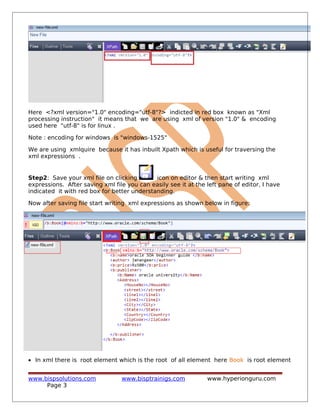
Here <?xml version="1.0" encoding="utf-8"?> indicted in red box known as "Xml
processing instruction" it means that we are using xml of version "1.0" & encoding
used here "utf-8" is for linux .
Note : encoding for windows is "windows-1525"
We are using xmlquire because it has inbuilt Xpath which is useful for traversing the
xml expressions .
Step2: Save your xml file on clicking icon on editor & then start writing xml
expressions. After saving xml file you can easily see it at the left pane of editor, I have
indicated it with red box for better understanding.
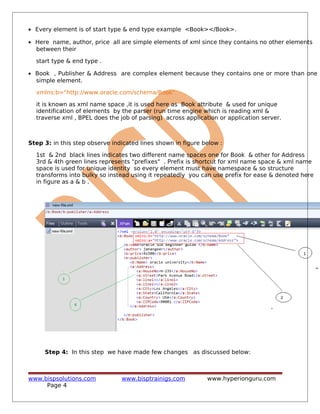
Now after saving file start writing xml expressions as shown below in figure:
• In xml there is root element which is the root of all element here Book is root element
www.bispsolutions.com www.bisptrainigs.com www.hyperionguru.com
Page 3
• Every element is of start type & end type example <Book></Book>.
• Here name, author, price all are simple elements of xml since they contains no other elements
between their
start type & end type .
• Book , Publisher & Address are complex element because they contains one or more than one
simple element.
xmlns:b="http://www.oracle.com/schema/Book"
it is known as xml name space ,it is used here as Book attribute & used for unique
identification of elements by the parser (run time engine which is reading xml &
traverse xml , BPEL does the job of parsing) across application or application server.
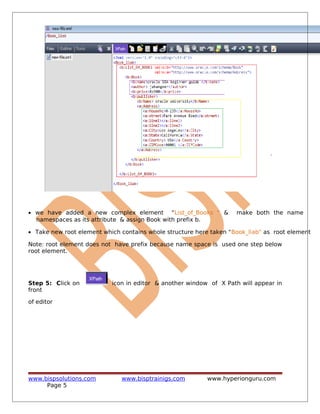
Step 3: in this step observe indicated lines shown in figure below :
1st & 2nd black lines indicates two different name spaces one for Book & other for Address
3rd & 4th green lines represents "prefixes" . Prefix is shortcut for xml name space & xml name
space is used for unique identity so every element must have namespace & so structure
transforms into bulky so instead using it repeatedly you can use prefix for ease & denoted here
in figure as a & b .
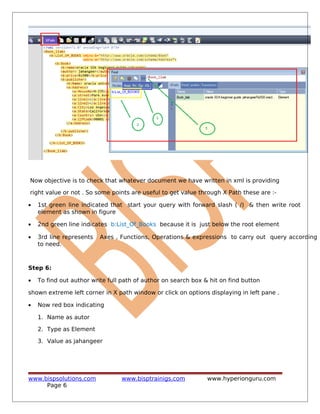
Step 4: In this step we have made few changes as discussed below:
www.bispsolutions.com www.bisptrainigs.com www.hyperionguru.com
Page 4
• we have added a new complex element "List_of_Books " & make both the name
namespaces as its attribute & assign Book with prefix b.
• Take new root element which contains whole structure here taken "Book_liab" as root element
Note: root element does not have prefix because name space is used one step below
root element.
Step 5: Click on icon in editor & another window of X Path will appear in
front
of editor
www.bispsolutions.com www.bisptrainigs.com www.hyperionguru.com
Page 5
Now objective is to check that whatever document we have written in xml is providing
right value or not . So some points are useful to get value through X Path these are :-
• 1st green line indicated that start your query with forward slash ( /) & then write root
element as shown in figure
• 2nd green line indicates b:List_Of_Books because it is just below the root element
• 3rd line represents Axes , Functions, Operations & expressions to carry out query according
to need.
Step 6:
• To find out author write full path of author on search box & hit on find button
shown extreme left corner in X path window or click on options displaying in left pane .
• Now red box indicating
1. Name as autor
2. Type as Element
3. Value as jahangeer
www.bispsolutions.com www.bisptrainigs.com www.hyperionguru.com
Page 6
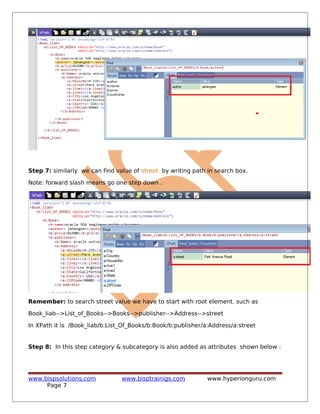
Step 7: similarly we can find value of street by writing path in search box.
Note: forward slash means go one step down .
Remember: to search street value we have to start with root element. such as
Book_liab-->List_of_Books-->Books-->publisher-->Address-->street
In XPath it is /Book_liab/b:List_Of_Books/b:Book/b:publisher/a:Address/a:street
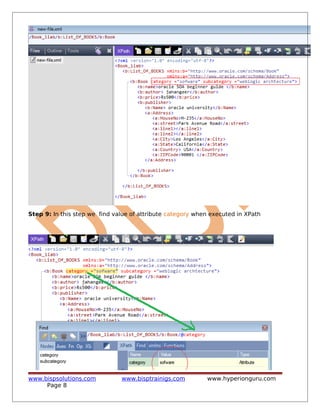
Step 8: In this step category & subcategory is also added as attributes shown below :
www.bispsolutions.com www.bisptrainigs.com www.hyperionguru.com
Page 7
Step 9: In this step we find value of attribute category when executed in XPath
www.bispsolutions.com www.bisptrainigs.com www.hyperionguru.com
Page 8
value as "software".
Note : attribute like category & subcategory are executed with forward slash preceded
with @ symbol.
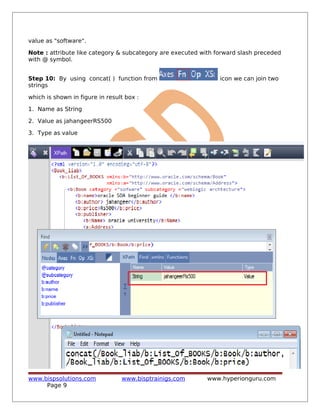
Step 10: By using concat( ) function from icon we can join two
strings
which is shown in figure in result box :
1. Name as String
2. Value as jahangeerRS500
3. Type as value
www.bispsolutions.com www.bisptrainigs.com www.hyperionguru.com
Page 9
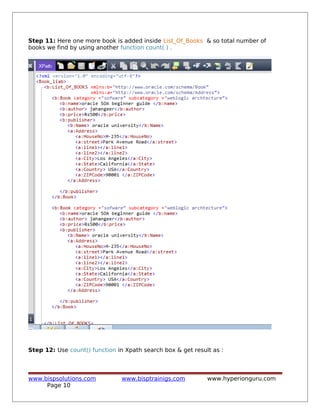
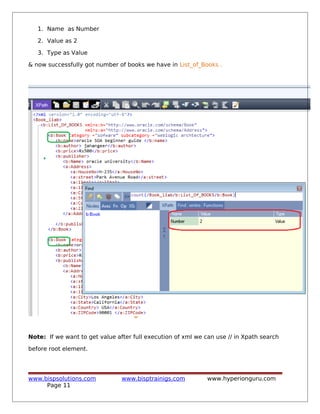
Step 11: Here one more book is added inside List_Of_Books & so total number of
books we find by using another function count( ) .
Step 12: Use count() function in Xpath search box & get result as :
www.bispsolutions.com www.bisptrainigs.com www.hyperionguru.com
Page 10
1. Name as Number
2. Value as 2
3. Type as Value
& now successfully got number of books we have in List_of_Books .
Note: If we want to get value after full execution of xml we can use // in Xpath search
before root element.
www.bispsolutions.com www.bisptrainigs.com www.hyperionguru.com
Page 11

Getting started-with-oracle-so a-i

  • 1.
    Getting Started withOracle SoA BASIC CONCEPT OF ORACLE SOA Lab#1 Description: BISP is committed to provide BEST learning material to the beginners and advance learners. In the same series, we have prepared a complete end-to end Hands-on Beginner’s Guide for Oracle SoA. The document focuses on basic keywords, terminology and definitions one should know before starting Oracle SoA. Join our professional training program and learn from experts. History: Version Description Change Author Publish Date 0.1 Initial Draft Shiva Kant Pandey 21th Aug 2012 0.1 Review#1 Amit Sharma 29th Aug 2012 www.bispsolutions.com www.bisptrainigs.com www.hyperionguru.com Page 1
  • 2.
    AGENDA -: Basiccourse required for SOA 1) XML 2) XPath 3) Xsd 4)WSDL Xml: it is a basic transportation or communication medium through which we transport data & structure the data. Note: [ xml files are saved as .xml] XPath: It is a technology for traversing xml documents & provide specific value or collection of values. Xsd: It is a schema definition file which define structure for xml document. WSDL: The Web Services Description Language is an xml-based interface description language that is used for describing the functionality offered by a web service. A WSDL description of a web service (also referred to as a WSDL file) provides a machine-readable description of how the service can be called, what parameters it expects, and what data structures it returns. It thus serves a purpose that corresponds roughly to that of a method signature in a programming language. Step wise introduction to xml • simple xml element • complex xml element • xml namespace • xml prefix Creating xml document in XMLQUIRE Editor:- Step 1: Open xml editor , it look like as shown below : www.bispsolutions.com www.bisptrainigs.com www.hyperionguru.com Page 2
  • 3.
    Here <?xml version="1.0"encoding="utf-8"?> indicted in red box known as "Xml processing instruction" it means that we are using xml of version "1.0" & encoding used here "utf-8" is for linux . Note : encoding for windows is "windows-1525" We are using xmlquire because it has inbuilt Xpath which is useful for traversing the xml expressions . Step2: Save your xml file on clicking icon on editor & then start writing xml expressions. After saving xml file you can easily see it at the left pane of editor, I have indicated it with red box for better understanding. Now after saving file start writing xml expressions as shown below in figure: • In xml there is root element which is the root of all element here Book is root element www.bispsolutions.com www.bisptrainigs.com www.hyperionguru.com Page 3
  • 4.
    • Every elementis of start type & end type example <Book></Book>. • Here name, author, price all are simple elements of xml since they contains no other elements between their start type & end type . • Book , Publisher & Address are complex element because they contains one or more than one simple element. xmlns:b="http://www.oracle.com/schema/Book" it is known as xml name space ,it is used here as Book attribute & used for unique identification of elements by the parser (run time engine which is reading xml & traverse xml , BPEL does the job of parsing) across application or application server. Step 3: in this step observe indicated lines shown in figure below : 1st & 2nd black lines indicates two different name spaces one for Book & other for Address 3rd & 4th green lines represents "prefixes" . Prefix is shortcut for xml name space & xml name space is used for unique identity so every element must have namespace & so structure transforms into bulky so instead using it repeatedly you can use prefix for ease & denoted here in figure as a & b . Step 4: In this step we have made few changes as discussed below: www.bispsolutions.com www.bisptrainigs.com www.hyperionguru.com Page 4
  • 5.
    • we haveadded a new complex element "List_of_Books " & make both the name namespaces as its attribute & assign Book with prefix b. • Take new root element which contains whole structure here taken "Book_liab" as root element Note: root element does not have prefix because name space is used one step below root element. Step 5: Click on icon in editor & another window of X Path will appear in front of editor www.bispsolutions.com www.bisptrainigs.com www.hyperionguru.com Page 5
  • 6.
    Now objective isto check that whatever document we have written in xml is providing right value or not . So some points are useful to get value through X Path these are :- • 1st green line indicated that start your query with forward slash ( /) & then write root element as shown in figure • 2nd green line indicates b:List_Of_Books because it is just below the root element • 3rd line represents Axes , Functions, Operations & expressions to carry out query according to need. Step 6: • To find out author write full path of author on search box & hit on find button shown extreme left corner in X path window or click on options displaying in left pane . • Now red box indicating 1. Name as autor 2. Type as Element 3. Value as jahangeer www.bispsolutions.com www.bisptrainigs.com www.hyperionguru.com Page 6
  • 7.
    Step 7: similarlywe can find value of street by writing path in search box. Note: forward slash means go one step down . Remember: to search street value we have to start with root element. such as Book_liab-->List_of_Books-->Books-->publisher-->Address-->street In XPath it is /Book_liab/b:List_Of_Books/b:Book/b:publisher/a:Address/a:street Step 8: In this step category & subcategory is also added as attributes shown below : www.bispsolutions.com www.bisptrainigs.com www.hyperionguru.com Page 7
  • 8.
    Step 9: Inthis step we find value of attribute category when executed in XPath www.bispsolutions.com www.bisptrainigs.com www.hyperionguru.com Page 8
  • 9.
    value as "software". Note: attribute like category & subcategory are executed with forward slash preceded with @ symbol. Step 10: By using concat( ) function from icon we can join two strings which is shown in figure in result box : 1. Name as String 2. Value as jahangeerRS500 3. Type as value www.bispsolutions.com www.bisptrainigs.com www.hyperionguru.com Page 9
  • 10.
    Step 11: Hereone more book is added inside List_Of_Books & so total number of books we find by using another function count( ) . Step 12: Use count() function in Xpath search box & get result as : www.bispsolutions.com www.bisptrainigs.com www.hyperionguru.com Page 10
  • 11.
    1. Name asNumber 2. Value as 2 3. Type as Value & now successfully got number of books we have in List_of_Books . Note: If we want to get value after full execution of xml we can use // in Xpath search before root element. www.bispsolutions.com www.bisptrainigs.com www.hyperionguru.com Page 11