Working with Wikispaces An introduction
What is a wiki….?  a website that allows visitors to add, remove, edit and change content. It also allows for linking among any number of pages and websites. It is easy to use  and an effective tool for collaborative authoring.
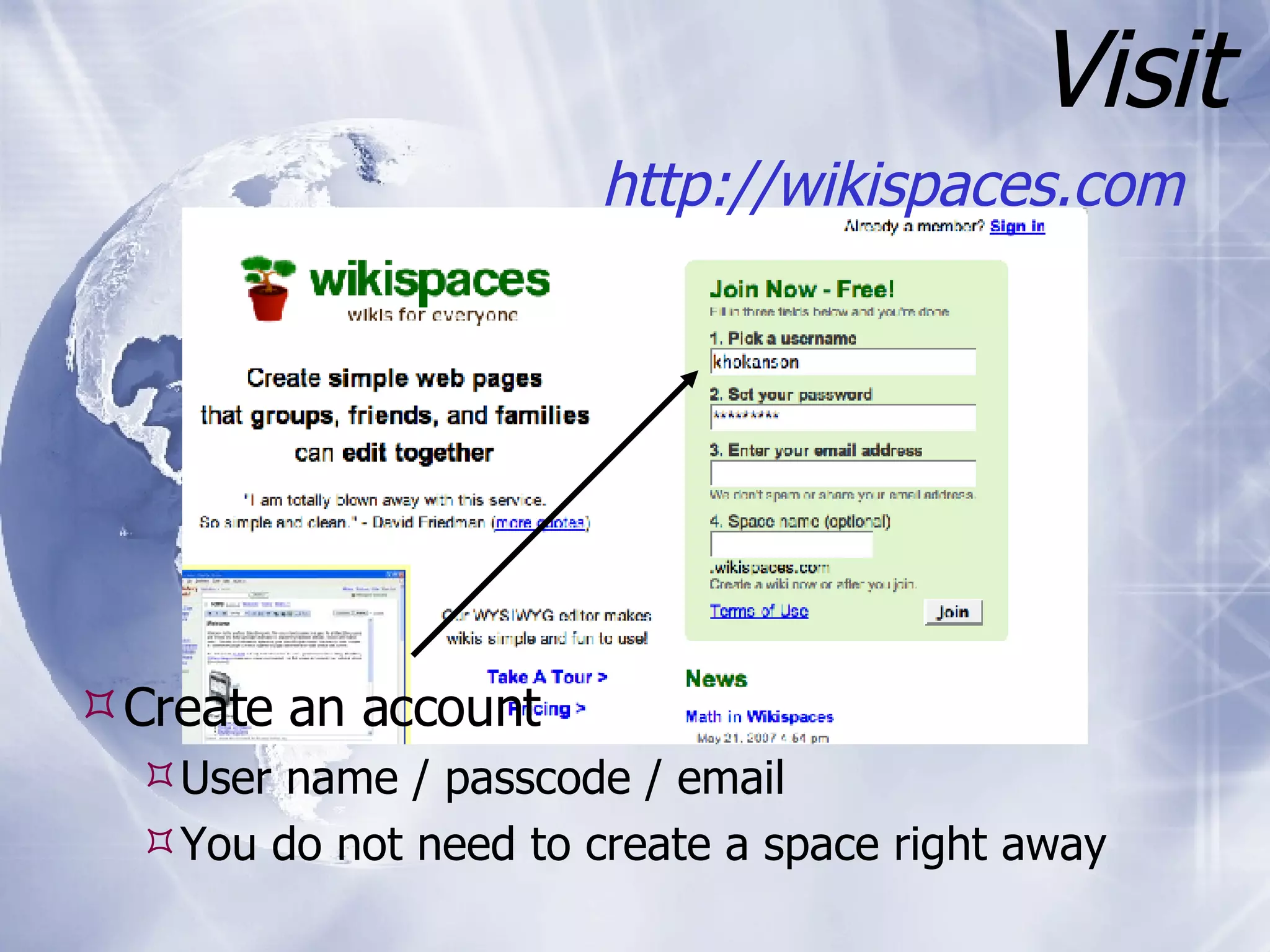
Visit http://wikispaces.com   Create an account User name / passcode / email You do not need to create a space right away
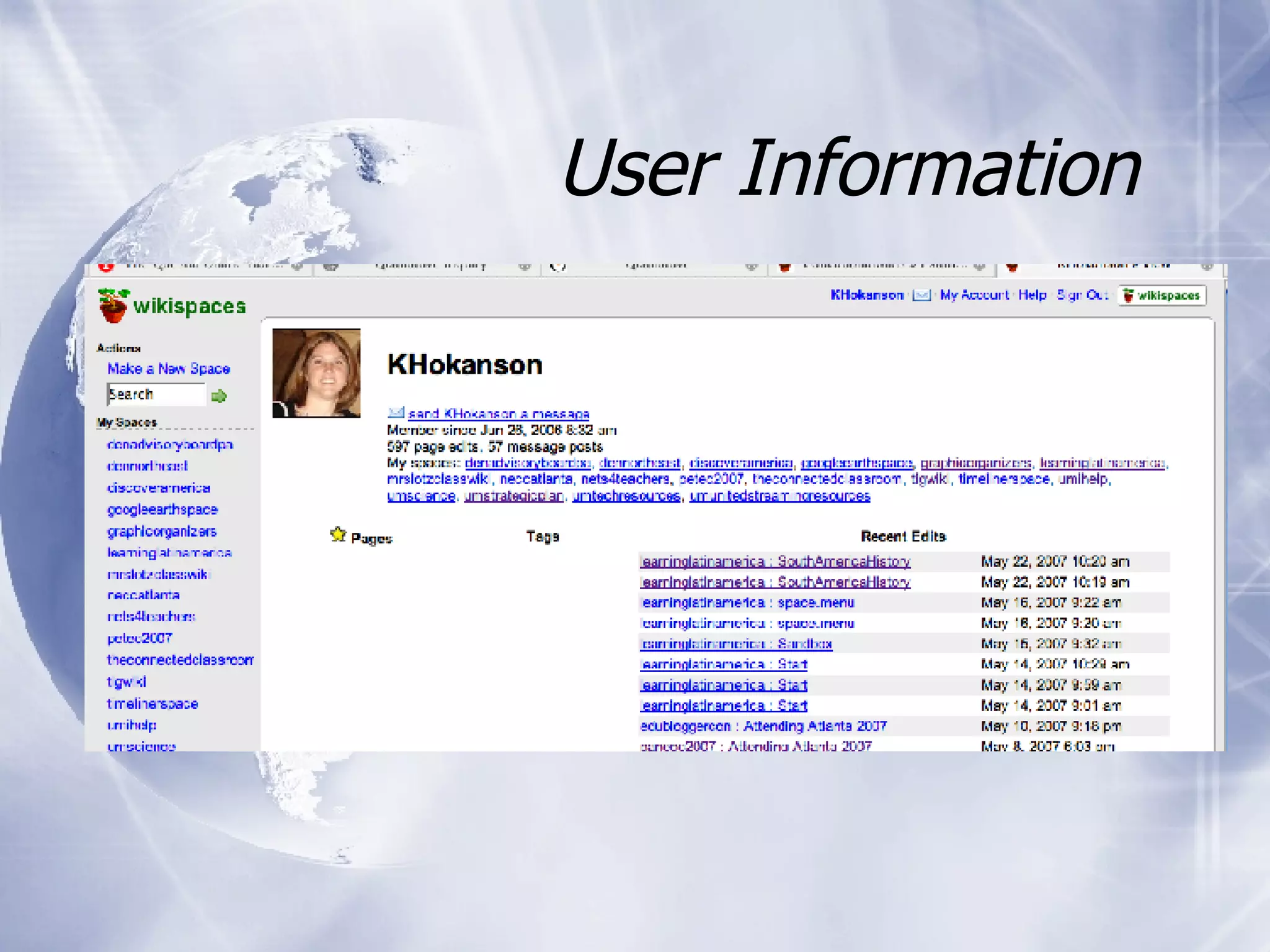
User Information
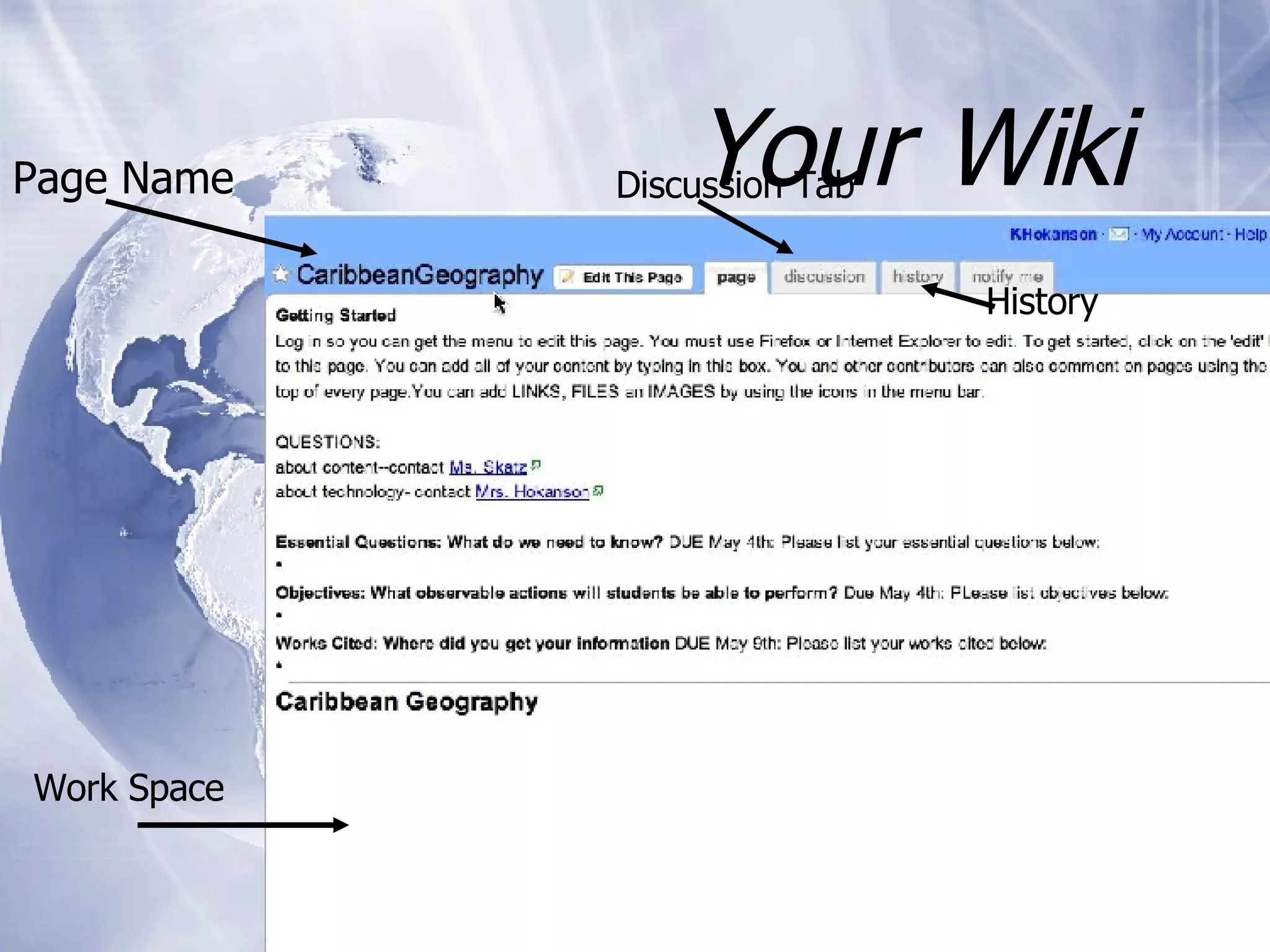
Your Wiki  Page Name Discussion Tab Work Space History
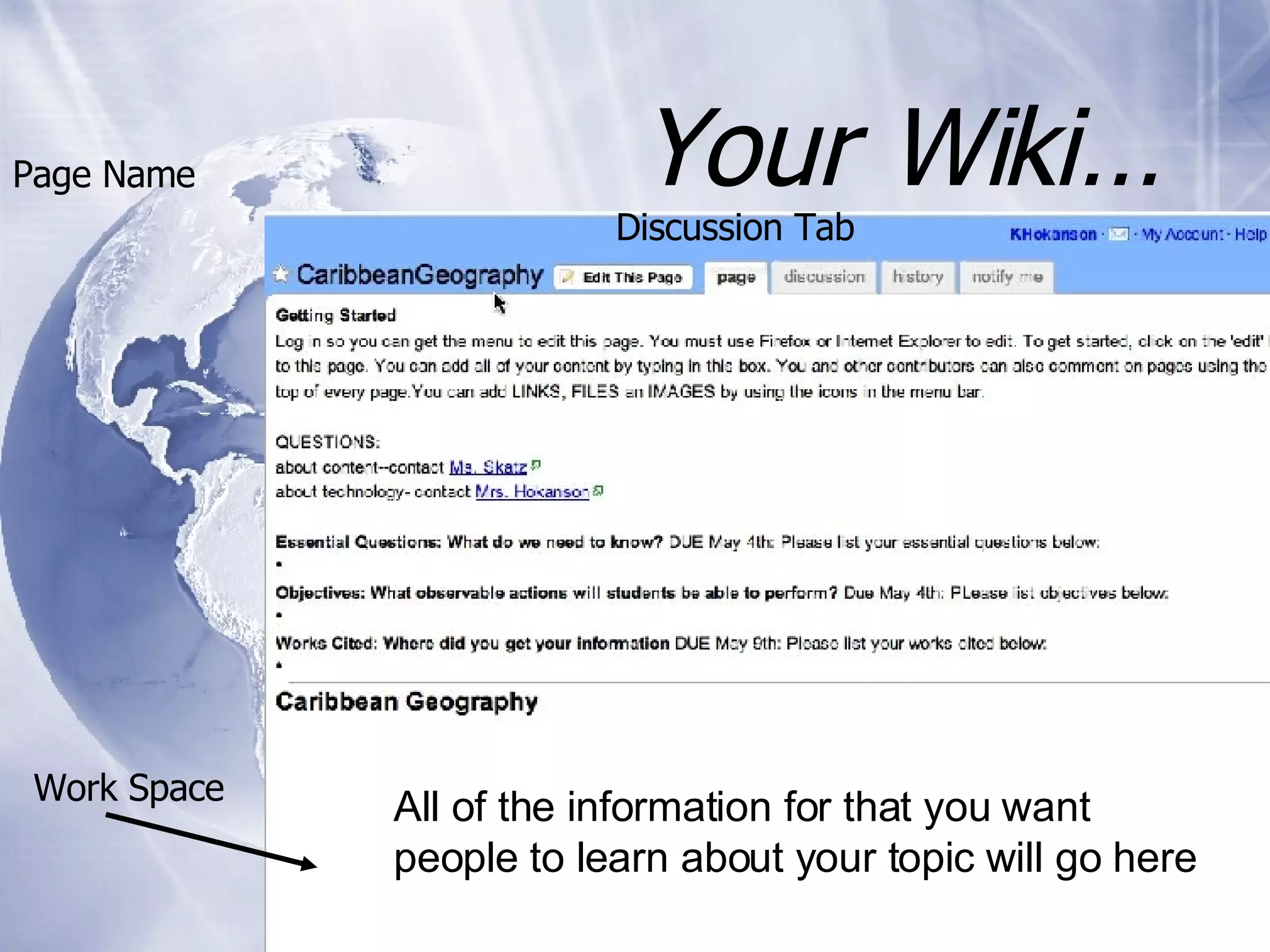
Your Wiki… Page Name Discussion Tab Work Space All of the information for that you want people to learn about your topic will go here
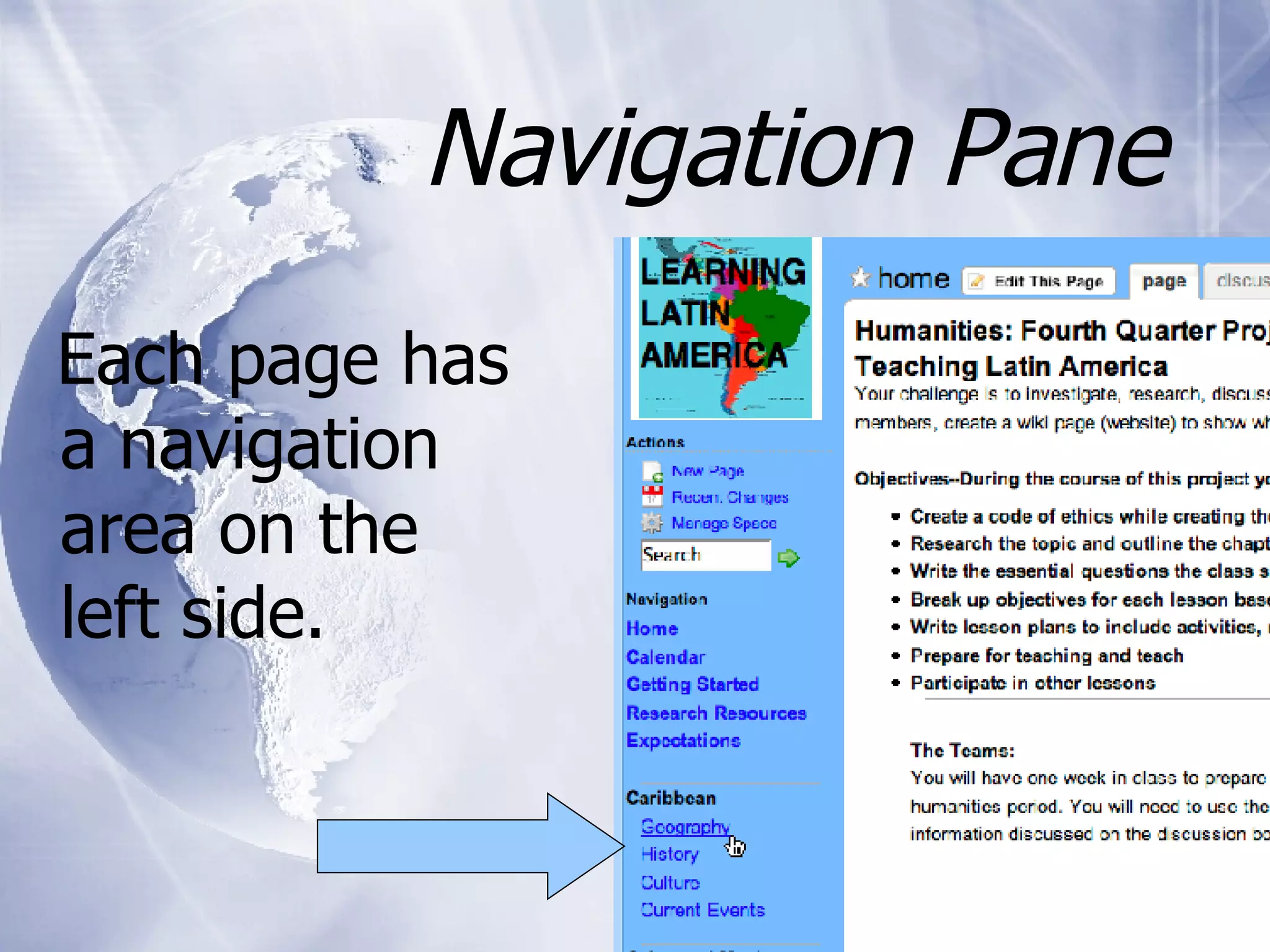
Navigation Pane Each page has a navigation area on the left side.
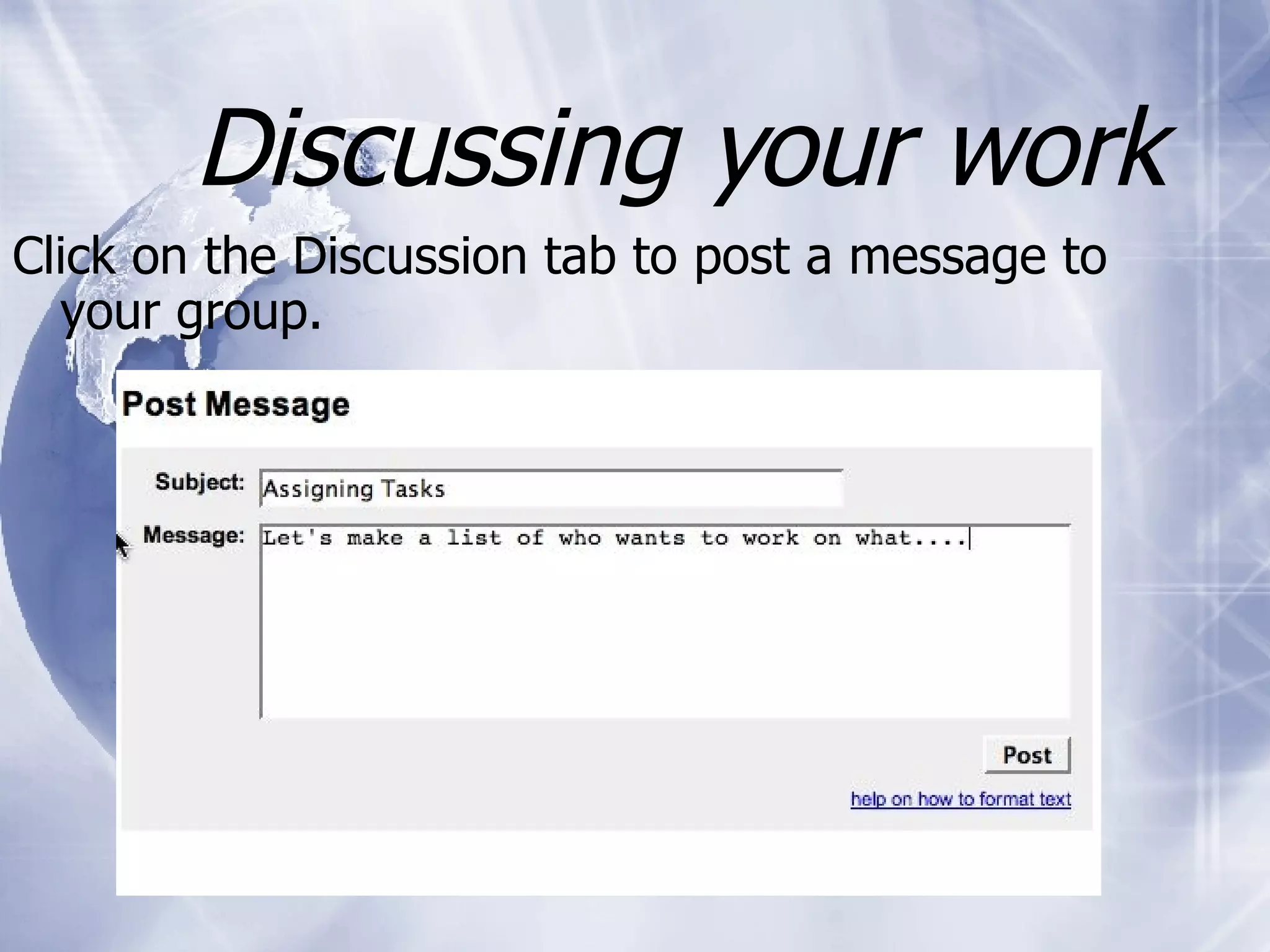
Discussing your work Click on the Discussion tab to post a message to your group.
Editing your page INSERTING TEXT Click on <Edit this page> ONLY ONE PERSON can edit at a time.  You may want to cut and paste your work from MS Word and save right away. Use the discussion tab to communicate with your group.
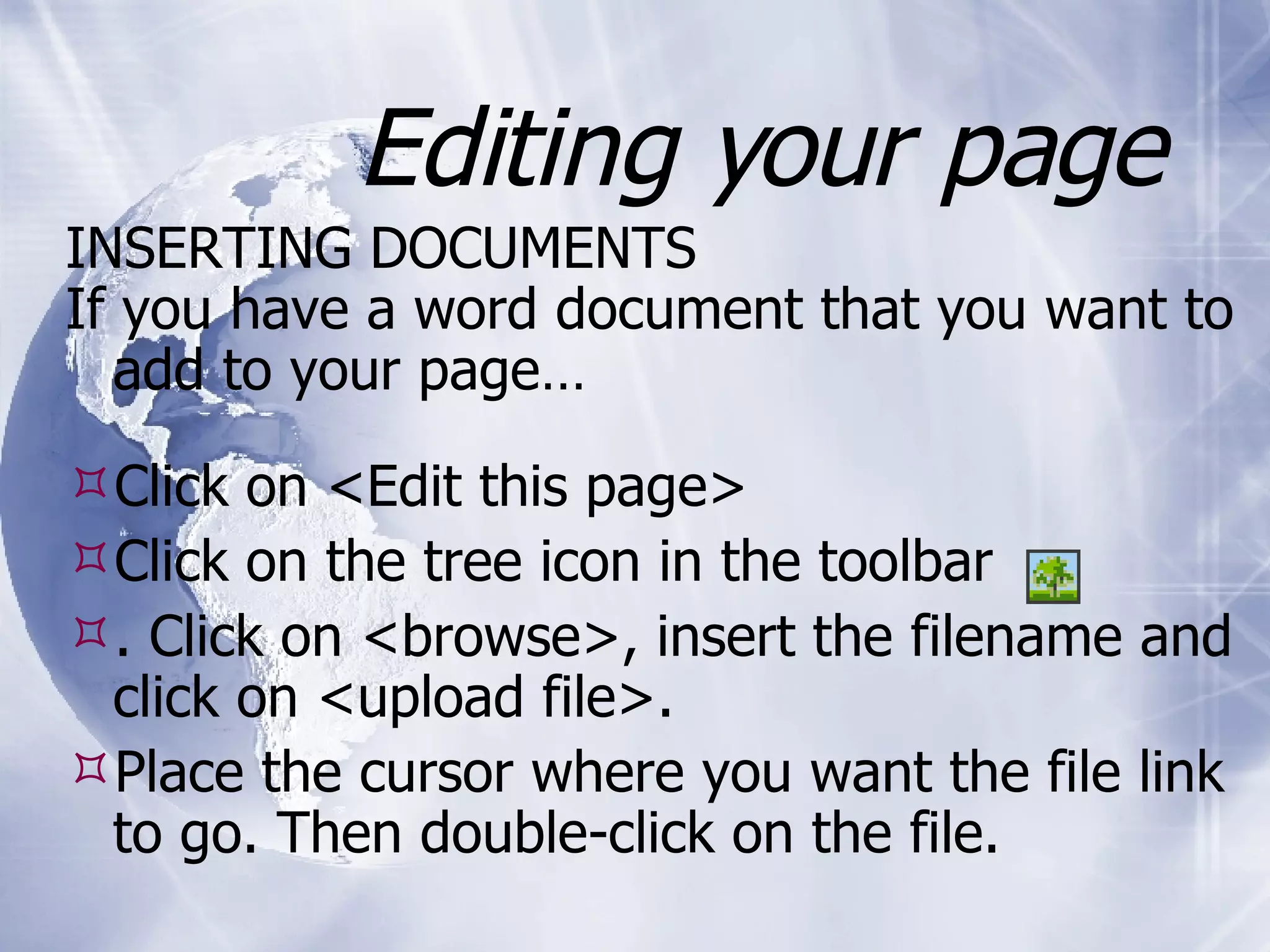
Editing your page INSERTING DOCUMENTS If you have a word document that you want to add to your page… Click on <Edit this page> Click on the tree icon in the toolbar  . Click on <browse>, insert the filename and click on <upload file>.  Place the cursor where you want the file link to go. Then double-click on the file.
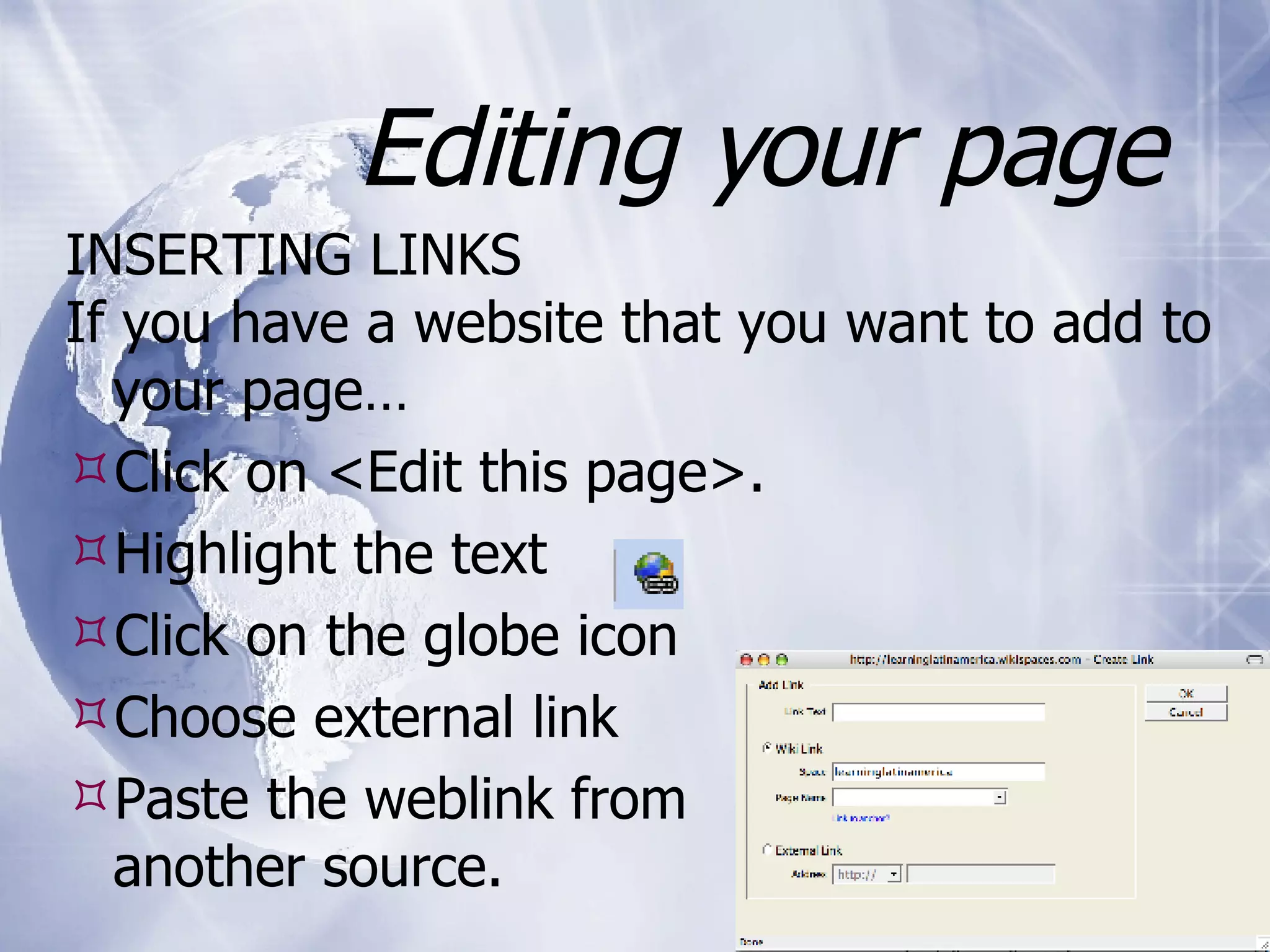
Editing your page INSERTING LINKS If you have a website that you want to add to your page… Click on <Edit this page>.  Highlight the text  Click on the globe icon  Choose external link  Paste the weblink from  another source.
Some cool tools… For Recording audio  EVOCA  http://www.evoca.com/ For Embedding PowerPoints SLIDESHARE  http://www.slideshare.net/
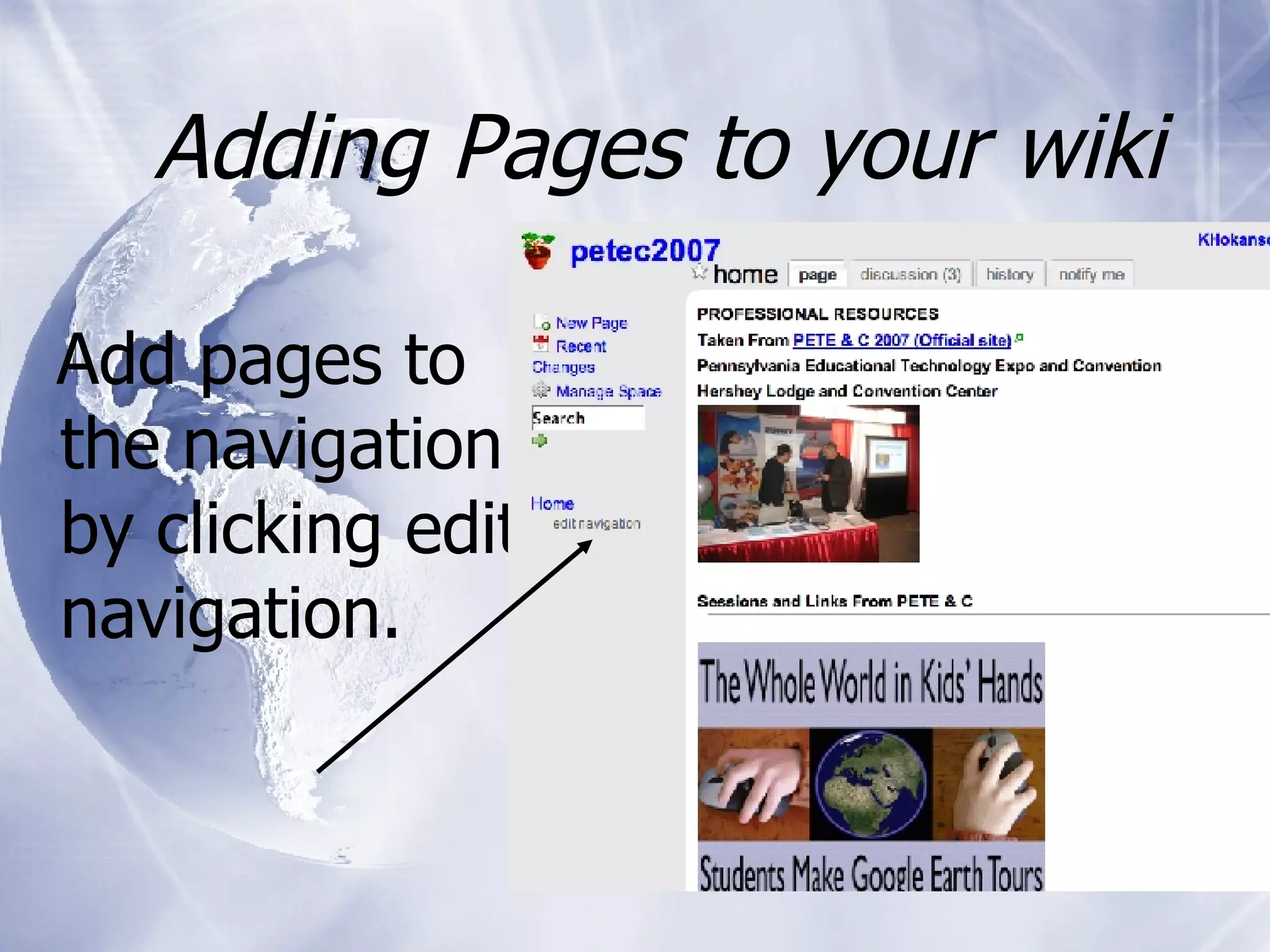
Adding Pages to your wiki Add pages to the navigation by clicking edit navigation.

Elluminate wiki intro

  • 1.
    Working with WikispacesAn introduction
  • 2.
    What is awiki….? a website that allows visitors to add, remove, edit and change content. It also allows for linking among any number of pages and websites. It is easy to use and an effective tool for collaborative authoring.
  • 3.
    Visit http://wikispaces.com Create an account User name / passcode / email You do not need to create a space right away
  • 4.
  • 5.
    Your Wiki Page Name Discussion Tab Work Space History
  • 6.
    Your Wiki… PageName Discussion Tab Work Space All of the information for that you want people to learn about your topic will go here
  • 7.
    Navigation Pane Eachpage has a navigation area on the left side.
  • 8.
    Discussing your workClick on the Discussion tab to post a message to your group.
  • 9.
    Editing your pageINSERTING TEXT Click on <Edit this page> ONLY ONE PERSON can edit at a time. You may want to cut and paste your work from MS Word and save right away. Use the discussion tab to communicate with your group.
  • 10.
    Editing your pageINSERTING DOCUMENTS If you have a word document that you want to add to your page… Click on <Edit this page> Click on the tree icon in the toolbar . Click on <browse>, insert the filename and click on <upload file>. Place the cursor where you want the file link to go. Then double-click on the file.
  • 11.
    Editing your pageINSERTING LINKS If you have a website that you want to add to your page… Click on <Edit this page>. Highlight the text Click on the globe icon Choose external link Paste the weblink from another source.
  • 12.
    Some cool tools…For Recording audio EVOCA http://www.evoca.com/ For Embedding PowerPoints SLIDESHARE http://www.slideshare.net/
  • 13.
    Adding Pages toyour wiki Add pages to the navigation by clicking edit navigation.