B Y P R I Y A F R O M M Y A S S I G N M E N T
S O L U T I O N
GETTING STARTED WITH
SOLIDWORKS FOR 3D PRODUCT
DESIGN
91-7003208935
WWW.MYASSIGNMENTSOLUTION.ORG
TABLE OF CONTENTS
1.Introduction to SolidWorks
2.Setting Up SolidWorks
3.Basic Sketching
Techniques
4.Building 3D Models
5.Assembly Modeling
6.Creating Technical
Drawings
7.Simulation and Analysis
8.Rendering and
Visualization
9.Advanced Features
10.Tips and Best Practices
11.References
Introduction to
SolidWorks
SolidWorks is a powerful 3D CAD software used
for designing and modeling products across
various industries. It offers a comprehensive suite
of tools that allow designers to create detailed
and precise models.
SolidWorks plays a crucial role in product
development, facilitating everything from
initial sketches to detailed simulations and
final renderings. Its intuitive interface and
robust functionality make it a preferred
choice for professionals and students alike.
SETTING UP
SOLIDWORKS
INSTALLATION PROCESS
Installing SolidWorks involves downloading the
software package, running the installer, and following
the on-screen instructions. Ensure that your system
meets the minimum requirements to avoid installation
issues.
NAVIGATING THE INTERFACE
Upon launching SolidWorks, familiarize yourself with the
interface, which includes the CommandManager,
FeatureManager Design Tree, and PropertyManager. These
tools are essential for navigating and utilizing the software
effectively.
CUSTOMIZING TOOLS AND
ENVIRONMENT
SolidWorks allows extensive customization of its tools
and workspace. Tailor the environment to suit your
workflow by adjusting toolbars, setting shortcuts, and
managing add-ins.
Begin by selecting the Sketch tool and choosing a
plane to draw on. Utilize basic shapes like lines,
circles, and rectangles to form the foundation of
your models.
BASIC SKETCHING
TECHNIQUES
CREATING BASIC SHAPES
USING SKETCH TOOLS
SolidWorks offers various sketch tools, such as Trim,
Extend, and Convert Entities, to refine and modify
sketches. Practice using these tools to enhance your
designs.
SKETCH RELATIONS AND
DIMENSIONS
Apply sketch relations, such as parallel, perpendicular,
and tangent, to define geometric relationships. Use
dimensions to specify exact sizes and maintain design
intent.
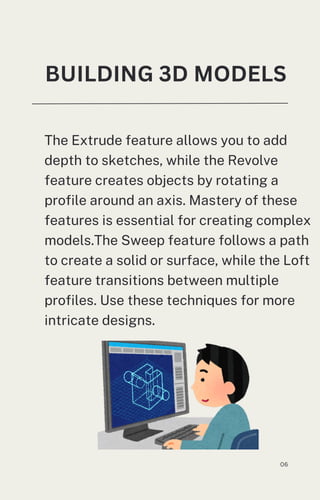
The Extrude feature allows you to add
depth to sketches, while the Revolve
feature creates objects by rotating a
profile around an axis. Mastery of these
features is essential for creating complex
models.The Sweep feature follows a path
to create a solid or surface, while the Loft
feature transitions between multiple
profiles. Use these techniques for more
intricate designs.
BUILDING 3D MODELS
06
Assemblies are collections of parts
arranged to form a complete product.
Begin by inserting components and
organizing them logically.Use mates and
constraints to define how parts interact
within an assembly. Common mates
include coincident, concentric, and
distance.Exploded views illustrate the
assembly process by spreading
components apart. They are useful for
instructional guides and presentations.
ASSEMBLY MODELING
Convert 3D models into 2D drawings to
communicate design specifications. SolidWorks
provides tools to automatically generate views,
such as front, side, and isometric.Add
annotations to convey additional information,
and use dimensions to specify measurements.
Ensure all necessary details are included for
manufacturing.Export drawings in various
formats, such as PDF or DXF, for distribution or
manufacturing. Use print settings to control
layout and scale.
CREATING TECHNICAL DRAWINGS
09
SIMULATION AND ANALYSIS
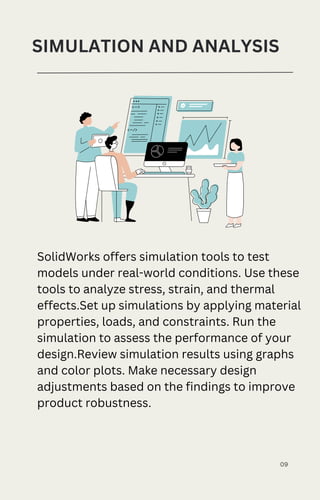
SolidWorks offers simulation tools to test
models under real-world conditions. Use these
tools to analyze stress, strain, and thermal
effects.Set up simulations by applying material
properties, loads, and constraints. Run the
simulation to assess the performance of your
design.Review simulation results using graphs
and color plots. Make necessary design
adjustments based on the findings to improve
product robustness.
RENDERING AND
VISUALIZATION
Rendering enhances the visual appeal of
models by applying materials and
lighting. Use the Photoview 360 add-in
for high-quality renders.Apply realistic
textures and adjust lighting settings to
improve model presentations.
Experiment with different environments
to find the best setup.Create animations
to demonstrate product functionality or
assembly procedures. Use keyframes to
control the motion of components.
Surface modeling is used for creating
complex, freeform shapes. SolidWorks
provides various tools for constructing and
manipulating surfaces.The sheet metal
feature simplifies the creation of parts that
are manufactured from flat sheets. Use
tools like bends, flanges, and cutouts to
design sheet metal components.
ADVANCED FEATURES
TIPS AND BEST PRACTICES
Streamline your design process by using
templates, macros, and design tables.
Regularly update templates to reflect best
practices.Common Mistakes to Avoid
Avoid overcomplicating sketches and
ensure models are fully defined. Regularly
check for errors in assemblies and resolve
them promptly.
REFERENCES
1.SolidWorks Corporation. (2025).
SolidWorks 2025 User Guide.
Waltham, MA: SolidWorks
Corporation.
2.Jones, A. (2024). Mastering
SolidWorks: A Comprehensive Guide.
New York, NY: Engineering Press.
3.Smith, R. (2023). 3D Modeling
Fundamentals with SolidWorks. San
Francisco, CA: Design Publishing.

Getting Started with SolidWorks for 3D Product Design.pdf

  • 1.
    B Y PR I Y A F R O M M Y A S S I G N M E N T S O L U T I O N GETTING STARTED WITH SOLIDWORKS FOR 3D PRODUCT DESIGN 91-7003208935 WWW.MYASSIGNMENTSOLUTION.ORG
  • 2.
    TABLE OF CONTENTS 1.Introductionto SolidWorks 2.Setting Up SolidWorks 3.Basic Sketching Techniques 4.Building 3D Models 5.Assembly Modeling 6.Creating Technical Drawings 7.Simulation and Analysis 8.Rendering and Visualization 9.Advanced Features 10.Tips and Best Practices 11.References
  • 3.
    Introduction to SolidWorks SolidWorks isa powerful 3D CAD software used for designing and modeling products across various industries. It offers a comprehensive suite of tools that allow designers to create detailed and precise models. SolidWorks plays a crucial role in product development, facilitating everything from initial sketches to detailed simulations and final renderings. Its intuitive interface and robust functionality make it a preferred choice for professionals and students alike.
  • 4.
    SETTING UP SOLIDWORKS INSTALLATION PROCESS InstallingSolidWorks involves downloading the software package, running the installer, and following the on-screen instructions. Ensure that your system meets the minimum requirements to avoid installation issues. NAVIGATING THE INTERFACE Upon launching SolidWorks, familiarize yourself with the interface, which includes the CommandManager, FeatureManager Design Tree, and PropertyManager. These tools are essential for navigating and utilizing the software effectively. CUSTOMIZING TOOLS AND ENVIRONMENT SolidWorks allows extensive customization of its tools and workspace. Tailor the environment to suit your workflow by adjusting toolbars, setting shortcuts, and managing add-ins.
  • 5.
    Begin by selectingthe Sketch tool and choosing a plane to draw on. Utilize basic shapes like lines, circles, and rectangles to form the foundation of your models. BASIC SKETCHING TECHNIQUES CREATING BASIC SHAPES USING SKETCH TOOLS SolidWorks offers various sketch tools, such as Trim, Extend, and Convert Entities, to refine and modify sketches. Practice using these tools to enhance your designs. SKETCH RELATIONS AND DIMENSIONS Apply sketch relations, such as parallel, perpendicular, and tangent, to define geometric relationships. Use dimensions to specify exact sizes and maintain design intent.
  • 6.
    The Extrude featureallows you to add depth to sketches, while the Revolve feature creates objects by rotating a profile around an axis. Mastery of these features is essential for creating complex models.The Sweep feature follows a path to create a solid or surface, while the Loft feature transitions between multiple profiles. Use these techniques for more intricate designs. BUILDING 3D MODELS 06
  • 7.
    Assemblies are collectionsof parts arranged to form a complete product. Begin by inserting components and organizing them logically.Use mates and constraints to define how parts interact within an assembly. Common mates include coincident, concentric, and distance.Exploded views illustrate the assembly process by spreading components apart. They are useful for instructional guides and presentations. ASSEMBLY MODELING
  • 8.
    Convert 3D modelsinto 2D drawings to communicate design specifications. SolidWorks provides tools to automatically generate views, such as front, side, and isometric.Add annotations to convey additional information, and use dimensions to specify measurements. Ensure all necessary details are included for manufacturing.Export drawings in various formats, such as PDF or DXF, for distribution or manufacturing. Use print settings to control layout and scale. CREATING TECHNICAL DRAWINGS
  • 9.
    09 SIMULATION AND ANALYSIS SolidWorksoffers simulation tools to test models under real-world conditions. Use these tools to analyze stress, strain, and thermal effects.Set up simulations by applying material properties, loads, and constraints. Run the simulation to assess the performance of your design.Review simulation results using graphs and color plots. Make necessary design adjustments based on the findings to improve product robustness.
  • 10.
    RENDERING AND VISUALIZATION Rendering enhancesthe visual appeal of models by applying materials and lighting. Use the Photoview 360 add-in for high-quality renders.Apply realistic textures and adjust lighting settings to improve model presentations. Experiment with different environments to find the best setup.Create animations to demonstrate product functionality or assembly procedures. Use keyframes to control the motion of components.
  • 11.
    Surface modeling isused for creating complex, freeform shapes. SolidWorks provides various tools for constructing and manipulating surfaces.The sheet metal feature simplifies the creation of parts that are manufactured from flat sheets. Use tools like bends, flanges, and cutouts to design sheet metal components. ADVANCED FEATURES
  • 12.
    TIPS AND BESTPRACTICES Streamline your design process by using templates, macros, and design tables. Regularly update templates to reflect best practices.Common Mistakes to Avoid Avoid overcomplicating sketches and ensure models are fully defined. Regularly check for errors in assemblies and resolve them promptly.
  • 13.
    REFERENCES 1.SolidWorks Corporation. (2025). SolidWorks2025 User Guide. Waltham, MA: SolidWorks Corporation. 2.Jones, A. (2024). Mastering SolidWorks: A Comprehensive Guide. New York, NY: Engineering Press. 3.Smith, R. (2023). 3D Modeling Fundamentals with SolidWorks. San Francisco, CA: Design Publishing.