





DROPBOX
STEP by STEP
GUIDE ON
HOW TO USE
DROPBOX
WHAT IS
DROPBOX?
Dropbox is a home for
all your photos, docs,
videos, and files.
Dropbox is a
service that keeps
your files safe,
synced, and easy
to share.
Anything you add to
Dropbox will
automatically show up
on all your computers,
phones and even the
Dropbox website.
Dropbox is a
personal
cloud storage
service.
Dropbox can bring
your photos, docs,
and videos
anywhere.
Dropbox is used for
file sharing and
collaboration.
Dropbox desktop
application runs on
Windows, Mac, or
Linux operating
systems.
How to use
Dropbox?
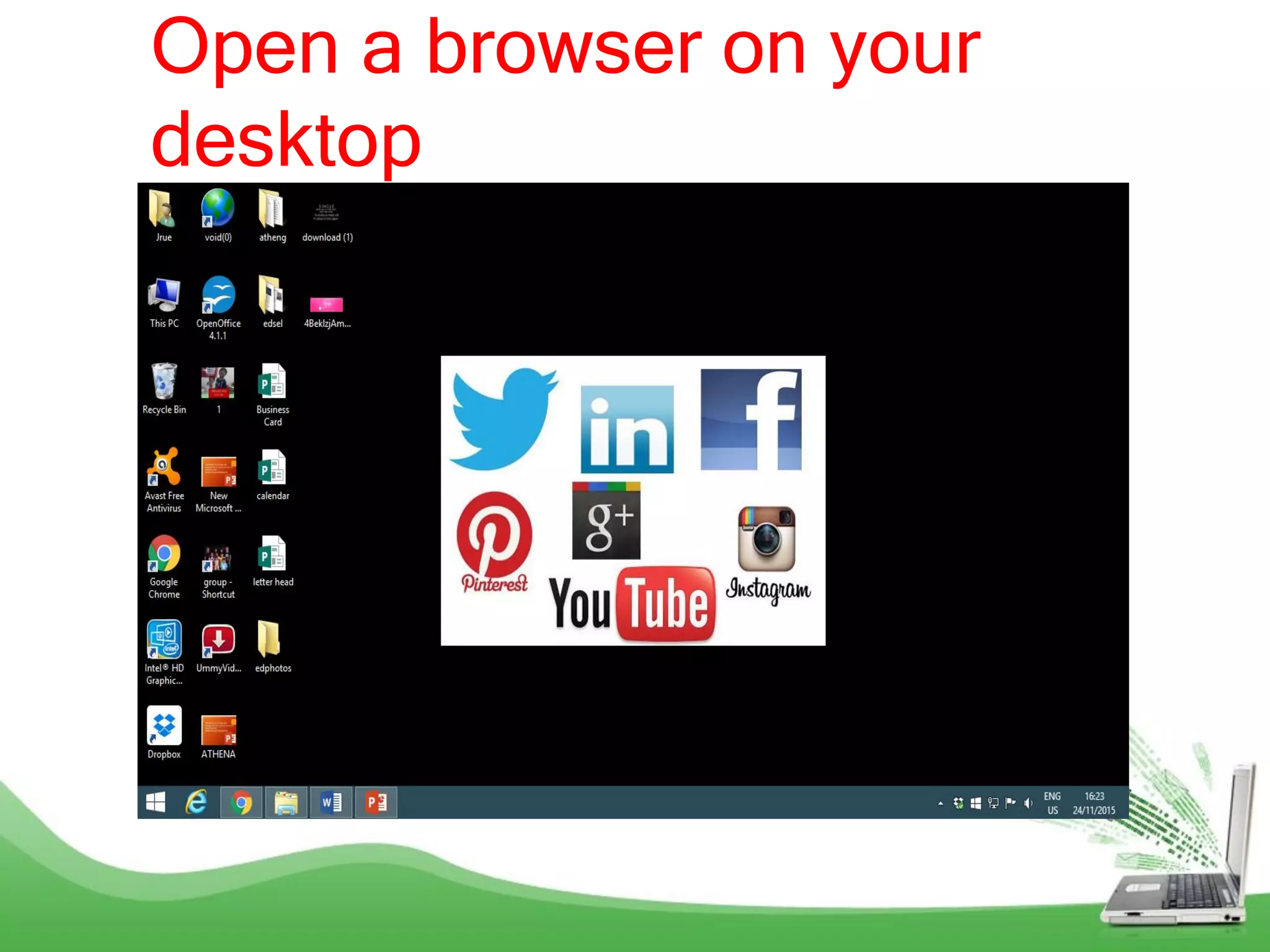
Open a browser on your
desktop
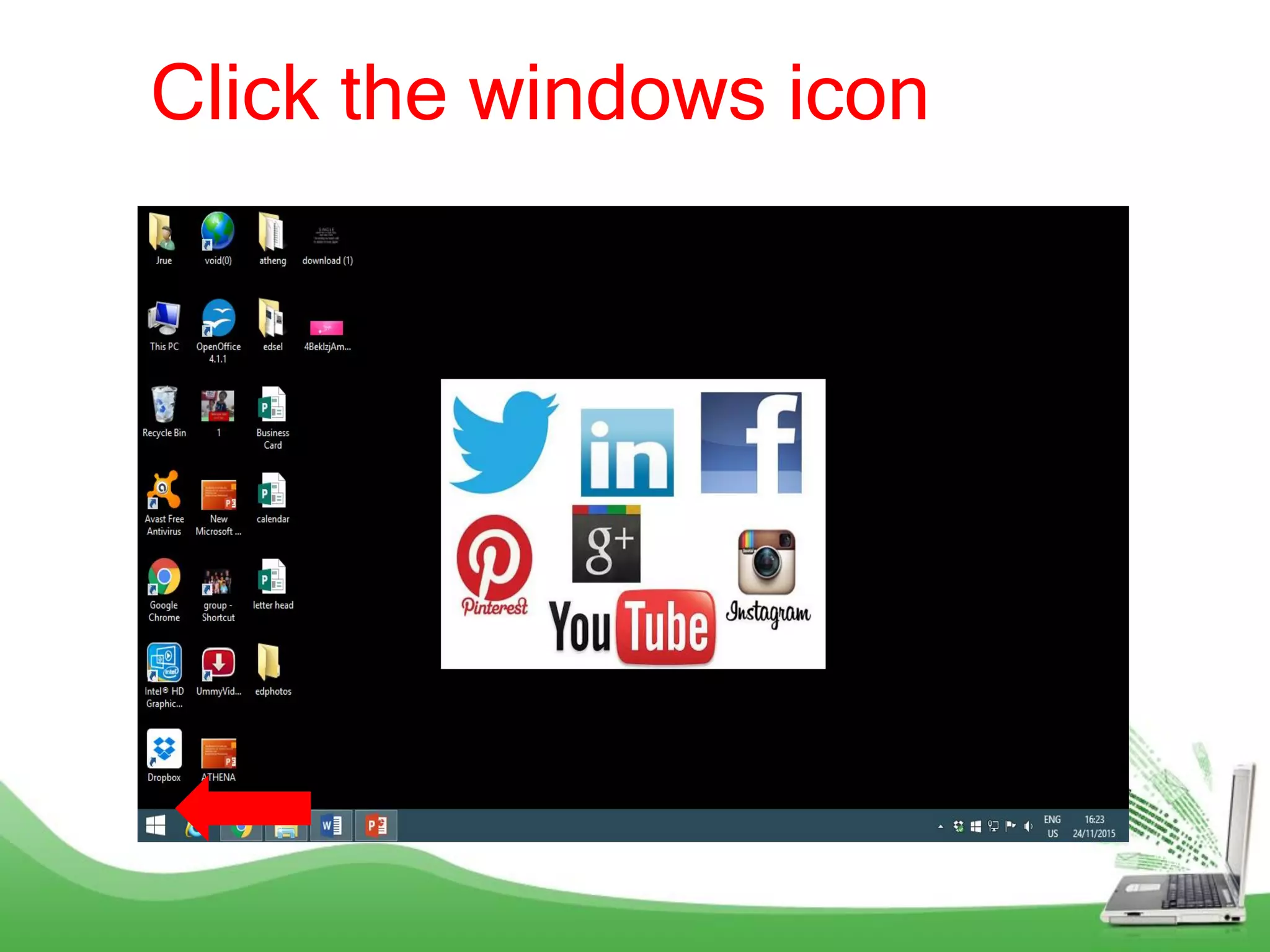
Click the windows icon
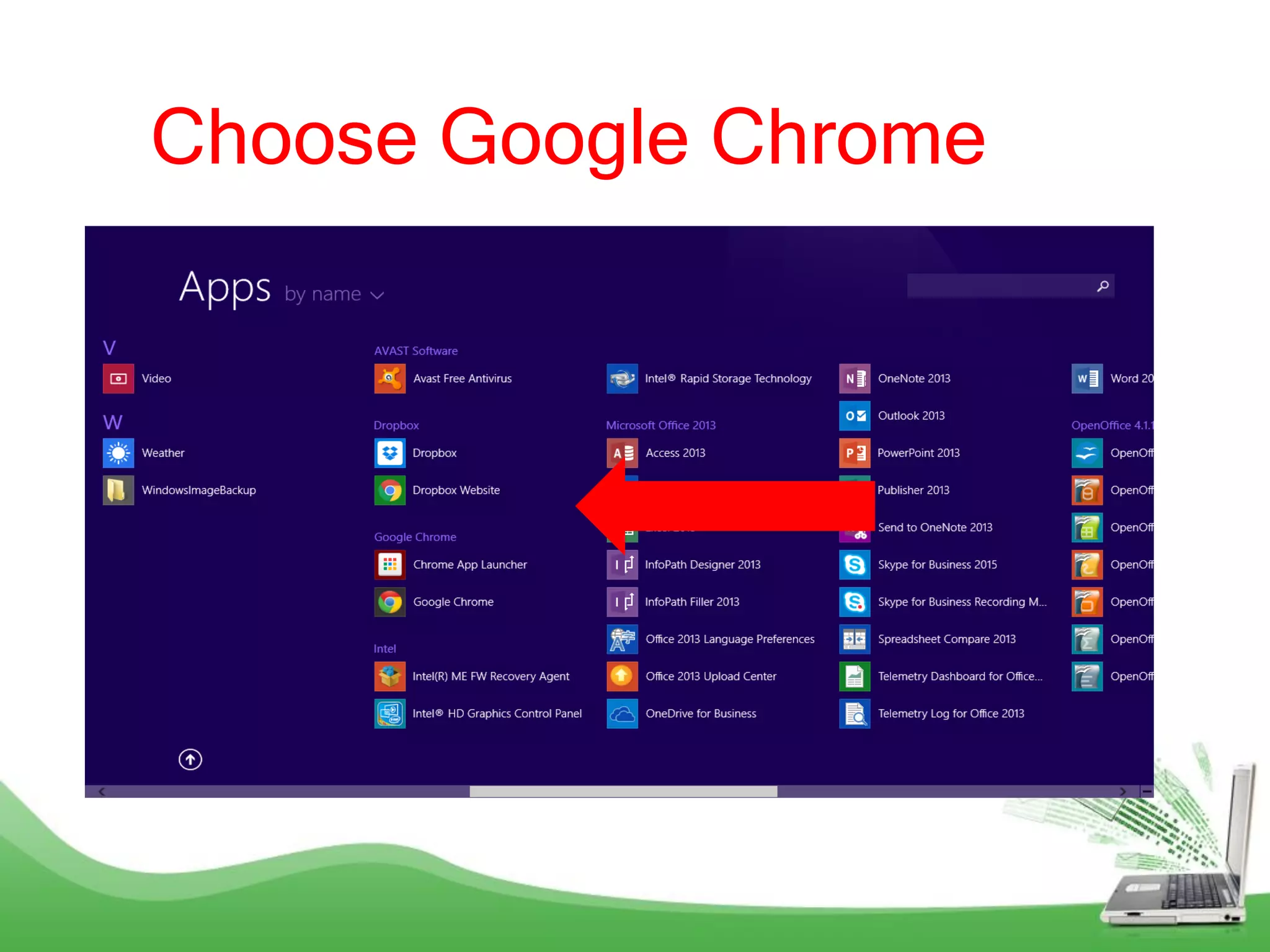
Choose Google Chrome
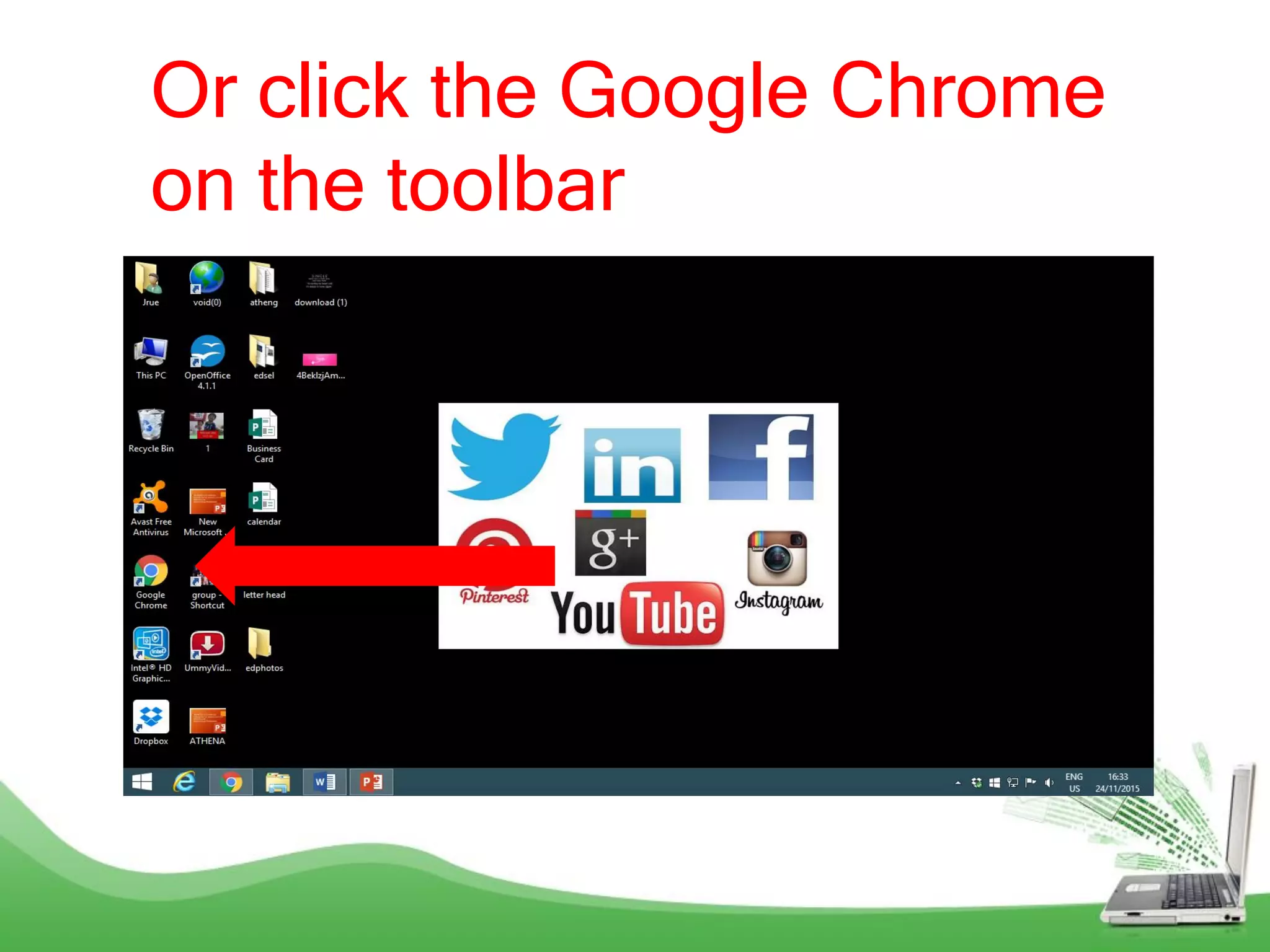
Or click the Google Chrome
on the toolbar
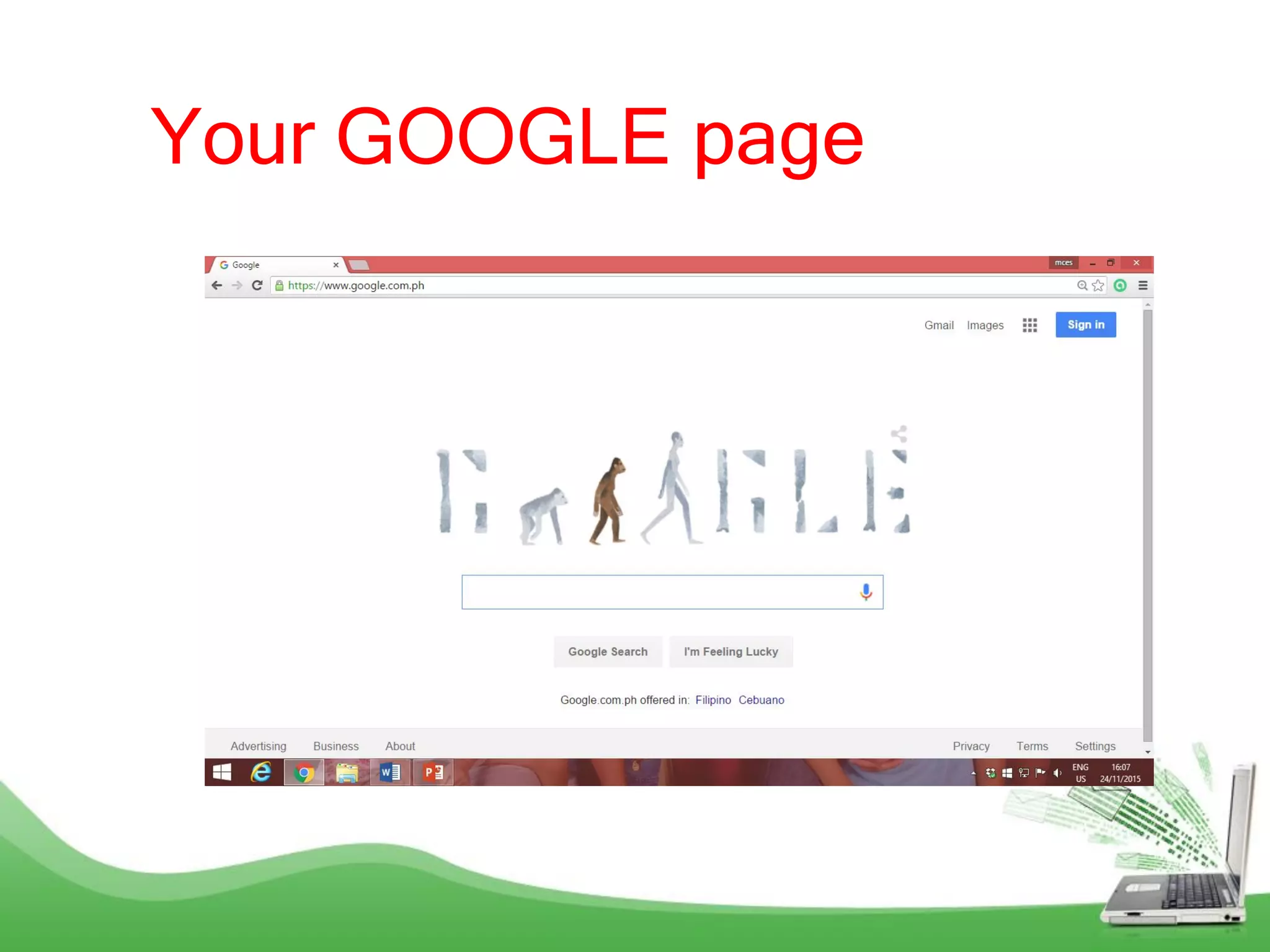
Your GOOGLE page
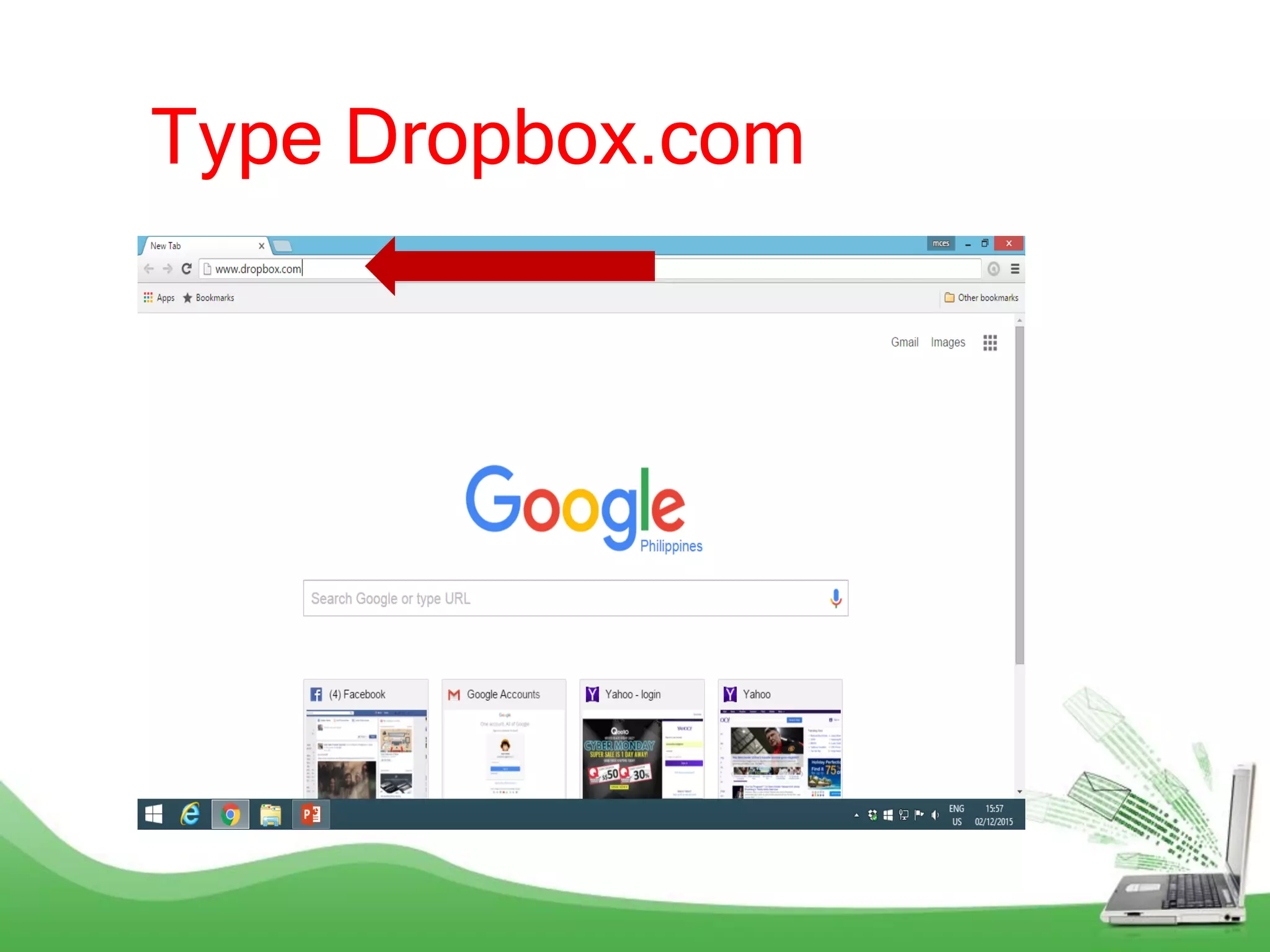
Type Dropbox.com
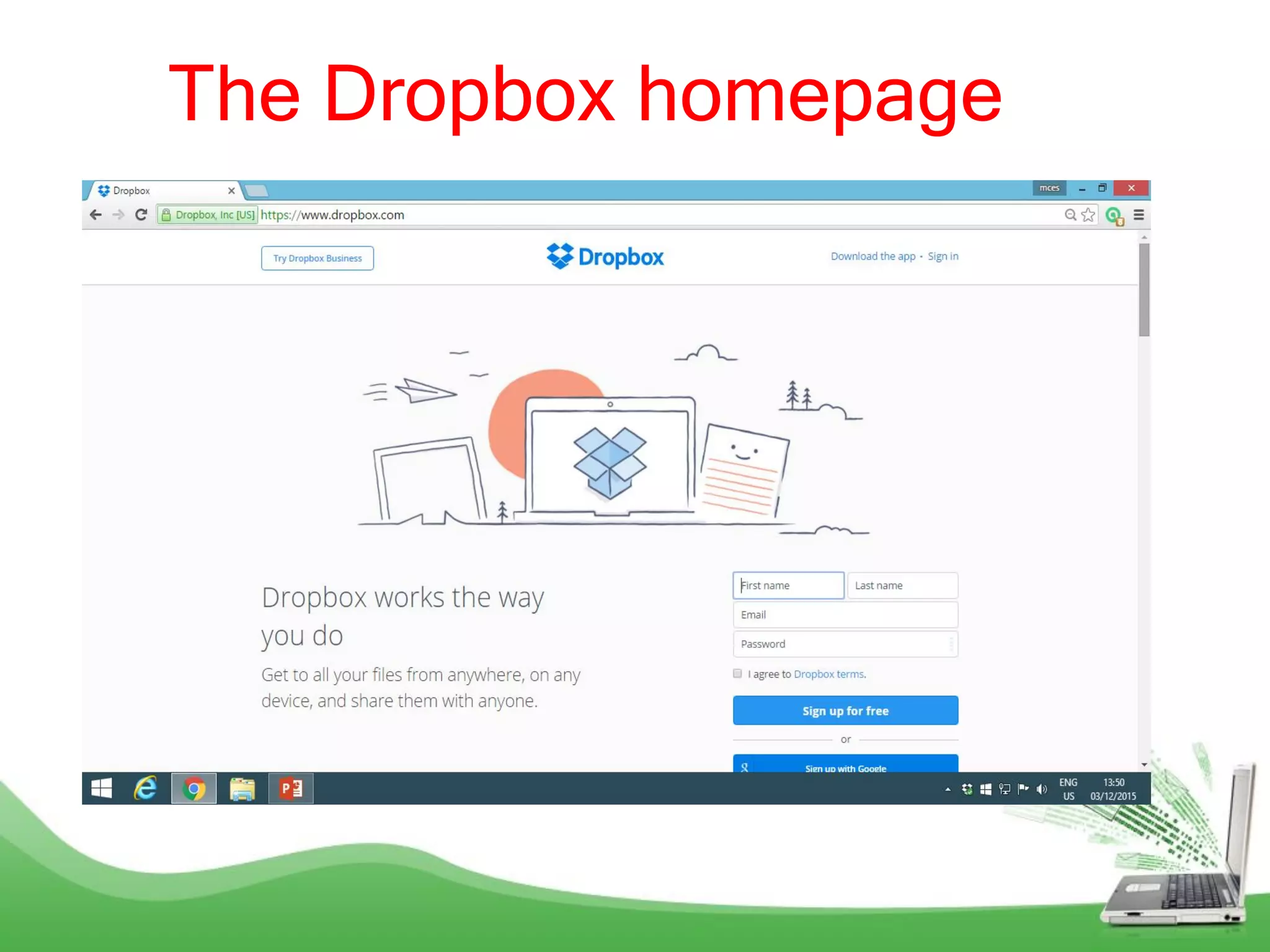
The Dropbox homepage
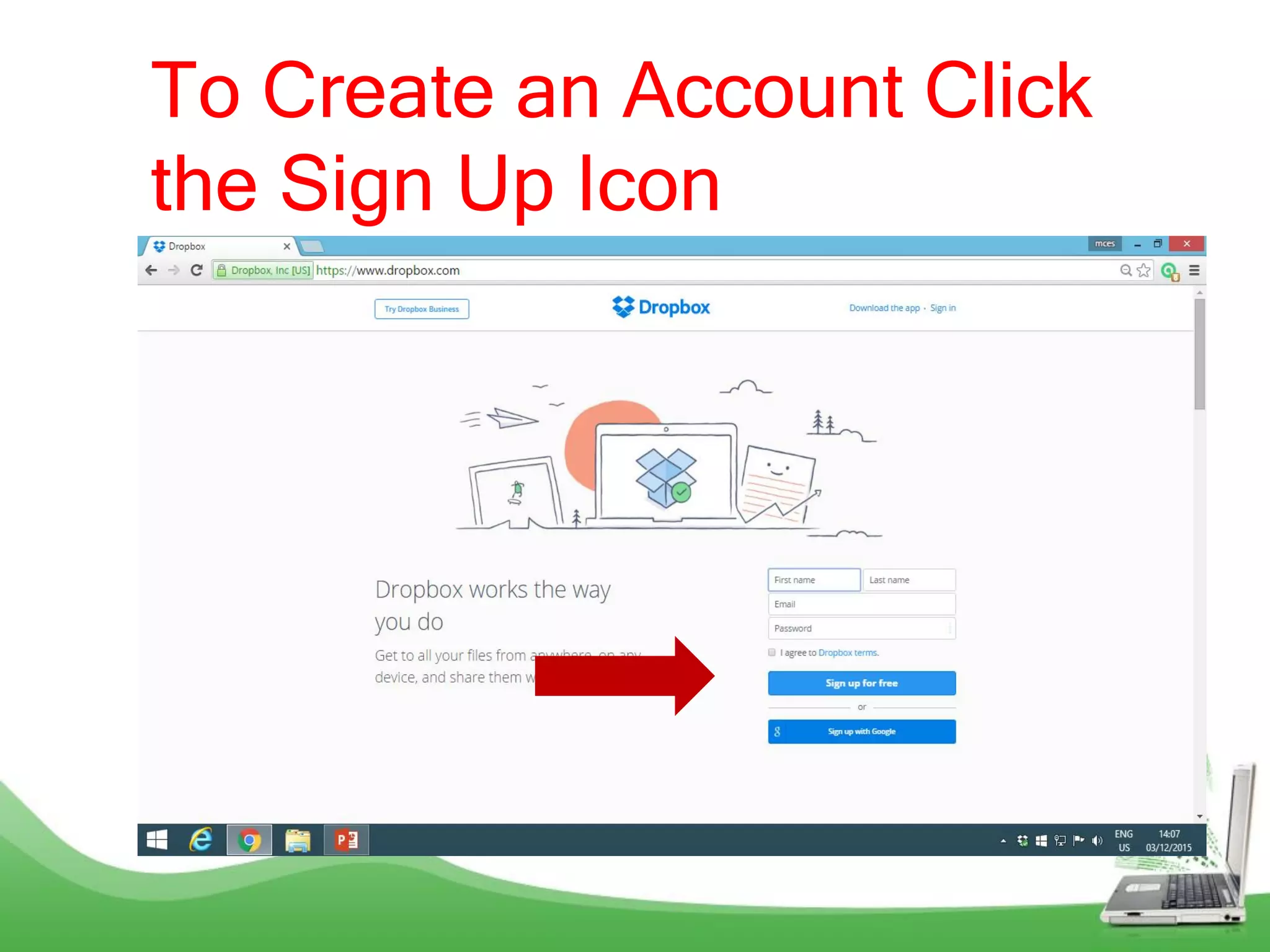
To Create an Account Click
the Sign Up Icon
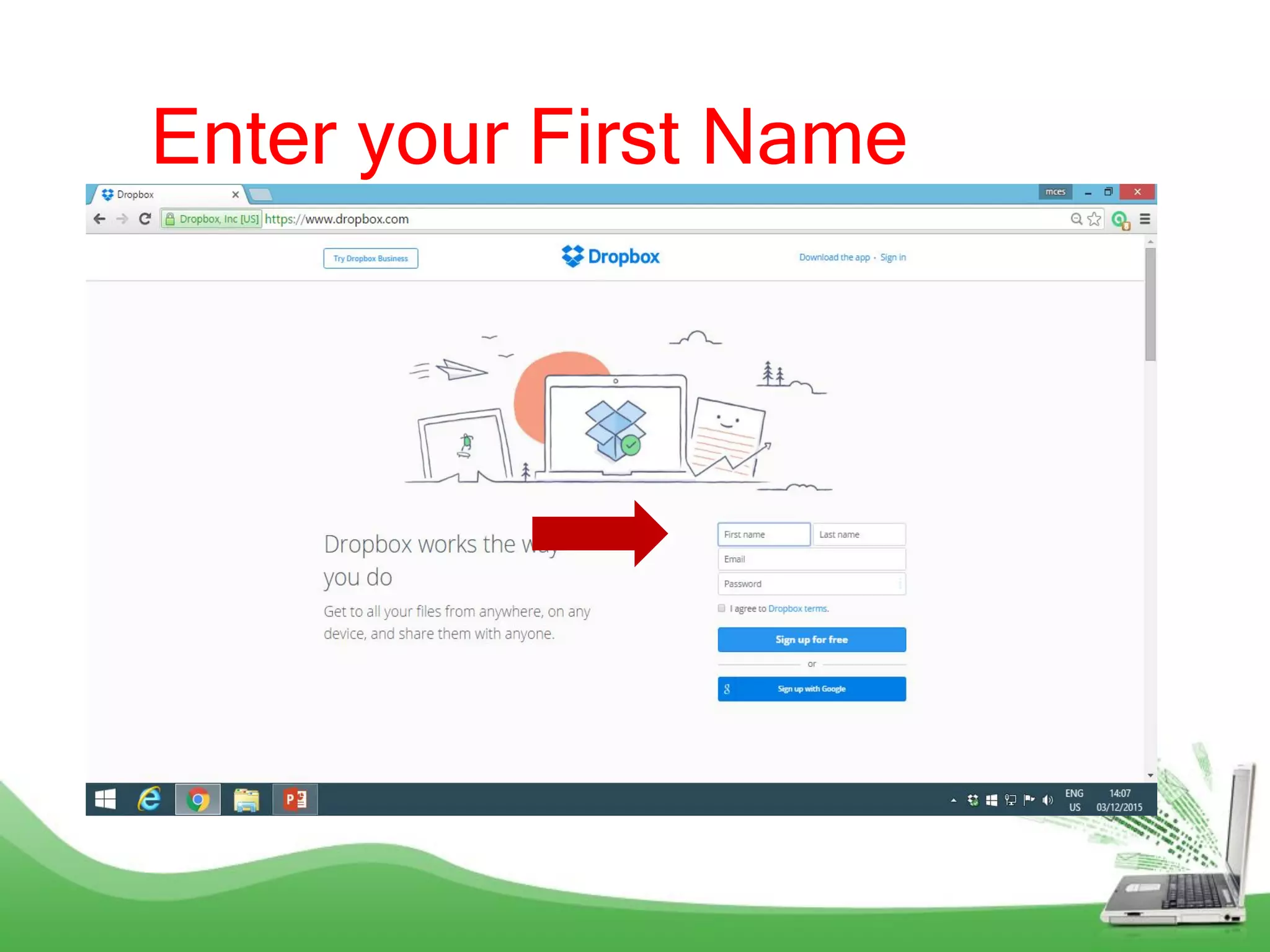
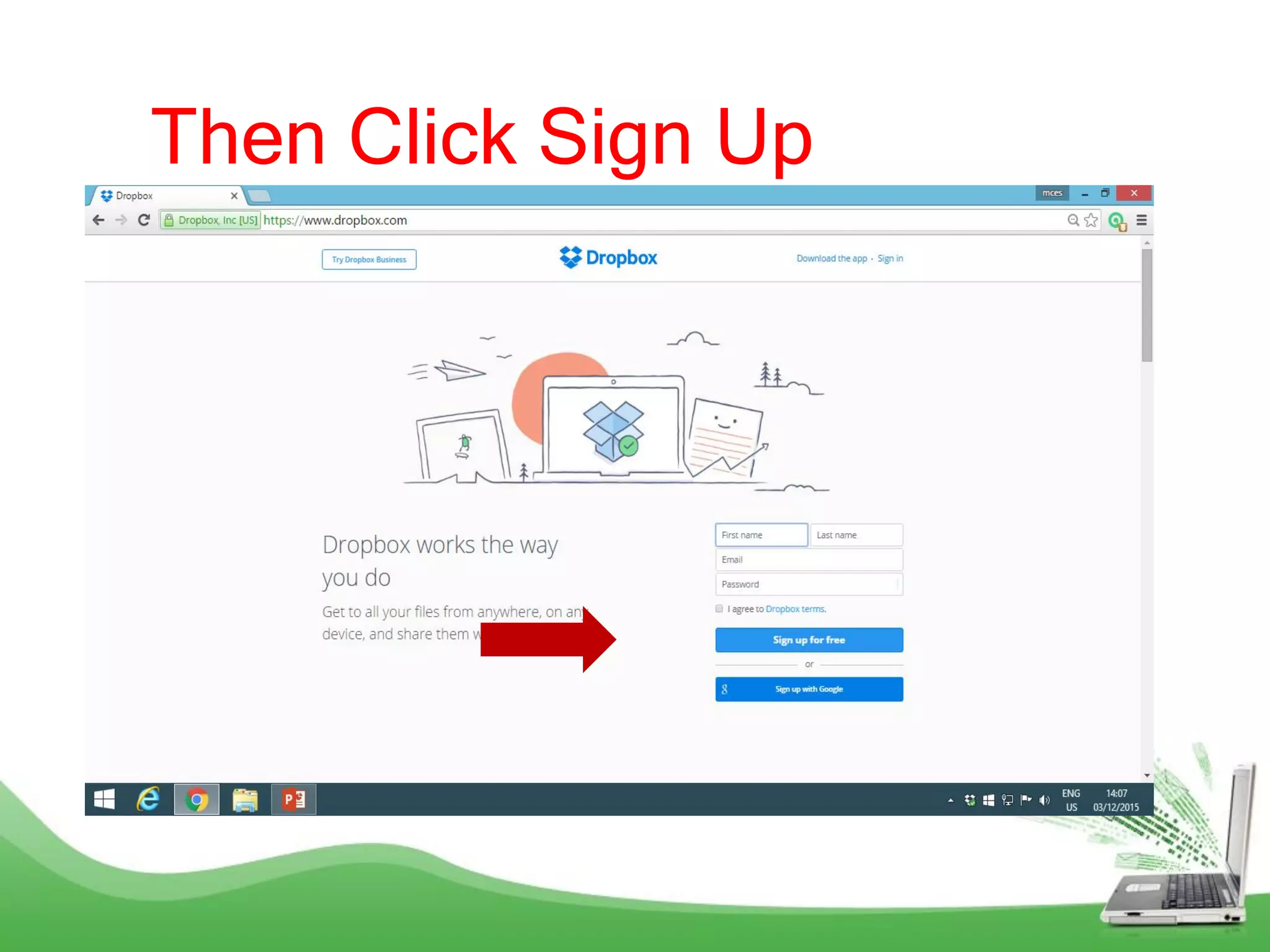
Enter your First Name
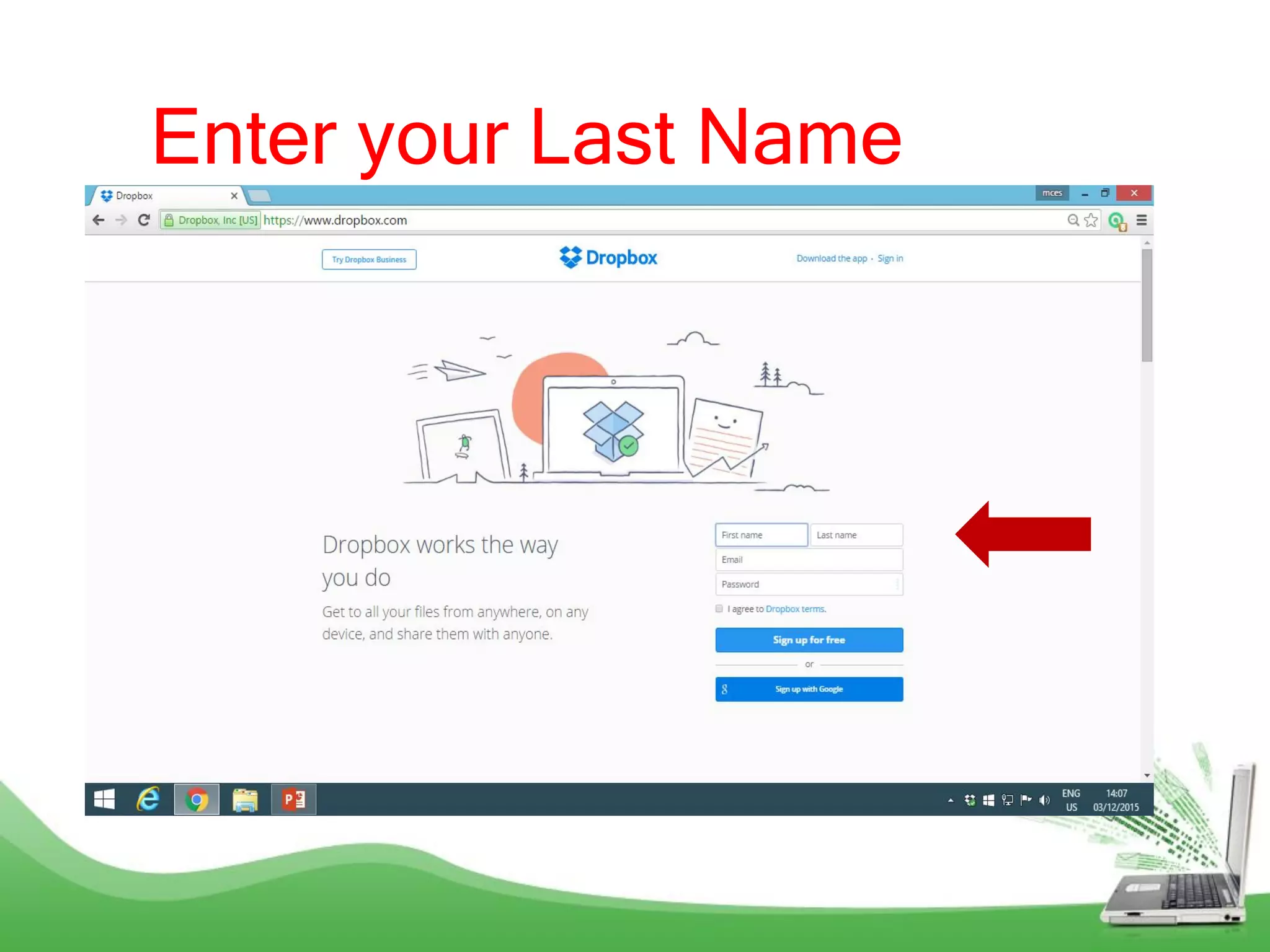
Enter your Last Name
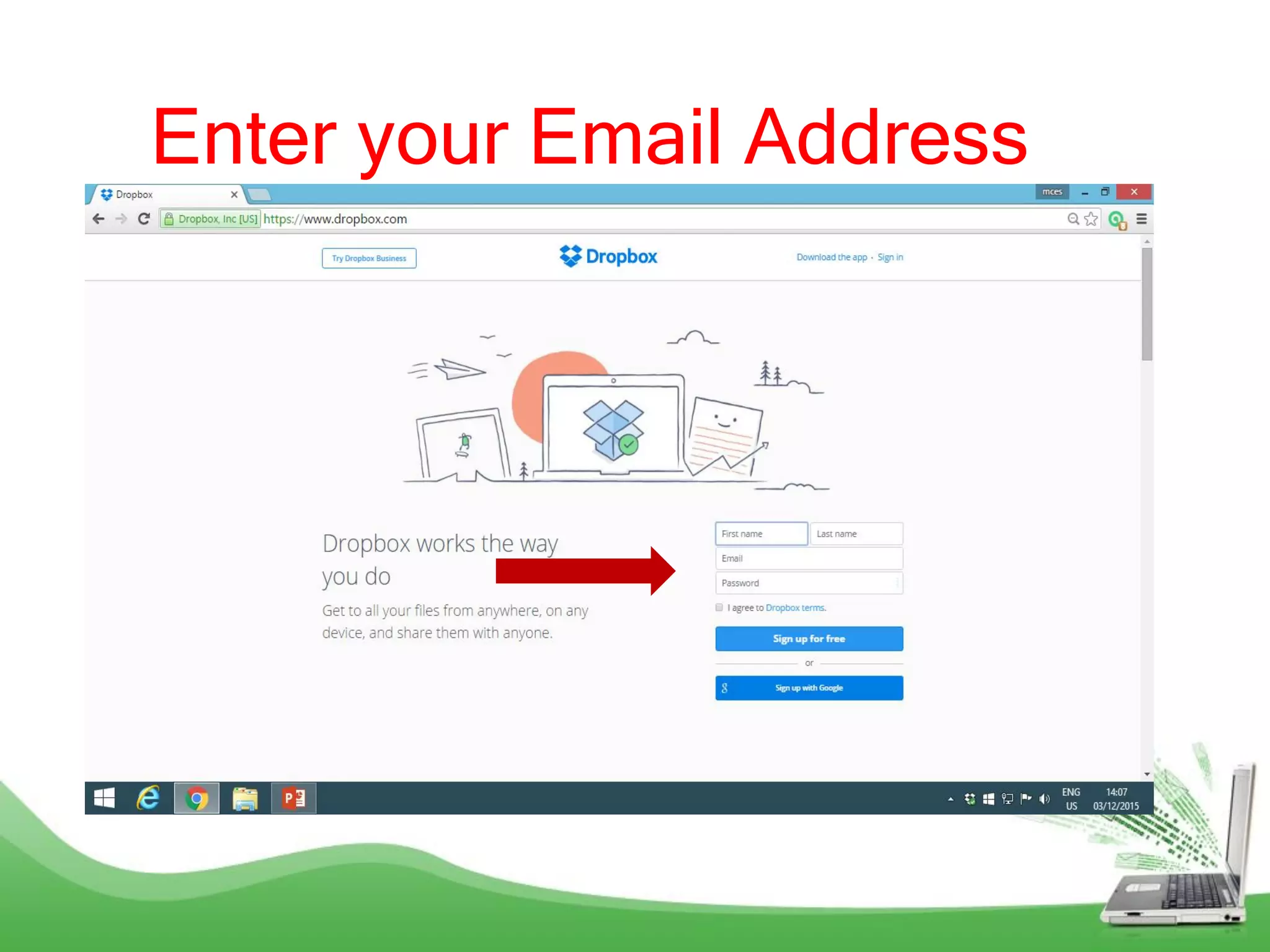
Enter your Email Address
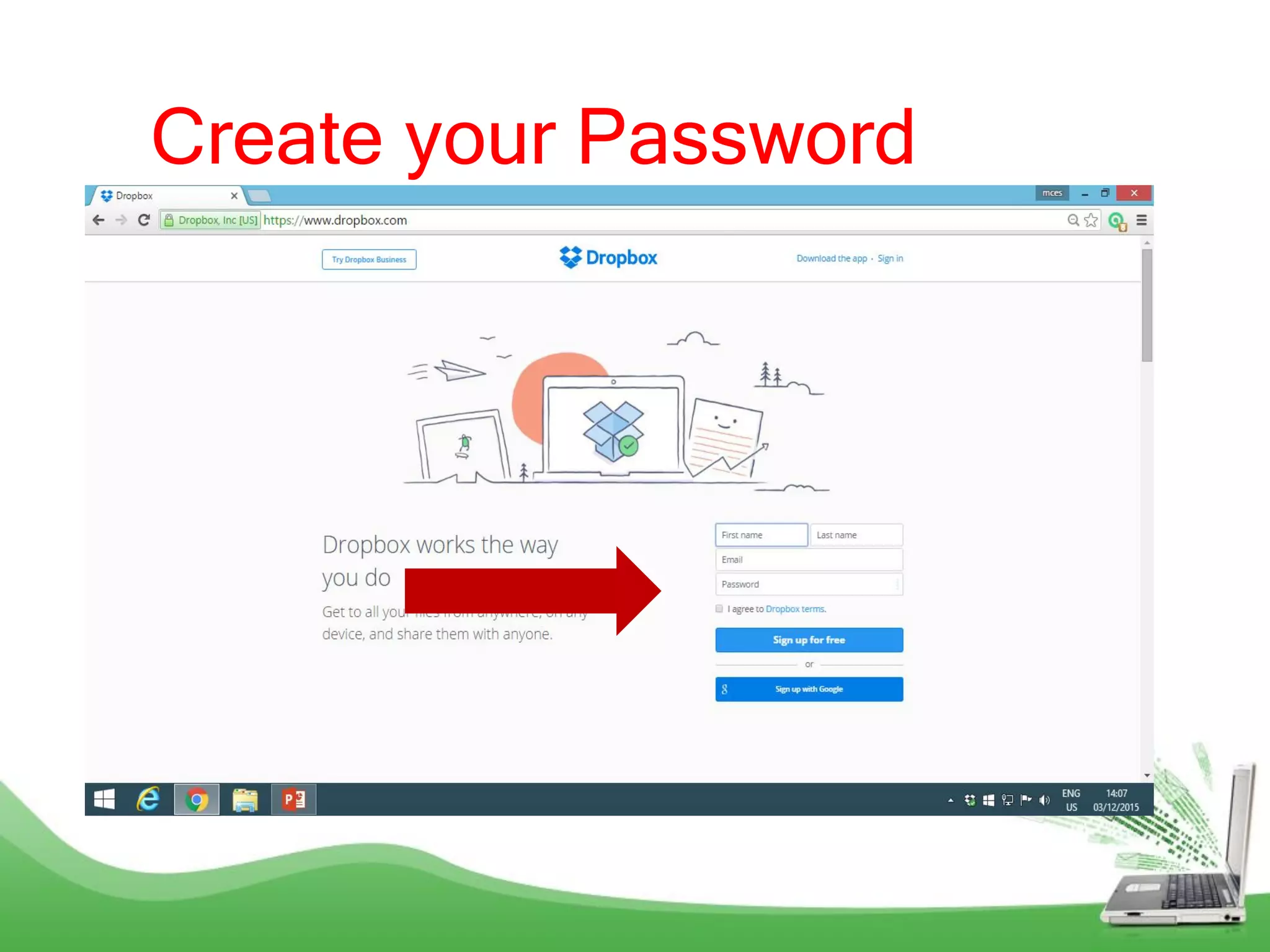
Create your Password
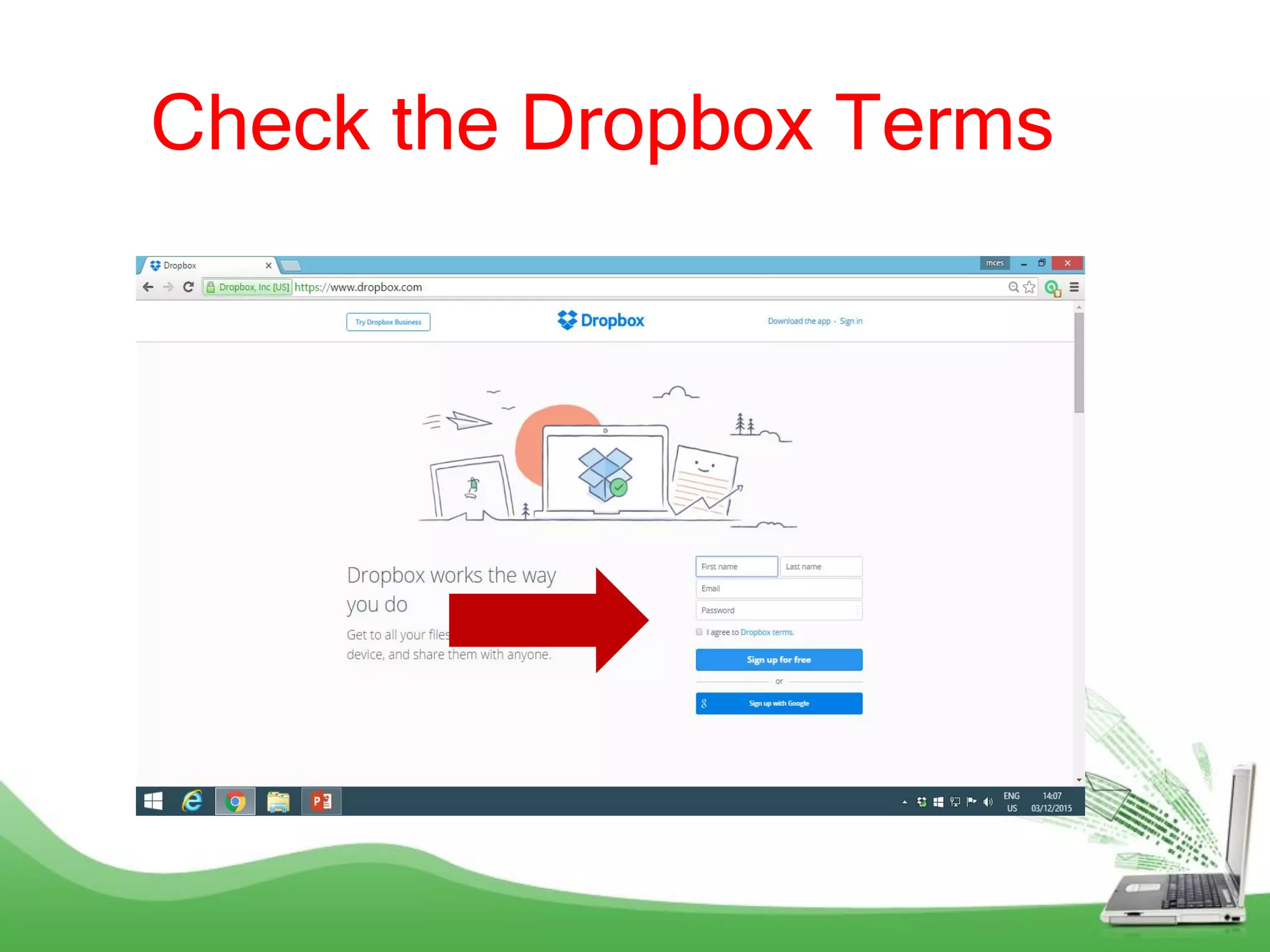
Check the Dropbox Terms
Then Click Sign Up
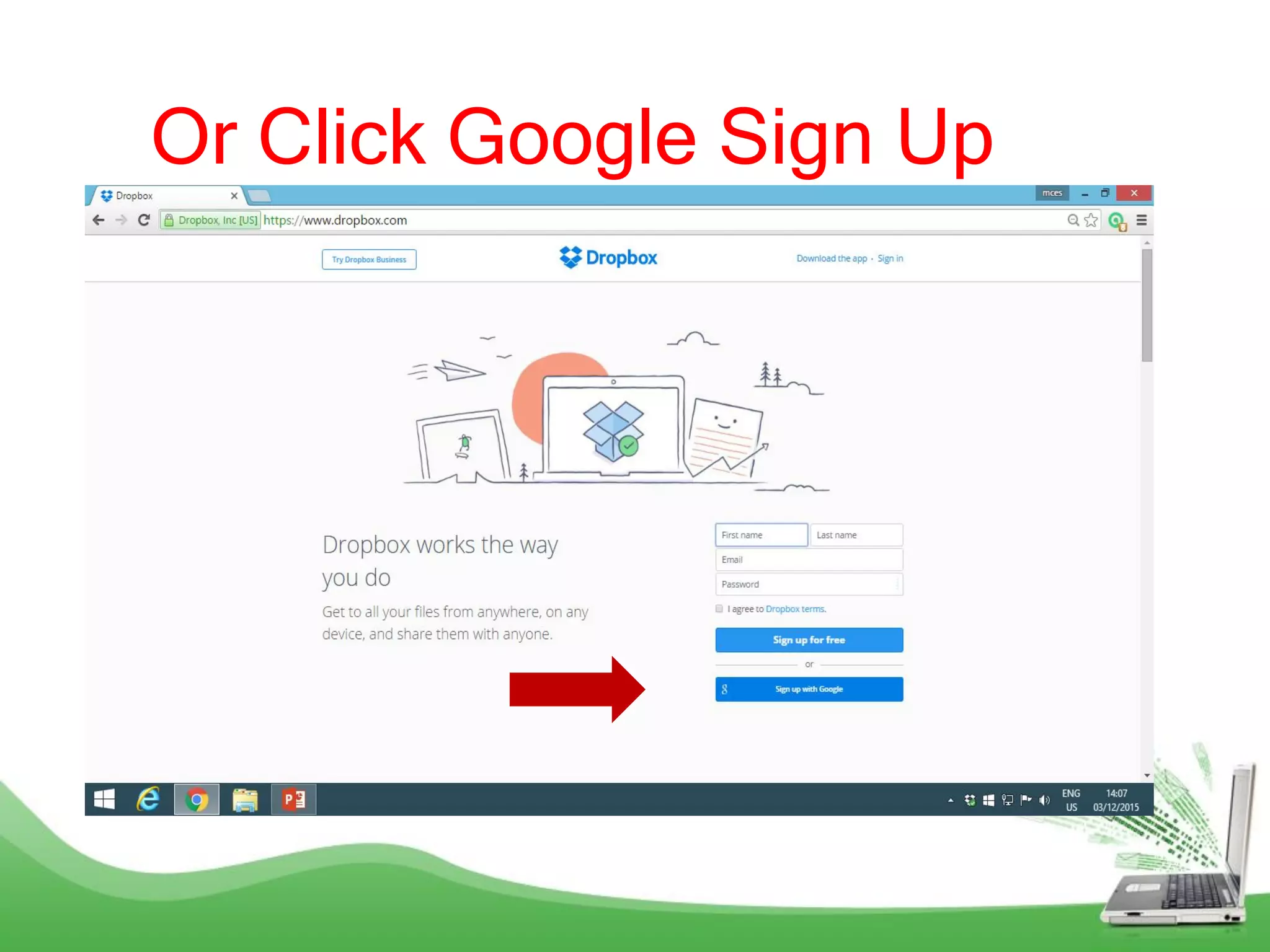
Or Click Google Sign Up
You will see
Welcome to
Dropbox!
You
successfully
created your
account!
How to Set up
Dropbox in
your
computer?
Click the
Dropbox
Basic
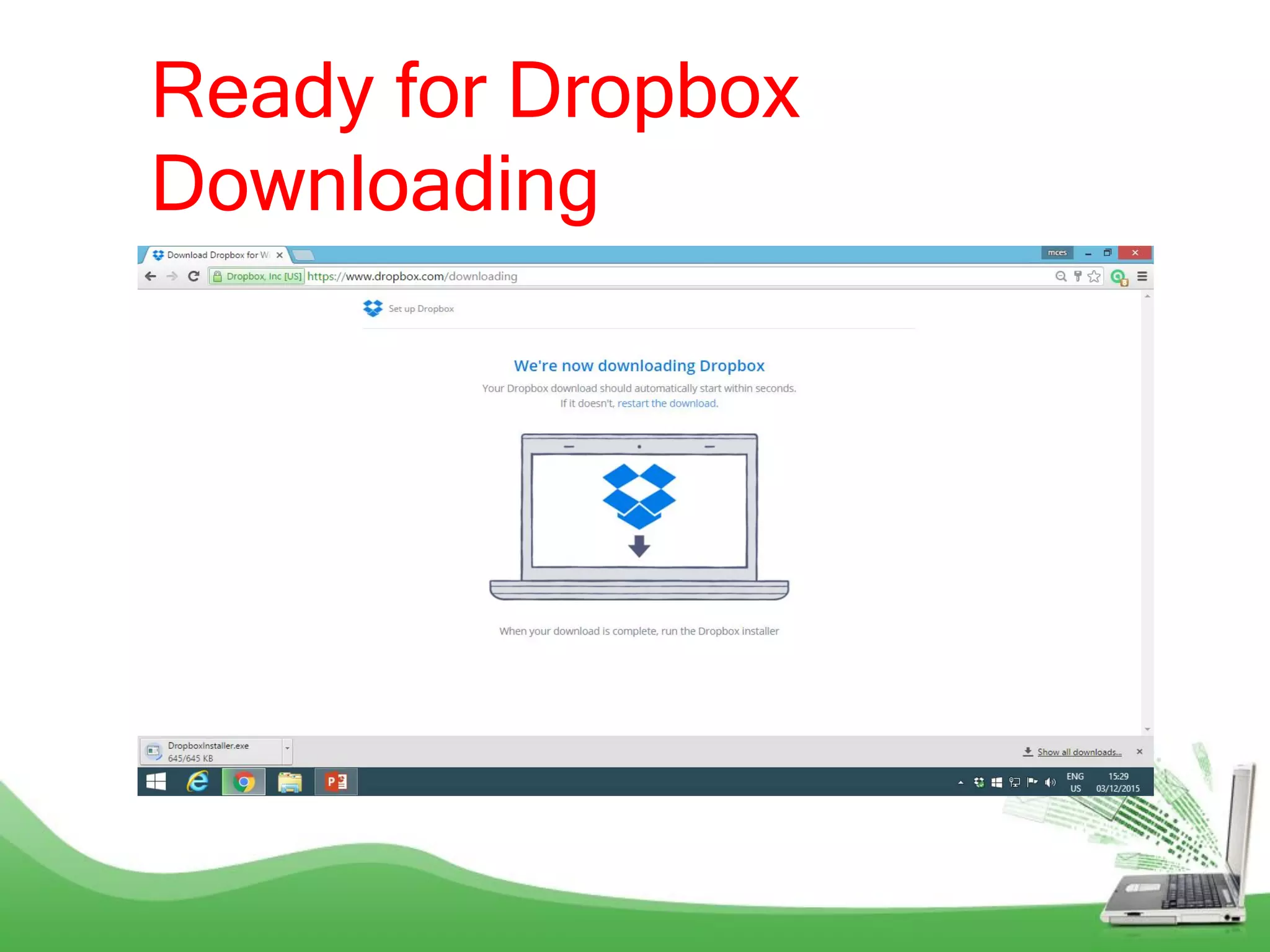
Ready for Dropbox
Downloading
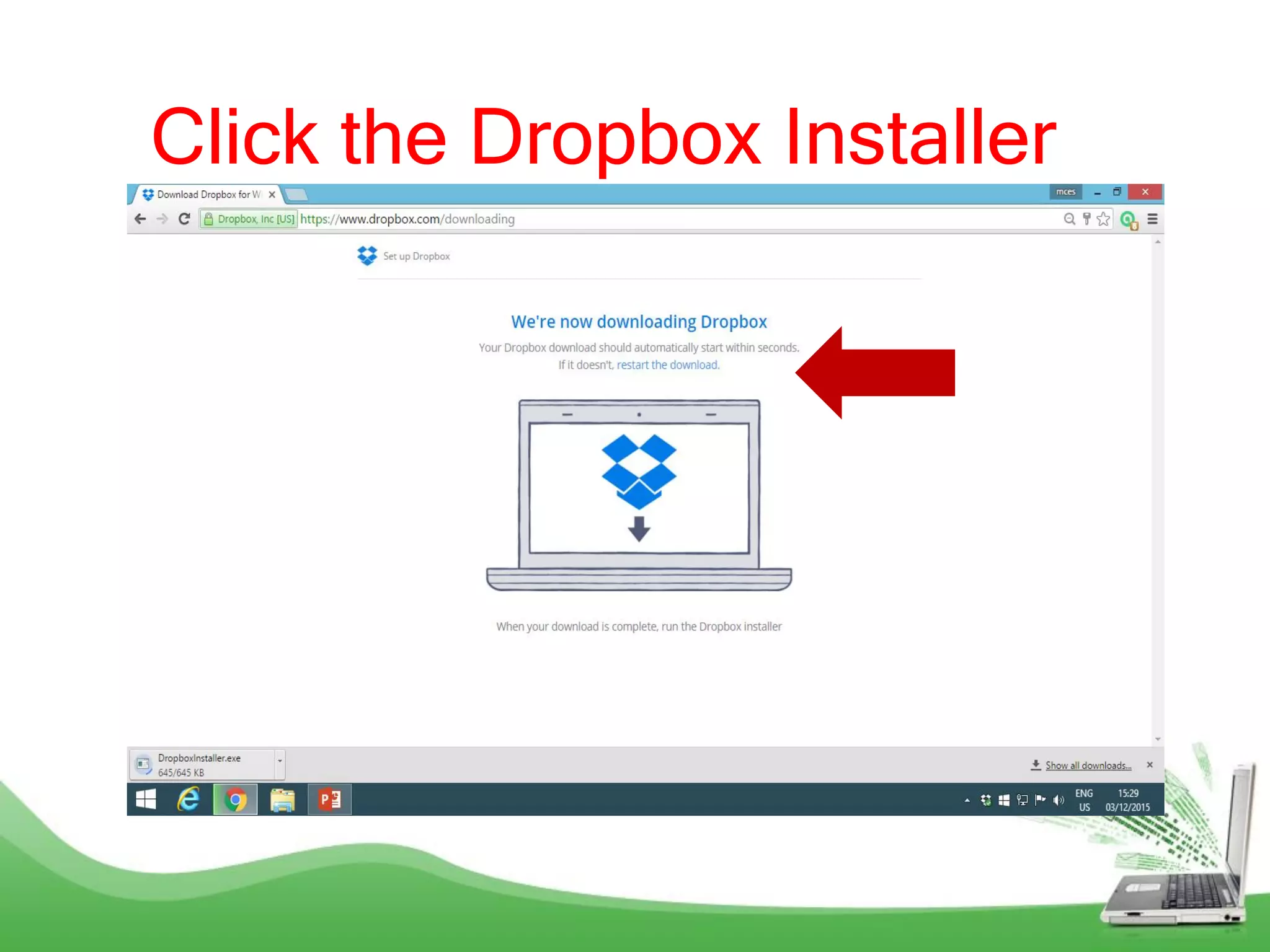
Click the Dropbox Installer
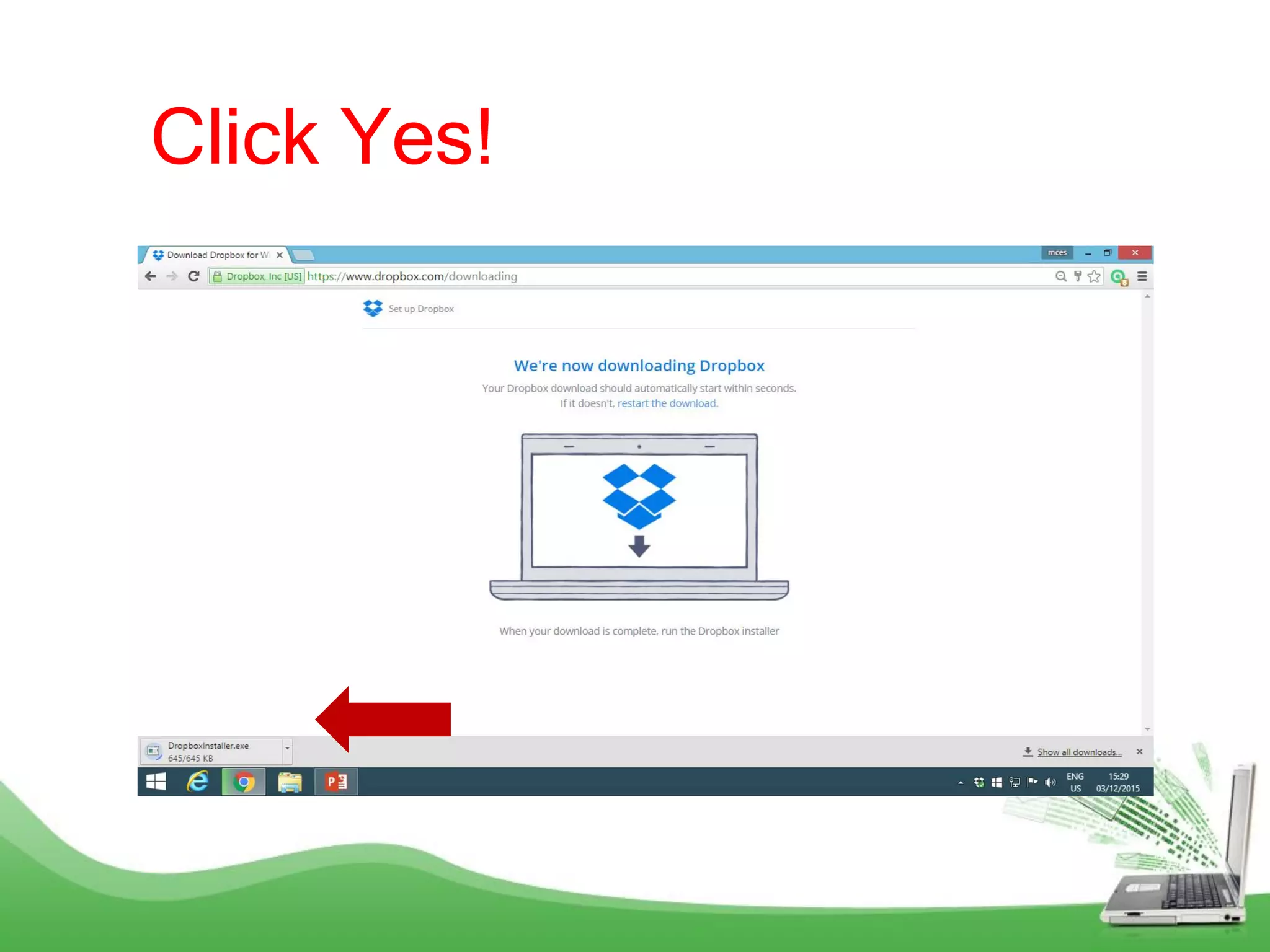
Click Yes!
Downloading
Dropbox
Installer
Set up your
Dropbox
Enter your
email address
Enter
Password
Then Click
the Sign In
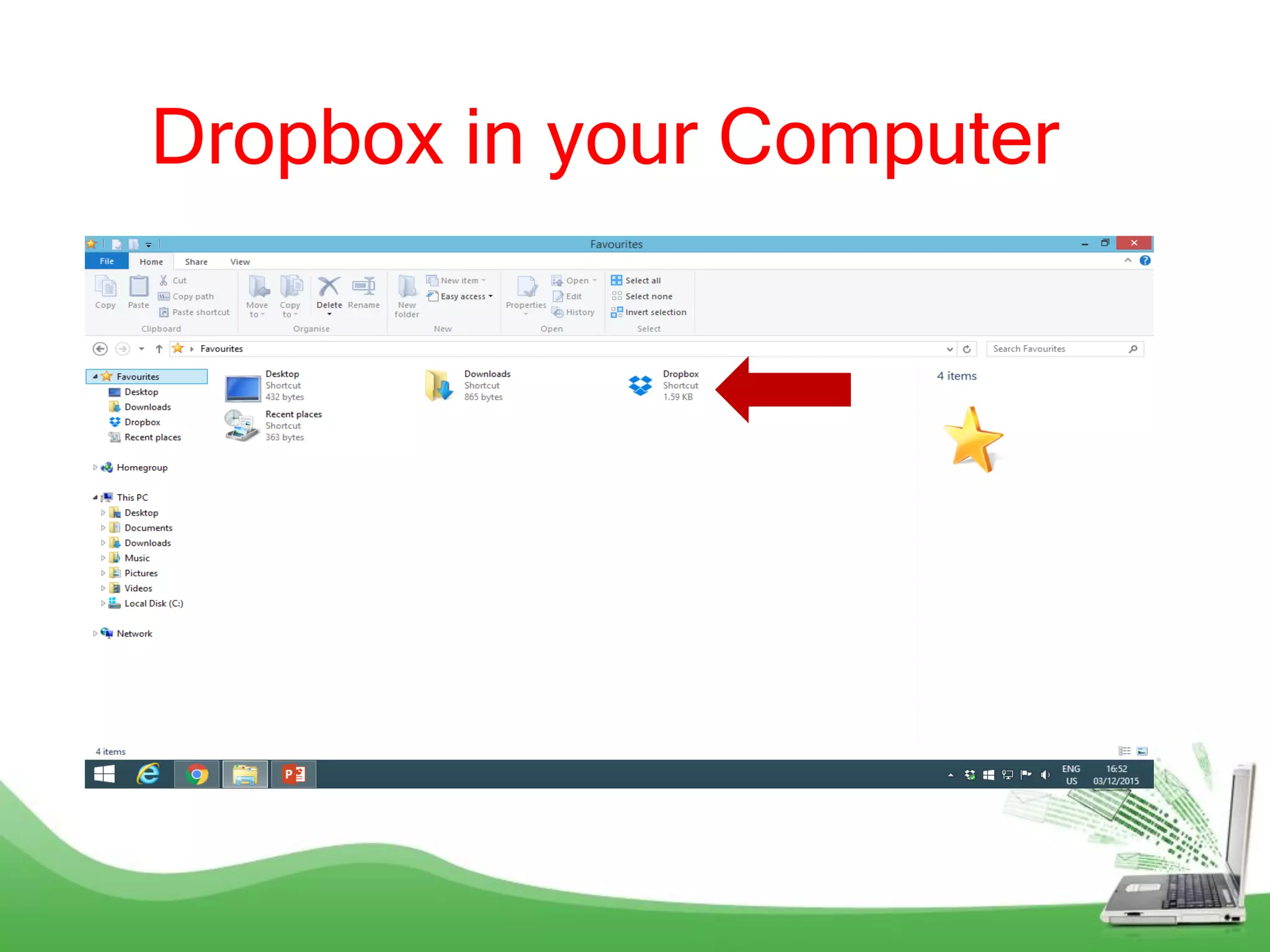
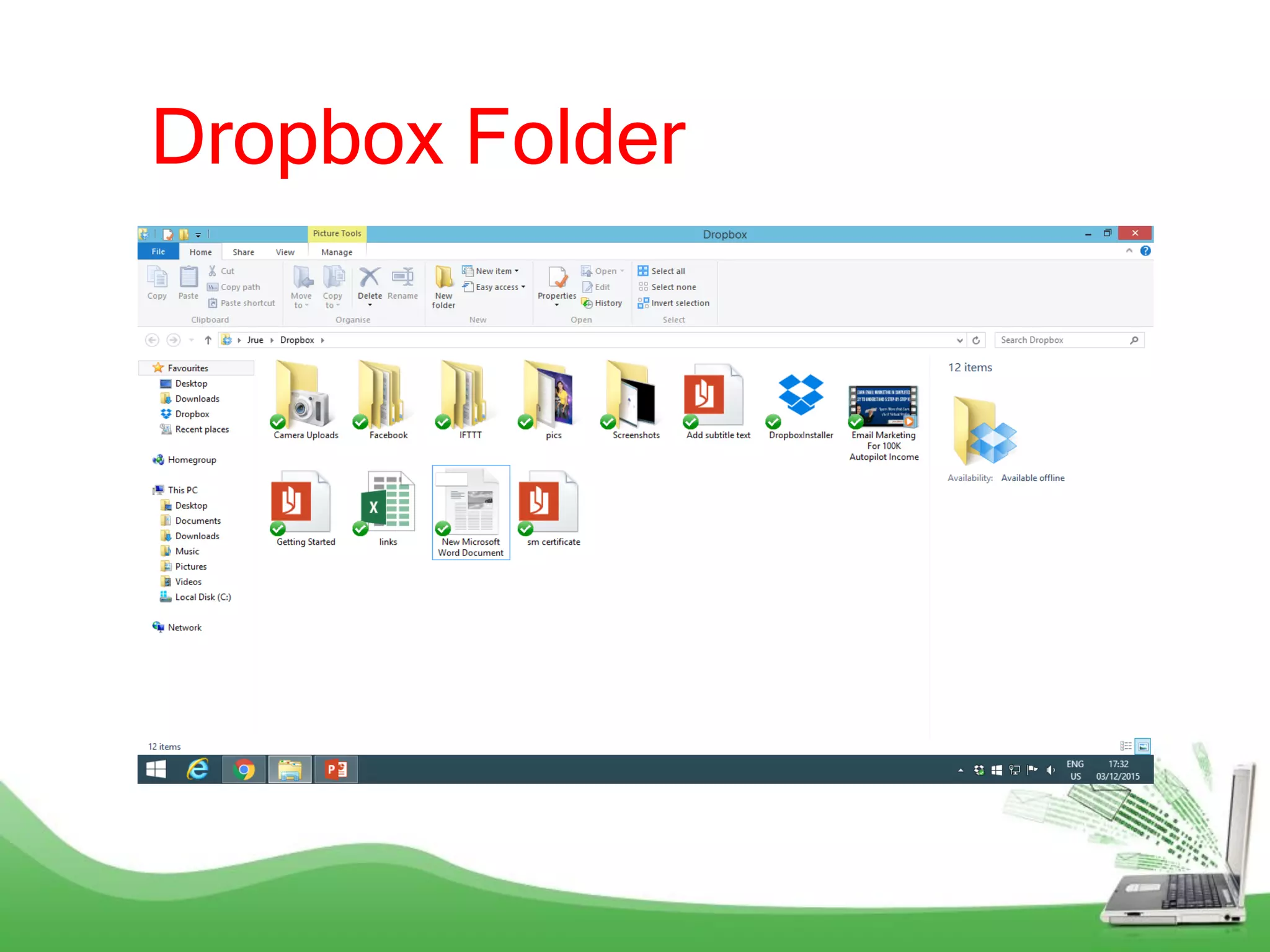
Click Dropbox
Folder
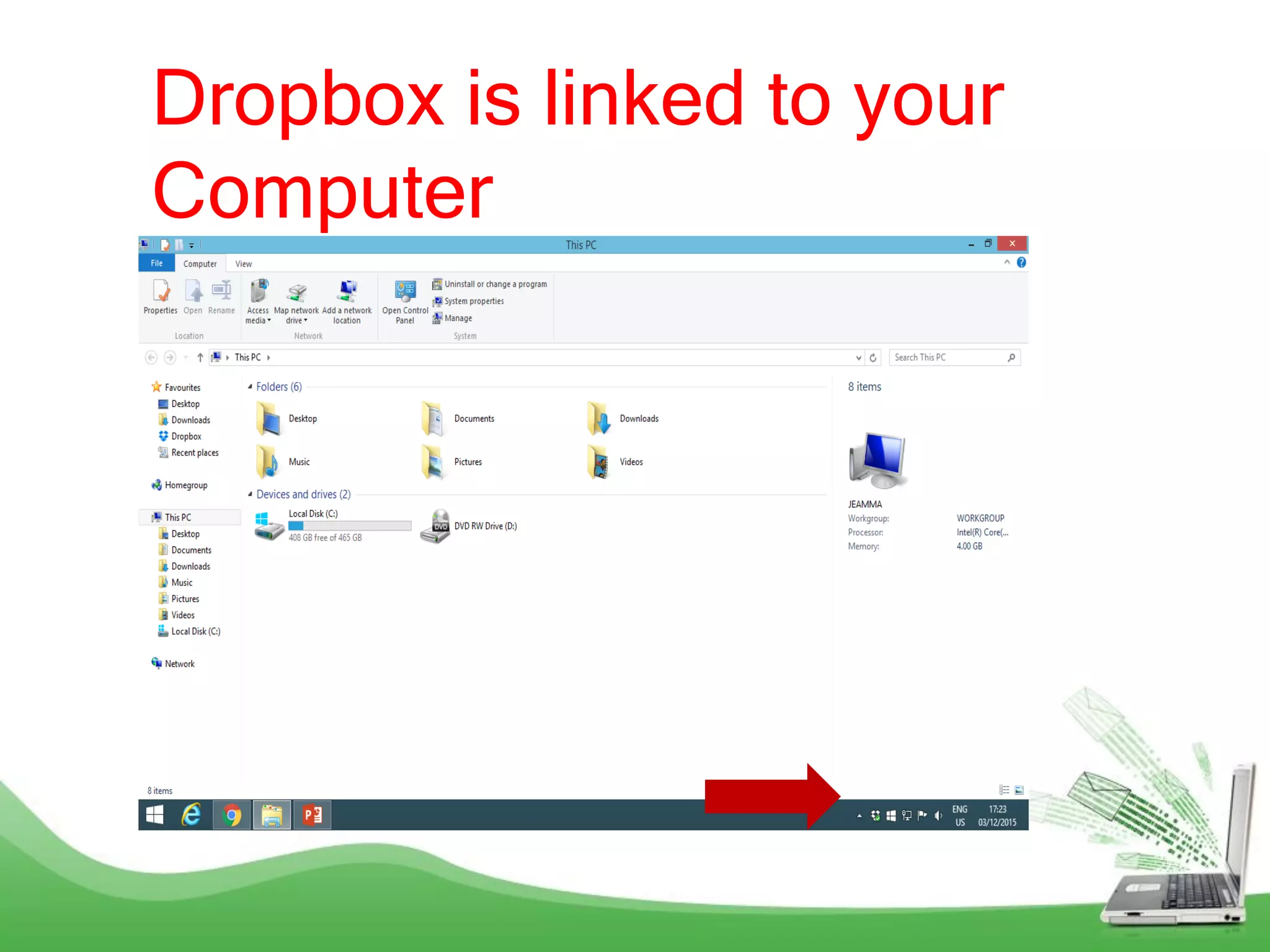
Dropbox in your Computer
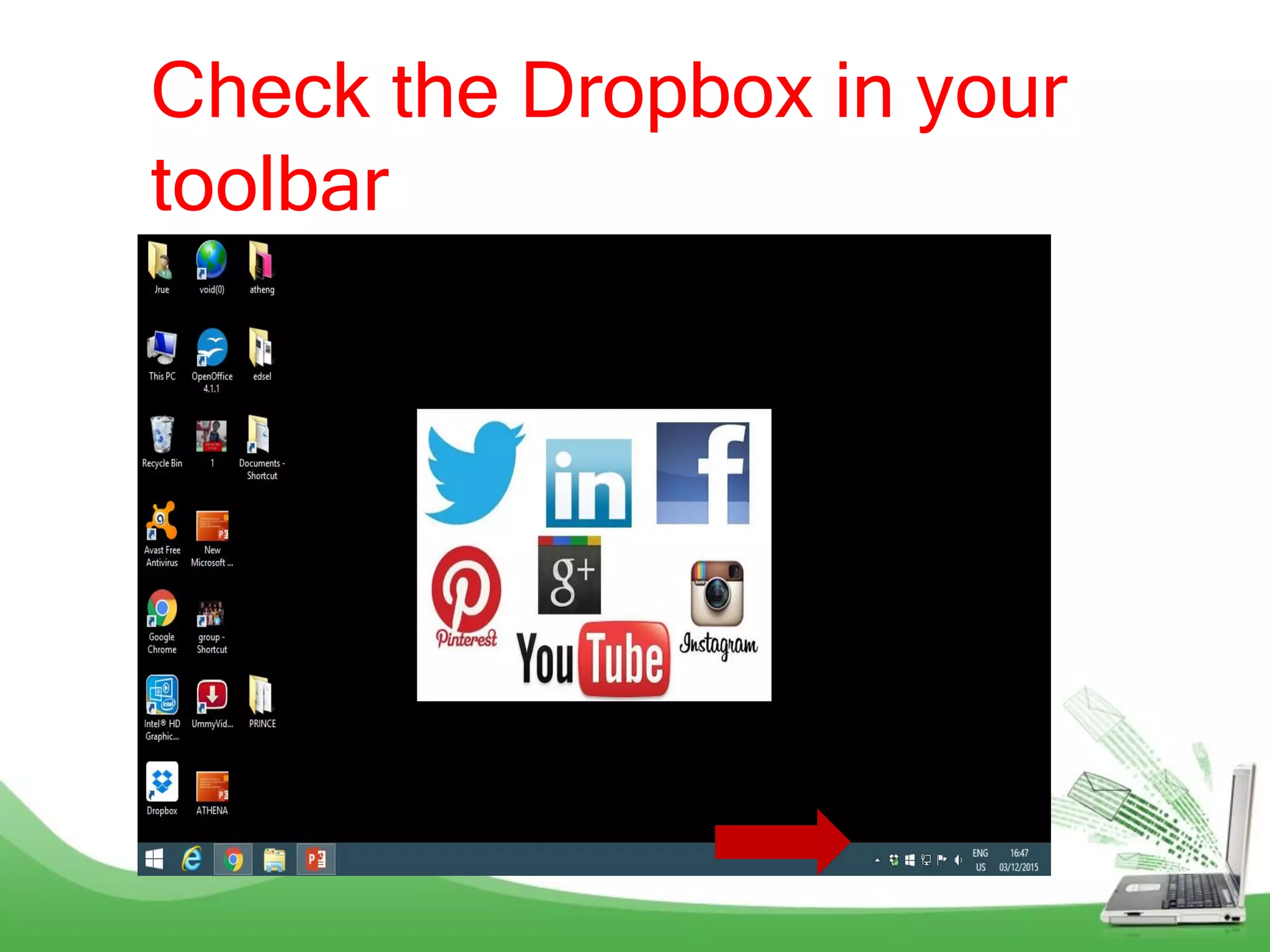
Check the Dropbox in your
toolbar
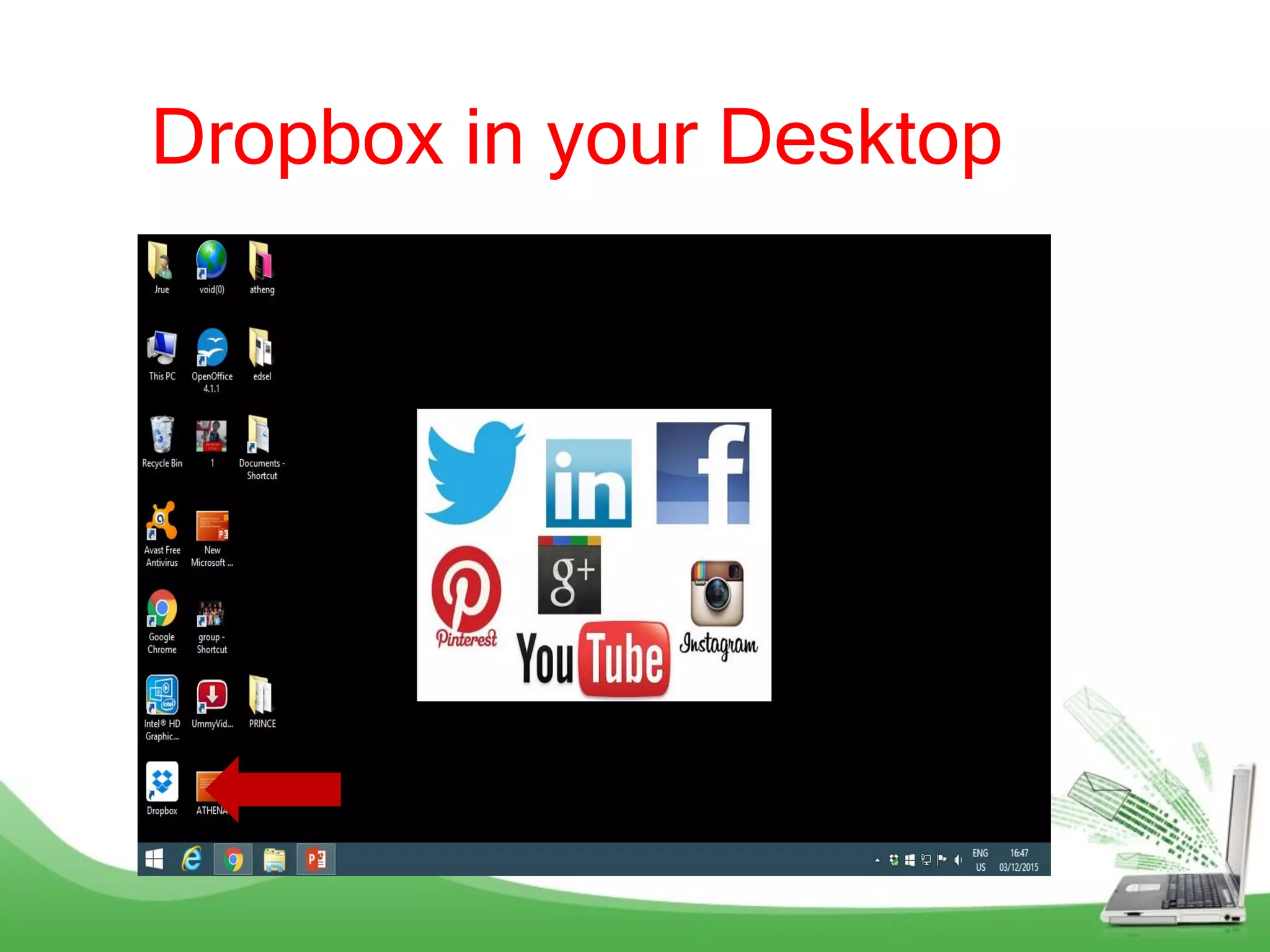
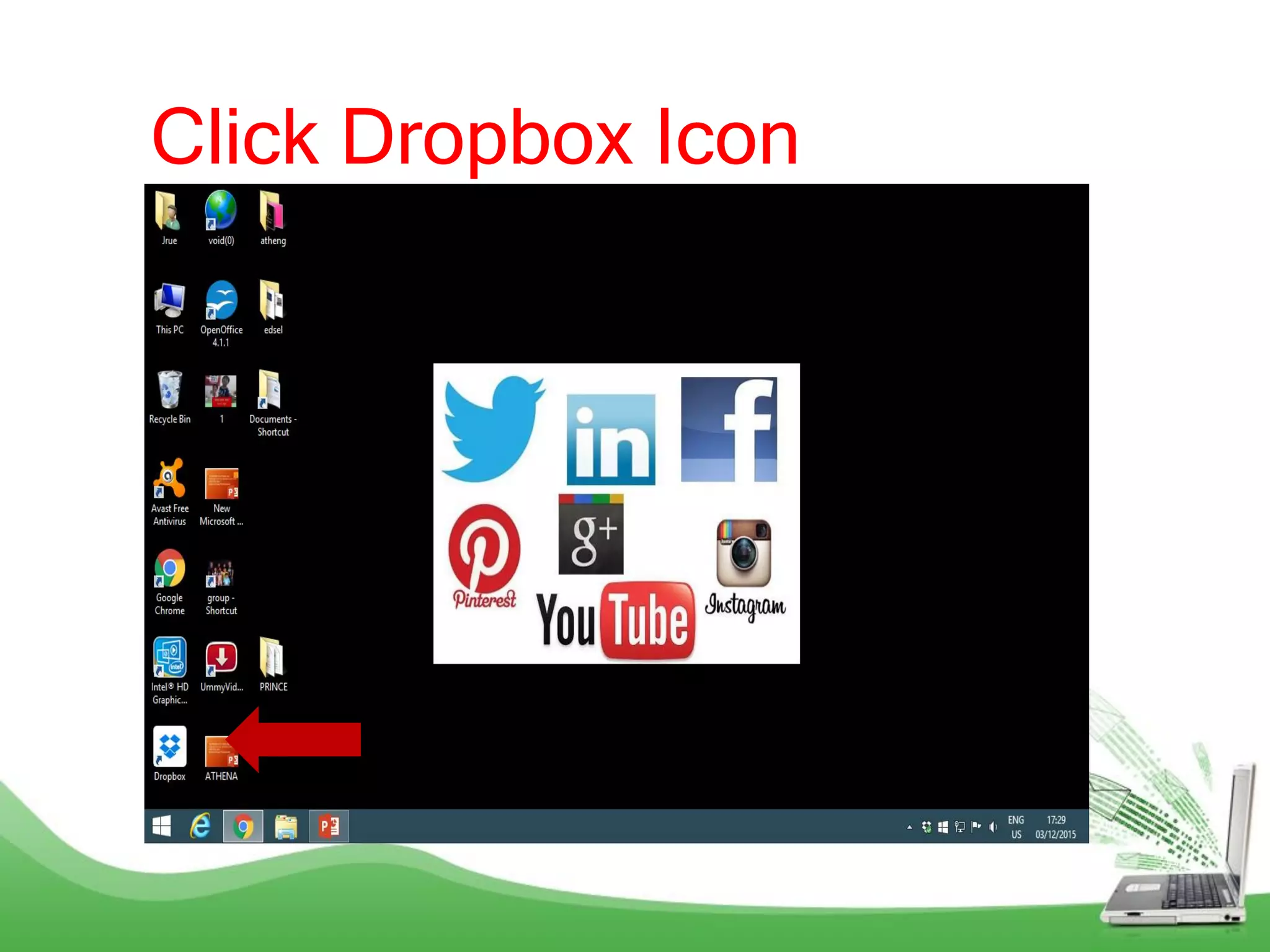
Dropbox in your Desktop
Dropbox is linked to your
Computer
You can transfer
your files to your
Dropbox.
Click Dropbox Icon
Dropbox Folder
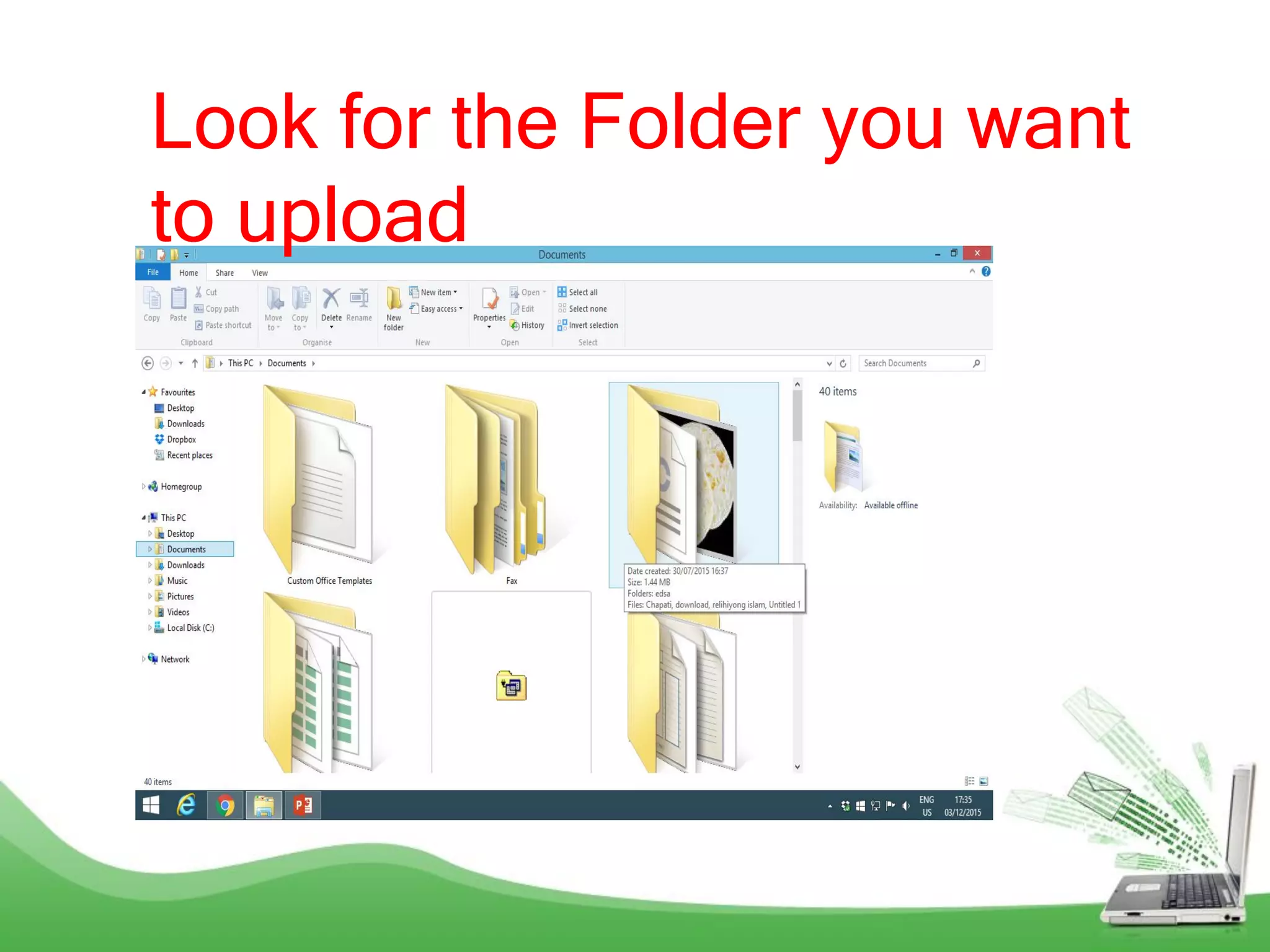
Look for the Folder you want
to upload
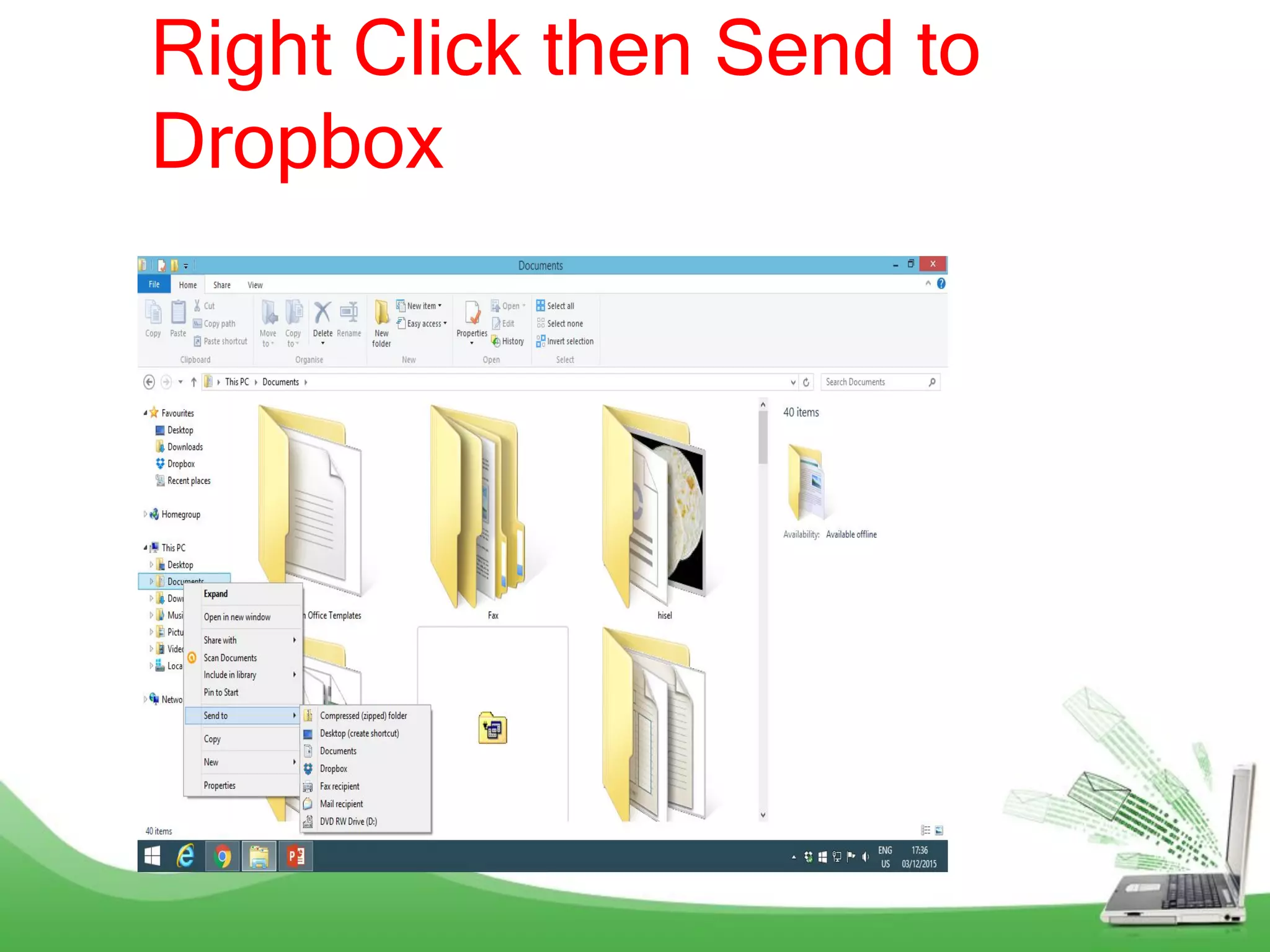
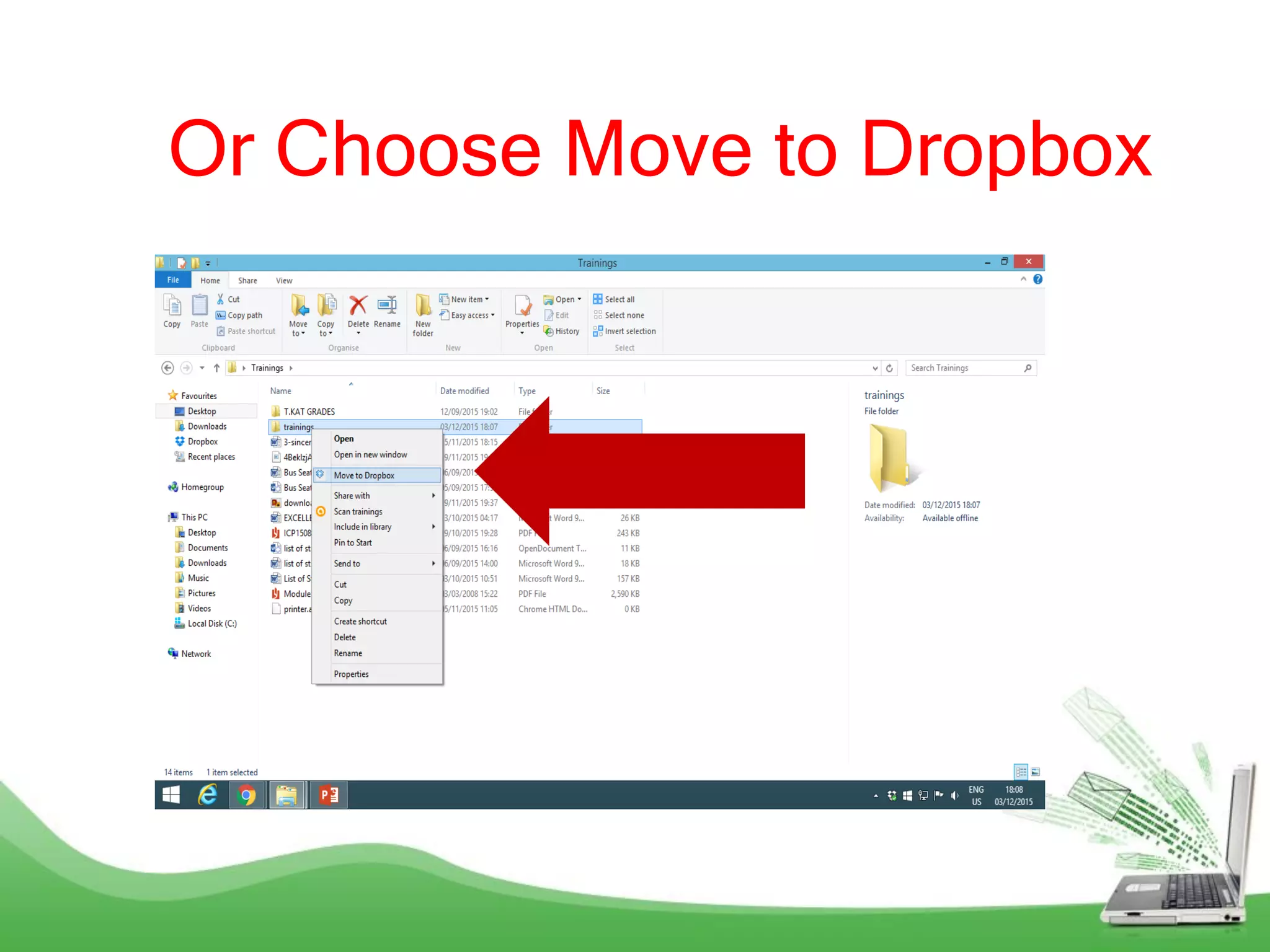
Right Click then Send to
Dropbox
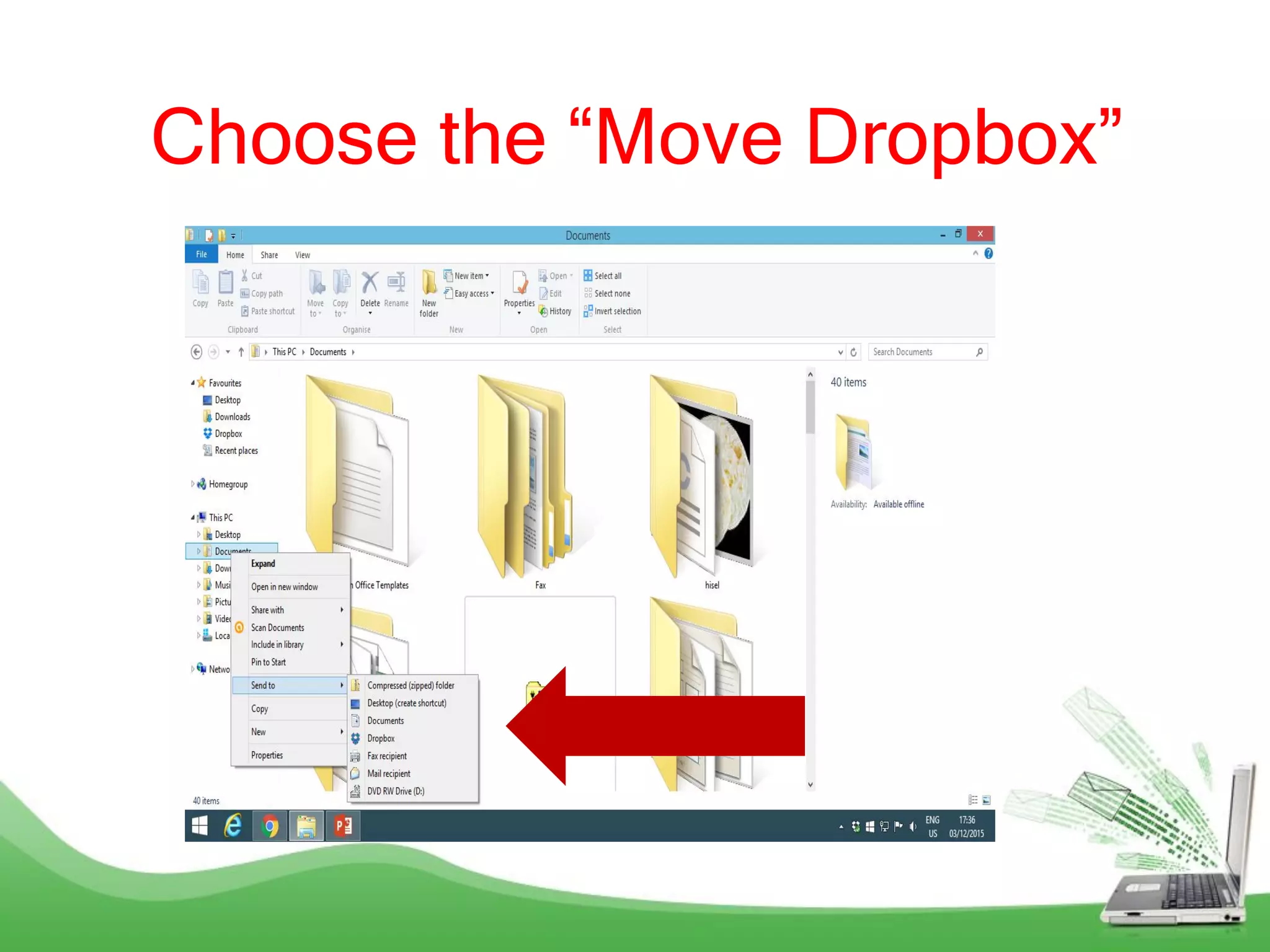
Choose the “Move Dropbox”
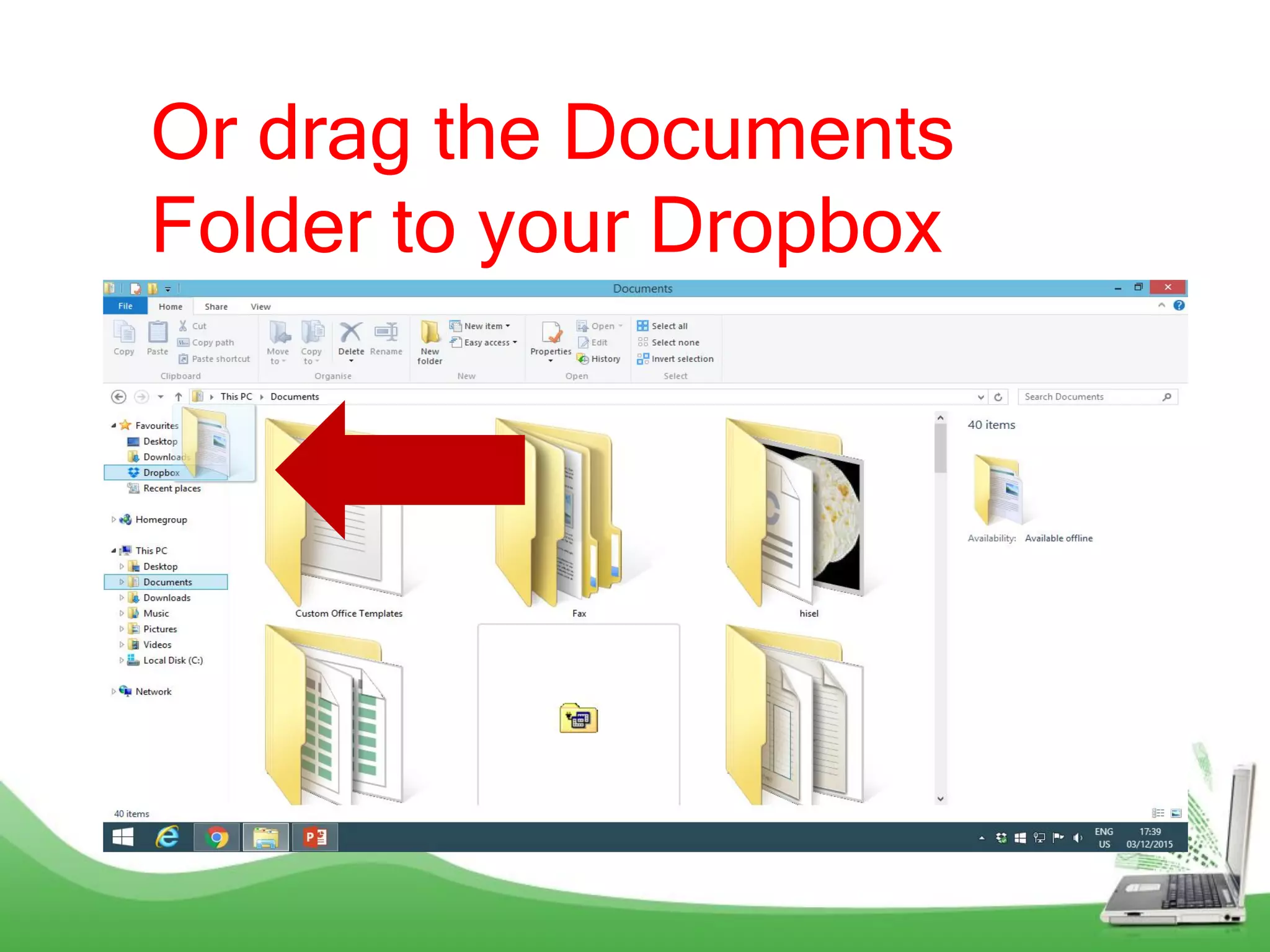
Or drag the Documents
Folder to your Dropbox
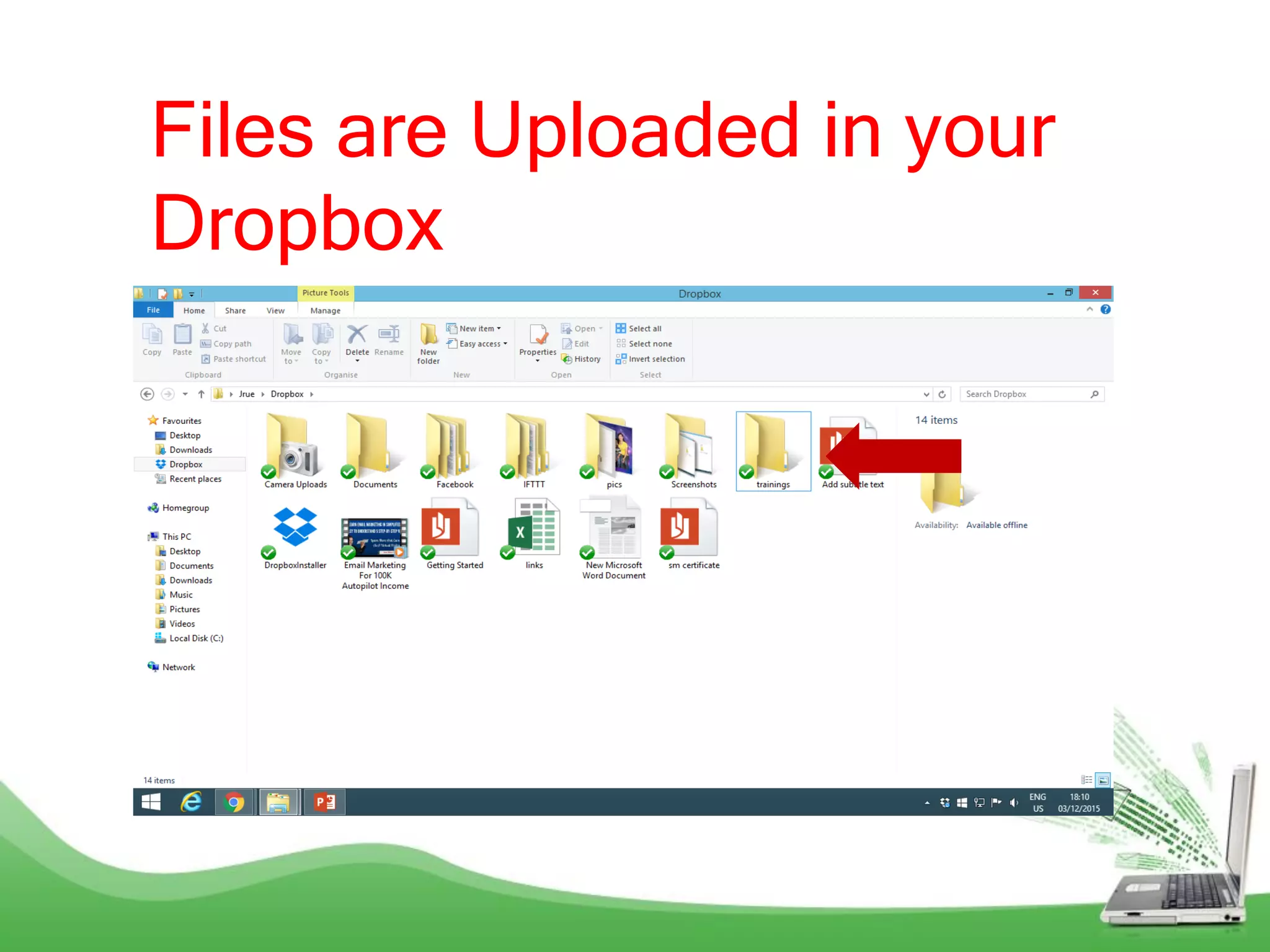
Check if the folder is in your
Dropbox
You can also
upload any files
in your
Dropbox.
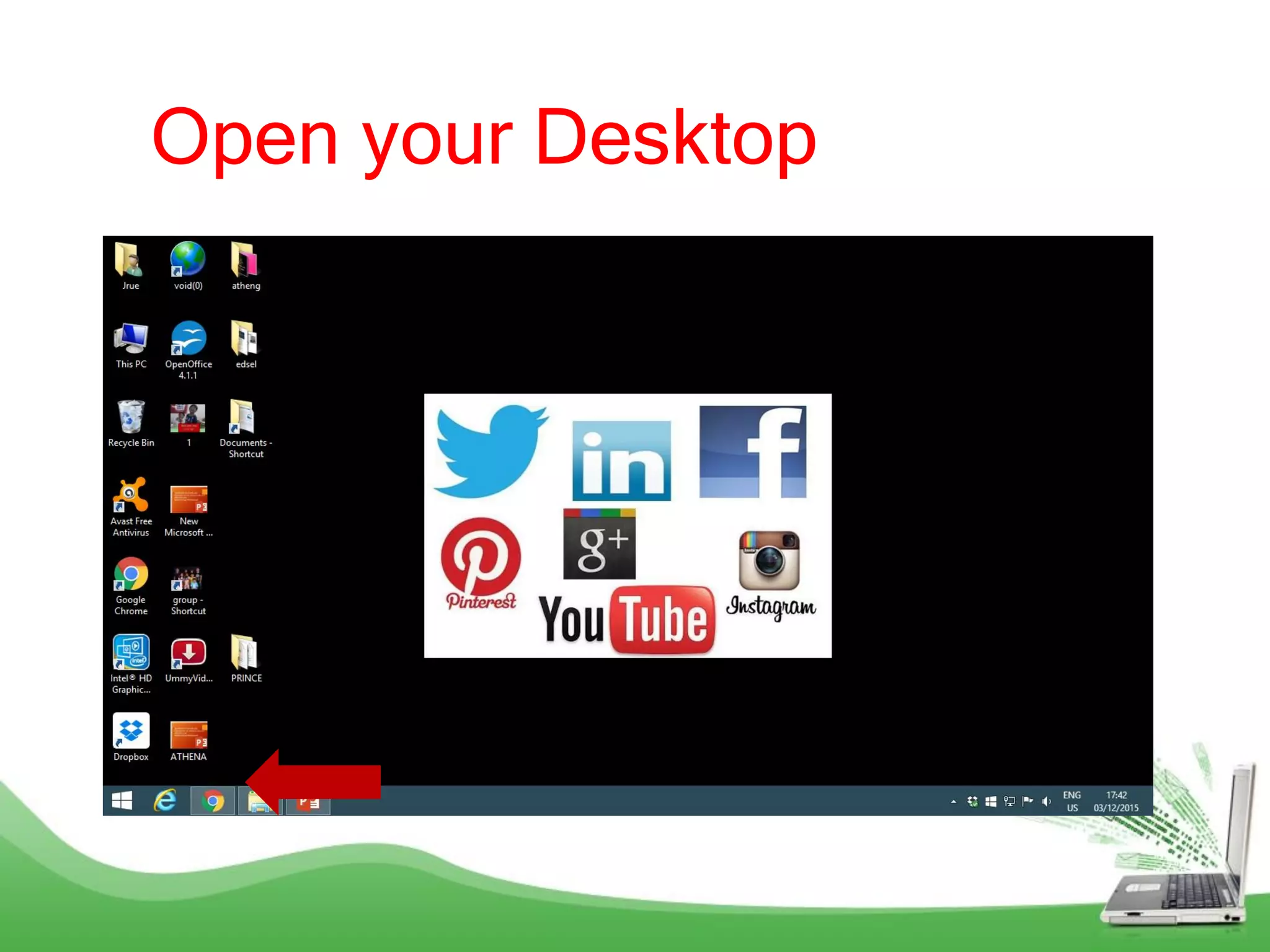
Open your Desktop
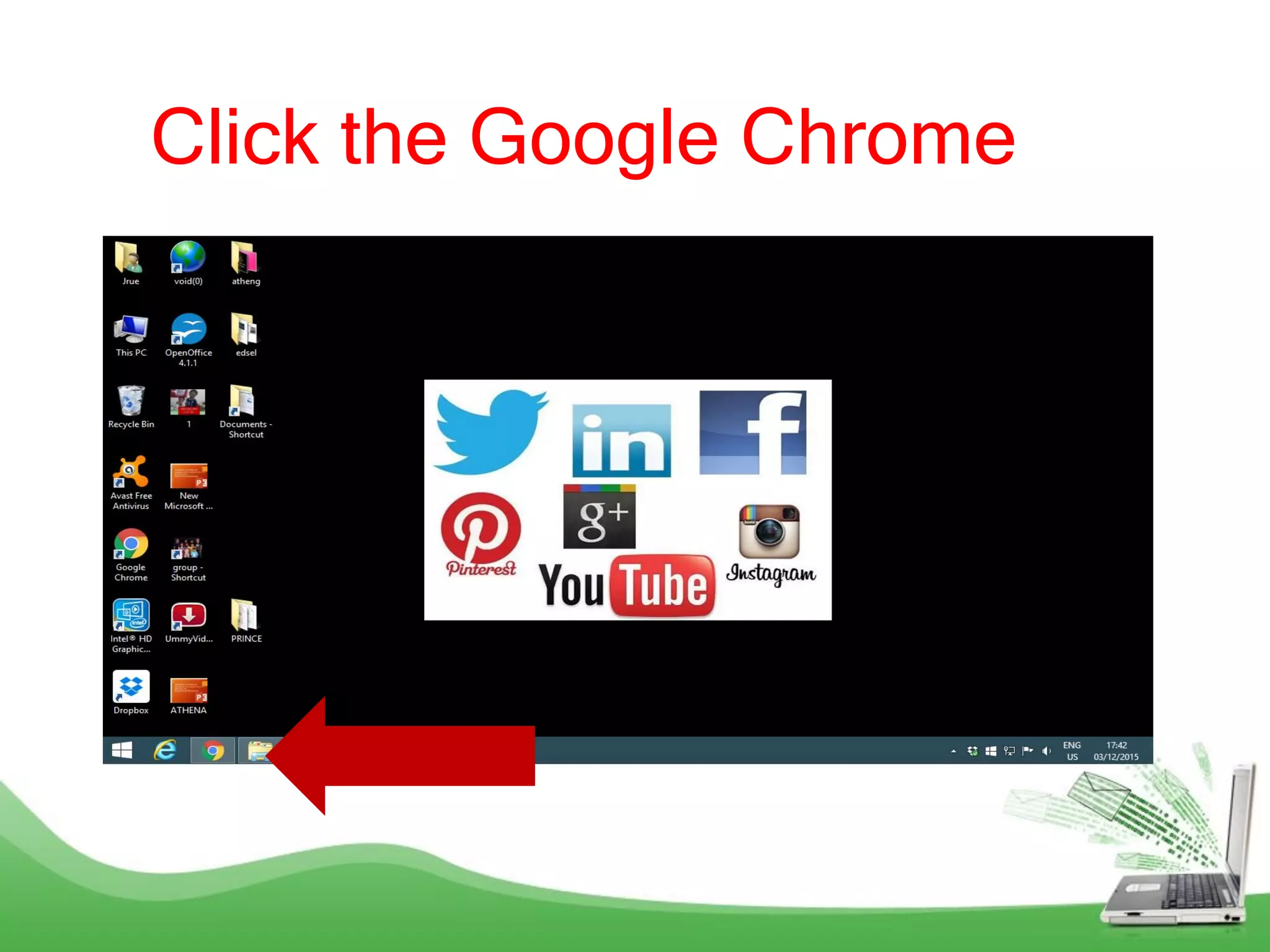
Click the Google Chrome
Type the Dropbox
and Sign In with
your Password.
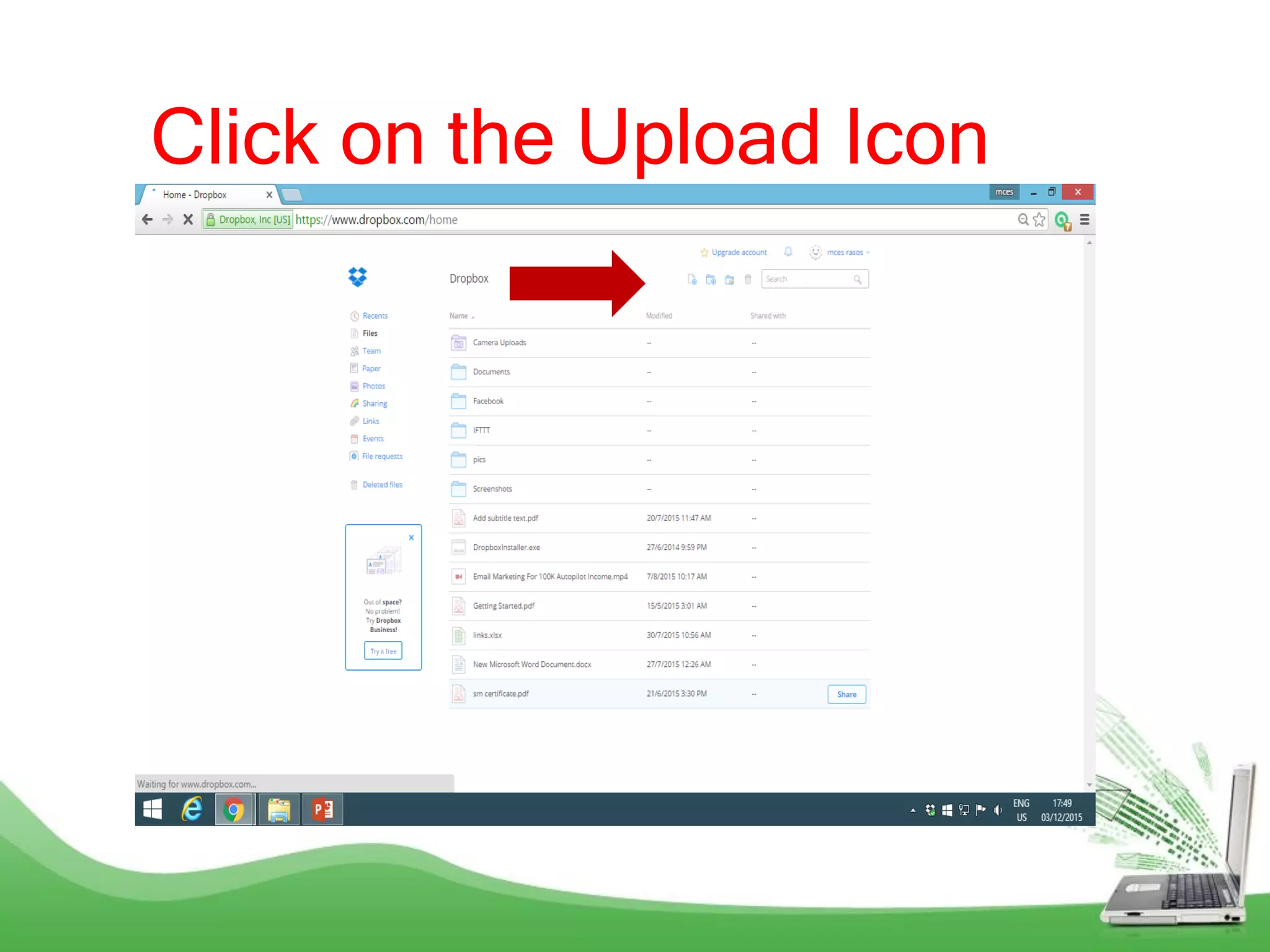
Click on the Upload Icon
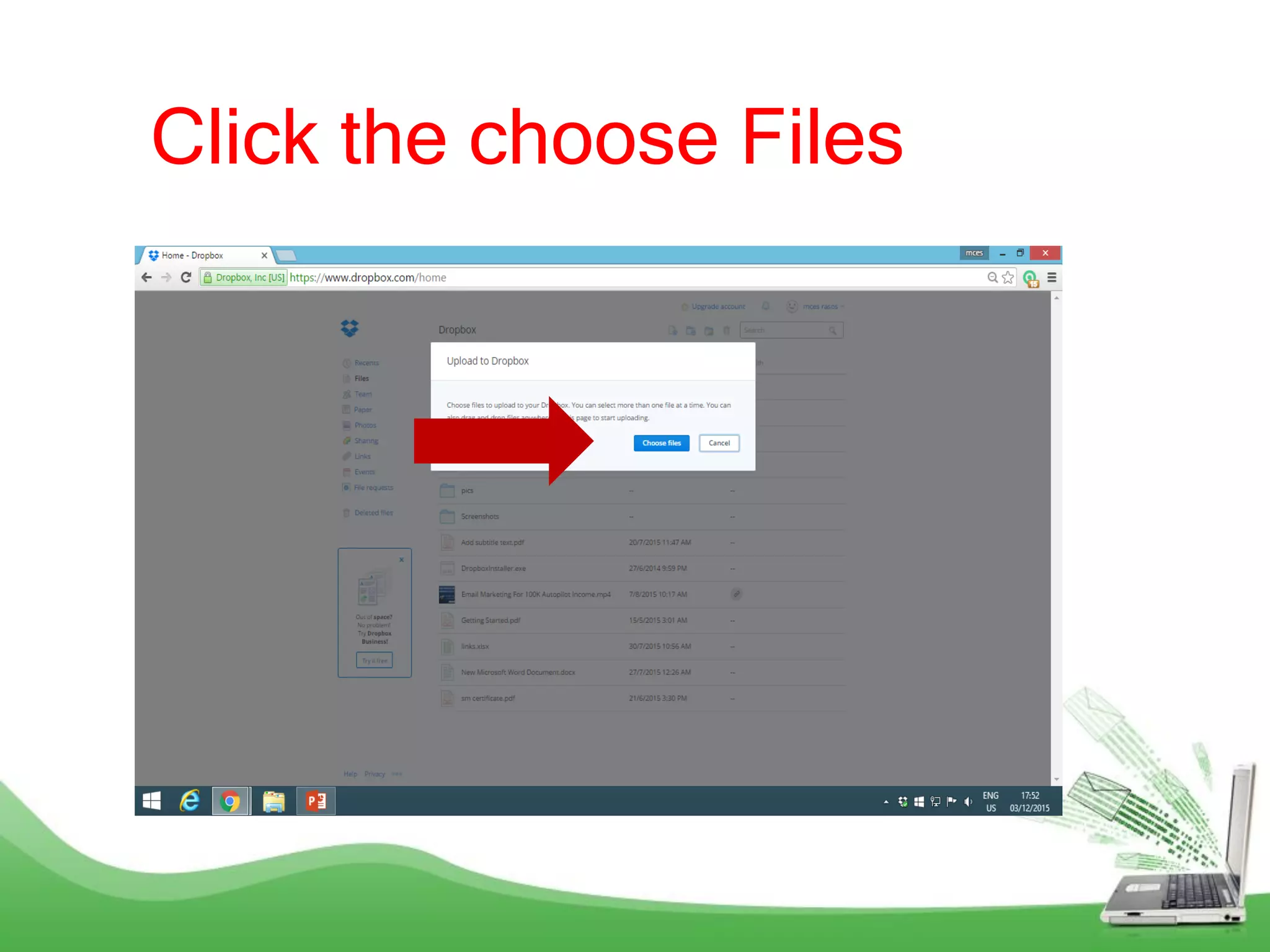
Click the choose Files
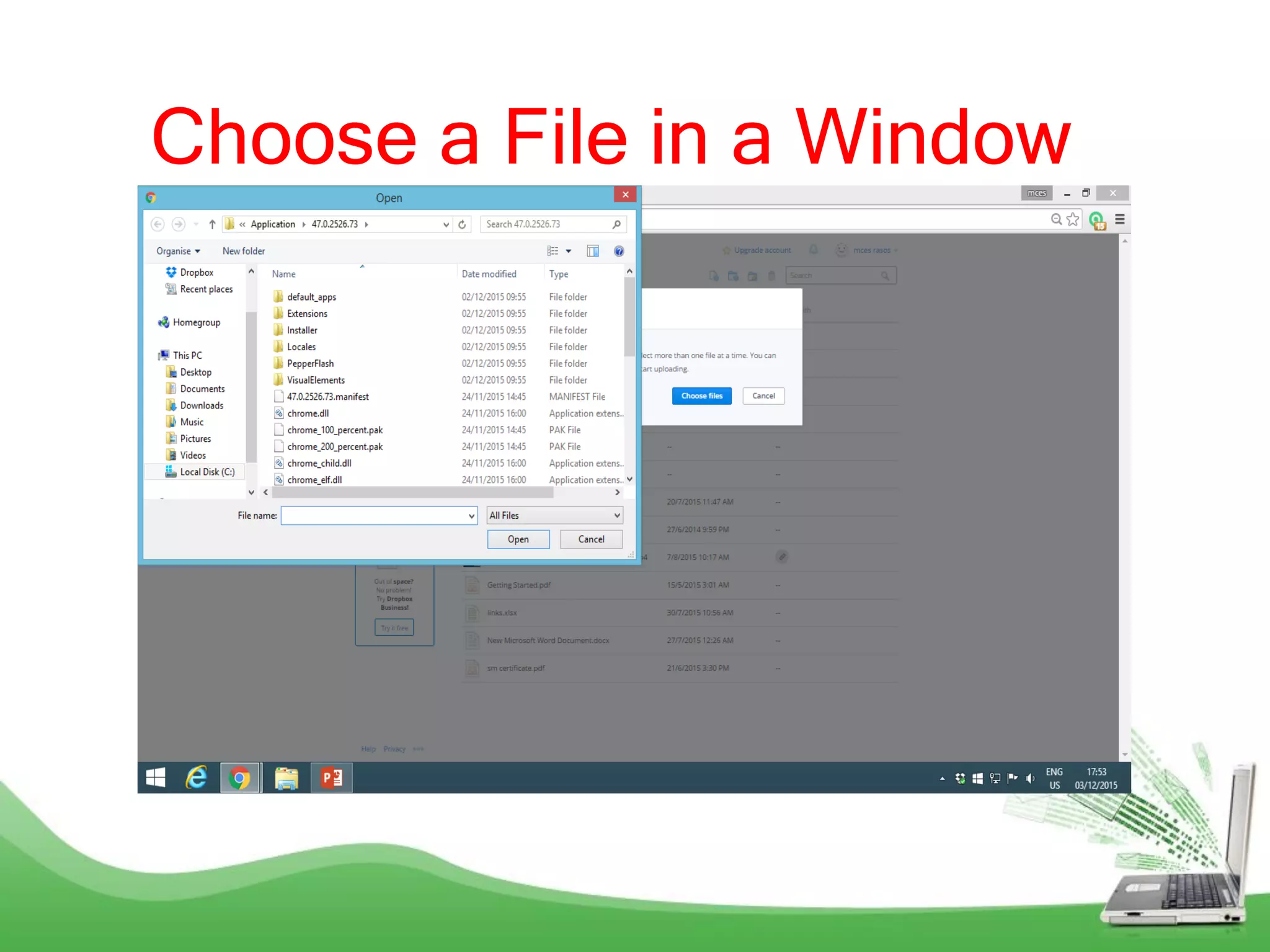
Choose a File in a Window
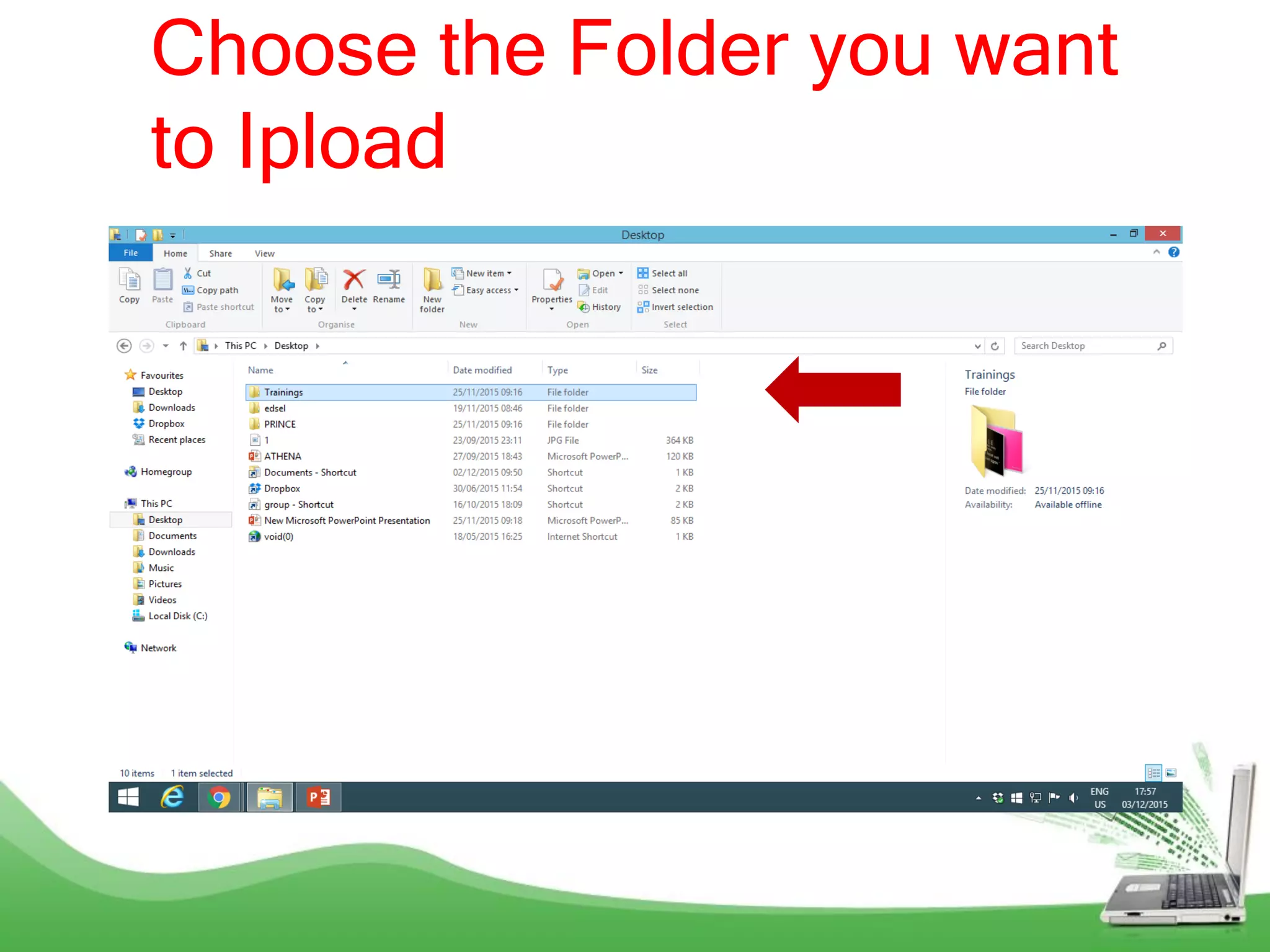
Choose the Folder you want
to Ipload
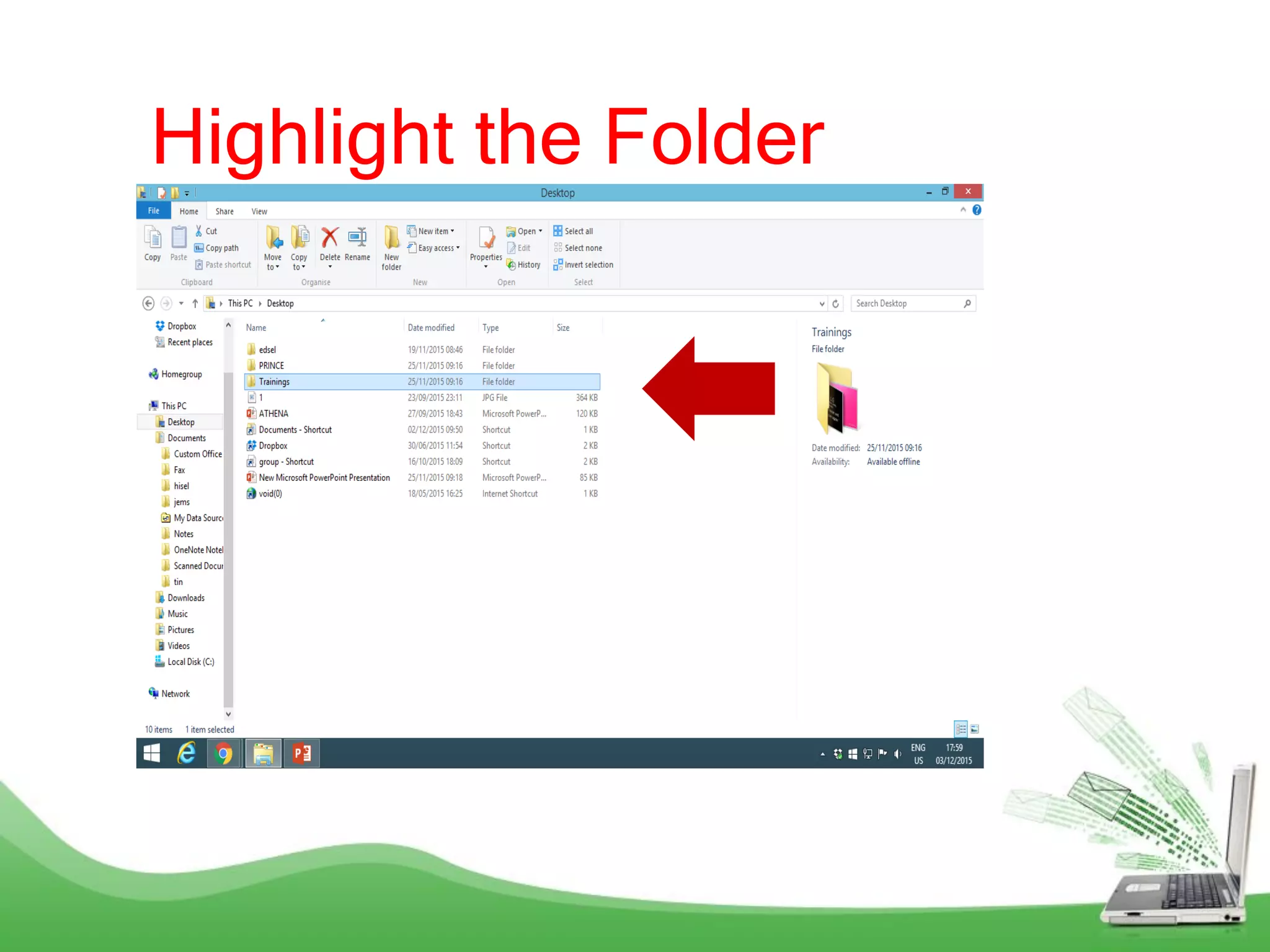
Highlight the Folder
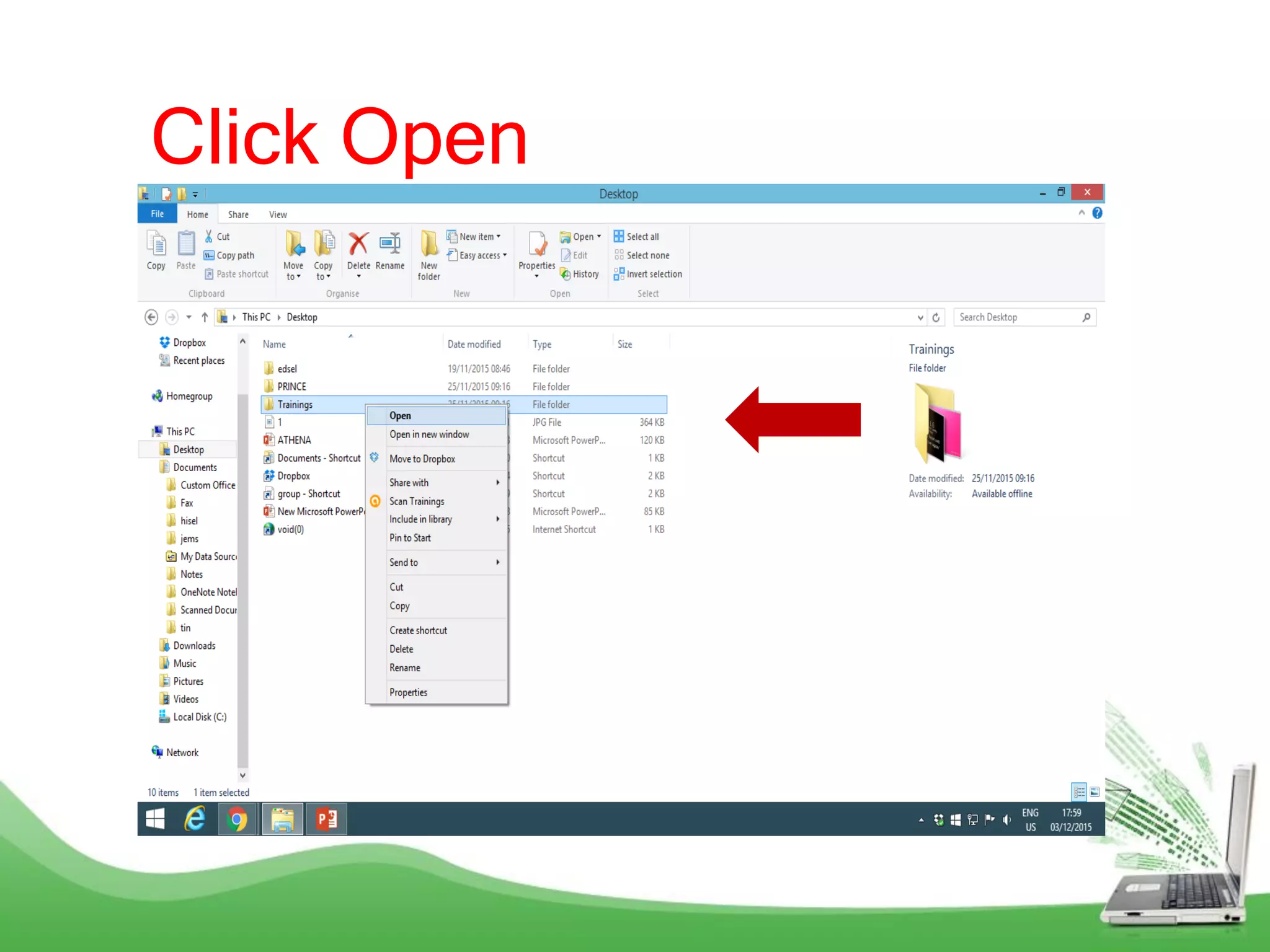
Click Open
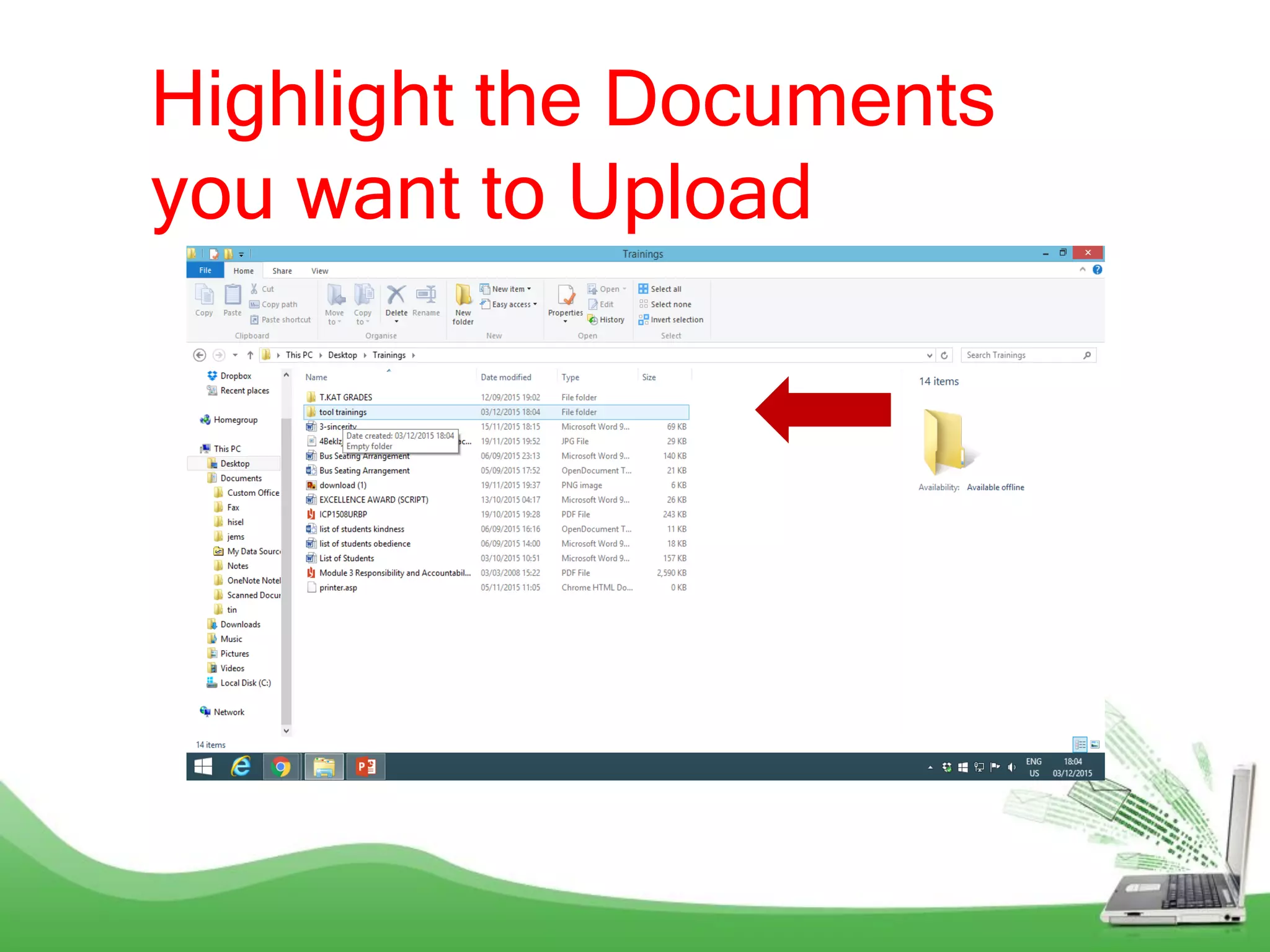
Highlight the Documents
you want to Upload
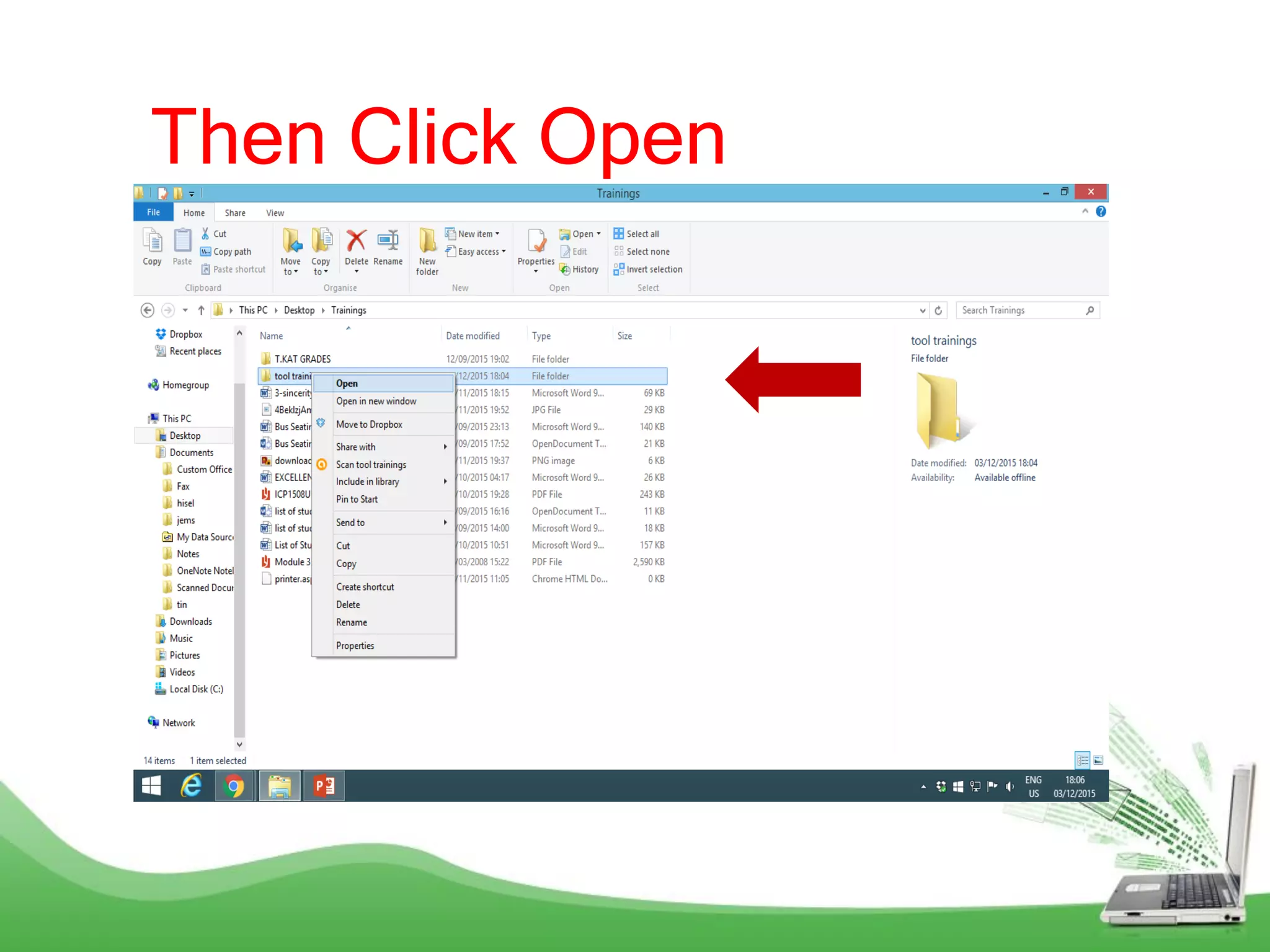
Then Click Open
Or Choose Move to Dropbox
Files are Uploaded in your
Dropbox
Or just drag
the folder to
your Dropbox.
How to create
a new folder in
your Dropbox?
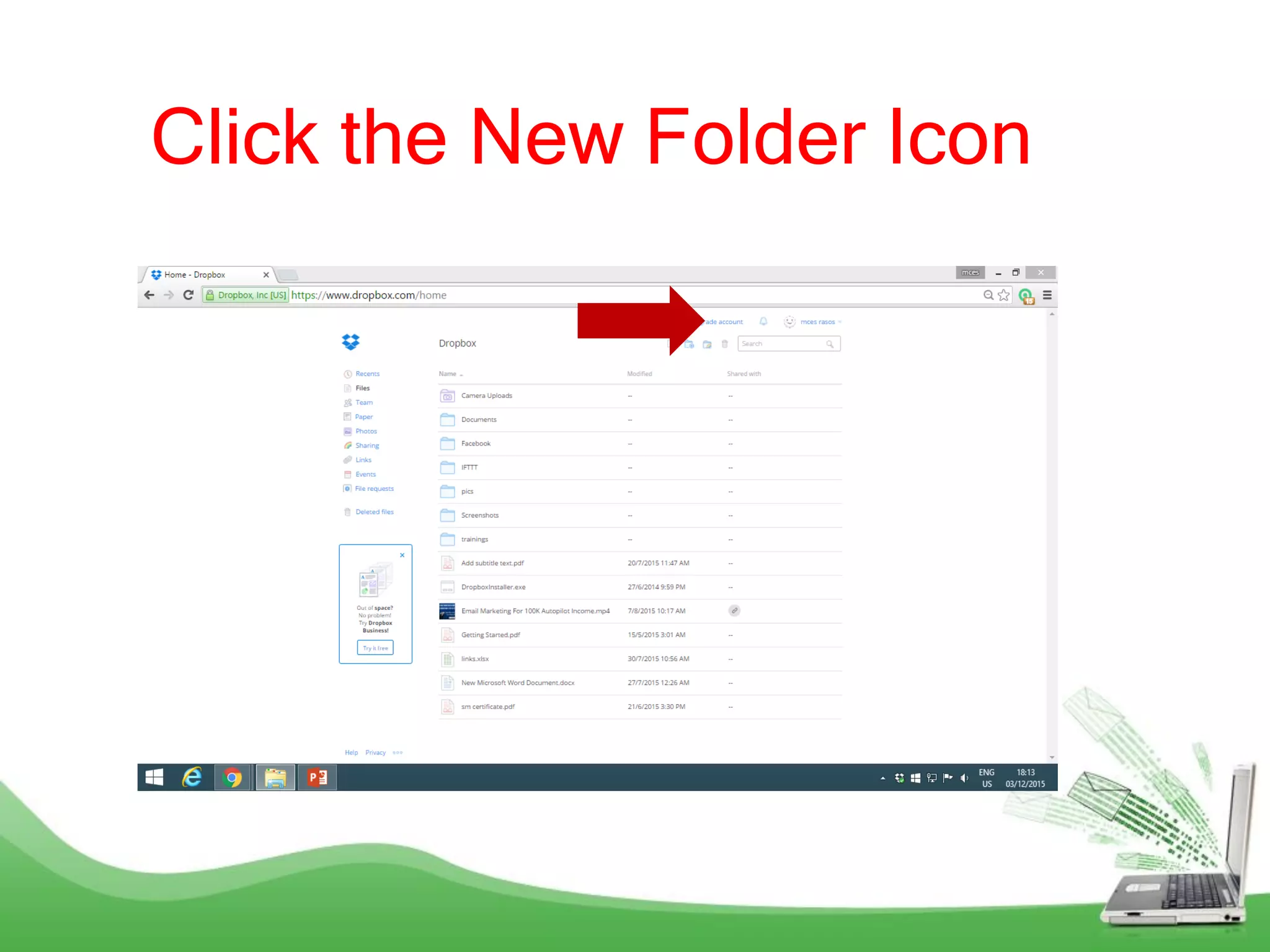
Click the New Folder Icon
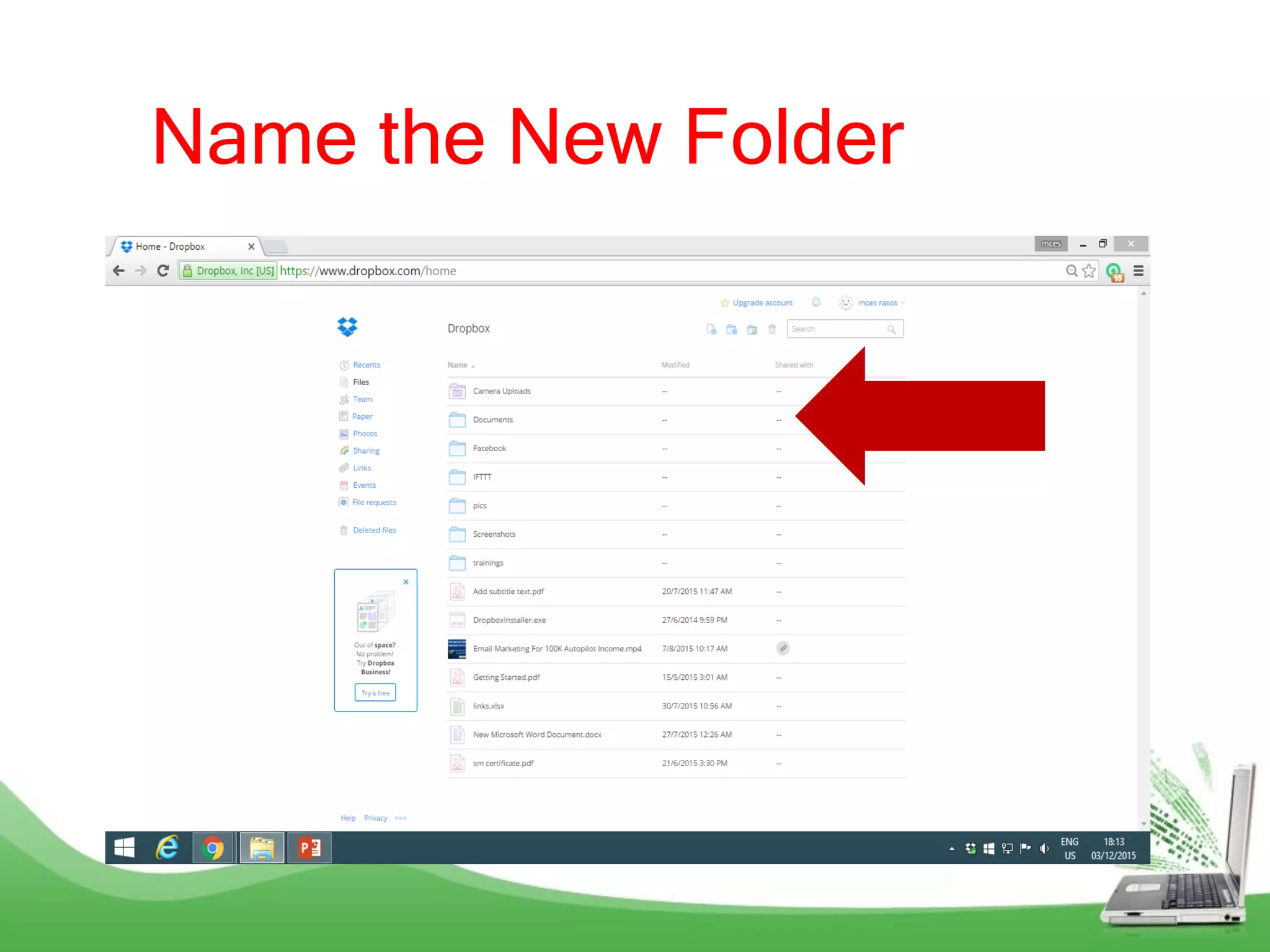
Name the New Folder
How to share
files in your
Dropbox?
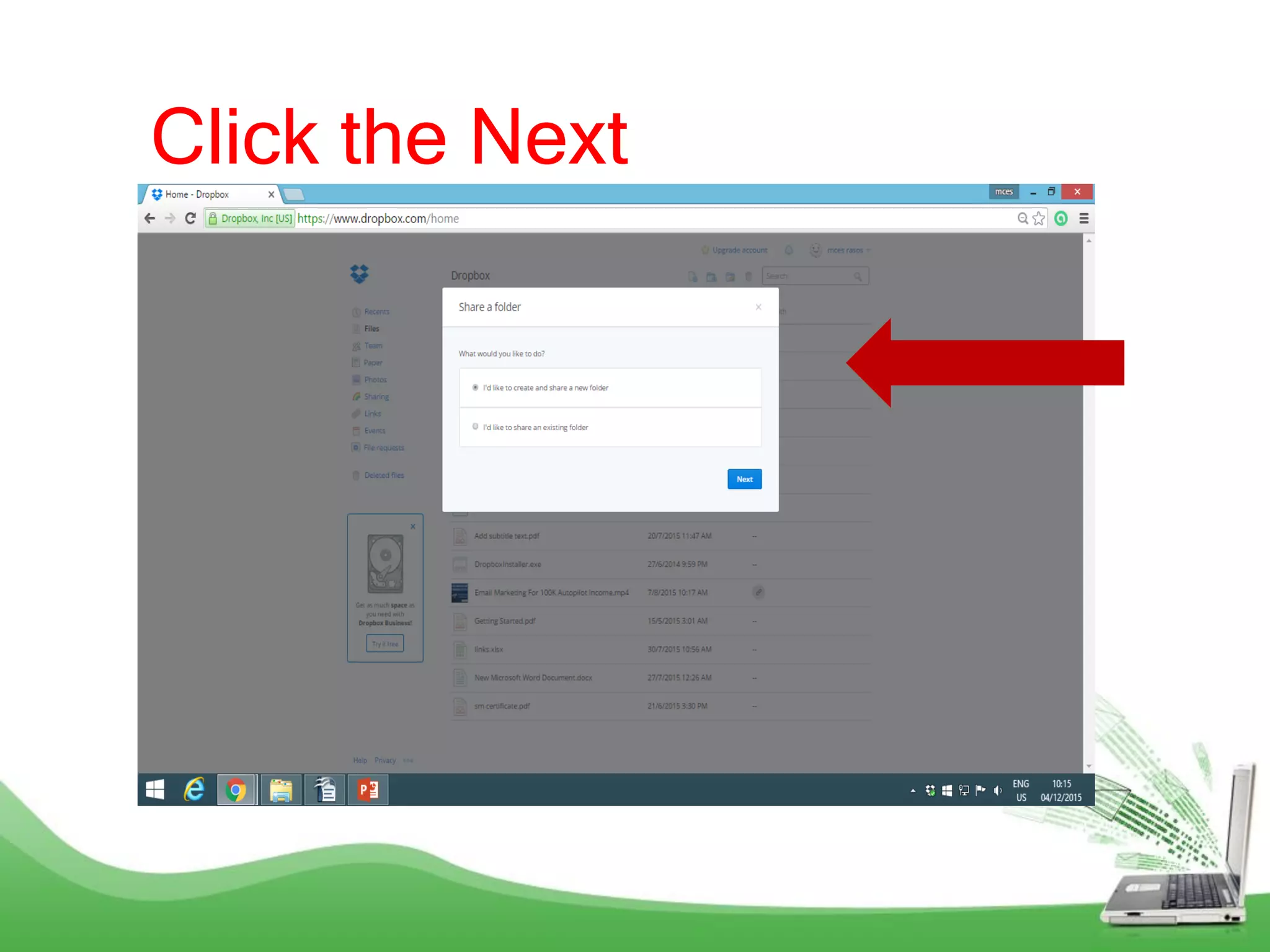
Click the Share a Folder
Icon
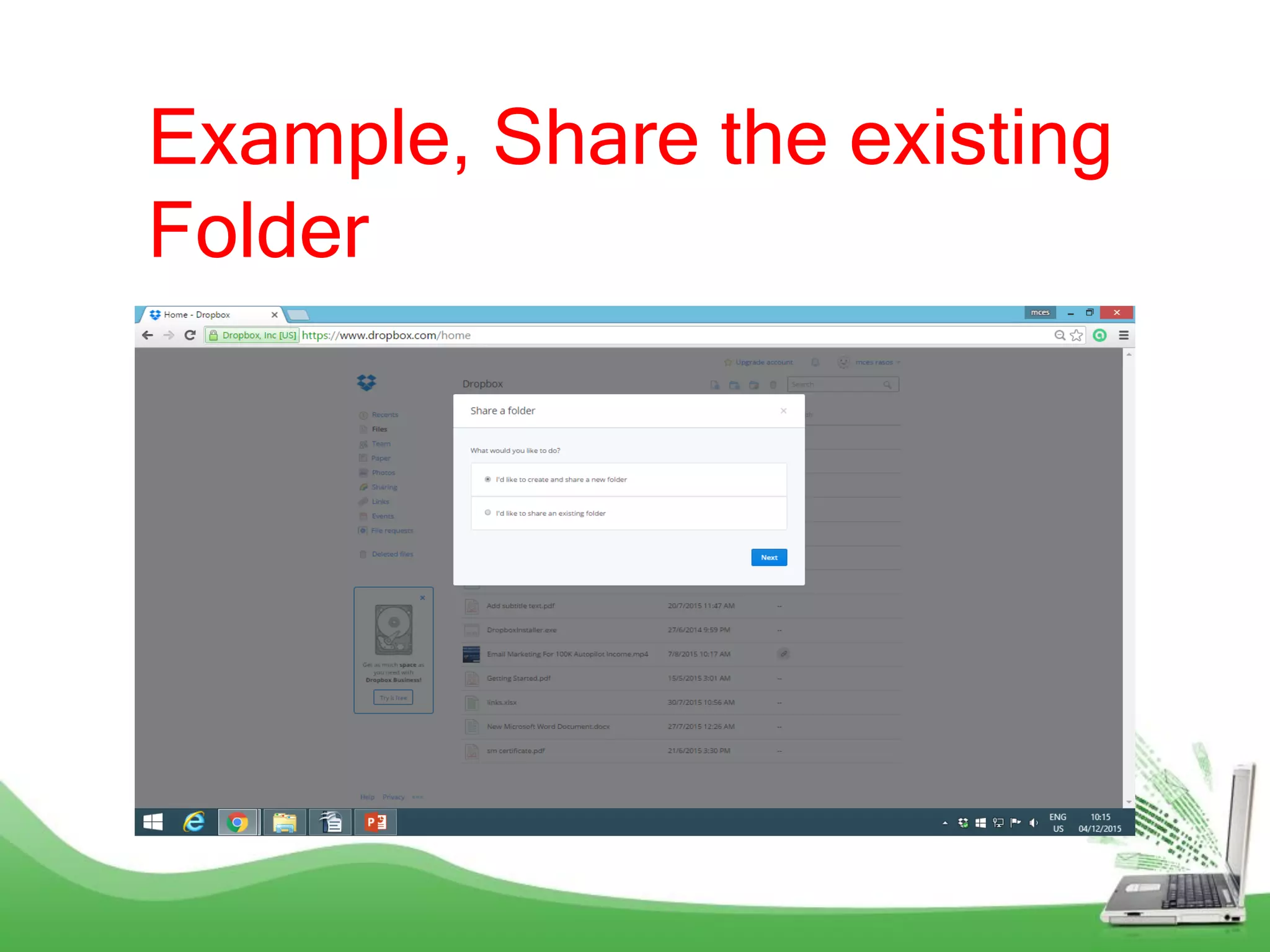
Example, Share the existing
Folder
Click the Next
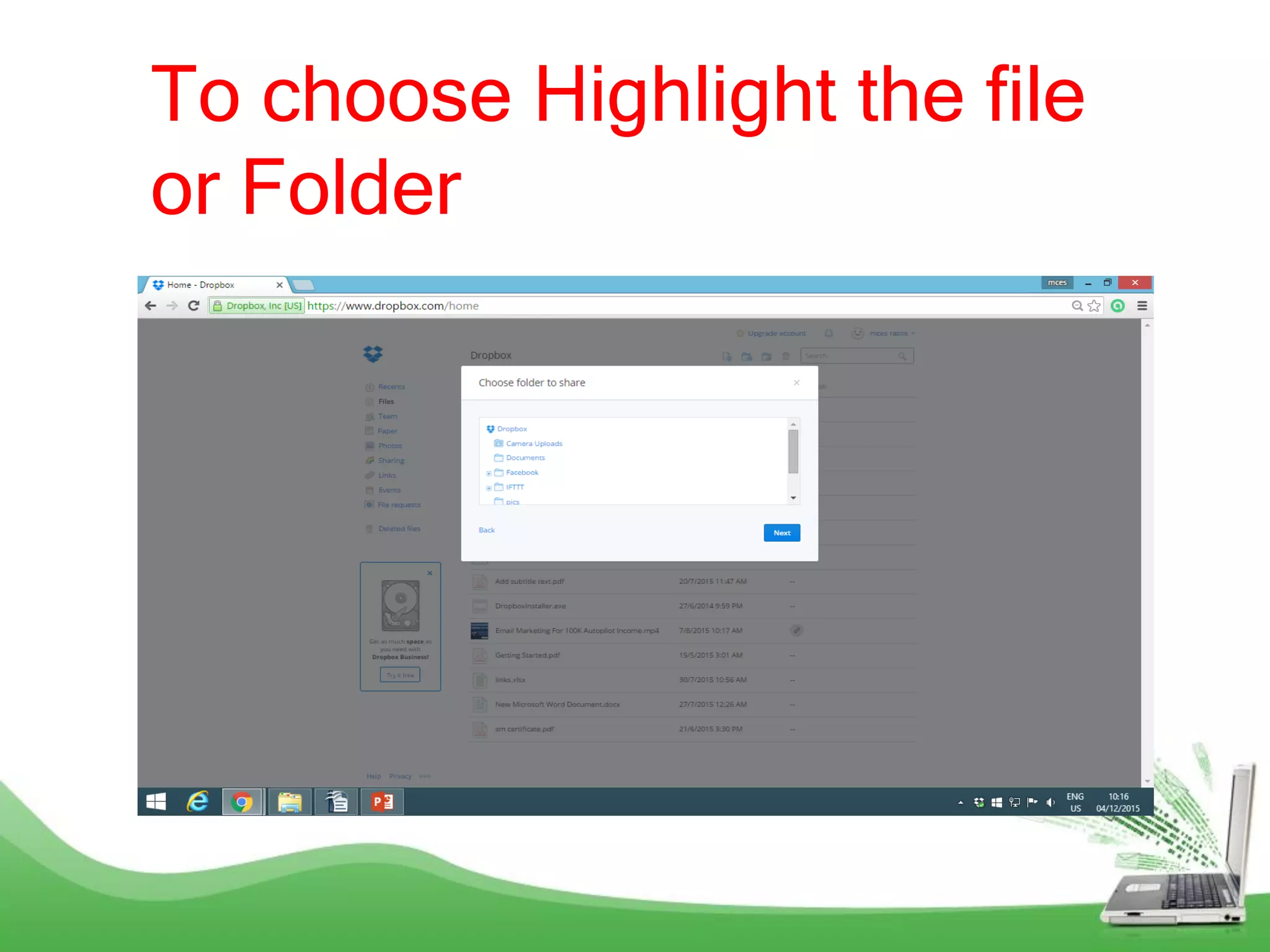
To choose Highlight the file
or Folder
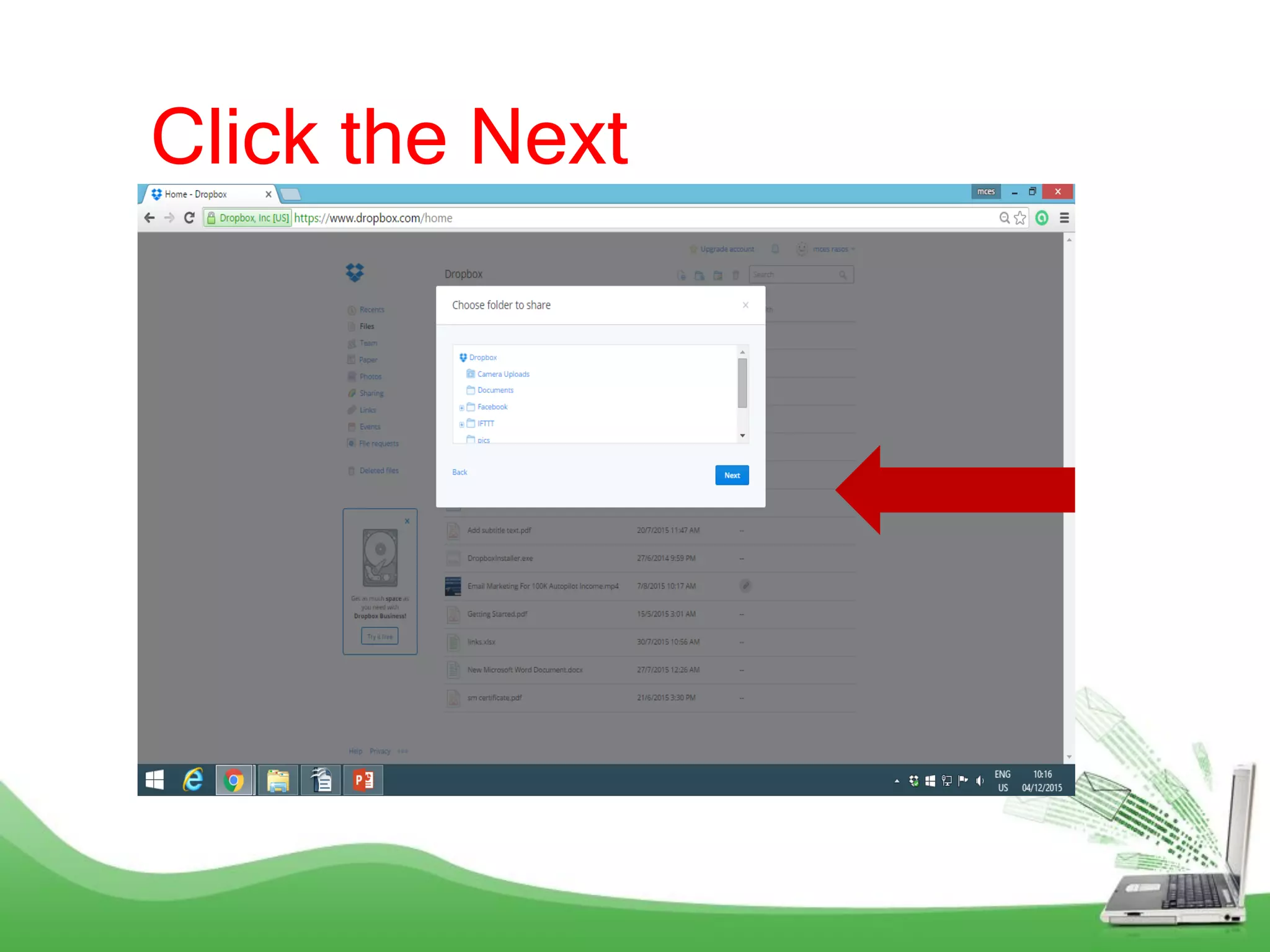
Click the Next
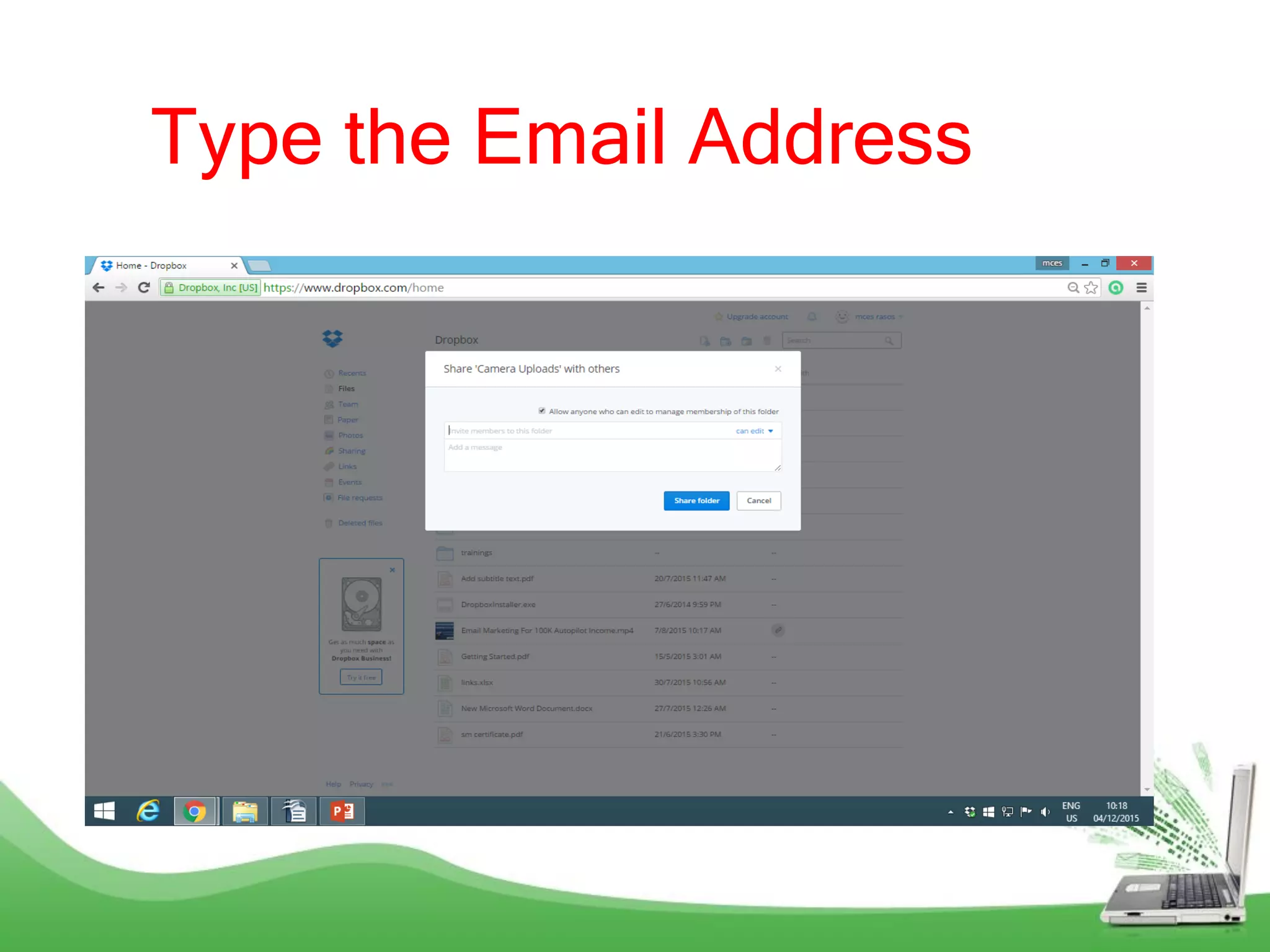
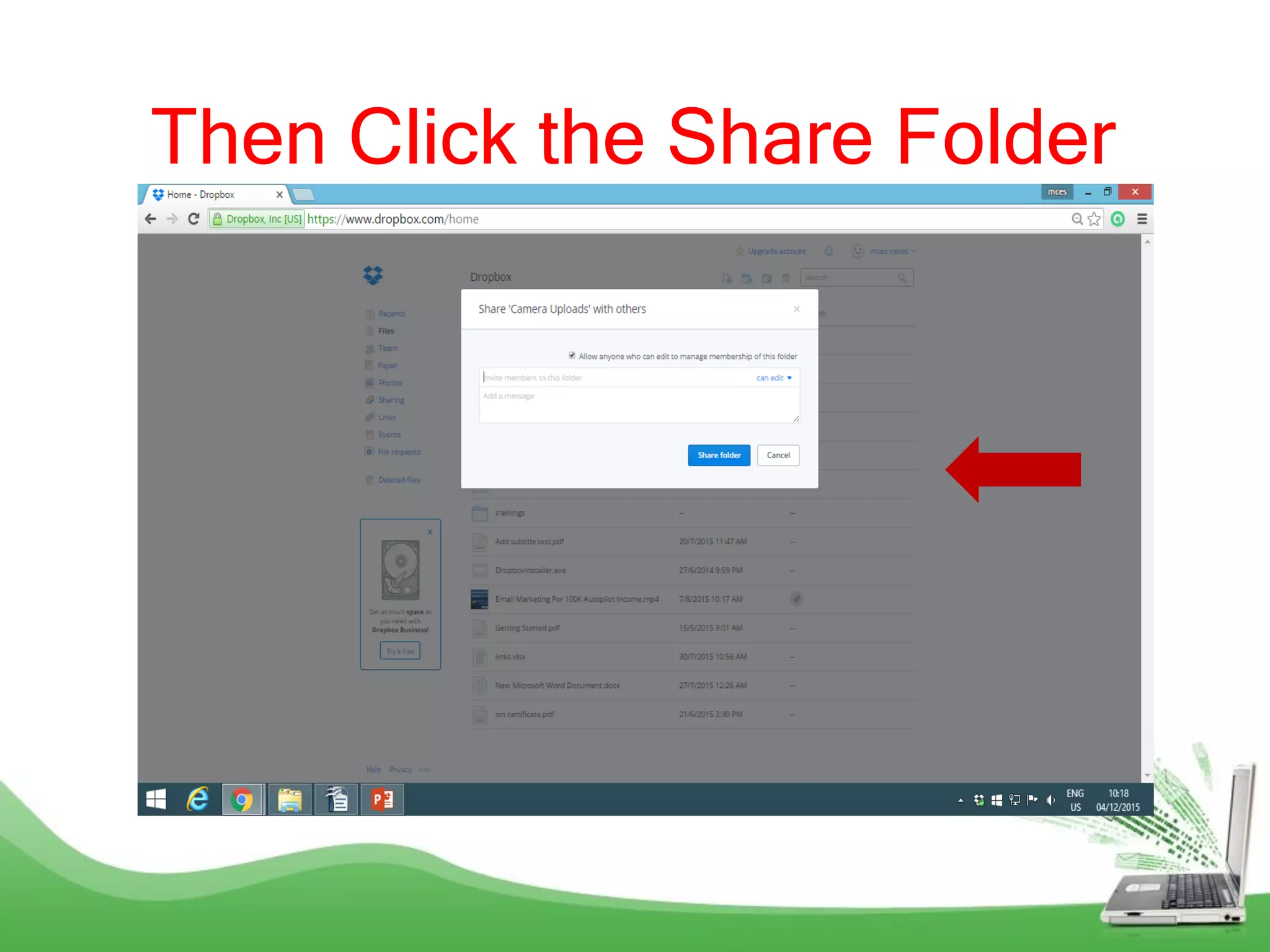
Type the Email Address
Then Click the Share Folder
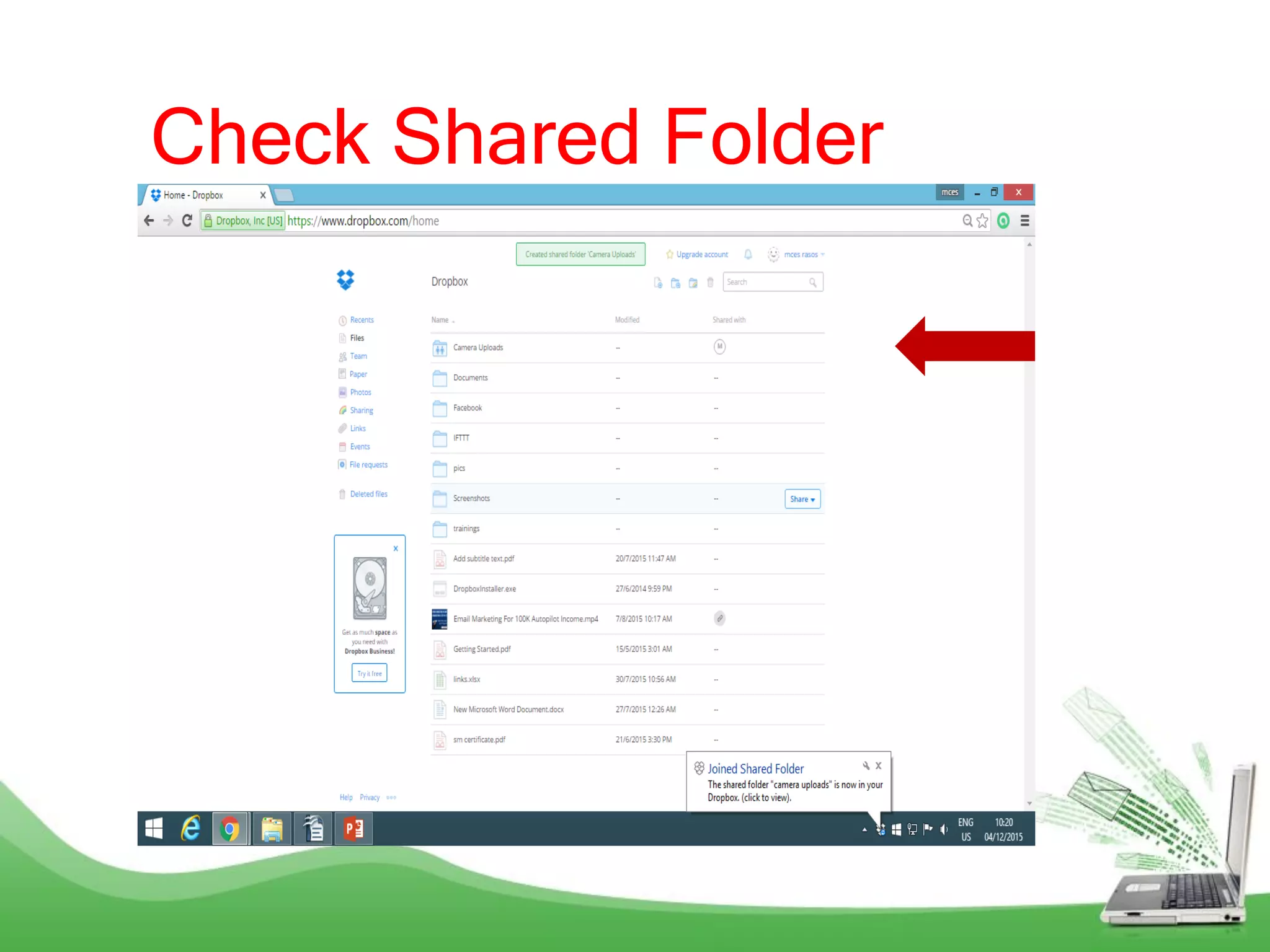
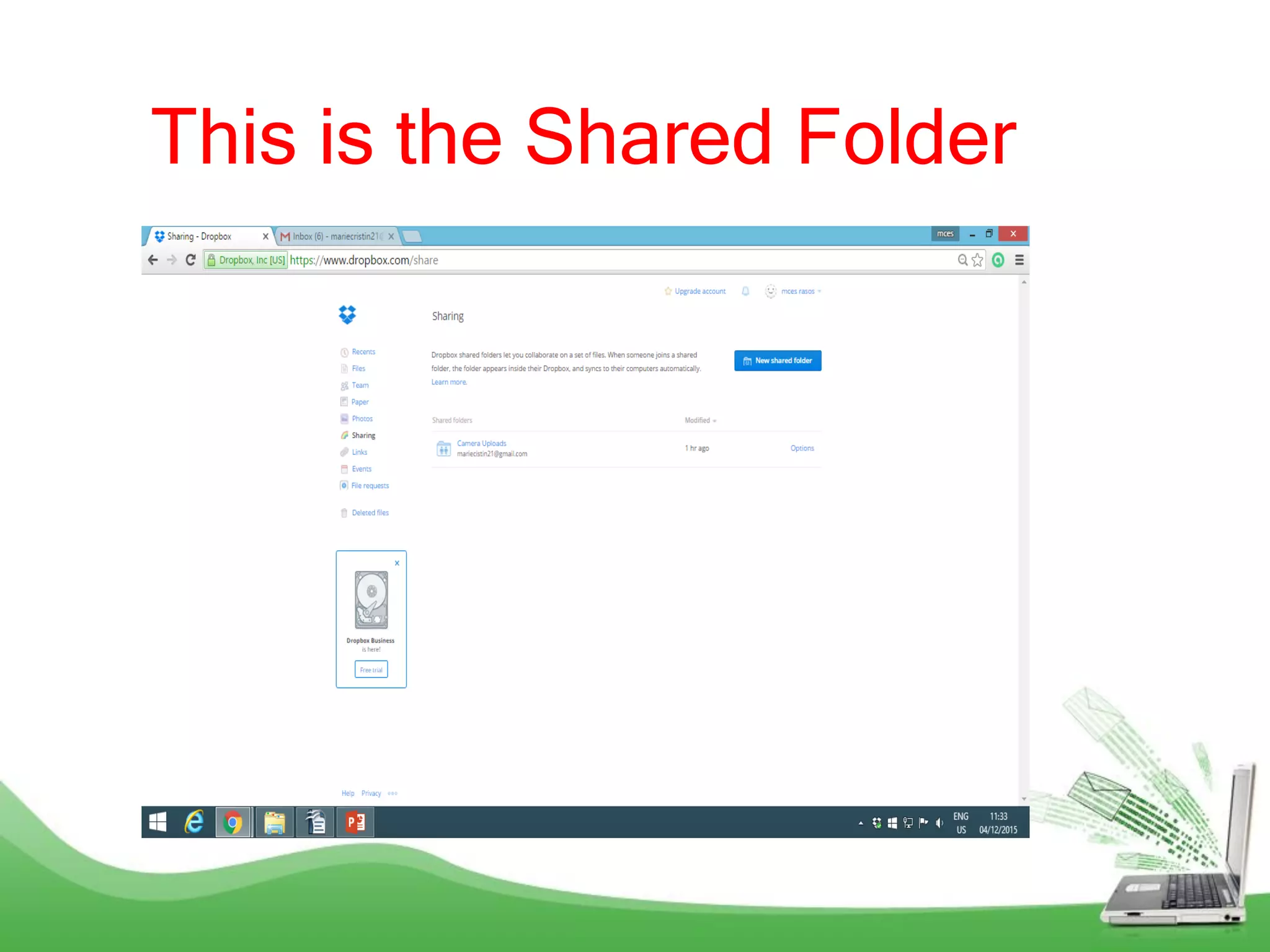
Check Shared Folder
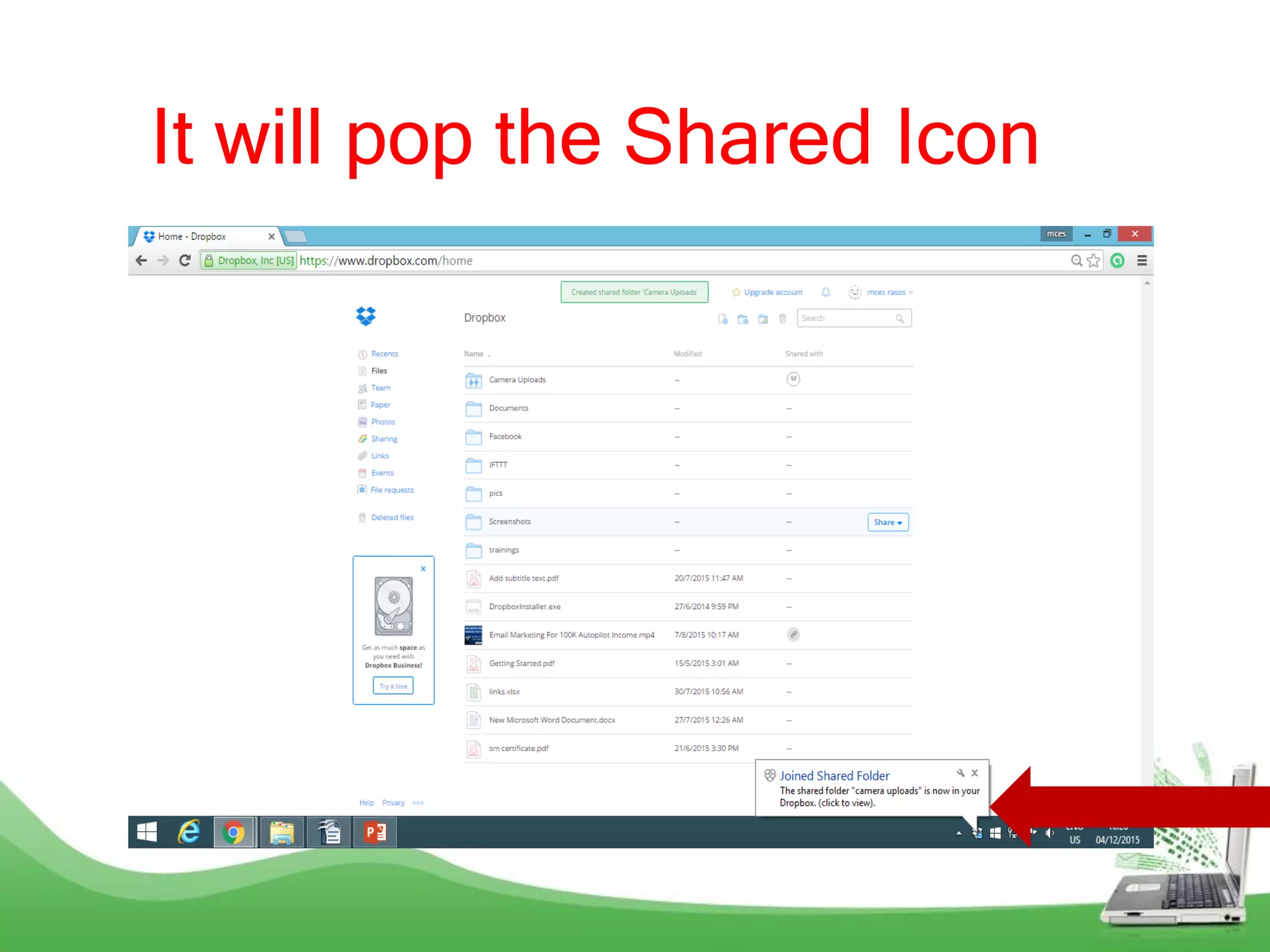
It will pop the Shared Icon
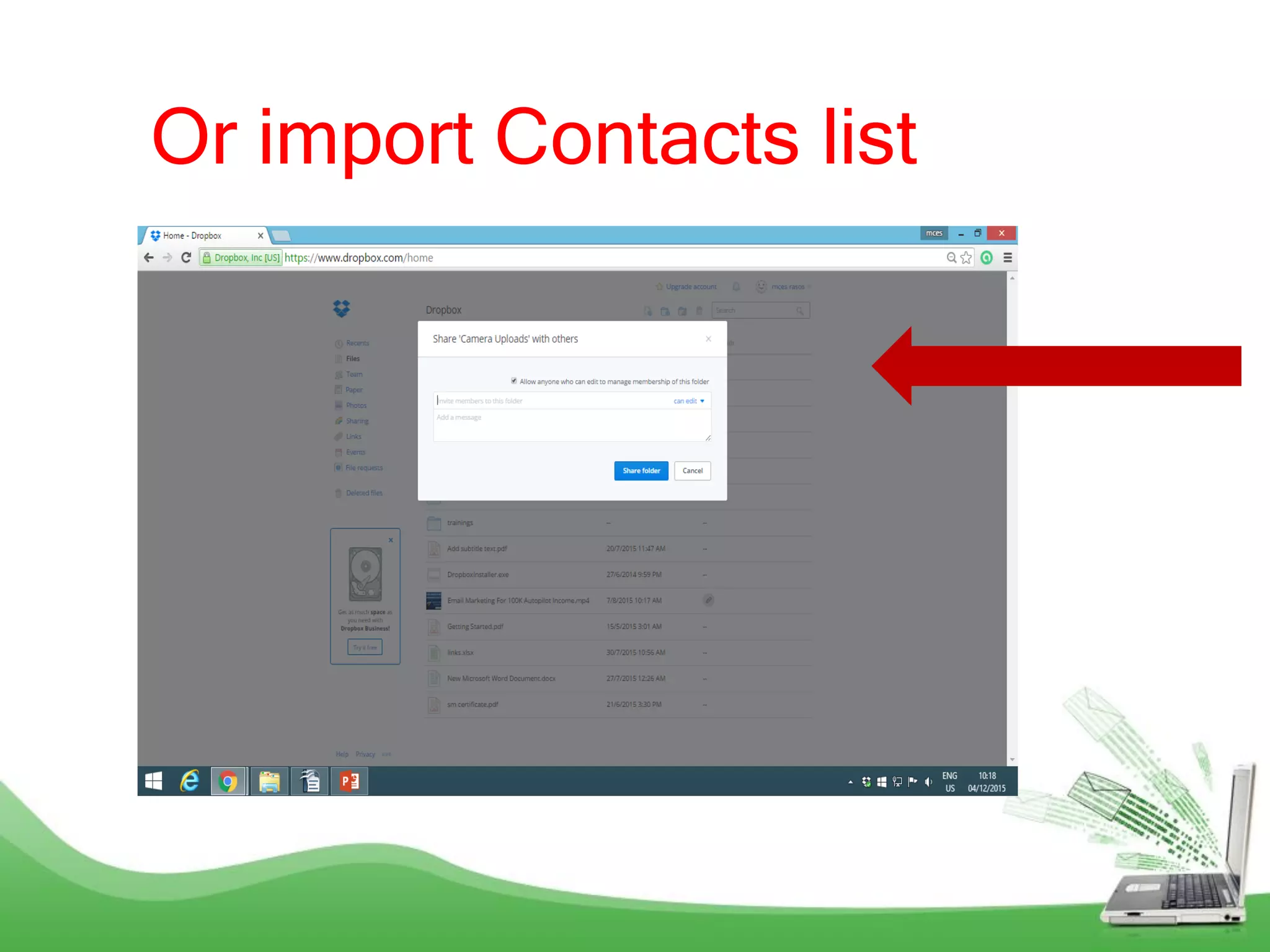
Or import Contacts list
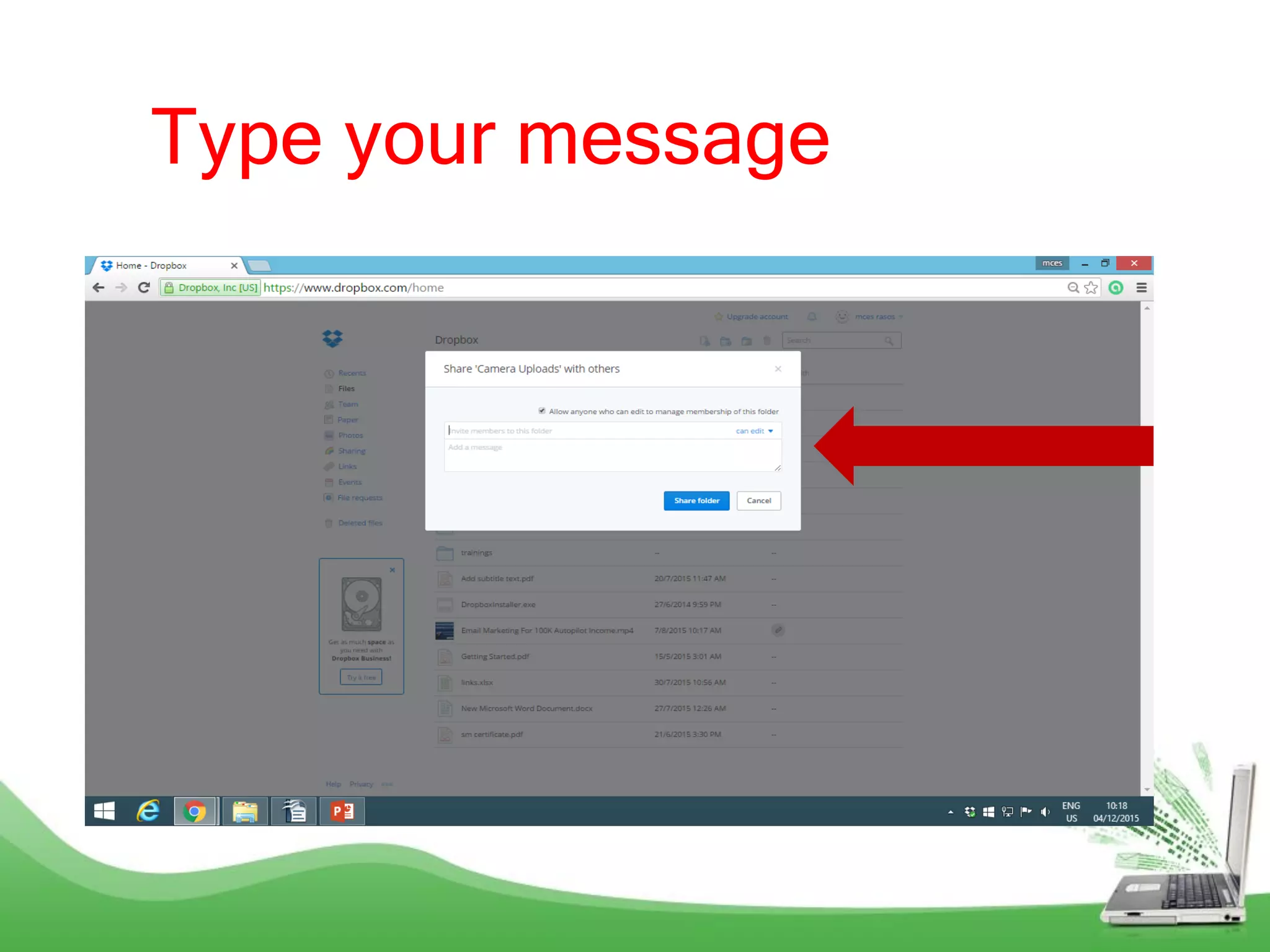
Type your message
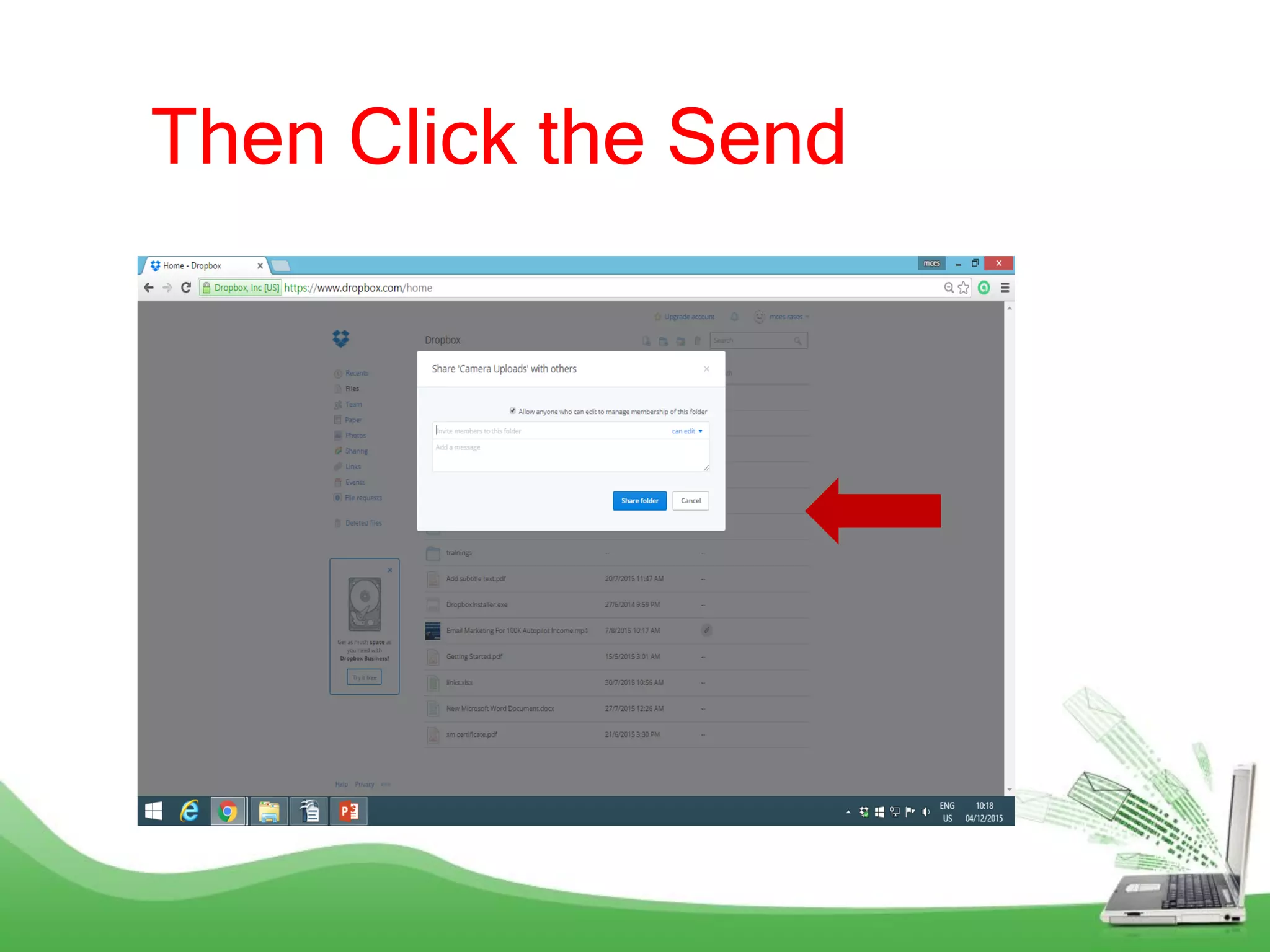
Then Click the Send
Create a Link
for your Files?
Highlight the
file Folder
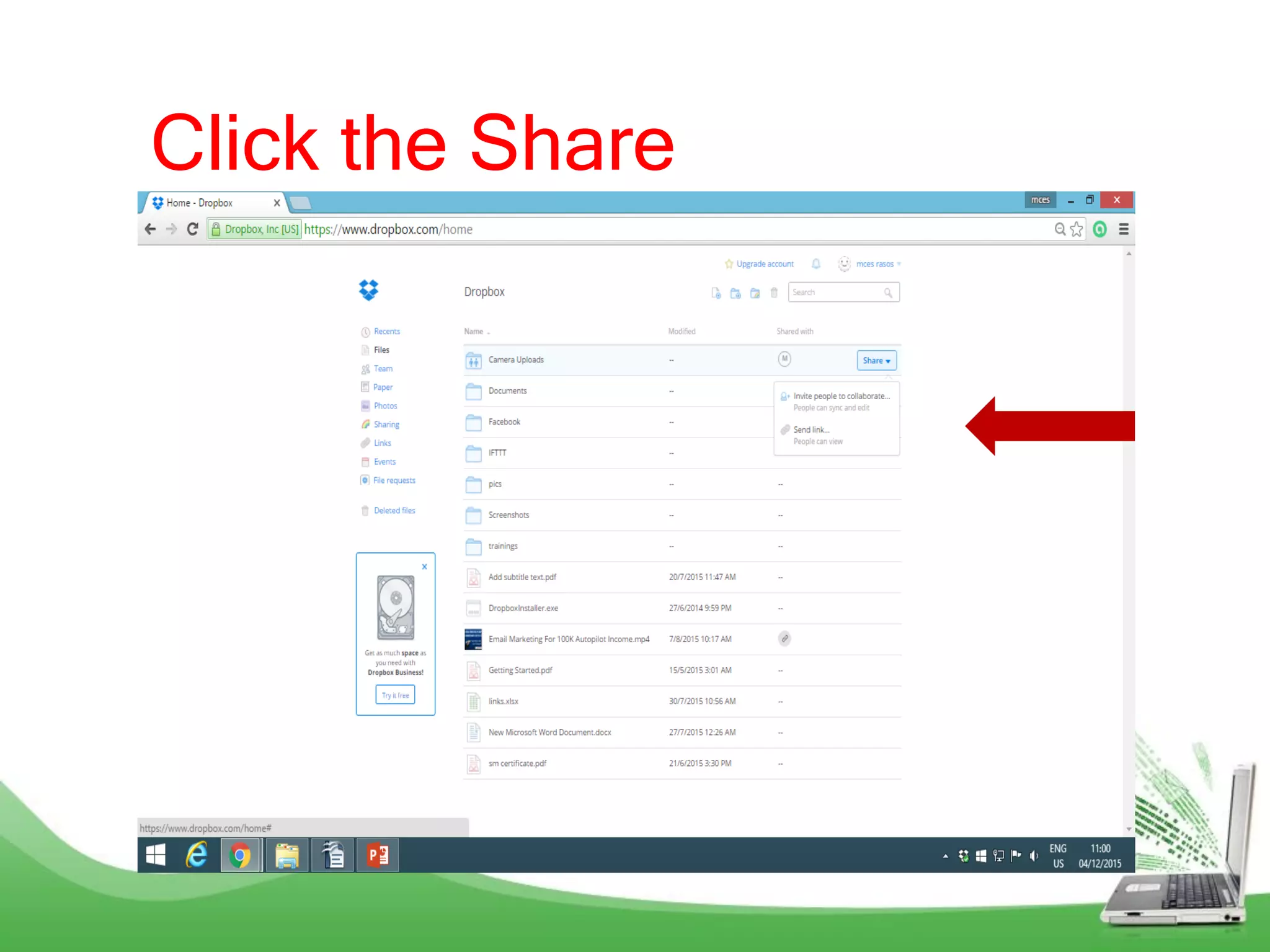
Click the Share
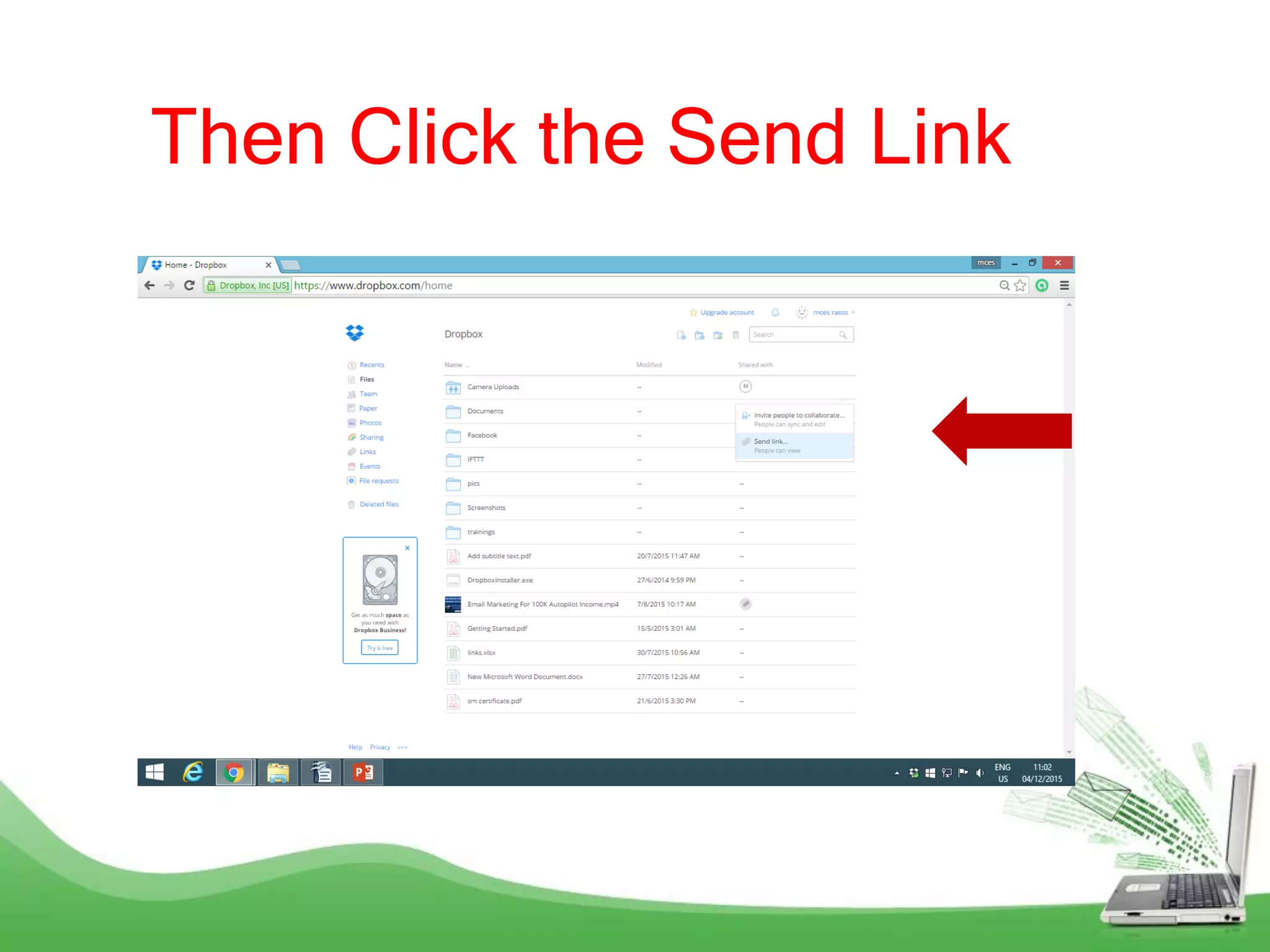
Then Click the Send Link
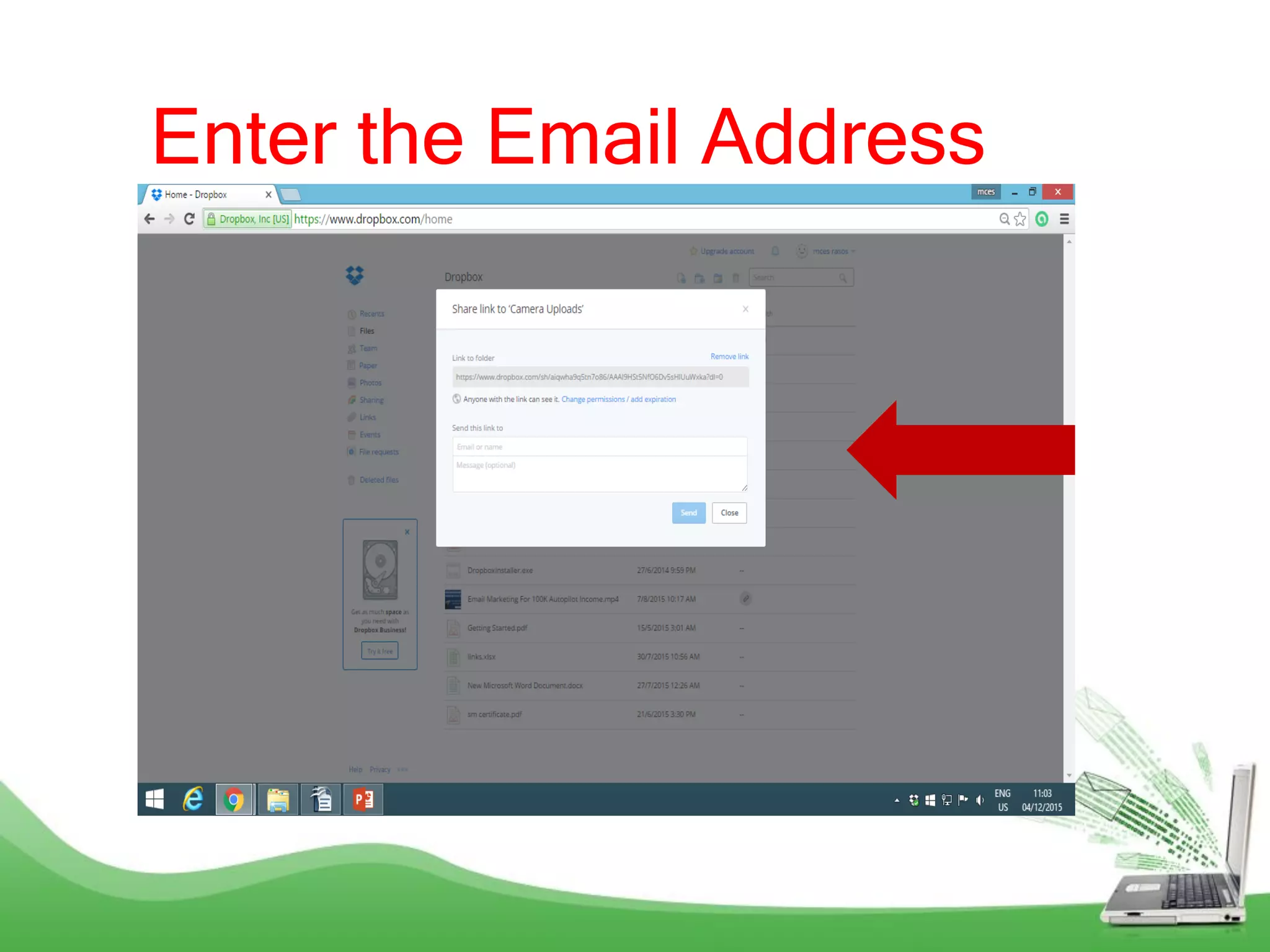
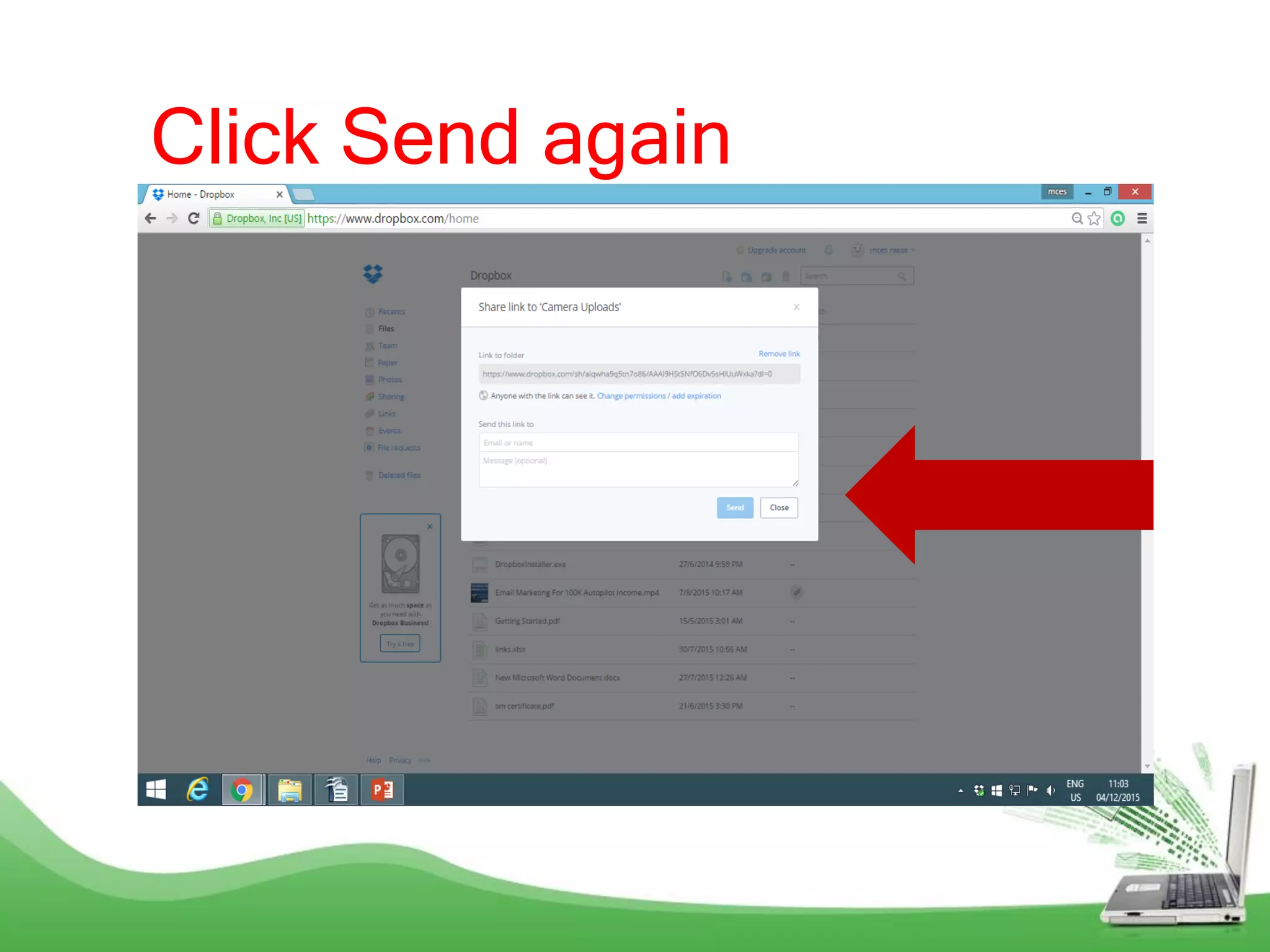
Enter the Email Address
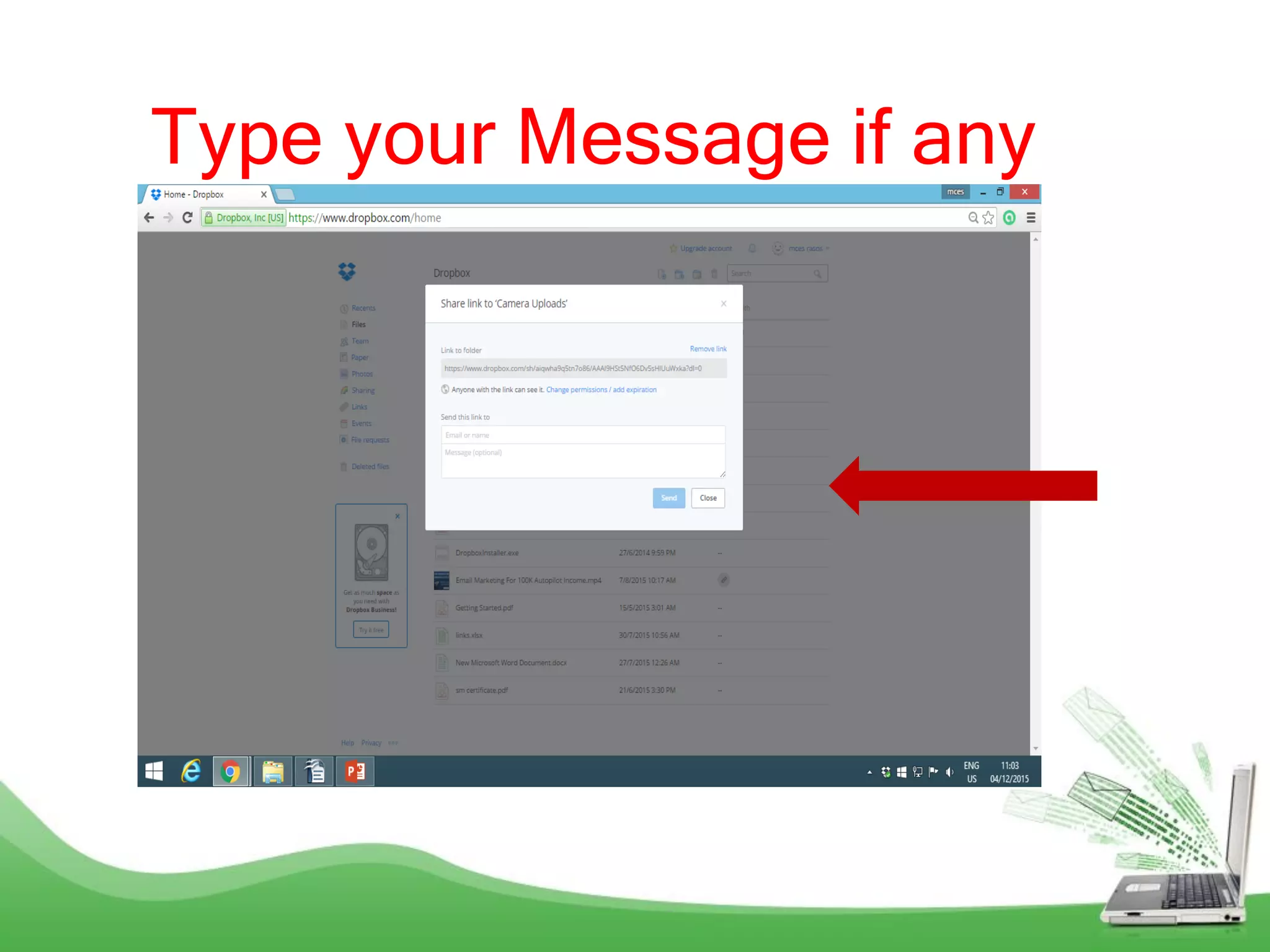
Type your Message if any
Click Send again
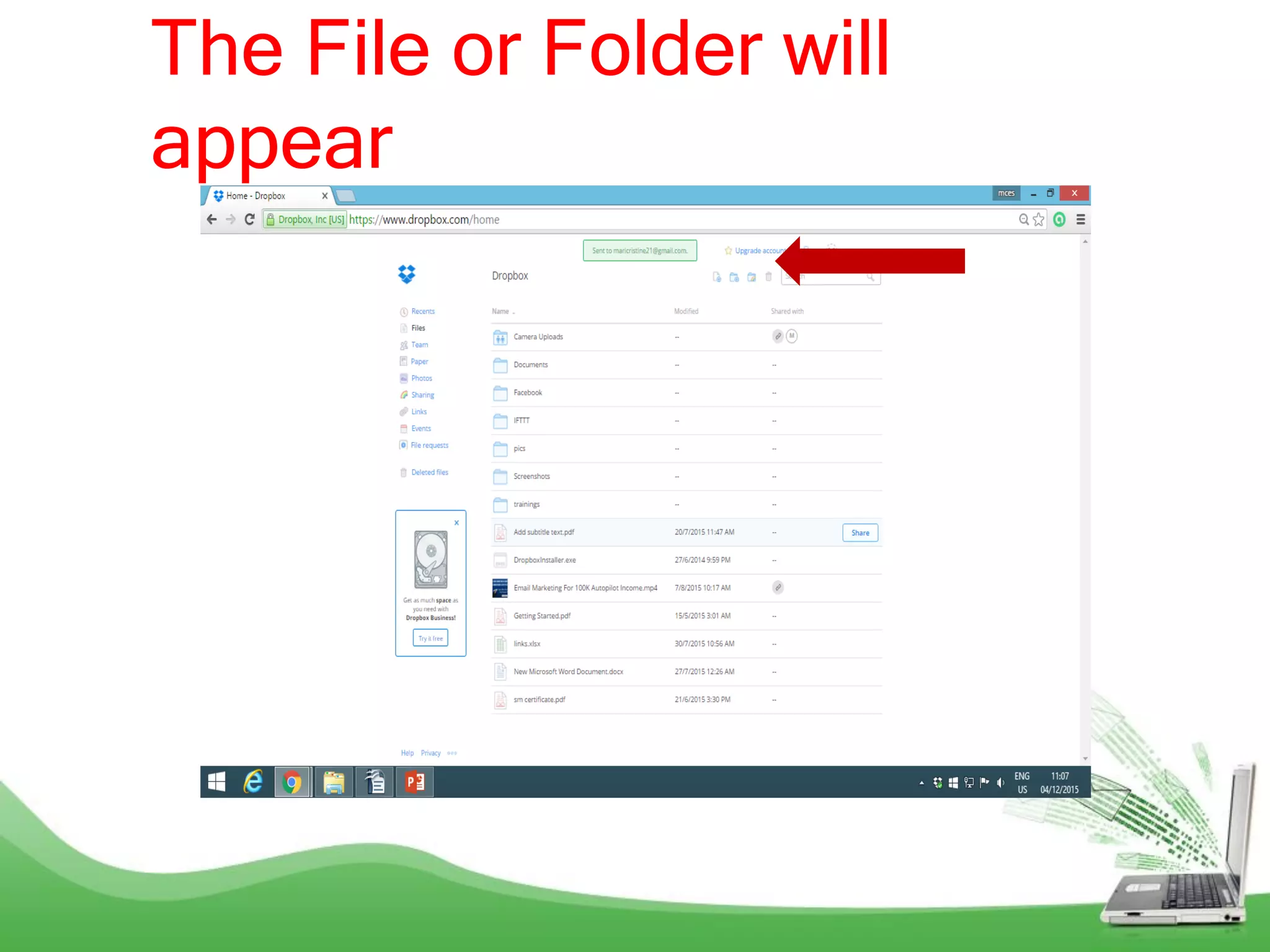
The File or Folder will
appear
The Link can
be sent to
anyone
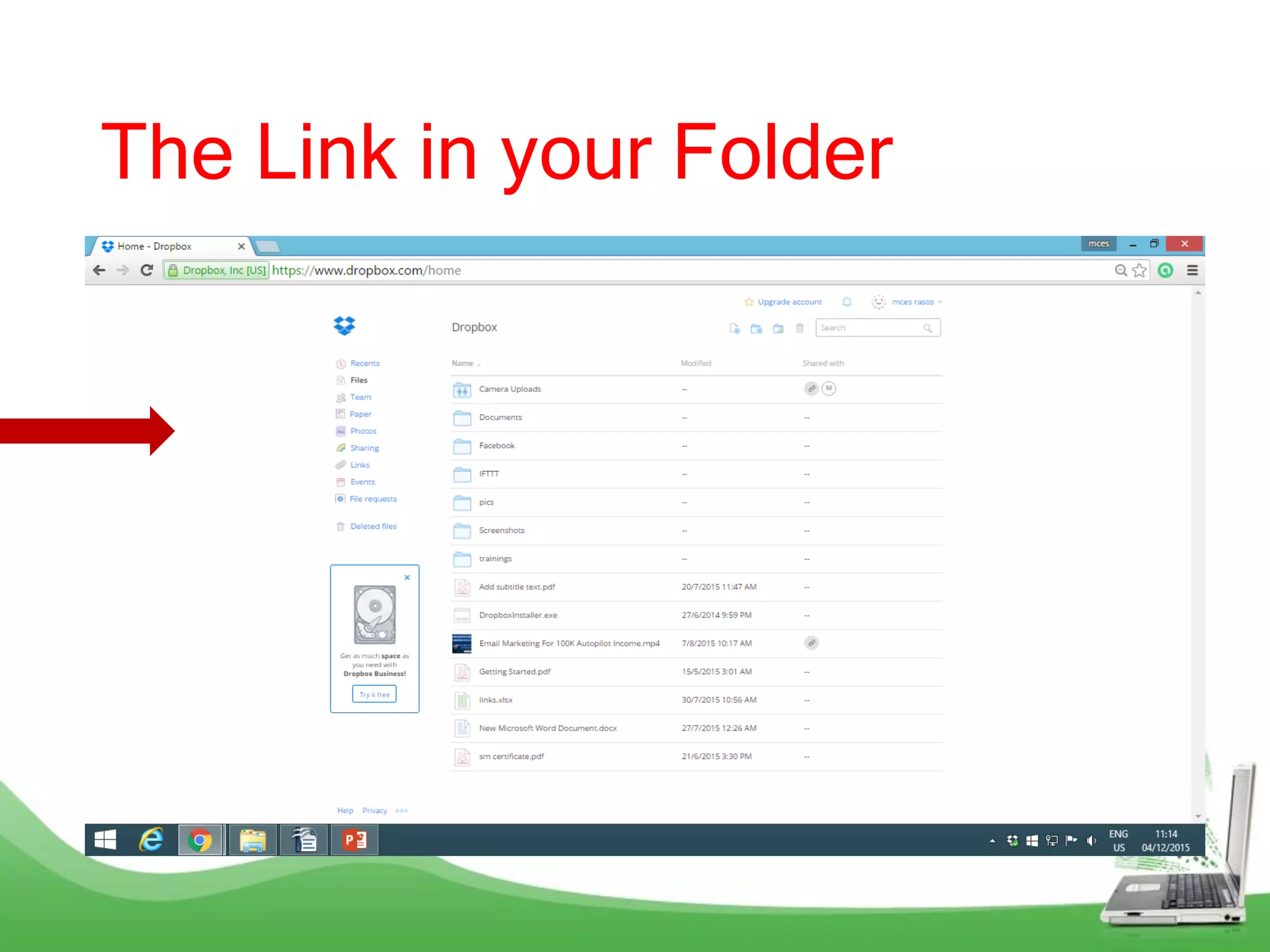
The Link in your Folder
How to check
shared files?
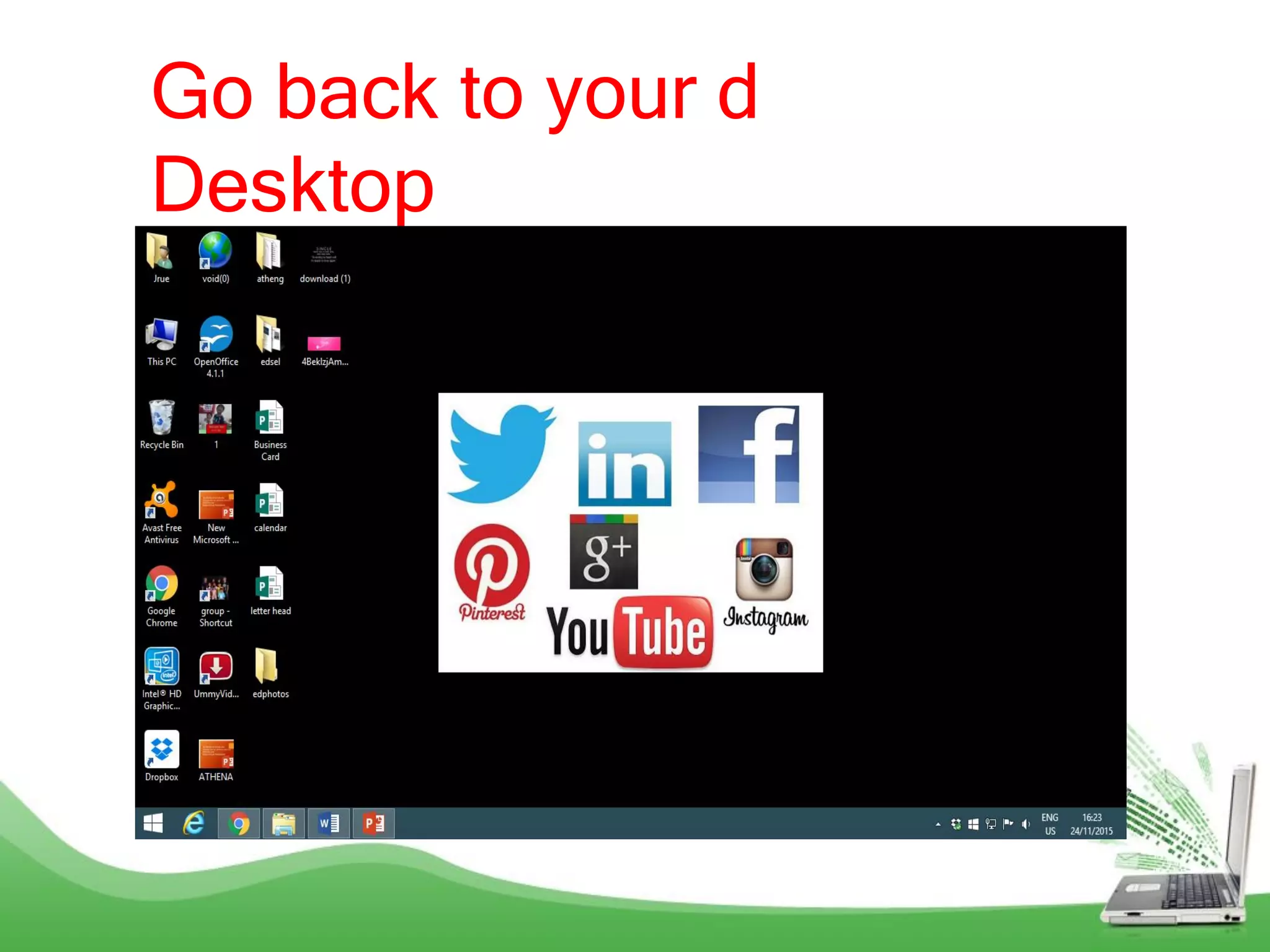
Go back to your d
Desktop
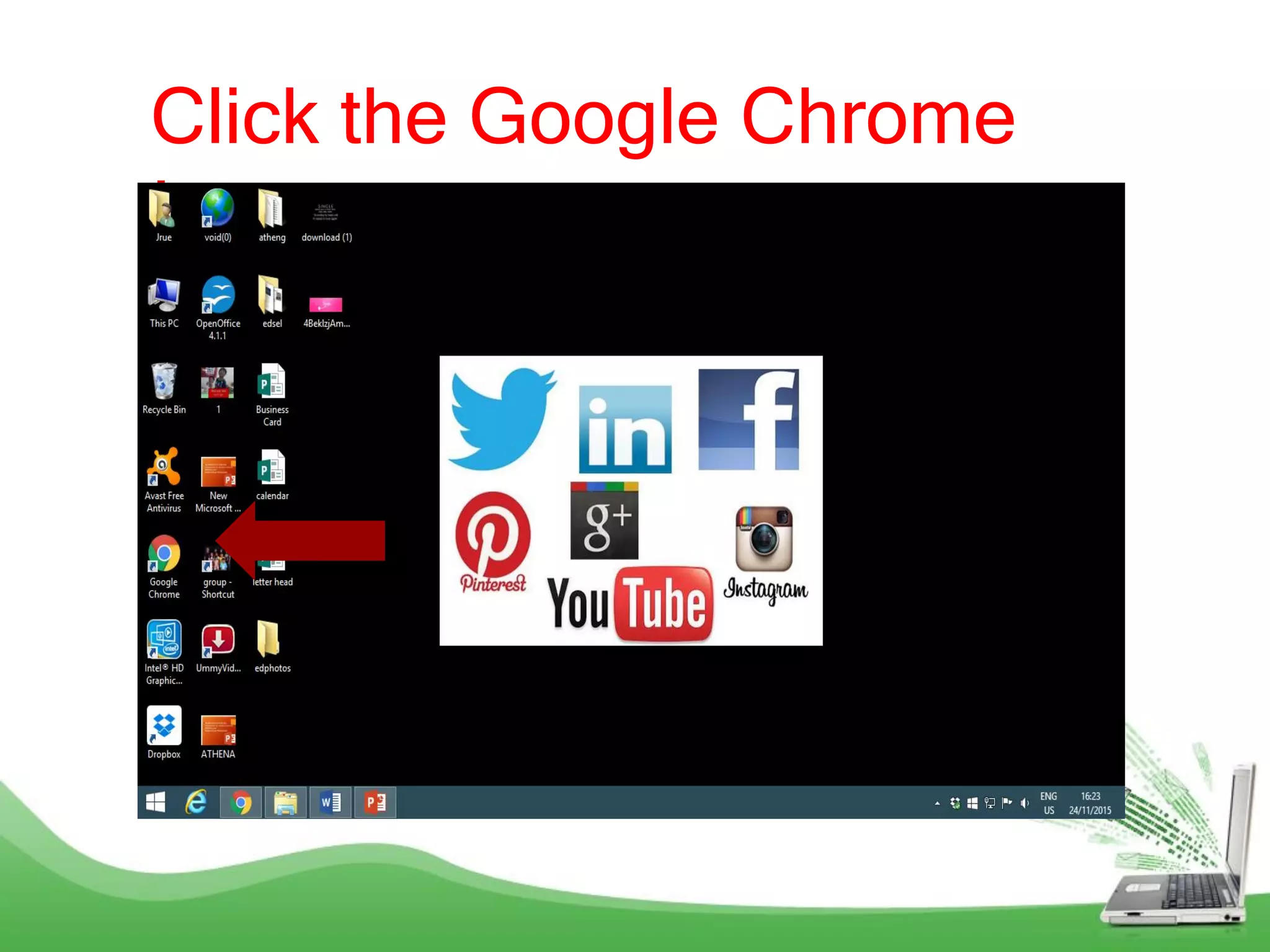
Click the Google Chrome
Icon
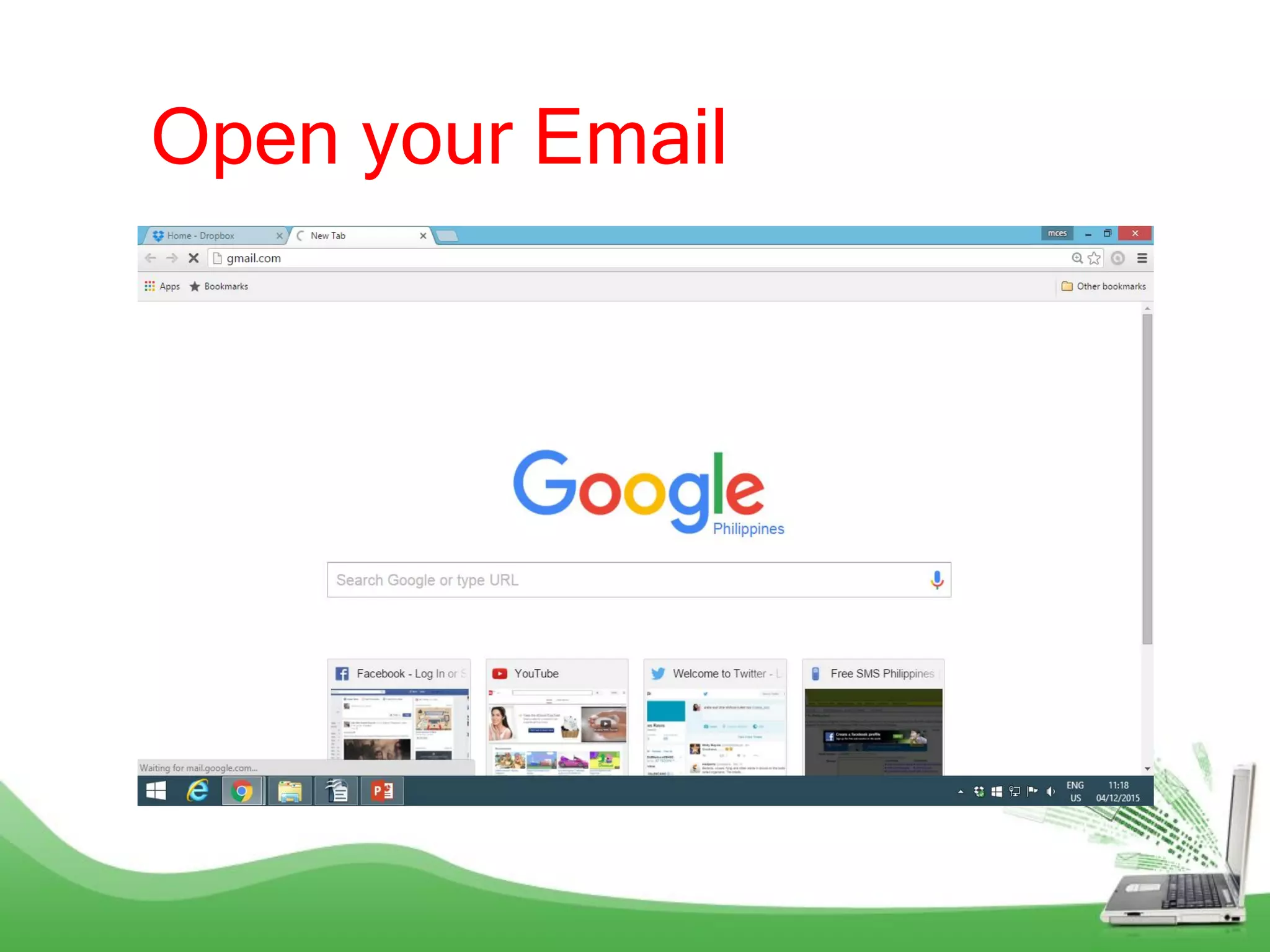
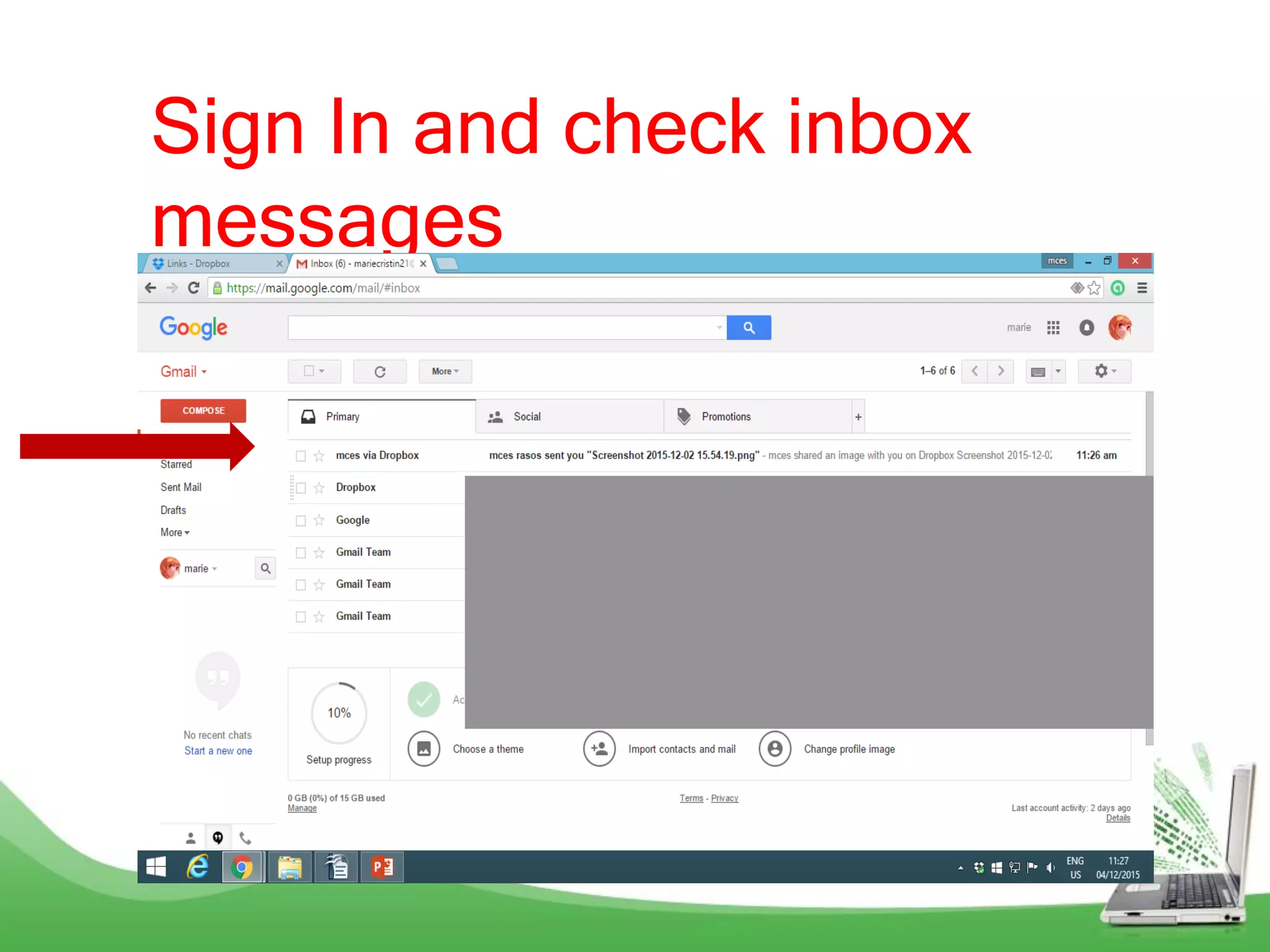
Open your Email
Sign In and check inbox
messages
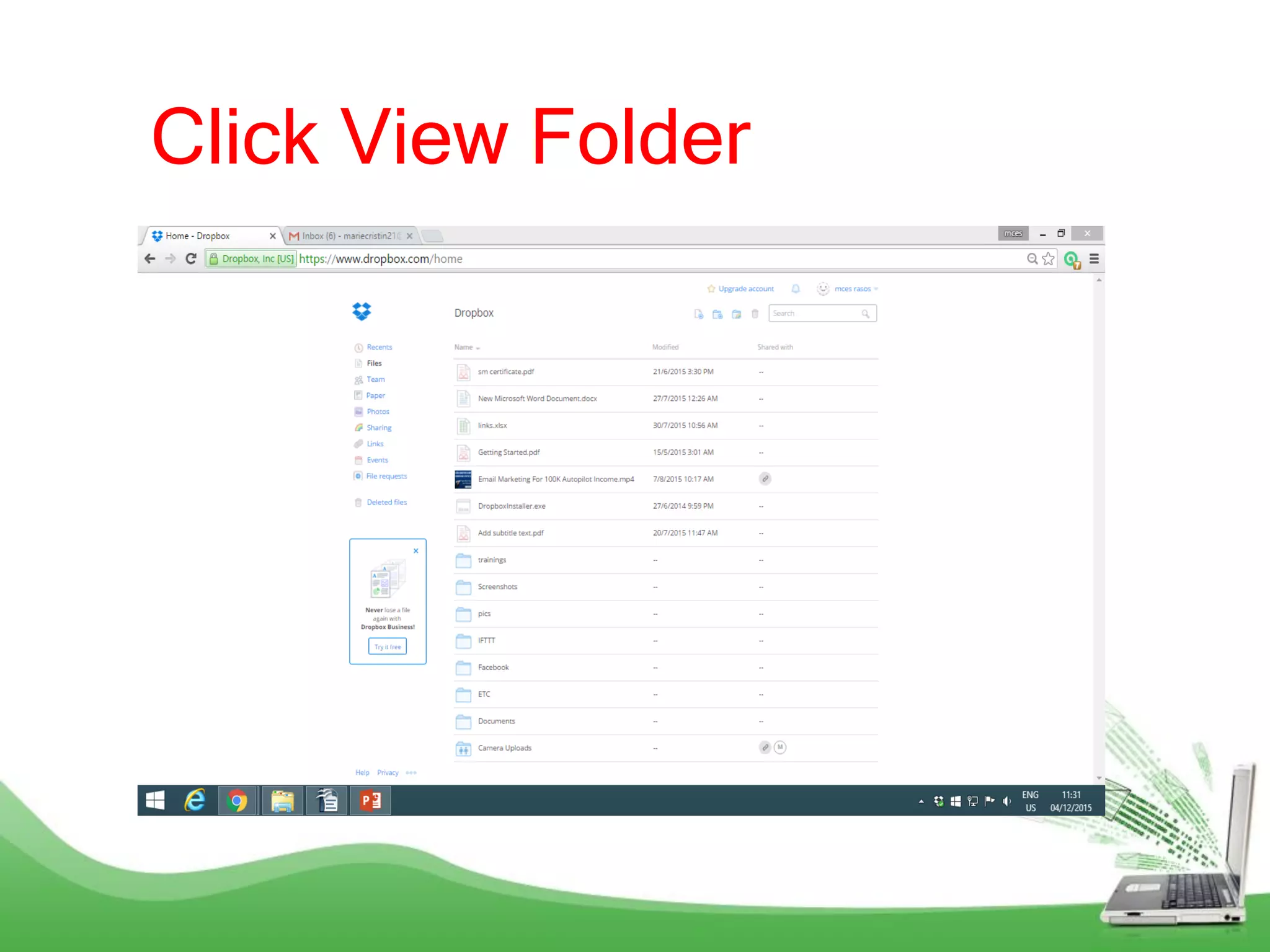
Click View Folder
This is the Shared Folder
How to check
the changes
in your
Dropbox?
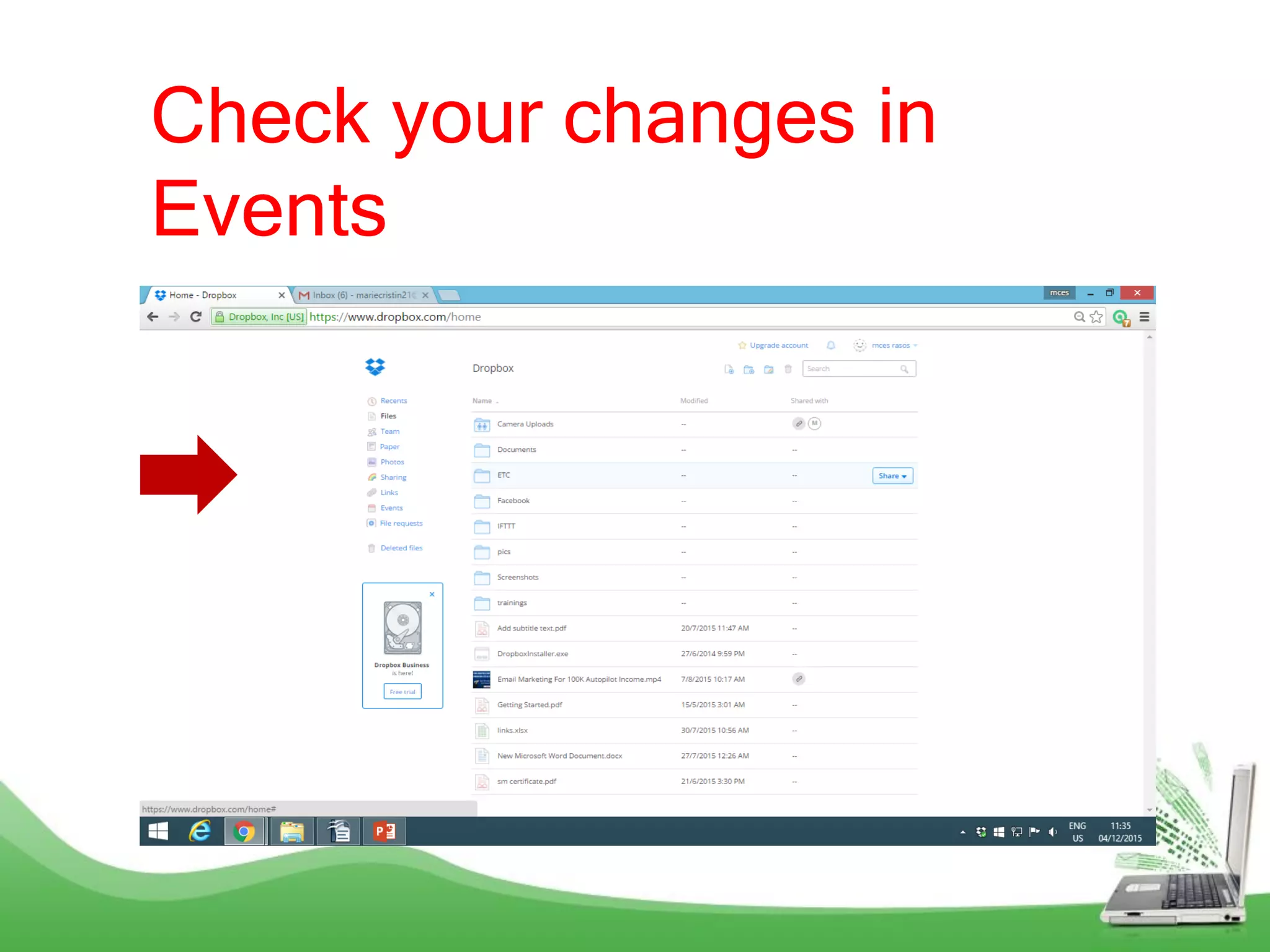
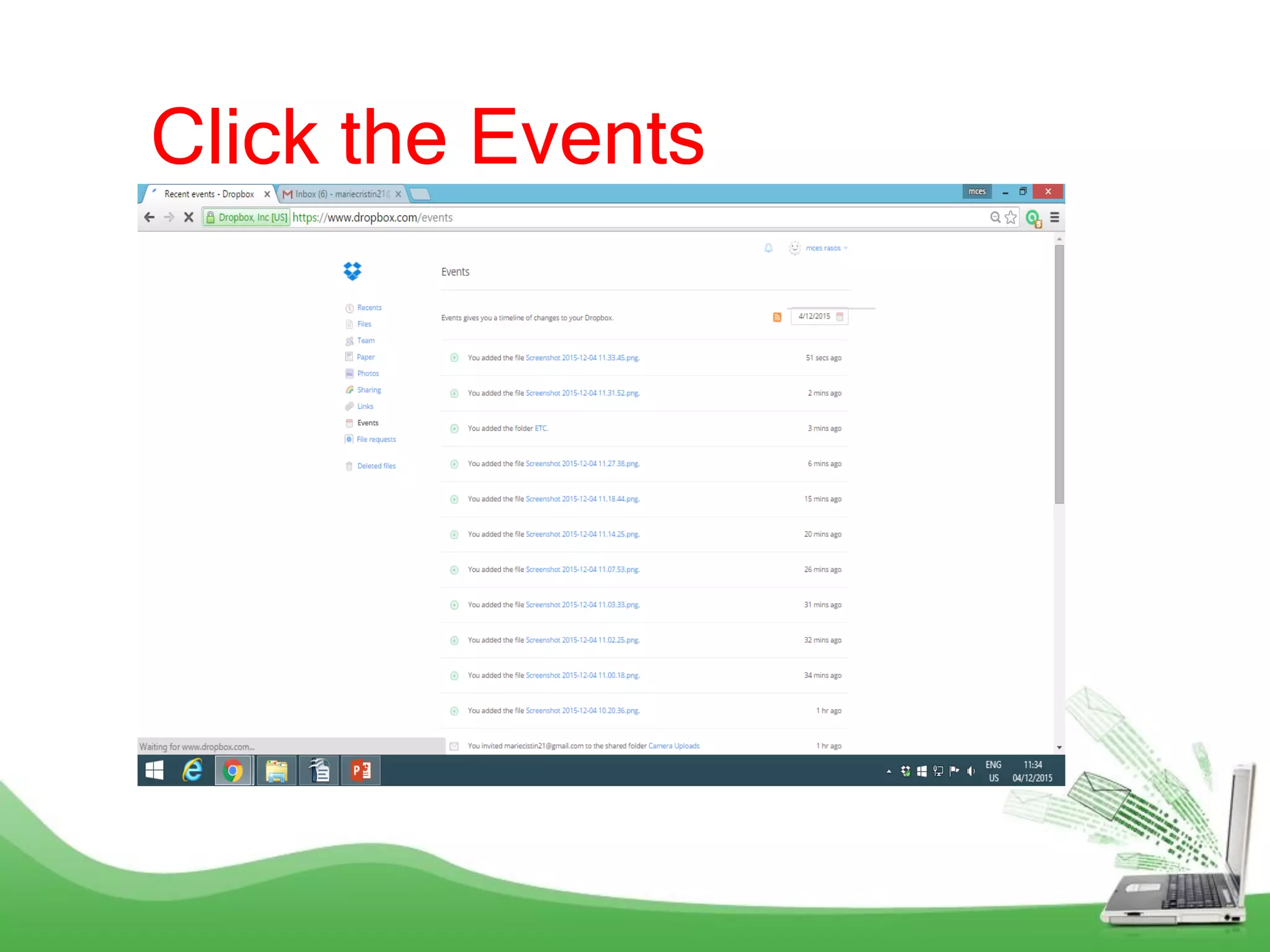
Check your changes in
Events
Click the Events
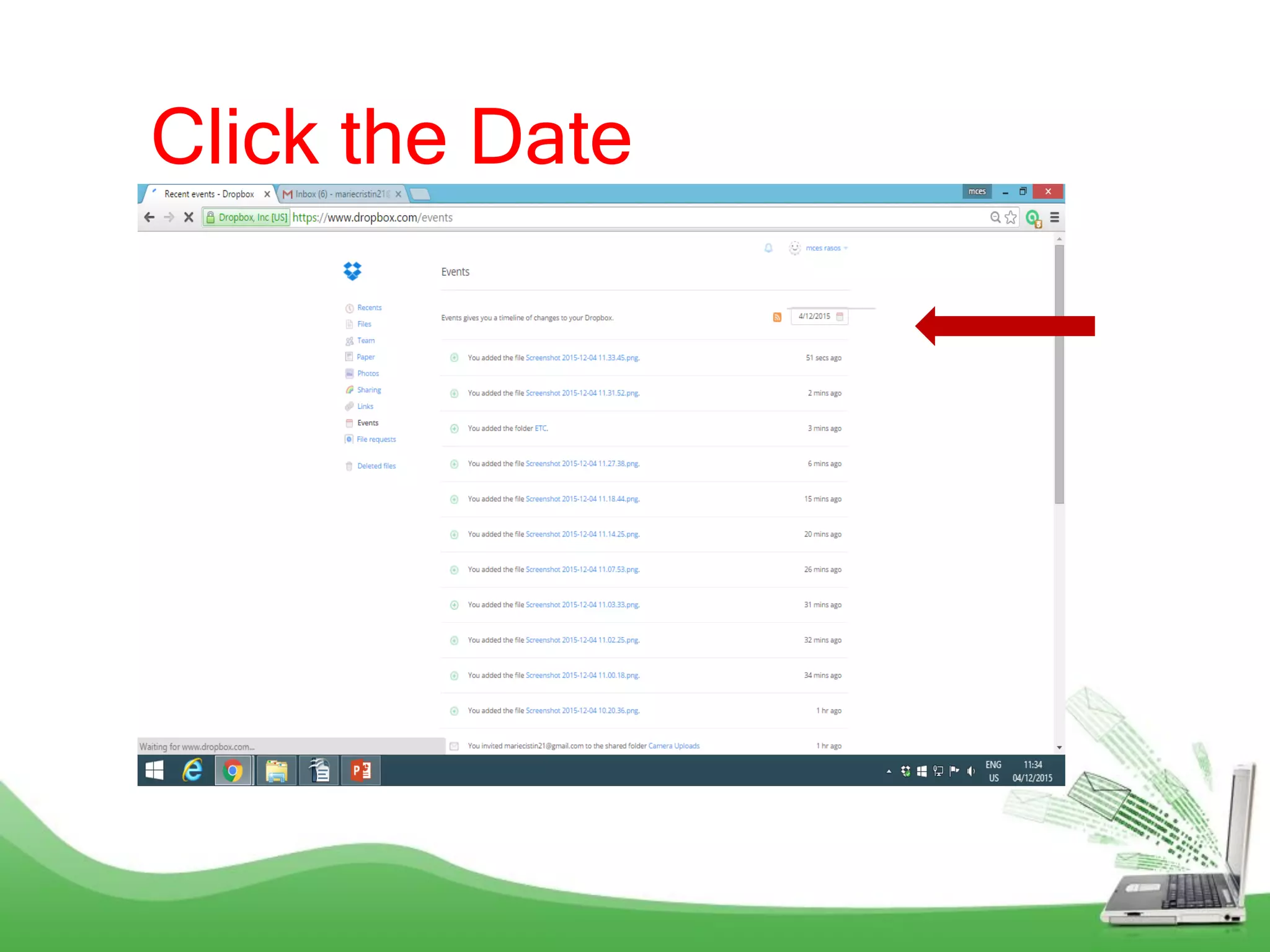
Click the Date
You can also
choose what
File to check.
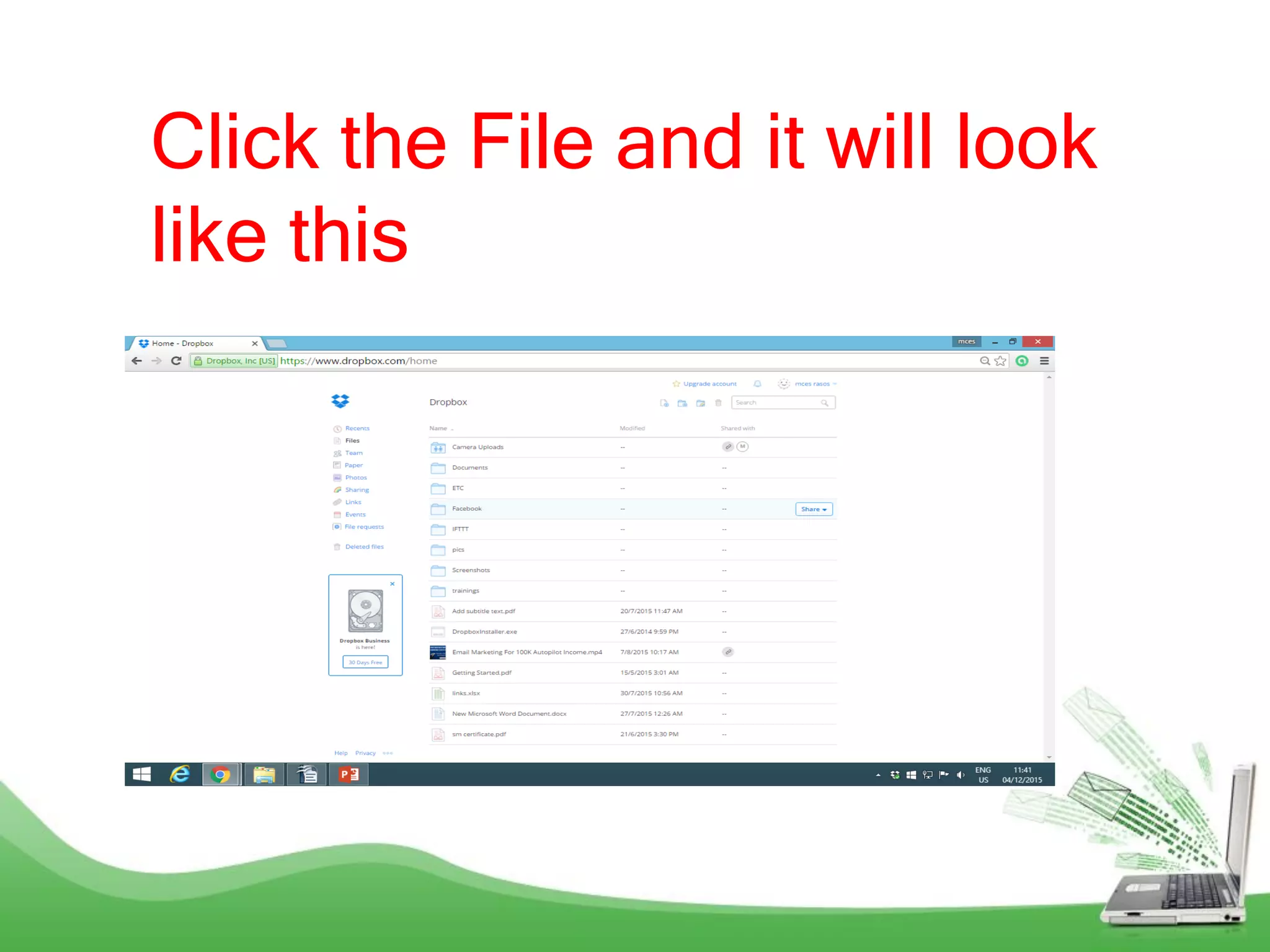
Click the File and it will look
like this
HOW TO
Delete Files?
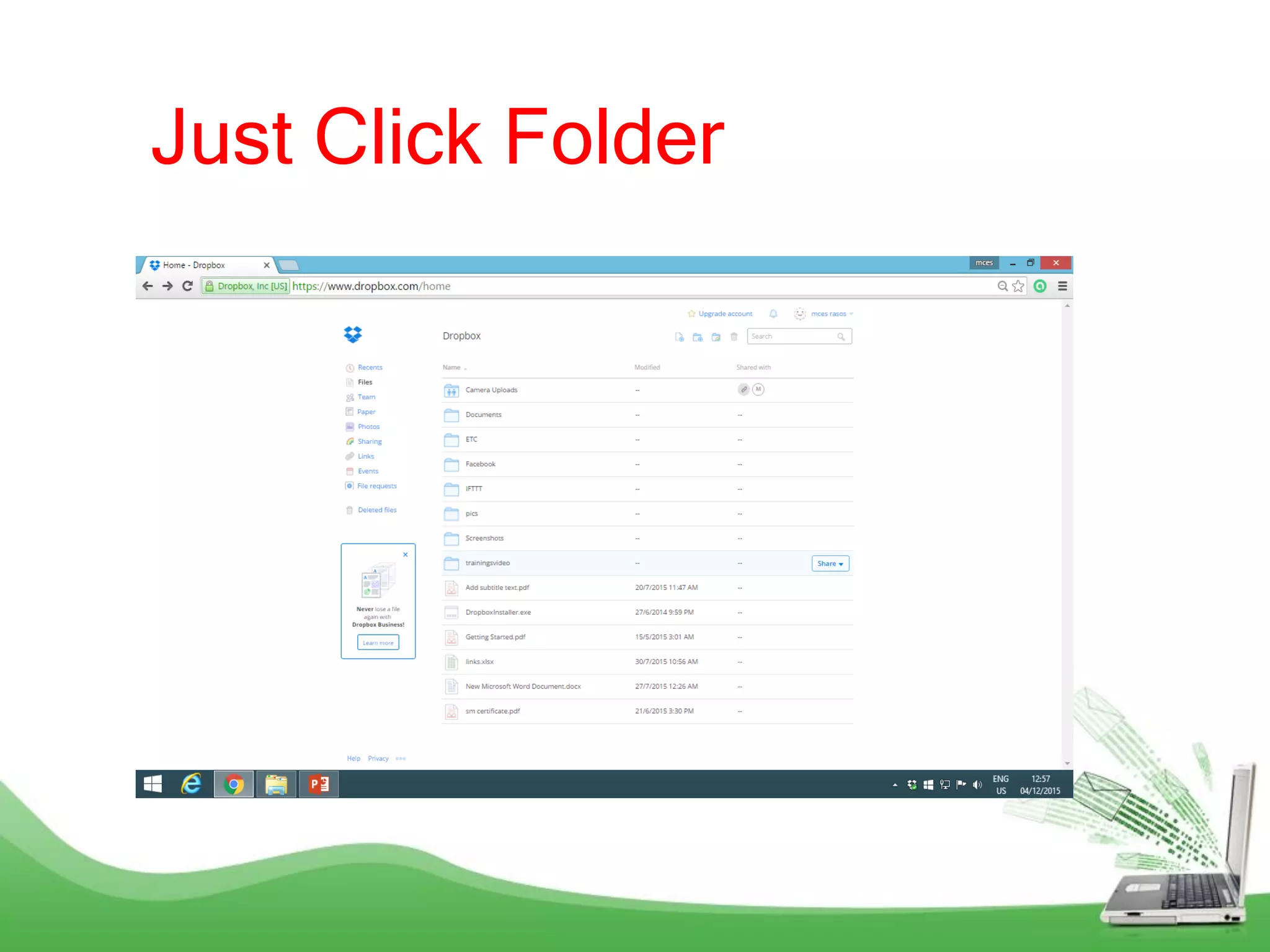
Just Click Folder
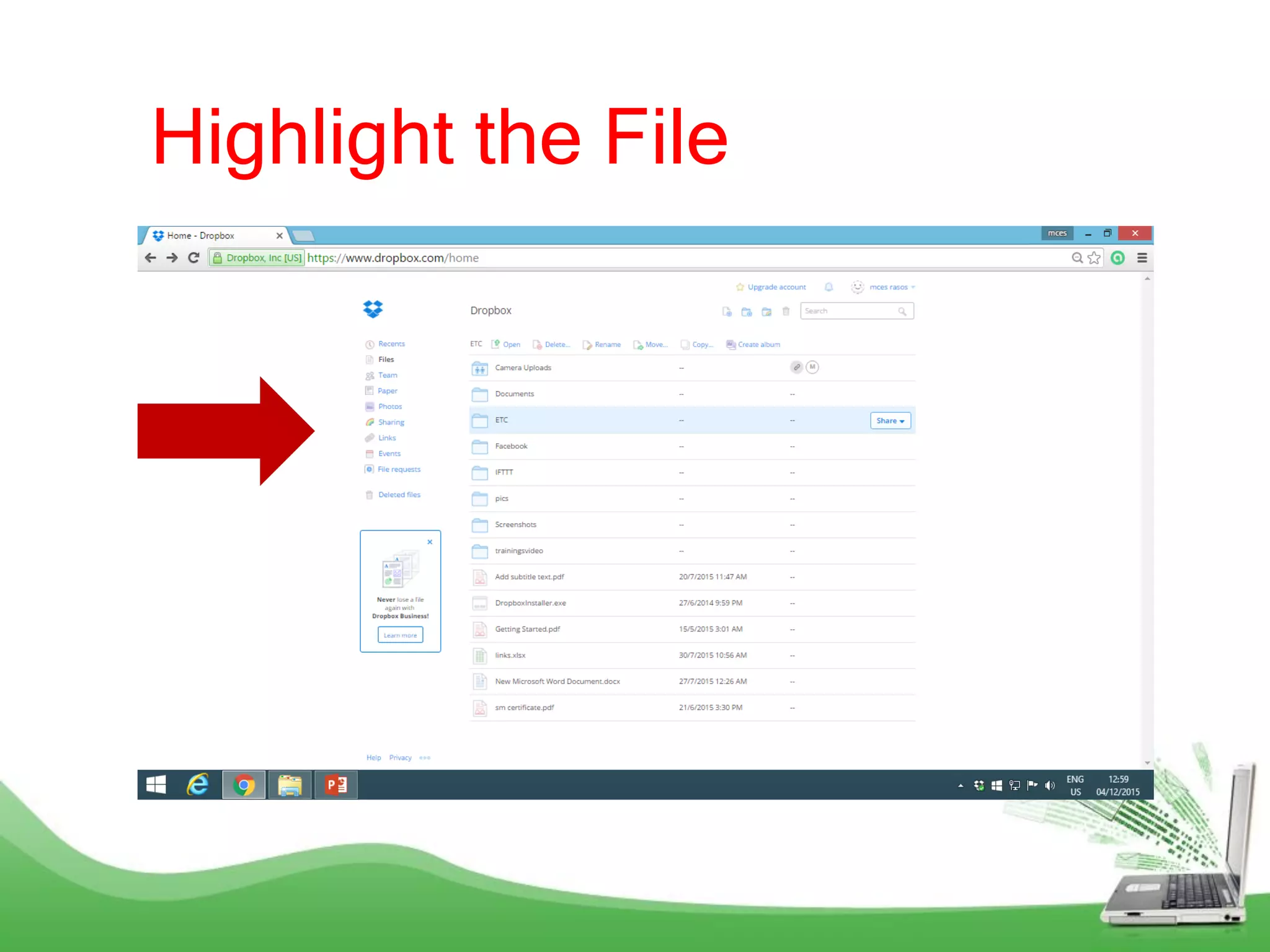
Highlight the File
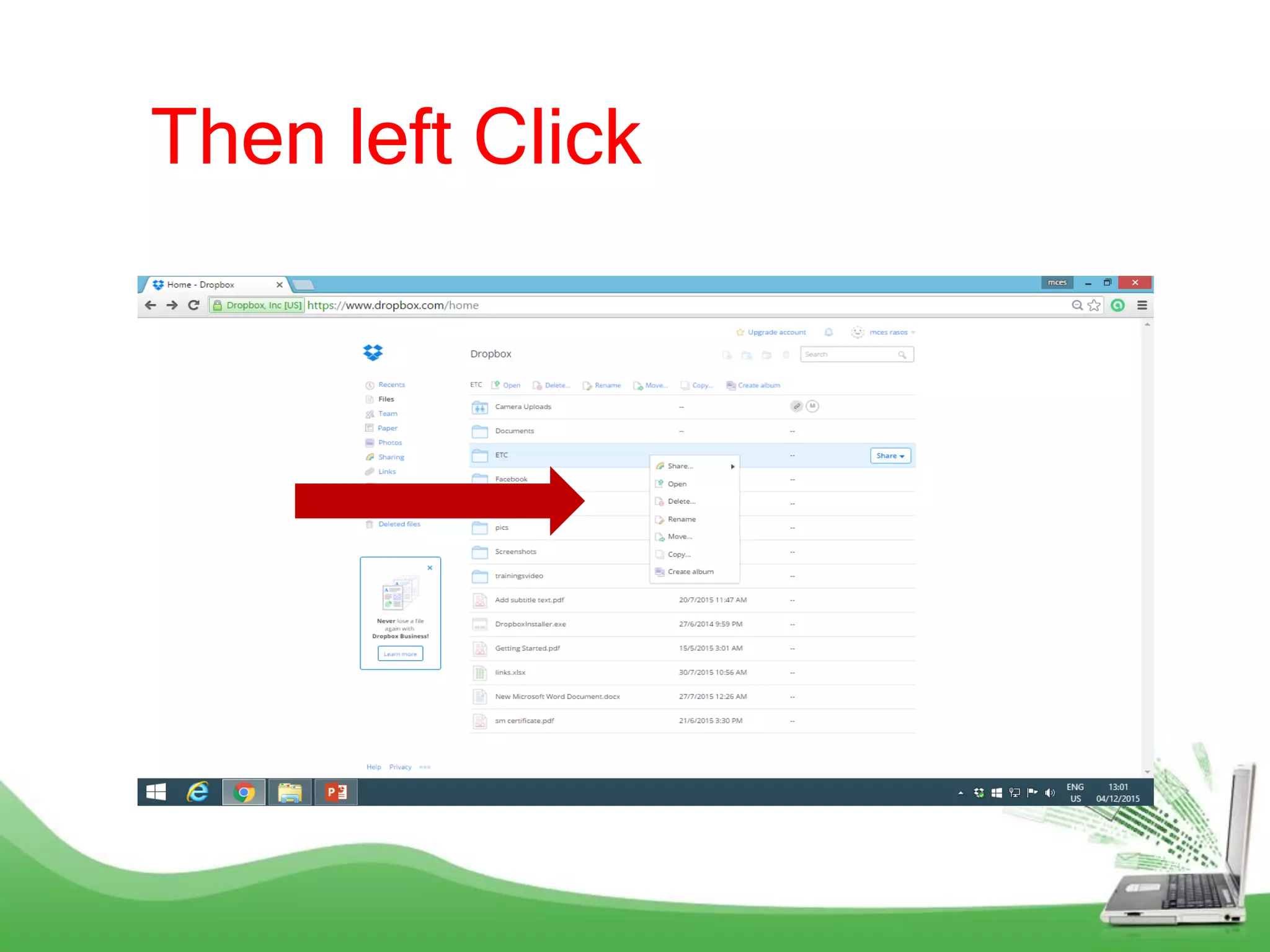
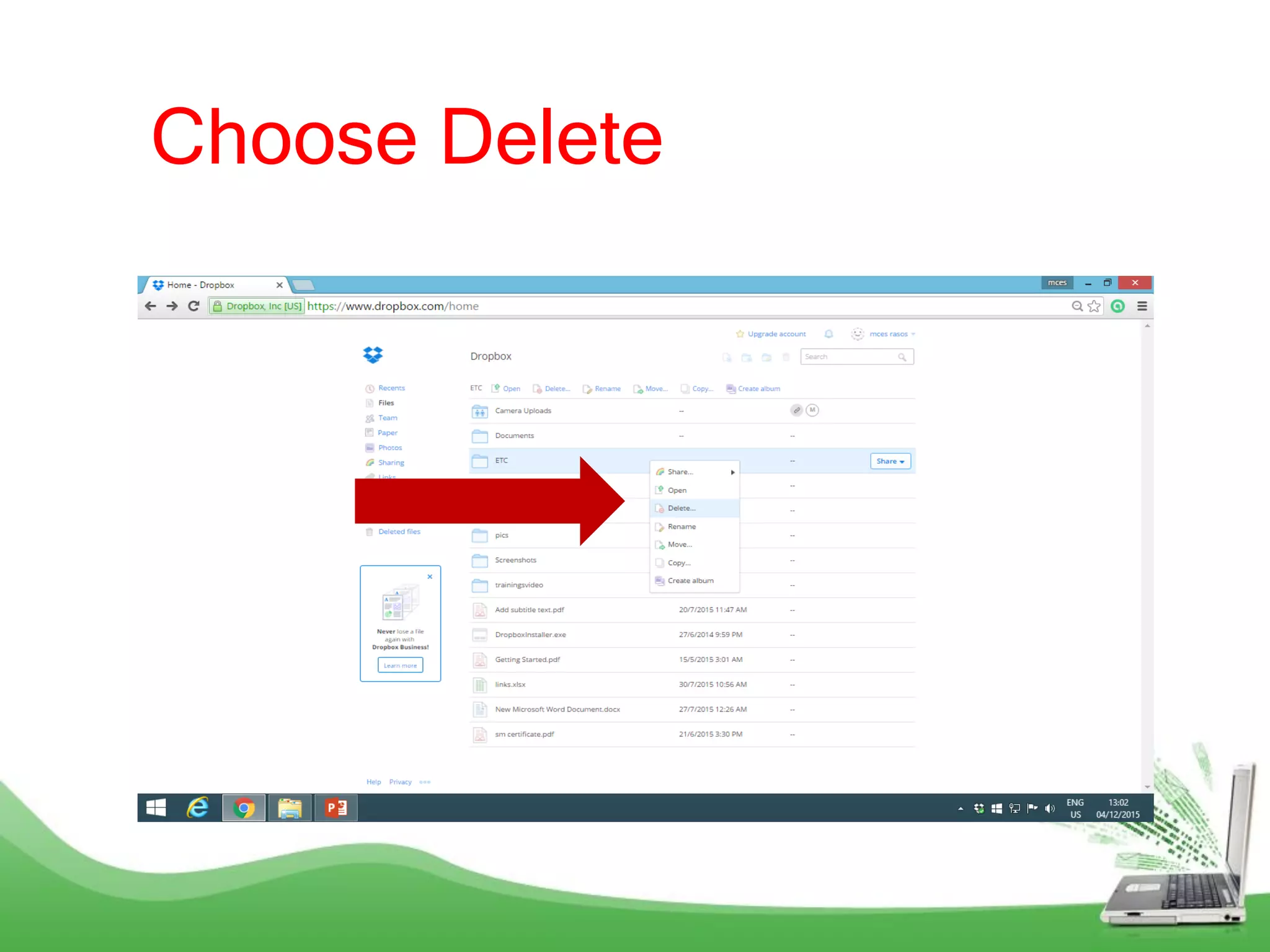
Then left Click
Choose Delete
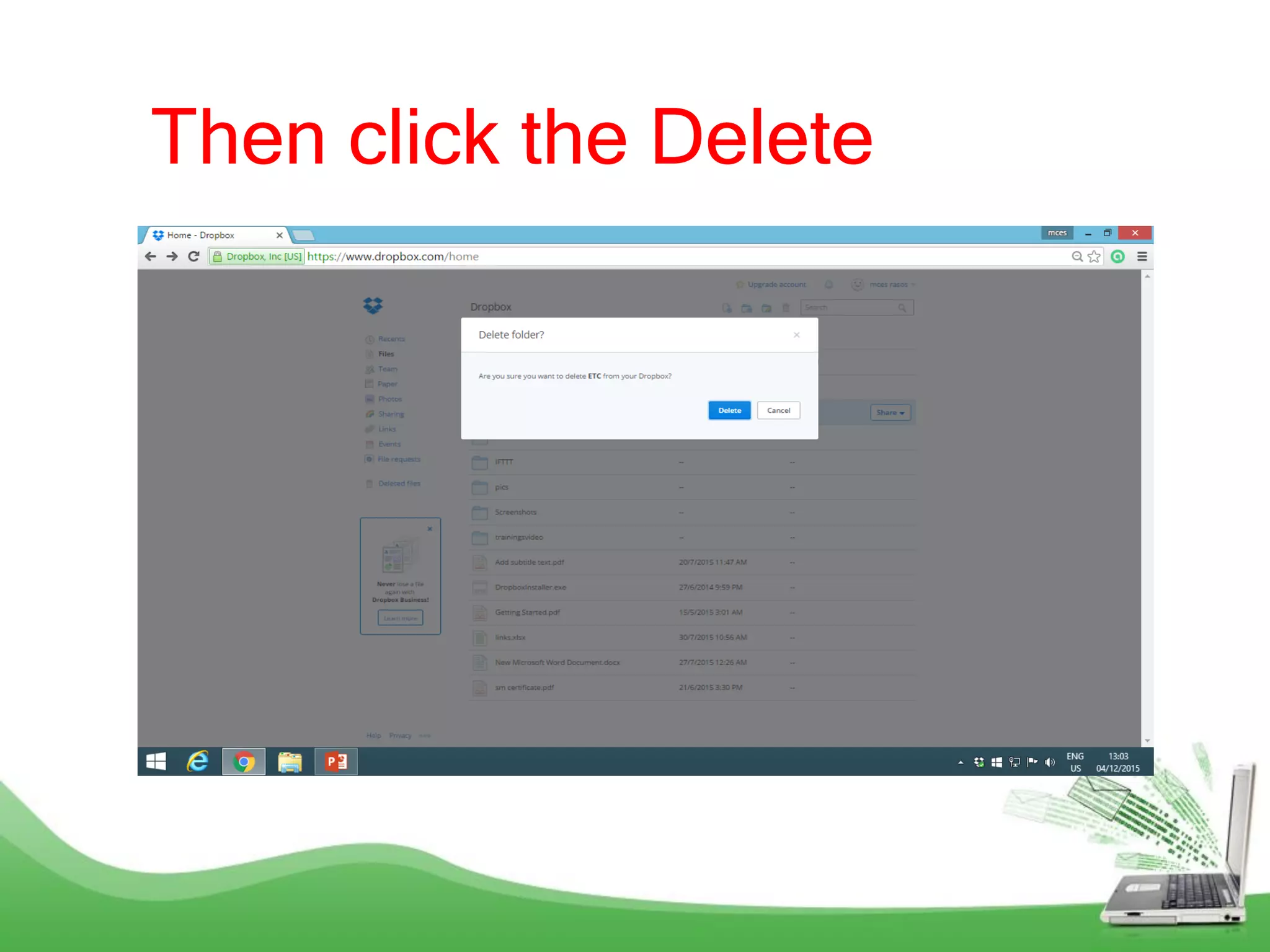
Then click the Delete
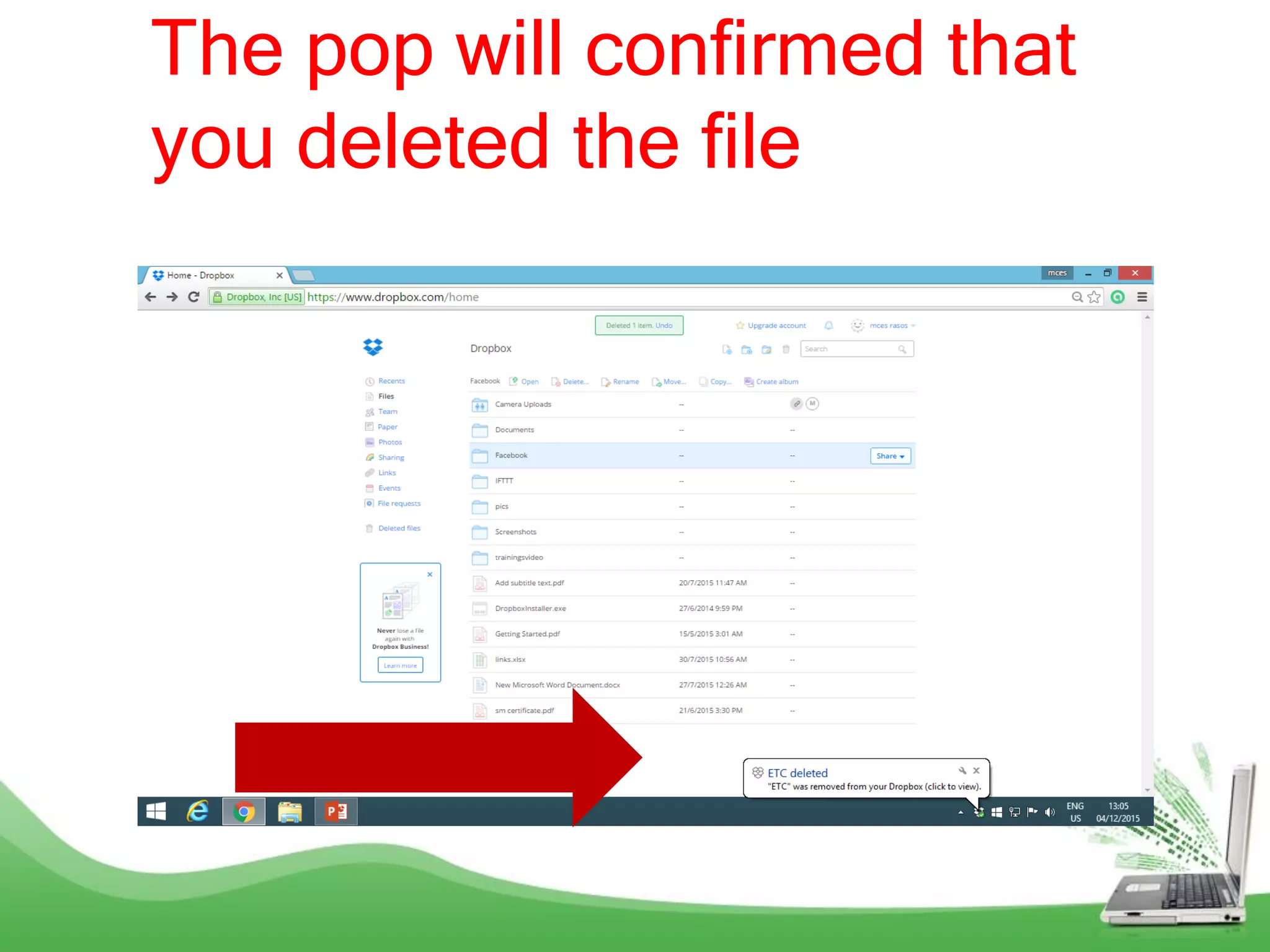
The pop will confirmed that
you deleted the file
How To View
your Deleted
Files?
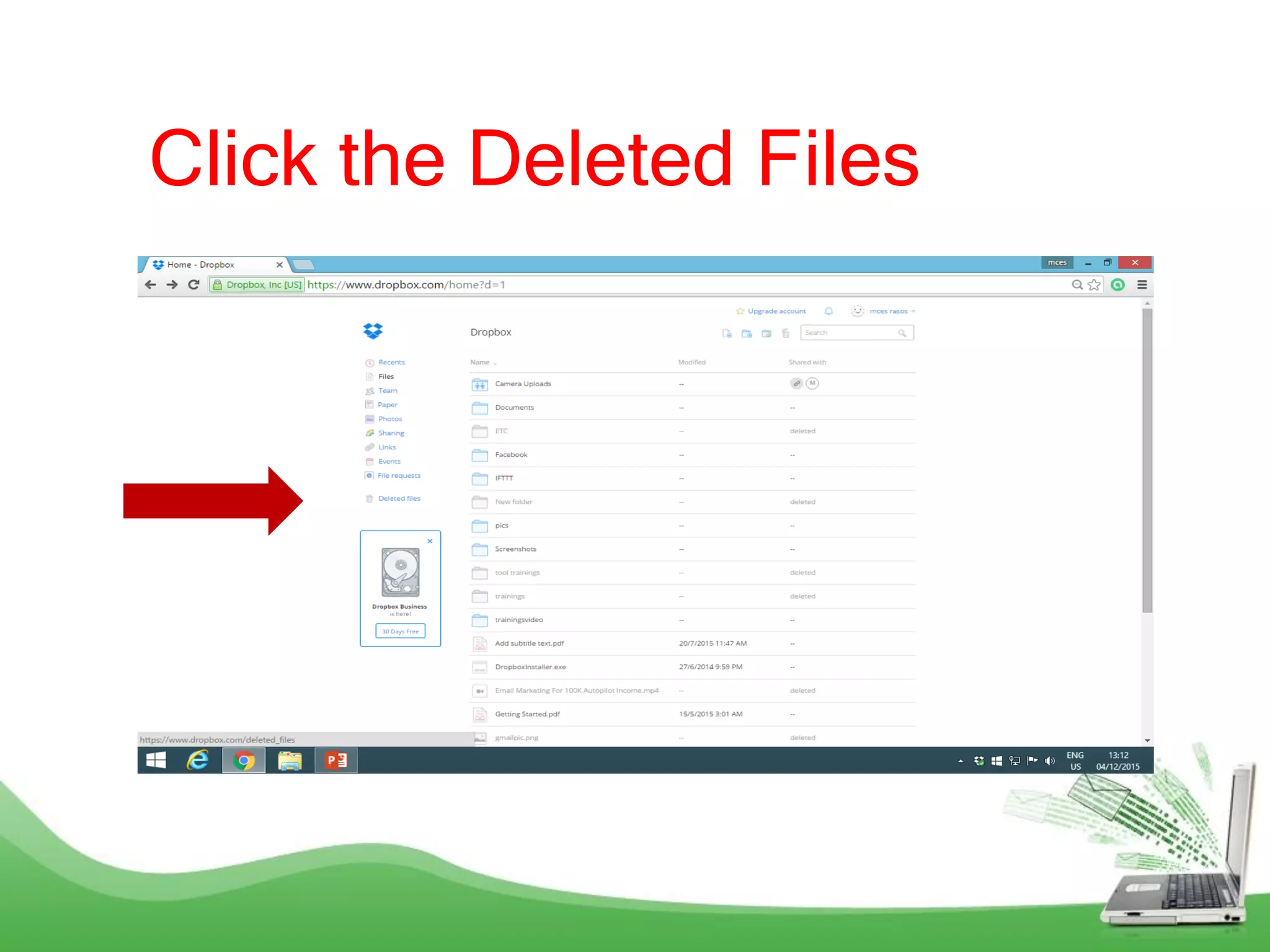
Click the Deleted Files
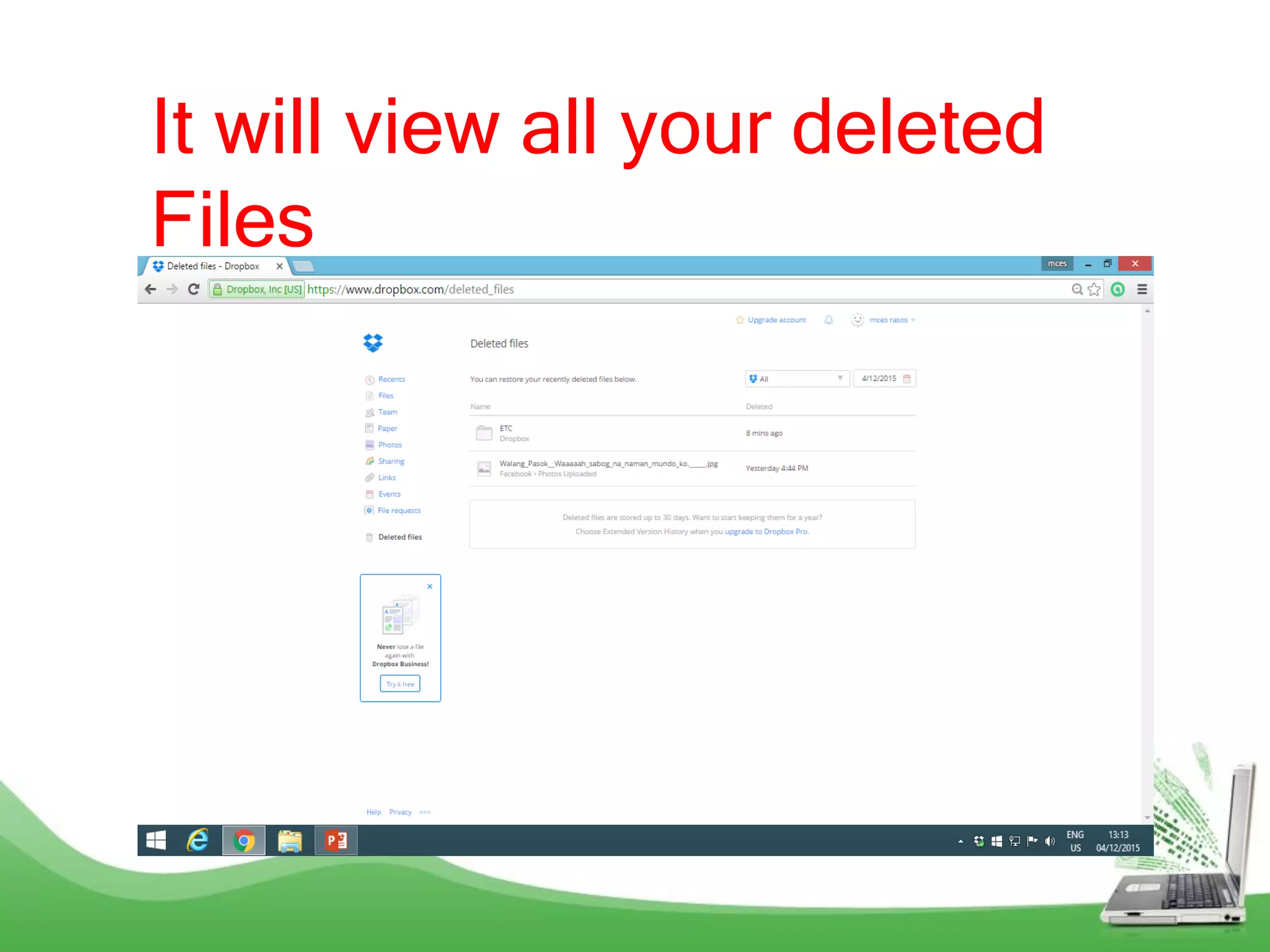
It will view all your deleted
Files
How to
recover your
deleted files?
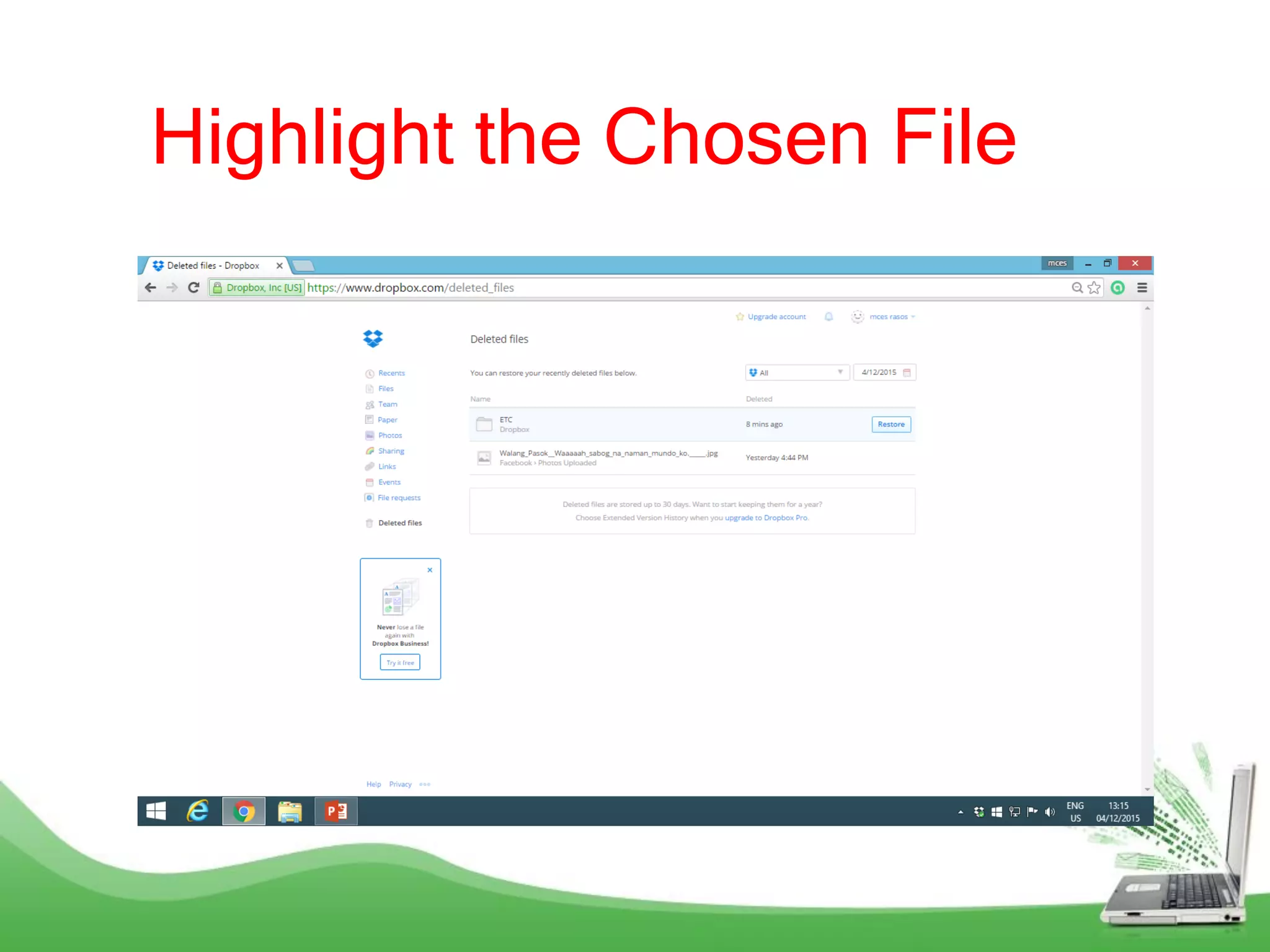
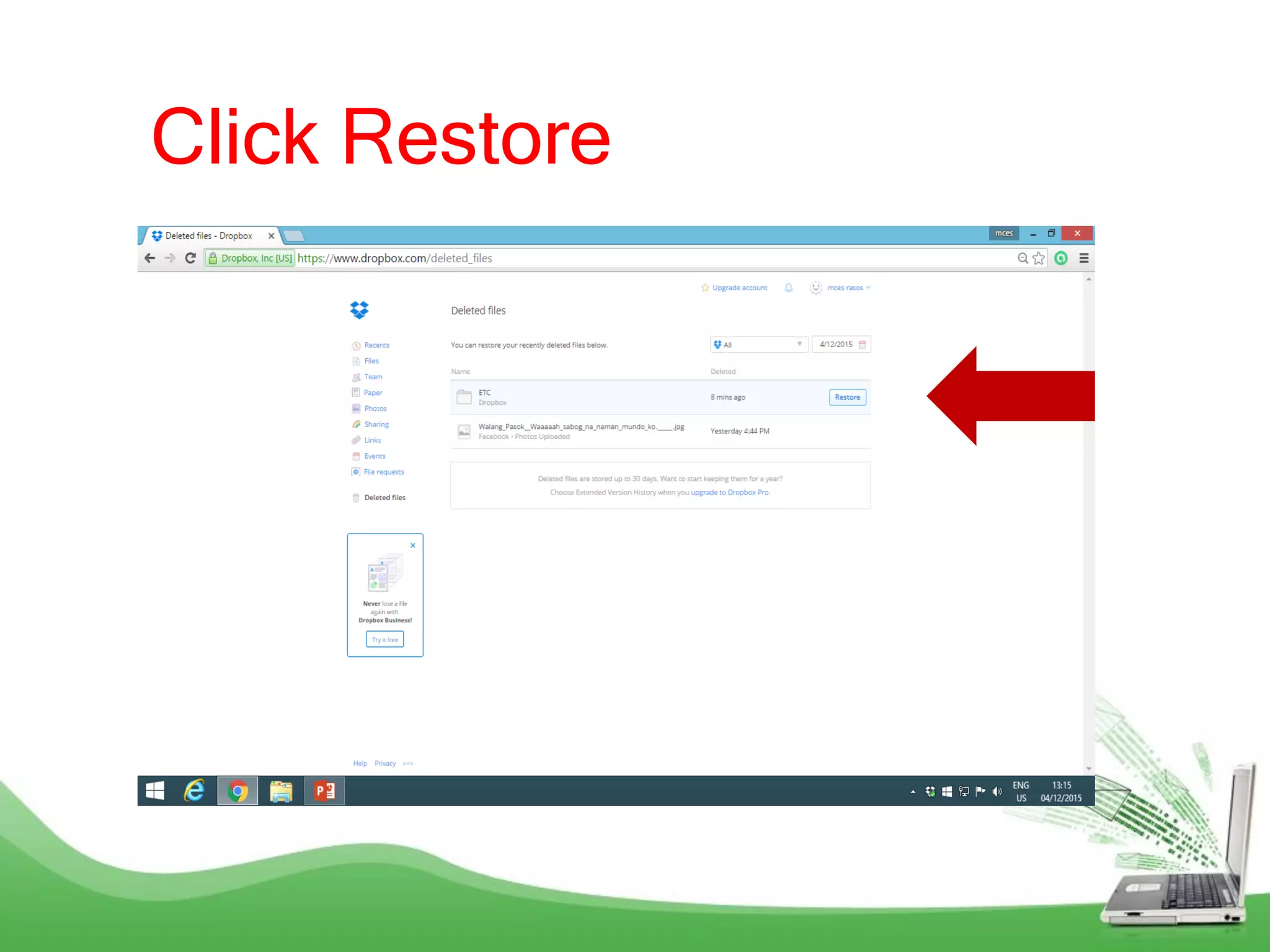
Highlight the Chosen File
Click Restore
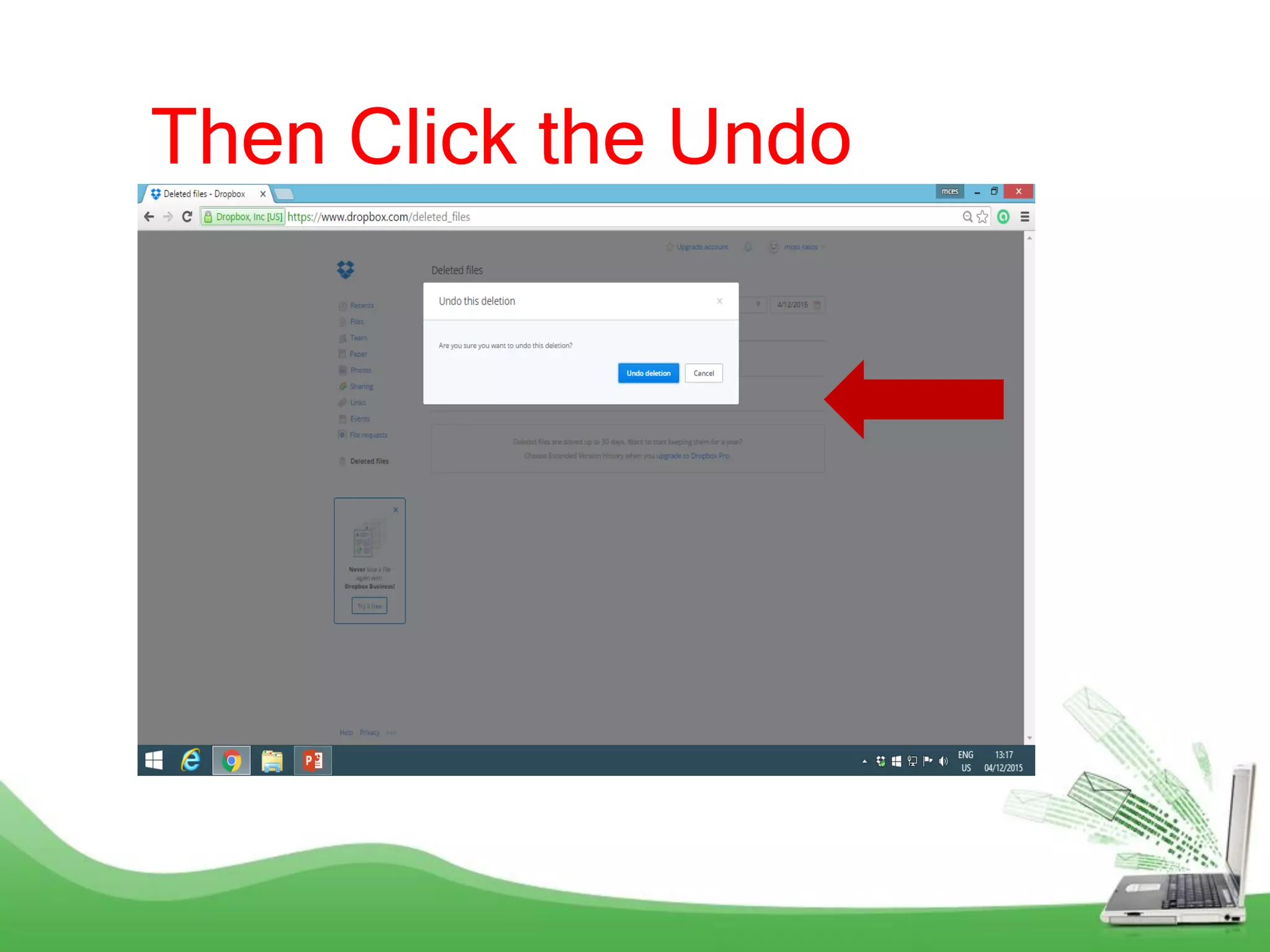
Then Click the Undo
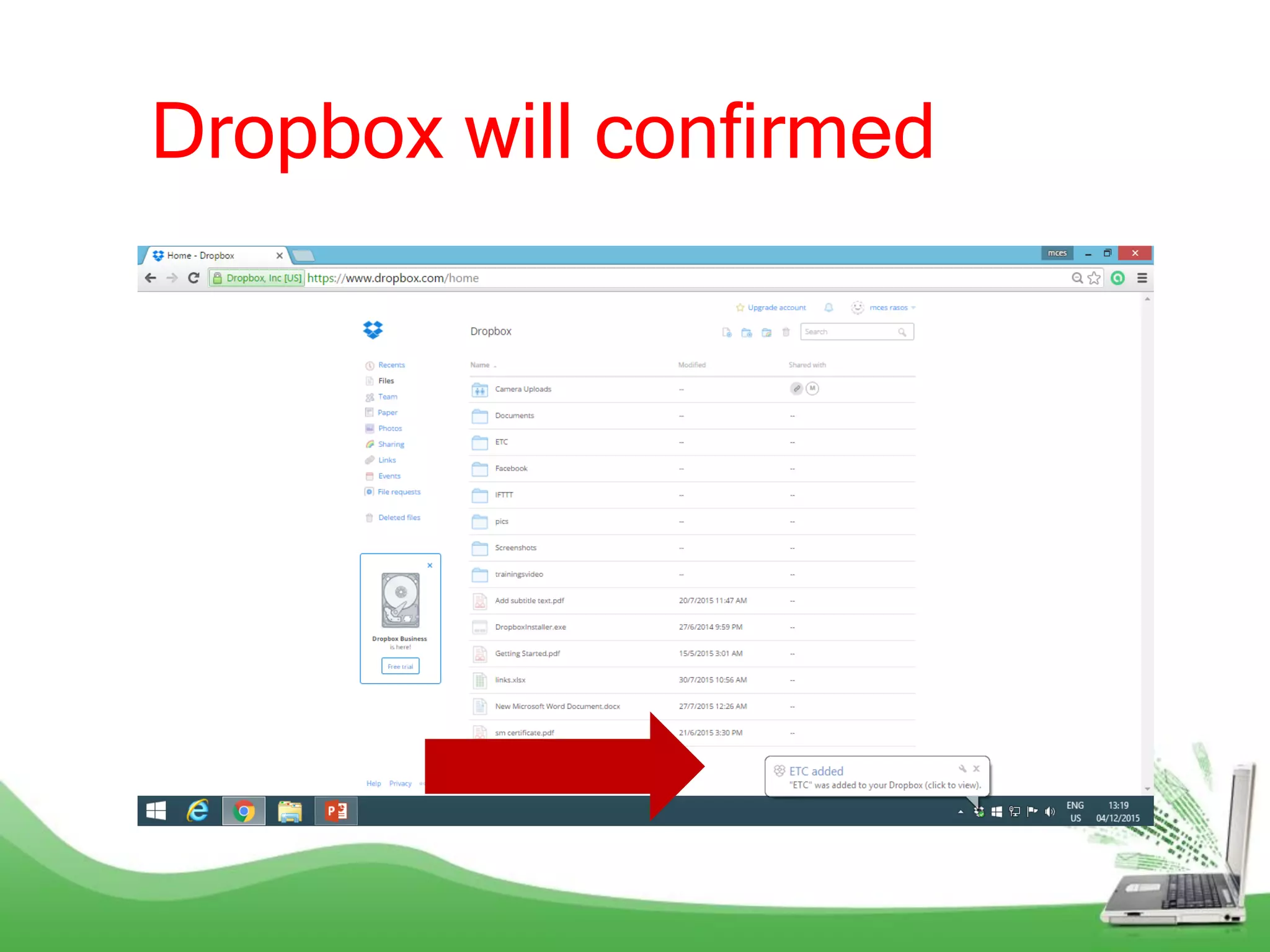
Dropbox will confirmed
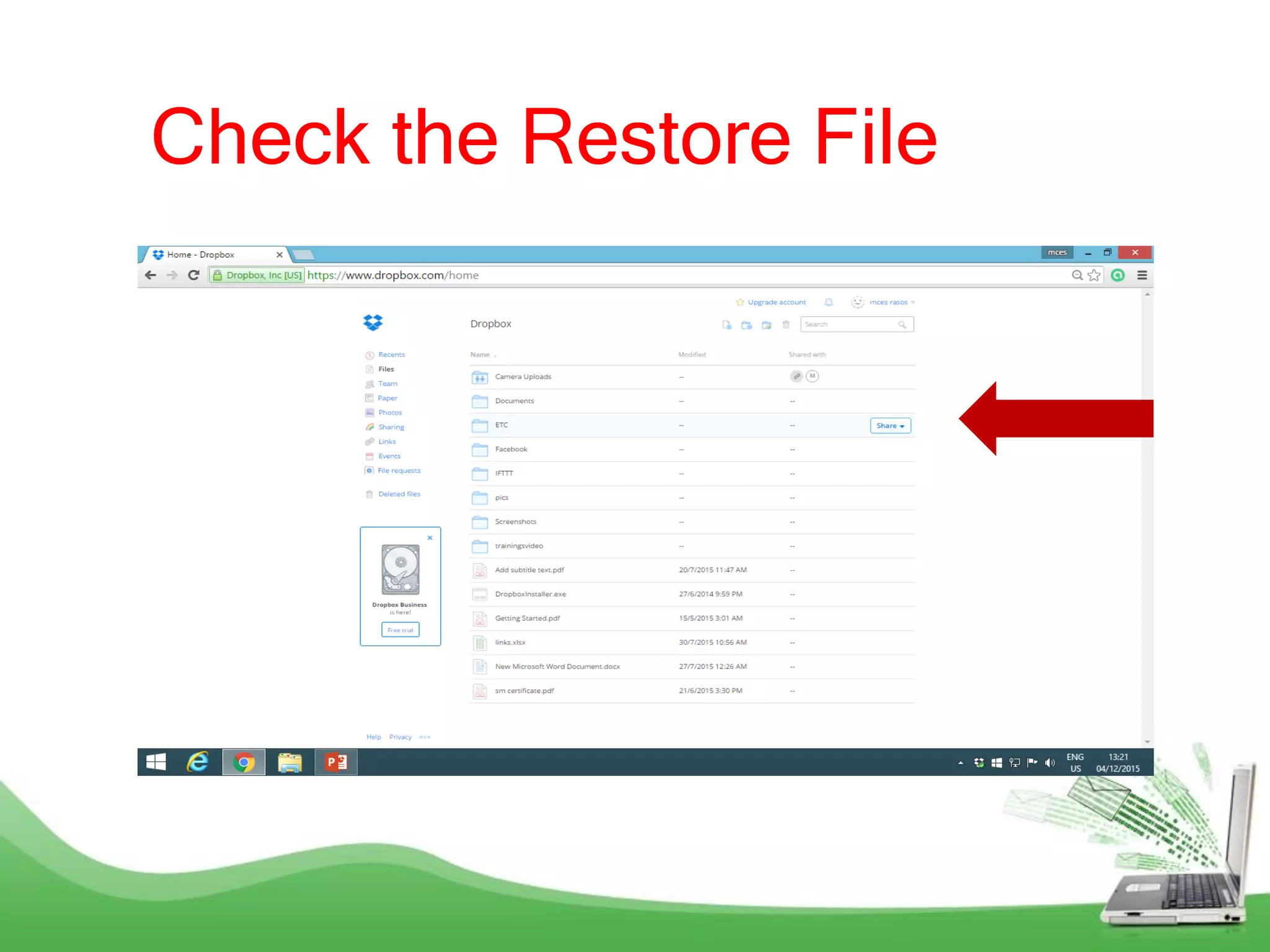
Check the Restore File
How to
Rename the
Folder
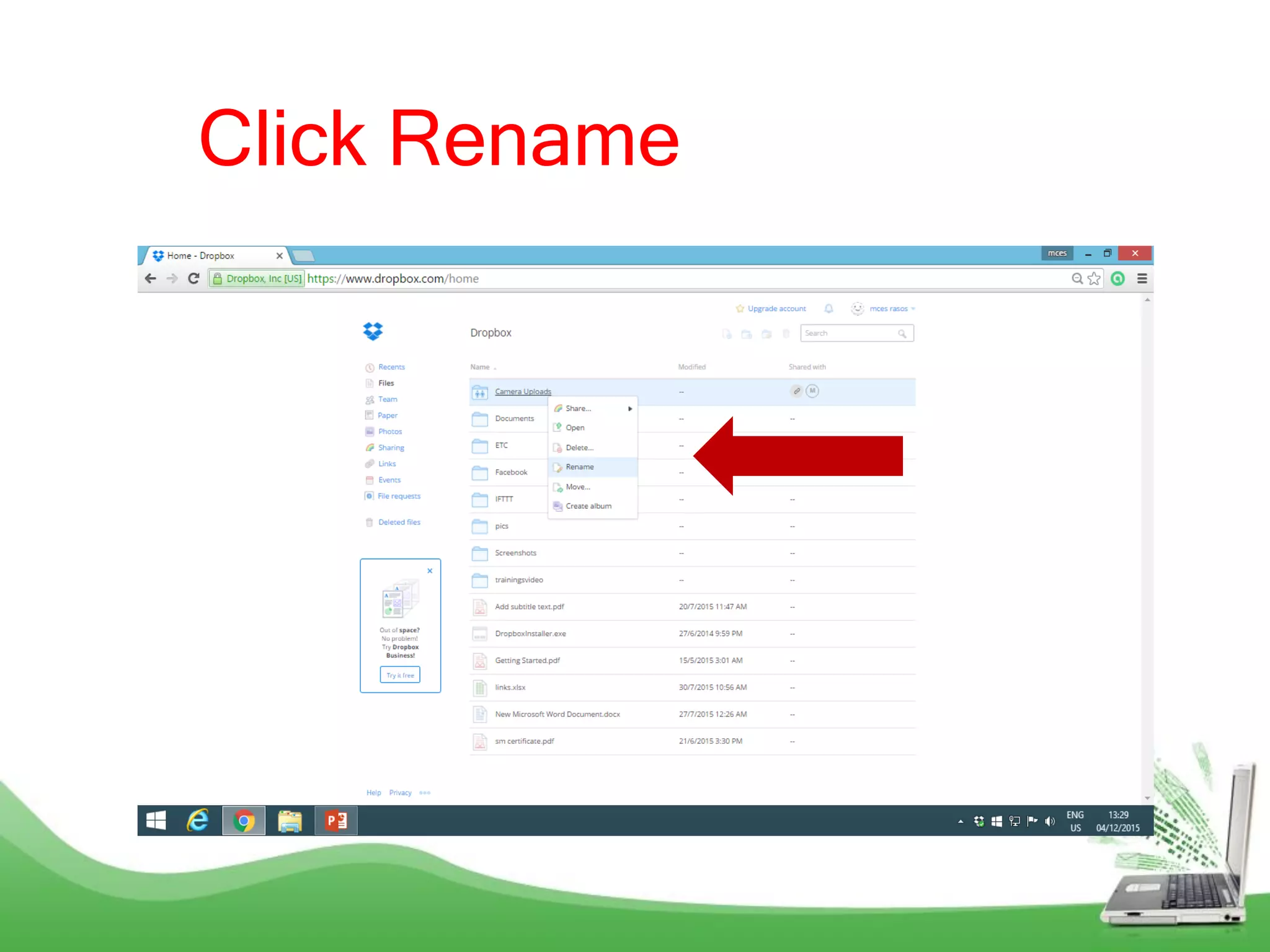
Click Rename
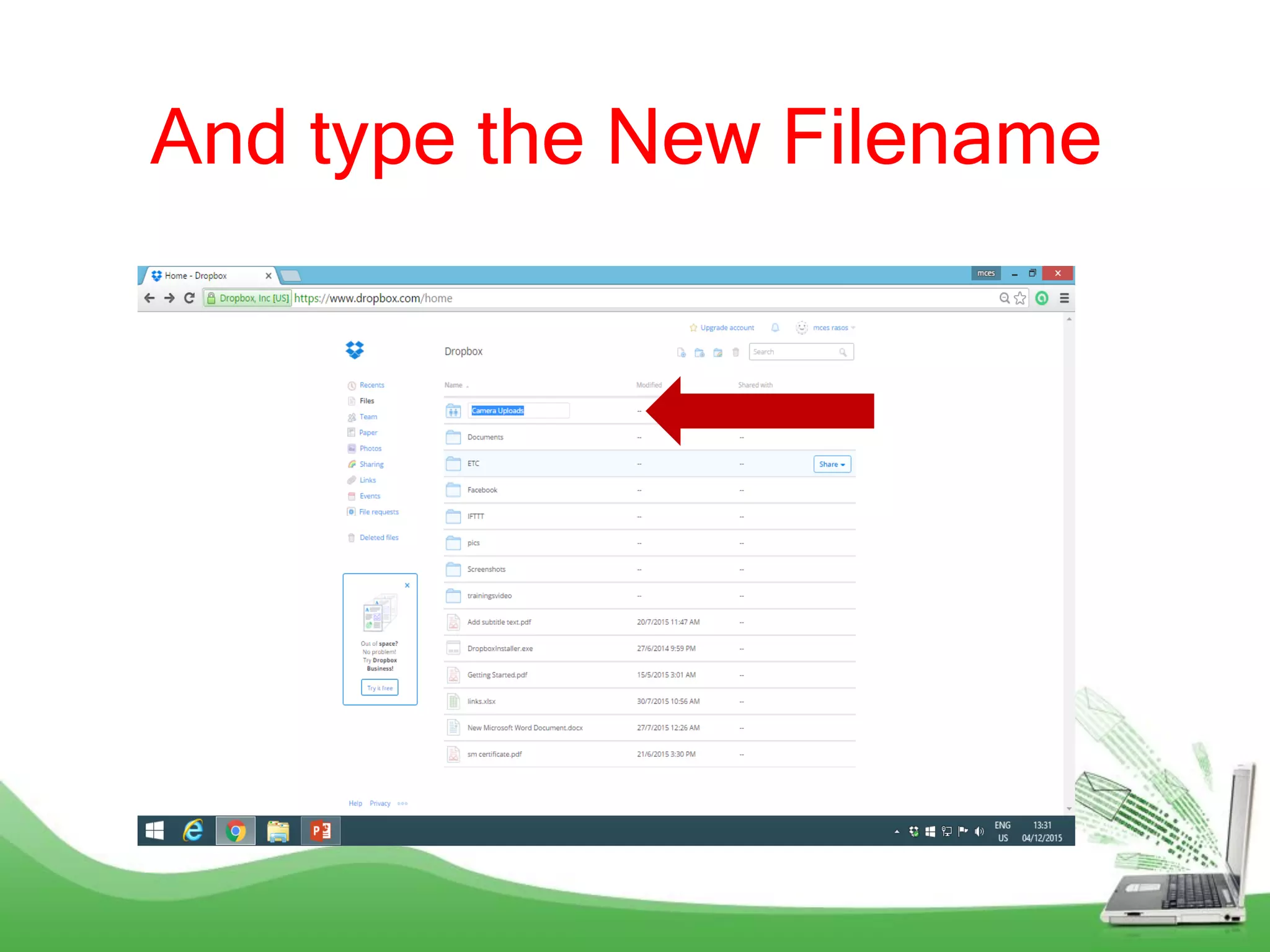
And type the New Filename
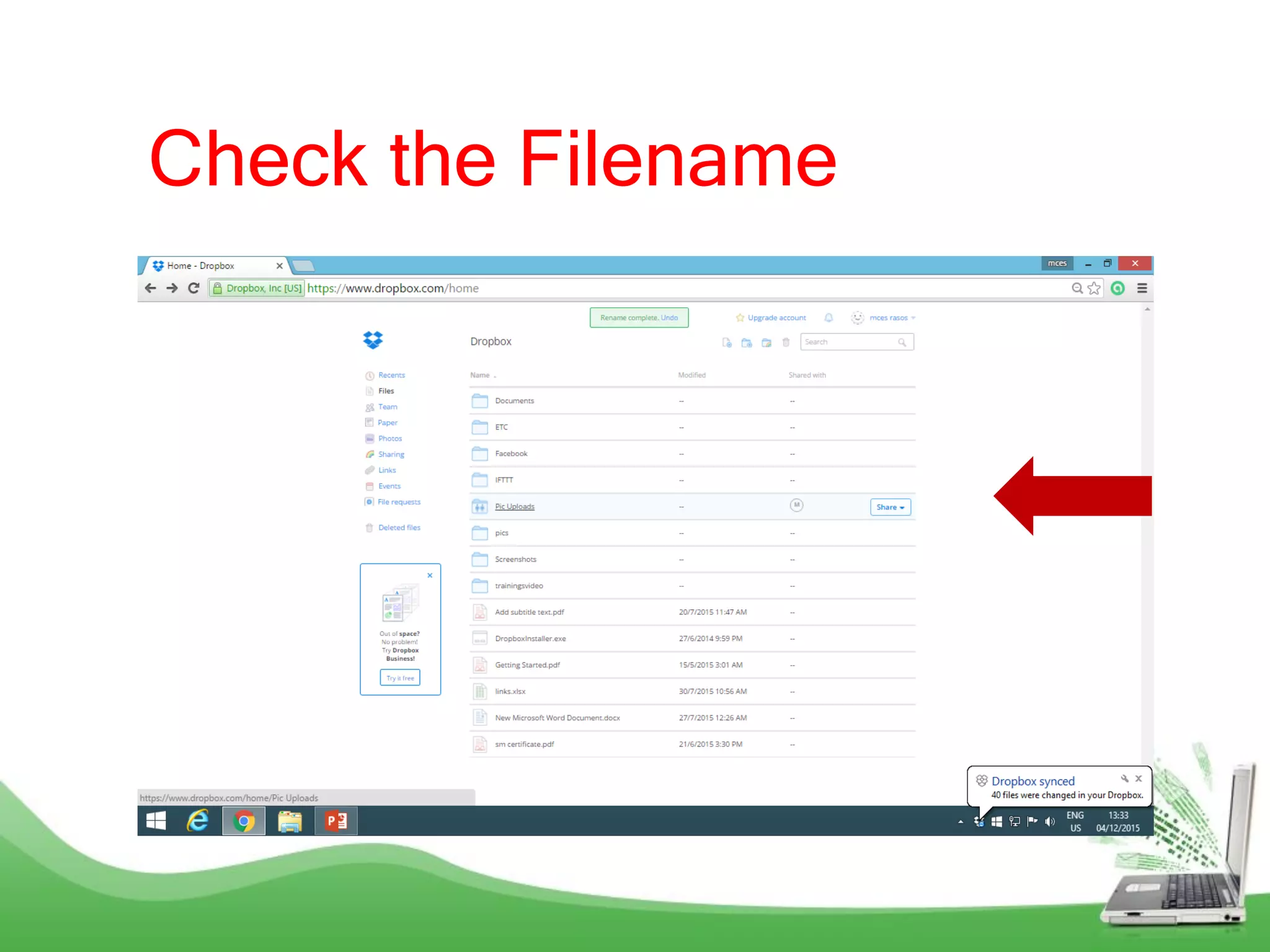
Check the Filename
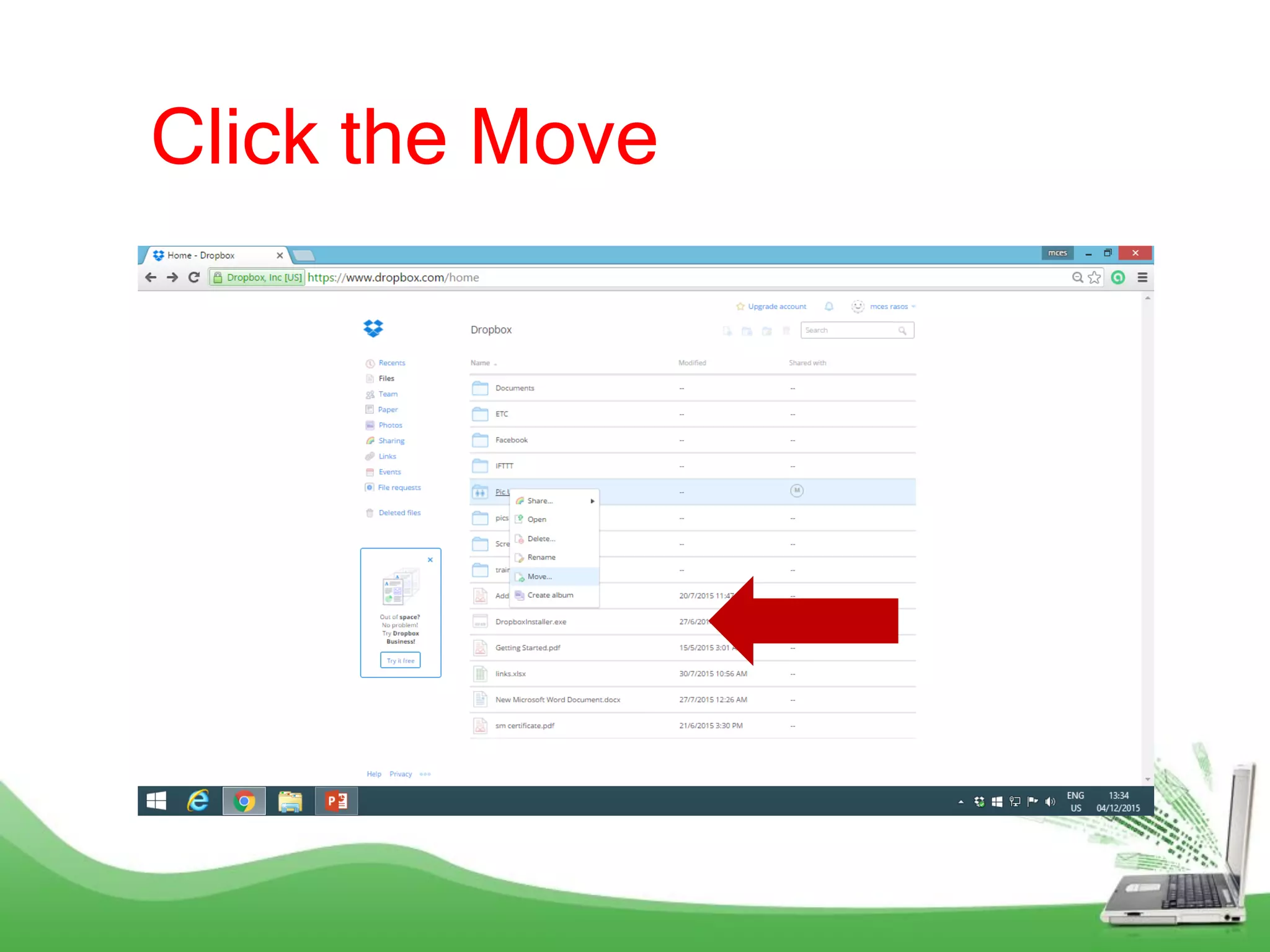
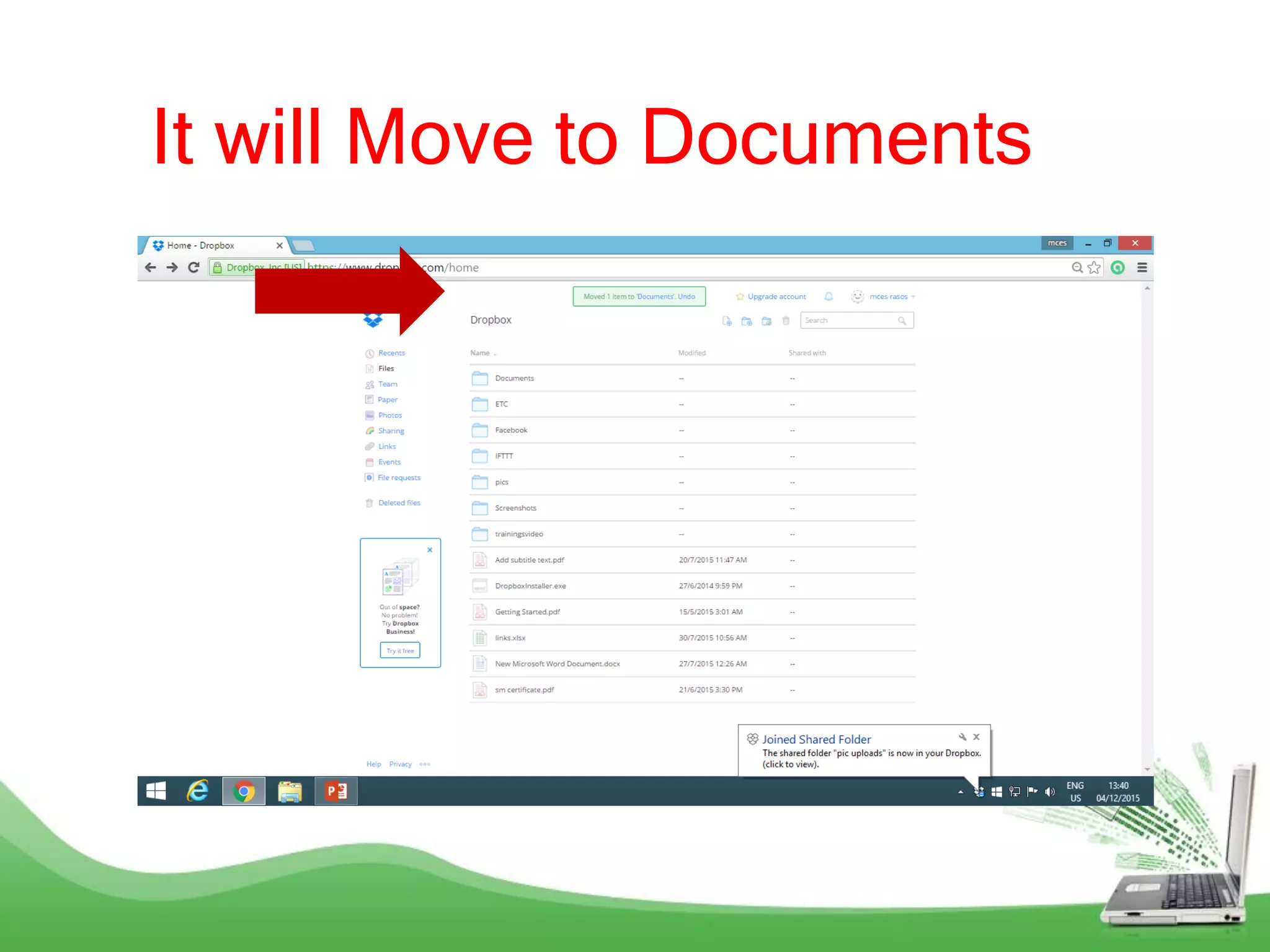
How to Move
the File?
Click the Move
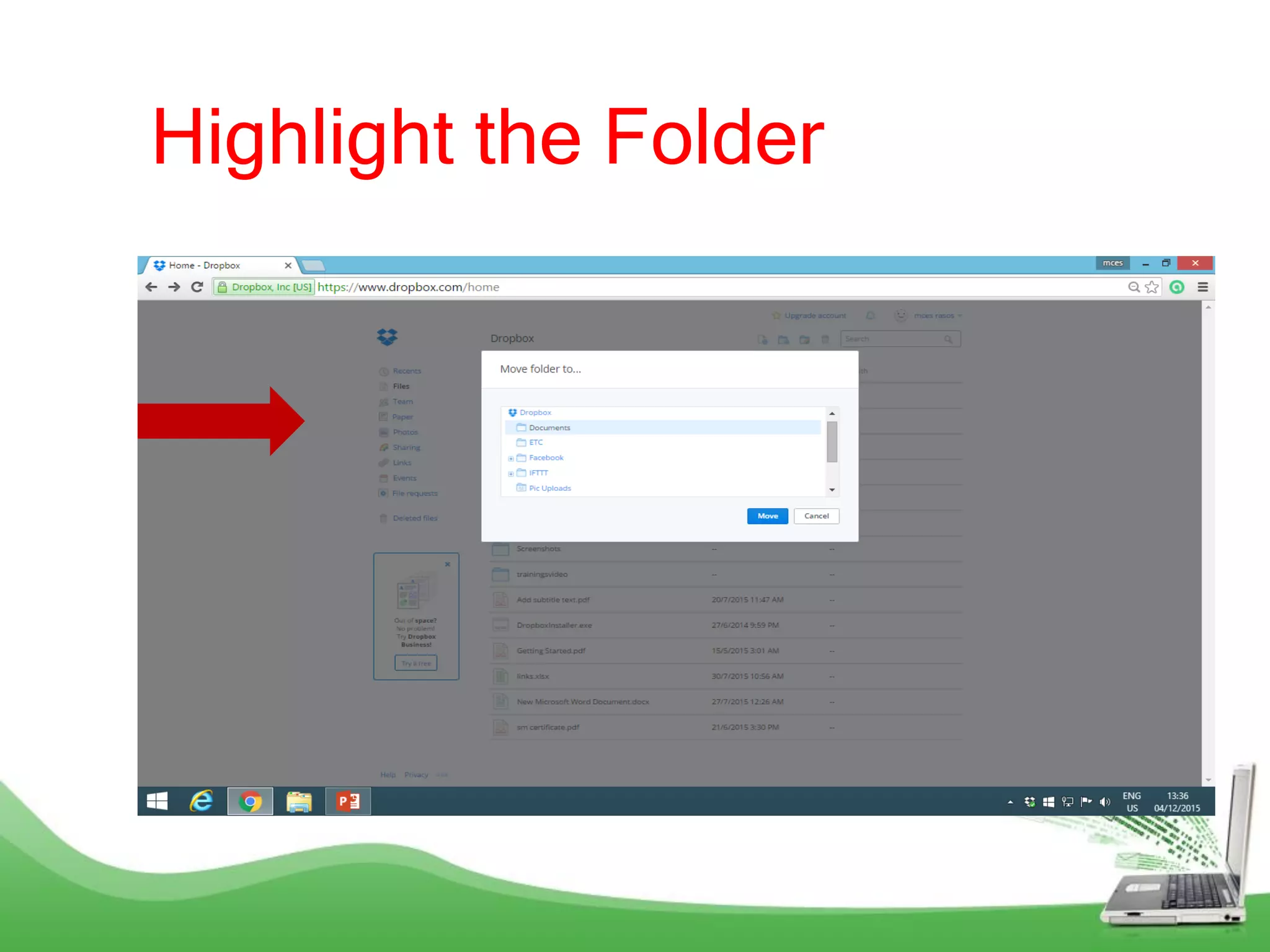
Highlight the Folder
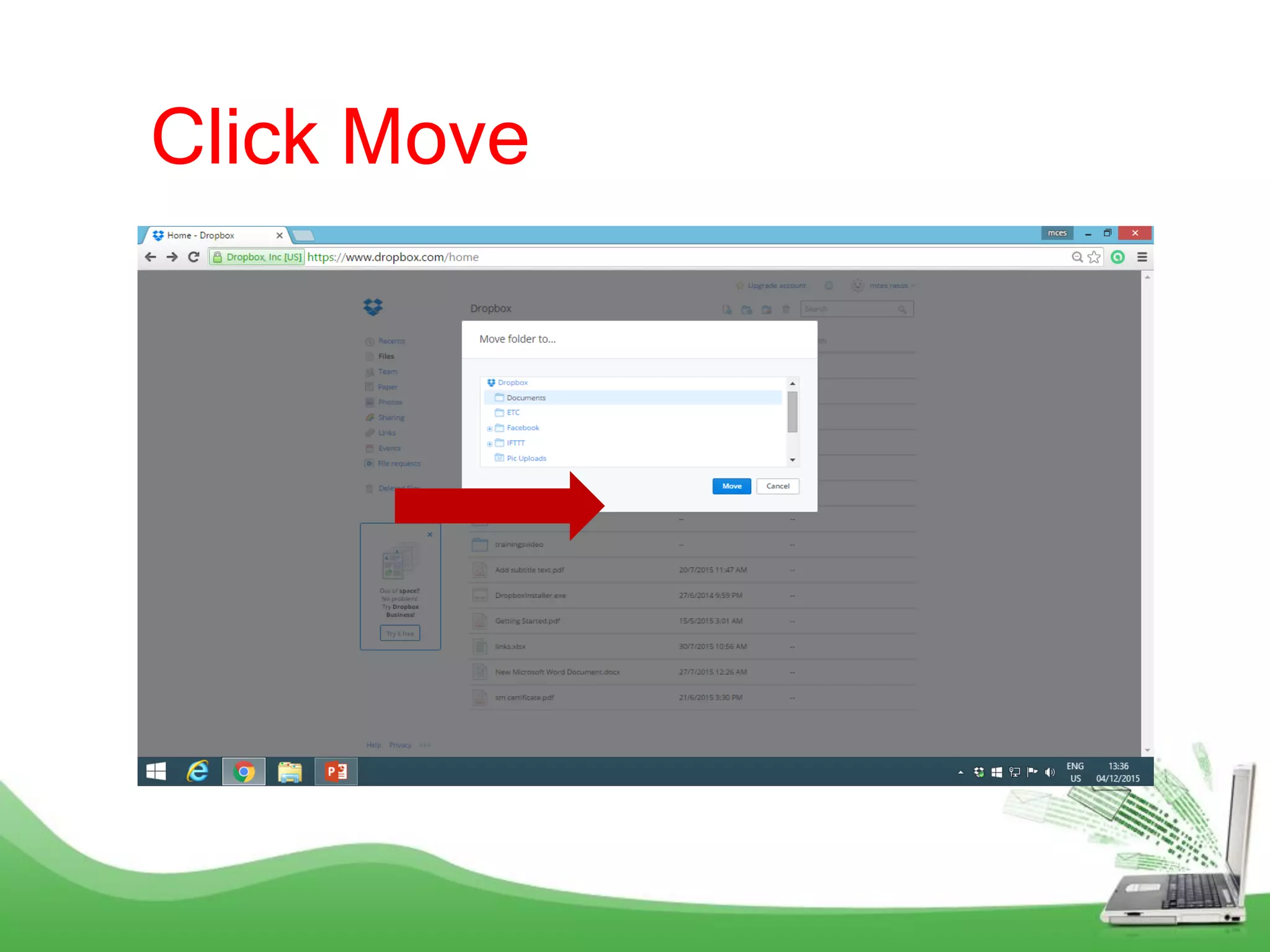
Click Move
It will Move to Documents
There's a lot
you can do
with
Dropbox!
Dropbox is
simple and
useful!

Step by step Guide on How to use Dropbox