DROPBOX
Presented by: Kyla Nicole V. Bellen
HUMSS 12-A
What is Dropbox?
• Dropbox is a free cloud storage service for
sharing and storing files including photos,
documents and videos. To use Dropbox you need
to create an account on dropbox.com and allow
the service to create folders on all your
connected devices -- such as PCs, laptops or
other mobile devices -- and synchronize any files
you store on Dropbox with the connected
devices. Files can be shared with others by
providing them with a link to your Dropbox
folder.
How it works?
• Dropbox users can access files and folders any
time from the desktop, web, and mobile clients,
or through applications connected to Dropbox.
All of these clients connect to secure servers to
provide access to files, allow file sharing with
others, and update linked devices when files are
added, changed, or deleted. The Dropbox service
operates various services that are responsible for
handling and processing both metadata and raw
block storage.
Dropbox works the way you do
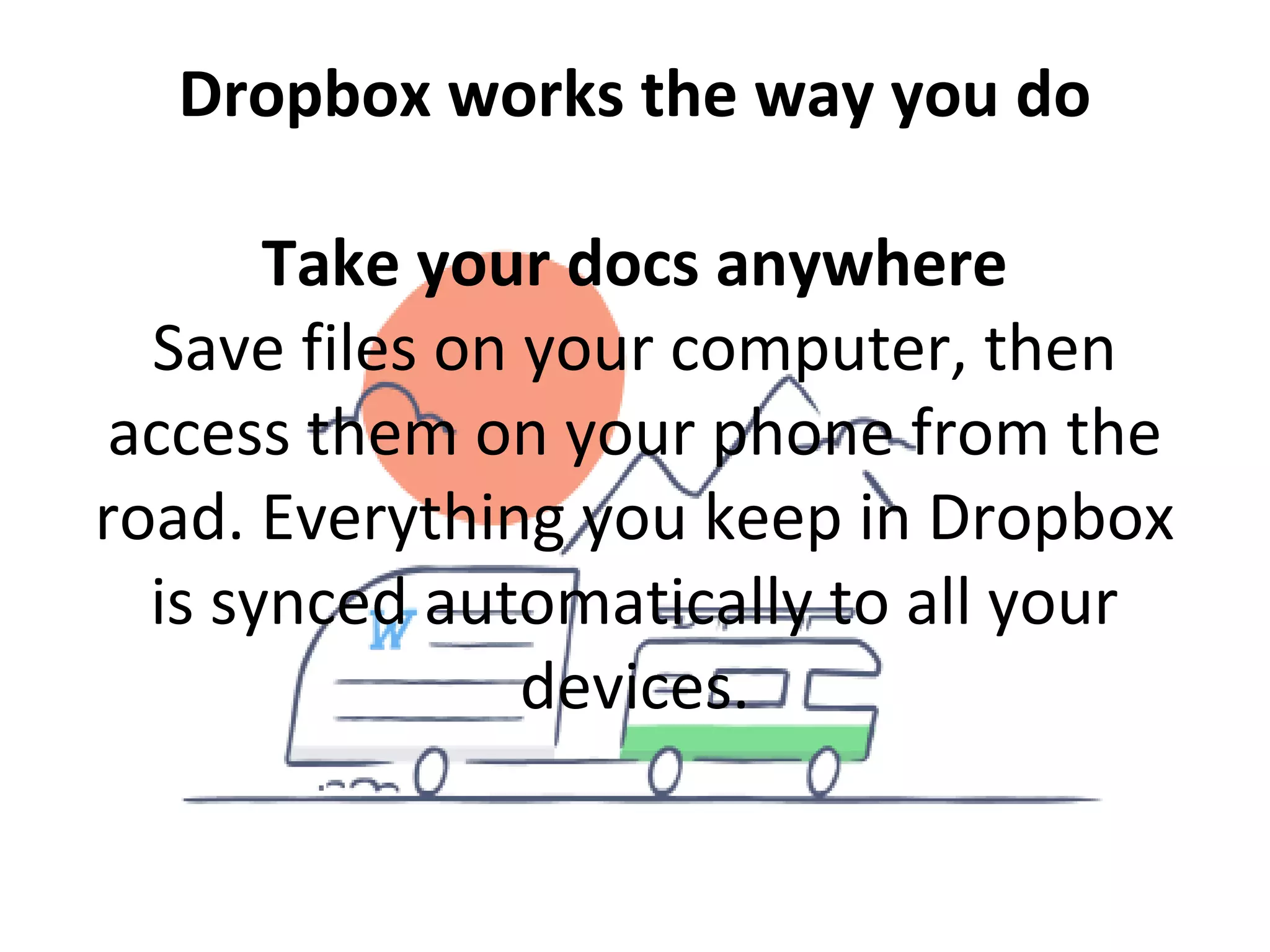
Take your docs anywhere
Save files on your computer, then
access them on your phone from the
road. Everything you keep in Dropbox
is synced automatically to all your
devices.
Send videos quickly
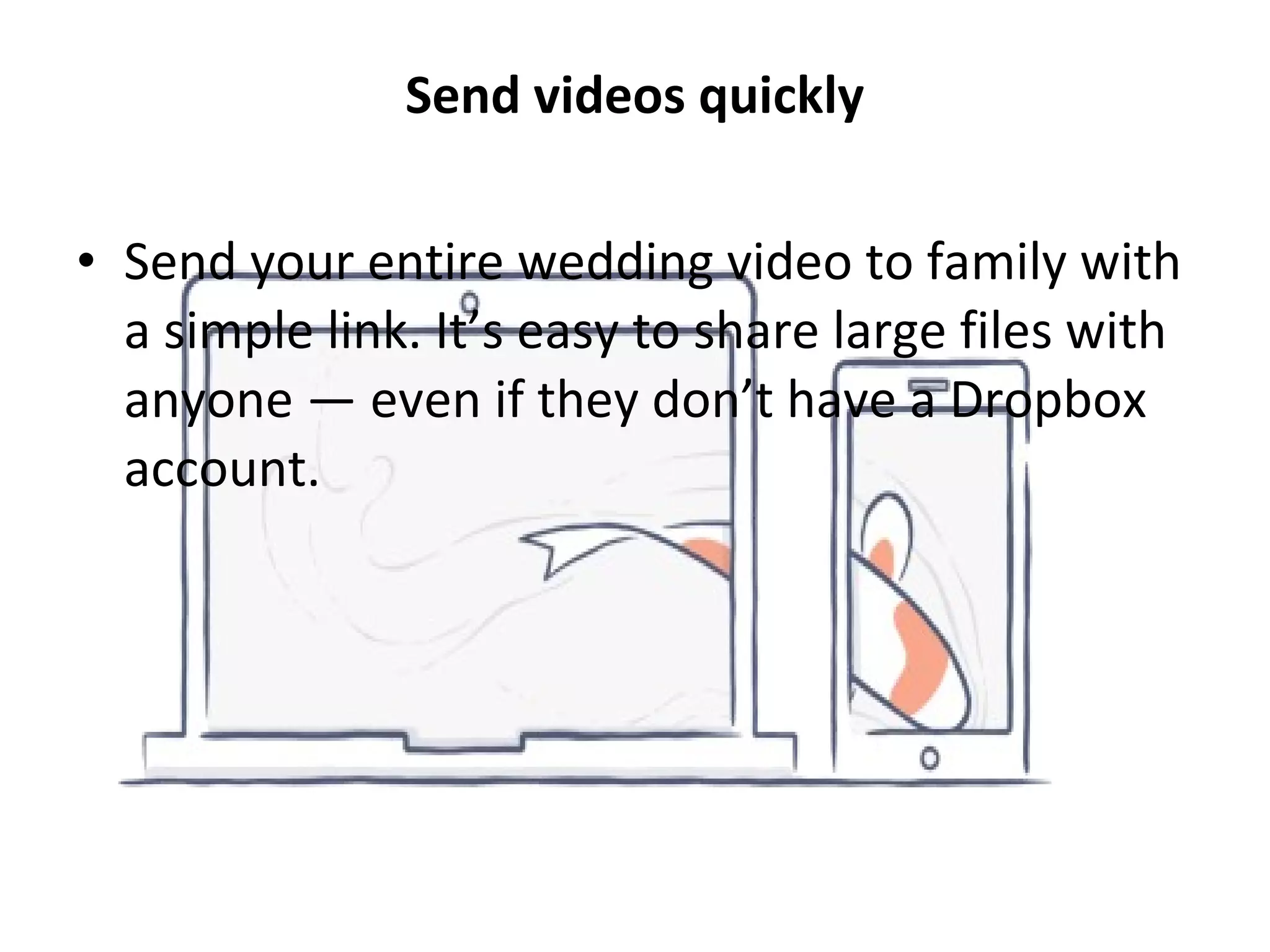
• Send your entire wedding video to family with
a simple link. It’s easy to share large files with
anyone — even if they don’t have a Dropbox
account.
Easily manage your photos
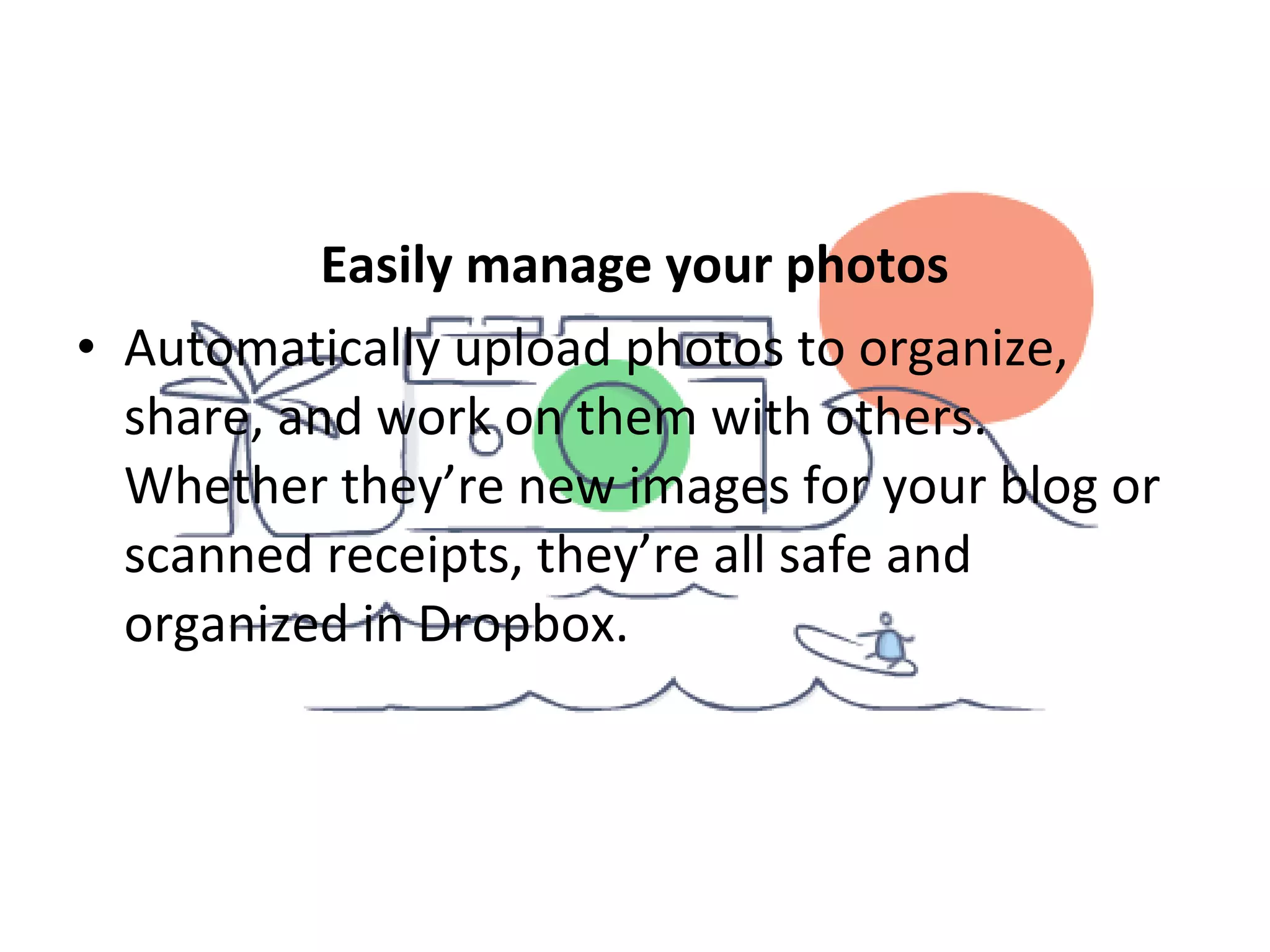
• Automatically upload photos to organize,
share, and work on them with others.
Whether they’re new images for your blog or
scanned receipts, they’re all safe and
organized in Dropbox.
Work on slides together
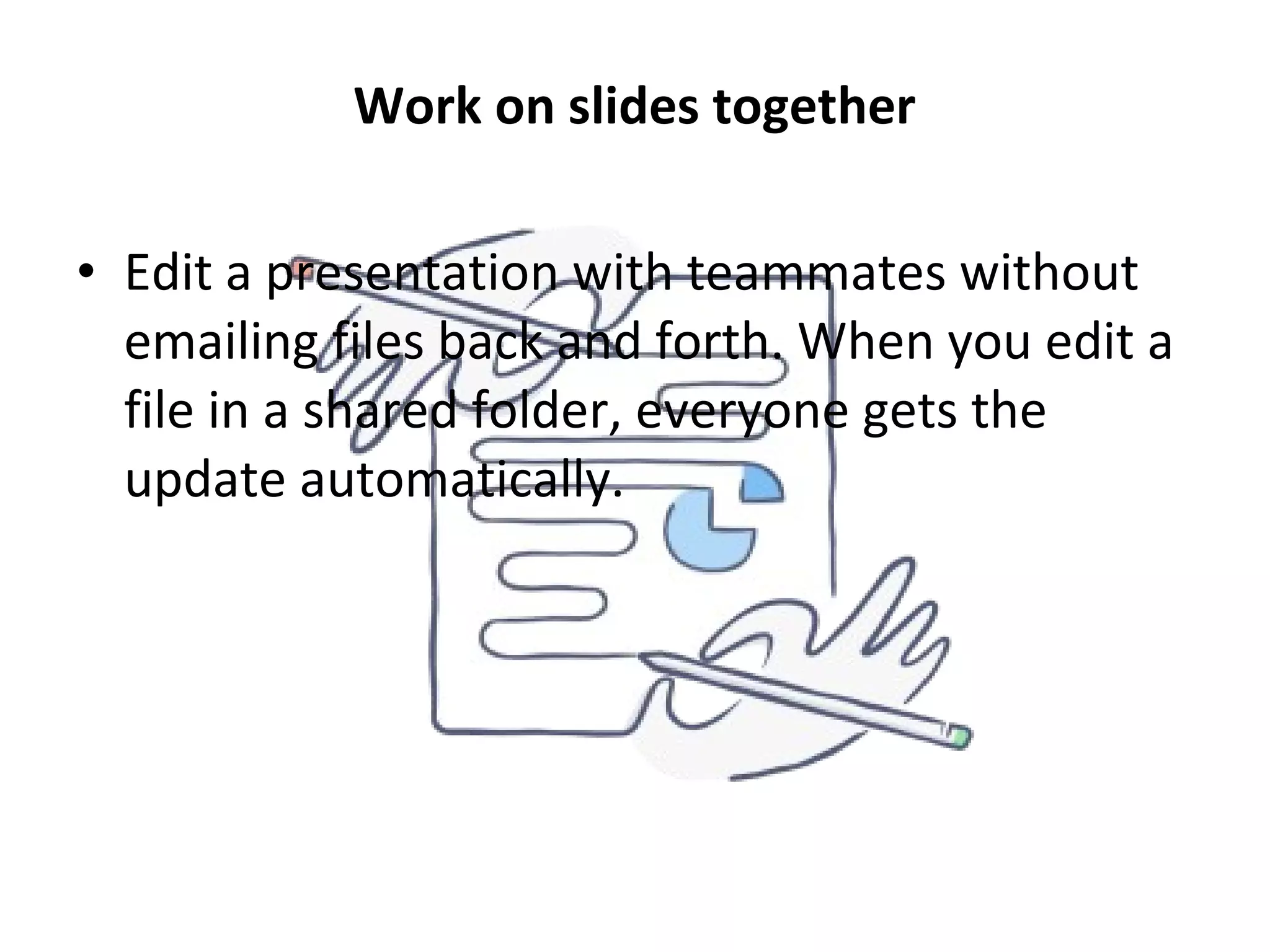
• Edit a presentation with teammates without
emailing files back and forth. When you edit a
file in a shared folder, everyone gets the
update automatically.
Never lose a file again
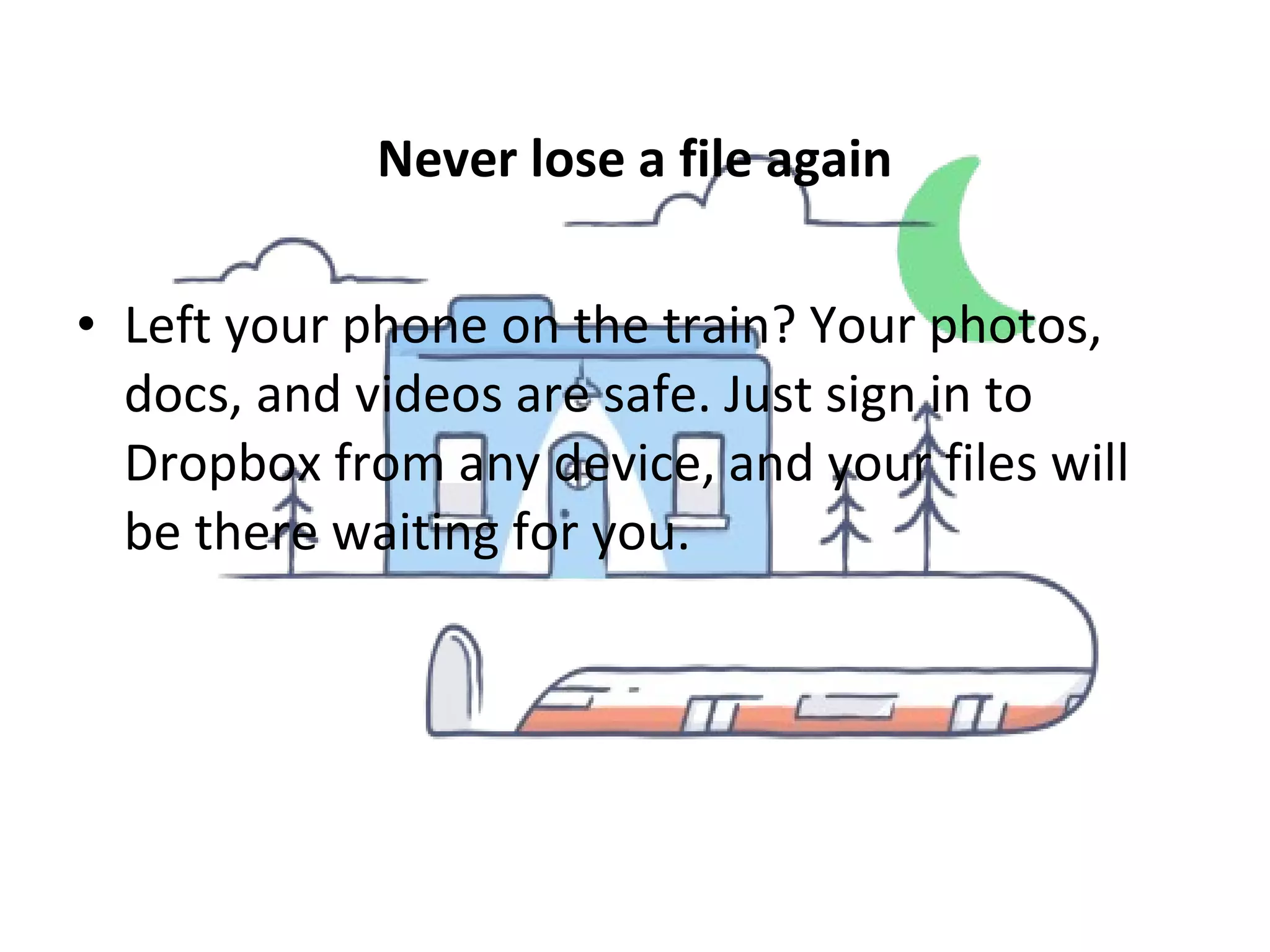
• Left your phone on the train? Your photos,
docs, and videos are safe. Just sign in to
Dropbox from any device, and your files will
be there waiting for you.
How to start using a DROPBOX?
• Method1
• Using the Web Interface
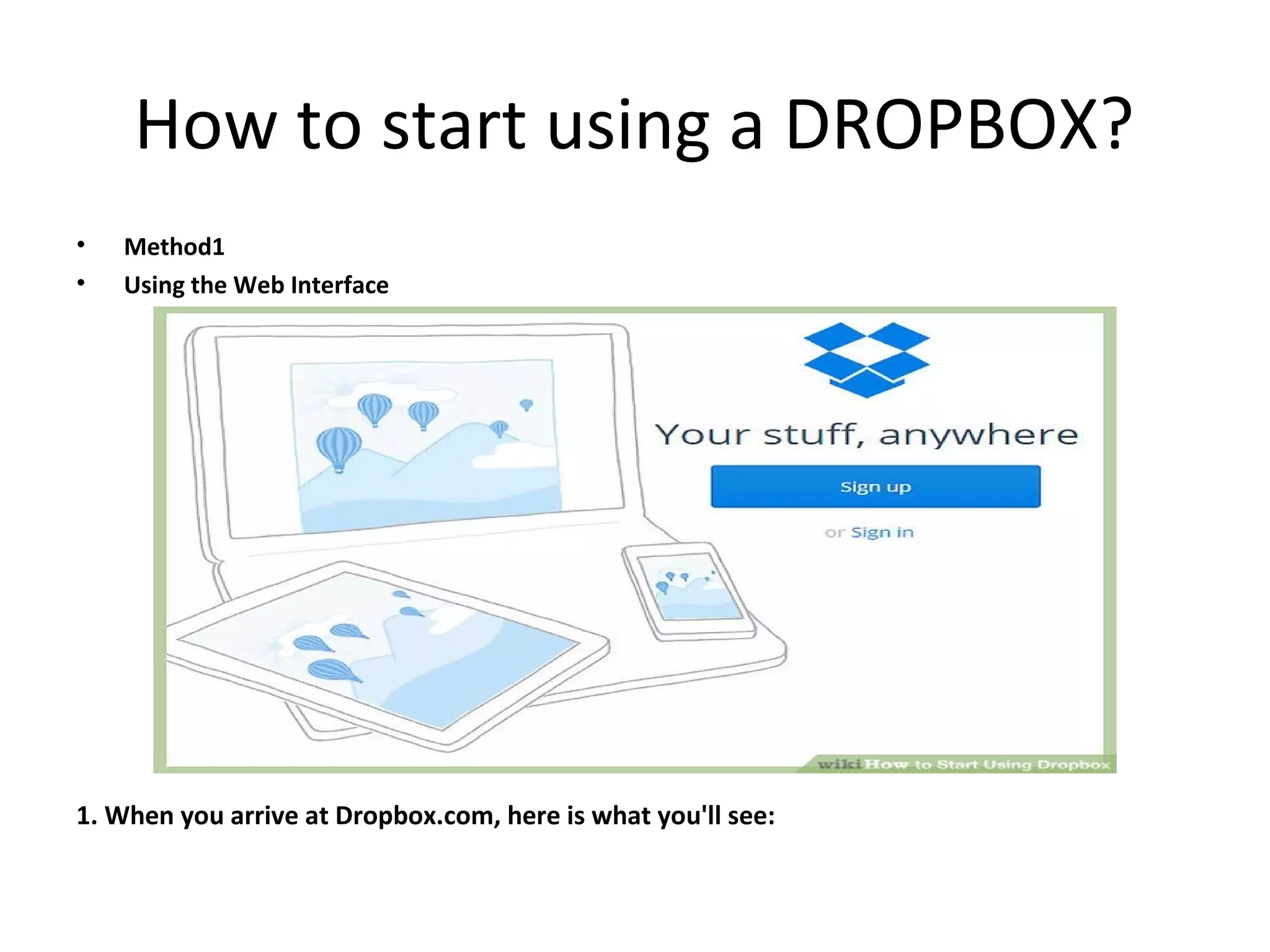
1. When you arrive at Dropbox.com, here is what you'll see:
2
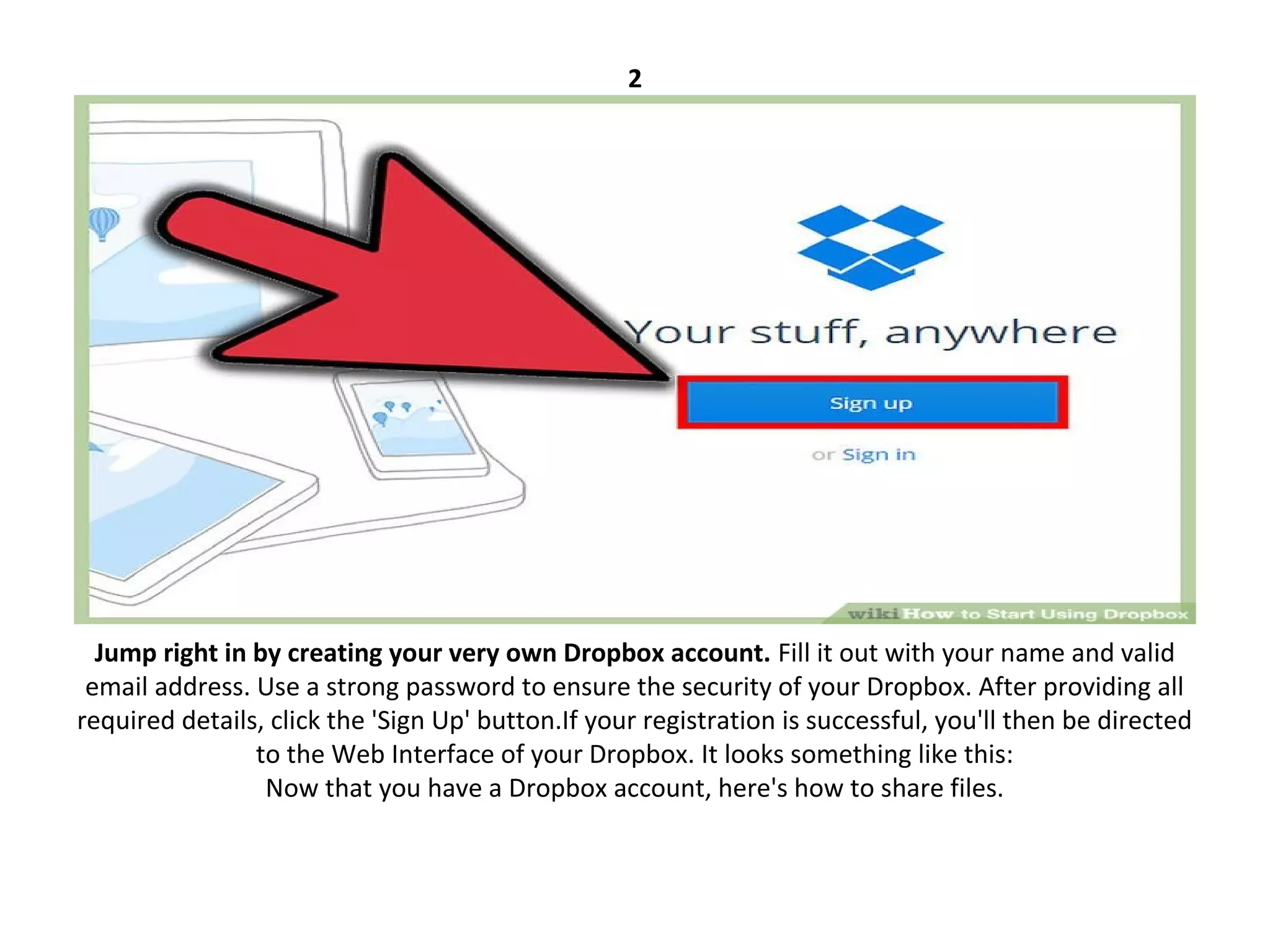
Jump right in by creating your very own Dropbox account. Fill it out with your name and valid
email address. Use a strong password to ensure the security of your Dropbox. After providing all
required details, click the 'Sign Up' button.If your registration is successful, you'll then be directed
to the Web Interface of your Dropbox. It looks something like this:
Now that you have a Dropbox account, here's how to share files.
3
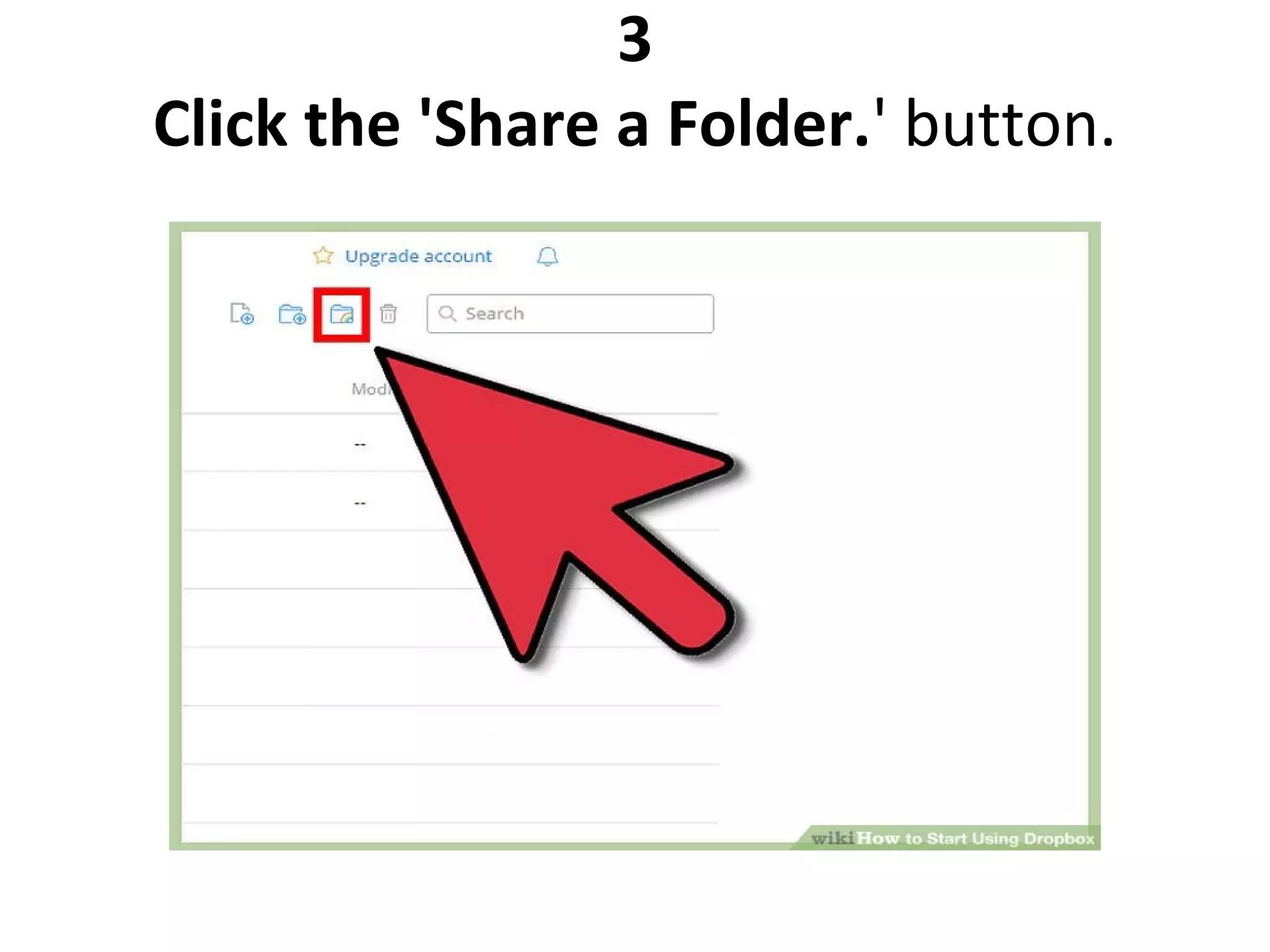
Click the 'Share a Folder.' button.
4
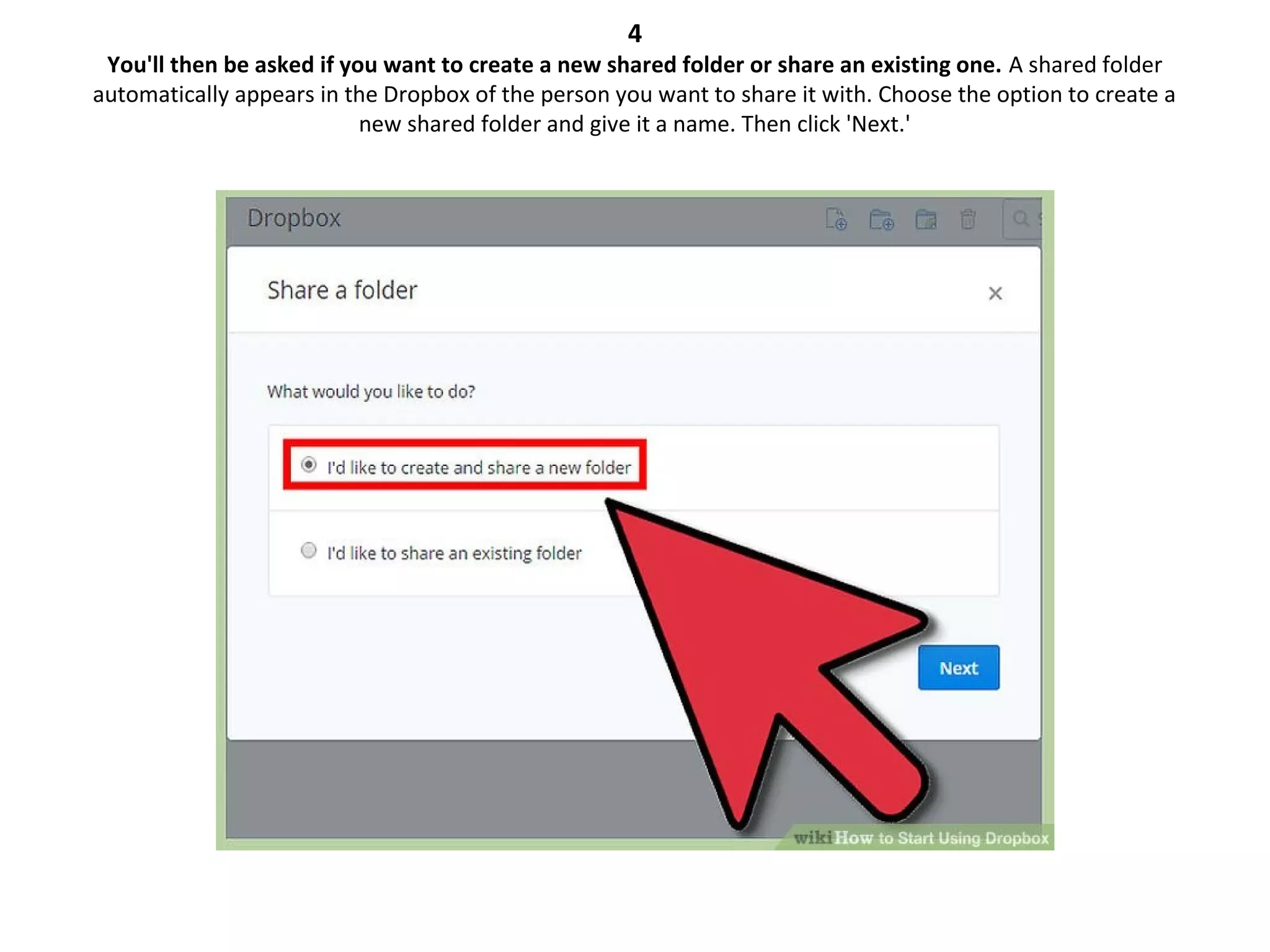
You'll then be asked if you want to create a new shared folder or share an existing one. A shared folder
automatically appears in the Dropbox of the person you want to share it with. Choose the option to create a
new shared folder and give it a name. Then click 'Next.'
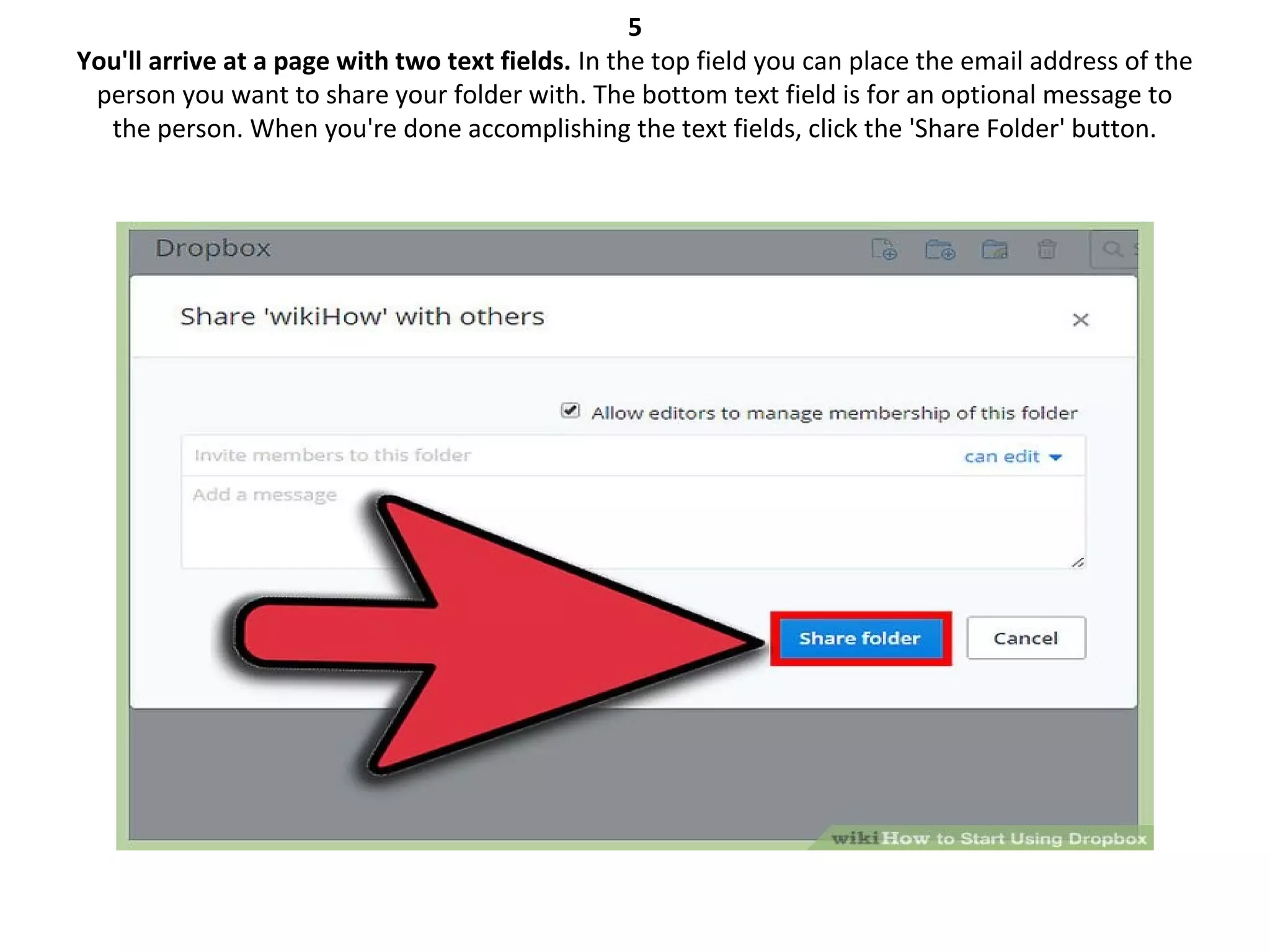
5
You'll arrive at a page with two text fields. In the top field you can place the email address of the
person you want to share your folder with. The bottom text field is for an optional message to
the person. When you're done accomplishing the text fields, click the 'Share Folder' button.
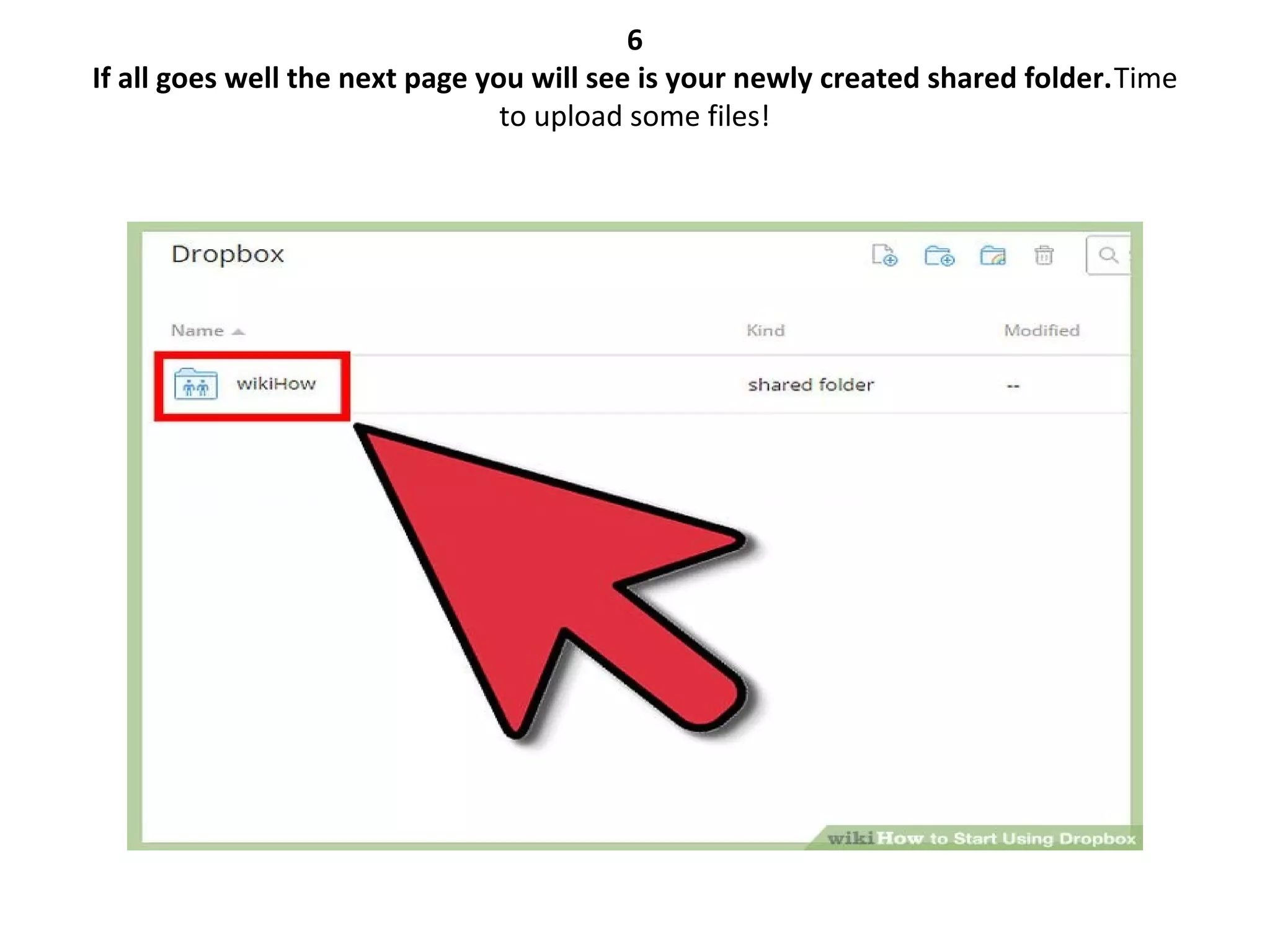
6
If all goes well the next page you will see is your newly created shared folder.Time
to upload some files!
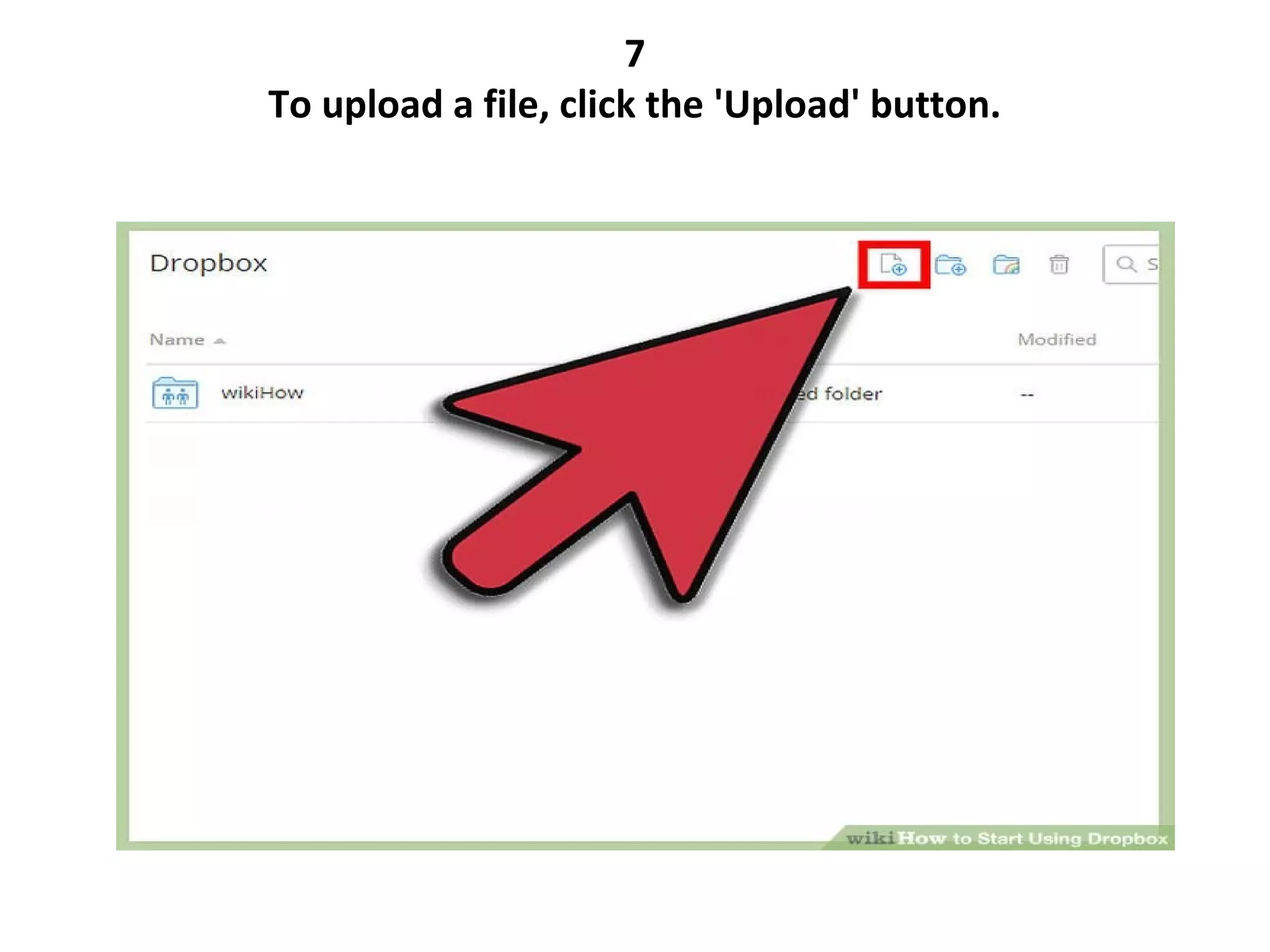
7
To upload a file, click the 'Upload' button.
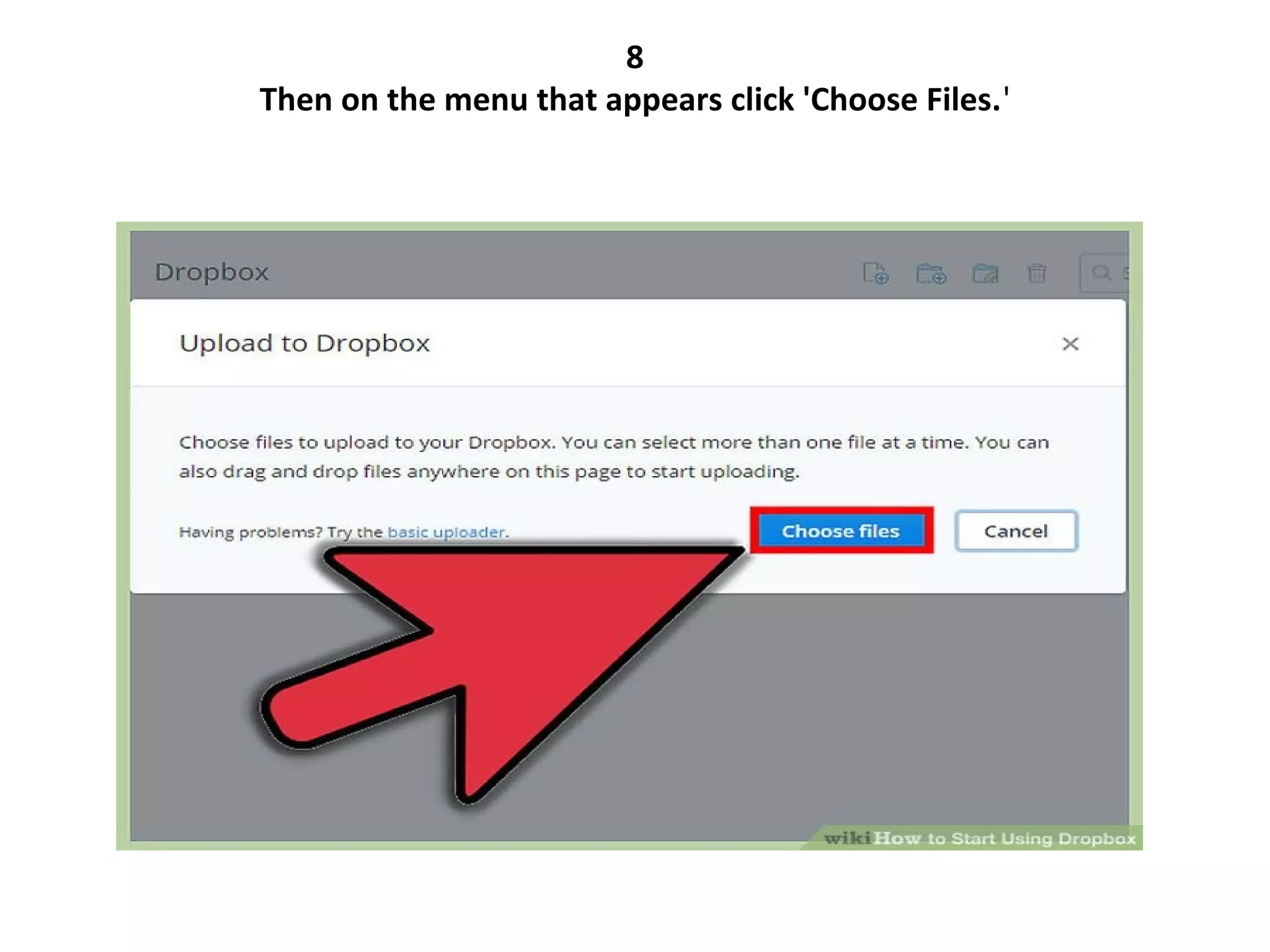
8
Then on the menu that appears click 'Choose Files.'
9
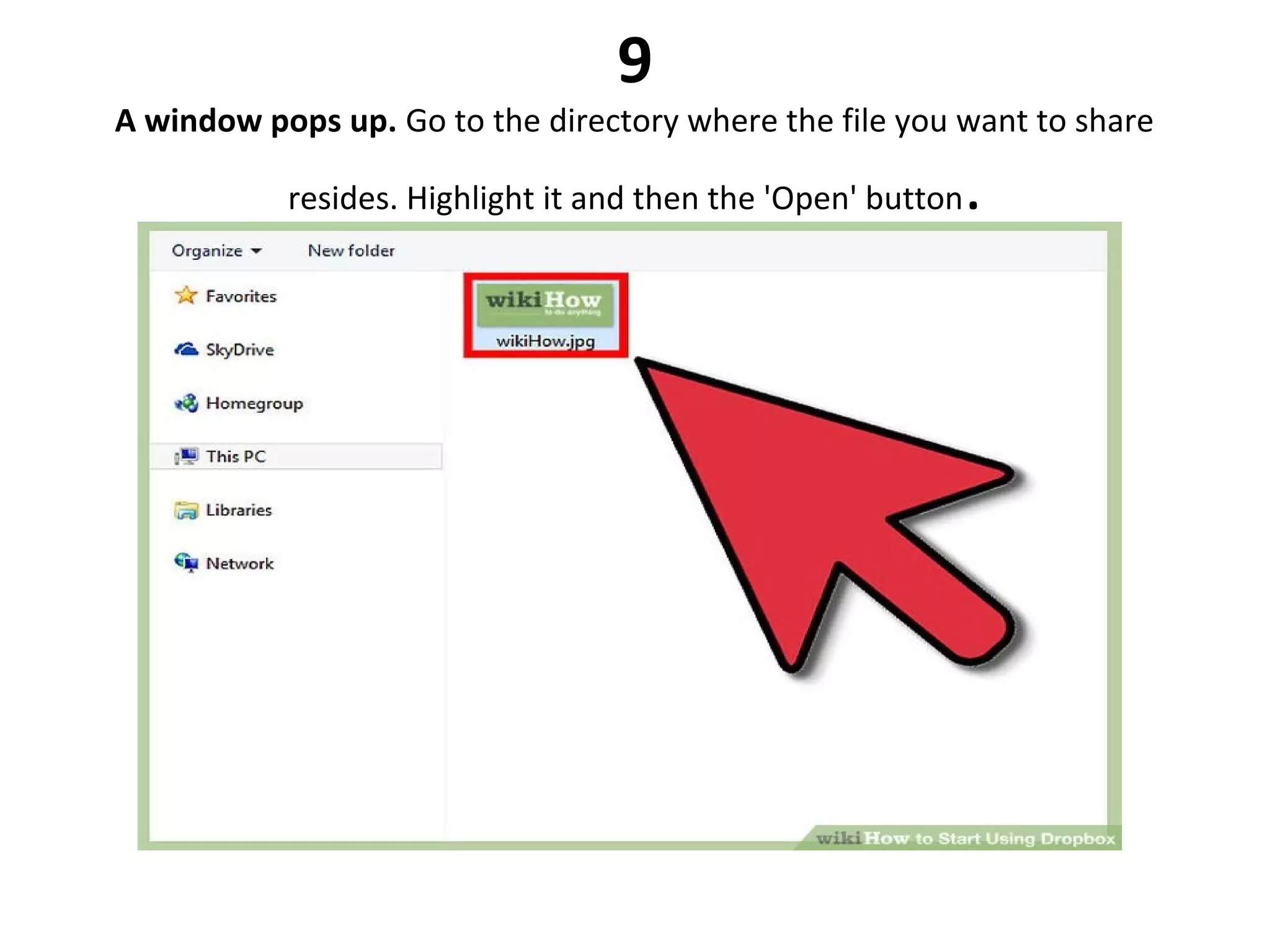
A window pops up. Go to the directory where the file you want to share 
resides. Highlight it and then the 'Open' button.
10
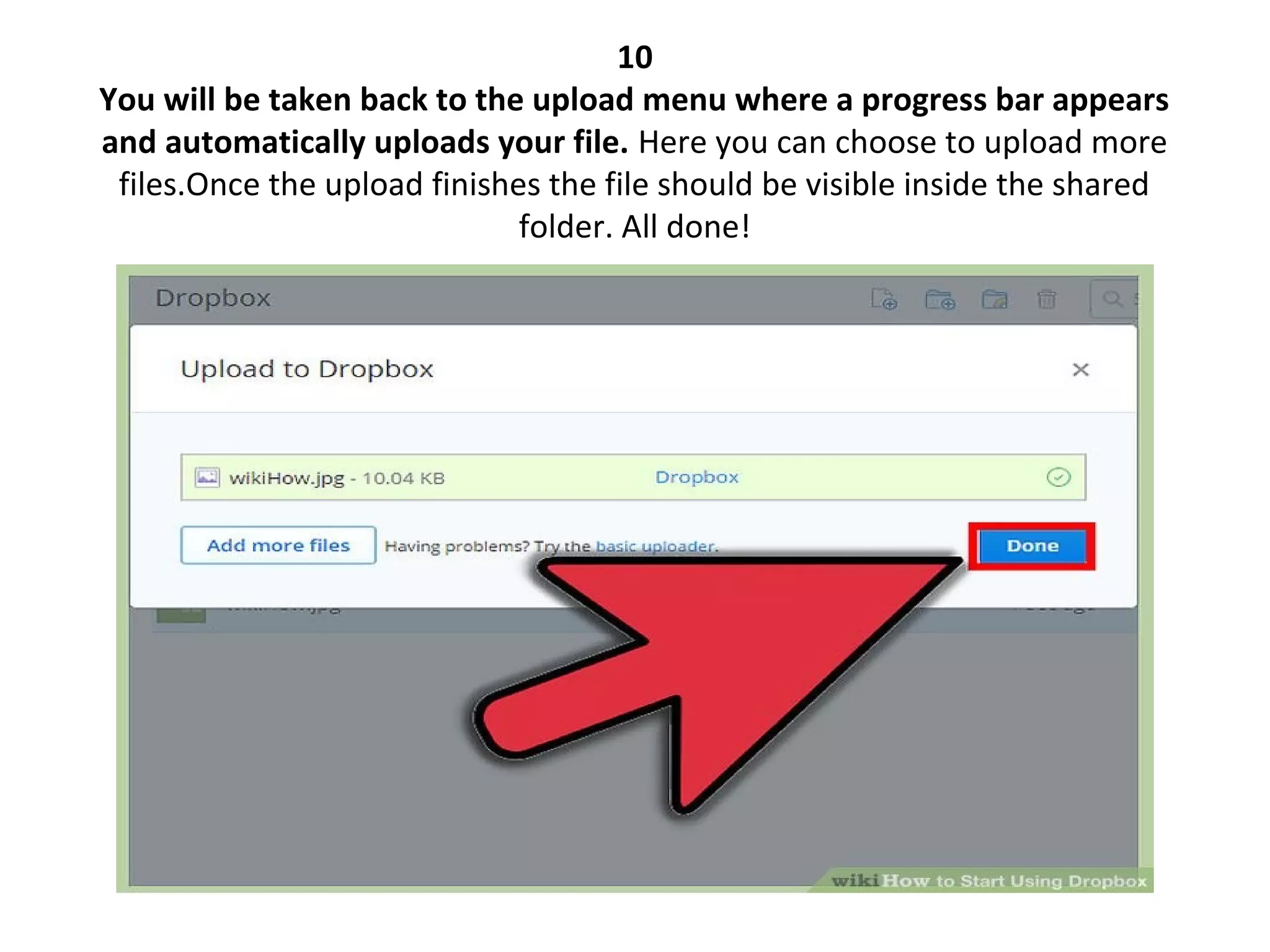
You will be taken back to the upload menu where a progress bar appears
and automatically uploads your file. Here you can choose to upload more 
files.Once the upload finishes the file should be visible inside the shared 
folder. All done!
That’s all. Thanks for listening.

Dropboxpresentation

  • 1.
    DROPBOX Presented by: KylaNicole V. Bellen HUMSS 12-A
  • 2.
    What is Dropbox? •Dropbox is a free cloud storage service for sharing and storing files including photos, documents and videos. To use Dropbox you need to create an account on dropbox.com and allow the service to create folders on all your connected devices -- such as PCs, laptops or other mobile devices -- and synchronize any files you store on Dropbox with the connected devices. Files can be shared with others by providing them with a link to your Dropbox folder.
  • 3.
    How it works? •Dropbox users can access files and folders any time from the desktop, web, and mobile clients, or through applications connected to Dropbox. All of these clients connect to secure servers to provide access to files, allow file sharing with others, and update linked devices when files are added, changed, or deleted. The Dropbox service operates various services that are responsible for handling and processing both metadata and raw block storage.
  • 4.
    Dropbox works theway you do Take your docs anywhere Save files on your computer, then access them on your phone from the road. Everything you keep in Dropbox is synced automatically to all your devices.
  • 5.
    Send videos quickly •Send your entire wedding video to family with a simple link. It’s easy to share large files with anyone — even if they don’t have a Dropbox account.
  • 6.
    Easily manage yourphotos • Automatically upload photos to organize, share, and work on them with others. Whether they’re new images for your blog or scanned receipts, they’re all safe and organized in Dropbox.
  • 7.
    Work on slidestogether • Edit a presentation with teammates without emailing files back and forth. When you edit a file in a shared folder, everyone gets the update automatically.
  • 8.
    Never lose afile again • Left your phone on the train? Your photos, docs, and videos are safe. Just sign in to Dropbox from any device, and your files will be there waiting for you.
  • 9.
    How to startusing a DROPBOX? • Method1 • Using the Web Interface 1. When you arrive at Dropbox.com, here is what you'll see:
  • 10.
    2 Jump right inby creating your very own Dropbox account. Fill it out with your name and valid email address. Use a strong password to ensure the security of your Dropbox. After providing all required details, click the 'Sign Up' button.If your registration is successful, you'll then be directed to the Web Interface of your Dropbox. It looks something like this: Now that you have a Dropbox account, here's how to share files.
  • 11.
    3 Click the 'Sharea Folder.' button.
  • 12.
    4 You'll then beasked if you want to create a new shared folder or share an existing one. A shared folder automatically appears in the Dropbox of the person you want to share it with. Choose the option to create a new shared folder and give it a name. Then click 'Next.'
  • 13.
    5 You'll arrive ata page with two text fields. In the top field you can place the email address of the person you want to share your folder with. The bottom text field is for an optional message to the person. When you're done accomplishing the text fields, click the 'Share Folder' button.
  • 14.
    6 If all goeswell the next page you will see is your newly created shared folder.Time to upload some files!
  • 15.
    7 To upload afile, click the 'Upload' button.
  • 16.
    8 Then on themenu that appears click 'Choose Files.'
  • 17.
    9 A window popsup. Go to the directory where the file you want to share  resides. Highlight it and then the 'Open' button.
  • 18.
    10 You will betaken back to the upload menu where a progress bar appears and automatically uploads your file. Here you can choose to upload more  files.Once the upload finishes the file should be visible inside the shared  folder. All done!
  • 19.
    That’s all. Thanksfor listening.