Navigate
Quickworks Admin
Dashboard (Part-1)
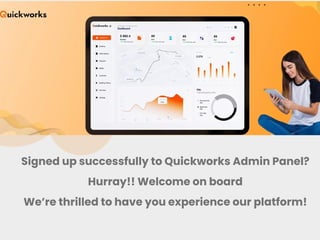
Signed up successfully to Quickworks Admin Panel?
Hurray!! Welcome on board
We’re thrilled to have you experience our platform!
Create your Account
Get to know Quickworks Admin
Backend
Create Customer
Place your first Order
Create drivers and assign your Orders
Track your orders and drivers
Get Notifications
Create insightful reports
Here’s how you can get
started:
Quickworks provides you a complete delivery
management software for on-demand businesses.
Prioritize and assign your operations with efficiency
and precision. Our unique software suits all
business types from SMEs to large companies. As
you have seen it is effortless to create a new
account with Quickworks, and it is much easier to
operate the Admin Panel.
Once you have signed into your account, please note
that you land directly to Admin Backend. This
dashboard gives you access to customer and supplier
panels from where the orders are placed and order
statuses are updated. Quickworks believes in growing
and supporting businesses with premium white labeling
services.
Here we are explaining some easy steps to browse the
Admin Panel:
Dashboard
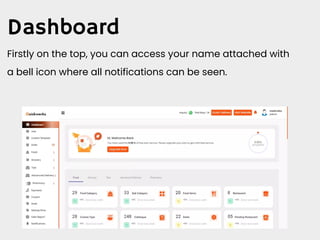
Firstly on the top, you can access your name attached with
a bell icon where all notifications can be seen.
You can easily access different food categories that have
been added, new items, restaurants, deals, and more. (Here
we are showcasing Admin Panel for Food Delivery Business)
Food Category
Sub Category
Food Items
Restaurant
Cuisine Type
Catalogue
Deals
Pending Restaurant
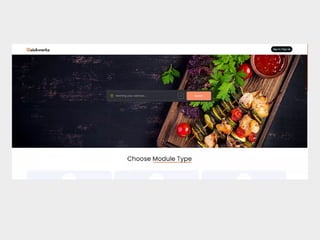
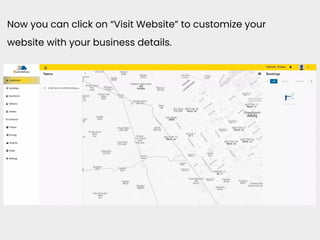
Now you can click on “Visit Website” to customize your
website with your business details.
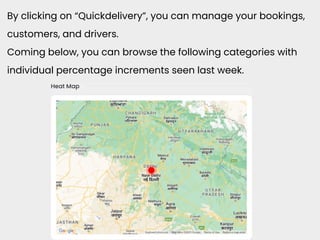
By clicking on “Quickdelivery”, you can manage your bookings,
customers, and drivers.
Coming below, you can browse the following categories with
individual percentage increments seen last week.
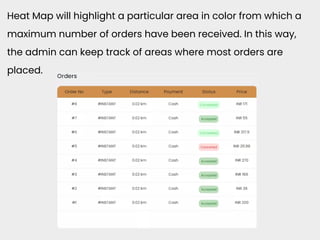
Heat Map will highlight a particular area in color from which a
maximum number of orders have been received. In this way,
the admin can keep track of areas where most orders are
placed.
After this, Admin can browse Orders with Order No, Type,
Distance, Payment, Status & Price with instant information
displayed in a detailed manner.
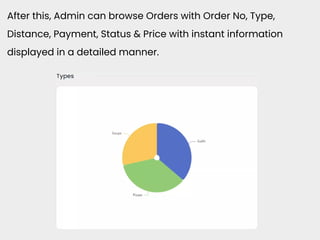
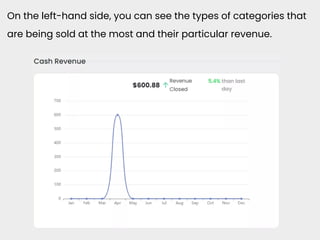
On the left-hand side, you can see the types of categories that
are being sold at the most and their particular revenue.
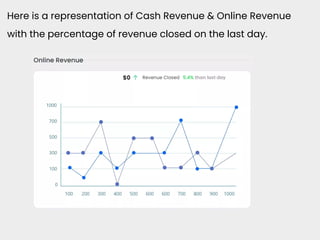
Here is a representation of Cash Revenue & Online Revenue
with the percentage of revenue closed on the last day.
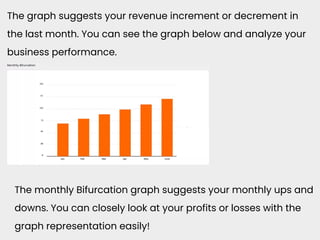
The graph suggests your revenue increment or decrement in
the last month. You can see the graph below and analyze your
business performance.
The monthly Bifurcation graph suggests your monthly ups and
downs. You can closely look at your profits or losses with the
graph representation easily!
Users
Moving ahead..!
With the User backend, you can see the exact number of users
that have onboarded your application with the percentage of
users that have increased from the last week.
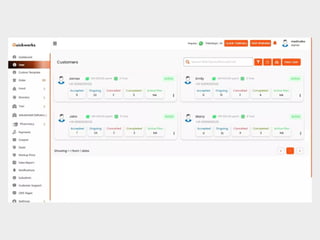
On the Users tab, you’ll find a list of all the individuals that
have been added to your instance. This page also serves as a
report, as you can use the export button to download a CSV
file with people’s information.
All of the information can be filtered using dropdown menus
such as role, account type, status, and manager. For example,
if one of your users isn’t sure about innovation, you can filter
for users who have a status of “Pending.”
Admin can import or export customers by adding their Name,
Email, Emergency Phone Number, and Wallet Value.
Explore how much a user is spending and how many tasks
have been completed on an individual basis. Check out the
details of Accepted, Ongoing, Canceled & Completed orders
with Active Plans.
Custom Template
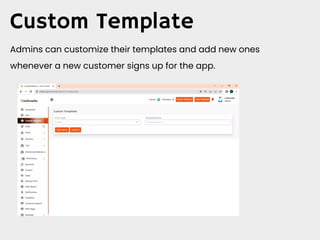
Admins can customize their templates and add new ones
whenever a new customer signs up for the app.
QuickWorks started back in 2013 and
since then we have been bringing up
businesses to new heights with us. Being
global market leaders, we ought to
deliver phenomenal results with state-
of-the-art technology and hassle-free
experience.
Contact Us
https://quick-works.com/
+1 (512) 872 3364

Navigate Quickworks Admin Dashboard (Part-1).pdf

  • 1.
  • 2.
    Signed up successfullyto Quickworks Admin Panel? Hurray!! Welcome on board We’re thrilled to have you experience our platform!
  • 3.
    Create your Account Getto know Quickworks Admin Backend Create Customer Place your first Order Create drivers and assign your Orders Track your orders and drivers Get Notifications Create insightful reports Here’s how you can get started:
  • 4.
    Quickworks provides youa complete delivery management software for on-demand businesses. Prioritize and assign your operations with efficiency and precision. Our unique software suits all business types from SMEs to large companies. As you have seen it is effortless to create a new account with Quickworks, and it is much easier to operate the Admin Panel.
  • 5.
    Once you havesigned into your account, please note that you land directly to Admin Backend. This dashboard gives you access to customer and supplier panels from where the orders are placed and order statuses are updated. Quickworks believes in growing and supporting businesses with premium white labeling services. Here we are explaining some easy steps to browse the Admin Panel:
  • 6.
    Dashboard Firstly on thetop, you can access your name attached with a bell icon where all notifications can be seen.
  • 7.
    You can easilyaccess different food categories that have been added, new items, restaurants, deals, and more. (Here we are showcasing Admin Panel for Food Delivery Business) Food Category Sub Category Food Items Restaurant Cuisine Type Catalogue Deals Pending Restaurant
  • 9.
    Now you canclick on “Visit Website” to customize your website with your business details.
  • 10.
    By clicking on“Quickdelivery”, you can manage your bookings, customers, and drivers. Coming below, you can browse the following categories with individual percentage increments seen last week.
  • 11.
    Heat Map willhighlight a particular area in color from which a maximum number of orders have been received. In this way, the admin can keep track of areas where most orders are placed.
  • 12.
    After this, Admincan browse Orders with Order No, Type, Distance, Payment, Status & Price with instant information displayed in a detailed manner.
  • 13.
    On the left-handside, you can see the types of categories that are being sold at the most and their particular revenue.
  • 14.
    Here is arepresentation of Cash Revenue & Online Revenue with the percentage of revenue closed on the last day.
  • 15.
    The graph suggestsyour revenue increment or decrement in the last month. You can see the graph below and analyze your business performance. The monthly Bifurcation graph suggests your monthly ups and downs. You can closely look at your profits or losses with the graph representation easily!
  • 16.
    Users Moving ahead..! With theUser backend, you can see the exact number of users that have onboarded your application with the percentage of users that have increased from the last week. On the Users tab, you’ll find a list of all the individuals that have been added to your instance. This page also serves as a report, as you can use the export button to download a CSV file with people’s information.
  • 18.
    All of theinformation can be filtered using dropdown menus such as role, account type, status, and manager. For example, if one of your users isn’t sure about innovation, you can filter for users who have a status of “Pending.” Admin can import or export customers by adding their Name, Email, Emergency Phone Number, and Wallet Value. Explore how much a user is spending and how many tasks have been completed on an individual basis. Check out the details of Accepted, Ongoing, Canceled & Completed orders with Active Plans.
  • 19.
    Custom Template Admins cancustomize their templates and add new ones whenever a new customer signs up for the app.
  • 20.
    QuickWorks started backin 2013 and since then we have been bringing up businesses to new heights with us. Being global market leaders, we ought to deliver phenomenal results with state- of-the-art technology and hassle-free experience. Contact Us https://quick-works.com/ +1 (512) 872 3364