QGIS
(GEOGRAPHIC INFORMATION SYSTEM)
Importing Spreadsheets or CSV files
Many times the GIS data comes in a table or in a
spreadsheet. QGIS allows you to import structured text
files with coordinates as a vector layer. This lesson
shows how you can use the Data Source Manager to
import Delimited Text files.
Overview of the task
We will be importing a text file with earthquake
locations in the tab-separated values (TSV) format to
QGIS and create a points layer.
Get the data
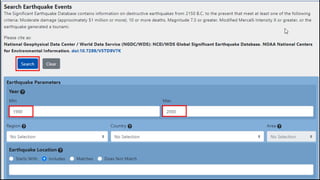
1. For this tutorial we will download a dataset of earthquakes between
1900-2000 from NOAA’s National Geophysical Data Center produces
a great dataset of all significant earthquakes since 2150 BC. Visit the
NOAA NCEI portal and enter Min as 1900 and Max as 2000. This will
return all earthquake incidents that occurred and were recorded by
NOAA between those years. For other specific results, you can filter
with different parameters. Click Search.
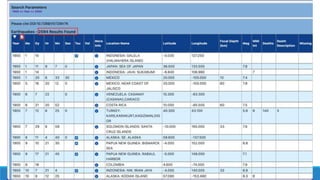
2. As a result, we got 2594 earthquake incidents. Click on
the Download TSV icon.
For convenience, you may directly download a copy of the
above datasets from the link below:
earthquakes-2023-09-12_17-19-15_+0530.tsv
Data Source [NCEI]
PROCEDURE
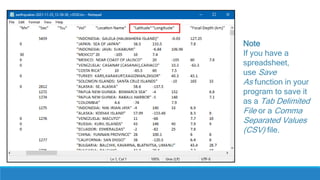
1.Examine your tabular data source. The downloaded
earthquake database contains the Latitude and Longitude fields
indicating the location of the earthquake epicenter and other
related attributes. We will use these fields to import the file as a
point layer. Open the data in a text editor such as
Notepad/TextMate to view the contents. You will see that a TAB
separates each field.
Note
If you have a
spreadsheet,
use Save
As function in your
program to save it
as a Tab Delimited
File or a Comma
Separated Values
(CSV) file.
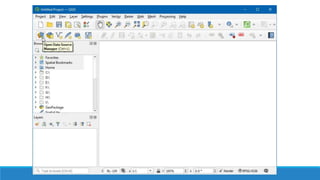
2. QGIS comes with a unified data manager that allows you to load all
the various supported data formats. Click the Open Data Source
Manager button on the Data Source Toolbar. You may also use Ctrl +
L keyboard shortcut.
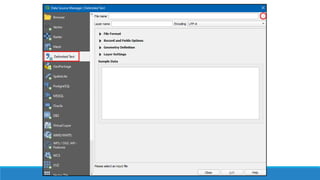
3.In the Data Source Manager dialog box, switch to
the Delimited Text tab. Click the … button next to the File
name.
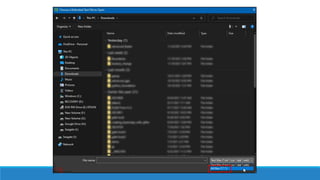
4.Depending upon the operating system, you may or may
not view the file at the downloaded location. In File
formats, switch to All files (*; *.*) to view the tsv file.
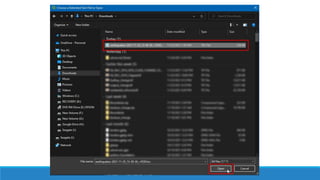
5. Now you will see the downloaded file. Select that and
click Open.
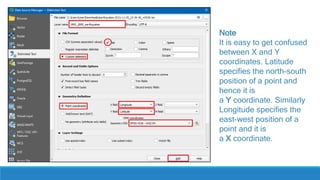
In the Data Source Manager dialog box, the path to file will be available
in File Name. Change the Layer name to 1900_2000_earthquakes. In the File
format section, select Custom delimiters and check Tab. In the Geometry
definition section, choose Point coordinates. By default X field and Y
field values will be auto-populated if it finds a suitable name field in the
input. In our case, they are Longitude and Latitude. You may change it if the
import selects the wrong fields. You can leave the Geometry CRS to the
default EPSG:4326 - WGS 84 CRS. If your file contains coordinates in a
different CRS, you could select the appropriate CRS here. Click Add.
Note
It is easy to get confused
between X and Y
coordinates. Latitude
specifies the north-south
position of a point and
hence it is
a Y coordinate. Similarly
Longitude specifies the
east-west position of a
point and it is
a X coordinate.
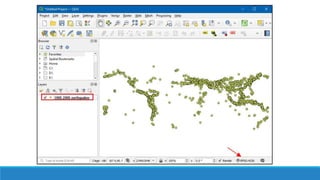
7.You will now see that the data will be imported and displayed in the
QGIS canvas as a new layer called 1900_2000_earthquakes with
CRS EPSG:4326.
THANK YOU!

Geographic Information Systems GIS for BSIT

  • 1.
  • 2.
    Importing Spreadsheets orCSV files Many times the GIS data comes in a table or in a spreadsheet. QGIS allows you to import structured text files with coordinates as a vector layer. This lesson shows how you can use the Data Source Manager to import Delimited Text files.
  • 3.
    Overview of thetask We will be importing a text file with earthquake locations in the tab-separated values (TSV) format to QGIS and create a points layer.
  • 4.
    Get the data 1.For this tutorial we will download a dataset of earthquakes between 1900-2000 from NOAA’s National Geophysical Data Center produces a great dataset of all significant earthquakes since 2150 BC. Visit the NOAA NCEI portal and enter Min as 1900 and Max as 2000. This will return all earthquake incidents that occurred and were recorded by NOAA between those years. For other specific results, you can filter with different parameters. Click Search.
  • 6.
    2. As aresult, we got 2594 earthquake incidents. Click on the Download TSV icon.
  • 8.
    For convenience, youmay directly download a copy of the above datasets from the link below: earthquakes-2023-09-12_17-19-15_+0530.tsv Data Source [NCEI]
  • 9.
  • 10.
    1.Examine your tabulardata source. The downloaded earthquake database contains the Latitude and Longitude fields indicating the location of the earthquake epicenter and other related attributes. We will use these fields to import the file as a point layer. Open the data in a text editor such as Notepad/TextMate to view the contents. You will see that a TAB separates each field.
  • 11.
    Note If you havea spreadsheet, use Save As function in your program to save it as a Tab Delimited File or a Comma Separated Values (CSV) file.
  • 12.
    2. QGIS comeswith a unified data manager that allows you to load all the various supported data formats. Click the Open Data Source Manager button on the Data Source Toolbar. You may also use Ctrl + L keyboard shortcut.
  • 14.
    3.In the DataSource Manager dialog box, switch to the Delimited Text tab. Click the … button next to the File name.
  • 16.
    4.Depending upon theoperating system, you may or may not view the file at the downloaded location. In File formats, switch to All files (*; *.*) to view the tsv file.
  • 18.
    5. Now youwill see the downloaded file. Select that and click Open.
  • 20.
    In the DataSource Manager dialog box, the path to file will be available in File Name. Change the Layer name to 1900_2000_earthquakes. In the File format section, select Custom delimiters and check Tab. In the Geometry definition section, choose Point coordinates. By default X field and Y field values will be auto-populated if it finds a suitable name field in the input. In our case, they are Longitude and Latitude. You may change it if the import selects the wrong fields. You can leave the Geometry CRS to the default EPSG:4326 - WGS 84 CRS. If your file contains coordinates in a different CRS, you could select the appropriate CRS here. Click Add.
  • 21.
    Note It is easyto get confused between X and Y coordinates. Latitude specifies the north-south position of a point and hence it is a Y coordinate. Similarly Longitude specifies the east-west position of a point and it is a X coordinate.
  • 22.
    7.You will nowsee that the data will be imported and displayed in the QGIS canvas as a new layer called 1900_2000_earthquakes with CRS EPSG:4326.
  • 24.