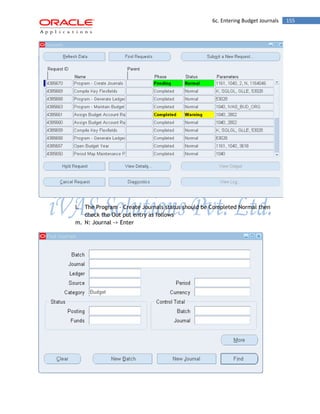
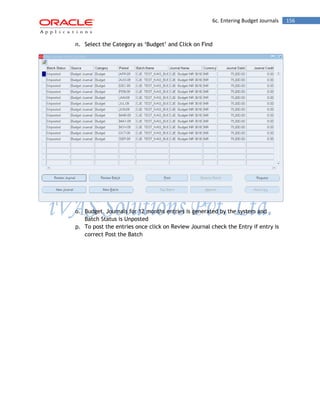
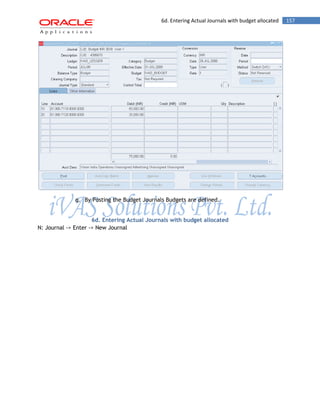
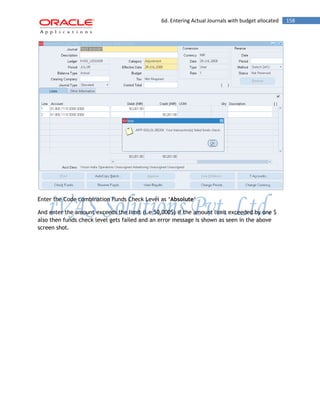
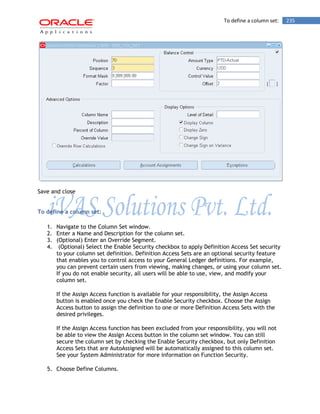
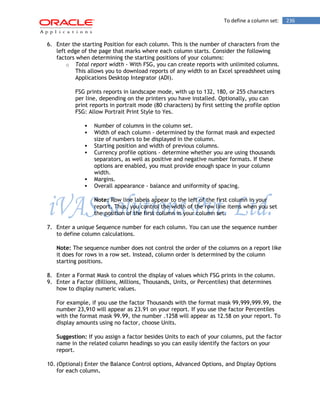
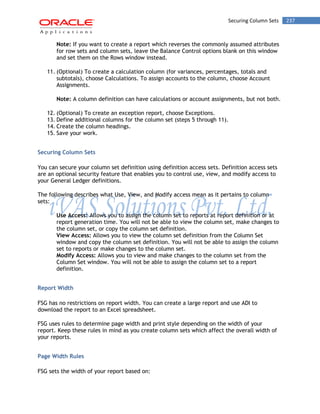
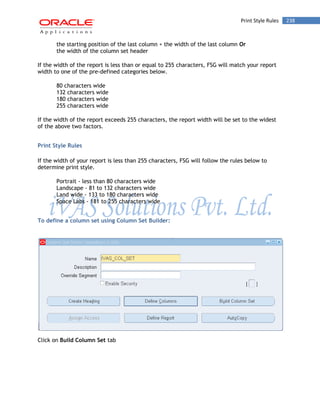
Financials R12 - General Ledger 
________________________________________ 
iVAS Solutions Private Limited 
Block No. 103, 1st Floor, HMDA- Maitrivanam, Ameerpet, 
Hyderabad-500 038
Introduction to Oracle General Ledger 2 
CONTENTS 
Oracle General Ledger 
I. Introduction to Oracle General Ledger 
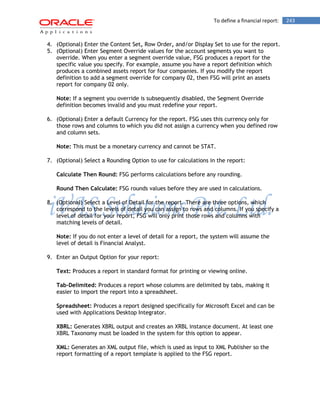
II. Using form based application 
III. Defining Ledger Sets 
1. Creating Chart of Accounts 
2. Creating Calendar 
3. Creating Currency 
4. Creating Accounting Setups 
5. Creating Ledger Sets 
IV. Open Periods 
V. Journal Entries 
1. Journal Entry 
2. Reverse Entry 
3. Suspense Entry 
4. Currency Conversion Rate Type 
5. Intra Company 
6. Mass Allocation 
7. Cross Validation Rules 
8. Security Rules 
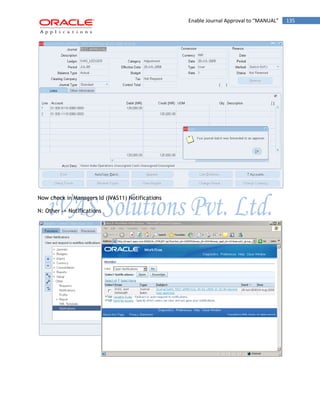
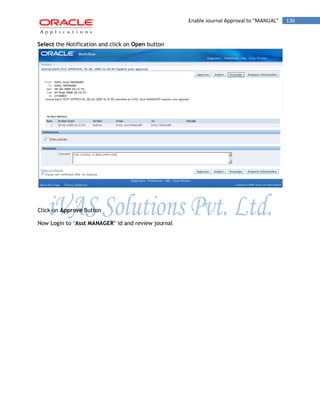
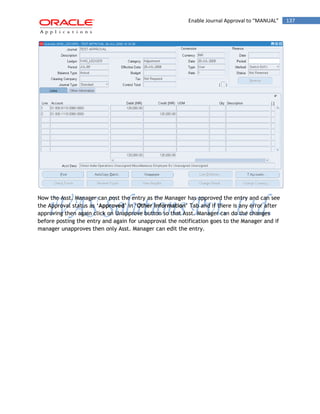
9. Journal Approval 
10. Recurring and Formula Journal Creation 
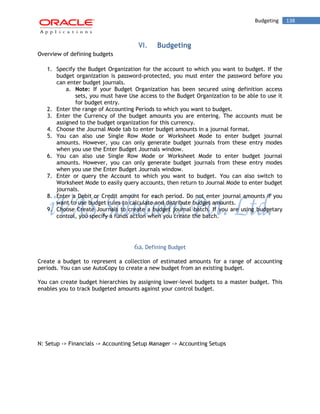
VI. Budgeting 
VII. Journal Import 
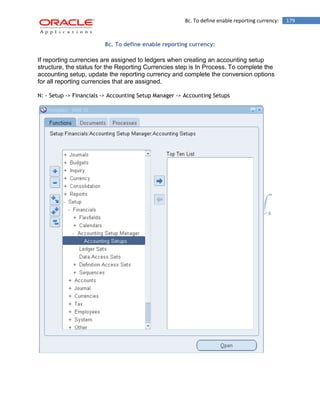
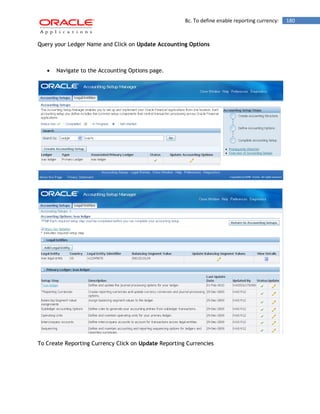
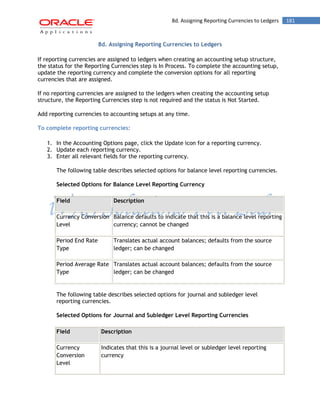
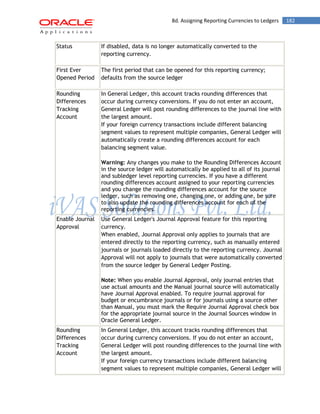
VIII. Reporting Currencies 
IX. Consolidations 
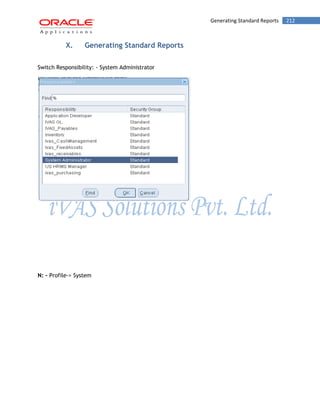
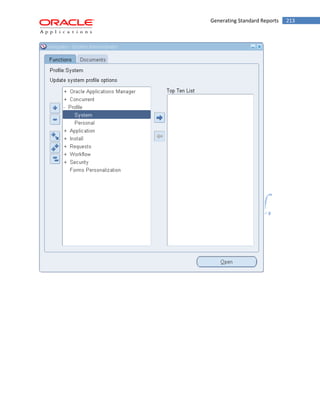
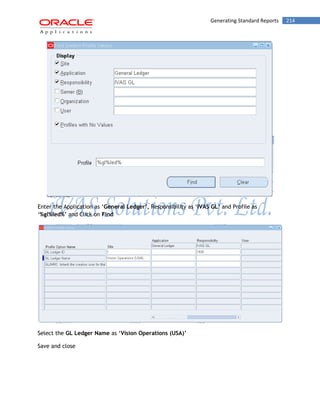
X. Generating Standard Reports 
XI. Financial Statement Generator (FSG)
Introduction to Oracle General Ledger 3 
I. Introduction to Oracle General Ledger 
The Oracle General Ledger module within Oracle Financials is an integrated part of the ERP package Oracle applications. It is a financial management solution within E-business suite for entering Journals, planning and budgeting, financial reporting etc of large companies. Oracle claims that it's GL module can import and post 42 million journal lines per hour, which would make it a suitable GL application for very large enterprises whose volume of GL transactions are very high.
Using Forms-Based Applications 4 
II. Using Forms-Based Applications 
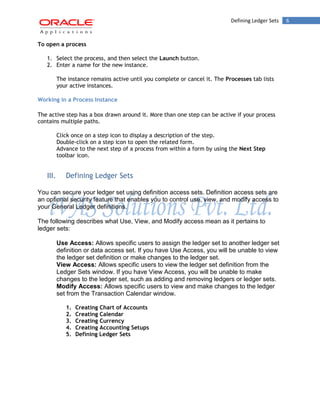
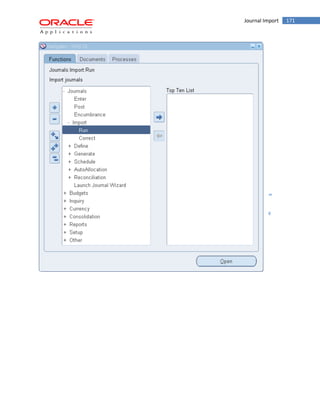
From the Navigator you can: 
Open forms from the Functions tab. 
Link to documents from the Documents tab. 
Launch business processes from the Processes tab.
Using Forms-Based Applications 5 
Open Forms 
The Functions tab provides links to the forms accessible to your current responsibility. 
To open a form, expand the function heading and double-click the form name. 
Create a Top Ten List 
Add forms that you use frequently to your Top Ten List. Create a different top ten list for each of your responsibilities. 
To add a form to the Top Ten List 
Select the form, and then select the Add to List button. 
To remove a form from the Top Ten List 
Select the form, and then select the Remove from List button. 
Create Links to Documents 
Create links to documents that you are working on for faster access. The Documents tab allows you to save as many links as you want. View the saved links as a list or as icons. 
To add a document that is currently open 
Choose Place on Navigator from the File menu 
Attention: The Place on Navigator command is not enabled for all forms. 
To rename a link that you have created 
1. Select its name (or icon) and select the Rename button. 
2. Enter the new name in the Rename Label window and click OK. 
To remove a document from the Documents tab 
Select its name (or icon) and select the Remove button. 
Launch Business Processes 
The Processes tab contains interactive step-by-step maps of business processes. Each step is a form or report that you can launch directly from the process map. 
Each time you launch a business process; you create an instance of that process and assign it a name. As you complete each step in a process, the map is updated accordingly.
Defining Ledger Sets 6 
To open a process 
1. Select the process, and then select the Launch button. 
2. Enter a name for the new instance. 
The instance remains active until you complete or cancel it. The Processes tab lists your active instances. 
Working in a Process Instance 
The active step has a box drawn around it. More than one step can be active if your process contains multiple paths. 
Click once on a step icon to display a description of the step. 
Double-click on a step icon to open the related form. 
Advance to the next step of a process from within a form by using the Next Step toolbar icon. 
III. Defining Ledger Sets 
You can secure your ledger set using definition access sets. Definition access sets are an optional security feature that enables you to control use, view, and modify access to your General Ledger definitions. 
The following describes what Use, View, and Modify access mean as it pertains to ledger sets: 
Use Access: Allows specific users to assign the ledger set to another ledger set definition or data access set. If you have Use Access, you will be unable to view the ledger set definition or make changes to the ledger set. 
View Access: Allows specific users to view the ledger set definition from the Ledger Sets window. If you have View Access, you will be unable to make changes to the ledger set, such as adding and removing ledgers or ledger sets. 
Modify Access: Allows specific users to view and make changes to the ledger set from the Transaction Calendar window. 
1. Creating Chart of Accounts 
2. Creating Calendar 
3. Creating Currency 
4. Creating Accounting Setups 
5. Defining Ledger Sets
Creating Chart of Accounts 7 
1. Creating Chart of Accounts 
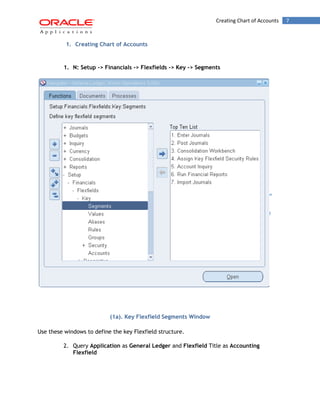
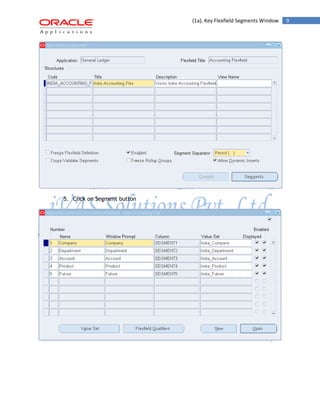
1. N: Setup -> Financials -> Flexfields -> Key -> Segments 
(1a). Key Flexfield Segments Window 
Use these windows to define the key Flexfield structure. 
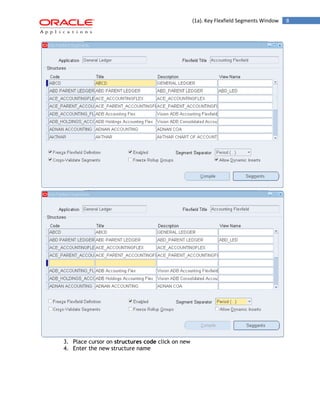
2. Query Application as General Ledger and Flexfield Title as Accounting Flexfield
(1a). Key Flexfield Segments Window 8 
3. Place cursor on structures code click on new 
4. Enter the new structure name
(1a). Key Flexfield Segments Window 9 
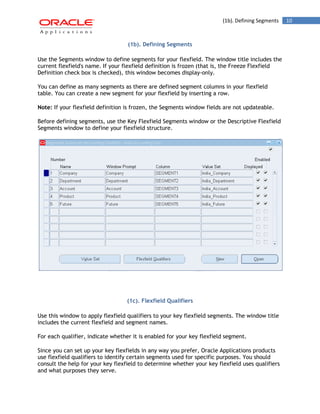
5. Click on Segment button
(1b). Defining Segments 10 
(1b). Defining Segments 
Use the Segments window to define segments for your flexfield. The window title includes the current flexfield's name. If your flexfield definition is frozen (that is, the Freeze Flexfield Definition check box is checked), this window becomes display-only. 
You can define as many segments as there are defined segment columns in your flexfield table. You can create a new segment for your flexfield by inserting a row. 
Note: If your flexfield definition is frozen, the Segments window fields are not updateable. 
Before defining segments, use the Key Flexfield Segments window or the Descriptive Flexfield Segments window to define your flexfield structure. 
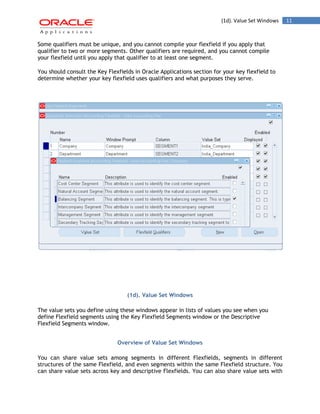
(1c). Flexfield Qualifiers 
Use this window to apply flexfield qualifiers to your key flexfield segments. The window title includes the current flexfield and segment names. 
For each qualifier, indicate whether it is enabled for your key flexfield segment. 
Since you can set up your key flexfields in any way you prefer, Oracle Applications products use flexfield qualifiers to identify certain segments used for specific purposes. You should consult the help for your key flexfield to determine whether your key flexfield uses qualifiers and what purposes they serve.
(1d). Value Set Windows 11 
Some qualifiers must be unique, and you cannot compile your flexfield if you apply that qualifier to two or more segments. Other qualifiers are required, and you cannot compile your flexfield until you apply that qualifier to at least one segment. 
You should consult the Key Flexfields in Oracle Applications section for your key flexfield to determine whether your key flexfield uses qualifiers and what purposes they serve. 
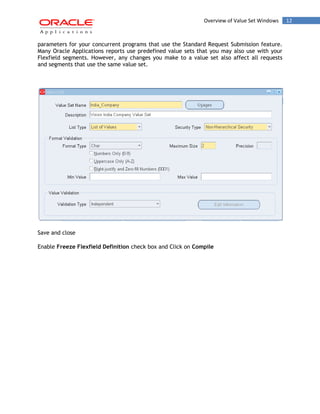
(1d). Value Set Windows 
The value sets you define using these windows appear in lists of values you see when you define Flexfield segments using the Key Flexfield Segments window or the Descriptive Flexfield Segments window. 
Overview of Value Set Windows 
You can share value sets among segments in different Flexfields, segments in different structures of the same Flexfield, and even segments within the same Flexfield structure. You can share value sets across key and descriptive Flexfields. You can also share value sets with
Overview of Value Set Windows 12 
parameters for your concurrent programs that use the Standard Request Submission feature. Many Oracle Applications reports use predefined value sets that you may also use with your Flexfield segments. However, any changes you make to a value set also affect all requests and segments that use the same value set. 
Save and close 
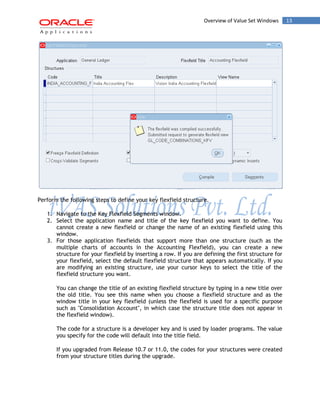
Enable Freeze Flexfield Definition check box and Click on Compile
Overview of Value Set Windows 13 
Perform the following steps to define your key flexfield structure. 
1. Navigate to the Key Flexfield Segments window. 
2. Select the application name and title of the key flexfield you want to define. You cannot create a new flexfield or change the name of an existing flexfield using this window. 
3. For those application flexfields that support more than one structure (such as the multiple charts of accounts in the Accounting Flexfield), you can create a new structure for your flexfield by inserting a row. If you are defining the first structure for your flexfield, select the default flexfield structure that appears automatically. If you are modifying an existing structure, use your cursor keys to select the title of the flexfield structure you want. 
You can change the title of an existing flexfield structure by typing in a new title over the old title. You see this name when you choose a flexfield structure and as the window title in your key flexfield (unless the flexfield is used for a specific purpose such as "Consolidation Account", in which case the structure title does not appear in the flexfield window). 
The code for a structure is a developer key and is used by loader programs. The value you specify for the code will default into the title field. 
If you upgraded from Release 10.7 or 11.0, the codes for your structures were created from your structure titles during the upgrade.
Overview of Value Set Windows 14 
4. If you want to generate a database view for this structure, enter a view name. Your view name should begin with a letter and must not contain any characters other than letters, numbers, or underscores (_ ). Your view name must not contain any spaces. 
5. Check the Enabled check box so that this structure may be used in your key flexfield. You cannot delete structures from this window because they are referenced elsewhere in the system, but you can disable them at any time. A structure must be enabled before it can be used. 
You should enable at least one structure for each key flexfield. If you disable a structure that already contains data, you will not be able to query up the existing data or create new combinations. 
6. Select the character you want to use to separate your flexfield segment values or descriptions. This separator will appear whenever your application forms display concatenated segment values or descriptions. 
You should choose your separator character carefully so that it does not conflict with your flexfield data. For example, if your data frequently contains periods ( . ) in monetary or numeric values, you should not use a period as your segment separator. 
It is recommended that you do not use a character as your segment separator if you expect that character to appear frequently in your segment values or descriptions. 
If you do use a character that appears in your segment values or descriptions, then that character will be preceded by a backslash () when it appears in a value or a description. A backslash in your values will be preceded by another backslash. 
Note: Do not use a backslash as your segment separator. 
For example, say the segment separator is a period (.) and your values contain periods also. The table below illustrates how the segment values would appear in the combination. Segment Values Concatenated Segments as Combination 
"1.2", "34", "5.6" 
"1.2.34.5.6" 
"1", "2.34", "5.6" 
"1.2.34.5.6" 
"1.2", "34.5", "6" 
"1.2.34.5.6" 
Warning: Some Oracle Applications tables store the segment separator as part of your flexfield values. Changing your separator once you have data in such tables may invalidate that data and cause application errors.
Overview of Value Set Windows 15 
7. Select the Cross-Validate Segments check box if you want to cross-validate multiple segments using cross-validation rules. You can define cross-validation rules to describe valid combinations using the Cross-Validation Rules form. Uncheck the box if you want to disable any existing cross-validation rules. 
8. Indicate whether you want to freeze your rollup group definitions. If you do, you prevent users from modifying rollup groups using the Segment Values form. 
You can freeze rollup groups before or after you define your flexfield structure. 
9. If you want to allow dynamic inserts, check the Allow Dynamic Inserts check box. You would allow dynamic inserts of new valid combinations into your generic combinations table if you want users to create new combinations from windows that do not use your combinations table. You should prevent dynamic inserts if you want to enter new valid combinations only from a single application window you create to maintain your specific combinations table. 
You can update this field only if your application flexfield has been built to allow dynamic inserts, and the flexfield has been defined in the Register Key Flexfields form with Dynamic Inserts Feasible checked. Otherwise this field is display only. 
10. Choose the Segments button to open the Segments Summary window, and define your flexfield segments. 
11. Save your changes. 
12. Freeze your flexfield structure by checking the Freeze Flexfield Definition check box. 
Do not freeze your flexfield if you want to set up or modify your flexfield segments or change the appearance of your key flexfield window. You cannot make most changes while your flexfield is frozen. 
13. Compile your frozen flexfield by choosing the Compile button. Your changes are saved automatically when you compile. 
You must freeze and compile your flexfield definition before you can use your flexfield. If you have more than one flexfield structure, you must freeze, save, and compile each structure separately. If you decide to make changes to your flexfield definition, make sure that you freeze and save your flexfield definition again after making your changes. 
Warning: Do not modify a frozen flexfield definition if existing data could be invalidated. An alteration of the flexfield structure once you have any flexfield data can create serious data inconsistencies. Changing your existing structures may also adversely affect the behavior of any cross-validation rules or shorthand aliases you have for your structures, so you should be sure to manually disable or redefine any cross-validation rules and shorthand aliases to reflect your changed structures. 
When you freeze and compile a flexfield structure, Oracle Applications automatically generates one or more database views of the appropriate flexfield tables. These views make ad hoc reporting simpler by providing view columns that correspond directly to your flexfield segments. You can use these views for your reporting by joining them to other application tables that contain flexfield-related data such as code combination ID numbers (CCIDs).
Overview of Value Set Windows 16 
The segment columns in the views use the segment names (not the segment prompts) you define using the (Key or Descriptive) Flexfield Segments forms. Each column has a data type that matches the segment's value set format type, regardless of whether the actual segment column matches that data type. Segments that do not use a value set or use a value set with a hidden ID use the same view column type as the underlying table column. 
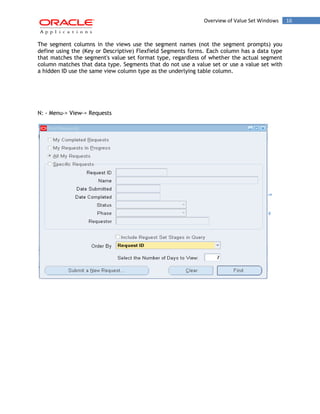
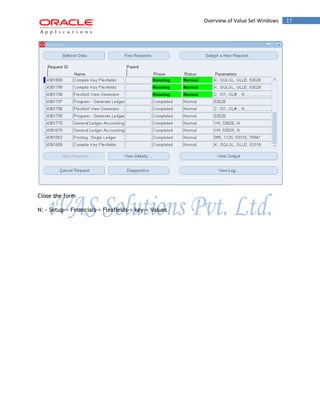
N: - Menu-> View-> Requests
Overview of Value Set Windows 17 
Close the form 
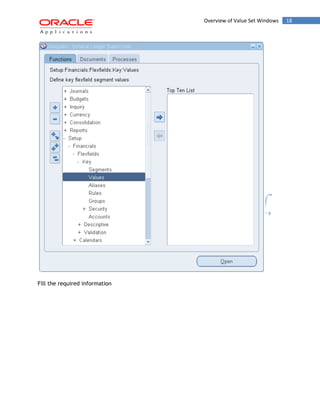
N: - Setup-> Financials-> Flexfields-> key-> Values
Overview of Value Set Windows 18 
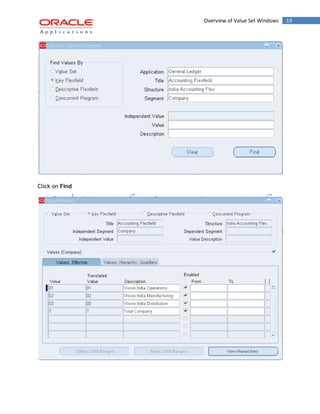
Fill the required information
Overview of Value Set Windows 19 
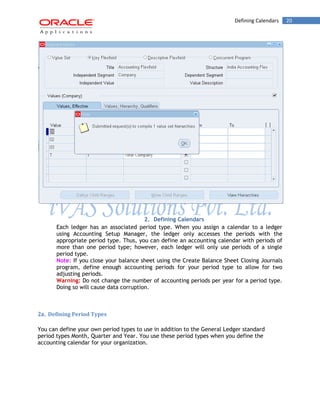
Click on Find
Defining Calendars 20 
2. Defining Calendars 
Each ledger has an associated period type. When you assign a calendar to a ledger using Accounting Setup Manager, the ledger only accesses the periods with the appropriate period type. Thus, you can define an accounting calendar with periods of more than one period type; however, each ledger will only use periods of a single period type. 
Note: If you close your balance sheet using the Create Balance Sheet Closing Journals program, define enough accounting periods for your period type to allow for two adjusting periods. 
Warning: Do not change the number of accounting periods per year for a period type. Doing so will cause data corruption. 
2a. Defining Period Types 
You can define your own period types to use in addition to the General Ledger standard period types Month, Quarter and Year. You use these period types when you define the accounting calendar for your organization.
Defining Calendars 21 
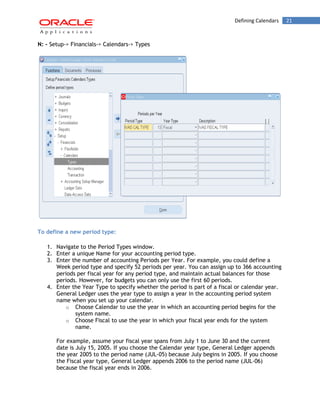
N: - Setup-> Financials-> Calendars-> Types 
To define a new period type: 
1. Navigate to the Period Types window. 
2. Enter a unique Name for your accounting period type. 
3. Enter the number of accounting Periods per Year. For example, you could define a Week period type and specify 52 periods per year. You can assign up to 366 accounting periods per fiscal year for any period type, and maintain actual balances for those periods. However, for budgets you can only use the first 60 periods. 
4. Enter the Year Type to specify whether the period is part of a fiscal or calendar year. General Ledger uses the year type to assign a year in the accounting period system name when you set up your calendar. 
o Choose Calendar to use the year in which an accounting period begins for the system name. 
o Choose Fiscal to use the year in which your fiscal year ends for the system name. 
For example, assume your fiscal year spans from July 1 to June 30 and the current date is July 15, 2005. If you choose the Calendar year type, General Ledger appends the year 2005 to the period name (JUL-05) because July begins in 2005. If you choose the Fiscal year type, General Ledger appends 2006 to the period name (JUL-06) because the fiscal year ends in 2006.
2b. Creating New Calendar 22 
Using the same July to June fiscal year example, if the current date is March 15, 2005 and you choose the Fiscal year type, General Ledger appends the year 2005 to the period name because the fiscal year ends in 2005. 
5. (Optional) Enter a Description for the period type. 
6. Save your work. 
2b. Creating New Calendar 
You can define multiple calendars and assign a different calendar to each ledger. For example, you can use a monthly calendar for ledger, and a quarterly calendar for another. 
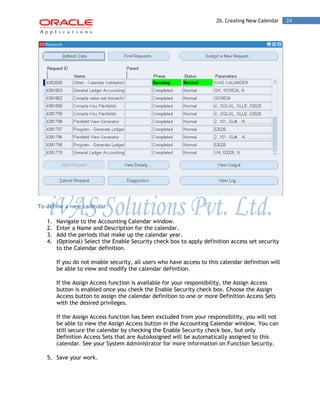
Calendars you create are validated online. Full calendar validation is launched whenever you exit the Accounting Calendar window. Navigate to Help>View My Requests to view or print the Calendar Validation Report. You may also choose this report from the Standard Reports list to identify any errors associated with the calendar you created. 
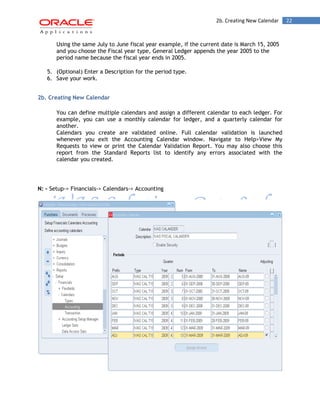
N: - Setup-> Financials-> Calendars-> Accounting
2b. Creating New Calendar 23 
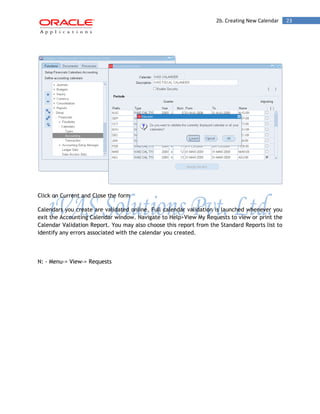
Click on Current and Close the form 
Calendars you create are validated online. Full calendar validation is launched whenever you exit the Accounting Calendar window. Navigate to Help>View My Requests to view or print the Calendar Validation Report. You may also choose this report from the Standard Reports list to identify any errors associated with the calendar you created. 
N: - Menu-> View-> Requests
2b. Creating New Calendar 24 
To define a new calendar: 
1. Navigate to the Accounting Calendar window. 
2. Enter a Name and Description for the calendar. 
3. Add the periods that make up the calendar year. 
4. (Optional) Select the Enable Security check box to apply definition access set security to the Calendar definition. 
If you do not enable security, all users who have access to this calendar definition will be able to view and modify the calendar definition. 
If the Assign Access function is available for your responsibility, the Assign Access button is enabled once you check the Enable Security check box. Choose the Assign Access button to assign the calendar definition to one or more Definition Access Sets with the desired privileges. 
If the Assign Access function has been excluded from your responsibility, you will not be able to view the Assign Access button in the Accounting Calendar window. You can still secure the calendar by checking the Enable Security check box, but only Definition Access Sets that are AutoAssigned will be automatically assigned to this calendar. See your System Administrator for more information on Function Security. 
5. Save your work.
Defining Currencies 25 
Note: When you exit the Accounting Calendar window, full calendar validation is launched. You can choose to validate all calendars or the current calendar. Navigate to Help > View > My Requests to view or print the Calendar Validation Report. This report helps you identify any errors in your calendar that might interfere with the proper operation of General Ledger. 
3. Defining Currencies 
Use the Currencies window to define non-ISO (International Standards Organization) currencies, and to enable/disable currencies. Oracle Applications has predefined all currencies specified in ISO standard #4217. 
To use a currency other than U.S. Dollars (USD), you must enable the currency. U.S. Dollars (USD) is the only currency that is enabled initially. 
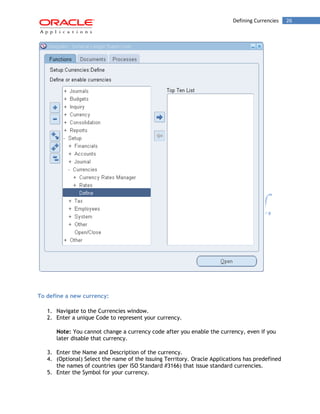
N: - Setup-> Currencies-> Define
Defining Currencies 26 
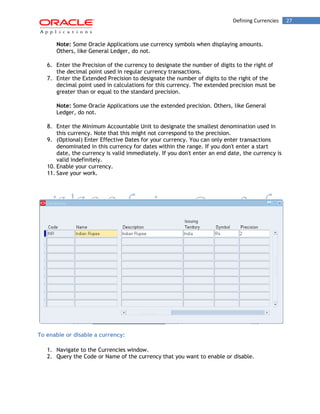
To define a new currency: 
1. Navigate to the Currencies window. 
2. Enter a unique Code to represent your currency. 
Note: You cannot change a currency code after you enable the currency, even if you later disable that currency. 
3. Enter the Name and Description of the currency. 
4. (Optional) Select the name of the Issuing Territory. Oracle Applications has predefined the names of countries (per ISO Standard #3166) that issue standard currencies. 
5. Enter the Symbol for your currency.
Defining Currencies 27 
Note: Some Oracle Applications use currency symbols when displaying amounts. Others, like General Ledger, do not. 
6. Enter the Precision of the currency to designate the number of digits to the right of the decimal point used in regular currency transactions. 
7. Enter the Extended Precision to designate the number of digits to the right of the decimal point used in calculations for this currency. The extended precision must be greater than or equal to the standard precision. 
Note: Some Oracle Applications use the extended precision. Others, like General Ledger, do not. 
8. Enter the Minimum Accountable Unit to designate the smallest denomination used in this currency. Note that this might not correspond to the precision. 
9. (Optional) Enter Effective Dates for your currency. You can only enter transactions denominated in this currency for dates within the range. If you don't enter a start date, the currency is valid immediately. If you don't enter an end date, the currency is valid indefinitely. 
10. Enable your currency. 
11. Save your work. 
To enable or disable a currency: 
1. Navigate to the Currencies window. 
2. Query the Code or Name of the currency that you want to enable or disable.
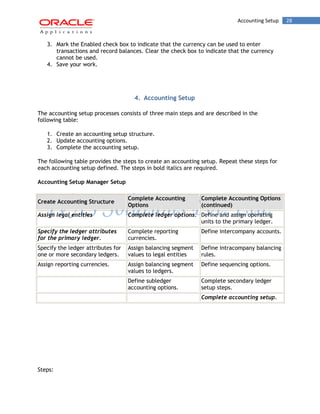
Accounting Setup 28 
3. Mark the Enabled check box to indicate that the currency can be used to enter transactions and record balances. Clear the check box to indicate that the currency cannot be used. 
4. Save your work. 
4. Accounting Setup 
The accounting setup processes consists of three main steps and are described in the following table: 
1. Create an accounting setup structure. 
2. Update accounting options. 
3. Complete the accounting setup. 
The following table provides the steps to create an accounting setup. Repeat these steps for each accounting setup defined. The steps in bold italics are required. 
Accounting Setup Manager Setup Create Accounting Structure Complete Accounting Options Complete Accounting Options (continued) 
Assign legal entities 
Complete ledger options. 
Define and assign operating units to the primary ledger. 
Specify the ledger attributes for the primary ledger. 
Complete reporting currencies. 
Define intercompany accounts. 
Specify the ledger attributes for one or more secondary ledgers. 
Assign balancing segment values to legal entities 
Define intracompany balancing rules. 
Assign reporting currencies. 
Assign balancing segment values to ledgers. 
Define sequencing options. 
Define subledger accounting options. 
Complete secondary ledger setup steps. 
Complete accounting setup. 
Steps:
Accounting Setup 29 
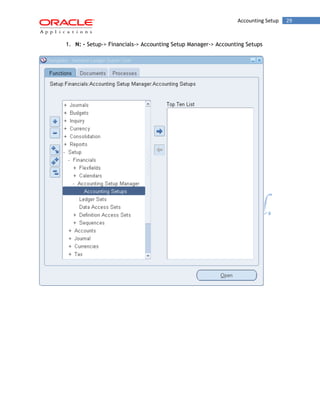
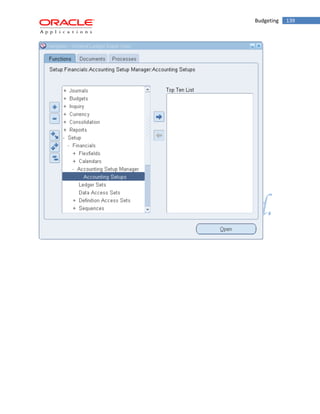
1. N: - Setup-> Financials-> Accounting Setup Manager-> Accounting Setups
Accounting Setup 30 
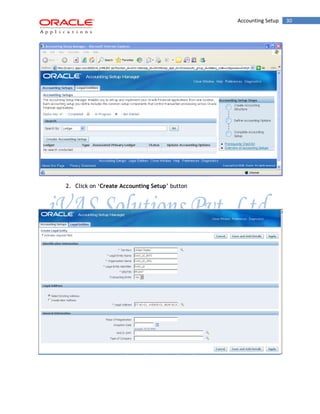
2. Click on „Create Accounting Setup‟ button
Accounting Setup 31 
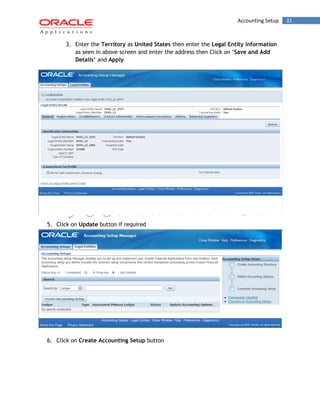
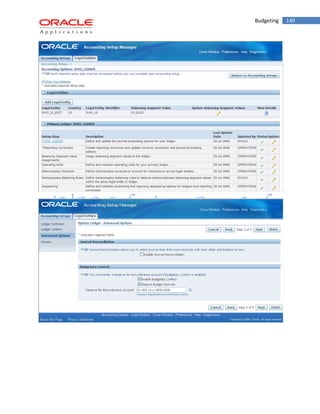
3. Enter the Territory as United States then enter the Legal Entity information as seen in above screen and enter the address then Click on „Save and Add Details‟ and Apply 
5. Click on Update button if required 
6. Click on Create Accounting Setup button
Accounting Setup 32 
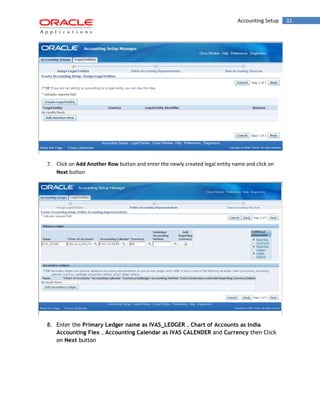
7. Click on Add Another Row button and enter the newly created legal entity name and click on Next button 
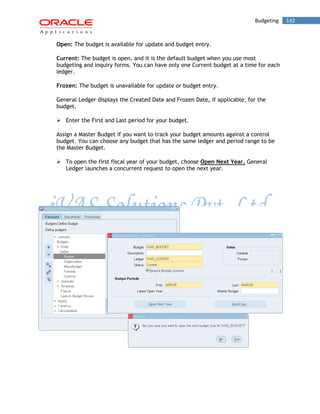
8. Enter the Primary Ledger name as IVAS_LEDGER , Chart of Accounts as India Accounting Flex , Accounting Calendar as IVAS CALENDER and Currency then Click on Next button
Accounting Setup 33 
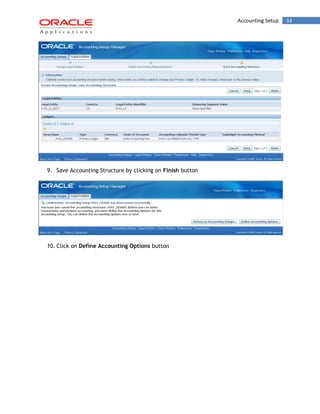
9. Save Accounting Structure by clicking on Finish button 
10. Click on Define Accounting Options button
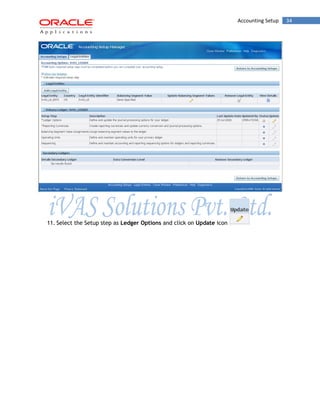
Accounting Setup 34 
11. Select the Setup step as Ledger Options and click on Update icon
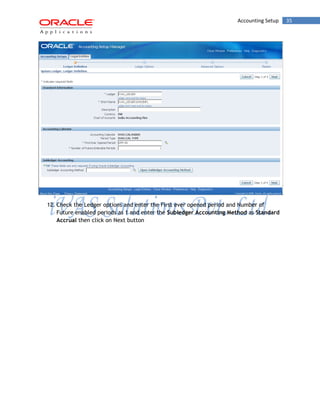
Accounting Setup 35 
12. Check the Ledger options and enter the First ever opened period and Number of Future enabled periods as 1 and enter the Subledger Accounting Method as Standard Accrual then click on Next button
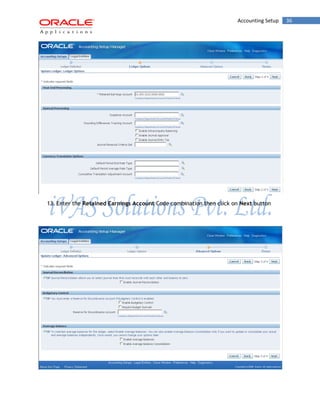
Accounting Setup 36 
13. Enter the Retained Earnings Account Code combination then click on Next button
Accounting Setup 37 
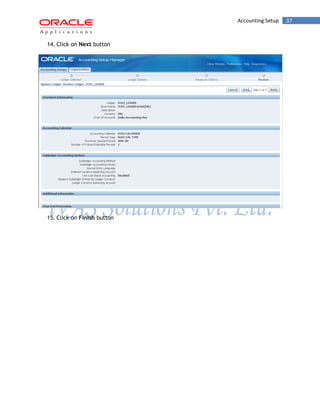
14. Click on Next button 
15. Click on Finish button
Accounting Setup 38 
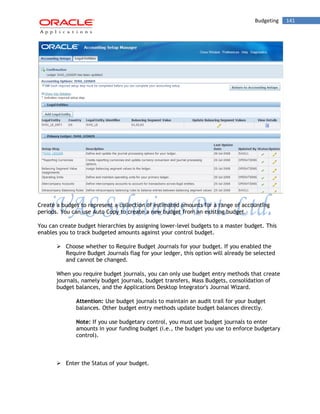
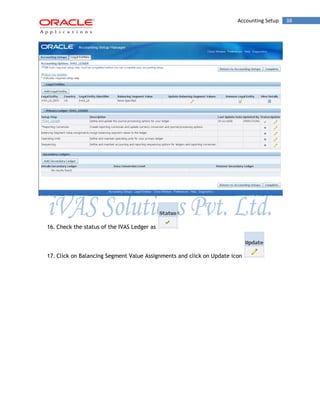
16. Check the status of the IVAS Ledger as 
17. Click on Balancing Segment Value Assignments and click on Update icon
Accounting Setup 39 
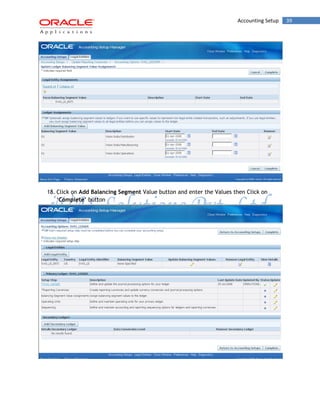
18. Click on Add Balancing Segment Value button and enter the Values then Click on „Complete‟ button
Accounting Setup 40 
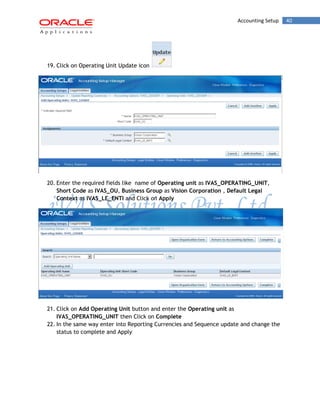
19. Click on Operating Unit Update icon 
20. Enter the required fields like name of Operating unit as IVAS_OPERATING_UNIT, Short Code as IVAS_OU, Business Group as Vision Corporation , Default Legal Context as IVAS_LE_ENTI and Click on Apply 
21. Click on Add Operating Unit button and enter the Operating unit as IVAS_OPERATING_UNIT then Click on Complete 
22. In the same way enter into Reporting Currencies and Sequence update and change the status to complete and Apply
Accounting Setup 41 
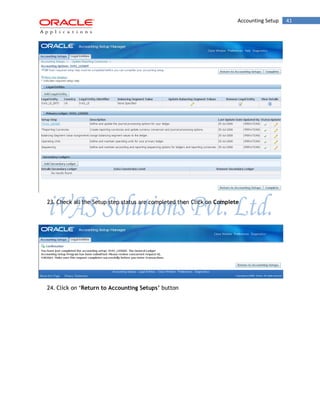
23. Check all the Setup step status are completed then Click on Complete 
24. Click on „Return to Accounting Setups‟ button
Ledger Set 42 
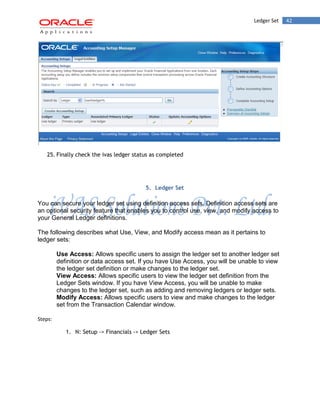
25. Finally check the ivas ledger status as completed 
5. Ledger Set 
You can secure your ledger set using definition access sets. Definition access sets are an optional security feature that enables you to control use, view, and modify access to your General Ledger definitions. 
The following describes what Use, View, and Modify access mean as it pertains to ledger sets: 
Use Access: Allows specific users to assign the ledger set to another ledger set definition or data access set. If you have Use Access, you will be unable to view the ledger set definition or make changes to the ledger set. 
View Access: Allows specific users to view the ledger set definition from the Ledger Sets window. If you have View Access, you will be unable to make changes to the ledger set, such as adding and removing ledgers or ledger sets. 
Modify Access: Allows specific users to view and make changes to the ledger set from the Transaction Calendar window. 
Steps: 
1. N: Setup -> Financials -> Ledger Sets
Ledger Set 43 
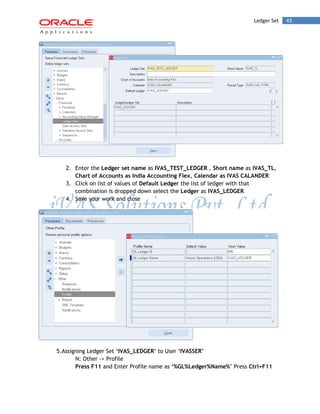
2. Enter the Ledger set name as IVAS_TEST_LEDGER , Short name as IVAS_TL, Chart of Accounts as India Accounting Flex, Calendar as IVAS CALANDER 
3. Click on list of values of Default Ledger the list of ledger with that combination is dropped down select the Ledger as IVAS_LEDGER 
4. Save your work and close 
5.Assigning Ledger Set „IVAS_LEDGER‟ to User „IVASSER‟ 
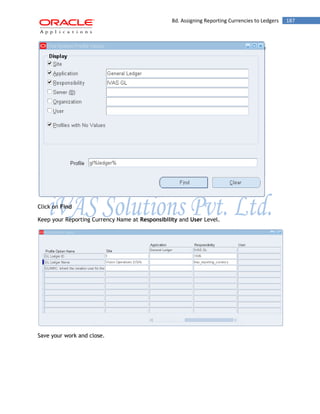
N: Other -> Profile 
Press F11 and Enter Profile name as „%GL%Ledger%Name%‟ Press Ctrl+F11
Ledger Set 44 
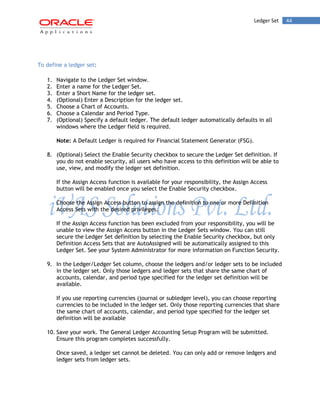
To define a ledger set: 
1. Navigate to the Ledger Set window. 
2. Enter a name for the Ledger Set. 
3. Enter a Short Name for the ledger set. 
4. (Optional) Enter a Description for the ledger set. 
5. Choose a Chart of Accounts. 
6. Choose a Calendar and Period Type. 
7. (Optional) Specify a default ledger. The default ledger automatically defaults in all windows where the Ledger field is required. 
Note: A Default Ledger is required for Financial Statement Generator (FSG). 
8. (Optional) Select the Enable Security checkbox to secure the Ledger Set definition. If you do not enable security, all users who have access to this definition will be able to use, view, and modify the ledger set definition. 
If the Assign Access function is available for your responsibility, the Assign Access button will be enabled once you select the Enable Security checkbox. 
Choose the Assign Access button to assign the definition to one or more Definition Access Sets with the desired privileges. 
If the Assign Access function has been excluded from your responsibility, you will be unable to view the Assign Access button in the Ledger Sets window. You can still secure the Ledger Set definition by selecting the Enable Security checkbox, but only Definition Access Sets that are AutoAssigned will be automatically assigned to this Ledger Set. See your System Administrator for more information on Function Security. 
9. In the Ledger/Ledger Set column, choose the ledgers and/or ledger sets to be included in the ledger set. Only those ledgers and ledger sets that share the same chart of accounts, calendar, and period type specified for the ledger set definition will be available. 
If you use reporting currencies (journal or subledger level), you can choose reporting currencies to be included in the ledger set. Only those reporting currencies that share the same chart of accounts, calendar, and period type specified for the ledger set definition will be available 
10. Save your work. The General Ledger Accounting Setup Program will be submitted. Ensure this program completes successfully. 
Once saved, a ledger set cannot be deleted. You can only add or remove ledgers and ledger sets from ledger sets.
Open Periods 45 
Note: You must have at least one ledger or ledger set assigned to a ledger set. 
IV. Open Periods 
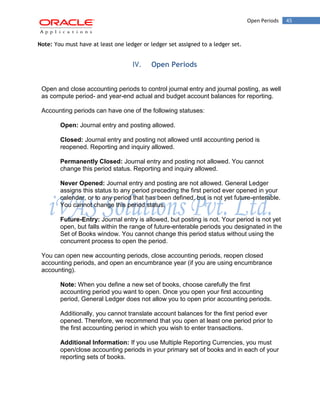
Open and close accounting periods to control journal entry and journal posting, as well as compute period- and year-end actual and budget account balances for reporting. 
Accounting periods can have one of the following statuses: 
Open: Journal entry and posting allowed. 
Closed: Journal entry and posting not allowed until accounting period is reopened. Reporting and inquiry allowed. 
Permanently Closed: Journal entry and posting not allowed. You cannot change this period status. Reporting and inquiry allowed. 
Never Opened: Journal entry and posting are not allowed. General Ledger assigns this status to any period preceding the first period ever opened in your calendar, or to any period that has been defined, but is not yet future-enterable. You cannot change this period status. 
Future-Entry: Journal entry is allowed, but posting is not. Your period is not yet open, but falls within the range of future-enterable periods you designated in the Set of Books window. You cannot change this period status without using the concurrent process to open the period. 
You can open new accounting periods, close accounting periods, reopen closed accounting periods, and open an encumbrance year (if you are using encumbrance accounting). 
Note: When you define a new set of books, choose carefully the first accounting period you want to open. Once you open your first accounting period, General Ledger does not allow you to open prior accounting periods. 
Additionally, you cannot translate account balances for the first period ever opened. Therefore, we recommend that you open at least one period prior to the first accounting period in which you wish to enter transactions. 
Additional Information: If you use Multiple Reporting Currencies, you must open/close accounting periods in your primary set of books and in each of your reporting sets of books.
Open Periods 46 
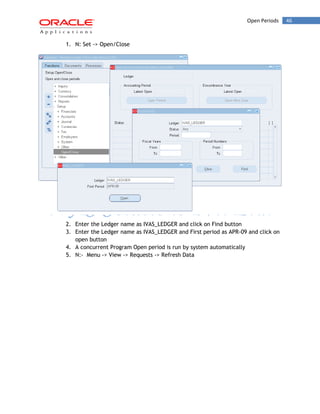
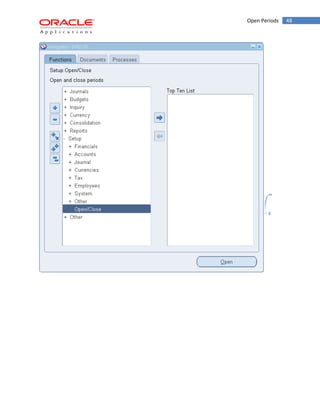
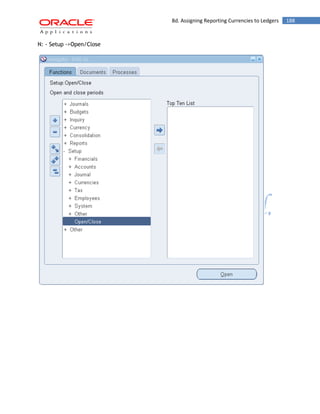
1. N: Set -> Open/Close 
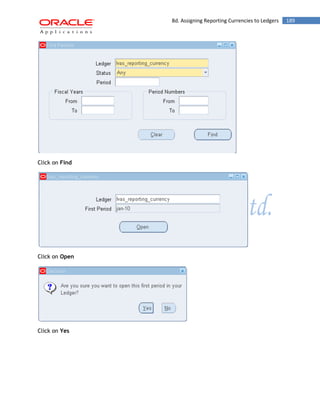
2. Enter the Ledger name as IVAS_LEDGER and click on Find button 
3. Enter the Ledger name as IVAS_LEDGER and First period as APR-09 and click on open button 
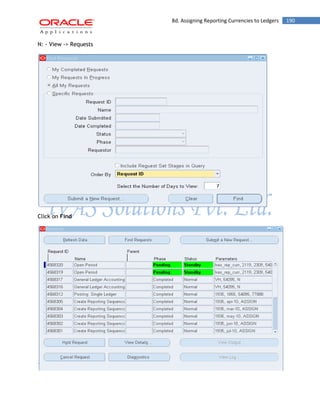
4. A concurrent Program Open period is run by system automatically 
5. N:- Menu -> View -> Requests -> Refresh Data
Open Periods 47 
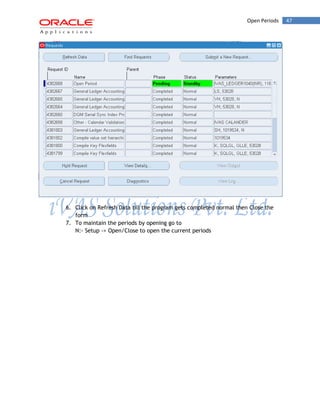
6. Click on Refresh Data till the program gets completed normal then Close the form 
7. To maintain the periods by opening go to 
N:- Setup -> Open/Close to open the current periods
Open Periods 48
Open Periods 49 
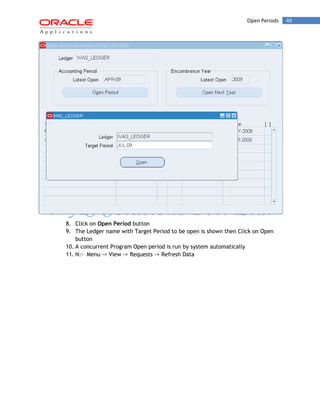
8. Click on Open Period button 
9. The Ledger name with Target Period to be open is shown then Click on Open button 
10. A concurrent Program Open period is run by system automatically 
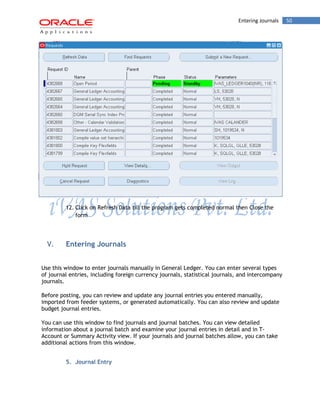
11. N:- Menu -> View -> Requests -> Refresh Data
Entering Journals 50 
12. Click on Refresh Data till the program gets completed normal then Close the form 
V. Entering Journals 
Use this window to enter journals manually in General Ledger. You can enter several types of journal entries, including foreign currency journals, statistical journals, and intercompany journals. 
Before posting, you can review and update any journal entries you entered manually, imported from feeder systems, or generated automatically. You can also review and update budget journal entries. 
You can use this window to find journals and journal batches. You can view detailed information about a journal batch and examine your journal entries in detail and in T- Account or Summary Activity view. If your journals and journal batches allow, you can take additional actions from this window. 
5. Journal Entry
Journal Entry 51 
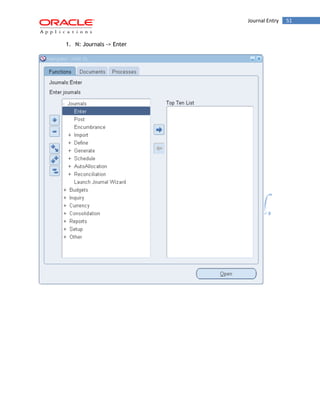
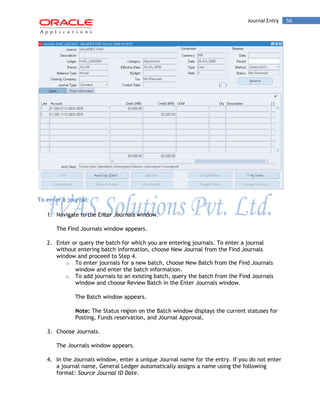
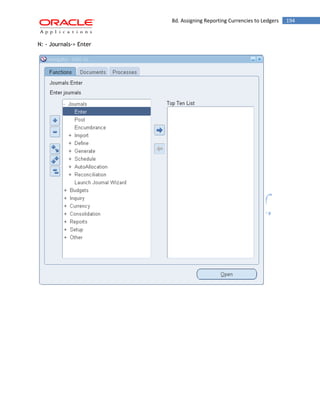
1. N: Journals -> Enter
Journal Entry 52 
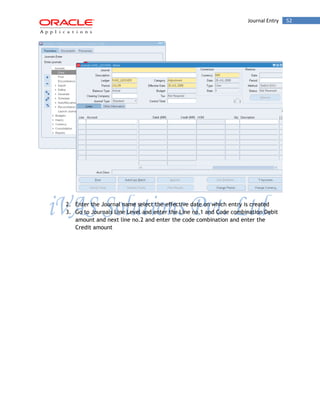
2. Enter the Journal name select the effective date on which entry is created 
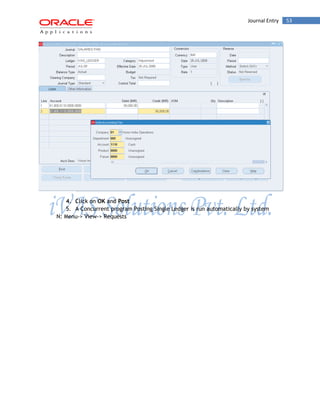
3. Go to Journals Line Level and enter the Line no.1 and Code combination Debit amount and next line no.2 and enter the code combination and enter the Credit amount
Journal Entry 53 
4. Click on OK and Post 
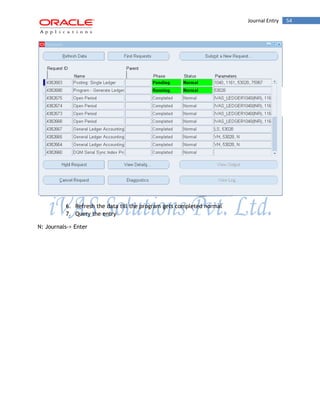
5. A Concurrent program Posting Single Ledger is run automatically by system 
N: Menu-> View-> Requests
Journal Entry 54 
6. Refresh the data till the program gets completed normal 
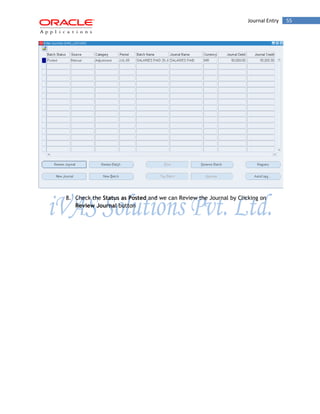
7. Query the entry 
N: Journals-> Enter
Journal Entry 55 
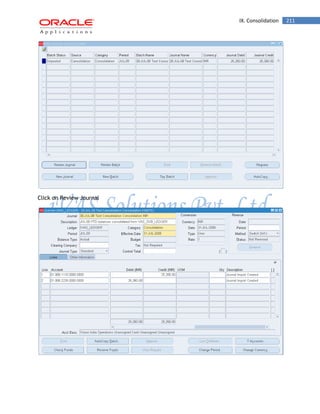
8. Check the Status as Posted and we can Review the Journal by Clicking on Review Journal button
Journal Entry 56 
To enter a journal: 
1. Navigate to the Enter Journals window. 
The Find Journals window appears. 
2. Enter or query the batch for which you are entering journals. To enter a journal without entering batch information, choose New Journal from the Find Journals window and proceed to Step 4. 
o To enter journals for a new batch, choose New Batch from the Find Journals window and enter the batch information. 
o To add journals to an existing batch, query the batch from the Find Journals window and choose Review Batch in the Enter Journals window. 
The Batch window appears. 
Note: The Status region on the Batch window displays the current statuses for Posting, Funds reservation, and Journal Approval. 
3. Choose Journals. 
The Journals window appears. 
4. In the Journals window, enter a unique Journal name for the entry. If you do not enter a journal name, General Ledger automatically assigns a name using the following format: Source Journal ID Date.
Journal Entry 57 
If you did not enter a batch name before entering journals, General Ledger uses the name of the first journal in the batch to create a default batch name. 
5. (Optional) Enter a Description for the journal entry. General Ledger uses this as the default description for each journal entry line. You can change the journal entry description as necessary. 
6. Select a ledger for your journal. Your data access set must provide read and write access to the ledger, or read and write access to one or more of the balancing segment values or management segment values to select the ledger from the list of values. 
If you use reporting currencies (journal or subledger level), you can select a reporting currency for your journal. 
7. Enter a Category to describe the purpose of your journal entry, such as accrual, payments, or receipts. All lines in a journal entry share the same journal category. 
General Ledger defaults the journal category if you defined the profile option Journals: Default Category. 
8. Enter the Period for the journal entry. If you entered a period at the batch level, you must use the same period for each journal entry in the batch. If you did not enter a period at the batch level, choose any Open or Future Enterable period for your journal entry. Note that you can only post journals in Open periods. 
Note: If you enter a period prior to the current accounting period and the user profile option Journals: Enable Prior Period Notification is set to Yes, General Ledger displays a message indicating that you are entering a prior period journal. You must confirm that this is what you want to do. 
9. Accept or change the default Effective Date for the journal entry. 
10. Balance Type is a display - only field. It displays Actual when you are entering actual journals and Budget when you are entering budget journals. 
11. If you use document sequences with manual numbering, enter a unique Document number. This field is only available if the Sequential Numbering profile option is set to Always Used or Partially Used. 
If you set your profile options to always use or partially use sequential numbering and use a defined Automatic document numbering sequence, General Ledger enters a document number automatically when you save your work. 
Note: If sequential numbering is always or partially used, you cannot change the journal category or document number after you save your journal entry. 
12. If you are entering a intracompany journal that includes multiple balancing segment values where the total debits and credits for each balancing segment value do not net to zero, you can specify the clearing company to balance the journal.
Journal Entry 58 
Note: You can also define balancing rules and a clearing company in the Intercompany Accounting Module, which General Ledger then uses to automatically balance the journal. The clearing company you manually enter in the More Details window may not override the rules defined in the Intercompany Accounts window. 
13. If you use automatic tax on journal entries, enter Required in the Tax field to indicate that you want to enter additional tax information. Otherwise, enter Not Required. This field only appears if you have automatic tax enabled for your ledger. 
14. (Optional) If you have average balance processing enabled and your ledger is a consolidation ledger, select Standard or Average as the Journal Type. 
In a consolidation ledger, you can create journal entries that affect either standard or average balances. The balances are not linked. In a non - consolidation ledger, you can only create journal entries that directly affect standard balances. Average balances are calculated automatically from your standard balances. 
15. (Optional) Enter a Control Total if you want to verify the total debits for the journal lines against the journal control total. 
16. Accept the default Currency or change the journal currency to an entered currency or statistical journal. 
17. Enter a reversal Period and Method. You can then generate a reversing journal entry for that period. You can also reverse a journal entry without assigning a reversal period. Reversal Method can be either: 
o Switch Dr/Cr: General Ledger creates your reversing journal by switching the debit and credit amounts of the original journal entry. This method is often used when reversing accruals. 
o Change Sign: General Ledger creates your reversing journal by changing the sign of your original journal amounts from positive to negative. This reversal method is often used when reversing journals to correct data entry mistakes. 
If you have average balances enabled, enter a reversal Date, Period, and Method. You can then generate a reversing journal entry for that effective date and period. 
18. (Optional) Select the Other Information tab to enter optional reference information about the journal entry. 
1. Enter a Reference description to further identify the journal entry on general ledger and journal entry reports. 
2. Enter a Journal Reference Date. The primary function of this field is to satisfy Libro Giornale Requirements in Italy, but it can be used for any other date information that you want to store at the journal header level. 
If you are using Reporting Currencies (Journal or Subledger Level) and you enter the Reference Date in the journal in your source ledger, it is also transferred to the journals of the reporting currencies. 
If the profile option Enter Journals: Validate Reference Date is set to Yes, the date you enter is validated to ensure the date falls into an open or future enterable period.
Defining Reverse Journal Entries 59 
If the profile option GL Consolidation: Preserve Journal Batching is set to Yes for the parent ledger, the consolidation process transfers the reference date information from the subsidiary ledger to the parent ledger. 
Select the Lines tab and enter the journal lines. 
Save your work. 
6. Defining Reverse Journal Entries 
Use reversing journal entries to reverse accruals, estimates, errors, or temporary adjustments and reclassifications. 
Assign a reversal period and, if an average balance is enabled, a reversal effective dates to a journal entry if you want to generate a reversing entry from the Enter Journals window, or later from the Reverse Journals window. You can enter a reversal period and effective date at any time, even after the journal is posted. However, you cannot reverse batches and journals that you have already reversed. 
You can also reverse a journal or batch from the Enter Journals window, even if you have not assigned a reversal period and effective date. 
Reporting Currencies 
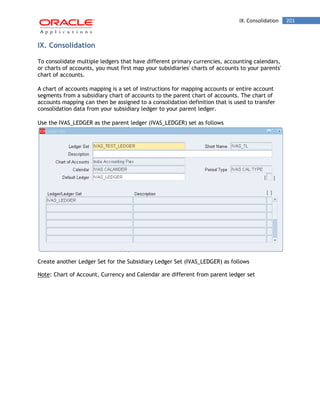
If you use Reporting Currencies (Journal or Subledger Level) and reverse a journal entry in your source ledger, General Ledger also reverses the corresponding entry in your reporting currencies if they are in the same batch as the source ledger's journal entry. The journal in your reporting currency is reversed using the same conversion rate that was used to create the original journal entry. 
Ledgers with reporting currencies (journal and subledger level) assigned must post the original journal in the ledger before the journal can be reversed. 
The reversing journals for the reporting currencies are created in the same batch as the reversed primary ledger's batch. 
To assign a reversal period and effective date to a journal entry: 
1. Navigate to the Enter Journals window. 
2. Query the batch and journal within the batch for which you want to assign a reversal period. 
You must have read and write access to the ledger or read and write access to the journal's balancing segment values or management segment values. 
3. From the Enter Journals window, choose Review Journal. 
The Journals window appears.
Defining Reverse Journal Entries 60 
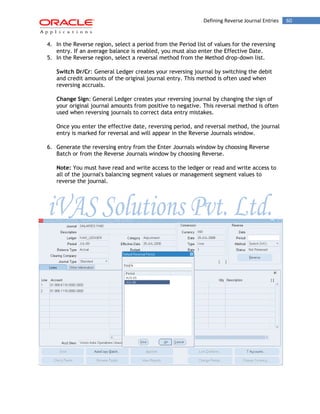
4. In the Reverse region, select a period from the Period list of values for the reversing entry. If an average balance is enabled, you must also enter the Effective Date. 
5. In the Reverse region, select a reversal method from the Method drop-down list. 
Switch Dr/Cr: General Ledger creates your reversing journal by switching the debit and credit amounts of the original journal entry. This method is often used when reversing accruals. 
Change Sign: General Ledger creates your reversing journal by changing the sign of your original journal amounts from positive to negative. This reversal method is often used when reversing journals to correct data entry mistakes. 
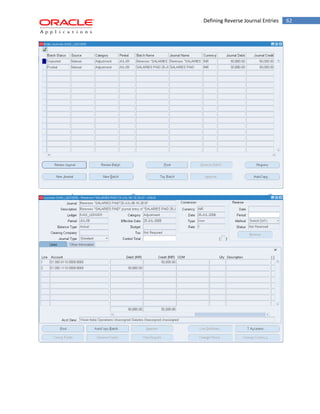
Once you enter the effective date, reversing period, and reversal method, the journal entry is marked for reversal and will appear in the Reverse Journals window. 
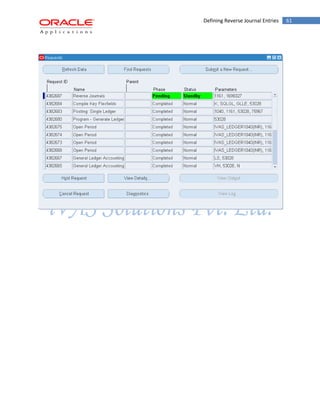
6. Generate the reversing entry from the Enter Journals window by choosing Reverse Batch or from the Reverse Journals window by choosing Reverse. 
Note: You must have read and write access to the ledger or read and write access to all of the journal's balancing segment values or management segment values to reverse the journal.
Defining Reverse Journal Entries 61
Defining Reverse Journal Entries 62
Suspense Account Creation 63 
7. Suspense Account Creation 
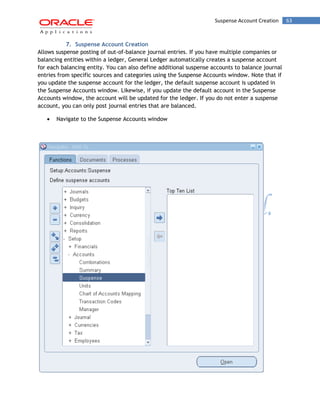
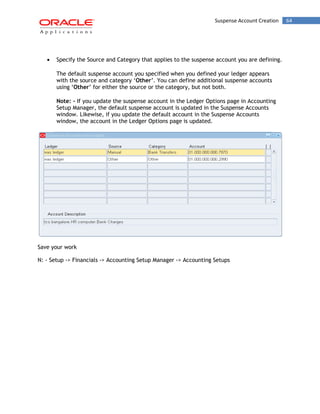
Allows suspense posting of out-of-balance journal entries. If you have multiple companies or balancing entities within a ledger, General Ledger automatically creates a suspense account for each balancing entity. You can also define additional suspense accounts to balance journal entries from specific sources and categories using the Suspense Accounts window. Note that if you update the suspense account for the ledger, the default suspense account is updated in the Suspense Accounts window. Likewise, if you update the default account in the Suspense Accounts window, the account will be updated for the ledger. If you do not enter a suspense account, you can only post journal entries that are balanced. Navigate to the Suspense Accounts window
Suspense Account Creation 64 
Specify the Source and Category that applies to the suspense account you are defining. 
The default suspense account you specified when you defined your ledger appears with the source and category „Other‟. You can define additional suspense accounts using „Other‟ for either the source or the category, but not both. 
Note: - If you update the suspense account in the Ledger Options page in Accounting Setup Manager, the default suspense account is updated in the Suspense Accounts window. Likewise, if you update the default account in the Suspense Accounts window, the account in the Ledger Options page is updated. 
Save your work 
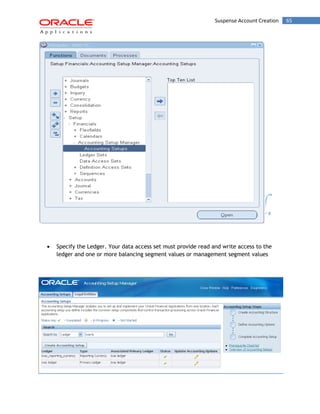
N: - Setup -> Financials -> Accounting Setup Manager -> Accounting Setups
Suspense Account Creation 65 
Specify the Ledger. Your data access set must provide read and write access to the ledger and one or more balancing segment values or management segment values
Suspense Account Creation 66 
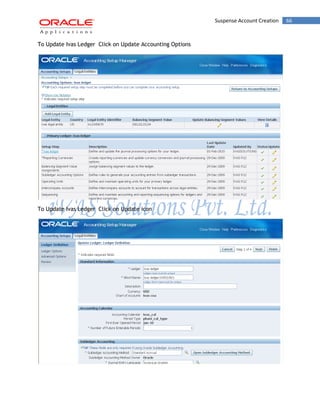
To Update Ivas Ledger Click on Update Accounting Options 
To Update Ivas Ledger Click on Update icon
Suspense Account Creation 67 
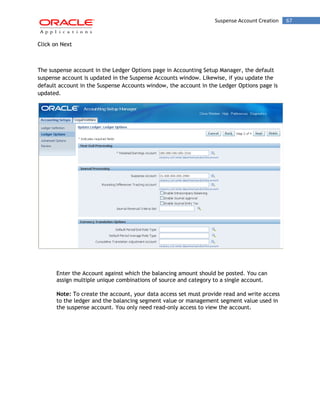
Click on Next 
The suspense account in the Ledger Options page in Accounting Setup Manager, the default suspense account is updated in the Suspense Accounts window. Likewise, if you update the default account in the Suspense Accounts window, the account in the Ledger Options page is updated. 
Enter the Account against which the balancing amount should be posted. You can assign multiple unique combinations of source and category to a single account. 
Note: To create the account, your data access set must provide read and write access to the ledger and the balancing segment value or management segment value used in the suspense account. You only need read-only access to view the account.
Suspense Account Creation 68 
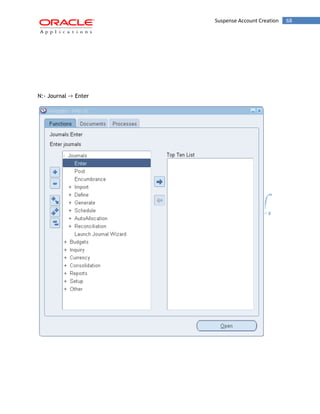
N:- Journal -> Enter
Suspense Account Creation 69 
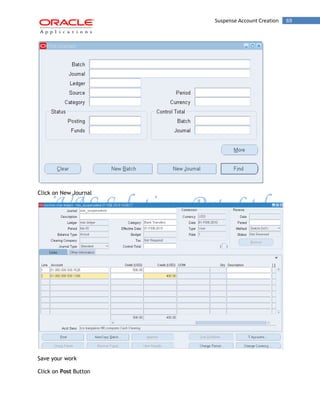
Click on New Journal 
Save your work 
Click on Post Button
Suspense Account Creation 70 
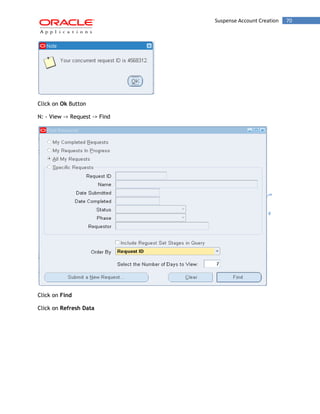
Click on Ok Button 
N: - View -> Request -> Find 
Click on Find 
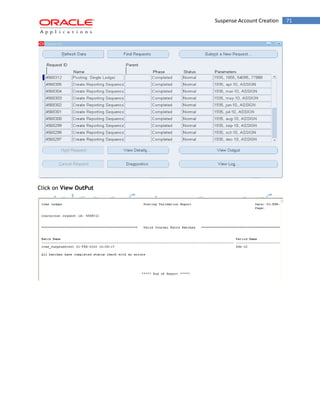
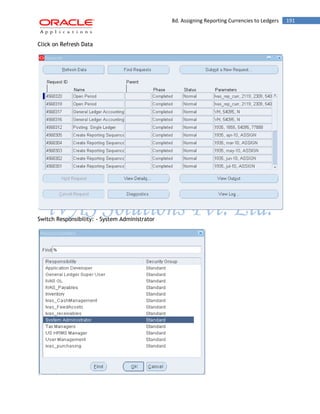
Click on Refresh Data
Suspense Account Creation 71 
Click on View OutPut
Suspense Account Creation 72 
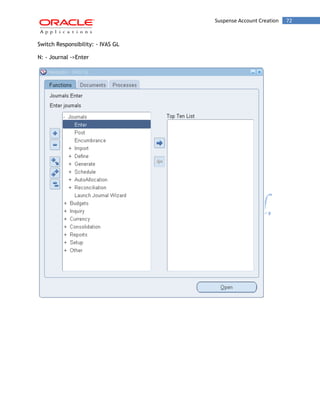
Switch Responsibility: - IVAS GL 
N: - Journal ->Enter
Suspense Account Creation 73 
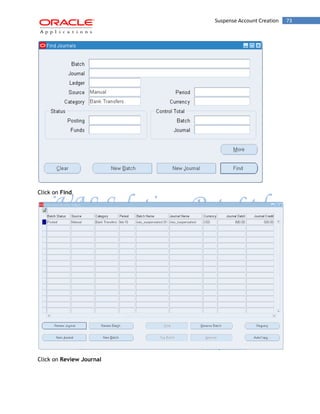
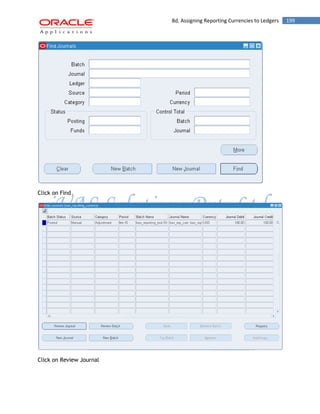
Click on Find 
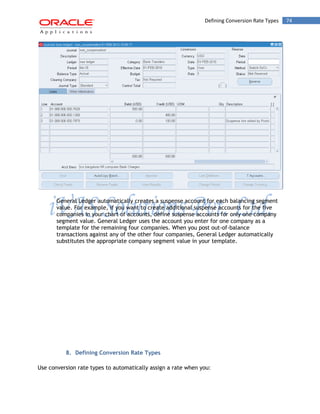
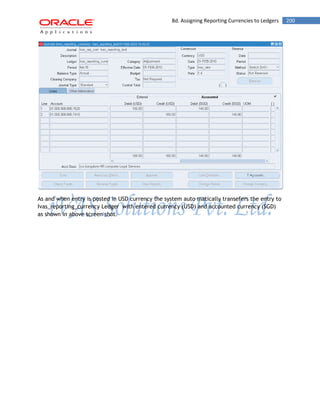
Click on Review Journal
Defining Conversion Rate Types 74 
General Ledger automatically creates a suspense account for each balancing segment value. For example, if you want to create additional suspense accounts for the five companies in your chart of accounts, define suspense accounts for only one company segment value. General Ledger uses the account you enter for one company as a template for the remaining four companies. When you post out-of-balance transactions against any of the other four companies, General Ledger automatically substitutes the appropriate company segment value in your template. 
8. Defining Conversion Rate Types 
Use conversion rate types to automatically assign a rate when you:
Defining Conversion Rate Types 75 
1. Convert foreign currency journal amounts to your ledger currency equivalents 
2. Run Revaluation 
3. Run Translation or Remeasurement 
You enter daily conversion rates for specific combinations of foreign currency, date, and conversion rate type. When you enter a foreign currency journal, General Ledger automatically displays the predefined exchange rate based on the currency, rate type (unless you are using the User rate type), and conversion date you enter. When you have a User rate type, you enter the rate directly when you enter a foreign currency journal. 
Note: If you want to enter different daily rates for the same combination of from-currency, to-currency, and conversion date, you must define separate conversion rate types. 
General Ledger provides the following predefined daily conversion rate types: 
Spot: An exchange rate which you enter to perform conversion based on the rate on a specific date. It applies to the immediate delivery of a currency. 
Corporate: An exchange rate you define to standardize rates for your company. This rate is generally a standard market rate determined by senior financial management for use throughout the organization. 
User: An exchange rate you specify when you enter a foreign currency journal entry. 
You can use these predefined rate types to enter exchange rates, or you can define additional conversion rate types. After defining a conversion rate type, enter daily rates using that rate type. 
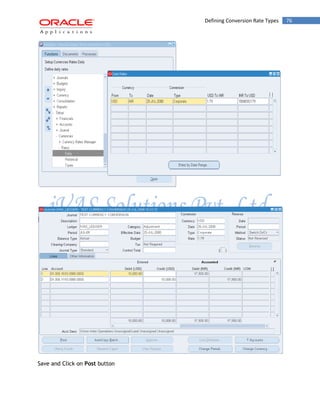
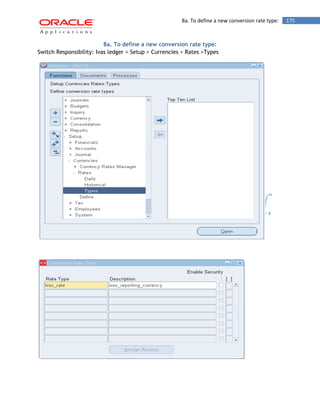
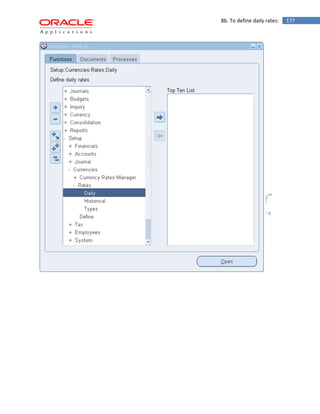
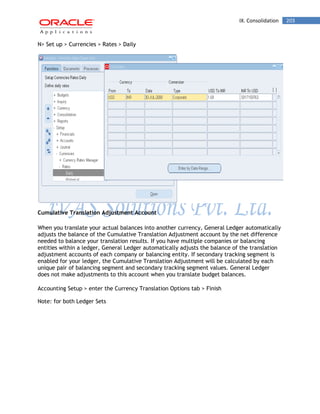
N: - Setup-> Currencies-> Rates-> Daily
Defining Conversion Rate Types 76 
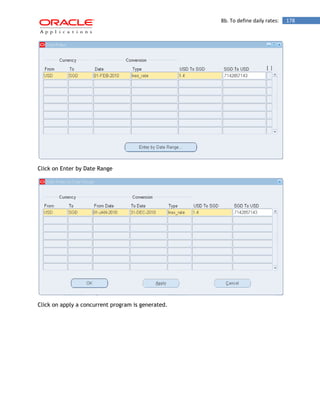
Save and Click on Post button
Defining Conversion Rate Types 77 
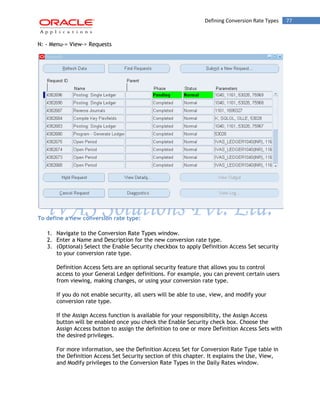
N: - Menu-> View-> Requests 
To define a new conversion rate type: 
1. Navigate to the Conversion Rate Types window. 
2. Enter a Name and Description for the new conversion rate type. 
3. (Optional) Select the Enable Security checkbox to apply Definition Access Set security to your conversion rate type. 
Definition Access Sets are an optional security feature that allows you to control access to your General Ledger definitions. For example, you can prevent certain users from viewing, making changes, or using your conversion rate type. 
If you do not enable security, all users will be able to use, view, and modify your conversion rate type. 
If the Assign Access function is available for your responsibility, the Assign Access button will be enabled once you check the Enable Security check box. Choose the Assign Access button to assign the definition to one or more Definition Access Sets with the desired privileges. 
For more information, see the Definition Access Set for Conversion Rate Type table in the Definition Access Set Security section of this chapter. It explains the Use, View, and Modify privileges to the Conversion Rate Types in the Daily Rates window.
Intracompany 78 
If the Assign Access function has been excluded from your responsibility, you will not be able to view the Assign Access button in the Conversion Rate Types window. You can still secure the Conversion Rate Type by checking the Enable Security check box, but only Definition Access Sets that are AutoAssigned will be automatically assigned to this Conversion Rate Type. For more information on Function Security, see your System Administrator. 
4. Save your work. 
5. Intracompany 
Intracompany balancing rules are used to create balancing lines on journals between balancing segment values either within the same legal entity, or where there is no legal entity context. 
Intracompany balancing rules are used when more than one balancing segment value exists on a transaction or journal entry, as long as you have selected the Balance Intracompany Journals option for the ledger. You cannot post a journal in General Ledger when the debit and credit amounts for each balancing segment value do not net to zero. These journals can be balanced automatically if you set up balancing rules and enable the option to balance cross-entity journals. 
You must define Intracompany balancing rules if you want to balance journals automatically. You may define as many or as few balancing rules as you choose, and each balancing rule may have one or many accounting rules. Because balancing is an automated process, there should be at least one balancing rule with at least one accounting rule to proceed. This default balancing rule should be defined for the journal source „Other‟ and journal category „Other‟ for the ledger and legal entity you want to balance. The default accounting rule on each balancing rule is defined for the debit balancing segment value All Other and credit balancing segment value All Other. 
With intracompany accounting, you can define both a debit (due from) and credit (due to) balancing segment, which gives you more control over each balancing relationship. You can specify different debit and credit accounts for each different intracompany trading partner, which is represented by a specific balancing segment value. 
All Other is also available as a balancing segment value if you want the balancing segment value to use the same due to/due from accounts for every intracompany trading relationship that has not been specifically defined. 
If you set up a specific debit and credit balancing segment value, then the assigned debit and credit account combinations are used. If you use All Other, the appropriate trading partner balancing segment value replaces the balancing segment value of the account combination. 
You can also determine the level the Balancing API should use when selecting either Summary Net or Detail.
Intracompany 79 
For balancing many-to-many journals there are several balancing segment values with net debits and net credits on a transaction and it is not possible to determine which balancing segment value is trading with which balancing segment value. You can decide whether to use a clearing balancing segment value or a default rule to handle these transactions. 
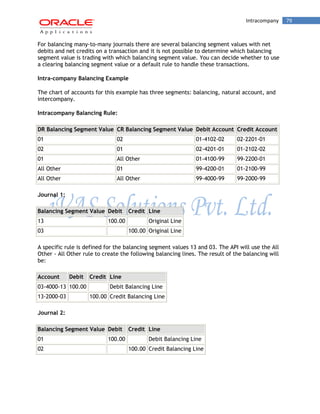
Intra-company Balancing Example 
The chart of accounts for this example has three segments: balancing, natural account, and intercompany. 
Intracompany Balancing Rule: DR Balancing Segment Value CR Balancing Segment Value Debit Account Credit Account 
01 
02 
01-4102-02 
02-2201-01 
02 
01 
02-4201-01 
01-2102-02 
01 
All Other 
01-4100-99 
99-2200-01 
All Other 
01 
99-4200-01 
01-2100-99 
All Other 
All Other 
99-4000-99 
99-2000-99 
Journal 1: Balancing Segment Value Debit Credit Line 
13 
100.00 
Original Line 
03 
100.00 
Original Line 
A specific rule is defined for the balancing segment values 13 and 03. The API will use the All Other - All Other rule to create the following balancing lines. The result of the balancing will be: Account Debit Credit Line 
03-4000-13 
100.00 
Debit Balancing Line 
13-2000-03 
100.00 
Credit Balancing Line 
Journal 2: Balancing Segment Value Debit Credit Line 
01 
100.00 
Debit Balancing Line 
02 
100.00 
Credit Balancing Line
Intracompany 80 
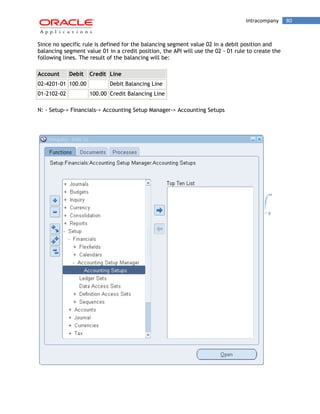
Since no specific rule is defined for the balancing segment value 02 in a debit position and balancing segment value 01 in a credit position, the API will use the 02 - 01 rule to create the following lines. The result of the balancing will be: Account Debit Credit Line 
02-4201-01 
100.00 
Debit Balancing Line 
01-2102-02 
100.00 
Credit Balancing Line 
N: - Setup-> Financials-> Accounting Setup Manager-> Accounting Setups
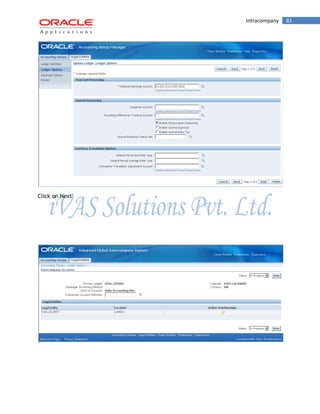
Intracompany 81 
Click on Next
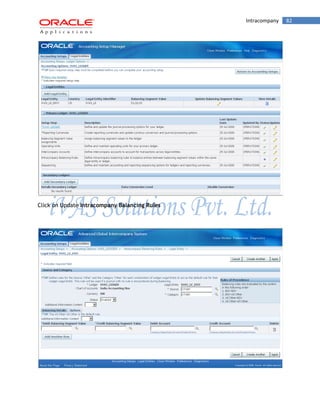
Intracompany 82 
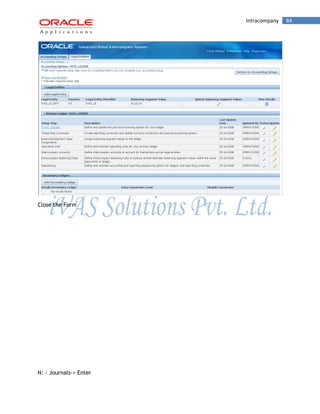
Click on Update Intracompany Balancing Rules
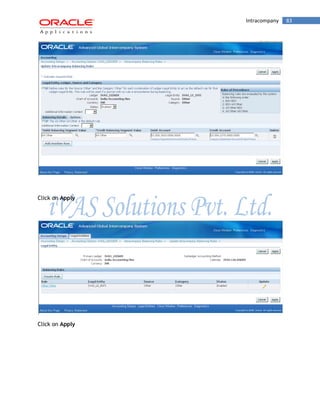
Intracompany 83 
Click on Apply 
Click on Apply
Intracompany 84 
Close the Form 
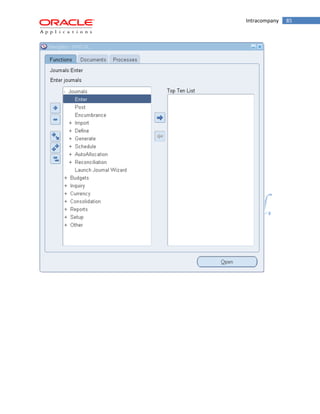
N: - Journals-> Enter
Intracompany 85
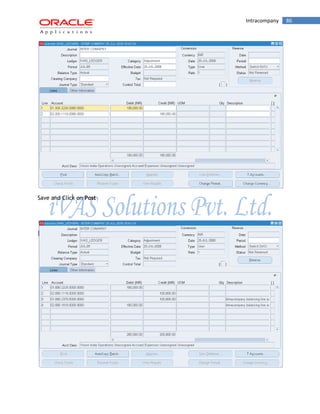
Intracompany 86 
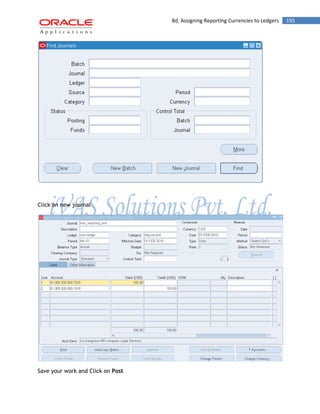
Save and Click on Post
Recurring Journal 87 
6. Recurring Journal 
6a. Creating Recurring Journal Formula Batches 
To define a recurring journal formula entry, you must create a recurring journal formula batch. Your batch can contain a single recurring journal entry definition, or you can group related recurring journals into the same batch. 
You can create two types of recurring journal formula batches as follows: 
Single Ledger Recurring Journal Formula Batch: Single ledger batches affect only one ledger in the batch. 
Multiple Ledger Recurring Journal Formula Batch: Multiple ledger batches can affect multiple ledgers in the batch. You can define recurring journal formulas across ledgers. 
Note: You can only define single ledger batch types for budget formulas. 
You can create recurring journal formula batches that include ledgers that have the same chart of accounts, calendar, and period type as the data access set of your current responsibility. When you generate the recurring journal formula batches, you must have read or read and write access to the ledger and balancing segment value or management segment value to generate recurring journals. 
If you use reporting currencies (journal or subledger level), you can create recurring journal formula batches for single reporting currencies or multiple reporting currencies. 
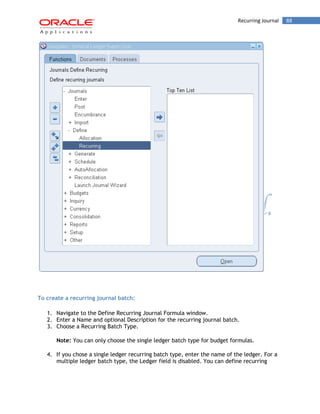
N: - Journals-> Define-> Recurring
Recurring Journal 88 
To create a recurring journal batch: 
1. Navigate to the Define Recurring Journal Formula window. 
2. Enter a Name and optional Description for the recurring journal batch. 
3. Choose a Recurring Batch Type. 
Note: You can only choose the single ledger batch type for budget formulas. 
4. If you chose a single ledger recurring batch type, enter the name of the ledger. For a multiple ledger batch type, the Ledger field is disabled. You can define recurring
Recurring Journal 89 
journal formulas for ledgers that have the same chart of accounts, calendar, and period type as your current responsibility's data access set. 
5. If you use reporting currencies (journal or subledger level), and you chose a single ledger recurring batch type, you can enter the name of the ledger. 
6. If you want to copy entries from an existing recurring journal batch to your new batch, choose Auto Copy Batch. 
7. Create recurring journal entries for the batch. If you copied entries, modify them, if necessary. 
8. (Optional) Select the Enable Security checkbox to apply Definition Access Set security to your recurring journal definition. Definition Access Sets are an optional security feature that allows you to control access to your General Ledger definitions. For example, you can prevent certain users from viewing, making changes, or using your recurring journal. If you do not enable security, all users will be able to use, view, and modify your recurring journal. 
If the Assign Access function is available for your responsibility, the Assign Access button is enabled once you check the Enable Security checkbox. Choose the Assign Access button to assign the definition to one or more Definition Access Sets with the desired privileges. 
If the Assign Access function has been excluded from your responsibility, you will not be able to view the Assign Access button in the Define Recurring Journal Formula window. You can still secure the recurring journal by checking the Enable Security check box, but only Definition Access Sets that are AutoAssigned will be automatically assigned to this recurring journal. 
Save your work. 
9. Generate recurring journals. 
10. Review and post your generated recurring journal batches.
Recurring Journal 90 
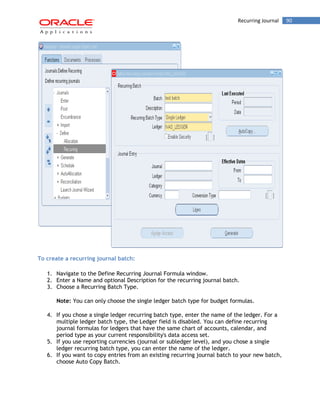
To create a recurring journal batch: 
1. Navigate to the Define Recurring Journal Formula window. 
2. Enter a Name and optional Description for the recurring journal batch. 
3. Choose a Recurring Batch Type. 
Note: You can only choose the single ledger batch type for budget formulas. 
4. If you chose a single ledger recurring batch type, enter the name of the ledger. For a multiple ledger batch type, the Ledger field is disabled. You can define recurring journal formulas for ledgers that have the same chart of accounts, calendar, and period type as your current responsibility's data access set. 
5. If you use reporting currencies (journal or subledger level), and you chose a single ledger recurring batch type, you can enter the name of the ledger. 
6. If you want to copy entries from an existing recurring journal batch to your new batch, choose Auto Copy Batch.
Recurring Journal 91 
7. Create recurring journal entries for the batch. If you copied entries, modify them, if necessary. 
8. (Optional) Select the Enable Security checkbox to apply Definition Access Set security to your recurring journal definition. Definition Access Sets are an optional security feature that allows you to control access to your General Ledger definitions. For example, you can prevent certain users from viewing, making changes, or using your recurring journal. If you do not enable security, all users will be able to use, view, and modify your recurring journal. 
If the Assign Access function is available for your responsibility, the Assign Access button is enabled once you check the Enable Security checkbox. Choose the Assign Access button to assign the definition to one or more Definition Access Sets with the desired privileges. 
If the Assign Access function has been excluded from your responsibility, you will not be able to view the Assign Access button in the Define Recurring Journal Formula window. You can still secure the recurring journal by checking the Enable Security check box, but only Definition Access Sets that are AutoAssigned will be automatically assigned to this recurring journal. 
Save your work. 
9. Generate recurring journals. 
10. Review and post your generated recurring journal batches. 
6b. Creating Recurring Journal Entries
Recurring Journal 92 
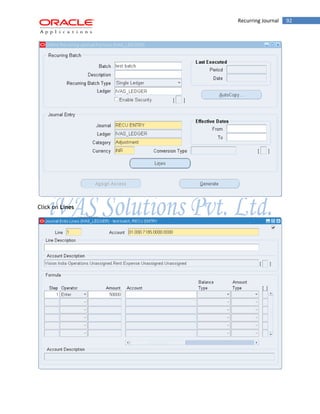
Click on Lines
Recurring Journal 93 
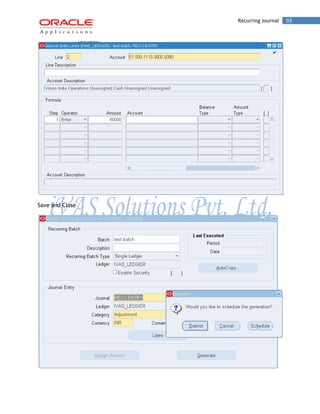
Save and Close
Recurring Journal 94 
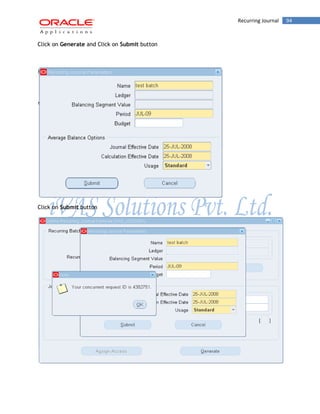
Click on Generate and Click on Submit button 
Click on Submit button
Recurring Journal 95 
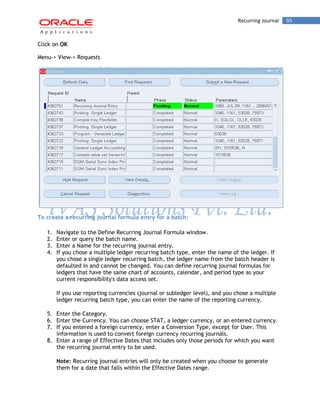
Click on OK 
Menu-> View-> Requests 
To create a recurring journal formula entry for a batch: 
1. Navigate to the Define Recurring Journal Formula window. 
2. Enter or query the batch name. 
3. Enter a Name for the recurring journal entry. 
4. If you chose a multiple ledger recurring batch type, enter the name of the ledger. If you chose a single ledger recurring batch, the ledger name from the batch header is defaulted in and cannot be changed. You can define recurring journal formulas for ledgers that have the same chart of accounts, calendar, and period type as your current responsibility's data access set. 
If you use reporting currencies (journal or subledger level), and you chose a multiple ledger recurring batch type, you can enter the name of the reporting currency. 
5. Enter the Category. 
6. Enter the Currency. You can choose STAT, a ledger currency, or an entered currency. 
7. If you entered a foreign currency, enter a Conversion Type, except for User. This information is used to convert foreign currency recurring journals. 
8. Enter a range of Effective Dates that includes only those periods for which you want the recurring journal entry to be used. 
Note: Recurring journal entries will only be created when you choose to generate them for a date that falls within the Effective Dates range.
Recurring Journal 96 
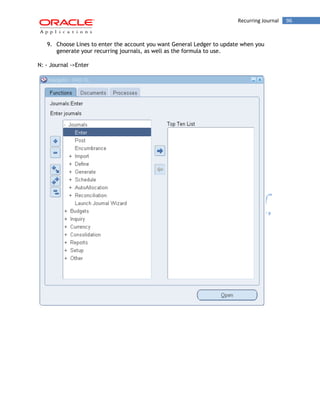
9. Choose Lines to enter the account you want General Ledger to update when you generate your recurring journals, as well as the formula to use. 
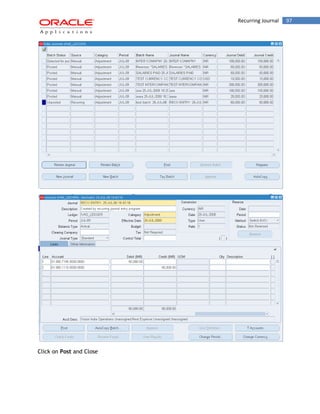
N: - Journal ->Enter
Recurring Journal 97 
Click on Post and Close
Mass Allocations 98 
7. Mass Allocations 
Use a MassAllocation formula to create journals that allocate revenues and expenses across a group of cost centers, departments, divisions, and so on. By including parent values in allocation formulas, you can allocate to the child values referenced by the parent without having to enumerate each child separately. Hence, a single formula can perform multiple allocations. 
To define MassAllocation formulas, you create a MassAllocation batch that contains one or more MassAllocation formula entries. You can also copy an existing MassAllocation batch then modify it as needed for your new batch. Use MassAllocation batches to group your MassAllocation formulas. For example, you might combine all formulas for a single department or division into one batch, or group all formulas for certain types of calculations into separate entries. 
You can also create MassAllocations that reference foreign currency and statistical account balances. When you generate the foreign currency MassAllocation, General Ledger creates journal entries in the foreign currency. 
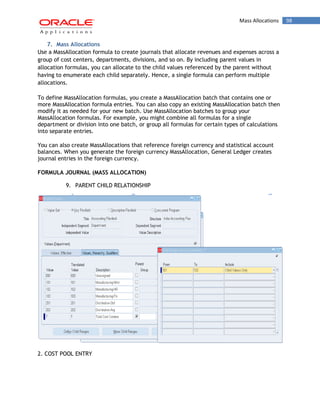
FORMULA JOURNAL (MASS ALLOCATION) 
9. PARENT CHILD RELATIONSHIP 
2. COST POOL ENTRY
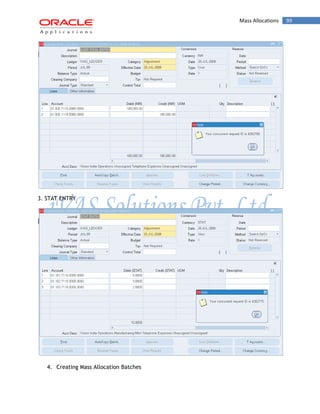
Mass Allocations 99 
3. STAT ENTRY 
4. Creating Mass Allocation Batches
Mass Allocations 100 
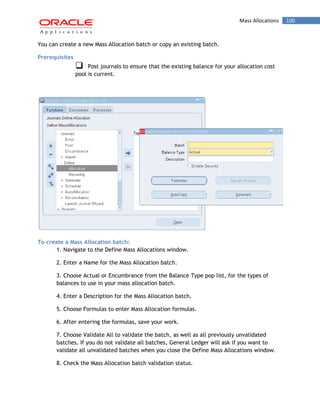
You can create a new Mass Allocation batch or copy an existing batch. 
Prerequisites 
Post journals to ensure that the existing balance for your allocation cost pool is current. 
To create a Mass Allocation batch: 
1. Navigate to the Define Mass Allocations window. 
2. Enter a Name for the Mass Allocation batch. 
3. Choose Actual or Encumbrance from the Balance Type pop list, for the types of balances to use in your mass allocation batch. 
4. Enter a Description for the Mass Allocation batch. 
5. Choose Formulas to enter Mass Allocation formulas. 
6. After entering the formulas, save your work. 
7. Choose Validate All to validate the batch, as well as all previously unvalidated batches. If you do not validate all batches, General Ledger will ask if you want to validate all unvalidated batches when you close the Define Mass Allocations window. 
8. Check the Mass Allocation batch validation status.
Mass Allocations 101 
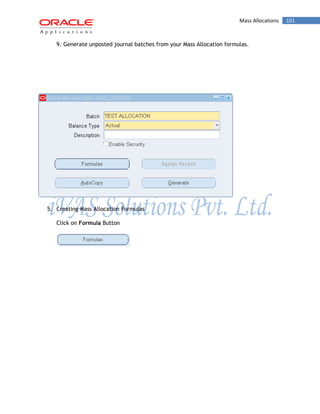
9. Generate unposted journal batches from your Mass Allocation formulas. 
5. Creating Mass Allocation Formulas 
Click on Formula Button
Mass Allocations 102 
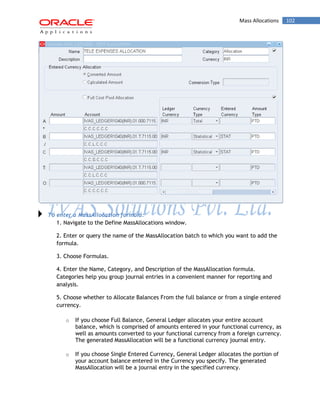
To enter a MassAllocation formula: 
1. Navigate to the Define MassAllocations window. 
2. Enter or query the name of the MassAllocation batch to which you want to add the formula. 
3. Choose Formulas. 
4. Enter the Name, Category, and Description of the MassAllocation formula. Categories help you group journal entries in a convenient manner for reporting and analysis. 
5. Choose whether to Allocate Balances From the full balance or from a single entered currency. 
o If you choose Full Balance, General Ledger allocates your entire account balance, which is comprised of amounts entered in your functional currency, as well as amounts converted to your functional currency from a foreign currency. The generated MassAllocation will be a functional currency journal entry. 
o If you choose Single Entered Currency, General Ledger allocates the portion of your account balance entered in the Currency you specify. The generated MassAllocation will be a journal entry in the specified currency.
Mass Allocations 103 
If you are allocating encumbrance balances, you must allocate the full balance. You cannot allocate foreign currency encumbrances. 
6. Choose Full Cost Pool Allocation to have any rounding difference resulting from the MassAllocation computation added to the cost pool with the largest relative balance. If you do not choose this option, any rounding differences will remain in the original account. 
7. Enter the formula lines. 
8. Save your work. 
To enter an account in a MassAllocation formula line: 
1. Enter the account for the A, B, or C line of your formula. Enter accounts with parent segment values to create a formula that references accounts with the corresponding child segment values. 
When you enter an account, General Ledger ensures that segment values are valid and enabled. 
2. Assign a segment Type for each account segment. The combination of parent/child segment values and types tells General Ledger which related accounts are affected or used by that portion of the formula. 
You can assign one the following segment types to each segment: 
Looping (L): Assign this type to a parent segment value to include each child value assigned to the parent value in the formula. The allocation program runs each formula once for each corresponding child segment value. You can loop only on parent values. 
Summing (S): Assign this type to a parent segment value to sum the account balances of all the child segment values assigned to a parent. For example, if you enter a parent that has five child values, the allocation program adds the account balances of the five child accounts and uses the sum in each MassAllocation formula. You can sum only on parent values. 
Constant (C): Assign this type to a child segment value to use the detail account balance associated with the child. You can use this type with a parent segment value only if there is a summary account associated with the parent. 
Note: To use summary accounts in a mass allocation formula, all segments in the formula must be assigned a segment type of Constant. 
3. Enter the Amount Type you want to use: 
o Period-to-Date 
o Quarter-to-Date
Mass Allocations 104 
o Year-to-Date 
o Project-to-Date 
If you have average balance processing enabled, you can also select from the following values, and however, your Balance Type must be Actual: 
o Period Average-to-date 
o Quarter Average-to-date 
o Year Average-to-date 
o End-of-day 
Note: You can mix standard and average amount types in the same MassAllocation formula. 
4. Enter the Relative Period for the account balance you want to use: 
o Current Period 
o Previous Period 
o Year Ago, Same Period 
5. Enter the account Balance Type to use for the formula line. If you enter the Budget balance type, you must also enter a Budget name. If you enter the Encumbrance balance type, you must also enter an Encumbrance Type. 
6. Once you have entered your A, B, and C formula lines, enter the Target and Offset accounts. 
7. Save your work.
Mass Allocations 105 
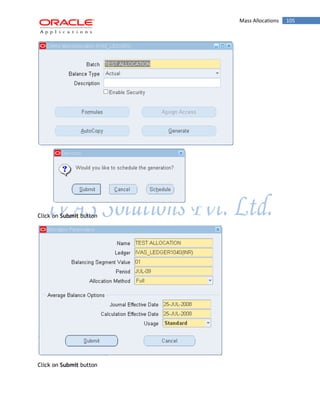
Click on Submit button 
Click on Submit button
Mass Allocations 106 
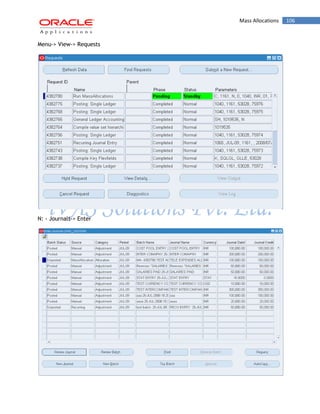
Menu-> View-> Requests 
N: - Journals-> Enter
Cross Validation Rules 107 
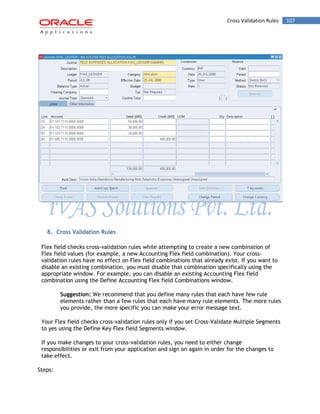
8. Cross Validation Rules 
Flex field checks cross-validation rules while attempting to create a new combination of Flex field values (for example, a new Accounting Flex field combination). Your cross- validation rules have no effect on Flex field combinations that already exist. If you want to disable an existing combination, you must disable that combination specifically using the appropriate window. For example, you can disable an existing Accounting Flex field combination using the Define Accounting Flex field Combinations window. 
Suggestion: We recommend that you define many rules that each have few rule elements rather than a few rules that each have many rule elements. The more rules you provide, the more specific you can make your error message text. 
Your Flex field checks cross-validation rules only if you set Cross-Validate Multiple Segments to yes using the Define Key Flex field Segments window. 
If you make changes to your cross-validation rules, you need to either change responsibilities or exit from your application and sign on again in order for the changes to take effect. 
Steps:
Cross Validation Rules 108 
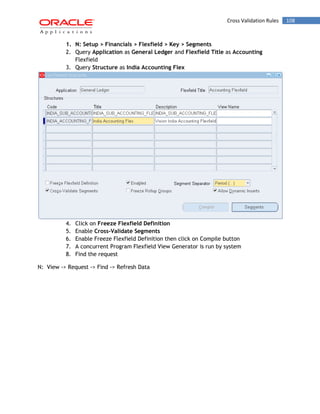
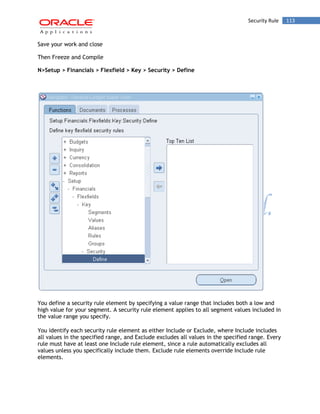
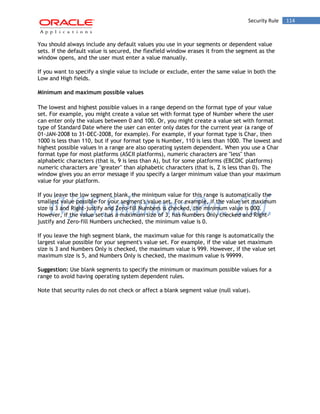
1. N: Setup > Financials > Flexfield > Key > Segments 
2. Query Application as General Ledger and Flexfield Title as Accounting Flexfield 
3. Query Structure as India Accounting Flex 
4. Click on Freeze Flexfield Definition 
5. Enable Cross-Validate Segments 
6. Enable Freeze Flexfield Definition then click on Compile button 
7. A concurrent Program Flexfield View Generator is run by system 
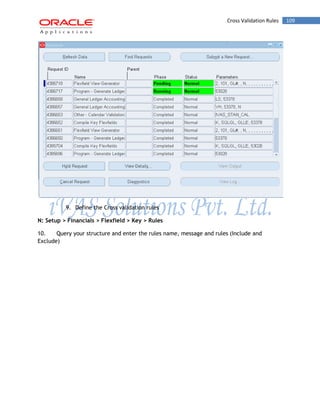
8. Find the request 
N: View -> Request -> Find -> Refresh Data
Cross Validation Rules 109 
9. Define the Cross validation rules 
N: Setup > Financials > Flexfield > Key > Rules 
10. Query your structure and enter the rules name, message and rules (Include and Exclude)
To define cross-validation rules: 110 
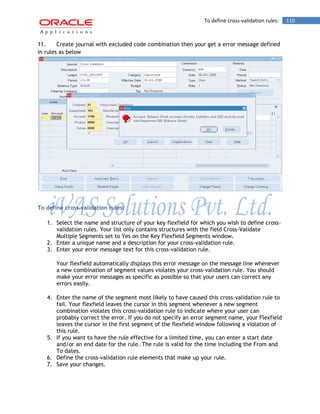
11. Create journal with excluded code combination then your get a error message defined in rules as below 
To define cross-validation rules: 
1. Select the name and structure of your key flexfield for which you wish to define cross- validation rules. Your list only contains structures with the field Cross-Validate Multiple Segments set to Yes on the Key Flexfield Segments window. 
2. Enter a unique name and a description for your cross-validation rule. 
3. Enter your error message text for this cross-validation rule. 
Your flexfield automatically displays this error message on the message line whenever a new combination of segment values violates your cross-validation rule. You should make your error messages as specific as possible so that your users can correct any errors easily. 
4. Enter the name of the segment most likely to have caused this cross-validation rule to fail. Your flexfield leaves the cursor in this segment whenever a new segment combination violates this cross-validation rule to indicate where your user can probably correct the error. If you do not specify an error segment name, your Flexfield leaves the cursor in the first segment of the flexfield window following a violation of this rule. 
5. If you want to have the rule effective for a limited time, you can enter a start date and/or an end date for the rule. The rule is valid for the time including the From and To dates. 
6. Define the cross-validation rule elements that make up your rule. 
7. Save your changes.
Security Rule 111 
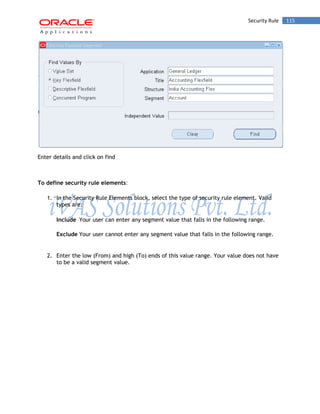
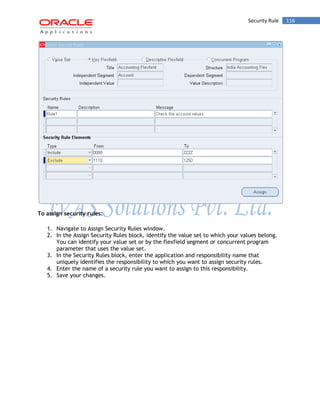
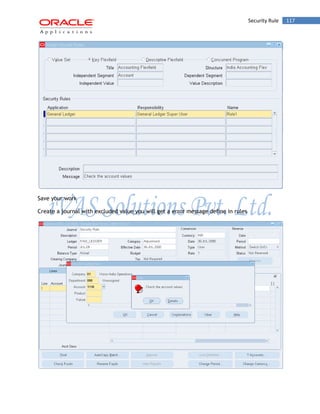
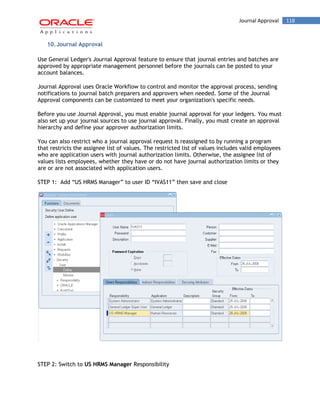
8. Use this block to define the cross-validation rule elements that make up your cross- validation rule. You define a cross-validation rule element by specifying a value range that includes both a low and high value for each key segment. A cross-validation rule element applies to all segment values included in the value ranges you specify. You identify each cross-validation rule element as either Include or Exclude, where Include includes all values in the specified ranges, and Exclude excludes all values in the specified ranges. Every rule must have at least one Include rule element, since a rule automatically excludes all values unless you specifically include them. Exclude rule elements override Include rule elements. 
9. Suggestion: We recommend that you define one all-encompassing Include rule element and several restricting Exclude rule elements. 
10. Select the type of cross-validation rule element. Valid types are: 
Include 
Your user can enter any segment value combinations that fall in the following range. 
Exclude 
Your user cannot enter any segment value combinations that fall in the following range. 
11. When you enter the From (low) field, this window automatically displays a window that contains a prompt for each segment in your flexfield structure. You enter both the low and high ends of your value range in this window. After you finish entering your ranges, this zone displays your low segment values in concatenated window in the Low field and displays your high segment values similarly in the High field. 
12. Enter the low end and the high end of your segment combination range. Neither the low nor the high combination has to be a valid key flexfield combination, nor do they need to be made up of valid segment values. 
13. Note that a blank segment value (null value) is considered to fall within a range that has one or both ends specified as a blank. However, if all of your segments require a value, you would not be able to create a combination with a blank segment anyhow. 
14. You may use blank minimum or maximum segment values to create cross-validation rules that can test for blank segments (that are not already required to have a value). For example, if you allow a null value for your last optional segment but not the second-to-last optional segment, you would use a blank minimum or maximum value for the last segment but fill in a value (such as 000 or 999) for both the minimum and maximums for the second-to-last optional segment. 
15. If you want to specify a single combination to include or exclude, enter the same combination in both the Low and High fields. 
16. Disabled rules are ignored when your key flexfield validates a combination of segment values. Deleting the rule has the same effect, but you can re-enable a disabled rule. 
9. Security Rule 
Use the Define Security Rules window to define value security rules for ranges of flexfield and report parameter values.
Security Rule 112 
Then, use the Assign Security Rules window to assign the flexfield security rules to an application responsibility. 
After you assign or change your security rules, you and your users must either change responsibilities or exit from your application and re-sign on in order for your changes to take effect. 
To define security rules: 
1. Navigate to Define Security Rules window. 
2. In the Segment Values block, identify the value set to which your values belong. You can identify your value set or by the flexfield segment or concurrent program parameter that uses the value set. 
3. In the Security Rule region, enter a name and description for your security rule. 
4. Enter a message for this security rule. This message appears automatically whenever a user enters a segment value that violates your security rule. 
5. Define the security rule elements that make up your rule. 
6. Save your changes. 
N>Setup > Financials > Flexfield > Key > Segments 
Query structure 
Unfreeze Flexfield Definition 
Click on segments and select a segment for which security rule is to be enabled 
Click on open and enable on “Security Enable”
Security Rule 113 
Save your work and close 
Then Freeze and Compile 
N>Setup > Financials > Flexfield > Key > Security > Define 
You define a security rule element by specifying a value range that includes both a low and high value for your segment. A security rule element applies to all segment values included in the value range you specify. 
You identify each security rule element as either Include or Exclude, where Include includes all values in the specified range, and Exclude excludes all values in the specified range. Every rule must have at least one Include rule element, since a rule automatically excludes all values unless you specifically include them. Exclude rule elements override Include rule elements.
Security Rule 114 
You should always include any default values you use in your segments or dependent value sets. If the default value is secured, the flexfield window erases it from the segment as the window opens, and the user must enter a value manually. 
If you want to specify a single value to include or exclude, enter the same value in both the Low and High fields. 
Minimum and maximum possible values 
The lowest and highest possible values in a range depend on the format type of your value set. For example, you might create a value set with format type of Number where the user can enter only the values between 0 and 100. Or, you might create a value set with format type of Standard Date where the user can enter only dates for the current year (a range of 01-JAN-2008 to 31-DEC-2008, for example). For example, if your format type is Char, then 1000 is less than 110, but if your format type is Number, 110 is less than 1000. The lowest and highest possible values in a range are also operating system dependent. When you use a Char format type for most platforms (ASCII platforms), numeric characters are "less" than alphabetic characters (that is, 9 is less than A), but for some platforms (EBCDIC platforms) numeric characters are "greater" than alphabetic characters (that is, Z is less than 0). The window gives you an error message if you specify a larger minimum value than your maximum value for your platform. 
If you leave the low segment blank, the minimum value for this range is automatically the smallest value possible for your segment's value set. For example, if the value set maximum size is 3 and Right-justify and Zero-fill Numbers is checked, the minimum value is 000. However, if the value set has a maximum size of 3, has Numbers Only checked and Right- justify and Zero-fill Numbers unchecked, the minimum value is 0. 
If you leave the high segment blank, the maximum value for this range is automatically the largest value possible for your segment's value set. For example, if the value set maximum size is 3 and Numbers Only is checked, the maximum value is 999. However, if the value set maximum size is 5, and Numbers Only is checked, the maximum value is 99999. 
Suggestion: Use blank segments to specify the minimum or maximum possible values for a range to avoid having operating system dependent rules. 
Note that security rules do not check or affect a blank segment value (null value).
Security Rule 115 
Enter details and click on find 
To define security rule elements: 
1. In the Security Rule Elements block, select the type of security rule element. Valid types are: 
Include 
Your user can enter any segment value that falls in the following range. 
Exclude 
Your user cannot enter any segment value that falls in the following range. 
2. Enter the low (From) and high (To) ends of this value range. Your value does not have to be a valid segment value.
Security Rule 116 
To assign security rules: 
1. Navigate to Assign Security Rules window. 
2. In the Assign Security Rules block, identify the value set to which your values belong. You can identify your value set or by the flexfield segment or concurrent program parameter that uses the value set. 
3. In the Security Rules block, enter the application and responsibility name that uniquely identifies the responsibility to which you want to assign security rules. 
4. Enter the name of a security rule you want to assign to this responsibility. 
5. Save your changes.
Security Rule 117 
Save your work 
Create a journal with excluded value you will get a error message define in rules
Journal Approval 118 
10. Journal Approval 
Use General Ledger's Journal Approval feature to ensure that journal entries and batches are approved by appropriate management personnel before the journals can be posted to your account balances. 
Journal Approval uses Oracle Workflow to control and monitor the approval process, sending notifications to journal batch preparers and approvers when needed. Some of the Journal Approval components can be customized to meet your organization's specific needs. 
Before you use Journal Approval, you must enable journal approval for your ledgers. You must also set up your journal sources to use journal approval. Finally, you must create an approval hierarchy and define your approver authorization limits. 
You can also restrict who a journal approval request is reassigned to by running a program that restricts the assignee list of values. The restricted list of values includes valid employees who are application users with journal authorization limits. Otherwise, the assignee list of values lists employees, whether they have or do not have journal authorization limits or they are or are not associated with application users. 
STEP 1: Add “US HRMS Manager” to user ID “IVAS11” then save and close 
STEP 2: Switch to US HRMS Manager Responsibility
Journal Approval 119 
STEP 3: N -> Work Structure -> Job -> Description 
STEP 4: Click on New button 
Enter Job Code and Job Name then click on OK button and save
Journal Approval 120 
STEP 5: N :- Work Structure -> Position -> Description
Journal Approval 121 
STEP 6: Click on „New‟ and create two positions: 1. Manager and 2. Asst. Manager 
1. MANAGER 
Save and Close
Journal Approval 122 
2. Asst. MANAGER 
STEP 7: N:- People -> Enter and Maintain 
When you enter an employee, you also enter the employee's supervisor or manager name. The supervisor is the default next approver for journal entries and batches. Likewise, the supervisor's manager is the next approver after the supervisor.
Journal Approval 123 
1. MANAGER 
Click on New button and the employee details and Date of birth
Journal Approval 124 
Click on Address button and enter the address details of the person with Zip code 
Save and close 
Click on Assignment button and enter the job and position for which person is hired
Journal Approval 125 
Click on Correction
Journal Approval 126 
Select Position from the list of values then press on Yes button 
Save and close 
2. Asst. MANAGER 
N:- People -> Enter and Maintain
Journal Approval 127 
Click on New button and the employee details and Date of birth
Journal Approval 128
Journal Approval 129
Journal Approval 130 
Save and close 
Assigning User ID‟S to Employee (MANAGER) 
Switch to System Administrator 
N: Security -> User -> Define 
Query User ID and Assign Person (EMPLOYEE) 
1. MANAGER
Journal Approval 131 
2. Asst. MANAGER
To enable Journal Approval for your ledgers: 132 
To enable Journal Approval for your ledgers: 
When you define your ledgers using Accounting Setup Manager, mark the Enable Journal Approval check box on the Ledgers page. 
If you use reporting currencies (journal or sub ledger level), you can enable Journal Approval for your reporting currencies in Accounting Setup Manager. 
Enable Journal Approval And Click on Finish button 
N: Setup -> Employee -> Limits
To enable Journal Approval for your ledgers: 133 
Enter the Employee name and limit as shown below 
To define authorization limits: 
1. Navigate to the Journal Authorization Limits window. 
2. Enter the ledger in the Ledger column. You can select a ledger in your data access set if you have read/write access to at least one or more balancing segment values or management segment values in the ledger. 
Note: If you use reporting currencies (journal or sub ledger level), you can enter a reporting currency in the Ledger column if you have read/write access to one or more balancing segment values or management segment values in the reporting currency. 
3. The Currency column defaults to the currency of the ledger or reporting currency you entered in the previous step. 
4. Enter the Employee name, or select it from the list of values. 
5. Enter the amount of the employee's Authorization Limit. 
6. Repeat the previous two steps for each employee for whom you want to define authorization limits.
Enable Journal Approval to “MANUAL” 134 
7. Save your work. 
Enable Journal Approval to “MANUAL” 
To specify journal sources that requires journal approval: 
On the Journal Sources window, mark the Require Journal Approval check box for each journal source that should be subject to approval. When a journal entry or batch is created using one of these journal sources, the journal must be approved before it can be posted. 
N: Setup -> Journal -> Sources 
Create a journal entry above the „Asst. MANAGER‟ Limits and save 
Click on Approve button
Enable Journal Approval to “MANUAL” 135 
Now check in Managers Id (IVAS11) Notifications 
N: Other -> Notifications
Enable Journal Approval to “MANUAL” 136 
Select the Notification and click on Open button 
Click on Approve Button 
Now Login to „Asst MANAGER‟ id and review journal
Enable Journal Approval to “MANUAL” 137 
Now the Asst. Manager can post the entry as the Manager has approved the entry and can see the Approval status as „Approved‟ in „Other Information‟ Tab and if there is any error after approving then again click on Unapprove button so that Asst. Manager can do the changes before posting the entry and again for unapproval the notification goes to the Manager and if manager unapproves then only Asst. Manager can edit the entry.
Budgeting 138 
VI. Budgeting 
Overview of defining budgets 
1. Specify the Budget Organization for the account to which you want to budget. If the budget organization is password-protected, you must enter the password before you can enter budget journals. 
a. Note: If your Budget Organization has been secured using definition access sets, you must have Use access to the Budget Organization to be able to use it for budget entry. 
2. Enter the range of Accounting Periods to which you want to budget. 
3. Enter the Currency of the budget amounts you are entering. The accounts must be assigned to the budget organization for this currency. 
4. Choose the Journal Mode tab to enter budget amounts in a journal format. 
5. You can also use Single Row Mode or Worksheet Mode to enter budget journal amounts. However, you can only generate budget journals from these entry modes when you use the Enter Budget Journals window. 
6. You can also use Single Row Mode or Worksheet Mode to enter budget journal amounts. However, you can only generate budget journals from these entry modes when you use the Enter Budget Journals window. 
7. Enter or query the Account to which you want to budget. You can also switch to Worksheet Mode to easily query accounts, then return to Journal Mode to enter budget journals. 
8. Enter a Debit or Credit amount for each period. Do not enter journal amounts if you want to use budget rules to calculate and distribute budget amounts. 
9. Choose Create Journals to create a budget journal batch. If you are using budgetary control, you specify a funds action when you create the batch. 
6a. Defining Budget 
Create a budget to represent a collection of estimated amounts for a range of accounting periods. You can use AutoCopy to create a new budget from an existing budget. 
You can create budget hierarchies by assigning lower-level budgets to a master budget. This enables you to track budgeted amounts against your control budget. 
N: Setup -> Financials -> Accounting Setup Manager -> Accounting Setups
Budgeting 139
Budgeting 140
Budgeting 141 
Create a budget to represent a collection of estimated amounts for a range of accounting periods. You can use Auto Copy to create a new budget from an existing budget. 
You can create budget hierarchies by assigning lower-level budgets to a master budget. This enables you to track budgeted amounts against your control budget. 
 Choose whether to Require Budget Journals for your budget. If you enabled the Require Budget Journals flag for your ledger, this option will already be selected and cannot be changed. 
When you require budget journals, you can only use budget entry methods that create journals, namely budget journals, budget transfers, Mass Budgets, consolidation of budget balances, and the Applications Desktop Integrator's Journal Wizard. 
Attention: Use budget journals to maintain an audit trail for your budget balances. Other budget entry methods update budget balances directly. 
Note: If you use budgetary control, you must use budget journals to enter amounts in your funding budget (i.e., the budget you use to enforce budgetary control). 
 Enter the Status of your budget.
Budgeting 142 
Open: The budget is available for update and budget entry. 
Current: The budget is open, and it is the default budget when you use most budgeting and inquiry forms. You can have only one Current budget at a time for each ledger. 
Frozen: The budget is unavailable for update or budget entry. 
General Ledger displays the Created Date and Frozen Date, if applicable, for the budget. 
 Enter the First and Last period for your budget. 
Assign a Master Budget if you want to track your budget amounts against a control budget. You can choose any budget that has the same ledger and period range to be the Master Budget. 
 To open the first fiscal year of your budget, choose Open Next Year. General Ledger launches a concurrent request to open the next year.
Budgeting 143 
To create a budget: 
1. Navigate to the Define Budget window. 
2. Enter a Name and Description for your budget. 
Additional Information: Budget Names must be unique in the system. 
3. Select the ledger for this budget. If you use reporting currencies (journal or subledger level), you can select a reporting currency 
4. Enter the Status of your budget. 
Open: The budget is available for update and budget entry. 
Current: The budget is open, and it is the default budget when you use most budgeting and inquiry forms. You can have only one Current budget at a time for each ledger. 
Frozen: The budget is unavailable for update or budget entry. 
General Ledger displays the Created Date and Frozen Date, if applicable, for the budget. 
5. Choose whether to Require Budget Journals for your budget. If you enabled the Require Budget Journals flag for your ledger, this option will already be selected and cannot be changed.
6b. Defining Budget Organizations 144 
When you require budget journals, you can only use budget entry methods that create journals, namely budget journals, budget transfers, MassBudgets, consolidation of budget balances, and the Applications Desktop Integrator's Journal Wizard. 
Attention: Use budget journals to maintain an audit trail for your budget balances. Other budget entry methods update budget balances directly. 
Note: If you use budgetary control, you must use budget journals to enter amounts in your funding budget (i.e., the budget you use to enforce budgetary control). 
6. Enter the First and Last period for your budget. 
7. Assign a Master Budget if you want to track your budget amounts against a control budget. You can choose any budget that has the same ledger and period range to be the Master Budget. 
8. To open the first fiscal year of your budget, choose Open Next Year. General Ledger launches a concurrent request to open the next year. 
6b. Defining Budget Organizations 
Use this window to define budget organizations or update existing budget organizations. You can review, assign, delete or copy ranges of Accounting Flexfields to your budget organizations. You must define at least one budget organization before you can enter budget amounts. If you have one or more budget organizations defined already, you can define an "All" budget organization that contains all of the Accounting Flexfields from all of the budget organizations you define. This all-inclusive budget organization is useful if you want one budget organization for budgeting to all accounts, or if you do not need specialized budget organizations now, but may want to add them later.
6b. Defining Budget Organizations 145 
1. Specify the Budget Organization for the account to which you want to budget. If the budget organization is password-protected, you must enter the password before you can enter budget journals. 
Note: If your Budget Organization has been secured using definition access sets, you must have Use access to the Budget Organization to be able to use it for budget entry. 
2. Press “OK” and Save your work and Click on Ranges button
6b. Defining Budget Organizations 146 
3. Enter Line 1 select the Accounts for which budget is allocated 
4. Click on Budgetary Control button enter the Funds Check Level as „Absolute„and select the required data.
6b. Defining Budget Organizations 147 
5. Save then a Concurrent request ID is generated and press on OK button 
6. In the same way enter Line 2 select the Accounts for which budget is allocated 
7. Click on Budgetary Control button enter the Funds Check Level as „Advisory„and select the required data. 
8. Now click on Range Assingment button
6b. Defining Budget Organizations 148 
9. And select the code combination for which budget is enabled 
10. Save and close 
11. Now repeat the same procedure for Line 2
6b. Defining Budget Organizations 149 
12. Save and close 
13. A concurrent Program is generated of the budget enabled go to 
N: View -> Request -> Find -> Refresh Data 
And check the Output by this budget Organization is defined. 
1. Enter a Name and Description for your budget organization. 
o To define a new budget organization that includes only specific ranges of accounts, enter a unique name. Budget Organization names must be unique for a ledger. You can only have duplicate names across different ledgers. 
o If you have one or more budget organizations defined already, you can create a budget organization named "ALL" that automatically includes all accounts that are assigned to any budget organization. To do this, enter "ALL" as the budget organization Name. 
2. Choose the ledger for your budget organization. You can choose any ledger that shares the same chart of accounts as your current data access set. 
If you use reporting currencies (journal or sub ledger level), you can choose a reporting currency. 
3. Enter the sort and display options.
6c. Entering Budget Journals 150 
The Ordering Segment is the account segment General Ledger uses to sort accounts when you review the budget organization assignments, and when you use the Enter Budget Amounts and Enter Budget Journals windows. 
Specify the Display Sequence for your account segments. You can use this sequence to change the order of your account segments on the Enter Budget Amounts and Enter Budget Journals windows. For each segment, enter a unique sequence number from 1 to n, where n is the number of segments in your account. 
4. Enter Effective From and To Dates if you want to set a specific range of time when you can use this budget organization. 
5. Assign accounts to the budget organization. 
o To assign ranges of accounts to the budget organization, choose Ranges. 
o To copy account ranges from an existing budget organization for the same ledger, choose Auto Copy. 
o If you are creating an "ALL" budget organization, you do not need to assign accounts. 
6. (Optional) Select the Enable Security checkbox to apply definition access set security to your Budget Organization. 
7. Save your work. General Ledger launches a concurrent process to assign the accounts. 
8. After the concurrent process finishes, run the Budget Organization Listing report to check your work. 
6c. Entering Budget Journals 
Enter budget journals to maintain an audit trail for your budget balances. You can use budget rules to calculate budget journal amounts automatically. 
Caution: You can only enter budget journals to those ledgers and balancing segment values or management segment values that you have read and write access as defined by your data access set. 
When you post budget journals, the journal amounts update existing budget balances. You can review and change your budget journals before posting them. 
Attention: When you use budget rules in Journal Mode, General Ledger calculates the appropriate debit or credit needed to achieve the balance you enter for the account type. 
N: Budget -> Enter -> Journals
6c. Entering Budget Journals 151
6c. Entering Budget Journals 152 
Steps 
a. Enter Budget, Budget Organization and Accounting Periods from and Place the courser on Account and enter the ranges of account for which amounts are entered with in a period 
b. Click on Budget Rules button 
c. Enter the Budget rule type as Repeat per period and enter the amount of budget allocate 
d. Click on Apply
6c. Entering Budget Journals 153 
e. Click on Create Journals button 
f. Enter Journal batch name as „TEST_IVAS_BUDGET‟ and Category as „Budget‟ 
g. Check the Funds Status as „Required‟ 
h. Click on „Check Funds‟ then Press OK then Check the Funds Status changed to „Inprocess‟
6c. Entering Budget Journals 154 
i. Click on „Reserve Funds‟ then Press OK then Check the Funds Status changed to „Passed‟ 
j. Click on „Done‟ button 
k. A Concurrent request for Create Journals is generated Press on OK button 
N: View -> Request -> Find -> Refresh Data
6c. Entering Budget Journals 155 
l. The Program – Create Journals status should be Completed Normal then check the Out put entry as follows 
m. N: Journal -> Enter
6c. Entering Budget Journals 156 
n. Select the Category as „Budget‟ and Click on Find 
o. Budget Journals for 12 months entries is generated by the system and Batch Status is Unposted 
p. To post the entries once click on Review Journal check the Entry if entry is correct Post the Batch
6d. Entering Actual Journals with budget allocated 157 
q. By Posting the Budget Journals Budgets are defined. 
6d. Entering Actual Journals with budget allocated 
N: Journal -> Enter -> New Journal
6d. Entering Actual Journals with budget allocated 158 
Enter the Code combination Funds Check Level as „Absolute„ 
And enter the amount exceeds the limit (i.e 50,000$) if the amount limit exceeded by one $ also then funds check level gets failed and an error message is shown as seen in the above screen shot.
6d. Entering Actual Journals with budget allocated 159 
Now try to enter the Code combination Funds Check Level as „Advisory„ 
And enter the amount exceeds the limit (i.e 25,000$) if the amount limit exceeded then funds check level gets Passed message is shown as seen in the above screen shot. 
Once the funds are Passed click on Reserve funds then Approve and Post the entry.
6e. Inquiry Funds Available 160 
6e. Inquiry Funds Available 
You can review funds available and compare encumbrances and expenditures with budgets. You can review primary ledger currency budget, actual and encumbrance balances, and funds available for any detail or summary account. General Ledger calculates funds available by subtracting expenditures and encumbrances from budgets. 
When you inquire on funds available, the amount type you specify determines how General Ledger calculates funds available. 
N: Inquiry > Funds
6e. Inquiry Funds Available 161 
Steps: 
1. Navigate to the Funds Available Inquiry window. 
2. Enter the Budget Name for the inquiry. General Ledger defaults the current budget, if you have one. 
3. Enter the Period Name for the inquiry. 
General Ledger defaults to the first period for the current budget. General Ledger uses the period name along with the amount type to determine funds available. 
4. Select an Amount Type. 
5. Enter an Encumbrance Type. You can view all encumbrances types by entering ALL. 
6. Do one of the following: 
o Choose the Find button to query all accounts that meet your selection criteria. 
o Navigate to the Funds Available region and query a partial or complete account. 
7. General Ledger displays the functional Budget, Encumbrance and Actual Amounts for each account. The displayed amounts are the posted balances plus reserved funds.
6e. Inquiry Funds Available 162 
General Ledger displays debit balances as positive amounts and credit balances as negative amounts. 
General Ledger automatically displays Funds Available as: 
o Budget Amount for Period Interval 
o Actual Amount for Period Interval 
o Encumbrance Amount for Period Interval 
If you chose the encumbrance type ALL and you have budgetary control enabled and Purchasing installed, General Ledger displays the encumbered amounts for purchase order and requisition encumbrance types and all other encumbrance types in the Encumbrance Amount region. 
Enter the Amount Type, Period and give the account and click ok 
Note: This is an Advisory budget which allows entering more than the budget allocated 
Amount Type How the System Calculates Funds Available
6f. Overview of Encumbrance Accounting 163 
Period-to- Date 
Calculates funds available as the budgeted amount for the period, less actuals and encumbrances for the period. 
Quarter-to- Date Extended 
Calculates funds available as the budgeted amount to date for the quarter, less actuals and encumbrances to date for the quarter. For example, you budget $100 to an account for each of the three months in a quarter. The available amount for the second month of the quarter is $200. 
Year-to-Date Extended 
Calculates funds available as the budgeted amount to date for the year, less actuals and encumbrances to date for the year. For example, you budget $100 to an account for each of the 12 months. The available amount for the first half of the year is $600. 
Project-to- Date 
Calculates funds available as the budgeted amount to date, less actuals and encumbrances to date. 
You can review the cumulative funds available total only by selecting Year-to-Date Extended (or Project-to-Date) as the amount type. For example, if you budget $100 for January, spend $50 and have $10 in encumbrances, the funds available for January is $40. If you view funds available for the amount type PTD for February, the February balances will not include the $40 available at the end of January. When you choose an amount type of YTDE, you can view cumulative amounts so the February balances will include the $40 available for January. 
6f. Overview of Encumbrance Accounting 
With General Ledger you can record pre-expenditures commonly known as encumbrances. The primary purpose of tracking encumbrances is to avoid overspending a budget. Encumbrances can also be used to predict cash outflow and as a general planning tool. 
To use the full capabilities of encumbrance accounting, you must enable the budgetary control flag for a ledger. When you enable the budgetary control flag, the system automatically creates encumbrances from requisitions, purchase orders and other transactions originating in feeder systems such as Purchasing and Payables. 
When you do not enable the budgetary control flag, you can still enter manual encumbrances via journal entry, but you cannot generate encumbrances from requisitions and purchase orders. 
You have two options for using encumbrance data to monitor over-expenditure of a budget: After actuals and encumbrances have been posted, you can generate reports to show over- expenditures. You can also can use funds checking to prevent over-expenditures before they occur.
6g. Entering Encumbrances 164 
6g. Entering Encumbrances 
Enter and update encumbrance entries, as well as review and update encumbrance entries imported to General Ledger from feeder systems such as Purchasing and Payables. 
Entering encumbrances is similar to entering actual journals. Before entering encumbrances manually, organize them into batches. For example, group your encumbrances by encumbrance type, date, and preparer. 
N: Journals -> Encumbrances -> New Journal
6g. Entering Encumbrances 165
6g. Entering Encumbrances 166 
Click on New Journal button
6g. Entering Encumbrances 167 
Save and press on Yes Button 
Click on Check Funds and press on OK button 
Click on Reserve funds and press on Ok button and then Post the entry 
A Concurrent request for Create Journals is generated Press on OK button 
N: View -> Request -> Find -> Refresh Data
6g. Entering Encumbrances 168 
N: Inquiry > Funds
6g. Entering Encumbrances 169 
And check the encumbrance column with 1000 $ 
You can enter encumbrances only in your ledger currency. The batch can only have journals for only one primary or secondary ledger. 
Note: Funds Available = Budgeted –Encumbrance – Actual 
Or 
Funds Available = Budgeted – (Encumbrance + Actual)
Journal Import 170 
VII. Journal Import 
Journal Import creates journal entries from accounting data you import from Oracle and non-Oracle feeder systems. You can review, change and post imported journal entries the same as any other journal entry. Journal Import supports multiple charts of accounts, as well as foreign currency, intercompany, statistical, budget, and encumbrance journals. 
Journal Import creates journal entries from data in the GL_INTERFACE table. Oracle feeder systems automatically populate this table. If you are using a non-Oracle feeder system, you must populate this table yourself. 
General Ledger validates all data in the interface table before creating journal entries. 
Note: For increased security and faster processing, Journal Import only processes accounting data for the set of books that you are logged into when you submit your request. 
Multiple Reporting Currencies 
If you use Multiple Reporting Currencies and Oracle subledger systems, and have chosen not to run Journal Import automatically when posting amounts to General Ledger from your subledgers, you must run Journal Import manually in your primary set of books and in each of your reporting sets of books. 
Note: When you post a batch that was imported from an Oracle subledger system to your primary set of books, General Ledger does not create a duplicate journal in the reporting sets of books as it does for manually entered journals. 
Prerequisites 
Populate the interface table if you are importing from non-Oracle feeder systems. 
Define the Journal Import setup options to optimize performance for each set of books. 
N: Journal -> Import -> Run
Journal Import 171
Journal Import 172 
Enter the Source from which the entries are imported enter the ledger and click on Import button an Concurrent program Journal import is generated and the entries are imported in to IVAS_GL ledger. 
To import journal entries to General Ledger: 
1. Navigate to the Import Journals window. 
2. Enter the Source from which you want Journal Import to create journal entries. 
3. You can import data for the same or different sources in parallel by specifying a unique Group ID for each request. General Ledger imports data with the journal entry source and group ID combination you specify. 
If you do not specify a group ID, General Ledger imports data from the specified journal entry source with no corresponding group ID. 
Caution: Do not specify more than 20 Source/Group ID combinations per import. Journal Import cannot process more than 20 Source/Group ID combinations at once. 
4. Define the Journal Import Run Options.
Reporting currency 173 
5. Choose whether to Import Descriptive Flexfields, and whether to import them with validation. 
If you choose not to create summary journals, you can Import Descriptive Flexfields along with your journal information. You can import descriptive flexfields With Validation and generate journals only when validation succeeds. Or, you can import descriptive flexfields Without Validation and generate all journals. 
Warning: Importing descriptive flexfields without validation may cause problems when modifying journal lines. If you import descriptive flexfields with errors, you may corrupt the journal lines to which they refer. 
6. Enter a Date Range to have General Ledger import only journals with accounting dates in that range. If you do not specify a date range, General Ledger imports all journals data. 
7. Choose Import to submit a concurrent process to import journals. General Ledger names the resulting batch as follows: <REFERENCE1> <Source> <Request ID>: <Actual Flag> <Group ID>; for example, 587-C Payables 18944: A 347. 
8. Review the Journal Import Execution Report to determine the number of errors in the import data, and how to correct any Journal Import errors. 
o If you have only a few Journal Import errors, correct the errors from the Correct Journal Import Data widow, then rerun Journal Import on the corrected data. 
o If the number of Journal Import errors is high, delete all of the import data for your journal entry source and group ID. Correct the errors then repopulate the GL_INTERFACE table before rerunning Journal Import. 
VIII. Reporting currency 
Reporting currencies express the accounting in your primary and/or secondary ledgers in an additional currency representation. For example, the USD primary ledger balances can be expressed in CAD or Yen by assigning a balance level reporting currency to the primary ledger. 
Unlike secondary ledgers, reporting currencies can only differ by currency from their source ledger. They must share the same chart of accounts, accounting calendar/period type
Reporting currency 174 
combination, subledger accounting method, and ledger processing options as their source ledger (primary or secondary ledger). 
Reporting currencies can be maintained at three different currency conversion levels: 
Subledger: Maintains a currency representation of your subledger journals, General Ledger journal entries, and balances. 
When using the subledger level reporting currency, you must define subledger accounting rules using Subledger Accounting. These rules provide instructions on how to convert subledger data entered into the source ledger to one or more subledger level reporting currencies. 
You must also define journal conversion rules. General Ledger Posting uses the journal conversion rules to automatically replicate specific journals, such as manual journal entries, to one or more subledger level reporting currencies. 
Note: Subledger level reporting currencies can only be assigned to primary ledgers, not secondary ledgers. 
Journal: Maintains General Ledger journal entries and balances in another currency representation. 
Journal level reporting currencies are maintained using the General Ledger Posting Program. Every time a journal is posted in the source ledger, the journal is automatically converted to the respective journal level reporting currency based on the journal conversion rules defined. 
Balance: Maintains balances in another currency. 
The General Ledger Translation program is used to convert balances from the source ledger to the balance level reporting currency. When you run Translation in your primary or secondary ledger and specify a target currency, the translated balances are reflected in the balance level reporting currency. 
Note: If a balance level reporting currency is not assigned to the ledgers in the accounting setup, a balance level reporting currency is automatically created the first time Translation is run. The name of the balance-level reporting currency is the same as its source ledger except its currency code, such as (USD), is appended to the end of its name. 
Note: The subledger level and journal level reporting currencies act similarly to ledgers. You must open and close the periods for these reporting currencies before you can enter transaction and journal entries. You can also enable journal approval for these reporting currencies if planning to enter manual journal entries directly to these reporting currencies.
8a. To define a new conversion rate type: 175 
8a. To define a new conversion rate type: 
Switch Responsibility: Ivas ledger > Setup > Currencies > Rates >Types
8b. To define daily rates: 176 
To define a new conversion rate type: 
1. Navigate to the Conversion Rate Types window. 
2. Enter a Name and Description for the new conversion rate type. 
3. (Optional) Select the Enable Security checkbox to apply Definition Access Set security to your conversion rate type. 
a. Definition Access Sets are an optional security feature that allows you to control access to your General Ledger definitions. For example, you can prevent certain users from viewing, making changes, or using your conversion rate type. 
b. If you do not enable security, all users will be able to use, view, and modify your conversion rate type. 
c. If the Assign Access function is available for your responsibility, the Assign Access button will be enabled once you check the Enable Security check box. Choose the Assign Access button to assign the definition to one or more Definition Access Sets with the desired privileges. 
d. For more information, see the Definition Access Set for Conversion Rate Type table in the Definition Access Set Security section of this chapter. It explains the Use, View, and Modify privileges to the Conversion Rate Types in the Daily Rates window. 
e. If the Assign Access function has been excluded from your responsibility, you will not be able to view the Assign Access button in the Conversion Rate Types window. You can still secure the Conversion Rate Type by checking the Enable Security check box, but only Definition Access Sets that are AutoAssigned will be automatically assigned to this Conversion Rate Type. For more information on Function Security, see your System Administrator. 
4. Save your work. 
8b. To define daily rates: 
N: - Setup-> Currencies-> Rates-> Daily
8b. To define daily rates: 177
8b. To define daily rates: 178 
Click on Enter by Date Range 
Click on apply a concurrent program is generated.
8c. To define enable reporting currency: 179 
8c. To define enable reporting currency: 
If reporting currencies are assigned to ledgers when creating an accounting setup structure, the status for the Reporting Currencies step is In Process. To complete the accounting setup, update the reporting currency and complete the conversion options for all reporting currencies that are assigned. 
N: - Setup -> Financials -> Accounting Setup Manager -> Accounting Setups
8c. To define enable reporting currency: 180 
Query your Ledger Name and Click on Update Accounting Options 
Navigate to the Accounting Options page. 
To Create Reporting Currency Click on Update Reporting Currencies
8d. Assigning Reporting Currencies to Ledgers 181 
8d. Assigning Reporting Currencies to Ledgers 
If reporting currencies are assigned to ledgers when creating an accounting setup structure, the status for the Reporting Currencies step is In Process. To complete the accounting setup, update the reporting currency and complete the conversion options for all reporting currencies that are assigned. 
If no reporting currencies are assigned to the ledgers when creating the accounting setup structure, the Reporting Currencies step is not required and the status is Not Started. 
Add reporting currencies to accounting setups at any time. 
To complete reporting currencies: 
1. In the Accounting Options page, click the Update icon for a reporting currency. 
2. Update each reporting currency. 
3. Enter all relevant fields for the reporting currency. 
The following table describes selected options for balance level reporting currencies. 
Selected Options for Balance Level Reporting Currency Field Description 
Currency Conversion Level 
Balance defaults to indicate that this is a balance level reporting currency; cannot be changed 
Period End Rate Type 
Translates actual account balances; defaults from the source ledger; can be changed 
Period Average Rate Type 
Translates actual account balances; defaults from the source ledger; can be changed 
The following table describes selected options for journal and subledger level reporting currencies. 
Selected Options for Journal and Subledger Level Reporting Currencies Field Description 
Currency Conversion Level 
Indicates that this is a journal level or subledger level reporting currency
8d. Assigning Reporting Currencies to Ledgers 182 
Status 
If disabled, data is no longer automatically converted to the reporting currency. 
First Ever Opened Period 
The first period that can be opened for this reporting currency; defaults from the source ledger 
Rounding Differences Tracking Account 
In General Ledger, this account tracks rounding differences that occur during currency conversions. If you do not enter an account, General Ledger will post rounding differences to the journal line with the largest amount. If your foreign currency transactions include different balancing segment values to represent multiple companies, General Ledger will automatically create a rounding differences account for each balancing segment value. 
Warning: Any changes you make to the Rounding Differences Account in the source ledger will automatically be applied to all of its journal and subledger level reporting currencies. If you have a different rounding differences account assigned to your reporting currencies and you change the rounding differences account for the source ledger, such as removing one, changing one, or adding one, be sure to also update the rounding differences account for each of the reporting currencies. 
Enable Journal Approval 
Use General Ledger's Journal Approval feature for this reporting currency. When enabled, Journal Approval only applies to journals that are entered directly to the reporting currency, such as manually entered journals or journals loaded directly to the reporting currency. Journal Approval will not apply to journals that were automatically converted from the source ledger by General Ledger Posting. 
Note: When you enable Journal Approval, only journal entries that use actual amounts and the Manual journal source will automatically have Journal Approval enabled. To require journal approval for budget or encumbrance journals or for journals using a source other than Manual, you must mark the Require Journal Approval check box for the appropriate journal source in the Journal Sources window in Oracle General Ledger. 
Rounding Differences Tracking Account 
In General Ledger, this account tracks rounding differences that occur during currency conversions. If you do not enter an account, General Ledger will post rounding differences to the journal line with the largest amount. If your foreign currency transactions include different balancing segment values to represent multiple companies, General Ledger will
8d. Assigning Reporting Currencies to Ledgers 183 
automatically create a rounding differences account for each balancing segment value. 
Warning: Any changes you make to the Rounding Differences Account in the source ledger will automatically be applied to all of its journal and subledger level reporting currencies. If you have a different rounding differences account assigned to your reporting currencies and you change the rounding differences account for the source ledger, such as removing one, changing one, or adding one, be sure to also update the rounding differences account for each of the reporting currencies. 
Default Rate Type 
The conversion rate type used to retrieve exchange rates for converting transactions from the source ledger to this reporting currency This differs from the conversion rate type specified when entering a transaction. Oracle Applications use the transaction conversion rate type to retrieve exchange rates for converting entered amounts from the transaction currency to the ledger currency. Alternatively, users can specify their own rate type. The Default Rate Type works with the Retain Transaction Rate Type field. If you choose not to retain the same rate type used to convert the original transaction, the Default Rate Type is used instead. 
Retain Transaction Rate Type 
Controls the conversion rate type that should be used to convert transaction currency amounts from the source ledger to this reporting currency. 
o If Yes is selected, then the conversion rate type used to enter the transaction in the source ledger will be retained when converting the same transaction from the transaction currency amount to this reporting currency. 
Note: If the original transaction rate type is User or EMU Fixed, the default rate type assigned to the reporting currency will always be used. 
o If No is selected, then the default rate type specified in the Default Rate Type field will be used to convert transactions to this reporting currency. 
The Retain Transaction Rate Type option is ignored for the following reasons: 
 An EMU fixed rate relationship exists between the transaction currency and the currency of the reporting
8d. Assigning Reporting Currencies to Ledgers 184 
currency. In this case, the EMU Fixed conversion rate type is used. 
 The transaction currency is the same as the currency of the source ledger, such as the primary or secondary ledger. In this case, a conversion rate type does not exist for the transaction and the default rate type is used. 
 The transaction currency is the same as the currency of the reporting currency. In this case, the User conversion rate type is used with a default rate of 1. 
 A User rate is used for the transaction. In this case, the User conversion rate type is used. The reporting currency conversion is completed in two steps via the default rate type assigned to the reporting currency. 
Note: If the Account Type Specific Conversion is enabled, you can determine whether Accounting Setup Manager should inherit the conversion type used in the source ledger. 
Missing Conversion Rate 
Controls what the system should do if it cannot find a conversion rate as of the conversion date 
o If Report an Error is selected, the system will report an error and prevent a transaction or journal from being posted in the source ledger; a conversion rate will need to be specified to successfully convert data entered in the source ledger to this reporting currency. 
o If Use Last Rate is selected, the system will use the last rate defined for a particular rate type if it cannot find a currency conversion rate; if enabled, specify a number for the Number of Days to Find the Last Rate. 
Number of Days to Find Last Rate 
Indicates how many days back in time the system should look to find a rate; enter a number from 1 to 999. 
Retain Journal Creator from Source Ledger 
Controls the Created By user information that can be viewed for each journal using Help > Record History 
o Select Yes to retain the person who entered the journal in the source ledger as the Created By user. 
o Select No to indicate the person who posted the journal as the Created By user. 
4. Click Apply.
8d. Assigning Reporting Currencies to Ledgers 185 
In the Reporting Currency Assignment region, click Add Reporting Currency. 
Select the Currency Conversion level. 
Click on Apply
8d. Assigning Reporting Currencies to Ledgers 186 
Switch Responsibility: - System Administrator 
N: - Profile -> System
8d. Assigning Reporting Currencies to Ledgers 187 
Click on Find 
Keep your Reporting Currency Name at Responsibility and User Level. 
Save your work and close.
8d. Assigning Reporting Currencies to Ledgers 188 
N: - Setup ->Open/Close
8d. Assigning Reporting Currencies to Ledgers 189 
Click on Find 
Click on Open 
Click on Yes
8d. Assigning Reporting Currencies to Ledgers 190 
N: - View -> Requests 
Click on Find
8d. Assigning Reporting Currencies to Ledgers 191 
Click on Refresh Data 
Switch Responsibility: - System Administrator
8d. Assigning Reporting Currencies to Ledgers 192 
N: - Profile -> System
8d. Assigning Reporting Currencies to Ledgers 193 
Click on Find 
Keep your Ledger Name at Responsibility and User Level. 
Save your work and close.
8d. Assigning Reporting Currencies to Ledgers 194 
N: - Journals-> Enter
8d. Assigning Reporting Currencies to Ledgers 195 
Click on new journal 
Save your work and Click on Post
8d. Assigning Reporting Currencies to Ledgers 196 
Click on OK 
Switch Responsibility: System Administrator -> Profile-> System
8d. Assigning Reporting Currencies to Ledgers 197 
Click on „Find‟ Click on GL Ledger Name and keep the Reporting currency name at the Responsibility level and User level.
8d. Assigning Reporting Currencies to Ledgers 198 
Switch Responsibility: Ivas ledger 
N: - Journals -> Enter
8d. Assigning Reporting Currencies to Ledgers 199 
Click on Find 
Click on Review Journal
8d. Assigning Reporting Currencies to Ledgers 200 
As and when entry is posted in USD currency the system auto matically transefers the entry to Ivas_reporting_currency Ledger with entered currency (USD) and accounted currency (SGD) as shown in above screen shot.
IX. Consolidation 201 
IX. Consolidation 
To consolidate multiple ledgers that have different primary currencies, accounting calendars, or charts of accounts, you must first map your subsidiaries' charts of accounts to your parents' chart of accounts. 
A chart of accounts mapping is a set of instructions for mapping accounts or entire account segments from a subsidiary chart of accounts to the parent chart of accounts. The chart of accounts mapping can then be assigned to a consolidation definition that is used to transfer consolidation data from your subsidiary ledger to your parent ledger. 
Use the IVAS_LEDGER as the parent ledger (IVAS_LEDGER) set as follows 
Create another Ledger Set for the Subsidiary Ledger Set (IVAS_LEDGER) as follows 
Note: Chart of Account, Currency and Calendar are different from parent ledger set
IX. Consolidation 202 
Save your work and close 
Note: Periods should be open in subsidiary Ledger Set and create a journal and post 
Enter the rates for both the currency
IX. Consolidation 203 
N> Set up > Currencies > Rates > Daily 
Cumulative Translation Adjustment Account 
When you translate your actual balances into another currency, General Ledger automatically adjusts the balance of the Cumulative Translation Adjustment account by the net difference needed to balance your translation results. If you have multiple companies or balancing entities within a ledger, General Ledger automatically adjusts the balance of the translation adjustment accounts of each company or balancing entity. If secondary tracking segment is enabled for your ledger, the Cumulative Translation Adjustment will be calculated by each unique pair of balancing segment and secondary tracking segment values. General Ledger does not make adjustments to this account when you translate budget balances. 
Accounting Setup > enter the Currency Translation Options tab > Finish 
Note: for both Ledger Sets
IX. Consolidation 204 
You can translate your actual and budget account balances from your ledger currency to another currency. You can launch translation from the Translate Balances window or from the Standard Request Submission (SRS) window. Translated balances are stored in balance-level reporting currencies. Balance level reporting currencies are defined in the Accounting Configuration using the Accounting Setup Manager or automatically generated during translation. 
If average balance processing is enabled, you can translate both average and standard balances. Run translation after you have completed all journal activity for an accounting period. If you post additional journal entries or change your translation rates after running translation for a period, you must retranslate. Additionally, if you change the account type for an account segment value and want to retranslate your actual account balances, you may need to purge past translations, change the account type assignment, and then run translation. 
Attention: When you first translate a balancing segment value, you establish the initial translation period. You cannot translate a period before the initial translation period for that balancing segment. 
If you mark the All checkbox in the Translate Balances window and attempt to translate new balancing segment values, the program will not process any new balancing segments to prevent you from accidentally establishing the wrong initial translation period. If you add one or more new balancing segments, their first translation must be performed independently. After this first translation, you can mark the All checkbox to translate balances for all balancing segment values that have established initial translation periods.
IX. Consolidation 205 
N: Currency -> Translation 
Enter the data and click on Translate 
N: View -> Request -> Find -> Refresh data
IX. Consolidation 206 
N: Consolidation -> Define -> Consolidation 
To enter segment rules: 
1. Navigate to the Consolidation Definition window and choose the Mapping button. 
2. Enter or query a chart of accounts mapping. 
3. Choose the Segment Rules button. 
4. For each source segment being mapped, enter the Target segment name to which it will map, an Action, and the Source segment name. You can use only one action for each target segment. Possible Actions include: 
Copy Value From: Copy all values in your source segment to the same values in your target segment. The segments do not have to use the same value set, but must use the same segment values. 
Note: General Ledger prevents you from copying larger subsidiary segments to smaller parent segments. For example, you cannot copy the subsidiary value 101 to a parent value set with a maximum length of 2. 
Assign Single Value: Assign one specific value that will be used for the target segment. You must enter the value that the parent chart of accounts will use. 
Suggestion: Use this action when your parent account has more segments than your subsidiary account. 
Use Rollup Rules From: Map values from your source segments to your target segments using the rule specified in the Rollup Rules region.
IX. Consolidation 207 
5. If you chose the Use Rollup Rules From action in the previous step, enter the mapping rules in the Rollup Rules region. 
6. Save your work. 
Note: Once you save your work, you cannot modify your rollup rules, except to change the target and source segment detail values. To change a rollup rule, delete it then create a new one. 
To enter account rules: 
1. Navigate to the Consolidation Definition window and choose the Mapping button. 
2. Enter or query a chart of accounts mapping. 
3. Choose the Account Rules button. 
4. Enter the Source Accounts that you want to consolidate. If you enter multiple ranges, they must not overlap. 
5. Enter the Target Account to which you want to map each subsidiary account range. 
6. Save your work. 
Enter the details and click on Mapping 
Click on Segment Rules
IX. Consolidation 208 
Save your work and Close then Click on “Transfer”
IX. Consolidation 209 
Click on Transfer 
N: View- > Request -> Find -> Refresh data
IX. Consolidation 210 
Parent Ledger Set (IVAS_LEDGER) 
Journal > Enter > Find
IX. Consolidation 211 
Click on Review Journal
Generating Standard Reports 212 
X. Generating Standard Reports 
Switch Responsibility: - System Administrator 
N: - Profile-> System
Generating Standard Reports 213
Generating Standard Reports 214 
Enter the Application as „General Ledger‟, Responsibility as „IVAS GL‟ and Profile as „%gl%led%‟ and Click on Find 
Select the GL Ledger Name as „Vision Operations (USA)‟ 
Save and close
Generating Standard Reports 215 
Switch Responsibility: - IVAS GL 
N: - Other-> Requests
Generating Standard Reports 216 
Click on „Submit a New Request‟ 
Click on OK
Generating Standard Reports 217 
Enter the Standard Program name as Trail Balance – Detail
Generating Standard Reports 218 
Enter the Parameters as required and seen in above screen shot then click on OK button
Generating Standard Reports 219 
Click on Submit and No 
N: Other -> Request -> Find
Generating Standard Reports 220 
Click on Find
Generating Standard Reports 221 
Refresh the Request once the program status changes to Completed Normal 
Click on View Output button 
The Out put is the standard report of Trail balance for the month of Jan-01
Generating Standard Reports 222
Generating Standard Reports 223
FSG: Financial Statement Generator 224 
XI. FSG: Financial Statement Generator 
A report is defined by specifying the report objects FSG should use to build the report. You can only assign report objects that you have Use privileges to through your definition access sets. The simplest reports are defined by a row set and a standard column set. Optionally, you can specify your own custom column set. Also, you can add a content set, row order, and/or display set to enhance the report or refine the information in the report. You can also specify the budget, encumbrance types, currencies, and constant periods of interest to include on a report. 
Once you define and save a report, you can use it any time - to run the report, define a report set, or copy and save it as a new report. 
Note: You can also define ad hoc financial reports, as necessary, to meet one-time reporting needs. You create ad hoc reports from the Run Financial Reports window. 
Prerequisites 
Define a row set. 
Optionally, define column sets, row orders, content sets, and display sets. 
Defining Row Sets 
A Row Set defines the format and content of the rows in an FSG report. In FSG, the commonly assumed attribute for a row definition is an account assignment, whereas the attribute for a column definition is a time period (amount type). 
When you define a row set, you can: 
Assign accounts - to indicate which general ledger account balances you want to include in the row. You can assign an individual account or range of accounts to each row. Furthermore, you can specify which ledger or ledger set on which you wish to report. 
Note: If you use reporting currencies (journal or subledger level), you can specify which reporting currency you want to report on. 
Define calculations - to perform a variety of complex computations in your report. The calculations can refer to any previous rows in a report, including rows you choose not to display. 
Specify formatting - to control page breaks, indentation, line spacing, and underline characters.
Defining Row Sets 225 
Secure row set definitions - to only allow specific row sets to be used, viewed, or modified by certain users. 
You can define a new row set, or use FSG's AutoCopy feature to copy an existing row set, which you can then modify as needed. 
Report > Define > Row Set
To define a row set: 226 
To define a row set: 
1. Navigate to the Row Set window. 
2. Enter a Name and Description for the row set. Do not use the ampersand (&) symbol in your Row Set name. 
Choose an XBRL taxonomy if you want to use the row set to generate XBRL output. 
3. If the Assign Access function has been excluded from your responsibility, you will not be able to view the Assign Access button in the row set window. You can still secure the row set by checking the Enable Security check box, but only Definition Access Sets that are AutoAssigned will be automatically assigned to this row set. See your System Administrator for more information on Function Security. 
4. Choose Define Rows. 
The Rows window appears.
To define a row set: 227 
5. Enter a Line number for each row of the row set. The line number controls the order in which rows appear in a report. You also use the line number when creating a row calculation. 
6. Enter a Line Item description for each row. This appears as the row label on any report you run using this row set. 
7. (Optional) Enter the Format Options, Advanced Options, and Display Options for each row. 
Note: If you want to create a report which reverses the commonly assumed attributes for row sets and column sets, you should also set your Balance Control Options for each row. 
If you assigned XBRL taxonomy for the row set, choose an XBRL Element for the row. If the XBRL Element field is unavailable (grey), define XBRL taxonomy in the Row Set window. Rows without an assigned XBRL element are not present in XBRL output. 
8. To have the row generate account balances on your report, choose Account Assignments to assign accounts to the row. To create a calculation row (for report totals and subtotals), choose Calculations. 
Note: A row definition can have account assignments or calculations, but not both. 
9. Define additional rows for the row set (steps 4 through 7). 
10. Save your work. 
Click on Define Rows
To define a row set: 228
To define a row set: 229 
Click on Account Assignments
To define a row set: 230
To define a row set: 231 
Click on Account Assignments
Defining Column Sets 232 
Click on calculations 
Save your work and close 
Defining Column Sets 
A column set defines the format and content of the columns in an FSG report. In FSG, the commonly assumed attribute for a column definition is a time period (amount type), whereas the attribute for a row definition is an account assignment. Therefore, typical column sets include headings and subheadings, amount types, format masks, currency assignments, and calculation columns for totals. 
When you define a column set, you can: 
Specify account balance types - to include in the column. For example, you can define a column with actual, budget, or encumbrance amounts. 
Create Headings - for your columns. You can also create relative headings, which change depending on the period of interest specified when you run the report. 
Define calculations - to perform a variety of complex computations in your report. The calculations can refer to any previous columns in the report, including rows you choose not to display. 
Specify formatting - using format masks, which determine how numbers in your report are displayed. 
Secure column set definitions - to only allow specific column sets to be used, viewed, or modified by certain users.
Defining Column Sets 233 
You can define a new column set or use FSG's AutoCopy feature to copy an existing column set, which you can then edit as needed. You can also define column sets graphically, using the Column Set Builder. 
Column Sets and XBRL Reports 
For XBRL output, columns are used to show the Amount Type, Period, Offset, and Currency. For the Entity (or Company Name) part of the numeric content, enter the name as a Column Description. 
For XBRL output, calculations must be performed at the row level only. If you choose a column set that contains calculated columns, the report will complete with a warning, A log file identifies the columns that could not be processed. 
N :- Report -> Define -> Column Set 
Click on Define Columns
Defining Column Sets 234
To define a column set: 235 
Save and close 
To define a column set: 
1. Navigate to the Column Set window. 
2. Enter a Name and Description for the column set. 
3. (Optional) Enter an Override Segment. 
4. (Optional) Select the Enable Security checkbox to apply Definition Access Set security to your column set definition. Definition Access Sets are an optional security feature that enables you to control access to your General Ledger definitions. For example, you can prevent certain users from viewing, making changes, or using your column set. If you do not enable security, all users will be able to use, view, and modify your column set. 
If the Assign Access function is available for your responsibility, the Assign Access button is enabled once you check the Enable Security checkbox. Choose the Assign Access button to assign the definition to one or more Definition Access Sets with the desired privileges. 
If the Assign Access function has been excluded from your responsibility, you will not be able to view the Assign Access button in the column set window. You can still secure the column set by checking the Enable Security checkbox, but only Definition Access Sets that are AutoAssigned will be automatically assigned to this column set. See your System Administrator for more information on Function Security. 
5. Choose Define Columns.
To define a column set: 236 
6. Enter the starting Position for each column. This is the number of characters from the left edge of the page that marks where each column starts. Consider the following factors when determining the starting positions of your columns: 
o Total report width - With FSG, you can create reports with unlimited columns. This allows you to download reports of any width to an Excel spreadsheet using Applications Desktop Integrator (ADI). 
FSG prints reports in landscape mode, with up to 132, 180, or 255 characters per line, depending on the printers you have installed. Optionally, you can print reports in portrait mode (80 characters) by first setting the profile option FSG: Allow Portrait Print Style to Yes. 
 Number of columns in the column set. 
 Width of each column - determined by the format mask and expected size of numbers to be displayed in the column. 
 Starting position and width of previous columns. 
 Currency profile options - determine whether you are using thousands separators, as well as positive and negative number formats. If these options are enabled, you must provide enough space in your column width. 
 Margins. 
 Overall appearance - balance and uniformity of spacing. 
Note: Row line labels appear to the left of the first column in your report. Thus, you control the width of the row line items when you set the position of the first column in your column set. 
7. Enter a unique Sequence number for each column. You can use the sequence number to define column calculations. 
Note: The sequence number does not control the order of the columns on a report like it does for rows in a row set. Instead, column order is determined by the column starting positions. 
8. Enter a Format Mask to control the display of values which FSG prints in the column. 
9. Enter a Factor (Billions, Millions, Thousands, Units, or Percentiles) that determines how to display numeric values. 
For example, if you use the factor Thousands with the format mask 99,999,999.99, the number 23,910 will appear as 23.91 on your report. If you use the factor Percentiles with the format mask 99.99, the number .1258 will appear as 12.58 on your report. To display amounts using no factor, choose Units. 
Suggestion: If you assign a factor besides Units to each of your columns, put the factor name in the related column headings so you can easily identify the factors on your report. 
10. (Optional) Enter the Balance Control options, Advanced Options, and Display Options for each column.
Securing Column Sets 237 
Note: If you want to create a report which reverses the commonly assumed attributes for row sets and column sets, leave the Balance Control options blank on this window and set them on the Rows window instead. 
11. (Optional) To create a calculation column (for variances, percentages, totals and subtotals), choose Calculations. To assign accounts to the column, choose Account Assignments. 
Note: A column definition can have calculations or account assignments, but not both. 
12. (Optional) To create an exception report, choose Exceptions. 
13. Define additional columns for the column set (steps 5 through 11). 
14. Create the column headings. 
15. Save your work. 
Securing Column Sets 
You can secure your column set definition using definition access sets. Definition access sets are an optional security feature that enables you to control use, view, and modify access to your General Ledger definitions. 
The following describes what Use, View, and Modify access mean as it pertains to column sets: 
Use Access: Allows you to assign the column set to reports at report definition or at report generation time. You will not be able to view the column set, make changes to the column set, or copy the column set definition. 
View Access: Allows you to view the column set definition from the Column Set window and copy the column set definition. You will not be able to assign the column set to reports or make changes to the column set. 
Modify Access: Allows you to view and make changes to the column set from the Column Set window. You will not be able to assign the column set to a report definition. 
Report Width 
FSG has no restrictions on report width. You can create a large report and use ADI to download the report to an Excel spreadsheet. 
FSG uses rules to determine page width and print style depending on the width of your report. Keep these rules in mind as you create column sets which affect the overall width of your reports. 
Page Width Rules 
FSG sets the width of your report based on:
Print Style Rules 238 
the starting position of the last column + the width of the last column Or 
the width of the column set header 
If the width of the report is less than or equal to 255 characters, FSG will match your report width to one of the pre-defined categories below. 
80 characters wide 
132 characters wide 
180 characters wide 
255 characters wide 
If the width of the report exceeds 255 characters, the report width will be set to the widest of the above two factors. 
Print Style Rules 
If the width of your report is less than 255 characters, FSG will follow the rules below to determine print style. 
Portrait - less than 80 characters wide 
Landscape - 81 to 132 characters wide 
Land wide - 133 to 180 characters wide 
Space Labs - 181 to 255 characters wide 
To define a column set using Column Set Builder: 
Click on Build Column Set tab
Steps: 239 
Click on Create Default Heading tab 
Click on ok button and close 
Steps: 
1. Navigate to the Column Set window. 
2. Enter or query a column set. 
3. Choose Build Column Set. 
4. Enter a Sequence number, and optional Name, Amount Type, and Offset for each column. 
Suggestion: When defining columns, you may find it easier to define one column at a time. To do this, follow steps 4 through 9 for your first column, then repeat the same steps for each additional column. 
5. Specify the Left Margin of your report, and the Width of each column. 
Suggestion: When determining the width of your columns, you may find it helpful to consider the size of the numbers you expect to be displayed in your report, the factor you use, and the format mask you specify.
To change a column set layout using the Column Set Builder: 240 
6. Enter a Heading for each column, using the ruler as a guide. You can define up to four lines of heading text. If you need additional lines, you must define them in the Columns window. However, once defined they can be edited using Column Set Builder. 
Note: The scroll bar to the left of the column headings area is only active when there are more than four lines used for headings. 
You can also choose Create Default Heading to have FSG generate a heading based on the amount type and period offset for each column. You can then modify the default headings as necessary. 
7. Enter the Format Mask for each column. 
8. Choose More Column Options to enter additional column format and display options, such as Currency, Control Value, Override Value, Factor, and Level of Detail. 
9. Choose Apply to save your headings and continue working with the Column Set Builder. 
10. Choose OK to save your work and close the Column Set Builder. 
To change a column set layout using the Column Set Builder: 
1. Navigate to the Column Set window. 
2. Query a column set. 
3. Choose Build Column Set. 
4. Use the buttons on the Column Set Builder toolbar to add, move, or delete columns. 
5. Modify any column information as needed. 
6. Choose Apply to save your work and continue working with the Column Set Builder. 
7. Choose OK to save your work and close the Column Set Builder. 
Defining Financial Reports 
A report is defined by specifying the report objects FSG should use to build the report. You can only assign report objects that you have Use privileges to through your definition access sets. The simplest reports are defined by a row set and a standard column set. Optionally, you can specify your own custom column set. Also, you can add a content set, row order, and/or display set to enhance the report or refine the information in the report. You can also specify the budget, encumbrance types, currencies, and constant periods of interest to include on a report. 
Once you define and save a report, you can use it any time - to run the report, define a report set, or copy and save it as a new report. 
Note: You can also define ad hoc financial reports, as necessary, to meet one-time reporting needs. You create ad hoc reports from the Run Financial Reports window.
Defining Financial Reports 241 
N -> Report > Define > Report
To define a financial report: 242 
To define a financial report: 
1. Navigate to the Define Financial Report window. 
2. Enter a Name, report Title, and Description for your report. The report title is what FSG will print at the top of the report. 
3. (Optional) Select the Enable Security checkbox to apply Definition Access Set security to your financial report definition. Definition Access Sets are an optional security feature that enables you to control access to your General Ledger definitions. For example, you can prevent certain users from viewing, making changes, or using your financial report. If you do not enable security, all users will be able to use, view, and modify your financial report. 
If the Assign Access function is available for your responsibility, the Assign Access button is enabled once you check the Enable Security checkbox. Choose the Assign Access button to assign the definition to one or more Definition Access Sets with the desired privileges. 
If the Assign Access function has been excluded from your responsibility, you will not be able to view the Assign Access button in the financial report window. You can still secure the financial report by checking the Enable Security checkbox, but only Definition Access Sets that are AutoAssigned are automatically assigned to this financial report. 
Enter the Row Set and Column Set to use for the report.
To define a financial report: 243 
4. (Optional) Enter the Content Set, Row Order, and/or Display Set to use for the report. 
5. (Optional) Enter Segment Override values for the account segments you want to override. When you enter a segment override value, FSG produces a report for the specific value you specify. For example, assume you have a report definition which produces a combined assets report for four companies. If you modify the report definition to add a segment override for company 02, then FSG will print an assets report for company 02 only. 
Note: If a segment you override is subsequently disabled, the Segment Override definition becomes invalid and you must redefine your report. 
6. (Optional) Enter a default Currency for the report. FSG uses this currency only for those rows and columns to which you did not assign a currency when you defined row and column sets. 
Note: This must be a monetary currency and cannot be STAT. 
7. (Optional) Select a Rounding Option to use for calculations in the report: 
Calculate Then Round: FSG performs calculations before any rounding. 
Round Then Calculate: FSG rounds values before they are used in calculations. 
8. (Optional) Select a Level of Detail for the report. There are three options, which correspond to the levels of detail you can assign to rows and columns. If you specify a level of detail for your report, FSG will only print those rows and columns with matching levels of detail. 
Note: If you do not enter a level of detail for a report, the system will assume the level of detail is Financial Analyst. 
9. Enter an Output Option for your report: 
Text: Produces a report in standard format for printing or viewing online. 
Tab-Delimited: Produces a report whose columns are delimited by tabs, making it easier to import the report into a spreadsheet. 
Spreadsheet: Produces a report designed specifically for Microsoft Excel and can be used with Applications Desktop Integrator. 
XBRL: Generates XBRL output and creates an XRBL instance document. At least one XBRL Taxonomy must be loaded in the system for this option to appear. 
XML: Generates an XML output file, which is used as input to XML Publisher so the report formatting of a report template is applied to the FSG report.
To define a financial report: 244 
10. If the row or column set has control values assigned, you can assign budgets, encumbrance types, currencies, and constant periods of interest to those values. 
11. Save your work. 
12. Choose Run Report. 
Click in Submit 
To run an individual report: 
1. Navigate to the Run Financial Reports window. 
You can also choose the Run Report button from the Define Financial Report window. 
2. Choose the Individual Reports option from the window. 
The Run Individual Reports window is displayed. 
3. Enter the Report name. You can run reports that do not have definition access set security enabled or reports for which you have use privileges assigned from your definition access sets.
To define a financial report: 245 
4. Enter required parameters as follows: 
1. Enter a ledger, ledger set, or reporting currency in the Ledger field. This parameter fills in when the ledger segment is undefined in the report. This enables you to reuse your reports for different ledgers, ledger sets, and reporting currencies. 
2. Enter a Period. 
3. Enter a Date (if reporting on average balances). 
4. Enter a Currency. FSG uses this currency only for those rows and columns to which you did not assign a currency when you defined row and column sets. This parameter refers to the total account balances in the specified currency. 
Note: This must be a monetary currency and cannot be STAT. 
5. Enter your Optional Components. 
6. Enter your Other Options. 
7. Choose the Submit button. 
Note: If, when you review your report output, you find that some of the financial information you expected to see is missing, it may be because your responsibility is excluded from accessing and viewing certain accounts. The security rules that are active when you run your reports will be listed in the FSG log file. 
Note: If you choose to generate your report using the XML output option, the FSG program generates the XML output that XML Publisher uses to publish your FSG report using a report template layout. 
8. Optionally, run the XML Publisher program from the Submit Requests window for your FSG report's XML output request ID. 
9. Optionally, run the XML Publisher program from the Submit Requests window for your FSG report's XML output request ID. 
To run an ad hoc report: 
1. Define and save your ad hoc report. 
2. Complete the steps for running an individual report. 
Note: After running ad hoc reports, you can delete them using the Delete Ad Hoc Reports program. 
Menu -> View -> Request -> Find -> Refresh data
To define a financial report: 246 
Open the Report after Completion of the concurrent Request ID 
Click on View Output
To define a financial report: 247
Content Set 248 
Content Set 
Defining Content Sets 
By assigning a content set to a report request, you can generate hundreds of similar reports in a single run. The content set controls how the numerous reports differ from each other. For example, assume your organization has 50 departments and that Department is one of your account segments. Also assume that you already have an FSG report for travel expenses, which you run weekly. By using a content set with your existing report definition, you can print a travel expense report for each department, in one report request. You can then distribute the reports to the 50 department managers for review purposes. 
Content sets are similar to row sets and actually work their magic by overriding the row set definition of an existing report. The subtle report variations discussed in the previous paragraph are achieved by the content set altering the row set account assignments and/or display options. 
Note: A content set can be saved as part of a report definition, or can be added dynamically at the time you request an FSG report. 
Report > Define > Content Set
Defining Content Sets 249 
Click on Low 
Click on Ok button save and close 
To define a content set: 
1. Navigate to the Content Set window.
Defining Content Sets 250 
2. Enter the content set Name and Description. 
3. Choose a processing Type for multiple reports: 
o Parallel -- FSG processes multiple reports at the same time. 
o Sequential -- FSG processes multiple reports in sequential order. 
4. Enter a Sequence number for each account range. 
5. Enter the Account Range Low and High if you want to override the segment value ranges specified in your row set. If you enter a parent segment value for your flexfield low and high, FSG displays all child values for that parent. 
Note: Use the profile option FSG: Expand Parent Value to control the expansion of parent values when requesting summary balances. 
If you enter multiple account ranges, FSG produces a separate report for each range. Your ranges may overlap. 
6. Enter a content set Display type if you want to override the row set display type. 
7. Choose Yes from the Summary pop list if you want to report only Summary account balances in your range. The parent segment values in your range must belong to a rollup group and the rollup group must be used in a summary template. Choose No if you want to report only detail account balances in your range. 
If you leave this field blank, the content set will inherit the summary account reporting option from the row set or column set. If you set the option at both the row and column set level, FSG will resolve any conflicts as noted in the Row and Column Overrides table. 
8. Save your work. 
To define a content set that generates multiple reports: 
o When you define the content set, assign the Display type PE to the segment for which you want separate reports for each segment value. Optionally, you can assign multiple account ranges to the content set.
Defining Row Orders 251 
Defining Row Orders 
You can use a row order to control how detail rows appear in your report. You can: 
o Display account descriptions in addition to or instead of segment values. 
o Sort detail rows by amounts displayed in a column. 
o Sort detail rows by account segment values or segment value descriptions. 
o Rearrange the sequence of your account segments to fit specific reporting needs. For example, you may want to see product segment values displayed before cost center values. 
o Suppress header descriptions for particular account segments. 
N :- Report -> Define -> Order
Defining Row Orders 252
To create a new row order: 253 
Save and Close 
To create a new row order: 
1. Navigate to the Row Order window. 
2. Enter a Name and Description for the row order. 
3. (Optional) Enter Rank by Column information. 
4. (Optional) Enter Account Display information. 
5. Save your work. 
Add Content and Order set 
N:- Reports -> Define -> Report
Add Content and Order set 254
255 
Save your work and Click on Run Report
256 
Click on Submit 
Menu> View > Request > Find > Refresh data
257
258 
Click on View Output
259

Oracle General ledger ivas

  • 1.
    Financials R12 -General Ledger ________________________________________ iVAS Solutions Private Limited Block No. 103, 1st Floor, HMDA- Maitrivanam, Ameerpet, Hyderabad-500 038
  • 2.
    Introduction to OracleGeneral Ledger 2 CONTENTS Oracle General Ledger I. Introduction to Oracle General Ledger II. Using form based application III. Defining Ledger Sets 1. Creating Chart of Accounts 2. Creating Calendar 3. Creating Currency 4. Creating Accounting Setups 5. Creating Ledger Sets IV. Open Periods V. Journal Entries 1. Journal Entry 2. Reverse Entry 3. Suspense Entry 4. Currency Conversion Rate Type 5. Intra Company 6. Mass Allocation 7. Cross Validation Rules 8. Security Rules 9. Journal Approval 10. Recurring and Formula Journal Creation VI. Budgeting VII. Journal Import VIII. Reporting Currencies IX. Consolidations X. Generating Standard Reports XI. Financial Statement Generator (FSG)
  • 3.
    Introduction to OracleGeneral Ledger 3 I. Introduction to Oracle General Ledger The Oracle General Ledger module within Oracle Financials is an integrated part of the ERP package Oracle applications. It is a financial management solution within E-business suite for entering Journals, planning and budgeting, financial reporting etc of large companies. Oracle claims that it's GL module can import and post 42 million journal lines per hour, which would make it a suitable GL application for very large enterprises whose volume of GL transactions are very high.
  • 4.
    Using Forms-Based Applications4 II. Using Forms-Based Applications From the Navigator you can: Open forms from the Functions tab. Link to documents from the Documents tab. Launch business processes from the Processes tab.
  • 5.
    Using Forms-Based Applications5 Open Forms The Functions tab provides links to the forms accessible to your current responsibility. To open a form, expand the function heading and double-click the form name. Create a Top Ten List Add forms that you use frequently to your Top Ten List. Create a different top ten list for each of your responsibilities. To add a form to the Top Ten List Select the form, and then select the Add to List button. To remove a form from the Top Ten List Select the form, and then select the Remove from List button. Create Links to Documents Create links to documents that you are working on for faster access. The Documents tab allows you to save as many links as you want. View the saved links as a list or as icons. To add a document that is currently open Choose Place on Navigator from the File menu Attention: The Place on Navigator command is not enabled for all forms. To rename a link that you have created 1. Select its name (or icon) and select the Rename button. 2. Enter the new name in the Rename Label window and click OK. To remove a document from the Documents tab Select its name (or icon) and select the Remove button. Launch Business Processes The Processes tab contains interactive step-by-step maps of business processes. Each step is a form or report that you can launch directly from the process map. Each time you launch a business process; you create an instance of that process and assign it a name. As you complete each step in a process, the map is updated accordingly.
  • 6.
    Defining Ledger Sets6 To open a process 1. Select the process, and then select the Launch button. 2. Enter a name for the new instance. The instance remains active until you complete or cancel it. The Processes tab lists your active instances. Working in a Process Instance The active step has a box drawn around it. More than one step can be active if your process contains multiple paths. Click once on a step icon to display a description of the step. Double-click on a step icon to open the related form. Advance to the next step of a process from within a form by using the Next Step toolbar icon. III. Defining Ledger Sets You can secure your ledger set using definition access sets. Definition access sets are an optional security feature that enables you to control use, view, and modify access to your General Ledger definitions. The following describes what Use, View, and Modify access mean as it pertains to ledger sets: Use Access: Allows specific users to assign the ledger set to another ledger set definition or data access set. If you have Use Access, you will be unable to view the ledger set definition or make changes to the ledger set. View Access: Allows specific users to view the ledger set definition from the Ledger Sets window. If you have View Access, you will be unable to make changes to the ledger set, such as adding and removing ledgers or ledger sets. Modify Access: Allows specific users to view and make changes to the ledger set from the Transaction Calendar window. 1. Creating Chart of Accounts 2. Creating Calendar 3. Creating Currency 4. Creating Accounting Setups 5. Defining Ledger Sets
  • 7.
    Creating Chart ofAccounts 7 1. Creating Chart of Accounts 1. N: Setup -> Financials -> Flexfields -> Key -> Segments (1a). Key Flexfield Segments Window Use these windows to define the key Flexfield structure. 2. Query Application as General Ledger and Flexfield Title as Accounting Flexfield
  • 8.
    (1a). Key FlexfieldSegments Window 8 3. Place cursor on structures code click on new 4. Enter the new structure name
  • 9.
    (1a). Key FlexfieldSegments Window 9 5. Click on Segment button
  • 10.
    (1b). Defining Segments10 (1b). Defining Segments Use the Segments window to define segments for your flexfield. The window title includes the current flexfield's name. If your flexfield definition is frozen (that is, the Freeze Flexfield Definition check box is checked), this window becomes display-only. You can define as many segments as there are defined segment columns in your flexfield table. You can create a new segment for your flexfield by inserting a row. Note: If your flexfield definition is frozen, the Segments window fields are not updateable. Before defining segments, use the Key Flexfield Segments window or the Descriptive Flexfield Segments window to define your flexfield structure. (1c). Flexfield Qualifiers Use this window to apply flexfield qualifiers to your key flexfield segments. The window title includes the current flexfield and segment names. For each qualifier, indicate whether it is enabled for your key flexfield segment. Since you can set up your key flexfields in any way you prefer, Oracle Applications products use flexfield qualifiers to identify certain segments used for specific purposes. You should consult the help for your key flexfield to determine whether your key flexfield uses qualifiers and what purposes they serve.
  • 11.
    (1d). Value SetWindows 11 Some qualifiers must be unique, and you cannot compile your flexfield if you apply that qualifier to two or more segments. Other qualifiers are required, and you cannot compile your flexfield until you apply that qualifier to at least one segment. You should consult the Key Flexfields in Oracle Applications section for your key flexfield to determine whether your key flexfield uses qualifiers and what purposes they serve. (1d). Value Set Windows The value sets you define using these windows appear in lists of values you see when you define Flexfield segments using the Key Flexfield Segments window or the Descriptive Flexfield Segments window. Overview of Value Set Windows You can share value sets among segments in different Flexfields, segments in different structures of the same Flexfield, and even segments within the same Flexfield structure. You can share value sets across key and descriptive Flexfields. You can also share value sets with
  • 12.
    Overview of ValueSet Windows 12 parameters for your concurrent programs that use the Standard Request Submission feature. Many Oracle Applications reports use predefined value sets that you may also use with your Flexfield segments. However, any changes you make to a value set also affect all requests and segments that use the same value set. Save and close Enable Freeze Flexfield Definition check box and Click on Compile
  • 13.
    Overview of ValueSet Windows 13 Perform the following steps to define your key flexfield structure. 1. Navigate to the Key Flexfield Segments window. 2. Select the application name and title of the key flexfield you want to define. You cannot create a new flexfield or change the name of an existing flexfield using this window. 3. For those application flexfields that support more than one structure (such as the multiple charts of accounts in the Accounting Flexfield), you can create a new structure for your flexfield by inserting a row. If you are defining the first structure for your flexfield, select the default flexfield structure that appears automatically. If you are modifying an existing structure, use your cursor keys to select the title of the flexfield structure you want. You can change the title of an existing flexfield structure by typing in a new title over the old title. You see this name when you choose a flexfield structure and as the window title in your key flexfield (unless the flexfield is used for a specific purpose such as "Consolidation Account", in which case the structure title does not appear in the flexfield window). The code for a structure is a developer key and is used by loader programs. The value you specify for the code will default into the title field. If you upgraded from Release 10.7 or 11.0, the codes for your structures were created from your structure titles during the upgrade.
  • 14.
    Overview of ValueSet Windows 14 4. If you want to generate a database view for this structure, enter a view name. Your view name should begin with a letter and must not contain any characters other than letters, numbers, or underscores (_ ). Your view name must not contain any spaces. 5. Check the Enabled check box so that this structure may be used in your key flexfield. You cannot delete structures from this window because they are referenced elsewhere in the system, but you can disable them at any time. A structure must be enabled before it can be used. You should enable at least one structure for each key flexfield. If you disable a structure that already contains data, you will not be able to query up the existing data or create new combinations. 6. Select the character you want to use to separate your flexfield segment values or descriptions. This separator will appear whenever your application forms display concatenated segment values or descriptions. You should choose your separator character carefully so that it does not conflict with your flexfield data. For example, if your data frequently contains periods ( . ) in monetary or numeric values, you should not use a period as your segment separator. It is recommended that you do not use a character as your segment separator if you expect that character to appear frequently in your segment values or descriptions. If you do use a character that appears in your segment values or descriptions, then that character will be preceded by a backslash () when it appears in a value or a description. A backslash in your values will be preceded by another backslash. Note: Do not use a backslash as your segment separator. For example, say the segment separator is a period (.) and your values contain periods also. The table below illustrates how the segment values would appear in the combination. Segment Values Concatenated Segments as Combination "1.2", "34", "5.6" "1.2.34.5.6" "1", "2.34", "5.6" "1.2.34.5.6" "1.2", "34.5", "6" "1.2.34.5.6" Warning: Some Oracle Applications tables store the segment separator as part of your flexfield values. Changing your separator once you have data in such tables may invalidate that data and cause application errors.
  • 15.
    Overview of ValueSet Windows 15 7. Select the Cross-Validate Segments check box if you want to cross-validate multiple segments using cross-validation rules. You can define cross-validation rules to describe valid combinations using the Cross-Validation Rules form. Uncheck the box if you want to disable any existing cross-validation rules. 8. Indicate whether you want to freeze your rollup group definitions. If you do, you prevent users from modifying rollup groups using the Segment Values form. You can freeze rollup groups before or after you define your flexfield structure. 9. If you want to allow dynamic inserts, check the Allow Dynamic Inserts check box. You would allow dynamic inserts of new valid combinations into your generic combinations table if you want users to create new combinations from windows that do not use your combinations table. You should prevent dynamic inserts if you want to enter new valid combinations only from a single application window you create to maintain your specific combinations table. You can update this field only if your application flexfield has been built to allow dynamic inserts, and the flexfield has been defined in the Register Key Flexfields form with Dynamic Inserts Feasible checked. Otherwise this field is display only. 10. Choose the Segments button to open the Segments Summary window, and define your flexfield segments. 11. Save your changes. 12. Freeze your flexfield structure by checking the Freeze Flexfield Definition check box. Do not freeze your flexfield if you want to set up or modify your flexfield segments or change the appearance of your key flexfield window. You cannot make most changes while your flexfield is frozen. 13. Compile your frozen flexfield by choosing the Compile button. Your changes are saved automatically when you compile. You must freeze and compile your flexfield definition before you can use your flexfield. If you have more than one flexfield structure, you must freeze, save, and compile each structure separately. If you decide to make changes to your flexfield definition, make sure that you freeze and save your flexfield definition again after making your changes. Warning: Do not modify a frozen flexfield definition if existing data could be invalidated. An alteration of the flexfield structure once you have any flexfield data can create serious data inconsistencies. Changing your existing structures may also adversely affect the behavior of any cross-validation rules or shorthand aliases you have for your structures, so you should be sure to manually disable or redefine any cross-validation rules and shorthand aliases to reflect your changed structures. When you freeze and compile a flexfield structure, Oracle Applications automatically generates one or more database views of the appropriate flexfield tables. These views make ad hoc reporting simpler by providing view columns that correspond directly to your flexfield segments. You can use these views for your reporting by joining them to other application tables that contain flexfield-related data such as code combination ID numbers (CCIDs).
  • 16.
    Overview of ValueSet Windows 16 The segment columns in the views use the segment names (not the segment prompts) you define using the (Key or Descriptive) Flexfield Segments forms. Each column has a data type that matches the segment's value set format type, regardless of whether the actual segment column matches that data type. Segments that do not use a value set or use a value set with a hidden ID use the same view column type as the underlying table column. N: - Menu-> View-> Requests
  • 17.
    Overview of ValueSet Windows 17 Close the form N: - Setup-> Financials-> Flexfields-> key-> Values
  • 18.
    Overview of ValueSet Windows 18 Fill the required information
  • 19.
    Overview of ValueSet Windows 19 Click on Find
  • 20.
    Defining Calendars 20 2. Defining Calendars Each ledger has an associated period type. When you assign a calendar to a ledger using Accounting Setup Manager, the ledger only accesses the periods with the appropriate period type. Thus, you can define an accounting calendar with periods of more than one period type; however, each ledger will only use periods of a single period type. Note: If you close your balance sheet using the Create Balance Sheet Closing Journals program, define enough accounting periods for your period type to allow for two adjusting periods. Warning: Do not change the number of accounting periods per year for a period type. Doing so will cause data corruption. 2a. Defining Period Types You can define your own period types to use in addition to the General Ledger standard period types Month, Quarter and Year. You use these period types when you define the accounting calendar for your organization.
  • 21.
    Defining Calendars 21 N: - Setup-> Financials-> Calendars-> Types To define a new period type: 1. Navigate to the Period Types window. 2. Enter a unique Name for your accounting period type. 3. Enter the number of accounting Periods per Year. For example, you could define a Week period type and specify 52 periods per year. You can assign up to 366 accounting periods per fiscal year for any period type, and maintain actual balances for those periods. However, for budgets you can only use the first 60 periods. 4. Enter the Year Type to specify whether the period is part of a fiscal or calendar year. General Ledger uses the year type to assign a year in the accounting period system name when you set up your calendar. o Choose Calendar to use the year in which an accounting period begins for the system name. o Choose Fiscal to use the year in which your fiscal year ends for the system name. For example, assume your fiscal year spans from July 1 to June 30 and the current date is July 15, 2005. If you choose the Calendar year type, General Ledger appends the year 2005 to the period name (JUL-05) because July begins in 2005. If you choose the Fiscal year type, General Ledger appends 2006 to the period name (JUL-06) because the fiscal year ends in 2006.
  • 22.
    2b. Creating NewCalendar 22 Using the same July to June fiscal year example, if the current date is March 15, 2005 and you choose the Fiscal year type, General Ledger appends the year 2005 to the period name because the fiscal year ends in 2005. 5. (Optional) Enter a Description for the period type. 6. Save your work. 2b. Creating New Calendar You can define multiple calendars and assign a different calendar to each ledger. For example, you can use a monthly calendar for ledger, and a quarterly calendar for another. Calendars you create are validated online. Full calendar validation is launched whenever you exit the Accounting Calendar window. Navigate to Help>View My Requests to view or print the Calendar Validation Report. You may also choose this report from the Standard Reports list to identify any errors associated with the calendar you created. N: - Setup-> Financials-> Calendars-> Accounting
  • 23.
    2b. Creating NewCalendar 23 Click on Current and Close the form Calendars you create are validated online. Full calendar validation is launched whenever you exit the Accounting Calendar window. Navigate to Help>View My Requests to view or print the Calendar Validation Report. You may also choose this report from the Standard Reports list to identify any errors associated with the calendar you created. N: - Menu-> View-> Requests
  • 24.
    2b. Creating NewCalendar 24 To define a new calendar: 1. Navigate to the Accounting Calendar window. 2. Enter a Name and Description for the calendar. 3. Add the periods that make up the calendar year. 4. (Optional) Select the Enable Security check box to apply definition access set security to the Calendar definition. If you do not enable security, all users who have access to this calendar definition will be able to view and modify the calendar definition. If the Assign Access function is available for your responsibility, the Assign Access button is enabled once you check the Enable Security check box. Choose the Assign Access button to assign the calendar definition to one or more Definition Access Sets with the desired privileges. If the Assign Access function has been excluded from your responsibility, you will not be able to view the Assign Access button in the Accounting Calendar window. You can still secure the calendar by checking the Enable Security check box, but only Definition Access Sets that are AutoAssigned will be automatically assigned to this calendar. See your System Administrator for more information on Function Security. 5. Save your work.
  • 25.
    Defining Currencies 25 Note: When you exit the Accounting Calendar window, full calendar validation is launched. You can choose to validate all calendars or the current calendar. Navigate to Help > View > My Requests to view or print the Calendar Validation Report. This report helps you identify any errors in your calendar that might interfere with the proper operation of General Ledger. 3. Defining Currencies Use the Currencies window to define non-ISO (International Standards Organization) currencies, and to enable/disable currencies. Oracle Applications has predefined all currencies specified in ISO standard #4217. To use a currency other than U.S. Dollars (USD), you must enable the currency. U.S. Dollars (USD) is the only currency that is enabled initially. N: - Setup-> Currencies-> Define
  • 26.
    Defining Currencies 26 To define a new currency: 1. Navigate to the Currencies window. 2. Enter a unique Code to represent your currency. Note: You cannot change a currency code after you enable the currency, even if you later disable that currency. 3. Enter the Name and Description of the currency. 4. (Optional) Select the name of the Issuing Territory. Oracle Applications has predefined the names of countries (per ISO Standard #3166) that issue standard currencies. 5. Enter the Symbol for your currency.
  • 27.
    Defining Currencies 27 Note: Some Oracle Applications use currency symbols when displaying amounts. Others, like General Ledger, do not. 6. Enter the Precision of the currency to designate the number of digits to the right of the decimal point used in regular currency transactions. 7. Enter the Extended Precision to designate the number of digits to the right of the decimal point used in calculations for this currency. The extended precision must be greater than or equal to the standard precision. Note: Some Oracle Applications use the extended precision. Others, like General Ledger, do not. 8. Enter the Minimum Accountable Unit to designate the smallest denomination used in this currency. Note that this might not correspond to the precision. 9. (Optional) Enter Effective Dates for your currency. You can only enter transactions denominated in this currency for dates within the range. If you don't enter a start date, the currency is valid immediately. If you don't enter an end date, the currency is valid indefinitely. 10. Enable your currency. 11. Save your work. To enable or disable a currency: 1. Navigate to the Currencies window. 2. Query the Code or Name of the currency that you want to enable or disable.
  • 28.
    Accounting Setup 28 3. Mark the Enabled check box to indicate that the currency can be used to enter transactions and record balances. Clear the check box to indicate that the currency cannot be used. 4. Save your work. 4. Accounting Setup The accounting setup processes consists of three main steps and are described in the following table: 1. Create an accounting setup structure. 2. Update accounting options. 3. Complete the accounting setup. The following table provides the steps to create an accounting setup. Repeat these steps for each accounting setup defined. The steps in bold italics are required. Accounting Setup Manager Setup Create Accounting Structure Complete Accounting Options Complete Accounting Options (continued) Assign legal entities Complete ledger options. Define and assign operating units to the primary ledger. Specify the ledger attributes for the primary ledger. Complete reporting currencies. Define intercompany accounts. Specify the ledger attributes for one or more secondary ledgers. Assign balancing segment values to legal entities Define intracompany balancing rules. Assign reporting currencies. Assign balancing segment values to ledgers. Define sequencing options. Define subledger accounting options. Complete secondary ledger setup steps. Complete accounting setup. Steps:
  • 29.
    Accounting Setup 29 1. N: - Setup-> Financials-> Accounting Setup Manager-> Accounting Setups
  • 30.
    Accounting Setup 30 2. Click on „Create Accounting Setup‟ button
  • 31.
    Accounting Setup 31 3. Enter the Territory as United States then enter the Legal Entity information as seen in above screen and enter the address then Click on „Save and Add Details‟ and Apply 5. Click on Update button if required 6. Click on Create Accounting Setup button
  • 32.
    Accounting Setup 32 7. Click on Add Another Row button and enter the newly created legal entity name and click on Next button 8. Enter the Primary Ledger name as IVAS_LEDGER , Chart of Accounts as India Accounting Flex , Accounting Calendar as IVAS CALENDER and Currency then Click on Next button
  • 33.
    Accounting Setup 33 9. Save Accounting Structure by clicking on Finish button 10. Click on Define Accounting Options button
  • 34.
    Accounting Setup 34 11. Select the Setup step as Ledger Options and click on Update icon
  • 35.
    Accounting Setup 35 12. Check the Ledger options and enter the First ever opened period and Number of Future enabled periods as 1 and enter the Subledger Accounting Method as Standard Accrual then click on Next button
  • 36.
    Accounting Setup 36 13. Enter the Retained Earnings Account Code combination then click on Next button
  • 37.
    Accounting Setup 37 14. Click on Next button 15. Click on Finish button
  • 38.
    Accounting Setup 38 16. Check the status of the IVAS Ledger as 17. Click on Balancing Segment Value Assignments and click on Update icon
  • 39.
    Accounting Setup 39 18. Click on Add Balancing Segment Value button and enter the Values then Click on „Complete‟ button
  • 40.
    Accounting Setup 40 19. Click on Operating Unit Update icon 20. Enter the required fields like name of Operating unit as IVAS_OPERATING_UNIT, Short Code as IVAS_OU, Business Group as Vision Corporation , Default Legal Context as IVAS_LE_ENTI and Click on Apply 21. Click on Add Operating Unit button and enter the Operating unit as IVAS_OPERATING_UNIT then Click on Complete 22. In the same way enter into Reporting Currencies and Sequence update and change the status to complete and Apply
  • 41.
    Accounting Setup 41 23. Check all the Setup step status are completed then Click on Complete 24. Click on „Return to Accounting Setups‟ button
  • 42.
    Ledger Set 42 25. Finally check the ivas ledger status as completed 5. Ledger Set You can secure your ledger set using definition access sets. Definition access sets are an optional security feature that enables you to control use, view, and modify access to your General Ledger definitions. The following describes what Use, View, and Modify access mean as it pertains to ledger sets: Use Access: Allows specific users to assign the ledger set to another ledger set definition or data access set. If you have Use Access, you will be unable to view the ledger set definition or make changes to the ledger set. View Access: Allows specific users to view the ledger set definition from the Ledger Sets window. If you have View Access, you will be unable to make changes to the ledger set, such as adding and removing ledgers or ledger sets. Modify Access: Allows specific users to view and make changes to the ledger set from the Transaction Calendar window. Steps: 1. N: Setup -> Financials -> Ledger Sets
  • 43.
    Ledger Set 43 2. Enter the Ledger set name as IVAS_TEST_LEDGER , Short name as IVAS_TL, Chart of Accounts as India Accounting Flex, Calendar as IVAS CALANDER 3. Click on list of values of Default Ledger the list of ledger with that combination is dropped down select the Ledger as IVAS_LEDGER 4. Save your work and close 5.Assigning Ledger Set „IVAS_LEDGER‟ to User „IVASSER‟ N: Other -> Profile Press F11 and Enter Profile name as „%GL%Ledger%Name%‟ Press Ctrl+F11
  • 44.
    Ledger Set 44 To define a ledger set: 1. Navigate to the Ledger Set window. 2. Enter a name for the Ledger Set. 3. Enter a Short Name for the ledger set. 4. (Optional) Enter a Description for the ledger set. 5. Choose a Chart of Accounts. 6. Choose a Calendar and Period Type. 7. (Optional) Specify a default ledger. The default ledger automatically defaults in all windows where the Ledger field is required. Note: A Default Ledger is required for Financial Statement Generator (FSG). 8. (Optional) Select the Enable Security checkbox to secure the Ledger Set definition. If you do not enable security, all users who have access to this definition will be able to use, view, and modify the ledger set definition. If the Assign Access function is available for your responsibility, the Assign Access button will be enabled once you select the Enable Security checkbox. Choose the Assign Access button to assign the definition to one or more Definition Access Sets with the desired privileges. If the Assign Access function has been excluded from your responsibility, you will be unable to view the Assign Access button in the Ledger Sets window. You can still secure the Ledger Set definition by selecting the Enable Security checkbox, but only Definition Access Sets that are AutoAssigned will be automatically assigned to this Ledger Set. See your System Administrator for more information on Function Security. 9. In the Ledger/Ledger Set column, choose the ledgers and/or ledger sets to be included in the ledger set. Only those ledgers and ledger sets that share the same chart of accounts, calendar, and period type specified for the ledger set definition will be available. If you use reporting currencies (journal or subledger level), you can choose reporting currencies to be included in the ledger set. Only those reporting currencies that share the same chart of accounts, calendar, and period type specified for the ledger set definition will be available 10. Save your work. The General Ledger Accounting Setup Program will be submitted. Ensure this program completes successfully. Once saved, a ledger set cannot be deleted. You can only add or remove ledgers and ledger sets from ledger sets.
  • 45.
    Open Periods 45 Note: You must have at least one ledger or ledger set assigned to a ledger set. IV. Open Periods Open and close accounting periods to control journal entry and journal posting, as well as compute period- and year-end actual and budget account balances for reporting. Accounting periods can have one of the following statuses: Open: Journal entry and posting allowed. Closed: Journal entry and posting not allowed until accounting period is reopened. Reporting and inquiry allowed. Permanently Closed: Journal entry and posting not allowed. You cannot change this period status. Reporting and inquiry allowed. Never Opened: Journal entry and posting are not allowed. General Ledger assigns this status to any period preceding the first period ever opened in your calendar, or to any period that has been defined, but is not yet future-enterable. You cannot change this period status. Future-Entry: Journal entry is allowed, but posting is not. Your period is not yet open, but falls within the range of future-enterable periods you designated in the Set of Books window. You cannot change this period status without using the concurrent process to open the period. You can open new accounting periods, close accounting periods, reopen closed accounting periods, and open an encumbrance year (if you are using encumbrance accounting). Note: When you define a new set of books, choose carefully the first accounting period you want to open. Once you open your first accounting period, General Ledger does not allow you to open prior accounting periods. Additionally, you cannot translate account balances for the first period ever opened. Therefore, we recommend that you open at least one period prior to the first accounting period in which you wish to enter transactions. Additional Information: If you use Multiple Reporting Currencies, you must open/close accounting periods in your primary set of books and in each of your reporting sets of books.
  • 46.
    Open Periods 46 1. N: Set -> Open/Close 2. Enter the Ledger name as IVAS_LEDGER and click on Find button 3. Enter the Ledger name as IVAS_LEDGER and First period as APR-09 and click on open button 4. A concurrent Program Open period is run by system automatically 5. N:- Menu -> View -> Requests -> Refresh Data
  • 47.
    Open Periods 47 6. Click on Refresh Data till the program gets completed normal then Close the form 7. To maintain the periods by opening go to N:- Setup -> Open/Close to open the current periods
  • 48.
  • 49.
    Open Periods 49 8. Click on Open Period button 9. The Ledger name with Target Period to be open is shown then Click on Open button 10. A concurrent Program Open period is run by system automatically 11. N:- Menu -> View -> Requests -> Refresh Data
  • 50.
    Entering Journals 50 12. Click on Refresh Data till the program gets completed normal then Close the form V. Entering Journals Use this window to enter journals manually in General Ledger. You can enter several types of journal entries, including foreign currency journals, statistical journals, and intercompany journals. Before posting, you can review and update any journal entries you entered manually, imported from feeder systems, or generated automatically. You can also review and update budget journal entries. You can use this window to find journals and journal batches. You can view detailed information about a journal batch and examine your journal entries in detail and in T- Account or Summary Activity view. If your journals and journal batches allow, you can take additional actions from this window. 5. Journal Entry
  • 51.
    Journal Entry 51 1. N: Journals -> Enter
  • 52.
    Journal Entry 52 2. Enter the Journal name select the effective date on which entry is created 3. Go to Journals Line Level and enter the Line no.1 and Code combination Debit amount and next line no.2 and enter the code combination and enter the Credit amount
  • 53.
    Journal Entry 53 4. Click on OK and Post 5. A Concurrent program Posting Single Ledger is run automatically by system N: Menu-> View-> Requests
  • 54.
    Journal Entry 54 6. Refresh the data till the program gets completed normal 7. Query the entry N: Journals-> Enter
  • 55.
    Journal Entry 55 8. Check the Status as Posted and we can Review the Journal by Clicking on Review Journal button
  • 56.
    Journal Entry 56 To enter a journal: 1. Navigate to the Enter Journals window. The Find Journals window appears. 2. Enter or query the batch for which you are entering journals. To enter a journal without entering batch information, choose New Journal from the Find Journals window and proceed to Step 4. o To enter journals for a new batch, choose New Batch from the Find Journals window and enter the batch information. o To add journals to an existing batch, query the batch from the Find Journals window and choose Review Batch in the Enter Journals window. The Batch window appears. Note: The Status region on the Batch window displays the current statuses for Posting, Funds reservation, and Journal Approval. 3. Choose Journals. The Journals window appears. 4. In the Journals window, enter a unique Journal name for the entry. If you do not enter a journal name, General Ledger automatically assigns a name using the following format: Source Journal ID Date.
  • 57.
    Journal Entry 57 If you did not enter a batch name before entering journals, General Ledger uses the name of the first journal in the batch to create a default batch name. 5. (Optional) Enter a Description for the journal entry. General Ledger uses this as the default description for each journal entry line. You can change the journal entry description as necessary. 6. Select a ledger for your journal. Your data access set must provide read and write access to the ledger, or read and write access to one or more of the balancing segment values or management segment values to select the ledger from the list of values. If you use reporting currencies (journal or subledger level), you can select a reporting currency for your journal. 7. Enter a Category to describe the purpose of your journal entry, such as accrual, payments, or receipts. All lines in a journal entry share the same journal category. General Ledger defaults the journal category if you defined the profile option Journals: Default Category. 8. Enter the Period for the journal entry. If you entered a period at the batch level, you must use the same period for each journal entry in the batch. If you did not enter a period at the batch level, choose any Open or Future Enterable period for your journal entry. Note that you can only post journals in Open periods. Note: If you enter a period prior to the current accounting period and the user profile option Journals: Enable Prior Period Notification is set to Yes, General Ledger displays a message indicating that you are entering a prior period journal. You must confirm that this is what you want to do. 9. Accept or change the default Effective Date for the journal entry. 10. Balance Type is a display - only field. It displays Actual when you are entering actual journals and Budget when you are entering budget journals. 11. If you use document sequences with manual numbering, enter a unique Document number. This field is only available if the Sequential Numbering profile option is set to Always Used or Partially Used. If you set your profile options to always use or partially use sequential numbering and use a defined Automatic document numbering sequence, General Ledger enters a document number automatically when you save your work. Note: If sequential numbering is always or partially used, you cannot change the journal category or document number after you save your journal entry. 12. If you are entering a intracompany journal that includes multiple balancing segment values where the total debits and credits for each balancing segment value do not net to zero, you can specify the clearing company to balance the journal.
  • 58.
    Journal Entry 58 Note: You can also define balancing rules and a clearing company in the Intercompany Accounting Module, which General Ledger then uses to automatically balance the journal. The clearing company you manually enter in the More Details window may not override the rules defined in the Intercompany Accounts window. 13. If you use automatic tax on journal entries, enter Required in the Tax field to indicate that you want to enter additional tax information. Otherwise, enter Not Required. This field only appears if you have automatic tax enabled for your ledger. 14. (Optional) If you have average balance processing enabled and your ledger is a consolidation ledger, select Standard or Average as the Journal Type. In a consolidation ledger, you can create journal entries that affect either standard or average balances. The balances are not linked. In a non - consolidation ledger, you can only create journal entries that directly affect standard balances. Average balances are calculated automatically from your standard balances. 15. (Optional) Enter a Control Total if you want to verify the total debits for the journal lines against the journal control total. 16. Accept the default Currency or change the journal currency to an entered currency or statistical journal. 17. Enter a reversal Period and Method. You can then generate a reversing journal entry for that period. You can also reverse a journal entry without assigning a reversal period. Reversal Method can be either: o Switch Dr/Cr: General Ledger creates your reversing journal by switching the debit and credit amounts of the original journal entry. This method is often used when reversing accruals. o Change Sign: General Ledger creates your reversing journal by changing the sign of your original journal amounts from positive to negative. This reversal method is often used when reversing journals to correct data entry mistakes. If you have average balances enabled, enter a reversal Date, Period, and Method. You can then generate a reversing journal entry for that effective date and period. 18. (Optional) Select the Other Information tab to enter optional reference information about the journal entry. 1. Enter a Reference description to further identify the journal entry on general ledger and journal entry reports. 2. Enter a Journal Reference Date. The primary function of this field is to satisfy Libro Giornale Requirements in Italy, but it can be used for any other date information that you want to store at the journal header level. If you are using Reporting Currencies (Journal or Subledger Level) and you enter the Reference Date in the journal in your source ledger, it is also transferred to the journals of the reporting currencies. If the profile option Enter Journals: Validate Reference Date is set to Yes, the date you enter is validated to ensure the date falls into an open or future enterable period.
  • 59.
    Defining Reverse JournalEntries 59 If the profile option GL Consolidation: Preserve Journal Batching is set to Yes for the parent ledger, the consolidation process transfers the reference date information from the subsidiary ledger to the parent ledger. Select the Lines tab and enter the journal lines. Save your work. 6. Defining Reverse Journal Entries Use reversing journal entries to reverse accruals, estimates, errors, or temporary adjustments and reclassifications. Assign a reversal period and, if an average balance is enabled, a reversal effective dates to a journal entry if you want to generate a reversing entry from the Enter Journals window, or later from the Reverse Journals window. You can enter a reversal period and effective date at any time, even after the journal is posted. However, you cannot reverse batches and journals that you have already reversed. You can also reverse a journal or batch from the Enter Journals window, even if you have not assigned a reversal period and effective date. Reporting Currencies If you use Reporting Currencies (Journal or Subledger Level) and reverse a journal entry in your source ledger, General Ledger also reverses the corresponding entry in your reporting currencies if they are in the same batch as the source ledger's journal entry. The journal in your reporting currency is reversed using the same conversion rate that was used to create the original journal entry. Ledgers with reporting currencies (journal and subledger level) assigned must post the original journal in the ledger before the journal can be reversed. The reversing journals for the reporting currencies are created in the same batch as the reversed primary ledger's batch. To assign a reversal period and effective date to a journal entry: 1. Navigate to the Enter Journals window. 2. Query the batch and journal within the batch for which you want to assign a reversal period. You must have read and write access to the ledger or read and write access to the journal's balancing segment values or management segment values. 3. From the Enter Journals window, choose Review Journal. The Journals window appears.
  • 60.
    Defining Reverse JournalEntries 60 4. In the Reverse region, select a period from the Period list of values for the reversing entry. If an average balance is enabled, you must also enter the Effective Date. 5. In the Reverse region, select a reversal method from the Method drop-down list. Switch Dr/Cr: General Ledger creates your reversing journal by switching the debit and credit amounts of the original journal entry. This method is often used when reversing accruals. Change Sign: General Ledger creates your reversing journal by changing the sign of your original journal amounts from positive to negative. This reversal method is often used when reversing journals to correct data entry mistakes. Once you enter the effective date, reversing period, and reversal method, the journal entry is marked for reversal and will appear in the Reverse Journals window. 6. Generate the reversing entry from the Enter Journals window by choosing Reverse Batch or from the Reverse Journals window by choosing Reverse. Note: You must have read and write access to the ledger or read and write access to all of the journal's balancing segment values or management segment values to reverse the journal.
  • 61.
  • 62.
  • 63.
    Suspense Account Creation63 7. Suspense Account Creation Allows suspense posting of out-of-balance journal entries. If you have multiple companies or balancing entities within a ledger, General Ledger automatically creates a suspense account for each balancing entity. You can also define additional suspense accounts to balance journal entries from specific sources and categories using the Suspense Accounts window. Note that if you update the suspense account for the ledger, the default suspense account is updated in the Suspense Accounts window. Likewise, if you update the default account in the Suspense Accounts window, the account will be updated for the ledger. If you do not enter a suspense account, you can only post journal entries that are balanced. Navigate to the Suspense Accounts window
  • 64.
    Suspense Account Creation64 Specify the Source and Category that applies to the suspense account you are defining. The default suspense account you specified when you defined your ledger appears with the source and category „Other‟. You can define additional suspense accounts using „Other‟ for either the source or the category, but not both. Note: - If you update the suspense account in the Ledger Options page in Accounting Setup Manager, the default suspense account is updated in the Suspense Accounts window. Likewise, if you update the default account in the Suspense Accounts window, the account in the Ledger Options page is updated. Save your work N: - Setup -> Financials -> Accounting Setup Manager -> Accounting Setups
  • 65.
    Suspense Account Creation65 Specify the Ledger. Your data access set must provide read and write access to the ledger and one or more balancing segment values or management segment values
  • 66.
    Suspense Account Creation66 To Update Ivas Ledger Click on Update Accounting Options To Update Ivas Ledger Click on Update icon
  • 67.
    Suspense Account Creation67 Click on Next The suspense account in the Ledger Options page in Accounting Setup Manager, the default suspense account is updated in the Suspense Accounts window. Likewise, if you update the default account in the Suspense Accounts window, the account in the Ledger Options page is updated. Enter the Account against which the balancing amount should be posted. You can assign multiple unique combinations of source and category to a single account. Note: To create the account, your data access set must provide read and write access to the ledger and the balancing segment value or management segment value used in the suspense account. You only need read-only access to view the account.
  • 68.
    Suspense Account Creation68 N:- Journal -> Enter
  • 69.
    Suspense Account Creation69 Click on New Journal Save your work Click on Post Button
  • 70.
    Suspense Account Creation70 Click on Ok Button N: - View -> Request -> Find Click on Find Click on Refresh Data
  • 71.
    Suspense Account Creation71 Click on View OutPut
  • 72.
    Suspense Account Creation72 Switch Responsibility: - IVAS GL N: - Journal ->Enter
  • 73.
    Suspense Account Creation73 Click on Find Click on Review Journal
  • 74.
    Defining Conversion RateTypes 74 General Ledger automatically creates a suspense account for each balancing segment value. For example, if you want to create additional suspense accounts for the five companies in your chart of accounts, define suspense accounts for only one company segment value. General Ledger uses the account you enter for one company as a template for the remaining four companies. When you post out-of-balance transactions against any of the other four companies, General Ledger automatically substitutes the appropriate company segment value in your template. 8. Defining Conversion Rate Types Use conversion rate types to automatically assign a rate when you:
  • 75.
    Defining Conversion RateTypes 75 1. Convert foreign currency journal amounts to your ledger currency equivalents 2. Run Revaluation 3. Run Translation or Remeasurement You enter daily conversion rates for specific combinations of foreign currency, date, and conversion rate type. When you enter a foreign currency journal, General Ledger automatically displays the predefined exchange rate based on the currency, rate type (unless you are using the User rate type), and conversion date you enter. When you have a User rate type, you enter the rate directly when you enter a foreign currency journal. Note: If you want to enter different daily rates for the same combination of from-currency, to-currency, and conversion date, you must define separate conversion rate types. General Ledger provides the following predefined daily conversion rate types: Spot: An exchange rate which you enter to perform conversion based on the rate on a specific date. It applies to the immediate delivery of a currency. Corporate: An exchange rate you define to standardize rates for your company. This rate is generally a standard market rate determined by senior financial management for use throughout the organization. User: An exchange rate you specify when you enter a foreign currency journal entry. You can use these predefined rate types to enter exchange rates, or you can define additional conversion rate types. After defining a conversion rate type, enter daily rates using that rate type. N: - Setup-> Currencies-> Rates-> Daily
  • 76.
    Defining Conversion RateTypes 76 Save and Click on Post button
  • 77.
    Defining Conversion RateTypes 77 N: - Menu-> View-> Requests To define a new conversion rate type: 1. Navigate to the Conversion Rate Types window. 2. Enter a Name and Description for the new conversion rate type. 3. (Optional) Select the Enable Security checkbox to apply Definition Access Set security to your conversion rate type. Definition Access Sets are an optional security feature that allows you to control access to your General Ledger definitions. For example, you can prevent certain users from viewing, making changes, or using your conversion rate type. If you do not enable security, all users will be able to use, view, and modify your conversion rate type. If the Assign Access function is available for your responsibility, the Assign Access button will be enabled once you check the Enable Security check box. Choose the Assign Access button to assign the definition to one or more Definition Access Sets with the desired privileges. For more information, see the Definition Access Set for Conversion Rate Type table in the Definition Access Set Security section of this chapter. It explains the Use, View, and Modify privileges to the Conversion Rate Types in the Daily Rates window.
  • 78.
    Intracompany 78 Ifthe Assign Access function has been excluded from your responsibility, you will not be able to view the Assign Access button in the Conversion Rate Types window. You can still secure the Conversion Rate Type by checking the Enable Security check box, but only Definition Access Sets that are AutoAssigned will be automatically assigned to this Conversion Rate Type. For more information on Function Security, see your System Administrator. 4. Save your work. 5. Intracompany Intracompany balancing rules are used to create balancing lines on journals between balancing segment values either within the same legal entity, or where there is no legal entity context. Intracompany balancing rules are used when more than one balancing segment value exists on a transaction or journal entry, as long as you have selected the Balance Intracompany Journals option for the ledger. You cannot post a journal in General Ledger when the debit and credit amounts for each balancing segment value do not net to zero. These journals can be balanced automatically if you set up balancing rules and enable the option to balance cross-entity journals. You must define Intracompany balancing rules if you want to balance journals automatically. You may define as many or as few balancing rules as you choose, and each balancing rule may have one or many accounting rules. Because balancing is an automated process, there should be at least one balancing rule with at least one accounting rule to proceed. This default balancing rule should be defined for the journal source „Other‟ and journal category „Other‟ for the ledger and legal entity you want to balance. The default accounting rule on each balancing rule is defined for the debit balancing segment value All Other and credit balancing segment value All Other. With intracompany accounting, you can define both a debit (due from) and credit (due to) balancing segment, which gives you more control over each balancing relationship. You can specify different debit and credit accounts for each different intracompany trading partner, which is represented by a specific balancing segment value. All Other is also available as a balancing segment value if you want the balancing segment value to use the same due to/due from accounts for every intracompany trading relationship that has not been specifically defined. If you set up a specific debit and credit balancing segment value, then the assigned debit and credit account combinations are used. If you use All Other, the appropriate trading partner balancing segment value replaces the balancing segment value of the account combination. You can also determine the level the Balancing API should use when selecting either Summary Net or Detail.
  • 79.
    Intracompany 79 Forbalancing many-to-many journals there are several balancing segment values with net debits and net credits on a transaction and it is not possible to determine which balancing segment value is trading with which balancing segment value. You can decide whether to use a clearing balancing segment value or a default rule to handle these transactions. Intra-company Balancing Example The chart of accounts for this example has three segments: balancing, natural account, and intercompany. Intracompany Balancing Rule: DR Balancing Segment Value CR Balancing Segment Value Debit Account Credit Account 01 02 01-4102-02 02-2201-01 02 01 02-4201-01 01-2102-02 01 All Other 01-4100-99 99-2200-01 All Other 01 99-4200-01 01-2100-99 All Other All Other 99-4000-99 99-2000-99 Journal 1: Balancing Segment Value Debit Credit Line 13 100.00 Original Line 03 100.00 Original Line A specific rule is defined for the balancing segment values 13 and 03. The API will use the All Other - All Other rule to create the following balancing lines. The result of the balancing will be: Account Debit Credit Line 03-4000-13 100.00 Debit Balancing Line 13-2000-03 100.00 Credit Balancing Line Journal 2: Balancing Segment Value Debit Credit Line 01 100.00 Debit Balancing Line 02 100.00 Credit Balancing Line
  • 80.
    Intracompany 80 Sinceno specific rule is defined for the balancing segment value 02 in a debit position and balancing segment value 01 in a credit position, the API will use the 02 - 01 rule to create the following lines. The result of the balancing will be: Account Debit Credit Line 02-4201-01 100.00 Debit Balancing Line 01-2102-02 100.00 Credit Balancing Line N: - Setup-> Financials-> Accounting Setup Manager-> Accounting Setups
  • 81.
  • 82.
    Intracompany 82 Clickon Update Intracompany Balancing Rules
  • 83.
    Intracompany 83 Clickon Apply Click on Apply
  • 84.
    Intracompany 84 Closethe Form N: - Journals-> Enter
  • 85.
  • 86.
    Intracompany 86 Saveand Click on Post
  • 87.
    Recurring Journal 87 6. Recurring Journal 6a. Creating Recurring Journal Formula Batches To define a recurring journal formula entry, you must create a recurring journal formula batch. Your batch can contain a single recurring journal entry definition, or you can group related recurring journals into the same batch. You can create two types of recurring journal formula batches as follows: Single Ledger Recurring Journal Formula Batch: Single ledger batches affect only one ledger in the batch. Multiple Ledger Recurring Journal Formula Batch: Multiple ledger batches can affect multiple ledgers in the batch. You can define recurring journal formulas across ledgers. Note: You can only define single ledger batch types for budget formulas. You can create recurring journal formula batches that include ledgers that have the same chart of accounts, calendar, and period type as the data access set of your current responsibility. When you generate the recurring journal formula batches, you must have read or read and write access to the ledger and balancing segment value or management segment value to generate recurring journals. If you use reporting currencies (journal or subledger level), you can create recurring journal formula batches for single reporting currencies or multiple reporting currencies. N: - Journals-> Define-> Recurring
  • 88.
    Recurring Journal 88 To create a recurring journal batch: 1. Navigate to the Define Recurring Journal Formula window. 2. Enter a Name and optional Description for the recurring journal batch. 3. Choose a Recurring Batch Type. Note: You can only choose the single ledger batch type for budget formulas. 4. If you chose a single ledger recurring batch type, enter the name of the ledger. For a multiple ledger batch type, the Ledger field is disabled. You can define recurring
  • 89.
    Recurring Journal 89 journal formulas for ledgers that have the same chart of accounts, calendar, and period type as your current responsibility's data access set. 5. If you use reporting currencies (journal or subledger level), and you chose a single ledger recurring batch type, you can enter the name of the ledger. 6. If you want to copy entries from an existing recurring journal batch to your new batch, choose Auto Copy Batch. 7. Create recurring journal entries for the batch. If you copied entries, modify them, if necessary. 8. (Optional) Select the Enable Security checkbox to apply Definition Access Set security to your recurring journal definition. Definition Access Sets are an optional security feature that allows you to control access to your General Ledger definitions. For example, you can prevent certain users from viewing, making changes, or using your recurring journal. If you do not enable security, all users will be able to use, view, and modify your recurring journal. If the Assign Access function is available for your responsibility, the Assign Access button is enabled once you check the Enable Security checkbox. Choose the Assign Access button to assign the definition to one or more Definition Access Sets with the desired privileges. If the Assign Access function has been excluded from your responsibility, you will not be able to view the Assign Access button in the Define Recurring Journal Formula window. You can still secure the recurring journal by checking the Enable Security check box, but only Definition Access Sets that are AutoAssigned will be automatically assigned to this recurring journal. Save your work. 9. Generate recurring journals. 10. Review and post your generated recurring journal batches.
  • 90.
    Recurring Journal 90 To create a recurring journal batch: 1. Navigate to the Define Recurring Journal Formula window. 2. Enter a Name and optional Description for the recurring journal batch. 3. Choose a Recurring Batch Type. Note: You can only choose the single ledger batch type for budget formulas. 4. If you chose a single ledger recurring batch type, enter the name of the ledger. For a multiple ledger batch type, the Ledger field is disabled. You can define recurring journal formulas for ledgers that have the same chart of accounts, calendar, and period type as your current responsibility's data access set. 5. If you use reporting currencies (journal or subledger level), and you chose a single ledger recurring batch type, you can enter the name of the ledger. 6. If you want to copy entries from an existing recurring journal batch to your new batch, choose Auto Copy Batch.
  • 91.
    Recurring Journal 91 7. Create recurring journal entries for the batch. If you copied entries, modify them, if necessary. 8. (Optional) Select the Enable Security checkbox to apply Definition Access Set security to your recurring journal definition. Definition Access Sets are an optional security feature that allows you to control access to your General Ledger definitions. For example, you can prevent certain users from viewing, making changes, or using your recurring journal. If you do not enable security, all users will be able to use, view, and modify your recurring journal. If the Assign Access function is available for your responsibility, the Assign Access button is enabled once you check the Enable Security checkbox. Choose the Assign Access button to assign the definition to one or more Definition Access Sets with the desired privileges. If the Assign Access function has been excluded from your responsibility, you will not be able to view the Assign Access button in the Define Recurring Journal Formula window. You can still secure the recurring journal by checking the Enable Security check box, but only Definition Access Sets that are AutoAssigned will be automatically assigned to this recurring journal. Save your work. 9. Generate recurring journals. 10. Review and post your generated recurring journal batches. 6b. Creating Recurring Journal Entries
  • 92.
    Recurring Journal 92 Click on Lines
  • 93.
    Recurring Journal 93 Save and Close
  • 94.
    Recurring Journal 94 Click on Generate and Click on Submit button Click on Submit button
  • 95.
    Recurring Journal 95 Click on OK Menu-> View-> Requests To create a recurring journal formula entry for a batch: 1. Navigate to the Define Recurring Journal Formula window. 2. Enter or query the batch name. 3. Enter a Name for the recurring journal entry. 4. If you chose a multiple ledger recurring batch type, enter the name of the ledger. If you chose a single ledger recurring batch, the ledger name from the batch header is defaulted in and cannot be changed. You can define recurring journal formulas for ledgers that have the same chart of accounts, calendar, and period type as your current responsibility's data access set. If you use reporting currencies (journal or subledger level), and you chose a multiple ledger recurring batch type, you can enter the name of the reporting currency. 5. Enter the Category. 6. Enter the Currency. You can choose STAT, a ledger currency, or an entered currency. 7. If you entered a foreign currency, enter a Conversion Type, except for User. This information is used to convert foreign currency recurring journals. 8. Enter a range of Effective Dates that includes only those periods for which you want the recurring journal entry to be used. Note: Recurring journal entries will only be created when you choose to generate them for a date that falls within the Effective Dates range.
  • 96.
    Recurring Journal 96 9. Choose Lines to enter the account you want General Ledger to update when you generate your recurring journals, as well as the formula to use. N: - Journal ->Enter
  • 97.
    Recurring Journal 97 Click on Post and Close
  • 98.
    Mass Allocations 98 7. Mass Allocations Use a MassAllocation formula to create journals that allocate revenues and expenses across a group of cost centers, departments, divisions, and so on. By including parent values in allocation formulas, you can allocate to the child values referenced by the parent without having to enumerate each child separately. Hence, a single formula can perform multiple allocations. To define MassAllocation formulas, you create a MassAllocation batch that contains one or more MassAllocation formula entries. You can also copy an existing MassAllocation batch then modify it as needed for your new batch. Use MassAllocation batches to group your MassAllocation formulas. For example, you might combine all formulas for a single department or division into one batch, or group all formulas for certain types of calculations into separate entries. You can also create MassAllocations that reference foreign currency and statistical account balances. When you generate the foreign currency MassAllocation, General Ledger creates journal entries in the foreign currency. FORMULA JOURNAL (MASS ALLOCATION) 9. PARENT CHILD RELATIONSHIP 2. COST POOL ENTRY
  • 99.
    Mass Allocations 99 3. STAT ENTRY 4. Creating Mass Allocation Batches
  • 100.
    Mass Allocations 100 You can create a new Mass Allocation batch or copy an existing batch. Prerequisites Post journals to ensure that the existing balance for your allocation cost pool is current. To create a Mass Allocation batch: 1. Navigate to the Define Mass Allocations window. 2. Enter a Name for the Mass Allocation batch. 3. Choose Actual or Encumbrance from the Balance Type pop list, for the types of balances to use in your mass allocation batch. 4. Enter a Description for the Mass Allocation batch. 5. Choose Formulas to enter Mass Allocation formulas. 6. After entering the formulas, save your work. 7. Choose Validate All to validate the batch, as well as all previously unvalidated batches. If you do not validate all batches, General Ledger will ask if you want to validate all unvalidated batches when you close the Define Mass Allocations window. 8. Check the Mass Allocation batch validation status.
  • 101.
    Mass Allocations 101 9. Generate unposted journal batches from your Mass Allocation formulas. 5. Creating Mass Allocation Formulas Click on Formula Button
  • 102.
    Mass Allocations 102 To enter a MassAllocation formula: 1. Navigate to the Define MassAllocations window. 2. Enter or query the name of the MassAllocation batch to which you want to add the formula. 3. Choose Formulas. 4. Enter the Name, Category, and Description of the MassAllocation formula. Categories help you group journal entries in a convenient manner for reporting and analysis. 5. Choose whether to Allocate Balances From the full balance or from a single entered currency. o If you choose Full Balance, General Ledger allocates your entire account balance, which is comprised of amounts entered in your functional currency, as well as amounts converted to your functional currency from a foreign currency. The generated MassAllocation will be a functional currency journal entry. o If you choose Single Entered Currency, General Ledger allocates the portion of your account balance entered in the Currency you specify. The generated MassAllocation will be a journal entry in the specified currency.
  • 103.
    Mass Allocations 103 If you are allocating encumbrance balances, you must allocate the full balance. You cannot allocate foreign currency encumbrances. 6. Choose Full Cost Pool Allocation to have any rounding difference resulting from the MassAllocation computation added to the cost pool with the largest relative balance. If you do not choose this option, any rounding differences will remain in the original account. 7. Enter the formula lines. 8. Save your work. To enter an account in a MassAllocation formula line: 1. Enter the account for the A, B, or C line of your formula. Enter accounts with parent segment values to create a formula that references accounts with the corresponding child segment values. When you enter an account, General Ledger ensures that segment values are valid and enabled. 2. Assign a segment Type for each account segment. The combination of parent/child segment values and types tells General Ledger which related accounts are affected or used by that portion of the formula. You can assign one the following segment types to each segment: Looping (L): Assign this type to a parent segment value to include each child value assigned to the parent value in the formula. The allocation program runs each formula once for each corresponding child segment value. You can loop only on parent values. Summing (S): Assign this type to a parent segment value to sum the account balances of all the child segment values assigned to a parent. For example, if you enter a parent that has five child values, the allocation program adds the account balances of the five child accounts and uses the sum in each MassAllocation formula. You can sum only on parent values. Constant (C): Assign this type to a child segment value to use the detail account balance associated with the child. You can use this type with a parent segment value only if there is a summary account associated with the parent. Note: To use summary accounts in a mass allocation formula, all segments in the formula must be assigned a segment type of Constant. 3. Enter the Amount Type you want to use: o Period-to-Date o Quarter-to-Date
  • 104.
    Mass Allocations 104 o Year-to-Date o Project-to-Date If you have average balance processing enabled, you can also select from the following values, and however, your Balance Type must be Actual: o Period Average-to-date o Quarter Average-to-date o Year Average-to-date o End-of-day Note: You can mix standard and average amount types in the same MassAllocation formula. 4. Enter the Relative Period for the account balance you want to use: o Current Period o Previous Period o Year Ago, Same Period 5. Enter the account Balance Type to use for the formula line. If you enter the Budget balance type, you must also enter a Budget name. If you enter the Encumbrance balance type, you must also enter an Encumbrance Type. 6. Once you have entered your A, B, and C formula lines, enter the Target and Offset accounts. 7. Save your work.
  • 105.
    Mass Allocations 105 Click on Submit button Click on Submit button
  • 106.
    Mass Allocations 106 Menu-> View-> Requests N: - Journals-> Enter
  • 107.
    Cross Validation Rules107 8. Cross Validation Rules Flex field checks cross-validation rules while attempting to create a new combination of Flex field values (for example, a new Accounting Flex field combination). Your cross- validation rules have no effect on Flex field combinations that already exist. If you want to disable an existing combination, you must disable that combination specifically using the appropriate window. For example, you can disable an existing Accounting Flex field combination using the Define Accounting Flex field Combinations window. Suggestion: We recommend that you define many rules that each have few rule elements rather than a few rules that each have many rule elements. The more rules you provide, the more specific you can make your error message text. Your Flex field checks cross-validation rules only if you set Cross-Validate Multiple Segments to yes using the Define Key Flex field Segments window. If you make changes to your cross-validation rules, you need to either change responsibilities or exit from your application and sign on again in order for the changes to take effect. Steps:
  • 108.
    Cross Validation Rules108 1. N: Setup > Financials > Flexfield > Key > Segments 2. Query Application as General Ledger and Flexfield Title as Accounting Flexfield 3. Query Structure as India Accounting Flex 4. Click on Freeze Flexfield Definition 5. Enable Cross-Validate Segments 6. Enable Freeze Flexfield Definition then click on Compile button 7. A concurrent Program Flexfield View Generator is run by system 8. Find the request N: View -> Request -> Find -> Refresh Data
  • 109.
    Cross Validation Rules109 9. Define the Cross validation rules N: Setup > Financials > Flexfield > Key > Rules 10. Query your structure and enter the rules name, message and rules (Include and Exclude)
  • 110.
    To define cross-validationrules: 110 11. Create journal with excluded code combination then your get a error message defined in rules as below To define cross-validation rules: 1. Select the name and structure of your key flexfield for which you wish to define cross- validation rules. Your list only contains structures with the field Cross-Validate Multiple Segments set to Yes on the Key Flexfield Segments window. 2. Enter a unique name and a description for your cross-validation rule. 3. Enter your error message text for this cross-validation rule. Your flexfield automatically displays this error message on the message line whenever a new combination of segment values violates your cross-validation rule. You should make your error messages as specific as possible so that your users can correct any errors easily. 4. Enter the name of the segment most likely to have caused this cross-validation rule to fail. Your flexfield leaves the cursor in this segment whenever a new segment combination violates this cross-validation rule to indicate where your user can probably correct the error. If you do not specify an error segment name, your Flexfield leaves the cursor in the first segment of the flexfield window following a violation of this rule. 5. If you want to have the rule effective for a limited time, you can enter a start date and/or an end date for the rule. The rule is valid for the time including the From and To dates. 6. Define the cross-validation rule elements that make up your rule. 7. Save your changes.
  • 111.
    Security Rule 111 8. Use this block to define the cross-validation rule elements that make up your cross- validation rule. You define a cross-validation rule element by specifying a value range that includes both a low and high value for each key segment. A cross-validation rule element applies to all segment values included in the value ranges you specify. You identify each cross-validation rule element as either Include or Exclude, where Include includes all values in the specified ranges, and Exclude excludes all values in the specified ranges. Every rule must have at least one Include rule element, since a rule automatically excludes all values unless you specifically include them. Exclude rule elements override Include rule elements. 9. Suggestion: We recommend that you define one all-encompassing Include rule element and several restricting Exclude rule elements. 10. Select the type of cross-validation rule element. Valid types are: Include Your user can enter any segment value combinations that fall in the following range. Exclude Your user cannot enter any segment value combinations that fall in the following range. 11. When you enter the From (low) field, this window automatically displays a window that contains a prompt for each segment in your flexfield structure. You enter both the low and high ends of your value range in this window. After you finish entering your ranges, this zone displays your low segment values in concatenated window in the Low field and displays your high segment values similarly in the High field. 12. Enter the low end and the high end of your segment combination range. Neither the low nor the high combination has to be a valid key flexfield combination, nor do they need to be made up of valid segment values. 13. Note that a blank segment value (null value) is considered to fall within a range that has one or both ends specified as a blank. However, if all of your segments require a value, you would not be able to create a combination with a blank segment anyhow. 14. You may use blank minimum or maximum segment values to create cross-validation rules that can test for blank segments (that are not already required to have a value). For example, if you allow a null value for your last optional segment but not the second-to-last optional segment, you would use a blank minimum or maximum value for the last segment but fill in a value (such as 000 or 999) for both the minimum and maximums for the second-to-last optional segment. 15. If you want to specify a single combination to include or exclude, enter the same combination in both the Low and High fields. 16. Disabled rules are ignored when your key flexfield validates a combination of segment values. Deleting the rule has the same effect, but you can re-enable a disabled rule. 9. Security Rule Use the Define Security Rules window to define value security rules for ranges of flexfield and report parameter values.
  • 112.
    Security Rule 112 Then, use the Assign Security Rules window to assign the flexfield security rules to an application responsibility. After you assign or change your security rules, you and your users must either change responsibilities or exit from your application and re-sign on in order for your changes to take effect. To define security rules: 1. Navigate to Define Security Rules window. 2. In the Segment Values block, identify the value set to which your values belong. You can identify your value set or by the flexfield segment or concurrent program parameter that uses the value set. 3. In the Security Rule region, enter a name and description for your security rule. 4. Enter a message for this security rule. This message appears automatically whenever a user enters a segment value that violates your security rule. 5. Define the security rule elements that make up your rule. 6. Save your changes. N>Setup > Financials > Flexfield > Key > Segments Query structure Unfreeze Flexfield Definition Click on segments and select a segment for which security rule is to be enabled Click on open and enable on “Security Enable”
  • 113.
    Security Rule 113 Save your work and close Then Freeze and Compile N>Setup > Financials > Flexfield > Key > Security > Define You define a security rule element by specifying a value range that includes both a low and high value for your segment. A security rule element applies to all segment values included in the value range you specify. You identify each security rule element as either Include or Exclude, where Include includes all values in the specified range, and Exclude excludes all values in the specified range. Every rule must have at least one Include rule element, since a rule automatically excludes all values unless you specifically include them. Exclude rule elements override Include rule elements.
  • 114.
    Security Rule 114 You should always include any default values you use in your segments or dependent value sets. If the default value is secured, the flexfield window erases it from the segment as the window opens, and the user must enter a value manually. If you want to specify a single value to include or exclude, enter the same value in both the Low and High fields. Minimum and maximum possible values The lowest and highest possible values in a range depend on the format type of your value set. For example, you might create a value set with format type of Number where the user can enter only the values between 0 and 100. Or, you might create a value set with format type of Standard Date where the user can enter only dates for the current year (a range of 01-JAN-2008 to 31-DEC-2008, for example). For example, if your format type is Char, then 1000 is less than 110, but if your format type is Number, 110 is less than 1000. The lowest and highest possible values in a range are also operating system dependent. When you use a Char format type for most platforms (ASCII platforms), numeric characters are "less" than alphabetic characters (that is, 9 is less than A), but for some platforms (EBCDIC platforms) numeric characters are "greater" than alphabetic characters (that is, Z is less than 0). The window gives you an error message if you specify a larger minimum value than your maximum value for your platform. If you leave the low segment blank, the minimum value for this range is automatically the smallest value possible for your segment's value set. For example, if the value set maximum size is 3 and Right-justify and Zero-fill Numbers is checked, the minimum value is 000. However, if the value set has a maximum size of 3, has Numbers Only checked and Right- justify and Zero-fill Numbers unchecked, the minimum value is 0. If you leave the high segment blank, the maximum value for this range is automatically the largest value possible for your segment's value set. For example, if the value set maximum size is 3 and Numbers Only is checked, the maximum value is 999. However, if the value set maximum size is 5, and Numbers Only is checked, the maximum value is 99999. Suggestion: Use blank segments to specify the minimum or maximum possible values for a range to avoid having operating system dependent rules. Note that security rules do not check or affect a blank segment value (null value).
  • 115.
    Security Rule 115 Enter details and click on find To define security rule elements: 1. In the Security Rule Elements block, select the type of security rule element. Valid types are: Include Your user can enter any segment value that falls in the following range. Exclude Your user cannot enter any segment value that falls in the following range. 2. Enter the low (From) and high (To) ends of this value range. Your value does not have to be a valid segment value.
  • 116.
    Security Rule 116 To assign security rules: 1. Navigate to Assign Security Rules window. 2. In the Assign Security Rules block, identify the value set to which your values belong. You can identify your value set or by the flexfield segment or concurrent program parameter that uses the value set. 3. In the Security Rules block, enter the application and responsibility name that uniquely identifies the responsibility to which you want to assign security rules. 4. Enter the name of a security rule you want to assign to this responsibility. 5. Save your changes.
  • 117.
    Security Rule 117 Save your work Create a journal with excluded value you will get a error message define in rules
  • 118.
    Journal Approval 118 10. Journal Approval Use General Ledger's Journal Approval feature to ensure that journal entries and batches are approved by appropriate management personnel before the journals can be posted to your account balances. Journal Approval uses Oracle Workflow to control and monitor the approval process, sending notifications to journal batch preparers and approvers when needed. Some of the Journal Approval components can be customized to meet your organization's specific needs. Before you use Journal Approval, you must enable journal approval for your ledgers. You must also set up your journal sources to use journal approval. Finally, you must create an approval hierarchy and define your approver authorization limits. You can also restrict who a journal approval request is reassigned to by running a program that restricts the assignee list of values. The restricted list of values includes valid employees who are application users with journal authorization limits. Otherwise, the assignee list of values lists employees, whether they have or do not have journal authorization limits or they are or are not associated with application users. STEP 1: Add “US HRMS Manager” to user ID “IVAS11” then save and close STEP 2: Switch to US HRMS Manager Responsibility
  • 119.
    Journal Approval 119 STEP 3: N -> Work Structure -> Job -> Description STEP 4: Click on New button Enter Job Code and Job Name then click on OK button and save
  • 120.
    Journal Approval 120 STEP 5: N :- Work Structure -> Position -> Description
  • 121.
    Journal Approval 121 STEP 6: Click on „New‟ and create two positions: 1. Manager and 2. Asst. Manager 1. MANAGER Save and Close
  • 122.
    Journal Approval 122 2. Asst. MANAGER STEP 7: N:- People -> Enter and Maintain When you enter an employee, you also enter the employee's supervisor or manager name. The supervisor is the default next approver for journal entries and batches. Likewise, the supervisor's manager is the next approver after the supervisor.
  • 123.
    Journal Approval 123 1. MANAGER Click on New button and the employee details and Date of birth
  • 124.
    Journal Approval 124 Click on Address button and enter the address details of the person with Zip code Save and close Click on Assignment button and enter the job and position for which person is hired
  • 125.
    Journal Approval 125 Click on Correction
  • 126.
    Journal Approval 126 Select Position from the list of values then press on Yes button Save and close 2. Asst. MANAGER N:- People -> Enter and Maintain
  • 127.
    Journal Approval 127 Click on New button and the employee details and Date of birth
  • 128.
  • 129.
  • 130.
    Journal Approval 130 Save and close Assigning User ID‟S to Employee (MANAGER) Switch to System Administrator N: Security -> User -> Define Query User ID and Assign Person (EMPLOYEE) 1. MANAGER
  • 131.
    Journal Approval 131 2. Asst. MANAGER
  • 132.
    To enable JournalApproval for your ledgers: 132 To enable Journal Approval for your ledgers: When you define your ledgers using Accounting Setup Manager, mark the Enable Journal Approval check box on the Ledgers page. If you use reporting currencies (journal or sub ledger level), you can enable Journal Approval for your reporting currencies in Accounting Setup Manager. Enable Journal Approval And Click on Finish button N: Setup -> Employee -> Limits
  • 133.
    To enable JournalApproval for your ledgers: 133 Enter the Employee name and limit as shown below To define authorization limits: 1. Navigate to the Journal Authorization Limits window. 2. Enter the ledger in the Ledger column. You can select a ledger in your data access set if you have read/write access to at least one or more balancing segment values or management segment values in the ledger. Note: If you use reporting currencies (journal or sub ledger level), you can enter a reporting currency in the Ledger column if you have read/write access to one or more balancing segment values or management segment values in the reporting currency. 3. The Currency column defaults to the currency of the ledger or reporting currency you entered in the previous step. 4. Enter the Employee name, or select it from the list of values. 5. Enter the amount of the employee's Authorization Limit. 6. Repeat the previous two steps for each employee for whom you want to define authorization limits.
  • 134.
    Enable Journal Approvalto “MANUAL” 134 7. Save your work. Enable Journal Approval to “MANUAL” To specify journal sources that requires journal approval: On the Journal Sources window, mark the Require Journal Approval check box for each journal source that should be subject to approval. When a journal entry or batch is created using one of these journal sources, the journal must be approved before it can be posted. N: Setup -> Journal -> Sources Create a journal entry above the „Asst. MANAGER‟ Limits and save Click on Approve button
  • 135.
    Enable Journal Approvalto “MANUAL” 135 Now check in Managers Id (IVAS11) Notifications N: Other -> Notifications
  • 136.
    Enable Journal Approvalto “MANUAL” 136 Select the Notification and click on Open button Click on Approve Button Now Login to „Asst MANAGER‟ id and review journal
  • 137.
    Enable Journal Approvalto “MANUAL” 137 Now the Asst. Manager can post the entry as the Manager has approved the entry and can see the Approval status as „Approved‟ in „Other Information‟ Tab and if there is any error after approving then again click on Unapprove button so that Asst. Manager can do the changes before posting the entry and again for unapproval the notification goes to the Manager and if manager unapproves then only Asst. Manager can edit the entry.
  • 138.
    Budgeting 138 VI.Budgeting Overview of defining budgets 1. Specify the Budget Organization for the account to which you want to budget. If the budget organization is password-protected, you must enter the password before you can enter budget journals. a. Note: If your Budget Organization has been secured using definition access sets, you must have Use access to the Budget Organization to be able to use it for budget entry. 2. Enter the range of Accounting Periods to which you want to budget. 3. Enter the Currency of the budget amounts you are entering. The accounts must be assigned to the budget organization for this currency. 4. Choose the Journal Mode tab to enter budget amounts in a journal format. 5. You can also use Single Row Mode or Worksheet Mode to enter budget journal amounts. However, you can only generate budget journals from these entry modes when you use the Enter Budget Journals window. 6. You can also use Single Row Mode or Worksheet Mode to enter budget journal amounts. However, you can only generate budget journals from these entry modes when you use the Enter Budget Journals window. 7. Enter or query the Account to which you want to budget. You can also switch to Worksheet Mode to easily query accounts, then return to Journal Mode to enter budget journals. 8. Enter a Debit or Credit amount for each period. Do not enter journal amounts if you want to use budget rules to calculate and distribute budget amounts. 9. Choose Create Journals to create a budget journal batch. If you are using budgetary control, you specify a funds action when you create the batch. 6a. Defining Budget Create a budget to represent a collection of estimated amounts for a range of accounting periods. You can use AutoCopy to create a new budget from an existing budget. You can create budget hierarchies by assigning lower-level budgets to a master budget. This enables you to track budgeted amounts against your control budget. N: Setup -> Financials -> Accounting Setup Manager -> Accounting Setups
  • 139.
  • 140.
  • 141.
    Budgeting 141 Createa budget to represent a collection of estimated amounts for a range of accounting periods. You can use Auto Copy to create a new budget from an existing budget. You can create budget hierarchies by assigning lower-level budgets to a master budget. This enables you to track budgeted amounts against your control budget.  Choose whether to Require Budget Journals for your budget. If you enabled the Require Budget Journals flag for your ledger, this option will already be selected and cannot be changed. When you require budget journals, you can only use budget entry methods that create journals, namely budget journals, budget transfers, Mass Budgets, consolidation of budget balances, and the Applications Desktop Integrator's Journal Wizard. Attention: Use budget journals to maintain an audit trail for your budget balances. Other budget entry methods update budget balances directly. Note: If you use budgetary control, you must use budget journals to enter amounts in your funding budget (i.e., the budget you use to enforce budgetary control).  Enter the Status of your budget.
  • 142.
    Budgeting 142 Open:The budget is available for update and budget entry. Current: The budget is open, and it is the default budget when you use most budgeting and inquiry forms. You can have only one Current budget at a time for each ledger. Frozen: The budget is unavailable for update or budget entry. General Ledger displays the Created Date and Frozen Date, if applicable, for the budget.  Enter the First and Last period for your budget. Assign a Master Budget if you want to track your budget amounts against a control budget. You can choose any budget that has the same ledger and period range to be the Master Budget.  To open the first fiscal year of your budget, choose Open Next Year. General Ledger launches a concurrent request to open the next year.
  • 143.
    Budgeting 143 Tocreate a budget: 1. Navigate to the Define Budget window. 2. Enter a Name and Description for your budget. Additional Information: Budget Names must be unique in the system. 3. Select the ledger for this budget. If you use reporting currencies (journal or subledger level), you can select a reporting currency 4. Enter the Status of your budget. Open: The budget is available for update and budget entry. Current: The budget is open, and it is the default budget when you use most budgeting and inquiry forms. You can have only one Current budget at a time for each ledger. Frozen: The budget is unavailable for update or budget entry. General Ledger displays the Created Date and Frozen Date, if applicable, for the budget. 5. Choose whether to Require Budget Journals for your budget. If you enabled the Require Budget Journals flag for your ledger, this option will already be selected and cannot be changed.
  • 144.
    6b. Defining BudgetOrganizations 144 When you require budget journals, you can only use budget entry methods that create journals, namely budget journals, budget transfers, MassBudgets, consolidation of budget balances, and the Applications Desktop Integrator's Journal Wizard. Attention: Use budget journals to maintain an audit trail for your budget balances. Other budget entry methods update budget balances directly. Note: If you use budgetary control, you must use budget journals to enter amounts in your funding budget (i.e., the budget you use to enforce budgetary control). 6. Enter the First and Last period for your budget. 7. Assign a Master Budget if you want to track your budget amounts against a control budget. You can choose any budget that has the same ledger and period range to be the Master Budget. 8. To open the first fiscal year of your budget, choose Open Next Year. General Ledger launches a concurrent request to open the next year. 6b. Defining Budget Organizations Use this window to define budget organizations or update existing budget organizations. You can review, assign, delete or copy ranges of Accounting Flexfields to your budget organizations. You must define at least one budget organization before you can enter budget amounts. If you have one or more budget organizations defined already, you can define an "All" budget organization that contains all of the Accounting Flexfields from all of the budget organizations you define. This all-inclusive budget organization is useful if you want one budget organization for budgeting to all accounts, or if you do not need specialized budget organizations now, but may want to add them later.
  • 145.
    6b. Defining BudgetOrganizations 145 1. Specify the Budget Organization for the account to which you want to budget. If the budget organization is password-protected, you must enter the password before you can enter budget journals. Note: If your Budget Organization has been secured using definition access sets, you must have Use access to the Budget Organization to be able to use it for budget entry. 2. Press “OK” and Save your work and Click on Ranges button
  • 146.
    6b. Defining BudgetOrganizations 146 3. Enter Line 1 select the Accounts for which budget is allocated 4. Click on Budgetary Control button enter the Funds Check Level as „Absolute„and select the required data.
  • 147.
    6b. Defining BudgetOrganizations 147 5. Save then a Concurrent request ID is generated and press on OK button 6. In the same way enter Line 2 select the Accounts for which budget is allocated 7. Click on Budgetary Control button enter the Funds Check Level as „Advisory„and select the required data. 8. Now click on Range Assingment button
  • 148.
    6b. Defining BudgetOrganizations 148 9. And select the code combination for which budget is enabled 10. Save and close 11. Now repeat the same procedure for Line 2
  • 149.
    6b. Defining BudgetOrganizations 149 12. Save and close 13. A concurrent Program is generated of the budget enabled go to N: View -> Request -> Find -> Refresh Data And check the Output by this budget Organization is defined. 1. Enter a Name and Description for your budget organization. o To define a new budget organization that includes only specific ranges of accounts, enter a unique name. Budget Organization names must be unique for a ledger. You can only have duplicate names across different ledgers. o If you have one or more budget organizations defined already, you can create a budget organization named "ALL" that automatically includes all accounts that are assigned to any budget organization. To do this, enter "ALL" as the budget organization Name. 2. Choose the ledger for your budget organization. You can choose any ledger that shares the same chart of accounts as your current data access set. If you use reporting currencies (journal or sub ledger level), you can choose a reporting currency. 3. Enter the sort and display options.
  • 150.
    6c. Entering BudgetJournals 150 The Ordering Segment is the account segment General Ledger uses to sort accounts when you review the budget organization assignments, and when you use the Enter Budget Amounts and Enter Budget Journals windows. Specify the Display Sequence for your account segments. You can use this sequence to change the order of your account segments on the Enter Budget Amounts and Enter Budget Journals windows. For each segment, enter a unique sequence number from 1 to n, where n is the number of segments in your account. 4. Enter Effective From and To Dates if you want to set a specific range of time when you can use this budget organization. 5. Assign accounts to the budget organization. o To assign ranges of accounts to the budget organization, choose Ranges. o To copy account ranges from an existing budget organization for the same ledger, choose Auto Copy. o If you are creating an "ALL" budget organization, you do not need to assign accounts. 6. (Optional) Select the Enable Security checkbox to apply definition access set security to your Budget Organization. 7. Save your work. General Ledger launches a concurrent process to assign the accounts. 8. After the concurrent process finishes, run the Budget Organization Listing report to check your work. 6c. Entering Budget Journals Enter budget journals to maintain an audit trail for your budget balances. You can use budget rules to calculate budget journal amounts automatically. Caution: You can only enter budget journals to those ledgers and balancing segment values or management segment values that you have read and write access as defined by your data access set. When you post budget journals, the journal amounts update existing budget balances. You can review and change your budget journals before posting them. Attention: When you use budget rules in Journal Mode, General Ledger calculates the appropriate debit or credit needed to achieve the balance you enter for the account type. N: Budget -> Enter -> Journals
  • 151.
    6c. Entering BudgetJournals 151
  • 152.
    6c. Entering BudgetJournals 152 Steps a. Enter Budget, Budget Organization and Accounting Periods from and Place the courser on Account and enter the ranges of account for which amounts are entered with in a period b. Click on Budget Rules button c. Enter the Budget rule type as Repeat per period and enter the amount of budget allocate d. Click on Apply
  • 153.
    6c. Entering BudgetJournals 153 e. Click on Create Journals button f. Enter Journal batch name as „TEST_IVAS_BUDGET‟ and Category as „Budget‟ g. Check the Funds Status as „Required‟ h. Click on „Check Funds‟ then Press OK then Check the Funds Status changed to „Inprocess‟
  • 154.
    6c. Entering BudgetJournals 154 i. Click on „Reserve Funds‟ then Press OK then Check the Funds Status changed to „Passed‟ j. Click on „Done‟ button k. A Concurrent request for Create Journals is generated Press on OK button N: View -> Request -> Find -> Refresh Data
  • 155.
    6c. Entering BudgetJournals 155 l. The Program – Create Journals status should be Completed Normal then check the Out put entry as follows m. N: Journal -> Enter
  • 156.
    6c. Entering BudgetJournals 156 n. Select the Category as „Budget‟ and Click on Find o. Budget Journals for 12 months entries is generated by the system and Batch Status is Unposted p. To post the entries once click on Review Journal check the Entry if entry is correct Post the Batch
  • 157.
    6d. Entering ActualJournals with budget allocated 157 q. By Posting the Budget Journals Budgets are defined. 6d. Entering Actual Journals with budget allocated N: Journal -> Enter -> New Journal
  • 158.
    6d. Entering ActualJournals with budget allocated 158 Enter the Code combination Funds Check Level as „Absolute„ And enter the amount exceeds the limit (i.e 50,000$) if the amount limit exceeded by one $ also then funds check level gets failed and an error message is shown as seen in the above screen shot.
  • 159.
    6d. Entering ActualJournals with budget allocated 159 Now try to enter the Code combination Funds Check Level as „Advisory„ And enter the amount exceeds the limit (i.e 25,000$) if the amount limit exceeded then funds check level gets Passed message is shown as seen in the above screen shot. Once the funds are Passed click on Reserve funds then Approve and Post the entry.
  • 160.
    6e. Inquiry FundsAvailable 160 6e. Inquiry Funds Available You can review funds available and compare encumbrances and expenditures with budgets. You can review primary ledger currency budget, actual and encumbrance balances, and funds available for any detail or summary account. General Ledger calculates funds available by subtracting expenditures and encumbrances from budgets. When you inquire on funds available, the amount type you specify determines how General Ledger calculates funds available. N: Inquiry > Funds
  • 161.
    6e. Inquiry FundsAvailable 161 Steps: 1. Navigate to the Funds Available Inquiry window. 2. Enter the Budget Name for the inquiry. General Ledger defaults the current budget, if you have one. 3. Enter the Period Name for the inquiry. General Ledger defaults to the first period for the current budget. General Ledger uses the period name along with the amount type to determine funds available. 4. Select an Amount Type. 5. Enter an Encumbrance Type. You can view all encumbrances types by entering ALL. 6. Do one of the following: o Choose the Find button to query all accounts that meet your selection criteria. o Navigate to the Funds Available region and query a partial or complete account. 7. General Ledger displays the functional Budget, Encumbrance and Actual Amounts for each account. The displayed amounts are the posted balances plus reserved funds.
  • 162.
    6e. Inquiry FundsAvailable 162 General Ledger displays debit balances as positive amounts and credit balances as negative amounts. General Ledger automatically displays Funds Available as: o Budget Amount for Period Interval o Actual Amount for Period Interval o Encumbrance Amount for Period Interval If you chose the encumbrance type ALL and you have budgetary control enabled and Purchasing installed, General Ledger displays the encumbered amounts for purchase order and requisition encumbrance types and all other encumbrance types in the Encumbrance Amount region. Enter the Amount Type, Period and give the account and click ok Note: This is an Advisory budget which allows entering more than the budget allocated Amount Type How the System Calculates Funds Available
  • 163.
    6f. Overview ofEncumbrance Accounting 163 Period-to- Date Calculates funds available as the budgeted amount for the period, less actuals and encumbrances for the period. Quarter-to- Date Extended Calculates funds available as the budgeted amount to date for the quarter, less actuals and encumbrances to date for the quarter. For example, you budget $100 to an account for each of the three months in a quarter. The available amount for the second month of the quarter is $200. Year-to-Date Extended Calculates funds available as the budgeted amount to date for the year, less actuals and encumbrances to date for the year. For example, you budget $100 to an account for each of the 12 months. The available amount for the first half of the year is $600. Project-to- Date Calculates funds available as the budgeted amount to date, less actuals and encumbrances to date. You can review the cumulative funds available total only by selecting Year-to-Date Extended (or Project-to-Date) as the amount type. For example, if you budget $100 for January, spend $50 and have $10 in encumbrances, the funds available for January is $40. If you view funds available for the amount type PTD for February, the February balances will not include the $40 available at the end of January. When you choose an amount type of YTDE, you can view cumulative amounts so the February balances will include the $40 available for January. 6f. Overview of Encumbrance Accounting With General Ledger you can record pre-expenditures commonly known as encumbrances. The primary purpose of tracking encumbrances is to avoid overspending a budget. Encumbrances can also be used to predict cash outflow and as a general planning tool. To use the full capabilities of encumbrance accounting, you must enable the budgetary control flag for a ledger. When you enable the budgetary control flag, the system automatically creates encumbrances from requisitions, purchase orders and other transactions originating in feeder systems such as Purchasing and Payables. When you do not enable the budgetary control flag, you can still enter manual encumbrances via journal entry, but you cannot generate encumbrances from requisitions and purchase orders. You have two options for using encumbrance data to monitor over-expenditure of a budget: After actuals and encumbrances have been posted, you can generate reports to show over- expenditures. You can also can use funds checking to prevent over-expenditures before they occur.
  • 164.
    6g. Entering Encumbrances164 6g. Entering Encumbrances Enter and update encumbrance entries, as well as review and update encumbrance entries imported to General Ledger from feeder systems such as Purchasing and Payables. Entering encumbrances is similar to entering actual journals. Before entering encumbrances manually, organize them into batches. For example, group your encumbrances by encumbrance type, date, and preparer. N: Journals -> Encumbrances -> New Journal
  • 165.
  • 166.
    6g. Entering Encumbrances166 Click on New Journal button
  • 167.
    6g. Entering Encumbrances167 Save and press on Yes Button Click on Check Funds and press on OK button Click on Reserve funds and press on Ok button and then Post the entry A Concurrent request for Create Journals is generated Press on OK button N: View -> Request -> Find -> Refresh Data
  • 168.
    6g. Entering Encumbrances168 N: Inquiry > Funds
  • 169.
    6g. Entering Encumbrances169 And check the encumbrance column with 1000 $ You can enter encumbrances only in your ledger currency. The batch can only have journals for only one primary or secondary ledger. Note: Funds Available = Budgeted –Encumbrance – Actual Or Funds Available = Budgeted – (Encumbrance + Actual)
  • 170.
    Journal Import 170 VII. Journal Import Journal Import creates journal entries from accounting data you import from Oracle and non-Oracle feeder systems. You can review, change and post imported journal entries the same as any other journal entry. Journal Import supports multiple charts of accounts, as well as foreign currency, intercompany, statistical, budget, and encumbrance journals. Journal Import creates journal entries from data in the GL_INTERFACE table. Oracle feeder systems automatically populate this table. If you are using a non-Oracle feeder system, you must populate this table yourself. General Ledger validates all data in the interface table before creating journal entries. Note: For increased security and faster processing, Journal Import only processes accounting data for the set of books that you are logged into when you submit your request. Multiple Reporting Currencies If you use Multiple Reporting Currencies and Oracle subledger systems, and have chosen not to run Journal Import automatically when posting amounts to General Ledger from your subledgers, you must run Journal Import manually in your primary set of books and in each of your reporting sets of books. Note: When you post a batch that was imported from an Oracle subledger system to your primary set of books, General Ledger does not create a duplicate journal in the reporting sets of books as it does for manually entered journals. Prerequisites Populate the interface table if you are importing from non-Oracle feeder systems. Define the Journal Import setup options to optimize performance for each set of books. N: Journal -> Import -> Run
  • 171.
  • 172.
    Journal Import 172 Enter the Source from which the entries are imported enter the ledger and click on Import button an Concurrent program Journal import is generated and the entries are imported in to IVAS_GL ledger. To import journal entries to General Ledger: 1. Navigate to the Import Journals window. 2. Enter the Source from which you want Journal Import to create journal entries. 3. You can import data for the same or different sources in parallel by specifying a unique Group ID for each request. General Ledger imports data with the journal entry source and group ID combination you specify. If you do not specify a group ID, General Ledger imports data from the specified journal entry source with no corresponding group ID. Caution: Do not specify more than 20 Source/Group ID combinations per import. Journal Import cannot process more than 20 Source/Group ID combinations at once. 4. Define the Journal Import Run Options.
  • 173.
    Reporting currency 173 5. Choose whether to Import Descriptive Flexfields, and whether to import them with validation. If you choose not to create summary journals, you can Import Descriptive Flexfields along with your journal information. You can import descriptive flexfields With Validation and generate journals only when validation succeeds. Or, you can import descriptive flexfields Without Validation and generate all journals. Warning: Importing descriptive flexfields without validation may cause problems when modifying journal lines. If you import descriptive flexfields with errors, you may corrupt the journal lines to which they refer. 6. Enter a Date Range to have General Ledger import only journals with accounting dates in that range. If you do not specify a date range, General Ledger imports all journals data. 7. Choose Import to submit a concurrent process to import journals. General Ledger names the resulting batch as follows: <REFERENCE1> <Source> <Request ID>: <Actual Flag> <Group ID>; for example, 587-C Payables 18944: A 347. 8. Review the Journal Import Execution Report to determine the number of errors in the import data, and how to correct any Journal Import errors. o If you have only a few Journal Import errors, correct the errors from the Correct Journal Import Data widow, then rerun Journal Import on the corrected data. o If the number of Journal Import errors is high, delete all of the import data for your journal entry source and group ID. Correct the errors then repopulate the GL_INTERFACE table before rerunning Journal Import. VIII. Reporting currency Reporting currencies express the accounting in your primary and/or secondary ledgers in an additional currency representation. For example, the USD primary ledger balances can be expressed in CAD or Yen by assigning a balance level reporting currency to the primary ledger. Unlike secondary ledgers, reporting currencies can only differ by currency from their source ledger. They must share the same chart of accounts, accounting calendar/period type
  • 174.
    Reporting currency 174 combination, subledger accounting method, and ledger processing options as their source ledger (primary or secondary ledger). Reporting currencies can be maintained at three different currency conversion levels: Subledger: Maintains a currency representation of your subledger journals, General Ledger journal entries, and balances. When using the subledger level reporting currency, you must define subledger accounting rules using Subledger Accounting. These rules provide instructions on how to convert subledger data entered into the source ledger to one or more subledger level reporting currencies. You must also define journal conversion rules. General Ledger Posting uses the journal conversion rules to automatically replicate specific journals, such as manual journal entries, to one or more subledger level reporting currencies. Note: Subledger level reporting currencies can only be assigned to primary ledgers, not secondary ledgers. Journal: Maintains General Ledger journal entries and balances in another currency representation. Journal level reporting currencies are maintained using the General Ledger Posting Program. Every time a journal is posted in the source ledger, the journal is automatically converted to the respective journal level reporting currency based on the journal conversion rules defined. Balance: Maintains balances in another currency. The General Ledger Translation program is used to convert balances from the source ledger to the balance level reporting currency. When you run Translation in your primary or secondary ledger and specify a target currency, the translated balances are reflected in the balance level reporting currency. Note: If a balance level reporting currency is not assigned to the ledgers in the accounting setup, a balance level reporting currency is automatically created the first time Translation is run. The name of the balance-level reporting currency is the same as its source ledger except its currency code, such as (USD), is appended to the end of its name. Note: The subledger level and journal level reporting currencies act similarly to ledgers. You must open and close the periods for these reporting currencies before you can enter transaction and journal entries. You can also enable journal approval for these reporting currencies if planning to enter manual journal entries directly to these reporting currencies.
  • 175.
    8a. To definea new conversion rate type: 175 8a. To define a new conversion rate type: Switch Responsibility: Ivas ledger > Setup > Currencies > Rates >Types
  • 176.
    8b. To definedaily rates: 176 To define a new conversion rate type: 1. Navigate to the Conversion Rate Types window. 2. Enter a Name and Description for the new conversion rate type. 3. (Optional) Select the Enable Security checkbox to apply Definition Access Set security to your conversion rate type. a. Definition Access Sets are an optional security feature that allows you to control access to your General Ledger definitions. For example, you can prevent certain users from viewing, making changes, or using your conversion rate type. b. If you do not enable security, all users will be able to use, view, and modify your conversion rate type. c. If the Assign Access function is available for your responsibility, the Assign Access button will be enabled once you check the Enable Security check box. Choose the Assign Access button to assign the definition to one or more Definition Access Sets with the desired privileges. d. For more information, see the Definition Access Set for Conversion Rate Type table in the Definition Access Set Security section of this chapter. It explains the Use, View, and Modify privileges to the Conversion Rate Types in the Daily Rates window. e. If the Assign Access function has been excluded from your responsibility, you will not be able to view the Assign Access button in the Conversion Rate Types window. You can still secure the Conversion Rate Type by checking the Enable Security check box, but only Definition Access Sets that are AutoAssigned will be automatically assigned to this Conversion Rate Type. For more information on Function Security, see your System Administrator. 4. Save your work. 8b. To define daily rates: N: - Setup-> Currencies-> Rates-> Daily
  • 177.
    8b. To definedaily rates: 177
  • 178.
    8b. To definedaily rates: 178 Click on Enter by Date Range Click on apply a concurrent program is generated.
  • 179.
    8c. To defineenable reporting currency: 179 8c. To define enable reporting currency: If reporting currencies are assigned to ledgers when creating an accounting setup structure, the status for the Reporting Currencies step is In Process. To complete the accounting setup, update the reporting currency and complete the conversion options for all reporting currencies that are assigned. N: - Setup -> Financials -> Accounting Setup Manager -> Accounting Setups
  • 180.
    8c. To defineenable reporting currency: 180 Query your Ledger Name and Click on Update Accounting Options Navigate to the Accounting Options page. To Create Reporting Currency Click on Update Reporting Currencies
  • 181.
    8d. Assigning ReportingCurrencies to Ledgers 181 8d. Assigning Reporting Currencies to Ledgers If reporting currencies are assigned to ledgers when creating an accounting setup structure, the status for the Reporting Currencies step is In Process. To complete the accounting setup, update the reporting currency and complete the conversion options for all reporting currencies that are assigned. If no reporting currencies are assigned to the ledgers when creating the accounting setup structure, the Reporting Currencies step is not required and the status is Not Started. Add reporting currencies to accounting setups at any time. To complete reporting currencies: 1. In the Accounting Options page, click the Update icon for a reporting currency. 2. Update each reporting currency. 3. Enter all relevant fields for the reporting currency. The following table describes selected options for balance level reporting currencies. Selected Options for Balance Level Reporting Currency Field Description Currency Conversion Level Balance defaults to indicate that this is a balance level reporting currency; cannot be changed Period End Rate Type Translates actual account balances; defaults from the source ledger; can be changed Period Average Rate Type Translates actual account balances; defaults from the source ledger; can be changed The following table describes selected options for journal and subledger level reporting currencies. Selected Options for Journal and Subledger Level Reporting Currencies Field Description Currency Conversion Level Indicates that this is a journal level or subledger level reporting currency
  • 182.
    8d. Assigning ReportingCurrencies to Ledgers 182 Status If disabled, data is no longer automatically converted to the reporting currency. First Ever Opened Period The first period that can be opened for this reporting currency; defaults from the source ledger Rounding Differences Tracking Account In General Ledger, this account tracks rounding differences that occur during currency conversions. If you do not enter an account, General Ledger will post rounding differences to the journal line with the largest amount. If your foreign currency transactions include different balancing segment values to represent multiple companies, General Ledger will automatically create a rounding differences account for each balancing segment value. Warning: Any changes you make to the Rounding Differences Account in the source ledger will automatically be applied to all of its journal and subledger level reporting currencies. If you have a different rounding differences account assigned to your reporting currencies and you change the rounding differences account for the source ledger, such as removing one, changing one, or adding one, be sure to also update the rounding differences account for each of the reporting currencies. Enable Journal Approval Use General Ledger's Journal Approval feature for this reporting currency. When enabled, Journal Approval only applies to journals that are entered directly to the reporting currency, such as manually entered journals or journals loaded directly to the reporting currency. Journal Approval will not apply to journals that were automatically converted from the source ledger by General Ledger Posting. Note: When you enable Journal Approval, only journal entries that use actual amounts and the Manual journal source will automatically have Journal Approval enabled. To require journal approval for budget or encumbrance journals or for journals using a source other than Manual, you must mark the Require Journal Approval check box for the appropriate journal source in the Journal Sources window in Oracle General Ledger. Rounding Differences Tracking Account In General Ledger, this account tracks rounding differences that occur during currency conversions. If you do not enter an account, General Ledger will post rounding differences to the journal line with the largest amount. If your foreign currency transactions include different balancing segment values to represent multiple companies, General Ledger will
  • 183.
    8d. Assigning ReportingCurrencies to Ledgers 183 automatically create a rounding differences account for each balancing segment value. Warning: Any changes you make to the Rounding Differences Account in the source ledger will automatically be applied to all of its journal and subledger level reporting currencies. If you have a different rounding differences account assigned to your reporting currencies and you change the rounding differences account for the source ledger, such as removing one, changing one, or adding one, be sure to also update the rounding differences account for each of the reporting currencies. Default Rate Type The conversion rate type used to retrieve exchange rates for converting transactions from the source ledger to this reporting currency This differs from the conversion rate type specified when entering a transaction. Oracle Applications use the transaction conversion rate type to retrieve exchange rates for converting entered amounts from the transaction currency to the ledger currency. Alternatively, users can specify their own rate type. The Default Rate Type works with the Retain Transaction Rate Type field. If you choose not to retain the same rate type used to convert the original transaction, the Default Rate Type is used instead. Retain Transaction Rate Type Controls the conversion rate type that should be used to convert transaction currency amounts from the source ledger to this reporting currency. o If Yes is selected, then the conversion rate type used to enter the transaction in the source ledger will be retained when converting the same transaction from the transaction currency amount to this reporting currency. Note: If the original transaction rate type is User or EMU Fixed, the default rate type assigned to the reporting currency will always be used. o If No is selected, then the default rate type specified in the Default Rate Type field will be used to convert transactions to this reporting currency. The Retain Transaction Rate Type option is ignored for the following reasons:  An EMU fixed rate relationship exists between the transaction currency and the currency of the reporting
  • 184.
    8d. Assigning ReportingCurrencies to Ledgers 184 currency. In this case, the EMU Fixed conversion rate type is used.  The transaction currency is the same as the currency of the source ledger, such as the primary or secondary ledger. In this case, a conversion rate type does not exist for the transaction and the default rate type is used.  The transaction currency is the same as the currency of the reporting currency. In this case, the User conversion rate type is used with a default rate of 1.  A User rate is used for the transaction. In this case, the User conversion rate type is used. The reporting currency conversion is completed in two steps via the default rate type assigned to the reporting currency. Note: If the Account Type Specific Conversion is enabled, you can determine whether Accounting Setup Manager should inherit the conversion type used in the source ledger. Missing Conversion Rate Controls what the system should do if it cannot find a conversion rate as of the conversion date o If Report an Error is selected, the system will report an error and prevent a transaction or journal from being posted in the source ledger; a conversion rate will need to be specified to successfully convert data entered in the source ledger to this reporting currency. o If Use Last Rate is selected, the system will use the last rate defined for a particular rate type if it cannot find a currency conversion rate; if enabled, specify a number for the Number of Days to Find the Last Rate. Number of Days to Find Last Rate Indicates how many days back in time the system should look to find a rate; enter a number from 1 to 999. Retain Journal Creator from Source Ledger Controls the Created By user information that can be viewed for each journal using Help > Record History o Select Yes to retain the person who entered the journal in the source ledger as the Created By user. o Select No to indicate the person who posted the journal as the Created By user. 4. Click Apply.
  • 185.
    8d. Assigning ReportingCurrencies to Ledgers 185 In the Reporting Currency Assignment region, click Add Reporting Currency. Select the Currency Conversion level. Click on Apply
  • 186.
    8d. Assigning ReportingCurrencies to Ledgers 186 Switch Responsibility: - System Administrator N: - Profile -> System
  • 187.
    8d. Assigning ReportingCurrencies to Ledgers 187 Click on Find Keep your Reporting Currency Name at Responsibility and User Level. Save your work and close.
  • 188.
    8d. Assigning ReportingCurrencies to Ledgers 188 N: - Setup ->Open/Close
  • 189.
    8d. Assigning ReportingCurrencies to Ledgers 189 Click on Find Click on Open Click on Yes
  • 190.
    8d. Assigning ReportingCurrencies to Ledgers 190 N: - View -> Requests Click on Find
  • 191.
    8d. Assigning ReportingCurrencies to Ledgers 191 Click on Refresh Data Switch Responsibility: - System Administrator
  • 192.
    8d. Assigning ReportingCurrencies to Ledgers 192 N: - Profile -> System
  • 193.
    8d. Assigning ReportingCurrencies to Ledgers 193 Click on Find Keep your Ledger Name at Responsibility and User Level. Save your work and close.
  • 194.
    8d. Assigning ReportingCurrencies to Ledgers 194 N: - Journals-> Enter
  • 195.
    8d. Assigning ReportingCurrencies to Ledgers 195 Click on new journal Save your work and Click on Post
  • 196.
    8d. Assigning ReportingCurrencies to Ledgers 196 Click on OK Switch Responsibility: System Administrator -> Profile-> System
  • 197.
    8d. Assigning ReportingCurrencies to Ledgers 197 Click on „Find‟ Click on GL Ledger Name and keep the Reporting currency name at the Responsibility level and User level.
  • 198.
    8d. Assigning ReportingCurrencies to Ledgers 198 Switch Responsibility: Ivas ledger N: - Journals -> Enter
  • 199.
    8d. Assigning ReportingCurrencies to Ledgers 199 Click on Find Click on Review Journal
  • 200.
    8d. Assigning ReportingCurrencies to Ledgers 200 As and when entry is posted in USD currency the system auto matically transefers the entry to Ivas_reporting_currency Ledger with entered currency (USD) and accounted currency (SGD) as shown in above screen shot.
  • 201.
    IX. Consolidation 201 IX. Consolidation To consolidate multiple ledgers that have different primary currencies, accounting calendars, or charts of accounts, you must first map your subsidiaries' charts of accounts to your parents' chart of accounts. A chart of accounts mapping is a set of instructions for mapping accounts or entire account segments from a subsidiary chart of accounts to the parent chart of accounts. The chart of accounts mapping can then be assigned to a consolidation definition that is used to transfer consolidation data from your subsidiary ledger to your parent ledger. Use the IVAS_LEDGER as the parent ledger (IVAS_LEDGER) set as follows Create another Ledger Set for the Subsidiary Ledger Set (IVAS_LEDGER) as follows Note: Chart of Account, Currency and Calendar are different from parent ledger set
  • 202.
    IX. Consolidation 202 Save your work and close Note: Periods should be open in subsidiary Ledger Set and create a journal and post Enter the rates for both the currency
  • 203.
    IX. Consolidation 203 N> Set up > Currencies > Rates > Daily Cumulative Translation Adjustment Account When you translate your actual balances into another currency, General Ledger automatically adjusts the balance of the Cumulative Translation Adjustment account by the net difference needed to balance your translation results. If you have multiple companies or balancing entities within a ledger, General Ledger automatically adjusts the balance of the translation adjustment accounts of each company or balancing entity. If secondary tracking segment is enabled for your ledger, the Cumulative Translation Adjustment will be calculated by each unique pair of balancing segment and secondary tracking segment values. General Ledger does not make adjustments to this account when you translate budget balances. Accounting Setup > enter the Currency Translation Options tab > Finish Note: for both Ledger Sets
  • 204.
    IX. Consolidation 204 You can translate your actual and budget account balances from your ledger currency to another currency. You can launch translation from the Translate Balances window or from the Standard Request Submission (SRS) window. Translated balances are stored in balance-level reporting currencies. Balance level reporting currencies are defined in the Accounting Configuration using the Accounting Setup Manager or automatically generated during translation. If average balance processing is enabled, you can translate both average and standard balances. Run translation after you have completed all journal activity for an accounting period. If you post additional journal entries or change your translation rates after running translation for a period, you must retranslate. Additionally, if you change the account type for an account segment value and want to retranslate your actual account balances, you may need to purge past translations, change the account type assignment, and then run translation. Attention: When you first translate a balancing segment value, you establish the initial translation period. You cannot translate a period before the initial translation period for that balancing segment. If you mark the All checkbox in the Translate Balances window and attempt to translate new balancing segment values, the program will not process any new balancing segments to prevent you from accidentally establishing the wrong initial translation period. If you add one or more new balancing segments, their first translation must be performed independently. After this first translation, you can mark the All checkbox to translate balances for all balancing segment values that have established initial translation periods.
  • 205.
    IX. Consolidation 205 N: Currency -> Translation Enter the data and click on Translate N: View -> Request -> Find -> Refresh data
  • 206.
    IX. Consolidation 206 N: Consolidation -> Define -> Consolidation To enter segment rules: 1. Navigate to the Consolidation Definition window and choose the Mapping button. 2. Enter or query a chart of accounts mapping. 3. Choose the Segment Rules button. 4. For each source segment being mapped, enter the Target segment name to which it will map, an Action, and the Source segment name. You can use only one action for each target segment. Possible Actions include: Copy Value From: Copy all values in your source segment to the same values in your target segment. The segments do not have to use the same value set, but must use the same segment values. Note: General Ledger prevents you from copying larger subsidiary segments to smaller parent segments. For example, you cannot copy the subsidiary value 101 to a parent value set with a maximum length of 2. Assign Single Value: Assign one specific value that will be used for the target segment. You must enter the value that the parent chart of accounts will use. Suggestion: Use this action when your parent account has more segments than your subsidiary account. Use Rollup Rules From: Map values from your source segments to your target segments using the rule specified in the Rollup Rules region.
  • 207.
    IX. Consolidation 207 5. If you chose the Use Rollup Rules From action in the previous step, enter the mapping rules in the Rollup Rules region. 6. Save your work. Note: Once you save your work, you cannot modify your rollup rules, except to change the target and source segment detail values. To change a rollup rule, delete it then create a new one. To enter account rules: 1. Navigate to the Consolidation Definition window and choose the Mapping button. 2. Enter or query a chart of accounts mapping. 3. Choose the Account Rules button. 4. Enter the Source Accounts that you want to consolidate. If you enter multiple ranges, they must not overlap. 5. Enter the Target Account to which you want to map each subsidiary account range. 6. Save your work. Enter the details and click on Mapping Click on Segment Rules
  • 208.
    IX. Consolidation 208 Save your work and Close then Click on “Transfer”
  • 209.
    IX. Consolidation 209 Click on Transfer N: View- > Request -> Find -> Refresh data
  • 210.
    IX. Consolidation 210 Parent Ledger Set (IVAS_LEDGER) Journal > Enter > Find
  • 211.
    IX. Consolidation 211 Click on Review Journal
  • 212.
    Generating Standard Reports212 X. Generating Standard Reports Switch Responsibility: - System Administrator N: - Profile-> System
  • 213.
  • 214.
    Generating Standard Reports214 Enter the Application as „General Ledger‟, Responsibility as „IVAS GL‟ and Profile as „%gl%led%‟ and Click on Find Select the GL Ledger Name as „Vision Operations (USA)‟ Save and close
  • 215.
    Generating Standard Reports215 Switch Responsibility: - IVAS GL N: - Other-> Requests
  • 216.
    Generating Standard Reports216 Click on „Submit a New Request‟ Click on OK
  • 217.
    Generating Standard Reports217 Enter the Standard Program name as Trail Balance – Detail
  • 218.
    Generating Standard Reports218 Enter the Parameters as required and seen in above screen shot then click on OK button
  • 219.
    Generating Standard Reports219 Click on Submit and No N: Other -> Request -> Find
  • 220.
    Generating Standard Reports220 Click on Find
  • 221.
    Generating Standard Reports221 Refresh the Request once the program status changes to Completed Normal Click on View Output button The Out put is the standard report of Trail balance for the month of Jan-01
  • 222.
  • 223.
  • 224.
    FSG: Financial StatementGenerator 224 XI. FSG: Financial Statement Generator A report is defined by specifying the report objects FSG should use to build the report. You can only assign report objects that you have Use privileges to through your definition access sets. The simplest reports are defined by a row set and a standard column set. Optionally, you can specify your own custom column set. Also, you can add a content set, row order, and/or display set to enhance the report or refine the information in the report. You can also specify the budget, encumbrance types, currencies, and constant periods of interest to include on a report. Once you define and save a report, you can use it any time - to run the report, define a report set, or copy and save it as a new report. Note: You can also define ad hoc financial reports, as necessary, to meet one-time reporting needs. You create ad hoc reports from the Run Financial Reports window. Prerequisites Define a row set. Optionally, define column sets, row orders, content sets, and display sets. Defining Row Sets A Row Set defines the format and content of the rows in an FSG report. In FSG, the commonly assumed attribute for a row definition is an account assignment, whereas the attribute for a column definition is a time period (amount type). When you define a row set, you can: Assign accounts - to indicate which general ledger account balances you want to include in the row. You can assign an individual account or range of accounts to each row. Furthermore, you can specify which ledger or ledger set on which you wish to report. Note: If you use reporting currencies (journal or subledger level), you can specify which reporting currency you want to report on. Define calculations - to perform a variety of complex computations in your report. The calculations can refer to any previous rows in a report, including rows you choose not to display. Specify formatting - to control page breaks, indentation, line spacing, and underline characters.
  • 225.
    Defining Row Sets225 Secure row set definitions - to only allow specific row sets to be used, viewed, or modified by certain users. You can define a new row set, or use FSG's AutoCopy feature to copy an existing row set, which you can then modify as needed. Report > Define > Row Set
  • 226.
    To define arow set: 226 To define a row set: 1. Navigate to the Row Set window. 2. Enter a Name and Description for the row set. Do not use the ampersand (&) symbol in your Row Set name. Choose an XBRL taxonomy if you want to use the row set to generate XBRL output. 3. If the Assign Access function has been excluded from your responsibility, you will not be able to view the Assign Access button in the row set window. You can still secure the row set by checking the Enable Security check box, but only Definition Access Sets that are AutoAssigned will be automatically assigned to this row set. See your System Administrator for more information on Function Security. 4. Choose Define Rows. The Rows window appears.
  • 227.
    To define arow set: 227 5. Enter a Line number for each row of the row set. The line number controls the order in which rows appear in a report. You also use the line number when creating a row calculation. 6. Enter a Line Item description for each row. This appears as the row label on any report you run using this row set. 7. (Optional) Enter the Format Options, Advanced Options, and Display Options for each row. Note: If you want to create a report which reverses the commonly assumed attributes for row sets and column sets, you should also set your Balance Control Options for each row. If you assigned XBRL taxonomy for the row set, choose an XBRL Element for the row. If the XBRL Element field is unavailable (grey), define XBRL taxonomy in the Row Set window. Rows without an assigned XBRL element are not present in XBRL output. 8. To have the row generate account balances on your report, choose Account Assignments to assign accounts to the row. To create a calculation row (for report totals and subtotals), choose Calculations. Note: A row definition can have account assignments or calculations, but not both. 9. Define additional rows for the row set (steps 4 through 7). 10. Save your work. Click on Define Rows
  • 228.
    To define arow set: 228
  • 229.
    To define arow set: 229 Click on Account Assignments
  • 230.
    To define arow set: 230
  • 231.
    To define arow set: 231 Click on Account Assignments
  • 232.
    Defining Column Sets232 Click on calculations Save your work and close Defining Column Sets A column set defines the format and content of the columns in an FSG report. In FSG, the commonly assumed attribute for a column definition is a time period (amount type), whereas the attribute for a row definition is an account assignment. Therefore, typical column sets include headings and subheadings, amount types, format masks, currency assignments, and calculation columns for totals. When you define a column set, you can: Specify account balance types - to include in the column. For example, you can define a column with actual, budget, or encumbrance amounts. Create Headings - for your columns. You can also create relative headings, which change depending on the period of interest specified when you run the report. Define calculations - to perform a variety of complex computations in your report. The calculations can refer to any previous columns in the report, including rows you choose not to display. Specify formatting - using format masks, which determine how numbers in your report are displayed. Secure column set definitions - to only allow specific column sets to be used, viewed, or modified by certain users.
  • 233.
    Defining Column Sets233 You can define a new column set or use FSG's AutoCopy feature to copy an existing column set, which you can then edit as needed. You can also define column sets graphically, using the Column Set Builder. Column Sets and XBRL Reports For XBRL output, columns are used to show the Amount Type, Period, Offset, and Currency. For the Entity (or Company Name) part of the numeric content, enter the name as a Column Description. For XBRL output, calculations must be performed at the row level only. If you choose a column set that contains calculated columns, the report will complete with a warning, A log file identifies the columns that could not be processed. N :- Report -> Define -> Column Set Click on Define Columns
  • 234.
  • 235.
    To define acolumn set: 235 Save and close To define a column set: 1. Navigate to the Column Set window. 2. Enter a Name and Description for the column set. 3. (Optional) Enter an Override Segment. 4. (Optional) Select the Enable Security checkbox to apply Definition Access Set security to your column set definition. Definition Access Sets are an optional security feature that enables you to control access to your General Ledger definitions. For example, you can prevent certain users from viewing, making changes, or using your column set. If you do not enable security, all users will be able to use, view, and modify your column set. If the Assign Access function is available for your responsibility, the Assign Access button is enabled once you check the Enable Security checkbox. Choose the Assign Access button to assign the definition to one or more Definition Access Sets with the desired privileges. If the Assign Access function has been excluded from your responsibility, you will not be able to view the Assign Access button in the column set window. You can still secure the column set by checking the Enable Security checkbox, but only Definition Access Sets that are AutoAssigned will be automatically assigned to this column set. See your System Administrator for more information on Function Security. 5. Choose Define Columns.
  • 236.
    To define acolumn set: 236 6. Enter the starting Position for each column. This is the number of characters from the left edge of the page that marks where each column starts. Consider the following factors when determining the starting positions of your columns: o Total report width - With FSG, you can create reports with unlimited columns. This allows you to download reports of any width to an Excel spreadsheet using Applications Desktop Integrator (ADI). FSG prints reports in landscape mode, with up to 132, 180, or 255 characters per line, depending on the printers you have installed. Optionally, you can print reports in portrait mode (80 characters) by first setting the profile option FSG: Allow Portrait Print Style to Yes.  Number of columns in the column set.  Width of each column - determined by the format mask and expected size of numbers to be displayed in the column.  Starting position and width of previous columns.  Currency profile options - determine whether you are using thousands separators, as well as positive and negative number formats. If these options are enabled, you must provide enough space in your column width.  Margins.  Overall appearance - balance and uniformity of spacing. Note: Row line labels appear to the left of the first column in your report. Thus, you control the width of the row line items when you set the position of the first column in your column set. 7. Enter a unique Sequence number for each column. You can use the sequence number to define column calculations. Note: The sequence number does not control the order of the columns on a report like it does for rows in a row set. Instead, column order is determined by the column starting positions. 8. Enter a Format Mask to control the display of values which FSG prints in the column. 9. Enter a Factor (Billions, Millions, Thousands, Units, or Percentiles) that determines how to display numeric values. For example, if you use the factor Thousands with the format mask 99,999,999.99, the number 23,910 will appear as 23.91 on your report. If you use the factor Percentiles with the format mask 99.99, the number .1258 will appear as 12.58 on your report. To display amounts using no factor, choose Units. Suggestion: If you assign a factor besides Units to each of your columns, put the factor name in the related column headings so you can easily identify the factors on your report. 10. (Optional) Enter the Balance Control options, Advanced Options, and Display Options for each column.
  • 237.
    Securing Column Sets237 Note: If you want to create a report which reverses the commonly assumed attributes for row sets and column sets, leave the Balance Control options blank on this window and set them on the Rows window instead. 11. (Optional) To create a calculation column (for variances, percentages, totals and subtotals), choose Calculations. To assign accounts to the column, choose Account Assignments. Note: A column definition can have calculations or account assignments, but not both. 12. (Optional) To create an exception report, choose Exceptions. 13. Define additional columns for the column set (steps 5 through 11). 14. Create the column headings. 15. Save your work. Securing Column Sets You can secure your column set definition using definition access sets. Definition access sets are an optional security feature that enables you to control use, view, and modify access to your General Ledger definitions. The following describes what Use, View, and Modify access mean as it pertains to column sets: Use Access: Allows you to assign the column set to reports at report definition or at report generation time. You will not be able to view the column set, make changes to the column set, or copy the column set definition. View Access: Allows you to view the column set definition from the Column Set window and copy the column set definition. You will not be able to assign the column set to reports or make changes to the column set. Modify Access: Allows you to view and make changes to the column set from the Column Set window. You will not be able to assign the column set to a report definition. Report Width FSG has no restrictions on report width. You can create a large report and use ADI to download the report to an Excel spreadsheet. FSG uses rules to determine page width and print style depending on the width of your report. Keep these rules in mind as you create column sets which affect the overall width of your reports. Page Width Rules FSG sets the width of your report based on:
  • 238.
    Print Style Rules238 the starting position of the last column + the width of the last column Or the width of the column set header If the width of the report is less than or equal to 255 characters, FSG will match your report width to one of the pre-defined categories below. 80 characters wide 132 characters wide 180 characters wide 255 characters wide If the width of the report exceeds 255 characters, the report width will be set to the widest of the above two factors. Print Style Rules If the width of your report is less than 255 characters, FSG will follow the rules below to determine print style. Portrait - less than 80 characters wide Landscape - 81 to 132 characters wide Land wide - 133 to 180 characters wide Space Labs - 181 to 255 characters wide To define a column set using Column Set Builder: Click on Build Column Set tab
  • 239.
    Steps: 239 Clickon Create Default Heading tab Click on ok button and close Steps: 1. Navigate to the Column Set window. 2. Enter or query a column set. 3. Choose Build Column Set. 4. Enter a Sequence number, and optional Name, Amount Type, and Offset for each column. Suggestion: When defining columns, you may find it easier to define one column at a time. To do this, follow steps 4 through 9 for your first column, then repeat the same steps for each additional column. 5. Specify the Left Margin of your report, and the Width of each column. Suggestion: When determining the width of your columns, you may find it helpful to consider the size of the numbers you expect to be displayed in your report, the factor you use, and the format mask you specify.
  • 240.
    To change acolumn set layout using the Column Set Builder: 240 6. Enter a Heading for each column, using the ruler as a guide. You can define up to four lines of heading text. If you need additional lines, you must define them in the Columns window. However, once defined they can be edited using Column Set Builder. Note: The scroll bar to the left of the column headings area is only active when there are more than four lines used for headings. You can also choose Create Default Heading to have FSG generate a heading based on the amount type and period offset for each column. You can then modify the default headings as necessary. 7. Enter the Format Mask for each column. 8. Choose More Column Options to enter additional column format and display options, such as Currency, Control Value, Override Value, Factor, and Level of Detail. 9. Choose Apply to save your headings and continue working with the Column Set Builder. 10. Choose OK to save your work and close the Column Set Builder. To change a column set layout using the Column Set Builder: 1. Navigate to the Column Set window. 2. Query a column set. 3. Choose Build Column Set. 4. Use the buttons on the Column Set Builder toolbar to add, move, or delete columns. 5. Modify any column information as needed. 6. Choose Apply to save your work and continue working with the Column Set Builder. 7. Choose OK to save your work and close the Column Set Builder. Defining Financial Reports A report is defined by specifying the report objects FSG should use to build the report. You can only assign report objects that you have Use privileges to through your definition access sets. The simplest reports are defined by a row set and a standard column set. Optionally, you can specify your own custom column set. Also, you can add a content set, row order, and/or display set to enhance the report or refine the information in the report. You can also specify the budget, encumbrance types, currencies, and constant periods of interest to include on a report. Once you define and save a report, you can use it any time - to run the report, define a report set, or copy and save it as a new report. Note: You can also define ad hoc financial reports, as necessary, to meet one-time reporting needs. You create ad hoc reports from the Run Financial Reports window.
  • 241.
    Defining Financial Reports241 N -> Report > Define > Report
  • 242.
    To define afinancial report: 242 To define a financial report: 1. Navigate to the Define Financial Report window. 2. Enter a Name, report Title, and Description for your report. The report title is what FSG will print at the top of the report. 3. (Optional) Select the Enable Security checkbox to apply Definition Access Set security to your financial report definition. Definition Access Sets are an optional security feature that enables you to control access to your General Ledger definitions. For example, you can prevent certain users from viewing, making changes, or using your financial report. If you do not enable security, all users will be able to use, view, and modify your financial report. If the Assign Access function is available for your responsibility, the Assign Access button is enabled once you check the Enable Security checkbox. Choose the Assign Access button to assign the definition to one or more Definition Access Sets with the desired privileges. If the Assign Access function has been excluded from your responsibility, you will not be able to view the Assign Access button in the financial report window. You can still secure the financial report by checking the Enable Security checkbox, but only Definition Access Sets that are AutoAssigned are automatically assigned to this financial report. Enter the Row Set and Column Set to use for the report.
  • 243.
    To define afinancial report: 243 4. (Optional) Enter the Content Set, Row Order, and/or Display Set to use for the report. 5. (Optional) Enter Segment Override values for the account segments you want to override. When you enter a segment override value, FSG produces a report for the specific value you specify. For example, assume you have a report definition which produces a combined assets report for four companies. If you modify the report definition to add a segment override for company 02, then FSG will print an assets report for company 02 only. Note: If a segment you override is subsequently disabled, the Segment Override definition becomes invalid and you must redefine your report. 6. (Optional) Enter a default Currency for the report. FSG uses this currency only for those rows and columns to which you did not assign a currency when you defined row and column sets. Note: This must be a monetary currency and cannot be STAT. 7. (Optional) Select a Rounding Option to use for calculations in the report: Calculate Then Round: FSG performs calculations before any rounding. Round Then Calculate: FSG rounds values before they are used in calculations. 8. (Optional) Select a Level of Detail for the report. There are three options, which correspond to the levels of detail you can assign to rows and columns. If you specify a level of detail for your report, FSG will only print those rows and columns with matching levels of detail. Note: If you do not enter a level of detail for a report, the system will assume the level of detail is Financial Analyst. 9. Enter an Output Option for your report: Text: Produces a report in standard format for printing or viewing online. Tab-Delimited: Produces a report whose columns are delimited by tabs, making it easier to import the report into a spreadsheet. Spreadsheet: Produces a report designed specifically for Microsoft Excel and can be used with Applications Desktop Integrator. XBRL: Generates XBRL output and creates an XRBL instance document. At least one XBRL Taxonomy must be loaded in the system for this option to appear. XML: Generates an XML output file, which is used as input to XML Publisher so the report formatting of a report template is applied to the FSG report.
  • 244.
    To define afinancial report: 244 10. If the row or column set has control values assigned, you can assign budgets, encumbrance types, currencies, and constant periods of interest to those values. 11. Save your work. 12. Choose Run Report. Click in Submit To run an individual report: 1. Navigate to the Run Financial Reports window. You can also choose the Run Report button from the Define Financial Report window. 2. Choose the Individual Reports option from the window. The Run Individual Reports window is displayed. 3. Enter the Report name. You can run reports that do not have definition access set security enabled or reports for which you have use privileges assigned from your definition access sets.
  • 245.
    To define afinancial report: 245 4. Enter required parameters as follows: 1. Enter a ledger, ledger set, or reporting currency in the Ledger field. This parameter fills in when the ledger segment is undefined in the report. This enables you to reuse your reports for different ledgers, ledger sets, and reporting currencies. 2. Enter a Period. 3. Enter a Date (if reporting on average balances). 4. Enter a Currency. FSG uses this currency only for those rows and columns to which you did not assign a currency when you defined row and column sets. This parameter refers to the total account balances in the specified currency. Note: This must be a monetary currency and cannot be STAT. 5. Enter your Optional Components. 6. Enter your Other Options. 7. Choose the Submit button. Note: If, when you review your report output, you find that some of the financial information you expected to see is missing, it may be because your responsibility is excluded from accessing and viewing certain accounts. The security rules that are active when you run your reports will be listed in the FSG log file. Note: If you choose to generate your report using the XML output option, the FSG program generates the XML output that XML Publisher uses to publish your FSG report using a report template layout. 8. Optionally, run the XML Publisher program from the Submit Requests window for your FSG report's XML output request ID. 9. Optionally, run the XML Publisher program from the Submit Requests window for your FSG report's XML output request ID. To run an ad hoc report: 1. Define and save your ad hoc report. 2. Complete the steps for running an individual report. Note: After running ad hoc reports, you can delete them using the Delete Ad Hoc Reports program. Menu -> View -> Request -> Find -> Refresh data
  • 246.
    To define afinancial report: 246 Open the Report after Completion of the concurrent Request ID Click on View Output
  • 247.
    To define afinancial report: 247
  • 248.
    Content Set 248 Content Set Defining Content Sets By assigning a content set to a report request, you can generate hundreds of similar reports in a single run. The content set controls how the numerous reports differ from each other. For example, assume your organization has 50 departments and that Department is one of your account segments. Also assume that you already have an FSG report for travel expenses, which you run weekly. By using a content set with your existing report definition, you can print a travel expense report for each department, in one report request. You can then distribute the reports to the 50 department managers for review purposes. Content sets are similar to row sets and actually work their magic by overriding the row set definition of an existing report. The subtle report variations discussed in the previous paragraph are achieved by the content set altering the row set account assignments and/or display options. Note: A content set can be saved as part of a report definition, or can be added dynamically at the time you request an FSG report. Report > Define > Content Set
  • 249.
    Defining Content Sets249 Click on Low Click on Ok button save and close To define a content set: 1. Navigate to the Content Set window.
  • 250.
    Defining Content Sets250 2. Enter the content set Name and Description. 3. Choose a processing Type for multiple reports: o Parallel -- FSG processes multiple reports at the same time. o Sequential -- FSG processes multiple reports in sequential order. 4. Enter a Sequence number for each account range. 5. Enter the Account Range Low and High if you want to override the segment value ranges specified in your row set. If you enter a parent segment value for your flexfield low and high, FSG displays all child values for that parent. Note: Use the profile option FSG: Expand Parent Value to control the expansion of parent values when requesting summary balances. If you enter multiple account ranges, FSG produces a separate report for each range. Your ranges may overlap. 6. Enter a content set Display type if you want to override the row set display type. 7. Choose Yes from the Summary pop list if you want to report only Summary account balances in your range. The parent segment values in your range must belong to a rollup group and the rollup group must be used in a summary template. Choose No if you want to report only detail account balances in your range. If you leave this field blank, the content set will inherit the summary account reporting option from the row set or column set. If you set the option at both the row and column set level, FSG will resolve any conflicts as noted in the Row and Column Overrides table. 8. Save your work. To define a content set that generates multiple reports: o When you define the content set, assign the Display type PE to the segment for which you want separate reports for each segment value. Optionally, you can assign multiple account ranges to the content set.
  • 251.
    Defining Row Orders251 Defining Row Orders You can use a row order to control how detail rows appear in your report. You can: o Display account descriptions in addition to or instead of segment values. o Sort detail rows by amounts displayed in a column. o Sort detail rows by account segment values or segment value descriptions. o Rearrange the sequence of your account segments to fit specific reporting needs. For example, you may want to see product segment values displayed before cost center values. o Suppress header descriptions for particular account segments. N :- Report -> Define -> Order
  • 252.
  • 253.
    To create anew row order: 253 Save and Close To create a new row order: 1. Navigate to the Row Order window. 2. Enter a Name and Description for the row order. 3. (Optional) Enter Rank by Column information. 4. (Optional) Enter Account Display information. 5. Save your work. Add Content and Order set N:- Reports -> Define -> Report
  • 254.
    Add Content andOrder set 254
  • 255.
    255 Save yourwork and Click on Run Report
  • 256.
    256 Click onSubmit Menu> View > Request > Find > Refresh data
  • 257.
  • 258.
    258 Click onView Output
  • 259.