Oracle® Applications
Flexelds Guide
Release 11i
Part No. A75393-06
June 2006
Oracle Applications Flexfields Guide, Release 11i
Part No. A75393-06
Copyright © 1994, 2006, Oracle. All rights reserved.
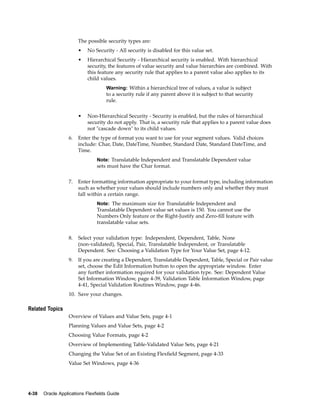
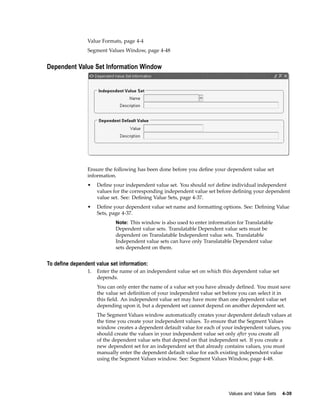
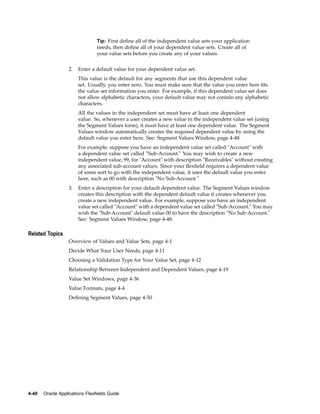
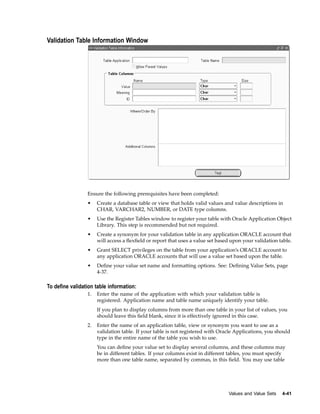
Primary Author: Mildred Wang, Sara Woodhull
Contributing Author: Gursat Olgun
Contributor: Gregory Ashford, Anne Carlson, Steven Carter, Hani Georgi, Rajesh Ghosh, Cliff
Godwin, Molly McLouth, Vikas Soolapani, Susan Stratton, Senthilnathan Vedi
The Programs (which include both the software and documentation) contain proprietary information; they
are provided under a license agreement containing restrictions on use and disclosure and are also protected
by copyright, patent, and other intellectual and industrial property laws. Reverse engineering, disassembly,
or decompilation of the Programs, except to the extent required to obtain interoperability with other
independently created software or as specified by law, is prohibited.
The information contained in this document is subject to change without notice. If you find any problems
in the documentation, please report them to us in writing. This document is not warranted to be error-free.
Except as may be expressly permitted in your license agreement for these Programs, no part of these Programs
may be reproduced or transmitted in any form or by any means, electronic or mechanical, for any purpose.
If the Programs are delivered to the United States Government or anyone licensing or using the Programs on
behalf of the United States Government, the following notice is applicable:
U.S. GOVERNMENT RIGHTS
Programs, software, databases, and related documentation and technical data delivered to U.S. Government
customers are "commercial computer software" or "commercial technical data" pursuant to the applicable
Federal Acquisition Regulation and agency-specific supplemental regulations. As such, use, duplication,
disclosure, modification, and adaptation of the Programs, including documentation and technical data, shall
be subject to the licensing restrictions set forth in the applicable Oracle license agreement, and, to the extent
applicable, the additional rights set forth in FAR 52.227-19, Commercial Computer Software–Restricted Rights
(June 1987). Oracle Corporation, 500 Oracle Parkway, Redwood City, CA 94065.
The Programs are not intended for use in any nuclear, aviation, mass transit, medical, or other inherently
dangerous applications. It shall be the licensee's responsibility to take all appropriate fail-safe, backup,
redundancy and other measures to ensure the safe use of such applications if the Programs are used for such
purposes, and we disclaim liability for any damages caused by such use of the Programs.
The Programs may provide links to Web sites and access to content, products, and services from third parties.
Oracle is not responsible for the availability of, or any content provided on, third-party Web sites. You bear
all risks associated with the use of such content. If you choose to purchase any products or services from a
third party, the relationship is directly between you and the third party. Oracle is not responsible for: (a) the
quality of third-party products or services; or (b) fulfilling any of the terms of the agreement with the third
party, including delivery of products or services and warranty obligations related to purchased products or
services. Oracle is not responsible for any loss or damage of any sort that you may incur from dealing with any
third party.
Oracle, JD Edwards, PeopleSoft, and Siebel are registered trademarks of Oracle Corporation and/or its
affiliates. Other names may be trademarks of their respective owners.
Contents
Send Us Your Comments
Preface
1 Flexeld Concepts
Overview of Flexfield Concepts . . . . . . . . . . . . . . . . . . . . . . . . . . . 1-1
Key Flexfields . . . . . . . . . . . . . . . . . . . . . . . . . . . . . . . . . . 1-2
Descriptive Flexfields . . . . . . . . . . . . . . . . . . . . . . . . . . . . . . . 1-3
Benefits of Flexfields . . . . . . . . . . . . . . . . . . . . . . . . . . . . . . . 1-4
Basic Flexfields Concepts . . . . . . . . . . . . . . . . . . . . . . . . . . . . . 1-5
Overview of Setting Up Flexfields. . . . . . . . . . . . . . . . . . . . . . . . . . . 1-7
Planning . . . . . . . . . . . . . . . . . . . . . . . . . . . . . . . . . . . . 1-7
Defining . . . . . . . . . . . . . . . . . . . . . . . . . . . . . . . . . . . 1-10
Data Entry and Ongoing Maintenance . . . . . . . . . . . . . . . . . . . . . . 1-11
Reporting . . . . . . . . . . . . . . . . . . . . . . . . . . . . . . . . . . . 1-11
Warning About Changing Data . . . . . . . . . . . . . . . . . . . . . . . . . . . 1-11
Types of Flexfields Information . . . . . . . . . . . . . . . . . . . . . . . . . . . 1-12
2 Planning and Dening Key Flexelds
Additional Terms and Concepts for Key Flexfields . . . . . . . . . . . . . . . . . . . 2-1
Intelligent Key . . . . . . . . . . . . . . . . . . . . . . . . . . . . . . . . . . 2-1
Combination . . . . . . . . . . . . . . . . . . . . . . . . . . . . . . . . . . 2-2
Combinations Table . . . . . . . . . . . . . . . . . . . . . . . . . . . . . . . 2-3
Qualifiers . . . . . . . . . . . . . . . . . . . . . . . . . . . . . . . . . . . . 2-4
Types of Key Flexfield Forms . . . . . . . . . . . . . . . . . . . . . . . . . . . 2-5
Dynamic Insertion . . . . . . . . . . . . . . . . . . . . . . . . . . . . . . . . 2-8
Other Key Flexfield Features. . . . . . . . . . . . . . . . . . . . . . . . . . . 2-10
Planning Your Key Flexfield . . . . . . . . . . . . . . . . . . . . . . . . . . . . 2-10
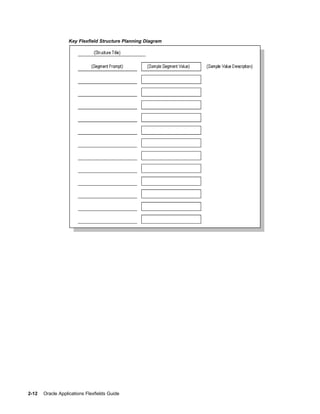
Key Flexfield Structure Planning Diagram . . . . . . . . . . . . . . . . . . . . . 2-11
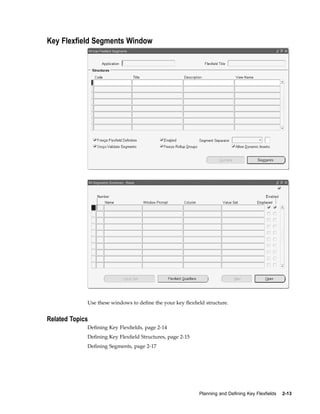
Key Flexfield Segments Window . . . . . . . . . . . . . . . . . . . . . . . . . . 2-13
Defining Key Flexfields . . . . . . . . . . . . . . . . . . . . . . . . . . . . . 2-14
Defining Key Flexfield Structures. . . . . . . . . . . . . . . . . . . . . . . . . 2-15
Defining Segments . . . . . . . . . . . . . . . . . . . . . . . . . . . . . . . 2-17
Choosing Your Value Set . . . . . . . . . . . . . . . . . . . . . . . . . . . . 2-20
Defaulting Segment Values . . . . . . . . . . . . . . . . . . . . . . . . . . . 2-21
iii
Segment Prompts and Display Lengths . . . . . . . . . . . . . . . . . . . . . . 2-24
Flexfield Qualifiers . . . . . . . . . . . . . . . . . . . . . . . . . . . . . . . 2-25
Reporting Attributes . . . . . . . . . . . . . . . . . . . . . . . . . . . . . . 2-26
Reporting Attributes Zone . . . . . . . . . . . . . . . . . . . . . . . . . . . 2-26
3 Planning and Dening Descriptive Flexelds
Descriptive Flexfield Concepts . . . . . . . . . . . . . . . . . . . . . . . . . . . . 3-1
How Segments Use Underlying Columns . . . . . . . . . . . . . . . . . . . . . . 3-3
Context Fields and Reference Fields . . . . . . . . . . . . . . . . . . . . . . . . . . 3-5
Context Fields . . . . . . . . . . . . . . . . . . . . . . . . . . . . . . . . . . 3-5
Using Value Sets With Context Fields . . . . . . . . . . . . . . . . . . . . . . . . 3-5
Reference Fields . . . . . . . . . . . . . . . . . . . . . . . . . . . . . . . . . 3-8
Other Descriptive Flexfield Features . . . . . . . . . . . . . . . . . . . . . . . . 3-9
Different Arrangements of Segments . . . . . . . . . . . . . . . . . . . . . . . . . 3-9
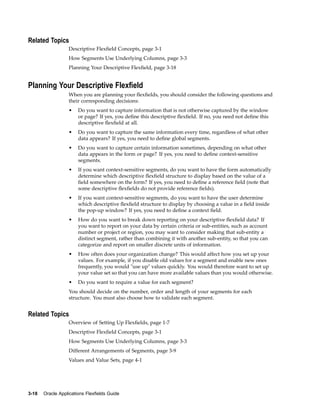
Planning Your Descriptive Flexfield . . . . . . . . . . . . . . . . . . . . . . . . . 3-18
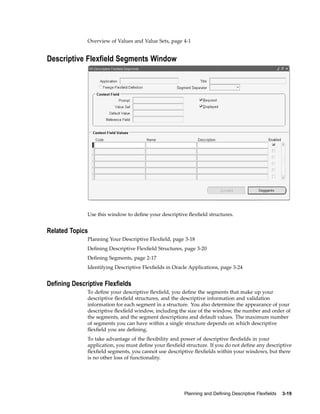
Descriptive Flexfield Segments Window . . . . . . . . . . . . . . . . . . . . . . . 3-19
Defining Descriptive Flexfields. . . . . . . . . . . . . . . . . . . . . . . . . . 3-19
Defining Descriptive Flexfield Structures . . . . . . . . . . . . . . . . . . . . . 3-20
Context Field Values . . . . . . . . . . . . . . . . . . . . . . . . . . . . . . 3-22
Identifying Descriptive Flexfields in Oracle Applications . . . . . . . . . . . . . . . 3-24
Identifying Descriptive Flexfields. . . . . . . . . . . . . . . . . . . . . . . . . 3-25
4 Values and Value Sets
Overview of Values and Value Sets . . . . . . . . . . . . . . . . . . . . . . . . . . 4-1
Planning Values and Value Sets . . . . . . . . . . . . . . . . . . . . . . . . . . 4-2
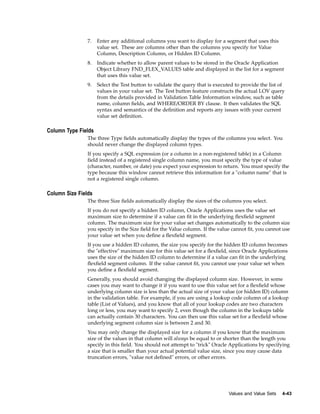
Choosing Value Formats . . . . . . . . . . . . . . . . . . . . . . . . . . . . . 4-2
Value Formats . . . . . . . . . . . . . . . . . . . . . . . . . . . . . . . . . . 4-4
Decide What Your User Needs . . . . . . . . . . . . . . . . . . . . . . . . . . 4-11
Choosing a Validation Type for Your Value Set . . . . . . . . . . . . . . . . . . . 4-12
Plan Values to Use Range Features . . . . . . . . . . . . . . . . . . . . . . . . 4-16
Value Set Naming Conventions . . . . . . . . . . . . . . . . . . . . . . . . . 4-17
Predefined Value Sets . . . . . . . . . . . . . . . . . . . . . . . . . . . . . . 4-17
Defining Values and Value Sets. . . . . . . . . . . . . . . . . . . . . . . . . . 4-18
Relationship Between Independent and Dependent Values . . . . . . . . . . . . . 4-19
Parent and Child Values and Rollup Groups . . . . . . . . . . . . . . . . . . . . 4-20
Overview of Implementing Table-Validated Value Sets . . . . . . . . . . . . . . . . 4-21
Using Validation Tables . . . . . . . . . . . . . . . . . . . . . . . . . . . . . 4-22
Defining Your Validation Table . . . . . . . . . . . . . . . . . . . . . . . . . 4-24
Creating Grants and Synonyms for Your Table . . . . . . . . . . . . . . . . . . . 4-24
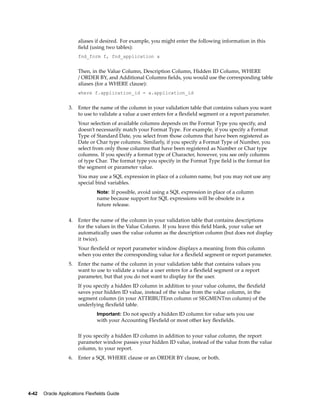
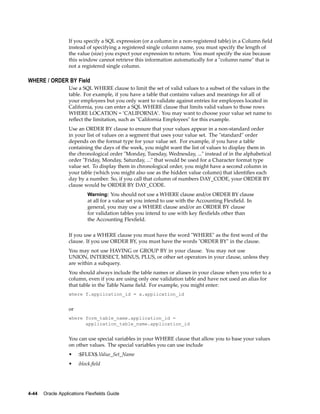
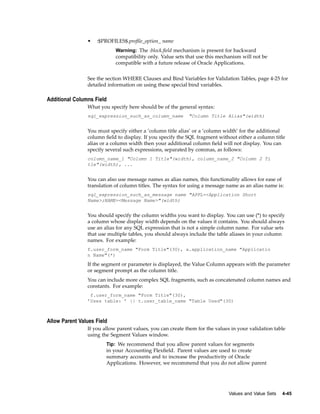
WHERE Clauses and Bind Variables for Validation Tables . . . . . . . . . . . . . . 4-25
Bind Variables . . . . . . . . . . . . . . . . . . . . . . . . . . . . . . . . . 4-26
Example of $FLEX$ Syntax . . . . . . . . . . . . . . . . . . . . . . . . . . . 4-28
Using Translatable Independent and Translatable Dependent Value Sets . . . . . . . . 4-29
Implementation . . . . . . . . . . . . . . . . . . . . . . . . . . . . . . . . 4-30
Limitations on Translatable Value Sets . . . . . . . . . . . . . . . . . . . . . . 4-30
iv
Converting Independent/Dependent Value Sets to Translatable Independent/Dependent
Value Sets . . . . . . . . . . . . . . . . . . . . . . . . . . . . . . . . . . . 4-31
Using Special and Pair Value Sets . . . . . . . . . . . . . . . . . . . . . . . . . . 4-31
Defaulting Flexfield Values. . . . . . . . . . . . . . . . . . . . . . . . . . . . . 4-32
Precedence of Default Values, Shorthand Entry Values, and COPY Values in Key Flexfields 4-33
Changing the Value Set of an Existing Flexfield Segment . . . . . . . . . . . . . . . 4-33
Value Set Windows . . . . . . . . . . . . . . . . . . . . . . . . . . . . . . . . 4-36
Overview of Value Set Windows . . . . . . . . . . . . . . . . . . . . . . . . . 4-36
Defining Value Sets . . . . . . . . . . . . . . . . . . . . . . . . . . . . . . . 4-37
Dependent Value Set Information Window . . . . . . . . . . . . . . . . . . . . 4-39
Validation Table Information Window . . . . . . . . . . . . . . . . . . . . . . 4-41
Special Validation Routines Window . . . . . . . . . . . . . . . . . . . . . . . 4-46
Value Set Usages . . . . . . . . . . . . . . . . . . . . . . . . . . . . . . . . 4-47
Segment Values Window . . . . . . . . . . . . . . . . . . . . . . . . . . . . . 4-48
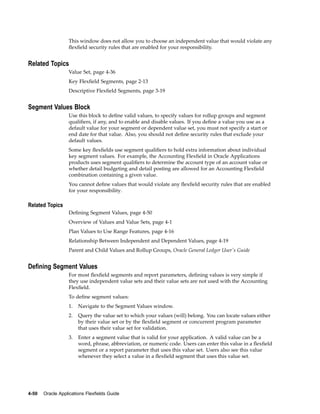
Segment Values Block. . . . . . . . . . . . . . . . . . . . . . . . . . . . . . 4-50
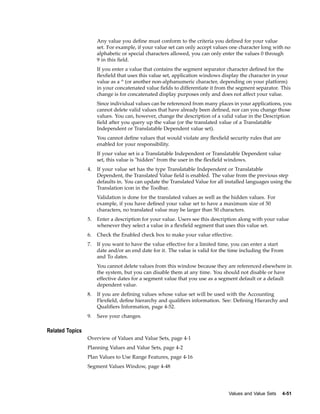
Defining Segment Values . . . . . . . . . . . . . . . . . . . . . . . . . . . . 4-50
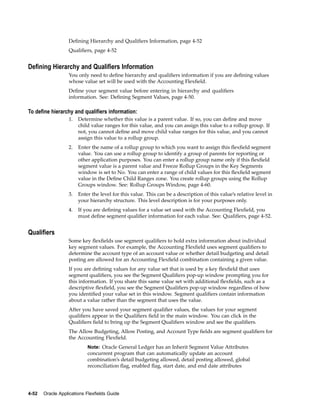
Defining Hierarchy and Qualifiers Information. . . . . . . . . . . . . . . . . . . 4-52
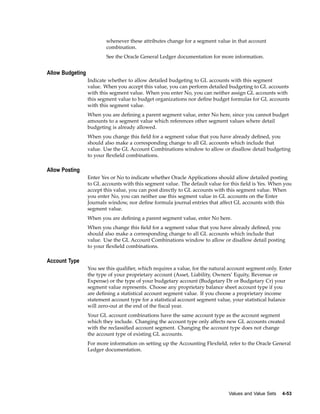
Qualifiers . . . . . . . . . . . . . . . . . . . . . . . . . . . . . . . . . . . 4-52
Hierarchy Details Buttons . . . . . . . . . . . . . . . . . . . . . . . . . . . . 4-54
Define Child Ranges . . . . . . . . . . . . . . . . . . . . . . . . . . . . . . 4-54
View Hierarchies . . . . . . . . . . . . . . . . . . . . . . . . . . . . . . . 4-56
Move Child Ranges . . . . . . . . . . . . . . . . . . . . . . . . . . . . . . 4-58
Rollup Groups Window . . . . . . . . . . . . . . . . . . . . . . . . . . . . . . 4-60
Defining Rollup Groups. . . . . . . . . . . . . . . . . . . . . . . . . . . . . 4-60
5 Using Additional Flexeld Features
Overview of Shorthand Flexfield Entry . . . . . . . . . . . . . . . . . . . . . . . . 5-1
Enabling Shorthand Entry . . . . . . . . . . . . . . . . . . . . . . . . . . . . . 5-3
Defining Shorthand Aliases . . . . . . . . . . . . . . . . . . . . . . . . . . . . 5-4
Disabling or Enabling a Shorthand Alias . . . . . . . . . . . . . . . . . . . . . . 5-5
Overview of Flexfield Value Security . . . . . . . . . . . . . . . . . . . . . . . . . 5-6
Effects of Flexfield Value Security . . . . . . . . . . . . . . . . . . . . . . . . . 5-7
Understanding Flexfield Value Security . . . . . . . . . . . . . . . . . . . . . . . 5-8
Activating Flexfield Value Security . . . . . . . . . . . . . . . . . . . . . . . . 5-11
Define Security Rules Window and Assign Security Rules Window . . . . . . . . . . 5-12
Defining Security Rules . . . . . . . . . . . . . . . . . . . . . . . . . . . . . 5-13
Defining Security Rule Elements . . . . . . . . . . . . . . . . . . . . . . . . . 5-14
Assigning Security Rules . . . . . . . . . . . . . . . . . . . . . . . . . . . . 5-15
Cross-Validation Rules . . . . . . . . . . . . . . . . . . . . . . . . . . . . . . 5-16
How Cross-Validation Works . . . . . . . . . . . . . . . . . . . . . . . . . . 5-18
Designing Your Cross-Validation Rules . . . . . . . . . . . . . . . . . . . . . . 5-19
Maintaining Your Cross-Validation Rules and Valid Combinations . . . . . . . . . . 5-24
Reports . . . . . . . . . . . . . . . . . . . . . . . . . . . . . . . . . . . . 5-24
Cross-Validation Rules Window . . . . . . . . . . . . . . . . . . . . . . . . . . 5-25
Defining Cross-validation Rules . . . . . . . . . . . . . . . . . . . . . . . . . 5-26
v
Defining Cross-validation Rule Elements . . . . . . . . . . . . . . . . . . . . . 5-27
6 Key Flexelds in Oracle Applications
Overview. . . . . . . . . . . . . . . . . . . . . . . . . . . . . . . . . . . . . . 6-1
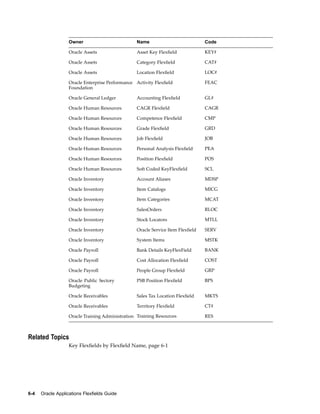
Key Flexfields by Flexfield Name . . . . . . . . . . . . . . . . . . . . . . . . . . . 6-1
Key Flexfields by Owning Application . . . . . . . . . . . . . . . . . . . . . . . . 6-3
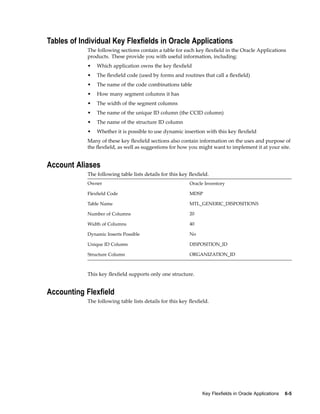
Tables of Individual Key Flexfields in Oracle Applications. . . . . . . . . . . . . . . . 6-5
Account Aliases . . . . . . . . . . . . . . . . . . . . . . . . . . . . . . . . . . 6-5
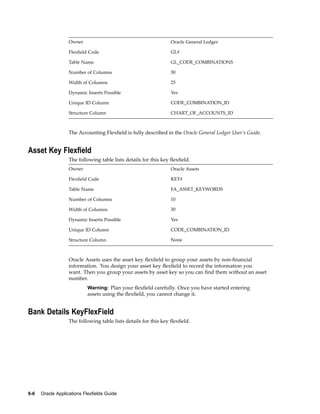
Accounting Flexfield . . . . . . . . . . . . . . . . . . . . . . . . . . . . . . . . 6-5
Asset Key Flexfield . . . . . . . . . . . . . . . . . . . . . . . . . . . . . . . . . 6-6
Bank Details KeyFlexField . . . . . . . . . . . . . . . . . . . . . . . . . . . . . . 6-6
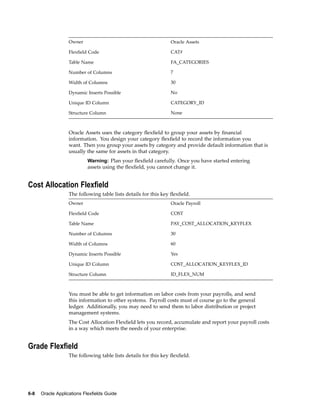
Category Flexfield . . . . . . . . . . . . . . . . . . . . . . . . . . . . . . . . . . 6-7
Cost Allocation Flexfield . . . . . . . . . . . . . . . . . . . . . . . . . . . . . . . 6-8
Grade Flexfield . . . . . . . . . . . . . . . . . . . . . . . . . . . . . . . . . . . 6-8
Item Catalogs . . . . . . . . . . . . . . . . . . . . . . . . . . . . . . . . . . . . 6-9
Item Categories . . . . . . . . . . . . . . . . . . . . . . . . . . . . . . . . . . . 6-9
Job Flexfield . . . . . . . . . . . . . . . . . . . . . . . . . . . . . . . . . . . 6-10
Location Flexfield . . . . . . . . . . . . . . . . . . . . . . . . . . . . . . . . . 6-10
People Group Flexfield. . . . . . . . . . . . . . . . . . . . . . . . . . . . . . . 6-11
Personal Analysis Flexfield . . . . . . . . . . . . . . . . . . . . . . . . . . . . . 6-11
Position Flexfield . . . . . . . . . . . . . . . . . . . . . . . . . . . . . . . . . 6-12
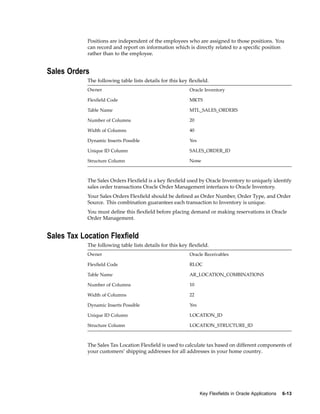
Sales Orders . . . . . . . . . . . . . . . . . . . . . . . . . . . . . . . . . . . 6-13
Sales Tax Location Flexfield . . . . . . . . . . . . . . . . . . . . . . . . . . . . 6-13
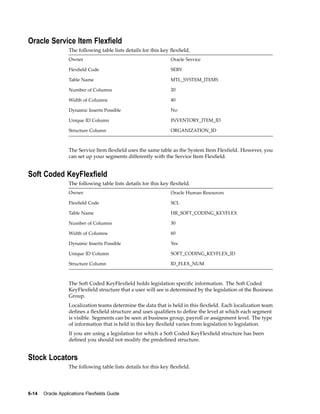
Oracle Service Item Flexfield . . . . . . . . . . . . . . . . . . . . . . . . . . . . 6-14
Soft Coded KeyFlexfield . . . . . . . . . . . . . . . . . . . . . . . . . . . . . . 6-14
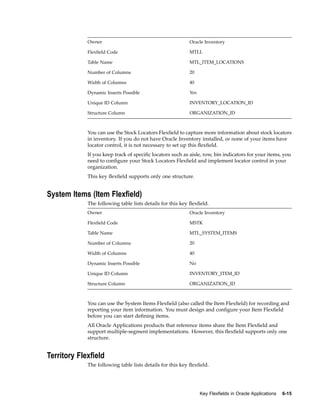
Stock Locators . . . . . . . . . . . . . . . . . . . . . . . . . . . . . . . . . . 6-14
System Items (Item Flexfield) . . . . . . . . . . . . . . . . . . . . . . . . . . . . 6-15
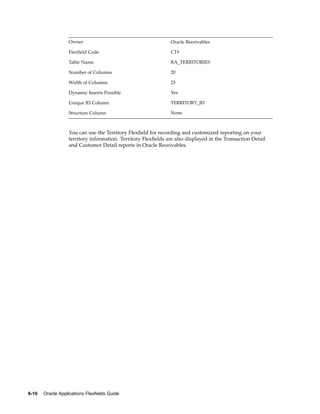
Territory Flexfield . . . . . . . . . . . . . . . . . . . . . . . . . . . . . . . . . 6-15
7 Standard Request Submission
Overview of Flexfields and Standard Request Submission . . . . . . . . . . . . . . . . 7-1
Planning Your Report Parameters . . . . . . . . . . . . . . . . . . . . . . . . . 7-2
Using Flexfield Information in Your Report Parameters . . . . . . . . . . . . . . . . 7-3
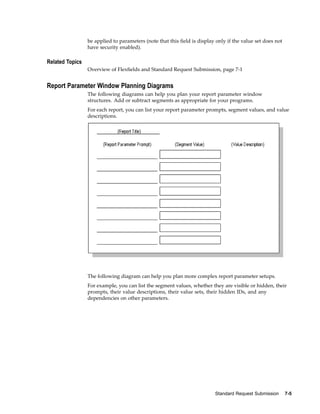
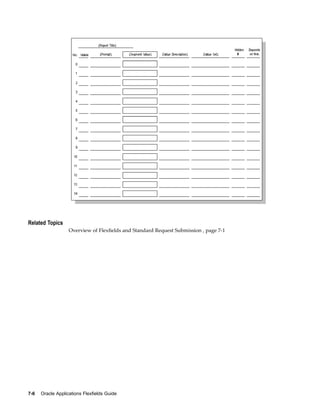
Report Parameter Window Planning Diagrams. . . . . . . . . . . . . . . . . . . . 7-5
8 Reporting on Flexelds Data
Overview of Reporting on Flexfields Data . . . . . . . . . . . . . . . . . . . . . . . 8-1
Overview of Flexfield Views . . . . . . . . . . . . . . . . . . . . . . . . . . . . . 8-1
Key Flexfield Concatenated Segment View . . . . . . . . . . . . . . . . . . . . . 8-2
Key Flexfield Structure View. . . . . . . . . . . . . . . . . . . . . . . . . . . . 8-3
Descriptive Flexfield View . . . . . . . . . . . . . . . . . . . . . . . . . . . . 8-4
Creating a Flexfield View . . . . . . . . . . . . . . . . . . . . . . . . . . . . . 8-4
Segment Naming Conventions . . . . . . . . . . . . . . . . . . . . . . . . . . . 8-6
Using Flexfield Views to Write a Report . . . . . . . . . . . . . . . . . . . . . . . 8-7
vi
Examples of Flexfield Views . . . . . . . . . . . . . . . . . . . . . . . . . . . . . 8-8
Key Flexfield Views Examples . . . . . . . . . . . . . . . . . . . . . . . . . . . 8-8
Descriptive Flexfield View Example . . . . . . . . . . . . . . . . . . . . . . . 8-11
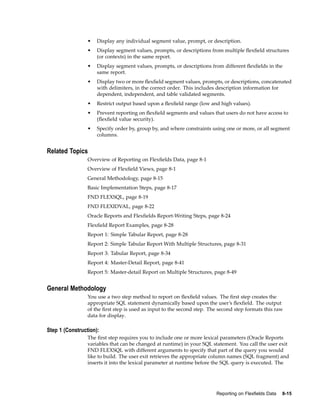
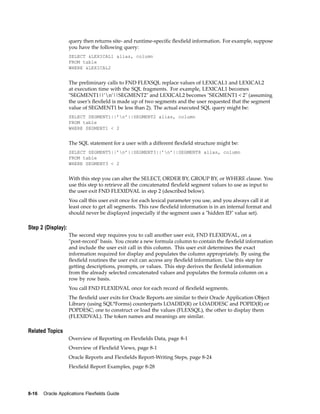
Oracle Reports 6.0 Flexfield Support API. . . . . . . . . . . . . . . . . . . . . . . 8-14
General Methodology. . . . . . . . . . . . . . . . . . . . . . . . . . . . . . 8-15
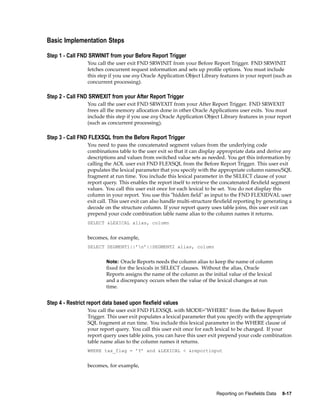
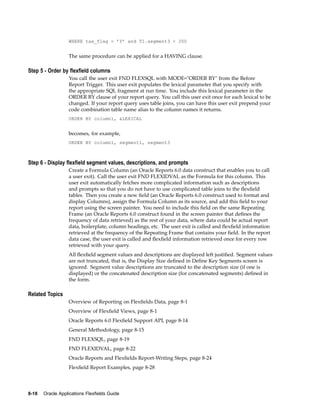
Basic Implementation Steps . . . . . . . . . . . . . . . . . . . . . . . . . . . 8-17
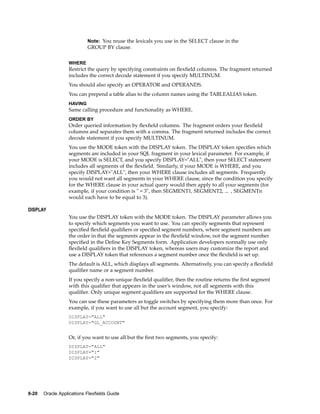
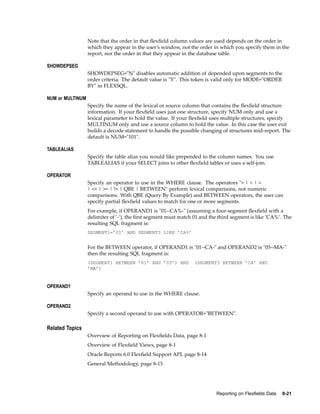
FND FLEXSQL. . . . . . . . . . . . . . . . . . . . . . . . . . . . . . . . . 8-19
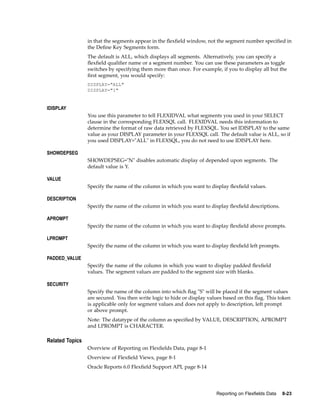
FND FLEXIDVAL . . . . . . . . . . . . . . . . . . . . . . . . . . . . . . . 8-22
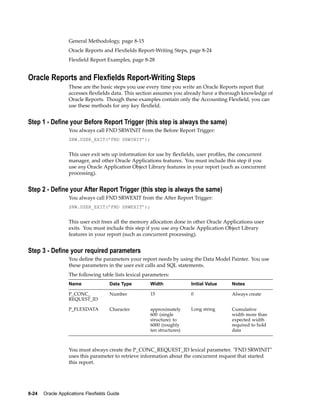
Oracle Reports and Flexfields Report-Writing Steps . . . . . . . . . . . . . . . . . . 8-24
Flexfield Report Examples . . . . . . . . . . . . . . . . . . . . . . . . . . . . . 8-28
Report 1: Simple Tabular Report . . . . . . . . . . . . . . . . . . . . . . . . . 8-28
Report 2: Simple Tabular Report With Multiple Structures . . . . . . . . . . . . . . 8-31
Report 3: Tabular Report . . . . . . . . . . . . . . . . . . . . . . . . . . . . 8-34
Report 4: Master-Detail Report. . . . . . . . . . . . . . . . . . . . . . . . . . 8-41
Report 5: Master-detail Report on Multiple Structures. . . . . . . . . . . . . . . . 8-49
9 Key Flexeld Routines for Special Validation
Syntax for Key Flexfield Routines . . . . . . . . . . . . . . . . . . . . . . . . . . . 9-1
Special Validation Value Sets . . . . . . . . . . . . . . . . . . . . . . . . . . . . 9-14
Special Validation Events . . . . . . . . . . . . . . . . . . . . . . . . . . . . 9-16
Defining Your Special Validation Function . . . . . . . . . . . . . . . . . . . . . 9-17
Example of Special Validation . . . . . . . . . . . . . . . . . . . . . . . . . . 9-18
Example of Special Validation for a Single Segment . . . . . . . . . . . . . . . . . 9-19
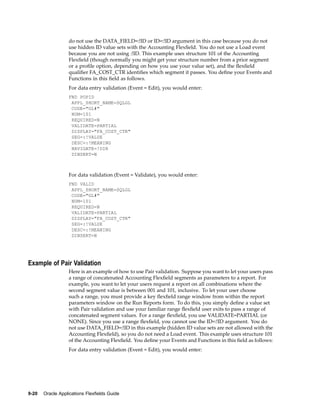
Example of Pair Validation . . . . . . . . . . . . . . . . . . . . . . . . . . . 9-20
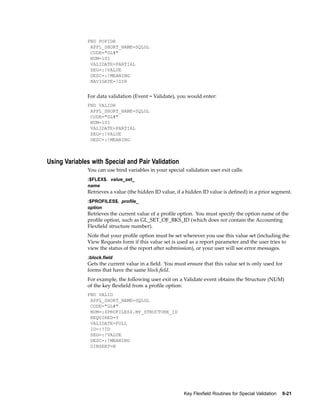
Using Variables with Special and Pair Validation . . . . . . . . . . . . . . . . . . 9-21
10 Account Generator
Overview of the Account Generator . . . . . . . . . . . . . . . . . . . . . . . . . 10-1
Terms. . . . . . . . . . . . . . . . . . . . . . . . . . . . . . . . . . . . . 10-1
Account Generator Process Diagram . . . . . . . . . . . . . . . . . . . . . . . 10-2
How the Account Generator Works . . . . . . . . . . . . . . . . . . . . . . . . 10-3
Where the Account Generator Derives Segment Values . . . . . . . . . . . . . . . 10-3
The Account Generator in Oracle Applications . . . . . . . . . . . . . . . . . . . . 10-5
Overview of Implementing the Account Generator . . . . . . . . . . . . . . . . . . 10-5
Customizing the Account Generator. . . . . . . . . . . . . . . . . . . . . . . . . 10-5
Determine Characteristics of Combination. . . . . . . . . . . . . . . . . . . . . 10-6
Decide From Where Each Segment Derives Its Value . . . . . . . . . . . . . . . . 10-7
Modify Your Account Generator Process . . . . . . . . . . . . . . . . . . . . . 10-7
Test Your Account Generator Setup . . . . . . . . . . . . . . . . . . . . . . . . . 10-9
Standard Flexfield Workflow . . . . . . . . . . . . . . . . . . . . . . . . . . . . 10-9
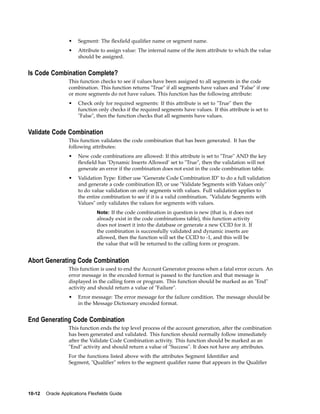
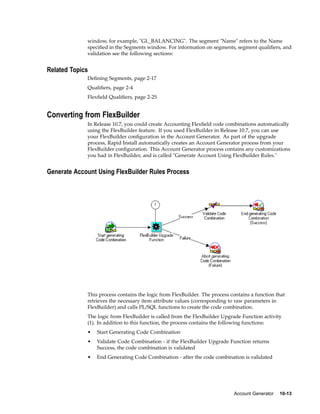
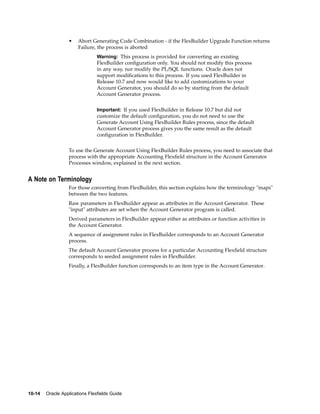
Converting from FlexBuilder . . . . . . . . . . . . . . . . . . . . . . . . . . . . 10-13
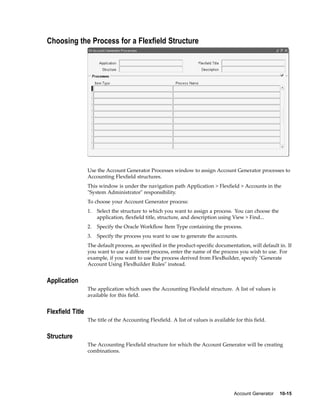
Choosing the Process for a Flexfield Structure . . . . . . . . . . . . . . . . . . . . 10-15
vii
A Business View Generator
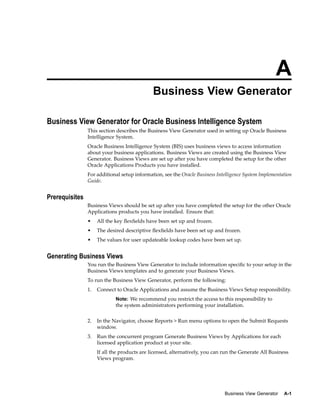
Business View Generator for Oracle Business Intelligence System . . . . . . . . . . . . A-1
Index
viii
Send Us Your Comments
Oracle Applications Flexelds Guide, Release 11i
Part No. A75393-06
Oracle welcomes customers' comments and suggestions on the quality and usefulness of this document.
Your feedback is important, and helps us to best meet your needs as a user of our products. For example:
• Are the implementation steps correct and complete?
• Did you understand the context of the procedures?
• Did you find any errors in the information?
• Does the structure of the information help you with your tasks?
• Do you need different information or graphics? If so, where, and in what format?
• Are the examples correct? Do you need more examples?
If you find any errors or have any other suggestions for improvement, then please tell us your name, the
name of the company who has licensed our products, the title and part number of the documentation and
the chapter, section, and page number (if available).
Note: Before sending us your comments, you might like to check that you have the latest version of the
document and if any concerns are already addressed. To do this, access the new Applications Release
Online Documentation CD available on Oracle MetaLink and www.oracle.com. It contains the most
current Documentation Library plus all documents revised or released recently.
Send your comments to us using the electronic mail address: appsdoc_us@oracle.com
Please give your name, address, electronic mail address, and telephone number (optional).
If you need assistance with Oracle software, then please contact your support representative or Oracle
Support Services.
If you require training or instruction in using Oracle software, then please contact your Oracle local
office and inquire about our Oracle University offerings. A list of Oracle offices is available on our Web
site at www.oracle.com.
ix
Preface
Intended Audience
Welcome to Release 11i of the Oracle Applications Flexfields Guide.
This guide assumes you have a working knowledge of the principles and customary
practices of your business area. If you have never used Oracle Applications we suggest
you attend one or more of the Oracle Applications System Administration training
classes available through Oracle University. (See Other Information Sources for more
information about Oracle training.)
This guide also assumes you are familiar with the Oracle Applications graphical user
interface. To learn more about the Oracle Applications graphical user interface, read the
Oracle Applications User’s Guide.
See Other Information Sources for more information about Oracle Applications product
information.
See Related Information Sources on page xii for more Oracle Applications product
information.
TTY Access to Oracle Support Services
Oracle provides dedicated Text Telephone (TTY) access to Oracle Support Services
within the United States of America 24 hours a day, seven days a week. For TTY support,
call 800.446.2398.
Documentation Accessibility
Our goal is to make Oracle products, services, and supporting documentation accessible,
with good usability, to the disabled community. To that end, our documentation
includes features that make information available to users of assistive technology.
This documentation is available in HTML format, and contains markup to facilitate
access by the disabled community. Accessibility standards will continue to evolve over
time, and Oracle is actively engaged with other market-leading technology vendors to
address technical obstacles so that our documentation can be accessible to all of our
customers. For more information, visit the Oracle Accessibility Program Web site at
http://www.oracle.com/accessibility/ .
Accessibility of Code Examples in Documentation
Screen readers may not always correctly read the code examples in this document. The
conventions for writing code require that closing braces should appear on an otherwise
empty line; however, some screen readers may not always read a line of text that consists
solely of a bracket or brace.
xi
Accessibility of Links to External Web Sites in Documentation
This documentation may contain links to Web sites of other companies or organizations
that Oracle does not own or control. Oracle neither evaluates nor makes any
representations regarding the accessibility of these Web sites.
Structure
1 Flexeld Concepts
2 Planning and Dening Key Flexelds
3 Planning and Dening Descriptive Flexelds
4 Values and Value Sets
5 Using Additional Flexeld Features
6 Key Flexelds in Oracle Applications
7 Standard Request Submission
8 Reporting on Flexelds Data
9 Key Flexeld Routines for Special Validation
10 Account Generator
A Business View Generator
Related Information Sources
You can choose from many sources of information, including online
documentation, training, and support services to increase your knowledge and
understanding of Oracle Applications system administration.
If this guide refers you to other Oracle Applications documentation, use only the Release
11i versions of those guides.
Online Documentation
All Oracle Applications documentation is available online (HTML or PDF).
• PDF Documentation - See the Oracle Applications Documentation Library CD
for current PDF documentation for your product with each release. The Oracle
Applications Documentation Library is also available on OracleMetaLink and is
updated frequently.
• Online Help - Online help patches (HTML) are available on OracleMetaLink.
• About Documents - Refer to the About document for the mini-pack or family pack
that you have installed to learn about feature updates, installation information, and
new documentation or documentation patches that you can download. About
documents are available on OracleMetaLink.
Related Guides
You can read the guides online by choosing Library from the expandable menu on your
HTML help window, by reading from the Oracle Applications Documentation Library
CD included in your media pack, or by using a Web browser with a URL that your
system administrator provides.
If you require printed guides, you can purchase them from the Oracle Store at
http://oraclestore.oracle.com.
xii
Guides Related to All Products
Oracle Applications User’s Guide
This guide explains how to enter data, query, run reports, and navigate using the
graphical user interface (GUI) available with this release of Oracle Advanced Product
Catalog (and any other Oracle Applications products). This guide also includes
information on setting user profiles, as well as running and reviewing reports and
concurrent processes.
You can access this user’s guide online by choosing ”Getting Started with Oracle
Applications” from any Oracle Applications help file.
Installation and System Administration
Oracle Applications Concepts
This guide provides an introduction to the concepts, features, technology
stack, architecture, and terminology for Oracle Applications Release 11i. It provides a
useful first book to read before an installation of Oracle Applications. This guide also
introduces the concepts behind Applications-wide features such as Business Intelligence
(BIS), languages and character sets, and Self-Service Web Applications.
Installing Oracle Applications
This guide provides instructions for managing the installation of Oracle Applications
products. In Release 11i, much of the installation process is handled using Oracle Rapid
Install, which minimizes the time to install Oracle Applications, the Oracle8 technology
stack, and the Oracle8i Server technology stack by automating many of the required
steps. This guide contains instructions for using Oracle Rapid Install and lists the tasks
you need to perform to finish your installation. You should use this guide in conjunction
with individual product user guides and implementation guides.
Upgrading Oracle Applications
Refer to this guide if you are upgrading your Oracle Applications Release 10.7 or
Release 11.0 products to Release 11i. This guide describes the upgrade process and
lists database and product-specific upgrade tasks. You must be either at Release 10.7
(NCA, SmartClient, or character mode) or Release 11.0, to upgrade to Release 11i. You
cannot upgrade to Release 11i directly from releases prior to 10.7.
Maintaining Oracle Applications
Use this guide to help you run the various AD utilities, such as AutoUpgrade, Auto
Patch, AD Administration, AD Controller, AD Relink, License Manager, and others. It
contains how-to steps, screenshots, and other information that you need to run the AD
utilities. This guide also provides information on maintaining the Oracle Applications
file system and database.
Oracle Alert User’s Guide
This guide explains how to define periodic and event alerts to monitor the status of
your Oracle Applications data.
Oracle Applications Developer’s Guide
This guide contains the coding standards followed by the Oracle Applications
development staff. It describes the Oracle Application Object Library components
needed to implement the Oracle Applications user interface described in the Oracle
Applications User Interface Standards for Forms-Based Products. It also provides information
xiii
to help you build your custom Oracle Forms Developer forms so that they integrate
with Oracle Applications.
Oracle Applications User Interface Standards for Forms-Based Products
This guide contains the user interface (UI) standards followed by the Oracle Applications
development staff. It describes the UI for the Oracle Applications products and how to
apply this UI to the design of an application built by using Oracle Forms.
Other Implementation Documentation
Oracle Applications Product Update Notes
Use this guide as a reference for upgrading an installation of Oracle Applications. It
provides a history of the changes to individual Oracle Applications products between
Release 11.0 and Release 11i. It includes new features, enhancements, and changes made
to database objects, profile options, and seed data for this interval.
Multiple Reporting Currencies in Oracle Applications
If you use the Multiple Reporting Currencies feature to record transactions in more than
one currency, use this manual before implementing Oracle Applications. This manual
details additional steps and setup considerations for implementing Oracle Applications
with this feature.
Multiple Organizations in Oracle Applications
This guide describes how to set up and use Oracle Applications’ Multiple Organization
support feature, so you can define and support different organization structures when
running a single installation of Oracle Applications.
Oracle Applications System Administrator’s Guide
This guide provides planning and reference information for the Oracle Applications
System Administrator. It contains information on how to define security, customize
menus and online help, and manage concurrent processing.
Oracle Workflow Administrator’s Guide
This guide explains how to complete the setup steps necessary for any Oracle
Applications product that includes workflow-enabled processes, as well as how to
monitor the progress of runtime workflow processes.
Oracle Workflow Developer’s Guide
This guide explains how to define new workflow business processes and customize
existing Oracle Applications-embedded workflow processes. It also describes how to
define and customize business events and event subscriptions.
Oracle Workflow User’s Guide
This guide describes how Oracle Applications users can view and respond to workflow
notifications and monitor the progress of their workflow processes.
Oracle Workflow API Reference
This guide describes the APIs provided for developers and administrators to access
Oracle Workflow.
Oracle eTechnical Reference Manuals
xiv
Each eTechnical Reference Manual (eTRM) contains database diagrams and a detailed
description of database tables, forms, reports, and programs for a specific Oracle
Applications product. This information helps you convert data from your existing
applications, integrate Oracle Applications data with non-Oracle applications, and
write custom reports for Oracle Applications products. Oracle eTRM is available on
OracleMetaLink.
Oracle Applications Message Reference Manual
This manual describes Oracle Applications messages. This manual is available in HTML
format on the documentation CD-ROM for Release 11i.
Training and Support
Training
Oracle offers a complete set of training courses to help you and your staff master
Oracle Applications and reach full productivity quickly. These courses are organized
into functional learning paths, so you take only those courses appropriate to your job
or area of responsibility.
You have a choice of educational environments. You can attend courses offered by
Oracle University at any one of our many Education Centers, you can arrange for our
trainers to teach at your facility, or you can use Oracle Learning Network (OLN), Oracle
University’s online education utility. In addition, Oracle training professionals can tailor
standard courses or develop custom courses to meet your needs. For example, you
may want to use your organization’s structure, terminology, and data as examples in a
customized training session delivered at your own facility.
Support
From on-site support to central support, our team of experienced professionals provides
the help and information you need to keep Oracle Applications working for you. This
team includes your Technical Representative, Account Manager, and Oracle’s large staff
of consultants and support specialists with expertise in your business area, managing an
Oracle Database, and your hardware and software environment.
Do Not Use Database Tools to Modify Oracle Applications Data
Oracle STRONGLY RECOMMENDS that you never use SQL*Plus, Oracle Data Browser,
database triggers, or any other tool to modify Oracle Applications data unless otherwise
instructed.
Oracle provides powerful tools you can use to create, store, change, retrieve, and
maintain information in an Oracle database. But if you use Oracle tools such as SQL*Plus
to modify Oracle Applications data, you risk destroying the integrity of your data and
you lose the ability to audit changes to your data.
Because Oracle Applications tables are interrelated, any change you make using an
Oracle Applications form can update many tables at once. But when you modify Oracle
Applications data using anything other than Oracle Applications, you may change a row
in one table without making corresponding changes in related tables. If your tables get
out of synchronization with each other, you risk retrieving erroneous information and
you risk unpredictable results throughout Oracle Applications.
When you use Oracle Applications to modify your data, Oracle Applications
automatically checks that your changes are valid. Oracle Applications also keeps track of
xv
who changes information. If you enter information into database tables using database
tools, you may store invalid information. You also lose the ability to track who has
changed your information because SQL*Plus and other database tools do not keep a
record of changes.
xvi
1
Flexeld Concepts
Overview of Flexeld Concepts
This chapter provides you with a conceptual overview of flexfields. You will learn about:
• the general features of flexfields
• flexfields terminology
• the benefits of flexfields
• the distinction between a key and descriptive flexfield
• the overall setup process for flexfields
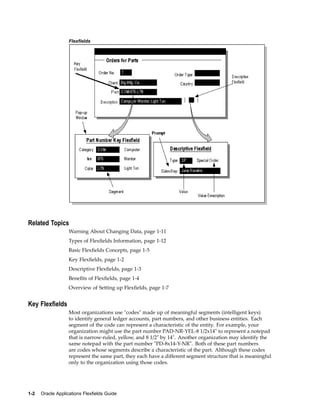
A flexfield is a field made up of sub-fields, or segments. There are two types of
flexfields: key flexfields and descriptive flexfields. A key flexfield appears on your form
as a normal text field with an appropriate prompt. A descriptive flexfield appears on
your form as a two-character-wide text field with square brackets [ ] as its prompt. When
opened, both types of flexfield appear as a pop-up window that contains a separate field
and prompt for each segment. Each segment has a name and a set of valid values. The
values may also have value descriptions.
Flexeld Concepts 1-1
Flexelds
Related Topics
Warning About Changing Data, page 1-11
Types of Flexfields Information, page 1-12
Basic Flexfields Concepts, page 1-5
Key Flexfields, page 1-2
Descriptive Flexfields, page 1-3
Benefits of Flexfields, page 1-4
Overview of Setting up Flexfields, page 1-7
Key Flexelds
Most organizations use "codes" made up of meaningful segments (intelligent keys)
to identify general ledger accounts, part numbers, and other business entities. Each
segment of the code can represent a characteristic of the entity. For example, your
organization might use the part number PAD-NR-YEL-8 1/2x14" to represent a notepad
that is narrow-ruled, yellow, and 8 1/2" by 14". Another organization may identify the
same notepad with the part number "PD-8x14-Y-NR". Both of these part numbers
are codes whose segments describe a characteristic of the part. Although these codes
represent the same part, they each have a different segment structure that is meaningful
only to the organization using those codes.
1-2 Oracle Applications Flexelds Guide
The Oracle Applications store these "codes" in key flexfields. Key flexfields are flexible
enough to let any organization use the code scheme they want, without programming.
When your organization initially installs Oracle Applications, you and your
organization’s implementation team customize the key flexfields to incorporate code
segments that are meaningful to your business. You decide what each segment
means, what values each segment can have, and what the segment values mean. Your
organization can define rules to specify which segment values can be combined to make
a valid complete code (also called a combination). You can also define relationships
among the segments. The result is that you and your organization can use the codes you
want rather than changing your codes to meet Oracle Applications’ requirements.
For example, consider the codes your organization uses to identify general ledger
accounts. Oracle Applications represent these codes using a particular key flexfield called
the Accounting Flexfield. One organization might choose to customize the Accounting
Flexfield to include five segments: company, division, department, account, and
project. Another organization, however, might structure their general ledger account
segments differently, perhaps using twelve segments instead of five. The Accounting
Flexfield lets your Oracle General Ledger application accommodate the needs of different
organizations by allowing them to customize that key flexfield to their particular
business usage. See: Oracle General Ledger User’s Guide.
Important: Throughout this guide we use the "Part Number Key
Flexfield" in our examples and graphics. We use this example
because it helps to illustrate the uses and behaviors of key flexfields
without requiring any specialized accounting, human resources, or
manufacturing knowledge. However, there is no actual "Part Number
Key Flexfield" in the Oracle Applications, and you should not confuse it
with the System Items Flexfield (Item Flexfield) used by many Oracle
Applications products such as Oracle Inventory.
Descriptive Flexelds
Descriptive flexfields provide customizable "expansion space" on your forms. You can
use descriptive flexfields to track additional information, important and unique to your
business, that would not otherwise be captured by the form. Descriptive flexfields can be
context sensitive, where the information your application stores depends on other values
your users enter in other parts of the form.
A descriptive flexfield appears on a form as a single-character, unnamed field enclosed
in brackets. Just like in a key flexfield, a pop-up window appears when you move your
cursor into a customized descriptive flexfield. And like a key flexfield, the pop-up
window has as many fields as your organization needs.
Each field or segment in a descriptive flexfield has a prompt, just like ordinary fields, and
can have a set of valid values. Your organization can define dependencies among the
segments or customize a descriptive flexfield to display context-sensitive segments, so
that different segments or additional pop-up windows appear depending on the values
you enter in other fields or segments.
For example, consider the Additions form you use to define an asset in your Oracle
Assets application. This form contains fields to capture the "normal" information about
an asset, such as the type of asset and an asset number. However, the form does not
contain specific fields for each detail about a given asset, such as amount of memory in a
computer or lifting capacity of a forklift. In this case, having all the potentially-needed
fields actually built into the form is not only difficult, it is undesirable. Because while
Flexeld Concepts 1-3
one organization may have computers and forklifts as assets, another organization may
have only computers and luxury automobiles (and no forklifts) as assets. If the form
contained built-in fields for each attribute of a forklift, for example, an organization
with no forklifts would find those fields to be both unnecessary and a nuisance because
a user must skip them to enter information about another type of asset. In fact, fields
for forklift information would be cumbersome whenever a user in any organization
tries to enter any asset that is not a forklift.
Instead of trying to contain all possible fields for assets information, the Additions form
has a descriptive flexfield that you can customize to capture just the information your
organization needs about your assets. The flexfield structure can depend on the value
of the Asset Category field and display only those fields (segments) that apply to the
particular type of asset. For example, if the asset category were "desk, wood", your
descriptive flexfield could prompt for style, size and wood type. If the asset category
were "computer, hardware", your flexfield could prompt for CPU chip and memory
size. You can even add to the descriptive flexfield later as you acquire new categories
of assets.
The Enter Journals window in the Oracle General Ledger applications is another example
of a form that includes descriptive flexfields to allow organizations to capture additional
information of their own choosing. Each block contains a descriptive flexfield as its last
field. You might use these to store additional information about each journal entry, such
as a source document number or the name of the person who prepared the entry.
Benets of Flexelds
Flexfields provide you with the features you need to satisfy the following business needs:
• Customize your applications to conform to your current business practice for
accounting codes, product codes, and other codes.
• Customize your applications to capture data that would not otherwise be tracked by
your application.
• Have "intelligent fields" that are fields comprised of one or more segments, where
each segment has both a value and a meaning.
• Rely upon your application to validate the values and the combination of values that
you enter in intelligent fields.
• Have the structure of an intelligent field change depending on data in your form or
application data.
• Customize data fields to your meet your business needs without programming.
• Query intelligent fields for very specific information.
What is the distinction between flexfields and application features? Flexfields, while
they are a major feature of the Oracle Applications as a whole, are merely a mechanism
to provide many application features. Key flexfields provide a flexible way for the
Oracle Applications to represent objects such as accounting codes, part numbers, job
descriptions, and more. For example, the Accounting Flexfield is a feature that
uses a key flexfield to represent accounting codes throughout most of the Oracle
Applications. Similarly, descriptive flexfields provide a flexible way for the Oracle
Applications to provide customizable "expansion space" in forms, as well as a way to
implement context-sensitive fields that appear only when needed. Both types of flexfield
let you customize Oracle Applications features without programming.
1-4 Oracle Applications Flexelds Guide
Basic Flexelds Concepts
We use the following terms for both key and descriptive flexfields:
• Segment
• Value
• Validation
• Value set
• Structure
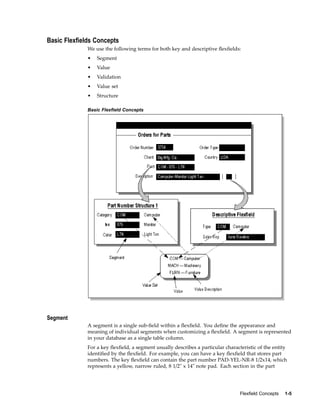
Basic Flexeld Concepts
Segment
A segment is a single sub-field within a flexfield. You define the appearance and
meaning of individual segments when customizing a flexfield. A segment is represented
in your database as a single table column.
For a key flexfield, a segment usually describes a particular characteristic of the entity
identified by the flexfield. For example, you can have a key flexfield that stores part
numbers. The key flexfield can contain the part number PAD-YEL-NR-8 1/2x14, which
represents a yellow, narrow ruled, 8 1/2" x 14" note pad. Each section in the part
Flexeld Concepts 1-5
number, separated by a hyphen, describes a characteristic of the part. The first
segment describes the object, a note pad, the second segment describes the color of the
object, yellow, and so on.
Note that we also refer to the fields in a descriptive flexfield pop-up window as segments
even though they do not necessarily make up meaningful codes like the segments in
key flexfields. However, they do often describe a particular characteristic of the entity
identified elsewhere on the form you are using.
Values, Validation and Value Sets
Your end user enters a segment value into a segment while using an
application. Generally, the flexfield validates each segment against a set of valid values
(a "value set") that are usually predefined. To "validate a segment" means that the
flexfield compares the value a user enters in the segment against the values in the value
set for that segment.
You can set up your flexfield so that it automatically validates segment values your end
user enters against a table of valid values (which may also have value descriptions). If
your end user enters an invalid segment value, a list of valid values appears
automatically so that the user can choose a valid value.
You can think of a value set as a "container" for your values. You choose what types of
values can fit into your value set: their length, format, and so on.
A segment is usually validated, and usually each segment in a given flexfield uses a
different value set. You can assign a single value set to more than one segment, and
you can even share value sets among different flexfields. For most value sets, when
you enter values into a flexfield segment, you can enter only values that already exist
in the value set assigned to the segment.
Structure
A flexfield structure is a specific configuration of segments. If you add or remove
segments, or rearrange the order of segments in a flexfield, you get a different structure.
You can define multiple segment structures for the same flexfield (if that flexfield has
been built to support more than one structure). Your flexfield can display different
prompts and fields for different end users based on a data condition in your form or
application data. Both key and descriptive flexfields may allow more than one structure.
In some applications, different users may need a different arrangement of the segments
in a flexfield (key or descriptive). Or, you might want different segments in a flexfield
depending on, for example, the value of another form or database field.
Your Oracle General Ledger application, for example, provides different Accounting
Flexfield (Chart of Accounts) structures for users of different sets of books. The Oracle
General Ledger application determines which flexfield structure to use based on the
value of the GL Set of Books Name user profile option.
Related Topics
Overview of Flexfield Concepts, page 1-11
Types of Flexfields Information, page 1-12
Basic Flexfields Concepts, page 1-5
Key Flexfields, page 1-2
1-6 Oracle Applications Flexelds Guide
Descriptive Flexfields, page 1-3
Benefits of Flexfields, page 1-4
Overview of Setting up Flexfields, page 1-7
Warning About Changing Data, page 1-11
Overview of Setting Up Flexelds
The general process of implementing and using flexfields consists of several major
phases:
• Planning, page 1-7
• Defining, page 1-10
• Data entry and ongoing maintenance, page 1-11
• Reporting, page 1-11
You may also have requirements for other phases, such as building custom reports
for your site.
Planning
Just as for implementing any new application, planning is by far the most important
(and probably the most time-consuming) phase of implementing flexfields, so you
should give it careful thought. The planning phase can be broken into smaller, though
still interrelated, steps:
• Decide which flexfields to implement
• Learning about a specific flexfield
• Planning the structure
• Planning the segments
• Planning the segment validation
• Planning to use additional features
• Documenting your plan
Tip: We recommend that you plan your flexfields as completely as
possible, including your potential segment values, before you even
begin to define them using Oracle Applications forms. Once you
begin using your flexfields to acquire data, you cannot change them
easily. Changing a flexfield for which you already have data may
require a complex conversion process.
Decide which exelds to implement
Oracle Applications products rely on some key flexfields as central parts of the
applications, so you must set up these key flexfields. For example, while the Oracle
General Ledger products use only the Accounting Flexfield key flexfield, almost
every Oracle Applications product uses the Accounting Flexfield for some part of its
processing. So, you must almost always set up the Accounting Flexfield, especially if
you have more than one of the Oracle Applications at your site. In addition, many
Oracle Applications products such as Oracle Inventory and Oracle Purchasing use the
Flexeld Concepts 1-7
System Items Flexfield (Item Flexfield). Other Oracle Applications use various key
flexfields for various purposes, and defining those flexfields is usually mandatory for
a particular application.
While most Oracle Applications products require that you set up particular key
flexfields, many descriptive flexfields are optional. You need only set up optional
descriptive flexfields for forms where you want to capture business data not otherwise
captured by the form fields.
Learning about a specic exeld
Because each key and descriptive flexfield has a different purpose, you should be sure to
understand the purpose and requirements for the flexfield you want to define. Some
flexfields, particularly the Accounting Flexfield, have restrictions on how you can define
them. Most descriptive flexfields simply provide a certain number of segment columns
you can use for whatever you need to fill your organization’s needs.
Planning the structure
For each flexfield you want to implement, plan your segment structure(s). You
can completely customize the appearance of your flexfield pop-up window for
each structure, including its title and the number, order, length, and prompts of its
segments. Though you can always change the cosmetic aspects of your flexfield pop-up
window, such as the title and prompts, you should never change the number, order, and
maximum length of your segments once you have acquired flexfield data. So, you should
plan your structures carefully and allow for future needs.
Planning the segments
You must choose two lengths for each segment, the displayed length and the maximum
length. The maximum length is the length of the longest value a user can enter into a
segment. The largest maximum length you can choose must be less than or equal to the
length of the underlying column that corresponds to the segment. Because these column
sizes vary among flexfields, you need to know what column lengths are available for
your flexfield.
The displayed length is the segment length a user sees in the pop-up window. If the
displayed length is less than the maximum length, the user must scroll through the
segment to see its entire contents.
Planning the segment validation
For each segment, plan your validation. Consider what types of values you will be
using in your flexfield segments. These decisions affect how you set up your value
sets and values.
• Do you want to provide a list of values for each segment? A list of values on a
segment can make data entry faster and easier for your users and ensure that they
enter valid values.
• Do you want to share values among segments in different structures or among
different flexfields?
• Do you want the available values in a segment to depend upon what value a user
entered in a prior segment?
1-8 Oracle Applications Flexelds Guide
• Do you not want to validate a segment at all (that is, do you want to allow a user
to enter any value in the segment, such as a license number that would not be
predefined)?
Keep in mind that your values will change over time. Usually, an organization
adds more values as the organization grows or reorganizes to use new values. For
example, you might have a two-character long segment that holds a department
number. Initially, a two-character department number (such as 01, 02, 15, and so on) may
be sufficient. However, if you later need a department number larger than 99, such as
100, your segment cannot contain the larger values, and you would need to change the
segment length and then convert any existing data. For example, your three-character
department numbers may become 001, 002, 015, and so on instead of 01, 02, 15, and so
on. You want to avoid such conversions if possible, so you should plan your values to
allow for future needs.
You should also consider how you plan to acquire your values:
• Do you plan to predefine each segment value manually using an Oracle Applications
form?
• Do you already have application tables that contain appropriate values you can use?
• Do you plan to use non-validated segments (with no predefined values) where a
user can enter any value in a segment?
• If you have legacy systems, do you plan to derive flexfield values from those systems
in some automated fashion?
Planning to use additional features
Flexfields have several additional features that make flexfields easier to use or that
provide extra capabilities such as restricting users from using certain values. For a full
discussion of these features, see the Using Additional Flexfields Features chapter. These
features include:
• Flexfield value security
• Cross-validation (for key flexfields)
• Shorthand entry (for key flexfields)
Documenting your plans
You should fully document your flexfield plans before you sit down to define your
flexfields using your Oracle Applications setup forms.
We provide worksheets and templates throughout the book that you can use to aid
your decision and documentation process.
Related Topics
Overview of Flexfield Concepts, page 1-1
Overview of Setting up Flexfields, page 1-7
Planning Your Key Flexfield, page 2-10
Planning Your Descriptive Flexfield, page 3-18
Warning About Changing Data, page 1-11
Defining, page 1-10
Flexeld Concepts 1-9
Data Entry and Ongoing Maintenance, page 1-11
Reporting, page 1-11
Overview of Shorthand Flexfield Entry, page 5-1
Overview of Flexfield Value Security, page 5-6
Values and Value Sets, page 4-1
Cross Validation Rules, page 5-16
Dening
Defining your flexfield is easy once you have completed and documented your
planning stage. You use Oracle Applications setup forms to define your flexfield.
Dene your value sets
Depending on exactly how you want to validate your segments, you may spend 10-30
minutes defining each value set (roughly one value set per segment, or fewer if you plan
to share value sets or do not plan to use value sets for certain segments).
Note that you do not define your actual values at this point; rather, you are simply
defining the containers for your values. See: Value Set Windows, page 4-36.
Dene your segment structures
This is the main part of defining a flexfield, and includes defining structure titles, segment
prompts, segment order, and segment display sizes. Depending on the number of
structures and segments you have, you may spend 20-90 minutes per flexfield. See: Key
Flexfield Segments, page 2-13, Descriptive Flexfield Segments, page 3-19.
Dene your values, if necessary
Depending on exactly how you want to validate your segments, you may spend
anywhere from 1-3 minutes defining each independent or dependent value in an Oracle
Applications form. If you have legacy systems, you may need to build a program to
import your legacy values into Oracle Applications tables. See: Values and Value Sets,
page 4-1.
Dene additional features, if necessary
If you plan to use additional features such as cross-validation rules or flexfield value
security, you define those additional features at this point.
Related Topics
Warning About Changing Data, page 1-11
Overview of Flexfield Concepts, page 1-1
Overview of Setting up Flexfields, page 1-7
Planning, page 1-7
Data Entry and Ongoing Maintenance, page 1-11
Reporting, page 1-11
1-10 Oracle Applications Flexelds Guide
Data Entry and Ongoing Maintenance
Data entry consists of using your applications for your day-to-day operations. For key
flexfields, you may want to predefine the complete codes (combinations of segment
values) you want to allow your users to enter.
As your organization’s needs change, you will need to perform ongoing maintenance
of your flexfields. For example, you may need to define new flexfield structures or
disable old structures. You may also need to add new values or cross-validation rules
or value security rules.
Related Topics
Key Flexfield Segments, page 2-13
Cross-Validation Rules, page 5-25
Reporting
Oracle Applications provides many predefined reports you can use to retrieve your
organization’s data, and many of these include flexfields data. You can also build
custom reports for your organization using the flexfields routines and views we
provide. See: Reporting on Flexfields Data, page 8-1.
Related Topics
Warning About Changing Data, page 1-11
Types of Flexfields Information, page 1-12
Overview of Setting up Flexfields, page 1-7
Planning, page 1-7
Defining, page 1-10
Data Entry and Ongoing Maintenance, page 1-11
Warning About Changing Data
Oracle provides powerful tools you can use to insert, update, and delete information in
an Oracle database. But, if you use Oracle tools like SQL*Plus or Oracle Data Browser to
modify Oracle Applications data, you risk destroying the integrity of your data and you
lose the ability to audit changes to your data.
Because Oracle Applications tables are interrelated, any change you make using an
Oracle Applications form can update many tables at once. But when you modify Oracle
Applications data using anything other than Oracle Applications forms, you may change
a row in one table without making corresponding changes in related tables. If your tables
get out of synchronization with each other, you risk retrieving erroneous information
and you risk unpredictable results throughout Oracle Applications.
When you use Oracle Applications forms to modify your data, Oracle Applications
automatically checks that your changes are valid. Oracle Applications also keeps track
of who changes information. But, if you enter information into database tables using
database tools, you may store invalid information. You also lose the ability to track
who has changed your information because SQL*Plus and other database tools do not
keep a record of changes.
Flexeld Concepts 1-11
Warning: Oracle Applications does not support any customization of
Oracle Application Object Library tables or modules, even by Oracle
consultants. Oracle Application Object Library table names begin with
"FND_".
Do not write data directly into or change data in FND_ tables through
any custom program or using any tool, including SQL*Plus, Oracle
Data Browser, database triggers or other programming tools. You risk
corrupting your database and damaging all your applications.
Consequently, we STRONGLY RECOMMEND that you never use SQL*Plus, Oracle
Data Browser, database triggers, or any other tool to modify Oracle Applications
tables, unless we tell you to do so in our installation, implementation, or open interface
guides.
Types of Flexelds Information
While flexfields do not require programming, they do allow you to perform significant
customizations to the Oracle Applications, so they do require enough explanation for
you to get the most out of the features they provide. Also, once you learn how to plan
and set up one Oracle Applications feature that is built using a flexfield, you will find it
much easier to set up any other Oracle Applications feature that uses a flexfield.
There are two main types of flexfield information: generic information on planning
for and setting up any flexfield, and specific information on the particular Oracle
Applications features that are built using flexfields. For example, the chapter "Planning
and Defining Key Flexfields" applies to all key flexfields and describes setup procedures
such as which forms you need to use. For specific information on setting up a particular
flexfield for a product, see the Oracle [Product] User’s Guide. For example, if you are
designing and setting up the Accounting Flexfield, refer to the Oracle General Ledger
User’s Guide. If you have not set up a flexfield before, you should be sure you read and
understand both of these types of information thoroughly.
This guide also contains information for more advanced flexfield-related
customizations. For example, you may want to write custom reports that access
flexfields tables and information using flexfield routines. Or, you may want to write
custom reports that use flexfields as report parameters. Finally, you may want to write a
Standard Request Submission report that has several special report parameters (Standard
Request Submission uses descriptive flexfields to provide pop-up windows for users
to enter choices such as values they want to report on).
Note that this guide does not contain information on how to use a flexfield as an end
user, such how to enter or query flexfield data or how to set user profile options such as
Flexfields:Shorthand Entry that affect the end-user behavior of a flexfield. You should
see the Oracle Applications User’s Guide for this information.
1-12 Oracle Applications Flexelds Guide
2
Planning and Dening Key Flexelds
Additional Terms and Concepts for Key Flexelds
You should already know these basic flexfields terms and concepts:
• Flexfield
• Segment
• Structure
• Value
• Validation (Validate)
• Value set
Now that you know terms and concepts that apply to both key and descriptive
flexfields, you need to know additional terms that apply to key flexfields only.
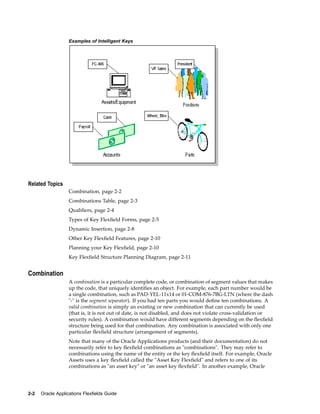
Intelligent Key
An intelligent key is a code made up of sections, where one or more parts may have
meaning. An intelligent key "code" uniquely identifies an object such as an account, an
asset, a part, or a job. Intelligent keys are useful in applications because they are usually
easier for a user to remember and use than a unique number. For example, a part
number of PAD-YEL-11x14 is much easier to remember than a unique part number of
57494. However, unique ID numbers are easier to maintain in a relational database
application because only one column is required for the ID number, while multiple
columns would be required for an intelligent key (one for each section or segment of
the code). The Oracle Applications use key flexfields to represent intelligent keys with
unique ID numbers. That is, an end user sees and works with an easy-to-remember
intelligent key code, while the Oracle Applications only need to store a hidden unique
ID number in most tables.
Important: Throughout this guide we use the "Part Number Key
Flexfield" in our examples and graphics. We use this example
because it helps to illustrate the uses and behaviors of key flexfields
without requiring any specialized accounting, human resources, or
manufacturing knowledge. However, there is no actual "Part Number
Key Flexfield" in the Oracle Applications, and you should not confuse it
with the System Items Flexfield (Item Flexfield) used by many Oracle
Applications products such as Oracle Inventory.
Planning and Dening Key Flexelds 2-1
Examples of Intelligent Keys
Related Topics
Combination, page 2-2
Combinations Table, page 2-3
Qualifiers, page 2-4
Types of Key Flexfield Forms, page 2-5
Dynamic Insertion, page 2-8
Other Key Flexfield Features, page 2-10
Planning your Key Flexfield, page 2-10
Key Flexfield Structure Planning Diagram, page 2-11
Combination
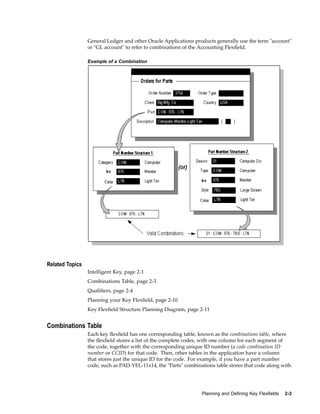
A combination is a particular complete code, or combination of segment values that makes
up the code, that uniquely identifies an object. For example, each part number would be
a single combination, such as PAD-YEL-11x14 or 01-COM-876-7BG-LTN (where the dash
"-" is the segment separator). If you had ten parts you would define ten combinations. A
valid combination is simply an existing or new combination that can currently be used
(that is, it is not out of date, is not disabled, and does not violate cross-validation or
security rules). A combination would have different segments depending on the flexfield
structure being used for that combination. Any combination is associated with only one
particular flexfield structure (arrangement of segments).
Note that many of the Oracle Applications products (and their documentation) do not
necessarily refer to key flexfield combinations as "combinations". They may refer to
combinations using the name of the entity or the key flexfield itself. For example, Oracle
Assets uses a key flexfield called the "Asset Key Flexfield" and refers to one of its
combinations as "an asset key" or "an asset key flexfield". In another example, Oracle
2-2 Oracle Applications Flexelds Guide
General Ledger and other Oracle Applications products generally use the term "account"
or "GL account" to refer to combinations of the Accounting Flexfield.
Example of a Combination
Related Topics
Intelligent Key, page 2-1
Combinations Table, page 2-3
Qualifiers, page 2-4
Planning your Key Flexfield, page 2-10
Key Flexfield Structure Planning Diagram, page 2-11
Combinations Table
Each key flexfield has one corresponding table, known as the combinations table, where
the flexfield stores a list of the complete codes, with one column for each segment of
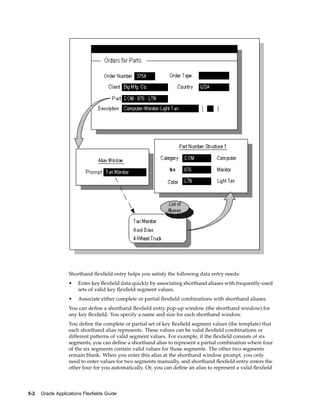
the code, together with the corresponding unique ID number (a code combination ID
number or CCID) for that code. Then, other tables in the application have a column
that stores just the unique ID for the code. For example, if you have a part number
code, such as PAD-YEL-11x14, the "Parts" combinations table stores that code along with
Planning and Dening Key Flexelds 2-3
its ID, 57494. If your application allows you to take orders for parts, you might then
have an "Orders" table that stores orders for parts. That "Orders" table would contain
a single column that contains the part ID, 57494, instead of several columns for the
complete code PAD-YEL-11x14.
Related Topics
Intelligent Key, page 2-1
Combination, page 2-2
Qualifiers, page 2-4
Types of Key Flexfield Forms, page 2-5
Dynamic Insertion, page 2-8
Planning your Key Flexfield, page 2-10
Key Flexfield Structure Planning Diagram, page 2-11
Qualiers
Flexeld Qualier
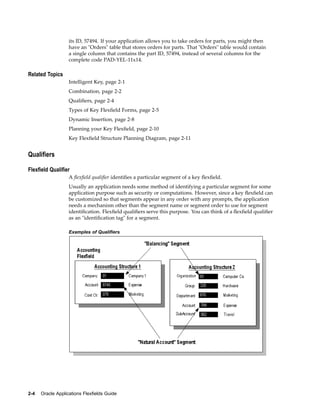
A flexfield qualifier identifies a particular segment of a key flexfield.
Usually an application needs some method of identifying a particular segment for some
application purpose such as security or computations. However, since a key flexfield can
be customized so that segments appear in any order with any prompts, the application
needs a mechanism other than the segment name or segment order to use for segment
identification. Flexfield qualifiers serve this purpose. You can think of a flexfield qualifier
as an "identification tag" for a segment.
Examples of Qualiers
2-4 Oracle Applications Flexelds Guide
For example, your Oracle General Ledger product needs to be able to identify which
segment in the Accounting Flexfield contains balancing information and which segment
contains natural account information. Since you can customize the Accounting Flexfield
so that segments appear in any order with any prompts, Oracle General Ledger needs
the flexfield qualifier to determine which segment you are using for natural account
information. When you define your Accounting Flexfield, you must specify which
flexfield qualifiers apply to which segments.
Other applications, such as Oracle Human Resources, also use flexfield qualifiers. Oracle
Human Resources uses flexfield qualifiers to control who has access to confidential
information in flexfield segments.
A segment qualifier identifies a particular type of value in a single segment of a key
flexfield. In the Oracle Applications, only the Accounting Flexfield uses segment
qualifiers. You can think of a segment qualifier as an "identification tag" for a value. In
the Accounting Flexfield, segment qualifiers can identify the account type for a natural
account segment value, and determine whether detail posting or budgeting are allowed
for a particular value.
It is easy to confuse the two types of qualifiers. You should think of a flexfield qualifier
as something the whole flexfield uses to tag its pieces, and you can think of a segment
qualifier as something the segment uses to tag its values.
Related Topics
Intelligent Key, page 2-1
Combination, page 2-2
Combinations Table, page 2-3
Types of Key Flexfield Forms, page 2-5
Dynamic Insertion, page 2-8
Other Key Flexfield Features, page 2-10
Planning your Key Flexfield, page 2-10
Key Flexfield Structure Planning Diagram, page 2-11
Types of Key Flexeld Forms
Key flexfields appear on three different types of application form:
• Combinations form
• Foreign key form
• Range form
These form types correspond to the types of tables that contain key flexfield data.
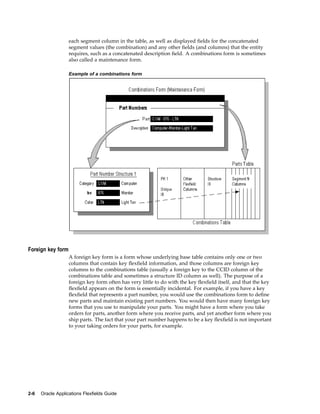
Combinations form
A combinations form is a form whose only purpose is to maintain key flexfield
combinations. The base table of the form is the actual combinations table. This table is
the entity table for the object (a part, or an item, an accounting code, and so on). The
table contains a unique ID column (also called the code combination ID column) as
the primary key, as well as individual segment columns, a structure ID column, and
other flexfields-related columns. The combinations form contains hidden fields for
Planning and Dening Key Flexelds 2-5
each segment column in the table, as well as displayed fields for the concatenated
segment values (the combination) and any other fields (and columns) that the entity
requires, such as a concatenated description field. A combinations form is sometimes
also called a maintenance form.
Example of a combinations form
Foreign key form
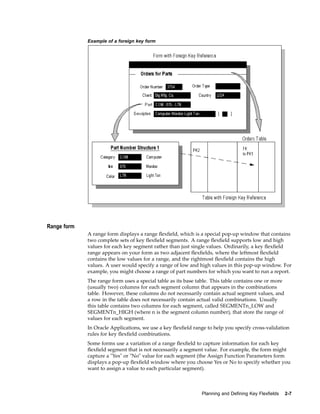
A foreign key form is a form whose underlying base table contains only one or two
columns that contain key flexfield information, and those columns are foreign key
columns to the combinations table (usually a foreign key to the CCID column of the
combinations table and sometimes a structure ID column as well). The purpose of a
foreign key form often has very little to do with the key flexfield itself, and that the key
flexfield appears on the form is essentially incidental. For example, if you have a key
flexfield that represents a part number, you would use the combinations form to define
new parts and maintain existing part numbers. You would then have many foreign key
forms that you use to manipulate your parts. You might have a form where you take
orders for parts, another form where you receive parts, and yet another form where you
ship parts. The fact that your part number happens to be a key flexfield is not important
to your taking orders for your parts, for example.
2-6 Oracle Applications Flexelds Guide
Example of a foreign key form
Range form
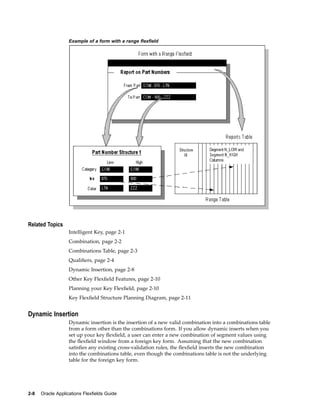
A range form displays a range flexfield, which is a special pop-up window that contains
two complete sets of key flexfield segments. A range flexfield supports low and high
values for each key segment rather than just single values. Ordinarily, a key flexfield
range appears on your form as two adjacent flexfields, where the leftmost flexfield
contains the low values for a range, and the rightmost flexfield contains the high
values. A user would specify a range of low and high values in this pop-up window. For
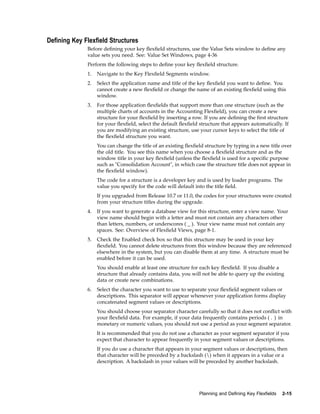
example, you might choose a range of part numbers for which you want to run a report.
The range form uses a special table as its base table. This table contains one or more
(usually two) columns for each segment column that appears in the combinations
table. However, these columns do not necessarily contain actual segment values, and
a row in the table does not necessarily contain actual valid combinations. Usually
this table contains two columns for each segment, called SEGMENTn_LOW and
SEGMENTn_HIGH (where n is the segment column number), that store the range of
values for each segment.
In Oracle Applications, we use a key flexfield range to help you specify cross-validation
rules for key flexfield combinations.
Some forms use a variation of a range flexfield to capture information for each key
flexfield segment that is not necessarily a segment value. For example, the form might
capture a "Yes" or "No" value for each segment (the Assign Function Parameters form
displays a pop-up flexfield window where you choose Yes or No to specify whether you
want to assign a value to each particular segment).
Planning and Dening Key Flexelds 2-7
Example of a form with a range exeld
Related Topics
Intelligent Key, page 2-1
Combination, page 2-2
Combinations Table, page 2-3
Qualifiers, page 2-4
Dynamic Insertion, page 2-8
Other Key Flexfield Features, page 2-10
Planning your Key Flexfield, page 2-10
Key Flexfield Structure Planning Diagram, page 2-11
Dynamic Insertion
Dynamic insertion is the insertion of a new valid combination into a combinations table
from a form other than the combinations form. If you allow dynamic inserts when you
set up your key flexfield, a user can enter a new combination of segment values using
the flexfield window from a foreign key form. Assuming that the new combination
satisfies any existing cross-validation rules, the flexfield inserts the new combination
into the combinations table, even though the combinations table is not the underlying
table for the foreign key form.
2-8 Oracle Applications Flexelds Guide
For some key flexfields, dynamic inserts may not be allowed. Sometimes it may not
make sense for an application to allow a user to be able to create a new combination
from any form other than the combinations form. For example, a user should not be
able to create a new part while taking an order for parts using an Enter Orders form;
the application should restrict the creation of new part numbers to authorized users
using a Create Parts form.
Dynamic inserts may not be technically possible for some key flexfields. If the
combinations table contains mandatory columns that are not maintained by the
flexfield, dynamic inserts would not be possible. If the combinations table contains
mandatory non-flexfield columns, such as a "unit of measure" column, the flexfield
would not be able to complete the entire row in the combinations table from the foreign
key form (because the base table of the foreign key form is not the combinations
table). The flexfield does maintain the CCID column.
Generally there is only one, if any, combinations form for a given key flexfield. In some
applications, there may not be a combinations form. In these cases, you would use
dynamic inserts to create new combinations.
Note: For details on dynamic insertion for a particular flexfield, refer to
the Oracle [Product] User’s Guide of the owning application.
Dynamic insertion can be enabled for a key flexfield in the Register Key Flexfields
form, in the Segments form, and in the key flexfield definition when defined in a given
form.
Dynamic Insertion Example
Planning and Dening Key Flexelds 2-9
Related Topics
Intelligent Key, page 2-1
Combination, page 2-2
Combinations Table, page 2-3
Qualifiers, page 2-4
Types of Key Flexfield Forms, page 2-5
Other Key Flexfield Features, page 2-10
Planning your Key Flexfield, page 2-10
Key Flexfield Structure Planning Diagram, page 2-11
Other Key Flexeld Features
Key flexfields also offer additional features that help your organization maintain valid
combinations and make data entry easier for your users.
Related Topics
Overview of Shorthand Flexfield Entry, page 5-1
Overview of Flexfield Value Security, page 5-6
Cross-Validation Rules, page 5-16
Planning Your Key Flexeld
Your first step in planning your key flexfields is to determine which key flexfields your
Oracle Applications product requires. You should also determine the purpose of the key
flexfield, as well as the number and length of its available segment columns (See: Key
Flexfields in Oracle Applications, page 6-1). You should also note whether your key
flexfield allows more than one structure, and determine if you do indeed need to define
more than one structure. For example, the System Items Flexfield (Item Flexfield)
supports only one structure.
Note: You can determine whether a key flexfield allows more than
one structure, as well as other information on the key flexfield, in the
Register Key Flexfield form. See the Oracle Applications Developer’s Guide
for more information.
Those key flexfields that allow multiple structures may use different mechanisms
to determine which structure a user sees. For example, the Accounting Flexfield
uses multiple structures if you have multiple sets of books with differing charts of
accounts. Your forms determine which Accounting Flexfield structure to display by
using the value of the GL_SET_OF_BOOKS_ID profile option associated with your
current responsibility. Other key flexfields may have a field built into the form that
allow a user to essentially choose which structure appears. See: Key Flexfields in Oracle
Applications, page 6-1.
You should decide on the number, order and length of your segments for each
structure. You must also choose how to validate each segment. See: Overview of Values
and Value Sets, page 4-1.
2-10 Oracle Applications Flexelds Guide
When you are planning your flexfields, you should consider the following questions and
their corresponding decisions:
• How do you want to break down reporting on your key flexfield data? If you want
to report on your data by certain criteria or sub-entities, such as account number
or project or region, you may want to consider making that sub-entity a distinct
segment, rather than combining it with another sub-entity, so that you can categorize
and report on smaller discrete units of information.
• How often does your organization change? This would affect how you set up
your values. For example, if you disable old cost centers and enable new ones
frequently, you would "use up" cost center values quickly. You would therefore want
to use a larger maximum size for your cost center value set so that you can have
more available values (for example, you have 1000 available values for a 3-character
value set instead of 100 available values for a 2-character value set).
• Do you want to make a segment defined as required (a value must be entered?)
Related Topics
Intelligent Key, page 2-1
Combination, page 2-2
Combinations Table, page 2-3
Qualifiers, page 2-4
Dynamic Insertion, page 2-8
Other Key Flexfield Features, page 2-10
Key Flexfield Structure Planning Diagram, page 2-11
Key Flexeld Structure Planning Diagram
You can use the following diagram to help you plan your key flexfield
structures, including the structure title, segment prompts, sample values, and sample
value descriptions. Add or subtract segments as appropriate for your structures.
Planning and Dening Key Flexelds 2-11
Key Flexeld Structure Planning Diagram
2-12 Oracle Applications Flexelds Guide
Key Flexeld Segments Window
Use these windows to define the your key flexfield structure.
Related Topics
Defining Key Flexfields, page 2-14
Defining Key Flexfield Structures, page 2-15
Defining Segments, page 2-17
Planning and Dening Key Flexelds 2-13
Dening Key Flexelds
You define descriptive information and validation information for each segment. You
also determine the appearance of your key flexfield window, including the size of the
window, the number and order of the segments, and the segment descriptions and
default values.
Once you set up or modify your structures and segments, you must freeze your flexfield
definition and save your changes. When you do, your flexfield compiles automatically to
improve on-line performance. You must recompile your flexfield every time you make
changes using this form, including enabling or disabling cross-validation rules. You
must also recompile your flexfield after you enable or disable shorthand entry using
the Shorthand Aliases window.
You can see your flexfield changes immediately after you freeze and recompile your
flexfield. However, your changes affect other users only after they change responsibilities
or exit your application and sign back on.
Once you freeze your flexfield definition and save your changes, Oracle Applications
submits one or two concurrent requests to generate database views of the flexfield’s
combinations table. You can use these views for custom reporting at your site. One
of these views is always generated and contains concatenated segment values for all
structures of the key flexfield. You see the name of this view in a message window. The
other view is for the particular structure you are defining and freezing. This second
view is generated only if you enter a view name for your structure in the View Name
field. See: Overview of Flexfield Views, page 8-1.
Warning: Plan your key flexfield structures carefully, including all your
segment information such as segment order and field lengths, before
you define your segments using this form. You can define your key
flexfields any way you want, but changing your structures once you
acquire any flexfield data may create data inconsistencies that could
have a significant impact on the behavior of your application or require
a complex conversion program. Changing your existing structures
may also adversely affect the behavior of any cross-validation rules or
shorthand aliases you have set for your structures, so you should be
sure to manually disable or redefine any cross-validation rules (using
the Cross-Validation Rules window) and shorthand aliases (using the
Shorthand Aliases window) to reflect your changed structures.
Related Topics
Defining Key Flexfield Structures, page 2-15
Defining Segments, page 2-17
Choosing Your Value Set, page 2-20
Defaulting Segment Values, page 2-21
Segment Prompts and Display Lengths, page 2-24
Flexfield Qualifiers, page 2-25
Descriptive Flexfield Segments Window, page 3-19
2-14 Oracle Applications Flexelds Guide
Dening Key Flexeld Structures
Before defining your key flexfield structures, use the Value Sets window to define any
value sets you need. See: Value Set Windows, page 4-36
Perform the following steps to define your key flexfield structure.
1. Navigate to the Key Flexfield Segments window.
2. Select the application name and title of the key flexfield you want to define. You
cannot create a new flexfield or change the name of an existing flexfield using this
window.
3. For those application flexfields that support more than one structure (such as the
multiple charts of accounts in the Accounting Flexfield), you can create a new
structure for your flexfield by inserting a row. If you are defining the first structure
for your flexfield, select the default flexfield structure that appears automatically. If
you are modifying an existing structure, use your cursor keys to select the title of
the flexfield structure you want.
You can change the title of an existing flexfield structure by typing in a new title over
the old title. You see this name when you choose a flexfield structure and as the
window title in your key flexfield (unless the flexfield is used for a specific purpose
such as "Consolidation Account", in which case the structure title does not appear in
the flexfield window).
The code for a structure is a developer key and is used by loader programs. The
value you specify for the code will default into the title field.
If you upgraded from Release 10.7 or 11.0, the codes for your structures were created
from your structure titles during the upgrade.
4. If you want to generate a database view for this structure, enter a view name. Your
view name should begin with a letter and must not contain any characters other
than letters, numbers, or underscores ( _ ). Your view name must not contain any
spaces. See: Overview of Flexfield Views, page 8-1.
5. Check the Enabled check box so that this structure may be used in your key
flexfield. You cannot delete structures from this window because they are referenced
elsewhere in the system, but you can disable them at any time. A structure must be
enabled before it can be used.
You should enable at least one structure for each key flexfield. If you disable a
structure that already contains data, you will not be able to query up the existing
data or create new combinations.
6. Select the character you want to use to separate your flexfield segment values or
descriptions. This separator will appear whenever your application forms display
concatenated segment values or descriptions.
You should choose your separator character carefully so that it does not conflict with
your flexfield data. For example, if your data frequently contains periods ( . ) in
monetary or numeric values, you should not use a period as your segment separator.
It is recommended that you do not use a character as your segment separator if you
expect that character to appear frequently in your segment values or descriptions.
If you do use a character that appears in your segment values or descriptions, then
that character will be preceded by a backslash () when it appears in a value or a
description. A backslash in your values will be preceded by another backslash.
Planning and Dening Key Flexelds 2-15
Note: Do not use a backslash as your segment separator.
For example, say the segment separator is a period (.) and your values contain
periods also. The table below illustrates how the segment values would appear in
the combination.
Segment Values Concatenated Segments as Combination
"1.2", "34", "5.6" "1.2.34.5.6"
"1", "2.34", "5.6" "1.2.34.5.6"
"1.2", "34.5", "6" "1.2.34.5.6"
Warning: Some Oracle Applications tables store the segment
separator as part of your flexfield values. Changing your separator
once you have data in such tables may invalidate that data and
cause application errors.
7. Select the Cross-Validate Segments check box if you want to cross-validate multiple
segments using cross-validation rules. You can define cross-validation rules to
describe valid combinations using the Cross-Validation Rules form. Uncheck the
box if you want to disable any existing cross-validation rules. See: Cross-Validation
Rules, page 5-25.
8. Indicate whether you want to freeze your rollup group definitions. If you do, you
prevent users from modifying rollup groups using the Segment Values form.
You can freeze rollup groups before or after you define your flexfield
structure. See: Segment Values, page 4-48.
9. If you want to allow dynamic inserts, check the Allow Dynamic Inserts check
box. You would allow dynamic inserts of new valid combinations into your generic
combinations table if you want users to create new combinations from windows that
do not use your combinations table. You should prevent dynamic inserts if you want
to enter new valid combinations only from a single application window you create
to maintain your specific combinations table.
You can update this field only if your application flexfield has been built to allow
dynamic inserts, and the flexfield has been defined in the Register Key Flexfields
form with Dynamic Inserts Feasible checked. Otherwise this field is display only.
10. Choose the Segments button to open the Segments Summary window, and define
your flexfield segments. See: Defining Segments, page 2-17.
11. Save your changes.
12. Freeze your flexfield structure by checking the Freeze Flexfield Definition check box.
Do not freeze your flexfield if you want to set up or modify your flexfield segments
or change the appearance of your key flexfield window. You cannot make most
changes while your flexfield is frozen.
13. Compile your frozen flexfield by choosing the Compile button. Your changes are
saved automatically when you compile.
2-16 Oracle Applications Flexelds Guide
You must freeze and compile your flexfield definition before you can use your flexfield. If
you have more than one flexfield structure, you must freeze, save, and compile each
structure separately. If you decide to make changes to your flexfield definition, make
sure that you freeze and save your flexfield definition again after making your changes.
Warning: Do not modify a frozen flexfield definition if existing data
could be invalidated. An alteration of the flexfield structure once you
have any flexfield data can create serious data inconsistencies. Changing
your existing structures may also adversely affect the behavior of
any cross-validation rules or shorthand aliases you have for your
structures, so you should be sure to manually disable or redefine any
cross-validation rules and shorthand aliases to reflect your changed
structures.
Related Topics
Key Flexfield Segments Window, page 2-13
Defining Key Flexfields, page 2-14
Defining Segments Window, page 2-17
Dening Segments
Use the Segments window to define segments for your flexfield. The window title
includes the current flexfield’s name. If your flexfield definition is frozen (that is, the
Freeze Flexfield Definition check box is checked), this window becomes display-only.
You can define as many segments as there are defined segment columns in your flexfield
table. You can create a new segment for your flexfield by inserting a row.
Note: If your flexfield definition is frozen, the Segments window fields
are not updateable.
Before defining segments, use the Key Flexfield Segments window or the
Descriptive Flexfield Segments window to define your flexfield structure. For key
Planning and Dening Key Flexelds 2-17
flexfields, see: Defining Key Flexfield Segments, page 2-13. For descriptive flexfields, see
Defining Descriptive Flexfield Segments, page 3-19
To define segments, perform the following steps.
1. Enter a name for the segment that you want to define.
Your segment name should begin with a letter and use only letters, numbers, spaces
or underscores ( _ ). The segment prompts get their default values from this
field. The flexfield view generator will use your segment name as a column name
and change all spaces and special characters to underscores (_). See: Segment
Naming Conventions, page 8-6.
2. Indicate that you can use this flexfield segment by checking the Enabled check box.
Your flexfield does not display disabled segments. You can define as many segments
as there are defined segment columns in your key flexfield combinations table.
Tip: To protect the integrity of your data, you should not disable a
segment if you have already used it to enter data.
3. Select the name of the column you want to use for your flexfield segment.
Tip: If you are defining more than one segment in the same structure
at one time, ensure that you use unique columns for each segment. If
you attempt to use a single column for more than one segment in
the same structure, you cannot save your changes or compile your
structure. Columns you choose for your segments do not disappear
from your list of values until you save your work.
4. Enter the segment number for this segment.
This number indicates the relative position in which this segment appears in a
flexfield window. A segment with a lower segment number appears before a
segment with a higher segment number. Dependent segments should occur after the
segment they depend upon in the flexfield window.
You receive a warning message if you enter a segment number that is already
defined for your flexfield. This warning is only a reminder that the segment number
is in use. If you attempt to freeze a flexfield in which two segments share the same
segment number, the flexfield does not compile.
Tip: For most flexfields, if you give your segments widely spaced
numbers (such as 10, 20, 30...) to indicate their relative positions, you
can add segments to your structure more easily. Adding segments
still disables all your existing cross-validation rules and shorthand
aliases for this flexfield structure, however. Note that the Accounting
Flexfield requires consecutive segment numbers beginning with 1
(such as 1, 2, 3, ...).
Warning: Changing the order of your segments invalidates all
existing cross-validation rules and shorthand aliases for this flexfield
structure.
5. Indicate whether you want this segment to appear in the flexfield window. If your
segment is not displayed, you should provide a default type and value so that the
2-18 Oracle Applications Flexelds Guide
user does not need to enter a value for this segment. If you do not display a segment
but also do not provide a default value for it, your users may see error messages
when using this flexfield.
Warning: If you are defining the Accounting Flexfield, you must
display all segments. Hiding segments will adversely affect your
application features such as Mass Allocations.
6. If you are defining the Accounting Flexfield, decide whether you should check
the Indexed check box. For details on the Accounting Flexfield, see the Oracle
General Ledger User’s Guide. If you are defining any other Oracle Applications (key)
flexfield, you can skip the Indexed check box.
The Oracle General Ledger applications use the Indexed field for the Optimization
feature. What you enter here does not affect Oracle Applications key flexfields other
than the Accounting Flexfield, but the value may or may not affect key flexfields in
custom applications (depending on whether those applications have logic that uses
the value of this field).
Indicate whether you want the database column in the combinations table used to
store this key segment to have a single-column index. You should create indexes
on segments you expect to have many distinct values (instead of just a few distinct
values). The Oracle General Ledger products’ Optimizer does not drop existing
indexes.
If you set up a new structure of the same flexfield, this value defaults to the value in
the first structure you set up.
See: Running the Optimizer Program (Oracle General Ledger User’s Guide)
7. Enter the name of the value set you want your flexfield to use to validate this
segment. See: Choosing Your Value Set, page 2-20.
8. Indicate whether you want to require a value for this segment. If you do, users must
enter a value before leaving the flexfield window. If not, the segment is optional.
Important: All segments in your Accounting Flexfield must be
required.
If this segment is required but depends on an optional segment, then this segment
will become optional if a user leaves the depended-upon segment blank.
9. Indicate whether to allow security rules to be used for this segment. Otherwise
any defined security rules are disabled.
If the value set for this segment does not allow security rules, then this field is
display only.
10. If you want your flexfield to validate your segment value against the value of
another segment in this structure, then choose either Low or High in the Range
field. Segments with a range type of Low must appear before segments with
a range type of High (the low segment must have a lower number than the
high segment). For example, if you plan two segments named "Start Date" and
"End Date," you may want to require users to enter an end date later than the
start date. You could have "Start Date" be Low and "End Date" be High. In this
example, the segment you name "Start Date" must appear before the segment you
name "End Date," or you cannot compile your flexfield.
Planning and Dening Key Flexelds 2-19
If you choose Low for one segment, you must also choose High for another segment
in that structure (and vice versa). Otherwise you cannot compile your flexfield.
If your value set is of the type Pair, this field is display only, and the value defaults to
Pair.
11. Enter the display size and prompt information for the segment. See: Segment
Prompts and Display Lengths, page 2-24.
Related Topics
Key Flexfield Segments Window, page 2-13
Defining Key Flexfields, page 2-14
Defining Key Flexfield Structures, page 2-15
Descriptive Flexfield Segments Window, page 3-19
Flexfield Qualifiers, page 2-25
Defining Descriptive Flexfield Structures, page 3-20
Context Field Values, page 3-22
Choosing Your Value Set, page 2-20
Defaulting Segment Values, page 2-21
Segment Prompts and Display Lengths, page 2-24
Accounting Flexfield, Oracle General Ledger User's Guide
Choosing Your Value Set
If you do not want your flexfield to validate this segment, you can use the Value Sets
window to define a value set with a Validation Type of None, or you can leave this
field blank.
If you do not choose a value set, your segment behaves as if it were using a value set
with validation type None, format type of Char, width the same as the underlying key
flexfield segment column, with mixed-case alphabetic characters allowed and no right
justification or zero fill. You must use a value set for any segment whose underlying
column is not a Char column, or you will not be able to compile your flexfield. You must
use a value set for the Accounting Flexfield.
Initially this field only lets you select from independent, table, and non-validated value
sets, and you do not see dependent value sets in your list. If you want to define your
structure to have a dependent segment that depends on an independent segment, you
should define your independent segment first by selecting an independent value
set in this field. Then save your changes before you start to define your dependent
segment. Once you save your independent segment, you can also select from the
dependent value sets that depend on your chosen independent value set.
This field prevents you from choosing a value set which is not valid for that segment. You
will get an error message if you choose a value set that is not valid for the segment.
You should ensure that the total of the value set maximum sizes for all of the segments
in a given structure, plus the number of segment separators you need (number of
segments in your structure minus one), does not add up to more than 32000. If your
structure’s concatenated length exceeds 32000, you may experience truncation of your
2-20 Oracle Applications Flexelds Guide
flexfield data in some forms. See: Value Set Windows, page 4-36, Defaulting Segment
Values, page 2-21.
Related Topics
Key Flexfield Segments Window, page 2-13
Descriptive Flexfield Segments Window, page 3-19
Defining Key Flexfields, page 2-14
Defining Key Flexfield Structures, page 2-15
Defining Descriptive Flexfield Structures, page 3-20
Defining Segments, page 2-17
Defaulting Segment Values, page 2-21
Segment Prompts and Display Lengths, page 2-24
Flexfield Qualifiers, page 2-25
Defaulting Segment Values
Perform the following steps to set a default segment value:
1. If you want to set a default value for this segment, identify the type of value you need.
Your list contains only the default types that have formats that match your value set
format type.
Valid types include:
Constant
The default value can be any literal value.
Current Date
The default value is the current date in the format DD-MON-RR or
DD-MON-YYYY, depending on the maximum size of the value set. Refer to the
following table:
Maximum Size Date Format
9 DD-MON-RR
11 DD-MON-YYYY
The following table lists Current Date default date formats for different value set
format types.
Planning and Dening Key Flexelds 2-21
Value Set Format Type Value Set Maximum Size Date Format
Standard Date 11 User date format
Standard DateTime 20 User date/time format
Date 11 DD-MON-YYYY
Date 9 DD-MON-RR
Char Greater than or equal to 11 DD-MON-YYYY
Char 9, 10 DD-MON-RR
Current Time
The default value is the current time or the current date and time, depending on the
maximum size of the segment.
The following table lists Current Time default date/time formats for different value
set format types.
Value Set Format Type Value Set Maximum Size Date/Time Format
Standard DateTime 20 User date/time format
DateTime 20 DD-MON-YYYY HH24:MI:SS
DateTime 18 DD-MON-RR HH24:MI:SS
DateTime 17 DD-MON-YYYY HH24:MI
DateTime 15 DD-MON-RR HH24:MI
Time 8 HH24:MI:SS
Time 5 HH24:MI
Char Greater than or equal to 20 DD-MON-YYYY HH24:MI:SS
Char 18, 19 DD-MON-RR HH24:MI:SS
Char 17 DD-MON-YYYY HH24:MI
Char 15, 16 DD-MON-RR HH24:MI
Char Between 8 and 14 (inclusive) HH24:MI:SS
Char Between 5 and 7 (inclusive) HH24:MI:SS
Field
The default value is the current value in the field you designate in the Default Value
field. The field must be in the same form as the flexfield.
Prole
The default value is the current value of the user profile option defined in the
Default Value field.
Segment
The default value is the value entered in a prior segment of the same flexfield
window.
2-22 Oracle Applications Flexelds Guide
SQL Statement
The default value is determined by the SQL statement you define in the Default
Value field.
If you choose Current Date or Current Time, you skip the next field.
Important: If you are using flexfields server-side validation, you
cannot use form field references (:block.field). You must either remove
your field references or turn off flexfields server-side validation
using the profile option Flexfields:Validate on Server.
2. Enter a default value for the segment. Your flexfield automatically displays this
default value in your segment when you enter your key flexfield window. You
determine whether the default value is a constant or a context-dependent value
by choosing the default type.
Your default value should be a valid value for your value set. Otherwise, when you
use your flexfield for data entry, your flexfield displays an error message and does
not use your invalid default value in your flexfield segment.
For each default type chosen in the Default Type field, the valid values for the
Default Value field are:
Constant
Enter any literal value for the default value.
Field
The default value is the current value in the field you specify here. The field must be
in the same form as the flexfield. Use the format :block.field.
The value of the field must be in the format of the displayed value for the segment.
Prole
The default value is the current value of the user profile option you specify
here. Enter the profile option name, not the end-user name.
The value of the profile option must be in the format of the displayed value of the
segment.
Segment
The default value is the value entered in a prior segment of the same flexfield
window. Enter the name of the segment whose value you want to copy.
The default value can be one of three values associated with the prior segment. The
three choices are: ID, VALUE, and MEANING. The ID is the hidden ID value for
the segment. VALUE is the displayed value for the segment. MEANING is the
description of the segment.
To use the displayed value of the prior segment, specify segment_name.VALUE in this
field. Specify segment_name.MEANING for the description of that segment. Specify
segment_name.ID for the hidden ID value of the segment. If you specify segment_name
only, the hidden ID value of the segment is the default value.
For Standard Date and Standard DateTime value sets you should use
segment_name.VALUE of the prior segment.
SQL Statement
The default value is determined by the SQL statement you enter here. Your SQL
statement must return exactly one row and one column in all cases.
Planning and Dening Key Flexelds 2-23
For date values, the SQL statement must return the value in the correct displayed
format. Use the FND_DATE package for date conversions.
Important: If you are using flexfields server-side validation, you
cannot use form field references (:block.field). You must either remove
your field references or turn off flexfields server-side validation
using the profile option Flexfields:Validate on Server.
Related Topics
Key Flexfield Segments Window, page 2-13
Descriptive Flexfield Segments Window, page 3-19
Defining Key Flexfields, page 2-14
Defining Key Flexfield Structures, page 2-15
Defining Descriptive Flexfield Structures, page 3-20
Context Field Values, page 3-22
Defining Segments, page 2-17
Flexfields:Validate on Server, page 4-21
Segment Prompts and Display Lengths
The lengths you choose for your segments and prompts affect how the flexfield displays.
You should ensure that the total of the value set maximum sizes (not the display sizes)
for all of the segments in a given structure, plus the number of segment separators
you need (number of segments in your structure minus one), does not add up to more
than 32000. If your structure’s concatenated length exceeds 32000, you may experience
truncation of your flexfield data in some forms.
The display size of the segment must be less than or equal to the maximum size that
you chose in the Value Sets window. If you enter a display size that is shorter than
the maximum size, you can still enter a segment value of the maximum size since the
segment field in the window can scroll.
The default for the display size of a segment when you first enable the segment is
the maximum size of the segment based on the size of the underlying column, or
50, whichever is less. Once you choose a value set for your segment, the default for
Display Size is the maximum size of the value set. See: Value Set Windows, page 4-36.
Description Sizes for Segment Value Descriptions
Your application uses Description Size when displaying the segment value description in
the flexfield window. Concatenated Description Size specifies the number of characters
long a segment value description should be when a window displays it as part of a
concatenated description for the concatenated flexfield values. Your flexfield may show
fewer characters of your description than you specify if there is not enough room for it
in your flexfield window. However, your flexfield does not display more characters of
the description than you specify.
The value you specify for Description Size also affects the length of a value description
that appears in a list of segment values for the segment (if the segment uses a validated
value set). However, the width of the description column in a list will not be less than
11 for English-language versions of the Oracle Applications (the length of the word
2-24 Oracle Applications Flexelds Guide
Description in English). This width may vary for other-language versions of the Oracle
Applications.
Some flexfields, particularly the Accounting Flexfield, display a special multicolumn
format in some forms (for example, the Define MassBudgets window in the Oracle
General Ledger products). In these forms, your flexfield window may scroll horizontally
if the longest description size (plus the longest prompt and display sizes) is large.
Tip: For ease of use, we recommend that you set the Description Size
for each of your Accounting Flexfield segments to 30 or less so that your
flexfield window does not scroll horizontally.
Segment Prompts and List of Values
Enter prompts for the segment (as it should appear in the flexfield window) and its list
of values (if this segment uses a validated value set) and in reports your application
generates. Do not use special characters such as +, -, ., !, @, ’, or # in your prompts.
If your List of Values prompt is longer than the segment length, you see a warning
displayed after you leave this field. This warning is for cosmetic considerations only;
your flexfield will still compile normally.
Tip: Keep your segments’ prompts short and fairly uniform in length
wherever possible.
Related Topics
Key Flexfield Segments Window, page 2-13
Defining Segments, page 2-17
Choosing Your Value Set, page 2-20
Defaulting Segment Values, page 2-21
Flexfield Qualifiers, page 2-25
Descriptive Flexfield Segments Window, page 3-19
Flexeld Qualiers
Planning and Dening Key Flexelds 2-25
Use this window to apply flexfield qualifiers to your key flexfield segments. The window
title includes the current flexfield and segment names.
For each qualifier, indicate whether it is enabled for your key flexfield segment.
Since you can set up your key flexfields in any way you prefer, Oracle Applications
products use flexfield qualifiers to identify certain segments used for specific
purposes. You should consult the help for your key flexfield to determine whether your
key flexfield uses qualifiers and what purposes they serve.
Some qualifiers must be unique, and you cannot compile your flexfield if you apply that
qualifier to two or more segments. Other qualifiers are required, and you cannot compile
your flexfield until you apply that qualifier to at least one segment.
You should consult the Key Flexfields in Oracle Applications section for your key flexfield
to determine whether your key flexfield uses qualifiers and what purposes they serve.
Related Topics
Key Flexfields in Oracle Applications, page 6-1
Reporting Attributes
If you are using Oracle Public Sector General Ledger, you may have access to the
Reporting Attributes block.
Reporting Attributes Zone
You can use this zone only if you are using Oracle Public Sector General Ledger and you
have enabled the FSG:Reporting Attributes profile option (available only with Oracle
Public Sector General Ledger). You use this zone to enter attributes to use for FSG report
selection. For more information, see: Reporting Attributes, Oracle [Public Sector] General
Ledger User’s Guide.
Related Topics
Intelligent Key, page 2-1
Combination, page 2-2
Combinations Table, page 2-3
Qualifiers, page 2-4
Dynamic Insertion, page 2-8
2-26 Oracle Applications Flexelds Guide
3
Planning and Dening Descriptive Flexelds
Descriptive Flexeld Concepts
This chapter contains information on planning and defining descriptive flexfields. It
includes further discussion of flexfields concepts and provides additional concepts that
are specific to descriptive flexfields. It also includes discussions of the procedures you
use to set up any descriptive flexfield, as well as how to identify a descriptive flexfield on
a particular form.
You should already know some basic flexfields terms and concepts:
• Flexfield
• Segment
• Structure
• Value
• Validation (Validate)
• Value set
Now that you know terms and concepts that apply to both key and descriptive
flexfields, you need to know additional terms that apply to descriptive flexfields only.
Descriptive exeld segments
Descriptive flexfields have two different types of segments, global and
context-sensitive, that you can decide to use in a descriptive flexfield structure.
A global segment is a segment that always appears in the descriptive flexfield pop-up
window (or page, for HTML-based applications), regardless of context (any other
information in your form or page). A context-sensitive segment is a segment that may or
may not appear depending upon what other information is present in your form.
Context-sensitive segments
If you have context-sensitive segments, your descriptive flexfield needs context
information (a context value) to determine which context-sensitive segments to show. A
descriptive flexfield can get context information from either a field somewhere on the
form, or from a special field (a context field) inside the descriptive flexfield pop-up
window. If the descriptive flexfield derives the context information from a form field
(either displayed or hidden from users), that field is called a reference field for the
descriptive flexfield.
Planning and Dening Descriptive Flexelds 3-1
Note: Reference fields are not natively supported in HTML-based
applications.
A context field appears to an end user to be just another segment, complete with its own
prompt. However, a context field behaves differently from a normal flexfield segment
(either global or context-sensitive). When a user enters a context value into the context
field, the user then sees different context-sensitive segments depending on which context
value the user entered. You define a context field differently as well. You use a context
field instead of a reference field if there is no form field that is a suitable reference field, or
if you want your user to directly control which context-sensitive segments appear.
A context-sensitive segment appears once the appropriate context information is
chosen. The context-sensitive segments may appear immediately if the appropriate
context information is derived from a field before the user enters the descriptive flexfield.
For a descriptive flexfield with context-sensitive segments, a single "structure" consists
of both the global segments plus the context-sensitive segments for a particular context
field value. That is, a structure consists of all the segments that would appear at one
time (after the structure has been chosen).
Example of context-sensitive segments
3-2 Oracle Applications Flexelds Guide
Related Topics
How Segments Use Underlying Columns, page 3-3
Different Arrangements of Segments, page 3-9
Planning Your Descriptive Flexfield, page 3-18
How Segments Use Underlying Columns
A descriptive flexfield uses columns that are added on to a database table. The table
contains any columns that its entity requires, such as a primary key column and
other information columns. For example, a Vendors table would probably contain
columns for standard vendor information such as Vendor Name, Address, and Vendor
Number. The descriptive flexfield columns provide "blank" columns that you can use to
store information that is not already stored in another column of that table. A descriptive
flexfield requires one column for each possible segment and one additional column in
which to store structure information (that is, the context value). You can define only as
many segments in a single structure as you have descriptive flexfield segment columns
in your table. The descriptive flexfield columns are usually named ATTRIBUTEn where
n is a number.
Planning and Dening Descriptive Flexelds 3-3
A global segment uses the same column for all rows in the table. A context-sensitive
segment for one structure uses a given column, but a context-sensitive segment in a
different structure can "reuse" that same column. When you define your descriptive
flexfield, you should always define your global segments first to ensure that your
global segment can "reserve" that column for all structures. Then, you define your
context-sensitive segments using the remaining columns.
Note that when you use a descriptive flexfield that has context-sensitive segments, and
you change an existing context value to a new context value, the flexfield automatically
clears out all the context-sensitive segment columns, and re-defaults any segments that
have default values.
Related Topics
Descriptive Flexfield Concepts, page 3-1
Different Arrangements of Segments, page 3-9
Planning Your Descriptive Flexfield, page 3-18
3-4 Oracle Applications Flexelds Guide
Context Fields and Reference Fields
The values of context fields and/or reference fields influence both the behavior and
the appearance of descriptive flexfields.
Context Fields
All descriptive flexfields have a hidden context field that holds structure information
for the descriptive flexfield (this field is often called ATTRIBUTE_CATEGORY or
CONTEXT). Depending on how you set up the flexfield, a user may also be able to see
and change the context field in the descriptive flexfield window.
In earlier versions of Oracle Applications, you allow users to see and modify the value
in the context field in the descriptive flexfield window by checking the "Override
Allowed (Display Context)" check box. Starting with Release 11i.6 (11.5.6) of Oracle
Applications, this check box is now called "Displayed" though its effect is unchanged.
Using Value Sets With Context Fields
Typically, you set up context field values by typing them into the Descriptive Flexfield
Segments window individually, and you then set up context-sensitive segments for
each context field value. In some cases, however, you may have an existing table of the
values that would be valid context field values but would not all have corresponding
context-sensitive segments (for example, a table of countries), and you do not want to
duplicate the contents of the existing table by creating a new context field value for each
existing value in your table (each country name, for example). In this case, starting with
Release 11i.6 (11.5.6) of Oracle Applications, you can set up a value set containing your
existing values and use the value set to populate the context field. You must still type in
the context field value when you set up any context-sensitive segments for that value.
Value sets used for context fields must obey certain restrictions or they will not be
available to use in the Value Set field in the Context Field region of the Descriptive
Flexfield Segments window:
• Format Type must be Character (Char)
• Numbers Only must not be checked (alphabetic characters are allowed)
• Uppercase Only must not be checked (mixed case is allowed)
• Right-justify and Zero-fill Numbers must not be checked
• Validation Type must be Independent or Table
If the validation type is Independent:
• the value set maximum size must be less than or equal to 30
If the validation type is Table:
• the ID Column must be defined, it must be Char or Varchar2 type, and its size must
be less than or equal to 30. The ID column corresponds to the context field value
code (the internal, non-translated context field value).
• the Value Column must be defined, it must be Char or Varchar2 type, and its size
must be less than or equal to 80. The Value column corresponds to the context field
value name (the displayed context field value).
• the value set maximum size must be less than or equal to 80
Planning and Dening Descriptive Flexelds 3-5
All context field values (the code values) you intend to use must exist in the value set. If
you define context field values in the Context Field Values block of the Descriptive
Flexfield Segments window that do not exist in the context field value set, they will be
ignored, even if you have defined context-sensitive segments for them.
In the case where the context field is displayed, there are no global segments, and
a context field value is in the value set but does not have any context-sensitive
segments, only the context field is displayed. The context field value the user chooses
from the value set would then be stored in the structure column of the underlying
descriptive flexfield table, but no values would be stored in the ATTRIBUTEn segment
columns.
Using table-validated value sets with your context field allows you to make your context
field values conditional, such as by restricting the values by the value of a profile option
bind variable in the WHERE clause of the value set.
Example of using a value set with a context eld
Suppose we have a table that has all the countries defined, and the table is called
MY_COUNTRIES_TABLE. The following table shows some sample data:
REGION COUNTRY_CODE COUNTRY_NAME DESCRIPTION
America US United States US Desc.
America CA Canada CA Desc.
Europe UK United Kingdom UK Desc.
Europe GE Germany GE Desc.
Europe TR Turkey TR Desc.
Asia IN India IN Desc.
Asia JP Japan JP Desc.
Africa EG Egypt EG Desc.
Africa SA South Africa SA Desc.
Also, suppose that depending on some profile option we want our users to see only a
subset of the country data. Here is the value set definition:
MY_COUNTRIES_VALUE_SET
Format Type : Char
Maximum Size : 80
Validation Type : Table
Table Name : MY_COUNTRIES_TABLE
Value Column : COUNTRY_NAME/Varchar2/80
Meaning Column : DESCRIPTION/Varchar2/100
ID Column : COUNTRY_CODE/Varchar2/30
WHERE/ORDER BY Clause :
WHERE region = :$PROFILES$.CURRENT_REGION
ORDER BY country_name
3-6 Oracle Applications Flexelds Guide
Now, when a user logs in from a site in the Europe region, for example, he or she would
be able to see only European countries in the context field list of values.
Example of combining table values and context values in a value set
Suppose you defined some countries in the Context Field Values block of
the Descriptive Flexfield Segments window (these values will be in the
view FND_DESCR_FLEX_CONTEXTS_VL), and you have other countries
in MY_COUNTRIES_TABLE. However, some of the context values in
FND_DESCR_FLEX_CONTEXTS_VL do not exist in MY_COUNTRIES_TABLE. If you
do not define them in your context field value set then you will not be able to use
them, but you do not want to add (duplicate) them in your custom table. The solution is
to create a view that is a union of the two tables, and to create a table-validated value
set using that view. Here is an example:
Define the following view:
MY_COUNTRIES_UNION_VIEW
CREATE OR REPLACE VIEW MY_COUNTRIES_UNION_VIEW
(region, country_code,
country_name, description)
AS
SELECT ’N/A’, descriptive_flex_context_code,
descriptive_flex_context_name,
description
FROM FND_DESCR_FLEX_CONTEXTS_VL
WHERE application_id = 123 -- Assume DFF’s app id is 123
AND descriptive_flexfield_name =
’Address Descriptive Flexfield’
AND global_flag = ’N’
AND enabled_flag = ’Y’
UNION
SELECT region, country_code
country_name,
description
FROM MY_COUNTRIES_TABLE
WHERE enabled_flag = ’Y’
Then define the following value set.
MY_COUNTRIES_VALUE_SET
Format Type : Char
Maximum Size : 80
Validation Type : Table
Table Name : MY_COUNTRIES_UNION_VIEW
Value Column : COUNTRY_NAME/Varchar2/80
Meaning Column : DESCRIPTION/Varchar2/100
ID Column : COUNTRY_CODE/Varchar2/30
WHERE/ORDER BY Clause :
WHERE (region = ’N/A’ OR
region = :$PROFILES$.CURRENT_REGION)
ORDER BY country_name
This gives the correct union. Note that you cannot do a union in the value set
WHERE/ORDER BY clause.
Planning and Dening Descriptive Flexelds 3-7
Example of conditional context eld values without a separate table
Suppose you already defined all of your context field values, and you do not need
another table. However, you want to make the values in the context field list of values
conditional on some criteria (data striping).
Suppose you defined your context values using a pattern such as "<CountryCode>.
<ApplicationShortName>.<FormName>. <BlockName>", where a context field value
might be something like "US.SQLPO.POXPOMPO.HEADER" (this pattern is similar to
that used for some globalization features of Oracle Applications). You want users located
at U.S. sites to see only ’US.%’ contexts. Here is the value set that you might define:
Custom_Globalization_Value_set
Format Type : Char
Maximum Size : 80
Validation Type : Table
Table Name : FND_DESCR_FLEX_CONTEXTS_VL
Value Column : DESCRIPTIVE_FLEX_CONTEXT_NAME/Varchar2/80
Meaning Column : DESCRIPTION/Varchar2/240
ID Column : DESCRIPTIVE_FLEX_CONTEXT_CODE/Varchar2/30
WHERE/ORDER BY Clause :
WHERE application_id = 123
AND descriptive_flexfield_name =
’My Descriptive Flexfield’
AND global_flag = ’N’
AND enabled_flag = ’Y’
AND descriptive_flex_context_code LIKE ’US.%’
ORDER BY descriptive_flex_context_name
Note That ’US.%’ in the WHERE clause can be replaced with :$PROFILES$.COUNTRY_
CODE || ’.%’ to make it conditional by the users’ country.
Related Topics
Context Field Values, page 3-22
Descriptive Flexfield Segments Window, page 3-19
WHERE Clauses and Bind Variables for Validation Tables, page 4-25
Reference Fields
Note: Reference fields are supported in Forms-based applications only.
Using a field as a reference field has no effect on the field itself. That is, the reference field
is simply a normal form field that has nothing to do with the flexfield unless you define
the flexfield to use it as a reference field. Typically, an application developer specifies one
or more fields on the form as potential reference fields while building the descriptive
flexfield into the form, and then you decide which, if any, reference field you want to
use. Reference fields provide a way for you to tie the context-sensitivity of descriptive
flexfield information you capture to existing conditions in your business data.
If you use a reference field, the value of that field populates its own column. For
example, if the reference field on your form is the "Country" field, it populates the
"country" column in the table (remember that the reference field is just an ordinary field
3-8 Oracle Applications Flexelds Guide
on the form before you choose to use it as a reference field). However, that reference
field value also populates the structure (context) column in the table, since that value
specifies which structure the flexfield displays. If you provide a context field in the
flexfield pop-up window, in addition to using the reference field, the reference field
essentially provides a default value for the context field, and the user can choose a
different context value. In this case, the reference field column and the structure column
might contain different values. If you use the reference field without a displayed context
field, the values in the two columns would be the same. The form also contains a hidden
context field that holds the structure choice, regardless of whether you choose to display
a context field in the pop-up window.
The field you choose must exist in the same block as the descriptive flexfield. In
addition, if the descriptive flexfield appears in several different windows or blocks, the
same field must exist in all blocks that contain this descriptive flexfield. You can specify
your field using either the field name by itself or using the :block.field notation.
Tip: Choose your reference fields carefully. A reference field should only
allow previously defined values so that you can anticipate all possible
context field values when you define your structures using the Context
Field Values zone.
For example, the descriptive flexfield in an application window may be used to capture
different information based on which country is specified in a field on that window. In
this case, the country field could be used as a reference field.
Typically, you would define different structures of descriptive flexfield segments for each
value that the reference field would contain. Though you do not necessarily define a
structure for all the values the reference field could contain, a field that has thousands
of possible values may not be a good reference field. In general, you should only use
fields that will contain a relatively short, static list of possible values, such as a field that
offers only the choices of Yes and No or perhaps a list of countries. You should not use
fields that could contain an infinite number of unique values, such as a PO Number field
or a date field (unless that date field has a list of a few particular dates, such as quarter
end dates, that would never change). Often the business uses of the particular window
dictate which fields, if any, are acceptable reference fields.
Tip: A descriptive flexfield can use only one field as a reference
field. You may derive the context field value for a descriptive flexfield
based on more than one field by concatenating values in multiple
fields into one form field and using this concatenated form field as the
reference field (this may require a customization to the form if the form
does not already include such a concatenated field).
Other Descriptive Flexeld Features
You can also use Flexfield Value Security with descriptive flexfields. See: Using Flexfield
Value Security, page 5-6.
Different Arrangements of Segments
You have many choices for how you want your descriptive flexfield structures to look
and behave. The following diagrams show you different arrangements of segments you
could define by choosing different descriptive flexfield setup options.
Planning and Dening Descriptive Flexelds 3-9
The different descriptive flexfield setup options are:
• Global Segments
• Context-sensitive segments
• Override Allowed
• Reference Field
• Default Context field
Note that the option "Override Allowed" controls whether your user sees a context field
in the flexfield pop-up window. You set "Override Allowed" to Yes if you want a context
field to appear in the descriptive flexfield pop-up window. You set "Override Allowed"
to No if you do not want users to choose a structure from within the pop-up window.
In earlier versions of Oracle Applications, you allow users to see and modify the
value in the context field by checking the "Override Allowed (Display Context)" check
box. Starting with Release 11i.6 (11.5.6) of Oracle Applications, this check box is now
called "Displayed" though its effect is unchanged.
In these diagrams, "OK" means that whether you specify Yes or No for an option does
not matter (another option may have an "overriding" effect). For example, if you have a
default context field value (structure choice), but you have a context field as well, your
default value will appear in the context field but the user can choose a different value
instead.
One structure
The simplest way to define a flexfield is to have one structure that contains only global
segments. However, this arrangement does not allow much future flexibility, since if
you use all your available columns for global segments, you do not have any remaining
columns for context-sensitive segments.
3-10 Oracle Applications Flexelds Guide
In this example, you have the following settings:
• Global Segments - Yes
• Context-sensitive segments - No
• Override Allowed - No
• Reference Field - No
• Default Context field - No
This example has three global segments.
Another way to achieve a similar effect is to define a single structure that contains only
context-sensitive segments. You also define a default context value, and you do not
provide a context field or a reference field. The effect of this setup is that the user
always sees the same segment structure, so it behaves as if it were a structure of global
segments. However, if later you needed to add more structures of context-sensitive
segments, you could do so by enabling the context field or a reference field, disabling
the default context field value, and defining your new context-sensitive segment
structure. Note that if you had already used all the available segment columns in your
first context-sensitive structure, you would not be able to add more segments to that
structure; you would only be able to define additional structures. One drawback to using
the context-sensitive segments only strategy is that if you have certain segments that
should appear for all contexts (all structures), you would have to define those segments
separately for each context-sensitive structure.
Planning and Dening Descriptive Flexelds 3-11
In this example, you have the following settings:
• Global Segments - No
• Context-sensitive segments - Yes
• Override Allowed - No
• Reference Field - No
• Default Context field - Yes
This example has three context-sensitive segments.
Of course, you could initially define a hybrid structure that contains some global
segments and some context-sensitive segments but has only one context-sensitive
structure with a default context field value (but no context field or reference field).
3-12 Oracle Applications Flexelds Guide
In this example, you have the following settings:
• Global Segments - Yes
• Context-sensitive segments - Yes
• Override Allowed - No
• Reference Field - No
• Default Context field - Yes
This example has two global segments and one context-sensitive segment.
More than one structure
Once you’ve established that you need more than one (context-sensitive) structure, you
have a number of options for how you want to arrange various combinations of global
and/or context-sensitive segments, reference field or no reference field, context field or
no context field, and so on. The following diagrams show these various arrangements
(for a setup that uses two context-sensitive structures).
Planning and Dening Descriptive Flexelds 3-13
In this example, you have the following settings:
• Global Segments - No
• Context-sensitive segments - Yes
• Override Allowed - No
• Reference Field - Yes
• Default Context field - OK
This example has two context-sensitive structures, one with three context-sensitive
segments and another with one context-sensitive segment.
3-14 Oracle Applications Flexelds Guide
In this example, you have the following settings:
• Global Segments - Yes
• Context-sensitive segments - Yes
• Override Allowed - No
• Reference Field - Yes
• Default Context field - OK
This example has two context-sensitive structures, both with two global segments. The
first structure has three context-sensitive segments and the second has one
context-sensitive segment.
Planning and Dening Descriptive Flexelds 3-15
In this example, you have the following settings:
• Global Segments - No
• Context-sensitive segments - Yes
• Override Allowed - No
• Reference Field - Yes
• Default Context field - OK
This example shows a two structures that share a context prompt. The value of
the context prompt determines whether the user sees the first structure with three
context-sensitive segments or the second structure with one context-sensitive segment.
3-16 Oracle Applications Flexelds Guide
In this example, you have the following settings:
• Global Segments - Yes
• Context-sensitive segments - Yes
• Override Allowed - No
• Reference Field - Yes
• Default Context field - OK
This example shows a two structures that have two global segments and a context
prompt. The value of the context prompt determines whether the user sees the first
structure which has three context-sensitive segments or the second structure which has
one context-sensitive segment.
Planning and Dening Descriptive Flexelds 3-17
Related Topics
Descriptive Flexfield Concepts, page 3-1
How Segments Use Underlying Columns, page 3-3
Planning Your Descriptive Flexfield, page 3-18
Planning Your Descriptive Flexeld
When you are planning your flexfields, you should consider the following questions and
their corresponding decisions:
• Do you want to capture information that is not otherwise captured by the window
or page? If yes, you define this descriptive flexfield. If no, you need not define this
descriptive flexfield at all.
• Do you want to capture the same information every time, regardless of what other
data appears? If yes, you need to define global segments.
• Do you want to capture certain information sometimes, depending on what other
data appears in the form or page? If yes, you need to define context-sensitive
segments.
• If you want context-sensitive segments, do you want to have the form automatically
determine which descriptive flexfield structure to display based on the value of a
field somewhere on the form? If yes, you need to define a reference field (note that
some descriptive flexfields do not provide reference fields).
• If you want context-sensitive segments, do you want to have the user determine
which descriptive flexfield structure to display by choosing a value in a field inside
the pop-up window? If yes, you need to define a context field.
• How do you want to break down reporting on your descriptive flexfield data? If
you want to report on your data by certain criteria or sub-entities, such as account
number or project or region, you may want to consider making that sub-entity a
distinct segment, rather than combining it with another sub-entity, so that you can
categorize and report on smaller discrete units of information.
• How often does your organization change? This would affect how you set up your
values. For example, if you disable old values for a segment and enable new ones
frequently, you would "use up" values quickly. You would therefore want to set up
your value set so that you can have more available values than you would otherwise.
• Do you want to require a value for each segment?
You should decide on the number, order and length of your segments for each
structure. You must also choose how to validate each segment.
Related Topics
Overview of Setting Up Flexfields, page 1-7
Descriptive Flexfield Concepts, page 3-1
How Segments Use Underlying Columns, page 3-3
Different Arrangements of Segments, page 3-9
Values and Value Sets, page 4-1
3-18 Oracle Applications Flexelds Guide
Overview of Values and Value Sets, page 4-1
Descriptive Flexeld Segments Window
Use this window to define your descriptive flexfield structures.
Related Topics
Planning Your Descriptive Flexfield, page 3-18
Defining Descriptive Flexfield Structures, page 3-20
Defining Segments, page 2-17
Identifying Descriptive Flexfields in Oracle Applications, page 3-24
Dening Descriptive Flexelds
To define your descriptive flexfield, you define the segments that make up your
descriptive flexfield structures, and the descriptive information and validation
information for each segment in a structure. You also determine the appearance of your
descriptive flexfield window, including the size of the window, the number and order of
the segments, and the segment descriptions and default values. The maximum number
of segments you can have within a single structure depends on which descriptive
flexfield you are defining.
To take advantage of the flexibility and power of descriptive flexfields in your
application, you must define your flexfield structure. If you do not define any descriptive
flexfield segments, you cannot use descriptive flexfields within your windows, but there
is no other loss of functionality.
Planning and Dening Descriptive Flexelds 3-19
Once you define or change your flexfield, you must freeze your flexfield definition and
save your changes. When you do, Oracle Applications automatically compiles your
flexfield to improve online performance.
Once you freeze your flexfield definition and save your changes, Oracle Applications
submits a concurrent request to generate a database view of the table that contains
your flexfield segment columns. You can use these views for custom reporting at your
site. See: Overview of Flexfield Views, page 8-1.
You can see your flexfield changes immediately after you freeze and recompile
your flexfield. However, your changes do not affect other users until they change
responsibilities or exit the application they are using and sign back on.
Tip: Plan your descriptive flexfield structures carefully, including
all your segment information such as segment order and field
lengths, before you set up your segments using this window. You can
define your descriptive flexfields any way you want, but changing
your structures once you acquire flexfield data may create data
inconsistencies that could have a significant impact on the performance
of your application or require a complex conversion program.
Related Topics
Descriptive Flexfield Segments Window, page 3-19
Key Flexfield Segments Window, page 2-13
Defining Segments, page 2-17
Defining Descriptive Flexfield Structures, page 3-20
Context Field Values, page 3-22
Identifying Descriptive Flexfields in Oracle Applications, page 3-24
Dening Descriptive Flexeld Structures
Before defining your descriptive flexfield structures, use the Value Sets window to define
any value sets you need. See: Value Sets, page 4-36.
Application and Title
Use View > Find to select the title and application name of the descriptive flexfield you
want to define. You cannot create a new flexfield using this window. See: Identifying
Descriptive Flexfields in Oracle Applications, page 3-24.
You can change the flexfield title by typing in a new name over the old name. You see
this name whenever you select a descriptive flexfield and as the window title whenever
a user enters your descriptive flexfield.
Freeze Flexeld Denition
The default value for this field is unchecked (flexfield definition not frozen).
Do not freeze your flexfield if you want to define new structures, set up or modify your
flexfield segments, or change the appearance of your descriptive flexfield window. You
cannot make most changes while the flexfield is frozen.
Freeze your flexfield after you set it up. Then save your changes. When you do, this
window automatically compiles your flexfield. You must freeze and compile your
3-20 Oracle Applications Flexelds Guide
flexfield definition before you can use your flexfield. If you decide to make changes to
your flexfield definition, make sure that you freeze and save your flexfield definition
again once you have made your changes.
Warning: Do not modify a frozen flexfield definition if existing data
could be invalidated. An alteration of the flexfield structure can create
data inconsistencies.
Segment Separator
Enter the character you want to use to separate your segments in a concatenated
description field.
You should choose your separator character carefully so that it does not conflict with
your flexfield data. Do not use a character that is used in your segment values. For
example, if your data frequently contains periods ( . ) in monetary or numeric values, do
not use a period as your segment separator.
Warning: Some Oracle Applications tables store the segment separator
as part of your flexfield values. Changing your separator once you have
data in such tables may invalidate that data and cause application errors.
Context Field Region
Enter information for your context field here.
Prompt
The context field automatically displays any existing context window prompt for
this flexfield. You can change this prompt by typing a new prompt over the current
prompt. Your flexfield displays this prompt in a flexfield window if you can choose the
context-sensitive flexfield structure you want to see when you enter the flexfield (that
is, if you have permitted Override).
When you choose a prompt, you should keep in mind that the context field in the
flexfield window appears as just a normal field or segment to a user. For example, if you
have a Client Type descriptive flexfield with two different segment structures called
Customer (for external clients) and Employee (for internal clients), you might define
your prompt as "Client Type".
Value Set
If you have context field values contained in an existing table, you can create a value set
that includes those values, and enter the name of that value set here. Using a value set
for the context field allows you to have valid context field values without specifically
defining context-sensitive segments for those context field values.
For example, if you have a list of countries where you want all the countries to be
valid context field values, but only a few of the countries have related context-sensitive
segments, you would use a value set that includes your entire list of countries. You
would then define context-sensitive segments for just those countries that need
context-sensitive segments.
Default Value
Enter a default context field value for your flexfield to use to determine which descriptive
flexfield structure to display. You must define the default context field value as a structure
Planning and Dening Descriptive Flexelds 3-21
in the Context Field Values zone before you can compile your flexfield. Your flexfield
automatically uses this default context field value if you do not define a reference field.
If you do not have any context-sensitive segments, or you want the context field to
remain blank unless filled in by a reference field, you should leave this field blank.
Required
Indicate whether a context field value is required. If a context field value is required, your
flexfield does not allow you to leave the flexfield window without entering a valid
value. Otherwise, you do not have to choose a value for your context field. In this
case, you leave the flexfield window without seeing any context-dependent structures.
Reference Field
Enter the name of the reference field from which your flexfield can automatically derive
the context field value. You can select from a list of potential reference fields that
have been predefined. Some descriptive flexfields may not have any reference fields
predefined. See: Reference Fields, page 3-8.
Displayed
In earlier versions of Oracle Applications, you allow users to see and modify the
value in the context field by checking the "Override Allowed (Display Context)" check
box. Starting with Release 11i.6 (11.5.6) of Oracle Applications, this check box is now
called "Displayed" though its effect is unchanged.
If you have any context-sensitive segments for your flexfield, you should always check
the Displayed check box if you do not specify either a default value or a reference
field. Without the displayed context field, your flexfield must determine the context field
value from the reference field or your default value.
If you check the Displayed check box, a user can see and change the context field value
that your flexfield derives from a reference field or obtains as a default value.
Tip: You should leave the Displayed check box unchecked only if the
context field value derives from a reference field or a default value that
you specify using this region, or you have only global segments. If you
do derive your context field value from a reference field, however, we
recommend that you do not allow your user to see or change that value
in the flexfield window.
Related Topics
Descriptive Flexfield Segments Window, page 3-19
Defining Segments, page 2-17
Context Field Values, page 3-22
Using Value Sets With Context Fields, page 3-5
Context Field Values
Use this block to define valid context field values (that also serve as structure names)
for this descriptive flexfield. You can set up a different descriptive flexfield segment
structure for each value you define.
A Global Data Elements value always appears in this block. You use Global
Data Elements to set up global segments that you want to use in every segment
3-22 Oracle Applications Flexelds Guide
structure. These segments appear before any context field or context-sensitive segments
in the flexfield window.
For example, suppose you have a Client Type flexfield. You have two context-sensitive
structures, Employee (internal client), and Customer (external client), for which you
want to have different segments to capture different information. However, you also
want to capture certain information for both structures. You define global segments
for the common information, using the Global Data Elements value. You also define
context-sensitive segments for each of your two structures, Employee and Customer, to
capture the two sets of different information. See: Planning Your Descriptive Flexfields,
page 3-18.
Code
Enter a unique context field value (also known as the flexfield structure name) under
the Code column. Your flexfield uses this value, either derived from a reference field
or entered by your user in an initial descriptive flexfield window, to determine which
flexfield structure to display. This value is written out to the structure column of the
underlying table.
This value must be thirty (30) characters or fewer.
Once you save your context field value, you cannot delete or change your context field
value because it is referenced elsewhere in the system. You can disable a value, however.
Tip: Choose and type your context field values carefully, since once you
save them you cannot change or delete them later.
Important: If you are upgrading from Release 10, the value for your
context name is copied to the context code and context name in Release
11. The name and description are translatable, and will appear in the
customer’s chosen language. The context code is not translatable.
If you are using a reference field, the values you enter here must exactly match the
values you expect your reference field to provide, including uppercase and lowercase
letters. For example, your reference field may be a displayed field that provides the
values "Item" and "Tax", so you would specify those. However, those would not be valid
if you were using a corresponding hidden field as your reference field and that field
provides the values "I" and "T".
If you are using a value set for the context field, any values you enter here must exactly
match the values you expect your context field value set to provide, including uppercase
and lowercase letters. All the values you enter in this field must exist in the value set, or
they will not be valid context field values, even if you define context-sensitive segments
for them. You only need to enter those values that require context-sensitive segments. If
the value set is a table-validated value set, the values in this Code field correspond to the
values in the ID column of the value set.
Name
Enter a name for this descriptive flexfield context value.
The context code will default in to this field. For a descriptive flexfield that is set up so
that the context field is displayed, the context name would be entered in the displayed
context field, and the context field value code will be stored in the hidden context
field. The list of values on the context field will show the context name and description.
Planning and Dening Descriptive Flexelds 3-23
If you use a value set for the context field, the displayed value in the value set overrides
the corresponding value name you type in this field (for the same hidden ID value or
context code).
Description
Enter a description for this descriptive flexfield context field value. You can use this
description to provide a better explanation of the content or purpose of this descriptive
flexfield structure. You see this description along with the context name whenever you
pick a descriptive flexfield context from inside the flexfield window. When you navigate
to the next zone, this window automatically saves your pending changes.
Important: The width of your descriptive flexfield window depends
on the length of the longest description you enter in this field, if this
description is longer than the longest description size you choose for any
of your segments in a given structure.
Enabled
You cannot enable new structures if your flexfield definition is frozen.
Segments Button
Choose the Segments button to open the Segments window, and define your flexfield
segments. See: Defining Segments, page 2-17.
Related Topics
Using Value Sets With Context Fields, page 3-5
Identifying Descriptive Flexelds in Oracle Applications
Some descriptive flexfields in Oracle Applications are documented explicitly with
specific setup suggestions, but most descriptive flexfields in Oracle Applications, which
are meant to be set up on a site-by-site basis, are not explicitly documented.
3-24 Oracle Applications Flexelds Guide
In most cases, you can identify which descriptive flexfield appears on a particular form
using the following procedure.
Related Topics
Identifying Descriptive Flexfields, page 3-25
Identifying Descriptive Flexelds
To identify the descriptive flexfield present in a window (Oracle Applications Release 11
and 11i):
1. Navigate to the window and block for which you want to set up the descriptive
flexfield.
2. Use the Help menu to choose Diagnostics > Examine. If Examine is disabled or
requires a password on your system, contact your system administrator for help.
3. The Examine Field and Variable Values window initially displays the hidden block
and field names of the field your cursor was in when you opened Examine. Note the
block name displayed to help you select the correct flexfield in a later step.
4. Use the list on the Block field to choose $DESCRIPTIVE_FLEXFIELD$.
5. If there is more than one descriptive flexfield for your form, use the list on the Field
field to select the one you want (the list displays the hidden block names and field
names for all descriptive flexfields on the form).
If you do not see the descriptive flexfield you want, it may be because your form
has special logic that prevents the flexfield from being read by Examine, such as
logic that makes the flexfield appear only under certain conditions. Make sure the
descriptive flexfield is visible, that those conditions are met, and that your cursor is
in the same block as the flexfield. Try using Examine again.
6. The flexfield title that appears in the Value field is the title you should choose in the
Descriptive Flexfield Segments form. See: Defining Descriptive Flexfield Structures,
page 3-20.
Related Topics
Descriptive Flexfield Segments Window, page 3-19
Defining Descriptive Flexfield Structures, page 3-20
Defining Segments, page 2-17
Descriptive Flexfield Concepts, page 3-1
How Segments Use Underlying Columns, page 3-3
Different Arrangements of Segments, page 3-9
Planning Your Descriptive Flexfield, page 3-18
Planning and Dening Descriptive Flexelds 3-25
4
Values and Value Sets
Overview of Values and Value Sets
Oracle Application Object Library uses values, value sets and validation tables as
important components of key flexfields, descriptive flexfields, and Standard Request
Submission. This section helps you understand, use and change values, value sets, and
validation tables.
When you first define your flexfields, you choose how many segments you want to use
and what order you want them to appear. You also choose how you want to validate
each of your segments. The decisions you make affect how you define your value sets
and your values.
You define your value sets first, either before or while you define your flexfield segment
structures. You typically define your individual values only after your flexfield has been
completely defined (and frozen and compiled). Depending on what type of value set
you use, you may not need to predefine individual values at all before you can use
your flexfield.
You can share value sets among segments in different flexfields, segments in different
structures of the same flexfield, and even segments within the same flexfield
structure. You can share value sets across key and descriptive flexfields. You can also
use value sets for report parameters for your reports that use the Standard Request
Submission feature.
Because the conditions you specify for your value sets determine what values you can
use with them, you should plan both your values and your value sets at the same
time. For example, if your values are 01, 02 instead of 1, 2, you would define the value
set with Right-Justify Zero-fill set to Yes.
Remember that different flexfields may have different requirements and restrictions on
the values you can use, so you should read information for your specific flexfield as part
of your value planning process. For example, the Accounting Flexfield requires that you
use certain types of value sets.
Related Topics
Planning Values and Value Sets, page 4-2
Defining Values and Value Sets, page 4-18
Overview of Implementing Table-Validated Value Sets, page 4-21
Changing the Value Set of an Existing Flexfield Segment, page 4-33
Value Set Windows, page 4-36
Values and Value Sets 4-1
Planning Values and Value Sets
To plan values and value sets:
1. Choose a format for your values. See: Choosing Value Formats, page 4-2.
2. Decide whether your segment should have a list of values. See: Decide What Your
User Needs, page 4-11.
3. Choose an appropriate validation type for your segment. See: Choosing a Validation
Type for Your Value Set, page 4-12.
4. Consider using values that group neatly into ranges so that using range-based
features (value security, value hierarchies, and so on) will be easier. See: Plan Values
to Use Range Features, page 4-16.
5. Plan both values and descriptions as appropriate.
6. Plan any value hierarchies, cross-validation rules, value security rules, and so on as
appropriate.
Choosing Value Formats
Since a value set is primarily a "container" for your values, you define your value set
such that it can control the types of values that are allowed into the value set (whether
predefined or non-validated). You can specify the format of your values:
• Character, page 4-5
• Number, page 4-5
• Time, page 4-5
• Standard Date, page 4-6
• Standard DateTime, page 4-6
• Date, page 4-7
• DateTime, page 4-7
Warning: Date and DateTime will be obsolete in a future release
and are provided for backward compatibility only. For new value
sets, use the the format types Standard Date and Standard DateTime.
You can also specify the maximum length your values can be, as well as a minimum and
maximum value that can be used with your value set. Choosing the maximum size for
your value set depends on what flexfield you plan to use with your value set. Your value
set size must be less than or equal to the size of the underlying segment column in
the flexfield table. Oracle Applications does not allow you to assign a value set whose
values would not fit in the flexfield table.
You want to specify a maximum size for your values that fits the way your organization
works. Generally, if you use values with descriptions, your values tend to be short
and have longer descriptions. For example, you might have a value of 02 that has a
description of New Orleans Region. If you plan to have Oracle Applications right
justify and zero-fill your values (so a three-character value set value of 7 automatically
comes 007), you want your maximum size to be short enough so that your users are not
overwhelmed by zeros, but long enough so that your organization has room to add
more values later.
4-2 Oracle Applications Flexelds Guide
Values never change; descriptions can. For example, a department code of 340 cannot
change, but its description may change from Sales to Corporate Accounts. Disable values
and create new ones as needed.
The following diagram shows how some of these formatting options interact.
Formatting Options
You have several other options from which to choose. See: Value Formats, page 4-4.
Value set options include the following:
• Name
• Description
• List Type
• Security Type
Format options include:
Values and Value Sets 4-3
• Format Type
• Maximum Length
• Precision
• Numbers Only?
• Uppercase Only?
• Right-Justify and Zero-Fill Numbers?
• Minimum Value
• Maximum Value
Validation types include:
• Independent
• Dependent
• None
• Table
• Special
• Pair
• Translatable Independent
• Translatable Dependent
Related Topics
Overview of Values and Value Sets, page 4-1
Planning Values and Value Sets, page 4-2
Defining Values and Value Sets, page 4-18
Decide What Your User Needs, page 4-11
Choosing a Validation Type for Your Value Set, page 4-12
Plan Values to Use Range Features, page 4-16
Value Set Naming Conventions, page 4-17
Relationship Between Independent and Dependent Values, page 4-19
Parent and Child Values and Rollup Groups, Oracle General Ledger User's Guide
Overview of Implementing Table-Validated Value Sets, page 4-21
Changing the Value Set of an Existing Flexfield Segment, page 4-33
Value Set Windows, page 4-36
Defining Hierarchy and Qualifiers Information, page 4-52
Value Formats
The format type you specify in the Format Type field is the format for the segment
or parameter value. If you use a validation table for this value set, this format type
4-4 Oracle Applications Flexelds Guide
corresponds to the format type of the value column you specify in the Validation Table
Information region, regardless of whether you also specify a hidden ID column.
Because your changes affect all flexfields and report parameters that use the same value
set, you cannot change the format type of an existing value set.
All of these format options affect both the values you can enter in the Segment Values
windows and the values you can enter in flexfield segments and report parameters.
Format Types
Below are the available Format Types:
Char
Char lets you enter any character values, including letters, numbers, and special
characters such as # $ % ( ) . / , & and *. If you choose this format type but enter values
that appear to be numbers, such as 100 or 20, you should be aware that these values will
still behave as character values. For example, the value 20 will be "larger" than the value
100. If you want such values to behave (and be sorted) more like numeric values, you
should check the Numbers Only check box or check the Right-justify and Zero-fill
Numbers check box. If you choose this format type but enter values that appear to be
dates, such as DD-MON-RR or DD-MON-YYYY, you should be aware that these values
will still behave as character values. For example, the value 01-SEP-2002 will be "larger"
than the value 01-DEC-2002. If you want such values to behave (and be sorted) like date
values, you should use the Standard Date format type.
If you use the Char format type, you can also specify character formatting
options. See: Character Formatting Options, page 4-9.
Number
Number lets you ensure that users enter a numeric value. The numeric format allows
a radix character (’D’ or decimal separator) and a plus or minus sign (although the
plus sign is not displayed in the segment). All leading zeros and plus signs are
suppressed, and entered data behaves as in a NUMBER field in Oracle Forms or a
NUMBER column in the database. Note that this format behaves differently than a
"Numbers Only" format, which is actually a character format.
Real numbers are stored with ’.’ internally and displayed using the current radix
separator. Group separators are not used by flexfields. This is also true for Char
format, Numbers Only value sets.
Once you have chosen a Number format, you can enter a value in the Precision
field. Precision indicates the number of places that should appear after the decimal
point in a number value. For example, to display 18.758, you choose a precision of
3. Similarly, to display 1098.5, you choose a precision of 1. To display an integer such as
7, you choose a precision of 0.
Time
Time enforces a time format such as HH24:MI, depending on the maximum size for this
value set. The following table lists the supported time formats and value set maximum
sizes you can use:
Values and Value Sets 4-5
Maximum Size Time Format
5 HH24:MI
8 HH24:MI:SS
You can use corresponding default values for segments whose value sets use one of
the above sizes. You define these defaults when you define your segments or report
parameters.
These values are treated and sorted as time values.
Standard Date
Standard Date enforces the user’s preferred date format. Users see the dates in the dates
in their preferred format while entering data, querying data and using the List of Values.
For flexfield segments using value sets with this format type, the date values are stored
in the application tables in the format YYYY/MM/DD HH24:MI:SS if the columns where
the values are stored are of type VARCHAR2. For report parameters using these value
sets the concurrent manager will pass dates in this format to the report. Because there is
no time component in the Standard Date type value set values, the time component is
00:00:00.
Note: The underlying column size must be at least 20.
Value sets with the "Standard Date" and "Standard DateTime" formats can have
validation types of "None", "Table", "Independent", "Dependent", "Special", or "Pair"
in Release 11i.
You can specify minimum and maximum boundary values for these value sets in the
current NLS date format while defining the value set.
Table validated value sets using the "Standard Date" or "Standard DateTime" formats
cannot use the ID column. The VALUE column should be a DATE column or a
VARCHAR2 column (which should have the date values in the canonical format
YYYY/MM/DD HH24:MI:SS). If the existing values in the table are not in the canonical
format you should create a view that will do the conversion to the canonical format or to
a date column and the value set should be defined on this view.
These values are treated and sorted as date values, so 01-DEC-2002 is "larger" than
01-SEP-2002.
Standard DateTime
Standard DateTime enforces the user’s date/time format. Users see the dates in the dates
in their preferred format while entering data, querying data and using the List of Values.
For flexfield segments using value sets with this format type, the date values are stored
in the application tables in the format YYYY/MM/DD HH24:MI:SS if the columns where
the values are stored are of type VARCHAR2. For report parameters using these value
sets the concurrent manager will pass dates in this format to the report.
Note: The underlying column size must be at least 20.
4-6 Oracle Applications Flexelds Guide
Value sets with the "Standard Date" and "Standard DateTime" formats can have
validation types of "None", "Table", "Independent", "Dependent", "Special", or "Pair"
in Release 11i.
You can specify minimum and maximum boundary values for these value sets in the
current session’s date format while defining the value set.
Table validated value sets using the "Standard Date" or "Standard DateTime" formats
cannot use the ID column. The VALUE column should be a DATE column or a
VARCHAR2 column (which should have the date values in the canonical format
YYYY/MM/DD HH24:MI:SS). If the existing values in the table are not in the canonical
format you should create a view that will do the conversion to the canonical format or to
a date column and the value set should be defined on this view.
These values are treated and sorted as date-time values, so 01-DEC-2002 00:00:00 is
"larger" than 01-SEP-2002 00:00:00.
Date
Important: Date and DateTime value set formats will be obsolete in a
future release and are provided for backward compatibility only. For
new value sets, use the the format types Standard Date and Standard
DateTime.
Date enforces a date format such as DD-MON-RR or DD-MON-YYYY, depending on the
maximum size for this value set. The following table lists the supported date formats
and value set maximum sizes you can use:
Maximum Size Date Format
9 DD-MON-RR
11 DD-MON-YYYY
You can use corresponding default values for segments whose value sets use one of
the above sizes. You define these defaults when you define your segments or report
parameters.
These values are treated and sorted as date values, so 01-DEC-2002 is "larger" than
01-SEP-2002.
Note: Date value sets use a fixed date format depending on their
maximum size regardless of the user’s date format.
DateTime
Important: Date and DateTime value set formats will be obsolete in a
future release and are provided for backward compatibility only. For
new value sets, use the the format types Standard Date and Standard
DateTime.
DateTime enforces a date format such as DD-MON-RR HH24:MI, depending on the
maximum size for this value set. The following table lists the supported date-time
formats and value set maximum sizes you can use for DateTime:
Values and Value Sets 4-7
Maximum Size Date Format
15 DD-MON-RR HH24:MI
17 DD-MON-YYYY HH24:MI
18 DD-MON-RR HH24:MI:SS
20 DD-MON-YYYY HH24:MI:SS
You can use corresponding default values for segments whose value sets use one of
the above sizes. You define these defaults when you define your segments or report
parameters.
These values are treated and sorted as date-time values, so 01-DEC-2002 is "larger"
than 01-SEP-2002.
Note: Date value sets use a fixed date format depending on their
maximum size regardless of the user’s date format.
Value Set Maximum Size
This size represents the longest value you can enter into a segment that uses this value
set, as well as the longest Display Size you can specify when you define your flexfield
segment or report parameter.
Note: This size is the number of bytes, not characters.
In most cases, this maximum size cannot exceed the size of the segment column in the
underlying table for the flexfield that uses this value set. If you set the maximum size
longer than that column size, you cannot choose this value set when you define your
flexfield segments or report parameters.
If you define your segments or report parameters using a Display Size less than this
maximum size, then your pop-up window displays the leftmost characters of the value
in the segment. Your user scrolls through the segment to see any remaining characters.
For report parameters, the largest maximum size you can use is 240.
If your Format Type is Standard Date, your maximum size is 11. If your Format Type is
Standard DateTime, you maximum size is 20
If you are defining a value set that uses a validation table, your maximum size should
reflect the size of the column you specify as your value column. The maximum size must
also be equal to or less than the width of the destination segment column. Therefore, after
you choose your value column size, you may get a message instructing you to modify
the value set maximum size to match your value column width.
However, if you also specify a hidden ID column for your value set, the flexfield
determines if the hidden ID value will fit into the underlying column rather than the
value column. For example, if you specify your maximum size as 60, which is also the
size of your value column, but you also specify a hidden ID column whose size is 15, you
could still use that value set for a flexfield whose underlying segment column size is only
20. Such value sets do appear in the value set list of values you see when you define your
flexfield segments or report parameters.
4-8 Oracle Applications Flexelds Guide
Precision
For value sets that contain numeric values (Number format, or Character format with
Numbers Only selected), this attribute represents the number of digits after the radix
character. Values are stored with exactly this number of digits following the radix
character, with zeroes added or rounding applied as needed. If this field is left empty
("NULL precision"), then the radix character may appear anywhere in the value, as long
as the other size and value constraints are met.
Character Formatting Options
The following are the available character formatting options:
Numbers Only (0-9)
With the Numbers Only option, you may not enter the characters A-Z, a-z, or special
characters such as ! , @, or # , in the segment that uses this value set. You may enter only
the values 0-9, minus signs, plus signs, the radix separator (D), and the group separator
(G) in any segment or parameter that uses this value set. Note also that your Char format
type value set remains Char even without alphabetic characters, and your values will
behave and sort as character values.
Important: If you want to restrict users from entering a negative sign for
a value set where you do not allow alphabetic characters, you should
enter zero (0) as this value set’s minimum value. However, you cannot
prevent users from entering a value that contains the radix character (D).
If you are defining a value set that uses a validation table, you should set the value in
this field to reflect the characteristics of the values in the value column you specify
for your validation table.
Note: The Numbers Only option cannot be used in Translatable
Independent and Translatable Dependent value sets.
Uppercase Only
Indicate whether any alphabetic characters you enter as values for a segment using this
value set should automatically change to uppercase.
If you are defining a value set that uses a validation table, you should set the value in
this field to reflect the characteristics of the values in the value column you specify
for your validation table.
Note: The Uppercase Only option cannot be used in Translatable
Independent and Translatable Dependent value sets.
Right-justify and Zero-ll Numbers
Indicate whether your flexfield should automatically right-justify and zero-fill numbers
when you enter values for this value set. This option affects values that include only the
characters 0-9, regardless of whether you select the Numbers Only option. This option
has no effect on values that contain alphabetic characters or special characters such
as a period or a hyphen.
For example, if you have a five-character value set, and you define a value of 7, your
flexfield stores and displays your value as 00007. If you define your flexfield segment
to have a display size less than the maximum size and you want to Right-justify and
Zero-fill Numbers, your flexfield segment may often display only zeroes (your flexfield
Values and Value Sets 4-9
segment displays only the number of characters specified by the display size). In these
cases, your users need to scroll through the flexfield segment to see a meaningful
value, thus slowing data entry or inquiries.
Usually you use this option to ensure that character values that appear to be numbers
will be sorted and appear in order as if they were actually number values (for
cross-validation rules, value security rules, and reporting, for example). You may also
use this option to ensure that numeric-looking values all have the same number of
characters so they line up nicely in reports.
If you set Right-Justify and Zero-fill Numbers to Yes, you should ensure that the values
in this value set use Right-justify and Zero-fill.
Tip: We recommend that you set Right-justify and Zero-fill Numbers
to Yes for value sets you use with the Accounting Flexfield and to No
for most other value sets.
If you are defining a value set that uses a validation table, you should set the value in this
field to reflect the characteristics of the values in your validation table.
If you set the Right-Justify and Zero-Fill Numbers flag to Yes, the values in your value
columns should also be right-justified and zero-filled; that is, there should be an exact
match in formatting.
Minimum and Maximum Value Range
The following describes value ranges.
Min Value
Enter the minimum value a user can enter in a segment that uses this value set. Your
minimum value may not violate formatting options such as the maximum value size you
specify for this value set.
You can use the Minimum Value and Maximum Value fields to define a range of valid
values for your value set. Once you specify a range of values, you cannot define a new
valid value that falls outside this range. The Minimum Value and Maximum Value
fields can therefore allow you to create a value set with a validation type of None
(non-validated, where any value is valid) where the user cannot enter a value outside
the specified range.
For example, you might create a value set with format type of Number where the user
can enter only the values between 0 and 100. Or, you might create a value set with
format type of Standard Date where the user can enter only dates for a specific year (a
range of 01-JAN-2002 to 31-DEC-2002, for example). Since the minimum and maximum
values enforce these limits, you need not define a value set that contains each of these
individual numbers or dates.
You can define a range of values for a value set that already contains values. Existing
combinations or existing data that use values outside the valid range are treated as
if they contain expired segment values.
Your minimum or maximum value can differ depending on your format type. For
example, if your format type is Char, then 1000 is less than 110, but if your format type is
Number, 110 is less than 1000. In addition, when you use a Char format type for most
platforms (ASCII platforms), numeric characters are "less" than alphabetic characters
(that is, 9 is less than A), but for some platforms (EBCDIC platforms) numeric characters
are "greater" than alphabetic characters (that is, Z is less than 0). This window gives you
4-10 Oracle Applications Flexelds Guide
an error message if you specify a larger minimum value than your maximum value
for your platform.
Max Value
Enter the maximum value a user can enter in a segment that uses this value set. Your
maximum value may not be longer than the maximum size you specify for this value set.
If you leave this field blank, the maximum value for this value set is automatically the
largest value possible for your value set.
Examples of Minimum and Maximum Values
If your value set uses Char format, with Numbers Only and maximum size of 3, then
your minimum value is ’-99’ and your maximum value is ’999’.
If your value set uses Number format, with maximum size is 5 with precision of 2, then
your minimum value is ’-9.99’ and your maximum value is ’ ’99.99’ (using the US radix
character ’.’).
Related Topics
Overview of Values and Value Sets, page 4-1
Planning Values and Value Sets, page 4-2
Choosing Value Formats, page 4-2
Decide What Your User Needs, page 4-11
Choosing a Validation Type for Your Value Set, page 4-12
Overview of Implementing Table-Validated Value Sets, page 4-21
Value Set Windows, page 4-36
Decide What Your User Needs
First, you should decide whether your users need a predefined list of values
from which to choose, or whether they can enter any value that fits the value set
formatting conditions. If you want to provide a list of values, you choose from
independent, dependent, translatable independent, translatable dependent, or table
value sets. If you do not want a list, use a non-validated (None) value set.
Once you have chosen to provide a list of values for a segment, you choose whether
to use independent, dependent, translatable independent, or translatable dependent
or table validation. You would only use a dependent set if you want your segment
values to depend upon the value chosen in a prior independent segment (a segment
that uses an independent value set). You would only use a translatable dependent
set if you want your segment values to depend upon the value chosen in a prior
translatable independent segment (a segment that uses a translatable independent value
set). Whether you use an independent or table set depends on where you intend to
get your values. If you already have suitable values in an existing table, you should
choose a table set. If you were to use an independent set and you already maintain those
values in an application table, you would need to perform double maintenance on your
values. For example, if you need to disable an invalid value, you would need to disable it
in both the Segment Values window (for your value set) and in your application form
that maintains your existing table (for use by your application). If you do not already
have a suitable table, you should probably use an independent set and maintain your
values using the Segment Values window.
Values and Value Sets 4-11
The following table lists each value set type, whether it uses a list of values, and where
these values, if any, are stored.
Value Set Type List of Values Values Stored
Independent Yes FND table
Dependent Yes FND table
Table Yes Application Table
None No No
Special/Pair Depends on value set Depends on value set
Translatable Independent Yes FND table
Translatable Dependent Yes FND table
Related Topics
Overview of Values and Value Sets, page 4-1
Planning Values and Value Sets, page 4-2
Defining Values and Value Sets, page 4-18
Choosing Value Formats, page 4-2
Choosing a Validation Type for Your Value Set, page 4-12
Plan Values to Use Range Features, page 4-16
Using Validation Tables, page 4-22
Using Translatable Independent and Translatable Dependent Value Sets, page 4-29
Value Set Windows, page 4-36
Value Formats, page 4-4
Defining Hierarchy and Qualifiers Information, page 4-52
Qualifiers, page 4-52
Choosing a Validation Type for Your Value Set
There are several validation types that affect the way users enter and use segment or
parameter values:
• None (not validated at all)
• Independent
• Dependent
• Table
• Special (advanced)
• Pair (advanced)
• Translatable Independent
• Translatable Dependent
4-12 Oracle Applications Flexelds Guide
Important: The Accounting Flexfield only supports
Independent, Dependent, and Table validation (table validation
cannot have any additional WHERE clauses).
You cannot change the validation type of an existing value set, since your changes affect
all flexfields and report parameters that use the same value set.
Examples of Validation Types
None
You use a None type value set when you want to allow users to enter any value so
long as that value meets the value set formatting rules. That is, the value must not
exceed the maximum length you define for your value set, and it must meet any format
requirements for that value set. For example, if the value set does not allow alphabetic
characters, your user could not enter the value ABC, but could enter the value 456 (for a
value set with maximum length of three). The values of the segment using this value set
are not otherwise validated, and they do not have descriptions.
Because a None value set is not validated, a segment that uses this value set does not
provide a list of values for your users. A segment that uses this value set (that is, a
non-validated segment) cannot use flexfield value security rules to restrict the values a
user can enter.
Independent
An Independent value set provides a predefined list of values for a segment. These
values can have an associated description. For example, the value 01 could have
a description of "Company 01". The meaning of a value in this value set does not
Values and Value Sets 4-13
depend on the value of any other segment. Independent values are stored in an Oracle
Application Object Library table. You define independent values using an Oracle
Applications window, Segment Values.
Table
A table-validated value set provides a predefined list of values like an independent
set, but its values are stored in an application table. You define which table you
want to use, along with a WHERE cause to limit the values you want to use for your
set. Typically, you use a table-validated set when you have a table whose values are
already maintained in an application table (for example, a table of vendor names
maintained by a Define Vendors form). Table validation also provides some advanced
features such as allowing a segment to depend upon multiple prior segments in the
same structure.
Dependent
A dependent value set is similar to an independent value set, except that the available
values in the list and the meaning of a given value depend on which independent value
was selected in a prior segment of the flexfield structure. You can think of a dependent
value set as a collection of little value sets, with one little set for each independent
value in the corresponding independent value set. You must define your independent
value set before you define the dependent value set that depends on it. You define
dependent values in the Segment Values windows, and your values are stored in an
Oracle Application Object Library table. See: Relationship Between Independent and
Dependent Values, page 4-19.
Example of a Dependent Value Set
4-14 Oracle Applications Flexelds Guide
Special and Pair Value Sets
Special and pair value sets provide a mechanism to allow a "flexfield-within-a-flexfield".
These value sets are primarily used for Standard Request Submission parameters. You
do not generally use these value sets for normal flexfield segments.
Example of special and pair value sets
Special and Pair value sets use special validation routines you define. For example, you
can define validation routines to provide another flexfield as a value set for a single
segment or to provide a range flexfield as a value set for a pair of segments.
Translatable Independent and Translatable Dependent
A Translatable Independent value set is similar to Independent value set in that it
provides a predefined list of values for a segment. However, a translated value can
be used.
A Translatable Dependent value set is similar to Dependent value set in that the available
values in the list and the meaning of a given value depend on which independent
value was selected in a prior segment of the flexfield structure. However, a translated
value can be used.
Flexfield Value Security cannot be used with Translatable Independent or Translatable
Dependent value sets.
For format validation, translatable value sets must use the format type Char. The
maximum size must be no greater than 150. The Number Only option and the
Right-justify and Zero-Fill Numbers option cannot be used with translatable value sets.
Values and Value Sets 4-15
Range flexfields cannot use Translatable Independent or Translatable Dependent value
sets.
You cannot create hierarchies or rollup groups with Translatable Independent or
Translatable Dependent value sets.
Note: The Accounting Flexfield does not support Translatable
Independent and Translatable Dependent value sets.
Related Topics
Overview of Values and Value Sets, page 4-1
Planning Values and Value Sets, page 4-2
Choosing Value Formats, page 4-2
Decide What Your User Needs, page 4-11
Value Set Naming Conventions, page 4-17
Overview of Implementing Table-Validated Value Sets, page 4-21
Value Set Windows, page 4-36
Defining Value Sets, page 4-37
Plan Values to Use Range Features
Use sensible ranges of values by grouping related values together to simplify
implementing features such as cross-validation and security rules.
It is a good idea to plan your actual values while keeping cross-validation, security, and
reporting ranges ("range features") in mind (also parent or summary values that would
fall at one end of a given range, for example). For example, you may want to base
security on excluding, say, all values from 1000 to 1999. Keep in mind, though, that if
you use the Character format for your value set, your values and ranges are sorted by
characters. So, 001 < 099 < 1 < 100 < 1000 <12 < 120 < 1200, which is different from what
you expect if these were really numbers (using a Number format value set).
Note: You cannot use range features with Translatable Independent and
Translatable Dependent value sets.
Related Topics
Relationship Between Independent and Dependent Values, page 4-19
Parent and Child Values and Rollup Groups, Oracle General Ledger User's Guide
Value Set Windows, page 4-36
Defining Value Sets, page 4-37
Segment Values Window, page 4-48
Defining Segment Values, page 4-50
Defining Hierarchy and Qualifiers Information, page 4-52
4-16 Oracle Applications Flexelds Guide
Value Set Naming Conventions
If you plan to refer to your value set name in a WHERE clause for a validation table
value set, you should use only letters, numbers, and underscores (_) in your value set
name. You should not include any spaces, quotes, or other special characters in your
value set name. Do not use the string $FLEX$ as part of your value set name. Note
that validation tables are case-sensitive for value set names you use in validation table
WHERE clauses.
Tip: Make your value set names contain only one case (either upper or
lower case) to avoid case-sensitivity problems.
Oracle Applications includes many predefined value sets. These are primarily value sets
for Standard Request Submission parameters. During an upgrade, Oracle Applications
will overwrite your value sets that use the same names as Oracle Applications value
sets. While Oracle Applications provides a list of reserved value set names before an
upgrade so that you can rename your sets to prevent their being overwritten, you should
name your value sets carefully to make upgrades easier.
Oracle Applications reserves certain naming patterns. Oracle Applications reserves the
patterns of either two or three characters immediately followed by either an underscore
or hyphen, as in AP_VALUE_SET or PER-Value Set.
Note that Oracle Applications products do not completely follow these guidelines for
Release 11i, so you will still need to check and possibly rename your value sets before
upgrades. However, if you name your value sets with names we are unlikely to use, your
future upgrades will be simpler. For example, you might want to give your value sets
names that begin with a six-character name for your site.
Predened Value Sets
Many Oracle Applications reports use predefined value sets that you may also use with
your flexfield segments. If your flexfield segment uses a value set associated with a
Standard Request Submission report parameter, any changes you make to its value
set also affect any reports that use the same value set. Also, your changes to Oracle
Applications value sets may be overwritten by a future upgrade.
Oracle Applications provides two predefined values sets, FND_STANDARD_DATE
and FND_STANDARD_DATETIME that you can choose for your segments. These
special values sets ensure that you enter a properly-formatted date, instead of any set of
characters, in your flexfield segment. These value sets have a validation type of None, so
they accept any date value in the correct format. Date values using this value set will
appear in the user’s session date display mask. If your flexfield segment or report
parameter uses FND_STANDARD_DATE or FND_STANDARD_DATETIME it must
have the correct length for the display format to avoid truncation of the dates.
For backwards compatibility, Oracle Applications provides some predefined value
sets, FND_DATE and FND_DATE4 that you can choose for your date segments. These
special value sets ensure that you enter a properly-formatted date, instead of any
set of characters, in your flexfield segment. FND_DATE provides a date format of
DD-MON-RR, and FND_DATE4 provides a date format of DD-MON-YYYY. Both
of these value sets have a validation type of None, so they accept any date value in
the correct format. If your flexfield segment or report parameter uses FND_DATE
or FND_DATE4, it must have a length of 9 or 11 characters (respectively) to avoid
truncation of the dates. However, we recommend that you create your own date value
sets for any new flexfield segments.
Values and Value Sets 4-17
Note: The FND_DATE and FND_DATE4 value sets are for backwards
compatibility only. The DATE format type will be obsolete in a future
release. Also, your users do not have flexibility with the display format
for the values in these value sets.
For backwards compatibility, Oracle Applications provides another predefined value
set, NUMBER15, that you can choose for your numeric segments. This special value set
ensures that you enter a positive or negative number, instead of any set of characters, in
your flexfield segment. This value set has a validation type of None, so it accepts any
positive or negative number value up to fifteen characters long (including the minus
sign). If you use this value set, your flexfield strips any leading zeros from the values
you enter and ensures that your numbers have only one radix character (’.’ in the US
format, for example). However, we recommend that you create your own number value
sets for any new flexfield segments.
Related Topics
Overview of Values and Value Sets, page 4-1
Overview of Implementing Table-Validated Value Sets, page 4-21
Dening Values and Value Sets
Before defining your values and value sets, perform the following prerequisite steps:
• Plan your flexfield structures and segments.
• Thoroughly plan your values and value sets. See: Planning Values and Value Sets,
page 4-2.
To define values and value sets:
1. Navigate to the Value Sets window.
2. Define your value set. See: Defining Value Sets, page 4-37.
3. Define your values. See: Defining Segment Values, page 4-50.
Related Topics
Overview of Values and Value Sets, page 4-1
Choosing Value Formats, page 4-2
Plan Values to Use Range Features, page 4-16
Value Set Naming Conventions, page 4-17
Overview of Implementing Table-Validated Value Sets, page 4-21
Changing the Value Set of an Existing Flexfield Segment, page 4-33
Value Set Windows, page 4-36
Defining Hierarchy and Qualifiers Information, page 4-52
Qualifiers, page 4-52
4-18 Oracle Applications Flexelds Guide
Relationship Between Independent and Dependent Values
Independent and dependent value sets have a special relationship. While you can
have the same dependent values for any of your independent values, the meanings (or
descriptions) - as well as any segment qualifier values, enabled/activation information
and descriptive flexfield data for that value - of the dependent values depend on
which of the independent values you choose in the prior independent segment. For
example, you could have value sets with the values (dependent default value of 0) as
described in the following table:
Independent Value
Set (Account
Segment) Value
Independent
Value Set
(Account Segment)
Description
Dependent Value
Set (Sub-Account
Segment) Value
Dependent
Value Set (Sub-
Account Segment)
Description
01 Cash accounts 0 Default Value
01 Cash accounts 1 Bank of California
01 Cash accounts 2 Bank of Denver
01 Cash accounts 3 First Federal Bank
02 Equipment accounts 0 Misc equipment
02 Equipment accounts 1 Computers
02 Equipment accounts 2 Printers
02 Equipment accounts 3 Delivery Vehicles
03 Other asset accounts 0 Default value
You must set up your independent-dependent value sets carefully using the following
sequence:
• Create your independent value set first
• Create your dependent value set, specifying a default value
• Define your independent values
• Define your dependent values
When you define each of your independent values, Oracle Applications automatically
creates a default dependent value that goes with your independent value. For
example, the previous diagram shows a default value of zero (0). If for some reason you
create a dependent value set after your independent value set has values, you must
manually create a default value in your dependent set for each of your independent
values, since each independent value must have a default dependent value. If
necessary, create your default dependent values manually using the Segment Values form
(you also use this form to create all dependent values other than the default value). You
must create at least one dependent value for each independent value, or else your
user will be unable to enter segment value combinations in the flexfield. However, we
recommend that you carefully follow the above order for creating your value sets so that
you never have to create default dependent values manually, since manually creating
default dependent values is both tedious and error-prone.
Values and Value Sets 4-19
"Dependent" Values with Table Validation
Flexfields uses a special mechanism to support table-validated segments whose values
depend on the value in a prior segment (a different mechanism from that used for
independent value sets with dependent value sets). You can use flexfield validation
tables with a special WHERE clause (and the $FLEX$ argument) to create value sets
where your segments depend on prior segments. You can make your segments depend
on more than one segment (cascading dependencies). However, you cannot use parent
value/child value features with these value sets, nor can you use this mechanism with
the Accounting Flexfield.
Related Topics
Value Set Windows, page 4-36
Segment Values Window, page 4-48
WHERE Clauses and Bind Variables for Validation Tables, page 4-25
Example of $FLEX$ Syntax, page 4-28
Overview of Values and Value Sets, page 4-1
Planning Values and Value Sets, page 4-2
Defining Values and Value Sets, page 4-18
Decide What Your User Needs, page 4-11
Plan Values to Use Range Features, page 4-16
Parent and Child Values and Rollup Groups, Oracle General Ledger User's Guide
Overview of Implementing Table-Validated Value Sets, page 4-21
Value Set Windows, page 4-36
Defining Value Sets, page 4-37
Dependent Value Set Information Window, page 4-39
WHERE Clauses and Bind Variables for Validation Tables, page 4-25
Example of $FLEX$ Syntax, page 4-28
Parent and Child Values and Rollup Groups
Only Oracle General Ledger and Oracle Public Sector General Ledger use these
features, and only with the Accounting Flexfield. Parent and child value sets have
a relationship different from the relationship between independent and dependent
values. For information on these features, see: Parent and Child Values and Rollup
Groups, Oracle General Ledger User's Guide.
Related Topics
Overview of Values and Value Sets, page 4-1
Rollup Groups Window, page 4-60
Value Set Windows, page 4-36
Validation Table Information Window, page 4-41
Segment Values Window, page 4-48
4-20 Oracle Applications Flexelds Guide
Defining Segment Values, page 4-50
Overview of Implementing Table-Validated Value Sets
Table-validated value sets let you use your own application tables as value sets for
flexfield segments and report parameters instead of the special values tables Oracle
Applications provides. You need not enter each value manually using the Segment
Values window. Value sets you base on validation tables can be similar to Independent
value sets, where values in your Table type value sets are independent of the values in
all other segments. Or, depending on how you define your validation table’s WHERE
clause, they can depend on one or more previous segments in your flexfield.
In general, you should use a validation table if you want a key or descriptive flexfield
segment, or report parameter, to use values that your application already requires or
maintains for other application purposes. Using a validation table then lets you avoid
maintaining two copies of the same values (one in your application’s table and the other
in Oracle Application Object Library’s tables).
You can use many advanced features with your table-validated value sets. You can use
validation tables for flexfield segments or report parameters whose values depend on the
value in a prior segment. You use flexfield validation tables with a special WHERE clause
(and the $FLEX$ argument) to create value sets where your segments depend on prior
segments. You can make your segments depend on more than one segment, creating
cascading dependencies. You can also use validation tables with other special arguments to
make your segments depend on profile options or field values.
Note: Table-validated value sets with WHERE clauses cannot be used
with the Accounting Flexfield.
If you want to make use of key flexfield features such as rollup groups and parent-child
relationships, you can store the child values in your validation table, but you should use
the Segment Values windows Oracle Applications provides to add or define the parent
values and rollup groups.
Related Topics
Overview of Values and Value Sets, page 4-1
Value Set Naming Conventions, page 4-17
Using Validation Tables, page 4-22
Defining Your Validation Table, page 4-24
Creating Grants and Synonyms for Your Table, page 4-24
WHERE Clauses and Bind Variables for Validation Tables, page 4-25
Example of $FLEX$ Syntax, page 4-28
Precedence of Default Values, Shorthand Entry Values, and COPY Values in Key
Flexfields, page 4-33
Value Set Windows, page 4-36
Validation Table Information Window, page 4-41
Parent and Child Values and Rollup Groups, Oracle General Ledger User's Guide
Values and Value Sets 4-21
Using Validation Tables
Use the Table Validation Information window to define the characteristics of a table you
want to use to validate your segment or report parameter.
To implement a validation table:
1. Create or select a validation table in your database. You can use any existing
application table, view, or synonym as a validation table. See: Defining Your
Validation Table, page 4-24.
2. Register your table with Oracle Application Object Library (as a table). You may
use a non-registered table for your value set, however. If your table has not been
registered, you must then enter all your validation table information in this region
without using defaults.
3. Create the necessary grants and synonyms. See: Creating Grants and Synonyms for
Your Table, page 4-24.
4. Define a value set that uses your validation table. See: Defining Value Sets, page 4-37.
5. Define your flexfield structure to use that value set for a segment.
You can use the same table for more than one value set, using different SQL WHERE
clauses to limit which values are used for flexfield and report parameter validation. For
example, if you wish to validate different segments against different rows of the same
table, you would use the same table twice but select different rows of the table for each
value set by using different SQL WHERE clauses.
Note: The value column and the defined ID column in the table must
return a unique row for a given value or ID.
If the ID column is used, then each value in the ID column must be
unique. If the ID column is not used then each value in the value column
must be unique.
Warning: You should not use any WHERE clause and/or ORDER BY
clause at all for a value set you intend to use with the Accounting
Flexfield.
In general, you may use a WHERE clause and/or an ORDER BY clause
for validation tables you intend to use with key flexfields other than
the Accounting Flexfield.
Important: If you need a complex SQL clause to select your values from
a table, you should instead first define a view over the table which
selects the rows you need, and then define the value set over the view.
See: WHERE Clauses and Bind Variables for Validation Tables, page 4-25 for detailed
information on using WHERE clauses with special bind variables.
Using hidden ID columns with value sets
If you specify a hidden ID column in addition to your value column, the flexfield saves
your hidden ID value, instead of the value from the value column, in the segment column
(in your ATTRIBUTEn column or SEGMENTn column) of the underlying flexfield table.
4-22 Oracle Applications Flexelds Guide
Generally, you use value sets with hidden ID columns only for report parameters. You
would not normally use them for most key flexfields. In fact, most key flexfields prevent
you from using a value set with a hidden ID column by not displaying those value sets in
the list of values you use to assign a value set to a segment.
Important: You should not specify a hidden ID column for value sets
you use with your Accounting Flexfield or most other key flexfields.
If you specify a hidden ID column in addition to your value column, the report
parameter window passes your hidden ID value, instead of the value from the value
column, to your report.
Table validated value sets using the "Standard Date" or "Standard DateTime" formats
cannot use the ID column.
Using multiple tables in a single value set
For value sets that use multiple tables, you should always include the table aliases with
all your column names. You must enter the column name directly, since your list of
values cannot retrieve any column names for a "table name" that is not a registered
single table. For example, you might enter:
f.column_name
For value sets that use multiple tables, you can and should leave the Table Application
field blank, since it is effectively ignored in this case. You enter the table names and
aliases you want in the Table Name field. Then, you enter the Value Column and
Description Column column names directly, with table aliases, since your list of values
cannot retrieve any column names for a "table name" that is not a registered single table.
Displaying additional columns in your list of values
You can design your value set to display several columns in the segment value or report
parameter value list of values, and these columns may be in different tables. If all your
columns exist in the same table, you simply list the additional columns in the Additional
Columns field. If your columns exist in different tables, you must specify more than one
table name in the Table Name field. You should always use table names or aliases with
your column names for your Additional Columns and WHERE clause.
Finally, you can enter the names of the extra columns you want, with their table
aliases, in the Additional Columns field. You can specify column widths to display.
In some cases you may want to use a SQL expression instead of specifying a single
column name. For example, you may want to use a DECODE statement instead of a
simple column name, such as:
DECODE(FORM.FORM_NAME, ’OEDEOR’, ’Enter Orders’, ’Not available’)
or
DECODE(FORM.FORM_ID, 1234, 1234, NULL)
You can also use message names as alias names; this functionality allows for ease of
translation of column titles. The syntax for using a message name as an alias name is:
E_FLAG "APPL=<Application Short Name>;NAME=<Message Name>"(width)
Values and Value Sets 4-23
Dening Your Validation Table
Create a new flexfield validation table, or use an existing application table, that includes
the following columns:
• A column that holds segment values, type VARCHAR2, DATE or NUMBER
• A column that holds descriptions for the segment values, type VARCHAR2, DATE
or NUMBER
Your table can also include the following optional columns:
• ENABLED_FLAG, type VARCHAR2, length 1, NOT NULL
• START_DATE_ACTIVE and END_DATE_ACTIVE, type DATE, NULL ALLOWED
If you use these optional columns, they must be defined with the listed
characteristics. When you register your validation table, Oracle Application Object
Library checks your table to see if these columns exist. If they do, Oracle Application
Object Library uses them as part of the flexfield validation information. If you add the
ENABLED_FLAG column to an existing table, you must populate the column (with Y
or N) for all rows.
Normally, you should use the values form Oracle Application Object Library
provides, Define Segment Values, to contain parent values and rollup group information
(together with child values contained in your validation table as described in the
previous section).
If you have certain special columns, such as SUMMARY_FLAG, START_DATE_ACTIVE,
END_DATE_ACTIVE, STRUCTURED_HIERARCHY_LEVEL, COMPILED_VALUE_
ATTRIBUTES or ENABLED_FLAG, in your registered table, your value set uses those
columns automatically once you set up your table as a validation table.
If you do not want your value set to use those columns automatically, you should use
an alias with your table name in the Table Name field.
Important: If you need to use SQL functions or very complex WHERE
clauses with your table, you should instead first define a view over the
table and then use the view.
Related Topics
Overview of Values and Value Sets, page 4-1
Value Set Naming Conventions, page 4-17
Example of $FLEX$ Syntax, page 4-28
Precedence of Default Values, Shorthand Entry Values, and COPY Values in Key
Flexfields, page 4-33
Value Set Windows, page 4-36
Validation Table Information Window, page 4-41
Parent and Child Values and Rollup Groups, Oracle General Ledger User's Guide
Creating Grants and Synonyms for Your Table
Your validation table resides in your application’s ORACLE account. Oracle Applications
requires access to your flexfield validation table, as follows:
4-24 Oracle Applications Flexelds Guide
Create a synonym for your validation table in the APPS schema (ORACLE account). Your
synonym should be the same name as your table name.
Grant SELECT privileges on the table from your application’s ORACLE account to the
APPS schema.
Ensure that your responsibilities connect to the APPS schema.
Related Topics
Overview of Values and Value Sets, page 4-1
Overview of Implementing Table-Validated Value Sets, page 4-21
WHERE Clauses and Bind Variables for Validation Tables
You can use validation tables with WHERE clauses to set up value sets where one
segment depends on a prior segment that itself depends on a prior segment ("cascading
dependencies").
Validation Tables with WHERE Clauses
Using bind variables in WHERE/ORDER BY clauses
You may use special bind variables, such as :block.field, :$PROFILES$.Option_name, or
:$FLEX$.Value_set_name, in your WHERE/ORDER BY clause. However, you may not use
them in the Value Column or Hidden ID Column fields (where you would normally
specify a column name), even if you do specify a SQL fragment instead of specifying
Values and Value Sets 4-25
a single column name. You may use bind variables in the Description Column and
Additional Columns fields.
Important: If you are using flexfields server-side validation, you cannot
use form field references (:block.field). You must either remove your field
references or turn off flexfields server-side validation using the profile
option Flexfields:Validate on Server.
Important: You may not use a DISTINCT clause in any of the column
fields or in your WHERE/ORDER BY clause (you should use a view with
a GROUP BY clause instead of your actual table).
If you are using a validation table with special arguments such as :$FLEX$.Value_Set_Name
for your value set, you should specify No Security in the Security Type field, since any
security rules you have for your value set would ignore the values of these special
arguments, and your rules could have effects other than what you intend.
Related Topics
Values and Value Sets, page 4-2
Overview of Implementing Table-Validated Value Sets, page 4-21
Flexfields:Validate on Server, page 4-21
Bind Variables, page 4-26
Bind Variables
You can put special arguments (bind variables) in your WHERE clause that
allow you to base your values on other values. These bind variables include
:block.field, :$PROFILES$.Option_name, or :$FLEX$.Value_set_name. You may not use bind
variables in the Value Column or Hidden ID Column fields (where you would normally
specify a column name). You may use bind variables in the Description Column and
Additional Columns fields.
Note that a bind variable, by default, is required; that is, it must have a value for the
statement, expression, or user exit which uses it to have meaning. A bind variable can
be made optional by using the :NULL suffix; so that if the bind variable is NULL, the
segment/parameter using it will be disabled, and its required property (if enabled) will
be ignored. The :NULL suffix is discussed at the end of this section.
:$FLEX$.Value_ Set_Name
Value_Set_Name is the name of either the value set for a prior segment, or the segment
name of a prior segment in the same flexfield or parameter window that you want your
validation table-based values to depend on. When you define your flexfield structure
or report parameter window, you define the segment or parameter that uses value set
Value_Set_Name to have a lower sequence number than the segment that uses your
validation table-based value set. The $FLEX$ mechanism uses the "closest" prior segment
with either a matching value set name or segment name (it looks for the value set name
first, and uses the segment name second if there are no matching value set names).
Value_Set_Name is case-sensitive, so you must ensure that the name you specify here
exactly matches the value set name you define in the Define Value Set form. Note that you
can only use letters, numbers, and underscores (_) in your value set names if you want to
4-26 Oracle Applications Flexelds Guide
use them with a :$FLEX$.Value_Set_Name clause. You cannot use quotes, spaces, or other
special characters in these value set names, so you should be careful to define your value
sets with names that do not contain spaces, quotes, or other special characters.
You can specify more than one :$FLEX$.Value_Set_Name in a single WHERE
clause, thereby creating a segment whose list of possible values depends upon more
than one previous segment.
When you specify :$FLEX$.Value_Set_Name, your flexfield segment or report parameter
defaults to always use the hidden ID column (of the previous value set) to compare with
your WHERE clause. The end user would never see the hidden ID value, however. If
you do not specify a hidden ID column, your segment defaults to use the value in the
value column instead.
When you specify :$FLEX$.Value_Set_Name, you can also explicitly choose which column
for which you want :$FLEX$.Value_Set_Name to return a value. You do this by specifying
:$FLEX$.Value_Set_Name.OUTPUT, where OUTPUT can be ID, VALUE, or MEANING
(to return the value of the description column).
When you specify your validation table value sets, you can also use an INTO clause in the
Additional Columns field (after your entire list of columns and aliases) to put the value
into a variable you use with :$FLEX$.segment_name.OUTPUT, where OUTPUT is a name
you choose. You can then retrieve that value using :$FLEX$.segment_name.OUTPUT
(where OUTPUT is the same name) from another segment’s value set WHERE
clause. You cannot use OUTPUT to put a value directly into a field, but a value that
a flexfield segment retrieves may be put into a hidden form field that the segment
corresponds to once the popup window closes. If you do not specify an INTO clause
in your Additional Columns field, your value is not placed anywhere other than being
displayed in the list of values (it goes INTO NULL).
Important: If you are using flexfields server-side validation, you cannot
use the INTO clause for your value set. You must either remove your
INTO clauses or turn off flexfields server-side validation using the
profile option Flexfields:Validate on Server.
:block.eld
:block.field is the SQL*Forms/Oracle Forms name of a field on the form where your
descriptive flexfield appears. You can use this argument to make your value set
context-sensitive to a field on a form. While this is somewhat similar to using a reference
field with a descriptive flexfield, using a reference field with a descriptive flexfield
provides a choice between different structures of context-sensitive segments (and
indirectly, their value sets). Using this :block.field argument, however, gives you the same
segments that would normally appear, but changes the contents of the value set attached
to the segment depending on what appears in your :block.field. In some cases, you may
wish to use a :block.field value set instead of a descriptive flexfield reference field with
many different context-sensitive structures.
Note that if you use this argument, you must have the same :block.field on every form
where a value set based on this validation table could be used. For example, if
the same flexfield appears on seven forms, then all seven forms must have this
block.field. Similarly, if you share your value set among more than one flexfield, then all
forms that use any of those flexfields must have this block.field. Though it is possible to
use this argument for a key flexfield segment or report parameter, the same restriction
applies; that is, you must have the same block.field wherever the value set can be used.
Values and Value Sets 4-27
Warning: The :block.field mechanism is present for backward
compatibility only. Value sets that use this mechanism will not be
compatible with a future release of Oracle Applications. If you are
using flexfields server-side validation, you cannot use form field
references (:block.field). You must either remove your field references
or turn off flexfields server-side validation using the profile option
Flexfields:Validate on Server.
:$PROFILES$.prole_option_name
Profile_option_name is the internal option name of a user profile option such as
CONC_COPIES (for Concurrent:Report Copies) or GL_SET_OF_BKS_ID. For
example, you could define your WHERE clause as:
WHERE SET_OF_BOOKS_ID =
:$PROFILES$.GL_SET_OF_BKS_ID
:NULL.sufx
Use the :NULL suffix to make your bind variable optional, that is, allow null values.
Instead of :block.field, :$PROFILES$.Option_name, or :$FLEX$.Value_set_name, you would
use :block.field:NULL, $PROFILES$.Option_name:NULL, or :$Flex$.Value_set_name:NULL,
respectively. For example, if your value set name is Car_Maker_Name_Value_Set, you
would use :$FLEX$.Car_Maker_Name_Value_Set:NULL.
See also: Example of $FLEX$ Syntax, page 4-28
Special Treatment for WHERE Clauses
Behind the scenes, the flexfield adds an AND... clause to the WHERE clause you define
for your table validated value set. If your WHERE clause contains an OR, then the
appended AND clause might not apply to your whole WHERE clause (without the
parentheses), and might not produce the correct results. So, flexfields implicitly put
parentheses around your WHERE clause.
Related Topics
Flexfields:Validate on Server, page 4-21
Overview of Implementing Table-Validated Value Sets, page 4-21
Using Validation Tables, page 4-22
Creating Grants and Synonyms for Your Table, page 4-24
Example of $FLEX$ Syntax, page 4-28
Precedence of Default Values, Shorthand Entry Values, and COPY Values in Key
Flexfields, page 4-33
Example of $FLEX$ Syntax
Here is an example of using :$FLEX$.Value_Set_Name to set up value sets where one
segment depends on a prior segment that itself depends on a prior segment ("cascading
dependencies"). Assume you have a three-segment flexfield where the first segment is car
manufacturer, the second segment is car model, and the third segment is car color. You
4-28 Oracle Applications Flexelds Guide
could limit your third segment’s values to only include car colors that are available for the
car specified in the first two segments. Your three value sets might be defined as follows:
Segment Name Manufacturer
Value Set Name Car_Maker_Name_Value_Set
Validation Table CAR_MAKERS
Value Column MANUFACTURER_NAME
Description Column MANUFACTURER_DESCRIPTION
Hidden ID Column MANUFACTURER_ID
SQL Where Clause (none)
Segment Name Model
Value Set Name Car_Model_Name_Value_Set
Validation Table CAR_MODELS
Value Column MODEL_NAME
Description Column MODEL_DESCRIPTION
Hidden ID Column MODEL_ID
SQL Where Clause WHERE MANUFACTURER_ID =
:$FLEX$.Car_Maker_Name_Value_Set
Segment Name Color
Value Set Name Car_Color_Name_Value_Set
Validation Table CAR_COLORS
Value Column COLOR_NAME
Description Column COLOR_DESCRIPTION
Hidden ID Column COLOR_ID
SQL Where Clause WHERE MANUFACTURER_ID =
:$FLEX$.Car_Maker_Name_Value_Set AND
MODEL_ID = :$FLEX$.Car_Model_Name_Value_Set
In this example, MANUFACTURER_ID is the hidden ID column and
MANUFACTURER_NAME is the value column of the Car_Maker_Name_Value_Set
value set. The Model segment uses the hidden ID column of the previous value
set, Car_Maker_Name_Value_Set, to compare against its WHERE clause. The end user
never sees the hidden ID value for this example.
Related Topics
Overview of Implementing Table-Validated Value Sets, page 4-21
Using Validation Tables, page 4-22
WHERE Clauses and Bind Variables for Validation Tables, page 4-25
Precedence of Default Values, Shorthand Entry Values, and COPY Values in Key
Flexfields, page 4-33
Defining Value Sets, page 4-37
Validation Table Information Window, page 4-41
Using Translatable Independent and Translatable Dependent Value Sets
Translatable Independent and Translatable Dependent value sets are similar to
Independent and Dependent value sets except that translated values can be displayed to
the user. Translatable Independent and Translatable Dependent value sets allow you
to use hidden values and displayed (translated) values in your value sets. In this way
Values and Value Sets 4-29
your users can see a value in their preferred languages, yet the values will be validated
against a hidden value that is not translated.
Implementation
Dene Your Translatable Value Set
Define your Translatable Independent or Translatable Dependent value set in the
Value Sets form. Choose Translatable Independent or Translatable Dependent for your
Validation Type.
Translatable Dependent value sets behave like Dependent value sets except that they
must be dependent on a Translatable Independent value set. A Translatable Independent
value set can have only Translatable Dependent value sets dependent on it.
Your value set must use the Char format type. The maximum size for any translatable set
is 150 characters. You can specify your values to be Uppercase only. The maximum size
applies to your translated values as well as the hidden values.
The following features are disabled for translatable value sets: Security, Numbers
Only, Right-justify and Zero-Fill Numbers.
Important: The Accounting Flexfield does not support Translatable
Independent or Translatable Dependent Value Sets.
Dene Your Values
Navigate to the Segment Values form to define your values and translated values.
In the Values, Effective tabbed region, the Value column contains the "hidden"
untranslated value.
The Translated Value field contains the current translated value. The hidden value
defaults in the Translated Value field if no other value is defined. The Translated Value
field is enabled for Translatable Independent and Translatable Dependent value sets only.
You can update the translated value for the current session language in the Translated
Value field. To update the translated value for a language other than the current session
language, use the Translation icon in the Toolbar.
Related Topics
Overview of Values and Value Sets, page 4-1
Value Set Windows, page 4-36
Defining Value Sets, page 4-37
Dependent Value Set Information Window, page 4-39
Limitations on Translatable Value Sets
Flexfield Value Security cannot be used with Translatable Independent or Translatable
Dependent value sets.
For format validation, translatable value sets must use the format type Char. The
maximum size must be no greater than 150. The Number Only option and the
Right-justify and Zero-Fill Numbers option cannot be used with translatable value sets.
4-30 Oracle Applications Flexelds Guide
Range flexfields cannot use Translatable Independent or Translatable Dependent value
sets.
You cannot create hierarchies or rollup groups with Translatable Independent or
Translatable Dependent value sets.
Note: The Accounting Flexfield does not support Translatable
Independent and Translatable Dependent value sets.
Converting Independent/Dependent Value Sets to Translatable Independent/Dependent
Value Sets
You can convert an Independent value set to a Translatable Independent value set, or a
Dependent value set to a Translatable Dependent value set. These are the only types of
conversions allowed. All limitations for translatable value sets apply to your updated
value sets.
You convert an Independent/Dependent value set to a Translatable Independent/
Dependent value set using the affupg1.sql script. Your new value set will have the
validation type Translatable Independent or Translatable Dependent. This is the only
change made, and values are not affected.
The difference between the old value set and the new value set can be seen in the Segment
Values form. The Translated Value column will be enabled for the new, translatable
value set.
To run affupg1.sql, perform the following at the command line:
$ cd $FND_TOP/sql
$ sqlplus <APPS username>/<APPS password> @afffupg1.sql
Choose the appropriate menu option to change your value set.
After you have created your new translatable value set, you can use the Segment Values
form to enter translated values for the value set.
Using Special and Pair Value Sets
Use the Special Validation Routines window to define special validation for a Special
value set. You also use this window to define validation routines for a Pair value set.
Warning: You should never change or delete a predefined value set that
Oracle Applications supply. Such changes may unpredictably affect the
behavior of your application features such as reporting.
You can use this region to define a value set that lets your users enter an entire key
flexfield combination within a single report parameter. For example, you may want
to pass concatenated Accounting Flexfield segments as a parameter to a report. With
this type of value set, a user can enter the report parameter and then see the "normal"
behavior of a key flexfield, such as the key flexfield window and segment validation
associated with that key flexfield. You use Oracle Application Object Library flexfield
routines for these special value sets.
Warning: Special/Pair value sets are user-exit value sets (that is, they can
be validated by the C engine only). They cannot be validated by PL/SQL
Values and Value Sets 4-31
APIs. Concurrent programs using Special/Pair value sets may only be
run from Forms-based applications.
You should take special care to avoid a situation where you have a value set that contains
a flexfield which in turn contains a flexfield (as a value set of one of its segments). There
are two situations where this could cause a problem. The first situation (recursion) is
where a flexfield calls itself as one of its segments, leading to an infinite chain of pop-up
windows. Such a loop may also be indirect. The second potential problem may lead to
data truncation and data corruption problems: since a flexfield is often passed as its
concatenated flexfield values, the length of these concatenated flexfields can quickly
exceed the maximum size of the value set and the underlying segment column in the
flexfield table. This is less likely to cause a problem for key flexfields than for descriptive
flexfields or range flexfields, because key flexfields are usually passed as a single code
combination ID number instead of as concatenated segment values and therefore take
less space. Though the Value Sets windows and the Flexfield Segments windows do not
prevent you from defining flexfield loops or multiple flexfields within flexfields, you
can cause serious truncation problems and possible data corruption problems in your
application by allowing this to occur.
Warning: Plan and define your value sets carefully to avoid value sets
within value sets as described above.
See: Special Validation Value Sets, page 9-14 for information on using these validation
types. This section contains information on the various types of events and flexfield
routine arguments and syntax you use with special validation. It also contains a worked
example of using special validation for the Accounting Flexfield.
Related Topics
Key Flexfield Segments, page 2-13
Descriptive Flexfield Segments, page 3-19
Overview of Values and Value Sets, page 4-1
Choosing a Validation Type for Your Value Set, page 4-12
Value Set Windows, page 4-36
Special Validation Routines Window, page 4-46
Defaulting Flexeld Values
This section describes the various methods of defaulting flexfield values with their
respective precedence.
Note: If a flexfield segment value is optional (that is, the Required check
box for the segment is unchecked), then the default value will populate
the segment only if the user first opens the flexfield window. This
behavior is unlike that for required flexfield segments, where the default
value will be entered regardless of whether the user opens the flexfield
window.
4-32 Oracle Applications Flexelds Guide
Precedence of Default Values, Shorthand Entry Values, and COPY Values in Key Flexelds
There are four ways you can put a value into a key flexfield segment (in order of
precedence, where the first overrides the second, which overrides the third, which in
turn overrides the fourth):
1. Enter a value manually into the segment once the flexfield window has popped open.
2. Insert a value using a shorthand flexfield entry alias
3. Copy a value into the segment from a form field using the COPY parameter to
POPID (Implementing Key Flexfields)
4. Define a default value for the segment using the Key Flexfield Segments form
The value you copy using the COPY parameter in POPID overrides any default value
you set for your segment(s) using the Key Flexfield Segments form. COPY does not copy
a NULL value over an existing (default) value. However, if the value you copy is not a
valid value for that segment, it gives the appearance of overriding a default value with a
NULL value: the invalid value overrides the default value, but the flexfield then erases
the copied value because it is invalid. You should ensure that the field you copy from
contains valid values. However, shorthand flexfield entry values override COPY values.
If your key or descriptive flexfield has required segments (where a value set requires
values and, for a key flexfield, the REQUIRED parameter in POPID is set to Yes), the
flexfield uses your default values in certain cases. If you try to save a record without
ever entering the flexfield pop-up window, then the flexfield (in the VALID or VALDESC
routine) attempts to fill in all the required segments with your default values. If you have
not specified valid default values for all your required segments, the flexfield generates
an error message and requires your user to enter any missing values before saving the
row. The default values never override a value your user enters manually.
Note: If you copy a record with a descriptive flexfield, the flexfield
information may not be copied along with it, depending on the form
or program used. For example, Oracle Purchasing does not copy
descriptive flexfields from a requisition to a purchase order during
AutoCreate. That is, if there’s a required descriptive flexfield on a
requisition, Purchasing does not prompt you to enter the flexfield or
default a value in the flexfield when you autocreate the purchase order.
Changing the Value Set of an Existing Flexeld Segment
In general, once you have set up and begun to use a flexfield, you should never change
anything about its structure or its value sets (other than defining, enabling, and disabling
values, shorthand aliases, and cross-validation and security rules). In particular, once
you have any rules or data, you should avoid changing the number or arrangement
of your segments, and you should avoid changing the value set that a segment
points to. Even changing cross-validation rules or flexfield security rules can cause
inconsistencies with existing data.
Warning: Changing your flexfield definition once you have used it to
acquire data can cause serious inconsistencies with existing data.
This section does not include all possible ways you could change your value sets, nor
does it contain complete information on all the data changes you might need to do if
you were to make such changes. Since flexfields data is used throughout the Oracle
Applications, you should carefully consider what forms, tables, and entities such
Values and Value Sets 4-33
changes might affect. Because of the risk of damaging the integrity of your existing
data, you should never change Oracle Applications data using SQL*Plus.
In general, when you change your segment to use a different value set than it used
before, you need to be careful not to invalidate your existing flexfield data. Before you
make such a change you should back up all of your existing data, including Oracle
Application Object Library data, before attempting any value set changes.
Oracle Applications prevents you from inadvertently invalidating your flexfield value
set data by preventing you from changing the validation type of an existing value
set. However, sometimes your business needs change unforeseeably, and you may need
to change the validation type of your value set by defining a new value set and attaching
it to your flexfield segment in place of your old value set. Whether you can change your
value set depends on your value set’s current type and the type you want to change
to. See the following lists to determine if you can make such changes to your flexfield.
Oracle Applications also prevents you from inadvertently invalidating your flexfield
value set data by preventing you from deleting an existing value set under some
conditions. If you define and save a value set and then immediately re-query it, you
can delete it. However, once you use your value set in any of the following ways, you
cannot delete your value set:
• assign it to a key or descriptive flexfield segment
• assign it to report parameter
• assign one or more values to it (even if it is not assigned to a segment)
• assign a security rule to it (through the segment to which your value set is attached)
If you must change a value set after it has been attached to a flexfield segment(s) or
a concurrent program parameter(s), you must first detach it from the segment(s) or
parameter(s). You can use the Usages button in the Value Set window to find out which
segments/parameters use the value set.
Changing to a Non-validating ("None") Value Set
When you replace an old value set with a new non-validating ("None" type) value
set, these types of changes do not cause a problem with existing flexfield data so long as
the format conditions are not violated (character, number, date, numbers only, uppercase
only, and so on). Note that the values in the new value set do not have descriptions
(meanings) at all, and that any value is now valid:
• Independent to None (do not make this change if you have an associated dependent
value set or if you need segment qualifier information for those values)
• Table to None
• Dependent to None
You may need to convert any existing application data that uses value descriptions, since
you will no longer have descriptions or segment qualifiers for your segment values.
Changing from a None Value Set to Independent or Table Value Sets
When you replace an old value set with a new value set, you can make these types
of changes as long as you ensure that your new value set contains every single value
that you ever used for that segment and that is now in the combinations table as parts
of your code combinations. If you are missing any values that had been in the original
4-34 Oracle Applications Flexelds Guide
value set, your users will get error messages upon querying up any old records whose
values are now missing.
• None to Independent
• None to Table
Changing Between Independent and Table Value Sets
You can make these types of changes as long as you ensure that the new value set
contains every single value that the old value set contained. If you are missing any
values that had been in the original value set, your users will get error messages upon
querying up old code combinations whose values are now missing.
• Independent to Table
• Table to Independent
Changes You Should Never Make
You should never make these types of changes (old value set to new value set) because
you will corrupt your existing key flexfield combinations data:
• Independent to Dependent
• Dependent to Independent
• None to Dependent
• Dependent to Table
• Table to Dependent
• Translatable Independent to Translatable Dependent
• Translatable Dependent to Translatable Independent
• None to Translatable Dependent
• Translatable Dependent to Table
• Table to Translatable Dependent
Changing the Maximum Size of Your Value Set
Oracle Applications prevents you from invalidating your existing flexfields data by
preventing you from decreasing the maximum size of an existing value set. You should
never attach a new value set to your segment where the maximum size of the new value
set is smaller than the maximum size of the old value set. You will cause data corruption
because your existing segment values will be truncated.
In general, increasing the maximum size of an existing value set (or replacing your value
set with a bigger one instead) does not cause any problem with your existing flexfields
data so long as your new maximum size is still small enough to fit in the underlying
flexfield table’s segment columns. However, you should never change to a value set with
a larger (or smaller) maximum size if your value set is Right-justify Zero-fill, since 001 is
not the same as 0000001, and all of your existing values would become invalid. Oracle
Applications products prevent you from invalidating your existing flexfields data by
preventing you from changing the maximum size of an existing value set at all if the
value set is Right-justify Zero-fill.
Values and Value Sets 4-35
Value Set Windows
The value sets you define using these windows appear in lists of values you see
when you define flexfield segments using the Key Flexfield Segments window or the
Descriptive Flexfield Segments window.
If you are defining reports that your users run from the Submit Requests window, use
this window to define value sets for your report arguments. The value sets you define
using this window also appear when you define report parameters using the Concurrent
Programs window.
Overview of Value Set Windows
You can share value sets among segments in different flexfields, segments in different
structures of the same flexfield, and even segments within the same flexfield
structure. You can share value sets across key and descriptive flexfields. You can also
share value sets with parameters for your concurrent programs that use the Standard
Request Submission feature. Many Oracle Applications reports use predefined value sets
that you may also use with your flexfield segments. However, any changes you make to
a value set also affect all requests and segments that use the same value set.
Use the Usages button to view which flexfield segment or concurrent program parameter
uses a particular value set.
Warning: You should never change or delete a predefined value set that
Oracle Applications supply. Such changes may unpredictably affect the
behavior of your application features such as reporting.
This window prevents you from changing the validation type or format type of an
existing value set because your changes affect other flexfields that use the same value
set. In addition, other changes may affect the values in your value set in ways other than
you expect. You cannot delete a value set that a flexfield or parameter currently uses.
If you make any changes to your value set after you have used your flexfield or
concurrent program that uses this value set, you must either change responsibilities or
exit to the operating system and log back in before you can see your changes take effect.
Related Topics
Overview of Values and Value Sets, page 4-1
Planning Values and Value Sets, page 4-2
Value Formats, page 4-4
Defining Value Sets, page 4-37
Dependent Value Set Information Window, page 4-39
Validation Table Information Window, page 4-41
Special Validation Routines Window, page 4-46
4-36 Oracle Applications Flexelds Guide
Dening Value Sets
To define a value set:
1. Navigate to the Value Sets window.
2. Enter a unique name for this value set. See: Value Set Naming Conventions, page
4-17.
3. If you are modifying an existing value set, you can, with the proper privileges, view
where the value set is used. See: Value Set Usages, page 4-47.
4. Specify the List Type for your value set.
Choose List of Values if your value set should not provide the LongList feature
in Oracle Forms applications. A user will not see a poplist in Oracle Self-Service
applications.
Choose Long List of Values if your value set should provide the LongList feature in
Oracle Forms Applications. The LongList feature requires a user to enter a partial
segment value before the list of values retrieves all available values. You may not
enable LongList for a value set that has a validation type of None. A user will not see
a poplist in Oracle Self-Service applications.
Choose Poplist if your value set should not provide the LongList feature in Oracle
Forms applications, but should provide a poplist in Oracle Self-Service applications.
Here are guidelines for the List Type field:
• Poplist - fewer than 10 values expected
• List of Values - between 10 and 200 values expected
• Long List of Values - more than 200 values expected
5. Specify the Security Type you plan to use with any segments that use this value
set. Security does not apply to value sets of validation type None, Special, or
Pair. See: Defining Security Rules, page 5-13.
Note: Flexfield value security is not available for Translatable
Independent and Translatable Dependent value sets.
Values and Value Sets 4-37
The possible security types are:
• No Security - All security is disabled for this value set.
• Hierarchical Security - Hierarchical security is enabled. With hierarchical
security, the features of value security and value hierarchies are combined. With
this feature any security rule that applies to a parent value also applies to its
child values.
Warning: Within a hierarchical tree of values, a value is subject
to a security rule if any parent above it is subject to that security
rule.
• Non-Hierarchical Security - Security is enabled, but the rules of hierarchical
security do not apply. That is, a security rule that applies to a parent value does
not "cascade down" to its child values.
6. Enter the type of format you want to use for your segment values. Valid choices
include: Char, Date, DateTime, Number, Standard Date, Standard DateTime, and
Time.
Note: Translatable Independent and Translatable Dependent value
sets must have the Char format.
7. Enter formatting information appropriate to your format type, including information
such as whether your values should include numbers only and whether they must
fall within a certain range.
Note: The maximum size for Translatable Independent and
Translatable Dependent value set values is 150. You cannot use the
Numbers Only feature or the Right-Justify and Zero-fill feature with
translatable value sets.
8. Select your validation type: Independent, Dependent, Table, None
(non-validated), Special, Pair, Translatable Independent, or Translatable
Dependent. See: Choosing a Validation Type for Your Value Set, page 4-12.
9. If you are creating a Dependent, Translatable Dependent, Table, Special or Pair value
set, choose the Edit Information button to open the appropriate window. Enter
any further information required for your validation type. See: Dependent Value
Set Information Window, page 4-39, Validation Table Information Window, page
4-41, Special Validation Routines Window, page 4-46.
10. Save your changes.
Related Topics
Overview of Values and Value Sets, page 4-1
Planning Values and Value Sets, page 4-2
Choosing Value Formats, page 4-2
Overview of Implementing Table-Validated Value Sets, page 4-21
Changing the Value Set of an Existing Flexfield Segment, page 4-33
Value Set Windows, page 4-36
4-38 Oracle Applications Flexelds Guide
Value Formats, page 4-4
Segment Values Window, page 4-48
Dependent Value Set Information Window
Ensure the following has been done before you define your dependent value set
information.
• Define your independent value set. You should not define individual independent
values for the corresponding independent value set before defining your dependent
value set. See: Defining Value Sets, page 4-37.
• Define your dependent value set name and formatting options. See: Defining Value
Sets, page 4-37.
Note: This window is also used to enter information for Translatable
Dependent value sets. Translatable Dependent value sets must be
dependent on Translatable Independent value sets. Translatable
Independent value sets can have only Translatable Dependent value
sets dependent on them.
To dene dependent value set information:
1. Enter the name of an independent value set on which this dependent value set
depends.
You can only enter the name of a value set you have already defined. You must save
the value set definition of your independent value set before you can select it in
this field. An independent value set may have more than one dependent value set
depending upon it, but a dependent set cannot depend on another dependent set.
The Segment Values window automatically creates your dependent default values at
the time you create your independent values. To ensure that the Segment Values
window creates a dependent default value for each of your independent values, you
should create the values in your independent value set only after you create all
of the dependent value sets that depend on that independent set. If you create a
new dependent set for an independent set that already contains values, you must
manually enter the dependent default value for each existing independent value
using the Segment Values window. See: Segment Values Window, page 4-48.
Values and Value Sets 4-39
Tip: First define all of the independent value sets your application
needs, then define all of your dependent value sets. Create all of
your value sets before you create any of your values.
2. Enter a default value for your dependent value set.
This value is the default for any segments that use this dependent value
set. Usually, you enter zero. You must make sure that the value you enter here fits
the value set information you enter. For example, if this dependent value set does
not allow alphabetic characters, your default value may not contain any alphabetic
characters.
All the values in the independent set must have at least one dependent
value. So, whenever a user creates a new value in the independent value set (using
the Segment Values form), it must have at least one dependent value. The Segment
Values window automatically creates the required dependent value by using the
default value you enter here. See: Segment Values Window, page 4-48.
For example, suppose you have an independent value set called "Account" with
a dependent value set called "Sub-Account." You may wish to create a new
independent value, 99, for "Account" with description "Receivables" without creating
any associated sub-account values. Since your flexfield requires a dependent value
of some sort to go with the independent value, it uses the default value you enter
here, such as 00 with description "No Sub-Account."
3. Enter a description for your default dependent value. The Segment Values window
creates this description with the dependent default value it creates whenever you
create a new independent value. For example, suppose you have an independent
value set called "Account" with a dependent value set called "Sub-Account." You may
wish the "Sub-Account" default value 00 to have the description "No Sub-Account."
See: Segment Values Window, page 4-48.
Related Topics
Overview of Values and Value Sets, page 4-1
Decide What Your User Needs, page 4-11
Choosing a Validation Type for Your Value Set, page 4-12
Relationship Between Independent and Dependent Values, page 4-19
Value Set Windows, page 4-36
Value Formats, page 4-4
Defining Segment Values, page 4-50
4-40 Oracle Applications Flexelds Guide
Validation Table Information Window
Ensure the following prerequisites have been completed:
• Create a database table or view that holds valid values and value descriptions in
CHAR, VARCHAR2, NUMBER, or DATE type columns.
• Use the Register Tables window to register your table with Oracle Application Object
Library. This step is recommended but not required.
• Create a synonym for your validation table in any application ORACLE account that
will access a flexfield or report that uses a value set based upon your validation table.
• Grant SELECT privileges on the table from your application’s ORACLE account to
any application ORACLE accounts that will use a value set based upon the table.
• Define your value set name and formatting options. See: Defining Value Sets, page
4-37.
To dene validation table information:
1. Enter the name of the application with which your validation table is
registered. Application name and table name uniquely identify your table.
If you plan to display columns from more than one table in your list of values, you
should leave this field blank, since it is effectively ignored in this case.
2. Enter the name of an application table, view or synonym you want to use as a
validation table. If your table is not registered with Oracle Applications, you should
type in the entire name of the table you wish to use.
You can define your value set to display several columns, and these columns may
be in different tables. If your columns exist in different tables, you must specify
more than one table name, separated by commas, in this field. You may use table
Values and Value Sets 4-41
aliases if desired. For example, you might enter the following information in this
field (using two tables):
fnd_form f, fnd_application a
Then, in the Value Column, Description Column, Hidden ID Column, WHERE
/ ORDER BY, and Additional Columns fields, you would use the corresponding table
aliases (for a WHERE clause):
where f.application_id = a.application_id
3. Enter the name of the column in your validation table that contains values you want
to use to validate a value a user enters for a flexfield segment or a report parameter.
Your selection of available columns depends on the Format Type you specify, and
doesn’t necessarily match your Format Type. For example, if you specify a Format
Type of Standard Date, you select from those columns that have been registered as
Date or Char type columns. Similarly, if you specify a Format Type of Number, you
select from only those columns that have been registered as Number or Char type
columns. If you specify a format type of Character, however, you see only columns
of type Char. The format type you specify in the Format Type field is the format for
the segment or parameter value.
You may use a SQL expression in place of a column name, but you may not use any
special bind variables.
Note: If possible, avoid using a SQL expression in place of a column
name because support for SQL expressions will be obsolete in a
future release.
4. Enter the name of the column in your validation table that contains descriptions
for the values in the Value Column. If you leave this field blank, your value set
automatically uses the value column as the description column (but does not display
it twice).
Your flexfield or report parameter window displays a meaning from this column
when you enter the corresponding value for a flexfield segment or report parameter.
5. Enter the name of the column in your validation table that contains values you
want to use to validate a value a user enters for a flexfield segment or a report
parameter, but that you do not want to display for the user.
If you specify a hidden ID column in addition to your value column, the flexfield
saves your hidden ID value, instead of the value from the value column, in the
segment column (in your ATTRIBUTEnn column or SEGMENTnn column) of the
underlying flexfield table.
Important: Do not specify a hidden ID column for value sets you use
with your Accounting Flexfield or most other key flexfields.
If you specify a hidden ID column in addition to your value column, the report
parameter window passes your hidden ID value, instead of the value from the value
column, to your report.
6. Enter a SQL WHERE clause or an ORDER BY clause, or both.
4-42 Oracle Applications Flexelds Guide
7. Enter any additional columns you want to display for a segment that uses this
value set. These are columns other than the columns you specify for Value
Column, Description Column, or Hidden ID Column.
8. Indicate whether to allow parent values to be stored in the Oracle Application
Object Library FND_FLEX_VALUES table and displayed in the list for a segment
that uses this value set.
9. Select the Test button to validate the query that is executed to provide the list of
values in your value set. The Test button feature constructs the actual LOV query
from the details provided in Validation Table Information window, such as table
name, column fields, and WHERE/ORDER BY clause. It then validates the SQL
syntax and semantics of the definition and reports any issues with your current
value set definition.
Column Type Fields
The three Type fields automatically display the types of the columns you select. You
should never change the displayed column types.
If you specify a SQL expression (or a column in a non-registered table) in a Column
field instead of a registered single column name, you must specify the type of value
(character, number, or date) you expect your expression to return. You must specify the
type because this window cannot retrieve this information for a "column name" that is
not a registered single column.
Column Size Fields
The three Size fields automatically display the sizes of the columns you select.
If you do not specify a hidden ID column, Oracle Applications uses the value set
maximum size to determine if a value can fit in the underlying flexfield segment
column. The maximum size for your value set changes automatically to the column size
you specify in the Size field for the Value column. If the value cannot fit, you cannot use
your value set when you define a flexfield segment.
If you use a hidden ID column, the size you specify for the hidden ID column becomes
the "effective" maximum size for this value set for a flexfield, since Oracle Applications
uses the size of the hidden ID column to determine if a value can fit in the underlying
flexfield segment column. If the value cannot fit, you cannot use your value set when
you define a flexfield segment.
Generally, you should avoid changing the displayed column size. However, in some
cases you may want to change it if you want to use this value set for a flexfield whose
underlying column size is less than the actual size of your value (or hidden ID) column
in the validation table. For example, if you are using a lookup code column of a lookup
table (List of Values), and you know that all of your lookup codes are two characters
long or less, you may want to specify 2, even though the column in the lookups table
can actually contain 30 characters. You can then use this value set for a flexfield whose
underlying segment column size is between 2 and 30.
You may only change the displayed size for a column if you know that the maximum
size of the values in that column will always be equal to or shorter than the length you
specify in this field. You should not attempt to "trick" Oracle Applications by specifying
a size that is smaller than your actual potential value size, since you may cause data
truncation errors, "value not defined" errors, or other errors.
Values and Value Sets 4-43
If you specify a SQL expression (or a column in a non-registered table) in a Column field
instead of specifying a registered single column name, you must specify the length of
the value (size) you expect your expression to return. You must specify the size because
this window cannot retrieve this information automatically for a "column name" that is
not a registered single column.
WHERE / ORDER BY Field
Use a SQL WHERE clause to limit the set of valid values to a subset of the values in the
table. For example, if you have a table that contains values and meanings for all of
your employees but you only want to validate against entries for employees located in
California, you can enter a SQL WHERE clause that limits valid values to those rows
WHERE LOCATION = ’CALIFORNIA’. You may want to choose your value set name to
reflect the limitation, such as "California Employees" for this example.
Use an ORDER BY clause to ensure that your values appear in a non-standard order
in your list of values on a segment that uses your value set. The "standard" order
depends on the format type for your value set. For example, if you have a table
containing the days of the week, you might want the list of values to display them in
the chronological order "Monday, Tuesday, Wednesday, ..." instead of in the alphabetical
order "Friday, Monday, Saturday, ..." that would be used for a Character format type
value set. To display them in chronological order, you might have a second column in
your table (which you might also use as the hidden value column) that identifies each
day by a number. So, if you call that column of numbers DAY_CODE, your ORDER BY
clause would be ORDER BY DAY_CODE.
Warning: You should not use a WHERE clause and/or ORDER BY clause
at all for a value set you intend to use with the Accounting Flexfield. In
general, you may use a WHERE clause and/or an ORDER BY clause
for validation tables you intend to use with key flexfields other than
the Accounting Flexfield.
If you use a WHERE clause you must have the word "WHERE" as the first word of the
clause. If you use ORDER BY, you must have the words "ORDER BY" in the clause.
You may not use HAVING or GROUP BY in your clause. You may not use
UNION, INTERSECT, MINUS, PLUS, or other set operators in your clause, unless they
are within a subquery.
You should always include the table names or aliases in your clause when you refer to a
column, even if you are using only one validation table and have not used an alias for
that table in the Table Name field. For example, you might enter:
where f.application_id = a.application_id
or
where form_table_name.application_id =
application_table_name.application_id
You can use special variables in your WHERE clause that allow you to base your values
on other values. The special variables you can use include
• :$FLEX$.Value_Set_Name
• :block.field
4-44 Oracle Applications Flexelds Guide
• :$PROFILES$.profile_option_ name
Warning: The :block.field mechanism is present for backward
compatibility only. Value sets that use this mechanism will not be
compatible with a future release of Oracle Applications.
See the section WHERE Clauses and Bind Variables for Validation Tables, page 4-25 for
detailed information on using these special bind variables.
Additional Columns Field
What you specify here should be of the general syntax:
sql_expression_such_as_column_name "Column Title Alias"(width)
You must specify either a ’column title alias’ or a ’column width’ for the additional
column field to display. If you specify the SQL fragment without either a column title
alias or a column width then your additional column field will not display. You can
specify several such expressions, separated by commas, as follows:
column_name_1 "Column 1 Title"(width), column_name_2 "Column 2 Ti
tle"(width), ...
You can also use message names as alias names, this functionality allows for ease of
translation of column titles. The syntax for using a message name as an alias name is:
sql_expression_such_as_message name "APPL=<Application Short
Name>;NAME=<Message Name>"(width)
You should specify the column widths you want to display. You can use (*) to specify
a column whose display width depends on the values it contains. You should always
use an alias for any SQL expression that is not a simple column name. For value sets
that use multiple tables, you should always include the table aliases in your column
names. For example:
f.user_form_name "Form Title"(30), a.application_name "Applicatio
n Name"(*)
If the segment or parameter is displayed, the Value Column appears with the parameter
or segment prompt as the column title.
You can include more complex SQL fragments, such as concatenated column names and
constants. For example:
f.user_form_name "Form Title"(30),
’Uses table: ’ || t.user_table_name "Table Used"(30)
Allow Parent Values Field
If you allow parent values, you can create them for the values in your validation table
using the Segment Values window.
Tip: We recommend that you allow parent values for segments
in your Accounting Flexfield. Parent values are used to create
summary accounts and to increase the productivity of Oracle
Applications. However, we recommend that you do not allow parent
Values and Value Sets 4-45
values for other value sets. Allowing them for other value sets may
have an adverse performance impact because the flexfield must
validate against the union of the values in your table and the related
values in the FND_FLEX_VALUES table and use an extra query for
normal validation. For example, if a user uses the list of values on the
segment, the list must retrieve the values from both tables.
If you specify additional columns in the Additional Columns field, or you specify a
hidden ID column in the Hidden ID Column field, or you have a SUMMARY_FLAG
column in your validation table, you must specify No in this field.
Related Topics
Overview of Values and Value Sets, page 4-1
Choosing a Validation Type for Your Value Set, page 4-12
Overview of Implementing Table-Validated Value Sets, page 4-21
Using Validation Tables, page 4-22
Creating Grants and Synonyms for Your Table, page 4-24
WHERE Clauses and Bind Variables for Validation Tables, page 4-25
Example of $FLEX$ Syntax, page 4-28
Value Set Windows, page 4-36
See: Segment Values Window, page 4-48
Special Validation Routines Window
4-46 Oracle Applications Flexelds Guide
Warning: You should never change or delete a predefined value set that
Oracle Applications supply. Such changes may unpredictably affect the
behavior of your application features such as reporting.
See Special Validation Value Sets, page 9-14 for information on using this region. The
section contains information on the various types of events and flexfield routine
arguments and syntax you use with special validation. It also contains a worked example
of using special validation for the Accounting Flexfield.
Value Set Usages
You can view which flexfield segments or concurrent program parameters use a given
value set with the Usages button on the Value Sets window.
To use this feature, you must first have privileges to the relevant flexfield segment or
concurrent program parameter form. In particular:
• You must have access to the Descriptive Flexfields Segments form to view the
descriptive flexfields that use the value set.
• You must have access to the Key Flexfields Segments form to view the key flexfields
that use the value set.
• You must have access to the Concurrent Programs (Developer Mode) or the
Concurrent Programs (System Administrator Mode) form to view the concurrent
program parameters that use the value set.
If you do not have access to any of the above forms, the Usages button is disabled.
Values and Value Sets 4-47
Segment Values Window
Use this window to define valid values for a key or descriptive flexfield segment
or report parameter. You must define at least one valid value for each validated
segment before you can use a flexfield. These validated segments provide users
with a list of predefined valid segment values, and have a validation type of
Independent, Dependent, Translatable Independent, Translatable Dependent, or Table.
You should use this window to define values that belong to Independent, Dependent,
Translatable Independent, Translatable Dependent, or Table value sets. You can define
new segment values, specify value descriptions for your values and to enable or disable
existing values as well.
The values you define for a given flexfield segment automatically become valid values
for any other flexfield segment that uses the same value set. Many Oracle Applications
reports use predefined value sets that you may also use with your flexfield segments. If
your flexfield segment uses a value set associated with a Standard Request Submission
report parameter, creating or modifying values also affects that parameter. If you use
the same value set for parameter values, the values you define here also become valid
values for your report parameter.
You also specify segment value qualifiers, rollup groups, and child value ranges.
You can also view and maintain segment value hierarchies for the Accounting Flexfield
or for any custom application flexfields that use the value hierarchies feature.
Important: Because the Accounting Flexfield is the only Oracle
Applications key flexfield that uses the parent, rollup group, hierarchy
level and segment qualifier information, you need only enter this
information for values that are associated with your Accounting
Flexfield.
4-48 Oracle Applications Flexelds Guide
For certain types of changes to value hierarchies, a concurrent request is submitted to
rebuild the value hierarchies. One request per value set that the change affects (the value
set attached to the segment for which you are defining or maintaining values) may be
submitted. For example, if you make hierarchy structure changes for five different key
flexfield segments, all of which use different value sets, up to five concurrent requests
may be submitted.
A concurrent request is submitted for the following changes to value hierarchies:
• A new hierarchy range is defined, or an existing hierarchy range is updated or
deleted.
• A hierarchy range is moved to another value.
• The value definition for non-parent values is updated in some way. For example, the
description is changed.
Tip: For ease of maintenance, you should carefully plan your value
hierarchy structures before you define your values, so that your
structures follow a logical pattern you can expand later as you need
more values.
Important: You cannot modify values for a value set if that value
set is currently being modified by another user, either using the
Segment Values Window or the Account Hierarchy Editor with
Oracle General Ledger. If you get a message saying that the value
set is already being modified, you can try again at a later time.
If your value set is based on a flexfield validation table (validation type Table) and you
have defined your value set to allow parent values, then you can use this window to
define parent values for the values in your table. This window stores your parent values
and rollup groups for you and does not add them to your validation table. You can define
child value ranges for the parent values you define, and you can assign your parent
values to rollup groups. The values in your validation table can be child values, but they
cannot be parent values, and you cannot assign them to rollup groups. You cannot create
new values in your validation table using this window.
Ensure the following prerequisites have been completed before entering in your segment
values.
• Use the Value Set window to define your independent value sets, any dependent
value sets that depend on them, and any table-validated value sets your flexfield
needs
• Use the Key Flexfield Segments window to define your flexfield structure and
segments
or
• Use the Descriptive Flexfield Segments window to define your flexfield structure
and segments
• Define your rollup groups, if any. See: Rollup Groups Window, page 4-60.
Tip: First use this window to define all of the independent values
your application needs, then define your dependent values.
Values and Value Sets 4-49
This window does not allow you to choose an independent value that would violate any
flexfield security rules that are enabled for your responsibility.
Related Topics
Value Set, page 4-36
Key Flexfield Segments, page 2-13
Descriptive Flexfield Segments, page 3-19
Segment Values Block
Use this block to define valid values, to specify values for rollup groups and segment
qualifiers, if any, and to enable and disable values. If you define a value you use as a
default value for your segment or dependent value set, you must not specify a start or
end date for that value. Also, you should not define security rules that exclude your
default values.
Some key flexfields use segment qualifiers to hold extra information about individual
key segment values. For example, the Accounting Flexfield in Oracle Applications
products uses segment qualifiers to determine the account type of an account value or
whether detail budgeting and detail posting are allowed for an Accounting Flexfield
combination containing a given value.
You cannot define values that would violate any flexfield security rules that are enabled
for your responsibility.
Related Topics
Defining Segment Values, page 4-50
Overview of Values and Value Sets, page 4-1
Plan Values to Use Range Features, page 4-16
Relationship Between Independent and Dependent Values, page 4-19
Parent and Child Values and Rollup Groups, Oracle General Ledger User's Guide
Dening Segment Values
For most flexfield segments and report parameters, defining values is very simple if
they use independent value sets and their value sets are not used with the Accounting
Flexfield.
To define segment values:
1. Navigate to the Segment Values window.
2. Query the value set to which your values (will) belong. You can locate values either
by their value set or by the flexfield segment or concurrent program parameter
that uses their value set for validation.
3. Enter a segment value that is valid for your application. A valid value can be a
word, phrase, abbreviation, or numeric code. Users can enter this value in a flexfield
segment or a report parameter that uses this value set. Users also see this value
whenever they select a value in a flexfield segment that uses this value set.
4-50 Oracle Applications Flexelds Guide
Any value you define must conform to the criteria you defined for your value
set. For example, if your value set can only accept values one character long with no
alphabetic or special characters allowed, you can only enter the values 0 through
9 in this field.
If you enter a value that contains the segment separator character defined for the
flexfield that uses this value set, application windows display the character in your
value as a ^ (or another non-alphanumeric character, depending on your platform)
in your concatenated value fields to differentiate it from the segment separator. This
change is for concatenated display purposes only and does not affect your value.
Since individual values can be referenced from many places in your applications, you
cannot delete valid values that have already been defined, nor can you change those
values. You can, however, change the description of a valid value in the Description
field after you query up the value (or the translated value of a Translatable
Independent or Translatable Dependent value set).
You cannot define values that would violate any flexfield security rules that are
enabled for your responsibility.
If your value set is a Translatable Independent or Translatable Dependent value
set, this value is "hidden" from the user in the flexfield windows.
4. If your value set has the type Translatable Independent or Translatable
Dependent, the Translated Value field is enabled. The value from the previous step
defaults in. You can update the Translated Value for all installed languages using the
Translation icon in the Toolbar.
Validation is done for the translated values as well as the hidden values. For
example, if you have defined your value set to have a maximum size of 50
characters, no translated value may be larger than 50 characters.
5. Enter a description for your value. Users see this description along with your value
whenever they select a value in a flexfield segment that uses this value set.
6. Check the Enabled check box to make your value effective.
7. If you want to have the value effective for a limited time, you can enter a start
date and/or an end date for it. The value is valid for the time including the From
and To dates.
You cannot delete values from this window because they are referenced elsewhere in
the system, but you can disable them at any time. You should not disable or have
effective dates for a segment value that you use as a segment default or a default
dependent value.
8. If you are defining values whose value set will be used with the Accounting
Flexfield, define hierarchy and qualifiers information. See: Defining Hierarchy and
Qualifiers Information, page 4-52.
9. Save your changes.
Related Topics
Overview of Values and Value Sets, page 4-1
Planning Values and Value Sets, page 4-2
Plan Values to Use Range Features, page 4-16
Segment Values Window, page 4-48
Values and Value Sets 4-51
Defining Hierarchy and Qualifiers Information, page 4-52
Qualifiers, page 4-52
Dening Hierarchy and Qualiers Information
You only need to define hierarchy and qualifiers information if you are defining values
whose value set will be used with the Accounting Flexfield.
Define your segment value before entering in hierarchy and qualifiers
information. See: Defining Segment Values, page 4-50.
To dene hierarchy and qualiers information:
1. Determine whether this value is a parent value. If so, you can define and move
child value ranges for this value, and you can assign this value to a rollup group. If
not, you cannot define and move child value ranges for this value, and you cannot
assign this value to a rollup group.
2. Enter the name of a rollup group to which you want to assign this flexfield segment
value. You can use a rollup group to identify a group of parents for reporting or
other application purposes. You can enter a rollup group name only if this flexfield
segment value is a parent value and Freeze Rollup Groups in the Key Segments
window is set to No. You can enter a range of child values for this flexfield segment
value in the Define Child Ranges zone. You create rollup groups using the Rollup
Groups window. See: Rollup Groups Window, page 4-60.
3. Enter the level for this value. This can be a description of this value’s relative level in
your hierarchy structure. This level description is for your purposes only.
4. If you are defining values for a value set used with the Accounting Flexfield, you
must define segment qualifier information for each value. See: Qualifiers, page 4-52.
Qualiers
Some key flexfields use segment qualifiers to hold extra information about individual
key segment values. For example, the Accounting Flexfield uses segment qualifiers to
determine the account type of an account value or whether detail budgeting and detail
posting are allowed for an Accounting Flexfield combination containing a given value.
If you are defining values for any value set that is used by a key flexfield that uses
segment qualifiers, you see the Segment Qualifiers pop-up window prompting you for
this information. If you share this same value set with additional flexfields, such as a
descriptive flexfield, you see the Segment Qualifiers pop-up window regardless of how
you identified your value set in this window. Segment qualifiers contain information
about a value rather than the segment that uses the value.
After you have saved your segment qualifier values, the values for your segment
qualifiers appear in the Qualifiers field in the main window. You can click in the
Qualifiers field to bring up the Segment Qualifiers window and see the qualifiers.
The Allow Budgeting, Allow Posting, and Account Type fields are segment qualifiers for
the Accounting Flexfield.
Note: Oracle General Ledger has an Inherit Segment Value Attributes
concurrent program that can automatically update an account
combination’s detail budgeting allowed, detail posting allowed, global
reconciliation flag, enabled flag, start date, and end date attributes
4-52 Oracle Applications Flexelds Guide
whenever these attributes change for a segment value in that account
combination.
See the Oracle General Ledger documentation for more information.
Allow Budgeting
Indicate whether to allow detailed budgeting to GL accounts with this segment
value. When you accept this value, you can perform detailed budgeting to GL accounts
with this segment value. When you enter No, you can neither assign GL accounts with
this segment value to budget organizations nor define budget formulas for GL accounts
with this segment value.
When you are defining a parent segment value, enter No here, since you cannot budget
amounts to a segment value which references other segment values where detail
budgeting is already allowed.
When you change this field for a segment value that you have already defined, you
should also make a corresponding change to all GL accounts which include that
value. Use the GL Account Combinations window to allow or disallow detail budgeting
to your flexfield combinations.
Allow Posting
Enter Yes or No to indicate whether Oracle Applications should allow detailed posting
to GL accounts with this segment value. The default value for this field is Yes. When you
accept this value, you can post directly to GL accounts with this segment value. When
you enter No, you can neither use this segment value in GL accounts on the Enter
Journals window, nor define formula journal entries that affect GL accounts with this
segment value.
When you are defining a parent segment value, enter No here.
When you change this field for a segment value that you have already defined, you
should also make a corresponding change to all GL accounts which include that
value. Use the GL Account Combinations window to allow or disallow detail posting
to your flexfield combinations.
Account Type
You see this qualifier, which requires a value, for the natural account segment only. Enter
the type of your proprietary account (Asset, Liability, Owners’ Equity, Revenue or
Expense) or the type of your budgetary account (Budgetary Dr or Budgetary Cr) your
segment value represents. Choose any proprietary balance sheet account type if you
are defining a statistical account segment value. If you choose a proprietary income
statement account type for a statistical account segment value, your statistical balance
will zero-out at the end of the fiscal year.
Your GL account combinations have the same account type as the account segment
which they include. Changing the account type only affects new GL accounts created
with the reclassified account segment. Changing the account type does not change
the account type of existing GL accounts.
For more information on setting up the Accounting Flexfield, refer to the Oracle General
Ledger documentation.
Values and Value Sets 4-53
Hierarchy Details Buttons
The Hierarchy Details buttons open the windows you use to define and maintain
detailed information about your value hierarchies.
You use the Hierarchy Details zone and the following zones primarily for values you use
in segments of the Accounting Flexfield.
Dene Child Ranges
Choose this button to define child ranges for your parent value. The button is disabled
unless your value is already a parent value.
Move Child Ranges
Choose this button to move child ranges from one parent value to another parent
value. The button is disabled unless your value is already a parent value.
View Hierarchies
Choose this button to view the hierarchy structure to which your selected value
belongs. You cannot make changes in this window. The button is disabled unless
your value belongs to a hierarchy structure (it is either a parent value or a child value
of another parent value).
Dene Child Ranges
Use this window to define child values for the value you defined in the Segment Values
zone. Oracle Applications use child values to sum families of data or report on groups of
data. You specify child values by entering a set of ranges. If you want to specify a single
child value, set the low and high ends of the range equal to that value.
You cannot open this window if the value belongs to a rollup group and rollup groups
are frozen. You freeze rollup groups using the Key Flexfield Segments window.
You can create networked hierarchies; that is, you can create hierarchy structures where
a particular value may be a child that belongs to more than one parent. You should plan
your value hierarchy structures carefully to avoid unwanted duplication of information
caused by reporting or counting the same value more than once.
4-54 Oracle Applications Flexelds Guide
For example, suppose you want to define a hierarchy structure as shown in the following
diagram.
In this structure the parent value 1000 has child values of 100, 200, and 300; and the value
300 is a parent to child values 301, 302, and 303. For the parent value 300, you could
specify the child value range 301 (Low) to 303 (High). Since all three values 301, 302 and
303 are not parent values, you give this range a range type of Child.
For the parent value 1000, you need to specify two ranges so that you include both
non-parent values (100 and 200) and parent values (300). First, you specify the child
value range 100 (Low) to 200 (High) and give this range a range type of Child to include
the values 100 and 200 as well as all the values between them (alternatively, you could
specify these two values individually by specifying the same value for both Low and
High). Then, to include the parent value 300, you specify the child value range 300 (Low)
to 300 (High) and give this range a range type of Parent.
Enter the low and high ends of your child value range. You can enter any value that
meets the validation criteria you define for this value set using the Define Value Set
window. The high end of your child value range must be greater than or equal to the
low end. Your ranges behave differently depending on your value set format type. For
example, in a value set with a Character format type, 100 is less than 99 (even though
they appear to be numbers). Similarly, a range that includes values from 100 to 200
would also include the value 1000.
Important: The Accounting Flexfield uses value sets that have a format
type of Character, so you should specify your child ranges carefully for
those value sets. For example, 100 is less than 99 (even though they
appear to be numbers).
To specify a range that contains only a single value, enter the same value for both Low
and High.
Range Type
If you select Child, any child values that fall in your specified range are considered to be
children of your parent value. If you select Parent, any parent values that fall in your
specified range are considered to be children of your parent value. Specifying Parent
lets you create tree-structured hierarchies.
If you have existing child ranges from a previous version of Oracle Applications, those
ranges automatically receive a range type of Child and they behave exactly as they
did with your previous version.
Values and Value Sets 4-55
View Hierarchies
Use this window only for values you use in segments of the Accounting Flexfield in
Oracle General Ledger.
You cannot make changes to your hierarchy structures in this zone.
The Value field displays the value that is a child of the parent value displayed in the
Parent Value field.
The Parent field displays whether the child value is itself a parent value. If so, you can
choose the Down button in the Navigate to view any values that are children of this value.
Navigate Buttons - Up/Down
Choose Up to view the values at the level just above your current value. If this value is a
parent value, you can choose Down to view the child values that belong to the current
value. If this value has more than one parent, you see a list of the parent values to which
you can navigate. If you choose Up after navigating down a networked hierarchy, you
move up to the parent you navigated down from most recently.
If you move up or down in the hierarchy structure, this window automatically changes
the parent value displayed in the Parent Value field to show you the parent value in the
level immediately above the level of the values you are viewing.
For example, suppose you have a hierarchy structure (in this case a networked structure)
as shown in the following diagram:
4-56 Oracle Applications Flexelds Guide
In this structure, the parent value 1000 has the child values 100, 200, and 300; the value
300 is in turn a parent to the values 301, 302 and 303. The value 303 has child values of
303A, 303B (which is a parent to the value 303BB), and 303C. The value 00003 is a parent
value of 303 as well, and also has the child values of 403 and 503. Suppose you want
to look at the structure starting with the value 1000 in the Segment Values zone. When
you open the View Hierarchies window, you see the parent value 1000 with the values
100, 200, and 300 below it, as shown in the following diagram:
You choose Down with your cursor on 300, as shown above (Down is your only choice
for this value). Once you choose Down, you then see (immediately):
You choose Down with your cursor on 303, as shown above (you can choose from
Up or Down for this value). Once you choose Down, you then see its child values
303A, 303B, and 303C, as shown in the following diagram:
You choose Down with your cursor on 303B, as shown above (you can choose from
Up, Down, or Network for this value). Once you choose Down, you then see the value of
303B listed with its child value of 303BB, as shown in the following diagram:
Values and Value Sets 4-57
You choose Up, as shown above (you can only choose Up for this value). Once you
choose Up, you then see the value 303 listed as a parent value with its children values of
303A, 303B and 303C as shown in the following diagram:
At this point, your cursor is next to the value 303B and the parent displayed in the Parent
Value zone is 303. When you choose up, you can either go back up to your original parent
value (303, which has the parent value 300), or you can go over to the other hierarchy
path that leads to the parent value 00003. Once you choose 303B, you see a window
offering you the two choices 300 and 00003 (these choices indicate the values that would
appear in the Parent Value field. You will see 303 in the Children block if you make either
choice), and 300 is highlighted. You choose 00003 this time, and then you see the parent
value 00003 with the child values 303, 403, and 503, as shown in the following diagram:
At this point you cannot go up any further in the hierarchy structure.
Move Child Ranges
4-58 Oracle Applications Flexelds Guide
Use this window to move a range of child values from one parent value (the source
value) to another parent value (the destination value). When you move a range of child
values from one parent value to another, you also move any child values that belong
to the child values in the range you move. In other words, when you move a child to a
different parent, you also move any "grandchild" values with it.
Use this window only for values you use in segments of the Accounting Flexfield.
For example, suppose you have defined hierarchy structures as shown in the following
diagram:
The value 1000 is a parent of the child values 100, 200 and 300; the value 300 is in turn a
parent of the child values 301, 302, and 303. A separate structure consists of the parent
value 003 with no child values. If you move the parent value 300 from the parent value
1000 to the parent value 003, you also move the child value range 301 (Low) to 303
(High). All three values 301, 302 and 303 are now grandchild values of 003 instead of
1000.
1. Enter the value from which you want to move a child range.
This field defaults to display the selected parent value from the Segment Values
window.
2. Choose which child ranges you want to move to the destination value’s child ranges.
The Type field displays the type of values this child range includes. If the field
contains Child, any child values that fall in the specified range are considered to be
children of your parent value. If the field contains Parent, any parent values that fall
in the specified range are considered to be children of your parent value.
The Destination block displays the child value ranges that currently belong to the
destination parent value.
3. Enter the parent value to which you want to move child value ranges. You can only
choose a value that is already a parent value.
The Type field displays the type of values this child range includes. If the field
contains Child, any child values that fall in the specified range are considered to be
children of your parent value. If the field contains Parent, any parent values that fall
in the specified range are considered to be children of your parent value.
4. Choose the Move button to move the child ranges you selected in the Source block to
the destination parent value you specified in the Destination block.
Related Topics
Plan Values to Use Range Features, page 4-16
Segment Values Window, page 4-48
Defining Segment Values, page 4-50
Values and Value Sets 4-59
Rollup Groups Window, page 4-60
Parent and Child Values and Rollup Groups, Oracle General Ledger User's Guide
Rollup Groups Window
Use this window to define rollup groups to which you can assign key flexfield
values. You can use a rollup group to identify a group of parent values for reporting or
other application purposes. You assign key flexfield segment values to rollup groups
using the Segment Values window.
In Oracle Applications, only the Accounting Flexfield uses rollup groups. Rollup groups
are used to create summary accounts for reporting purposes.
For more information on defining rollup groups, see the Oracle General Ledger
documentation.
Related Topics
Value Sets, page 4-36
Defining Rollup Groups, page 4-60
Creating Summary Accounts, Oracle General Ledger User's Guide
Dening Rollup Groups
Perform the following before defining rollup groups:
• Use the Value Set window to define your independent value sets, any dependent
value sets that depend on them, and any table-validated value sets your flexfield
needs. See: Value Set Windows, page 4-36.
• Use the Key Flexfield Segments window to define your key flexfield structure and
segments. See: Key Flexfield Segments, page 2-13.
To dene rollup groups:
Perform the following steps:
1. Enter a code for your rollup group. The code is required and used internally.
2. Enter a name and description for your rollup group.
3. Save your changes.
4. Apply your rollup group name to particular values using the Segment Values
window. See: Defining Segment Values, page 4-50.
Related Topics
Overview of Values and Value Sets, page 4-1
Segment Values Window, page 4-48
Parent and Child Values and Rollup Groups, Oracle General Ledger User's Guide
4-60 Oracle Applications Flexelds Guide
5
Using Additional Flexeld Features
Overview of Shorthand Flexeld Entry
Shorthand flexfield entry lets you enter key flexfield data quickly by using shorthand
aliases to represent valid flexfield combinations or patterns of valid segment values. A
shorthand alias is a word or code that represents a complete or partial key flexfield
combination.
Using Additional Flexeld Features 5-1
Shorthand flexfield entry helps you satisfy the following data entry needs:
• Enter key flexfield data quickly by associating shorthand aliases with frequently-used
sets of valid key flexfield segment values.
• Associate either complete or partial flexfield combinations with shorthand aliases.
You can define a shorthand flexfield entry pop-up window (the shorthand window) for
any key flexfield. You specify a name and size for each shorthand window.
You define the complete or partial set of key flexfield segment values (the template) that
each shorthand alias represents. These values can be valid flexfield combinations or
different patterns of valid segment values. For example, if the flexfield consists of six
segments, you can define a shorthand alias to represent a partial combination where four
of the six segments contain valid values for those segments. The other two segments
remain blank. When you enter this alias at the shorthand window prompt, you only
need to enter values for two segments manually, and shorthand flexfield entry enters the
other four for you automatically. Or, you can define an alias to represent a valid flexfield
5-2 Oracle Applications Flexelds Guide
combination, where all six segments contain valid values and meet any appropriate
flexfield cross-validation rules. For this shorthand alias, you would not have to enter
any segment values manually.
For each key flexfield structure, you can define as many shorthand aliases as you need. If
you make changes to your shorthand aliases, your changes take effect immediately for
both you and other users.
If Shorthand Flexfield Entry is enabled and the Flexfields:Shorthand Entry profile option
is set to an appropriate value, the shorthand window allows you to enter an alias before
the flexfield window opens. The combination or partial combination you defined for
your alias is entered into your flexfield window.
Validation of alias values
You cannot enter invalid values into a single segment of a shorthand alias, but the
Shorthand Aliases window does not identify invalid combinations of segment values in
an alias. If you define aliases that contain values that become invalid later, your flexfield
detects these invalid values at the time you use your alias in your flexfield window. Your
flexfield then does not allow you to enter the invalid values. Your flexfield also checks
your alias against your security and cross-validation rules when you use your alias to
enter data in your flexfield window.
Note that if the alias contains a value that you are restricted from using (by flexfield
value security), that value disappears immediately and you must enter a different value
in that segment.
After you enter an alias that represents a complete flexfield combination, the flexfield
validates your combination using the criteria you define in the Cross-Validation Rules
window. See: Cross-Validation Rules Window, page 5-25.
Changing your key exeld structure after dening aliases
If you change your key flexfield structure after you define your aliases, you must change
your existing aliases to match your new structure. Changes that make your existing
aliases invalid include:
• changing the order of segments
• adding a new segment
• disabling a segment
• changing segment lengths
Enabling Shorthand Entry
Prerequisite Steps
• Set up your key flexfield structure. See: Key Flexfield Segments Window, page 2-13.
• Define valid segment values for your structure. See: Segment Values Window, page
4-48.
To enable shorthand entry:
1. Navigate to the Shorthand Aliases window.
Using Additional Flexeld Features 5-3
2. Select the name and structure of the key flexfield for which you want to enable
shorthand entry.
3. Check the Enabled check box in the Shorthand region.
4. Enter a prompt for the shorthand window.
5. Enter the maximum alias size, which determines the maximum length of your
shorthand aliases.
6. Save your changes.
Whenever you enable or disable shorthand entry, you must also recompile your key
flexfield using the Key Flexfield Segments window. See: Key Flexfield Segments
Window, page 2-13.
On a user-by-user basis, you can enable or disable shorthand flexfield entry for yourself
(for all key flexfields that use it) by setting your user profile option Flexfield: Shorthand
Entry to an appropriate value. Your System Administrator can set this profile option at
other levels (such as for a responsibility).
However, in some forms, such as forms where you define new key flexfield combinations
(combinations forms), you do not see the shorthand window even if shorthand entry
is enabled. For example, you cannot use shorthand entry in the Oracle General Ledger
Define Accounting Flexfield Combinations form. See: Disabling or Enabling a Shorthand
Alias, page 5-5.
Dening Shorthand Aliases
To dene shorthand aliases:
1. Navigate to the Shorthand Aliases window.
5-4 Oracle Applications Flexelds Guide
2. Select the name and structure of the key flexfield for which you want to define
shorthand aliases.
3. Enter an alias, which serves as a "name" for a combination or partial combination. A
shorthand alias can be any combination of characters.
4. In the Template field, enter either an entire flexfield combination or the pattern of
segment values that your alias represents.
Your flexfield validates each segment value you enter but does not check whether
the combination is a valid combination (if you enter an entire combination).
If you want to enter a value for a segment that depends on another segment, you
must first enter a value into the corresponding independent segment.
5. Enter an alias description. This field is required.
6. If you want to have the alias effective for a limited time, you can enter a start date
and/or an end date for the alias. The alias is valid for the time including the From
and To dates.
7. Save your changes.
Related Topics
Overview of Shorthand Flexfield Entry, page 5-1
Disabling or Enabling a Shorthand Alias
You can disable or re-enable individual existing aliases.
To disable a shorthand alias:
1. Navigate to the Shorthand Aliases window.
2. Select the name and structure of the key flexfield for which you want to disable
shorthand aliases.
3. Select the alias you want to disable.
4. In the Effective tabbed region, uncheck the Enabled check box, or set either "From" to
a date later than today or "To" to the date of the last day the alias should be valid.
If the Enabled check box is unchecked, the alias is disabled regardless of the effective
dates given.
5. Save your changes.
To re-enable a disabled shorthand alias:
1. Navigate to the Shorthand Aliases window.
2. Select the name and structure of the key flexfield for which you want to enable
shorthand aliases.
3. Select the alias you want to enable.
4. In the Effective tabbed region, check the Enabled check box if it is not already
checked.
Using Additional Flexeld Features 5-5
Also, set either From to a date no later than today or To to the date of the new last
day the alias should be valid. Alternatively, you can blank out the effective dates as
appropriate to make your alias valid.
If the Enabled check box is unchecked, the alias is disabled regardless of the start
and end dates given.
5. Save your changes.
Related Topics
Overview of Shorthand Flexfield Entry, page 5-1
Defining Shorthand Aliases, page 5-4
Enabling Shorthand Entry, page 5-3
Overview of Flexeld Value Security
Flexfield Value Security gives you the capability to restrict the set of values a user can use
during data entry. With easy-to-define security rules and responsibility level control, you
can quickly set up data entry security on your flexfield segments and report parameters.
Flexfield Value Security lets you determine who can use flexfield segment values
and report parameter values. Based on your responsibility and access rules that you
define, Flexfield Value Security limits what values you can enter in flexfield pop-up
windows and report parameters. Flexfield Value Security gives you greater control
over who can use restricted data in your application. When you use Flexfield Value
Security, users see only values they are allowed to use; restricted values do not appear in
lists of values associated with the flexfield or report parameter.
5-6 Oracle Applications Flexelds Guide
Flexfield Value Security provides you with the features you need to satisfy the following
basic security needs:
• Specify ranges of segment values particular users are allowed to enter.
• Prevent users from entering segment values they are not allowed to use.
Related Topics
Effects of Flexfield Value Security, page 5-7
Understanding Flexfield Value Security, page 5-8
Activating Flexfield Value Security, page 5-11
Defining Security Rules, page 5-13
Defining Security Rule Elements, page 5-14
Assigning Security Rules, page 5-15
Effects of Flexeld Value Security
The security rules you define and assign affect any segment or parameter that uses the
same value set as the segment for which you initially set up your rules, provided that the
other segment has security enabled and that the user works within the responsibility to
which the rule is assigned.
For example, if your key flexfield segment shares its value set with a descriptive flexfield
segment, your security rules also affect that descriptive segment. If you use the same
value set for Standard Request Submission parameter values, the rules you assign here
also affect your request parameter, provided that the parameter has security enabled.
Many Oracle Applications reports use predefined value sets that you may also use with
your flexfield segments. If your flexfield segment uses a value set associated with a
Standard Request Submission report parameter, the security rules you define here
also affect the report parameter, provided that the parameter has security enabled. In
addition, if you query a key flexfield combination where one or more of the segments
already contain a secure value, you cannot update any of the segment values in the
combination.
Security rules for the Accounting Flexfield also restrict query access to segment values in
the Account Inquiry, Funds Available, and Summary Account Inquiry windows. In these
windows, you cannot query up any combination that contains a secure value.
Entering Values in Flexelds and Report Parameters
Flexfield Value Security limits the values you can enter in segments in flexfield pop-up
windows or report parameters. If you enter a secure segment or parameter, you cannot
enter values for which you do not have access. Values to which you do not have access
do not appear in the list of values for that segment or parameter, unless they are child
values secured through their parent values with Hierarchical Security. Such child values
appear in the list of values, but you cannot use these values in the segment or parameter.
If you try to enter a value for which you do not have access, you see an error message
defined by the person who created the security rule. Note that if a segment default value
or shorthand entry alias contains a value that you are restricted from using, that value
disappears immediately and you must enter a different value in that segment.
Using Additional Flexeld Features 5-7
Dening Values
If Flexfield Value Security is available for your value set and you are using a responsibility
that has enabled security rules, you cannot define or update excluded values using the
Segment Values window. See: Segment Values Window, page 4-48.
Related Topics
Overview of Flexfield Value Security, page 5-6
Understanding Flexfield Value Security, page 5-8
Activating Flexfield Value Security, page 5-11
Defining Security Rules, page 5-13
Defining Security Rule Elements, page 5-14
Assigning Security Rules, page 5-15
Understanding Flexeld Value Security
Dening Security Rules
You can define security rules for each segment or report parameter for which you want
to restrict data entry. Within a rule, you specify ranges of segment values to include and
exclude from use. You can create many rules for the same segment or parameter, and
assign the rules to different responsibilities. You also define the error message you see if
you try to enter a value for which you do not have access. If you define no security rules
for a segment, you can enter any value you have defined into that segment.
Before you define your security rules, you should determine what segments you want to
enable security on, and what types of access limits you want to place on segment values
for the different responsibilities that use your flexfield.
Create Ranges of Approved Values
Since you include or exclude values by ranges, you should plan your segment values
carefully to make security rules easy to define. Organizing your values in ranges or
"chunks" of related values helps you keep your security rules simpler (and helps keep
cross-validation rules simpler as well).
Tip: We recommend that you define many rules that each have few rule
elements rather than a few rules that each have many rule elements. The
more rules you provide, the more specific you can make your message
text.
You can only use flexfield value security rules on segments or report parameters that use
value sets with a validation type of Independent, Dependent, or Table. You cannot use
security rules for segments that use value sets with a validation type of None, Special, or
Pair.
Interaction of Security Rules
It is important for you to understand how the rules interact before you define them. You
can define many security rules for a segment. Each security rule is composed of one or
more rule elements. A rule element specifies a range of values to include or exclude. If
you create rule elements that have overlapping ranges, the result is that all values
5-8 Oracle Applications Flexelds Guide
included in either range are included by the rule. However, if you define two different
rules that have overlapping ranges and assign both rules to the same responsibility, the
effect is that only the values included in the overlap of both rules are available to users of
the responsibility. More rules restrict more, not less. All values must pass all security
rules for it to appear in a segment or parameter list of values. The following examples
(shown in the following diagrams) illustrates how your rules interact:
Suppose you have one rule with two rule elements. The first element includes values 10
through 50, and the second element includes values 40 through 80. The resulting rule
includes the union of the two elements, values 10 through 80.
Suppose instead you have two separate rules. The first rule includes values 10 through
50, and the second rule includes values 40 through 80. The resulting effect of the two
rules includes the intersection of the two rules, values 40 through 50.
If you have multiple separate rules whose included values do not overlap, then no values
will be allowed at all, because values must be included by all active security rules for
that segment to be valid.
Now suppose you have one rule with two rule elements. The first element includes
values 10 through 50, and the second element includes values 60 through 80. The
resulting rule includes the union of the two elements, values 10 through 50 and values
60 through 80.
Suppose instead you have two separate rules. The first rule includes values 10 through
50, and the second rule includes values 60 through 80. The resulting effect of the two
rules includes the intersection of the two rules, which is no values at all.
Using Additional Flexeld Features 5-9
Assign Your Security Rules
Once you define your security rules, you can assign them to responsibilities. The rules
are active for every user in that responsibility. You can assign different rules to different
responsibilities, and you can share rules across responsibilities. So, you can create some
responsibilities with access to all segment values, and others with limited access. You
are free to change the assignments of your security rules or create new ones at any
time. See: Assigning Security Rules, page 5-15.
Hierarchical Value Security
With hierarchical value security, the features of flexfield value security and flexfield
value hierarchy are combined. With this feature any security rule that applies to a parent
value also applies to its child values.
With hierarchical security enabled, the system does the following for a given value:
• Checks if this value is excluded by any of the security rules.
• Checks if this value is not included by any of the security rules.
• Checks if any of the parents is excluded by any of the security rules.
• Checks if any of the parents is not included by any of the security rules.
Warning: If you have a large hierarchical tree of values, then a
security rule that applies to a parent value will also apply to all its
child values, regardless of how many levels below the child values
are.
5-10 Oracle Applications Flexelds Guide
Related Topics
Overview of Flexfield Value Security, page 5-6
Effects of Flexfield Value Security, page 5-7
Activating Flexfield Value Security, page 5-11
Defining Security Rules, page 5-13
Defining Security Rule Elements, page 5-14
Assigning Security Rules, page 5-15
Defining Hierarchy and Qualifiers Information, page 4-52
Rollup Groups Window, page 4-60
Parent and Child Values and Rollup Groups, Oracle General Ledger User's Guide
Activating Flexeld Value Security
There are two levels where you must activate Flexfield Value Security, the value set
level and the individual segment or parameter level. You make Flexfield Value Security
available for your value set by choosing Hierarchical Security or Non-Hierarchical
Security for the Security Type. When you make security available for a value set, all
segments and report parameters that use that value set can use security. You then enable
security for a particular segment or parameter.
Choose Non-Hierarchical Security if you do not want security on a parent value to
"cascade down" to its child values. Choose Hierarchical Security if you do want the
hierarchical security feature enabled.
Security Available
With security available, you can create flexfield security rules, and you allow your rules
to take effect for any segment or parameter that uses this value set and has security
enabled. Otherwise, you disable all security rules for this value set.
You define security rules for this value set using the Define Security Rules window. Any
security rules you define for this value set affect every segment (in any flexfield) that
uses this value set, if the segment has security enabled.
Using the Flexfield Value Security feature may negatively affect your application
performance. If you have many security rules or a large value set with many secure
values, you may notice that a list of values on a segment appears slower than it would if
you do not use Flexfield Value Security. Users with responsibilities where security is
not enabled should not notice any loss in performance.
If you are using a validation table with special arguments such as :$FLEX$.Value_Set_Name
for your value set, you should specify No in this field, since any security rules you have
for your value set would ignore the values of these special arguments, and your rules
could have effects other than what you intend.
You then enable security for a particular segment or parameter by checking Enable
Security for that segment or parameter. Once you enable security on a segment, you
must freeze and recompile the flexfield definition for that flexfield structure. Flexfield
Value Security activates for that segment after you freeze and recompile your flexfield
definition using the Key Flexfield Segments window or Descriptive Flexfield Segments
window.
Using Additional Flexeld Features 5-11
Once you define your rule, you must assign your rule to a responsibility before the rule
can be enforced. You assign your rule to a responsibility using the Assign Security Rules
window. You may define rules for a segment that does not have security enabled, but
your rule has no effect until you enable security for that segment and assign your rule
to a responsibility.
After you define or make changes to your security rules, you and your users must
either change responsibilities or exit from your application and sign on again in order
for your changes to take effect.
Enabling Hierarchical Security
With hierarchical value security, the features of flexfield value security and flexfield
value hierarchy are combined. With this feature any security rule that applies to a parent
value also applies to its child values.
You enable the hierarchical security feature using the following steps:
• Set up your value hierarchy
• Set up your security rules
• Enable security for a particular segment or parameter
• Choose Hierarchical Security for the Security Type for your value set
Related Topics
Key Flexfield Segments, page 2-13
Descriptive Flexfield Segments, page 3-19
Value Set Windows, page 4-36
Segment Values Window, page 4-48
Defining Hierarchy and Qualifiers Information, page 4-52
Rollup Groups Window, page 4-60
Effects of Flexfield Value Security, page 5-7
Understanding Flexfield Value Security, page 5-8
Defining Security Rules, page 5-13
Defining Security Rule Elements, page 5-14
Assigning Security Rules, page 5-15
Dene Security Rules Window and Assign Security Rules Window
Use the Define Security Rules window to define value security rules for ranges of
flexfield and report parameter values.
Then, use the Assign Security Rules window to assign the flexfield security rules to an
application responsibility.
After you assign or change your security rules, you and your users must either change
responsibilities or exit from your application and re-sign on in order for your changes to
take effect. See: Overview of Flexfield Value Security, page 5-6.
5-12 Oracle Applications Flexelds Guide
Related Topics
Overview of Flexfield Value Security, page 5-6
Effects of Flexfield Value Security, page 5-7
Understanding Flexfield Value Security, page 5-8
Activating Flexfield Value Security, page 5-11
Defining Security Rules, page 5-13
Defining Security Rule Elements, page 5-14
Assigning Security Rules, page 5-15
Defining Security Rules, page 5-13
Defining Security Rule Elements, page 5-14
Assigning Security Rules, page 5-15
Dening Security Rules
To dene security rules:
1. Navigate to Define Security Rules window.
2. In the Segment Values block, identify the value set to which your values belong. You
can identify your value set or by the flexfield segment or concurrent program
parameter that uses the value set.
3. In the Security Rule region, enter a name and description for your security rule.
4. Enter a message for this security rule. This message appears automatically whenever
a user enters a segment value that violates your security rule.
Using Additional Flexeld Features 5-13
5. Define the security rule elements that make up your rule. See: Defining Security
Rule Elements, page 5-14.
6. Save your changes.
Related Topics
Overview of Flexfield Value Security, page 5-6
Defining Security Rule Elements, page 5-14
Effects of Flexfield Value Security, page 5-7
Understanding Flexfield Value Security, page 5-8
Activating Flexfield Value Security, page 5-11
Assigning Security Rules, page 5-15
Dening Security Rule Elements
You define a security rule element by specifying a value range that includes both a low
and high value for your segment. A security rule element applies to all segment values
included in the value range you specify.
You identify each security rule element as either Include or Exclude, where Include
includes all values in the specified range, and Exclude excludes all values in the specified
range. Every rule must have at least one Include rule element, since a rule automatically
excludes all values unless you specifically include them. Exclude rule elements override
Include rule elements.
You should always include any default values you use in your segments or dependent
value sets. If the default value is secured, the flexfield window erases it from the segment
as the window opens, and the user must enter a value manually.
If you want to specify a single value to include or exclude, enter the same value in both
the Low and High fields.
Minimum and maximum possible values
The lowest and highest possible values in a range depend on the format type of your
value set. For example, you might create a value set with format type of Number where
the user can enter only the values between 0 and 100. Or, you might create a value
set with format type of Standard Date where the user can enter only dates for the
current year (a range of 01-JAN-2002 to 31-DEC-2002, for example). For example, if your
format type is Char, then 1000 is less than 110, but if your format type is Number, 110
is less than 1000. The lowest and highest possible values in a range are also operating
system dependent. When you use a Char format type for most platforms (ASCII
platforms), numeric characters are "less" than alphabetic characters (that is, 9 is less than
A), but for some platforms (EBCDIC platforms) numeric characters are "greater" than
alphabetic characters (that is, Z is less than 0). The window gives you an error message if
you specify a larger minimum value than your maximum value for your platform.
If you leave the low segment blank, the minimum value for this range is automatically
the smallest value possible for your segment’s value set. For example, if the value set
maximum size is 3 and Right-justify and Zero-fill Numbers is checked, the minimum
value is 000. However, if the value set has a maximum size of 3, has Numbers Only
checked and Right-justify and Zero-fill Numbers unchecked, the minimum value is 0.
5-14 Oracle Applications Flexelds Guide
If you leave the high segment blank, the maximum value for this range is automatically
the largest value possible for your segment’s value set. For example, if the value set
maximum size is 3 and Numbers Only is checked, the maximum value is 999. However, if
the value set maximum size is 5, and Numbers Only is checked, the maximum value
is 99999.
Tip: Use blank segments to specify the minimum or maximum possible
values for a range to avoid having operating system dependent rules.
Note that security rules do not check or affect a blank segment value (null value).
To dene security rule elements:
1. In the Security Rule Elements block, select the type of security rule element. Valid
types are:
Include
Your user can enter any segment value that falls in the following range.
Exclude
Your user cannot enter any segment value that falls in the following range.
2. Enter the low (From) and high (To) ends of this value range. Your value does not
have to be a valid segment value.
Related Topics
Overview of Flexfield Value Security, page 5-6
Activating Flexfield Value Security, page 5-11
Defining Security Rules, page 5-13
Assigning Security Rules, page 5-15
Assigning Security Rules
Prerequisite Steps
• Use the Define Security Rules window to define your flexfield security
rules. See: Defining Security Rules, page 5-13.
To assign security rules:
1. Navigate to Assign Security Rules window.
Using Additional Flexeld Features 5-15
2. In the Assign Security Rules block, identify the value set to which your values
belong. You can identify your value set or by the flexfield segment or concurrent
program parameter that uses the value set.
3. In the Security Rules block, enter the application and responsibility name that
uniquely identifies the responsibility to which you want to assign security rules.
4. Enter the name of a security rule you want to assign to this responsibility.
5. Save your changes.
Related Topics
Overview of Flexfield Value Security, page 5-6
Effects of Flexfield Value Security, page 5-7
Understanding Flexfield Value Security, page 5-8
Activating Flexfield Value Security, page 5-11
Defining Security Rule Elements, page 5-14
Cross-Validation Rules
A key flexfield can perform automatic cross-validation of segment values according to
rules your organization defines when you customize the key flexfield. You can use
cross-validation to closely control the creation of new key flexfield combinations, and
you can maintain a consistent and logical set of key flexfield combinations that you
need to run your organization.
What is Cross-Validation?
Cross-validation (also known as cross-segment validation) controls the combinations of
values you can create when you enter values for key flexfields. A cross-validation rule
5-16 Oracle Applications Flexelds Guide
defines whether a value of a particular segment can be combined with specific values of
other segments. Cross-validation is different from segment validation, which controls
the values you can enter for a particular segment.
You use cross-validation rules to prevent the creation of combinations that should never
exist (combinations with values that should not coexist in the same combination). For
example, if your organization manufactures both computer equipment and vehicles such
as trucks, you might want to prevent the creation of "hybrid" part numbers for objects
such as "truck keyboards" or "CPU headlights".
As another example, if you use the Accounting Flexfield, you may decide that all revenue
accounts must have a department. Therefore, all your "revenue" account values (such
as all values between 4000 and 5999) must have a corresponding department value
other than 000 (which means "non-specific").
For example, suppose you have an Accounting Flexfield where you have a Company
or Organization segment with two possible values, 01 and 02. You also have a Natural
Account segment, with many possible values, but your company policy requires
that Company or Organization 01 uses the natural account values 001 to 499 and
Company or Organization 02 uses the natural account values 500 to 999. You can create
cross-validation rules to ensure that users cannot create a GL account with combinations
of values such as 02-342 or 01-750, for example.
Related Topics
How Cross-Validation Works, page 5-18
Using Additional Flexeld Features 5-17
Designing Your Cross-Validation Rules, page 5-19
Maintaining Your Cross-Validation Rules and Valid Combinations, page 5-24
Reports, page 5-24
Defining Cross-validation Rules, page 5-26
Defining Cross-validation Rule Elements , page 5-27
How Cross-Validation Works
When a user finishes entering segment values in a flexfield pop-up window, the flexfield
checks whether the values make up a valid combination before updating the database. If
the user entered an invalid combination, a diagnostic error message appears, and the
cursor returns to the first segment assumed to contain an invalid value.
Cross-validation rules control combinations of values within a particular key flexfield
structure. Cross-validation applies to combinations users attempt to create using either
the combinations form or foreign key forms (using dynamic inserts).
Cross-Validation Rules and Existing Combinations
Cross-validation rules have no effect on combinations that already exist when you define
your cross-validation rules.
Suppose you define a new cross-validation rule, but have existing entries in your
combinations table that violate the rule. Since the existing combinations pre-date the
rule, your flexfield continues to treat them as valid. However, if your end user tries to
create a new combination that violates your new rule, your flexfield returns an error
message and rejects the combination.
If you want to prevent users from using previously-existing combinations that are
no longer valid according to your cross-validation rules, you can always manually
disable those combinations using the combinations form. See: Maintaining Your
Cross-Validation Rules and Valid Combinations, page 5-24.
Dynamic Insertion and Cross-Validation
Your use of cross-validation is separate from (and in addition to) your use of dynamic
inserts.
By allowing dynamic inserts, you can let users create new combinations automatically
upon entering the combination in a foreign key form (any form other than the
combinations form) and in the combinations form itself.
If you want greater control, you can disallow dynamic inserts. You can thus restrict
the creation of new combinations to certain authorized people who have access to the
combinations form on their menu. You simply turn dynamic insertion off using the
Define Key Flexfield Segments form. Depending on the key flexfield you use, you can
still create new combinations using one of your product setup forms (the combinations
form). For example, if you use the Accounting Flexfield, you can enter new combinations
using the Define Accounting Flexfield Combination form.
In either case, however, there is no inherent protection against a user creating an invalid
new combination. Cross-validation rules ensure that nobody can create invalid new
combinations from either foreign key forms or the combinations form, regardless of
whether you allow dynamic inserts.
5-18 Oracle Applications Flexelds Guide
As you consider the controls you want over your key flexfield combinations, determine
whether you need cross-validation rules at all. To provide an extra level of security, use
cross-validation rules even if you turn dynamic insertion off. This allows you to
double-check new combinations that even your authorized personnel enter using the
combinations form.
Changing your key exeld structure after dening rules
Changing an existing key flexfield structure may adversely affect the behavior of any
cross-validation rules you have for that structure, so you should be sure to manually
disable or redefine any cross-validation rules to reflect your changed structure. Flexfield
structure changes that make your existing rules invalid include:
• changing the order of segments
• adding a new segment
• disabling a segment
• changing segment lengths
For example, if you change a six-segment structure to contain only five segments, you
would not be able to use any new five-segment code combinations since any rules
existing for the old six-segment structure would be violated. See: Cross-Validation
Rules, page 5-16, Key Flexfield Segments Window, page 2-13.
Related Topics
Key Flexfield Segments Window, page 2-13
Cross-Validation Rules Window, page 5-25
Designing Your Cross-Validation Rules, page 5-19
Maintaining Your Cross-Validation Rules and Valid Combinations, page 5-24
Reports, page 5-24
Defining Cross-validation Rules, page 5-26
Defining Cross-validation Rule Elements , page 5-27
Designing Your Cross-Validation Rules
Oracle Applications provides many key flexfields, such as the Accounting
Flexfield, Location Flexfield and System Items Flexfield. In this essay, we use the
Accounting Flexfield to present suggestions for designing your cross-validation
rules, but you can use cross-validation rules for any key flexfield structure that has
cross-validation enabled.
Rules
You set up cross-validation by specifying rules that describe valid combinations for
key flexfields. You can define new cross-validation rules anytime using the Define
Cross-Validation Rules form. Your rules are effective only while you have Cross-Validate
Multiple Segments set to Yes in the Define Key Flexfield Segments form.
Each cross-validation rule contains one or more rule elements, where each element is a
key flexfield range that specifies low and high values for each segment. You identify
a rule element as either Include or Exclude. Include means include all values in the
Using Additional Flexeld Features 5-19
specified segment ranges, and Exclude means exclude all values in the specified
segment ranges. Every cross-validation rule must contain at least one Include rule
element. Exclude rule elements override Include rule elements. See: Key Flexfield
Segments, page 2-13, Cross-Validation Rules, page 5-25.
Determine Your Error Messages
You can define your own error messages for your validation rules. Define error messages
to explain errors to users. Your flexfield automatically places the cursor next to the
value your user needs to change to correct the error. Define error messages based on
the frequency with which key flexfields errors are made.
For example, if you use the Accounting Flexfield, you might have a rule preventing
revenue account values (values between 4000 and 9999) with the balance sheet
department value 000. An incorrect combination can result from the user entering an
incorrect department or an incorrect account. Maybe you intended to enter 100-4500
instead of 000-4500. Or, maybe you intended to enter 000-3500.
If you expect that most of the time the account will be wrong, define an error message
such as, "Enter only balance sheet accounts with department 000." If you expect that
most of the time the department will be wrong, define an error message such as, "Enter
departments other than 000 with revenue accounts." If you expect that either segment is
just as likely to be incorrect, define an error message that does not imply a particular
segment is in error.
For example, "You have entered an incompatible department/account
combination. Please re-enter."
Determine Your Error Segment
Determine in which segment you want to place the cursor when a key flexfield
combination fails a validation rule. Choose the segment you feel will most likely be in
error. If you have defined a good error message, the message and the segment to which
the cursor returns should correspond.
For example, if your account segment is most likely to be in error, define your error
message to be, "Please enter only balance sheet accounts with department 000," and
specify the cursor to return to the account segment.
If either segment is as likely to be in error, specify the cursor to return to the first of the
two segments. If the second segment is actually the one in error, it is more intuitive to
move down to a subsequent segment than it is to move back to a previous segment.
Dene Simple Rules
Avoid rules that control cross-validation across more than two segments, where possible.
For example, if you use the Accounting Flexfield, you may want to prevent using
department 000 with accounts greater than 3999 for all balancing segment values except
99.
While you can define cross-validation rules that span two or more segments, keep in
mind that it becomes more difficult to interpret cross-validation error messages and
correct invalid key flexfield combinations as your rules encompass more segments.
Using Include and Exclude Ranges
Consider the following basics of cross-validation rules:
5-20 Oracle Applications Flexelds Guide
• Combinations must pass all cross-validation rules.
• Within each rule, combinations must be in at least one include range.
• Within each rule, combinations cannot be in any exclude ranges.
In summary, a key flexfield value must fall within at least one include range and outside
all exclude ranges to pass your validation rule.
Using Include Ranges
Accomplish your control objectives primarily with include ranges when you have a
stricter structure for your key flexfield structure. With include ranges, you list valid
combinations instead of invalid combinations.
For example, if you use the Accounting Flexfield and want to allow users to enter only
certain balancing segment values with certain products or projects, you can enumerate
the possibilities:
Include: From 01–100
To 01–199
Include: From 02–200
To 02–399
Include: From 03–500
To 03–699
Using Exclude Ranges
Accomplish your control objectives primarily with exclude ranges when your key
flexfield structure is less structured and your key flexfield segments do not have
a lot of interdependencies. In this situation, you generally want to accept most
combinations. You just want some exceptions to this general rule.
For example, if you use the Accounting Flexfield and want to prevent users from
entering balancing segment values 01 and 02 with departments greater than 899, you
can specify this exception:
Include: From 00–000
To 99–999
Exclude: From 01–900
To 02–999
Minimum and maximum possible values
The lowest and highest possible values in a range depend on the format type of your
value set. For example, you might create a value set with format type of Number where
the user can enter only the values between 0 and 100. Or, you might create a value
set with format type of Standard Date where the user can enter only dates for the
current year (a range of 01-JAN-2001 to 31-DEC-2001, for example). For example, if your
format type is Char, then 1000 is less than 110, but if your format type is Number, 110
is less than 1000. The lowest and highest possible values in a range are also operating
system dependent. When you use a Char format type for most platforms (ASCII
platforms), numeric characters are "less" than alphabetic characters (that is, 9 is less than
A), but for some platforms (EBCDIC platforms) numeric characters are "greater" than
alphabetic characters (that is, Z is less than 0). The window gives you an error message if
you specify a larger minimum value than your maximum value for your platform.
Using Additional Flexeld Features 5-21
As discussed below, you can use blank segment values in your rules to make rules easier
to define and maintain. A blank segment value means you want to include or exclude
"all the way to the end" of the range (either minimum or maximum).
Tip: Use blank segments to specify the minimum or maximum possible
values for a range to avoid having operating system dependent rules.
Using Blank Segment Values
Blank segment values in your rules make the rules easier to define and maintain. A
blank segment value means you want to include or exclude "all the way to the end" of
the range (either minimum or maximum).
If you leave a low segment blank, the minimum value for your Include or Exclude
range is automatically the smallest value possible for your segment’s value set. For
example, if the value set maximum size is 3 and Right-justify Zero-fill Numbers is set to
Yes, the minimum value is 000. However, if the value set maximum size is 3, Alphabetic
Characters is set to No, and Right-justify Zero-fill Numbers is set to No, the minimum
value is 0.
If you leave the high segment blank, the maximum value for your Include or Exclude
range is automatically the largest value possible for your segment’s value set. For
example, if the value set maximum size is 3 and Alphabetic Characters is set to No, the
maximum value is 999. However, if the value set maximum size is 5, and Alphabetic
Characters is set to No, the maximum value is 99999.
Note that a blank segment value (null value) is considered to fall within a range that has
one or both ends specified as a blank. However, if each of your segments require a
value, you would not be able to create a combination with a blank segment anyhow.
You may use blank minimum or maximum segment values to create cross-validation
rules that can test for blank segments (that are not already required to have a
value). For example, if you allow a null value for your last optional segment but not the
second-to-last optional segment, you would use a blank minimum or maximum value
for the last segment but fill in a value (such as 000 or 999) for both the minimum and
maximums for the second-to-last optional segment.
Using Blank Values in Your Ranges
You may create cross-validation rules for flexfield structures where you allow users to
leave some segments blank (that is, where you set the Required field to No for one
or more segments in a flexfield structure using the Define Key Flexfield Segments
window). You may also create cross-validation rules for flexfield structures where you
do not allow users to leave any segments blank.
Often you want to control the values in just one or two segments, and any valid segment
values may be used in the remaining segments. For example, if you have a six-segment
Accounting Flexfield of the form 00-000-0000-000-000-0000, you may want to allow
(include) all possible combinations where the first segment contains 01 and the second
segment contains values between 200 and 299, inclusive. You can specify the minimum
and maximum values for each segment as follows (assuming that only numeric
characters are allowed for these segments):
Include: From 01–200–0000–000–000–0000
To 01–299–9999–999–999–9999
Or, you could use blank values as both the minimum and maximum values for each of
the unrestricted segments (the last four segments):
5-22 Oracle Applications Flexelds Guide
Include: From 01–200–____–___–___–____
To 01–299–____–___–___–____
Since the blank values clearly signify the ends of the ranges, you may find them easier to
use than explicitly specifying the range ending values. Of course, you can always specify
only one blank value in a range if the range has one fixed value:
Include: From 01–200–2000–___–___–____
To 01–299–____–___–299–____
Dene Multiple Rules
You should use several simple validation rules instead of using one complex rule. Simple
validation rules let you provide a more specific error message and return your cursor
to the most appropriate key flexfield segment. Simple rules are also easier to maintain
over time.
For example, if you use the Accounting Flexfield, you might want users to enter
departments 100 to 199 and asset accounts 2000 to 2999 only for balancing segment
value 01. While you can accomplish this objective with one rule, you can see that it is
more cumbersome:
Include: From 00–000–0000–000–000–0000
To 99–999–9999–999–999–9999
Exclude: From 02–100–2000–000–000–0000
To 99–199–2999–999–999–9999
Error message: Incorrect department or account with this balancing segment value.
Error segment: Department? Account?
Here’s how to express your control objective more clearly using two rules:
Rule 1
Include: From 00–000–0000–000–000–0000
To 99–999–9999–999–999–9999
Exclude: From 02–100–0000–000–000–0000
To 99–199–9999–999–999–9999
Error message: Please use departments 100-199 only with balancing segment value 01.
Error segment: Department
Rule 2
Include: From 00–000–0000–000–000–0000
To 99–999–9999–999–999–9999
Exclude: From 02–000–2000–000–000–0000
To 99–999–2999–999–999–9999
Error message: Please use accounts 2000-2999 only with balancing segment value 01.
Error segment: Account
Related Topics
Cross-Validation Rules, page 5-16
Maintaining Your Cross-Validation Rules and Valid Combinations, page 5-24
Reports, page 5-24
Using Additional Flexeld Features 5-23
Cross-Validation Rules Window, page 5-25
Defining Cross-validation Rules, page 5-26
Defining Cross-validation Rule Elements , page 5-27
Maintaining Your Cross-Validation Rules and Valid Combinations
Review existing key flexfields when you update your cross-validation rules to
maintain consistent validation. Regardless of your current validation rules, Oracle
Applications accepts a key flexfield combination if the combination already exists and
is enabled. Therefore, to ensure accurate validation, you must review your existing
combinations and disable any combinations that do not match the criteria of your new
rules.
Tip: To keep this type of key flexfield maintenance to a minimum, decide
upon your cross-validation rules when you first set up your key flexfield
structure.
If you want to prevent users from using previously-existing combinations that are no
longer valid according to your cross-validation rules, you can always disable those
combinations using the combinations form.
Refer to the Oracle General Ledger documentation for information on defining accounts
in the Accounting Flexfield.
Related Topics
Cross-Validation Rules, page 5-16
Reports, page 5-24
Reports
Oracle Applications contains two reports you can use to help maintain a consistent and
logical set of rules and key flexfield combinations. The two new flexfield cross-validation
reports appear in the System Administration responsibility.
Cross-Validation Rule Violation Report
This report provides a listing of all the previously-created flexfield combinations that
violate your cross-validation rules for a given flexfield structure. You can also choose
to have the report program actually disable the existing combinations that violate your
new rules.
Cross-Validation Rules Listing Report
This report lists all the cross-validation rules that exist for a particular flexfield
structure. This is the information you define using the Define Cross-Validation Rules
form, presented in a multiple-rule format you can review and keep for your records.
Related Topics
Cross-Validation Rules, page 5-16
Maintaining Your Cross-Validation Rules and Valid Combinations, page 5-24
5-24 Oracle Applications Flexelds Guide
Cross-Validation Rules Window
Your flexfield checks cross-validation rules while attempting to create a new combination
of flexfield values (for example, a new Accounting Flexfield combination). Your
cross-validation rules have no effect on flexfield combinations that already exist. If you
want to disable an existing combination, you must disable that combination specifically
using the appropriate window. For example, you can disable an existing Accounting
Flexfield combination using the Define Accounting Flexfield Combinations window.
Tip: We recommend that you define many rules that each have few rule
elements rather than a few rules that each have many rule elements. The
more rules you provide, the more specific you can make your error
message text.
Your flexfield checks cross-validation rules only if you set Cross-Validate Multiple
Segments to Yes using the Define Key Flexfield Segments window.
If you make changes to your cross-validation rules, you need to either change
responsibilities or exit from your application and sign on again in order for the changes
to take effect.
Related Topics
Cross-Validation Rules, page 5-16
How Cross-Validation Works, page 5-18
Designing Your Cross-Validation Rules, page 5-19
Maintaining Your Cross-Validation Rules and Valid Combinations, page 5-24
Reports, page 5-24
Using Additional Flexeld Features 5-25
Defining Cross-validation Rules, page 5-26
Defining Cross-validation Rule Elements, page 5-27
Dening Cross-validation Rules
Prerequisite Steps
• Use the Key Flexfield Segments window to define your flexfield structure and
segments and specify Yes in the Cross-Validate Multiple Segments field for your
flexfield structure.
• Define your values.
To dene cross-validation rules:
1. Select the name and structure of your key flexfield for which you wish to define
cross-validation rules. Your list only contains structures with the field Cross-Validate
Multiple Segments set to Yes on the Key Flexfield Segments window.
2. Enter a unique name and a description for your cross-validation rule.
3. Enter your error message text for this cross-validation rule.
Your flexfield automatically displays this error message on the message line
whenever a new combination of segment values violates your cross-validation
rule. You should make your error messages as specific as possible so that your users
can correct any errors easily.
4. Enter the name of the segment most likely to have caused this cross-validation rule
to fail. Your flexfield leaves the cursor in this segment whenever a new segment
combination violates this cross-validation rule to indicate where your user can
probably correct the error. If you do not specify an error segment name, your
flexfield leaves the cursor in the first segment of the flexfield window following
a violation of this rule.
5. If you want to have the rule effective for a limited time, you can enter a start date
and/or an end date for the rule. The rule is valid for the time including the From
and To dates.
6. Define the cross-validation rule elements that make up your rule. See: Defining
Cross-validation Rule Elements, page 5-27.
7. Save your changes.
Related Topics
Cross-Validation Rules, page 5-16
How Cross-Validation Works, page 5-18
Designing Your Cross-Validation Rules, page 5-19
Maintaining Your Cross-Validation Rules and Valid Combinations, page 5-24
Reports, page 5-24
Cross-Validation Rules Window, page 5-25
5-26 Oracle Applications Flexelds Guide
Dening Cross-validation Rule Elements
Use this block to define the cross-validation rule elements that make up your
cross-validation rule. You define a cross-validation rule element by specifying a value
range that includes both a low and high value for each key segment. A cross-validation
rule element applies to all segment values included in the value ranges you specify. You
identify each cross-validation rule element as either Include or Exclude, where Include
includes all values in the specified ranges, and Exclude excludes all values in the
specified ranges. Every rule must have at least one Include rule element, since a rule
automatically excludes all values unless you specifically include them. Exclude rule
elements override Include rule elements.
Tip: We recommend that you define one all-encompassing Include rule
element and several restricting Exclude rule elements.
Select the type of cross-validation rule element. Valid types are:
Include
Your user can enter any segment value combinations that fall in the following range.
Exclude
Your user cannot enter any segment value combinations that fall in the following range.
When you enter the From (low) field, this window automatically displays a window
that contains a prompt for each segment in your flexfield structure. You enter both the
low and high ends of your value range in this window. After you finish entering your
ranges, this zone displays your low segment values in concatenated window in the Low
field and displays your high segment values similarly in the High field.
Enter the low end and the high end of your segment combination range. Neither the low
nor the high combination has to be a valid key flexfield combination, nor do they need
to be made up of valid segment values.
Note that a blank segment value (null value) is considered to fall within a range that
has one or both ends specified as a blank. However, if all of your segments require a
value, you would not be able to create a combination with a blank segment anyhow.
You may use blank minimum or maximum segment values to create cross-validation
rules that can test for blank segments (that are not already required to have a
value). For example, if you allow a null value for your last optional segment but not the
second-to-last optional segment, you would use a blank minimum or maximum value
for the last segment but fill in a value (such as 000 or 999) for both the minimum and
maximums for the second-to-last optional segment.
If you want to specify a single combination to include or exclude, enter the same
combination in both the Low and High fields.
Disabled rules are ignored when your key flexfield validates a combination of segment
values. Deleting the rule has the same effect, but you can re-enable a disabled rule.
Related Topics
Cross-Validation Rules, page 5-16
How Cross-Validation Works, page 5-18
Designing Your Cross-Validation Rules, page 5-19
Maintaining Your Cross-Validation Rules and Valid Combinations, page 5-24
Using Additional Flexeld Features 5-27
Reports, page 5-24
Cross-Validation Rules Window, page 5-25
Defining Cross-validation Rules, page 5-26
5-28 Oracle Applications Flexelds Guide
6
Key Flexelds in Oracle Applications
Overview
The Oracle Applications products provide many key flexfields as integral parts of the
products. This chapter contains tables with basic information for many of the key
flexfields in Oracle Applications.
Note: Do not modify the registration of any key flexfield supplied with
Oracle Applications. Doing so can cause serious application errors.
Related Topics
Key Flexfields by Flexfield Name, page 6-1
Key Flexfields by Owning Application, page 6-3
Tables of Individual Key Flexfields in Oracle Applications, page 6-5
Key Flexelds by Flexeld Name
Here is a table listing many of the key flexfields in Oracle Applications, ordered by the
name of the key flexfield.
Key Flexelds in Oracle Applications 6-1
Name Code Owning Application
Account Aliases MDSP Oracle Inventory
Accounting Flexfield GL# Oracle General Ledger
Activity Flexfield FEAC Enterprise Performance
Foundation
Asset Key Flexfield KEY# Oracle Assets
Bank Details KeyFlexField BANK Oracle Payroll
CAGR Flexfield CAGR Oracle Human Resources
Category Flexfield CAT# Oracle Assets
Competence Flexfield CMP Oracle Human Resources
Cost Allocation Flexfield COST Oracle Payroll
Grade Flexfield GRD Oracle Human Resources
Item Catalogs MICG Oracle Inventory
Item Categories MCAT Oracle Inventory
Job Flexfield JOB Oracle Human Resources
Location Flexfield LOC# Oracle Assets
Oracle Service Item Flexfield SERV Oracle Inventory
People Group Flexfield GRP Oracle Payroll
Personal Analysis Flexfield PEA Oracle Human Resources
Position Flexfield POS Oracle Human Resources
Public Sector Budgeting BPS Oracle Public Sector Budgeting
Sales Tax Location Flexfield MKTS Oracle Receivables
SalesOrders RLOC Oracle Inventory
Soft Coded KeyFlexfield SCL Oracle Human Resources
Stock Locators MTLL Oracle Inventory
System Items MSTK Oracle Inventory
Territory Flexfield CT# Oracle Receivables
Training Resources RES Oracle Training Administration
You use the flexfield code and the owning application to identify a flexfield when you
call it from a custom form.
Note that the following flexfields are single-structure seeded key flexfields: Account
Aliases, Item Catalogs, Oracle Service Item Flexfield, Stock Locators, and System Items.
6-2 Oracle Applications Flexelds Guide
Related Topics
Key Flexfields by Owning Application, page 6-3
Key Flexelds by Owning Application
Here is a table listing many of the key flexfields in Oracle Applications, ordered by the
application that "owns" the key flexfield. Note that other applications may also use a
particular flexfield.
Key Flexelds in Oracle Applications 6-3
Owner Name Code
Oracle Assets Asset Key Flexfield KEY#
Oracle Assets Category Flexfield CAT#
Oracle Assets Location Flexfield LOC#
Oracle Enterprise Performance
Foundation
Activity Flexfield FEAC
Oracle General Ledger Accounting Flexfield GL#
Oracle Human Resources CAGR Flexfield CAGR
Oracle Human Resources Competence Flexfield CMP
Oracle Human Resources Grade Flexfield GRD
Oracle Human Resources Job Flexfield JOB
Oracle Human Resources Personal Analysis Flexfield PEA
Oracle Human Resources Position Flexfield POS
Oracle Human Resources Soft Coded KeyFlexfield SCL
Oracle Inventory Account Aliases MDSP
Oracle Inventory Item Catalogs MICG
Oracle Inventory Item Categories MCAT
Oracle Inventory SalesOrders RLOC
Oracle Inventory Stock Locators MTLL
Oracle Inventory Oracle Service Item Flexfield SERV
Oracle Inventory System Items MSTK
Oracle Payroll Bank Details KeyFlexField BANK
Oracle Payroll Cost Allocation Flexfield COST
Oracle Payroll People Group Flexfield GRP
Oracle Public Sectory
Budgeting
PSB Position Flexfield BPS
Oracle Receivables Sales Tax Location Flexfield MKTS
Oracle Receivables Territory Flexfield CT#
Oracle Training Administration Training Resources RES
Related Topics
Key Flexfields by Flexfield Name, page 6-1
6-4 Oracle Applications Flexelds Guide
Tables of Individual Key Flexelds in Oracle Applications
The following sections contain a table for each key flexfield in the Oracle Applications
products. These provide you with useful information, including:
• Which application owns the key flexfield
• The flexfield code (used by forms and routines that call a flexfield)
• The name of the code combinations table
• How many segment columns it has
• The width of the segment columns
• The name of the unique ID column (the CCID column)
• The name of the structure ID column
• Whether it is possible to use dynamic insertion with this key flexfield
Many of these key flexfield sections also contain information on the uses and purpose of
the flexfield, as well as suggestions for how you might want to implement it at your site.
Account Aliases
The following table lists details for this key flexfield.
Owner Oracle Inventory
Flexfield Code MDSP
Table Name MTL_GENERIC_DISPOSITIONS
Number of Columns 20
Width of Columns 40
Dynamic Inserts Possible No
Unique ID Column DISPOSITION_ID
Structure Column ORGANIZATION_ID
This key flexfield supports only one structure.
Accounting Flexeld
The following table lists details for this key flexfield.
Key Flexelds in Oracle Applications 6-5
Owner Oracle General Ledger
Flexfield Code GL#
Table Name GL_CODE_COMBINATIONS
Number of Columns 30
Width of Columns 25
Dynamic Inserts Possible Yes
Unique ID Column CODE_COMBINATION_ID
Structure Column CHART_OF_ACCOUNTS_ID
The Accounting Flexfield is fully described in the Oracle General Ledger User’s Guide.
Asset Key Flexeld
The following table lists details for this key flexfield.
Owner Oracle Assets
Flexfield Code KEY#
Table Name FA_ASSET_KEYWORDS
Number of Columns 10
Width of Columns 30
Dynamic Inserts Possible Yes
Unique ID Column CODE_COMBINATION_ID
Structure Column None
Oracle Assets uses the asset key flexfield to group your assets by non-financial
information. You design your asset key flexfield to record the information you
want. Then you group your assets by asset key so you can find them without an asset
number.
Warning: Plan your flexfield carefully. Once you have started entering
assets using the flexfield, you cannot change it.
Bank Details KeyFlexField
The following table lists details for this key flexfield.
6-6 Oracle Applications Flexelds Guide
Owner Oracle Payroll
Flexfield Code BANK
Table Name PAY_EXTERNAL_ACCOUNTS
Number of Columns 30
Width of Columns 60
Dynamic Inserts Possible Yes
Unique ID Column EXTERNAL_ACCOUNT_ID
Structure Column ID_FLEX_NUM
The Bank Details KeyFlexfield [sic] holds legislation specific bank account
information. The Bank Details structure that you see is determined by the legislation
of your Business Group.
Localization teams determine the data that is held in this flexfield. Each localization
team defines a flexfield structure that allows you to record the bank account information
relevant to each legislation.
If you are using a legislation for which a Bank KeyFlexfield structure has been defined
you should not modify the predefined structure.
Warning: You should not attempt to alter the definitions of the
Bank Details Flexfield which are supplied. These definitions are a
fundamental part of the package. Any change to these definitions may
lead to errors in the operating of the system.
It is possible that Oracle Human Resources will use the other segments
of this flexfield in the future. Therefore, you should not try to add other
segments to this Flexfield. This may affect your ability to upgrade the
system in the future.
Consult your Oracle Human Resources National Supplement for the full definition
of your Bank Details Flexfield.
Category Flexeld
The following table lists details for this key flexfield.
Key Flexelds in Oracle Applications 6-7
Owner Oracle Assets
Flexfield Code CAT#
Table Name FA_CATEGORIES
Number of Columns 7
Width of Columns 30
Dynamic Inserts Possible No
Unique ID Column CATEGORY_ID
Structure Column None
Oracle Assets uses the category flexfield to group your assets by financial
information. You design your category flexfield to record the information you
want. Then you group your assets by category and provide default information that is
usually the same for assets in that category.
Warning: Plan your flexfield carefully. Once you have started entering
assets using the flexfield, you cannot change it.
Cost Allocation Flexeld
The following table lists details for this key flexfield.
Owner Oracle Payroll
Flexfield Code COST
Table Name PAY_COST_ALLOCATION_KEYFLEX
Number of Columns 30
Width of Columns 60
Dynamic Inserts Possible Yes
Unique ID Column COST_ALLOCATION_KEYFLEX_ID
Structure Column ID_FLEX_NUM
You must be able to get information on labor costs from your payrolls, and send
this information to other systems. Payroll costs must of course go to the general
ledger. Additionally, you may need to send them to labor distribution or project
management systems.
The Cost Allocation Flexfield lets you record, accumulate and report your payroll costs
in a way which meets the needs of your enterprise.
Grade Flexeld
The following table lists details for this key flexfield.
6-8 Oracle Applications Flexelds Guide
Owner Oracle Human Resources
Flexfield Code GRD
Table Name PER_GRADE_DEFINITIONS
Number of Columns 30
Width of Columns 60
Dynamic Inserts Possible Yes
Unique ID Column GRADE_DEFINITION_ID
Structure Column ID_FLEX_NUM
Grades are used to represent relative status of employees within an enterprise, or work
group. They are also used as the basis of many Compensation and Benefit policies.
Item Catalogs
The following table lists details for this key flexfield.
Owner Oracle Inventory
Flexfield Code MICG
Table Name MTL_ITEM_CATALOG_GROUPS
Number of Columns 15
Width of Columns 40
Dynamic Inserts Possible No
Unique ID Column ITEM_CATALOG_GROUP_ID
Structure Column None
This key flexfield supports only one structure.
Item Categories
The following table lists details for this key flexfield.
Key Flexelds in Oracle Applications 6-9
Owner Oracle Inventory
Flexfield Code MCAT
Table Name MTL_CATEGORIES
Number of Columns 20
Width of Columns 40
Dynamic Inserts Possible No
Unique ID Column CATEGORY_ID
Structure Column STRUCTURE_ID
You must design and configure your Item Categories Flexfield before you can start
defining items since all items must be assigned to categories.
You can define multiple structures for your Item Categories Flexfield, each structure
corresponding to a different category grouping scheme. You can then associate these
structures with the categories and category sets you define.
Job Flexeld
The following table lists details for this key flexfield.
Owner Oracle Human Resources
Flexfield Code JOB
Table Name PER_JOB_DEFINITIONS
Number of Columns 30
Width of Columns 60
Dynamic Inserts Possible Yes
Unique ID Column JOB_DEFINITION_ID
Structure Column ID_FLEX_NUM
The Job is one possible component of the Employee Assignment in Oracle Human
Resources. The Job is used to define the working roles which are performed by your
employees. Jobs are independent of Organizations. With Organizations and Jobs you
can manage employee assignments in which employees commonly move between
Organizations but keep the same Job.
You use the Job Flexfield to create Job Names which are a unique combination of
segments. You can identify employee groups using the individual segments of the Job
whenever you run a report or define a QuickPaint.
Location Flexeld
The following table lists details for this key flexfield.
6-10 Oracle Applications Flexelds Guide
Owner Oracle Assets
Flexfield Code LOC#
Table Name FA_LOCATIONS
Number of Columns 7
Width of Columns 30
Dynamic Inserts Possible Yes
Unique ID Column LOCATION_ID
Structure Column None
Oracle Assets uses the location flexfield to group your assets by physical location. You
design your location flexfield to record the information you want. Then you can report
on your assets by location. You can also transfer assets that share location information as
a group, such as when you move an office to a new location.
Warning: Plan your flexfield carefully. Once you have started entering
assets using the flexfield, you cannot change it.
People Group Flexeld
The following table lists details for this key flexfield.
Owner Oracle Payroll
Flexfield Code GRP
Table Name PAY_PEOPLE_GROUPS
Number of Columns 30
Width of Columns 60
Dynamic Inserts Possible Yes
Unique ID Column PEOPLE_GROUP_ID
Structure Column ID_FLEX_NUM
The People Group flexfield lets you add your own key information to the Employee
Assignment. You use each segment to define the different groups of employees which
exist within your own enterprise. These may be groups which are not identified by
your definitions of other Work Structures.
Personal Analysis Flexeld
The following table lists details for this key flexfield.
Key Flexelds in Oracle Applications 6-11
Owner Oracle Human Resources
Flexfield Code PEA
Table Name PER_ANALYSIS_CRITERIA
Number of Columns 30
Width of Columns 60
Dynamic Inserts Possible Yes
Unique ID Column ANALYSIS_CRITERIA_ID
Structure Column ID_FLEX_NUM
The Personal Analysis Key Flexfield lets you add any number of Special Information
Types for people. Each Special Information Type is defined as a separate flexfield
structure for the Personal Analysis Flexfield.
Some common types of information you might want to hold are:
• Qualifications
• Language Skills
• Medical Details
• Performance Reviews
• Training Records
Each structure can have up to 30 different segments of information.
Position Flexeld
The following table lists details for this key flexfield.
Owner Oracle Human Resources
Flexfield Code POS
Table Name PER_POSITION_DEFINITIONS
Number of Columns 30
Width of Columns 60
Dynamic Inserts Possible Yes
Unique ID Column POSITION_DEFINITION_ID
Structure Column ID_FLEX_NUM
Positions, like Jobs, are used to define employee roles within Oracle Human
Resources. Like Jobs, a Position is an optional component of the Employee
Assignment. However, unlike Jobs, a Position is defined within a single Organization
and belongs to it.
6-12 Oracle Applications Flexelds Guide
Positions are independent of the employees who are assigned to those positions. You
can record and report on information which is directly related to a specific position
rather than to the employee.
Sales Orders
The following table lists details for this key flexfield.
Owner Oracle Inventory
Flexfield Code MKTS
Table Name MTL_SALES_ORDERS
Number of Columns 20
Width of Columns 40
Dynamic Inserts Possible Yes
Unique ID Column SALES_ORDER_ID
Structure Column None
The Sales Orders Flexfield is a key flexfield used by Oracle Inventory to uniquely identify
sales order transactions Oracle Order Management interfaces to Oracle Inventory.
Your Sales Orders Flexfield should be defined as Order Number, Order Type, and Order
Source. This combination guarantees each transaction to Inventory is unique.
You must define this flexfield before placing demand or making reservations in Oracle
Order Management.
Sales Tax Location Flexeld
The following table lists details for this key flexfield.
Owner Oracle Receivables
Flexfield Code RLOC
Table Name AR_LOCATION_COMBINATIONS
Number of Columns 10
Width of Columns 22
Dynamic Inserts Possible Yes
Unique ID Column LOCATION_ID
Structure Column LOCATION_STRUCTURE_ID
The Sales Tax Location Flexfield is used to calculate tax based on different components of
your customers’ shipping addresses for all addresses in your home country.
Key Flexelds in Oracle Applications 6-13
Oracle Service Item Flexeld
The following table lists details for this key flexfield.
Owner Oracle Service
Flexfield Code SERV
Table Name MTL_SYSTEM_ITEMS
Number of Columns 20
Width of Columns 40
Dynamic Inserts Possible No
Unique ID Column INVENTORY_ITEM_ID
Structure Column ORGANIZATION_ID
The Service Item flexfield uses the same table as the System Item Flexfield. However, you
can set up your segments differently with the Service Item Flexfield.
Soft Coded KeyFlexeld
The following table lists details for this key flexfield.
Owner Oracle Human Resources
Flexfield Code SCL
Table Name HR_SOFT_CODING_KEYFLEX
Number of Columns 30
Width of Columns 60
Dynamic Inserts Possible Yes
Unique ID Column SOFT_CODING_KEYFLEX_ID
Structure Column ID_FLEX_NUM
The Soft Coded KeyFlexfield holds legislation specific information. The Soft Coded
KeyFlexfield structure that a user will see is determined by the legislation of the Business
Group.
Localization teams determine the data that is held in this flexfield. Each localization team
defines a flexfield structure and uses qualifiers to define the level at which each segment
is visible. Segments can be seen at business group, payroll or assignment level. The type
of information that is held in this key flexfield varies from legislation to legislation.
If you are using a legislation for which a Soft Coded KeyFlexfield structure has been
defined you should not modify the predefined structure.
Stock Locators
The following table lists details for this key flexfield.
6-14 Oracle Applications Flexelds Guide
Owner Oracle Inventory
Flexfield Code MTLL
Table Name MTL_ITEM_LOCATIONS
Number of Columns 20
Width of Columns 40
Dynamic Inserts Possible Yes
Unique ID Column INVENTORY_LOCATION_ID
Structure Column ORGANIZATION_ID
You can use the Stock Locators Flexfield to capture more information about stock locators
in inventory. If you do not have Oracle Inventory installed, or none of your items have
locator control, it is not necessary to set up this flexfield.
If you keep track of specific locators such as aisle, row, bin indicators for your items, you
need to configure your Stock Locators Flexfield and implement locator control in your
organization.
This key flexfield supports only one structure.
System Items (Item Flexeld)
The following table lists details for this key flexfield.
Owner Oracle Inventory
Flexfield Code MSTK
Table Name MTL_SYSTEM_ITEMS
Number of Columns 20
Width of Columns 40
Dynamic Inserts Possible No
Unique ID Column INVENTORY_ITEM_ID
Structure Column ORGANIZATION_ID
You can use the System Items Flexfield (also called the Item Flexfield) for recording and
reporting your item information. You must design and configure your Item Flexfield
before you can start defining items.
All Oracle Applications products that reference items share the Item Flexfield and
support multiple-segment implementations. However, this flexfield supports only one
structure.
Territory Flexeld
The following table lists details for this key flexfield.
Key Flexelds in Oracle Applications 6-15
Owner Oracle Receivables
Flexfield Code CT#
Table Name RA_TERRITORIES
Number of Columns 20
Width of Columns 25
Dynamic Inserts Possible Yes
Unique ID Column TERRITORY_ID
Structure Column None
You can use the Territory Flexfield for recording and customized reporting on your
territory information. Territory Flexfields are also displayed in the Transaction Detail
and Customer Detail reports in Oracle Receivables.
6-16 Oracle Applications Flexelds Guide
7
Standard Request Submission
Overview of Flexelds and Standard Request Submission
This chapter contains information on how Standard Request Submission interacts with
flexfields. It also contains suggestions for designing a report parameter window for your
custom reports and integrating flexfields into your report parameters.
For more information on Standard Request Submission, see the Oracle Applications User’s
Guide and the Oracle Applications System Administrator’s Guide.
In Oracle Forms-based applications, Standard Request Submission uses a special
descriptive flexfield on the Submit Requests window and related windows. This
descriptive flexfield provides pop-up windows for users to enter reporting choices such
as values they want to report on.
You may want to write a Standard Request Submission report that has several report
parameters whose values are chosen by a user at submission time. Since the report
parameter pop-up window is a descriptive flexfield, you must set up special descriptive
flexfield segments even if your actual report has nothing to do with reporting on flexfield
data. These special segments are your report parameters.
Important: Since report parameters are a special type of descriptive
flexfield segment, we use the terms "report parameters" and "segments"
somewhat interchangeably, especially in descriptions of flexfield setup
forms.
While many of the setup steps are similar, such as defining value sets, the Standard
Request Submission descriptive flexfield differs from a normal descriptive flexfield in
some important ways. The main difference is that you use the Concurrent Programs
window to define your segments instead of using the Descriptive Flexfield Segments
window. The other differences appear in the ways you define and use value sets, which
are often more complex for Standard Request Submission report parameters than they
would be for a normal descriptive flexfield.
Warning: You should never change or delete a predefined value set that
Oracle Applications supply. Such changes may unpredictably affect the
behavior of your application features such as reporting.
This section discusses how you set up report parameter segments to pass values to
your report using the Submit Requests form. For a discussion of how you should write
your actual report program once you have planned your report parameter pop-up
window, see the Oracle Applications Developer’s Guide.
Standard Request Submission 7-1
Related Topics
Descriptive Flexfield Segments, page 3-19
Planning Your Report Parameters, page 7-2
Using Flexfield Information in Your Report Parameters , page 7-3
Report Parameter Window Planning Diagrams, page 7-5
Planning Your Report Parameters
As with any flexfield, planning how your flexfield pop-up window should
look and behave is the most important step. For Standard Request Submission
reports, however, this planning is even more important because the arrangement of
your parameters in the pop-up window affects the way parameter values or arguments
are passed to your report. You should keep this arrangement in mind as you write
your report program.
Simplify Passing Argument Values to Your Reports
Using descriptive flexfield segments as report parameters allows you to provide a very
user-friendly report submission window while still passing specific values to your
reports. You can use report parameters to "translate" from end user-oriented values such
as an application name (for example, Oracle Order Entry) to an "ID" value (such as
12345). You can then write your report to use the ID value directly, rather than having
to write extra program code to parse the end user terms yourself and translate them to
your ID values. You can get most of this information from the Oracle Application Object
Library tables, but that involves additional queries and trips to the database tables. You
can also avoid the opposite effect using report parameters, that is, you need not force
your end users to provide the ID values themselves just to make your program simpler.
Use Hidden Parameters to Simplify End User Report Submission
You can simplify users’ report submission by defining hidden parameters and defaulting
values users would otherwise need to enter. For example, some reports might use the
current date as a parameter. You can set up a hidden report parameter that defaults to
the current date, and your users need not enter the date themselves or even see that
parameter. Similarly, you could set up a hidden parameter that defaults to the value of
a profile option such as the user’s set of books or organization ID number. You set up
default values and hidden parameters when you define your concurrent program and
report parameters using the Concurrent Program windows.
Limit Value Choices Based on Prior Segments
Another way you can simplify users’ report submission is by making your parameter
values depend on the values of previous parameters. You use the special bind variable
$FLEX$ in a value set WHERE clause to make a report parameter depend on a prior
report parameter. By carefully planning and defining your value sets, you can make your
reports easier to use by presenting only a limited number of appropriate values from
which your user can choose. See: Value Set Windows, page 4-36.
Related Topics
Overview of Flexfields and Standard Request Submission , page 7-1
Using Flexfield Information in Your Report Parameters , page 7-3
7-2 Oracle Applications Flexelds Guide
Report Parameter Window Planning Diagrams, page 7-5
Using Flexeld Information in Your Report Parameters
Standard Request Submission lets you use value sets to pass key flexfield values
and combinations to your reports. You use "Special" validation type value sets to
provide a flexfield-within-a-flexfield. That is, you can define a single report parameter
(a descriptive flexfield segment) to pop open a flexfield, such as the Accounting
Flexfield, where your user can enter flexfield segment values as reporting criteria.
Report Parameters in Standard Request Submission
Using a flexfield as a report parameter requires several steps:
• Design your report and report parameter window
• Determine your flexfield routine calls
• Define your special value set
• Build your report program
• Register your concurrent program and define report parameters
You can also use a flexfield range in your report parameters ("Pair" validation instead of
Special validation). All the steps are the same except that you define your flexfield call
arguments and your value set slightly differently.
Standard Request Submission 7-3
Design Your Report and Report Parameter Window
First you design your report and your report parameter window. You must decide what
your report requires as parameters from your user, and how those correlate to the way
your user submits your report.
For example, if you are writing a report that provides information related to a specific
Accounting Flexfield combination or group of Accounting Flexfield combinations, your
report probably requires a code combination ID or a concatenated group of segment
values. On the other hand, your user doesn’t know the CCID number, and instead would
prefer to fill in the usual Accounting Flexfield pop-up window. Since you can use value
set mechanisms to translate between displayed end user-oriented values and hidden ID
values, as well as to translate between flexfield pop-up windows your user sees and the
CCID or concatenated values your report requires, you can design your report and its
submission interface to satisfy both needs.
Determine Your Flexeld Routine Calls
Determine the flexfield routine calls you need to pop open and validate the appropriate
flexfield. These calls are variations of the flexfield calls you code into a custom
application form (POPID(R), VALID(R), and so on). You use special arguments to these
routines so that they work within your report parameter window. See: Syntax for Key
Flexfield Routines, page 9-1, Special Validation Value Sets, page 9-14.
Dene Your Special Value Set
Define your special value set. Note that you define only one value set for your entire
flexfield, though that single value set may have more than one flexfield routine call. For
example, you might need both a POPID and a VALID call for your flexfield value
set. Type in your special flexfield routine calls as functions for the appropriate events in
the Special Validation region (same for Pair Validation) of the Define Value Set form. Be
sure to type carefully, because it is often difficult to find errors later in the flexfield
routine syntax if your report parameter doesn’t behave as you expect. See: Value Set
Windows, page 4-36.
The maximum size for the value set is 240 characters.
If your value set is a Special or Pair (user-exit validated) value set or has :block.field
references, the concurrent program that uses it for parameters can only be used from
Forms-based applications.
Build Your Report Program
Build your report program to accept the resulting values that it will receive when a user
submits your report. Follow the guidelines for building concurrent programs given in
the Oracle Applications Developer’s Guide and the Oracle Applications System Administrator’s
Guide.
Register Your Concurrent Program and Dene Report Parameters
Register your concurrent program with Oracle Applications using the Concurrent
Programs and Concurrent Program Executable windows, and define your report
parameter to use your special value set. Note that you use only one value set per report
parameter; one special value set contains the entire flexfield.
In the Concurrent Program Parameters window, ensure that the Required flag is marked
if the parameter is required. Check "Enable Security" if you want segment security to
7-4 Oracle Applications Flexelds Guide
be applied to parameters (note that this field is display only if the value set does not
have security enabled).
Related Topics
Overview of Flexfields and Standard Request Submission, page 7-1
Report Parameter Window Planning Diagrams
The following diagrams can help you plan your report parameter window
structures. Add or subtract segments as appropriate for your programs.
For each report, you can list your report parameter prompts, segment values, and value
descriptions.
The following diagram can help you plan more complex report parameter setups.
For example, you can list the segment values, whether they are visible or hidden, their
prompts, their value descriptions, their value sets, their hidden IDs, and any
dependencies on other parameters.
Standard Request Submission 7-5
Related Topics
Overview of Flexfields and Standard Request Submission , page 7-1
7-6 Oracle Applications Flexelds Guide
8
Reporting on Flexelds Data
Overview of Reporting on Flexelds Data
The Oracle Applications products provide many predefined reports that you can
use to report on your organization’s financial, manufacturing, and human resources
data. However, nearly every organization occasionally needs to create custom reports
specific to that organization, and for most of the Oracle Applications products, that
data includes flexfields data. Oracle Applications provides two primary methods you
can use to report on your flexfields data.
Flexeld Views
When you freeze and compile a flexfield structure, Oracle Applications automatically
generates one or more database views of the appropriate flexfield tables. These
views use column names that match your segment names and make ad hoc reporting
simpler. See: Overview of Flexfield Views, page 8-1.
Flexelds-Oracle Reports 6.0 API
Oracle Applications provides special flexfield user exits you can call from your custom
Oracle Reports reports. See: Oracle Reports 6.0 Flexfield Support API, page 8-14.
Standard Request Submission
While Standard Request Submission doesn’t necessarily report on flexfields data, it does
use flexfield segments as report parameters. See: Overview of Flexfields and Standard
Request Submission, page 7-1.
Overview of Flexeld Views
When you freeze and compile a flexfield structure, Oracle Applications automatically
generates one or more database views of the appropriate flexfield tables. These views
make ad hoc reporting simpler by providing view columns that correspond directly to
your flexfield segments. You can use these views for your reporting by joining them to
other application tables that contain flexfield-related data such as code combination ID
numbers (CCIDs).
The segment columns in the views use the segment names (not the segment prompts)
you define using the (Key or Descriptive) Flexfield Segments forms. Each column has a
data type that matches the segment’s value set format type, regardless of whether the
actual segment column matches that data type. Segments that do not use a value set or
Reporting on Flexelds Data 8-1
use a value set with a hidden ID use the same view column type as the underlying
table column. See: Key Flexfield Segments, page 2-13, Descriptive Flexfield Segments,
page 3-19.
Key Flexelds
Key Flexfields can have two views into the code combination table:
• Key Flexfield Concatenated Segments View
• Key Flexfield Structure View
Descriptive Flexelds
A descriptive flexfield has one view:
• Descriptive Flexfield View
Related Topics
Overview of Reporting on Flexfields Data, page 8-1
Key Flexfield Concatenated Segment View, page 8-2
Key Flexfield Structure View, page 8-3
Descriptive Flexfield View, page 8-4
Creating a Flexfield View, page 8-4
Segment Naming Conventions, page 8-6
Using Flexfield Views to Write a Report, page 8-7
Key Flexfield Views Examples, page 8-8
Descriptive Flexfield View Example, page 8-11
Key Flexeld Concatenated Segment View
The key flexfield concatenated segment view name is obtained by adding "_KFV" to
the code combination table name. The code combination table name is truncated if
necessary so that the view name does not exceed the maximum permissible length of
SQL object names (30).
The view shows the concatenated segment values of all the structures in
the key flexfield as a single column in the view. This column is called
"CONCATENATED_SEGMENTS". The view also includes a copy of the structure
defining column to differentiate among combinations for different structures. There
exist no columns for individual segments.
The view also contains a column called "PADDED_ CONCATENATED_SEGMENTS",
which is similar to the CONCATENATED_SEGMENTS column except that all numeric
segment values are right-justified and all other segments values are left justified (that
is, the numeric segment values are left padded with blanks and the other values right
padded with blanks to the maximum size specified in the value set definition). You can
use this column to order by the concatenated segment values.
8-2 Oracle Applications Flexelds Guide
For example, if you have a 5-segment code combination where the maximum sizes of
the segments are 2, 4, 4, 1 and 4, the values in the two columns would look something
like this:
CONCATENATED_SEGMENTS PADDED_CONCATENATED_SEGMENTS
2.20.ABCD.4.5000 2. 20.ABCD.4.5000
32.150.ST.4.300 32. 150.ST .4.3000
2.1230.1000.6.300 2.1230.1000.6. 300
32.20.TGW.4.300 32. 20.TGW .4.3000
2.30.10.6.300 2. 30.10 .6. 300
In this example, the third segment uses character format, so the 10 in the last row is left
justified like the alphabetic values for that segment.
Related Topics
Overview of Reporting on Flexfields Data, page 8-1
Overview of Flexfield Views, page 8-1
Key Flexfield Structure View, page 8-3
Key Flexfield Views Examples, page 8-8
Key Flexeld Structure View
For a key flexfield, Oracle Applications generates a separate view for each structure of
your key flexfield. You specify the view name for your structure in the Key Flexfield
Segments form when you define your key flexfield structure. You must specify a name
for each structure for which you want to create a view. If you do not specify a view
name, Oracle Applications does not generate a view for that structure.
The key flexfield structure view contains a column for each segment in your flexfield
structure, and it uses the segment names, not the segment prompts, as view column
names. In the view column names, characters become uppercase and underscores (
_ ) replace all non-alphanumeric characters. For example, "Segment Value" becomes
"SEGMENT_VALUE" and "Manager’s Title" becomes "MANAGER_S_TITLE".
If the code combinations table contains columns for segment qualifiers, the segment
qualifier columns will use the segment qualifier names as view column names, for
example GL_ACCOUNT_TYPE.
In addition to the segment and qualifier columns, the view also contains the code
combination ID column, START_DATE_ACTIVE, END_DATE_ACTIVE, SUMMARY_
FLAG, ENABLED_FLAG, ROW_ID (not ROWID), and all other columns in the code
combination table that are not enabled as flexfield columns. The Structure view does not
have the structure defining column as all the information in this view pertains to one
structure of the flexfield.
Related Topics
Overview of Reporting on Flexfields Data, page 8-1
Overview of Flexfield Views, page 8-1
Key Flexfield Concatenated Segment View, page 8-2
Creating a Flexfield View, page 8-4
Reporting on Flexelds Data 8-3
Segment Naming Conventions, page 8-6
Using Flexfield Views to Write a Report, page 8-7
Key Flexfield Views Examples, page 8-8
Descriptive Flexeld View
For a descriptive flexfield, Oracle Applications generates a view named
TABLE_NAME_DFV, where TABLE_NAME is the name of the table that contains
the descriptive flexfield segment columns. The table name is truncated if necessary
so that the view name does not exceed the maximum permissible length of SQL
object names (30). For example, the descriptive flexfield that appears on the Segment
Values form uses the table FND_FLEX_VALUES, so its resulting view is named
FND_FLEX_VALUES_DFV.
The descriptive flexfield view into the underlying table contains a column for each
segment in your descriptive flexfield structure. Since this view contains columns for all
the segments of all structures of the descriptive flexfield, the view also includes a copy of
the structure defining column to differentiate among rows for different structures.
The view uses each structure’s segment names as view column names. The
context (structure) column uses the context prompt as the view column name
(this may be something like "Context_Value" or "Client_Type"). In the view
column names, underscores ( _ ) replace all non-alphanumeric characters. For
example, "Context Value" becomes "CONTEXT_VALUE" and "Manager’s Title" becomes
"MANAGER_S_TITLE".
If segments in different structures (contexts) have identical names, these segments
share the same view column. If two or more segments share a view column, then these
segments should use value sets of the same format type.
The Descriptive Flexfield View also shows the concatenated segment values in the
flexfield as a single column in the view. That column also contains the context value
as a "segment" value. The CONCATENATED_SEGMENTS column contains global
segments (if any are enabled), the context value, and any context-sensitive segments, in
that order. The view does not contain any other columns from the underlying table
except a ROW_ID (not ROWID) column, the context column and the columns that are
used by enabled segments. The ROW_ID column in the view corresponds to ROWID
in the actual table.
Related Topics
Overview of Reporting on Flexfields Data, page 8-1
Overview of Flexfield Views, page 8-1
Creating a Flexfield View, page 8-4
Segment Naming Conventions, page 8-6
Using Flexfield Views to Write a Report, page 8-7
Descriptive Flexfield View Example, page 8-11
Creating a Flexeld View
Oracle Applications creates your flexfield views in the same Oracle ID as the original
table. For example, if you have an Oracle General Ledger or Oracle Public Sector General
8-4 Oracle Applications Flexelds Guide
Ledger Oracle ID called GL and you generate a flexfield view for the Accounting
Flexfield, your view appears in the GL Oracle ID.
If you have more than one datagroup for your installation of Oracle Applications, then
your flexfield view is created in each Oracle ID corresponding to an Oracle Applications
product. For example, if you have two datagroups that use different Oracle IDs for your
Oracle Payables product, AP1 and AP2, then a view for an Oracle Payables descriptive
flexfield would be created in each of the two Oracle IDs. Because the two installations of
Oracle Payables share a single descriptive flexfield definition, the structure of the two
views would be the same, though the views would contain different data.
Occasionally an Oracle Applications form may use a "fake" table for its descriptive
flexfield. In this case, no view is created. Usually these special descriptive flexfields
appear in a form block that contains more than one descriptive flexfield (normally a
block may contain only one descriptive flexfield).
If the application to which the flexfield belongs is not an Oracle Applications installed or
shared application, the view generator does not create a view. The view generator does
not create views for non-Oracle Applications (custom) flexfields.
If the total number of uniquely-named segments (after segment names have been
corrected for non-alphanumeric characters) for a descriptive flexfield exceeds 253, Oracle
Applications cannot create your descriptive flexfield view and include columns for all of
your segments (a view can contain only 256 columns). In this case, the flexfield view
generator creates your descriptive flexfield view without columns for the individual
segments, but does include the ROW_ID, CONCATENATED_SEGMENTS, and structure
defining column (context column).
If you plan to use many segments (over all structures, both global and context-sensitive)
for your descriptive flexfield, you should plan to use duplicate segment names. For
example, if you define the Asset Category descriptive flexfield in Oracle Assets, you
may have many structures (one for each category of asset, such as vehicles) that each
have several segments. For this flexfield, you could easily exceed 253 uniquely-named
segments.
However, you can intentionally share segment names among context-sensitive
structures, and thus stay below 253 uniquely-named segments. For example, you might
have a segment in a VEHICLE structure for vehicle type, and you might have a segment
in a FURNITURE structure for furniture type. You could name both segments Type, and
they would share a column in the view. Since the context (structure) column appears in
the view, you can easily differentiate between the two uses of the column. Also, since
the view uses the segment name, instead of the segment prompt, you can use different
prompts for these segments and avoid confusing users. Be sure that none of the segment
names for your context-sensitive segments duplicate the names for any global segments
you have, however.
You should always verify that your view generation concurrent request completes
successfully. If the concurrent request fails for some reason, such as duplicate column
names, the view generator attempts to create a "null view" so that any grants and
synonyms from a previously-existing view are preserved. In these cases, you should
identify and fix the problem and then regenerate your view. The report file for your
concurrent request contains a description of your view.
Updating a Flexeld View
If you want to recreate a flexfield view, you refreeze and recompile your flexfield
structure.
Reporting on Flexelds Data 8-5
Related Topics
Overview of Reporting on Flexfields Data, page 8-1
Overview of Flexfield Views, page 8-1
Using Flexfield Views to Write a Report, page 8-7
Key Flexfield Views Examples, page 8-8
Descriptive Flexfield View Example, page 8-11
Segment Naming Conventions
The flexfield view generator will use your segment name as a column name and change
all spaces and special characters to underscores (_). You should begin your segment
name with a letter and avoid using special characters such as +, -, ., !, @, ’, or # as segment
names. You should ensure that none of the segment names in your flexfield are the
same once the flexfield view generator has changed all spaces and special characters to
underscores (_). You should also ensure that none of the segment names in your flexfield
result in the same names as other column names in the code combinations table for the
flexfield. For example, the name DESCRIPTION often appears as a column name, so
you should avoid naming your segment "Description" (it is not case-sensitive). You
should not use a non-alphabetic character as the first character of your segment
name, since the first character of a database object name (that is, your view column
name) must be a letter. For example, a segment name of "# of dependents" becomes
"__of_dependents", which is an illegal column name.
If two or more segment names map to identical view column names, the flexfield view
generator will not be able to create your view (it will fail with a "Duplicate Column"
error), except in the case of segments belonging to different contexts in a descriptive
flexfield. The view generator uses underscores ( _ ) to replace all characters in the segment
name that are other than alphanumeric characters and underscores. The segment
names in a structure should not be identical after correction for non-alphanumeric
characters. For example, the names "Segment 1’s Name" and "Segment_1_s_Name"
would be the same once the space and apostrophe become underscores ( _ ).
You should avoid using segment names that become SQL reserved words such as
NUMBER or DEFAULT.
For descriptive flexfields, the context prompt is used as the view column name for the
context column, so you should not create a segment name that results in the same name
as the context prompt.
Keep these conventions in mind while naming flexfield segments using the (Key
or Descriptive) Flexfield Segments windows. See: Key Flexfield Segments, page
2-13, Descriptive Flexfield Segments, page 3-19.
Key Flexelds
The segment names in a structure and any qualifier names in the flexfield should not be
identical after correction for non-alphanumeric characters.
Since the key flexfield view includes non-flexfield columns, your segment names
should not match any other non-flexfield column in the code combination table. For
example, a segment named DESCRIPTION and a non-flexfield column by the same
name in the code combination table will conflict in the view. If there is a column named
"CONCATENATED_SEGMENTS" or "ROW_ID" in the code combination table, the table
8-6 Oracle Applications Flexelds Guide
column by this name would not be included in the view since these names would conflict
(the view generator creates the view columns as usual).
Descriptive Flexelds
The context prompt is used as the view column name for the context column, so the
context prompt should not appear as a segment name. The global segment names
should be unique. That is, other global segments and context sensitive segments should
not have identical view column names.
Related Topics
Overview of Reporting on Flexfields Data, page 8-1
Overview of Flexfield Views, page 8-1
Creating a Flexfield View, page 8-4
Using Flexeld Views to Write a Report
When you want to write a report on Oracle Applications data, you typically want to
report on information that is not directly related to flexfields, but that includes flexfields
data as part of that information.
Example of a Simple SQL*Plus Report for a Key Flexeld
For example, suppose you wanted to write a report of your orders for the month of
March. The information you want is about the orders themselves, such as the name of the
client who placed the order, the date of the order, the number of objects ordered, and so
on. However, part of the order is information about what objects your client ordered, and
that information is in the form of a flexfield: your Part Number Key Flexfield.
In this example, your ORDER_LINES table would contain a column for QUANTITY and
a column for ORDER_ID. It would also contain a column for the PART_ID (the CCID of
your part number), and a column to hold the structure number for the Part Number Key
Flexfield (our imaginary key flexfield). It would not contain columns for the individual
segments of the key flexfield. However, your report would not be very meaningful to
its readers without the segment values for your part number (and your readers are
not likely to know the unique ID number associated with each part number flexfield
combination). You need a way to display the part number combinations instead of the
unique ID numbers in your report about orders. You use your key flexfield view for
this purpose.
Here is a very simplified example of a SQL*Plus query you could write as
your report (note that there is no formatting in this example and that the
ORDER_ID, ORDER_DATE, and CLIENT_ID columns would print out for every order
line):
SELECT O.ORDER_ID ORDER, O.CLIENT_ID CLIENT, O.ORDER_DATE,
L.ORDER_LINE_ID LINE, QUANTITY,
PN.CONCATENATED_SEGMENTS PART_NO
FROM ORDERS O, ORDER_LINES L, PART_ COMBINATIONS_KFV PN
WHERE O.ORDER_ID = L.ORDER_ID
AND O.ORDER_DATE BETWEEN ’28-FEB-1994’ AND ’01-APR-1994’
AND L.PART_ID = PN.PART_ID
The report you would get as a result would be like:
Reporting on Flexelds Data 8-7
ORDER CLIENT ORDER_DATE LINE QUANTITY PART_NO
----- ------ ----------- ---- -------- --------------------
1 ABC 03-MAR-1994 1 15 PAD-YEL-8.5X11
1 ABC 03-MAR-1994 2 9 CUT-SCISSOR-7 INCH
1 ABC 03-MAR-1994 3 23 PEN-BALLPT-BLK
2 XXYYZZ 14-MAR-1994 1 8 PAPER-COPY-WHT-A4-RM
3 QRS2 24-MAR-1994 1 3 CUT-SCISSOR-7 INCH
3 QRS2 24-MAR-1994 2 35 PAD-YEL-8.5X11
3 QRS2 24-MAR-1994 3 15 PEN-BALLPT-BLU
Writing a Report for a Descriptive Flexeld
For a descriptive flexfield, you typically want to report on the information already
contained in the descriptive flexfield table, but you want to include concatenated
descriptive flexfield segment values in your report instead of individual values, or
you want to include information from particular named segments (as opposed to
ATTRIBUTEn columns). For these reports, you would use the ROW_ID column in the
view to join with the ROWID of the descriptive flexfield base table.
SELECT T.VARIOUS_COLUMNS,
V.CONTEXT_VALUE, V.CONCATENATED_SEGMENTS
FROM BASE_TABLE T, BASE_TABLE_DFV V
WHERE V.ROW_ID = T.ROWID
Related Topics
Overview of Reporting on Flexfields Data, page 8-1
Overview of Flexfield Views, page 8-1
Examples of Flexeld Views
The following pages show examples of views created for the Accounting Flexfield and
the Oracle Assets Asset Category Descriptive Flexfield. The columns shown in bold
print are columns that particularly pertain to the flexfield itself. You should note the
differences between the boldfaced columns in the underlying table and those in its view.
Key Flexeld Views Examples
The following pages show examples of views created for the Accounting
Flexfield, which uses the GL_CODE_COMBINATIONS table. The columns shown
in bold print are columns that particularly pertain to the flexfield itself. You
should note the differences between the boldfaced columns in the underlying
table and those in its view. The key flexfield columns in this table include
thirty SEGMENTn columns, the CODE_COMBINATION_ID column, and
the CHART_OF_ACCOUNTS_ID column (structure column). DETAIL_POST
ING_ALLOWED_FLAG, DETAIL_BUDGETING_ALLOWED_FLAG, and
ACCOUNT_TYPE are segment qualifier columns for the flexfield. The flexfield also uses
ENABLED_FLAG, SUMMARY_FLAG, START_DATE_ACTIVE, END_DATE_ACTIVE
to determine the status of a combination.
Note that the GL_CODE_COMBINATIONS table contains columns for the key
flexfield, but it also contains many other columns. LAST_UPDATE_DATE and
LAST_UPDATED_BY columns provide information for the Who feature. The
8-8 Oracle Applications Flexelds Guide
ATTRIBUTEn and CONTEXT columns belong to a descriptive flexfield, and the
SEGMENT_ ATTRIBUTEn columns belong to a special flexfield used by the Oracle
Public Sector Financials products. These other columns all appear in your flexfield view
because they are not columns used by the Accounting Flexfield directly.
Our example structure for the Accounting Flexfield contains segments
for COMPANY, COST_CENTER, REGION, PRODUCT, ACCOUNT, and
SUB_ACCOUNT, so those columns appear in the structure view.
Original Key Flexeld Code Combinations Table
SQL> DESCRIBE GL_CODE_COMBINATIONS
Name Null? Type
------------------------------- -------- ----
CODE_COMBINATION_ID NOT NULL NUMBER(15)
LAST_UPDATE_DATE NOT NULL DATE
LAST_UPDATED_BY NOT NULL NUMBER(15)
CHART_OF_ACCOUNTS_ID NOT NULL NUMBER(15)
DETAIL_POSTING_ALLOWED_FLAG NOT NULL VARCHAR2(1)
DETAIL_BUDGETING_ALLOWED_FLAG NOT NULL VARCHAR2(1)
ACCOUNT_TYPE NOT NULL VARCHAR2(1)
ENABLED_FLAG NOT NULL VARCHAR2(1)
SUMMARY_FLAG NOT NULL VARCHAR2(1)
SEGMENT1 VARCHAR2(25)
SEGMENT2 VARCHAR2(25)
. . . . . .
SEGMENT29 VARCHAR2(25)
SEGMENT30 VARCHAR2(25)
DESCRIPTION VARCHAR2(240)
TEMPLATE_ID NUMBER(15)
ALLOCATION_CREATE_FLAG VARCHAR2(1)
START_DATE_ACTIVE DATE
END_DATE_ACTIVE DATE
ATTRIBUTE1 VARCHAR2(150)
ATTRIBUTE2 VARCHAR2(150)
ATTRIBUTE3 VARCHAR2(150)
ATTRIBUTE4 VARCHAR2(150)
ATTRIBUTE5 VARCHAR2(150)
ATTRIBUTE6 VARCHAR2(150)
ATTRIBUTE7 VARCHAR2(150)
ATTRIBUTE8 VARCHAR2(150)
ATTRIBUTE9 VARCHAR2(150)
ATTRIBUTE10 VARCHAR2(150)
CONTEXT VARCHAR2(150)
SEGMENT_ATTRIBUTE1 VARCHAR2(60)
SEGMENT_ATTRIBUTE2 VARCHAR2(60)
. . . . . .
SEGMENT_ATTRIBUTE41 VARCHAR2(60)
SEGMENT_ATTRIBUTE42 VARCHAR2(60)
View for the Entire Key Flexeld
View Name: GL_CODE_COMBINATIONS_KFV
Reporting on Flexelds Data 8-9
Name Null? Type
------------------------------- -------- ----
ALLOCATION_CREATE_FLAG VARCHAR2(1)
ATTRIBUTE1 VARCHAR2(150)
ATTRIBUTE10 VARCHAR2(150)
ATTRIBUTE2 VARCHAR2(150)
ATTRIBUTE3 VARCHAR2(150)
ATTRIBUTE4 VARCHAR2(150)
ATTRIBUTE5 VARCHAR2(150)
ATTRIBUTE6 VARCHAR2(150)
ATTRIBUTE7 VARCHAR2(150)
ATTRIBUTE8 VARCHAR2(150)
ATTRIBUTE9 VARCHAR2(150)
CHART_OF_ACCOUNTS_ID NOT NULL NUMBER(22)
CODE_COMBINATION_ID NOT NULL NUMBER(22)
CONCATENATED_SEGMENTS VARCHAR2(155)
PADDED_CONCATENATED_SEGMENTS VARCHAR2(155)
CONTEXT VARCHAR2(150)
DESCRIPTION VARCHAR2(240)
DETAIL_BUDGETING_ALLOWED NOT NULL VARCHAR2(1)
DETAIL_POSTING_ALLOWED NOT NULL VARCHAR2(1)
ENABLED_FLAG NOT NULL VARCHAR2(1)
END_DATE_ACTIVE DATE
GL_ACCOUNT_TYPE NOT NULL VARCHAR2(1)
LAST_UPDATED_BY NOT NULL NUMBER(22)
LAST_UPDATE_DATE NOT NULL DATE
ROW_ID ROWID
SEGMENT_ATTRIBUTE1 VARCHAR2(60)
SEGMENT_ATTRIBUTE2 VARCHAR2(60)
. . . . . .
SEGMENT_ATTRIBUTE41 VARCHAR2(60)
SEGMENT_ATTRIBUTE42 VARCHAR2(60)
START_DATE_ACTIVE DATE
SUMMARY_FLAG NOT NULL VARCHAR2(1)
TEMPLATE_ID NUMBER(22)
View for a Key Flexeld Structure
View Name: GL_AFF_STD_VIEW
8-10 Oracle Applications Flexelds Guide
Name Null? Type
------------------------------- -------- ----
ACCOUNT VARCHAR2(25)
ALLOCATION_CREATE_FLAG VARCHAR2(1)
ATTRIBUTE1 VARCHAR2(150)
ATTRIBUTE10 VARCHAR2(150)
ATTRIBUTE2 VARCHAR2(150)
ATTRIBUTE3 VARCHAR2(150)
ATTRIBUTE4 VARCHAR2(150)
ATTRIBUTE5 VARCHAR2(150)
ATTRIBUTE6 VARCHAR2(150)
ATTRIBUTE7 VARCHAR2(150)
ATTRIBUTE8 VARCHAR2(150)
ATTRIBUTE9 VARCHAR2(150)
CODE_COMBINATION_ID NOT NULL NUMBER(22)
COMPANY VARCHAR2(25)
CONTEXT VARCHAR2(150)
COST_CENTER VARCHAR2(25)
DESCRIPTION VARCHAR2(240)
DETAIL_BUDGETING_ALLOWED NOT NULL VARCHAR2(1)
DETAIL_POSTING_ALLOWED NOT NULL VARCHAR2(1)
ENABLED_FLAG NOT NULL VARCHAR2(1)
END_DATE_ACTIVE DATE
GL_ACCOUNT_TYPE NOT NULL VARCHAR2(1)
LAST_UPDATED_BY NOT NULL NUMBER(22)
LAST_UPDATE_DATE NOT NULL DATE
PRODUCT VARCHAR2(25)
REGION VARCHAR2(25)
ROW_ID ROWID
SEGMENT_ATTRIBUTE1 VARCHAR2(60)
SEGMENT_ATTRIBUTE2 VARCHAR2(60)
. . . . . .
SEGMENT_ATTRIBUTE41 VARCHAR2(60)
SEGMENT_ATTRIBUTE42 VARCHAR2(60)
START_DATE_ACTIVE DATE
SUB_ACCOUNT VARCHAR2(25)
SUMMARY_FLAG NOT NULL VARCHAR2(1)
TEMPLATE_ID NUMBER(22)
Related Topics
Overview of Reporting on Flexfields Data, page 8-1
Overview of Flexfield Views, page 8-1
Descriptive Flexeld View Example
Here is an example view and report created for the Oracle Assets Asset Category
Descriptive Flexfield, which uses the table FA_ADDITIONS. The columns shown in
bold print are columns that particularly pertain to the flexfield itself. You should note
the differences between the boldfaced columns in the underlying table and those in its
view. The descriptive flexfield columns in this table include the ATTRIBUTEn columns
and the CONTEXT column (structure column).
Reporting on Flexelds Data 8-11
Original Underlying Descriptive Flexeld Table
SQL> describe FA_ADDITIONS
Name Null? Type
------------------------------- -------- ----
ASSET_ID NOT NULL NUMBER(15)
ASSET_NUMBER NOT NULL VARCHAR2(15)
ASSET_KEY_CCID NUMBER(15)
CURRENT_UNITS NOT NULL NUMBER(4)
ASSET_TYPE NOT NULL VARCHAR2(11)
TAG_NUMBER VARCHAR2(15)
DESCRIPTION NOT NULL VARCHAR2(80)
ASSET_CATEGORY_ID NOT NULL NUMBER(15)
PARENT_ASSET_ID NUMBER(15)
MANUFACTURER_NAME VARCHAR2(30)
SERIAL_NUMBER VARCHAR2(35)
MODEL_NUMBER VARCHAR2(40)
PROPERTY_TYPE_CODE VARCHAR2(10)
PROPERTY_1245_1250_CODE VARCHAR2(4)
IN_USE_FLAG NOT NULL VARCHAR2(3)
OWNED_LEASED NOT NULL VARCHAR2(6)
NEW_USED NOT NULL VARCHAR2(4)
UNIT_ADJUSTMENT_FLAG NOT NULL VARCHAR2(3)
ADD_COST_JE_FLAG NOT NULL VARCHAR2(3)
ATTRIBUTE1 VARCHAR2(150)
ATTRIBUTE2 VARCHAR2(150)
. . . . . .
ATTRIBUTE29 VARCHAR2(150)
ATTRIBUTE30 VARCHAR2(150)
ATTRIBUTE_CATEGORY_CODE NOT NULL VARCHAR2(210)
CONTEXT VARCHAR2(210)
LEASE_ID NUMBER(15)
LAST_UPDATE_DATE NOT NULL DATE
LAST_UPDATED_BY NOT NULL NUMBER(15)
CREATED_BY NUMBER(15)
CREATION_DATE DATE
LAST_UPDATE_LOGIN NUMBER(15)
This descriptive flexfield has three context-sensitive structures: VEHICLE.OWNSTD,
VEHICLE.HEAVY, and BUILDING.OFFICE. The BUILDING.OFFICE structure has
two segments, square footage and insurer. The VEHICLE.OWNSTD structure has five
segments, as shown. The VEHICLE.HEAVY structure has five segments as well, square
footage cargo, number of axles, transmission type, insurance company, and insurance
policy number. The two VEHICLE structures share the same segment name for the
insurance company segment.
The resulting view contains a total of eleven segment columns, rather than twelve, for the
three structures. The column CONTEXT_VALUE in the view corresponds to the column
CONTEXT in the table (the context field prompt defined in the Descriptive Flexfield
Segments window is "Context Value"). See: Descriptive Flexfield Segments, page 3-19.
8-12 Oracle Applications Flexelds Guide
Descriptive Flexeld View
SQL> describe FA_ADDITIONS_DFV
Name Null? Type
------------------------------- -------- ----
ROW_ID ROWID
CONTEXT_VALUE VARCHAR2(210)
SQUARE_FOOTAGE NUMBER
INSURER VARCHAR2(150)
LICENSE_NUMBER VARCHAR2(150)
INSURANCE_COMPANY VARCHAR2(150)
INSURANCE_POLICY_NUMBER VARCHAR2(150)
SQ_FOOTAGE_CARGO NUMBER
NUMBER_OF_AXLES NUMBER
TRANSMISSION_TYPE VARCHAR2(150)
LICENSE_RENEWAL_DATE DATE
POLICY_RENEWAL_DATE DATE
POLICY_NUMBER VARCHAR2(150)
CONCATENATED_SEGMENTS VARCHAR2(1116)
Example of Reporting from a Descriptive Flexeld View
Here is a simple example of selecting some data from the table and its corresponding
view.
SQL> select ADD.ASSET_NUMBER ASSET, ADD.DESCRIPTION,
CONTEXT_VALUE, CONCATENATED_SEGMENTS
from FA_ADDITIONS ADD, FA_ADDITIONS_DFV
where ADD.rowid = ROW_ID;
Note that in this simple report, the structure name (BUILDING.OFFICE, VEHICLE.
HEAVY, and VEHICLE.OWNSTD) appears in two columns: CONTEXT_VALUE
(the structure column) and in the CONCATENATED_SEGMENTS column as the
first "segment" value (the context value appears first because there are no enabled
global segments). Some context values do not have any enabled segments, so
the CONCATENATED_SEGMENTS column is empty for those assets. Some
assets, such as asset number 363, while they belong to structures with enabled
segments, do not have values filled in for the descriptive flexfield. For those assets, the
CONCATENATED_ SEGMENTS column contains the structure name and several
periods (segment separators) that designate empty segment values.
Reporting on Flexelds Data 8-13
ASSET DESCRIPTION CONTEXT_VALUE CONCATENATED_SEGMENTS
----- ---------------- ----------------- ---------------------
334 Sales Vehicles VEHICLE.LEASESTD VEHICLE.LEASESTD.....
363 Mgt Vehicles VEHICLE.OWNSTD VEHICLE.OWNSTD.....
325 Mahogany Desk FURNITURE.DESKS
343 Paris Sales Bldg BUILDING.OFFICE BUILDING.OFFICE.39200.
Prudential
346 Paris Stor. Bldg BUILDING.STORAGE BUILDING.STORAGE..
352 Desk Phone COMM.PHONE
315 486PC w/20MB Mem COMPUTER.COMPUTER
340 9600 Baud Modem COMPUTER.NETWORK
365 4Dw File Cabinet FURNITURE.CABINET
369 Mgtt Vehicles VEHICLE.OWNSTD VEHICLE.OWNSTD.2FMA934.
10-MAR-94.ALLSTATE.
C-34878.21-SEP-93
348 Bonn Sales Bldg BUILDING.OFFICE BUILDING.OFFICE..
351 Bonn Stor. Bldg BUILDING.STORAGE BUILDING.STORAGE..
338 Laptop Computer COMPUTER.COMPUTER
339 Color Monitor COMPUTER.COMPUTER
332 Sales Vehicles VEHICLE.LEASESTD VEHICLE.LEASESTD.....
333 Mgt Vehicles VEHICLE.OWNSTD VEHICLE.OWNSTD.2FOB834.
10-MAR-94.ALLSTATE.
C-34865.21-SEP-93
335 Mgt Vehicles VEHICLE.OWNSTD VEHICLE.OWNSTD.....
347 Bonn Sales Bldg BUILDING.OFFICE BUILDING.OFFICE..
310 4Dw File Cabinet FURNITURE.CABINET
311 Std Office Chair FURNITURE.CHAIRS
312 Conf. Room Desk FURNITURE.DESKS
292 Mgt Vehicles VEHICLE.OWNLUXURY VEHICLE.OWNLUXURY.....
298 Mgt Vehicles VEHICLE.OWNSTD VEHICLE.OWNSTD.....
283 Flat Bed Trucks VEHICLE.HEAVY VEHICLE.HEAVY.2FOB837.
ALLSTATE.C-34065.200.
5-Speed Manual
276 Cvrd. Trailers VEHICLE.HEAVY VEHICLE.HEAVY.2FOX537.
ALLSTATE.C-34465.100.
157 Sacr. Open Space LAND.OPEN
69 Conf. Room Phone COMM.PHONE
21 Austin Mfg Bldg BUILDING.MFG BUILDING.MFG.60000.
Prudential
43 NY Sales Bldg BUILDING.OFFICE BUILDING.OFFICE..
46 Rocklin HQ Bldg BUILDING.OFFICE BUILDING.OFFICE.78300.
Fidelity Mutual
47 NY Office Bldg BUILDING.OFFICE BUILDING.OFFICE.90000.
Prudential
58 Rome Stor. Bldg BUILDING.STORAGE BUILDING.STORAGE..
Related Topics
Overview of Reporting on Flexfields Data, page 8-1
Overview of Flexfield Views, page 8-1
Oracle Reports 6.0 Flexeld Support API
Using Oracle Applications flexfields routines with Oracle Reports, you can build reports
that display flexfields data easily and in a number of ways:
8-14 Oracle Applications Flexelds Guide
• Display any individual segment value, prompt, or description.
• Display segment values, prompts, or descriptions from multiple flexfield structures
(or contexts) in the same report.
• Display segment values, prompts, or descriptions from different flexfields in the
same report.
• Display two or more flexfield segment values, prompts, or descriptions, concatenated
with delimiters, in the correct order. This includes description information for
dependent, independent, and table validated segments.
• Restrict output based upon a flexfield range (low and high values).
• Prevent reporting on flexfield segments and values that users do not have access to
(flexfield value security).
• Specify order by, group by, and where constraints using one or more, or all segment
columns.
Related Topics
Overview of Reporting on Flexfields Data, page 8-1
Overview of Flexfield Views, page 8-1
General Methodology, page 8-15
Basic Implementation Steps, page 8-17
FND FLEXSQL, page 8-19
FND FLEXIDVAL, page 8-22
Oracle Reports and Flexfields Report-Writing Steps, page 8-24
Flexfield Report Examples, page 8-28
Report 1: Simple Tabular Report, page 8-28
Report 2: Simple Tabular Report With Multiple Structures, page 8-31
Report 3: Tabular Report, page 8-34
Report 4: Master-Detail Report, page 8-41
Report 5: Master-detail Report on Multiple Structures, page 8-49
General Methodology
You use a two step method to report on flexfield values. The first step creates the
appropriate SQL statement dynamically based upon the user’s flexfield. The output
of the first step is used as input to the second step. The second step formats this raw
data for display.
Step 1 (Construction):
The first step requires you to include one or more lexical parameters (Oracle Reports
variables that can be changed at runtime) in your SQL statement. You call the user exit
FND FLEXSQL with different arguments to specify that part of the query you would
like to build. The user exit retrieves the appropriate column names (SQL fragment) and
inserts it into the lexical parameter at runtime before the SQL query is executed. The
Reporting on Flexelds Data 8-15
query then returns site- and runtime-specific flexfield information. For example, suppose
you have the following query:
SELECT &LEXICAL1 alias, column
FROM table
WHERE &LEXICAL2
The preliminary calls to FND FLEXSQL replace values of LEXICAL1 and LEXICAL2
at execution time with the SQL fragments. For example, LEXICAL1 becomes
"SEGMENT1||’n’||SEGMENT2" and LEXICAL2 becomes "SEGMENT1 < 2" (assuming
the user’s flexfield is made up of two segments and the user requested that the segment
value of SEGMENT1 be less than 2). The actual executed SQL query might be:
SELECT SEGMENT1||’n’||SEGMENT2 alias, column
FROM table
WHERE SEGMENT1 < 2
The SQL statement for a user with a different flexfield structure might be:
SELECT SEGMENT5||’n’||SEGMENT3||’n’||SEGMENT8 alias, column
FROM table
WHERE SEGMENT3 < 2
With this step you can alter the SELECT, ORDER BY, GROUP BY, or WHERE clause. You
use this step to retrieve all the concatenated flexfield segment values to use as input to
the user exit FND FLEXIDVAL in step 2 (described below).
You call this user exit once for each lexical parameter you use, and you always call it at
least once to get all segments. This raw flexfield information is in an internal format and
should never be displayed (especially if the segment uses a "hidden ID" value set).
Step 2 (Display):
The second step requires you to call another user exit, FND FLEXIDVAL, on a
"post-record" basis. You create a new formula column to contain the flexfield information
and include the user exit call in this column. This user exit determines the exact
information required for display and populates the column appropriately. By using the
flexfield routines the user exit can access any flexfield information. Use this step for
getting descriptions, prompts, or values. This step derives the flexfield information
from the already selected concatenated values and populates the formula column on a
row by row basis.
You call FND FLEXIDVAL once for each record of flexfield segments.
The flexfield user exits for Oracle Reports are similar to their Oracle Application Object
Library (using SQL*Forms) counterparts LOADID(R) or LOADDESC and POPID(R) or
POPDESC; one to construct or load the values (FLEXSQL), the other to display them
(FLEXIDVAL). The token names and meanings are similar.
Related Topics
Overview of Reporting on Flexfields Data, page 8-1
Overview of Flexfield Views, page 8-1
Oracle Reports and Flexfields Report-Writing Steps, page 8-24
Flexfield Report Examples, page 8-28
8-16 Oracle Applications Flexelds Guide
Basic Implementation Steps
Step 1 - Call FND SRWINIT from your Before Report Trigger
You call the user exit FND SRWINIT from your Before Report Trigger. FND SRWINIT
fetches concurrent request information and sets up profile options. You must include
this step if you use any Oracle Application Object Library features in your report (such as
concurrent processing).
Step 2 - Call FND SRWEXIT from your After Report Trigger
You call the user exit FND SRWEXIT from your After Report Trigger. FND SRWEXIT
frees all the memory allocation done in other Oracle Applications user exits. You must
include this step if you use any Oracle Application Object Library features in your report
(such as concurrent processing).
Step 3 - Call FND FLEXSQL from the Before Report Trigger
You need to pass the concatenated segment values from the underlying code
combinations table to the user exit so that it can display appropriate data and derive any
descriptions and values from switched value sets as needed. You get this information by
calling the AOL user exit FND FLEXSQL from the Before Report Trigger. This user exit
populates the lexical parameter that you specify with the appropriate column names/SQL
fragment at run time. You include this lexical parameter in the SELECT clause of your
report query. This enables the report itself to retrieve the concatenated flexfield segment
values. You call this user exit once for each lexical to be set. You do not display this
column in your report. You use this "hidden field" as input to the FND FLEXIDVAL user
exit call. This user exit can also handle multi-structure flexfield reporting by generating a
decode on the structure column. If your report query uses table joins, this user exit can
prepend your code combination table name alias to the column names it returns.
SELECT &LEXICAL alias, column
becomes, for example,
SELECT SEGMENT1||’n’||SEGMENT2 alias, column
Note: Oracle Reports needs the column alias to keep the name of column
fixed for the lexicals in SELECT clauses. Without the alias, Oracle
Reports assigns the name of the column as the initial value of the lexical
and a discrepancy occurs when the value of the lexical changes at run
time.
Step 4 - Restrict report data based upon exeld values
You call the user exit FND FLEXSQL with MODE="WHERE" from the Before Report
Trigger. This user exit populates a lexical parameter that you specify with the appropriate
SQL fragment at run time. You include this lexical parameter in the WHERE clause of
your report query. You call this user exit once for each lexical to be changed. If your
report query uses table joins, you can have this user exit prepend your code combination
table name alias to the column names it returns.
WHERE tax_flag = ’Y’ and &LEXICAL < &reportinput
becomes, for example,
Reporting on Flexelds Data 8-17
WHERE tax_flag = ’Y’ and T1.segment3 < 200
The same procedure can be applied for a HAVING clause.
Step 5 - Order by exeld columns
You call the user exit FND FLEXSQL with MODE="ORDER BY" from the Before
Report Trigger. This user exit populates the lexical parameter that you specify with
the appropriate SQL fragment at run time. You include this lexical parameter in the
ORDER BY clause of your report query. You call this user exit once for each lexical to be
changed. If your report query uses table joins, you can have this user exit prepend your
code combination table name alias to the column names it returns.
ORDER BY column1, &LEXICAL
becomes, for example,
ORDER BY column1, segment1, segment3
Step 6 - Display exeld segment values, descriptions, and prompts
Create a Formula Column (an Oracle Reports 6.0 data construct that enables you to call
a user exit). Call the user exit FND FLEXIDVAL as the Formula for this column. This
user exit automatically fetches more complicated information such as descriptions
and prompts so that you do not have to use complicated table joins to the flexfield
tables. Then you create a new field (an Oracle Reports 6.0 construct used to format and
display Columns), assign the Formula Column as its source, and add this field to your
report using the screen painter. You need to include this field on the same Repeating
Frame (an Oracle Reports 6.0 construct found in the screen painter that defines the
frequency of data retrieved) as the rest of your data, where data could be actual report
data, boilerplate, column headings, etc. The user exit is called and flexfield information
retrieved at the frequency of the Repeating Frame that contains your field. In the report
data case, the user exit is called and flexfield information retrieved once for every row
retrieved with your query.
All flexfield segment values and descriptions are displayed left justified. Segment values
are not truncated, that is, the Display Size defined in Define Key Segments screen is
ignored. Segment value descriptions are truncated to the description size (if one is
displayed) or the concatenated description size (for concatenated segments) defined in
the form.
Related Topics
Overview of Reporting on Flexfields Data, page 8-1
Overview of Flexfield Views, page 8-1
Oracle Reports 6.0 Flexfield Support API, page 8-14
General Methodology, page 8-15
FND FLEXSQL, page 8-19
FND FLEXIDVAL, page 8-22
Oracle Reports and Flexfields Report-Writing Steps, page 8-24
Flexfield Report Examples, page 8-28
8-18 Oracle Applications Flexelds Guide
FND FLEXSQL
Call this user exit to create a SQL fragment usable by your report to tailor your SELECT
statement that retrieves flexfield values. This fragment allows you to SELECT flexfield
values or to create a WHERE, ORDER BY, GROUP BY, or HAVING clause to limit or
sort the flexfield values returned by your SELECT statement. You call this user exit once
for each fragment you need for your select statement. You define all flexfield columns
in your report as type CHARACTER even though your table may use NUMBER or
DATE or some other datatype.
Syntax:
FND FLEXSQL
CODE="flexfield code"
APPL_SHORT_NAME="application short name"
OUTPUT=":output lexical parameter name"
MODE="{ SELECT | WHERE | HAVING | ORDER BY}"
[DISPLAY="{ALL | flexfield qualifier | segment
number}"]
[SHOWDEPSEG="{Y | N}"]
[NUM=":structure defining lexical" |
MULTINUM="{Y | N}"]
[TABLEALIAS="code combination table alias"]
[OPERATOR="{ = | < | > | <= | >= | != | "||" |
BETWEEN | QBE}"]
[OPERAND1=":input parameter or value"]
[OPERAND2=":input parameter or value"]
Options:
The following options are available.
CODE
Specify the flexfield code for this report (for example, GL#). You call FLEXSQL multiple
times to set up SQL fragments when reporting on multiple flexfields in one report.
APPL_SHORT_NAME
Specify the short name of the application that owns this flexfield (for example, SQLGL).
OUTPUT
Specify the name of the lexical parameter to store the SQL fragment. You use this
lexical later in your report when defining the SQL statement that selects your flexfield
values. The datatype of this parameter should be character.
MODE
Specify the mode to use to generate the SQL fragment. Valid modes are:
SELECT
Retrieves all segments values in an internal (non-displayable) format.
If you SELECT a flexfield qualifier, and that flexfield segment is a dependent
segment, then flexfields automatically selects both the parent segment and the dependent
segment. For example, if the qualifier references the Subaccount segment, then both the
Account (the parent) and the Subaccount segment columns are retrieved.
Reporting on Flexelds Data 8-19
Note: You reuse the lexicals you use in the SELECT clause in the
GROUP BY clause.
WHERE
Restrict the query by specifying constraints on flexfield columns. The fragment returned
includes the correct decode statement if you specify MULTINUM.
You should also specify an OPERATOR and OPERANDS.
You can prepend a table alias to the column names using the TABLEALIAS token.
HAVING
Same calling procedure and functionality as WHERE.
ORDER BY
Order queried information by flexfield columns. The fragment orders your flexfield
columns and separates them with a comma. The fragment returned includes the correct
decode statement if you specify MULTINUM.
You use the MODE token with the DISPLAY token. The DISPLAY token specifies which
segments are included in your SQL fragment in your lexical parameter. For example, if
your MODE is SELECT, and you specify DISPLAY="ALL", then your SELECT statement
includes all segments of the flexfield. Similarly, if your MODE is WHERE, and you
specify DISPLAY="ALL", then your WHERE clause includes all segments. Frequently
you would not want all segments in your WHERE clause, since the condition you specify
for the WHERE clause in your actual query would then apply to all your segments (for
example, if your condition is " = 3", then SEGMENT1, SEGMENT2, ... , SEGMENTn
would each have to be equal to 3).
DISPLAY
You use the DISPLAY token with the MODE token. The DISPLAY parameter allows you
to specify which segments you want to use. You can specify segments that represent
specified flexfield qualifiers or specified segment numbers, where segment numbers are
the order in that the segments appear in the flexfield window, not the segment number
specified in the Define Key Segments form. Application developers normally use only
flexfield qualifiers in the DISPLAY token, whereas users may customize the report and
use a DISPLAY token that references a segment number once the flexfield is set up.
The default is ALL, which displays all segments. Alternatively, you can specify a flexfield
qualifier name or a segment number.
If you specify a non-unique flexfield qualifier, then the routine returns the first segment
with this qualifier that appears in the user’s window, not all segments with this
qualifier. Only unique segment qualifiers are supported for the WHERE clause.
You can use these parameters as toggle switches by specifying them more than once. For
example, if you want to use all but the account segment, you specify:
DISPLAY="ALL"
DISPLAY="GL_ACCOUNT"
Or, if you want to use all but the first two segments, you specify:
DISPLAY="ALL"
DISPLAY="1"
DISPLAY="2"
8-20 Oracle Applications Flexelds Guide
Note that the order in that flexfield column values are used depends on the order in
which they appear in the user’s window, not the order in which you specify them in the
report, nor the order in that they appear in the database table.
SHOWDEPSEG
SHOWDEPSEG="N" disables automatic addition of depended upon segments to the
order criteria. The default value is "Y". This token is valid only for MODE="ORDER
BY" in FLEXSQL.
NUM or MULTINUM
Specify the name of the lexical or source column that contains the flexfield structure
information. If your flexfield uses just one structure, specify NUM only and use a
lexical parameter to hold the value. If your flexfield uses multiple structures, specify
MULTINUM only and use a source column to hold the value. In this case the user exit
builds a decode statement to handle the possible changing of structures mid-report. The
default is NUM="101".
TABLEALIAS
Specify the table alias you would like prepended to the column names. You use
TABLEALIAS if your SELECT joins to other flexfield tables or uses a self-join.
OPERATOR
Specify an operator to use in the WHERE clause. The operators "= | < | >
| <= | >= | != | QBE | BETWEEN" perform lexical comparisons, not numeric
comparisons. With QBE (Query By Example) and BETWEEN operators, the user can
specify partial flexfield values to match for one or more segments.
For example, if OPERAND1 is "01--CA%-" (assuming a four-segment flexfield with a
delimiter of ’-’), the first segment must match 01 and the third segment is like ’CA%’. The
resulting SQL fragment is:
SEGMENT1=’01’ AND SEGMENT3 LIKE ’CA%’
For the BETWEEN operator, if OPERAND1 is "01--CA-" and OPERAND2 is "05--MA-"
then the resulting SQL fragment is:
(SEGMENT1 BETWEEN ’01’ AND ’05’) AND (SEGMENT3 BETWEEN ’CA’ AND
’MA’)
OPERAND1
Specify an operand to use in the WHERE clause.
OPERAND2
Specify a second operand to use with OPERATOR="BETWEEN".
Related Topics
Overview of Reporting on Flexfields Data, page 8-1
Overview of Flexfield Views, page 8-1
Oracle Reports 6.0 Flexfield Support API, page 8-14
General Methodology, page 8-15
Reporting on Flexelds Data 8-21
FND FLEXIDVAL, page 8-22
Oracle Reports and Flexfields Report-Writing Steps, page 8-24
Flexfield Report Examples, page 8-28
FND FLEXIDVAL
Call this user exit to populate fields for display. You pass the key flexfields data
retrieved by the query into this exit from the formula column. With this exit you
display values, descriptions and prompts by passing appropriate token (any one of
VALUE, DESCRIPTION, APROMPT or LPROMPT).
Syntax:
FND FLEXIDVAL
CODE="flexfield code"
APPL_SHORT_NAME="application short name"
DATA=":source column name"
[NUM=":structure defining source column/lexical"]
[DISPLAY="{ALL|flexfield qualifier|segment number}"]
[IDISPLAY="{ALL|flexfield qualifier|segment
number}"]
[SHOWDEPSEG="{Y | N}"]
[VALUE=":output column name"]
[DESCRIPTION=":output column name"]
[APROMPT=":output column name"]
[LPROMPT=":output column name"]
[PADDED_VALUE=":output column name"]
[SECURITY=":column name"]
Options:
The following options are available.
CODE
Specify the flexfield code for this report (for example, GL#). You call FLEXIDVAL
multiple times, using a different CODE, to display information for multiple flexfields
in one report.
APPL_SHORT_NAME
Specify the short name of the application that owns this flexfield (for example, SQLGL).
DATA
Specify the name of the field that contains the concatenated flexfield segment values
retrieved by your query.
NUM
Specify the name of the source column or parameter that contains the flexfield structure
information.
DISPLAY
The DISPLAY parameter allows you to display segments that represent specified
flexfield qualifiers or specified segment numbers, where segment numbers are the order
8-22 Oracle Applications Flexelds Guide
in that the segments appear in the flexfield window, not the segment number specified in
the Define Key Segments form.
The default is ALL, which displays all segments. Alternatively, you can specify a
flexfield qualifier name or a segment number. You can use these parameters as toggle
switches by specifying them more than once. For example, if you to display all but the
first segment, you would specify:
DISPLAY="ALL"
DISPLAY="1"
IDISPLAY
You use this parameter to tell FLEXIDVAL what segments you used in your SELECT
clause in the corresponding FLEXSQL call. FLEXIDVAL needs this information to
determine the format of raw data retrieved by FLEXSQL. You set IDISPLAY to the same
value as your DISPLAY parameter in your FLEXSQL call. The default value is ALL, so if
you used DISPLAY="ALL" in FLEXSQL, you do not need to use IDISPLAY here.
SHOWDEPSEG
SHOWDEPSEG="N" disables automatic display of depended upon segments. The
default value is Y.
VALUE
Specify the name of the column in which you want to display flexfield values.
DESCRIPTION
Specify the name of the column in which you want to display flexfield descriptions.
APROMPT
Specify the name of the column in which you want to display flexfield above prompts.
LPROMPT
Specify the name of the column in which you want to display flexfield left prompts.
PADDED_VALUE
Specify the name of the column in which you want to display padded flexfield
values. The segment values are padded to the segment size with blanks.
SECURITY
Specify the name of the column into which flag "S" will be placed if the segment values
are secured. You then write logic to hide or display values based on this flag. This token
is applicable only for segment values and does not apply to description, left prompt
or above prompt.
Note: The datatype of the column as specified by VALUE, DESCRIPTION, APROMPT
and LPROMPT is CHARACTER.
Related Topics
Overview of Reporting on Flexfields Data, page 8-1
Overview of Flexfield Views, page 8-1
Oracle Reports 6.0 Flexfield Support API, page 8-14
Reporting on Flexelds Data 8-23
General Methodology, page 8-15
Oracle Reports and Flexfields Report-Writing Steps, page 8-24
Flexfield Report Examples, page 8-28
Oracle Reports and Flexelds Report-Writing Steps
These are the basic steps you use every time you write an Oracle Reports report that
accesses flexfields data. This section assumes you already have a thorough knowledge of
Oracle Reports. Though these examples contain only the Accounting Flexfield, you can
use these methods for any key flexfield.
Step 1 - Dene your Before Report Trigger (this step is always the same)
You always call FND SRWINIT from the Before Report Trigger:
SRW.USER_EXIT(’FND SRWINIT’);
This user exit sets up information for use by flexfields, user profiles, the concurrent
manager, and other Oracle Applications features. You must include this step if you
use any Oracle Application Object Library features in your report (such as concurrent
processing).
Step 2 - Dene your After Report Trigger (this step is always the same)
You always call FND SRWEXIT from the After Report Trigger:
SRW.USER_EXIT(’FND SRWEXIT’);
This user exit frees all the memory allocation done in other Oracle Applications user
exits. You must include this step if you use any Oracle Application Object Library
features in your report (such as concurrent processing).
Step 3 - Dene your required parameters
You define the parameters your report needs by using the Data Model Painter. You use
these parameters in the user exit calls and SQL statements.
The following table lists lexical parameters:
Name Data Type Width Initial Value Notes
P_CONC_
REQUEST_ID
Number 15 0 Always create
P_FLEXDATA Character approximately
600 (single
structure) to
6000 (roughly
ten structures)
Long string Cumulative
width more than
expected width
required to hold
data
You must always create the P_CONC_REQUEST_ID lexical parameter. "FND SRWINIT"
uses this parameter to retrieve information about the concurrent request that started
this report.
8-24 Oracle Applications Flexelds Guide
The P_FLEXDATA parameter holds the SELECT fragment of the SQL query. The initial
value is used to check the validity of a query containing this parameter and to determine
the width of the column as specified by the column alias. Its initial value is some string
that contains columns with a cumulative width more than the expected width required
to hold the data. Make sure the width of this column is sufficient. If there are total 30
segments in the table then the safest initial value will be:
(SEGMENT1||’n’||SEGMENT2||’n’||SEGMENT3 ... SEGMENT30)
You determine the width by determining the length of that string. That length is roughly
the number of characters in the table alias plus the length of the column name, times
the number of segments your code combinations table contains, times the number of
structures you expect, plus more for delimiter characters as shown in the string above.
Step 4 - Dene your other parameters
You define the rest of the parameters your report needs by using the Data Model
Painter. You use these parameters in the user exit calls and SQL statements.
You can use the following table to guide you in listing your lexical parameters and
their requirements:
Name Data Type Width Initial Value Notes
Other parameters Parameters
specific to your
report
Step 5 - Call FND FLEXSQL from your Before Report Trigger to populate P_FLEXDATA
Next, given that you want to display flexfield information like concatenated values
and descriptions, and arrange them in order, you make one call to FND FLEXSQL
from the Before Report Trigger specifying the lexical parameters. This call changes
the value of the lexical parameter P_FLEXDATA at runtime to the SQL fragment
that selects all flexfields value data. For example, the parameter changes to
(SEGMENT1||’n’||SEGMENT2||’n’||SEGMENT3||’n’||SEGMENT4).
When you incorporate this lexical parameter into the SELECT clause of a query, it
enables the query to return the concatenated segment values that are needed as input
to other AOL user exits. These exits then retrieve the actual flexfield information for
display purposes.
Here is an example FND FLEXSQL call. Notice that the arguments are very similar
to other flexfield routine calls; CODE= and NUM= designate the key flexfield and its
structure, respectively. For a report on a different key flexfield (such as the System Items
flexfield), you would use a different CODE and NUM.
SRW.REFERENCE(:P_STRUCT_NUM);
SRW.USER_EXIT(’FND FLEXSQL
CODE="GL#"
NUM=":P_STRUCT_NUM"
APPL_SHORT_NAME="SQLGL"
OUTPUT=":P_FLEXDATA"
MODE="SELECT"
DISPLAY="ALL"’);
Reporting on Flexelds Data 8-25
You should always reference any source column/parameter that is used as a source for
data retrieval in the user exit. This guarantees that this column/parameter will contain
the latest value and is achieved by "SRW.REFERENCE" call as shown above.
Step 6 - Call FND FLEXSQL from your Before Report Trigger to populate other parameters
You call FND FLEXSQL once for every lexical parameter such as P_WHERE or
P_ORDERBY.
Step 7- Dene your report query or queries
Define your report query Q_1:
SELECT &P_FLEXDATA C_FLEXDATA
FROM CODE_COMBINATIONS_TABLE
WHERE CODE_COMBINATIONS_TABLE.STRUCTURE_DEFINING_COLUMN
= &P_STRUCT_NUM
The query fetches the data required to be used as input for the FLEXIDVAL user exit later.
Note: Always provide a column alias (C_FLEXDATA in this example) in the SELECT
clause that is the name of column. This name of the column is required in FND
FLEXIDVAL.
When the report runs, the call to FND FLEXSQL fills in the lexical parameters. As a
result the second query would look something like:
SELECT (SEGMENT1||’-’||SEGMENT2||’-’||SEGMENT3||’-’||
SEGMENT4) C_FLEXDATA
FROM CODE_COMBINATIONS_TABLE
WHERE CODE_COMBINATIONS_TABLE.STRUCTURE_DEFINING_COLUMN = 101
Step 8 - Create formula columns
Now create columns C_FLEXFIELD and C_DESC_ALL (and any others your report
uses) corresponding to the values and descriptions displayed in the report. They all
are in group G_1. Be sure to adjust the column width as appropriate for the value the
column holds (such as a prompt, which might be as long as 30 characters).
Important: Use word-wrapping for flexfield columns if necessary to
avoid possible truncation of your values. Do this by setting Sizing to
Expand.
Step 9 - Populate segment values formula column
To retrieve the concatenated flexfield segment values and description, you incorporate
the flexfields user exits in these columns. In the column definition of C_FLEXFIELD, you
incorporate the FND FLEXIDVAL user exit call in the formula field. You pass the
concatenated segments along with other information to the user exit, and the user exit
populates the concatenated values in this column as specified by the VALUE token. A
typical call to populate segment values in this column looks as follows:
8-26 Oracle Applications Flexelds Guide
SRW.REFERENCE(:P_STRUCT_NUM);
SRW.REFERENCE(:C_FLEXDATA);
SRW.USER_EXIT(’FND FLEXIDVAL
CODE="GL#"
NUM=":P_STRUCT_NUM"
APPL_SHORT_NAME="SQLGL"
DATA=":C_FLEXDATA"
VALUE=":C_FLEXFIELD"
DISPLAY="ALL"’);
RETURN(:C_FLEXFIELD);
Step 10 - Populate segment descriptions
To populate the segment description use DESCRIPTION="C_DESC_ALL" instead of
VALUE="C_FLEXFIELD" as in the previous call. The user exit call becomes:
SRW.REFERENCE(:P_STRUCT_NUM);
SRW.REFERENCE(:C_FLEXDATA);
SRW.USER_EXIT(’FND FLEXIDVAL
CODE="GL#"
NUM=":P_STRUCT_NUM"
APPL_SHORT_NAME="SQLGL"
DATA=":C_FLEXDATA"
DESCRIPTION=":C_DESC_ALL"
DISPLAY="ALL"’);
RETURN(:C_DESC_ALL);
You have created parameters and columns that are containers of all the values to be
displayed. Now, in the following steps, you create the layout to display these values
on the report.
Step 11 - Create your default report layout
Use the Report Wizard to generate the default layout. Deselect C_FLEXDATA. Specify a
"Label" and a reasonable "Width" for the columns you want to display.
The following table lists the default layout column settings:
Column Label Width
C_FLEXFIELD Accounting Flexfield 30
C_DESC_ALL Flexfield Description 50
Oracle Reports takes you to the layout painter. Generate and run the report.
Step 12 - Finish your report
Adjust your report layout as needed.
Related Topics
Overview of Reporting on Flexfields Data, page 8-1
Overview of Flexfield Views, page 8-1
Reporting on Flexelds Data 8-27
Oracle Reports 6.0 Flexfield Support API, page 8-14
General Methodology, page 8-15
Basic Implementation Steps, page 8-17
FND FLEXSQL, page 8-19
FND FLEXIDVAL, page 8-22
Flexfield Report Examples, page 8-28
Flexeld Report Examples
This section demonstrates how to include flexfield data in your report and how to build
different types of reports on flexfields using Oracle Application Object Library (FND)
user exits. The following sample reports demonstrate the methodology involved in
constructing five types of reports.
• Report 1: Simple Tabular Report, page 8-28
• Report 2: Simple Tabular Report With Multiple Flexfield Structures, page 8-31
• Report 3: Tabular Report, page 8-34
• Report 4: Master-Detail Report, page 8-41
• Report 5: Master-detail Report On Multiple Structures, page 8-49
The first two examples display elementary steps involved in building reports with
flexfield support. The next two examples report on a single flexfield structure and show
additional features of flexfield support. The fifth report demonstrates how to use these
features with multiple flexfield structures.
Important: The previous section, "Oracle Reports and Flexfields
Report-Writing Steps, page 8-24", provides additional explanatory detail
for each step.
Related Topics
Overview of Reporting on Flexfields Data, page 8-1
Overview of Flexfield Views, page 8-1
Oracle Reports 6.0 Flexfield Support API, page 8-14
Oracle Reports and Flexfields Report-Writing Steps, page 8-24
Report 1: Simple Tabular Report
This is a sample report that selects Accounting Flexfield values for a single structure
for a single company. This report uses a simple WHERE clause and does not use an
ORDER BY clause.
8-28 Oracle Applications Flexelds Guide
Sample Output
This report contains a list of Accounting Flexfield combinations and a description for
each based on their segment values.
Note: Line numbers listed above are for explanation purposes only and
do not appear in report output.
Report Writing Steps
These are the steps for a simple tabular report.
Step 1- Dene your Before Report Trigger
SRW.USER_EXIT(’FND SRWINIT’);
Step 2 - Dene your After Report Trigger
SRW.USER_EXIT(’FND SRWEXIT’);
Step 3 - Dene your parameters
Define the parameters in the following table using the Data Model Painter. You use these
parameters in the user exit calls and SQL statements.
Name Data Type Width Initial Value Notes
P_CONC_
REQUEST_ID
Number 15 0 Always create
P_FLEXDATA Character 600 Long string Cumulative
width more than
expected width
required to hold
data
P_STRUCT_
NUM
Character 15 101 Contains
structure number
Reporting on Flexelds Data 8-29
Step 4 - Call FND FLEXSQL from your Before Report Trigger to populate P_FLEXDATA
SRW.REFERENCE(:P_STRUCT_NUM);
SRW.USER_EXIT(’FND FLEXSQL
CODE="GL#"
NUM=":P_STRUCT_NUM"
APPL_SHORT_NAME="SQLGL"
OUTPUT=":P_FLEXDATA"
MODE="SELECT"
DISPLAY="ALL"’);
Step 5 - Dene your report query
Define your report query Q_1:
SELECT &P_FLEXDATA C_FLEXDATA
FROM CODE_COMBINATIONS_TABLE
WHERE CODE_COMBINATIONS_TABLE.STRUCTURE_DEFINING_COLUMN
= &P_STRUCT_NUM
When the report runs, the call to FND FLEXSQL fills in the lexical parameters. As a
result the second query would look something like:
SELECT (SEGMENT1||’-’||SEGMENT2||’-’||SEGMENT3||’-’||
SEGMENT4) C_FLEXDATA
FROM CODE_COMBINATIONS_TABLE
WHERE CODE_COMBINATIONS_TABLE.STRUCTURE_DEFINING_COLUMN = 101
Step 6 - Create formula columns
Now create columns C_FLEXFIELD and C_DESC_ALL (and any others your report
uses) corresponding to the values and descriptions displayed in the report. They all
are in group G_1. Be sure to adjust the column width as appropriate for the value the
column holds (such as a prompt, which might be as long as 30 characters).
Step 7 - Populate segment values formula column
To retrieve the concatenated flexfield segment values and descriptions, you incorporate
the AOL user exits in these columns. In the column definition of C_FLEXFIELD, you
incorporate the FND FLEXIDVAL user exit call in the formula field.
SRW.REFERENCE(:P_STRUCT_NUM);
SRW.REFERENCE(:C_FLEXDATA);
SRW.USER_EXIT(’FND FLEXIDVAL
CODE="GL#"
NUM=":P_STRUCT_NUM"
APPL_SHORT_NAME="SQLGL"
DATA=":C_FLEXDATA"
VALUE=":C_FLEXFIELD"
DISPLAY="ALL"’);
RETURN(:C_FLEXFIELD);
Step 8 - Populate segment descriptions
To populate the concatenated segment descriptions use DESCRIPTION="C_DESC_ALL"
instead of VALUE="C_FLEXFIELD" as in the previous step. The user exit call becomes:
8-30 Oracle Applications Flexelds Guide
SRW.REFERENCE(:P_STRUCT_NUM);
SRW.REFERENCE(:C_FLEXDATA);
SRW.USER_EXIT(’FND FLEXIDVAL
CODE="GL#"
NUM=":P_STRUCT_NUM"
APPL_SHORT_NAME="SQLGL"
DATA=":C_FLEXDATA"
DESCRIPTION=":C_DESC_ALL"
DISPLAY="ALL"’);
RETURN(:C_DESC_ALL);
You have created parameters and columns that are containers of all the values to be
displayed. Now, in the following steps, you create the layout to display these values
on the report.
Step 9 - Create your default report layout
Use the Report Wizard to generate the default layout. Deselect C_FLEXDATA. Specify a
"Label" and a reasonable "Width" for the columns you want to display.
The table below lists the default layout column settings:
Column Label Width
C_FLEXFIELD Accounting Flexfield 30
C_DESC_ALL Flexfield Description 50
Oracle Reports takes you to the layout painter. Generate and run the report.
The following table lists a report summary:
Lexical Parameters Columns FND User Exits
P_CONC_REQUEST_ID C_FLEXDATA FND FLEXIDVAL
P_FLEXDATA C_DESC_ALL FND FLEXSQL
P_STRUCT_NUM FND SRWINIT
FND SRWEXIT
Report 2: Simple Tabular Report With Multiple Structures
This is a sample report that selects Accounting Flexfield values for multiple flexfield
structures (charts of accounts). This report uses a simple WHERE clause and does not
use an ORDER BY clause, but differs from Report 1 in that this report selects a structure
number.
Reporting on Flexelds Data 8-31
Sample Output
This report contains a list of Accounting Flexfield combinations and a description for
each based on their segment values.
Note: Line numbers listed above are for explanation purposes only and do not appear in
report output.
Report Writing Steps
These are the steps for a simple tabular report with multiple structures.
Step 1 - Dene your Before Report Trigger
SRW.USER_EXIT(’FND SRWINIT’);
Step 2 - Dene your After Report Trigger
SRW.USER_EXIT(’FND SRWEXIT’);
Step 3 - Dene your parameters
Define the parameters in the following table using the Data Model Painter. You use these
parameters in the user exit calls and SQL statements.
Name Data Type Width Initial Value Notes
P_CONC_
REQUEST_ID
Number 15 0 Always create
P_FLEXDATA Character 600 Long string Cumulative
width more than
expected width
required to hold
data
P_STRUCT_
NUM
Character 15 101 Contains
structure number
8-32 Oracle Applications Flexelds Guide
Step 4 - Call FND FLEXSQL from your Before Report Trigger to populate P_FLEXDATA
SRW.REFERENCE(:P_STRUCT_NUM);
SRW.USER_EXIT(’FND FLEXSQL
CODE="GL#"
NUM=":P_STRUCT_NUM"
APPL_SHORT_NAME="SQLGL"
OUTPUT=":P_FLEXDATA"
MODE="SELECT"
DISPLAY="ALL"’);
Step 5 - Dene your report query
Define your report query Q_1:
SELECT &P_FLEXDATA C_FLEXDATA,
CHART_OF_ACCOUNTS_ID C_NUM
FROM CODE_COMBINATIONS_TABLE
Please note the difference in the query from the queries earlier. This query contains one
extra column C_NUM. You use this column to supply the structure number in the user
exit FND FLEXIDVAL.
When the report runs, the call to FND FLEXSQL fill in the lexical parameters. As a result
the second query would look something like:
SELECT (SEGMENT1||’-’||SEGMENT2||’-’||SEGMENT3||’-’||
SEGMENT4) C_FLEXDATA,
CHART_OF_ACCOUNTS_ID C_NUM
FROM CODE_COMBINATIONS_TABLE
Step 6 - Create formula columns
Now create columns C_FLEXFIELD and C_DESC_ALL (and any others your report
uses) corresponding to the values and descriptions displayed in the report. They all
are in group G_1. Be sure to adjust the column width as appropriate for the value the
column holds (such as a prompt, which might be as long as 30 characters).
Important: Use word-wrapping for flexfield columns if necessary to
avoid possible truncation of your values. Do this by setting Sizing to
Expand.
Step 7 - Populate segment values formula column
To retrieve the concatenated flexfield segment values and description, you incorporate
the AOL user exits in these columns. In the column definition of C_FLEXFIELD you
incorporate the FND FLEXIDVAL call in the formula field.
SRW.REFERENCE(:C_NUM);
SRW.REFERENCE(:C_FLEXDATA);
SRW.USER_EXIT(’FND FLEXIDVAL
CODE="GL#"
NUM=":C_NUM"
APPL_SHORT_NAME="SQLGL"
DATA=":C_FLEXDATA"
VALUE=":C_FLEXFIELD"
DISPLAY="ALL"’);
RETURN(:C_FLEXFIELD);
Reporting on Flexelds Data 8-33
Step 8 - Populate segment descriptions
To populate segment description use DESCRIPTION="C_DESC_ALL" instead of
VALUE="C_FLEXFIELD" as in the previous step. The user exit call becomes:
SRW.REFERENCE(:C_NUM);
SRW.REFERENCE(:C_FLEXDATA);
SRW.USER_EXIT(’FND FLEXIDVAL
CODE="GL#"
NUM=":C_NUM"
APPL_SHORT_NAME="SQLGL"
DATA=":C_FLEXDATA"
DESCRIPTION=":C_DESC_ALL"
DISPLAY="ALL"’);
RETURN(:C_DESC_ALL);
You have created parameters and columns that are containers of all the values to be
displayed. Now, in the following steps, you create the layout to display these values
on the report.
Step 9 - Create your default report layout
Use the Report Wizard to generate the default layout. Deselect C_FLEXDATA and
C_NUM. Specify "Label" and reasonable "Width" for these columns.
The following table lists the default layout column settings:
Column Label Width
C_FLEXFIELD Accounting Flexfield 30
C_DESC_ALL Flexfield Description 50
Oracle Reports takes you to the layout painter. Generate and run the report.
The following table lists a report summary:
Lexical Parameters Columns FND User Exits
P_CONC_REQUEST_ID C_FLEXDATA FND FLEXIDVAL
P_FLEXDATA C_DESC_ALL FND FLEXSQL
C_NUM FND SRWINIT
FND SRWEXIT
Report 3: Tabular Report
This is a sample report that selects Accounting Flexfield information for a single structure
for a single company. This report uses a more complex WHERE clause with an ORDER
BY clause. It also contains extra columns for the report header information.
8-34 Oracle Applications Flexelds Guide
Sample Output
This report contains a list of Accounting Flexfield combinations and a description for
each based on their segment values. It has a more complex header that includes the set of
books, date, currency, period, and page number.. The company name is also displayed.
Note: Line numbers listed above are for explanation purposes only and do not appear in
report output.
Sample Layout
This diagram shows the layout for this report. It has a header region with the report
title, the set of books, date, currency, period, and page number, another region for the
Reporting on Flexelds Data 8-35
organization name, and a third region for the Accounting Flexfield combinations and
their descriptions.
Note: *’s indicate displayed fields.
Report Writing Steps
These are the steps for a tabular report.
Step 1 - Dene your Before Report Trigger
SRW.USER_EXIT(’FND SRWINIT’);
Step 2 - Dene your After Report Trigger
SRW.USER_EXIT(’FND SRWEXIT’);
Step 3 - Dene your parameters
Define the following parameters using the Data Model Painter. You use these parameters
in the user exit calls and SQL statements.
The following table lists the lexical parameters:
Name Data Type Width Initial Value Notes
P_CONC_
REQUEST_ID
Number 15 0 Always create
P_FLEXDATA Character 600 Long string Cumulative
width more than
expected width
required to hold
the data
P_STRUCT_
NUM
Character 15 101 Contains
structure number
P_WHERE Character 200 Valid WHERE
clause
(4)
P_ORDERBY Character 298 Valid ORDER BY
clause
(5)
P_OPERAND1 Character 15 Used to construct
the P_WHERE
parameter
P_SET_OF_
BOOKS
Character Obtain from GL Use in the report
header
P_CURRENCY Character 15 Use in the report
header
P_PERIOD Character Obtain from GL Use in the report
header
Note (4): This parameter contains the WHERE clause in the SELECT statement to enforce
condition(s) on the data retrieved from the database. The initial value is used to check
the validity of query containing this parameter.
8-36 Oracle Applications Flexelds Guide
Note (5): This parameter contains the ORDER BY clause for the SELECT statement that
orders the display of flexfield data. The initial value is used to check the validity of
query containing this parameter.
Step 4 - Call FND FLEXSQL from your Before Report Trigger to populate P_FLEXDATA
SRW.REFERENCE(:P_STRUCT_NUM);
SRW.USER_EXIT(’FND FLEXSQL
CODE="GL#"
NUM=":P_STRUCT_NUM"
APPL_SHORT_NAME="SQLGL"
OUTPUT=":P_FLEXDATA"
MODE="SELECT"
DISPLAY="ALL"’);
Step 6 - Call FND FLEXSQL from your Before Report Trigger to populate P_WHERE
The second call populates the value of lexical P_WHERE to the restriction you wish to
apply at run time. You wish this parameter to contain the value "(SEGMENT1 = ’01’)" if
GL_BALANCING segment is segment 1 and value of P_OPERAND1 is "01".
SRW.REFERENCE(:P_STRUCT_NUM);
SRW.USER_EXIT(’FND FLEXSQL
CODE="GL#"
NUM=":P_STRUCT_NUM"
APPL_SHORT_NAME="SQLGL"
OUTPUT=":P_WHERE"
MODE="WHERE"
DISPLAY="GL_BALANCING"
OPERATOR="="
OPERAND1=":P_OPERAND1"’);
Step 6 - Call FND FLEXSQL from your Before Report Trigger to populate P_ORDERBY
The third call changes the value of lexical P_ORDERBY to the SQL fragment (for
example to SEGMENT3, SEGMENT2, SEGMENT4, SEGMENT1) at run time. When this
lexical parameter is incorporated into the ORDER BY clause of a query, it enables the
query to order by flexfield segments. The user exit call is same as first one except for
MODE="ORDER BY" as follows:
SRW.REFERENCE(:P_STRUCT_NUM);
SRW.USER_EXIT(’FND FLEXSQL
CODE="GL#"
NUM=":P_STRUCT_NUM"
APPL_SHORT_NAME="SQLGL"
OUTPUT="P_ORDER_FLEX"
MODE="ORDER BY"
DISPLAY="ALL"’);
Step 7 - Dene your report queries
Define your report queries Q_1 and Q_2:
Reporting on Flexelds Data 8-37
SELECT &P_FLEXDATA C_FLEXDATA_H [, NORMALCOLUMNS...]
FROM CODE_COMBINATIONS_TABLE
WHERE CODE_COMBINATIONS_TABLE.STRUCTURE_DEFINING_COLUMN
= &P_STRUCT_NUM
AND ROWNUM < 2
SELECT &P_FLEXDATA C_FLEXDATA [, NORMALCOLUMNS...]
FROM CODE_COMBINATIONS_TABLE
WHERE CODE_COMBINATIONS_TABLE.STRUCTURE_DEFINING_COLUMN
= &P_STRUCT_NUM
ORDER BY &P_ORDERBY
The first query fetches the data required for region 2 and the second one for region 3.
Note: "ROWNUM < 2" because we want only one record in that region.
When the report runs, the three calls to FND FLEXSQL fill in the lexical parameters. As a
result the second query would look something like:
SELECT (SEGMENT1||’-’||SEGMENT2||’-’||SEGMENT3||’-’||
SEGMENT4) C_FLEXDATA,
NORMALCOLUMNS...
FROM CODE_COMBINATIONS_TABLE
WHERE CODE_COMBINATIONS_TABLE.STRUCTURE_DEFINING_COLUMN
= 101
ORDER BY SEGMENT3, SEGMENT2, SEGMENT4, SEGMENT1
Step 8 - Create formula columns
Now create columns corresponding to the values displayed in Region 2. They all are in
group G_1. Be sure to adjust the column width as appropriate for the value the column
holds (such as a prompt, which might be as long as 30 characters).
First create column C_BAL_LPROMPT (for columns corresponding to "Company" in
the sample output). In this column incorporate FND FLEXIDVAL calls in the formula
field. You pass the concatenated segments along with other information to the user exit:
SRW.REFERENCE(:P_STRUCT_NUM);
SRW.REFERENCE(:C_FLEXDATA_H);
SRW.USER_EXIT(’FND FLEXIDVAL
CODE="GL#"
NUM=":P_STRUCT_NUM"
APPL_SHORT_NAME="SQLGL"
DATA=":C_FLEXDATA_H"
LPROMPT=":C_BAL_PROMPT"
DISPLAY="GL_BALANCING"’);
RETURN(:C_BAL_LPROMPT);
The user exit populates "Company" in the column ’C_BAL_LPROMPT’.
Similarly create columns C_BAL_VAL and C_BAL_DESC (displaying "01" and Widget
Corporation) with the following calls.
C_BAL_VAL:
8-38 Oracle Applications Flexelds Guide
SRW.REFERENCE(:P_STRUCT_NUM);
SRW.REFERENCE(:C_FLEXDATA_H);
SRW.USER_EXIT(’FND FLEXIDVAL
CODE="GL#" NUM=":P_STRUCT_NUM"
APPL_SHORT_NAME="SQLGL"
DATA=":C_FLEXDATA_H"
VALUE=":C_BAL_VAL"
DISPLAY="GL_BALANCING"’);
RETURN(:C_BAL_VAL);
C_BAL_DESC:
SRW.REFERENCE(:P_STRUCT_NUM);
SRW.REFERENCE(:C_FLEXDATA_H);
SRW.USER_EXIT(’FND FLEXIDVAL
CODE="GL#"
NUM=":P_STRUCT_NUM"
APPL_SHORT_NAME="SQLGL"
DATA=":C_FLEXDATA_H"
DESCRIPTION=":C_BAL_VAL"
DISPLAY="GL_BALANCING"’);
RETURN(:C_BAL_DESC);
Create the above prompt (displaying "Company-Country-Currency-Status") in the
sample output by the following call.
SRW.REFERENCE(:P_STRUCT_NUM);
SRW.REFERENCE(:C_FLEXDATA_H);
SRW.USER_EXIT(’FND FLEXIDVAL
CODE="GL#" NUM=":P_STRUCT_NUM"
APPL_SHORT_NAME="SQLGL"
DATA=":C_FLEXDATA_H"
APROMPT=":C_APROMPT"
DISPLAY="GL_BALANCING"’);
RETURN(:C_APROMPT);
Step 9 - Create formula columns
Now you construct columns corresponding to the region 3 of the report. All columns
now correspond to G_2. Be sure to adjust the column width as appropriate for the value
the column holds (such as a prompt, which might be as long as 30 characters).
You create formula columns C_FLEXFIELD and C_DESC_ALL to display concatenated
segment values and description respectively.
Important: Use word-wrapping for flexfield columns if necessary to
avoid possible truncation of your values. Do this by setting Sizing to
Expand.
Step 10 - Populate segment values formula column
To retrieve the concatenated flexfield segment values and description, you incorporate
the AOL user exits in these columns. In the column definition of C_FLEXFIELD, you
call the user exit FND FLEXIDVAL in the formula field.
Reporting on Flexelds Data 8-39
SRW.REFERENCE(:P_STRUCT_NUM);
SRW.REFERENCE(:C_FLEXDATA);
SRW.USER_EXIT(’FND FLEXIDVAL
CODE="GL#"
NUM=":P_STRUCT_NUM"
APPL_SHORT_NAME="SQLGL"
DATA=":C_FLEXDATA"
VALUE=":C_FLEXFIELD"
DISPLAY="ALL"’);
RETURN(:C_FLEXFIELD);
Step 11 - Populate segment descriptions
To populate segment description use DESCRIPTION="C_DESC_ALL" instead of
VALUE="C_FLEXFIELD" as in the previous step. The user exit call becomes:
SRW.REFERENCE(:P_STRUCT_NUM);
SRW.REFERENCE(:C_FLEXDATA);
SRW.USER_EXIT(’FND FLEXIDVAL
CODE="GL#"
NUM=":P_STRUCT_NUM"
APPL_SHORT_NAME="SQLGL"
DATA=":C_FLEXDATA"
DESCRIPTION=":C_DESC_ALL"
DISPLAY="ALL"’);
RETURN(:C_DESC_ALL);
You have created parameters and columns that are containers of all the values to be
displayed. Now, in the following steps, you create the layout to display these values
on the report.
Step 12 - Create your default report layout
Use the Report Wizard to generate the default layout. Deselect C_FLEXDATA, C_
FLEXDATA_H. Specify reasonable widths for these columns.
The following table lists the default column settings:
Column Label Width
C_FLEXFIELD Accounting Flexfield 30
C_DESC_ALL Flexfield Description 50
C_APROMPT 100
C_BAL_DESC 40
C_BAL_LPROMPT 20
C_BAL_VAL 4
Oracle Reports takes you to the layout painter. Before modifying the default layout in
the painter, you may want to generate and run the report with the current layout to
test the previous steps.
8-40 Oracle Applications Flexelds Guide
Step 13 - Finish your report
Now you modify the default locations of the fields and create new fields in the layout
painter. First [SELECT ALL] and move all the fields to the desired location as shown
in the Region 2 & 3.
You modify fields to display "Company", "01" and "Widget Corporation" in the Group 1
(region 2). As shown in the Sample Layout, modify F_BAL_LPROMPT, F_BAL_VAL
and F_BAL_DESC fields so that they are side by side with the unit length. Specify
"Horizontal Sizing" as "Variable". This ensures that the fields always be apart by
fixed amount and adjust due to their variable sizing. Sources of these fields are
C_BAL_LPROMPT, C_BAL_VAL and C_BAL_DESC respectively.
Resize and move the field F_APROMPT as shown in the sample layout to display above
prompt as displayed in the sample output. Add all the boilerplate text "Accounting
Flexfield", underline below and above the above prompt.
In this step you build the layout for Region 1. At the top of report, ’Foreign Currency
General Ledger’ is a boiler plate that can be added using layout painter. ’Currency:’ and
’Period:’ are also Boiler plates and the corresponding fields (’CND’ and DEC-90) are
filled by lexical input parameters P_CURRENCY, P_PERIOD. ’Set of Books 2’ is filled by
input lexical parameter P_SET_OF_BOOKS. Similarly, the ’Date’ and ’Page’ fields are
filled by system parameters ’Current Date’ and ’Logical Page Number’.
Enter in the Field Definition property sheet of F_FLEXFIELD and specify "Vertical
Sizing" as "Variable". This ensures that when the data is larger than the field width, the
value wraps and it is not truncated. This can be seen in the descriptions of flexfield
values in lines 15 and 16 of the sample output.
The following table lists a report summary:
Lexical Parameters Columns FND User Exits
P_CONC_REQUEST_ID C_APROMPT FND FLEXIDVAL
P_FLEXDATA C_BAL_DESC FND FLEXSQL
P_CURRENCY C_BAL_LPROMPT FND SRWINIT
P_OPERAND1 C_BAL_VAL FND SRWEXIT
P_ORDERBY C_DESC_ALL
P_PERIOD C_FLEXDATA
P_SET_OF_BOOKS C_FLEXDATA_H
P_STRUCT_NUM C_FLEXFIELD
P_WHERE
Report 4: Master-Detail Report
This example illustrates how to build a master/detail report. In this sample report
detailed flexfields data is fetched corresponding to each company (master record). This
report uses a more complex WHERE clause with an ORDER BY clause. It also contains
extra columns for the report header information.
Reporting on Flexelds Data 8-41
Sample Output
This report is similar to Report 3 with a complex header that includes the set of
books, date, currency, period, and page number. However, the Accounting Flexfield
combinations and descriptions are listed under their company names.
Note: Line numbers listed above are for explanation purposes only and do not appear in
report output.
Sample Layout
Same as sample layout in the "Tabular Report"
Report Writing Steps
These are the steps for a master/detail report.
Step 1 - Dene your Before Report Trigger
SRW.USER_EXIT(’FND SRWINIT’);
8-42 Oracle Applications Flexelds Guide
Step 2 - Dene your After Report Trigger
SRW.USER_EXIT(’FND SRWEXIT’);
Step 3 - Dene your parameters
Define the following parameters using the Data Model Painter. You use these parameters
in the user exit calls and SQL statements.
The following table lists the lexical parameters:
Name Data Type Width Initial Value Notes
P_CONC_
REQUEST_ID
Number 15 0 Always create
P_FLEXDATA Character 600 Long string Initial value is
some string that
contains columns
with cumulative
width more than
expected width
required to hold
the data
P_STRUCT_
NUM
Character 15 101 Contains
structure number
P_WHERE Character 200 Valid WHERE
clause
Used to construct
WHERE clause
P_ORDERBY Character 298 Valid ORDER BY
clause
Used to construct
ORDER BY clause
P_OPERAND1 Character 15 Used to construct
the P_WHERE
parameter
P_COMPANY Character 300 Long string Use to construct
SELECT clause
P_SET_OF_
BOOKS
Character Obtain from GL Use in the report
header
P_CURRENCY Character 15 Use in the report
header
P_PERIOD Character Obtain from GL Use in the report
header
Step 4 - Build query parameters
Now you build parameters for three queries. The first query Q_COMPANY retrieves
all the companies. The second query Q_MASTER fetches one record of flexfield data
for each company to build company left prompt, above prompts, etc. Thus the first two
queries are used to build the master record. The third query fetches all the flexfield
data for each company.
First you populate all the parameters to be used in the first query for getting all the
companies (Q_COMPANY). Call FND FLEXSQL to populate P_COMPANY. Use this
parameter to retrieve all the master records.
Reporting on Flexelds Data 8-43
SRW.REFERENCE(:P_STRUCT_NUM);
SRW.USER_EXIT(’FND FLEXSQL
CODE="GL#"
NUM=":P_STRUCT_NUM"
APPL_SHORT_NAME="SQLGL"
OUTPUT=":P_COMPANY"
MODE="SELECT"
DISPLAY="GL_BALANCING"’);
The second call populates the value of lexical P_WHERE with the restriction you want to
apply at run time. You want this parameter to contain the value "(SEGMENT1 < ’04’)" if
GL_BALANCING segment is segment 1 and the value of P_OPERAND1 is "04". You call
the user exit as follows:
SRW.REFERENCE(:P_STRUCT_NUM);
SRW.USER_EXIT(’FND FLEXSQL
CODE="GL#"
NUM=":P_STRUCT_NUM"
APPL_SHORT_NAME="SQLGL"
OUTPUT=":P_WHERE"
MODE="WHERE"
DISPLAY="GL_BALANCING"
OPERATOR="<"
OPERAND1=":P_OPERAND1"’);
Step 5 - Call FND FLEXSQL from your Before Report Trigger
Next, you build all the parameters of the next two queries for obtaining flexfield
data. You make two calls to FND FLEXSQL from the Before Report Trigger to specify the
lexical parameters.
Step 6 - Call FND FLEXSQL from your Before Report Trigger to populate P_FLEXDATA
SRW.REFERENCE(:P_STRUCT_NUM);
SRW.USER_EXIT(’FND FLEXSQL
CODE="GL#"
NUM=":P_STRUCT_NUM"
APPL_SHORT_NAME="SQLGL"
OUTPUT=":P_FLEXDATA"
MODE="SELECT"
DISPLAY="ALL"’);
Step 7 - Call FND FLEXSQL from your Before Report Trigger to populate P_ORDERBY
The second call changes the value of lexical P_ORDERBY to the SQL fragment (for
example to SEGMENT3, SEGMENT2, SEGMENT4, SEGMENT1) at run time. When this
lexical parameter is incorporated into the ORDER BY clause of a query, it enables the
query to order by flexfield segments. The FLEXSQL call is the same as the first one
except for MODE="ORDER BY" as follows:
8-44 Oracle Applications Flexelds Guide
SRW.REFERENCE(:P_STRUCT_NUM);
SRW.USER_EXIT(’FND FLEXSQL
CODE="GL#"
NUM=":P_STRUCT_NUM"
APPL_SHORT_NAME="SQLGL"
OUTPUT=":P_ORDERBY"
MODE="ORDER BY"
DISPLAY="ALL"’);
Step 8 - Dene your report queries
Then you define your report’s first master query (Q_COMPANY) to fetch all the different
companies.
SELECT DISTINCT &P_COMPANY C_MASTER
FROM CODE_COMBINATIONS_TABLE
WHERE CODE_COMBINATIONS_TABLE.STRUCTURE_DEFINING_COLUMN
= &P_STRUCT_NUM
AND &P_WHERE
When the report runs, the two calls to FND FLEXSQL fill in the lexical parameters to
look something like:
SELECT DISTINCT (SEGMENT1) C_MASTER
FROM CODE_COMBINATIONS_TABLE
WHERE CODE_COMBINATIONS_TABLE.STRUCTURE_DEFINING_COLUMN
= 101
AND SEGMENT1 < ’04’
The second master query (Q_MASTER) fetches one record of flexfield data for each
company to build company left prompt and description. It is also used for constructing
the above prompt for displaying concatenated flexfield value descriptions retrieved
in the detail query.
SELECT &P_COMPANY C_MASTER2,
&P_FLEXDATA C_FLEXDATA_MASTER
FROM CODE_COMBINATIONS_TABLE
WHERE CODE_COMBINATIONS_TABLE.STRUCTURE_DEFINING_COLUMN
= &P_STRUCT_NUM
AND &P_COMPANY = :C_MASTER
AND ROWNUM < 2
This query has G_COMPANY as its parent group.
You use "ROWNUM < 2" because you want only one record in that region. You use
the parent-child relationship "AND &P_COMPANY = :C_MASTER" within your
query, instead of using "link", so that Oracle Reports can recognize that the columns
specified by your parameters are related. You create an "empty link" to G_COMPANY to
make G_COMPANY the parent group.
Now you define your report’s detail query (Q_FLEX):
Reporting on Flexelds Data 8-45
SELECT &P_COMPANY C_DETAIL,
&P_FLEXDATA C_FLEXDATA [, NORMALCOLUMNS...]
FROM CODE_COMBINATIONS_TABLE
WHERE CODE_COMBINATIONS_TABLE.STRUCTURE_DEFINING_COLUMN
= &P_STRUCT_NUM
AND &P_COMPANY = :C_MASTER
ORDER BY &P_ORDERBY
When the report runs, the two calls to FND FLEXSQL fill in the lexical parameters to
look something like:
SELECT (SEGMENT1) C_DETAIL,
(SEGMENT1||’-’||SEGMENT2||’-’||SEGMENT3||’-’||
SEGMENT4) C_FLEXDATA [, NORMALCOLUMNS...]
FROM CODE_COMBINATIONS_TABLE
WHERE CODE_COMBINATIONS_TABLE.STRUCTURE_DEFINING_COLUMN
= 101
AND (SEGMENT1) = :C_MASTER
ORDER BY SEGMENT3, SEGMENT2, SEGMENT4, SEGMENT1
This query has G_MASTER as its parent group.
Step 9 - Create Region 2 formula columns
Now create columns corresponding to the values displayed in Region 2. They all
are in Q_MASTER group. To retrieve the flexfield segment value, left prompt and
description, you incorporate FLEXIDVAL in the corresponding columns. Be sure to
adjust the column width as appropriate for the value the column holds (such as a
prompt, which might be as long as 30 characters).
First create column C_BAL_LPROMPT (for columns corresponding to "Company" in the
sample output). In this column incorporate FND FLEXIDVAL calls in the formula field.
SRW.REFERENCE(:P_STRUCT_NUM);
SRW.REFERENCE(:C_FLEXDATA_MASTER);
SRW.USER_EXIT(’FND FLEXIDVAL
CODE="GL#"
NUM=":P_STRUCT_NUM"
APPL_SHORT_NAME="SQLGL"
DATA=":C_FLEXDATA_MASTER"
LPROMPT=":C_BAL_LPROMPT"
DISPLAY="GL_BALANCING"’);
RETURN(:C_BAL_LPROMPT);
The user exit populates "Company" in the column ’C_BAL_LPROMPT’.
Similarly, you create columns C_BAL_DESC (displaying Widget Corporation) with
the following call:
8-46 Oracle Applications Flexelds Guide
SRW.REFERENCE(:P_STRUCT_NUM);
SRW.REFERENCE(:C_FLEXDATA_MASTER);
SRW.USER_EXIT(’FND FLEXIDVAL
CODE="GL#"
NUM=":P_STRUCT_NUM"
APPL_SHORT_NAME="SQLGL"
DATA=":C_FLEXDATA_MASTER"
DESCRIPTION=":C_BAL_DESC"
DISPLAY="GL_BALANCING"’);
RETURN(:C_BAL_DESC);
Create the above prompt ("Company-Country-Currency-Status") in the sample output
by the following call:
SRW.REFERENCE(:P_STRUCT_NUM);
SRW.REFERENCE(:C_FLEXDATA_MASTER);
SRW.USER_EXIT(’FND FLEXIDVAL
CODE="GL#"
NUM=":P_STRUCT_NUM"
APPL_SHORT_NAME="SQLGL"
DATA=":C_FLEXDATA_MASTER"
APROMPT=":C_APROMPT"
DISPLAY="GL_BALANCING"’);
RETURN(:C_APROMPT);
You construct columns corresponding to the region 3 of the report in the next few steps.
Step 10 - Create formula columns
You create formula columns C_FLEXFIELD and C_DESC_ALL to display concatenated
segment values and description respectively. These columns have same group as
C_FLEXDATA. Be sure to adjust the column width as appropriate for the value the
column holds (such as a prompt, which might be as long as 30 characters).
Important: Use word-wrapping for flexfield columns if necessary to
avoid possible truncation of your values. Do this by setting Sizing to
Expand.
Step 11 - Populate segment values formula column
To retrieve the concatenated flexfield segment values and description, you incorporate
the AOL user exits in these columns. In the column definition of C_FLEXFIELD
incorporate AOL user exit (FND FLEXIDVAL) call in the formula field.
SRW.REFERENCE(:P_STRUCT_NUM);
SRW.REFERENCE(:C_FLEXDATA);
SRW.USER_EXIT(’FND FLEXIDVAL
CODE="GL#"
NUM=":P_STRUCT_NUM"
APPL_SHORT_NAME="SQLGL"
DATA=":C_FLEXDATA"
VALUE=":C_FLEXFIELD"
DISPLAY="ALL"’);
RETURN(:C_FLEXFIELD);
Reporting on Flexelds Data 8-47
Step 12 - Populate segment descriptions
To populate segment descriptions use DESCRIPTION="C_DESC_ALL" instead of
VALUE="C_FLEXFIELD" as in the previous step. The user exit call becomes:
SRW.REFERENCE(:P_STRUCT_NUM);
SRW.REFERENCE(:C_FLEXDATA);
SRW.USER_EXIT(’FND FLEXIDVAL
CODE="GL#"
NUM=":P_STRUCT_NUM"
APPL_SHORT_NAME="SQLGL"
DATA=":C_FLEXDATA"
DESCRIPTION=":C_DESC_ALL"
DISPLAY="ALL"’);
RETURN(:C_DESC_ALL);
You have created parameters and columns that are containers of all the values to be
displayed. Now, in the following steps, you create the layout to display these values
on the report.
Step 13 - Create your default report layout
Use the Report Wizard to generate the default layout. Deselect group G_COMPANY and
columns C_FLEXDATA_MASTER, C_DETAIL, C_FLEXDATA. Delete all the labels of
C_BAL_LPROMPT, C_MASTER2, C_BAL_DESC, C_APROMPT as these labels are not
required. Specify reasonable widths for these columns.
The following table lists the default column settings:
Column Label Width
C_FLEXFIELD Accounting Flexfield 30
C_DESC_ALL Flexfield Description 50
C_APROMPT 100
C_BAL_DESC 40
C_BAL_LPROMPT 20
C_MASTER2 4
Oracle Reports takes you to the layout painter. Before modifying the default layout in
the painter, you may want to generate and run the report with the current layout to
test the previous steps.
Step 14 - Finish your report
Now you modify the default locations of the fields and create new fields in the
layout painter. First [SELECT ALL] and move all fields to the desired location as
shown in the sample layout of Regions 2 and 3. Remove M_MASTER_HDR. Enlarge
M_MASTER_GRPFR (that is the header and group frames for Master) by three lines so
that it can contain boiler plate text "Accounting Flexfield" and the underline. Resize
and move the field F_APROMPT as shown in the sample layout to display above
prompt as displayed in the sample output. Add all the boiler plate text "Accounting
Flexfield", underline below and underline below the above prompt.
8-48 Oracle Applications Flexelds Guide
You modify fields to display "Company", "01" and "Widget Corporation" in the Group 1
(region 2). As shown in the Sample Layout, modify F_BAL_LPROMPT, F_MASTER2
and F_BAL_DESC fields so that they are side by side with the unit length. Specify
"Horizontal Sizing" as "Variable". This ensures that the fields always be apart by
fixed amount and adjust due to their variable sizing. Sources of these fields are
C_BAL_LPROMPT, C_MASTER2 and C_BAL_DESC respectively.
In this step you build the layout for Region 1. At the top of report, ’Foreign Currency
General Ledger’ is a boiler plate that can be added using layout painter. ’Currency:’ and
’Period:’ are also Boiler plate and the corresponding fields (’CND’ and DEC-90) are filled
by lexical input parameters P_CURRENCY, P_PERIOD. ’Set of Books 2’ is filled by input
lexical parameter P_SET_OF_BOOKS. Similarly, the ’Date’ and ’Page’ fields are filled by
system parameters ’Current Date’ and ’Logical Page Number’.
Enter the Field Definition property sheet of F_FLEXFIELD and specify "Vertical Sizing"
as "Variable". This ensures that when the data is larger than the field width, the value
wraps and it is not truncated. This can be seen in the description of flexfield value in line
15 of the sample output.
The following table lists a report summary:
Lexical Parameters Columns FND User Exits
P_CONC_REQUEST_ID C_APROMPT FND FLEXIDVAL
P_FLEXDATA C_BAL_DESC FND FLEXSQL
P_CURRENCY C_BAL_LPROMPT FND SRWINIT
P_OPERAND1 C_BAL_VAL FND SRWEXIT
P_ORDERBY C_DESC_ALL
P_PERIOD C_FLEXDATA
P_SET_OF_BOOKS C_FLEXDATA_MASTER
P_COMPANY C_DETAIL
P_STRUCT_NUM C_FLEXFIELD
P_WHERE C_MASTER
C_MASTER2
Report 5: Master-detail Report on Multiple Structures
This example illustrates how to build a master/detail report on multiple flexfield
structures.
Sample Output
Same as sample output in the "Master-Detail Report"
Sample Layout
Same as sample layout in the "Tabular Report"
Reporting on Flexelds Data 8-49
Report Writing Steps
These are the steps for a master/detail report on multiple flexfield structures.
Step 1 - Dene your Before Report Trigger
SRW.USER_EXIT(’FND SRWINIT’);
Step 2 - Dene your After Report Trigger
SRW.USER_EXIT(’FND SRWEXIT’);
Step 3 - Dene your parameters
Define the following parameters using the Data Model Painter. You use these parameters
in the user exit calls and SQL statements.
The following table lists the parameters:
Name Data Type Width Initial Value Notes
P_CONC_
REQUEST_ID
Number 15 0 Always create
P_FLEXDATA Character 6000 Very long string Cumulative
width more than
expected width
required to hold
the data
P_STRUCT_
NUM
Character 15 101 Contains
structure number
P_WHERE Character 200 Valid WHERE
clause
Used to construct
WHERE clause
P_ORDERBY Character 16000 Valid ORDER BY
clause
Used to construct
ORDER BY clause
P_OPERAND1 Character 15 Used to construct
the P_WHERE
parameter
P_COMPANY Character 16000 Very long string
P_SET_OF_
BOOKS
Character Obtain from GL Use in the report
header
P_CURRENCY Character 15 Use in the report
header
P_PERIOD Character Obtain from GL Use in the report
header
P_ORDERBY and P_COMPANY are very long strings because they contain long
DECODE statements for multiple structures.
Step 4 - Build query parameters
Now you build parameters for three queries. First query Q_COMPANY retrieves all the
companies, The second query Q_MASTER fetches one record of flexfield data for each
company to build company left prompt, above prompts etc. Thus the first two queries
8-50 Oracle Applications Flexelds Guide
are used to build the master record. The third query (Q_DETAIL) fetches all the flexfield
data for each company.
First you populate all the parameters to be used in the first query for getting all the
companies (Q_COMPANY) . Call FND FLEXSQL to populate P_COMPANY. Use this
parameter to retrieve all the master records. Call this user exit as follows-
SRW.USER_EXIT(’FND FLEXSQL
CODE="GL#"
MULTINUM="YES"
APPL_SHORT_NAME="SQLGL"
OUTPUT=":P_COMPANY"
MODE="SELECT"
DISPLAY="GL_BALANCING"’);
Important: In a multi-structure flexfield report MODE="WHERE" is
invalid.
Step 5 - Call FND FLEXSQL from your Before Report Trigger
Next, you build all the parameters of the next two queries for obtaining flexfield
data. You make two calls to FND FLEXSQL from the Before Report Trigger specifying
the lexical parameters.
Step 6 - Call FND FLEXSQL from your Before Report Trigger to populate P_FLEXDATA
SRW.USER_EXIT(’FND FLEXSQL
CODE="GL#"
MULTINUM="YES"
APPL_SHORT_NAME="SQLGL"
OUTPUT=":P_FLEXDATA"
MODE="SELECT"
DISPLAY="ALL"’);
Step 7 - Call FND FLEXSQL from your Before Report Trigger to populate P_ORDERBY
The second call changes the value of lexical P_ORDERBY to the SQL fragment (for
example to SEGMENT3, SEGMENT2, SEGMENT4, SEGMENT1) at run time. When
this lexical parameter is incorporated into the ORDER BY clause of a query, it enables
the query to order by flexfield segments. The AOL call is same as first one except for
MODE="ORDER BY" as follows:
SRW.USER_EXIT(’FND FLEXSQL
CODE="GL#"
MULTINUM="YES"
APPL_SHORT_NAME="SQLGL"
OUTPUT=":P_ORDERBY"
MODE="ORDER BY"
DISPLAY="ALL"’);
Step 8 - Dene your report queries
Define your report’s first query (Q_COMPANY) to fetch all the different companies
and flexfield structure numbers.
Reporting on Flexelds Data 8-51
SELECT DISTINCT &P_COMPANY C_MASTER,
CHART_OF_ACCOUNTS_ID C_NUM_C
FROM CODE_COMBINATIONS_TABLE
Please note the difference in the query from the queries earlier. This query contains
one extra column C_NUM_C. You use this column to supply the structure number in
the user exit FND FLEXIDVAL.
When the report runs, the call to FND FLEXSQL fills in the lexical parameter to look
something like:
SELECT DISTINCT (SEGMENT1) C_MASTER,
CHART_OF_ACCOUNTS_ID C_NUM_C
FROM CODE_COMBINATIONS_TABLE
The second query (Q_MASTER) fetches one record of flexfield data for each company
to build the company left prompt and description. It is also used for constructing the
above prompt for displaying concatenated flexfield value descriptions retrieved in the
detail query.
SELECT &P_COMPANY C_MASTER2,
STRUCTURE_DEFINING_COLUMN C_NUM_M,
&P_FLEXDATA C_FLEXDATA_MASTER
FROM CODE_COMBINATIONS_TABLE
WHERE ROWNUM < 2
AND &P_COMPANY = :C_MASTER
AND STRUCTURE_DEFINING_COLUMN = :C_NUM_C
This query has Q_COMPANY as its parent group.
You use "ROWNUM < 2" because you want only one record in that region. You use
the parent-child relationship "AND &P_COMPANY = :C_MASTER" within your
query, instead of using "link", so that Oracle Reports can recognize that the columns
specified by your parameters are related. You create an "empty link" to G_COMPANY to
make G_COMPANY the parent group.
Now you define your report detail query (Q_FLEX):
SELECT &P_COMPANY C_DETAIL,
CHART_OF_ACCOUNTS_ID C_NUM_D,
&P_FLEXDATA C_FLEXDATA [, NORMALCOLUMNS...]
FROM CODE_COMBINATIONS_TABLE
WHERE &P_COMPANY = :C_MASTER
AND STRUCTURE_DEFINING_COLUMN = :C_NUM_C
ORDER BY &P_ORDERBY
When the report runs, the four calls to FND FLEXSQL fill in the lexical parameters
to look something like:
8-52 Oracle Applications Flexelds Guide
SELECT (SEGMENT1) C_DETAIL,
CHART_OF_ACCOUNTS_ID C_NUM_D
(SEGMENT1||’-’||SEGMENT2||’-’||SEGMENT3||’-’||
SEGMENT4) C_FLEXDATA [, NORMALCOLUMNS...]
FROM CODE_COMBINATIONS_TABLE
WHERE (SEGMENT1) = :C_MASTER
AND STRUCTURE_DEFINING_COLUMN = :C_NUM_C
ORDER BY SEGMENT3, SEGMENT2, SEGMENT4, SEGMENT1
This query has G_MASTER as its parent group.
Step 9 - Create Region 2 formula columns
Now create columns corresponding to the values displayed in Region 2. They all
are in Q_MASTER group. To retrieve the flexfield segment value, left prompt and
description, you incorporate the AOL user exits in the corresponding columns. Be sure
to adjust the column width as appropriate for the value the column holds (such as a
prompt, which might be as long as 30 characters).
First create column C_BAL_LPROMPT (for columns corresponding to "Company" in
the sample output). In this column incorporate FND FLEXIDVAL calls in the formula
field. You pass the concatenated segments along with other information to the user exit:
SRW.REFERENCE(:C_NUM_M);
SRW.REFERENCE(:C_FLEXDATA_MASTER);
SRW.USER_EXIT(’FND FLEXIDVAL
CODE="GL#"
NUM=":C_NUM_M"
APPL_SHORT_NAME="SQLGL"
DATA=":C_FLEXDATA_MASTER"
LPROMPT=":C_BAL_LPROMPT"
DISPLAY="GL_BALANCING"’);
RETURN(:C_BAL_LPROMPT);
The user exit populates "Company" in the column ’C_BAL_LPROMPT’.
Similarly create columns C_BAL_DESC (displaying Widget Corporation) with the
following calls:
SRW.REFERENCE(:C_NUM_M);
SRW.REFERENCE(:C_FLEXDATA_MASTER);
SRW.USER_EXIT(’FND FLEXIDVAL
CODE="GL#"
NUM=":C_NUM_M"
APPL_SHORT_NAME="SQLGL"
DATA=":C_FLEXDATA_MASTER"
DESCRIPTION=":C_BAL_DESC"
DISPLAY="GL_BALANCING"’);
RETURN(:C_BAL_DESC);
Create the above prompt ("Company-Country-Currency-Status") in the sample output
by the following call:
Reporting on Flexelds Data 8-53
SRW.REFERENCE(:C_NUM_M);
SRW.REFERENCE(:C_FLEXDATA_MASTER);
SRW.USER_EXIT(’FND FLEXIDVAL
CODE="GL#"
NUM=":C_NUM_M"
APPL_SHORT_NAME="SQLGL"
DATA=":C_FLEXDATA_MASTER"
APROMPT=":C_APROMPT"
DISPLAY="GL_BALANCING"’);
RETURN(:C_APROMPT);
You construct columns corresponding to the region 3 of the report in the following steps.
Step 10 - Create formula columns
Create formula columns C_FLEXFIELD and C_DESC_ALL to display concatenated
segment values and description respectively. These columns have same group
(G_DETAIL) as C_FLEXDATA. Be sure to adjust the column width as appropriate for the
value the column holds (such as a prompt, which might be as long as 30 characters).
Important: Use word-wrapping for flexfield columns if necessary to
avoid possible truncation of your values. Do this by setting Sizing to
Expand.
Step 11 - Populate segment values formula column
To retrieve the concatenated flexfield segment values and description, you incorporate
the AOL user exits in these columns. In the column definition of C_FLEXFIELD
incorporate AOL user exit (FND FLEXIDVAL) call in the formula field.
SRW.REFERENCE(:C_NUM_D);
SRW.REFERENCE(:C_FLEXDATA);
SRW.USER_EXIT(’FND FLEXIDVAL
CODE="GL#"
NUM=":C_NUM_D"
APPL_SHORT_NAME="SQLGL"
DATA=":C_FLEXDATA"
VALUE=":C_FLEXFIELD"
DISPLAY="ALL"’);
RETURN(:C_FLEXFIELD);
Step 12 - Populate segment descriptions
To populate segment descriptions use DESCRIPTION="C_DESC_ALL" instead of
VALUE="C_FLEXFIELD" as in the previous step. The user exit call becomes:
SRW.REFERENCE(:C_NUM_D);
SRW.REFERENCE(:C_FLEXDATA);
SRW.USER_EXIT(’FND FLEXIDVAL
CODE="GL#"
NUM=":C_NUM_D"
APPL_SHORT_NAME="SQLGL"
DATA=":C_FLEXDATA"
DESCRIPTION=":C_DESC_ALL"
DISPLAY="ALL"’);
RETURN(:C_DESC_ALL);
8-54 Oracle Applications Flexelds Guide
You have created parameters and columns that are containers of all the values to be
displayed. Now, in the following steps, you create the layout to display these values
on the report.
Step 13 - Create your default report layout
Use the Report Wizard to generate the default layout. Deselect group G_COMPANY and
columns C_FLEXDATA_MASTER, C_DETAIL, C_FLEXDATA. Delete all the labels of
C_BAL_LPROMPT, C_MASTER2, C_BAL_DESC, C_APROMPT as these labels are not
required. Specify reasonable widths for these columns.
The following table lists the default column settings:
Column Label Width
C_FLEXFIELD Accounting Flexfield 30
C_DESC_ALL Flexfield Description 50
C_APROMPT 100
C_BAL_DESC 40
C_BAL_LPROMPT 20
C_MASTER2 4
Oracle Reports takes you to the layout painter. Before modifying the default layout in
the painter, you may want to generate and run the report with the current layout to
test the previous steps.
Step 14 - Finish your report
Now you modify the default locations of the fields and create new fields in the
layout painter. First [SELECT ALL] and move all fields to the desired location as
shown in the sample layout of Regions 2 and 3. Remove M_MASTER_HDR. Enlarge
M_MASTER_GRPFR (that is the header and group frames for Master) by three lines so
that it can contain boiler plate text "Accounting Flexfield" and the underline. Resize
and move the field F_APROMPT as shown in the sample layout to display above
prompt as displayed in the sample output. Add all the boiler plate text "Accounting
Flexfield", underline below and underline below the above prompt.
You modify fields to display "Company", "01" and "Widget Corporation" in the Group 1
(region 2). As shown in the Sample Layout, modify F_BAL_LPROMPT, F_MASTER2
and F_BAL_DESC fields so that they are side by side with the unit length. Specify
"Horizontal Sizing" as "Variable". This ensures that the fields always be apart by
a fixed amount and adjust due to their variable sizing. Sources of these fields are
C_BAL_LPROMPT, C_MASTER2 and C_BAL_DESC respectively.
In this step you build the layout for Region 1. At the top of report, ’Foreign Currency
General Ledger’ is boilerplate that can be added using the layout painter. ’Currency:’
and ’Period:’ are also Boiler plates and the corresponding fields (’CND’ and DEC-90) are
filled by lexical input parameters P_CURRENCY, P_PERIOD. ’Set of Books 2’ is filled by
input lexical parameter P_SET_OF_BOOKS. Similarly, the ’Date’ and ’Page’ fields are
filled by system parameters ’Current Date’ and ’Logical Page Number’.
Use the Field Definition property sheet of F_FLEXFIELD to specify "Vertical Sizing" as
"Variable". This ensures that when the data is larger than the field width, the value
Reporting on Flexelds Data 8-55
wraps and it is not truncated. This can be seen in the description of flexfield values
in line 15 of the sample output.
The following table lists a report summary:
Lexical Parameters Columns FND User Exits
P_CONC_REQUEST_ID C_APROMPT FND FLEXIDVAL
P_FLEXDATA C_BAL_DESC FND FLEXSQL
P_CURRENCY C_BAL_LPROMPT FND SRWINIT
P_OPERAND1 C_BAL_VAL FND SRWEXIT
P_ORDERBY C_DESC_ALL
P_PERIOD C_FLEXDATA
P_SET_OF_BOOKS C_FLEXDATA_MASTER
P_COMPANY C_DETAIL
P_STRUCT_NUM C_FLEXFIELD
P_WHERE C_MASTER
C_MASTER2
C_NUM_C
C_NUM_M
C_NUM_D
8-56 Oracle Applications Flexelds Guide
9
Key Flexeld Routines for Special Validation
Syntax for Key Flexeld Routines
If you want to create a special value set (for a report parameter) that uses key flexfield
routines, see the section on Special Validation Value Sets for additional arguments and
argument options you use for special value sets (in addition to this section).
Note that Special/Pair value sets are user-exit values sets, and should be used with
Forms-based applications only.
Use the argument list appropriate for the type of flexfield you want as a value set for a
report parameter (foreign key reference, or range flexfield).
For further information on how an application developer creates a new key flexfield and
builds a combinations form, see the Oracle Applications Developer’s Guide.
Foreign Key Reference Flexeld
The POPID/LOADID/VALID calling sequence for a foreign key reference flexfield (for
most flexfield report parameters) is:
Key Flexeld Routines for Special Validation 9-1
Syntax
#FND {POPID|LOADID|VALID}
CODE="flexfield code"
APPL_SHORT_NAME="application_short_name"
VALIDATE="{FULL|PARTIAL|NONE|QUERY}"
SEG="block.concatenated values field name"
[BLOCK="block_name"]
[FIELD="field_name"]
[DERIVED=":block.fieldnSegment qualifier"]
[READ_ONLY="{Y|N}"]
[DINSERT="{Y|N}"]
[WINDOW="{Y|N}"]
[ID="block.unique ID field"]
[REQUIRED="{Y|N}"]
[DISPLAY="{ALL | flexfield qualifier | segment number}"]
[UPDATE="{ALL | flexfield qualifier | segment number}"]
[INSERT="{ALL | flexfield qualifier | segment number}"]
[DATA_FIELD="concatenated hidden IDs field"]
[DESC="block.concatenated description field name"]
[TITLE="window title"]
[VDATE="date"]
[NAVIGATE="{Y|N}"]
[AUTOPICK="{Y|N}"]
[NUM=":structure defining field"]
[COPY=":block.fieldn{ALL | flexfield qualifier}"]
[VRULE="flexfield qualifiern
segment qualifiern
{I[nclude]|E[xclude]}n APPL=shortname;
NAME=Message Dictionary message namen
validation value1n
validation value2..."]
[VALATT=":block.fieldn
flexfield qualifiern
segment qualifier"]
[USEDBFLDS="{Y|N}"]
[COLUMN="{column1(n) | column1 alias(n) [, column2(n), ...]}]
[WHERE="where clause"]
[SET="set number"]
[ALLOWNULLS="{Y|N}"]
[QUERY_SECURITY="{Y|N}"]
[QBE_IN="{Y|N|B}"]
[LONGLIST="{Y|N}"]
[NO_COMBMSG="MESG_NAME"]
CODE
The flexfield code you specify when you set up this flexfield using the Register Key
Flexfield form. This code must match the code you registered.
APPL_SHORT_ NAME
The application short name with which your flexfield is registered.
VALIDATE
Use a validation type of FULL to validate all segment values and generate a new code
combination and dynamically insert it into the combinations table when necessary. If
you specify FULL, Oracle Application Object Library checks the values your user
enters against the existing code combinations in the code combinations. If the
combination exists, Oracle Application Object Library retrieves the code combination
9-2 Oracle Applications Flexelds Guide
ID. If the combination does not exist, Oracle Application Object Library creates the
code combination ID and inserts the combination into the combinations table. If you
(or an installer) define the flexfield structure with Dynamic Inserts Allowed set to
No, then Oracle Application Object Library issues an error message when a user enters a
combination that does not already exist. In this case, Oracle Application Object Library
does not create the new code combination. FULL is the usual argument for a form with
a foreign key reference.
Use PARTIAL to validate each individual segment value but not create a new valid
combination or check the combinations table for an existing combination. You would
use PARTIAL when you want to have application logic that requires flexfield segment
values but does not require an actual code combination. For example, Oracle Application
Object Library’s Define Shorthand Aliases form requires that a user enters valid values
for each segment, but does not require (or check) that the actual code combination
already exists in the combinations table. The Define Shorthand Aliases form does not
create the combination, either.
Use NONE if you wish no validation. Use QUERY (not QUERY_BASE) for POPID in a
FND_PRE_QUERY trigger. The default value is FULL.
Use the same value in your LOADID and VALID as you use in your POPID in your
KEY_PREFIELD trigger. Do not use FOR_INSERT for a form with a foreign key reference.
If you wish to implement shorthand flexfield entry for your form with a foreign key
reference, you must use FULL for POPID in your KEY_PREFIELD trigger (as well as
LOADID and VALID).
SEG
block.concatenated values field name is a displayed, non-database form field that contains
your concatenated segment values plus delimiters.
DERIVED
Use DERIVED to get the derived value of segment qualifiers for a combination that
someone types in. Use block.field to specify the block and field you want Oracle
Application Object Library to load the derived value into. Use Segment qualifier to specify
the segment qualifier name you want. Note: do not put spaces around n, and n must
be lowercase.
Oracle Application Object Library uses the following rules to get the derived qualifier
value from the individual segment qualifier values: if the segment qualifier is unique, the
derived value is the segment qualifier value; for non-unique segment qualifiers, if any
segment’s qualifier value = N, then the derived value is N, otherwise, the derived value
is Y. The only exception to this rule is for the internal SUMMARY_FLAG segment
qualifier; the rule for this is if any segment value is a parent, then the derived value of
SUMMARY_FLAG is Y. Oracle Application Object Library loads derived values into the
combinations table qualifier column that you specify when you define your qualifier.
You do not need the three DERIVED=":block.SUMMARY_FLAGn SUMMARY_
FLAG", DERIVED=":block.START_DATE_ACTIVEn START_DATE_ACTIVE", and
DERIVED=":block. END_DATE_ACTIVEnEND_DATE_ACTIVE" parameters for a
form with a foreign key reference.
READ_ONLY
This parameter prevents any updating of your flexfield, whether from shorthand
alias, copy, or any other method.
Key Flexeld Routines for Special Validation 9-3
DINSERT
The DINSERT parameter turns dynamic inserts off or on for this form. You must set this
parameter to N for flexfields within flexfields such as flexfields in a Special validation
value set.
WINDOW
Specify N if your flexfield contains only a single display segment and you want your
users to type directly into the field, instead of into an invisible pop-up window.
ID
Specify the block.field that contains the unique ID for this flexfield. The default value is
"block.ID column name" where block is the current block and ID column name is the Unique
ID Column Name specified for this flexfield using the Register Key Flexfield form.
REQUIRED
Specify whether your user can exit the flexfield window without entering segment
values.
You should specify the same value for REQUIRED in your POPID, LOADID, and VALID
triggers. You do not need the REQUIRED parameter for POPID in an FND_PRE_QUERY
trigger. The default value is Y.
If you specify Y, then Oracle Application Object Library prevents your user from leaving
any required segment (a segment whose value set has Value Required set to Yes) without
entering a valid value for that segment. Also, if your user tries to save a row without ever
entering the flexfield pop-up window, VALID attempts to use default values to fill in any
required segments and issues an error message if not all required segments can be filled.
If you specify Y and VALIDATE="FULL", then when your user queries up a row with
no associated flexfield (the foreign key flexfield ID column contains NULL), Oracle
Application Object Library issues an error message to warn the user that a NULL ID has
been returned for a required flexfield. The LOADID routine also returns failure.
If you specify N, Oracle Application Object Library allows your user to save a row
without ever entering the flexfield pop-up window. If you specify N, Oracle Application
Object Library also lets your user navigate (without stopping) through a flexfield
window without entering or changing any values. However, if a user enters or changes
any segment value in the flexfield, Oracle Application Object Library prevents the user
from leaving the flexfield window until all required segments contain valid values. If
you specify N and a user does not open or enter values in the window, VALID allows the
user to save the row whether the flexfield has required segments. In this case, VALID
does not save default values as segment values for the required segments, and it does not
issue an error message.
If you specify N and VALIDATE="FULL", then when your user queries up a row with
no associated flexfield (the foreign key flexfield ID column contains NULL), Oracle
Application Object Library validates the individual segment values returned by the
query. Specify N if you want to query up non-required flexfields without getting an
error message.
Note that even if REQUIRED="N", a user who starts entering segment values for this
flexfield must either fill out the flexfield in full, or abandon the flexfield.
DISPLAY
The DISPLAY parameter allows you to display segments that represent specified flexfield
qualifiers or specified segment numbers, where segment numbers are the order in which the
segments appear in the flexfield window, not the segment number specified in the Define
Key Segments form. For example, if you specify that you want to display only segment
9-4 Oracle Applications Flexelds Guide
number 1, your flexfield displays only the first segment that would normally appear in
the pop-up window (for the structure you specify in NUM).
If you include the DISPLAY parameter in your POPID, you must include the DISPLAY
parameter with the exact same argument in your LOADID and VALID calls.
The default value for DISPLAY is ALL, which makes your flexfield display all
segments. Alternatively, you can specify a flexfield qualifier name or a segment number.
You can use DISPLAY as a toggle switch by specifying it more than once. For example, if
you want your flexfield to display all but the first segment, you would specify:
DISPLAY="ALL"
DISPLAY="1"
If you do not display all your segments, but you use default values to fill in your
non-displayed segments, you must also have hidden SEGMENT1 through SEGMENTn
fields in your form. You need these hidden fields because Oracle Application Object
Library writes the values for all displayed fields to the concatenated values field, but does
not write the values for the non-displayed defaulted fields. Since Oracle Application
Object Library normally uses the values in the concatenated values field to update
and insert to the database, the default values for the non-displayed fields are not
committed. However, if you have the extra hidden fields (similar to a combinations
form), Oracle Application Object Library writes flexfield values to those fields as well as
to the concatenated segment values field. The non-displayed values are written only to
the hidden fields, but are used to update and insert to the database.
UPDATE / INSERT
The UPDATE / INSERT parameters determine whether your users can update or insert
segments that represent specified unique flexfield qualifiers or segment numbers, where
segment numbers are the order in which the segments appear in the flexfield window, not
the segment number specified in the Define Key Segments form.
You do not need the UPDATE and INSERT parameters for LOADID or VALID.
The default value for each is ALL, which allows your user to update/insert all
segments. Alternatively, you can specify a flexfield qualifier name or a segment number. You
can enter UPDATE="" or INSERT="" to prevent your user from updating or inserting
values for any segments.
You can use these parameters as toggle switches by specifying them more than once. For
example, if you want your user to be able to update all but the first segment, you would
specify:
UPDATE="ALL"
UPDATE="1"
If you use INSERT="" to prevent your user from inserting values for any
segments, Shorthand Flexfield Entry is disabled for that form.
DATA_FIELD
The concatenated hidden IDs field is a non-displayed form field that contains the
concatenated segment hidden IDs.
DESC
block.concatenated description field name is a displayed, non-database, non-enterable field
that contains concatenated descriptions of your segment values. If you do not specify
Key Flexeld Routines for Special Validation 9-5
the DESC parameter, Oracle Application Object Library does not display concatenated
segment descriptions.
TITLE
window title appears at the top of the pop-up window. The default value is the Flexfield
Name you specify when you set up this flexfield using the Define Key Segments form.
VDATE
date is the validation date against which the Start Date and End Date of individual
segment values is checked. You enter a Start Date and End Date for each segment value
you define using the Define Key Segment Values form. See: Define Segment Values,
page 4-48.
For example, if you want to check values against a date that has already passed (say, the
closing date of an accounting period), you might specify that date as VDATE using a
field reference (VDATE=:block.field) and compare your segment values against that date.
The default value is the current date.
NAVIGATE
Specify Y if flexfields should automatically determine the navigation out of the flexfield
pop-up window (that is, if your user exits the window by pressing [Next Field], then the
cursor appears in the field after flexfield. Alternatively, if your user exits the flexfield by
pressing [Previous Field], then the cursor appears in the field before the flexfield).
This value should be Y for POPID in a KEY_PREFIELD trigger, but is not needed
for LOADID or VALID. Omit this argument for a POPID in an FND_PRE_QUERY
trigger. The default value is N for backward compatibility.
AUTOPICK
Specify N if flexfields should not pop up a list of values window when a user enters an
invalid value.
You do not need the AUTOPICK parameter for LOADID or VALID. The default value
is Y.
NUM
The non-displayed database :block.field that holds the identification number of your
flexfield structure. You may also specify :$PROFILES$.your_profile_option_name to
retrieve a value you set in a user profile option. You can "hardcode" a structure
number, such as 101, into this parameter instead of providing a field reference, but such
a number prevents you from using multiple structures for your flexfield. You must use
this option if you are using multiple structures.
You can use the following SQL statement to retrieve the structure identification numbers
for your flexfield:
SELECT ID_FLEX_NUM, ID_FLEX_STRUCTURE_NAME
FROM FND_ID_FLEX_STRUCTURES
WHERE APPLICATION_ID = ’application id’
AND ID_FLEX_CODE = ’flexfield code’;
where flexfield code is the code you specify when you register your flexfield.
The default value for NUM is 101.
COPY
Copies a non-null value from :block.field into the segment representing the specified
flexfield qualifier or segment number before the flexfield window pops up. Alternatively, if
you specify ALL, COPY copies a set of non-null, concatenated set of segment
9-6 Oracle Applications Flexelds Guide
values (and their segment separators) that you have in :block.field into all of your
segments. For example, if you have a three-segment flexfield, and your :block.field
contains 001.ABC.05, COPY puts 001 into the first segment, ABC into the second
segment, and 05 into the third segment.
The value you COPY into a segment must be a valid value for that segment. The value
you COPY overrides any default value you set for your segment(s) using the Define Key
Segments form. However, shorthand flexfield entry values override COPY values. COPY
does not copy a NULL value over an existing (default) value. However, if the value you
copy is not a valid value for that segment, it gives the appearance of overriding a default
value with a NULL value: the invalid value overrides the default value, but Oracle
Application Object Library then erases the copied value because it is invalid. You should
ensure that the field you copy from contains valid values.
When the flexfield window closes, Oracle Application Object Library automatically
copies the value in the segment representing the specified flexfield qualifier or segment
number into :block.field. Alternatively, if you specify ALL, Oracle Application Object
Library automatically copies the concatenated values of all your segments into :block.field.
You can specify one or more COPY parameters. Later COPY parameters override earlier
COPY parameters. For example, assume you have a field that holds concatenated
flexfield values, called Concatenated_field, and it holds the string 01-ABC-680. You also
have a field, Value_field, that holds a single value that you want to copy into your second
segment, and it holds the value XYZ. You specify:
COPY="block.Concatenated_fieldnALL"
COPY="block.Value_fieldn2"
When your user opens the flexfield window, Oracle Application Object Library executes
the two COPY parameters in order, and your user sees the values in the window as:
01
XYZ
680
After the flexfield window closes, Oracle Application Object Library copies the values
back into the two fields as 01-XYZ-680 and XYZ respectively. Note that XYZ overrides
ABC in this case.
You do not need the COPY parameter for LOADID or VALID, or in POPID in an
FND_PRE_QUERY. The delimiter n must be lowercase.
VRULE
Use VRULE to put extra restrictions on what values a user can enter in a flexfield segment
based on the values of segment qualifiers (which are attached to individual segment
values). You can specify the name of a flexfield qualifier and a segment qualifier, whether
to Include or Exclude the validation values, and the Message Dictionary message name for
the message Oracle Application Object Library displays if the user enters an improper
value. The delimiter n must be lowercase.
For example, suppose you build a form where you want to prevent your users from
entering segment values for which detail posting is not allowed into all segments
of Oracle General Ledger’s Accounting Flexfield. DETAIL_POSTING_ALLOWED
is the segment qualifier, based on the global flexfield qualifier GL_GLOBAL, that
you want to use in your rule. You want to exclude all values where the value of
DETAIL_POSTING_ALLOWED is N (No). Your message name is "GL Detail Posting
Key Flexeld Routines for Special Validation 9-7
Not Allowed", and it corresponds to a message that says "you cannot use values for
which detail posting is not allowed." You would specify your rule as:
VRULE="GL_GLOBALnDETAIL_POSTING_ALLOWEDnE
nNAME=GL Detail Posting Not AllowednN"
When your user enters an excluded value in one of the segments affected by this
qualifier, your user gets the message you specify. In addition, the excluded values do not
appear in the Lists of Values on your segments. All other values, not being specifically
excluded, are included.
You can specify one or more VRULE parameters. Oracle Application Object Library
checks multiple VRULE parameters bottom-up relative to the order you list them. You
should order your rules carefully so that your user sees the most useful error message
first.
VALATT
VALATT copies the segment qualifier value of the segment representing the unique
flexfield qualifier into :block.field when the flexfield window closes. The delimiter n must
be lowercase.
Include the same value for the VALATT parameter in your POPID (KEY_PREFIELD),
LOADID, and VALID. You do not need this parameter in POPID in FND_PRE_QUERY.
USEDBFLDS
Specify this parameter if your form is based on a table that has foreign key references
to two or more flexfields, and if you have non-database SEGMENT1 through N fields
on your form (where N is the number of segments in your combinations table). If such
fields exist, Oracle Application Object Library by default will load values into them that
correspond to the combination of segment values in the current flexfield. If you set this
parameter to N, Oracle Application Object Library will not load the segment fields for
the current flexfield. If you have more than one flexfield on your form, use this parameter
to specify which one should use the segment fields (specify Y for one flexfield’s routine
calls, and specify N for other flexfields’ routine calls). The default value is Y.
COLUMN
Use COLUMN to display other columns from the combinations table in addition to the
current segment columns, where n is the display width of the column. You can place the
values of the other columns into fields on the current form. The value is automatically
copied into the field when the user selects an existing flexfield.
For example, to display a description column called SEG_DESC and an error message
from E_FLAG with the column headings DESCRIPTION and ERROR FLAG, you could
set COLUMN="SEG_DESC DESCRIPTION(15), E_FLAG "ERROR FLAG "(*)". The (*)
sets a dynamic column width, with the size determined by the value selected. If you
wanted to place the description into the field block_1.field_1 and the error message into
block_1.field_2, you would set
COLUMN="SEG_DESC DESCRIPTION(15) INTO BLOCK_1.FIELD_1, E_FLAG "
ERROR FLAG "(*) into BLOCK1_FIELD_2"
You may only use 32 distinct INTO columns in your COLUMN= clause. Your maximum
width for additional columns is 240 characters.
WHERE
Specify a WHERE clause to customize which code combinations to display in the
combination-level List of Values pop-up window. Normally, the List of Values displays
a combination-level List of Values of all current valid combinations, instead of a
9-8 Oracle Applications Flexelds Guide
single-segment List of Values, when the validation type of the segment’s value set
is NONE.
This argument also prevents a user from selecting a combination that does not fit the
WHERE clause. In the case of a single-segment flexfield where the segment uses a
validated value set, this may have the effect that a user will initially see all values in the
List of Values (the segment-level List of Values), but then will get an error message if the
value chosen is not already an existing combination (as well as being a valid individual
segment value) if dynamic inserts are not allowed.
You should use this token with flexfields that do not allow dynamic inserts, either using
DINSERTS="N" or preventing dynamic inserts at the structure level. Do not specify the
word "WHERE" in this where clause argument.
SET
Specify the :block.field that holds the set identifier for your flexfield. SET specifies which
set of code combinations to use for this flexfield. For each flexfield structure, you can
divide code combinations in your combinations table into sets (for example, parts with
high prices, medium prices, and low prices). You can only use SET if you implement
a structure defining column (that is, you must specify NUM). The default for SET is
your structure number (as specified in NUM). If you use SET, your application must
maintain a separate table that contains the correspondences between sets and key
flexfield structures. For example, your correspondences table could contain values such
as those in the following table:
Structure Set Set Description
101 1 Low-priced truck parts
101 2 Medium-priced truck parts
101 3 High-priced truck parts
102 4 Low-priced car parts
102 5 High-priced car parts
103 6 Low-priced motorcycle parts
103 7 High-priced motorcycle parts
If you use SET, Oracle Application Object Library stores the set number in the structure
defining column instead of the structure number. Note that you cannot have duplicate set
numbers in your correspondences table, though you can have more than one set number
for a given structure number. You must derive SET and NUM from different :block.fields
(or profile options, or "hardcoded" numbers) since they are distinctly different numbers.
If you have a flexfield query-by-example POPID in a FND_PRE_QUERY trigger, you
should add an extra step to copy the set number (SET) in addition to the step that copies
the structure number (NUM).
Specify the same value for SET in POPID, LOADID, and VALID.
ALLOWNULLS
Determines whether NULLs should be allowed into any segment. ALLOWNULLS
overrides the value set definition (Value Required is Yes) for each segment only if you
specify PARTIAL or NONE for the VALIDATE parameter.
Key Flexeld Routines for Special Validation 9-9
QUERY_ SECURITY
Determines whether flexfield value security applies to queries as well as inserts and
updates. If you specify Y, your users cannot query up existing code combinations that
contain restricted values. If you specify N, your users can query and look at code
combinations containing restricted values. Users can update the restricted values to
non-restricted values, but they cannot enter restricted values or update values to
restricted values. The default value is N. This option has no effect unless your users
have enabled and defined flexfield value security for your flexfield’s value sets (using
the Define Value Sets form, the Define Flexfield Security Rule form, and the Assign
Flexfield Security Rules form).
Put this option in your LOADID call only. You do not need QUERY_SECURITY in
POPID or VALID.
QBE_IN
Controls the type of subquery Oracle Application Object Library uses to select the
desired rows in flexfield query-by-example.
Use this option only in a POPID in an FND_PRE_QUERY trigger. Do not use in POPID
in your KEY_PREFIELD trigger or in LOADID or VALID. The default value is N.
If you specify N, Oracle Application Object Library generates a correlated subquery. This
query is effectively processed once for each row returned by the main query (generated
by the rest of the form), and it uses the code combination ID as a unique index. Choose
N if you expect your main query to return a small number of rows and you expect your
flexfield query-by-example to return many rows.
If you specify Y, Oracle Application Object Library generates a non-correlated subquery
using the "IN" SQL clause. Oracle Application Object Library processes the query only
once, but returns all the rows in your combinations table that match your flexfield
query-by-example criteria. Choose Y when you expect your main query to return many
rows and you expect your flexfield query-by-example to return a small number of rows
(less than about 100). Such a condition usually corresponds to a small number of rows in
the combinations table and many rows in the application table. For example, assume
you have a Part Flexfield, where your company handles only a limited number of parts
(say, 75), but you have thousands of orders for your parts (and a correspondingly
large Orders table). For this case, choosing Y would greatly improve your application
performance on flexfield queries-by-example.
You can specify B if your Forms block is based on the combinations table. No subquery
is used. If you set QBE_IN to B, you must also set USEDBFLDS to Y.
LONGLIST
Specify Y or N to allow using LongList with this flexfield. LongList allows users to
specify a partial value when querying a flexfield combination.
NO_COMBMSG
If you wish to display your own message when a user enters an invalid
combination, specify the message name here. Otherwise flexfields uses the standard
Application Object Library Message.
Range Key Flexeld
The POPIDR/LOADIDR/VALIDR calling sequence for a parameter with a range key
flexfield is:
9-10 Oracle Applications Flexelds Guide
Syntax
#FND {POPIDR|LOADIDR|VALIDR}
CODE="flexfield code"
APPL_SHORT_NAME="application_short_name"
VALIDATE="{PARTIAL|NONE}"
[REQUIRED="{Y|N}"]
[DISPLAY="{ALL | flexfield qualifier |
segment number}"]
[UPDATE="{ALL | flexfield qualifier | segment number}"]
[INSERT="{ALL | flexfield qualifier | segment number}"]
[SEG=":block.concatenated values field name"]
[DESC=":block.concatenated description field name"]
[TITLE="window title"]
[VDATE="date"]
[NAVIGATE="{Y|N}"]
[AUTOPICK="{Y|N}"]
[NUM="structure defining field"]
[VRULE="flexfield qualifiern
segment qualifiern
{I[nclude]|E[xclude]} APPL=shortname;
NAME=Message Dictionary message namen
validation value1n
validation value2..."]
[ALLOWNULLS="{Y|N}"]
CODE
The flexfield code you specify when you set up this flexfield using the Register Key
Flexfield form. This code must match the code you registered.
APPL_SHORT_ NAME
The application short name with which your flexfield is registered.
VALIDATE
Use a validation type of PARTIAL to validate each individual segment value a user
enters. PARTIAL validation does not create a new valid combination or check the
combinations table to determine if a code combination already exists. Use NONE if you
wish no validation (this is the usual argument for a range flexfield). Do not use FULL or
FOR_INSERT for a range flexfield.
Use the same value in your LOADIDR and VALIDR as you use in your POPIDR.
REQUIRED
Specify whether your user can exit the flexfield window without entering a value.
You should specify the same value for REQUIRED in both your POPIDR and VALIDR
triggers. You do not need the REQUIRED parameter for LOADIDR. The default value
is Y.
Note: Even if REQUIRED="N", a user who starts entering segment values for this
flexfield must either: a) fill out the flexfield in full, or b) abandon the flexfield.
DISPLAY
The DISPLAY parameter allows you to display segments that represent specified flexfield
qualifiers or specified segment numbers, where segment numbers are the order in which the
segments appear in the flexfield window, not the segment number specified in the Define
Key Segments form. For example, if you specify that you want to display only segment
number 1, your flexfield displays only the first segment that would normally appear in
the pop-up window (for the structure you specify in NUM).
Key Flexeld Routines for Special Validation 9-11
If you include the DISPLAY parameter in your POPIDR, you must include the DISPLAY
parameter with the exact same argument in your LOADIDR and VALIDR calls.
The default value for DISPLAY is ALL, which makes your flexfield display all
segments. Alternatively, you can specify a flexfield qualifier name or a segment number.
You can use DISPLAY as a toggle switch by specifying it more than once. For example, if
you want your flexfield to display all but the first segment, you would specify:
DISPLAY="ALL"
DISPLAY="1"
UPDATE / INSERT
The UPDATE / INSERT parameters determine whether your users can update or insert
segments that represent specified unique flexfield qualifiers or segment numbers, where
segment numbers are the order in which the segments appear in the flexfield window, not
the segment number specified in the Define Key Segments form.
You do not need the UPDATE and INSERT parameters for LOADIDR or VALIDR.
The default value for each is ALL, which allows your user to update/insert all
segments. Alternatively, you can specify a flexfield qualifier name or a segment number. You
can enter UPDATE="" or INSERT="" to prevent your user from updating or inserting
values for any segments.
You can use these parameters as toggle switches by specifying them more than once. For
example, if you want your user to be able to update all but the first segment, you would
specify:
UPDATE="ALL"
UPDATE="1"
SEG
:block.concatenated values field name is a displayed, non-database form field that contains
your concatenated segment values plus delimiters. If you do not specify the SEG
parameter, Oracle Application Object Library does not display concatenated segment
values. You do not need to specify _LOW and _HIGH, however, since Oracle Application
Object Library adds the suffixes for you.
DESC
:block.concatenated description field name is a displayed, non-database, non-enterable field
that contains concatenated descriptions of your segment values. If you do not specify
the DESC parameter, Oracle Application Object Library does not display concatenated
segment descriptions. You do not need to specify _LOW and _HIGH, however, since
Oracle Application Object Library adds the suffixes for you.
TITLE
window title appears at the top of the pop-up window. The default value is the Flexfield
Name you specify when you set up this flexfield using the Define Key Segments form.
VDATE
date is the date against which the Start Date and End Date of individual segment values
is checked. You enter a Start Date and End Date for each segment value you define
using the Define Key Segment Values form.
For example, if you want to check values against a date that has already passed (say, the
closing date of an accounting period), you might specify that date as VDATE using a
field reference (VDATE=:block.field) and compare your segment values against that date.
9-12 Oracle Applications Flexelds Guide
The default value is the current date.
NAVIGATE
Specify Y if flexfields should automatically determine the navigation out of the flexfield
pop-up window (that is, if your user exits the window by pressing [Next Field], then the
cursor appears in the field after the flexfield. Alternatively, if your user exits the flexfield
by pressing [Previous Field], then the cursor appears in the field before the flexfield).
This value should be Y for POPID, but is not needed for LOADID or VALID. The default
value is N for backward compatibility.
AUTOPICK
Specify N if flexfields should not pop up a list of values window when a user enters an
invalid value.
You do not need the AUTOPICK parameter for LOADIDR or VALIDR. The default
value is Y.
NUM
The non-displayed database :block.field that holds the identification number of your
flexfield structure. You may also specify :$PROFILES$.your_profile_option_name to
retrieve a value you set in a user profile option. You can "hardcode" a structure
number, such as 101, into this parameter instead of providing a field reference, but such
a number prevents you from using multiple structures for your flexfield. You must use
this option if you are using multiple structures.
You can use the following SQL statement to retrieve the structure identification numbers
for your flexfield:
SELECT ID_FLEX_NUM, ID_FLEX_STRUCTURE_NAME
FROM FND_ID_FLEX_STRUCTURES
WHERE APPLICATION_ID = ’application id’
AND ID_FLEX_CODE = ’flexfield code’;
where flexfield code is the code you specify when you register your flexfield.
The default value for NUM is 101.
VRULE
Use VRULE to put extra restrictions on what values a user can enter in a flexfield segment
based on the values of segment qualifiers (which are attached to individual segment
values). You can specify the name of a flexfield qualifier and a segment qualifier, whether
to Include or Exclude the validation values, and the Message Dictionary message name for
the message Oracle Application Object Library displays if the user enters an improper
value. The delimiter n must be lowercase.
For example, suppose you build a form where you want to prevent your users from
entering segment values for which detail posting is not allowed into all segments
of Oracle General Ledger’s Accounting Flexfield. DETAIL_POSTING_ALLOWED
is the segment qualifier, based on the global flexfield qualifier GL_GLOBAL, that
you want to use in your rule. You want to exclude all values where the value of
DETAIL_POSTING_ALLOWED is N (No). Your message name is "GL Detail Posting
Not Allowed", and it corresponds to a message that says "you cannot use values for
which detail posting is not allowed." You would specify your rule as:
VRULE="GL_GLOBALnDETAIL_POSTING_ALLOWEDnE
nNAME=GL Detail Posting Not AllowednN"
Key Flexeld Routines for Special Validation 9-13
When your user enters an excluded value in one of the segments affected by this
qualifier, your user gets the message you specify. In addition, the excluded values do not
appear in the Lists of Values on your segments. All other values, not being specifically
excluded, are included.
You can specify one or more VRULE parameters. Oracle Application Object Library
checks multiple VRULE parameters bottom-up relative to the order you list them. You
should order your rules carefully so that your user sees the most useful error message
first.
ALLOWNULLS
Determines whether NULLs should be allowed into any segment. ALLOWNULLS
overrides the value set definition (Value Required is Yes) for each segment only if you
specify PARTIAL or NONE for the VALIDATE parameter.
Related Topics
Special Validation Value Sets, page 9-14
Foreign Key Reference Flexfield, page 9-1
Range Key Flexfield, page 9-10
Special Validation Value Sets
Special validation value sets allow you to call key flexfield user exits to validate a flexfield
segment or report parameter using a flexfield-within-a-flexfield mechanism. You can call
flexfield routines and use a complete flexfield as the value passed by this value set.
9-14 Oracle Applications Flexelds Guide
Warning: You should never change or delete a predefined value set that
Oracle Applications supply. Such changes may unpredictably affect the
behavior of your application features such as reporting.
You use the Special Validation Routines window of the Value Set form to define special
user exit validation for a Special value set. You also use that region to define validation
routines for a Pair value set.
When you define a special validation value set, you specify two things: an event and a
function. The event is the time when your function occurs, and your function is your call
to a key flexfield user exit. For example, the Validate event occurs once a user enters a
value, and your function would validate that value.
You can use a special validation value set to let your users enter an entire key flexfield
combination within a single segment of a descriptive flexfield or report parameter. For
example, you may want to pass concatenated key flexfield segments as a parameter to
a report. With this type of value set, a user can enter the descriptive flexfield segment
or report parameter and then see the "normal" behavior of a key flexfield, such as the
key flexfield pop-up window and segment Lists of Values associated with that key
flexfield. You can use Oracle Application Object Library flexfield routines to perform
flexfield data entry and validation functions on segment values or report parameters.
Caution: You should take special care to avoid a situation where you
have a value set that contains a flexfield which in turn contains a flexfield
(as a value set of one of its segments). There are two situations where
this could cause a problem. The first situation (recursion) is where a
flexfield calls itself as one of its segments, leading to an infinite chain
of pop–up windows. Such a loop may also be indirect. The second
potential problem may lead to data truncation and data corruption
problems: since a flexfield is often passed as its concatenated flexfield
values, the length of these concatenated flexfields can quickly exceed the
maximum size of the value set and the underlying segment column in
the flexfield table. This is less likely to cause a problem for key flexfields
than for descriptive flexfields or range flexfields, because key flexfields
are usually passed as a single code combination ID number instead of as
concatenated segment values and therefore take less space. Though the
Define Value Set form and the Define Segments forms do not prevent you
from defining flexfield loops or multiple flexfields within flexfields, you
can cause serious truncation problems and possible data corruption
problems in your application by allowing this to occur. Plan and define
your value sets carefully to avoid these value sets within value sets.
Related Topics
Key Flexfield Segments, page 2-13
Descriptive Flexfield Segments, page 3-19
Value Set Windows, page 4-36
Using Flexfield Information in Your Report Parameters, page 7-3
Key Flexeld Routines for Special Validation 9-15
Special Validation Events
You specify the event at which your special validation routine should fire. Valid events
include:
• Edit
• Validate
• Load
The following events are present in Oracle Applications for compatibility with future
versions, and you should not use them.
• Insert/Update
• Query
• Edit/Edit
• ListVal
You may have only one of each type of event. Usually, you use special validation
to call an existing key flexfield, and you should usually define one of each type of
event. However, you should not define a Load event if you do not use either an ID
field (a field that contains the code combination ID number) or a data field (a field
that contains the hidden ID numbers corresponding to the values of value sets that
use hidden ID columns).
Edit
Calls your special validation routine when your user’s cursor enters the segment in a
data entry mode. You usually use POPID(R) for your Edit event.
Load
Calls your special validation routine immediately after a query to populate your
segment. You usually use LOADID(R) for your Load event.
The user exit you define for Load obtains a value and description based on a stored
hidden ID, and fires when your user queries data into the flexfield segment. You should
define a Load event if and only if you use a hidden ID. If you have a Load event, you
must have a non-null ID field (a field that contains the code combination ID number) or
data field (a field that contains the hidden ID numbers corresponding to the values of a
value set that uses a hidden ID column). If you have a Load event, you must use :!ID
(described below) with either an ID field or data field. Your user exit passes the contents
of :!ID to your report or flexfield instead of the contents of :!VALUE (described below).
Validate
Calls your special validation routine whenever the user’s cursor leaves the segment
or closes the pop-up window, or whenever a default value is copied into the segment
or report parameter. The Validate event also fires after a query to generate value
descriptions for queried values. You usually use VALID(R) for your Validate event.
You must have a Validate event.
9-16 Oracle Applications Flexelds Guide
Dening Your Special Validation Function
Enter your user exit syntax exactly as you would call it from a form trigger, except that
you need not include the # sign (that is, instead of entering #FND, you may enter just
FND).
Special validation provides several special arguments you can use to pass values to
and from your user exits:
• :!ID
• :!VALUE
• :!MEANING
• !DIR
:!ID
You can use :!ID to pass different information depending upon the circumstances. For
flexfield routines, :!ID can pass either a combination ID number of an entire combination
of segment values (key flexfields only), or it can pass a concatenated string of the
individual flexfield segment values (either key or descriptive flexfields).
When you use :!ID to pass a concatenated string of individual segment values, :!ID
should contain the hidden ID values, if any, of the values in your value sets. If your
value set does not use a hidden ID column, :!ID contains the actual value from the value
column of your value set.
For a foreign key flexfield where you are using the VALIDATE=FULL argument, you
should use the ID=:!ID argument, and you should not use the DATA_FIELD=:!ID
argument. If you are coding a foreign key flexfield where you are using the
VALIDATE=PARTIAL (or NONE) argument, you should use the DATA_FIELD=:!ID
argument and you must not use the ID=:!ID argument. Note that if you use the
DATA_FIELD=:!ID argument for a key flexfield, you must ensure that the total length of
the concatenated segments and their separators is less than 240 characters.
You cannot use ID=:!ID with the #FND POPIDR, LOADIDR, or VALIDR routines for
range flexfields, but you may use the DATA_FIELD=:!ID argument.
If you have a Load event, you must use :!ID with either an ID field or data field. Your
user exit passes the contents of :!ID to your report or flexfield instead of the contents of
:!VALUE.
:!VALUE
You use :!VALUE to access the user’s input. :!VALUE refers to the displayed values that
appear in the flexfield window and in the concatenated values field. :!VALUE contains
the concatenated values for the flexfield your value set uses. If you do not specify a value
for :!ID, then :!VALUE is passed to your report or stored in your segment column.
If you have a Load event, you must use :!ID with either an ID field or data field. Your
user exit passes the contents of :!ID to your report or flexfield instead of the contents of
:!VALUE.
:!MEANING
You use :!MEANING to pass the concatenated descriptions of your flexfield values. The
value description appears as usual next to the flexfield segment value and in the
Key Flexeld Routines for Special Validation 9-17
concatenated description field. If you are writing your own function, you should code
your user exit to write the value description into :!MEANING.
!DIR
Use !DIR for the NAVIGATE argument of key and descriptive flexfields routines. !DIR
allows the flexfields routines to determine the proper navigation direction when you
use a flexfield as a segment value set. Do not use a colon when you specify !DIR for
POPID or other flexfield routines.
Additional Arguments for Pair Value Sets
If you are defining validation for a Pair type value set but you are not using the flexfield
routines #FND POPIDR, LOADIDR, or VALIDR for range flexfields, you may use
special forms of these arguments: :!ID_LOW and :!ID_HIGH, :!VALUE_LOW and
:!VALUE_HIGH, and :!MEANING_LOW and :!MEANING_HIGH. However, usually
you should use the key flexfield routines for a range flexfield (POPIDR, LOADIDR, and
VALIDR), and these routines add the _LOW and _HIGH suffixes to :!ID, :!VALUE and
:!MEANING for you automatically.
DINSERT and Dynamic Inserts
When you use a key flexfield user exit for special validation, you must include the token
DINSERT=N in your Edit, Load, and Validate events. You cannot perform dynamic
inserts from a flexfield within a flexfield, even if the flexfield has dynamic inserts allowed.
Using Hidden IDs
Though you must use the ID=:!ID argument when you want to pass a key flexfield
combination ID number, you could use either the DATA_FIELD=:!ID argument or the
SEG=:!VALUE argument to pass concatenated key segment values. Even if the value
sets your flexfield uses do not use hidden ID columns and values, you may want to
write explicitly to the :!ID field (and define a Load event) so that it is clear which values
you are storing in the database or passing to your report. If your value sets do not use
hidden ID columns, :!ID contains the actual values from the value columns of your value
sets. You can have a mixture of displayed values and hidden ID values (depending on
which value sets your flexfield segments use) concatenated in :!ID. If you are passing
information to an Oracle Reports report that uses flexfield routines, you must have a
data field and use the DATA_FIELD=:!ID argument.
Hints for Using Special Validation
If your special (or pair) value set does not behave the way you expect, you should check
your value set definition to be sure that you typed your function correctly. Common
errors include misplaced exclamation marks ( ! ) and colons ( : ). You should check that
these punctuation marks are not missing or in the wrong order or present when they
should not be. Other common problems include misspelling token names, missing or
extra apostrophes ( ’ ), and missing or extra quotation marks ( " ).
Example of Special Validation
Here is an example of how to use Special validation (an example for Pair validation
follows this example). Suppose you want to let your users pass a single combination
of concatenated Accounting Flexfield segments as a parameter to a report. To let your
user choose a single combination, you must provide a key flexfield window from within
9-18 Oracle Applications Flexelds Guide
the report parameters window on the Run Reports form. To do this, you simply define
a value set with Special validation and use your familiar flexfield user exits. Since you
want to pass an existing combination (that is, you want to pass the ID number of the
combination) and this is a foreign key flexfield, you use VALIDATE=FULL and the
ID=:!ID argument. You do not use the DATA_FIELD=:!ID argument. This example uses
structure 101 of the Accounting Flexfield (though normally you might get your structure
number from a prior segment or a profile option, depending on how you use your value
set). You define your Events and Functions in this field as follows:
For data entry validation (Event = Edit), you would enter:
FND POPID
APPL_SHORT_NAME=SQLGL
CODE="GL#"
NUM=101
REQUIRED=Y
VALIDATE=FULL
ID=:!ID
SEG=:!VALUE
DESC=:!MEANING
NAVIGATE=!DIR
DINSERT=N
For data query (Event = Load), you would enter:
FND LOADID
APPL_SHORT_NAME=SQLGL
CODE="GL#"
NUM=101
REQUIRED=Y
VALIDATE=FULL
ID=:!ID
SEG=:!VALUE
DESC=:!MEANING
DINSERT=N
For data validation (Event = Validate), you would enter:
FND VALID
APPL_SHORT_NAME=SQLGL
CODE="GL#"
NUM=101
REQUIRED=Y
VALIDATE=FULL
ID=:!ID
SEG=:!VALUE
DESC=:!MEANING
DINSERT=N
Example of Special Validation for a Single Segment
Here is an example of how to use Special validation when you want to let your users
pass a single Accounting Flexfield segment value as a parameter to a report. To let your
user choose a single segment, you must provide a key flexfield window from within the
report parameters window on the Run Reports form. Since you want to pass an existing
segment value and this is a foreign key flexfield, you use VALIDATE=PARTIAL. You
Key Flexeld Routines for Special Validation 9-19
do not use the DATA_FIELD=:!ID or ID=:!ID argument in this case because you do not
use hidden ID value sets with the Accounting Flexfield. You do not use a Load event
because you are not using :!ID. This example uses structure 101 of the Accounting
Flexfield (though normally you might get your structure number from a prior segment
or a profile option, depending on how you use your value set), and the flexfield
qualifier FA_COST_CTR identifies which segment it passes. You define your Events and
Functions in this field as follows.
For data entry validation (Event = Edit), you would enter:
FND POPID
APPL_SHORT_NAME=SQLGL
CODE="GL#"
NUM=101
REQUIRED=N
VALIDATE=PARTIAL
DISPLAY="FA_COST_CTR"
SEG=:!VALUE
DESC=:!MEANING
NAVIGATE=!DIR
DINSERT=N
For data validation (Event = Validate), you would enter:
FND VALID
APPL_SHORT_NAME=SQLGL
CODE="GL#"
NUM=101
REQUIRED=N
VALIDATE=PARTIAL
DISPLAY="FA_COST_CTR"
SEG=:!VALUE
DESC=:!MEANING
DINSERT=N
Example of Pair Validation
Here is an example of how to use Pair validation. Suppose you want to let your users pass
a range of concatenated Accounting Flexfield segments as parameters to a report. For
example, you want to let your users request a report on all combinations where the
second segment value is between 001 and 101, inclusive. To let your user choose
such a range, you must provide a key flexfield range window from within the report
parameters window on the Run Reports form. To do this, you simply define a value set
with Pair validation and use your familiar range flexfield user exits to pass a range of
concatenated segment values. For a range flexfield, you use VALIDATE=PARTIAL (or
NONE). Since you use a range flexfield, you cannot use the ID=:!ID argument. You do
not use DATA_FIELD=:!ID in this example (hidden ID value sets are not allowed with the
Accounting Flexfield), so you do not need a Load event. This example uses structure 101
of the Accounting Flexfield. You define your Events and Functions in this field as follows:
For data entry validation (Event = Edit), you would enter:
9-20 Oracle Applications Flexelds Guide
FND POPIDR
APPL_SHORT_NAME=SQLGL
CODE="GL#"
NUM=101
VALIDATE=PARTIAL
SEG=:!VALUE
DESC=:!MEANING
NAVIGATE=!DIR
For data validation (Event = Validate), you would enter:
FND VALIDR
APPL_SHORT_NAME=SQLGL
CODE="GL#"
NUM=101
VALIDATE=PARTIAL
SEG=:!VALUE
DESC=:!MEANING
Using Variables with Special and Pair Validation
You can use bind variables in your special validation user exit calls:
:$FLEX$. value_set_
name
Retrieves a value (the hidden ID value, if a hidden ID value is defined) in a prior segment.
:$PROFILES$. prole_
option
Retrieves the current value of a profile option. You must specify the option name of the
profile option, such as GL_SET_OF_BKS_ID (which does not contain the Accounting
Flexfield structure number).
Note that your profile option must be set wherever you use this value set (including the
View Requests form if this value set is used as a report parameter and the user tries to
view the status of the report after submission), or your user will see error messages.
:block.eld
Gets the current value in a field. You must ensure that this value set is only used for
forms that have the same block.field.
For example, the following user exit on a Validate event obtains the Structure (NUM)
of the key flexfield from a profile option:
FND VALID
APPL_SHORT_NAME=SQLGL
CODE="GL#"
NUM=:$PROFILES$.MY_STRUCTURE_ID
REQUIRED=Y
VALIDATE=FULL
ID=:!ID
SEG=:!VALUE
DESC=:!MEANING
DINSERT=N
Key Flexeld Routines for Special Validation 9-21
Related Topics
Bind Variables, page 4-26
9-22 Oracle Applications Flexelds Guide
10
Account Generator
Overview of the Account Generator
Applications need to construct Accounting Flexfield combinations automatically for
various purposes. The Account Generator feature uses Oracle Workflow technology
to provide applications with the ability to construct key flexfield combinations
automatically using customized construction criteria. Each site can customize how they
want to build key flexfield combinations.
The Account Generator replaces the Release 10 FlexBuilder feature. Information on
upgrading from FlexBuilder is covered later in this chapter.
For information on implementing and using Oracle Workflow, see the Oracle Workflow
documentation.
Benets of the Account Generator using Oracle Workow
Automatic construction of key flexfield combinations speeds users’ data entry.
Automatic construction of key flexfield combinations improves accuracy of data entry
because users do not need to determine what key flexfield combination to enter.
Each site can customize rules for the construction of key flexfield combinations to match
the existing way of doing business.
By using Oracle Workflow features, the Account Generator provides greater flexibility
for creating customized rules to create account combinations.
Important: Before using or customizing the Account Generator, you
should familiarize yourself with the basic concepts of Oracle
Workflow. For more information, see the Oracle Workflow
documentation.
Terms
The following are some of the Oracle Workflow terms for objects used in the Account
Generator feature, along with descriptions of how they relate to the Account
Generator. You should read about these terms in the Oracle Workflow documentation
first.
Item Type
An item type represents a grouping of a particular set of processes and
components. Within an item type there can be up to six types of components: Attributes,
Account Generator 10-1
Processes, Notifications, Functions, Messages, and Lookup Types. In an Account
Generator, the most relevant components are Attributes, Processes, and Functions.
If you are upgrading from Release 10 FlexBuilder, you can think of an item type as
corresponding to a FlexBuilder function.
Attribute
There are two kinds of attributes, item attributes and activity attributes. Item attributes
are properties of the item type, and activity attributes are properties of a function or
activity. An item attribute value can be assigned to an activity attribute, but not vice
versa.
If you are upgrading from FlexBuilder, raw parameters for a flexfield would be included
here, and possibly some derived parameters.
Function
A function is a PL/SQL stored procedure which accepts standard arguments and returns
a completion result. For example, a function can retrieve a value for a particular segment
for a code combination.
Process
A process is a set of activities in a specific relationship. In the Account Generator, the
process specifies the sequence of activities that are performed to create a code
combination. A process activity can be part of a larger process, in which case it is
called a sub-process. For example, the Oracle Assets FA Account Generator item
type could contain a Generate Default Account process, which in turn contains three
sub-processes: Generate Book Level Accounts, Generate Category Level Accounts, and
Generate Asset Level Accounts.
If you are upgrading from FlexBuilder, the logic in FlexBuilder rules corresponds to
the logic in Account Generator processes.
Lookup Type
A lookup type is a static list of values. This list can be referenced by activities and by
item type, message or activity attributes. For example, an activity can reference a lookup
type for its possible result values.
Account Generator Process Diagram
A basic Account Generator process contains the following function activities, in the order:
• Start Generating Code Combination function
• Functions to generate the code combination, for example, Assign Value to
Segment, as well as functions to check if the code combination is complete. Some of
these functions may be product-specific
• Validate Code Combination function
• End Generating Code Combination function
Oracle provides standard Account Generator process function activities that are
described later in this chapter, in addition to standard Workflow activities described
in the Oracle Workflow documentation. Each product’s Account Generator process
10-2 Oracle Applications Flexelds Guide
may also include additional product-specific functions. See the product-specific
documentation for details on a particular process.
Note: A top-level runnable Account Generator process is represented
by an icon called "flexproc.ico", which has the image of two gears on a
yellow background with a representation of a flexfield combination at
the bottom. A subprocess is shown by the "process.ico" icon, which has
two gears in a yellow background. You can differentiate between the
two types of processes using these icons.
Related Topics
Standard Flexfield Workflow, page 10-9
How the Account Generator Works
Below is a description of the Account Generator flow:
• A server-side PL/SQL function calls the Account Generator process to create an
account. This function can be called from a form or from C or PL/SQL programs. This
function takes several input arguments: the structure number of the key flexfield
structure for which the combination is to be generated, and the values for all the item
attributes that must be set before starting the workflow process.
Tip: See the product-specific documentation for information on how
the Account Generator is called within that product.
• The Account Generator process creates a combination using the values of the
attributes and the function activities.
• The function returns a value of TRUE if the Account Generator ends in success, and
a value of FALSE otherwise. If the function ends in success, the function also
returns the code combination ID, concatenated segments, concatenated IDs, and
concatenated descriptions as output parameters.
• The function returns its output to the calling program or form. Note that the
Account Generator is only called from particular forms and programs, so if you
change your accounting data via another form or program your accounts may not be
automatically updated.
Where the Account Generator Derives Segment Values
The Account Generator can derive segment values from form fields, other Accounting
Flexfield combinations, flexfield segments, application tables, and constants.
Account Generator 10-3
Sources for values for the Account Generator
Form Fields
These are usually predefined by the application.
Same Accounting Flexeld Structure
You can get values from individual segments of Accounting Flexfield combinations
whose structure matches the one you are building. You can specify which segment
supplies the value using either the segment name or its flexfield qualifier, if any. You can
assign such segment values to your key flexfield structure directly.
For example, you can get a segment value from one combination of an Accounting
Flexfield structure and use it to build another combination for the same Accounting
Flexfield structure.
Other Accounting Flexeld Structures
You can get values from individual segments of Accounting Flexfield structures other
than the one you are building. You need to specify the structure number, and you can
specify which segment supplies the value using either the segment name or its flexfield
qualifier, if any.
10-4 Oracle Applications Flexelds Guide
Application Tables
You can get values from an application table.
Constants
You can specify a constant value for a segment of the key flexfield structure you want
to build.
The Account Generator in Oracle Applications
Several Oracle Applications use the Account Generator to create combinations for the
Accounting Flexfield.
• Oracle Assets
• Oracle Order Management
• Oracle Purchasing
• Oracle Receivables
• Oracle Projects (with Oracle Purchasing and Oracle Payables)
Each of these applications provides a default Account Generator process. You can
view and customize the Account Generator processes through the Oracle Workflow
Builder. Some products’ default processes may require customization before they can
be used to create flexfield combinations. The product-specific documentation contains
detailed information on implementing the Account Generator for a particular product. It
also contains information on the product’s default Account Generator process as well as
information on how you may want to customize the default process.
Overview of Implementing the Account Generator
Implementing an Account Generator process involves several steps:
• Oracle provides a product-specific Account Generator item type, which may contain
predefined attributes, functions, processes, and subprocesses. Oracle also provides
the Standard Flexfield Workflow item type, which contains standard Account
Generator functions.
• On-site implementors can customize the Account Generator process as explained
later in this chapter.
• Implementors test the Account Generator process to confirm that it generates the
desired combination correctly.
Related Topics
Customizing the Account Generator, page 10-5
Test Your Account Generator Setup, page 10-9
Customizing the Account Generator
If you need to customize your application’s default Account Generator, you should
complete the following steps:
1. Define your Accounting Flexfield structure(s) completely.
Account Generator 10-5
2. Determine the characteristics of the Accounting Flexfield combination you want the
Account Generator to construct (determine how the resulting flexfield combination
should be populated).
3. Work backwards from your resulting Accounting Flexfield combination to determine
what values you need and how to obtain them.
4. Specify additional attributes or functions you need, if any, and their properties, within
the Oracle Workflow Navigator window.
5. If necessary, modify the default Account Generator process(es) in the Oracle
Workflow Process window. Alternatively, you could create a new process
entirely. Which approach you take depends on the extent of your modifications. In
either case, you should save a copy of your workflow process definition as a flat file
(a .wft file) and check that file into a source control system.
Warning: If you have upgraded from FlexBuilder in Release
10.7, you should not modify the Generate Account using FlexBuilder
Rules process in any way, nor modify the PL/SQL functions. Oracle
does not support modifications to this process. If you used
FlexBuilder in Release 10 and now would like to add customizations
beyond what you had in FlexBuilder, you should start from the
default Account Generator process.
Important: If you have modified the default Account Generator
process directly, you should ensure that your customizations are
not overwritten when you upgrade to a future release. For more
information, see the Oracle Workflow documentation.
6. Test your Account Generator process, as outlined in the product-specific
documentation. Determine if you get the expected resulting Accounting Flexfield
combination.
7. Assign the appropriate process to your Accounting Flexfield structure in the Account
Generator Process window in Oracle Applications.
Determine Characteristics of Combination
Start by determining the characteristics of the Accounting Flexfield combination you
want to obtain as your result. Then work backwards from your resulting Accounting
Flexfield combination to determine what values you need and how to obtain them.
What is the purpose of this combination? For example:
• Oracle Order Entry transfers this combination to Oracle Inventory, via the Inventory
Interface program, for use in cost of goods sold (COGS) analyses.
• Oracle Assets uses this combination to create journal entries for asset transactions.
• Oracle Purchasing uses this combination to specify accounts for individual
distributions for purchase orders and requisitions.
What are the properties of this combination? For example:
• This is an Accounting Flexfield combination with particular characteristics, such as a
particular type of value for the balancing segment or the account segment.
10-6 Oracle Applications Flexelds Guide
• Your resulting combination is "just like that other combination but with a different
value for the second segment".
• Each segment has some prescribed value.
Decide From Where Each Segment Derives Its Value
Did a segment value come from a form field, another combination of the same
Accounting Flexfield structure, a segment of another key flexfield, an application table, a
constant, or somewhere else?
Modify Your Account Generator Process
In customizing your Account Generator setup, you make modifications to the default
process or create a new process using the Oracle Workflow Builder. For details on
working within the Oracle Workflow Builder, see the Oracle Workflow documentation.
See the product-specific documentation for limitations on what you can and cannot
customize. For example, you may not be allowed to customize a top level process, but
only the subprocesses within it. Also, see if your product’s Account Generator item type
already includes attributes or functions you can use. Using pre-defined attributes and
functions will save you time in your customization.
Save a copy of the original item type in a source control area as a flat file (.wft file) before
beginning customizations. By saving the original as a flat file you can limit access to
it, thus ensuring that you will always have a copy of the original file.
Important: If you have modified the default Account Generator process
directly, you should ensure that your customizations are not overwritten
when you upgrade to a future release. For more information, see the
Oracle Workflow documentation.
Warning: You should never create a new item type as your Account
Generator. Instead, start from the default Account Generator item type
or a copy of it.
Important: You cannot modify the attributes or functions given to you in
your default Account Generator item type. That is, you cannot select an
attribute or function within the Navigator window and modify it. You
can, however, modify the attributes of a function activity that is part
of a process.
Warning: Do not change the threshold level of the Oracle Workflow
Engine. All of your Account Generator functions should have low
costs, so you should never need to change the threshold level.
Create a New Attribute
You can create a new attribute for your Account Generator item type, which you can then
use in your custom process. Note that custom attributes cannot be "input" attributes, that
is, their values cannot be set by the calling form or program. After you create a new
attribute, you need to set its value by adding a function activity to your process. For
example, if the value comes from another code combination you could use the Get Value
from Code Combination function activity from the Standard Flexfield Workflow.
Account Generator 10-7
Modify Attributes of a Function Activity
You can modify the values passed to a function activity.
For example, suppose your default Account Generator process uses the standard
function Copy Segment Value from Code Combination to copy a segment value from
the default code combination. This function thus has "Default CCID" as the value for
the attribute "Code Combination ID". However, suppose you want to use "Distribution
CCID" instead of the "Default CCID". Assuming the Distribution CCID is available to the
workflow, you would change function activity’s attributes to use the Distribution CCID.
Add a Function Activity to a Process
You can change the logic of the process by adding functions to the process
diagram. Predefined standard Account Generator functions are described later in this
chapter. Your product may have additional predefined functions that you can use. For
information on these, see the product-specific documentation.
For example, suppose that you are working within the Oracle Assets Account Generator
item type. In your process, you want to check to see if any account is a Category
Account. You would then add the Check Category Account function activity in the
appropriate place in the process diagram. If a function requires values to be passed in
as arguments, you need to ensure the proper values are set for the attributes of the
function. Also, make sure that if you expect a result from the function, the result type is
set properly, and any transitions from the function branch appropriately.
Warning: Oracle Workflow provides activities that in general, you
should not add to your Account Generator, namely, Notification and
Block activities, since these halt the process.
Warning: In general, avoid using parallel branches in your Account
Generator process diagram. The Oracle Workflow Engine processes
activities sequentially. If your process includes parallel branches that
converge on a single function, you should ensure that that function is an
AND function, so that all required activities are completed before the
Engine continues to the next activity in the process.
Create a New Function Activity
You can create a new function activity and add it to your Account Generator item
type. The Oracle Workflow documentation contains information on how to create new
function activities and any associated PL/SQL stored procedures.
Create a New Process
You can create an entirely new Account Generator process in the Workflow Builder.
Select the item type that you want to create the process for. For example, for Oracle
Assets you would choose the FA Account Generator item type. From the Edit Menu
choose New Process. Within the property sheet that appears, specify an internal
name, display name and description. The display name will appear in the Navigator
window for the process, and it would be the name used in the Account Generator
Process window. If your process itself will create a code combination specify "Flexfield
Result". If this is the top-level process that you will actually run, specify "Runnable".
Tip: Examine your product’s default Account Generator process
diagram first to see how a process works.
10-8 Oracle Applications Flexelds Guide
Your start activity for the top-level process must be the Start Generating Code
Combination function activity, which you can copy from the Standard Flexfield
Workflow item type. Designate this as a Start activity in the process Properties
page, under "Start/End."
You can then add activities to the process. See the Oracle Workflow documentation for
details on how to add activities to a process, as well as details on standard Workflow
activities.
See the section on the Standard Flexfield Workflow for generic Account Generator
function activities you might want to add. For example, the activity Is Code Combination
Complete? checks to see if all segments have values. The Validate Code Combination
activity is useful for validating your combination after it has been generated. You can
add the Abort Generation of Code Combination activity to terminate the process in the
case of a fatal error. You should pass in an error message to this activity if you use
it. This activity should be marked in the properties page as an "End" activity with the
Result of "Failure".
In addition, your product’s Account Generator may also contain function activities
particular to your product that you may want to use. See your Oracle [Product] User’s
Guide for more information on these activities.
Once the combination has been generated and validated, your process should end with
the End Generation of Code Combination standard flexfield workflow activity. This
activity should be marked in the Properties page as an "End" activity with the Result of
"Success".
If your custom process has a result type of "Flexfield Result," make sure your "End"
activity(ies) give a result of "Success" or "Failure," since these are the possible values for
"Flexfield Result."
Related Topics
Standard Flexfield Workflow, page 10-9
Test Your Account Generator Setup
To test your setup, make sure that the correct process is assigned to your structure in the
Account Generator Process form. See: Choosing the Process for a Flexfield Structure,
page 10-15.
Test your Account Generator setup as described in the product-specific documentation
for the particular Account Generator process. In some products, you can test your setup
within Oracle Applications; in others, you can test using a PL/SQL statement. Always
test your setup on a test database before using it on a production database.
Set the profile option Account Generator:Debug Mode to "Yes" if you are using the
Oracle Workflow Monitor to view your results during testing. This profile option will
ensure that the runtime data is saved for debugging.
After you are finished testing, you can set Account Generator:Debug Mode to "No" to
improve the performance of the Account Generator.
Standard Flexeld Workow
The Standard Flexfield Workflow item type provides special function activities for
generating and validating key flexfield code combinations. These functions are in
Account Generator 10-9
addition to the predefined Workflow activities described in the Oracle Workflow
documentation. Also, your product may provide you with product-specific Account
Generator functions. See the product-specific documentation for details on these
additional functions.
The Standard Flexfield Workflow only provides you with function activities you can use
to customize your own Account Generator workflow. The Standard Flexfield Workflow
does not contain any attributes or processes to run. The following is a description of each
of the Standard Flexfield Workflow function activities.
Start Generating Code Combination
This function is used as the start activity of the top-level process that generates the code
combination, and should be used only in the top-level process. It should not be used as a
start activity of any subprocess the top level process may invoke. This function should
be marked as a "Start" activity after copying it to the process window. This function does
not have any attributes.
The Workflow Engine uses this function to get values from the calling form or program
for attributes ("input attributes") that are used to build the combination.
Note: Do not use the Oracle Workflow Standard Start activity as the
start activity of a top-level Account Generator process. The Account
Generator may need to obtain attribute values that cannot be obtained
using the Standard Start activity.
Assign Value to Segment
This function assigns a value to a specific segment of the combination. This function has
the following attributes:
• Segment Identifier: How the segment is identified, either "Qualifier" or "Name".
• Segment: The flexfield qualifier name or segment name of the specific segment.
• Value: The value to be assigned to the segment.
• Replace existing value: Has the value of "False" if the value should be assigned only
if the segment currently has no value, "True" if the value should be assigned even if
the segment already has one.
Copy Segment Value from Code Combination
This function copies a segment value from a given code combination to the combination
that is being generated. This function has the following attributes:
• Code Combination ID: The code combination ID for the combination from which the
segment value will be copied.
• Segment Identifier: How the segment is identified, either "Qualifier" or "Name".
• Segment: The flexfield qualifier name or segment name.
• Replace existing value: Has the value of "False" if the value should be copied only if
the segment currently does not have a value, "True" if the value should be copied
even if the segment already has one.
10-10 Oracle Applications Flexelds Guide
Copy Segment Value from Other Structure Code Combination
This function copies a segment value from a given code combination of a different
accounting flexfield structure to the combination that is being generated. This function
has the following attributes:
• Structure Number: The structure number of the source combination.
• Code Combination ID: The code combination ID for the combination from which the
segment value will be copied.
• Segment Identifier: How the segment is identified, either "Qualifier" or "Name".
• Segment: The flexfield qualifier name or segment name.
• Replace existing value: Has the value of "False" if the value should be copied only if
the segment currently does not have a value, "True" if the value should be copied
even if the segment already has one.
Copy Values from Code Combination
This function copies all the values from a given code combination to the combination
that is being generated. If you set the "Replace existing value" attribute to "False", you
can use this function to copy values from a default code combination to segments
without values. This function has the following attributes:
• Code Combination ID: The code combination ID for the combination from which
values will be copied.
• Replace existing value: Has the value of "False" if the value should be copied only if
the segment currently does not have a value, "True" if the value should be copied
even if the segment already has one.
Get Value from Code Combination
This function retrieves a segment value from a given code combination and assigns it to
an attribute of the current workflow item. This function has the following attributes:
• Code Combination ID: The code combination ID for the combination from which
values will be copied.
• Segment Identifier: How the segment is identified, either "Qualifier" or "Name".
• Segment: The flexfield qualifier name or segment name.
• Attribute to assign value: The internal name of the item attribute to which the value
should be assigned.
Get Value from Other Structure Code Combination
This function retrieves a segment value from a given code combination of another
accounting flexfield structure and assigns it to an attribute of the current workflow
item. This function has the following attributes:
• Structure Number: The structure number of the source combination.
• Code Combination ID: The code combination ID for the combination from which
values will be copied.
• Segment Identifier: How the segment is identified, either "Qualifier" or "Name".
Account Generator 10-11
• Segment: The flexfield qualifier name or segment name.
• Attribute to assign value: The internal name of the item attribute to which the value
should be assigned.
Is Code Combination Complete?
This function checks to see if values have been assigned to all segments in the code
combination. This function returns "True" if all segments have values and "False" if one
or more segments do not have values. This function has the following attribute:
• Check only for required segments: If this attribute is set to "True" then the
function only checks if the required segments have values. If this attribute is set to
"False", then the function checks that all segments have values.
Validate Code Combination
This function validates the code combination that has been generated. It has the
following attributes:
• New code combinations are allowed: If this attribute is set to "True" AND the key
flexfield has ’Dynamic Inserts Allowed’ set to "True", then the validation will not
generate an error if the combination does not exist in the code combination table.
• Validation Type: Either use "Generate Code Combination ID" to do a full validation
and generate a code combination ID, or use "Validate Segments with Values only"
to do value validation on only segments with values. Full validation applies to
the entire combination to see if it is a valid combination. "Validate Segments with
Values" only validates the values for segments with values.
Note: If the code combination in question is new (that is, it does not
already exist in the code combinations table), this function activity
does not insert it into the database or generate a new CCID for it. If
the combination is successfully validated and dynamic inserts are
allowed, then the function will set the CCID to -1, and this will be
the value that will be returned to the calling form or program.
Abort Generating Code Combination
This function is used to end the Account Generator process when a fatal error occurs. An
error message in the encoded format is passed to the function and that message is
displayed in the calling form or program. This function should be marked as an "End"
activity and should return a value of "Failure".
• Error message: The error message for the failure condition. The message should be
in the Message Dictionary encoded format.
End Generating Code Combination
This function ends the top level process of the account generation, after the combination
has been generated and validated. This function should normally follow immediately
after the Validate Code Combination activity. This function should be marked as an
"End" activity and should return a value of "Success". It does not have any attributes.
For the functions listed above with the attributes Segment Identifier and
Segment, "Qualifier" refers to the segment qualifier name that appears in the Qualifier
10-12 Oracle Applications Flexelds Guide
window, for example, "GL_BALANCING". The segment "Name" refers to the Name
specified in the Segments window. For information on segments, segment qualifiers, and
validation see the following sections:
Related Topics
Defining Segments, page 2-17
Qualifiers, page 2-4
Flexfield Qualifiers, page 2-25
Converting from FlexBuilder
In Release 10.7, you could create Accounting Flexfield code combinations automatically
using the FlexBuilder feature. If you used FlexBuilder in Release 10.7, you can use
your FlexBuilder configuration in the Account Generator. As part of the upgrade
process, Rapid Install automatically creates an Account Generator process from your
FlexBuilder configuration. This Account Generator process contains any customizations
you had in FlexBuilder, and is called "Generate Account Using FlexBuilder Rules."
Generate Account Using FlexBuilder Rules Process
This process contains the logic from FlexBuilder. The process contains a function that
retrieves the necessary item attribute values (corresponding to raw parameters in
FlexBuilder) and calls PL/SQL functions to create the code combination.
The logic from FlexBuilder is called from the FlexBuilder Upgrade Function activity
(1). In addition to this function, the process contains the following functions:
• Start Generating Code Combination
• Validate Code Combination - if the FlexBuilder Upgrade Function returns
Success, the code combination is validated
• End Generating Code Combination - after the code combination is validated
Account Generator 10-13
• Abort Generating Code Combination - if the FlexBuilder Upgrade Function returns
Failure, the process is aborted
Warning: This process is provided for converting an existing
FlexBuilder configuration only. You should not modify this process
in any way, nor modify the PL/SQL functions. Oracle does not
support modifications to this process. If you used FlexBuilder in
Release 10.7 and now would like to add customizations to your
Account Generator, you should do so by starting from the default
Account Generator process.
Important: If you used FlexBuilder in Release 10.7 but did not
customize the default configuration, you do not need to use the
Generate Account Using FlexBuilder Rules process, since the default
Account Generator process gives you the same result as the default
configuration in FlexBuilder.
To use the Generate Account Using FlexBuilder Rules process, you need to associate that
process with the appropriate Accounting Flexfield structure in the Account Generator
Processes window, explained in the next section.
A Note on Terminology
For those converting from FlexBuilder, this section explains how the terminology "maps"
between the two features.
Raw parameters in FlexBuilder appear as attributes in the Account Generator. These
"input" attributes are set when the Account Generator program is called.
Derived parameters in FlexBuilder appear either as attributes or function activities in
the Account Generator.
A sequence of assignment rules in FlexBuilder corresponds to an Account Generator
process.
The default Account Generator process for a particular Accounting Flexfield structure
corresponds to seeded assignment rules in FlexBuilder.
Finally, a FlexBuilder function corresponds to an item type in the Account Generator.
10-14 Oracle Applications Flexelds Guide
Choosing the Process for a Flexeld Structure
Use the Account Generator Processes window to assign Account Generator processes to
Accounting Flexfield structures.
This window is under the navigation path Application > Flexfield > Accounts in the
"System Administrator" responsibility.
To choose your Account Generator process:
1. Select the structure to which you want to assign a process. You can choose the
application, flexfield title, structure, and description using View > Find...
2. Specify the Oracle Workflow Item Type containing the process.
3. Specify the process you want to use to generate the accounts.
The default process, as specified in the product-specific documentation, will default in. If
you want to use a different process, enter the name of the process you wish to use. For
example, if you want to use the process derived from FlexBuilder, specify "Generate
Account Using FlexBuilder Rules" instead.
Application
The application which uses the Accounting Flexfield structure. A list of values is
available for this field.
Flexeld Title
The title of the Accounting Flexfield. A list of values is available for this field.
Structure
The Accounting Flexfield structure for which the Account Generator will be creating
combinations.
Account Generator 10-15
Item Type
The Oracle Workflow item type which contains the process which will generate the
code combinations.
Process
The process within the above item type which will be used to create the
code combinations. The default process, as specified in the product-specific
documentation, will default in.
10-16 Oracle Applications Flexelds Guide
A
Business View Generator
Business View Generator for Oracle Business Intelligence System
This section describes the Business View Generator used in setting up Oracle Business
Intelligence System.
Oracle Business Intelligence System (BIS) uses business views to access information
about your business applications. Business Views are created using the Business View
Generator. Business Views are set up after you have completed the setup for the other
Oracle Applications Products you have installed.
For additional setup information, see the Oracle Business Intelligence System Implementation
Guide.
Prerequisites
Business Views should be set up after you have completed the setup for the other Oracle
Applications products you have installed. Ensure that:
• All the key flexfields have been set up and frozen.
• The desired descriptive flexfields have been set up and frozen.
• The values for user updateable lookup codes have been set up.
Generating Business Views
You run the Business View Generator to include information specific to your setup in the
Business Views templates and to generate your Business Views.
To run the Business View Generator, perform the following:
1. Connect to Oracle Applications and assume the Business Views Setup responsibility.
Note: We recommend you restrict the access to this responsibility to
the system administrators performing your installation.
2. In the Navigator, choose Reports > Run menu options to open the Submit Requests
window.
3. Run the concurrent program Generate Business Views by Applications for each
licensed application product at your site.
If all the products are licensed, alternatively, you can run the Generate All Business
Views program.
Business View Generator A-1
Concurrent programs are also available to generate Business Views by descriptive
flexfield, key flexfield, lookup, or view name. You should regenerate Business Views
by lookup type, descriptive flexfield, or key flexfield (as appropriate) if any new
lookups or flexfields have been defined since the views were last generated.
Note: Due to the large number of Business Views delivered with
Oracle Business Intelligence Systems, the execution of these
concurrent programs could be a lengthy process (approximately
13 hours).
4. In the Navigator, choose Reports > View to open the View Requests window.
5. Verify that all the submitted programs completed successfully and that all the views
were generated without errors by clicking the View Output button for each program.
A-2 Oracle Applications Flexelds Guide
Index
Symbols
:$FLEX$.Value_ Set_Name
example, 4-28
using syntax, 4-26
A
Account Aliases key flexfield, 6-5
Account Generator
Account Generator Processes window, 10-15
benefits of, 10-1
converting from FlexBuilder, 10-13
customizing, 10-5
Generate Account Using FlexBuilder Rules
process, 10-13
implementing, 10-5
in Oracle Applications, 10-5
modifying a process, 10-7
overview of, 10-1
Process Diagram, 10-2
Standard Flexfield Workflow, 10-9
terms, 10-1
testing, 10-9
Accounting Flexfield, 6-5
Key flexfields, 1-1
validation rules, 5-16, 5-19
Alias, shorthand, 5-1
defining, 5-1
Asset Key Flexfield, 6-6
Assigning Security Rules, 5-15
B
Bank Details Key FlexField, 6-6
Bind variables, 4-25, 4-26, 7-2
Business View Generator, A-1
C
Category flexfield, 6-7
CCID, 2-3
Changing key flexfield structure after defining
aliases, 5-3
Changing key flexfield structure after defining
rules, 5-19
Character Formatting Options, 4-9
Combination, 2-2
Combination of segment values, 2-2
Combinations form, 2-5
Combinations table, 2-3
Context field, 3-1, 3-5
using value sets with, 3-5
Context field value, 3-1
Context sensitive segment, 3-1
Context value, 3-1
Cost Allocation Key Flexfield, 6-8
Cross-validation, 2-16, 5-16
Key flexfields, 5-16
Validation rules, 5-16
Cross-Validation Rule Violation Report, 5-24
Cross-validation rules
defining, 5-16
Cross-Validation Rules Listing, 5-24
D
default segment value, 2-21
Default value, 4-33
overriding, 4-33
Default values, overriding, 9-7
Defaulting Segment Values, 2-21
Defaulting Values, 4-33
Define Value Set form, 4-36
Defining Cross-validation Rule Elements, 5-27
Defining Security Rule Elements, 5-14
Defining Security Rules, 5-13
Dependent values, 4-14, 4-19, 4-40
Value set, 4-14
Descriptive flexfield view, 8-4
Descriptive flexfields, 1-3
changing existing, 4-33
columns, 3-3
compiling, 3-19
context, 3-1, 3-21, 3-22
context field, 3-1
context prompt, 3-21
customizing, 3-19
defining, 3-19
Flexfields, 1-1
freezing, 3-19, 3-20
options, 3-9
Index-1
planning, 3-18
reference fields, 3-1, 3-22
segments, 3-1, 3-3, 3-19
setting up, 3-19
tables, 3-3
validation, 4-36
validation tables, 4-21, 4-22, 4-41
value sets, 4-21, 4-22, 4-36
Dynamic insertion, 2-8
Accounting Flexfields, 5-19
when not possible, 2-8
E
Enabling shorthand entry, 5-3
F
FlexBuilder
converting to Account Generator, 10-13
Flexfield qualifiers, 2-4
choosing values for, 2-25
Flexfield segment, 1-1
Flexfield views, 8-1
Flexfields
benefits of, 1-4
changing existing, 4-33
default values, 2-23
defining, 1-10
Descriptive flexfields, 1-1
implementing, 1-7
Key flexfields, 1-1
planning, 1-7
predefined value sets, 4-17
recompiling, 2-14, 3-20
rules, security, 5-8
security, 5-6, 5-7, 5-8
setting up, 1-7
shorthand entry, 5-1, 5-2
terms, 1-5, 2-1, 3-1
types of flexfields information, 1-12
validation, 4-36
validation tables, 4-22
value security, 5-6, 5-7, 5-8
value sets, 4-21, 4-36
views, 8-1
FND FLEXIDVAL, 8-18, 8-22
FND FLEXSQL, 8-17, 8-19
FND SRWEXIT, 8-17
FND SRWINIT, 8-17
FND_DATE value sets, 4-17
Foreign key form, 2-5, 2-6
G
Global segment, 3-1
Grade Key Flexfield, 6-8
H
Hierarchical value security, 5-10
Hierarchy Details, 4-54
I
Independent values, 4-13, 4-19, 4-33, 4-40
Intelligent keys, 2-1
Key flexfields, 1-1
Interaction of security rules, 5-8
Item Catalogs key flexfield, 6-9
Item Categories key flexfield, 6-9
Item Flexfield, 6-15
Item Flexfield (System Items), 6-15
J
Job Flexfield, 6-10
K
Key flexfield concatenated segment view, 8-2
Key flexfield structure view, 8-3
Key flexfields, 1-2, 2-16
alias, shorthand, 5-1
CCID, 2-3
changing existing, 4-33
changing valid values, 4-50
child values, 4-54
choosing qualifiers, 2-25
compiling, 2-13, 3-19
cross-validation, 5-16, 5-19
cross-validation rules, 5-16
customizing, 2-14, 2-15, 2-18, 3-20
default precedence, 4-33, 9-7
default values, 2-23
defining, 2-13, 3-19
defining shorthand alias, 5-1
dynamic inserts, 2-8, 2-16
enabling segment values, 2-15, 4-51
enabling segments, 2-18
Flexfields, 1-1
foreign tables, 9-1
freezing, 2-13, 2-16, 3-19
LOADID, 9-1
LOADIDR, 9-10
planning, 2-10, 2-11
POPID, 9-1, 9-1
POPIDR, 9-10
qualifiers, 2-5, 2-25
ranges of values, 2-7, 5-14, 5-27
recompiling, 2-14, 3-20
registering tables, 4-22, 4-41
rollup groups, 2-16, 4-52
rule elements, 5-14, 5-19, 5-27
rules, cross-validation, 5-19
rules, security, 5-8
security by value, 5-6, 5-7, 5-8, 5-12
Index-2
security rule elements, 5-14
security rules, 5-8, 5-12
segment qualifiers, 2-5
segment values, 4-48, 4-50, 5-12
segments, 2-13, 2-17, 3-19
setting up, 2-13, 3-19
shorthand entry, 4-33, 5-1, 9-7
structure, 2-15
user exits, 9-1, 9-1
VALID, 9-1, 9-1
valid combinations, 5-16, 5-27
validation, 4-22, 4-36, 5-19
validation tables, 4-21, 4-22, 4-41
VALIDR, 9-10
value security, 5-6, 5-7, 5-8, 5-12
value sets, 2-19, 4-21, 4-36
values, 4-48, 5-12
Key flexfields by flexfield name, 6-1
Key Flexfields by owning application, 6-3
L
Location Flexfield, 6-10
M
Maximum size, value set, 4-8
N
Non-validated segments, 4-12
NUMBER value sets, 4-17
Numbers Only (0-9), 4-9
O
Oracle Reports
flexfields and, 8-14, 8-24
report-writing steps, 8-24
Oracle Service Item key flexfield, 6-14
P
Pair validation example, 9-20
Pair value sets, 4-15, 9-14, 9-18
Parameters
report, 7-1
People Group Key Flexfield, 6-11
Personal Analysis Key Flexfield, 6-11
Planning, 1-7
descriptive flexfields, 3-18
key flexfield diagram, 2-11
key flexfields, 2-10
value sets, 4-1
values, 4-1
Position Key Flexfield, 6-12
Precision, 4-5, 4-9
Product key flexfields, 6-1
Q
Qualifier
flexfield, 2-4
Qualifiers
flexfield, 2-25
segment, 2-5
R
Range form, 2-7
Reference fields, 3-1, 3-8
Report parameter
planning, 7-2, 7-5
Standard Report Submission, 7-2
using flexfields in, 7-3
value sets, 7-4
Report-Writing Steps, 8-24
Reporting Attributes, 2-26, 2-26
Right-justify and Zero-fill Numbers, 4-9
Rules, cross-validation, 5-19
Rules, security
assigning, 5-10, 5-12
defining, 5-8, 5-12
enabling, 5-11
interaction, 5-8
S
Sales Orders key flexfield, 6-13
Sales Tax Location Flexfield, 6-13
Security, flexfield value
enabling, 5-11
hierarchical, 5-10
rules, assigning, 5-10
rules, defining, 5-8
rules, interaction, 5-8
using, 5-6, 5-7
Segment qualifiers, 2-5
Key flexfields, 2-5
Segment values, defaulting, 2-21
Segments, 1-1, 1-5
context-sensitive, 3-1
descriptive flexfield, 3-1
global, 3-1
Shorthand alias, 5-2
defining, 5-1
Shorthand entry, 5-1
alias, 5-1
Key flexfields, 5-1
setting up, 5-1
Soft Coded Legislation Key Flexfield, 6-14
Special value sets, 4-15, 9-14, 9-18
Standard Flexfield Workflow, 10-9
Abort Generating Code Combination, 10-12
Assign Value to Segment, 10-10
Copy Segment Value from Code Combination,
10-10
Copy Values from Code Combination, 10-11
Index-3
End Generating Code Combination, 10-12
Get Value from Code Combination, 10-11
Is Code Combination Complete?, 10-12
Start Generating Code Combination function,
10-10
Validate Code Combination, 10-12
Standard Report Submission
interaction with flexfields, 7-1
parameters, 7-1, 7-2
planning, 7-2, 7-5
Standard Request Submission, 7-1
using flexfields in, 7-3
value sets, 7-4
worksheets, 7-5
Standard Request Submission, 7-1
Stock Locators key flexfield, 6-14
Structures, 1-6
descriptive flexfield, 3-2
System Items (Item Flexfield), 6-15
System Items key flexfield, 6-15
T
Table columns
value set size, 4-8
Territory Flexfield, 6-15
U
Uppercase Only, 4-9
Usages
value sets, 4-47
User exits, precoded
key flexfield, 9-1, 9-1
LOADID, 9-1
LOADIDR, 9-10
POPID, 9-1
POPIDR, 9-10
VALID, 9-1
VALIDR, 9-10
V
Validation, 1-6, 4-12
Validation of alias values, 5-3
Validation rules
changing, 5-24
definition, 5-16
designing, 5-16
error messages, 5-20
error segment, 5-20
suggestions for design, 5-23
Validation tables
changing existing, 4-33
columns, 4-24
grants and synonyms, 4-24
implementing, 4-21
registering, 4-22
when to use, 4-21
WHERE clauses, 4-25
Value set, 1-6
dependent, 4-40
enabling security on, 5-11
independent, 4-40
report parameter, 7-4
Value Set Maximum Size, 4-8
Value sets
changing existing, 4-33
context fields and, 3-5
date format, 4-17
defining, 4-1, 4-36
dependent, 4-14, 4-19, 4-33
format type, 4-4
independent, 4-13, 4-19, 4-33
Key flexfields, 4-36
list type, 4-37
LongList, enabling, 4-37
naming conventions, 4-17
none, 4-13
pair, 4-15, 9-14, 9-18
planning, 4-1
predefined, 4-17
sharing across flexfields, 4-36
size, 4-8
special, 4-15, 9-14, 9-18
table, 4-14, 4-21, 4-22, 4-33
translatable dependent, 4-15, 4-29
translatable independent, 4-15, 4-29
usages, 4-47
validation types, 4-33, 4-38
windows, 4-36
Values
dependent, 4-14, 4-19
independent, 4-13, 4-19
key flexfield security, 5-6, 5-7, 5-8
Views
creating, 8-4
examples, 8-8, 8-8, 8-11
flexfield, 8-1
reporting from, 8-7
W
WHERE clauses
for validation tables, 4-25
Worksheets
report parameters, 7-5
Index-4
Index-5
Flex field guide

Flex field guide

  • 1.
    Oracle® Applications Flexelds Guide Release11i Part No. A75393-06 June 2006
  • 2.
    Oracle Applications FlexfieldsGuide, Release 11i Part No. A75393-06 Copyright © 1994, 2006, Oracle. All rights reserved. Primary Author: Mildred Wang, Sara Woodhull Contributing Author: Gursat Olgun Contributor: Gregory Ashford, Anne Carlson, Steven Carter, Hani Georgi, Rajesh Ghosh, Cliff Godwin, Molly McLouth, Vikas Soolapani, Susan Stratton, Senthilnathan Vedi The Programs (which include both the software and documentation) contain proprietary information; they are provided under a license agreement containing restrictions on use and disclosure and are also protected by copyright, patent, and other intellectual and industrial property laws. Reverse engineering, disassembly, or decompilation of the Programs, except to the extent required to obtain interoperability with other independently created software or as specified by law, is prohibited. The information contained in this document is subject to change without notice. If you find any problems in the documentation, please report them to us in writing. This document is not warranted to be error-free. Except as may be expressly permitted in your license agreement for these Programs, no part of these Programs may be reproduced or transmitted in any form or by any means, electronic or mechanical, for any purpose. If the Programs are delivered to the United States Government or anyone licensing or using the Programs on behalf of the United States Government, the following notice is applicable: U.S. GOVERNMENT RIGHTS Programs, software, databases, and related documentation and technical data delivered to U.S. Government customers are "commercial computer software" or "commercial technical data" pursuant to the applicable Federal Acquisition Regulation and agency-specific supplemental regulations. As such, use, duplication, disclosure, modification, and adaptation of the Programs, including documentation and technical data, shall be subject to the licensing restrictions set forth in the applicable Oracle license agreement, and, to the extent applicable, the additional rights set forth in FAR 52.227-19, Commercial Computer Software–Restricted Rights (June 1987). Oracle Corporation, 500 Oracle Parkway, Redwood City, CA 94065. The Programs are not intended for use in any nuclear, aviation, mass transit, medical, or other inherently dangerous applications. It shall be the licensee's responsibility to take all appropriate fail-safe, backup, redundancy and other measures to ensure the safe use of such applications if the Programs are used for such purposes, and we disclaim liability for any damages caused by such use of the Programs. The Programs may provide links to Web sites and access to content, products, and services from third parties. Oracle is not responsible for the availability of, or any content provided on, third-party Web sites. You bear all risks associated with the use of such content. If you choose to purchase any products or services from a third party, the relationship is directly between you and the third party. Oracle is not responsible for: (a) the quality of third-party products or services; or (b) fulfilling any of the terms of the agreement with the third party, including delivery of products or services and warranty obligations related to purchased products or services. Oracle is not responsible for any loss or damage of any sort that you may incur from dealing with any third party. Oracle, JD Edwards, PeopleSoft, and Siebel are registered trademarks of Oracle Corporation and/or its affiliates. Other names may be trademarks of their respective owners.
  • 3.
    Contents Send Us YourComments Preface 1 Flexeld Concepts Overview of Flexfield Concepts . . . . . . . . . . . . . . . . . . . . . . . . . . . 1-1 Key Flexfields . . . . . . . . . . . . . . . . . . . . . . . . . . . . . . . . . . 1-2 Descriptive Flexfields . . . . . . . . . . . . . . . . . . . . . . . . . . . . . . . 1-3 Benefits of Flexfields . . . . . . . . . . . . . . . . . . . . . . . . . . . . . . . 1-4 Basic Flexfields Concepts . . . . . . . . . . . . . . . . . . . . . . . . . . . . . 1-5 Overview of Setting Up Flexfields. . . . . . . . . . . . . . . . . . . . . . . . . . . 1-7 Planning . . . . . . . . . . . . . . . . . . . . . . . . . . . . . . . . . . . . 1-7 Defining . . . . . . . . . . . . . . . . . . . . . . . . . . . . . . . . . . . 1-10 Data Entry and Ongoing Maintenance . . . . . . . . . . . . . . . . . . . . . . 1-11 Reporting . . . . . . . . . . . . . . . . . . . . . . . . . . . . . . . . . . . 1-11 Warning About Changing Data . . . . . . . . . . . . . . . . . . . . . . . . . . . 1-11 Types of Flexfields Information . . . . . . . . . . . . . . . . . . . . . . . . . . . 1-12 2 Planning and Dening Key Flexelds Additional Terms and Concepts for Key Flexfields . . . . . . . . . . . . . . . . . . . 2-1 Intelligent Key . . . . . . . . . . . . . . . . . . . . . . . . . . . . . . . . . . 2-1 Combination . . . . . . . . . . . . . . . . . . . . . . . . . . . . . . . . . . 2-2 Combinations Table . . . . . . . . . . . . . . . . . . . . . . . . . . . . . . . 2-3 Qualifiers . . . . . . . . . . . . . . . . . . . . . . . . . . . . . . . . . . . . 2-4 Types of Key Flexfield Forms . . . . . . . . . . . . . . . . . . . . . . . . . . . 2-5 Dynamic Insertion . . . . . . . . . . . . . . . . . . . . . . . . . . . . . . . . 2-8 Other Key Flexfield Features. . . . . . . . . . . . . . . . . . . . . . . . . . . 2-10 Planning Your Key Flexfield . . . . . . . . . . . . . . . . . . . . . . . . . . . . 2-10 Key Flexfield Structure Planning Diagram . . . . . . . . . . . . . . . . . . . . . 2-11 Key Flexfield Segments Window . . . . . . . . . . . . . . . . . . . . . . . . . . 2-13 Defining Key Flexfields . . . . . . . . . . . . . . . . . . . . . . . . . . . . . 2-14 Defining Key Flexfield Structures. . . . . . . . . . . . . . . . . . . . . . . . . 2-15 Defining Segments . . . . . . . . . . . . . . . . . . . . . . . . . . . . . . . 2-17 Choosing Your Value Set . . . . . . . . . . . . . . . . . . . . . . . . . . . . 2-20 Defaulting Segment Values . . . . . . . . . . . . . . . . . . . . . . . . . . . 2-21 iii
  • 4.
    Segment Prompts andDisplay Lengths . . . . . . . . . . . . . . . . . . . . . . 2-24 Flexfield Qualifiers . . . . . . . . . . . . . . . . . . . . . . . . . . . . . . . 2-25 Reporting Attributes . . . . . . . . . . . . . . . . . . . . . . . . . . . . . . 2-26 Reporting Attributes Zone . . . . . . . . . . . . . . . . . . . . . . . . . . . 2-26 3 Planning and Dening Descriptive Flexelds Descriptive Flexfield Concepts . . . . . . . . . . . . . . . . . . . . . . . . . . . . 3-1 How Segments Use Underlying Columns . . . . . . . . . . . . . . . . . . . . . . 3-3 Context Fields and Reference Fields . . . . . . . . . . . . . . . . . . . . . . . . . . 3-5 Context Fields . . . . . . . . . . . . . . . . . . . . . . . . . . . . . . . . . . 3-5 Using Value Sets With Context Fields . . . . . . . . . . . . . . . . . . . . . . . . 3-5 Reference Fields . . . . . . . . . . . . . . . . . . . . . . . . . . . . . . . . . 3-8 Other Descriptive Flexfield Features . . . . . . . . . . . . . . . . . . . . . . . . 3-9 Different Arrangements of Segments . . . . . . . . . . . . . . . . . . . . . . . . . 3-9 Planning Your Descriptive Flexfield . . . . . . . . . . . . . . . . . . . . . . . . . 3-18 Descriptive Flexfield Segments Window . . . . . . . . . . . . . . . . . . . . . . . 3-19 Defining Descriptive Flexfields. . . . . . . . . . . . . . . . . . . . . . . . . . 3-19 Defining Descriptive Flexfield Structures . . . . . . . . . . . . . . . . . . . . . 3-20 Context Field Values . . . . . . . . . . . . . . . . . . . . . . . . . . . . . . 3-22 Identifying Descriptive Flexfields in Oracle Applications . . . . . . . . . . . . . . . 3-24 Identifying Descriptive Flexfields. . . . . . . . . . . . . . . . . . . . . . . . . 3-25 4 Values and Value Sets Overview of Values and Value Sets . . . . . . . . . . . . . . . . . . . . . . . . . . 4-1 Planning Values and Value Sets . . . . . . . . . . . . . . . . . . . . . . . . . . 4-2 Choosing Value Formats . . . . . . . . . . . . . . . . . . . . . . . . . . . . . 4-2 Value Formats . . . . . . . . . . . . . . . . . . . . . . . . . . . . . . . . . . 4-4 Decide What Your User Needs . . . . . . . . . . . . . . . . . . . . . . . . . . 4-11 Choosing a Validation Type for Your Value Set . . . . . . . . . . . . . . . . . . . 4-12 Plan Values to Use Range Features . . . . . . . . . . . . . . . . . . . . . . . . 4-16 Value Set Naming Conventions . . . . . . . . . . . . . . . . . . . . . . . . . 4-17 Predefined Value Sets . . . . . . . . . . . . . . . . . . . . . . . . . . . . . . 4-17 Defining Values and Value Sets. . . . . . . . . . . . . . . . . . . . . . . . . . 4-18 Relationship Between Independent and Dependent Values . . . . . . . . . . . . . 4-19 Parent and Child Values and Rollup Groups . . . . . . . . . . . . . . . . . . . . 4-20 Overview of Implementing Table-Validated Value Sets . . . . . . . . . . . . . . . . 4-21 Using Validation Tables . . . . . . . . . . . . . . . . . . . . . . . . . . . . . 4-22 Defining Your Validation Table . . . . . . . . . . . . . . . . . . . . . . . . . 4-24 Creating Grants and Synonyms for Your Table . . . . . . . . . . . . . . . . . . . 4-24 WHERE Clauses and Bind Variables for Validation Tables . . . . . . . . . . . . . . 4-25 Bind Variables . . . . . . . . . . . . . . . . . . . . . . . . . . . . . . . . . 4-26 Example of $FLEX$ Syntax . . . . . . . . . . . . . . . . . . . . . . . . . . . 4-28 Using Translatable Independent and Translatable Dependent Value Sets . . . . . . . . 4-29 Implementation . . . . . . . . . . . . . . . . . . . . . . . . . . . . . . . . 4-30 Limitations on Translatable Value Sets . . . . . . . . . . . . . . . . . . . . . . 4-30 iv
  • 5.
    Converting Independent/Dependent ValueSets to Translatable Independent/Dependent Value Sets . . . . . . . . . . . . . . . . . . . . . . . . . . . . . . . . . . . 4-31 Using Special and Pair Value Sets . . . . . . . . . . . . . . . . . . . . . . . . . . 4-31 Defaulting Flexfield Values. . . . . . . . . . . . . . . . . . . . . . . . . . . . . 4-32 Precedence of Default Values, Shorthand Entry Values, and COPY Values in Key Flexfields 4-33 Changing the Value Set of an Existing Flexfield Segment . . . . . . . . . . . . . . . 4-33 Value Set Windows . . . . . . . . . . . . . . . . . . . . . . . . . . . . . . . . 4-36 Overview of Value Set Windows . . . . . . . . . . . . . . . . . . . . . . . . . 4-36 Defining Value Sets . . . . . . . . . . . . . . . . . . . . . . . . . . . . . . . 4-37 Dependent Value Set Information Window . . . . . . . . . . . . . . . . . . . . 4-39 Validation Table Information Window . . . . . . . . . . . . . . . . . . . . . . 4-41 Special Validation Routines Window . . . . . . . . . . . . . . . . . . . . . . . 4-46 Value Set Usages . . . . . . . . . . . . . . . . . . . . . . . . . . . . . . . . 4-47 Segment Values Window . . . . . . . . . . . . . . . . . . . . . . . . . . . . . 4-48 Segment Values Block. . . . . . . . . . . . . . . . . . . . . . . . . . . . . . 4-50 Defining Segment Values . . . . . . . . . . . . . . . . . . . . . . . . . . . . 4-50 Defining Hierarchy and Qualifiers Information. . . . . . . . . . . . . . . . . . . 4-52 Qualifiers . . . . . . . . . . . . . . . . . . . . . . . . . . . . . . . . . . . 4-52 Hierarchy Details Buttons . . . . . . . . . . . . . . . . . . . . . . . . . . . . 4-54 Define Child Ranges . . . . . . . . . . . . . . . . . . . . . . . . . . . . . . 4-54 View Hierarchies . . . . . . . . . . . . . . . . . . . . . . . . . . . . . . . 4-56 Move Child Ranges . . . . . . . . . . . . . . . . . . . . . . . . . . . . . . 4-58 Rollup Groups Window . . . . . . . . . . . . . . . . . . . . . . . . . . . . . . 4-60 Defining Rollup Groups. . . . . . . . . . . . . . . . . . . . . . . . . . . . . 4-60 5 Using Additional Flexeld Features Overview of Shorthand Flexfield Entry . . . . . . . . . . . . . . . . . . . . . . . . 5-1 Enabling Shorthand Entry . . . . . . . . . . . . . . . . . . . . . . . . . . . . . 5-3 Defining Shorthand Aliases . . . . . . . . . . . . . . . . . . . . . . . . . . . . 5-4 Disabling or Enabling a Shorthand Alias . . . . . . . . . . . . . . . . . . . . . . 5-5 Overview of Flexfield Value Security . . . . . . . . . . . . . . . . . . . . . . . . . 5-6 Effects of Flexfield Value Security . . . . . . . . . . . . . . . . . . . . . . . . . 5-7 Understanding Flexfield Value Security . . . . . . . . . . . . . . . . . . . . . . . 5-8 Activating Flexfield Value Security . . . . . . . . . . . . . . . . . . . . . . . . 5-11 Define Security Rules Window and Assign Security Rules Window . . . . . . . . . . 5-12 Defining Security Rules . . . . . . . . . . . . . . . . . . . . . . . . . . . . . 5-13 Defining Security Rule Elements . . . . . . . . . . . . . . . . . . . . . . . . . 5-14 Assigning Security Rules . . . . . . . . . . . . . . . . . . . . . . . . . . . . 5-15 Cross-Validation Rules . . . . . . . . . . . . . . . . . . . . . . . . . . . . . . 5-16 How Cross-Validation Works . . . . . . . . . . . . . . . . . . . . . . . . . . 5-18 Designing Your Cross-Validation Rules . . . . . . . . . . . . . . . . . . . . . . 5-19 Maintaining Your Cross-Validation Rules and Valid Combinations . . . . . . . . . . 5-24 Reports . . . . . . . . . . . . . . . . . . . . . . . . . . . . . . . . . . . . 5-24 Cross-Validation Rules Window . . . . . . . . . . . . . . . . . . . . . . . . . . 5-25 Defining Cross-validation Rules . . . . . . . . . . . . . . . . . . . . . . . . . 5-26 v
  • 6.
    Defining Cross-validation RuleElements . . . . . . . . . . . . . . . . . . . . . 5-27 6 Key Flexelds in Oracle Applications Overview. . . . . . . . . . . . . . . . . . . . . . . . . . . . . . . . . . . . . . 6-1 Key Flexfields by Flexfield Name . . . . . . . . . . . . . . . . . . . . . . . . . . . 6-1 Key Flexfields by Owning Application . . . . . . . . . . . . . . . . . . . . . . . . 6-3 Tables of Individual Key Flexfields in Oracle Applications. . . . . . . . . . . . . . . . 6-5 Account Aliases . . . . . . . . . . . . . . . . . . . . . . . . . . . . . . . . . . 6-5 Accounting Flexfield . . . . . . . . . . . . . . . . . . . . . . . . . . . . . . . . 6-5 Asset Key Flexfield . . . . . . . . . . . . . . . . . . . . . . . . . . . . . . . . . 6-6 Bank Details KeyFlexField . . . . . . . . . . . . . . . . . . . . . . . . . . . . . . 6-6 Category Flexfield . . . . . . . . . . . . . . . . . . . . . . . . . . . . . . . . . . 6-7 Cost Allocation Flexfield . . . . . . . . . . . . . . . . . . . . . . . . . . . . . . . 6-8 Grade Flexfield . . . . . . . . . . . . . . . . . . . . . . . . . . . . . . . . . . . 6-8 Item Catalogs . . . . . . . . . . . . . . . . . . . . . . . . . . . . . . . . . . . . 6-9 Item Categories . . . . . . . . . . . . . . . . . . . . . . . . . . . . . . . . . . . 6-9 Job Flexfield . . . . . . . . . . . . . . . . . . . . . . . . . . . . . . . . . . . 6-10 Location Flexfield . . . . . . . . . . . . . . . . . . . . . . . . . . . . . . . . . 6-10 People Group Flexfield. . . . . . . . . . . . . . . . . . . . . . . . . . . . . . . 6-11 Personal Analysis Flexfield . . . . . . . . . . . . . . . . . . . . . . . . . . . . . 6-11 Position Flexfield . . . . . . . . . . . . . . . . . . . . . . . . . . . . . . . . . 6-12 Sales Orders . . . . . . . . . . . . . . . . . . . . . . . . . . . . . . . . . . . 6-13 Sales Tax Location Flexfield . . . . . . . . . . . . . . . . . . . . . . . . . . . . 6-13 Oracle Service Item Flexfield . . . . . . . . . . . . . . . . . . . . . . . . . . . . 6-14 Soft Coded KeyFlexfield . . . . . . . . . . . . . . . . . . . . . . . . . . . . . . 6-14 Stock Locators . . . . . . . . . . . . . . . . . . . . . . . . . . . . . . . . . . 6-14 System Items (Item Flexfield) . . . . . . . . . . . . . . . . . . . . . . . . . . . . 6-15 Territory Flexfield . . . . . . . . . . . . . . . . . . . . . . . . . . . . . . . . . 6-15 7 Standard Request Submission Overview of Flexfields and Standard Request Submission . . . . . . . . . . . . . . . . 7-1 Planning Your Report Parameters . . . . . . . . . . . . . . . . . . . . . . . . . 7-2 Using Flexfield Information in Your Report Parameters . . . . . . . . . . . . . . . . 7-3 Report Parameter Window Planning Diagrams. . . . . . . . . . . . . . . . . . . . 7-5 8 Reporting on Flexelds Data Overview of Reporting on Flexfields Data . . . . . . . . . . . . . . . . . . . . . . . 8-1 Overview of Flexfield Views . . . . . . . . . . . . . . . . . . . . . . . . . . . . . 8-1 Key Flexfield Concatenated Segment View . . . . . . . . . . . . . . . . . . . . . 8-2 Key Flexfield Structure View. . . . . . . . . . . . . . . . . . . . . . . . . . . . 8-3 Descriptive Flexfield View . . . . . . . . . . . . . . . . . . . . . . . . . . . . 8-4 Creating a Flexfield View . . . . . . . . . . . . . . . . . . . . . . . . . . . . . 8-4 Segment Naming Conventions . . . . . . . . . . . . . . . . . . . . . . . . . . . 8-6 Using Flexfield Views to Write a Report . . . . . . . . . . . . . . . . . . . . . . . 8-7 vi
  • 7.
    Examples of FlexfieldViews . . . . . . . . . . . . . . . . . . . . . . . . . . . . . 8-8 Key Flexfield Views Examples . . . . . . . . . . . . . . . . . . . . . . . . . . . 8-8 Descriptive Flexfield View Example . . . . . . . . . . . . . . . . . . . . . . . 8-11 Oracle Reports 6.0 Flexfield Support API. . . . . . . . . . . . . . . . . . . . . . . 8-14 General Methodology. . . . . . . . . . . . . . . . . . . . . . . . . . . . . . 8-15 Basic Implementation Steps . . . . . . . . . . . . . . . . . . . . . . . . . . . 8-17 FND FLEXSQL. . . . . . . . . . . . . . . . . . . . . . . . . . . . . . . . . 8-19 FND FLEXIDVAL . . . . . . . . . . . . . . . . . . . . . . . . . . . . . . . 8-22 Oracle Reports and Flexfields Report-Writing Steps . . . . . . . . . . . . . . . . . . 8-24 Flexfield Report Examples . . . . . . . . . . . . . . . . . . . . . . . . . . . . . 8-28 Report 1: Simple Tabular Report . . . . . . . . . . . . . . . . . . . . . . . . . 8-28 Report 2: Simple Tabular Report With Multiple Structures . . . . . . . . . . . . . . 8-31 Report 3: Tabular Report . . . . . . . . . . . . . . . . . . . . . . . . . . . . 8-34 Report 4: Master-Detail Report. . . . . . . . . . . . . . . . . . . . . . . . . . 8-41 Report 5: Master-detail Report on Multiple Structures. . . . . . . . . . . . . . . . 8-49 9 Key Flexeld Routines for Special Validation Syntax for Key Flexfield Routines . . . . . . . . . . . . . . . . . . . . . . . . . . . 9-1 Special Validation Value Sets . . . . . . . . . . . . . . . . . . . . . . . . . . . . 9-14 Special Validation Events . . . . . . . . . . . . . . . . . . . . . . . . . . . . 9-16 Defining Your Special Validation Function . . . . . . . . . . . . . . . . . . . . . 9-17 Example of Special Validation . . . . . . . . . . . . . . . . . . . . . . . . . . 9-18 Example of Special Validation for a Single Segment . . . . . . . . . . . . . . . . . 9-19 Example of Pair Validation . . . . . . . . . . . . . . . . . . . . . . . . . . . 9-20 Using Variables with Special and Pair Validation . . . . . . . . . . . . . . . . . . 9-21 10 Account Generator Overview of the Account Generator . . . . . . . . . . . . . . . . . . . . . . . . . 10-1 Terms. . . . . . . . . . . . . . . . . . . . . . . . . . . . . . . . . . . . . 10-1 Account Generator Process Diagram . . . . . . . . . . . . . . . . . . . . . . . 10-2 How the Account Generator Works . . . . . . . . . . . . . . . . . . . . . . . . 10-3 Where the Account Generator Derives Segment Values . . . . . . . . . . . . . . . 10-3 The Account Generator in Oracle Applications . . . . . . . . . . . . . . . . . . . . 10-5 Overview of Implementing the Account Generator . . . . . . . . . . . . . . . . . . 10-5 Customizing the Account Generator. . . . . . . . . . . . . . . . . . . . . . . . . 10-5 Determine Characteristics of Combination. . . . . . . . . . . . . . . . . . . . . 10-6 Decide From Where Each Segment Derives Its Value . . . . . . . . . . . . . . . . 10-7 Modify Your Account Generator Process . . . . . . . . . . . . . . . . . . . . . 10-7 Test Your Account Generator Setup . . . . . . . . . . . . . . . . . . . . . . . . . 10-9 Standard Flexfield Workflow . . . . . . . . . . . . . . . . . . . . . . . . . . . . 10-9 Converting from FlexBuilder . . . . . . . . . . . . . . . . . . . . . . . . . . . . 10-13 Choosing the Process for a Flexfield Structure . . . . . . . . . . . . . . . . . . . . 10-15 vii
  • 8.
    A Business ViewGenerator Business View Generator for Oracle Business Intelligence System . . . . . . . . . . . . A-1 Index viii
  • 9.
    Send Us YourComments Oracle Applications Flexelds Guide, Release 11i Part No. A75393-06 Oracle welcomes customers' comments and suggestions on the quality and usefulness of this document. Your feedback is important, and helps us to best meet your needs as a user of our products. For example: • Are the implementation steps correct and complete? • Did you understand the context of the procedures? • Did you find any errors in the information? • Does the structure of the information help you with your tasks? • Do you need different information or graphics? If so, where, and in what format? • Are the examples correct? Do you need more examples? If you find any errors or have any other suggestions for improvement, then please tell us your name, the name of the company who has licensed our products, the title and part number of the documentation and the chapter, section, and page number (if available). Note: Before sending us your comments, you might like to check that you have the latest version of the document and if any concerns are already addressed. To do this, access the new Applications Release Online Documentation CD available on Oracle MetaLink and www.oracle.com. It contains the most current Documentation Library plus all documents revised or released recently. Send your comments to us using the electronic mail address: appsdoc_us@oracle.com Please give your name, address, electronic mail address, and telephone number (optional). If you need assistance with Oracle software, then please contact your support representative or Oracle Support Services. If you require training or instruction in using Oracle software, then please contact your Oracle local office and inquire about our Oracle University offerings. A list of Oracle offices is available on our Web site at www.oracle.com. ix
  • 11.
    Preface Intended Audience Welcome toRelease 11i of the Oracle Applications Flexfields Guide. This guide assumes you have a working knowledge of the principles and customary practices of your business area. If you have never used Oracle Applications we suggest you attend one or more of the Oracle Applications System Administration training classes available through Oracle University. (See Other Information Sources for more information about Oracle training.) This guide also assumes you are familiar with the Oracle Applications graphical user interface. To learn more about the Oracle Applications graphical user interface, read the Oracle Applications User’s Guide. See Other Information Sources for more information about Oracle Applications product information. See Related Information Sources on page xii for more Oracle Applications product information. TTY Access to Oracle Support Services Oracle provides dedicated Text Telephone (TTY) access to Oracle Support Services within the United States of America 24 hours a day, seven days a week. For TTY support, call 800.446.2398. Documentation Accessibility Our goal is to make Oracle products, services, and supporting documentation accessible, with good usability, to the disabled community. To that end, our documentation includes features that make information available to users of assistive technology. This documentation is available in HTML format, and contains markup to facilitate access by the disabled community. Accessibility standards will continue to evolve over time, and Oracle is actively engaged with other market-leading technology vendors to address technical obstacles so that our documentation can be accessible to all of our customers. For more information, visit the Oracle Accessibility Program Web site at http://www.oracle.com/accessibility/ . Accessibility of Code Examples in Documentation Screen readers may not always correctly read the code examples in this document. The conventions for writing code require that closing braces should appear on an otherwise empty line; however, some screen readers may not always read a line of text that consists solely of a bracket or brace. xi
  • 12.
    Accessibility of Linksto External Web Sites in Documentation This documentation may contain links to Web sites of other companies or organizations that Oracle does not own or control. Oracle neither evaluates nor makes any representations regarding the accessibility of these Web sites. Structure 1 Flexeld Concepts 2 Planning and Dening Key Flexelds 3 Planning and Dening Descriptive Flexelds 4 Values and Value Sets 5 Using Additional Flexeld Features 6 Key Flexelds in Oracle Applications 7 Standard Request Submission 8 Reporting on Flexelds Data 9 Key Flexeld Routines for Special Validation 10 Account Generator A Business View Generator Related Information Sources You can choose from many sources of information, including online documentation, training, and support services to increase your knowledge and understanding of Oracle Applications system administration. If this guide refers you to other Oracle Applications documentation, use only the Release 11i versions of those guides. Online Documentation All Oracle Applications documentation is available online (HTML or PDF). • PDF Documentation - See the Oracle Applications Documentation Library CD for current PDF documentation for your product with each release. The Oracle Applications Documentation Library is also available on OracleMetaLink and is updated frequently. • Online Help - Online help patches (HTML) are available on OracleMetaLink. • About Documents - Refer to the About document for the mini-pack or family pack that you have installed to learn about feature updates, installation information, and new documentation or documentation patches that you can download. About documents are available on OracleMetaLink. Related Guides You can read the guides online by choosing Library from the expandable menu on your HTML help window, by reading from the Oracle Applications Documentation Library CD included in your media pack, or by using a Web browser with a URL that your system administrator provides. If you require printed guides, you can purchase them from the Oracle Store at http://oraclestore.oracle.com. xii
  • 13.
    Guides Related toAll Products Oracle Applications User’s Guide This guide explains how to enter data, query, run reports, and navigate using the graphical user interface (GUI) available with this release of Oracle Advanced Product Catalog (and any other Oracle Applications products). This guide also includes information on setting user profiles, as well as running and reviewing reports and concurrent processes. You can access this user’s guide online by choosing ”Getting Started with Oracle Applications” from any Oracle Applications help file. Installation and System Administration Oracle Applications Concepts This guide provides an introduction to the concepts, features, technology stack, architecture, and terminology for Oracle Applications Release 11i. It provides a useful first book to read before an installation of Oracle Applications. This guide also introduces the concepts behind Applications-wide features such as Business Intelligence (BIS), languages and character sets, and Self-Service Web Applications. Installing Oracle Applications This guide provides instructions for managing the installation of Oracle Applications products. In Release 11i, much of the installation process is handled using Oracle Rapid Install, which minimizes the time to install Oracle Applications, the Oracle8 technology stack, and the Oracle8i Server technology stack by automating many of the required steps. This guide contains instructions for using Oracle Rapid Install and lists the tasks you need to perform to finish your installation. You should use this guide in conjunction with individual product user guides and implementation guides. Upgrading Oracle Applications Refer to this guide if you are upgrading your Oracle Applications Release 10.7 or Release 11.0 products to Release 11i. This guide describes the upgrade process and lists database and product-specific upgrade tasks. You must be either at Release 10.7 (NCA, SmartClient, or character mode) or Release 11.0, to upgrade to Release 11i. You cannot upgrade to Release 11i directly from releases prior to 10.7. Maintaining Oracle Applications Use this guide to help you run the various AD utilities, such as AutoUpgrade, Auto Patch, AD Administration, AD Controller, AD Relink, License Manager, and others. It contains how-to steps, screenshots, and other information that you need to run the AD utilities. This guide also provides information on maintaining the Oracle Applications file system and database. Oracle Alert User’s Guide This guide explains how to define periodic and event alerts to monitor the status of your Oracle Applications data. Oracle Applications Developer’s Guide This guide contains the coding standards followed by the Oracle Applications development staff. It describes the Oracle Application Object Library components needed to implement the Oracle Applications user interface described in the Oracle Applications User Interface Standards for Forms-Based Products. It also provides information xiii
  • 14.
    to help youbuild your custom Oracle Forms Developer forms so that they integrate with Oracle Applications. Oracle Applications User Interface Standards for Forms-Based Products This guide contains the user interface (UI) standards followed by the Oracle Applications development staff. It describes the UI for the Oracle Applications products and how to apply this UI to the design of an application built by using Oracle Forms. Other Implementation Documentation Oracle Applications Product Update Notes Use this guide as a reference for upgrading an installation of Oracle Applications. It provides a history of the changes to individual Oracle Applications products between Release 11.0 and Release 11i. It includes new features, enhancements, and changes made to database objects, profile options, and seed data for this interval. Multiple Reporting Currencies in Oracle Applications If you use the Multiple Reporting Currencies feature to record transactions in more than one currency, use this manual before implementing Oracle Applications. This manual details additional steps and setup considerations for implementing Oracle Applications with this feature. Multiple Organizations in Oracle Applications This guide describes how to set up and use Oracle Applications’ Multiple Organization support feature, so you can define and support different organization structures when running a single installation of Oracle Applications. Oracle Applications System Administrator’s Guide This guide provides planning and reference information for the Oracle Applications System Administrator. It contains information on how to define security, customize menus and online help, and manage concurrent processing. Oracle Workflow Administrator’s Guide This guide explains how to complete the setup steps necessary for any Oracle Applications product that includes workflow-enabled processes, as well as how to monitor the progress of runtime workflow processes. Oracle Workflow Developer’s Guide This guide explains how to define new workflow business processes and customize existing Oracle Applications-embedded workflow processes. It also describes how to define and customize business events and event subscriptions. Oracle Workflow User’s Guide This guide describes how Oracle Applications users can view and respond to workflow notifications and monitor the progress of their workflow processes. Oracle Workflow API Reference This guide describes the APIs provided for developers and administrators to access Oracle Workflow. Oracle eTechnical Reference Manuals xiv
  • 15.
    Each eTechnical ReferenceManual (eTRM) contains database diagrams and a detailed description of database tables, forms, reports, and programs for a specific Oracle Applications product. This information helps you convert data from your existing applications, integrate Oracle Applications data with non-Oracle applications, and write custom reports for Oracle Applications products. Oracle eTRM is available on OracleMetaLink. Oracle Applications Message Reference Manual This manual describes Oracle Applications messages. This manual is available in HTML format on the documentation CD-ROM for Release 11i. Training and Support Training Oracle offers a complete set of training courses to help you and your staff master Oracle Applications and reach full productivity quickly. These courses are organized into functional learning paths, so you take only those courses appropriate to your job or area of responsibility. You have a choice of educational environments. You can attend courses offered by Oracle University at any one of our many Education Centers, you can arrange for our trainers to teach at your facility, or you can use Oracle Learning Network (OLN), Oracle University’s online education utility. In addition, Oracle training professionals can tailor standard courses or develop custom courses to meet your needs. For example, you may want to use your organization’s structure, terminology, and data as examples in a customized training session delivered at your own facility. Support From on-site support to central support, our team of experienced professionals provides the help and information you need to keep Oracle Applications working for you. This team includes your Technical Representative, Account Manager, and Oracle’s large staff of consultants and support specialists with expertise in your business area, managing an Oracle Database, and your hardware and software environment. Do Not Use Database Tools to Modify Oracle Applications Data Oracle STRONGLY RECOMMENDS that you never use SQL*Plus, Oracle Data Browser, database triggers, or any other tool to modify Oracle Applications data unless otherwise instructed. Oracle provides powerful tools you can use to create, store, change, retrieve, and maintain information in an Oracle database. But if you use Oracle tools such as SQL*Plus to modify Oracle Applications data, you risk destroying the integrity of your data and you lose the ability to audit changes to your data. Because Oracle Applications tables are interrelated, any change you make using an Oracle Applications form can update many tables at once. But when you modify Oracle Applications data using anything other than Oracle Applications, you may change a row in one table without making corresponding changes in related tables. If your tables get out of synchronization with each other, you risk retrieving erroneous information and you risk unpredictable results throughout Oracle Applications. When you use Oracle Applications to modify your data, Oracle Applications automatically checks that your changes are valid. Oracle Applications also keeps track of xv
  • 16.
    who changes information.If you enter information into database tables using database tools, you may store invalid information. You also lose the ability to track who has changed your information because SQL*Plus and other database tools do not keep a record of changes. xvi
  • 17.
    1 Flexeld Concepts Overview ofFlexeld Concepts This chapter provides you with a conceptual overview of flexfields. You will learn about: • the general features of flexfields • flexfields terminology • the benefits of flexfields • the distinction between a key and descriptive flexfield • the overall setup process for flexfields A flexfield is a field made up of sub-fields, or segments. There are two types of flexfields: key flexfields and descriptive flexfields. A key flexfield appears on your form as a normal text field with an appropriate prompt. A descriptive flexfield appears on your form as a two-character-wide text field with square brackets [ ] as its prompt. When opened, both types of flexfield appear as a pop-up window that contains a separate field and prompt for each segment. Each segment has a name and a set of valid values. The values may also have value descriptions. Flexeld Concepts 1-1
  • 18.
    Flexelds Related Topics Warning AboutChanging Data, page 1-11 Types of Flexfields Information, page 1-12 Basic Flexfields Concepts, page 1-5 Key Flexfields, page 1-2 Descriptive Flexfields, page 1-3 Benefits of Flexfields, page 1-4 Overview of Setting up Flexfields, page 1-7 Key Flexelds Most organizations use "codes" made up of meaningful segments (intelligent keys) to identify general ledger accounts, part numbers, and other business entities. Each segment of the code can represent a characteristic of the entity. For example, your organization might use the part number PAD-NR-YEL-8 1/2x14" to represent a notepad that is narrow-ruled, yellow, and 8 1/2" by 14". Another organization may identify the same notepad with the part number "PD-8x14-Y-NR". Both of these part numbers are codes whose segments describe a characteristic of the part. Although these codes represent the same part, they each have a different segment structure that is meaningful only to the organization using those codes. 1-2 Oracle Applications Flexelds Guide
  • 19.
    The Oracle Applicationsstore these "codes" in key flexfields. Key flexfields are flexible enough to let any organization use the code scheme they want, without programming. When your organization initially installs Oracle Applications, you and your organization’s implementation team customize the key flexfields to incorporate code segments that are meaningful to your business. You decide what each segment means, what values each segment can have, and what the segment values mean. Your organization can define rules to specify which segment values can be combined to make a valid complete code (also called a combination). You can also define relationships among the segments. The result is that you and your organization can use the codes you want rather than changing your codes to meet Oracle Applications’ requirements. For example, consider the codes your organization uses to identify general ledger accounts. Oracle Applications represent these codes using a particular key flexfield called the Accounting Flexfield. One organization might choose to customize the Accounting Flexfield to include five segments: company, division, department, account, and project. Another organization, however, might structure their general ledger account segments differently, perhaps using twelve segments instead of five. The Accounting Flexfield lets your Oracle General Ledger application accommodate the needs of different organizations by allowing them to customize that key flexfield to their particular business usage. See: Oracle General Ledger User’s Guide. Important: Throughout this guide we use the "Part Number Key Flexfield" in our examples and graphics. We use this example because it helps to illustrate the uses and behaviors of key flexfields without requiring any specialized accounting, human resources, or manufacturing knowledge. However, there is no actual "Part Number Key Flexfield" in the Oracle Applications, and you should not confuse it with the System Items Flexfield (Item Flexfield) used by many Oracle Applications products such as Oracle Inventory. Descriptive Flexelds Descriptive flexfields provide customizable "expansion space" on your forms. You can use descriptive flexfields to track additional information, important and unique to your business, that would not otherwise be captured by the form. Descriptive flexfields can be context sensitive, where the information your application stores depends on other values your users enter in other parts of the form. A descriptive flexfield appears on a form as a single-character, unnamed field enclosed in brackets. Just like in a key flexfield, a pop-up window appears when you move your cursor into a customized descriptive flexfield. And like a key flexfield, the pop-up window has as many fields as your organization needs. Each field or segment in a descriptive flexfield has a prompt, just like ordinary fields, and can have a set of valid values. Your organization can define dependencies among the segments or customize a descriptive flexfield to display context-sensitive segments, so that different segments or additional pop-up windows appear depending on the values you enter in other fields or segments. For example, consider the Additions form you use to define an asset in your Oracle Assets application. This form contains fields to capture the "normal" information about an asset, such as the type of asset and an asset number. However, the form does not contain specific fields for each detail about a given asset, such as amount of memory in a computer or lifting capacity of a forklift. In this case, having all the potentially-needed fields actually built into the form is not only difficult, it is undesirable. Because while Flexeld Concepts 1-3
  • 20.
    one organization mayhave computers and forklifts as assets, another organization may have only computers and luxury automobiles (and no forklifts) as assets. If the form contained built-in fields for each attribute of a forklift, for example, an organization with no forklifts would find those fields to be both unnecessary and a nuisance because a user must skip them to enter information about another type of asset. In fact, fields for forklift information would be cumbersome whenever a user in any organization tries to enter any asset that is not a forklift. Instead of trying to contain all possible fields for assets information, the Additions form has a descriptive flexfield that you can customize to capture just the information your organization needs about your assets. The flexfield structure can depend on the value of the Asset Category field and display only those fields (segments) that apply to the particular type of asset. For example, if the asset category were "desk, wood", your descriptive flexfield could prompt for style, size and wood type. If the asset category were "computer, hardware", your flexfield could prompt for CPU chip and memory size. You can even add to the descriptive flexfield later as you acquire new categories of assets. The Enter Journals window in the Oracle General Ledger applications is another example of a form that includes descriptive flexfields to allow organizations to capture additional information of their own choosing. Each block contains a descriptive flexfield as its last field. You might use these to store additional information about each journal entry, such as a source document number or the name of the person who prepared the entry. Benets of Flexelds Flexfields provide you with the features you need to satisfy the following business needs: • Customize your applications to conform to your current business practice for accounting codes, product codes, and other codes. • Customize your applications to capture data that would not otherwise be tracked by your application. • Have "intelligent fields" that are fields comprised of one or more segments, where each segment has both a value and a meaning. • Rely upon your application to validate the values and the combination of values that you enter in intelligent fields. • Have the structure of an intelligent field change depending on data in your form or application data. • Customize data fields to your meet your business needs without programming. • Query intelligent fields for very specific information. What is the distinction between flexfields and application features? Flexfields, while they are a major feature of the Oracle Applications as a whole, are merely a mechanism to provide many application features. Key flexfields provide a flexible way for the Oracle Applications to represent objects such as accounting codes, part numbers, job descriptions, and more. For example, the Accounting Flexfield is a feature that uses a key flexfield to represent accounting codes throughout most of the Oracle Applications. Similarly, descriptive flexfields provide a flexible way for the Oracle Applications to provide customizable "expansion space" in forms, as well as a way to implement context-sensitive fields that appear only when needed. Both types of flexfield let you customize Oracle Applications features without programming. 1-4 Oracle Applications Flexelds Guide
  • 21.
    Basic Flexelds Concepts Weuse the following terms for both key and descriptive flexfields: • Segment • Value • Validation • Value set • Structure Basic Flexeld Concepts Segment A segment is a single sub-field within a flexfield. You define the appearance and meaning of individual segments when customizing a flexfield. A segment is represented in your database as a single table column. For a key flexfield, a segment usually describes a particular characteristic of the entity identified by the flexfield. For example, you can have a key flexfield that stores part numbers. The key flexfield can contain the part number PAD-YEL-NR-8 1/2x14, which represents a yellow, narrow ruled, 8 1/2" x 14" note pad. Each section in the part Flexeld Concepts 1-5
  • 22.
    number, separated bya hyphen, describes a characteristic of the part. The first segment describes the object, a note pad, the second segment describes the color of the object, yellow, and so on. Note that we also refer to the fields in a descriptive flexfield pop-up window as segments even though they do not necessarily make up meaningful codes like the segments in key flexfields. However, they do often describe a particular characteristic of the entity identified elsewhere on the form you are using. Values, Validation and Value Sets Your end user enters a segment value into a segment while using an application. Generally, the flexfield validates each segment against a set of valid values (a "value set") that are usually predefined. To "validate a segment" means that the flexfield compares the value a user enters in the segment against the values in the value set for that segment. You can set up your flexfield so that it automatically validates segment values your end user enters against a table of valid values (which may also have value descriptions). If your end user enters an invalid segment value, a list of valid values appears automatically so that the user can choose a valid value. You can think of a value set as a "container" for your values. You choose what types of values can fit into your value set: their length, format, and so on. A segment is usually validated, and usually each segment in a given flexfield uses a different value set. You can assign a single value set to more than one segment, and you can even share value sets among different flexfields. For most value sets, when you enter values into a flexfield segment, you can enter only values that already exist in the value set assigned to the segment. Structure A flexfield structure is a specific configuration of segments. If you add or remove segments, or rearrange the order of segments in a flexfield, you get a different structure. You can define multiple segment structures for the same flexfield (if that flexfield has been built to support more than one structure). Your flexfield can display different prompts and fields for different end users based on a data condition in your form or application data. Both key and descriptive flexfields may allow more than one structure. In some applications, different users may need a different arrangement of the segments in a flexfield (key or descriptive). Or, you might want different segments in a flexfield depending on, for example, the value of another form or database field. Your Oracle General Ledger application, for example, provides different Accounting Flexfield (Chart of Accounts) structures for users of different sets of books. The Oracle General Ledger application determines which flexfield structure to use based on the value of the GL Set of Books Name user profile option. Related Topics Overview of Flexfield Concepts, page 1-11 Types of Flexfields Information, page 1-12 Basic Flexfields Concepts, page 1-5 Key Flexfields, page 1-2 1-6 Oracle Applications Flexelds Guide
  • 23.
    Descriptive Flexfields, page1-3 Benefits of Flexfields, page 1-4 Overview of Setting up Flexfields, page 1-7 Warning About Changing Data, page 1-11 Overview of Setting Up Flexelds The general process of implementing and using flexfields consists of several major phases: • Planning, page 1-7 • Defining, page 1-10 • Data entry and ongoing maintenance, page 1-11 • Reporting, page 1-11 You may also have requirements for other phases, such as building custom reports for your site. Planning Just as for implementing any new application, planning is by far the most important (and probably the most time-consuming) phase of implementing flexfields, so you should give it careful thought. The planning phase can be broken into smaller, though still interrelated, steps: • Decide which flexfields to implement • Learning about a specific flexfield • Planning the structure • Planning the segments • Planning the segment validation • Planning to use additional features • Documenting your plan Tip: We recommend that you plan your flexfields as completely as possible, including your potential segment values, before you even begin to define them using Oracle Applications forms. Once you begin using your flexfields to acquire data, you cannot change them easily. Changing a flexfield for which you already have data may require a complex conversion process. Decide which exelds to implement Oracle Applications products rely on some key flexfields as central parts of the applications, so you must set up these key flexfields. For example, while the Oracle General Ledger products use only the Accounting Flexfield key flexfield, almost every Oracle Applications product uses the Accounting Flexfield for some part of its processing. So, you must almost always set up the Accounting Flexfield, especially if you have more than one of the Oracle Applications at your site. In addition, many Oracle Applications products such as Oracle Inventory and Oracle Purchasing use the Flexeld Concepts 1-7
  • 24.
    System Items Flexfield(Item Flexfield). Other Oracle Applications use various key flexfields for various purposes, and defining those flexfields is usually mandatory for a particular application. While most Oracle Applications products require that you set up particular key flexfields, many descriptive flexfields are optional. You need only set up optional descriptive flexfields for forms where you want to capture business data not otherwise captured by the form fields. Learning about a specic exeld Because each key and descriptive flexfield has a different purpose, you should be sure to understand the purpose and requirements for the flexfield you want to define. Some flexfields, particularly the Accounting Flexfield, have restrictions on how you can define them. Most descriptive flexfields simply provide a certain number of segment columns you can use for whatever you need to fill your organization’s needs. Planning the structure For each flexfield you want to implement, plan your segment structure(s). You can completely customize the appearance of your flexfield pop-up window for each structure, including its title and the number, order, length, and prompts of its segments. Though you can always change the cosmetic aspects of your flexfield pop-up window, such as the title and prompts, you should never change the number, order, and maximum length of your segments once you have acquired flexfield data. So, you should plan your structures carefully and allow for future needs. Planning the segments You must choose two lengths for each segment, the displayed length and the maximum length. The maximum length is the length of the longest value a user can enter into a segment. The largest maximum length you can choose must be less than or equal to the length of the underlying column that corresponds to the segment. Because these column sizes vary among flexfields, you need to know what column lengths are available for your flexfield. The displayed length is the segment length a user sees in the pop-up window. If the displayed length is less than the maximum length, the user must scroll through the segment to see its entire contents. Planning the segment validation For each segment, plan your validation. Consider what types of values you will be using in your flexfield segments. These decisions affect how you set up your value sets and values. • Do you want to provide a list of values for each segment? A list of values on a segment can make data entry faster and easier for your users and ensure that they enter valid values. • Do you want to share values among segments in different structures or among different flexfields? • Do you want the available values in a segment to depend upon what value a user entered in a prior segment? 1-8 Oracle Applications Flexelds Guide
  • 25.
    • Do younot want to validate a segment at all (that is, do you want to allow a user to enter any value in the segment, such as a license number that would not be predefined)? Keep in mind that your values will change over time. Usually, an organization adds more values as the organization grows or reorganizes to use new values. For example, you might have a two-character long segment that holds a department number. Initially, a two-character department number (such as 01, 02, 15, and so on) may be sufficient. However, if you later need a department number larger than 99, such as 100, your segment cannot contain the larger values, and you would need to change the segment length and then convert any existing data. For example, your three-character department numbers may become 001, 002, 015, and so on instead of 01, 02, 15, and so on. You want to avoid such conversions if possible, so you should plan your values to allow for future needs. You should also consider how you plan to acquire your values: • Do you plan to predefine each segment value manually using an Oracle Applications form? • Do you already have application tables that contain appropriate values you can use? • Do you plan to use non-validated segments (with no predefined values) where a user can enter any value in a segment? • If you have legacy systems, do you plan to derive flexfield values from those systems in some automated fashion? Planning to use additional features Flexfields have several additional features that make flexfields easier to use or that provide extra capabilities such as restricting users from using certain values. For a full discussion of these features, see the Using Additional Flexfields Features chapter. These features include: • Flexfield value security • Cross-validation (for key flexfields) • Shorthand entry (for key flexfields) Documenting your plans You should fully document your flexfield plans before you sit down to define your flexfields using your Oracle Applications setup forms. We provide worksheets and templates throughout the book that you can use to aid your decision and documentation process. Related Topics Overview of Flexfield Concepts, page 1-1 Overview of Setting up Flexfields, page 1-7 Planning Your Key Flexfield, page 2-10 Planning Your Descriptive Flexfield, page 3-18 Warning About Changing Data, page 1-11 Defining, page 1-10 Flexeld Concepts 1-9
  • 26.
    Data Entry andOngoing Maintenance, page 1-11 Reporting, page 1-11 Overview of Shorthand Flexfield Entry, page 5-1 Overview of Flexfield Value Security, page 5-6 Values and Value Sets, page 4-1 Cross Validation Rules, page 5-16 Dening Defining your flexfield is easy once you have completed and documented your planning stage. You use Oracle Applications setup forms to define your flexfield. Dene your value sets Depending on exactly how you want to validate your segments, you may spend 10-30 minutes defining each value set (roughly one value set per segment, or fewer if you plan to share value sets or do not plan to use value sets for certain segments). Note that you do not define your actual values at this point; rather, you are simply defining the containers for your values. See: Value Set Windows, page 4-36. Dene your segment structures This is the main part of defining a flexfield, and includes defining structure titles, segment prompts, segment order, and segment display sizes. Depending on the number of structures and segments you have, you may spend 20-90 minutes per flexfield. See: Key Flexfield Segments, page 2-13, Descriptive Flexfield Segments, page 3-19. Dene your values, if necessary Depending on exactly how you want to validate your segments, you may spend anywhere from 1-3 minutes defining each independent or dependent value in an Oracle Applications form. If you have legacy systems, you may need to build a program to import your legacy values into Oracle Applications tables. See: Values and Value Sets, page 4-1. Dene additional features, if necessary If you plan to use additional features such as cross-validation rules or flexfield value security, you define those additional features at this point. Related Topics Warning About Changing Data, page 1-11 Overview of Flexfield Concepts, page 1-1 Overview of Setting up Flexfields, page 1-7 Planning, page 1-7 Data Entry and Ongoing Maintenance, page 1-11 Reporting, page 1-11 1-10 Oracle Applications Flexelds Guide
  • 27.
    Data Entry andOngoing Maintenance Data entry consists of using your applications for your day-to-day operations. For key flexfields, you may want to predefine the complete codes (combinations of segment values) you want to allow your users to enter. As your organization’s needs change, you will need to perform ongoing maintenance of your flexfields. For example, you may need to define new flexfield structures or disable old structures. You may also need to add new values or cross-validation rules or value security rules. Related Topics Key Flexfield Segments, page 2-13 Cross-Validation Rules, page 5-25 Reporting Oracle Applications provides many predefined reports you can use to retrieve your organization’s data, and many of these include flexfields data. You can also build custom reports for your organization using the flexfields routines and views we provide. See: Reporting on Flexfields Data, page 8-1. Related Topics Warning About Changing Data, page 1-11 Types of Flexfields Information, page 1-12 Overview of Setting up Flexfields, page 1-7 Planning, page 1-7 Defining, page 1-10 Data Entry and Ongoing Maintenance, page 1-11 Warning About Changing Data Oracle provides powerful tools you can use to insert, update, and delete information in an Oracle database. But, if you use Oracle tools like SQL*Plus or Oracle Data Browser to modify Oracle Applications data, you risk destroying the integrity of your data and you lose the ability to audit changes to your data. Because Oracle Applications tables are interrelated, any change you make using an Oracle Applications form can update many tables at once. But when you modify Oracle Applications data using anything other than Oracle Applications forms, you may change a row in one table without making corresponding changes in related tables. If your tables get out of synchronization with each other, you risk retrieving erroneous information and you risk unpredictable results throughout Oracle Applications. When you use Oracle Applications forms to modify your data, Oracle Applications automatically checks that your changes are valid. Oracle Applications also keeps track of who changes information. But, if you enter information into database tables using database tools, you may store invalid information. You also lose the ability to track who has changed your information because SQL*Plus and other database tools do not keep a record of changes. Flexeld Concepts 1-11
  • 28.
    Warning: Oracle Applicationsdoes not support any customization of Oracle Application Object Library tables or modules, even by Oracle consultants. Oracle Application Object Library table names begin with "FND_". Do not write data directly into or change data in FND_ tables through any custom program or using any tool, including SQL*Plus, Oracle Data Browser, database triggers or other programming tools. You risk corrupting your database and damaging all your applications. Consequently, we STRONGLY RECOMMEND that you never use SQL*Plus, Oracle Data Browser, database triggers, or any other tool to modify Oracle Applications tables, unless we tell you to do so in our installation, implementation, or open interface guides. Types of Flexelds Information While flexfields do not require programming, they do allow you to perform significant customizations to the Oracle Applications, so they do require enough explanation for you to get the most out of the features they provide. Also, once you learn how to plan and set up one Oracle Applications feature that is built using a flexfield, you will find it much easier to set up any other Oracle Applications feature that uses a flexfield. There are two main types of flexfield information: generic information on planning for and setting up any flexfield, and specific information on the particular Oracle Applications features that are built using flexfields. For example, the chapter "Planning and Defining Key Flexfields" applies to all key flexfields and describes setup procedures such as which forms you need to use. For specific information on setting up a particular flexfield for a product, see the Oracle [Product] User’s Guide. For example, if you are designing and setting up the Accounting Flexfield, refer to the Oracle General Ledger User’s Guide. If you have not set up a flexfield before, you should be sure you read and understand both of these types of information thoroughly. This guide also contains information for more advanced flexfield-related customizations. For example, you may want to write custom reports that access flexfields tables and information using flexfield routines. Or, you may want to write custom reports that use flexfields as report parameters. Finally, you may want to write a Standard Request Submission report that has several special report parameters (Standard Request Submission uses descriptive flexfields to provide pop-up windows for users to enter choices such as values they want to report on). Note that this guide does not contain information on how to use a flexfield as an end user, such how to enter or query flexfield data or how to set user profile options such as Flexfields:Shorthand Entry that affect the end-user behavior of a flexfield. You should see the Oracle Applications User’s Guide for this information. 1-12 Oracle Applications Flexelds Guide
  • 29.
    2 Planning and DeningKey Flexelds Additional Terms and Concepts for Key Flexelds You should already know these basic flexfields terms and concepts: • Flexfield • Segment • Structure • Value • Validation (Validate) • Value set Now that you know terms and concepts that apply to both key and descriptive flexfields, you need to know additional terms that apply to key flexfields only. Intelligent Key An intelligent key is a code made up of sections, where one or more parts may have meaning. An intelligent key "code" uniquely identifies an object such as an account, an asset, a part, or a job. Intelligent keys are useful in applications because they are usually easier for a user to remember and use than a unique number. For example, a part number of PAD-YEL-11x14 is much easier to remember than a unique part number of 57494. However, unique ID numbers are easier to maintain in a relational database application because only one column is required for the ID number, while multiple columns would be required for an intelligent key (one for each section or segment of the code). The Oracle Applications use key flexfields to represent intelligent keys with unique ID numbers. That is, an end user sees and works with an easy-to-remember intelligent key code, while the Oracle Applications only need to store a hidden unique ID number in most tables. Important: Throughout this guide we use the "Part Number Key Flexfield" in our examples and graphics. We use this example because it helps to illustrate the uses and behaviors of key flexfields without requiring any specialized accounting, human resources, or manufacturing knowledge. However, there is no actual "Part Number Key Flexfield" in the Oracle Applications, and you should not confuse it with the System Items Flexfield (Item Flexfield) used by many Oracle Applications products such as Oracle Inventory. Planning and Dening Key Flexelds 2-1
  • 30.
    Examples of IntelligentKeys Related Topics Combination, page 2-2 Combinations Table, page 2-3 Qualifiers, page 2-4 Types of Key Flexfield Forms, page 2-5 Dynamic Insertion, page 2-8 Other Key Flexfield Features, page 2-10 Planning your Key Flexfield, page 2-10 Key Flexfield Structure Planning Diagram, page 2-11 Combination A combination is a particular complete code, or combination of segment values that makes up the code, that uniquely identifies an object. For example, each part number would be a single combination, such as PAD-YEL-11x14 or 01-COM-876-7BG-LTN (where the dash "-" is the segment separator). If you had ten parts you would define ten combinations. A valid combination is simply an existing or new combination that can currently be used (that is, it is not out of date, is not disabled, and does not violate cross-validation or security rules). A combination would have different segments depending on the flexfield structure being used for that combination. Any combination is associated with only one particular flexfield structure (arrangement of segments). Note that many of the Oracle Applications products (and their documentation) do not necessarily refer to key flexfield combinations as "combinations". They may refer to combinations using the name of the entity or the key flexfield itself. For example, Oracle Assets uses a key flexfield called the "Asset Key Flexfield" and refers to one of its combinations as "an asset key" or "an asset key flexfield". In another example, Oracle 2-2 Oracle Applications Flexelds Guide
  • 31.
    General Ledger andother Oracle Applications products generally use the term "account" or "GL account" to refer to combinations of the Accounting Flexfield. Example of a Combination Related Topics Intelligent Key, page 2-1 Combinations Table, page 2-3 Qualifiers, page 2-4 Planning your Key Flexfield, page 2-10 Key Flexfield Structure Planning Diagram, page 2-11 Combinations Table Each key flexfield has one corresponding table, known as the combinations table, where the flexfield stores a list of the complete codes, with one column for each segment of the code, together with the corresponding unique ID number (a code combination ID number or CCID) for that code. Then, other tables in the application have a column that stores just the unique ID for the code. For example, if you have a part number code, such as PAD-YEL-11x14, the "Parts" combinations table stores that code along with Planning and Dening Key Flexelds 2-3
  • 32.
    its ID, 57494.If your application allows you to take orders for parts, you might then have an "Orders" table that stores orders for parts. That "Orders" table would contain a single column that contains the part ID, 57494, instead of several columns for the complete code PAD-YEL-11x14. Related Topics Intelligent Key, page 2-1 Combination, page 2-2 Qualifiers, page 2-4 Types of Key Flexfield Forms, page 2-5 Dynamic Insertion, page 2-8 Planning your Key Flexfield, page 2-10 Key Flexfield Structure Planning Diagram, page 2-11 Qualiers Flexeld Qualier A flexfield qualifier identifies a particular segment of a key flexfield. Usually an application needs some method of identifying a particular segment for some application purpose such as security or computations. However, since a key flexfield can be customized so that segments appear in any order with any prompts, the application needs a mechanism other than the segment name or segment order to use for segment identification. Flexfield qualifiers serve this purpose. You can think of a flexfield qualifier as an "identification tag" for a segment. Examples of Qualiers 2-4 Oracle Applications Flexelds Guide
  • 33.
    For example, yourOracle General Ledger product needs to be able to identify which segment in the Accounting Flexfield contains balancing information and which segment contains natural account information. Since you can customize the Accounting Flexfield so that segments appear in any order with any prompts, Oracle General Ledger needs the flexfield qualifier to determine which segment you are using for natural account information. When you define your Accounting Flexfield, you must specify which flexfield qualifiers apply to which segments. Other applications, such as Oracle Human Resources, also use flexfield qualifiers. Oracle Human Resources uses flexfield qualifiers to control who has access to confidential information in flexfield segments. A segment qualifier identifies a particular type of value in a single segment of a key flexfield. In the Oracle Applications, only the Accounting Flexfield uses segment qualifiers. You can think of a segment qualifier as an "identification tag" for a value. In the Accounting Flexfield, segment qualifiers can identify the account type for a natural account segment value, and determine whether detail posting or budgeting are allowed for a particular value. It is easy to confuse the two types of qualifiers. You should think of a flexfield qualifier as something the whole flexfield uses to tag its pieces, and you can think of a segment qualifier as something the segment uses to tag its values. Related Topics Intelligent Key, page 2-1 Combination, page 2-2 Combinations Table, page 2-3 Types of Key Flexfield Forms, page 2-5 Dynamic Insertion, page 2-8 Other Key Flexfield Features, page 2-10 Planning your Key Flexfield, page 2-10 Key Flexfield Structure Planning Diagram, page 2-11 Types of Key Flexeld Forms Key flexfields appear on three different types of application form: • Combinations form • Foreign key form • Range form These form types correspond to the types of tables that contain key flexfield data. Combinations form A combinations form is a form whose only purpose is to maintain key flexfield combinations. The base table of the form is the actual combinations table. This table is the entity table for the object (a part, or an item, an accounting code, and so on). The table contains a unique ID column (also called the code combination ID column) as the primary key, as well as individual segment columns, a structure ID column, and other flexfields-related columns. The combinations form contains hidden fields for Planning and Dening Key Flexelds 2-5
  • 34.
    each segment columnin the table, as well as displayed fields for the concatenated segment values (the combination) and any other fields (and columns) that the entity requires, such as a concatenated description field. A combinations form is sometimes also called a maintenance form. Example of a combinations form Foreign key form A foreign key form is a form whose underlying base table contains only one or two columns that contain key flexfield information, and those columns are foreign key columns to the combinations table (usually a foreign key to the CCID column of the combinations table and sometimes a structure ID column as well). The purpose of a foreign key form often has very little to do with the key flexfield itself, and that the key flexfield appears on the form is essentially incidental. For example, if you have a key flexfield that represents a part number, you would use the combinations form to define new parts and maintain existing part numbers. You would then have many foreign key forms that you use to manipulate your parts. You might have a form where you take orders for parts, another form where you receive parts, and yet another form where you ship parts. The fact that your part number happens to be a key flexfield is not important to your taking orders for your parts, for example. 2-6 Oracle Applications Flexelds Guide
  • 35.
    Example of aforeign key form Range form A range form displays a range flexfield, which is a special pop-up window that contains two complete sets of key flexfield segments. A range flexfield supports low and high values for each key segment rather than just single values. Ordinarily, a key flexfield range appears on your form as two adjacent flexfields, where the leftmost flexfield contains the low values for a range, and the rightmost flexfield contains the high values. A user would specify a range of low and high values in this pop-up window. For example, you might choose a range of part numbers for which you want to run a report. The range form uses a special table as its base table. This table contains one or more (usually two) columns for each segment column that appears in the combinations table. However, these columns do not necessarily contain actual segment values, and a row in the table does not necessarily contain actual valid combinations. Usually this table contains two columns for each segment, called SEGMENTn_LOW and SEGMENTn_HIGH (where n is the segment column number), that store the range of values for each segment. In Oracle Applications, we use a key flexfield range to help you specify cross-validation rules for key flexfield combinations. Some forms use a variation of a range flexfield to capture information for each key flexfield segment that is not necessarily a segment value. For example, the form might capture a "Yes" or "No" value for each segment (the Assign Function Parameters form displays a pop-up flexfield window where you choose Yes or No to specify whether you want to assign a value to each particular segment). Planning and Dening Key Flexelds 2-7
  • 36.
    Example of aform with a range exeld Related Topics Intelligent Key, page 2-1 Combination, page 2-2 Combinations Table, page 2-3 Qualifiers, page 2-4 Dynamic Insertion, page 2-8 Other Key Flexfield Features, page 2-10 Planning your Key Flexfield, page 2-10 Key Flexfield Structure Planning Diagram, page 2-11 Dynamic Insertion Dynamic insertion is the insertion of a new valid combination into a combinations table from a form other than the combinations form. If you allow dynamic inserts when you set up your key flexfield, a user can enter a new combination of segment values using the flexfield window from a foreign key form. Assuming that the new combination satisfies any existing cross-validation rules, the flexfield inserts the new combination into the combinations table, even though the combinations table is not the underlying table for the foreign key form. 2-8 Oracle Applications Flexelds Guide
  • 37.
    For some keyflexfields, dynamic inserts may not be allowed. Sometimes it may not make sense for an application to allow a user to be able to create a new combination from any form other than the combinations form. For example, a user should not be able to create a new part while taking an order for parts using an Enter Orders form; the application should restrict the creation of new part numbers to authorized users using a Create Parts form. Dynamic inserts may not be technically possible for some key flexfields. If the combinations table contains mandatory columns that are not maintained by the flexfield, dynamic inserts would not be possible. If the combinations table contains mandatory non-flexfield columns, such as a "unit of measure" column, the flexfield would not be able to complete the entire row in the combinations table from the foreign key form (because the base table of the foreign key form is not the combinations table). The flexfield does maintain the CCID column. Generally there is only one, if any, combinations form for a given key flexfield. In some applications, there may not be a combinations form. In these cases, you would use dynamic inserts to create new combinations. Note: For details on dynamic insertion for a particular flexfield, refer to the Oracle [Product] User’s Guide of the owning application. Dynamic insertion can be enabled for a key flexfield in the Register Key Flexfields form, in the Segments form, and in the key flexfield definition when defined in a given form. Dynamic Insertion Example Planning and Dening Key Flexelds 2-9
  • 38.
    Related Topics Intelligent Key,page 2-1 Combination, page 2-2 Combinations Table, page 2-3 Qualifiers, page 2-4 Types of Key Flexfield Forms, page 2-5 Other Key Flexfield Features, page 2-10 Planning your Key Flexfield, page 2-10 Key Flexfield Structure Planning Diagram, page 2-11 Other Key Flexeld Features Key flexfields also offer additional features that help your organization maintain valid combinations and make data entry easier for your users. Related Topics Overview of Shorthand Flexfield Entry, page 5-1 Overview of Flexfield Value Security, page 5-6 Cross-Validation Rules, page 5-16 Planning Your Key Flexeld Your first step in planning your key flexfields is to determine which key flexfields your Oracle Applications product requires. You should also determine the purpose of the key flexfield, as well as the number and length of its available segment columns (See: Key Flexfields in Oracle Applications, page 6-1). You should also note whether your key flexfield allows more than one structure, and determine if you do indeed need to define more than one structure. For example, the System Items Flexfield (Item Flexfield) supports only one structure. Note: You can determine whether a key flexfield allows more than one structure, as well as other information on the key flexfield, in the Register Key Flexfield form. See the Oracle Applications Developer’s Guide for more information. Those key flexfields that allow multiple structures may use different mechanisms to determine which structure a user sees. For example, the Accounting Flexfield uses multiple structures if you have multiple sets of books with differing charts of accounts. Your forms determine which Accounting Flexfield structure to display by using the value of the GL_SET_OF_BOOKS_ID profile option associated with your current responsibility. Other key flexfields may have a field built into the form that allow a user to essentially choose which structure appears. See: Key Flexfields in Oracle Applications, page 6-1. You should decide on the number, order and length of your segments for each structure. You must also choose how to validate each segment. See: Overview of Values and Value Sets, page 4-1. 2-10 Oracle Applications Flexelds Guide
  • 39.
    When you areplanning your flexfields, you should consider the following questions and their corresponding decisions: • How do you want to break down reporting on your key flexfield data? If you want to report on your data by certain criteria or sub-entities, such as account number or project or region, you may want to consider making that sub-entity a distinct segment, rather than combining it with another sub-entity, so that you can categorize and report on smaller discrete units of information. • How often does your organization change? This would affect how you set up your values. For example, if you disable old cost centers and enable new ones frequently, you would "use up" cost center values quickly. You would therefore want to use a larger maximum size for your cost center value set so that you can have more available values (for example, you have 1000 available values for a 3-character value set instead of 100 available values for a 2-character value set). • Do you want to make a segment defined as required (a value must be entered?) Related Topics Intelligent Key, page 2-1 Combination, page 2-2 Combinations Table, page 2-3 Qualifiers, page 2-4 Dynamic Insertion, page 2-8 Other Key Flexfield Features, page 2-10 Key Flexfield Structure Planning Diagram, page 2-11 Key Flexeld Structure Planning Diagram You can use the following diagram to help you plan your key flexfield structures, including the structure title, segment prompts, sample values, and sample value descriptions. Add or subtract segments as appropriate for your structures. Planning and Dening Key Flexelds 2-11
  • 40.
    Key Flexeld StructurePlanning Diagram 2-12 Oracle Applications Flexelds Guide
  • 41.
    Key Flexeld SegmentsWindow Use these windows to define the your key flexfield structure. Related Topics Defining Key Flexfields, page 2-14 Defining Key Flexfield Structures, page 2-15 Defining Segments, page 2-17 Planning and Dening Key Flexelds 2-13
  • 42.
    Dening Key Flexelds Youdefine descriptive information and validation information for each segment. You also determine the appearance of your key flexfield window, including the size of the window, the number and order of the segments, and the segment descriptions and default values. Once you set up or modify your structures and segments, you must freeze your flexfield definition and save your changes. When you do, your flexfield compiles automatically to improve on-line performance. You must recompile your flexfield every time you make changes using this form, including enabling or disabling cross-validation rules. You must also recompile your flexfield after you enable or disable shorthand entry using the Shorthand Aliases window. You can see your flexfield changes immediately after you freeze and recompile your flexfield. However, your changes affect other users only after they change responsibilities or exit your application and sign back on. Once you freeze your flexfield definition and save your changes, Oracle Applications submits one or two concurrent requests to generate database views of the flexfield’s combinations table. You can use these views for custom reporting at your site. One of these views is always generated and contains concatenated segment values for all structures of the key flexfield. You see the name of this view in a message window. The other view is for the particular structure you are defining and freezing. This second view is generated only if you enter a view name for your structure in the View Name field. See: Overview of Flexfield Views, page 8-1. Warning: Plan your key flexfield structures carefully, including all your segment information such as segment order and field lengths, before you define your segments using this form. You can define your key flexfields any way you want, but changing your structures once you acquire any flexfield data may create data inconsistencies that could have a significant impact on the behavior of your application or require a complex conversion program. Changing your existing structures may also adversely affect the behavior of any cross-validation rules or shorthand aliases you have set for your structures, so you should be sure to manually disable or redefine any cross-validation rules (using the Cross-Validation Rules window) and shorthand aliases (using the Shorthand Aliases window) to reflect your changed structures. Related Topics Defining Key Flexfield Structures, page 2-15 Defining Segments, page 2-17 Choosing Your Value Set, page 2-20 Defaulting Segment Values, page 2-21 Segment Prompts and Display Lengths, page 2-24 Flexfield Qualifiers, page 2-25 Descriptive Flexfield Segments Window, page 3-19 2-14 Oracle Applications Flexelds Guide
  • 43.
    Dening Key FlexeldStructures Before defining your key flexfield structures, use the Value Sets window to define any value sets you need. See: Value Set Windows, page 4-36 Perform the following steps to define your key flexfield structure. 1. Navigate to the Key Flexfield Segments window. 2. Select the application name and title of the key flexfield you want to define. You cannot create a new flexfield or change the name of an existing flexfield using this window. 3. For those application flexfields that support more than one structure (such as the multiple charts of accounts in the Accounting Flexfield), you can create a new structure for your flexfield by inserting a row. If you are defining the first structure for your flexfield, select the default flexfield structure that appears automatically. If you are modifying an existing structure, use your cursor keys to select the title of the flexfield structure you want. You can change the title of an existing flexfield structure by typing in a new title over the old title. You see this name when you choose a flexfield structure and as the window title in your key flexfield (unless the flexfield is used for a specific purpose such as "Consolidation Account", in which case the structure title does not appear in the flexfield window). The code for a structure is a developer key and is used by loader programs. The value you specify for the code will default into the title field. If you upgraded from Release 10.7 or 11.0, the codes for your structures were created from your structure titles during the upgrade. 4. If you want to generate a database view for this structure, enter a view name. Your view name should begin with a letter and must not contain any characters other than letters, numbers, or underscores ( _ ). Your view name must not contain any spaces. See: Overview of Flexfield Views, page 8-1. 5. Check the Enabled check box so that this structure may be used in your key flexfield. You cannot delete structures from this window because they are referenced elsewhere in the system, but you can disable them at any time. A structure must be enabled before it can be used. You should enable at least one structure for each key flexfield. If you disable a structure that already contains data, you will not be able to query up the existing data or create new combinations. 6. Select the character you want to use to separate your flexfield segment values or descriptions. This separator will appear whenever your application forms display concatenated segment values or descriptions. You should choose your separator character carefully so that it does not conflict with your flexfield data. For example, if your data frequently contains periods ( . ) in monetary or numeric values, you should not use a period as your segment separator. It is recommended that you do not use a character as your segment separator if you expect that character to appear frequently in your segment values or descriptions. If you do use a character that appears in your segment values or descriptions, then that character will be preceded by a backslash () when it appears in a value or a description. A backslash in your values will be preceded by another backslash. Planning and Dening Key Flexelds 2-15
  • 44.
    Note: Do notuse a backslash as your segment separator. For example, say the segment separator is a period (.) and your values contain periods also. The table below illustrates how the segment values would appear in the combination. Segment Values Concatenated Segments as Combination "1.2", "34", "5.6" "1.2.34.5.6" "1", "2.34", "5.6" "1.2.34.5.6" "1.2", "34.5", "6" "1.2.34.5.6" Warning: Some Oracle Applications tables store the segment separator as part of your flexfield values. Changing your separator once you have data in such tables may invalidate that data and cause application errors. 7. Select the Cross-Validate Segments check box if you want to cross-validate multiple segments using cross-validation rules. You can define cross-validation rules to describe valid combinations using the Cross-Validation Rules form. Uncheck the box if you want to disable any existing cross-validation rules. See: Cross-Validation Rules, page 5-25. 8. Indicate whether you want to freeze your rollup group definitions. If you do, you prevent users from modifying rollup groups using the Segment Values form. You can freeze rollup groups before or after you define your flexfield structure. See: Segment Values, page 4-48. 9. If you want to allow dynamic inserts, check the Allow Dynamic Inserts check box. You would allow dynamic inserts of new valid combinations into your generic combinations table if you want users to create new combinations from windows that do not use your combinations table. You should prevent dynamic inserts if you want to enter new valid combinations only from a single application window you create to maintain your specific combinations table. You can update this field only if your application flexfield has been built to allow dynamic inserts, and the flexfield has been defined in the Register Key Flexfields form with Dynamic Inserts Feasible checked. Otherwise this field is display only. 10. Choose the Segments button to open the Segments Summary window, and define your flexfield segments. See: Defining Segments, page 2-17. 11. Save your changes. 12. Freeze your flexfield structure by checking the Freeze Flexfield Definition check box. Do not freeze your flexfield if you want to set up or modify your flexfield segments or change the appearance of your key flexfield window. You cannot make most changes while your flexfield is frozen. 13. Compile your frozen flexfield by choosing the Compile button. Your changes are saved automatically when you compile. 2-16 Oracle Applications Flexelds Guide
  • 45.
    You must freezeand compile your flexfield definition before you can use your flexfield. If you have more than one flexfield structure, you must freeze, save, and compile each structure separately. If you decide to make changes to your flexfield definition, make sure that you freeze and save your flexfield definition again after making your changes. Warning: Do not modify a frozen flexfield definition if existing data could be invalidated. An alteration of the flexfield structure once you have any flexfield data can create serious data inconsistencies. Changing your existing structures may also adversely affect the behavior of any cross-validation rules or shorthand aliases you have for your structures, so you should be sure to manually disable or redefine any cross-validation rules and shorthand aliases to reflect your changed structures. Related Topics Key Flexfield Segments Window, page 2-13 Defining Key Flexfields, page 2-14 Defining Segments Window, page 2-17 Dening Segments Use the Segments window to define segments for your flexfield. The window title includes the current flexfield’s name. If your flexfield definition is frozen (that is, the Freeze Flexfield Definition check box is checked), this window becomes display-only. You can define as many segments as there are defined segment columns in your flexfield table. You can create a new segment for your flexfield by inserting a row. Note: If your flexfield definition is frozen, the Segments window fields are not updateable. Before defining segments, use the Key Flexfield Segments window or the Descriptive Flexfield Segments window to define your flexfield structure. For key Planning and Dening Key Flexelds 2-17
  • 46.
    flexfields, see: DefiningKey Flexfield Segments, page 2-13. For descriptive flexfields, see Defining Descriptive Flexfield Segments, page 3-19 To define segments, perform the following steps. 1. Enter a name for the segment that you want to define. Your segment name should begin with a letter and use only letters, numbers, spaces or underscores ( _ ). The segment prompts get their default values from this field. The flexfield view generator will use your segment name as a column name and change all spaces and special characters to underscores (_). See: Segment Naming Conventions, page 8-6. 2. Indicate that you can use this flexfield segment by checking the Enabled check box. Your flexfield does not display disabled segments. You can define as many segments as there are defined segment columns in your key flexfield combinations table. Tip: To protect the integrity of your data, you should not disable a segment if you have already used it to enter data. 3. Select the name of the column you want to use for your flexfield segment. Tip: If you are defining more than one segment in the same structure at one time, ensure that you use unique columns for each segment. If you attempt to use a single column for more than one segment in the same structure, you cannot save your changes or compile your structure. Columns you choose for your segments do not disappear from your list of values until you save your work. 4. Enter the segment number for this segment. This number indicates the relative position in which this segment appears in a flexfield window. A segment with a lower segment number appears before a segment with a higher segment number. Dependent segments should occur after the segment they depend upon in the flexfield window. You receive a warning message if you enter a segment number that is already defined for your flexfield. This warning is only a reminder that the segment number is in use. If you attempt to freeze a flexfield in which two segments share the same segment number, the flexfield does not compile. Tip: For most flexfields, if you give your segments widely spaced numbers (such as 10, 20, 30...) to indicate their relative positions, you can add segments to your structure more easily. Adding segments still disables all your existing cross-validation rules and shorthand aliases for this flexfield structure, however. Note that the Accounting Flexfield requires consecutive segment numbers beginning with 1 (such as 1, 2, 3, ...). Warning: Changing the order of your segments invalidates all existing cross-validation rules and shorthand aliases for this flexfield structure. 5. Indicate whether you want this segment to appear in the flexfield window. If your segment is not displayed, you should provide a default type and value so that the 2-18 Oracle Applications Flexelds Guide
  • 47.
    user does notneed to enter a value for this segment. If you do not display a segment but also do not provide a default value for it, your users may see error messages when using this flexfield. Warning: If you are defining the Accounting Flexfield, you must display all segments. Hiding segments will adversely affect your application features such as Mass Allocations. 6. If you are defining the Accounting Flexfield, decide whether you should check the Indexed check box. For details on the Accounting Flexfield, see the Oracle General Ledger User’s Guide. If you are defining any other Oracle Applications (key) flexfield, you can skip the Indexed check box. The Oracle General Ledger applications use the Indexed field for the Optimization feature. What you enter here does not affect Oracle Applications key flexfields other than the Accounting Flexfield, but the value may or may not affect key flexfields in custom applications (depending on whether those applications have logic that uses the value of this field). Indicate whether you want the database column in the combinations table used to store this key segment to have a single-column index. You should create indexes on segments you expect to have many distinct values (instead of just a few distinct values). The Oracle General Ledger products’ Optimizer does not drop existing indexes. If you set up a new structure of the same flexfield, this value defaults to the value in the first structure you set up. See: Running the Optimizer Program (Oracle General Ledger User’s Guide) 7. Enter the name of the value set you want your flexfield to use to validate this segment. See: Choosing Your Value Set, page 2-20. 8. Indicate whether you want to require a value for this segment. If you do, users must enter a value before leaving the flexfield window. If not, the segment is optional. Important: All segments in your Accounting Flexfield must be required. If this segment is required but depends on an optional segment, then this segment will become optional if a user leaves the depended-upon segment blank. 9. Indicate whether to allow security rules to be used for this segment. Otherwise any defined security rules are disabled. If the value set for this segment does not allow security rules, then this field is display only. 10. If you want your flexfield to validate your segment value against the value of another segment in this structure, then choose either Low or High in the Range field. Segments with a range type of Low must appear before segments with a range type of High (the low segment must have a lower number than the high segment). For example, if you plan two segments named "Start Date" and "End Date," you may want to require users to enter an end date later than the start date. You could have "Start Date" be Low and "End Date" be High. In this example, the segment you name "Start Date" must appear before the segment you name "End Date," or you cannot compile your flexfield. Planning and Dening Key Flexelds 2-19
  • 48.
    If you chooseLow for one segment, you must also choose High for another segment in that structure (and vice versa). Otherwise you cannot compile your flexfield. If your value set is of the type Pair, this field is display only, and the value defaults to Pair. 11. Enter the display size and prompt information for the segment. See: Segment Prompts and Display Lengths, page 2-24. Related Topics Key Flexfield Segments Window, page 2-13 Defining Key Flexfields, page 2-14 Defining Key Flexfield Structures, page 2-15 Descriptive Flexfield Segments Window, page 3-19 Flexfield Qualifiers, page 2-25 Defining Descriptive Flexfield Structures, page 3-20 Context Field Values, page 3-22 Choosing Your Value Set, page 2-20 Defaulting Segment Values, page 2-21 Segment Prompts and Display Lengths, page 2-24 Accounting Flexfield, Oracle General Ledger User's Guide Choosing Your Value Set If you do not want your flexfield to validate this segment, you can use the Value Sets window to define a value set with a Validation Type of None, or you can leave this field blank. If you do not choose a value set, your segment behaves as if it were using a value set with validation type None, format type of Char, width the same as the underlying key flexfield segment column, with mixed-case alphabetic characters allowed and no right justification or zero fill. You must use a value set for any segment whose underlying column is not a Char column, or you will not be able to compile your flexfield. You must use a value set for the Accounting Flexfield. Initially this field only lets you select from independent, table, and non-validated value sets, and you do not see dependent value sets in your list. If you want to define your structure to have a dependent segment that depends on an independent segment, you should define your independent segment first by selecting an independent value set in this field. Then save your changes before you start to define your dependent segment. Once you save your independent segment, you can also select from the dependent value sets that depend on your chosen independent value set. This field prevents you from choosing a value set which is not valid for that segment. You will get an error message if you choose a value set that is not valid for the segment. You should ensure that the total of the value set maximum sizes for all of the segments in a given structure, plus the number of segment separators you need (number of segments in your structure minus one), does not add up to more than 32000. If your structure’s concatenated length exceeds 32000, you may experience truncation of your 2-20 Oracle Applications Flexelds Guide
  • 49.
    flexfield data insome forms. See: Value Set Windows, page 4-36, Defaulting Segment Values, page 2-21. Related Topics Key Flexfield Segments Window, page 2-13 Descriptive Flexfield Segments Window, page 3-19 Defining Key Flexfields, page 2-14 Defining Key Flexfield Structures, page 2-15 Defining Descriptive Flexfield Structures, page 3-20 Defining Segments, page 2-17 Defaulting Segment Values, page 2-21 Segment Prompts and Display Lengths, page 2-24 Flexfield Qualifiers, page 2-25 Defaulting Segment Values Perform the following steps to set a default segment value: 1. If you want to set a default value for this segment, identify the type of value you need. Your list contains only the default types that have formats that match your value set format type. Valid types include: Constant The default value can be any literal value. Current Date The default value is the current date in the format DD-MON-RR or DD-MON-YYYY, depending on the maximum size of the value set. Refer to the following table: Maximum Size Date Format 9 DD-MON-RR 11 DD-MON-YYYY The following table lists Current Date default date formats for different value set format types. Planning and Dening Key Flexelds 2-21
  • 50.
    Value Set FormatType Value Set Maximum Size Date Format Standard Date 11 User date format Standard DateTime 20 User date/time format Date 11 DD-MON-YYYY Date 9 DD-MON-RR Char Greater than or equal to 11 DD-MON-YYYY Char 9, 10 DD-MON-RR Current Time The default value is the current time or the current date and time, depending on the maximum size of the segment. The following table lists Current Time default date/time formats for different value set format types. Value Set Format Type Value Set Maximum Size Date/Time Format Standard DateTime 20 User date/time format DateTime 20 DD-MON-YYYY HH24:MI:SS DateTime 18 DD-MON-RR HH24:MI:SS DateTime 17 DD-MON-YYYY HH24:MI DateTime 15 DD-MON-RR HH24:MI Time 8 HH24:MI:SS Time 5 HH24:MI Char Greater than or equal to 20 DD-MON-YYYY HH24:MI:SS Char 18, 19 DD-MON-RR HH24:MI:SS Char 17 DD-MON-YYYY HH24:MI Char 15, 16 DD-MON-RR HH24:MI Char Between 8 and 14 (inclusive) HH24:MI:SS Char Between 5 and 7 (inclusive) HH24:MI:SS Field The default value is the current value in the field you designate in the Default Value field. The field must be in the same form as the flexfield. Prole The default value is the current value of the user profile option defined in the Default Value field. Segment The default value is the value entered in a prior segment of the same flexfield window. 2-22 Oracle Applications Flexelds Guide
  • 51.
    SQL Statement The defaultvalue is determined by the SQL statement you define in the Default Value field. If you choose Current Date or Current Time, you skip the next field. Important: If you are using flexfields server-side validation, you cannot use form field references (:block.field). You must either remove your field references or turn off flexfields server-side validation using the profile option Flexfields:Validate on Server. 2. Enter a default value for the segment. Your flexfield automatically displays this default value in your segment when you enter your key flexfield window. You determine whether the default value is a constant or a context-dependent value by choosing the default type. Your default value should be a valid value for your value set. Otherwise, when you use your flexfield for data entry, your flexfield displays an error message and does not use your invalid default value in your flexfield segment. For each default type chosen in the Default Type field, the valid values for the Default Value field are: Constant Enter any literal value for the default value. Field The default value is the current value in the field you specify here. The field must be in the same form as the flexfield. Use the format :block.field. The value of the field must be in the format of the displayed value for the segment. Prole The default value is the current value of the user profile option you specify here. Enter the profile option name, not the end-user name. The value of the profile option must be in the format of the displayed value of the segment. Segment The default value is the value entered in a prior segment of the same flexfield window. Enter the name of the segment whose value you want to copy. The default value can be one of three values associated with the prior segment. The three choices are: ID, VALUE, and MEANING. The ID is the hidden ID value for the segment. VALUE is the displayed value for the segment. MEANING is the description of the segment. To use the displayed value of the prior segment, specify segment_name.VALUE in this field. Specify segment_name.MEANING for the description of that segment. Specify segment_name.ID for the hidden ID value of the segment. If you specify segment_name only, the hidden ID value of the segment is the default value. For Standard Date and Standard DateTime value sets you should use segment_name.VALUE of the prior segment. SQL Statement The default value is determined by the SQL statement you enter here. Your SQL statement must return exactly one row and one column in all cases. Planning and Dening Key Flexelds 2-23
  • 52.
    For date values,the SQL statement must return the value in the correct displayed format. Use the FND_DATE package for date conversions. Important: If you are using flexfields server-side validation, you cannot use form field references (:block.field). You must either remove your field references or turn off flexfields server-side validation using the profile option Flexfields:Validate on Server. Related Topics Key Flexfield Segments Window, page 2-13 Descriptive Flexfield Segments Window, page 3-19 Defining Key Flexfields, page 2-14 Defining Key Flexfield Structures, page 2-15 Defining Descriptive Flexfield Structures, page 3-20 Context Field Values, page 3-22 Defining Segments, page 2-17 Flexfields:Validate on Server, page 4-21 Segment Prompts and Display Lengths The lengths you choose for your segments and prompts affect how the flexfield displays. You should ensure that the total of the value set maximum sizes (not the display sizes) for all of the segments in a given structure, plus the number of segment separators you need (number of segments in your structure minus one), does not add up to more than 32000. If your structure’s concatenated length exceeds 32000, you may experience truncation of your flexfield data in some forms. The display size of the segment must be less than or equal to the maximum size that you chose in the Value Sets window. If you enter a display size that is shorter than the maximum size, you can still enter a segment value of the maximum size since the segment field in the window can scroll. The default for the display size of a segment when you first enable the segment is the maximum size of the segment based on the size of the underlying column, or 50, whichever is less. Once you choose a value set for your segment, the default for Display Size is the maximum size of the value set. See: Value Set Windows, page 4-36. Description Sizes for Segment Value Descriptions Your application uses Description Size when displaying the segment value description in the flexfield window. Concatenated Description Size specifies the number of characters long a segment value description should be when a window displays it as part of a concatenated description for the concatenated flexfield values. Your flexfield may show fewer characters of your description than you specify if there is not enough room for it in your flexfield window. However, your flexfield does not display more characters of the description than you specify. The value you specify for Description Size also affects the length of a value description that appears in a list of segment values for the segment (if the segment uses a validated value set). However, the width of the description column in a list will not be less than 11 for English-language versions of the Oracle Applications (the length of the word 2-24 Oracle Applications Flexelds Guide
  • 53.
    Description in English).This width may vary for other-language versions of the Oracle Applications. Some flexfields, particularly the Accounting Flexfield, display a special multicolumn format in some forms (for example, the Define MassBudgets window in the Oracle General Ledger products). In these forms, your flexfield window may scroll horizontally if the longest description size (plus the longest prompt and display sizes) is large. Tip: For ease of use, we recommend that you set the Description Size for each of your Accounting Flexfield segments to 30 or less so that your flexfield window does not scroll horizontally. Segment Prompts and List of Values Enter prompts for the segment (as it should appear in the flexfield window) and its list of values (if this segment uses a validated value set) and in reports your application generates. Do not use special characters such as +, -, ., !, @, ’, or # in your prompts. If your List of Values prompt is longer than the segment length, you see a warning displayed after you leave this field. This warning is for cosmetic considerations only; your flexfield will still compile normally. Tip: Keep your segments’ prompts short and fairly uniform in length wherever possible. Related Topics Key Flexfield Segments Window, page 2-13 Defining Segments, page 2-17 Choosing Your Value Set, page 2-20 Defaulting Segment Values, page 2-21 Flexfield Qualifiers, page 2-25 Descriptive Flexfield Segments Window, page 3-19 Flexeld Qualiers Planning and Dening Key Flexelds 2-25
  • 54.
    Use this windowto apply flexfield qualifiers to your key flexfield segments. The window title includes the current flexfield and segment names. For each qualifier, indicate whether it is enabled for your key flexfield segment. Since you can set up your key flexfields in any way you prefer, Oracle Applications products use flexfield qualifiers to identify certain segments used for specific purposes. You should consult the help for your key flexfield to determine whether your key flexfield uses qualifiers and what purposes they serve. Some qualifiers must be unique, and you cannot compile your flexfield if you apply that qualifier to two or more segments. Other qualifiers are required, and you cannot compile your flexfield until you apply that qualifier to at least one segment. You should consult the Key Flexfields in Oracle Applications section for your key flexfield to determine whether your key flexfield uses qualifiers and what purposes they serve. Related Topics Key Flexfields in Oracle Applications, page 6-1 Reporting Attributes If you are using Oracle Public Sector General Ledger, you may have access to the Reporting Attributes block. Reporting Attributes Zone You can use this zone only if you are using Oracle Public Sector General Ledger and you have enabled the FSG:Reporting Attributes profile option (available only with Oracle Public Sector General Ledger). You use this zone to enter attributes to use for FSG report selection. For more information, see: Reporting Attributes, Oracle [Public Sector] General Ledger User’s Guide. Related Topics Intelligent Key, page 2-1 Combination, page 2-2 Combinations Table, page 2-3 Qualifiers, page 2-4 Dynamic Insertion, page 2-8 2-26 Oracle Applications Flexelds Guide
  • 55.
    3 Planning and DeningDescriptive Flexelds Descriptive Flexeld Concepts This chapter contains information on planning and defining descriptive flexfields. It includes further discussion of flexfields concepts and provides additional concepts that are specific to descriptive flexfields. It also includes discussions of the procedures you use to set up any descriptive flexfield, as well as how to identify a descriptive flexfield on a particular form. You should already know some basic flexfields terms and concepts: • Flexfield • Segment • Structure • Value • Validation (Validate) • Value set Now that you know terms and concepts that apply to both key and descriptive flexfields, you need to know additional terms that apply to descriptive flexfields only. Descriptive exeld segments Descriptive flexfields have two different types of segments, global and context-sensitive, that you can decide to use in a descriptive flexfield structure. A global segment is a segment that always appears in the descriptive flexfield pop-up window (or page, for HTML-based applications), regardless of context (any other information in your form or page). A context-sensitive segment is a segment that may or may not appear depending upon what other information is present in your form. Context-sensitive segments If you have context-sensitive segments, your descriptive flexfield needs context information (a context value) to determine which context-sensitive segments to show. A descriptive flexfield can get context information from either a field somewhere on the form, or from a special field (a context field) inside the descriptive flexfield pop-up window. If the descriptive flexfield derives the context information from a form field (either displayed or hidden from users), that field is called a reference field for the descriptive flexfield. Planning and Dening Descriptive Flexelds 3-1
  • 56.
    Note: Reference fieldsare not natively supported in HTML-based applications. A context field appears to an end user to be just another segment, complete with its own prompt. However, a context field behaves differently from a normal flexfield segment (either global or context-sensitive). When a user enters a context value into the context field, the user then sees different context-sensitive segments depending on which context value the user entered. You define a context field differently as well. You use a context field instead of a reference field if there is no form field that is a suitable reference field, or if you want your user to directly control which context-sensitive segments appear. A context-sensitive segment appears once the appropriate context information is chosen. The context-sensitive segments may appear immediately if the appropriate context information is derived from a field before the user enters the descriptive flexfield. For a descriptive flexfield with context-sensitive segments, a single "structure" consists of both the global segments plus the context-sensitive segments for a particular context field value. That is, a structure consists of all the segments that would appear at one time (after the structure has been chosen). Example of context-sensitive segments 3-2 Oracle Applications Flexelds Guide
  • 57.
    Related Topics How SegmentsUse Underlying Columns, page 3-3 Different Arrangements of Segments, page 3-9 Planning Your Descriptive Flexfield, page 3-18 How Segments Use Underlying Columns A descriptive flexfield uses columns that are added on to a database table. The table contains any columns that its entity requires, such as a primary key column and other information columns. For example, a Vendors table would probably contain columns for standard vendor information such as Vendor Name, Address, and Vendor Number. The descriptive flexfield columns provide "blank" columns that you can use to store information that is not already stored in another column of that table. A descriptive flexfield requires one column for each possible segment and one additional column in which to store structure information (that is, the context value). You can define only as many segments in a single structure as you have descriptive flexfield segment columns in your table. The descriptive flexfield columns are usually named ATTRIBUTEn where n is a number. Planning and Dening Descriptive Flexelds 3-3
  • 58.
    A global segmentuses the same column for all rows in the table. A context-sensitive segment for one structure uses a given column, but a context-sensitive segment in a different structure can "reuse" that same column. When you define your descriptive flexfield, you should always define your global segments first to ensure that your global segment can "reserve" that column for all structures. Then, you define your context-sensitive segments using the remaining columns. Note that when you use a descriptive flexfield that has context-sensitive segments, and you change an existing context value to a new context value, the flexfield automatically clears out all the context-sensitive segment columns, and re-defaults any segments that have default values. Related Topics Descriptive Flexfield Concepts, page 3-1 Different Arrangements of Segments, page 3-9 Planning Your Descriptive Flexfield, page 3-18 3-4 Oracle Applications Flexelds Guide
  • 59.
    Context Fields andReference Fields The values of context fields and/or reference fields influence both the behavior and the appearance of descriptive flexfields. Context Fields All descriptive flexfields have a hidden context field that holds structure information for the descriptive flexfield (this field is often called ATTRIBUTE_CATEGORY or CONTEXT). Depending on how you set up the flexfield, a user may also be able to see and change the context field in the descriptive flexfield window. In earlier versions of Oracle Applications, you allow users to see and modify the value in the context field in the descriptive flexfield window by checking the "Override Allowed (Display Context)" check box. Starting with Release 11i.6 (11.5.6) of Oracle Applications, this check box is now called "Displayed" though its effect is unchanged. Using Value Sets With Context Fields Typically, you set up context field values by typing them into the Descriptive Flexfield Segments window individually, and you then set up context-sensitive segments for each context field value. In some cases, however, you may have an existing table of the values that would be valid context field values but would not all have corresponding context-sensitive segments (for example, a table of countries), and you do not want to duplicate the contents of the existing table by creating a new context field value for each existing value in your table (each country name, for example). In this case, starting with Release 11i.6 (11.5.6) of Oracle Applications, you can set up a value set containing your existing values and use the value set to populate the context field. You must still type in the context field value when you set up any context-sensitive segments for that value. Value sets used for context fields must obey certain restrictions or they will not be available to use in the Value Set field in the Context Field region of the Descriptive Flexfield Segments window: • Format Type must be Character (Char) • Numbers Only must not be checked (alphabetic characters are allowed) • Uppercase Only must not be checked (mixed case is allowed) • Right-justify and Zero-fill Numbers must not be checked • Validation Type must be Independent or Table If the validation type is Independent: • the value set maximum size must be less than or equal to 30 If the validation type is Table: • the ID Column must be defined, it must be Char or Varchar2 type, and its size must be less than or equal to 30. The ID column corresponds to the context field value code (the internal, non-translated context field value). • the Value Column must be defined, it must be Char or Varchar2 type, and its size must be less than or equal to 80. The Value column corresponds to the context field value name (the displayed context field value). • the value set maximum size must be less than or equal to 80 Planning and Dening Descriptive Flexelds 3-5
  • 60.
    All context fieldvalues (the code values) you intend to use must exist in the value set. If you define context field values in the Context Field Values block of the Descriptive Flexfield Segments window that do not exist in the context field value set, they will be ignored, even if you have defined context-sensitive segments for them. In the case where the context field is displayed, there are no global segments, and a context field value is in the value set but does not have any context-sensitive segments, only the context field is displayed. The context field value the user chooses from the value set would then be stored in the structure column of the underlying descriptive flexfield table, but no values would be stored in the ATTRIBUTEn segment columns. Using table-validated value sets with your context field allows you to make your context field values conditional, such as by restricting the values by the value of a profile option bind variable in the WHERE clause of the value set. Example of using a value set with a context eld Suppose we have a table that has all the countries defined, and the table is called MY_COUNTRIES_TABLE. The following table shows some sample data: REGION COUNTRY_CODE COUNTRY_NAME DESCRIPTION America US United States US Desc. America CA Canada CA Desc. Europe UK United Kingdom UK Desc. Europe GE Germany GE Desc. Europe TR Turkey TR Desc. Asia IN India IN Desc. Asia JP Japan JP Desc. Africa EG Egypt EG Desc. Africa SA South Africa SA Desc. Also, suppose that depending on some profile option we want our users to see only a subset of the country data. Here is the value set definition: MY_COUNTRIES_VALUE_SET Format Type : Char Maximum Size : 80 Validation Type : Table Table Name : MY_COUNTRIES_TABLE Value Column : COUNTRY_NAME/Varchar2/80 Meaning Column : DESCRIPTION/Varchar2/100 ID Column : COUNTRY_CODE/Varchar2/30 WHERE/ORDER BY Clause : WHERE region = :$PROFILES$.CURRENT_REGION ORDER BY country_name 3-6 Oracle Applications Flexelds Guide
  • 61.
    Now, when auser logs in from a site in the Europe region, for example, he or she would be able to see only European countries in the context field list of values. Example of combining table values and context values in a value set Suppose you defined some countries in the Context Field Values block of the Descriptive Flexfield Segments window (these values will be in the view FND_DESCR_FLEX_CONTEXTS_VL), and you have other countries in MY_COUNTRIES_TABLE. However, some of the context values in FND_DESCR_FLEX_CONTEXTS_VL do not exist in MY_COUNTRIES_TABLE. If you do not define them in your context field value set then you will not be able to use them, but you do not want to add (duplicate) them in your custom table. The solution is to create a view that is a union of the two tables, and to create a table-validated value set using that view. Here is an example: Define the following view: MY_COUNTRIES_UNION_VIEW CREATE OR REPLACE VIEW MY_COUNTRIES_UNION_VIEW (region, country_code, country_name, description) AS SELECT ’N/A’, descriptive_flex_context_code, descriptive_flex_context_name, description FROM FND_DESCR_FLEX_CONTEXTS_VL WHERE application_id = 123 -- Assume DFF’s app id is 123 AND descriptive_flexfield_name = ’Address Descriptive Flexfield’ AND global_flag = ’N’ AND enabled_flag = ’Y’ UNION SELECT region, country_code country_name, description FROM MY_COUNTRIES_TABLE WHERE enabled_flag = ’Y’ Then define the following value set. MY_COUNTRIES_VALUE_SET Format Type : Char Maximum Size : 80 Validation Type : Table Table Name : MY_COUNTRIES_UNION_VIEW Value Column : COUNTRY_NAME/Varchar2/80 Meaning Column : DESCRIPTION/Varchar2/100 ID Column : COUNTRY_CODE/Varchar2/30 WHERE/ORDER BY Clause : WHERE (region = ’N/A’ OR region = :$PROFILES$.CURRENT_REGION) ORDER BY country_name This gives the correct union. Note that you cannot do a union in the value set WHERE/ORDER BY clause. Planning and Dening Descriptive Flexelds 3-7
  • 62.
    Example of conditionalcontext eld values without a separate table Suppose you already defined all of your context field values, and you do not need another table. However, you want to make the values in the context field list of values conditional on some criteria (data striping). Suppose you defined your context values using a pattern such as "<CountryCode>. <ApplicationShortName>.<FormName>. <BlockName>", where a context field value might be something like "US.SQLPO.POXPOMPO.HEADER" (this pattern is similar to that used for some globalization features of Oracle Applications). You want users located at U.S. sites to see only ’US.%’ contexts. Here is the value set that you might define: Custom_Globalization_Value_set Format Type : Char Maximum Size : 80 Validation Type : Table Table Name : FND_DESCR_FLEX_CONTEXTS_VL Value Column : DESCRIPTIVE_FLEX_CONTEXT_NAME/Varchar2/80 Meaning Column : DESCRIPTION/Varchar2/240 ID Column : DESCRIPTIVE_FLEX_CONTEXT_CODE/Varchar2/30 WHERE/ORDER BY Clause : WHERE application_id = 123 AND descriptive_flexfield_name = ’My Descriptive Flexfield’ AND global_flag = ’N’ AND enabled_flag = ’Y’ AND descriptive_flex_context_code LIKE ’US.%’ ORDER BY descriptive_flex_context_name Note That ’US.%’ in the WHERE clause can be replaced with :$PROFILES$.COUNTRY_ CODE || ’.%’ to make it conditional by the users’ country. Related Topics Context Field Values, page 3-22 Descriptive Flexfield Segments Window, page 3-19 WHERE Clauses and Bind Variables for Validation Tables, page 4-25 Reference Fields Note: Reference fields are supported in Forms-based applications only. Using a field as a reference field has no effect on the field itself. That is, the reference field is simply a normal form field that has nothing to do with the flexfield unless you define the flexfield to use it as a reference field. Typically, an application developer specifies one or more fields on the form as potential reference fields while building the descriptive flexfield into the form, and then you decide which, if any, reference field you want to use. Reference fields provide a way for you to tie the context-sensitivity of descriptive flexfield information you capture to existing conditions in your business data. If you use a reference field, the value of that field populates its own column. For example, if the reference field on your form is the "Country" field, it populates the "country" column in the table (remember that the reference field is just an ordinary field 3-8 Oracle Applications Flexelds Guide
  • 63.
    on the formbefore you choose to use it as a reference field). However, that reference field value also populates the structure (context) column in the table, since that value specifies which structure the flexfield displays. If you provide a context field in the flexfield pop-up window, in addition to using the reference field, the reference field essentially provides a default value for the context field, and the user can choose a different context value. In this case, the reference field column and the structure column might contain different values. If you use the reference field without a displayed context field, the values in the two columns would be the same. The form also contains a hidden context field that holds the structure choice, regardless of whether you choose to display a context field in the pop-up window. The field you choose must exist in the same block as the descriptive flexfield. In addition, if the descriptive flexfield appears in several different windows or blocks, the same field must exist in all blocks that contain this descriptive flexfield. You can specify your field using either the field name by itself or using the :block.field notation. Tip: Choose your reference fields carefully. A reference field should only allow previously defined values so that you can anticipate all possible context field values when you define your structures using the Context Field Values zone. For example, the descriptive flexfield in an application window may be used to capture different information based on which country is specified in a field on that window. In this case, the country field could be used as a reference field. Typically, you would define different structures of descriptive flexfield segments for each value that the reference field would contain. Though you do not necessarily define a structure for all the values the reference field could contain, a field that has thousands of possible values may not be a good reference field. In general, you should only use fields that will contain a relatively short, static list of possible values, such as a field that offers only the choices of Yes and No or perhaps a list of countries. You should not use fields that could contain an infinite number of unique values, such as a PO Number field or a date field (unless that date field has a list of a few particular dates, such as quarter end dates, that would never change). Often the business uses of the particular window dictate which fields, if any, are acceptable reference fields. Tip: A descriptive flexfield can use only one field as a reference field. You may derive the context field value for a descriptive flexfield based on more than one field by concatenating values in multiple fields into one form field and using this concatenated form field as the reference field (this may require a customization to the form if the form does not already include such a concatenated field). Other Descriptive Flexeld Features You can also use Flexfield Value Security with descriptive flexfields. See: Using Flexfield Value Security, page 5-6. Different Arrangements of Segments You have many choices for how you want your descriptive flexfield structures to look and behave. The following diagrams show you different arrangements of segments you could define by choosing different descriptive flexfield setup options. Planning and Dening Descriptive Flexelds 3-9
  • 64.
    The different descriptiveflexfield setup options are: • Global Segments • Context-sensitive segments • Override Allowed • Reference Field • Default Context field Note that the option "Override Allowed" controls whether your user sees a context field in the flexfield pop-up window. You set "Override Allowed" to Yes if you want a context field to appear in the descriptive flexfield pop-up window. You set "Override Allowed" to No if you do not want users to choose a structure from within the pop-up window. In earlier versions of Oracle Applications, you allow users to see and modify the value in the context field by checking the "Override Allowed (Display Context)" check box. Starting with Release 11i.6 (11.5.6) of Oracle Applications, this check box is now called "Displayed" though its effect is unchanged. In these diagrams, "OK" means that whether you specify Yes or No for an option does not matter (another option may have an "overriding" effect). For example, if you have a default context field value (structure choice), but you have a context field as well, your default value will appear in the context field but the user can choose a different value instead. One structure The simplest way to define a flexfield is to have one structure that contains only global segments. However, this arrangement does not allow much future flexibility, since if you use all your available columns for global segments, you do not have any remaining columns for context-sensitive segments. 3-10 Oracle Applications Flexelds Guide
  • 65.
    In this example,you have the following settings: • Global Segments - Yes • Context-sensitive segments - No • Override Allowed - No • Reference Field - No • Default Context field - No This example has three global segments. Another way to achieve a similar effect is to define a single structure that contains only context-sensitive segments. You also define a default context value, and you do not provide a context field or a reference field. The effect of this setup is that the user always sees the same segment structure, so it behaves as if it were a structure of global segments. However, if later you needed to add more structures of context-sensitive segments, you could do so by enabling the context field or a reference field, disabling the default context field value, and defining your new context-sensitive segment structure. Note that if you had already used all the available segment columns in your first context-sensitive structure, you would not be able to add more segments to that structure; you would only be able to define additional structures. One drawback to using the context-sensitive segments only strategy is that if you have certain segments that should appear for all contexts (all structures), you would have to define those segments separately for each context-sensitive structure. Planning and Dening Descriptive Flexelds 3-11
  • 66.
    In this example,you have the following settings: • Global Segments - No • Context-sensitive segments - Yes • Override Allowed - No • Reference Field - No • Default Context field - Yes This example has three context-sensitive segments. Of course, you could initially define a hybrid structure that contains some global segments and some context-sensitive segments but has only one context-sensitive structure with a default context field value (but no context field or reference field). 3-12 Oracle Applications Flexelds Guide
  • 67.
    In this example,you have the following settings: • Global Segments - Yes • Context-sensitive segments - Yes • Override Allowed - No • Reference Field - No • Default Context field - Yes This example has two global segments and one context-sensitive segment. More than one structure Once you’ve established that you need more than one (context-sensitive) structure, you have a number of options for how you want to arrange various combinations of global and/or context-sensitive segments, reference field or no reference field, context field or no context field, and so on. The following diagrams show these various arrangements (for a setup that uses two context-sensitive structures). Planning and Dening Descriptive Flexelds 3-13
  • 68.
    In this example,you have the following settings: • Global Segments - No • Context-sensitive segments - Yes • Override Allowed - No • Reference Field - Yes • Default Context field - OK This example has two context-sensitive structures, one with three context-sensitive segments and another with one context-sensitive segment. 3-14 Oracle Applications Flexelds Guide
  • 69.
    In this example,you have the following settings: • Global Segments - Yes • Context-sensitive segments - Yes • Override Allowed - No • Reference Field - Yes • Default Context field - OK This example has two context-sensitive structures, both with two global segments. The first structure has three context-sensitive segments and the second has one context-sensitive segment. Planning and Dening Descriptive Flexelds 3-15
  • 70.
    In this example,you have the following settings: • Global Segments - No • Context-sensitive segments - Yes • Override Allowed - No • Reference Field - Yes • Default Context field - OK This example shows a two structures that share a context prompt. The value of the context prompt determines whether the user sees the first structure with three context-sensitive segments or the second structure with one context-sensitive segment. 3-16 Oracle Applications Flexelds Guide
  • 71.
    In this example,you have the following settings: • Global Segments - Yes • Context-sensitive segments - Yes • Override Allowed - No • Reference Field - Yes • Default Context field - OK This example shows a two structures that have two global segments and a context prompt. The value of the context prompt determines whether the user sees the first structure which has three context-sensitive segments or the second structure which has one context-sensitive segment. Planning and Dening Descriptive Flexelds 3-17
  • 72.
    Related Topics Descriptive FlexfieldConcepts, page 3-1 How Segments Use Underlying Columns, page 3-3 Planning Your Descriptive Flexfield, page 3-18 Planning Your Descriptive Flexeld When you are planning your flexfields, you should consider the following questions and their corresponding decisions: • Do you want to capture information that is not otherwise captured by the window or page? If yes, you define this descriptive flexfield. If no, you need not define this descriptive flexfield at all. • Do you want to capture the same information every time, regardless of what other data appears? If yes, you need to define global segments. • Do you want to capture certain information sometimes, depending on what other data appears in the form or page? If yes, you need to define context-sensitive segments. • If you want context-sensitive segments, do you want to have the form automatically determine which descriptive flexfield structure to display based on the value of a field somewhere on the form? If yes, you need to define a reference field (note that some descriptive flexfields do not provide reference fields). • If you want context-sensitive segments, do you want to have the user determine which descriptive flexfield structure to display by choosing a value in a field inside the pop-up window? If yes, you need to define a context field. • How do you want to break down reporting on your descriptive flexfield data? If you want to report on your data by certain criteria or sub-entities, such as account number or project or region, you may want to consider making that sub-entity a distinct segment, rather than combining it with another sub-entity, so that you can categorize and report on smaller discrete units of information. • How often does your organization change? This would affect how you set up your values. For example, if you disable old values for a segment and enable new ones frequently, you would "use up" values quickly. You would therefore want to set up your value set so that you can have more available values than you would otherwise. • Do you want to require a value for each segment? You should decide on the number, order and length of your segments for each structure. You must also choose how to validate each segment. Related Topics Overview of Setting Up Flexfields, page 1-7 Descriptive Flexfield Concepts, page 3-1 How Segments Use Underlying Columns, page 3-3 Different Arrangements of Segments, page 3-9 Values and Value Sets, page 4-1 3-18 Oracle Applications Flexelds Guide
  • 73.
    Overview of Valuesand Value Sets, page 4-1 Descriptive Flexeld Segments Window Use this window to define your descriptive flexfield structures. Related Topics Planning Your Descriptive Flexfield, page 3-18 Defining Descriptive Flexfield Structures, page 3-20 Defining Segments, page 2-17 Identifying Descriptive Flexfields in Oracle Applications, page 3-24 Dening Descriptive Flexelds To define your descriptive flexfield, you define the segments that make up your descriptive flexfield structures, and the descriptive information and validation information for each segment in a structure. You also determine the appearance of your descriptive flexfield window, including the size of the window, the number and order of the segments, and the segment descriptions and default values. The maximum number of segments you can have within a single structure depends on which descriptive flexfield you are defining. To take advantage of the flexibility and power of descriptive flexfields in your application, you must define your flexfield structure. If you do not define any descriptive flexfield segments, you cannot use descriptive flexfields within your windows, but there is no other loss of functionality. Planning and Dening Descriptive Flexelds 3-19
  • 74.
    Once you defineor change your flexfield, you must freeze your flexfield definition and save your changes. When you do, Oracle Applications automatically compiles your flexfield to improve online performance. Once you freeze your flexfield definition and save your changes, Oracle Applications submits a concurrent request to generate a database view of the table that contains your flexfield segment columns. You can use these views for custom reporting at your site. See: Overview of Flexfield Views, page 8-1. You can see your flexfield changes immediately after you freeze and recompile your flexfield. However, your changes do not affect other users until they change responsibilities or exit the application they are using and sign back on. Tip: Plan your descriptive flexfield structures carefully, including all your segment information such as segment order and field lengths, before you set up your segments using this window. You can define your descriptive flexfields any way you want, but changing your structures once you acquire flexfield data may create data inconsistencies that could have a significant impact on the performance of your application or require a complex conversion program. Related Topics Descriptive Flexfield Segments Window, page 3-19 Key Flexfield Segments Window, page 2-13 Defining Segments, page 2-17 Defining Descriptive Flexfield Structures, page 3-20 Context Field Values, page 3-22 Identifying Descriptive Flexfields in Oracle Applications, page 3-24 Dening Descriptive Flexeld Structures Before defining your descriptive flexfield structures, use the Value Sets window to define any value sets you need. See: Value Sets, page 4-36. Application and Title Use View > Find to select the title and application name of the descriptive flexfield you want to define. You cannot create a new flexfield using this window. See: Identifying Descriptive Flexfields in Oracle Applications, page 3-24. You can change the flexfield title by typing in a new name over the old name. You see this name whenever you select a descriptive flexfield and as the window title whenever a user enters your descriptive flexfield. Freeze Flexeld Denition The default value for this field is unchecked (flexfield definition not frozen). Do not freeze your flexfield if you want to define new structures, set up or modify your flexfield segments, or change the appearance of your descriptive flexfield window. You cannot make most changes while the flexfield is frozen. Freeze your flexfield after you set it up. Then save your changes. When you do, this window automatically compiles your flexfield. You must freeze and compile your 3-20 Oracle Applications Flexelds Guide
  • 75.
    flexfield definition beforeyou can use your flexfield. If you decide to make changes to your flexfield definition, make sure that you freeze and save your flexfield definition again once you have made your changes. Warning: Do not modify a frozen flexfield definition if existing data could be invalidated. An alteration of the flexfield structure can create data inconsistencies. Segment Separator Enter the character you want to use to separate your segments in a concatenated description field. You should choose your separator character carefully so that it does not conflict with your flexfield data. Do not use a character that is used in your segment values. For example, if your data frequently contains periods ( . ) in monetary or numeric values, do not use a period as your segment separator. Warning: Some Oracle Applications tables store the segment separator as part of your flexfield values. Changing your separator once you have data in such tables may invalidate that data and cause application errors. Context Field Region Enter information for your context field here. Prompt The context field automatically displays any existing context window prompt for this flexfield. You can change this prompt by typing a new prompt over the current prompt. Your flexfield displays this prompt in a flexfield window if you can choose the context-sensitive flexfield structure you want to see when you enter the flexfield (that is, if you have permitted Override). When you choose a prompt, you should keep in mind that the context field in the flexfield window appears as just a normal field or segment to a user. For example, if you have a Client Type descriptive flexfield with two different segment structures called Customer (for external clients) and Employee (for internal clients), you might define your prompt as "Client Type". Value Set If you have context field values contained in an existing table, you can create a value set that includes those values, and enter the name of that value set here. Using a value set for the context field allows you to have valid context field values without specifically defining context-sensitive segments for those context field values. For example, if you have a list of countries where you want all the countries to be valid context field values, but only a few of the countries have related context-sensitive segments, you would use a value set that includes your entire list of countries. You would then define context-sensitive segments for just those countries that need context-sensitive segments. Default Value Enter a default context field value for your flexfield to use to determine which descriptive flexfield structure to display. You must define the default context field value as a structure Planning and Dening Descriptive Flexelds 3-21
  • 76.
    in the ContextField Values zone before you can compile your flexfield. Your flexfield automatically uses this default context field value if you do not define a reference field. If you do not have any context-sensitive segments, or you want the context field to remain blank unless filled in by a reference field, you should leave this field blank. Required Indicate whether a context field value is required. If a context field value is required, your flexfield does not allow you to leave the flexfield window without entering a valid value. Otherwise, you do not have to choose a value for your context field. In this case, you leave the flexfield window without seeing any context-dependent structures. Reference Field Enter the name of the reference field from which your flexfield can automatically derive the context field value. You can select from a list of potential reference fields that have been predefined. Some descriptive flexfields may not have any reference fields predefined. See: Reference Fields, page 3-8. Displayed In earlier versions of Oracle Applications, you allow users to see and modify the value in the context field by checking the "Override Allowed (Display Context)" check box. Starting with Release 11i.6 (11.5.6) of Oracle Applications, this check box is now called "Displayed" though its effect is unchanged. If you have any context-sensitive segments for your flexfield, you should always check the Displayed check box if you do not specify either a default value or a reference field. Without the displayed context field, your flexfield must determine the context field value from the reference field or your default value. If you check the Displayed check box, a user can see and change the context field value that your flexfield derives from a reference field or obtains as a default value. Tip: You should leave the Displayed check box unchecked only if the context field value derives from a reference field or a default value that you specify using this region, or you have only global segments. If you do derive your context field value from a reference field, however, we recommend that you do not allow your user to see or change that value in the flexfield window. Related Topics Descriptive Flexfield Segments Window, page 3-19 Defining Segments, page 2-17 Context Field Values, page 3-22 Using Value Sets With Context Fields, page 3-5 Context Field Values Use this block to define valid context field values (that also serve as structure names) for this descriptive flexfield. You can set up a different descriptive flexfield segment structure for each value you define. A Global Data Elements value always appears in this block. You use Global Data Elements to set up global segments that you want to use in every segment 3-22 Oracle Applications Flexelds Guide
  • 77.
    structure. These segmentsappear before any context field or context-sensitive segments in the flexfield window. For example, suppose you have a Client Type flexfield. You have two context-sensitive structures, Employee (internal client), and Customer (external client), for which you want to have different segments to capture different information. However, you also want to capture certain information for both structures. You define global segments for the common information, using the Global Data Elements value. You also define context-sensitive segments for each of your two structures, Employee and Customer, to capture the two sets of different information. See: Planning Your Descriptive Flexfields, page 3-18. Code Enter a unique context field value (also known as the flexfield structure name) under the Code column. Your flexfield uses this value, either derived from a reference field or entered by your user in an initial descriptive flexfield window, to determine which flexfield structure to display. This value is written out to the structure column of the underlying table. This value must be thirty (30) characters or fewer. Once you save your context field value, you cannot delete or change your context field value because it is referenced elsewhere in the system. You can disable a value, however. Tip: Choose and type your context field values carefully, since once you save them you cannot change or delete them later. Important: If you are upgrading from Release 10, the value for your context name is copied to the context code and context name in Release 11. The name and description are translatable, and will appear in the customer’s chosen language. The context code is not translatable. If you are using a reference field, the values you enter here must exactly match the values you expect your reference field to provide, including uppercase and lowercase letters. For example, your reference field may be a displayed field that provides the values "Item" and "Tax", so you would specify those. However, those would not be valid if you were using a corresponding hidden field as your reference field and that field provides the values "I" and "T". If you are using a value set for the context field, any values you enter here must exactly match the values you expect your context field value set to provide, including uppercase and lowercase letters. All the values you enter in this field must exist in the value set, or they will not be valid context field values, even if you define context-sensitive segments for them. You only need to enter those values that require context-sensitive segments. If the value set is a table-validated value set, the values in this Code field correspond to the values in the ID column of the value set. Name Enter a name for this descriptive flexfield context value. The context code will default in to this field. For a descriptive flexfield that is set up so that the context field is displayed, the context name would be entered in the displayed context field, and the context field value code will be stored in the hidden context field. The list of values on the context field will show the context name and description. Planning and Dening Descriptive Flexelds 3-23
  • 78.
    If you usea value set for the context field, the displayed value in the value set overrides the corresponding value name you type in this field (for the same hidden ID value or context code). Description Enter a description for this descriptive flexfield context field value. You can use this description to provide a better explanation of the content or purpose of this descriptive flexfield structure. You see this description along with the context name whenever you pick a descriptive flexfield context from inside the flexfield window. When you navigate to the next zone, this window automatically saves your pending changes. Important: The width of your descriptive flexfield window depends on the length of the longest description you enter in this field, if this description is longer than the longest description size you choose for any of your segments in a given structure. Enabled You cannot enable new structures if your flexfield definition is frozen. Segments Button Choose the Segments button to open the Segments window, and define your flexfield segments. See: Defining Segments, page 2-17. Related Topics Using Value Sets With Context Fields, page 3-5 Identifying Descriptive Flexelds in Oracle Applications Some descriptive flexfields in Oracle Applications are documented explicitly with specific setup suggestions, but most descriptive flexfields in Oracle Applications, which are meant to be set up on a site-by-site basis, are not explicitly documented. 3-24 Oracle Applications Flexelds Guide
  • 79.
    In most cases,you can identify which descriptive flexfield appears on a particular form using the following procedure. Related Topics Identifying Descriptive Flexfields, page 3-25 Identifying Descriptive Flexelds To identify the descriptive flexfield present in a window (Oracle Applications Release 11 and 11i): 1. Navigate to the window and block for which you want to set up the descriptive flexfield. 2. Use the Help menu to choose Diagnostics > Examine. If Examine is disabled or requires a password on your system, contact your system administrator for help. 3. The Examine Field and Variable Values window initially displays the hidden block and field names of the field your cursor was in when you opened Examine. Note the block name displayed to help you select the correct flexfield in a later step. 4. Use the list on the Block field to choose $DESCRIPTIVE_FLEXFIELD$. 5. If there is more than one descriptive flexfield for your form, use the list on the Field field to select the one you want (the list displays the hidden block names and field names for all descriptive flexfields on the form). If you do not see the descriptive flexfield you want, it may be because your form has special logic that prevents the flexfield from being read by Examine, such as logic that makes the flexfield appear only under certain conditions. Make sure the descriptive flexfield is visible, that those conditions are met, and that your cursor is in the same block as the flexfield. Try using Examine again. 6. The flexfield title that appears in the Value field is the title you should choose in the Descriptive Flexfield Segments form. See: Defining Descriptive Flexfield Structures, page 3-20. Related Topics Descriptive Flexfield Segments Window, page 3-19 Defining Descriptive Flexfield Structures, page 3-20 Defining Segments, page 2-17 Descriptive Flexfield Concepts, page 3-1 How Segments Use Underlying Columns, page 3-3 Different Arrangements of Segments, page 3-9 Planning Your Descriptive Flexfield, page 3-18 Planning and Dening Descriptive Flexelds 3-25
  • 81.
    4 Values and ValueSets Overview of Values and Value Sets Oracle Application Object Library uses values, value sets and validation tables as important components of key flexfields, descriptive flexfields, and Standard Request Submission. This section helps you understand, use and change values, value sets, and validation tables. When you first define your flexfields, you choose how many segments you want to use and what order you want them to appear. You also choose how you want to validate each of your segments. The decisions you make affect how you define your value sets and your values. You define your value sets first, either before or while you define your flexfield segment structures. You typically define your individual values only after your flexfield has been completely defined (and frozen and compiled). Depending on what type of value set you use, you may not need to predefine individual values at all before you can use your flexfield. You can share value sets among segments in different flexfields, segments in different structures of the same flexfield, and even segments within the same flexfield structure. You can share value sets across key and descriptive flexfields. You can also use value sets for report parameters for your reports that use the Standard Request Submission feature. Because the conditions you specify for your value sets determine what values you can use with them, you should plan both your values and your value sets at the same time. For example, if your values are 01, 02 instead of 1, 2, you would define the value set with Right-Justify Zero-fill set to Yes. Remember that different flexfields may have different requirements and restrictions on the values you can use, so you should read information for your specific flexfield as part of your value planning process. For example, the Accounting Flexfield requires that you use certain types of value sets. Related Topics Planning Values and Value Sets, page 4-2 Defining Values and Value Sets, page 4-18 Overview of Implementing Table-Validated Value Sets, page 4-21 Changing the Value Set of an Existing Flexfield Segment, page 4-33 Value Set Windows, page 4-36 Values and Value Sets 4-1
  • 82.
    Planning Values andValue Sets To plan values and value sets: 1. Choose a format for your values. See: Choosing Value Formats, page 4-2. 2. Decide whether your segment should have a list of values. See: Decide What Your User Needs, page 4-11. 3. Choose an appropriate validation type for your segment. See: Choosing a Validation Type for Your Value Set, page 4-12. 4. Consider using values that group neatly into ranges so that using range-based features (value security, value hierarchies, and so on) will be easier. See: Plan Values to Use Range Features, page 4-16. 5. Plan both values and descriptions as appropriate. 6. Plan any value hierarchies, cross-validation rules, value security rules, and so on as appropriate. Choosing Value Formats Since a value set is primarily a "container" for your values, you define your value set such that it can control the types of values that are allowed into the value set (whether predefined or non-validated). You can specify the format of your values: • Character, page 4-5 • Number, page 4-5 • Time, page 4-5 • Standard Date, page 4-6 • Standard DateTime, page 4-6 • Date, page 4-7 • DateTime, page 4-7 Warning: Date and DateTime will be obsolete in a future release and are provided for backward compatibility only. For new value sets, use the the format types Standard Date and Standard DateTime. You can also specify the maximum length your values can be, as well as a minimum and maximum value that can be used with your value set. Choosing the maximum size for your value set depends on what flexfield you plan to use with your value set. Your value set size must be less than or equal to the size of the underlying segment column in the flexfield table. Oracle Applications does not allow you to assign a value set whose values would not fit in the flexfield table. You want to specify a maximum size for your values that fits the way your organization works. Generally, if you use values with descriptions, your values tend to be short and have longer descriptions. For example, you might have a value of 02 that has a description of New Orleans Region. If you plan to have Oracle Applications right justify and zero-fill your values (so a three-character value set value of 7 automatically comes 007), you want your maximum size to be short enough so that your users are not overwhelmed by zeros, but long enough so that your organization has room to add more values later. 4-2 Oracle Applications Flexelds Guide
  • 83.
    Values never change;descriptions can. For example, a department code of 340 cannot change, but its description may change from Sales to Corporate Accounts. Disable values and create new ones as needed. The following diagram shows how some of these formatting options interact. Formatting Options You have several other options from which to choose. See: Value Formats, page 4-4. Value set options include the following: • Name • Description • List Type • Security Type Format options include: Values and Value Sets 4-3
  • 84.
    • Format Type •Maximum Length • Precision • Numbers Only? • Uppercase Only? • Right-Justify and Zero-Fill Numbers? • Minimum Value • Maximum Value Validation types include: • Independent • Dependent • None • Table • Special • Pair • Translatable Independent • Translatable Dependent Related Topics Overview of Values and Value Sets, page 4-1 Planning Values and Value Sets, page 4-2 Defining Values and Value Sets, page 4-18 Decide What Your User Needs, page 4-11 Choosing a Validation Type for Your Value Set, page 4-12 Plan Values to Use Range Features, page 4-16 Value Set Naming Conventions, page 4-17 Relationship Between Independent and Dependent Values, page 4-19 Parent and Child Values and Rollup Groups, Oracle General Ledger User's Guide Overview of Implementing Table-Validated Value Sets, page 4-21 Changing the Value Set of an Existing Flexfield Segment, page 4-33 Value Set Windows, page 4-36 Defining Hierarchy and Qualifiers Information, page 4-52 Value Formats The format type you specify in the Format Type field is the format for the segment or parameter value. If you use a validation table for this value set, this format type 4-4 Oracle Applications Flexelds Guide
  • 85.
    corresponds to theformat type of the value column you specify in the Validation Table Information region, regardless of whether you also specify a hidden ID column. Because your changes affect all flexfields and report parameters that use the same value set, you cannot change the format type of an existing value set. All of these format options affect both the values you can enter in the Segment Values windows and the values you can enter in flexfield segments and report parameters. Format Types Below are the available Format Types: Char Char lets you enter any character values, including letters, numbers, and special characters such as # $ % ( ) . / , & and *. If you choose this format type but enter values that appear to be numbers, such as 100 or 20, you should be aware that these values will still behave as character values. For example, the value 20 will be "larger" than the value 100. If you want such values to behave (and be sorted) more like numeric values, you should check the Numbers Only check box or check the Right-justify and Zero-fill Numbers check box. If you choose this format type but enter values that appear to be dates, such as DD-MON-RR or DD-MON-YYYY, you should be aware that these values will still behave as character values. For example, the value 01-SEP-2002 will be "larger" than the value 01-DEC-2002. If you want such values to behave (and be sorted) like date values, you should use the Standard Date format type. If you use the Char format type, you can also specify character formatting options. See: Character Formatting Options, page 4-9. Number Number lets you ensure that users enter a numeric value. The numeric format allows a radix character (’D’ or decimal separator) and a plus or minus sign (although the plus sign is not displayed in the segment). All leading zeros and plus signs are suppressed, and entered data behaves as in a NUMBER field in Oracle Forms or a NUMBER column in the database. Note that this format behaves differently than a "Numbers Only" format, which is actually a character format. Real numbers are stored with ’.’ internally and displayed using the current radix separator. Group separators are not used by flexfields. This is also true for Char format, Numbers Only value sets. Once you have chosen a Number format, you can enter a value in the Precision field. Precision indicates the number of places that should appear after the decimal point in a number value. For example, to display 18.758, you choose a precision of 3. Similarly, to display 1098.5, you choose a precision of 1. To display an integer such as 7, you choose a precision of 0. Time Time enforces a time format such as HH24:MI, depending on the maximum size for this value set. The following table lists the supported time formats and value set maximum sizes you can use: Values and Value Sets 4-5
  • 86.
    Maximum Size TimeFormat 5 HH24:MI 8 HH24:MI:SS You can use corresponding default values for segments whose value sets use one of the above sizes. You define these defaults when you define your segments or report parameters. These values are treated and sorted as time values. Standard Date Standard Date enforces the user’s preferred date format. Users see the dates in the dates in their preferred format while entering data, querying data and using the List of Values. For flexfield segments using value sets with this format type, the date values are stored in the application tables in the format YYYY/MM/DD HH24:MI:SS if the columns where the values are stored are of type VARCHAR2. For report parameters using these value sets the concurrent manager will pass dates in this format to the report. Because there is no time component in the Standard Date type value set values, the time component is 00:00:00. Note: The underlying column size must be at least 20. Value sets with the "Standard Date" and "Standard DateTime" formats can have validation types of "None", "Table", "Independent", "Dependent", "Special", or "Pair" in Release 11i. You can specify minimum and maximum boundary values for these value sets in the current NLS date format while defining the value set. Table validated value sets using the "Standard Date" or "Standard DateTime" formats cannot use the ID column. The VALUE column should be a DATE column or a VARCHAR2 column (which should have the date values in the canonical format YYYY/MM/DD HH24:MI:SS). If the existing values in the table are not in the canonical format you should create a view that will do the conversion to the canonical format or to a date column and the value set should be defined on this view. These values are treated and sorted as date values, so 01-DEC-2002 is "larger" than 01-SEP-2002. Standard DateTime Standard DateTime enforces the user’s date/time format. Users see the dates in the dates in their preferred format while entering data, querying data and using the List of Values. For flexfield segments using value sets with this format type, the date values are stored in the application tables in the format YYYY/MM/DD HH24:MI:SS if the columns where the values are stored are of type VARCHAR2. For report parameters using these value sets the concurrent manager will pass dates in this format to the report. Note: The underlying column size must be at least 20. 4-6 Oracle Applications Flexelds Guide
  • 87.
    Value sets withthe "Standard Date" and "Standard DateTime" formats can have validation types of "None", "Table", "Independent", "Dependent", "Special", or "Pair" in Release 11i. You can specify minimum and maximum boundary values for these value sets in the current session’s date format while defining the value set. Table validated value sets using the "Standard Date" or "Standard DateTime" formats cannot use the ID column. The VALUE column should be a DATE column or a VARCHAR2 column (which should have the date values in the canonical format YYYY/MM/DD HH24:MI:SS). If the existing values in the table are not in the canonical format you should create a view that will do the conversion to the canonical format or to a date column and the value set should be defined on this view. These values are treated and sorted as date-time values, so 01-DEC-2002 00:00:00 is "larger" than 01-SEP-2002 00:00:00. Date Important: Date and DateTime value set formats will be obsolete in a future release and are provided for backward compatibility only. For new value sets, use the the format types Standard Date and Standard DateTime. Date enforces a date format such as DD-MON-RR or DD-MON-YYYY, depending on the maximum size for this value set. The following table lists the supported date formats and value set maximum sizes you can use: Maximum Size Date Format 9 DD-MON-RR 11 DD-MON-YYYY You can use corresponding default values for segments whose value sets use one of the above sizes. You define these defaults when you define your segments or report parameters. These values are treated and sorted as date values, so 01-DEC-2002 is "larger" than 01-SEP-2002. Note: Date value sets use a fixed date format depending on their maximum size regardless of the user’s date format. DateTime Important: Date and DateTime value set formats will be obsolete in a future release and are provided for backward compatibility only. For new value sets, use the the format types Standard Date and Standard DateTime. DateTime enforces a date format such as DD-MON-RR HH24:MI, depending on the maximum size for this value set. The following table lists the supported date-time formats and value set maximum sizes you can use for DateTime: Values and Value Sets 4-7
  • 88.
    Maximum Size DateFormat 15 DD-MON-RR HH24:MI 17 DD-MON-YYYY HH24:MI 18 DD-MON-RR HH24:MI:SS 20 DD-MON-YYYY HH24:MI:SS You can use corresponding default values for segments whose value sets use one of the above sizes. You define these defaults when you define your segments or report parameters. These values are treated and sorted as date-time values, so 01-DEC-2002 is "larger" than 01-SEP-2002. Note: Date value sets use a fixed date format depending on their maximum size regardless of the user’s date format. Value Set Maximum Size This size represents the longest value you can enter into a segment that uses this value set, as well as the longest Display Size you can specify when you define your flexfield segment or report parameter. Note: This size is the number of bytes, not characters. In most cases, this maximum size cannot exceed the size of the segment column in the underlying table for the flexfield that uses this value set. If you set the maximum size longer than that column size, you cannot choose this value set when you define your flexfield segments or report parameters. If you define your segments or report parameters using a Display Size less than this maximum size, then your pop-up window displays the leftmost characters of the value in the segment. Your user scrolls through the segment to see any remaining characters. For report parameters, the largest maximum size you can use is 240. If your Format Type is Standard Date, your maximum size is 11. If your Format Type is Standard DateTime, you maximum size is 20 If you are defining a value set that uses a validation table, your maximum size should reflect the size of the column you specify as your value column. The maximum size must also be equal to or less than the width of the destination segment column. Therefore, after you choose your value column size, you may get a message instructing you to modify the value set maximum size to match your value column width. However, if you also specify a hidden ID column for your value set, the flexfield determines if the hidden ID value will fit into the underlying column rather than the value column. For example, if you specify your maximum size as 60, which is also the size of your value column, but you also specify a hidden ID column whose size is 15, you could still use that value set for a flexfield whose underlying segment column size is only 20. Such value sets do appear in the value set list of values you see when you define your flexfield segments or report parameters. 4-8 Oracle Applications Flexelds Guide
  • 89.
    Precision For value setsthat contain numeric values (Number format, or Character format with Numbers Only selected), this attribute represents the number of digits after the radix character. Values are stored with exactly this number of digits following the radix character, with zeroes added or rounding applied as needed. If this field is left empty ("NULL precision"), then the radix character may appear anywhere in the value, as long as the other size and value constraints are met. Character Formatting Options The following are the available character formatting options: Numbers Only (0-9) With the Numbers Only option, you may not enter the characters A-Z, a-z, or special characters such as ! , @, or # , in the segment that uses this value set. You may enter only the values 0-9, minus signs, plus signs, the radix separator (D), and the group separator (G) in any segment or parameter that uses this value set. Note also that your Char format type value set remains Char even without alphabetic characters, and your values will behave and sort as character values. Important: If you want to restrict users from entering a negative sign for a value set where you do not allow alphabetic characters, you should enter zero (0) as this value set’s minimum value. However, you cannot prevent users from entering a value that contains the radix character (D). If you are defining a value set that uses a validation table, you should set the value in this field to reflect the characteristics of the values in the value column you specify for your validation table. Note: The Numbers Only option cannot be used in Translatable Independent and Translatable Dependent value sets. Uppercase Only Indicate whether any alphabetic characters you enter as values for a segment using this value set should automatically change to uppercase. If you are defining a value set that uses a validation table, you should set the value in this field to reflect the characteristics of the values in the value column you specify for your validation table. Note: The Uppercase Only option cannot be used in Translatable Independent and Translatable Dependent value sets. Right-justify and Zero-ll Numbers Indicate whether your flexfield should automatically right-justify and zero-fill numbers when you enter values for this value set. This option affects values that include only the characters 0-9, regardless of whether you select the Numbers Only option. This option has no effect on values that contain alphabetic characters or special characters such as a period or a hyphen. For example, if you have a five-character value set, and you define a value of 7, your flexfield stores and displays your value as 00007. If you define your flexfield segment to have a display size less than the maximum size and you want to Right-justify and Zero-fill Numbers, your flexfield segment may often display only zeroes (your flexfield Values and Value Sets 4-9
  • 90.
    segment displays onlythe number of characters specified by the display size). In these cases, your users need to scroll through the flexfield segment to see a meaningful value, thus slowing data entry or inquiries. Usually you use this option to ensure that character values that appear to be numbers will be sorted and appear in order as if they were actually number values (for cross-validation rules, value security rules, and reporting, for example). You may also use this option to ensure that numeric-looking values all have the same number of characters so they line up nicely in reports. If you set Right-Justify and Zero-fill Numbers to Yes, you should ensure that the values in this value set use Right-justify and Zero-fill. Tip: We recommend that you set Right-justify and Zero-fill Numbers to Yes for value sets you use with the Accounting Flexfield and to No for most other value sets. If you are defining a value set that uses a validation table, you should set the value in this field to reflect the characteristics of the values in your validation table. If you set the Right-Justify and Zero-Fill Numbers flag to Yes, the values in your value columns should also be right-justified and zero-filled; that is, there should be an exact match in formatting. Minimum and Maximum Value Range The following describes value ranges. Min Value Enter the minimum value a user can enter in a segment that uses this value set. Your minimum value may not violate formatting options such as the maximum value size you specify for this value set. You can use the Minimum Value and Maximum Value fields to define a range of valid values for your value set. Once you specify a range of values, you cannot define a new valid value that falls outside this range. The Minimum Value and Maximum Value fields can therefore allow you to create a value set with a validation type of None (non-validated, where any value is valid) where the user cannot enter a value outside the specified range. For example, you might create a value set with format type of Number where the user can enter only the values between 0 and 100. Or, you might create a value set with format type of Standard Date where the user can enter only dates for a specific year (a range of 01-JAN-2002 to 31-DEC-2002, for example). Since the minimum and maximum values enforce these limits, you need not define a value set that contains each of these individual numbers or dates. You can define a range of values for a value set that already contains values. Existing combinations or existing data that use values outside the valid range are treated as if they contain expired segment values. Your minimum or maximum value can differ depending on your format type. For example, if your format type is Char, then 1000 is less than 110, but if your format type is Number, 110 is less than 1000. In addition, when you use a Char format type for most platforms (ASCII platforms), numeric characters are "less" than alphabetic characters (that is, 9 is less than A), but for some platforms (EBCDIC platforms) numeric characters are "greater" than alphabetic characters (that is, Z is less than 0). This window gives you 4-10 Oracle Applications Flexelds Guide
  • 91.
    an error messageif you specify a larger minimum value than your maximum value for your platform. Max Value Enter the maximum value a user can enter in a segment that uses this value set. Your maximum value may not be longer than the maximum size you specify for this value set. If you leave this field blank, the maximum value for this value set is automatically the largest value possible for your value set. Examples of Minimum and Maximum Values If your value set uses Char format, with Numbers Only and maximum size of 3, then your minimum value is ’-99’ and your maximum value is ’999’. If your value set uses Number format, with maximum size is 5 with precision of 2, then your minimum value is ’-9.99’ and your maximum value is ’ ’99.99’ (using the US radix character ’.’). Related Topics Overview of Values and Value Sets, page 4-1 Planning Values and Value Sets, page 4-2 Choosing Value Formats, page 4-2 Decide What Your User Needs, page 4-11 Choosing a Validation Type for Your Value Set, page 4-12 Overview of Implementing Table-Validated Value Sets, page 4-21 Value Set Windows, page 4-36 Decide What Your User Needs First, you should decide whether your users need a predefined list of values from which to choose, or whether they can enter any value that fits the value set formatting conditions. If you want to provide a list of values, you choose from independent, dependent, translatable independent, translatable dependent, or table value sets. If you do not want a list, use a non-validated (None) value set. Once you have chosen to provide a list of values for a segment, you choose whether to use independent, dependent, translatable independent, or translatable dependent or table validation. You would only use a dependent set if you want your segment values to depend upon the value chosen in a prior independent segment (a segment that uses an independent value set). You would only use a translatable dependent set if you want your segment values to depend upon the value chosen in a prior translatable independent segment (a segment that uses a translatable independent value set). Whether you use an independent or table set depends on where you intend to get your values. If you already have suitable values in an existing table, you should choose a table set. If you were to use an independent set and you already maintain those values in an application table, you would need to perform double maintenance on your values. For example, if you need to disable an invalid value, you would need to disable it in both the Segment Values window (for your value set) and in your application form that maintains your existing table (for use by your application). If you do not already have a suitable table, you should probably use an independent set and maintain your values using the Segment Values window. Values and Value Sets 4-11
  • 92.
    The following tablelists each value set type, whether it uses a list of values, and where these values, if any, are stored. Value Set Type List of Values Values Stored Independent Yes FND table Dependent Yes FND table Table Yes Application Table None No No Special/Pair Depends on value set Depends on value set Translatable Independent Yes FND table Translatable Dependent Yes FND table Related Topics Overview of Values and Value Sets, page 4-1 Planning Values and Value Sets, page 4-2 Defining Values and Value Sets, page 4-18 Choosing Value Formats, page 4-2 Choosing a Validation Type for Your Value Set, page 4-12 Plan Values to Use Range Features, page 4-16 Using Validation Tables, page 4-22 Using Translatable Independent and Translatable Dependent Value Sets, page 4-29 Value Set Windows, page 4-36 Value Formats, page 4-4 Defining Hierarchy and Qualifiers Information, page 4-52 Qualifiers, page 4-52 Choosing a Validation Type for Your Value Set There are several validation types that affect the way users enter and use segment or parameter values: • None (not validated at all) • Independent • Dependent • Table • Special (advanced) • Pair (advanced) • Translatable Independent • Translatable Dependent 4-12 Oracle Applications Flexelds Guide
  • 93.
    Important: The AccountingFlexfield only supports Independent, Dependent, and Table validation (table validation cannot have any additional WHERE clauses). You cannot change the validation type of an existing value set, since your changes affect all flexfields and report parameters that use the same value set. Examples of Validation Types None You use a None type value set when you want to allow users to enter any value so long as that value meets the value set formatting rules. That is, the value must not exceed the maximum length you define for your value set, and it must meet any format requirements for that value set. For example, if the value set does not allow alphabetic characters, your user could not enter the value ABC, but could enter the value 456 (for a value set with maximum length of three). The values of the segment using this value set are not otherwise validated, and they do not have descriptions. Because a None value set is not validated, a segment that uses this value set does not provide a list of values for your users. A segment that uses this value set (that is, a non-validated segment) cannot use flexfield value security rules to restrict the values a user can enter. Independent An Independent value set provides a predefined list of values for a segment. These values can have an associated description. For example, the value 01 could have a description of "Company 01". The meaning of a value in this value set does not Values and Value Sets 4-13
  • 94.
    depend on thevalue of any other segment. Independent values are stored in an Oracle Application Object Library table. You define independent values using an Oracle Applications window, Segment Values. Table A table-validated value set provides a predefined list of values like an independent set, but its values are stored in an application table. You define which table you want to use, along with a WHERE cause to limit the values you want to use for your set. Typically, you use a table-validated set when you have a table whose values are already maintained in an application table (for example, a table of vendor names maintained by a Define Vendors form). Table validation also provides some advanced features such as allowing a segment to depend upon multiple prior segments in the same structure. Dependent A dependent value set is similar to an independent value set, except that the available values in the list and the meaning of a given value depend on which independent value was selected in a prior segment of the flexfield structure. You can think of a dependent value set as a collection of little value sets, with one little set for each independent value in the corresponding independent value set. You must define your independent value set before you define the dependent value set that depends on it. You define dependent values in the Segment Values windows, and your values are stored in an Oracle Application Object Library table. See: Relationship Between Independent and Dependent Values, page 4-19. Example of a Dependent Value Set 4-14 Oracle Applications Flexelds Guide
  • 95.
    Special and PairValue Sets Special and pair value sets provide a mechanism to allow a "flexfield-within-a-flexfield". These value sets are primarily used for Standard Request Submission parameters. You do not generally use these value sets for normal flexfield segments. Example of special and pair value sets Special and Pair value sets use special validation routines you define. For example, you can define validation routines to provide another flexfield as a value set for a single segment or to provide a range flexfield as a value set for a pair of segments. Translatable Independent and Translatable Dependent A Translatable Independent value set is similar to Independent value set in that it provides a predefined list of values for a segment. However, a translated value can be used. A Translatable Dependent value set is similar to Dependent value set in that the available values in the list and the meaning of a given value depend on which independent value was selected in a prior segment of the flexfield structure. However, a translated value can be used. Flexfield Value Security cannot be used with Translatable Independent or Translatable Dependent value sets. For format validation, translatable value sets must use the format type Char. The maximum size must be no greater than 150. The Number Only option and the Right-justify and Zero-Fill Numbers option cannot be used with translatable value sets. Values and Value Sets 4-15
  • 96.
    Range flexfields cannotuse Translatable Independent or Translatable Dependent value sets. You cannot create hierarchies or rollup groups with Translatable Independent or Translatable Dependent value sets. Note: The Accounting Flexfield does not support Translatable Independent and Translatable Dependent value sets. Related Topics Overview of Values and Value Sets, page 4-1 Planning Values and Value Sets, page 4-2 Choosing Value Formats, page 4-2 Decide What Your User Needs, page 4-11 Value Set Naming Conventions, page 4-17 Overview of Implementing Table-Validated Value Sets, page 4-21 Value Set Windows, page 4-36 Defining Value Sets, page 4-37 Plan Values to Use Range Features Use sensible ranges of values by grouping related values together to simplify implementing features such as cross-validation and security rules. It is a good idea to plan your actual values while keeping cross-validation, security, and reporting ranges ("range features") in mind (also parent or summary values that would fall at one end of a given range, for example). For example, you may want to base security on excluding, say, all values from 1000 to 1999. Keep in mind, though, that if you use the Character format for your value set, your values and ranges are sorted by characters. So, 001 < 099 < 1 < 100 < 1000 <12 < 120 < 1200, which is different from what you expect if these were really numbers (using a Number format value set). Note: You cannot use range features with Translatable Independent and Translatable Dependent value sets. Related Topics Relationship Between Independent and Dependent Values, page 4-19 Parent and Child Values and Rollup Groups, Oracle General Ledger User's Guide Value Set Windows, page 4-36 Defining Value Sets, page 4-37 Segment Values Window, page 4-48 Defining Segment Values, page 4-50 Defining Hierarchy and Qualifiers Information, page 4-52 4-16 Oracle Applications Flexelds Guide
  • 97.
    Value Set NamingConventions If you plan to refer to your value set name in a WHERE clause for a validation table value set, you should use only letters, numbers, and underscores (_) in your value set name. You should not include any spaces, quotes, or other special characters in your value set name. Do not use the string $FLEX$ as part of your value set name. Note that validation tables are case-sensitive for value set names you use in validation table WHERE clauses. Tip: Make your value set names contain only one case (either upper or lower case) to avoid case-sensitivity problems. Oracle Applications includes many predefined value sets. These are primarily value sets for Standard Request Submission parameters. During an upgrade, Oracle Applications will overwrite your value sets that use the same names as Oracle Applications value sets. While Oracle Applications provides a list of reserved value set names before an upgrade so that you can rename your sets to prevent their being overwritten, you should name your value sets carefully to make upgrades easier. Oracle Applications reserves certain naming patterns. Oracle Applications reserves the patterns of either two or three characters immediately followed by either an underscore or hyphen, as in AP_VALUE_SET or PER-Value Set. Note that Oracle Applications products do not completely follow these guidelines for Release 11i, so you will still need to check and possibly rename your value sets before upgrades. However, if you name your value sets with names we are unlikely to use, your future upgrades will be simpler. For example, you might want to give your value sets names that begin with a six-character name for your site. Predened Value Sets Many Oracle Applications reports use predefined value sets that you may also use with your flexfield segments. If your flexfield segment uses a value set associated with a Standard Request Submission report parameter, any changes you make to its value set also affect any reports that use the same value set. Also, your changes to Oracle Applications value sets may be overwritten by a future upgrade. Oracle Applications provides two predefined values sets, FND_STANDARD_DATE and FND_STANDARD_DATETIME that you can choose for your segments. These special values sets ensure that you enter a properly-formatted date, instead of any set of characters, in your flexfield segment. These value sets have a validation type of None, so they accept any date value in the correct format. Date values using this value set will appear in the user’s session date display mask. If your flexfield segment or report parameter uses FND_STANDARD_DATE or FND_STANDARD_DATETIME it must have the correct length for the display format to avoid truncation of the dates. For backwards compatibility, Oracle Applications provides some predefined value sets, FND_DATE and FND_DATE4 that you can choose for your date segments. These special value sets ensure that you enter a properly-formatted date, instead of any set of characters, in your flexfield segment. FND_DATE provides a date format of DD-MON-RR, and FND_DATE4 provides a date format of DD-MON-YYYY. Both of these value sets have a validation type of None, so they accept any date value in the correct format. If your flexfield segment or report parameter uses FND_DATE or FND_DATE4, it must have a length of 9 or 11 characters (respectively) to avoid truncation of the dates. However, we recommend that you create your own date value sets for any new flexfield segments. Values and Value Sets 4-17
  • 98.
    Note: The FND_DATEand FND_DATE4 value sets are for backwards compatibility only. The DATE format type will be obsolete in a future release. Also, your users do not have flexibility with the display format for the values in these value sets. For backwards compatibility, Oracle Applications provides another predefined value set, NUMBER15, that you can choose for your numeric segments. This special value set ensures that you enter a positive or negative number, instead of any set of characters, in your flexfield segment. This value set has a validation type of None, so it accepts any positive or negative number value up to fifteen characters long (including the minus sign). If you use this value set, your flexfield strips any leading zeros from the values you enter and ensures that your numbers have only one radix character (’.’ in the US format, for example). However, we recommend that you create your own number value sets for any new flexfield segments. Related Topics Overview of Values and Value Sets, page 4-1 Overview of Implementing Table-Validated Value Sets, page 4-21 Dening Values and Value Sets Before defining your values and value sets, perform the following prerequisite steps: • Plan your flexfield structures and segments. • Thoroughly plan your values and value sets. See: Planning Values and Value Sets, page 4-2. To define values and value sets: 1. Navigate to the Value Sets window. 2. Define your value set. See: Defining Value Sets, page 4-37. 3. Define your values. See: Defining Segment Values, page 4-50. Related Topics Overview of Values and Value Sets, page 4-1 Choosing Value Formats, page 4-2 Plan Values to Use Range Features, page 4-16 Value Set Naming Conventions, page 4-17 Overview of Implementing Table-Validated Value Sets, page 4-21 Changing the Value Set of an Existing Flexfield Segment, page 4-33 Value Set Windows, page 4-36 Defining Hierarchy and Qualifiers Information, page 4-52 Qualifiers, page 4-52 4-18 Oracle Applications Flexelds Guide
  • 99.
    Relationship Between Independentand Dependent Values Independent and dependent value sets have a special relationship. While you can have the same dependent values for any of your independent values, the meanings (or descriptions) - as well as any segment qualifier values, enabled/activation information and descriptive flexfield data for that value - of the dependent values depend on which of the independent values you choose in the prior independent segment. For example, you could have value sets with the values (dependent default value of 0) as described in the following table: Independent Value Set (Account Segment) Value Independent Value Set (Account Segment) Description Dependent Value Set (Sub-Account Segment) Value Dependent Value Set (Sub- Account Segment) Description 01 Cash accounts 0 Default Value 01 Cash accounts 1 Bank of California 01 Cash accounts 2 Bank of Denver 01 Cash accounts 3 First Federal Bank 02 Equipment accounts 0 Misc equipment 02 Equipment accounts 1 Computers 02 Equipment accounts 2 Printers 02 Equipment accounts 3 Delivery Vehicles 03 Other asset accounts 0 Default value You must set up your independent-dependent value sets carefully using the following sequence: • Create your independent value set first • Create your dependent value set, specifying a default value • Define your independent values • Define your dependent values When you define each of your independent values, Oracle Applications automatically creates a default dependent value that goes with your independent value. For example, the previous diagram shows a default value of zero (0). If for some reason you create a dependent value set after your independent value set has values, you must manually create a default value in your dependent set for each of your independent values, since each independent value must have a default dependent value. If necessary, create your default dependent values manually using the Segment Values form (you also use this form to create all dependent values other than the default value). You must create at least one dependent value for each independent value, or else your user will be unable to enter segment value combinations in the flexfield. However, we recommend that you carefully follow the above order for creating your value sets so that you never have to create default dependent values manually, since manually creating default dependent values is both tedious and error-prone. Values and Value Sets 4-19
  • 100.
    "Dependent" Values withTable Validation Flexfields uses a special mechanism to support table-validated segments whose values depend on the value in a prior segment (a different mechanism from that used for independent value sets with dependent value sets). You can use flexfield validation tables with a special WHERE clause (and the $FLEX$ argument) to create value sets where your segments depend on prior segments. You can make your segments depend on more than one segment (cascading dependencies). However, you cannot use parent value/child value features with these value sets, nor can you use this mechanism with the Accounting Flexfield. Related Topics Value Set Windows, page 4-36 Segment Values Window, page 4-48 WHERE Clauses and Bind Variables for Validation Tables, page 4-25 Example of $FLEX$ Syntax, page 4-28 Overview of Values and Value Sets, page 4-1 Planning Values and Value Sets, page 4-2 Defining Values and Value Sets, page 4-18 Decide What Your User Needs, page 4-11 Plan Values to Use Range Features, page 4-16 Parent and Child Values and Rollup Groups, Oracle General Ledger User's Guide Overview of Implementing Table-Validated Value Sets, page 4-21 Value Set Windows, page 4-36 Defining Value Sets, page 4-37 Dependent Value Set Information Window, page 4-39 WHERE Clauses and Bind Variables for Validation Tables, page 4-25 Example of $FLEX$ Syntax, page 4-28 Parent and Child Values and Rollup Groups Only Oracle General Ledger and Oracle Public Sector General Ledger use these features, and only with the Accounting Flexfield. Parent and child value sets have a relationship different from the relationship between independent and dependent values. For information on these features, see: Parent and Child Values and Rollup Groups, Oracle General Ledger User's Guide. Related Topics Overview of Values and Value Sets, page 4-1 Rollup Groups Window, page 4-60 Value Set Windows, page 4-36 Validation Table Information Window, page 4-41 Segment Values Window, page 4-48 4-20 Oracle Applications Flexelds Guide
  • 101.
    Defining Segment Values,page 4-50 Overview of Implementing Table-Validated Value Sets Table-validated value sets let you use your own application tables as value sets for flexfield segments and report parameters instead of the special values tables Oracle Applications provides. You need not enter each value manually using the Segment Values window. Value sets you base on validation tables can be similar to Independent value sets, where values in your Table type value sets are independent of the values in all other segments. Or, depending on how you define your validation table’s WHERE clause, they can depend on one or more previous segments in your flexfield. In general, you should use a validation table if you want a key or descriptive flexfield segment, or report parameter, to use values that your application already requires or maintains for other application purposes. Using a validation table then lets you avoid maintaining two copies of the same values (one in your application’s table and the other in Oracle Application Object Library’s tables). You can use many advanced features with your table-validated value sets. You can use validation tables for flexfield segments or report parameters whose values depend on the value in a prior segment. You use flexfield validation tables with a special WHERE clause (and the $FLEX$ argument) to create value sets where your segments depend on prior segments. You can make your segments depend on more than one segment, creating cascading dependencies. You can also use validation tables with other special arguments to make your segments depend on profile options or field values. Note: Table-validated value sets with WHERE clauses cannot be used with the Accounting Flexfield. If you want to make use of key flexfield features such as rollup groups and parent-child relationships, you can store the child values in your validation table, but you should use the Segment Values windows Oracle Applications provides to add or define the parent values and rollup groups. Related Topics Overview of Values and Value Sets, page 4-1 Value Set Naming Conventions, page 4-17 Using Validation Tables, page 4-22 Defining Your Validation Table, page 4-24 Creating Grants and Synonyms for Your Table, page 4-24 WHERE Clauses and Bind Variables for Validation Tables, page 4-25 Example of $FLEX$ Syntax, page 4-28 Precedence of Default Values, Shorthand Entry Values, and COPY Values in Key Flexfields, page 4-33 Value Set Windows, page 4-36 Validation Table Information Window, page 4-41 Parent and Child Values and Rollup Groups, Oracle General Ledger User's Guide Values and Value Sets 4-21
  • 102.
    Using Validation Tables Usethe Table Validation Information window to define the characteristics of a table you want to use to validate your segment or report parameter. To implement a validation table: 1. Create or select a validation table in your database. You can use any existing application table, view, or synonym as a validation table. See: Defining Your Validation Table, page 4-24. 2. Register your table with Oracle Application Object Library (as a table). You may use a non-registered table for your value set, however. If your table has not been registered, you must then enter all your validation table information in this region without using defaults. 3. Create the necessary grants and synonyms. See: Creating Grants and Synonyms for Your Table, page 4-24. 4. Define a value set that uses your validation table. See: Defining Value Sets, page 4-37. 5. Define your flexfield structure to use that value set for a segment. You can use the same table for more than one value set, using different SQL WHERE clauses to limit which values are used for flexfield and report parameter validation. For example, if you wish to validate different segments against different rows of the same table, you would use the same table twice but select different rows of the table for each value set by using different SQL WHERE clauses. Note: The value column and the defined ID column in the table must return a unique row for a given value or ID. If the ID column is used, then each value in the ID column must be unique. If the ID column is not used then each value in the value column must be unique. Warning: You should not use any WHERE clause and/or ORDER BY clause at all for a value set you intend to use with the Accounting Flexfield. In general, you may use a WHERE clause and/or an ORDER BY clause for validation tables you intend to use with key flexfields other than the Accounting Flexfield. Important: If you need a complex SQL clause to select your values from a table, you should instead first define a view over the table which selects the rows you need, and then define the value set over the view. See: WHERE Clauses and Bind Variables for Validation Tables, page 4-25 for detailed information on using WHERE clauses with special bind variables. Using hidden ID columns with value sets If you specify a hidden ID column in addition to your value column, the flexfield saves your hidden ID value, instead of the value from the value column, in the segment column (in your ATTRIBUTEn column or SEGMENTn column) of the underlying flexfield table. 4-22 Oracle Applications Flexelds Guide
  • 103.
    Generally, you usevalue sets with hidden ID columns only for report parameters. You would not normally use them for most key flexfields. In fact, most key flexfields prevent you from using a value set with a hidden ID column by not displaying those value sets in the list of values you use to assign a value set to a segment. Important: You should not specify a hidden ID column for value sets you use with your Accounting Flexfield or most other key flexfields. If you specify a hidden ID column in addition to your value column, the report parameter window passes your hidden ID value, instead of the value from the value column, to your report. Table validated value sets using the "Standard Date" or "Standard DateTime" formats cannot use the ID column. Using multiple tables in a single value set For value sets that use multiple tables, you should always include the table aliases with all your column names. You must enter the column name directly, since your list of values cannot retrieve any column names for a "table name" that is not a registered single table. For example, you might enter: f.column_name For value sets that use multiple tables, you can and should leave the Table Application field blank, since it is effectively ignored in this case. You enter the table names and aliases you want in the Table Name field. Then, you enter the Value Column and Description Column column names directly, with table aliases, since your list of values cannot retrieve any column names for a "table name" that is not a registered single table. Displaying additional columns in your list of values You can design your value set to display several columns in the segment value or report parameter value list of values, and these columns may be in different tables. If all your columns exist in the same table, you simply list the additional columns in the Additional Columns field. If your columns exist in different tables, you must specify more than one table name in the Table Name field. You should always use table names or aliases with your column names for your Additional Columns and WHERE clause. Finally, you can enter the names of the extra columns you want, with their table aliases, in the Additional Columns field. You can specify column widths to display. In some cases you may want to use a SQL expression instead of specifying a single column name. For example, you may want to use a DECODE statement instead of a simple column name, such as: DECODE(FORM.FORM_NAME, ’OEDEOR’, ’Enter Orders’, ’Not available’) or DECODE(FORM.FORM_ID, 1234, 1234, NULL) You can also use message names as alias names; this functionality allows for ease of translation of column titles. The syntax for using a message name as an alias name is: E_FLAG "APPL=<Application Short Name>;NAME=<Message Name>"(width) Values and Value Sets 4-23
  • 104.
    Dening Your ValidationTable Create a new flexfield validation table, or use an existing application table, that includes the following columns: • A column that holds segment values, type VARCHAR2, DATE or NUMBER • A column that holds descriptions for the segment values, type VARCHAR2, DATE or NUMBER Your table can also include the following optional columns: • ENABLED_FLAG, type VARCHAR2, length 1, NOT NULL • START_DATE_ACTIVE and END_DATE_ACTIVE, type DATE, NULL ALLOWED If you use these optional columns, they must be defined with the listed characteristics. When you register your validation table, Oracle Application Object Library checks your table to see if these columns exist. If they do, Oracle Application Object Library uses them as part of the flexfield validation information. If you add the ENABLED_FLAG column to an existing table, you must populate the column (with Y or N) for all rows. Normally, you should use the values form Oracle Application Object Library provides, Define Segment Values, to contain parent values and rollup group information (together with child values contained in your validation table as described in the previous section). If you have certain special columns, such as SUMMARY_FLAG, START_DATE_ACTIVE, END_DATE_ACTIVE, STRUCTURED_HIERARCHY_LEVEL, COMPILED_VALUE_ ATTRIBUTES or ENABLED_FLAG, in your registered table, your value set uses those columns automatically once you set up your table as a validation table. If you do not want your value set to use those columns automatically, you should use an alias with your table name in the Table Name field. Important: If you need to use SQL functions or very complex WHERE clauses with your table, you should instead first define a view over the table and then use the view. Related Topics Overview of Values and Value Sets, page 4-1 Value Set Naming Conventions, page 4-17 Example of $FLEX$ Syntax, page 4-28 Precedence of Default Values, Shorthand Entry Values, and COPY Values in Key Flexfields, page 4-33 Value Set Windows, page 4-36 Validation Table Information Window, page 4-41 Parent and Child Values and Rollup Groups, Oracle General Ledger User's Guide Creating Grants and Synonyms for Your Table Your validation table resides in your application’s ORACLE account. Oracle Applications requires access to your flexfield validation table, as follows: 4-24 Oracle Applications Flexelds Guide
  • 105.
    Create a synonymfor your validation table in the APPS schema (ORACLE account). Your synonym should be the same name as your table name. Grant SELECT privileges on the table from your application’s ORACLE account to the APPS schema. Ensure that your responsibilities connect to the APPS schema. Related Topics Overview of Values and Value Sets, page 4-1 Overview of Implementing Table-Validated Value Sets, page 4-21 WHERE Clauses and Bind Variables for Validation Tables You can use validation tables with WHERE clauses to set up value sets where one segment depends on a prior segment that itself depends on a prior segment ("cascading dependencies"). Validation Tables with WHERE Clauses Using bind variables in WHERE/ORDER BY clauses You may use special bind variables, such as :block.field, :$PROFILES$.Option_name, or :$FLEX$.Value_set_name, in your WHERE/ORDER BY clause. However, you may not use them in the Value Column or Hidden ID Column fields (where you would normally specify a column name), even if you do specify a SQL fragment instead of specifying Values and Value Sets 4-25
  • 106.
    a single columnname. You may use bind variables in the Description Column and Additional Columns fields. Important: If you are using flexfields server-side validation, you cannot use form field references (:block.field). You must either remove your field references or turn off flexfields server-side validation using the profile option Flexfields:Validate on Server. Important: You may not use a DISTINCT clause in any of the column fields or in your WHERE/ORDER BY clause (you should use a view with a GROUP BY clause instead of your actual table). If you are using a validation table with special arguments such as :$FLEX$.Value_Set_Name for your value set, you should specify No Security in the Security Type field, since any security rules you have for your value set would ignore the values of these special arguments, and your rules could have effects other than what you intend. Related Topics Values and Value Sets, page 4-2 Overview of Implementing Table-Validated Value Sets, page 4-21 Flexfields:Validate on Server, page 4-21 Bind Variables, page 4-26 Bind Variables You can put special arguments (bind variables) in your WHERE clause that allow you to base your values on other values. These bind variables include :block.field, :$PROFILES$.Option_name, or :$FLEX$.Value_set_name. You may not use bind variables in the Value Column or Hidden ID Column fields (where you would normally specify a column name). You may use bind variables in the Description Column and Additional Columns fields. Note that a bind variable, by default, is required; that is, it must have a value for the statement, expression, or user exit which uses it to have meaning. A bind variable can be made optional by using the :NULL suffix; so that if the bind variable is NULL, the segment/parameter using it will be disabled, and its required property (if enabled) will be ignored. The :NULL suffix is discussed at the end of this section. :$FLEX$.Value_ Set_Name Value_Set_Name is the name of either the value set for a prior segment, or the segment name of a prior segment in the same flexfield or parameter window that you want your validation table-based values to depend on. When you define your flexfield structure or report parameter window, you define the segment or parameter that uses value set Value_Set_Name to have a lower sequence number than the segment that uses your validation table-based value set. The $FLEX$ mechanism uses the "closest" prior segment with either a matching value set name or segment name (it looks for the value set name first, and uses the segment name second if there are no matching value set names). Value_Set_Name is case-sensitive, so you must ensure that the name you specify here exactly matches the value set name you define in the Define Value Set form. Note that you can only use letters, numbers, and underscores (_) in your value set names if you want to 4-26 Oracle Applications Flexelds Guide
  • 107.
    use them witha :$FLEX$.Value_Set_Name clause. You cannot use quotes, spaces, or other special characters in these value set names, so you should be careful to define your value sets with names that do not contain spaces, quotes, or other special characters. You can specify more than one :$FLEX$.Value_Set_Name in a single WHERE clause, thereby creating a segment whose list of possible values depends upon more than one previous segment. When you specify :$FLEX$.Value_Set_Name, your flexfield segment or report parameter defaults to always use the hidden ID column (of the previous value set) to compare with your WHERE clause. The end user would never see the hidden ID value, however. If you do not specify a hidden ID column, your segment defaults to use the value in the value column instead. When you specify :$FLEX$.Value_Set_Name, you can also explicitly choose which column for which you want :$FLEX$.Value_Set_Name to return a value. You do this by specifying :$FLEX$.Value_Set_Name.OUTPUT, where OUTPUT can be ID, VALUE, or MEANING (to return the value of the description column). When you specify your validation table value sets, you can also use an INTO clause in the Additional Columns field (after your entire list of columns and aliases) to put the value into a variable you use with :$FLEX$.segment_name.OUTPUT, where OUTPUT is a name you choose. You can then retrieve that value using :$FLEX$.segment_name.OUTPUT (where OUTPUT is the same name) from another segment’s value set WHERE clause. You cannot use OUTPUT to put a value directly into a field, but a value that a flexfield segment retrieves may be put into a hidden form field that the segment corresponds to once the popup window closes. If you do not specify an INTO clause in your Additional Columns field, your value is not placed anywhere other than being displayed in the list of values (it goes INTO NULL). Important: If you are using flexfields server-side validation, you cannot use the INTO clause for your value set. You must either remove your INTO clauses or turn off flexfields server-side validation using the profile option Flexfields:Validate on Server. :block.eld :block.field is the SQL*Forms/Oracle Forms name of a field on the form where your descriptive flexfield appears. You can use this argument to make your value set context-sensitive to a field on a form. While this is somewhat similar to using a reference field with a descriptive flexfield, using a reference field with a descriptive flexfield provides a choice between different structures of context-sensitive segments (and indirectly, their value sets). Using this :block.field argument, however, gives you the same segments that would normally appear, but changes the contents of the value set attached to the segment depending on what appears in your :block.field. In some cases, you may wish to use a :block.field value set instead of a descriptive flexfield reference field with many different context-sensitive structures. Note that if you use this argument, you must have the same :block.field on every form where a value set based on this validation table could be used. For example, if the same flexfield appears on seven forms, then all seven forms must have this block.field. Similarly, if you share your value set among more than one flexfield, then all forms that use any of those flexfields must have this block.field. Though it is possible to use this argument for a key flexfield segment or report parameter, the same restriction applies; that is, you must have the same block.field wherever the value set can be used. Values and Value Sets 4-27
  • 108.
    Warning: The :block.fieldmechanism is present for backward compatibility only. Value sets that use this mechanism will not be compatible with a future release of Oracle Applications. If you are using flexfields server-side validation, you cannot use form field references (:block.field). You must either remove your field references or turn off flexfields server-side validation using the profile option Flexfields:Validate on Server. :$PROFILES$.prole_option_name Profile_option_name is the internal option name of a user profile option such as CONC_COPIES (for Concurrent:Report Copies) or GL_SET_OF_BKS_ID. For example, you could define your WHERE clause as: WHERE SET_OF_BOOKS_ID = :$PROFILES$.GL_SET_OF_BKS_ID :NULL.sufx Use the :NULL suffix to make your bind variable optional, that is, allow null values. Instead of :block.field, :$PROFILES$.Option_name, or :$FLEX$.Value_set_name, you would use :block.field:NULL, $PROFILES$.Option_name:NULL, or :$Flex$.Value_set_name:NULL, respectively. For example, if your value set name is Car_Maker_Name_Value_Set, you would use :$FLEX$.Car_Maker_Name_Value_Set:NULL. See also: Example of $FLEX$ Syntax, page 4-28 Special Treatment for WHERE Clauses Behind the scenes, the flexfield adds an AND... clause to the WHERE clause you define for your table validated value set. If your WHERE clause contains an OR, then the appended AND clause might not apply to your whole WHERE clause (without the parentheses), and might not produce the correct results. So, flexfields implicitly put parentheses around your WHERE clause. Related Topics Flexfields:Validate on Server, page 4-21 Overview of Implementing Table-Validated Value Sets, page 4-21 Using Validation Tables, page 4-22 Creating Grants and Synonyms for Your Table, page 4-24 Example of $FLEX$ Syntax, page 4-28 Precedence of Default Values, Shorthand Entry Values, and COPY Values in Key Flexfields, page 4-33 Example of $FLEX$ Syntax Here is an example of using :$FLEX$.Value_Set_Name to set up value sets where one segment depends on a prior segment that itself depends on a prior segment ("cascading dependencies"). Assume you have a three-segment flexfield where the first segment is car manufacturer, the second segment is car model, and the third segment is car color. You 4-28 Oracle Applications Flexelds Guide
  • 109.
    could limit yourthird segment’s values to only include car colors that are available for the car specified in the first two segments. Your three value sets might be defined as follows: Segment Name Manufacturer Value Set Name Car_Maker_Name_Value_Set Validation Table CAR_MAKERS Value Column MANUFACTURER_NAME Description Column MANUFACTURER_DESCRIPTION Hidden ID Column MANUFACTURER_ID SQL Where Clause (none) Segment Name Model Value Set Name Car_Model_Name_Value_Set Validation Table CAR_MODELS Value Column MODEL_NAME Description Column MODEL_DESCRIPTION Hidden ID Column MODEL_ID SQL Where Clause WHERE MANUFACTURER_ID = :$FLEX$.Car_Maker_Name_Value_Set Segment Name Color Value Set Name Car_Color_Name_Value_Set Validation Table CAR_COLORS Value Column COLOR_NAME Description Column COLOR_DESCRIPTION Hidden ID Column COLOR_ID SQL Where Clause WHERE MANUFACTURER_ID = :$FLEX$.Car_Maker_Name_Value_Set AND MODEL_ID = :$FLEX$.Car_Model_Name_Value_Set In this example, MANUFACTURER_ID is the hidden ID column and MANUFACTURER_NAME is the value column of the Car_Maker_Name_Value_Set value set. The Model segment uses the hidden ID column of the previous value set, Car_Maker_Name_Value_Set, to compare against its WHERE clause. The end user never sees the hidden ID value for this example. Related Topics Overview of Implementing Table-Validated Value Sets, page 4-21 Using Validation Tables, page 4-22 WHERE Clauses and Bind Variables for Validation Tables, page 4-25 Precedence of Default Values, Shorthand Entry Values, and COPY Values in Key Flexfields, page 4-33 Defining Value Sets, page 4-37 Validation Table Information Window, page 4-41 Using Translatable Independent and Translatable Dependent Value Sets Translatable Independent and Translatable Dependent value sets are similar to Independent and Dependent value sets except that translated values can be displayed to the user. Translatable Independent and Translatable Dependent value sets allow you to use hidden values and displayed (translated) values in your value sets. In this way Values and Value Sets 4-29
  • 110.
    your users cansee a value in their preferred languages, yet the values will be validated against a hidden value that is not translated. Implementation Dene Your Translatable Value Set Define your Translatable Independent or Translatable Dependent value set in the Value Sets form. Choose Translatable Independent or Translatable Dependent for your Validation Type. Translatable Dependent value sets behave like Dependent value sets except that they must be dependent on a Translatable Independent value set. A Translatable Independent value set can have only Translatable Dependent value sets dependent on it. Your value set must use the Char format type. The maximum size for any translatable set is 150 characters. You can specify your values to be Uppercase only. The maximum size applies to your translated values as well as the hidden values. The following features are disabled for translatable value sets: Security, Numbers Only, Right-justify and Zero-Fill Numbers. Important: The Accounting Flexfield does not support Translatable Independent or Translatable Dependent Value Sets. Dene Your Values Navigate to the Segment Values form to define your values and translated values. In the Values, Effective tabbed region, the Value column contains the "hidden" untranslated value. The Translated Value field contains the current translated value. The hidden value defaults in the Translated Value field if no other value is defined. The Translated Value field is enabled for Translatable Independent and Translatable Dependent value sets only. You can update the translated value for the current session language in the Translated Value field. To update the translated value for a language other than the current session language, use the Translation icon in the Toolbar. Related Topics Overview of Values and Value Sets, page 4-1 Value Set Windows, page 4-36 Defining Value Sets, page 4-37 Dependent Value Set Information Window, page 4-39 Limitations on Translatable Value Sets Flexfield Value Security cannot be used with Translatable Independent or Translatable Dependent value sets. For format validation, translatable value sets must use the format type Char. The maximum size must be no greater than 150. The Number Only option and the Right-justify and Zero-Fill Numbers option cannot be used with translatable value sets. 4-30 Oracle Applications Flexelds Guide
  • 111.
    Range flexfields cannotuse Translatable Independent or Translatable Dependent value sets. You cannot create hierarchies or rollup groups with Translatable Independent or Translatable Dependent value sets. Note: The Accounting Flexfield does not support Translatable Independent and Translatable Dependent value sets. Converting Independent/Dependent Value Sets to Translatable Independent/Dependent Value Sets You can convert an Independent value set to a Translatable Independent value set, or a Dependent value set to a Translatable Dependent value set. These are the only types of conversions allowed. All limitations for translatable value sets apply to your updated value sets. You convert an Independent/Dependent value set to a Translatable Independent/ Dependent value set using the affupg1.sql script. Your new value set will have the validation type Translatable Independent or Translatable Dependent. This is the only change made, and values are not affected. The difference between the old value set and the new value set can be seen in the Segment Values form. The Translated Value column will be enabled for the new, translatable value set. To run affupg1.sql, perform the following at the command line: $ cd $FND_TOP/sql $ sqlplus <APPS username>/<APPS password> @afffupg1.sql Choose the appropriate menu option to change your value set. After you have created your new translatable value set, you can use the Segment Values form to enter translated values for the value set. Using Special and Pair Value Sets Use the Special Validation Routines window to define special validation for a Special value set. You also use this window to define validation routines for a Pair value set. Warning: You should never change or delete a predefined value set that Oracle Applications supply. Such changes may unpredictably affect the behavior of your application features such as reporting. You can use this region to define a value set that lets your users enter an entire key flexfield combination within a single report parameter. For example, you may want to pass concatenated Accounting Flexfield segments as a parameter to a report. With this type of value set, a user can enter the report parameter and then see the "normal" behavior of a key flexfield, such as the key flexfield window and segment validation associated with that key flexfield. You use Oracle Application Object Library flexfield routines for these special value sets. Warning: Special/Pair value sets are user-exit value sets (that is, they can be validated by the C engine only). They cannot be validated by PL/SQL Values and Value Sets 4-31
  • 112.
    APIs. Concurrent programsusing Special/Pair value sets may only be run from Forms-based applications. You should take special care to avoid a situation where you have a value set that contains a flexfield which in turn contains a flexfield (as a value set of one of its segments). There are two situations where this could cause a problem. The first situation (recursion) is where a flexfield calls itself as one of its segments, leading to an infinite chain of pop-up windows. Such a loop may also be indirect. The second potential problem may lead to data truncation and data corruption problems: since a flexfield is often passed as its concatenated flexfield values, the length of these concatenated flexfields can quickly exceed the maximum size of the value set and the underlying segment column in the flexfield table. This is less likely to cause a problem for key flexfields than for descriptive flexfields or range flexfields, because key flexfields are usually passed as a single code combination ID number instead of as concatenated segment values and therefore take less space. Though the Value Sets windows and the Flexfield Segments windows do not prevent you from defining flexfield loops or multiple flexfields within flexfields, you can cause serious truncation problems and possible data corruption problems in your application by allowing this to occur. Warning: Plan and define your value sets carefully to avoid value sets within value sets as described above. See: Special Validation Value Sets, page 9-14 for information on using these validation types. This section contains information on the various types of events and flexfield routine arguments and syntax you use with special validation. It also contains a worked example of using special validation for the Accounting Flexfield. Related Topics Key Flexfield Segments, page 2-13 Descriptive Flexfield Segments, page 3-19 Overview of Values and Value Sets, page 4-1 Choosing a Validation Type for Your Value Set, page 4-12 Value Set Windows, page 4-36 Special Validation Routines Window, page 4-46 Defaulting Flexeld Values This section describes the various methods of defaulting flexfield values with their respective precedence. Note: If a flexfield segment value is optional (that is, the Required check box for the segment is unchecked), then the default value will populate the segment only if the user first opens the flexfield window. This behavior is unlike that for required flexfield segments, where the default value will be entered regardless of whether the user opens the flexfield window. 4-32 Oracle Applications Flexelds Guide
  • 113.
    Precedence of DefaultValues, Shorthand Entry Values, and COPY Values in Key Flexelds There are four ways you can put a value into a key flexfield segment (in order of precedence, where the first overrides the second, which overrides the third, which in turn overrides the fourth): 1. Enter a value manually into the segment once the flexfield window has popped open. 2. Insert a value using a shorthand flexfield entry alias 3. Copy a value into the segment from a form field using the COPY parameter to POPID (Implementing Key Flexfields) 4. Define a default value for the segment using the Key Flexfield Segments form The value you copy using the COPY parameter in POPID overrides any default value you set for your segment(s) using the Key Flexfield Segments form. COPY does not copy a NULL value over an existing (default) value. However, if the value you copy is not a valid value for that segment, it gives the appearance of overriding a default value with a NULL value: the invalid value overrides the default value, but the flexfield then erases the copied value because it is invalid. You should ensure that the field you copy from contains valid values. However, shorthand flexfield entry values override COPY values. If your key or descriptive flexfield has required segments (where a value set requires values and, for a key flexfield, the REQUIRED parameter in POPID is set to Yes), the flexfield uses your default values in certain cases. If you try to save a record without ever entering the flexfield pop-up window, then the flexfield (in the VALID or VALDESC routine) attempts to fill in all the required segments with your default values. If you have not specified valid default values for all your required segments, the flexfield generates an error message and requires your user to enter any missing values before saving the row. The default values never override a value your user enters manually. Note: If you copy a record with a descriptive flexfield, the flexfield information may not be copied along with it, depending on the form or program used. For example, Oracle Purchasing does not copy descriptive flexfields from a requisition to a purchase order during AutoCreate. That is, if there’s a required descriptive flexfield on a requisition, Purchasing does not prompt you to enter the flexfield or default a value in the flexfield when you autocreate the purchase order. Changing the Value Set of an Existing Flexeld Segment In general, once you have set up and begun to use a flexfield, you should never change anything about its structure or its value sets (other than defining, enabling, and disabling values, shorthand aliases, and cross-validation and security rules). In particular, once you have any rules or data, you should avoid changing the number or arrangement of your segments, and you should avoid changing the value set that a segment points to. Even changing cross-validation rules or flexfield security rules can cause inconsistencies with existing data. Warning: Changing your flexfield definition once you have used it to acquire data can cause serious inconsistencies with existing data. This section does not include all possible ways you could change your value sets, nor does it contain complete information on all the data changes you might need to do if you were to make such changes. Since flexfields data is used throughout the Oracle Applications, you should carefully consider what forms, tables, and entities such Values and Value Sets 4-33
  • 114.
    changes might affect.Because of the risk of damaging the integrity of your existing data, you should never change Oracle Applications data using SQL*Plus. In general, when you change your segment to use a different value set than it used before, you need to be careful not to invalidate your existing flexfield data. Before you make such a change you should back up all of your existing data, including Oracle Application Object Library data, before attempting any value set changes. Oracle Applications prevents you from inadvertently invalidating your flexfield value set data by preventing you from changing the validation type of an existing value set. However, sometimes your business needs change unforeseeably, and you may need to change the validation type of your value set by defining a new value set and attaching it to your flexfield segment in place of your old value set. Whether you can change your value set depends on your value set’s current type and the type you want to change to. See the following lists to determine if you can make such changes to your flexfield. Oracle Applications also prevents you from inadvertently invalidating your flexfield value set data by preventing you from deleting an existing value set under some conditions. If you define and save a value set and then immediately re-query it, you can delete it. However, once you use your value set in any of the following ways, you cannot delete your value set: • assign it to a key or descriptive flexfield segment • assign it to report parameter • assign one or more values to it (even if it is not assigned to a segment) • assign a security rule to it (through the segment to which your value set is attached) If you must change a value set after it has been attached to a flexfield segment(s) or a concurrent program parameter(s), you must first detach it from the segment(s) or parameter(s). You can use the Usages button in the Value Set window to find out which segments/parameters use the value set. Changing to a Non-validating ("None") Value Set When you replace an old value set with a new non-validating ("None" type) value set, these types of changes do not cause a problem with existing flexfield data so long as the format conditions are not violated (character, number, date, numbers only, uppercase only, and so on). Note that the values in the new value set do not have descriptions (meanings) at all, and that any value is now valid: • Independent to None (do not make this change if you have an associated dependent value set or if you need segment qualifier information for those values) • Table to None • Dependent to None You may need to convert any existing application data that uses value descriptions, since you will no longer have descriptions or segment qualifiers for your segment values. Changing from a None Value Set to Independent or Table Value Sets When you replace an old value set with a new value set, you can make these types of changes as long as you ensure that your new value set contains every single value that you ever used for that segment and that is now in the combinations table as parts of your code combinations. If you are missing any values that had been in the original 4-34 Oracle Applications Flexelds Guide
  • 115.
    value set, yourusers will get error messages upon querying up any old records whose values are now missing. • None to Independent • None to Table Changing Between Independent and Table Value Sets You can make these types of changes as long as you ensure that the new value set contains every single value that the old value set contained. If you are missing any values that had been in the original value set, your users will get error messages upon querying up old code combinations whose values are now missing. • Independent to Table • Table to Independent Changes You Should Never Make You should never make these types of changes (old value set to new value set) because you will corrupt your existing key flexfield combinations data: • Independent to Dependent • Dependent to Independent • None to Dependent • Dependent to Table • Table to Dependent • Translatable Independent to Translatable Dependent • Translatable Dependent to Translatable Independent • None to Translatable Dependent • Translatable Dependent to Table • Table to Translatable Dependent Changing the Maximum Size of Your Value Set Oracle Applications prevents you from invalidating your existing flexfields data by preventing you from decreasing the maximum size of an existing value set. You should never attach a new value set to your segment where the maximum size of the new value set is smaller than the maximum size of the old value set. You will cause data corruption because your existing segment values will be truncated. In general, increasing the maximum size of an existing value set (or replacing your value set with a bigger one instead) does not cause any problem with your existing flexfields data so long as your new maximum size is still small enough to fit in the underlying flexfield table’s segment columns. However, you should never change to a value set with a larger (or smaller) maximum size if your value set is Right-justify Zero-fill, since 001 is not the same as 0000001, and all of your existing values would become invalid. Oracle Applications products prevent you from invalidating your existing flexfields data by preventing you from changing the maximum size of an existing value set at all if the value set is Right-justify Zero-fill. Values and Value Sets 4-35
  • 116.
    Value Set Windows Thevalue sets you define using these windows appear in lists of values you see when you define flexfield segments using the Key Flexfield Segments window or the Descriptive Flexfield Segments window. If you are defining reports that your users run from the Submit Requests window, use this window to define value sets for your report arguments. The value sets you define using this window also appear when you define report parameters using the Concurrent Programs window. Overview of Value Set Windows You can share value sets among segments in different flexfields, segments in different structures of the same flexfield, and even segments within the same flexfield structure. You can share value sets across key and descriptive flexfields. You can also share value sets with parameters for your concurrent programs that use the Standard Request Submission feature. Many Oracle Applications reports use predefined value sets that you may also use with your flexfield segments. However, any changes you make to a value set also affect all requests and segments that use the same value set. Use the Usages button to view which flexfield segment or concurrent program parameter uses a particular value set. Warning: You should never change or delete a predefined value set that Oracle Applications supply. Such changes may unpredictably affect the behavior of your application features such as reporting. This window prevents you from changing the validation type or format type of an existing value set because your changes affect other flexfields that use the same value set. In addition, other changes may affect the values in your value set in ways other than you expect. You cannot delete a value set that a flexfield or parameter currently uses. If you make any changes to your value set after you have used your flexfield or concurrent program that uses this value set, you must either change responsibilities or exit to the operating system and log back in before you can see your changes take effect. Related Topics Overview of Values and Value Sets, page 4-1 Planning Values and Value Sets, page 4-2 Value Formats, page 4-4 Defining Value Sets, page 4-37 Dependent Value Set Information Window, page 4-39 Validation Table Information Window, page 4-41 Special Validation Routines Window, page 4-46 4-36 Oracle Applications Flexelds Guide
  • 117.
    Dening Value Sets Todefine a value set: 1. Navigate to the Value Sets window. 2. Enter a unique name for this value set. See: Value Set Naming Conventions, page 4-17. 3. If you are modifying an existing value set, you can, with the proper privileges, view where the value set is used. See: Value Set Usages, page 4-47. 4. Specify the List Type for your value set. Choose List of Values if your value set should not provide the LongList feature in Oracle Forms applications. A user will not see a poplist in Oracle Self-Service applications. Choose Long List of Values if your value set should provide the LongList feature in Oracle Forms Applications. The LongList feature requires a user to enter a partial segment value before the list of values retrieves all available values. You may not enable LongList for a value set that has a validation type of None. A user will not see a poplist in Oracle Self-Service applications. Choose Poplist if your value set should not provide the LongList feature in Oracle Forms applications, but should provide a poplist in Oracle Self-Service applications. Here are guidelines for the List Type field: • Poplist - fewer than 10 values expected • List of Values - between 10 and 200 values expected • Long List of Values - more than 200 values expected 5. Specify the Security Type you plan to use with any segments that use this value set. Security does not apply to value sets of validation type None, Special, or Pair. See: Defining Security Rules, page 5-13. Note: Flexfield value security is not available for Translatable Independent and Translatable Dependent value sets. Values and Value Sets 4-37
  • 118.
    The possible securitytypes are: • No Security - All security is disabled for this value set. • Hierarchical Security - Hierarchical security is enabled. With hierarchical security, the features of value security and value hierarchies are combined. With this feature any security rule that applies to a parent value also applies to its child values. Warning: Within a hierarchical tree of values, a value is subject to a security rule if any parent above it is subject to that security rule. • Non-Hierarchical Security - Security is enabled, but the rules of hierarchical security do not apply. That is, a security rule that applies to a parent value does not "cascade down" to its child values. 6. Enter the type of format you want to use for your segment values. Valid choices include: Char, Date, DateTime, Number, Standard Date, Standard DateTime, and Time. Note: Translatable Independent and Translatable Dependent value sets must have the Char format. 7. Enter formatting information appropriate to your format type, including information such as whether your values should include numbers only and whether they must fall within a certain range. Note: The maximum size for Translatable Independent and Translatable Dependent value set values is 150. You cannot use the Numbers Only feature or the Right-Justify and Zero-fill feature with translatable value sets. 8. Select your validation type: Independent, Dependent, Table, None (non-validated), Special, Pair, Translatable Independent, or Translatable Dependent. See: Choosing a Validation Type for Your Value Set, page 4-12. 9. If you are creating a Dependent, Translatable Dependent, Table, Special or Pair value set, choose the Edit Information button to open the appropriate window. Enter any further information required for your validation type. See: Dependent Value Set Information Window, page 4-39, Validation Table Information Window, page 4-41, Special Validation Routines Window, page 4-46. 10. Save your changes. Related Topics Overview of Values and Value Sets, page 4-1 Planning Values and Value Sets, page 4-2 Choosing Value Formats, page 4-2 Overview of Implementing Table-Validated Value Sets, page 4-21 Changing the Value Set of an Existing Flexfield Segment, page 4-33 Value Set Windows, page 4-36 4-38 Oracle Applications Flexelds Guide
  • 119.
    Value Formats, page4-4 Segment Values Window, page 4-48 Dependent Value Set Information Window Ensure the following has been done before you define your dependent value set information. • Define your independent value set. You should not define individual independent values for the corresponding independent value set before defining your dependent value set. See: Defining Value Sets, page 4-37. • Define your dependent value set name and formatting options. See: Defining Value Sets, page 4-37. Note: This window is also used to enter information for Translatable Dependent value sets. Translatable Dependent value sets must be dependent on Translatable Independent value sets. Translatable Independent value sets can have only Translatable Dependent value sets dependent on them. To dene dependent value set information: 1. Enter the name of an independent value set on which this dependent value set depends. You can only enter the name of a value set you have already defined. You must save the value set definition of your independent value set before you can select it in this field. An independent value set may have more than one dependent value set depending upon it, but a dependent set cannot depend on another dependent set. The Segment Values window automatically creates your dependent default values at the time you create your independent values. To ensure that the Segment Values window creates a dependent default value for each of your independent values, you should create the values in your independent value set only after you create all of the dependent value sets that depend on that independent set. If you create a new dependent set for an independent set that already contains values, you must manually enter the dependent default value for each existing independent value using the Segment Values window. See: Segment Values Window, page 4-48. Values and Value Sets 4-39
  • 120.
    Tip: First defineall of the independent value sets your application needs, then define all of your dependent value sets. Create all of your value sets before you create any of your values. 2. Enter a default value for your dependent value set. This value is the default for any segments that use this dependent value set. Usually, you enter zero. You must make sure that the value you enter here fits the value set information you enter. For example, if this dependent value set does not allow alphabetic characters, your default value may not contain any alphabetic characters. All the values in the independent set must have at least one dependent value. So, whenever a user creates a new value in the independent value set (using the Segment Values form), it must have at least one dependent value. The Segment Values window automatically creates the required dependent value by using the default value you enter here. See: Segment Values Window, page 4-48. For example, suppose you have an independent value set called "Account" with a dependent value set called "Sub-Account." You may wish to create a new independent value, 99, for "Account" with description "Receivables" without creating any associated sub-account values. Since your flexfield requires a dependent value of some sort to go with the independent value, it uses the default value you enter here, such as 00 with description "No Sub-Account." 3. Enter a description for your default dependent value. The Segment Values window creates this description with the dependent default value it creates whenever you create a new independent value. For example, suppose you have an independent value set called "Account" with a dependent value set called "Sub-Account." You may wish the "Sub-Account" default value 00 to have the description "No Sub-Account." See: Segment Values Window, page 4-48. Related Topics Overview of Values and Value Sets, page 4-1 Decide What Your User Needs, page 4-11 Choosing a Validation Type for Your Value Set, page 4-12 Relationship Between Independent and Dependent Values, page 4-19 Value Set Windows, page 4-36 Value Formats, page 4-4 Defining Segment Values, page 4-50 4-40 Oracle Applications Flexelds Guide
  • 121.
    Validation Table InformationWindow Ensure the following prerequisites have been completed: • Create a database table or view that holds valid values and value descriptions in CHAR, VARCHAR2, NUMBER, or DATE type columns. • Use the Register Tables window to register your table with Oracle Application Object Library. This step is recommended but not required. • Create a synonym for your validation table in any application ORACLE account that will access a flexfield or report that uses a value set based upon your validation table. • Grant SELECT privileges on the table from your application’s ORACLE account to any application ORACLE accounts that will use a value set based upon the table. • Define your value set name and formatting options. See: Defining Value Sets, page 4-37. To dene validation table information: 1. Enter the name of the application with which your validation table is registered. Application name and table name uniquely identify your table. If you plan to display columns from more than one table in your list of values, you should leave this field blank, since it is effectively ignored in this case. 2. Enter the name of an application table, view or synonym you want to use as a validation table. If your table is not registered with Oracle Applications, you should type in the entire name of the table you wish to use. You can define your value set to display several columns, and these columns may be in different tables. If your columns exist in different tables, you must specify more than one table name, separated by commas, in this field. You may use table Values and Value Sets 4-41
  • 122.
    aliases if desired.For example, you might enter the following information in this field (using two tables): fnd_form f, fnd_application a Then, in the Value Column, Description Column, Hidden ID Column, WHERE / ORDER BY, and Additional Columns fields, you would use the corresponding table aliases (for a WHERE clause): where f.application_id = a.application_id 3. Enter the name of the column in your validation table that contains values you want to use to validate a value a user enters for a flexfield segment or a report parameter. Your selection of available columns depends on the Format Type you specify, and doesn’t necessarily match your Format Type. For example, if you specify a Format Type of Standard Date, you select from those columns that have been registered as Date or Char type columns. Similarly, if you specify a Format Type of Number, you select from only those columns that have been registered as Number or Char type columns. If you specify a format type of Character, however, you see only columns of type Char. The format type you specify in the Format Type field is the format for the segment or parameter value. You may use a SQL expression in place of a column name, but you may not use any special bind variables. Note: If possible, avoid using a SQL expression in place of a column name because support for SQL expressions will be obsolete in a future release. 4. Enter the name of the column in your validation table that contains descriptions for the values in the Value Column. If you leave this field blank, your value set automatically uses the value column as the description column (but does not display it twice). Your flexfield or report parameter window displays a meaning from this column when you enter the corresponding value for a flexfield segment or report parameter. 5. Enter the name of the column in your validation table that contains values you want to use to validate a value a user enters for a flexfield segment or a report parameter, but that you do not want to display for the user. If you specify a hidden ID column in addition to your value column, the flexfield saves your hidden ID value, instead of the value from the value column, in the segment column (in your ATTRIBUTEnn column or SEGMENTnn column) of the underlying flexfield table. Important: Do not specify a hidden ID column for value sets you use with your Accounting Flexfield or most other key flexfields. If you specify a hidden ID column in addition to your value column, the report parameter window passes your hidden ID value, instead of the value from the value column, to your report. 6. Enter a SQL WHERE clause or an ORDER BY clause, or both. 4-42 Oracle Applications Flexelds Guide
  • 123.
    7. Enter anyadditional columns you want to display for a segment that uses this value set. These are columns other than the columns you specify for Value Column, Description Column, or Hidden ID Column. 8. Indicate whether to allow parent values to be stored in the Oracle Application Object Library FND_FLEX_VALUES table and displayed in the list for a segment that uses this value set. 9. Select the Test button to validate the query that is executed to provide the list of values in your value set. The Test button feature constructs the actual LOV query from the details provided in Validation Table Information window, such as table name, column fields, and WHERE/ORDER BY clause. It then validates the SQL syntax and semantics of the definition and reports any issues with your current value set definition. Column Type Fields The three Type fields automatically display the types of the columns you select. You should never change the displayed column types. If you specify a SQL expression (or a column in a non-registered table) in a Column field instead of a registered single column name, you must specify the type of value (character, number, or date) you expect your expression to return. You must specify the type because this window cannot retrieve this information for a "column name" that is not a registered single column. Column Size Fields The three Size fields automatically display the sizes of the columns you select. If you do not specify a hidden ID column, Oracle Applications uses the value set maximum size to determine if a value can fit in the underlying flexfield segment column. The maximum size for your value set changes automatically to the column size you specify in the Size field for the Value column. If the value cannot fit, you cannot use your value set when you define a flexfield segment. If you use a hidden ID column, the size you specify for the hidden ID column becomes the "effective" maximum size for this value set for a flexfield, since Oracle Applications uses the size of the hidden ID column to determine if a value can fit in the underlying flexfield segment column. If the value cannot fit, you cannot use your value set when you define a flexfield segment. Generally, you should avoid changing the displayed column size. However, in some cases you may want to change it if you want to use this value set for a flexfield whose underlying column size is less than the actual size of your value (or hidden ID) column in the validation table. For example, if you are using a lookup code column of a lookup table (List of Values), and you know that all of your lookup codes are two characters long or less, you may want to specify 2, even though the column in the lookups table can actually contain 30 characters. You can then use this value set for a flexfield whose underlying segment column size is between 2 and 30. You may only change the displayed size for a column if you know that the maximum size of the values in that column will always be equal to or shorter than the length you specify in this field. You should not attempt to "trick" Oracle Applications by specifying a size that is smaller than your actual potential value size, since you may cause data truncation errors, "value not defined" errors, or other errors. Values and Value Sets 4-43
  • 124.
    If you specifya SQL expression (or a column in a non-registered table) in a Column field instead of specifying a registered single column name, you must specify the length of the value (size) you expect your expression to return. You must specify the size because this window cannot retrieve this information automatically for a "column name" that is not a registered single column. WHERE / ORDER BY Field Use a SQL WHERE clause to limit the set of valid values to a subset of the values in the table. For example, if you have a table that contains values and meanings for all of your employees but you only want to validate against entries for employees located in California, you can enter a SQL WHERE clause that limits valid values to those rows WHERE LOCATION = ’CALIFORNIA’. You may want to choose your value set name to reflect the limitation, such as "California Employees" for this example. Use an ORDER BY clause to ensure that your values appear in a non-standard order in your list of values on a segment that uses your value set. The "standard" order depends on the format type for your value set. For example, if you have a table containing the days of the week, you might want the list of values to display them in the chronological order "Monday, Tuesday, Wednesday, ..." instead of in the alphabetical order "Friday, Monday, Saturday, ..." that would be used for a Character format type value set. To display them in chronological order, you might have a second column in your table (which you might also use as the hidden value column) that identifies each day by a number. So, if you call that column of numbers DAY_CODE, your ORDER BY clause would be ORDER BY DAY_CODE. Warning: You should not use a WHERE clause and/or ORDER BY clause at all for a value set you intend to use with the Accounting Flexfield. In general, you may use a WHERE clause and/or an ORDER BY clause for validation tables you intend to use with key flexfields other than the Accounting Flexfield. If you use a WHERE clause you must have the word "WHERE" as the first word of the clause. If you use ORDER BY, you must have the words "ORDER BY" in the clause. You may not use HAVING or GROUP BY in your clause. You may not use UNION, INTERSECT, MINUS, PLUS, or other set operators in your clause, unless they are within a subquery. You should always include the table names or aliases in your clause when you refer to a column, even if you are using only one validation table and have not used an alias for that table in the Table Name field. For example, you might enter: where f.application_id = a.application_id or where form_table_name.application_id = application_table_name.application_id You can use special variables in your WHERE clause that allow you to base your values on other values. The special variables you can use include • :$FLEX$.Value_Set_Name • :block.field 4-44 Oracle Applications Flexelds Guide
  • 125.
    • :$PROFILES$.profile_option_ name Warning:The :block.field mechanism is present for backward compatibility only. Value sets that use this mechanism will not be compatible with a future release of Oracle Applications. See the section WHERE Clauses and Bind Variables for Validation Tables, page 4-25 for detailed information on using these special bind variables. Additional Columns Field What you specify here should be of the general syntax: sql_expression_such_as_column_name "Column Title Alias"(width) You must specify either a ’column title alias’ or a ’column width’ for the additional column field to display. If you specify the SQL fragment without either a column title alias or a column width then your additional column field will not display. You can specify several such expressions, separated by commas, as follows: column_name_1 "Column 1 Title"(width), column_name_2 "Column 2 Ti tle"(width), ... You can also use message names as alias names, this functionality allows for ease of translation of column titles. The syntax for using a message name as an alias name is: sql_expression_such_as_message name "APPL=<Application Short Name>;NAME=<Message Name>"(width) You should specify the column widths you want to display. You can use (*) to specify a column whose display width depends on the values it contains. You should always use an alias for any SQL expression that is not a simple column name. For value sets that use multiple tables, you should always include the table aliases in your column names. For example: f.user_form_name "Form Title"(30), a.application_name "Applicatio n Name"(*) If the segment or parameter is displayed, the Value Column appears with the parameter or segment prompt as the column title. You can include more complex SQL fragments, such as concatenated column names and constants. For example: f.user_form_name "Form Title"(30), ’Uses table: ’ || t.user_table_name "Table Used"(30) Allow Parent Values Field If you allow parent values, you can create them for the values in your validation table using the Segment Values window. Tip: We recommend that you allow parent values for segments in your Accounting Flexfield. Parent values are used to create summary accounts and to increase the productivity of Oracle Applications. However, we recommend that you do not allow parent Values and Value Sets 4-45
  • 126.
    values for othervalue sets. Allowing them for other value sets may have an adverse performance impact because the flexfield must validate against the union of the values in your table and the related values in the FND_FLEX_VALUES table and use an extra query for normal validation. For example, if a user uses the list of values on the segment, the list must retrieve the values from both tables. If you specify additional columns in the Additional Columns field, or you specify a hidden ID column in the Hidden ID Column field, or you have a SUMMARY_FLAG column in your validation table, you must specify No in this field. Related Topics Overview of Values and Value Sets, page 4-1 Choosing a Validation Type for Your Value Set, page 4-12 Overview of Implementing Table-Validated Value Sets, page 4-21 Using Validation Tables, page 4-22 Creating Grants and Synonyms for Your Table, page 4-24 WHERE Clauses and Bind Variables for Validation Tables, page 4-25 Example of $FLEX$ Syntax, page 4-28 Value Set Windows, page 4-36 See: Segment Values Window, page 4-48 Special Validation Routines Window 4-46 Oracle Applications Flexelds Guide
  • 127.
    Warning: You shouldnever change or delete a predefined value set that Oracle Applications supply. Such changes may unpredictably affect the behavior of your application features such as reporting. See Special Validation Value Sets, page 9-14 for information on using this region. The section contains information on the various types of events and flexfield routine arguments and syntax you use with special validation. It also contains a worked example of using special validation for the Accounting Flexfield. Value Set Usages You can view which flexfield segments or concurrent program parameters use a given value set with the Usages button on the Value Sets window. To use this feature, you must first have privileges to the relevant flexfield segment or concurrent program parameter form. In particular: • You must have access to the Descriptive Flexfields Segments form to view the descriptive flexfields that use the value set. • You must have access to the Key Flexfields Segments form to view the key flexfields that use the value set. • You must have access to the Concurrent Programs (Developer Mode) or the Concurrent Programs (System Administrator Mode) form to view the concurrent program parameters that use the value set. If you do not have access to any of the above forms, the Usages button is disabled. Values and Value Sets 4-47
  • 128.
    Segment Values Window Usethis window to define valid values for a key or descriptive flexfield segment or report parameter. You must define at least one valid value for each validated segment before you can use a flexfield. These validated segments provide users with a list of predefined valid segment values, and have a validation type of Independent, Dependent, Translatable Independent, Translatable Dependent, or Table. You should use this window to define values that belong to Independent, Dependent, Translatable Independent, Translatable Dependent, or Table value sets. You can define new segment values, specify value descriptions for your values and to enable or disable existing values as well. The values you define for a given flexfield segment automatically become valid values for any other flexfield segment that uses the same value set. Many Oracle Applications reports use predefined value sets that you may also use with your flexfield segments. If your flexfield segment uses a value set associated with a Standard Request Submission report parameter, creating or modifying values also affects that parameter. If you use the same value set for parameter values, the values you define here also become valid values for your report parameter. You also specify segment value qualifiers, rollup groups, and child value ranges. You can also view and maintain segment value hierarchies for the Accounting Flexfield or for any custom application flexfields that use the value hierarchies feature. Important: Because the Accounting Flexfield is the only Oracle Applications key flexfield that uses the parent, rollup group, hierarchy level and segment qualifier information, you need only enter this information for values that are associated with your Accounting Flexfield. 4-48 Oracle Applications Flexelds Guide
  • 129.
    For certain typesof changes to value hierarchies, a concurrent request is submitted to rebuild the value hierarchies. One request per value set that the change affects (the value set attached to the segment for which you are defining or maintaining values) may be submitted. For example, if you make hierarchy structure changes for five different key flexfield segments, all of which use different value sets, up to five concurrent requests may be submitted. A concurrent request is submitted for the following changes to value hierarchies: • A new hierarchy range is defined, or an existing hierarchy range is updated or deleted. • A hierarchy range is moved to another value. • The value definition for non-parent values is updated in some way. For example, the description is changed. Tip: For ease of maintenance, you should carefully plan your value hierarchy structures before you define your values, so that your structures follow a logical pattern you can expand later as you need more values. Important: You cannot modify values for a value set if that value set is currently being modified by another user, either using the Segment Values Window or the Account Hierarchy Editor with Oracle General Ledger. If you get a message saying that the value set is already being modified, you can try again at a later time. If your value set is based on a flexfield validation table (validation type Table) and you have defined your value set to allow parent values, then you can use this window to define parent values for the values in your table. This window stores your parent values and rollup groups for you and does not add them to your validation table. You can define child value ranges for the parent values you define, and you can assign your parent values to rollup groups. The values in your validation table can be child values, but they cannot be parent values, and you cannot assign them to rollup groups. You cannot create new values in your validation table using this window. Ensure the following prerequisites have been completed before entering in your segment values. • Use the Value Set window to define your independent value sets, any dependent value sets that depend on them, and any table-validated value sets your flexfield needs • Use the Key Flexfield Segments window to define your flexfield structure and segments or • Use the Descriptive Flexfield Segments window to define your flexfield structure and segments • Define your rollup groups, if any. See: Rollup Groups Window, page 4-60. Tip: First use this window to define all of the independent values your application needs, then define your dependent values. Values and Value Sets 4-49
  • 130.
    This window doesnot allow you to choose an independent value that would violate any flexfield security rules that are enabled for your responsibility. Related Topics Value Set, page 4-36 Key Flexfield Segments, page 2-13 Descriptive Flexfield Segments, page 3-19 Segment Values Block Use this block to define valid values, to specify values for rollup groups and segment qualifiers, if any, and to enable and disable values. If you define a value you use as a default value for your segment or dependent value set, you must not specify a start or end date for that value. Also, you should not define security rules that exclude your default values. Some key flexfields use segment qualifiers to hold extra information about individual key segment values. For example, the Accounting Flexfield in Oracle Applications products uses segment qualifiers to determine the account type of an account value or whether detail budgeting and detail posting are allowed for an Accounting Flexfield combination containing a given value. You cannot define values that would violate any flexfield security rules that are enabled for your responsibility. Related Topics Defining Segment Values, page 4-50 Overview of Values and Value Sets, page 4-1 Plan Values to Use Range Features, page 4-16 Relationship Between Independent and Dependent Values, page 4-19 Parent and Child Values and Rollup Groups, Oracle General Ledger User's Guide Dening Segment Values For most flexfield segments and report parameters, defining values is very simple if they use independent value sets and their value sets are not used with the Accounting Flexfield. To define segment values: 1. Navigate to the Segment Values window. 2. Query the value set to which your values (will) belong. You can locate values either by their value set or by the flexfield segment or concurrent program parameter that uses their value set for validation. 3. Enter a segment value that is valid for your application. A valid value can be a word, phrase, abbreviation, or numeric code. Users can enter this value in a flexfield segment or a report parameter that uses this value set. Users also see this value whenever they select a value in a flexfield segment that uses this value set. 4-50 Oracle Applications Flexelds Guide
  • 131.
    Any value youdefine must conform to the criteria you defined for your value set. For example, if your value set can only accept values one character long with no alphabetic or special characters allowed, you can only enter the values 0 through 9 in this field. If you enter a value that contains the segment separator character defined for the flexfield that uses this value set, application windows display the character in your value as a ^ (or another non-alphanumeric character, depending on your platform) in your concatenated value fields to differentiate it from the segment separator. This change is for concatenated display purposes only and does not affect your value. Since individual values can be referenced from many places in your applications, you cannot delete valid values that have already been defined, nor can you change those values. You can, however, change the description of a valid value in the Description field after you query up the value (or the translated value of a Translatable Independent or Translatable Dependent value set). You cannot define values that would violate any flexfield security rules that are enabled for your responsibility. If your value set is a Translatable Independent or Translatable Dependent value set, this value is "hidden" from the user in the flexfield windows. 4. If your value set has the type Translatable Independent or Translatable Dependent, the Translated Value field is enabled. The value from the previous step defaults in. You can update the Translated Value for all installed languages using the Translation icon in the Toolbar. Validation is done for the translated values as well as the hidden values. For example, if you have defined your value set to have a maximum size of 50 characters, no translated value may be larger than 50 characters. 5. Enter a description for your value. Users see this description along with your value whenever they select a value in a flexfield segment that uses this value set. 6. Check the Enabled check box to make your value effective. 7. If you want to have the value effective for a limited time, you can enter a start date and/or an end date for it. The value is valid for the time including the From and To dates. You cannot delete values from this window because they are referenced elsewhere in the system, but you can disable them at any time. You should not disable or have effective dates for a segment value that you use as a segment default or a default dependent value. 8. If you are defining values whose value set will be used with the Accounting Flexfield, define hierarchy and qualifiers information. See: Defining Hierarchy and Qualifiers Information, page 4-52. 9. Save your changes. Related Topics Overview of Values and Value Sets, page 4-1 Planning Values and Value Sets, page 4-2 Plan Values to Use Range Features, page 4-16 Segment Values Window, page 4-48 Values and Value Sets 4-51
  • 132.
    Defining Hierarchy andQualifiers Information, page 4-52 Qualifiers, page 4-52 Dening Hierarchy and Qualiers Information You only need to define hierarchy and qualifiers information if you are defining values whose value set will be used with the Accounting Flexfield. Define your segment value before entering in hierarchy and qualifiers information. See: Defining Segment Values, page 4-50. To dene hierarchy and qualiers information: 1. Determine whether this value is a parent value. If so, you can define and move child value ranges for this value, and you can assign this value to a rollup group. If not, you cannot define and move child value ranges for this value, and you cannot assign this value to a rollup group. 2. Enter the name of a rollup group to which you want to assign this flexfield segment value. You can use a rollup group to identify a group of parents for reporting or other application purposes. You can enter a rollup group name only if this flexfield segment value is a parent value and Freeze Rollup Groups in the Key Segments window is set to No. You can enter a range of child values for this flexfield segment value in the Define Child Ranges zone. You create rollup groups using the Rollup Groups window. See: Rollup Groups Window, page 4-60. 3. Enter the level for this value. This can be a description of this value’s relative level in your hierarchy structure. This level description is for your purposes only. 4. If you are defining values for a value set used with the Accounting Flexfield, you must define segment qualifier information for each value. See: Qualifiers, page 4-52. Qualiers Some key flexfields use segment qualifiers to hold extra information about individual key segment values. For example, the Accounting Flexfield uses segment qualifiers to determine the account type of an account value or whether detail budgeting and detail posting are allowed for an Accounting Flexfield combination containing a given value. If you are defining values for any value set that is used by a key flexfield that uses segment qualifiers, you see the Segment Qualifiers pop-up window prompting you for this information. If you share this same value set with additional flexfields, such as a descriptive flexfield, you see the Segment Qualifiers pop-up window regardless of how you identified your value set in this window. Segment qualifiers contain information about a value rather than the segment that uses the value. After you have saved your segment qualifier values, the values for your segment qualifiers appear in the Qualifiers field in the main window. You can click in the Qualifiers field to bring up the Segment Qualifiers window and see the qualifiers. The Allow Budgeting, Allow Posting, and Account Type fields are segment qualifiers for the Accounting Flexfield. Note: Oracle General Ledger has an Inherit Segment Value Attributes concurrent program that can automatically update an account combination’s detail budgeting allowed, detail posting allowed, global reconciliation flag, enabled flag, start date, and end date attributes 4-52 Oracle Applications Flexelds Guide
  • 133.
    whenever these attributeschange for a segment value in that account combination. See the Oracle General Ledger documentation for more information. Allow Budgeting Indicate whether to allow detailed budgeting to GL accounts with this segment value. When you accept this value, you can perform detailed budgeting to GL accounts with this segment value. When you enter No, you can neither assign GL accounts with this segment value to budget organizations nor define budget formulas for GL accounts with this segment value. When you are defining a parent segment value, enter No here, since you cannot budget amounts to a segment value which references other segment values where detail budgeting is already allowed. When you change this field for a segment value that you have already defined, you should also make a corresponding change to all GL accounts which include that value. Use the GL Account Combinations window to allow or disallow detail budgeting to your flexfield combinations. Allow Posting Enter Yes or No to indicate whether Oracle Applications should allow detailed posting to GL accounts with this segment value. The default value for this field is Yes. When you accept this value, you can post directly to GL accounts with this segment value. When you enter No, you can neither use this segment value in GL accounts on the Enter Journals window, nor define formula journal entries that affect GL accounts with this segment value. When you are defining a parent segment value, enter No here. When you change this field for a segment value that you have already defined, you should also make a corresponding change to all GL accounts which include that value. Use the GL Account Combinations window to allow or disallow detail posting to your flexfield combinations. Account Type You see this qualifier, which requires a value, for the natural account segment only. Enter the type of your proprietary account (Asset, Liability, Owners’ Equity, Revenue or Expense) or the type of your budgetary account (Budgetary Dr or Budgetary Cr) your segment value represents. Choose any proprietary balance sheet account type if you are defining a statistical account segment value. If you choose a proprietary income statement account type for a statistical account segment value, your statistical balance will zero-out at the end of the fiscal year. Your GL account combinations have the same account type as the account segment which they include. Changing the account type only affects new GL accounts created with the reclassified account segment. Changing the account type does not change the account type of existing GL accounts. For more information on setting up the Accounting Flexfield, refer to the Oracle General Ledger documentation. Values and Value Sets 4-53
  • 134.
    Hierarchy Details Buttons TheHierarchy Details buttons open the windows you use to define and maintain detailed information about your value hierarchies. You use the Hierarchy Details zone and the following zones primarily for values you use in segments of the Accounting Flexfield. Dene Child Ranges Choose this button to define child ranges for your parent value. The button is disabled unless your value is already a parent value. Move Child Ranges Choose this button to move child ranges from one parent value to another parent value. The button is disabled unless your value is already a parent value. View Hierarchies Choose this button to view the hierarchy structure to which your selected value belongs. You cannot make changes in this window. The button is disabled unless your value belongs to a hierarchy structure (it is either a parent value or a child value of another parent value). Dene Child Ranges Use this window to define child values for the value you defined in the Segment Values zone. Oracle Applications use child values to sum families of data or report on groups of data. You specify child values by entering a set of ranges. If you want to specify a single child value, set the low and high ends of the range equal to that value. You cannot open this window if the value belongs to a rollup group and rollup groups are frozen. You freeze rollup groups using the Key Flexfield Segments window. You can create networked hierarchies; that is, you can create hierarchy structures where a particular value may be a child that belongs to more than one parent. You should plan your value hierarchy structures carefully to avoid unwanted duplication of information caused by reporting or counting the same value more than once. 4-54 Oracle Applications Flexelds Guide
  • 135.
    For example, supposeyou want to define a hierarchy structure as shown in the following diagram. In this structure the parent value 1000 has child values of 100, 200, and 300; and the value 300 is a parent to child values 301, 302, and 303. For the parent value 300, you could specify the child value range 301 (Low) to 303 (High). Since all three values 301, 302 and 303 are not parent values, you give this range a range type of Child. For the parent value 1000, you need to specify two ranges so that you include both non-parent values (100 and 200) and parent values (300). First, you specify the child value range 100 (Low) to 200 (High) and give this range a range type of Child to include the values 100 and 200 as well as all the values between them (alternatively, you could specify these two values individually by specifying the same value for both Low and High). Then, to include the parent value 300, you specify the child value range 300 (Low) to 300 (High) and give this range a range type of Parent. Enter the low and high ends of your child value range. You can enter any value that meets the validation criteria you define for this value set using the Define Value Set window. The high end of your child value range must be greater than or equal to the low end. Your ranges behave differently depending on your value set format type. For example, in a value set with a Character format type, 100 is less than 99 (even though they appear to be numbers). Similarly, a range that includes values from 100 to 200 would also include the value 1000. Important: The Accounting Flexfield uses value sets that have a format type of Character, so you should specify your child ranges carefully for those value sets. For example, 100 is less than 99 (even though they appear to be numbers). To specify a range that contains only a single value, enter the same value for both Low and High. Range Type If you select Child, any child values that fall in your specified range are considered to be children of your parent value. If you select Parent, any parent values that fall in your specified range are considered to be children of your parent value. Specifying Parent lets you create tree-structured hierarchies. If you have existing child ranges from a previous version of Oracle Applications, those ranges automatically receive a range type of Child and they behave exactly as they did with your previous version. Values and Value Sets 4-55
  • 136.
    View Hierarchies Use thiswindow only for values you use in segments of the Accounting Flexfield in Oracle General Ledger. You cannot make changes to your hierarchy structures in this zone. The Value field displays the value that is a child of the parent value displayed in the Parent Value field. The Parent field displays whether the child value is itself a parent value. If so, you can choose the Down button in the Navigate to view any values that are children of this value. Navigate Buttons - Up/Down Choose Up to view the values at the level just above your current value. If this value is a parent value, you can choose Down to view the child values that belong to the current value. If this value has more than one parent, you see a list of the parent values to which you can navigate. If you choose Up after navigating down a networked hierarchy, you move up to the parent you navigated down from most recently. If you move up or down in the hierarchy structure, this window automatically changes the parent value displayed in the Parent Value field to show you the parent value in the level immediately above the level of the values you are viewing. For example, suppose you have a hierarchy structure (in this case a networked structure) as shown in the following diagram: 4-56 Oracle Applications Flexelds Guide
  • 137.
    In this structure,the parent value 1000 has the child values 100, 200, and 300; the value 300 is in turn a parent to the values 301, 302 and 303. The value 303 has child values of 303A, 303B (which is a parent to the value 303BB), and 303C. The value 00003 is a parent value of 303 as well, and also has the child values of 403 and 503. Suppose you want to look at the structure starting with the value 1000 in the Segment Values zone. When you open the View Hierarchies window, you see the parent value 1000 with the values 100, 200, and 300 below it, as shown in the following diagram: You choose Down with your cursor on 300, as shown above (Down is your only choice for this value). Once you choose Down, you then see (immediately): You choose Down with your cursor on 303, as shown above (you can choose from Up or Down for this value). Once you choose Down, you then see its child values 303A, 303B, and 303C, as shown in the following diagram: You choose Down with your cursor on 303B, as shown above (you can choose from Up, Down, or Network for this value). Once you choose Down, you then see the value of 303B listed with its child value of 303BB, as shown in the following diagram: Values and Value Sets 4-57
  • 138.
    You choose Up,as shown above (you can only choose Up for this value). Once you choose Up, you then see the value 303 listed as a parent value with its children values of 303A, 303B and 303C as shown in the following diagram: At this point, your cursor is next to the value 303B and the parent displayed in the Parent Value zone is 303. When you choose up, you can either go back up to your original parent value (303, which has the parent value 300), or you can go over to the other hierarchy path that leads to the parent value 00003. Once you choose 303B, you see a window offering you the two choices 300 and 00003 (these choices indicate the values that would appear in the Parent Value field. You will see 303 in the Children block if you make either choice), and 300 is highlighted. You choose 00003 this time, and then you see the parent value 00003 with the child values 303, 403, and 503, as shown in the following diagram: At this point you cannot go up any further in the hierarchy structure. Move Child Ranges 4-58 Oracle Applications Flexelds Guide
  • 139.
    Use this windowto move a range of child values from one parent value (the source value) to another parent value (the destination value). When you move a range of child values from one parent value to another, you also move any child values that belong to the child values in the range you move. In other words, when you move a child to a different parent, you also move any "grandchild" values with it. Use this window only for values you use in segments of the Accounting Flexfield. For example, suppose you have defined hierarchy structures as shown in the following diagram: The value 1000 is a parent of the child values 100, 200 and 300; the value 300 is in turn a parent of the child values 301, 302, and 303. A separate structure consists of the parent value 003 with no child values. If you move the parent value 300 from the parent value 1000 to the parent value 003, you also move the child value range 301 (Low) to 303 (High). All three values 301, 302 and 303 are now grandchild values of 003 instead of 1000. 1. Enter the value from which you want to move a child range. This field defaults to display the selected parent value from the Segment Values window. 2. Choose which child ranges you want to move to the destination value’s child ranges. The Type field displays the type of values this child range includes. If the field contains Child, any child values that fall in the specified range are considered to be children of your parent value. If the field contains Parent, any parent values that fall in the specified range are considered to be children of your parent value. The Destination block displays the child value ranges that currently belong to the destination parent value. 3. Enter the parent value to which you want to move child value ranges. You can only choose a value that is already a parent value. The Type field displays the type of values this child range includes. If the field contains Child, any child values that fall in the specified range are considered to be children of your parent value. If the field contains Parent, any parent values that fall in the specified range are considered to be children of your parent value. 4. Choose the Move button to move the child ranges you selected in the Source block to the destination parent value you specified in the Destination block. Related Topics Plan Values to Use Range Features, page 4-16 Segment Values Window, page 4-48 Defining Segment Values, page 4-50 Values and Value Sets 4-59
  • 140.
    Rollup Groups Window,page 4-60 Parent and Child Values and Rollup Groups, Oracle General Ledger User's Guide Rollup Groups Window Use this window to define rollup groups to which you can assign key flexfield values. You can use a rollup group to identify a group of parent values for reporting or other application purposes. You assign key flexfield segment values to rollup groups using the Segment Values window. In Oracle Applications, only the Accounting Flexfield uses rollup groups. Rollup groups are used to create summary accounts for reporting purposes. For more information on defining rollup groups, see the Oracle General Ledger documentation. Related Topics Value Sets, page 4-36 Defining Rollup Groups, page 4-60 Creating Summary Accounts, Oracle General Ledger User's Guide Dening Rollup Groups Perform the following before defining rollup groups: • Use the Value Set window to define your independent value sets, any dependent value sets that depend on them, and any table-validated value sets your flexfield needs. See: Value Set Windows, page 4-36. • Use the Key Flexfield Segments window to define your key flexfield structure and segments. See: Key Flexfield Segments, page 2-13. To dene rollup groups: Perform the following steps: 1. Enter a code for your rollup group. The code is required and used internally. 2. Enter a name and description for your rollup group. 3. Save your changes. 4. Apply your rollup group name to particular values using the Segment Values window. See: Defining Segment Values, page 4-50. Related Topics Overview of Values and Value Sets, page 4-1 Segment Values Window, page 4-48 Parent and Child Values and Rollup Groups, Oracle General Ledger User's Guide 4-60 Oracle Applications Flexelds Guide
  • 141.
    5 Using Additional FlexeldFeatures Overview of Shorthand Flexeld Entry Shorthand flexfield entry lets you enter key flexfield data quickly by using shorthand aliases to represent valid flexfield combinations or patterns of valid segment values. A shorthand alias is a word or code that represents a complete or partial key flexfield combination. Using Additional Flexeld Features 5-1
  • 142.
    Shorthand flexfield entryhelps you satisfy the following data entry needs: • Enter key flexfield data quickly by associating shorthand aliases with frequently-used sets of valid key flexfield segment values. • Associate either complete or partial flexfield combinations with shorthand aliases. You can define a shorthand flexfield entry pop-up window (the shorthand window) for any key flexfield. You specify a name and size for each shorthand window. You define the complete or partial set of key flexfield segment values (the template) that each shorthand alias represents. These values can be valid flexfield combinations or different patterns of valid segment values. For example, if the flexfield consists of six segments, you can define a shorthand alias to represent a partial combination where four of the six segments contain valid values for those segments. The other two segments remain blank. When you enter this alias at the shorthand window prompt, you only need to enter values for two segments manually, and shorthand flexfield entry enters the other four for you automatically. Or, you can define an alias to represent a valid flexfield 5-2 Oracle Applications Flexelds Guide
  • 143.
    combination, where allsix segments contain valid values and meet any appropriate flexfield cross-validation rules. For this shorthand alias, you would not have to enter any segment values manually. For each key flexfield structure, you can define as many shorthand aliases as you need. If you make changes to your shorthand aliases, your changes take effect immediately for both you and other users. If Shorthand Flexfield Entry is enabled and the Flexfields:Shorthand Entry profile option is set to an appropriate value, the shorthand window allows you to enter an alias before the flexfield window opens. The combination or partial combination you defined for your alias is entered into your flexfield window. Validation of alias values You cannot enter invalid values into a single segment of a shorthand alias, but the Shorthand Aliases window does not identify invalid combinations of segment values in an alias. If you define aliases that contain values that become invalid later, your flexfield detects these invalid values at the time you use your alias in your flexfield window. Your flexfield then does not allow you to enter the invalid values. Your flexfield also checks your alias against your security and cross-validation rules when you use your alias to enter data in your flexfield window. Note that if the alias contains a value that you are restricted from using (by flexfield value security), that value disappears immediately and you must enter a different value in that segment. After you enter an alias that represents a complete flexfield combination, the flexfield validates your combination using the criteria you define in the Cross-Validation Rules window. See: Cross-Validation Rules Window, page 5-25. Changing your key exeld structure after dening aliases If you change your key flexfield structure after you define your aliases, you must change your existing aliases to match your new structure. Changes that make your existing aliases invalid include: • changing the order of segments • adding a new segment • disabling a segment • changing segment lengths Enabling Shorthand Entry Prerequisite Steps • Set up your key flexfield structure. See: Key Flexfield Segments Window, page 2-13. • Define valid segment values for your structure. See: Segment Values Window, page 4-48. To enable shorthand entry: 1. Navigate to the Shorthand Aliases window. Using Additional Flexeld Features 5-3
  • 144.
    2. Select thename and structure of the key flexfield for which you want to enable shorthand entry. 3. Check the Enabled check box in the Shorthand region. 4. Enter a prompt for the shorthand window. 5. Enter the maximum alias size, which determines the maximum length of your shorthand aliases. 6. Save your changes. Whenever you enable or disable shorthand entry, you must also recompile your key flexfield using the Key Flexfield Segments window. See: Key Flexfield Segments Window, page 2-13. On a user-by-user basis, you can enable or disable shorthand flexfield entry for yourself (for all key flexfields that use it) by setting your user profile option Flexfield: Shorthand Entry to an appropriate value. Your System Administrator can set this profile option at other levels (such as for a responsibility). However, in some forms, such as forms where you define new key flexfield combinations (combinations forms), you do not see the shorthand window even if shorthand entry is enabled. For example, you cannot use shorthand entry in the Oracle General Ledger Define Accounting Flexfield Combinations form. See: Disabling or Enabling a Shorthand Alias, page 5-5. Dening Shorthand Aliases To dene shorthand aliases: 1. Navigate to the Shorthand Aliases window. 5-4 Oracle Applications Flexelds Guide
  • 145.
    2. Select thename and structure of the key flexfield for which you want to define shorthand aliases. 3. Enter an alias, which serves as a "name" for a combination or partial combination. A shorthand alias can be any combination of characters. 4. In the Template field, enter either an entire flexfield combination or the pattern of segment values that your alias represents. Your flexfield validates each segment value you enter but does not check whether the combination is a valid combination (if you enter an entire combination). If you want to enter a value for a segment that depends on another segment, you must first enter a value into the corresponding independent segment. 5. Enter an alias description. This field is required. 6. If you want to have the alias effective for a limited time, you can enter a start date and/or an end date for the alias. The alias is valid for the time including the From and To dates. 7. Save your changes. Related Topics Overview of Shorthand Flexfield Entry, page 5-1 Disabling or Enabling a Shorthand Alias You can disable or re-enable individual existing aliases. To disable a shorthand alias: 1. Navigate to the Shorthand Aliases window. 2. Select the name and structure of the key flexfield for which you want to disable shorthand aliases. 3. Select the alias you want to disable. 4. In the Effective tabbed region, uncheck the Enabled check box, or set either "From" to a date later than today or "To" to the date of the last day the alias should be valid. If the Enabled check box is unchecked, the alias is disabled regardless of the effective dates given. 5. Save your changes. To re-enable a disabled shorthand alias: 1. Navigate to the Shorthand Aliases window. 2. Select the name and structure of the key flexfield for which you want to enable shorthand aliases. 3. Select the alias you want to enable. 4. In the Effective tabbed region, check the Enabled check box if it is not already checked. Using Additional Flexeld Features 5-5
  • 146.
    Also, set eitherFrom to a date no later than today or To to the date of the new last day the alias should be valid. Alternatively, you can blank out the effective dates as appropriate to make your alias valid. If the Enabled check box is unchecked, the alias is disabled regardless of the start and end dates given. 5. Save your changes. Related Topics Overview of Shorthand Flexfield Entry, page 5-1 Defining Shorthand Aliases, page 5-4 Enabling Shorthand Entry, page 5-3 Overview of Flexeld Value Security Flexfield Value Security gives you the capability to restrict the set of values a user can use during data entry. With easy-to-define security rules and responsibility level control, you can quickly set up data entry security on your flexfield segments and report parameters. Flexfield Value Security lets you determine who can use flexfield segment values and report parameter values. Based on your responsibility and access rules that you define, Flexfield Value Security limits what values you can enter in flexfield pop-up windows and report parameters. Flexfield Value Security gives you greater control over who can use restricted data in your application. When you use Flexfield Value Security, users see only values they are allowed to use; restricted values do not appear in lists of values associated with the flexfield or report parameter. 5-6 Oracle Applications Flexelds Guide
  • 147.
    Flexfield Value Securityprovides you with the features you need to satisfy the following basic security needs: • Specify ranges of segment values particular users are allowed to enter. • Prevent users from entering segment values they are not allowed to use. Related Topics Effects of Flexfield Value Security, page 5-7 Understanding Flexfield Value Security, page 5-8 Activating Flexfield Value Security, page 5-11 Defining Security Rules, page 5-13 Defining Security Rule Elements, page 5-14 Assigning Security Rules, page 5-15 Effects of Flexeld Value Security The security rules you define and assign affect any segment or parameter that uses the same value set as the segment for which you initially set up your rules, provided that the other segment has security enabled and that the user works within the responsibility to which the rule is assigned. For example, if your key flexfield segment shares its value set with a descriptive flexfield segment, your security rules also affect that descriptive segment. If you use the same value set for Standard Request Submission parameter values, the rules you assign here also affect your request parameter, provided that the parameter has security enabled. Many Oracle Applications reports use predefined value sets that you may also use with your flexfield segments. If your flexfield segment uses a value set associated with a Standard Request Submission report parameter, the security rules you define here also affect the report parameter, provided that the parameter has security enabled. In addition, if you query a key flexfield combination where one or more of the segments already contain a secure value, you cannot update any of the segment values in the combination. Security rules for the Accounting Flexfield also restrict query access to segment values in the Account Inquiry, Funds Available, and Summary Account Inquiry windows. In these windows, you cannot query up any combination that contains a secure value. Entering Values in Flexelds and Report Parameters Flexfield Value Security limits the values you can enter in segments in flexfield pop-up windows or report parameters. If you enter a secure segment or parameter, you cannot enter values for which you do not have access. Values to which you do not have access do not appear in the list of values for that segment or parameter, unless they are child values secured through their parent values with Hierarchical Security. Such child values appear in the list of values, but you cannot use these values in the segment or parameter. If you try to enter a value for which you do not have access, you see an error message defined by the person who created the security rule. Note that if a segment default value or shorthand entry alias contains a value that you are restricted from using, that value disappears immediately and you must enter a different value in that segment. Using Additional Flexeld Features 5-7
  • 148.
    Dening Values If FlexfieldValue Security is available for your value set and you are using a responsibility that has enabled security rules, you cannot define or update excluded values using the Segment Values window. See: Segment Values Window, page 4-48. Related Topics Overview of Flexfield Value Security, page 5-6 Understanding Flexfield Value Security, page 5-8 Activating Flexfield Value Security, page 5-11 Defining Security Rules, page 5-13 Defining Security Rule Elements, page 5-14 Assigning Security Rules, page 5-15 Understanding Flexeld Value Security Dening Security Rules You can define security rules for each segment or report parameter for which you want to restrict data entry. Within a rule, you specify ranges of segment values to include and exclude from use. You can create many rules for the same segment or parameter, and assign the rules to different responsibilities. You also define the error message you see if you try to enter a value for which you do not have access. If you define no security rules for a segment, you can enter any value you have defined into that segment. Before you define your security rules, you should determine what segments you want to enable security on, and what types of access limits you want to place on segment values for the different responsibilities that use your flexfield. Create Ranges of Approved Values Since you include or exclude values by ranges, you should plan your segment values carefully to make security rules easy to define. Organizing your values in ranges or "chunks" of related values helps you keep your security rules simpler (and helps keep cross-validation rules simpler as well). Tip: We recommend that you define many rules that each have few rule elements rather than a few rules that each have many rule elements. The more rules you provide, the more specific you can make your message text. You can only use flexfield value security rules on segments or report parameters that use value sets with a validation type of Independent, Dependent, or Table. You cannot use security rules for segments that use value sets with a validation type of None, Special, or Pair. Interaction of Security Rules It is important for you to understand how the rules interact before you define them. You can define many security rules for a segment. Each security rule is composed of one or more rule elements. A rule element specifies a range of values to include or exclude. If you create rule elements that have overlapping ranges, the result is that all values 5-8 Oracle Applications Flexelds Guide
  • 149.
    included in eitherrange are included by the rule. However, if you define two different rules that have overlapping ranges and assign both rules to the same responsibility, the effect is that only the values included in the overlap of both rules are available to users of the responsibility. More rules restrict more, not less. All values must pass all security rules for it to appear in a segment or parameter list of values. The following examples (shown in the following diagrams) illustrates how your rules interact: Suppose you have one rule with two rule elements. The first element includes values 10 through 50, and the second element includes values 40 through 80. The resulting rule includes the union of the two elements, values 10 through 80. Suppose instead you have two separate rules. The first rule includes values 10 through 50, and the second rule includes values 40 through 80. The resulting effect of the two rules includes the intersection of the two rules, values 40 through 50. If you have multiple separate rules whose included values do not overlap, then no values will be allowed at all, because values must be included by all active security rules for that segment to be valid. Now suppose you have one rule with two rule elements. The first element includes values 10 through 50, and the second element includes values 60 through 80. The resulting rule includes the union of the two elements, values 10 through 50 and values 60 through 80. Suppose instead you have two separate rules. The first rule includes values 10 through 50, and the second rule includes values 60 through 80. The resulting effect of the two rules includes the intersection of the two rules, which is no values at all. Using Additional Flexeld Features 5-9
  • 150.
    Assign Your SecurityRules Once you define your security rules, you can assign them to responsibilities. The rules are active for every user in that responsibility. You can assign different rules to different responsibilities, and you can share rules across responsibilities. So, you can create some responsibilities with access to all segment values, and others with limited access. You are free to change the assignments of your security rules or create new ones at any time. See: Assigning Security Rules, page 5-15. Hierarchical Value Security With hierarchical value security, the features of flexfield value security and flexfield value hierarchy are combined. With this feature any security rule that applies to a parent value also applies to its child values. With hierarchical security enabled, the system does the following for a given value: • Checks if this value is excluded by any of the security rules. • Checks if this value is not included by any of the security rules. • Checks if any of the parents is excluded by any of the security rules. • Checks if any of the parents is not included by any of the security rules. Warning: If you have a large hierarchical tree of values, then a security rule that applies to a parent value will also apply to all its child values, regardless of how many levels below the child values are. 5-10 Oracle Applications Flexelds Guide
  • 151.
    Related Topics Overview ofFlexfield Value Security, page 5-6 Effects of Flexfield Value Security, page 5-7 Activating Flexfield Value Security, page 5-11 Defining Security Rules, page 5-13 Defining Security Rule Elements, page 5-14 Assigning Security Rules, page 5-15 Defining Hierarchy and Qualifiers Information, page 4-52 Rollup Groups Window, page 4-60 Parent and Child Values and Rollup Groups, Oracle General Ledger User's Guide Activating Flexeld Value Security There are two levels where you must activate Flexfield Value Security, the value set level and the individual segment or parameter level. You make Flexfield Value Security available for your value set by choosing Hierarchical Security or Non-Hierarchical Security for the Security Type. When you make security available for a value set, all segments and report parameters that use that value set can use security. You then enable security for a particular segment or parameter. Choose Non-Hierarchical Security if you do not want security on a parent value to "cascade down" to its child values. Choose Hierarchical Security if you do want the hierarchical security feature enabled. Security Available With security available, you can create flexfield security rules, and you allow your rules to take effect for any segment or parameter that uses this value set and has security enabled. Otherwise, you disable all security rules for this value set. You define security rules for this value set using the Define Security Rules window. Any security rules you define for this value set affect every segment (in any flexfield) that uses this value set, if the segment has security enabled. Using the Flexfield Value Security feature may negatively affect your application performance. If you have many security rules or a large value set with many secure values, you may notice that a list of values on a segment appears slower than it would if you do not use Flexfield Value Security. Users with responsibilities where security is not enabled should not notice any loss in performance. If you are using a validation table with special arguments such as :$FLEX$.Value_Set_Name for your value set, you should specify No in this field, since any security rules you have for your value set would ignore the values of these special arguments, and your rules could have effects other than what you intend. You then enable security for a particular segment or parameter by checking Enable Security for that segment or parameter. Once you enable security on a segment, you must freeze and recompile the flexfield definition for that flexfield structure. Flexfield Value Security activates for that segment after you freeze and recompile your flexfield definition using the Key Flexfield Segments window or Descriptive Flexfield Segments window. Using Additional Flexeld Features 5-11
  • 152.
    Once you defineyour rule, you must assign your rule to a responsibility before the rule can be enforced. You assign your rule to a responsibility using the Assign Security Rules window. You may define rules for a segment that does not have security enabled, but your rule has no effect until you enable security for that segment and assign your rule to a responsibility. After you define or make changes to your security rules, you and your users must either change responsibilities or exit from your application and sign on again in order for your changes to take effect. Enabling Hierarchical Security With hierarchical value security, the features of flexfield value security and flexfield value hierarchy are combined. With this feature any security rule that applies to a parent value also applies to its child values. You enable the hierarchical security feature using the following steps: • Set up your value hierarchy • Set up your security rules • Enable security for a particular segment or parameter • Choose Hierarchical Security for the Security Type for your value set Related Topics Key Flexfield Segments, page 2-13 Descriptive Flexfield Segments, page 3-19 Value Set Windows, page 4-36 Segment Values Window, page 4-48 Defining Hierarchy and Qualifiers Information, page 4-52 Rollup Groups Window, page 4-60 Effects of Flexfield Value Security, page 5-7 Understanding Flexfield Value Security, page 5-8 Defining Security Rules, page 5-13 Defining Security Rule Elements, page 5-14 Assigning Security Rules, page 5-15 Dene Security Rules Window and Assign Security Rules Window Use the Define Security Rules window to define value security rules for ranges of flexfield and report parameter values. Then, use the Assign Security Rules window to assign the flexfield security rules to an application responsibility. After you assign or change your security rules, you and your users must either change responsibilities or exit from your application and re-sign on in order for your changes to take effect. See: Overview of Flexfield Value Security, page 5-6. 5-12 Oracle Applications Flexelds Guide
  • 153.
    Related Topics Overview ofFlexfield Value Security, page 5-6 Effects of Flexfield Value Security, page 5-7 Understanding Flexfield Value Security, page 5-8 Activating Flexfield Value Security, page 5-11 Defining Security Rules, page 5-13 Defining Security Rule Elements, page 5-14 Assigning Security Rules, page 5-15 Defining Security Rules, page 5-13 Defining Security Rule Elements, page 5-14 Assigning Security Rules, page 5-15 Dening Security Rules To dene security rules: 1. Navigate to Define Security Rules window. 2. In the Segment Values block, identify the value set to which your values belong. You can identify your value set or by the flexfield segment or concurrent program parameter that uses the value set. 3. In the Security Rule region, enter a name and description for your security rule. 4. Enter a message for this security rule. This message appears automatically whenever a user enters a segment value that violates your security rule. Using Additional Flexeld Features 5-13
  • 154.
    5. Define thesecurity rule elements that make up your rule. See: Defining Security Rule Elements, page 5-14. 6. Save your changes. Related Topics Overview of Flexfield Value Security, page 5-6 Defining Security Rule Elements, page 5-14 Effects of Flexfield Value Security, page 5-7 Understanding Flexfield Value Security, page 5-8 Activating Flexfield Value Security, page 5-11 Assigning Security Rules, page 5-15 Dening Security Rule Elements You define a security rule element by specifying a value range that includes both a low and high value for your segment. A security rule element applies to all segment values included in the value range you specify. You identify each security rule element as either Include or Exclude, where Include includes all values in the specified range, and Exclude excludes all values in the specified range. Every rule must have at least one Include rule element, since a rule automatically excludes all values unless you specifically include them. Exclude rule elements override Include rule elements. You should always include any default values you use in your segments or dependent value sets. If the default value is secured, the flexfield window erases it from the segment as the window opens, and the user must enter a value manually. If you want to specify a single value to include or exclude, enter the same value in both the Low and High fields. Minimum and maximum possible values The lowest and highest possible values in a range depend on the format type of your value set. For example, you might create a value set with format type of Number where the user can enter only the values between 0 and 100. Or, you might create a value set with format type of Standard Date where the user can enter only dates for the current year (a range of 01-JAN-2002 to 31-DEC-2002, for example). For example, if your format type is Char, then 1000 is less than 110, but if your format type is Number, 110 is less than 1000. The lowest and highest possible values in a range are also operating system dependent. When you use a Char format type for most platforms (ASCII platforms), numeric characters are "less" than alphabetic characters (that is, 9 is less than A), but for some platforms (EBCDIC platforms) numeric characters are "greater" than alphabetic characters (that is, Z is less than 0). The window gives you an error message if you specify a larger minimum value than your maximum value for your platform. If you leave the low segment blank, the minimum value for this range is automatically the smallest value possible for your segment’s value set. For example, if the value set maximum size is 3 and Right-justify and Zero-fill Numbers is checked, the minimum value is 000. However, if the value set has a maximum size of 3, has Numbers Only checked and Right-justify and Zero-fill Numbers unchecked, the minimum value is 0. 5-14 Oracle Applications Flexelds Guide
  • 155.
    If you leavethe high segment blank, the maximum value for this range is automatically the largest value possible for your segment’s value set. For example, if the value set maximum size is 3 and Numbers Only is checked, the maximum value is 999. However, if the value set maximum size is 5, and Numbers Only is checked, the maximum value is 99999. Tip: Use blank segments to specify the minimum or maximum possible values for a range to avoid having operating system dependent rules. Note that security rules do not check or affect a blank segment value (null value). To dene security rule elements: 1. In the Security Rule Elements block, select the type of security rule element. Valid types are: Include Your user can enter any segment value that falls in the following range. Exclude Your user cannot enter any segment value that falls in the following range. 2. Enter the low (From) and high (To) ends of this value range. Your value does not have to be a valid segment value. Related Topics Overview of Flexfield Value Security, page 5-6 Activating Flexfield Value Security, page 5-11 Defining Security Rules, page 5-13 Assigning Security Rules, page 5-15 Assigning Security Rules Prerequisite Steps • Use the Define Security Rules window to define your flexfield security rules. See: Defining Security Rules, page 5-13. To assign security rules: 1. Navigate to Assign Security Rules window. Using Additional Flexeld Features 5-15
  • 156.
    2. In theAssign Security Rules block, identify the value set to which your values belong. You can identify your value set or by the flexfield segment or concurrent program parameter that uses the value set. 3. In the Security Rules block, enter the application and responsibility name that uniquely identifies the responsibility to which you want to assign security rules. 4. Enter the name of a security rule you want to assign to this responsibility. 5. Save your changes. Related Topics Overview of Flexfield Value Security, page 5-6 Effects of Flexfield Value Security, page 5-7 Understanding Flexfield Value Security, page 5-8 Activating Flexfield Value Security, page 5-11 Defining Security Rule Elements, page 5-14 Cross-Validation Rules A key flexfield can perform automatic cross-validation of segment values according to rules your organization defines when you customize the key flexfield. You can use cross-validation to closely control the creation of new key flexfield combinations, and you can maintain a consistent and logical set of key flexfield combinations that you need to run your organization. What is Cross-Validation? Cross-validation (also known as cross-segment validation) controls the combinations of values you can create when you enter values for key flexfields. A cross-validation rule 5-16 Oracle Applications Flexelds Guide
  • 157.
    defines whether avalue of a particular segment can be combined with specific values of other segments. Cross-validation is different from segment validation, which controls the values you can enter for a particular segment. You use cross-validation rules to prevent the creation of combinations that should never exist (combinations with values that should not coexist in the same combination). For example, if your organization manufactures both computer equipment and vehicles such as trucks, you might want to prevent the creation of "hybrid" part numbers for objects such as "truck keyboards" or "CPU headlights". As another example, if you use the Accounting Flexfield, you may decide that all revenue accounts must have a department. Therefore, all your "revenue" account values (such as all values between 4000 and 5999) must have a corresponding department value other than 000 (which means "non-specific"). For example, suppose you have an Accounting Flexfield where you have a Company or Organization segment with two possible values, 01 and 02. You also have a Natural Account segment, with many possible values, but your company policy requires that Company or Organization 01 uses the natural account values 001 to 499 and Company or Organization 02 uses the natural account values 500 to 999. You can create cross-validation rules to ensure that users cannot create a GL account with combinations of values such as 02-342 or 01-750, for example. Related Topics How Cross-Validation Works, page 5-18 Using Additional Flexeld Features 5-17
  • 158.
    Designing Your Cross-ValidationRules, page 5-19 Maintaining Your Cross-Validation Rules and Valid Combinations, page 5-24 Reports, page 5-24 Defining Cross-validation Rules, page 5-26 Defining Cross-validation Rule Elements , page 5-27 How Cross-Validation Works When a user finishes entering segment values in a flexfield pop-up window, the flexfield checks whether the values make up a valid combination before updating the database. If the user entered an invalid combination, a diagnostic error message appears, and the cursor returns to the first segment assumed to contain an invalid value. Cross-validation rules control combinations of values within a particular key flexfield structure. Cross-validation applies to combinations users attempt to create using either the combinations form or foreign key forms (using dynamic inserts). Cross-Validation Rules and Existing Combinations Cross-validation rules have no effect on combinations that already exist when you define your cross-validation rules. Suppose you define a new cross-validation rule, but have existing entries in your combinations table that violate the rule. Since the existing combinations pre-date the rule, your flexfield continues to treat them as valid. However, if your end user tries to create a new combination that violates your new rule, your flexfield returns an error message and rejects the combination. If you want to prevent users from using previously-existing combinations that are no longer valid according to your cross-validation rules, you can always manually disable those combinations using the combinations form. See: Maintaining Your Cross-Validation Rules and Valid Combinations, page 5-24. Dynamic Insertion and Cross-Validation Your use of cross-validation is separate from (and in addition to) your use of dynamic inserts. By allowing dynamic inserts, you can let users create new combinations automatically upon entering the combination in a foreign key form (any form other than the combinations form) and in the combinations form itself. If you want greater control, you can disallow dynamic inserts. You can thus restrict the creation of new combinations to certain authorized people who have access to the combinations form on their menu. You simply turn dynamic insertion off using the Define Key Flexfield Segments form. Depending on the key flexfield you use, you can still create new combinations using one of your product setup forms (the combinations form). For example, if you use the Accounting Flexfield, you can enter new combinations using the Define Accounting Flexfield Combination form. In either case, however, there is no inherent protection against a user creating an invalid new combination. Cross-validation rules ensure that nobody can create invalid new combinations from either foreign key forms or the combinations form, regardless of whether you allow dynamic inserts. 5-18 Oracle Applications Flexelds Guide
  • 159.
    As you considerthe controls you want over your key flexfield combinations, determine whether you need cross-validation rules at all. To provide an extra level of security, use cross-validation rules even if you turn dynamic insertion off. This allows you to double-check new combinations that even your authorized personnel enter using the combinations form. Changing your key exeld structure after dening rules Changing an existing key flexfield structure may adversely affect the behavior of any cross-validation rules you have for that structure, so you should be sure to manually disable or redefine any cross-validation rules to reflect your changed structure. Flexfield structure changes that make your existing rules invalid include: • changing the order of segments • adding a new segment • disabling a segment • changing segment lengths For example, if you change a six-segment structure to contain only five segments, you would not be able to use any new five-segment code combinations since any rules existing for the old six-segment structure would be violated. See: Cross-Validation Rules, page 5-16, Key Flexfield Segments Window, page 2-13. Related Topics Key Flexfield Segments Window, page 2-13 Cross-Validation Rules Window, page 5-25 Designing Your Cross-Validation Rules, page 5-19 Maintaining Your Cross-Validation Rules and Valid Combinations, page 5-24 Reports, page 5-24 Defining Cross-validation Rules, page 5-26 Defining Cross-validation Rule Elements , page 5-27 Designing Your Cross-Validation Rules Oracle Applications provides many key flexfields, such as the Accounting Flexfield, Location Flexfield and System Items Flexfield. In this essay, we use the Accounting Flexfield to present suggestions for designing your cross-validation rules, but you can use cross-validation rules for any key flexfield structure that has cross-validation enabled. Rules You set up cross-validation by specifying rules that describe valid combinations for key flexfields. You can define new cross-validation rules anytime using the Define Cross-Validation Rules form. Your rules are effective only while you have Cross-Validate Multiple Segments set to Yes in the Define Key Flexfield Segments form. Each cross-validation rule contains one or more rule elements, where each element is a key flexfield range that specifies low and high values for each segment. You identify a rule element as either Include or Exclude. Include means include all values in the Using Additional Flexeld Features 5-19
  • 160.
    specified segment ranges,and Exclude means exclude all values in the specified segment ranges. Every cross-validation rule must contain at least one Include rule element. Exclude rule elements override Include rule elements. See: Key Flexfield Segments, page 2-13, Cross-Validation Rules, page 5-25. Determine Your Error Messages You can define your own error messages for your validation rules. Define error messages to explain errors to users. Your flexfield automatically places the cursor next to the value your user needs to change to correct the error. Define error messages based on the frequency with which key flexfields errors are made. For example, if you use the Accounting Flexfield, you might have a rule preventing revenue account values (values between 4000 and 9999) with the balance sheet department value 000. An incorrect combination can result from the user entering an incorrect department or an incorrect account. Maybe you intended to enter 100-4500 instead of 000-4500. Or, maybe you intended to enter 000-3500. If you expect that most of the time the account will be wrong, define an error message such as, "Enter only balance sheet accounts with department 000." If you expect that most of the time the department will be wrong, define an error message such as, "Enter departments other than 000 with revenue accounts." If you expect that either segment is just as likely to be incorrect, define an error message that does not imply a particular segment is in error. For example, "You have entered an incompatible department/account combination. Please re-enter." Determine Your Error Segment Determine in which segment you want to place the cursor when a key flexfield combination fails a validation rule. Choose the segment you feel will most likely be in error. If you have defined a good error message, the message and the segment to which the cursor returns should correspond. For example, if your account segment is most likely to be in error, define your error message to be, "Please enter only balance sheet accounts with department 000," and specify the cursor to return to the account segment. If either segment is as likely to be in error, specify the cursor to return to the first of the two segments. If the second segment is actually the one in error, it is more intuitive to move down to a subsequent segment than it is to move back to a previous segment. Dene Simple Rules Avoid rules that control cross-validation across more than two segments, where possible. For example, if you use the Accounting Flexfield, you may want to prevent using department 000 with accounts greater than 3999 for all balancing segment values except 99. While you can define cross-validation rules that span two or more segments, keep in mind that it becomes more difficult to interpret cross-validation error messages and correct invalid key flexfield combinations as your rules encompass more segments. Using Include and Exclude Ranges Consider the following basics of cross-validation rules: 5-20 Oracle Applications Flexelds Guide
  • 161.
    • Combinations mustpass all cross-validation rules. • Within each rule, combinations must be in at least one include range. • Within each rule, combinations cannot be in any exclude ranges. In summary, a key flexfield value must fall within at least one include range and outside all exclude ranges to pass your validation rule. Using Include Ranges Accomplish your control objectives primarily with include ranges when you have a stricter structure for your key flexfield structure. With include ranges, you list valid combinations instead of invalid combinations. For example, if you use the Accounting Flexfield and want to allow users to enter only certain balancing segment values with certain products or projects, you can enumerate the possibilities: Include: From 01–100 To 01–199 Include: From 02–200 To 02–399 Include: From 03–500 To 03–699 Using Exclude Ranges Accomplish your control objectives primarily with exclude ranges when your key flexfield structure is less structured and your key flexfield segments do not have a lot of interdependencies. In this situation, you generally want to accept most combinations. You just want some exceptions to this general rule. For example, if you use the Accounting Flexfield and want to prevent users from entering balancing segment values 01 and 02 with departments greater than 899, you can specify this exception: Include: From 00–000 To 99–999 Exclude: From 01–900 To 02–999 Minimum and maximum possible values The lowest and highest possible values in a range depend on the format type of your value set. For example, you might create a value set with format type of Number where the user can enter only the values between 0 and 100. Or, you might create a value set with format type of Standard Date where the user can enter only dates for the current year (a range of 01-JAN-2001 to 31-DEC-2001, for example). For example, if your format type is Char, then 1000 is less than 110, but if your format type is Number, 110 is less than 1000. The lowest and highest possible values in a range are also operating system dependent. When you use a Char format type for most platforms (ASCII platforms), numeric characters are "less" than alphabetic characters (that is, 9 is less than A), but for some platforms (EBCDIC platforms) numeric characters are "greater" than alphabetic characters (that is, Z is less than 0). The window gives you an error message if you specify a larger minimum value than your maximum value for your platform. Using Additional Flexeld Features 5-21
  • 162.
    As discussed below,you can use blank segment values in your rules to make rules easier to define and maintain. A blank segment value means you want to include or exclude "all the way to the end" of the range (either minimum or maximum). Tip: Use blank segments to specify the minimum or maximum possible values for a range to avoid having operating system dependent rules. Using Blank Segment Values Blank segment values in your rules make the rules easier to define and maintain. A blank segment value means you want to include or exclude "all the way to the end" of the range (either minimum or maximum). If you leave a low segment blank, the minimum value for your Include or Exclude range is automatically the smallest value possible for your segment’s value set. For example, if the value set maximum size is 3 and Right-justify Zero-fill Numbers is set to Yes, the minimum value is 000. However, if the value set maximum size is 3, Alphabetic Characters is set to No, and Right-justify Zero-fill Numbers is set to No, the minimum value is 0. If you leave the high segment blank, the maximum value for your Include or Exclude range is automatically the largest value possible for your segment’s value set. For example, if the value set maximum size is 3 and Alphabetic Characters is set to No, the maximum value is 999. However, if the value set maximum size is 5, and Alphabetic Characters is set to No, the maximum value is 99999. Note that a blank segment value (null value) is considered to fall within a range that has one or both ends specified as a blank. However, if each of your segments require a value, you would not be able to create a combination with a blank segment anyhow. You may use blank minimum or maximum segment values to create cross-validation rules that can test for blank segments (that are not already required to have a value). For example, if you allow a null value for your last optional segment but not the second-to-last optional segment, you would use a blank minimum or maximum value for the last segment but fill in a value (such as 000 or 999) for both the minimum and maximums for the second-to-last optional segment. Using Blank Values in Your Ranges You may create cross-validation rules for flexfield structures where you allow users to leave some segments blank (that is, where you set the Required field to No for one or more segments in a flexfield structure using the Define Key Flexfield Segments window). You may also create cross-validation rules for flexfield structures where you do not allow users to leave any segments blank. Often you want to control the values in just one or two segments, and any valid segment values may be used in the remaining segments. For example, if you have a six-segment Accounting Flexfield of the form 00-000-0000-000-000-0000, you may want to allow (include) all possible combinations where the first segment contains 01 and the second segment contains values between 200 and 299, inclusive. You can specify the minimum and maximum values for each segment as follows (assuming that only numeric characters are allowed for these segments): Include: From 01–200–0000–000–000–0000 To 01–299–9999–999–999–9999 Or, you could use blank values as both the minimum and maximum values for each of the unrestricted segments (the last four segments): 5-22 Oracle Applications Flexelds Guide
  • 163.
    Include: From 01–200–____–___–___–____ To01–299–____–___–___–____ Since the blank values clearly signify the ends of the ranges, you may find them easier to use than explicitly specifying the range ending values. Of course, you can always specify only one blank value in a range if the range has one fixed value: Include: From 01–200–2000–___–___–____ To 01–299–____–___–299–____ Dene Multiple Rules You should use several simple validation rules instead of using one complex rule. Simple validation rules let you provide a more specific error message and return your cursor to the most appropriate key flexfield segment. Simple rules are also easier to maintain over time. For example, if you use the Accounting Flexfield, you might want users to enter departments 100 to 199 and asset accounts 2000 to 2999 only for balancing segment value 01. While you can accomplish this objective with one rule, you can see that it is more cumbersome: Include: From 00–000–0000–000–000–0000 To 99–999–9999–999–999–9999 Exclude: From 02–100–2000–000–000–0000 To 99–199–2999–999–999–9999 Error message: Incorrect department or account with this balancing segment value. Error segment: Department? Account? Here’s how to express your control objective more clearly using two rules: Rule 1 Include: From 00–000–0000–000–000–0000 To 99–999–9999–999–999–9999 Exclude: From 02–100–0000–000–000–0000 To 99–199–9999–999–999–9999 Error message: Please use departments 100-199 only with balancing segment value 01. Error segment: Department Rule 2 Include: From 00–000–0000–000–000–0000 To 99–999–9999–999–999–9999 Exclude: From 02–000–2000–000–000–0000 To 99–999–2999–999–999–9999 Error message: Please use accounts 2000-2999 only with balancing segment value 01. Error segment: Account Related Topics Cross-Validation Rules, page 5-16 Maintaining Your Cross-Validation Rules and Valid Combinations, page 5-24 Reports, page 5-24 Using Additional Flexeld Features 5-23
  • 164.
    Cross-Validation Rules Window,page 5-25 Defining Cross-validation Rules, page 5-26 Defining Cross-validation Rule Elements , page 5-27 Maintaining Your Cross-Validation Rules and Valid Combinations Review existing key flexfields when you update your cross-validation rules to maintain consistent validation. Regardless of your current validation rules, Oracle Applications accepts a key flexfield combination if the combination already exists and is enabled. Therefore, to ensure accurate validation, you must review your existing combinations and disable any combinations that do not match the criteria of your new rules. Tip: To keep this type of key flexfield maintenance to a minimum, decide upon your cross-validation rules when you first set up your key flexfield structure. If you want to prevent users from using previously-existing combinations that are no longer valid according to your cross-validation rules, you can always disable those combinations using the combinations form. Refer to the Oracle General Ledger documentation for information on defining accounts in the Accounting Flexfield. Related Topics Cross-Validation Rules, page 5-16 Reports, page 5-24 Reports Oracle Applications contains two reports you can use to help maintain a consistent and logical set of rules and key flexfield combinations. The two new flexfield cross-validation reports appear in the System Administration responsibility. Cross-Validation Rule Violation Report This report provides a listing of all the previously-created flexfield combinations that violate your cross-validation rules for a given flexfield structure. You can also choose to have the report program actually disable the existing combinations that violate your new rules. Cross-Validation Rules Listing Report This report lists all the cross-validation rules that exist for a particular flexfield structure. This is the information you define using the Define Cross-Validation Rules form, presented in a multiple-rule format you can review and keep for your records. Related Topics Cross-Validation Rules, page 5-16 Maintaining Your Cross-Validation Rules and Valid Combinations, page 5-24 5-24 Oracle Applications Flexelds Guide
  • 165.
    Cross-Validation Rules Window Yourflexfield checks cross-validation rules while attempting to create a new combination of flexfield values (for example, a new Accounting Flexfield combination). Your cross-validation rules have no effect on flexfield combinations that already exist. If you want to disable an existing combination, you must disable that combination specifically using the appropriate window. For example, you can disable an existing Accounting Flexfield combination using the Define Accounting Flexfield Combinations window. Tip: We recommend that you define many rules that each have few rule elements rather than a few rules that each have many rule elements. The more rules you provide, the more specific you can make your error message text. Your flexfield checks cross-validation rules only if you set Cross-Validate Multiple Segments to Yes using the Define Key Flexfield Segments window. If you make changes to your cross-validation rules, you need to either change responsibilities or exit from your application and sign on again in order for the changes to take effect. Related Topics Cross-Validation Rules, page 5-16 How Cross-Validation Works, page 5-18 Designing Your Cross-Validation Rules, page 5-19 Maintaining Your Cross-Validation Rules and Valid Combinations, page 5-24 Reports, page 5-24 Using Additional Flexeld Features 5-25
  • 166.
    Defining Cross-validation Rules,page 5-26 Defining Cross-validation Rule Elements, page 5-27 Dening Cross-validation Rules Prerequisite Steps • Use the Key Flexfield Segments window to define your flexfield structure and segments and specify Yes in the Cross-Validate Multiple Segments field for your flexfield structure. • Define your values. To dene cross-validation rules: 1. Select the name and structure of your key flexfield for which you wish to define cross-validation rules. Your list only contains structures with the field Cross-Validate Multiple Segments set to Yes on the Key Flexfield Segments window. 2. Enter a unique name and a description for your cross-validation rule. 3. Enter your error message text for this cross-validation rule. Your flexfield automatically displays this error message on the message line whenever a new combination of segment values violates your cross-validation rule. You should make your error messages as specific as possible so that your users can correct any errors easily. 4. Enter the name of the segment most likely to have caused this cross-validation rule to fail. Your flexfield leaves the cursor in this segment whenever a new segment combination violates this cross-validation rule to indicate where your user can probably correct the error. If you do not specify an error segment name, your flexfield leaves the cursor in the first segment of the flexfield window following a violation of this rule. 5. If you want to have the rule effective for a limited time, you can enter a start date and/or an end date for the rule. The rule is valid for the time including the From and To dates. 6. Define the cross-validation rule elements that make up your rule. See: Defining Cross-validation Rule Elements, page 5-27. 7. Save your changes. Related Topics Cross-Validation Rules, page 5-16 How Cross-Validation Works, page 5-18 Designing Your Cross-Validation Rules, page 5-19 Maintaining Your Cross-Validation Rules and Valid Combinations, page 5-24 Reports, page 5-24 Cross-Validation Rules Window, page 5-25 5-26 Oracle Applications Flexelds Guide
  • 167.
    Dening Cross-validation RuleElements Use this block to define the cross-validation rule elements that make up your cross-validation rule. You define a cross-validation rule element by specifying a value range that includes both a low and high value for each key segment. A cross-validation rule element applies to all segment values included in the value ranges you specify. You identify each cross-validation rule element as either Include or Exclude, where Include includes all values in the specified ranges, and Exclude excludes all values in the specified ranges. Every rule must have at least one Include rule element, since a rule automatically excludes all values unless you specifically include them. Exclude rule elements override Include rule elements. Tip: We recommend that you define one all-encompassing Include rule element and several restricting Exclude rule elements. Select the type of cross-validation rule element. Valid types are: Include Your user can enter any segment value combinations that fall in the following range. Exclude Your user cannot enter any segment value combinations that fall in the following range. When you enter the From (low) field, this window automatically displays a window that contains a prompt for each segment in your flexfield structure. You enter both the low and high ends of your value range in this window. After you finish entering your ranges, this zone displays your low segment values in concatenated window in the Low field and displays your high segment values similarly in the High field. Enter the low end and the high end of your segment combination range. Neither the low nor the high combination has to be a valid key flexfield combination, nor do they need to be made up of valid segment values. Note that a blank segment value (null value) is considered to fall within a range that has one or both ends specified as a blank. However, if all of your segments require a value, you would not be able to create a combination with a blank segment anyhow. You may use blank minimum or maximum segment values to create cross-validation rules that can test for blank segments (that are not already required to have a value). For example, if you allow a null value for your last optional segment but not the second-to-last optional segment, you would use a blank minimum or maximum value for the last segment but fill in a value (such as 000 or 999) for both the minimum and maximums for the second-to-last optional segment. If you want to specify a single combination to include or exclude, enter the same combination in both the Low and High fields. Disabled rules are ignored when your key flexfield validates a combination of segment values. Deleting the rule has the same effect, but you can re-enable a disabled rule. Related Topics Cross-Validation Rules, page 5-16 How Cross-Validation Works, page 5-18 Designing Your Cross-Validation Rules, page 5-19 Maintaining Your Cross-Validation Rules and Valid Combinations, page 5-24 Using Additional Flexeld Features 5-27
  • 168.
    Reports, page 5-24 Cross-ValidationRules Window, page 5-25 Defining Cross-validation Rules, page 5-26 5-28 Oracle Applications Flexelds Guide
  • 169.
    6 Key Flexelds inOracle Applications Overview The Oracle Applications products provide many key flexfields as integral parts of the products. This chapter contains tables with basic information for many of the key flexfields in Oracle Applications. Note: Do not modify the registration of any key flexfield supplied with Oracle Applications. Doing so can cause serious application errors. Related Topics Key Flexfields by Flexfield Name, page 6-1 Key Flexfields by Owning Application, page 6-3 Tables of Individual Key Flexfields in Oracle Applications, page 6-5 Key Flexelds by Flexeld Name Here is a table listing many of the key flexfields in Oracle Applications, ordered by the name of the key flexfield. Key Flexelds in Oracle Applications 6-1
  • 170.
    Name Code OwningApplication Account Aliases MDSP Oracle Inventory Accounting Flexfield GL# Oracle General Ledger Activity Flexfield FEAC Enterprise Performance Foundation Asset Key Flexfield KEY# Oracle Assets Bank Details KeyFlexField BANK Oracle Payroll CAGR Flexfield CAGR Oracle Human Resources Category Flexfield CAT# Oracle Assets Competence Flexfield CMP Oracle Human Resources Cost Allocation Flexfield COST Oracle Payroll Grade Flexfield GRD Oracle Human Resources Item Catalogs MICG Oracle Inventory Item Categories MCAT Oracle Inventory Job Flexfield JOB Oracle Human Resources Location Flexfield LOC# Oracle Assets Oracle Service Item Flexfield SERV Oracle Inventory People Group Flexfield GRP Oracle Payroll Personal Analysis Flexfield PEA Oracle Human Resources Position Flexfield POS Oracle Human Resources Public Sector Budgeting BPS Oracle Public Sector Budgeting Sales Tax Location Flexfield MKTS Oracle Receivables SalesOrders RLOC Oracle Inventory Soft Coded KeyFlexfield SCL Oracle Human Resources Stock Locators MTLL Oracle Inventory System Items MSTK Oracle Inventory Territory Flexfield CT# Oracle Receivables Training Resources RES Oracle Training Administration You use the flexfield code and the owning application to identify a flexfield when you call it from a custom form. Note that the following flexfields are single-structure seeded key flexfields: Account Aliases, Item Catalogs, Oracle Service Item Flexfield, Stock Locators, and System Items. 6-2 Oracle Applications Flexelds Guide
  • 171.
    Related Topics Key Flexfieldsby Owning Application, page 6-3 Key Flexelds by Owning Application Here is a table listing many of the key flexfields in Oracle Applications, ordered by the application that "owns" the key flexfield. Note that other applications may also use a particular flexfield. Key Flexelds in Oracle Applications 6-3
  • 172.
    Owner Name Code OracleAssets Asset Key Flexfield KEY# Oracle Assets Category Flexfield CAT# Oracle Assets Location Flexfield LOC# Oracle Enterprise Performance Foundation Activity Flexfield FEAC Oracle General Ledger Accounting Flexfield GL# Oracle Human Resources CAGR Flexfield CAGR Oracle Human Resources Competence Flexfield CMP Oracle Human Resources Grade Flexfield GRD Oracle Human Resources Job Flexfield JOB Oracle Human Resources Personal Analysis Flexfield PEA Oracle Human Resources Position Flexfield POS Oracle Human Resources Soft Coded KeyFlexfield SCL Oracle Inventory Account Aliases MDSP Oracle Inventory Item Catalogs MICG Oracle Inventory Item Categories MCAT Oracle Inventory SalesOrders RLOC Oracle Inventory Stock Locators MTLL Oracle Inventory Oracle Service Item Flexfield SERV Oracle Inventory System Items MSTK Oracle Payroll Bank Details KeyFlexField BANK Oracle Payroll Cost Allocation Flexfield COST Oracle Payroll People Group Flexfield GRP Oracle Public Sectory Budgeting PSB Position Flexfield BPS Oracle Receivables Sales Tax Location Flexfield MKTS Oracle Receivables Territory Flexfield CT# Oracle Training Administration Training Resources RES Related Topics Key Flexfields by Flexfield Name, page 6-1 6-4 Oracle Applications Flexelds Guide
  • 173.
    Tables of IndividualKey Flexelds in Oracle Applications The following sections contain a table for each key flexfield in the Oracle Applications products. These provide you with useful information, including: • Which application owns the key flexfield • The flexfield code (used by forms and routines that call a flexfield) • The name of the code combinations table • How many segment columns it has • The width of the segment columns • The name of the unique ID column (the CCID column) • The name of the structure ID column • Whether it is possible to use dynamic insertion with this key flexfield Many of these key flexfield sections also contain information on the uses and purpose of the flexfield, as well as suggestions for how you might want to implement it at your site. Account Aliases The following table lists details for this key flexfield. Owner Oracle Inventory Flexfield Code MDSP Table Name MTL_GENERIC_DISPOSITIONS Number of Columns 20 Width of Columns 40 Dynamic Inserts Possible No Unique ID Column DISPOSITION_ID Structure Column ORGANIZATION_ID This key flexfield supports only one structure. Accounting Flexeld The following table lists details for this key flexfield. Key Flexelds in Oracle Applications 6-5
  • 174.
    Owner Oracle GeneralLedger Flexfield Code GL# Table Name GL_CODE_COMBINATIONS Number of Columns 30 Width of Columns 25 Dynamic Inserts Possible Yes Unique ID Column CODE_COMBINATION_ID Structure Column CHART_OF_ACCOUNTS_ID The Accounting Flexfield is fully described in the Oracle General Ledger User’s Guide. Asset Key Flexeld The following table lists details for this key flexfield. Owner Oracle Assets Flexfield Code KEY# Table Name FA_ASSET_KEYWORDS Number of Columns 10 Width of Columns 30 Dynamic Inserts Possible Yes Unique ID Column CODE_COMBINATION_ID Structure Column None Oracle Assets uses the asset key flexfield to group your assets by non-financial information. You design your asset key flexfield to record the information you want. Then you group your assets by asset key so you can find them without an asset number. Warning: Plan your flexfield carefully. Once you have started entering assets using the flexfield, you cannot change it. Bank Details KeyFlexField The following table lists details for this key flexfield. 6-6 Oracle Applications Flexelds Guide
  • 175.
    Owner Oracle Payroll FlexfieldCode BANK Table Name PAY_EXTERNAL_ACCOUNTS Number of Columns 30 Width of Columns 60 Dynamic Inserts Possible Yes Unique ID Column EXTERNAL_ACCOUNT_ID Structure Column ID_FLEX_NUM The Bank Details KeyFlexfield [sic] holds legislation specific bank account information. The Bank Details structure that you see is determined by the legislation of your Business Group. Localization teams determine the data that is held in this flexfield. Each localization team defines a flexfield structure that allows you to record the bank account information relevant to each legislation. If you are using a legislation for which a Bank KeyFlexfield structure has been defined you should not modify the predefined structure. Warning: You should not attempt to alter the definitions of the Bank Details Flexfield which are supplied. These definitions are a fundamental part of the package. Any change to these definitions may lead to errors in the operating of the system. It is possible that Oracle Human Resources will use the other segments of this flexfield in the future. Therefore, you should not try to add other segments to this Flexfield. This may affect your ability to upgrade the system in the future. Consult your Oracle Human Resources National Supplement for the full definition of your Bank Details Flexfield. Category Flexeld The following table lists details for this key flexfield. Key Flexelds in Oracle Applications 6-7
  • 176.
    Owner Oracle Assets FlexfieldCode CAT# Table Name FA_CATEGORIES Number of Columns 7 Width of Columns 30 Dynamic Inserts Possible No Unique ID Column CATEGORY_ID Structure Column None Oracle Assets uses the category flexfield to group your assets by financial information. You design your category flexfield to record the information you want. Then you group your assets by category and provide default information that is usually the same for assets in that category. Warning: Plan your flexfield carefully. Once you have started entering assets using the flexfield, you cannot change it. Cost Allocation Flexeld The following table lists details for this key flexfield. Owner Oracle Payroll Flexfield Code COST Table Name PAY_COST_ALLOCATION_KEYFLEX Number of Columns 30 Width of Columns 60 Dynamic Inserts Possible Yes Unique ID Column COST_ALLOCATION_KEYFLEX_ID Structure Column ID_FLEX_NUM You must be able to get information on labor costs from your payrolls, and send this information to other systems. Payroll costs must of course go to the general ledger. Additionally, you may need to send them to labor distribution or project management systems. The Cost Allocation Flexfield lets you record, accumulate and report your payroll costs in a way which meets the needs of your enterprise. Grade Flexeld The following table lists details for this key flexfield. 6-8 Oracle Applications Flexelds Guide
  • 177.
    Owner Oracle HumanResources Flexfield Code GRD Table Name PER_GRADE_DEFINITIONS Number of Columns 30 Width of Columns 60 Dynamic Inserts Possible Yes Unique ID Column GRADE_DEFINITION_ID Structure Column ID_FLEX_NUM Grades are used to represent relative status of employees within an enterprise, or work group. They are also used as the basis of many Compensation and Benefit policies. Item Catalogs The following table lists details for this key flexfield. Owner Oracle Inventory Flexfield Code MICG Table Name MTL_ITEM_CATALOG_GROUPS Number of Columns 15 Width of Columns 40 Dynamic Inserts Possible No Unique ID Column ITEM_CATALOG_GROUP_ID Structure Column None This key flexfield supports only one structure. Item Categories The following table lists details for this key flexfield. Key Flexelds in Oracle Applications 6-9
  • 178.
    Owner Oracle Inventory FlexfieldCode MCAT Table Name MTL_CATEGORIES Number of Columns 20 Width of Columns 40 Dynamic Inserts Possible No Unique ID Column CATEGORY_ID Structure Column STRUCTURE_ID You must design and configure your Item Categories Flexfield before you can start defining items since all items must be assigned to categories. You can define multiple structures for your Item Categories Flexfield, each structure corresponding to a different category grouping scheme. You can then associate these structures with the categories and category sets you define. Job Flexeld The following table lists details for this key flexfield. Owner Oracle Human Resources Flexfield Code JOB Table Name PER_JOB_DEFINITIONS Number of Columns 30 Width of Columns 60 Dynamic Inserts Possible Yes Unique ID Column JOB_DEFINITION_ID Structure Column ID_FLEX_NUM The Job is one possible component of the Employee Assignment in Oracle Human Resources. The Job is used to define the working roles which are performed by your employees. Jobs are independent of Organizations. With Organizations and Jobs you can manage employee assignments in which employees commonly move between Organizations but keep the same Job. You use the Job Flexfield to create Job Names which are a unique combination of segments. You can identify employee groups using the individual segments of the Job whenever you run a report or define a QuickPaint. Location Flexeld The following table lists details for this key flexfield. 6-10 Oracle Applications Flexelds Guide
  • 179.
    Owner Oracle Assets FlexfieldCode LOC# Table Name FA_LOCATIONS Number of Columns 7 Width of Columns 30 Dynamic Inserts Possible Yes Unique ID Column LOCATION_ID Structure Column None Oracle Assets uses the location flexfield to group your assets by physical location. You design your location flexfield to record the information you want. Then you can report on your assets by location. You can also transfer assets that share location information as a group, such as when you move an office to a new location. Warning: Plan your flexfield carefully. Once you have started entering assets using the flexfield, you cannot change it. People Group Flexeld The following table lists details for this key flexfield. Owner Oracle Payroll Flexfield Code GRP Table Name PAY_PEOPLE_GROUPS Number of Columns 30 Width of Columns 60 Dynamic Inserts Possible Yes Unique ID Column PEOPLE_GROUP_ID Structure Column ID_FLEX_NUM The People Group flexfield lets you add your own key information to the Employee Assignment. You use each segment to define the different groups of employees which exist within your own enterprise. These may be groups which are not identified by your definitions of other Work Structures. Personal Analysis Flexeld The following table lists details for this key flexfield. Key Flexelds in Oracle Applications 6-11
  • 180.
    Owner Oracle HumanResources Flexfield Code PEA Table Name PER_ANALYSIS_CRITERIA Number of Columns 30 Width of Columns 60 Dynamic Inserts Possible Yes Unique ID Column ANALYSIS_CRITERIA_ID Structure Column ID_FLEX_NUM The Personal Analysis Key Flexfield lets you add any number of Special Information Types for people. Each Special Information Type is defined as a separate flexfield structure for the Personal Analysis Flexfield. Some common types of information you might want to hold are: • Qualifications • Language Skills • Medical Details • Performance Reviews • Training Records Each structure can have up to 30 different segments of information. Position Flexeld The following table lists details for this key flexfield. Owner Oracle Human Resources Flexfield Code POS Table Name PER_POSITION_DEFINITIONS Number of Columns 30 Width of Columns 60 Dynamic Inserts Possible Yes Unique ID Column POSITION_DEFINITION_ID Structure Column ID_FLEX_NUM Positions, like Jobs, are used to define employee roles within Oracle Human Resources. Like Jobs, a Position is an optional component of the Employee Assignment. However, unlike Jobs, a Position is defined within a single Organization and belongs to it. 6-12 Oracle Applications Flexelds Guide
  • 181.
    Positions are independentof the employees who are assigned to those positions. You can record and report on information which is directly related to a specific position rather than to the employee. Sales Orders The following table lists details for this key flexfield. Owner Oracle Inventory Flexfield Code MKTS Table Name MTL_SALES_ORDERS Number of Columns 20 Width of Columns 40 Dynamic Inserts Possible Yes Unique ID Column SALES_ORDER_ID Structure Column None The Sales Orders Flexfield is a key flexfield used by Oracle Inventory to uniquely identify sales order transactions Oracle Order Management interfaces to Oracle Inventory. Your Sales Orders Flexfield should be defined as Order Number, Order Type, and Order Source. This combination guarantees each transaction to Inventory is unique. You must define this flexfield before placing demand or making reservations in Oracle Order Management. Sales Tax Location Flexeld The following table lists details for this key flexfield. Owner Oracle Receivables Flexfield Code RLOC Table Name AR_LOCATION_COMBINATIONS Number of Columns 10 Width of Columns 22 Dynamic Inserts Possible Yes Unique ID Column LOCATION_ID Structure Column LOCATION_STRUCTURE_ID The Sales Tax Location Flexfield is used to calculate tax based on different components of your customers’ shipping addresses for all addresses in your home country. Key Flexelds in Oracle Applications 6-13
  • 182.
    Oracle Service ItemFlexeld The following table lists details for this key flexfield. Owner Oracle Service Flexfield Code SERV Table Name MTL_SYSTEM_ITEMS Number of Columns 20 Width of Columns 40 Dynamic Inserts Possible No Unique ID Column INVENTORY_ITEM_ID Structure Column ORGANIZATION_ID The Service Item flexfield uses the same table as the System Item Flexfield. However, you can set up your segments differently with the Service Item Flexfield. Soft Coded KeyFlexeld The following table lists details for this key flexfield. Owner Oracle Human Resources Flexfield Code SCL Table Name HR_SOFT_CODING_KEYFLEX Number of Columns 30 Width of Columns 60 Dynamic Inserts Possible Yes Unique ID Column SOFT_CODING_KEYFLEX_ID Structure Column ID_FLEX_NUM The Soft Coded KeyFlexfield holds legislation specific information. The Soft Coded KeyFlexfield structure that a user will see is determined by the legislation of the Business Group. Localization teams determine the data that is held in this flexfield. Each localization team defines a flexfield structure and uses qualifiers to define the level at which each segment is visible. Segments can be seen at business group, payroll or assignment level. The type of information that is held in this key flexfield varies from legislation to legislation. If you are using a legislation for which a Soft Coded KeyFlexfield structure has been defined you should not modify the predefined structure. Stock Locators The following table lists details for this key flexfield. 6-14 Oracle Applications Flexelds Guide
  • 183.
    Owner Oracle Inventory FlexfieldCode MTLL Table Name MTL_ITEM_LOCATIONS Number of Columns 20 Width of Columns 40 Dynamic Inserts Possible Yes Unique ID Column INVENTORY_LOCATION_ID Structure Column ORGANIZATION_ID You can use the Stock Locators Flexfield to capture more information about stock locators in inventory. If you do not have Oracle Inventory installed, or none of your items have locator control, it is not necessary to set up this flexfield. If you keep track of specific locators such as aisle, row, bin indicators for your items, you need to configure your Stock Locators Flexfield and implement locator control in your organization. This key flexfield supports only one structure. System Items (Item Flexeld) The following table lists details for this key flexfield. Owner Oracle Inventory Flexfield Code MSTK Table Name MTL_SYSTEM_ITEMS Number of Columns 20 Width of Columns 40 Dynamic Inserts Possible No Unique ID Column INVENTORY_ITEM_ID Structure Column ORGANIZATION_ID You can use the System Items Flexfield (also called the Item Flexfield) for recording and reporting your item information. You must design and configure your Item Flexfield before you can start defining items. All Oracle Applications products that reference items share the Item Flexfield and support multiple-segment implementations. However, this flexfield supports only one structure. Territory Flexeld The following table lists details for this key flexfield. Key Flexelds in Oracle Applications 6-15
  • 184.
    Owner Oracle Receivables FlexfieldCode CT# Table Name RA_TERRITORIES Number of Columns 20 Width of Columns 25 Dynamic Inserts Possible Yes Unique ID Column TERRITORY_ID Structure Column None You can use the Territory Flexfield for recording and customized reporting on your territory information. Territory Flexfields are also displayed in the Transaction Detail and Customer Detail reports in Oracle Receivables. 6-16 Oracle Applications Flexelds Guide
  • 185.
    7 Standard Request Submission Overviewof Flexelds and Standard Request Submission This chapter contains information on how Standard Request Submission interacts with flexfields. It also contains suggestions for designing a report parameter window for your custom reports and integrating flexfields into your report parameters. For more information on Standard Request Submission, see the Oracle Applications User’s Guide and the Oracle Applications System Administrator’s Guide. In Oracle Forms-based applications, Standard Request Submission uses a special descriptive flexfield on the Submit Requests window and related windows. This descriptive flexfield provides pop-up windows for users to enter reporting choices such as values they want to report on. You may want to write a Standard Request Submission report that has several report parameters whose values are chosen by a user at submission time. Since the report parameter pop-up window is a descriptive flexfield, you must set up special descriptive flexfield segments even if your actual report has nothing to do with reporting on flexfield data. These special segments are your report parameters. Important: Since report parameters are a special type of descriptive flexfield segment, we use the terms "report parameters" and "segments" somewhat interchangeably, especially in descriptions of flexfield setup forms. While many of the setup steps are similar, such as defining value sets, the Standard Request Submission descriptive flexfield differs from a normal descriptive flexfield in some important ways. The main difference is that you use the Concurrent Programs window to define your segments instead of using the Descriptive Flexfield Segments window. The other differences appear in the ways you define and use value sets, which are often more complex for Standard Request Submission report parameters than they would be for a normal descriptive flexfield. Warning: You should never change or delete a predefined value set that Oracle Applications supply. Such changes may unpredictably affect the behavior of your application features such as reporting. This section discusses how you set up report parameter segments to pass values to your report using the Submit Requests form. For a discussion of how you should write your actual report program once you have planned your report parameter pop-up window, see the Oracle Applications Developer’s Guide. Standard Request Submission 7-1
  • 186.
    Related Topics Descriptive FlexfieldSegments, page 3-19 Planning Your Report Parameters, page 7-2 Using Flexfield Information in Your Report Parameters , page 7-3 Report Parameter Window Planning Diagrams, page 7-5 Planning Your Report Parameters As with any flexfield, planning how your flexfield pop-up window should look and behave is the most important step. For Standard Request Submission reports, however, this planning is even more important because the arrangement of your parameters in the pop-up window affects the way parameter values or arguments are passed to your report. You should keep this arrangement in mind as you write your report program. Simplify Passing Argument Values to Your Reports Using descriptive flexfield segments as report parameters allows you to provide a very user-friendly report submission window while still passing specific values to your reports. You can use report parameters to "translate" from end user-oriented values such as an application name (for example, Oracle Order Entry) to an "ID" value (such as 12345). You can then write your report to use the ID value directly, rather than having to write extra program code to parse the end user terms yourself and translate them to your ID values. You can get most of this information from the Oracle Application Object Library tables, but that involves additional queries and trips to the database tables. You can also avoid the opposite effect using report parameters, that is, you need not force your end users to provide the ID values themselves just to make your program simpler. Use Hidden Parameters to Simplify End User Report Submission You can simplify users’ report submission by defining hidden parameters and defaulting values users would otherwise need to enter. For example, some reports might use the current date as a parameter. You can set up a hidden report parameter that defaults to the current date, and your users need not enter the date themselves or even see that parameter. Similarly, you could set up a hidden parameter that defaults to the value of a profile option such as the user’s set of books or organization ID number. You set up default values and hidden parameters when you define your concurrent program and report parameters using the Concurrent Program windows. Limit Value Choices Based on Prior Segments Another way you can simplify users’ report submission is by making your parameter values depend on the values of previous parameters. You use the special bind variable $FLEX$ in a value set WHERE clause to make a report parameter depend on a prior report parameter. By carefully planning and defining your value sets, you can make your reports easier to use by presenting only a limited number of appropriate values from which your user can choose. See: Value Set Windows, page 4-36. Related Topics Overview of Flexfields and Standard Request Submission , page 7-1 Using Flexfield Information in Your Report Parameters , page 7-3 7-2 Oracle Applications Flexelds Guide
  • 187.
    Report Parameter WindowPlanning Diagrams, page 7-5 Using Flexeld Information in Your Report Parameters Standard Request Submission lets you use value sets to pass key flexfield values and combinations to your reports. You use "Special" validation type value sets to provide a flexfield-within-a-flexfield. That is, you can define a single report parameter (a descriptive flexfield segment) to pop open a flexfield, such as the Accounting Flexfield, where your user can enter flexfield segment values as reporting criteria. Report Parameters in Standard Request Submission Using a flexfield as a report parameter requires several steps: • Design your report and report parameter window • Determine your flexfield routine calls • Define your special value set • Build your report program • Register your concurrent program and define report parameters You can also use a flexfield range in your report parameters ("Pair" validation instead of Special validation). All the steps are the same except that you define your flexfield call arguments and your value set slightly differently. Standard Request Submission 7-3
  • 188.
    Design Your Reportand Report Parameter Window First you design your report and your report parameter window. You must decide what your report requires as parameters from your user, and how those correlate to the way your user submits your report. For example, if you are writing a report that provides information related to a specific Accounting Flexfield combination or group of Accounting Flexfield combinations, your report probably requires a code combination ID or a concatenated group of segment values. On the other hand, your user doesn’t know the CCID number, and instead would prefer to fill in the usual Accounting Flexfield pop-up window. Since you can use value set mechanisms to translate between displayed end user-oriented values and hidden ID values, as well as to translate between flexfield pop-up windows your user sees and the CCID or concatenated values your report requires, you can design your report and its submission interface to satisfy both needs. Determine Your Flexeld Routine Calls Determine the flexfield routine calls you need to pop open and validate the appropriate flexfield. These calls are variations of the flexfield calls you code into a custom application form (POPID(R), VALID(R), and so on). You use special arguments to these routines so that they work within your report parameter window. See: Syntax for Key Flexfield Routines, page 9-1, Special Validation Value Sets, page 9-14. Dene Your Special Value Set Define your special value set. Note that you define only one value set for your entire flexfield, though that single value set may have more than one flexfield routine call. For example, you might need both a POPID and a VALID call for your flexfield value set. Type in your special flexfield routine calls as functions for the appropriate events in the Special Validation region (same for Pair Validation) of the Define Value Set form. Be sure to type carefully, because it is often difficult to find errors later in the flexfield routine syntax if your report parameter doesn’t behave as you expect. See: Value Set Windows, page 4-36. The maximum size for the value set is 240 characters. If your value set is a Special or Pair (user-exit validated) value set or has :block.field references, the concurrent program that uses it for parameters can only be used from Forms-based applications. Build Your Report Program Build your report program to accept the resulting values that it will receive when a user submits your report. Follow the guidelines for building concurrent programs given in the Oracle Applications Developer’s Guide and the Oracle Applications System Administrator’s Guide. Register Your Concurrent Program and Dene Report Parameters Register your concurrent program with Oracle Applications using the Concurrent Programs and Concurrent Program Executable windows, and define your report parameter to use your special value set. Note that you use only one value set per report parameter; one special value set contains the entire flexfield. In the Concurrent Program Parameters window, ensure that the Required flag is marked if the parameter is required. Check "Enable Security" if you want segment security to 7-4 Oracle Applications Flexelds Guide
  • 189.
    be applied toparameters (note that this field is display only if the value set does not have security enabled). Related Topics Overview of Flexfields and Standard Request Submission, page 7-1 Report Parameter Window Planning Diagrams The following diagrams can help you plan your report parameter window structures. Add or subtract segments as appropriate for your programs. For each report, you can list your report parameter prompts, segment values, and value descriptions. The following diagram can help you plan more complex report parameter setups. For example, you can list the segment values, whether they are visible or hidden, their prompts, their value descriptions, their value sets, their hidden IDs, and any dependencies on other parameters. Standard Request Submission 7-5
  • 190.
    Related Topics Overview ofFlexfields and Standard Request Submission , page 7-1 7-6 Oracle Applications Flexelds Guide
  • 191.
    8 Reporting on FlexeldsData Overview of Reporting on Flexelds Data The Oracle Applications products provide many predefined reports that you can use to report on your organization’s financial, manufacturing, and human resources data. However, nearly every organization occasionally needs to create custom reports specific to that organization, and for most of the Oracle Applications products, that data includes flexfields data. Oracle Applications provides two primary methods you can use to report on your flexfields data. Flexeld Views When you freeze and compile a flexfield structure, Oracle Applications automatically generates one or more database views of the appropriate flexfield tables. These views use column names that match your segment names and make ad hoc reporting simpler. See: Overview of Flexfield Views, page 8-1. Flexelds-Oracle Reports 6.0 API Oracle Applications provides special flexfield user exits you can call from your custom Oracle Reports reports. See: Oracle Reports 6.0 Flexfield Support API, page 8-14. Standard Request Submission While Standard Request Submission doesn’t necessarily report on flexfields data, it does use flexfield segments as report parameters. See: Overview of Flexfields and Standard Request Submission, page 7-1. Overview of Flexeld Views When you freeze and compile a flexfield structure, Oracle Applications automatically generates one or more database views of the appropriate flexfield tables. These views make ad hoc reporting simpler by providing view columns that correspond directly to your flexfield segments. You can use these views for your reporting by joining them to other application tables that contain flexfield-related data such as code combination ID numbers (CCIDs). The segment columns in the views use the segment names (not the segment prompts) you define using the (Key or Descriptive) Flexfield Segments forms. Each column has a data type that matches the segment’s value set format type, regardless of whether the actual segment column matches that data type. Segments that do not use a value set or Reporting on Flexelds Data 8-1
  • 192.
    use a valueset with a hidden ID use the same view column type as the underlying table column. See: Key Flexfield Segments, page 2-13, Descriptive Flexfield Segments, page 3-19. Key Flexelds Key Flexfields can have two views into the code combination table: • Key Flexfield Concatenated Segments View • Key Flexfield Structure View Descriptive Flexelds A descriptive flexfield has one view: • Descriptive Flexfield View Related Topics Overview of Reporting on Flexfields Data, page 8-1 Key Flexfield Concatenated Segment View, page 8-2 Key Flexfield Structure View, page 8-3 Descriptive Flexfield View, page 8-4 Creating a Flexfield View, page 8-4 Segment Naming Conventions, page 8-6 Using Flexfield Views to Write a Report, page 8-7 Key Flexfield Views Examples, page 8-8 Descriptive Flexfield View Example, page 8-11 Key Flexeld Concatenated Segment View The key flexfield concatenated segment view name is obtained by adding "_KFV" to the code combination table name. The code combination table name is truncated if necessary so that the view name does not exceed the maximum permissible length of SQL object names (30). The view shows the concatenated segment values of all the structures in the key flexfield as a single column in the view. This column is called "CONCATENATED_SEGMENTS". The view also includes a copy of the structure defining column to differentiate among combinations for different structures. There exist no columns for individual segments. The view also contains a column called "PADDED_ CONCATENATED_SEGMENTS", which is similar to the CONCATENATED_SEGMENTS column except that all numeric segment values are right-justified and all other segments values are left justified (that is, the numeric segment values are left padded with blanks and the other values right padded with blanks to the maximum size specified in the value set definition). You can use this column to order by the concatenated segment values. 8-2 Oracle Applications Flexelds Guide
  • 193.
    For example, ifyou have a 5-segment code combination where the maximum sizes of the segments are 2, 4, 4, 1 and 4, the values in the two columns would look something like this: CONCATENATED_SEGMENTS PADDED_CONCATENATED_SEGMENTS 2.20.ABCD.4.5000 2. 20.ABCD.4.5000 32.150.ST.4.300 32. 150.ST .4.3000 2.1230.1000.6.300 2.1230.1000.6. 300 32.20.TGW.4.300 32. 20.TGW .4.3000 2.30.10.6.300 2. 30.10 .6. 300 In this example, the third segment uses character format, so the 10 in the last row is left justified like the alphabetic values for that segment. Related Topics Overview of Reporting on Flexfields Data, page 8-1 Overview of Flexfield Views, page 8-1 Key Flexfield Structure View, page 8-3 Key Flexfield Views Examples, page 8-8 Key Flexeld Structure View For a key flexfield, Oracle Applications generates a separate view for each structure of your key flexfield. You specify the view name for your structure in the Key Flexfield Segments form when you define your key flexfield structure. You must specify a name for each structure for which you want to create a view. If you do not specify a view name, Oracle Applications does not generate a view for that structure. The key flexfield structure view contains a column for each segment in your flexfield structure, and it uses the segment names, not the segment prompts, as view column names. In the view column names, characters become uppercase and underscores ( _ ) replace all non-alphanumeric characters. For example, "Segment Value" becomes "SEGMENT_VALUE" and "Manager’s Title" becomes "MANAGER_S_TITLE". If the code combinations table contains columns for segment qualifiers, the segment qualifier columns will use the segment qualifier names as view column names, for example GL_ACCOUNT_TYPE. In addition to the segment and qualifier columns, the view also contains the code combination ID column, START_DATE_ACTIVE, END_DATE_ACTIVE, SUMMARY_ FLAG, ENABLED_FLAG, ROW_ID (not ROWID), and all other columns in the code combination table that are not enabled as flexfield columns. The Structure view does not have the structure defining column as all the information in this view pertains to one structure of the flexfield. Related Topics Overview of Reporting on Flexfields Data, page 8-1 Overview of Flexfield Views, page 8-1 Key Flexfield Concatenated Segment View, page 8-2 Creating a Flexfield View, page 8-4 Reporting on Flexelds Data 8-3
  • 194.
    Segment Naming Conventions,page 8-6 Using Flexfield Views to Write a Report, page 8-7 Key Flexfield Views Examples, page 8-8 Descriptive Flexeld View For a descriptive flexfield, Oracle Applications generates a view named TABLE_NAME_DFV, where TABLE_NAME is the name of the table that contains the descriptive flexfield segment columns. The table name is truncated if necessary so that the view name does not exceed the maximum permissible length of SQL object names (30). For example, the descriptive flexfield that appears on the Segment Values form uses the table FND_FLEX_VALUES, so its resulting view is named FND_FLEX_VALUES_DFV. The descriptive flexfield view into the underlying table contains a column for each segment in your descriptive flexfield structure. Since this view contains columns for all the segments of all structures of the descriptive flexfield, the view also includes a copy of the structure defining column to differentiate among rows for different structures. The view uses each structure’s segment names as view column names. The context (structure) column uses the context prompt as the view column name (this may be something like "Context_Value" or "Client_Type"). In the view column names, underscores ( _ ) replace all non-alphanumeric characters. For example, "Context Value" becomes "CONTEXT_VALUE" and "Manager’s Title" becomes "MANAGER_S_TITLE". If segments in different structures (contexts) have identical names, these segments share the same view column. If two or more segments share a view column, then these segments should use value sets of the same format type. The Descriptive Flexfield View also shows the concatenated segment values in the flexfield as a single column in the view. That column also contains the context value as a "segment" value. The CONCATENATED_SEGMENTS column contains global segments (if any are enabled), the context value, and any context-sensitive segments, in that order. The view does not contain any other columns from the underlying table except a ROW_ID (not ROWID) column, the context column and the columns that are used by enabled segments. The ROW_ID column in the view corresponds to ROWID in the actual table. Related Topics Overview of Reporting on Flexfields Data, page 8-1 Overview of Flexfield Views, page 8-1 Creating a Flexfield View, page 8-4 Segment Naming Conventions, page 8-6 Using Flexfield Views to Write a Report, page 8-7 Descriptive Flexfield View Example, page 8-11 Creating a Flexeld View Oracle Applications creates your flexfield views in the same Oracle ID as the original table. For example, if you have an Oracle General Ledger or Oracle Public Sector General 8-4 Oracle Applications Flexelds Guide
  • 195.
    Ledger Oracle IDcalled GL and you generate a flexfield view for the Accounting Flexfield, your view appears in the GL Oracle ID. If you have more than one datagroup for your installation of Oracle Applications, then your flexfield view is created in each Oracle ID corresponding to an Oracle Applications product. For example, if you have two datagroups that use different Oracle IDs for your Oracle Payables product, AP1 and AP2, then a view for an Oracle Payables descriptive flexfield would be created in each of the two Oracle IDs. Because the two installations of Oracle Payables share a single descriptive flexfield definition, the structure of the two views would be the same, though the views would contain different data. Occasionally an Oracle Applications form may use a "fake" table for its descriptive flexfield. In this case, no view is created. Usually these special descriptive flexfields appear in a form block that contains more than one descriptive flexfield (normally a block may contain only one descriptive flexfield). If the application to which the flexfield belongs is not an Oracle Applications installed or shared application, the view generator does not create a view. The view generator does not create views for non-Oracle Applications (custom) flexfields. If the total number of uniquely-named segments (after segment names have been corrected for non-alphanumeric characters) for a descriptive flexfield exceeds 253, Oracle Applications cannot create your descriptive flexfield view and include columns for all of your segments (a view can contain only 256 columns). In this case, the flexfield view generator creates your descriptive flexfield view without columns for the individual segments, but does include the ROW_ID, CONCATENATED_SEGMENTS, and structure defining column (context column). If you plan to use many segments (over all structures, both global and context-sensitive) for your descriptive flexfield, you should plan to use duplicate segment names. For example, if you define the Asset Category descriptive flexfield in Oracle Assets, you may have many structures (one for each category of asset, such as vehicles) that each have several segments. For this flexfield, you could easily exceed 253 uniquely-named segments. However, you can intentionally share segment names among context-sensitive structures, and thus stay below 253 uniquely-named segments. For example, you might have a segment in a VEHICLE structure for vehicle type, and you might have a segment in a FURNITURE structure for furniture type. You could name both segments Type, and they would share a column in the view. Since the context (structure) column appears in the view, you can easily differentiate between the two uses of the column. Also, since the view uses the segment name, instead of the segment prompt, you can use different prompts for these segments and avoid confusing users. Be sure that none of the segment names for your context-sensitive segments duplicate the names for any global segments you have, however. You should always verify that your view generation concurrent request completes successfully. If the concurrent request fails for some reason, such as duplicate column names, the view generator attempts to create a "null view" so that any grants and synonyms from a previously-existing view are preserved. In these cases, you should identify and fix the problem and then regenerate your view. The report file for your concurrent request contains a description of your view. Updating a Flexeld View If you want to recreate a flexfield view, you refreeze and recompile your flexfield structure. Reporting on Flexelds Data 8-5
  • 196.
    Related Topics Overview ofReporting on Flexfields Data, page 8-1 Overview of Flexfield Views, page 8-1 Using Flexfield Views to Write a Report, page 8-7 Key Flexfield Views Examples, page 8-8 Descriptive Flexfield View Example, page 8-11 Segment Naming Conventions The flexfield view generator will use your segment name as a column name and change all spaces and special characters to underscores (_). You should begin your segment name with a letter and avoid using special characters such as +, -, ., !, @, ’, or # as segment names. You should ensure that none of the segment names in your flexfield are the same once the flexfield view generator has changed all spaces and special characters to underscores (_). You should also ensure that none of the segment names in your flexfield result in the same names as other column names in the code combinations table for the flexfield. For example, the name DESCRIPTION often appears as a column name, so you should avoid naming your segment "Description" (it is not case-sensitive). You should not use a non-alphabetic character as the first character of your segment name, since the first character of a database object name (that is, your view column name) must be a letter. For example, a segment name of "# of dependents" becomes "__of_dependents", which is an illegal column name. If two or more segment names map to identical view column names, the flexfield view generator will not be able to create your view (it will fail with a "Duplicate Column" error), except in the case of segments belonging to different contexts in a descriptive flexfield. The view generator uses underscores ( _ ) to replace all characters in the segment name that are other than alphanumeric characters and underscores. The segment names in a structure should not be identical after correction for non-alphanumeric characters. For example, the names "Segment 1’s Name" and "Segment_1_s_Name" would be the same once the space and apostrophe become underscores ( _ ). You should avoid using segment names that become SQL reserved words such as NUMBER or DEFAULT. For descriptive flexfields, the context prompt is used as the view column name for the context column, so you should not create a segment name that results in the same name as the context prompt. Keep these conventions in mind while naming flexfield segments using the (Key or Descriptive) Flexfield Segments windows. See: Key Flexfield Segments, page 2-13, Descriptive Flexfield Segments, page 3-19. Key Flexelds The segment names in a structure and any qualifier names in the flexfield should not be identical after correction for non-alphanumeric characters. Since the key flexfield view includes non-flexfield columns, your segment names should not match any other non-flexfield column in the code combination table. For example, a segment named DESCRIPTION and a non-flexfield column by the same name in the code combination table will conflict in the view. If there is a column named "CONCATENATED_SEGMENTS" or "ROW_ID" in the code combination table, the table 8-6 Oracle Applications Flexelds Guide
  • 197.
    column by thisname would not be included in the view since these names would conflict (the view generator creates the view columns as usual). Descriptive Flexelds The context prompt is used as the view column name for the context column, so the context prompt should not appear as a segment name. The global segment names should be unique. That is, other global segments and context sensitive segments should not have identical view column names. Related Topics Overview of Reporting on Flexfields Data, page 8-1 Overview of Flexfield Views, page 8-1 Creating a Flexfield View, page 8-4 Using Flexeld Views to Write a Report When you want to write a report on Oracle Applications data, you typically want to report on information that is not directly related to flexfields, but that includes flexfields data as part of that information. Example of a Simple SQL*Plus Report for a Key Flexeld For example, suppose you wanted to write a report of your orders for the month of March. The information you want is about the orders themselves, such as the name of the client who placed the order, the date of the order, the number of objects ordered, and so on. However, part of the order is information about what objects your client ordered, and that information is in the form of a flexfield: your Part Number Key Flexfield. In this example, your ORDER_LINES table would contain a column for QUANTITY and a column for ORDER_ID. It would also contain a column for the PART_ID (the CCID of your part number), and a column to hold the structure number for the Part Number Key Flexfield (our imaginary key flexfield). It would not contain columns for the individual segments of the key flexfield. However, your report would not be very meaningful to its readers without the segment values for your part number (and your readers are not likely to know the unique ID number associated with each part number flexfield combination). You need a way to display the part number combinations instead of the unique ID numbers in your report about orders. You use your key flexfield view for this purpose. Here is a very simplified example of a SQL*Plus query you could write as your report (note that there is no formatting in this example and that the ORDER_ID, ORDER_DATE, and CLIENT_ID columns would print out for every order line): SELECT O.ORDER_ID ORDER, O.CLIENT_ID CLIENT, O.ORDER_DATE, L.ORDER_LINE_ID LINE, QUANTITY, PN.CONCATENATED_SEGMENTS PART_NO FROM ORDERS O, ORDER_LINES L, PART_ COMBINATIONS_KFV PN WHERE O.ORDER_ID = L.ORDER_ID AND O.ORDER_DATE BETWEEN ’28-FEB-1994’ AND ’01-APR-1994’ AND L.PART_ID = PN.PART_ID The report you would get as a result would be like: Reporting on Flexelds Data 8-7
  • 198.
    ORDER CLIENT ORDER_DATELINE QUANTITY PART_NO ----- ------ ----------- ---- -------- -------------------- 1 ABC 03-MAR-1994 1 15 PAD-YEL-8.5X11 1 ABC 03-MAR-1994 2 9 CUT-SCISSOR-7 INCH 1 ABC 03-MAR-1994 3 23 PEN-BALLPT-BLK 2 XXYYZZ 14-MAR-1994 1 8 PAPER-COPY-WHT-A4-RM 3 QRS2 24-MAR-1994 1 3 CUT-SCISSOR-7 INCH 3 QRS2 24-MAR-1994 2 35 PAD-YEL-8.5X11 3 QRS2 24-MAR-1994 3 15 PEN-BALLPT-BLU Writing a Report for a Descriptive Flexeld For a descriptive flexfield, you typically want to report on the information already contained in the descriptive flexfield table, but you want to include concatenated descriptive flexfield segment values in your report instead of individual values, or you want to include information from particular named segments (as opposed to ATTRIBUTEn columns). For these reports, you would use the ROW_ID column in the view to join with the ROWID of the descriptive flexfield base table. SELECT T.VARIOUS_COLUMNS, V.CONTEXT_VALUE, V.CONCATENATED_SEGMENTS FROM BASE_TABLE T, BASE_TABLE_DFV V WHERE V.ROW_ID = T.ROWID Related Topics Overview of Reporting on Flexfields Data, page 8-1 Overview of Flexfield Views, page 8-1 Examples of Flexeld Views The following pages show examples of views created for the Accounting Flexfield and the Oracle Assets Asset Category Descriptive Flexfield. The columns shown in bold print are columns that particularly pertain to the flexfield itself. You should note the differences between the boldfaced columns in the underlying table and those in its view. Key Flexeld Views Examples The following pages show examples of views created for the Accounting Flexfield, which uses the GL_CODE_COMBINATIONS table. The columns shown in bold print are columns that particularly pertain to the flexfield itself. You should note the differences between the boldfaced columns in the underlying table and those in its view. The key flexfield columns in this table include thirty SEGMENTn columns, the CODE_COMBINATION_ID column, and the CHART_OF_ACCOUNTS_ID column (structure column). DETAIL_POST ING_ALLOWED_FLAG, DETAIL_BUDGETING_ALLOWED_FLAG, and ACCOUNT_TYPE are segment qualifier columns for the flexfield. The flexfield also uses ENABLED_FLAG, SUMMARY_FLAG, START_DATE_ACTIVE, END_DATE_ACTIVE to determine the status of a combination. Note that the GL_CODE_COMBINATIONS table contains columns for the key flexfield, but it also contains many other columns. LAST_UPDATE_DATE and LAST_UPDATED_BY columns provide information for the Who feature. The 8-8 Oracle Applications Flexelds Guide
  • 199.
    ATTRIBUTEn and CONTEXTcolumns belong to a descriptive flexfield, and the SEGMENT_ ATTRIBUTEn columns belong to a special flexfield used by the Oracle Public Sector Financials products. These other columns all appear in your flexfield view because they are not columns used by the Accounting Flexfield directly. Our example structure for the Accounting Flexfield contains segments for COMPANY, COST_CENTER, REGION, PRODUCT, ACCOUNT, and SUB_ACCOUNT, so those columns appear in the structure view. Original Key Flexeld Code Combinations Table SQL> DESCRIBE GL_CODE_COMBINATIONS Name Null? Type ------------------------------- -------- ---- CODE_COMBINATION_ID NOT NULL NUMBER(15) LAST_UPDATE_DATE NOT NULL DATE LAST_UPDATED_BY NOT NULL NUMBER(15) CHART_OF_ACCOUNTS_ID NOT NULL NUMBER(15) DETAIL_POSTING_ALLOWED_FLAG NOT NULL VARCHAR2(1) DETAIL_BUDGETING_ALLOWED_FLAG NOT NULL VARCHAR2(1) ACCOUNT_TYPE NOT NULL VARCHAR2(1) ENABLED_FLAG NOT NULL VARCHAR2(1) SUMMARY_FLAG NOT NULL VARCHAR2(1) SEGMENT1 VARCHAR2(25) SEGMENT2 VARCHAR2(25) . . . . . . SEGMENT29 VARCHAR2(25) SEGMENT30 VARCHAR2(25) DESCRIPTION VARCHAR2(240) TEMPLATE_ID NUMBER(15) ALLOCATION_CREATE_FLAG VARCHAR2(1) START_DATE_ACTIVE DATE END_DATE_ACTIVE DATE ATTRIBUTE1 VARCHAR2(150) ATTRIBUTE2 VARCHAR2(150) ATTRIBUTE3 VARCHAR2(150) ATTRIBUTE4 VARCHAR2(150) ATTRIBUTE5 VARCHAR2(150) ATTRIBUTE6 VARCHAR2(150) ATTRIBUTE7 VARCHAR2(150) ATTRIBUTE8 VARCHAR2(150) ATTRIBUTE9 VARCHAR2(150) ATTRIBUTE10 VARCHAR2(150) CONTEXT VARCHAR2(150) SEGMENT_ATTRIBUTE1 VARCHAR2(60) SEGMENT_ATTRIBUTE2 VARCHAR2(60) . . . . . . SEGMENT_ATTRIBUTE41 VARCHAR2(60) SEGMENT_ATTRIBUTE42 VARCHAR2(60) View for the Entire Key Flexeld View Name: GL_CODE_COMBINATIONS_KFV Reporting on Flexelds Data 8-9
  • 200.
    Name Null? Type --------------------------------------- ---- ALLOCATION_CREATE_FLAG VARCHAR2(1) ATTRIBUTE1 VARCHAR2(150) ATTRIBUTE10 VARCHAR2(150) ATTRIBUTE2 VARCHAR2(150) ATTRIBUTE3 VARCHAR2(150) ATTRIBUTE4 VARCHAR2(150) ATTRIBUTE5 VARCHAR2(150) ATTRIBUTE6 VARCHAR2(150) ATTRIBUTE7 VARCHAR2(150) ATTRIBUTE8 VARCHAR2(150) ATTRIBUTE9 VARCHAR2(150) CHART_OF_ACCOUNTS_ID NOT NULL NUMBER(22) CODE_COMBINATION_ID NOT NULL NUMBER(22) CONCATENATED_SEGMENTS VARCHAR2(155) PADDED_CONCATENATED_SEGMENTS VARCHAR2(155) CONTEXT VARCHAR2(150) DESCRIPTION VARCHAR2(240) DETAIL_BUDGETING_ALLOWED NOT NULL VARCHAR2(1) DETAIL_POSTING_ALLOWED NOT NULL VARCHAR2(1) ENABLED_FLAG NOT NULL VARCHAR2(1) END_DATE_ACTIVE DATE GL_ACCOUNT_TYPE NOT NULL VARCHAR2(1) LAST_UPDATED_BY NOT NULL NUMBER(22) LAST_UPDATE_DATE NOT NULL DATE ROW_ID ROWID SEGMENT_ATTRIBUTE1 VARCHAR2(60) SEGMENT_ATTRIBUTE2 VARCHAR2(60) . . . . . . SEGMENT_ATTRIBUTE41 VARCHAR2(60) SEGMENT_ATTRIBUTE42 VARCHAR2(60) START_DATE_ACTIVE DATE SUMMARY_FLAG NOT NULL VARCHAR2(1) TEMPLATE_ID NUMBER(22) View for a Key Flexeld Structure View Name: GL_AFF_STD_VIEW 8-10 Oracle Applications Flexelds Guide
  • 201.
    Name Null? Type --------------------------------------- ---- ACCOUNT VARCHAR2(25) ALLOCATION_CREATE_FLAG VARCHAR2(1) ATTRIBUTE1 VARCHAR2(150) ATTRIBUTE10 VARCHAR2(150) ATTRIBUTE2 VARCHAR2(150) ATTRIBUTE3 VARCHAR2(150) ATTRIBUTE4 VARCHAR2(150) ATTRIBUTE5 VARCHAR2(150) ATTRIBUTE6 VARCHAR2(150) ATTRIBUTE7 VARCHAR2(150) ATTRIBUTE8 VARCHAR2(150) ATTRIBUTE9 VARCHAR2(150) CODE_COMBINATION_ID NOT NULL NUMBER(22) COMPANY VARCHAR2(25) CONTEXT VARCHAR2(150) COST_CENTER VARCHAR2(25) DESCRIPTION VARCHAR2(240) DETAIL_BUDGETING_ALLOWED NOT NULL VARCHAR2(1) DETAIL_POSTING_ALLOWED NOT NULL VARCHAR2(1) ENABLED_FLAG NOT NULL VARCHAR2(1) END_DATE_ACTIVE DATE GL_ACCOUNT_TYPE NOT NULL VARCHAR2(1) LAST_UPDATED_BY NOT NULL NUMBER(22) LAST_UPDATE_DATE NOT NULL DATE PRODUCT VARCHAR2(25) REGION VARCHAR2(25) ROW_ID ROWID SEGMENT_ATTRIBUTE1 VARCHAR2(60) SEGMENT_ATTRIBUTE2 VARCHAR2(60) . . . . . . SEGMENT_ATTRIBUTE41 VARCHAR2(60) SEGMENT_ATTRIBUTE42 VARCHAR2(60) START_DATE_ACTIVE DATE SUB_ACCOUNT VARCHAR2(25) SUMMARY_FLAG NOT NULL VARCHAR2(1) TEMPLATE_ID NUMBER(22) Related Topics Overview of Reporting on Flexfields Data, page 8-1 Overview of Flexfield Views, page 8-1 Descriptive Flexeld View Example Here is an example view and report created for the Oracle Assets Asset Category Descriptive Flexfield, which uses the table FA_ADDITIONS. The columns shown in bold print are columns that particularly pertain to the flexfield itself. You should note the differences between the boldfaced columns in the underlying table and those in its view. The descriptive flexfield columns in this table include the ATTRIBUTEn columns and the CONTEXT column (structure column). Reporting on Flexelds Data 8-11
  • 202.
    Original Underlying DescriptiveFlexeld Table SQL> describe FA_ADDITIONS Name Null? Type ------------------------------- -------- ---- ASSET_ID NOT NULL NUMBER(15) ASSET_NUMBER NOT NULL VARCHAR2(15) ASSET_KEY_CCID NUMBER(15) CURRENT_UNITS NOT NULL NUMBER(4) ASSET_TYPE NOT NULL VARCHAR2(11) TAG_NUMBER VARCHAR2(15) DESCRIPTION NOT NULL VARCHAR2(80) ASSET_CATEGORY_ID NOT NULL NUMBER(15) PARENT_ASSET_ID NUMBER(15) MANUFACTURER_NAME VARCHAR2(30) SERIAL_NUMBER VARCHAR2(35) MODEL_NUMBER VARCHAR2(40) PROPERTY_TYPE_CODE VARCHAR2(10) PROPERTY_1245_1250_CODE VARCHAR2(4) IN_USE_FLAG NOT NULL VARCHAR2(3) OWNED_LEASED NOT NULL VARCHAR2(6) NEW_USED NOT NULL VARCHAR2(4) UNIT_ADJUSTMENT_FLAG NOT NULL VARCHAR2(3) ADD_COST_JE_FLAG NOT NULL VARCHAR2(3) ATTRIBUTE1 VARCHAR2(150) ATTRIBUTE2 VARCHAR2(150) . . . . . . ATTRIBUTE29 VARCHAR2(150) ATTRIBUTE30 VARCHAR2(150) ATTRIBUTE_CATEGORY_CODE NOT NULL VARCHAR2(210) CONTEXT VARCHAR2(210) LEASE_ID NUMBER(15) LAST_UPDATE_DATE NOT NULL DATE LAST_UPDATED_BY NOT NULL NUMBER(15) CREATED_BY NUMBER(15) CREATION_DATE DATE LAST_UPDATE_LOGIN NUMBER(15) This descriptive flexfield has three context-sensitive structures: VEHICLE.OWNSTD, VEHICLE.HEAVY, and BUILDING.OFFICE. The BUILDING.OFFICE structure has two segments, square footage and insurer. The VEHICLE.OWNSTD structure has five segments, as shown. The VEHICLE.HEAVY structure has five segments as well, square footage cargo, number of axles, transmission type, insurance company, and insurance policy number. The two VEHICLE structures share the same segment name for the insurance company segment. The resulting view contains a total of eleven segment columns, rather than twelve, for the three structures. The column CONTEXT_VALUE in the view corresponds to the column CONTEXT in the table (the context field prompt defined in the Descriptive Flexfield Segments window is "Context Value"). See: Descriptive Flexfield Segments, page 3-19. 8-12 Oracle Applications Flexelds Guide
  • 203.
    Descriptive Flexeld View SQL>describe FA_ADDITIONS_DFV Name Null? Type ------------------------------- -------- ---- ROW_ID ROWID CONTEXT_VALUE VARCHAR2(210) SQUARE_FOOTAGE NUMBER INSURER VARCHAR2(150) LICENSE_NUMBER VARCHAR2(150) INSURANCE_COMPANY VARCHAR2(150) INSURANCE_POLICY_NUMBER VARCHAR2(150) SQ_FOOTAGE_CARGO NUMBER NUMBER_OF_AXLES NUMBER TRANSMISSION_TYPE VARCHAR2(150) LICENSE_RENEWAL_DATE DATE POLICY_RENEWAL_DATE DATE POLICY_NUMBER VARCHAR2(150) CONCATENATED_SEGMENTS VARCHAR2(1116) Example of Reporting from a Descriptive Flexeld View Here is a simple example of selecting some data from the table and its corresponding view. SQL> select ADD.ASSET_NUMBER ASSET, ADD.DESCRIPTION, CONTEXT_VALUE, CONCATENATED_SEGMENTS from FA_ADDITIONS ADD, FA_ADDITIONS_DFV where ADD.rowid = ROW_ID; Note that in this simple report, the structure name (BUILDING.OFFICE, VEHICLE. HEAVY, and VEHICLE.OWNSTD) appears in two columns: CONTEXT_VALUE (the structure column) and in the CONCATENATED_SEGMENTS column as the first "segment" value (the context value appears first because there are no enabled global segments). Some context values do not have any enabled segments, so the CONCATENATED_SEGMENTS column is empty for those assets. Some assets, such as asset number 363, while they belong to structures with enabled segments, do not have values filled in for the descriptive flexfield. For those assets, the CONCATENATED_ SEGMENTS column contains the structure name and several periods (segment separators) that designate empty segment values. Reporting on Flexelds Data 8-13
  • 204.
    ASSET DESCRIPTION CONTEXT_VALUECONCATENATED_SEGMENTS ----- ---------------- ----------------- --------------------- 334 Sales Vehicles VEHICLE.LEASESTD VEHICLE.LEASESTD..... 363 Mgt Vehicles VEHICLE.OWNSTD VEHICLE.OWNSTD..... 325 Mahogany Desk FURNITURE.DESKS 343 Paris Sales Bldg BUILDING.OFFICE BUILDING.OFFICE.39200. Prudential 346 Paris Stor. Bldg BUILDING.STORAGE BUILDING.STORAGE.. 352 Desk Phone COMM.PHONE 315 486PC w/20MB Mem COMPUTER.COMPUTER 340 9600 Baud Modem COMPUTER.NETWORK 365 4Dw File Cabinet FURNITURE.CABINET 369 Mgtt Vehicles VEHICLE.OWNSTD VEHICLE.OWNSTD.2FMA934. 10-MAR-94.ALLSTATE. C-34878.21-SEP-93 348 Bonn Sales Bldg BUILDING.OFFICE BUILDING.OFFICE.. 351 Bonn Stor. Bldg BUILDING.STORAGE BUILDING.STORAGE.. 338 Laptop Computer COMPUTER.COMPUTER 339 Color Monitor COMPUTER.COMPUTER 332 Sales Vehicles VEHICLE.LEASESTD VEHICLE.LEASESTD..... 333 Mgt Vehicles VEHICLE.OWNSTD VEHICLE.OWNSTD.2FOB834. 10-MAR-94.ALLSTATE. C-34865.21-SEP-93 335 Mgt Vehicles VEHICLE.OWNSTD VEHICLE.OWNSTD..... 347 Bonn Sales Bldg BUILDING.OFFICE BUILDING.OFFICE.. 310 4Dw File Cabinet FURNITURE.CABINET 311 Std Office Chair FURNITURE.CHAIRS 312 Conf. Room Desk FURNITURE.DESKS 292 Mgt Vehicles VEHICLE.OWNLUXURY VEHICLE.OWNLUXURY..... 298 Mgt Vehicles VEHICLE.OWNSTD VEHICLE.OWNSTD..... 283 Flat Bed Trucks VEHICLE.HEAVY VEHICLE.HEAVY.2FOB837. ALLSTATE.C-34065.200. 5-Speed Manual 276 Cvrd. Trailers VEHICLE.HEAVY VEHICLE.HEAVY.2FOX537. ALLSTATE.C-34465.100. 157 Sacr. Open Space LAND.OPEN 69 Conf. Room Phone COMM.PHONE 21 Austin Mfg Bldg BUILDING.MFG BUILDING.MFG.60000. Prudential 43 NY Sales Bldg BUILDING.OFFICE BUILDING.OFFICE.. 46 Rocklin HQ Bldg BUILDING.OFFICE BUILDING.OFFICE.78300. Fidelity Mutual 47 NY Office Bldg BUILDING.OFFICE BUILDING.OFFICE.90000. Prudential 58 Rome Stor. Bldg BUILDING.STORAGE BUILDING.STORAGE.. Related Topics Overview of Reporting on Flexfields Data, page 8-1 Overview of Flexfield Views, page 8-1 Oracle Reports 6.0 Flexeld Support API Using Oracle Applications flexfields routines with Oracle Reports, you can build reports that display flexfields data easily and in a number of ways: 8-14 Oracle Applications Flexelds Guide
  • 205.
    • Display anyindividual segment value, prompt, or description. • Display segment values, prompts, or descriptions from multiple flexfield structures (or contexts) in the same report. • Display segment values, prompts, or descriptions from different flexfields in the same report. • Display two or more flexfield segment values, prompts, or descriptions, concatenated with delimiters, in the correct order. This includes description information for dependent, independent, and table validated segments. • Restrict output based upon a flexfield range (low and high values). • Prevent reporting on flexfield segments and values that users do not have access to (flexfield value security). • Specify order by, group by, and where constraints using one or more, or all segment columns. Related Topics Overview of Reporting on Flexfields Data, page 8-1 Overview of Flexfield Views, page 8-1 General Methodology, page 8-15 Basic Implementation Steps, page 8-17 FND FLEXSQL, page 8-19 FND FLEXIDVAL, page 8-22 Oracle Reports and Flexfields Report-Writing Steps, page 8-24 Flexfield Report Examples, page 8-28 Report 1: Simple Tabular Report, page 8-28 Report 2: Simple Tabular Report With Multiple Structures, page 8-31 Report 3: Tabular Report, page 8-34 Report 4: Master-Detail Report, page 8-41 Report 5: Master-detail Report on Multiple Structures, page 8-49 General Methodology You use a two step method to report on flexfield values. The first step creates the appropriate SQL statement dynamically based upon the user’s flexfield. The output of the first step is used as input to the second step. The second step formats this raw data for display. Step 1 (Construction): The first step requires you to include one or more lexical parameters (Oracle Reports variables that can be changed at runtime) in your SQL statement. You call the user exit FND FLEXSQL with different arguments to specify that part of the query you would like to build. The user exit retrieves the appropriate column names (SQL fragment) and inserts it into the lexical parameter at runtime before the SQL query is executed. The Reporting on Flexelds Data 8-15
  • 206.
    query then returnssite- and runtime-specific flexfield information. For example, suppose you have the following query: SELECT &LEXICAL1 alias, column FROM table WHERE &LEXICAL2 The preliminary calls to FND FLEXSQL replace values of LEXICAL1 and LEXICAL2 at execution time with the SQL fragments. For example, LEXICAL1 becomes "SEGMENT1||’n’||SEGMENT2" and LEXICAL2 becomes "SEGMENT1 < 2" (assuming the user’s flexfield is made up of two segments and the user requested that the segment value of SEGMENT1 be less than 2). The actual executed SQL query might be: SELECT SEGMENT1||’n’||SEGMENT2 alias, column FROM table WHERE SEGMENT1 < 2 The SQL statement for a user with a different flexfield structure might be: SELECT SEGMENT5||’n’||SEGMENT3||’n’||SEGMENT8 alias, column FROM table WHERE SEGMENT3 < 2 With this step you can alter the SELECT, ORDER BY, GROUP BY, or WHERE clause. You use this step to retrieve all the concatenated flexfield segment values to use as input to the user exit FND FLEXIDVAL in step 2 (described below). You call this user exit once for each lexical parameter you use, and you always call it at least once to get all segments. This raw flexfield information is in an internal format and should never be displayed (especially if the segment uses a "hidden ID" value set). Step 2 (Display): The second step requires you to call another user exit, FND FLEXIDVAL, on a "post-record" basis. You create a new formula column to contain the flexfield information and include the user exit call in this column. This user exit determines the exact information required for display and populates the column appropriately. By using the flexfield routines the user exit can access any flexfield information. Use this step for getting descriptions, prompts, or values. This step derives the flexfield information from the already selected concatenated values and populates the formula column on a row by row basis. You call FND FLEXIDVAL once for each record of flexfield segments. The flexfield user exits for Oracle Reports are similar to their Oracle Application Object Library (using SQL*Forms) counterparts LOADID(R) or LOADDESC and POPID(R) or POPDESC; one to construct or load the values (FLEXSQL), the other to display them (FLEXIDVAL). The token names and meanings are similar. Related Topics Overview of Reporting on Flexfields Data, page 8-1 Overview of Flexfield Views, page 8-1 Oracle Reports and Flexfields Report-Writing Steps, page 8-24 Flexfield Report Examples, page 8-28 8-16 Oracle Applications Flexelds Guide
  • 207.
    Basic Implementation Steps Step1 - Call FND SRWINIT from your Before Report Trigger You call the user exit FND SRWINIT from your Before Report Trigger. FND SRWINIT fetches concurrent request information and sets up profile options. You must include this step if you use any Oracle Application Object Library features in your report (such as concurrent processing). Step 2 - Call FND SRWEXIT from your After Report Trigger You call the user exit FND SRWEXIT from your After Report Trigger. FND SRWEXIT frees all the memory allocation done in other Oracle Applications user exits. You must include this step if you use any Oracle Application Object Library features in your report (such as concurrent processing). Step 3 - Call FND FLEXSQL from the Before Report Trigger You need to pass the concatenated segment values from the underlying code combinations table to the user exit so that it can display appropriate data and derive any descriptions and values from switched value sets as needed. You get this information by calling the AOL user exit FND FLEXSQL from the Before Report Trigger. This user exit populates the lexical parameter that you specify with the appropriate column names/SQL fragment at run time. You include this lexical parameter in the SELECT clause of your report query. This enables the report itself to retrieve the concatenated flexfield segment values. You call this user exit once for each lexical to be set. You do not display this column in your report. You use this "hidden field" as input to the FND FLEXIDVAL user exit call. This user exit can also handle multi-structure flexfield reporting by generating a decode on the structure column. If your report query uses table joins, this user exit can prepend your code combination table name alias to the column names it returns. SELECT &LEXICAL alias, column becomes, for example, SELECT SEGMENT1||’n’||SEGMENT2 alias, column Note: Oracle Reports needs the column alias to keep the name of column fixed for the lexicals in SELECT clauses. Without the alias, Oracle Reports assigns the name of the column as the initial value of the lexical and a discrepancy occurs when the value of the lexical changes at run time. Step 4 - Restrict report data based upon exeld values You call the user exit FND FLEXSQL with MODE="WHERE" from the Before Report Trigger. This user exit populates a lexical parameter that you specify with the appropriate SQL fragment at run time. You include this lexical parameter in the WHERE clause of your report query. You call this user exit once for each lexical to be changed. If your report query uses table joins, you can have this user exit prepend your code combination table name alias to the column names it returns. WHERE tax_flag = ’Y’ and &LEXICAL < &reportinput becomes, for example, Reporting on Flexelds Data 8-17
  • 208.
    WHERE tax_flag =’Y’ and T1.segment3 < 200 The same procedure can be applied for a HAVING clause. Step 5 - Order by exeld columns You call the user exit FND FLEXSQL with MODE="ORDER BY" from the Before Report Trigger. This user exit populates the lexical parameter that you specify with the appropriate SQL fragment at run time. You include this lexical parameter in the ORDER BY clause of your report query. You call this user exit once for each lexical to be changed. If your report query uses table joins, you can have this user exit prepend your code combination table name alias to the column names it returns. ORDER BY column1, &LEXICAL becomes, for example, ORDER BY column1, segment1, segment3 Step 6 - Display exeld segment values, descriptions, and prompts Create a Formula Column (an Oracle Reports 6.0 data construct that enables you to call a user exit). Call the user exit FND FLEXIDVAL as the Formula for this column. This user exit automatically fetches more complicated information such as descriptions and prompts so that you do not have to use complicated table joins to the flexfield tables. Then you create a new field (an Oracle Reports 6.0 construct used to format and display Columns), assign the Formula Column as its source, and add this field to your report using the screen painter. You need to include this field on the same Repeating Frame (an Oracle Reports 6.0 construct found in the screen painter that defines the frequency of data retrieved) as the rest of your data, where data could be actual report data, boilerplate, column headings, etc. The user exit is called and flexfield information retrieved at the frequency of the Repeating Frame that contains your field. In the report data case, the user exit is called and flexfield information retrieved once for every row retrieved with your query. All flexfield segment values and descriptions are displayed left justified. Segment values are not truncated, that is, the Display Size defined in Define Key Segments screen is ignored. Segment value descriptions are truncated to the description size (if one is displayed) or the concatenated description size (for concatenated segments) defined in the form. Related Topics Overview of Reporting on Flexfields Data, page 8-1 Overview of Flexfield Views, page 8-1 Oracle Reports 6.0 Flexfield Support API, page 8-14 General Methodology, page 8-15 FND FLEXSQL, page 8-19 FND FLEXIDVAL, page 8-22 Oracle Reports and Flexfields Report-Writing Steps, page 8-24 Flexfield Report Examples, page 8-28 8-18 Oracle Applications Flexelds Guide
  • 209.
    FND FLEXSQL Call thisuser exit to create a SQL fragment usable by your report to tailor your SELECT statement that retrieves flexfield values. This fragment allows you to SELECT flexfield values or to create a WHERE, ORDER BY, GROUP BY, or HAVING clause to limit or sort the flexfield values returned by your SELECT statement. You call this user exit once for each fragment you need for your select statement. You define all flexfield columns in your report as type CHARACTER even though your table may use NUMBER or DATE or some other datatype. Syntax: FND FLEXSQL CODE="flexfield code" APPL_SHORT_NAME="application short name" OUTPUT=":output lexical parameter name" MODE="{ SELECT | WHERE | HAVING | ORDER BY}" [DISPLAY="{ALL | flexfield qualifier | segment number}"] [SHOWDEPSEG="{Y | N}"] [NUM=":structure defining lexical" | MULTINUM="{Y | N}"] [TABLEALIAS="code combination table alias"] [OPERATOR="{ = | < | > | <= | >= | != | "||" | BETWEEN | QBE}"] [OPERAND1=":input parameter or value"] [OPERAND2=":input parameter or value"] Options: The following options are available. CODE Specify the flexfield code for this report (for example, GL#). You call FLEXSQL multiple times to set up SQL fragments when reporting on multiple flexfields in one report. APPL_SHORT_NAME Specify the short name of the application that owns this flexfield (for example, SQLGL). OUTPUT Specify the name of the lexical parameter to store the SQL fragment. You use this lexical later in your report when defining the SQL statement that selects your flexfield values. The datatype of this parameter should be character. MODE Specify the mode to use to generate the SQL fragment. Valid modes are: SELECT Retrieves all segments values in an internal (non-displayable) format. If you SELECT a flexfield qualifier, and that flexfield segment is a dependent segment, then flexfields automatically selects both the parent segment and the dependent segment. For example, if the qualifier references the Subaccount segment, then both the Account (the parent) and the Subaccount segment columns are retrieved. Reporting on Flexelds Data 8-19
  • 210.
    Note: You reusethe lexicals you use in the SELECT clause in the GROUP BY clause. WHERE Restrict the query by specifying constraints on flexfield columns. The fragment returned includes the correct decode statement if you specify MULTINUM. You should also specify an OPERATOR and OPERANDS. You can prepend a table alias to the column names using the TABLEALIAS token. HAVING Same calling procedure and functionality as WHERE. ORDER BY Order queried information by flexfield columns. The fragment orders your flexfield columns and separates them with a comma. The fragment returned includes the correct decode statement if you specify MULTINUM. You use the MODE token with the DISPLAY token. The DISPLAY token specifies which segments are included in your SQL fragment in your lexical parameter. For example, if your MODE is SELECT, and you specify DISPLAY="ALL", then your SELECT statement includes all segments of the flexfield. Similarly, if your MODE is WHERE, and you specify DISPLAY="ALL", then your WHERE clause includes all segments. Frequently you would not want all segments in your WHERE clause, since the condition you specify for the WHERE clause in your actual query would then apply to all your segments (for example, if your condition is " = 3", then SEGMENT1, SEGMENT2, ... , SEGMENTn would each have to be equal to 3). DISPLAY You use the DISPLAY token with the MODE token. The DISPLAY parameter allows you to specify which segments you want to use. You can specify segments that represent specified flexfield qualifiers or specified segment numbers, where segment numbers are the order in that the segments appear in the flexfield window, not the segment number specified in the Define Key Segments form. Application developers normally use only flexfield qualifiers in the DISPLAY token, whereas users may customize the report and use a DISPLAY token that references a segment number once the flexfield is set up. The default is ALL, which displays all segments. Alternatively, you can specify a flexfield qualifier name or a segment number. If you specify a non-unique flexfield qualifier, then the routine returns the first segment with this qualifier that appears in the user’s window, not all segments with this qualifier. Only unique segment qualifiers are supported for the WHERE clause. You can use these parameters as toggle switches by specifying them more than once. For example, if you want to use all but the account segment, you specify: DISPLAY="ALL" DISPLAY="GL_ACCOUNT" Or, if you want to use all but the first two segments, you specify: DISPLAY="ALL" DISPLAY="1" DISPLAY="2" 8-20 Oracle Applications Flexelds Guide
  • 211.
    Note that theorder in that flexfield column values are used depends on the order in which they appear in the user’s window, not the order in which you specify them in the report, nor the order in that they appear in the database table. SHOWDEPSEG SHOWDEPSEG="N" disables automatic addition of depended upon segments to the order criteria. The default value is "Y". This token is valid only for MODE="ORDER BY" in FLEXSQL. NUM or MULTINUM Specify the name of the lexical or source column that contains the flexfield structure information. If your flexfield uses just one structure, specify NUM only and use a lexical parameter to hold the value. If your flexfield uses multiple structures, specify MULTINUM only and use a source column to hold the value. In this case the user exit builds a decode statement to handle the possible changing of structures mid-report. The default is NUM="101". TABLEALIAS Specify the table alias you would like prepended to the column names. You use TABLEALIAS if your SELECT joins to other flexfield tables or uses a self-join. OPERATOR Specify an operator to use in the WHERE clause. The operators "= | < | > | <= | >= | != | QBE | BETWEEN" perform lexical comparisons, not numeric comparisons. With QBE (Query By Example) and BETWEEN operators, the user can specify partial flexfield values to match for one or more segments. For example, if OPERAND1 is "01--CA%-" (assuming a four-segment flexfield with a delimiter of ’-’), the first segment must match 01 and the third segment is like ’CA%’. The resulting SQL fragment is: SEGMENT1=’01’ AND SEGMENT3 LIKE ’CA%’ For the BETWEEN operator, if OPERAND1 is "01--CA-" and OPERAND2 is "05--MA-" then the resulting SQL fragment is: (SEGMENT1 BETWEEN ’01’ AND ’05’) AND (SEGMENT3 BETWEEN ’CA’ AND ’MA’) OPERAND1 Specify an operand to use in the WHERE clause. OPERAND2 Specify a second operand to use with OPERATOR="BETWEEN". Related Topics Overview of Reporting on Flexfields Data, page 8-1 Overview of Flexfield Views, page 8-1 Oracle Reports 6.0 Flexfield Support API, page 8-14 General Methodology, page 8-15 Reporting on Flexelds Data 8-21
  • 212.
    FND FLEXIDVAL, page8-22 Oracle Reports and Flexfields Report-Writing Steps, page 8-24 Flexfield Report Examples, page 8-28 FND FLEXIDVAL Call this user exit to populate fields for display. You pass the key flexfields data retrieved by the query into this exit from the formula column. With this exit you display values, descriptions and prompts by passing appropriate token (any one of VALUE, DESCRIPTION, APROMPT or LPROMPT). Syntax: FND FLEXIDVAL CODE="flexfield code" APPL_SHORT_NAME="application short name" DATA=":source column name" [NUM=":structure defining source column/lexical"] [DISPLAY="{ALL|flexfield qualifier|segment number}"] [IDISPLAY="{ALL|flexfield qualifier|segment number}"] [SHOWDEPSEG="{Y | N}"] [VALUE=":output column name"] [DESCRIPTION=":output column name"] [APROMPT=":output column name"] [LPROMPT=":output column name"] [PADDED_VALUE=":output column name"] [SECURITY=":column name"] Options: The following options are available. CODE Specify the flexfield code for this report (for example, GL#). You call FLEXIDVAL multiple times, using a different CODE, to display information for multiple flexfields in one report. APPL_SHORT_NAME Specify the short name of the application that owns this flexfield (for example, SQLGL). DATA Specify the name of the field that contains the concatenated flexfield segment values retrieved by your query. NUM Specify the name of the source column or parameter that contains the flexfield structure information. DISPLAY The DISPLAY parameter allows you to display segments that represent specified flexfield qualifiers or specified segment numbers, where segment numbers are the order 8-22 Oracle Applications Flexelds Guide
  • 213.
    in that thesegments appear in the flexfield window, not the segment number specified in the Define Key Segments form. The default is ALL, which displays all segments. Alternatively, you can specify a flexfield qualifier name or a segment number. You can use these parameters as toggle switches by specifying them more than once. For example, if you to display all but the first segment, you would specify: DISPLAY="ALL" DISPLAY="1" IDISPLAY You use this parameter to tell FLEXIDVAL what segments you used in your SELECT clause in the corresponding FLEXSQL call. FLEXIDVAL needs this information to determine the format of raw data retrieved by FLEXSQL. You set IDISPLAY to the same value as your DISPLAY parameter in your FLEXSQL call. The default value is ALL, so if you used DISPLAY="ALL" in FLEXSQL, you do not need to use IDISPLAY here. SHOWDEPSEG SHOWDEPSEG="N" disables automatic display of depended upon segments. The default value is Y. VALUE Specify the name of the column in which you want to display flexfield values. DESCRIPTION Specify the name of the column in which you want to display flexfield descriptions. APROMPT Specify the name of the column in which you want to display flexfield above prompts. LPROMPT Specify the name of the column in which you want to display flexfield left prompts. PADDED_VALUE Specify the name of the column in which you want to display padded flexfield values. The segment values are padded to the segment size with blanks. SECURITY Specify the name of the column into which flag "S" will be placed if the segment values are secured. You then write logic to hide or display values based on this flag. This token is applicable only for segment values and does not apply to description, left prompt or above prompt. Note: The datatype of the column as specified by VALUE, DESCRIPTION, APROMPT and LPROMPT is CHARACTER. Related Topics Overview of Reporting on Flexfields Data, page 8-1 Overview of Flexfield Views, page 8-1 Oracle Reports 6.0 Flexfield Support API, page 8-14 Reporting on Flexelds Data 8-23
  • 214.
    General Methodology, page8-15 Oracle Reports and Flexfields Report-Writing Steps, page 8-24 Flexfield Report Examples, page 8-28 Oracle Reports and Flexelds Report-Writing Steps These are the basic steps you use every time you write an Oracle Reports report that accesses flexfields data. This section assumes you already have a thorough knowledge of Oracle Reports. Though these examples contain only the Accounting Flexfield, you can use these methods for any key flexfield. Step 1 - Dene your Before Report Trigger (this step is always the same) You always call FND SRWINIT from the Before Report Trigger: SRW.USER_EXIT(’FND SRWINIT’); This user exit sets up information for use by flexfields, user profiles, the concurrent manager, and other Oracle Applications features. You must include this step if you use any Oracle Application Object Library features in your report (such as concurrent processing). Step 2 - Dene your After Report Trigger (this step is always the same) You always call FND SRWEXIT from the After Report Trigger: SRW.USER_EXIT(’FND SRWEXIT’); This user exit frees all the memory allocation done in other Oracle Applications user exits. You must include this step if you use any Oracle Application Object Library features in your report (such as concurrent processing). Step 3 - Dene your required parameters You define the parameters your report needs by using the Data Model Painter. You use these parameters in the user exit calls and SQL statements. The following table lists lexical parameters: Name Data Type Width Initial Value Notes P_CONC_ REQUEST_ID Number 15 0 Always create P_FLEXDATA Character approximately 600 (single structure) to 6000 (roughly ten structures) Long string Cumulative width more than expected width required to hold data You must always create the P_CONC_REQUEST_ID lexical parameter. "FND SRWINIT" uses this parameter to retrieve information about the concurrent request that started this report. 8-24 Oracle Applications Flexelds Guide
  • 215.
    The P_FLEXDATA parameterholds the SELECT fragment of the SQL query. The initial value is used to check the validity of a query containing this parameter and to determine the width of the column as specified by the column alias. Its initial value is some string that contains columns with a cumulative width more than the expected width required to hold the data. Make sure the width of this column is sufficient. If there are total 30 segments in the table then the safest initial value will be: (SEGMENT1||’n’||SEGMENT2||’n’||SEGMENT3 ... SEGMENT30) You determine the width by determining the length of that string. That length is roughly the number of characters in the table alias plus the length of the column name, times the number of segments your code combinations table contains, times the number of structures you expect, plus more for delimiter characters as shown in the string above. Step 4 - Dene your other parameters You define the rest of the parameters your report needs by using the Data Model Painter. You use these parameters in the user exit calls and SQL statements. You can use the following table to guide you in listing your lexical parameters and their requirements: Name Data Type Width Initial Value Notes Other parameters Parameters specific to your report Step 5 - Call FND FLEXSQL from your Before Report Trigger to populate P_FLEXDATA Next, given that you want to display flexfield information like concatenated values and descriptions, and arrange them in order, you make one call to FND FLEXSQL from the Before Report Trigger specifying the lexical parameters. This call changes the value of the lexical parameter P_FLEXDATA at runtime to the SQL fragment that selects all flexfields value data. For example, the parameter changes to (SEGMENT1||’n’||SEGMENT2||’n’||SEGMENT3||’n’||SEGMENT4). When you incorporate this lexical parameter into the SELECT clause of a query, it enables the query to return the concatenated segment values that are needed as input to other AOL user exits. These exits then retrieve the actual flexfield information for display purposes. Here is an example FND FLEXSQL call. Notice that the arguments are very similar to other flexfield routine calls; CODE= and NUM= designate the key flexfield and its structure, respectively. For a report on a different key flexfield (such as the System Items flexfield), you would use a different CODE and NUM. SRW.REFERENCE(:P_STRUCT_NUM); SRW.USER_EXIT(’FND FLEXSQL CODE="GL#" NUM=":P_STRUCT_NUM" APPL_SHORT_NAME="SQLGL" OUTPUT=":P_FLEXDATA" MODE="SELECT" DISPLAY="ALL"’); Reporting on Flexelds Data 8-25
  • 216.
    You should alwaysreference any source column/parameter that is used as a source for data retrieval in the user exit. This guarantees that this column/parameter will contain the latest value and is achieved by "SRW.REFERENCE" call as shown above. Step 6 - Call FND FLEXSQL from your Before Report Trigger to populate other parameters You call FND FLEXSQL once for every lexical parameter such as P_WHERE or P_ORDERBY. Step 7- Dene your report query or queries Define your report query Q_1: SELECT &P_FLEXDATA C_FLEXDATA FROM CODE_COMBINATIONS_TABLE WHERE CODE_COMBINATIONS_TABLE.STRUCTURE_DEFINING_COLUMN = &P_STRUCT_NUM The query fetches the data required to be used as input for the FLEXIDVAL user exit later. Note: Always provide a column alias (C_FLEXDATA in this example) in the SELECT clause that is the name of column. This name of the column is required in FND FLEXIDVAL. When the report runs, the call to FND FLEXSQL fills in the lexical parameters. As a result the second query would look something like: SELECT (SEGMENT1||’-’||SEGMENT2||’-’||SEGMENT3||’-’|| SEGMENT4) C_FLEXDATA FROM CODE_COMBINATIONS_TABLE WHERE CODE_COMBINATIONS_TABLE.STRUCTURE_DEFINING_COLUMN = 101 Step 8 - Create formula columns Now create columns C_FLEXFIELD and C_DESC_ALL (and any others your report uses) corresponding to the values and descriptions displayed in the report. They all are in group G_1. Be sure to adjust the column width as appropriate for the value the column holds (such as a prompt, which might be as long as 30 characters). Important: Use word-wrapping for flexfield columns if necessary to avoid possible truncation of your values. Do this by setting Sizing to Expand. Step 9 - Populate segment values formula column To retrieve the concatenated flexfield segment values and description, you incorporate the flexfields user exits in these columns. In the column definition of C_FLEXFIELD, you incorporate the FND FLEXIDVAL user exit call in the formula field. You pass the concatenated segments along with other information to the user exit, and the user exit populates the concatenated values in this column as specified by the VALUE token. A typical call to populate segment values in this column looks as follows: 8-26 Oracle Applications Flexelds Guide
  • 217.
    SRW.REFERENCE(:P_STRUCT_NUM); SRW.REFERENCE(:C_FLEXDATA); SRW.USER_EXIT(’FND FLEXIDVAL CODE="GL#" NUM=":P_STRUCT_NUM" APPL_SHORT_NAME="SQLGL" DATA=":C_FLEXDATA" VALUE=":C_FLEXFIELD" DISPLAY="ALL"’); RETURN(:C_FLEXFIELD); Step 10- Populate segment descriptions To populate the segment description use DESCRIPTION="C_DESC_ALL" instead of VALUE="C_FLEXFIELD" as in the previous call. The user exit call becomes: SRW.REFERENCE(:P_STRUCT_NUM); SRW.REFERENCE(:C_FLEXDATA); SRW.USER_EXIT(’FND FLEXIDVAL CODE="GL#" NUM=":P_STRUCT_NUM" APPL_SHORT_NAME="SQLGL" DATA=":C_FLEXDATA" DESCRIPTION=":C_DESC_ALL" DISPLAY="ALL"’); RETURN(:C_DESC_ALL); You have created parameters and columns that are containers of all the values to be displayed. Now, in the following steps, you create the layout to display these values on the report. Step 11 - Create your default report layout Use the Report Wizard to generate the default layout. Deselect C_FLEXDATA. Specify a "Label" and a reasonable "Width" for the columns you want to display. The following table lists the default layout column settings: Column Label Width C_FLEXFIELD Accounting Flexfield 30 C_DESC_ALL Flexfield Description 50 Oracle Reports takes you to the layout painter. Generate and run the report. Step 12 - Finish your report Adjust your report layout as needed. Related Topics Overview of Reporting on Flexfields Data, page 8-1 Overview of Flexfield Views, page 8-1 Reporting on Flexelds Data 8-27
  • 218.
    Oracle Reports 6.0Flexfield Support API, page 8-14 General Methodology, page 8-15 Basic Implementation Steps, page 8-17 FND FLEXSQL, page 8-19 FND FLEXIDVAL, page 8-22 Flexfield Report Examples, page 8-28 Flexeld Report Examples This section demonstrates how to include flexfield data in your report and how to build different types of reports on flexfields using Oracle Application Object Library (FND) user exits. The following sample reports demonstrate the methodology involved in constructing five types of reports. • Report 1: Simple Tabular Report, page 8-28 • Report 2: Simple Tabular Report With Multiple Flexfield Structures, page 8-31 • Report 3: Tabular Report, page 8-34 • Report 4: Master-Detail Report, page 8-41 • Report 5: Master-detail Report On Multiple Structures, page 8-49 The first two examples display elementary steps involved in building reports with flexfield support. The next two examples report on a single flexfield structure and show additional features of flexfield support. The fifth report demonstrates how to use these features with multiple flexfield structures. Important: The previous section, "Oracle Reports and Flexfields Report-Writing Steps, page 8-24", provides additional explanatory detail for each step. Related Topics Overview of Reporting on Flexfields Data, page 8-1 Overview of Flexfield Views, page 8-1 Oracle Reports 6.0 Flexfield Support API, page 8-14 Oracle Reports and Flexfields Report-Writing Steps, page 8-24 Report 1: Simple Tabular Report This is a sample report that selects Accounting Flexfield values for a single structure for a single company. This report uses a simple WHERE clause and does not use an ORDER BY clause. 8-28 Oracle Applications Flexelds Guide
  • 219.
    Sample Output This reportcontains a list of Accounting Flexfield combinations and a description for each based on their segment values. Note: Line numbers listed above are for explanation purposes only and do not appear in report output. Report Writing Steps These are the steps for a simple tabular report. Step 1- Dene your Before Report Trigger SRW.USER_EXIT(’FND SRWINIT’); Step 2 - Dene your After Report Trigger SRW.USER_EXIT(’FND SRWEXIT’); Step 3 - Dene your parameters Define the parameters in the following table using the Data Model Painter. You use these parameters in the user exit calls and SQL statements. Name Data Type Width Initial Value Notes P_CONC_ REQUEST_ID Number 15 0 Always create P_FLEXDATA Character 600 Long string Cumulative width more than expected width required to hold data P_STRUCT_ NUM Character 15 101 Contains structure number Reporting on Flexelds Data 8-29
  • 220.
    Step 4 -Call FND FLEXSQL from your Before Report Trigger to populate P_FLEXDATA SRW.REFERENCE(:P_STRUCT_NUM); SRW.USER_EXIT(’FND FLEXSQL CODE="GL#" NUM=":P_STRUCT_NUM" APPL_SHORT_NAME="SQLGL" OUTPUT=":P_FLEXDATA" MODE="SELECT" DISPLAY="ALL"’); Step 5 - Dene your report query Define your report query Q_1: SELECT &P_FLEXDATA C_FLEXDATA FROM CODE_COMBINATIONS_TABLE WHERE CODE_COMBINATIONS_TABLE.STRUCTURE_DEFINING_COLUMN = &P_STRUCT_NUM When the report runs, the call to FND FLEXSQL fills in the lexical parameters. As a result the second query would look something like: SELECT (SEGMENT1||’-’||SEGMENT2||’-’||SEGMENT3||’-’|| SEGMENT4) C_FLEXDATA FROM CODE_COMBINATIONS_TABLE WHERE CODE_COMBINATIONS_TABLE.STRUCTURE_DEFINING_COLUMN = 101 Step 6 - Create formula columns Now create columns C_FLEXFIELD and C_DESC_ALL (and any others your report uses) corresponding to the values and descriptions displayed in the report. They all are in group G_1. Be sure to adjust the column width as appropriate for the value the column holds (such as a prompt, which might be as long as 30 characters). Step 7 - Populate segment values formula column To retrieve the concatenated flexfield segment values and descriptions, you incorporate the AOL user exits in these columns. In the column definition of C_FLEXFIELD, you incorporate the FND FLEXIDVAL user exit call in the formula field. SRW.REFERENCE(:P_STRUCT_NUM); SRW.REFERENCE(:C_FLEXDATA); SRW.USER_EXIT(’FND FLEXIDVAL CODE="GL#" NUM=":P_STRUCT_NUM" APPL_SHORT_NAME="SQLGL" DATA=":C_FLEXDATA" VALUE=":C_FLEXFIELD" DISPLAY="ALL"’); RETURN(:C_FLEXFIELD); Step 8 - Populate segment descriptions To populate the concatenated segment descriptions use DESCRIPTION="C_DESC_ALL" instead of VALUE="C_FLEXFIELD" as in the previous step. The user exit call becomes: 8-30 Oracle Applications Flexelds Guide
  • 221.
    SRW.REFERENCE(:P_STRUCT_NUM); SRW.REFERENCE(:C_FLEXDATA); SRW.USER_EXIT(’FND FLEXIDVAL CODE="GL#" NUM=":P_STRUCT_NUM" APPL_SHORT_NAME="SQLGL" DATA=":C_FLEXDATA" DESCRIPTION=":C_DESC_ALL" DISPLAY="ALL"’); RETURN(:C_DESC_ALL); You havecreated parameters and columns that are containers of all the values to be displayed. Now, in the following steps, you create the layout to display these values on the report. Step 9 - Create your default report layout Use the Report Wizard to generate the default layout. Deselect C_FLEXDATA. Specify a "Label" and a reasonable "Width" for the columns you want to display. The table below lists the default layout column settings: Column Label Width C_FLEXFIELD Accounting Flexfield 30 C_DESC_ALL Flexfield Description 50 Oracle Reports takes you to the layout painter. Generate and run the report. The following table lists a report summary: Lexical Parameters Columns FND User Exits P_CONC_REQUEST_ID C_FLEXDATA FND FLEXIDVAL P_FLEXDATA C_DESC_ALL FND FLEXSQL P_STRUCT_NUM FND SRWINIT FND SRWEXIT Report 2: Simple Tabular Report With Multiple Structures This is a sample report that selects Accounting Flexfield values for multiple flexfield structures (charts of accounts). This report uses a simple WHERE clause and does not use an ORDER BY clause, but differs from Report 1 in that this report selects a structure number. Reporting on Flexelds Data 8-31
  • 222.
    Sample Output This reportcontains a list of Accounting Flexfield combinations and a description for each based on their segment values. Note: Line numbers listed above are for explanation purposes only and do not appear in report output. Report Writing Steps These are the steps for a simple tabular report with multiple structures. Step 1 - Dene your Before Report Trigger SRW.USER_EXIT(’FND SRWINIT’); Step 2 - Dene your After Report Trigger SRW.USER_EXIT(’FND SRWEXIT’); Step 3 - Dene your parameters Define the parameters in the following table using the Data Model Painter. You use these parameters in the user exit calls and SQL statements. Name Data Type Width Initial Value Notes P_CONC_ REQUEST_ID Number 15 0 Always create P_FLEXDATA Character 600 Long string Cumulative width more than expected width required to hold data P_STRUCT_ NUM Character 15 101 Contains structure number 8-32 Oracle Applications Flexelds Guide
  • 223.
    Step 4 -Call FND FLEXSQL from your Before Report Trigger to populate P_FLEXDATA SRW.REFERENCE(:P_STRUCT_NUM); SRW.USER_EXIT(’FND FLEXSQL CODE="GL#" NUM=":P_STRUCT_NUM" APPL_SHORT_NAME="SQLGL" OUTPUT=":P_FLEXDATA" MODE="SELECT" DISPLAY="ALL"’); Step 5 - Dene your report query Define your report query Q_1: SELECT &P_FLEXDATA C_FLEXDATA, CHART_OF_ACCOUNTS_ID C_NUM FROM CODE_COMBINATIONS_TABLE Please note the difference in the query from the queries earlier. This query contains one extra column C_NUM. You use this column to supply the structure number in the user exit FND FLEXIDVAL. When the report runs, the call to FND FLEXSQL fill in the lexical parameters. As a result the second query would look something like: SELECT (SEGMENT1||’-’||SEGMENT2||’-’||SEGMENT3||’-’|| SEGMENT4) C_FLEXDATA, CHART_OF_ACCOUNTS_ID C_NUM FROM CODE_COMBINATIONS_TABLE Step 6 - Create formula columns Now create columns C_FLEXFIELD and C_DESC_ALL (and any others your report uses) corresponding to the values and descriptions displayed in the report. They all are in group G_1. Be sure to adjust the column width as appropriate for the value the column holds (such as a prompt, which might be as long as 30 characters). Important: Use word-wrapping for flexfield columns if necessary to avoid possible truncation of your values. Do this by setting Sizing to Expand. Step 7 - Populate segment values formula column To retrieve the concatenated flexfield segment values and description, you incorporate the AOL user exits in these columns. In the column definition of C_FLEXFIELD you incorporate the FND FLEXIDVAL call in the formula field. SRW.REFERENCE(:C_NUM); SRW.REFERENCE(:C_FLEXDATA); SRW.USER_EXIT(’FND FLEXIDVAL CODE="GL#" NUM=":C_NUM" APPL_SHORT_NAME="SQLGL" DATA=":C_FLEXDATA" VALUE=":C_FLEXFIELD" DISPLAY="ALL"’); RETURN(:C_FLEXFIELD); Reporting on Flexelds Data 8-33
  • 224.
    Step 8 -Populate segment descriptions To populate segment description use DESCRIPTION="C_DESC_ALL" instead of VALUE="C_FLEXFIELD" as in the previous step. The user exit call becomes: SRW.REFERENCE(:C_NUM); SRW.REFERENCE(:C_FLEXDATA); SRW.USER_EXIT(’FND FLEXIDVAL CODE="GL#" NUM=":C_NUM" APPL_SHORT_NAME="SQLGL" DATA=":C_FLEXDATA" DESCRIPTION=":C_DESC_ALL" DISPLAY="ALL"’); RETURN(:C_DESC_ALL); You have created parameters and columns that are containers of all the values to be displayed. Now, in the following steps, you create the layout to display these values on the report. Step 9 - Create your default report layout Use the Report Wizard to generate the default layout. Deselect C_FLEXDATA and C_NUM. Specify "Label" and reasonable "Width" for these columns. The following table lists the default layout column settings: Column Label Width C_FLEXFIELD Accounting Flexfield 30 C_DESC_ALL Flexfield Description 50 Oracle Reports takes you to the layout painter. Generate and run the report. The following table lists a report summary: Lexical Parameters Columns FND User Exits P_CONC_REQUEST_ID C_FLEXDATA FND FLEXIDVAL P_FLEXDATA C_DESC_ALL FND FLEXSQL C_NUM FND SRWINIT FND SRWEXIT Report 3: Tabular Report This is a sample report that selects Accounting Flexfield information for a single structure for a single company. This report uses a more complex WHERE clause with an ORDER BY clause. It also contains extra columns for the report header information. 8-34 Oracle Applications Flexelds Guide
  • 225.
    Sample Output This reportcontains a list of Accounting Flexfield combinations and a description for each based on their segment values. It has a more complex header that includes the set of books, date, currency, period, and page number.. The company name is also displayed. Note: Line numbers listed above are for explanation purposes only and do not appear in report output. Sample Layout This diagram shows the layout for this report. It has a header region with the report title, the set of books, date, currency, period, and page number, another region for the Reporting on Flexelds Data 8-35
  • 226.
    organization name, anda third region for the Accounting Flexfield combinations and their descriptions. Note: *’s indicate displayed fields. Report Writing Steps These are the steps for a tabular report. Step 1 - Dene your Before Report Trigger SRW.USER_EXIT(’FND SRWINIT’); Step 2 - Dene your After Report Trigger SRW.USER_EXIT(’FND SRWEXIT’); Step 3 - Dene your parameters Define the following parameters using the Data Model Painter. You use these parameters in the user exit calls and SQL statements. The following table lists the lexical parameters: Name Data Type Width Initial Value Notes P_CONC_ REQUEST_ID Number 15 0 Always create P_FLEXDATA Character 600 Long string Cumulative width more than expected width required to hold the data P_STRUCT_ NUM Character 15 101 Contains structure number P_WHERE Character 200 Valid WHERE clause (4) P_ORDERBY Character 298 Valid ORDER BY clause (5) P_OPERAND1 Character 15 Used to construct the P_WHERE parameter P_SET_OF_ BOOKS Character Obtain from GL Use in the report header P_CURRENCY Character 15 Use in the report header P_PERIOD Character Obtain from GL Use in the report header Note (4): This parameter contains the WHERE clause in the SELECT statement to enforce condition(s) on the data retrieved from the database. The initial value is used to check the validity of query containing this parameter. 8-36 Oracle Applications Flexelds Guide
  • 227.
    Note (5): Thisparameter contains the ORDER BY clause for the SELECT statement that orders the display of flexfield data. The initial value is used to check the validity of query containing this parameter. Step 4 - Call FND FLEXSQL from your Before Report Trigger to populate P_FLEXDATA SRW.REFERENCE(:P_STRUCT_NUM); SRW.USER_EXIT(’FND FLEXSQL CODE="GL#" NUM=":P_STRUCT_NUM" APPL_SHORT_NAME="SQLGL" OUTPUT=":P_FLEXDATA" MODE="SELECT" DISPLAY="ALL"’); Step 6 - Call FND FLEXSQL from your Before Report Trigger to populate P_WHERE The second call populates the value of lexical P_WHERE to the restriction you wish to apply at run time. You wish this parameter to contain the value "(SEGMENT1 = ’01’)" if GL_BALANCING segment is segment 1 and value of P_OPERAND1 is "01". SRW.REFERENCE(:P_STRUCT_NUM); SRW.USER_EXIT(’FND FLEXSQL CODE="GL#" NUM=":P_STRUCT_NUM" APPL_SHORT_NAME="SQLGL" OUTPUT=":P_WHERE" MODE="WHERE" DISPLAY="GL_BALANCING" OPERATOR="=" OPERAND1=":P_OPERAND1"’); Step 6 - Call FND FLEXSQL from your Before Report Trigger to populate P_ORDERBY The third call changes the value of lexical P_ORDERBY to the SQL fragment (for example to SEGMENT3, SEGMENT2, SEGMENT4, SEGMENT1) at run time. When this lexical parameter is incorporated into the ORDER BY clause of a query, it enables the query to order by flexfield segments. The user exit call is same as first one except for MODE="ORDER BY" as follows: SRW.REFERENCE(:P_STRUCT_NUM); SRW.USER_EXIT(’FND FLEXSQL CODE="GL#" NUM=":P_STRUCT_NUM" APPL_SHORT_NAME="SQLGL" OUTPUT="P_ORDER_FLEX" MODE="ORDER BY" DISPLAY="ALL"’); Step 7 - Dene your report queries Define your report queries Q_1 and Q_2: Reporting on Flexelds Data 8-37
  • 228.
    SELECT &P_FLEXDATA C_FLEXDATA_H[, NORMALCOLUMNS...] FROM CODE_COMBINATIONS_TABLE WHERE CODE_COMBINATIONS_TABLE.STRUCTURE_DEFINING_COLUMN = &P_STRUCT_NUM AND ROWNUM < 2 SELECT &P_FLEXDATA C_FLEXDATA [, NORMALCOLUMNS...] FROM CODE_COMBINATIONS_TABLE WHERE CODE_COMBINATIONS_TABLE.STRUCTURE_DEFINING_COLUMN = &P_STRUCT_NUM ORDER BY &P_ORDERBY The first query fetches the data required for region 2 and the second one for region 3. Note: "ROWNUM < 2" because we want only one record in that region. When the report runs, the three calls to FND FLEXSQL fill in the lexical parameters. As a result the second query would look something like: SELECT (SEGMENT1||’-’||SEGMENT2||’-’||SEGMENT3||’-’|| SEGMENT4) C_FLEXDATA, NORMALCOLUMNS... FROM CODE_COMBINATIONS_TABLE WHERE CODE_COMBINATIONS_TABLE.STRUCTURE_DEFINING_COLUMN = 101 ORDER BY SEGMENT3, SEGMENT2, SEGMENT4, SEGMENT1 Step 8 - Create formula columns Now create columns corresponding to the values displayed in Region 2. They all are in group G_1. Be sure to adjust the column width as appropriate for the value the column holds (such as a prompt, which might be as long as 30 characters). First create column C_BAL_LPROMPT (for columns corresponding to "Company" in the sample output). In this column incorporate FND FLEXIDVAL calls in the formula field. You pass the concatenated segments along with other information to the user exit: SRW.REFERENCE(:P_STRUCT_NUM); SRW.REFERENCE(:C_FLEXDATA_H); SRW.USER_EXIT(’FND FLEXIDVAL CODE="GL#" NUM=":P_STRUCT_NUM" APPL_SHORT_NAME="SQLGL" DATA=":C_FLEXDATA_H" LPROMPT=":C_BAL_PROMPT" DISPLAY="GL_BALANCING"’); RETURN(:C_BAL_LPROMPT); The user exit populates "Company" in the column ’C_BAL_LPROMPT’. Similarly create columns C_BAL_VAL and C_BAL_DESC (displaying "01" and Widget Corporation) with the following calls. C_BAL_VAL: 8-38 Oracle Applications Flexelds Guide
  • 229.
    SRW.REFERENCE(:P_STRUCT_NUM); SRW.REFERENCE(:C_FLEXDATA_H); SRW.USER_EXIT(’FND FLEXIDVAL CODE="GL#" NUM=":P_STRUCT_NUM" APPL_SHORT_NAME="SQLGL" DATA=":C_FLEXDATA_H" VALUE=":C_BAL_VAL" DISPLAY="GL_BALANCING"’); RETURN(:C_BAL_VAL); C_BAL_DESC: SRW.REFERENCE(:P_STRUCT_NUM); SRW.REFERENCE(:C_FLEXDATA_H); SRW.USER_EXIT(’FNDFLEXIDVAL CODE="GL#" NUM=":P_STRUCT_NUM" APPL_SHORT_NAME="SQLGL" DATA=":C_FLEXDATA_H" DESCRIPTION=":C_BAL_VAL" DISPLAY="GL_BALANCING"’); RETURN(:C_BAL_DESC); Create the above prompt (displaying "Company-Country-Currency-Status") in the sample output by the following call. SRW.REFERENCE(:P_STRUCT_NUM); SRW.REFERENCE(:C_FLEXDATA_H); SRW.USER_EXIT(’FND FLEXIDVAL CODE="GL#" NUM=":P_STRUCT_NUM" APPL_SHORT_NAME="SQLGL" DATA=":C_FLEXDATA_H" APROMPT=":C_APROMPT" DISPLAY="GL_BALANCING"’); RETURN(:C_APROMPT); Step 9 - Create formula columns Now you construct columns corresponding to the region 3 of the report. All columns now correspond to G_2. Be sure to adjust the column width as appropriate for the value the column holds (such as a prompt, which might be as long as 30 characters). You create formula columns C_FLEXFIELD and C_DESC_ALL to display concatenated segment values and description respectively. Important: Use word-wrapping for flexfield columns if necessary to avoid possible truncation of your values. Do this by setting Sizing to Expand. Step 10 - Populate segment values formula column To retrieve the concatenated flexfield segment values and description, you incorporate the AOL user exits in these columns. In the column definition of C_FLEXFIELD, you call the user exit FND FLEXIDVAL in the formula field. Reporting on Flexelds Data 8-39
  • 230.
    SRW.REFERENCE(:P_STRUCT_NUM); SRW.REFERENCE(:C_FLEXDATA); SRW.USER_EXIT(’FND FLEXIDVAL CODE="GL#" NUM=":P_STRUCT_NUM" APPL_SHORT_NAME="SQLGL" DATA=":C_FLEXDATA" VALUE=":C_FLEXFIELD" DISPLAY="ALL"’); RETURN(:C_FLEXFIELD); Step 11- Populate segment descriptions To populate segment description use DESCRIPTION="C_DESC_ALL" instead of VALUE="C_FLEXFIELD" as in the previous step. The user exit call becomes: SRW.REFERENCE(:P_STRUCT_NUM); SRW.REFERENCE(:C_FLEXDATA); SRW.USER_EXIT(’FND FLEXIDVAL CODE="GL#" NUM=":P_STRUCT_NUM" APPL_SHORT_NAME="SQLGL" DATA=":C_FLEXDATA" DESCRIPTION=":C_DESC_ALL" DISPLAY="ALL"’); RETURN(:C_DESC_ALL); You have created parameters and columns that are containers of all the values to be displayed. Now, in the following steps, you create the layout to display these values on the report. Step 12 - Create your default report layout Use the Report Wizard to generate the default layout. Deselect C_FLEXDATA, C_ FLEXDATA_H. Specify reasonable widths for these columns. The following table lists the default column settings: Column Label Width C_FLEXFIELD Accounting Flexfield 30 C_DESC_ALL Flexfield Description 50 C_APROMPT 100 C_BAL_DESC 40 C_BAL_LPROMPT 20 C_BAL_VAL 4 Oracle Reports takes you to the layout painter. Before modifying the default layout in the painter, you may want to generate and run the report with the current layout to test the previous steps. 8-40 Oracle Applications Flexelds Guide
  • 231.
    Step 13 -Finish your report Now you modify the default locations of the fields and create new fields in the layout painter. First [SELECT ALL] and move all the fields to the desired location as shown in the Region 2 & 3. You modify fields to display "Company", "01" and "Widget Corporation" in the Group 1 (region 2). As shown in the Sample Layout, modify F_BAL_LPROMPT, F_BAL_VAL and F_BAL_DESC fields so that they are side by side with the unit length. Specify "Horizontal Sizing" as "Variable". This ensures that the fields always be apart by fixed amount and adjust due to their variable sizing. Sources of these fields are C_BAL_LPROMPT, C_BAL_VAL and C_BAL_DESC respectively. Resize and move the field F_APROMPT as shown in the sample layout to display above prompt as displayed in the sample output. Add all the boilerplate text "Accounting Flexfield", underline below and above the above prompt. In this step you build the layout for Region 1. At the top of report, ’Foreign Currency General Ledger’ is a boiler plate that can be added using layout painter. ’Currency:’ and ’Period:’ are also Boiler plates and the corresponding fields (’CND’ and DEC-90) are filled by lexical input parameters P_CURRENCY, P_PERIOD. ’Set of Books 2’ is filled by input lexical parameter P_SET_OF_BOOKS. Similarly, the ’Date’ and ’Page’ fields are filled by system parameters ’Current Date’ and ’Logical Page Number’. Enter in the Field Definition property sheet of F_FLEXFIELD and specify "Vertical Sizing" as "Variable". This ensures that when the data is larger than the field width, the value wraps and it is not truncated. This can be seen in the descriptions of flexfield values in lines 15 and 16 of the sample output. The following table lists a report summary: Lexical Parameters Columns FND User Exits P_CONC_REQUEST_ID C_APROMPT FND FLEXIDVAL P_FLEXDATA C_BAL_DESC FND FLEXSQL P_CURRENCY C_BAL_LPROMPT FND SRWINIT P_OPERAND1 C_BAL_VAL FND SRWEXIT P_ORDERBY C_DESC_ALL P_PERIOD C_FLEXDATA P_SET_OF_BOOKS C_FLEXDATA_H P_STRUCT_NUM C_FLEXFIELD P_WHERE Report 4: Master-Detail Report This example illustrates how to build a master/detail report. In this sample report detailed flexfields data is fetched corresponding to each company (master record). This report uses a more complex WHERE clause with an ORDER BY clause. It also contains extra columns for the report header information. Reporting on Flexelds Data 8-41
  • 232.
    Sample Output This reportis similar to Report 3 with a complex header that includes the set of books, date, currency, period, and page number. However, the Accounting Flexfield combinations and descriptions are listed under their company names. Note: Line numbers listed above are for explanation purposes only and do not appear in report output. Sample Layout Same as sample layout in the "Tabular Report" Report Writing Steps These are the steps for a master/detail report. Step 1 - Dene your Before Report Trigger SRW.USER_EXIT(’FND SRWINIT’); 8-42 Oracle Applications Flexelds Guide
  • 233.
    Step 2 -Dene your After Report Trigger SRW.USER_EXIT(’FND SRWEXIT’); Step 3 - Dene your parameters Define the following parameters using the Data Model Painter. You use these parameters in the user exit calls and SQL statements. The following table lists the lexical parameters: Name Data Type Width Initial Value Notes P_CONC_ REQUEST_ID Number 15 0 Always create P_FLEXDATA Character 600 Long string Initial value is some string that contains columns with cumulative width more than expected width required to hold the data P_STRUCT_ NUM Character 15 101 Contains structure number P_WHERE Character 200 Valid WHERE clause Used to construct WHERE clause P_ORDERBY Character 298 Valid ORDER BY clause Used to construct ORDER BY clause P_OPERAND1 Character 15 Used to construct the P_WHERE parameter P_COMPANY Character 300 Long string Use to construct SELECT clause P_SET_OF_ BOOKS Character Obtain from GL Use in the report header P_CURRENCY Character 15 Use in the report header P_PERIOD Character Obtain from GL Use in the report header Step 4 - Build query parameters Now you build parameters for three queries. The first query Q_COMPANY retrieves all the companies. The second query Q_MASTER fetches one record of flexfield data for each company to build company left prompt, above prompts, etc. Thus the first two queries are used to build the master record. The third query fetches all the flexfield data for each company. First you populate all the parameters to be used in the first query for getting all the companies (Q_COMPANY). Call FND FLEXSQL to populate P_COMPANY. Use this parameter to retrieve all the master records. Reporting on Flexelds Data 8-43
  • 234.
    SRW.REFERENCE(:P_STRUCT_NUM); SRW.USER_EXIT(’FND FLEXSQL CODE="GL#" NUM=":P_STRUCT_NUM" APPL_SHORT_NAME="SQLGL" OUTPUT=":P_COMPANY" MODE="SELECT" DISPLAY="GL_BALANCING"’); The secondcall populates the value of lexical P_WHERE with the restriction you want to apply at run time. You want this parameter to contain the value "(SEGMENT1 < ’04’)" if GL_BALANCING segment is segment 1 and the value of P_OPERAND1 is "04". You call the user exit as follows: SRW.REFERENCE(:P_STRUCT_NUM); SRW.USER_EXIT(’FND FLEXSQL CODE="GL#" NUM=":P_STRUCT_NUM" APPL_SHORT_NAME="SQLGL" OUTPUT=":P_WHERE" MODE="WHERE" DISPLAY="GL_BALANCING" OPERATOR="<" OPERAND1=":P_OPERAND1"’); Step 5 - Call FND FLEXSQL from your Before Report Trigger Next, you build all the parameters of the next two queries for obtaining flexfield data. You make two calls to FND FLEXSQL from the Before Report Trigger to specify the lexical parameters. Step 6 - Call FND FLEXSQL from your Before Report Trigger to populate P_FLEXDATA SRW.REFERENCE(:P_STRUCT_NUM); SRW.USER_EXIT(’FND FLEXSQL CODE="GL#" NUM=":P_STRUCT_NUM" APPL_SHORT_NAME="SQLGL" OUTPUT=":P_FLEXDATA" MODE="SELECT" DISPLAY="ALL"’); Step 7 - Call FND FLEXSQL from your Before Report Trigger to populate P_ORDERBY The second call changes the value of lexical P_ORDERBY to the SQL fragment (for example to SEGMENT3, SEGMENT2, SEGMENT4, SEGMENT1) at run time. When this lexical parameter is incorporated into the ORDER BY clause of a query, it enables the query to order by flexfield segments. The FLEXSQL call is the same as the first one except for MODE="ORDER BY" as follows: 8-44 Oracle Applications Flexelds Guide
  • 235.
    SRW.REFERENCE(:P_STRUCT_NUM); SRW.USER_EXIT(’FND FLEXSQL CODE="GL#" NUM=":P_STRUCT_NUM" APPL_SHORT_NAME="SQLGL" OUTPUT=":P_ORDERBY" MODE="ORDER BY" DISPLAY="ALL"’); Step8 - Dene your report queries Then you define your report’s first master query (Q_COMPANY) to fetch all the different companies. SELECT DISTINCT &P_COMPANY C_MASTER FROM CODE_COMBINATIONS_TABLE WHERE CODE_COMBINATIONS_TABLE.STRUCTURE_DEFINING_COLUMN = &P_STRUCT_NUM AND &P_WHERE When the report runs, the two calls to FND FLEXSQL fill in the lexical parameters to look something like: SELECT DISTINCT (SEGMENT1) C_MASTER FROM CODE_COMBINATIONS_TABLE WHERE CODE_COMBINATIONS_TABLE.STRUCTURE_DEFINING_COLUMN = 101 AND SEGMENT1 < ’04’ The second master query (Q_MASTER) fetches one record of flexfield data for each company to build company left prompt and description. It is also used for constructing the above prompt for displaying concatenated flexfield value descriptions retrieved in the detail query. SELECT &P_COMPANY C_MASTER2, &P_FLEXDATA C_FLEXDATA_MASTER FROM CODE_COMBINATIONS_TABLE WHERE CODE_COMBINATIONS_TABLE.STRUCTURE_DEFINING_COLUMN = &P_STRUCT_NUM AND &P_COMPANY = :C_MASTER AND ROWNUM < 2 This query has G_COMPANY as its parent group. You use "ROWNUM < 2" because you want only one record in that region. You use the parent-child relationship "AND &P_COMPANY = :C_MASTER" within your query, instead of using "link", so that Oracle Reports can recognize that the columns specified by your parameters are related. You create an "empty link" to G_COMPANY to make G_COMPANY the parent group. Now you define your report’s detail query (Q_FLEX): Reporting on Flexelds Data 8-45
  • 236.
    SELECT &P_COMPANY C_DETAIL, &P_FLEXDATAC_FLEXDATA [, NORMALCOLUMNS...] FROM CODE_COMBINATIONS_TABLE WHERE CODE_COMBINATIONS_TABLE.STRUCTURE_DEFINING_COLUMN = &P_STRUCT_NUM AND &P_COMPANY = :C_MASTER ORDER BY &P_ORDERBY When the report runs, the two calls to FND FLEXSQL fill in the lexical parameters to look something like: SELECT (SEGMENT1) C_DETAIL, (SEGMENT1||’-’||SEGMENT2||’-’||SEGMENT3||’-’|| SEGMENT4) C_FLEXDATA [, NORMALCOLUMNS...] FROM CODE_COMBINATIONS_TABLE WHERE CODE_COMBINATIONS_TABLE.STRUCTURE_DEFINING_COLUMN = 101 AND (SEGMENT1) = :C_MASTER ORDER BY SEGMENT3, SEGMENT2, SEGMENT4, SEGMENT1 This query has G_MASTER as its parent group. Step 9 - Create Region 2 formula columns Now create columns corresponding to the values displayed in Region 2. They all are in Q_MASTER group. To retrieve the flexfield segment value, left prompt and description, you incorporate FLEXIDVAL in the corresponding columns. Be sure to adjust the column width as appropriate for the value the column holds (such as a prompt, which might be as long as 30 characters). First create column C_BAL_LPROMPT (for columns corresponding to "Company" in the sample output). In this column incorporate FND FLEXIDVAL calls in the formula field. SRW.REFERENCE(:P_STRUCT_NUM); SRW.REFERENCE(:C_FLEXDATA_MASTER); SRW.USER_EXIT(’FND FLEXIDVAL CODE="GL#" NUM=":P_STRUCT_NUM" APPL_SHORT_NAME="SQLGL" DATA=":C_FLEXDATA_MASTER" LPROMPT=":C_BAL_LPROMPT" DISPLAY="GL_BALANCING"’); RETURN(:C_BAL_LPROMPT); The user exit populates "Company" in the column ’C_BAL_LPROMPT’. Similarly, you create columns C_BAL_DESC (displaying Widget Corporation) with the following call: 8-46 Oracle Applications Flexelds Guide
  • 237.
    SRW.REFERENCE(:P_STRUCT_NUM); SRW.REFERENCE(:C_FLEXDATA_MASTER); SRW.USER_EXIT(’FND FLEXIDVAL CODE="GL#" NUM=":P_STRUCT_NUM" APPL_SHORT_NAME="SQLGL" DATA=":C_FLEXDATA_MASTER" DESCRIPTION=":C_BAL_DESC" DISPLAY="GL_BALANCING"’); RETURN(:C_BAL_DESC); Create theabove prompt ("Company-Country-Currency-Status") in the sample output by the following call: SRW.REFERENCE(:P_STRUCT_NUM); SRW.REFERENCE(:C_FLEXDATA_MASTER); SRW.USER_EXIT(’FND FLEXIDVAL CODE="GL#" NUM=":P_STRUCT_NUM" APPL_SHORT_NAME="SQLGL" DATA=":C_FLEXDATA_MASTER" APROMPT=":C_APROMPT" DISPLAY="GL_BALANCING"’); RETURN(:C_APROMPT); You construct columns corresponding to the region 3 of the report in the next few steps. Step 10 - Create formula columns You create formula columns C_FLEXFIELD and C_DESC_ALL to display concatenated segment values and description respectively. These columns have same group as C_FLEXDATA. Be sure to adjust the column width as appropriate for the value the column holds (such as a prompt, which might be as long as 30 characters). Important: Use word-wrapping for flexfield columns if necessary to avoid possible truncation of your values. Do this by setting Sizing to Expand. Step 11 - Populate segment values formula column To retrieve the concatenated flexfield segment values and description, you incorporate the AOL user exits in these columns. In the column definition of C_FLEXFIELD incorporate AOL user exit (FND FLEXIDVAL) call in the formula field. SRW.REFERENCE(:P_STRUCT_NUM); SRW.REFERENCE(:C_FLEXDATA); SRW.USER_EXIT(’FND FLEXIDVAL CODE="GL#" NUM=":P_STRUCT_NUM" APPL_SHORT_NAME="SQLGL" DATA=":C_FLEXDATA" VALUE=":C_FLEXFIELD" DISPLAY="ALL"’); RETURN(:C_FLEXFIELD); Reporting on Flexelds Data 8-47
  • 238.
    Step 12 -Populate segment descriptions To populate segment descriptions use DESCRIPTION="C_DESC_ALL" instead of VALUE="C_FLEXFIELD" as in the previous step. The user exit call becomes: SRW.REFERENCE(:P_STRUCT_NUM); SRW.REFERENCE(:C_FLEXDATA); SRW.USER_EXIT(’FND FLEXIDVAL CODE="GL#" NUM=":P_STRUCT_NUM" APPL_SHORT_NAME="SQLGL" DATA=":C_FLEXDATA" DESCRIPTION=":C_DESC_ALL" DISPLAY="ALL"’); RETURN(:C_DESC_ALL); You have created parameters and columns that are containers of all the values to be displayed. Now, in the following steps, you create the layout to display these values on the report. Step 13 - Create your default report layout Use the Report Wizard to generate the default layout. Deselect group G_COMPANY and columns C_FLEXDATA_MASTER, C_DETAIL, C_FLEXDATA. Delete all the labels of C_BAL_LPROMPT, C_MASTER2, C_BAL_DESC, C_APROMPT as these labels are not required. Specify reasonable widths for these columns. The following table lists the default column settings: Column Label Width C_FLEXFIELD Accounting Flexfield 30 C_DESC_ALL Flexfield Description 50 C_APROMPT 100 C_BAL_DESC 40 C_BAL_LPROMPT 20 C_MASTER2 4 Oracle Reports takes you to the layout painter. Before modifying the default layout in the painter, you may want to generate and run the report with the current layout to test the previous steps. Step 14 - Finish your report Now you modify the default locations of the fields and create new fields in the layout painter. First [SELECT ALL] and move all fields to the desired location as shown in the sample layout of Regions 2 and 3. Remove M_MASTER_HDR. Enlarge M_MASTER_GRPFR (that is the header and group frames for Master) by three lines so that it can contain boiler plate text "Accounting Flexfield" and the underline. Resize and move the field F_APROMPT as shown in the sample layout to display above prompt as displayed in the sample output. Add all the boiler plate text "Accounting Flexfield", underline below and underline below the above prompt. 8-48 Oracle Applications Flexelds Guide
  • 239.
    You modify fieldsto display "Company", "01" and "Widget Corporation" in the Group 1 (region 2). As shown in the Sample Layout, modify F_BAL_LPROMPT, F_MASTER2 and F_BAL_DESC fields so that they are side by side with the unit length. Specify "Horizontal Sizing" as "Variable". This ensures that the fields always be apart by fixed amount and adjust due to their variable sizing. Sources of these fields are C_BAL_LPROMPT, C_MASTER2 and C_BAL_DESC respectively. In this step you build the layout for Region 1. At the top of report, ’Foreign Currency General Ledger’ is a boiler plate that can be added using layout painter. ’Currency:’ and ’Period:’ are also Boiler plate and the corresponding fields (’CND’ and DEC-90) are filled by lexical input parameters P_CURRENCY, P_PERIOD. ’Set of Books 2’ is filled by input lexical parameter P_SET_OF_BOOKS. Similarly, the ’Date’ and ’Page’ fields are filled by system parameters ’Current Date’ and ’Logical Page Number’. Enter the Field Definition property sheet of F_FLEXFIELD and specify "Vertical Sizing" as "Variable". This ensures that when the data is larger than the field width, the value wraps and it is not truncated. This can be seen in the description of flexfield value in line 15 of the sample output. The following table lists a report summary: Lexical Parameters Columns FND User Exits P_CONC_REQUEST_ID C_APROMPT FND FLEXIDVAL P_FLEXDATA C_BAL_DESC FND FLEXSQL P_CURRENCY C_BAL_LPROMPT FND SRWINIT P_OPERAND1 C_BAL_VAL FND SRWEXIT P_ORDERBY C_DESC_ALL P_PERIOD C_FLEXDATA P_SET_OF_BOOKS C_FLEXDATA_MASTER P_COMPANY C_DETAIL P_STRUCT_NUM C_FLEXFIELD P_WHERE C_MASTER C_MASTER2 Report 5: Master-detail Report on Multiple Structures This example illustrates how to build a master/detail report on multiple flexfield structures. Sample Output Same as sample output in the "Master-Detail Report" Sample Layout Same as sample layout in the "Tabular Report" Reporting on Flexelds Data 8-49
  • 240.
    Report Writing Steps Theseare the steps for a master/detail report on multiple flexfield structures. Step 1 - Dene your Before Report Trigger SRW.USER_EXIT(’FND SRWINIT’); Step 2 - Dene your After Report Trigger SRW.USER_EXIT(’FND SRWEXIT’); Step 3 - Dene your parameters Define the following parameters using the Data Model Painter. You use these parameters in the user exit calls and SQL statements. The following table lists the parameters: Name Data Type Width Initial Value Notes P_CONC_ REQUEST_ID Number 15 0 Always create P_FLEXDATA Character 6000 Very long string Cumulative width more than expected width required to hold the data P_STRUCT_ NUM Character 15 101 Contains structure number P_WHERE Character 200 Valid WHERE clause Used to construct WHERE clause P_ORDERBY Character 16000 Valid ORDER BY clause Used to construct ORDER BY clause P_OPERAND1 Character 15 Used to construct the P_WHERE parameter P_COMPANY Character 16000 Very long string P_SET_OF_ BOOKS Character Obtain from GL Use in the report header P_CURRENCY Character 15 Use in the report header P_PERIOD Character Obtain from GL Use in the report header P_ORDERBY and P_COMPANY are very long strings because they contain long DECODE statements for multiple structures. Step 4 - Build query parameters Now you build parameters for three queries. First query Q_COMPANY retrieves all the companies, The second query Q_MASTER fetches one record of flexfield data for each company to build company left prompt, above prompts etc. Thus the first two queries 8-50 Oracle Applications Flexelds Guide
  • 241.
    are used tobuild the master record. The third query (Q_DETAIL) fetches all the flexfield data for each company. First you populate all the parameters to be used in the first query for getting all the companies (Q_COMPANY) . Call FND FLEXSQL to populate P_COMPANY. Use this parameter to retrieve all the master records. Call this user exit as follows- SRW.USER_EXIT(’FND FLEXSQL CODE="GL#" MULTINUM="YES" APPL_SHORT_NAME="SQLGL" OUTPUT=":P_COMPANY" MODE="SELECT" DISPLAY="GL_BALANCING"’); Important: In a multi-structure flexfield report MODE="WHERE" is invalid. Step 5 - Call FND FLEXSQL from your Before Report Trigger Next, you build all the parameters of the next two queries for obtaining flexfield data. You make two calls to FND FLEXSQL from the Before Report Trigger specifying the lexical parameters. Step 6 - Call FND FLEXSQL from your Before Report Trigger to populate P_FLEXDATA SRW.USER_EXIT(’FND FLEXSQL CODE="GL#" MULTINUM="YES" APPL_SHORT_NAME="SQLGL" OUTPUT=":P_FLEXDATA" MODE="SELECT" DISPLAY="ALL"’); Step 7 - Call FND FLEXSQL from your Before Report Trigger to populate P_ORDERBY The second call changes the value of lexical P_ORDERBY to the SQL fragment (for example to SEGMENT3, SEGMENT2, SEGMENT4, SEGMENT1) at run time. When this lexical parameter is incorporated into the ORDER BY clause of a query, it enables the query to order by flexfield segments. The AOL call is same as first one except for MODE="ORDER BY" as follows: SRW.USER_EXIT(’FND FLEXSQL CODE="GL#" MULTINUM="YES" APPL_SHORT_NAME="SQLGL" OUTPUT=":P_ORDERBY" MODE="ORDER BY" DISPLAY="ALL"’); Step 8 - Dene your report queries Define your report’s first query (Q_COMPANY) to fetch all the different companies and flexfield structure numbers. Reporting on Flexelds Data 8-51
  • 242.
    SELECT DISTINCT &P_COMPANYC_MASTER, CHART_OF_ACCOUNTS_ID C_NUM_C FROM CODE_COMBINATIONS_TABLE Please note the difference in the query from the queries earlier. This query contains one extra column C_NUM_C. You use this column to supply the structure number in the user exit FND FLEXIDVAL. When the report runs, the call to FND FLEXSQL fills in the lexical parameter to look something like: SELECT DISTINCT (SEGMENT1) C_MASTER, CHART_OF_ACCOUNTS_ID C_NUM_C FROM CODE_COMBINATIONS_TABLE The second query (Q_MASTER) fetches one record of flexfield data for each company to build the company left prompt and description. It is also used for constructing the above prompt for displaying concatenated flexfield value descriptions retrieved in the detail query. SELECT &P_COMPANY C_MASTER2, STRUCTURE_DEFINING_COLUMN C_NUM_M, &P_FLEXDATA C_FLEXDATA_MASTER FROM CODE_COMBINATIONS_TABLE WHERE ROWNUM < 2 AND &P_COMPANY = :C_MASTER AND STRUCTURE_DEFINING_COLUMN = :C_NUM_C This query has Q_COMPANY as its parent group. You use "ROWNUM < 2" because you want only one record in that region. You use the parent-child relationship "AND &P_COMPANY = :C_MASTER" within your query, instead of using "link", so that Oracle Reports can recognize that the columns specified by your parameters are related. You create an "empty link" to G_COMPANY to make G_COMPANY the parent group. Now you define your report detail query (Q_FLEX): SELECT &P_COMPANY C_DETAIL, CHART_OF_ACCOUNTS_ID C_NUM_D, &P_FLEXDATA C_FLEXDATA [, NORMALCOLUMNS...] FROM CODE_COMBINATIONS_TABLE WHERE &P_COMPANY = :C_MASTER AND STRUCTURE_DEFINING_COLUMN = :C_NUM_C ORDER BY &P_ORDERBY When the report runs, the four calls to FND FLEXSQL fill in the lexical parameters to look something like: 8-52 Oracle Applications Flexelds Guide
  • 243.
    SELECT (SEGMENT1) C_DETAIL, CHART_OF_ACCOUNTS_IDC_NUM_D (SEGMENT1||’-’||SEGMENT2||’-’||SEGMENT3||’-’|| SEGMENT4) C_FLEXDATA [, NORMALCOLUMNS...] FROM CODE_COMBINATIONS_TABLE WHERE (SEGMENT1) = :C_MASTER AND STRUCTURE_DEFINING_COLUMN = :C_NUM_C ORDER BY SEGMENT3, SEGMENT2, SEGMENT4, SEGMENT1 This query has G_MASTER as its parent group. Step 9 - Create Region 2 formula columns Now create columns corresponding to the values displayed in Region 2. They all are in Q_MASTER group. To retrieve the flexfield segment value, left prompt and description, you incorporate the AOL user exits in the corresponding columns. Be sure to adjust the column width as appropriate for the value the column holds (such as a prompt, which might be as long as 30 characters). First create column C_BAL_LPROMPT (for columns corresponding to "Company" in the sample output). In this column incorporate FND FLEXIDVAL calls in the formula field. You pass the concatenated segments along with other information to the user exit: SRW.REFERENCE(:C_NUM_M); SRW.REFERENCE(:C_FLEXDATA_MASTER); SRW.USER_EXIT(’FND FLEXIDVAL CODE="GL#" NUM=":C_NUM_M" APPL_SHORT_NAME="SQLGL" DATA=":C_FLEXDATA_MASTER" LPROMPT=":C_BAL_LPROMPT" DISPLAY="GL_BALANCING"’); RETURN(:C_BAL_LPROMPT); The user exit populates "Company" in the column ’C_BAL_LPROMPT’. Similarly create columns C_BAL_DESC (displaying Widget Corporation) with the following calls: SRW.REFERENCE(:C_NUM_M); SRW.REFERENCE(:C_FLEXDATA_MASTER); SRW.USER_EXIT(’FND FLEXIDVAL CODE="GL#" NUM=":C_NUM_M" APPL_SHORT_NAME="SQLGL" DATA=":C_FLEXDATA_MASTER" DESCRIPTION=":C_BAL_DESC" DISPLAY="GL_BALANCING"’); RETURN(:C_BAL_DESC); Create the above prompt ("Company-Country-Currency-Status") in the sample output by the following call: Reporting on Flexelds Data 8-53
  • 244.
    SRW.REFERENCE(:C_NUM_M); SRW.REFERENCE(:C_FLEXDATA_MASTER); SRW.USER_EXIT(’FND FLEXIDVAL CODE="GL#" NUM=":C_NUM_M" APPL_SHORT_NAME="SQLGL" DATA=":C_FLEXDATA_MASTER" APROMPT=":C_APROMPT" DISPLAY="GL_BALANCING"’); RETURN(:C_APROMPT); You constructcolumns corresponding to the region 3 of the report in the following steps. Step 10 - Create formula columns Create formula columns C_FLEXFIELD and C_DESC_ALL to display concatenated segment values and description respectively. These columns have same group (G_DETAIL) as C_FLEXDATA. Be sure to adjust the column width as appropriate for the value the column holds (such as a prompt, which might be as long as 30 characters). Important: Use word-wrapping for flexfield columns if necessary to avoid possible truncation of your values. Do this by setting Sizing to Expand. Step 11 - Populate segment values formula column To retrieve the concatenated flexfield segment values and description, you incorporate the AOL user exits in these columns. In the column definition of C_FLEXFIELD incorporate AOL user exit (FND FLEXIDVAL) call in the formula field. SRW.REFERENCE(:C_NUM_D); SRW.REFERENCE(:C_FLEXDATA); SRW.USER_EXIT(’FND FLEXIDVAL CODE="GL#" NUM=":C_NUM_D" APPL_SHORT_NAME="SQLGL" DATA=":C_FLEXDATA" VALUE=":C_FLEXFIELD" DISPLAY="ALL"’); RETURN(:C_FLEXFIELD); Step 12 - Populate segment descriptions To populate segment descriptions use DESCRIPTION="C_DESC_ALL" instead of VALUE="C_FLEXFIELD" as in the previous step. The user exit call becomes: SRW.REFERENCE(:C_NUM_D); SRW.REFERENCE(:C_FLEXDATA); SRW.USER_EXIT(’FND FLEXIDVAL CODE="GL#" NUM=":C_NUM_D" APPL_SHORT_NAME="SQLGL" DATA=":C_FLEXDATA" DESCRIPTION=":C_DESC_ALL" DISPLAY="ALL"’); RETURN(:C_DESC_ALL); 8-54 Oracle Applications Flexelds Guide
  • 245.
    You have createdparameters and columns that are containers of all the values to be displayed. Now, in the following steps, you create the layout to display these values on the report. Step 13 - Create your default report layout Use the Report Wizard to generate the default layout. Deselect group G_COMPANY and columns C_FLEXDATA_MASTER, C_DETAIL, C_FLEXDATA. Delete all the labels of C_BAL_LPROMPT, C_MASTER2, C_BAL_DESC, C_APROMPT as these labels are not required. Specify reasonable widths for these columns. The following table lists the default column settings: Column Label Width C_FLEXFIELD Accounting Flexfield 30 C_DESC_ALL Flexfield Description 50 C_APROMPT 100 C_BAL_DESC 40 C_BAL_LPROMPT 20 C_MASTER2 4 Oracle Reports takes you to the layout painter. Before modifying the default layout in the painter, you may want to generate and run the report with the current layout to test the previous steps. Step 14 - Finish your report Now you modify the default locations of the fields and create new fields in the layout painter. First [SELECT ALL] and move all fields to the desired location as shown in the sample layout of Regions 2 and 3. Remove M_MASTER_HDR. Enlarge M_MASTER_GRPFR (that is the header and group frames for Master) by three lines so that it can contain boiler plate text "Accounting Flexfield" and the underline. Resize and move the field F_APROMPT as shown in the sample layout to display above prompt as displayed in the sample output. Add all the boiler plate text "Accounting Flexfield", underline below and underline below the above prompt. You modify fields to display "Company", "01" and "Widget Corporation" in the Group 1 (region 2). As shown in the Sample Layout, modify F_BAL_LPROMPT, F_MASTER2 and F_BAL_DESC fields so that they are side by side with the unit length. Specify "Horizontal Sizing" as "Variable". This ensures that the fields always be apart by a fixed amount and adjust due to their variable sizing. Sources of these fields are C_BAL_LPROMPT, C_MASTER2 and C_BAL_DESC respectively. In this step you build the layout for Region 1. At the top of report, ’Foreign Currency General Ledger’ is boilerplate that can be added using the layout painter. ’Currency:’ and ’Period:’ are also Boiler plates and the corresponding fields (’CND’ and DEC-90) are filled by lexical input parameters P_CURRENCY, P_PERIOD. ’Set of Books 2’ is filled by input lexical parameter P_SET_OF_BOOKS. Similarly, the ’Date’ and ’Page’ fields are filled by system parameters ’Current Date’ and ’Logical Page Number’. Use the Field Definition property sheet of F_FLEXFIELD to specify "Vertical Sizing" as "Variable". This ensures that when the data is larger than the field width, the value Reporting on Flexelds Data 8-55
  • 246.
    wraps and itis not truncated. This can be seen in the description of flexfield values in line 15 of the sample output. The following table lists a report summary: Lexical Parameters Columns FND User Exits P_CONC_REQUEST_ID C_APROMPT FND FLEXIDVAL P_FLEXDATA C_BAL_DESC FND FLEXSQL P_CURRENCY C_BAL_LPROMPT FND SRWINIT P_OPERAND1 C_BAL_VAL FND SRWEXIT P_ORDERBY C_DESC_ALL P_PERIOD C_FLEXDATA P_SET_OF_BOOKS C_FLEXDATA_MASTER P_COMPANY C_DETAIL P_STRUCT_NUM C_FLEXFIELD P_WHERE C_MASTER C_MASTER2 C_NUM_C C_NUM_M C_NUM_D 8-56 Oracle Applications Flexelds Guide
  • 247.
    9 Key Flexeld Routinesfor Special Validation Syntax for Key Flexeld Routines If you want to create a special value set (for a report parameter) that uses key flexfield routines, see the section on Special Validation Value Sets for additional arguments and argument options you use for special value sets (in addition to this section). Note that Special/Pair value sets are user-exit values sets, and should be used with Forms-based applications only. Use the argument list appropriate for the type of flexfield you want as a value set for a report parameter (foreign key reference, or range flexfield). For further information on how an application developer creates a new key flexfield and builds a combinations form, see the Oracle Applications Developer’s Guide. Foreign Key Reference Flexeld The POPID/LOADID/VALID calling sequence for a foreign key reference flexfield (for most flexfield report parameters) is: Key Flexeld Routines for Special Validation 9-1
  • 248.
    Syntax #FND {POPID|LOADID|VALID} CODE="flexfield code" APPL_SHORT_NAME="application_short_name" VALIDATE="{FULL|PARTIAL|NONE|QUERY}" SEG="block.concatenatedvalues field name" [BLOCK="block_name"] [FIELD="field_name"] [DERIVED=":block.fieldnSegment qualifier"] [READ_ONLY="{Y|N}"] [DINSERT="{Y|N}"] [WINDOW="{Y|N}"] [ID="block.unique ID field"] [REQUIRED="{Y|N}"] [DISPLAY="{ALL | flexfield qualifier | segment number}"] [UPDATE="{ALL | flexfield qualifier | segment number}"] [INSERT="{ALL | flexfield qualifier | segment number}"] [DATA_FIELD="concatenated hidden IDs field"] [DESC="block.concatenated description field name"] [TITLE="window title"] [VDATE="date"] [NAVIGATE="{Y|N}"] [AUTOPICK="{Y|N}"] [NUM=":structure defining field"] [COPY=":block.fieldn{ALL | flexfield qualifier}"] [VRULE="flexfield qualifiern segment qualifiern {I[nclude]|E[xclude]}n APPL=shortname; NAME=Message Dictionary message namen validation value1n validation value2..."] [VALATT=":block.fieldn flexfield qualifiern segment qualifier"] [USEDBFLDS="{Y|N}"] [COLUMN="{column1(n) | column1 alias(n) [, column2(n), ...]}] [WHERE="where clause"] [SET="set number"] [ALLOWNULLS="{Y|N}"] [QUERY_SECURITY="{Y|N}"] [QBE_IN="{Y|N|B}"] [LONGLIST="{Y|N}"] [NO_COMBMSG="MESG_NAME"] CODE The flexfield code you specify when you set up this flexfield using the Register Key Flexfield form. This code must match the code you registered. APPL_SHORT_ NAME The application short name with which your flexfield is registered. VALIDATE Use a validation type of FULL to validate all segment values and generate a new code combination and dynamically insert it into the combinations table when necessary. If you specify FULL, Oracle Application Object Library checks the values your user enters against the existing code combinations in the code combinations. If the combination exists, Oracle Application Object Library retrieves the code combination 9-2 Oracle Applications Flexelds Guide
  • 249.
    ID. If thecombination does not exist, Oracle Application Object Library creates the code combination ID and inserts the combination into the combinations table. If you (or an installer) define the flexfield structure with Dynamic Inserts Allowed set to No, then Oracle Application Object Library issues an error message when a user enters a combination that does not already exist. In this case, Oracle Application Object Library does not create the new code combination. FULL is the usual argument for a form with a foreign key reference. Use PARTIAL to validate each individual segment value but not create a new valid combination or check the combinations table for an existing combination. You would use PARTIAL when you want to have application logic that requires flexfield segment values but does not require an actual code combination. For example, Oracle Application Object Library’s Define Shorthand Aliases form requires that a user enters valid values for each segment, but does not require (or check) that the actual code combination already exists in the combinations table. The Define Shorthand Aliases form does not create the combination, either. Use NONE if you wish no validation. Use QUERY (not QUERY_BASE) for POPID in a FND_PRE_QUERY trigger. The default value is FULL. Use the same value in your LOADID and VALID as you use in your POPID in your KEY_PREFIELD trigger. Do not use FOR_INSERT for a form with a foreign key reference. If you wish to implement shorthand flexfield entry for your form with a foreign key reference, you must use FULL for POPID in your KEY_PREFIELD trigger (as well as LOADID and VALID). SEG block.concatenated values field name is a displayed, non-database form field that contains your concatenated segment values plus delimiters. DERIVED Use DERIVED to get the derived value of segment qualifiers for a combination that someone types in. Use block.field to specify the block and field you want Oracle Application Object Library to load the derived value into. Use Segment qualifier to specify the segment qualifier name you want. Note: do not put spaces around n, and n must be lowercase. Oracle Application Object Library uses the following rules to get the derived qualifier value from the individual segment qualifier values: if the segment qualifier is unique, the derived value is the segment qualifier value; for non-unique segment qualifiers, if any segment’s qualifier value = N, then the derived value is N, otherwise, the derived value is Y. The only exception to this rule is for the internal SUMMARY_FLAG segment qualifier; the rule for this is if any segment value is a parent, then the derived value of SUMMARY_FLAG is Y. Oracle Application Object Library loads derived values into the combinations table qualifier column that you specify when you define your qualifier. You do not need the three DERIVED=":block.SUMMARY_FLAGn SUMMARY_ FLAG", DERIVED=":block.START_DATE_ACTIVEn START_DATE_ACTIVE", and DERIVED=":block. END_DATE_ACTIVEnEND_DATE_ACTIVE" parameters for a form with a foreign key reference. READ_ONLY This parameter prevents any updating of your flexfield, whether from shorthand alias, copy, or any other method. Key Flexeld Routines for Special Validation 9-3
  • 250.
    DINSERT The DINSERT parameterturns dynamic inserts off or on for this form. You must set this parameter to N for flexfields within flexfields such as flexfields in a Special validation value set. WINDOW Specify N if your flexfield contains only a single display segment and you want your users to type directly into the field, instead of into an invisible pop-up window. ID Specify the block.field that contains the unique ID for this flexfield. The default value is "block.ID column name" where block is the current block and ID column name is the Unique ID Column Name specified for this flexfield using the Register Key Flexfield form. REQUIRED Specify whether your user can exit the flexfield window without entering segment values. You should specify the same value for REQUIRED in your POPID, LOADID, and VALID triggers. You do not need the REQUIRED parameter for POPID in an FND_PRE_QUERY trigger. The default value is Y. If you specify Y, then Oracle Application Object Library prevents your user from leaving any required segment (a segment whose value set has Value Required set to Yes) without entering a valid value for that segment. Also, if your user tries to save a row without ever entering the flexfield pop-up window, VALID attempts to use default values to fill in any required segments and issues an error message if not all required segments can be filled. If you specify Y and VALIDATE="FULL", then when your user queries up a row with no associated flexfield (the foreign key flexfield ID column contains NULL), Oracle Application Object Library issues an error message to warn the user that a NULL ID has been returned for a required flexfield. The LOADID routine also returns failure. If you specify N, Oracle Application Object Library allows your user to save a row without ever entering the flexfield pop-up window. If you specify N, Oracle Application Object Library also lets your user navigate (without stopping) through a flexfield window without entering or changing any values. However, if a user enters or changes any segment value in the flexfield, Oracle Application Object Library prevents the user from leaving the flexfield window until all required segments contain valid values. If you specify N and a user does not open or enter values in the window, VALID allows the user to save the row whether the flexfield has required segments. In this case, VALID does not save default values as segment values for the required segments, and it does not issue an error message. If you specify N and VALIDATE="FULL", then when your user queries up a row with no associated flexfield (the foreign key flexfield ID column contains NULL), Oracle Application Object Library validates the individual segment values returned by the query. Specify N if you want to query up non-required flexfields without getting an error message. Note that even if REQUIRED="N", a user who starts entering segment values for this flexfield must either fill out the flexfield in full, or abandon the flexfield. DISPLAY The DISPLAY parameter allows you to display segments that represent specified flexfield qualifiers or specified segment numbers, where segment numbers are the order in which the segments appear in the flexfield window, not the segment number specified in the Define Key Segments form. For example, if you specify that you want to display only segment 9-4 Oracle Applications Flexelds Guide
  • 251.
    number 1, yourflexfield displays only the first segment that would normally appear in the pop-up window (for the structure you specify in NUM). If you include the DISPLAY parameter in your POPID, you must include the DISPLAY parameter with the exact same argument in your LOADID and VALID calls. The default value for DISPLAY is ALL, which makes your flexfield display all segments. Alternatively, you can specify a flexfield qualifier name or a segment number. You can use DISPLAY as a toggle switch by specifying it more than once. For example, if you want your flexfield to display all but the first segment, you would specify: DISPLAY="ALL" DISPLAY="1" If you do not display all your segments, but you use default values to fill in your non-displayed segments, you must also have hidden SEGMENT1 through SEGMENTn fields in your form. You need these hidden fields because Oracle Application Object Library writes the values for all displayed fields to the concatenated values field, but does not write the values for the non-displayed defaulted fields. Since Oracle Application Object Library normally uses the values in the concatenated values field to update and insert to the database, the default values for the non-displayed fields are not committed. However, if you have the extra hidden fields (similar to a combinations form), Oracle Application Object Library writes flexfield values to those fields as well as to the concatenated segment values field. The non-displayed values are written only to the hidden fields, but are used to update and insert to the database. UPDATE / INSERT The UPDATE / INSERT parameters determine whether your users can update or insert segments that represent specified unique flexfield qualifiers or segment numbers, where segment numbers are the order in which the segments appear in the flexfield window, not the segment number specified in the Define Key Segments form. You do not need the UPDATE and INSERT parameters for LOADID or VALID. The default value for each is ALL, which allows your user to update/insert all segments. Alternatively, you can specify a flexfield qualifier name or a segment number. You can enter UPDATE="" or INSERT="" to prevent your user from updating or inserting values for any segments. You can use these parameters as toggle switches by specifying them more than once. For example, if you want your user to be able to update all but the first segment, you would specify: UPDATE="ALL" UPDATE="1" If you use INSERT="" to prevent your user from inserting values for any segments, Shorthand Flexfield Entry is disabled for that form. DATA_FIELD The concatenated hidden IDs field is a non-displayed form field that contains the concatenated segment hidden IDs. DESC block.concatenated description field name is a displayed, non-database, non-enterable field that contains concatenated descriptions of your segment values. If you do not specify Key Flexeld Routines for Special Validation 9-5
  • 252.
    the DESC parameter,Oracle Application Object Library does not display concatenated segment descriptions. TITLE window title appears at the top of the pop-up window. The default value is the Flexfield Name you specify when you set up this flexfield using the Define Key Segments form. VDATE date is the validation date against which the Start Date and End Date of individual segment values is checked. You enter a Start Date and End Date for each segment value you define using the Define Key Segment Values form. See: Define Segment Values, page 4-48. For example, if you want to check values against a date that has already passed (say, the closing date of an accounting period), you might specify that date as VDATE using a field reference (VDATE=:block.field) and compare your segment values against that date. The default value is the current date. NAVIGATE Specify Y if flexfields should automatically determine the navigation out of the flexfield pop-up window (that is, if your user exits the window by pressing [Next Field], then the cursor appears in the field after flexfield. Alternatively, if your user exits the flexfield by pressing [Previous Field], then the cursor appears in the field before the flexfield). This value should be Y for POPID in a KEY_PREFIELD trigger, but is not needed for LOADID or VALID. Omit this argument for a POPID in an FND_PRE_QUERY trigger. The default value is N for backward compatibility. AUTOPICK Specify N if flexfields should not pop up a list of values window when a user enters an invalid value. You do not need the AUTOPICK parameter for LOADID or VALID. The default value is Y. NUM The non-displayed database :block.field that holds the identification number of your flexfield structure. You may also specify :$PROFILES$.your_profile_option_name to retrieve a value you set in a user profile option. You can "hardcode" a structure number, such as 101, into this parameter instead of providing a field reference, but such a number prevents you from using multiple structures for your flexfield. You must use this option if you are using multiple structures. You can use the following SQL statement to retrieve the structure identification numbers for your flexfield: SELECT ID_FLEX_NUM, ID_FLEX_STRUCTURE_NAME FROM FND_ID_FLEX_STRUCTURES WHERE APPLICATION_ID = ’application id’ AND ID_FLEX_CODE = ’flexfield code’; where flexfield code is the code you specify when you register your flexfield. The default value for NUM is 101. COPY Copies a non-null value from :block.field into the segment representing the specified flexfield qualifier or segment number before the flexfield window pops up. Alternatively, if you specify ALL, COPY copies a set of non-null, concatenated set of segment 9-6 Oracle Applications Flexelds Guide
  • 253.
    values (and theirsegment separators) that you have in :block.field into all of your segments. For example, if you have a three-segment flexfield, and your :block.field contains 001.ABC.05, COPY puts 001 into the first segment, ABC into the second segment, and 05 into the third segment. The value you COPY into a segment must be a valid value for that segment. The value you COPY overrides any default value you set for your segment(s) using the Define Key Segments form. However, shorthand flexfield entry values override COPY values. COPY does not copy a NULL value over an existing (default) value. However, if the value you copy is not a valid value for that segment, it gives the appearance of overriding a default value with a NULL value: the invalid value overrides the default value, but Oracle Application Object Library then erases the copied value because it is invalid. You should ensure that the field you copy from contains valid values. When the flexfield window closes, Oracle Application Object Library automatically copies the value in the segment representing the specified flexfield qualifier or segment number into :block.field. Alternatively, if you specify ALL, Oracle Application Object Library automatically copies the concatenated values of all your segments into :block.field. You can specify one or more COPY parameters. Later COPY parameters override earlier COPY parameters. For example, assume you have a field that holds concatenated flexfield values, called Concatenated_field, and it holds the string 01-ABC-680. You also have a field, Value_field, that holds a single value that you want to copy into your second segment, and it holds the value XYZ. You specify: COPY="block.Concatenated_fieldnALL" COPY="block.Value_fieldn2" When your user opens the flexfield window, Oracle Application Object Library executes the two COPY parameters in order, and your user sees the values in the window as: 01 XYZ 680 After the flexfield window closes, Oracle Application Object Library copies the values back into the two fields as 01-XYZ-680 and XYZ respectively. Note that XYZ overrides ABC in this case. You do not need the COPY parameter for LOADID or VALID, or in POPID in an FND_PRE_QUERY. The delimiter n must be lowercase. VRULE Use VRULE to put extra restrictions on what values a user can enter in a flexfield segment based on the values of segment qualifiers (which are attached to individual segment values). You can specify the name of a flexfield qualifier and a segment qualifier, whether to Include or Exclude the validation values, and the Message Dictionary message name for the message Oracle Application Object Library displays if the user enters an improper value. The delimiter n must be lowercase. For example, suppose you build a form where you want to prevent your users from entering segment values for which detail posting is not allowed into all segments of Oracle General Ledger’s Accounting Flexfield. DETAIL_POSTING_ALLOWED is the segment qualifier, based on the global flexfield qualifier GL_GLOBAL, that you want to use in your rule. You want to exclude all values where the value of DETAIL_POSTING_ALLOWED is N (No). Your message name is "GL Detail Posting Key Flexeld Routines for Special Validation 9-7
  • 254.
    Not Allowed", andit corresponds to a message that says "you cannot use values for which detail posting is not allowed." You would specify your rule as: VRULE="GL_GLOBALnDETAIL_POSTING_ALLOWEDnE nNAME=GL Detail Posting Not AllowednN" When your user enters an excluded value in one of the segments affected by this qualifier, your user gets the message you specify. In addition, the excluded values do not appear in the Lists of Values on your segments. All other values, not being specifically excluded, are included. You can specify one or more VRULE parameters. Oracle Application Object Library checks multiple VRULE parameters bottom-up relative to the order you list them. You should order your rules carefully so that your user sees the most useful error message first. VALATT VALATT copies the segment qualifier value of the segment representing the unique flexfield qualifier into :block.field when the flexfield window closes. The delimiter n must be lowercase. Include the same value for the VALATT parameter in your POPID (KEY_PREFIELD), LOADID, and VALID. You do not need this parameter in POPID in FND_PRE_QUERY. USEDBFLDS Specify this parameter if your form is based on a table that has foreign key references to two or more flexfields, and if you have non-database SEGMENT1 through N fields on your form (where N is the number of segments in your combinations table). If such fields exist, Oracle Application Object Library by default will load values into them that correspond to the combination of segment values in the current flexfield. If you set this parameter to N, Oracle Application Object Library will not load the segment fields for the current flexfield. If you have more than one flexfield on your form, use this parameter to specify which one should use the segment fields (specify Y for one flexfield’s routine calls, and specify N for other flexfields’ routine calls). The default value is Y. COLUMN Use COLUMN to display other columns from the combinations table in addition to the current segment columns, where n is the display width of the column. You can place the values of the other columns into fields on the current form. The value is automatically copied into the field when the user selects an existing flexfield. For example, to display a description column called SEG_DESC and an error message from E_FLAG with the column headings DESCRIPTION and ERROR FLAG, you could set COLUMN="SEG_DESC DESCRIPTION(15), E_FLAG "ERROR FLAG "(*)". The (*) sets a dynamic column width, with the size determined by the value selected. If you wanted to place the description into the field block_1.field_1 and the error message into block_1.field_2, you would set COLUMN="SEG_DESC DESCRIPTION(15) INTO BLOCK_1.FIELD_1, E_FLAG " ERROR FLAG "(*) into BLOCK1_FIELD_2" You may only use 32 distinct INTO columns in your COLUMN= clause. Your maximum width for additional columns is 240 characters. WHERE Specify a WHERE clause to customize which code combinations to display in the combination-level List of Values pop-up window. Normally, the List of Values displays a combination-level List of Values of all current valid combinations, instead of a 9-8 Oracle Applications Flexelds Guide
  • 255.
    single-segment List ofValues, when the validation type of the segment’s value set is NONE. This argument also prevents a user from selecting a combination that does not fit the WHERE clause. In the case of a single-segment flexfield where the segment uses a validated value set, this may have the effect that a user will initially see all values in the List of Values (the segment-level List of Values), but then will get an error message if the value chosen is not already an existing combination (as well as being a valid individual segment value) if dynamic inserts are not allowed. You should use this token with flexfields that do not allow dynamic inserts, either using DINSERTS="N" or preventing dynamic inserts at the structure level. Do not specify the word "WHERE" in this where clause argument. SET Specify the :block.field that holds the set identifier for your flexfield. SET specifies which set of code combinations to use for this flexfield. For each flexfield structure, you can divide code combinations in your combinations table into sets (for example, parts with high prices, medium prices, and low prices). You can only use SET if you implement a structure defining column (that is, you must specify NUM). The default for SET is your structure number (as specified in NUM). If you use SET, your application must maintain a separate table that contains the correspondences between sets and key flexfield structures. For example, your correspondences table could contain values such as those in the following table: Structure Set Set Description 101 1 Low-priced truck parts 101 2 Medium-priced truck parts 101 3 High-priced truck parts 102 4 Low-priced car parts 102 5 High-priced car parts 103 6 Low-priced motorcycle parts 103 7 High-priced motorcycle parts If you use SET, Oracle Application Object Library stores the set number in the structure defining column instead of the structure number. Note that you cannot have duplicate set numbers in your correspondences table, though you can have more than one set number for a given structure number. You must derive SET and NUM from different :block.fields (or profile options, or "hardcoded" numbers) since they are distinctly different numbers. If you have a flexfield query-by-example POPID in a FND_PRE_QUERY trigger, you should add an extra step to copy the set number (SET) in addition to the step that copies the structure number (NUM). Specify the same value for SET in POPID, LOADID, and VALID. ALLOWNULLS Determines whether NULLs should be allowed into any segment. ALLOWNULLS overrides the value set definition (Value Required is Yes) for each segment only if you specify PARTIAL or NONE for the VALIDATE parameter. Key Flexeld Routines for Special Validation 9-9
  • 256.
    QUERY_ SECURITY Determines whetherflexfield value security applies to queries as well as inserts and updates. If you specify Y, your users cannot query up existing code combinations that contain restricted values. If you specify N, your users can query and look at code combinations containing restricted values. Users can update the restricted values to non-restricted values, but they cannot enter restricted values or update values to restricted values. The default value is N. This option has no effect unless your users have enabled and defined flexfield value security for your flexfield’s value sets (using the Define Value Sets form, the Define Flexfield Security Rule form, and the Assign Flexfield Security Rules form). Put this option in your LOADID call only. You do not need QUERY_SECURITY in POPID or VALID. QBE_IN Controls the type of subquery Oracle Application Object Library uses to select the desired rows in flexfield query-by-example. Use this option only in a POPID in an FND_PRE_QUERY trigger. Do not use in POPID in your KEY_PREFIELD trigger or in LOADID or VALID. The default value is N. If you specify N, Oracle Application Object Library generates a correlated subquery. This query is effectively processed once for each row returned by the main query (generated by the rest of the form), and it uses the code combination ID as a unique index. Choose N if you expect your main query to return a small number of rows and you expect your flexfield query-by-example to return many rows. If you specify Y, Oracle Application Object Library generates a non-correlated subquery using the "IN" SQL clause. Oracle Application Object Library processes the query only once, but returns all the rows in your combinations table that match your flexfield query-by-example criteria. Choose Y when you expect your main query to return many rows and you expect your flexfield query-by-example to return a small number of rows (less than about 100). Such a condition usually corresponds to a small number of rows in the combinations table and many rows in the application table. For example, assume you have a Part Flexfield, where your company handles only a limited number of parts (say, 75), but you have thousands of orders for your parts (and a correspondingly large Orders table). For this case, choosing Y would greatly improve your application performance on flexfield queries-by-example. You can specify B if your Forms block is based on the combinations table. No subquery is used. If you set QBE_IN to B, you must also set USEDBFLDS to Y. LONGLIST Specify Y or N to allow using LongList with this flexfield. LongList allows users to specify a partial value when querying a flexfield combination. NO_COMBMSG If you wish to display your own message when a user enters an invalid combination, specify the message name here. Otherwise flexfields uses the standard Application Object Library Message. Range Key Flexeld The POPIDR/LOADIDR/VALIDR calling sequence for a parameter with a range key flexfield is: 9-10 Oracle Applications Flexelds Guide
  • 257.
    Syntax #FND {POPIDR|LOADIDR|VALIDR} CODE="flexfield code" APPL_SHORT_NAME="application_short_name" VALIDATE="{PARTIAL|NONE}" [REQUIRED="{Y|N}"] [DISPLAY="{ALL| flexfield qualifier | segment number}"] [UPDATE="{ALL | flexfield qualifier | segment number}"] [INSERT="{ALL | flexfield qualifier | segment number}"] [SEG=":block.concatenated values field name"] [DESC=":block.concatenated description field name"] [TITLE="window title"] [VDATE="date"] [NAVIGATE="{Y|N}"] [AUTOPICK="{Y|N}"] [NUM="structure defining field"] [VRULE="flexfield qualifiern segment qualifiern {I[nclude]|E[xclude]} APPL=shortname; NAME=Message Dictionary message namen validation value1n validation value2..."] [ALLOWNULLS="{Y|N}"] CODE The flexfield code you specify when you set up this flexfield using the Register Key Flexfield form. This code must match the code you registered. APPL_SHORT_ NAME The application short name with which your flexfield is registered. VALIDATE Use a validation type of PARTIAL to validate each individual segment value a user enters. PARTIAL validation does not create a new valid combination or check the combinations table to determine if a code combination already exists. Use NONE if you wish no validation (this is the usual argument for a range flexfield). Do not use FULL or FOR_INSERT for a range flexfield. Use the same value in your LOADIDR and VALIDR as you use in your POPIDR. REQUIRED Specify whether your user can exit the flexfield window without entering a value. You should specify the same value for REQUIRED in both your POPIDR and VALIDR triggers. You do not need the REQUIRED parameter for LOADIDR. The default value is Y. Note: Even if REQUIRED="N", a user who starts entering segment values for this flexfield must either: a) fill out the flexfield in full, or b) abandon the flexfield. DISPLAY The DISPLAY parameter allows you to display segments that represent specified flexfield qualifiers or specified segment numbers, where segment numbers are the order in which the segments appear in the flexfield window, not the segment number specified in the Define Key Segments form. For example, if you specify that you want to display only segment number 1, your flexfield displays only the first segment that would normally appear in the pop-up window (for the structure you specify in NUM). Key Flexeld Routines for Special Validation 9-11
  • 258.
    If you includethe DISPLAY parameter in your POPIDR, you must include the DISPLAY parameter with the exact same argument in your LOADIDR and VALIDR calls. The default value for DISPLAY is ALL, which makes your flexfield display all segments. Alternatively, you can specify a flexfield qualifier name or a segment number. You can use DISPLAY as a toggle switch by specifying it more than once. For example, if you want your flexfield to display all but the first segment, you would specify: DISPLAY="ALL" DISPLAY="1" UPDATE / INSERT The UPDATE / INSERT parameters determine whether your users can update or insert segments that represent specified unique flexfield qualifiers or segment numbers, where segment numbers are the order in which the segments appear in the flexfield window, not the segment number specified in the Define Key Segments form. You do not need the UPDATE and INSERT parameters for LOADIDR or VALIDR. The default value for each is ALL, which allows your user to update/insert all segments. Alternatively, you can specify a flexfield qualifier name or a segment number. You can enter UPDATE="" or INSERT="" to prevent your user from updating or inserting values for any segments. You can use these parameters as toggle switches by specifying them more than once. For example, if you want your user to be able to update all but the first segment, you would specify: UPDATE="ALL" UPDATE="1" SEG :block.concatenated values field name is a displayed, non-database form field that contains your concatenated segment values plus delimiters. If you do not specify the SEG parameter, Oracle Application Object Library does not display concatenated segment values. You do not need to specify _LOW and _HIGH, however, since Oracle Application Object Library adds the suffixes for you. DESC :block.concatenated description field name is a displayed, non-database, non-enterable field that contains concatenated descriptions of your segment values. If you do not specify the DESC parameter, Oracle Application Object Library does not display concatenated segment descriptions. You do not need to specify _LOW and _HIGH, however, since Oracle Application Object Library adds the suffixes for you. TITLE window title appears at the top of the pop-up window. The default value is the Flexfield Name you specify when you set up this flexfield using the Define Key Segments form. VDATE date is the date against which the Start Date and End Date of individual segment values is checked. You enter a Start Date and End Date for each segment value you define using the Define Key Segment Values form. For example, if you want to check values against a date that has already passed (say, the closing date of an accounting period), you might specify that date as VDATE using a field reference (VDATE=:block.field) and compare your segment values against that date. 9-12 Oracle Applications Flexelds Guide
  • 259.
    The default valueis the current date. NAVIGATE Specify Y if flexfields should automatically determine the navigation out of the flexfield pop-up window (that is, if your user exits the window by pressing [Next Field], then the cursor appears in the field after the flexfield. Alternatively, if your user exits the flexfield by pressing [Previous Field], then the cursor appears in the field before the flexfield). This value should be Y for POPID, but is not needed for LOADID or VALID. The default value is N for backward compatibility. AUTOPICK Specify N if flexfields should not pop up a list of values window when a user enters an invalid value. You do not need the AUTOPICK parameter for LOADIDR or VALIDR. The default value is Y. NUM The non-displayed database :block.field that holds the identification number of your flexfield structure. You may also specify :$PROFILES$.your_profile_option_name to retrieve a value you set in a user profile option. You can "hardcode" a structure number, such as 101, into this parameter instead of providing a field reference, but such a number prevents you from using multiple structures for your flexfield. You must use this option if you are using multiple structures. You can use the following SQL statement to retrieve the structure identification numbers for your flexfield: SELECT ID_FLEX_NUM, ID_FLEX_STRUCTURE_NAME FROM FND_ID_FLEX_STRUCTURES WHERE APPLICATION_ID = ’application id’ AND ID_FLEX_CODE = ’flexfield code’; where flexfield code is the code you specify when you register your flexfield. The default value for NUM is 101. VRULE Use VRULE to put extra restrictions on what values a user can enter in a flexfield segment based on the values of segment qualifiers (which are attached to individual segment values). You can specify the name of a flexfield qualifier and a segment qualifier, whether to Include or Exclude the validation values, and the Message Dictionary message name for the message Oracle Application Object Library displays if the user enters an improper value. The delimiter n must be lowercase. For example, suppose you build a form where you want to prevent your users from entering segment values for which detail posting is not allowed into all segments of Oracle General Ledger’s Accounting Flexfield. DETAIL_POSTING_ALLOWED is the segment qualifier, based on the global flexfield qualifier GL_GLOBAL, that you want to use in your rule. You want to exclude all values where the value of DETAIL_POSTING_ALLOWED is N (No). Your message name is "GL Detail Posting Not Allowed", and it corresponds to a message that says "you cannot use values for which detail posting is not allowed." You would specify your rule as: VRULE="GL_GLOBALnDETAIL_POSTING_ALLOWEDnE nNAME=GL Detail Posting Not AllowednN" Key Flexeld Routines for Special Validation 9-13
  • 260.
    When your userenters an excluded value in one of the segments affected by this qualifier, your user gets the message you specify. In addition, the excluded values do not appear in the Lists of Values on your segments. All other values, not being specifically excluded, are included. You can specify one or more VRULE parameters. Oracle Application Object Library checks multiple VRULE parameters bottom-up relative to the order you list them. You should order your rules carefully so that your user sees the most useful error message first. ALLOWNULLS Determines whether NULLs should be allowed into any segment. ALLOWNULLS overrides the value set definition (Value Required is Yes) for each segment only if you specify PARTIAL or NONE for the VALIDATE parameter. Related Topics Special Validation Value Sets, page 9-14 Foreign Key Reference Flexfield, page 9-1 Range Key Flexfield, page 9-10 Special Validation Value Sets Special validation value sets allow you to call key flexfield user exits to validate a flexfield segment or report parameter using a flexfield-within-a-flexfield mechanism. You can call flexfield routines and use a complete flexfield as the value passed by this value set. 9-14 Oracle Applications Flexelds Guide
  • 261.
    Warning: You shouldnever change or delete a predefined value set that Oracle Applications supply. Such changes may unpredictably affect the behavior of your application features such as reporting. You use the Special Validation Routines window of the Value Set form to define special user exit validation for a Special value set. You also use that region to define validation routines for a Pair value set. When you define a special validation value set, you specify two things: an event and a function. The event is the time when your function occurs, and your function is your call to a key flexfield user exit. For example, the Validate event occurs once a user enters a value, and your function would validate that value. You can use a special validation value set to let your users enter an entire key flexfield combination within a single segment of a descriptive flexfield or report parameter. For example, you may want to pass concatenated key flexfield segments as a parameter to a report. With this type of value set, a user can enter the descriptive flexfield segment or report parameter and then see the "normal" behavior of a key flexfield, such as the key flexfield pop-up window and segment Lists of Values associated with that key flexfield. You can use Oracle Application Object Library flexfield routines to perform flexfield data entry and validation functions on segment values or report parameters. Caution: You should take special care to avoid a situation where you have a value set that contains a flexfield which in turn contains a flexfield (as a value set of one of its segments). There are two situations where this could cause a problem. The first situation (recursion) is where a flexfield calls itself as one of its segments, leading to an infinite chain of pop–up windows. Such a loop may also be indirect. The second potential problem may lead to data truncation and data corruption problems: since a flexfield is often passed as its concatenated flexfield values, the length of these concatenated flexfields can quickly exceed the maximum size of the value set and the underlying segment column in the flexfield table. This is less likely to cause a problem for key flexfields than for descriptive flexfields or range flexfields, because key flexfields are usually passed as a single code combination ID number instead of as concatenated segment values and therefore take less space. Though the Define Value Set form and the Define Segments forms do not prevent you from defining flexfield loops or multiple flexfields within flexfields, you can cause serious truncation problems and possible data corruption problems in your application by allowing this to occur. Plan and define your value sets carefully to avoid these value sets within value sets. Related Topics Key Flexfield Segments, page 2-13 Descriptive Flexfield Segments, page 3-19 Value Set Windows, page 4-36 Using Flexfield Information in Your Report Parameters, page 7-3 Key Flexeld Routines for Special Validation 9-15
  • 262.
    Special Validation Events Youspecify the event at which your special validation routine should fire. Valid events include: • Edit • Validate • Load The following events are present in Oracle Applications for compatibility with future versions, and you should not use them. • Insert/Update • Query • Edit/Edit • ListVal You may have only one of each type of event. Usually, you use special validation to call an existing key flexfield, and you should usually define one of each type of event. However, you should not define a Load event if you do not use either an ID field (a field that contains the code combination ID number) or a data field (a field that contains the hidden ID numbers corresponding to the values of value sets that use hidden ID columns). Edit Calls your special validation routine when your user’s cursor enters the segment in a data entry mode. You usually use POPID(R) for your Edit event. Load Calls your special validation routine immediately after a query to populate your segment. You usually use LOADID(R) for your Load event. The user exit you define for Load obtains a value and description based on a stored hidden ID, and fires when your user queries data into the flexfield segment. You should define a Load event if and only if you use a hidden ID. If you have a Load event, you must have a non-null ID field (a field that contains the code combination ID number) or data field (a field that contains the hidden ID numbers corresponding to the values of a value set that uses a hidden ID column). If you have a Load event, you must use :!ID (described below) with either an ID field or data field. Your user exit passes the contents of :!ID to your report or flexfield instead of the contents of :!VALUE (described below). Validate Calls your special validation routine whenever the user’s cursor leaves the segment or closes the pop-up window, or whenever a default value is copied into the segment or report parameter. The Validate event also fires after a query to generate value descriptions for queried values. You usually use VALID(R) for your Validate event. You must have a Validate event. 9-16 Oracle Applications Flexelds Guide
  • 263.
    Dening Your SpecialValidation Function Enter your user exit syntax exactly as you would call it from a form trigger, except that you need not include the # sign (that is, instead of entering #FND, you may enter just FND). Special validation provides several special arguments you can use to pass values to and from your user exits: • :!ID • :!VALUE • :!MEANING • !DIR :!ID You can use :!ID to pass different information depending upon the circumstances. For flexfield routines, :!ID can pass either a combination ID number of an entire combination of segment values (key flexfields only), or it can pass a concatenated string of the individual flexfield segment values (either key or descriptive flexfields). When you use :!ID to pass a concatenated string of individual segment values, :!ID should contain the hidden ID values, if any, of the values in your value sets. If your value set does not use a hidden ID column, :!ID contains the actual value from the value column of your value set. For a foreign key flexfield where you are using the VALIDATE=FULL argument, you should use the ID=:!ID argument, and you should not use the DATA_FIELD=:!ID argument. If you are coding a foreign key flexfield where you are using the VALIDATE=PARTIAL (or NONE) argument, you should use the DATA_FIELD=:!ID argument and you must not use the ID=:!ID argument. Note that if you use the DATA_FIELD=:!ID argument for a key flexfield, you must ensure that the total length of the concatenated segments and their separators is less than 240 characters. You cannot use ID=:!ID with the #FND POPIDR, LOADIDR, or VALIDR routines for range flexfields, but you may use the DATA_FIELD=:!ID argument. If you have a Load event, you must use :!ID with either an ID field or data field. Your user exit passes the contents of :!ID to your report or flexfield instead of the contents of :!VALUE. :!VALUE You use :!VALUE to access the user’s input. :!VALUE refers to the displayed values that appear in the flexfield window and in the concatenated values field. :!VALUE contains the concatenated values for the flexfield your value set uses. If you do not specify a value for :!ID, then :!VALUE is passed to your report or stored in your segment column. If you have a Load event, you must use :!ID with either an ID field or data field. Your user exit passes the contents of :!ID to your report or flexfield instead of the contents of :!VALUE. :!MEANING You use :!MEANING to pass the concatenated descriptions of your flexfield values. The value description appears as usual next to the flexfield segment value and in the Key Flexeld Routines for Special Validation 9-17
  • 264.
    concatenated description field.If you are writing your own function, you should code your user exit to write the value description into :!MEANING. !DIR Use !DIR for the NAVIGATE argument of key and descriptive flexfields routines. !DIR allows the flexfields routines to determine the proper navigation direction when you use a flexfield as a segment value set. Do not use a colon when you specify !DIR for POPID or other flexfield routines. Additional Arguments for Pair Value Sets If you are defining validation for a Pair type value set but you are not using the flexfield routines #FND POPIDR, LOADIDR, or VALIDR for range flexfields, you may use special forms of these arguments: :!ID_LOW and :!ID_HIGH, :!VALUE_LOW and :!VALUE_HIGH, and :!MEANING_LOW and :!MEANING_HIGH. However, usually you should use the key flexfield routines for a range flexfield (POPIDR, LOADIDR, and VALIDR), and these routines add the _LOW and _HIGH suffixes to :!ID, :!VALUE and :!MEANING for you automatically. DINSERT and Dynamic Inserts When you use a key flexfield user exit for special validation, you must include the token DINSERT=N in your Edit, Load, and Validate events. You cannot perform dynamic inserts from a flexfield within a flexfield, even if the flexfield has dynamic inserts allowed. Using Hidden IDs Though you must use the ID=:!ID argument when you want to pass a key flexfield combination ID number, you could use either the DATA_FIELD=:!ID argument or the SEG=:!VALUE argument to pass concatenated key segment values. Even if the value sets your flexfield uses do not use hidden ID columns and values, you may want to write explicitly to the :!ID field (and define a Load event) so that it is clear which values you are storing in the database or passing to your report. If your value sets do not use hidden ID columns, :!ID contains the actual values from the value columns of your value sets. You can have a mixture of displayed values and hidden ID values (depending on which value sets your flexfield segments use) concatenated in :!ID. If you are passing information to an Oracle Reports report that uses flexfield routines, you must have a data field and use the DATA_FIELD=:!ID argument. Hints for Using Special Validation If your special (or pair) value set does not behave the way you expect, you should check your value set definition to be sure that you typed your function correctly. Common errors include misplaced exclamation marks ( ! ) and colons ( : ). You should check that these punctuation marks are not missing or in the wrong order or present when they should not be. Other common problems include misspelling token names, missing or extra apostrophes ( ’ ), and missing or extra quotation marks ( " ). Example of Special Validation Here is an example of how to use Special validation (an example for Pair validation follows this example). Suppose you want to let your users pass a single combination of concatenated Accounting Flexfield segments as a parameter to a report. To let your user choose a single combination, you must provide a key flexfield window from within 9-18 Oracle Applications Flexelds Guide
  • 265.
    the report parameterswindow on the Run Reports form. To do this, you simply define a value set with Special validation and use your familiar flexfield user exits. Since you want to pass an existing combination (that is, you want to pass the ID number of the combination) and this is a foreign key flexfield, you use VALIDATE=FULL and the ID=:!ID argument. You do not use the DATA_FIELD=:!ID argument. This example uses structure 101 of the Accounting Flexfield (though normally you might get your structure number from a prior segment or a profile option, depending on how you use your value set). You define your Events and Functions in this field as follows: For data entry validation (Event = Edit), you would enter: FND POPID APPL_SHORT_NAME=SQLGL CODE="GL#" NUM=101 REQUIRED=Y VALIDATE=FULL ID=:!ID SEG=:!VALUE DESC=:!MEANING NAVIGATE=!DIR DINSERT=N For data query (Event = Load), you would enter: FND LOADID APPL_SHORT_NAME=SQLGL CODE="GL#" NUM=101 REQUIRED=Y VALIDATE=FULL ID=:!ID SEG=:!VALUE DESC=:!MEANING DINSERT=N For data validation (Event = Validate), you would enter: FND VALID APPL_SHORT_NAME=SQLGL CODE="GL#" NUM=101 REQUIRED=Y VALIDATE=FULL ID=:!ID SEG=:!VALUE DESC=:!MEANING DINSERT=N Example of Special Validation for a Single Segment Here is an example of how to use Special validation when you want to let your users pass a single Accounting Flexfield segment value as a parameter to a report. To let your user choose a single segment, you must provide a key flexfield window from within the report parameters window on the Run Reports form. Since you want to pass an existing segment value and this is a foreign key flexfield, you use VALIDATE=PARTIAL. You Key Flexeld Routines for Special Validation 9-19
  • 266.
    do not usethe DATA_FIELD=:!ID or ID=:!ID argument in this case because you do not use hidden ID value sets with the Accounting Flexfield. You do not use a Load event because you are not using :!ID. This example uses structure 101 of the Accounting Flexfield (though normally you might get your structure number from a prior segment or a profile option, depending on how you use your value set), and the flexfield qualifier FA_COST_CTR identifies which segment it passes. You define your Events and Functions in this field as follows. For data entry validation (Event = Edit), you would enter: FND POPID APPL_SHORT_NAME=SQLGL CODE="GL#" NUM=101 REQUIRED=N VALIDATE=PARTIAL DISPLAY="FA_COST_CTR" SEG=:!VALUE DESC=:!MEANING NAVIGATE=!DIR DINSERT=N For data validation (Event = Validate), you would enter: FND VALID APPL_SHORT_NAME=SQLGL CODE="GL#" NUM=101 REQUIRED=N VALIDATE=PARTIAL DISPLAY="FA_COST_CTR" SEG=:!VALUE DESC=:!MEANING DINSERT=N Example of Pair Validation Here is an example of how to use Pair validation. Suppose you want to let your users pass a range of concatenated Accounting Flexfield segments as parameters to a report. For example, you want to let your users request a report on all combinations where the second segment value is between 001 and 101, inclusive. To let your user choose such a range, you must provide a key flexfield range window from within the report parameters window on the Run Reports form. To do this, you simply define a value set with Pair validation and use your familiar range flexfield user exits to pass a range of concatenated segment values. For a range flexfield, you use VALIDATE=PARTIAL (or NONE). Since you use a range flexfield, you cannot use the ID=:!ID argument. You do not use DATA_FIELD=:!ID in this example (hidden ID value sets are not allowed with the Accounting Flexfield), so you do not need a Load event. This example uses structure 101 of the Accounting Flexfield. You define your Events and Functions in this field as follows: For data entry validation (Event = Edit), you would enter: 9-20 Oracle Applications Flexelds Guide
  • 267.
    FND POPIDR APPL_SHORT_NAME=SQLGL CODE="GL#" NUM=101 VALIDATE=PARTIAL SEG=:!VALUE DESC=:!MEANING NAVIGATE=!DIR For datavalidation (Event = Validate), you would enter: FND VALIDR APPL_SHORT_NAME=SQLGL CODE="GL#" NUM=101 VALIDATE=PARTIAL SEG=:!VALUE DESC=:!MEANING Using Variables with Special and Pair Validation You can use bind variables in your special validation user exit calls: :$FLEX$. value_set_ name Retrieves a value (the hidden ID value, if a hidden ID value is defined) in a prior segment. :$PROFILES$. prole_ option Retrieves the current value of a profile option. You must specify the option name of the profile option, such as GL_SET_OF_BKS_ID (which does not contain the Accounting Flexfield structure number). Note that your profile option must be set wherever you use this value set (including the View Requests form if this value set is used as a report parameter and the user tries to view the status of the report after submission), or your user will see error messages. :block.eld Gets the current value in a field. You must ensure that this value set is only used for forms that have the same block.field. For example, the following user exit on a Validate event obtains the Structure (NUM) of the key flexfield from a profile option: FND VALID APPL_SHORT_NAME=SQLGL CODE="GL#" NUM=:$PROFILES$.MY_STRUCTURE_ID REQUIRED=Y VALIDATE=FULL ID=:!ID SEG=:!VALUE DESC=:!MEANING DINSERT=N Key Flexeld Routines for Special Validation 9-21
  • 268.
    Related Topics Bind Variables,page 4-26 9-22 Oracle Applications Flexelds Guide
  • 269.
    10 Account Generator Overview ofthe Account Generator Applications need to construct Accounting Flexfield combinations automatically for various purposes. The Account Generator feature uses Oracle Workflow technology to provide applications with the ability to construct key flexfield combinations automatically using customized construction criteria. Each site can customize how they want to build key flexfield combinations. The Account Generator replaces the Release 10 FlexBuilder feature. Information on upgrading from FlexBuilder is covered later in this chapter. For information on implementing and using Oracle Workflow, see the Oracle Workflow documentation. Benets of the Account Generator using Oracle Workow Automatic construction of key flexfield combinations speeds users’ data entry. Automatic construction of key flexfield combinations improves accuracy of data entry because users do not need to determine what key flexfield combination to enter. Each site can customize rules for the construction of key flexfield combinations to match the existing way of doing business. By using Oracle Workflow features, the Account Generator provides greater flexibility for creating customized rules to create account combinations. Important: Before using or customizing the Account Generator, you should familiarize yourself with the basic concepts of Oracle Workflow. For more information, see the Oracle Workflow documentation. Terms The following are some of the Oracle Workflow terms for objects used in the Account Generator feature, along with descriptions of how they relate to the Account Generator. You should read about these terms in the Oracle Workflow documentation first. Item Type An item type represents a grouping of a particular set of processes and components. Within an item type there can be up to six types of components: Attributes, Account Generator 10-1
  • 270.
    Processes, Notifications, Functions,Messages, and Lookup Types. In an Account Generator, the most relevant components are Attributes, Processes, and Functions. If you are upgrading from Release 10 FlexBuilder, you can think of an item type as corresponding to a FlexBuilder function. Attribute There are two kinds of attributes, item attributes and activity attributes. Item attributes are properties of the item type, and activity attributes are properties of a function or activity. An item attribute value can be assigned to an activity attribute, but not vice versa. If you are upgrading from FlexBuilder, raw parameters for a flexfield would be included here, and possibly some derived parameters. Function A function is a PL/SQL stored procedure which accepts standard arguments and returns a completion result. For example, a function can retrieve a value for a particular segment for a code combination. Process A process is a set of activities in a specific relationship. In the Account Generator, the process specifies the sequence of activities that are performed to create a code combination. A process activity can be part of a larger process, in which case it is called a sub-process. For example, the Oracle Assets FA Account Generator item type could contain a Generate Default Account process, which in turn contains three sub-processes: Generate Book Level Accounts, Generate Category Level Accounts, and Generate Asset Level Accounts. If you are upgrading from FlexBuilder, the logic in FlexBuilder rules corresponds to the logic in Account Generator processes. Lookup Type A lookup type is a static list of values. This list can be referenced by activities and by item type, message or activity attributes. For example, an activity can reference a lookup type for its possible result values. Account Generator Process Diagram A basic Account Generator process contains the following function activities, in the order: • Start Generating Code Combination function • Functions to generate the code combination, for example, Assign Value to Segment, as well as functions to check if the code combination is complete. Some of these functions may be product-specific • Validate Code Combination function • End Generating Code Combination function Oracle provides standard Account Generator process function activities that are described later in this chapter, in addition to standard Workflow activities described in the Oracle Workflow documentation. Each product’s Account Generator process 10-2 Oracle Applications Flexelds Guide
  • 271.
    may also includeadditional product-specific functions. See the product-specific documentation for details on a particular process. Note: A top-level runnable Account Generator process is represented by an icon called "flexproc.ico", which has the image of two gears on a yellow background with a representation of a flexfield combination at the bottom. A subprocess is shown by the "process.ico" icon, which has two gears in a yellow background. You can differentiate between the two types of processes using these icons. Related Topics Standard Flexfield Workflow, page 10-9 How the Account Generator Works Below is a description of the Account Generator flow: • A server-side PL/SQL function calls the Account Generator process to create an account. This function can be called from a form or from C or PL/SQL programs. This function takes several input arguments: the structure number of the key flexfield structure for which the combination is to be generated, and the values for all the item attributes that must be set before starting the workflow process. Tip: See the product-specific documentation for information on how the Account Generator is called within that product. • The Account Generator process creates a combination using the values of the attributes and the function activities. • The function returns a value of TRUE if the Account Generator ends in success, and a value of FALSE otherwise. If the function ends in success, the function also returns the code combination ID, concatenated segments, concatenated IDs, and concatenated descriptions as output parameters. • The function returns its output to the calling program or form. Note that the Account Generator is only called from particular forms and programs, so if you change your accounting data via another form or program your accounts may not be automatically updated. Where the Account Generator Derives Segment Values The Account Generator can derive segment values from form fields, other Accounting Flexfield combinations, flexfield segments, application tables, and constants. Account Generator 10-3
  • 272.
    Sources for valuesfor the Account Generator Form Fields These are usually predefined by the application. Same Accounting Flexeld Structure You can get values from individual segments of Accounting Flexfield combinations whose structure matches the one you are building. You can specify which segment supplies the value using either the segment name or its flexfield qualifier, if any. You can assign such segment values to your key flexfield structure directly. For example, you can get a segment value from one combination of an Accounting Flexfield structure and use it to build another combination for the same Accounting Flexfield structure. Other Accounting Flexeld Structures You can get values from individual segments of Accounting Flexfield structures other than the one you are building. You need to specify the structure number, and you can specify which segment supplies the value using either the segment name or its flexfield qualifier, if any. 10-4 Oracle Applications Flexelds Guide
  • 273.
    Application Tables You canget values from an application table. Constants You can specify a constant value for a segment of the key flexfield structure you want to build. The Account Generator in Oracle Applications Several Oracle Applications use the Account Generator to create combinations for the Accounting Flexfield. • Oracle Assets • Oracle Order Management • Oracle Purchasing • Oracle Receivables • Oracle Projects (with Oracle Purchasing and Oracle Payables) Each of these applications provides a default Account Generator process. You can view and customize the Account Generator processes through the Oracle Workflow Builder. Some products’ default processes may require customization before they can be used to create flexfield combinations. The product-specific documentation contains detailed information on implementing the Account Generator for a particular product. It also contains information on the product’s default Account Generator process as well as information on how you may want to customize the default process. Overview of Implementing the Account Generator Implementing an Account Generator process involves several steps: • Oracle provides a product-specific Account Generator item type, which may contain predefined attributes, functions, processes, and subprocesses. Oracle also provides the Standard Flexfield Workflow item type, which contains standard Account Generator functions. • On-site implementors can customize the Account Generator process as explained later in this chapter. • Implementors test the Account Generator process to confirm that it generates the desired combination correctly. Related Topics Customizing the Account Generator, page 10-5 Test Your Account Generator Setup, page 10-9 Customizing the Account Generator If you need to customize your application’s default Account Generator, you should complete the following steps: 1. Define your Accounting Flexfield structure(s) completely. Account Generator 10-5
  • 274.
    2. Determine thecharacteristics of the Accounting Flexfield combination you want the Account Generator to construct (determine how the resulting flexfield combination should be populated). 3. Work backwards from your resulting Accounting Flexfield combination to determine what values you need and how to obtain them. 4. Specify additional attributes or functions you need, if any, and their properties, within the Oracle Workflow Navigator window. 5. If necessary, modify the default Account Generator process(es) in the Oracle Workflow Process window. Alternatively, you could create a new process entirely. Which approach you take depends on the extent of your modifications. In either case, you should save a copy of your workflow process definition as a flat file (a .wft file) and check that file into a source control system. Warning: If you have upgraded from FlexBuilder in Release 10.7, you should not modify the Generate Account using FlexBuilder Rules process in any way, nor modify the PL/SQL functions. Oracle does not support modifications to this process. If you used FlexBuilder in Release 10 and now would like to add customizations beyond what you had in FlexBuilder, you should start from the default Account Generator process. Important: If you have modified the default Account Generator process directly, you should ensure that your customizations are not overwritten when you upgrade to a future release. For more information, see the Oracle Workflow documentation. 6. Test your Account Generator process, as outlined in the product-specific documentation. Determine if you get the expected resulting Accounting Flexfield combination. 7. Assign the appropriate process to your Accounting Flexfield structure in the Account Generator Process window in Oracle Applications. Determine Characteristics of Combination Start by determining the characteristics of the Accounting Flexfield combination you want to obtain as your result. Then work backwards from your resulting Accounting Flexfield combination to determine what values you need and how to obtain them. What is the purpose of this combination? For example: • Oracle Order Entry transfers this combination to Oracle Inventory, via the Inventory Interface program, for use in cost of goods sold (COGS) analyses. • Oracle Assets uses this combination to create journal entries for asset transactions. • Oracle Purchasing uses this combination to specify accounts for individual distributions for purchase orders and requisitions. What are the properties of this combination? For example: • This is an Accounting Flexfield combination with particular characteristics, such as a particular type of value for the balancing segment or the account segment. 10-6 Oracle Applications Flexelds Guide
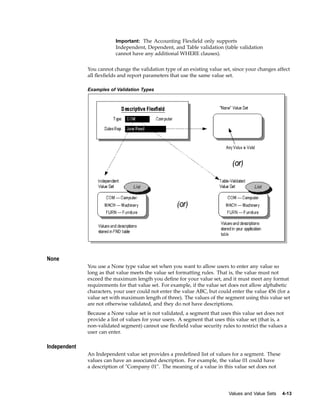
  • 275.
    • Your resultingcombination is "just like that other combination but with a different value for the second segment". • Each segment has some prescribed value. Decide From Where Each Segment Derives Its Value Did a segment value come from a form field, another combination of the same Accounting Flexfield structure, a segment of another key flexfield, an application table, a constant, or somewhere else? Modify Your Account Generator Process In customizing your Account Generator setup, you make modifications to the default process or create a new process using the Oracle Workflow Builder. For details on working within the Oracle Workflow Builder, see the Oracle Workflow documentation. See the product-specific documentation for limitations on what you can and cannot customize. For example, you may not be allowed to customize a top level process, but only the subprocesses within it. Also, see if your product’s Account Generator item type already includes attributes or functions you can use. Using pre-defined attributes and functions will save you time in your customization. Save a copy of the original item type in a source control area as a flat file (.wft file) before beginning customizations. By saving the original as a flat file you can limit access to it, thus ensuring that you will always have a copy of the original file. Important: If you have modified the default Account Generator process directly, you should ensure that your customizations are not overwritten when you upgrade to a future release. For more information, see the Oracle Workflow documentation. Warning: You should never create a new item type as your Account Generator. Instead, start from the default Account Generator item type or a copy of it. Important: You cannot modify the attributes or functions given to you in your default Account Generator item type. That is, you cannot select an attribute or function within the Navigator window and modify it. You can, however, modify the attributes of a function activity that is part of a process. Warning: Do not change the threshold level of the Oracle Workflow Engine. All of your Account Generator functions should have low costs, so you should never need to change the threshold level. Create a New Attribute You can create a new attribute for your Account Generator item type, which you can then use in your custom process. Note that custom attributes cannot be "input" attributes, that is, their values cannot be set by the calling form or program. After you create a new attribute, you need to set its value by adding a function activity to your process. For example, if the value comes from another code combination you could use the Get Value from Code Combination function activity from the Standard Flexfield Workflow. Account Generator 10-7
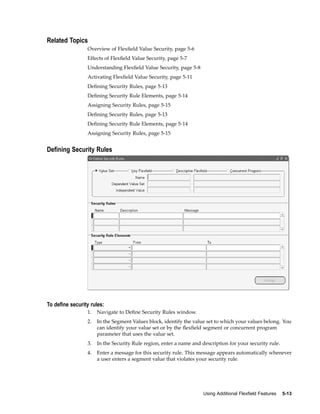
  • 276.
    Modify Attributes ofa Function Activity You can modify the values passed to a function activity. For example, suppose your default Account Generator process uses the standard function Copy Segment Value from Code Combination to copy a segment value from the default code combination. This function thus has "Default CCID" as the value for the attribute "Code Combination ID". However, suppose you want to use "Distribution CCID" instead of the "Default CCID". Assuming the Distribution CCID is available to the workflow, you would change function activity’s attributes to use the Distribution CCID. Add a Function Activity to a Process You can change the logic of the process by adding functions to the process diagram. Predefined standard Account Generator functions are described later in this chapter. Your product may have additional predefined functions that you can use. For information on these, see the product-specific documentation. For example, suppose that you are working within the Oracle Assets Account Generator item type. In your process, you want to check to see if any account is a Category Account. You would then add the Check Category Account function activity in the appropriate place in the process diagram. If a function requires values to be passed in as arguments, you need to ensure the proper values are set for the attributes of the function. Also, make sure that if you expect a result from the function, the result type is set properly, and any transitions from the function branch appropriately. Warning: Oracle Workflow provides activities that in general, you should not add to your Account Generator, namely, Notification and Block activities, since these halt the process. Warning: In general, avoid using parallel branches in your Account Generator process diagram. The Oracle Workflow Engine processes activities sequentially. If your process includes parallel branches that converge on a single function, you should ensure that that function is an AND function, so that all required activities are completed before the Engine continues to the next activity in the process. Create a New Function Activity You can create a new function activity and add it to your Account Generator item type. The Oracle Workflow documentation contains information on how to create new function activities and any associated PL/SQL stored procedures. Create a New Process You can create an entirely new Account Generator process in the Workflow Builder. Select the item type that you want to create the process for. For example, for Oracle Assets you would choose the FA Account Generator item type. From the Edit Menu choose New Process. Within the property sheet that appears, specify an internal name, display name and description. The display name will appear in the Navigator window for the process, and it would be the name used in the Account Generator Process window. If your process itself will create a code combination specify "Flexfield Result". If this is the top-level process that you will actually run, specify "Runnable". Tip: Examine your product’s default Account Generator process diagram first to see how a process works. 10-8 Oracle Applications Flexelds Guide
  • 277.
    Your start activityfor the top-level process must be the Start Generating Code Combination function activity, which you can copy from the Standard Flexfield Workflow item type. Designate this as a Start activity in the process Properties page, under "Start/End." You can then add activities to the process. See the Oracle Workflow documentation for details on how to add activities to a process, as well as details on standard Workflow activities. See the section on the Standard Flexfield Workflow for generic Account Generator function activities you might want to add. For example, the activity Is Code Combination Complete? checks to see if all segments have values. The Validate Code Combination activity is useful for validating your combination after it has been generated. You can add the Abort Generation of Code Combination activity to terminate the process in the case of a fatal error. You should pass in an error message to this activity if you use it. This activity should be marked in the properties page as an "End" activity with the Result of "Failure". In addition, your product’s Account Generator may also contain function activities particular to your product that you may want to use. See your Oracle [Product] User’s Guide for more information on these activities. Once the combination has been generated and validated, your process should end with the End Generation of Code Combination standard flexfield workflow activity. This activity should be marked in the Properties page as an "End" activity with the Result of "Success". If your custom process has a result type of "Flexfield Result," make sure your "End" activity(ies) give a result of "Success" or "Failure," since these are the possible values for "Flexfield Result." Related Topics Standard Flexfield Workflow, page 10-9 Test Your Account Generator Setup To test your setup, make sure that the correct process is assigned to your structure in the Account Generator Process form. See: Choosing the Process for a Flexfield Structure, page 10-15. Test your Account Generator setup as described in the product-specific documentation for the particular Account Generator process. In some products, you can test your setup within Oracle Applications; in others, you can test using a PL/SQL statement. Always test your setup on a test database before using it on a production database. Set the profile option Account Generator:Debug Mode to "Yes" if you are using the Oracle Workflow Monitor to view your results during testing. This profile option will ensure that the runtime data is saved for debugging. After you are finished testing, you can set Account Generator:Debug Mode to "No" to improve the performance of the Account Generator. Standard Flexeld Workow The Standard Flexfield Workflow item type provides special function activities for generating and validating key flexfield code combinations. These functions are in Account Generator 10-9
  • 278.
    addition to thepredefined Workflow activities described in the Oracle Workflow documentation. Also, your product may provide you with product-specific Account Generator functions. See the product-specific documentation for details on these additional functions. The Standard Flexfield Workflow only provides you with function activities you can use to customize your own Account Generator workflow. The Standard Flexfield Workflow does not contain any attributes or processes to run. The following is a description of each of the Standard Flexfield Workflow function activities. Start Generating Code Combination This function is used as the start activity of the top-level process that generates the code combination, and should be used only in the top-level process. It should not be used as a start activity of any subprocess the top level process may invoke. This function should be marked as a "Start" activity after copying it to the process window. This function does not have any attributes. The Workflow Engine uses this function to get values from the calling form or program for attributes ("input attributes") that are used to build the combination. Note: Do not use the Oracle Workflow Standard Start activity as the start activity of a top-level Account Generator process. The Account Generator may need to obtain attribute values that cannot be obtained using the Standard Start activity. Assign Value to Segment This function assigns a value to a specific segment of the combination. This function has the following attributes: • Segment Identifier: How the segment is identified, either "Qualifier" or "Name". • Segment: The flexfield qualifier name or segment name of the specific segment. • Value: The value to be assigned to the segment. • Replace existing value: Has the value of "False" if the value should be assigned only if the segment currently has no value, "True" if the value should be assigned even if the segment already has one. Copy Segment Value from Code Combination This function copies a segment value from a given code combination to the combination that is being generated. This function has the following attributes: • Code Combination ID: The code combination ID for the combination from which the segment value will be copied. • Segment Identifier: How the segment is identified, either "Qualifier" or "Name". • Segment: The flexfield qualifier name or segment name. • Replace existing value: Has the value of "False" if the value should be copied only if the segment currently does not have a value, "True" if the value should be copied even if the segment already has one. 10-10 Oracle Applications Flexelds Guide
  • 279.
    Copy Segment Valuefrom Other Structure Code Combination This function copies a segment value from a given code combination of a different accounting flexfield structure to the combination that is being generated. This function has the following attributes: • Structure Number: The structure number of the source combination. • Code Combination ID: The code combination ID for the combination from which the segment value will be copied. • Segment Identifier: How the segment is identified, either "Qualifier" or "Name". • Segment: The flexfield qualifier name or segment name. • Replace existing value: Has the value of "False" if the value should be copied only if the segment currently does not have a value, "True" if the value should be copied even if the segment already has one. Copy Values from Code Combination This function copies all the values from a given code combination to the combination that is being generated. If you set the "Replace existing value" attribute to "False", you can use this function to copy values from a default code combination to segments without values. This function has the following attributes: • Code Combination ID: The code combination ID for the combination from which values will be copied. • Replace existing value: Has the value of "False" if the value should be copied only if the segment currently does not have a value, "True" if the value should be copied even if the segment already has one. Get Value from Code Combination This function retrieves a segment value from a given code combination and assigns it to an attribute of the current workflow item. This function has the following attributes: • Code Combination ID: The code combination ID for the combination from which values will be copied. • Segment Identifier: How the segment is identified, either "Qualifier" or "Name". • Segment: The flexfield qualifier name or segment name. • Attribute to assign value: The internal name of the item attribute to which the value should be assigned. Get Value from Other Structure Code Combination This function retrieves a segment value from a given code combination of another accounting flexfield structure and assigns it to an attribute of the current workflow item. This function has the following attributes: • Structure Number: The structure number of the source combination. • Code Combination ID: The code combination ID for the combination from which values will be copied. • Segment Identifier: How the segment is identified, either "Qualifier" or "Name". Account Generator 10-11
  • 280.
    • Segment: Theflexfield qualifier name or segment name. • Attribute to assign value: The internal name of the item attribute to which the value should be assigned. Is Code Combination Complete? This function checks to see if values have been assigned to all segments in the code combination. This function returns "True" if all segments have values and "False" if one or more segments do not have values. This function has the following attribute: • Check only for required segments: If this attribute is set to "True" then the function only checks if the required segments have values. If this attribute is set to "False", then the function checks that all segments have values. Validate Code Combination This function validates the code combination that has been generated. It has the following attributes: • New code combinations are allowed: If this attribute is set to "True" AND the key flexfield has ’Dynamic Inserts Allowed’ set to "True", then the validation will not generate an error if the combination does not exist in the code combination table. • Validation Type: Either use "Generate Code Combination ID" to do a full validation and generate a code combination ID, or use "Validate Segments with Values only" to do value validation on only segments with values. Full validation applies to the entire combination to see if it is a valid combination. "Validate Segments with Values" only validates the values for segments with values. Note: If the code combination in question is new (that is, it does not already exist in the code combinations table), this function activity does not insert it into the database or generate a new CCID for it. If the combination is successfully validated and dynamic inserts are allowed, then the function will set the CCID to -1, and this will be the value that will be returned to the calling form or program. Abort Generating Code Combination This function is used to end the Account Generator process when a fatal error occurs. An error message in the encoded format is passed to the function and that message is displayed in the calling form or program. This function should be marked as an "End" activity and should return a value of "Failure". • Error message: The error message for the failure condition. The message should be in the Message Dictionary encoded format. End Generating Code Combination This function ends the top level process of the account generation, after the combination has been generated and validated. This function should normally follow immediately after the Validate Code Combination activity. This function should be marked as an "End" activity and should return a value of "Success". It does not have any attributes. For the functions listed above with the attributes Segment Identifier and Segment, "Qualifier" refers to the segment qualifier name that appears in the Qualifier 10-12 Oracle Applications Flexelds Guide
  • 281.
    window, for example,"GL_BALANCING". The segment "Name" refers to the Name specified in the Segments window. For information on segments, segment qualifiers, and validation see the following sections: Related Topics Defining Segments, page 2-17 Qualifiers, page 2-4 Flexfield Qualifiers, page 2-25 Converting from FlexBuilder In Release 10.7, you could create Accounting Flexfield code combinations automatically using the FlexBuilder feature. If you used FlexBuilder in Release 10.7, you can use your FlexBuilder configuration in the Account Generator. As part of the upgrade process, Rapid Install automatically creates an Account Generator process from your FlexBuilder configuration. This Account Generator process contains any customizations you had in FlexBuilder, and is called "Generate Account Using FlexBuilder Rules." Generate Account Using FlexBuilder Rules Process This process contains the logic from FlexBuilder. The process contains a function that retrieves the necessary item attribute values (corresponding to raw parameters in FlexBuilder) and calls PL/SQL functions to create the code combination. The logic from FlexBuilder is called from the FlexBuilder Upgrade Function activity (1). In addition to this function, the process contains the following functions: • Start Generating Code Combination • Validate Code Combination - if the FlexBuilder Upgrade Function returns Success, the code combination is validated • End Generating Code Combination - after the code combination is validated Account Generator 10-13
  • 282.
    • Abort GeneratingCode Combination - if the FlexBuilder Upgrade Function returns Failure, the process is aborted Warning: This process is provided for converting an existing FlexBuilder configuration only. You should not modify this process in any way, nor modify the PL/SQL functions. Oracle does not support modifications to this process. If you used FlexBuilder in Release 10.7 and now would like to add customizations to your Account Generator, you should do so by starting from the default Account Generator process. Important: If you used FlexBuilder in Release 10.7 but did not customize the default configuration, you do not need to use the Generate Account Using FlexBuilder Rules process, since the default Account Generator process gives you the same result as the default configuration in FlexBuilder. To use the Generate Account Using FlexBuilder Rules process, you need to associate that process with the appropriate Accounting Flexfield structure in the Account Generator Processes window, explained in the next section. A Note on Terminology For those converting from FlexBuilder, this section explains how the terminology "maps" between the two features. Raw parameters in FlexBuilder appear as attributes in the Account Generator. These "input" attributes are set when the Account Generator program is called. Derived parameters in FlexBuilder appear either as attributes or function activities in the Account Generator. A sequence of assignment rules in FlexBuilder corresponds to an Account Generator process. The default Account Generator process for a particular Accounting Flexfield structure corresponds to seeded assignment rules in FlexBuilder. Finally, a FlexBuilder function corresponds to an item type in the Account Generator. 10-14 Oracle Applications Flexelds Guide
  • 283.
    Choosing the Processfor a Flexeld Structure Use the Account Generator Processes window to assign Account Generator processes to Accounting Flexfield structures. This window is under the navigation path Application > Flexfield > Accounts in the "System Administrator" responsibility. To choose your Account Generator process: 1. Select the structure to which you want to assign a process. You can choose the application, flexfield title, structure, and description using View > Find... 2. Specify the Oracle Workflow Item Type containing the process. 3. Specify the process you want to use to generate the accounts. The default process, as specified in the product-specific documentation, will default in. If you want to use a different process, enter the name of the process you wish to use. For example, if you want to use the process derived from FlexBuilder, specify "Generate Account Using FlexBuilder Rules" instead. Application The application which uses the Accounting Flexfield structure. A list of values is available for this field. Flexeld Title The title of the Accounting Flexfield. A list of values is available for this field. Structure The Accounting Flexfield structure for which the Account Generator will be creating combinations. Account Generator 10-15
  • 284.
    Item Type The OracleWorkflow item type which contains the process which will generate the code combinations. Process The process within the above item type which will be used to create the code combinations. The default process, as specified in the product-specific documentation, will default in. 10-16 Oracle Applications Flexelds Guide
  • 285.
    A Business View Generator BusinessView Generator for Oracle Business Intelligence System This section describes the Business View Generator used in setting up Oracle Business Intelligence System. Oracle Business Intelligence System (BIS) uses business views to access information about your business applications. Business Views are created using the Business View Generator. Business Views are set up after you have completed the setup for the other Oracle Applications Products you have installed. For additional setup information, see the Oracle Business Intelligence System Implementation Guide. Prerequisites Business Views should be set up after you have completed the setup for the other Oracle Applications products you have installed. Ensure that: • All the key flexfields have been set up and frozen. • The desired descriptive flexfields have been set up and frozen. • The values for user updateable lookup codes have been set up. Generating Business Views You run the Business View Generator to include information specific to your setup in the Business Views templates and to generate your Business Views. To run the Business View Generator, perform the following: 1. Connect to Oracle Applications and assume the Business Views Setup responsibility. Note: We recommend you restrict the access to this responsibility to the system administrators performing your installation. 2. In the Navigator, choose Reports > Run menu options to open the Submit Requests window. 3. Run the concurrent program Generate Business Views by Applications for each licensed application product at your site. If all the products are licensed, alternatively, you can run the Generate All Business Views program. Business View Generator A-1
  • 286.
    Concurrent programs arealso available to generate Business Views by descriptive flexfield, key flexfield, lookup, or view name. You should regenerate Business Views by lookup type, descriptive flexfield, or key flexfield (as appropriate) if any new lookups or flexfields have been defined since the views were last generated. Note: Due to the large number of Business Views delivered with Oracle Business Intelligence Systems, the execution of these concurrent programs could be a lengthy process (approximately 13 hours). 4. In the Navigator, choose Reports > View to open the View Requests window. 5. Verify that all the submitted programs completed successfully and that all the views were generated without errors by clicking the View Output button for each program. A-2 Oracle Applications Flexelds Guide
  • 287.
    Index Symbols :$FLEX$.Value_ Set_Name example, 4-28 usingsyntax, 4-26 A Account Aliases key flexfield, 6-5 Account Generator Account Generator Processes window, 10-15 benefits of, 10-1 converting from FlexBuilder, 10-13 customizing, 10-5 Generate Account Using FlexBuilder Rules process, 10-13 implementing, 10-5 in Oracle Applications, 10-5 modifying a process, 10-7 overview of, 10-1 Process Diagram, 10-2 Standard Flexfield Workflow, 10-9 terms, 10-1 testing, 10-9 Accounting Flexfield, 6-5 Key flexfields, 1-1 validation rules, 5-16, 5-19 Alias, shorthand, 5-1 defining, 5-1 Asset Key Flexfield, 6-6 Assigning Security Rules, 5-15 B Bank Details Key FlexField, 6-6 Bind variables, 4-25, 4-26, 7-2 Business View Generator, A-1 C Category flexfield, 6-7 CCID, 2-3 Changing key flexfield structure after defining aliases, 5-3 Changing key flexfield structure after defining rules, 5-19 Character Formatting Options, 4-9 Combination, 2-2 Combination of segment values, 2-2 Combinations form, 2-5 Combinations table, 2-3 Context field, 3-1, 3-5 using value sets with, 3-5 Context field value, 3-1 Context sensitive segment, 3-1 Context value, 3-1 Cost Allocation Key Flexfield, 6-8 Cross-validation, 2-16, 5-16 Key flexfields, 5-16 Validation rules, 5-16 Cross-Validation Rule Violation Report, 5-24 Cross-validation rules defining, 5-16 Cross-Validation Rules Listing, 5-24 D default segment value, 2-21 Default value, 4-33 overriding, 4-33 Default values, overriding, 9-7 Defaulting Segment Values, 2-21 Defaulting Values, 4-33 Define Value Set form, 4-36 Defining Cross-validation Rule Elements, 5-27 Defining Security Rule Elements, 5-14 Defining Security Rules, 5-13 Dependent values, 4-14, 4-19, 4-40 Value set, 4-14 Descriptive flexfield view, 8-4 Descriptive flexfields, 1-3 changing existing, 4-33 columns, 3-3 compiling, 3-19 context, 3-1, 3-21, 3-22 context field, 3-1 context prompt, 3-21 customizing, 3-19 defining, 3-19 Flexfields, 1-1 freezing, 3-19, 3-20 options, 3-9 Index-1
  • 288.
    planning, 3-18 reference fields,3-1, 3-22 segments, 3-1, 3-3, 3-19 setting up, 3-19 tables, 3-3 validation, 4-36 validation tables, 4-21, 4-22, 4-41 value sets, 4-21, 4-22, 4-36 Dynamic insertion, 2-8 Accounting Flexfields, 5-19 when not possible, 2-8 E Enabling shorthand entry, 5-3 F FlexBuilder converting to Account Generator, 10-13 Flexfield qualifiers, 2-4 choosing values for, 2-25 Flexfield segment, 1-1 Flexfield views, 8-1 Flexfields benefits of, 1-4 changing existing, 4-33 default values, 2-23 defining, 1-10 Descriptive flexfields, 1-1 implementing, 1-7 Key flexfields, 1-1 planning, 1-7 predefined value sets, 4-17 recompiling, 2-14, 3-20 rules, security, 5-8 security, 5-6, 5-7, 5-8 setting up, 1-7 shorthand entry, 5-1, 5-2 terms, 1-5, 2-1, 3-1 types of flexfields information, 1-12 validation, 4-36 validation tables, 4-22 value security, 5-6, 5-7, 5-8 value sets, 4-21, 4-36 views, 8-1 FND FLEXIDVAL, 8-18, 8-22 FND FLEXSQL, 8-17, 8-19 FND SRWEXIT, 8-17 FND SRWINIT, 8-17 FND_DATE value sets, 4-17 Foreign key form, 2-5, 2-6 G Global segment, 3-1 Grade Key Flexfield, 6-8 H Hierarchical value security, 5-10 Hierarchy Details, 4-54 I Independent values, 4-13, 4-19, 4-33, 4-40 Intelligent keys, 2-1 Key flexfields, 1-1 Interaction of security rules, 5-8 Item Catalogs key flexfield, 6-9 Item Categories key flexfield, 6-9 Item Flexfield, 6-15 Item Flexfield (System Items), 6-15 J Job Flexfield, 6-10 K Key flexfield concatenated segment view, 8-2 Key flexfield structure view, 8-3 Key flexfields, 1-2, 2-16 alias, shorthand, 5-1 CCID, 2-3 changing existing, 4-33 changing valid values, 4-50 child values, 4-54 choosing qualifiers, 2-25 compiling, 2-13, 3-19 cross-validation, 5-16, 5-19 cross-validation rules, 5-16 customizing, 2-14, 2-15, 2-18, 3-20 default precedence, 4-33, 9-7 default values, 2-23 defining, 2-13, 3-19 defining shorthand alias, 5-1 dynamic inserts, 2-8, 2-16 enabling segment values, 2-15, 4-51 enabling segments, 2-18 Flexfields, 1-1 foreign tables, 9-1 freezing, 2-13, 2-16, 3-19 LOADID, 9-1 LOADIDR, 9-10 planning, 2-10, 2-11 POPID, 9-1, 9-1 POPIDR, 9-10 qualifiers, 2-5, 2-25 ranges of values, 2-7, 5-14, 5-27 recompiling, 2-14, 3-20 registering tables, 4-22, 4-41 rollup groups, 2-16, 4-52 rule elements, 5-14, 5-19, 5-27 rules, cross-validation, 5-19 rules, security, 5-8 security by value, 5-6, 5-7, 5-8, 5-12 Index-2
  • 289.
    security rule elements,5-14 security rules, 5-8, 5-12 segment qualifiers, 2-5 segment values, 4-48, 4-50, 5-12 segments, 2-13, 2-17, 3-19 setting up, 2-13, 3-19 shorthand entry, 4-33, 5-1, 9-7 structure, 2-15 user exits, 9-1, 9-1 VALID, 9-1, 9-1 valid combinations, 5-16, 5-27 validation, 4-22, 4-36, 5-19 validation tables, 4-21, 4-22, 4-41 VALIDR, 9-10 value security, 5-6, 5-7, 5-8, 5-12 value sets, 2-19, 4-21, 4-36 values, 4-48, 5-12 Key flexfields by flexfield name, 6-1 Key Flexfields by owning application, 6-3 L Location Flexfield, 6-10 M Maximum size, value set, 4-8 N Non-validated segments, 4-12 NUMBER value sets, 4-17 Numbers Only (0-9), 4-9 O Oracle Reports flexfields and, 8-14, 8-24 report-writing steps, 8-24 Oracle Service Item key flexfield, 6-14 P Pair validation example, 9-20 Pair value sets, 4-15, 9-14, 9-18 Parameters report, 7-1 People Group Key Flexfield, 6-11 Personal Analysis Key Flexfield, 6-11 Planning, 1-7 descriptive flexfields, 3-18 key flexfield diagram, 2-11 key flexfields, 2-10 value sets, 4-1 values, 4-1 Position Key Flexfield, 6-12 Precision, 4-5, 4-9 Product key flexfields, 6-1 Q Qualifier flexfield, 2-4 Qualifiers flexfield, 2-25 segment, 2-5 R Range form, 2-7 Reference fields, 3-1, 3-8 Report parameter planning, 7-2, 7-5 Standard Report Submission, 7-2 using flexfields in, 7-3 value sets, 7-4 Report-Writing Steps, 8-24 Reporting Attributes, 2-26, 2-26 Right-justify and Zero-fill Numbers, 4-9 Rules, cross-validation, 5-19 Rules, security assigning, 5-10, 5-12 defining, 5-8, 5-12 enabling, 5-11 interaction, 5-8 S Sales Orders key flexfield, 6-13 Sales Tax Location Flexfield, 6-13 Security, flexfield value enabling, 5-11 hierarchical, 5-10 rules, assigning, 5-10 rules, defining, 5-8 rules, interaction, 5-8 using, 5-6, 5-7 Segment qualifiers, 2-5 Key flexfields, 2-5 Segment values, defaulting, 2-21 Segments, 1-1, 1-5 context-sensitive, 3-1 descriptive flexfield, 3-1 global, 3-1 Shorthand alias, 5-2 defining, 5-1 Shorthand entry, 5-1 alias, 5-1 Key flexfields, 5-1 setting up, 5-1 Soft Coded Legislation Key Flexfield, 6-14 Special value sets, 4-15, 9-14, 9-18 Standard Flexfield Workflow, 10-9 Abort Generating Code Combination, 10-12 Assign Value to Segment, 10-10 Copy Segment Value from Code Combination, 10-10 Copy Values from Code Combination, 10-11 Index-3
  • 290.
    End Generating CodeCombination, 10-12 Get Value from Code Combination, 10-11 Is Code Combination Complete?, 10-12 Start Generating Code Combination function, 10-10 Validate Code Combination, 10-12 Standard Report Submission interaction with flexfields, 7-1 parameters, 7-1, 7-2 planning, 7-2, 7-5 Standard Request Submission, 7-1 using flexfields in, 7-3 value sets, 7-4 worksheets, 7-5 Standard Request Submission, 7-1 Stock Locators key flexfield, 6-14 Structures, 1-6 descriptive flexfield, 3-2 System Items (Item Flexfield), 6-15 System Items key flexfield, 6-15 T Table columns value set size, 4-8 Territory Flexfield, 6-15 U Uppercase Only, 4-9 Usages value sets, 4-47 User exits, precoded key flexfield, 9-1, 9-1 LOADID, 9-1 LOADIDR, 9-10 POPID, 9-1 POPIDR, 9-10 VALID, 9-1 VALIDR, 9-10 V Validation, 1-6, 4-12 Validation of alias values, 5-3 Validation rules changing, 5-24 definition, 5-16 designing, 5-16 error messages, 5-20 error segment, 5-20 suggestions for design, 5-23 Validation tables changing existing, 4-33 columns, 4-24 grants and synonyms, 4-24 implementing, 4-21 registering, 4-22 when to use, 4-21 WHERE clauses, 4-25 Value set, 1-6 dependent, 4-40 enabling security on, 5-11 independent, 4-40 report parameter, 7-4 Value Set Maximum Size, 4-8 Value sets changing existing, 4-33 context fields and, 3-5 date format, 4-17 defining, 4-1, 4-36 dependent, 4-14, 4-19, 4-33 format type, 4-4 independent, 4-13, 4-19, 4-33 Key flexfields, 4-36 list type, 4-37 LongList, enabling, 4-37 naming conventions, 4-17 none, 4-13 pair, 4-15, 9-14, 9-18 planning, 4-1 predefined, 4-17 sharing across flexfields, 4-36 size, 4-8 special, 4-15, 9-14, 9-18 table, 4-14, 4-21, 4-22, 4-33 translatable dependent, 4-15, 4-29 translatable independent, 4-15, 4-29 usages, 4-47 validation types, 4-33, 4-38 windows, 4-36 Values dependent, 4-14, 4-19 independent, 4-13, 4-19 key flexfield security, 5-6, 5-7, 5-8 Views creating, 8-4 examples, 8-8, 8-8, 8-11 flexfield, 8-1 reporting from, 8-7 W WHERE clauses for validation tables, 4-25 Worksheets report parameters, 7-5 Index-4
  • 291.