FIREFOX OS GUIDELINES 
ANDREEA POPESCU, 31 OCTOBER 2014, DESIGN JAM
@andreea_popescu
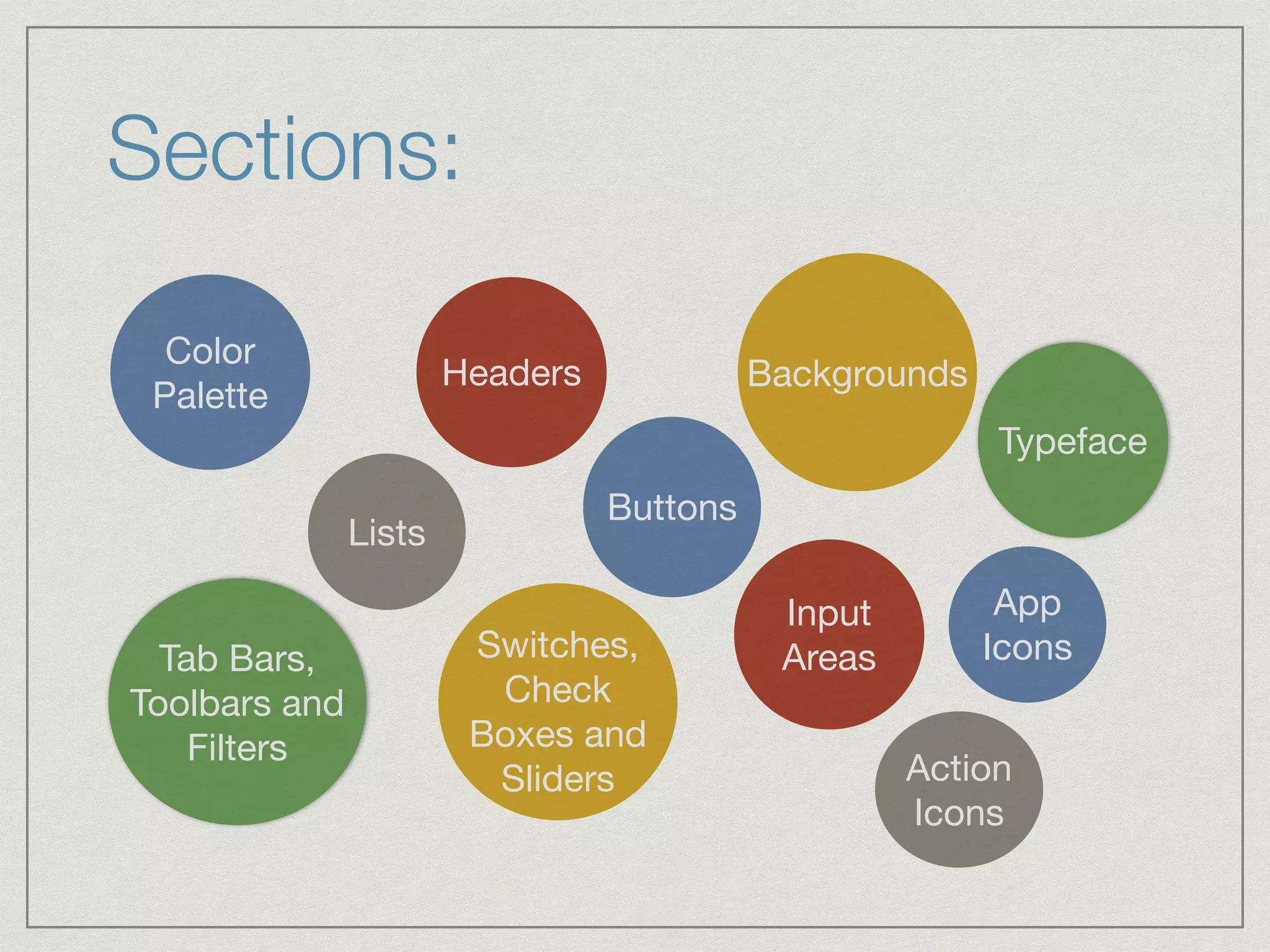
Sections: 
Color 
Palette 
Typeface 
Headers Backgrounds 
Lists Buttons 
Tab Bars, 
Toolbars and 
Filters 
Input 
Switches, Areas 
Check 
Boxes and 
Sliders 
App 
Icons 
Action 
Icons
I. COLOR PALETTE
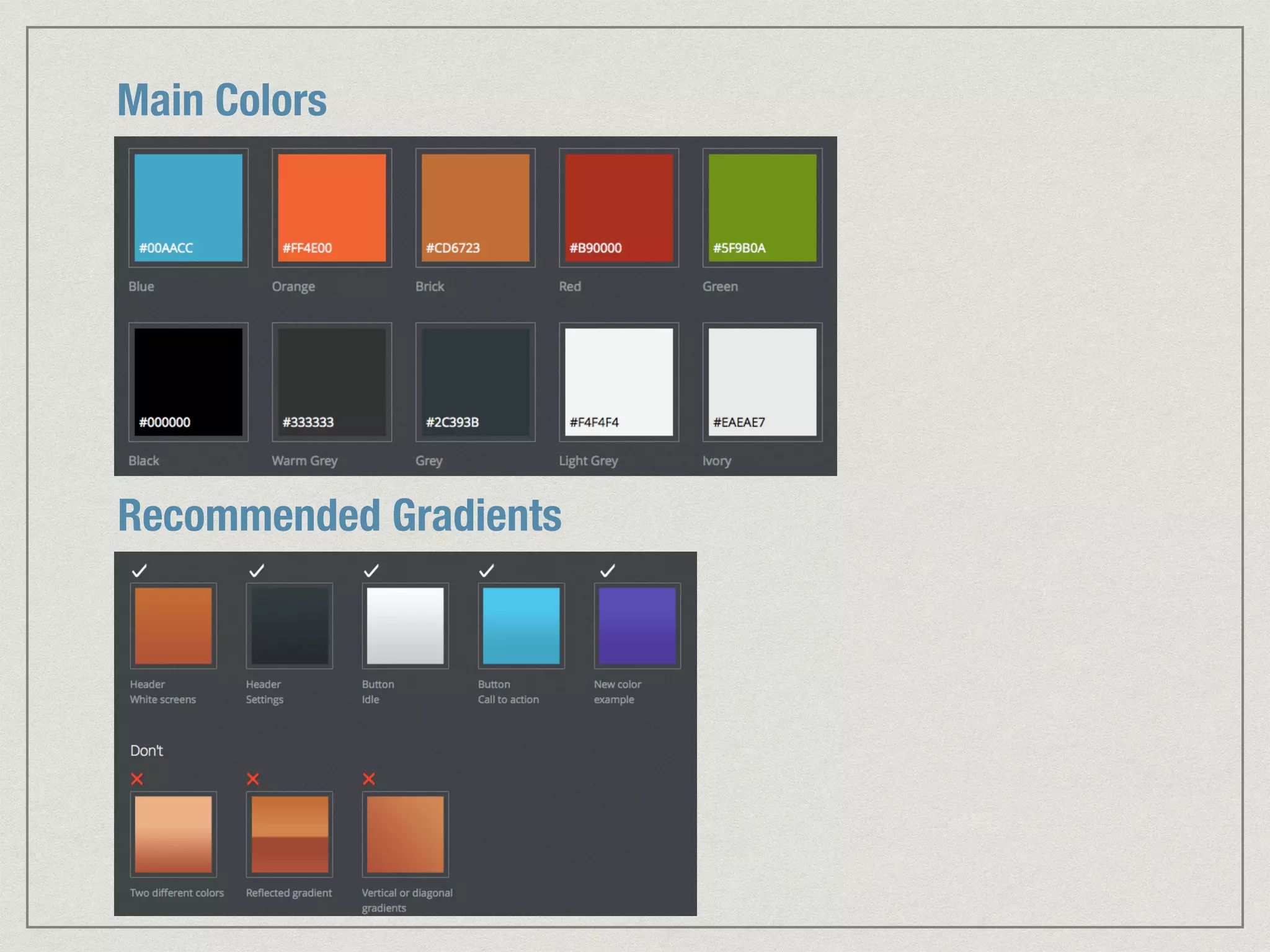
Main Colors 
Recommended Gradients
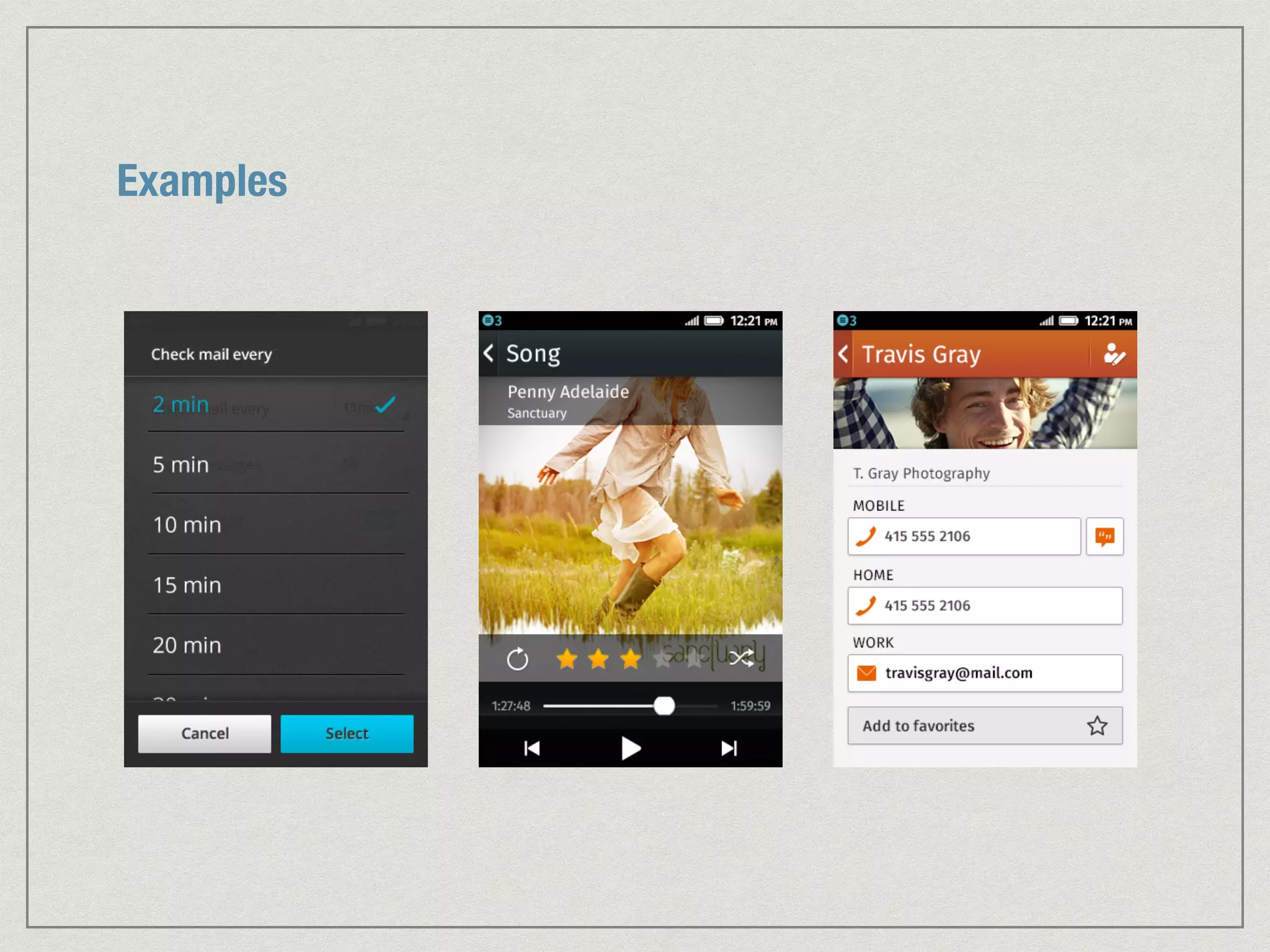
Examples
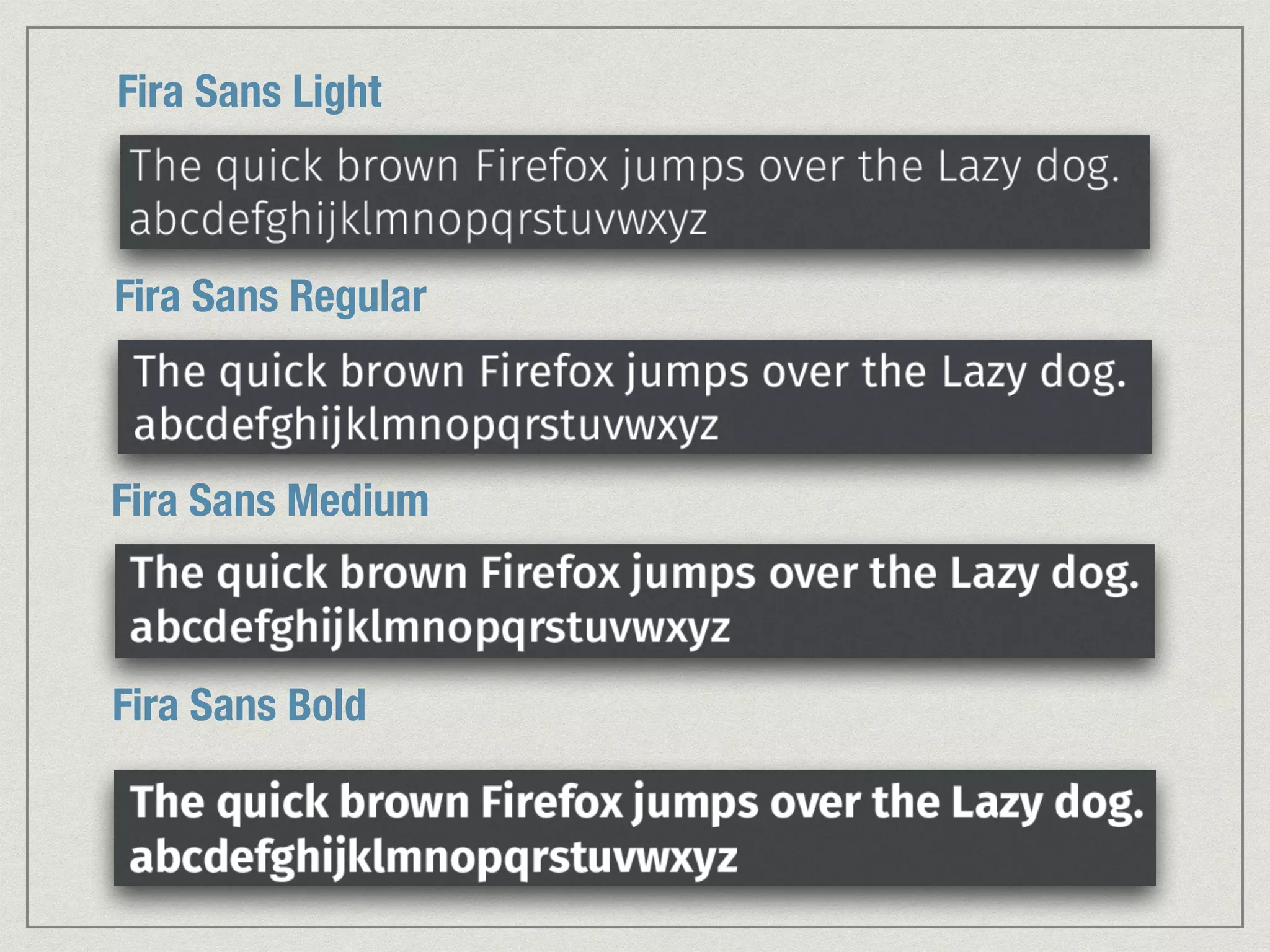
II. TYPEFACE
Fira Sans Light 
Fira Sans Regular 
Fira Sans Medium 
Fira Sans Bold
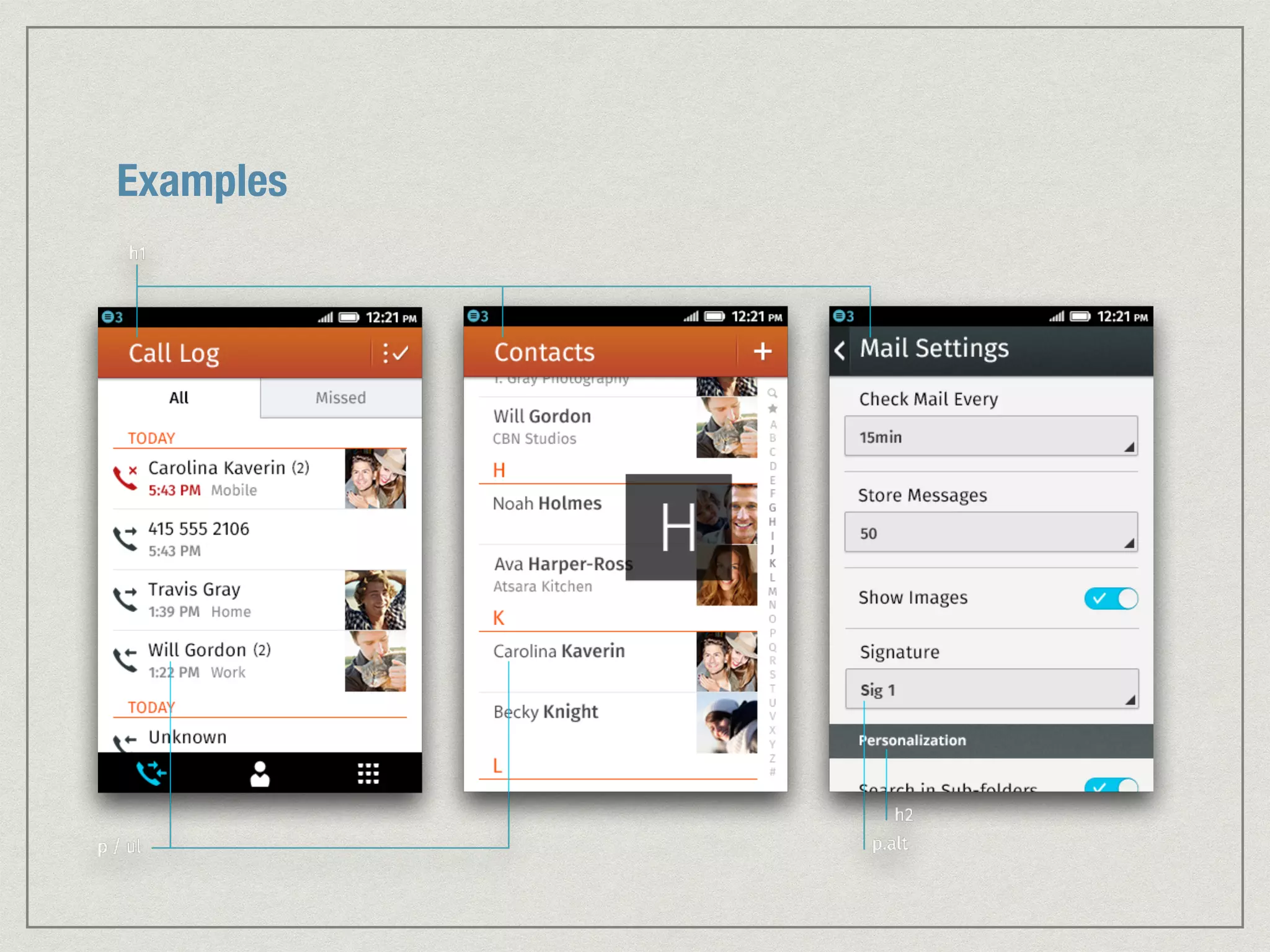
Examples
III. HEADERS
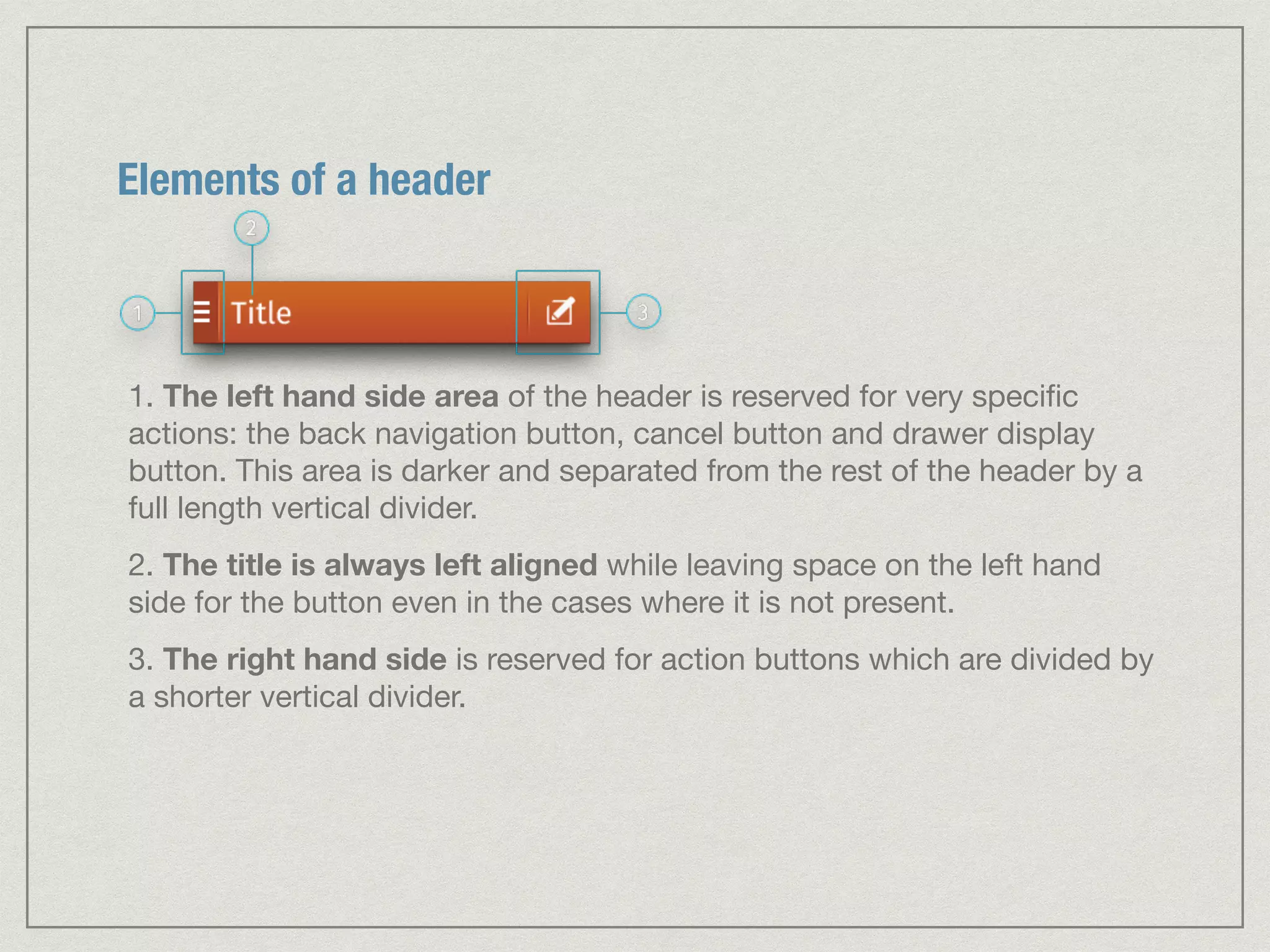
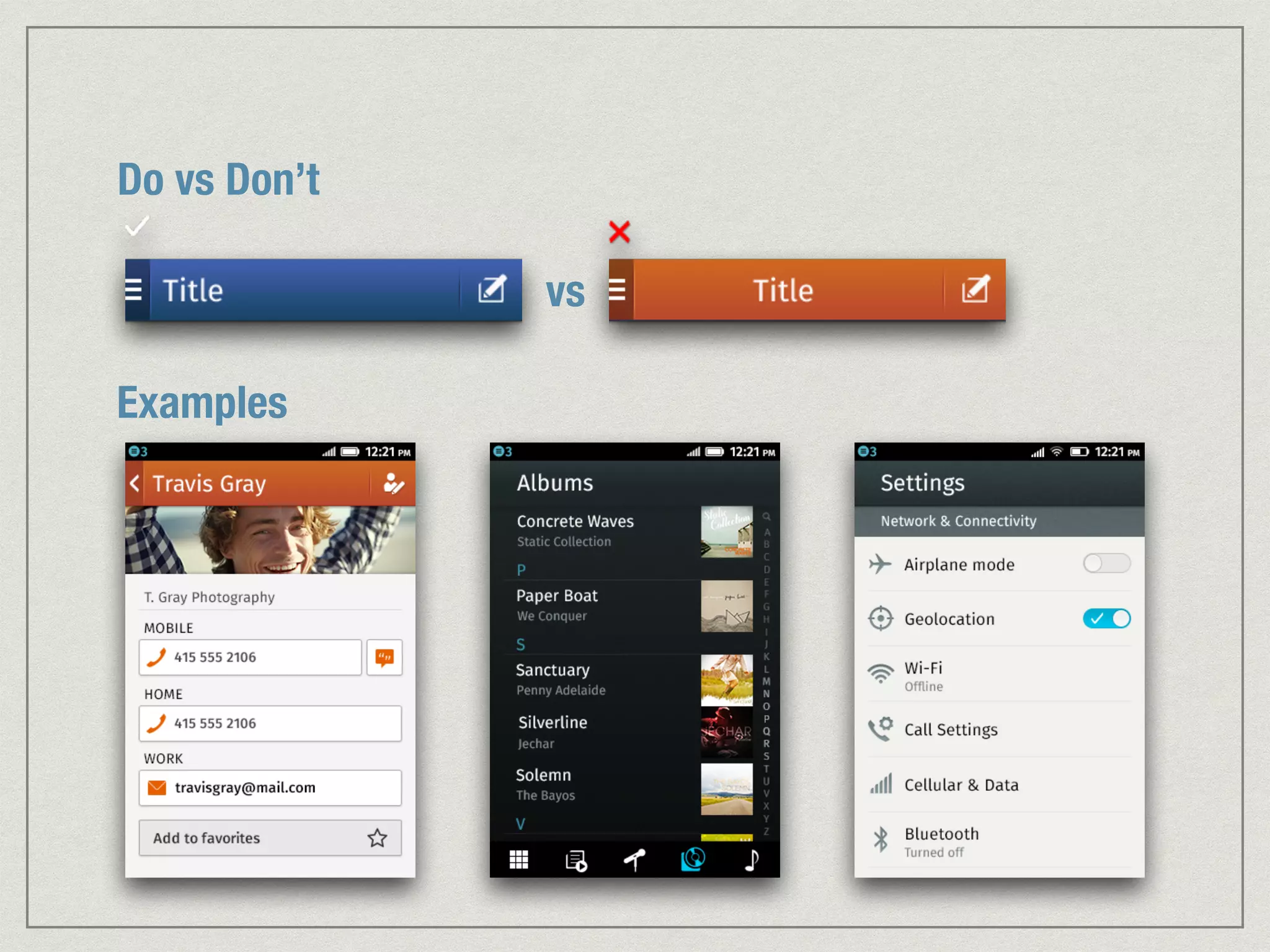
Elements of a header 
1. The left hand side area of the header is reserved for very specific 
actions: the back navigation button, cancel button and drawer display 
button. This area is darker and separated from the rest of the header by a 
full length vertical divider. 
2. The title is always left aligned while leaving space on the left hand 
side for the button even in the cases where it is not present. 
3. The right hand side is reserved for action buttons which are divided by 
a shorter vertical divider.
Do vs Don’t 
vs 
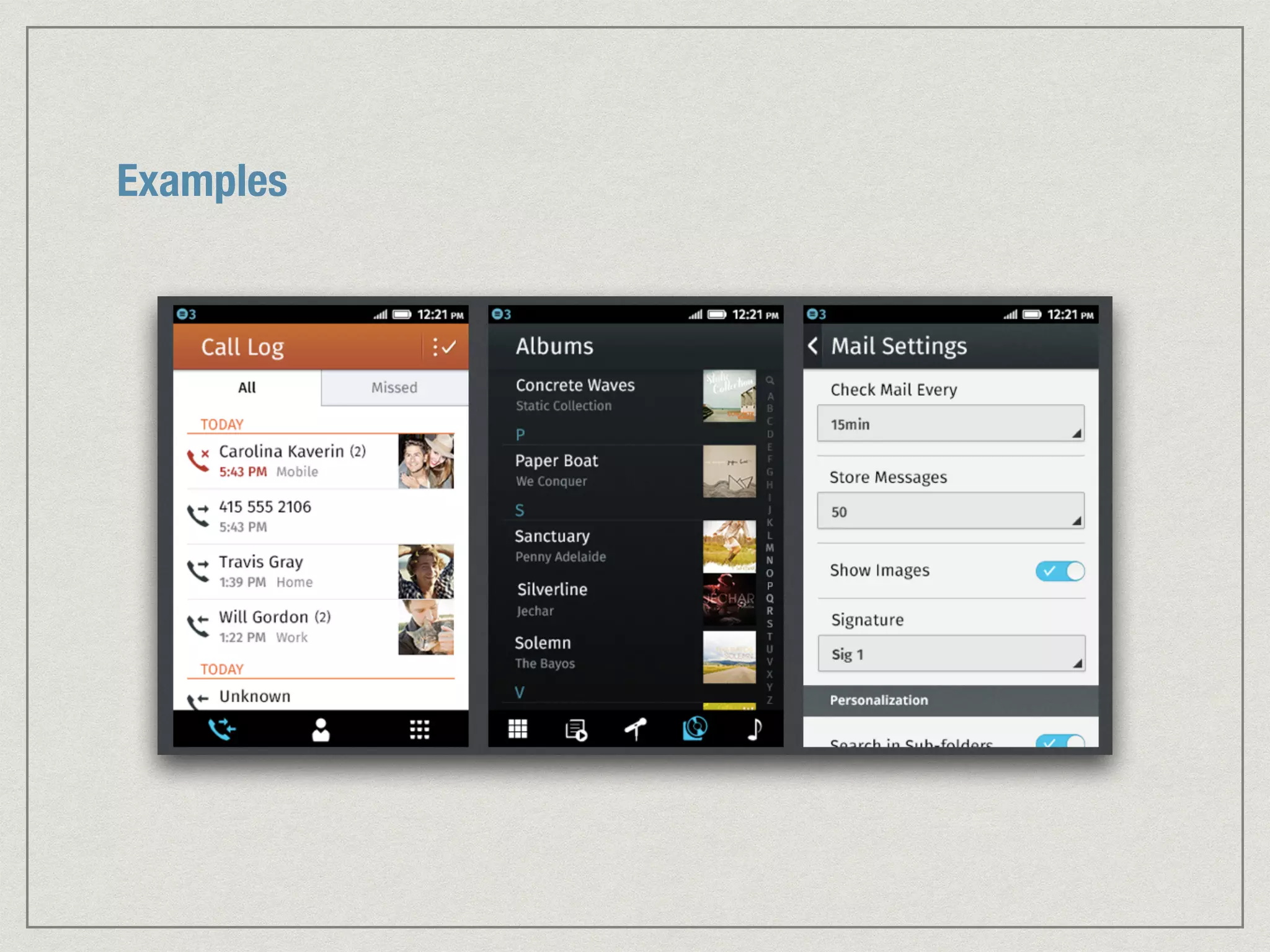
Examples
IV. BACKGROUNDS
backgrounds and headers on Firefox OS screens 
vary based on the type of screen content. 
there are two main groups: 
light screens: communication apps (email, 
contacts, SMS, etc.) 
dark screens: media apps (camera, photos, 
music, etc.) 
and two system groups: 
utilitarian screens: settings throughout OS 
edit mode: whenever an app is in edit mode
Examples
V. LISTS
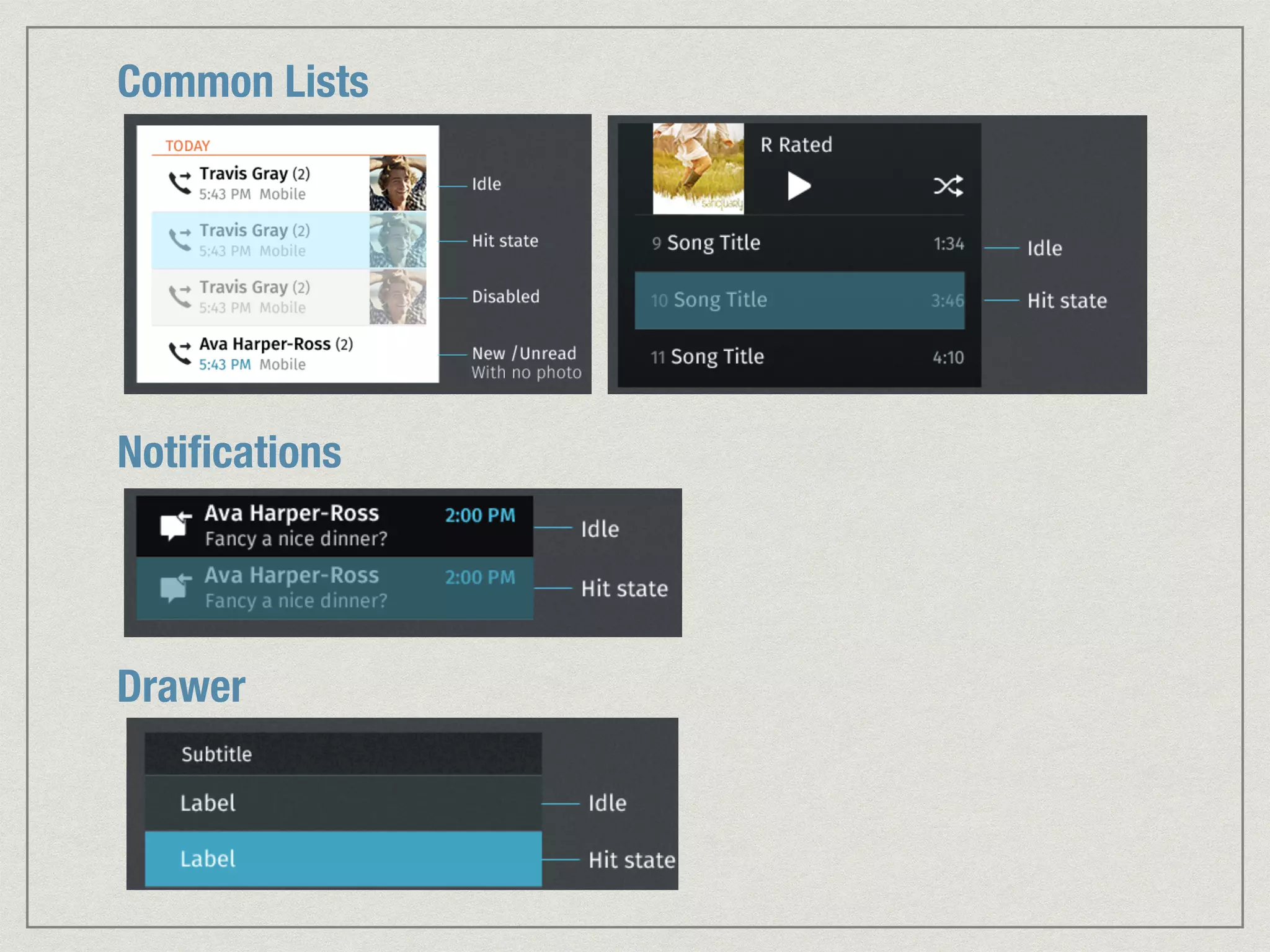
Common Lists 
Notifications 
Drawer
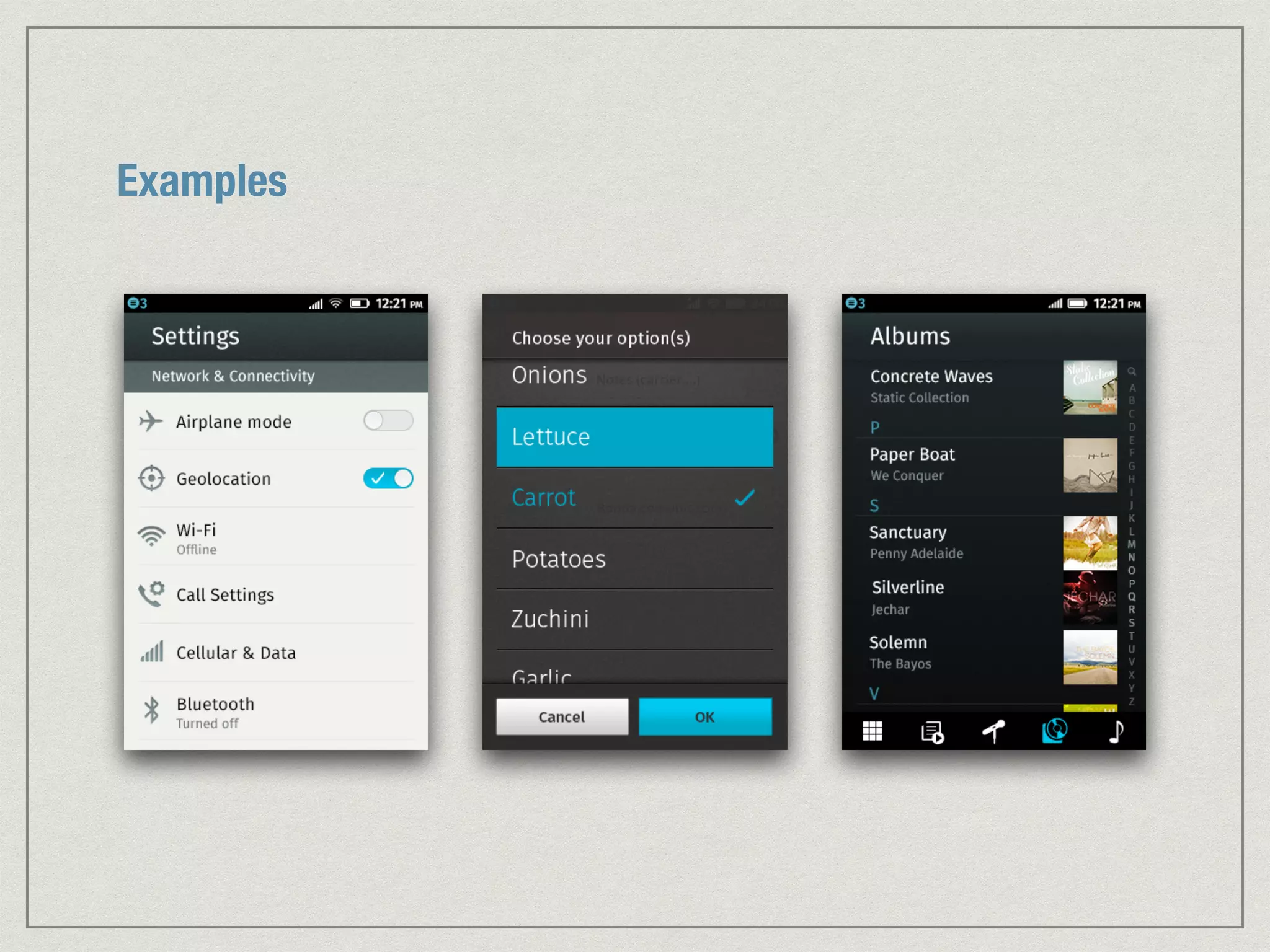
Examples
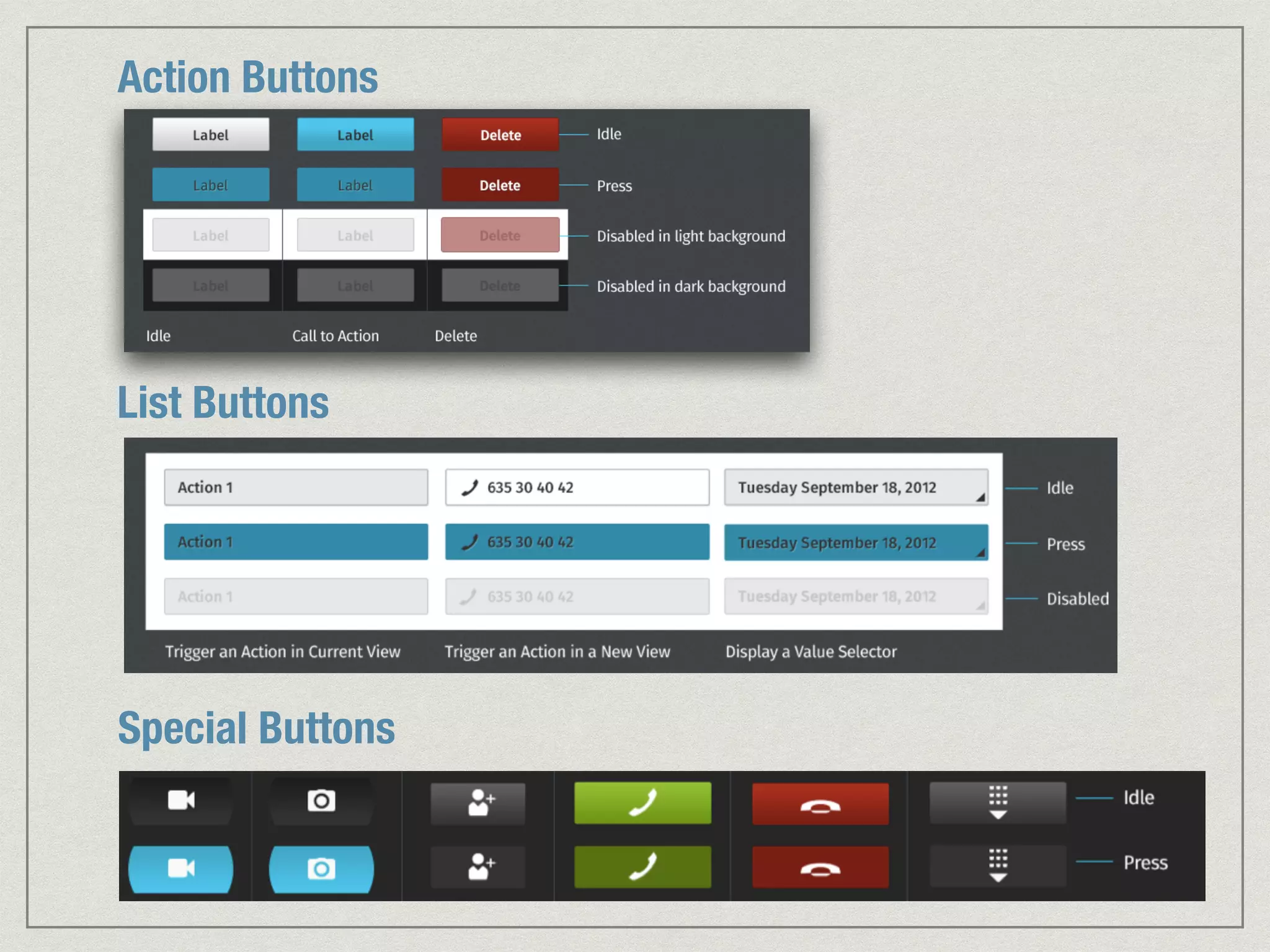
VI. BUTTONS
Action Buttons 
List Buttons 
Special Buttons
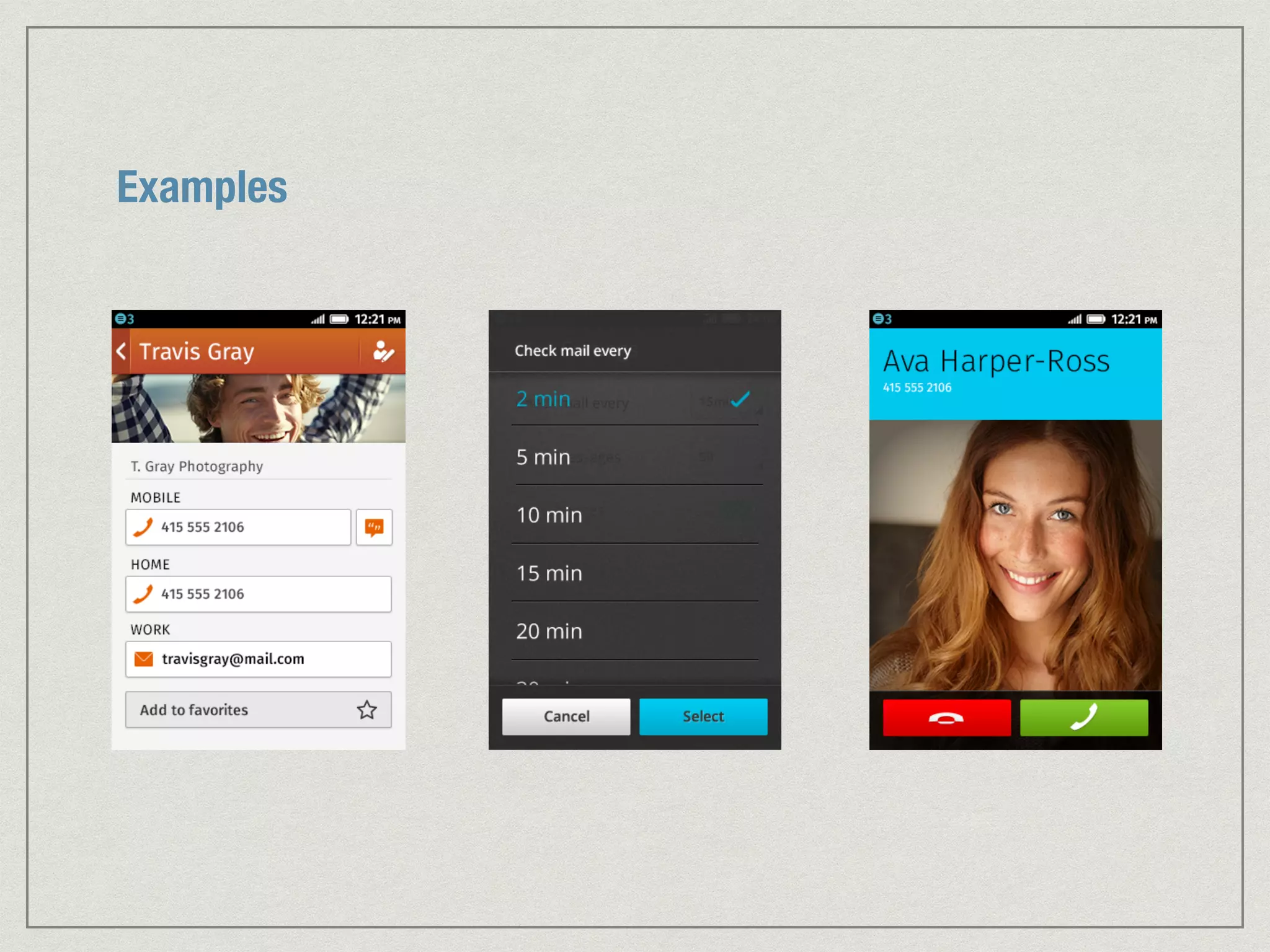
Examples
VII. TAB BARS, TOOLBARS 
AND FILTERS
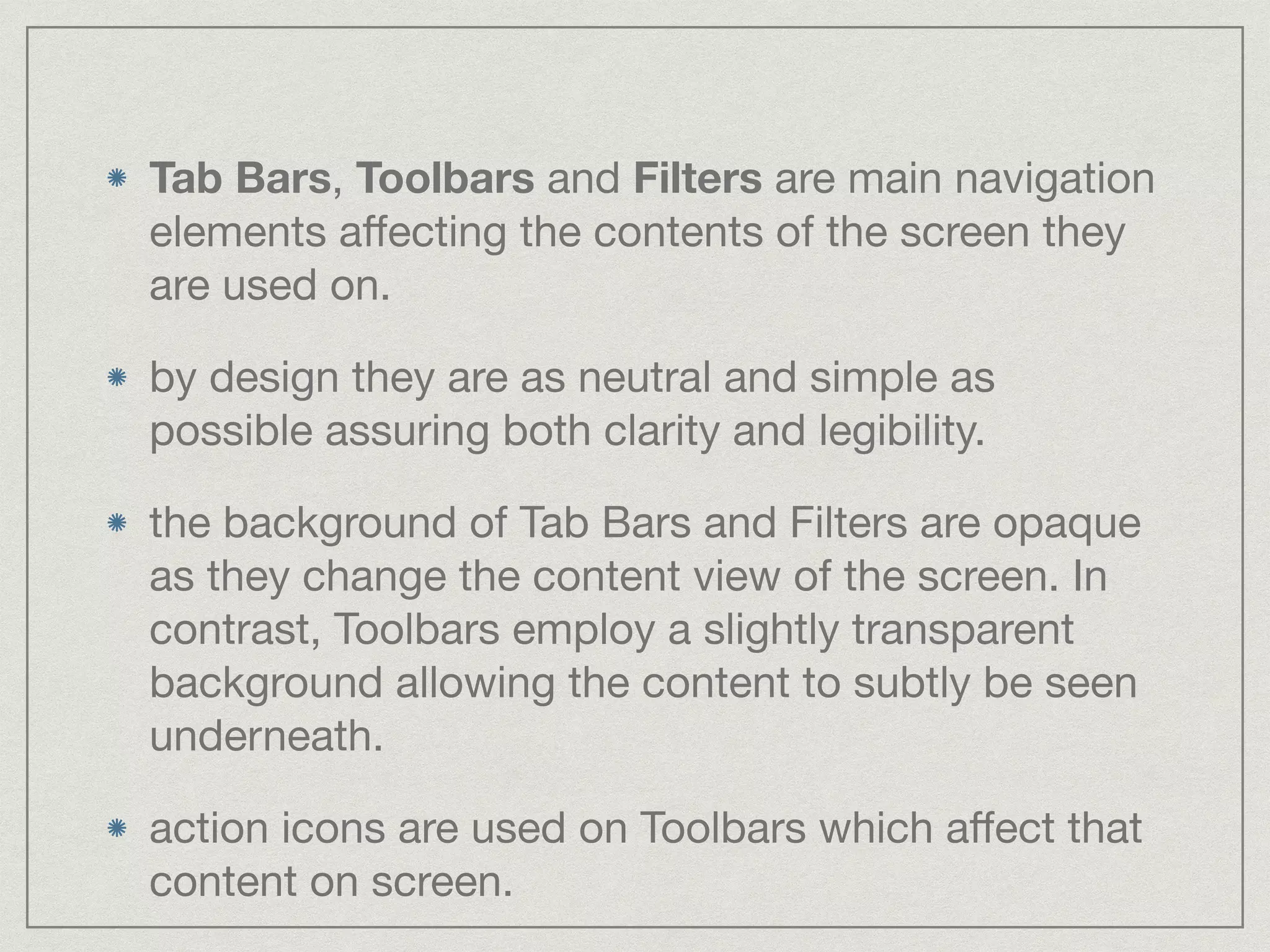
Tab Bars, Toolbars and Filters are main navigation 
elements affecting the contents of the screen they 
are used on. 
by design they are as neutral and simple as 
possible assuring both clarity and legibility. 
the background of Tab Bars and Filters are opaque 
as they change the content view of the screen. In 
contrast, Toolbars employ a slightly transparent 
background allowing the content to subtly be seen 
underneath. 
action icons are used on Toolbars which affect that 
content on screen.
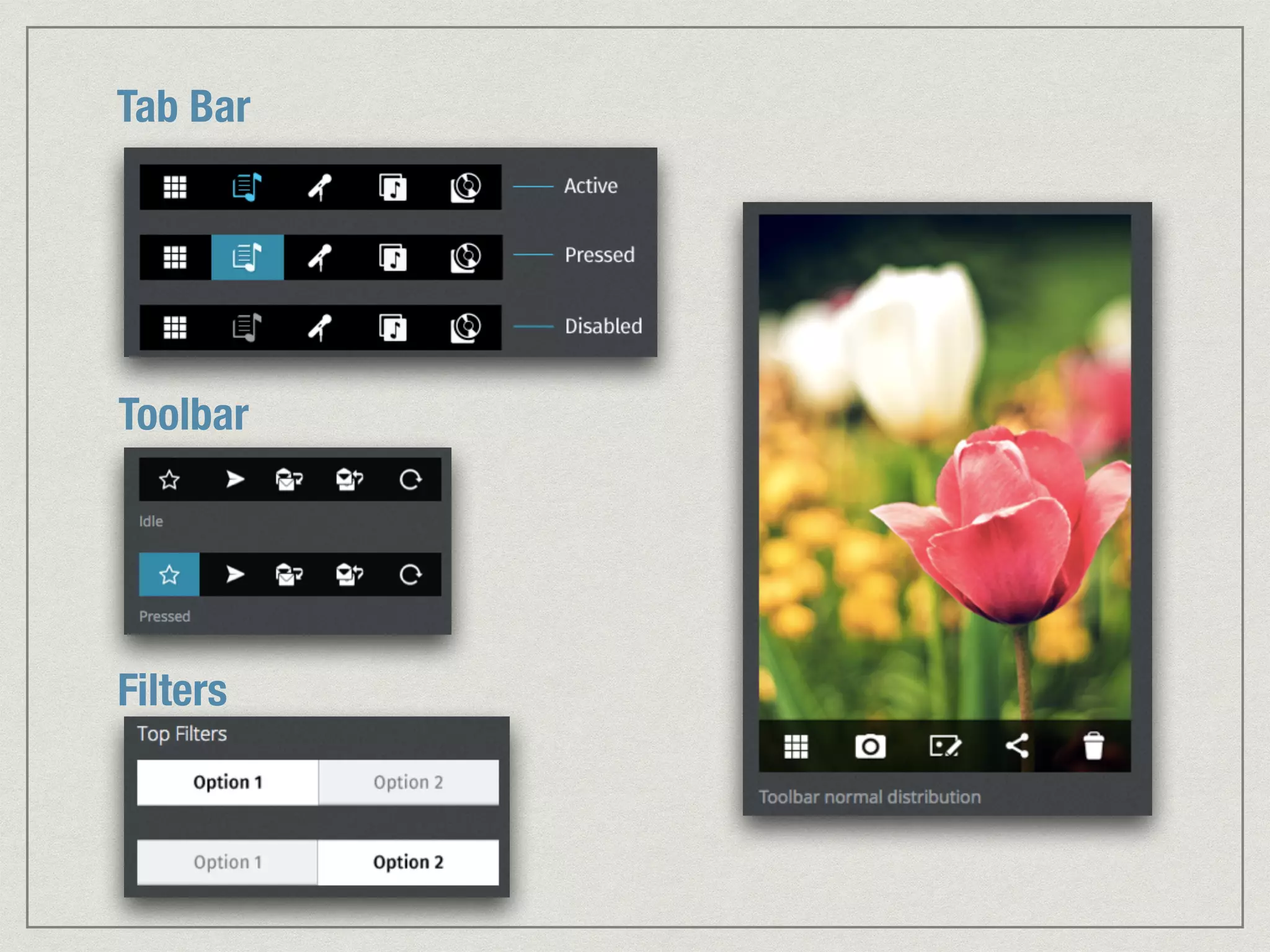
Tab Bar 
Toolbar 
Filters
VIII. INPUT AREAS
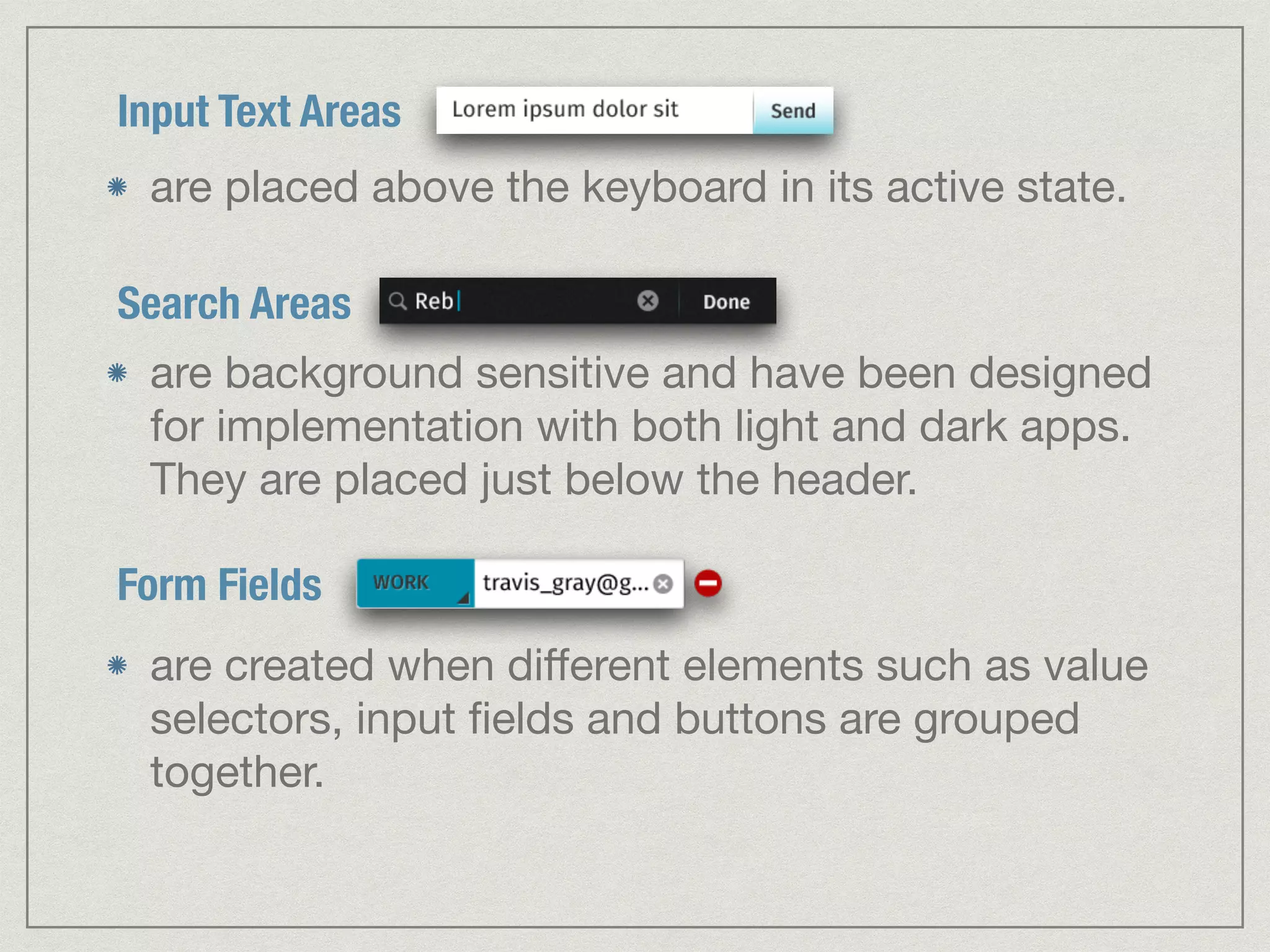
Input Text Areas 
are placed above the keyboard in its active state. 
Search Areas 
are background sensitive and have been designed 
for implementation with both light and dark apps. 
They are placed just below the header. 
Form Fields 
are created when different elements such as value 
selectors, input fields and buttons are grouped 
together.
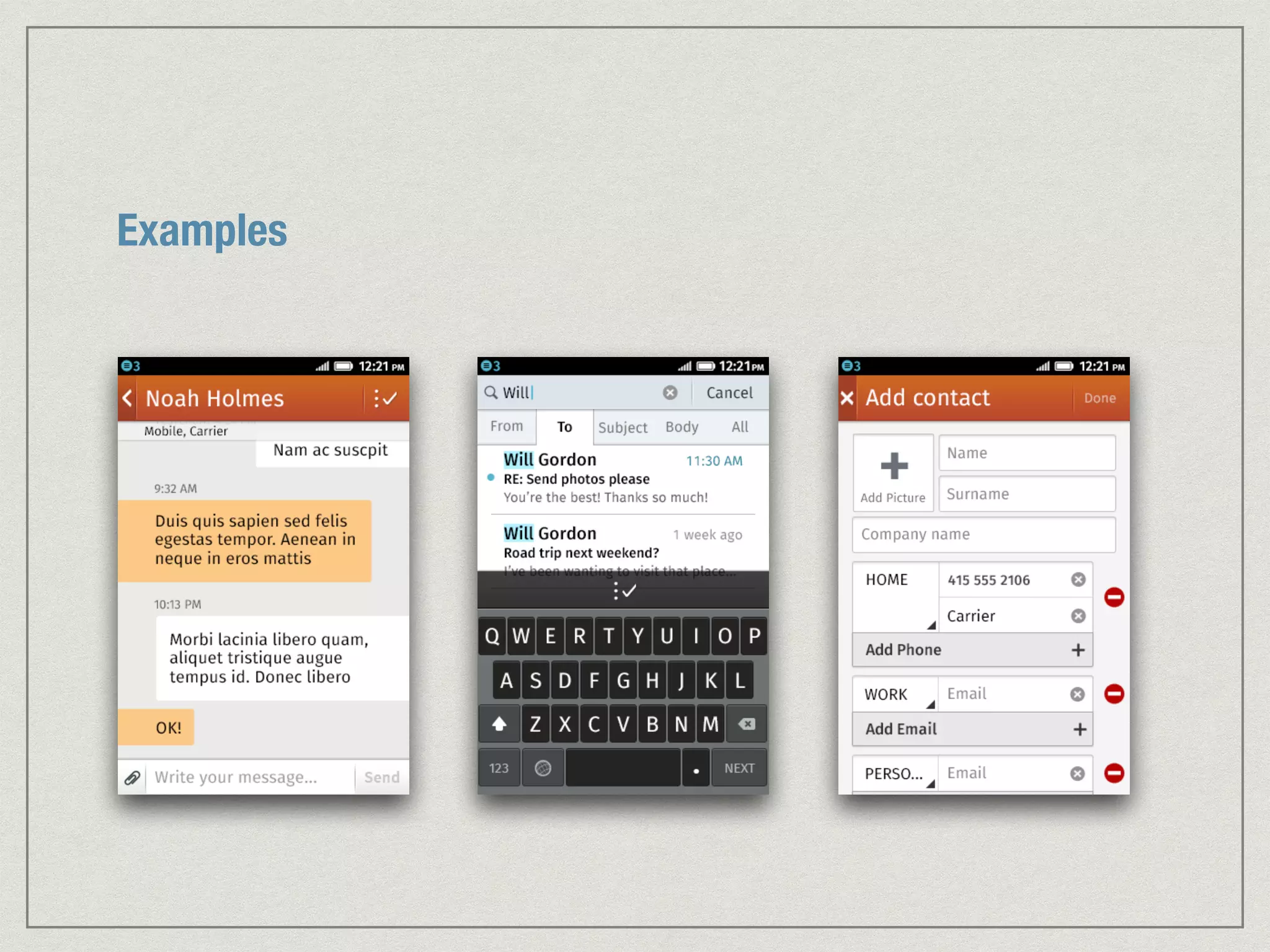
Examples
IX. SWITCHES, CHECK BOXES 
AND SLIDERS
Checkboxes 
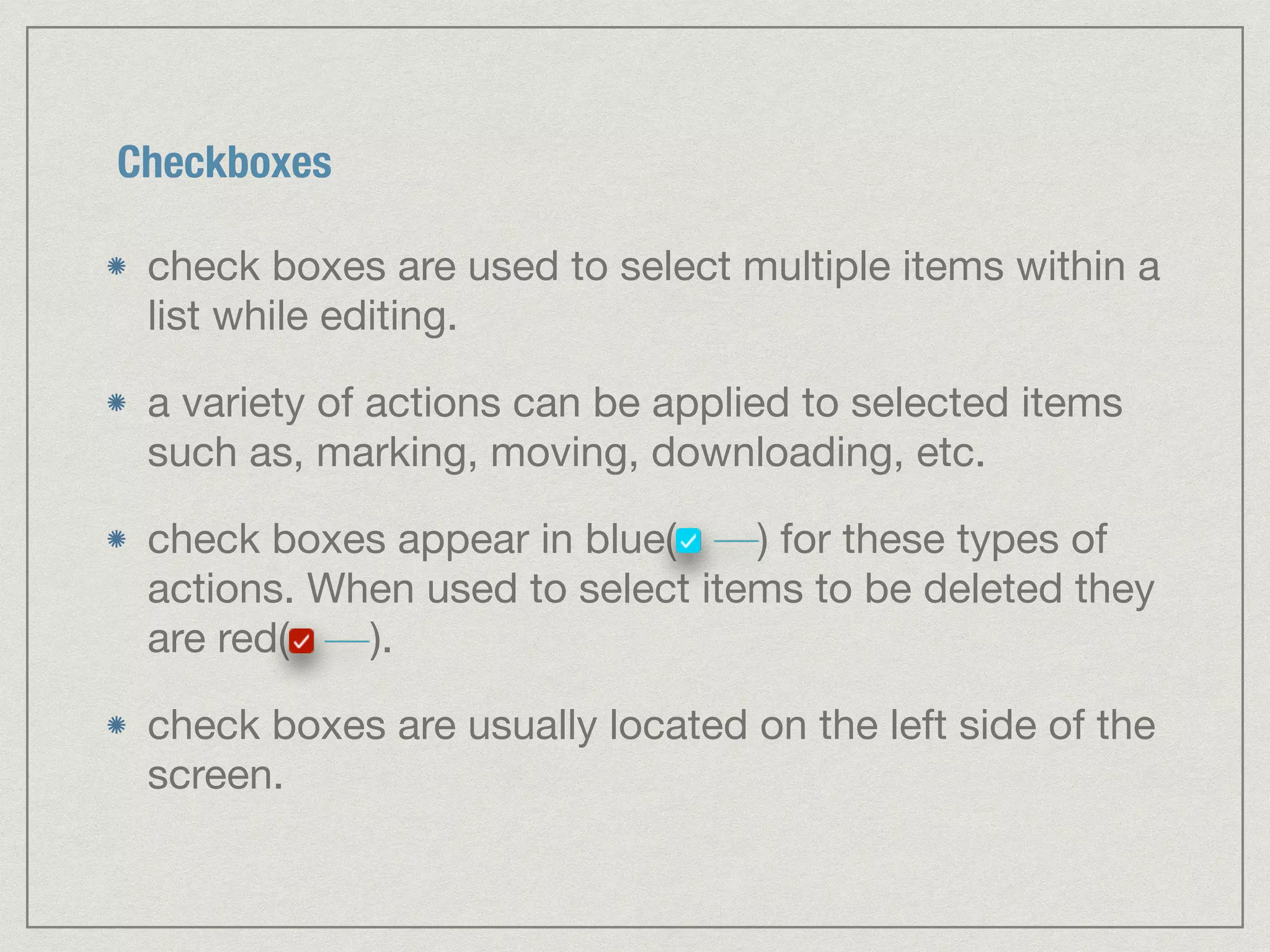
check boxes are used to select multiple items within a 
list while editing. 
a variety of actions can be applied to selected items 
such as, marking, moving, downloading, etc. 
check boxes appear in blue( ) for these types of 
actions. When used to select items to be deleted they 
are red( ). 
check boxes are usually located on the left side of the 
screen.
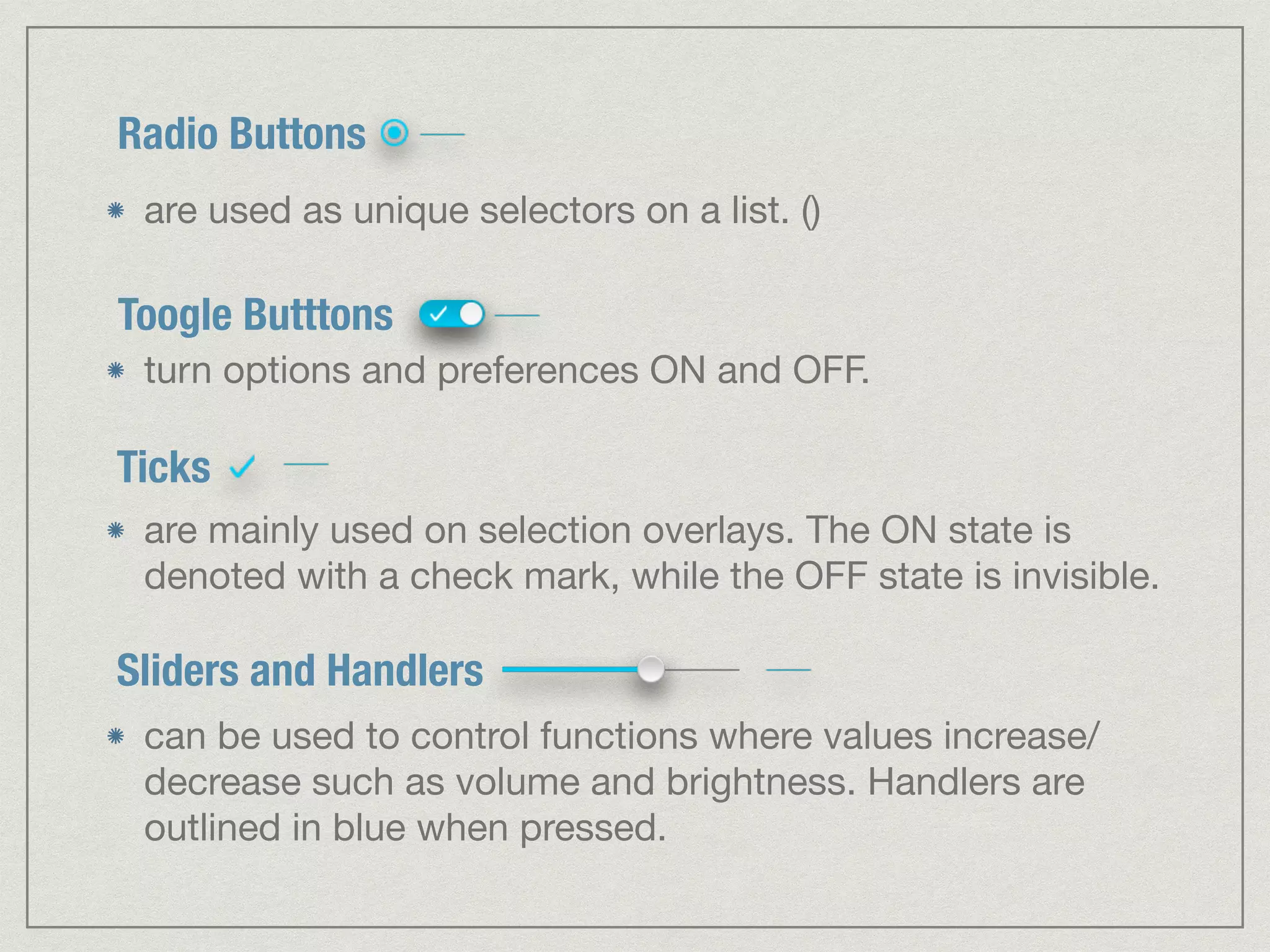
Radio Buttons 
are used as unique selectors on a list. () 
Toogle Butttons 
turn options and preferences ON and OFF. 
Ticks 
are mainly used on selection overlays. The ON state is 
denoted with a check mark, while the OFF state is invisible. 
Sliders and Handlers 
can be used to control functions where values increase/ 
decrease such as volume and brightness. Handlers are 
outlined in blue when pressed.
X. APP ICONS
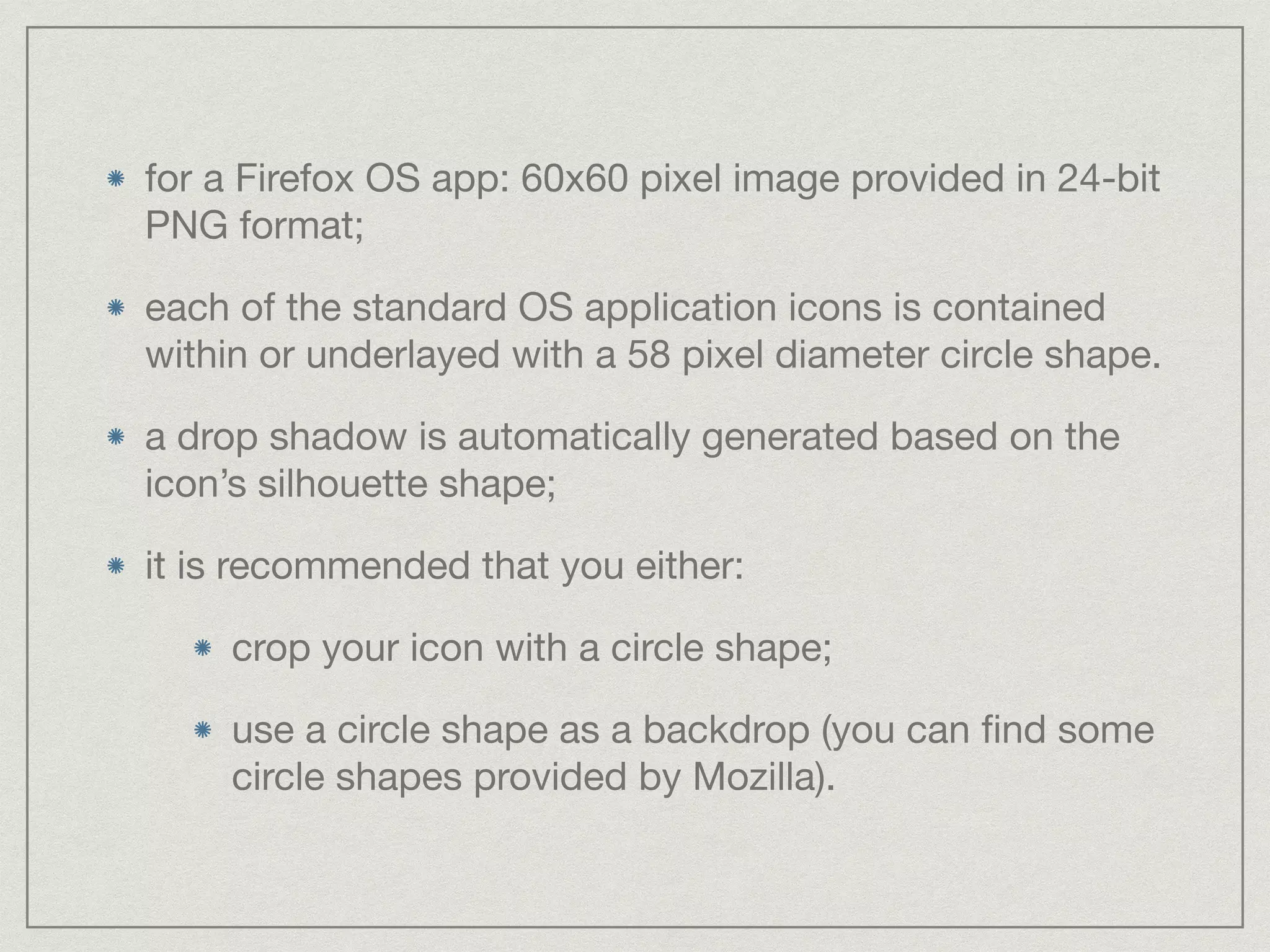
for a Firefox OS app: 60x60 pixel image provided in 24-bit 
PNG format; 
each of the standard OS application icons is contained 
within or underlayed with a 58 pixel diameter circle shape. 
a drop shadow is automatically generated based on the 
icon’s silhouette shape; 
it is recommended that you either: 
crop your icon with a circle shape; 
use a circle shape as a backdrop (you can find some 
circle shapes provided by Mozilla).
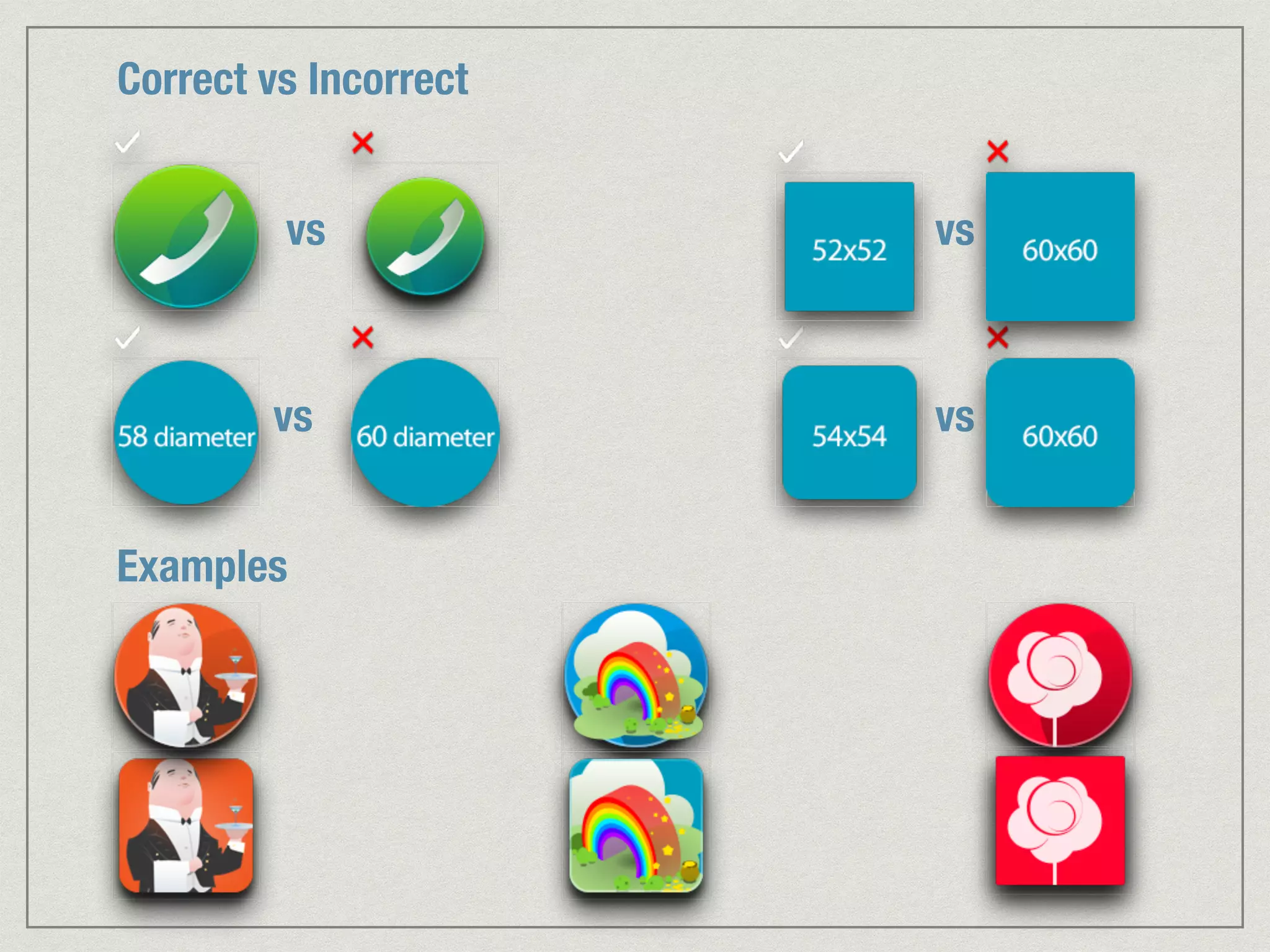
Correct vs Incorrect 
vs 
vs vs 
Examples 
vs
XI. ACTION ICONS
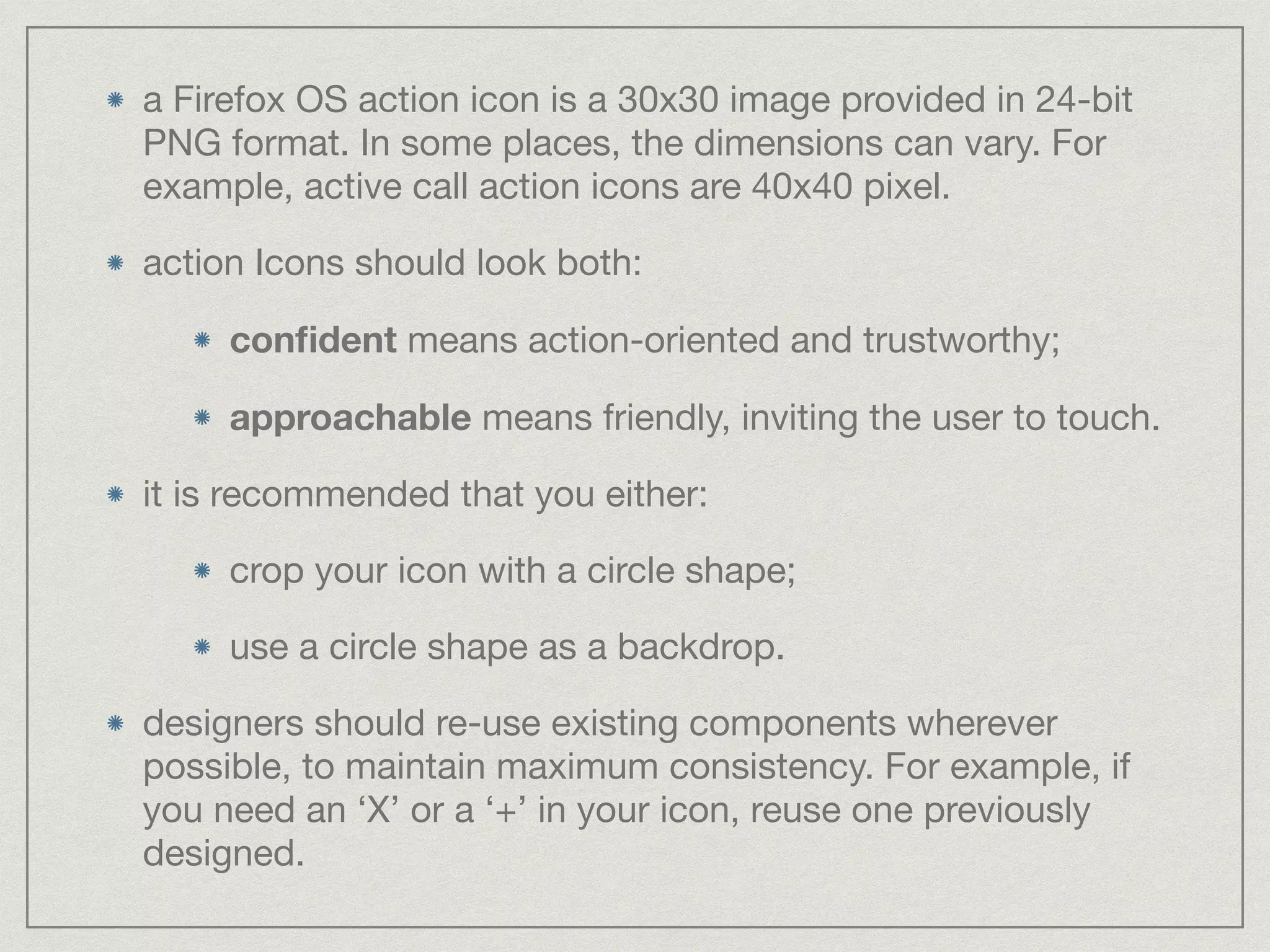
a Firefox OS action icon is a 30x30 image provided in 24-bit 
PNG format. In some places, the dimensions can vary. For 
example, active call action icons are 40x40 pixel. 
action Icons should look both: 
confident means action-oriented and trustworthy; 
approachable means friendly, inviting the user to touch. 
it is recommended that you either: 
crop your icon with a circle shape; 
use a circle shape as a backdrop. 
designers should re-use existing components wherever 
possible, to maintain maximum consistency. For example, if 
you need an ‘X’ or a ‘+’ in your icon, reuse one previously 
designed.
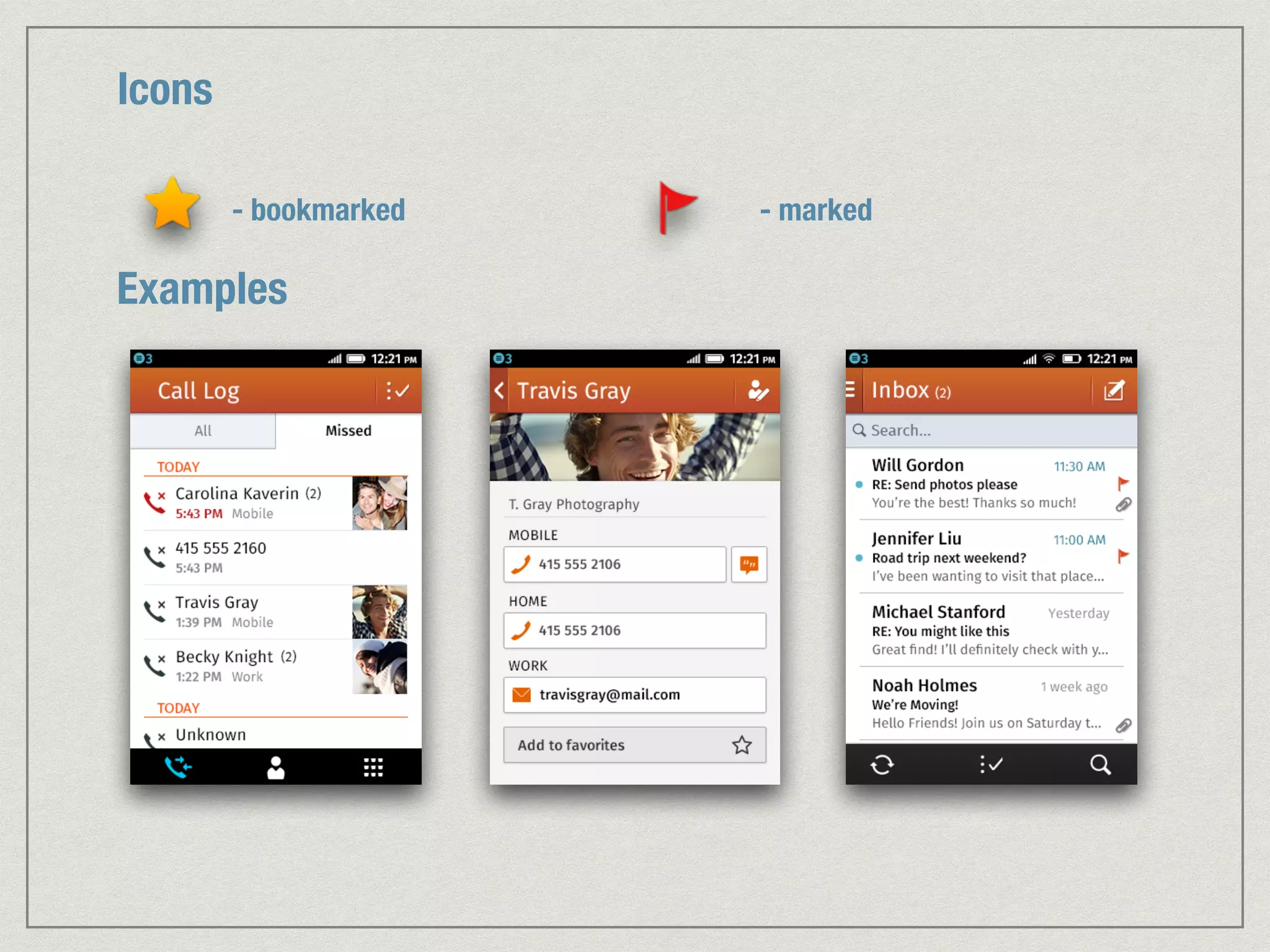
Icons 
- bookmarked - marked 
Examples
QUESTIONS?
CREDITS: 
MOZILLA.ORG/EN-US/STYLEGUIDE/PRODUCTS/FIREFOX-OS

Firefox OS Guidelines

  • 1.
    FIREFOX OS GUIDELINES ANDREEA POPESCU, 31 OCTOBER 2014, DESIGN JAM
  • 2.
  • 3.
    Sections: Color Palette Typeface Headers Backgrounds Lists Buttons Tab Bars, Toolbars and Filters Input Switches, Areas Check Boxes and Sliders App Icons Action Icons
  • 4.
  • 5.
  • 6.
  • 7.
  • 8.
    Fira Sans Light Fira Sans Regular Fira Sans Medium Fira Sans Bold
  • 9.
  • 10.
  • 11.
    Elements of aheader 1. The left hand side area of the header is reserved for very specific actions: the back navigation button, cancel button and drawer display button. This area is darker and separated from the rest of the header by a full length vertical divider. 2. The title is always left aligned while leaving space on the left hand side for the button even in the cases where it is not present. 3. The right hand side is reserved for action buttons which are divided by a shorter vertical divider.
  • 12.
    Do vs Don’t vs Examples
  • 13.
  • 14.
    backgrounds and headerson Firefox OS screens vary based on the type of screen content. there are two main groups: light screens: communication apps (email, contacts, SMS, etc.) dark screens: media apps (camera, photos, music, etc.) and two system groups: utilitarian screens: settings throughout OS edit mode: whenever an app is in edit mode
  • 15.
  • 16.
  • 17.
  • 18.
  • 19.
  • 20.
    Action Buttons ListButtons Special Buttons
  • 21.
  • 22.
    VII. TAB BARS,TOOLBARS AND FILTERS
  • 23.
    Tab Bars, Toolbarsand Filters are main navigation elements affecting the contents of the screen they are used on. by design they are as neutral and simple as possible assuring both clarity and legibility. the background of Tab Bars and Filters are opaque as they change the content view of the screen. In contrast, Toolbars employ a slightly transparent background allowing the content to subtly be seen underneath. action icons are used on Toolbars which affect that content on screen.
  • 24.
  • 25.
  • 26.
    Input Text Areas are placed above the keyboard in its active state. Search Areas are background sensitive and have been designed for implementation with both light and dark apps. They are placed just below the header. Form Fields are created when different elements such as value selectors, input fields and buttons are grouped together.
  • 27.
  • 28.
    IX. SWITCHES, CHECKBOXES AND SLIDERS
  • 29.
    Checkboxes check boxesare used to select multiple items within a list while editing. a variety of actions can be applied to selected items such as, marking, moving, downloading, etc. check boxes appear in blue( ) for these types of actions. When used to select items to be deleted they are red( ). check boxes are usually located on the left side of the screen.
  • 30.
    Radio Buttons areused as unique selectors on a list. () Toogle Butttons turn options and preferences ON and OFF. Ticks are mainly used on selection overlays. The ON state is denoted with a check mark, while the OFF state is invisible. Sliders and Handlers can be used to control functions where values increase/ decrease such as volume and brightness. Handlers are outlined in blue when pressed.
  • 31.
  • 32.
    for a FirefoxOS app: 60x60 pixel image provided in 24-bit PNG format; each of the standard OS application icons is contained within or underlayed with a 58 pixel diameter circle shape. a drop shadow is automatically generated based on the icon’s silhouette shape; it is recommended that you either: crop your icon with a circle shape; use a circle shape as a backdrop (you can find some circle shapes provided by Mozilla).
  • 33.
    Correct vs Incorrect vs vs vs Examples vs
  • 34.
  • 35.
    a Firefox OSaction icon is a 30x30 image provided in 24-bit PNG format. In some places, the dimensions can vary. For example, active call action icons are 40x40 pixel. action Icons should look both: confident means action-oriented and trustworthy; approachable means friendly, inviting the user to touch. it is recommended that you either: crop your icon with a circle shape; use a circle shape as a backdrop. designers should re-use existing components wherever possible, to maintain maximum consistency. For example, if you need an ‘X’ or a ‘+’ in your icon, reuse one previously designed.
  • 36.
    Icons - bookmarked- marked Examples
  • 37.
  • 38.