Final Poster Analysis
By Jordan Lyn
Vectors
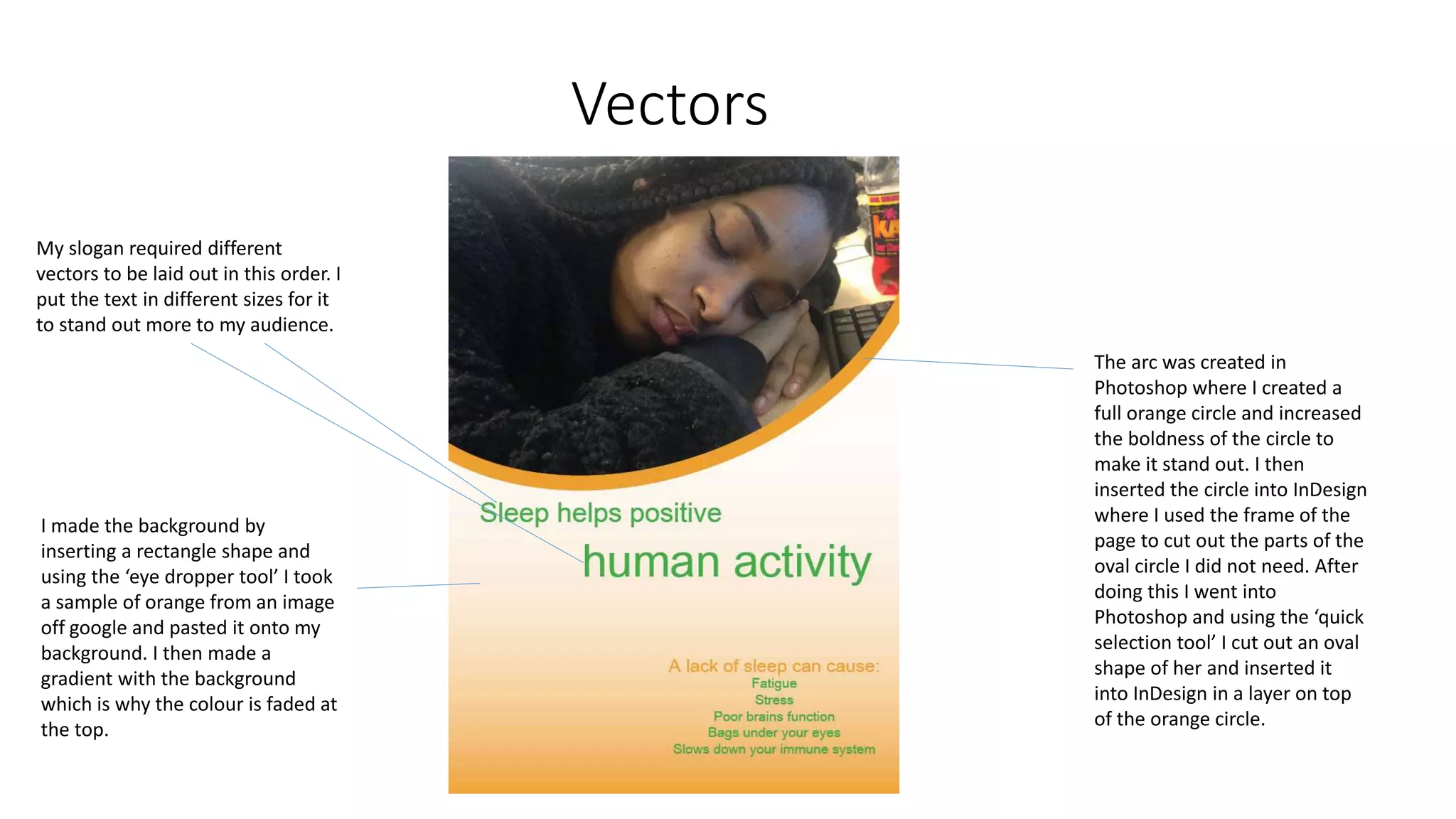
My slogan required different
vectors to be laid out in this order. I
put the text in different sizes for it
to stand out more to my audience.
The arc was created in
Photoshop where I created a
full orange circle and increased
the boldness of the circle to
make it stand out. I then
inserted the circle into InDesign
where I used the frame of the
page to cut out the parts of the
oval circle I did not need. After
doing this I went into
Photoshop and using the ‘quick
selection tool’ I cut out an oval
shape of her and inserted it
into InDesign in a layer on top
of the orange circle.
I made the background by
inserting a rectangle shape and
using the ‘eye dropper tool’ I took
a sample of orange from an image
off google and pasted it onto my
background. I then made a
gradient with the background
which is why the colour is faded at
the top.
Text
In InDesign I used the text box tool to insert my text. My font was Ariel,
I selected this because it is San Seraph which is more formal and stands
out on the page; these are the aims for my poster and I feel that this
was achieved through the type of graphic style it portrays –
International. I chose to make my poster in this style because its
purpose is to inform the audience, if it is easy to read and stands out
then people will see it and read it easily.
Due to the minimal amount of text I did not use columns however my
text was carefully placed. The text at the bottom was placed in a
hierarchy formation, the slogan which could also be considered my title
was placed in an order too, this order is of size – this made it stand out.
Images
I inserted a jpeg photo I took with my iPhone and uploaded it by
connecting my usb to the computer and inserted it into Photoshop
then placed it into InDesign. In InDesign I used the transformation tool
to make my image fit to a suitable angle and size.
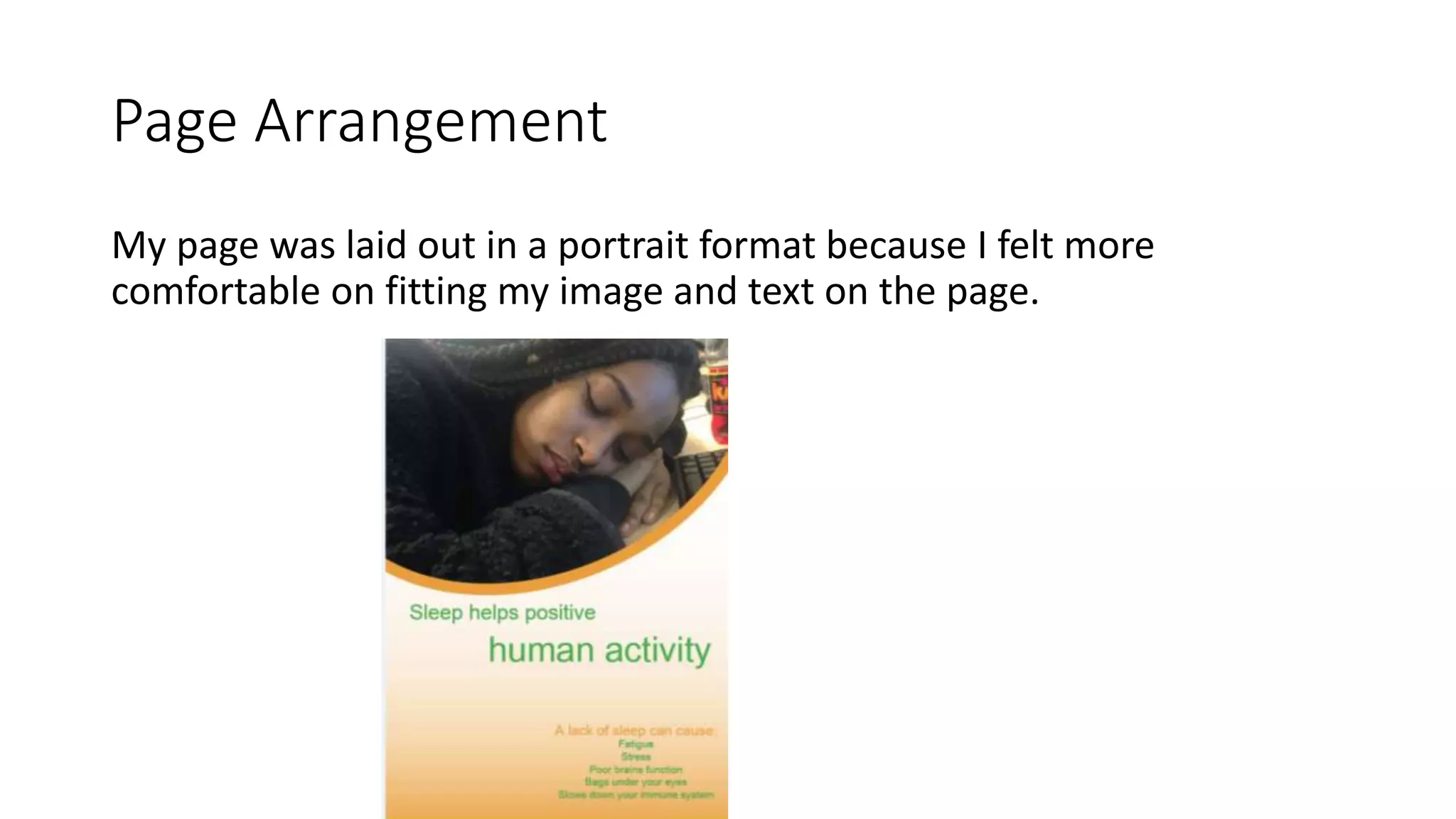
Page Arrangement
My page was laid out in a portrait format because I felt more
comfortable on fitting my image and text on the page.
Presentation
I did not need to manipulate the image’s pixels as the image was clear
enough for the poster.
I had to export my poster to a jpeg because this made it easier for the
audience to view it on my blog. The image of my actor also had to be
converted to a jpeg format for it to be imported into my InDesign file.
Creating Web Based Graphics
I organised my files in different folders under the unit name then under
who the work is for. I also created a blog to put all my work on and also
arranged it in the same way as the folders; the task names and any
other bits that fall under it.
I copied links from other work sites such as slide share to make my
presentation on my blog easier to view.

Final poster analysis

  • 1.
  • 2.
    Vectors My slogan requireddifferent vectors to be laid out in this order. I put the text in different sizes for it to stand out more to my audience. The arc was created in Photoshop where I created a full orange circle and increased the boldness of the circle to make it stand out. I then inserted the circle into InDesign where I used the frame of the page to cut out the parts of the oval circle I did not need. After doing this I went into Photoshop and using the ‘quick selection tool’ I cut out an oval shape of her and inserted it into InDesign in a layer on top of the orange circle. I made the background by inserting a rectangle shape and using the ‘eye dropper tool’ I took a sample of orange from an image off google and pasted it onto my background. I then made a gradient with the background which is why the colour is faded at the top.
  • 3.
    Text In InDesign Iused the text box tool to insert my text. My font was Ariel, I selected this because it is San Seraph which is more formal and stands out on the page; these are the aims for my poster and I feel that this was achieved through the type of graphic style it portrays – International. I chose to make my poster in this style because its purpose is to inform the audience, if it is easy to read and stands out then people will see it and read it easily. Due to the minimal amount of text I did not use columns however my text was carefully placed. The text at the bottom was placed in a hierarchy formation, the slogan which could also be considered my title was placed in an order too, this order is of size – this made it stand out.
  • 4.
    Images I inserted ajpeg photo I took with my iPhone and uploaded it by connecting my usb to the computer and inserted it into Photoshop then placed it into InDesign. In InDesign I used the transformation tool to make my image fit to a suitable angle and size.
  • 5.
    Page Arrangement My pagewas laid out in a portrait format because I felt more comfortable on fitting my image and text on the page.
  • 6.
    Presentation I did notneed to manipulate the image’s pixels as the image was clear enough for the poster. I had to export my poster to a jpeg because this made it easier for the audience to view it on my blog. The image of my actor also had to be converted to a jpeg format for it to be imported into my InDesign file.
  • 7.
    Creating Web BasedGraphics I organised my files in different folders under the unit name then under who the work is for. I also created a blog to put all my work on and also arranged it in the same way as the folders; the task names and any other bits that fall under it. I copied links from other work sites such as slide share to make my presentation on my blog easier to view.