FINAL CUT PRO TIPS
FILE TYPE


• NTSC    (North American Television Standard)

• We’re   going to choose DV-NTSC Anamorphic (wide screen)

• 29.97   frames per second
SAVE YOUR PROJECT


• File   > Save Project As

• Final   Cut will want to know where it should save your files
USER PREFERENCES


• File   > User Preferences

• Levels   of Undo: Set to 35

• AutoSave Vault: Save   copy every 5 minutes

• Keep    at Most: 100 copies
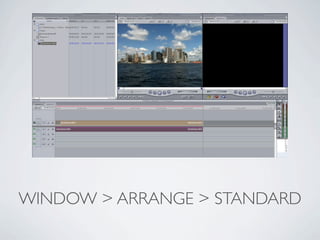
WINDOW > ARRANGE > STANDARD
THE INTERFACE:
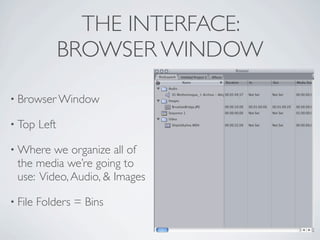
                BROWSER WINDOW

• Browser Window

• Top    Left

• Where  we organize all of
 the media we’re going to
 use: Video, Audio, & Images

• File   Folders = Bins
THE INTERFACE:
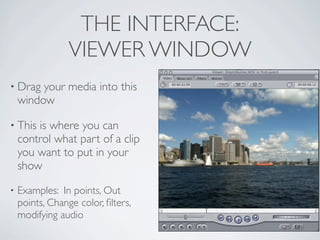
                 VIEWER WINDOW
• Drag   your media into this
    window

• This  is where you can
    control what part of a clip
    you want to put in your
    show
•   Examples: In points, Out
    points, Change color, filters,
    modifying audio
THE INTERFACE:
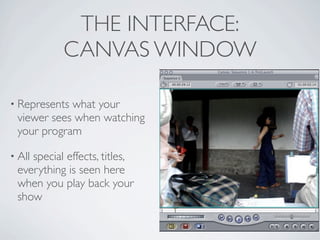
           CANVAS WINDOW

• Representswhat your
 viewer sees when watching
 your program

• All
    special effects, titles,
 everything is seen here
 when you play back your
 show
THE INTERFACE:
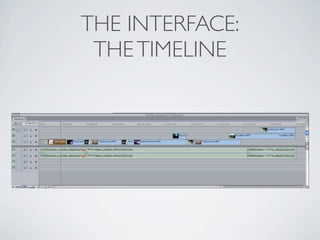
 THE TIMELINE
THE INTERFACE:
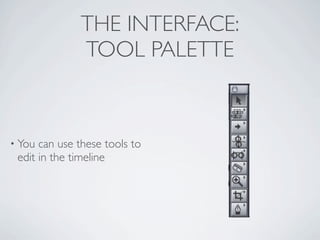
              TOOL PALETTE


• You can use these tools to
 edit in the timeline
THE INTERFACE:
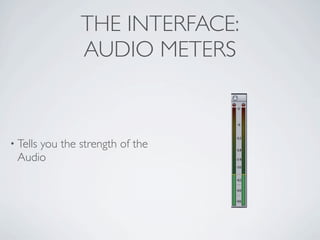
              AUDIO METERS


• Tells
     you the strength of the
 Audio
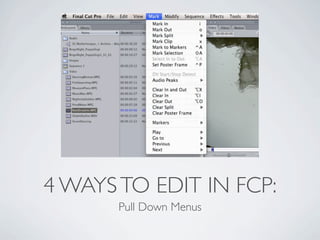
4 WAYS TO EDIT IN FCP:
       Pull Down Menus
4 WAYS TO EDIT IN FCP:
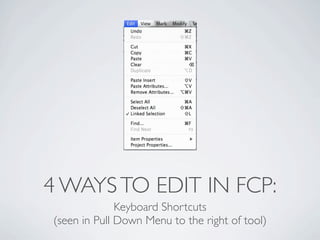
              Keyboard Shortcuts
(seen in Pull Down Menu to the right of tool)
4 WAYS TO EDIT IN FCP:
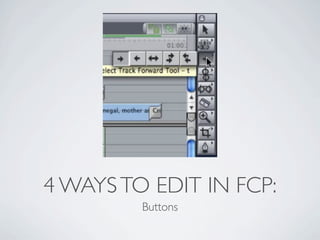
         Buttons
4 WAYS TO EDIT IN FCP:
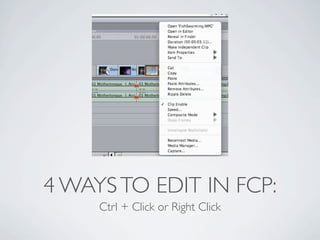
     Ctrl + Click or Right Click
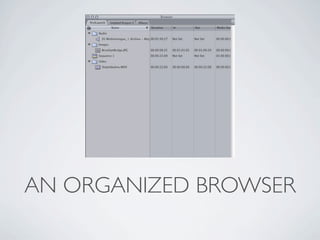
AN ORGANIZED BROWSER
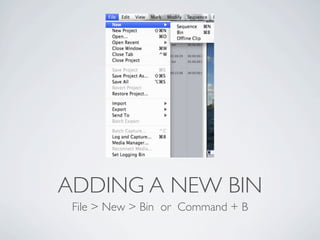
ADDING A NEW BIN
 File > New > Bin or Command + B
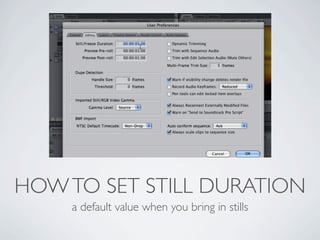
HOW TO SET STILL DURATION
    a default value when you bring in stills
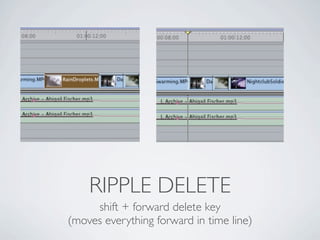
RIPPLE DELETE
     shift + forward delete key
(moves everything forward in time line)
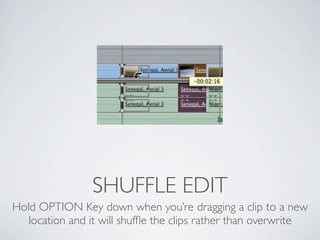
SHUFFLE EDIT
Hold OPTION Key down when you’re dragging a clip to a new
   location and it will shuffle the clips rather than overwrite
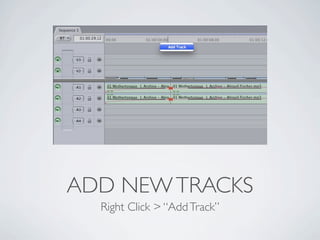
ADD NEW TRACKS
  Right Click > “Add Track”
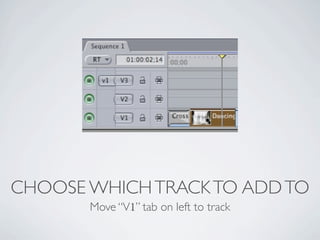
CHOOSE WHICH TRACK TO ADD TO
       Move “V1” tab on left to track
AND CHECK OUT THE BLOG
   FOR MORE ONLINE
      TUTORIALS...

Final Cut Lecture

  • 1.
  • 2.
    FILE TYPE • NTSC (North American Television Standard) • We’re going to choose DV-NTSC Anamorphic (wide screen) • 29.97 frames per second
  • 3.
    SAVE YOUR PROJECT •File > Save Project As • Final Cut will want to know where it should save your files
  • 4.
    USER PREFERENCES • File > User Preferences • Levels of Undo: Set to 35 • AutoSave Vault: Save copy every 5 minutes • Keep at Most: 100 copies
  • 5.
    WINDOW > ARRANGE> STANDARD
  • 6.
    THE INTERFACE: BROWSER WINDOW • Browser Window • Top Left • Where we organize all of the media we’re going to use: Video, Audio, & Images • File Folders = Bins
  • 7.
    THE INTERFACE: VIEWER WINDOW • Drag your media into this window • This is where you can control what part of a clip you want to put in your show • Examples: In points, Out points, Change color, filters, modifying audio
  • 8.
    THE INTERFACE: CANVAS WINDOW • Representswhat your viewer sees when watching your program • All special effects, titles, everything is seen here when you play back your show
  • 9.
  • 11.
    THE INTERFACE: TOOL PALETTE • You can use these tools to edit in the timeline
  • 12.
    THE INTERFACE: AUDIO METERS • Tells you the strength of the Audio
  • 13.
    4 WAYS TOEDIT IN FCP: Pull Down Menus
  • 14.
    4 WAYS TOEDIT IN FCP: Keyboard Shortcuts (seen in Pull Down Menu to the right of tool)
  • 15.
    4 WAYS TOEDIT IN FCP: Buttons
  • 16.
    4 WAYS TOEDIT IN FCP: Ctrl + Click or Right Click
  • 17.
  • 18.
    ADDING A NEWBIN File > New > Bin or Command + B
  • 19.
    HOW TO SETSTILL DURATION a default value when you bring in stills
  • 20.
    RIPPLE DELETE shift + forward delete key (moves everything forward in time line)
  • 21.
    SHUFFLE EDIT Hold OPTIONKey down when you’re dragging a clip to a new location and it will shuffle the clips rather than overwrite
  • 22.
    ADD NEW TRACKS Right Click > “Add Track”
  • 23.
    CHOOSE WHICH TRACKTO ADD TO Move “V1” tab on left to track
  • 24.
    AND CHECK OUTTHE BLOG FOR MORE ONLINE TUTORIALS...