Files in Python
Types of files
Files in Python
Files in Python
 ☞ FILE HANDLING:
 It is a mechanism by which we can read data of disk
files in python program or write back data from
python program to disk files.
 So far in our python program the standard input in
coming from keyboard an output is going to monitor.
 No where data is stored permanent and entered data is
present as long as program is running BUT file
handling allows us to store data entered through python
program permanently in disk file and later on we can
read back the data.
Files in Python
• Python supports Two files:
• 1. Text Files
• 2. Binary Files
☞ Text Files:
 Text file stores information in ASCII OR UNICODE character.
In text file everything will be stored as a character for example
if data is “computer” then it will take 8 bytes and if the data is
floating value like 11237.9876 it will take 10 bytes.
 In text file each line is terminated by special character called
EOL. In text file some translation takes place when this EOL
character is read or written. In python EOL is ‘n’ or ‘r’ or
combination of both.
 Ex: Examples of text files include word processing documents,
log files, and saved email messages.
Files in Python
☞ Binary files:
 It stores the information in the same format as in the memory
i.e. data is stored according to its data type so no translation
occurs.
 In binary file there is no delimiter for a new line
 Binary files are faster and easier for a program to read and
write than text files.
 Data in binary files cannot be directly read, it can be read only
through python program for the same.
 Ex: Executable files, compiled programs, SAS and SPSS
system files, spreadsheets, compressed files, and graphic
(image) files are all examples of binary files.
Files in Python
Common extensions for binary file formats:
• Images: jpg, png, gif, bmp, tiff, psd,...
• Videos: mp4, mkv, avi, mov, mpg, vob,...
• Audio: mp3, aac, wav, flac, ogg, mka, wma,...
• Documents: pdf, doc, xls, ppt, docx, odt,...
• Archive: zip, rar, 7z, tar, iso,...
• Database: mdb, accde, frm, sqlite,...
• Executable: exe, dll, so, class,...
Common extensions for text file formats:
• Web standards: html, xml, css, svg, json,...
• Source code: c, cpp, h, cs, js, py, java, rb, pl, php, sh,...
• Documents: txt, tex, markdown, asciidoc, rtf, ps,...
• Configuration: ini, cfg, rc, reg,...
• Tabular data: csv, tsv,...
Files in Python
• File Paths:
• When you access a file on an operating system, a file path is
required. The file path is a string that represents the location of
a file. It’s broken up into three major parts:
• Folder Path: The file folder location on the file system where
subsequent folders are separated by a forward slash / (Unix) or
backslash  (Windows)
• File Name: the actual name of the file
• Extension: the end of the file path pre-pended with a period (.)
used to indicate the file type
Files in python
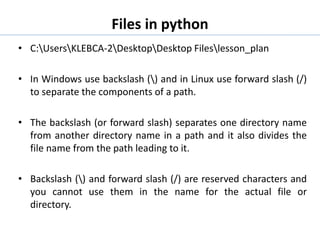
• C:UsersKLEBCA-2DesktopDesktop Fileslesson_plan
• In Windows use backslash () and in Linux use forward slash (/)
to separate the components of a path.
• The backslash (or forward slash) separates one directory name
from another directory name in a path and it also divides the
file name from the path leading to it.
• Backslash () and forward slash (/) are reserved characters and
you cannot use them in the name for the actual file or
directory.
Files in python
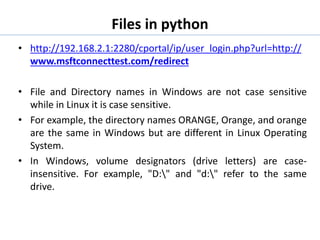
• http://192.168.2.1:2280/cportal/ip/user_login.php?url=http://
www.msftconnecttest.com/redirect
• File and Directory names in Windows are not case sensitive
while in Linux it is case sensitive.
• For example, the directory names ORANGE, Orange, and orange
are the same in Windows but are different in Linux Operating
System.
• In Windows, volume designators (drive letters) are case-
insensitive. For example, "D:" and "d:" refer to the same
drive.
Files in python
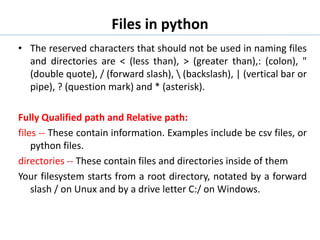
• The reserved characters that should not be used in naming files
and directories are < (less than), > (greater than),: (colon), "
(double quote), / (forward slash),  (backslash), | (vertical bar or
pipe), ? (question mark) and * (asterisk).
Fully Qualified path and Relative path:
files -- These contain information. Examples include be csv files, or
python files.
directories -- These contain files and directories inside of them
Your filesystem starts from a root directory, notated by a forward
slash / on Unux and by a drive letter C:/ on Windows.
Files in python
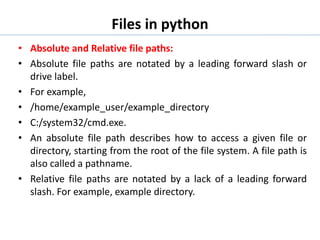
• Absolute and Relative file paths:
• Absolute file paths are notated by a leading forward slash or
drive label.
• For example,
• /home/example_user/example_directory
• C:/system32/cmd.exe.
• An absolute file path describes how to access a given file or
directory, starting from the root of the file system. A file path is
also called a pathname.
• Relative file paths are notated by a lack of a leading forward
slash. For example, example directory.
Files in python
Files in python
• Creating and reading text data:
1. opening file:
• We should first open the file for read or write by specifying
the name of file and mode.
2. performing read/write:
• Once the file is opened now we can either read or write for
which file is opened using various functions available.
3. closing file:
• After performing operation we must close the file and
release the file for other application to use it.
Files in python
• Open a file:
• We have to open a file using built-in function open()
• This function returns a file object, also called a file handler that
provides methods for accessing the file.
• syntax of open() function is given below.
• file_handler = open(filename, mode)
• file_handler: File handler object returned for filename
• filename: name of the file that we want to access
• accessmode: read, write, append etc
Files in python
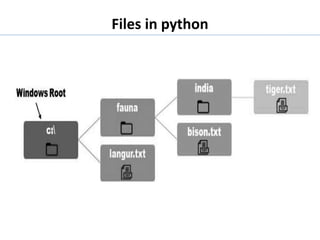
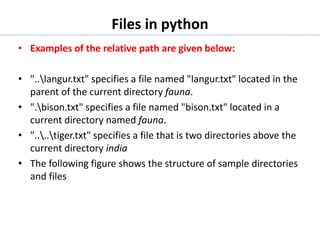
• Examples of the relative path are given below:
• "..langur.txt" specifies a file named "langur.txt" located in the
parent of the current directory fauna.
• ".bison.txt" specifies a file named "bison.txt" located in a
current directory named fauna.
• "....tiger.txt" specifies a file that is two directories above the
current directory india
• The following figure shows the structure of sample directories
and files
Files in python
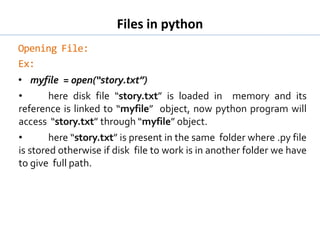
Opening File:
Ex:
• myfile = open(“story.txt”)
• here disk file “story.txt” is loaded in memory and its
reference is linked to “myfile” object, now python program will
access “story.txt” through “myfile” object.
• here “story.txt” is present in the same folder where .py file
is stored otherwise if disk file to work is in another folder we have
to give full path.
Files in python
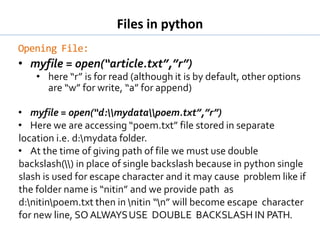
Opening File:
• myfile = open(“article.txt”,”r”)
• here “r” is for read (although it is by default, other options
are “w” for write, “a” for append)
• myfile = open(“d:mydatapoem.txt”,”r”)
• Here we are accessing “poem.txt” file stored in separate
location i.e. d:mydata folder.
• At the time of giving path of file we must use double
backslash() in place of single backslash because in python single
slash is used for escape character and it may cause problem like if
the folder name is “nitin” and we provide path as
d:nitinpoem.txt then in nitin “n” will become escape character
for new line, SO ALWAYSUSE DOUBLE BACKSLASH IN PATH.
Files in python
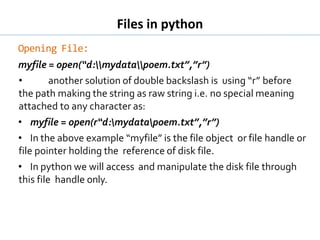
Opening File:
myfile = open(“d:mydatapoem.txt”,”r”)
• another solution of double backslash is using “r” before
the path making the string as raw string i.e. no special meaning
attached to any character as:
• myfile = open(r“d:mydatapoem.txt”,”r”)
• In the above example “myfile” is the file object or file handle or
file pointer holding the reference of disk file.
• In python we will access and manipulate the disk file through
this file handle only.
Files in python
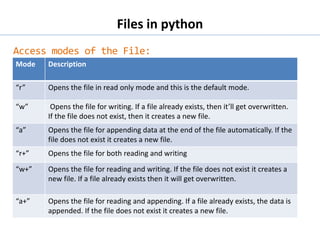
Access modes of the File:
Mode Description
“r” Opens the file in read only mode and this is the default mode.
“w” Opens the file for writing. If a file already exists, then it’ll get overwritten.
If the file does not exist, then it creates a new file.
“a” Opens the file for appending data at the end of the file automatically. If the
file does not exist it creates a new file.
“r+” Opens the file for both reading and writing
“w+” Opens the file for reading and writing. If the file does not exist it creates a
new file. If a file already exists then it will get overwritten.
“a+” Opens the file for reading and appending. If a file already exists, the data is
appended. If the file does not exist it creates a new file.
Files in python
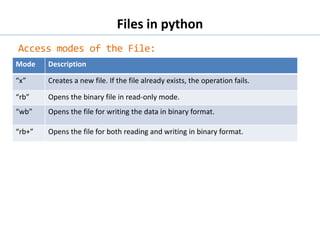
Access modes of the File:
Mode Description
“x” Creates a new file. If the file already exists, the operation fails.
“rb” Opens the binary file in read-only mode.
“wb” Opens the file for writing the data in binary format.
“rb+” Opens the file for both reading and writing in binary format.
Files in python
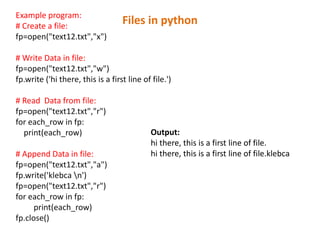
Example program:
# Create a file:
fp=open("text12.txt","x")
# Write Data in file:
fp=open("text12.txt","w")
fp.write ('hi there, this is a first line of file.')
# Read Data from file:
fp=open("text12.txt","r")
for each_row in fp:
print(each_row)
# Append Data in file:
fp=open("text12.txt","a")
fp.write('klebca n')
fp=open("text12.txt","r")
for each_row in fp:
print(each_row)
fp.close()
Output:
hi there, this is a first line of file.
hi there, this is a first line of file.klebca
Files in python
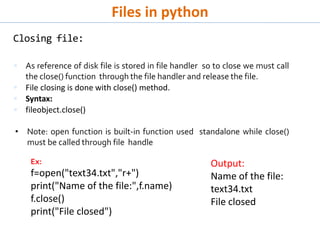
Closing file:
 As reference of disk file is stored in file handler so to close we must call
the close() function through the file handler and release the file.
 File closing is done with close() method.
 Syntax:
 fileobject.close()
• Note: open function is built-in function used standalone while close()
must be called through file handle
Ex:
f=open("text34.txt","r+")
print("Name of the file:",f.name)
f.close()
print("File closed")
Output:
Name of the file:
text34.txt
File closed
Files in python
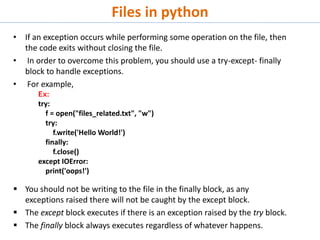
• If an exception occurs while performing some operation on the file, then
the code exits without closing the file.
• In order to overcome this problem, you should use a try-except- finally
block to handle exceptions.
• For example,
 You should not be writing to the file in the finally block, as any
exceptions raised there will not be caught by the except block.
 The except block executes if there is an exception raised by the try block.
 The finally block always executes regardless of whatever happens.
Ex:
try:
f = open("files_related.txt", "w")
try:
f.write('Hello World!')
finally:
f.close()
except IOError:
print('oops!')
Files in python
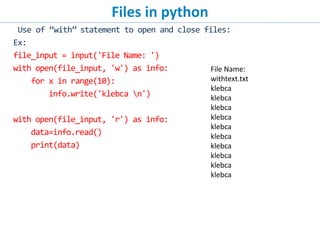
Use of “with” statement to open and close files:
• Instead of using try-except-finally blocks to handle file opening and closing
operations, a much cleaner way of doing this in Python is using the with
statement.
• You can use a with statement in Python such that you do not have to close
the file handler object.
Example: opening a file, manipulating a file and closing it with
open(“output.txt”,”w”) as f:
f.write(“Hello Python!”)
• The with statement creates a context manager and it will automatically close
the file handler object for you when you are done with it, even if an
exception is raised on the way, and thus properly managing the resources.
Files in python
Use of “with” statement to open and close files:
Ex:
file_input = input('File Name: ')
with open(file_input, 'w') as info:
for x in range(10):
info.write('klebca n')
with open(file_input, 'r') as info:
data=info.read()
print(data)
File Name:
withtext.txt
klebca
klebca
klebca
klebca
klebca
klebca
klebca
klebca
klebca
klebca
Files in python
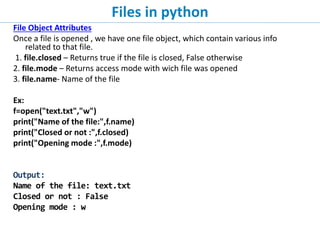
File Object Attributes
Once a file is opened , we have one file object, which contain various info
related to that file.
1. file.closed – Returns true if the file is closed, False otherwise
2. file.mode – Returns access mode with wich file was opened
3. file.name- Name of the file
Ex:
f=open("text.txt","w")
print("Name of the file:",f.name)
print("Closed or not :",f.closed)
print("Opening mode :",f.mode)
Output:
Name of the file: text.txt
Closed or not : False
Opening mode : w
File Methods to Read and Write Data:
Method Syntax Description
read() File_handler.read([size]) Used to read the contents of a file up to the size and return it as a
string
readline() File_handler.readline() This method is used to read a single line
readlines() File_handler.readlines() This method is used to read all the lines of a file as list items.
write() File_handler.write(string) This method will write the contents of the strings to the file.
writelines() File_handle.writelines(sequen
ce)
This method will write a sequence of strings to the file
tell() File_handler.tell() File handler’s current position within the file is measured in bytes
from the beginning of the file
seek() File_handler.seek(offset,
from_what)
Change the file handler’s position. Position is computed by adding
offset to reference point. Reference point is selected by the
from_what argument.
File Methods to Read and Write Data:
Ex:
f=open("class1.txt","r")# opening a file
line1 = f.readline() # reading a line
print(line1)
line2 = f.readline() # reading a line
print(line2)
line3 = f.readline() # reading a line
print(line3)
line4 = f.readline() # reading a line
print(line4)
lines=f.readlines()
print(list(lines))
for ch in line1:
print(ch)
f.close()
Output:
One
Two
Three
['fiven', 'sixn', 'sevenn', 'eightn']
O
n
e
..
writelines():
Ex:
f = open("class1.txt", “w")
f.writelines(["See you soon!", "Over and out."])
f.close()
#open and read the file after the appending:
f = open("class1.txt", "r")
print(f.read())
f.close()
Output:
See you soon!Over and out.
..
writelines():
Ex:
f = open("class1.txt", “w")
f.writelines(["See you soon!", "Over and out."])
f.close()
#open and read the file after the appending:
f = open("class1.txt", "r")
print(f.read())
fseek(5,0)
print(f.read())
f.close()
Output:
See you soon!Over and out.
ou soon!Over and out.
..
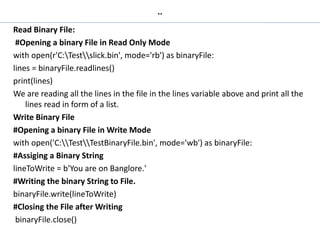
Read Binary File:
#Opening a binary File in Read Only Mode
with open(r'C:Testslick.bin', mode='rb') as binaryFile:
lines = binaryFile.readlines()
print(lines)
We are reading all the lines in the file in the lines variable above and print all the
lines read in form of a list.
Write Binary File
#Opening a binary File in Write Mode
with open('C:TestTestBinaryFile.bin', mode='wb') as binaryFile:
#Assiging a Binary String
lineToWrite = b'You are on Banglore.'
#Writing the binary String to File.
binaryFile.write(lineToWrite)
#Closing the File after Writing
binaryFile.close()
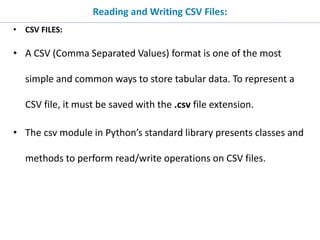
Reading and Writing CSV Files:
• CSV FILES:
• A CSV (Comma Separated Values) format is one of the most
simple and common ways to store tabular data. To represent a
CSV file, it must be saved with the .csv file extension.
• The csv module in Python’s standard library presents classes and
methods to perform read/write operations on CSV files.
Characteristics of the CSV format
• Characteristics of the CSV format are:
• Each record is located on a separate line, delimited by a line break (CRLF)
• A line break may or may not be present at the end of the last record in the
file.
• Optional header line may appear as the first line of the file.
• Commas are to be used to separate the fields in each record. Each line
should have the same number of fields throughout the file.
• Double quotes may or may not be used to enclose each field.
Reading and Writing CSV (Comma Separated Values) Files
• To readfrom a csv file use csv.reader() method. The synatx is,
• csv.reader(csvfile)
where csv is the module name and csvfile is the file object. This returns a
csv reader object which will iterate over lines in the given csvfile.
To write to a csv file use csv.writer() method. The synatx is,
• csv.writer(csvfile)
• This method returns a csv writer object responsible for converting the
user’s data into comma separated strings on the given file like object.
• The syntax for writerow() method is,
• csvwriter.writerrow(row)
• csvwriter is the object returned by writer() method and writerow() method
will write the row argument to the writer() method’s file object.
Reading and Writing CSV (Comma Separated Values) Files
The syntax for writerows() method is,
• csvwriter.writerows(rows):
• writerows() method will write all the rows argument to the writer()
method’s file object.
The syntax for DictReader is,
• Class csv.DictReader(f,fieldnames=None, restkey=None)
• Creates an object that operates like a regular reader but maps the
information in each row to an OrderedDict.
The syntax for DictWriter is,
• Class csv.DictWriter(f, fieldnames, extrasaction=‘raise’)
• Creates an object that operates like a regular writer but maps the
dictionaries onto output rows..

Files in Python.pptx

  • 1.
  • 2.
  • 3.
  • 4.
    Files in Python ☞ FILE HANDLING:  It is a mechanism by which we can read data of disk files in python program or write back data from python program to disk files.  So far in our python program the standard input in coming from keyboard an output is going to monitor.  No where data is stored permanent and entered data is present as long as program is running BUT file handling allows us to store data entered through python program permanently in disk file and later on we can read back the data.
  • 5.
    Files in Python •Python supports Two files: • 1. Text Files • 2. Binary Files ☞ Text Files:  Text file stores information in ASCII OR UNICODE character. In text file everything will be stored as a character for example if data is “computer” then it will take 8 bytes and if the data is floating value like 11237.9876 it will take 10 bytes.  In text file each line is terminated by special character called EOL. In text file some translation takes place when this EOL character is read or written. In python EOL is ‘n’ or ‘r’ or combination of both.  Ex: Examples of text files include word processing documents, log files, and saved email messages.
  • 6.
    Files in Python ☞Binary files:  It stores the information in the same format as in the memory i.e. data is stored according to its data type so no translation occurs.  In binary file there is no delimiter for a new line  Binary files are faster and easier for a program to read and write than text files.  Data in binary files cannot be directly read, it can be read only through python program for the same.  Ex: Executable files, compiled programs, SAS and SPSS system files, spreadsheets, compressed files, and graphic (image) files are all examples of binary files.
  • 7.
    Files in Python Commonextensions for binary file formats: • Images: jpg, png, gif, bmp, tiff, psd,... • Videos: mp4, mkv, avi, mov, mpg, vob,... • Audio: mp3, aac, wav, flac, ogg, mka, wma,... • Documents: pdf, doc, xls, ppt, docx, odt,... • Archive: zip, rar, 7z, tar, iso,... • Database: mdb, accde, frm, sqlite,... • Executable: exe, dll, so, class,... Common extensions for text file formats: • Web standards: html, xml, css, svg, json,... • Source code: c, cpp, h, cs, js, py, java, rb, pl, php, sh,... • Documents: txt, tex, markdown, asciidoc, rtf, ps,... • Configuration: ini, cfg, rc, reg,... • Tabular data: csv, tsv,...
  • 8.
    Files in Python •File Paths: • When you access a file on an operating system, a file path is required. The file path is a string that represents the location of a file. It’s broken up into three major parts: • Folder Path: The file folder location on the file system where subsequent folders are separated by a forward slash / (Unix) or backslash (Windows) • File Name: the actual name of the file • Extension: the end of the file path pre-pended with a period (.) used to indicate the file type
  • 9.
    Files in python •C:UsersKLEBCA-2DesktopDesktop Fileslesson_plan • In Windows use backslash () and in Linux use forward slash (/) to separate the components of a path. • The backslash (or forward slash) separates one directory name from another directory name in a path and it also divides the file name from the path leading to it. • Backslash () and forward slash (/) are reserved characters and you cannot use them in the name for the actual file or directory.
  • 10.
    Files in python •http://192.168.2.1:2280/cportal/ip/user_login.php?url=http:// www.msftconnecttest.com/redirect • File and Directory names in Windows are not case sensitive while in Linux it is case sensitive. • For example, the directory names ORANGE, Orange, and orange are the same in Windows but are different in Linux Operating System. • In Windows, volume designators (drive letters) are case- insensitive. For example, "D:" and "d:" refer to the same drive.
  • 11.
    Files in python •The reserved characters that should not be used in naming files and directories are < (less than), > (greater than),: (colon), " (double quote), / (forward slash), (backslash), | (vertical bar or pipe), ? (question mark) and * (asterisk). Fully Qualified path and Relative path: files -- These contain information. Examples include be csv files, or python files. directories -- These contain files and directories inside of them Your filesystem starts from a root directory, notated by a forward slash / on Unux and by a drive letter C:/ on Windows.
  • 12.
    Files in python •Absolute and Relative file paths: • Absolute file paths are notated by a leading forward slash or drive label. • For example, • /home/example_user/example_directory • C:/system32/cmd.exe. • An absolute file path describes how to access a given file or directory, starting from the root of the file system. A file path is also called a pathname. • Relative file paths are notated by a lack of a leading forward slash. For example, example directory.
  • 13.
  • 14.
    Files in python •Creating and reading text data: 1. opening file: • We should first open the file for read or write by specifying the name of file and mode. 2. performing read/write: • Once the file is opened now we can either read or write for which file is opened using various functions available. 3. closing file: • After performing operation we must close the file and release the file for other application to use it.
  • 15.
    Files in python •Open a file: • We have to open a file using built-in function open() • This function returns a file object, also called a file handler that provides methods for accessing the file. • syntax of open() function is given below. • file_handler = open(filename, mode) • file_handler: File handler object returned for filename • filename: name of the file that we want to access • accessmode: read, write, append etc
  • 16.
    Files in python •Examples of the relative path are given below: • "..langur.txt" specifies a file named "langur.txt" located in the parent of the current directory fauna. • ".bison.txt" specifies a file named "bison.txt" located in a current directory named fauna. • "....tiger.txt" specifies a file that is two directories above the current directory india • The following figure shows the structure of sample directories and files
  • 17.
    Files in python OpeningFile: Ex: • myfile = open(“story.txt”) • here disk file “story.txt” is loaded in memory and its reference is linked to “myfile” object, now python program will access “story.txt” through “myfile” object. • here “story.txt” is present in the same folder where .py file is stored otherwise if disk file to work is in another folder we have to give full path.
  • 18.
    Files in python OpeningFile: • myfile = open(“article.txt”,”r”) • here “r” is for read (although it is by default, other options are “w” for write, “a” for append) • myfile = open(“d:mydatapoem.txt”,”r”) • Here we are accessing “poem.txt” file stored in separate location i.e. d:mydata folder. • At the time of giving path of file we must use double backslash() in place of single backslash because in python single slash is used for escape character and it may cause problem like if the folder name is “nitin” and we provide path as d:nitinpoem.txt then in nitin “n” will become escape character for new line, SO ALWAYSUSE DOUBLE BACKSLASH IN PATH.
  • 19.
    Files in python OpeningFile: myfile = open(“d:mydatapoem.txt”,”r”) • another solution of double backslash is using “r” before the path making the string as raw string i.e. no special meaning attached to any character as: • myfile = open(r“d:mydatapoem.txt”,”r”) • In the above example “myfile” is the file object or file handle or file pointer holding the reference of disk file. • In python we will access and manipulate the disk file through this file handle only.
  • 20.
    Files in python Accessmodes of the File: Mode Description “r” Opens the file in read only mode and this is the default mode. “w” Opens the file for writing. If a file already exists, then it’ll get overwritten. If the file does not exist, then it creates a new file. “a” Opens the file for appending data at the end of the file automatically. If the file does not exist it creates a new file. “r+” Opens the file for both reading and writing “w+” Opens the file for reading and writing. If the file does not exist it creates a new file. If a file already exists then it will get overwritten. “a+” Opens the file for reading and appending. If a file already exists, the data is appended. If the file does not exist it creates a new file.
  • 21.
    Files in python Accessmodes of the File: Mode Description “x” Creates a new file. If the file already exists, the operation fails. “rb” Opens the binary file in read-only mode. “wb” Opens the file for writing the data in binary format. “rb+” Opens the file for both reading and writing in binary format.
  • 22.
    Files in python Exampleprogram: # Create a file: fp=open("text12.txt","x") # Write Data in file: fp=open("text12.txt","w") fp.write ('hi there, this is a first line of file.') # Read Data from file: fp=open("text12.txt","r") for each_row in fp: print(each_row) # Append Data in file: fp=open("text12.txt","a") fp.write('klebca n') fp=open("text12.txt","r") for each_row in fp: print(each_row) fp.close() Output: hi there, this is a first line of file. hi there, this is a first line of file.klebca
  • 23.
    Files in python Closingfile:  As reference of disk file is stored in file handler so to close we must call the close() function through the file handler and release the file.  File closing is done with close() method.  Syntax:  fileobject.close() • Note: open function is built-in function used standalone while close() must be called through file handle Ex: f=open("text34.txt","r+") print("Name of the file:",f.name) f.close() print("File closed") Output: Name of the file: text34.txt File closed
  • 24.
    Files in python •If an exception occurs while performing some operation on the file, then the code exits without closing the file. • In order to overcome this problem, you should use a try-except- finally block to handle exceptions. • For example,  You should not be writing to the file in the finally block, as any exceptions raised there will not be caught by the except block.  The except block executes if there is an exception raised by the try block.  The finally block always executes regardless of whatever happens. Ex: try: f = open("files_related.txt", "w") try: f.write('Hello World!') finally: f.close() except IOError: print('oops!')
  • 25.
    Files in python Useof “with” statement to open and close files: • Instead of using try-except-finally blocks to handle file opening and closing operations, a much cleaner way of doing this in Python is using the with statement. • You can use a with statement in Python such that you do not have to close the file handler object. Example: opening a file, manipulating a file and closing it with open(“output.txt”,”w”) as f: f.write(“Hello Python!”) • The with statement creates a context manager and it will automatically close the file handler object for you when you are done with it, even if an exception is raised on the way, and thus properly managing the resources.
  • 26.
    Files in python Useof “with” statement to open and close files: Ex: file_input = input('File Name: ') with open(file_input, 'w') as info: for x in range(10): info.write('klebca n') with open(file_input, 'r') as info: data=info.read() print(data) File Name: withtext.txt klebca klebca klebca klebca klebca klebca klebca klebca klebca klebca
  • 27.
    Files in python FileObject Attributes Once a file is opened , we have one file object, which contain various info related to that file. 1. file.closed – Returns true if the file is closed, False otherwise 2. file.mode – Returns access mode with wich file was opened 3. file.name- Name of the file Ex: f=open("text.txt","w") print("Name of the file:",f.name) print("Closed or not :",f.closed) print("Opening mode :",f.mode) Output: Name of the file: text.txt Closed or not : False Opening mode : w
  • 28.
    File Methods toRead and Write Data: Method Syntax Description read() File_handler.read([size]) Used to read the contents of a file up to the size and return it as a string readline() File_handler.readline() This method is used to read a single line readlines() File_handler.readlines() This method is used to read all the lines of a file as list items. write() File_handler.write(string) This method will write the contents of the strings to the file. writelines() File_handle.writelines(sequen ce) This method will write a sequence of strings to the file tell() File_handler.tell() File handler’s current position within the file is measured in bytes from the beginning of the file seek() File_handler.seek(offset, from_what) Change the file handler’s position. Position is computed by adding offset to reference point. Reference point is selected by the from_what argument.
  • 29.
    File Methods toRead and Write Data: Ex: f=open("class1.txt","r")# opening a file line1 = f.readline() # reading a line print(line1) line2 = f.readline() # reading a line print(line2) line3 = f.readline() # reading a line print(line3) line4 = f.readline() # reading a line print(line4) lines=f.readlines() print(list(lines)) for ch in line1: print(ch) f.close() Output: One Two Three ['fiven', 'sixn', 'sevenn', 'eightn'] O n e
  • 30.
    .. writelines(): Ex: f = open("class1.txt",“w") f.writelines(["See you soon!", "Over and out."]) f.close() #open and read the file after the appending: f = open("class1.txt", "r") print(f.read()) f.close() Output: See you soon!Over and out.
  • 31.
    .. writelines(): Ex: f = open("class1.txt",“w") f.writelines(["See you soon!", "Over and out."]) f.close() #open and read the file after the appending: f = open("class1.txt", "r") print(f.read()) fseek(5,0) print(f.read()) f.close() Output: See you soon!Over and out. ou soon!Over and out.
  • 32.
    .. Read Binary File: #Openinga binary File in Read Only Mode with open(r'C:Testslick.bin', mode='rb') as binaryFile: lines = binaryFile.readlines() print(lines) We are reading all the lines in the file in the lines variable above and print all the lines read in form of a list. Write Binary File #Opening a binary File in Write Mode with open('C:TestTestBinaryFile.bin', mode='wb') as binaryFile: #Assiging a Binary String lineToWrite = b'You are on Banglore.' #Writing the binary String to File. binaryFile.write(lineToWrite) #Closing the File after Writing binaryFile.close()
  • 33.
    Reading and WritingCSV Files: • CSV FILES: • A CSV (Comma Separated Values) format is one of the most simple and common ways to store tabular data. To represent a CSV file, it must be saved with the .csv file extension. • The csv module in Python’s standard library presents classes and methods to perform read/write operations on CSV files.
  • 34.
    Characteristics of theCSV format • Characteristics of the CSV format are: • Each record is located on a separate line, delimited by a line break (CRLF) • A line break may or may not be present at the end of the last record in the file. • Optional header line may appear as the first line of the file. • Commas are to be used to separate the fields in each record. Each line should have the same number of fields throughout the file. • Double quotes may or may not be used to enclose each field.
  • 35.
    Reading and WritingCSV (Comma Separated Values) Files • To readfrom a csv file use csv.reader() method. The synatx is, • csv.reader(csvfile) where csv is the module name and csvfile is the file object. This returns a csv reader object which will iterate over lines in the given csvfile. To write to a csv file use csv.writer() method. The synatx is, • csv.writer(csvfile) • This method returns a csv writer object responsible for converting the user’s data into comma separated strings on the given file like object. • The syntax for writerow() method is, • csvwriter.writerrow(row) • csvwriter is the object returned by writer() method and writerow() method will write the row argument to the writer() method’s file object.
  • 36.
    Reading and WritingCSV (Comma Separated Values) Files The syntax for writerows() method is, • csvwriter.writerows(rows): • writerows() method will write all the rows argument to the writer() method’s file object. The syntax for DictReader is, • Class csv.DictReader(f,fieldnames=None, restkey=None) • Creates an object that operates like a regular reader but maps the information in each row to an OrderedDict. The syntax for DictWriter is, • Class csv.DictWriter(f, fieldnames, extrasaction=‘raise’) • Creates an object that operates like a regular writer but maps the dictionaries onto output rows..