Ransomware and Backups
Everyday Security
Caleb Rollins
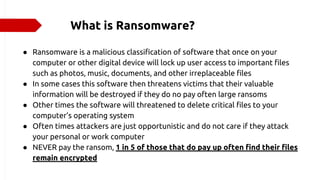
What is Ransomware?
● Ransomware is a malicious classification of software that once on your
computer or other digital device will lock up user access to important files
such as photos, music, documents, and other irreplaceable files
● In some cases this software then threatens victims that their valuable
information will be destroyed if they do no pay often large ransoms
● Other times the software will threatened to delete critical files to your
computer’s operating system
● Often times attackers are just opportunistic and do not care if they attack
your personal or work computer
● NEVER pay the ransom, 1 in 5 of those that do pay up often find their files
remain encrypted
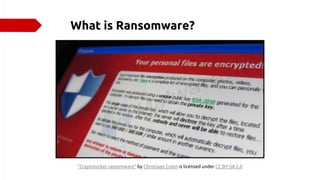
What is Ransomware?
"Cryptolocker ransomware" by Christiaan Colen is licensed under CC BY-SA 2.0
How important are Ransomware attacks?
● In 2017, ransomware resulted in $5
billion in losses, both in terms of
ransoms paid and spending and lost
time in recovering from attacks!
● 59% of ransomware attacks are due to
emails with malicious links or
attachments
● Ransoms are often upwards of $10,000
and because attackers often use
cryptocurrency their transactions are
intractable
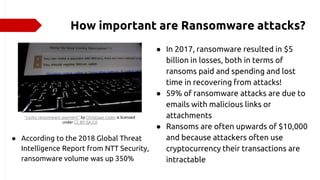
"Locky ransomware: payment" by Christiaan Colen is licensed
under CC BY-SA 2.0
● According to the 2018 Global Threat
Intelligence Report from NTT Security,
ransomware volume was up 350%
How can I be prepared for a Ransomware
attack?
1. Have a dedicated antivirus or antimalware
service running on your devices that
regularly scans for malicious software
2. Be careful when reading emails and other
digital forms of communication
3. If you are a victim of a ransomware attack
and your data on a device is altered or
destroyed the only way to recover is if
you had regular backed up your data!
"Data Release Show" by Discos Konfort is licensed
under CC BY 2.0
The Cornerstones of Backing Up Your
Data (adapted from Stay Safe Online)
● Making identical copies of digital photos, music,
financial records, health records, contacts, or
any other personal information that can’t be
replaced
● Then, choose the appropriate hardware and its
accompanying software depending on your
technical needs
● Physically store the backup device of your
choice in a safe location, preferably in a remote
area
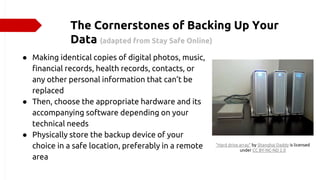
"Hard drive array" by Shanghai Daddy is licensed
under CC BY-NC-ND 2.0
Making Copies of Your Data
● Most modern day computers have some sort of backup software
installed so make sure to check your computer before purchasing
software
● Most backup software is advantageous because in addition to actually
copying files, it manage and organizes the times and dates that you
have backed up data to each memory device
● How often you use your computer and the amount of information that
your computer holds should be taken into account when setting a
backup schedule, but for most users, backing up data once a week is
always a good starting place
Choosing Hardware that will Hold Your Data?
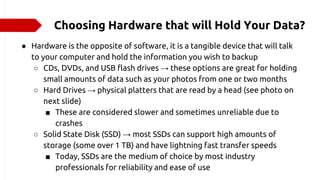
● Hardware is the opposite of software, it is a tangible device that will talk
to your computer and hold the information you wish to backup
○ CDs, DVDs, and USB flash drives → these options are great for holding
small amounts of data such as your photos from one or two months
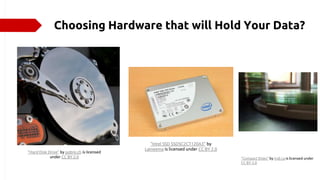
○ Hard Drives → physical platters that are read by a head (see photo on
next slide)
■ These are considered slower and sometimes unreliable due to
crashes
○ Solid State Disk (SSD) → most SSDs can support high amounts of
storage (some over 1 TB) and have lightning fast transfer speeds
■ Today, SSDs are the medium of choice by most industry
professionals for reliability and ease of use
Choosing Hardware that will Hold Your Data?
"Hard Disk Drive" by pobre.ch is licensed
under CC BY 2.0
"Intel SSD SSDSC2CT120A3" by
Laineema is licensed under CC BY 2.0
"Compact Disks" by indi.ca is licensed under
CC BY 2.0
What about Cloud Storage options?
● All cloud storage means is that your data will be stored on a large
server (computer connected to the internet) off site of your
office or home
● This is a good option because in the event of a natural disaster
your data could be on another part of the globe that is
unaffected
● Most cloud storage services either charge upfront to use their
service or charge after you exceed a set cap on file size
● Cloud storage removes the hassle with setup and
configuration of new hardware with your computer
● Convenient option that can be accessed on any computer around
the world as long as you know your login credentials
Popular Cloud Storage Options
● Google Drive
● Dropbox
● OneDrive
"Top 7 Best Cloud Storage Services in
2019 For Backing up Your Data" by
vinayaketx is licensed under CC BY 2.0
Safely Using and Storing Backup Hardware
● Understanding how to properly use and store you backup hardware of
choice is just as important as backing up your data in the first place
● More detailed information can be found on our webpage
● Hard drives → handle with care!
○ need to be in a climate controlled environment that ensures that
extreme levels of temperature or humidity are mitigated
● CDs and DVDs → avoid scratching
○ Avoid prolonged exposure to light and heat
○ Avoid putting excess weight on top of CDs and DVDs
● SSDs and other flash memory → most durable
○ When transferring data from computer you remember to eject before
removing from the USB port
Sources
● https://www.csoonline.com/article/3236183/what-is-ransomware-how-it-works-and-how-
to-remove-it.html
● https://cybersecurityventures.com/ransomware-damage-report-2017-part-2/
● https://www.comparitech.com/antivirus/ransomware-statistics/
● https://www.nttsecurity.com/docs/librariesprovider3/resources/gbl-ntt-security-2018-gtir-
summary-uea.pdf?sfvrsn=e8c7f625_4
● https://staysafeonline.org/stay-safe-online/online-safety-basics/back-it-up/
● https://www.oo-software.com/en/how-often-should-a-data-backup-be-made
● https://www.securedatarecovery.com/learn/how-does-a-flash-drive-work
● https://www.enterprisestorageforum.com/storage-hardware/flash-vs-ssd-storage-whats-
the-difference.html
● https://www.pacetechnical.com/properly-store-hard-drive/
● http://multimedia.haveinc.com/products/dvd-care.asp

Ransomware and Backups

  • 1.
    Ransomware and Backups EverydaySecurity Caleb Rollins
  • 2.
    What is Ransomware? ●Ransomware is a malicious classification of software that once on your computer or other digital device will lock up user access to important files such as photos, music, documents, and other irreplaceable files ● In some cases this software then threatens victims that their valuable information will be destroyed if they do no pay often large ransoms ● Other times the software will threatened to delete critical files to your computer’s operating system ● Often times attackers are just opportunistic and do not care if they attack your personal or work computer ● NEVER pay the ransom, 1 in 5 of those that do pay up often find their files remain encrypted
  • 3.
    What is Ransomware? "Cryptolockerransomware" by Christiaan Colen is licensed under CC BY-SA 2.0
  • 4.
    How important areRansomware attacks? ● In 2017, ransomware resulted in $5 billion in losses, both in terms of ransoms paid and spending and lost time in recovering from attacks! ● 59% of ransomware attacks are due to emails with malicious links or attachments ● Ransoms are often upwards of $10,000 and because attackers often use cryptocurrency their transactions are intractable "Locky ransomware: payment" by Christiaan Colen is licensed under CC BY-SA 2.0 ● According to the 2018 Global Threat Intelligence Report from NTT Security, ransomware volume was up 350%
  • 5.
    How can Ibe prepared for a Ransomware attack? 1. Have a dedicated antivirus or antimalware service running on your devices that regularly scans for malicious software 2. Be careful when reading emails and other digital forms of communication 3. If you are a victim of a ransomware attack and your data on a device is altered or destroyed the only way to recover is if you had regular backed up your data! "Data Release Show" by Discos Konfort is licensed under CC BY 2.0
  • 6.
    The Cornerstones ofBacking Up Your Data (adapted from Stay Safe Online) ● Making identical copies of digital photos, music, financial records, health records, contacts, or any other personal information that can’t be replaced ● Then, choose the appropriate hardware and its accompanying software depending on your technical needs ● Physically store the backup device of your choice in a safe location, preferably in a remote area "Hard drive array" by Shanghai Daddy is licensed under CC BY-NC-ND 2.0
  • 7.
    Making Copies ofYour Data ● Most modern day computers have some sort of backup software installed so make sure to check your computer before purchasing software ● Most backup software is advantageous because in addition to actually copying files, it manage and organizes the times and dates that you have backed up data to each memory device ● How often you use your computer and the amount of information that your computer holds should be taken into account when setting a backup schedule, but for most users, backing up data once a week is always a good starting place
  • 8.
    Choosing Hardware thatwill Hold Your Data? ● Hardware is the opposite of software, it is a tangible device that will talk to your computer and hold the information you wish to backup ○ CDs, DVDs, and USB flash drives → these options are great for holding small amounts of data such as your photos from one or two months ○ Hard Drives → physical platters that are read by a head (see photo on next slide) ■ These are considered slower and sometimes unreliable due to crashes ○ Solid State Disk (SSD) → most SSDs can support high amounts of storage (some over 1 TB) and have lightning fast transfer speeds ■ Today, SSDs are the medium of choice by most industry professionals for reliability and ease of use
  • 9.
    Choosing Hardware thatwill Hold Your Data? "Hard Disk Drive" by pobre.ch is licensed under CC BY 2.0 "Intel SSD SSDSC2CT120A3" by Laineema is licensed under CC BY 2.0 "Compact Disks" by indi.ca is licensed under CC BY 2.0
  • 10.
    What about CloudStorage options? ● All cloud storage means is that your data will be stored on a large server (computer connected to the internet) off site of your office or home ● This is a good option because in the event of a natural disaster your data could be on another part of the globe that is unaffected ● Most cloud storage services either charge upfront to use their service or charge after you exceed a set cap on file size ● Cloud storage removes the hassle with setup and configuration of new hardware with your computer ● Convenient option that can be accessed on any computer around the world as long as you know your login credentials Popular Cloud Storage Options ● Google Drive ● Dropbox ● OneDrive "Top 7 Best Cloud Storage Services in 2019 For Backing up Your Data" by vinayaketx is licensed under CC BY 2.0
  • 11.
    Safely Using andStoring Backup Hardware ● Understanding how to properly use and store you backup hardware of choice is just as important as backing up your data in the first place ● More detailed information can be found on our webpage ● Hard drives → handle with care! ○ need to be in a climate controlled environment that ensures that extreme levels of temperature or humidity are mitigated ● CDs and DVDs → avoid scratching ○ Avoid prolonged exposure to light and heat ○ Avoid putting excess weight on top of CDs and DVDs ● SSDs and other flash memory → most durable ○ When transferring data from computer you remember to eject before removing from the USB port
  • 12.
    Sources ● https://www.csoonline.com/article/3236183/what-is-ransomware-how-it-works-and-how- to-remove-it.html ● https://cybersecurityventures.com/ransomware-damage-report-2017-part-2/ ●https://www.comparitech.com/antivirus/ransomware-statistics/ ● https://www.nttsecurity.com/docs/librariesprovider3/resources/gbl-ntt-security-2018-gtir- summary-uea.pdf?sfvrsn=e8c7f625_4 ● https://staysafeonline.org/stay-safe-online/online-safety-basics/back-it-up/ ● https://www.oo-software.com/en/how-often-should-a-data-backup-be-made ● https://www.securedatarecovery.com/learn/how-does-a-flash-drive-work ● https://www.enterprisestorageforum.com/storage-hardware/flash-vs-ssd-storage-whats- the-difference.html ● https://www.pacetechnical.com/properly-store-hard-drive/ ● http://multimedia.haveinc.com/products/dvd-care.asp